
SD-HX600 - CD Player SHARP - Free user manual and instructions
Find the device manual for free SD-HX600 SHARP in PDF.


| Product type | CD/SACD player |
| Brand | SHARP |
| Model | SD-HX600 |
| Audio technologies | Dolby Digital, DTS, Dolby Pro Logic II |
| Supported formats | CD, CD-R/RW, Super Audio CD (SACD), MP3 |
| Audio outputs | Analog (RCA), Digital optical, Digital coaxial |
| Signal-to-noise ratio | > 100 dB |
| Harmonic distortion | < 0,003 % |
| Frequency response | 20 Hz - 20 kHz |
| Power supply | 220-240 V, 50/60 Hz |
| Power consumption | 25 W (operation), < 1 W (standby) |
| Dimensions (W x H x D) | 430 x 100 x 300 mm |
| Weight | 5.0 kg |
| Color | Black |
| Playback functions | Programmed, repeat, random |
| Safety | Auto shut-off, child lock |
| Care and cleaning | Soft dry cloth; do not use solvents |
| Spare parts and repairability | Parts available, repair by qualified technician |
| Warranty | 2 years |
| Included accessories | Audio cable, remote control, batteries |
Frequently Asked Questions - SD-HX600 SHARP
User questions about SD-HX600 SHARP
0 question about this device. Answer the ones you know or ask your own.
Ask a new question about this device
Download the instructions for your CD Player in PDF format for free! Find your manual SD-HX600 - SHARP and take your electronic device back in hand. On this page are published all the documents necessary for the use of your device. SD-HX600 by SHARP.
USER MANUAL SD-HX600 SHARP
1-BIT DIGITAL RECEIVER WITH DVD AMPLITUNER NUMÉRIQUE 1-BIT AVEC DVD
MODEL
MODÈLE
SD-HX600
OPERATION MANUAL
MODE D'EMPLOI
Thank you for purchasing this SHARP product. To obtain the best performance from this product, please read this manual carefully. It will guide you in operating your SHARP product.
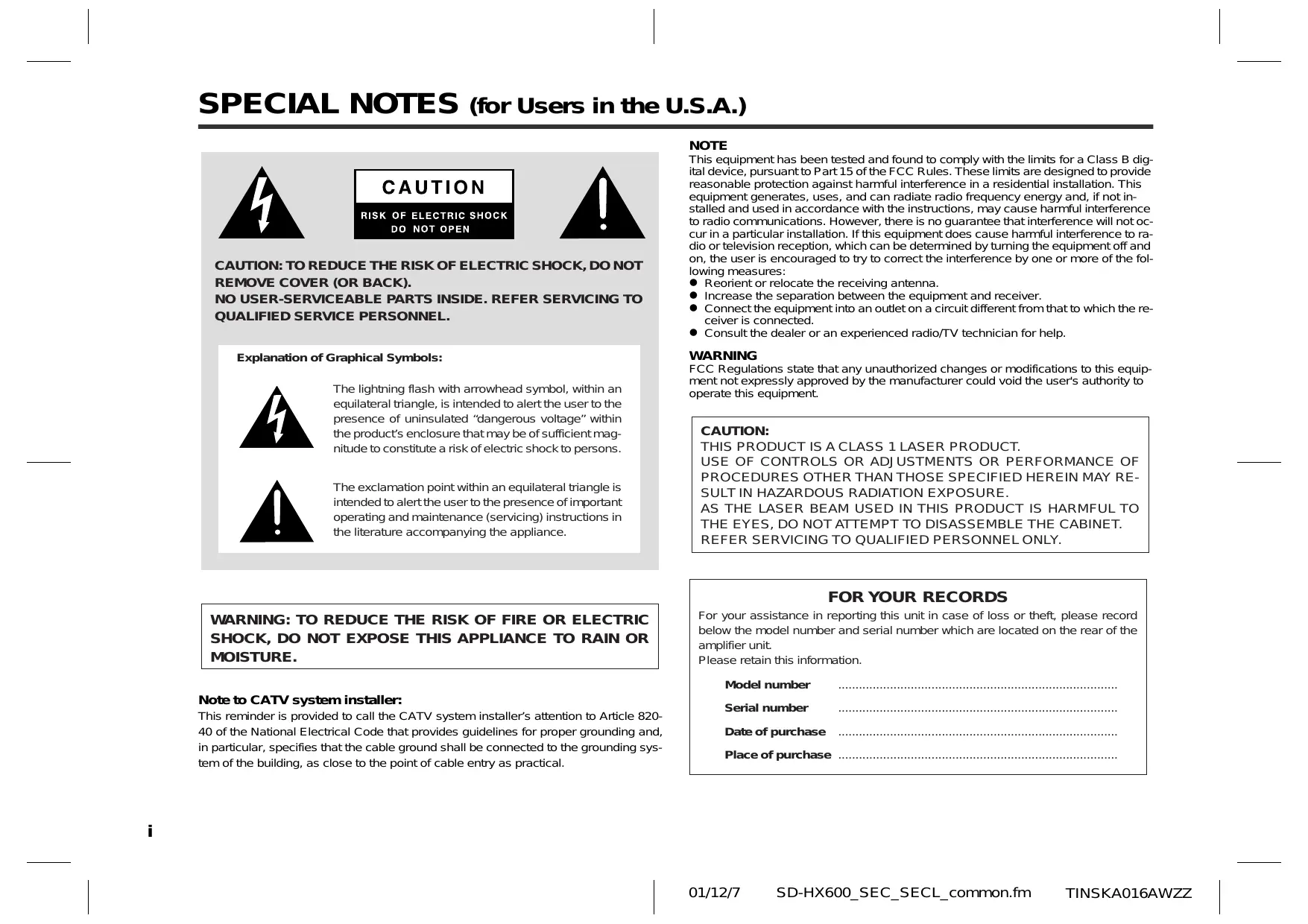
Explanation of Graphical Symbols:

The lightning flash with arrowhead symbol, within an equilateral triangle, is intended to alert the user to the presence of uninsulated “dangerous voltage” within the product’s enclosure that may be of sufficient magnitude to constitute a risk of electric shock to persons.

The exclamation point within an equilateral triangle is intended to alert the user to the presence of important operating and maintenance (servicing) instructions in the literature accompanying the appliance.
WARNING: TO REDUCE THE RISK OF FIRE OR ELECTRIC SHOCK, DO NOT EXPOSE THIS APPLIANCE TO RAIN OR MOISTURE.
Note to CATV system installer:
This reminder is provided to call the CATV system installer's attention to Article 820-40 of the National Electrical Code that provides guidelines for proper grounding and, in particular, specifies that the cable ground shall be connected to the grounding system of the building, as close to the point of cable entry as practical.
NOTE
This equipment has been tested and found to comply with the limits for a Class B digital device, pursuant to Part 15 of the FCC Rules. These limits are designed to provide reasonable protection against harmful interference in a residential installation. This equipment generates, uses, and can radiate radio frequency energy and, if not installed and used in accordance with the instructions, may cause harmful interference to radio communications. However, there is no guarantee that interference will not occur in a particular installation. If this equipment does cause harmful interference to radio or television reception, which can be determined by turning the equipment off and on, the user is encouraged to try to correct the interference by one or more of the following measures:
● Reorient or relocate the receiving antenna.
- Increase the separation between the equipment and receiver.
- Connect the equipment into an outlet on a circuit different from that to which the receiver is connected.
- Consult the dealer or an experienced radio/TV technician for help.
WARNING
FCC Regulations state that any unauthorized changes or modifications to this equipment not expressly approved by the manufacturer could void the user's authority to operate this equipment.
CAUTION:
THIS PRODUCT IS A CLASS 1 LASER PRODUCT.
USE OF CONTROLS OR ADJUSTMENTS OR PERFORMANCE OF PROCEDURES OTHER THAN THOSE SPECIFIED HEREIN MAY RESULT IN HAZARDOUS RADIATION EXPOSURE.
AS THE LASER BEAM USED IN THIS PRODUCT IS HARMFUL TO THE EYES, DO NOT ATTEMPT TO DISASSEMBLE THE CABINET.
REFER SERVICING TO QUALIFIED PERSONNEL ONLY.
FOR YOUR RECORDS
For your assistance in reporting this unit in case of loss or theft, please record below the model number and serial number which are located on the rear of the amplifier unit.
Please retain this information.
Model number
Serial number
Date of purchase ....
Place of purchase ....
IMPORTANT SAFETY INSTRUCTIONS (for Users in the U.S.A.)
1 Read Instructions - All the safety and operating instructions should be read before the product is operated.
2 Retain Instructions - The safety and operating instructions should be retained for future reference.
3 Heed Warnings - All warnings on the product and in the operating instructions should be adhered to.
4 Follow Instructions - All operating and use instructions should be followed.
5 Cleaning - Unplug this product from the wall outlet before cleaning. Do not use liquid cleaners or aerosol cleaners. Use a damp cloth for cleaning.
6 Attachments - Do not use attachments not recommended by the product manufacturer as they may cause hazards.
7 Water and Moisture - Do not use this product near water - for example, near a bath tub, wash bowl, kitchen sink, or laundry tub; in a wet basement; or near a swimming pool; and the like.
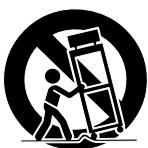
8 Accessories - Do not place this product on an unstable cart, stand, tripod, bracket, or table. The product may fall, causing serious injury to a child or adult, and serious damage to the product. Use only with a cart, stand, tripod, bracket, or table recommended by the manufacturer, or sold with the product. Any mounting of the product should follow the manufacturer's instructions, and should use a mounting accessory recommended by the manufacturer.
9 A product and cart combination should be moved with care. Quick stops, excessive force, and uneven surfaces may cause the product and cart combination to overturn.
10 Ventilation - Slots and openings in the cabinet are provided for ventilation and to ensure reliable operation of the product and to protect it from overheating, and these openings must not be blocked or covered. The openings should never be blocked by placing the product on a bed, sofa, rug, or other similar surface. This product should not be placed in a built-in installation such as a bookcase or rack unless proper ventilation is provided or the manufacturer's instructions have been adhered to.
11 Power Sources - This product should be operated only from the type of power source indicated on the marking label. If you are not sure of the type of power supply to your home, consult your product dealer or local power company. For products intended to operate from battery power, or other sources, refer to the operating instructions.
12 Grounding or Polarization - This product may be equipped with a polarized alternating-current line plug (a plug having one blade wider than the other). This plug will fit into the power outlet only one way. This is a safety feature. If you are unable to insert the plug fully into the outlet, try reversing the plug. If the plug should still fail to fit, contact your electrician to replace your obsolete outlet. Do not defeat the safety purpose of the polarized plug.
Alternate Warnings - This product is equipped with a three-wire grounding-type plug, a plug having a third (grounding) pin. This plug will only fit into a grounding-type power outlet. This is a safety feature. If you are unable to insert the plug into the outlet, contact your electrician to replace your obsolete outlet. Do not defeat the safety purpose of the grounding-type plug.
13 Power-Cord Protection - Power-supply cords should be routed so that they are not likely to be walked on or pinched by items placed upon or against them, paying particular attention to cords at plugs, convenience receptacles, and the point where they exit from the product.
14 Protective Attachment Plug - The product is equipped with an attachment plug having overload protection. This is a safety feature. See Instruction Manual for replacement or resetting of protective device. If replacement of the plug is required, be sure the service technician has used a replacement plug specified by the manufacturer that has the same overload protection as the original plug.
15 Outdoor Antenna Grounding - If an outside antenna or cable system is connected to the product, be sure the antenna or cable system is grounded so as to provide some protection against voltage surges and built-up static charges. Article 810 of the National Electrical Code, ANSI/NFPA 70, provides information with regard to proper grounding of the mast and supporting structure, grounding of the lead-in wire to an antenna discharge unit, size of grounding conductors, location of antenna discharge unit, connection to grounding electrodes, and requirements for the grounding electrode.

16 Lightning - For added protection for this product during a lightning storm, or when it is left unattended and unused for long periods of time, unplug it from the wall outlet and disconnect the antenna or cable system. This will prevent damage to the product due to lightning and power-line surges.
17 Power Lines - An outside antenna system should not be located in the vicinity of overhead power lines or other electric light or power circuits, or where it can fall into such power lines or circuits. When installing an outside antenna system, extreme care should be taken to keep from touching such power lines or circuits as contact with them might be fatal.
18 Overloading - Do not overload wall outlets, extension cords, or integral convenience receptacles as this can result in a risk of fire or electric shock.
19 Object and Liquid Entry - Never push objects of any kind into this product through openings as they may touch dangerous voltage points or short-out parts that could result in a fire or electric shock. Never spill liquid of any kind on the product.
20 Servicing - Do not attempt to service this product yourself as opening or removing covers may expose you to dangerous voltage or other hazards. Refer all servicing to qualified service personnel.
21 Damage Requiring Service - Unplug this product from the wall outlet and refer servicing to qualified service personnel under the following conditions:
a) When the power-supply cord or plug is damaged,
b) If liquid has been spilled, or objects have fallen into the product,
c) If the product has been exposed to rain or water,
d) If the product does not operate normally by following the operating instructions. Adjust only those controls that are covered by the operating instructions as an improper adjustment of other controls may result in damage and will often require extensive work by a qualified technician to restore the product to its normal operation,
e) If the product has been dropped or damaged in any way, and
f) When the product exhibits a distinct change in performance - this indicates a need for service.
22 Replacement Parts - When replacement parts are required, be sure the service technician has used replacement parts specified by the manufacturer or have the same characteristics as the original part. Unauthorized substitutions may result in fire, electric shock, or other hazards.
23 Safety Check - Upon completion of any service or repairs to this product, ask the service technician to perform safety checks to determine that the product is in proper operating condition.
24 Wall or Ceiling Mounting - The product should be mounted to a wall or ceiling only as recommended by the manufacturer.
25 Heat - The product should be situated away from heat sources such as radiators, heat registers, stoves, or other products (including amplifiers) that produce heat.
"DTS" and "DTS Digital Surround" are registered trademarks of Digital Theater Systems, Inc.
Manufactured under license from Dolby Laboratories. "Dolby", "Pro Logic" and the double-D symbol are trademarks of Dolby Laboratories.
Licensed under one or more of U.S. Pat. 4,972,484, 5,214,678,
5,323,396, 5,530,655, 5,539,829, 5,544,247, 5,606,618, 5,610,985,
5,740,317, 5,777,992, 5,878,080 or 5,960,037.
ENERGY STAR® Program Information

ENERGY STAR
Products that have earned the ENERGY STAR® are designed to protect the environment through superior energy efficiency.
ENERGY STAR ^® is a U.S. registered mark.
ENGLISH
Contents
Page
■ General Information
Accessories 2
Precautions 3
Controls and indicators 4 - 9
Description of discs 10, 11
■ Preparation for Use
System installation 12
System connections 13, 14
Speaker connection 15, 16
Antenna connection 16
TV connection 17
Remote control 18
AC power connection 18
Setting the clock 19
General control 20
■ DVD Operation
Playing a disc 21, 22
Basic operation
To locate the beginning of a chapter (track) (skip) 23
Fast forward/Fast reverse (search) 23
To start playback from the desired point (direct play) 24
Useful operation
To play in the desired order (programmed play) 25
To play repeatedly (repeat play) 26
To play the contents between the specified points repeatedly (A-B repeat) .. 26
Still picture/Frame advance 27
Slow-motion play 27
Resume play 27
To change the angle 28
To zoom images (zoom) 28
To select a title from the top menu of the disc 29
To select a subtitle or audio language from the disc menu 29
To change the subtitle language 29
To change the audio language (audio output) 30
Page
Various settings
Brightening the image (Gamma correction) 30
Sharpening the image (Super picture) 30
To change the display on TV screen 31
To change the display on the unit 31
Switching elapsed time 32
Switching playing time 32
To change the setting on the playback control screen 32
Playing a DVD-Audio disc 33
■ SACD and CD Operation
Playing an SACD disc
Playing hybrid SACD sound 34
To play in random order (random play) 35
Playing an MP3 disc 36
■ Radio Operation
Listening to the radio 37
Listening to the memorized station 38, 39
■ Advanced Features
Enjoying surround sound (sound mode) 40 - 43
Changing the initial setting of DVD 44 - 47
Changing the default settings of the amplifier 48 - 51
Timer playback 52
Setting the timer....52, 53
Operations after setting the timer 54
Sleep timer 55
Operating the connected TV 56, 57
Storing volume, surround or amplifier settings 58
Mounting the unit on the wall 59,60
Connecting other equipment 61 - 65
■ References
Maintenance 66
Error indicators and warnings 66
Troubleshooting chart 67 - 69
Language code list for disc language 70
Specifications 71 - 72
Please confirm that the following accessories are included.
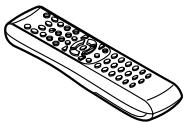 Remote control × 1(RRMCGA007AWSA) Remote control × 1(RRMCGA007AWSA) | 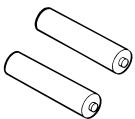 "AA" size battery (UM/SUM-3, R6, HP-7 or similar) × 2(UBATU0001AWZZ) "AA" size battery (UM/SUM-3, R6, HP-7 or similar) × 2(UBATU0001AWZZ) | 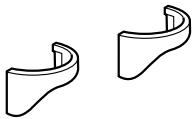 Cord holder × 2(LHLDZ1499AWSA) Cord holder × 2(LHLDZ1499AWSA) |
 FM antenna × 1(92LFANT1535A) FM antenna × 1(92LFANT1535A) |  AM loop antenna × 1(QANTL0012AWZZ) AM loop antenna × 1(QANTL0012AWZZ) | 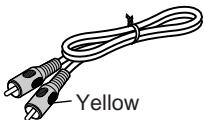 Video cable × 1(QCNWG0072AWPZ) Video cable × 1(QCNWG0072AWPZ) |
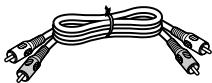 Audio cable × 1(QCNWGA007AWPZ) Audio cable × 1(QCNWGA007AWPZ) | 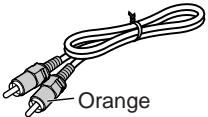 Digital audio cable × 1(QCNWGA008AWPZ) Digital audio cable × 1(QCNWGA008AWPZ) | 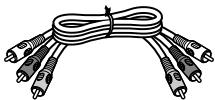 Component video cable × 1(QCNWGA005AWPZ) Component video cable × 1(QCNWGA005AWPZ) |
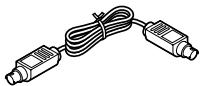 S-video cable × 1(QCNWGA009AWPZ) S-video cable × 1(QCNWGA009AWPZ) |  (For signal/sound)System connection cable × 1(QCNWGA006AWPZ) (For signal/sound)System connection cable × 1(QCNWGA006AWPZ) |  (For signal/sound/power)System connection cable × 1(QCNWGA004AWPZ) (For signal/sound/power)System connection cable × 1(QCNWGA004AWPZ) |
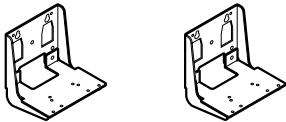 Wall bracket × 2(LANGZA002AWZZ) Wall bracket × 2(LANGZA002AWZZ) | ||
Note:
Only the above accessories are included.
Copyright Information:
- Unauthorized copying, broadcast, public display, transmission, public performance and rental (regardless of whether or not such activities are for profit) of disc contents are prohibited by law.
- This system is equipped with copy protection technology that causes substantial degradation of images when the contents of a disc are copied to a video tape.
Copy Protection:
This unit supports Macrovision copy protection.
On DVD discs that include a copy protection code, if the contents of the DVD disc are copied using a VCR, the copy protection code prevents the videotape copy from playing normally.
Apparatus Claims of U.S. Patent Nos. 4,631,603, 4,577,216, 4,819,098, and 4,907,093, licensed for limited viewing uses only.
This product incorporates copyright protection technology that is protected by method claims of certain U.S. patents and other intellectual property rights owned by Macrovision Corporation and other rights owners.
Use of this copyright protection technology must be authorized by Macrovision Corporation, and is intended for home and other limited viewing uses only unless otherwise authorized by Macrovision Corporation.
Reverse engineering or disassembly is prohibited.
Precautions
■ General
- Ensure the unit is positioned in a well-ventilated area with at least the following amount of free space around the top: 6" (15 cm), sides: 4" (10 cm), and the back: 1-3/8" (3.5 cm).
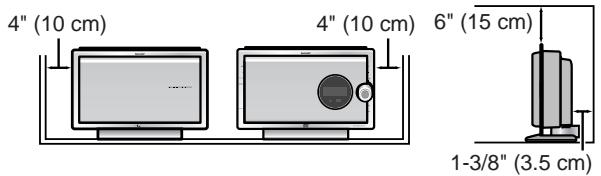
- Use the unit on a firm, level surface free from vibration.

natural_image
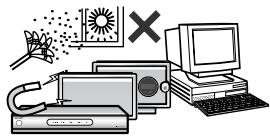
Illustration of a computer setup with a monitor, keyboard, and monitor with steam lines (no text or symbols)- Keep the unit away from direct sunlight, strong magnetic fields, excessive dust, humidity and electronic/electrical equipment (home computers, facsimiles, etc.) which generate electrical noise.
natural_image
Illustration of a desktop computer setup with monitor, keyboard, printer, and explosion symbol (no text or labels)- Do not place anything on top of the unit.
- Do not expose the unit to moisture, to temperatures higher than 140^ F ( 60^ C) or to extremely low temperatures.
- If the unit does not work properly, unplug and plug it in again. Then turn on the unit.
- In case of an electrical storm, unplug the unit for safety.
- Hold the AC power plug by the head when removing it from the AC outlet, as pulling the cord can damage internal wires.


natural_image
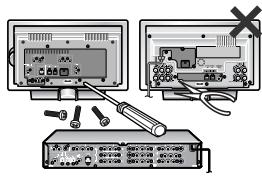
Illustration of a hand holding a cable with a switch and a cross mark indicating disassembly (no text or symbols present)- Do not remove the outer cover, as this may result in electric shock. Refer internal service to your local SHARP service facility.
- This unit should only be used within the range of 41^ F - 95^ F ( 5^ C - 35^ C).
Warning:
The voltage used must be the same as that specified by this unit. Using this product with a higher voltage other than that specified is dangerous and may result in a fire or other types of accident, causing damage. SHARP will not be held responsible for any damage resulting from the use of this unit with a voltage other than that specified.
■ Volume control
The sound level at a given volume setting depends on speaker efficiency, location and various other factors. It is advisable to avoid exposure to high volume levels, which occurs while turning the unit on with the volume control setting up high, or while continually listening at high volumes.
■ Care of DVD/SACD/CD discs
DVD/SACD/CD discs are fairly resistant to damage, however mistracking can occur due to an accumulation of dirt on the disc surface. Follow the guidelines below for maximum enjoyment from your DVD/SACD/CD collection and player.
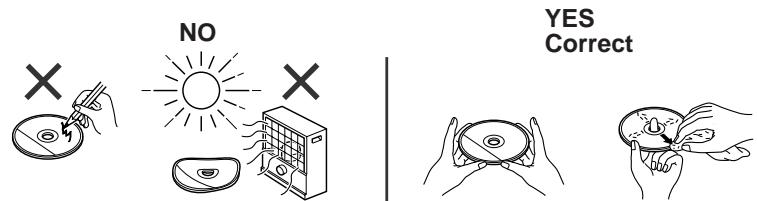
- Do not write on either side of the disc, particularly the non-label side from which signals are read. Do not mark this surface.
- Keep your discs away from direct sunlight, heat, and excessive moisture.
- Always hold the DVD/SACD/CDs by the edges. Fingerprints, dirt, or water on the DVD/SACD/CDs can cause noise or mistracking. If a DVD/SACD/CD is dirty or does not play properly, clean it with a soft, dry cloth, wiping straight out from the center, along the radius.

■ Main unit (front panel)
Reference page
-
Disc Door ...... 21
-
Volume Control 20
-
Remote Sensor 18
-
Timer Set Indicator .... 54
-
SACD/DVD-AUDIO Multi Indicator 34
-
SACD/DVD-AUDIO Stereo Indicator 34
-
Dolby Pro Logic II Indicator 40
-
Dolby Digital Signal Indicator 40
-
DTS Signal Indicator 40
10.PCM Signal Indicator 40
11.Daily Timer Indicator 54
12.Once Timer Indicator 54
13.Sleep Indicator 55
- Title Indicator .... 31
15.Group Indicator 31
- Chapter Indicator ...... 31
17.Track Indicator 31
18.Total Indicator 32
19.Angle Indicator 28
20.Audio Signal/Speaker Indicators 41
21.Repeat/One Track Repeat/A-B Repeat Indicators ..... 26
22.Random Play Indicator 35
23.Program Indicator
24.FM Stereo Mode Indicator 37
25.FM Stereo Receiving Indicator 37
Controls and indicators (continued)
(Left side)
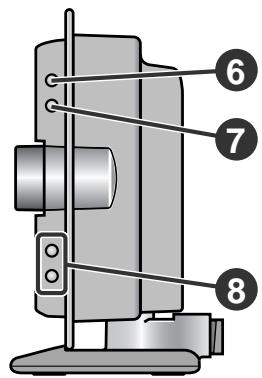
(Right side)
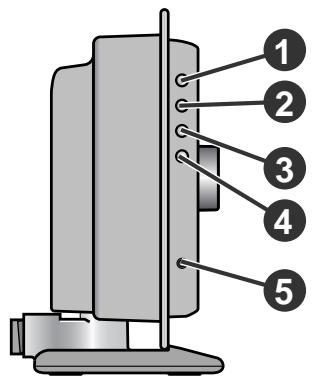
■ Main unit (side panel)
Reference page
- On/Stand-by Button ..... 18, 69
- Disc Door Open/Close Button....21
- Function Button .....62
- Tuner (Band) Button .....37
- Headphone Jack 65
- Disc Play Button .....21
- Disc Stop Button .....21, 22
- Chapter (Track) Skip/Tuning Up and Down Buttons .....23, 37
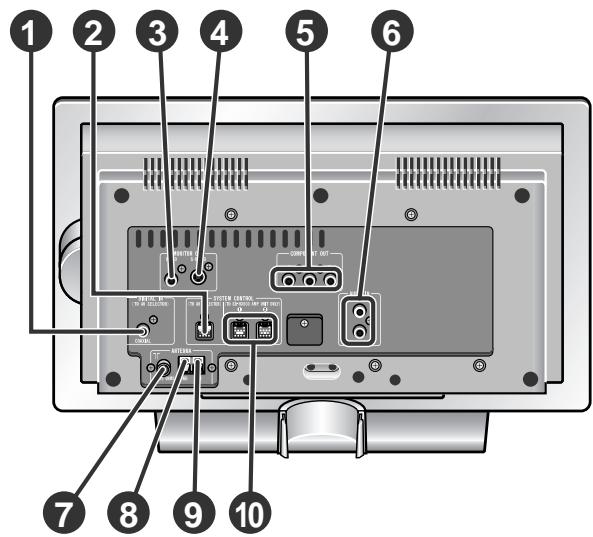
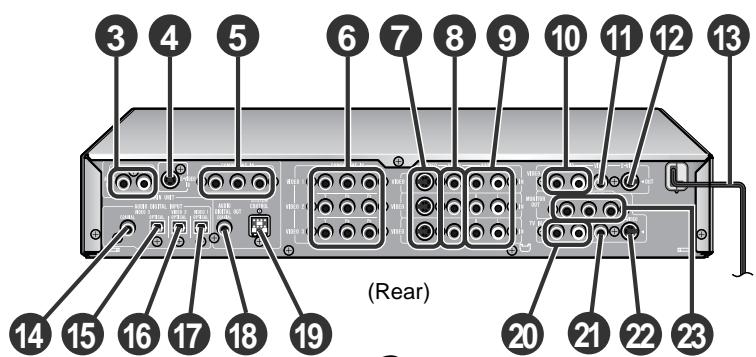
■ Main unit (rear panel)
Reference page
- Coaxial Digital Audio Input Jack (to AV selector) .....13
- System Connection Jack (to AV selector) .....13
- Video Output Jack .....14
- S-video Output Jack (to AV selector) .....13
- Component Video Output Jacks (to AV selector) .....13
- Audio Input Jacks (to AV selector) .....13
- FM 75 Ohm Antenna Jack .....16
- Antenna Ground Terminal ..... 16
- AM Antenna Terminal .....16
- System Connection Jacks (to amplifier unit) .....13
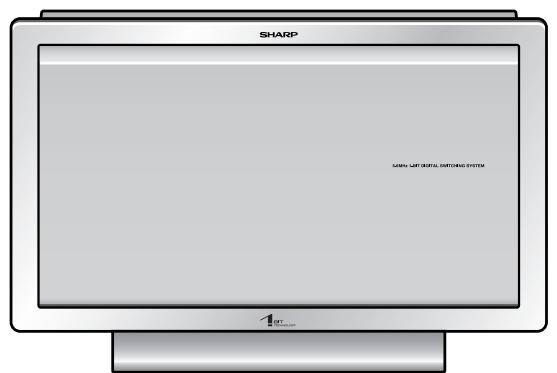
(Front)

■ Amplifier unit
Reference page
-
AC Power Cord .... 18
-
System Connection Jacks (to main unit) ..... 13
-
Subwoofer Pre Output Jack 65
(Connect a subwoofer with a built-in amplifier.)
-
Front Speaker Terminals ..... 15
-
Center Speaker Terminals....15
-
Surround Speaker Terminals ..... 15
Controls and indicators (continued)
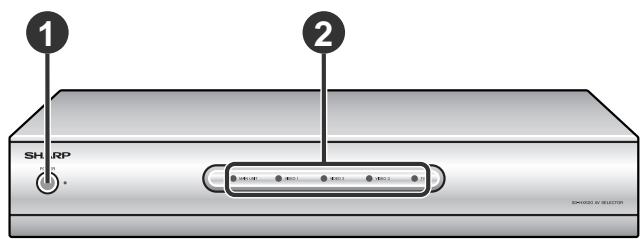
(Front)

natural_image
Isometric line drawing of a computer chassis with ports and connectors (no text or symbols)The rating label is located on the bottom of the AV selector.
■ AV selector
Reference page
- Power Button....18
- Function Buttons (MAIN UNIT/VIDEO 1/VIDEO 2/VIDEO 3/TV) .....62, 64
- Audio Output Jacks (to main unit) .....13
- S-video Input Jack (to main unit) .....13
- Component Video Input Jacks (to main unit) .....13
- Component Video Input Jacks (VIDEO 1/VIDEO 2/VIDEO 3) .....61
- S-video Input Jacks (VIDEO 1/VIDEO 2/VIDEO 3) .....61
- Video Input Jacks (VIDEO 1/VIDEO 2/VIDEO 3) .....61
- Audio Input Jacks (VIDEO 1/VIDEO 2/VIDEO 3) .....61
10.Audio Output Jacks (VIDEO 1) ....63
11.Video Output Jack (VIDEO 1) ......63
12.S-video Output Jack (VIDEO 1)....63
13.AC Power Cord ....18 - Coaxial Digital Audio Input Jack (VIDEO 3) .....61
15.Optical Digital Audio Input Jack (VIDEO 3) .....61
16.Optical Digital Audio Input Jack (VIDEO 2) .....61 - Optical Digital Audio Input Jack (VIDEO 1) .....61
- Coaxial Digital Audio Output Jack (to main unit) ..... 13
- System Connection Jack (to main unit) ..... 13
20.Audio TV Input Jacks 61
21.Video Output Jack (MONITOR OUT)....13
22.S-video Output Jack (MONITOR OUT) .....17 - Component Video Output Jacks (MONITOR OUT) .....17
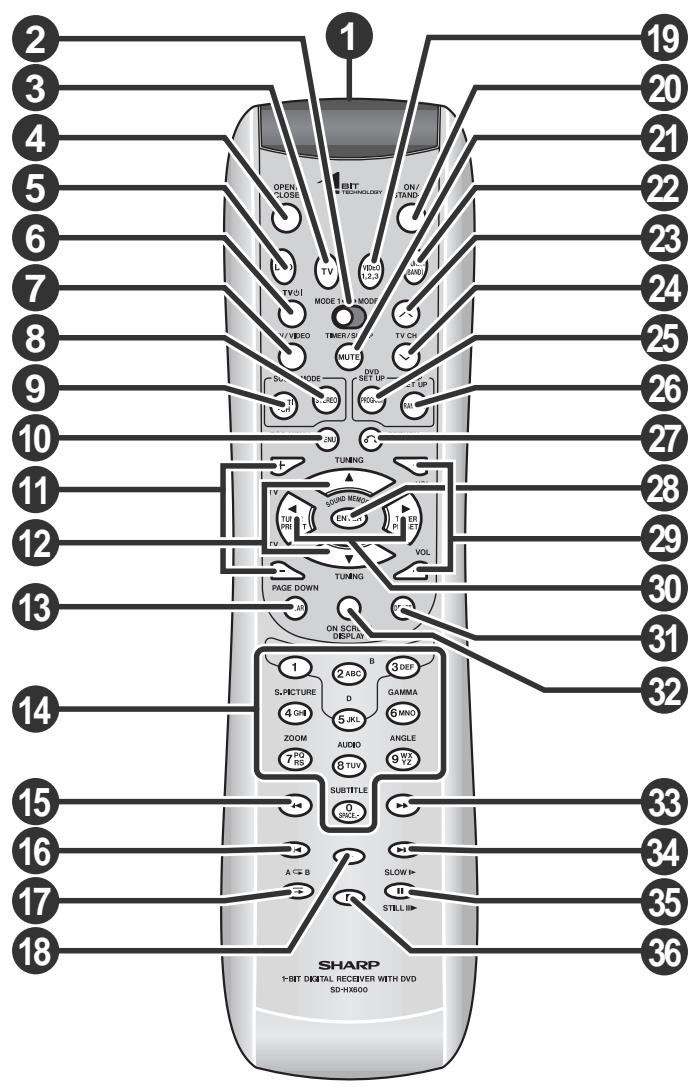
■ Remote control
Set the MODE 1/MODE 2 switch to MODE 1 and press the following buttons. Available operations change.
Reference page
- Remote Control Transmitter .... 18
- MODE 1/MODE 2 Switch ..... 9
- TV Button 62
- Disc Door Open/Close Button....21
- SACD/DVD Button 21
- TV On/Stand-by Button 56
- TV/Video Select Button 56
- Stereo (2 channel) Select Button 43
- Multi Channel Select Button 42
10.Menu Button 29
11.TV Volume Up and Down Buttons 56
12.Cursor/Tuning Up and Down Buttons 19,37
13.Clear Button 25
14.Direct Number/Character Input Buttons 24,38
15.Fast Reverse Button 23 - Chapter (Track) Skip Down Button 23
17.Repeat Play Button 26
18.Disc Play Button 21
19.Video Button 62
20.On/Stand-by Button 18
21.Mute Button 20
22.Tuner (Band) Button 37
23.TV Channel Up Button 56
24.TV Channel Down Button 56
25.Program Button 25
26.Random Play Button 35
27.Return Button 24
28.Enter Button 19
29.Volume Up and Down Buttons 20
30.Cursor/Preset Up and Down Buttons 19, 39
31.Direct Button 24
32.Unit Display Select Button 20, 31
33.Fast Forward Button 23 - Chapter (Track) Skip Up Button 23
35.DVD Frame Advance, Disc Pause Button 22, 27
36.Disc Stop Button 22
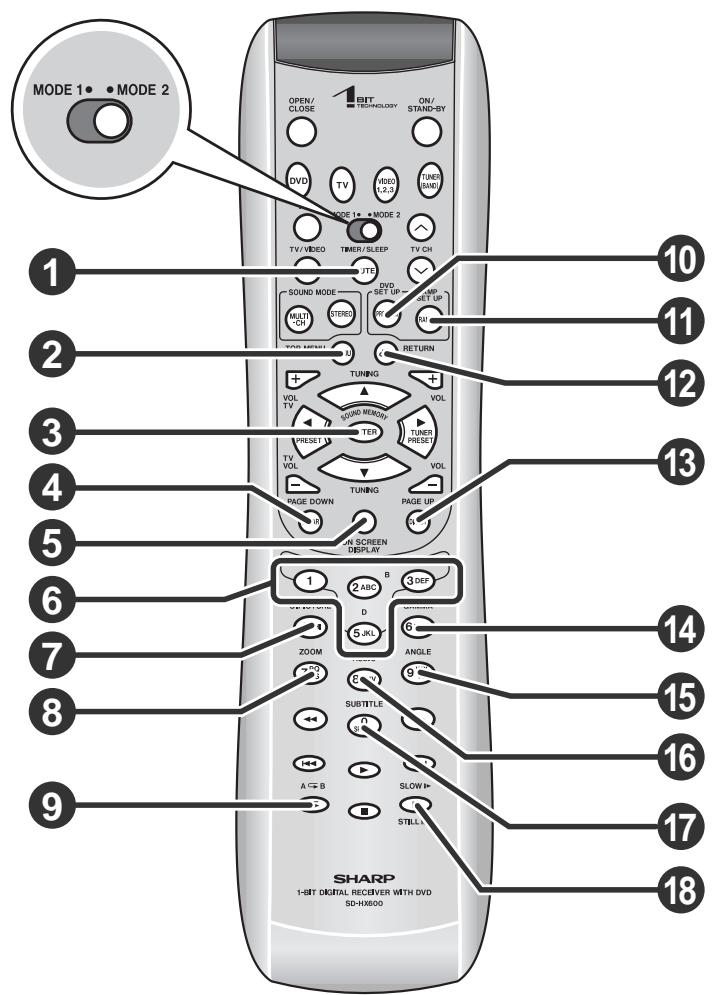
■ Remote control
Set the MODE 1/MODE 2 switch to MODE 2 and press the following buttons (indicated in blue). Available operations change.
Reference page
- Timer/Sleep Button ..... 19, 53
- DVD Top Menu Button .....29
- Sound Memory/Enter Button .....29, 58
- DVD Page Down Button ....33
- On-Screen Display Button 31
- Sound Pattern Buttons .....58
- DVD Super Picture Button ....30
- DVD Zoom Button .....28
- A - B Repeat Button .....26
10.DVD Setup Button 32,44
11.Amplifier Setup Button 48 - Return Button ....32
13.DVD Page Up Button ....33
14.DVD Gamma Button ....30
15.DVD Angle Button 28
16.DVD Audio Language or CD Audio Output Select Button .....30
17.DVD Subtitle Button .....29
18.DVD Slow Button 27
Notes:
- In "MODE 2", you can use buttons other than the above for the same operations as in "MODE 1".
● After operations in "MODE 2", switch to "MODE 1".
■ Types of playable discs
The unit can play back discs bearing any of the following marks:
| DVD | |
DVD-Video Disc for NTSC system  VIDEO VIDEO | DVD-Audio Disc for NTSC system AUDIO AUDIO |
DVD-R for NTSC system R4.7Recorded in the video mode (*) R4.7Recorded in the video mode (*) | DVD-RW for NTSC system Recorded in the video mode (*)Discs recorded in VR mode (Video Re-cording format) cannot be played back. Recorded in the video mode (*)Discs recorded in VR mode (Video Re-cording format) cannot be played back. |
Some DVD discs may not function as described in the manual. See the disc jacket for restrictions.
| SACD |
 SUPER AUDIO CD SUPER AUDIO CD |
| CD | ||
Audio CD | Audio CD-R | Audio CD-RW |
| Or CD-R recorded in MP3 format (*) | Or CD-RW recorded in MP3 format (*) | |
(*) Some discs may not play properly due to the status of the equipment used for recording, characteristics of the discs, scratches, dirt, or dirty optical pickup lens.
DVD-Video
A popular type of DVD disc of the same size as a CD, mainly containing video images.
Region number
DVD discs are programmed with region numbers indicating countries in which they can be played. This system can play discs with region number "1" or "ALL".
Region number (playable area number)

Title and chapter
DVD-Video discs are divided into "titles" and "chapters". If the disc has more than one movie on it, each movie is a separate "title". "Chapters" are subdivisions of titles.
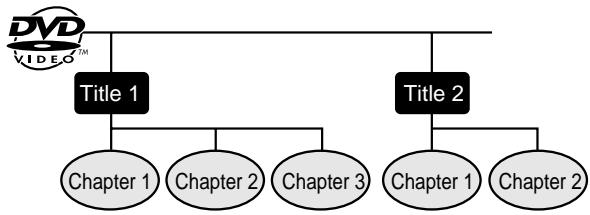
flowchart
graph TD
    A["Title 1"] --> B["Chapter 1"]
    A --> C["Chapter 2"]
    A --> D["Chapter 3"]
    E["Title 2"] --> F["Chapter 1"]
    E --> G["Chapter 2"]
DVD-Audio
Whereas DVD-Videos mainly contain video images, DVD-Audios mostly contain high-quality sound data. Its recording capacity is seven times as much as a CD.
Its physical structure is the same as DVD-Videos, but largely differs in data and directory structures. It consists of the audio zone, which is the main part, and the video zone, which records video images.
Group and track
A DVD-Audio disc consists of "groups" and "tracks". Groups are equivalent to albums containing multiple songs. Tracks are the individual songs within a group.
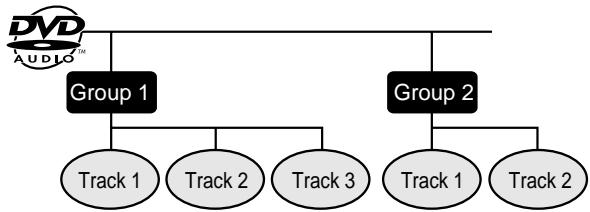
flowchart
graph TD
    A["Group 1"] --> B["Track 1"]
    A --> C["Track 2"]
    A --> D["Track 3"]
    E["Group 2"] --> F["Track 1"]
    E --> G["Track 2"]
Description of discs (continued)
■ DVD-R/DVD-RW playback
- You can play DVD-R and DVD-RW discs recorded in the video mode.
- Before playing DVD-R/DVD-RW discs with this unit, finalize them with the equipment used for recording.
■ SACD (Super Audio CD)
An SACD is a high-quality audio disc, capable of recording seven times as much data as a CD. There are three types of SACD: single layer, dual layer and hybrid.
Hybrid disc contains both SACD and CD structures.
Some SACD discs contain multi channel audio recordings.
Track
SACD and music CD are composed of "tracks". Tracks are equivalent to songs on a CD.

flowchart
graph TD
    A["SUPER AUDIO CD"] --> B["COMPACT DIGITAL AUDIO"]
    B --> C["Track 1"]
    B --> D["Track 2"]
    B --> E["Track 3"]
    B --> F["Track 4"]
■ MP3 format on CD-R/CD-RW
An MP3 file is an audio data compressed in the MPEG 1 audio layer 3 format. MP3 files have the extension ".mp3". (Files with the extension ".mp3" may not play, or noise may occur during playback if not recorded in the MP3 format.)
Folder and track
MP3 discs consist of "folders" and "tracks".
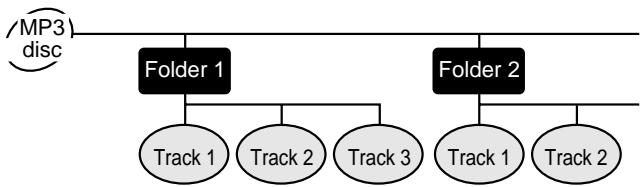
flowchart
graph TD
    A["MP3 disc"] --> B["Folder 1"]
    A --> C["Folder 2"]
    B --> D["Track 1"]
    B --> E["Track 2"]
    B --> F["Track 3"]
    C --> G["Track 1"]
    C --> H["Track 2"]
■ Icons used on DVD discs
Check the icons of the DVD jacket before playing your discs.
| Display | Description | ||
Format recorded on the DVD   | To adopt the video format to the connected TVs ("wide-screen TV" or "4:3 size TV"). | ||
Type of subtitles recordedExample: 1: English2: Japanese 1: English2: Japanese | Recorded subtitle languages.You can select a subtitle language. | ||
Number of camera angles | Number of angles recorded on the DVD.You can view scenes from different angles. | ||
Number of audio tracks and audio recording systemsExample: 1: Original(Dolby Digital 5.1 Surround)2: Japanese (Dolby Digital 2 ch) 1: Original(Dolby Digital 5.1 Surround)2: Japanese (Dolby Digital 2 ch) | The number of audio tracks and audio recording systems are indicated.You can change the audio language.Audio and recording system vary depending on the DVD. Check them in the DVD's manual. | ||
■ Discs that cannot be played
● DVDs without the region number "1" or "ALL"
● DVDs with PAL system
● DVDs with SECAM system
● DVDs with MPEG sound
- DVD-ROM
- DVD-RAM
- CDG
- Video CD
- Photo CD
-
CD-ROM
● Discs recorded in special formats, etc. -
The discs above cannot be played at all, or no sound is heard although images appear on the screen or vice versa.
● Faulty playback may damage the speakers and can have an adverse effect on your hearing when played at high volume settings. - This DVD player adopts the NTSC system. Discs that were made in foreign countries may not be played back. Check the recording system before purchasing discs.
- You cannot play illegally produced discs.
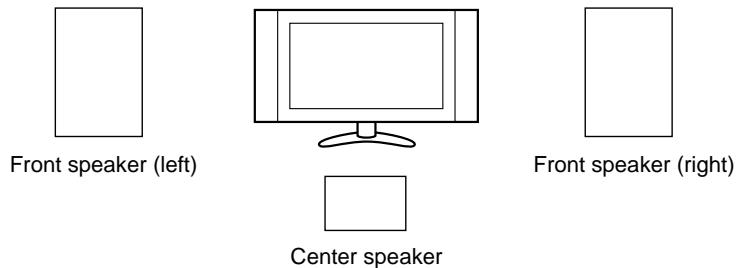
■ Placing the speaker in your system
The best surround effect will be achieved by placing each speaker at the same distance from the listening position.
It is recommended to arrange the speakers as shown below.
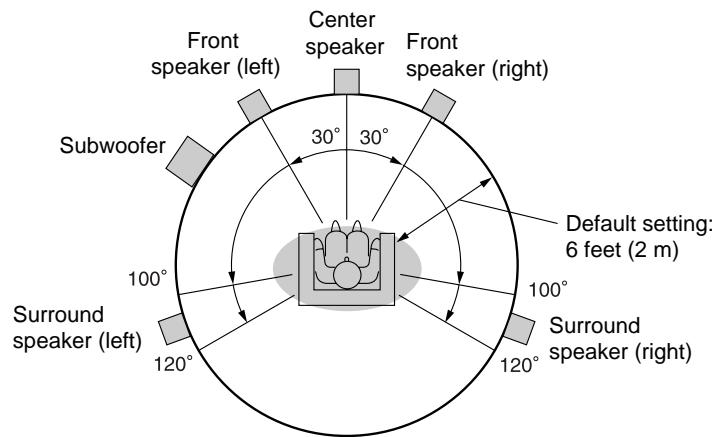
Note:
The default distance is set to 6 feet (2 m). If speakers cannot be placed at equal distances, refer to "Speaker delay setting" (see page 49).
Installation image:
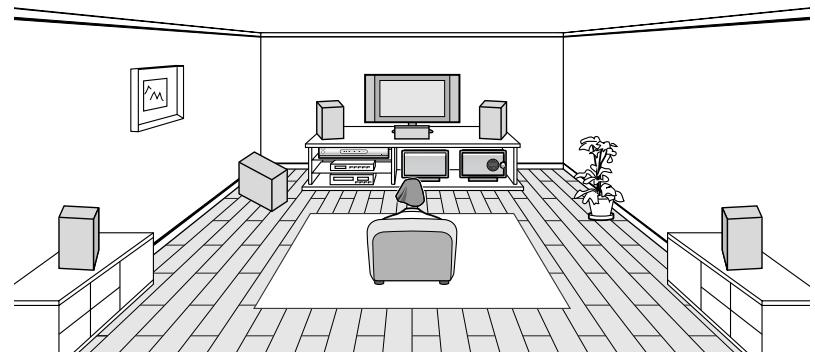
natural_image
Line drawing of a cozy living room with TV, wall-mounted screens, and a person sitting on a couch (no text or symbols)Notes:
- Place the TV halfway between the front speakers.
- It is recommended that the center speaker be placed near the television.
- Place the surround speakers at a position just above the height of your ears.
- The subwoofer vibrates while reproducing bass. Place it on a stable, sturdy surface.
● The subwoofer reproduces only lower frequency bass tones. - Since the human ear cannot identify the direction of low bass tones, the subwoofer can usually be placed freely in the room for the best sound result.
- Bass sound is easily affected by the position of the subwoofer. If the bass tones in the listening position seem much too low or too high, try changing your listening position. If the bass tone level changes when you change the listening position, try relocating the subwoofer.
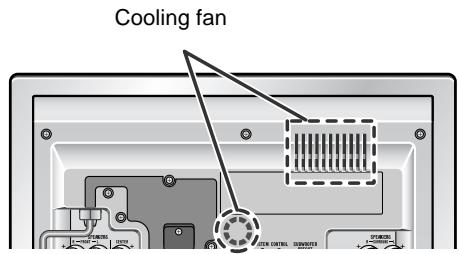
■ Cooling fan
This unit is fitted with a cooling fan at the rear for improved cooling. Do not cover the opening in this section with any obstacles.
- The unit will get warm while being used. Do not touch the warm areas of the unit for prolonged periods to avoid damage to you.
- This unit contains an automatic protection circuit, which protects the unit from being damaged. All speaker outputs are muted when this circuit is activated. Should the unit stop operating, first check the speaker terminals for shorted wires, then press the ON/STAND-BY button on the main unit to turn on the unit.
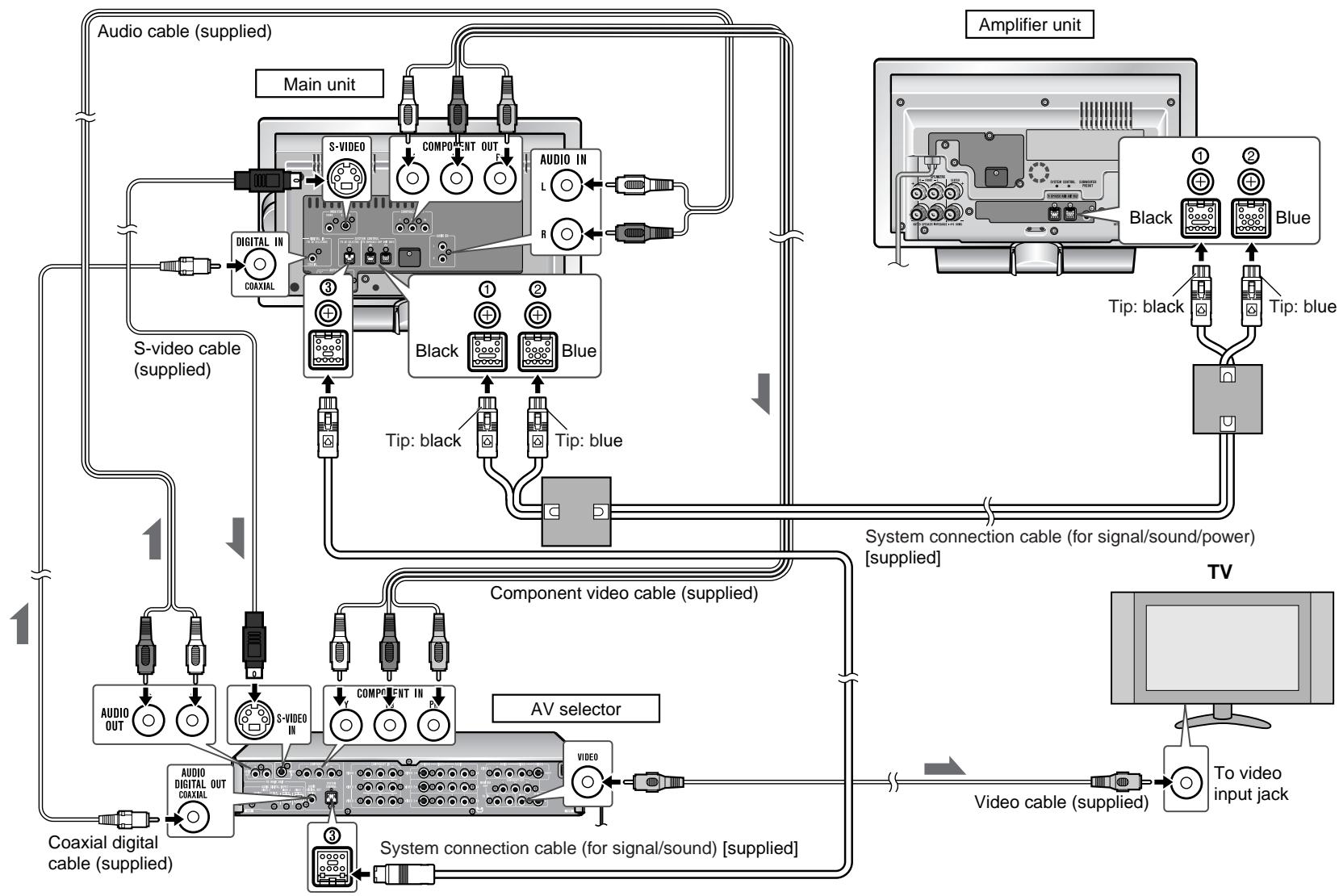
System connections
Make sure to unplug the AC power cord before making this connection.
Using the supplied cables, connect the main unit, amplifier unit, AV selector, and a TV.
flowchart
graph TD
    A["Main unit"] --> B["Amplifier unit"]
    B --> C["TV"]
    C --> D["Video cable (supplied)"]
    D --> E["To video input jack"]
    E --> F["Video cable (supplied)"]
    F --> G["Component video cable (supplied)"]
    G --> H["AV selector"]
    H --> I["Coaxial digital cable (supplied)"]
    I --> J["Audio digital OUT COAXIAL"]
    J --> K["Component IN PV"]
    K --> L["S-VIDEO IN"]
    L --> M["Audio OUT"]
    M --> N["Audio cable (supplied)"]
    N --> A
    style A fill:#f9f,stroke:#333
    style B fill:#ccf,stroke:#333
    style C fill:#cfc,stroke:#333
    style D fill:#fcc,stroke:#333
    style E fill:#ffc,stroke:#333
    style F fill:#fcc,stroke:#333
    style G fill:#cff,stroke:#333
    style H fill:#ffc,stroke:#333
    style I fill:#fcc,stroke:#333
    style J fill:#ffc,stroke:#333
    style K fill:#cff,stroke:#333
    style L fill:#ffc,stroke:#333
    style M fill:#cff,stroke:#333
    style N fill:#ffc,stroke:#333
    style O fill:#ffc,stroke:#333
    style P fill:#ffc,stroke:#333
    style Q fill:#ffc,stroke:#333
    style R fill:#ffc,stroke:#333
    style S fill:#ffc,stroke:#333
    style T fill:#ffc,stroke:#333
    style U fill:#ffc,stroke:#333
    style V fill:#ffc,stroke:#333
    style W fill:#ffc,stroke:#333
    style X fill:#ffc,stroke:#333
    style Y fill:#ffc,stroke:#333
    style Z fill:#ffc,stroke:#333
■ Connections
1 Connect the main unit and amplifier unit as follows.
Connect the supplied system connection cable (for signal/sound/power).
To connect:
Match the colors when connecting the cables. Insert the cable until it clicks, with the arrow side up.

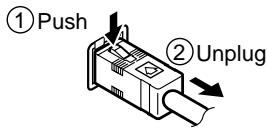
To disconnect:
Pull the cable straight out pressing the plug.
2 Connect the main unit and AV selector as follows.
1 Connect the supplied system connection cable (for signal/sound).
2 Connect the supplied component video cable and S-video cable.
3 Connect the supplied coaxial digital cable and audio cable.
To connect:
Insert the cable until it clicks, with the arrow facing up (main unit) and facing down (AV selector).
Main unit:

AV selector:
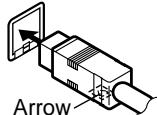
To disconnect:
Pull the cable straight out pressing the plug.
Main unit:
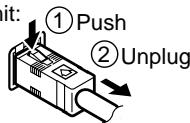
AV selector:
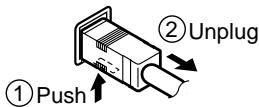
Notes:
- If your TV is not equipped with a component video input, it is not necessary to connect the component video cable between the main unit and the AV selector.
- If your TV is equipped with a component video input, then you should connect the component video cable between the main unit and the AV selector, and be sure to connect an additional component cable between the AV selector and the TV.
3 Connect the AV selector and TV.
Use the supplied video cable.
Notes:
- You can enjoy higher quality images using the component video or S-video output. Use a commercially available cable. (see page 17).
- Alternatively, connect the video output jack on the main unit to the TV's video input jack to view images.
- Change the TV input in accordance with the connected jack.
- Do not connect other equipment between the TV and AV selector. If a VCR is connected, pictures may be distorted.
- Using the audio cable, you can listen to the TV sound with this unit (see page 61).
You can connect a DVD recorder, VCR, etc. to the AV selector to enjoy the sound through the speakers.
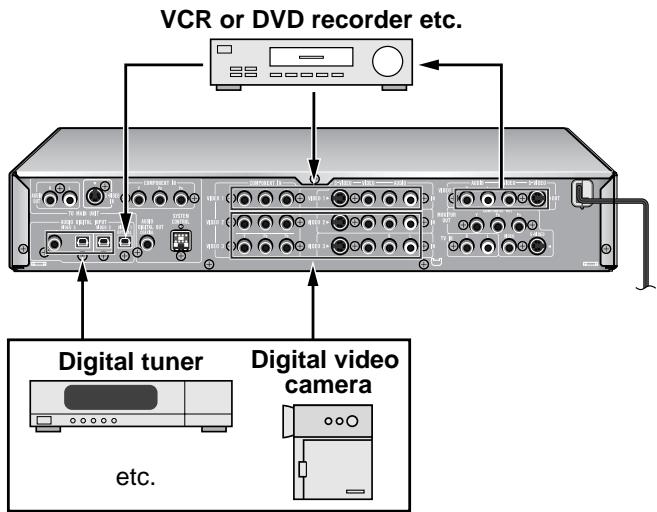
Connecting other equipment (See pages 61 - 65.)
Speaker connection
● Make sure to leave the AC power cord disconnected when connecting the speakers.
- Use a speaker system which has 100 W or more rated power input and 4 - 8 ohm impedance.
See page 12 for placing the speakers.
To enjoy the high-quality sound of DVD-Audio or SACD discs, it is recommended to connect speakers with a wide frequency range.
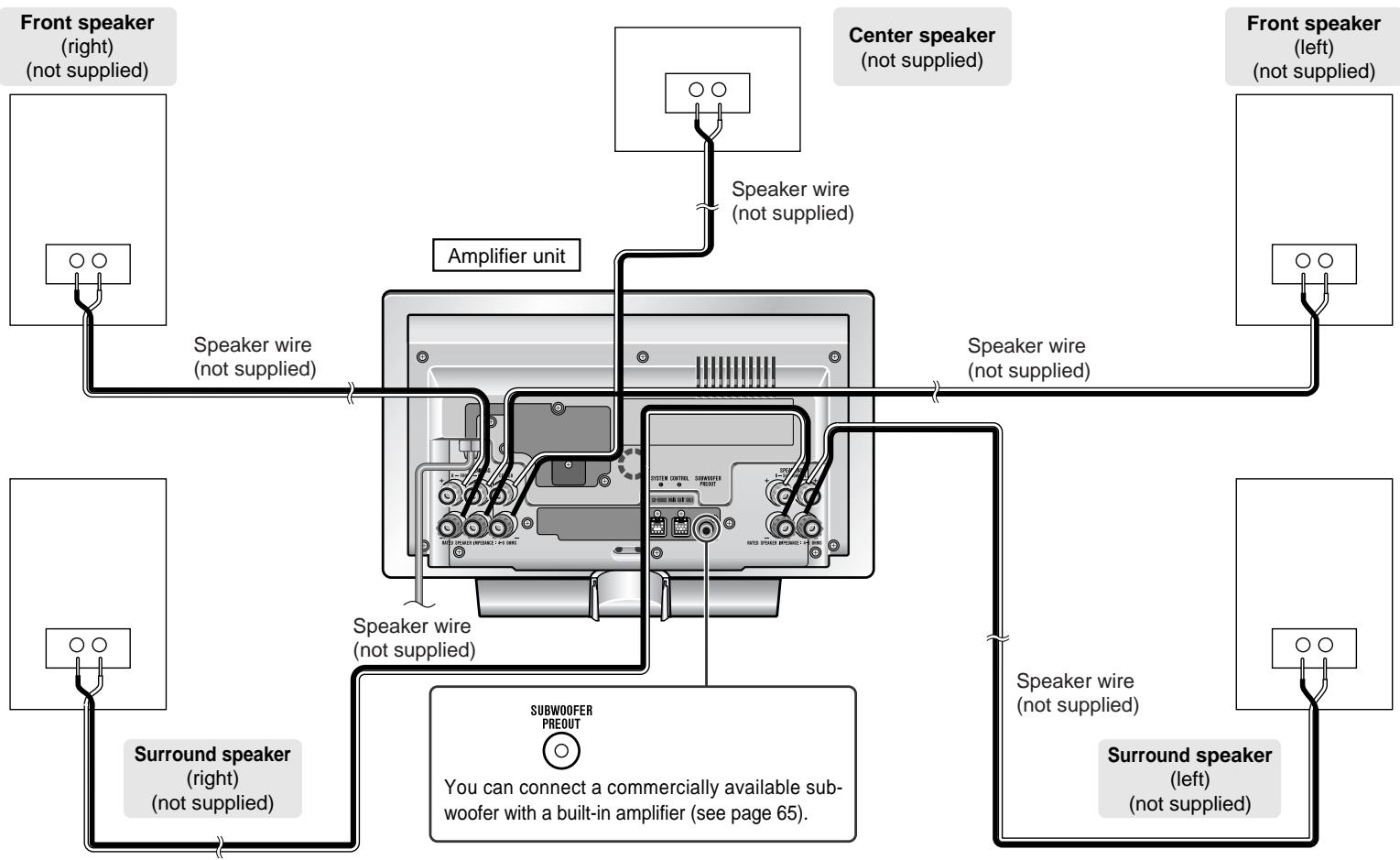
flowchart
graph TD
    A["Front speaker (right) (not supplied)"] --> B["Speaker wire (not supplied)"]
    C["Center speaker (not supplied)"] --> D["Speaker wire (not supplied)"]
    E["Front speaker (left) (not supplied)"] --> F["Speaker wire (not supplied)"]
    G["Speaker wire (not supplied)"] --> H["Speaker wire (not supplied)"]
    I["Speaker wire (not supplied)"] --> J["Speaker wire (not supplied)"]
    K["Speaker wire (not supplied)"] --> L["Speaker wire (not supplied)"]
    M["Speaker wire (not supplied)"] --> N["Speaker wire (not supplied)"]
    O["Speaker wire (not supplied)"] --> P["SURROUND SPEER PREOUT"]
    Q["Speaker wire (not supplied)"] --> R["You can connect a commercially available subwoofer with a built-in amplifier (see page 65)."]
    S["Speaker wire (not supplied)"] --> T["SURROUND SPEER PREOUT"]
    U["Speaker wire (not supplied)"] --> V["SURROUND SPEER PREOUT"]
Antenna connection
■ Connecting speaker wires
Make sure to leave the AC power cord disconnected when connecting the speakers.
Connect the speaker wires to the speakers first, then to the unit.
When using a speaker wire:
1 Strip the speaker wire about 5/8" (15 mm) and twist the conductors.
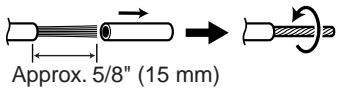
2 Loosen the speaker terminal.
3 Insert the speaker wire and tighten the thumbscrew.

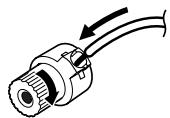
Caution:
- Use a speaker system which has 100 W or more rated power input and 4 - 8 ohm impedance.
- If the volume is turned up too high with the speakers of less than 4 ohm impedance connected, the protection circuit of the amplifier is activated. No sound is produced temporarily.
- Do not mistake the and , and right and left terminals of the speaker wires. (The right speaker is placed on the right when you face the unit.)
- Do not short-circuit the speaker wire. If it happens with the power on, the protection circuit is activated and the unit is set to the power stand-by mode. In this case, check that the speaker wire is connected correctly before turning on the power again.
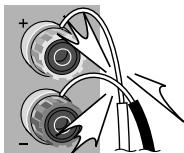
Incorrect
- When the center and surround speakers and subwoofer are not connected, set the speaker size to "C-NO", "S-NO" and "SW-NO". Otherwise, the protection circuit may be activated and the power is turned off.
Supplied FM antenna:
Connect the FM antenna wire to the FM 75 OHMS jack and position the FM antenna wire in the direction where the strongest signal can be received.
Supplied AM loop antenna:
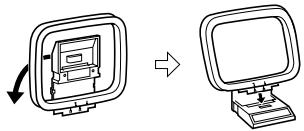
Connect the AM loop antenna wire to the AM and GND terminals. Position the AM loop antenna for optimum reception. Place the AM loop antenna on a shelf, etc., or attach it to a stand or a wall with screws (not supplied).

Note:
Placing the antenna on the unit or near the AC power cord may cause noise pickup. Place the antenna away from the unit for better reception.
Installing the AM loop antenna:
< Assembling > < Attaching to the wall >
natural_image
Diagram showing a device transformation from a rectangular frame to a computer monitor, with no text or symbols present.
Outdoor FM or AM antenna:
Use an outdoor FM or AM antenna if you require better reception. Consult your dealer.
When using an outdoor AM antenna, be sure to keep the wire of the AM loop antenna connected.

TV connection
Unplug all equipment before making any connections.
If your TV is equipped with an S-video input jack or component video input jacks, purchase an appropriate cable to enjoy higher quality images.
When you use a TV supporting progressive scan, open the initial setting screen and set "PROGRESSIVE OUT" to "ON" in "TV MODE" (see page 46).

flowchart
graph TD
    A["AV selector"] --> B["TV"]
    B --> C["Component OUT"]
    B --> D["S-VIDEO"]
    C --> E["To S-video input jack"]
    D --> F["To S-video cable (commercially available)"]
    F --> G["Component video cable (commercially available)"]
    G --> H["To component video input jacks"]
    H --> I["To S-video input jack"]
    I --> J["TV"]
Notes:
- For the connection, you can also connect the S-video output jack or component video output jacks on the main unit to TV's S-video input jack or component video input jacks.
- Change the TV input in accordance with the connected jack.
- Do not connect other equipment between the TV and AV selector. If a VCR is connected, pictures may be distorted.
- Using the audio cable, you can listen to the TV sound with this unit (see page 61).
- If your TV has different indications for the component video inputs (Y, CB and CR or Y, B-Y and P-Y), connect jacks with its matching color.
- Do not connect to a component video input jack designed for the high-vision system, which is not DVD-compatible (the images may be distorted or not appear).
- To view images, connect a TV to the AV selector with a video cable, component video cable, or S-video cable.
- When using a component video cable, connect the component video input and output jacks. When using an S-video cable or video cable, connect the S-video/video input and output jacks.
■ Positioning cables
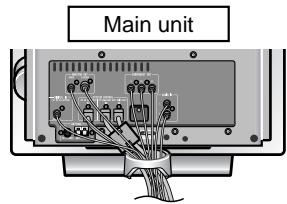
Bundle up cables of the main unit and amplifier unit using each cord holder.

Removing cord holders:
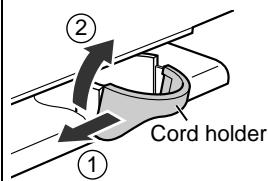
1 Move one side towards outside.
2 Lift up to remove.
Note:
If the image or sound is distorted, remove the AC power cord and antenna wires from the holder.
Remote control
■ Battery installation
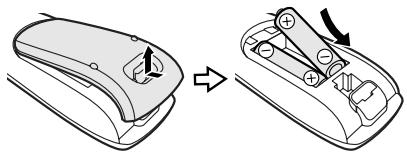
1 Open the battery cover.
2 Insert the supplied batteries according to the direction indicated in the battery compartment.
When inserting or removing the batteries, push them toward the battery terminals.
3 Close the cover.
natural_image
Diagram showing a device being processed from a left-side component to a right-side component, with no visible text or symbols.Precautions for battery use:
- Replace all old batteries with new ones at the same time.
- Do not mix old and new batteries.
- Remove the batteries if the unit will not be used for long periods of time. This will prevent potential damage due to battery leakage.
Caution:
- Do not use rechargeable batteries (nickel-cadmium battery, etc.).
- Installing the batteries incorrectly may cause the unit to malfunction.
Notes concerning use:
- Replace the batteries if the operating distance is reduced or if the operation becomes erratic. Purchase 2 "AA" size batteries (UM/SUM-3, R6, HP-7 or similar).
- Periodically clean the transmitter on the remote control and the sensor on the unit with a soft cloth.
- Exposing the sensor on the unit to strong light may interfere with operation. Change the lighting or the direction of the unit.
- Keep the remote control away from moisture, heat, shock, and vibrations.
■ Test of the remote control
Point the remote control directly at the remote sensor on the main unit.
The remote control can be used within the range shown on the right.
Press the ON/STAND-BY button. Does the power turn on? Now, you can enjoy your system.
Note:
The remote control may not work while the disc door is open. Move closer to the main unit, or aim the remote control from different angles.

AC power connection
■ Connecting the AC power cord
After checking all the connections have been made correctly, plug the AC power cord of the amplifier unit and the AV selector into the AC outlet.

Note:
Unplug the AC power cord from the AC outlet if the unit will not be in use for a prolonged period of time.
CAUTION:
TO PREVENT ELECTRIC SHOCK, MATCH WIDE BLADE OF PLUG TO WIDE SLOT, FULLY INSERT.
■ To turn the power on
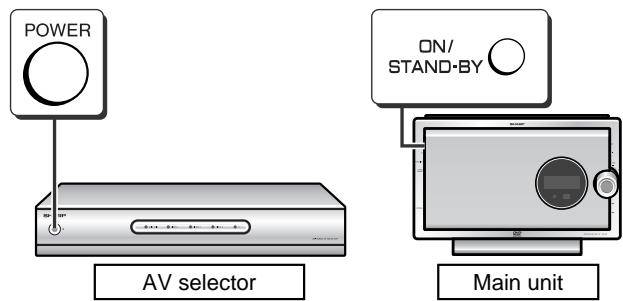
1 Press the POWER button on the AV selector.
2 Press the ON/STAND-BY button on the main unit.
If the power does not turn on, check if the power cords are plugged in properly.
To set the main unit and amplifier unit to stand-by mode:
Press the ON/STAND-BY button on the main unit again.
To turn off the AV selector:
Press the POWER button on the AV selector again.
Notes:
- After the main unit and amplifier unit enters the power stand-by mode, wait a few seconds to turn on again.
- To turn on the main unit, you can also use the ON/STAND-BY button on the remote control.
- You cannot turn on/off the AV selector with the ON/STAND-BY button on the remote control.
Setting the clock
By setting the unit to the correct time, you can use it not only as a clock but also for timer playback.
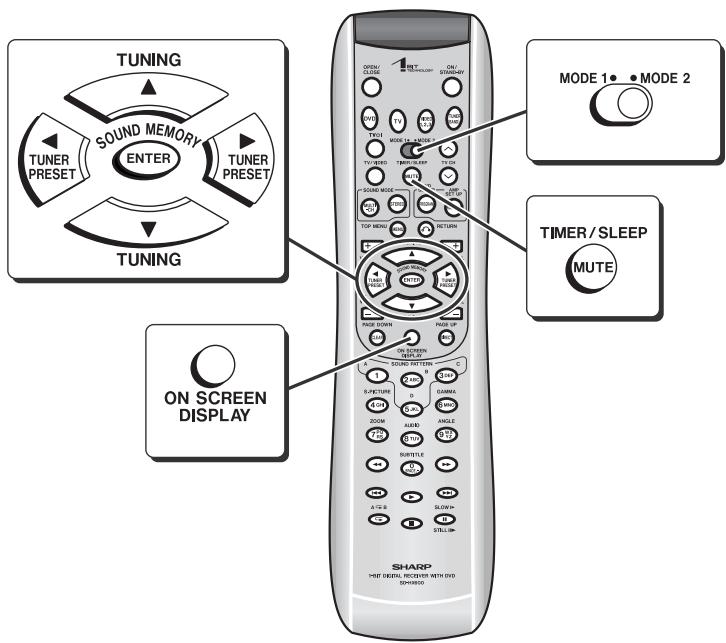
In this example, the clock is set to 9:30 AM.
1 Turn on the power, set the MODE 1/MODE 2 switch to MODE 2 and press the TIMER/SLEEP button.
2 Within 10 seconds, press the ▲ or ▼ button to select "CLOCK ADJUST", and then press the ENTER button.
CLOCK
ADJUST
3
Press the ◀ or ▶ button to adjust the hour and then press the ENTER button.
CLOCK
9:00 AM
- Press the ◀ or ▶ button once to advance the time by 1 hour. Hold it down to advance continuously.
● The 12-hour display will appear.
● "AM" will change to "PM" automatically.
4
Press the ◀ or ▶ button to adjust the minutes and then press the ENTER button.
CLOCK
9 : 30 AM
- Press the ◀ or ▶ button once to advance the time by 1 minute. Hold it down to advance continuously.
- The hour will not advance even if minutes advance from "59" to "00".
● The clock starts from "0" second (seconds are not displayed).
● The time disappears after approx. 2 seconds.
To confirm the time display:
[When the unit is in the stand-by mode]
Set the MODE 1/MODE 2 switch to MODE 1 and press the DISPLAY button. The time display will appear for about 5 seconds.
[When the power is on]
Set the MODE 1/MODE 2 switch to MODE 2 and press the TIMER/SLEEP button.
Within 10 seconds, press the ▲ or ▼ button to select "CLOCK".
The time display will appear for about 10 seconds.
To readjust the clock:
Perform "Setting the clock" from the beginning.
- In step 2, the time will be displayed.
- Follow steps 3 - 4.
Note:
Unplugging the unit or power failure will clear the clock setting.
Readjust the clock.


■ Volume control
Main unit operation:
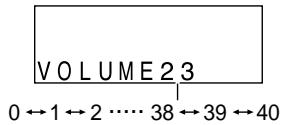
When the VOLUME control is turned clockwise, the volume will increase. When it is turned counterclockwise, the volume will decrease.
Remote control operation:
Press the VOL + button to increase the volume and the VOL - button for decreasing.
■ Muting
The volume is muted temporarily when setting the MODE 1/MODE 2 switch to MODE 1 and press the MUTE button.
Sound from the unit is muted.
- Press the MUTE button again to restore the sound.
- When muted, the mute will be canceled and sound restored if the volume is adjusted.
MUTE
■ To change the display brightness (2 levels)
Set the MODE 1/MODE 2 switch to MODE 1 and hold down the DISPLAY button for 3 seconds or more.
Each time you press, brightness changes.

flowchart
graph LR
    A["Dimmed"] --> B["(*)"]
    B --> C["Brightened"]
    A --> D["DIM ON"]
    B --> E["DIM AUTO"]
    C --> F["DIM OFF"]
(*) After approx. 5 seconds of DVD-Video playback, the display dims and the original brightness returns when you stop playback. The brightness remains unchanged during playback of other media.
Note:
The blue light on the bottom of the main unit and amplifier unit goes out when the display dims with "DIM ON" or "DIM AUTO".
Playing a disc

Volume control (See page 20.)
■ Playback


- Turn on the AV selector.
- For a wide-screen TV, set the video output to 16:9 (see page 45).
- Turn on the TV, and switch the input to the "VIDEO 1", "VIDEO 2", etc. accordingly.
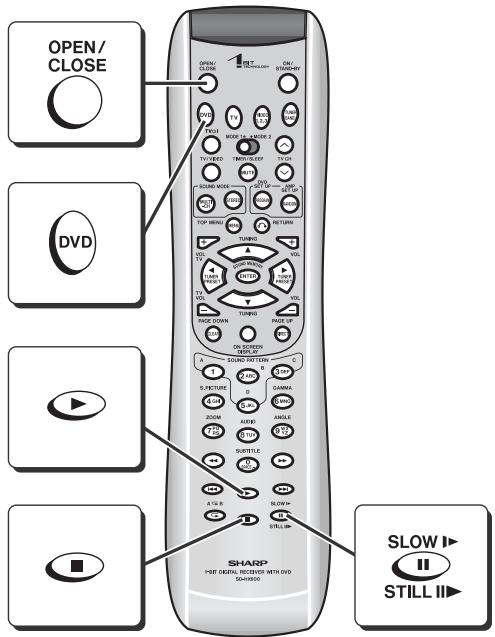
1 Turn on the power and press the DVD button to set the input to "DVD".

You can also use the ■ button on the main unit.
2 Press the OPEN/CLOSE button to open the disc door.
3 Insert a disc.
To avoid damage, insert the disc carefully.

4 Press the OPEN/CLOSE button to close the disc door.
Some discs play automatically.

5 If you cannot start playback in step 4, press the ▶ button.
When you press the ▶ button with the disc door open, it closes and playback starts.
- You can also use the ▲ or ▶ button on the main unit.
- To open/close the disc door, press the ▲ button on the main unit/remote control.
- The remote control may not work while the disc door is open. Move closer to the main unit, or aim the remote control from different angles.
- Do not attempt to close the disc door manually by pushing or forcing the sisc door closed. The disc door must be closed using the OPEN/CLOSE or ▶ buttons on the main unit or the remote control.
| Operations during disc playback | |||
| Action | Remote control | Main unit | Operation |
| To stop play-back |  |  | When you press once, "RESUME" appears. Press again to enter the stop mode.While "RESUME" appears, press the ▶ button. Playback resumes from the point where it was stopped.(Resume play: See page 27.) |
| To pause playback |  | Not available | Press during playback.In the pause mode, press the ▶ button. Playback resumes from the point where it was paused. |
How to place a disc:
1 Turn the playback side as shown on the right.
2 Place the disc in the tray properly.
- The disc tray supports both 5" (12 cm) and 3" (8 cm) discs.
- Place the disc carefully to avoid damage.

Removing discs:
Stop playback and remove the disc.
If you turn off the power with the disc door open, the door closes.
Caution:
Do not touch the disc door while it is moving, and be careful not to pinch your fingers.
Notes:
- Some DVD discs may not function as described in the manual. See the disc jacket for restrictions.
- During an operation, "⊗" may appear indicating that the operation is disabled by the disc.
- Some DVD-R/DVD-RW/CD-R/CD-RW may not play properly due to the status of the disc or equipment used for recording. Change the recording speed or disc. For more details, see the manual for the equipment.
- When you turn on the power or switch the input to "DVD", initialization starts and operation is not possible for a few seconds.
- Sound may skip at high volume depending on the disc. In this case, turn down the volume.
- Do not insert more than one disc. Discs may be damaged.
- A disc with scratches or fingerprints may not play properly. Refer to "Care of DVD/SACD/CD discs (page 3)" and clean the disc.
- Do not play the discs of special shapes (heart or octagon shaped) as they can be ejected while rotating and cause injury.
- When connecting a TV to the AV selector's video output jack, S-video output jack or component video output jacks, do not switch the function buttons on the AV selector.
An error message appears on TV or the unit when you try to play the following discs (see page 66):
- Scratched discs
- Unplayable discs
● The region number is neither 1 nor ALL.
● Discs supporting parental control (*)
(*) Some DVDs support parental control which restricts viewing according to the age (see page 46).
Icons used in this operation manual
Some functions may not be available depending on discs. The following icons indicate the discs that can be used in the section.
DVD ... DVD-Videos and DVD-Audios.
SACD ... Super Audio CDs.
CD ... Audio CDs and CD-R/CD-RW with MP3 recording.

■ To locate the beginning of a chapter (track)


You can move to other chapter (track) with simple operations.
While a disc is playing, press the ◀◀ or ▶▶ button.
- Press the ▶▶I button to skip to the next chapter (track).
- Press the I◀ button to skip to the beginning of the current chapter (track). Press the I◀ button again to skip to the beginning of the previous chapter (track).
- The same operation can be performed by pressing the ◀◀ or ▶▶I button on the main unit.
Notes:
- Some discs do not display the chapter (track) and the skip feature is disabled.
- On a DVD, the skip function may not be available across titles (groups).
■ Fast forward/Fast reverse (search)


You can search the desired point as you play the disc.
1 While a disc is playing, press the ◀◀ or ▶▶ button.
Example: When the ▶ button is pressed
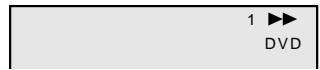
2 Press the ◀◀ or ▶▶ button repeatedly to select a search speed.
1 (about × 2 times) → 2 (about × 8 times) → 3 (about × 32 times)
- The disc is forwarded by the ▶ button and reversed by the ◀ button.
- The same operation can be performed by holding down the ◀◀ or ▶▶I button on the main unit for 2 seconds or more.
Press the ▶ button to return to normal playback.
Notes:
- On some discs, the search function is disabled.
● The search function is not possible across titles (groups). - During fast forward, subtitles appear and sound is heard only at the search speed 1 (about × 2 times). Sound is not heard on SACD discs.
- Depending on the disc or scene, the search speed may differ from that in this manual.
■ To start playback from the desired point (direct play) DVD SACD CD
1 During playback, set the MODE 1/MODE 2 switch to MODE 1.
2 Selecting a title of DVD: Press the DIRECT button.
TV screen

Selecting a chapter of DVD: Press the DIRECT button twice.

Selecting a track on SACD/CD discs: Press the DIRECT button.
Unit display
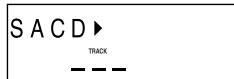
3 Within 10 seconds, enter a number with the direct number buttons (0 - 9) and press the ENTER button.
- To correct the number, enter again.
- To cancel, press the RETURN 🔗 button.
- Instead of the direct number buttons (0 - 9), you can use the ▲ or ▼ button.
How to specify:
Example:
To select chapter 12: Press 1, 2, and the ENTER button.
Notes:
- Direct play feature is disabled on some discs.
- Some DVD discs may not display the chapter number.
● During programmed play, this operation is not available. - On DVD-Audio discs, groups and tracks are played directly instead of titles and chapters.
To play by specifying time (time search):
You can play back from the desired point by specifying the time.
1 During playback, set the MODE 1/MODE 2 switch to MODE 1.
2 DVD: TV screen
Press the DIRECT button three times.
SACD (CD):
Press the DIRECT button twice.
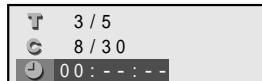
Unit display

3 Within 10 seconds, enter a number with the direct number buttons (0 - 9) and press the ENTER button.
- To specify 1 hour 23 minutes and 40 seconds, enter "012340".
- To correct the number, enter again.
- To cancel, press the RETURN 🔗 button.
- When you use the ▲ or ▼ button instead of the direct number buttons (0 - 9), press the ◀ or ▶ to switch among hour, minute and second.
- For DVD-Video discs, specify the elapsed time of the title.
- For DVD-Audio, SACD, CD discs specify the elapsed time of the track.
Notes:
● Time search is not possible across titles (tracks).
- On DVD-Audio discs, time search is not possible across tracks.
- Some discs cannot play from the specified point.
● Time search feature is disabled on some discs.
● During programmed play, this operation is not available.
- For MP3 discs, time search is not available.
- Some discs contain time portions you cannot specify.
Useful operation
■ To play in the desired order (programmed play) DVD SACD CD
You can play chapters (tracks) in the desired order within a title (group). 24 chapters can be programmed (programmed play). Titles (groups) cannot be programmed.
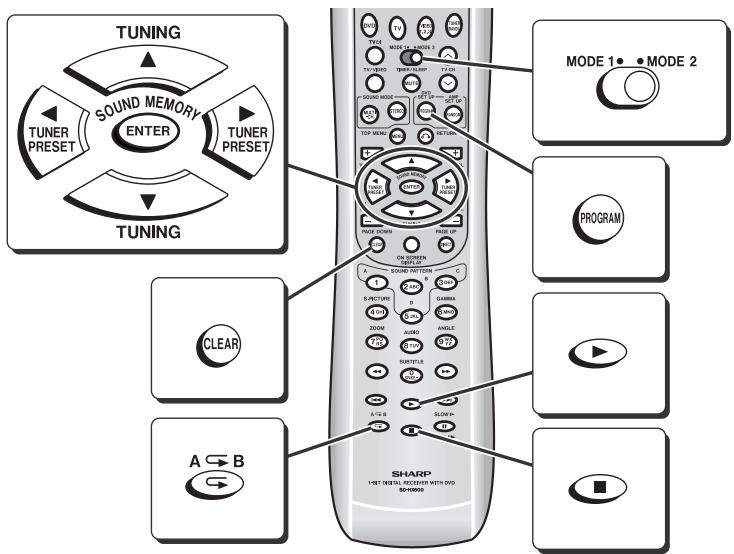
1 In the stop mode, set the MODE 1/MODE 2 switch to MODE 1 and press the PROGRAM button.
Example: DVD
The programming screen is displayed.
To program tracks on SACD/CD discs, go to step 3.
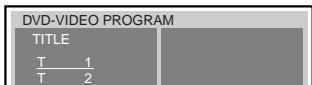
2 Select a title number with the ▲ or ▼ button and press the ENTER button.
The chapter selection screen appears.

Cursor
3 Use the ▲ or ▼ button to select a chapter (track) number, and press the ENTER button.
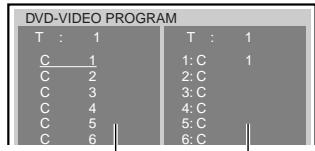
Selection area
Confirmation area
- The number is saved in the confirmation area.
- Repeat the operation to program another number.
- To correct, press the ▶ button to move the cursor to the confirmation area, select the chapter (track) number with the ▲ or ▼ button, and press the CLEAR button. After deleting the number, press the ◀ button to return the cursor to the selection area.
4 Press the ▶ button to start playback.
● The unit stops after playing the chapters (tracks) in the programmed order.
- The programmed contents will be stored until the disc is removed.
To add numbers to the program:
Repeat steps 1 and 3.
Additional chapter (track) numbers are added immediately after the chapter (track) already programmed.
To delete all numbers in the program:
1 In the stop mode, press the PROGRAM button.
2 Press the ▶ button to move the cursor to the confirmation area.
3 Press the CLEAR button for 4 seconds or more.
To cancel the operation:
Press the PROGRAM button.
To repeat the programmed play:
Press the PROGRAM button, and then press the ▶ button.
Programmed play is canceled when playback stops.
Notes:
- Programming cannot be performed while paused or in the playback mode.
- Programmed play is prohibited on some discs.
- All chapters in a programmed playlist must from a single title. Chapters from different titles may not be programmed together.
- For programmed play on DVD-Audio discs, select groups or tracks.
- For an MP3 disc, programmed play is not available.
■ To play repeatedly (repeat play)


You can play a chapter (track) or a title (group) repeatedly by specifying it during play-back.
1 During playback, set the MODE 1/MODE 2 switch to MODE 1 and press the ⊆ button.
TV screen

Unit display
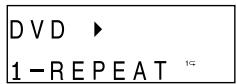
Each time the button is pressed, the repeat play mode changes in the following order.
The repeat play mode changes as follows on DVD:
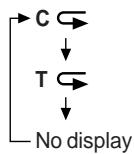

Repeat the currently playing chapter.
Repeat the currently playing title.
Normal playback.
The repeat play mode changes as follows on SACD/CD:

Repeat the currently playing track.
Repeat the currently playing disc.
Normal playback.
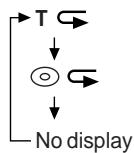
On DVD-Audio discs, the mode switches as follows: T ⊆ (track), G ⊆ (group), no display (normal playback).
2 To return to normal playback, press the ⊖ button repeatedly to select "NORMAL".
Caution:
After performing repeat play, be sure to press the ■ button. Otherwise, the disc will play continuously.
Notes:
- On some discs, the repeat play function is disabled.
● To repeat SACD/CD programmed play, perform repeat play during playback. - If you press the RANDOM button, the current SACD/CD repeat play is canceled and switched to random play.
● During DVD programmed play, repeat play is not available. - When you press the ■ button, the current repeat play of DVD is canceled.
■ To play the contents between the specified points repeatedly (A-B repeat) DVD SACD CD
You can play the desired portion repeatedly by specifying it during playback.
1 During playback, set the MODE 1/MODE 2 switch to MODE 2 and press the A ⊆ B button.
TV screen

Unit display
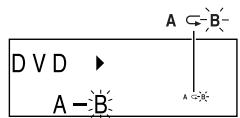
The start point (A) is created.
2 Press the A ⊆ B button again to enter the end point (B).

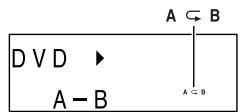
A-B repeat plays from the start point (A) to the end point (B).
3 Press the A ⊆ B button to return to normal playback.
Notes:
● A-B repeat play is disabled on some discs.
● A-B repeat play for DVD-Video is possible only within a title.
● A-B repeat play for DVD-Audio/SACD/CD is possible only within a track.
- Some scenes on DVD may not allow A-B repeat play.
● During programmed play, A-B repeat play is not available.
- When you press the ■ button, the current A-B repeat play is canceled.
● For MP3 discs, A-B repeat play is not available.
- An end point (B) is created when playback of the title (track) ends.
■ Still picture/Frame advance
DVD
You can freeze the image and advance frame by frame.
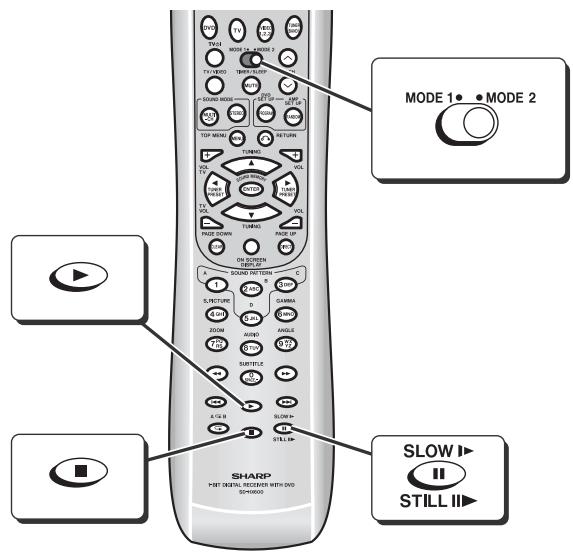
1 During playback, set the MODE 1/MODE 2 switch to MODE 1 and press the STILL ▶ button.
A still picture appears.
2 Press the STILL ▶ button during still picture playback.
Each press of the STILL ▶ button advances the frame.
3 Press the ▶ button to return to normal playback.
Notes:
● Still picture and frame advance features are disabled on some discs.
● Frame advance is not available on DVD-Audio discs (audio part only).
■ Slow-motion play
DVD
You can slow down the playback speed.
| 1 During playback, set the MODE 1/ MODE 2 switch to MODE 2 and press the SLOW ▶ button. | 1 ▶ DVD |
| 2 Press the SLOW ▶ button repeatedly to select a playback speed. 1 (about × 1/2 times) → 2 (about × 1/8 times) → 3 (about × 1/16 times) | |
| 3 Press the ▶ button to return to normal playback. | |
Notes:
- On some discs, the slow-motion playback functions are disabled.
- Slow-motion play is not available on DVD-Audio discs (audio part only).
■ Resume play
DVD SACD CD
You can resume playback from the point where it was stopped.
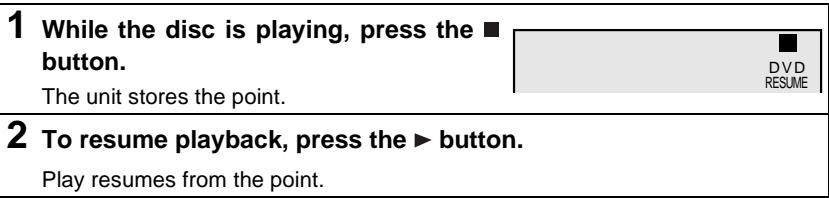
To cancel resume play:
Press the ■ button while "RESUME" is displayed.
Notes:
● The resume play feature is disabled on some discs.
- Depending on the disc, playback may resume from slightly before the stopped position.
- For MP3 discs, resume play is not available.
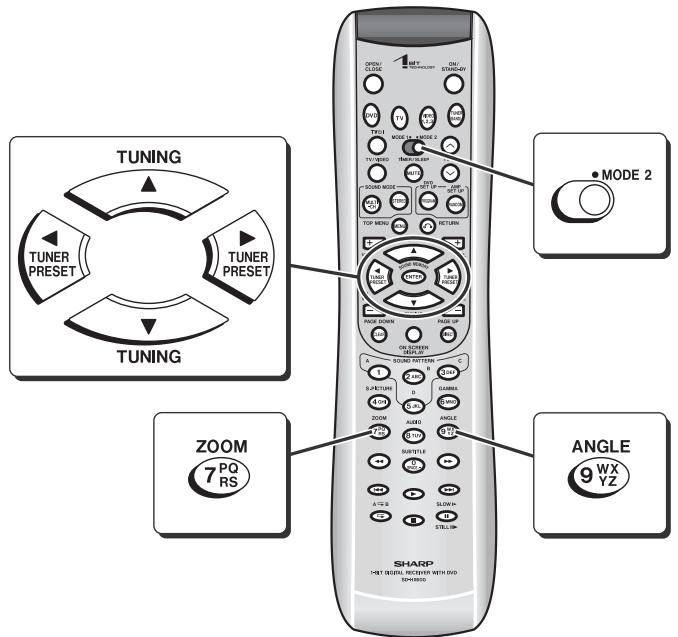
■ To change the angle
DVD
You can change the angle of view when playing a DVD disc that contains scenes recorded from multiple angles.
1 When "ANGLE" appears on the unit display during playback, set the MODE 1/MODE 2 switch to MODE 2 and press the ANGLE button.

2 Use the ANGLE button to select an angle number.
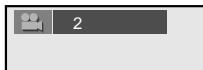
Each time you press, the angle changes.
Notes:
- Some DVDs prohibit changing the angle.
- The angle number is not displayed if there is no other angle recorded. "XX" is displayed instead.
- Refer to the manual of the disc as the operation may vary depending on the disc.
■ To zoom images (zoom)
DVD
You can magnify images during playback.
1 In the pause mode or during playback, set the MODE 1/MODE 2 switch to MODE 2 and press the ZOOM button.
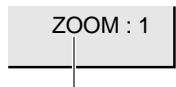
ZOOM indicator
Pressing the button cycles through the zoom settings as follows:
ZOOM: 1 (× 1.2) → ZOOM: 2 (× 1.5) → ZOOM: 3 (× 2.0) → Off (The indicator goes out.).
2 To shift the view and display the desired part of a zoomed image, press the ▲, ▼, ◀ or ▶ button repeatedly.
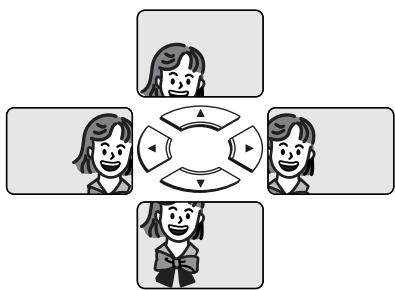
flowchart
graph TD
    A[" "] --> B[" "]
    C[" "] --> D[" "]
    E[" "] --> F[" "]
    G[" "] --> H[" "]
    I[" "] --> J[" "]
To return to normal view:
Press the ZOOM button repeatedly to select "Off" (the indicator goes out). When you cancel the zoom function, you cannot shift the view.
Notes:
- An image may become distorted when zoomed.
- Subtitles cannot be zoomed.
- When the zoom indicator changes from white to red while shifting the image, you cannot shift it any further.

■ To select a title from the top menu of the disc DVD
On a DVD with multiple titles, you can select a title from the top menu.
1 In the stop mode or during playback, set the MODE 1/MODE 2 switch to MODE 2 and press the TOP MENU button.
| 1 | Drama | 2 | Action |
| 3 | SF | 4 | Comedy |
2 Use the ▲, ▼, ◀, or ▶ button to select the title, and then press the ENTER button.
● The selected title is played.
- You can also use the direct number buttons for some discs.
Notes:
- The procedure shown here provides only general steps. The actual procedure for using the disc menu depends on the disc you are using. See the disc jacket for details.
- On DVD-Audio discs, select a group instead of title.
● During programmed play, setting is not possible on the top menu.
■ To select a subtitle or audio language from the disc menu DVD
You can select the desired subtitle/audio language and sound system (5.1-ch Dolby Digital or DTS sound) on your DVD if it has a disc menu.
1 In the stop mode or during playback, set the MODE 1/MODE 2 switch to MODE 1 and press the MENU button.
Example
Menu
- Highlights
2.Start Movie
2 Press the ▲, ▼, ◀ or ▶ button to select a subtitle/audio language and press the ENTER button.
You can also use the direct number buttons for some discs.
Notes:
- The procedure shown here provides only general steps. The actual procedure for using the disc menu depends on the disc you are using. See the disc jacket for details.
● During programmed play, setting is not possible on the disc menu.
■ To change the subtitle language DVD
You can change the subtitle language or hide subtitles during playback.
1 During playback, set the MODE 1/MODE 2 switch to MODE 2 and press the SUBTITLE button.
2 Press the SUBTITLE button repeatedly to select the subtitle language.

- You can select one of the subtitle languages that are recorded on a DVD. ENGLISH → FRENCH → ⋯ → SPANISH - To hide subtitles on the screen, press the ◀ or ▶ button to select "OFF".
Notes:
● The subtitle language on some DVDs may not be changed.
- If no subtitles are recorded on the disc, "XX" is displayed.
- It may take a little time to switch the subtitle language to the selected one.
- When you set the unit to the stand-by mode or replace the disc, settings return to the default.
■ To change the audio language (audio output) DVD CD
During playback, you can change the audio language (audio output).
1 During playback, set the MODE 1/MODE 2 switch to MODE 2 and press the AUDIO button.
2 Press the AUDIO button repeatedly to select the audio language (audio output).
Each time you press, audio language (audio output) changes.
Example:

1: Original
2: Original
3: Japanese (Dolby Digital 2 ch)
Notes:
● The audio language on some DVDs may not be changed.
- For available audio languages (audio outputs), see the disc jacket.
- When you switch the audio language (audio output) during DVD-Audio playback, the beginning of the track may return. In this case, it takes longer to switch the language.
- During CD playback, the audio output switches as follows: "L + R", "L", "R".
- When you set the unit to the stand-by mode or replace the disc, settings return to the default.
- For MP3 discs, you cannot change the audio output.
Various settings
■ Brightening the image (Gamma correction)
DVD
1 During playback, set the MODE 1/MODE 2 switch to MODE 2 and press the GAMMA button to select "ON".
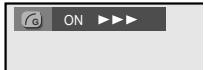
"ON" and "OFF" will be switched with each press of this button.
2 Within 10 seconds, press the ◀ or ▶ button to set the level.

| Level | Setting | Level | Setting |
| OFF | Normal | ON ▷ ▷ ▶ | Brighter |
| ON ▷ ▶ ▶ | Slightly brighter | ON ▷ ▷ ▶ | A lot brighter |
To restore the original brightness:
In step 1, select "OFF".
■ Sharpening the image (Super picture) DVD
1 During playback, set the MODE 1/MODE 2 switch to MODE 2 and press the S.PICTURE button to select "ON".

"ON" and "OFF" will be switched with each press of this button.
2 Within 10 seconds, press the ◀ or ▶ button to set the level.
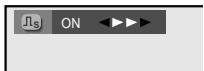
| Level | Setting | Level | Setting |
| OFF | Normal | ON ◀▷ ▷ ▷ | A lot clearer |
| ON ◀▷ ▷ ▷ | Slightly clearer | ON ◀▶ ▷ ▷ | Soft |
| ON ◀▷ ▷ ▷ | Clearer | ||
To restore the original image quality:
In step 1, select "OFF".
■ To change the display on TV screen
DVD SACD CD
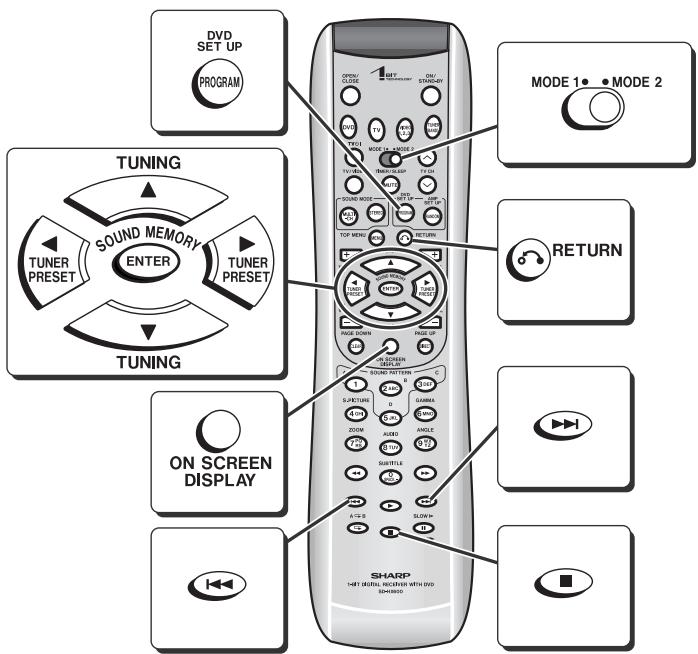
During playback, set the MODE 1/MODE 2 switch to MODE 2 and press the ON SCREEN button.
Each time you press, the display changes.
Example: DVD
Always displayed
Not displayed
Displayed for approx. 3 seconds

flowchart
graph LR
    A["2 / 5"] --> B["8 / 30"]
    B --> C["01 : 23 : 40"]
    D["DVD"] --> E["2 / 5"]
    E --> F["8 / 30"]
    F --> G["01 : 23 : 40"]
    H["DVD"] --> I["2 / 5"]
    I --> J["8 / 30"]
■ To change the display on the unit DVD
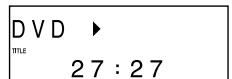
During playback, set the MODE 1/MODE 2 switch to MODE 1 and press the DISPLAY button.
Each time you press, the display changes.
DVD-Video:
Title elapsed time
Title/Chapter number
Chapter elapsed time
[Non-Text]
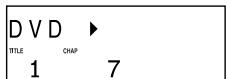
[Non-Text]
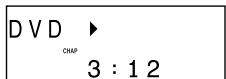
DVD-Audio:
Track elapsed time
Group/Track number
Group elapsed time
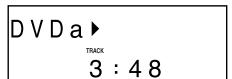
↑
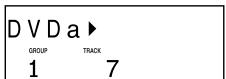
1
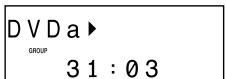
↓
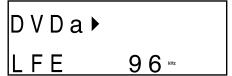
After approx.

After approx. 2 seconds
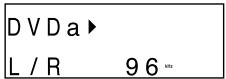
Sampling frequency (low frequency effects)(*)
Sampling frequency (sur- round)(*)
Sampling frequency (2 channel)(*)
(*) Sampling frequency display may differ or may not appear depending on the disc.
Notes:
- Title/Chapter numbers or elapsed time may not appear depending on the disc.
- The playing time of the disc specified on the jacket, etc. may not include silence between tracks, and may differ from that displayed on the unit.
- Elapsed time on the display does not indicate the actual time.
- During MP3 playback, total elapsed time does not appear, and elapsed time cannot be switched.
■ Switching elapsed time SACD CD
During playback, set the MODE 1/MODE 2 switch to MODE 1 and press the DISPLAY button.
Each time you press, the display changes.
SACD:
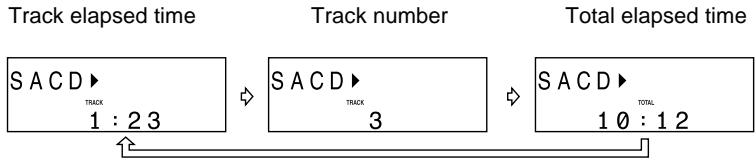
flowchart
graph LR
    A["Track elapsed time"] --> B["SACD ▶<br>TRACK<br>1 : 2 3"]
    B --> C["SACD ▶<br>TRACK<br>3"]
    C --> D["Total elapsed time"]
    D --> E["SACD ▶<br>10 : 1 2"]
CD:

■ Switching playing time SACD CD
In the stop mode (SACD/CD), select a track number with the ◀◀ or ▶▶ button.
SACD:
Track number
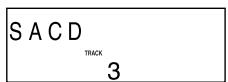
After approx. 2 seconds
Track playing time
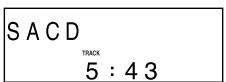
CD:
Track playing time

■ To change the setting on the playback control screen DVD SACD CD
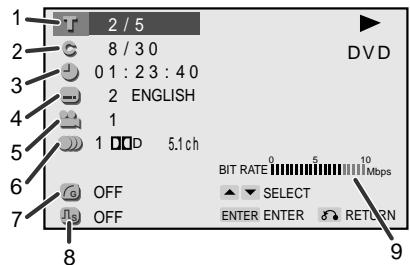
On the playback control screen, various settings can be changed at the same time.
1 During playback, set the MODE 1/MODE 2 switch to MODE 2 and press the DVD SET UP button.
2 Press the ▲ or ▼ button to select the item, and press the ENTER button.
Example: DVD
1 Title number
2 Chapter number
3 Elapsed playing time
4 Subtitle
5 Angle
6 Audio language
7 Gamma
8 Super picture
9 BIT RATE indicator (unchangeable)
3 Press the ▲, ▼, ◀ or ▶ button to change the setting and press the ENTER button.
Example: Gamma is selected

Repeat the operation as instructed.
(The number of repetition depends on the setting item.)
To change other settings, begin from step 2.
4 Press the RETURN 🔗 button twice.
The setting is memorized and the playback screen reappears.
Notes:
- Some items may not be selected depending on the type of the disc.
- If the RETURN 🔗 button is pressed while selecting an item or setting, the previous screen appears.
- On DVD-Audio discs, groups and tracks appear instead of titles and chapters.
Playing a DVD-Audio disc
Some DVD-Audio discs contain still pictures, or grouped tracks called "bonus group". A 4-digit password may be required to play a bonus group.

■ Switching still pictures on a DVD-Audio disc
1 Play a DVD-Audio disc (see page 21).
2 During playback, set the MODE 1/MODE 2 switch to MODE 2 and press the PAGE UP or PAGE DOWN button.
Each time you press, the image switches.
Notes:
● This operation is not available for some still pictures.
- On DVD-Video discs, you can enjoy various sounds by changing the multi channel mode or stereo mode (see pages 42, 43). On DVD-Audio discs (audio part only), you cannot change the two modes.
■ Playing bonus groups
1 During playback, set the MODE 1/MODE 2 switch to MODE 1 and press the DIRECT button.
2 Enter a bonus group number with the direct number buttons (0 - 9) and press the ENTER button.
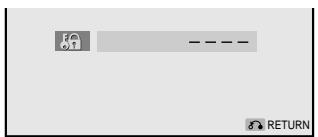
3 Enter a 4-digit password with the direct number buttons (0 - 9) and press the ENTER button.
Notes:
- For a 4-digit password, see the disc jacket, etc.
- On some discs, a password is not required to play bonus groups.
The procedure of the following playback functions are the same as the DVD operation.
Page
To locate the beginning of a chapter (track) (skip) .....23
Fast forward/Fast reverse (search) .....23
To start playback from the desired point (direct play) .....24
To play in the desired order (programmed play) .....25
To play repeatedly (repeat play) .....26
To play the contents between the specified points repeatedly (A-B repeat) ..26
Resume play 27
To change the audio language (audio output) ....30
To change the display on TV screen ....31
Switching elapsed time ....32
Switching playing time 32

■ Playing hybrid SACD sound
SACD
On hybrid discs (consisting of an SACD layer and a CD layer), you can select sound to play.
1 Insert an SACD disc and press the DVD button.
2 In the stop mode, set the MODE 1/MODE 2 switch to MODE 2 and press AUDIO button to select the desired layer.
TV screen
It takes a few seconds to switch the audio output for reading the disc information.
Example: Playing a multi channel SACD disc
You can switch the audio output if the multi channel and stereo 2 channel systems are supported.
TV screen
5.1 channel SACD layer
Unit display

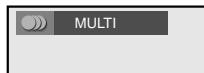
MULTI
2 channel SACD layer

STEREO
2 channel CD layer

PCM
3 Press the ▶ button.
Playback starts.
Notes:
- For sound types, see the manual for the hybrid disc.
- When you remove the disc, the audio output returns to "MULTI".
- On SACD (CD layer only)/CD discs, you can enjoy various sounds by changing the multi channel mode or stereo mode (see pages 42, 43). You cannot change the two modes for the SACD (SACD layer).
■ To play in random order (random play)
SACD CD
The tracks on the disc can be played in random order automatically.
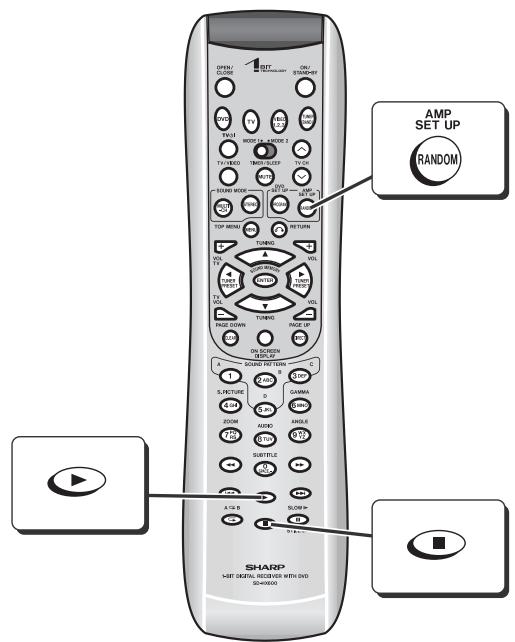
1 While in the stop or playback mode, set the MODE 1/MODE 2 switch to MODE 1 and press the RANDOM button.

2 In the stop mode, press the ▶ button. All tracks play in random order.
To cancel random play, press the RANDOM button.
When you press the ■ button, the current random play is canceled.
Notes:
- Random play is not allowed during programmed playback.
- In random play, the unit will select and play tracks automatically. (You cannot select the order of the tracks.)
- For MP3 discs, random play is not available.
- In random play, press the button to switch to repeat play.
You can play back a CD-R/CD-RW disc with tracks recorded in the MP3 format.

■ Selecting a folder on an MP3 disc
1 Insert an MP3 disc and press the DVD button.

The folder selection screen appears.
2 Select a folder using the ▲, ▼, ◀ or ▶ button and press ENTER button.
● The track selection screen appears.
- Move the cursor to a folder and press the ▶ button. Playback starts from the first track.
- Press the RETURN 🔗 button to return to the folder selection screen.
3 Select a track using the ▲, ▼, ◀ or ▶ button and press the ENTER button.
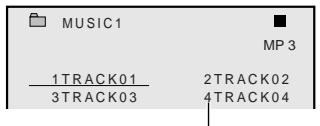
Playback starts from the track.
Track number
Skipping tracks:
While a disc is playing, press the ◀◀ or ▶▶I button.
Tracks skip within a folder.
Playing repeatedly (Repeat play):
While a disc is playing, press the ⊆ button.
The mode switches as follows: " T ⊆ (track)", " ☐ ⊆ (folder)", "no display (normal playback)".
Notes:
- Alternatively, select a track number with the direct number buttons (0 - 9) and press the ENTER button to play.
- If the cursor is placed on a track (not playing) for 10 seconds or more, it starts to play.
● Tracks may not play in the recorded order.
● The unit recognizes up to 8 levels in the folder tree, including folders and tracks.
● 256 tracks can be recognized. - You can also play multi session discs.
- When the first session contains audio tracks in the CD format, the unit recognizes the disc as a CD and plays only those tracks.
- It may take some time to read a disc depending on the number of files or folder tree structure.
- Up to 8 characters are displayed for folder or track names. Some characters and symbols may not appear properly.
- MP3 discs with data recorded at high speed may not play, or noise may occur during playback.
- The MP3 functions are not available when you burn MP3 files on a CD-R/CD-RW disc to create an audio CD. Play the disc as a standard CD.
Listening to the radio
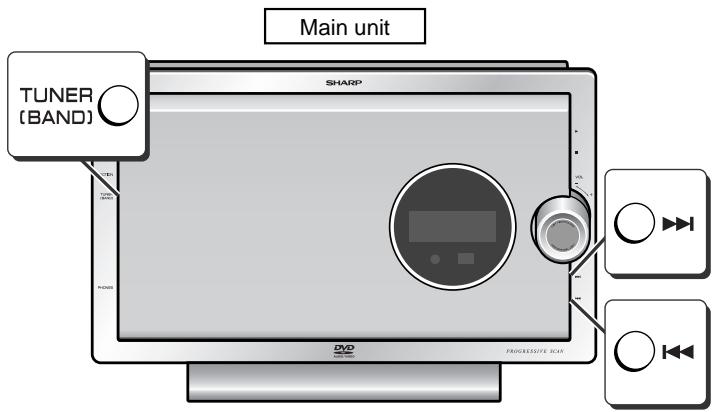
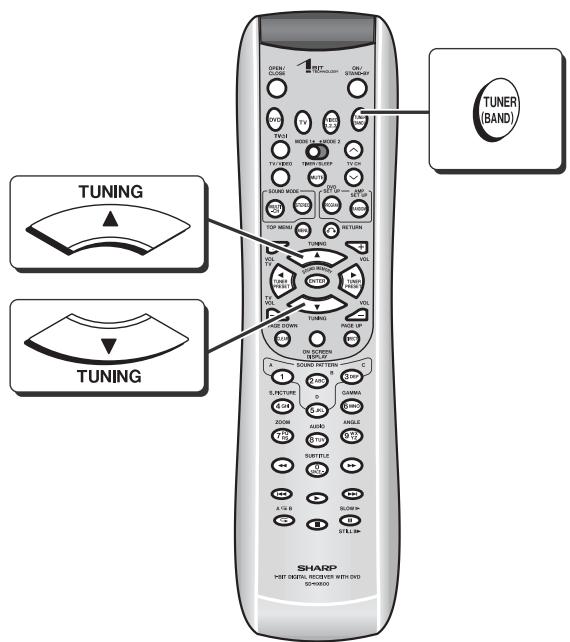
Volume control (See page 20.)
1 Turn on the power and press the TUNER (BAND) button to set the input to "FM (AM)".
2 Press the TUNER (BAND) button repeatedly to select the desired frequency band.

3 Press the TUNING (▼ or ▲) button to tune in to the desired station.
Manual tuning:
Press the TUNING button as many times as required to tune in to the desired station.
Auto tuning:
When the TUNING button is pressed for 0.5 seconds or more, scanning will start automatically and the tuner will stop at the first receivable broadcast station.
- When radio interference occurs, auto scan tuning may stop automatically. Should this happen, tune in manually.
● Auto scan tuning will skip weak signal stations. - To stop the auto tuning, press the TUNING button again.
You can also use the TUNER (BAND), ◀◀ or ▶▶I button on the main unit.
To receive an FM stereo transmission:
Press the TUNER (BAND) button to display the "STEREO" indicator.
- "ST" will appear when an FM broadcast is in stereo.
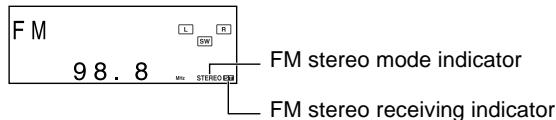
- If the FM reception is weak, press the TUNER (BAND) button to turn off the STE-REO indicator. The reception changes to mono, and the sound becomes clearer.
After use:
Press the ON/STAND-BY button to enter the power stand-by mode.
Listening to the memorized station
You can store AM and FM stations (40 in total) with names (preset tuning).
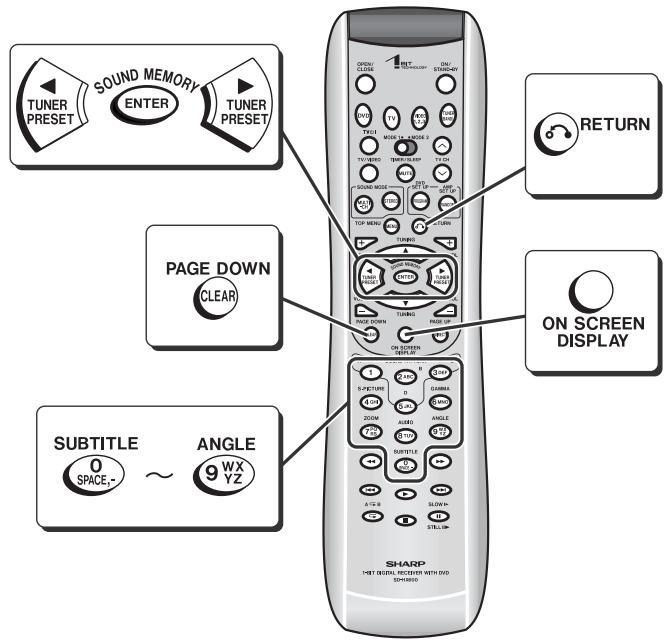
1 Tune in the desired station and press the ENTER button.
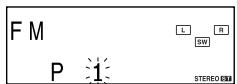
- For FM stations, stereo and mono modes are memorized.
- Store the stations in memory, in order, starting with preset channel 1.
2 Within 5 seconds, press the TUNER PRESET (◀ or ▶) button to select the preset channel number.
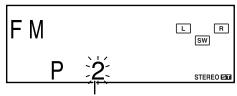
Preset channel number
3 Within 5 seconds, press the ENTER button to store that station in memory.

- When a new station is stored in memory, the station previously memorized will be erased.
- To save stations without names, press the RETURN 🔗 button.
4 Within 10 seconds, press the EN-TER button to name stored stations.
The character entry screen opens.
5 Enter a station name using the character input buttons (0 - 9), CLEAR, ◀ and ▶ button (see "How to enter characters" on page 39).
6 After entry, press the ENTER button.
● The station is named.
- Repeat steps 1 - 6 to set other stations, or to change a preset station.
Listening to the memorized station (continued)
■ How to enter characters
- Use the character input buttons (0 - 9). Press repeatedly to change the character.
- To move the cursor, press the ◀ or ▶ button.
| Character input button | Available characters | Character input button | Available characters |
 | 0 SPACE - |  | JKL 5 |
 | 1 |  | MNO 6 |
-  | ABC 2 |  | PQRS 7 |
 | DEF 3 |  | TUV 8 |
 | GHI 4 |  | WXYZ 9 |
Example: Entering "HIT FM"
| 1 | Press the "4" button twice. | (H) |
| 2 | Press the cursor (▶) button to move by one character. | |
| 3 | Press the "4" button three times. | (I) |
| 4 | Press the "8" button. | (T) |
| 5 | Press the "0" button twice. | ( ) |
| 6 | Press the "3" button three times. | (F) |
| 7 | Press the "6" button. | (M) |
Deleting characters
Select a character with the ◀ or ▶ button and press the CLEAR button.
Adding characters
Select a character with the ◀ or ▶ button and enter characters.
The character at the cursor moves right by 1 character.
To recall a memorized station:
Press the TUNER PRESET (◀ or ▶) button to select the desired station.
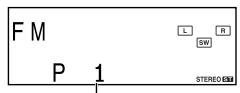
Preset channel number
To select a preset station with the direct number buttons:
1 Press the corresponding number ("0" - "9").
2 Press the ENTER button.
For example, to choose 28
1 Press the "2" button.
2 Press the "8" button.
3 Press the ENTER button.
- Press buttons within 5 seconds.
- To correct, enter the number again.
To name or rename stored stations:
Start over from step 1.
To erase all the contents of the preset memory:
1 Hold the CLEAR button down for 4 seconds or more.
2 Within 10 seconds, press the ENTER button.
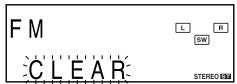
Note:
The backup function protects the memorized stations for about 10 days should there be a power failure or the AC power cord disconnection on the amplifier unit.
To change the display on the main unit:
Set the MODE 1/MODE 2 switch to MODE 1 and press the DISPLAY button.
The display changes about every 4 seconds.

(*) Names do not appear if stations are not named.
Enjoying surround sound (sound mode)
This product is equipped with Dolby Digital and DTS decoders. You can enjoy powerful and high-quality surround sound as if you were on the scene.
Dolby Digital

Disc with this trademark
One of the digital audio systems for theatrical use. You can enjoy the stereophonic effect in the home theater system.
When you set the audio output to Dolby Digital for a disc recorded in Dolby Digital, the ☐ DIGITAL indicator lights up (see page 30).
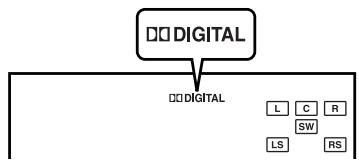
flowchart
graph TD
    A["□□ DIGITAL"] --> B["□□ DIGITAL"]
    B --> C["L"]
    B --> D["C"]
    B --> E["R"]
    B --> F["SW"]
    B --> G["RS"]
DTS (Digital Theater Systems)
DIGITAL

SURROUND
Disc with this trademark
One of the digital audio systems for theatrical use. As the sound quality is emphasized, you can enjoy the realistic sound effect in the home theater system.
When you set the audio output to DTS for a disc recorded in DTS, the dts indicator lights up (see page 30).
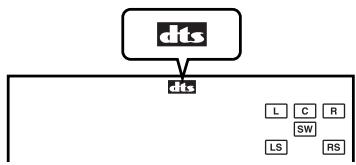
flowchart
graph TD
    A["dts"] --> B["cds"]
    B --> C["L"]
    B --> D["C"]
    B --> E["R"]
    B --> F["SW"]
    B --> G["LS"]
    B --> H["RS"]
Dolby Pro Logic II reproduces 5.1 channel surround from 2 channel stereo sound.
Dolby Pro Logic II
Stereo-recorded discs and video tapes
Dolby Pro Logic II decodes 2 channel stereo sound from discs, videotapes, etc. to reproduce 5.1 channel surround sound. You can enjoy a three-dimensional sound field.
When Dolby Pro Logic Ⅱ is activated, the □□ PRO LOGIC Ⅱ indicator lights up.

flowchart
graph TD
    A["PRO LOGIC II"] --> B["L"]
    A --> C["R"]
    A --> D["SW"]
    A --> E["Output"]
Linear PCM
A signal recording format without compression
Used in DVD and CD featuring a musical or concert.

■ Audio signal/Speaker indicators
Audio signal indicators light up for the corresponding audio source, and speaker indicators are illuminated according to signals sent to the speakers.
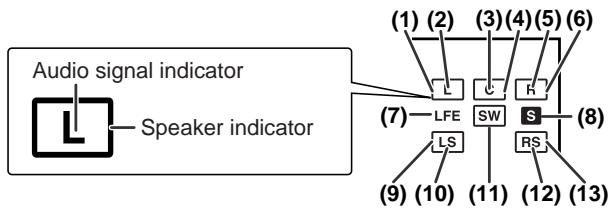
flowchart
graph TD
    A["Audio signal indicator"] --> B["Speaker indicator"]
    C["(1)"] --> D["LFE"]
    E["(2)"] --> F["SW"]
    G["(3)"] --> H["S"]
    I["(4)"] --> J["RS"]
    K["(5)"] --> L["R"]
    M["(6)"] --> N["S"]
    O["(7)"] --> P["LS"]
    Q["(8)"] --> R["RS"]
    S["(9)"] --> T["LS"]
    U["(10)"] --> V["LS"]
    W["(11)"] --> X["LS"]
    Y["(12)"] --> Z["RS"]
Example:
When 2.1 channel audio signals (L, R, LFE) are received, the audio signal indicators "L", "R" and "LFE" light up.
The illustration on the right indicates that 2 channel stereo sound (L and R) is reproduced.
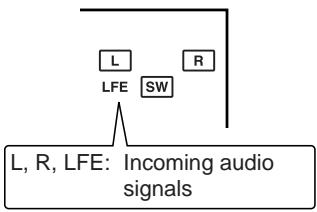
flowchart
graph TD
    A["L"] --> B["SW"]
    C["R"] --> D["Incoming audio signals"]
    E["LFE"] --> F["Incoming audio signals"]
    style E fill:#f9f,stroke:#333
    style F fill:#ccf,stroke:#333
When Dolby Pro Logic is activated
2 channel stereo sound is converted to 5.1 channel surround sound, and all the speaker indicators "☐" light up.

flowchart
graph TD
    A["L"] --> B["SW"]
    C["R"] --> B
    D["□"] --> E["appears when the speakers are receiving audio signals."]
Audio signal/Speaker indicators:
(1) Left Front Speaker Indicator
(2) Left Indicator
(3) Center Indicator
(4) Center Speaker Indicator
(5) Right Indicator
(6) Right Front Speaker Indicator
(7) Low Frequency Effect Indicator
(8) Surround Monaural Signal Indicator
(Lights up when the surround speakers receive monaural signals.)
(9) Left Surround Speaker Indicator
(10) Left Surround Indicator
(11) Subwoofer Indicator
(12) Right Surround Indicator
(13) Right Surround Speaker Indicator
Notes:
- You can switch the audio output when the disc contains sounds of multiple audio formats (Dolby Digital, DTS, etc.). See page 30.
● Sound may not be produced from the subwoofer depending on the disc. - You cannot change the multi channel mode or stereo mode on DVD-Audio discs (audio part only) or SACD discs (SACD layer only), or while listening to the radio.
You can enjoy spacious sound recorded in Dolby Digital or DTS. Also, Dolby Pro Logic II allows you to enjoy spacious 2 channel stereo sound.
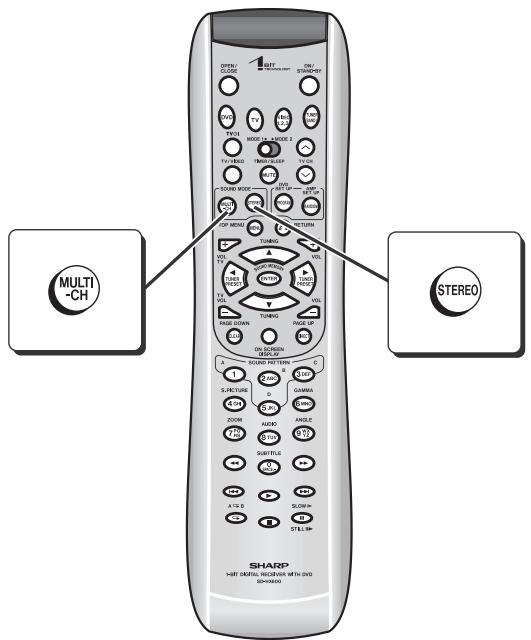
Notes:
- You cannot change the multi channel mode or stereo mode on DVD-Audio discs (audio part only) or SACD discs (SACD layer only), or while listening to the radio.
- If sound is unpleasant to listen to, change the multi channel mode or stereo mode.
- Settings for the multi channel mode and stereo mode are retained by input (DVD, TV, VIDEO 1, VIDEO 2 and VIDEO 3).
■ Listening to sounds in the multi channel mode (5.1 ch, etc.)
DVD (Dolby Digital or DTS)
While the disc is playing, press the MULTI-CH button.
Example: DTS format
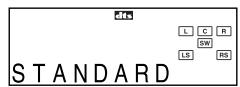
A maximum of 5.1-ch surround sound is reproduced to provide three-dimensional effect.

natural_image
Diagram showing a central object emitting sound waves to multiple sensors, with no text or symbols present.When you press once, the last used setting appears. To change it, press the button repeatedly within 3 seconds.

flowchart
graph TD
    A["STANDARD"] --> B["MOVIE1"]
    B --> C["MOVIE2"]
    D["NIGHT"] --> E["MUSIC2"]
    E --> F["MUSIC1"]
    G["STANDARD"] --> H["↓"]
    I["↑"] --> J["↓"]
STANDARD: You can enjoy the original sound as it is.
MOVIE1: The bass level is increased for powerful sound effect.
MOVIE2: Dynamic sound is produced with increased bass.
MUSIC1: You can enjoy lively sound by producing the articulate sound.
MUSIC2: You can enjoy crisp, clearer sound.
NIGHT: Soft but powerful sound is achieved even at low volumes.
Note:
When listening to Dolby Digital or DTS sound, you cannot select "STADIUM" and "HALL".
2 channel stereo sound (CD, VCR, etc.)

While the disc is playing, press the MULTI-CH button.
Example: 2-ch stereo sound

Dolby Pro Logic II converts 2 channel stereo sound of CDs, etc. to 5.1 channel.

natural_image
Diagram of a smart room with multiple devices and sound waves, no text or symbols presentWhen you press once, the last used setting appears. To change it, press the button repeatedly within 3 seconds.

flowchart
graph TD
    A["STANDARD"] --> B["MOVIE1"]
    B --> C["MOVIE2"]
    C --> D["MUSIC1"]
    A --> E["HALL"]
    E --> F["STADIUM"]
    F --> G["NIGHT"]
    G --> H["MUSIC2"]
    I["STANDARD"] --> J
STANDARD: You can enjoy the original sound as it is.
MOVIE1: The bass level is increased for powerful sound effect.
MOVIE2: Dynamic sound is produced with increased bass.
MUSIC1: You can enjoy lively sound by producing the articulate sound.
MUSIC2: You can enjoy crisp, clearer sound.
NIGHT: Soft but powerful sound is achieved even at low volumes.
STADIUM: You feel like one of the audience in a stadium.
HALL: A concert hall atmosphere is created.
Notes:
- When monaural signals are received in the multi channel mode, only the center speaker and subwoofer produce sound.
- When you play Dolby Digital or DTS sound with "STADIUM" or "HALL" set, surround is automatically set to "STANDARD".
■ Listening to 2 channel stereo sounds
While the disc is playing, press the STEREO button.
Example: DTS format

You can enjoy 2 channel stereo sound.
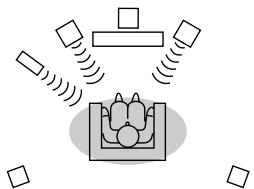
natural_image
Diagram of a smart room with sensors and a central robot (no text or symbols)When you press once, the last used setting appears. To change it, press the button repeatedly within 3 seconds.

flowchart
graph TD
    A["STEREO ↔ VIRTUAL"] --> B["STEREO"]
STEREO: You can enjoy the great acoustic effects of the front speakers and subwoofer.
VIRTUAL: Although the surround speaker does not work, you can enjoy spacious surround effects.
It sounds as if speakers were also placed in ☐.
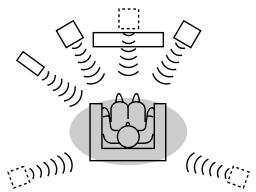
natural_image
Diagram of a smart speaker setup with multiple speakers and signal waves (no text or labels)Notes:
- When the surround mode is set to "STEREO" or "VIRTUAL" and the source signal is monaural, the same monaural signal is played through both the left and right channels.
- Some discs are recorded at 96 kHz of sampling frequency. When this type of disc is played, the sound mode is changed to "STEREO" automatically. The sound mode cannot be changed during playback.
Changing the initial setting of DVD
A new setting will be retained even if the unit is set to the stand-by mode. If you want to restore or change the setting, reset it.
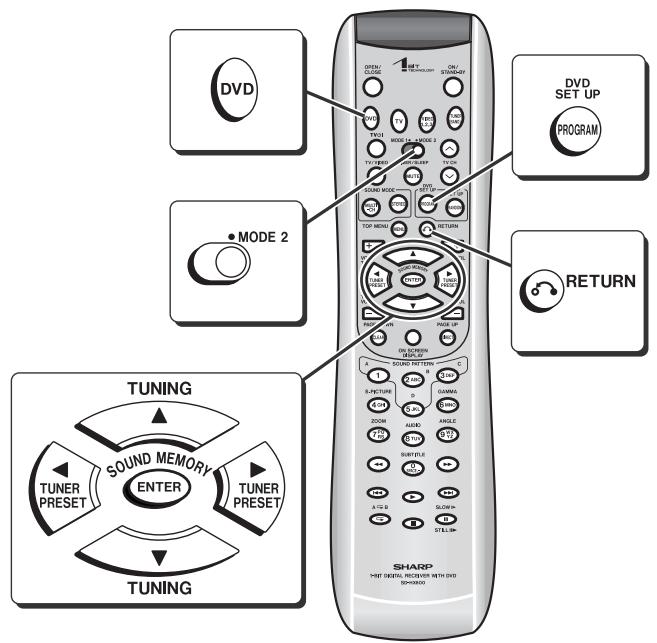
1 Press the DVD button, set the MODE 1/MODE 2 switch to MODE 2 and press the DVD SET UP button.
"OSD LANGUAGE SETUP" menu appears.
When changing the initial setting next time, the screen in step 3 will appear. If the "DVD SETUP" menu appears, perform step 3.

2 Press the ▲, ▼, ◀ or ▶ button to select a parameter and press the ENTER button.
Select a language (see page 45).
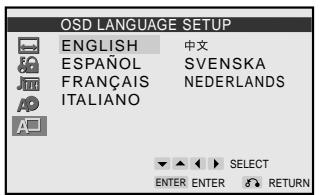
3 Press the ▲ or ▼ button to select a setting item and press the ENTER button.
For setting items, see the table on page 45.
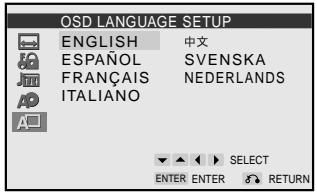
4 Press the ▲, ▼, ◀ or ▶ button to select a parameter and press the ENTER button.
Example: "TV MODE" is selected
To change other settings, begin from step 2.
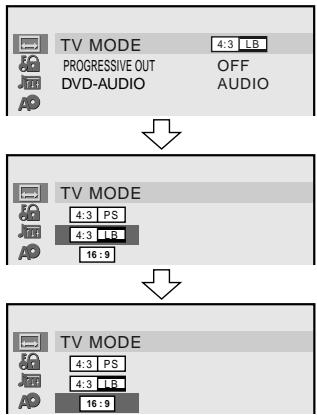
flowchart
graph TD
    A["TV MODE 4:3 PS"] --> B["PROGRESSIVE OUT 4:3 LB"]
    B --> C["DVD-AUDIO OFF AUDIO"]
    D["TV MODE 4:3 PS"] --> E["PS 4:3 LB"]
    E --> F["16:9"]
    G["TV MODE 4:3 PS"] --> H["PS 4:3 LB"]
    H --> I["16:9"]
5 Press the RETURN 🔗 button twice.
The new setting is memorized.
Notes:
- You cannot display the initial setting screen while a disc is playing.
- The previous screen appears by pressing the RETURN 🔗 button while selecting an item or setting.
Changing the initial setting of DVD (continued)
| Setting | Selectable parameters(* indicates initial settings.) | Description | Reference page | |
TV MODE | TV MODE | 4:3 PS4:3 LB*16:9 | Select according to the TV. | P. 46 |
| PROGRESSIVE OUT | ON OFF* | If the TV supports progressive scan, select "ON" to enjoy high resolution images. If not, set to "OFF". | P. 46 | |
| DVD-AUDIO (Selectable when a disc is not inserted.) | AUDIO*VIDEO | Some DVD-Audio discs contain both DVD-Audio and DVD-Video contents. Select either as default. | P. 33 | |
PARENTAL | PASSWORD | Please enter a 4-digit password. | You can set a 4-digit password required to change the "LEVEL" and "CODE" (country code). If you forget the password, press the ■ button four times. | P. 46 |
| LEVEL | LEVEL 1 - 8 OFF* | Restrict viewing by selecting a level. | P. 46 | |
| CODE | USA*CANADA: | Set a country code according to a parental control level of discs. | P. 46 | |
AUDIO | ☐ DIGITAL | BITSTREAM*D-PCM | BITSTREAM: Audio output is selected according to the source. Normally set to this.D-PCM: Dolby Digital source is played in Dolby Pro Logic II. | — |
DISC LANGUAGE | AUDIO | ENGLISH*SPANISH:OTHER | Select a language to play. If the selected language is not available, the disc plays in a default language. | P. 47 |
| SUB TITLE | ENGLISHSPANISH:OTHEROFF* | Select a language for subtitles (displayed on the TV screen). If the selected language is not available, subtitles appear in a default language.OFF: Select this to hide subtitles. | P. 47 | |
| MENU | EN*: | Select a language for the disc menu, etc. If the selected language is not available, the display appears in a default language. | P. 47 | |
OSD LANGUAGE | ENGLISH* ESPAÑOL FRANÇAIS ITALIANO | DEUTSCH中文SVENSKANEDERLANDS | Select an OSD (On Screen Display) language for initial settings and operations. | — |
■ TV display setting
| Indicator | Setting |
| 4:3 PS | When playing a wide image (16:9) disc, the left and right sides of the image are cut (pan scan) to display a natural-looking 4:3 size image.A wide image disc without pan scan 4:3 PS is played back in letterbox 4:3 LB.A 4:3 disc is played in 4:3. 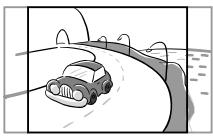 |
| 4:3 LB | When playing a wide image (16:9) disc, black bands are inserted at the top and bottom and you can enjoy full wide images (16:9) on a 4:3 size TV.A 4:3 disc is played in 4:3. 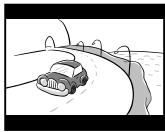 |
| 16:9 | A wide image (16:9) is displayed when playing a wide image (16:9) disc. ● When playing a 4:3 image disc, the image size depends on the setting of the connected TV.● If you play back a wide image (16:9) disc with the unit connected to a 4:3 TV, images appear stretched vertically. ● When playing a 4:3 image disc, the image size depends on the setting of the connected TV.● If you play back a wide image (16:9) disc with the unit connected to a 4:3 TV, images appear stretched vertically. |
Note:
When playing the disc with a fixed video format, it will not change even if the TV screen size is changed.
■ Progressive scan playback
Connect the unit to a TV supporting progressive scan with a component video cable. You can enjoy flicker-free images.
| Setting | Description |
| ON (Progressive)*1 | If the TV supports progressive scan, set to "ON". You can enjoy flicker-free images. |
| OFF (Interlace)*2 | If the TV does not support progressive scan, set to "OFF". Images are displayed in the interlaced system. |
\*1 Progressive
525 scanning lines are drawn in order without interlacing (first field), and then 525 scanning lines are drawn in the same pass on the next field.
\*2 Interlace (Interlaced scan)
Following odd-numbered scan lines, even-numbered scan lines (262.5 lines each) are drawn in 1/60 seconds. This occurs in two separate fields. As a result, a 525-line image (frame) is created.
Notes on a non-progressive scan TV
If "PROGRESSIVE OUT" is set to "ON", the TV does not display images. Connect the supplied video cable, switch the input to video, and set "PROGRESSIVE OUT" to "OFF".
Compatibility of the progressive scan TV
Some progressive scan TVs are not fully compatible with this product, which may cause image distortion. In this case, set "PROGRESSIVE OUT" to "OFF".
■ Parental setting
| Indicator | Setting |
| LEVEL 1 | Only DVD software intended for children can be played back. |
| LEVEL 2 to 7 | Only DVD software intended for general use and children can be played back. |
| LEVEL 8 | DVD software of any grade (adult/general/children) can be played back. |
| OFF | Parental control is canceled. |
| CODE | Country code for parental control |
Country code list:
| USA | SPAIN | BELGIUM | PHILIPPINE |
| CANADA | SWISS | HONG KONG | AUSTRALIA |
| JAPAN | SWEDEN | SINGAPORE | RUSSIA |
| GERMANY | HOLLAND | THAILAND | CHINA |
| FRANCE | NORWAY | MALAYSIA | - |
| UK | DENMARK | INDONESIA | - |
| ITALY | FINLAND | TAIWAN | - |
Notes:
- For the parental setting, enter a 4-digit number (example: 1234), which will be your password. Enter "1234" from the next time.
- While playing a disc with parental control, the display may appear requesting a password in order to watch some restricted scenes. In such a case, enter the password to temporarily change the control level.
■ Disc language
| Indicator | Setting |
| AUDIO | A language for audio can be set.You can specify a language for dialogues and narration.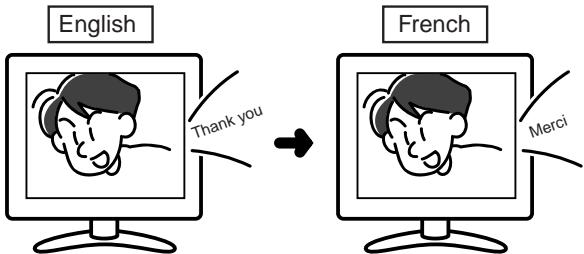 |
| SUB TITLE | A language for subtitle can be set.The subtitle is displayed in a specified language.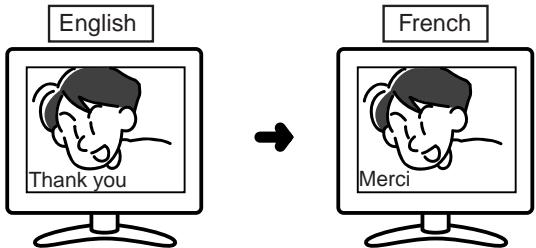 |
| MENU | A language for disc menus can be set.Menu screens are displayed in a specified language. |
■ Selecting a language for "DISC LANGUAGE", etc.
Check the code of the language (See the language code list on page 70). Example: When you select HU (Hungarian)
| 1 On the initial setting screen, select "DISC LANGUAGE" (see steps 1 - 3 on page 44), and select "MENU" and press the ENTER button. | 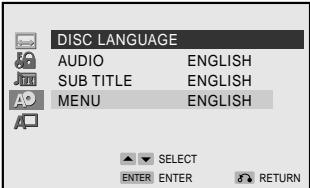 |
| 2 Press the ◀ or ▶ button to select "H" for the first letter. |  |
| 3 Press the ▲ or ▼ button to move the cursor to the "MENU 2". | 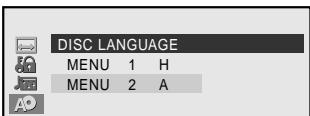 |
| 4 Press the ◀ or ▶ button to select "U" for the second letter. |  |
| 5 Press the ENTER button. | |
| 6 Press the RETURN 🔗 button twice.The new setting is memorized. | |
Changing the default settings of the amplifier
Change settings according to the connected speakers.
Speaker size setting (See pages 48, 49.)
Speaker delay setting (See page 49.)
Speaker level setting (See page 50.)
Test tone (See page 50.)
Changing crossover frequency (See page 51.)
Example:
If the right surround speaker is 10 feet (3.3 m) away from the listening position, change settings as shown below (adjust the SR).
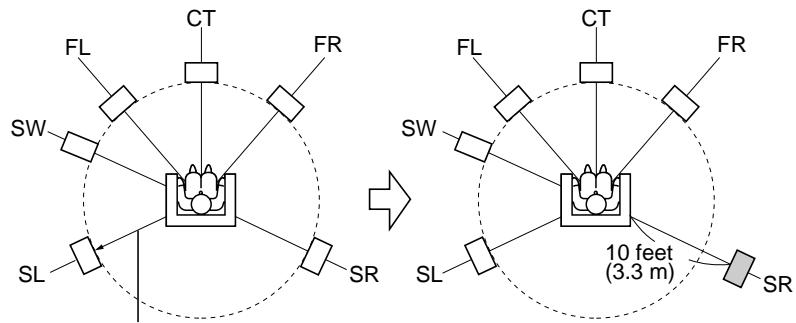
Default setting: 6 feet (2 m)
1 In "Speaker delay setting", set the right surround speaker (SR) to 10 feet (3.3 m).
2 In "Speaker level setting", slightly increase the level of the right surround speaker as it is a little farther than others (see page 50).
3 In "Test tone", check the sound from each speaker (see page 50).
Notes:
- The subwoofer setting applies to a subwoofer connected to SUBWOOFER PRE OUT.
- You cannot change the default settings while playing SACD/DVD-Audio discs.
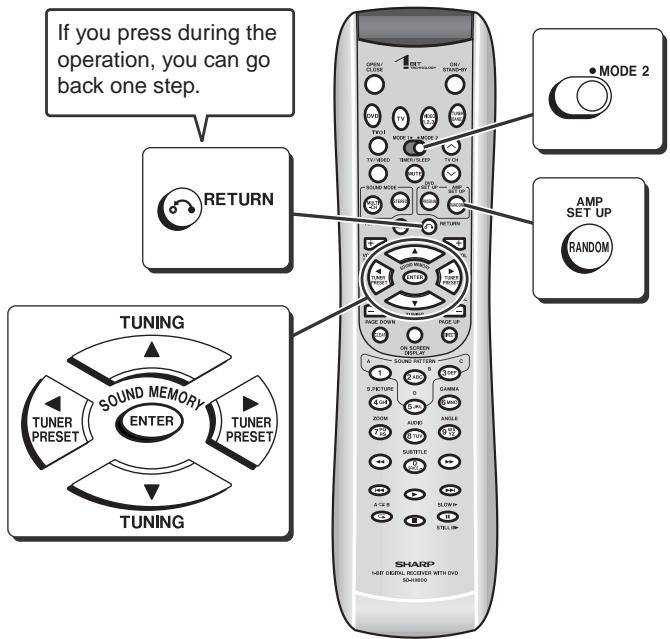
■ Speaker size setting
You can change the sizes of the front speakers, center speaker, and surround speakers, or turn on or off the center speaker, surround speakers, or subwoofer.
1 Set the MODE 1/MODE 2 switch to MODE 2 and press the AMP SET UP button.
2 Within 10 seconds, press the ▲ or ▼ button to select "SP SIZE", and press the ENTER button.
3 Within 10 seconds, press the ▲ or ▼ button to select the desired speaker.
The indicators of selected speakers flash.
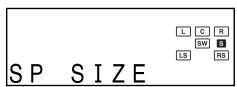
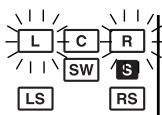
Changing the default settings of the amplifier (continued)
4 Within 10 seconds, press the ◀ or ▶ button to select their sizes.
To set sizes of other speakers, repeat the operation from step 3.

5 Press the RETURN 🔗 button twice.
The setting is complete.
When you select "LARGE", all channel signals are sent to the speaker.
When you select "SMALL", frequencies below the value you set for crossover frequency (see page 51) are sent to the subwoofer.
| Speaker type | Speaker size | |
| Front speaker (Left, Right) | F-LARGE * | Large diameter |
| F-SMALL | Small diameter | |
| Center speaker | C-LARGE * | Large diameter |
| C-SMALL | Small diameter | |
| C-NO | OFF | |
| Surround speaker (Left, Right) | S-LARGE * | Large diameter |
| S-SMALL | Small diameter | |
| S-NO | OFF | |
| Subwoofer | SW-YES * | ON |
| SW-NO | OFF | |
(*) indicates the default setting.
Notes:
- The speaker size setting is only available for the subwoofer if the input is set to tuner, or the surround is "STEREO" or "VIRTUAL".
- On some DVD-Audio or SACD discs, the subwoofer may not produce sound even if the speaker size is set to "SMALL".
- "F-SMALL" and "SW-NO" cannot be combined. If the subwoofer is changed to "SW-NO" while the front speakers are set to "F-SMALL", they are changed to "F-LARGE". When the front speakers are changed to "F-SMALL" while the subwoofer is set to "SW-NO", it is changed to "SW-YES".
- If "LARGE" is set for a small speaker, malfunction may result. Be sure to set the speaker size to "SMALL".
- When the center and surround speakers and subwoofer are not connected, set the speaker size to "C-NO", "S-NO" and "SW-NO". Otherwise, the protection circuit may be activated and the power is turned off.
■ Speaker delay setting
When some of the speakers are at a different distance from the listening point, you can select the speaker delay to make it seem as though the speaker distances are the same.
1 Set the MODE 1/MODE 2 switch to MODE 2 and press the AMP SET UP button.
2 Within 10 seconds, press the ▲ or ▼ button to select "SP DELAY", and press the ENTER button.
3 Within 30 seconds, press the ▲ or ▼ button to select the desired speaker.
The indicator of the selected speaker flashes.
4 Within 30 seconds, press the ◀ or ▶ button to select the distance.
- You can change the distance in 1 foot (0.3 m) steps.
- To set the distance of other speakers, repeat the operation from step 3.
5 Press the RETURN 🔗 button twice.
The setting is complete.
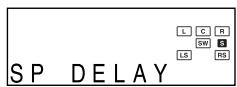
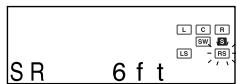

| Speaker type | Delay range | Default setting | |
| FL | Front speaker (Left) | 1 to 29 ft | 6 ft (2 m) |
| CT | Center speaker | 1 to 29 ft | 6 ft (2 m) |
| FR | Front speaker (Right) | 1 to 29 ft | 6 ft (2 m) |
| SR | Surround speaker (Right) | 1 to 29 ft | 6 ft (2 m) |
| SL | Surround speaker (Left) | 1 to 29 ft | 6 ft (2 m) |
| SW | Subwoofer | 1 to 29 ft | 6 ft (2 m) |
Notes:
- The speaker delay setting is only available for the front speakers and subwoofer if the input is set to tuner, or the surround is "STEREO" or "VIRTUAL".
- The speaker delay setting is invalid while playing DVD-Audio or SACD discs (valid for the CD layer of SACD discs).
■ Speaker level setting
If sounds from the speakers are uneven, you can equalize them by adjusting the speaker levels.
1 Set the MODE 1/MODE 2 switch to MODE 2 and press the AMP SET UP button.
2 Within 10 seconds, press the ▲ or ▼ button to select "SP LEVEL", and press the ENTER button.
3 Within 10 seconds, press the ▲ or ▼ button to select the desired speaker.
The indicator of the selected speaker flashes.
4 Within 10 seconds, press the ◀ or ▶ button to adjust the level.
- You can adjust the level at 1 dB intervals.
- To adjust the levels of other speakers, repeat the operation from step 3.
5 Press the RETURN 🔗 button twice.
The setting is complete.

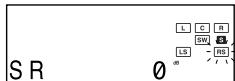

| Speaker type | Level range | Default setting | |
| FL | Front speaker (Left) | - 10 dB to + 10 dB | 0 dB |
| CT | Center speaker | - 10 dB to + 10 dB | 0 dB |
| FR | Front speaker (Right) | - 10 dB to + 10 dB | 0 dB |
| SR | Surround speaker (Right) | - 10 dB to + 10 dB | 0 dB |
| SL | Surround speaker (Left) | - 10 dB to + 10 dB | 0 dB |
| SW | Subwoofer | - 10 dB to + 10 dB | 0 dB |
Notes:
- The speaker level setting is only available for the front speakers and subwoofer if the input is set to tuner, or the surround is "STEREO" or "VIRTUAL".
- If subwoofer sound is distorted, lower the subwoofer level.
■ Test tone
You can check each speaker sound by a test tone. Readjust the volume set in "Speaker level setting".
1 Set the MODE 1/MODE 2 switch to MODE 2 and press the AMP SET UP button.
2 Within 10 seconds, press the ▲ or ▼ button to select "TONE", and press the ENTER button.

The test tone will be heard from each speaker, in order, at about 2-second intervals.

flowchart
graph TD
    FL --> CT
    CT --> FR
    FR --> SR
    SW --> SL
    SL --> SR
    SW <--> FL
To adjust speaker levels
While the test tone is heard:
Adjust the level with the ◀ or ▶ button.
Press the ▲ or ▼ to select a speaker.
3 Press the RETURN 🔗 button twice.
The setting is complete.
Notes:
- The test tone is produced only from the front speakers and subwoofer if the input source is set to tuner or the surround is "STEREO" or "VIRTUAL".
- If NO (OFF) is selected for a speaker in the speaker size setting, no test tone will be heard from it.
Changing the default settings of the amplifier (continued)
■ Changing crossover frequency
Change the level above which subwoofer frequencies are cut, to adjust the balance with the front speakers. When the speaker setting is "SMALL", low frequencies from the speaker are cut. It is recommended to set the level slightly above that of the lowest front speaker frequency (the lowest reproducible frequency).
| 1 Set the MODE 1/MODE 2 switch to MODE 2 and press the AMP SET UP button. | |
| 2 Within 10 seconds, press the ▲ or ▼ button to select "X-FREQ", and press the ENTER button. | L C RSW BLS RRX-FREQ |
| 3 Within 10 seconds, press the ◀ or ▶ button to select frequency and press the ENTER button. | L C RSW BLS RR100 Hz |
| 4 Press the RETURN 🔉 button twice.The setting is complete. | |
| Adjustable frequency range | Recommended frequency range |
| 80 Hz | The lowest reproducible frequency of the front speakers is below 80 Hz. |
| 100 Hz * | The lowest reproducible frequency of the front speakers is between 80 and 100 Hz. |
| 120 Hz | The lowest reproducible frequency of the front speakers is between 100 and 120 Hz. |
| 150 Hz | The lowest reproducible frequency of the front speakers is between 120 and 150 Hz. |
(*) indicates the default setting.
Note:
The crossover frequency setting is invalid when playing DVD-Audio discs.
In the stop mode, you can change the amplifier settings on the TV screen.
1 Set the MODE 1/MODE 2 switch to MODE 2 and press the AMP SET UP button.
The amplifier setting screen appears.
3 Press the ▲, ▼, ◀ or ▶ button to change the setting and press the ENTER button.
| SPEAKER SIZE | |
| FRONT | SMALL |
| CENTER | SMALL |
| SURROUND | SMALL |
| SUB WOOFER | YES |
Repeat the operation as instructed.
(The number of repetition depends on the setting item.)
To change other settings, begin from step 2.
4 Press the RETURN 🔗 button twice.
The setting is complete.
Note:
You cannot change the amplifier settings unless the input source is set to DVD/CD.
Timer playback
The unit starts playback or turns on the radio at a specified time.
This unit has 2 types of timer functions: "once timer" and "daily timer".
Once timer:
Once timer playback works for one time only at a preset time.
Use when...
You want to listen to a radio program on the day.
(After operation, the timer setting is canceled.)
Daily timer:
Daily timer playback works at the same preset time every day.
Use when...
You want to use the timer as a wake up call, or listen to the radio at the same time every day.
You can use the once timer and daily timer together.
For example, use the timer as a wake-up call (daily timer), and listen to the radio later on the day.
1 Set the daily timer (pages 52 - 53).
2 Set the once timer (pages 52 - 53).

flowchart
graph TD
    A["1 minute or more"] --> B["Daily timer"]
    A --> C["Once timer"]
    B --> D["Start"]
    B --> E["Stop"]
    C --> F["Start"]
    C --> G["Stop"]
Notes:
- If both timers are set for the same time, the once timer setting will start.
- When using both timers, allow at least 1 minute between operations. Otherwise the timer used later will not work.
Before setting timer:
1 Set the clock (see page 19).
If the clock is not set to the correct time, the timers do not work properly.
2 Prepare a source to play back.
- Insert a disc to play.
● To use the radio for timer playback, store a station (see page 38).
Notes:
- When you use the timer to play a DVD with a menu screen, playback stops at the menu screen.
- If the unit is unplugged or a power failure occurs after timer setting, the clock stops and the timer setting will be canceled. Set the clock and timer again.
- You cannot use the timer to operate other equipment.
- Timer playback does not start if the unit is turned on at the start time.
Setting the timer
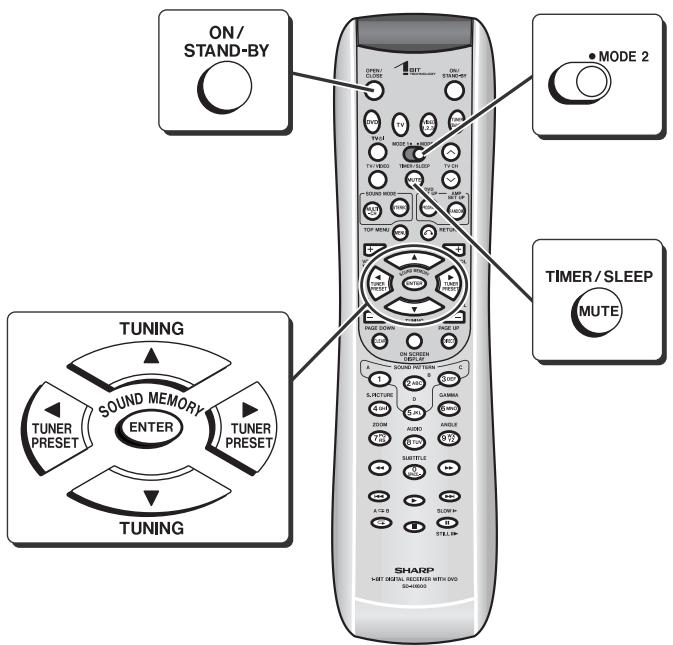
Setting the timer (continued)
1 Turn on the power, set the MODE 1/MODE 2 switch to MODE 2 and press the TIMER/SLEEP button.
2 Within 10 seconds, press the ▲ or ▼ button to select "TIMER ONCE" or "TIMER DAILY", and press the ENTER button.
Once timer
Daily timer
TIMER ONC
TIMER DAILY
3 Within 10 seconds, press the ▲ or ▼ button to select "ONCE SET" or "DAILY SET", and press the ENTER button.
Once timer
Daily timer
ONCE SET
DAILY SET
4 Press the ◀ or ▶ button to adjust the hour and then press the EN-TER button.
ON 1:00 AM
5 Press the ◀ or ▶ button to adjust the minutes and then press the ENTER button.
ON 7 : 0 0 AM
6 Set the time to finish as in steps 4 and 5 above.
OFF 8:00 AM
7 Switch the input with the ◀ or ▶ button, and then press the ENTER button.
● Available playback sources: DVD/CD and TUNER.
- When you select "TUNER", select a station by pressing the ◀ or ▶ button, and then press the ENTER button.
- If a station has not been programmed, "NO P.SET" will be displayed and timer setting will be canceled.

Preset channel number
8 Adjust the volume with the ◀ or ▶ button and press the ENTER button.
VOLUME20
Do not set the volume too high.
9 Press the ON/STAND-BY button on the main unit to enter the power stand-by mode.

● The unit enters the timer stand-by mode.
(The timer set indicator lights up. See page 54.)
● The timer setting is retained.
Operations after setting the timer
1 After setting the timer
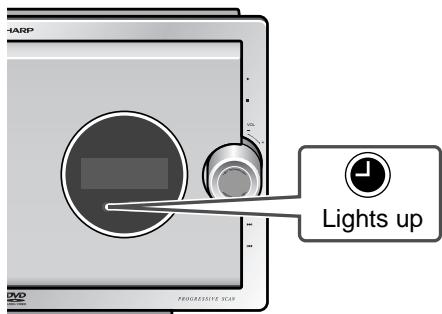
● The unit is in the timer stand-by mode.
- If the timer set indicator does not light up, turn on the power and set the timer again.
2 At the start time

The volume will increase gradually until it reaches the preset volume.
3 When the finish time is reached:
The unit is set to the power stand-by mode automatically.
■ In the timer stand-by mode
Checking the timer setting:
1 Set the MODE 1/MODE 2 switch to MODE 2 and press the TIMER/SLEEP button.
2 Within 10 seconds, press the ▲ or ▼ button to select "TIMER ONCE" or "TIMER DAILY", and press the ENTER button.
3 Within 10 seconds, press the ▲ or ▼ button to select "ONCE CALL" or "DAILY CALL", and press the ENTER button.
The unit returns to the timer stand-by mode after displaying the settings in order.
Canceling the timer setting:
1 Set the MODE 1/MODE 2 switch to MODE 2 and press the TIMER/SLEEP button.
2 Within 10 seconds, press the ▲ or ▼ button to select "TIMER ONCE" or "TIMER DAILY", and press the ENTER button.
3 Within 10 seconds, press the ▲ or ▼ button to select "ONCE OFF" or "DAILY OFF", and press the ENTER button.
Timer will be canceled (the setting will be retained).
■ To use the same timer setting
Once timer:
1 Turn on the power, set the MODE 1/MODE 2 switch to MODE 2 and press the TIMER/SLEEP button.
2 Within 10 seconds, press the ▲ or ▼ button to select "TIMER ONCE", and press the ENTER button.
3 Within 10 seconds, press the ▲ or ▼ button to select "ONCE ON", and press the ENTER button.
4 Press the ON/STAND-BY button to enter the power stand-by mode.
Daily timer:
The timer will operate at the same time every day. It will continue until the daily timer setting is canceled. Cancel the daily timer when it is not in use.
When you use the same setting for the daily timer, select "TIMER DAILY" instead of "TIMER ONCE", and select "DAILY ON" instead of "ONCE ON".
Sleep timer
The unit turns off at a specified time when listening to a disc or the radio.

1 During playback, set the MODE 1/MODE 2 switch to MODE 2 and press the TIMER/SLEEP button.
2 Within 10 seconds, press the ▲ or ▼ button to select "SLEEP SET", and press the ENTER button.
SLEEP SET
3 Press the ◀ or ▶ button to select the time.
SLEEP 2:00
(Maximum: 2 hours - Minimum: 1 minute)
● 2 hours - 5 minutes → 5-minute intervals
- 5 minutes - 1 minute → 1-minute intervals
4 Press the ENTER button.
- The unit will enter the power stand-by mode automatically after the preset time has elapsed.
SLEEP 2:00
- The volume will be turned down 1 minute before the sleep operation finishes, and then you cannot change the volume.
To confirm the remaining sleep time:
1 While "SLEEP" appears, set the MODE 1/MODE 2 switch to MODE 2 and press the TIMER/SLEEP button.
2 Within 10 seconds, press the ▲ or ▼ button to select "SLEEP".

flowchart
graph TD
    A["SLEEP"] --> B["1 : 57"]
    B --> C["SLEEP"]
    C --> D["Remaining sleep time"]
● The remaining sleep time is displayed for about 10 seconds.
- You can change the remaining sleep time while it is displayed by pressing the ENTER button (steps 3 - 4).
To cancel the sleep operation:
Press the ON/STAND-BY button on the main unit while "SLEEP" is indicated.
To cancel the sleep operation without setting the unit to the stand-by mode, proceed as follows.
1 Set the MODE 1/MODE 2 switch to MODE 2 and press the TIMER/SLEEP button.
2 Within 10 seconds, press the ▲ or ▼ button to select "SLEEP OFF".
3 Within 10 seconds, press the ENTER button. ("SLEEP" goes out.)
SLEEP OFF SLEEP
■ To use timer and sleep operation together
For example, you can fall asleep to the radio, and wake up to CD.
1 Set the sleep time (steps 1 - 4).
2 Set the timer playback (steps 1 - 8, page 53).
Make sure timer playback does not start while sleep timer is active.
The unit enters into the power stand-by mode after the time set for sleep timer, and turns on at the start time of timer playback.
① Sleep timer setting

flowchart
graph LR
    A["Start time"] --> B["1 minute - 2 hours"]
    B --> C["Timer playback setting"]
    C --> D["Finish time"]
    D --> E["Desired time"]
Sleep operation starts.
Sleep operation will automatically stop.
Timer playback starts.
Timer playback will automatically stop.
Operating the connected TV
You can operate Sharp TVs with the remote control. Change the remote control setting if operating other manufacturers' TV, or if you cannot operate a Sharp TV.
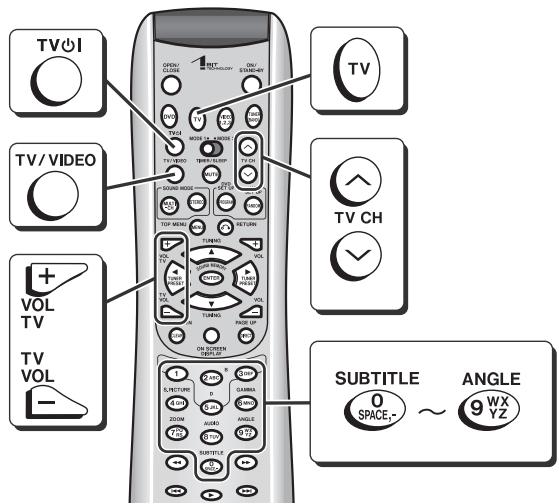
■ Watching TV
1 Press the TV ⏻I button to turn on the TV.
2 Press the TV CH (∧ or ∨) button to set the channel.
Other buttons available for operating TVs
| Operation | Button |
| Volume control |  |
| Switching the input |  |
■ Changing the TV registration
| 1 | While holding down the TV button, enter the manufacturer setting number (4 digits). |
| 2 | Release the TV button.The setting is registered and the TV can be operated with the remote control of this unit. |
Notes:
- You cannot operate some Sharp TVs with the remote control.
- As for manufacturers with 2 or more setting numbers, select one with which you can operate the TV.
- Once you set a number, the number previously memorized will be canceled.
- After replacing the batteries in the remote control, the registered number may automatically be set to 1044 (SHARP). If it occurs, register the desired number again.
- Registration cannot be executed depending on TVs. Even if numbers can be set, some buttons may not work.
| TV manufacturer | Setting number | TV manufacturer | Setting number |
| SHARP | 1011, 1025, 1044(*) | BELL & HOWELL | 1005, 1021 |
| AIWA | 1052 | BROCKWOOD | 1007 |
| ADMIRAL | 1037 | BROKSONIC | 1032, 1037 |
| AIKO | 1019 | CANDLE | 1009, 1015 |
| AKAI | 1009 | CARNIVALE | 1009 |
| ALARON | 1031 | CARVER | 1014, 1026 |
| AMBASSADOR | 1029 | CELEBRITY | 1001 |
| AMPRO | 1045 | CINERAL | 1019, 1036 |
| AMSTRAD | 1034 | CITIZEN | 1009, 1011, 1015, 1016, 1019 |
| ANAM | 1004, 1024, 1035 | ||
| ANAM NATIONAL | 1024, 1035 | CME | 1039 |
| AOC | 1007, 1009 | CONCERTO | 1015 |
| AUDIOVOX | 1019, 1036, 1041 | CRAIG | 1024 |
| BAUR | 1039 | CROSLEY | 1014 |
| BELCOR | 1007 | CROWN | 1011 |
(*): The default manufacturer number is 1044 (SHARP).
Operating the connected TV (continued)
| TV manufacturer | Setting number | TV manufacturer | Setting number |
| CURTIS MATHES | 1005, 1009, 1011, 1012, 1013, 1014, 1015, 1016, 1020, 1021, 1036, 1038, 1044, 1048, 1050 | INTEQ | 1006 |
| INTERFUNK | 1039 | ||
| JBL | 1014 | ||
| JCB | 1001 | ||
| JVC | 1018, 1023 | ||
| DAEWOO | 1007, 1011, 1017, 1019, 1021, 1036, 1041, 1042 | KENWOOD | 1007, 1009 |
| KONIG | 1039 | ||
| KTV | 1009, 1011 | ||
| DAYTRON | 1007 | LG | 1015 |
| DENON | 1020 | LOEWE | 1039 |
| DUMONT | 1006, 1007 | LOGIK | 1005 |
| DWIN | 1044, 1046 | LUXMAN | 1015 |
| ELECTRONBAND | 1001 | LXI | 1012, 1014, 1021, 1022, 1030 |
| EMERSON | 1007, 1010, 1011, 1021, 1029, 1030, 1031, 1032, 1037, 1041, 1042 | MAGNAVOX | 1009, 1014, 1031 |
| MAJESTIC | 1005 | ||
| MARANTZ | 1009, 1014 | ||
| ENVISION | 1009 | MEGATRON | 1020, 1030 |
| ETRON | 1043 | MEMOREX | 1005, 1015, 1021, 1030, 1037 |
| FISHER | 1021 | ||
| FORTRESS | 1044 | METZ | 1007, 1009, 1030 |
| FUJITSU | 1031 | MGA | 1007, 1009, 1028 |
| FUNAI | 1027, 1031 | MIDLAND | 1006, 1011, 1012, 1013 |
| GE | 1008, 1012, 1013, 1030, 1036, 1048, 1050 | MINOKA | 1034 |
| MINUTZ | 1008 | ||
| GIBRALTER | 1006, 1007, 1009 | MITSUBISHI | 1007, 1030, 1039 |
| GOLDSTAR | 1002, 1007, 1009, 1011, 1015, 1030 | MTC | 1007, 1009, 1015, 1016, 1039 |
| GRADIENTE | 1015, 1026 | NAD | 1022, 1030 |
| GRANADA | 1033 | NEC | 1007, 1009, 1015, 1026 |
| GRUNPY | 1031 | ||
| HALLMARK | 1030 | NIKKO | 1009, 1019, 1030 |
| HARLEY DAVIDSON | 1031 | NTC | 1019 |
| HARMAN/KARDON | 1014 | OPTIMUS | 1021 |
| HCM | 1034 | OPTONICA | 1025, 1044 |
| HITACHI | 1010, 1015, 1020 | ORION | 1031, 1032, 1037 |
| INFINITY | 1014 | OSAKA | 1034 |
| TV manufacturer | Setting number | TV manufacturer | Setting number |
| OTTO | 1039 | SCOTT | 1007, 1030, 1031, 1032 |
| PANASONIC | 1013, 1024 | ||
| PENNEY | 1003, 1007, 1008, 1009, 1011, 1012, 1013, 1015, 1016, 1022, 1030, 1050 | SEARS | 1012, 1014, 1015, 1021, 1022, 1027, 1030, 1031 |
| SEMP | 1022 | ||
| PHILCO | 1007, 1009, 1014, 1020, 1037 | SHOGUN | 1007 |
| SIGNATURE | 1005 | ||
| PHILIPS | 1014 | SONY | 1001 |
| PILOT | 1007, 1009, 1011 | SOUNDESIGN | 1030, 1031 |
| PIONEER | 1010, 1028 | SQUAREVIEW | 1027 |
| PORTLAND | 1007, 1011, 1019 | SSS | 1007 |
| PRISM | 1013 | SUPREME | 1001 |
| PROSOCAN | 1012 | SYLVANIA | 1009, 1014 |
| PROTON | 1030, 1038 | SYMPHONIC | 1027 |
| PULSAR | 1006, 1007 | TANDY | 1044 |
| QUASAR | 1013, 1025 | TECHNICS | 1013 |
| QUELLE | 1039 | TECHNOL ACE | 1031 |
| RADIO SHACK | 1007, 1009, 1011, 1012, 1015, 1028, 1030 | TECHWOOD | 1013, 1015 |
| TEKNIKA | 1005, 1007, 1011, 1014, 1015, 1016, 1019, 1031 | ||
| RCA | 1007, 1010, 1012, 1013, 1044, 1047, 1048, 1049, 1050, 1051 | TELEFUNKEN | 1015 |
| THORN | 1039 | ||
| TMK | 1015, 1029, 1030 | ||
| REALISTIC | 1007, 1009, 1011, 1015, 1021, 1025, 1030 | TOSHIBA | 1016, 1021, 1022 |
| TOTEVISION | 1011 | ||
| VECTOR RESEARCH | 1009 | ||
| RUNCO | 1006, 1009, 1040 | VICTOR | 1023 |
| SAMPO | 1009, 1011 | VIDIKRON | 1014 |
| SAMSUNG | 1007, 1009, 1015, 1016, 1030 | VIDTECH | 1007, 1030 |
| WARDS | 1005, 1007, 1008, 1009, 1014, 1015, 1025, 1030, 1031 | ||
| SAMSUX | 1011 | ||
| SANSEI | 1036 | ||
| SANSUI | 1037 | WHITE WESTINGHOUSE | 1037, 1041, 1042 |
| SANYO | 1021, 1033 | ||
| SCIMITSU | 1007 | YAMAHA | 1007, 1009 |
| SCOTCH | 1030 | ZENITH | 1005, 1006, 1019, 1037 |
Storing volume, surround or amplifier settings
You can recall volume, surround or amplifier settings you stored (up to 4 settings) with a simple operation.
Settings are stored in sound pattern buttons by default.

■ Change the settings
1 Adjust volume, surround and the amplifier
Refer to page 20 (volume control), pages 42 - 43 (surround) and pages 48 - 51 (amplifier).
2 After setting, set the MODE 1/MODE 2 switch to MODE 2 and press the SOUND MEMORY button.
S MEMORY:
3 Within 5 seconds, press a SOUND PATTERN (A/B/C/D) button.
To store in other buttons, repeat from step 1.
Example: When you press the SOUND PATTERN A button.
MEMORY-A
Notes:
- You cannot store or recall sound patterns while playing a DVD-Audio/SACD disc or listening to the radio.
- Even if you store a pattern with "STADIUM" or "HALL", 5.1 channel/mono sound plays in "STANDARD".
Recalling stored settings:
Set the MODE 1/MODE 2 switch to MODE 2 and press a SOUND PATTERN (A/B/C/D) button containing settings.
Stored settings apply to volume, surround and amplifier.
Example: When you press the SOUND PATTERN A button.
MEMORY-A
If 5.1 channel sources (Dolby Digital or DTS) are played in "STADIUM" or "HALL", you cannot recall sound patterns.
Default settings:
| SOUND PATTERN button | A1 | 2ABC | 3DEF | D5JKL |
| Volume: | 20 dB | 20 dB | 20 dB | 20 dB |
| Sound mode (*): | MOVIE1 | MOVIE2 | MUSIC1 | MUSIC2 |
| Amplifier settings:Speaker size:Front speakersCenter speakerSurround speakersSubwooferSpeaker delay:Speaker level:Crossover frequency: | F-LARGE C-LARGE S-LARGE SW-YES 6ft (2 m) 0 dB 100 Hz | F-LARGE C-LARGE S-LARGE SW-YES 6ft (2 m) 0 dB 120 Hz | F-LARGE C-LARGE S-LARGE SW-YES 6ft (2 m) 0 dB 100 Hz | F-LARGE C-LARGE S-LARGE SW-YES 6ft (2 m) 0 dB 120 Hz |
(*) indicates the supported surround sound.
Mounting the unit on the wall
■ Attaching the wall bracket
1 Remove the stand.

2 Route all connection cables through the wall bracket.
3 Attach the wall bracket.
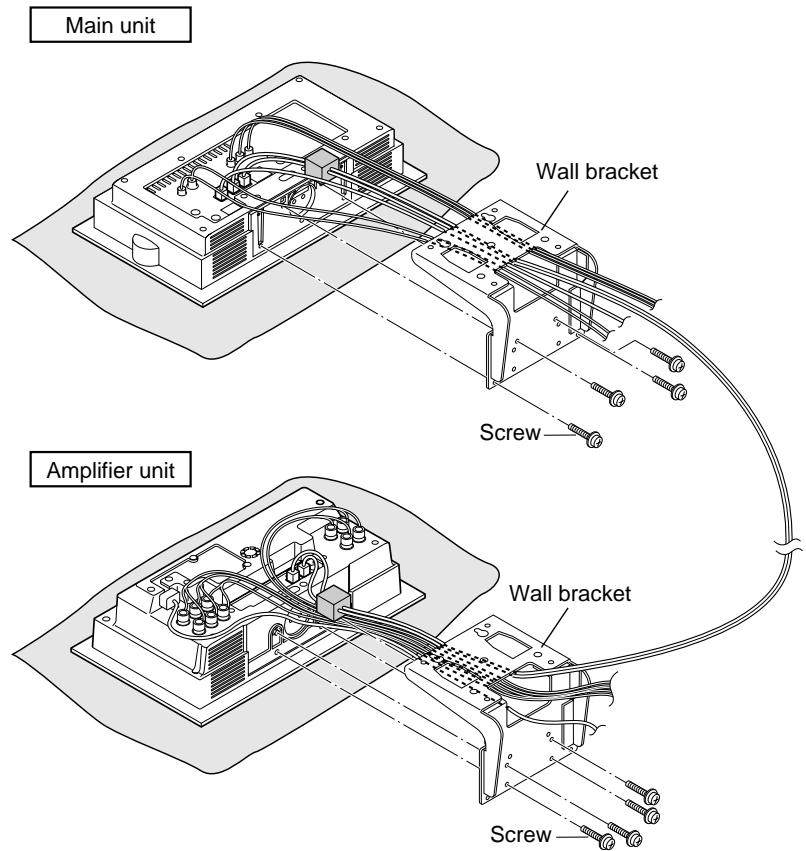
● Fix them securely with the screw removed in step 1.
- Do not use other screws. The unit may fall or break.
■ Mounting the wall bracket on the wall
VESA (*) compliant fittings (commercially available) can be attached to the wall bracket.
Fittings are not supplied, but can be purchased.
Note:
(*) VESA (Video Electronics Standards Association) is an organization to promote the standardization of digital imaging device for PCs.
Types of fittings:
Fittings must satisfy the following.
- Compatible with the VESA standard.
- Have a gap of 3.973" (100 mm) × 3.973" (100 mm) between the screw holes on the section to be attached.
● Sturdy and stable to prevent fall or breakage.
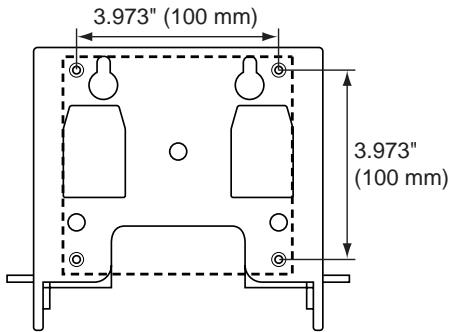
How to attach fittings
- There are four VESA (*) screw holes on the wall bracket. You can use commercially available fittings for mounting.
- Follow the method recommended by the bracket manufacturer.
Warning:
- Install brackets properly following the operation manual. Improper installation may cause the main unit to fall leading to injury or breakage.
- To ensure a proper installation, contact your dealer or installer.
● During installation, be careful not to pinch your fingers. - The wall should be strong enough to support the weight of the main unit. (Install on a reinforced part.)
- Do not impose an extra load on fittings. It may cause the main unit to fall leading to injury or breakage.
- Do not modify or change the wall bracket. It may cause the main unit to fall leading to injury or breakage.
Caution:
- Do not block the ventilation opening of the main unit with a tablecloth, etc. Heat may be kept inside causing fire.
- Select a mounting position carefully to avoid injury by hitting head.
- Never step on or hang from the main unit. Pay special attention to children. It may cause injury or breakage to the main unit.
- Check the wall strength. SHARP is not liable for accidents caused by insufficient strength of the wall or improper mounting.
- Improper mounting may cause the main unit to fall. If you need assistance, contact your dealer or installer.
Connecting other equipment
Turn off all equipment before making this connection.
- To connect external equipment, purchase a commercially available connection cable.
- If using an audio cable, purchase one without resistance. If you use an audio cable with resistance, sound volume will decrease.
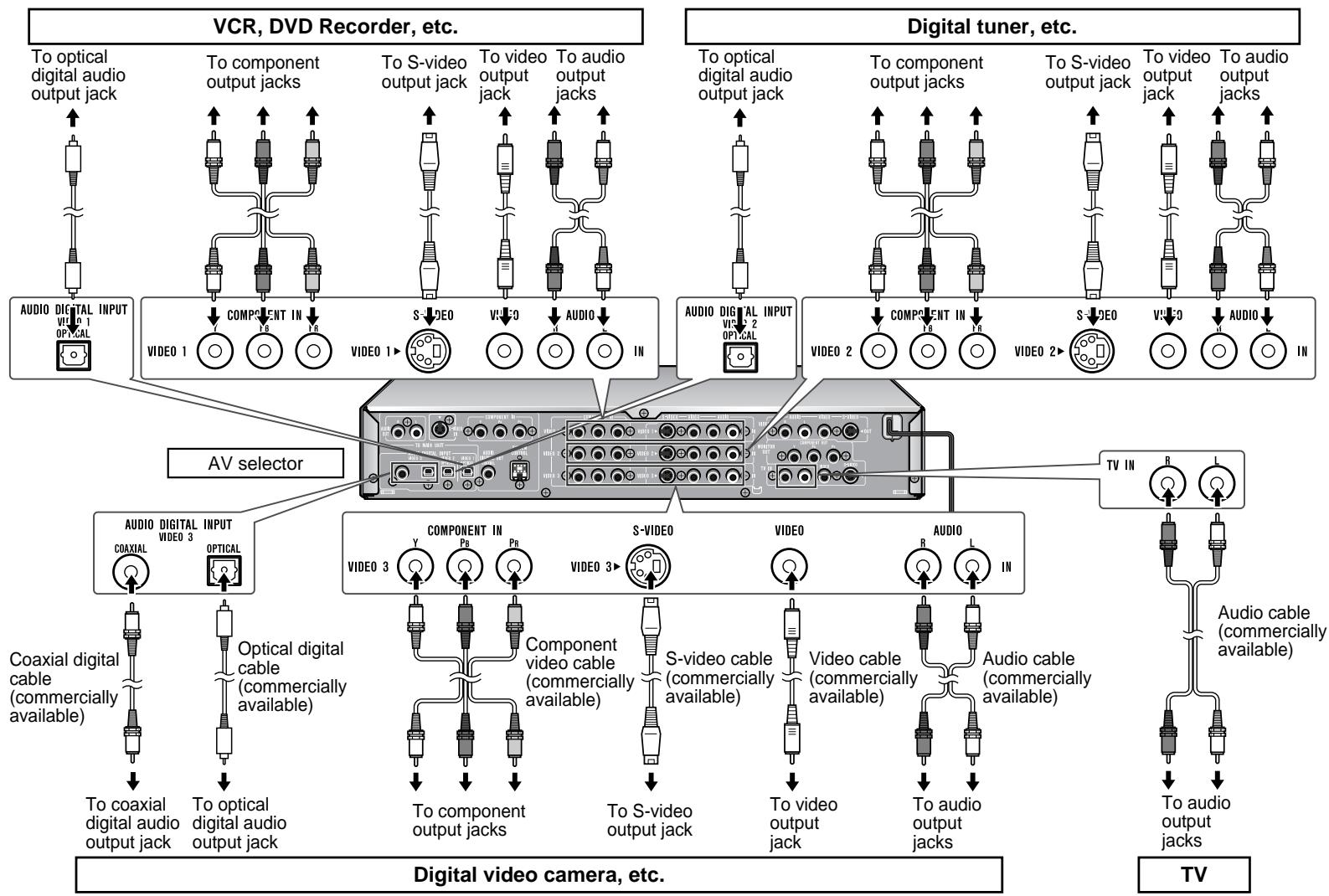
flowchart
graph TD
    subgraph VCR, DVD Recorder, etc.
        A1["To optical digital audio output jack"] --> B1["VIDEO 1"]
        A2["To component output jacks"] --> B2["VIDEO 1"]
        A3["To S-video output jack"] --> B3["VIDEO 1"]
        A4["To video output jack"] --> B4["VIDEO 1"]
        A5["To audio output jacks"] --> B5["VIDEO 1"]
    end

    subgraph Digital Tuner, etc.
        C1["To optical digital audio output jack"] --> D1["VIDEO 2"]
        C2["To component output jacks"] --> D2["VIDEO 2"]
        C3["To S-video output jack"] --> D3["VIDEO 2"]
        C4["To video output jack"] --> D4["VIDEO 2"]
        C5["To audio output jacks"] --> D5["VIDEO 2"]
    end

    subgraph AV Selector
        E1["AUDIO DIGITAL INPUT VIDEO 1 OPTICAL"] --> F1["VIDEO 1"]
        E2["COMPONENT IN"] --> F2["VIDEO 1"]
        E3["S-VIDEO"] --> F3["VIDEO 1"]
        E4["AUDIO DIGITAL INPUT"] --> F4["VIDEO 2 OPTICAL"]
        E5["COMPONENT IN"] --> F5["VIDEO 2"]
        E6["S-VIDEO"] --> F6["VIDEO 2"]
        E7["AUDIO DIGITAL INPUT"] --> F7["VIDEO 3"]
        E8["COMPONENT IN"] --> F8["VIDEO 3"]
        E9["S-VIDEO"] --> F9["VIDEO 3"]
        E10["AUDIO DIGITAL INPUT"] --> F10["VIDEO 3"]
    end

    subgraph Digital Video Camera, etc.
        G1["TV IN"] --> H1["VIDEO cable (commercially available)"]
        G2["TV L"] --> H2["Audio cable (commercially available)"]
        G3["TV OUT"] --> H3["To audio output jacks"]
    end

    subgraph TV
        H1 --> I1["To coaxial digital audio output jack"]
        H2 --> I2["To optical digital audio output jack"]
        H3 --> I3["To component output jacks"]
        H4 --> I4["To S-video output jack"]
        H5 --> I5["To video output jack"]
        H6 --> I6["To audio output jacks"]
    end

    A1 --> J1
    A2 --> K1
    A3 --> L1
    A4 --> M1
    A5 --> N1
    A6 --> O1
    A7 --> P1
    A8 --> Q1
    A9 --> R1
    A10 --> S1
    A11 --> T1
    A12 --> U1
    A13 --> V1
    A14 --> W1
    A15 --> X1
    A16 --> Y1
    A17 --> Z1
    A18 --> AA1
    A19 --> AB1
    A20 --> AC1
    A21 --> AD1
    A22 --> AE1
    A23 --> AF1
    A24 --> AG1
    A25 --> AH1
    A26 --> AI1
    A27 --> AJ1
    A28 --> AK1
    A29 --> AL1
    A30 --> AM1
    A31 --> AN1
    A32 --> AO1
    A33 --> AP1
    A34 --> AQ1
    A35 --> AR1
    A36 --> AS1
    A37 --> AT1
    A38 --> AU1
    A39 --> AV1
    A40 --> AW1
    A41 --> AX1
    A42 --> AY1
    A43 --> AZ1
    A44 --> BA1
    A45 --> BB1
    A46 --> BC1
    A47 --> BD1
    A48 --> BE1
    A49 --> BF1
    A50 --> BG1
    A51 --> BH1
    A52 --> BI1
    A53 --> BJ1
    A54 --> BK1
    A55 --> BL1
    A56 --> BM1
    A57 --> BN1
    A58 --> BO1
    A59 --> BP1
    A60 --> BZ1
■ Audio connection to TV
You can listen to TV sound from the speakers by connecting the AV selector using a audio cable (not supplied).

flowchart
graph LR
    TV --> AV selector
    AV selector --> Main unit/Amplifier unit
    Main unit/Amplifier unit --> Speaker
To listen to TV sound:
1 Turn on the AV selector and main unit.
2 Press the TV button on the remote control.
Notes:
- Plug in each cable fully to prevent noise interference.
- Refer to the manual for the connected equipment.
- You can also use the FUNCTION button on the main unit to set the input to TV.
- You can also use the TV button on the AV selector.
- When listening to the TV sound, leave the function buttons on the AV selector set to TV.
■ Connection to DVD recorder, etc.
You can connect a DVD recorder, digital tuner, etc. to the AV selector with an optical digital cable, coaxial digital cable or audio cable to enjoy the sound through the speakers. If connecting the equipment with a video cable, S-video cable or component video cable, you can view images on a TV connected to the AV selector.
DVD recorder, etc.

flowchart
graph LR
    A["VIDEO 1"] --> D["AV selector"]
    B["VIDEO 2"] --> D
    C["VIDEO 3"] --> D
    D --> E["Main unit/Amplifier unit"]
    E --> F["Speaker"]
    G["TV"] --> E
To enjoy images and sounds from the connected equipment:
1 Turn on the AV selector and main unit.
2 Press the VIDEO 1, 2, 3 button on the remote control to set the input to VIDEO 1, VIDEO 2 or VIDEO 3.
Notes:
- You can connect different equipment to each input jack (VIDEO 1, VIDEO 2 and VIDEO 3).
- When enjoying images and sounds from the equipment connected to VIDEO 1, VIDEO 2 or VIDEO 3, do not switch the function buttons on the AV selector.
- When the main unit is turned on, use the FUNCTION button on the main unit or remote control (to switch the input). When the main unit is in the stand-by mode, you can use the VIDEO 1, 2, 3 buttons on the AV selector.
- Plug in each cable fully to prevent noise interference.
● Refer to the manual for the connected equipment.
Connecting other equipment (continued)
Turn off all equipment before making this connection.
- To connect external equipment, purchase a commercially available connection cable.
- If using an audio cable, purchase one without resistance. If you use an audio cable with resistance, sound volume will decrease.
- Before recording, select "auxiliary" for the equipment connected to the VIDEO 1 output jack.
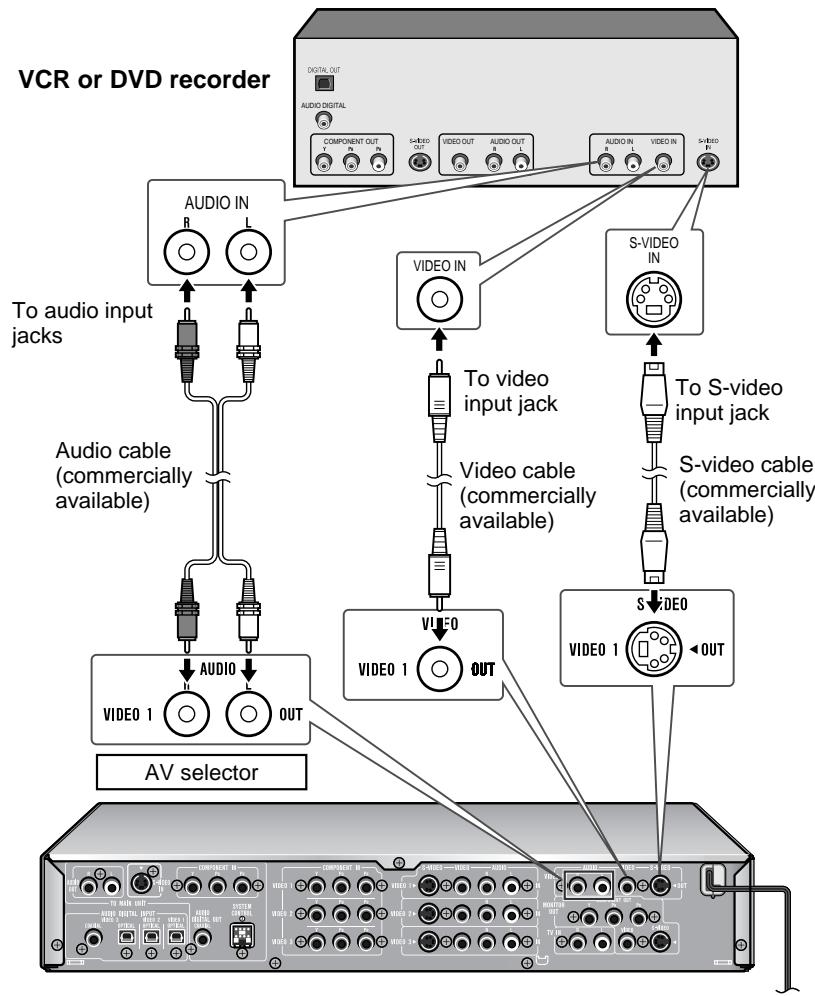
flowchart
graph TD
    A["VCR or DVD recorder"] --> B["Component OUT"]
    A --> C["Video OUT"]
    A --> D["Audio OUT"]
    A --> E["Audio IN"]
    A --> F["S-Video IN"]
    B --> G["To audio input jacks"]
    C --> H["To video input jack"]
    D --> I["To S-video input jack"]
    E --> J["To S-video cable (commercially available)"]
    F --> K["To S-video cable (commercially available)"]
    G --> L["AV selector"]
    H --> M["Video 1 OUT"]
    I --> N["Video 1 OUT"]
    J --> O["Video 1 OUT"]
    K --> P["Video 1 OUT"]
    L --> Q["AV selector"]
    M --> R["AV selector"]
    N --> S["AV selector"]
■ Recording disc contents to the connected equipment
You can record images and sounds to a DVD recorder or VCR. Connect it to the VIDEO 1 output jack with a video cable or S-video cable and audio cable (not supplied).

flowchart
graph LR
    A["Main unit"] --> B["AV selector"]
    B --> C["VIDEO 1"]
    B --> D["VCR or DVD recorder"]
Procedure:
1 Turn on the AV selector and main unit.
2 Press the DVD button on the remote control.
3 Start recording on the connected equipment and then start playback on the main unit.
Notes:
- Some discs are copy protected and recording is not possible.
● While recording, do not switch to another function.
● To record from the radio, press the TUNER (BAND) button. - You can also use the ■ button on the main unit to set the input to DVD.
- Plug in each cable fully to prevent noise interference.
Flow of audio and video signals:
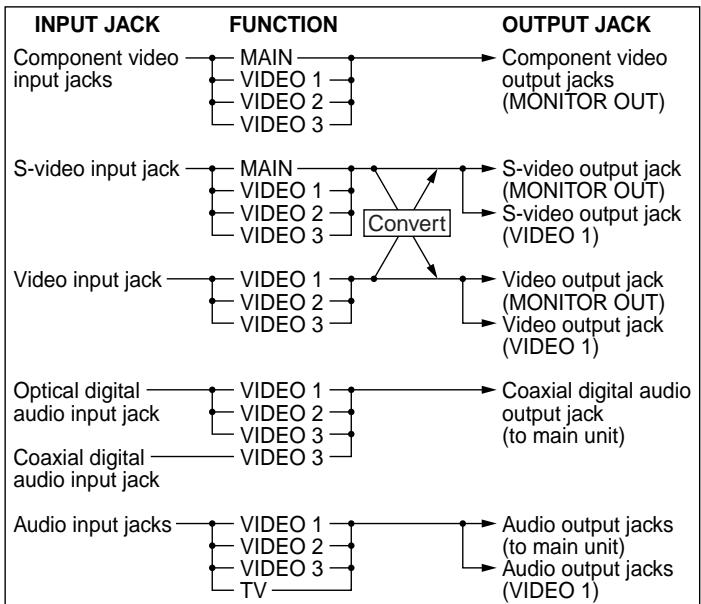
flowchart
graph TD
    A["INPUT JACK"] --> B["FUNCTION"]
    B --> C["OUTPUT JACK"]

    subgraph INPUT JACK
        D["Component video input jacks"] --> E["MAIN"]
        E --> F["VIDEO 1"]
        E --> G["VIDEO 2"]
        E --> H["VIDEO 3"]
    end

    subgraph FUNCTION
        I["S-video input jack"] --> J["MAIN"]
        J --> K["VIDEO 1"]
        J --> L["VIDEO 2"]
        J --> M["VIDEO 3"]
        M --> N["Convert"]
        N --> O["Video output jack (MONITOR OUT)"]
        N --> P["Video output jack (VIDEO 1)"]
    end

    subgraph OUTPUT JACK
        Q["Optical digital audio input jack"] --> R["VIDEO 1"]
        R --> S["VIDEO 2"]
        R --> T["VIDEO 3"]
        T --> U["Video output jack (MONITOR OUT)"]
        T --> V["Video output jack (VIDEO 1)"]
    end

    subgraph OUTPUT JACK
        W["Coaxial digital audio input jack"] --> X["Video 1"]
        X --> Y["VIDEO 2"]
        X --> Z["VIDEO 3"]
        Z --> AA["Video output jack (to main unit)"]
    end

    D --> F
    E --> F
    F --> G
    G --> H
    H --> I
    I --> J
    J --> K
    K --> L
    L --> M
    M --> N
    N --> O
    O --> P
    P --> V
    V --> W
    W --> X
    X --> Y
    Y --> Z
    Z --> AA
    AA --> AA
    AA --> AB["TV"]
    AB --> AC["Video 1"]
    AC --> AD["VIDEO 2"]
    AC --> AE["VIDEO 3"]
    AE --> AF["Audio output jacks (to main unit)"]
    AE --> AG["Audio output jacks (VIDEO 1)"]
Signals from the VIDEO 1 input jack are not sent to the VIDEO 1 output jack.
■ Recording between external equipment using the AV selector
You can record images and sounds from the equipment connected to the VIDEO 2 or VIDEO 3 input jack to a DVD recorder or VCR connected to the VIDEO 1 output jack. The equipment should be connected to the AV selector with a video cable/S-video cable and audio cable.

1 Turn on the AV selector and main unit.
2 Press the VIDEO 1, 2, 3 button on the remote control to set the input to VIDEO 2 or VIDEO 3.
3 Start recording on the equipment connected to the VIDEO 1 output jack and then start playback on the source equipment.
Notes:
- If an S-video cable or video cable is connected to the video input, signals are sent to the S-video output and video output.
- You cannot record images from the equipment connected with a component video cable.
- You cannot record sounds from the equipment connected with an optical digital cable or coaxial digital cable.
- Some discs are copy protected and recording is not possible.
- You cannot record material with copy protection (digital broadcasts, etc.).
● While recording, do not switch to another function. - You can also use the FUNCTION button on the main unit to set the input to VIDEO 2 or VIDEO 3.
- When recording between equipment connected to the AV selector, you do not need to turn on the main unit. Select VIDEO 2 or VIDEO 3 with the function buttons on the AV selector. In this case, the speakers do not produce sound.
● To record the TV sound, press the TV button. - Plug in each cable fully to prevent noise interference.
Connecting other equipment (continued)
Turn off all equipment before making this connection.
Headphones and the subwoofer audio cable are not supplied.

flowchart
graph TD
    A["Main unit"] --> B["Headphones"]
    B --> C["Left side"]
    C --> D["PHONES"]
    D --> E["Amplifier unit"]
    E --> F["Subwoofer (with a built-in amplifier)"]
    F --> G["Line IN"]
    G --> H["To audio input jack"]
    H --> I["Audio cable (commercially available)"]
■ Headphones
- Before plugging in or unplugging the headphones, reduce the volume.
- Be sure your headphones have a 1/8" (3.5 mm) diameter plug and impedance between 16 and 50 ohms. The recommended impedance is 32 ohms.
● While headphones are connected, sound is not produced from the speakers. - You cannot use the surround feature with headphones.
- Do not plug in or unplug headphones while recording. The sound may skip.
■ Using subwoofer
You can connect a subwoofer with an amplifier to the subwoofer pre output jack.
Note:
No sound is heard from the speaker in which an amplifier is not built in.
■ Cleaning the cabinet
Periodically wipe the cabinet with a soft cloth and a diluted soap solution, then with a dry cloth.
- Do not use chemicals for cleaning (gasoline, paint thinner, etc.). It may damage the cabinet finish.
- Do not apply oil to the inside of the unit. It may cause malfunctions.
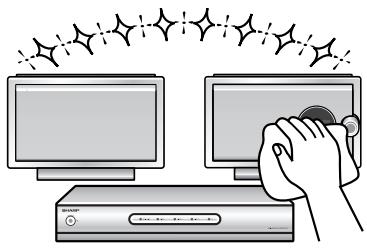
natural_image
Illustration of a hand holding a device next to two monitors, with starburst effects above (no text or symbols)Error indicators and warnings
When you load an unplayable disc or fail to perform operations properly, the following messages are displayed on the unit and the TV screen.
| Display | Meaning |
| DSP NG | ● Place the unit away from noise source or plug the AC power cord to another AC outlet. (*) |
| Er-** (**) indicates numbers/symbols.) | ● The unit considers the DVD mechanism is defective. ● The amplifier is defective. Set this unit to the stand-by mode and turn the power on again. (*) |
| FAN LOCK | ● The cooling fan on the back of the amplifier unit does not run due to foreign objects caught in it. Set this unit to the stand-by mode and remove the foreign objects around the fan. |
| NO DISC | ● The disc is not loaded. ● The disc is loaded upside down. |
| NO PLAY | ● The disc's region number is neither 1 nor ALL. |
| No Signal | ● The digital audio input jack is not connected properly. ● Unspecified signal is received and cannot be recognized. |
(*): Should the same message appear even if the unit is unplugged and plugged in or is set to the stand-by mode and on again, contact your local dealer where you purchased the unit.
■ Cleaning the laser pickup lens
Do not touch the laser pickup lens. If fingerprints or dust accumulate on the pick-up, clean it gently with a dry cotton swab.
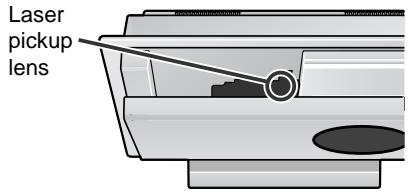
Notes:
- Close the disc compartment when it is not used.
- Be careful not to damage the optical pickup or to touch it by hand.
| TV screen | Meaning |
| The disc cannot be played with this unit or the disc is loaded in an incorrect way. | |
| The region number of the DVD is not "1" or "ALL". | |
| A disc has not been loaded. | |
| ● You are trying to perform an incorrect operation.● The operation is prohibited. | |
| The disc does not support the operation described in this operation manual. |
Troubleshooting chart
Many potential problems can be resolved by the owner without calling a service technician.
If something is wrong with this product, check the following before calling your authorized SHARP dealer or service center.
■ General
| Symptom | Possible cause | Reference page |
| No sound is heard. | ● Is the volume level set to "0"?● Are the headphones connected?● Are the speaker wires disconnected?● Is the correct function selected for the AV selector? | P. 20P. 65P. 15P. 62 |
| The sounds from speakers are not well balanced. | ● Are the speaker wires connected to the wrong channels? | P. 15 |
| Noise is heard during play-back. | ● Move the unit away from any computers or mobile phones. | — |
| When a button is pressed, the unit does not respond. | ● Set this unit to the power stand-by mode and then turn it back on. If the unit still malfunctions, reset it. | P. 69 |
| Interference or noise occurs on the TV image. | ● Is the unit placed near TV with internal antenna? Use an outdoor antenna. | P. 16 |
| Timer playback does not start. | ● Did you remove the plug from the AC outlet, or did a power failure occur? Reset the clock and timer. | P. 19, 53 |
| "CLOCK ADJUST" appears when checking the clock. | ● Did you remove the plug from the AC outlet, or did a power failure occur? Reset the clock. | P. 19 |
| The display on the unit is dark. | ● Is the display in the dimmer mode? | P. 20 |
| The power is not turned on. | ● Is the unit unplugged? | P. 18 |
| No images are displayed. | ● Is TV turned on?● Is the input of TV switched?● Is the correct function selected for the AV selector? | P. 56P. 56P. 62 |
Tuner
| Symptom | Possible cause | Reference page |
| The radio makes unusual noises continuously. | ● Is the unit placed near the TV or computer?● Is the FM antenna or AM loop antenna placed properly? Move the antenna away from the AC power cord or the unit if located near. | —P. 16 |
| The preset channel cannot be recalled. | ● Did you remove the plug from the AC outlet, or did a power failure occur?Preset the channel again. | P. 38 |
■ AV selector
| Symptom | Possible cause | Reference page |
| No image appears on a TV, or images from the source equipment do not appear. | ● Is the same function selected for the main unit and AV selector? | P. 22, 62 |
| Image cannot be played back. (Sound is not heard.) | ● Is the same function selected for the main unit and AV selector?● Are the video and audio cables connected improperly?● Is the AV selector turned on? | P. 62P. 13, 61P. 18 |
| After recording, contents are not recorded on DVD-R, DVD-RW discs or video-tapes. | ● Are the source equipment and target equipment connected properly?● Is the same function selected for the main unit and AV selector?● Is the correct channel selected for the target equipment?● Are you recording material with copy protection?● Is the source equipment connected with a component video cable?● Is the source equipment connected with a digital audio cable? | P. 61, 63P. 62 - 64P. 63P. 62 - 64P. 64P. 64 |
■ Remote control
| Symptom | Possible cause | Reference page |
| The remote control does not operate properly. | ● Is the battery polarity respected?● Are the batteries dead?● Is the distance or angle incorrect?● Are there any obstructions in front of the unit?● Is the remote control sensor exposed to strong light (inverter fluorescent light, direct sunlight, etc.)?● Is the remote control for another equipment used simultaneously?● Is the disc door open?● Is the MODE 1/MODE 2 switch set properly? | P. 18—P. 18—P. 18—P. 21P.8, 9 |
| The unit cannot be turned on with the remote control. | ● Is the AC power cord of the amplifier unit plugged in?● Are the batteries inserted? | P. 18P. 18 |
■ DVD/CD player
| Symptom | Possible cause | Reference page |
| Even though a disc is loaded, "NO PLAY" is displayed. | ● Is the disc loaded upside down? ● Is the disc very dirty? | — — |
| Playback sounds are skipped. | ● Does the disc satisfy the standards? ● Is the unit located near excessive vibrations? ● Has condensation formed inside the unit? | — — P. 69 |
| The control buttons do not function. Music or video play-back is interrupted. | ● Is the disc very dirty? ● Does the disc satisfy the standards? ● Is the unit located near excessive vibrations? ● Has condensation formed inside the unit? | — — — P. 69 |
| Pictures and sound are skipped. | ● Is the disc very dirty? ● Is the unit located near excessive vibrations? ● Has condensation formed inside the unit? | — — P. 69 |
| The system does not operate even if the power is on. | ● Is a disc that is not a DVD video, SACD, DVD-Audio or CD loaded? ● Is a DVD loaded that is not Region 1 or Region All? | P. 10 P. 10 |
| Image cannot be played back. (Sound is not heard.) | ● Are the video and audio cables connected improperly? ● Is a disc that is not a DVD video, SACD, DVD-Audio or CD loaded? ● Is a DVD loaded that is not Region 1 or Region All? ● Is the disc very dirty? ● Is the disc loaded upside down? ● Clean the optical pickup if it is dirty. ● Is the TV input set to "VIDEO 1/VID-EO 2" etc.? ● Is the unit turned on? | P. 13, 61 P. 10 P. 10 — — P. 66 P. 56 P. 18 |
Troubleshooting chart (continued)
■ Condensation
Sudden temperature changes, storage or operation in an extremely humid environment may cause condensation inside the cabinet (laser pickup, etc.) or on the transmitter on the remote control.
Condensation can cause the unit to malfunction. If this happens, leave the power on with no disc in the unit until normal playback is possible (about 1 hour). Wipe off any condensation on the transmitter with a soft cloth before operating the unit.
■ If trouble occurs
When this product is subjected to strong external interference (mechanical shock, excessive static electricity, abnormal supply voltage due to lightning, etc.) or if it is operated incorrectly, it may malfunction.
If such a problem occurs, do the following:
[Main unit and amplifier unit]
Clearing all the memory (reset)
1 Unplug the unit.
2 While holding down the ON/STAND-BY button, plug in the AC power cord. "RESET" appears for about 1 second and the power turns off.

Caution:
When you reset, all data is deleted and the settings return to the default. (DVD initial settings are retained.)
[AV selector]
Unplug the AV selector and after a while, plug it in again.
Language code list for disc language
| Code | Language name | Code | Language name |
| AA | Afar | FY | Frisian |
| AB | Abkhazian | GA | Irish |
| AF | Afrikaans | GD | Scots Gaelic |
| AM | Amharic | GL | Galician |
| AR | Arabic | GN | Guarani |
| AS | Assamese | GU | Gujarati |
| AY | Aymara | HA | Hausa |
| AZ | Azerbaijani | HI | Hindi |
| BA | Bashkir | HR | Croatian |
| BE | Byelorussian | HU | Hungarian |
| BG | Bulgarian | HY | Armenian |
| BH | Bihari | IA | Interlingua |
| BI | Bislama | IE | Interlingue |
| BN | Bengali; | IK | Inupiaq |
| Bangla | IN | Indonesian | |
| BO | Tibetan | IS | Icelandic |
| BR | Breton | IT | Italian |
| CA | Catalan | IW | Hebrew |
| CO | Corsican | JA | Japanese |
| CS | Czech | JI | Yiddish |
| CY | Welsh | JW | Javanese |
| DA | Danish | KA | Georgian |
| DE | German | KK | Kazakh |
| DZ | Bhutanese | KL | Greenlandic |
| EL | Greek | KM | Cambodian |
| EN | English | KN | Kannada |
| EO | Esperanto | KO | Korean |
| ES | Spanish | KS | Kashmiri |
| ET | Estonian | KU | Kurdish |
| EU | Basque | KY | Kirghiz |
| FA | Persian | LA | Latin |
| FI | Finnish | LN | Lingala |
| FJ | Fiji | LO | Laotian |
| FO | Faroese | LT | Lithuanian |
| FR | French | LV | Latvian, Lettish |
| Code | Language name | Code | Language name |
| MG | Malagasy | SN | Shona |
| MI | Maori | SO | Somali |
| MK | Macedonian | SQ | Albanian |
| ML | Malayalam | SR | Serbian |
| MN | Mongolian | SS | Siswati |
| MO | Moldavian | ST | Sesotho |
| MR | Marathi | SU | Sundanese |
| MS | Malay | SV | Swedish |
| MT | Maltese | SW | Swahili |
| MY | Burmese | TA | Tamil |
| NA | Nauruan | TE | Telugu |
| NE | Nepali | TG | Tajik |
| NL | Dutch | TH | Thai |
| NO | Norwegian | TI | Tigrinya |
| OC | Occitan | TK | Turkmen |
| OM | (Afan) Oromo | TL | Tagalog |
| OR | Oriya | TN | Setswana |
| PA | Panjabi | TO | Tonga |
| PL | Polish | TR | Turkish |
| PS | Pashto, Pushto | TS | Tsonga |
| PT | Portuguese | TT | Tatar |
| QU | Quechua | TW | Twi |
| RM | Rhaeto-Romance | UK | Ukrainian |
| RN | Kirundi | UR | Urdu |
| RO | Romanian | UZ | Uzbek |
| RU | Russian | VI | Vietnamese |
| RW | Kinyarwanda | VO | Volapuk |
| SA | Sanskrit | WO | Wolof |
| SD | Sindhi | XH | Xhosa |
| SG | Sango | YO | Yoruba |
| SH | Serbo-Croatian | ZH | Chinese |
| SI | Singhalese | ZU | Zulu |
| SK | Slovak | ||
| SL | Slovenian | ||
| SM | Samoan |
Specifications
As part of our policy of continuous improvement, SHARP reserves the right to make design and specification changes for product improvement without prior notice. The performance specification figures indicated are nominal values of production units. There may be some deviations from these values in individual units.
■ Main unit (SACD/DVD player unit)
| Dimensions | including the standWidth: 13-7/8" (351 mm)Height: 8-5/8" (220 mm)Depth: 6" (152 mm)excluding the standWidth: 13-7/8" (351 mm)Height: 8-1/8" (205 mm)Depth: 3-1/2" (90 mm) |
| Weight | 6.6 lbs. (3.0 kg) |
| Audio output terminals | Headphones: 16 - 50 ohms (recommended: 32 ohms) |
| Audio input terminals | Audio input (AV selector): RCA type × 1 pair (L/R)Coaxial digital input (AV selector): RCA type × 1 |
| Video terminals | Video output: RCA type × 1S-video output: S-terminal × 1Component video output: RCA type × 3 (Y/PB/PR) |
| Other terminals | System control terminal (to amplifier unit): Exclusive type × 2System control terminal (to AV selector): Exclusive type × 1 |
| Signal system | NTSC color |
| Supported disc types | DVD-Video/Audio (Region number 1, ALL), SACD, DVD-R/RW (video mode), audio CD, CD-R, CD-RW |
| Video signal | Horizontal resolution: 500 linesS/N ratio: 70 dB |
| Audio signal | Frequency characteristics | Linear PCM DVD:4 Hz to 22 kHz (sampling rate:48 kHz)4 Hz to 44 kHz (sampling rate:96 kHz)CD: 4 Hz to 20 kHz |
| S/N ratio | CD: 96 dB (1 kHz) | |
| Dynamic range | Linear PCM DVD: 95 dBCD: 94 dB | |
| Total harmonic distortion ratio | 0.006 % maximum | |
| Frequency range | FM: 87.5 - 108 MHzAM: 530 - 1,720 kHz | |
■ Amplifier unit
| Power source | AC 120 V, 60 Hz |
| Power consumption | 100 W |
| Dimensions | including the standWidth: 13-7/8" (351 mm)Height: 8-5/8" (220 mm)Depth: 6" (152 mm)excluding the standWidth: 13-7/8" (351 mm)Height: 8-1/8" (205 mm)Depth: 4-3/4" (120 mm) |
| Weight | 11.0 lbs. (5.0 kg) |
| Audio output terminals | Front speakers, Center speaker and Surround speakers: more than 4 ohmsSubwoofer Pre Out: RCA type × 1 |
| Other terminals | System control terminal (to main unit): Exclusive type × 2 |
| Amplification system | 5.6448 MHz (128 fs) 1-bit switching (Remarks: fs = 44.1 kHz) |
| Power output (FTC) | 70 watts minimum RMS per channel into 4 ohms from 120 Hz to 20 kHz, 2 % total harmonic distortion |
| Rated power output | Front: 100 W + 100 W, Center: 100 WSurround: 100 W + 100 W (4 ohms at 1 kHz) |
| A/D noise shaping | 7th-order (delta - sigma) modulation |
■ AV selector
| Power source | AC 120 V, 60 Hz |
| Power consumption | 10 W |
| Dimensions | Width: 17" (430 mm)Height: 3-1/8" (78 mm)Depth: 10-1/4" (260 mm) |
| Weight | 6.4 lbs. (2.9 kg) |
| Audio input terminals | Audio input (VIDEO 1, VIDEO 2, VIDEO 3, TV): RCA type × 4 pairs (L/R)Coaxial digital input (VIDEO 3): RCA type × 1Optical digital input (VIDEO 1, VIDEO 2, VIDEO 3): Square type × 3 |
| Audio output terminals | Audio output (to main unit, VIDEO 1): RCA type × 2 pairs (L/R)Coaxial digital output (to main unit): RCA type × 1 |
| Video input terminals | Video input (to main unit, VIDEO 1, VIDEO 2, VIDEO 3): RCA type × 4S-video input (to main unit, VIDEO 1, VIDEO 2, VIDEO 3): S-terminal × 4Component video input (to main unit, VIDEO1, VIDEO2, VIDEO3): RCA type × 12 (Y/PB/PR) |
| Video output terminals | Video output (VIDEO 1, Monitor): RCA type × 2S-video output (VIDEO 1, Monitor): S-terminal × 2Component video output (Monitor): RCA type × 3 (Y/PB/ PR) |
| Other terminals | System control terminal (to main unit): Exclusive type × 1 |
CONSUMER LIMITED WARRANTY
SHARP ELECTRONICS CORPORATION warrants to the first consumer purchaser that this Sharp brand product (the "Product"), when shipped in its original container, will be free from defective workmanship and materials, and agrees that it will, at its option, either repair the defect or replace the defective Product or part thereof with a new or remanufactured equivalent at no charge to the purchaser for parts or labor for the period(s) set forth below.
This warranty does not apply to any appearance items of the Product nor to the additional excluded item(s) set forth below nor to any Product the exterior of which has been damaged or defaced, which has been subjected to improper voltage or other misuse, abnormal service or handling, or which has been altered or modified in design or construction.
In order to enforce the rights under this limited warranty, the purchaser should follow the steps set forth below and provide proof of purchase to the servicer.
The limited warranty described herein is in addition to whatever implied warranties may be granted to purchasers by law. ALL IMPLIED WARRANTIES INCLUDING THE WARRANTIES OF MERCHANTABILITY AND FITNESS FOR USE ARE LIMITED TO THE PERIOD(S) FROM THE DATE OF PURCHASE SET FORTH BELOW. Some states do not allow limitations on how long an implied warranty lasts, so the above limitation may not apply to you.
Neither the sales personnel of the seller nor any other person is authorized to make any warranties other than those described herein, or to extend the duration of any warranties beyond the time period described herein on behalf of Sharp.
The warranties described herein shall be the sole and exclusive warranties granted by Sharp and shall be the sole and exclusive remedy available to the purchaser. Correction of defects, in the manner and for the period of time described herein, shall constitute complete fulfillment of all liabilities and responsibilities of Sharp to the purchaser with respect to the Product, and shall constitute full satisfaction of all claims, whether based on contract, negligence, strict liability or otherwise. In no event shall Sharp be liable, or in any way responsible, for any damages or defects in the Product which were caused by repairs or attempted repairs performed by anyone other than an authorized servicer. Nor shall Sharp be liable or in any way responsible for any incidental or consequential economic or property damage. Some states do not allow the exclusion of incidental or consequential damages, so the above exclusion may not apply to you. THIS WARRANTY GIVES YOU SPECIFIC LEGAL RIGHTS. YOU MAY ALSO HAVE OTHER RIGHTS WHICH VARY FROM STATE TO STATE.
Model Specific Section
Your Product Model Number & Description:
Warranty Period for this Product:
Additional Item(s) Excluded from Warranty Coverage (if any):
Where to Obtain Service:
What to do to Obtain Service:
SD-HX600 1-Bit Digital Receiver with DVD
(Be sure to have this information available when you need service for your Product.)
One (1) year parts and labor from the date of purchase.
Non-functional accessories, supplies, and consumable items.
At a Sharp Authorized Servicer located in the United States.
To find a location of the nearest Sharp Authorized Servicer, call Sharp toll free at 1-800-BE-SHARP.
Ship prepaid or carry in your Product to a Sharp Authorized Servicer.
Be sure to have Proof of Purchase available. If you ship the Product, be sure it is insured and packaged securely.
TO OBTAIN SUPPLY, ACCESSORY OR PRODUCT INFORMATION, CALL 1-800-BE-SHARP.
SHARP
SHARP ELECTRONICS CORPORATION
Sharp Plaza, Mahwah, New Jersey 07430-2135
SHARP CORPORATION

- 1-BIT DIGITAL RECEIVER WITH DVD AMPLITUNER NUMÉRIQUE 1-BIT AVEC DVD
- SD-HX600
- Explanation of Graphical Symbols:
- Note to CATV system installer:
- NOTE
- WARNING
- CAUTION:
- FOR YOUR RECORDS
- IMPORTANT SAFETY INSTRUCTIONS (for Users in the U.S.A.)
- ENERGY STAR® Program Information
- ENGLISH
- Contents
- Page
- ■ General Information
- ■ Preparation for Use
- ■ DVD Operation
- Basic operation
- Useful operation
- Various settings
- ■ SACD and CD Operation
- Playing an SACD disc
- ■ Radio Operation
- ■ Advanced Features
- ■ References
- Copyright Information:
- Copy Protection:
- Precautions
- ■ General
- Warning:
- ■ Volume control
- ■ Care of DVD/SACD/CD discs
- ■ Main unit (front panel)
- Reference page
- Controls and indicators (continued)
- ■ Main unit (side panel)
- ■ Main unit (rear panel)
- ■ Amplifier unit
- ■ AV selector
- ■ Remote control
- Notes:
- ■ Types of playable discs
- DVD-Video
- Region number
- Title and chapter
- DVD-Audio
- Group and track
- Description of discs (continued)
- ■ DVD-R/DVD-RW playback
- ■ SACD (Super Audio CD)
- Track
- ■ MP3 format on CD-R/CD-RW
- Folder and track
- ■ Icons used on DVD discs
- ■ Discs that cannot be played
- ■ Placing the speaker in your system
- ■ Cooling fan
- System connections
- Make sure to unplug the AC power cord before making this connection.
- ■ Connections
- Connect the main unit and amplifier unit as follows.
- To connect:
- To disconnect:
- Connect the main unit and AV selector as follows.
- Connect the AV selector and TV.
- Speaker connection
- Antenna connection
- ■ Connecting speaker wires
- When using a speaker wire:
- Supplied FM antenna:
- Supplied AM loop antenna:
- Note:
- Installing the AM loop antenna:
- Outdoor FM or AM antenna:
- TV connection
- Unplug all equipment before making any connections.
- ■ Positioning cables
- Removing cord holders:
- Remote control
- ■ Battery installation
- Precautions for battery use:
- Notes concerning use:
- ■ Test of the remote control
- The remote control can be used within the range shown on the right.
- AC power connection
- ■ Connecting the AC power cord
- ■ To turn the power on
- To set the main unit and amplifier unit to stand-by mode:
- To turn off the AV selector:
- Setting the clock
- 3
- 4
- To confirm the time display:
- [When the unit is in the stand-by mode]
- [When the power is on]
- To readjust the clock:
- Main unit operation:
- Remote control operation:
- ■ Muting
- ■ To change the display brightness (2 levels)
- Playing a disc
- ■ Playback
- How to place a disc:
- Removing discs:
- Icons used in this operation manual
- ■ To locate the beginning of a chapter (track)
- While a disc is playing, press the ◀◀ or ▶▶ button.
- ■ Fast forward/Fast reverse (search)
- While a disc is playing, press the ◀◀ or ▶▶ button.
- Press the ◀◀ or ▶▶ button repeatedly to select a search speed.
- ■ To start playback from the desired point (direct play) DVD SACD CD
- During playback, set the MODE 1/MODE 2 switch to MODE 1.
- Within 10 seconds, enter a number with the direct number buttons (0 - 9) and press the ENTER button.
- How to specify:
- To play by specifying time (time search):
- DVD: TV screen
- ■ To play in the desired order (programmed play) DVD SACD CD
- To add numbers to the program:
- To delete all numbers in the program:
- To cancel the operation:
- To repeat the programmed play:
- ■ To play repeatedly (repeat play)
- ■ To play the contents between the specified points repeatedly (A-B repeat) DVD SACD CD
- ■ Still picture/Frame advance
- ■ Slow-motion play
- ■ Resume play
- To cancel resume play:
- ■ To change the angle
- ■ To zoom images (zoom)
- To return to normal view:
- ■ To select a title from the top menu of the disc DVD
- ■ To select a subtitle or audio language from the disc menu DVD
- ■ To change the subtitle language DVD
- ■ To change the audio language (audio output) DVD CD
- ■ Brightening the image (Gamma correction)
- ■ Sharpening the image (Super picture) DVD
- ■ To change the display on TV screen
- ■ To change the display on the unit DVD
- ■ Switching elapsed time SACD CD
- ■ Switching playing time SACD CD
- ■ To change the setting on the playback control screen DVD SACD CD
- Playing a DVD-Audio disc
- ■ Switching still pictures on a DVD-Audio disc
- ■ Playing bonus groups
- ■ Playing hybrid SACD sound
- Example: Playing a multi channel SACD disc
- ■ To play in random order (random play)
- ■ Selecting a folder on an MP3 disc
- Skipping tracks:
- Playing repeatedly (Repeat play):
- Listening to the radio
- Manual tuning:
- Auto tuning:
- To receive an FM stereo transmission:
- After use:
- Listening to the memorized station
- Listening to the memorized station (continued)
- ■ How to enter characters
- Deleting characters
- Adding characters
- To recall a memorized station:
- To select a preset station with the direct number buttons:
- To name or rename stored stations:
- To erase all the contents of the preset memory:
- To change the display on the main unit:
- Enjoying surround sound (sound mode)
- Dolby Digital
- DTS (Digital Theater Systems)
- Dolby Pro Logic II
- Stereo-recorded discs and video tapes
- Linear PCM
- A signal recording format without compression
- ■ Audio signal/Speaker indicators
- Example:
- Audio signal/Speaker indicators:
- ■ Listening to sounds in the multi channel mode (5.1 ch, etc.)
- While the disc is playing, press the MULTI-CH button.
- ■ Listening to 2 channel stereo sounds
- While the disc is playing, press the STEREO button.
- Changing the initial setting of DVD
- Changing the initial setting of DVD (continued)
- ■ TV display setting
- ■ Progressive scan playback
- \*1 Progressive
- \*2 Interlace (Interlaced scan)
- Notes on a non-progressive scan TV
- Compatibility of the progressive scan TV
- ■ Parental setting
- ■ Disc language
- ■ Selecting a language for "DISC LANGUAGE", etc.
- Changing the default settings of the amplifier
- ■ Speaker size setting
- Changing the default settings of the amplifier (continued)
- Within 10 seconds, press the ◀ or ▶ button to select their sizes.
- Press the RETURN 🔗 button twice.
- ■ Speaker delay setting
- ■ Speaker level setting
- ■ Test tone
- To adjust speaker levels
- ■ Changing crossover frequency
- Timer playback
- Once timer:
- Use when...
- Daily timer:
- You can use the once timer and daily timer together.
- Before setting timer:
- Setting the timer
- Setting the timer (continued)
- Operations after setting the timer
- After setting the timer
- At the start time
- When the finish time is reached:
- ■ In the timer stand-by mode
- Checking the timer setting:
- Canceling the timer setting:
- ■ To use the same timer setting
- Sleep timer
- To confirm the remaining sleep time:
- To cancel the sleep operation:
- ■ To use timer and sleep operation together
- Operating the connected TV
- ■ Watching TV
- ■ Changing the TV registration
- Operating the connected TV (continued)
- Storing volume, surround or amplifier settings
- ■ Change the settings
- Recalling stored settings:
- Mounting the unit on the wall
- ■ Attaching the wall bracket
- Remove the stand.
- ■ Mounting the wall bracket on the wall
- Types of fittings:
- How to attach fittings
- Connecting other equipment
- ■ Audio connection to TV
- To listen to TV sound:
- ■ Connection to DVD recorder, etc.
- To enjoy images and sounds from the connected equipment:
- Connecting other equipment (continued)
- Turn off all equipment before making this connection.
- ■ Recording disc contents to the connected equipment
- Procedure:
- Flow of audio and video signals:
- ■ Recording between external equipment using the AV selector
- ■ Headphones
- ■ Using subwoofer
- ■ Cleaning the cabinet
- Error indicators and warnings
- ■ Cleaning the laser pickup lens
- Troubleshooting chart
- Troubleshooting chart (continued)
- ■ Condensation
- ■ If trouble occurs
- [Main unit and amplifier unit]
- Clearing all the memory (reset)
- [AV selector]
- Specifications
- CONSUMER LIMITED WARRANTY
- Model Specific Section
- SD-HX600 1-Bit Digital Receiver with DVD
- SHARP
- SHARP ELECTRONICS CORPORATION
- SHARP CORPORATION
Brand : SHARP
Model : SD-HX600
Category : CD Player