DV-MFMV-74 - Switch FSR - Free user manual and instructions
Find the device manual for free DV-MFMV-74 FSR in PDF.


User questions about DV-MFMV-74 FSR
0 question about this device. Answer the ones you know or ask your own.
Ask a new question about this device
Download the instructions for your Switch in PDF format for free! Find your manual DV-MFMV-74 - FSR and take your electronic device back in hand. On this page are published all the documents necessary for the use of your device. DV-MFMV-74 by FSR.
USER MANUAL DV-MFMV-74 FSR
DV-MFMV-74 7x1 MultiVU Seamless Windowing Switcher Manual
Based on firmware revision 1.12 and FSR1.0.0.Q

text_image
FSR INPUT SELECT AUDIO SELECT 1 2 3 4 5 6 7 WINDOW SELECT 1 2 3 4 5 6 WINDOW LAYOUT 1 2 3 4 5 6 OUTPUT FORMAT 400V 1 400V 2 400V 3 381.6V 100V 2 100V 3 325V 1 DV MERT-IN POWER DV PRO - MultiYU - SEVEN INPUT MULTI-FORMAT WINDOWING SCALER AC 100-240V ON/OFFS L-全串 LPS 全串 OUTPUTS SL-全串 SL-全串 OPTICAL OFFICUM HDMI B HDMI C HDMI D HDMI E HDMI F HDMI G HDMI H HDMI I HDMI J HDMI K HDMI L HDMI M HDMI N HDMI O HDMI P HDMI Q HDMI R HDMI S HDMI T HDMI U HDMI V HDMI W HDMI X HDMI Y HDMI Z244 Bergen Blvd Woodland Park NJ 07424 · 973-785-4347 · www.fsrinc.com
PROPRIETARY INFORMATION
All information in this manual is proprietary to and the property of FSR Inc. This publication is protected by the Federal Copyright Law, with all rights reserved. No part of this document may be reproduced, transcribed, or transmitted, in any form or by any means, without prior explicit written permission from FSR Inc.
UNPACKING
The DV-MFMV-74 7x1 Switcher package includes the following items:
• DV-MFMV-74 7x1 Switcher
- IR remote control
- Rack ears
- User's manual
- AC line cord
- 8 Screws
• 11 3-Pin screw terminal
HDMI®
• HDMI is a trademark of HDMI licensing, LLC.
- DisplayPort
- Specifications may be changed without any notice in order to improve the function of the product.
LIMITED WARRANTY
The DV-MFSW-74 is warranted against failures due to defective parts or faulty workmanship for a period of three years after delivery to the original owner. During this period, FSR will make any necessary repairs or replace the unit without charge for parts or labor. Shipping charges to the factory or repair station must be prepaid by the owner, return-shipping charges (via UPS Ground) will be paid by FSR.
This warranty applies only to the original owner and is not transferable. In addition, it does not apply to repairs done by other than the FSR factory or Authorized Repair Stations.
This warranty shall be cancelable by FSR at its sole discretion if the unit has been subjected to physical abuse or has been modified in any way without written authorization from FSR. FSR's liability under this warranty is limited to repair or replacement of the defective unit.
FSR will not be responsible for incidental or consequential damages resulting from the use or misuse of its products. Some states do not allow the exclusion of incidental or consequential damages, so the above limitations may not apply to you. This warranty gives you specific legal rights, and you may also have other rights which vary from state to state.
Warranty claims should be accompanied by a copy of the original purchase invoice showing the purchase date (if a Warranty Registration Card was mailed in at the time of purchase, this is not necessary). Before returning any equipment for repair, please read the important information on service below.
SERVICE
Before returning any equipment for repair, please be sure that it is adequately packed and cushioned against damage in shipment, and that it is insured. We suggest that you save the original packaging and use it to ship the product for servicing. Also, please enclose a note giving your name, address, phone number and a description of the problem.
NOTE: all equipment being returned for repair must have a Return authorization (RMA) Number. To get a RMA Number, please call the FSR Service Department (1-800-332-FSR1). Please display your RMA Number prominently on the front of all packages.
CONTACT INFORMATION
FSR INC.
244 Bergen Blvd.
Woodland Park, NJ 07424
Phone: (973) 785-4347
Order Desk Fax: (973) 785-4207
E-mail: sales@fsrinc.com
Web Site: www.fsrinc.com
SURGE PROTECTION DEVICE RECOMMENDED
This product contains sensitive electrical components that may be damaged by electrical spikes, surges, electric shock, lightning strikes, etc. Use of surge protection systems is highly recommended in order to protect and extend the life of your equipment.
SAFETY
- All the safety and user manual should be read before the appliance is operated.
- The safety and operating instructions should be retained for future reference.
- Unplug this product from the wall outlet before cleaning. Do not use liquid cleaners or aerosol cleaners. Use a damp cloth for cleaning.
- Do not use this equipment near wet place.
- This product should be operated only from the type of power sources indicated on the marking label. If you are not sure of the type of power supplied to your home, consult your local power company.
- This equipment may be equipped with a 3 wire grounding-type plug, a plug having a third (grounding) pin. This pin will only fit in to a grounding type power outlet. This is a safety feature. If you are unable to insert the plug in to the outlet, contact your electrician to replace your obsolete outlet. Do not defeat the safety purpose of the grounding-type plug.
- Openings on the case are provided for ventilation and to ensure reliable operation of the equipment and to protect it from overheating. The openings should never be blocked.
- Do not use any damaged power cords or plugs, or loosed outlets, this may cause electrical shock or fire.
- Do not put heavy articles such as other equipment on this product. Keep it away from liquid, magnetic and flammable substances.
TABLE OF CONTENTS
PROPRIETARY INFORMATION....2
UNPACKING....2
LIMITED WARRANTY 3
SAFETY 4
DESCRIPTION 6
FEATURES....6
APPLICATION DIAGRAM 7
AUDIO BLOCK DIAGRAM....7
DIMENSIONS 8
PANEL LAYOUT AND OPERATION 9
FRONT PANEL....9
VGA INPUT AUTO ADJUST BEHAVIOR:....10
REAR PANEL 11
IR REMOTE CONTROL AND OPERATION....12
BUTTON LAYOUT....12
ON SCREEN DISPLAY (OSD) 13
IP SETTINGS....14
OSD 14
IP CONFIGURATION TOOL APPLICATION 15
FIRMWARE UPDATE (EXTERNAL CONTROL BOARD) 18
EMBEDDED WEB SERVER....19
CONTROL PORTS....21
RS-232 SETTINGS....21
ETHERNET SETTINGS 21
RS-232 SERIAL AND ETHERNET CONTROL PROTOCOL.... 22
FIRMWARE UPDATE (AUDIO AND VIDEO BOARD)......26
SPECIFICATIONS....27
DESCRIPTION
The DV-MFMV-74 7x1 Seamless Windowing Switcher is designed to address many of the needs for the AV/IT Industry and is a great solution for the corporate, medical, education, and church/worship markets. It easily integrates with the HuddleVU FLEX collaboration system to create a powerful and cost effective solution.
The DV-MFMV-74 features 4 HDMI, 2 DisplayPort, and 1 VGA (RGB/ YPbPr) input. It is HDCP compliant with the HDMI and DisplayPort inputs supporting resolutions up to 4Kx2K 30Hz and 4Kx2K 60Hz respectively. The DV-MFMV-74's HDMI output supports resolutions up to 4Kx2K 30Hz. Each source is automatically scaled to match the optimal output resolution required to provide one large 4Kx2K 30Hz image.
The HDMI input has embedded audio along with analog stereo inputs. The DisplayPort and VGA have an analog stereo input. The HDMI inputs support up to 7.1 multichannel embedded audio. The audio can follow the video during switching or can be switched separately in breakaway mode. Audio outputs are available either embedded on the HDMI port, via the multi-channel digital coaxial, or via the analog out connectors. The 1 rack unit high windowing switcher can be controlled from the front panel, via RS-232, IR, Telnet or with the integrated Web Server.
FEATURES
- Upscaler and downscaler 7x1 seamless windowing switcher
- 4 x HDMI, 2 x DisplayPort, 1 x RGB/YPbPr (HD-15)
• HDMI up to 4kx2k 30Hz and DisplayPort up to 4kx2k 60Hz
• HDMI output supports resolutions up to 4Kx2K 30Hz
• Each source input is automatically scaled to match the optimal output resolution - Any of the 7 sources can be viewed in a single, dual, triple, or quad window layout
- Seamless rapid switching between any of the 7 inputs
• Each input also has an unbalanced stereo audio input via captive screw terminals
• Supports multiple-channel HDMI and eight-channel analog outputs - Easy-to-use front panel control, Web Server, IR, RS-232 and Telnet
- Can be controlled via FSR's FLEX Touch Panel Control System with pre-made templates available
- Can be easily integrated into FSR's HuddleVU FLEX Collaboration Systems
- 1 U Height, 19" width standard enclosure rack mountable design
• VGA input Auto Adjust
APPLICATION DIAGRAM

flowchart
graph TD
    A["Power AMP"] --> B["Blu-ray Player"]
    B --> C["Laptop"]
    B --> D["Laptop"]
    B --> E["Laptop"]
    B --> F["PC"]
    C --> G["DisplayPort Cable Switcher"]
    D --> H["DisplayPort Cable Switcher"]
    E --> I["DisplayPort Cable Switcher"]
    F --> J["DisplayPort Cable Switcher"]
    G --> K["Network"]
    H --> K
    I --> K
    J --> K
    K --> L["RS23.2"]
    style A fill:#f9f,stroke:#333
    style B fill:#ccf,stroke:#333
    style C fill:#cfc,stroke:#333
    style D fill:#cfc,stroke:#333
    style E fill:#cfc,stroke:#333
    style F fill:#cfc,stroke:#333
    style G fill:#fcc,stroke:#333
    style H fill:#fcc,stroke:#333
    style I fill:#fcc,stroke:#333
    style J fill:#fcc,stroke:#333
    style K fill:#cff,stroke:#333
AUDIO BLOCK DIAGRAM

flowchart
graph LR
    A["HDMI Audio In"] --> B["Block 1"]
    A --> C["Block 2"]
    D["External Audio In"] --> E["Block 3"]
    D --> F["Block 4"]
    B --> G["Output HDMI Audio Out"]
    C --> H["Output Analog Audio Out"]
    E --> I["Output COAX/Toslink Audio Out"]
    F --> J["Output COAX/Toslink Audio Out"]
DIMENSIONS

text_image
17.32 CHASSIS WIDTH 10.71 19.00 18.31 2.00 FSR INPUT SELECT AUDIO SELECT WINDOW SELECT WINDOW LAYOUT OUTPUT FORMAT SELECT DVSB FM V-74 DV PRO - 5xVWD - SEVER INPUT OF ULTH-FORMAT WINDOW/WND SICLER POWER 1 2 3 4 5 6 7 1 2 3 4 5 6 7 1.71 1.25| 1 | IR sensor |
| 2 | Input selectionNOTE: The VGA auto adjust command can be executed by pressing and holding the input 7 switch for 3 seconds. Also see "VGA input Auto Adjust behavior" section. |
| 3 | Audio selectionPress Audio select → Input Select |
| 4 | Window selection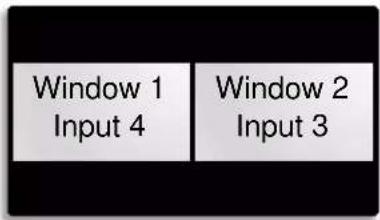 Press the desired Window Select group → Input Select buttonPress Window Select 1 → Input Select 4Press Window Select 2 → Input Select 3 Press the desired Window Select group → Input Select buttonPress Window Select 1 → Input Select 4Press Window Select 2 → Input Select 3 |
| 5 | Window layout Press to select a window type Press to select a window type |
| 6 | Output format Select and IndicatorAuto (Display's native resolution) → 4Kx2K 30Hz → 1920x1080 60Hz → 1280x720 60Hz → 1920x1200 60Hz → 1600x1200 60Hz → 1280x800 60Hz → 1024x768 60Hz |
7
Power ON and OFF (Standby)
NOTE: To reset to factory default, press and hold Input Select 5 during the power up cycle until the front panel LEDs blink.
VGA input Auto Adjust behavior:
The DV-MFMV-74 switcher will automatically adjust to new VGA sources when they are first connected. The process will take several seconds during which time the image will move around the screen until the optimal scaler settings are determined. Once a particular source is learned, the switcher will recognize it and readjustment will not be necessary. Up to 10 unique sources can be stored in the unit's memory, after which additional sources will result in one of the others being overwritten. If for any reason the image does not display correctly, the auto-adjust process can be triggered manually by pressing and holding the input 7 switch for 3 seconds.
Rear Panel

text_image
1 2 3 4 5 6 7 8 9 10 11| Audio channel | Analog audio channel | |||||||
| 1 | 2 | 3 | 4 | 5 | 6 | 7 | 8 | |
| 2.0 | L | R | — | — | — | — | — | — |
| 2.1 | L | R | LFE | — | — | — | — | — |
| 5.1 | FL | FR | LFE | FC | RL | RR | — | — |
| 7.1 | FL | FR | LFE | FC | RL | RR | RLC | RRC |
| 1 | Power cord receptacle and power switch |
| 2 | Analog audio outputs |
| 3 | Optical audio output |
| 4 | Analog audio inputs |
| 5 | USB service port |
| 6 | LAN |
| 7 | RS-232 |
| 8 | HDMI output |
| 9 | HDMI inputs |
| 10 | DisplayPort inputs |
| 11 | VGA (RGB/YPbPr) input |
IR REMOTE CONTROL AND OPERATION
Button layout

text_image
ON/OFF M/TE INPUT 1 2 3 4 5 8 7 VIDEO 1 2 3 4 SCREEN LAYOUT AUDIO RESOLUTION ① ② ③ ④ ⑤ ⑥ ⑦| 1 | Power ON and OFF (Standby) |
| 2 | Input selection |
| 3 | Window selection To assign an input to a window press Video (Window number) → InputPress Video 1 → Input 4Press Video 2 → Input 3 To assign an input to a window press Video (Window number) → InputPress Video 1 → Input 4Press Video 2 → Input 3 |
| 4 | Window layout |
| 5 | Audio selectionPress Audio → Input |
| 6 | Mute and unmute |
| 7 | Output timingAuto (Display's native resolution) → 4Kx2K 30Hz → 1920x1080 60Hz → 1280x72060Hz → 1920x1200 60Hz → 1600x1200 60Hz → 1280x800 60Hz → 1024x768 60Hz |
ON SCREEN DISPLAY (OSD)
 | Selected input and its input resolution |
 | Selected input state and DV-MFMV-74's IP address |
 | VGA auto adjust |
 | Volume |
 | DV-MFMV-74's IP address and port number |
 | Mute |
 | Unmute |
 | IMPORTANT: Do not power OFF or remove the USB drive during the firmware upgrade. |
IP SETTINGS
There are two methods to obtain the IP address:
- Obtain the IP address and port number via the information from the on-screen display (OSD).
- Obtain the IP address and port number via the IP CONFIGURATION TOOL APPLICATION.
The following presents the two methods:
OSD
To Obtain the IP address and port number via the information from the OSD:
Whether DV-MFSW-74 is in single-window mode or in multiple window mode, the IP address and port number can always be obtained from Window 1. When there is no signal, the following OSD in the window will be displayed:
HDMI2 not connected IP: 192.168.0.10
Or when an image is displayed, the IP information is displayed in the area above the middle of the window.
IP: 192.168.0.10 Port: 23
The IP address in this example, is 192.168.0.1 and the port number is 23.
IP CONFIGURATION TOOL APPLICATION
To obtain the IP address and port number via the IP CONFIGURATION TOOL APPLICATION:
Download the application "FSR_DV_71_74_Switcher.exe" file from the FSR Document Library at www.fsrinc.com.

text_image
FSR DV Scaler SwitcherNOTE: Make sure the PC and DV-MFMV-74 are on the same network.
Run the application on the PC to show the main screen:

text_image
PSR DV 71 74 Switcher Admin Tool, version 1.0.0.7. © 2015 PSR Inc. All rights reserved. Device Search Settings Clear Send Command Update Firmware Model Name IP Address MACClick Device Search, the following device list is shown. Select the device, and click Settings

text_image
FSR DV 71.74 Switcher Admin Tool, version 1.0.0.7. © 2015 FSR Inc. All rights reserved. Device Search Settings Clear Send Command Update Firmware Model Name IP Address MAC DV-8F/MV-74 FSR 192.166.1.77The screen defaults to the Status tab where the DV-MFMV-74's information is shown.
The DV-MFMV-74 settings can be returned to factory default by clicking Factory Default.

text_image
Properties Status Network Serial Name: FSR Model: DV-MFMV-74 Serial Number: 3584311626 Firmware Version: 1.11 Factory Default OK CancelClick the Network tab to view the DV-MFMV-74's IP information. DHCP is enabled by default. The static IP address can be entered manually by disabling the DHCP via the pulldown menu.

text_image
Properties Status Network Serial MAC Address: DHCP: Enabled IP address: 192.168.1.156 Subnet mask: 255.255.255.0 Default gateway: 192.168.1.5 DNS server: 192.168.1.6 OK CancelThe Serial tab is an informational screen that will display the DV-MFMV-74 serial port settings. The settings are fixed at 9600, 8, 1, None and None.

text_image
Properties Status Network Serial Baud Rate: 9600 Data Bits: 8 Stop Bits: 1 Parity: none Flow Control: none OK CancelSingle commands may be sent to change the display capabilities of the unit by clicking on SEND COMMAND.

text_image
PSR DV 71 74 Switcher Admin Tool, version 1.0.0.7, © 2015 PSR Inc. All rights reserved. Device Search Settings Clear Send Command Update Firmware Model Name IP Address MAC DV-MV-MV-74 FSR 162.168.1.77Select either Ethernet or Serial radio button
Select the appropriate COM port or Ethernet address.
Then either select a predefined command or enter a user defined command.
Click the SEND button to send the command:

text_image
Send Command Connectivity ○ Send COM5 COM7 Command ● Predefined Audio OSD Off = ATM09 AUD_OSD W 1 Audio OSD Off = ATM09 AUD_OSD W 0 Video OSD Off = ATM09 VDO_OSD W 1 Video OSD Off = ATM09 VDO_OSD W 0 Send ○ Ethernet 192.186.1.156 USB 1.74.1.74 ○ User Defined Ping CloseFIRMWARE UPDATE (EXTERNAL CONTROL BOARD)

text_image
F5R DV 71.74 Switcher Admin Tool version 1.0.0.7. © 2015 F5R Inc. All rights reserved. Device Search Settings Clear Send Command Update Firmware Model Name IP Address MAC DV-AP/MV-74 F5R 192.168.1.77
text_image
Update Firmware Serial Port: COM1 Refresh Firmware (not selected) Browse... Update Firmware CloseDownload the update file from the FSR website doc library.
(Example: FSR_741_20xx_xxxx_xxx.frm).
- Connect a Serial straight-through cable to the DV-MFMV-74's RS-232 port. If present, disconnect the Ethernet cable from the LAN port.
- Turn on the DV-MFMV-74 and wait for it to finish booting up before proceeding to the next step.
- Click on "Update Firmware".
- Select a Serial Port.
- Browse for the location of the firmware file.
- Click on "Update Firmware" and wait for its completion.
- Power cycle the DV-MFMV-74 by the rear panel switch.
The current firmware version can be obtained from the "Status" tab.
IMPORTANT: Do not power OFF or remove the Serial cable during the firmware upgrade.
EMBEDDED WEB SERVER
DV-MFSW-74 can be controlled via a Web browser, which contains General, Advanced and Network settings. For more information about how to obtain the IP address, see the section on "IP SETTINGS".
For example, the obtained IP address is 192.168.0.145
Type 192.168.0.145 in the address bar of the web browser.

DV-MFMV-74
DV PRO - MultiVU - Seven Input Multi-Format Windowing Scaler
General
Advanced
Network
General

text_image
Screen Layout Single Video Input: W1 1 W2 2 W3 3 W4 4 Ratio: W1 Normal W2 Normal W3 Normal W4 Normal Audio Input 1 Audio Volume (0~10) 8 Audio Input Config: 1 Auto 2 Auto 3 Auto 4 Auto 5 Auto 6 Auto Output Timing AUTO Submit Submit SubmitFSR Inc. 244 Bergen Boulevard, Woodland Park, NJ 07424 • Tel 973-785-4347 • Fax 973-785-4207 • E-Mail:sales@fsrinc.com
©2015 FSR Inc. All Rights Reserved
General
Advanced
Network
Advanced
Power Switch on • Power Saving (0\~60min)
Submit
Audio Mute off · Audio Delay (0\~10)
Submit
Auto position Restore to default
Submit
FSR Inc. 244 Bergen Boulevard, Woodland Park, NJ 07424 • Tel 973-785-4347 • Fax 973-785-4207 • E-Mail:sales@fsrinc.com
©2015 FSR Inc. All Rights Reserved
General
Advanced
Network
Advanced
Power Switch on · Power Saving (0\~60min) 0
Submit
Audio Mute off - Audio Delay (0\~10)
Submit
Auto position Restore to default
Subm
Unit Firmware Version: FSR1.0.0.L_CL732
GUI Version: 1.11_CL633
FSR Inc. 244 Bergen Boulevard, Woodland Park, NJ 07424 · Tel 973-785-4347 · Fax 973-785-4207 · E-Mail:sales@fsrinc.com
©2015 FSR Inc. All Rights Reserved
CONTROL PORTS
To control the DV-MFMV-74 use the RS-232 or LAN port but not both at the same time.
RS-232 SETTINGS
| RS-232 Settings | |
| Baud rate | 9600 |
| Data bits | 8 |
| Parity | None |
| Stop bits | 1 |
| Flow control | None |
| DTE | DB-9 | DCE |
| Computer | Pin | DV-MFMV-74 |
| Rx | 2 | Tx |
| Tx | 3 | Rx |
| Ground | 5 | Ground |
NOTE: For serial control, use a straight-through cable.
ETHERNET SETTINGS
| DHCP | ON (Default) |
| Telnet port | 23 (Default) |
| Speed | 10/100Mbps |
 | Yellow = LinkGreen = Speed/Activity at 100Mbps |
RS-232 Serial and Ethernet Control Protocol
| Settings | Command | Reply | |||||||||
| Audio delay | ATM 09 AUD_DLY W X | 09 AUD_DLY W X | |||||||||
| Ex: Audio delay OFF | ATM 09 AUD_DLY W 0 | 09 AUD_DLY W 0 | |||||||||
| Audio delay request | ATM 08 AUD_DLY R | 08 AUD_DLY R AUD_DLY X | |||||||||
| Audio delay | |||||||||||
| X | 0 | 1 | 2 | 3 | 4 | 5 | 6 | 7 | 8 | 9 | A |
| OFF | 40ms | 80ms | 120ms | 160ms | 200ms | 240ms | 280ms | 320ms | 360ms | 400ms | |
| Audio input configuration | ATM 0A AUD_MOD W X Y | 0A AUD_MOD W X Y | |||||||||
| Ex: Input 2 set to external | ATM 0A AUD_MOD W 2 1 | 0A AUD_MOD W 2 1 | |||||||||
| Audio input configuration request | ATM 09 AUD_MOD R X | 09 AUD_MOD R X Port X Audio: Y | |||||||||
| X = Input (1-6)Y = (0 = Auto or 1 = External)Auto: Analog or HDMI audio (priority)External: Only analog audio | |||||||||||
| Audio OSD | ATM 09 AUD_OSD W X | 09 AUD_OSD W X | |||||||||
| Ex. Audio OSD OFF | ATM 09 AUD_OSD W 0 | 09 AUD_OSD W 0 | |||||||||
| Audio OSD request | ATM 08 AUD_OSD R | 08 AUD_OSD R AUD_OSD X | |||||||||
| X = (0 = OFF and 1 = ON) | |||||||||||
| Audio select | ATM 09 ADO_IPT W X | 09 ADO_IPT W X | |||||||||
| Ex: Audio input 2 | ATM 09 ADO_IPT W 2 | 09 ADO_IPT W 2 | |||||||||
| Audio input request | ATM 08 ADO_IPT R | 08 ADO_IPT R ADO_IPT X | |||||||||
| X = Input (1-7) | |||||||||||
| Copy display's EDID | ATM 09 EDI_CPY X Y | 09 EDI_CPY X Y | |||||||||
| Ex: Copy display's EDID to input 4 | ATM 09 EDI_CPY 1 4 | 09 EDI_CPY 1 4 | |||||||||
| X = Output (1 = Main output or 2 = Second output if applicable)Y = Input (1-7) | |||||||||||
| EDID presets | ATM 0B EDI_POR W X C Y | 0B EDI_POR W X C Y | |||||||||
| Ex: Assign EDID preset 3 to input 1 | ATM 0B EDI_POR W 1 C 3 | 0B EDI_POR W 1 C 3 | |||||||||
| X = input (1-7)EDID presets | |||||||||||
| Y | 1 | 2 | 3 | ||||||||
| 4kx2K 30Hz 7.1Ch | 4kx2K 30Hz 2Ch | 1920x1080 60Hz 7.1Ch | |||||||||
| 4 | 5 | 6 | |||||||||
| 1920x1080 60Hz 2Ch | 1920x1080 60Hz (VGA) | 4Kx2K 60Hz (DisplayPort) | |||||||||
| Settings | Command | Reply | ||
| Firmware version request | ATM 08 CSW_VER W | 08 CSW_VER W X | ||
| Ex: X = FSR1.0.0.H Data:2015.07.15 | ||||
| HDCP input | ATM 09 IPT_DCP W X | 09 IPT_DCP W X | ||
| Ex: HDCP input ON | ATM 09 IPT_DCP W 1 | 09 IPT_DCP W 1 | ||
| X = (0 = OFF and 1 = ON) | ||||
| HDCP output | ATM 0A HDO_HDP W X Y | 0A HDO_HDP W X Y | ||
| Ex: HDMI 1 HDCP output ON | ATM 0A HDO_HDP W 1 0 | 0A HDO_HDP W 1 0 | ||
| HDCP output request | ATM 08 HDO_HDP R | 08 HDO_HDP RHDMI_1_HDCP: ZHDMI_2_HDCP: Z | ||
| X = Output (1 = Main output or 2 = Second output if applicable)Y = (0 = ON or F = OFF)Z = ON or OFFHDMI_1_HDCP = Main outputHDMI_2_HDCP = Second output if applicable | ||||
| HDMI output audio mute | ATM 09 AUD_OPT W X | 09 AUD_OPT W X | ||
| Ex: HDMI audio output mute ON | ATM 09 AUD_OPT W 1 | 09 AUD_OPT W 1 | ||
| HDMI output audio mute request | ATM 08 AUD_OPT R | 08 AUD_OPT R AUD_OPT X | ||
| X = (0 = Mute OFF or 1 = Mute ON) | ||||
| Master audio mute | ATM 09 AUD_MUT W X | 09 AUD_MUT W X | ||
| Ex: Master audio mute OFF | ATM 09 AUD_MUT W 0 | 09 AUD_MUT W 0 | ||
| Master audio mute request | ATM 08 AUD_MUT R | 08 AUD_MUT R AUD_MUT X | ||
| X = (0 = Mute OFF or 1 = Mute ON) | ||||
| Output timing | ATM 09 OPT_TIM W X | 09 OPT_TIM W X | ||
| Ex: 1920x1080 60Hz | ATM 09 OPT_TIM W 3 | 09 OPT_TIM W 3 | ||
| Output timing request | ATM 08 OPT_TIM R | 08 OPT_TIM R OPT_TIM X | ||
| Output timing | ||||
| X | 1 | 2 | 3 | 4 |
| Auto (Display's native resolution) | 4kx2k 30Hz | 1920x1080 60Hz | 1280x720 60Hz | |
| 5 | 6 | 7 | 8 | |
| 1920x1200 60Hz | 1600x1200 60Hz | 1280x800 60Hz | 1024x768 60Hz | |
| Power | ATM 09 POW_CRL W X | 09 POW_CRL W X | ||
| Ex: power ON | ATM 09 POW_CRL W 1 | 09 POW_CRL W 1 | ||
| Power state request | ATM 08 POW_CRL R | 08 POW_CRL R POW_CRL X | ||
| X = (0 = OFF (Standby) or 1 = ON)The Power ON command is the only command honored if the scaler switcher is OFF (Standby).The entire Power ON command via Ethernet must be contained within a single TCP/IP packet. | ||||
| Settings | Command | Reply | |
| Power save | ATM 0A POW_SAV W XX | 0A POW_SAV W XX | |
| Ex: Power save set to 30 minutes | ATM 0A POW_SAV W 1E | 0A POW_SAV W 1E | |
| Power save request | ATM 08 POW_SAV R | 08 POW_SAV R POW_SAV R XX | |
| XX = (00 - 3C), 00 = OFF and 3C = 60 minutesConvert the decimal value to Hex and use the result as ASCII characters. Ex. 30 minutes = 1E (ASCII)The scaler switcher will turn OFF (Standby) at the specified time if there is no video present on all the windows and it will turn ON automatically if there is video present on any window. | |||
| Restore to factory default | ATM 08 RST_SET W | 08 RST_SET W | |
| Factory default | |||
| Audio delay | Audio input configuration | Audio OSD | |
| OFF | Auto | ON | |
| Audio selected | DHCP | Input EDID | |
| 1 | ON | HDMI 1-4: 4Kx2K 30Hz 7.1ChDisplayPort 5-6: 4Kx2K 60HzVGA 7: 1920x1080 60Hz | |
| HDCP input | HDCP output | HDMI audio mute | |
| ON | ON | OFF | |
| Master audio mute | Output timing | Power save | |
| OFF | Auto (Display's native resolution) | OFF | |
| Video OSD | Video selected | Volume | |
| ON | Window 1 - Input 1 | ||
| Window 2 - Input 2 | |||
| Window 3 - Input 3 | |||
| Window 4 - Input 4 | |||
| Window aspect ratio | Window layout | ||
| Window 1-4: Normal | Quad | ||
| VGA auto adjust* *The VGA auto adjust command can also be executed by pressing and holding the input 7 switch for 3 seconds | ATM 08 VGA_AUT W | 08 VGA_AUT W | |
| Video OSD | ATM 09 VDO_OSD W X | 09 VDO_OSD W X | |
| Ex: Video OSD ON | ATM 09 VDO_OSD W 1 | 09 VDO_OSD W 1 | |
| Video OSD request | ATM 08 VDO_OSD R | 08 VDO_OSD R VDO_OSD X | |
| X = (0 = OFF and 1 = ON) | |||
| Video select | ATM 0A VDO_IPT W X Y | 0A VDO_IPT W X Y | |
| Ex: Window 1, input 4 | ATM 0A VDO_IPT W 1 4 | 0A VDO_IPT W 1 4 | |
| X = Window (1-4)Y = Input (1-7) | |||
| Settings | Command | Reply |
| Volume | ATM 09 VOL_CRL W X | 09 VOL_CRL W X |
| Ex: Volume set to 5 | ATM 09 VOL_CRL W 5 | 09 VOL_CRL W 5 |
| Ex: Volume Up | ATM 09 VOL_CRL W + | 09 VOL_CRL W + |
| Volume request | ATM 08 VOL_CRL R | 08 VOL_CRL R VOL_CRL Y |
| X = (0-A, + = Up or - = Down), 10 = AY = (0-A), 10 = AVolume control for HDMI and analog audio out. | ||
| Window aspect ratio | ATM 0A WIN_RAT W X Y | 0A WIN_RAT W X Y |
| Ex: Window 1 set to 16:9 | ATM 0A WIN_RAT W 1 3 | 0A WIN_RAT W 1 3 |
| Window aspect ratio request | ATM 09 WIN_RAT R X | 09 WIN_RAT R X WIN_RAT X Y |
| X = Window (1-4)Y = (1 = Normal, 2 = Full, 3 = 16:9 or 4 = 4:3) | ||
| Window layout | ATM 09 SCR_LYT W X | 09 SCR_LYT W X |
| Ex: Dual window layout | ATM 09 SCR_LYT W 2 | 09 SCR_LYT W 2 |
| Window layout request | ATM 08 SCR_LYT R | 08 SCR_LYT R SCR_LYT X |
| Window to video route request | ATM 09 VDO_IPT R Y | 09 VDO_IPT R Y VDO_IPT Y Z |
| X = (1 = Single, 2 = Dual, 3 = Triple or 4 = Quad)Y = Window (1-4)Z = Input (1-7) | ||
FIRMWARE UPDATE (AUDIO AND VIDEO BOARD)
Download the MERGE.BIN file from the FSR website doc library
The DV-MFSW-74 can be updated through a USB drive as follows.
- Copy the MERGE.BIN update file to the root directory of a blank USB drive.
- Connect the USB drive to the USB service port on the rear of the DV-MFSW-74. If present, disconnect the Serial and Ethernet cable from its respective port.
- Connect the HDMI output of the DV-MFSW-74 to a display.
- Turn on the DV-MFSW-74 and wait for it to finish booting up before proceeding to the next step.
- Press and hold Input Select 1 until, "System upgrading..." appears on the display. During this process the button indicators will blink at a steady rate.
- The DV-MFSW-74 will reboot automatically after loading the firmware.
- Power cycle the DV-MFSW-74 by the rear panel power switch.
The firmware version can be obtained using the "firmware version request" command.
IMPORTANT: Do not power OFF or remove the USB drive during the firmware upgrade.
SPECIFICATIONS
| Supported Formats | |
| Input | HDMI video up to 3840x2160 30Hz and audio up to 7.1ChDisplayPort up to 3840x2160 60HzVGA (RGB/YPbPr) up to 1920x1200 60Hz |
| Output | HDMI video up to 3840x2160 30Hz and audio up to 7.1ChStereo analog audioDigital optical audio up to 7.1Ch |
| Connectors | |
| Input | 4 x HDMI Type A 19-pin, female2 x DisplayPort (Full Size) 20-pin, female1 x VGA HD-15 15-pin, female7 x Program audio inputs via captive screw terminals |
| Output | 1 x HDMI Type A 19-pin, female8 x Analog audio channel via captive screw terminals1 x Digital optical |
| RS-232 | 1 x DB-9, female |
| LAN | 1 x RJ-45 |
| USB | 1 x Type A 4-pin, female |
| Power | 100-240ac 50/60Hz, 15W max |
| Physical | |
| Dimensions (W x H x D) | 17.32" x 1.71" x 10.71" (439.7mm x 43.5mm x 272mm) |
| Shipping weight | 8.85lbs (4.01kg) |