WS-1075 - Weather Ambient Weather - Free user manual and instructions
Find the device manual for free WS-1075 Ambient Weather in PDF.


User questions about WS-1075 Ambient Weather
0 question about this device. Answer the ones you know or ask your own.
Ask a new question about this device
Download the instructions for your Weather in PDF format for free! Find your manual WS-1075 - Ambient Weather and take your electronic device back in hand. On this page are published all the documents necessary for the use of your device. WS-1075 by Ambient Weather.
USER MANUAL WS-1075 Ambient Weather
Ambient Weather WS-1075 Home Weather Station User Manual

ambient weather
Table of Contents
- Introduction 2
- Product Features .... 3
- Warnings and Cautions 4
- Pre-Installation Checkout and Site Survey 4
4.1 Pre Installation Checkout.... 4
4.2 Site Survey....5
5 Getting Started.... 5
5.1 Parts List....5
5.2 Recommend Tools....6
6 Sensor Assembly Set Up 6
6.1 Power the Thermo-Hygrometer Transmitter....6
6.2 Connect and Mount the Sensor Array (Pole Mount)....7
6.3 Alternate Mounting to a Horizontal Surface....8
6.4 Display Console 9
6.4.1 Display Console Layout 9
6.4.2 Initial Display Console Set Up....11
6.4.3 Radio Controlled Clock (RCC) 11
6.4.4 Sensor Operation Verification.... 12
7 Weather Station Installation....12
7.1 Pre Installation Checkout.... 12
7.2 Site Survey....12
7.3 Best Practices for Wireless Communication.... 13
7.4 Final Installation of Sensor Array....13
8 Console Operation.... 14
8.1 Set (Program) Mode.... 14
8.1.1 Set Mode Reference Guide.... 14
8.1.2 Set Mode Operation.... 14
8.2 Quick Set Mode 17
8.2.1 Quick Set Mode Reference Guide.... 17
8.2.2 Quick Set Mode Operation 17
8.3 History Mode.... 18
8.4 Alarm Mode....18
8.4.1 High Alarm Mode....18
8.4.2 Low Alarm Mode.... 20
8.4.3 Cancelling an Alarm 21
8.4.4 Outdoor Temperature/ Wind Chill / Dew Point Alarm 21
8.5 Min/Max Mode....21
8.5.1 Maximum Mode 21
8.5.2 Minimum Mode 22
8.6 Other Console Features....23
8.6.1 Weather Forecasting 23
8.6.2 Weather Icons 23
8.6.3 Weather tendency indicator 23
8.6.4 Storm threshold indicator 24
8.6.5 Pressure threshold setting 24
8.6.6 Pressure Graph....24
9 Maintenance 25
9.1 Cleaning the Rain Gauge 25
9.2 Thermo-Hygrometer Connectors 25
9.3 Battery Contacts....26
10 Glossary of Terms 26
11 Specifications....27
11.1 Wireless Specifications....27
11.2 Measurement Specifications 27
11.3 Power Consumption....27
12 Troubleshooting Guide....27
13 Accessories 29
14 Liability Disclaimer 29
15 FCC Statement 30
16 Warranty Information.... 30
1. Introduction
Thank you for your purchase of the Ambient Weather WS-1075 wireless weather station. The following user guide provides step by step instructions for installation, operation and troubleshooting. To download the latest manual and additional troubleshooting tips, please visit:
http://ambientweather.wikispaces.com/ws1075
2. Product Features
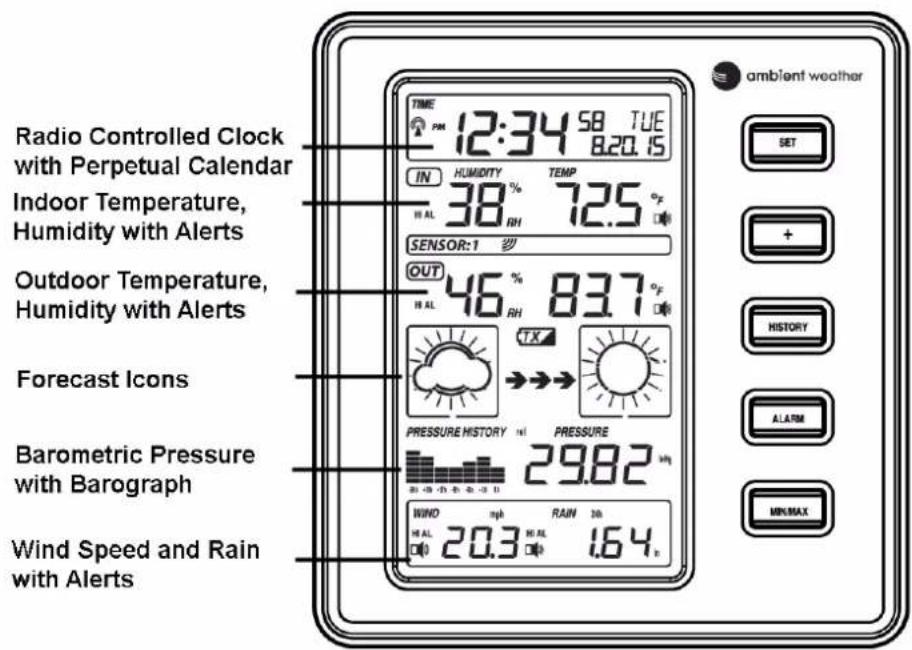
text_image
Radio Controlled Clock with Perpetual Calendar Indoor Temperature, Humidity with Alerts Outdoor Temperature, Humidity with Alerts Forecast Icons Barometric Pressure with Barograph Wind Speed and Rain with Alerts TIME PM 12:34 58 TUE 8:20.15 IN HUMIDITY TEMP 38 % 72.5 °F RH SENSOR:1 OUT 46 % 83.7 °F RH TX PRESSURE HISTORY PRESSURE 29.82 m/s WIND RAIN 30s H AL 20.3 M AL 1.64 s ambient weather SET + HISTORY ALARM MIN/MAXFigure 1

text_image
Wind Speed Thermo-Hygrometer Rain GaugeFigure 2
- Indoor and outdoor temperature in degrees Fahrenheit or Celsius (user selectable)
- Indoor and outdoor relative humidity
• Barometric pressure reading in inHg or hPa, absolute or relative (user selectable) - Detailed display of rainfall data in 1 hour, 24 hours, one week, one month and total since last reset (user selectable in mm or inch)
• Wind speed in mph, km/h, m/s, knots or Beaufort (user selectable)
• Wind chill temperature - Dew point temperature
• Weather forecast display (sunny, cloudy, rainy)
• Weather forecast tendency arrow
• Storm warning alarm
• Programmable alarms
• Minimum and maximum values with time and date stamp
• LED back light (temporary) - WWVB radio controlled time and date with manual setting option
• 12 or 24 hour time display
• Perpetual calendar
• Time zone setting
• Daylight savings time setting with manual override
• Wall hanging or free standing - Synchronized instant reception (updates once per 48 seconds)
3. Warnings and Cautions
! Warning: Any metal object may attract a lightning strike, including your weather station mounting pole. Never install the weather station in a storm.
Warning: Installing your weather station in a high location may result in injury or death. Perform as much of the initial check out and operation on the ground and inside a building or home. Only install the weather station on a clear, dry day.
4. Pre-Installation Checkout and Site Survey
4.1 Pre Installation Checkout
Before installing your weather station in the permanent location, we recommend operating the weather station for one week in a temporary location with easy access. This will allow you to check out all of the functions, insure proper operation, and familiarize you with the weather station and calibration procedures. This will also allow you to test the wireless range of the weather station.
4.2 Site Survey
Perform a site survey before installing the weather station. Consider the following:
-
You must clean the rain gauge every few months and change the rechargeable batteries every 1-2 years. Provide easy access to the weather station.
-
Avoid radiant heat transfer from buildings and structures. In general, install the sensor array at least 5' from any building, structure, ground, or roof top.
-
Avoid wind and rain obstructions. The rule of thumb is to install the sensor array at least four times the distance of the height of the tallest obstruction. For example, if the building is 20' tall, and the mounting pole is 6' tall, install 4 x (20 - 6)' = 56' away.
-
Wireless Range. The radio communication between receiver and transmitter in an open field can reach a distance of up to 300 feet, providing there are no interfering obstacles such as buildings, trees, vehicles, high voltage lines. Wireless signals will not penetrate metal buildings. Under most conditions, the maximum wireless range is 100'.
-
Radio interference such as PCs, radios or TV sets can, in the worst case, entirely cut off radio communication. Please take this into consideration when choosing console or mounting locations. Make sure your display console is at least five feet away from any electronic device to avoid interference.
-
Visit Ambient Weather Mounting Solutions for assistance and ideas for mounting your weather station:
http://www.ambientweather.com/amwemoso.html
5 Getting Started
The WS-1075 weather station consists of a display console (receiver), a thermo-hygrometer transmitter unit, a wind speed sensor, a rain gauge, and mounting hardware.
5.1 Parts List
| QTY | Item |
| 1 | Display Console |
| 1 | Thermo-hygrometer transmitter (measures temperature and humidity) |
| 1 | Thermo-hygrometer transmitter mounting bracket |
| 1 | Thermo-hygrometer transmitter rain shield |
| 1 | Wind speed sensor |
| 1 | Wind cups |
| 1 | Rain gauge |
| 1 | Rain gauge mounting bracket |
| 1 | 10mm set screw for rain gauge mounting |
| 4 | 15mm set screws for mounting rain gauge and transmitter to horizontal surface (optional) |
| 1 | 19.5mm bolt and nut for transmitter (shorter bolt) |
| 1 | 30mm bolt and nut for wind gauge (longer bolt) |
| 2 | 40mm Pole mounting U-bolts for outdoor transmitter and wind gauge (larger) |
| 2 | 38mm Pole mounting U-bolts for rain gauge (smaller) |
| 8 | 8mm U-Bolt nuts for rain gauge and wind speed pole mounting |
5.2 Recommend Tools
- Precision screwdriver
- 8 mm wrench (for U-Bolt nuts)
6 Sensor Assembly Set Up
6.1 Power the Thermo-Hygrometer Transmitter
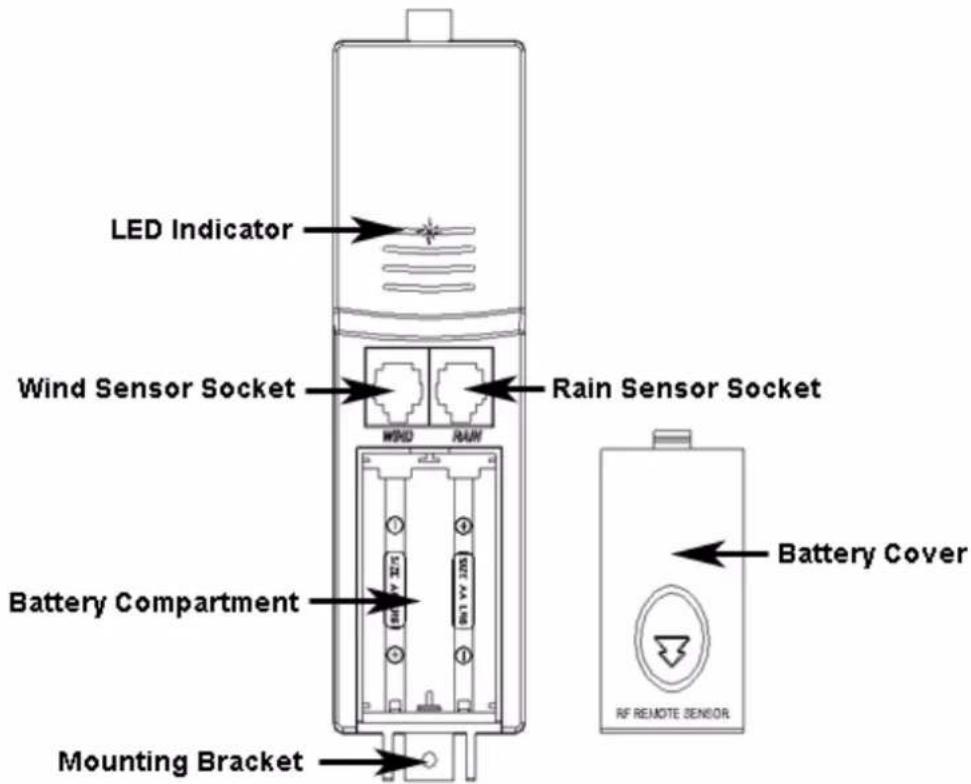
- The thermo-hygrometer-transmitter (THT) comes pre-packaged inside the rain shield. Pull the transmitter from the shield to expose the LED indicator, sensor sockets and battery compartment, as shown in Figure 3.
text_image
LED Indicator Wind Sensor Socket Wind Rain Sensor Socket Battery Compartment Mounting Bracket Battery Cover RF REMOTE SENSORFigure 3
- Remove the battery cover of the transmitter, and insert 2 x AA batteries into the battery compartment, observing the polarity, as shown in Figure 4. Confirm the red LED above the battery compartment turns on for four seconds, then off. The LED will flash every 48 seconds thereafter, signifying wireless transmission. Close the battery door.
Note: Refer to Section 9.2 for pre-treating the connectors and sockets.

text_image
AA + - MOSB SAIN 3.5 2.5 4.5 6.5 8.5 10.5 12.5 14.5 16.5 18.5 20.5 22.5 24.5 26.5 28.5 30.5 32.5 34.5 36.5 38.5 40.5 42.5 44.5 46.5 48.5 50.5 52.5 54.5 56.5 58.5 60.5 62.5 64.5 66.5 68.5 70.5 72.5 74.5 76.5 78.5 80.5 82.5 84.5 86.5 88.5 90.5 92.5 94.5 96.5 98.5 100.5 102.5 104.5 106.5 108.5 110.5 112.5 114.5 116.5 118.5 120.5 122.5 124.5 126.5 128.5 130.5 132.5 134.5 136.5 138.5 140.5 142.5 144.5 146.5 148.5 150.5 152.5 154.5 156.5 158.5 160.5 162.5 164.5 166.5 168.5 170.5 172.5 174.5 176.5 178.5 180.5 182.5 184.5 186.5 188.5 190.5 192.5 194.5 196.5 198.5 200.5 202.5 204.5 206.5 208.5 210.5 212.5 214.5 216.5 218.5 220.5 222.5 224.5 226.5 228.5 230.5 232.5 234.5 236.5 238.5 240.5 242.5 244.5 246.5 248.5 250.5 252.5 254.5 256.5 258.5 260.5 262.5 264.5 266.5 268.5 270.5 272.5 274.5 276.5 278.5 280.5 282.5 284.5 286.5 288.5 290.5 292.5 294.5 296.5 298.5 300.5 302.5 304.5 306.5 308.5 310.5 312.5 314.5 316.5 318.5 320.5 322.5 324.5 326.5 328.5 330.5 332.5 334.5 336.5 338.5 340.5 342.5 344. 346. 348. 349. 350. 352. 354. 356. 358. 360. 362. 364. 366. 368. 370. 372. 374. 376. 378. 380. 382. 384. 386. 388. 390. 392. 394. 396. 398. 399. 400. 402. 404. 406. 408. 410. 412. 414. 416. 418. 420. 422. 424. 426. 428. 430. 432. 434. 436. 438. 440. 442. 444. 446. 448. 449. 450. 452. 454. 456. 458. 460. 462. 464. 466. 468. 470. 472. 474. 476. 478. 480. 482. 484. 486. 488. 490. 492. 494. 496. 498. 499. A A AFigure 4
6.2 Connect and Mount the Sensor Array (Pole Mount)
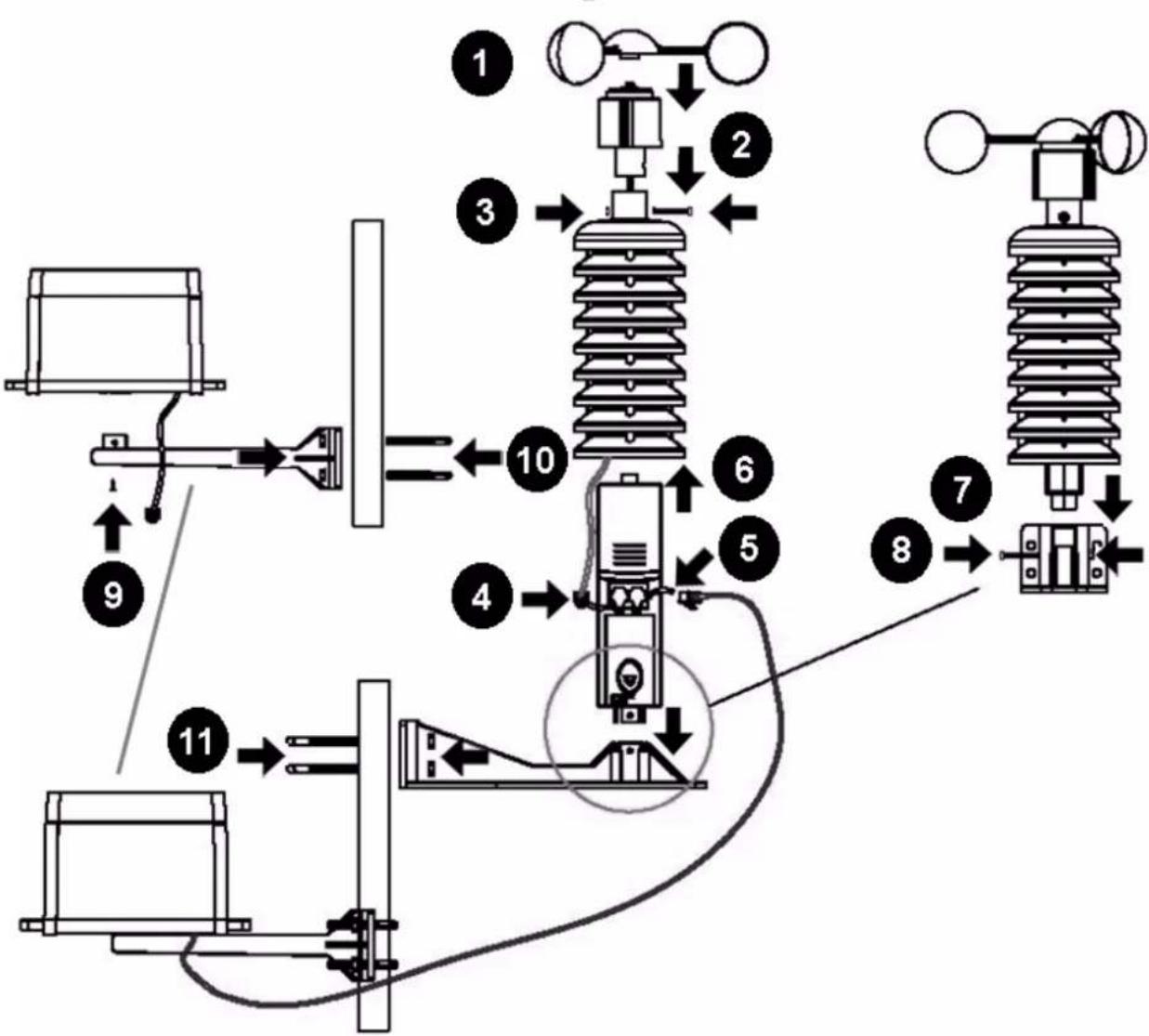
Please reference Figure 5.
-
Attach the wind cups to the wind speed shaft. Press firmly, and the cups will snap into place. No set screw is required.
-
Connect the wind cup shaft to the rain shield.
-
Secure the wind cup shaft to the rain shield with the 30mm bolt and nut.
-
Connect the wind sensor connector to the WIND sensor socket.
-
Connect the rain sensor connector to the RAIN sensor socket.
-
Push the transmitter into the rain shield until snug.
-
Attach the transmitter to the transmitter mounting bracket.
-
Secure the transmitter to the transmitter mounting bracket with the 19.5mm bolt and nut.
-
Attach the rain gauge to the rain gauge mounting bracket and secure with the 10mm set screw.
-
Attach the rain gauge mounting bracket to the mounting pole (not included) using two U-bolts and nuts. The rain gauge U-Bolts are slightly larger (40mm) than the thermo-hygrometer transmitter and wind gauge U-Bolts (38mm). Tighten the U-Bolts around the pole using the nuts with an 8mm wrench. Use the bubble level on the rain gauge to make sure it is completely level.
-
Attach the thermo-hygrometer transmitter and wind gauge mounting bracket to the mounting pole (not included) using two U-bolts and nuts. Tighten the U-Bolts around the pole using the nuts with an 8mm wrench.
Note: Mount the rain gauge below the wind transmitter and wind gauge so that water does not discharge and drop water on the connectors.
flowchart
graph TD
    A["1"] --> B["2"]
    B --> C["3"]
    C --> D["4"]
    D --> E["5"]
    E --> F["6"]
    F --> G["7"]
    G --> H["8"]
    H --> I["9"]
    I --> J["10"]
    J --> K["11"]
    K --> L["Ground"]
Figure 5
6.3 Alternate Mounting to a Horizontal Surface
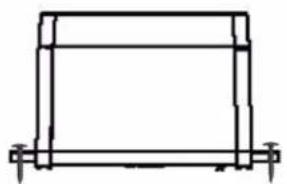
Alternately, the wind gauge and rain gauge can be mounted to a horizontal surface using the 4 x 15mm set screws, as shown in Figure 6.
natural_image
Simple line drawing of a rectangular frame with corner supports (no text or symbols)
natural_image
Technical line drawing of an insulator assembly with mounting bracket (no text or symbols)Figure 6
6.4 Display Console
6.4.1 Display Console Layout
The display console layout is shown in Figure 7. Note that the alarm icons are only present when an alarm has been set, the low battery icon is only present when there is a low battery, and the SENSOR: 🎨 will only be on during the initial search mode, and will flash once every 48 seconds thereafter.

text_image
TIME 88:88 88 ALARM ON 2. IN HUMIDITY TEMP 6. HI AL TEMPERATURE 7. LO AL RH -188.8 °C F SENSOR: MIN MAX 12. OUT TEMP WIND CHILL DEW POINT 13. HI AL -188.8 °C F 16. LO AL RH 17. TX PRESSURE HISTORY red abs PRESSURE LO AL HI AL 18. 188.8.8 hPa 19. In Fig 23. WIND m/s km/h knots mph belt Coat RAIN th 24th week month TOTAL 24. HI AL 8.8.8 HI AL 88.8.8 mm 25. In
text_image
TIME PM 12:34 58 TUE 8.20.15 IN HUMIDITY TEMP 38 % 72.5 °F HI AL RH SENSOR: OUT 46 % 83.7 °F HI AL RH PRESSURE HISTORY REL PRESSURE 29.82 inHg WIND mph RAIN 24h HI AL 20.3 HI AL 16.4 InFigure 7
- Time
- Alarm on indicator
- Day of week/ time zone
- Date
- Indoor temperature display
- Indoor humidity display
- Indoor temperature and humidity low alarm and high alarm
- Temperature display unit
- General indoor alarm icon
- MIN/MAX information
- Wind chill and dew point temperature display
- Outdoor temperature and humidity display
- Outdoor temperature and humidity low alarm and high alarm
- Temperature display unit
- General outdoor alarm icon
- Weather forecast icon
- Weather tendency indicator
- Pressure unit (relative or absolute)
- Pressure with 24 hour history graph
- Pressure low alarm and high alarm
- Pressure display unit (inHg or hPa)
- Pressure alarm on indicator
- Wind speed display unit (m/s, km/h, knots, chill mph, bft)
- Wind speed high alarm
- Wind alarm on indicator
- Rainfall display unit (mm/in)
- Rainfall 1h, 24h, week, month or total hour display
- Rainfall alarm on indicator
- Low Battery indicator
6.4.2 Initial Display Console Set Up
-
Place the sensor array 5 to 10 feet from the display console. It is best to perform this operation prior to installing the sensor array.
-
Make sure the sensor array is already powered up and the transmitter light is flashing once every 48 seconds.
-
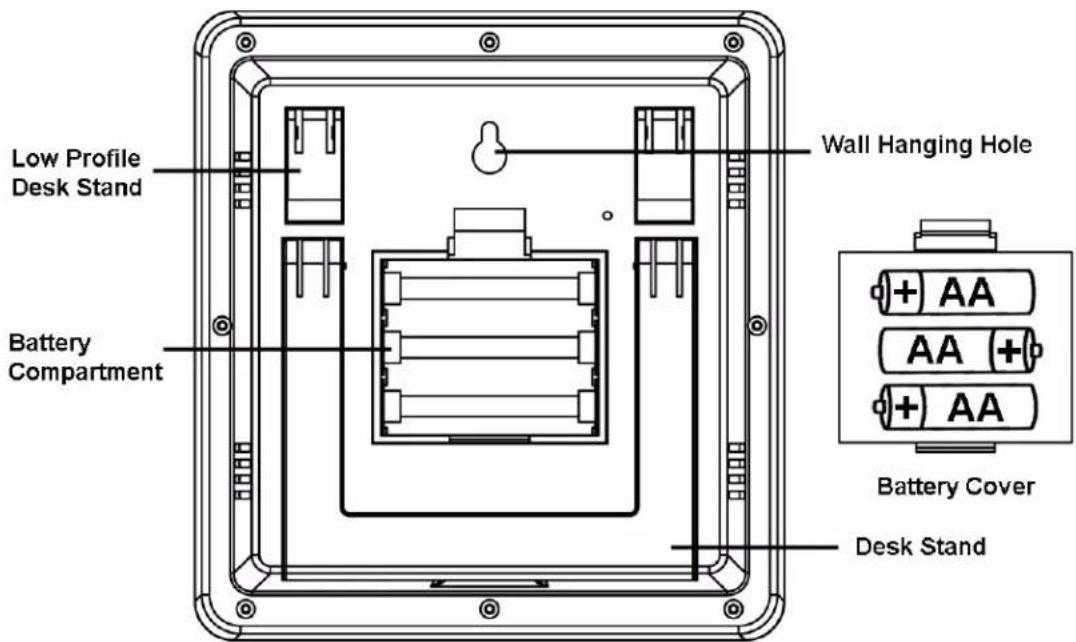
Insert 3 x AA batteries into the battery compartment on the back of the display. After inserting the batteries into the console, all of the LCD segments will light up for a few seconds to verify all segments are operating properly.
-
The console will instantly display indoor temperature, humidity, barometer, tendency, date and time. The wind speed, rain, and outdoor temperature and humidity will update on the display within a few minutes. DO NOT TOUCH ANY BUTTONS until the outside transmitter report in, otherwise the outdoor sensor search mode will be terminated. The sensor search icon will be present:

- When the outdoor transmitter data has been received, the console will attempt to receive the Radio Controlled Clock (RCC) signal.
If the outdoor sensors do not update, please reference the troubleshooting guide in Section 12.
text_image
Low Profile Desk Stand Battery Compartment Wall Hanging Hole Battery Cover Desk StandFigure 8
6.4.3 Radio Controlled Clock (RCC)
After the sensor array is received by the console, the sensor will transmit weather data for 30 seconds, and then the sensor will begin radio controlled clock (RCC) reception. During the RCC time reception
period (maximum 10 minutes), no weather data will be transmitted to avoid interference. The sensor search icon will remain on.
If the signal reception is not successful within 1 minute, the signal search will be cancelled and will automatically resume every two hours until the signal is successfully captured. The regular sensor array link will resume once RCC reception routine is finished. In some locations, RCC reception may take a couple of days to receive the signal.
The RCC reception routine can be cancelled at any time by pressing any button. The sensor search icon will turn off, and the console will automatically switch to the normal mode, from which all further settings can be performed.
Once the RCC has been received and the clock has been set, the RCC icon 📂 will appear in the date and time field.
Note: The RCC is a shortwave signal originating near Fort Collins, Colorado, and travels thousands of miles by bouncing off the ionosphere. The signal is better at night due to solar interference during the daytime. The farther you are from Colorado, the weaker the signal. Urban environments can also affect the signal.
6.4.4 Sensor Operation Verification
The following steps verify proper operation of the sensors prior to installing the sensor array outside.
- Verify proper operation of the rain gauge. Tip the sensor array back and forth several times. You should hear a "clicking" sound within the rain gauge. Verify the rain reading on the display console is not reading 0.00. Each "click" represents 0.01 inches of rainfall.
- Verify proper operating of the wind speed. Rotate the wind cups manually or with a fan. Verify the wind speed is not reading 0.0.
- Verify proper operation of the indoor and outdoor temperature. Verify the indoor and outdoor temperature match closely with the console and sensor array in the same location (about 10' apart). The sensors should be within 4°F (2°C) (the accuracy is ± 2°F / 1°C). Allow about 30 minutes for both sensors to stabilize.
- Verify proper operation of the indoor and outdoor humidity. Verify the indoor and outdoor humidity match closely with the console and sensor array in the same location (about 10' apart). The sensors should be within 8% (the accuracy is ± 4%). Allow about 30 minutes for both sensors to stabilize.
7 Weather Station Installation
7.1 Pre Installation Checkout
Before installing your weather station in the permanent location, we recommend operating the weather station for one week in a temporary location with easy access. This will allow you to check out all of the functions, insure proper operation, and familiarize you with the weather station and calibration procedures. This will also allow you to test the wireless range of the weather station.
7.2 Site Survey
Perform a site survey before installing the weather station. Consider the following:
-
You must clean the rain gauge once per year and change the batteries every 1-2 years. Provide easy access to the weather station.
-
Avoid radiant heat transfer from buildings and structures. In general, install the sensor array at least 5' from any building, structure, ground, or roof top.
-
Avoid wind and rain obstructions. The rule of thumb is to install the sensor array at least four times the distance of the height of the tallest obstruction. For example, if the building is 20' tall, install 4 x 20' = 80' away. Use common sense. If the weather station is installed next to a tall building, the wind and rain will not be accurate.
-
Wireless Range. The radio communication between receiver and transmitter in an open field can reach a distance of up to 330 feet, providing there are no interfering obstacles such as buildings, trees, vehicles, high voltage lines. Wireless signals will not penetrate metal buildings.
-
Radio interference such as PCs, radios or TV sets can, in the worst case, entirely cut off radio communication. Please take this into consideration when choosing console or mounting locations.
-
Visit Ambient Weather Mounting Solutions for assistance and ideas for mounting your weather station:
http://www.ambientweather.com/amwemoso.html
7.3 Best Practices for Wireless Communication
Wireless communication is susceptible to interference, distance, walls and metal barriers. We recommend the following best practices for trouble free wireless communication.
-
Electro-Magnetic Interference (EMI). Keep the console several feet away from computer monitors and TVs.
-
Radio Frequency Interference (RFI). If you have other 433 MHz devices and communication is intermittent, try turning off these other devices for troubleshooting purposes. You may need to relocate the transmitters or receivers to avoid intermittent communication.
-
Line of Sight Rating. This device is rated at 300 feet line of sight (no interference, barriers or walls) but typically you will get 100 feet maximum under most real-world installations, which include passing through barriers or walls.
-
Metal Barriers. Radio frequency will not pass through metal barriers such as aluminum siding. If you have metal siding, align the remote and console through a window to get a clear line of sight.
The following is a table of reception loss vs. the transmission medium. Each “wall” or obstruction decreases the transmission range by the factor shown below.
| Medium | RF Signal Strength Reduction |
| Glass (untreated) | 5-15% |
| Plastics | 10-15% |
| Wood | 10-40% |
| Brick | 10-40% |
| Concrete | 40-80% |
| Metal | 90-100% |
7.4 Final Installation of Sensor Array
Mount the weather station in the permanent location. Confirm the weather station data is still updating on the display console.
8 Console Operation
Note: The display console has five keys for basic operation: SET key, + key, HISTORY key, ALARM key and MIN/MAX key.
8.1 Set (Program) Mode
8.1.1 Set Mode Reference Guide
The following table is a quick reference guide for the SET Mode. See the next section for detailed programming.
| Command | Mode | Settings |
| [SET] + 3 seconds | Time Zone (TZ) | Press [+] to increase. [MIN/MAX] to decrease |
| [SET] | Enter Set Mode, Daylight Savings Time (DST) | Press [+] to toggle OFF and ON |
| [SET] | 12/24 Hour Format | Press [+] to toggle between 12 hour (12h) and 24 hour (24h) format |
| [SET] | Hour of Day | Press [+] to increase. [MIN/MAX] to decrease |
| [SET] | Minute of Day | Press [+] to increase. [MIN/MAX] to decrease |
| [SET] | Year | Press [+] to increase. [MIN/MAX] to decrease |
| [SET] | Month of Year | Press [+] to increase. [MIN/MAX] to decrease |
| [SET] | Day of Month | Press [+] to increase. [MIN/MAX] to decrease |
| [SET] | Temperature Units of Measure | Press [+] to toggle between degF and degC |
| [SET] | Barometric Pressure Units of Measure | Press [+] to toggle between inHg and hPa |
| [SET] | Relative Pressure Calibration | Press [+] to increase. [MIN/MAX] to decrease |
| [SET] | Pressure Threshold for Forecast | Press [+] to increase. [MIN/MAX] to decrease |
| [SET] | Storm Threshold for Forecast | Press [+] to increase. [MIN/MAX] to decrease |
| [SET] | Set Wind Units of Measure | Press [+] to toggle between km/h, mph, m/s, knots, and bft (or Beaufort scale |
| [SET] | Set Rain Units of Measure | Press [+] to toggle between in and mm. |
| [SET] | Exit Set Mode |
8.1.2 Set Mode Operation
While in the normal mode, press the SET key for 3 seconds to enter the Set Mode. The Set mode can be exited at any time by either pressing the HISTORY key or waiting for the 10-second time-out to take effect. You can skip over any setting by pressing the SET key again.
Holding the + key (increase) or MIN/MAX key (decrease) when in the Set mode will change values rapidly.
8.1.2.1 Set Time
- Time Zone. The time zone value will begin flashing.
Press the +key (increase) or MIN/MAX key (decrease) to adjust the time zone from -12 to 12, based on the number of hours from Coordinated Universal Time, or Greenwich Mean Time (GMT).
The following table provides times zones throughout the world. Locations in the eastern hemisphere are positive, and locations in the western hemisphere are negative.
| Hours from GMT | Time Zone | Cities |
| -12 | IDLW: International Date Line West | --- |
| -11 | NT: Nome | Nome, AK |
| -10 | AHST: Alaska-Hawaii StandardCAT: Central AlaskaHST: Hawaii Standard | Honolulu, HI |
| -9 | YST: Yukon Standard | Yukon Territory |
| -8 | PST: Pacific Standard | Los Angeles, CA, USA |
| -7 | MST: Mountain Standard | Denver, CO, USA |
| -6 | CST: Central Standard | Chicago, IL, USA |
| -5 | EST: Eastern Standard | New York, NY, USA |
| -4 | AST: Atlantic Standard | Caracas |
| -3 | --- | São Paulo, Brazil |
| -2 | AT: Azores | Azores, Cape Verde Islands |
| -1 | WAT: West Africa | --- |
| 0 | GMT: Greenwich MeanWET: Western European | London, England |
| 1 | CET: Central European | Paris, France |
| 2 | EET: Eastern European | Athens, Greece |
| 3 | BT: Baghdad | Moscow, Russia |
| 4 | --- | Abu Dhabi, UAE |
| 5 | --- | Tashkent |
| 6 | --- | Astana |
| 7 | --- | Bangkok |
| 8 | CCT: China Coast | Beijing |
| 9 | JST: Japan Standard | Tokyo |
| 10 | GST: Guam Standard | Sydney |
| 11 | --- | Magadan |
| 12 | IDLE: International Date Line EastNZST: New Zealand Standard | Wellington, New Zealand |
-
Daylight Savings Time (DST). Press the SET key to change the Daylight Savings (ON or OFF). The DST setting will begin flashing. Press the +key to toggle between DST ON and DST OFF.
-
12/24 Hour Format. Press the SET key to change the 12/24 hour format. Press the +key to alternate the display unit between 12 hour format and 24 hour format.
-
Change Hour. Press the SET key to set the hour. Press the + key or MIN/MAX key to change the hour setting. Manually setting the time overrides the automatic RCC time.
-
Change Minute. Press the SET key to set the minute. Press the + key or MIN/MAX key to change the minute setting. Manually setting the time overrides the automatic RCC time.
8.1.2.2 Set Date
-
Change Year. Press the SET key to set the year. The year will begin flashing. Press the +key or MIN/MAX key to change the year setting.
-
Change Month. Press the SET key to set the month. The month will begin flashing. Press the +key or MIN/MAX key to change the month setting.
-
Change Day. Press the SET key to set the day. The day will begin flashing. Press the +key or MIN/MAX key to change the day setting.
8.1.2.3 Set Temperature Units of Measure
Change Temperature Units of Measure. Press the SET key to set the indoor and outdoor temperature units. The indoor and outdoor temperature will begin flashing. Press the +.to alternate the display unit between °C and °F.
8.1.2.4 Set Barometric Pressure
Note: The weather station console displays two different pressures: absolute (measured) and relative (corrected to sea-level).
To compare pressure conditions from one location to another, meteorologists correct pressure to sea-level conditions. Because the air pressure decreases as you rise in altitude, the sea-level corrected pressure (the pressure if you were located at sea-level) is generally higher than your measured pressure.
Thus, your absolute pressure may read 28.62 inHg (969 mb) at an altitude of 1000 feet (305 m), but the relative pressure is 30.00 inHg (1016 mb).
The standard sea-level pressure is 29.92 in Hg (1013 mb). This is the average sea-level pressure around the world. Relative pressure measurements greater than 29.92 in Hg (1013 mb) are considered high pressure and relative pressure measurements less than 29.92 in Hg are considered low pressure.
To determine the relative pressure for your location, locate an official reporting station near you (the internet is best source for real time barometer conditions, such as Weather.com or Wunderground.com), and set your weather station to match the official reporting station.
-
Pressure Units. Press the SET key to set the pressure units. The pressure units will begin flashing. Press the +key to alternate between in Hg and hPa.
-
Relative Pressure Calibration. Press the SET key to set the relative pressure. The relative pressure will flash. Press the + key or MIN/MAX key to change the relative pressure.
-
Pressure Threshold. Press the SET key to change the pressure threshold. The pressure threshold will be flashing. Press the + key to adjust the pressure threshold from 2.0 to 4.0 hPa/hr (the default is 2 hPa/hr).
-
Storm Threshold. Press the SET key to change the storm threshold. The storm threshold will be flashing. Press the + key to adjust the pressure threshold from 3.0 to 9.0 hPa/hr (the default is 4 hPa/hr).
8.1.2.5 Set Wind Units
Wind Units. Press the SET key to set the wind units. The wind will begin flashing. Press the +key to alternate the display unit between km/h, mph, m/s, knots, and bft (or Beaufort scale).
8.1.2.6 Set Rain Units
Rain Units. Press the SET key to set the rain units. The rain will begin flashing. Press the +key to alternate the display unit between in and mm.
The following table is a quick reference guide for the SET Mode:
8.2 Quick Set Mode
8.2.1 Quick Set Mode Reference Guide
The following table is a quick reference guide for the QUICK SET Mode. See the next section for detailed settings.
| Command | Mode | Settings |
| [SET] | Enter Quick Set Mode, Outdoor Temperature vs Dew Point | Press [+] to toggle between outdoor temperature and dew point. |
| [SET] | Relative Pressure vs Absolute Pressure | Press [+] to toggle between relative pressure and absolute pressure. |
| [SET] | Wind Speed Average vs Wind Speed Gust | Press [+] to toggle between wind speed average and wind speed gust. |
| [SET] | Rain Increments of Measure | Press [+] to toggle between hourly rain, 24 hour rain, weekly rain, monthly rain and total rain. |
| Total Rain Reset (since reset) | With the total rain selected and flashing in the previous step, press [SET] + 3 seconds to reset rain to 0.00. |
8.2.2 Quick Set Mode Operation
While in the Normal mode, press the SET key to enter the Quick Set Mode. The Quick Set mode can be exited at any time by either pressing the HISTORY key or waiting for the 10-second time-out to take effect. You can skip over any setting by pressing the SET key again.
Holding the + key (increase) or MIN/MAX key (decrease) when in the Set mode will change values rapidly.
8.2.2.1 Outdoor Temperature, Wind chill and Dew Point Display
Outdoor Temperature, Wind Chill and Dew Point Display. The outdoor temperature will begin flashing. Press the + key to alternate the display between the outdoor temperature, wind chill and dew point.
8.2.2.2 Relative and Absolute Pressure Display
Relative and Absolute Pressure Display. Press the SET key to change the pressure display. The pressure will begin flashing. Press the + key to alternate the display between absolute and relative pressure.
8.2.2.3 Average Wind Speed and Wind Gust
Average Wind Speed and Gust. Press the SET key to change the wind speed display. The wind speed will begin flashing. Press the + key to alternate the display between the 48 second Wind Average Speed and Gust Speed (or the maximum wind speed in the update period, which is 48 seconds).
8.2.2.4 Rain Display and Reset
-
Rain Increment Display. Press the SET key to change the rain increment display. The rain will begin flashing. Press the +key to alternate the display between the 1 hour rain, 24 hour rain, weekly rain, monthly rain, and total rain (since reset).
-
Total Rain Reset. With the total rain selected and flashing in the previous step, press and hold the SET key for three seconds, and the total rain will reset to zero. (Note – the total rain must be displayed in the previous step to reset the total rain). Note: if the total rain increment is not displayed, this function will not work.
8.3 History Mode
While in the Normal mode, press the HISTORY key to enter the History mode.
Select the + key to review historical data archived in the console in increments of three hours (-24, -21, -18, -15, -12, -9, -6, and -3 hours).
Note: Rain is not included in the history mode since incremental rain (hourly, 24 hour, monthly, weekly, and total) are already provided.
8.4 Alarm Mode
Note: After initially pressing the ALARM key, the display will show the current high and low alarm values. The alarm value will be displayed only for those already activated, otherwise, inactive alarms will show dashes (--).
The Alarm mode can be exited at any time by either pressing the ALARM key or waiting for the 10-second time-out to take effect.
8.4.1 High Alarm Mode
While in the Normal mode, press the ALARM key to enter the High Alarm mode. The HIAL icon will be displayed in the TIME section.
- Time of Day Alarm. Press the SET key to set the hour of day alarm. The hour will begin flashing. Press the +key (increase) or MIN/MAX key (decrease) to change the hour value. Press the SET key again to set the minute value. The minute will begin flashing. Press the +key or MIN/MAX key to increase or decrease the minute value.
Press the ALARM key to turn the alarm on or off (if the alarm is enabled, the alarm icon will be turned on).

- Indoor Humidity High Alarm. Press the SET key to set the indoor humidity high alarm. The indoor humidity will begin flashing. Press the + key (increase) or MIN/MAX key (decrease) to change the indoor humidity alarm value.
Press the ALARM key to turn the alarm on or off (if the alarm is enabled, the alarm icon will be turned on and the HI AL icon will be displayed).

- Indoor Temperature High Alarm. Press the SET key to set the indoor temperature high alarm. The indoor temperature will begin flashing. Press the + key (increase) or MIN/MAX key (decrease) to change the indoor temperature alarm value.
Press the ALARM key to turn the alarm on or off (if the alarm is enabled, the alarm icon will be turned on and the HI AL icon will be displayed).

- Outdoor Humidity High Alarm. Press the SET key to set the outdoor humidity high alarm. The outdoor humidity will begin flashing. Press the + key (increase) or MIN/MAX key (decrease) to change the outdoor humidity alarm value.
Press the ALARM key to turn the alarm on or off (if the alarm is enabled, the alarm icon will be turned on and the HI AL icon will be displayed).

- Outdoor Temperature High Alarm. Press the SET key to set the outdoor temperature high alarm. The TEMP icon will be displayed and the outdoor temperature will begin flashing. Press the + key (increase) or MIN/MAX key (decrease) to change the outdoor temperature alarm value.
Press the ALARM key to turn the alarm on or off (if the alarm is enabled, the alarm icon will be turned on and the HI AL icon will be displayed).

- Wind Chill High Alarm. Press the SET key to set the wind chill high alarm. The WIND CHILL icon will be displayed and the outdoor temperature (wind chill) will begin flashing. Press the +key (increase) or MIN/MAX key (decrease) to change the wind chill alarm value.
Press the ALARM key to turn the alarm on or off (if the alarm is enabled, the alarm icon will be turned on and the HI AL icon will be displayed).

- Dew Point High Alarm. Press the SET key to set the dew point high alarm. The DEW POINT icon will be displayed and the outdoor temperature (dew point) will begin flashing. Press the +key (increase) or MIN/MAX key (decrease) to change the dew point alarm value.
Press the ALARM key to turn the alarm on or off (if the alarm is enabled, the alarm icon will be turned on and the HI AL icon will be displayed).

- Barometric Pressure High Alarm. Press the SET key to set the barometric pressure high alarm. The barometric pressure will begin flashing. Press the + key (increase) or MIN/MAX key (decrease) to change the barometric pressure alarm value.
Press the ALARM key to turn the alarm on or off (if the alarm is enabled, the alarm icon will be turned on and the HI AL icon will be displayed).

- Wind Speed High Alarm. Press the SET key to set the wind speed high alarm. The wind speed will begin flashing. Press the + key (increase) or MIN/MAX key (decrease) to change the wind speed alarm value.
Press the ALARM key to turn the alarm on or off (if the alarm is enabled, the alarm icon will be turned on and the HI AL icon will be displayed).

- Wind Gust High Alarm. Press the SET key to set the wind gust high alarm. The GUST icon will be displayed and the wind speed will begin flashing. Press the + key (increase) or MIN/MAX key (decrease) to change the wind gust alarm value.
Press the ALARM key to turn the alarm on or off (if the alarm is enabled, the alarm icon will be turned on and the HI AL icon will be displayed).

- 1 Hour Rain Alarm. Press the SET key to set the 1 hour rain alarm. The rain will begin flashing. Press the + key (increase) or MIN/MAX key (decrease) to change the 1 hour rain alarm value.
Press the ALARM key to turn the alarm on or off (if the alarm is enabled, the alarm icon will be turned on and the HI AL icon will be displayed).

- 24 Hour Rain Alarm. Press the SET key to set the 24 hour rain alarm. The rain will begin flashing. Press the + key (increase) or MIN/MAX key (decrease) to change the 24 hour rain alarm value.
Press the ALARM key to turn the alarm on or off (if the alarm is enabled, the alarm icon will be turned on and the HI AL icon will be displayed).

8.4.2 Low Alarm Mode
While in the Normal mode, press the ALARM key twice to enter the Low Alarm mode. The LOAL icon will be displayed in the TIME section.
- Time of Day Alarm. Reference Section 8.4.1.
- Indoor Humidity Low Alarm. Reference Section 8.4.1. The low alarm is similar to the high alarm setting.
- Indoor Temperature Low Alarm. Reference Section 8.4.1. The low alarm is similar to the high alarm setting.
- Outdoor Humidity Low Alarm. Reference Section 8.4.1. The low alarm is similar to the high alarm setting.
-
Outdoor Temperature Low Alarm. Reference Section 8.4.1. The low alarm is similar to the high alarm setting.
-
Wind Chill Low Alarm. Reference Section 8.4.1. The low alarm is similar to the high alarm setting.
- Dew Point Low Alarm. Reference Section 8.4.1. The low alarm is similar to the high alarm setting.
- Barometric Pressure Low Alarm. Reference Section 8.4.1. The low alarm is similar to the high alarm setting.
8.4.3 Cancelling an Alarm
When a weather alarm condition has been triggered, the alarm will sound for 120 second and flash until the weather condition is no longer valid. Press any key to silence the alarm.
The alarm will reactivate automatically once the value has exceeded the alarm limit again. To avoid repeated alarms, you should disable the alarm function or set it to a new value.
8.4.4 Outdoor Temperature/ Wind Chill / Dew Point Alarm
When an alarm has been triggered, it will flash on the LCD display and the general outdoor alarm icon and high/low alarm icon will flash accordingly.
For example, when the dew point high alarm is triggered, the DEW POINT icon will flash along with general outdoor alarm icon and high alarm icon flashing, as shown in Figure 9.
Temperature display mode

text_image
OUT HI AL 60% RH TEMP 30.2 °CDew point high alarm was triggered

text_image
OUT HI AL 60% RH 30.2°C DEW POINT digit flashing digit flashingFigure 9
8.5 Min/Max Mode
While in the Normal mode, press the MIN/MAX key to enter the Maximum mode. The maximum values will begin flashing.
Press the MIN/MAX key again to enter the Minimum mode. The minimum values will begin flashing.
The Min/Max mode can be exited at any time by either pressing the HISTORY key or waiting for the 10-second time-out to take effect. You can skip over any setting by pressing the + key again.
8.5.1 Maximum Mode
- Maximum Indoor Humidity. Press the + key to display the maximum indoor humidity with the associated time and date stamp.
Press the SET key to reset the maximum indoor humidity to the current value, date and time.
- Maximum Indoor Temperature. Press the ☐ key to display the maximum indoor temperature with the associated time and date stamp.
Press the SET key to reset the maximum indoor temperature to the current value, date and time.
- Maximum Outdoor Humidity. Press the + key to display the maximum outdoor humidity with the associated time and date stamp.
Press the SET key to reset the maximum outdoor humidity to the current value, date and time.
- Maximum Outdoor Temperature. Press the ☐ key to display the maximum outdoor temperature with the associated time and date stamp.
Press the SET key to reset the maximum outdoor temperature to the current value, date and time.
- Maximum Wind Chill. Press the + key to display the maximum wind chill with the associated time and date stamp.
Press the SET key to reset the maximum wind chill to the current value, date and time.
- Maximum Dew Point. Press the ☐ key to display the maximum dew point with the associated time and date stamp.
Press the SET key to reset the maximum dew point to the current value, date and time.
- Maximum Pressure. Press the ☐ key to display the maximum pressure with the associated time and date stamp.
Press the SET key to reset the maximum pressure to the current value, date and time.
- Maximum Wind Speed. Press the ☐ key to display the maximum wind speed with the associated time and date stamp.
Press the SET key to reset the maximum wind speed to the current value, date and time.
- Maximum Wind Gust. Press the ☐ key to display the maximum wind gust with the associated time and date stamp.
Press the SET key to reset the maximum wind gust to the current value, date and time.
8.5.2 Minimum Mode
-
Minimum Indoor Humidity. Reference Section 8.5.1. The minimum setting is similar to the maximum setting.
-
Minimum Indoor Temperature. Reference Section 8.5.1. The minimum setting is similar to the maximum setting.
-
Minimum Outdoor Humidity. Reference Section 8.5.1. The minimum setting is similar
to the maximum setting.
- Minimum Outdoor Temperature. Reference Section 8.5.1. The minimum setting is similar to the maximum setting.
- Minimum Wind Chill. Reference Section 8.5.1. The minimum setting is similar to the maximum setting.
- Minimum Dew Point. Reference Section 8.5.1. The minimum setting is similar to the maximum setting.
- Minimum Pressure. Reference Section 8.5.1. The minimum setting is similar to the maximum setting.
8.6 Other Console Features
The following section describes additional console features.
8.6.1 Weather Forecasting
Note: The weather forecast or pressure tendency is based on the rate of change of barometric pressure. In general, when the pressure increases, the weather improves (sunny to partly cloudy) and when the pressure decreases, the weather degrades (cloudy to rain).
The weather forecast is an estimation or generalization of weather changes in the next 24 to 48 hours, and varies from location to location. The tendency is simply a tool for projecting weather conditions and is never to be relied upon as an accurate method to predict the weather.
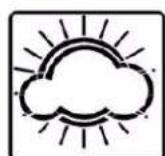
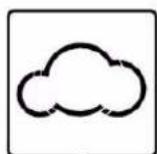
8.6.2 Weather Icons

Sunny
Partly Cloudy
Cloudy

Rainy
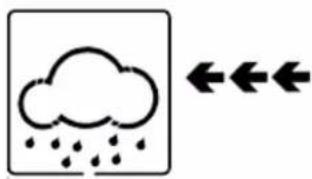
The four weather icons are Sunny, Partly Cloudy, Cloudy and Rainy. There are also two weather tendency indicators to show the air pressure tendency between the weather icons.
8.6.3 Weather tendency indicator
The weather tendency arrow is located between the weather icons to show the air pressure tendency and provide a forecast based on increasing or decreasing air pressure.
The arrow pointing to the right indicates that the air pressure is increasing and the weather is expected to improve. The arrow pointing the left indicates that the air pressure is decreasing and the weather is expected to deteriorate.
The weather tendency is based on the pressure change since last six hours. If the weather is changing, the weather tendency indicator (animated arrows) will flash for three hours, indicating the weather is expected to change. If the weather conditions become stable and no new weather change conditions
are met, then the arrows will be fixed.
Example 1: Pressure is decreasing, weather is deteriorating.

flowchart
graph LR
    A["Cloud with raindrops"] <--> B["Cloud with raindrops"]
Example 2: Pressure is increasing, weather is improving.

flowchart
graph LR
    A["Cloud Icon"] --> B["Sun icon"]
8.6.4 Storm threshold indicator
The storm threshold (the negative rate of pressure change signifying a storm is expected) can be adjusted by the user from level 3 to level 9 (the default level 4).
When negative rate of change of pressure is exceeded for 3 hours, the storm warning indicator will be activated, and the clouds with rain icon and tendency arrows will flash for 3 hours indicating the storm warning feature has been activated.
natural_image
Simple weather icon showing cloud with raindrops and two arrows pointing left (no text or symbols)8.6.5 Pressure threshold setting
The pressure threshold (the negative or positive rate of change of pressure signifying a change in the weather) can be adjusted by the user from level 2 to level 4 (default level 2).
The lower the level pressure threshold setting, the higher sensitivity for weather forecast changes. Locations that experience frequent changes in air pressure require a higher setting compared to locations where the air pressure is typically stagnant.
8.6.6 Pressure Graph

Note: The weather station bar graph flashes from right to left. The most recent data is on the right.
The pressure graph displays the barometric pressure for the last 24 hours. Each bar represents three
hours.
9 Maintenance
We recommend the following maintenance actions approximately once per year.
9.1 Cleaning the Rain Gauge
The rain gauge can fill up with debris. To clean the rain gauge, remove any debris from the top of the funnel.
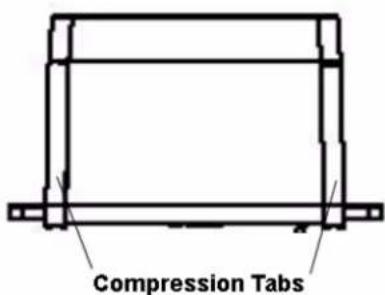
Press the two compression tabs on the sides of the rain gauge to expose the tipping mechanism. Remove any debris, insects and spider webs. If spider webs are present, spray with insecticide.
text_image
Compression TabsFigure 10
9.2 Thermo-Hygrometer Connectors
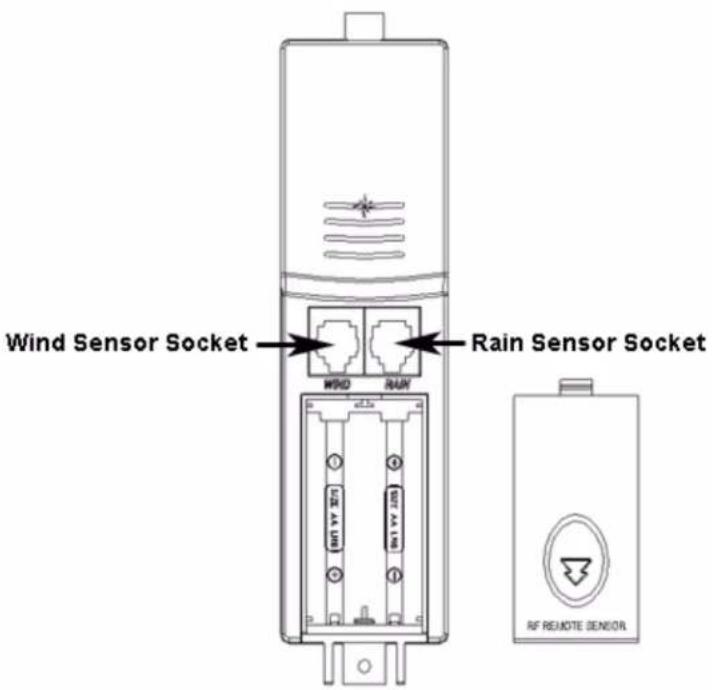
The wind and rain connectors and thermo-hygrometer sockets can degrade in a harsh environment.
To prevent corrosion, we recommend spraying the connectors with contact cleaner, available in auto parts stores.
Applying a thin coat of dielectric grease is also recommended for harsh environments, and is available in auto parts stores.
If corrosion has built up on the connectors and sockets, a small eraser from a pencil can remove it.
text_image
Wind Sensor Socket Wind RUN Rain Sensor Socket RF REMOTE SENSORFigure 11
9.3 Battery Contacts
Periodically inspect and clean the battery contacts.
10 Glossary of Terms
| Term | Definition |
| Absolute Barometric Pressure | Relative barometric pressure, corrected to sea-level. To compare pressure conditions from one location to another, meteorologists correct pressure to sea-level conditions. Because the air pressure decreases as you rise in altitude, the sea-level corrected pressure (the pressure your location would be at if located at sea-level) is generally higher than your measured pressure. |
| Accuracy | Accuracy is defined as the ability of a measurement to match the actual value of the quantity being measured. |
| Hecto Pascals (hPa) | Pressure units in SI (international system) units of measurement. Same as millibars (1 hPa = 1 mbar) |
| Hygrometer | A hygrometer is a device that measures relative humidity. Relative humidity is a term used to describe the amount or percentage of water vapor that exists in air. |
| Inches of Mercury (inHg) | Pressure in Imperial units of measure. 1 inch of mercury = 33.86 millibars |
| Range | Range is defined as the amount or extent a value can be measured. |
| Relative Barometric Pressure | Measured barometric pressure relative to your location or ambient conditions. |
| Resolution | Resolution is defined as the number of significant digits (decimal places) to which a value is being reliably measured. |
11 Specifications
11.1 Wireless Specifications
• Line of sight wireless transmission (in open air): 300 feet
- Update Rate: 48 seconds
11.2 Measurement Specifications
The following table provides the specifications for the measured parameters.
| Measurement | Range | Accuracy | Resolution |
| Indoor Temperature | 32 to 140 °F | ±2 °F | 0.1 °F |
| Outdoor Temperature | -40 to 149 °F | ±2 °F | 0.1 °F |
| Indoor Humidity | 10 to 99 % | ±4% | 1 % |
| Outdoor Humidity | 10 to 99% | ±4% | 1 % |
| Barometric Pressure | 8.85 to 32.50 inHg | ±0.08 inHg (within range of 27.13 to 32.50 inHg) | 0.01 inHg |
| Rain | 0 to 394 in. | ±10% | 0.01 in |
| Wind Speed | 0 to 112 mph | ±2.2 mph or 10%(whichever is greater) | 0.1 mph |
11.3 Power Consumption
- Base station : 3XAA Alkaline batteries
- Remote sensor : 2xAA Alkaline or LiIon e2 batteries
- Battery life: Minimum 12 months for base station
Minimum 24 months for thermo-hygro sensor (use lithium batteries in cold weather climates)
12 Troubleshooting Guide
If your question is not answered here, you can contact us as follows:
- Email Support: support@ambientweather.com
- Live Chat Support: www.ambientweather.com/chat.html (M-F 8am to 4pm Arizona Time)
- Technical Support: 480-283-1644 (M-F 8am to 4pm Arizona Time)
| Problem | Solution |
| Wireless remote (thermo-hygrometer) not reporting in to console.There are dashes on the display console. | The maximum line of sight communication range is 300'. Move the sensor assembly closer to the display console.If the sensor assembly is too close (less than 10'), move the sensor assembly away from the display console.Power down and power up the console by removing and re-inserting the batteries.Verify the remote sensor is flashing once per 45 seconds. The LED indicator is just above the battery compartment.Install a fresh set of batteries in the remote thermo-hygrometer. For cold weather environments, install lithium batteries.Make sure the remote sensors are not transmitting through solid metal (acts as an RF shield), or earth barrier (down a hill).Move the display console around electrical noise generating devices, such as computers, TVs and other wireless transmitters or receivers.Move the remote sensor to a higher location.Radio Frequency (RF) Sensors cannot transmit through metal barriers (example, aluminum siding) or multiple, thick walls. |
| Indoor and Outdoor Temperature do not agree | Allow up to one hour for the sensors to stabilize due to signal filtering. The indoor and outdoor temperature sensors should agree within 4 °F (the sensor accuracy is ±2 °F) |
| Indoor and Outdoor Humidity do not agree | Allow up to one hour for the sensors to stabilize due to signal filtering. The indoor and outdoor humidity sensors should agree within 10 % (the sensor accuracy is ±5 %) |
| Absolute pressure does not agree with official reporting station | You may be viewing the relative pressure, not the absolute pressure.Select the absolute pressure. Make sure you properly calibrate the sensor to an official local weather station.The barometer is only accurate to ±0.08 inHg within the following relative pressure range: 27.13 to 32.50 inHg, which corresponds to an altitude of -2,200 to 2,700 feet. At higher altitudes, expect some non-linearity or error. |
| Rain gauge reports rain when it is not raining | An unstable mounting solution (sway in the mounting pole) may result in the tipping bucket incorrectly incrementing rainfall. Make sure you have a stable mounting solution. Move the rain gauge from the pole mount to a flat, stable mount (fixed, flat structure). |
| Barometer graph flashes. Can I turn this off? | No, this feature cannot be turned off. |
| Wind speed appears low | Average wind speed may have the appearance of low wind. Try switching the display to wind gust. |
| Can the lamp be turned on all of time? | No, to prevent the bulb from burning out, it can only turnon temporarily. |
| The forecast icon is not accurate | The weather station console must run for several days to trend barometric pressure.The weather forecast is an estimation or generalization of weather changes in the next 24 to 48 hours, and varies from location to location. The tendency is simply a tool for projecting weather conditions and is never to be relied upon as an accurate method to predict the weather. |
13 Accessories
The following software and hardware accessories are available for this weather station at www.AmbientWeather.com.
| Accessory | Image | Description |
| BCY29 4 in 1 Pocket Precision Screwdriver | 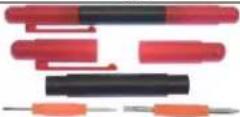 | This precision screwdriver kit is a must for assembling this weather station due to the small, precision screws. |
| Weather Station Mounting Solutions | 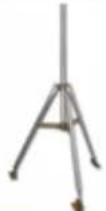 | Pole mounting solutions, tripods, mast to mast mounting kits. The WS-1075 pole mount can be attached to a pole mounting solution with the included hose clamps. |
| Energizer AA Lithium Battery (2-pack) - Batteries for Long Life and Cold Climates |  | AA lithium batteries for cold weather climates. |
| Cable Extensions |  | Cable extension kits allow you to extend the cables between the rain gauge and the thermo-hygrometer, improving the flexibility of the installation. |
14 Liability Disclaimer
Please help in the preservation of the environment and return used batteries to an authorized depot. The electrical and electronic wastes contain hazardous substances. Disposal of electronic waste in wild country and/or in unauthorized grounds strongly damages the environment.
Reading the “User manual” is highly recommended. The manufacturer and supplier cannot accept any responsibility for any incorrect readings and any consequences that occur should an inaccurate reading take place.
This product is designed for use in the home only as indication of weather conditions. This product is not to be used for medical purposes or for public information.
The specifications of this product may change without prior notice.
This product is not a toy. Keep out of the reach of children.
No part of this manual may be reproduced without written authorization of Ambient, LLC.
Ambient, LLC WILL NOT ASSUME LIABILITY FOR INCIDENTAL, CONSEQUENTIAL, PUNITIVE, OR OTHER SIMILAR DAMAGES ASSOCIATED WITH THE OPERATION OR MALFUNCTION OF THIS PRODUCT.
15 FCC Statement
Statement according to FCC part 15.19:
This device complies with part 15 of the FCC rules. Operation is subject to the following two conditions:
- This device may not cause harmful interference.
- This device must accept any interference received, including interference that may cause undesired operation.
Statement according to FCC part 15.21:
Modifications not expressly approved by this company could void the user's authority to operate the equipment.
Statement according to FCC part 15.105:
NOTE: This equipment has been tested and found to comply with the limits for a Class B digital device, pursuant to Part 15 of the FCC Rules. These limits are designed to provide reasonable protection against harmful interference in a residential installation. This equipment generates, uses and can radiate radio frequency energy and, if not installed and used in accordance with the instructions, may cause harmful interference to radio communications.
However, there is no guarantee that interference will not occur in a particular installation. If this equipment does cause harmful interference to radio or television reception, which can be determined by turning the equipment off and on, the user is encouraged to try to correct the interference by one or more of the following measures:
• Reorient or relocate the receiving antenna.
- Increase the separation between the equipment and receiver.
- Connect the equipment into an outlet on a circuit different from that to which the receiver is connected.
- Consult the dealer or an experienced radio/TV technician for help.
16 Warranty Information
Ambient, LLC provides a 1-year limited warranty on this product against manufacturing defects in materials and workmanship.
This limited warranty begins on the original date of purchase, is valid only on products purchased and only to the original purchaser of this product. To receive warranty service, the purchaser must contact Ambient, LLC for problem determination and service procedures.
Warranty service can only be performed by Ambient, LLC. The original dated bill of sale must be presented upon request as proof of purchase to Ambient, LLC.
Your Ambient, LLC warranty covers all defects in material and workmanship with the following specified exceptions: (1) damage caused by accident, unreasonable use or neglect (lack of reasonable and necessary maintenance); (2) damage resulting from failure to follow instructions contained in your
owner's manual; (3) damage resulting from the performance of repairs or alterations by someone other than an authorized Ambient, LLC authorized service center; (4) units used for other than home use (5) applications and uses that this product was not intended (6) the products inability to receive a signal due to any source of interference or metal obstructions and (7) extreme acts of nature, such as lightning strikes or floods.
This warranty covers only actual defects within the product itself, and does not cover the cost of installation or removal from a fixed installation, normal set-up or adjustments, claims based on misrepresentation by the seller or performance variations resulting from installation-related circumstances.
