DTE351 - Unspecified Emerson - Free user manual and instructions
Find the device manual for free DTE351 Emerson in PDF.


User questions about DTE351 Emerson
0 question about this device. Answer the ones you know or ask your own.
Ask a new question about this device
Download the instructions for your Unspecified in PDF format for free! Find your manual DTE351 - Emerson and take your electronic device back in hand. On this page are published all the documents necessary for the use of your device. DTE351 by Emerson.
USER MANUAL DTE351 Emerson
text_image
NICK JR DORA the EXPLORER™13" COLOR TV WITH DVD PLAYER
OWNER'S MANUAL
DTE351
Copyright 2006 Viacom International Inc. All Rights Reserved. Nickelodeon, Nick Jr., Dora The Explorer, Nicktronics and all related titles, logos and characters are trademarks of Viacom International Inc.
CONTENTS
Contents 1
Warning....3
Important Safety Instructions.... 4
Precautions 9
Power Source....9
Location of Controls....10
- Front....10
- Rear 10
Remote Control....11
- Battery Installation....12
- Effective Distance of the Remote Control Transmitter....12
Connections 13
- Connecting the Unit to an External TV .....13
- Connecting an External Component to this Unit....13
- Connecting an External Unit to the Side A/V IN Jacks....14
- Connecting the Unit to a Home Theatre System......15
Cable (CATV)/Satellite Connections.....16
Outdoor Antenna Connections .....17
TV Operation 18
- Setting the Language......18
- Setting the AIR/CATV Menu Option......18
- Setting the Channels into Memory......19
- Adding and Deleting Channels ....20
• Basic TV Operation.... 21
- Mute 22
- Sleep....22
• TV/AV Button....22
• DVD/TV Button....22
Closed Captions 23
On-Screen Control Adjustments
(Picture) 24
• Personal Preference ....24
- Blue Background....24
Setting Parental Control....25
• Movie Rating Set Up....26
• TV Parental Rating Set Up 27
- Changing the No Rating Option......28
- Changing the External Source Option ....28
- Changing the Password....29
DVD Operation 30
- Setup Mode....30
- Pause/Step 30
- OSD Language ....31
- Menu 31
• Audio....31
- Slow Play 32
- Search....32
- Repeat Playback....32
• A-B Repeat Playback....32
- Subtitle 32
• Angle....32
- Display (Remain Time) 33
- Resume play ....33
- Zoom 33
- Programmed Playback....34
Picture CD Operation 35
Troubleshooting Guide ....36
Reception Disturbances....38
Specifications 39
Limited Warranty....40

Thank you for purchasing the DORA the Explorer 13" Color TV with DVD Player from Emerson Radio Corp. Please read this manual before operating this unit to become familiar with its features and obtain the performance that will bring you continued enjoyment for many years. In the event you require technical assistance, please call the Emerson Service Department at: 1-800-898-9020.
For future reference, record the serial number in the space provided.
Serial Number


WARNING
• TO PREVENT FIRE OR SHOCK HAZARD. DO NOT EXPOSE THIS APPLIANCE TO RAIN OR MOISTURE.
- THIS APPLIANCE SHALL NOT BE EXPOSED TO DRIPPING OR SPLASHING WATER AND THAT NO OBJECT FILLED WITH LIQUIDS SUCH AS VASES SHALL BE PLACED ON APPRATUS.
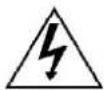
The lightning flash with arrowhead symbol, within an equilateral triangle, is intended to alert the user to the presence of uninsulated "dangerous voltage" within the product's enclosure that may be of sufficient magnitude to constitute a risk of electric shock to persons.
CAUTION
RISK OF ELECTRIC SHOCK DO NOT OPEN
Warning: To reduce the risk of electric shock, do not remove cover (or back) no user-serviceable parts inside. Refer servicing to qualified service personnel.

The exclamation point within an equilateral triangle is intended to alert the user to presence of important operating and maintenance (servicing) instructions in the literature accompanying the appliance.
IMPORTANT SAFETY INSTRUCTIONS
-
Read these instructions.
-
Keep these instructions.
-
Heed all warnings.
-
Follow instructions.
-
Do not use this apparatus near water.
-
Clean only with dry cloth.
-
Do not block any ventilation openings. Install in accordance with manufacturer's instructions.
-
Do not install near any heat source such as radiators, heat registers, stoves, or other apparatus (including amplifiers) that produce heat.
-
Do not defeat the safety purpose of the polarized or grounding-type plug. A polarized plug has two blades with one wider than the other. A grounding type plug has two blades and a third grounding prong. The wide blade or the third prong are provided for your safety. If the provided plug does not fit into your outlet, consult an electrician for replacement of the obsolete outlet.
-
Protect the power cord from being walked on or pinched particularly at plugs, convenience receptacles, and the point where they exit from the apparatus.
-
Only use attachments/accessories specified by the manufacturer.
-
Use only with a cart, stand, tripod, bracket, or table specified by the manufacturer, or sold with the apparatus. When a cart is used, use caution when moving the cart/apparatus combination to avoid injury from tip-over.

-
Unplug this apparatus during lightning storms or when unused for long periods of time.
-
Refer all servicing to qualified service personnel. Servicing is required when the apparatus has been damaged in any way, such as if the power-supply cord or plug is damaged, liquid has been spilled or objects have fallen into the apparatus, the apparatus has been exposed to rain or moisture, does not operate normally, or has been dropped.
IMPORTANT SAFETY INSTRUCTIONS
15. Retain Instructions
The safety and operating instructions should be retained for future reference.
16. Water and Moisture
Do not use this product near water-for example, near a bath tub, wash bowl, kitchen sink, or laundry tub, in a wet basement, or near a swimming pool and the like.
17. Power Sources
The product should be operated only from the type of power source indicated on the marking label. If you are not sure of the type of power supply to your home, consult your product dealer or local power company. For products intended to operate from battery power, or other sources, refer to the operating instructions.
18. Grounding or Polarization
This product may be equipped with a polarized alternating-current line plug (a plug having one blade wider than the other). This plug will fit into the power outlet only one way. This is a safety feature. If you are unable to insert the plug fully into the outlet, try reversing the plug. If the plug should still fail to fit, contact your electrician to replace your obsolete outlet. Do not defeat the safety purpose of the polarized plug. Alternative Warnings -This product is equipped with a three-wire grounding-type plug, a plug having a third (grounding) pin. This plug will only fit into a grounding-type power outlet. This is a safety feature. If you are unable to insert the plug into the outlet, contact your electrician to replace your obsolete outlet. Do not defeat the safety purpose of the grounding-type plug.
19. Outdoor Antenna Grounding
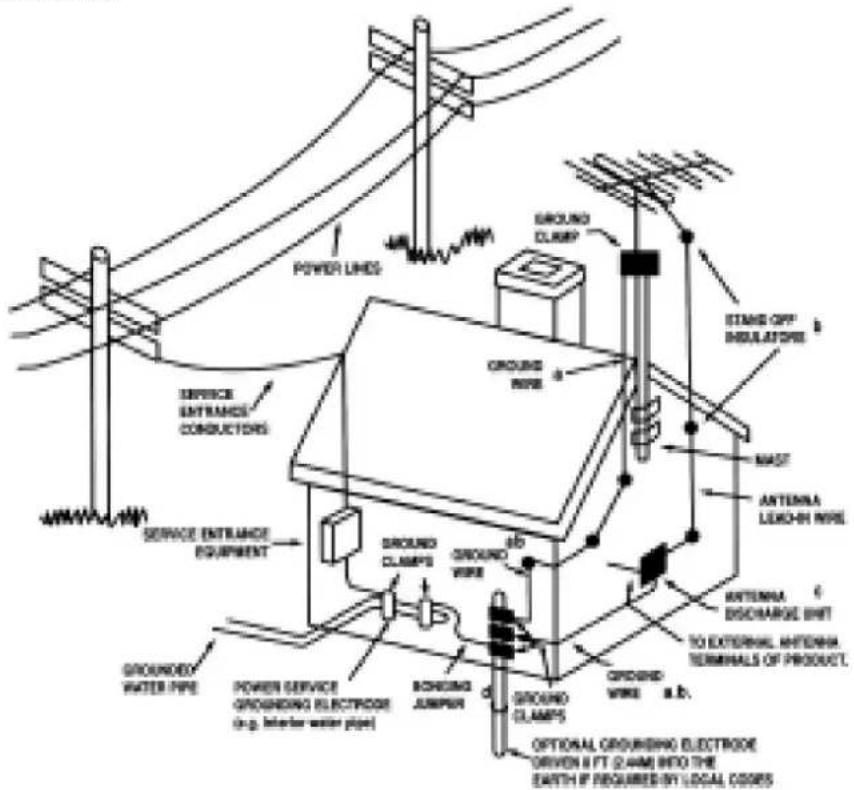
If an outside antenna or cable system is connected to the product, be sure the antenna or cable system is grounded so as to provide some protection against voltage surges and built-up static charges. Article 810 of the National Electrical Code, ANSI/ NFPA 70, provides information with regard to proper grounding of the mast and supporting structure, grounding of the lead-in wire to antenna discharge unit, size of grounding conductors, location of antennadischarge unit, connection to grounding electrodes, and requirements for the grounding electrode. See fig. A on page 7.
20. Lightning
For added protection for this product during a lightning storm, or when it is left unattended and unused for long periods of time, unplug it from the wall outlet and disconnect the antenna or cable system. This will prevent damage to the product due to lightning and powerline surges.
21. Power Lines
An outside antenna system should be located in the vicinity of overhead power lines or other electric light or power circuits, or where it can fall into such power lines or circuits. When installing an outside antenna system, extreme care should be taken to keep from touching such power lines or circuits as contact with them might be fatal.
22. Overloading
Do not overload wall outlets, extension cords, or integral convenience receptacles as this can result in a risk of fire or electric shock.
IMPORTANT SAFETY INSTRUCTIONS
23. Object and Liquid Entry
Never insert objects of any kind into this product through openings as they may touch dangerous voltage points or short-out parts that could result in a fire or electric shock. Never spill liquid of any kind on the product.
Do not attempt to service the product yourself as opening or removing covers may expose you
24. Damage Requiring Service
Unplug this product from the wall outlet and refer servicing to qualified service personnel under the following conditions:
a. When the power-supply cord or the plug is damaged,
b. If liquid has been spilled, or objects have fallen into the product,
c. If the product has been exposed to rain or water,
d. If the product does not operate normally by following the operating instructions. Adjust only those controls that are covered by the operating instructions as an improper adjustment of other controls may result in damage and will often require extensive work by a qualified technician to restore the product to its normal operation,
e. If the product has been dropped, or damaged in any way,
f. When the product exhibits a distinct change in performance, this indicates a need for service.
25. Replacement Parts
When replacement parts are required, be sure the service technician has used replacement parts specified by the manufacturer or have the same characteristics as the original part. Unauthorized substitutions may result in fire, electric shock, or other hazards.
26. Safety Check
Upon completion of any service or repairs to this product, ask the service technician to perform safety checks to determine that the product is in proper operating condition.
27. Wall or Ceiling Mounting
The product should be mounted to a wall or ceiling only as recommended by the manufacturer.
28. Heat
The product should be situated away from heat sources such as radiators, heat registers, stoves, or other products (including amplifiers) that produce heat.
29. Nonuse Period
If the unit is to be left unused for a long period of time, unplug the power cord.
30. Note To CATV System Installer
This reminder is provided to call the CATV system installer's attention to Article 820-40 of the NEC that provides guidelines for proper grounding and, in particular, specifies that the cable ground shall be connected to the grounding system of the building, as close to the point of cable entry as practical.
IMPORTANT SAFETY INSTRUCTIONS
FIGURE A
EXAMPLE OF ANTENNA
GROUNDING ACCORDING TO
NATIONAL ELECTRICAL CODE
INSTRUCTIONS
text_image
POWER LINES GROUND CLAMP STAND OFF INSULATORS SERVICE ENTRIANCE CONDUCTORS SERVICE ENTRIANCE EQUIPMENT GROUND CLAMPS GROUND WIRE Ground CLAMPS GROUND WIRE OPTIONAL GROUNDING ELECTRODE DRIVEN 6 FT (2.4AM) INTO THE EARTH IF REQUIRED BY LOCAL CASES ANTenna LEACH-WIRE MUST ANTenna DISCHARGE BHT TO EXTERNAL ANTERNA TERMINALS OF PRODUCT. GROUND WATER PIPE POWER SERVICE GROUNDING ELECTRODE (e.g. Interwater water pipe) BONDING JUMPER GROUND CLAMP GROUND WIRE a b.a. Use No.10AWG(5.3mm2)copper, No.8 AWG(8.4mm2)aluminum, No.17AWG(1.0mm2) copper-clad steel or bronze wire, or larger, as a ground wire.
b. Secure antenna lead-in and ground wires to house with stand-off insulators spaced from 4-6 feet (1.22-1.83m) apart.
c. Mount antenna discharge unit as close as possible to where lead-in enters house.
d. Use jumper wire not smaller than No.6AWG(13.3mm2) copper, or the equivalent, when a separate antenna grounding electrode is used.
IMPORTANT SAFETY INSTRUCTIONS
ON PLACEMENT
* Do not use the unit in places which are extremely hot, cold, dusty or humid.
* Place the unit on a flat and even surface.
* Do not restrict the air-flow of the unit by placing it in a place with poor ventilation, by covering it with a cloth or by placing it on a carpet.
ON CONDENSATION
* When left in a heated room where it is warm and damp, water droplets or condensation may form inside the unit.
* When there is condensation inside the unit, the unit may not function normally.
* Let it stand for 1 to 2 hours before turning the power on, or gradually heat the room up and dry the unit before use.
CAUTION:
Remove AC plug from wall outlet and batteries from battery compartment of the remote control when the unit will not be used for a prolonged period.
HIGH VOLTAGE:
Live parts are accessible when the rear cover is removed.
Please read IMPORTANT SAFETY INSTRUCTIONS
This product incorporates copyright protection technology that is protected by method claims of certain U.S. patents and other intellectual property rights owned by Macrovision Corporation and other rights owners. Use of this copyright protection technology must be authorized by Macrovision Corporation, and is intended for home and other limited viewing uses only unless otherwise authorized by Macrovision Corporation. Reverse engineering or disassembly is prohibited.
PRECAUTIONS
NOTES ON HANDLING:
- When shipping the TV/DVD player, always use the original shipping carton and packing materials. For maximum protection, repack the unit as it was originally packed at the factory.
- Do not use volatile liquids, such as insect spray near the TV/DVD player.
- The top and rear panels of the TV/DVD player may become warm after a long period of use. This is normal and not a malfunction.
- When the TV/DVD player is not in use, be sure to remove the disc and turn off the power.
- If you do not use the TV/DVD player for a long period, the unit may not function properly in the future. Turn on and use the TV/DVD player occasionally.
NOTES ON CLEANING:
Use a soft, dry cloth for cleaning.
- For stubborn dirt, soak the cloth in a weak detergent solution, wring well and wipe. Use a dry cloth to wipe it dry. Do not use any type of solvent, such as thinner and benzene, as they may damage the surface of the TV/DVD player.
- If you use a chemical-saturated cloth to clean the unit, follow that product's instructions.
Warning: Cleaning and adjustment of lenses and/or other components of playback mechanism should be performed by a qualified service technician.
TO OBTAIN A CLEAR PICTURE:
The TV/DVD player is a high technology, precision device. If the optical pick-up lens and disc drive parts are dirty or worn down, the picture quality becomes poor. To obtain a clear picture, we recommend regular inspection and maintenance (cleaning or parts replacement) every 1,000 hours of use depending on the operating environment. For details, contact your nearest dealer.
NOTES ON MOISTURE CONDENSATION:
Moisture condensation damages the TV/DVD player.
Please read the following carefully.
- Moisture condensation occurs, for example, when you pour a cold drink into a glass on a warm day. Drops of water form on the outside of the glass. In the same way, moisture may condense on the optical pick-up lens inside this unit, one of the most crucial internal parts of the TV/DVD player.
Moisture condensation occurs during the following cases:
- When you bring the TV/DVD player directly from a cold place to a warm place.
- When you use the TV/DVD player in a room where you just turned on the heater, or a place where the cold wind from the air conditioner directly hits the unit.
- In summer, when you use the TV/DVD player in a hot and humid place just after you moved the unit from an air conditioned room.
- When you use the TV/DVD player in a humid place.
Do not use the TV/DVD player when moisture condensation may occur.
- If you use the TV/DVD player in such a situation, it may damage discs and internal parts. Remove the disc, connect the power cord of the TV/DVD player to the wall outlet, turn on the TV/DVD player and leave it "ON" for two or three hours. After two or three hours, the TV/DVD player will have warmed up and evaporated any moisture. Keep the TV/DVD player connected to the wall outlet and moisture condensation will seldom occur.
POWER SOURCE
Insert the AC plug (with the 2 blades) into a conveniently located AC outlet having 120V, 60Hz.
NOTE: The AC plug supplied with the unit is polarized to help minimize the possibility of electric shock. If the AC plug does not fit into a nonpolarized AC outlet, do not file or cut the wide blade. It is the user's responsibility to have an electrician replace the obsolete outlet.

text_image
AC Outlet AC PlugLOCATION OF CONTROLS
text_image
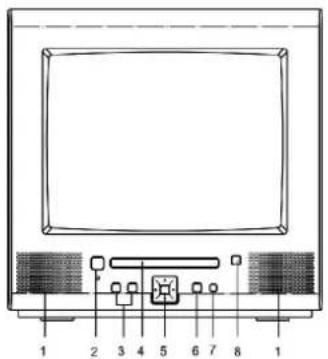
1 2 3 4 5 6 7 8 1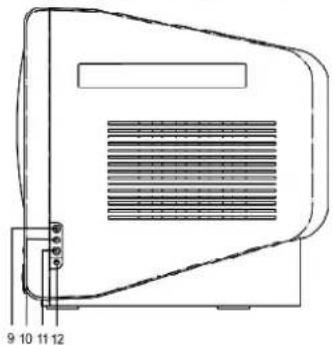
natural_image
Technical line drawing of a mechanical or electronic device with no visible text, numbers, or symbols
text_image
13 14 15 161.Speaker
2. Power Button
3.Channel Buttons
4. DVD Door
5. Menu/Volume/DVD Stop/play
Bottons
6.TV/AV/DVD Button
7.Remote Sensor
8. DVD Open/Close Button
9. Front Audio (R) Input (AV 2)
10. Front Audio (L) Input (AV 2)
11. Front Video Input (AV 2)
12. Earphone Jack
13.75 ohm Antenna Socket
14. Video/Audio Input (AV 1)
15. Video/Audio Output
16. Digital Audio Out Socket
(For DVD only)
REMOTE CONTROL
text_image
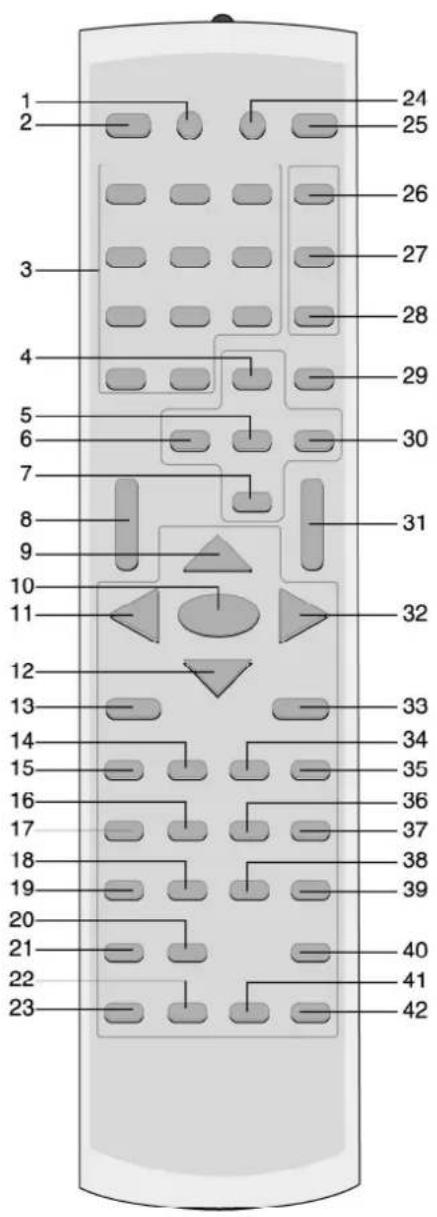
1 2 3 4 5 6 7 8 9 10 11 12 13 14 15 16 17 18 19 20 21 22 23 24 25 26 27 28 29 30 31 32 33 34 35 36 37 38 39 40 41 42-
TV/AV Button
-
POWER Button
-
Number Buttons/-- Button
-
TV Navigation (▲) Button
-
TV MENU Button
-
TV Navigation (◀) Button
-
TV Navigation (▼) Button
-
CHANNEL Up/Down Button
-
DVD Navigation (▲) Button
-
ENTER Button
-
DVD Navigation (◀) Button
-
DVD Navigation (▼) Button
-
DVD MENU Button
-
PAUSE/STEP Button
-
PLAY (▶) Button
-
ZOOM Button
-
STOP (■) Button
-
SUBTITLE Button
-
REPEAT Button
-
SETUP Button
-
SEARCH Button
-
PROGRAM Button
-
CLEAR Button
-
DVD/TV Button
-
OPEN/CLOSE Button
-
SLEEP Button
-
DISPLAY Button
-
MUTE Button
-
PP (Personal Preference) Button
-
TV Navigation (▶) Button
-
VOLUME Up/Down Button
-
DVD Navigation (▶) Button
-
+10 Button
-
SEARCH ◀ Button
-
SEARCH ▶▶ Button
-
SKIP (◀) Button
-
SKIP (▶) Button
-
Repeat A-B Button
-
ANGLE Button
-
AUDIO Button
-
SLOW PLAY Button
-
DISPLAY Button
REMOTE CONTROL(CONTINUED)
BATTERY INSTALLATION
natural_image
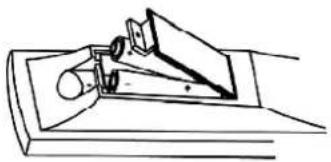
Simple line drawing of a hand holding a pen or stylus over a surface (no text or symbols)- Loosen the screw to open the battery compartment cover.
- Install two (2) "AAA" batteries (not included), paying attention to the polarity diagram in the battery compartment.
- Screw the battery compartment cover on the battery compartment.
BATTERY PRECAUTIONS
Follow these precautions when using batteries in this device:
- Use only the size and type of batteries specified.
- Be sure to follow the correct polarity when installing the batteries as indicated next to the battery compartment. Reversed batteries may cause damage to the device.
- Do not mix different types of batteries together (e.g. Alkaline, Rechargeable and Carbon-zinc) or old batteries with fresh ones.
- If the device is not to be used for a long period of time, remove the batteries to prevent damage or injury from possible battery leakage.
- Do not try to recharge batteries not intended to be recharged; they can overheat and rupture. (Follow battery manufacturer's directions.)
EFFECTIVE DISTANCE OF THE REMOTE CONTROL TRANSMITTER

text_image
20ft 30° 30°NOTES:
- When there is an obstacle between the DVD and the transmitter, the transmitter may not operate.
- When direct sunlight, an incandescent lamp, fluorescent lamp or any other strong light shines on the REMOTE SENSOR of the DVD, the remote operation may be unstable.
CONNECTIONS
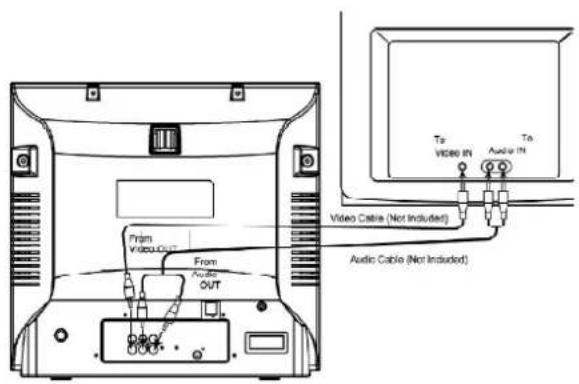
CONNECTING THE UNIT TO AN EXTERNAL TELEVISION
text_image
From Video OUT From Audio OUT Video Cable (Not Included) Audio Cable (Not Included)NOTES:
- Connecting the unit to an external TV will allow you to see the image on another TV.
- You must change your external TV's INPUT selection to VIDEO IN or AUX IN. If the TV has a remote control, press the INPUT or AUX button on the remote to change the input selection.
- When connecting the unit, refer to the owner's manual of the TV, as well as this manual.
- When connecting the unit, make sure the power is off and both units are unplugged before making any connections.
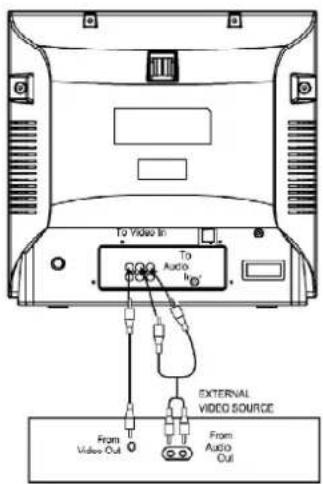
CONNECTING AN EXTERNAL COMPONENT TO THIS UNIT
text_image
To Video In To Audio In External VIDEO SOURCE From Video Out From Audio OutNOTES:
- Connecting the unit to an external video source will allow you to see the external
unit's video through this unit's TV screen. - When connecting the external unit, refer to the owner's manual of the external unit, as well as this manual.
- When connecting the external unit, make sure the power is off and both units are unplugged before making any connections.
- Press the TV/AV button to select AV1.
CONNECTIONS (CONTINUED)
CONNECTING AN EXTERNAL UNIT TO THE FRONT A/V IN JACKS

text_image
To Video In To Audio In From Video Out From Audio OutCAMCORDER, VIDEO GAME, ETC
NOTES FOR CONNECTING AN EXTERNAL UNIT TO THE FRONT A/V JACKS:
- Connecting the unit to an external unit such as a video game or camcorder will allow you to broadcast the external unit's sound and video through this unit and allow for fast and easy disconnect.
- When connecting the external unit, refer to the owner's manual of the external unit, as well as this manual.
- When connecting the external unit, make sure the power is off and both units are unplugged before making any connections.
- Press the TV/AV button to select AV2.
EARPHONE JACK:
For private listening, plug an earphone into the Earphone jack. The speakers will be disconnected when the earphone is inserted.
CONNECTIONS (CONTINUED)
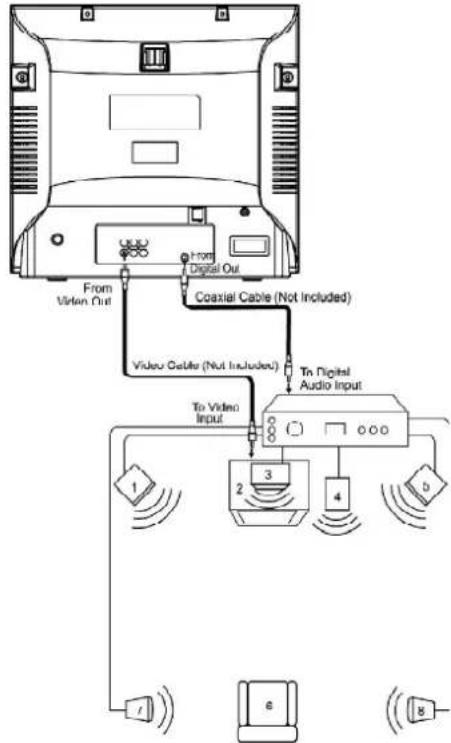
CONNECTING THE UNIT TO A HOME THEATRE SYSTEM
flowchart
graph TD
    A["Back Panel"] -->|From Video Out| B["Coaxial Cable (Not Included)"]
    A -->|From Digital Out| C["Video Cable (Not Included)"]
    A -->|To Video Input| D["Tn Digital Audio Input"]
    D --> E["1: Sound waves"]
    D --> F["2: 3: Inverter"]
    D --> G["3: 4: Antenna"]
    D --> H["4: Sound waves"]
    D --> I["5: Sound waves"]
    D --> J["6: Antenna"]
    D --> K["7: Sound waves"]
    D --> L["8: Antenna"]
Place the subwoofer, front, rear and center speakers in locations as shown/described here. After correctly positioning the speakers, perform the Tone Test on the AV Amplifier and adjust the volume controls until the desired sound is achieved. For best results, sit in the viewing position and have someone adjust the volumes for you; this will enable you to set the optimal levels.
NOTE: To avoid scratching the furniture, place felt pads to the bottom of each speaker.
NOTE:
- The rear speakers can also be located on the side wall facing the viewing position and each other. Make sure the viewing position is located between the two speakers in this case. Experiment to find optimal position.
- Front Left Speaker
- Television
- Center Speaker—can be located on top or below the television.
- Sub-woofer—can be located anywhere in the room.
-
Front Right Speaker
-
Viewing/Listening Position—the best listening position is obtained by positioning the chair, sofa, etc. in the middle of all the speakers.
- Rear Left Speaker
- Rear Right Speaker
- AV Amplifier w/Dolby Digital Decoder/DTS Decoder
NOTES:
- You must change your external TV's INPUT selection to VIDEO IN or AUX IN, if using an external TV. If the TV has a remote control, press the INPUT or AUX button on the remote to change the input selection.
- When connecting the unit, refer to the owner's manuals of the external TV and receiver/home stereo, as well as this manual.
- When connecting the unit, make sure the power is off and all units are unplugged before making any connections.
CABLE (CATV) / SATELLITE CONNECTIONS
This TV has an extended tuning range and can tune most cable channels without using a Cable TV converter box. Some Cable TV companies offer “premium pay channels” in which the signal is scrambled. Descrambling these signals for normal viewing requires the use of a descrambler device which is generally provided by the cable company.
FOR SUBSCRIBERS TO BASIC CABLE TV SERVICE
For basic cable TV service not requiring a converter/descrambler box, connect the CATV 75 ohm coaxial cable to the VHF/UHF jack on the rear of the TV.

natural_image
Diagram showing a connector with threaded cable and cable end (no text or symbols)FOR SUBSCRIBERS TO SCRAMBLED CABLE TV SERVICE OR SATELLITE
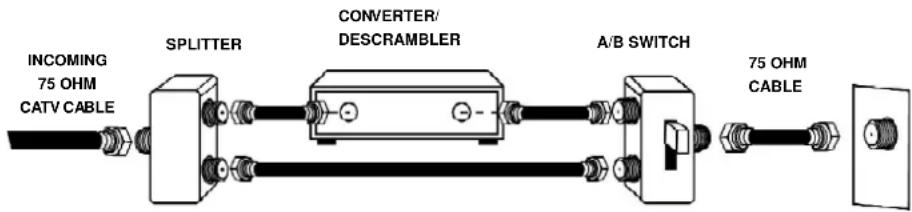
If you subscribe to a satellite service or a cable TV service which requires the use of a converter/descrambler box, connect the incoming 75 ohm coaxial cable to the converter/descrambler or satellite box. Using another 75 ohm cable, connect the output of the converter/descrambler or satellite box to the antenna jack on the TV. Follow the connections shown below. Set the TV/VCR to the output channel of the converter/descrambler or satellite box (usually 3 or 4) and use the converter/descrambler or satellite box to select channels.

text_image
INCOMING 75 OHM CATV CABLE CONVERTER/ DESCRAMBLER OR SATELLITE BOX 75 OHM CABLE TO TV/VCRFOR SUBSCRIBERS TO UNSCRAMBLED BASIC CABLE TV SERVICE WITH SCRAMBLED PREMIUM CHANNELS
If you subscribe to a satellite service or a cable TV service in which basic channels are unscrambled and premium channels require the use of a converter/descrambler box, you may wish to use a signal splitter and an A/B switch box (available from the cable company or an electronic supply store). Follow the connections shown below. With the switch in the "B" position, you can directly tune any nonscrambled channels on your TV. With the switch in the "A" position, tune your TV to the output of the converter/descrambler box (usually channel 3 or 4) and use the converter/descrambler box to tune scrambled channels.
flowchart
graph LR
    A["INCOMING 75 OHM CATV CABLE"] --> B["SPLITTER"]
    B --> C["CONVERTER/DESCRAMBLER"]
    C --> D["A/B SWITCH"]
    D --> E["75 OHM CABLE"]
FAQS:
I connected my cable, why can't I get channels above 69?
Make sure AIR/CATV option is set to CATV, see page 18. Also, make sure your cable company broadcasts channels in the range you are searching.
Are the cables included?
No, the cables are sold separately; visit your local electronics store.
OUTDOOR ANTENNACONNECTIONS
OUTDOOR VHF/UHF ANTENNA CONNECTION (Antenna not included)
Follow the instructions for the type of antenna system you intend to use. If using Cable or Satellite, see page 16.
Combination VHF/UHF Antenna (Single 75 ohm cable or 300 ohm twin-lead wire)
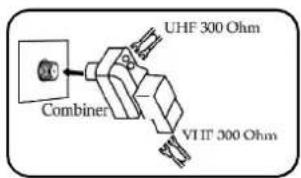
Combination VHF/UHF Antenna (Separate VHF and UHF 300 ohm twin-leads)
Separate VHF/UHF Antennas

text_image
VHF/UHF 75 OhmConnect the 75 ohm cable from combination VHF/UHF antenna to the antenna jack.
OR
If your combination antenna has a 300 ohm twin-lead wire, use a 300-75 ohm matching transformer (NOT SUPPLIED).
text_image
UHF 300 Ohm Combiner VI IT 300 OhmConnect the UHF twin-lead wire to a combiner (NOT SUPPLIED). Connect the VHF twin-lead to a 300-75 ohm matching transformer (NOT SUPPLIED). Attach the transformer to the combiner. Attach the combiner to the antenna jack.
text_image
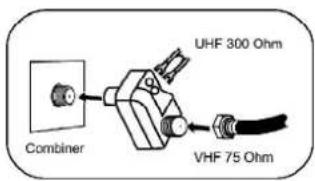
UHF 300 Ohm VHF 75 Ohm CombinerConnect the 75 ohm cable from the VHF antenna and the UHF antenna twin-lead wire to a combiner (NOT SUPPLIED). Attach the combiner to the antenna jack.
NOTE: If your VHF antenna has a twinlead wire use a 300-75 ohm matching transformer, then connect the transformer to the combiner.
TV OPERATION
SETTING THE LANGUAGE
This TV can show the On-Screen display in English, Spanish or French.
text_image
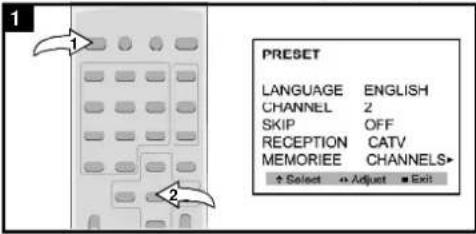
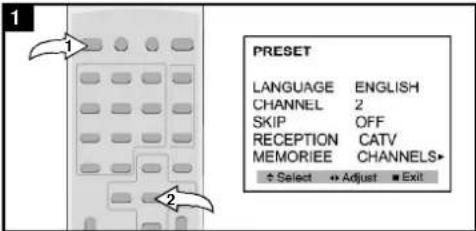
1 2 PRESET LANGUAGE ENGLISH CHANNEL 2 SKIP OFF RECEPTION CATV MEMORIEE CHANNELS+ + Select + Adjust - ExitPress the Power button to turn on the TV. Press the MENU button twice; the MENU screen will appear.
text_image
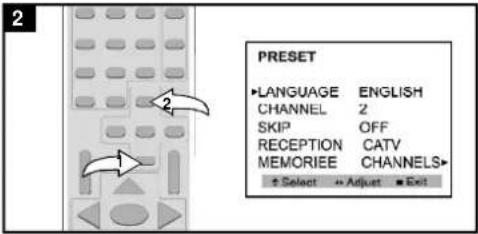
2 PRESET LANGUAGE ENGLISH CHANNEL 2 SKIP OFF RECEPTION CATV MEMORIEE CHANNELS Select Adjust ExitPress the TV Navigation▼(①) and ②) buttons to select LANGUAGE.
text_image
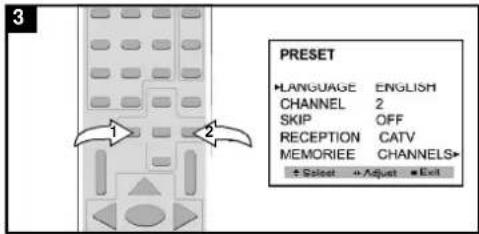
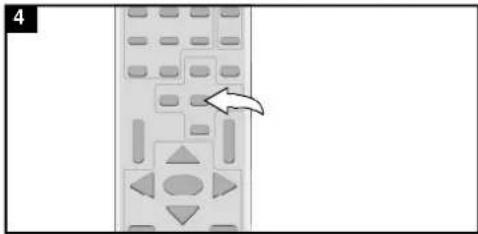
3 PRESET LANGUAGE ENGLISH CHANNEL 2 SKIP OFF RECEPTION CATV MEMORIEE CHANNELS + Select + Adjust - ExitPress the TV Navigation (1) and ( ) buttons to the desired language (English, French or Spanish).
natural_image
Diagram of a remote control panel with directional buttons and an arrow pointing to the control panel (no text or symbols present)select Press the MENU button twice or wait 10 seconds to exit the menu.
FAQ:
Will selecting a language change the audio, or only the on-screen menus? Selecting a language will only change the on-screen menus.
SETTING THE AIR/CATV MENU OPTION
text_image
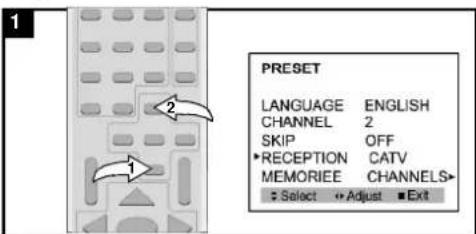
1 PRESET LANGUAGE ENGLISH CHANNEL 2 SKIP OFF RECEPTION CATV MEMORIEE CHANNELS Select Adjust ExitPress the Menu buttons twice. Access the Menu screen as described in step 1 above. Press the TV Navigation (▼) and ⏻) buttons to select RECEPTION.
text_image
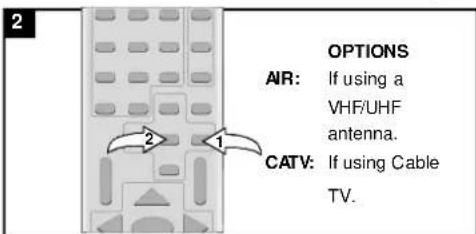
2 2 1 OPTIONS AIR: If using a VHF/UHF antenna. CATV: If using Cable TV.Press the TV Navigation ( ) button to set AIR or CATV. Press the TV MENU button twice to exit the menu. TV / CATV MODE SELECTION When shipped from the factory, the TV / CATV menu option is set to the "CATV" ( Cable Television) mode. If not using CATV, set this menu option to the "Air" position.
SETTING THE CHANNELS INTO MEMORY
This TV is equipped with a channel memory feature which allows channels to skip up or down to the next channels set into memory, skipping over unwanted channels. Before selecting channels, they must be programmed into the TV's memory. In addition to normal VHF/UHF channels, this TV can receive up to 113 Cable TV channels.

text_image
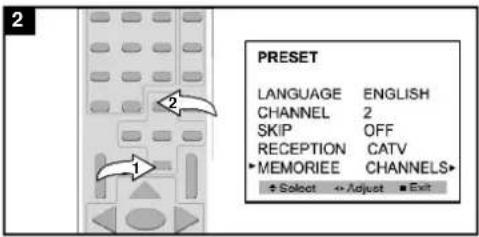
1 PRESET LANGUAGE ENGLISH CHANNEL 2 SKIP OFF RECEPTION CATV MEMORIEE CHANNELS + Select + Adjust - Exit ?Press the Power button to turn on the TV. set the AIR/CATV menu option to AIR or CATV (see page 18). The antenna, cable, etc. must be connected before memorizing channels. Press the TV MENU button twice; the PRESET MENU screen will appear.
text_image
2 PRESET LANGUAGE ENGLISH CHANNEL 2 SKIP OFF RECEPTION CATV MEMORIEE CHANNELS + Select + Adjust - ExitPress the TV Navigation ▼ and ( ) buttons to select MEMORIZE CHANNELS.

text_image
3 1 2Press the TV Navigation (1) and ( ) buttons to confirm. The TV will automatically cycle through all the channels and store active channels into memory.

natural_image
Illustration of a mobile phone with control buttons and an arrow pointing to the button (no text or symbols present)Press the TV MENU button twice or wait 10 seconds to exit the menu.
FAQs:
How many channels will I actually receive?
The actual number of channels that can be received depends on how many channels your cable company, or local area, provides. Contact your company to determine the number of channels in your area.
Do channels need to be set into memory before using the TV Navigation (▼) and (▲) buttons?
Yes, the channels must be programmed into memory.
Can I stop memorizing the channels?
Yes, simply press the TV MENU button.
ADDING AND DELETING CHANNELS
After setting channels into memory, you can add or delete channels as follows:
text_image
1 PRESET LANGUAGE ENGLISH CHANNEL 2 SKIP OFF RECEPTION CATV MEMORIEE CHANNELS + Select + Adjust + Exit
text_image
2 PRESET LANGUAGE ENGLISH CHANNEL 2 SKIP OFF RECEPTION CATV MEMORIEE CHANNELS Select Adjust ExitPress the Power button to turn on the TV. Press t MENU button twice; the PRESET MENU screen will appear.
Press the TV Navigation (●) and ( ) buttons to select CHANNEL. Press the TV Navigation (●) and ( ) buttons to select a channel.

text_image
3 PRESET LANGUAGE ENGLISH CHANNEL 2 SKIP OFF RECEPTION CATV MEMORIEE CHANNELS* Select Adjust Exit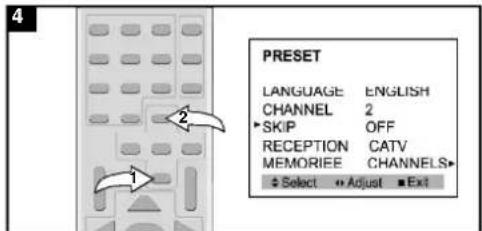
text_image
4 PRESET LANGUAGE ENGLISH CHANNEL 2 SKIP OFF RECEPTION CATV MEMORIEE CHANNELS Select Adjust ExitPress the TV Navigation▼(1) and( ) buttons to SKIP. OFF will appear if the channel is not skipped. ON will appear if the channel is being skipped.
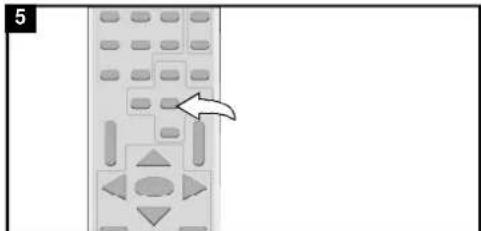
When a channel is selected, press the TV Navigation ( ) ● and ( ) buttons to skip (ON will appear) or not to skip (OFF will appear). Repeat steps 3 to 5 to add or delete more channels.
natural_image
Diagram of a remote control panel with directional buttons and an arrow pointing to the control panel (no text or symbols present)to
Press the TV MENU button twice or wait 10 seconds exit the menu.
BASIC TV OPERATION
text_image
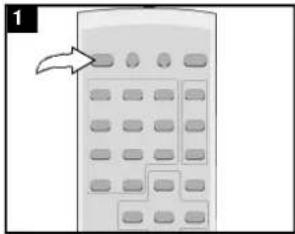
1Press the Power button to turn on the TV.
text_image
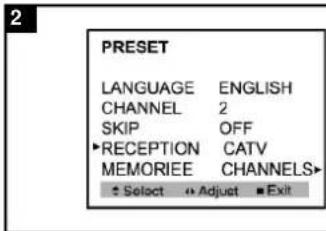
2 PRESET LANGUAGE ENGLISH CHANNEL 2 SKIP OFF RECEPTION CATV MEMORIEE CHANNELS Select Adjust ExitSet the AIR/CATV Menu Option as described on page 18.
OPTIONS
AIR: If using a VHF/UHF antenna.
CATV: If using Cable TV.

natural_image
Diagram of a remote control panel with buttons and an arrow pointing to the right side (no text or symbols present)Adjust the volume level by pressing the VOLUME UP/DOWN button.
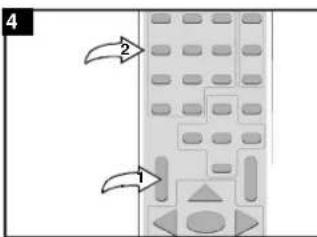
text_image
4 2 1For proper operation, before selecting channels, they must be set into the TV's program memory, see page 19.
Press and release the CHANNEL UP/DOWN button ①. The TV automatically stops at the next channel set into memory.
This will not operate if channels are not set into memory. Direct Program Selection buttons (0-9)
Use these buttons to select a channel. The channel number will appear at the top right corner of the screen.
- For Channels 1 through 9, press 1-9 as desired.
- For Channels 10 through 99, press the "---" button once, then the two digits in order.
- For Channels 100 through 125 (CATV only), press the "-" button twice, then the three digits in order.
NOTES:
- When AIR/CATV option is set to AIR, only channels up to 69 can be selected. When set to CATV, channels up to 125 can be selected.
- If an invalid channel is selected, the display will revert to the original channel.
FAQs:
AIR/CATV option must be set to CATV when using cable, see page 18.
Why are some channels scrambled?
You must subscribe to these channels through your cable company.
TV OPERATION (CONTINUED)
MUTE
text_image
1 1 2SLEEP

natural_image
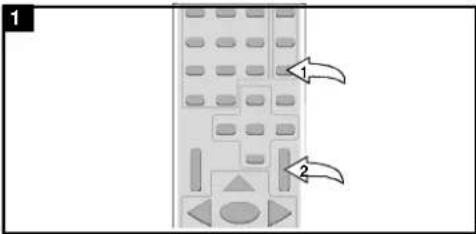
Illustration of a multi-panel office chair with no visible text or symbols on the main body (labeled '1' in top-left corner)Press the MUTE button ① to turn off the sound. The TV's sound will be silenced and MUTE will appear briefly on the screen. The sound can be turned back on by pressing this button again or the VOLUME Up ②
To set the TV to turn off after a preset amount of time, press the SLEEP button on the remote, "SLEEP OFF" will appear on the screen. Each additional press will increase the Sleep time by 5 minutes up to 120 minutes. To confirm remaining sleep time, press the SLEEP button; the remaining time will briefly appear on the screen. To cancel the sleep time, press the SLEEP button repeatedly until "SLEEP OFF" appears on the screen.
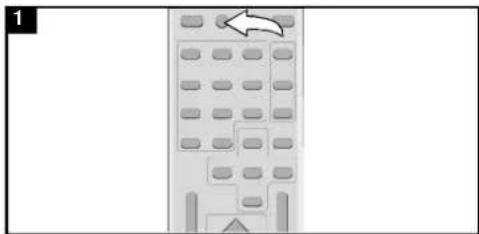
TV/AV BUTTON
natural_image
Diagram of a mobile phone with keypad and control buttons, no text or symbols presentDVD/TV BUTTON

natural_image
Diagram of a multi-story building with multiple windows and a white arrow pointing to a specific section (no text or symbols present)Press to select between TV, AV1 (jacks on the rear of the unit) or AV2 (jacks on the side of the unit).
Press to select DVD mode. Press again to select TV mode.
CLOSED CAPTIONS
WHAT IS CLOSED CAPTIONING?
This television has the capability to decode and display Closed Captioned television programs. Closed Captioning will display text on the screen for hearing-impaired viewers or it will translate and display text in another language.
CLOSED CAPTIONING WITH A VCR
Closed Captioned programs can be recorded and played back on a VCR with the Closed Captioned text intact. The Closed Captioned text will disappear during Cue (Fast Forward Search), Review (Rewind Search) and Pause modes or if the VCR tracking is not adjusted properly.
TO VIEW CLOSED CAPTIONS
Enter the SPECIAL menu and select the Closed Caption icon.
CAPTIONS (C1,C2,CMUTE): This Closed Caption Mode will display text on the screen in English or other languages. Generally, Closed Captions in English are transmitted on Captions 1 and Closed Captions in other languages are transmitted on Caption 2.
TEXT (T1, T2): The Text Closed Caption Mode will usually fill the screen with a programming schedule or other information.
After selecting a Closed Caption Mode, it will stay in effect until it is changed, even if the channel is changed. If the Captions signal is lost due to a commercial or a break in the signal, the Captions will reappear when the signal is received again. If the channels are changed, the Captions will be delayed approximately 10 seconds.
The Captions will appear in places on the screen where they will least interfere with the picture, usually on the bottom of the screen. News programs will usually show three-line Closed Captions which scroll onto the screen.
Most other shows provide two or three-lined Captions placed near the character who is speaking so the viewer can follow the dialogue.
Words in italics or underlined describe titles, words in foreign languages or words requiring emphasis. Words that are sung usually appear enclosed by musical notes.
For television programs broadcasting with Closed Captions, look in your TV Guide for the Closed Captions symbo(CC).
NOTES:
- When selecting Closed Captions, the captioning will be delayed approximately 10 seconds.
- Misspellings or unusual characters may occasionally appear during Closed Captioning. This is normal with Closed Captioning, especially with live programs. This is because captions are also entered live. These transmissions do not allow time for editing.
- When Captions are being displayed, on-screen displays, such as volume and mute may not be seen or may interfere with Closed Captions.
- Some cable systems and copy protection systems may interfere with the Closed Caption signal.
- If using an indoor antenna or if TV reception is very poor, the Closed Caption Decoder may not appear or may appear with strange characters or misspelled words. In this case, adjust the antenna for better reception or use an outdoor antenna.
CLOSED CAPTIONS

text_image
1 2 3 4Press the MENU buttons third, Access the SETUP MENU and Press the TV Navigation (▲) / (▼) buttons select CLOSED CAPTION. Press the TV Navigation (◀) and (▶) button to select the desired closed caption option (see above). Closed Captioning will display text on the screen for the hearing impaired.
FAQs:
When I press the DISPLAY or MUTE button, the captions do not appear, is this normal?
Yes, this is normal for this unit. Once the display information disappears, the captions will continue.
I entered the Captions mode, but no captions are appearing, why?
If no caption signal is received, no captions will appear, but the television will remain in the Caption mode.
Why is there a big black box on the screen? Because you are in a Captions mode. Turn the captions off, or select a different Captions mode.
ON-SCREEN CONTROL ADJUSTMENTS (PICTURE)
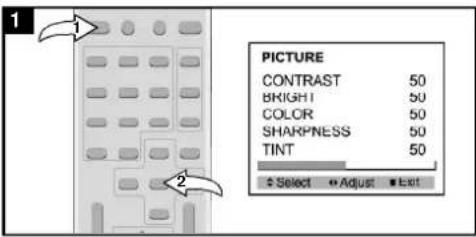
text_image
PICTURE CONTRAST 50 BRIGHT 50 COLOR 50 SHARPNESS 50 TINT 50 Select Adjust ExitPress the Power button to turn on the TV. Press TV MENU button; the PICTURE MENU screen w appear.
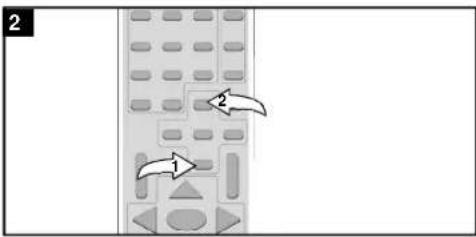
flowchart
graph TD
    A["Control Panel"] --> B{Arrow 1}
    B --> C["Device"]
    B --> D["Device"]
    C --> E["Arrow 2"]
    D --> F["Arrow 3"]
Press the TV Navigation▼(0) and( ) buttons to select the desired picture setting (CONTRAST, BRIGHTNESS, COLOR, SHARPNESS or TINT).
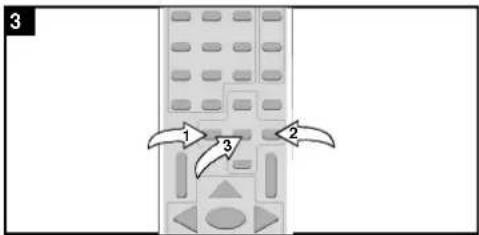
text_image
3 1 2 3Press the TV Navigation (1) and ( ) buttons to adjust the desired picture setting. Press the TV MENU button, three times or wait 10 seconds to exit the menu.
PERSONAL PREFERENCE (PP)

natural_image
Illustration of a remote control panel with buttons and an arrow pointing to the right side (no text or symbols)There are four preset picture modes to choose from (PERSONAL, SOFT, STANDARD or VIVID). The SOFT STANDARD and VIVID options are preset. The PERSONAL setting is preset by the user as described at Press the PP button to select between the three mod
BLUE BACKGROUND

flowchart
graph TD
    A["1"] --> B["2"]
    B --> C["3"]
    C --> D["4"]
    D --> E["5"]
    E --> F["6"]
    F --> G["7"]
    G --> H["8"]
    H --> I["9"]
    I --> J["10"]
If the BLUE BACKGROUND option is set to ON, when a station is selected with no broadcast signal, a blue screen will appear. Press the Menu buttons third. Access the SETUP MENU and press the TV Navigation() and (▲) buttons to select BLUE BACK. Press the TV Navigation (◀) and (*) buttons to turn this option on or off.
SETTING PARENTAL CONTROL
PARENTAL CONTROL SET-UP:
You can set the CHANNEL BLOCK to block out any channels that you do not want to be viewed as follows:

text_image
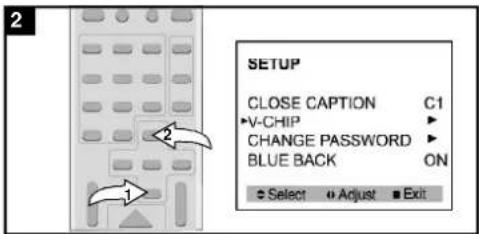
1 SETUP CLOSE CAPTION C1 V-CHIP ▶ CHANGE PASSWORD ▶ BLUE BACK ON + Select ▶ Adjust ▶ ExitPress the Power button to turn on the TV. Press the MENU button third; the SETUP MENU screen will appear.
text_image
2 SETUP CLOSE CAPTION C1 •V-CHIP • CHANGE PASSWORD • BLUE BACK ON Select Adjust ExitPress the TV Navigation▼(●) and ( ) buttons to select V-CHIP.
text_image
3 2Press the TV Navigation▶() button to confirm. Using the Number buttons (0-9), enter the TV password ("1111" is the preset password if you have not changed it). This TV password can be changed to consist of different numbers after the original password is entered (see page 29).

flowchart
graph TD
    A["Top Building"] --> B["Left Side"]
    B --> C["Right Side"]
    C --> D["Bottom Left Side"]
    D --> E["Bottom Right Side"]
    style A fill:#f9f,stroke:#333
    style B fill:#ccf,stroke:#333
    style C fill:#cfc,stroke:#333
    style D fill:#fcc,stroke:#333
    style E fill:#ffc,stroke:#333
Press the TV Navigation ( ) and ) buttons to scroll to select PARENTAL LOCK, and then press the TV Navigation ( ) button to turn it on or off. See the next two pages to set Movie or TV blocking options.
SETTING PARENTAL CONTROL (CONTINUED)
Movie Rating enables parents to prevent their children from watching inappropriate material on TV. Movie Rating reads the ratings for programming (except for news, sports, unedited movies on premium cable and emergency system signals), then denies access to programming if the program's rating meets the limitations previously set. In this case, the program will be blocked.
MOVIE RATING SET UP
text_image
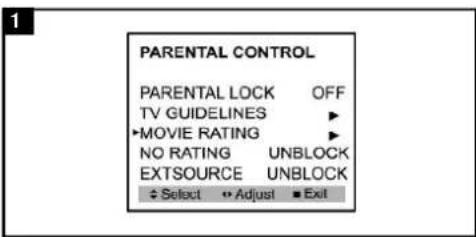
PARENTAL CONTROL PARENTAL LOCK OFF TV GUIDELINES ► ▶MOVIE RATING ► NO RATING UNBLOCK EXTSOURCE UNBLOCK ♦ Select ↕ Adjust ■ ExitEnter the PARENTAL CONTROL menu as described on page 25.
flowchart
graph TD
    A["Control Panel"] --> B["1"]
    A --> C["2"]
    A --> D["3"]
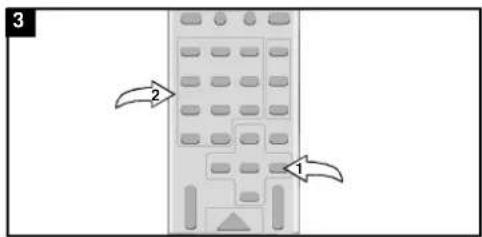
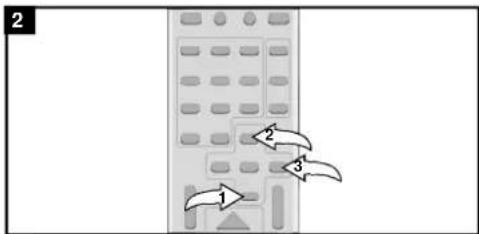
Press the TV Navigation(1) and() button to select MOVIE RATING, and then the TV Navigation() button to select it.

flowchart
graph TD
    A["1"] --> B["2"]
    B --> C["3"]
NONE: Movie rating is not set. NC17: 17 years old and G: All ages. above. PG: Parental Guidance. X: Adult only. PG-13: Parental Guidance, less than 13 years old. NR: Not Rated. R: Under 17 years old, Parental Guidance suggested.
Press the TV Navigation(v) and() buttons to select a rating to turn On or Off. When a desired rating appears, press the TV Navigation() button to block that rating and the ones above it.
SETTING PARENTAL CONTROL (CONTINUED)
TV Parental Guidelines have one or more letters added to the basic rating to let parents know when a show contains higher levels of violence, sex, adult material or suggestive dialogue.
TV PARENTAL RATING SET UP

text_image
PARENTAL CONTROL PARENTAL LOCK OFF •TV GUIDELINES • MOVIE RATING • NO RATING UNBLOCK EXTSOURCE UNBLOCK Select Adjust Exit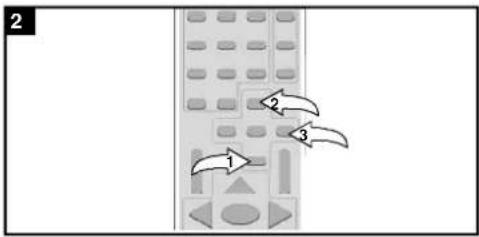
flowchart
graph TD
    A["1"] --> B["2"]
    B --> C["3"]
Enter the PARENTAL CONTROL menu as described on page 25.
Press the TV Navigation▼(1) and( ) button to select TV GUIDELINES, and then the TV Navigation▼( ) button to select it.

text_image
3 1 2 3FV: Fantasy Violence
V: Violence
S: Sexual Situations
L: Adult Language
D: Suggestive
Dialogue
Press the TV Navigation (a) and ( ) buttons to select a rating. When a desired rating appears, press the TV Navigation (b) button to turn selected rating On or Off. Then press the TV Navigation (c) button to scroll down and then press the TV Navigation (d) button to turn the individual settings On or Off (these represent the descriptions as shown above. All programs with a higher rating than the one selected will also be blocked).
SETTING PARENTAL CONTROL (CONTINUED)
CHANGING THE NO RATING OPTION
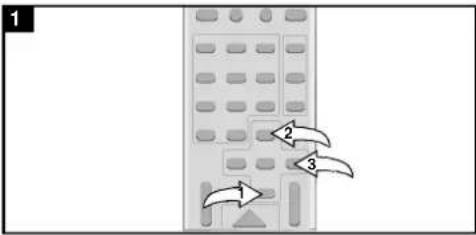
text_image
1 2 3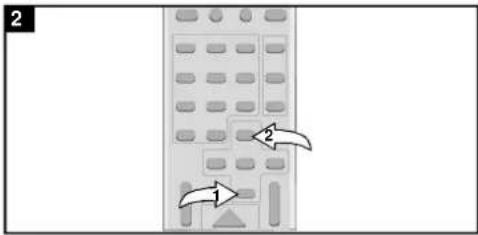
natural_image
Illustration of a mobile phone with control buttons and navigation arrows (no text or symbols)Enter the PARENTAL CONTROL menu as described on page 25. Press the TV Navigation (0) and ( ) button to select NO RATING, and then the TV Navigation (0) button to select it.
Press the TV Navigation ▼(0) and( ) buttons to block or unblock a program that does not have a rating.
CHANGING THE EXTERNAL SOURCE OPTION
flowchart
graph TD
    A["Port 1"] --> B["Port 2"]
    B --> C["Port 3"]
    C --> D["Port 4"]
    D --> E["Port 5"]
    E --> F["Port 6"]
    F --> G["Port 7"]
    G --> H["Port 8"]
text_image
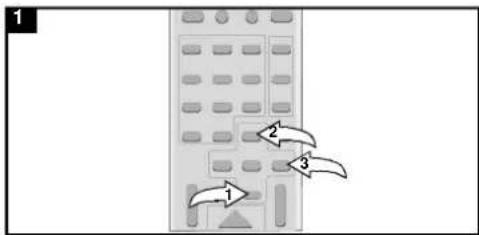
2 1 2Enter the PARENTAL CONTROL menu as described on page 26. Press the TV Navigation ( ) and ( ) to select EXT SOURCE, and then the TV Navigation ( button) to select it.
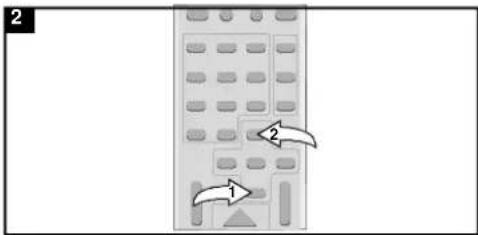
Press the TV Navigation▼(1) and( ) buttons to block or unblock external programs.
SETTING PARENTAL CONTROL (CONTINUED)
CHANGING THE PASSWORD
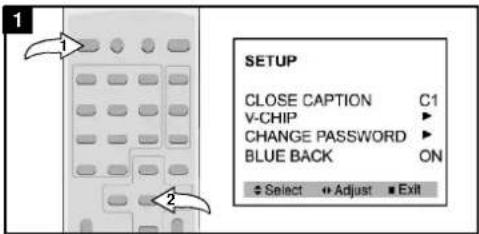
text_image
1 2 SETUP CLOSE CAPTION C1 V-CHIP ▶ CHANGE PASSWORD ▶ BLUE BACK ON ◆ Select ◆ Adjust ■ Exit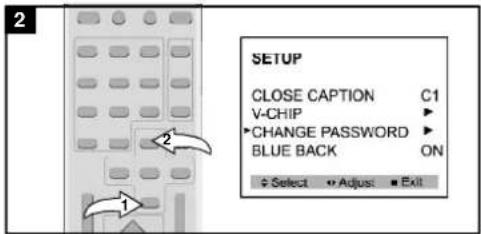
text_image
2 SETUP CLOSE CAPTION C1 V-CHIP ▶ CHANGE PASSWORD ▶ BLUE BACK ON Select ▶ Adjust ▶ ExitPress the Power button to turn on the TV. Press MENU button third; the SETUP MENU screen will appear.
Press the TV Navigation▼(0) and() buttons to select CHANGE PASSWORD.
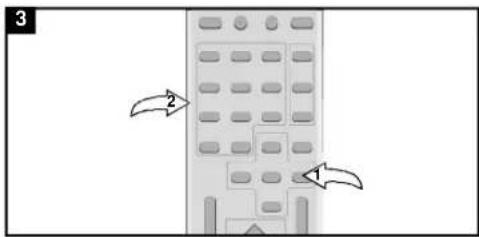
text_image
3 2 1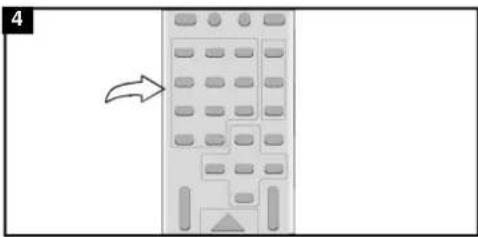
natural_image
Diagram of a mobile phone with an arrow indicating left-side navigation (no text or symbols present)Press the TV Navigation▶() button to confirm. Using the Number buttons (0-9), enter the password ("1111") is the preset TV password if you have not changed it).
Using the Number buttons (0-9), enter the desired new password, then the confirm screen will appear. Enter the password again to confirm.
IMPORTANT:
Make sure you write down the new password elsewhere and retain it for future use.
- Press "TV/AV/DVD" button on the unit or press the DVD MODE direct key on the remote handset to turn ON DVD.
- Press "OPEN / CLOSE (EJECT)" button to load disc in disc tray.
- Press "OPEN / CLOSE" button to close the tray.
- Hold the disc without touching either of its surfaces, position it with the printed title side facing up.
Play Discs
- Press the OPEN/CLOSE Button on the front panel and load the Disc on the tray. The label side should be facing upwards. For a Double-sided DVD Disc, put the disc with label A/1 up.
- Press the OPEN/CLOSE button again to close the tray and the disc will be loaded.
-
The Disc will be played automatically.
-
If it is a DVD disc, it will show the Menu/Title Page on the screen.
-
If it is a CD, it will play the first track directly.
-
Press the STOP Button if you want to stop the Disc playback You can resume playback by pressing the PLAY button and it will start at the location where you have pressed stopped (Resume Play).
- Press the STOP Button twice to have the Disc really stopped.
|| (Pause)/ Step
This function is applicable for DVD and CD audio.
- For DVD, the picture will become static.
-
For CD audio, it will become silent.
-
Press the ( || ) Button will cause the player to enter PAUSE/STEP mode.
- Press the PLAY Button again will resume to Play State.
DVD Setup Mode
- Setup Mode provides the menu for the configuration of General setup page, Speaker setup page, Dolby Digital setup, Preference page.
• Item selection in the SETUP menu is done by using the Navigation Arrow and the ENTER button. - To exit the SETUP Mode to press the SETUP button again.
- The DVD initial password for PARENTAL Mode is set at 1369.
Note: To setup the TV display mode must be in stop mode.
SETUP MENU -- MAIN PAGE
| General Setup Page | |
| TV Display | LB |
| Angle Mark | ON |
| OSD Lang | ENG |
| Captions | OFF |
| Screen Saver | ON |
Go To General Setup Page
OSD
There are 5 OSD languages embedded in the DVD Player: English, French, Spanish, German, Italian.
- Press the SETUP button on the remote controller to enter the setup menu GENERAL SETUP PAGE.
- Go to the OSD LANG option and use the Navigation Arrows to do the selection.
- Press ENTER to confirm.
DVD Menu
The DVD Menu Play function is only applicable for DVD movie. User can access the Casting information, Production History, Movie Introduction etc. directly through this function.
- Press the DVD MENU Button on the remote controller to enter the Root Menu.
- Use the Navigation Arrows ( ) or input the item index through the Number keys (0-9) to do the selection.
- Press ENTER to confirm the selection.
Audio
This function is applicable for DVD and CD audio but with different effects.
- Pressing the AUDIO Button will change the Audio channel.
Scan(◄◄/►►)
This function is applicable for DVD and CD audio but with different effects. The FAST FORWARD key and FAST BACKWARD key are used to achieve fast play function.
- For DVD, there are 5 different levels of speed (2x, 4x, 8x, 16x,32x). Every successive key press will increment the speed of quick play.
- For CD audio, the FORWARD/BACKWARD will perform quick rolling on the music output. Note: Press PLAY Button at any stage will resume to normal speed.
Prev./Next( ◀◀/▶▶ )
During playback, press one of the PREV./NEXT buttons (PREVIOUS button and NEXT button)
- When the PREV. button is pressed once, the pickup returns to the beginning of the PREVIOUS playing chapter or track.
- When the NEXT button is pressed once, the pickup will go to the beginning of next chapter or track.
Slow
The Slow Forward is applicable for DVD. There are 4 steps of slow motion speed, 1/2, 1/4, 1/8,
1/16. Successive key presses will change the playback speed.
Note : Press Play Key to switch back to normal playback speed.
Repeat Mode
This function is applicable for DVD and CD audio but with different effects.
- For DVD disc playback, user can choose to repeat the current chapter, the current title or disc. Subsequent key press of the REPEAT key can change between these four options.
- For CD, user can choose to repeat the current track or the whole disc (Repeat All). Subsequent key press of the REPEAT key can change between these two options.
Repeat AB
This function is applicable for DVD and CD audio. User can specify the repeating interval by marking the starting point and the end point.
- Press the REPEAT AB Button to mark the starting point. (Playback will continue).
- Press the REPEAT AB Button to mark the end point. (The marked part will be repeated automatically)
Note : Press the REPEAT AB Button during repetition will disable the Repeat mode.
Subtitle
This function is only applicable for DVD disc. It can change the subtitle language shown on the screen.
Note : Number of subtitle available depends on the DVD disc.
Angle
Some discs may have multiple viewing angles during production. The ANGLE button is to select the viewing angle shown on the screen.
Note : The number of Angle of View depends on the Disc.
Search
This function is applicable for DVD and CD audio. Through this function, the user can access a specific location or a specific track by key in the target time or the track number.
- Press the SEARCH Button Enter to search mode.
- Input the target time though the number button (0\~9) and the player will jump to the target location immediately.
Display (Remain Time)
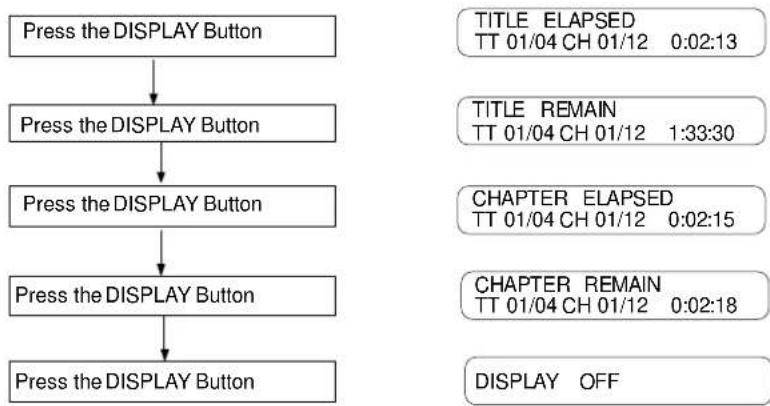
This function is applicable for DVD only. It will display the timing information of the playback on the screen.
- For DVD playback, subsequent key press on the DISPLAY Button will show the Title Elapsed Time, Title Remain Time, Chapter Elapse Time and Chapter Remain Time one by one.
flowchart
graph TD
    A["Press the DISPLAY Button"] --> B["Press the DISPLAY Button"]
    B --> C["Press the DISPLAY Button"]
    C --> D["Press the DISPLAY Button"]
    D --> E["Press the DISPLAY Button"]
Resume Play
This function is applicable for DVD and CD audio. During the disc playback, when the STOP Button is pressed once, the player will enter the Resume Play mode. At this time, if the PLAY Button is pressed, the player will resume playback at the location where the STOP Button is pressed. If the STOP button is pressed (i.e. STOP Button is pressed twice), the player will be Stop.
Zoom
This function is applicable for DVD. User can enlarge or reduce a static picture or a moving picture by pressing the ZOOM buttons. There are 3 levels of zooming (2x, 3x, 4x) and they can be achieved one by one through subsequent key presses on the ZOOM button.
NOTE: User can select the portion of the picture to be enlarged by using the Navigation buttons ( ).
Program Mode
This function is applicable for DVD and CD audio. User can assign the playback sequence according to his/her preference. For CD audio, user can assign the track sequence while for DVD disc, user can assign both the Title and Chapter sequence.
FOR CD
-
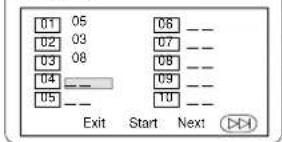
Press the PROGRAM button. The Program Sequence table will be shown on the screen.
-
Enter the track numbers according to the user preference a. Program 01\~09 press the direct number 0 to 9. b. Program 10\~19 press the button +10 then press number keys 0 to 9, For example: +10+3=program 13 c. Program 20 press +10 button twice.
FOR CD

text_image
PROGRAM 01 --- 06 --- 02 --- 07 --- 03 --- 08 --- 04 --- 09 --- 05 --- 10 --- Exit Next >>>PROGRAM
text_image
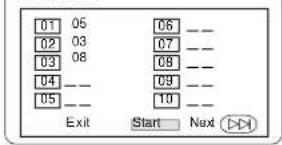
01 05 02 03 03 08 04 --- 05 --- Exit Start Next ▶▶- After assigning the playback sequence, move the highlight cursor to the START option by using the Navigation Arrows. Press ENTER on the remote controller to confirm.
PROGRAM
text_image
01 05 02 03 03 08 04 --- 05 --- Exit Start NextTo Remove the program
move the highlight cursor to desire Program By use the Navigation arrows then press the clear button to Remove the selected program.
FOR DVD
- Press the PROGRAM Key. The Program Sequence table will be shown on the screen.
FOR DVD

text_image
PROGRAM 01 TT: CH: 06 TT: CH: 02 TT: CH: 07 TT: CH: 03 TT: CH: 08 TT: CH: 04 TT: CH: 09 TT: CH: 05 TT: CH: 10 TT: CH: Exit Next- Enter the Title number with the Number keys (0-9) on the remote controller.
PROGRAM
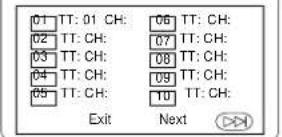
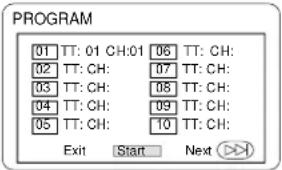
- Enter the Chapter number of the Title selected in the last step.
text_image
PROGRAM 01 TT: 01 CH:01 06 TT: CH: 02 TT: CH: 07 TT: CH: 03 TT: CH: 08 TT: CH: 04 TT: CH: 09 TT: CH: 05 TT: CH: 10 TT: CH: Exit Start Next >>>- Repeat step 2 - 3 to input the sequence.

text_image
PROGRAM 01 TT:01CH:01 06 TT: CH: 02 TT:02 CH:01 07 TT: CH: 03 TT:03 CH:01 08 TT: CH: 04 TT:04 CH:01 09 TT: CH: 05 TT:05 CH:01 10 TT: CH: Exit Start Next >>>- After assigning the playback sequence, move the highlight cursor to the START option by using the Navigation Arrows. Press ENTER on the remote controller to confirm.
text_image
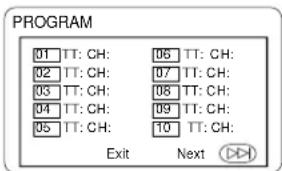
PROGRAM 01 TT: CH: 06 TT: CH: 02 TT: CH: 07 TT: CH: 03 TT: CH: 08 TT: CH: 04 TT: CH: 09 TT: CH: 05 TT: CH: 10 TT: CH: Exit Next >>>To cancel the program
Move the highlight cursor to desired Program by using the Navigation arrows then press CLEAR button to delete the selected program.
Picture CD
Digital picture (JPEG) from a digital camera can be burnt on to a disc and played on this TV. Insert a picture CD into the tray and the disc will be loaded automatically. If the disc type can be identified, the player will start showing the pictures one by one (Slide Show Mode).
Operations
During Slide Show Mode: -
- Press the STOP Button will shift to the Digest Mode in which multi pictures will be shown on the screen each time, the numbers of picture is depends on the contents of disc.
- Press the PAUSE Button will freeze the screen so that the current picture can be held for a long time. To resume the slide show mode, press PLAY Button.
- Press the NEXT Button on the remote controller will skip the next picture.
- Press the PREVIOUS Button on the remote controller will repeat the current picture.
TROUBLESHOOTING GUIDE (TV)
Check the following before requesting service:
| SYMPTOM | POSSIBLE CAUSE | POSSIBLE SOLUTION |
| POWER | ||
| No power. | The AC power cord is not Connected. | Connect the AC power cord to the AC outlet. |
| TV BROADCAST RECEPTION | ||
| Poor or no picture. | TV station experiencing problems. | Try another channel. |
| Picture control is not adjusted. | Check picture control adjustments. | |
| Possible local interference. | Check for source of reception disturbance. | |
| Antenna/CATV connector is not connected. | Check CATV connection or VHF/UHF antenna. | |
| Picture wobbles or drifts. | TV station experiencing problems. | Try another channel. |
| Cable TV channel is scrambled. | A Cable box needs to be used (if desired). | |
| Possible local interference. | Check for source of reception disturbance. | |
| No CATV reception. | CATV not connected. | Check all CATV connections. |
| AIR/CATV option set to AIR. | Set AIR/CATV option to CATV. | |
| Cable TV service interrupted. | Contact your Cable TV company. | |
| No reception above ch13. | AIR/CATV option set to AIR. | Set AIR/CATV option to CATV. |
| Poor or no sound. | TV station experiencing problems. | Try another channel. |
| MUTE button is pressed. | Press MUTE button again. | |
| Possible local interference. | Check for source of reception disturbance. | |
| Antenna/CATV connector is not connected. | Check CATV connection or VHF/UHF antenna. | |
| Volume is set to minimum. | Increase volume. | |
| TV shuts off. | TV station stopped broadcasting. | Tune to a new channel. |
| Sleep Timer is set. | Set Sleep Timer to Off. | |
| Home breaker has blown. | Check breaker. | |
| Closed Captioning not working. | TV signal is weak. | Check CATV or VHF/UHF antenna connection. |
| TV station experiencing problems or program tuned is not closed captioned. | Try another channel. | |
| Closed Captioning not turned on. | Turn Closed Captioning on. | |
| REMOTE CONTROL | ||
| Remote control does not operate. | Distance is too far or too much light in the room. | Operate within 20 feet or reduce the light in the room. |
| There is an obstacle in the path of the beam or remote is not aimed at the sensor. | Clear the path of the beam and/or aim the remote at the sensor. | |
| The batteries are weak or installed incorrectly. | Replace the batteries or install correctly. | |
| PARENTAL CONTROL (PC) | ||
| PC protection not working properly. | Parental Control setting is turned off. | Turn Parental Control setting on. |
| News or sports event being broadcast. | Parental Control does not work with news or sporting events. | |
| Ratings not set. | Set ratings as desired. | |
TROUBLESHOOTING GUIDE (OTHER)
| SYMPTOM | POSSIBLE SOLUTION |
| CD PLAYER | |
| CD Player does not play. | CD is not installed or inserted upside-down; install correctly. |
| CD skips while playing. | Disc is dirty or scratched; replace disc. |
| GENERAL | |
| No sound. | Power cord disconnected; reconnect. |
| DVD | |
| DVD does not function properly. | Disc is dirty or inserted incorrectly; reinsert disc. |
| Some features and functions are not available on all discs. | |
| No picture and/or sound. | The equipment is not connected properly. |
| The TV/DVD button has not been pressed to select the DVD mode. | |
| The search feature is not working. | Some disc have sections that do not allow searching; this is normal. |
| Subtitles are not working. | Subtitles appear only when the disc contains them. |
| Angle cannot be changed. | Angles may not be recorded on the disc (see disc jacket) or they may only be recorded on certain scenes. |
RECEPTION DISTURBANCES
Most types of television interference can be remedied by adjusting the height and position of the VHF/UHF antenna. Outdoor antennas are recommended for best results if not using cable or a satellite. The most common types of television interference are shown below. If one of these symptoms appear when the TV is connected to a Cable TV system, the disturbance may be caused by the local cable company broadcast
IGNITION:
Black spots or horizontal streaks may appear, picture may flutter or drift. Usually caused by interference from automobile ignition systems, neon lamps, electric drills and other electric appliances.
GHOSTS:
Ghosts are caused by the television signal following two paths. One is the direct path and the other is reflected from tall buildings, hills or other objects. Changing the direction or position of the antenna may improve the reception.
SNOW:
If your receiver is located in the fringe area of a television station where the signal is weak, your picture may be marred by the appearance of small dots. When the signal is extremely weak, it may be necessary to install an external antenna to improve the picture.
RADIO FREQUENCY INTERFERENCE:
This interference produces moving ripples or diagonal streaks, and in some cases, causes loss of contrast in the picture.
PICTURE SIZE VARIATION:
A slight picture size variation is quite normal when you adjust the CONTRAST or BRIGHTNESS setting.
natural_image
Black-and-white photo of a small dog sitting on textured ground (no text or symbols visible)
natural_image
Black-and-white photo of a small dog (no text or symbols visible)
natural_image
Black-and-white photo of a small, fluffy dog on a textured surface (no text or symbols visible)
natural_image
Black-and-white photo of a small dog sitting on a striped surface, viewed through a fence (no text or symbols visible)Emerson® SERVICE
TO FIND THE LOCATION AND PHONE NUMBER OF YOUR NEAREST SERVICE CENTER PERMITTED TO PERFORM WARRANTY...
CALL TOLL FREE: 1-800-695-0098
FOR ADDITIONAL SET-UP OR OPERATING ASSISTANCE
PLEASE CALL:
1-800-898-9020
FOR CUSTOMER SERVICE, PLEASE SEND TO:
Emerson Radio Corp. Consumer Affairs Dept. 5101 Statesman Drive, Irving, TX 75063.
SPECIFICATIONS
| TV System: | NTSC-M |
| Channel Range: | VHF 2 -13UHF 14 -69CATV: A1 - A5, A8, A - WW+1 - W+84 |
| Tuner Type: | 181 channels, Quartz PLL,Frequency Synthesized |
DVD SECTION
| Laser Wave length: | 655nm |
| Laser power: | Class 1 |
| Signal System: | NTSC-M |
| Digital audio output: | Coaxial digital output; pin jack |
| AV Output: | RCA Jacks |
GENERAL SECTION
| AC Power Input: | AC 120V ~ 60Hz |
| AC Power | Consumption: 74W |
| Speakers: | 21/4" 8 Ohm x 2 |
| Audio Output: | 1.8W + 1.8W |
* Design and specifications are subject to change without notice.
This DVD Player is designed and manufactured according to the Region Management Information that is recorded on a DVD disc. If the Region number described on the DVD disc does not correspond to the Region number of this DVD Player, this DVD player will not play that disc.
This Region number of this DVD Player is

EMERSON RADIO CORP. DORA THE EXPLORER—MODEL DTE351 LIMITED WARRANTY
What does this warranty cover? Any manufacturing defects in original material, including original parts and workmanship, under normal use and conditions.
For how long? One year parts and labor from date of original purchase. The warranty is valid two years from date of original purchase for the picture tube.
What will we do? If you need service under this warranty, and you provide us with the dated proof of purchase, we will provide repair service at no charge for labor and parts at an authorized Depot Repair Facility, or replace the product at our discretion.
How do you make your warranty claim? If it becomes necessary to repair your unit, you can obtain the name and mailing location of a Depot Repair Facility by dialing 1-800-695-0098. You should pack your unit in a well-padded heavy corrugated box, enclose your check or money order payable to the Depot Repair Facility in the amount of \$9.00 to cover the return shipping and handling costs, and enclose a copy of your proof of purchase (warranty service will not be provided without a dated proof of purchase). Finally, you should ship the unit prepaid via UPS or parcel post (insured).
What does your warranty not cover? Your warranty does not cover the following:
- Damage from negligence, misuse, abuse, accident or failure to follow operating instructions.
• Use of product in a commercial application or rentals.
• Changes or repairs by anyone other than an authorized Depot Repair Facility. - Damage because your unit is improperly connected to the equipment of other manufacturers.
- Units on which the serial number has been defaced, modified or removed.
• Damage to equipment not properly connected to the product. - Cost incurred in shipping your unit to and from an authorized Depot Repair Facility.
- Ordinary adjustments which you can perform as outlined in the owner's manual.
• Signal reception problems caused by external antenna or cable systems.
• Products purchased, used, serviced or damaged outside of the United States.
What other limitations apply to your warranty?
THIS WARRANTY IS NON-TRANSFERABLE AND APPLIES ONLY TO THE ORIGINAL PURCHASER AND DOES NOT EXTEND TO SUBSEQUENT OWNERS OF THE PRODUCT. THIS WARRANTY IS VALID ONLY IN THE UNITED STATES OF AMERICA. ANY APPLICABLE IMPLIED WARRANTIES, INCLUDING THE WARRANTY OF MERCHANTABILITY, ARE LIMITED IN DURATION TO A PERIOD OF THE EXPRESSED WARRANTY AS PROVIDED ABOVE BEGINNING WITH THE DATE OF ORIGINAL PURCHASE AT RETAIL AND NO WARRANTIES, WHETHER EXPRESSED OR IMPLIED, SHALL APPLY TO THE PRODUCT THEREAFTER. WE MAKE NO WARRANTY AS TO THE FITNESS OF THE PRODUCT FOR ANY PARTICULAR PURPOSE OR USE. THE EXTENT OF OUR LIABILITY UNDER THIS LIMITED WARRANTY IS THE REPAIR OR REPLACEMENT PROVIDED ABOVE AND IN NO EVENT WILL OUR LIABILITY EXCEED THE PURCHASE PRICE PAID BY THE PURCHASER OF THE PRODUCT. UNDER NO CIRCUMSTANCES WILL WE BE LIABLE FOR ANY LOSS, DIRECT, INDIRECT, INCIDENTAL, SPECIAL OR CONSEQUENTIAL DAMAGE ARISING OUT OF OR IN CONNECTION WITH THE USE OF THIS PRODUCT.
How does state law apply to your warranty?
THIS WARRANTY GIVES YOU SPECIFIC LEGAL RIGHTS, BUT YOU MAY ALSO HAVE OTHER RIGHTS WHICH VARY FROM STATE TO STATE. SOME STATES DO NOT ALLOW LIMITATIONS ON IMPLIED WARRANTIES OR EXCLUSION OR LIMITATION OF INCIDENTAL OR CONSEQUENTIAL DAMAGE, SO THESE RESTRICTIONS MAY NOT APPLY TO YOU.
The serial number can be found on the back cabinet. We suggest that you record the serial number of your unit in the space below for future reference.
Model Number:
Serial Number: ____
TV130



Emerson®
EMERSON®
PART NO: DTE351-06272006-01
Printed in China