iP550 - Unspecified Emerson - Free user manual and instructions
Find the device manual for free iP550 Emerson in PDF.


| Product Type | Portable iPod Docking Station with Digital Tuning Stereo Receiver, Digital Clock and Remote Control |
| Brand | Emerson |
| Model | iP550 (Silver) / iP550BK (Black) |
| Power Source | AC 120V 60Hz or 8 C batteries (not included) |
| Radio Bands | AM and FM (FM Stereo) |
| Preset Stations | 20 (10 FM + 10 AM) |
| Sleep Timer | Up to 90 minutes |
| Auxiliary Input | 3.5mm mini stereo jack on left side |
| Headphone Jack | 3.5mm mini stereo on right side |
| Remote Control | Yes, with lithium battery CR2025 (included) |
| iPod Connectivity | 30-pin docking connector + USB for 1G iPod Shuffle |
| iPod Models Supported | 3G, 4G, mini, photo, nano (1G/2G), 5G (with included adapters) |
| Clock Display | Digital with AM/PM indicator, 12-hour format |
| Display Type | Multi-function LCD with backlight |
| Battery Charging | Charges docked iPod when unit is on AC power |
| Speaker System | Built-in stereo speakers with heavy duty drivers |
| Antenna | FM telescopic rod antenna; AM internal bar antenna |
| Cabinet Care | Wipe with soft dry cloth; avoid liquids and abrasive cleaners |
| Safety & Compliance | FCC Class B; safety instructions included; no user serviceable parts |
| Warranty | 90 days limited warranty (parts and labor) from Emerson Radio Corp. |
| Special Features | Mute button (remote only), sleep timer, FM stereo indicator, battery low indicator |
Frequently Asked Questions - iP550 Emerson
User questions about iP550 Emerson
0 question about this device. Answer the ones you know or ask your own.
Ask a new question about this device
Download the instructions for your Unspecified in PDF format for free! Find your manual iP550 - Emerson and take your electronic device back in hand. On this page are published all the documents necessary for the use of your device. iP550 by Emerson.
USER MANUAL iP550 Emerson
Portable iPod® Docking Station
with Digital Tuning Stereo Receiver,
Digital Clock and Remote Control
Made for all iPod ^® models including iPod ^® nano, iPod ^® shuffle and iPod ^® mini
OWNER'S MANUAL
iP550 (Silver Color)
iP550BK (Black Color)
Visit our web site at www.emersonradio.com
CAUTION
TO PREVENT FIRE OR SHOCK HAZARD, DO NOT USE THIS PLUG WITH AN EXTENSION CORD, RECEPTACLE OR OTHER OUTLET UNLESS THE BLADES CAN BE FULLY INSERTED TO PREVENT BLADE EXPOSURE. TO PREVENT FIRE OR SHOCK HAZARD, DO NOT EXPOSE THIS APPLIANCE TO RAIN OR MOISTURE.

The lightning flash with arrowhead symbol, within an equilateral triangle is intended to alert the user to the presence of uninsulated 'dangerous voltage' within the product's enclosure that may be of sufficient magnitude to constitute a risk of electric shock to persons.
CAUTION
RISK OF ELECTRIC SHOCK DO NOT OPEN
WARNING: TO REDUCE THE RISK OF ELECTRIC SHOCK DO NOT REMOVE COVER (OR BACK), NO USER SERVICEABLE PARTS INSIDE REFER SERVICING TO QUALIFIED SERVICE PERSONNEL.

The exclamation point within an equilateral triangle is intended to alert the user to the presence of important operating and maintenance (servicing) instructions in the literature accompanying the appliance.
The Caution Marking maybe located at the bottom enclosure of the apparatus.
IMPORTANT SAFETY INSTRUCTIONS
1.) Read these instructions. Keep these instructions. Follow all instructions. Heed all warnings.
2.) Do not use this apparatus near water.
3.) Clean only with dry cloth.
4.) Do not block any ventilation openings. Install in accordance with the manufacturer's instructions.
5.) Do not install near any heat sources such as radiators, heat registers, stoves, or other apparatus (including amplifiers) that produce heat.
6.) Do not defeat the safety purpose of the polarized or grounding-type plug. A polarized plug has two blades with one wider than the other. A grounding type plug has two blades and a third grounding prong. The wide blade or the third prong is provided for your safety. If the provided plug does not fit into your outlet, consult an electrician for replacement of the obsolete outlet.
7.) Protect the power cord from being walked on or pinched particularly at plugs, convenience receptacles, and the point where they exit from the apparatus.
8.) Only use attachments / accessories specified by the manufacturer.
9.) Unplug this apparatus during lightning storms or when unused for long periods of time.
10.) Refer all servicing to qualified service personnel. Servicing is required when the apparatus has been damaged in any way, such as power-supply cord or plug is damaged, liquid has been spilled or objects have fallen into the apparatus, the apparatus has been exposed to rain or moisture, does not operate normally, or has been dropped.
11.) This appliance shall not be exposed to dripping or splashing water and no object filled with liquids such as vases shall be placed on the apparatus.
12.) Use only with the cart, stand, tripod, bracket, or table specified by the manufacturer, or sold with the apparatus. When a cart is used, use caution when moving the cart/apparatus combination to avoid injury from tip-over.
13.) Do not overload wall outlet. Use only power source as indicated.
14.) Use replacement parts as specified by the manufacturer.
15.) The product may be mounted to a wall only if recommended by the manufacturer.
16.) Upon completion of any service or repairs to this product, ask the service technician to perform safety checks.

Thank you for purchasing this Portable iPod® Docking Station from Emerson Research. This compact portable unit allows you to listen to any dockable iPod® (available as of January 2006) through the built in speakers, for those times when you want to share you music with others, or when listening through your ear buds is simply not an option. We've even provided an iPod® compatible USB connector to allow connection of your iPod® Shuffle as well. And as long as your system is connected to an AC outlet it will also charge the battery of any iPod® connected to the docking station.
The powerful amplifier and heavy duty speakers in this system will deliver sound quality that you would never expect from such a compact unit. There's also a built in digital tuner with 20 preset station memories, a digital clock that allows you to fall asleep to the radio or your iPod® and a full function remote control.
The system can be operated on 8 "C" batteries or normal 120V AC house current. And we've even included an auxiliary input jack so you can also connect other MP3 players, personal CD players, or any other external device that has a headphone jack.
We have taken great care to insure that your system was in perfect working order when it left our factory. If you experience any problems with the set up or operation of this system, please do not return it to the retail store. Please call the Emerson Customer Service hotline, toll free, at:
1-800-898-9020, Monday through Friday between the hours of 9:00 AM and 5:00 PM Central Time. One of our representatives will try to resolve the problem for you. If the problem cannot be resolved by phone you will be advised how to obtain service or a replacement unit.
Once again, thank you for purchasing this portable iPod ^® docking station from Emerson Research.
iPod ^® is a trademark of Apple Computer Inc., registered in the U.S. and other countries.
IMPORTANT NOTES
- Avoid installing this unit in places exposed to direct sunlight or close to heat radiating appliances such as electric heaters, on top of other stereo equipment that radiates too much heat, places lacking ventilation or dusty areas, places subject to constant vibration and/or humid or moist areas.
- Operate controls and switches as described in the manual.
- Before turning on the power, make certain that the AC power cord is properly installed.
- When moving the set, be sure to first disconnect the AC power cord.
FCC Information
This equipment has been tested and found to comply with the limits for a Class B digital device, pursuant to Part 15 of the FCC Rules. These limits are designed to provide reasonable protection against harmful interference in a residential installation. This equipment generates, uses, and can radiate radio frequency energy and, if not installed and used in accordance with the instructions, may cause harmful interference to radio communications. However, there is no guarantee that interference will not occur in a particular installation. If this equipment does cause harmful interference to radio or television reception, which can be determined by turning the equipment off and on, the user is encouraged to try to correct the interference by one or more of the following measures:
• Reorient or relocate the receiving antenna.
- Increase the separation between the equipment and receiver.
- Connect the equipment into an outlet on a circuit different from that to which the receiver is connected.
- Consult the dealer or an experienced radio/TV technician for help.
This device complies with Part 15 of the FCC Rules. Operation is subject to the following two conditions:
(1) This device may not cause harmful interference, and
(2) This device must accept any interference received, including interference that may cause undesired operation.
Changes or modifications not expressly approved by the party responsible for compliance could void the user's authority to operate the equipment.
PREPARATION FOR USE
Unpacking and Set-up
- This carton contains the main unit, 5 plastic adapters to insure that all dockable iPod ^ s fit securely in the docking station, and the remote control. Confirm that you have all of these items and make sure that nothing is accidentally discarded with the packing materials.
- We recommend that, if possible, you save the carton and packing materials in the event that your unit ever needs to be returned for service. Using the original carton and packing materials is the only way to protect your unit from damage during shipment.
- Remove the paper "dummy iPod ^® " from the docking area and discard it. That is for store display purpose only.
To remove the "dummy iPod", slide the docking cradle upward to remove it from the front panel. Turn the cradle over and push the docking connector cover out of the cradle as shown in the following illustration, and then remove the "dummy iPod".

- Remove any descriptive labels or stickers from the front or top panels. Do not remove any labels from the back or bottom panels.


Power Sources
This system is designed to operate on 8 "C" batteries, not included, or on normal 120V 60Hz AC house current. Attempting to operate this system on any other power source may cause damage to the unit, and such damage is not covered by your warranty.
AC Operation
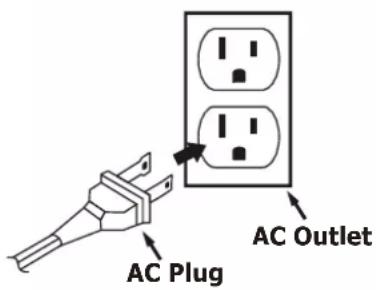
Insert the small female plug of the AC power cord into the AC socket on the back panel. The plug can only be inserted one way.

natural_image
Diagram of a TV power adapter connected to an outlet, showing signal flow and power outlet (no text or symbols)Insert the AC plug into your normal 120V 60Hz AC household outlet.
The display will show "AM 12:00". The display backlighting will turn on for a few seconds and then turn off again.

NOTE: The system has a polarized AC plug with one wide blade and one narrow blade. The plug will only fit into matching polarized AC outlets.
This is a safety feature to reduce the possibility of electric shock. If the plug will not fit in your AC outlet, you probably have an outdated non-polarized outlet. You should have your outdated outlet changed by a qualified, licensed electrician. Do not file the wide blade on the plug, or use an adapter to make the plug fit into your outlet. This defeats the safety feature and could expose you to electric shock.



Installing The Batteries
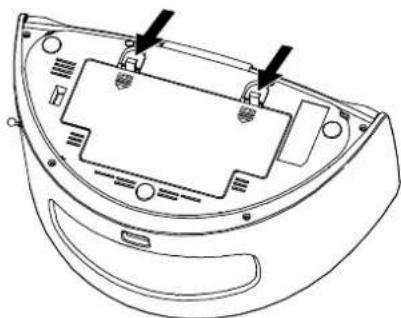
The battery compartment is located on the bottom cabinet. We recommend that you place the unit on a soft surface such as a carpet, on a towel or blanket before turning the unit upside down to install the batteries. This will prevent any scratches on the cabinet finish.
1.) With the unit upside down press the two battery cover locking tabs in the direction of the arrow marks and remove the battery compartment cover.
natural_image
Line drawing of a device casing with internal components and mounting holes (no text or symbols)2.) Insert 8 "C" batteries, not included, in the battery compartment according to the polarity markings engraved in the compartment. If the batteries are inserted incorrectly the unit will not work.
NOTE: We recommend that you use a well-known brand of alkaline batteries for longest life and best performance.

natural_image
Line drawing of a battery pack with multiple batteries and internal compartments (no text or symbols)3.) Replace the battery compartment and make sure that it locks securely in place.
IMPORTANT: In order to operate the unit on batteries the AC power cord must be disconnected from the AC socket on the back cabinet.

Battery Precautions
- Replacement of batteries must be done by an adult.
- Do not mix old and new batteries.
- Do not mix alkaline, standard (carbon-zinc) or rechargeable (nickel-cadmium) batteries.
- The supply terminals are not to be short-circuited.
• Non-rechargeable batteries are not to be recharged. - Exhausted batteries are to be removed.
- Only batteries of the equivalent type are to be used.
- Batteries are to be inserted with the correct polarity.
- Dispose of batteries properly. Do not dispose of batteries in fire. The batteries may explode or leak.
Protect Your Furniture
This model is equipped with non-skid rubber ‘feet’ to prevent the product from moving when you operate the controls. These ‘feet’ are made from non-migrating rubber material specially formulated to avoid leaving any marks or stains on your furniture. However certain types of oil based furniture polishes, wood preservatives, or cleaning sprays may cause the rubber ‘feet’ to soften, and leave marks or a rubber residue on the furniture. To prevent any damage to your furniture we strongly recommend that you purchase small self-adhesive felt pads, available at hardware stores and home improvement centers everywhere, and apply these pads to the bottom of the rubber ‘feet’ before you place the product on fine wooden furniture.
LOCATION OF CONTROLS AND INDICATORS
Front Panel

Top Panel


8



1.) Aux (Auxiliary Input) Jack.
2.) iPod ^® Docking Station.
3.) Speakers.
4.) Remote Control Sensor.
5.) Docking Cradle.
6.) Phones (Stereo Headphone) Jack.
7.) Battery Compartment (Bottom Cabinet).
8.) Power Button.
9.) FM Telescopic Antenna.
10.) Carrying Handle.
11.) Sleep Button.
12.) Multi-Function LCD Display.
13.) Function Button.
14.) Volume + Button.
15.) Volume - Button.
16.) ▶▶▶ Skip Forward / Tuning ∧ (Up) Button.
17.) ◀◀ Skip reverse / Tuning ▼ (Down) Button.
18.) Band/iPod Play Button.
19.) iPod ^® Shuffle USB Connector.
20.) iPod ^® 30-Pin Connector.
21.) Time/Display Button.
22.) Memory Button.
23.) Preset + Button.
24.) Preset - Button.

LCD Display
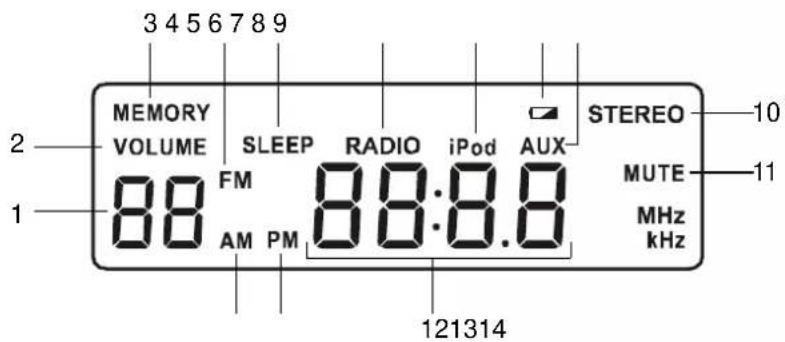
1.) Volume Level (00-64), Sleep Time, Radio Channel Display.
2.) VOLUME Indicator.
3.) MEMORY Indicator.
4.) FM Indicator.
5.) SLEEP Timer Indicator.
6.) RADIO Select Indicator.
7.) iPod Select Indicator.
8.) Battery Low Indicator.
9.) AUX Select Indicator.
10.) FM STEREO Indicator.
11.) MUTE Indicator.
12.) Clock, Radio Frequencies Display.
13.) Clock PM Indicator.
14.) AM Indicator.
Remote Control

1.) iPod Play/Band Button.
2.) Skip reverse / Tuning - Button.
3.) Volume + Button.
4.) Mute Button.
5.) Time / Display Button.
6.) Infrared Transmitter.
7.) Power Button.
8.) Memory Button.
9.) Function Button.
10.) Preset + Button.
11.) Preset - Button.
12.) ▶▶ Skip Forward / Tuning + Button.
13.) Volume - Button.
14.) Lithium Battery Compartment (Back Cabinet).


Remote Control
The remote control supplied with this system allows you to operate all of the features and functions found on the main unit control panel. The remote control receiver is located behind the left speaker grill. The effective operating distance of the remote control is approximately 15 feet.
Please note that bright sunlight can interfere with the proper operation of the remote control, so the operating range may be reduced when the unit is used outdoors on a sunny day.
IMPORTANT! Please note that the iPod® Shuffle has no interface to accept commands from a remote control. The remote control of this system will not operate an iPod® Shuffle. You must use the controls on the Shuffle itself to operate an iPod® Shuffle.
Remote Control Battery
The remote control requires one 3V lithium button battery, Type CR2025 or equivalent, included.
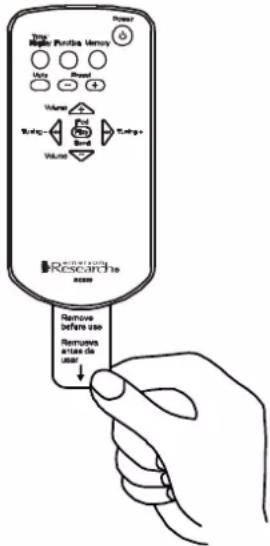
To preserve the life of the battery a small clear plastic spacer tab is installed between the battery and the battery terminal. This tab must be removed before the remote control can be used.
To remove the tab simply pull it out of the battery compartment, as shown, and discard it.


When the operation of the remote becomes intermittent or fails completely you should replace the battery as soon as possible.
The battery number is CR2025 or equivalent.
To replace the battery, put the remote control face down, slide the battery holder out of the remote control as shown in the illustration.
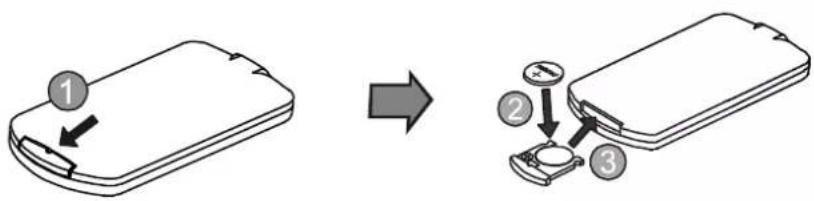
Remove the original battery from the holder and install a new CR2025 battery with the "+" side facing up. Then slide the battery holder back into the remote control.
CAUTION
DANGER OF EXPLOSION IF BATTERY IS INCORRECTLY REPLACED. REPLACE ONLY WITH THE SAME OR EQUIVALENT TYPE.

OPERATING INSTRUCTIONS
- Make sure that you have either installed the 8 "C" batteries or have connected the unit to your household AC outlet.
- Make sure that you have removed the clear plastic battery spacer tab from the remote control.
Setting The Clock
NOTE: The clock can only be set while the system is in the power 'Off' mode. If the power is 'On' press the ⏻ Power button on the main cabinet or remote control to shut the power 'Off', the proceed to set the clock as follows:
1.) Press the Time/Display button once. The display lighting turns on and the Hour digits begin to flash.

2.) While the Hour digits are flashing press the ▶▶(∧) or ◀◀(∨) buttons to move the display forward or back to the desired hour. Be sure to observe the AM or PM indicator to make sure you have set the hour co

3.) Press the Time/Display button again. The Hour digits stop flashing and the Minute digits begin to flash.

4.) While the Minute digits are flashing press the ▶▶▶(∧) or ◀◀◀(∨) buttons to move the display forward or back to the desired minute.




5.) When the correct time appears on the display press the Time/Display button once more to enter the time and start the clock running.
The Minute digits stop flashing and only the colon (:) continues to flash once per second to confirm that the clock is running.

NOTES:
After pressing the Time/Display button you must press the ▶▶I(∧) or ◀◀(∨) buttons within 10 seconds while the display is flashing or the time cannot be adjusted.
If the display backlighting goes off and the display stops flashing before you can set the time, repeat the above clock setting procedure and make sure that you adjust the time within 10 seconds after pressing the Time/Display button.
The correct time will appear on the display when the system is in the power 'Off' mode, the iPod mode, or the AUX mode.
When the system is in the RADIO mode the display will show the AM or FM frequency of the radio station you selected. To see the time in the RADIO mode, press the Time/Display button once. The display will change from radio frequency to correct time for 5 seconds, and then back to radio frequency automatically.
Listening To The Radio
1.) Press the ⏻ Power button on the main unit or remote control to turn the system power 'On'. The display lighting comes 'On'.
2.) Press the Function button on the main unit or the remote control until the RADIO indicator appears in the display.
The first time you select the RADIO function the display will show:
"FM 87.5 MHz".

To switch back and forth between FM and AM bands press the Band/iPod Play ▶ button repeatedly.
The first time you select the AM band the display will show "AM 520 KHz".

3.) Use the ▶▶I(∧) or ◀◀(∨) buttons select the desired station as follows:
• Automatic Tuning
Press and hold the ▶▶▶(∧) or ◀◀(∨) buttons until the display begins to move and then release the buttons. The tuner will search for the first strong station and stop on that station. Repeat this procedure until the tuner stops on your desired station.
- Manual Tuning
Repeatedly press the ▶▶▶(∧) or ◀◀◀(∨) buttons to move the display forward or back until it is showing the frequency of your desired station. Use the manual tuning procedure to tune to stations that are not strong enough to be selected by the Automatic Tuning method.
4.) If you have tuned to an FM Stereo station the STEREO indicator will appear in the display.


5.) Press the Volume + or - buttons on the main unit or the remote control to adjust the volume to the desired level. The VOLUME level indicator appears in the display when you adjust the volume.
The indicator range is from "00" (minimum) to "64" (maximum).
6.) When you are finished listening press the ⏻ Power button on the main unit or the remote control to switch the power 'Off'. The display lighting turns off and the display changes from radio frequency to the correct time.
NOTE: The system remembers the last station and the volume level that you had selected before the power was switched 'Off' and automatically returns to that station and volume level when the power is switched 'On' again.



Antenna Information
AM: The AM bar antenna is located inside the cabinet. If AM reception is unsatisfactory, try turning the entire unit slightly until the AM antenna is picking up the strongest possible signal.

natural_image
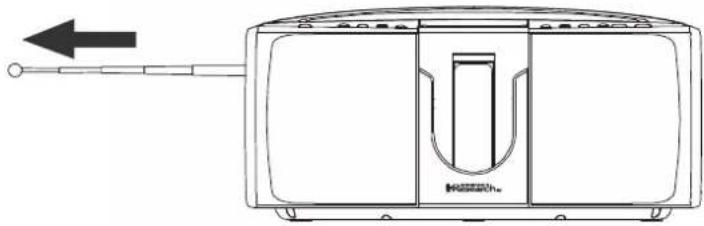
Diagram of a refrigerator with arrows indicating rotation and sound wave (no text or symbols)FM: The telescopic rod FM antenna is located on the left side of the cabinet. Pull it out of the cabinet as far as it will go until the swivel base is exposed.
natural_image
Line drawing of a toaster oven with handle and control panel (no text or symbols)Then raise the antenna to the vertical position, or to the position that provides the best FM reception.

natural_image
Line drawing of a kitchen appliance with directional arrows indicating motion (no text or symbols)CAUTION: THE FM ROD ANTENNA MUST BE PULLED ALL THE WAY OUT BEFORE ATTEMPTING TO RAISE IT TO THE VERTICAL POSITION.

Presetting Stations In The Tuner Memories
The tuner in this system has 20 preset station memories that allow you to memorize up to 10 of your favorite FM stations and 10 of your favorite AM stations for immediate recall at the touch of a button.
1.) Tune to the first station that you wish to memorize by either the Automatic or Manual Tuning method in the "Listening To The Radio" section.
2.) When the desired station appears in the display press the Memory button once.
The MEMORY indicator and memory number "01" begin flashing in the display.

3.) Within 10 seconds, while the indicators are still flashing, press the Memory button again. The indicators stop flashing and your station is now stored in preset memory number 01.

4.) Tune to the next station you wish to store. Example: FM 98.7 MHz.
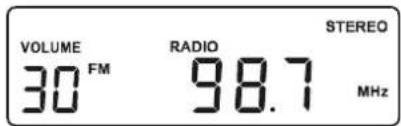
5.) Press the Memory button once. The MEMORY indicator and memory number "01" begin flashing.

Press the Preset + button once to advance the memory number from "01" to "02", and then press the Memory button once more.
The MEMORY and "02" indicators stop flashing to indicate that your station is now stored in preset memory number "02".

6.) Repeat steps 4 and 5, selecting a different preset memory number each time until you have stored up to 10 FM stations in the memory.
7.) Press the Band/iPod Play ▶II button to switch from the FM band to the AM band and then follow the above procedure to enter up to 10 of your favorite AM stations in the tuner memory.
Recalling Preset Stations
Turn the system 'On', select the RADIO function and the desired band as usual. Then press the Preset + or Preset – buttons to scroll up or down through the preset memories to find your desired station.
Changing Preset Stations
1.) Tune to the new station that you wish to memorize.
2.) Press the Memory button once. The MEMORY indicator and the memory number "01" indicators begin to flash.
3.) Press the Preset + or Preset - buttons to select the number of the preset station that you wish to change.
4.) Press the Memory button once more. The new station is stored in the desired memory location and the previously stored station is deleted from the memory.
iPod® ADAPTER INFORMATION
This system includes 5 different adapters designed to allow you to securely connect any "dockable" iPod® model to the docking station. Refer to the chart below to select the proper adapter for your particular iPod® model and insert that adapter into the docking station before connecting your iPod®.
NOTE: No adapters are provided for the 5G (fifth generation) 30GB and 60GB iPod®s with video capability, and 2G (second generation) iPod® nano. Please use that adapters that were included with these iPod®s at time of purchase. They will fit properly into the docking station of this system. We have also included one flat adapter with no opening at all. This serves as a dust cover that can be inserted in the docking station if no iPod® will be connected to system for an extended period of time.
| iPod® Versions iPod® Capacities Adapters | 4G | 3G | mini | photo | nano (1G) | nano (2G) | 5G | ||||||||||
| 20 GB | 40 GB | 10 GB | 15 GB | 30 GB | 40 GB | 4 GB | 6 GB | 20 GB | 30 GB | 40 GB | 60 GB | 2 GB | 4 GB | 2, 4, 8 GB | 30 GB | 60 GB | |
| 4G iPod (20 GB) | iPod photo (20/30 GB) 3G iPod (19/19 GB) | ● | ● | ● | * | ||||||||||||
| 3G iPod (30/40 GB) | 4G iPod (40 GB) | ● | ● | ||||||||||||||
| iPod photo (40/60 GB) | ● | ||||||||||||||||
| iPod mini | ● | ||||||||||||||||
| iPod nano (1G) | ● | ||||||||||||||||
| Dust Cover | "Docking Station Dust Cover. Install This Cover In The Docking Station If No iPod® Will Be Docked For An Extended Period of Time." | ||||||||||||||||
* No adapters provided. Please use the adapters that were included with your 5G iPod® and 2G iPod® nano models at time of purchase.
Connecting and Playing Your 'Dockable' iPod®
(Refer To Separate Instructions For The iPod® Shuffle)
IMPORTANT: To avoid any unwanted distortion when listening to your iPod ^ through the speakers of this system we recommend that you shut 'Off' the equalizer in the iPod ^ before inserting it in the docking station of this system. To shut off the iPod ^ equalizer, go to the "Main Menu" in your iPod ^ , scroll to the "Settings" menu, select the "EQ" setting and turn the EQ 'Off'.
1.) The Hold switch on your iPod ^® should be set to the 'Off' position to unlock the click-wheel navigation controls.
2.) Remove the docking cradle from the front panel by sliding the cradle upward as shown. If you have not already done so turn the cradle over and press on the bottom of the connector cover to remove it from the cradle. Discard the paper "dummy iPod".

natural_image
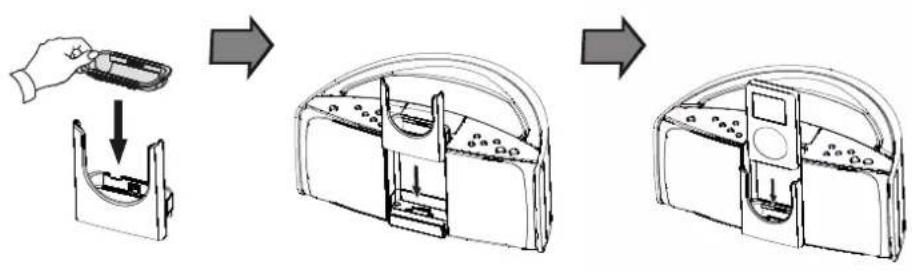
Diagram showing a device interior with arrows indicating movement, alongside a close-up of the internal components (no text or symbols present)3.) Choose the appropriate adapter for your particular iPod ^® model from among the 5 adapters supplied with this system and insert the adapter into the docking cradle as shown. (Refer to the iPod adapter chart).
Then re-install the docking cradle in the front panel.
flowchart
graph TD
    A["Device with lid"] --> B["Inserted part"]
    B --> C["Assembly of a device with labeled parts"]
    C --> D["Final packaging with control panel"]

natural_image
Color palette bar with grayscale shades and a small crosshair symbol (no text or symbols)NOTE: If you are using either the 30GB or 60GB fifth generation iPod ^® models with video capability or the 2G (Second Generation) iPod ^® nano, use the adapters that were supplied with the iPod ^® at time of purchase. They will fit correctly in the docking cradle of this system.
IMPORTANT!
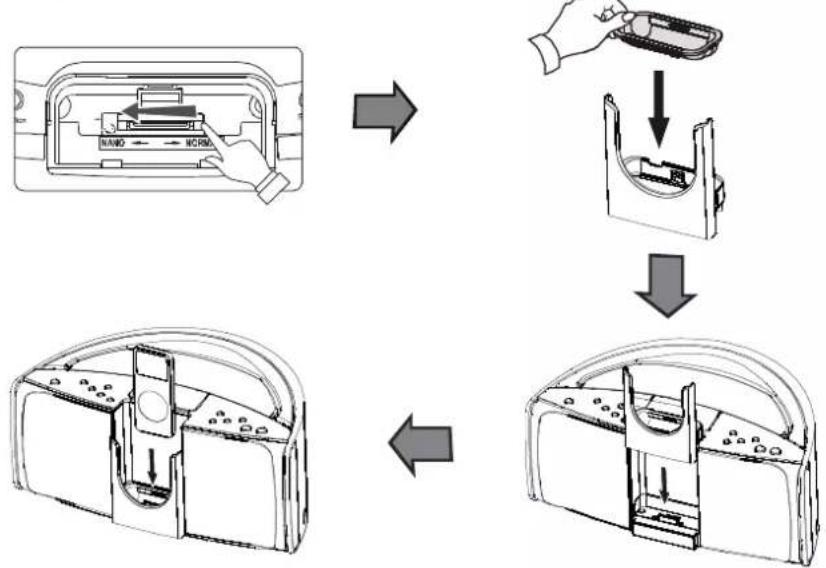
- If you are using a "1G (First Generation) iPod® nano" you must slide the docking connector to the 'left' position before inserting the required adapter as shown in the following illustrations:
flowchart
graph TD
    A["Device Opening"] --> B["Hand Placement"]
    B --> C["Internal Component Disassembly"]
    C --> D["Final Assembly"]
- If later you decide to install a different iPod® model you must remove the nano adapter from the docking cradle and slide the docking connector back to the 'right' position before inserting the appropriate adapter.
4.) Slide your iPod ^ into the adapter and make sure that it slides down as far as possible until it is correctly seated on the iPod ^ connector.
5.) Press the ⏻ Power button of this system to turn the power 'On'.
6.) Press the Function button of this system to select the iPod function. The "iPod" indicator appears in the display.



7.) If necessary, press the Band/iPod Play ▶II button to begin playback.
8.) Press the Volume + / - buttons on this system to adjust the iPod® volume level.
NOTE: When your iPod ^ is docked in this system the click-wheel volume control on the iPod ^ is automatically defeated. The volume can only be adjusted with the controls on this system.
To perform high-speed search within tracks depress and hold the ▶▶(∧) or ◀◀(▼) buttons on the top panel, on the remote control, or use the iPod ● click-wheel navigation controls as usual. Release the controls when you hear the desired passage and normal playback will resume at that point.
10.) To pause during playback, press the Band/iPod Play ▶ button again. Press once more to cancel pause and resume playback.
11.) To shut the iPod ^ off, depress and hold the Band/iPod Play ▶II button until the iPod ^ stops playing and the display goes blank, or the 'Charging' screen appears.
NOTE: If you wish to navigate through the iPod ^® menu to select among “Artists”, “Albums”, “Songs”, “Genres” etc., you must use the iPod ^® click-wheel navigation controls as usual. Those options cannot be selected from the controls on the main unit or the remote.
Removing or Changing The iPod® Adapter
If you will be using different 'dockable' iPod® models with this system you will have to install the appropriate adapter in the docking area for each different iPod® model. The procedure for removing and changing the iPod® adapter is as follows:
1.) Remove your iPod ^® from the docking station as usual.
2.) Lift up on the docking cradle and remove it from the docking station as shown.

natural_image
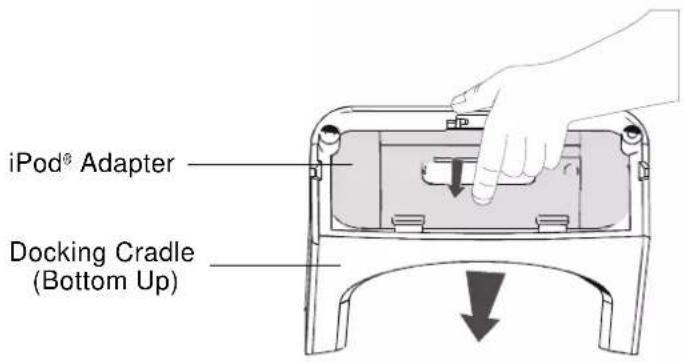
Technical line drawing of a mechanical device with an upward arrow indicating motion or assembly (no text or symbols present)3.) Press on the bottom of the iPod ^® adapter as shown to remove it from the docking cradle.
4.) Re-install the docking cradle in the docking station.
5.) Insert the desired iPod ^® adapter in the docking cradle.
Connecting and Playing A 1G (First Generation) iPod® Shuffle
The docking station of this system includes an Apple USB connector specifically designed for the 1G (First Generation) iPod ^® Shuffle with direct USB connector.
NOTE: If you have a new 2G (Second Generation) iPod ^® Shuffle you may connect it to the Auxiliary Input jack of this system. Please refer to the connection instructions on page 30.
IMPORTANT!
- Do not attempt to connect other portable MP3 players or portable USB drives to this iPod® Shuffle USB connector. You can connect MP3 players to the Auxiliary Input (Aux) jack of this system but not to the USB connector. This system is not compatible with portable USB storage drives that contain compressed MP3 or WMA audio files.
- The iPod ^ Shuffle has no interface to receive commands from an external controller, therefore you cannot use the Band/iPod Play ▶II button, the ▶I(∧) or ◀◀(∨) buttons on the top panel, or the buttons on the remote control of this system to operate the iPod ^ Shuffle. You can only use the controls on the iPod ^ Shuffle itself.
1.) Set the function switch on your iPod ^® Shuffle to either the Normal or Shuffle playback position and remove the protective cap.
2.) Connect your iPod ^® Shuffle to the USB connector on the docking station. It can only be connected one way, with the front panel of the Shuffle facing outward.

Press the ⏻ Power button on this system to turn the power 'On'.



3.) Press the Function button on this system to select the iPod function. The "iPod" indicator appears in the display.
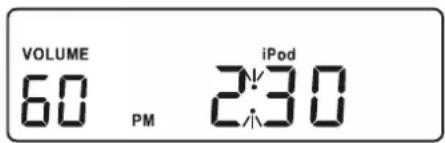
4.) Press the Volume + / - buttons on this system to adjust volume until the Volume Level Indicator display is showing "60".
5.) Press the Play/Pause button on the iPod® Shuffle to begin playback in either the Normal or Shuffle mode, according to your selection in Step 1 above.
NOTE: Pressing the Band/iPod Play ▶ button of this system has no effect for the iPod® Shuffle.
6.) Press the Volume +/− buttons on the iPod® Shuffle to adjust the iPod® volume level. If necessary you can then go back and make final up or down adjustments to the Volume controls on this system.
7.) To skip forward or back, to perform high-speed search, to pause or to stop playback, press the corresponding controls on the iPod® Shuffle as usual.
8.) When you are finished listening, remove the iPod ^® Shuffle, switch it 'Off', and replace the protective cap.
9.) Press the ⏻ Power button on this system to turn the power 'Off'.


Charging the iPod® Battery
IMPORTANT!
The battery charging circuit in this system only functions when this system is being operated on AC power. This system will not charge the iPod ^® batteries when you operating this system on battery power.
When your iPod ^ is connected to the ‘docking’ station of this system, and the iPod ^ is not playing, the iPod ^ battery will be recharged automatically. The battery will be charged whether the power of this system is ‘On’ or ‘Off’. It will also be charged while you are listening to an external auxiliary music source.
NOTE: To prevent interference between the battery charging circuit and the radio in this system the battery charging circuit is turned 'Off' while you are listening to the radio. When you shut the radio 'Off', battery charging resumes automatically.
Sleep To Music Timer (Main Unit Only)
This system includes a sleep to music timer that allows you to fall asleep to up to 90 minutes of music from the radio or from your iPod® and then shuts the power off automatically. The sleep timer function can be selected while the system is 'On' or 'Off'.
1.) Press the Sleep button on the top panel of the main unit. (There is no Sleep button on the remote control.)
If the power was 'Off', the system will turn on to the last function selected and
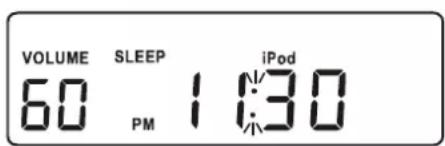
the SLEEP indicator and the number "30" will flash in the volume level display for 10 seconds. This indicates that the system will play for 30 minutes before shutting off.
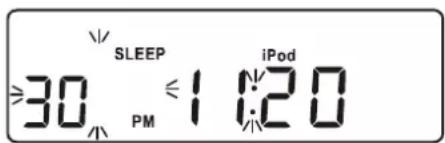
2.) To increase or decrease the amount of Sleep time press the ▶▶(∧) or ◀◀(∨) buttons on the top panel of this system while the SLEEP indicator is still flashing. Release the buttons when the display indicates the desired amount of Sleep time. The Sleep time can be adjusted between 90 minutes maximum and 1-minute minimum.
3.) After 10 seconds the Sleep time display stops flashing and changes back to the volume level display. However the SLEEP indicator remains in the display.
4.) Select the function you wish to hear as you fall asleep, RADIO or iPod, and operate that function as usual.
5.) When the Sleep timer counts down to "00" the system shuts off automatically. To shut the system off before the timer counts down to "00" press the ⏻ Power button at any time.
NOTE: If you set the Sleep timer for 90 minutes and you are listening to your iPod ^® , be sure that the music will not stop before the Sleep timer.
For example, if you selected an Album from the iPod ^® Album menu, and that Album is only 30 minutes long, the iPod ^® will stop after 30 minutes even if the sleep timer is set for 90 minutes.
Listening To A 2G (Second Generation) iPod® Shuffle, MP3 Player, Or Other External Source
This system includes a 3.5mm mini stereo Auxiliary Input (Aux) jack on the left side panel so that you can easily connect any external audio source with a headphone jack or a Line Out jack and listen to your external source through the speakers of this system.
Use the Auxiliary Input jack to connect the new 2G (Second Generation) iPod® shuffle, older non-dockable iPods, other MP3 players, personal CD players, etc.

1.) Connect the headphone jack or Line Out jack of your external audio source to the Aux In jack on the left side panel of this system.
NOTE: The connection cable is not included.
2.) Turn on the power switch of your external source and operate it as usual. Switch 'Off' any Equalizer or Bass Boost controls on the external source.
3.) Press the ⏻ Power button of this system to turn the power 'On' then press the Function button to select the AUX function.
The AUX indicator appears in the display.




4.) You should hear the sound from your external source through the speakers of this system.
NOTE: If you connected the Line Out jack of your external source then you only need to adjust the volume control of this system. If you connected the headphone jack of your external source then you may need to adjust both the volume control of your external source and the volume control of this system to find the most desirable volume setting.
5.) When you are finished listening press the Power button of this system to turn the power 'Off'. Don't forget to switch off the power to your external source as well.
NOTE: It is not necessary to disconnect your external source from the Aux In jack of this system.



Stereo Headphone Jack
This system includes a 3.5mm mini stereo Phones jack on the right side panel so that you can listen privately without disturbing others. When the headphone (not included) is connected to the Phones jack of this system the internal speakers are automatically shut off.

natural_image
Line drawing of a white electronic device with a button labeled 'Phone' (no other text or symbols)IMPORTANT! Before you put on your headphones please reduce the volume control of this system to a low level. Then put your headphones on and gradually increase the volume to a comfortable listening level. Remember that digital music files can contain both very soft and very loud passages. You should adjust the volume control to a comfortable level while listening to a louder passage so that you will not experience any discomfort caused by any sudden increase in volume level.
The headphones must be disconnected from the headphone jack in order to listen to the internal speakers again.
Mute Button (Remote Control Only)
To shut off the sound from the speakers temporarily, press the Mute button on the remote control. There is no mute button on the main unit.
The sounds stops and the MUTE indicator appears in the display.
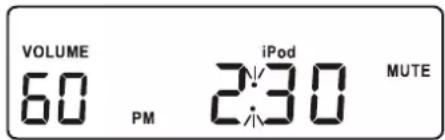
Press the Mute button again to cancel the mute function and restore the sound.
NOTE: The Mute button only shuts off the speakers. It does not "Pause" your iPod®. The iPod® continues to play when the mute function is selected.

CARE AND MAINTENANCE
Care Of The Cabinet
If the cabinet becomes dusty, wipe it with a soft cloth. If the cabinet becomes smudged or dirty, clean it with a soft, slightly dampened cloth.
Never allow water or any liquid to get inside the cabinet. Never use any abrasive cleaners or cleaning pads as these will damage the finish of your system.
Lithium Battery Precautions
- Dispose of the old battery properly. Do not leave it lying around where a young child or pet could play with, or swallow it. If the battery is swallowed, contact a physician immediately.
- Battery may explode if mistreated. Do not attempt to recharge it or disassemble it. Do not dispose of the old battery in a fire.

TO FIND THE LOCATION AND PHONE NUMBER OF YOUR NEAREST SERVICE CENTER PERMITTED TO PERFORM WARRANTY...
CALL TOLL FREE: 1-800-695-0098
FOR ADDITIONAL SET-UP OR OPERATING ASSISTANCE PLEASE CALL: 1-800-898-9020
FOR CUSTOMER SERVICE, PLEASE WRITE TO:
Emerson Radio Corp., Consumer Affairs Dept., 5101 Statesman Drive, Irving, TX 75063.
LIMITED WARRANTY
Emerson Radio Corp. warrants manufacturing defects in original material, including original parts and workmanship, under normal use and conditions, for a period of ninety (90) days from the date of original purchase in the U.S. With your dated proof of purchase, we will provide repair service at no charge for labor and parts at an authorized Depot Repair Facility, or replace the product in our discretion. For repair or replacement, pack your unit in a padded box, enclose your check or money order payable to Emerson Radio Corp. in the amount of \$9.00 (not required by California residents) to cover shipping and handling costs, and enclose a copy of your proof of purchase. Send your unit to:
Emerson Radio Corp., 5101 Statesman Drive, Irving, TX 75063.
This warranty does not cover damage from negligence, misuse, abuse, accident, failure to follow operating instructions, commercial use, rental, repairs by an unauthorized facility, or products purchased, used, serviced or damaged outside of the United States.
THIS WARRANTY GIVES YOU SPECIFIC LEGAL RIGHTS, AND YOU MAY ALSO HAVE OTHER RIGHTS WHICH VARY FROM STATE TO STATE.
AU898M
The Serial Number can be found on the back cabinet. We suggest that you record the Serial Number of your unit in the space below for future reference.
Model Number: iP550 / iP550BK
Serial Number:

natural_image
Color palette bar with grayscale gradient and a crosshair symbol (no text or labels)

iP550-041907-03
Printed in China
iP550_041907.p65 19/4/2007, 17:5635


- Portable iPod® Docking Station
- with Digital Tuning Stereo Receiver,
- Digital Clock and Remote Control
- CAUTION
- IMPORTANT SAFETY INSTRUCTIONS
- IMPORTANT NOTES
- FCC Information
- PREPARATION FOR USE
- Unpacking and Set-up
- Power Sources
- AC Operation
- Installing The Batteries
- Battery Precautions
- Protect Your Furniture
- LOCATION OF CONTROLS AND INDICATORS
- Remote Control
- Remote Control Battery
- OPERATING INSTRUCTIONS
- Setting The Clock
- NOTES:
- Listening To The Radio
- • Automatic Tuning
- - Manual Tuning
- Antenna Information
- Presetting Stations In The Tuner Memories
- Recalling Preset Stations
- Changing Preset Stations
- Connecting and Playing Your 'Dockable' iPod®
- (Refer To Separate Instructions For The iPod® Shuffle)
- IMPORTANT!
- Removing or Changing The iPod® Adapter
- Connecting and Playing A 1G (First Generation) iPod® Shuffle
- Charging the iPod® Battery
- Sleep To Music Timer (Main Unit Only)
- Listening To A 2G (Second Generation) iPod® Shuffle, MP3 Player, Or Other External Source
- Stereo Headphone Jack
- Mute Button (Remote Control Only)
- CARE AND MAINTENANCE
- Care Of The Cabinet
- Lithium Battery Precautions
- LIMITED WARRANTY
Brand : Emerson
Model : iP550
Category : Unspecified