Low End Strings - Musical instrument NATIVE INSTRUMENTS - Free user manual and instructions
Find the device manual for free Low End Strings NATIVE INSTRUMENTS in PDF.


User questions about Low End Strings NATIVE INSTRUMENTS
0 question about this device. Answer the ones you know or ask your own.
Ask a new question about this device
Download the instructions for your Musical instrument in PDF format for free! Find your manual Low End Strings - NATIVE INSTRUMENTS and take your electronic device back in hand. On this page are published all the documents necessary for the use of your device. Low End Strings by NATIVE INSTRUMENTS.
USER MANUAL Low End Strings NATIVE INSTRUMENTS
text_image
LOW END STRINGS Main Mixer Edit Animate Channel1 Tremolo Half SpO. <> Channel2 Rusty Tunnel Channel3 Laser Strings 1979 <> Channel4 Astronautics Low Mid Off Cut Sub Off Cut Boost C B A Animate Filter Space Echo Drift TimeWelcome to Low End Strings
Welcome to the first release of 10 Phantom Rooms, Low End Strings. Thanks a lot for your trust in buying this instrument! We really hope you enjoy using Low End Strings as much as we enjoyed to design the instrument and the sounds!
This instrument is the first release in 10 Phantom Room's Low End series. Many real, hybrid and electronic instruments have a great foundation in their lowest octaves, so we decided to focus on those octaves and their “fatness” in a whole series of instruments.
The basic idea of Low End Strings was to design an instrument with focus on the lowest possible octaves of real orchestra string sounds, but staged in a modern hybrid and processed context. This means please don't expect the most authentic real string instrument, but a super organic sounding four layer instrument with a pleasant learning curve. Basically we think you don't need this manual, but it helps to look at in case you want to capture the full potential of this instrument.
Key features are the sound variations in combination with the macros and the source sample content of course. We used tons of processing equipment from five decades to mutate original orchestral recordings, field recordings and synth sounds to the sources you can use now in Low End Strings.
Downloading and installing
Before you can start using Low End Strings, you need to install and set up the necessary software. Please follow these instructions to get started.
Installation via Native Access
Low End Strings installation happens via Native Access. In case this is your first Kontakt based instrument, please create your Native ID. To learn more about this step and about Native Access in general, have a look here.
In general, please follow those steps:
- Download and install Native Access.
- Create a Native ID if you do not yet have one.
- Login to Native Access using your Native ID.
- Click the Not installed tab.
-
Click Install for the following products:
-
Low End Strings
- Kontakt or Kontakt Player if you haven't installed yet
The software is installed automatically.
Loading Low End Strings in Kontakt
Once installed, you can start using Low End Strings in Kontakt. Low End Strings is not an independent plug-in, so you first need to open an instance of Kontakt or Kontakt Player:
- Open Kontakt as a plug-in in your host software (DAW) or as a stand-alone application.
- Locate Low End Strings in the Browser, on the left side of the user interface.
- Click Instruments to open the product's content.
- Double-click the Low End Strings.nki file to load the instrument.
Let's have a look
We want to give you a Low End Strings overview first of all. Let's have a look at the key features on the main page. You will see this page after loading the Low End Strings.nki file.
Four layers
Low End Strings offers four layers, playing at the same time. Imagine a mixer with four channels, each channel hosting its own “low end instrument”.

text_image
IO PHANTOM ROOMS LOW END STRINGS Main Mixer Edit Animate Channel1 Channel 2 Channel 3 Channel 4 Tremolo Half Sp Rusty Tunnel Laser Strings 1979 Astronautics <><>When listening to single layers separately, you might think those sound simple or thin in several cases. But this makes total sense to allow combining such layers without overloading frequencies heavily.
In case you load a snapshot, like the sound, but there is too much noise or sub bass included just switch off or replace the relevant layer and customize the sound to your own needs.
Three octaves
We decided to offer this instrument with a three octave range, but with clear focus on the lowest octave. During the design process of the samples we found out that many samples have a great usage in higher ranges, not just to play single low notes, but also pads for example. So we decided to offer three octaves to give you more flexibility while playing the sounds. And whenever you think you want a specific sound even lower or higher, use the Pitch control on the Edit page.
Six macros
Every snapshot was designed with individual settings for all six macros. Each macro can control parameters for all four layers individually. Feel free to try out those macros while playing around with snapshots for the first time or later.

text_image
Animate Filter Space Echo Drift TimeThree sound variations
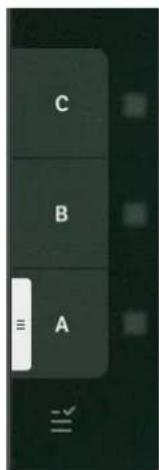
Imagine our sound variations as three sub-presets for each snapshot with blending capacities! Try out the snapshots, play some notes and turn the mod wheel at the same time slowly. Switching to another sound variation is possible by clicking on one of the three A-B-C fields.
text_image
C B AIn one of the three sound variations, you can store the settings of all faders on the Main page (channel volumes and macros) plus panorama on the Mixer page. Just hover over the little blurred floppy icon next to one of the sound variations to store the actual settings and blend all three variations with the mod wheel.
But there's more that you can do with the mod wheel, just click on the icon below sound variation A and you will see. Be aware of the fact that when using the mod wheel to control the filter macro for example, you can't control the A-B-C morph any more. The mod wheel controls either blending or one or more macros.
Smart EQing
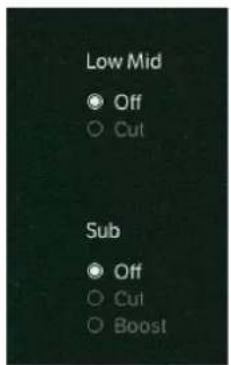
This 2 band-EQ needs no long explanation. We selected typical frequencies to get rid of mud in the low mids and to remove or add sub frequencies to your needs.
text_image
Low Mid Off Cut Sub Off Cut BoostSnapshot structure
We grouped the snapshots in those categories, fitting to typical use cases:
Basses
Here you will find several really deep and often punchy basses that work well in many genres. We recommend playing the lowest octave of those snapshots to hit the bass sweet spot, but feel free to play higher ranges for creative “misuse”.
Pads
When we initially designed the basic concept for Low End Strings, the idea was to mainly offer super low solo (monophonic) hybrid sounds. But after recording and designing all sound sources, we learned during prototyping, that also very deep pads are possible. Those you will find in this category. We recommend playing those snapshots polyphonically over all three octaves.
Solo Sustains
In this category you will find snapshots being designed to be played monophonically in the lowest octave to really catch the “deepness”. And again, feel free to play higher ranges and polyphonically for creative “misuse”.
SFX
This category covers snapshots that rather touch the SFX area than fitting into any of the other categories. Don't expect super playable sounds here, but inspiring sound effects or other unexpected sounds. We recommend playing the lowest octave of those snapshots, but feel free to play harmonies, mute channels, remove effects to turn such sounds into your own versions, fitting to your production needs.
The pages
Let's now have a look at the four pages of this instrument. Several features like filters and envelopes are self-explaining, so we mainly touch specialities here.
Main page
This page you will spend most of the time, assuming you are not designing sounds with Low End Strings with priority. So this page is of highest importance for you and most of all users.

text_image
LOW END STRINGS Main Mixer Edit Animate Channel1 Channel2 Channel3 Channel4 Sustain Voltage Galactic Tunnel Frozen Voltage Distorted Noise Low Mid Off Cut Sub Off Cut Boost C B A Animate Filter Space Echo Drift TimeLet's begin our journey in the upper area. Here you find the four Channels with volume faders and functions to load a sample source by clicking on the name (to open the browser page), to load a sample source with the dice randomly (but within the same category), to load the previous or next source within the same category and to switch a channel on and off.
On the right you find the smart EQ functions, that need no further explanation. On the left side you find the sound variations that we explained already in the chapter above. Finally you find the macros in the lower area that control parameters for all four layers individually. Let's jump to the next pages to learn which destinations each macro can control.
Mixer page
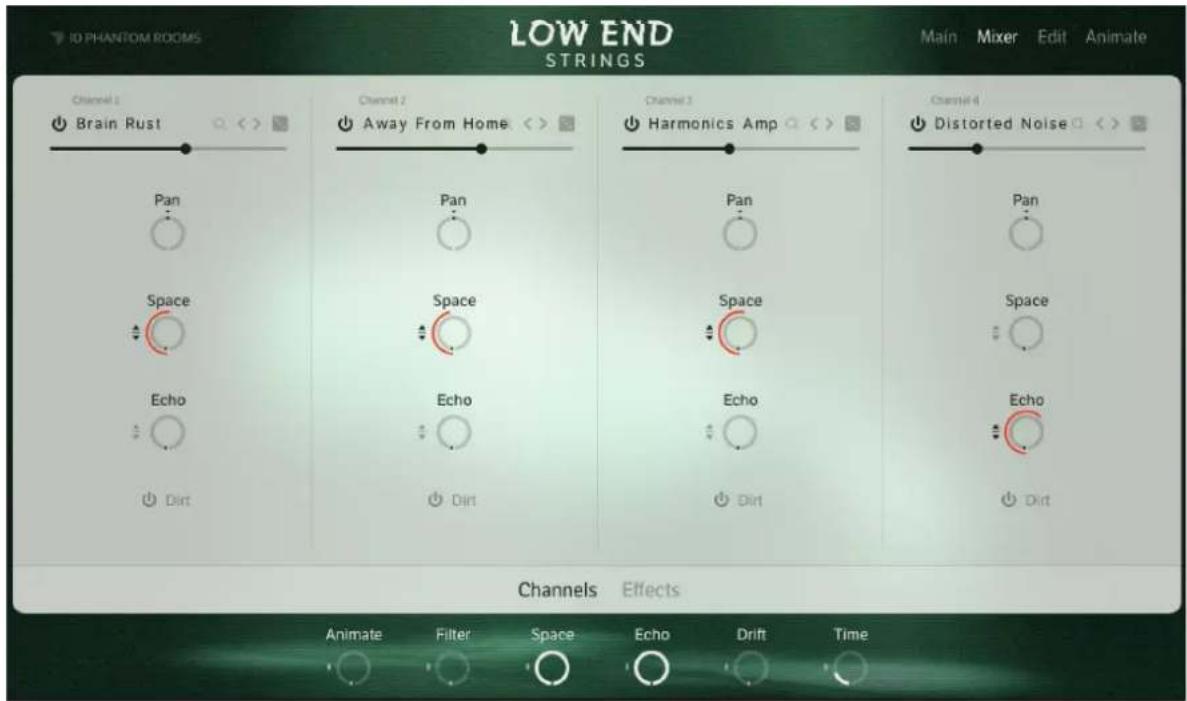
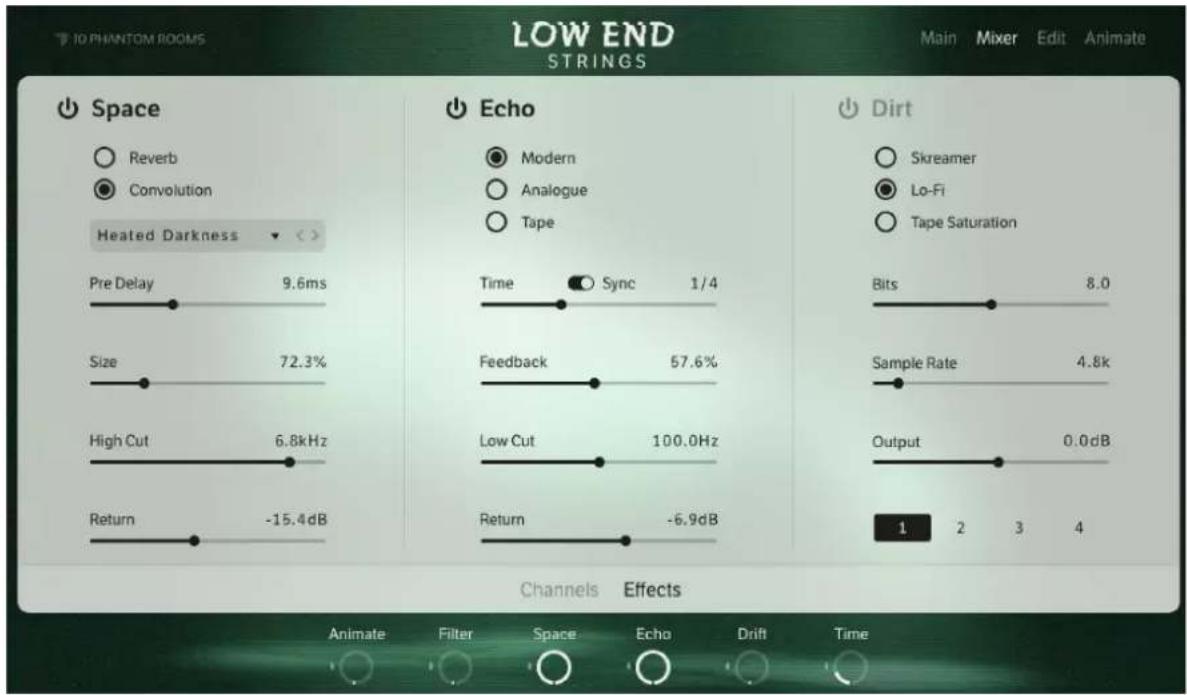
The Mixer page has two views, the Channels and the Effects view.
text_image
LOW END STRINGS Main Mixer Edit Animate Channel 1 Brain Rust Pan Space Echo Dirt Channel 2 Away From Home Pan Space Echo Dirt Channel 3 Harmonics Amp Pan Space Echo Dirt Channel 4 Distorted Noise Pan Space Echo Dirt Channels Effects Animate Filter Space Echo Drift TimeOn the Channels view you can tweak usual stuff like channels' level and panorama plus the Space and Echo send effects. Below those you find the Dirt On/Off switch, to activate a separate insert effect, individually per channel.
You can see red rings around a few Space and Echo effects on the screenshot above. Those control the modulation intensity of the appropriate macros in the lower area. You can see those macros on all pages. More about the macro assignments will be explained on the Edit page.
text_image
LOW END STRINGS Main Mixer Edit Animate Space Reverb Convolution Heated Darkness Pre Delay 9.6ms Size 72.3% High Cut 6.8kHz Return -15.4dB Echo Modern Analogue Tape Time Sync 1/4 Feedback 57.6% Low Cut 100.0Hz Return -6.9dB Dirt Skreamer Lo-Fi Tape Saturation Bits 8.0 Sample Rate 4.8k Output 0.0dB 1 2 3 4 Channels Effects Animate Filter Space Echo Drift TimeOn the Effects view you can edit all effects. Important to understand: there are four Dirt effects on the right, one per channel. On the screenshot above, you see the Dirt effect being selected for channel 1.
Edit page
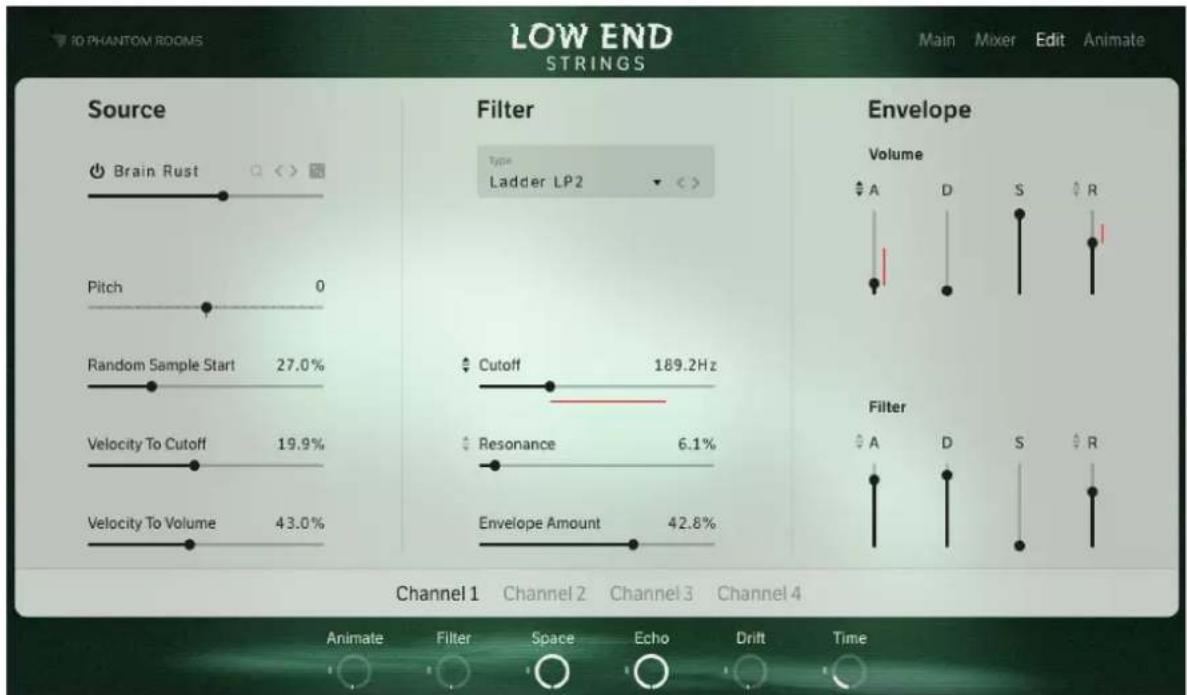
The Edit page offers editing of all basic sound and amplifier parameters for all four channels individually. Don't miss selecting the correct Channel 1-4 in the lower area.
text_image
LOW END STRINGS Main Mixer Edit Animate Source Brain Rust Pitch Random Sample Start Velocity To Cutoff Velocity To Volume Filter Type Ladder LP2 Cutoff 189.2Hz Resonance 6.1% Envelope Amount 42.8% Envelope Volume A D S R Filter A D S R Channel 1 Channel 2 Channel 3 Channel 4 Animate Filter Space Echo Drift TimeOn the Edit page you can also dial in the always red colored macro modulation intensity with the red rings and lines per channel.
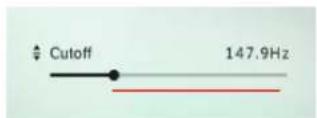
Just move the mouse to the little up/down-arrows next to the Cutoff label and dial in the intensity with moving the mouse up or down. During this movement you can see the appropriate macro in red light in the lower area. This helps to identify which macro you are assigning at the moment. On the Edit page you can define the macro settings for Filter and Time.
Animation page
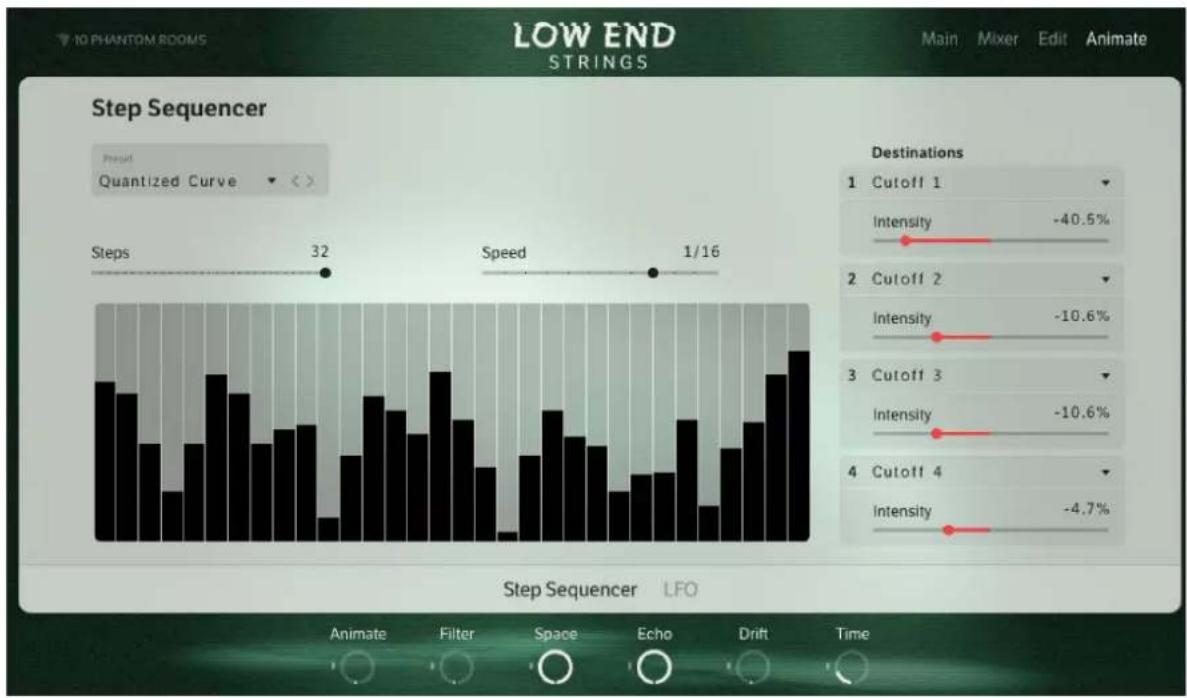
The Animation page has two views, the Step Sequencer and the LFO view.
bar
LOW END STRINGS Main Mixer Edit Animate Step Sequencer Result Quantized Curve Steps 32 Speed 1/16 Destinations 1 Cutoff 1 Intensity -40.5% 2 Cutoff 2 Intensity -10.6% 3 Cutoff 3 Intensity -10.6% 4 Cutoff 4 Intensity -4.7% Step Sequencer LFO Animate Filter Space Echo Drift TimeOn the Step Sequencer view you can tweak the step sequencer values on the left and the Animate macro assignments on the right.
text_image
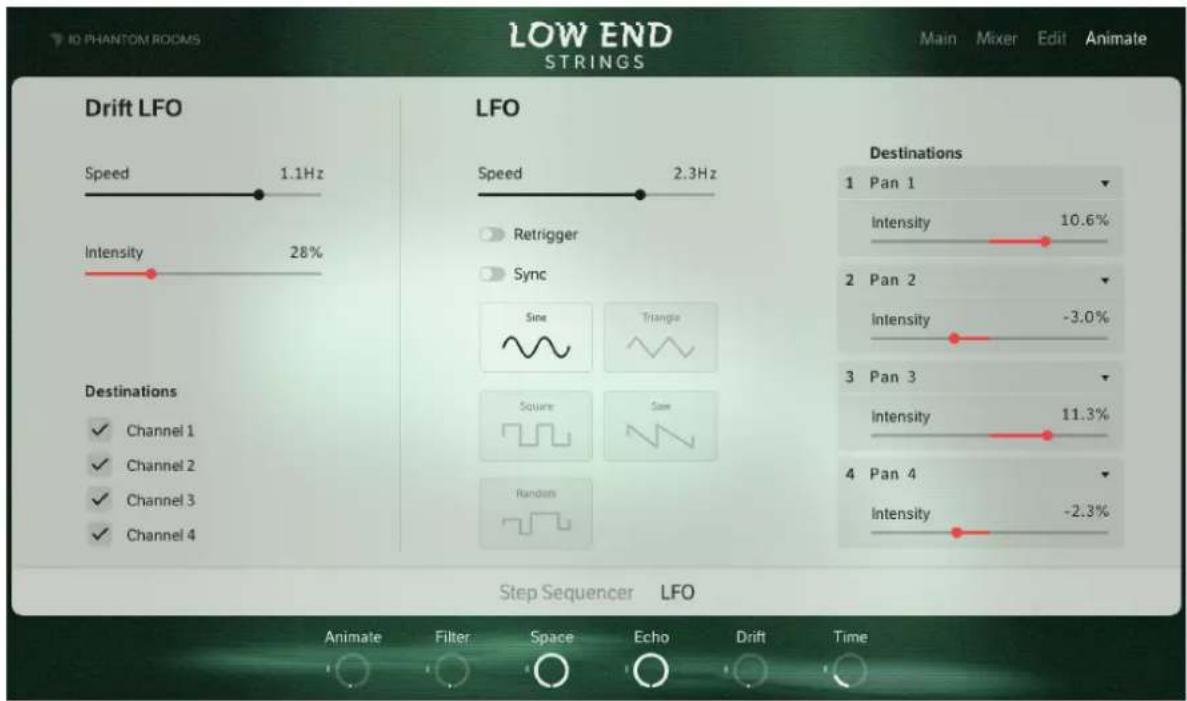
ID PHANTOM ROOMS LOW END STRINGS Main Mixer Edit Animate Drift LFO Speed 1.1Hz Intensity 28% Destinations ✓ Channel 1 ✓ Channel 2 ✓ Channel 3 ✓ Channel 4 LFO Speed 2.3Hz Retrigger Sync Sine Triangle Square Sense Random Step Sequencer LFO Destinations 1 Pan 1 Intensity 10.6% 2 Pan 2 Intensity -3.0% 3 Pan 3 Intensity 11.3% 4 Pan 4 Intensity -2.3% Animate Filter Space Echo Drift TimeOn the LFO view you can tweak the Drift LFO parameters including Drift macro intensity on the left. In the middle and right areas you can tweak all LFO parameters and the Animate macro assignments on the right.
Credits
Product Design: Tobias Menguser, Paul Haslinger
Sample Concept, Processing & Design: Tobias Menguser
Graphic Design: Ingo Hermes
Kontakt Scripting: Klaus Baetz
Orchestral Recordings: Stephan Lembke
Presets Design: Tobias Menguser, New Loops, emptyvessel, Marco Iodice, Joerg Huettner, Richard Veenstra
Documentation: Tobias Menguser