Armstrong - Smartphone NOKIA - Free user manual and instructions
Find the device manual for free Armstrong NOKIA in PDF.


User questions about Armstrong NOKIA
0 question about this device. Answer the ones you know or ask your own.
Ask a new question about this device
Download the instructions for your Smartphone in PDF format for free! Find your manual Armstrong - NOKIA and take your electronic device back in hand. On this page are published all the documents necessary for the use of your device. Armstrong by NOKIA.
USER MANUAL Armstrong NOKIA
User guide Nokia 2 V Tella
Get started
Keep your phone up to date
Keep your phone up to date and accept available software updates to get new and enhanced features for your phone. Updating the software may also improve your phone's performance.
Buttons and parts

text_image
1 2 3 DONOSHA 4 5 6 7 8 9 10 11 NOSHA wdserr- Front camera
- Earpiece
- Headset connector
- The Google Assistant button
- Microphone
-
USB/Charger port
-
Power/Lock button
- Volume buttons
- Loudspeaker
- Flash
- Main camera
Some of the accessories mentioned in this user guide, such as charger, headset, or data cable, may be sold separately.
Do not connect to products that create an output signal, as this may damage the device. Do not connect any voltage source to the audio connector. If you connect an external device or headset, other than those approved for use with this device, to the audio connector, pay special attention to volume levels.
Parts of the device are magnetic. Metallic materials may be attracted to the device.
Do not place credit cards or other magnetic stripe cards near the device for extended periods of time, since the cards may be damaged.
Swap the SIM card and insert the memory card
Optional:
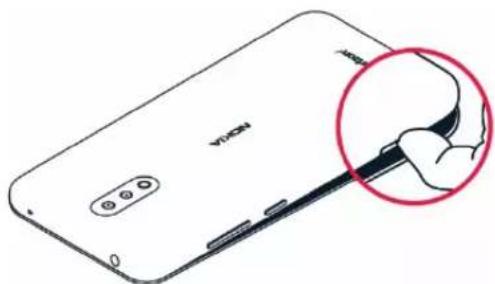
Your phone comes with the SIM card preinstalled, but if you want to swap the SIM, follow these steps:
- Place your fingernail in the seam between the back cover and the display, and pop the cover off the phone.
natural_image
Side view of a white smartphone with a red circle highlighting the cable (no text or symbols visible)-
Lift and remove the battery.
-
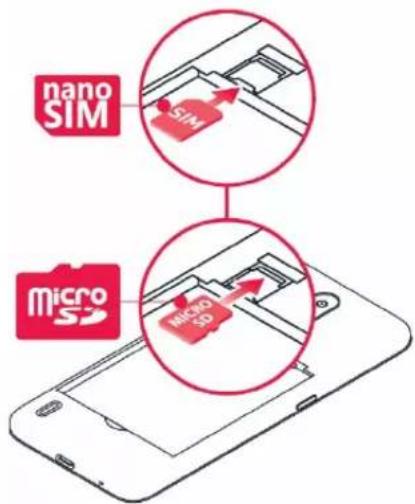
Hold the SIM card with metal contacts facing downward and the cut corner at the upper left. Slide the card into the SIM card slot.
-
Hold the microSD card with metal contacts facing downward and the cut corner at the upper right. Slide the card into the microSD card slot.
text_image
nano SIM micro SD micro SD- Insert the battery, making sure the gold contacts line up.

natural_image
Isometric line drawing of a smartphone showing the top portion of its screen and a side panel, with red arrows indicating the mechanism (no text or symbols present)- Replace the cover on the back of the phone; making sure it is lined up before pressing it into place around all of the edges.

natural_image
Illustration of a smartphone with red arrows indicating speed or movement around the screen (no text or symbols present)Note: The microSD card is sold separately.
Important: Do not remove the memory card when an app is using it. Doing so may damage the memory card and the device and corrupt data stored on the card.
Use only compatible memory cards approved for use with this device. Incompatible cards may damage the card and the device and corrupt data stored on the card.
NOTE: Switch the device off and disconnect the charger and any other device before removing any covers. Avoid touching electronic components while changing any covers. Always store and use the device with any covers attached.
Charge your phone
- Insert the small end of the USB cable into the phone.

natural_image
Line drawing of a smartphone showing the cable being inserted into a plug (no text or symbols present)- Insert the larger end into the charger and plug it into an outlet.
Your phone supports the USB-C cable. You can also charge your phone from a computer with a USB cable, but it may take a longer time.
If the battery is completely discharged, it may take several minutes before the charging indicator is displayed.
WARNING: Only use approved chargers with your device. Incompatible chargers or tampering with the charger port could damage your device and void the warranty.
Turning your phone on/off
NOTE: The first time you turn on your phone, you will need to activate it. See the Get started guide included with your phone.
To switch your phone on, press and hold the Power/Lock button.

text_image
NISKIATRANSFER DATA FROM YOUR PREVIOUS PHONE
You can transfer data from an old phone to your new phone using your Google account.
To back up data on your old phone to your Google account, refer to your old phone's user guide.
-
Tap Settings > Accounts > Add account > Google.
-
Select which data you want to restore on your new phone. The sync starts automatically once your phone is connected to the internet.
RESTORE APP SETTINGS FROM YOUR PREVIOUS ANDROID PHONE
If your previous phone was an Android ^™ , and back up to Google account is enabled on it, you can restore your app settings and Wi-Fi passwords.
-
Tap Settings > System > Backup.
-
Switch Backup to Google Drive to On.
Lock your phone
If you want to avoid accidentally making a call when your phone is in your pocket or bag, you can lock your buttons and screen.
To lock your buttons and screen, press the Power/Lock button.
UNLOCK THE BUTTONS AND SCREEN
Press the Power/Lock button, and swipe up across the screen. If asked, provide additional credentials.
Protect your phone with a screen lock
You can set your phone to require authentication when unlocking the screen.
SET A SCREEN LOCK
-
Tap Settings > Security > Screen lock.
-
Choose the type of lock and follow the instructions on your phone.
Use the touch screen
Important: Avoid scratching the touch screen. Never use an actual pen, pencil, or other sharp object on the touch screen.
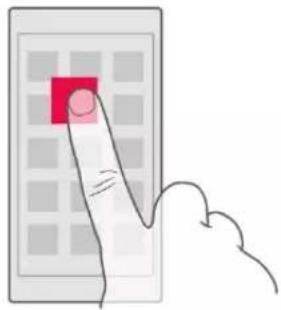
TAP AND HOLD TO DRAG AN ITEM
natural_image
Illustration of a finger pressing a red square on a smartphone screen (no text or symbols)Place your finger on the item for a couple of seconds, and slide your finger across the screen.
SWIPE

text_image
Diagram showing finger pressing a smartphone screen with red directional arrows indicating left and right movement.Place your finger on the screen, and slide your finger in the direction you want.
SCROLL THROUGH A LONG LIST OR MENU

text_image
Illustration showing a hand pointing to a document with a red downward arrow, indicating text reduction or error.Slide your finger quickly in a flicking motion up or down the screen, and lift your finger. To stop the scrolling, tap the screen.
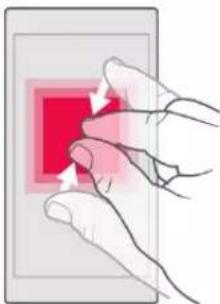
ZOOM IN OR OUT
natural_image
Illustration of a hand pressing a red square on a tablet device (no text or symbols visible)Place 2 fingers on an item, such as a map, photo, or web page, and slide your fingers apart or together.
The screen rotates automatically when you turn the phone 90 degrees.
To lock the screen in portrait mode, swipe down from the top of the screen, and tap Auto-rotate.
USE THE NAVIGATION KEYS
- To see all your apps, swipe up from the home key.
- To go to the home screen, tap the home key. The app you were in stays open in the background.
• To see which apps you have open, tap ■. - To switch to another open app, swipe right.
- To close an app, swipe it up.
- To close all the open apps, swipe right through all the apps, and tap CLEAR ALL.
- To go back to the previous screen you were in, tap the back key. Your phone remembers all the apps and websites you've visited since the last time your screen was locked.
Basics
Personalize your phone
Tap Settings > Display > Wallpaper.
CHANGE YOUR PHONE RINGTONE
Tap Settings > Sound > Phone ringtone.
Tap Settings > Sound > Default notification sound.
Notifications
USE THE NOTIFICATION PANEL
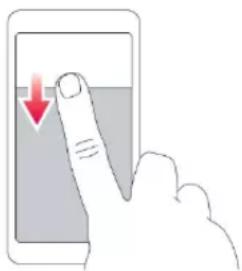
When you receive new notifications, such as messages or missed calls, indicator icons appear on the status bar at the top of the screen. To see more information about the notifications, drag the status bar down. To close the view, swipe up on the screen.
natural_image
Illustration of a hand pressing down on a smartphone screen with a red downward arrow (no text or symbols)To change the notification settings of an app, tap Settings > Apps & notifications > Notifications, and tap the app name to open the app settings. You can turn off or on the notifications for each app individually.
Tip: To see notification dots, tap Settings > Apps & notifications > Notifications > Advanced, and switch Allow notification dots on. A small dot will appear on the app icon, if you've got a notification, but haven't attended to it yet. Tap and hold the icon to see available options. You can tap the notification to open it, or swipe to dismiss.
USE THE QUICK SETTING ICONS
To activate features, tap the quick settings icons on the notification panel. To see more icons, drag the menu down.
To rearrange the icons, tap, tap and hold an icon, and then drag it to another location.
Control volume
If you have trouble hearing your phone ringing in noisy environments, or calls are too loud, you can change the volume to your liking by using the volume buttons on the side of your phone.
Do not connect to products that create an output signal, as this may damage the device. Do not connect any voltage source to the audio connector. If you connect an external device or headset, other than those approved for use with this device, to the audio connector, pay special attention to volume levels.
CHANGE THE VOLUME SETTINGS
Press a volume button on the side of your phone to see the volume status bar, tap, and drag the sliders on the volume bars left or right.
SET THE PHONE TO SILENT
To set the phone to silent, press a volume button, tap to set your phone to vibrate only and tap to set it to silent.
Battery life
To save power:
• Always charge the battery fully.
- Mute unnecessary sounds, such as touch sounds. Tap Settings > Sound > Advanced, and under Other sounds and vibrations, select which sounds to keep.
- Use wired headphones, rather than the loudspeaker.
- Set the phone screen to switch off after a short time. Tap Settings > Display > Advanced > Screen timeout and select the time.
- Tap Settings > Display > Brightness level. To adjust the brightness, drag the brightness level slider. Make sure that Adaptive brightness is disabled.
- Switch on the power saver: tap Settings > Battery > Battery Saver, and switch on.
- Use location services selectively: switch location services off when you don't need them. Tap Settings > Location, and disable Use location.
- Use network connections selectively: switch Bluetooth on only when needed. Use a Wi-Fi connection to connect to the internet, rather than a mobile data connection. Stop your phone scanning for available wireless networks. Tap Settings > Network & internet > Wi-Fi, and switch Use Wi-Fi off. If you're listening to music or otherwise using your phone, but don't want to make or receive calls, switch the airplane mode on. Tap Settings > Network & internet > Airplane mode. Airplane mode closes connections to the mobile network and switches your device's wireless features off.
Automatic text correction
USE KEYBOARD WORD SUGGESTIONS
Your phone suggests words as you write, to help you write quickly and more accurately. Word suggestions may not be available in all languages.
When you start writing a word, your phone suggests possible words. When the word you want is shown in the suggestion bar, select the word. To see more suggestions, tap and hold the suggestion.
Tip: If the suggested word is marked in bold, your phone automatically uses it to replace the word you wrote. If the word is wrong, tap and hold it to see a few other suggestions. If you do not want the keyboard to suggest words while typing, turn off the text corrections. Tap Settings > System > Languages & input > Virtual keyboard. Select the keyboard you normally use. Tap Text correction and switch off the text correction methods you do not want to use.
CORRECT A WORD
If you notice that you have misspelled a word, tap it to see suggestions for correcting the word.
SWITCH SPELL CHECKER OFF
Tap Settings > System > Languages & input > Advanced > Spell checker, and switch Use spell checker off.
Google Assistant
Google Assistant can help you search information online, translate words and sentences, make notes and calendar appointments, for example. You can use Google Assistant even when your phone is locked. However, Google Assistant asks you to unlock your phone before accessing your private data.
USE THE GOOGLE ASSISTANT BUTTON
To access the Google Assistant services, use the Google Assistant button on the side of your phone:
- Press the button once to start Google Assistant. When you press the button for the first time, you are asked to sign in with your Google account or create a new account.
- Press and hold the button to speak with Google Assistant. Ask your question and release the key. You see Google Assistant's answer on your phone's display.
Accessibility
You can change various settings to make using your phone easier.
INCREASE OR DECREASE THE FONT SIZE
- Tap Settings > Accessibility.
- Tap Font size. To increase or decrease the font size, drag the font size level slider.
INCREASE OR DECREASE THE DISPLAY SIZE
- Tap Settings > Accessibility.
- Tap Display size and to adjust the display size, drag the display size level slider.
Connect with your friends and family
Calls
MAKE A CALL
-
Tap .
-
Tap 🎨 and type in a number, or tap 🎨 and select a contact you want to call.
-
Tap .
ANSWER A CALL
When the phone rings, swipe up to answer.
REJECT A CALL
To reject a call, swipe down.
Contacts
Save and organize your friends' and family members' phone numbers.
SAVE A CONTACT FROM CALL HISTORY
- Tap 🔔, and tap Ⓤ to see call history.
- Tap the number you want to save.
- Select if you want to Create new contact or Add to a contact.
- Type in the contact information, and tap SAVE.
ADD A CONTACT
- Tap Contacts > .
- Fill out the information.
- Tap SAVE.
Send and receive messages
SEND A MESSAGE
- Tap Messages > +
- To add a recipient, tap ⚪ and type their number in the To field. To add a contact, start typing their name and tap the contact.
- After choosing all the recipients, tap √.
-
Write your message in the text box.
-
Tap

ADD A MAIL ACCOUNT
When you use the Gmail app for the first time, you are asked to set up your email account.
- Tap Gmail.
- You can select the address connected with your Google account or tap Add an email address.
- After adding all the accounts, tap TAKE ME TO GMAIL.
SEND MAIL
- Tap Gmail.
- Tap .
- In the To box, type in an address, or tap > Add from Contacts.
- Type in the message subject and the mail.
- Tap .
Camera
- Tap Camera.
- Take aim and focus.
- Tap .O
TAKE A SELFIE
-
Tap Camera.
-
Tap 🔒 to switch to the front camera.
-
Tap .O
USE GOOGLE LENS
With Google Lens, you can use the viewfinder of your camera to identify things, copy text, scan codes, and search for similar products, for example.
-
Tap Camera.
-
Tap >
-
Point the camera to the thing you want to identify, and follow the instructions on the display.
ADD EFFECTS TO YOUR PHOTO
-
Tap Camera > Portrait.
-
Tap . O
-
Select the photo you just took, you can see it in the bottom right corner.
-
Tap 華 and select the effect you want.
LEARN ABOUT YOUR CAMERA SETTINGS
In the Camera app, tap ≡ to learn more about each setting.
RECORD A VIDEO
-
Tap Camera > Video.
-
Tap ○ to start recording.
-
To stop recording, tap .☐
Your photos and videos
VIEW PHOTOS AND VIDEOS ON YOUR PHONE Tap Photos.
COPY YOUR PHOTOS AND VIDEOS TO YOUR COMPUTER
You can use your computer's file manager to copy or move your photos and videos to the computer.
Connect your phone to the computer with a compatible USB cable. To set the USB connection type, open the notification panel, and tap the USB notification.
SHARE YOUR PHOTOS AND VIDEOS
You can share your photos and videos quickly and easily for your friends and family to see.
-
Tap Photos, tap the photo or video you want to share and tap
-
Select how you want to share the photo or video.
Internet and connections
Activate Wi-Fi
Using a Wi-Fi connection is generally faster and less expensive than using a mobile data connection. If both Wi-Fi and mobile data connections are available, your phone uses the Wi-Fi connection.
TURN ON WI-FI
- Tap Settings > Network & internet > WiFi.
- Switch Use Wi-Fi on.
- Select the connection you want to use.
Your Wi-Fi connection is active when ▼ is shown on the status bar at the top of the screen.
Important: Use encryption to increase the security of your Wi-Fi connection. Using encryption reduces the risk of others accessing your data.
Browse the web
USE YOUR PHONE TO CONNECT YOUR COMPUTER TO THE WEB
It's simple to use the internet on your laptop on the go. Turn your phone into a Wi-Fi hotspot, and use your mobile data connection to access the internet with your laptop or other device.
- Tap Settings > Network & internet > Tethering & Mobile Hotspot.
- Switch on the Mobile Hotspot to share your mobile data connection with a device, USB tethering to use a USB connection, or Bluetooth tethering to use Bluetooth.
The other device uses data from your data plan, which may result in data traffic costs. For info on availability and costs, contact your network service provider.
START BROWSING
- Tap Chrome.
- Type a web address and tap →.
SEARCH THE WEB
- Tap Chrome.
- Tap the search bar.
- Write your search word in the search box.
- Tap .→
You can also select a search word from the proposed matches.
Bluetooth®
You can connect wirelessly to other compatible devices, such as phones, computers, headsets, and car kits. You can also send your photos to compatible phones or to your computer.
CONNECT TO A BLUETOOTH DEVICE
You can connect your phone with many useful Bluetooth devices. For example, with a wireless headset (sold separately), you can speak on the phone hands-free – you can continue what you're doing, such as working at your computer, during a call. Connecting a phone to a Bluetooth device is called pairing.
- Tap Settings > Connected devices > Connection preferences > Bluetooth.
- Switch Bluetooth to On.
- Make sure the other device is switched on. You may need to start the pairing process from the other device. For details, see the user guide for the other device.
- To pair your phone and the device, tap Pair new device, and tap the device on the list of discovered Bluetooth devices.
- You may need to type in a passcode. For details, see the user guide for the other device.
Since devices with Bluetooth wireless technology communicate using radio waves, they do not need to be in direct line-of-sight. Bluetooth devices must, however, be within 10 meters (33 feet) of each other, although the connection may be subject to interference from obstructions such as walls or from other electronic devices.
Paired devices can connect to your phone when Bluetooth is switched on. Other devices can detect your phone only if the Bluetooth settings view is open.
Do not pair with or accept connection requests from an unknown device. This helps to protect your phone from harmful content.
REMOVE A PAIRING
If you no longer have the device with which you paired your phone, you can remove the pairing.
- Tap Settings > Connected devices > Previously connected devices.
- Tap ✿ next to a device name.
- Tap FORGET.
SEND YOUR CONTENT USING BLUETOOTH When you want to share your content or send photos you've taken to a friend, use Bluetooth to send them to compatible devices.
You can use more than one Bluetooth connection at a time. For example, while using a Bluetooth headset, you can still send things to another device.
- Tap Settings > Connected devices > Connection preferences > Bluetooth.
-
Switch Bluetooth on.
-
Go to the content you want to send, and tap ≤slant Bluetooth.
- Tap the device to connect to. You can see the Bluetooth devices within range.
- If the other device needs a passcode, type in the passcode. The passcode, which you can make up, must be typed in on both devices. The passcode in some devices is fixed. For details, see the user guide of the other device.
The passcode is only used when you connect to something for the first time.
VPN
You may need a virtual private network (VPN) connection to access your company resources, such as intranet or corporate mail, or you may use a VPN service for personal purposes.
Contact your company IT administrator for details of your VPN configuration, or check your VPN service's website for additional info.
USE A SECURE VPN CONNECTION
- Tap Settings > Network & internet > Advanced > VPN.
-
To add a VPN profile, tap . +
-
Type in the profile info as instructed by your company IT administrator or VPN service.
EDIT A VPN PROFILE
- Tap ✿ next to a profile name.
- Change the info as required.
DELETE A VPN PROFILE
- Tap settings next to a profile name.
- Tap FORGET VPN.
Organize your day
Date and time
UPDATE THE TIME AND DATE AUTOMATICALLY
You can set your phone to update the time, date, and time zone automatically. Automatic update is a network service and may not be available depending on your region or network service provider.
- Tap Settings > System > Date & time.
- Switch Use network-provided time on.
- Switch Automatic time zone on.
Alarm clock
SET AN ALARM
-
Tap Clock > Alarm.
-
To add an alarm, tap +.
-
To modify an alarm, tap it. To set the alarm to repeat on specific dates, tap Repeat and highlight the days of the week.
SWITCH AN ALARM OFF
When the alarm sounds, swipe the alarm right.
Calendar
Tap Calendar > ≡, and select what type of calendar you want to see.
Calendars are added automatically when you add an account to your phone. To add a new account with a calendar, go to the apps menu and tap Settings > Accounts > Add account.
ADD AN EVENT
- In Calendar, tap + and select an entry type.
- Type in the details you want, and set the time.
- To make an event repeat on certain days, tap More options > Does not repeat, and select how often the event should repeat.
- To add a notification to the event, tap Add a notification.
- Tap Save.
Tip: To edit an event, tap the event and , and edit the details.
DELETE AN APPOINTMENT
-
Tap the event.
-
Tap > Delete.
Maps
FIND A SPOT
Google Maps helps you find specific locations and businesses.
- Tap Maps.
- Write search words, such as a street address or place name, in the search bar.
- Select an item from the list of proposed matches as you write, or tap to search.
The location is shown on the map. If no search results are found, make sure the spelling of your search words is correct.
GET DIRECTIONS TO A PLACE
-
Tap Maps and enter your destination in the search bar.
-
Tap Directions. The highlighted icon shows the mode of transportation, for example ☐ to change the mode, select the new mode under the search bar.
- If you don't want the starting point to be your current location, tap Your location, and search for a new starting point.
- Tap Start to start the navigation.
The route is shown on the map, along with an estimate of how long it takes to get there. To see detailed directions, tap Steps & more.
Use location services
Use Maps to find out where you are, attach your location to the photos you take. Location info can be attached to a photo or video, if your location can be determined using satellite or network technology. If you share a photo or video that contains location info, the location info may be shown to those who view the photo or video. Some apps can use your location info to offer you a wider variety of services.
SWITCH ON LOCATION SERVICES
Your phone shows your location on the map using a satellite positioning system, Wi-Fi, or network (Cell ID) based positioning.
The availability, accuracy and completeness of the location info depend on, for example, your location, surroundings, and third-party sources, and may be limited.
Location info may not be available, for example, inside buildings or underground.
For privacy info related to positioning methods, see the HMD Global Privacy Policy, available at http://www.nokia.com/phones/privacy.
Some satellite positioning systems may require transferring small amounts of data over the mobile network. If you want to avoid data costs, for example when traveling, you can switch the mobile data connection off in your phone settings.
Wi-Fi positioning improves positioning accuracy when satellite signals are not available, especially when you are indoors or between tall buildings. If you're in a place where the use of Wi-Fi is restricted, you can switch Wi-Fi off in your phone settings.
Tap Settings > Location, and switch Use location on.
Apps, updates, and backups
Get apps from Google Play
You need to have a Google account added to your phone to use Google Play services. Charges may apply to some of the content available in Google Play. To add a payment method, tap Play Store >
≡ > Payment methods. Always be sure to have a permission from the payment method owner when buying content from Google Play.
ADD A GOOGLE ACCOUNT TO YOUR PHONE
- Tap Settings > Accounts > Add account > Google. If asked, confirm your device lock method.
- Type in your Google account credentials and tap Next, or, to create a new account, tap Create account.
- Follow the instructions on your phone.
DOWNLOAD APPS
- Tap Play Store.
- Tap the search bar to look for apps, or select apps from your recommendations.
- In the app description, tap Install to download and install the app.
Update your phone software
INSTALL AVAILABLE UPDATES
Tap Settings > System > Advanced > System update > Check for update to check if updates are available.
When your phone notifies you that an update is available, just follow the instructions shown on your phone. If your phone is low on memory, you may need to move your photos and other stuff to the memory card.
Warning: If you install a software update, you cannot use the device, even to make emergency calls, until the installation is complete and the device is restarted.
Before starting the update, connect a charger or make sure the device battery has enough power, and connect to Wi-Fi, as the update packages may use up a lot of mobile data.
Back up your data
To ensure your data is safe, use the backup feature in your phone. Your device data (such as Wi-Fi passwords and call history) and app data (such as settings and files stored by apps) will be backed up remotely.
SWITCH ON AUTOMATIC BACKUP
Tap Settings > System > Backup, and switch Back up to Google Drive on.
Restore original settings and remove private content from your phone
Accidents can happen – if your phone is not working properly, you can restore its settings. Or, if you buy a new phone, or otherwise want to dispose of or recycle your phone, here's how you can remove your personal info and content. Note that it is your responsibility to remove all private content.
RESET YOUR PHONE
- Tap Settings > System > Advanced > Reset options > Erase all data (factory reset).
- Follow the instructions shown on your phone.
Locate or lock your phone
If you lose your phone, you may be able to find, lock, or erase it remotely if you have signed in to a Google Account. Find My Device is on by default for phones associated with a Google Account.
To use Find My Device, your lost phone must be:
- Turned on
- Signed in to a Google Account
- Connected to mobile data or Wi-Fi
- Visible on Google Play
- Location turned on
- Find My Device turned on
When Find My Device connects with your phone, you see the phone's location, and the phone gets a notification.
- Open android.com/find on a computer, tablet or phone connected to the internet and sign in to your Google Account.
- If you have more than one phone, click the lost phone at the top of the screen.
- On the map, see about where the phone is. The location is approximate and may not be accurate.
If your device can't be found, Find My Device will show its last known location, if available. To lock or erase your phone, follow the instructions on the web site.
Copyrights
The availability of products, features, apps and services may vary by region. For more info, contact your dealer or your service provider. This device may contain commodities, technology or software subject to export laws and regulations
from the US and other countries. Diversion contrary to law is prohibited.
The contents of this document are provided "as is". Except as required by applicable law, no warranties of any kind, either express or implied, including, but not limited to, the implied warranties of merchantability and fitness for a particular purpose, are made in relation to the accuracy, reliability or contents of this document. HMD Global reserves the right to revise this document or withdraw it at any time without prior notice.
To the maximum extent permitted by applicable law, under no circumstances shall HMD Global or any of its licensors be responsible for any loss of data or income or any special, incidental, consequential or indirect damages howsoever caused.
Reproduction, transfer or distribution of part or all of the contents in this document in any form without the prior written permission of HMD Global is prohibited. HMD Global operates a policy of continuous development. HMD Global reserves the right to make changes and improvements to any of the products described in this document without prior notice.
HMD Global does not make any representations, provide a warranty, or take any responsibility for the functionality, content, or end-user support of third-party apps provided with your device. By using an app, you acknowledge that the app is provided as is.
Downloading of maps, games, music and videos and uploading of images and videos may involve transferring large amounts of data. Your service provider may charge for the data transmission. The availability of particular products, services and features may vary by region. Please check with your local dealer for further details and availability of language options.
Certain features, functionality and product specifications may be network dependent and subject to additional terms, conditions, and charges.
All specifications, features and other product information provided are subject to change without notice.
HMD Global Privacy Policy, available at http://www.nokia.com/phones/privacy, applies to your use of the device.
©2020 HMD Global Oy. All rights reserved.
HMD Global Oy is the exclusive licensee of the Nokia brand for phones & tablets. Nokia is a registered trademark of Nokia Corporation.
The Bluetooth word mark and logos are owned by the Bluetooth SIG, Inc. and any use of such marks by HMD Global is under license. Android, Google and other related marks are trademarks of Google LLC.