110 Africa Edition - Smartphone NOKIA - Free user manual and instructions
Find the device manual for free 110 Africa Edition NOKIA in PDF.


User questions about 110 Africa Edition NOKIA
0 question about this device. Answer the ones you know or ask your own.
Ask a new question about this device
Download the instructions for your Smartphone in PDF format for free! Find your manual 110 Africa Edition - NOKIA and take your electronic device back in hand. On this page are published all the documents necessary for the use of your device. 110 Africa Edition by NOKIA.
USER MANUAL 110 Africa Edition NOKIA
Nokia 110 Africa Edition
User Guide
Table of Contents
1 About this user guide 4
2 Get started 5
Keys and parts . . . . . . . . . . . . . . . . . . . . . . . . . . . . . . .
Set up and switch on your phone . . . . . . . . . . . . . . . . . . . .
Charge your phone . . . . . . . . . . . . . . . . . . . . . . . . . . . . . .
Keypad
3 Calls, contacts, and messages 11
Calls
Contacts
Send messages 12
4 Personalize your phone 13
Change tones . . . . . . . . . . . . . . . . . . . . . . . . . . . . . . . . .
Change the look of your home screen . . . . . . . . . . . . . . . . . .
Profiles 13
Add shortcuts . . . . . . . . . . . . . . . . . . . . . . . . . . . . . . .
5 Camera 15
Photos and videos . . . . . . . . . . . . . . . . . . . . . . . . . . . . . . .
6 Radio 16
Listen to radio 16
7 Clock, calendar, and calculator 17
Alarm clock 17
Calendar 17
Calculator
8 Empty your phone 18
Restore factory settings . . . . . . . . . . . . . . . . . . . . . . . . . .
9 Product and safety information 19
For your safety . . . . . . . . . . . . . . . . . . . . . . . . . . . . . . .
Emergency calls . . . . . . . . . . . . . . . . . . . . . . . . . . . . . . . . . . .
Take care of your device . . . . . . . . . . . . . . . . . . . . . . . . . .
Recycle
Crossed-out wheelie bin symbol . . . . . . . . . . . . . . . . . . . . . .
Battery and charger information . . . . . . . . . . . . . . . . . . . . . . .
Small children . . . . . . . . . . . . . . . . . . . . . . . . . . . . . . . . .
Medical devices . . . . . . . . . . . . . . . . . . . . . . . . . . . . . . . . . .
Implanted medical devices . . . . . . . . . . . . . . . . . . . . . . . . . .
Hearing
Protect your device from harmful content . . . . . . . . . . . . . . . . .
Vehicles
Potentially explosive environments . . . . . . . . . . . . . . . . . . . . .
Certification information . . . . . . . . . . . . . . . . . . . . . . . . . . . . . .
About Digital Rights Management . . . . . . . . . . . . . . . . . . . . . .
Copyrights and other notices . . . . . . . . . . . . . . . . . . . . . . . .
1 About this user guide
Important: For important information on the safe use of your device and battery, re "Product and safety information" before you take the device into use. To find out get started with your new device, read the user guide.
2 Get started
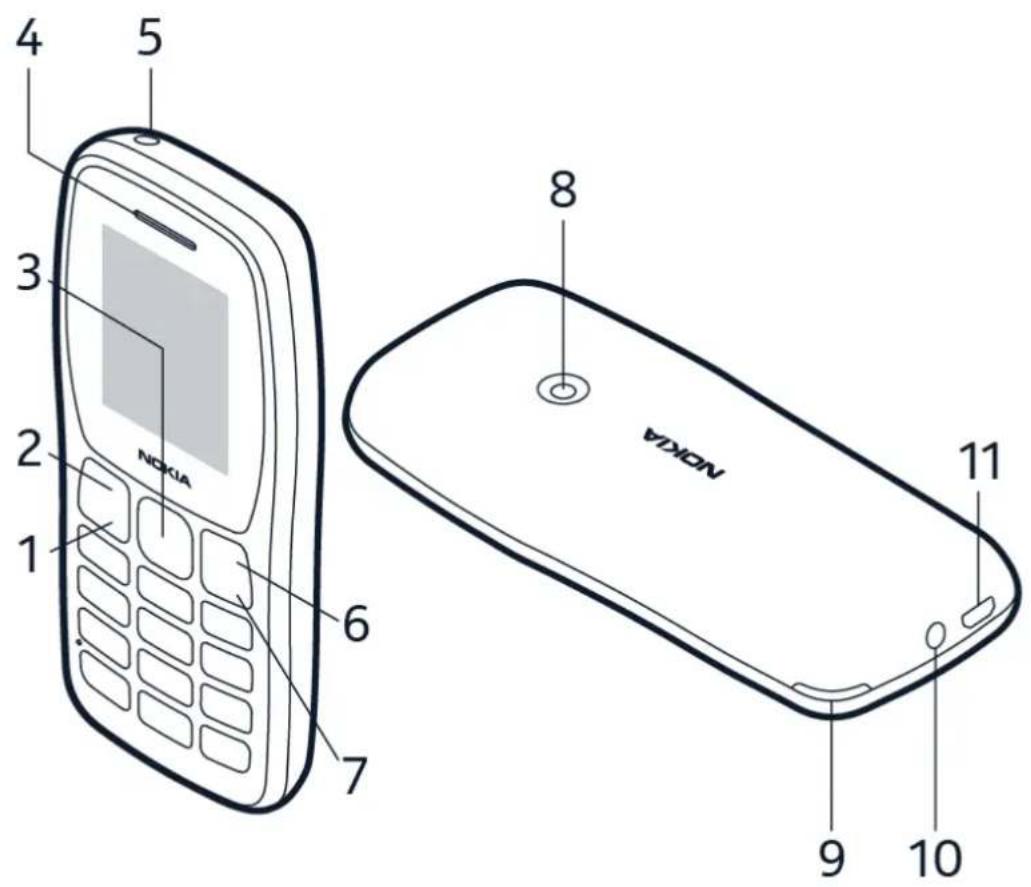
KEYS AND PARTS
Your phone
text_image
4 5 3 2 NOKIA 1 6 7 8 NOKIA 11 9 10This user guide applies to the following models: TA-1417, TA-1467.
-
Call key
-
Power/End key
-
Left selection key
-
Camera
-
Scroll key
-
Back cover opening slot
-
Earpiece
-
Headset connector
-
Flashlight
-
USB connector
-
Right selection key
Do not connect to products that create an output signal, as this may damage th not connect any voltage source to the audio connector. If you connect an externa
or headset, other than those approved for use with this device, to the audio con special attention to volume levels. Parts of the device are magnetic. Metallic material attracted to the device. Do not place credit cards or other magnetic storage media device, because info stored on them may be erased.
Some of the accessories mentioned in this user guide, such as charger, headset, or may be sold separately.
Note: You can set the phone to ask for a security code to protect your privacy data. The pre-set code is 12345. To change the code, select Menu > Security > Change access codes > Change security code. Enter the pre-set security code 1 select OK. Make up a code with 5-8 digits, and select OK. Note, however, that remember the code, as HMD Global is not able to open or bypass it.
SET UP AND SWITCH ON YOUR PHONE
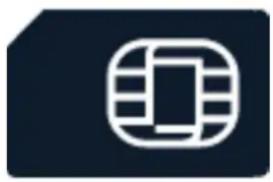
Mini SIM
natural_image
Abstract icon with a white rounded rectangle and horizontal lines on a dark background (no text or symbols)Important: This device is designed to be used with a mini SIM card only. Use of SIM cards may damage the card or the device, and may corrupt data stored on
Note: Switch the device off and disconnect the charger and any other device before any covers. Avoid touching electronic components while changing any covers. Always stand use the device with any covers attached.
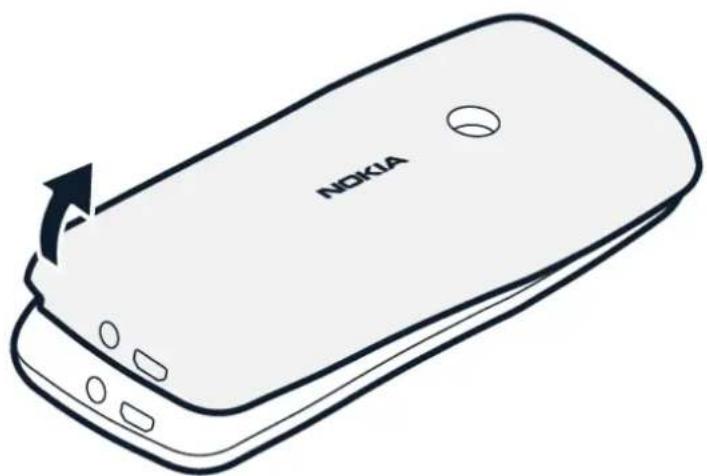
Open the back cover
natural_image
Illustration of a smartphone with the Nokia logo and an arrow indicating rotation (no text or symbols beyond branding)- Put your fingernail in the small slot on the bottom left corner of the phone, the cover.
- If the battery is in the phone, lift it out.
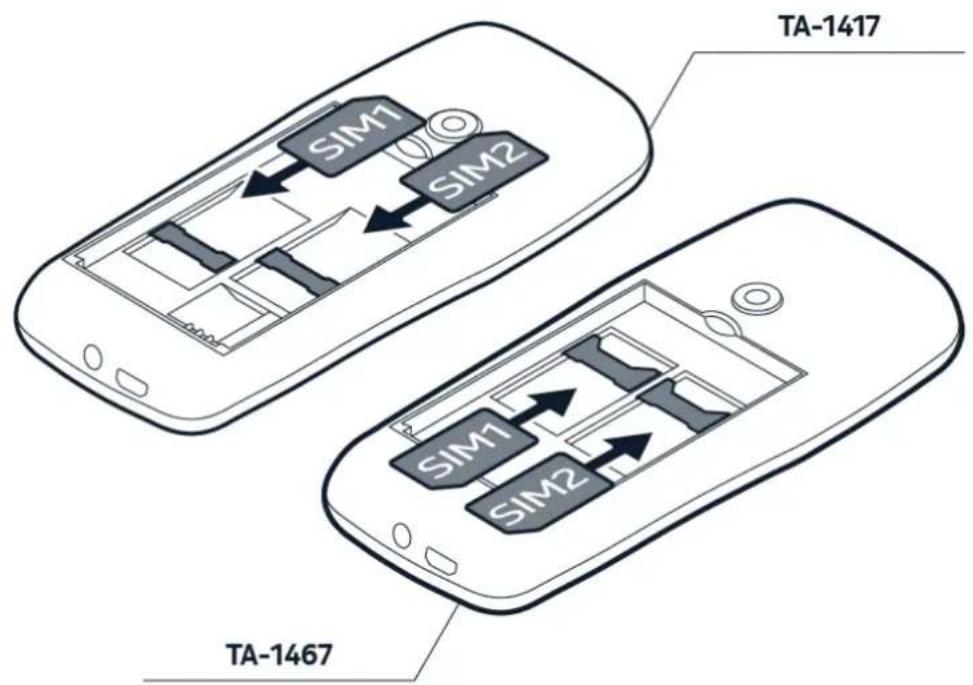
Insert the SIM and memory cards
text_image
TA-1417 TA-1467
text_image
micro SD- Slide the SIM card in the SIM card so ther with may be unavailable.
the contact area face down. -
If you have a second SIM, slide it in memory card slot.
SIM2 slot. Both SIM cards are available
Put back the battery.
at the same time when the device is.
Put back the back cover.
being used, but while one SIM card is
active, for example, making a call, the -
If you have a memory card, slide it in

Tip: Use a fast, up to 32 GB microSD memory card from a well-known manufacture
Remove the memory card
natural_image
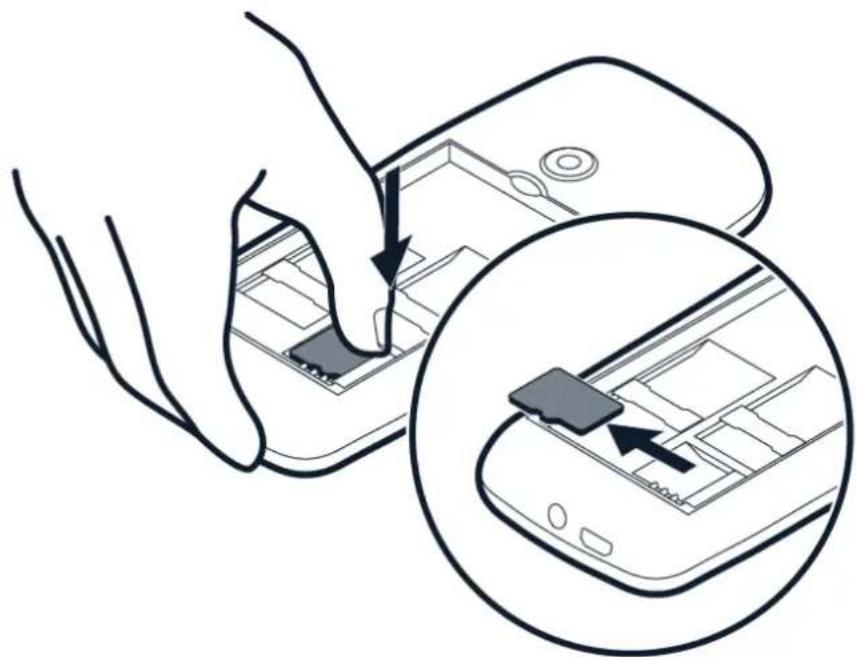
Illustration of a hand inserting a chip into an electronic device, with a magnified inset showing the chip being inserted (no text or symbols present)If you need to remove the memory card, press the card and slide it out from slot.
Switch on your phone
Press and hold Ⓞ.
CHARGE YOUR PHONE
Your battery has been partially charged at the factory, but you may need to rech you can use your phone.
Charge the battery
-
Plug the charger into a wall outlet.
-
Connect the charger to the phone. When done, unplug the charger from the p from the wall outlet.
If the battery is completely discharged, it may take several minutes before the ch indicator is displayed.

Tip: You can use USB charging when a wall outlet is not available. The efficiency of charging power varies significantly, and it may take a long time for charging to start device to start functioning.
KEYPAD
Use the phone keys
- To see the apps and features of your To change the volume of your phone phone, on the home screen, select Menduring a call or when listening to the r scroll left or right.
- To go to an app or feature, press the scroll key up, down, left, or right. To open the switch on the flashlight, on the hor app or feature, press the scroll key. screen, press the scroll key up twice. To switch it off, scroll up once. Do not sh end key.
Lock the keypad
To avoid accidentally pressing the keys, lock the keypad: select Go to > Lock key unlock the keypad, press the end key and select Unlock.
Write with the keypad
Press a key repeatedly until the letter is shown.
To type in a space press the 0 key.
To type in a special character or punctuation mark, press the asterisk key, or if predictive text, press and hold the # key.
To switch between character cases, press the # key repeatedly.
To type in a number, press and hold a number key.
3 Calls, contacts, and messages
CALLS
Make a call
Learn how to make a call with your new phone.
- Type in the phone number. To type in the + character, used for international twice.
- Press the call key. If asked, select which SIM to use.
- To end the call, press the end key.
Answer a call
Press ∩.
CONTACTS
Add a contact
- Select Menu > Add contact .
- Select where to save the contact.
- Write the name, and type in the number.
- Select OK .
Save a contact from call log
- Select Menu > 🔒 > Missed calls, Received calls, or Dialled numbers, depending on from where you want to save the contact.
- Scroll to the number you want to save, select Opt. > Save, and select when save the contact.
- Add the contact's name, check that the phone number is correct, and select (
Call a contact
You can call a contact directly from the contacts list.
- Select Menu > 📄.
- Select Names and scroll to the contact you want to call.
- Press the call key.
SEND MESSAGES
Write and send messages
- Select Menu > ☐ > Create message .
- Write your message.
- Select Opt. > Send . If asked, select which SIM to use.
- Type in a phone number, or select Search and a recipient from your contacts
4 Personalize your phone
CHANGE TONES
Set new tones
- Select Menu > ⚙️ > Tone settings .
- Select which tone you want to change and select for which SIM card you want asked.
- Scroll to the tone that you want and select OK.
CHANGE THE LOOK OF YOUR HOME SCREEN
Choose a new wallpaper
You can change the background of your home screen.
- Select Menu > ⚙️ > Display settings > Wallpaper .
- Select Default and the wallpaper you want.
- Select how you want to position the wallpaper on the home screen.

Tip: You can also use a photo you've taken or received as wallpaper. Select Menu > 🎨 > Display settings > Wallpaper > Photos .
Show date and time
You can select to see date and time on the home screen of your phone.
Select Menu > 🎨 > Time settings > Display of time and date > Show clock .
If you want your phone to update the time automatically, set Auto-update of date on. You may need to restart your phone for this setting to work.
PROFILES
Personalize profiles
There are several profiles that you can use in different situations. There is, for e silent profile for when you cannot have sounds on, and a loud profile for noisy
You can personalize profiles further.
- Select Menu > ⚙ > Profiles .
- Select a profile and Personalise.
For each profile you can set a specific ringtone, ringtone volume, message sounds
ADD SHORTCUTS
You can add shortcuts to different apps and settings on your home screen.
Edit Go to settings
On the bottom left of your home screen is Go to, which contains shortcuts to and settings. Select the shortcuts that are the handiest for you.
- Select Menu > ⚙ > Go to settings .
- Select Select options.
- Scroll to each shortcut you want to have on the Go to list and select Mark
- Select Done > Yes to save the changes.
You can also reorganize your Go to list.
- Select Organise .
- Scroll to the item you want to move, select Move and where you want to m
- Select Back > OK to save the changes.
5 Camera
PHOTOS AND VIDEOS
Take a photo
- Select Menu > 🔒.
- To zoom in or out, scroll up or down.
- To take a photo, select Capture.
To see the photo you just took, on the home screen, select Menu > > Capt
Record a video
- To switch the video camera on, select Menu > and scroll to
- To start recording, select ■.
- To stop recording, select ■.
To see the video you just recorded, on the home screen, select Menu > ▶ > Recorded videos.
6 Radio
LISTEN TO RADIO
Listen to your favorite radio stations
-
Select Menu > 📋.
-
To search for all available stations select OK.
To change the volume, scroll left or right. To move between available stations, scroll down. To save a station, select Opt. > Save channel, give the station a name, a location for it. To switch to a saved station, press the corresponding number k phone's keypad. To close the radio, select Stop.
7 Clock, calendar, and calculator
ALARM CLOCK
Set an alarm
- Select Menu > 🎯 > Set alarms .
- Select an alarm and use the scroll key to set the time.
- Select OK .
If you want the alarm to repeat on certain days, select the alarm, then select R > Repeat alarm , scroll to each day you want the alarm to sound on, and select select Done > Yes .
CALENDAR
Add a calendar event
- Select Menu > 12.
- Scroll to a date, and select Opt. > Add reminder.
- Enter the event name, and select OK.
- Select whether to add an alarm to the event, and select OK.
CALCULATOR
Learn how to add, subtract, multiply and divide with your phone calculator.
How to calculate
- Select Menu > ☑.
- Enter the first factor of your calculation, use the scroll key to select the open enter the second factor.
- Select Equals to get the result of the calculation.
Select Clear to empty the number fields.
8 Empty your phone
RESTORE FACTORY SETTINGS
Reset your phone
You can restore the original factory settings, but be careful, since this reset remo you have saved in the phone memory and all your personalization.
If you are disposing your phone, note that you are responsible of removing all p
To reset your phone to its original settings and to remove all your data, on the type in *#7370#. If asked, enter your security code.
9 Product and safety information
FOR YOUR SAFETY
Read these simple guidelines. Not following them may be dangerous or against local regulations. For further info, read the complete user guide.
SWITCH OFF IN RESTRICTED AREAS

text_image
Warning sign depicting no phone use in a triangular areaSwitch the device off when mobile device use is not allowed or when it may cause or danger, for example, in aircraft, in hospitals or near medical equipment, fuel, clamping areas. Obey all instructions in restricted areas.
ROAD SAFETY COMES FIRST
natural_image
Traffic warning sign showing a car inside a triangle (no text or symbols)Obey all local laws. Always keep your hands free to operate the vehicle while driving consideration while driving should be road safety.
INTERFERENCE

natural_image
Warning sign depicting a hazard with a funnel and lightning bolts (no text)All wireless devices may be susceptible to interference, which could affect performar
AUTHORIZED SERVICE

natural_image
Icon of a wrench inside a square frame (no text or symbols)Only authorized personnel may install or repair this product.
BATTERIES, CHARGERS, AND OTHER ACCESSORIES

natural_image
Icon of a white cable with a connector, enclosed in a dark blue rounded square (no text or symbols)Use only batteries, chargers, and other accessories approved by HMD Global Oy for this device. Do not connect incompatible products.
KEEP YOUR DEVICE DRY
natural_image
Simple icon of three white water droplets inside a dark square frame (no text or symbols)If your device is water-resistant, see its IP rating in the device's technical specification more detailed guidance.
PROTECT YOUR HEARING

text_image
Warning sign with a sound wave icon inside a triangle, indicating sound or noise hazard.To prevent possible hearing damage, do not listen at high volume levels for long Exercise caution when holding your device near your ear while the loudspeaker is
SAR

text_image
SARThis device meets RF exposure guidelines when used either in the normal use post the ear or when positioned at least 1.5 centimetres (5/8 inch) away from the bo maximum SAR values can be found in the Certification Information (SAR) section of guide. For more information, see the Certification Information (SAR) section of this or go to www.sar-tick.com.
EMERGENCY CALLS
Important: Connections in all conditions cannot be guaranteed. Never rely solely on all wireless phone for essential communications like medical emergencies.
Before making the call:
- Switch the phone on.
- If the phone screen and keys are locked, unlock them.
-
Move to a place with adequate signal strength.
-
Press the end key repeatedly, until the home screen is shown.
-
Type in the official emergency number for your present location. Emergency call vary by location.
- Press the call key.
- Give the necessary info as accurately as possible. Do not end the call until g to do so.
You may also need to do the following:
- Put a SIM card in the phone.
- If your phone asks for a PIN code, type in the official emergency number for location, and press the call key.
- Switch the call restrictions off in your phone, such as call barring, fixed diallin user group.
Handle your device, battery, charger and accessories with care. The following suggests you keep your device operational.
- Keep the device dry. Precipitation, humidity, and all types of liquids or moisture can contain minerals that corrode electronic circuits.
- Do not use or store the device in dirty areas.
- Do not store the device in high temperatures. High temperatures may damage the device or battery.
- Do not store the device in cold temperatures. When the device warms its normal temperature, moisture can inside the device and damage it.
-
Do not open the device other than instructed in the user guide.
-
Unauthorized modifications may damage the device and violate regulations governing radio devices.
- Do not drop, knock, or shake the device, do by battery. Rough handling can break it.
- Only use a soft, clean, dry cloth to cl the surface of the device.
- Do not paint the device. Paint can prevent proper operation.
- Keep the device away from magnets or to magnetic fields. form
- To keep your important data safe, store it in at least two separate places, such as your device, memory card, or computer, write down important info.
During extended operation, the device may feel warm. In most cases, this is norm getting too warm, the device may automatically slow down, close apps, switch off and if necessary, switch itself off. If the device is not working properly, take it authorized service facility.
RECYCLE

natural_image
Recycling symbol with a mobile phone inside, no text or symbols presentAlways return your used electronic products, batteries, and packaging materials to do collection points. This way you help prevent uncontrolled waste disposal and promote recycling of materials. Electrical and electronic products contain a lot of valuable materials including metals (such as copper, aluminum, steel, and magnesium) and precious metals as gold, silver, and palladium). All materials of the device can be recovered as many energy.
CROSSED-OUT WHEELIE BIN SYMBOL
Crossed-out wheelie bin symbol
natural_image
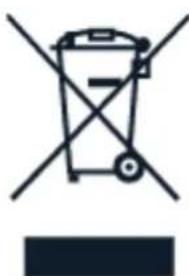
Symbol of a trash bin with crossed lines indicating no waste or discharge (no text or labels)The crossed-out wheelie-bin symbol on your product, battery, literature, or packaging reminds you that all electrical and electronic products and batteries must be taken separate collection at the end of their working life. Remember to remove personal from the device first. Do not dispose of these products as unsorted municipal wa: them for recycling. For info on your nearest recycling point, check with your local authority, or read about HMD's take-back program and its availability in your count www.hmd.com/phones/support/topics/recycle.
BATTERY AND CHARGER INFORMATION
Battery and charger info
To check if your phone has a removable or non-removable battery, see the printe
Devices with a removable battery Use your device only with an original rechargeable. The battery can be charged and discharged hundreds of times, but it will eventual. When the talk and standby times are noticeably shorter than normal, replace the I
Devices with a non-removable battery Do not attempt to remove the battery, as damage the device. The battery can be charged and discharged hundreds of times, eventually wear out. When the talk and standby times are noticeably shorter than replace the battery, take the device to the nearest authorized service facility.
Charge your device with a compatible charger. Charger plug type may vary. Chargin vary depending on device capability.
Battery and charger safety info
Once charging of your device is complete, unplug the charger from the device and outlet. Please note that continuous charging should not exceed 12 hours. If left charged battery will lose its charge over time.
Extreme temperatures reduce the capacity and lifetime of the battery. Always keep battery between 15°C and 25°C (59°F and 77°F) for optimal performance. A device hot or cold battery may not work temporarily. Note that the battery may drain q temperatures and lose enough power to switch off the phone within minutes. When outdoors in cold temperatures, keep your phone warm.
Obey local regulations. Recycle when possible. Do not dispose as household waste.
Do not expose the battery to extremely low air pressure or leave it to extremely temperature, for example dispose it in a fire, as that may cause the battery to flammable liquid or gas.
Do not dismantle, cut, crush, bend, puncture, or otherwise damage the battery in If a battery leaks, do not let liquid touch skin or eyes. If this happens, immedia affected areas with water, or seek medical help. Do not modify, attempt to insert objects into the battery, or immerse or expose it to water or other liquids. Batte explode if damaged.
Use the battery and charger for their intended purposes only. Improper use, or use unapproved or incompatible batteries or chargers may present a risk of fire, explosive hazard, and may invalidate any approval or warranty. If you believe the battery or damaged, take it to a service centre or your phone dealer before continuing to use a damaged battery or charger. Only use the charger indoors. Do not charge during a lightning storm. When charger is not included in the sales pack, charge using the data cable (included) and a USB power adaptor (may be sold separately) charge your device with third-party cables and power adaptors that are compliant with 2.0 or later and with applicable country regulations and international and regional standards. Other adaptors may not meet applicable safety standards, and charging with adaptors could pose a risk of property loss or personal injury.
To unplug a charger or an accessory, hold and pull the plug, not the cord.
Additionally, the following applies if your device has a removable battery:
- Always switch the device off and unplug the charger before removing any cover battery.
- Accidental short-circuiting can happen when a metallic object touches the metal the battery. This may damage the battery or the other object.
SMALL CHILDREN
Your device and its accessories are not toys. They may contain small parts. Keep the reach of small children.
MEDICAL DEVICES
Operation of radio transmitting equipment, including wireless phones, may interfere with inadequately shielded medical devices' function. Consult a physician or the medical manufacturer to determine if it is adequately shielded from external radio energy.
IMPLANTED MEDICAL DEVICES
To avoid potential interference, manufacturers of implanted medical devices (such as pacemakers, insulin pumps, and neurostimulators) recommend a minimum separation of centimeters (6 inches) between a wireless device and the medical device. Persons with such devices should:
• Always keep the wireless device more opposite the medical device.
than 15.3 centimeters (6 inches) from the
medical device.
- Switch the wireless device off if there any reason to suspect that interference i
- Not carry the wireless device in a breaking place.
pocket.
- Hold the wireless device to the ear implanted medical device.
If you have any questions about using your wireless device with an implanted mec consult your health care provider.
HEARING
Warning: When you use the headset, your ability to hear outside sounds may be af not use the headset where it can endanger your safety.
Some wireless devices may interfere with some hearing aids.
PROTECT YOUR DEVICE FROM HARMFUL CONTENT
Your device may be exposed to viruses and other harmful content. Be cautious what messages. They may contain malicious software or otherwise be harmful to your device.
VEHICLES
Radio signals may affect improperly installed or inadequately shielded electronic syste vehicles. For more info, check with the manufacturer of your vehicle or its equipm authorized personnel should install the device in a vehicle. Faulty installation may b and invalidate your warranty. Check regularly that all wireless device equipment in y is mounted and operating properly. Do not store or carry flammable or explosive the same compartment as the device, its parts, or accessories. Do not place your accessories in the air bag deployment area.
POTENTIALLY EXPLOSIVE ENVIRONMENTS
Switch your device off in potentially explosive environments, such as near gasoline Sparks may cause an explosion or fire resulting in injury or death. Note restrictions with fuel; chemical plants; or where blasting operations are in progress. Areas with explosive environment may not be clearly marked. These usually are areas where you advised to switch your engine off, below deck on boats, chemical transfer or storage and where the air contains chemicals or particles. Check with the manufacturers of using liquefied petroleum gas (such as propane or butane) if this device can be set their vicinity.
CERTIFICATION INFORMATION
This mobile device meets guidelines for exposure to radio waves.
Your mobile device is a radio transmitter and receiver. It is designed not to exceed for exposure to radio waves (radio frequency electromagnetic fields), recommended by international guidelines from the independent scientific organization ICNIRP. These guide incorporate substantial safety margins that are intended to assure the protection of persons regardless of age and health. The exposure guidelines are based on the S Absorption Rate (SAR), which is an expression of the amount of radio frequency (F deposited in the head or body when the device is transmitting. The ICNIRP SAR I devices is 2.0 W/kg averaged over 10 grams of tissue.
SAR tests are carried out with the device in standard operating positions, transmitt highest certified power level, in all its frequency bands.
This device meets RF exposure guidelines when used against the head or when pc at least 5/8 inch (1.5 centimetres) away from the body. When a carry case, belt
form of device holder is used for body-worn operation, it should not contain meta provide at least the above stated separation distance from the body.
To send data or messages, a good connection to the network is needed. Sending delayed until such a connection is available. Follow the separation distance instruction the sending is finished.
During general use, the SAR values are usually well below the values stated above because, for purposes of system efficiency and to minimize interference on the next operating power of your mobile device is automatically decreased when full power needed for the call. The lower the power output, the lower the SAR value.
Device models may have different versions and more than one value. Component a changes may occur over time and some changes could affect SAR values.
For more info, go to www.sar-tick.com. Note that mobile devices may be transmitting you are not making a voice call.
The World Health Organization (WHO) has stated that current scientific information can not indicate the need for any special precautions when using mobile devices. If you interested in reducing your exposure, they recommend you limit your usage or use free kit to keep the device away from your head and body. For more information explanations and discussions on RF exposure, go to the WHO website at www.who.it topics/electromagnetic-fields#tab=tab_1.
Please refer to www.hmd.com/sar for the maximum SAR value of the device.
ABOUT DIGITAL RIGHTS MANAGEMENT
When using this device, obey all laws and respect local customs, privacy and legitio others, including copyrights. Copyright protection may prevent you from copying, mod or transferring photos, music, and other content.
COPYRIGHTS AND OTHER NOTICES
Copyrights
The availability of products, features, apps and services may vary by region. For m contact your dealer or your service provider. This device may contain commodities, or software subject to export laws and regulations from the US and other countries contrary to law is prohibited.
The contents of this document are provided "as is". Except as required by applica warranties of any kind, either express or implied, including, but not limited to, the warranties of merchantability and fitness for a particular purpose, are made in relative accuracy, reliability or contents of this document. HMD Global reserves the right to document or withdraw it at any time without prior notice.
To the maximum extent permitted by applicable law, under no circumstances shall I or any of its licensors be responsible for any loss of data or income or any sp consequential or indirect damages howsoever caused.
Reproduction, transfer or distribution of part or all of the contents in this document form without the prior written permission of HMD Global is prohibited. HMD Global a policy of continuous development. HMD Global reserves the right to make changes improvements to any of the products described in this document without prior notice.
HMD Global does not make any representations, provide a warranty, or take any r for the functionality, content, or end-user support of third-party apps provided with device. By using an app, you acknowledge that the app is provided as is.
Downloading of maps, games, music and videos and uploading of images and video involve transferring large amounts of data. Your service provider may charge for the transmission. The availability of particular products, services and features may vary by Please check with your local dealer for further details and availability of language
Certain features, functionality and product specifications may be network dependent as subject to additional terms, conditions, and charges.
All specifications, features and other product information provided are subject to change without notice.
HMD Global Privacy Policy, available at http://www.hmd.com/privacy, applies to your user device.
HMD Global Oy is the exclusive licensee of the Nokia brand for phones & tablets registered trademark of Nokia Corporation.
This product includes open source software. For applicable copyright and other notice permissions, and acknowledgements, select *#6774# on the home screen.