SL-CUR-120-MC - Video accessory Proaim - Free user manual and instructions
Find the device manual for free SL-CUR-120-MC Proaim in PDF.
User questions about SL-CUR-120-MC Proaim
0 question about this device. Answer the ones you know or ask your own.
Ask a new question about this device
Download the instructions for your Video accessory in PDF format for free! Find your manual SL-CUR-120-MC - Proaim and take your electronic device back in hand. On this page are published all the documents necessary for the use of your device. SL-CUR-120-MC by Proaim.
USER MANUAL SL-CUR-120-MC Proaim
natural_image
Mechanical assembly with curved black frame and mounting brackets (no visible text or symbols)What's In The Box
Please inspect the contents of your shipped package to ensure you have received everything that is listed below.
Combo-1

text_image
Camera Slider1 x Allen key-3/16" Plastic screw driver
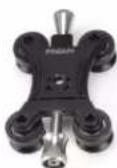
Camera Plate
natural_image
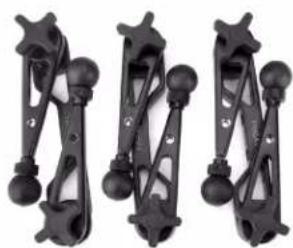
Three black mechanical clamps with spherical ends and connecting rods, arranged side by side (no text or symbols visible)2 x End Feet and 1 x Centre feet

natural_image
Black athletic belt with a hanging weight and loop tag (no text or symbols visible)Bag & Strap

1/4"Camera Bolt

2 x Knob
All rights reserved.
No part of this document may be reproduced, stored in a retrieval system, or transmitted by any form or by any means, electronic, mechanical, photo-copying, recording, or otherwise, except as may be expressly permitted by the applicable copyright statutes or in writing by the Publisher.
Combo-2

Curved Camera slider with End feet Setup
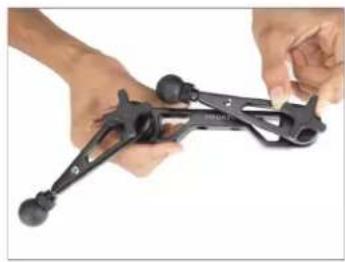
- Loosen the knobs of the end feet and open them.
• After opening the feet, secure them by re-tightening with the provided knobs. Follow the same process for all the sets of feet.
NOTE: Attach the center feet to the center part of the slider only.
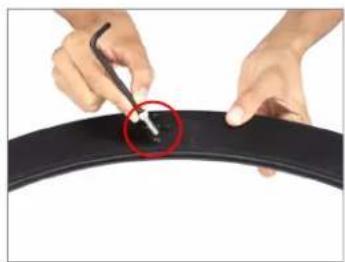
- Remove the center bolts of the camera slider with the help of an Allen key.
- Remove all the bolts of the Camera Slider from both the sides with the help of an Allen Key, as shown in the image.

natural_image
Close-up of hands assembling a black mechanical component with spherical pins (no visible text or symbols)
natural_image
Close-up of hands holding a black mechanical clamp or lever (no text or symbols visible)
natural_image
Close-up of hands adjusting a black tripod frame with two legs and a central handle (no text or symbols visible)
natural_image
Three identical mechanical truss or linkage components arranged in a triangular pattern (no text or symbols visible)
natural_image
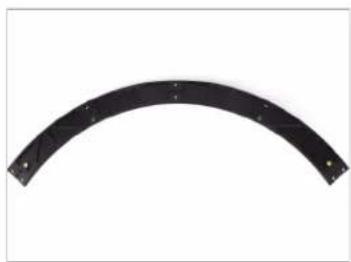
Curved black metal bracket with mounting holes, isolated on white background (no text or symbols)
natural_image
Close-up of hands using a tool to mark a black tire with a red circle highlighting the center (no text or symbols visible)
natural_image
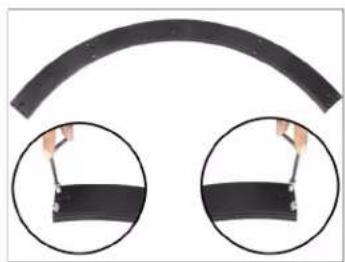
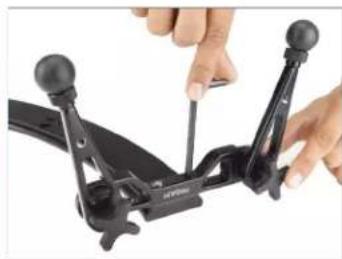
Two black curved bands with circular insets showing hand holding a cable (no text or symbols)- Place the end feet on the slider and then insert bolts, by matching the threads of the slider and the feet. Then tighten with an Allen key to secure.

natural_image
Close-up of hands operating a black bicycle mount with a red circular indicator highlighting a specific point (no text or symbols visible)
natural_image
Close-up of hands operating a black mechanical device with two articulated arms (no visible text or symbols)- Place the middle feet at the center of the slider and then insert bolts, by matching the threads of the slider and the middle feet. Then tighten with an Allen key to secure.

natural_image
Close-up of hands assembling a black bicycle frame with a red circle highlighting a small component (no text or symbols visible)
natural_image
Close-up of a hand using a screwdriver to adjust a black mechanical component (no text or symbols visible)- Follow the same process to attach the other set of end feet.

natural_image
Close-up of a hand using a tool to adjust a black mechanical component (no visible text or symbols)
natural_image
Close-up of a black mechanical clamp or bracket with two spherical joints (no text or symbols visible)- Finally all the feet have been attached to the slider.

natural_image
Pure mechanical linkage diagram without any text, numbers, or symbols- Insert the stopper, by matching the threads of the end feet and tighten properly.

natural_image
Close-up of a black mechanical frame with a hand adjusting a small green button, no visible text or symbols
natural_image
Close-up of a black plastic mechanical bracket with mounting flanges and a small green dot on the side (no text or symbols visible)- Follow the same process to insert the other stopper in the 2nd set of end feet.

natural_image
Close-up of a black curved object with a red circle highlighting a small feature, being adjusted by a tool (no text or symbols visible)
natural_image
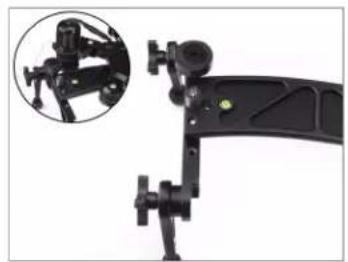
Close-up of a black curved mechanical component with mounting clips (no visible text or symbols)NOTE: All sets of feet have threads for stoppers except for the center feet. The two end feet stoppers provide support to the camera plate.
- Another additional stopper is included to secure the camera (Not Included) properly.

natural_image
Close-up of a hand adjusting a black mechanical component with a small green button (no text or symbols visible)
natural_image
Close-up of a black mechanical device with adjustment knobs and a circular inset showing a mounted bracket (no text or symbols visible)• Properly insert the camera bolt into the camera plate.

natural_image
Hand holding a small black toy car with four wheels, against a white background (no text or symbols visible)
natural_image
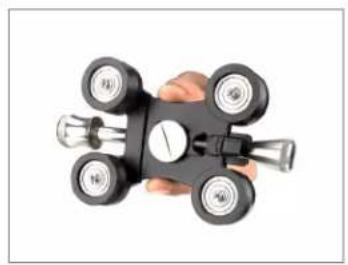
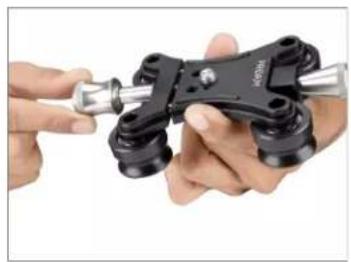
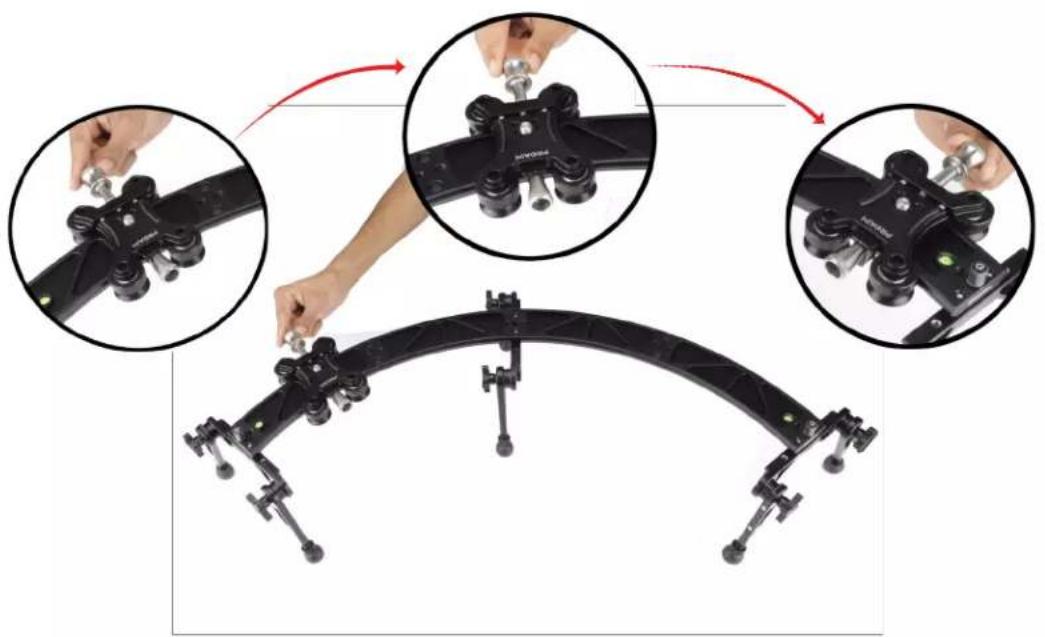
Hand holding a black mechanical device with four wheels and a central dial (no visible text or symbols)- Loosen the side knobs of the camera plate and attach it on the slider. Then, re-tighten the side knobs.
natural_image
Close-up of hands holding a mechanical clamp or bracket with a metallic tool (no visible text or symbols)
natural_image
Close-up of hands assembling a black mechanical component with a red circle highlighting a small component (no text or symbols visible)Proaim Curve-120 curved camera slider with Motion Control System.
natural_image
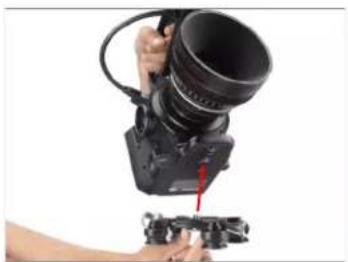
Mechanical assembly diagram showing three steps of adjusting a black track frame with clamps (no text or symbols visible)- Attach the camera plate by aligning its threads to the camera and then secure it using the screw driver (Not Included).
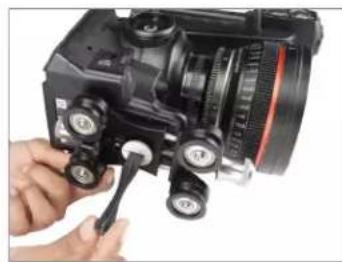
natural_image
Person using a professional camera to adjust or install a camera lens (no visible text or symbols)
natural_image
Close-up of a hand using a camera to adjust the lens and buttons (no visible text or symbols)- Then place the camera (Not Included) on the slider & properly tighten the knob of the camera plate.

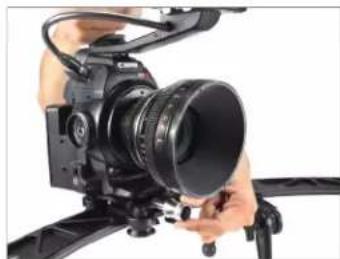
natural_image
Close-up of a camera setup with a handheld camera mounted on a tripod (no visible text or symbols)
natural_image
Close-up of a professional video camera with a lens mounted on a tripod (no visible text or symbols)- The camera (Not Included) is now properly mounted on the slider, as shown in the picture.

natural_image
Black-and-white photo of a camera mounted on an arched cable with tripod legs (no text or symbols visible)Camera Plate with Motor
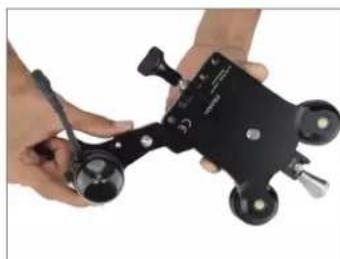
- Open the motor lever by pulling it, as shown in the image.
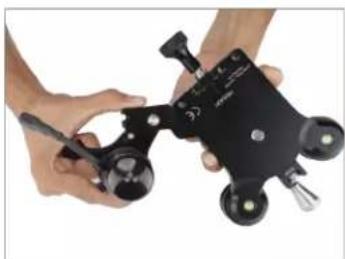
natural_image
Close-up of hands holding a black handheld device with multiple circular components (no visible text or symbols)
natural_image
Close-up of hands holding a black mechanical device with four wheels and a pen, no visible text or symbols- Attach the Camera Plate with Motor to the bottom of the camera (Not Included).

natural_image
Hand holding a black mechanical device with four wheels and a handle (no visible text or symbols)
natural_image
Close-up of a DSLR camera with a handheld camera attachment (no visible text or symbols)- Then secure it with the help of a screwdriver, as shown in the image.

natural_image
Close-up of a DSLR camera with adjustment knobs and a red circle highlighting the lens (no text or symbols visible)
natural_image
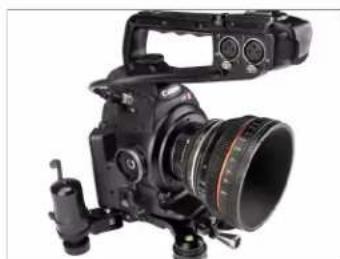
Professional DSLR camera with dual lenses and external adjustment knobs (no visible text or symbols)- Then place the camera (Not Included) on the slider & properly tighten the knob of the camera plate.
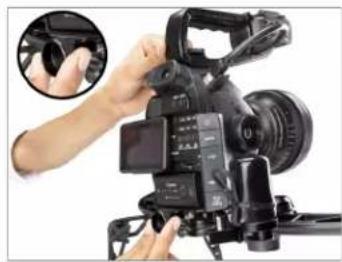
- Then attach the motor by connecting it properly to the slider. Thus, powering the slider.
Caution: While performing this step, make sure that your camera plate is mounted onto the slider.
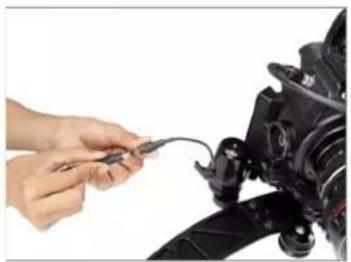
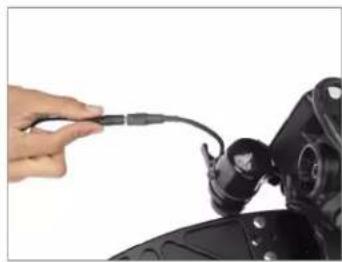
- Attach the Female connector of the motor to one end of the 3 meter wire of DC male connector.
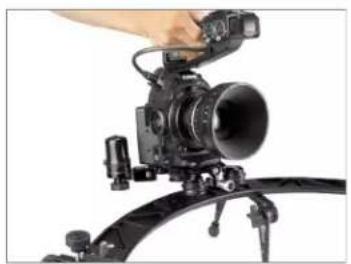
natural_image
Close-up of a camera setup with a mounted lens and tripod mount (no visible text or symbols)
natural_image
Close-up of a professional video camera with hands adjusting the lens (no visible text or symbols)
natural_image
Close-up of a camera with a hand adjusting the lens component (no visible text or symbols)
natural_image
Close-up of a camera with a wrist strap and attached sensor array (no visible text or symbols)
natural_image
Close-up of hands connecting a cable to a camera lens (no visible text or symbols)
natural_image
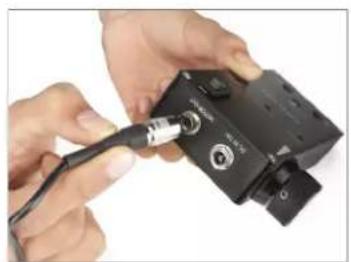
Close-up of a hand connecting a cable to a mechanical component (no visible text or symbols)Power the Remote Controller with 2 ways 1. 12v Adapter
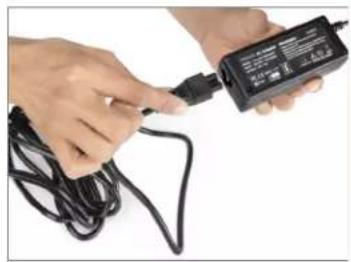
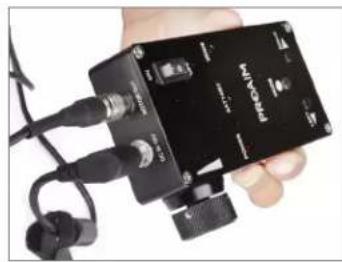
- Attach the other end of the 3 meter wire (4 pin hero push pull connector) to the 4 pin male connector on controller.
- Attach one end of the 12v adapter cable to the adapter.
- Then connect the other end of the cable with the battery.
natural_image
Close-up of hands connecting a black electronic device to a black cable (no visible text or symbols)
natural_image
Hand holding a black electronic device with a cable and connector (no visible text or symbols)
natural_image
Close-up of hands holding a black electrical charger with coiled cable (no visible text or symbols)
natural_image
Close-up of hands holding a black electronic device with cable, no visible text or symbols
natural_image
Close-up of hands using a handheld device to adjust a black electronic device (no visible text or symbols)
natural_image
Hand holding a black electronic device with earphones and cables (no visible text or symbols)- Connect the electric plug of the 12v adapter wire to the universal adapter for generating the power-supply.

natural_image
Close-up of hands using a black plug to apply a white plastic container with red and green labels (no readable text or symbols)
natural_image
Hand holding a black and white electrical adapter with cable, no visible text or symbols on the device or background- 12v Adapter: Attach the 12v Adapter with the controller and press the power button.

natural_image
Close-up of hands operating a FRDAM radio device with a handheld probe (no visible text or symbols on the device itself)
natural_image
Close-up of hands assembling a black electronic device labeled 'Firebox' with wires and connectors (no readable text beyond label)2. Battery
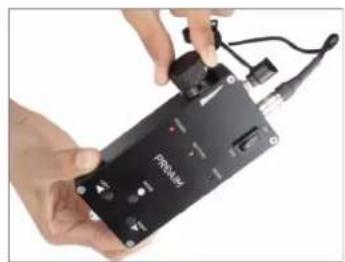
- Battery: Attach the battery (Not Included) with the controller and press the power button.
natural_image
Close-up of hands holding a black electronic device with a small connector (no visible text or symbols)
natural_image
Hand holding a black handheld device with a cable, against a white background (no visible text or symbols)Remote Controlled Movement Functions

text_image
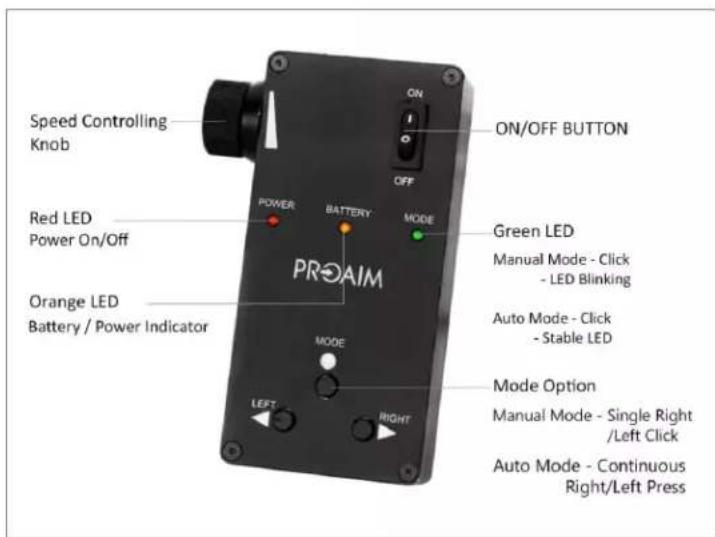
Speed Controlling Knob Red LED Power On/Off Orange LED Battery / Power Indicator ON/OFF BUTTON POWER BATTERY MODE PROAIM MODE ON/OFF BUTTON Green LED Manual Mode - Click - LED Blinking Auto Mode - Click - Stable LED Mode Option Manual Mode - Single Right /Left Click Auto Mode - Continuous Right/Left PressYOUR PROAIM CURVE-120 CURVED CAMERA SLIDER WITH MOTION CONTROL SYSTEM ALL DRESSED UP AND READY TO GO!

natural_image
Black quadruped robot with camera and articulated legs, shown with a close-up inset of the camera's handle (no text or symbols visible)(SHOWN WITH OPTIONAL ACCESSORIES)
Warranty: We offer one year warranty for our products from date of purchase. Within this period of time, we will repair it without charge for labor or parts. Warranty doesn't cover transportation costs nor does it cover a product subjected to misuse or accidental damage. Warranty repairs are subjected to inspection and evaluation by us.
Liability: We are not liable for damage caused by products that we do not supply or from mishandling in transit, accident, misuse, neglect, lack of care of the product, or service by anyone other than our company.
Contact Us: In case of any kind of dissatisfaction, please Contact us immediately and we promise our utmost support and care until you use our product.