USER MANUAL AR-5620D SHARP
DIGITAL MULTIFUNCTIONAL SYSTEM
OPERATION GUIDE

CONTENTS
INTRODUCTION 4
USING THE MANUAL 4
DIFFERENCES BETWEEN MODELS. 5
1 SETUP
BEFORE SOFTWARE SETUP 6
SOFTWARE 6 - HARDWARE AND SOFTWARE REQUIREMENTS. 6 - POWER ON THE MACHINE 6
INSTALLING THE SOFTWARE 7
CONNECTING TO A COMPUTER 9
CONNECTING A USB CABLE 9 - USING THE MACHINE AS A SHARED PRINTER 10
CONFIGURING THE PRINTER DRIVER 11
SETTING UP BUTTON MANAGER 12
TROUBLESHOOTING 14
2 BEFORE USING THE MACHINE
PART NAMES AND FUNCTIONS 16
OPERATION PANEL. 18
POWER ON AND OFF 20
POWER ON 20 POWER OFF 20
LOADING PAPER 21
PAPER. 21 LOADING PAPER. 22 CHANGING A TRAY'S PAPER SIZE SETTING ....24
OPERATION IN COPY, PRINTER, AND SCANNER MODES 26
3 COPY FUNCTIONS
NORMAL COPYING 27
MAKING A COPY DARKER OR LIGHTER ... 30 SELECTING THE TRAY 30 - SETTING THE NUMBER OF COPIES 31
REDUCTION/ENLARGEMENT/ZOOM 31
AUTOMATIC RATIO SELECTION 31 MANUAL RATIO SELECTION 32 - SELECTING THE VERTICAL AND HORIZONTAL COPY RATIOS SEPARATELY (XY ZOOM Copying) 33
AUTOMATIC TWO-SIDED COPYING (AR-5618D/AR-5620D/AR-5623D) 35
IMAGE ROTATION IN DUPLEX COPYING .... 37
TWO-SIDED COPYING USING THE BYPASS TRAY 38
DUAL PAGE COPYING 39
INTERRUPTING A COPY RUN (Interrupt Copying) 40
CONVENIENT COPY FUNCTIONS 41
ROTATING THE IMAGE 90 DEGREES (Rotation Copy) 41 SORT COPY/GROUP COPY 41 - COPYING MULTIPLE ORIGINALS ONTO A SINGLE SHEET OF PAPER (2 IN 1 / 4 IN 1 Copy) 43 CREATING MARGINS WHEN COPYING (Margin Shift) 45 ERASING SHADOWS AROUND THE EDGES OF A COPY (Erase Copy) 46 - ID CARD COPY 47
4 PRINTER FUNCTIONS
BASIC PRINTING 48
- OPENING THE PRINTER DRIVER FROM THE "Start" BUTTON 49
PRINTER DRIVER SETTING SCREEN 50
SETTING ADVANCED PRINT FUNCTIONS... 51
PRINTING MULTIPLE PAGES ON ONE PAGE (N-Up Printing) 51 FITTING THE PRINTED IMAGE TO THE PAPER (Fit To Paper Size) 52 - ROTATING THE PRINT IMAGE 180 DEGREES (Rotate 180 degrees) .....52 - ENLARGING/REDUCING THE PRINT IMAGE (Zoom) .....53 PRINTING FAINT TEXT AND LINES IN BLACK (Text To Black/Vector To Black) 53 ADJUSTING THE BRIGHTNESS AND CONTRAST OF THE IMAGE (Image Adjustment) 54 - ADDING A WATERMARK TO PRINTED PAGES (Watermark) 54 TWO-SIDED PRINTING (AR-5618D/AR-5620D/AR-5623D) 55
SAVING FREQUENTLY USED PRINT
SETTING 56
SAVING SETTINGS AT THE TIME OF PRINTING (User Settings) 56
OUTLINE OF THE PRINT STATUS WINDOW...... 57
5 SCANNER FUNCTIONS
SCANNING OVERVIEW 58
SCANNING USING THE KEYS ON THE MACHINE 59
OUTLINE OF BUTTON MANAGER 60 - BUTTON MANAGER SETTINGS...61
SCANNING FROM YOUR COMPUTER 62
SCANNING FROM A TWAIN-COMPLIANT APPLICATION 62 SCANNING FROM A WIA-COMPLIANT APPLICATION (Windows XP/Vista/7) 66 SCANNING FROM THE "Scanner and Camera Wizard" (Windows XP). 67
6 USER SETTINGS
ADJUSTING THE AUTOMATIC EXPOSURE LEVEL 68
TONER SAVE MODE AND HIGH IMAGE QUALITY MODE 69
CUSTOMISING SETTINGS (System Settings)...... 70
SYSTEM SETTINGS 70 SELECTING A SETTING FOR A SYSTEM SETTING 74
SETTINGS FOR AUDITING MODE. 75
AUDITING MODE 75 AUDITING MODE SETTINGS 75 SELECTING AUDITING MODE SETTINGS .... 76
7 TROUBLESHOOTING
TROUBLESHOOTING 79
- MACHINE/COPYING PROBLEMS 80 PRINTING AND SCANNING PROBLEMS 83
INDICATORS AND DISPLAY MESSAGES 87
MISFEED REMOVAL 88
● MISFEED IN THE SPF/RSPF. 88 ● MISFEED IN THE BYPASS TRAY 89 - MISFEED IN THE MACHINE 90 MISFEED IN THE UPPER PAPER TRAY .... 93 ● MISFEED IN THE LOWER PAPER TRAY .... 94
REPLACING THE TONER CARTRIDGE 95
8 ROUTINE MAINTENANCE
CHECKING THE TOTAL OUTPUT COUNT AND TONER LEVEL 96
- CHECKING THE TOTAL OUTPUT COUNT .......96
- CHECKING THE TONER LEVEL 97
ROUTINE MAINTENANCE. 98
● CLEANING THE DOCUMENT GLASS AND SPF/RSPF/DOCUMENT COVER 98 - CLEANING THE ORIGINAL SCANNING GLASS (ONLY WHEN AN SPF/RSPF IS INSTALLED) ... 98 ● CLEANING THE BYPASS TRAY PAPER FEED ROLLER. 99 - CLEANING THE TRANSFER CHARGER .... 99
9
APPENDIX
SPECIFICATIONS (PRINTER AND SCANNER).... 100
● PRINTER FUNCTION. 100 - SCANNER FUNCTION 101
PERIPHERAL DEVICES 102
• SINGLE PASS FEEDER/REVERSING SINGLE PASS FEEDER 103 • DOCUMENT COVER 103 250-SHEET PAPER FEED UNIT/2 X 250-SHEET PAPER FEED UNIT. 104
STORAGE OF SUPPLIES 105
PROPER STORAGE 105
INTRODUCTION
This manual describes the copier, printer, and scanner functions of the AR-5618/AR-5620/AR-5623 and AR-5618D/ AR-5620D/AR-5623D digital multifunctional system.

- Where "AR-XXXX" appears in this manual, please substitute the name of your model for "XXXX". For the name of your model, see "DIFFERENCES BETWEEN MODELS" (p.5).
- The screen images and procedures that appear in this manual are mainly for Windows Vista. With other versions of Windows, some screen images may be different from those in this manual.
- For information on using your operating system, refer to your operating system's manual or online Help.
The display screens, messages, and key names shown in the manual may differ from those on the actual machine due to product improvements and modifications.
USING THE MANUAL
This machine has been designed to provide convenient copying features in a minimum amount of office space and with maximum operational ease. To get full use of all machine features, be sure to familiarise yourself with this manual and the machine. For quick reference during machine use, SHARP recommends printing out this manual and keep it in a handy location.
ABOUT THE MANUALS
The manuals for the machine are as follows:
Start Guide
This manual explains:
- Specifications
- Cautions for using the machine in safety
Operation Guide (on the accessory CD-ROM)
This manual explains:
- How to install the software that allows the machine to be used as a printer and scanner for your computer
- Part names of the machine Available paper type for this machine
- Basic copy procedure and advanced copy functions (For example: rotating the image 90 degrees, copying multiple originals onto a single sheet of paper)
- Basic print procedure and other frequently used print functions (For example: fitting the printed image to the paper, enlarging/reducing the print image)
- Scanning on the machine and from a computer
- Toner cartridge replacement and peripheral devices
- Troubleshooting for using the machine
THE MEANING OF "R" IN ORIGINAL AND PAPER SIZE INDICATIONS
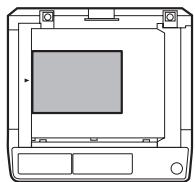
An "R" appearing at the end of an original or paper size (A4R (5-1/2" x 8-1/2"R, 8-1/2" x 11"R), etc.) indicates that the original or paper is oriented horizontally as shown on the right.
Sizes that can be placed only in the horizontal (landscape) orientation (B4, A3 (8-1/2" x 14", 11" x 17")) do not contain the "R" in their size indication.
CONVENTIONS USED IN THIS MANUAL

Warns the user that injury may result if the contents of the warning are not properly followed.

Cautions the user that damage to the machine or one of its components may result if the contents of the caution are not properly followed.

Notes provide information relevant to the machine regarding specifications, functions, performance, operation and such, that may be useful to the user.
SPF (AR-5618/AR-5620/AR-5623)
This manual refers to the Single Pass Feeder as the "SPF".
RSPF (AR-5618D/AR-5620D/AR-5623D)
This manual refers to the Reversing Single Pass Feeder as the "RSPF".
DIFFERENCES BETWEEN MODELS
This manual covers the following models.
| Model | AR-5620/AR-5623/AR-5620D/AR-5623D | AR-5618/AR-5618D |
| Appearance | (With optional SPF/RSPF installed)
The above illustration is used in instances where a function and/or the operation of the machine is the same on both models. | (With optional SPF/RSPF installed)
The above illustration is used in instances where a function and/or the operation of the machine is the same on both models. |
| Copy speed | 20CPM/23CPM | 18CPM |
| Paper trays | Two (250 x 2) | One (250 x 1) |
AB series (metric) and inch series references
Both specifications are quoted where applicable.
For example:
Page 4. B4 and A3 (8-1/2" x 14" and 11" x 17")
Start Guide. 50%, 70%, 81%, 86%, 100%, 115%, 122%, 141%,
200% (50%, 64%, 77%, 95%, 100%, 121%, 129%,
141%, 200%)
[AB series]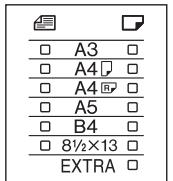
[Inch series]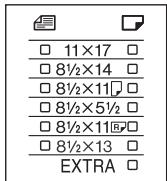
Although AB series size indications are shown on the operation panel of this manual, inch series indications are displayed on the inch series machines.
BEFORE SOFTWARE SETUP
This chapter explains how to install and configure the software that is required for the printer and scanner functions of the machine.

This manual refers to the CD-ROM that accompanied the machine simply as "CD-ROM".
SOFTWARE
The CD-ROM that accompanies the machine contains the following software:
MFP driver
Printer driver
The printer driver enables you to use the printer function of the machine.
The printer driver includes the Print Status Window. This is a utility that monitors the machine and informs you of the printing status, the name of the document currently being printed, and error messages.
Scanner driver
The scanner driver allows you to use the scanning function of the machine with TWAIN-compliant and WIA-compliant applications.
Button Manager allows you to use the scanner menus on the machine to scan a document.
HARDWARE AND SOFTWARE REQUIREMENTS
Check the following hardware and software requirements before installing the software.
| Computer type | IBM PC/AT or compatible computer equipped with a USB 2.0*1/1.1*2 |
| Operating system*3 | Windows 2000 Professional, Windows XP Professional, Windows XP Home Edition, Windows Vista, Windows 7 |
| Other hardware requirements | An environment on which any of the operating systems listed above can fully operate |
1 The machine's USB 2.0 port will transfer data at the speed specified by the USB 2.0 (Hi-Speed) only if the Microsoft USB 2.0 driver is preinstalled in the computer, or if the USB 2.0 driver for Windows 2000 Professional/XP/Vista/7 that Microsoft provides through its "Windows Update" is installed. 2 Compatible with Windows 2000 Professional, Windows XP Professional, Windows XP Home Edition, Windows Vista, or Windows 7 preinstalled models equipped with a USB interface as standard. *3. The machine does not support printing from a Macintosh environment. - Administrator's rights are required to install the software using the installer.
The power switch is located on the left side of the machine.
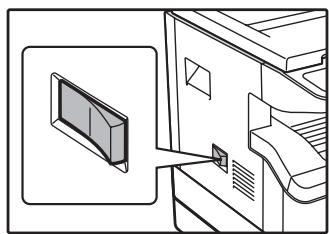
Turn the power switch to the "ON" position.
INSTALLING THE SOFTWARE

- The screen images in this manual are mainly for Windows Vista. With other versions of Windows, some screen images may be different from those in this manual.
- If an error message appears, follow the instructions on the screen to solve the problem. After the problem is solved, the installation procedure will continue. Depending on the problem, you may have to click the "Cancel" button to exit the installer. In this case, reinstall the software from the beginning after solving the problem.
1 The USB cable must not be connected to the machine. Make sure that the cable is not connected before proceeding.
If the cable is connected, a Plug and Play window will appear. If this happens, click the "Cancel" button to close the window and disconnect the cable.

The cable will be connected in step 12.
2 Insert the CD-ROM into your CD-ROM drive.
- In Windows XP, click the "Start" button, click "My Computer", and then double-click the CD-ROM icon.
- In Windows 2000, double-click "My Computer", and then double-click the CD-ROM icon.
4 Double-click the "Setup" icon ( ).
- In Windows 7, if a message screen appears asking you for confirmation, click "Yes".
- In Windows Vista, if a message screen appears asking you for confirmation, click "Allow".
5 The "SOFTWARE LICENSE" window will appear. Make sure that you understand the contents of the software license, and then click the "Yes" button.

You can show the "SOFTWARE LICENSE" in a different language by selecting the desired language from the language menu. To install the software in the selected language, continue the installation with that language selected.
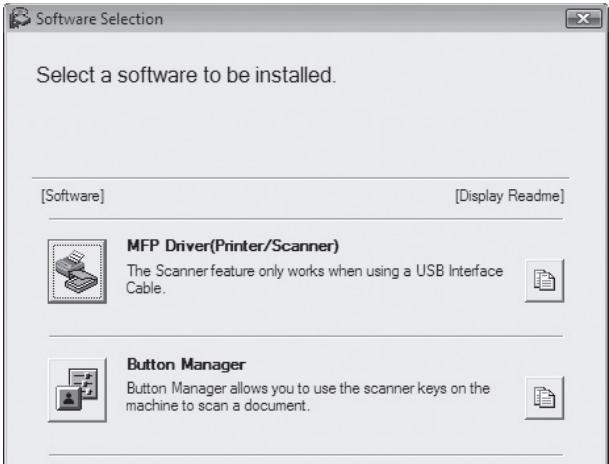
Click the "Display Readme" button to show information on packages that are selected.
Follow the on-screen instructions.
When "The installation of the SHARP software is complete." appears, click the "OK" button.
Caution
- If you are using Windows Vista/7 and a security warning window appears, be sure to click "Install this driver software anyway".
- If you are running Windows 2000/XP and a warning message appears regarding the Windows logo test or digital signature, be sure to click "Continue Anyway" or "Yes".
If you do not wish to install the Button Manager, go to step 11.
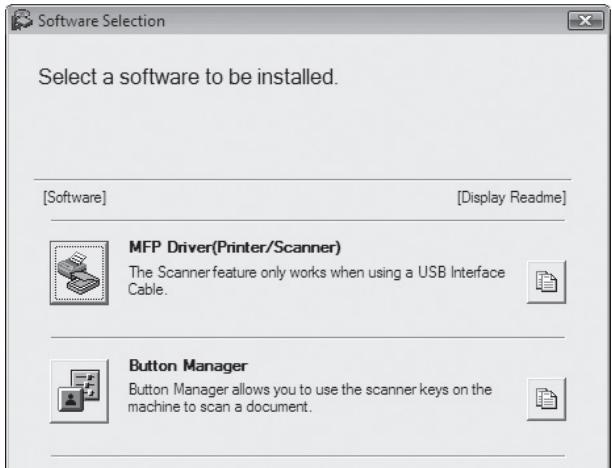
Follow the on-screen instructions.

After the installation, a message prompting you to restart your computer may appear. In this case, click the "Yes" button to restart your computer.
Caution
- If you are using Windows Vista/7 and a security warning window appears, be sure to click "Install this driver software anyway".
- If you are running Windows 2000/XP and a warning message appears regarding the Windows logo test or digital signature, be sure to click "Continue Anyway" or "Yes".
A message will appear instructing you to connect the machine to your computer. Click the "OK" button.
Note
After the installation, a message prompting you to restart your computer may appear. In this case, click the "Yes" button to restart your computer.
12 Make sure that the power of the machine is turned on, and then connect the USB cable (p.9).
Windows will detect the machine and a Plug and Play window will appear.
13 Follow the instructions in the Plug and Play window to install the driver.
Follow the on-screen instructions.
Caution
- If you are using Windows Vista/7 and a security warning window appears, be sure to click "Install this driver software anyway".
- If you are running Windows 2000/XP and a warning message appears regarding the Windows logo test or digital signature, be sure to click "Continue Anyway" or "Yes".
This completes the installation of the software.
- If you installed Button Manager, set up Button Manager as explained in "SETTING UP BUTTON MANAGER" (p.12)
CONNECTING TO A COMPUTER
Follow the procedure below to connect the machine to your computer.
A USB cable for connecting the machine to your computer is not included with the machine. Please purchase the appropriate cable for your computer.
Interface cable
USB cable
Shielded twisted pair cable, high-speed transmission equivalent (3 m (10 feet) max.)
If the machine will be connected using a USB 2.0 interface, please purchase a USB cable that supports USB 2.0.

- USB is available with a PC/AT compatible computer that was originally equipped with USB and had Windows 2000 Professional, Windows XP Professional, Windows XP Home Edition, Windows Vista, or Windows 7 preinstalled.
- Do not connect the USB cable before installing the MFP driver. The USB cable should be connected during installation of the MFP driver.
CONNECTING A USB CABLE
1 Insert the cable into the USB connector on the machine.
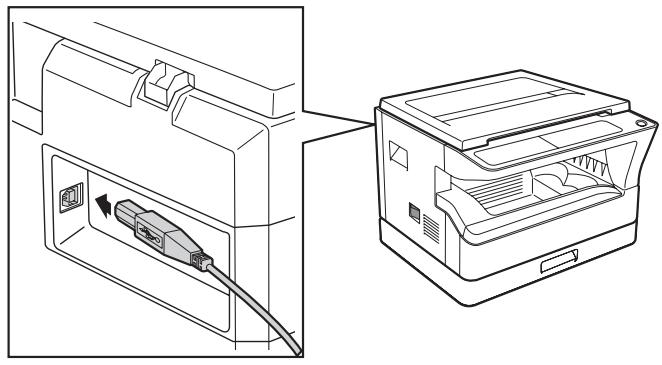
2 Insert the other end of the cable into your computer's USB connector.
System requirements for USB 2.0 (Hi-Speed mode)
- The machine's USB 2.0 connector will transfer data at the speed specified by the USB 2.0 (Hi-Speed) only if the Microsoft USB 2.0 driver is preinstalled in the computer, or if the USB 2.0 driver for Windows 2000 Professional /XP/Vista/7 that Microsoft provides through its "Windows Update" Web page is installed.
- Even when the Microsoft USB 2.0 driver is used, it may not be possible to obtain full USB 2.0 speed if a PC card supporting USB 2.0 is used. To obtain the latest driver (which may enable a higher speed), contact the manufacturer of your PC card.
- Connection is also possible using a USB 1.1 port on your computer. However, the specifications will be USB 1.1 specifications (Full-Speed).
USING THE MACHINE AS A SHARED PRINTER
If the machine will be used as a shared printer on a Windows network, follow these steps to install the printer driver in the client computer.

To configure the appropriate settings in the print server, see the operation manual or help file of your operating system.
1 Perform steps 2 through 6 in "INSTALLING THE SOFTWARE" (p.7). 2 Click the "Custom" button. 3 Click the "MFP Driver" button.
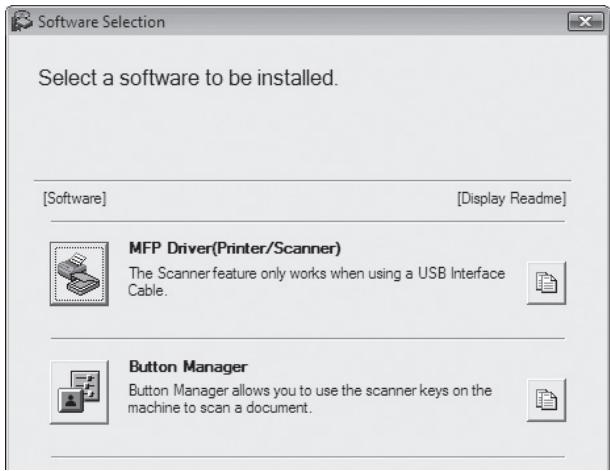
Click the "Display Readme" button to show information on packages that are selected.
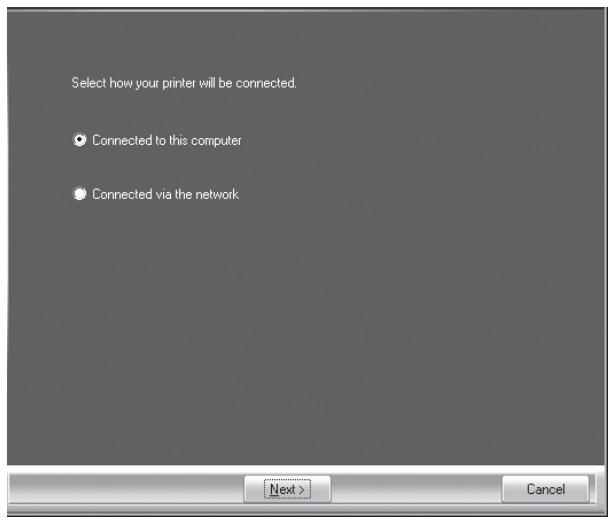
4 Select "Connected via the network" and click the "Next" button.
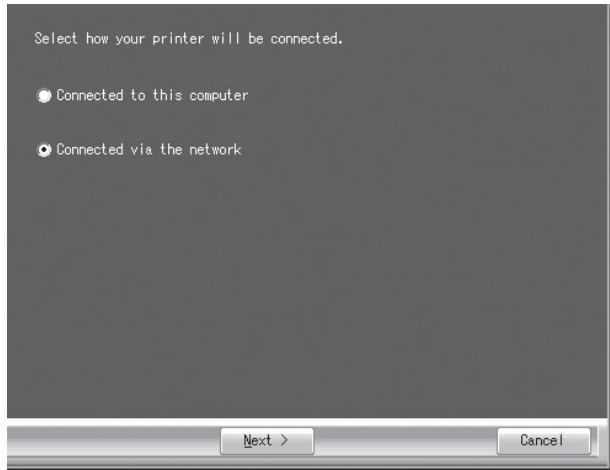
5 Select the printer name (configured as a shared printer on a print server) from the list.
In Windows 2000/XP, you can also click the "Add Network Port" button displayed below the list and select the printer to be shared by browsing the network in the window that appears.
6 Click the "Next" button.
Follow the on-screen instructions.

If the shared printer does not appear in the list, check the settings on the print server.

- If you are using Windows Vista/7 and a security warning window appears, be sure to click "Install this driver software anyway".
- If you are running Windows 2000/XP and a warning message appears regarding the Windows logo test or digital signature, be sure to click "Continue Anyway" or "Yes".
7 You will return to the window of step 3. Click the "Close" button.

After the installation, a message prompting you to restart your computer may appear. In this case, click the "Yes" button to restart your computer.
This completes the installation of the software.
CONFIGURING THE PRINTER DRIVER
After installing the printer driver, you must configure the printer driver settings appropriately for the number of paper trays on the machine and the size of paper loaded in each.
- In Windows 7, click the "Start" button and then click "Devices and Printers".
- In Windows XP, click the "Start" button and click "Printers and Faxes".
- In Windows 2000, click the "Start" button, select "Settings", and then click "Printers".

In Windows XP, if "Printers and Faxes" does not appear in the "Start" menu, select "Control Panel", select "Printers and Other Hardware", and then select "Printers and Faxes".
2 Click the "SHARP AR-XXXX" printer driver icon and select "Properties" from the "Organize" menu.
- In Windows 7, right-click the "SHARP AR-XXXX" printer driver icon, and then click "Printer properties".
- In Windows XP/2000, select "Properties" from the "File" menu.
3 Click the "Configuration" tab and set the printer configuration based on the options that have been installed.
Set the printer configuration properly. If not, printing may not take place correctly.
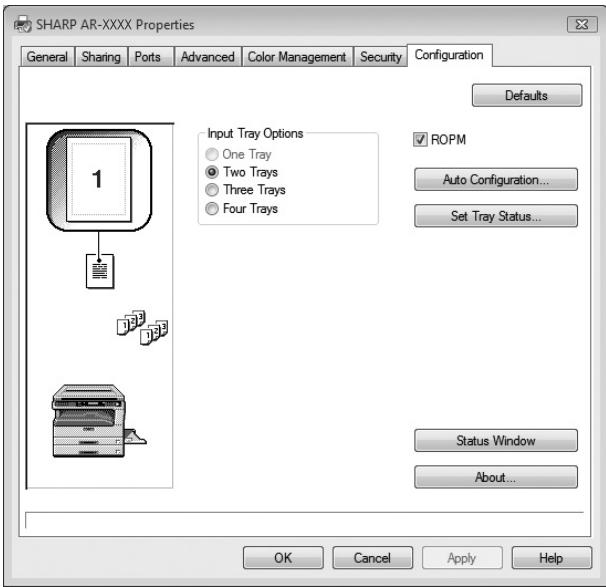

To automatically configure the settings based on the detected machine status, click the "Auto Configuration" button.
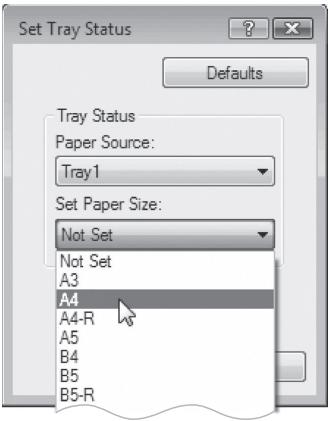
Select a tray in the "Paper Source" menu, and select the size of paper loaded in that tray from the "Set Paper Size" menu. Repeat for each tray.
Button Manager is a software program that works with the scanner driver to enable scanning from the machine. To scan using the machine, Button Manager must be linked with the scan menu on the machine. Follow the steps below to link Button Manager.
Windows XP/Vista/7
- In Windows 7, click the "Start" button and then click "Devices and Printers".
- In Windows XP, click the "start" button, select "Control Panel" and click "Printers and Other Hardware", and then click "Scanners and Cameras".
2 Click the "SHARP AR-XXXX" icon and select "Properties".
- In Windows 7, right-click the "SHARP AR-XXXX" icon and select "Scan properties".
- In Windows XP, select "Properties" from the "File" menu.
3 In the "Properties" screen, click the "Events" tab.
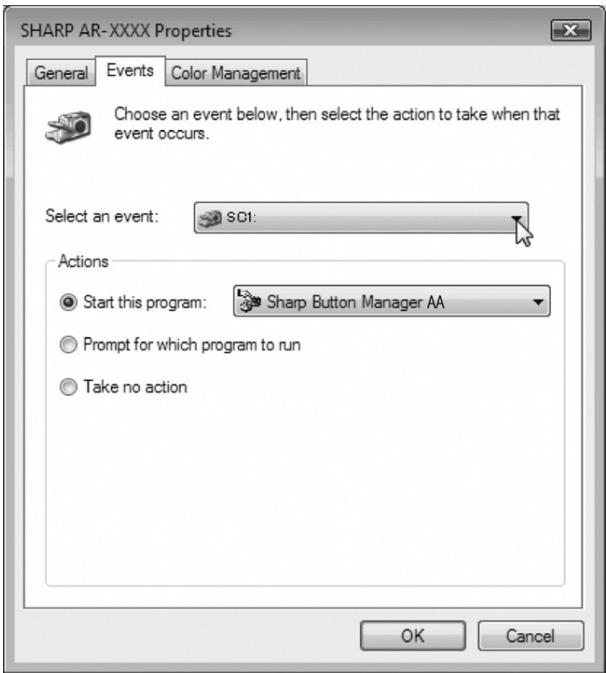
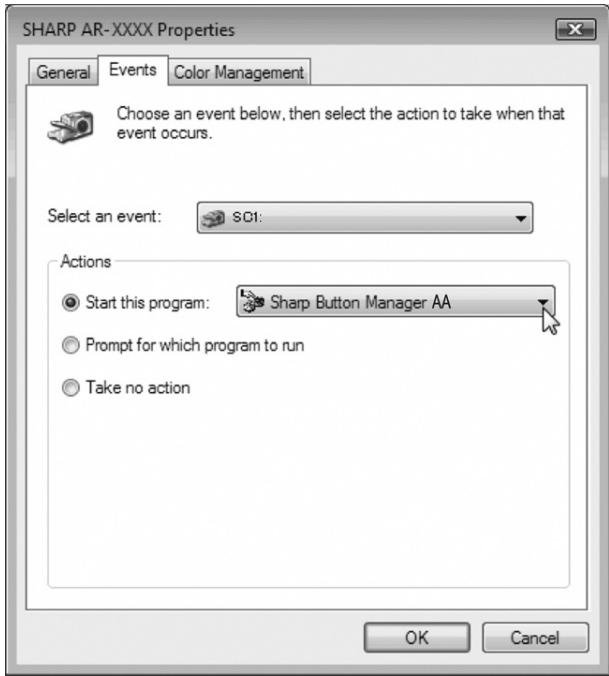
Select "SC2:" from the "Select an event" pull-down menu. Select "Start this program", select "Sharp Button Manager AA" from the pull-down menu. Do the same for each scan menu through "SC6:".
Button Manager is now linked to the scan menu (1 through 6).
The scan settings for each of scan menu 1 through 6 can be changed with the setting window of Button Manager.
For the factory default settings of the scan menu and the procedures for configuring Button Manager settings, see "BUTTON MANAGER SETTINGS" (p.61).
Windows 2000
1 Click the "Start" button, select "Settings", and then click "Control Panel". 2 Double-click the "Scanners and Cameras" icon. 3 Select "SHARP AR-XXXX" and click the "Properties" button. 4 In the "Properties" screen, click the "Events" tab. 5 Select "SC1:" from the "Scanner events" pull-down menu.
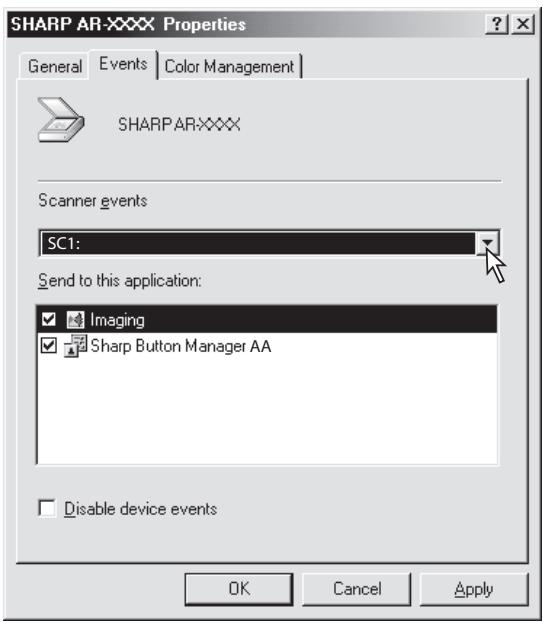
6 Select "Sharp Button Manager AA" in "Send to this application".
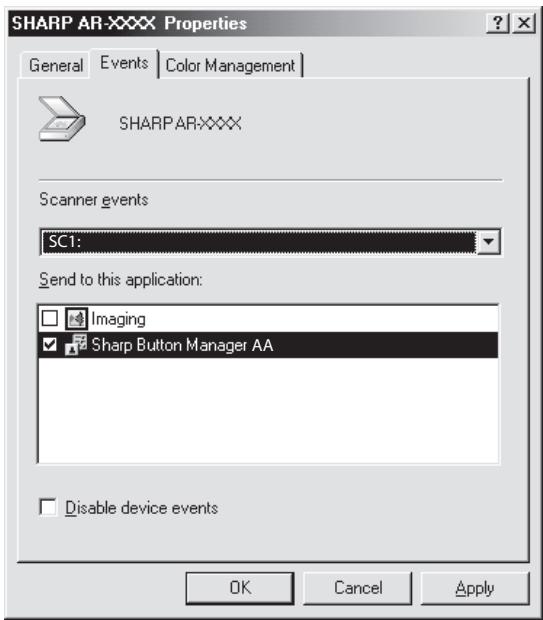

If other applications are shown, deselect the checkboxes for the other applications and leave only the Button Manager checkbox selected.
7 Click the "Apply" button. Repeat Steps 5 through 7 to link Button Manager to "SC2:" through "SC6:".
Select "SC2:" from the "Scanner events" pull-down menu. Select "Sharp Button Manager AA" in "Send to this application" and click the "Apply" button. Do the same for each scan menu through "SC6:". When the settings have been completed, click the "OK" button to close the screen.
Button Manager is now linked to the scan menu (1 through 6).
The scan settings for each of scan menu 1 through 6 can be changed with the setting window of Button Manager.
For the factory default settings of the scan menu and the procedures for configuring Button Manager settings, see "BUTTON MANAGER SETTINGS" (p.61).
TROUBLESHOOTING
If the software is not installed correctly, check the following items on your computer.
The driver cannot be installed (Windows 2000/XP)
If the driver cannot be installed in Windows 2000/XP, follow these steps to check your computer's settings.
In Windows 2000, click the "Start" button, select "Settings", and then click "Control Panel".
2 Click "Performance and Maintenance", and then click "System".
In Windows 2000, double-click the "System" icon.
4 Check "What action do you want Windows to take?" ("File signature verification" in Windows 2000).
Universal Serial Bus controllers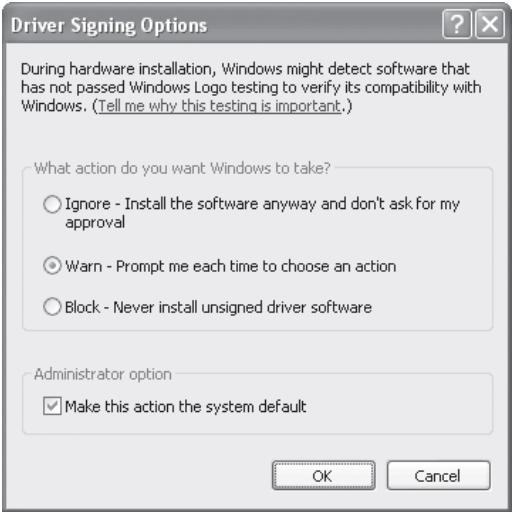
If the option "Block" has been selected, it will not be possible to install the driver. Select the option "Warn" and then install the driver as explained in "INSTALLING THE SOFTWARE" (p.7).
Plug and Play window does not appear
If the Plug and Play window does not appear after you connect the machine to your computer with a USB cable and turn on the machine, follow the steps below to verify that the USB port is available.
1 Click the "Start" button, select "Control Panel", and then click "System and Maintenance".
- In Windows XP, click the "start" button, click "Control Panel", and then click "Performance and Maintenance".
- In Windows 2000, click the "Start" button, select "Settings", and then click "Control Panel".
2 Click "Device Manager", and if a message screen appears asking you for confirmation, click "Continue".
"Universal Serial Bus controllers" will appear in the list of devices.
- In Windows XP, click "System", click the "Hardware" tab, and click the "Device Manager" button.
- In Windows 2000, double-click the "System" icon, click the "Hardware" tab, and click the "Device Manager" button.
3 Click the + icon beside "Universal Serial Bus controllers".
Standard OpenHCD USB Host Controller
USB Root Hub
OSB Root Hub
Two items should appear: your controller chipset type and Root Hub. If these items appear, you can use the USB port. If the "Universal Serial Bus controllers" shows a yellow exclamation point or does not appear, you must check your computer manual for USB troubleshooting or contact your computer manufacturer.
4 Once you have verified that the USB port is enabled, install the software as explained in "INSTALLING THE SOFTWARE" (p.7).
The driver cannot be correctly installed by Plug and Play
If the driver cannot be correctly installed by Plug and Play (for example, Plug and Play takes place without copying the required files for the driver installation), follow these steps to remove unneeded devices and then install the driver as explained in "INSTALLING THE SOFTWARE" (p.7).
1 Click the "Start" button, select "Control Panel", and then click "System and Maintenance".
- In Windows XP, click the "start" button, click "Control Panel", and then click "Performance and Maintenance".
- In Windows 2000, click the "Start" button, select "Settings", and then click "Control Panel".
2 Click "Device Manager", and if a message screen appears asking you for confirmation, click "Continue".
- In Windows XP, click "System", click the "Hardware" tab, and click the "Device Manager" button.
- In Windows 2000, double-click the "System" icon, click the "Hardware" tab, and click the "Device Manager" button.
3 Click the + icon beside "Other devices".


If "SHARP AR-XXXX" appears, select and delete the item.

If "Other devices" does not appear, close the "Device Manager" window.
4 Install the software as explained in "INSTALLING THE SOFTWARE" (p.7).
Removing the software
If you need to remove the software, follow these steps.
- In Windows XP, click the "start" button and then click "Control Panel".
- In Windows 2000, click the "Start" button, select "Settings", and then click "Control Panel".
2 Click "Uninstall a program".
- In Windows XP, click "Add or Remove Programs".
- In Windows 2000, double-click the "Add/Remove Programs" icon.
3 Select the driver from the list, and remove the software.
For more information, refer to your operating manual or to the help files for your operating system.
4 Restart your computer.
This chapter contains basic information that should be read before using the machine.
PART NAMES AND FUNCTIONS
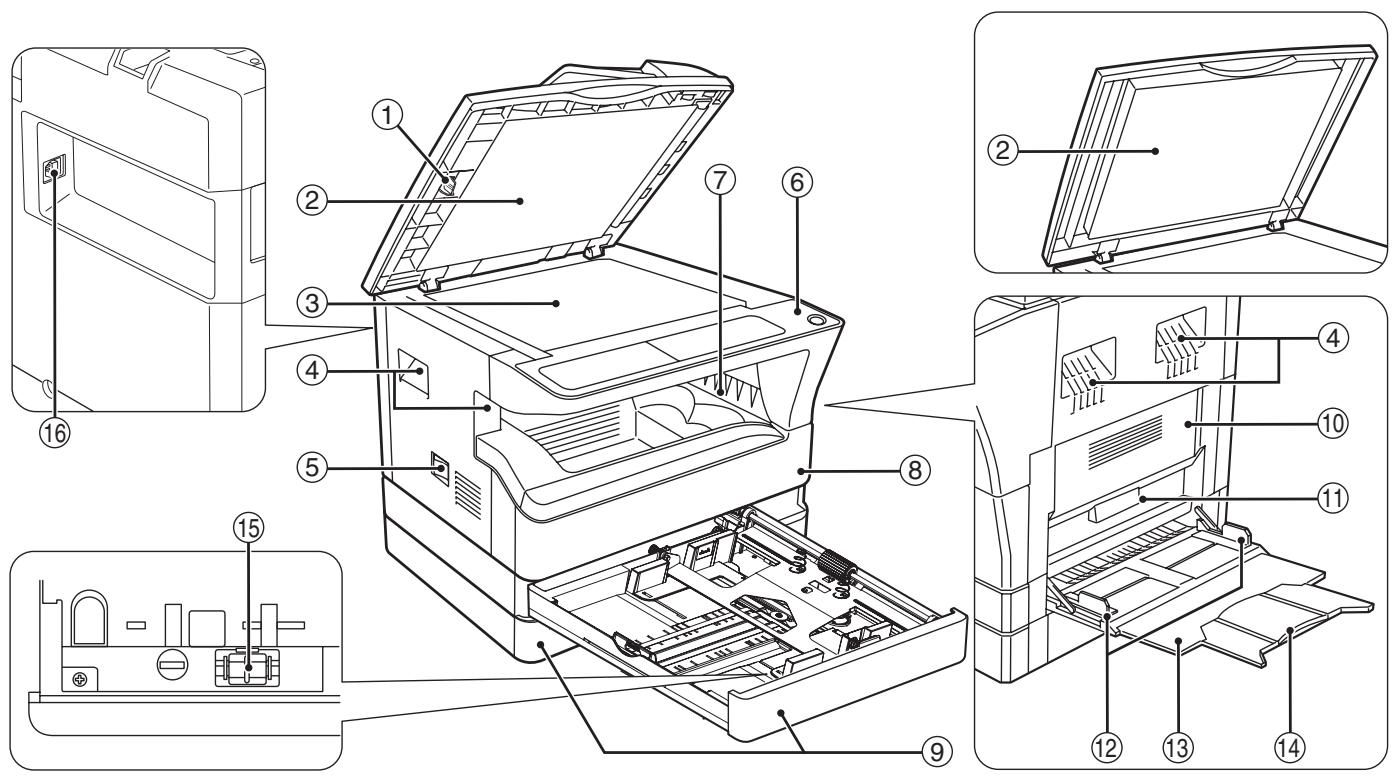
① Glass cleaner (when the SPF/RSPF is installed) Use to clean the original scanning glass. (p.98) ② Document feeder cover (when the SPF/RSPF is installed) /document cover Open to make copies from the document glass. (p.27) ③ Document glass Place an original that you wish to scan face down here. (p.27) ④ Handles Use to move the machine. ⑤ Power switch Press to turn the machine power on and off. (p.20) ⑥ Operation panel Contains operation keys and indicator lights. (p.18, p.19)
⑦ Paper output tray Copies and prints are deposited to this tray. (8) Front cover
Open to remove paper misfeeds and perform machine maintenance. (p.90, p.91, p.95)
⑨ Paper trays
Each tray holds 250 sheets of paper. (p.22)
⑩ Side cover
Open to remove paper misfeeds and perform machine maintenance. (p.89, p.90)
① Side cover handle
Pull to open the side cover. (p.89)
Bypass tray guides
Adjust to the width of the paper. (p.23)
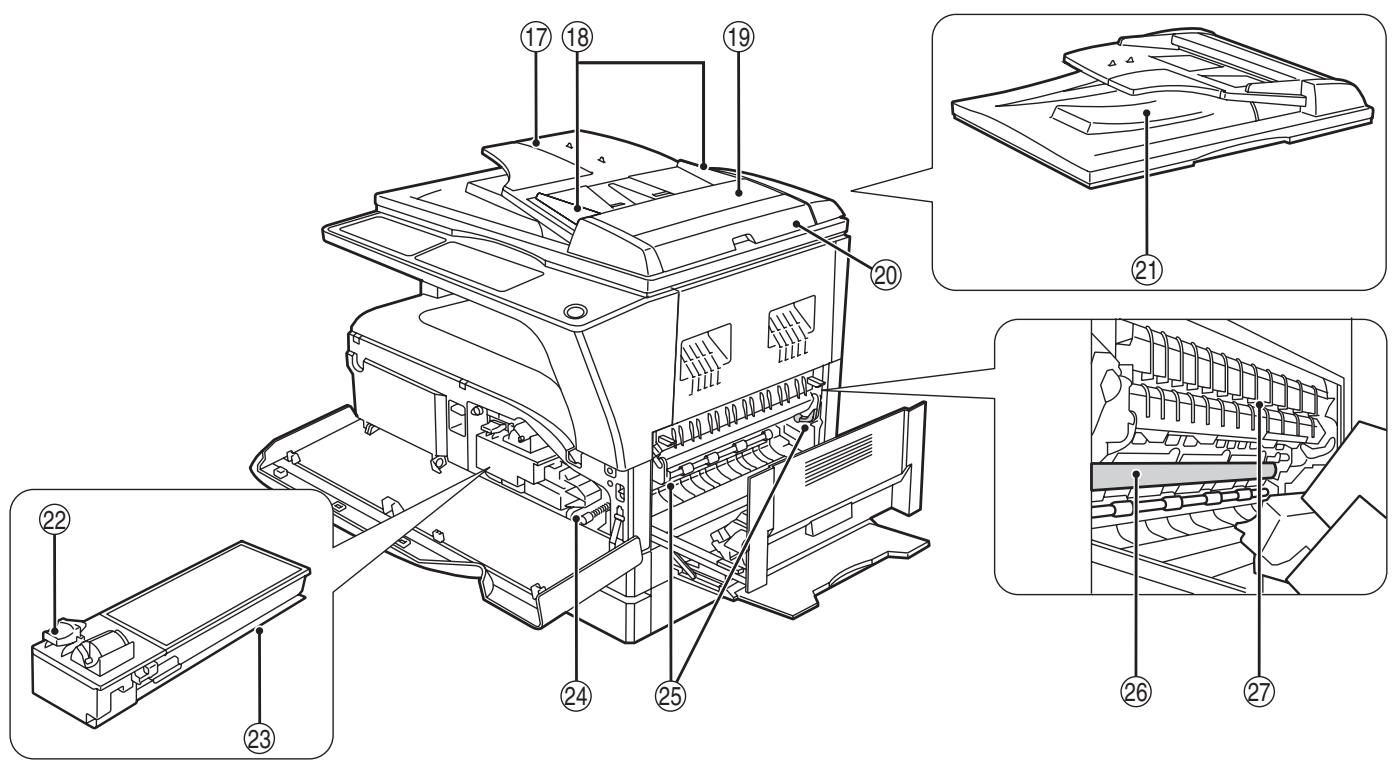
Bypass tray
Paper including special paper (such as transparency film) can be fed from the bypass tray. (p.23, p.38)
Bypass tray extension
Pull out when feeding large paper such as B4 and A3 (8-1/2" x 14" and 11" x 17"). (p.23)
Charger cleaner
Use to clean the transfer charger. (p.99)
USB 2.0 connector
Connect to your computer to use the printer function. (p.9)
Document feeder tray (when the SPF/RSPF is installed)
Place the original(s) that you wish to scan face up here. Holds up to 40 originals. (p.29)
Original guides (when the SPF/RSPF is installed)
Adjust to the size of the originals. (p.28)
Feeding roller cover (when the SPF/RSPF is installed)
Open to remove misfed originals. (p.88)
Right side cover (when the SPF/RSPF is installed)
Open to remove misfed originals. (p.88)
② Exit area (when the SPF/RSPF is installed)
Originals exit the machine here after copying.
② Toner cartridge lock release lever
To replace the toner cartridge, pull out the toner cartridge while pushing on this lever. (p.95)
23 Toner cartridge
Contains toner. (p.95)
② Roller rotating knob
Turn to remove misfed paper. (p.90, p.91)
Fusing unit release levers
To remove a paper misfeed from the fusing unit, push down on these levers and remove the paper. (p.91)
AWarning
The fusing unit is hot. Do not touch the fusing unit when removing misfed paper. Doing so may cause a burn or injury.
26 Photoconductive drum
Copy images are formed on the photoconductive drum.
Fusing unit paper guide
Open to remove misfed paper. (p.92)
Note
The model name can be seen on the machine's front cover.
OPERATION PANEL
The indications of the operation panel may differ depending on the country and the region.
The example of a display of inch series.

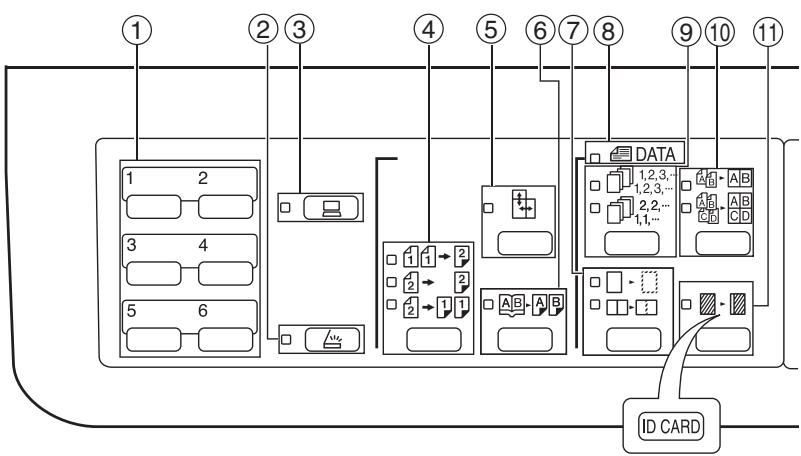
When the ID
CARD COPY
function is used
① SCAN MENU key
Use to scan by means of the provided Button Manager software. (p.61)
② SCAN key (/indicator)
Press to switch the machine to scanner mode and scan by means of the provided Button Manager software. (p.59) The indicator blinks during scanning and transmission of the scanned data.
③ ON LINE key (□)/indicator
Press to toggle the machine between online and off-line. The indicator lights up when the machine is online, and goes off when the machine is off-line. The indicator blinks while the machine is receiving print data and while printing is paused. (p.48)
④ ORIGINAL TO COPY key / indicators (AR-5618D/AR-5620D/AR-5623D)
Press to select one-sided and two-sided copy modes. (p.36)
11 Two-sided copies from one-sided originals. 2 Two-sided copies from two-sided originals.
One-sided copies from two-sided originals.
⑤ XY-ZOOM key / indicator
Press to change the horizontal and vertical copy ratios independently. (p.33)
⑥ DUAL PAGE COPY key (A B A B) / indicator
Use to make individual copies of the two pages of an open book or other two-page original. (p.39)
⑦ ERASE key (□·/□·) / indicators
Press to select the "EDGE ERASE", "CENTRE ERASE" or "EDGE + CENTRE ERASE" mode. (p.46)
⑧ ORIGINAL DATA indicator (DATA)
Blinks when the memory becomes full of scanned original image data. (p.42, p.44)
SORT/GROUP key / indicators
Press to select the "SORT" or "GROUP" mode. (p.41)
10 2 IN 1 / 4 IN 1 key (AB/AB/AB) / indicators
Press to select the "2 IN 1" or "4 IN 1" mode. (p.43)
① MARGIN SHIFT key ( ) / indicator
Shifts text or image on the copy to leave a binding margin on the edge of the copy. (p.45)
To use the ID card copy function, attach the supplied [ID CARD] key label on the MARGIN SHIFT key. (The function cannot be used in some regions.)
AUTO/TEXT/PHOTO key ( AUTO / ) / indicators
Use to select the exposure mode:
"AUTO", "TEXT", or "PHOTO". (p.30)
ORIGINAL key (ORIGINAL) / ORIGINAL SIZE indicators
Use to enter the original size. (p.24) The selected original size will light up.
(14) PAPER SIZE indicators
Light up to show the selected copy paper size. (p.24)
15 Paper feed location / misfeed location indicators The selected paper feed location is shown by a lit indicator (□). (p.27)
The general location of misfed paper is shown by a blinking red indicator (◁). (p.88)
16 Alarm indicators
[ ] Maintenance indicator (p.87) [ ] Toner cartridge replacement required indicator (p.87) [ ] Developer replacement required indicator (p.87) [ ] Paper required indicator (p.87) [ ] Misfeed indicator (p.87)
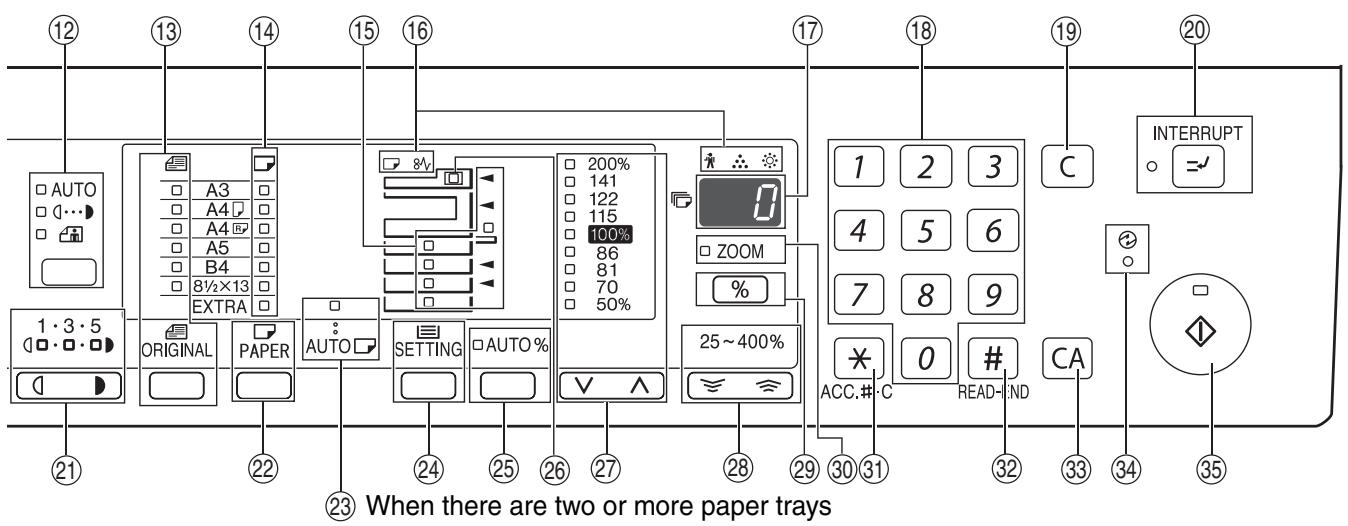
⑦ Display
Shows the set number of copies, as well as the copy ratio, system setting function or setting code, or an error code when an error occurs.
Numeric keys
Use to select the desired copy quantity or to make system setting entries. (p.31)
To display the total number of pages output by the machine, hold the [0] key down. (p.96)
19 CLEAR key (C)
Cleared the copy quantity display or terminates a copy run.
INTERRUPT key (=) / indicator
Interrupts a copy run. (p.40)
Light and Dark keys (d, b) / indicators
Use to adjust the TEXT or PHOTO exposure level. (p.30)
22 PAPER SELECT key (PAPER)
Use to set the paper size in the paper trays. (p.24, p.30)
23 AUTO PAPER SELECT indicator (AUTO
Paper of the proper size will be automatically selected depending on the original size and selected copy ratio when this indicator is on. (p.29)
4 TRAY SETTING key (SETTING)
Use to manually select a paper tray. (p.24)
25 AUTO IMAGE key (AUTO %) / indicator
Press for automatic copy ratio selection. (p.31)
SPF/RSPF indicator (when the SPF/RSPF is installed)
Lights up when originals are set in the document feeder tray. (p.28)
2 PRESET RATIO selector keys ( / indicators
Use to select preset reduction/enlargement copy ratios. (p.32)
Use to select any reduction or enlargement copy ratio from 25% to 400% in increments of 1%. (p.33)
29 Copy ratio display key (%)
Hold down when the machine is not in use to display the copy ratio in the display. (p.33)
ZOOM indicator
Lights up when a zoom ratio is set. (p.33)
Audit clear key (ACC.#-C)
Closes an open account. (p.78)
READ-END key (#)
Use to check the total number of copies made. (p.96)
When copying in sort mode and 2 in 1/4 in 1 from the document glass, press this key when you have finished scanning the original pages and are ready to start copying. (p.42, p.43)
CLEAR ALL key (CA)
Clears all selected settings and returns the machine to the initial settings. (p.20)
POWER SAVE indicator (2)
Lights up when the machine is in a power save mode. (p.20)
START key / indicator
Press to make a copy (p.28). Also press to exit "Auto power shut-off" mode and to set a system setting. Copying is possible when the indicator is on.
POWER ON AND OFF
The power switch is located on the left side of the machine.
POWER ON
Turn the power switch to the "ON" position.
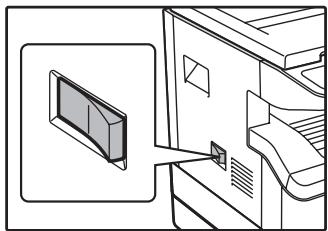
It will take about 25 seconds for the machine to warm up. While the machine is warming up, the POWER SAVE indicator (②) will blink.
(The POWER SAVE indicator will go off when the machine is ready to copy.)
However, you can make desired settings and press the [START] key (◇) during warm-up. Copying will start after warm-up.
POWER OFF
Make sure that the machine is not in operation and then turn the power switch to the "OFF" position.
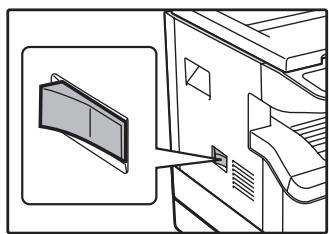
If the power switch is turned off while the machine is in operation, a misfeed may occur and the job that was in progress will be cancelled.
Check the following to make sure the machine is not in operation:
- The START indicator is lit. (Initial state)
- The POWER SAVE indicator (2) is lit. ("Preheat mode" or "Auto power shut-off" mode)

- The machine reverts to the initial settings when it is first turned on, when the [CLEAR ALL] key (CA) is pressed, or when no keys are pressed for the preset "Auto clear" time following the end of a copy job. When the machine reverts to the initial settings, all settings and functions selected to that point are cancelled. The "Auto clear" time can be changed in the user settings. (p.70)
- The machine is initially set to automatically enter power save mode if not used for copying or printing, for a preset period of time. This setting can be changed in the system settings. (p.70)
Power save modes
The machine has two power save modes to reduce overall power consumption thereby reducing the cost of operation. In addition, these modes conserve natural resources and help reduce environmental pollution. The two power save modes are "Preheat mode" and "Auto power shut-off mode".
Preheat mode
This function automatically switches the machine to a low power consumption state if the set duration of time elapses without the machine being used when the power is on. The POWER SAVE indicator (②) lights up, however, the keys on the operation panel can be used. Normal operation automatically resumes when a key on the operation panel is pressed, an original is placed, or a print job is received.
Auto power shut-off mode
This function automatically switches the machine to a state that consumes even less power than preheat mode if the set duration of time elapses without the machine being used when the power is on. All lights except the POWER SAVE indicator (①) and ON LINE indicator go off. To resume normal operation, press the [START] key (②). Normal operation also resumes automatically when a print job is received. While in auto power shut-off mode, no keys (except the [START] key (③)) can be used.

The preheat activation time and the "Auto power shut-off timer" can be changed using system settings. It is suggested that you set times that are appropriate for your usage of the machine. (p.70)
Initial settings
The machine assumes the initial settings when it is first turned on, when the [CLEAR ALL] key (CA) is pressed, and approximately one minute after the last copy is made in any mode.
Copy ratio: 100%, Exposure: Automatic
Copy quantity: 0, All special copier modes: Off
Auto paper selection: On, Paper feed station: The tray selected in the "Default tray setting" in the system settings. (p.72)
LOADING PAPER
The paper required indicator (□) will light up when there is no copy paper in the selected paper feed tray, or when the selected paper tray is not installed or is improperly installed.
PAPER
For best results, use only SHARP recommended paper.
| Paper tray type | Paper type | Size | Weight | Capacity |
| Paper tray
250-sheet paper feed unit
2 x 250-sheet paper feed unit | Standard paper Recycled paper | A5*1
B5
A4
B4
A3
(5-1/2" x 8-1/2"*1 (Invoice))
(8-1/2" x 11" (Letter))
(8-1/2" x 13" (Foolscap))
(8-1/2" x 14" (Legal))
(11" x 17" (Ledger)) | 56 g/m2 to 90 g/m2*2
(15 lbs. to 24 lbs. *2) | 250 sheets
(Load paper lower than the line on the tray) |
| Bypass tray | Standard paper Recycled paper | A6R to A3
(5-1/2" x 8-1/2" (Invoice)
to 11" x 17" (Ledger)) | 56 g/m2 to 90 g/m2
(15 lbs. to 24 lbs.) | 100 sheets *3 |
| Transparency film Labels | | Load one sheet of paper each time on the bypass tray. |
| Thick paper | A6R to A4
(5-1/2" x 8-1/2" (Invoice)
to 8-1/2" x 11" (Letter)) | 129 g/m2 to 200 g/m2
(33 lbs. to 110 lbs. *4) | Load one sheet of paper each time on the bypass tray. |
| 106 g/m2 to 128 g/m2
(28 lbs. to 33 lbs.) | You can load multiple sheets of paper on the bypass tray. |
| A6R to A3
(5-1/2" x 8-1/2" (Invoice)
to 11" x 17" (Ledger)) | 91 g/m2 to 105 g/m2
(24 lbs. to 28 lbs.) | You can load multiple sheets of paper on the bypass tray. |
| Envelopes | International DL
(110 mm x 220 mm)
International C5
(162 mm x 229 mm)
Monarch
(3-7/8" x 7-1/2")
Commercial 10
(4-1/8" x 9-1/2") | | 5 sheets |
1 A5 (5-1/2" x 8-1/2") can be used in the upper paper tray but cannot be used in other trays (including trays in optional paper feeding unit). 2 When making a large number of copies or prints using 90 g/m² (24 lbs.) paper, remove the output from the paper output tray when about 100 pages have been printed. The output may not stack correctly if more than 100 pages are allowed to accumulate. 3 The number of sheets of the paper which can be set changes with the weight of a paper. 4 Index
Special papers
Follow these guidelines when using special papers.
- Use SHARP recommended transparency film and label sheets. Using other than SHARP recommended paper may result in misfeeds or smudges on the output. If other than SHARP recommended media must be used, feed each sheet one at a time using the bypass tray (do not attempt continuous copying or printing).
- There are many varieties of special paper available on the market, and some cannot be used with this machine. Before using special paper, contact your authorised service representative.
- Before using paper other than SHARP recommended paper, make a test copy to see if the paper is suitable.
LOADING PAPER
Make sure that the machine is not copying or printing, and then follow these steps to load paper.
Loading the paper tray
1 Gently lift and pull out the paper tray until it stops.
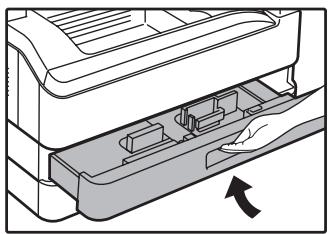
2 Push the pressure plate down until it locks in place.
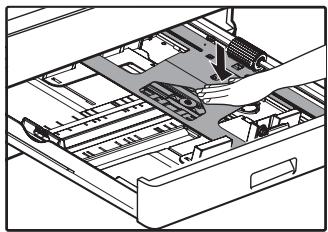
Push the centre of the pressure plate down until it locks into place.
3 Load paper into the tray.
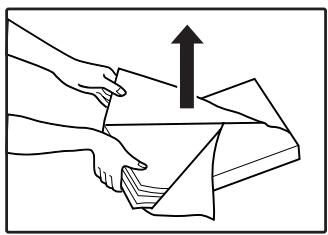
- Open the package of the paper and load it without fanning the paper.
- Make sure the stack of paper is straight before loading it.
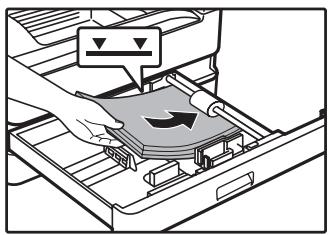
Note
- Do not load paper higher than the line on the tray (up to 250 sheets).
- Do not add paper to the loaded paper. It may cause multiple feed of paper.
- A5 (5-1/2" x 8-1/2") can be used in the upper paper tray but cannot be used in other trays (including trays in optional paper feeding unit).
4 Gently push the paper tray into the machine.
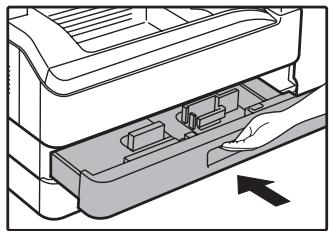
Note
- If you loaded a different size of paper than was loaded previously in the tray, go to "CHANGING A TRAY'S PAPER SIZE SETTING" (p.24).
- When misfeed occurs, rotate the paper 180 degrees and reload it.
- Straighten curled paper before using it.
For how to load paper, refer to the steps below.
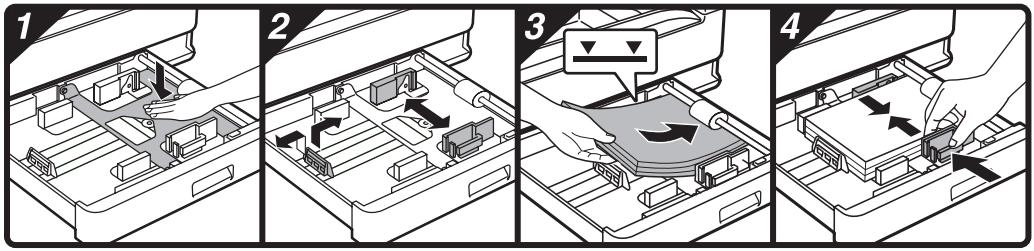
Loading the bypass tray
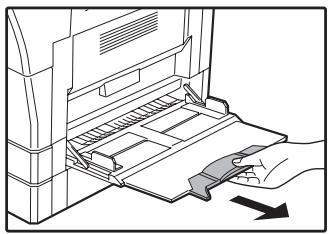
1 Unfold the bypass tray.
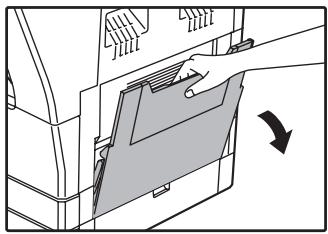
When feeding large paper such as B4 and A3 (8-1/2" x 14" and 11" x 17"), pull out the bypass tray extension.
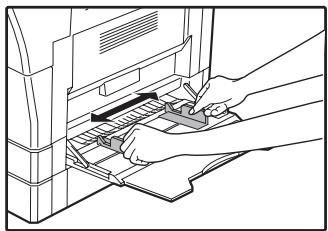
2 Set the paper guides to the copy paper width.
3 Insert the paper (print face down) all the way into the bypass tray.
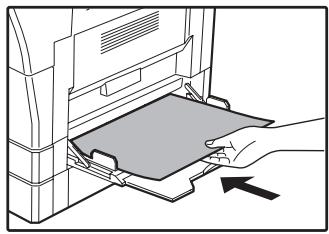
To prevent a misfeed, verify once more that the paper guides are adjusted to the width of the paper.

- If you loaded paper in the bypass tray, press the [PAPER SELECT] key (PAPER) to select the bypass tray. The bypass tray will not be selected automatically.
- If you load thick paper in the bypass tray, hold down the [TRAY SETTING] key (Setting) for more than 5 seconds, use the [PAPER SELECT] key (PAPER) to select the bypass tray, and press the [AUTO IMAGE] key (AUTO%). When AUTO IMAGE indicator (AUTO%) lights up, the paper type is set to thick paper. The setting is cleared when "Auto clear" works or the [CLEAR ALL] key (CA) is pressed.
Important points when inserting paper in the bypass tray
- Up to 100 sheets of standard copy paper can be set in the bypass tray.
- Be sure to place A6, B6 or 5-1/2" x 8-1/2" size paper or envelopes horizontally as shown in the following diagram (□).
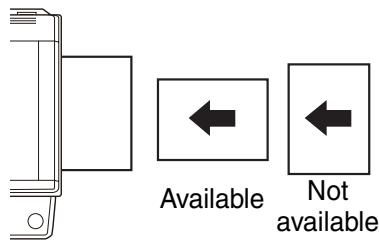
- When loading envelopes, make sure that they are straight and flat and do not have loosely glued construction flaps (not the closure flap).
- Special papers except SHARP recommended transparency film, labels, and envelopes must be fed one sheet at a time through the bypass tray.
- When adding paper, first remove any paper remaining in the tray, combine it with the paper to be added and then reload as a single stack. The paper to be added must be the same size and type as the paper already in the tray.
- Do not use paper that is smaller than the original. This may cause smudges or unclean images.
- Do not use paper that has already been printed on by a laser printer or plain paper fax machine. This may cause smudges or unclean images.
Envelopes
Do not use the following envelopes, as misfeeds will occur.
- Envelopes with metal tabs, clasps, strings, holes, or windows.
- Envelopes with rough fibres, carbon paper, or glossy surfaces.
- Envelopes with two or more flaps.
- Envelopes with tape, film, or paper attached to the flap.
- Envelopes with a fold in the flap.
- Envelopes with glue on the flap to be moistened for sealing.
- Envelopes with labels or stamps.
- Envelopes that are slightly inflated with air.
- Envelopes with glue protruding from the seal area.
- Envelopes with part of the seal area peeled off.
CHANGING A TRAY'S PAPER SIZE SETTING
Follow these steps to change a tray's paper size setting.

- The paper size setting cannot be changed when the machine has stopped temporarily due to running out of paper or a misfeed, or during interrupt copying.
- During printing (even in copy mode), the paper size setting cannot be changed.
- A5 (5-1/2" x 8-1/2") size paper can only be selected in the upper paper tray.
- Do not load paper that is a different size than the paper size setting. Copying will not be possible.
Hold down the [TRAY SETTING] key (SETTING) for more than 5 seconds to set the selected paper size.
![SHARP AR-5620D - Hold down the [TRAY SETTING] key (SETTING) for more than 5 seconds to set the selected paper size. - 1](/content/2025/01/122157/images/b2204a860e7c11040ee203ca5d4b36686db00cb88f67cdb691dcecf29f351080.jpg)
The currently selected paper feed location indicator will blink and the corresponding paper size (which is currently set) indicator will light steadily. All other indicators will go out.
2 If the machine has two or more paper trays, use the [PAPER SELECT] key (PAPER) to select the paper tray for which you wish to change the paper size setting.
![SHARP AR-5620D - If the machine has two or more paper trays, use the [PAPER SELECT] key (PAPER) to select the paper tray for which you wish to change the paper size setting. - 1](/content/2025/01/122157/images/65e8a6b1ac38f6cb4dc977670f981a2bc6bb05f1a0bfcaa6d15c1992cd488c4b.jpg)
Each time the [PAPER SELECT] key (PAPER) is pressed, a paper tray will be indicated with a blinking paper feed location indicator.
3 Use the [ORIGINAL] key (ORIGINAL) to select the paper size.
![SHARP AR-5620D - Use the [ORIGINAL] key (ORIGINAL) to select the paper size. - 1](/content/2025/01/122157/images/7a6b0e6ab06b1e7e570d943da9d41f831a67f42cac12d2fddbdd7dcbbd9f2f90.jpg)
The indicator of the selected paper size lights up.
Changing bypass tray's paper size setting
To change the bypass tray's paper size setting, hold down the [TRAY SETTING] key (Setting) for more than 5 seconds, use the [PAPER SELECT] key (PAPER) to select the bypass tray, and select the desired paper size.

If you load thick paper in the bypass tray, hold down the [TRAY SETTING] key (SETTING) for more than 5 seconds, use the [PAPER SELECT] key (PAPER) to select the bypass tray, and press the [AUTO IMAGE] key (AUTO%). When the AUTO IMAGE indicator (AUTO %) lights up, the paper type is set to thick paper. The setting is cleared when "Auto clear" works or the [CLEAR ALL] key (CA) is pressed.
Customize the bypass tray setting
If the bypass tray is selected, you can also change the paper size setting with the following procedure.
- Enter a value for the horizontal/vertical direction by pressing the numeric keys.
Press the [%] key to switch the horizontal/vertical direction.
The horizontal direction is selected:
zoom indicator lights up
The vertical direction is selected:
zoom indicator does not light up
When finished, press and hold [%].
Available value
| Direction | min. (mm) | max. (mm) |
| horizontal | 100 | 297 |
| vertical | 139 | 420 |
*Value can be entered only in metric (AB series).
Metric (AB series) and inch series reference
| Inch series (inch) | Metric series
(AB series) (mm) |
| 5-1/2" x 8-1/2" (Invoice) | 140 x 216 |
| 8-1/2" x 11" (Letter) | 216 x 279 |
| 8-1/2" x 13" (Foolscap) | 216 x 330 |
| 8-1/2" x 14" (Legal) | 216 x 355 |
| 11" x 17" (Ledger) | 279 x 432 |
4 Squeeze the lock lever of the front guide and slide the front guide to match the width of the paper, and move the left guide to the appropriate slot as marked on the tray.
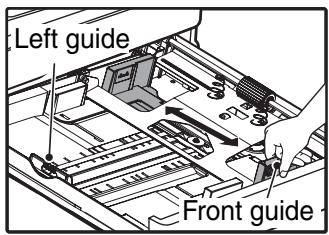
- The front guide is a slide-type guide. Grasp the locking knob on the guide and slide the guide to the indicator line of the paper to be loaded.
- The left guide is an insert-type guide. Remove it and then insert it at the indicator line of the paper to be loaded.
- When using 11" x 17" sized paper, store the left guide in the slot at the left front of the paper tray.
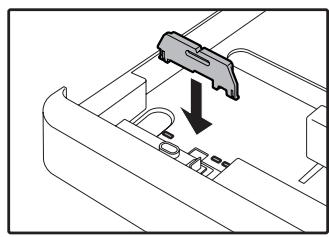
- If the bypass tray is selected, set the paper guides to the copy paper width.
Press the [START] key (♂) and then the [TRAY SETTING] key (♀).
![SHARP AR-5620D - Press the [START] key (♂) and then the [TRAY SETTING] key (♀). - 1](/content/2025/01/122157/images/1243a08dee8755815a0fb41631d3cc020e524c74a03fb541d0e6fbea759183f1.jpg)
To change the paper size setting of another tray, repeat steps 2 to 5 after pressing the [START] key (♂).
![SHARP AR-5620D - Press the [START] key (♂) and then the [TRAY SETTING] key (♀). - 2](/content/2025/01/122157/images/907e2f205368d5307603a1ba05f87dc4968a8ca98c99d4b5cd4b7f89d881758c.jpg)
Affix the paper size label for the paper size selected in step 3 to the label position on the right end of the tray.
![SHARP AR-5620D - Press the [START] key (♂) and then the [TRAY SETTING] key (♀). - 3](/content/2025/01/122157/images/b5fc73f93dc0c10459debf3173f96a61e70f0a5839aa8f8e7d451fb8fdd52d1d.jpg)
Important points when using the printer mode
Make sure that the tray's paper size setting is the same as the tray's paper size setting in the printer driver. For example, if the tray's paper size setting is A4R (8-1/2" x 11"R), set "Set Paper Size" to "A4R" ("Letter-R"). For more information, see "CONFIGURING THE PRINTER DRIVER" (p.11).
OPERATION IN COPY, PRINTER, AND SCANNER MODES
Some operations cannot be performed simultaneously when the machine is being used in printer mode, copy mode, or scanner mode.
| Modes | Copying | Printing | Scanning from a computer | Scanning from the machine |
| Copy | Copy key input | Yes | Yes | Yes | No |
| During copying | | No | No | No |
| Printer | During printing | Yes* | | Yes | Yes |
| Scanner | During scan preview/ during scanning | No | Yes | | |
- During two-sided printing (AR-5618D/AR-5620D/AR-5623D), the copy job begins after the print job finishes.
This chapter explains how to use the copy functions.
NORMAL COPYING
This section explains how to make a regular copy.
If "Auditing mode" has been enabled (p.75), enter your 3-digit account number.
Copying from the document glass
1 Open the document cover/SPF/RSPF, and place the original.
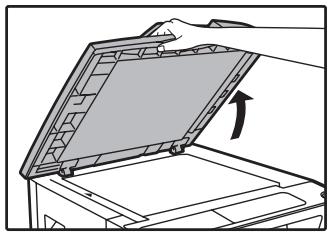
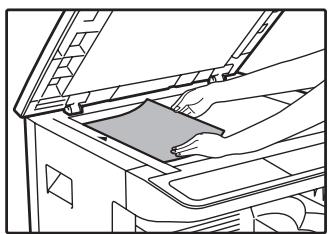
Place the original face down on the document glass.
[How to place the original]
Align the edge of the original with the original size scale, to be centred with the centring mark (▷).
![SHARP AR-5620D - [How to place the original] - 1](/content/2025/01/122157/images/59f2e2a033ada7b659a332d3df2c553086776b8784d0c2dce1f62a2b45eac508.jpg)
![SHARP AR-5620D - [How to place the original] - 2](/content/2025/01/122157/images/e233d865dd06d0329f41f718cca32542a7038a1a0ac034e2099c20126d6fd1b4.jpg)
An original up to A3 (11" x 17") can be placed on the document glass.
2 Close the document cover/SPF/RSPF.
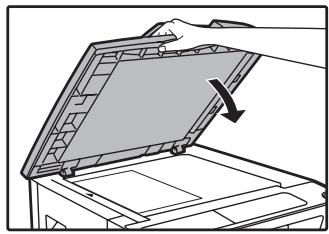
After placing the original, be sure to close the document cover/SPF/RSPF. If left open, parts outside of the original will be copied black, causing excessive use of toner.
3 Press the [ORIGINAL] key (original) and select the original size.
![SHARP AR-5620D - Press the [ORIGINAL] key (original) and select the original size. - 1](/content/2025/01/122157/images/9df684e15c1deb921f3d07e5605cff3ce917184890e4949a32974f5112d7b973.jpg)
When the original size is selected, the tray with the same size of paper is automatically selected. (When there are two or more paper trays)
Make sure that the PAPER SIZE indicator lights up. If the indicator is not lit, no tray has the same size of paper as the original. Load paper of the required size in a tray, or select the bypass tray with the [PAPER SELECT] key (□) and copy from the bypass tray. - The bypass tray must be manually selected. To copy on paper of a different size than the original, select the paper with the [PAPER SELECT] key (PAPER). - If the ORIGINAL SIZE indicator is blinking, rotate the original so that it is in the same orientation as the blinking ORIGINAL SIZE indicator.
4 Set the number of copies.
5 Press the [START] key (⑥) to begin copying.
![SHARP AR-5620D - Press the [START] key (⑥) to begin copying. - 1](/content/2025/01/122157/images/4ee120ee75f6e8713cc4ce3379f2fc97a832d4b6610f5ff033dc46f2bcc28c53.jpg)
The copy is delivered to the paper output tray.
Copying from the SPF/RSPF
1 Make sure that an original has not been left on the document glass. Close the SPF/RSPF.
2 Adjust the original guides to the size of the original(s).
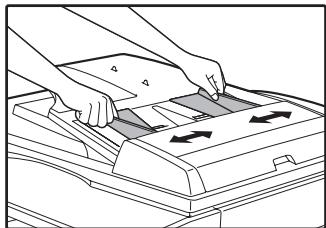
3 Set the original(s) face up in the document feeder tray.
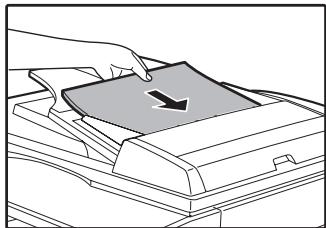
- Insert the original into the document feeder tray as far as it will go. When the original is set, the SPF/RSPF indicator will light up. The ORIGINAL SIZE indicator corresponding to the size of the original lights up.
- If the ORIGINAL SIZE indicator is blinking, rotate the original so that it is in the same orientation as the blinking ORIGINAL SIZE indicator.
- Make sure that the PAPER SIZE indicator is lit. If the indicator is not lit, no tray has the same size of paper as the original. Load paper of the required size in a tray, or select the bypass tray with the [PAPER SELECT] key (PAPER) and copy from the bypass tray. The bypass tray must be manually selected. To copy on paper of a different size than the original, select the paper with the [PAPER SELECT] key (PAPER).

- The paper output tray can hold up to 250 sheets of paper.
- About one minute after copying ends, "Auto clear" activates and restores the copy settings to the initial settings. (p.20) The setting for "Auto clear time" can be changed in the system settings. (p.70)
- Press the [CLEAR] key (C) to stop copying in the middle of a run.

Do not place originals of different sizes together in the document feeder tray. This may cause misfeeds.
4 Set the number of copies.
Press the [START] key (⑥) to begin copying.
![SHARP AR-5620D - Press the [START] key (⑥) to begin copying. - 1](/content/2025/01/122157/images/5414b38f5714d2409b3cef1add3237b9ffc6d35213a8caf7a5384a2de2763344.jpg)
The copy is delivered to the paper output tray. The default output mode for copying from the SPF/ RSPF is sort mode (p.41). The default output mode can be changed using "Sort auto select" in the system settings (p.73).
![SHARP AR-5620D - Press the [START] key (⑥) to begin copying. - 2](/content/2025/01/122157/images/9c4116a55d4d555ba414e30e80b52d83b0a24b5a87aecd49594aef538322433f.jpg)
- The paper output tray can hold up to 250 sheets of paper.
- About one minute after copying ends, "Auto clear" activates and restores the copy settings to the initial settings. (p.20) The setting for "Auto clear" time can be changed in the system settings. (p.70)
- Press the [CLEAR] key (C) to stop copying in the middle of a run.
- If you find it difficult to remove the original from the document feeder tray, open the feeding roller cover first and then remove the original. If you remove the original without opening the feeding roller cover, the original may become dirty.
Auto paper select mode (when there are two or more paper trays)
When the AUTO PAPER SELECT indicator (AUTO) lights up, "Auto paper select mode" is enabled. This function automatically selects the paper that is the same size as the original A5, B5, B5R, A4, A4R, B4, A3 (5-1/2" x 8-1/2", 8-1/2" x 11", 8-1/2" x 11"R, 8-1/2" x 13", 8-1/2" x 14" and 11" x 17") paper. "Auto paper select mode" can be disabled in the system settings. (p.71)
- The sizes of paper that can be used vary by country and region.
- If a zoom setting is selected after placing the original, the paper size that is appropriate for the zoom setting will be automatically selected.
- "Auto paper select mode" is cancelled if the automatic ratio selection is enabled (p.31) or if a tray is selected with the [PAPER SELECT] key () . Auto paper select resumes operation when the [CLEAR ALL] key (CA) is pressed or when "Auto clear time" activates.
Removing the document cover
To copy large originals like newspapers, remove the document cover. To remove it, open the document cover and lift it at a slightly backward angle. To replace the cover, do the reverse. The SPF/RSPF cannot be removed.
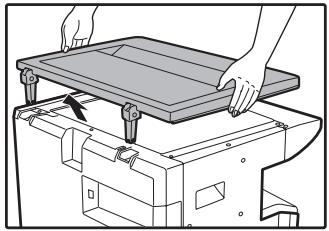
Copying books or originals with folds or creases
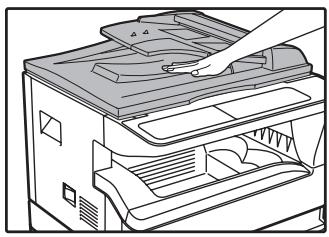
Press down on the document cover/SPF/RSPF while copying as shown. If the document cover/SPF/RSPF is not completely closed, shadows may appear on the copy or it may be fuzzy. Straighten originals with folds or creases well before placing.
Originals that can be used in the SPF/RSPF
Originals that are A5 to A3 (5-1/2" x 8-1/2" to 11" x 17") and 56 g/m² to 90 g/m² (15 lbs. to 24 lbs.) can be used. A maximum of 40 pages can be placed at once.
For originals that are B4 (8-1/2" x 14") or larger (B4, A3 (8-1/2" x 14", 11" x 17")), a maximum of 30 pages can be placed at once.

- Make sure that there are no paper clips or staples on the original.
- Straighten curled originals before placing them in the document feeder tray. Curled originals may cause misfeeds.
- When you set multiple sheets of thick original, if the original is not fed, reduce the number of the set originals.
Originals that cannot be used in the SPF/RSPF
The following originals cannot be used. These may cause misfeeds or smudging and unclear images. - Transparencies, tracing paper, other transparent or translucent paper, and photographs. - Carbon paper, thermal paper. - Originals that are creased, folded, or torn. - Glued originals, cut-out originals. - Originals with binder holes. - Originals printed using an ink ribbon (thermal transfer printing), originals on thermal transfer paper.
Stream feeding mode
If "Stream feeding mode" is enabled in the system settings (p.70), the SPF/RSPF indicator will blink for about 5 seconds after all originals are fed. If a new original is placed in the SPF/RSPF during this time, the original will be automatically fed in and copying will begin.
MAKING A COPY DARKER OR LIGHTER
Automatic exposure adjustment is initially enabled. This function automatically adjusts the copy image according to the original being copied. If you wish to select the exposure level yourself, follow the steps below. (Select from two original types and five exposure levels for each original type.) The exposure level used in automatic exposure adjustment can also be changed. ("ADJUSTING THE AUTOMATIC EXPOSURE LEVEL" (p.68))
Original types
- AUTO……Automatic exposure adjustment is enabled and the exposure is automatically adjusted according to the original being copied. The exposure is lowered for coloured areas and background shadows.
- TEXT......The exposure is raised for light areas and lowered for dark backgrounds to make text easier to read.
- PHOTO ...Halftones in the photo are reproduced with greater clarity.
1 Press the [AUTO/TEXT/PHOTO] key (AUTO /…/m) to select the original type.
![SHARP AR-5620D - Press the [AUTO/TEXT/PHOTO] key (AUTO /…/m) to select the original type. - 1](/content/2025/01/122157/images/11b2d80fe4e65e4d020020e591ba8345a51d44c8289d2536e57eba78e94c1864.jpg)
To adjust the exposure of a text original manually, press until the TEXT indicator (1...b) lights. To copy a photo, press until the PHOTO indicator (m) lights.
2 Press the [Light] key (d) or [Dark] key (D) to adjust the exposure.
![SHARP AR-5620D - Press the [Light] key (d) or [Dark] key (D) to adjust the exposure. - 1](/content/2025/01/122157/images/30ebf9edd936ca71373cb9db76d57c9fb64f12e5137049fb38aaf562a6d181d5.jpg)
For a darker image, press the [Dark] key. For a lighter image, press the [Light] key. If exposure level 2 or 4 is selected, the two indicators will light simultaneously.
![SHARP AR-5620D - Press the [Light] key (d) or [Dark] key (D) to adjust the exposure. - 2](/content/2025/01/122157/images/7279c744f3a477656380abf54a568bc671aded80093843412281c75fa3f9c8df.jpg)
To return to automatic adjustment, press until the AUTO indicator (AUTO) lights.
![SHARP AR-5620D - Press the [Light] key (d) or [Dark] key (D) to adjust the exposure. - 3](/content/2025/01/122157/images/1c8d3d8dcd65b2842b878aee082921c5a6588e97270c7f0108c5145d113dc593.jpg)
Exposure value guidelines
1-2 Dark originals like newspapers 3 Normal originals 4-5 Coloured text or text written in pencil
SELECTING THE TRAY
Auto paper select mode (p.29) normally operates (unless it has been disabled), and thus when the original is placed on the document glass and the original size is selected, or when the original is placed in the SPF/RSPF, the tray with the same size of paper as the original is automatically selected. If you wish to use a tray other than the automatically selected tray (for example you wish to enlarge or reduce the copy or use the bypass tray), press the [PAPER SELECT] key (PAPER) to select the desired tray.

- If the desired PAPER SIZE indicator does not light up, change the paper in the tray to the desired paper size. (p.24)
- Automatic ratio selection (p.31) does not operate when the bypass tray or a tray set for a special paper size is selected.
Auto tray switching (when there are two or more paper trays)
If the tray runs out of paper during copying and there is another tray with the same size of paper and the same feeding orientation (horizontal or vertical), the other tray is automatically selected and copying continues. "Auto tray switching" can be disabled in the system settings (p.71).
SETTING THE NUMBER OF COPIES
Press the numeric keys to set the number of copies.
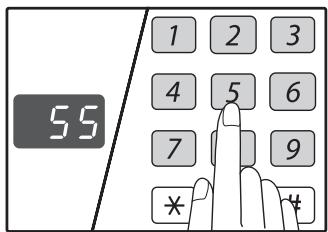
- The set number of copies appears in the display. A maximum of 999 copies (factory default setting) can be set.
- If you wish to make only a single copy, copying is possible with the display showing "0".

If you enter the wrong number, press the [CLEAR] key (C) and enter the correct number.
Important note when making a large number of copies
When the maximum number of pages (about 250 pages) that can be held in the paper output tray are output, copying will temporarily stop. When this happens, promptly remove the copies and press the [START] key (O) to resume copying. Copying will also stop after about 500 pages and 750 pages. Remove the pages and resume copying in the same way.

The maximum number of copies can be changed in the system settings. (p.72)
REDUCTION/ENLARGEMENT/ZOOM
The zoom function enables precise copy ratio selection from 25% to 400% in increments of 1%.
There are three ways to enlarge and reduce copies, as explained below.
- Reduction and enlargement ratios can be selected automatically with the [AUTO IMAGE] key (AUTO %). "AUTOMATIC RATIO SELECTION" (below)
- Reduction and enlargement ratios can be selected manually with the [PRESET RATIO] selector keys (up/down) and/or the [ZOOM] keys (left/right).
"MANUAL RATIO SELECTION" (p.32)
- Separate settings can be selected for the vertical and horizontal ratios. "SELECTING THE VERTICAL AND HORIZONTAL COPY RATIOS SEPARATELY (XY ZOOM Copying)" (p.33) Ratios that can be selected will vary depending on whether the original is placed on the document glass or in the SPF/RSPF.
| Original position | Selectable ratios |
| Document glass | 25% – 400% |
| SPF/RSPF | 50% – 200% |
AUTOMATIC RATIO SELECTION
1 Place the original(s) in the document feeder tray or on the document glass.
2 If the original is placed on the document glass, select the original size. (p.27)

Automatic ratio selection can be used when the original size is A5, B5, B5R, A4, A4R, B4, A3, (5-1/2" x 8-1/2", 8-1/2" x 11", 8-1/2" x 11" R, 8-1/2" x 13", 8-1/2" x 14" or 11" x 17"). The sizes of paper that can be used vary by country and region. It cannot be used for other sizes. - After placing the original, be sure to close the document cover/SPF/RSPF. If left open, parts outside of the original will be copied black, causing excessive use of toner.
3 Use the [PAPER SELECT] key (□) to select the paper tray with the desired paper size.
![SHARP AR-5620D - Use the [PAPER SELECT] key (□) to select the paper tray with the desired paper size. - 1](/content/2025/01/122157/images/1f1a0dac898cee079d1931274409b1396ddec36948981419ad39e195a9309463.jpg)
This feature will not work when using copy paper of non-standard size or when using the bypass tray.
4 Press the [AUTO IMAGE] key (AUTO%).
![SHARP AR-5620D - Press the [AUTO IMAGE] key (AUTO%). - 1](/content/2025/01/122157/images/d48b9acf2f3e6232c01d06a7498b01061727440c7949e353f7d69ebcdf95b5d0.jpg)
The AUTO IMAGE indicator (AUTO %) lights up and the appropriate ratio for the original size and paper size is selected. (The indicator of the selected ratio will light up.)
![SHARP AR-5620D - Press the [AUTO IMAGE] key (AUTO%). - 2](/content/2025/01/122157/images/ed3ee9d9ab5d11e449552354dc00c7f273edecdd6956709370ea5dc908a07588.jpg)
- If the ORIGINAL SIZE indicator blinks, change the orientation of the placed original.
- If the copy is made when a PRESET RATIO selector indicator is blinking, the copied image may run off the page.
5 Set the number of copies and other copy settings, and then press the [START] key (⑤).
The copy will be delivered to the paper output tray.
![SHARP AR-5620D - Set the number of copies and other copy settings, and then press the [START] key (⑤). - 1](/content/2025/01/122157/images/c1f8915d81aedd21c7399b721333c92fdd6972f6138d87a390f0c3ccedff9a92.jpg)
To cancel automatic ratio selection, press the [AUTO IMAGE] key (AUTO %) again.
MANUAL RATIO SELECTION
Copies can be reduced down to 25% or enlarged up to 400%. The [PRESET RATIO] selector keys (∨, ∧) can be pressed to quickly select a ratio from among eight preset ratios. In addition, the [Zoom] keys (≡, ≡) can be pressed to select the ratio in increments of 1%.
1 Place the original(s) in the document feeder tray or on the document glass.
2 If the original is placed on the document glass, select the original size. (p.27)

After placing the original, be sure to close the document cover/SPF/RSPF. If left open, parts outside of the original will be copied black, causing excessive use of toner.
3 Use the [PRESET RATIO] selector keys (∨, ∧) and [Zoom] keys (≡) to select the desired copy ratio.
![SHARP AR-5620D - Use the [PRESET RATIO] selector keys (∨, ∧) and [Zoom] keys (≡) to select the desired copy ratio. - 1](/content/2025/01/122157/images/ceeb1728db2e8607381018615b6c16a98128bacf06cbed59c00bf541b8998e5d.jpg)
Selecting a preset ratio: Press the [PRESET RATIO] selector key (up arrow) to move up through the preset ratios. Press the [PRESET RATIO] selector key (down arrow) to move down through the preset ratios.
![SHARP AR-5620D - Use the [PRESET RATIO] selector keys (∨, ∧) and [Zoom] keys (≡) to select the desired copy ratio. - 2](/content/2025/01/122157/images/b44ec1a0a023f4f7dfa5201a2d40a96dd6ac1c2b1ff6f2ab978957da08622d0f.jpg)
Fine adjustment of the ratio
Any ratio from 25% to 400% can be set in increments of 1%.
Press a [PRESET RATIO] selector key (up or down arrow) to set the approximate ratio, then press the [Zoom] keys (up or down arrow) to increase or decrease the ratio. To decrease or increase the zoom ratio rapidly, hold down the [Zoom] keys (up or down arrow). When a [Zoom] key (up or down arrow) is pressed, the ZOOM indicator will light up and the zoom ratio will appear in the display for about two seconds.
![SHARP AR-5620D - Use the [PRESET RATIO] selector keys (∨, ∧) and [Zoom] keys (≡) to select the desired copy ratio. - 3](/content/2025/01/122157/images/57d77c6a208fae4b88b62048f5a48dbab7653327d9723e789e3a29cd10d387d9.jpg)
To verify a zoom setting without changing the zoom ratio, hold down the [Copy ratio display] key (%). When the key is released, the display will return to the number of copies display. - If the copy is made when a PRESET RATIO selector indicator or the ZOOM indicator is blinking, the copied image may run off the page. To ensure that the image fits on the page, lower the copy ratio until the indicator stops blinking and lights steadily. - If the PAPER SIZE indicator is not lit, there is no appropriate paper. Load appropriate paper in a paper tray. (p.22)
4 Set the number of copies and other copy settings, and then press the [START] key (⑥).
The copy will be delivered to the paper output tray.
![SHARP AR-5620D - Set the number of copies and other copy settings, and then press the [START] key (⑥). - 1](/content/2025/01/122157/images/62259aca3c3b98392d3880e8a74fbee4a99fd97a6614a29cf893ccca7aabab56.jpg)
To return the ratio to 100%, press the [PRESET RATIO] selector key (down or up arrow) until the 100% indicator lights up.
SELECTING THE VERTICAL AND HORIZONTAL COPY RATIOS SEPARATELY (XY ZOOM Copying)
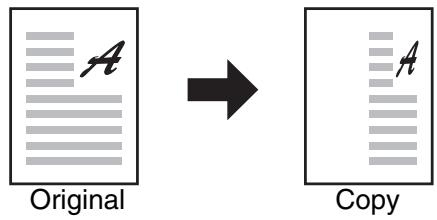
The XY ZOOM feature allows the horizontal and vertical copy ratios to be changed independently.
Example: Reduction only in the horizontal direction.

- This feature cannot be used with the 2 IN 1 or 4 IN 1 feature. (p.43)
- To use the XY ZOOM feature with the DUAL PAGE COPY feature, set the DUAL PAGE COPY feature first and then the XY ZOOM feature.
- The XY ZOOM feature cannot be used in combination with the AUTO IMAGE function.
Ratios that can be selected will vary depending on the position of the original.
| Original position | Selectable ratios |
| Document glass | 25% – 400% |
| SPF/RSPF | 50% – 200% |
1 Place the original(s) in the document feeder tray or on the document glass. 2 If the original is placed on the document glass, select the original size. (p.27)

After placing the original, be sure to close the document cover/SPF/RSPF. If left open, parts outside of the original will be copied black, causing excessive use of toner.
3 Press the [XY-ZOOM] key (图).
The XY-ZOOM indicator (灯) lights up.
The current value for the vertical direction will appear in the display.
4 Use the [PRESET RATIO] selector keys (∨, ∧) and [Zoom] keys (≅, ≅) to change the copy ratio in the vertical direction.
Press the [PRESET RATIO] selector keys (∨, ∧) to select a ratio close to the desired ratio, and then press the [Zoom] keys (≅, ≅) to adjust the ratio in increments of 1%. The ratio appears in the display.
5 Press the [Copy ratio display] key (%).
The selected ratio for the vertical direction will be entered.
6 Use the [PRESET RATIO] selector keys (∨, ∧) and [Zoom] keys (≅, ≅) to change the copy ratio in the horizontal direction.
Press the [PRESET RATIO] selector keys (∨, ∧) to select a ratio close to the desired ratio, and then press the [Zoom] keys (≅, ≅) to adjust the ratio in increments of 1%. The ratio appears in the display.
7 Press the [Copy ratio display] key (%).
The selected ratio for the horizontal direction will be entered and the display will change to the number of copies display.
8 Set the number of copies and other copy settings, and then press the [START] key (⑥).
The copy will be delivered to the paper output tray.
![SHARP AR-5620D - Set the number of copies and other copy settings, and then press the [START] key (⑥). - 1](/content/2025/01/122157/images/596d85e9a84ac30925bcab2f8e38c6209e69b9d7e7c118c2bde89e40092c26a0.jpg)
- To verify the copy ratios, press and hold down the [Copy ratio display] key (%). The vertical and horizontal ratios will be alternately displayed.
- If you need to change the ratios, press the [PRESET RATIO] selector keys (√, ∧) and the [Zoom] keys (≈, ≈) to reset the ratios, beginning with the vertical ratio. (step 4)
- To cancel XY ZOOM copy, press the [XY-ZOOM] key (+). The XY-ZOOM indicator (+) will go off, indicating that the function is cancelled.
AUTOMATIC TWO-SIDED COPYING (AR-5618D/AR-5620D/AR-5623D)
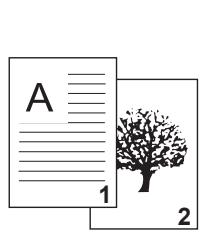
Two originals placed on the document glass can be copied onto each side of a single sheet of paper. In addition, an RSPF can be used to copy two originals onto one sheet of paper, or one two-sided original onto two sheets of paper, or one two-sided original onto each side of one sheet of paper.
| Original → Paper | Usable paper |
| Document glass | One-sided original → Two sides | A5 to A3
(8-1/2" x 11" to 11" x 17")
• The bypass tray cannot be used. |
| RSPF | One-sided original → Two sides | Two-sided original → One side | Two-sided original → Two sides | A5, B5, B5R, A4, A4R, B4, A3 (8-1/2" x 11", 8-1/2" x 11"R, 8-1/2" x 13", 8-1/2" x 14", 11" x 17")
• Special paper and 5-1/2" x 8-1/2" paper cannot be used.
• The bypass tray can only be used when making one-sided copies from two-sided originals. |

- The sizes of paper that can be loaded vary by country and region.
- To use paper in the bypass tray, make a two-sided copy as explained in "TWO-SIDED COPYING USING THE BYPASS TRAY" (p.38).
- When performing automatic two-sided copying of a one-sided original, or one-sided copying of a two-sided original, the image on the back can be rotated 180 degrees to reverse the top and bottom (Image rotation in duplex copying). To rotate the image 180 degrees, enable the setting as explained in "IMAGE ROTATION IN DUPLEX COPYING" (p.37) or in the system settings (p.70), and then follow the steps below. In particular, when a one-sided vertical (portrait) original is placed in a horizontal orientation (B4 or A3 (8-1/2" x 14" or 11" x 17") size) for two-sided copying, the top and bottom of the images on the front and back of the paper will be reversed, and thus this function can be conveniently used to make the top and bottom of the images agree.
B4 or A3
(8-1/2" x 14" or 11" x 17")
portrait original
Orientation of the placed original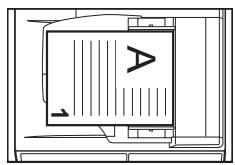
Normal automatic
two-sided copying
The top and bottom of the images on the front and back are reversed.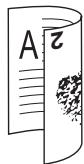
If the orientation of
two-sided copying
is changed
The top and bottom of the images on the front and back are the same.
Using the document glass
1 Place the original that you wish to copy onto the front side of the paper on the document glass and close the document cover.

After placing the original, be sure to close the document cover/RSPF. If left open, parts outside of the original will be copied black, causing excessive use of toner.
2 Select the original size. (p.27) 3 Press the [ORIGINAL TO COPY] key, and make sure that the 11-2 indicator is lit.
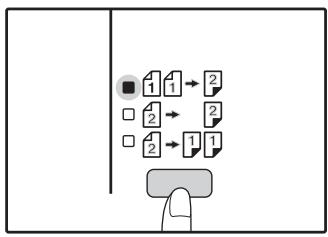
4 Set the number of copies and other settings, and then press the [START] key (⑤).
The display blinks, and the original is scanned into memory.

- If you need to clear the data scanned into memory, press the [CLEAR] key (C).
- If you wish to cancel two-sided copying and just make a copy of the first original, press the [READ-END] key (#).
5 When the start indicator lights, remove the first original and then place the original that you wish to copy onto the back side of the paper on the document glass. Close the document cover.
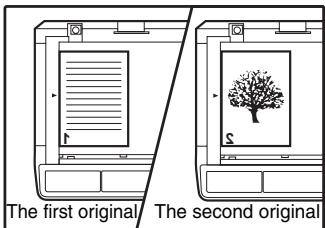
Place the second original in the same orientation as the first original.
6 Press the [START] key (⑧).
The copy will be delivered to the paper output tray.
Using the RSPF
1 Place originals in the RSPF. (p.28)
If you place an odd number of originals for one-sided to two-sided copying, the last page will be one-sided.

When the machine is set to two-sided copies from two-sided originals mode or one-sided copies from two-sided originals mode, 5-1/2" x 8-1/2" size originals cannot be used. (This is because a 5-1/2" x 8-1/2" original cannot be reversed.)
2 Press the [ORIGINAL TO COPY] key and select the two-sided copy mode that you wish to use.
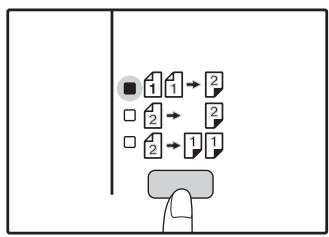
- Two-sided copies from one-sided originals
- Two-sided copies from two-sided originals 2 → 2 One-sided copies from two-sided originals 2
3 Set the number of copies and other copy settings, and press the [START] key (①).
The copy will be delivered to the paper output tray.

To cancel automatic two-sided copying, press the [CLEAR ALL] key (CA).
IMAGE ROTATION IN DUPLEX COPYING
This function is used to invert the top and bottom of the image on the front side of the paper during two-sided copying.
Hold down the [ORIGINAL TO COPY] key until the 14→2 indicator blinks.
![SHARP AR-5620D - Hold down the [ORIGINAL TO COPY] key until the 14→2 indicator blinks. - 1](/content/2025/01/122157/images/fa621cb06085a7deba0284d822ff198a6a0d1cde39832f15681f99017f03bfc3.jpg)
The currently set setting code blinks in the first digit of the number of copies display.
2 Press a numeric key to enter the setting code.
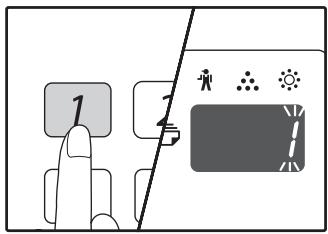
To enable the setting, press [1] key. To disable the setting, press [0] key. The factory default setting is "0".
The entered number appears in the first digit of the number of copies display.
3 Press the [START] key (⑧).
![SHARP AR-5620D - Press the [START] key (⑧). - 1](/content/2025/01/122157/images/046545f65cccb25057fcec80a92e3f3ef838fd82113600bc48b76ea796c72fb4.jpg)
The selected setting code stops blinking and lights steadily. This completes the setting.
4 Press the [ORIGINAL TO COPY] key to exit the setting.
![SHARP AR-5620D - Press the [ORIGINAL TO COPY] key to exit the setting. - 1](/content/2025/01/122157/images/f0385893447ef2583b41916bb22db824b83b216ed8b08c5de73bc0abfdd3445f.jpg)
The display returns to the normal number of copies display.
![SHARP AR-5620D - Press the [ORIGINAL TO COPY] key to exit the setting. - 2](/content/2025/01/122157/images/58e2903f7adecc1e814e1b1370d6b1a72852145db2a9296df816b3b4a93d52da.jpg)
"Image rotation in duplex copying" can also be enabled or disabled in the system settings. (p.71)
TWO-SIDED COPYING USING THE BYPASS TRAY
To perform manual two-sided copying, follow these steps.
Example: Copying originals A and B onto each side of one sheet of paper
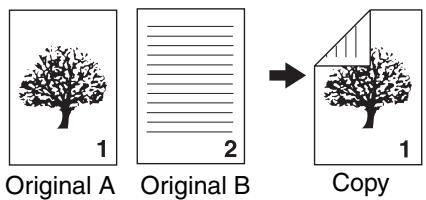
1 Copy original A.
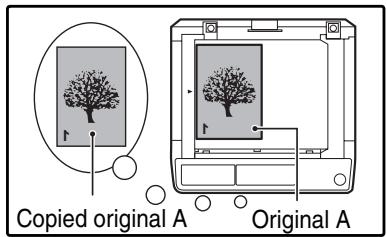
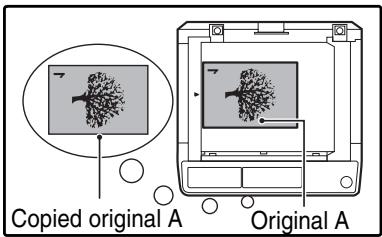
2 Place original B as shown below.
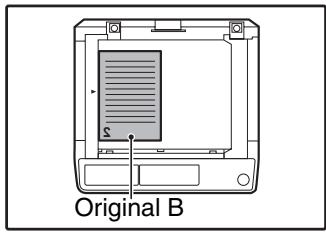
Vertically-oriented original:
If the original is oriented vertically, place it in the same orientation as original A.
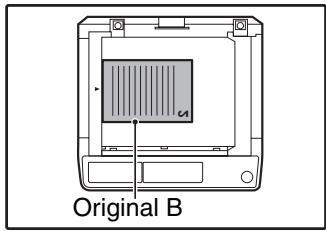
Horizontally-oriented original:
If the original is oriented horizontally, place it with the top and bottom and left and right sides reversed with respect to the placement of original A.
3 Turn the copy of original A over, and without changing the position of the edge closest to you, insert it in the bypass tray.
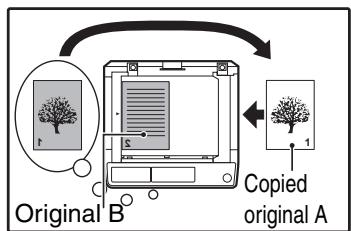
Insert the paper all the way in.
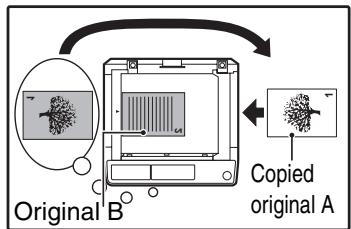
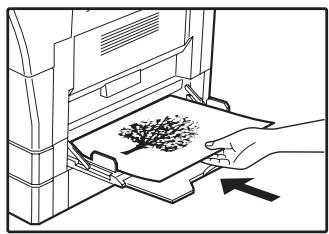
Note
- Copies made on the back side of paper should always be made one sheet at a time using the bypass tray.
- Straighten curled or wavy paper before using it. Curled paper may cause misfeeds, creases, or a poor-quality image.
- After placing the original, be sure to close the document cover/SPF/RSPF. If left open, parts outside of the original will be copied black, causing excessive use of toner.
4 Select the bypass tray with the [PAPER SELECT] key (□), and then press the [START] key ()。
The copy is delivered to the paper output tray.
DUAL PAGE COPYING
A dual page original can be automatically separated into two pages during copying. This feature is convenient for making copies of books and other dual page originals on individual sheets of paper.
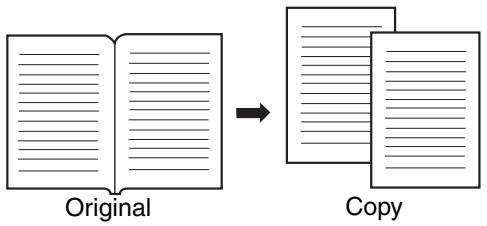

- A4 (8-1/2" x 11") paper is used for dual page copying.
- When rotation copy is enabled, A4R (8-1/2" x 11"R) paper can also be used.
- Dual page copying can be enabled when Sort/Group copy (p.41).
- When used in combination with XY ZOOM copying, enlargement is not possible.
- Dual page copying cannot be used in combination with the following functions:
- Enlargement
- 2 IN 1 / 4 IN 1 copying
- Centre erase Automatic ratio selection cannot be used when dual page copying is used.
- Dual page copying cannot be selected when an original is placed in the SPF/RSPF.
1 Place the original on the document glass, aligning the division between the pages with the size marker (A4 (81 / 2) ). Close the document cover/ SPF/RSPF.
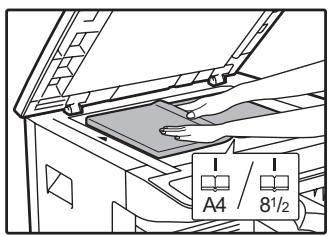
Copying will begin from the page to the right of the size marker.

- To keep the copies in the correct page order when performing dual page copying over multiple pages, make sure that the original is always placed on the document glass with the smaller page number to the right.
- After placing the original, be sure to close the document cover/SPF/RSPF. If left open, parts outside of the original will be copied black, causing excessive use of toner.
2 Set the original size to A3 (11" x 17").
3 Press the [DUAL PAGE COPY] key (AB-AB) and make sure that the DUAL PAGE COPY indicator (AB-AB) is lit.
![SHARP AR-5620D - Press the [DUAL PAGE COPY] key (AB-AB) and make sure that the DUAL PAGE COPY indicator (AB-AB) is lit. - 1](/content/2025/01/122157/images/327dbd0aec071f9967d92376b48210752420a5707e0a687ed2edce7ec274d6fd.jpg)
4 Make sure that a paper tray with A4 (8-1/2" x 11") size paper is selected.
5 Set the number of copies and other copy settings, and press the [START] key.
The copy will be delivered to the paper output tray.
![SHARP AR-5620D - Set the number of copies and other copy settings, and press the [START] key. - 1](/content/2025/01/122157/images/6b7a21cff3e78e7910483611994eb1463a68170bb06586775bb250d5ed5424ad.jpg)
To cancel dual page copying, press the [DUAL PAGE COPY] key. The DUAL PAGE COPY indicator will go off, indicating that the function is cancelled.
INTERRUPTING A COPY RUN
(Interrupt Copying)
A copy run can be temporarily interrupted to allow another copy job to be performed. When the other job is finished, the copy run will resume using the original copy settings.

Sort/group copying, 2 IN 1 / 4 IN 1 copying, two-sided copying, or ID card copying cannot be performed as an interrupt copy job. System settings and scanning function are also not available when interrupt copying.
1 Press the [INTERRUPT] key to interrupt the copy run.
![SHARP AR-5620D - Press the [INTERRUPT] key to interrupt the copy run. - 1](/content/2025/01/122157/images/44b9ae6275b69055723d26b48b5606b23aeb382c986dc18eb24e59f2f5add256.jpg)
The INTERRUPT indicator will light up and the machine will revert to the initial settings. (p.20) The INTERRUPT indicator will blink until the current copy run stops.
![SHARP AR-5620D - Press the [INTERRUPT] key to interrupt the copy run. - 2](/content/2025/01/122157/images/0363c3301bb8f3eaa36abd60c8e6ad8a49089ef3d3de705f91c8878f4a34f657.jpg)
If "Auditing mode" is enabled: "---" will appear in the number of copies display. Enter your 3-digit account number. Copying will not be possible unless a correct account number is entered. (p.71)
2 Remove the previous original(s) and place the original(s) of the interrupt copy job.
3 Set the number of copies and other copy settings and then press the [START] key.
4 When the copy job is finished, press the [INTERRUPT] key and remove the original(s).
The INTERRUPT indicator will go off, indicating that the interrupt function is no longer operating. The copy settings will automatically revert to the settings selected for the copy run before the run was interrupted.
Replace the previous original(s) and press the [START] key.
The interrupted copy run will resume.
CONVENIENT COPY FUNCTIONS
This section explains major convenient copy functions.
ROTATING THE IMAGE 90 DEGREES (Rotation Copy)
When "Auto paper select mode" or "automatic ratio selection" are in operation and the original is placed in a different orientation (vertical or horizontal) than the paper, the original image will be automatically rotated 90 degrees to enable correct copying onto the paper.
This function is convenient for copying B4 or A3 (8-1/2" x 14" or 11" x 17") originals, which can only be placed horizontally, onto paper that is loaded vertically.
The rotation copy function is initially enabled. It can be disabled in the system settings. (p.71)

- Rotation copy will not operate when a copy is enlarged to a paper size greater than A4 (8-1/2" x 11"). In this case, place the original in the same orientation as the paper.
- When 2 IN 1/4 IN 1 copy is used (p.43), rotation copy will operate even if disabled in the system settings.
Orientation of the placed original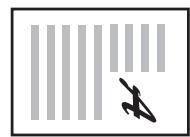
Orientation of the loaded paper

Copy
SORT COPY/GROUP COPY
- Copies of multiple original pages can be sorted into sets. (Sort copy)
- Copies of multiple original pages can be grouped by page. (Group copy)

The machine can scan standard originals (A4 (8-1/2" x 11")) with approximately 160 pages, however, the number will vary for photos and other types of originals. Fewer pages can be scanned for interrupt copying.
Sort copy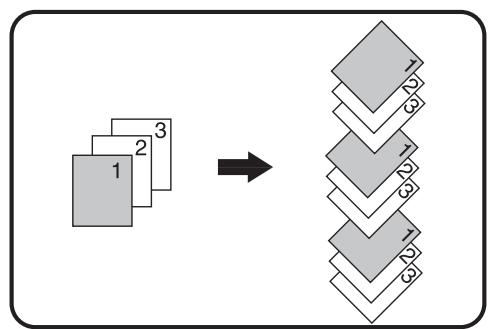
Group copy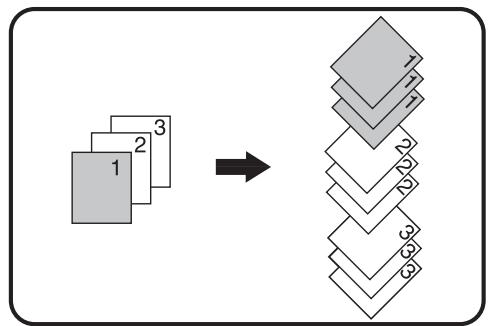
Using the document glass
1 Place the first original. (p.27) 2 Select the original size. (p.27) 3 Press the [SORT/GROUP] key to select the desired mode.
The modes are selected in the order "SORT", "GROUP", "Off".
4 Set the number of copies and other settings, and then press the [START] key.
The ORIGINAL DATA indicator (DATA) blinks, and the original is scanned into memory.
When the start indicator lights, replace the original with the next original, and then press the [START] key.
Repeat step 5 until all originals have been scanned into memory.

To clear the data in memory, press the [CLEAR] key.
6 When all originals have been scanned, and then press the [READ-END] key.
The copies are delivered to the paper output tray.

- To cancel the Sort/Group copy job, press the [CLEAR] key. To cancel Sort or Group mode, press the [SORT/GROUP] key repeatedly until the SORT/GROUP indicators are both off.
Using the SPF/RSPF
1 Place the originals. (p.28)
Sort mode is normally the default output mode, and thus the SPF/RSPF and SORT indicators light up.

- If "Sort auto select" has been set to "1: OFF" in the system settings, follow the steps below to select sort mode.
- "Sort auto select" can also be used to change the default output mode (p.73).
Press the [SORT/GROUP] key (123- / 22-) to select the desired mode.
The modes are selected in the order "SORT" (123-), "GROUP" (22-), "Off".
3 Set the number of copies and other settings, and then press the [START] key.
The copies are delivered to the paper output tray.

- To cancel the Sort/Group copy job, press the [CLEAR] key (C). To cancel Sort or Group mode, press the [SORT/GROUP] key (123- / 22-) repeatedly until the SORT/GROUP indicators (123- / 22-) are both off.
If the memory becomes full
- If the memory becomes full while scanning the originals, the ORIGINAL DATA indicator (DATA) will blink, "FUL" will appear in the display, and the machine will stop copying.
- To copy the originals that have been scanned up to that point, press the [START] key.
- To clear the data that has been scanned into memory, press the [CLEAR ALL] key (CA) or the [CLEAR] key (C).
If the paper output tray becomes full
When the maximum number of pages (about 250 pages) that can be held in the paper output tray are output, copying will temporarily stop. When this happens, promptly remove the copies and press the [START] key to resume copying.
COPYING MULTIPLE ORIGINALS ONTO A SINGLE SHEET OF PAPER (2 IN 1 / 4 IN 1 Copy)
Multiple originals can be copied onto a single sheet of paper in a selected layout pattern.
This function is convenient for compiling multi-page reference materials into a compact format, or for providing an overview of all pages of a document on a single page.
2 IN 1 COPY
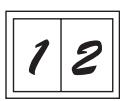
Pattern 1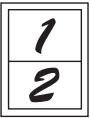
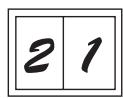
Pattern 2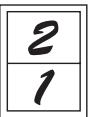
4 IN 1 COPY
Pattern 1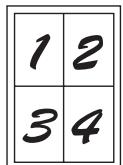
Pattern 2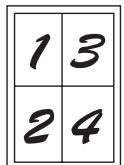
Pattern 3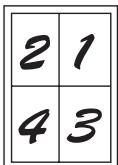
Pattern 4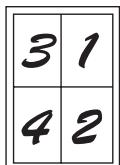

- First select the layout pattern as explained in "Setting the layout pattern" (p.44), and "Border line for 2 IN 1 / 4 IN 1" (solid line or broken line) in the system settings (p.70). When finished, follow the steps below.
- An appropriate ratio setting will be automatically selected based on the size of the originals, the size of the paper, and the selected number of originals. When using the document glass, reduction is possible to 25%. When using the SPF/RSPF, reduction is possible to 50%. Certain combinations of original size, paper size, and number of images may result in images being cut off.
- Even if "Rotation copy" is disabled in the system settings, the original images may be rotated if necessary depending on their orientation and the orientation of the paper.
- 2 IN 1 / 4 IN 1 copy cannot be used in combination with dual page copying (p.39), XY Zoom (p.33), margin shift (p.45), or erase copy (p.46).
Using the document glass
1 Place the first original. (p.27)
2 Select the original size. (p.27)

If the original size was not selected, 2 IN 1 / 4 IN 1 copy cannot be used.
3 Press the [2 IN 1 / 4 IN 1] key (AB/AB) to select the desired mode.
![SHARP AR-5620D - Press the [2 IN 1 / 4 IN 1] key (AB/AB) to select the desired mode. - 1](/content/2025/01/122157/images/57faee58f08d241c81ccb4cc20746562230a0f686a64bcecce8e2b5135965c00.jpg)
The mode is selected in the order "2 IN 1" (AB), "4 IN 1" (AB), "Off".
4 Set the number of copies and other settings, and then press the [START] key (⑥).
The ORIGINAL DATA indicator (DATA) blinks, and the original is scanned into memory.
When the start indicator lights, replace the original with the next original, and then press the [START] key (⑥).
Repeat step 5 until all originals have been scanned into memory.
![SHARP AR-5620D - When the start indicator lights, replace the original with the next original, and then press the [START] key (⑥). - 1](/content/2025/01/122157/images/0afd0ee5469ccde715277cd4a2055b6ee7d80a0307ac934b49fa24d88cc09098.jpg)
To clear the data in memory, press the [CLEAR] key (C).
6 When all originals have been scanned, press the [READ-END] key (#).
The copy is delivered to the paper output tray.
![SHARP AR-5620D - When all originals have been scanned, press the [READ-END] key (#). - 1](/content/2025/01/122157/images/02dfcc5f1804fb48dc6e80d3bf824e0f3efdd43aacb8b2e0d98c95dc57a13468.jpg)
- To cancel 2 IN 1 / 4 IN 1 copying, press the [CLEAR] key (C). To cancel 2 IN 1/4 IN 1 copy mode, press the [2 IN 1/4 IN 1] key (AB/AB/AB) repeatedly until the 2 IN 1/4 IN 1 indicators (AB/AB/AB) are both off.
Using 2 IN 1 / 4 IN 1 copy in combination with sort copy
Sort copy can be used if the original is placed on the document glass. Press the [SORT/GROUP] key
to select sort copy and then perform steps 1 through 6. The 2 IN 1/4 IN 1 copies will be sorted.
Using the SPF/RSPF
1. Place the originals. (p.28)
2. Press the [2 IN 1 / 4 IN 1] key (A-B/C-D) to select the mode.
![SHARP AR-5620D - Press the [2 IN 1 / 4 IN 1] key (A-B/C-D) to select the mode. - 1](/content/2025/01/122157/images/e5ebd898691844c575b9c60513116a9b94045f146658ba795d35b1089e4a050c.jpg)
The mode is selected in the order "2 IN 1" (A-B), "4 IN 1" (C-D), "Off".
3. Set the number of copies and other settings, and press the [START] key.
The copy is delivered to the paper output tray.
![SHARP AR-5620D - Set the number of copies and other settings, and press the [START] key. - 1](/content/2025/01/122157/images/287ca8ca2b1f49b759dbc0760f712ed6807450e0c33762f768b34955db678112.jpg)
- To cancel 2 IN 1 / 4 IN 1 copying, press the [CLEAR] key. To cancel 2 IN 1/4 IN 1 copy mode, press the [2 IN 1/4 IN 1] key repeatedly until the 2 IN 1/4 IN 1 indicators are both off.
If the memory becomes full
- If the memory becomes full while scanning the originals, the ORIGINAL DATA indicator will blink, "FUL" will appear in the display, and the machine will stop copying.
- To copy the originals that have been scanned up to that point, press the [START] key.
- To clear the data that has been scanned into memory, press the [CLEAR ALL] key or the [CLEAR] key.
Setting the layout pattern
You can select the layout pattern for copying 2 original pages or 4 original pages onto one sheet of paper. The available layout patterns are shown on the first page of this section.

The layout pattern can also be selected in the system settings. (p.71)
1 Use the [2 IN 1 / 4 IN 1] key (AB/AB/CD) to access the setting.
Selecting the layout for 2 IN 1 copy
With the 2 IN 1 / 4 IN 1 indicators off, hold down the [2 IN 1 / 4 IN 1] key (AB/AB) until the 2 IN 1 indicator (AB) blinks.
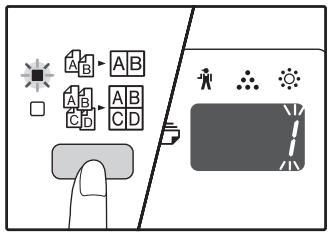
The setting code of the currently selected pattern will blink in the first digit of the display.
Selecting the layout for 4 IN 1 copy
With the 2 IN 1 indicator lit (AB), hold down the [2 IN 1/4 IN 1] key (AB/AB) until the 4 IN 1 indicator (AB) blinks.
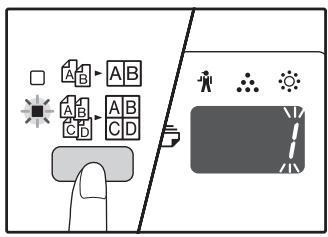
The setting code of the currently selected pattern will blink in the first digit of the display.
2 Select the setting code by pressing a numeric key.
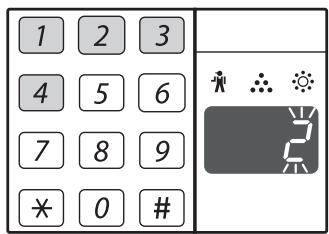
To select "Pattern 2", press the [2] key.
| Function | Setting code (p.71) |
| 2 IN 1 layout | *1 (Pattern 1)
2 (Pattern 2) |
| 4 IN 1 layout | *1 (Pattern 1)
2 (Pattern 2)
3 (Pattern 3)
4 (Pattern 4) |
See page 43 for layout pattern.
The factory default settings are indicated by **.
The entered number blinks in the first digit of the display.
3 Press the [START] key (⑧).
The selected setting code stops blinking and lights steadily. This completes the setting.
Press the [2 IN 1 / 4 IN 1] key (AB/AB) to exit the setting.
The display returns to the number of copies display.
CREATING MARGINS WHEN COPYING (Margin Shift)
The MARGIN SHIFT feature, in its initial setting, automatically shifts the text or image to increase the margin by approximately 10mm (1/2").
The location of the margin to be increased can be selected to be either at the left edge or the top of the page (AR-5618D/AR-5620D/AR-5623D).
Example: Model that supports automatic two-sided copying
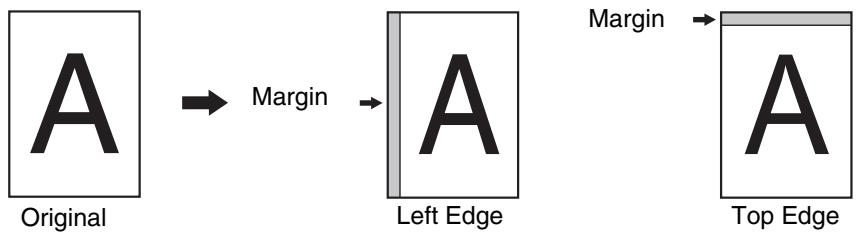

- To use margin shift, "ID CARD COPY" in system setting must be set to "0: margin shift", if the setting has been changed, it can only be used by changing back to "0". For changing a system setting, refer to "SELECTING A SETTING FOR A SYSTEM SETTING" (p.74).
- This feature cannot be used with the 2 IN 1 / 4 IN 1 feature or rotation copy feature.
- You can also switch between the left margin and the top margin in the system settings. (p.71)
- The margin width can be changed in the system settings. (p.71) Note that a margin is created by shifting the image, and thus if the image is shifted too far, the edge of the image may be cut off.
- If the ORIGINAL SIZE indicator blinks when margin shift is selected, rotate the original so that it is in the same orientation as the blinking ORIGINAL SIZE indicator.
1 Place the original(s).
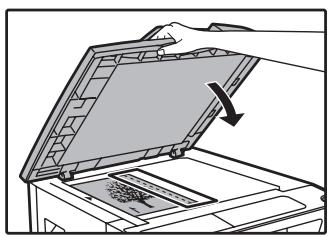
If you are using the document glass, place the side of the original where you wish to create the margin on the right.
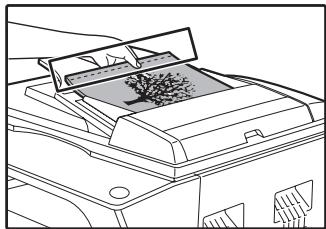
If you are using the SPF/ RSPF, place the side of the original where you wish to create the margin on the left.
2 If the original is placed on the document glass, select the original size. (p.27)
When using the SPF/RSPF, make sure that the same ORIGINAL SIZE indicator as your original size lights up.
3 Press the [MARGIN SHIFT] key (□·□).
![SHARP AR-5620D - Press the [MARGIN SHIFT] key (□·□). - 1](/content/2025/01/122157/images/2fa500f5e310b4f95e62ee3a8be8ab24a630e754db1b8272c3e85b73a65e4510.jpg)
The MARGIN SHIFT indicator (☑-☑) lights up.
4 Set the number of copies and other settings, and then press the [START] key (⊙).
The copy is delivered to the paper output tray.
![SHARP AR-5620D - Set the number of copies and other settings, and then press the [START] key (⊙). - 1](/content/2025/01/122157/images/75aed3a117da40407902b56270464d877122c88b8fb4c73e4cf451a477cb66a4.jpg)
- To cancel margin shift, press the [MARGIN SHIFT] key (☑-☑) repeatedly until the MARGIN SHIFT indicator (☑-☑) is off.
- When margin shift is used in combination with automatic two-sided copying, a margin is also created automatically on the back side of the paper directly behind the margin on the front side.
Select the location of the margin (AR-5618D/AR-5620D/AR-5623D)
Follow this step if you are using a model that supports automatic two-sided copying. On other models, skip to the next step.
1 Hold down the [MARGIN SHIFT] key (☑-☑) until the MARGIN SHIFT indicator (☑-☑) blinks.
The currently selected setting code for the margin position blinks in the display.
2 Press the [1] key or the [2] key, and then press the [START] key (⊙).
The selected setting code for the margin position lights.
3 Press the [MARGIN SHIFT] key (□-□).
The MARGIN SHIFT indicator (☑-☑) stops blinking.
ERASING SHADOWS AROUND THE EDGES OF A COPY (Erase Copy)
- This feature is used to erase shadows that appear around the edges of copies of books and other thick originals. (EDGE ERASE) The feature can also erase the shadow that appears down the centre of books and other originals that open up. (CENTRE ERASE)
- The factory default setting for the width of the erasure is approximately 10 mm (1/2"). The width can be changed in the system settings. (p.71)
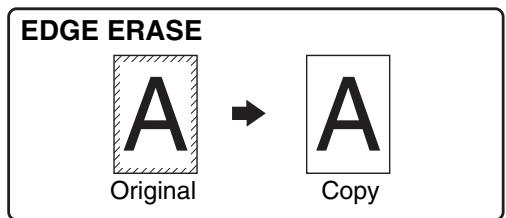
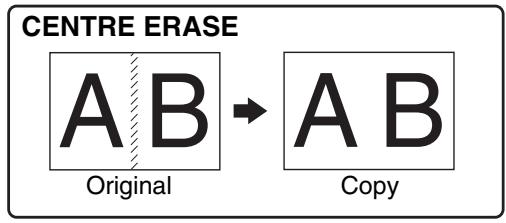
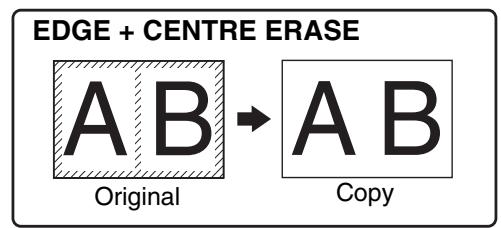

- Centre erase cannot be used in combination with dual page copy.
- Erase copy cannot be used in combination with 2 IN 1 / 4 IN 1 copy. (p.43)
- Erase copy cannot be used when the paper is a special size or copying from the bypass tray.
- Note that if the width of the erasure is too large, the edge of the image may be partially erased.
1 Place the original(s). (p.27)
2 If the original is placed on the document glass, select the original size. (p.27)
When using the SPF/RSPF, make sure that the same ORIGINAL SIZE indicator as your original size lights up.
3 Press the [ERASE] key (□·/□·) to select the desired erase mode.
![SHARP AR-5620D - Press the [ERASE] key (□·/□·) to select the desired erase mode. - 1](/content/2025/01/122157/images/da4932d3f3dfdeb506a83b6715405773651e6ccf53aa1cd94957dbd1112b9bdc.jpg)
To select the "EDGE + CENTRE ERASE" mode, press the [ERASE] key (□·/□) until both the EDGE (□·) and CENTRE indicators (□·) light up.
4 Set the number of copies and other settings, and then press the [START] key (念)
The copy is delivered to the paper output tray.
![SHARP AR-5620D - Set the number of copies and other settings, and then press the [START] key (念) - 1](/content/2025/01/122157/images/8cc5cefd1cc49f44ea4f24df6946d8ee249541bb5f6dbf7961fa98f951bce61b.jpg)
- To cancel erase copy, press the [ERASE] key (□ - □ / □ - □) repeatedly until the ERASE indicators (□ - □ / □ - □) are both off.
- If the original size was not selected in step 2, erase copy cannot be used.
ID CARD COPY
You can copy the front and back sides of an ID card onto a page through this function, which can also be used as a margin shift function. The specified patterns of ID card copy are shown as follows.
To use the ID card copy function, attach the supplied [ID CARD] key label on the MARGIN SHIFT key.
Pattern 1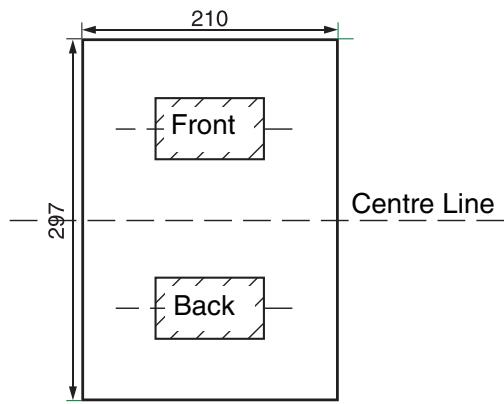
Pattern 2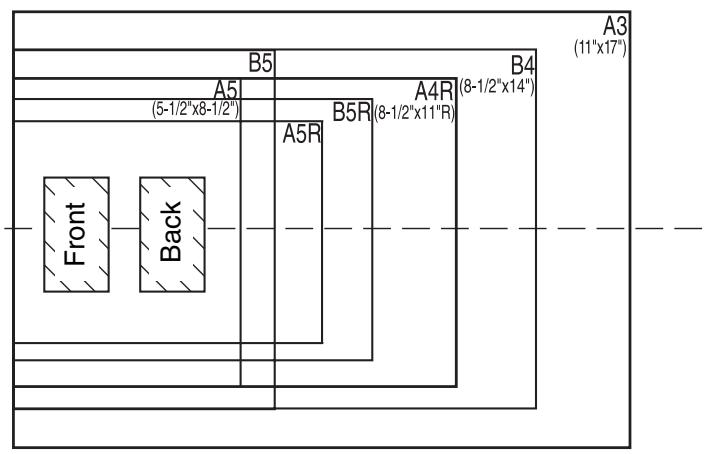

- Select the layout patterns as explained in "ID card" of SYSTEM SETTINGS (p.73) first, then follow the steps below to perform the copy. For changing a system setting, refer to "SELECTING A SETTING FOR A SYSTEM SETTING" (p.74).
- The ID card copy feature cannot be used in combination with interrupt copy, two-sided copy, dual page copy, XY-zoom, margin shift, edge + centre erase, 2 in 1/4 in 1, sort/group, and rotation copy functions.
- The following paper sizes can be used: A5, A5R, A4, A4R, B4, B5, B5R, A3 (5-1/2" x 8-1/2", 5-1/2" x 8-1/2"R, 8-1/2" x 11", 8-1/2" x 11"R, 8-1/2" x 14", 11" x 17"). (A5, A5R (5-1/2" x 8-1/2", 5-1/2" x 8-1/2"R) can only be used in the bypass tray.)
- When using Pattern 1, the image may be cut off even if using standard paper size.
- In ID card copy mode, the scan area and scan number (1 page) cannot be changed. Scan area is: X: 54 + 5 mm (1/4") (margin), Y: 86 + 10 mm (1/2") (top margin 5 mm (1/4") and bottom margin 5 mm (1/4").
- Auto paper selection and auto tray switch are invalid in ID card copy mode. Please select paper and tray manually.
- Only making a single copy is available (Number of copies cannot be set.).
1 Press the [ID CARD] key.
![SHARP AR-5620D - Press the [ID CARD] key. - 1](/content/2025/01/122157/images/0eeb69fa0556e6a72b0bd0a014565a20423417b153c50b5c308ef703d9a03172.jpg)
The ID CARD COPY indicator will light up. The exposure is set to [text], the exposure level is set to "3", and the number is set to "1" automatically.
2 Place the ID card on the document glass, align with the ID card mark, and press the [START] key.
When scan is finished, the ORIGINAL DATA indicator will blink and one side of the ID card is scanned into memory. (In this case, print will start if you press the [READ-END] key (#).)
3 Turn the ID card to the other side, and press the [START] key.
When scan is finished, copying will begin.
![SHARP AR-5620D - Turn the ID card to the other side, and press the [START] key. - 1](/content/2025/01/122157/images/676b2115ca8ac63403ccc6dc047076639fafe4833650c834cbe4e10976edfd3c.jpg)
To cancel ID card copy, press the [CLEAR ALL] key (CA) and make sure the ID CARD COPY indicator is off.
This chapter explains how to use the printer functions.
The procedure for loading paper is the same as for loading copy paper. See "LOADING PAPER" (p.21).
![SHARP AR-5620D - Turn the ID card to the other side, and press the [START] key. - 2](/content/2025/01/122157/images/1fce9bdfe0a1b3a98800ff838c65806e3436ed27394d6677eb9cdafbec54feda.jpg)
- Print jobs received while the machine is copying or scanning will be stored in memory. When the copy job is finished, the print jobs will begin printing.
- Printing is not possible when the front or side cover is opened for machine maintenance, or when a misfeed occurs, or the machine runs out of paper or toner, or when the drum cartridge reaches its replacement time.
- If an original misfeed occurs in the SPF/RSPF, printing will not be possible until the misfed original is removed and the SPF/RSPF is restored to a usable state.
BASIC PRINTING
The following example explains how to print a document from WordPad.
Before printing, make sure that the correct size of paper for your document has been loaded in the machine.
1 Make sure that the ON LINE indicator on the operation panel is lit.
If the ON LINE indicator is not lit, press the [ON LINE] key.
When the indicator is:
- Lit, the machine is online and ready to print, or is printing.
- Blinking, the machine is processing print data in memory or printing has been paused.
- Off, the machine is off-line and cannot print.
2 Start WordPad and open the document that you wish to print.
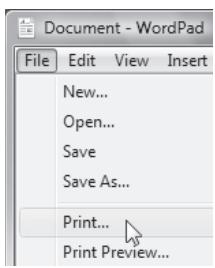
The "Print" dialog box will appear.
4 Make sure that "SHARP AR-XXXX" is selected as the printer.
If you need to change any print settings, click the "Preferences" button to open the printer driver setup screen.
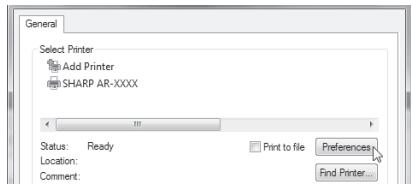
The printer driver setup screen will appear.
Windows 2000 does not have the "Preferences" button in this dialog box. Select settings as needed on each of the tabs in the setup screen and click the "OK" button.
"PRINTER DRIVER SETTING SCREEN" (p.50) "SETTING ADVANCED PRINT FUNCTIONS" (p.51)
Printing begins. When printing begins, the Print Status Window automatically opens.
"OUTLINE OF THE PRINT STATUS WINDOW" (p.57)
The print job will be delivered to the output tray.
If the tray runs out of paper during printing,
add paper to the tray or press the [PAPER SELECT] key (PAPER) to select a different tray, and then press the [ON LINE] key (□) to resume printing.
Note that if the "Auto tray switching" setting in the system settings is enabled on a model that has two or more paper trays and there is the same size of paper in another tray, the machine will automatically switch to the other tray and continue printing.
Pausing a print job
To pause a print job during printing, press the [ON LINE] key ( ) on the operation panel to switch the machine off-line. Printing will be paused and the ON LINE indicator will blink.
- To cancel a print job, press the [CLEAR] key (C) or the [CLEAR ALL] key (CA).
- To resume printing, press the [ON LINE] key (□) to switch the machine online.
When "Paper Source" is set to "Auto Select"
If "Paper Source" is set to "Auto Select" in the "Paper" tab of the printer driver setup screen and the correct size of paper for a print job is not loaded in the machine, the printing procedure will vary depending on the "Use close paper size" setting in the system settings (p.72).
When "Use close paper size" is disabled
The PAPER SIZE indicator on the operation panel will blink. You can press the [PAPER SELECT] key (PAPER) to select a tray manually, or load paper in the bypass tray and press the [ON LINE] key (O) to begin printing.
- The paper sizes that appear in the operation panel will vary by country and region.
When "Use close paper size" is enabled
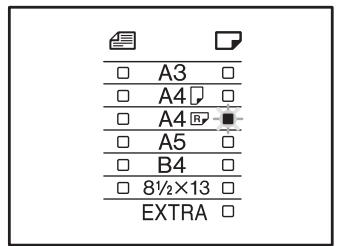
Printing will take place using a size of paper that is close to the size of the print image.

- For limitations on copying in print mode, scanner mode limitations, and print mode limitations in copy and scanner mode, see "OPERATION IN COPY, PRINTER, AND SCANNER MODES" (p.26).
- The print image is automatically rotated to fit the paper in the event that the paper is loaded in an orientation different from the print image.
You can open the printer driver and change the printer driver settings from the Windows "Start" button. Settings adjusted in this way will be the initial settings when you print from an application. (If you change the settings from the printer driver setup screen at the time of printing, the settings will revert to the initial settings when you quit the application.)
- In Windows 7, click the "Start" button, and then click "Devices and Printers".
- In Windows XP, click the "start" button, and then click "Printers and Faxes".
- In Windows 2000, click the "Start" button and point to "Settings", and then select "Printers".

In Windows XP, if "Printers and Faxes" does not appear in the "start" menu, select "Control Panel", select "Printers and Other Hardware", and then select "Printers and Faxes".
2 Click the "SHARP AR-XXXX" printer driver icon.
- In Windows 7, right-click the "SHARP AR-XXXX" printer driver icon, and then click "Printer properties".
- In Windows XP/2000, select "Properties" from the "File" menu.
In Windows 7, click the "Preferences" button in the "General" tab.
The printer driver setup screen will appear. "PRINTER DRIVER SETTING SCREEN" (p.50)
PRINTER DRIVER SETTING SCREEN
Some restrictions exist on the combinations of settings that can be selected in the printer driver setup screen. When a restriction is in effect, an information icon (i) will appear next to the setting. Click the icon to view an explanation of the restriction.
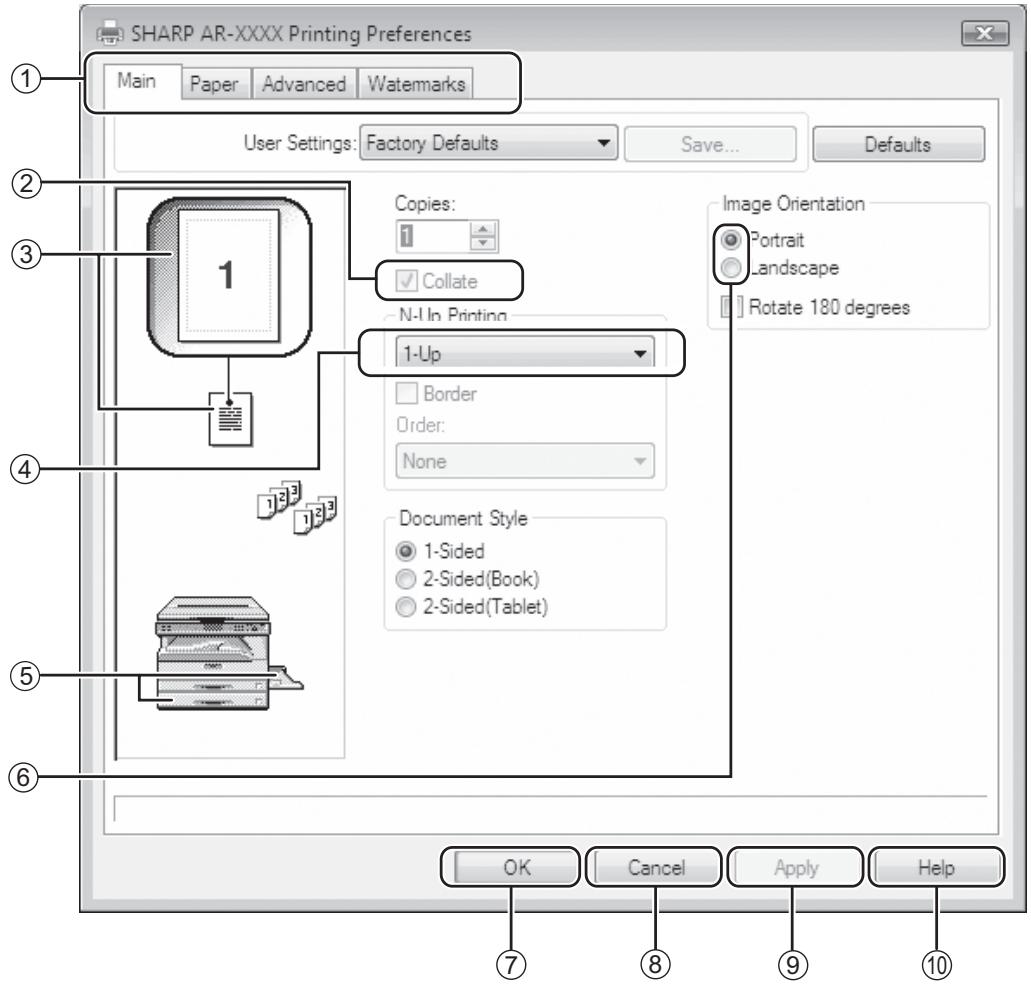

The settings and the image of the machine will vary depending on the model.
① Tab
The settings are grouped on tabs. Click on a tab to bring it to the front.
② Checklist
Click on a checkbox to activate or deactivate a function.
③ Print setting image
This shows the effect of the selected print settings.
④ Drop-down list
Allows you to make a selection from a list of choices.
⑤ Image of paper trays
The tray selected in "Paper Selection" in the
"Paper" tab appears in blue. You can also click on a tray to select it.
Allows you to select one item from a list of options.
Click this button to save your settings and exit the dialog box.
Click this button to exit the dialog box without making any changes to the settings.
Click to save your settings without closing the dialog box.
Click this button to display the help file for the printer driver.
SETTING ADVANCED PRINT
FUNCTIONS
This section explains major advanced print functions.
The explanations assume that the paper size and other basic settings have already been selected. For the basic procedure for printing and the steps for opening the printer driver, see "BASIC PRINTING" (p.48).
PRINTING MULTIPLE PAGES ON ONE PAGE (N-Up Printing)
This function can be used to reduce the print image and print multiple pages on a single sheet of paper.
This is convenient when you want to print multiple images such as photos on a single sheet of paper, and when you want to conserve paper. This function can also be used in combination with two-sided printing for maximum conservation of paper.
The following print results will be obtained, depending on the order selected.
| N-Up
(Pages per sheet) | Print results |
| Left To Right | Right To Left | Top To Bottom
(when the print orientation is landscape) |
| 2-Up
(2 pages per sheet) | 1 2 3 4 | 2 1 4 3 | 1 3 2 4 |
| N-Up
(Pages per sheet) | Right, and Down | Down, and Right | Left, and Down | Down, and Left |
| 4-Up
(4 pages per sheet) | 1 2
3 4 | 1 3
2 4 | 2 1
4 3 | 3 1
4 2 |
| 6-Up
(6 pages per sheet) | 1 2 3
4 5 6 | 1 3 5
2 4 6 | 3 2 1
6 5 4 | 5 3 1
6 4 2 |
1 Click the "Main" tab in the printer driver setup screen.
2 Select the number of pages per sheet.
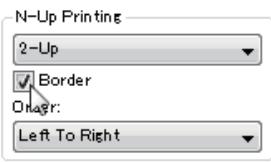
If you wish to print borderlines, check the "Border" box.
3 Select the order of the pages.
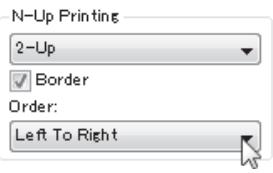
FITTING THE PRINTED IMAGE TO THE PAPER
(Fit To Paper Size)
The printer driver can adjust the size of the printed image to match the size of the paper loaded in the machine. Follow the steps shown below to use this function. The explanation below assumes that you intend to print an A3 or Ledger size document on A4 or Letter size paper.
1 Click the "Paper" tab in the printer driver setup screen. 2 Select the original size (A3 or Ledger) of the print image in "Paper Size".
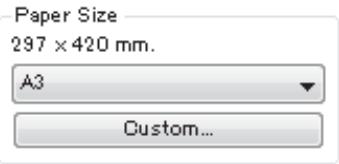
3 Check the "Fit To Paper Size" button.
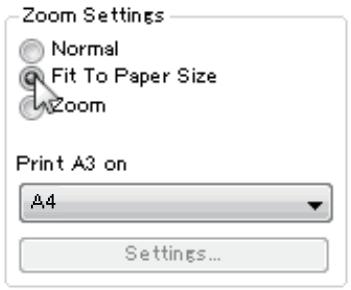
4 Select the actual size of paper to be used for printing (A4 or Letter).
The size of the printed image will be automatically adjusted to match the paper loaded in the machine.
Paper Size: A3 or Ledger
Fit To Paper Size: A4 or Letter

A3 or Ledger size document (Paper Size)


A4 or Letter size paper (Fit To Paper Size)
ROTATING THE PRINT IMAGE 180 DEGREES
(Rotate 180 degrees)
The feature rotates the image 180 degrees so that it can be printed correctly on paper that can only be loaded in one orientation (such as envelopes).
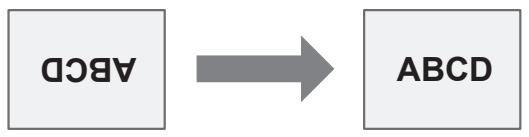
1 Click the "Main" tab in the printer driver setup screen.
2 Check the "Rotate 180 degrees" box.
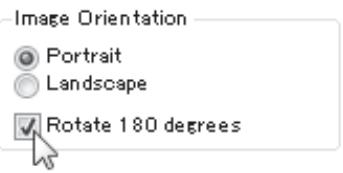
ENLARGING/REDUCING THE PRINT IMAGE (Zoom)
This function is used to enlarge or reduce the image to a selected percentage. This allows you to enlarge a small image or add margins to the paper by slightly reducing an image.

The "Zoom" setting is not available when "N-Up Printing" is selected.
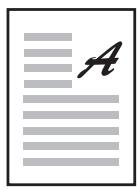

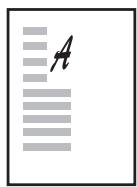
1 Click the "Paper" tab in the printer driver setup screen.
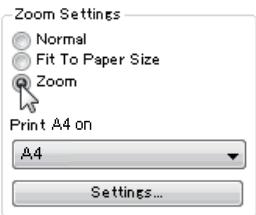
The actual paper size to be used for printing can be selected from the pop-up menu.
3 Select the zoom ratio.
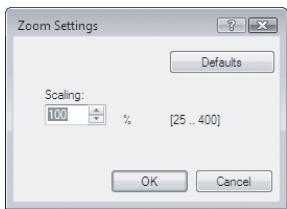
Directly enter a number or click the button to change the ratio in increments of 1%.
PRINTING FAINT TEXT AND LINES IN BLACK
(Text To Black/Vector To Black)
When printing a colour image, colour text and lines that are faint can be printed in black. (Raster data such as bitmap images cannot be adjusted.) This allows you to bring out colour text and lines that are faint and difficult to see.
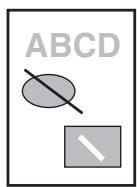

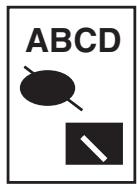
1. Click the "Advanced" tab in the printer driver setup screen.
2. Check the "Text To Black" box and/or the "Vector To Black" box.

Text To Black / Vector To Black
- "Text To Black" can be selected to print all text other than white text in black.
- "Vector To Black" can be selected to print all vector graphics other than white lines and areas in black.
ADJUSTING THE BRIGHTNESS AND CONTRAST OF THE IMAGE (Image Adjustment)
The brightness and contrast can be adjusted in the print settings when printing a photo or other image. These settings can be used for simple corrections when you do not have image editing software installed on your computer.
1. Click the "Advanced" tab in the printer driver setup screen. 2. Click the "Image Adjustment" button.
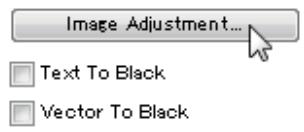
3. Adjust the image settings.
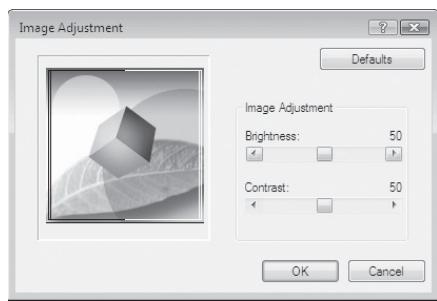
To adjust a setting, drag the slide bar or click the button.
ADDING A WATERMARK TO PRINTED PAGES
Faint shadow-like text can be added to the background of the printed image as a watermark. The size, density, and angle of the watermark text can be adjusted. The text can be selected from a pre-stored list, or entered to create an original watermark.


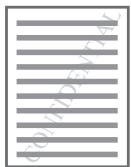
1 Click the "Watermarks" tab in the printer driver setup screen.
2 Select the watermark settings.
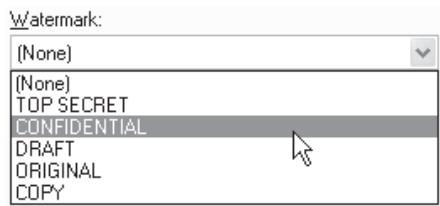
Select a stored watermark from the pull-down menu. You can click the "Edit" button to edit the font and select other detailed settings.

If you wish to create a new watermark, enter the text of the watermark in the "Text" box and click the "Add" button.
TWO-SIDED PRINTING
(AR-5618D/AR-5620D/AR-5623D)
The machine can print on both sides of the paper. This function is useful for many purposes, and is particularly convenient when you want to create a simple pamphlet. Two-sided printing also helps conserve paper.

When using two-sided printing, select a source other than "Bypass Tray" for the "Paper Source" in the "Paper" tab.
| Paper orientation | Printing result |
| Vertical | 2-Sided (Book) | 2-Sided (Tablet) |
| 23 | 23 |
| Horizontal | 2-Sided (Book) | 2-Sided (Tablet) |
| 23 | 23 |
| The pages are printed so that they can be bound at the side. | The pages are printed so that they can be bound at the top. |
1 Click the "Main" tab in the printer driver setup screen.
2 Select "2-Sided(Book)" or "2-Sided(Tablet)".
Document Style
1-Sided 2-Sided(Book) 2-Sided(Tablet)
SAVING FREQUENTLY USED PRINT SETTINGS
Settings configured on each of the tabs at the time of printing can be saved as user settings. Saving frequently used settings or complex colour settings under an assigned name makes it easy to select those settings the next time you need to use them.
SAVING SETTINGS AT THE TIME OF PRINTING
(User Settings)
Settings can be saved from any tab of the printer driver properties window. Settings configured on each tab are listed at the time of saving, allowing you to check the settings as you save them.
For the steps for opening the printer driver, see "BASIC PRINTING" (p.48).
1 Configure print settings on each tab and click the "Save" button on any tab.

After checking the displayed settings, enter a name for the settings (maximum of 20 characters).


- Up to 30 sets of user settings can be saved.
- A watermark that you created cannot be saved in user settings.
3 Click the "OK" button.
Using saved settings
Select the user settings that you wish to use on any tab.

Deleting saved settings
Select the user settings that you want to delete in "Using saved settings" (above), and click the "Delete" button.
OUTLINE OF THE PRINT STATUS WINDOW
When printing begins, the Print Status Window automatically opens.
The Print Status Window is a utility that monitors the machine and shows the name of the document being printed and any error messages that occur.
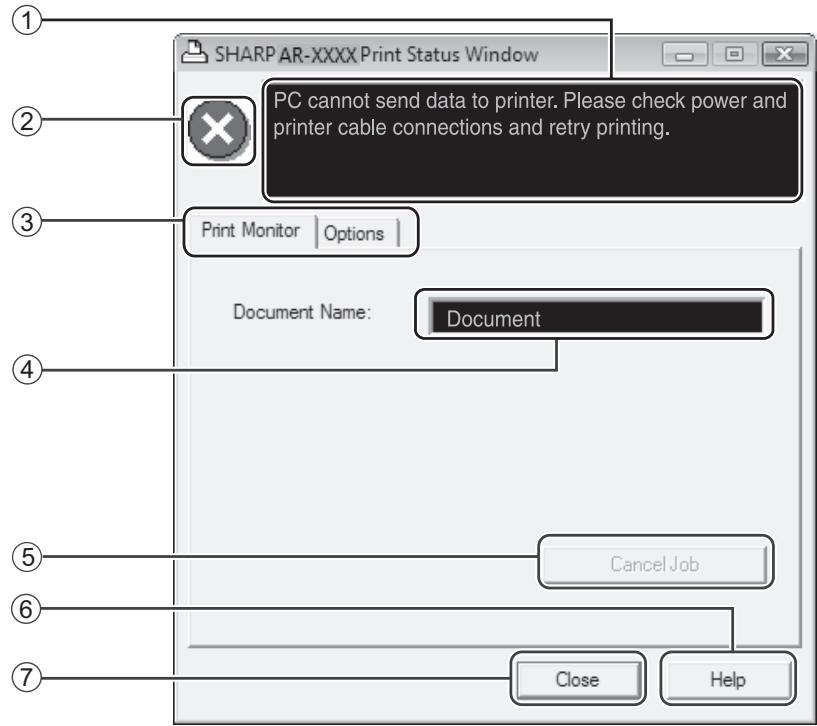
① Status window
Provides information on the current status of the printer.
② Status icon
The status icons appear to alert you to printer errors. Nothing appears when printing is taking place normally.
The icons are explained below. Follow the instructions in the status window to solve the problem.
| Icon | Print Status |
| An error has occurred that requires immediate attention. |
| An error has occurred that requires attention soon. |
③ Tab
Click a tab to bring it to the front. The "Options" tab allows you to select display options for the Print Status Window.
④ Document Name
Shows the name of the document currently being printed.
Printing can be cancelled by clicking this button before the machine receives the job.
Click this button to display the help file for the Print Status Window.
Click this button to close the Print Status Window.
This chapter explains how to use the scanner functions.

- Scan jobs received while the machine is copying or printing will be stored in memory. When the copy job is finished, the scan jobs will begin.
- Scanning is not possible when the front or side cover is opened for machine maintenance, or when a misfeed occurs or the machine runs out of paper or toner, or when the drum cartridge reaches its replacement time.
- If an original misfeed occurs in the SPF/RSPF, scanning will not be possible until the misfed original is removed and the SPF/RSPF is restored to a usable state.
SCANNING OVERVIEW
The flow chart shown below provides an overview of scanning.
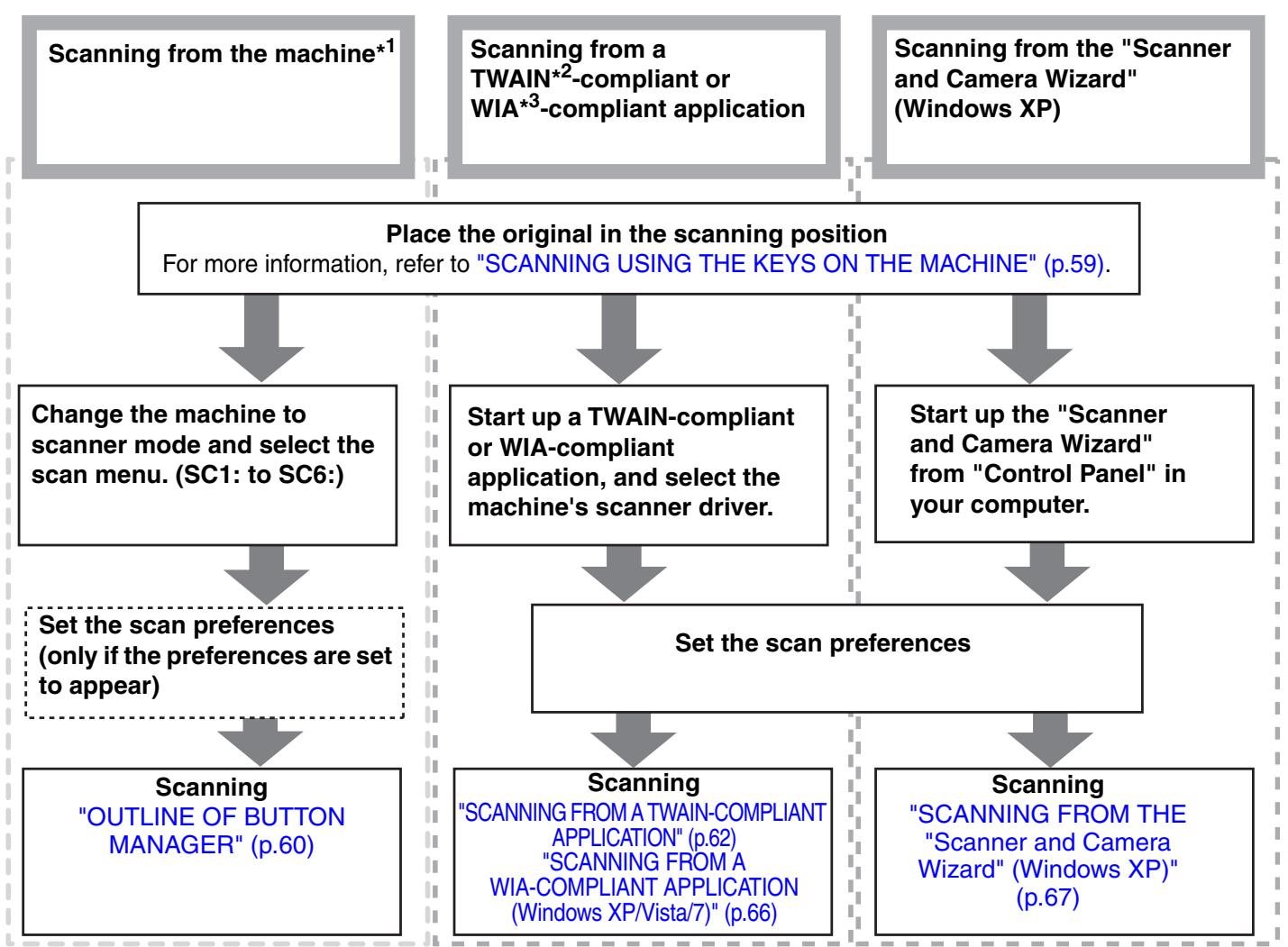
1 To scan using the machine's operation panel, you must first install Button Manager and establish the appropriate settings in the Control Panel. For details, see "SETTING UP BUTTON MANAGER" (p.12). 2 TWAIN is an international interface standard for scanners and other image acquisition devices. By installing a TWAIN driver on your computer, you can scan and work with images using a variety of TWAIN-compliant applications. 3 WIA (Windows Imaging Acquisition) is a Windows function that allows a scanner, digital camera or other imaging device to communicate with an image processing application. The WIA driver for this machine can only be used in Windows XP/Vista/7.
SCANNING USING THE KEYS ON THE MACHINE
When scanning is performed by this method, the application that has been set in Button Manager will automatically start and the scanned image will be pasted into the application. For the steps to allocate applications using the Button Manager or other settings, see "BUTTON MANAGER SETTINGS" (p.61).

If the machine is in copy mode, press the [SCAN] key (boxed u2) to switch to scanner mode and clear the previously set copy settings.
Scanning from the operation panel of the machine
Press the [SCAN] key (
![SHARP AR-5620D - Press the [SCAN] key ( - 1](/content/2025/01/122157/images/46b720cf87b175eadf1ab509c6980155d89249ae6383cc3b159882fc73e0a76d.jpg)
When the SCAN indicator lights up, the machine enters scanner mode.
2 Place the original(s) that you wish to scan on the document glass/SPF/RSPF.
[When scanning from the document glass]
![SHARP AR-5620D - [When scanning from the document glass] - 1](/content/2025/01/122157/images/7857fefba4f20945ad8033061a42bc94549f04d3513fed13858f758c720f2bdb.jpg)
Place the original face down on the document glass. Align the edge of the original with the original size scale, to be centred with the centring mark (▷).
[When scanning from the SPF/RSPF]
![SHARP AR-5620D - [When scanning from the SPF/RSPF] - 1](/content/2025/01/122157/images/719be65d26f7c02654807d66ff8899ace4a8194a01af85c91ff6c8ca91ab5914.jpg)
Set the original(s) face up in the document feeder tray.
![SHARP AR-5620D - Press the [SCAN MENU] key to begin scanning. - 1](/content/2025/01/122157/images/f4ffd06f9f5f4f2ede3dd867558c73bee81ae24d303de199861b21f566308ea5.jpg)
Scanning will start and the scanned data will be transferred to the application.
The target application can be selected by the [SCAN MENU] key.
For the default application allocated to each key, see "BUTTON MANAGER SETTINGS" (p.61).
![SHARP AR-5620D - Press the [SCAN MENU] key to begin scanning. - 2](/content/2025/01/122157/images/49058eb3cbcb61b6c9f5e95d83770b41417ae5dea41eb303bf05fd2d9743fc5f.jpg)
The display will show the number of the [SCAN MENU] key that you pressed, and the number will light and the SCAN indicator will be blinking.
![SHARP AR-5620D - Press the [SCAN MENU] key to begin scanning. - 3](/content/2025/01/122157/images/e996244110a12f37d59b34615ebaff6f147baeddce78f00609eea99e0976bd93.jpg)
To return to copy mode from scanner mode, press the [SCAN] key (CA) or [CLEAR ALL] key (CA). - For limitations on copying and printing in scanner mode, and scanner mode while copying or printing, see "OPERATION IN COPY, PRINTER, AND SCANNER MODES" (p.26).
Button Manager is a software utility that allows you to use the scanner function at the machine. Button Manager allows you to configure six sets of scanning settings as a scan menu on the machine.
To view Help for a setting, click the button in the upper right-hand corner of the window and then click the setting.
To begin scanning using the machine's operation panel, settings must be established in the Control Panel after Button Manager is installed. For information on installing Button Manager and establishing the Control Panel settings, see "SETTING UP BUTTON MANAGER" (p.12). For information on scanning using the machine's operation panel, see "SCANNING USING THE KEYS ON THE MACHINE" (p.59).
You can use Button Manager to select and change the functions of the six scan menus. Refer to "BUTTON MANAGER SETTINGS" (p.61).
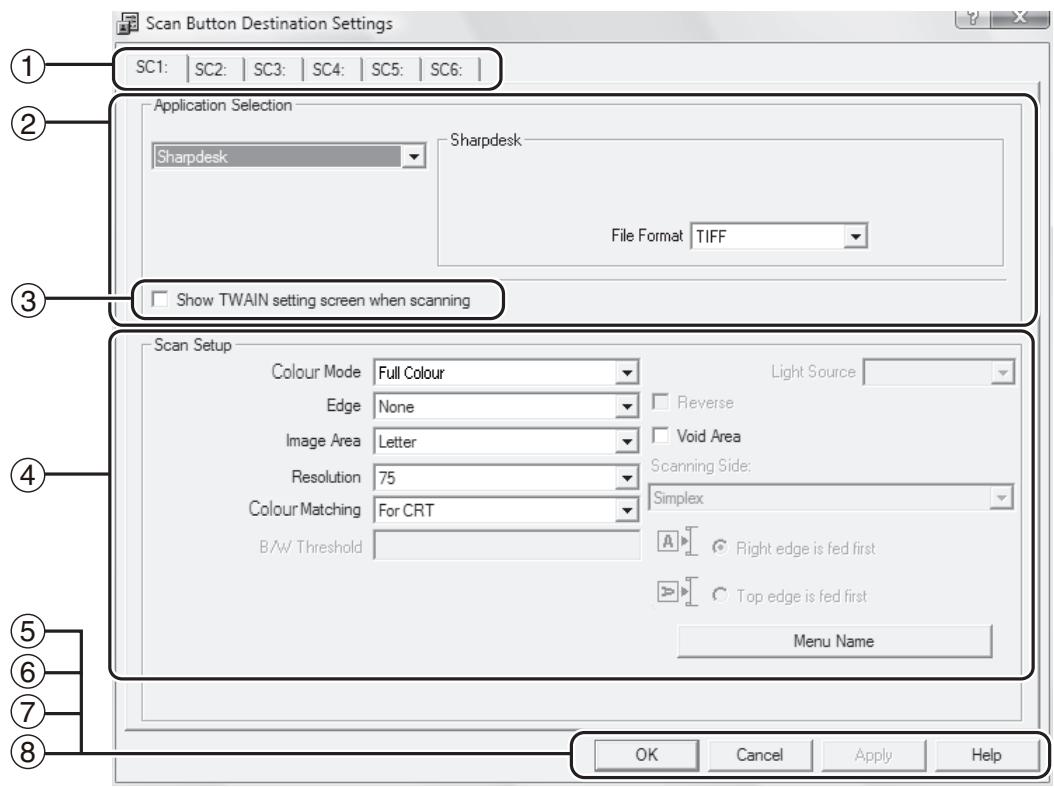
① Tab
Click to set scan menu options. Each tab contains scan settings for the scan menu.
② "Application Selection" area
Select the start-up application here.
③ "Show TWAIN setting screen when scanning" Checklist
You can select whether or not the TWAIN screen is shown. When the checkbox is selected, the TWAIN screen appears when scanning is executed to let you adjust the scanning conditions.
④ "Scan Setup" area
Set the scan conditions.

Some applications may limit your choice of settings.

"Menu Name" is not used on this machine.
⑤ "OK" button
Click to save your settings and exit the dialog box.
⑥ "Cancel" button
Click this button to exit the dialog box without making any changes to the settings.
"Apply" button
Click to save your settings without closing the dialog box.
"Help" button
Click this button to display the help file for Button Manager.
Once installed, Button Manager normally runs in the background in the Windows operating system. If you need to change Button Manager settings, follow the steps below.
For details on Button Manager settings, see Button Manager Help.
"OUTLINE OF BUTTON MANAGER" (p.60)
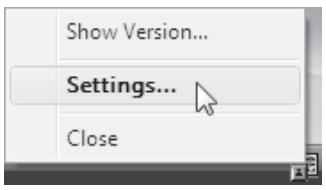
The setting screen of Button Manager will open.

If the Button Manager icon does not appear on the task bar, click the "Start" button, select "All Programs" ("Programs" in Windows 2000), select "Sharp Button Manager AA", and then click "Button Manager" to start Button Manager.
SC1:
SC2:
SC3:
SC4:
SC5:
SC6:
3 Select the start-up application in the "Application Selection" area.

When the "Show TWAIN setting screen when scanning" checkbox is selected, the scan setting screen appears when scanning is executed to let you adjust the scanning conditions.
Button Manager scan menu (factory default)
| Display/Button Manager menu | Application that starts |
| SC1: | Sharpdesk |
| SC2: | Email |
| SC3: | FAX |
| SC4: | OCR |
| SC5: | Microsoft Word |
| SC6: | Filing |

The start-up application must be installed before using.
4 Set up the "Colour Mode", "Edge" and other scan settings in the "Scan Setup" area. 5 Click the "OK" button.
This completes the settings.
SCANNING FROM YOUR COMPUTER
The machine supports the TWAIN standard, making it possible to scan from TWAIN-compliant applications. The machine also supports WIA (Windows Image Acquisition), making it possible to scan from WIA-compliant applications and the "Scanner and Camera Wizard" in Windows XP. For information on TWAIN and WIA settings, see the help file for the scanner driver or Windows Help.
SCANNING FROM A TWAIN-COMPLIANT APPLICATION
The SHARP scanner driver is compatible with the TWAIN standard, allowing it to be used with a variety of TWAIN-compliant applications.
1 Place the original(s) that you wish to scan on the document glass/SPF/RSPF. For information on setting an original for scanning, refer to "SCANNING USING THE KEYS ON THE MACHINE" (p.59). After starting TWAIN-compliant application, click the "File" menu and select a menu to scan.

The method for accessing the menu to select the scanner depends upon the application. For more information, refer to the manual or the help file of your application. 3 Select "SHARP MFP TWAIN AA", and click the "Select" button.

- If you are using Windows XP/Vista/7, you can also select "WIA-SHARP AR-XXXX" to scan using the WIA driver. "SCANNING FROM A WIA-COMPLIANT APPLICATION (Windows XP/Vista/7)" (p.66)
- Depending on your system, "SHARP MFP TWAIN AA 1.0 (32-32)" and "WIA-SHARP AR-XXXX 1.0 (32-32)" may appear in the above "Select Source" screen.
4 Select the menu to acquire an image from the application's "File" menu.
The scanner driver setup screen will appear. "Scanner driver settings" (p.64)
5 In the "Scanning Source" menu, select the location where you placed the original in Step 1.
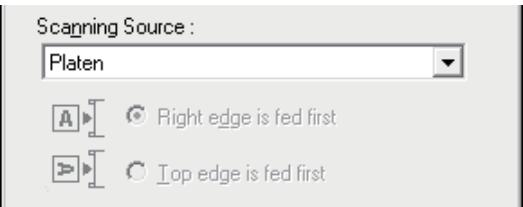
- If you placed a one-sided original in the SPF/RSPF, select "SPF (Simplex)". Only when using the RSPF:
- If you placed a two-sided original in the RSPF, select "SPF (Duplex-Book)" or "SPF (Duplex-Tablet)" according to the binding position of the original.

If you selected "SPF (Duplex-Book)" or "SPF (Duplex-Tablet)" in the "Scanning Source" menu, select whether the orientation of the placed original is "Right edge is fed first" or "Top edge is fed first".
6 Click the "Preview" button.
The preview image will appear.

- If the angle of the image is not correct, reset the original, and click the "Preview" button again.
- If the preview image is not oriented correctly, click the "Rotate" button in the preview screen. This rotates the preview image 90 degrees clockwise, allowing you to correct the orientation without resetting the original. "Preview screen" (p.65)
- If you set multiple pages in the SPF/RSPF, the machine previews only the top page of the originals, and then sends it to the original exit area. Return the previewed original to the SPF/RSPF before starting the scanning job.
7 Specify the scanning area and set the scan preferences.
For information on specifying the scan area and setting the scan preferences, see scanner driver Help.
"Scanner driver settings" (p.64)
Caution
Scanning a large area at high resolution results in a large quantity of data and a prolonged scanning time. It is recommended that you set appropriate scanning preferences for the type of original being scanned, i.e., Web page (monitor), Photo, FAX, or OCR.
To cancel a scanning job after clicking the "Scanning" button, press the [Esc] key on your keyboard.
Scanner driver settings
The scanner driver setup screen consists of the "Set-up screen", which lets you select scan settings, and the "Preview screen", which shows the scanned image. For details on the scan settings, click the "Help" button in the preview screen to display Help.
Set-up screen
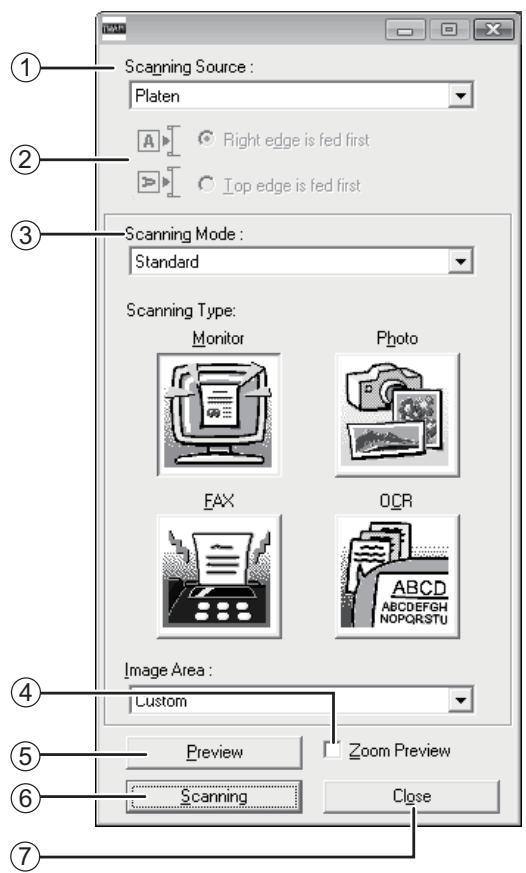
Select the location where the original is placed. Selections are "Platen" (document glass), "SPF (Simplex)", "SPF (Duplex-Book)" or "SPF (Duplex-Tablet)".
"SCANNING FROM A TWAIN-COMPLIANT APPLICATION" (p.62)
If you placed a two-sided original in the RSPF, select "Right edge is fed first" or "Top edge is fed first" from the scan side menu according to the orientation of the placed original.
Select "Standard" or "Professional" for the scanning mode. For details on the settings, click the "Help" button in the preview screen to display Help.
④ "Zoom Preview" checkbox
When this is selected, the selected part of the preview image will be enlarged when the "Preview" button is clicked. To return to the regular view, remove the checkmark.

"Zoom Preview" can be used when "Platen" is selected in the "Scanning Source" menu.
Previews the document.

If "Preview" is cancelled by immediately pressing the [Esc] key on your keyboard, or the [CLEAR] key (C) or [CLEAR ALL] key (CA) on the machine, nothing will appear in the preview screen.
Click to scan an original using the selected settings. Before clicking the "Scanning" button, make sure the settings are correct.

To cancel a scanning job after clicking the "Scanning" button, press the [Esc] key on your keyboard, or the [CLEAR] key (C) or [CLEAR ALL] key (CA) on the machine.
Click to close the scanner driver setup screen.
Preview screen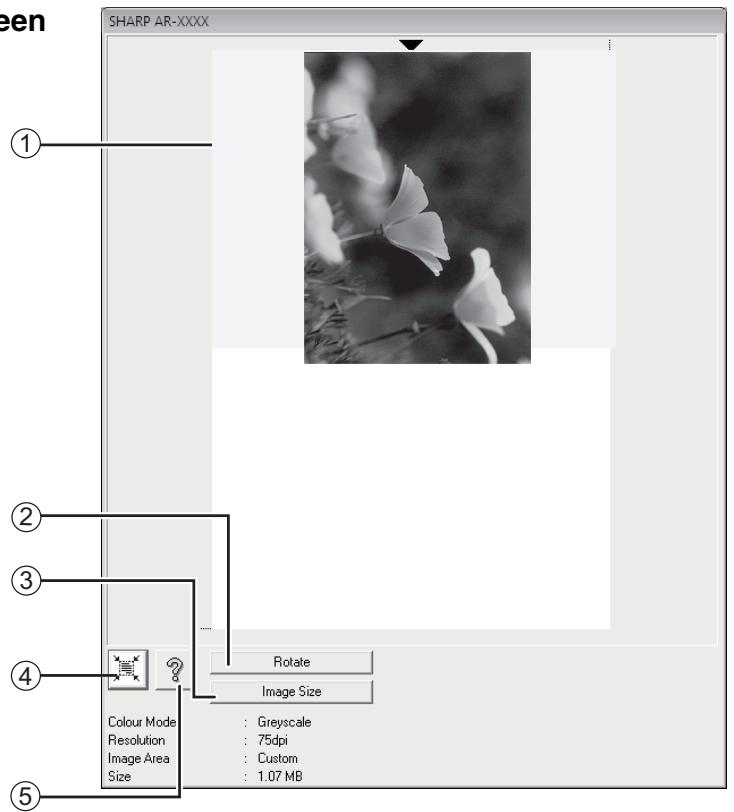
① Preview screen
Click the "Preview" button in the Set-up screen to display the scanned image. You can specify the scanning area by dragging the mouse inside the window. The inside of the frame that is created when you drag the mouse will be the scanning area. To cancel a specified scanning area and clear the frame, click anywhere outside the frame.
Click to rotate the preview image 90 degrees clockwise. This allows the orientation to be corrected without resetting the original. Upon scanning, the image file is created in the orientation shown in the preview screen.
Click to open a dialog box that allows you to specify the scanning area by entering numbers. Pixels, mm, or inches can be selected for the units of the numbers. By initially specifying a scanning area, numbers can be entered to change that area relative to the top left corner as a fixed origin.
Click when the preview screen is displayed to automatically set the scanning area to the entire preview image.
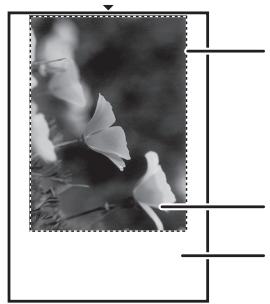
Click the "Auto Scan Area Judgement" button to automatically set the scanning area to the entire preview image. Preview image Preview screen
Click to display the help file for the scanner driver.
SCANNING FROM A WIA-COMPLIANT APPLICATION (Windows XP/Vista/7)
If you are using Windows XP/Vista/7, you can use the WIA driver to scan from Paint and other WIA-compliant applications. The procedure for scanning using Paint is explained in the following.
1 Place the original that you wish to scan on the document glass/SPF/RSPF.
For information on setting an original for scanning, refer to "SCANNING USING THE KEYS ON THE MACHINE" (p.59).
2 Start Paint and then click the "File" menu and select "From Scanner or Camera".
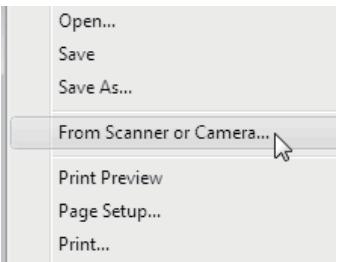
The scan screen of the WIA driver will appear.

If you have WIA drivers for other devices installed in your computer, the "Select Device" screen will open. Select "SHARP AR-XXXX" and click the "OK" button.
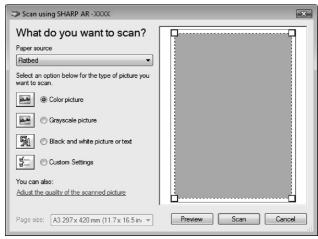
The preview image will appear. If you placed the original on the document glass, select "Flatbed" for the "Paper source". If you placed the original in the SPF/RSPF, select "Document Feeder" for the "Paper source" and specify the original size in "Page size".

- If you select "Document Feeder" for the "Paper source" and click the "Preview" button, the top original in the SPF/RSPF is previewed. The previewed original is sent to the original exit area, so you will need to return it to the SPF/RSPF before starting the scanning job.
- In Windows XP, you can view Help for a setting. Click the button in the upper right-hand corner of the window and then click the setting.
Scanning begins and the image is acquired into Paint.
Use "Save" in your application to specify a file name and folder for the scanned image, and save the image.
To cancel a scanning job after clicking the "Scan" button, click the "Cancel" button.
SCANNING FROM THE "Scanner and Camera Wizard" (Windows XP)
The procedure for scanning with the "Scanner and Camera Wizard" in Windows XP is explained here. The "Scanner and Camera Wizard" lets you scan an image without using a WIA-compliant application.
1 Place the original that you wish to scan on the document glass/SPF/RSPF.
For information on setting an original for scanning, refer to "SCANNING USING THE KEYS ON THE MACHINE" (p.59).
2 Click the "start" button, click "Control Panel", click "Printers and Other Hardware", and then click "Scanners and Cameras". 3 Click the "SHARP AR-XXXX" icon and then click "Get pictures" in "Imaging Tasks".
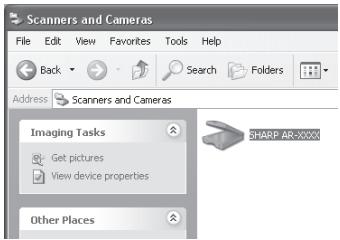
The "Scanner and Camera Wizard" will appear.
- Click the "Next" button.
5 Select the "Picture type" and click the "Next" button.
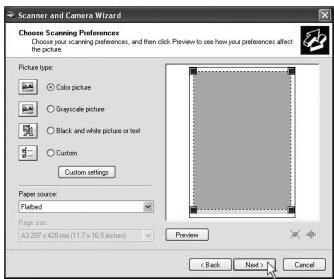

To adjust the resolution, picture type, brightness and contrast settings, click the "Custom settings" button.
6 Specify a group name, format and folder for saving the image, and then click the "Next" button.
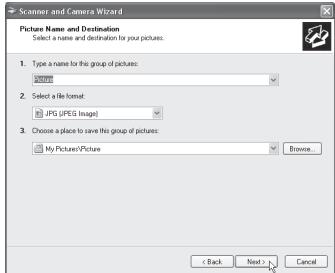
JPG, BMP, TIF or PNG can be selected for the format. To begin scanning, click the "Next" button.
When scanning ends, the following screen will appear. Select the next task that you wish to perform, and then click the "Next" button.
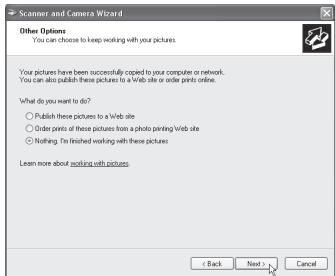
If you are ready to end the session, click "Nothing. I'm finished working with these pictures".
8 Click the "Finish" button.
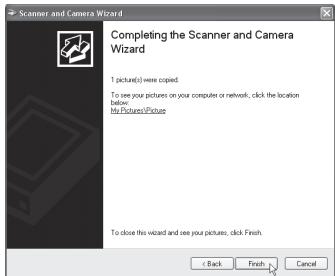
The "Scanner and Camera Wizard" closes and the scanned image is saved in the specified folder.
This chapter explains how to set the automatic exposure level, toner save mode/high image quality mode, and the system settings, which are custom settings that control fine points of the machine's operation.
The exposure level used in automatic exposure adjustment, which automatically adjusts the copy exposure according to the original, can be adjusted. If copies tend to be too dark or too light when automatic exposure adjustment is used, follow the steps below to adjust the automatic exposure level.
The automatic exposure level can be adjusted separately for the document glass and the SPF/RSPF.

The copy, scanner and printer functions cannot be used while the automatic exposure level is being adjusted.
1 To adjust the automatic exposure level in the SPF/RSPF, place the original in the SPF/RSPF. (p.28)
Make sure that the SPF/RSPF indicator is lit.

To adjust the automatic exposure level for copies made from originals placed on the document glass, proceed to step 2.
2 Press the [AUTO/TEXT/PHOTO] key (AUTO /... /) to select "PHOTO" ().
3 Hold down the [AUTO/TEXT/PHOTO] key (AUTO /... /...) until the AUTO indicator (AUTO) blinks.
![SHARP AR-5620D - Hold down the [AUTO/TEXT/PHOTO] key (AUTO /... /...) until the AUTO indicator (AUTO) blinks. - 1](/content/2025/01/122157/images/eb578221228cb554028aa6c83e30a45ada6d2adf2afcfbde797aa672d797d664.jpg)
The exposure level indicators show the current setting.
4 Press the [Light] key ( ) or [Dark] key () to lighten or darken the automatic exposure level as desired.
![SHARP AR-5620D - Press the [Light] key ( ) or [Dark] key () to lighten or darken the automatic exposure level as desired. - 1](/content/2025/01/122157/images/fb744cb3be51707af3e23104e8ae9f0127904538cbbc8471d46ec64b3462e1d4.jpg)
Press the [AUTO/TEXT/PHOTO] key (AUTO /...)/) to complete the setting.
The AUTO indicator ( AUTO ) stops blinking and lights steadily.
![SHARP AR-5620D - Press the [AUTO/TEXT/PHOTO] key (AUTO /...)/) to complete the setting. - 1](/content/2025/01/122157/images/2f5e700776bd5e0bce5bf614c44e705463be3e6e5de52bce4478ac1dd221ec81.jpg)
After adjusting the automatic exposure level, it is recommended that you make a test copy to check the new level.
TONER SAVE MODE AND HIGH IMAGE QUALITY MODE
Toner save mode can be enabled to reduce toner consumption by about 10% . (The amount of the saved toner varies depending on the type of original.)
The high image quality mode improves copy image quality in the automatic and manual exposure modes by increasing copy density with a slight increase of toner consumption.
To switch between toner save mode and high image quality mode, follow the steps below.

In Europe, high image quality mode is initially selected. In regions other than Europe, toner save mode is initially selected.
1 Press the [AUTO/TEXT/PHOTO] key (AUTO /... /) to select "TEXT" (...). 2 Hold down the [AUTO/TEXT/PHOTO] key (AUTO /... /...) until the PHOTO indicator (...) blinks.
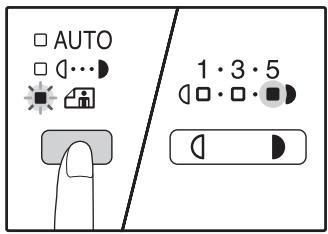
The exposure level indicators show the current setting.
3 To enable toner save mode, press the [Light] key ( ). To enable high image quality mode, press the [Dark] key ( ).
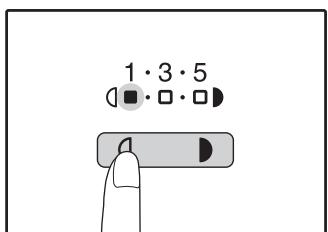
When enabling toner save mode, make sure that "1" is lit. When enabling high image quality mode, make sure that "5" is lit.
4 Press the [AUTO/TEXT/PHOTO] key (AUTO /...)/) to complete the setting.
The PHOTO indicator (m) stops blinking and lights steadily.
CUSTOMISING SETTINGS (System Settings)
The system settings allow you to customise the machine to match your needs.
SYSTEM SETTINGS
| Program number | Program name | Setting codes
(factory default setting appears in bold) | Explanation |
| 1 | Auto clear time | 1: OFF
2: 10 sec.
3: 20 sec.
4: 60 sec.
5: 90 sec.
6: 120 sec. | "Auto clear time" automatically returns the copy settings to the initial settings (p.20) when a certain period of time elapses after a copy is made. This program is used to select the period of time. "Auto clear time" can also be disabled. |
| 2 | Preheat mode | 1: 1 min.
2: 5 min.
3: 15 min.
4: 30 min.
5: 60 min.
6: 120 min.
7: 240 min. | This function automatically switches the machine to a low power consumption state if the set duration of time elapses without the machine being used when the power is on. The POWER SAVE indicator (♀) lights up, however, the keys on the operation panel can be used. Normal operation automatically resumes when a key on the operation panel is pressed, a print job is received or an original is placed. |
| 3 | Auto power shut-off timer | 1: 5 min.
2: 15 min.
3: 30 min.
4: 60 min.
5: 120 min.
6: 240 min. | This function automatically switches the machine to a state that consumes even less power than preheat mode if the set duration of time elapses without the machine being used when the power is on. All lights except the POWER SAVE indicator (♀) and ON LINE indicator go off. To resume normal operation, press the [START] key (♂). Normal operation also resumes automatically when a print job is received. While in auto power shut-off mode, no keys (except the [START] key (♂)) can be used. |
| 4 | Stream feeding mode*1 | 0: OFF
1: ON | When copying using the SPF/RSPF, during the period of time that the SPF/RSPF indicator blinks after an original has been scanned (about 5 seconds), a subsequent original can be placed and automatically fed into the machine. |
| 5 | Auto power shut-off setting | 0: OFF
1: ON | Use this setting to enable or disable auto power shut-off. |
| 6 | Border line for 2 IN 1 / 4 IN 1 | 1: OFF
2: Solid line
3: Broken line | When copying multiple originals onto a single sheet of paper (2 IN 1 / 4 IN 1 copy), this function can be used to print a solid or broken borderline around each original image. |
*1 When the SPF/RSPF is installed.
| Program number | Program name | Setting codes
(factory default setting appears in bold) | Explanation |
| 7 | Rotation copy | 0: OFF
1: ON | ·When the auto paper select function is enabled and there is no paper that is the same size as the original and loaded in the same orientation, this function will automatically select paper of the same size that is loaded in the opposite orientation, and rotate the image 90 degrees so that it is copied on the paper in the correct orientation.
·When the auto ratio select function is operating and the original and paper are loaded in opposite orientations, this function rotates the image so that it is copied on the paper in the correct orientation. |
| 8 | Auto paper select mode*2 | 0: OFF
1: ON | ·This function automatically selects paper that is the same size as the original placed in the SPF/RSPF, or the same size as that selected with the [ORIGINAL] key (ORIGINAL). The function can be disabled. |
| 9 | Auto tray switching*2 | 0: OFF
1: ON | ·If the paper runs out during printing and there is paper of the same size and orientation in another tray, this function automatically switches to that tray (excluding the bypass tray). The function can be disabled. |
| 10 to 15 | Auditing mode | - | See "AUDITING MODE SETTINGS" (p.75). |
| 16 | Erase width adjustment | 1: 0 mm (0")
2: 5 mm (1/4")
3: 10 mm (1/2")
4: 15 mm (3/4")
5: 20 mm (1") | ·Use this setting to set the width of erasure of shadows that appear around the edges and at the binding margin when a book or similar original is copied. |
| 17 | Layout in 2 IN 1 copy | 1: Pattern 1
2: Pattern 2 | ·Use this setting to select the layout pattern when two original pages are copied onto a single sheet of paper (see page 44 for the layout patterns). |
| 18 | Layout in 4 IN 1 copy | 1: Pattern 1
2: Pattern 2
3: Pattern 3
4: Pattern 4 | ·Use this setting to select the layout pattern when four original pages are copied onto a single sheet of paper (see page 44 for the layout patterns). |
| 20 | Image rotation in duplex copying*3 | 0: OFF
1: ON | ·When a one-sided vertical (portrait) original is placed in a horizontal orientation (B4 or A3 (8-1/2" x 14" or 11" x 17") size) for two-sided copying, the top and bottom of the images on the front and back of the paper will be opposite to each other. |
| 21 | Location of the margin*3 | 1: Left edge
2: Top edge | ·Use this setting to switch between the margin at the top edge and the margin at the left edge. |
| 22 | Margin width | 1: 0 mm (0")
2: 5 mm (1/4")
3: 10 mm (1/2")
4: 15 mm (3/4")
5: 20 mm (1") | ·Use this setting to set the margin width. |
2 When there are two or more paper trays. 3 When the RSPF is installed.
| Program number | Program name | Setting codes
(factory default setting appears in bold) | Explanation |
| 24 | Memory allocated to printer mode | 1: 30%
2: 40%
3: 50%
4: 60%
5: 70% | ·Use this to change the proportion of machine memory used for printer mode. |
| 25 | Key auto repeat | 0: OFF
1: ON | ·Use this setting to select whether or not holding down a key causes repeated input of the key. For keys that normally cause a set value to increase when held down (for example, holding down the [ZOOM] key ( ≧ , ≧)), this program can be used to have the set value not change when the key is held down. |
| 26 | Key press time | 1: Minimum
(current response speed)
2: 0.5 sec.
3: 1.0 sec.
4: 1.5 sec.
5: 2.0 sec. | ·Use this setting to select how long a key must be pressed for the input to be accepted. By selecting a longer time, you can prevent settings from being changed by the accidental pressing of a key. |
| 27 | Audible signals volume | 1: Short beep
2: Long beep
3: OFF | ·This sets the volume of beep signals. (p.74) |
| 28 | Base setting beep signal | 0: OFF
1: ON | ·Use this to sound a beep when a base setting is selected. (p.74) |
| 29 | Number of copies limit | 1: 99 copies
2: 999 copies | ·Use this setting to select 99 or 999 for the maximum number of copies. |
| 30 | Use close paper size | 0: OFF
1: ON | ·When this function is enabled, printing in printer mode will automatically continue using a different size of paper if the specified size of paper runs out in all trays. This feature does not function in copy mode. |
| 31 | Default tray setting*4 | 1: Upper paper tray
2: Lower paper tray
3: 250-sheet paper feed unit/
Upper paper tray of 2 x 250-sheet paper feed unit
4: Lower paper tray of 2 x 250-sheet paper feed unit
5: Bypass tray | ·Use this program to select a default tray. This tray is automatically selected each time the power is turned on or each time the machine reverts to the initial settings. |
*4 AR-5618/AR-5618D is as follows: 1: Upper tray (factory default), 2: 250-sheet paper feed unit/Upper paper tray of 2 x 250-sheet paper feed unit, 3: Lower paper tray of 2 x 250-sheet paper feed unit, 5: Bypass tray
| Program number | Program name | Setting codes (factory default setting appears in bold) | Explanation |
| 32 | Default exposure mode | 1: AUTO2: TEXT3: PHOTO | • Use this program to set "AUTO", "TEXT", or "PHOTO" as the default exposure mode. |
| 34 | Sort auto select*1 | 1: OFF2: Sort3: Group | • Use this setting to select the default output mode for copying from the SPF/RSPF. |
| 35 | ID card | 0: Margin Shift1: Pattern 12: Pattern 2*5 | • Use this setting to copy the front and back sides of ID card onto a page, and to use margin shift feature. |
| 36 | Auto power shut-off switching immediately after print job finishes | 0: OFF1: ON | • This function automatically switches the machine to auto power shut-off mode immediately after a print job finishes. If "OFF" is set, the duration of time for the Auto power shut-off timer set in the program number (3) is enabled. |
1 When the SPF/RSPF is installed. 5 The factory setting values may vary depending on the region.
SELECTING A SETTING FOR A SYSTEM SETTING
Hold down the [Light] key ( ) until the alarm indicators ( ) blink.
![SHARP AR-5620D - Hold down the [Light] key ( ) until the alarm indicators ( ) blink. - 1](/content/2025/01/122157/images/8c52bfad59fbdcef92ad9d90a0ab9e483fc2b06686c09f06352aca644af40386.jpg)
The display shows "- - " with the left hyphen blinking.
4 Enter the desired setting code by pressing a numeric key.
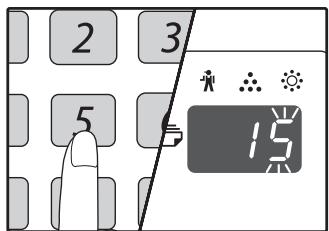
- For the setting codes, see "SYSTEM SETTINGS" (p.70 to p.73).
- The selected setting code blinks.
- For example, to select 90 seconds, press the [5] key.
2 Enter the program number with the numeric keys.
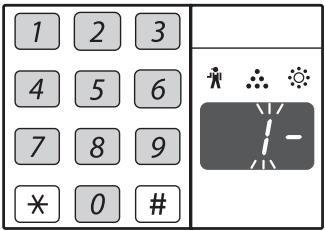
- See "SYSTEM SETTINGS" (p.70 to p.73) for the program numbers.
- The selected program number blinks.
- For example, to select "Auto clear timer", press the [1] key.

If you enter the wrong number, press the [CLEAR] key (C) and then enter the correct number.
3 Press the [START] key ( Ⓒ).
![SHARP AR-5620D - Press the [START] key ( Ⓒ). - 1](/content/2025/01/122157/images/3cea5595c9e9b130f128e6040fed3074434ef363e01d48ac371cdb25b01f261c.jpg)
- The selected program number stops blinking and lights steadily.
- The currently selected setting code blinks on the right side of the display.
If you enter the wrong number, press the [CLEAR] key (C) and return to step 2.
5 Press the [START] key (①).
![SHARP AR-5620D - Press the [START] key (①). - 1](/content/2025/01/122157/images/1b3f2da0e262502a26fb4a44ee4b905c7417c61ec4cd7c74bf6cf3ec7bcef6c4.jpg)
The selected setting code stops blinking and lights steadily.
![SHARP AR-5620D - Press the [START] key (①). - 2](/content/2025/01/122157/images/e656cc7aea23436190f561464f3a682363cd17a089d28528438bcf84700468a6.jpg)
To select a setting for another system setting, press the [CLEAR] key (C) and then return to step 2.
6 Press the [Light] key ( �oxed{d} ) to complete the settings.
The alarm indicators (串, 串, 串, □, 8串) go off and the display returns to the number of copies display.
Audible signals (key entry beep, invalid key beep, base setting beep)
The machine sounds three different types of beep signals: a key entry beep that sounds when a valid key is pressed, an invalid key beep that sounds when an invalid key is pressed, and a base setting beep that sounds when a setting is the same as the base setting (base settings are explained below). The base setting beep is initially disabled. If you wish to enable the base setting beep, see "Base setting beep signal" on page 72. If you wish to change the volume of the beep signals or disable them, see "Audible signals volume" on page 72. The beep patterns of each type of beep signal are as follows:
Key entry beep: One beep
Invalid key beep: Two beeps
Base setting beep: Three beeps
Base settings
The base settings are preset standard selections for each copy setting. The base settings are as follows:
Copy ratio: 100%
Light and Dark indicator: 3
Paper feed location: Upper paper tray
ORIGINAL SIZE: A4 (8-1/2" x 11")
AUTO/TEXT/PHOTO (AUTO /Q…
AUTO
SETTINGS FOR AUDITING MODE
AUDITING MODE
When "Auditing mode" is enabled, a count is kept of the number of copies made by each account (up to 20 accounts can be established), and the counts can be displayed and totalled as necessary. In "Auditing mode", the display shows "- - - ", and this indicates that a 3-digit account number must be entered in order to use the machine for copying.

The administrator of the machine should complete the following settings:
- Enable "Auditing mode" (p.77)
- Account number entry (p.77)
AUDITING MODE SETTINGS
| Program number | Program name | Setting codes
(factory default settings are indicated in bold) | Explanation |
| 10 | Auditing mode | 0: OFF
1: ON | Use to enable or disable "Auditing mode".
"Auditing mode" is initially disabled. |
| 11 | Account number entry | None | Use to set up account numbers. Up to 20 accounts can be established. |
| 12 | Account number change | None | Use to change an account number. |
| 13 | Account number deletion | 0: Delete single account
1: Delete all accounts | Use to delete an account number.
A single account number can be deleted, or all account numbers at once. |
| 14 | Number of copies per account | None | This displays the number of copies made by each account.
The maximum count is 49,999. If this number is exceeded, the count will start over from 0. |
| 15 | Resetting account | 0: Reset single account
1: Reset all accounts | Use to reset the copy count of an account to 0.
The copy count of a single account or of all accounts can be reset. |
SELECTING AUDITING MODE SETTINGS
Hold down the [Light] key (□) until the alarm indicators (x, , , , □, 8v) blink.
![SHARP AR-5620D - Hold down the [Light] key (□) until the alarm indicators (x, , , , □, 8v) blink. - 1](/content/2025/01/122157/images/5b2a8b407b0c83fe8a17843a28ffc32349d5d295c218c6b73ea7a4ed03b45dd9.jpg)
The display shows "- - " with the left hyphen blinking.
2 Enter the program number with the numeric keys.
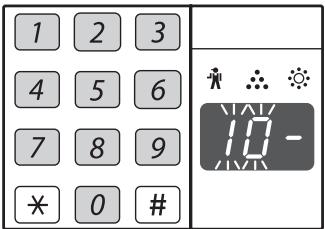
- See "AUDITING MODE SETTINGS" (p.75) for the program numbers.
- The selected program number blinks.
- For example, to select "Auditing mode", enter "10".

If you enter the wrong number, press the [CLEAR] key (C) and then enter the correct number.
3 Press the [START] key (①).
![SHARP AR-5620D - Press the [START] key (①). - 1](/content/2025/01/122157/images/9b995b17d47a6acac6e6a6e55fd05913794676f21803a0bf2bca8a9637cbc57f.jpg)
- The selected program number stops blinking and lights steadily.
- The currently selected setting code blinks on the right side of the display.
4 Enter the desired setting code for the program as explained in the detailed procedures on the following pages.
For the setting codes, see "AUDITING MODE SETTINGS" (p.75).

- If you enter the wrong number, press the [CLEAR] key (C) and return to step 2.
- If "E" (error code) blinks in the first digit of the display, press the [CLEAR] key (C) and return to step 2.
5 Press the [Light] key (□) to complete the settings.
The alarm indicators (①,②,③,④,⑤,⑥,⑦,⑧) go off and the display returns to the number of copies display.
Auditing mode (program No.10)
1 Press the [1] key to enable "Auditing mode" or the [0] key to disable it, and then press the [START] key (①).

After enabling "Auditing mode", use "Account number entry" to establish account numbers for each account (up to 20 accounts can be established).
2 Press the [CLEAR] key (C).
Account number entry (program No.11)
If 20 accounts have already been established, the error code "11E" will appear in the display.
- Use the numeric keys to enter a 3-digit number (any number except "000") and then press the [START] key.

- If you enter "000" or a number that has already been stored, the number will blink in the display. Enter a different number. (Up to 20 accounts can be established.)
- Repeat the same procedure to enter any other account numbers that you wish to establish.
- Keep a record of what group is using each account number (account names cannot be stored, so keep a record to prevent confusion when totalling account values).
2 Press the [CLEAR] key (C).
Account number change (program No.12)
Use this procedure to change an account number. If no account numbers have been established, the error code "12E" will appear in the display.
1 Press the [Copy ratio display] key (%) to select the account number that you wish to change, and then press the [START] key. The display will show 3 blinking hyphens "--". 2 Press the numeric keys to enter a new account number (any 3-digit number except "000"), and then press the [START] key.

- If you enter "000" or a number that has already been stored, the number will blink in the display. Enter a different number.
- To change another account number, repeat steps 1 and 2.
3 When finished, press the [CLEAR] key (C).
Account number deletion (program No.13)
Use this procedure to delete account numbers. A single account number can be deleted, or all account numbers at once.
If no account numbers have been established, the error code "13E" will appear in the display.
[Deleting all accounts at once]
Press the [1] key and then press the [START] key (⑥).
All account numbers will be deleted.
[Deleting a single account]
- Press the [0] key, and then press the [START] key (◇). 2 Select the account number to be deleted with the [Copy ratio display] key (%) and then press the [START] key (⑥).
![SHARP AR-5620D - [Deleting a single account] - 1](/content/2025/01/122157/images/44e336260bb599305de7985aed35eac02908e92dae201b9963fe01025c478c81.jpg)
To delete another account number, enter the program number (13) for account number deletion and then repeat the procedure for "Deleting a single account".
Number of copies per account (program No.14)
Use this procedure to display the copy count of each account. If no account numbers have been established, the error code "14E" will appear in the display.
1 Select the account number with the [Copy ratio display] key (%). 2 Hold down the [0] key.
The copy count of the selected account will appear in the display while you hold down the [0] key. The count is displayed sequentially as shown below.
Example: 12,345 copies
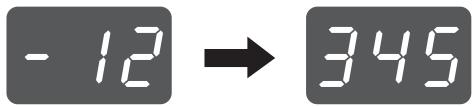

Each A3 (11" x 17") size page is counted as two pages. - To view the copy count of another account, repeat steps 1 and 2.
3 When finished, press the [CLEAR] key (C).
Resetting account (program No.15)
The copy count of a single account or all accounts can be reset to 0. If no account numbers have been established, the error code "15E" will appear in the display.
[Resetting all accounts]
Press the [1] key and then press the [START] key.
The copy counts of all accounts will be deleted.
[Resetting a single account]
- Press the [0] key, and then press the [START] key. 2. Select the account number to be reset with the [Copy ratio display] key and then press the [START] key.
![SHARP AR-5620D - [Resetting a single account] - 1](/content/2025/01/122157/images/976565c0d6d11412bb401e840d10f2051ee10c559bebb101f96a6f698fc9e969.jpg)
To reset another account number, enter the program number (15) for resetting account and then repeat the procedure for "Resetting a single account".
Copying when "Auditing mode" is enabled
When "Auditing mode" is enabled, "- - - " appears in the display.
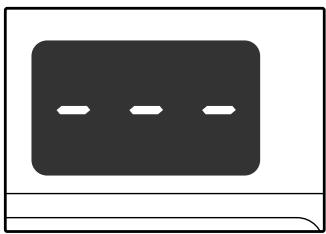
1. Enter your 3-digit account number with the numeric keys.
When you enter your account number, "0" appears in the display to indicate that copying is possible.

If you enter an incorrect number, press the [CLEAR] key and then enter the correct number.
2. Follow the appropriate steps to make the copy.

If you are performing an interrupt copy (p.40), be sure to press the [INTERRUPT] key when finished to exit interrupt mode.
3. When finished, press the [×] key (ACC.#-C).
![SHARP AR-5620D - When finished, press the [×] key (ACC.#-C). - 1](/content/2025/01/122157/images/0e9cc78e625f271728f33425bee9b188b4cc86b6ab42903d5d79b4cca6831b44.jpg)
![SHARP AR-5620D - When finished, press the [×] key (ACC.#-C). - 2](/content/2025/01/122157/images/687da89b99685529aa7b033502c87f81ebf90b7395f0fb3eb2bc892a832c83ec.jpg)
If a misfeed occurs or the paper runs out during copying, your session will not end even if the [*] key (ACC.#-C) is pressed.
This chapter describes troubleshooting and misfeed removal.
TROUBLESHOOTING
If you experience difficulty using the machine, check the following troubleshooting guide before calling for service. Many problems can be easily resolved by the user. If you are unable to solve the problem using the troubleshooting guide, turn off the power switch and unplug the machine, and contact your authorised service representative.
MACHINE/COPYING PROBLEMS
The machine does not operate. 80
Copies are too dark or too light. 80
Blank copies. 80
Part of the image is cut off or there is too much blank space. 80
Wrinkles appear in the paper or the image disappears in places. 80
Paper misfeed. 81
Original size not selected automatically. (When the SPF/RSPF is installed.) 81
Copies are smudged or dirty. 81
White or black lines appear on copies. 81
Paper size for a paper tray cannot be set. 82
A copy job stops before it is finished. 82
The POWER SAVE indicator is lit. 82
Any one of the alarm indicators is lit or blinking. 82
Lighting fixture flickers. 82
PRINTING AND SCANNING PROBLEMS
The machine does not print. (ON LINE indicator does not blink.) 83
The machine does not print. (ON LINE indicator was blinking.) 83
A Notice Page (NP-001) has been printed, but the print data has not been printed completely. 84
Printing is slow. 84
The printed image is light and uneven. 84
The printed image is dirty. 84
The printed image is skewed or it runs off the paper. 84
The printed image is darker or lighter than expected. 84
Any one of the alarm indicators is lit or blinking. 84
Poor scanning quality. 85
Unable to scan the image. 86
Scanner transfer speed is slow.
INDICATORS AND DISPLAY MESSAGES
MISFEED REMOVAL
REPLACING THE TONER CARTRIDGE
The following problems are related to the general operation of the machine and copying.
MACHINE/COPYING PROBLEMS
| Problem | Cause and solution | Page |
| The machine does not operate. | The machine is not plugged into a power outlet.
→ Plug the machine into a grounded outlet. | - |
| Power switch OFF.
→ Turn the power switch ON. | 20 |
| The POWER SAVE indicator (➀) is blinking.
→ Indicates that the machine is warming up. Copies cannot be made until the machine has finished warming up. | 20 |
| The front cover or the side cover is not completely closed.
→ Close the front cover or the side cover. | - |
| The machine is in auto power shut-off mode.
→ In auto power shut-off mode, all lights are off except the POWER SAVE indicator (➁) and ON LINE indicator. Press the [START] key (➂) to resume normal operation. | 20 |
| PAPER SIZE indicator is blinking.
→ A blinking PAPER SIZE indicator means that the size of paper loaded in the tray is different from the paper size setting for the tray. Change the paper size setting.
To clear the display, do one of the following:
· Use the [PAPER SELECT] key (➁) to change the tray selection.
· Open and close the tray.
· Press the [CLEAR ALL] key (➂). | 24, 30 |
| Copies are too dark or too light. | Select the correct original type for the original.
→ Select AUTO with the [AUTO/TEXT/PHOTO] key or press the [Light] key (➁) and [Dark] key (➂) to manually select an appropriate exposure.
→ If the copy is too light or too dark even though AUTO was selected with the [AUTO/TEXT/PHOTO] key (AUTO /➁/➁), adjust the automatic exposure level. | 30
68 |
| Blank copies. | The original is not placed face up in the SPF/RSPF or face down on the document glass.
→ Place the original face up in the SPF/RSPF or face down on the document glass. | 27, 28 |
| Part of the image is cut off or there is too much blank space. | The original was not placed in the correct position.
→ Place the original correctly. | 27, 28 |
| An appropriate ratio was not used for the size of the original and the size of the paper.
→ Press the [AUTO IMAGE] key (AUTO %) to have the copy made using the appropriate ratio for the original and paper. | 31 |
| The size of paper loaded in the tray was changed without changing the tray's paper size setting.
→ Be sure to change the tray's paper size setting whenever you change the size of paper loaded in the tray. | 24 |
| Wrinkles appear in the paper or the image disappears in places. | The paper is outside of the specified size and weight range.
→ Use copy paper within the specified range. | 21 |
| Paper curled or damp.
→ Do not use curled or crimped paper. Replace with dry copy paper.
During periods when the machine is not used for a long time, remove the paper from the tray and store it in a dark place in a bag to prevent moisture absorption. | - |
| Paper misfeed. | Misfeed occurs.
→ To remove the misfeed, see "MISFEED REMOVAL". | 88 |
| The paper is outside of the specified size and weight range.
→ Use copy paper within the specified range. | 21 |
| Paper curled or damp.
→ Do not use curled or crimped paper. Replace with dry copy paper. During periods when the machine is not used for a long time, remove the paper from the tray and store it in a dark place in a bag to prevent moisture absorption. | - |
| Paper is not loaded properly.
→ Make sure the paper is properly installed. | 22 |
| Pieces of paper inside machine.
→ Remove all pieces of misfed paper. | 88 |
| Too much paper is loaded in the tray.
→ If the stack of paper is higher than the indicator line on the tray, remove some of the paper and reload so that the stack does not exceed the line. | 22 |
| The guides on the bypass tray do not match the width of the paper.
→ Adjust the guides to match the width of the paper. | 23 |
| The bypass tray extension is not pulled out.
→ When loading a large size of paper, pull out the extension. | 23 |
| The bypass paper feed roller is dirty.
→ Clean the roller. | 99 |
| A5 (5-1/2" x 8-1/2") paper is loaded in lower paper tray or in the 250-sheet or 2 x 250-sheet paper feed unit.
→ A5 (5-1/2" x 8-1/2") size paper must be loaded in upper paper tray or the bypass tray. | 21, 22 |
| Original size not selected automatically. (When the SPF/RSPF is installed.) | Original(s) curled.
→ The original size cannot be correctly detected if the original is curled or folded. Straighten the original. | - |
| The machine is directly exposed to sunlight.
→ Install in a location that is not exposed to sunlight. | - |
| Copies are smudged or dirty. | The document glass or the underside of the document cover/SPF/RSPF is dirty.
→ Clean regularly. | 98 |
| Original smudged or blotchy.
→ Use a clean original. | - |
| White or black lines appear on copies. | The scanner glass for the SPF/RSPF is dirty.
→ Clean the long, narrow scanning glass. | 98 |
| The transfer charger is dirty.
→ Clean the transfer charger. | 99 |
| Paper size for a paper tray cannot be set. | Copying or printing is performed.
→ Set the paper size after copying or printing is complete. | - |
| The machine has stopped temporarily due to running out of paper or a misfeed.
→ Load paper or remove the misfeed, and then set the paper size. | 22, 88 |
| An interrupt copy job is in progress.
→ Set the paper size after the interrupt copy job is finished. | 40 |
| The display or the ORIGINAL DATA indicator (☐DATA) is blinking.
→ Data is being held in memory. Print the data in memory or clear it from memory. | 42, 44 |
| A copy job stops before it is finished. | The paper output tray is full.
→ Long copy runs are automatically paused every 250 copies.
Remove the copies in the paper output tray and press the [START] key (◎) to resume copying. | 31 |
| "FUL" appear in the display.
→ The memory became full during sort/group copy or 2 IN 1/4 IN 1 copy. Copy only the originals that have been scanned to that point, or cancel the job and clear the data from memory. | 42, 44 |
| The tray is out of paper.
→ Load paper. | 22 |
| The POWER SAVE indicator (➀) is lit. | Any other indicators are lit.
→ If other indicators are lit, the machine is in "Preheat mode". Press any key on the operation panel to resume normal operation. | 20 |
| The POWER SAVE indicator (➁) and ON LINE indicator are only lit.
→ If only the POWER SAVE indicator (➂) and ON LINE indicator are lit, the machine is in auto power shut-off mode. Press the [START] key (◎) to resume normal operation. | 20 |
| Any one of the alarm indicators (➂,➁,➁,➂,8V) is lit or blinking. | See "INDICATORS AND DISPLAY MESSAGES" to check the meaning of the alarm indicator and error message in the display, and take appropriate action. | 87 |
| Lighting fixture flickers. | The same power outlet being used is for the lighting fixture and the machine.
→ Connect the machine to a power outlet which is not used for other electric appliances. | - |
PRINTING AND SCANNING PROBLEMS
In addition to this section, troubleshooting information can also be found in the README files for each of the software programs. To view a README file, see "INSTALLING THE SOFTWARE" (p.7).
| Problem | Cause and solution | Page |
| The machine does not print.(ON LINE indicator does not blink.) | The machine is set to off-line mode.→ Press the [ON LINE] key (□) to turn on the ON LINE indicator. | 48 |
| The machine is not correctly connected with your computer.→ Check both ends of the printer cable and make sure you have a solid connection. Try a known good cable. For information on cables, see "SPECIFICATIONS (PRINTER AND SCANNER)". | 9, 100 |
| Copy job is performed.→ Wait until the copy job is complete. | - |
| Your machine is not selected correctly in the current application for the print job.→ When choosing "Print" from the "File" menu located in applications, be sure you have selected "SHARP AR-XXXX"(where XXXX is the model name of your machine) printer displayed in the "Print" dialog box. | - |
| The printer driver has not been installed properly.→ Follow these steps to check and see if the printer driver is installed.1 Click the "Start" button, click "Control Panel", and then click "Printer".In Windows 7, click the "Start" button, and then click "Devices and Printers".In Windows XP, click the "start" button, and then click "Printers and Faxes".In Windows 2000, click the "Start" button, select "Settings" and then click "Printers".2 If the "SHARP AR-XXXX" printer driver icon is shown but you still cannot print, the printer driver may not have been installed correctly. In this case, delete the software and then reinstall it. | - |
| The machine does not print.(ON LINE indicator was blinking.) | The tray size settings are not the same on the machine and in the printer driver.→ Make sure that the same tray paper size is set on the machine and in the printer driver. To change the tray's paper size setting on the machine, see "CHANGING A TRAY'S PAPER SIZE SETTING" or see "CONFIGURING THE PRINTER DRIVER" to change it in the printer driver. | 11, 24 |
| The specified size of paper has not been loaded.→ Load the specified size of paper in the paper tray. | 22 |
| The PAPER SIZE indicator is blinking.→ When "Use close paper size (system setting)" is disabled, the PAPER SIZE indicator on the operation panel will blink. You can press the [PAPER SELECT] key (□) to select a tray manually, or load paper in the bypass tray and press the [ON LINE] key (□) to begin printing.→ When "Use close paper size" is enabled, printing will take place using a size of paper that is close to the size of the print image. | 24, 30- |
| A Notice Page (NP-001) has been printed, but the print data has not been printed completely. | A print job containing more data than can be held in the print memory is sent to the machine.
→ Disable the ROPM function on the "Configuration" tab of the printer driver setup screen. If you need to use the ROPM function, divide the pages of the print data into two or more print jobs.
→ The memory allocated to the printer function can be changed in the system setting "Memory allocated to printer mode". | 72 |
| Printing is slow. | Simultaneous use of two or more application software programs.
→ Start printing after quitting all unused application software programs. | - |
| The printed image is light and uneven. | The paper is loaded so that printing takes place on the back side of the paper.
→ Some paper types have a front and back side. If the paper is loaded so that printing takes place on the back side, toner will not adhere well to the paper and a good image will not be obtained. | 22 |
| The printed image is dirty. | You are using paper that is outside the specified size and weight range.
→ Use copy paper within the specified range. | 21 |
| Paper curled or damp.
→ Do not use curled or crimped paper. Replace with dry copy paper. During periods when the machine is not used for a long time, remove the paper from the tray and store it in a dark place in a bag to prevent moisture absorption. | - |
| You did not set sufficient margins in the paper settings of your application.
→ The top and bottom of the paper may be dirty if the margins are set outside of the specified print quality area.
→ Set the margins in the software application within the specified print quality area. | - |
| The printed image is skewed or it runs off the paper. | The paper loaded in the tray is not the same size as that specified in the printer driver.
→ Check if the "Paper Size" options suit the size of the paper loaded in the tray.
→ If the "Fit To Paper Size" setting is activated, make sure that the paper size selected from the drop-down list is the same as the size of the loaded paper. | - |
| The orientation of document setting is not correct.
→ Click the "Main" tab in the printer driver setup screen, and verify if the "Image Orientation" option is set to your requirements. | - |
| Paper is not loaded properly.
→ Make sure the paper is properly loaded. | 22 |
| You did not correctly specify the margins for the application in use.
→ Check the layout of the document margins and the paper size settings for the application you are using. Also check if the print settings are specified correctly to suit the paper size. | - |
| The printed image is darker or lighter than expected. | The setting for the print density is not appropriate.
→ You can adjust the print density on the printer driver. Click the "Advanced" tab in the printer driver setup screen, and click the "Compatibility" button. Select the "Print Density Level" from 1 (light) to 5 (dark). | - |
| Any one of the alarm indicators (↑, ↓, ←, □, □, 8V) is lit or blinking. | See "INDICATORS AND DISPLAY MESSAGES" to check the meaning of the alarm indicator and error message in the display, and take appropriate action. | 87 |
| Poor scanning quality. | The document glass or the underside of the document cover/SPF/RSPF is dirty.
→ Clean regularly. | 98 |
| Original smudged or blotchy.
→ Use a clean original. | - |
| You have not specified a suitable resolution.
→ Make sure that the resolution setting in the scanner driver is appropriate for the original. | - |
| You are scanning a large area (for example an entire A3 (11" x 17")) at high resolution.
→ If you attempt to scan a large area at high resolution and there is insufficient memory in the machine to hold the scanned data, scanning will take place at a lower resolution and the scanner driver will enhance the data to make up for the lower resolution. However, the quality of the enhanced image will not be as high as if scanning took place at the higher resolution. Use a lower resolution setting, or scan a smaller area. | - |
| You have not specified a suitable value for the "B/W Threshold" setting.
→ If you are scanning with a TWAIN-compliant application, make sure that a suitable value is specified for the "B/W Threshold" setting. A larger threshold value makes your output darker, while a small threshold value makes it lighter. To adjust the threshold automatically, click the "Auto Threshold" button on the "Image" tab of the "Professional" screen. | - |
| The brightness and contrast settings are not suitable.
→ If you are scanning with a TWAIN-compliant application and the resulting image has unsuitable brightness or contrast (for example it is too bright), click the "Auto Brightness/Contrast Adjustment" button on the "Colour" tab of the "Professional" screen. Click the "Brightness/Contrast" button to adjust the brightness and the contrast while viewing the scanned output image on the screen. If you are scanning with a WIA-compliant application or the "Scanner and Camera Wizard", click "Adjust the quality of the scanned picture" or the "Custom settings" button, and adjust the brightness and contrast in the screen that appears. | - |
| The original is not placed face up in the SPF/RSPF or face down on the document glass.
→ Place the original face up in the SPF/RSPF or face down on the document glass. | 27, 28 |
| The original was not placed in the correct position.
→ Place the original correctly. | 27, 28 |
| Unable to scan the image. | If scanning is not possible, shut down your computer, turn off the machine's power switch, and unplug the machine's power cord. Next, start your computer, restore power to the machine, and try scanning again. If scanning is still not possible, check the following items. | - |
| Your application is not TWAIN/WIA compliant.
→ If your application is not TWAIN/WIA compliant, scanning will not be possible. Make sure your application is TWAIN/WIA compliant. | - |
| You have not selected the scanner driver of the machine in your application.
→ Make sure that the machine's scanner driver is selected in your TWAIN/WIA-compliant application. | - |
| You have not specified all scanning preferences appropriately.
→ Scanning a large area at high resolution results in a large amount of data and extended scanning times. The scanning preferences should be set appropriately for type of original to be scanned, i.e., Text, Text/Graphics, Photograph. | - |
| There is not enough machine memory.
→ The scan resolution will vary depending on the scanning area and how much memory in the machine is free. | - |
| Scanner transfer speed is slow. | Your computer does not meet the system requirements for the USB 2.0 interface (Hi-Speed mode).
→ See "System requirements for USB 2.0 (Hi-Speed mode)" to configure your system as required. | 9 |
INDICATORS AND DISPLAY MESSAGES
If one of the following indicators lights up or one of the following messages appears in the display, check the meaning of the indicator or message in the following table and take appropriate action.

| Indication | Cause and solution | Page |
| A | Maintenance indicator | Steadily lit | Service by an authorised SHARP service technician is required. | - |
| Developer replacement required indicator | Steadily lit | Developer is required. Contact your authorised service representative. | - |
| Toner cartridge replacement required indicator | Steadily lit | Replacement of toner cartridge will be needed soon. Prepare a new cartridge. | - |
| Blinking | · Toner cartridge must be replaced. Replace it with a new one.
· Toner is being fed. | 95 |
| Paper required indicator | Steadily lit | The tray is out of paper. Load paper. It is also possible that the tray is not inserted completely into the machine. Make sure it is inserted correctly. | 22 |
| 8V | Misfeed indicator | Blinking | A paper misfeed has occurred. Remove the misfeed as explained in "MISFEED REMOVAL". | 88 |
| ORIGINAL SIZE indicator | Blinking | The original is not placed in the correct orientation. Rotate the original so that it is in the same orientation as the blinking ORIGINAL SIZE indicator. | 27,28 |
| PAPER SIZE indicator | Blinking | A blinking PAPER SIZE indicator means that the size of paper loaded in the tray is different from the paper size setting for the tray. Change the paper size setting.
To clear the display, do one of the following:
· Use the [PAPER SELECT] key (□PAPER) to change the tray selection.
· Open and close the tray.
· Press the [CLEAR ALL] key (CA). | 24 |
| [CH] appears in display | Steadily lit | The front cover or the side cover is open. Close the front cover or the side cover. | - |
| Blinking | The toner cartridge is not installed correctly. Reinstall the toner cartridge. If [CH] still blinks in the display after reinstalling the toner cartridge, contact your authorised service representative. | 95 |
| LETTERS and numbers appear in the display | Turn off the power switch, wait about 10 seconds, and then turn on the switch again. If this does not clear the message, write down the code (Main code and sub code exists.) that appears and then unplug the power cord and contact your authorised service representative. Tell your authorised service representative what code appeared and the circumstances under which it appeared. | - |
| [FUL] | "FUL" appears in the display | Data is being held in memory. Print the data or clear it from memory. | 42, 44 |
| When "Use close paper size" is disabled | Press the [PAPER SELECT] key (□PAPER) to manually select the tray and then press the [ON LINE] key (□). Printing will begin. If you are selecting the bypass tray, load paper in the bypass tray. | 49 |
| Misfeed location indicator lights up at the optional 2 x 250-sheet/250-sheet paper feed unit | The side cover of the 2 x 250-sheet/250-sheet paper feed unit is open. Close the side cover. | - |
MISFEED REMOVAL
When a misfeed occurs, the misfeed indicator (gV) and a misfeed location indicator (triangle) will blink and the machine will automatically stop.
Check the blinking misfeed location indicator to identify the location of the misfeed and remove it.

The paper may tear when you remove a misfeed. In this event, be sure to remove all torn pieces of paper from the machine, taking care not to touch the photoconductive drum (the green part). Any scratches or damage to the surface of the drum will cause dirty copies.
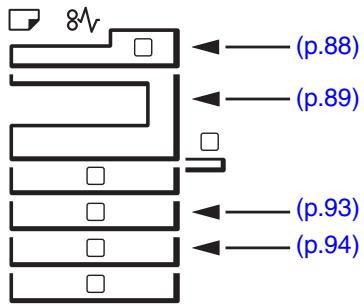
MISFEED IN THE SPF/RSPF
1 Remove the misfed original.
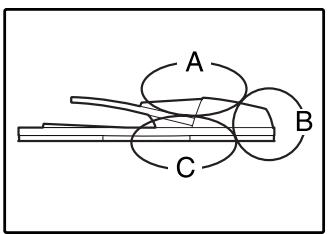
Check sections A, B, and C in the illustration (see the next page), and remove the misfed original.
Section A
Open the feeding roller cover and remove the misfed original from the document feeder tray. Close the feeding roller cover.
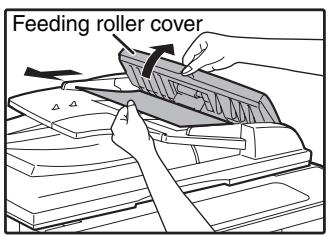
Section B
Open the SPF/RSPF and rotate the two release rollers in the direction of the arrow to feed the original out. Close the SPF/RSPF and then remove the original.
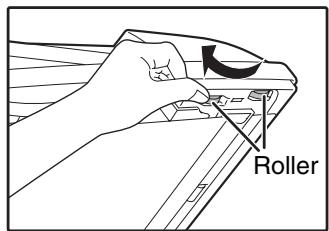
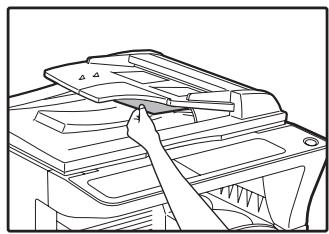
If a small original (A5 (5-1/2" x 8-1/2"), etc.) is misfed, open the right side cover and remove the original. Close the right side cover.
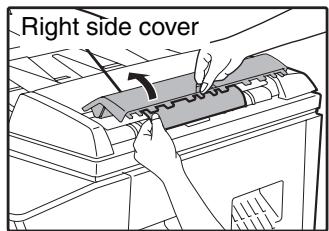
Section C
Remove the misfed original from the exit area.
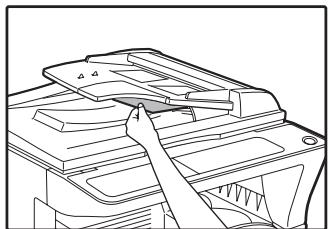
If the misfed original cannot be easily removed from the exit area, open the moveable part of the document feeder tray and remove the original.
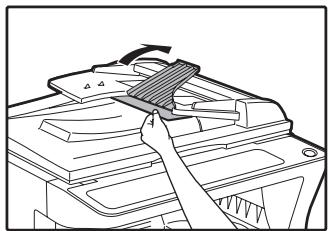
2 Open and close the SPF/RSPF to make the misfeed location indicator stop blinking.
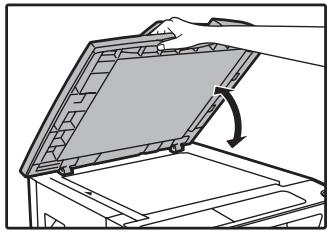
You can also make the misfeed indicator stop blinking by opening and closing the feeding roller cover or the right side cover.
MISFEED IN THE BYPASS TRAY
1 Gently pull the misfed paper out.
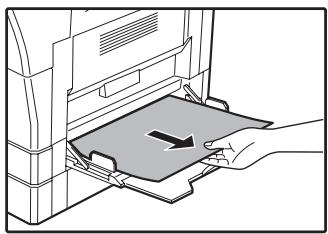
3 Return the originals indicated by the minus number in the display to the document feeder tray and press the [START] key (⑥).
Copying will resume from the originals that still remained when the misfeed occurred.
2 Open and close the side cover.
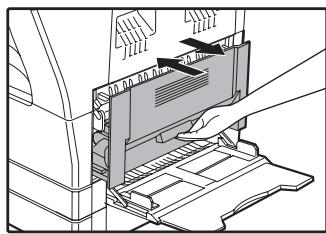
The misfeed indicator (8V) will go out.
Note
- When closing the side cover, press down on the handle.
- If the misfeed indicator (8V) does not stop blinking, check for torn pieces of paper in the machine.
MISFEED IN THE MACHINE
1 Open the bypass tray and the side cover.
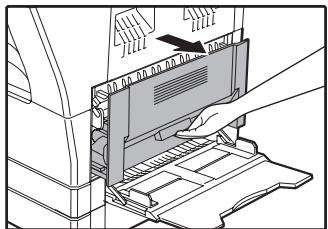
2 Check the misfeed location. Remove the misfed paper following the instructions for each location in the illustration below.
If the misfed paper is visible here, go to "C. Misfeed in the transport area".
If paper is misfed here, go to "A. Misfeed in the paper feed area".
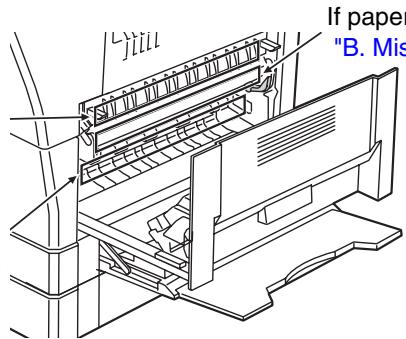
If paper is misfed here, go to "B. Misfeed in the fusing area".
A. Misfeed in the paper feed area
1 Push gently on both ends of the front cover and open it.
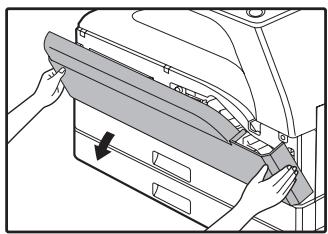
3 Close the front cover and side cover.
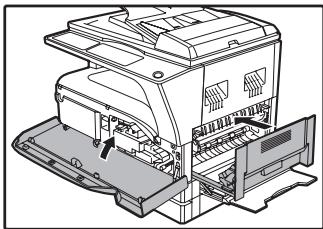
The misfeed indicator (8) will go out.
2 Carefully remove the misfed paper. Turn the roller rotating knob in the direction of the arrow to assist in removing it.
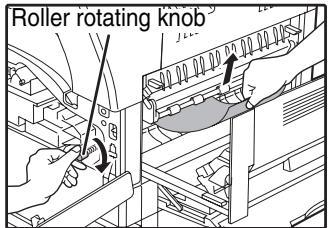
Be careful not to tear the misfed paper during removal.
Note
- When closing the front cover, gently hold both ends.
- When closing the side cover, press on the handle.
- If the misfeed indicator (gV) does not stop blinking, check for torn pieces of paper in the machine.
Warning
The fusing unit is hot. Do not touch the fusing unit when removing misfed paper. Doing so may cause a burn or injury.
Caution
Do not touch the photoconductive drum (green portion) when removing the misfed paper. Doing so may damage the drum and cause smudges on copies.
B. Misfeed in the fusing area
1 Push gently on both ends of the front cover and open it.
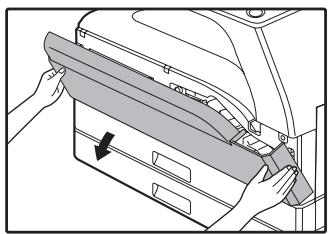
2 Turn the roller rotating knob in the direction of the arrow.
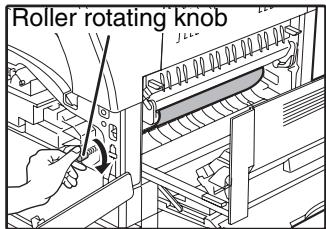
3 Carefully remove the misfed paper. Lower the fusing unit release levers to allow easier removal.
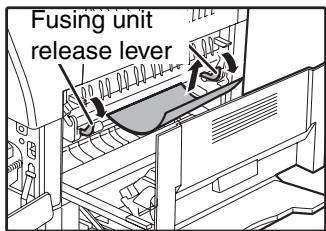
Be careful not to tear the misfed paper during removal.

The fusing unit is hot. Do not touch the fusing unit when removing misfed paper. Doing so may cause a burn or injury.

- Do not touch the photoconductive drum (green portion) when removing the misfed paper. Doing so may damage the drum and cause smudges on copies.
- Be careful about unfixed toner on the misfed paper not to soil your hands or clothes.
4 Lift the fusing unit release levers, to return them to their operating positions.
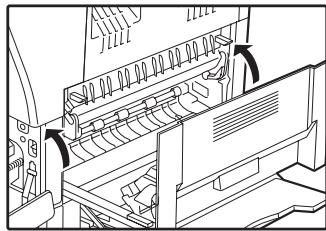
5 Close the front cover and side cover.
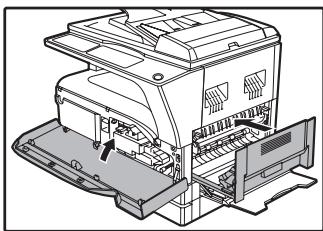
The misfeed indicator (8AV) will go out.

- When closing the front cover, gently hold both ends.
- When closing the side cover, press on the handle.
- If the misfeed indicator (gV) does not stop blinking, check for torn pieces of paper in the machine.
C. Misfeed in the transport area
1 Open the fusing paper guide by pressing down the green-labeled projection on the guide and remove the misfed paper.
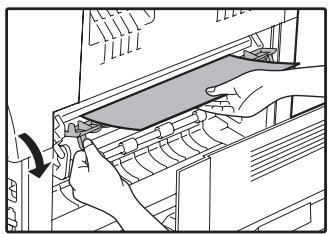
Be careful not to tear the misfed paper during removal.

The fusing unit is hot. Do not touch the fusing unit when removing misfed paper. Doing so may cause a burn or injury.
2 If the misfed paper cannot be removed by the previous step but is visible in the paper output area, remove the paper by pulling it into the paper output area.
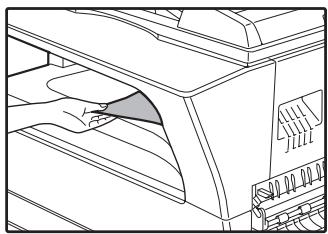
Be careful not to tear the misfed paper during removal.
3 Close the side cover.
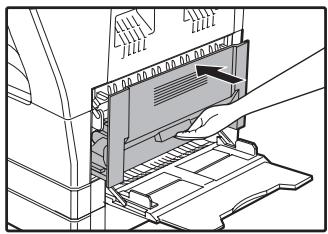
The misfeed indicator (8ΛV) will go out.

- When closing the side cover, press on the handle.
- If the paper was torn, make sure that no torn pieces remain in the machine.
- If the misfeed indicator (8V) does not stop blinking, check for torn pieces of paper in the machine.
MISFEED IN THE UPPER PAPER TRAY

Make sure that there is no misfed paper in the tray before pulling it out. (p.90)
1 Lift and pull out the upper paper tray and remove the misfed paper.
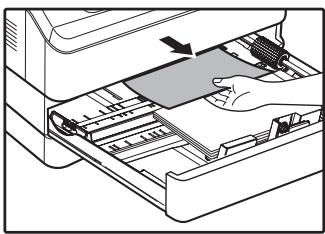
Be careful not to tear the misfed paper during removal.
2 Open and close the side cover.
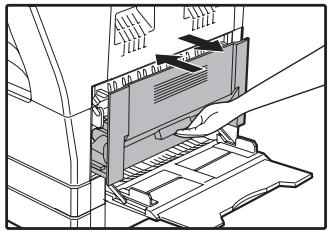
The misfeed indicator (8V) will go out.

- When closing the side cover, press on the handle.
- If the misfeed indicator (8V) does not stop blinking, check for torn pieces of paper in the machine.
3 Close the upper paper tray.
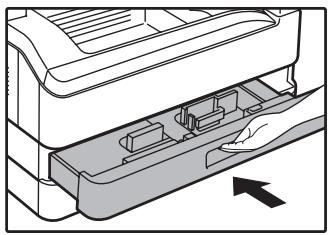
Push the upper paper tray in completely.
MISFEED IN THE LOWER PAPER TRAY

- Make sure that there is no misfed paper in the tray before pulling it out. (p.90)
- Use the following procedure to remove misfeeds that occur in the 250-sheet paper feed unit/2 x 250-sheet paper feed unit.
1. Open the lower side cover.
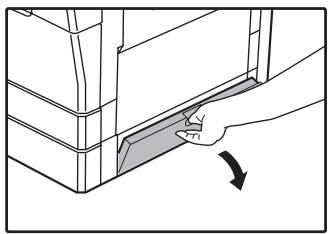
Grasp the handle to open the lower side cover.
5. Close the lower paper tray.
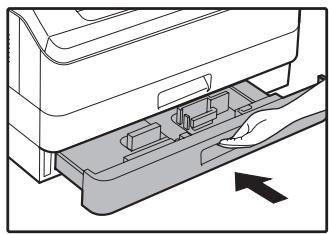
2. Remove the misfed paper.
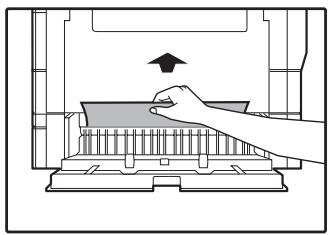
Be careful not to tear the misfed paper during removal.
3. If the misfed paper is not seen in step 2, lift and pull out the lower paper tray and remove the misfed paper.
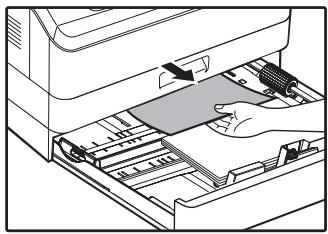
Be careful not to tear the misfed paper during removal.
4. Close the lower side cover.
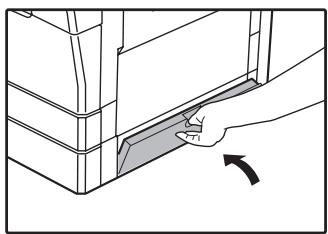
The misfeed indicator (8ΛV) will go out.

If the misfeed indicator (8∨) does not stop blinking, check for torn pieces of paper in the machine.
REPLACING THE TONER CARTRIDGE
When the toner cartridge replacement required indicator ( . ) lights up, the toner cartridge will need replacement soon. Obtain a new cartridge. When the toner cartridge replacement required indicator ( . ) blinks, the toner cartridge must be replaced before copying can be resumed.
Replace the toner cartridge by following the procedure below.

When the toner cartridge replacement indicator ( ) lights up, little toner remains and thus copies may be faint.
1 Push on both ends of the front cover and open it.
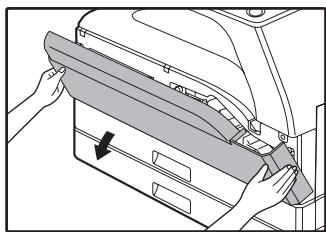
2 Pull the toner cartridge out while pressing the lock release lever.
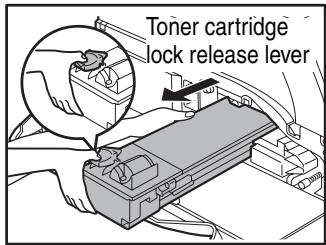
When pulling out the toner cartridge, place your other hand on the indentation of the cartridge.

After removing the toner cartridge, do not shake it or tap on it. Doing so may cause toner to leak from the cartridge. Put the old cartridge immediately in the bag contained in the box of the new cartridge. Dispose of the old toner cartridge in accordance with local regulations.
3 Remove the new toner cartridge from the bag. Grasp the cartridge on both sides and shake it horizontally four or five times.
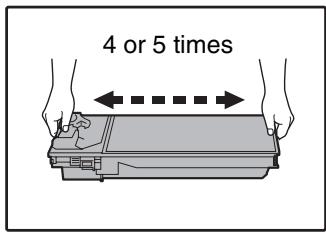

Grasp the grip when holding the cartridge.
4 Insert the toner cartridge along the guides until it locks in place while pushing the lock release lever.
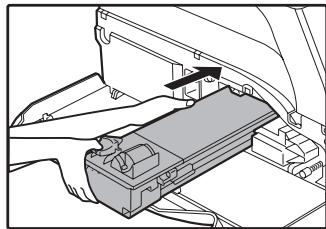
If there is any dirt or dust on the toner cartridge, remove it before installing the cartridge.
5 Close the front cover.
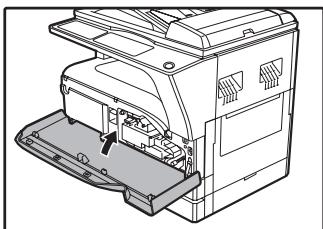
The toner cartridge replacement required indicator ( ) will go out.

- Even after a new toner cartridge is installed, the toner cartridge replacement required indicator ( ) may still light up, indicating that copying cannot be resumed (toner is not fed sufficiently). In this case, open and close the front cover. The machine will feed toner again for about two minutes and then copying can be resumed.
- Before closing the front cover, make sure that the toner cartridge is correctly installed.
- When closing the front cover, gently hold both ends.
This chapter explains how to keep the machine operating smoothly, including viewing copy count, and scan count, the toner level indicator, and cleaning the machine.
CHECKING THE TOTAL OUTPUT COUNT AND TONER LEVEL
CHECKING THE TOTAL OUTPUT COUNT
When "Auditing mode" is "ON":
From the "- - - " display, you can check the total output count, total copy count, and total scan count as explained below.
When "Auditing mode" is "OFF":
From the " 0" display, you can check the total output count, total copy count, and total scan count as explained below.
The total output count is all pages (for both printing and copying) printed by the machine and the total output count can be counted up to 999,999.
[Total output count]
Hold down the [0] key.
![SHARP AR-5620D - Hold down the [0] key. - 1](/content/2025/01/122157/images/1747e65f101200faf645561dc6f6dd64f0c83061e1f71f9c581a4990c98f6a36.jpg)
The total output count appears sequentially in two parts while you hold down the [0] key.
Example: Total number of pages output is 12,345.
![SHARP AR-5620D - Hold down the [0] key. - 2](/content/2025/01/122157/images/2713ebc4eceefb24b0b8bebba50e6f26f00a58e46dade4ee91292109b42786af.jpg)
![SHARP AR-5620D - Hold down the [0] key. - 3](/content/2025/01/122157/images/e97edc40c7e9a3841a3d4e02451bddf6aec45520fb067366b644e413d4244507.jpg)
Each A3 (11" x 17") size page is counted as two pages. - During a copy run, pressing the [0] key shows the number of completed copy pages, not the total output count.
[Total copy count]
Hold down the [READ-END] key (#).
![SHARP AR-5620D - Hold down the [READ-END] key (#). - 1](/content/2025/01/122157/images/ff164208e77a999be1a2b63d700a7e6f195f5400de18dadc545918b1ef515ad5.jpg)
The total copy count appears in the display while you hold down the key.
The count display and counting method are the same as for the total output count.
![SHARP AR-5620D - Hold down the [READ-END] key (#). - 2](/content/2025/01/122157/images/7408728d2ce209c1c4b0f979c47fe6edb35fa7f0c0eb52fb27b24b61f859b735.jpg)
The total number of pages printed in printer mode can be calculated by subtracting the total copy count from the total output count.
[Total scan count]
Hold down the [*] key.
![SHARP AR-5620D - Hold down the [*] key. - 1](/content/2025/01/122157/images/8d8b8e816029494260df741240798f652a2b1fa9ab9daeb8cd9bfddc1f900202.jpg)
The total scan count appears in the display while you hold down the key.
The count display and counting method are the same as for the total output count.
CHECKING THE TONER LEVEL
The toner level is indicated by a 6-level display. Use it as a guideline for replacing the toner cartridge.
Hold down the [Light] key (□) until the alarm indicators (▲,▲,▲,□,8▲) blink.
![SHARP AR-5620D - Hold down the [Light] key (□) until the alarm indicators (▲,▲,▲,□,8▲) blink. - 1](/content/2025/01/122157/images/b9d8bb2e1ade42b74b6868dfad20170b18c38280c51d0f265495fee60e20063c.jpg)
The display will show " - " .
2 Hold down the [Copy ratio display] key (%) for more than 5 seconds.
![SHARP AR-5620D - Hold down the [Copy ratio display] key (%) for more than 5 seconds. - 1](/content/2025/01/122157/images/da5f5b8a95c6185bf25d1bc44970debab9645c2972d125e814a3068b15d3effe.jpg)
The approximate quantity of toner remaining will be indicated in the display as a percentage. ("100", "75", "50", "25", "10" is displayed.) When the percentage is less than 10%, "LO" will be displayed.
3 Press the [Light] key (□) to return to the normal display.
The alarm indicators (all of them) go off. The display returns to the number of copies display.
ROUTINE MAINTENANCE
CLEANING THE DOCUMENT GLASS AND SPF/RSPF/DOCUMENT COVER
If the document glass, underside of the document cover/SPF/RSPF, or the scanner for originals coming from the SPF/RSPF (the long narrow glass surface on the right side of the document glass) become dirty, the dirt may appear on copies. Always keep these parts clean.
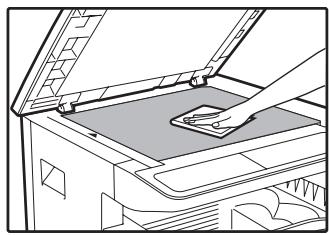
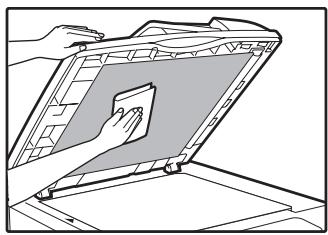
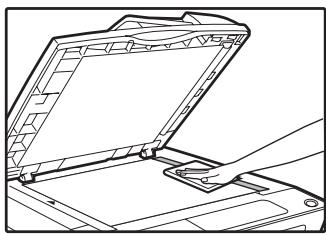
Stains or dirt on the document glass/SPF/RSPF will also be copied. Wipe the document glass, underside of the document cover/SPF/RSPF and the scanning window on the document glass with a soft, clean cloth. If necessary, dampen the cloth with water. Do not use thinner, benzene, or similar volatile cleaning agents.

Do not spray flammable cleaner gas. Gas from the spray may come in contact with the internal electrical components or high-temperature parts of the fusing unit, creating a risk of fire or electrical shock.
CLEANING THE ORIGINAL SCANNING GLASS (ONLY WHEN AN SPF/RSPF IS INSTALLED)
If white or black lines appear in copies made with using the SPF/RSPF, use the provided glass cleaner to clean the original scanning glass. (If white or black lines appear in copies or printed pages when the SPF/RSPF is not used, see "CLEANING THE TRANSFER CHARGER" (p.99)).
Example of dirty print image
Black lines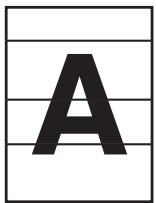
White lines
1 Open the SPF/RSPF and take out the glass cleaner.
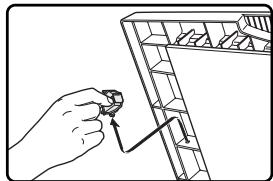
2 Clean the original scanning glass with the glass cleaner.
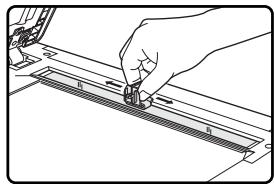
3 Return the glass cleaner to its original position.
CLEANING THE BYPASS TRAY PAPER FEED ROLLER
If misfeeds occur frequently when feeding envelopes, thick paper, etc. through the bypass tray, wipe the paper feed roller at the feed slot of the bypass tray with a soft, clean cloth dampened with alcohol or water.
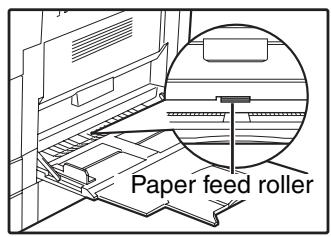
CLEANING THE TRANSFER CHARGER
If copies start becoming streaky or blotchy, the transfer charger may be dirty. Clean the charger using the following procedure.
1. Turn the power switch off. 2. Open the bypass tray and the side cover.
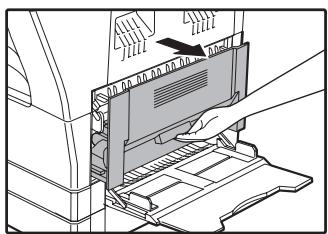
3. Lift and pull out the upper paper tray.
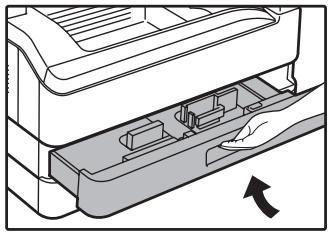
4. Take the charger cleaner out by holding the tab.
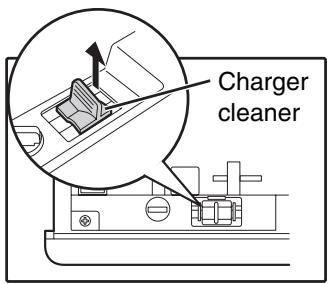
5. Set the charger cleaner onto the transfer charger and gently slide the cleaner in the direction indicated by the arrow two or three times.
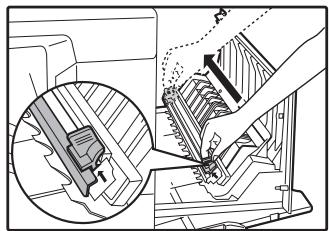
If the white sheet metal is smudged with toner, wipe it with a soft, clean cloth.

Slide the charger cleaner from one end to the other end along the groove of the transfer charger. If the cleaner is stopped on the way, smudges on copies may occur.
6. Return the charger cleaner to its original position. Close the upper paper tray. Close the side cover by pressing the handle on the cover. 7. Turn the power switch on.
Specifications, optional equipment, and supplies are explained in this chapter. To purchase optional equipment and supplies, contact your authorised service representative.
SPECIFICATIONS (PRINTER AND SCANNER)
PRINTER FUNCTION
Specifications
| Print speed* | AR-5618/AR-5618D Max. 18 ppm
AR-5620/AR-5620D Max. 20 ppm
AR-5623/AR-5623D Max. 23 ppm |
| Resolution | 600 dpi |
| Memory | 64 MB |
| Emulation | SHARP SPLC (Sharp Printer Language with Compression) |
| Interface connector | USB connector (USB 2.0) |
| Interface cables | [USB cable]
Shielded twisted pair cable (max. length 3 m (10 feet), must support USB 2.0)
Please purchase a commercially available USB cable. |
- Print speed during printing of the second sheet and following sheets when using A4 (8-1/2" x 11") plain paper and performing continuous one-sided printing of the same page.
SCANNER FUNCTION
Specifications
| Type | Flatbed scanner |
| Scanning method | Document glass/SPF/RSPF |
| Light source | Cold cathode fluorescent lamp |
| Resolution | Factory default: 150 dpi
Setting range: 50 dpi - 9600 dpi |
| Original types | Sheets, bound documents |
| Effective scanning area | Approx. 297 mm (11-11/16") (Lengthwise) x 431 mm (16-31/32") (Width) |
| Scanning speed | 1.44 msec/line (Colour), 0.48msec/line (Greyscale/Black and White) |
| Input Data | 1 bit or 12 bit |
| Output Data | 1 bit or 8 bit |
| Scanning colours | Black and white 2 value, Greyscale, Colour |
| Protocol | TWAIN, WIA (Windows XP/Vista/7), STI |
| Interface | USB 2.0 (Full-Speed/Hi-Speed compatible interface) |
| Drop out colour | No |
| Supported operating systems | Windows 2000/XP/Vista/7
(Detailed information can be found in "HARDWARE AND SOFTWARE REQUIREMENTS" (p.6)) |
| Void area | Max. 2.5 mm (1/10") (leading and trailing edges)
Max. 3.0 mm (3/25") (along other edges in total) |
| Interface cables | [USB cable]
Shielded twisted pair cable (max. length 3 m (10 feet), must support USB 2.0)
Please purchase a commercially available USB cable. |
| Scanner utilities | Button Manager |

As part of our policy of continuous improvement, SHARP reserves the right to make design and specification changes for product improvement without prior notice. The performance specification figures indicated are nominal values of production units. There may be some deviations from these values in individual units.
PERIPHERAL DEVICES

As part of our policy of continuous improvement, SHARP reserves the right to make design and specification changes for product improvement without prior notice. The performance specification figures indicated are nominal values of production units. There may be some deviations from these values in individual units.
AR-5620/AR-5623/AR-5620D/AR-5623D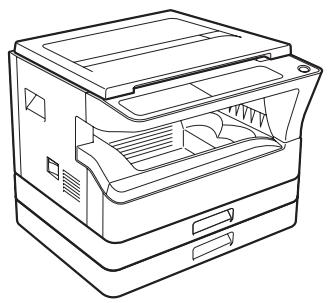
AR-5618/AR-5618D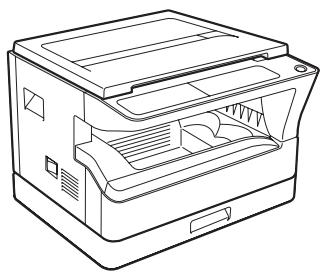
Options that can be installed on both models
250-sheet paper feed unit (AR-D36)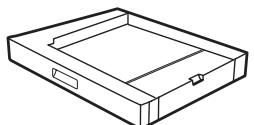
2 x 250-sheet paper feed unit (AR-D37)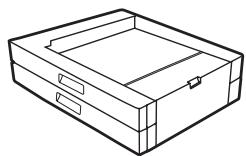
Document cover (AR-VR7)*1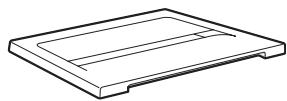
Single pass feeder (AR-SP10) *2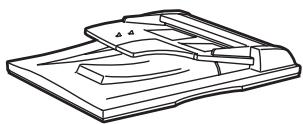
Reversing Single pass feeder (AR-RP10)*3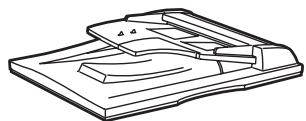
1 Equipped on AR-5618/AR-5620/AR-5623 as standard. 2 Only for AR-5618/AR-5620/AR-5623. 3 Only for AR-5618D/AR-5620D/AR-5623D.

You cannot attach two units of the 250-sheet paper feed unit to the machine. When you need to attach two or more paper trays, be sure to use the 2 x 250-sheet paper feed unit, and then the 250-sheet paper feed unit if necessary.
SINGLE PASS FEEDER/REVERSING SINGLE PASS FEEDER
For the names of the parts of the SPF/RSPF, see "PART NAMES AND FUNCTIONS" (p.16).
Specifications
| AR-SP10 (Single pass feeder) | AR-RP10 (Reversing single pass feeder) |
| Acceptable original | Weight | 56 g/m2to 90 g/m2(15 lbs. to 24 lbs.) |
| Size | A5 to A3 (5-1/2" x 8-1/2" to 11" x 17")
(5-1/2 x 8-1/2" size originals cannot be used in the duplex copy mode.) |
| Capacity | Up to 40 sheets (Thickness 4 mm (5/32") and below)
For B4 (8-1/2" x 13") and larger sizes, up to 30 sheets |
| Detectable original sizes* | A5, B5, B5R, A4, A4R, B4, A3
(5-1/2" x 8-1/2", 8-1/2" x 11", 8-1/2" x 11"R, 8-1/2" x 14", 11" x 17") |
| Weight | Approx. 5.3 kg (11.7 lbs.) | Approx. 5.4 kg (12.0 lbs.) |
| Dimensions | 586 mm (W) x 440 mm (D) x 132 mm (H)
(23-5/64" (W) x 17-21/64" (D) x 5-13/64" (H)) |
- The detectable original sizes vary by country and region.
DOCUMENT COVER
Specifications
| AR-VR7 |
| Weight | Approx. 1.5 kg (3.31 lbs.) |
| Dimensions | 586 mm (W) x 426 mm (D) x 30 mm (H)
(23-5/64" (W) x 16-50/64" (D) x 1-12/64" (H)) |
250-SHEET PAPER FEED UNIT/2 X 250-SHEET PAPER FEED UNIT
These paper feed units provide the convenience of increased paper capacity for the copier and a greater choice of paper sizes readily available for copying.
The AR-D36 contains one 250-sheet paper tray and the AR-D37 contains two 250-sheet paper trays.
Part names
250-sheet paper feed unit
AR-D36
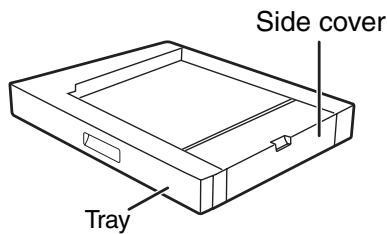
2 x 250-sheet paper feed unit
AR-D37
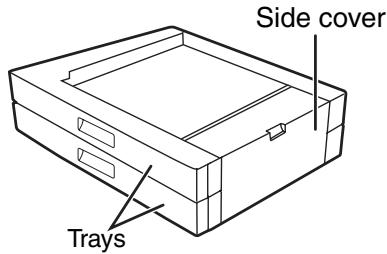
Specifications
| AR-D36 | AR-D37 |
| Paper size | B5 to A3 (8-1/2" x 11" to 11" x 17") |
| Paper capacity | One tray with capacity for 250 sheets of 80 g/m2(20 lbs.) bond paper | Two trays with capacity for 250 sheets of 80 g/m2(20 lbs.) bond paper |
| Paper weight | 56 g/m2to 90 g/m2(15 lbs. to 24 lbs.) |
| Power supply | Drawn from the machine |
| Dimensions | 590 mm (W) x 477 mm (D) x 111 mm (H)
(23-15/64" (W) x 18-25/32" (D) x 4-11/32" (H)) | 590 mm (W) x 477 mm (D) x 211 mm (H)
(23-15/64" (W) x 18-25/32" (D) x 8-5/16" (H)) |
| Weight | Approx. 5.5 kg (12.2 lbs.) | Approx. 10 kg (22.1 lbs.) |
STORAGE OF SUPPLIES
Standard supplies for this product that are to be replaced by the user are paper and toner cartridge.
GENUINE SUPPLIES
For best copying results, be sure to use only SHARP products. Only genuine SHARP consumables carry the Genuine Supplies label.
PROPER STORAGE
- Store the supplies in a location that is:
clean and dry, at a stable temperature, not exposed to direct sunlight.
- Store paper in the wrapper and lying flat.
Paper stored out of the wrapper or in packages standing on end may curl or get damp, resulting in paper misfeeds.
Supply of spare parts and consumables
The supply of spare parts for repair of the machine is guaranteed for at least 7 years following the termination of production. Spare parts are those parts of the machine which may break down within the scope of the ordinary use of the product, whereas those parts which normally exceed the life of the product are not to be considered as spare parts. Consumables too, are available for 7 years following the termination of production.
SHARP®
SHARP CORPORATION