MFC-1810R - Fax BROTHER - Free user manual and instructions
Find the device manual for free MFC-1810R BROTHER in PDF.


User questions about MFC-1810R BROTHER
0 question about this device. Answer the ones you know or ask your own.
Ask a new question about this device
Download the instructions for your Fax in PDF format for free! Find your manual MFC-1810R - BROTHER and take your electronic device back in hand. On this page are published all the documents necessary for the use of your device. MFC-1810R by BROTHER.
USER MANUAL MFC-1810R BROTHER
Software User's Guide
Not all models are available in all countries.

natural_image
Close-up of a transparent glass lens with reflective surfaces against a blue background, no text or symbols visible in the main image area.Applicable models
This User's Guide applies to the following models.
DCP-1510(E)/1511/1512(E)
MFC-1810(E)/1811/1815
For DCP users: This documentation is for both MFC and DCP models. Where it says 'MFC' in this user's guide, please read 'MFC-xxxx' as 'DCP-xxxx'.
Definitions of notes
We use the following icons throughout this User's Guide:
| CAUTION | CAUTION indicates a potentially hazardous situation which, if not avoided, may result in minor or moderate injuries. |
| NOTE | Notes tell you how you should respond to a situation that may arise or give tips about how the operation works with other features. |
IMPORTANT NOTE
This product is approved for use in the country of purchase only. Do not use this product outside the country of purchase as it may violate the power regulations of that country.
For DCP users: In this manual, the screens in this manual are from MFC models, since DCP models and MFC models have identical features. Where they display 'MFC' in this manual, please read 'MFC-xxxx' as 'DCP-xxxx'.
For Macintosh users: Before using this manual, please be sure to install available drivers and software from the download page for your machine at the Brother Solutions Center (http://solutions.brother.com/).
For DCP users: You can download a printer driver and scanner drivers from the Brother Solutions Center.
For MFC users: You can download a printer driver, scanner drivers, PC-FAX Software and Remote Setup from the Brother Solutions Center.
Windows® XP in this document represents Windows® XP Professional, Windows® XP Professional x64 Edition and Windows® XP Home Edition.
Windows Vista® in this document represents all editions of Windows Vista®.
Windows ^® 7 in this document represents all editions of Windows ^® 7.
Table of Contents
Section I Windows ®
1 P r i n t i n g 2
Using the Brother printer driver....2
Printing a document....3
2-sided printing 4
Guidelines for printing on both sides of the paper 4
Simultaneous scanning, printing and faxing 4
Printer driver settings....5
Accessing the printer driver settings....6
Basic tab....7
Paper Size 7
Orientation 8
Copies 8
Media Type 8
Print Quality 8
Print Settings 9
Multiple Page....9
2-sided / Booklet....10
Print Preview 11
Advanced tab....12
Scaling....12
Reverse Print....12
Use Watermark....13
Watermark Settings....14
Header-Footer Print....15
Toner Save Mode....15
Administrator 16
Other Print Options....17
Density Adjustment....17
Improve Print Output 17
Skip Blank Page 18
Print Text in Black 18
Print Profiles tab 19
Add Profile 20
Delete Profile 20
Support 21
Device Settings tab....23
Status Monitor....24
Monitoring the machine's status....25
2 Scanning 26
Scanning a document using the WIA driver....26
WIA compliant 26
Scanning a document into the PC 26
Pre-Scanning to crop a portion you want to scan using the scanner glass....28
Scanning a document using the WIA driver
(Windows Photo Gallery and Windows Fax and Scan)....32
Scanning a document into the PC 32
Pre-Scanning to crop a portion you want to scan using the scanner glass ....34
Scanning a document using the TWAIN driver....35
Scanning a document into the PC 35
Pre-Scanning to crop a portion you want to scan....37
Settings in the Scanner Setup dialog box....39
3 ControlCenter4 43
Overview....43
Changing the user interface 43
Using ControlCenter4 in Home Mode....44
ControlCenter4 Features for Home Mode users 45
Scan tab 46
File types 47
Document Size 47
Advanced Settings....48
Saving the scanned image 49
Printing the scanned image 49
Opening the scanned image with an application....50
Attaching the scanned data to E-mail....50
PC-FAX tab (For MFC models) 51
Sending an image file from your computer....52
Sending a scanned image 52
Viewing and printing received PC-FAX data 53
Device Settings tab....54
Configuring Remote Setup (For MFC models)....55
Accessing Address Book (For MFC models)....55
Configuring Scan key settings....56
Support tab 58
Opening ControlCenter Help 58
Using Brother Solutions Center....58
Accessing the Brother CreativeCenter ....58
Using ControlCenter4 in Advanced Mode ....59
ControlCenter4 Features for Advanced Mode users....60
Scan tab 61
File types....61
Document Size 61
Advanced Settings....61
Opening the scanned image with an application....62
Attaching the scanned data to E-mail....62
Saving the scanned image 62
How to change the default settings of each button....63
PC-Copy tab 64
Printing the scanned image....64
PC-FAX tab (For MFC models) 65
Sending an image file from your computer....65
Sending a scanned image....65
Viewing and printing received PC-FAX data 66
Device Settings tab....67
Configuring Remote Setup (For MFC models)....67
Accessing Address Book (For MFC models)....67
Configuring Scan key settings....68
Support tab 70
Opening ControlCenter Help....70
Using Brother Solutions Center....70
Accessing the Brother CreativeCenter 70
Custom tab 71
Creating a Custom tab....71
Creating a Custom button....72
Changing the Scan key settings for Scan to PC menu....73
4 Remote Setup (For MFC models) 75
Remote Setup....75
5 Brother PC-FAX Software (For MFC models) 77
PC-FAX sending....77
Sending a file as a PC-FAX....77
Setting up user information....79
Sending setup....80
Setting up a cover page....81
Entering cover page information....82
Address Book 83
Brother Address Book 84
Setting up a member in the Address Book....85
Setting up a group for broadcasting ....86
Editing member information....86
Deleting a member or group....87
Exporting the Address Book....88
Importing to the Address Book 90
PC-FAX receiving 91
Enabling PC-FAX Receiving software on your machine 92
Running the PC-FAX Receiving software on your PC....93
Setting up your PC 94
Viewing new PC-FAX messages....95
Section II Apple Macintosh
6 Printing and Faxing 97
Features in the printer driver (Macintosh)....97
2-sided printing....97
Guidelines for printing on both sides of the paper 97
Manual 2-sided printing....97
Simultaneous scanning, printing and faxing 98
Choosing page setup options....98
Choosing printing options....101
Cover Page....101
Layout....102
Print Settings 103
Removing the Printer driver for Macintosh 106
Status Monitor....107
Updating the machine's status ....107
Hiding or showing the window....107
Quitting the window 108
Sending a fax (For MFC models)....109
7 Scanning 113
Scanning a document using the ICA driver 113
Choosing your machine from Print & Scan....117
Scanning a document using the TWAIN driver....118
Scanning a document into your Macintosh....118
Pre-Scanning to crop a portion you want to scan....120
Settings in the Scanner window 121
8 ControlCenter2 125
Using ControlCenter2 125
Turning the AutoLoad feature off....126
SCAN....127
File types 128
Document Size 128
Advanced Settings....129
Image....130
E-mail 131
File....132
CUSTOM SCAN 133
File types 133
Document Size 133
Advanced Settings....133
User-defined button....133
Scan to Image 134
Scan to E-mail 136
Scan to File....137
COPY / PC-FAX Sending (Mac OS X v10.6.8, PC-FAX for MFC models only)....139
DEVICE SETTINGS 141
Remote Setup (For MFC models) 142
Address Book (For MFC models)....143
Status Monitor 143
9 Remote Setup (For MFC models) 144
Remote Setup....144
Section III Using the Scan key
10 Scanning 147
Using the Scan key....147
Scan to E-mail 148
Scan to Image 149
Scan to File....150
A Index 151
Section I

Windows®
Printing 2
Scanning 26
ControlCenter4 43
Remote Setup (For MFC models) 75
Brother PC-FAX Software (For MFC models)
1 Printing
1
NOTE
The screens in this section are from Windows ^® 7. Screens on your PC may vary depending on your operating system.
Using the Brother printer driver
A printer driver is software that translates data from the format used by a PC into the format needed by a particular printer, using a printer command language or page description language.
The printer drivers are on the installer CD-ROM we have supplied. Install the drivers by following the Quick Setup Guide. The latest printer drivers can also be downloaded from the Brother Solutions Center at:
http://solutions.brother.com/
Printing
Printing a document
When the machine receives data from your computer, it begins printing by picking up paper from the paper tray. The paper tray can feed plain paper and recycled paper. (For information about the Paper Tray and Recommended paper: See User's Guide)
1 From your application, choose the Print command.
If any other printer drivers are installed on your computer, choose Brother MFC-XXXX* as your printer driver from the Print or Print Settings menu in your software application, and then click OK or Print to begin printing.
*(Where XXXX is your model name.)
NOTE
- You can choose the paper size and orientation in your application software.
- If your application software does not support your custom paper size, choose the next largest paper size.
Then adjust the print area by changing the right and left margins in your application software.
2-sided printing
The supplied printer driver supports manual 2-sided printing.
Guidelines for printing on both sides of the paper
■ If the paper is thin, it may wrinkle.
■ If paper is curled, turn over the stack, straighten it and then put it back in the paper tray.
If the paper is not feeding correctly, it may be curled. Remove the paper, straighten it and turn over the stack.
■ When you use the manual 2-sided function, it is possible that there may be paper jams or poor print quality. If there is a paper jam: See User's Guide: Paper Jams. If you have a print quality problem: See User's Guide: Improving the print quality.
The machine prints all the even-numbered pages on one side of the paper first. Then, the printer driver instructs you (with a pop-up message) to reinsert the paper. Before reinserting the paper, straighten it well, or you may get a paper jam. Very thin or thick paper is not recommended.
Simultaneous scanning, printing and faxing
Your machine can print from your computer while sending or receiving a fax in memory, or while scanning a document into the computer. Fax sending will not be stopped during the computer printing. However, when the machine is copying or receiving a fax on paper, it pauses the computer printing operation, and then continues printing when copying or fax receiving has finished.
Printer driver settings
You can change the following printer settings when you print from your computer:
Paper Size
Orientation
Copies
Media Type
Print Quality
Print Settings
■ Multiple Page
2-sided / Booklet
Print Preview
Scaling
Reverse Print
Use Watermark
Header-Footer Print
■ Toner Save Mode
Administrator
■ Density Adjustment
■ Improve Print Output
Skip Blank Page
Print Profiles
■ Print Text in Black
The following pages provide an overview of the printer driver settings. For more information, see the Help text in the printer driver.
Accessing the printer driver settings
1 (For Windows ^ XP)
Click Start, and then Printers and Faxes.
(For Windows Vista®)
Click 📋, Control Panel, Hardware and Sound, and then Printers.
(For Windows ^® 7)
Click , and then click Devices and Printers.
(For Windows ^® 8)
Move your mouse to the lower right corner of your desktop. When the menu bar appears, click Settings, and then click Control Panel. In the Hardware and Sound group, click View devices and printers.
2 (For Windows ^® XP and Windows Vista ^® )
Right-click the Brother MFC-XXXX Printer icon (where XXXX is your model name) and select Properties. The printer properties dialog box appears.
(For Windows ^® 7 and Windows ^® 8)
Right-click the Brother MFC-XXXX Printer icon (where XXXX is your model name) and select Printer properties. If printer driver options appear, select your printer driver. The printer properties dialog box appears.
3 Choose the General tab and then click Preferences... or Printing Preferences....
The printer driver dialog box appears.
Printing
Basic tab
You can also change the Page Layout settings by clicking the illustration on the left side of the Basic tab.

text_image
Brother MFC-xxxx Printing Preferences brother MFC-xxxx Brother Solutions Center Basic Advanced Print Profiles Paper Size A4 Orientation Portrait Landscape Copies 1 Colage Media Type Plain Paper Print Quality Normal Print Settings Graphics Manual Settings Paper Size: A4 210 x 297 mm (8.3 x 11.7 m) Media Type: Plan Paper Copies: 1 Print Quality: Normal 2-sided / Booklet: None Scaling: Off Watermark: Off Multiple Page Normal Page Order Flight, then Down - Border Line - 2-sided / Booklet None 2-sided Settings() Print Preview Add Profile(U)... Support... OK Cancel Apply Help (1) (2) (3) (4)1 Choose Paper Size, Orientation, Copies, Media Type, Print Quality and Print Settings (1).
2 Choose Multiple Page and 2-sided / Booklet (2).
3 Confirm your current settings in the window (3).
4 Click OK to apply your chosen settings.
To return to the default settings, click Default, then OK.
NOTE
If you want to preview your document before printing, check the Print Preview check box (4).
Paper Size
From the drop-down list choose the Paper Size you are using.
Printing
Orientation
Orientation selects the position of how your document will be printed (Portrait or Landscape).
| Portrait (Vertical) Landscape (Horizontal) | |
 |  |
Copies
The copies selection sets the number of copies that will be printed.
Collate
With the Collate check box selected, one complete copy of your document will be printed and then repeated for the number of copies you selected. If the Collate check box is not selected, then each page will be printed for all the copies selected before the next page of the document is printed.
Copies


Copies



Media Type
You can use the following types of media in your machine. For the best print quality, select the type of media that you wish to use.
Plain Paper
■ Recycled Paper
Print Quality
You can choose the print quality as follows:
Draft
Normal
Fine
Print Settings
You can change the print settings as follows:
Graphics
This is the best mode for printing documents that contain graphics.
Text
This is the best mode for printing text documents.
Manual
You can change the settings manually by choosing Manual and clicking Manual Settings....
You can set the brightness, contrast and other settings.
Multiple Page
The Multiple Page selection can reduce the image size of a page allowing multiple pages to be printed on one sheet of paper or enlarge the image size for printing one page on multiple sheets of paper.
Page Order
When the N in 1 option is selected, the page order can be selected from the drop-down list.
Border Line
When printing multiple pages onto one sheet, with the Multiple Page feature, you can choose to have a solid border, dashed border or no border around each page on the sheet.
■ Print cut-out line
When the 1 in NxN Pages option is selected, the Print cut-out line option can be selected. This option allows you to print a faint cut-out line around the printable area.
2-sided / Booklet
When you want to print a booklet or do 2-sided printing, use this function.
None
This disables 2-sided printing.
■ 2-sided (Manual)
When you want to print on both sides of the paper, use this option.
• 2-sided (Manual)
The machine prints all the even-numbered pages first. Then the printer driver will stop and show the instructions required to reload the paper. When you click OK the odd-numbered pages will be printed.
When you choose 2-sided (Manual), the 2-sided Settings... button becomes available to select. You can set the following settings in the 2-sided Settings dialog box.
- 2-sided Type
There are four types of 2-sided binding directions available for each orientation.
- Binding Offset
When you check Binding Offset, you can also specify the offset for binding in inches or millimetres.
Booklet (Manual)
Use this option to print a document in booklet format using 2-sided printing; it will arrange the document according to the correct page numbers and allows you to fold at the centre of the print output without having to change the order of the pages.
- Booklet (Manual)
The machine prints all the even-numbered sides first. Then the printer driver will stop and show the instructions required to reload the paper. When you click OK the odd-numbered sides will be printed.
When you choose Booklet (Manual), the 2-sided Settings... button becomes available to select. You can set the following settings in the 2-sided Settings dialog box.
- 2-sided Type
There are two types of 2-sided binding directions available for each orientation.
• Booklet Printing Method
When Divide into Sets is selected:
This option allows you to print the whole booklet into smaller individual booklet sets, it still allows you to fold at the centre of the smaller individual booklet sets without having to change the order of the page number. You can specify the number of sheets in each smaller booklet set, from 1 to 15. This option can help when folding a printed booklet that has a large number of pages.
- Binding Offset
When you check Binding Offset, you can also specify the offset for binding in inches or millimetres.
Printing
Print Preview
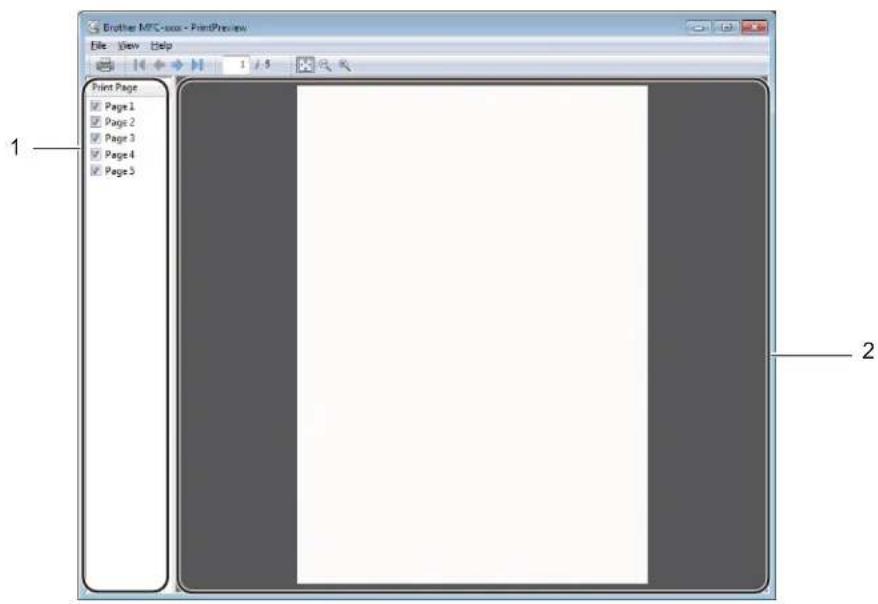
You can preview a document before it is printed. If you check the Print Preview check box, the Print Preview Viewer window will open before printing starts.
text_image
Brother MFC-xxx - PrintPreview File View Help 1 5 Print Page Page 1 Page 2 Page 3 Page 4 Page 5 1 21 PageListArea
The Page List Area displays the page numbers for the actual pages that will be printed. If you chose a page in this list, a preview of the print results for the page will be displayed in the Preview Area. If you do not want to print a page, clear the check mark.
2 Preview Area
The Preview Area displays a preview of the print results for the pages chosen in the Page List Area.
NOTE
If the 2-sided (Manual) or Booklet (Manual) setting was chosen in the Printer driver settings, you cannot use the Print Preview function.
Printing
Advanced tab
text_image
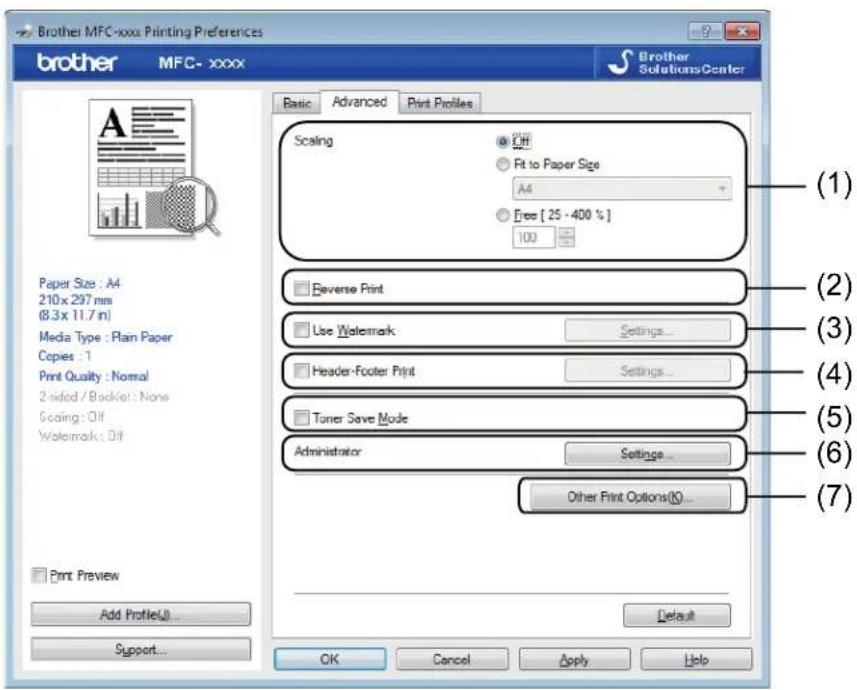
Brother MFC-xxxx Printing Preferences brother MFC-xxxx Brother Solutions Center Basic Advanced Print Profiles Scaling C# Fit to Paper Size A4 Free [ 25 · 400 % ] 100 Paper Size : A4 210 x 297 mm (8.3 x 11.7 m) Media Type : Plain Paper Copies : 1 Print Quality : Normal 2-sided / Booklet : None Scaling : Diff Watermark : Diff Reverse Print Use Watermark Settings... Header-Footer Print Settings... Toner Save Mode Administrator Settings... Other Print Options(K)... Print Preview Add Profile(U)... Support... OK Cancel Apply Help (1) (2) (3) (4) (5) (6) (7)You can change the following settings in this tab:
Scaling (1)
■ Reverse Print (2)
■ Use Watermark (3)
Header-Footer Print (4)
■ Toner Save Mode (5)
■ Administrator (6)
■ Other Print Options (7)
Scaling
You can change the print image scaling.
Reverse Print
Check Reverse Print to reverse the data (flip it upside down).
Printing
Use Watermark
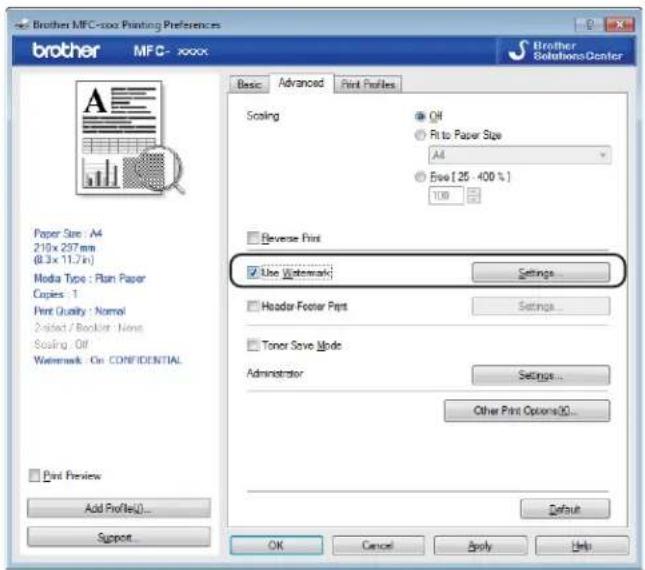
You can put a logo or text into your document as a watermark. You can choose one of the preset Watermarks, or you can use a bitmap file that you have created. Check Use Watermark and then click the Settings... button.
text_image
Brother MFC-600 Printing Preferences brother MFC-xxxx Basic Advanced Print Profiles Scaling Off Rit to Paper Size A4 Free (25 - 400 %) 100 Reverse Print Use Watermark Settings Header Footer Parts Settings Toner Save Mode Administrator Settings... Other Print Options(S)... Print Preview Add Profile... Support OK Cancel Apply HelpPrinting
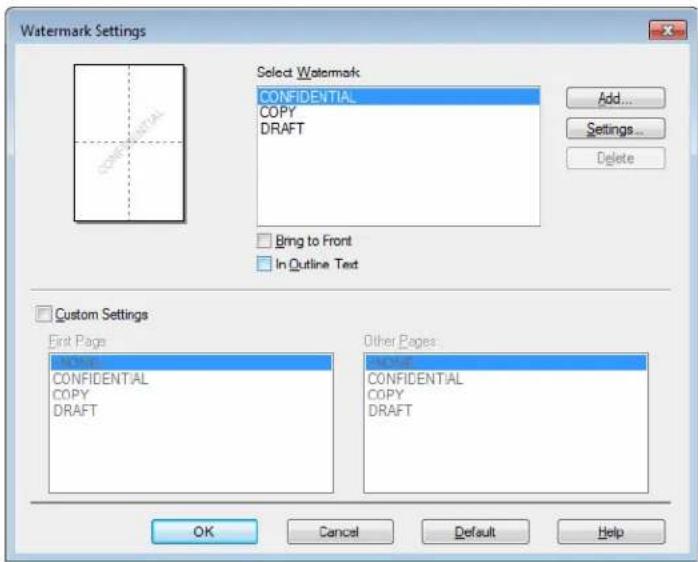
Watermark Settings
text_image
Watermark Settings Select Watermark CONFIDENTIAL COPY DRAFT Add... Settings... Delete Bring to Front In Outline Text Custom Settings First Page CONFIDENTIAL COPY DRAFT Other Pages CONFIDENTIAL COPY DRAFT OK Cancel Default HelpSelect Watermark
Choose the watermark you want to use.
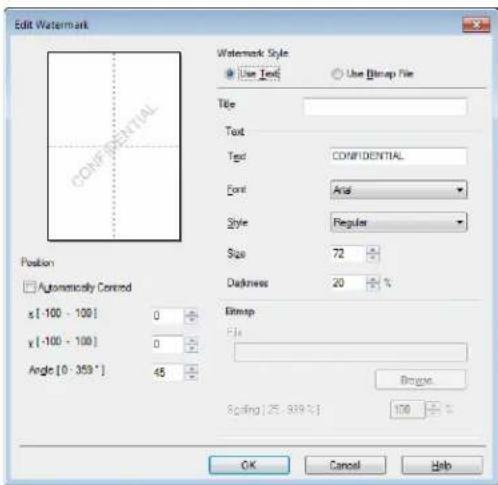
To make an original watermark, click the Add button to add the watermark settings and then choose Use Text or Use Bitmap File in Watermark Style.
text_image
Edit Watermark Watermark Style Use Text Use Bitmap File Title Text Text CONFIDENTIAL Font Arial Style Regular Size 72 Darkness 20 % Bitmap File Angle [0 - 359°] 45 ° Scaling [25.839%] 100 ° OK Cancel HelpYou can change the watermark's size and position on the page by selecting the watermark, and clicking the Settings... button.
Title
Enter a suitable title into the field.
Printing
Text
Enter your Watermark Text into the Text box, and then choose the Font, Style, Size and Darkness.
Bitmap
Enter the file name and location of your bitmap image in the File box, or click Browse to search for the file. You can also set the scaling size of the image.
Position
Use this setting if you want to control the position of the watermark on the page.
Bring to Front
This option will overlay the selected characters or image onto your printed document.
In Outline Text
Check In Outline Text if you only want to print an outline of the watermark. It is only available when you choose a text watermark.
Custom Settings
You can choose which watermark to print on the first page or on the other pages.
Header-Footer Print
When this feature is enabled, it will print the date and time on your document from your computer's system clock and the PC login user name or the text you entered. By clicking Settings, you can customize the information.
ID Print
If you select Login User Name, your PC login user name will be printed. If you select Custom and enter the text in the Custom edit box, the text you entered will be printed.
Toner Save Mode
You can conserve toner use with this feature. When you set Toner Save Mode to on, print appears lighter. The default setting is off.
NOTE
- We do not recommend Toner Save Mode for printing photo or greyscale images.
- Toner Save Mode is not available when Fine is selected for Print Quality.
Printing
Administrator
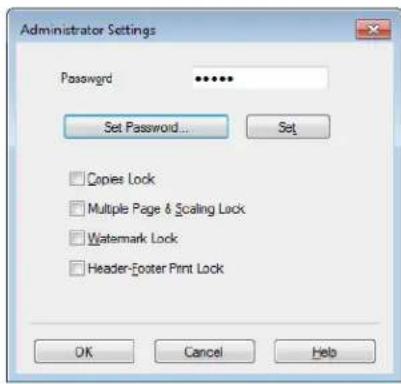
Administrators have the authority to limit access to functions such as Scaling and Watermark.
text_image
Administrator Settings Password Set Password... Set Copies Lock Multiple Page & Scaling Lock Watermark Lock Header-Footer Print Lock OK Cancel HelpPassword
Enter the password into this box.
NOTE
Click Set Password... to change the password.
Copies Lock
Lock the copy pages selection to prevent multiple copy printing.
■ Multiple Page & Scaling Lock
Lock the scaling setting and multiple page setting to prevent changes being made.
Watermark Lock
Lock the current settings of the Watermark option to prevent changes being made.
Header-Footer Print Lock
Lock the current settings of the Header-Footer Print option to prevent changes being made.
Printing
Other Print Options
You can set the following options in Printer Function:
■ Density Adjustment
■ Improve Print Output
Skip Blank Page
■ Print Text in Black
Density Adjustment
Increase or decrease the print density.
NOTE
Density Adjustment is not available when Fine is selected for Print Quality.
Improve Print Output
This feature allows you to improve a print quality problem.
■ Reduce Paper Curl
Choose this setting to reduce paper curl.
If you are printing only a few pages, you do not need to choose this setting.
NOTE
This operation will decrease the temperature of the machine's fusing process.
■ Improve Toner Fixing
Choose this setting to improve toner fixing on paper.
NOTE
This operation will increase the temperature of the machine's fusing process.
Printing
Skip Blank Page
If Skip Blank Page is checked, the printer driver automatically detects blank pages and excludes them from printing.
NOTE
This option does not work when you choose the following options:
- Use Watermark
- Header-Footer Print
• N in 1 or 1 in NxN Pages in Multiple Page
• 2-sided (Manual) or Booklet (Manual) - Print Preview
Print Text in Black
This function enables all text to be printed in Black instead of grey scale.
NOTE
It may not work with certain characters.
Printing
Print Profiles tab
Print Profiles are editable presets designed to give you quick access to frequently used printing configurations.

text_image
Brother MFC-xxxx Printing Preferences brother MFC- xxxx Brother Solutions Center Basic Advanced Print Profiles ① Print Profiles are editable preacts designed to give you quick access to the best settings for your print job. ② Select the desired Print Profile. Manual Print Setting xxxxx General Print Paper Save Print Toner Save Print 2-sided Print Booklet Print ③ (1) (2) (3) (4) Print Preview Add Profile(I)... Support... Click "OK" to confirm your selection. Delete Profile... Always show Print Profiles tab first. OK Cancel Apply Help■ Print profile list box (1)
Delete Profile (2)
■ Always show Print Profiles tab first (3)
■ Add Profile (4)
■ Current print profile view (5)
1 Choose your profile from the print profile list box.
2 If you want to display the Print Profiles tab at the front of the window from the next time you print, check Always show Print Profiles tab first.
3 Click OK to apply your chosen profile.
Printing
Add Profile
The Add Profile dialog box appears by clicking Add Profile. You can add 20 new profiles with your preferred settings.
1 Enter the desired title in Name.
2 Choose an icon you want to use from the Icon list, then click OK.
3 The current settings shown on the left side of the printer driver window will be saved.
Delete Profile
The Delete Profile dialog box appears by clicking Delete Profile. You can delete any of the profiles you have added.
1 Click Delete Profile.
2 Choose a profile you want to delete and click Delete.
3 Click Yes.
4 The selected profile will be deleted.
Printing
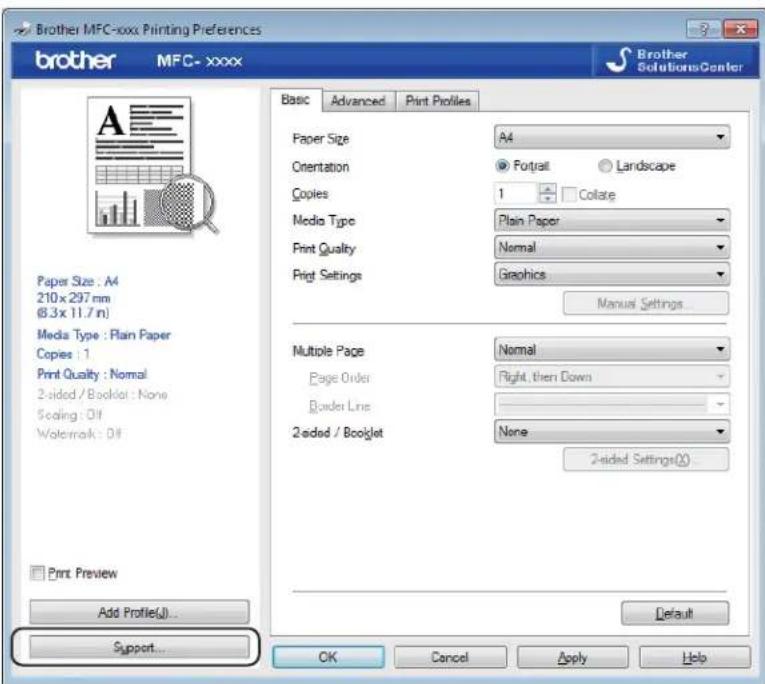
Support
Click Support... in the Printing Preferences dialog box.
text_image
Brother MFC-xxxx Printing Preferences brother MFC-xxxx Brother Solutions Center Basic Advanced Print Profiles Paper Size A4 Orientation ● Portrait ● Landscape Copies 1 □ Collate Media Type Plain Paper Print Quality Normal Print Settings Graphics Manual Settings Multiple Page Normal Page Order Right, then Down Border Line 2-sided / Booklet None 2-sided Settings(X) Add Profile(I)... Support... OK Cancel Apply HelpPrinting
text_image
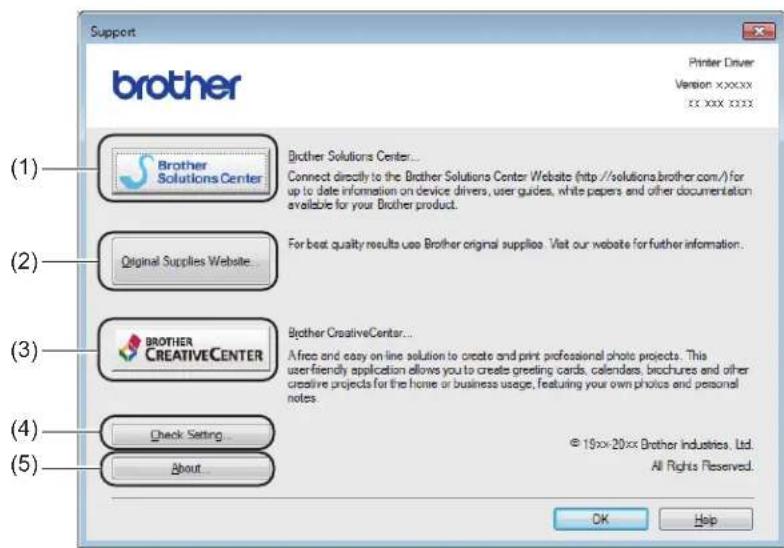
Support brotter Printer Driver Version xxxxxx xx xxx xxxx (1) Brother Solutions Center... Connect directly to the Brother Solutions Center Website (http://solutions.brother.com/) for up to date information on device drivers, user guides, white papers and other documentation available for your Brother product. (2) Original Supplies Website... For best quality results use Brother original supplies. Visit our website for further information. (3) BROTHER CREATIVECENTER... A free and easy on-line solution to create and print professional photo projects. This user-friendly application allows you to create greeting cards, calendars, brochures and other creative projects for the home or business usage, featuring your own photos and personal notes. (4) Check Setting... About... (5) © 19xx-20xx Brother Industries, Ltd. All Rights Reserved. OK Help■ Brother Solutions Center (1)
The Brother Solutions Center (http://solutions.brother.com/) is a website offering information about your Brother product including FAQs (Frequently Asked Questions), User's Guides, driver updates and tips for using your machine.
■ Original Supplies Website (2)
You can visit our website for original/genuine Brother supplies by clicking this button.
■ Brother CreativeCenter (3)
You can visit our website for free and easy online solutions for business and home users by clicking this button.
Check Setting (4)
You can check the current driver settings.
About (5)
This will list the printer driver files and version information.
Printing
Device Settings tab
NOTE
To access the Device Settings tab, see Accessing the printer driver settings on page 6.
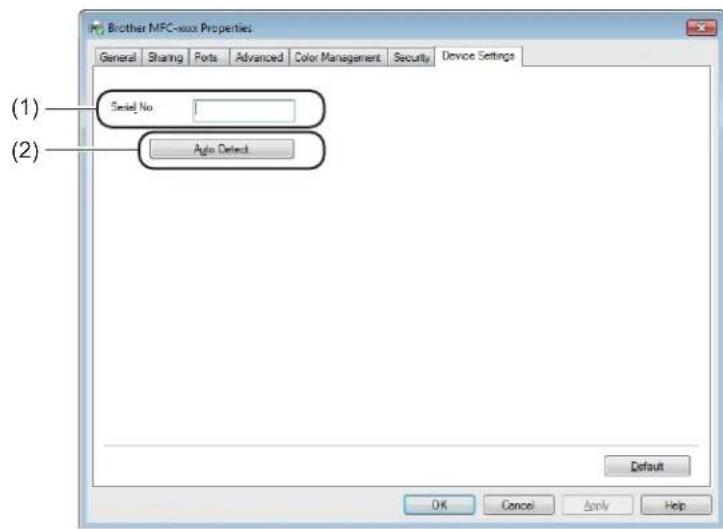
You can detect the serial number in the Device Settings tab as follows.
text_image
Brother MFC-xxx Properties General Sharing Ports Advanced Color Management Security Device Settings (1) Serial No (2) Auto Detect Default OK Cancel Apply HelpSerial No. (1)
By clicking Auto Detect (2), the printer driver will probe the machine and display its serial number. If it fails to receive the information, the screen will display “----”.
■ Auto Detect (2)
The Auto Detect function shows the available settings in the printer driver.
NOTE
The Auto Detect (2) function is not available under the following machine conditions:
• The machine is powered off.
- The machine is connected to the print server using a USB cable in a network shared environment.
- The USB cable is not connected to the machine correctly.
Printing
Status Monitor
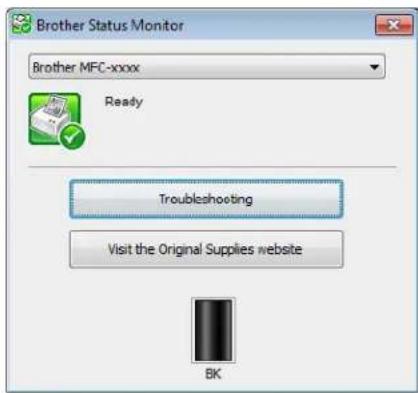
The Status Monitor utility is a configurable software tool for monitoring the status of one or more devices, allowing you to get immediate notification of error messages.
text_image
Brother Status Monitor Brother MFC-xxxx Ready Troubleshooting Visit the Original Supplies website BKYou can check the device status at anytime by double-clicking the icon in the tasktray or by choosing Status Monitor located in Start/All Programs/Brother/MFC-XXXX on your PC.
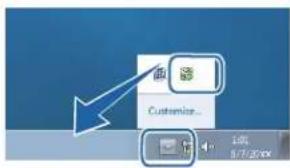
(Windows ^® 7)
To show the Status Monitor icon on your taskbar, click the button. The Status Monitor icon will appear in the small window. Then drag the icon to the taskbar.
text_image
Customize... 1.0L 07/20/00(Windows ^® 8)
Click (Brother Utilities), click the drop-down list, and then select your model name (if not already selected). Click Tools in the left navigation bar, and then click Status Monitor.
NOTE
- For more information about using the Status Monitor software, right-click the Status Monitor icon and choose Help.
- The automatic software update feature is active when the Status Monitor feature is active. With the update feature you can receive both Brother applications and machine firmware updates automatically.
Printing
Monitoring the machine's status
The Status Monitor icon will change colour depending on the machine's status.
A green icon indicates the normal stand-by condition.

A yellow icon indicates a warning.

A red icon indicates an error has occurred.
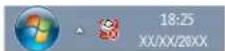
There are two locations where you can display the Brother Status Monitor on your PC - in the tasktray or on the desktop.
2 Scanning
The scanning operations and drivers will be different depending on your operating system. The machine uses a TWAIN compliant driver for scanning documents from your applications.
Two scanner drivers are installed. A Windows ^® Imaging Acquisition (WIA) driver (See Scanning a document using the WIA driver on page 26) and a TWAIN compliant scanner driver (See Scanning a document using the TWAIN driver on page 35).
Scanning a document using the WIA driver
WIA compliant
You can choose Windows® Image Acquisition (WIA) for scanning images from the machine. You can scan images directly into any other application that supports WIA or TWAIN scanning.
Scanning a document into the PC
There are two ways in which you can scan a page. You can either use the ADF (automatic document feeder) (for MFC models) or the scanner glass.
If you want to scan and then crop a portion of a page after pre-scanning the document, you need to use the scanner glass. (See Pre-Scanning to crop a portion you want to scan using the scanner glass on page 28.)
1 Load your document.
2 Start the Microsoft ^® Paint application to scan a document.
NOTE
The instructions for scanning in this Guide are using Microsoft® Paint. The scanning steps may vary when using other software applications.
3 Click From scanner or camera on the File menu. The Scanner Setup dialog box appears.
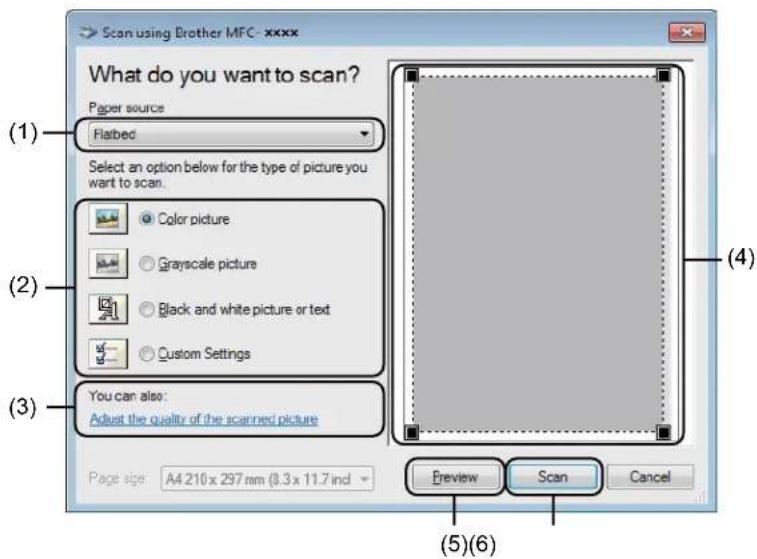
4 If necessary, adjust the following settings in the Scanner Setup dialog box:
Paper source (1)
■ Picture type (2)
■ Adjust the quality of the scanned picture (3)
Page size (4)
■ Preview (5)
Scan (6)
Scanning

text_image
Scan using Brother MFC: xxxx What do you want to scan? Paper source Flatted Select an option below for the type of picture you want to scan. Color picture Grayscale picture Black and white picture or text Custom Settings You can also: Adjust the quality of the scanned picture Page size: A4 210 x 257 mm (8.3 x 11.7 incl Preview Scan Cancel (5)(6)5 (For MFC models) Choose the Paper source from the drop-down list (1).
6 Choose the picture type (2).
7 Choose the Page size from the drop-down list (4).
NOTE
Skip this step if you choose Flatbed in step 5.
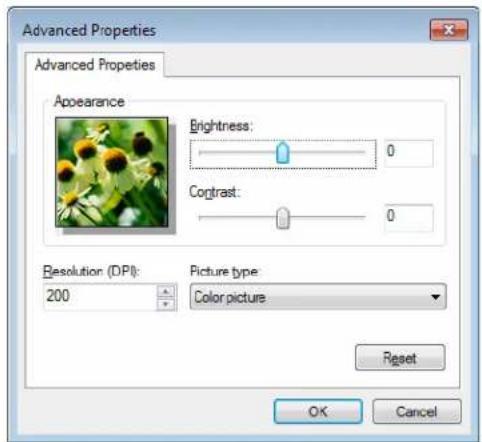
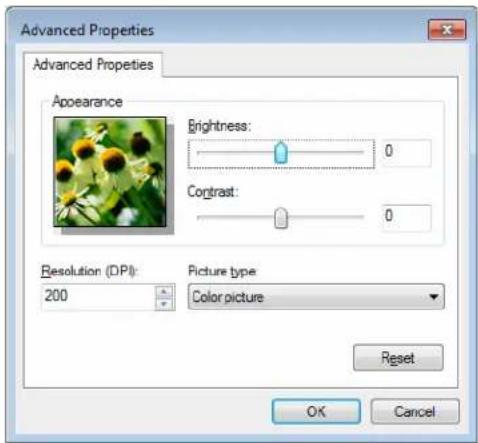
8 If you need advanced settings, click Adjust the quality of the scanned picture (3). You can choose Brightness, Contrast, Resolution (DPI) and Picture type from Advanced Properties. Click OK after you have changed the settings.
text_image
Advanced Properties Advanced Properties Appearance Brightness: 0 Contrast: 0 Resolution (DPI): 200 Picture type Color picture Reset OK CancelNOTE
• The scanner resolution can be set as high as 1200 dpi.
- For resolutions greater than 1200 dpi, use the Scanner Utility. (See Scanner Utility on page 30.)
Scanning
9 Click the Scan button in the Scan dialog box (6). The machine starts scanning the document.
Pre-Scanning to crop a portion you want to scan using the scanner glass
The Preview button is used to preview an image when cropping any unwanted portions from the image. When you are satisfied with the preview, click the Scan button in the Scan dialog box to scan the image.
NOTE
Pre-Scanning is not available when using the ADF (Document Feeder).
1 Follow the steps from ① to ③ of Scanning a document into the PC on page 26.
(For MFC models) Choose Flatbed in the Paper source drop-down list (1).
text_image
Scan using Brother MFC - xxxx What do you want to scan? Paper source Flatbed Select an option below for the type of picture you want to scan. Color picture Grayscale picture Black and white picture or text Custom Settings You can also: Adjust the quality of the scanned picture Page size: A4 210 x 297 mm (8.3 x 11.7 ind Preview Scan Cancel (1) (2) (3) (4) (5)(6)3 Choose the picture type (2).
4 Click Preview (5). The image is scanned into the PC and appears in the scanning area (4).
Scanning
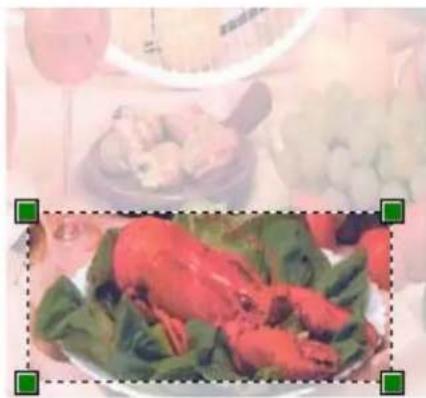
5 Press and hold down the left mouse button and drag it over the portion you want to scan.
natural_image
Plated dish of cooked fish garnished with green vegetables, served on a white plate (no visible text or symbols)2
6 If you want to change any advanced settings, click Adjust the quality of the scanned picture (3). You can choose Brightness, Contrast, Resolution (DPI) and Picture type from Advanced Properties. Click OK after you have changed the setting.
text_image
Advanced Properties Advanced Properties Appearance Brightness: 0 Contrast: 0 Resolution (DPI): 200 Picture type Color picture Reset OK Cancel7 Click Scan in the Scan dialog box (6).
The machine starts scanning the document.
This time only the chosen area of the document appears in the Microsoft® Paint window (or your application window).
Scanning
Scanner Utility
The Scanner Utility is used for configuring the WIA scanner driver for resolutions greater than 1200 dpi. You must restart your PC for the new settings to take effect.
NOTE
- If you scan the document at a resolution greater than 1200 dpi, the file size may be very large. Make sure that you have enough memory and hard disk space for the size of the file you are trying to scan. If you do not have enough memory or hard disk space then your PC may freeze and you could lose your file.
- (Windows® XP)
You can change the paper size using the Scanner Utility. If you want to set Legal size as the default size, use this utility to change the setting.
■ Running the utility
Do one of the following:
(Windows ^® XP, Windows ^® Vista and Windows ^® 7)
You can run the utility by choosing the Scanner Utility located in Start/All Programs/Brother/MFC-XXXX (where XXXX is your model name)/Scanner Settings/Scanner Utility.
(Windows® 8)
Click (Brother Utilities), click the drop-down list, and then select your model name (if not already selected). Click SCAN in the left navigation bar, and then click Scanner Utility.
Screens on your computer may vary depending on your operating system or the model of your machine.

text_image
Scanner Utility WIA Device Brother MFC-xxxx Max Resolution(dpi) 600x600 1200x1200 2400x2400 4800x4800 9600x9600 19200x19200 OK CancelScanning
NOTE
(Windows Vista ^® , Windows ^® 7 and Windows ^® 8)
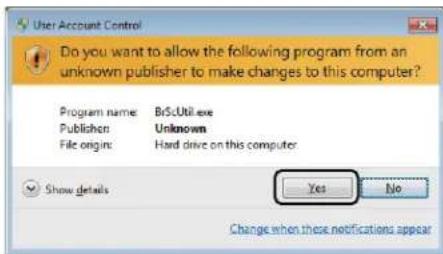
When the User Account Control screen appears, do the following:
- For users who have administrator rights: Click Allow or Yes.
text_image
User Account Control Do you want to allow the following program from an unknown publisher to make changes to this computer? Program name: BScUtil.exe Publisher: Unknown File origin: Hard drive on this computer. Show details Yes No Change when these notifications appear- For users who do not have administrator rights: Enter the administrator password and click OK or Yes.

text_image
User Account Control Do you want to allow the following program from an unknown publisher to make changes to this computer? Program name: BiSciUtil.exe Verified publisher: Unknown File origin: Hard drive on this computer To continue, type an administrator password, and then click Yes. User Password Show details Yes NoScanning a document using the WIA driver (Windows Photo Gallery and Windows Fax and Scan)
Scanning a document into the PC
2
There are two ways in which you can scan a page. You can either use the ADF (automatic document feeder) (for MFC models) or the scanner glass.
If you want to scan and then crop a portion of a page after pre-scanning the document, you need to use the scanner glass. (See Pre-Scanning to crop a portion you want to scan using the scanner glass on page 34.)
1 Load your document.
2 Open your software application to scan the document.
3 Do one of the following:
■ (Windows Photo Gallery)
Click File, then Import from Camera or Scanner.
■ (Windows Fax and Scan)
Click File, New, then Scan.
4 Choose the scanner you want to use.
5 Click Import or OK. The Scan dialog box appears.
Scanning
6 If necessary, adjust the following settings in the Scan dialog box:
Scanner (1)
■ Profile (2)
Source (3)
Paper size (4)
■ Color format (5)
■ File type (6)
■ Resolution (DPI) (7)
■ Brightness (8)
Contrast (9)
■ Scanning area (10)
■ Preview (11)
Scan (12)

text_image
(1) Scanner Brother MFC-xxxx Change... (2) Profile: Photo (Default) (3) Source: Feeder (Scan one side) (4) Paper size: A4 210 x 297 mm (8.3 x 11.7 inches) (5) Color format: Color (6) File type: JPG (JPEG image) (7) Resolution (DPI): 200 (8) Brightness: 0 (9) Contrast: 0 Preview or scan images as separate files (10) Review Scan Cancel (11)(12)7 Click Scan in the Scan dialog box. The machine starts scanning the document.
Scanning
Pre-Scanning to crop a portion you want to scan using the scanner glass
The Preview button is used to preview an image when cropping any unwanted portions from the image. When you are satisfied with the preview, click the Scan button in the Scan dialog box to scan the image.
NOTE
Pre-Scanning is not available when using the ADF (Feeder (Scan one side)).
1 Follow the steps ① to ⑤ of Scanning a document into the PC on page 32.
2 (For MFC models) Choose Flatbed in the Source drop-down list.
3 If necessary, adjust the additional settings in the Scan dialog box.
4 Click Preview.
The image is scanned into the PC and appears in the scanning area.
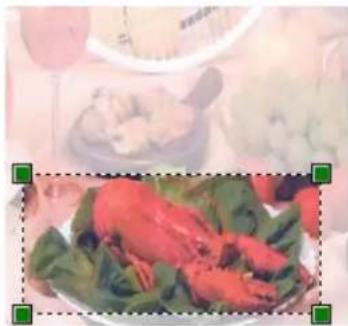
5 Press and hold down the left mouse button and drag it over the portion you want to scan.
natural_image
Plate of cooked red chicken garnished with green leafy vegetables, with blurred background showing food items (no visible text or symbols)6 Click Scan in the Scan dialog box.
The machine starts scanning the document.
This time only the chosen area of the document appears in your application window.
Scanning
Scanning a document using the TWAIN driver
The Brother machine software includes a TWAIN Scanner driver for Windows ^® . You can use this Windows ^® TWAIN Scanner driver with any applications that support TWAIN specifications.
When you scan a document, you can either use the ADF (automatic document feeder) (for MFC models) or the scanner glass.
For more information on loading the documents: See User's Guide: Loading documents.
NOTE
The first time you use the Brother TWAIN driver, set it as the default driver. The method of choosing the driver or scanning a document may vary depending on the application you are using.
Scanning a document into the PC
There are two ways in which you can scan a page. You can either use the ADF (automatic document feeder) (for MFC models) or the scanner glass.
1 Load your document.
2 Start your graphics application, and select the scan operation. The Scanner Setup dialog box appears.
Scanning
3 If necessary, adjust the following settings in the Scanner Setup dialog box:
■ Scan (Image Type) (1)
■ Resolution (2)
■ Scan Type (3)
■ Reduce Noise (4)
■ Brightness (5)
Contrast (6)
■ Document Size (7)

text_image
TW-Brother MFC-xxxx Scanner Setup 3.xx Scan : Photo Web Text (1) Resolution 300 x 300 dpi Scan Type 2-bit Colour Reduce Noise Brightness 0 Contrast 0 Document Size A4 210 x 297 mm (8.3 x 11 (2) (3) (4) (5) (6) (7) PreScan Width: 204.0 mm 2410 pixels Height: 291.0 mm 3437 pixels Data Size: 23.7 MB Em Inch Start Help Default Cancel4 Click Start. When scanning has finished, click Cancel to return to the graphics application window.
Scanning
Pre-Scanning to crop a portion you want to scan
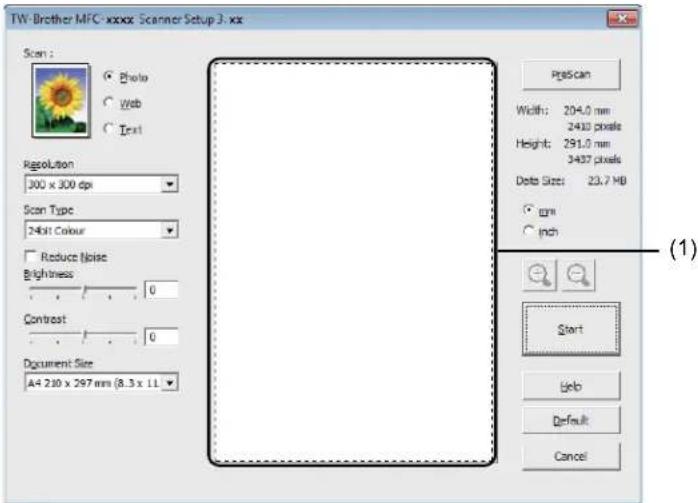
You can preview your image and crop unwanted portions before scanning by using the PreScan button.
When you are satisfied with the preview, click the Start button in the Scanner Setup dialog box to scan the image.
1 Load your document.
2 Choose the settings for Scan (Image Type), Resolution, Scan Type, Brightness, Contrast and Document Size, as needed.
3 Click PreScan.
The image is scanned into the PC and appears in the Scanning Area (1) of the Scanner Setup dialog box.
text_image
TW-Brother MFC-xxxx Scanner Setup 3.xx Scan : ● Photo ○ Web ○ Text Regolution 300 x 300 dpi Scan Type 24bit Colour □ Reduce Noise Brightness: 0 Contrast: 0 Document Size A4 210 x 297 mm (8.3 x 11 PigScan Width: 204.0 mm 2410 pixels Height: 291.0 mm 3437 pixels Delta Size: 23.7 MB ○ cm ○ inch Start Help Default Cancel (1)Scanning
4 Press and hold down the left mouse button and drag it over the portion you want to scan.

natural_image
Still life photo of a table with cooked seafood, grapes, and a tennis racket (no visible text or symbols)1 Scanning area
NOTE
You can enlarge the image using 📄 and then use to restore the image to its original size.
5 Load your document again.
NOTE
Skip this step if you loaded the document on the scanner glass in step ①.
6 Click Start.
When scanning has finished, click Cancel to return to the graphics application window. This time only the chosen area of the document appears in your application window.
7 In your application window, use the options available to refine the image.
Settings in the Scanner Setup dialog box
Scan (Image Type)
Choose the output image type from Photo, Web or Text. Resolution and Scan Type will be altered for each default setting.
The default settings are listed in the table below:
| Scan (Image Type) Resolution Scan Type | |||
| Photo | Use for scanning photo images. | 300 x 300 dpi | 24bit Colour |
| Web | Use for attaching the scanned image to web pages. | 100 x 100 dpi | 24bit Colour |
| Text | Use for scanning text documents. | 200 x 200 dpi | Black & White |
Resolution
You can choose a scanning resolution from the Resolution drop-down list. Higher resolutions take more memory and transfer time, but produce a finer scanned image. The following table shows the resolutions you can choose and the available colour options.
| Resolution | Black & White/Grey (Error Diffusion) | 256 Colour | True Grey/24bit Colour |
| 100 x 100 dpi | Yes | Yes | Yes |
| 150 x 150 dpi | Yes | Yes | Yes |
| 200 x 200 dpi | Yes | Yes | Yes |
| 300 x 300 dpi | Yes | Yes | Yes |
| 400 x 400 dpi | Yes | Yes | Yes |
| 600 x 600 dpi | Yes | Yes | Yes |
| 1200 x 1200 dpi | Yes | No | Yes |
| 2400 x 2400 dpi | Yes | No | Yes |
| 4800 x 4800 dpi | Yes | No | Yes |
| 9600 x 9600 dpi | Yes | No | Yes |
| 19200 x 19200 dpi | Yes | No | Yes |
Scan Type
Black & White
Use for text or line art.
■ Grey (Error Diffusion)
Use for photographic images or graphics. (Error Diffusion is a method for creating simulated grey images without using true grey dots. Black dots are put in a specific pattern to give a grey appearance.)
True Grey
Use for photographic images or graphics. This mode is more exact due to using up to 256 shades of grey.
Scanning
256 Colour
Uses up to 256 colours to scan the image.
24bit Colour
Uses up to 16.8 million colours to scan the image.
Although using 24bit Colour creates an image with the most accurate colour, the image file will be about three times larger than a file created with 256 Colour. It requires the most memory and has the longest transfer time.
Reduce Noise
You can improve and enhance the quality of your scanned images with this selection. The Reduce Noise setting is available when using 24bit Colour and scan resolutions of 300 × 300 dpi, 400 × 400 dpi or 600 × 600 dpi.
Brightness
Adjust the setting (-50 to 50) to get the best image. The default value is 0, representing an average.
You can set the Brightness level by dragging the slider to the right or left to lighten or darken the image. You can also enter a value in the box to set the level.
If the scanned image is too light, set a lower Brightness level and scan the document again. If the image is too dark, set a higher Brightness level and scan the document again.
NOTE
The Brightness setting is not available when 256 Colour is chosen.
Contrast
You can increase or decrease the Contrast level by moving the slider to the left or right. An increase emphasizes dark and light areas of the image, while a decrease reveals more detail in grey areas. You can also enter a value in the box to set the Contrast.
NOTE
The Contrast setting is only available when Grey (Error Diffusion), True Grey or 24bit Colour is chosen.
When scanning photographs or other images for use in a word processor or other graphics application, try different settings for the contrast and resolution to see which setting best suits your needs.
Document Size
Choose one of the following sizes:
■ A4 210 x 297 mm (8.3 x 11.7 in)
■ JIS B5 182 x 257 mm (7.2 x 10.1 in)
■ Letter 215.9 x 279.4 mm (8 1/2 x 11 in)
■ Legal 215.9 x 355.6 mm (8 1/2 x 14 in) (For MFC models)
■ A5 148 x 210 mm (5.8 x 8.3 in)
Scanning
■ JIS B6 128 x 182 mm (5 x 7.2 in)
■ A6 105 x 148 mm (4.1 x 5.8 in)
■ Executive 184.1 x 266.7 mm (7 1/4 x 10 1/2 in)
■ Business Card 90 x 60 mm (3.5 x 2.4 in)
To scan business cards, choose the Business Card size, and then place the business card face down at the top left of the scanner glass.
10x15cm(4x6in)
13×20cm(5×8in)
9x13cm(3.5x5in)
13×18cm(5×7in)
■ Postcard1100x148mm(3.9x5.8in)
■ Postcard 2 (Double) 148 x 200 mm (5.8 x 7.9 in)
Custom
(For DCP models) User adjustable from 8.9 × 8.9 mm to 215.9 × 297 mm
(For MFC models) User adjustable from 8.9 × 8.9 mm to 215.9 × 355.6 mm
If you choose Custom as the size, the Custom Document Size dialog box appears.

text_image
Custom Document Size Custom Document Size Name Width [ 8.9 - 215.9 ] 210 Height [ 8.9 - 355.6 ] 297 Unit : ○ mm ○ inch Save Delete OK Cancel HelpEnter the Custom Document Size Name, Width and Height for the document.
You can choose 'mm' or 'inch' as the unit for Width and Height.
Scanning
NOTE
- (For MFC models) You can load four sizes of document in the ADF: A4, Letter, Legal and Folio. When you scan smaller sized documents, use the scanner glass.
- (For MFC models) You can scan a page of Folio size paper using the ADF. Choose Legal size.
- You can see the actual paper size you chose on the screen.

- Width: shows the width of the scanning area.
- Height: shows the height of the scanning area.
- Data Size: shows the rough data size in Bitmap format. The size will be different for other file formats such as JPEG.
3
ControlCenter4
Overview
ControlCenter4 is a software utility that lets you quickly and easily access your most used applications. Using ControlCenter4 eliminates the need to manually launch specific applications.
ControlCenter4 has two user interfaces: Home Mode and Advanced Mode.
ControlCenter4 also controls the settings for the SCAN key on the control panel of your Brother machine. For information about how to configure the settings for the SCAN key on the machine, see Configuring Scan key settings on page 56 for Home Mode or Configuring Scan key settings on page 68 for Advanced Mode.
Home Mode
The Home Mode gives you easy access to your machine's main functions. This mode is recommended for most Home office users. See Using ControlCenter4 in Home Mode on page 44.
■ Advanced Mode
The Advanced Mode gives you more control over the details of your machine's functions. You can add up to three customized tabs in your original settings. See Using ControlCenter4 in Advanced Mode on page 59.
Changing the user interface
1 Click Configuration, and then select Mode Select.
2 Select Home Mode or Advanced Mode in the mode dialog box.

text_image
ControlCenter4 Mode Welcome to ControlCenter4, ControlCenter4 brings together all the software features to expand the capabilities of your device. You can choose between the Home Mode or Advanced Mode user interfaces. Home Mode Home Mode offers basic functions such as Photo Print, Scan and PC-Fax with simple easy to use operations. Advanced Mode In addition to the features available in Home Mode, Advance Mode includes the added ability to configure detailed settings and store them. Offering easy operation of pre-configured button settings. OK CancelControlCenter4
Using ControlCenter4 in Home Mode
This section briefly introduces the ControlCenter4 functions in Home Mode. For more details on each function, click (Help).

text_image
Control Center 4 Scan PC-MAX Device Settings Support Model: MFC xxxx Configuration Help Document Type Photo Text and Graph Monochrome Text Custom 300 x 300 dpi 24bit Colour Custom Settings Scan Size All 210 x 297 mm (8.0 x 11.7) Scan Clear Ready 12 Percent brother1 Scan directly to a file, E-mail or graphics application of your choice.
2 Access the PC-FAX applications available for your device. (For MFC models)
3 Access the settings available to configure your device.
4 Link to Brother Solutions Center, Brother CreativeCenter and the ControlCenter Help file.
5 You can select which machine ControlCenter4 will connect with from the Model drop-down list.
6 You can change the user interface and the ControlCenter4 startup preferences.
7 Access the Help file.
8 Access Brother Status Monitor by clicking the Device Status button.
ControlCenter4 Features for Home Mode users
Scan (See Scan tab on page 46.)
■ See Saving the scanned image on page 49.
■ See Printing the scanned image on page 49.
■ See Opening the scanned image with an application on page 50.
■ See Attaching the scanned data to E-mail on page 50.
PC-FAX (See PC-FAX tab (For MFC models) on page 51.)
■ See Sending a scanned image on page 52.
■ See Sending an image file from your computer on page 52.
■ See Viewing and printing received PC-FAX data on page 53.
Device Settings (See Device Settings tab on page 54.)
■ See Configuring Remote Setup (For MFC models) on page 55.
■ See Accessing Address Book (For MFC models) on page 55.
■ See Configuring Scan key settings on page 56.
Support (See Support tab on page 58.)
■ See Opening ControlCenter Help on page 58.
■ See Using Brother Solutions Center on page 58.
■ See Accessing the Brother CreativeCenter on page 58.
ControlCenter4
Scan tab
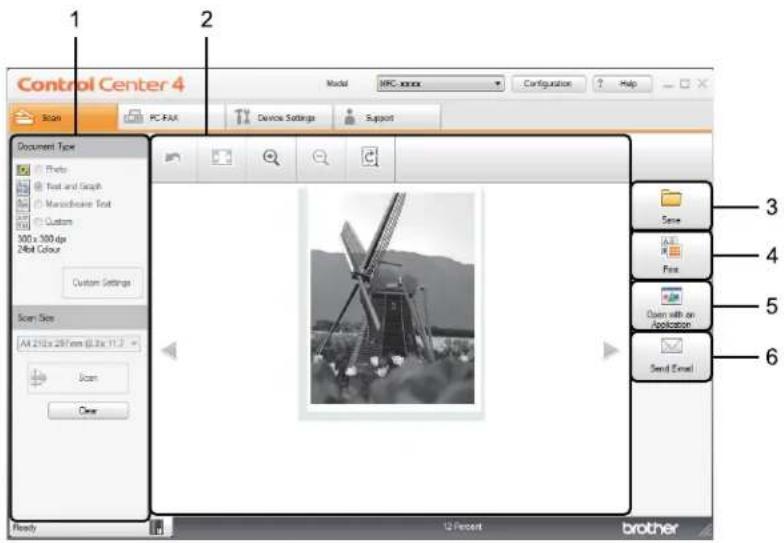
There are four scan options: Save, Print, Open with an Application and Send E-mail.
This section briefly introduces the Scan tab function. For more details of each function, click ? (Help).
text_image
Control Center 4 1 2 Model: MRC xxxx Configuration: Help File FAX Device Settings Support Document Type Photo Text and Graph Manichannel Text Custom 100 x 300 dpi 24bit Colour Custom Settings Scan Size All 210 x 297 mm (0.3x 11.2) Scan Clear Send Email 3 4 5 6 Ready 12 Percent brother1 PC Scan setting area
2 Image viewer
3 Save button
4 Print button
5 Open with an Application button
6 Send E-mail button
File types
You can choose from the following list of file types when saving to a folder.
For Save and Send E-mail
Windows Bitmap (*.bmp)
■ JPEG (*.jpg) - Recommended for most users when scanning pictures.
TIFF (*.tif)
TIFF Multi-Page (*.tif)
■ Portable Network Graphics (*.png)
■ PDF (*.pdf) - Recommended for scanning and sharing documents.
■ High Compression PDF (*.pdf) ^1
- Secure PDF (*.pdf)
■ XML Paper Specification (*.xps)
In order to save the document as a High Compression PDF, you must set the Resolution to 300 x 300 dpi and Scan Type to True Grey or 24bit Colour.
NOTE
- The XML Paper Specification is available for Windows Vista ^® , Windows ^® 7 and Windows ^® 8, or when using applications that support XML Paper Specification files.
- If you set the file type to TIFF or TIFF Multi-Page, you can choose Uncompressed or Compressed.
- When you use the scanner glass to scan a multiple page document, check Continuous Scanning and follow the on-screen instructions.
Document Size
You can choose the document size from the drop-down list. If you choose a "1 to 2" document size, such as 1 to 2 (A4), the scanned image will be divided into two A5 size documents.
ControlCenter4
Advanced Settings
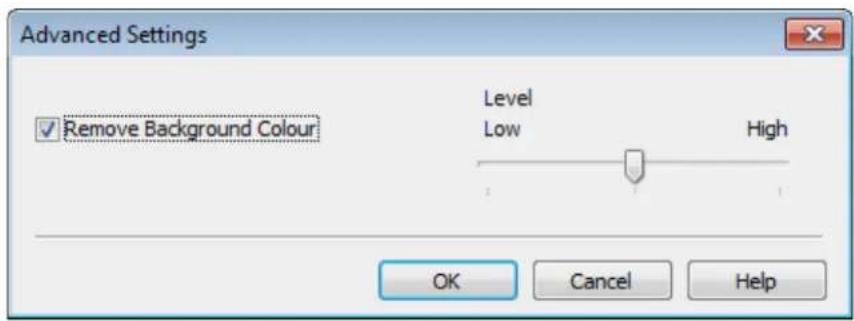
You can configure advanced settings by choosing Custom and then click Custom Settings. The Custom Scan Settings dialog box will appear. Click Advanced Settings and the Advanced Settings dialog box will appear.
You can also configure advanced settings by clicking the Advanced Settings button in the scan settings dialog box.
text_image
Advanced Settings ✓ Remove Background Colour Level Low High OK Cancel Help■ Remove Background Colour
Removes the base colour of documents to make the scanned data more recognizable. When you use this function, you can select the level from 3 settings: High, Medium and Low.
Saving the scanned image
The Save (Save) button lets you scan an image to a folder on your hard disk as one of the file types shown in the file types list.
1 Configure the settings in the PC Scan setting area.
2 Click (Scan).
3 Confirm and edit (if necessary) the scanned image in the image viewer.
4 Click (Save).
5 The Save dialog box will appear. Select your Destination Folder and other settings. Click OK.
6 The image will be saved in your chosen folder.
Printing the scanned image
You can scan a page on the machine and print copies using any of the features of ControlCenter4 supported by your Brother machine's printer driver.
1 Select the Scan tab.
2 Configure the settings in the PC Scan setting area.
3 Click (Scan).
4 Confirm and edit (if necessary) the scanned image in the image viewer.
5 Click (Print).
6 Configure the print settings and then click (Start Printing).
Opening the scanned image with an application
The (Open with an Application) button lets you scan an image directly into your graphics application for image editing.
1 Select the Scan tab.
2 Configure the settings in the PC Scan setting area.
3 Click (Scan).
4 Confirm and edit (if necessary) the scanned image in the image viewer.
5 Click (Open with an Application).
6 Select the application from the drop-down list and click OK.
7 The image will appear in the application you have chosen.
Attaching the scanned data to E-mail
The 📧 (Send E-mail) button lets you scan a document to your default E-mail application, so you can send the scanned job as an attachment.
1 Select the Scan tab.
2 Configure the settings in the PC Scan setting area.
3 Click (Scan).
4 Confirm and edit (if necessary) the scanned image in the image viewer.
5 Click (Send E-mail).
6 Configure the attached file settings and click OK.
7 Your default E-mail application will open and the image will be attached to a new, blank E-mail.
NOTE
Webmail services are not supported by Scan to E-mail.
ControlCenter4
PC-FAX tab (For MFC models)
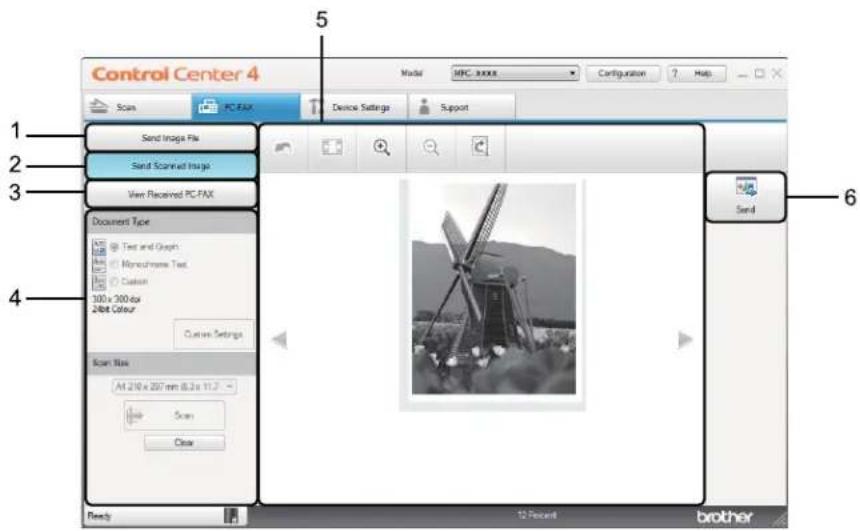
This section briefly introduces the PC-FAX tab function. For more details of each function, click ? (Help).
NOTE
The PC-FAX software can only send Black & White fax documents in A4 size.
text_image
Control Center 4 Scan PC.FAX Device Settings Support Send Image File Send Screened Image View Received PC.FAX Document Type Text and Graph Monochrome Text. Custom 300 x 300 for 2bit Colour Custom Settings Scan Type At 210 x 207 mm (8.2x 11.7) Scan Clear Ready 12 Percent brother1 Send Image File button
2 Send Scanned Image button
3 View Received PC-FAX button
4 PC Scan setting area
5 Scan Image area
6 Send button
Sending an image file from your computer
The Send Image File button lets you send an image file as a fax from your computer using the Brother PC-FAX software.
1 Select the PC-FAX tab.
2 Click Send Image File.
3 Click on the folder tree to browse for the folder where the image you want to send is located. Then select the file you want to send.
4 Click (Send).
5 The PC-FAX sending dialog box will appear. Enter a fax number and click Start. Then click
Sending a scanned image
The Send Scanned Image button lets you scan a page or document and automatically send the image as a fax from your computer using the Brother PC-FAX software.
1 Select the PC-FAX tab.
2 Click Send Scanned Image.
3 Configure the settings in the PC Scan setting area.
4 Click →(Scan).
5 Confirm and edit (if necessary) the scanned image in the image viewer.
6 Click (Send).
7 The PC-FAX sending dialog box will appear. Enter a fax number and click Start. Then click
Viewing and printing received PC-FAX data
The View Received PC-FAX button lets you view and print received fax data using the Brother PC-FAX software. Before you use the PC-FAX Receive function, you must select the PC-FAX Receive option from the control panel menu of the Brother machine. (See Enabling PC-FAX Receiving software on your machine on page 92.)
1 Select the PC-FAX tab.
2 Click View Received PC-FAX.
3 The PC-FAX receiving function activates and starts to receive fax data from your machine. The received data will appear. To view the data, select the data and click (View).
4 If you want to print the received data, select the data and then click (Print).
5 Configure the print settings and then click (Start Printing).
(Print).


ControlCenter4
Device Settings tab
This section briefly introduces the Device Settings tab function. For more details of each function, click ? (Help).
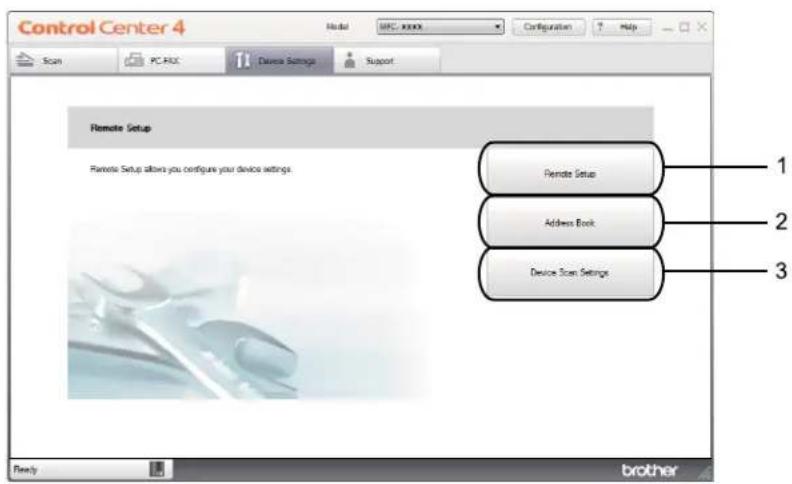
text_image
Control Center 4 Scan PC-RCX Disease Settings Support Remote Setup Remote Setup allows you configure your device settings. Remote Setup Address Book Device Scan Settings 1 2 3 Ready brother1 Remote Setup button
2 Address Book button
3 Device Scan Settings button
Configuring Remote Setup (For MFC models)
The Remote Setup button lets you open the Remote Setup application window to configure most machine setting menus.
1 Select the Device Settings tab.
2 Click Remote Setup.
3 The Remote Setup application window will appear. For Remote Setup configuration, see Remote Setup (For MFC models) on page 75.
Accessing Address Book (For MFC models)
The Address Book button lets you open the Address Book window in the Remote Setup application. You can then easily register or change the Address Book numbers on your machine from your computer.
1 Select the Device Settings tab.
2 Click Address Book.
3 The Address Book window will appear. For Address Book configuration, see Remote Setup (For MFC models) on page 75.
ControlCenter4
Configuring Scan key settings
The Device Scan Settings button lets you configure your machine's SCAN key settings.

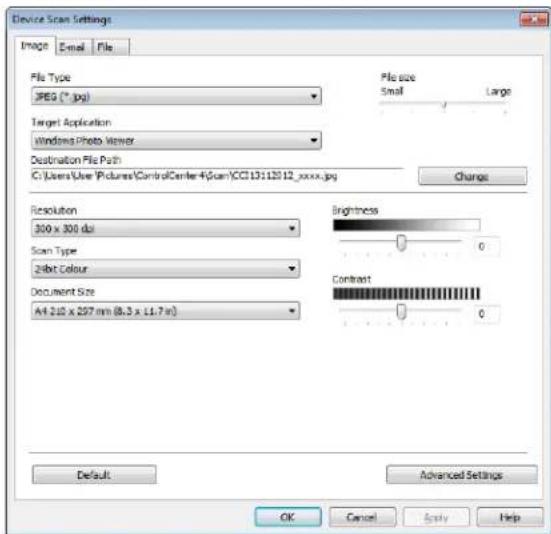
text_image
Device Scan Settings Image Email File File Type JPEG (*.jpg) Target Application Windows Photo Viewer Destination File Path C:\Users\Use\Pictures\ControlCenter-4\Scan\CC13112012_xxxx.jpg Pile size Small Large Change Resolution 300 x 300 dpi Scan Type 2bit Colour Document Size A4 210 x 297 mm (8.3 x 11.7 m) Brightness 0 Contrast 0 Default Advanced Settings OK Cancel Apply HelpThere are three scan functions which you can configure to fit your scanning needs.
To configure each scan function, select the Device Settings tab and then click Device Scan Settings. The Device Scan Settings dialog box will appear.
Image tab
Lets you configure settings for Scan to Image by pressing the SCAN key on your Brother machine.
Choose the settings for File Type, Target Application, Destination File Path, File size, Resolution, Scan Type, Document Size, Brightness and Contrast as needed. Click OK.
If you choose Secure PDF (*.pdf) from the File Type drop-down list, click 📋 (Set PDF Password). The Set PDF Password dialog box will appear. Type your password in the Password and Re-type Password boxes and then click OK.
NOTE
- Secure PDF (*.pdf) is also available for Scan to E-mail and Scan to File.
- You can change the data compression ratio of the scanned image with File size.
ControlCenter4
E-mail tab
Lets you configure settings for Scan to E-mail by pressing the SCAN key on your Brother machine. Choose the settings for File Type, Destination File Path, File size, Resolution, Scan Type, Document Size, Brightness and Contrast as needed. Click OK.
NOTE
You can change the data compression ratio of the scanned image with File size.
3
File tab
Lets you configure settings for Scan to File by pressing the SCAN key on your Brother machine. Choose the settings for File Type, File Name, Destination Folder, Show Folder, File size and Insert Date in File Name as needed. Click OK.
NOTE
- If Show Folder is checked, the destination of the scanned image will be shown after scanning.
- You can change the data compression ratio of the scanned image with File size.
Support tab
This section briefly introduces the Support tab function. For more details of each function, click ? (Help) in ControlCenter4.
Opening ControlCenter Help
The ControlCenter Help lets you open the Help file for detailed information about ControlCenter.
1 Select the Support tab.
2 Click ControlCenter Help.
3 The ControlCenter Help top page will appear.
Using Brother Solutions Center
The Brother Solutions Center button lets you open the Brother Solutions Center website offering information about your Brother product including FAQs (Frequently Asked Questions), User's Guides, driver updates and tips for using your machine.
1 Select the Support tab.
2 Click Brother Solutions Center.
3 The Brother Solutions Center website will be shown in your web browser.
Accessing the Brother CreativeCenter
The Brother CreativeCenter button lets you access our website for free and easy online solutions for business and home users.
1 Select the Support tab.
2 Click Brother CreativeCenter. ControlCenter4 will launch your web browser and then open the Brother CreativeCenter website.
ControlCenter4
Using ControlCenter4 in Advanced Mode
This section briefly introduces the ControlCenter4 functions in Advanced Mode. For more details on each function, click Help).
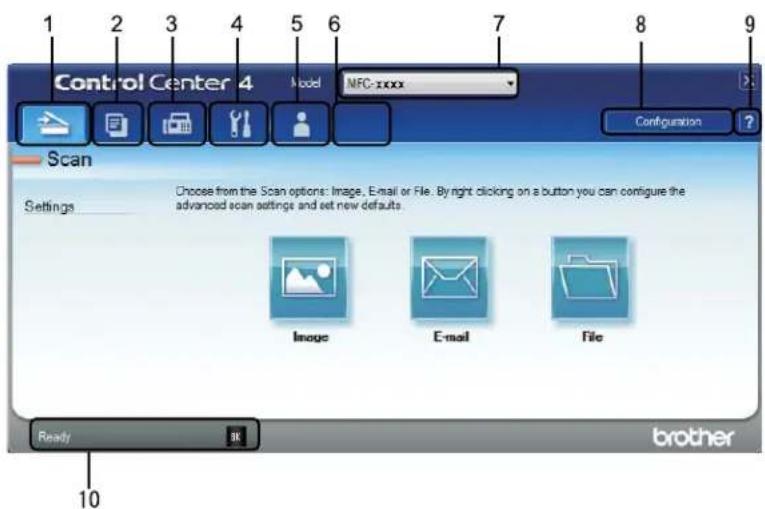
text_image
Control Center 4 Model NFC-xxxx Scan Settings Choose from the Scan options: Image, E-mail or File. By right clicking on a button you can configure the advanced scan settings and set new defaults. Image E-mail File Ready ak brother1 Scan directly to a file, E-mail or graphics application of your choice.
2 Access the PC-Copy feature available via your PC.
3 Access the PC-FAX applications available for your device. (For MFC models)
4 Access the settings available to configure your device.
5 Link to Brother Solutions Center, Brother CreativeCenter and the ControlCenter Help file.
6 You can configure your original settings tab by right clicking the tab area.
7 You can select which machine ControlCenter4 will connect with from the Model drop-down list.
8 You can open the configuration window for each scan function and change the user interface mode.
9 Access the Help file.
10 Access Brother Status Monitor by clicking the Device Status button.
ControlCenter4 Features for Advanced Mode users
Scan (See Scan tab on page 61.)
■ See Opening the scanned image with an application on page 62.
■ See Attaching the scanned data to E-mail on page 62.
■ See Saving the scanned image on page 62.
■ See How to change the default settings of each button on page 63.
PC-Copy (See PC-Copy tab on page 64.)
■ See Printing the scanned image on page 64.
PC-FAX (See PC-FAX tab (For MFC models) on page 65.)
■ See Sending an image file from your computer on page 65.
■ See Sending a scanned image on page 65.
■ See Viewing and printing received PC-FAX data on page 66.
Device Settings (See Device Settings tab on page 67.)
■ See Configuring Remote Setup (For MFC models) on page 67.
■ See Accessing Address Book (For MFC models) on page 67.
■ See Configuring Scan key settings on page 68.
Support (See Support tab on page 70.)
■ See Using Brother Solutions Center on page 70.
■ See Opening ControlCenter Help on page 70.
■ See Accessing the Brother CreativeCenter on page 70.
Custom (See Custom tab on page 71.)
■ See Creating a Custom tab on page 71.
■ See Creating a Custom button on page 72.
ControlCenter4
Scan tab
There are three scan options: Image, E-mail and File.
This section briefly introduces the Scan tab function. For more details of each function, click ? (Help).
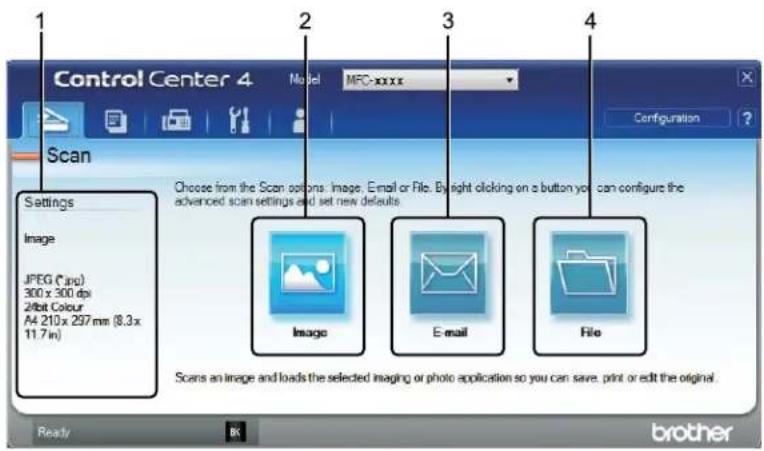
text_image
Control Center 4 Model MFC-xxxx Scan Settings Image JPEG (*jpg) 300 x 300 dpi 2bit Colour A4 210 x 297 mm (8.3 x 11.7 in) Choose from the Scan options: Image, E-mail or File. By light clicking on a button you can configure the advanced scan settings and set new defaults. Scans an image and loads the selected imaging or photo application so you can save, print or edit the original. Ready Brother1 PC Scan setting area
2 Image button
3 E-mail button
4 File button
File types
You can choose a file type to save the scanned images as. For details, see File types on page 47.
Document Size
You can choose the document size from the drop-down list. If you choose a "1 to 2" document size, such as 1 to 2 (A4), the scanned image will be divided into two A5 size documents.
Advanced Settings
You can configure advanced settings. For details, see Advanced Settings on page 48.
Opening the scanned image with an application
The (Image) button lets you scan an image directly into your graphics application for image editing.
1 Select the Scan tab.
2 Click (Image). The Scan Settings dialog box appears.
3 You can configure the scan settings in this dialog box. If you want to preview and configure the scanned image, check the PreScan box.
4 Click Scan. The image will appear in the application you have chosen.
Attaching the scanned data to E-mail
The (E-mail) button lets you scan a document to your default E-mail application, so you can send the scanned job as an attachment.
1 Select the Scan tab.
2 Click (E-mail). The Scan Settings dialog box appears.
3 You can configure the scan settings in this dialog box. If you want to preview and configure the scanned image, check the PreScan box.
4 Click Scan. Your default E-mail application will open and the image will be attached to a new E-mail.
NOTE
The E-mail feature does not support Webmail services.
Saving the scanned image
The (File) button lets you scan an image to a folder on your hard disk in one of the file types shown in the file attachment list.
1 Select the Scan tab.
2 Click (File). The Scan Settings dialog box appears.
3 You can configure the scan settings in this dialog box. If you want to preview and configure the scanned image, check the PreScan box.
4 Click Scan. The image will be saved in the folder you have chosen.
ControlCenter4
How to change the default settings of each button
You can change the default settings of the (Image), (E-mail) and (File) buttons.
1 Right-click the button that you want to configure and click Button settings. The settings dialog box will appear.
2 Choose the settings for File Type, PreScan, Resolution, Scan Type, Document Size, Brightness, Contrast and Continuous Scanning as needed.
3 Click OK. The new settings will be used as the default settings.
NOTE
To preview and configure the scanned image, check PreScan in the settings dialog box.
PC-Copy tab
Printing the scanned image
You can scan a page on the machine and print copies using any of the features of ControlCenter4 supported by your Brother machine's printer driver.
1 Select the PC-Copy tab.
2 If you want to change the scan settings, right-click the button you want to change and then change the settings. If you want to preview and configure the scanned image, check PreScan. Click OK.
3 Click Monochrome Copy, 2 in 1 Copy or 4 in 1 Copy. You can customize each button with your custom settings.
4 The scanned image will be printed.
PC-FAX tab (For MFC models)
This section briefly introduces the PC-FAX tab function. For more details of each function, click ? (Help).
NOTE
The PC-FAX software can only send Black & White fax documents in A4 size.
Sending an image file from your computer
The (Send Image File) button lets you send an image file as a fax from your computer using the Brother PC-FAX software.
1 Select the PC-FAX tab.
2 Click (Send Image File).
3 Click on the folder tree to browse for the folder where the image you want to send is located. Then select the file you want to send.
4 Click (Send). The PC-FAX sending dialog box will appear.
5 Enter a fax number and click . Then click Start.
Sending a scanned image
The (Send Scanned Image) button lets you scan a page or document and automatically send the image as a fax from your computer using the Brother PC-FAX software.
1 Select the PC-FAX tab.
2 If you want to change the scan settings, right-click 📄 (Send Scanned Image) and then change the settings. If you want to preview and configure the scanned image, check PreScan. Click OK.
3 Click (Send Scanned Image). The PC-FAX sending dialog box will appear.
4 Enter a fax number and click . Then click Start.
Viewing and printing received PC-FAX data
The (View Received PC-FAX) button lets you view and print received fax data using the Brother PC-FAX software. Before you use the PC-FAX Receive function, you must select the PC-FAX Receive option from the control panel menu of the Brother machine. (See Enabling PC-FAX Receiving software on your machine on page 92.)
1 Select the PC-FAX tab.
2 Click (View Received PC-FAX).
3 The PC-FAX receiving function activates and starts to receive fax data from your machine. The received data will appear. To view the data, select the data and click (View).
4 If you want to print the received data, select the data and then click (Print).
5 Configure the print settings and then click (Start Printing).
ControlCenter4
Device Settings tab
This section briefly introduces the Device Settings tab function. For further information on each function, click ? (Help).
Configuring Remote Setup (For MFC models)
3
The (Remote Setup) button lets you open the Remote Setup application window to configure most machine setting menus.
1 Select the Device Settings tab.
2 Click (Remote Setup). The Remote Setup application window will appear.
3 For Remote Setup configuration, see Remote Setup (For MFC models) on page 75.
Accessing Address Book (For MFC models)
The (Address Book) button lets you open the Address Book window in the Remote Setup application. You can then easily register or change the Address Book numbers on your machine from your computer.
1 Select the Device Settings tab.
2 Click (Address Book). The Address Book window will appear.
3 For Address Book configuration, see Remote Setup (For MFC models) on page 75.
ControlCenter4
Configuring Scan key settings
The (Device Scan Settings) button lets you configure your machine's SCAN key settings.
text_image
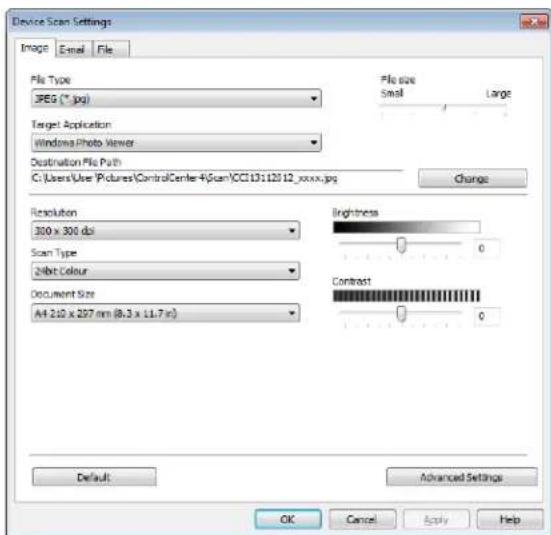
Device Scan Settings Image Email File File Type JPEG (*.jpg) Target Application Windows Photo Viewer Destination File Path C:\Users\User\Pictures\ControlCenter4\Scam\CC13112012_xxxx.jpg Change Resolution 300 x 300 dpi Scan Type 24bit Colour Document Size A4 2.10 x 297 mm (8.3 x 11.7 m) Inghness 0 Contrast 0 Default Advanced Settings OK Cancel Apply HelpThere are three scan functions which you can configure to fit your scanning needs.
To configure each scan function, select the Device Settings tab and then click Device Scan Settings. The Device Scan Settings dialog box will appear.
Image tab
Lets you configure settings for Scan to Image by pressing the SCAN key on your Brother machine.
Choose the settings for File Type, Target Application, Destination File Path, File size, Resolution, Scan Type, Document Size, Brightness and Contrast as needed. Click OK.
If you choose Secure PDF (*.pdf) from the File Type drop-down list, click 🔒 (Set PDF Password). The Set PDF Password dialog box will appear. Type your password in the Password and Re-type Password boxes and then click OK.
NOTE
- Secure PDF (*.pdf) is also available for Scan to E-mail and Scan to File.
- You can change the data compression ratio of the scanned image with File size.
ControlCenter4
E-mail tab
Lets you configure settings for Scan to E-mail by pressing the SCAN key on your Brother machine. Choose the settings for File Type, Destination File Path, File size, Resolution, Scan Type, Document Size, Brightness and Contrast as needed. Click OK.
NOTE
You can change the data compression ratio of the scanned image with File size.
3
File tab
Lets you configure settings for Scan to File by pressing the SCAN key on your Brother machine. Choose the settings for File Type, File Name, Destination Folder, Show Folder, File size and Insert Date in File Name as needed. Click OK.
NOTE
- If Show Folder is checked, the destination of the scanned image will be shown after scanning.
- You can change the data compression ratio of the scanned image with File size.
ControlCenter4
Support tab
This section briefly introduces the Support tab function. For more details of each function, click ? (Help) in ControlCenter4.
Opening ControlCenter Help
3
The ☐ (ControlCenter Help) lets you open the Help file for detailed information about ControlCenter.
1 Select the Support tab.
2 Click ? (ControlCenter Help).
3 The ControlCenter Help top page will appear.
Using Brother Solutions Center
The (Brother Solutions Center) button lets you open the Brother Solutions Center website offering information about your Brother product including FAQs (Frequently Asked Questions), User's Guides, driver updates and tips for using your machine.
1 Select the Support tab.
2 Click (Brother Solutions Center).
3 The Brother Solutions Center website will be shown in your web browser.
Accessing the Brother CreativeCenter
The (Brother CreativeCenter) button lets you access our website for easy online solutions for business and home users.
1 Select the Support tab.
2 Click (Brother CreativeCenter). ControlCenter4 will launch your web browser and then open the Brother CreativeCenter website.
ControlCenter4
Custom tab
This section briefly introduces adding a Custom tab. For more details, click ? (Help).
Creating a Custom tab
You can create up to three customized tabs including up to five customized buttons with your custom settings.
1 Click Configuration and then select Create custom tab.
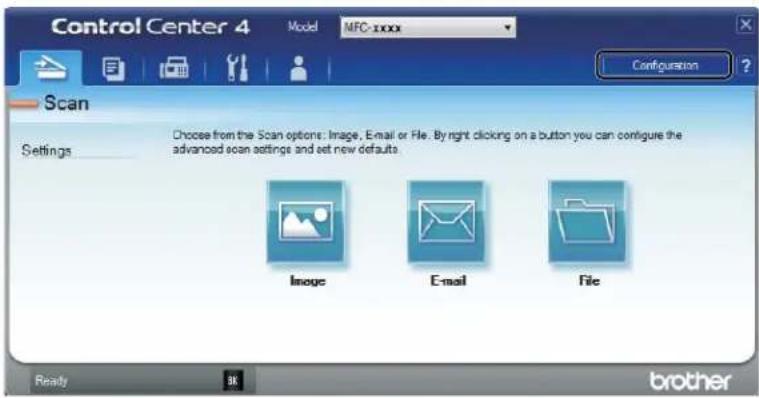
text_image
Control Center 4 Model MFC-xxxx Configuration ? Scan Settings Choose from the Scan options: Image, E-mail or File. By right clicking on a button you can configure the advanced scan settings and set new defaults. Image E-mail File Ready ak brotherControlCenter4
Creating a Custom button
1 Click Configuration and then select Create custom button. Select a button you want to create from the menu. The settings dialog box will appear.
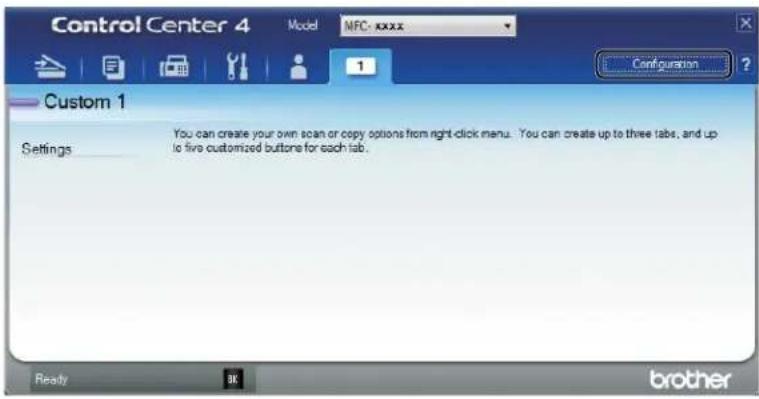
text_image
Control Center 4 Model MFC- xxxx Configuration ? Custom 1 Settings You can create your own scan or copy options from right-click menus. You can create up to three tabs, and up to five customized buttons for each tab. Ready ak brother2 Enter the button name and change the settings if necessary. Click OK. (The setting options vary depending on the created button.)

text_image
Image - ControlCenter4 Button Name Image File Type JPEG (*.jpg) Target Application Windows Photo Viewer Destination File Path C:\Users\User\Pictures\ControlCenter4\scan\CC1261020.12_xxxx.jpg File size Small Large Change Prescan Resolution 300 x 300 dpi Scan Type 2bit Colour Document Size A4 210 x 297 mm (8.3 x 11.7 in) Continuous Scanning Brightness 0 Contrast 0 Show settings dialog before scan. Default Advanced Settings OK Cancel HelpNOTE
You can change or remove the created tab, button or settings. Click Configuration and follow the menu.
Changing the Scan key settings for Scan to PC menu
You can change your machine's SCAN key settings for Scan to PC using ControlCenter4.
1 Open ControlCenter4. Do one of the following:
(For Windows ^® XP, Windows ^® Vista and Windows ^® 7)
Click Start/All Programs/Brother/MFC-XXXX (where MFC-XXXX is your model name)/ControlCenter4.
(For Windows ^® 8)
Click (Brother Utilities), click the drop-down list, and then select your model name (if not already selected). Click SCAN in the left navigation bar, and then click ControlCenter4.
2 Make sure the machine you want to use is selected from the Model drop-down list.
3 Click the Device Settings tab.
4 Click Device Scan Settings.
ControlCenter4
5 Choose the File tab. You can change the default settings.
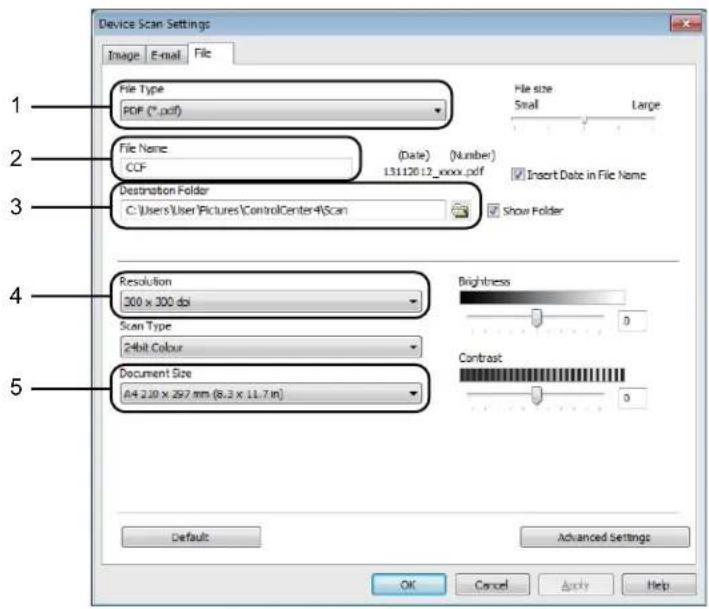
text_image
Device Scan Settings Image E-mail File 1 File Type PDF (*.pdf) 2 File Name CCF (Date) (Number) 131120.12_xxxx.pdf Insert Date in File Name Destination Folder C:\Users\User\Pictures\ControlCenter4Scan Show Folder 4 Resolution 300 x 300 dpi Scan Type 24bit Colour Document Size A4 2.10 x 297 mm (8.3 x 11.7 in) Brightness Contrast Default Advanced Settings OK Cancel Apply Help1 You can choose the file type from the drop-down list.
2 You can enter the file name you want to use for the document.
3 You can save the file to the default folder, or choose your preferred folder by clicking the 📄 (Browse) button.
4 You can choose a scanning resolution from the Resolution drop-down list.
5 You can choose the document size from the Document Size drop-down list.
6 Click OK.
4
Remote Setup (For MFC models)
Remote Setup
The Remote Setup application lets you configure many machine settings. When you start this application, the settings on your machine will be downloaded automatically to your PC and displayed on your PC screen. If you change the settings, you can upload them directly to the machine.
Do one of the following:
(Windows ^® XP, Windows ^® Vista and Windows ^® 7)
Click the Start button, All Programs, Brother, MFC-XXXX and Remote Setup.
(Windows ^® 8)
Click (Brother Utilities), click the drop-down list, and then select your model name (if not already selected). Click Tools in the left navigation bar, and then click Remote Setup.
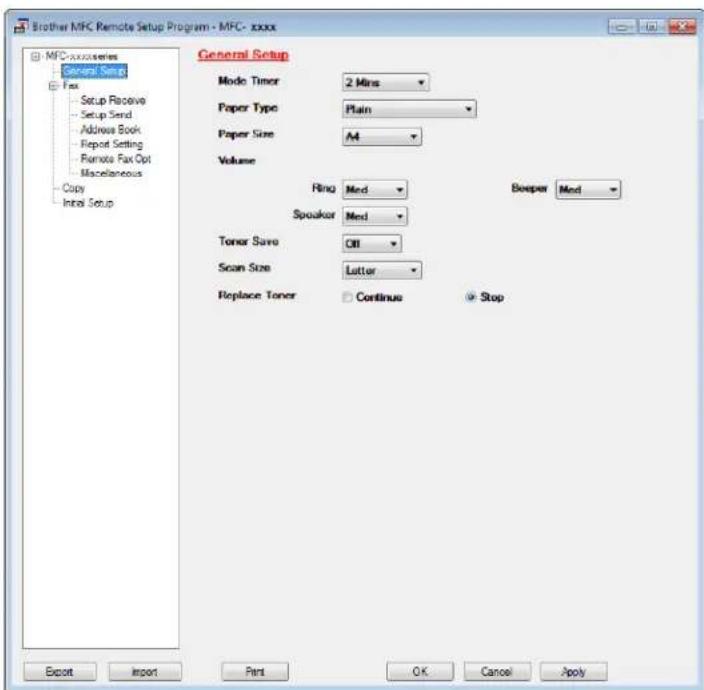
text_image
Brother MFC Remote Setup Program - MFC- xxxx MFC-xxxxxx series General Setup Fax Setup Receive Setup Send Address Book Report Setting Remote Fax Opt Macellaneous Copy Initial Setup General Setup Mode Timer 2 Mins Paper Type Plain Paper Size A4 Volume Ring Med Speaker Med Toner Save Off Scan Size Lutter Replace Toner Continue Stop Beeper Med Export Import Print OK Cancel ApplyOK
Lets you start uploading data to the machine and exit the Remote Setup application. If an error message is displayed, enter the correct data again and then click OK.
Cancel
Lets you exit the Remote Setup application without uploading data to the machine.
Remote Setup (For MFC models)
Apply
Lets you upload data to the machine without exiting the Remote Setup application.
Lets you print the chosen items on the machine. You cannot print the data until it is uploaded to the machine. Click Apply to upload the new data to the machine and then click Print.
Export
Lets you save the current configuration settings to a file.
Import
Lets you read the settings from a file.
NOTE
- You can use the Export button to save your address book or all settings for the machine.
- If you are using Windows® Firewall and you installed MFL-Pro Suite from the installer CD-ROM, the necessary Firewall settings have already been made.
5
Brother PC-FAX Software (For MFC models)
PC-FAX sending
The Brother PC-FAX feature lets you use your PC to send a document from an application as a standard fax. You can send a file created in any application on your PC as a PC-FAX. You can even attach a cover page. All you have to do is set up the receiving parties as members or groups in your PC-FAX Address Book or simply enter the destination address or fax number into the user interface. You can use the Address Book Search feature to quickly find members to send to.
For the latest information and updates on the Brother PC-FAX feature, visit http://solutions.brother.com/.
NOTE
The PC-FAX software can only send Black & White fax documents in A4 size.
Sending a file as a PC-FAX
1 Create a file in any application on your PC.
2 Click File, then Print. The Print dialog box appears:
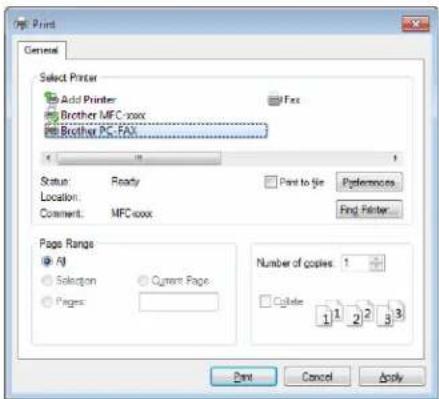
text_image
Print General Select Printer Add Printer Brother MFC-xxx Brother PC-FAX Fax Status: Ready Page Range: • All Selection Current Page Pages Number of copies: 1 2 3 Cable: 1 1 2 2 3 Finish Cancel Apply3 Choose Brother PC-FAX as your printer, and then click Print. The PC-FAX sending dialog box appears:
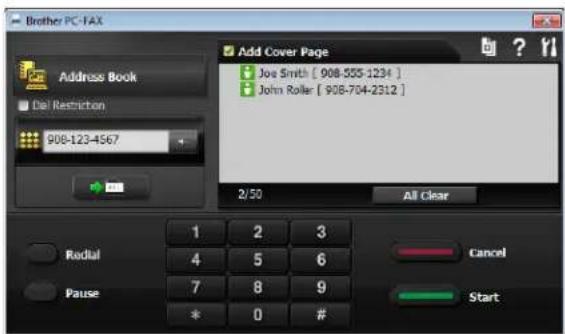
text_image
Brother PC-FAX Address Book Del Restriction 908-123-4567 Add Cover Page Joe Smith [ 908-555-1234 ] John Roller [ 908-704-2312 ] 2/50 All Clear Radial Pause 1 2 3 4 5 6 7 8 9 * 0 # Cancel StartBrother PC-FAX Software (For MFC models)
4 Enter a fax number using one of the following methods:
■ Use the dial pad to enter the number and then click →
- Click the Address Book button, and then choose a member or group from the Address Book.
If you make a mistake, click All Clear to delete all the entries.
5 To include a cover page, check Add Cover Page.
NOTE
You can click to edit a cover page.
6 Click Start to send the fax.
NOTE
- If you want to cancel the fax, click Cancel.
- If you want to redial a number, click Redial to cycle through the last five fax numbers, and then click Start.
Brother PC-FAX Software (For MFC models)
Setting up user information
NOTE
You can access User Information from the PC-FAX sending dialog box by clicking (See Sending a file as a PC-FAX on page 77.)
1 Do one of the following:
(Windows ^® XP, Windows ^® Vista and Windows ^® 7)
Click the Start button, All Programs, Brother, MFC-XXXX, PC-FAX Sending, then PC-FAX Setup.
(Windows ^® 8)
Click (Brother Utilities), click the drop-down list, and then select your model name (if not already selected). Click PC-FAX Send in the left navigation bar, and then click PC-FAX Setup.
The PC-FAX Setup dialog box appears:

text_image
PC-FAX Setup User Information | Sending | Address Book | Name: Company: Department: Phone Number: Fax Number: Email: Address 1: Address 2: OK Cancel② Enter this information to create the fax header and cover page.
3 Click OK to save the User Information.
NOTE
You can set up the User Information separately for each Windows ^® account.
Brother PC-FAX Software (For MFC models)
Sending setup
From the PC-FAX Setup dialog box, click the Sending tab to display the screen below.

text_image
PC-FAX Setup User Information Sending Address Book Dial Setting Outside line access: For example: Dial 3 to access outside line Header Include header OK Cancel■ Outside line access
You can enter a number to access an outside line. This is sometimes required by local PBX telephone systems (for example, dialling 9 to get an outside line in your office). For PC-Fax send, this number will be applied and the Dial Prefix set in the function menu will be ignored.
■ Include header
To add the header information you entered in the User Information tab to the top of your sent faxes, check the Include header box. (See Setting up user information on page 79.)
Brother PC-FAX Software (For MFC models)
Setting up a cover page
From the PC-FAX sending dialog box, click 📄 to access the Brother PC-FAX Cover Page Setup screen. The Brother PC-FAX Cover Page Setup dialog box appears:
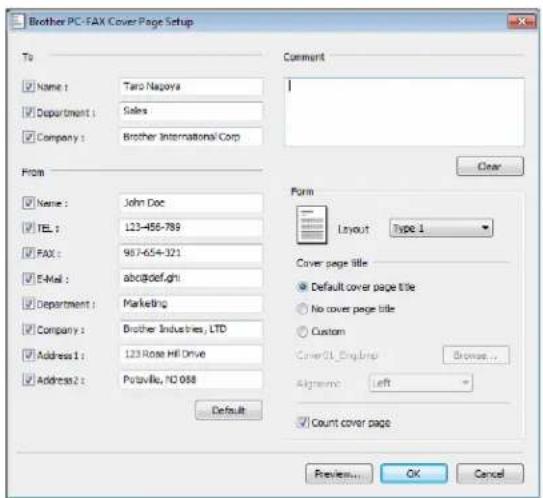
text_image
Brother PC-FAX Cover Page Setup To Name : Taro Nagoya Department : Sales Company : Brother International Corp Comment Form Name : John Doc TEL : 123-456-789 FAX : 957-654-321 E-Mail : abc@def.gh Department : Marketing Company : Brother Industries, LTD Address 1 : 123 Rose Hill Drive Address 2 : Putaville, NC 058 Default Form Layout Type 1 Cover page title Default cover page title No cover page title Custom Cover O1 Eng.brip Browse... Align: Left Count cover page Preview... OK CancelEntering cover page information
NOTE
If you are sending a fax to more than one recipient, the recipient information will not be printed on the cover page.
To
Choose the recipient information you want to add to the cover page.
From
Choose the sender information you want to add to the cover page.
Comment
Enter the comment you want to add to the cover page.
Form
Choose the cover page format you want to use.
■ Cover page title
If you choose Custom, you can put a bitmap file, such as your company logo, on the cover page.
Use the Browse button to choose the BMP file, and then choose the alignment style.
Count cover page
Check Count cover page to include the cover page in the page numbering.
Brother PC-FAX Software (For MFC models)
Address Book
If Outlook ^® , Outlook Express, or Windows ^® Mail is installed on your PC, you can choose in the Select Address Book drop-down list which address book to use for PC-FAX sending.
Click the Browse button to choose the database file.

text_image
PC-FAX Setup User Information | Sending | Address Book | Select Address Book PC-FAX Address Book Addressbook file C:\ProgramData\PCFaxTx address.be2 Browse... OK CancelYou can use the address book you have chosen in the Select Address Book drop-down list by clicking the Address Book button in the FAX Sending dialog box.
Windows Contacts

text_image
Windows Contacts Type name or select from lists Find... Name E-mail Address Joe Smith Michael Evans New Contact Properties Message Recipient Business -> Home -> OK CancelNOTE
- To use your Outlook Address Book, you must select Microsoft ^® Outlook ^® 2000, 2002, 2003, 2007 or 2010 as your default E-mail application.
- For Microsoft ^® Outlook ^® 2010, the 64-bit version is not supported.
Brother PC-FAX Software (For MFC models)
Brother Address Book
1 Do one of the following:
(Windows® XP, Windows® Vista and Windows® 7)
Click the Start button, All Programs, Brother, MFC-XXXX (where XXXX is your model name),
PC-FAX Sending, then PC-FAX Address Book.
(Windows ^® 8)
Click (Brother Utilities), click the drop-down list, and then select your model name (if not already selected). Click PC-FAX Send in the left navigation bar, and then click PC-FAX Address Book.
The Address Book dialog box appears:
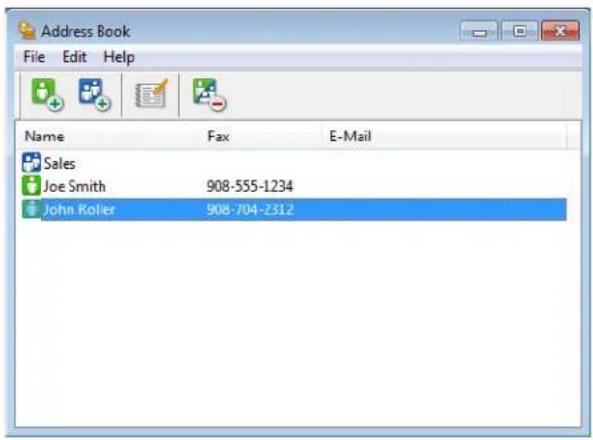
text_image
Address Book File Edit Help Name Fax E-Mail Sales Joe Smith 908-555-1234 John Koller 908-704-2312Brother PC-FAX Software (For MFC models)
Setting up a member in the Address Book
In the Address Book dialog box you can add, edit and delete members and groups.
In the Address Book dialog box, click to add a member.
The Address Book Member Setup dialog box appears:

text_image
Address Book Member Setup Name: Title: Company: Department: Job Title: Street Address: City: State/Province: Zip Code/Post Code: Country/Region: Business Phone: Home Phone: Fax: Mobile Phone: E-Mail: OK CancelIn the Address Book Member Setup dialog box, enter the member's information. Name is a required field. Click OK to save the information.
Brother PC-FAX Software (For MFC models)
Setting up a group for broadcasting
You can create a group to send the same PC-FAX to several recipients at one time.
In the Address Book dialog box, click to create a Group. The Address Book Group Setup dialog box appears:
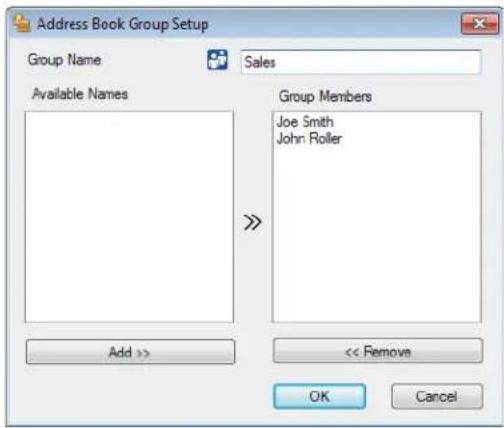
text_image
Address Book Group Setup Group Name Sales Available Names Group Members Joe Smith John Roller Add >> << Remove OK Cancel2 Enter the name of the new group in the Group Name field.
3 In the Available Names box, choose each member to be included in the group, and then click Add >>. Members added to the group appear in the Group Members box.
4 After all the members you want have been added, click OK.
NOTE
You can have up to 50 members in a group.
Editing member information

1 Choose the member or group you want to edit.
2 Click
3 Change the member or group information.
4 Click OK.
Brother PC-FAX Software (For MFC models)
Deleting a member or group
1 Choose the member or group you want to delete.
2 Click
3 When the confirmation dialog box appears, click OK.
Exporting the Address Book
You can export the whole Address Book to an ASCII text file (*.csv). You can also create a vCard for an address book member that can be attached to an outgoing E-mail (a vCard is an electronic business card that contains the sender's contact information). You can also export the Address Book as Remote Setup Dial Data that can be used by the Remote Setup application of your machine. (See Remote Setup on page 75.) If you are creating a vCard, you must first click on the address book member you want to create the vCard for.
Exporting Address Book entries
NOTE
- If you are creating a vCard, you must first choose the member.
- If you choose vCard in step ①, Save as type: will be vCard (*.vcf).
1 Do one of the following:
■ From the Address Book, click File, Export, then Text.
■ From the Address Book, click File, Export, then vCard and go to step 5.
■ From the Address Book, click File, Export, then Remote Setup Dial Data and go to step 5.
2 From the Available Items column, choose the data fields you want to export and then click Add >>.
NOTE
Choose the items in the order you want them listed.
3 If you are exporting to an ASCII file, choose Tab or Comma from Divide Character. This chooses Tab or Comma to separate the data fields.
4 Click OK to save the data.

text_image
Select Items Select items in the order you want them to be listed. You can select the separator character to be inserted between items. Available Items Name Title Company Department Job Title Smart Address City State/Province Zip Code/Post Code Country/Region Business Phone Divide Character Comma Tab Add >> << Remove Selected Items OK CancelBrother PC-FAX Software (For MFC models)
5 Enter the name of the file, and then click Save.
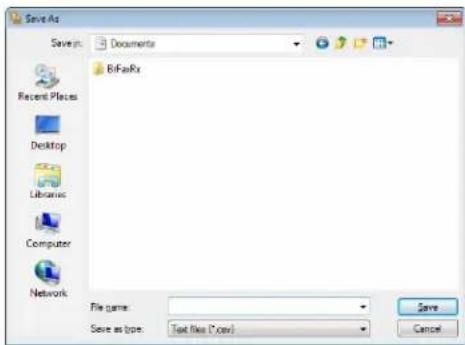
text_image
Save As Savets: Documents BiFasRx Recent Files Desktop Libraries Computer Network File name: Save as type: Text files (*.csv) Save CancelBrother PC-FAX Software (For MFC models)
Importing to the Address Book
You can import ASCII text files (*.csv), vCards (electronic business cards) or Remote Setup Dial Data into your Address Book.
Importing an ASCII text file
1 Do one of the following:
■ From the Address Book, click File, Import, then Text.
■ From the Address Book, click File, Import, then vCard and go to step ⑤.
■ From the Address Book, click File, Import, then Remote Setup Dial Data and go to step 5.
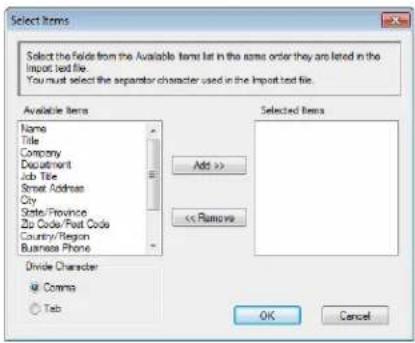
text_image
Select Items Select the Folds from the Available Items list in the rows order they are listed in the Import text file. You must select the separator character used in the Import text file. Available Items Name Title Company Department Job Title Smart Address City State/Province Zip Code/Post Code Country/Region Business Phone Divide Character @ Comma ○ Tab Selected Items Add >> << Remove OK Cancel2 From the Available Items column, choose the data fields you want to import, and click Add >>.
NOTE
From the Available Items list choose the fields in the same order they are listed in the imported text file.
3 Choose Tab or Comma based on the file format you are importing from Divide Character.
4 Click OK to import the data.
5 Enter the name of the file, and then click Open.

text_image
Open Look in: Documents Bifc files Recent Places Desktop Libraries Computer Network File name: Files of type: Text files (*.txt.csv) Open CancelNOTE
If you chose Text file in step ①, Files of type: will be Text files (*.txt; *.csv).
Brother PC-FAX Software (For MFC models)
PC-FAX receiving
The Brother PC-FAX Receive Software lets you view and store faxes on your PC. It is automatically installed when you install the MFL-Pro Suite and works on locally connected machines.
When enabled, your machine will receive faxes in its memory. Once it has received the fax, it will automatically be sent to your PC.
If you turn your PC off, your machine will continue to receive and store your faxes in its memory. The machine LCD will display the number of stored faxes received, for example:
PC Fax Msg:001
When you switch your PC on, the PC-FAX Receive Software automatically transfers your faxes to your PC.
To enable the PC-FAX Receive Software, do the following:
■ Before you use the PC-FAX Receive function, you must choose PC-FAX Receive from the menu on the machine.
■ Run the Brother PC-FAX Receive software on your PC. (We recommend you select the Add to Startup folder check box, so that the software automatically runs and can transfer any faxes on PC startup.)
NOTE
The PC-FAX software can only receive Black & White fax documents.
Enabling PC-FAX Receiving software on your machine
You can optionally enable the Backup Print feature. When enabled, the machine will print a copy of the fax before the fax is sent to the PC or the PC is switched off.
1 Press Menu.
2 Press ▲ or ▼ to choose Fax. Press OK.
3 Press ▲ or ▼ to choose Remote Fax Opt. Press OK.
4 Press ▲ or ▼ to choose PC Fax Receive. Press OK.
5 Press ▲ or ▼ to choose On. Press OK.
6 Confirm the message.
Press OK.
7 Press ▲ or ▼ to choose Backup Print: On or Backup Print: Off. Press OK.
8 Press Stop/Exit.
NOTE
If you choose Backup Print: On, the machine will print the fax, so you will have a copy if there is a power failure before it is sent to the PC. The fax messages are automatically erased from your machine's memory when they have been successfully printed and sent to your PC. When Backup Print is off, your fax messages are automatically erased from your machine's memory when they have been successfully sent to your PC.
Brother PC-FAX Software (For MFC models)
Running the PC-FAX Receiving software on your PC
Do one of the following:
(Windows ^® XP, Windows ^® Vista and Windows ^® 7)
Click the Start button, All Programs, Brother, MFC-XXXX, PC-FAX Receiving and Receive.
(Windows ^® 8)
Click (Brother Utilities), click the drop-down list, and then select your model name (if not already selected). Click PC-FAX Receive in the left navigation bar, and then click Receive.
The PC-FAX icon appears in your PC tasktray.

Brother PC-FAX Software (For MFC models)
Setting up your PC
1 Right-click the PC-FAX

icon on your PC tasktray, and then click PC-Fax Rx Setup.
The PC-Fax Rx Setup dialog box appears:
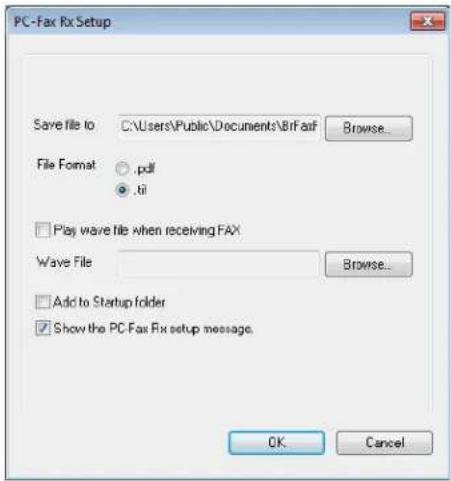
text_image
PC-Fax Rx Setup Save file to C:\Users\Public\Documents\BirFax Browse... File Format .pdf . ti Play wave file when receiving FAX Wave File Browse... Add to Startup folder Show the PC-Fax Rx setup message. OK Cancel2 In Save file to, click the Browse button if you want to change the path where PC-FAX files are saved.
3 In File Format, choose .tif or .pdf as the received document format. The default format is .tif.
4 To play wave files (.wav sound files) when receiving a fax, check Play wave file when receiving FAX, and enter the path of the wave file.
5 To automatically start the PC-FAX receiving software when you start Windows ^® , check Add to Startup folder.
Brother PC-FAX Software (For MFC models)
Viewing new PC-FAX messages
Each time your PC is receiving a PC-FAX, the icon will alternate between . and . Once the fax has
been received, the icon will change to 📄. It will change to 📄 once the received fax has been viewed.
1 Double-click to open the Received Faxes folder.
2 Double-click any new faxes to open and view them.
NOTE
The subject of the received fax shows the received date and time based on your PC clock. (For example 'Fax 20-2-2011 16;40;21.tif'.)
Section II

Apple Macintosh
Printing and Faxing 97
Scanning 113
ControlCenter2 125
Remote Setup (For MFC models) 144
6
Printing and Faxing
Features in the printer driver (Macintosh)
This machine supports Mac OS X v10.6.8, 10.7.x, 10.8.x.
NOTE
- The printer driver for Macintosh is available from the download page for your model on the Brother Solutions Center (http://solutions.brother.com/).
- The screens in this section are from OS X v10.7.x. The screens on your Macintosh will vary depending on your operating system version.
2-sided printing
The supplied printer driver supports 2-sided printing.
Guidelines for printing on both sides of the paper
■ If the paper is thin, it may wrinkle.
■ If the paper is curled, turn over the stack, straighten it and then put it back in the paper tray.
If the paper is not feeding correctly, it may be curled. Remove the paper, straighten it and turn over the stack.
■ When you use the manual 2-sided function, it is possible that there may be paper jams or poor print quality. If there is a paper jam: See User's Guide: Paper Jams. If you have a print quality problem: See User's Guide: Improving the print quality.
Manual 2-sided printing
The machine prints all the even-numbered pages on one side of the paper first. Before reinserting the paper, straighten it well, or you may get a paper jam. Very thin or thick paper is not recommended.
Printing and Faxing
Simultaneous scanning, printing and faxing
Your machine can print from your computer while sending or receiving a fax in memory, or while scanning a document into the computer. Fax sending will not be stopped during the computer printing. However, when the machine is copying or receiving a fax on paper, it pauses the computer printing operation, and then continues printing when copying or fax receiving has finished.
Choosing page setup options
You can set the Paper Size, Orientation and Scale.
From an application such as TextEdit, click File, then Page Setup. Make sure Brother MFC-XXXX (where XXXX is your model name) is chosen in the Format For pop-up menu. You can change the settings for Paper Size, Orientation and Scale, then click OK.
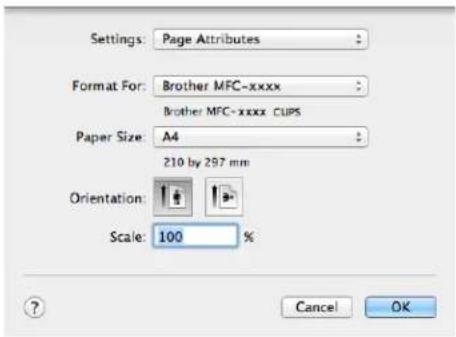
text_image
Settings: Page Attributes Format For: Brother MFC-xxxx Brother MFC-xxxx CUPS Paper Size: A4 210 by 297 mm Orientation: Scale: 100 % Cancel OK
Printing and Faxing
2 From an application such as TextEdit, click File, then Print to start printing.
(For Mac OS X v10.6.8)
For more page setup options, click the disclosure triangle beside the Printer pop-up menu.
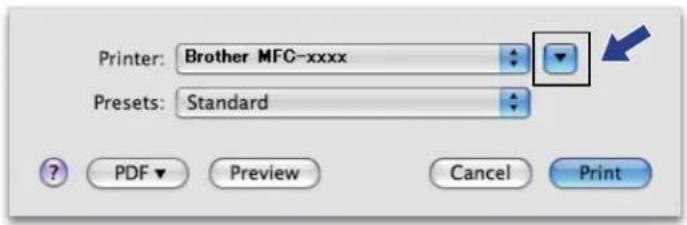
text_image
Printer: Brother MFC-xxxx Presets: Standard PDF Preview Cancel Print
text_image
Printer: Brother MFC-xxxx Presets: Standard Copies: 1 Collated Pages: All From: 1 to: 1 Paper Size: A4 20.99 by 29.70 cm Orientation: TextEdit Print header and footer PDF 1 of 1 Cancel PrintNOTE
You can save the current settings as a preset by choosing Save As from the Presets pop-up menu.
Printing and Faxing
■ (For OS X v10.7.x to v10.8.x)
For more page setup options, click Show Details.
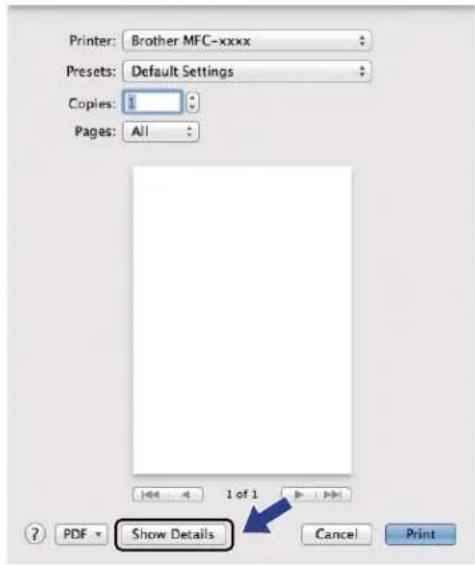
text_image
Printer: Brother MFC-xxxx Presets: Default Settings Copies: 1 Pages: All 1 of 1 PDF Show Details Cancel Print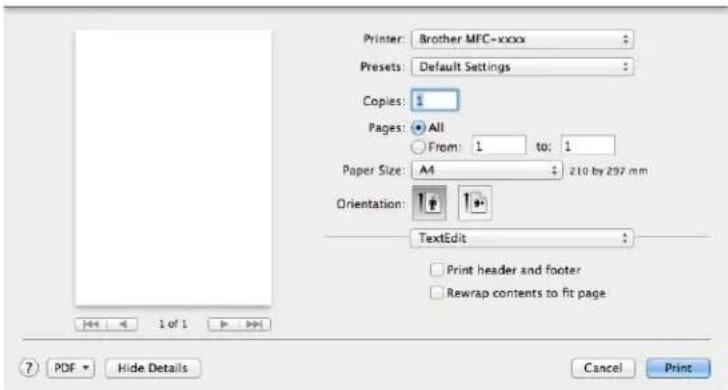
text_image
Printer: Brother MFC-xxxx Presets: Default Settings Copies: 1 Pages: All From: 1 to: 1 Paper Size: A4 210 by 297 mm Orientation: TextEdit Print header and footer Rewrap contents to fit page PDF Hide Details Cancel PrintNOTE
You can save the current settings as a preset by choosing Save Current Settings as Preset from the Presets pop-up menu.
Printing and Faxing
Choosing printing options
To control special printing features, choose the options you want to change from the Print dialog box.

text_image
Printer: Brother MFC-xxxx Presets: Default Settings Copies: 1 Pages: All From: 1 to: 1 Paper Size: A4 210 by 297 mm Orientation: ✓ TextEdit Layout Paper Handling Cover Page Print Settings Send Fax Supply Levels PDF - Hide Details PrintCover Page
You can choose the following cover page settings:
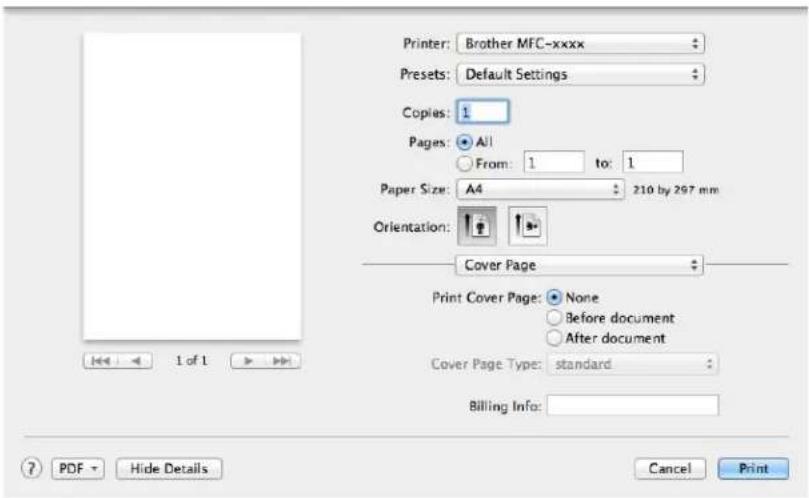
text_image
Printer: Brother MFC-xxxx Presets: Default Settings Copies: 1 Pages: All From: 1 to: 1 Paper Size: A4 210 by 297 mm Orientation: Cover Page Print Cover Page: None Before document After document Cover Page Type: standard Billing Info: 1 of 1 PDF - Hide Details Cancel PrintPrint Cover Page
If you want to add a cover page to your document, use this function.
Cover Page Type
Choose a template for the cover page.
Billing Info
If you want to add the billing information to the cover page, enter text in the Billing Info box.
Printing and Faxing
Layout
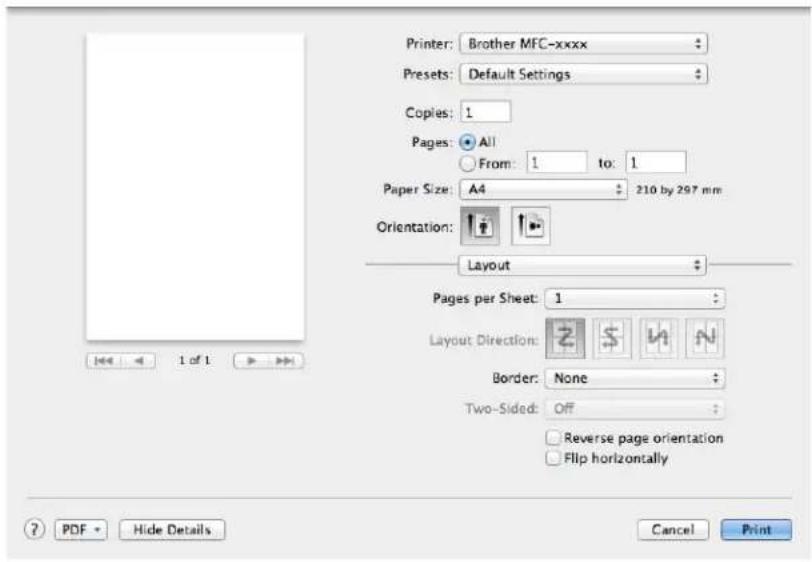
text_image
Printer: Brother MFC-xxxx Presets: Default Settings Copies: 1 Pages: All From: 1 to: 1 Paper Size: A4 210 by 297 mm Orientation: Layout Pages per Sheet: 1 Layout Direction: Border: None Two-Sided: Off Reverse page orientation Flip horizontally PDF Help Details Cancel PrintPages per Sheet
The Pages per Sheet selection can reduce the image size of a page by allowing multiple pages to be printed on one sheet of paper.
Layout Direction
When you specify the pages per sheet, you can also specify the direction of the layout.
Border
If you want to add a border, use this function.
■ Reverse page orientation
Check Reverse page orientation to reverse the data from up to down.
Flip horizontally
Check Flip horizontally to print as a reflection flipped left-to-right.
Printing and Faxing
Print Settings
You can change settings by choosing a setting in the Print Settings list:
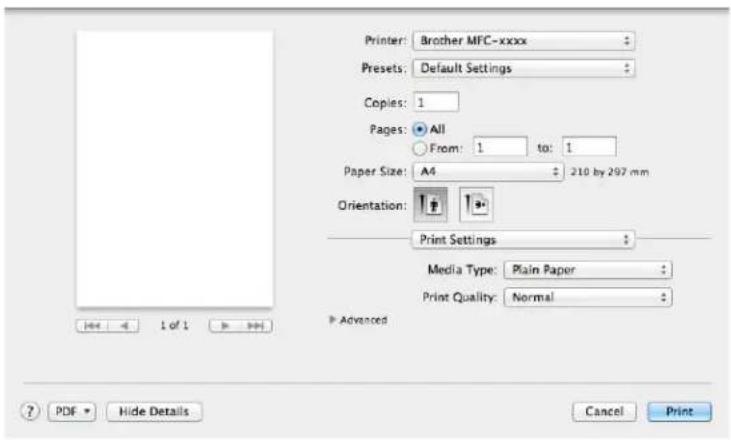
text_image
Printer: Brother MFC-xxxx Presets: Default Settings Copies: 1 Pages: All From: 1 to: 1 Paper Size: A4 210 by 297 mm Orientation: Print Settings Media Type: Plain Paper Print Quality: Normal Advanced PDF Hide Details Cancel PrintMedia Type
You can change the media type to one of the following:
- Plain Paper
• Recycled Paper
Print Quality
You can choose the print quality as follows:
- Draft
- Normal
- Fine
Advanced print settings
When you click the triangle mark (▶) beside Advanced, the advanced print settings appear.
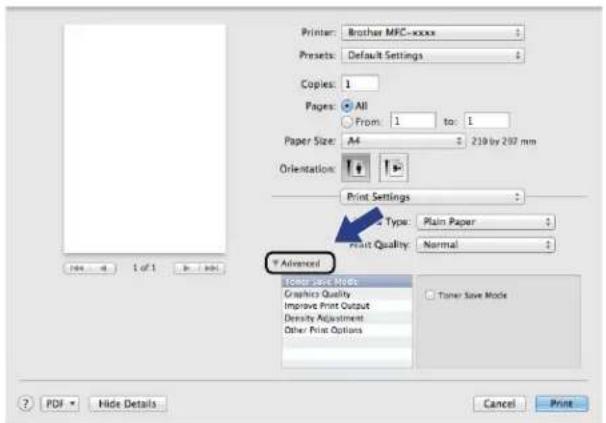
text_image
Printer: Brother MFC-xxxx Presets: Default Settings Copies: 1 Pages: All From: 1 to: 1 Paper Size: A4 239 by 297 mm Orientation: Print Settings Type: Plain Paper Print Quality: Normal Advanced Tuner Save Mode Graphics Quality Improve Print Output Density Adjustment Other Print Options Tuner Save Mode PDF Hide Details Cancel PrintPrinting and Faxing
■ Toner Save Mode
You can conserve toner use with this feature. When you set Toner Save Mode to on, print appears lighter. The default setting is off.
NOTE
- We do not recommend Toner Save Mode for printing Photo or Greyscale images.
- Toner Save Mode is not available when Fine is selected for Print Quality.
■ Graphics Quality
You can change the print quality as follows:
- Graphics
The Graphics mode prioritises contrast. Choose this setting for printing text and figures, such as business and presentation documents. You can represent sharp contrasts between shaded areas.
- Text
This is the best mode for printing text documents.
■ Improve Print Output
This feature allows you to improve a print quality problem.
- Reduce Paper Curl
Choose this setting to reduce paper curl.
NOTE
This operation will decrease the temperature of the machine's fusing process.
- Improve Toner Fixing
Choose this setting to improve toner fixing on paper.
NOTE
This operation will increase the temperature of the machine's fusing process.
■ Density Adjustment
Increase or decrease the print density.
■ Other Print Options
- Skip Blank Page
If Skip Blank Page is checked, the printer driver automatically detects blank pages and excludes them from printing.
Printing and Faxing
2-sided Printing
■ Manual 2-sided
Select Paper Handling.
Choose Even Only and print, and then reload the printed paper into the tray (blank side face up). Choose Odd Only and print.
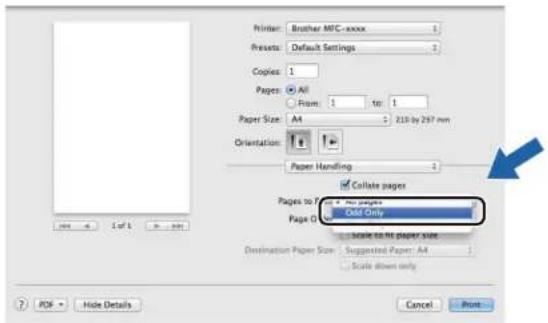
text_image
Printer: Brother MFC-xxxx Presets: Default Settings Copies: 1 Pages: All From: 1 to 1 Paper Size: A4 210 by 297 mm Orientation: Paper Handling Collate pages Pages to: Odd Only Page 0 Scale to the paper size Destination Paper Size: Suggested Paper: A4 Scale shown only PDF: Hide Details Cancel PrintPrinting and Faxing
Removing the Printer driver for Macintosh
1 Log in as an 'Administrator'.
2 From the Apple menu, choose System Preferences. Click Print & Scan ^1 , then choose the printer you want to remove and remove it by clicking the - button.
3 Click Delete Printer.
1 Print & Fax for Mac OS X v10.6.8 users
Printing and Faxing
Status Monitor
The Status Monitor utility is a configurable software tool for monitoring the status of the machine, letting you see error messages at pre-set update intervals. You can check the device status by launching Status Monitor.
1 Run the System Preferences, select Print & Scan ^1 , then choose your machine.
2 Click the Options & Supplies.... Select the Utility tab then click Open Printer Utility. The Status Monitor will open.
1 Print & Fax for Mac OS X v10.6.8 users
Updating the machine's status
If you want the latest machine status while the Status Monitor window is open, click 🤨. You can set the interval at which the software will update the machine status information. Go to the menu bar, Brother Status Monitor and choose Preferences.
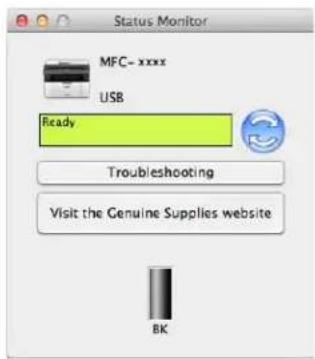
text_image
Status Monitor MFC- xxxx USB Ready Troubleshooting Visit the Genuine Supplies website BKHiding or showing the window
After starting the Status Monitor, you can hide or show the window. To hide the window, go to the menu bar, Brother Status Monitor and choose Hide Status Monitor. To show the window, click the Brother Status Monitor icon in the dock.

text_image
Brother Status MonitorPrinting and Faxing
Quitting the window
Click Brother Status Monitor in the menu bar and then choose Quit Status Monitor from the pop-up menu.
Printing and Faxing
Sending a fax (For MFC models)
You can send a fax directly from a Macintosh application.
NOTE
Fax documents will be sent in Black and White only.
1 Create a document in a Macintosh application.
2 From an application such as TextEdit, click File, then Print.
■ (For Mac OS X v10.6.8)
For more page setup options, click the disclosure triangle beside the Printer pop-up menu.
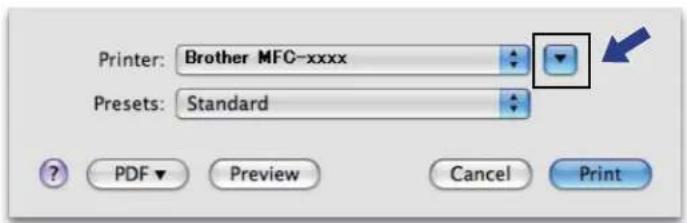
text_image
Printer: Brother MFC-xxxx Presets: Standard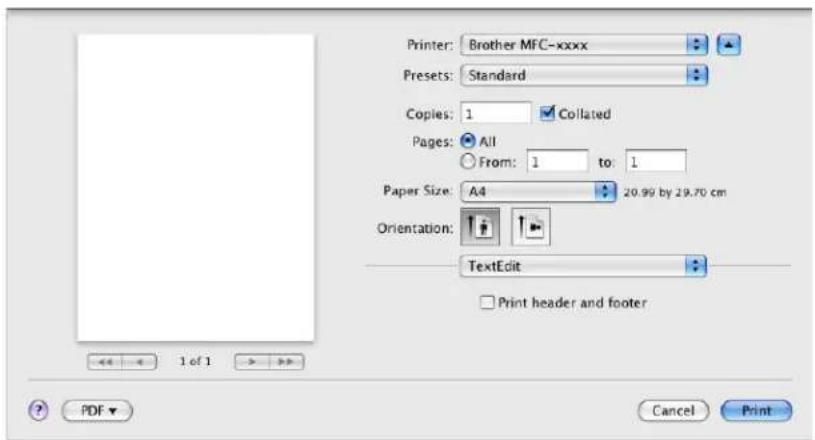
text_image
Printer: Brother MFC-xxxx Presets: Standard Copies: 1 Coliated Pages: All From: 1 to: 1 Paper Size: A4 20.99 by 29.70 cm Orientation: TextEdit Print header and footer 1 of 1 PDF Cancel PrintPrinting and Faxing
■ (For OS X v10.7.x to v10.8.x)
For more page setup options, click Show Details.

text_image
Printer: Brother MFC-xxxx Presets: Default Settings Copies: 1 Pages: All 1 of 1 ? PDF Show Details Cancel Print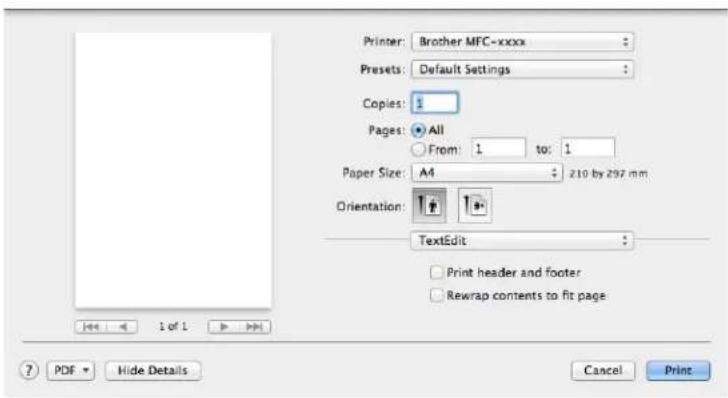
text_image
Printer: Brother MFC-xxxx Presets: Default Settings Copies: 1 Pages: All From: 1 to: 1 Paper Size: A4 210 by 297 mm Orientation: TextEdit Print header and footer Rewrap contents to fit page 1 of 1 ? PDF Hide Details Cancel PrintPrinting and Faxing
3 Choose Send Fax from the pop-up menu.

text_image
Printer: Brother MFC-xxxx Presets: Default Settings Copies: 1 Pages: All From: 1 to: 1 Paper Size: A4 : 210 by 297 mm Orientation: ✓ TextEdit Layout Paper Handling Cover Page Print Settings Send Fax Supply Levels PDF ▼ Hide Details Print4 Choose Facsimile from the Output pop-up menu.
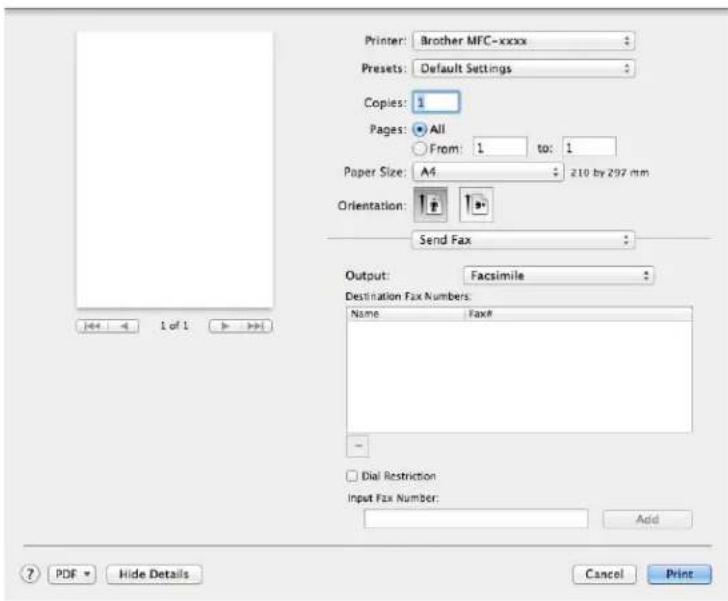
text_image
Printer: Brother MFC-xxxx Presets: Default Settings Copies: 1 Pages: All From: 1 to: 1 Paper Size: A4 210 by 297 mm Orientation: Send Fax Output: Facsimile Destination Fax Numbers: Name Fax# - Dial Restriction Input Fax Number: Add 1 of 1 PDF Hide Details Cancel Print5 Enter a fax number in the Input Fax Number box.
6 Click Add. The fax number is registered in Destination Fax Numbers.
7 Click Print.
Printing and Faxing
NOTE
If you want to send a fax to more than one number, click Add after entering the first fax number. The destination fax numbers will be listed in the dialog box.

text_image
Printer: Brother MFC-xxxx Presets: Default Settings Copies: 1 Pages: All From: 1 to: 1 Paper Size: A4 210 by 297 mm Orientation: Send Fax Output: Facsimile Destination Fax Numbers: Name FaxF 222-111-333 - Oral Restriction Input Fax Number: Add PDF Hide Details Cancel Print7 Scanning
Scanning a document using the ICA driver
You can scan a document using the ICA driver.
NOTE
- The ICA driver for Macintosh is available from the download page for your model on the Brother Solutions Center (http://solutions.brother.com/).
- If you don't see your machine in the Print & Fax or Print & Scan list after installing the ICA driver, you can add your machine by clicking the + button.
- The screens in this section are from OS X v10.7.x. The screens on your Macintosh will vary depending on your operating system version.
1 Connect your Brother machine to the Macintosh using a USB cable.
2 Launch Image Capture.

text_image
Applications Back View Action Arrange Search FAVORITES SHARED DEVICES Launchpad Mail Mission Control QuickTime Player Safari Time Machine Address Book Image Capture System Preferences Lion ApplicationsScanning
3 Select the machine from the list on the left side of the screen.
If you connected the Brother machine and your Macintosh with a USB cable, you will see the machine in the DEVICES area.
NOTE
(For OS X v10.7.x to v10.8.x)
If you cannot see the machine in the DEVICES area, point the mouse pointer over the area, and then click Show.

text_image
Image Custom No labels or counter cancelled.4 Place your document in the ADF (for MFC models) or on the scanner glass.
(For OS X v10.7.x)
If you place the document in the ADF, select Document Feeder for Mode and the size of your document for Scan Size.
If you place the document on the scanner glass, select Flatbed for Mode (for MFC models) and the size of your document for Scan Size.

text_image
Image Action Module Document Reader Scan Size A4 Scan To Returns New Details Scan(For OS X v10.8.x)
If you place the document in the ADF, check Use Document Feeder and select the size of your document.
Scanning
If you place the document on the scanner glass, uncheck Use Document Feeder (for MFC models) and select the size of your document.
NOTE
• (Mac OS X v10.6.8)
When the Detect Separate Items box is unchecked, the document will be scanned as one item and saved as one file. When the Detect Separate Items box is checked, the program will detect each image and save them as separate files. If the program does not automatically crop the document as you want, you can do it manually by dragging the mouse pointer over the portion you want to scan from the dialog box that can be accessed by clicking on Show Details.
- (OS X v10.7.x to v10.8.x)
When the Detect Enclosing Box is selected for Scan Size, the document will be scanned as one item and saved as one file. When the Detect Separate Items is selected for Scan Size, the program will detect each image and save them as separate files. If the program does not automatically crop the document as you want, you can do it manually by dragging the mouse pointer over the portion you want to scan from the dialog box that can be accessed by clicking on Show Details.
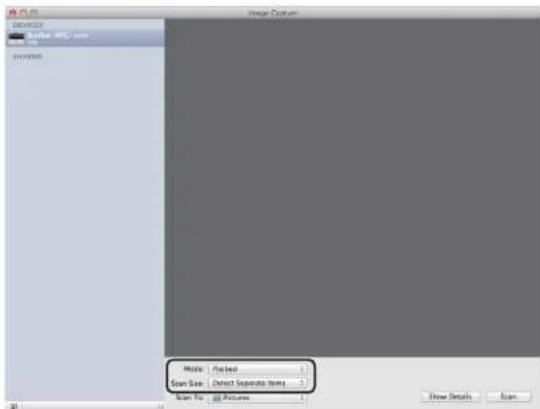
text_image
MODEL File: MFC-103 SNRND Image Format Mode: Selected Scan Size: Detect Separate Items Scan To: Pictures Show Details Scan
Select the destination folder or destination application for Scan To.

text_image
Map10 Map20 Map30 Map40 Map50 Map60 Map70 Map80 Map90 Map100 Map110 Map120 Map130 Map140 Map150 Map160 Map170 Map180 Map190 Map200 Map210 Map220 Map230 Map240 Map250 Map260 Map270 Map280 Map290 Map300 Map310 Map320 Map330 Map340 Map350 Map360 Map370 Map380 Map390 Map400 Map410 Map420 Map430 Map440 Map450 Map460 Map470 Map480 Map490 Map500 Map510 Map520 Map530 Map540 Map550 Map560 Map570 Map580 Map590 Map600 Map610 Map620 Map630 Map640 Map650 Map660 Map670 Map680 Map690 Map700 Map710 Map720 Map730 Map740 Map750 Map760 Map770 Map780 Map790 Map800 Map810 Map820 Map830 Map840 Map850 Map860 Map870 Map880 Map890 Map900 Map910 Map920 Map930 Map940 Map950 Map960 Map970 Map980 Map990 Map1000Scanning
If necessary, you can adjust the following settings in the dialog box by clicking on Show Details. Please note that the item name and assignable value may vary depending on the machine.
■ Scan Mode: Choose Document Feeder or Flatbed.
■ Kind: Choose from Color, Black & White or Text.
■ Resolution: Choose the resolution you want to scan your document at.
■ Use Custom Size (OS X v10.7.x to v10.8.x): Check this box to customize the document size.
■ Scan Size or Size: Select the paper size of the document being scanned from the Document Feeder or the scan area from the Flatbed.
■ Orientation or Rotation Angle: Select the orientation of the document from the Document Feeder or the angle of the scan from the Flatbed.
■ Auto selection (OS X v10.7.x to v10.8.x): If you check Use Custom Size when using the Flatbed, you can choose the scanner driver's automatic detection features.
■ Scan To: Choose the destination folder or destination application.
■ Name: Enter the prefix text used for the name of the scanned image.
■ Format: Select the file format of the scanned data.
■ Create single document (Mac OS X v10.6.8): When you choose PDF for the file format, check this box to save all scanned documents as one PDF file.
■ Combine into single document (OS X v10.7.x to v10.8.x): When you choose PDF or TIFF for the file format, check this box to scan a document as one item and saved as one file.
■ Image Correction: From the manual setting you can adjust Brightness, Contrast (OS X v10.7.x to v10.8.x only), Tint, Temperature, Threshold and Saturation.
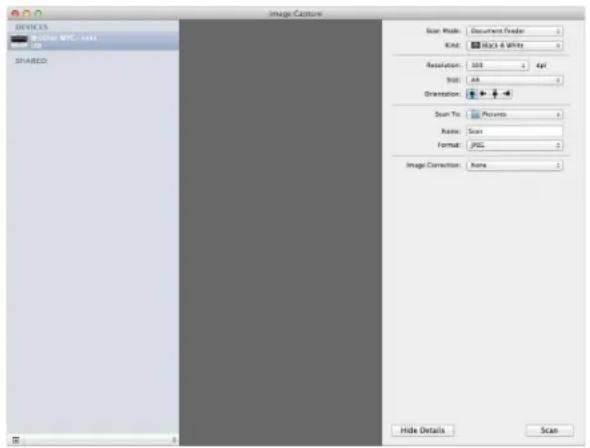
text_image
DEVICES MILKING: MTC - XXXX Name: 100 SHARED Image Capture Scan Mode: Document Finder Kind: Black & White Resolution: 100 dpi Size: 44 Orientation: Scan To: Pictures Name: Scan Format: JPEG Image Correction: None Hide Details Scan6 Click on Scan to start scanning.
Scanning
Choosing your machine from Print & Scan
1 Connect your Brother machine to the Macintosh using a USB cable.
2 Select System Preferences from the Apple Menu.
3 Click Print & Scan (Print & Fax for Mac OS X 10.6.8 users).
4 Select the machine from the list on the left side of the screen and click Open Print Queue.
NOTE
If you do not see the Scan tab on the screen, remove your machine by clicking the - button from the Print & Fax or Print & Scan list. Then add the machine by clicking the + button.
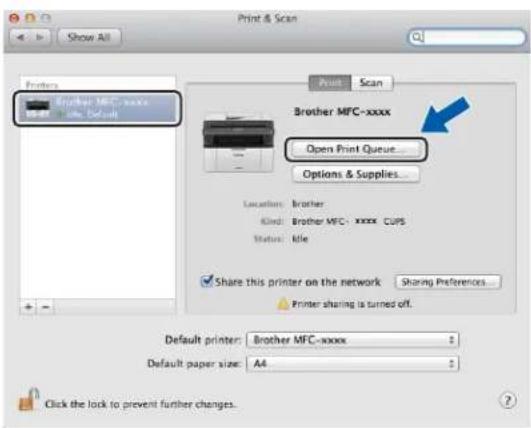
text_image
Print & Scan Show All Printers Brother MFC-xxxx Open Print Queue... Options & Supplies... Location: Brother Kind: Brother MFC - xxxx CUPS Status: Idle Share this printer on the network Sharing Preferences... Printer sharing is turned off. Default printer: Brother MFC-xxxx Default paper size: A4 Click the lock to prevent further changes.5 Click Scanner.

text_image
Brother MFC-xxxx Delete Tools Add Inner Pause Printer Supply Levels Printer Setup Printer Scanner Printer Ready Status Name Sent Completed6 Go to step 4 of Scanning a document using the ICA driver on page 113 to continue. The screens vary depending on the scanning methods you are using.
Scanning
Scanning a document using the TWAIN driver
The Brother machine software includes a TWAIN Scanner driver for Macintosh. You can use the Macintosh TWAIN Scanner driver with any applications that support TWAIN specifications.
When you scan a document, you can either use the ADF (automatic document feeder) (for MFC models) or the scanner glass. For more information on loading the documents: See User's Guide: Loading documents.
NOTE
- The TWAIN driver for Macintosh is available from the download page for your model on Brother Solutions Center (http://solutions.brother.com/).
- The first time you use the Brother TWAIN driver, set it as the default driver. The method of choosing the driver or scanning a document may vary depending on the application you are using.
Scanning a document into your Macintosh
There are two ways in which you can scan a page. You can either use the ADF (automatic document feeder) (for MFC models) or the scanner glass.
Scanning a page
1 Load your document.
2 Start your graphics application, and begin a scan operation.
Scanning
3 If necessary, adjust the following settings in the Scanner Setup dialog box:
1 Resolution
2 Scan Type
3 Document Size
4 Adjust Image
Brightness
Contrast

text_image
Brother TWAIN Resolution x.x.x 200 x 200 dpi Scan Type 24bit Color Document Size A4 210 x 297 mm Width: 210 Unit: mm Height: 297 inch Adjust Image Scanning Area ? Default Cancel Start PreScan4 Click Start.
When scanning has finished, the image appears in your graphics application.
Scanning
Pre-Scanning to crop a portion you want to scan
You can preview your image and crop unwanted portions before scanning by using the PreScan button.
When you are satisfied with the preview, click the Start button in the Scanner Setup dialog box to scan the image.
1 Load your document.
2 Start your graphics application, and begin a scan operation.
3 Click PreScan.
The image is scanned into your Macintosh and appears in the Scanning Area.
4 Drag the mouse pointer over the portion you want to scan.
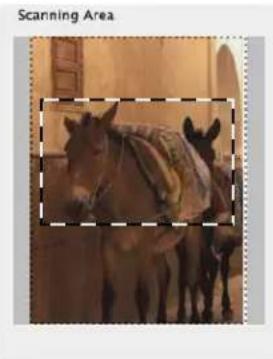
natural_image
Exterior view of a horse with a decorated saddle, surrounded by other animals (no signage or text)5 Load your document again.
NOTE
If you put the document on the scanner glass in step ①, skip this step.
6 If necessary, adjust the settings for Resolution, Scan Type, Brightness and Contrast in the Scanner Setup dialog box.
7 Click Start. This time only the chosen area of the document appears in the application window.
8 In your application window, use the options available to refine the image.
Settings in the Scanner window
Resolution
You can change the scanning resolution from the Resolution pop-up menu. Higher resolutions take more memory and transfer time, but produce a finer scanned image. The following table shows the resolutions you can choose and the available colour options.
| Resolution Black & White/ | Gray (Error Diffusion) | 256 Color True Gray/24bit | Color |
| 100 x 100 dpi Yes Yes Yes | |||
| 150 x 150 dpi Yes Yes Yes | |||
| 200 x 200 dpi Yes Yes Yes | |||
| 300 x 300 dpi Yes Yes Yes | |||
| 400 x 400 dpi Yes Yes Yes | |||
| 600 x 600 dpi Yes Yes Yes | |||
| 1200 x 1200 dpi Yes No Yes | |||
| 2400 x 2400 dpi Yes No Yes | |||
| 4800 x 4800 dpi Yes No Yes | |||
| 9600 x 9600 dpi Yes No Yes | |||
| 19200 x 19200 dpi Yes No Yes |
Scan Type
Black & White
Use for text or line art images.
Gray (Error Diffusion)
Use for photographic images or graphics. (Error Diffusion is a method for creating simulated grey images without using true grey dots. Black dots are put in a specific pattern to give the grey appearance.)
True Gray
Use for photographic images or graphics. This mode is more exact because it uses up to 256 shades of grey.
256 Color
Uses up to 256 colours to scan the image.
Scanning
24bit Color
Uses up to 16.8 million colours to scan the image.
Although using 24bit Color creates an image with the most accurate colour reproduction, the image file size will be about three times larger than a file created using the 256 Color option. It requires the most memory and has the longest transfer time.

text_image
Brother TWAIN Res: Black & White Sca: Gray (Error Diffusion) True Gray ✓ 24bit Color Document Size A4 210 x 297 mm Width: 210 Unit: mm Height: 297 inch Adjust Image Scanning Area Default Cancel Start PreScanDocument Size
Choose one of the following document sizes:
A4 210 x 297 mm
■ JIS B5 182 x 257 mm
■ Letter 215.9 x 279.4 mm
■ Legal 215.9 x 355.6 mm (For MFC models)
A5 148 x 210 mm
JIS B6 128 x 182 mm
A6 105 x 148 mm
■ Executive 184.1 x 266.7 mm
■ Business Card 90 x 60 mm
To scan business cards, choose the Business Card size, and then place the business card face down at the top left of the scanner glass.
10x15cm
13×20cm
9×13cm
13×18cm
■ Postcard 1 100 x 148 mm
■ Postcard 2 (Double) 148 x 200 mm
Custom
(For DCP models) User adjustable from 8.9 × 8.9 mm to 215.9 × 297 mm
(For MFC models) User adjustable from 8.9 × 8.9 mm to 215.9 × 355.6 mm
Scanning
After you choose a custom size, you can adjust the scanning area. Click and hold the mouse button as you drag the mouse to crop the image.
Width: Enter the custom width.
Height: Enter the custom height.
NOTE
- (For MFC models) You can load four sizes of document from the ADF: A4, Letter, Legal and Folio. When you scan smaller size documents, use the scanner glass.
- (For MFC models) You can scan a page of Folio size paper with ADF. Choose Legal size.
Adjusting the Image
Brightness
Adjust the setting (-50 to 50) to get the best image. The default value is 0, representing an average, and is usually suitable for most images.
You can set the Brightness level by dragging the slider to the right or left to lighten or darken the image. You can also enter a value in the box to set the level.

text_image
Custom Brightness 0 Contrast 0 ColorSync Intent (Perceptual (Images) ) Scanner Profile Brother sRGB Scanner Reduce Noise Cancel OKIf the scanned image is too light, set a lower Brightness level and scan the document again.
If the image is too dark, set a higher Brightness level and scan the document again.
NOTE
The Brightness setting is not available for the 256 Color option.
Contrast
You can increase or decrease the contrast level by moving the slider to the left or right. An increase emphasizes dark and light areas of the image, while a decrease reveals more detail in grey areas. You can also enter a value in the box to set the Contrast.
NOTE
The Contrast setting is only available if you have set Scan Type to Gray (Error Diffusion), True Gray or 24bit Color.
Scanning
■ Reduce Noise
You can improve and enhance the quality of your scanned images with this selection. The Reduce Noise setting is available when using 24bit Color and scan resolutions of 300 × 300 dpi, 400 × 400 dpi or 600 × 600 dpi.
When scanning photographs or other images for use in a word processor or other graphics application, try different settings for the Resolution, Scan Type, Brightness and Contrast to see which setting best suits your needs.
8
ControlCenter2
NOTE
- ControlCenter2 is available from the download page for your model on the Brother Solutions Center (http://solutions.brother.com/).
- The features available to you in ControlCenter2 may vary depending on the model number of your machine.
Using ControlCenter2
ControlCenter2 is a software utility that lets you quickly and easily access your often used applications. Using ControlCenter2 eliminates the need to manually launch specific applications. The icon will appear on the
menu bar. To open the ControlCenter2 window, click and choose Open. ControlCenter2 has the following operations:
1 Scan directly to a file, E-mail or graphics application of your choice.
2 Custom Scan buttons let you configure a button to meet your own application needs.
3 Access the Copy features available via your Macintosh and access the PC-FAX applications available for your device. (Mac OS X v10.6.8)
4 Access the settings available to configure your device.
5 Choose which machine ControlCenter2 will connect with from the Model pop-up menu.
Open the Device Selector window by choosing Other... from the Model pop-up menu.
6 You can also open the configuration window for each function by clicking the Configuration button.
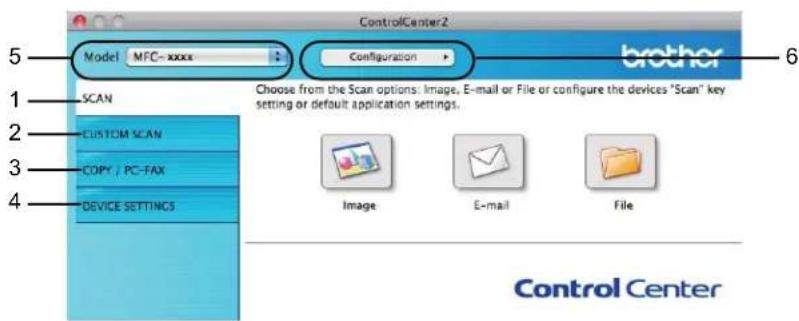
text_image
ControlCenter2 Model MFC-xxxx Configuration brother 1 SCAN Choose from the Scan options: Image, E-mail or File or configure the devices "Scan" key setting or default application settings. 2 CUSTOM SCAN 3 COPY / PC-FAX 4 DEVICE SETTINGS Image E-mail File Control CenterControlCenter2
Turning the AutoLoad feature off
If you do not want ControlCenter2 to run automatically each time you start your Macintosh, do the following.
1 Click the ControlCenter2 icon in the menu bar and choose Preferences. The ControlCenter2 preference window appears.
2 Uncheck Start ControlCenter on computer startup.
3 Click OK to close the window.

text_image
ControlCenter2 Preferences Start ControlCenter on computer startup Open the main window on ControlCenter startup Show splash screen on ControlCenter startup Cancel OKNOTE
The ControlCenter2 application icon is in Macintosh HD/Applications/Brother.
SCAN
There are three scan buttons for the Scan to Image, Scan to E-mail and Scan to File operations.
■ Image (Default: Apple Preview)
Lets you scan a page directly into any graphic viewer/editor application. You can choose the destination application, such as Adobe ^® Photoshop ^® or any kind of image editing application on your Macintosh.
■ E-mail (Default: Apple Mail)
Lets you scan a page or document directly into an E-mail application as a standard attachment. You can choose the file type and resolution for the attachment.
File
Lets you scan directly to a disk file. You can change the file type and destination folder, as needed.
ControlCenter2 gives you the ability to configure the SCAN key on your machine and the ControlCenter2 Software button for each scan feature. To configure the SCAN key on your machine choose the
Device Button (click each of the ControlCenter buttons while holding down the Ctrl key and choose
Device Button) in the configuration menu for each of the SCAN buttons. To configure the Software button in ControlCenter2, choose the Software Button tab (click each of the ControlCenter buttons while holding down the Ctrl key and choose Software Button) in the configuration menu for each of the SCAN buttons.
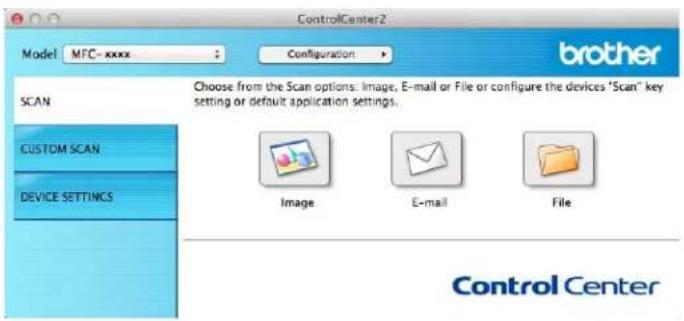
text_image
ControlCenter2 Model MFC-xxxx Configuration brother SCAN Choose from the Scan options: Image, E-mail or File or configure the devices 'Scan' key setting or default application settings. CUSTOM SCAN DEVICE SETTINGS Image E-mail File Control CenterFile types
You can choose from the following list of file types for attachments or for saving to a folder. Choose from the pop-up menu the type of file you want the scanned images to be saved as.
For Image, E-mail and File
■ Windows Bitmap (*.bmp)
■ JPEG (*.jpg) - Recommended for most users when scanning pictures.
TIFF (*.tif)
TIFF Multi-Page (*.tif)
■ Portable Network Graphics (*.png)
■ PDF (*.pdf) - Recommended for scanning and sharing documents.
■ High Compression PDF (*.pdf) ^1
- Secure PDF (*.pdf)
In order to save the document as a High Compression PDF, you must set the Resolution to 300 x 300 dpi and Scan Type to True Gray or 24bit Color. In addition, Show Scanner Interface cannot be used.
NOTE
- If you set the file type to TIFF or TIFF Multi-Page, you can choose Uncompressed or Compressed.
- When you use the scanner glass to scan a multiple page document, check Continuous Scanning and follow the on-screen instructions.
Document Size
You can choose the document size from the pop-up menu. If you choose a "1 to 2" document size, such as 1 to 2 (A4), the scanned image will be divided into two A5 size documents.
ControlCenter2
Advanced Settings
You can configure advanced settings. Click the Advanced Settings button in the scan settings dialog box.
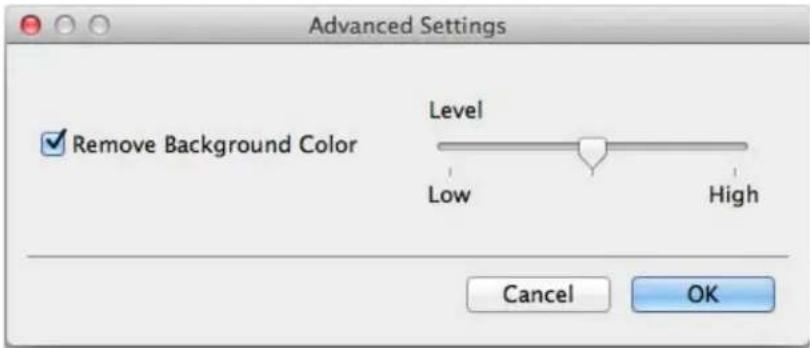
text_image
Advanced Settings ✓ Remove Background Color Level Low High Cancel OK■ Remove Background Color
Removes the base colour of documents to make the scanned data more recognizable. When you use this function, you can select the level from 3 settings: high, medium, and low.
ControlCenter2
Image
The Scan to Image feature lets you scan an image directly into your graphics application for image editing.
1 Select the SCAN tab.
2 Click (Image).
The Scan to Image dialog box will appear.
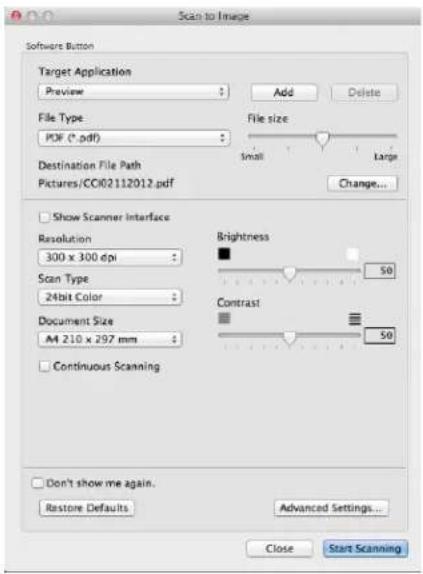
text_image
Scan to Image Software Button Target Application Preview Add Delete File Type PDF (*.pdf) File size Small Large Destination File Path Pictures/CCI02112012.pdf Change... Show Scanner Interface Resolution 300 x 300 dpi Scan Type 24bit Color Document Size M: 210 x 297 mm Continuous Scanning Brightness 50 Contrast 50 Don't show me again. Restore Defaults Advanced Settings... Close Start Scanning3 You can configure the scan settings.
To scan and then crop a portion of a page after pre-scanning the document, check the Show Scanner Interface check box.
■ To change the application that you want to use, choose the appropriate application from the Target Application pop-up menu. You can add an application to the list by clicking Add. If you want to delete an application, click Delete.
4 Click Start Scanning. Your default application will start and display the image.
NOTE
If you choose Secure PDF (*.pdf) from the File Type list, the Set PDF Password dialog box will appear. Type your password in the Password and Re-type Password boxes, and then click OK. You can also choose Secure PDF (*.pdf) for Scan to E-mail and Scan to File.
The Scan to E-mail feature lets you scan a document to your E-mail application, so you can send the scanned document as an attachment.
1 Select the SCAN tab.
② Click (E-mail).
The Scan to E-mail dialog box will appear.
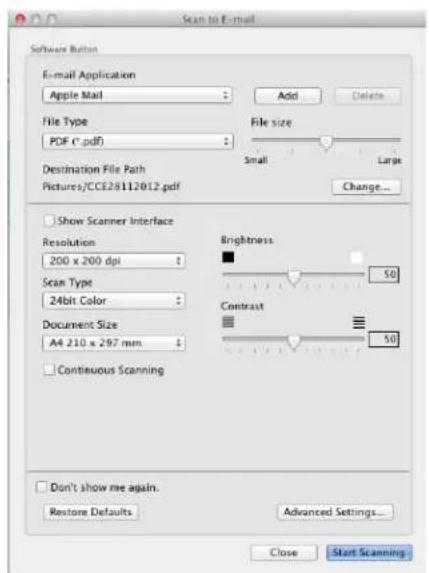
text_image
Scan to E-mail Software Button E-mail Application Apple Mail File Type PDF (*.pdf) Destination File Path Pictures/CC28112012.pdf Add Delete File size Small Large Change... Show Scanner Interface Resolution 200 x 200 dpi Scan Type 24bit Color Document Size A4 210 x 297 mm Continuous Scanning Brightness 50 Contrast 50 Don't show me again. Restore Defaults Advanced Settings... Close Start Scanning3 You can configure the scan settings.
To scan and then crop a portion of a page after pre-scanning the document, check the Show Scanner Interface check box.
■ To change the E-mail application that you want to use, choose the appropriate application from the E-mail Application pop-up menu. You can add an application to the list by clicking Add ^1 . If you want to delete an application, click Delete.
4 Click Start Scanning.
Your default E-mail application will start and the image will be attached to a new E-mail.
NOTE
The Scan to E-mail feature does not support Webmail services.
Use the Scan to Image or Scan to File feature to scan a document or picture, and then attach the file of the scanned data to an E-mail message.
File
The Scan to File button lets you scan an image to a folder on your hard disk in a supported file format. Therefore, this feature allows you to easily archive your paper documents.
1 Select the SCAN tab.
2 Click (File).
The Scan to File dialog box will appear.
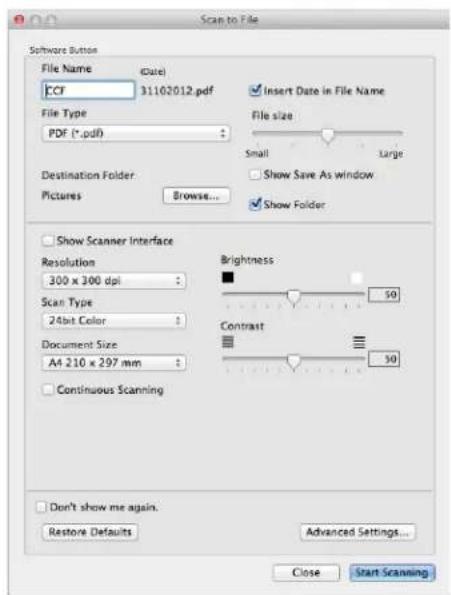
text_image
Scan to File Software Button File Name (Date) ECF 31102012.pdf File Type PDF (*.pdf) Insert Date in File Name File size Small Large Destination Folder: Show Save As window Pictures Browse... Show Folder Show Scanner Interface Resolution 300 x 300 dpi Scan Type 24bit Color Document Size A4 210 x 297 mm Continuous Scanning Brightness 50 Contrast 50 Don't show me again. Restore Defaults Advanced Settings... Close Start Scanning3 You can configure the scan settings.
To scan and then crop a portion of a page after pre-scanning the document, check the Show Scanner Interface check box.
■ To change the file name, enter the file name you want to use for the document (up to 100 characters) in the File Name box. When you want to add the date, check Insert Date in File Name. A sequential number will be added when a file with the same name already exists.
- Choose the file type for the saved image from the File Type pop-up menu. You can save the file to the default folder, or choose your preferred folder by clicking Browse.
■ To show where the scanned image is saved when scanning is finished, check the Show Folder check box. If you want to specify the destination of the scanned image every time, check the Show Save As window check box.
4 Click Start Scanning.
The image will be saved in the folder you have chosen.
ControlCenter2
CUSTOM SCAN
There are four buttons which you can configure to fit your scanning needs.
To customize a button, click the button while holding down the Ctrl key, and the configuration window appears. There are three scan functions: Scan to Image, Scan to E-mail and Scan to File.
- Scan to Image
Lets you scan a page directly into any image viewer/editor software. You can choose any image editor application on your Macintosh as a destination.
Scan to E-mail
Attaches the scanned images to an E-mail message. You can also choose the file attachment type and create a quick send list of E-mail addresses chosen from your E-mail address book.
Scan to File
Lets you save a scanned image to any folder on a local or network hard disk. You can also choose the file type to be used.

text_image
ControlCenter2 Model MFC- xxxx Configuration brother SCAN CUSTOM SCAN DEVICE SETTINGS Custom scan offers four additional Scan buttons that can be renamed and customized to scan to your choice of application. Custom1 Custom2 Custom3 Custom4 Control Center
File types
You can choose the file type to save the scanned images. For details, see File types on page 128.
Document Size
You can choose the document size from the pop-up menu. If you choose a "1 to 2" document size, such as 1 to 2 (A4), the scanned image will be divided into two A5 size documents.
Advanced Settings
You can configure advanced settings. For details, see Advanced Settings on page 129.
User-defined button
To customize a button, click the button while holding down the Ctrl key, and the configuration window appears. Follow these guidelines for button configuration.
ControlCenter2
Scan to Image
General tab
Enter a name in Name for Custom (up to 30 characters) to create the button name.
Choose the type of scan from the Scan Action field.

text_image
CUSTOM SCAN1 General Settings Name for Custom1 Custom1 Scan Action • Scan to Image ○ Scan to E-mail ○ Scan to File Cancel OKSettings tab
Choose the Target Application, File Type, Resolution, Scan Type, Document Size, Continuous Scanning, Show Scanner Interface, Brightness and Contrast settings.

text_image
CUSTOM SCAN1 General Settings Target Application Preview File Type PDF (*.pdf) Destination File Path Pictures/CCI31102012.pdf Add Delete File size Small Large Change... Show Scanner Interface Resolution 300 x 300 dpi Scan Type 24bit Color Document Size A4 210 x 297 mm Continuous Scanning Brightness 50 Contrast 50 Show settings dialog before scan. Restore Defaults Advanced Settings... Cancel OKControlCenter2
If you choose Secure PDF (*.pdf) from the File Type list, the Set PDF Password dialog box appears. Type your password in the Password and Re-type Password boxes and then click OK.
NOTE
Secure PDF (*.pdf) is also available for Scan to E-mail and Scan to File.
ControlCenter2
Scan to E-mail
General tab
Enter a name in Name for Custom (up to 30 characters) to create the button name.
Choose the type of scan from the Scan Action field.

text_image
CUSTOM SCANS General Settings Name for Custom3 Custom3 Scan Action ○ Scan to Image ● Scan to E-mail ○ Scan to File Cancel OKSettings tab
Choose the E-mail Application, File Type, Resolution, Scan Type, Document Size, Continuous Scanning, Show Scanner Interface, Brightness and Contrast settings.

text_image
CUSTOM SCAN2 General Settings E-mail Application Apple Mail File Type PDF (*.pdf) Destination File Path Pictures/CCE27112012.pdf Add Delete File size Small Large Change... Show Scanner Interface Resolution: 200 x 200 dpi Scan Type 24bit Color Document Size A4 210 x 297 mm Continuous Scanning Brightness 50 Contrast 50 Show settings dialog before scan. Restore Defaults Advanced Settings... Cancel OKNOTE
Webmail services are not supported by Scan to E-mail.
ControlCenter2
Scan to File
General tab
Enter a name in Name for Custom (up to 30 characters) to create the button name.
Choose the type of scan from the Scan Action field.
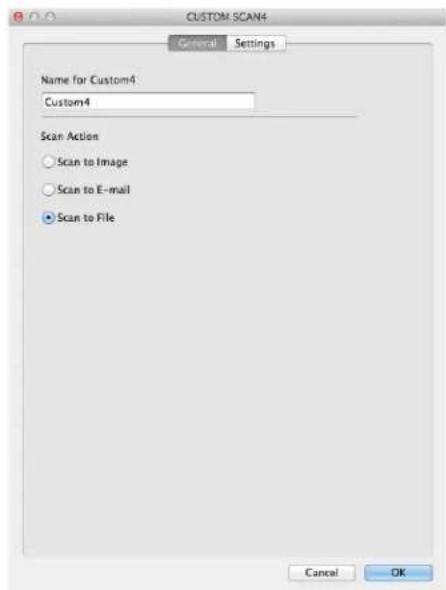
text_image
CUSTOM SCAN4 General Settings Name for Custom4 Custom4 Scan Action ○ Scan to Image ○ Scan to E-mail ● Scan to File Cancel OKControlCenter2
Settings tab
Choose the file format from the File Type pop-up menu. Save the file to the default folder or choose your preferred folder by clicking the Browse button.
Choose the Resolution, Scan Type, Document Size, Continuous Scanning, Show Scanner Interface, Brightness and Contrast settings and enter the file name if you want to change it.
If you want to specify the destination of the scanned image, check Show Save As window.
If you want to scan and then crop a portion of a page after pre-scanning the document, check the Show Scanner Interface box.
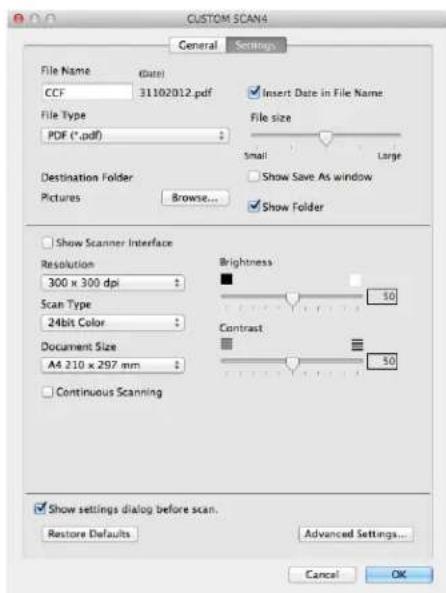
text_image
CUSTOM SCAN4 General Settings File Name (Date) CCF 31102012.pdf File Type PDF (*.pdf) Insert Date in File Name File size smail Large Show Save As window Show Folder Destination Folder Pictures Browse... Show Scanner Interface Resolution 300 x 300 dpi Scan Type 24bit Color Document Size A4 210 x 297 mm Continuous Scanning Brightness 50 Contrast 50 Show settings dialog before scan. Restore Defaults Advanced Settings... Cancel OKControlCenter2
COPY / PC-FAX Sending (Mac OS X v10.6.8, PC-FAX for MFC models only)
COPY - Lets you use your Macintosh and any printer driver for enhanced copy operations. You can scan a page on the machine and print the copies using any of the features of the machine's printer driver, or you can direct the copy output to any standard printer driver installed on your Macintosh.
PC-FAX - Lets you scan a page or document and automatically send the image as a fax from the Macintosh.
NOTE
PC-FAX Receiving is not available for Macintosh.
You can configure your preferred settings on up to four buttons.
The Copy1-Copy4 buttons can be customized to let you use advanced copy and fax functions such as N in 1 printing.

text_image
ControlCenter2 Model MFC-xxxx Configuration brother SCAN CUSTOM SCAN COPY / PC-FAX DEVICE SETTINGS Access the Copy features via your computer. You can use the features of the Printer driver to make copies or set Facsimile as the output device. Copy1 Copy2 Copy3 Copy4 Control Center
To use the Copy buttons, configure the printer driver by clicking the button while holding down the Ctrl key.
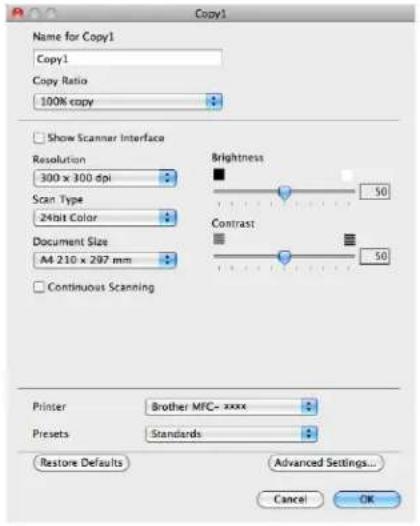
text_image
Copy1 Name for Copy1 Copy1 Copy Ratio 100% copy Show Scanner Interface Resolution 300 x 300 dpi Scan Type 24bit Color Document Size A4 210 x 297 mm Continuous Scanning Brightness 50 Contrast 50 Printer Brother MFC- xxxx Presets Standards Restore Defaults Advanced Settings... Cancel OKEnter a name in Name for Copy (up to 30 characters).
Choose the Copy Ratio, Resolution, Scan Type, Document Size, Continuous Scanning, Show Scanner Interface, Brightness and Contrast settings to be used.
ControlCenter2
Before finishing the Copy button configuration, select the Printer. Then choose your print settings from the Presets pop-up menu, and click OK to close the dialog box. Clicking the configured copy button opens the print settings.
For more options click the disclosure triangle beside the Printer pop-up menu.
To copy, click the Print button.
To PC-Fax, click the disclosure triangle beside the Printer pop-up menu and then choose Send Fax from the pop-up menu. (See Sending a fax (For MFC models) on page 109.)

text_image
Printer: Brother MFC-xxxx Presets: Standard PDF Preview Cancel Print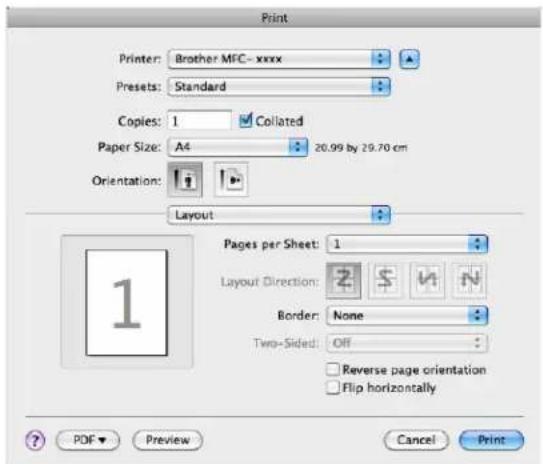
text_image
Print Printer: Brother MFC- xxxx Presets: Standard Copies: 1 Collated Paper Size: A4 20.99 by 29.70 cm Orientation: Layout Pages per Sheet: 1 Layout Direction: Border: None Two-Sided: Off Reverse page orientation Flip horizontally ? PDF Preview Cancel PrintControlCenter2
DEVICE SETTINGS
You can configure or check the machine settings.
■ Remote Setup (For MFC models)
Lets you open the Remote Setup application. (See Remote Setup (For MFC models) on page 144.)
■ Address Book (For MFC models)
Lets you open the Set Address Book window of Remote Setup. (See Remote Setup (For MFC models) on page 144.)
Status Monitor
Allows you to open the Status Monitor Utility.

text_image
ControlCenter2 Model MFC- xxxx Configuration brother SCAN CUSTOM SCAN DEVICE SETTINGS Access device settings. Remote Setup Address Book Status Monitor Control CenterControlCenter2
Remote Setup (For MFC models)
The Remote Setup button opens the program window; allowing you to configure the settings of the machine.
NOTE
For details, see Remote Setup (For MFC models) on page 144.

text_image
Brother MFC Remote Setup Program MFC-xxxx General Setup Fax Setup Receive Setup Send Address Book Report Setting Remote Fax Opt Miscellaneous Copy Initial Setup General Setup Mode Timer 2 Mins Paper Type Plain Paper Size A4 Volume Ring Med Beeper Med Speaker Med Toner Save Off Scan Size A4 Replace Toner Continue Stop Export Import Prev OK Cancel ApplyControlCenter2
Address Book (For MFC models)
The Address Book button lets you open the Address Book window in the Remote Setup application, so you can easily register or change the Address Book numbers from your Macintosh.
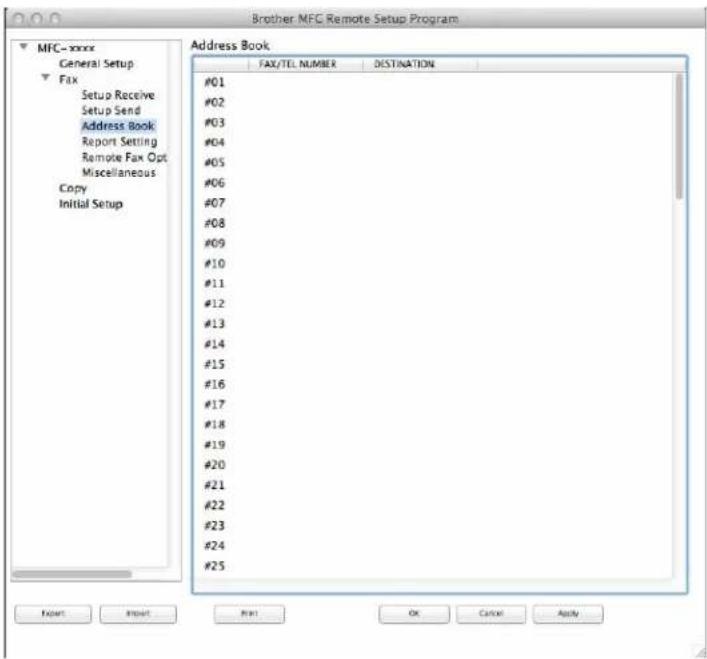
text_image
Brother MFC Remote Setup Program MFC-xxxx General Setup Fax Setup Receive Setup Send Address Book Report Setting Remote Fax Opt Miscellaneous Copy Initial Setup Address Book FAX/TEL NUMBER DESTINATION #01 #02 #03 #04 #05 #06 #07 #08 #09 #10 #11 #12 #13 #14 #15 #16 #17 #18 #19 #20 #21 #22 #23 #24 #25 Export Import Print OK Cancel ApplyStatus Monitor
The Status Monitor button allows you to monitor the status of one device, allowing you to get immediate notification of errors such as a paper jam. (See Status Monitor on page 107.)
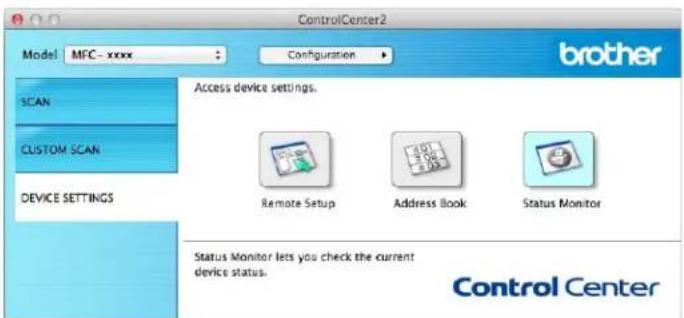
text_image
ControlCenter2 Model MFC- xxxx Configuration brother SCAN CUSTOM SCAN DEVICE SETTINGS Access device settings. Remote Setup Address Book Status Monitor Status Monitor lets you check the current device status. Control Center9
Remote Setup (For MFC models)
Remote Setup
The Remote Setup application lets you configure many machine settings. When you access this application, the settings on your machine will be downloaded automatically to your Macintosh and displayed on your Macintosh screen. If you change the settings, you can upload them directly to the machine.
NOTE
- The Remote Setup application is available from the download page for your model on the Brother Solutions Center (http://solutions.brother.com/).
- The Remote Setup application icon is in Macintosh HD/Applications/Brother.

text_image
Brother MFC Remote Setup Program MFC-xxxx General Setup Fax Setup Receive Setup Send Address Book Report Setting Remote Fax Opt Miscellaneous Copy Initial Setup General Setup Mode Timer 2 Mins : Paper Type Plain : Paper Size A4 : Volume Ring Med : Beeper Med : Speaker Med : Toner Save Off : Scan Size A4 : Replace Toner Continue Stop Expt Input Next OK Cancel ApplyOK
Lets you start uploading data to the machine and exit the Remote Setup application. If an error message is displayed, enter the correct data again and then click OK.
Cancel
Lets you exit the Remote Setup application without uploading data to the machine.
Apply
Lets you upload data to the machine without exiting the Remote Setup application.
Lets you print the chosen items on the machine. You cannot print the data until it is uploaded to the machine. Click Apply to upload the new data to the machine and then click Print.
Remote Setup (For MFC models)

Export
Lets you save the current configuration setting to a file.

Import
Lets you read the setting from a file.
NOTE
You can use the Export button to save your address book or all settings for the machine.
Section III

Using the Scan key
Scanning 147
10 Scanning
Using the Scan key
You can use (SCAN) on the control panel to scan documents into your graphics or E-mail applications or a folder on your computer.
Before you can use (SCAN), you have to install the Brother MFL-Pro Suite and connect the machine to your computer. If you installed the MFL-Pro Suite from the included installer CD-ROM then the correct drivers and ControlCenter4 (Windows®) or ControlCenter2 (Macintosh) are installed. Scanning using

(SCAN) follows the configuration on the Device Scan Settings screen of ControlCenter4 or
Device Button tab of ControlCenter2. (For Windows ^® , see Configuring Scan key settings on page 56 for Home Mode or Configuring Scan key settings on page 68 for Advanced Mode. For Macintosh, see SCAN on page 127.) For details about how to configure the scan settings of ControlCenter4 or ControlCenter2
buttons and to launch the application of your choice using (SCAN), see ControlCenter4 on page 43 or ControlCenter2 on page 125.
NOTE
- For Macintosh users, ControlCenter for Macintosh is available from the download page for your model on the Brother Solutions Center (http://solutions.brother.com/).
- The XPS file format is available for Windows Vista ^® , Windows ^® 7 and Windows ^® 8, or when using applications which support XML Paper Specification files.
Scan to E-mail
You can scan either a black and white or colour document into your E-mail application as a file attachment.
1 Load your document.
2 Press (SCAN).
3 Press ▲ or ▼ to choose Scan to PC. Press OK.
4 Press ▲ or ▼ to choose E-mail. Press OK.
5 Press ▲ or ▼ to choose Start Scan. Press OK.
6 Press Start.
The machine starts scanning the document, creates a file attachment, and launches your E-mail application, displaying the new message waiting to be addressed.
NOTE
- Scan type depends on the settings of the Device Scan Settings screen of ControlCenter4 or Device Button tab of the ControlCenter2 configuration screen.
- If you want to change between colour and black and white scanning, choose colour or black and white in the scan type option on the Device Scan Settings screen of ControlCenter4 or Device Button tab of the ControlCenter2 configuration screen. (For Windows®, see Configuring Scan key settings on page 56 for Home Mode or Configuring Scan key settings on page 68 for Advanced Mode. For Macintosh, see SCAN on page 127.)
- If you want to change the default file size for JPEG, PDF or Secure PDF, choose your preferred size by moving the scroll bar on the Device Scan Settings screen of ControlCenter4 or Device Button tab of the ControlCenter2 configuration screen.
- Webmail services are not supported by Scan to E-mail.
Scan to Image
You can scan either a black and white or colour document into your graphics application for viewing and editing.
1 Load your document.
2 Press (SCAN).
3 Press ▲ or ▼ to choose Scan to PC. Press OK.
4 Press ▲ or ▼ to choose Image. Press OK.
5 Press ▲ or ▼ to choose Start Scan. Press OK.
6 Press Start.
The machine starts the scanning process.
NOTE
- Scan type depends on the settings of the Device Scan Settings screen of ControlCenter4 or Device Button tab of the ControlCenter2 configuration screen.
- If you want to change between colour and black and white scanning, choose colour or black and white in the scan type option on the Device Scan Settings screen of ControlCenter4 or Device Button tab of the ControlCenter2 configuration screen. (For Windows®, see Configuring Scan key settings on page 56 for Home Mode or Configuring Scan key settings on page 68 for Advanced Mode. For Macintosh, see SCAN on page 127.)
- If you want to change the default file size for JPEG, PDF or Secure PDF, choose your preferred size by moving the scroll bar on the Device Scan Settings screen of ControlCenter4 or Device Button tab of the ControlCenter2 configuration screen.
Scan to File
You can scan a black and white or a colour document into your computer and save it as a file in a folder of your choice. The file type and specific folder are based on the settings you have chosen in the Device Scan
Settings screen of ControlCenter4 or Scan to File screen of ControlCenter2. (For Windows ^® , see Configuring Scan key settings on page 56 for Home Mode or Configuring Scan key settings on page 68 for Advanced Mode. For Macintosh, see SCAN on page 127.)
1 Load your document.
2 Press (SCAN).
3 Press ▲ or ▼ to choose Scan to PC. Press OK.
4 Press ▲ or ▼ to choose File. Press OK.
5 Press ▲ or ▼ to choose Start Scan. Press OK.
6 Press Start.
The machine starts the scanning process.
NOTE
- Scan type depends on the settings of the Device Scan Settings screen of ControlCenter4 or Device Button tab of the ControlCenter2 configuration screen.
- If you want to change between colour and black and white scanning, choose colour or black and white in the scan type option on the Device Scan Settings screen of ControlCenter4 or Device Button tab of the ControlCenter2 configuration screen. (For Windows ^® , see Configuring Scan key settings on page 56 for Home Mode or Configuring Scan key settings on page 68 for Advanced Mode. For Macintosh, see SCAN on page 127.)
- If you would like to display the folder window after scanning the document, select Show Folder on the Device Scan Settings screen of ControlCenter4 or the Device Button tab of the ControlCenter2 configuration screen.
- If you would like to change the file name of scanned documents, enter the file name in the File Name section on the Device Scan Settings screen of ControlCenter4 or the Device Button tab of the ControlCenter2 configuration screen.
- If you want to change the default file size for JPEG, PDF or Secure PDF, choose your preferred size by moving the scroll bar on the Device Scan Settings screen of ControlCenter4 or the Device Button tab of the ControlCenter2 configuration screen.
A
Index
A
Administrator 12, 16
B
Brightness
Macintosh 116
Windows ^® 40
C
Contrast
Macintosh 116
Windows ^® 40
ControlCenter2
Macintosh 125
ControlCenter4
Windows ^® 43
D
Drivers
Macintosh ICA 113
printer 97
TWAIN 118
Windows®
printer 2
TWAIN 35
WIA 26
F
FAX (PC-FAX)
Macintosh sending 109
Windows ^® address book 84
cover page 81
group 86
receiving 91
sending 77
setup 80
H
Header-Footer Print 12, 15
P
Password 16
Macintosh
2-sided printing 97, 105
Preset 100
Printer driver 97
Toner Save Mode 104
Windows®
2-sided printing 4, 10
Booklet printing 10
Print Profiles 19
Printer driver 2
Scaling 12
Toner Save Mode 15
R
Remote Setup Macintosh .... 144 Windows® .... 75
S
Scan
Macintosh
ICA driver 113
Resolution 121
TWAIN Compliant 118
Windows®
Resolution 39
TWAIN Compliant 35
WIA Compliant 26
Scan key 147
Scan Type
Macintosh
24bit Color 122
256 Color 121
Black & White 121
Gray (Error Diffusion) 121
True Gray 121
Windows®
24bit Colour 40
256 Colour 40
Black & White 39
Grey (Error Diffusion) 39
True Grey 39
Status Monitor
Macintosh 107
Windows ^® 24
Index
Support 21
W
Watermark 12, 13
A
brother®
Visit us on the World Wide Web http://www.brother.com/
These machines are approved for use in the country of purchase only. Local Brother companies or their dealers will only support machines purchased in their own countries.