FAX-2850 - Fax BROTHER - Free user manual and instructions
Find the device manual for free FAX-2850 BROTHER in PDF.


User questions about FAX-2850 BROTHER
0 question about this device. Answer the ones you know or ask your own.
Ask a new question about this device
Download the instructions for your Fax in PDF format for free! Find your manual FAX-2850 - BROTHER and take your electronic device back in hand. On this page are published all the documents necessary for the use of your device. FAX-2850 by BROTHER.
USER MANUAL FAX-2850 BROTHER
natural_image
Line drawing of a vintage office typewriter with front panel and keypad (no text or symbols)brother® At your side.
Brother advises that this product may not function correctly in a country other than which it was originally purchased, and does not offer any warranty in the event that this product is used on public telecommunication lines in another country.
Use only GENUINE brother supplies
DO NOT refill the toner cartridges. Attempting to use refilled toner cartridges and using incompatible toners may cause damage to the machine and such damage will not be covered by warranty. Warranty coverage does not apply to problems caused by the use of 3rd party consumables. We can only recommend the use of genuine Brother consumables.
Using This Manual
Thank you for purchasing a Brother fax machine/multi function centre.
This machine has been designed to be simple to use, with LCD screen prompts to guide you through functions. However, you can use the machine to its fullest potential by taking a few minutes to read this manual.

Additionally, the machine has a Reports key. Press Reports and 1 to print a help list of basic operational steps and functions.
Finding Information
All chapter headings and subheadings are listed in the Table of Contents. You will also be able to find information about a specific feature or function by checking the Index at the back of this manual. Also, throughout this manual, you will see special symbols alerting you to important information, cross-references, and warnings. Illustrations of some screen displays also help you choose the correct key-presses.
Symbols Used In This Manual

Note or additional information.

The machine may be damaged or may not work correctly if this is not observed.

Warnings detail precautions you must take to avoid possible personal injury.
User-Friendly Programming
We have designed the machine with on-screen programming. User-friendly programming helps you take full advantage of all the functions the machine has to offer.
Since your programming is done on the LCD, we have created step-by-step on-screen prompts to help you program the machine. All you need to do is follow the prompts as they guide you through the function menu selections, programming options and settings. Additionally, you can program settings more quickly by pressing Menu/Set and the menu number using the dial pad.
A complete list of the function selections, options, and settings that are available is provided in the appendix of this manual. (See Menu Mode & Menu Selection Table, page 148.)
Alternating Displays
The LCD sometimes alternates between the currently selected option, and a help message giving brief instructions about how to proceed. The display you'll probably see most often is shown on the right, showing you that when you place a document in the ADF, you can either dial a number to send it as a fax or press the Copy key to make a copy of the document.

flowchart
graph TD
    A["FAX: NO. & START"] --> B["COPY: NO. & COPY"]
Quick Reference Guide
For Thai, Arabic, Indonesian, Cantonese, please refer to Quick Reference Guide enclosed in the carton box.
Sending Faxes
Automatic Transmission
1 Place the original face down in the ADF.
2 Enter the fax number using One Touch (For FAX-2850 Only), Speed Dial, Search or the dial pad.
3 Press Fax Start.
4 Sending a Cover Page
5 Place the original face down in the ADF.
6 Press Menu/Set, 2, 2, 7.
7 When NEXT FAX ONLY appears, press Menu/Set.
8 Press to select ON (or OFF), and then press Menu/Set
9 Press or select a comment, and then press Menu/Set
10 Enter two digits to indicate the number of pages being sent, and then press Menu/Set.
11 Press 1 to select additional settings —OR—Press 2 if you are ready to fax.
12 Enter the fax number.
13 Press Fax Start.
Real Time Transmission
You can send faxes in real time.
1 Place the original face down in the ADF.
2 Press Menu/Set, 2, 2, 5.
3 Press of select ON, and then press Menu/Set —OR—
For the next transmission only, press to select NEXT FAX ONLY, and then press Menu/Set.

4 For the next fax only, press of select ON, and then press Menu/Set.
5 Press 1 to select additional settings —OR—Press 2 if you are ready to fax.
6 Enter the fax number.
7 Press Fax Start.
Receiving Faxes
Select Receive Mode
Press Receive Mode to select FAX ONLY, FAX/TEL, TAD:ANSWER MACH. or MANUAL. If you select FAX/TEL, make sure to set Ring Delay and F/T Ring Time.
Manual Reception
1 Pick up the handset.
2 Press Fax Start if you hear fax tones (beeps).
3 When the LCD shows RECEIVING, replace the handset.


Storing Numbers
Storing One Touch Dial Numbers (For FAX-2850 Only)
1 Press Menu/Set, 2, 3, 1.
2 Press the One Touch key where you want to store the number.
3 Enter a number (up to 20 digits), and then press Menu/Set.
4 Enter a name (or leave it blank), and then press Menu/Set.
5 Press Stop/Exit.
Storing Speed Dial Numbers
1 For the FAX press Menu/Set, 2, 3, 2.
For the MFC, press Menu/Set, 2, 3, 1.
2 Enter a two-digit Speed Dial number, and then press Menu/Set.
3 Enter a number (up to 20 digits), and then press Menu/Set.
4 Enter a name (or leave it blank), and then press Menu/Set.
5 Press Stop/Exit.
Telephone Operation
One Touch Dialing / Speed Dialing
1 Pick up the handset—OR—Press Hook and listen for a dial tone.
2 When you hear the dial tone, press the One Touch key of the location you want to call (FAX-2850)
—OR—Press Search/Speed Dial, press #, then press the two-digit Speed Dial number. (If you pressed Hook to dial, pick up the handset when the other party answers.)
3 To hang up, replace the handset.
Search/Speed Dial
1 Press Search/Speed Dial, then enter the first letter of the name you're looking for.
2 Press or to search the memory.
3 When the name is displayed, lift the handset—OR—Press Hook.
4 Press Fax Start to dial. (If you pressed Hook to dial, pick up the handset when the other party answers.)
5 To hang up, replace the handset.
Making Copies
Making a Single Copy
1 Place the original face down in the ADF.
2 Press Copy.
Making Multiple Copies
1 Place the original face down in the ADF.
2 Use the dial pad to enter the number of copies you want.
3 Press Copy.
Table of Contents
Using This Manual
User-Friendly Programming
Table of Contents ...... vi
PREPARATION AND SIMPLE USE
Preparation and Simple Use Guide
Advice for Preparation and Simple Use Guide .... 3
FAX-2850 Control Panel Overview....7
MFC-4800 Control Panel Overview 9
BASIC FAX USE
Chapter 1 Setup
Initial Settings.... 11
Custom Settings.... 12
Storing Numbers for Easy Dialling 14
Chapter 2 Sending a Fax
Scanning Adjustment.... 16
Dialling a Number 16
Sending Operation.... 18
Chapter 3 Receiving a Fax
Receive Mode Settings.... 20
Receiving a Fax 23
Chapter 4 Telephone (Voice) Operation
Making Voice Calls.... 25
Chapter 5 Printing Reports
Transmission Report and Journal Setting.... 28
Using the Reports Key.... 29
ADVANCED FAX USE
Chapter 6 Advanced Sending
Advanced Operations 30
Chapter 7 Advanced Receiving
Operation from an External or Extension Telephone.... 38
Chapter 8 Telephone Service
Telephone Service for Australia.... 40
Telephone Service for New Zealand 43
Caller ID (Caller IDentification)......45
Telephone Service for Some Countries 47
Chapter 9 Polling
Polling Receive....49
Polling Transmit....51
Chapter 10 Remote Fax Options
Setting Fax Storage....52
Fax Forwarding....52
Remote Retrieval ....53
COPIER
Chapter 11 Making Copies
Basic Copy Operations ....56
Temporary Copy Setting....57
Copy Quality – Default Settings......60
PRINTER/SCANNER
Chapter 12 Using the machine as a Printer
Special Printing Features 62
Printing From Your PC....62
Simultaneous Printing/Faxing....64
Acceptable Paper 65
Chapter 13 Printer Driver Settings (For Windows ^ Only)
Using the Brother MFC-4800 Printer Driver....66
Basic Tab 66
Advanced Tab....68
Support....75
Chapter 14 Using the Windows ^® -Based Brother MFL-Pro Control Centre (For Windows ^® Only)
Brother MFL-Pro Control Centre 76
Using the Scan Keys with PC Windows....77
Using the Control Panel Keys....78
Brother Control Centre Features....79
Scan to File 82
Scan to E-mail....83
Scan to Word Processor....85
User Defined Button 86
Copy....87
Send a Fax....88
Chapter 15 Using ScanSoft ^TM PaperPort ^® for Brother and ScanSoft ^TM TextBridge ^®
Chapter 16 Setting Up and Using PC FAX (For Windows ^® Only)
Introduction 95
MFC Remote Setup 95
PC FAX Sending (For Windows® Only) 96
Chapter 17 Using Automatic E-Mail Printing
For Windows® 95, 98, 98SE, Me Only 106
Chapter 18 Using the Brother MFC with a New Power Macintosh ^® G3, G4 or iMac ^TM /iBook ^TM
Set up Your USB Equipped Apple ^® Macintosh ^® G3,G4 or iMac ^™ with Mac OS 8.5/8.5.1/8.6/9.0/9.0.4/9.1.... 107
Using Brother Printer Driver with your Apple ^® Macintosh ^® ...... 107
Sending a Fax from your Macintosh Application 109
Using Brother TWAIN Scanner Driver with Your Apple ^® Macintosh ^® ... 113
MAINTENANCE
Chapter 19 Troubleshooting and Maintenance
Error Messages 117
Document Jams and Paper Jams.... 119
Packing and Shipping the Machine 125
Regular Maintenance....127
IMPORTANT INFORMATION
Chapter 20 Important Safety Information
Important Information for Australia.... 136
Important Information for New Zealand 137
Important Information for Some Countries.... 139
Important Information for All Countries.... 141
APPENDIX
Chapter 21 Specifications
Fax Specifications ....143
Printer Specifications (For MFC-4800 Only).... 144
Computer Requirement (For MFC-4800 Only) 145
Electrical and Environment 145
Compilation and Publication Notice ....146
Trademarks....146
Entering Text....147
Menu Mode & Menu Selection Table....148
About Fax Machines.... 153
Glossary.... 154
Index....157
Preparation and Simple Use Guide
Steps to prepare and use the machine simply
Follow the steps below to prepare and use the machine simply.
However, before you perform these steps, see Important Safety Information (page 136), and Advice for Preparation and Simple Use Guide (page 3).
If you need further information, refer to BASIC USE or ADVANCED USE.
1 Read the Quick Setup Guide
Follow the instructions on the Brother Quick Setup Guide to set up the machine.
2 Setting the Document
■Documents must be between 14.8 and 21.6 cm wide, and 15 and 60 cm long. This machine can only scan an image 20.8 cm wide, regardless of how wide the document is.
■ Make sure you insert documents face down, top edge first.
■Adjust the paper guides to fit the width of your document.
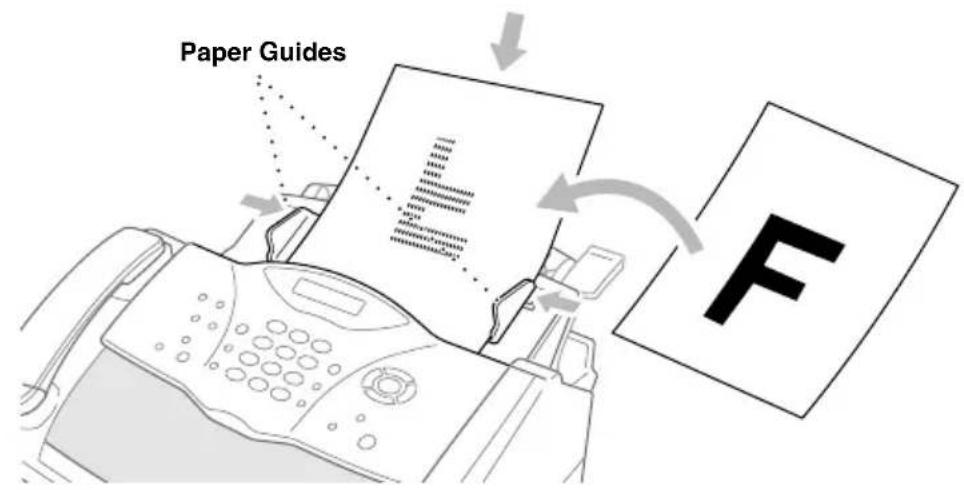
text_image
Paper Guides FThe automatic document feeder (ADF) can hold up to 20 pages, feeding each one individually through the machine. Use standard (64g / m^2 90g / m^2) paper when using the ADF; if you're using heavier paper, feed each sheet individually to prevent paper jams.
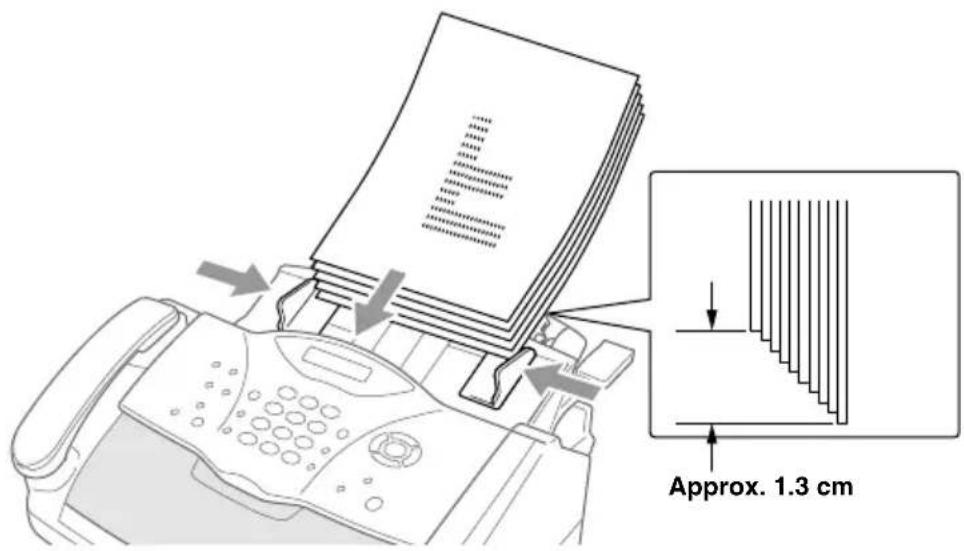
text_image
Approx. 1.3 cm■Open the document tray by pulling it toward you ( ), then unfold the extension ( ). ②

natural_image
Line drawing of a printer with paper being inserted, showing the printer's handle and page number (no text or symbols present)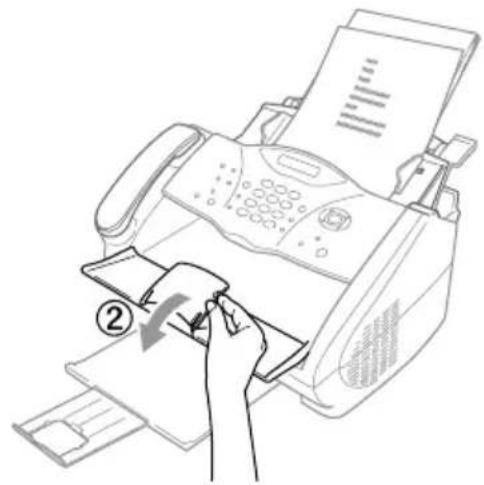
natural_image
Line drawing of a hand using a printer to press documents (no text or symbols visible)
- DO NOT use curled, wrinkled, folded, or ripped document, or document with staples, paper clips, paste, liquid paper or tape attached. DO NOT use cardboard, newspaper, or fabric.
- Make sure documents written with ink are completely dry.
3 Sending a fax
① Insert the document face down in the ADF.
② Enter the fax number you want to call.
③ Press Fax Start.
4 Making a single copy
① Insert the document face down in the ADF.
② Press Copy.
③ To stop copying, press Stop/Exit. Press Stop/Exit again to release the original document. (See Making Copies, page 56.)
5 Multiple Copies
① Insert the document face down in the ADF.
② Using the dial pad, enter the number of copies you want (up to 99). For example, press 3, 8 for 38 copies.
③ Press Copy.
Advice for Preparation and Simple Use Guide
Choosing a Location
Place the machine on a flat, stable surface, such as a desk. Select a place that is free of vibration and shocks. Locate the machine near a telephone wall socket and a standard earthed electrical socket, grounded power outlet.
Avoid placing the machine where it may be knocked. Do not place near heaters, air conditioners, water, chemicals or refrigerators. Do not expose the machine to direct sunlight, excessive heat, moisture or dust. Do not connect the machine to electrical outlets controlled by wall switches or automatic timers as disruption of power can wipe out information in the unit's memory. Do not connect the machine to electrical outlets on the same circuit as large appliances or other equipment that might disrupt the power supply. Avoid interference sources, such as speakers or the base units of cordless phones. Ensure the airflow from the fan on the right hand side of the machine is not impeded.

- We recommend that this product be used with a surge protection device to protect the product against damage caused by a lightning strike.
- Never touch telephone wires or terminals that are not insulated unless the telephone line has been disconnected at the network interface.
- Avoid using a telephone (other than a cordless type) during an electrical storm. There may be a remote risk of electric shock from lightning.
- Do not use the telephone to report a gas leak in the vicinity of the leak.
Connecting the Power Cord
- This machine must be fitted with an earthed plug.
- Since the machine is earthed via the mains plug, you can protect yourself from potentially hazardous electrical conditions on the telephone network by keeping the power to the machine on when you connect it to a telephone line. Similarly, you can protect yourself when you want to move the machine, by disconnecting the telephone line first, and then the power cord.

IMPORTANT:
If you need to remove the moulded mains plug in order to fit an appropriate type, you must discard the moulded plug immediately having cut it off, in order that it is not inadvertently inserted into a live socket, thus presenting a shock hazard. The wires in the mains lead of this appliance are colored in accordance with the following code.
- Green-and-yellow : Earth
- Blue : Neutral
- Brown : Live
As the wires in the mains lead of this apparatus may not correspond with the colored markings identifying the terminals in your plug, proceed as follows:
The wire which is colored green-and-yellow must be connected to the terminal in the plug which is marked by the letter "E" or by the safety earth symbol of colored green or green-and-yellow.
The wire which is colored blue must be connected to the terminal which is marked with the letter "N" or colored black.
The wire which is colored brown must be connected to the terminal which is marked with the letter "L" or colored red.
Memory Storage
In the event of a power failure, all settings in the GENERAL SETUP, SETUP RECEIVE, SETUP SEND, SET QUICK-DIAL, REPORT SETTING, REMOTE FAX OPT and MISCELLANEOUS functions are stored permanently and fax sending and receiving data are stored for several days.
Connecting an External Telephone Answering Device (TAD)
Sequence
You might choose to connect an additional answering machine. When you have an external TAD on the same telephone line as the machine, the TAD answers all calls. The machine “listens” for fax calling (CNG) tones. If it hears them, the machine takes over the call and receives the fax. If it doesn’t hear the CNG tones, the machine will not answer the call, and messages can be left on the TAD by callers in the normal way.
The TAD must answer within a maximum of four rings. However, we recommend two rings as the TAD setting. The machine cannot hear CNG tones until the TAD has answered the call, and with four rings there are only 8–10 seconds of CNG tones left for the fax “handshake.” Make sure you carefully follow instructions in this manual for recording your outgoing message. Do not use a “toll-saver” ring setting on the TAD.

It is important that the TAD is connected via the EXT socket on the machine or on the line jack unit. Do not use a line doubler on the line jack as this can cause answering problems.
Connections
1 You may connect an external TAD to the machine, as shown below.
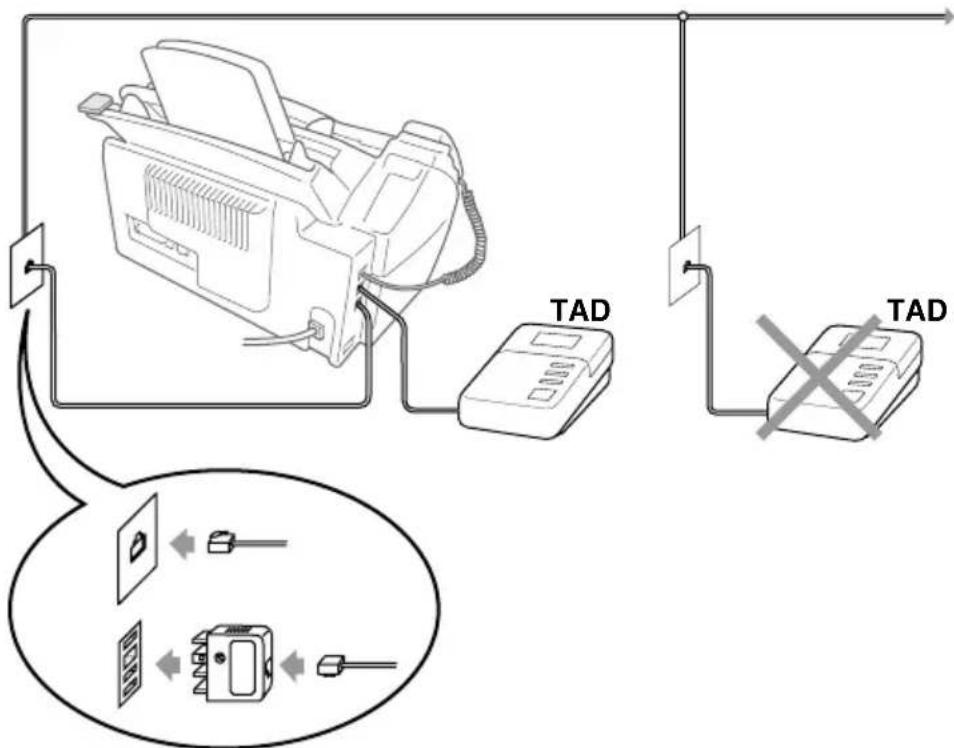
text_image
TAD TAD(Example for Australia)
2 Set your external TAD to two rings or less.
3 Record the outgoing message (see next page).
4 Set the TAD to answer calls.
5 Set the Receive Mode to TAD:ANSWER MACH. by pressing Receive Mode.
Outgoing Message (OGM) of External TAD
Timing is important in recording this message. The message sets up the ways to handle both manual and automatic fax reception.
1 We recommend the outgoing message (OGM) is no longer than 20 seconds.
2 Allow 5 seconds of silence at the beginning of your message.
(This allows the fax to detect the calling tone prior to OGM, so reception can be faster.)
3 We recommend that you end your OGM by giving your Remote Activation Code for people sending manual faxes. For example:
"After the beep, leave a message or send a fax manually by pressing 51 (91 for New Zealand) and Fax Start."
Please note that some faxes that are sent manually cannot be received automatically because some fax machines do not send a fax tone if the call is manually dialled. In these cases you must inform callers that they must enter the remote activation code to send a fax.
Connecting an External Telephone
Your FAX/MFC is equipped with a handset that you can use as a regular phone. However, you can also connect a separate telephone to your FAX/MFC, as shown below.

text_image
Diagram showing connection between a printer and two phone devices with labeled components and wiring connections(Example for Australia)
Whenever this external phone (or TAD) is in use, the screen displays EXT. TEL IN USE, and, if the FAX/MFC's handset is lifted, an alarm sounds.
To disconnect the call on the external phone and switch to the FAX/MFC, lift the handset and press Hook.
FAX-2850 Control Panel Overview
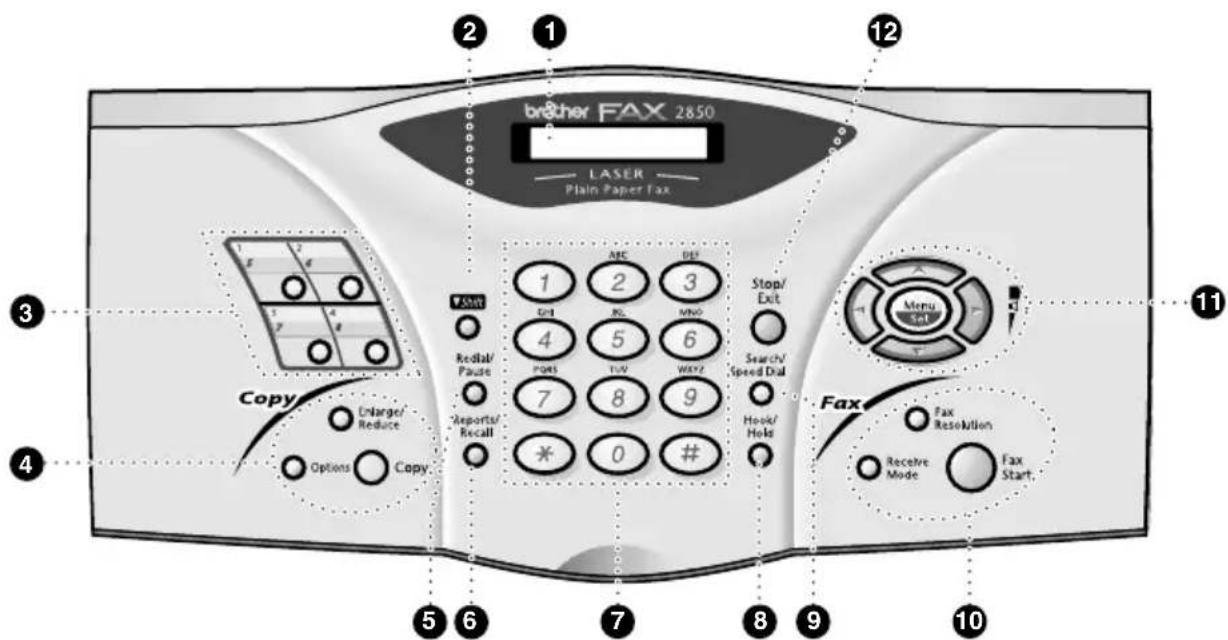
text_image
brother FAX 2850 LASER Plain Paper Fax 1 2 3 4 5 6 7 8 9 0 # Reports/ Recall Options Copy 1 2 3 4 5 6 Stop/ Exit Search/ Speed Dial Menu Set Fax Fax Resolution Receive Mode Fax Start. 5 6 7 8 9 10① Liquid Crystal Display
Displays messages to help you set up and operate the machine.
② Shift
This key is used to access the "5" through "8" One Touch keys.
③ One Touch Dial Keys
These 4 keys give you access to 8 previously stored phone numbers.
4 Copy Keys:
Options
You can quickly and easily select temporary settings (for the next copy only).
Enlarge/Reduce
Lets you select an enlargement or reduction ratio: 50%, 71%, 100%, 141%, 150%, 200%. For more choices, select MANUAL and use dial pad to type any percentage between 50% and 200%.
Copy
Makes a copy.
5 Redial/Pause
Re-dials the last number called. Also inserts a pause in autodial numbers.
6 Reports/Recall
You can access the Reports menu so you can select a report to print: Help, Quick Dial, Journal, Xmit Verify and System Setup List and Order Form.
7 Dial Pad
Dials phone and fax numbers and can be used as a keyboard for entering information into the machine.
# key lets you switch the dialling type during a telephone call from "PULSE" to "TONE". (Not available in New Zealand.)
8 Hook/Hold
Lets you dial telephone and fax numbers without lifting the handset.
—OR—
Lets you place telephone calls on hold.
9 Search/Speed Dial
Lets you look up numbers stored in the dialling memory. Also, lets you dial stored phone numbers by pressing # and two-digit number.
10 Fax Keys:
Receive Mode
Select how the machine will handle incoming calls.
Fax Resolution
Sets the resolution when you send a fax.
Fax Start
Starts sending a fax.
11 Navigation Keys:
Menu/Set
Lets you access the menu and programming mode and stores your settings in the machine.

or

Press to scroll forward or backward to set a menu selection.
Also, you can use these keys to do an alphabetical search for the names of stored numbers.


Press to scroll through the menus and options.
—OR—
You can press these keys to adjust the ring or speaker volume.
12 Stop/Exit
Stops a fax, cancels an operation or exits from function mode.
MFC-4800 Control Panel Overview
text_image
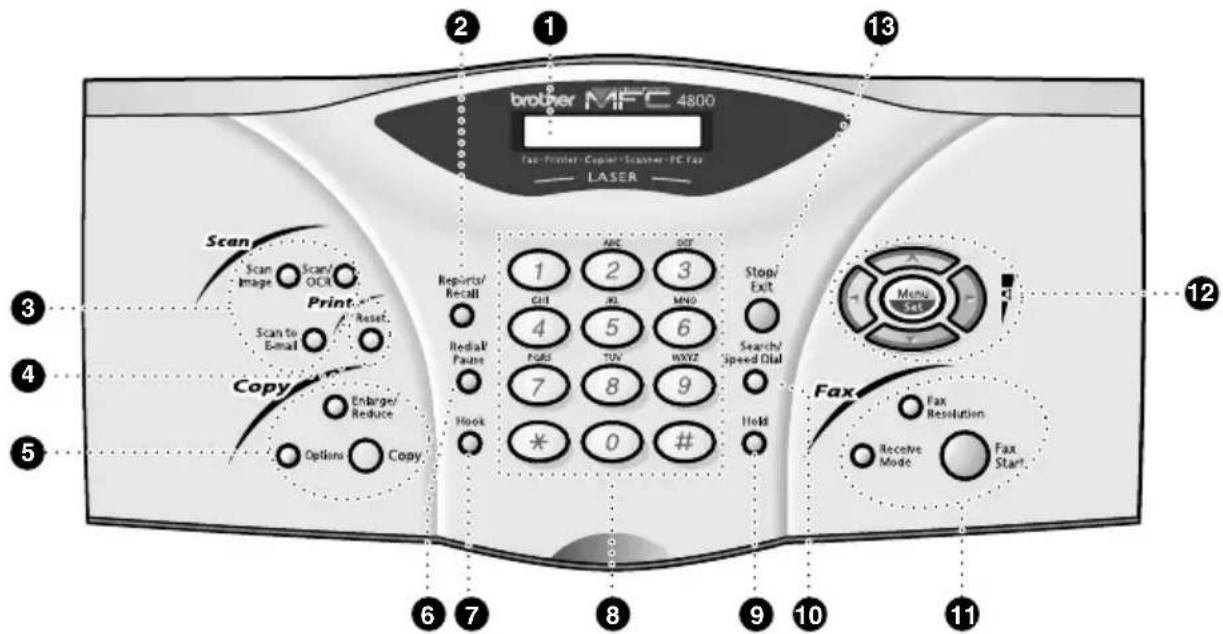
brother MFC 4800 Fax-Printer-Copy-Scanner-PC Fax LASER Scan Scan Image Scan/OCR Print Scan to Email Reset Copy Enlarge/Reduce Options Copy Reports/Recall Redial/Fause Hook ABC OCF 1 2 3 CHI JL MNO 4 5 6 FMS TUV HWXZ Search/ Speed Dial 7 8 9 * 0 # Hold Fax Fax Resolution Receive Mode Fax Start. 12 13 2 3 4 5 6 7 8 9 10 11 6 7 8 9① Liquid Crystal Display
Displays messages to help you set up and operate the machine.
② Reports/Recall
Accesses the Reports menu so you can select a report to print: Help, Quick Dial, Journal, Xmit Verify and System Setup List and Order Form.
③ Scan Keys:
Scan Image
Press this key to scan a picture into your graphics application for viewing and editing.
Scan/OCR
Press this key to start scanning a text document. ScanSoft ^TM TextBridge ^® will convert it to editable text and display it in your word processor application for further editing.
Scan to E-mail
Press this key to start scanning an original into your E-mail application, setting it up automatically as an attachment.
4 Print Key:
Reset
Clears data from the printer memory.
⑤ Copy Keys:
Options
You can quickly and easily select temporary settings (for the next copy only).
Enlarge/Reduce
Lets you select an enlargement or reduction ratio: 50%, 71%, 100%, 141%, 150%, 200%. For more choices, select MANUAL and use dial pad to type any percentage between 50% and 200%.
Copy
Makes a copy.
6 Redial/Pause
Re-dials the last number called. Also inserts a pause in autodial numbers.
7 Hook
Lets you dial telephone and fax numbers without lifting the handset.
8 Dial Pad
Dials phone and fax numbers and can be used as a keyboard for entering information into the machine.
# key lets you switch the dialling type during a telephone call from “PULSE” to “TONE”. (Not available in New Zealand.)
9 Hold
Lets you place telephone calls on hold.
10 Search/Speed Dial
Lets you look up numbers stored in the dialling memory. Also, lets you dial stored phone numbers by pressing # and two-digit number.
11 Fax Keys:
Receive Mode
Select how the machine will handle incoming calls.
Fax Resolution
Sets the resolution when you send a fax.
Fax Start
Starts sending a fax.
12 Navigation Keys:
Menu/Set
Lets you access the menu and programming mode and stores your settings in the machine.
Press to scroll forward or backward to set a menu selection.
Also, you can use these keys to do an alphabetical search for the names of stored numbers.
Press to scroll through the menus and options.
—OR—
You can press these keys to adjust the ring or speaker volume.
13 Stop/Exit
Stops a fax, cancels an operation or exits from function mode.
1 Setup
Initial Settings
Setting the Date and Time
The machine displays the date and time, and prints it on every fax you send.
In the event of a power failure, the machine maintains date and time information for up to 9 hours. All other settings remain unaffected.
1 Press Menu/Set, 1, 1.
3 Enter two digits for the month and press Menu/Set.
4 Enter two digits for the day and press Menu/Set.
5 Enter the time in 24 hour format and press Menu/Set.
6 Press Stop/Exit.
2 Enter the two digits of the year, and press Menu/Set. "02" is registered as 2002 in the machine.
Setting the Station ID
You can store your name, fax number, and telephone number to be printed on the fax Cover Page, and on all fax pages that you send. (See Electronic Cover Page, page 30.)
It is important that you enter the fax and telephone numbers in the internationally standardized format, i.e. in accordance with the following strict sequence:
- The “+” (plus) character (press key)
- Your Country Code
- Your local area code minus any leading "0"
- A space
- Your number on the local exchange, using spaces to aid readability as appropriate.
1 Press Menu/Set, 1, 2.
2 Enter your fax number (up to 20 digits) and press Menu/Set.
3 Enter your telephone number (up to 20 digits) and press Menu/Set.
4 Enter your name (up to 20 characters) using the dial pad and the chart. To enter a space press twice.
5 Press Menu/Set.
6 Press Stop/Exit.

■ When you enter your name, see Entering Text, page 147.
■The telephone number you enter is used only for the Cover Page features.
■If you do not enter a fax number, no additional information can be entered.
■To enter a space, press characters. once between numbers and twice between
■If your Station ID has already been programmed, the screen prompts “1” to make a change, or “2” to exit without changing.
Custom Settings
Volume Settings
Ring Volume
You can select how loud the machine rings. The ring volume can be turned off for silent reception if required.
1 Press Menu/Set, 1, 3, 1.
2 Press 📋 or 📋 to select OFF, LOW, MED, or HIGH.
3 Press Menu/Set when the screen displays your selection.
4 Press Stop/Exit.
—OR—
You can adjust the ring volume when the machine is idle. You can turn the ring OFF.
Press or to adjust the volume level. With each key press, the machine rings so you can hear the current setting and the display shows the setting you are choosing. Each key press changes the volume to the next setting.
The new setting will remain until you change it again.
Beeper Volume
You can set the beeper to LOW, HIGH or OFF. The machine comes with this volume set to LOW. When the beeper is set to LOW or HIGH, the machine beeps every time you press a key or make an error, and at the end of sending or receiving a fax.
1 Press Menu/Set, 1, 3, 2.
2 Press or to select your setting.
3 When the screen displays the setting you want, press Menu/Set.
4 Press Stop/Exit.
Speaker Volume
You can set the volume of the machine speaker.
1 Press Menu/Set, 1, 3, 3.
2 Press 🎨 or 🎨 to select your volume setting (OFF, LOW, MED, or HIGH).
3 Press Menu/Set when the screen displays your selection.
4 Press Stop/Exit.
—OR—
If you are using Hook, you can adjust the speaker volume while dialing. You can turn the speaker off or you can select a speaker volume level. The default setting is the lowest volume.
Press or to adjust the volume level. The display shows the setting you are choosing.
Each key press changes the volume to the next setting. The new setting will remain until you change it again. Press Hook to disconnect the line.
Toner Save
You can conserve toner using this feature. When you set Toner Save to ON, print appears somewhat lighter. The default setting is OFF.
1 Press Menu/Set, 1, 4.
2 Press or to select ON (or OFF).
3 Press Menu/Set.
4 Press Stop/Exit.
Power Save
Setting Power Save Mode more reduces power consumption. If you switched ON, when the machine is idle, it drops into power save mode automatically.
In the power save mode, you can not use fax detect function and remote activation with the extension or external phone. And the machine does not display the date and time.
1 Press Menu/Set, 1, 5.
2 Press or to select ON (or OFF).
3 Press Menu/Set when the screen displays your selection.
4 Press Stop/Exit.
Sleep Mode
Setting the Sleep Mode reduces power consumption while the machine is idle. You can choose how long the machine is idle (from 00 to 99 minutes) before it drops into sleep mode. The timer automatically resets when the machine receives a fax or PC data, or makes a copy. The factory setting is 0 minutes.
1 Press Menu/Set, 1, 6.
2 Use the dial pad to enter the amount of time the machine is idle before it drops into sleep mode (00 to 99).
3 Press Menu/Set.
4 Press Stop/Exit.
Setting the Dialling Mode (Tone/Pulse) (Not available in New Zealand)
The machine is initially set to TONE. If you are using a PULSE dial line, you can change the setting to PULSE by following the steps below.
1 Press Menu/Set, 1, 7. The screen prompts you to select PULSE (or TONE).
2 Use or to select the dialling mode.
3 Press Menu/Set when the screen displays the dialling mode you want.
4 Press Stop/Exit.
Storing Numbers for Easy Dialling
You can set up the machine to do the following types of easy dialling: One Touch (FAX-2850), Speed Dial and Groups for Broadcasting of faxes.
Even if you lose electrical power, numbers stored in memory will not be lost.
Storing One Touch Dial Numbers (For FAX-2850 Only)
You can store 8 fax/phone numbers that you can dial by pressing one key. You can also store names with these numbers. When you press a One Touch key, the screen displays the name or number as the call is dialled. (See One Touch Dialling (For FAX-2850 Only), page 16.)

One Touch Dial keys are not the dial pad keys. They are the 4 keys (numbers 1-8). One Touch Dial Numbers 5-8 are accessed by holding down Shift while you press the appropriate One Touch Dial key.
1 Press Menu/Set, 2, 3, 1.
2 Press the One Touch Dial key where you want to store a number. The screen displays the location you selected.
3 Enter a number (up to 20 digits), and press Menu/Set. The screen prompts you to enter a name for this number.
4 Use the dial pad to enter the name (up to 15 characters). (See Entering Text, page 147.)—OR—Go to Step 5 to store the number without a name.
5 Press Menu/Set. Return to Step 2 to store another One Touch dial number—OR—Press Stop/Exit.
When you dial a One Touch dial number, the screen displays the name you have stored or if you have not stored a name, the number you have stored.
Storing Speed Dial Numbers
You can store Speed Dial numbers, which you dial by pressing only four keys. There are 100 Speed Dial locations. (See Speed Dialling, page 17.)
1 For the FAX, press Menu/Set, 2, 3, 2.
For the MFC, press Menu/Set, 2, 3, 1.
The screen prompts you to enter a location.
2 Use the dial pad to enter a two-digit location (00-99), and press Menu/Set. The screen displays your entry, then prompts you to enter the number you're storing.
3 Enter the number (up to 20 digits), and press Menu/Set. The screen now prompts you to store a name with this number.
4 Use the dial pad to enter the name (up to 15 characters). (See Entering Text, page 147.)—OR—Go to Step 5 to store the number without a name.
5 Press Menu/Set. Return to Step 2 to store another Speed Dial number—OR—Press Stop/Exit.
When you dial a Speed dial number, the screen displays the name you have stored or if you have not stored a name, the number you have stored.
Changing One Touch (FAX-2850) and Speed Dial Numbers
If you try to store a One Touch or Speed Dial number in a location where a number is already stored, the screen displays the current name stored there, then prompts you to either change it or exit.
1 Press 1 to change the number stored, or press 2 to exit without making a change.
2 Enter a new number.
◆ If you want to erase the number, press Stop/Exit when the cursor is to the far left of the digits.
If you want to change a digit, use 📄 or 📋 to position the cursor under the digit you want to change, then enter the new digit—OR—Press Stop/Exit to delete all characters above and to the right of the cursor.
3 Follow the directions in Storing One Touch Dial or Speed Dial Numbers.

You can print a list of all stored numbers. (See Using the Reports Key, page 29.)
2 Sending a Fax
Scanning Adjustment
Contrast
If your document is very light or very dark, you might want to set the contrast accordingly. Use LIGHT to send a light document. Use DARK to send a dark document. This setting is a temporary setting.
1 Insert the document face down in the ADF.
2 Press Menu/Set, 2, 2, 1.
3 Use or to select AUTO, LIGHT, or DARK.
4 When the screen displays your selection, press Menu/Set.
5 Press 2 if you have finished choosing settings, and go to Step 6—OR—Press 1 if you want to select additional settings. The display returns to Setup Send menu.
6 Enter a fax number and press Fax Start.
Fax Resolution
When you have a document in the ADF, you can use the Fax Resolution key to temporarily change the setting. Press Fax Resolution repeatedly until the LCD shows the setting you want.
—OR—
You can change the default setting.
1 Press Menu/Set, 2, 2, 2.
2 Press 📁 or 📋 to select the resolution you want, and then press Menu/Set.
3 Press Stop/Exit.
STANDARD: Suitable for most typed documents.
FINE: Good for small print; transmits a little slower than Standard resolution.
S.FINE: Good for small print or artwork; transmits slower than Fine resolution.
PHOTO: Use when document has varying shades of grey; slow transmission time.
Dialling a Number
One Touch Dialling (For FAX-2850 Only)
1 Insert the document face down in the ADF.
2 Press the One Touch key of the location you want to call.
3 Press Fax Start.

If you try to use a One Touch or Speed Dial location with no number stored in it, you hear a warning sound, and screen displays NOT ASSIGNED. The display returns to normal after 2 seconds.
Speed Dialling
1 Insert the document face down in the ADF.
2 Press Search/Speed Dial, then press # and the two-digit Speed Dial number.
3 Press Fax Start.
Search
You can search for names you have stored in One Touch (FAX-2850) and Speed Dial memories. (See Storing One Touch Dial Numbers (For FAX-2850 Only), page 14 and Storing Speed Dial Numbers, page 15.)
1 Insert the document face down in the ADF.
2 Press Search/Speed Dial, then enter the first letter of the name you're looking for.
3 Press or to search the memory that are stored alphabetically.
4 When the screen displays the name you want to call, press Fax Start.

You can also use or key to search the numbers you have stored in memory in numerical order. In that case, do not enter the first letter of the name in Step 2.
Chain Dialling
You can store very long dialling sequences by dividing them and setting them up as One Touch (for FAX-2850 only) and Speed Dial numbers. Then while dialling, you can combine two or more One Touch and/or Speed Dial numbers and even include manual dialling using the dial pad. You can use these numbers in any combination. The combined number will be dialled, in the order you entered it, as soon as you press Fax Start.
For example:
For the FAX-2850, you can store “555” on One Touch Dial key 01 and “7000” on One Touch Dial key 02. If you press One Touch 01, 02 and Fax Start, you can dial “555 7000”. To temporarily change a number, you can substitute part of the number with manual dialling using the dial pad. So, if you press One Touch 01 and press 7001 using the dial pad, you can dial “555 7001”.
For the FAX-2850 and MFC-4800, you can store “555” on Speed Dial #01 and “7000” on Speed Dial #02. If you press Search/Speed Dial, #, 0, 1, Search/Speed Dial, #, 0, 2 and Fax Start, you can dial “555 7000”. To temporarily change a number, you can substitute part of the number with manual dialling using the dial pad. So, if you press Search/Speed Dial, #, 0, 1 and press 7001 using the dial pad, you can dial “555 7001”.
Using access codes is easy. Sometimes you may want to choose from the among several long distance carriers when you make a call; rates may vary depending upon the time and destination. To take advantage of low rates, you can store the access codes or long-distance carriers as One Touch and Speed Dial numbers.
Manual and Automatic Fax Redial
If you're sending a fax manually and the line is busy, press Redial/Pause and Fax Start to try again. Anytime you want to make a second call to the last number dialled, press Redial/Pause and Fax Start to save time.
If you're sending a fax automatically and the line is busy, the machine will automatically redial up to 2 times at 2 minute intervals for Australia or up to 2 times at 3 minute intervals for New Zealand (10 times in 3 minute intervals for some countries).
Pause
Press Redial/Pause to insert a pause between digits to be dialled.

When you press Redial/Pause, a dash “-” will appear on the display. By storing a pause, you can create a delay of 3.5 seconds.
Sending Operation
Automatic Transmission
This is the easiest way to send a fax.
IMPORTANT: Do not pick up the handset, or press Hook to listen for a dial tone.
1 Insert the document face down in the ADF.
2 Enter the fax number using One Touch (FAX-2850), Speed Dial, Search or the dial pad.
3 Press Fax Start.
Manual Transmission
Manual transmission lets you hear the dial tone, ringing and fax receiving tones before sending a fax.
1 Insert the document face down in the ADF.
2 Pick up the handset and listen for a dial tone—OR—press Hook and listen for a dial tone.
3 Enter the fax number you want to call. (You can dial the number by using One Touch, Speed Dial, Search or dial pad.) (See Dialling a Number, page 16.)
4 When you hear the fax tone, press Fax Start.
5 Replace the handset.
Dual Access
You can scan up to 50 messages into the fax memory, even while the machine is receiving or sending another fax (from the memory). You can set temporary settings for each fax you're scanning, except Timer and Polling.
If you get a OUT OF MEMORY message while scanning the first page of a fax, press Stop/Exit to cancel the scan. If you get a OUT OF MEMORY message while scanning in a subsequent page, you'll have the option to press Fax Start to transmit the pages scanned so far, or to press Stop/Exit to cancel the operation.
1 Insert the document face down in the ADF.
2 Enter the fax number.
3 Press Fax Start. The machine starts scanning the document and the screen displays the job number (#XXX) of the fax, and how much memory is available. When the machine starts dialling you can immediately repeat Steps 1 through 3 for the next fax.
Real Time Transmission
When memory is full, the machine cannot continue to scan documents into memory before sending. However, you can turn on REAL TIME TX. Then place the documents in the ADF and enter the fax number. As soon as the phone line is free, the machine starts dialling and sending the fax.
1 Insert the document face down in the ADF.
2 Press Menu/Set, 2, 2, 5.
3 To change the default setting, press 📋 or 📋 to select ON (or OFF) and press Menu/Set. Go to Step 6—OR—For the next fax transmission only, press 📋 or 📋 to select NEXT FAX ONLY.
4 Press Menu/Set.
5 For the next fax only, press 📁 or 📋 to select ON (or OFF) and press Menu/Set.
6 Press 1 if you want to select additional settings. The display returns to the SETUP SEND menu—OR—Press 2 if you have finished choosing settings and go to Step 7.
7 If you switched ON Real Time Transmission for the next fax only, enter the fax number and press Fax Start.
3 Receiving a Fax
Receive Mode Settings
Select Receive Mode

There are four different receive modes for the machine. You may choose the mode that best suits your needs by pressing Receive Mode repeatedly until the screen displays the setting you want to use.
You'll need to connect an external telephone to select Fax/Tel (F/T) or Manual Mode.
Receive Mode For
| 1. FAX ONLY | Use this function if you want to receive fax messages only (no telephone calls). The machine should be connected on its own line. The machine automatically answers every call as a fax call. You cannot receive a voice call, but, if you have connected an External telephone, you can still dial out and make voice calls. (This setting is recommended if the machine is on its own dedicated line.) |
| 2. FAX/TEL (F/T) | Use this function if you expect to receive many fax messages and few phone calls. The machine automatically answers every call. If the call is a fax, it prints the fax. If the call is not a fax, it signals you with an F/T pseudo-ring, different from the phone company ringing, to alert you to pick up the call. If you select this setting, you'll need to set the Ring Delay and F/T Ring Time features (on the following pages). |
| 3. TAD:ANSWER MACH.(with an External Answering Machine) | This is the only setting in which you can use an external answering machine. Your telephone answering device is connected to the machine, and answers every call. Once the external telephone answering device (TAD) answers, the machine listens for fax tones. If it detects fax tones, fax messages are printed.The TAD setting works only with an external telephone answering device (TAD). Ring Delay and F/T Ring Time do not work in this setting. |
| 4. MANUAL | Use this function if you receive many telephone calls and few fax messages. You must answer all calls yourself. If you hear fax tones, wait until the machine takes over the call automatically, then hang up (see Fax Detect function). |
To Select or Change Your Receive Mode
1 Press Receive Mode. The screen displays your current selection.
2 Press the key again and the next selection appears. After 2 seconds, the screen returns to the date and time display, along with your new Receive Mode setting.

text_image
FAX ONLY FAX/TEL TAD:ANSWER MACH. MANUAL
If you are changing the Receive Mode while in another operation, the screen returns to that operation.
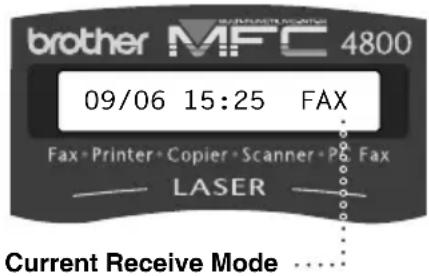
text_image
brother MFC 4800 09/06 15:25 FAX Fax • Printer • Copier • Scanner • Fax • LASER Current Receive Mode ....
text_image
FAX : FAX ONLY F / T : FAX/TEL TAD : EXTERNAL ANSWERING MACHINE MAN : MANUALSetting the Ring Delay
The Ring Delay setting determines the number of times the machine rings before it answers in FAX ONLY or FAX/TEL mode. (See Operation from an External or Extension Telephone, page 38 and For Fax/Tel Mode Only, page 38.)
1 Press Menu/Set, 2, 1, 1.
2 Press or to select how many times the line rings before the machine answers (02-10 for Australia, 01-10 for New Zealand, 00 -10 for some countries.).
3 Press Menu/Set when the screen displays your selection.
4 Press Stop/Exit.
Setting the F/T (Fax/Tel) Ring Time (Fax/Tel Mode Only)
You need to determine how long the machine will notify you with its special F/T pseudo-ring when you have a voice call. This ringing happens after the initial ringing from the phone company. Only the machine rings, for 20, 30, 40 or 70 seconds (for 20, 30, 40 or 55 seconds: Only for New Zealand); no other phones on the same line ring the special F/T pseudo-ring. However, you can answer the call on any extension phone (in a separate wall socket) on the same line as the machine. (See Operation from an External or Extension Telephone, page 38.)
1 Press Menu/Set, 2, 1, 2.
2 Press or to select how long the machine will ring to alert you that you have a voice call, and then press Menu/Set.
3 Press Stop/Exit.
Now, when a call comes in and the machine is set to Fax/Tel (F/T) Mode, all phones on this line will ring the number of times you selected in Ring Delay.
You can let the machine pick up and detect if it's a fax or voice call. If it's a fax call, the machine prints the fax. If it's a voice call, the machine signals you with an F/T pseudo-ring for the length of time you selected in F/T Ring Time.

Even if the caller hangs up during the F/T pseudo-ringing, the machine continues the F/T pseudo-ringing for the set time.
Fax Detect (set ON by default)
When you use this feature, you don't have to press Fax Start when you answer a fax call and hear calling beeps. Just hold the handset and wait for several seconds. When you see RECEIVING on the fax screen or when you hear “chirps” through the handset of an extension phone connected to another wall socket, just replace the handset, and the machine does the rest. Selecting ON allows the machine to receive fax calls automatically, even if you lift the handset of an extension or external phone. Selecting SEMI lets the fax machine receive the call only if you've answered it at the machine. Selecting OFF means you'll have to activate the machine yourself, by pressing Fax Start or * 5 1 (* 9 1 for New Zealand) if you are not at the machine. (You have to set Remote Activation to ON in Menu/Set, 2, 1, 4 to use * 5 1 (* 9 1 for New Zealand).) (See Operation from an External or Extension Telephone, page 38.)
In case Fax Detect does not work, because of a poor phone line connection, just press the Activation Code * 51 (* 91 for New Zealand).
1 Press Menu/Set, 2, 1, 3.
2 Use 📋 or 📋 to select ON, SEMI or OFF and press Menu/Set.
3 Press Stop/Exit.
Receiving a Fax
Printing a Reduced Incoming Document (Auto Reduction)
If you choose ON, the machine reduces an incoming document automatically, so that it fits on one page of A4 recording paper, regardless of the size of the original document.
1 Press Menu/Set, 2, 1, 5. The screen displays
- AUTO REDUCTION
2 Use or to select ON (or OFF).
3 Press Menu/Set when the screen displays your selection.
4 Press Stop/Exit.

If you receive faxes that are split on two pages, change this setting ON.

■When you use Auto Reduction to reduce incoming documents to fit on one page of recording paper, you can do so only as long as the original document is not longer than 35 cm. If the original is longer than 35 cm, the data will not be reduced and will carry over to print on a second page.
■When you use Auto Reduction and you receive an incoming document that is smaller than your recording paper, no reduction will take place, and you will get the same size recorded as the original.
Setting the Print Density
If the machine is printing too light or too dark, you can adjust the print density level. The new setting will remain until you change it again.
1 Press Menu/Set, 2, 1, 7.
2 Press or to select your setting. Each key press changes the print density to the next setting.
3 When the screen shows the setting you want, press Menu/Set.
4 Press Stop/Exit.
Reception into Memory
As soon as the multi-purpose sheet feeder becomes empty during fax reception, the screen will display “CHECK PAPER”; please put some paper in the multi-purpose sheet feeder. (See Brother Quick Setup Guide.)
If the MEMORY RECEPTION switch is ON at this time...
The current fax reception will continue, with the remaining page(s) being stored in memory, subject to available memory. Subsequent incoming faxes will also be stored into memory until the memory is full, following with no further incoming fax calls will be automatically answered. To print all data, put fresh paper in the multi-purpose sheet feeder and press Fax Start.
If the MEMORY RECEPTION switch is OFF at this time...
The current fax reception will continue, with the remaining page(s) being stored in memory, subject to available memory. Subsequent incoming fax calls will not be automatically answered until fresh paper is put in the multi-purpose sheet feeder. To print the last fax received, put paper in the multi-purpose sheet feeder and press Fax Start.
1 Press Menu/Set, 2, 1, 6.
2 Use 📋 or 🏱 to select ON or OFF, and press Menu/Set when the screen displays your selection.
3 Press Stop/Exit.
Printing a Fax from Memory
If you have fax storage ON for remote retrieval or fax forwarding, you can still print a fax from the machine's memory when you are at the machine: (See Setting Fax Storage, page 52.)
1 Press Menu/Set, 2, 5, 4.
2 Press Fax Start.
3 After all the data saved in the memory is printed out, press Stop/Exit.
4 Telephone (Voice) Operation
Making Voice Calls
You can use your FAX/MFC to make voice telephone calls, by dialling manually or by using Search, One Touch (FAX 2850) or Speed Dial memory. When you dial an auto dial number, the screen displays the name you've stored, or if you haven't stored a name, the fax number you've stored.

You can also use Chain Dialling or Pause function.
(See Chain Dialling, page 17 and Pause, page 26)
Manual Dialling
Manual dialling is simply pressing all of the digits of the phone number.
1 Pick up the handset. —OR— Press Hook.
2 When you hear a dial tone, dial the number, using the dial pad.
3 If you pressed Hook to dial the call, pick up the handset when the other party answers. (The speaker works only one way; the other party won't be able to hear you unless you pick up the handset.)
4 To hang up, replace the handset.
Search
You can search for names you have stored in One Touch (FAX-2850) and Speed Dial memories. (See Storing One Touch Dial Numbers (For FAX-2850 Only), page 14 and Storing Speed Dial Numbers in Chapter 1.)
1 Press Search/Speed Dial, then enter the first letter of the name you're looking for.
2 Press or to search the memory.
3 When the screen displays the name you want to call, press Fax Start to begin dialling.
4 If you press Hook to dial the call, pick up the handset when the other party answers. (The speaker works only one way; the other party won't be able to hear you unless you pick up the handset.)
5 When the call is over, hang up.

You can also use or key to search the numbers you have stored in memory in numerical order of registration. In that case, do not enter the first letter of the name in Step 2.
One Touch Dialling (For FAX-2850 Only)
1 Pick up the handset. —OR— Press Hook.
2 When you hear a dial tone, press the One Touch key of the location you want to call. To use One Touch dial numbers 5-8 hold down Shift and press the appropriate One Touch Dial key.
3 If you pressed Hook to dial the call, pick up the handset when the other party answers. (The speaker works only one way; the other party won't be able to hear you unless you pick up the handset.)
4 To hang up, replace the handset.

If you try to use a One Touch location with no number stored in it, you hear a warning sound, and screen displays NOT ASSIGNED. The display returns to normal after 2 seconds.
Speed Dialling
1 Pick up the handset. —OR— Press Hook.
2 When you hear a dial tone, press Search/Speed Dial, press #, and then press the two-digit Speed Dial number. (See Storing Speed Dial Numbers, page 15.)
3 If you pressed Hook to dial the call, pick up the handset when the other party answers. (The speaker works only one way; the other party won't be able to hear you unless you pick up the handset.)
4 To hang up, replace the handset.

If you are sending a fax, press Fax Start after pressing the Speed Dial number. If you picked up the handset, press Fax Start when the receiving fax machine answers with fax tone.
Hold
1 Press Hold to put a call on Hold.
2 You can put down the handset without disconnecting the call.
3 Pick up the FAX/MFC handset to release the call from hold. Picking up an extension handset will not release the call from Hold.
Pause
Press Redial/Pause to insert a 3.5 second pause between numbers. If you are dialing overseas, you can press Redial/Pause as many times as needed to increase the length of the pause.
On Hook Dialling
1 Dial the number by using the dial pad or One Touch Dial key (FAX 2850), or Speed Dial and # then two-digit Speed Dial number.
2 The number you are dialling, or the name you have stored for One Touch or Speed Dial is displayed on the LCD.
3 Press Fax Start.
4 Pick up the handset when you hear the other end from the monitor speaker.

When you make a call by pressing Fax Start after dialling, you can listen to the other end of the line from the monitor speaker, but they can't hear you unless you pick up the handset.
If you accidentally press Hook before lifting the handset, the call will be disconnected.
Tone/Pulse (Not available in New Zealand)
If you have pulse dialling service, but need to send tone signals (for telephone banking, for example), follow the directions below. If you have touch tone service, you do not need this feature to send tone signals.
1 Lift the handset.
2 Press #. Any digits dialled after this sends tone signals.
3 When you hang up, FAX/MFC returns to pulse dialling service.
Fax/Tel (F/T) Mode
When you share one line for your telephone and fax machine, in the Fax/Tel (F/T) Mode, the fax machine can determine whether an incoming call is a fax or a telephone call. (See Select Receive Mode, page 20.)
Hook Key
If you press Hook when you are talking lifting the handset with the other end, you can hear the other end from machine's monitor speaker, but the other end cannot hear you.
5 Printing Reports
Transmission Report and Journal Setting
Two reports require initial setup in the Menu table: Transmission Verification Report and Journal Period. For initial setup:
Press Menu/Set, 2, 4, 1.
—OR—
Press Menu/Set, 2, 4, 2.
- TRANSMISSION
2.JOURNAL PERIOD
Customizing the Transmission Verification Report
You can use the Transmission Report as confirmation that you sent a fax. This report lists the name or fax number of the receiving party, the time and date of transmission, and if the transmission was successful.
When the feature is OFF, the report is printed automatically only if an error occurred during transmission. If the report indicates ERROR, send the document again. If the report indicates you should check the readability of certain pages, resend those pages.
If you typically send multiple faxes to the same destinations, you may need a reminder to identify each fax transmission. You can select OFF+IMAGE or ON+IMAGE to print a portion of the first page of the fax message on the report.
1 Press Menu/Set, 2, 4, 1.
2 Press 🎨 or 🎨 to select OFF, OFF+IMAGE, ON and ON+IMAGE.
3 Press Menu/Set.
4 Press Stop/Exit.
Setting the Journal Period
You can set the machine to print activity reports at specific intervals (1, 3, 6, 12, 24 hours, 2, 4 or 7 days). If you set the interval to OFF, you can print the report by following the steps in the next section.
1 Press Menu/Set, 2, 4, 2.
2 Press 📋 or 📋 to choose your setting, and then press Menu/Set. If you choose 7 days, the screen prompts you to choose a day at which to begin the 7-day countdown. Press 📋 or 📋 to choose your setting and press Menu/Set.
3 Enter the time to begin printing, in 24-hour format (for example, enter 19:45 for 7:45 PM), and press Menu/Set.
4 Press Stop/Exit.
Using the Reports Key
Six lists are available.
-
HELP
-
QUICK-DIAL
-
JOURNAL
4.XMIT VERIFY
-
SYSTEM SETUP
-
ORDER FORM
Lists basic operational steps and functions.
Lists names and numbers stored in Speed Dial memory, in numerical order.
Journal lists information about the last 200 incoming and outgoing faxes. TX means Transmit; RX means Receive.
Prints a Transmission Verification Report for your last transmission.
Lists settings for GENERAL SETUP, SETUP RECEIVE, SETUP SEND, REPORT SETTING, REMOTE FAX OPT and MISCELLANEOUS.
You can print an accessories order form to your Brother dealer for service.
To Print a Report
1 Press Reports.
2 Press 📁 or 🌐 to select the report you want, and then press Menu/Set.
—OR—
Enter the number of the report you want to print. For example, press 1 to print the Help List.
6 Advanced Sending
Advanced Operations
Electronic Cover Page
The cover page is sent to the receiving party's machine. Your cover page includes the name stored in the One Touch (FAX-2850) or Speed Dial memory, if you have used this feature to start the call. The cover page indicates the fax is from your Station ID, and the number of pages you're sending. If you have COVERPG SETUP set to ON (Function menu 2-2-7), the number of pages remains blank.
You can select a comment to include on your cover page, or you can select 1. NOTE OFF if you do not wish to include a comment. (See Entering Text, page 147.)
As well as using one of the comments above, you can also enter up to two customized messages, each 27 characters long. (See Composing Your Own Comments, page 31.)
- NOTE OFF
- PLEASE CALL
- URGENT
- CONFIDENTIAL
Cover Page for Next Fax Only
Make sure Station ID is set up. (See Setting the Station ID, page 11.) This feature does not work without the Station ID.
You can set the machine to send a cover page with a particular document. This cover page will include the number of pages in your document.
1 Insert the document face down in the ADF.
2 Press Menu/Set, 2, 2, 7.
3 Press Menu/Set when the screen displays NEXT FAX ONLY.
4 Press 🎨 or 🎨 to select ON (or OFF), and press Menu/Set.
5 Press or to view the comment selections.
6 Press Menu/Set when the screen displays your selection.
7 Enter two digits to indicate the number of pages you are sending. (Enter 00 to leave the number of pages blank.) If you make a mistake, press to back up and re-enter the number of pages.
8 Press Menu/Set. The screen prompts you to continue.
9 Press 1 if you want to select additional settings. The display returns to the SETUP SEND menu—OR—Press 2 if you have finished choosing settings, and go to Step 10.
10 Enter the fax number and then press Fax Start.
Always Send Cover Page
Make sure Station ID is set up. (See Setting the Station ID, page 11.) This feature does not work without the Station ID.
You can set the machine to send a cover page whenever you send a fax. The number of pages in your fax is not included when you use this setting.
1 Press Menu/Set, 2, 2, 7.
2 Press or to select ON or OFF.
3 Press Menu/Set when the screen displays COVERAGE:ON. (If you select ON, a coverpage is always sent when you send a fax.)
4 If you selected ON, the screen displays the cover page comment options. Press 📋 or 🌐 to view comment selections.
5 Press Menu/Set when the screen displays your selection. The screen prompts you to continue.
6 Press 1 if you want to select additional settings. The display returns to the SETUP SEND menu—OR—Press 2 to exit if you have finished choosing settings.
Using a Printed Cover Page
If you prefer using a printed cover page that you have write on, you can print the sample page and attach it to your fax.
1 Press Menu/Set, 2, 2, 7.
2 Press 📋 or 📋 to select PRINT SAMPLE, and press Menu/Set when the screen displays your selection.
3 Press Fax Start. The machine prints a copy of your cover page.
4 Press Stop/Exit.
Composing Your Own Comments
1 Press Menu/Set, 2, 2, 8. The screen displays: COVERPAGE NOTE.
2 Use 📋 or 📋 to choose position 5 or 6 for your customized comment, and press Menu/Set.
3 Use the dial pad to enter your customized comment. (See Entering Text, page 147.)
4 Press Menu/Set. The screen prompts you to continue
5 Press 1 if you want to select additional settings. The display returns to the SETUP SEND menu—OR—Press 2 to exit.
Overseas Mode
Sometimes, when sending a fax to overseas numbers, problems can be experienced. This mode makes the machine work better for such calls.
After you send a fax using this feature, the feature turns itself off.
1 Insert the document face down in the ADF.
2 Press Menu/Set, 2, 2, 9.
3 Press 🏠 or 📋 to select ON (or OFF), and press Menu/Set when the screen displays your selection.
4 Press 1 if you want to select additional settings. The display returns to the SETUP SEND menu—OR—Press 2 if you have finished choosing settings and go to Step 5.
5 Enter the fax number you're calling, and press Fax Start.
Delayed Transmission (Timer)
You can use this function to send a fax up to 24 hours later.
1 Insert the document face down in the ADF.
2 Press Menu/Set, 2, 2, 3.
3 Enter the time you want the fax to be sent, in 24-hour format (for example, enter 19:45 for 7:45 PM), and press Menu/Set.
4 Press 1 to select DOC—OR—Press 2 to select MEMORY. If you select 1.DOC, the machine will not start scanning the document until the preset time. The document must be left in the ADF.
5 Press 1 if you want to select additional settings. The display returns to the SETUP SEND menu—OR—Press 2 if you have finished choosing settings and go to Step 6. The screen prompts you to enter the fax number.
6 Enter the fax number, and press Fax Start. The machine will wait until the time you have entered to send the fax.
Delayed Batch Transmission
Before sending the delayed faxes, your Brother machine will economize by sorting all the documents in memory by destination and scheduled time. If you set Batch Transmission to ON, all delayed faxes scheduled at the same time to the same fax number will be sent as one transmission.
1 Press Menu/Set, 2, 2, 4.
2 Press 📋 or 📋 to select ON (or OFF) and press Menu/Set.
3 Press Stop/Exit.
Broadcasting
Broadcasting is automatically sending the same fax message to multiple fax numbers. Using the Menu/Set key, you can include up to 8 One Touch locations (FAX-2850), up to 100 Speed Dial locations, and up to 50 manually dialled numbers (maximum of 158 (FAX-2850) or 150 (MFC-4800) locations if you did not use up any locations for Groups, access codes or credit card numbers). However, available memory will vary with the types of jobs in memory and numbers of locations used for broadcasting. If you broadcast to more than the maximum locations available, you will not be able to setup transmissions using dual access and the timer.
The easiest way to broadcast is to first combine frequently used One Touch (FAX-2850) and Speed Dial numbers as a Group, which uses up a One Touch key (FAX-2850) or a Speed Dial #.
(Remember, you can have up to six Groups and Quick Dial numbers can be included in more than one Group). Then by pressing Menu/Set between each location, you can include One Touch (FAX-2850), Speed Dial, Groups, and manual dialling (using the dial pad) in the same broadcast. Use the Search/Speed Dial to help you choose the numbers easily.
After the broadcast is completed, a Broadcast Report will be printed automatically to let you know the results.
1 Insert the document face down in the ADF.
2 Enter a number using One Touch (FAX-2850), Speed Dial, Search, Group number or the dial pad.
Example: Group number
3 Press Menu/Set. You will be prompted to enter the next number.
4 Enter the next number.
Example: Speed Dial
5 Press Menu/Set.
6 Enter the next fax number.
Example: Manual dialling, using the dial pad.
7 Press Fax Start.
The machine will read the documents into memory and then start sending faxes to all the numbers you entered.

■To stop the broadcasting in progress, press Stop/Exit. The display asks if you want to cancel all locations or just the location that is being sent to.
■Enter the long dialling sequence numbers as you normally would, but keep in mind that each key counts as one location, so the number of locations you can call becomes limited.
■If the line is busy or a connection could not be made for some other reasons while broadcasting, the machine will redial the number automatically.
If the memory is full, press Stop/Exit to abort the job or press Fax Start to send the portion that is in the memory (if more than one page has been scanned).
Setting Up Groups for Broadcasting
Groups allow you to send the same fax message to many fax numbers by pressing only one One Touch Group key and Fax Start (FAX-2850) or five keys (Search/Speed Dial, #, the two-digit location, and Fax Start). You can store up to six of the Groups on your One Touch keys (FAX-2850) or Speed Dial, and then broadcast by pressing only the One Touch key (FAX-2850) or Search/Speed Dial, #, the two-digit location (and Fax Start). First, you'll need to store each fax number as a One Touch or Speed Dial number. Then, you can combine them into a Group. Each Group uses up a One Touch or Speed Dial number. You can have up to six Groups, or you can assign up to 107 (FAX-2850) or 99 (MFC-4800) numbers to one large Group. (See Storing One Touch Dial Numbers (For FAX-2850 Only), page 14 and Storing Speed Dial Numbers, page 15.)
1 For the FAX, press Menu/Set, 2, 3, 3. For the MFC, press Menu/Set, 2, 3, 2.

text_image
For FAX-2850, LCD shows PRESS SPEED-DIAL OR ONE-TOUCH KEY For MFC-4800, LCD shows PRESS SPEED-DIAL2 Storing the Group as a Speed Dial Number. Press Search/Speed Dial, and then enter the two-digit location where you wish to store the Group number, and then press Menu/Set. (For example, press Search/Speed Dial, 07.) —OR—
SPEED DIAL? #
Storing the Group on a One Touch key.
For the FAX-2850, press a One Touch key where you wish to store the Group number, and then press Menu/Set. (For example, press One Touch key 2.)
3 Use the dial pad to enter the Group number, and then press Menu/Set. (For example, press 1 for Group 1.)
4 To include One Touch or Speed Dial numbers in the Group, enter them as if you were dialling. For example, for One Touch Dial key 5, press One Touch Dial key 5. For Speed Dial location 09, press Search/Speed Dial, then press 0, 9 on the dial pad. The LCD shows 05, #09.
G01:*05#09_
5 Press Menu/Set. The screen prompts you to enter a name.
6 Use the dial pad to enter a name for the group (for example, NEW CLIENTS) and press Menu/Set. (See Entering Text, page 147.)
7 Press Stop/Exit.

You can print a list of all One Touch and Speed Dial numbers. Group numbers will be marked in the column of "GROUP". (See Printing Reports, page 28.)
Cancelling a Job While Scanning the Document
You can cancel a job while you are scanning it into memory by pressing Stop/Exit. Eject the document by pressing Stop/Exit again.
Checking and Cancelling a Scheduled Job in Memory
You can check or cancel a job that is waiting in memory.
If the machine is idle,
1 Press Menu/Set, 2, 6.
Any waiting jobs appear on the display. If nothing is waiting, the screen displays NO JOB WAITING.
2 If you have more than two jobs waiting, use or to select the job you want to cancel.
Press Menu/Set when the screen displays your selection—OR—If you have only one job waiting, go to Step 3.
3 Press 1 to cancel—OR—Press 2 to exit without cancelling.
To cancel another job, return to Step 2.
4 Press Stop/Exit.

■You can check which jobs are remaining in memory by following Steps 1 and 2 above.
Memory Security
This feature allows you to prevent unauthorised access to the machine. When switched ON, Memory Security prohibits most functions. The following functions listed are available while Memory Security is switched ON.
■Receiving faxes into memory [limited by Memory Capacity].
■Scheduled Delayed Transmission*
■Polling*
■Fax Forwarding*
■Remote Retrieval
* Provided it was set before Memory Security was switched ON.
Using Memory Security
You must use a password to switch Memory Security ON and OFF.
Setting Up Memory Security for the First Time
1 Press Menu/Set, 2, 0, 1.
NEW PASSWD:XXXX
2 Enter a 4-digit number as a password.
3 Press Menu/Set.
The screen prompts you to re-enter the password.
VERIFY:XXXX
4 Re-enter the password and press Menu/Set.
5 Press or to choose SET SECURITY.
6 Press Menu/Set.
The screen prompts you to enter the password.
PASSWORD:XXXX
7 Enter a 4-digit password, followed by Menu/Set.
This is the same as the security password of the machine already stored.
The screen displays ACCEPTED for 2 seconds, followed by SECURE MODE - Memory Security is now switched ON.

If the password you enter at Step 7 is incorrect, the screen would display WRONG PASSWORD. After 2 seconds the display will then return to normal (displaying the date & time). You must then start from Step 5 to set Memory Security.
Changing the Memory Security Password
1 Press Menu/Set, 2, 0, 1.
2 Press or to choose SET PASSWORD.
3 Press Menu/Set.
The screen prompts you to enter the old password.
OLD PASSWD:XXXX
4 Enter the current password.
5 Press Menu/Set.
6 Enter a 4-digit number as a new password.
7 Press Menu/Set.
The screen prompts you to re-enter the new password.
NEW PASSWD:XXXX
8 Enter the new password again and press Menu/Set.
9 Press Stop/Exit.
Switching Memory Security ON
1 Press Menu/Set, 2, 0, 1.
2 Press or to choose SET SECURITY.
3 Press Menu/Set.
The screen prompts you to enter the password.
VERIFY:XXXX
4 Enter a 4-digit password, followed by Menu/Set.
PASSWORD:XXXX
This is the same as the security password of the machine already stored.
The screen displays ACCEPTED for 2 seconds, followed by SECURE MODE - Memory Security is now switched ON.

If the password you enter at Step 4 is incorrect, the screen would display WRONG PASSWORD. After 2 seconds the display will then return to normal (displaying the date & time). You must then start from Step 1 to set Memory Security.
Switching OFF Memory Security
1 When Memory Security is switched ON, press Menu/Set.
PASSWORD:XXXX
2 Enter a 4-digit password and press Menu/Set.
The screen displays ACCEPTED, then after 2 seconds the display reverts to normal. Memory Security is now switched OFF. Then all the data saved in the memory will be printed out.

If the password you enter at Step 2 is incorrect, the screen would display WRONG PASSWORD. After 2 seconds the display will then return to displaying SECURE MODE. You must then start from Step 1 to switch OFF Memory Security.
If you forget the Memory Security password, please contact your Brother dealer for service or the help number given with the warranty documentation.
7 Advanced Receiving
Operation from an External or Extension Telephone
An external phone is a telephone that is plugged into the machine (either into the machine's EXT socket or into the back of the connector that plugs into the telephone wall socket).
An extension phone is another phone on the same phone number as the machine, but plugged into a different telephone wall socket. For example, the machine may be connected to a phone line in your study, and you may have another phone on the same line (and same phone number) in your kitchen. This feature enables you to answer the phone in the kitchen if it rings while you are making a coffee, knowing that you can transfer the call to the machine if the incoming call is a fax.
If you answer a fax call on an external or extension phone, you can make the machine take over by using the Activation Code. When you press the Activation Code * 5 1 (* 9 1 for New Zealand), the machine starts to receive a fax. If you set FAX DETECT to ON, you don't have to press * 5 1 (* 9 1 for New Zealand), just hold the handset and wait for several seconds. (See Fax Detect (set ON by default), page 22.)
If the machine answers a voice call and F/T pseudo-rings for you to take over, use the Deactivation Code #51 (#91 for New Zealand) to take the call at an extension phone. The Deactivation Code is used only in Fax/Tel (F/T) Mode. (You have to set Remote Activation to ON in Menu/Set, 2, 1, 4 to use *51 or #51 (*91 or #91 for New Zealand).)
If you answer a call, and no one is on the line, assume you're receiving a fax. At an extension phone, press * 5 1 (* 9 1 for New Zealand), wait for fax receiving tones (chirps), then hang up. At an external phone, press * 5 1 (* 9 1 for New Zealand) and wait for the phone to be disconnected (the screen displays RECEIVING) before you hang up. (Your caller will have to press Start to send the fax.)

If you accidentally pick up an extension phone when a fax message is being received, you may disrupt the transmission or render some portions unreadable.
The Remote Activation Code can also be used by your callers. When you are using an external TAD, your outgoing message (OGM) should end with the statement “to send a fax, press * 51 (* 91 for New Zealand)”. (See Outgoing Message (OGM) of External TAD, page 6.)
For Fax/Tel Mode Only
When the machine is in Fax/Tel (F/T) Mode, it will use the F/T Ring Time (F/T pseudo-ringing) to alert you to a voice call. If you're at the machine, you can lift the handset to answer.
If you're at an extension phone, you'll need to lift the handset during the F/T Ring Time and press #51 (#91 for New Zealand) between the F/T pseudo-rings. If no one is on the line, or if someone wants to send you a fax, send the call back to the machine by pressing *51 (*91 for New Zealand).
Switching ON Remote Activation and Changing Remote Codes
Remote Codes might not work with some telephone systems. The preset Activation Code is *51 (*91 for New Zealand). The preset Deactivation Code is #51 (#91 for New Zealand).

If you are always disconnected when accessing your external TAD remotely, try changing the Activation Code from * 5 1 (* 9 1 for New Zealand) # # # and the Deactivation Code from # 5 1 (# 9 1 for New Zealand) to 1 1 1. You cannot use the same number for the Activation Code, the Deactivation Code and the Remote Access Code.
To switch Remote Activation ON and change Remote Codes
1 Press Menu/Set, 2, 1, 4.
2 Press 🏠 or 🏠 to select ON (or OFF), and press Menu/Set when the screen displays the setting you want.
3 If you want to, enter a new Remote Activation Code, then press Menu/Set.
4 If you want to, enter a new Remote Deactivation Code, then press Menu/Set.
5 Press Stop/Exit.
Telephone Service for Australia
Distinctive Ringing
This machine feature lets you use the Distinctive Ringing subscriber service offered by Telstra's FaxStream® Duet, which allows you to have at least two separate telephone numbers on the phone line. Each phone number has its own Distinctive Ringing pattern, so you know which phone number is ringing. This is one way you can have a separate phone number for your FAX/MFC.
Your FAX/MFC has a Distinctive Ringing function, allowing you to dedicate one phone number just for receiving faxes.

You can switch it off temporarily, then turn it back on. When you get a new fax number, make sure you reset this function.

- To have your external TAD answer only the main number, the machine must be in Manual Mode.
- In FAX/TEL (F/T) or FAX ONLY mode, the machine will answer all numbers on the phone line.
Set the Distinctive Ringing to ON
1 Disconnect the FAX/MFC from any TAD or telephone company voice mail.
2 Set the FAX/MFC to Manual Mode.
3 Press Menu/Set, 2, 0, 2. The screen displays the current setting of this feature.
4 Press or to select ON (or OFF).
5 Press Menu/Set.
6 Press Stop/Exit.
Caller ID (Caller IDentification)
Caller ID is a telephone service that allows the subscriber to see a display of the caller's phone number or name as the telephone rings. It is a fast way to screen your calls. You can respond quickly to calls you missed, because Caller IDs are received and stored in your FAX/MFC memory.

■ To get the Caller ID Service: apply for the Caller ID service at your local telephone company, if available.
Advantages of Caller ID
For Business
All businesses profit from a quicker response to customer calls. Businesses that provide mail order services, money-lending services or provide confidential information, can protect themselves from false orders or acceptance of false identification.
At Home
Residential customers can protect themselves from unwanted calls.
How Does the Caller ID Work?
The Caller ID Appears on the Display When Your Telephone Rings
As your telephone rings, the display shows you the caller's phone number or name. Once you pick up the handset, the caller's ID disappears. You will see up to the first 16 characters of the number on the display.
Helpful Hints
If OUT OF AREA appears on the display, it means that the call came from outside your caller ID service area or a public phone. *
If PRIVATE CALL appears on the display, it means the caller intentionally blocked the transmission of his/her ID. *
If no caller ID was transmitted to your fax machine, PICK UP PHONE will remain on the display.
* Depends on network Function.
The Caller ID is Stored in Your Machine's Memory
The FAX/MFC can store a maximum of the last 30 incoming caller IDs in the memory, along with the time and date of reception. The 31st call will cause the oldest ID to be erased.
The Caller ID information stored in the memory can be used for the following.
■ Printing the Caller ID List.
You can review calls you received by checking the Caller IDs in memory. This report will list the Date, Time, Phone Number (Caller ID), and type of Call (Comment).
Viewing Caller ID List
Caller ID memory stores information for up to thirty calls; when the thirty-first call comes in, information about the first call is erased. You can scroll through Caller ID information to review those calls made to your FAX/MFC.
1 Press Menu/Set, 2, 0, 3.
2 Press or to select DISPLAY # and press Menu/Set.
If the name was not received, it will not be displayed.
3 Press or to scroll through the Caller ID memory to select the Caller ID you want to view and press Menu/Set The next screen shows the caller's telephone number and the date and time of the call.
4 Press or to return to the Caller ID listing — OR— Press Stop/Exit to exit.
Printing Caller ID List
1 Press Menu/Set, 2, 0, 3.
2 Press or to select PRINT REPORT.
3 Press Menu/Set.
4 Press Fax Start.
Telephone Service for New Zealand
FaxAbility
FaxAbility is a service offered by Telecom that allows you to have an additional number on one phone line, with its own distinctive ring pattern. This way, when you get an incoming call, you can identify the number being called by its ring.
How Will the Fax Machine Treat All Other Numbers?
FaxAbility mode ensures that the machine will answer calls to the FaxAbility (secondary) number. When a call comes in to your main number, all the phones will ring. You can set an external answering device (TAD) to answer calls on the other number(s). (See the chart in the following page.)
If you change the answer mode on the fax machine to FAX/TEL (F/T) or FAX ONLY mode, that setting will override the FaxAbility setup. In FAX/TEL (F/T) or FAX ONLY mode, your fax machine will answer all the phone numbers (including its own ring pattern).
What is the Advantage of Using the FaxAbility Function?
Using FaxAbility is the most efficient way to receive both fax and telephone calls on the same line. It is much easier for your callers who dial manually. The fax machine will answer with receiving tones so they will not have to press an activation code. And the people who call to talk on your main number, will not have to talk to your fax machine. Basically, it gives you two independent numbers without the higher cost of a second line.
How Does FaxAbility Work?
Your telephone number will have the standard ring pattern of long, long tone, while the new number will have a ring pattern of long, silence, long, etc. When FaxAbility is ON, you will not hear the first ring of all incoming calls on the fax machine. Extension phones will ring as usual. If the fax machine recognizes the ring pattern, all ringing will stop and the fax machine will answer and automatically receive the fax message. Otherwise, you will hear the extension phones and the fax machine continue to ring. The fax machine always listens to the ring pattern before it answers, so do not pick up the phone during that time. You will quickly learn to recognize the ring pattern for faxes, so you will not be tempted to answer that number. Either you or a telephone answering device can answer the main number(s).
Flowchart Sequence of Incoming Call

flowchart
graph TD
    A["Incoming Call"] --> B["All extension phones ring, fax machine is silent. (The answer mode should be MANUAL.)"]
    B --> C["Registered FaxAbility Number"]
    B --> D["Main number"]
    C --> E["Fax machine automatically receives and prints fax message."]
    D --> F["Fax machine begins ringing on third ring."]
    F --> G["You answer the call at an external phone."]
    F --> H["Telephone Answering Device (TAD) answers the call."]
How to Turn FaxAbility OFF or ON
The FaxAbility function is designed to accommodate the FaxAbility service provided by Telecom. To change the setting, repeat Steps 1-3; Step 2 is where you can select either ON or OFF.
Call Waiting beeps caused by incoming calls on your main number can affect fax transmissions. If you have FaxAbility Service but don't have Call Waiting you need do nothing at this stage.
If you do have Call Waiting as well as FaxAbility, set the Call Waiting menu option to ON. See below.
Your FaxAbility service automatically suspends Call Waiting when incoming faxes are being sent to you.
1 Press Menu/Set, 2, 0, 2.
The screen displays
2 Press or to select ON (or OFF).
3 Press Menu/Set.
Only when FAXABILITY is set ON, Call Waiting can be selected ON.
In case of FAXABILITY is set OFF, Call Waiting is automatically OFF without choice.
4 Press Menu/Set.
5 Press Stop/Exit.
- FAXABILITY
FAXABILITY:OFF
FAXABILITY:ON
CALL WAITING:OFF
Caller ID (Caller IDentification)
Caller ID is a telephone service that allows the subscriber to see a display of the caller's phone number as the telephone rings. It is a fast way to screen your calls. You can respond quickly to calls you missed, because Caller IDs are received and stored in your machine's memory.

■To get the Caller ID Service: apply for the Caller ID service at your local telephone company, if available.
Advantages of Caller ID
For Business
All businesses profit from a quicker response to customer calls. Businesses that provide mail order services, money-lending services or provide confidential information, can protect themselves from false orders or acceptance of false identification.
At Home
Residential customers can protect themselves from unwanted calls.
How Does the Caller ID Work?
The Caller ID Appears on the Display When Your Telephone Rings
As your telephone rings, the display shows you the caller's phone number. Once you pick up the handset, the caller's ID disappears. You will see up to the first 16 characters of the number on the display.
Helpful Hints
If OUT OF AREA appears on the display, it means that the call came from outside your caller ID service area. *
If PRIVATE CALL appears on the display, it means the caller intentionally blocked the transmission of his/her ID. *
If no caller ID was transmitted to your fax machine, PICK UP PHONE will remain on the display.
* Depends on network Function.
Caller ID memory stores information for up to thirty calls; when the thirty-first call comes in, information about the first call is erased. You can scroll through Caller ID information to review those calls made to your FAX/MFC.
1 Press Menu/Set, 2, 0, 3.
2 Press 🎨 or 📋 to select DISPLAY # and press Menu/Set.
If the name was not received, it will not be displayed.
3 Press or to scroll through the Caller ID memory to select the Caller ID you want to view and press Menu/Set.
The next screen shows the caller's telephone number and the date and time of the call.
4 Press 📋 or 📋 to return to the Caller ID listing —OR— Press Stop/Exit .
Printing Caller ID List
1 Press Menu/Set, 2, 0, 3.
2 Press or to select PRINT REPORT.
3 Press Menu/Set.
4 Press Fax Start.

If you use the Caller ID for Dial back...
■Please be sure that you use appropriate dialling procedures for local and national call.
■Please be sure that you make sure of the details of the exact number to be called back, and the need to insert prefix(es) for manual dialling.
■Please understand that your machine may not display precisely the digits to be called.
Telephone Service for Some Countries
Distinctive Ringing (For Singapore and Hong Kong)
This FAX/MFC feature lets you use the Distinctive Ringing subscriber service offered by some telephone companies, which allows you to have several telephone numbers on one phone line. Each phone number has its own Distinctive Ringing pattern, so you'll know which phone number is ringing. This is one way you can have a separate phone number for your FAX/MFC.
Your FAX/MFC has a Distinctive Ringing function, allowing you to dedicate one phone number just for receiving faxes. You'll need to set Distinctive Ringing to ON.

You can switch it off temporarily, then turn it back on. When you get a new fax number, make sure you reset this function.
■The FAX/MFC will answer only calls to the Distinctive Ringing number.
■To have your external TAD answer only the main number, the FAX/MFC must be in Manual Mode.
In FAX/TEL (F/T) or FAX ONLY mode, the FAX/MFC will answer all numbers on the phone line.
Setting the Distinctive Ringing
1 Set the FAX/MFC to MANUAL mode.
2 Press Menu/Set, 2, 0, 2.
3 Press or to select ON (or OFF).
4 Press Menu/Set.
5 Press Stop/Exit.
Caller ID (For Singapore and Hong Kong)
The Caller ID feature of this machine lets you use the Caller ID subscriber service offered by many local phone companies. This service provides you, by means of the screen display, the telephone number (or name) of your caller as the line rings. (See Printing Caller ID List, page 48.)
After a few rings, the screen displays the telephone number of your caller (or name, if available). Once you pick up the handset, the Caller ID information disappears from the screen, but the call information remains stored in the Caller ID memory.
■You will see the first 16 characters of the number or name.
■ OUT OF AREA display means call originates outside your Caller ID service area.
■ PRIVATE CALL display means the caller has intentionally blocked transmission of information.
■ CALL PICKUP display remains on the screen when no Caller ID information was transmitted.

If both the name and number are received, the screen displays only the name.
You can print a list of Caller ID information received by your machine.
Caller ID service varies with different carriers. Call your local phone company to determine the kind of service available in your area.
Viewing Caller ID List
Caller ID memory stores information for up to thirty calls; when the thirty-first call comes in, information about the first call is erased. You can scroll through Caller ID information to review those calls made to your machine.
1 Press Menu/Set, 2, 0, 3.
2 Press 📋 or 📋 to select DISPLAY #? and press Menu/Set.
If the name was not received, it will not be displayed.
3 Press or to scroll through the Caller ID memory to select the Caller ID you want to view and press Menu/Set.
The next screen shows the caller's telephone number and the date and time of the call.
4 Press 📋 or 📋 to return to the Caller ID listing—OR—Press Stop/Exit.
Printing Caller ID List
1 Press Menu, 2, 0, 3.
2 Press 📋 or 📋 to select PRINT REPORT? and press Menu/Set.
3 Press Fax Start.
9 Polling

Polling is the process of retrieving faxes from another machine. You can use the machine to "poll" other machines, or you can have someone poll the machine.
All parties involved in polling need to set up their machines to accommodate polling. When someone polls the machine to receive a fax, they pay for the call; if you poll someone's fax machine to receive a fax, you pay for the call. (See Polling Transmit, page 51.)
Some machines do not respond to the polling function.
Polling Receive
Polling Receive is when you call another fax machine to receive a fax from it.
Setup for Polling Receive (Standard)
1 Press Menu/Set, 2, 1, 8.
2 Press or to choose STANDARD, and press Menu/Set.
3 Enter the fax number you are polling, and press Fax Start.
The screen displays DIALING #XXX.
ENTER FAX NO.
Secure Polling
Secure Polling is a way to keep your documents and others' from falling into the wrong hands while the fax machines are set up for polling. You can use Secure Polling only with another Brother fax machine. Your four-digit secure code must be entered on the machine that polls for your documents.
Setup for Polling Receive with Secure Code
You need to make sure you are using the same secure code as the other party.
1 Press Menu/Set, 2, 1, 8.
2 Press or to choose SECURE, and press Menu/Set.
3 Enter a four-digit secure code. This is the same as the security code of the fax machine you are polling.
4 Press Menu/Set.
5 Enter the fax number you are polling.
6 Press Fax Start.
ENTER FAX NO.
You can set the machine to begin Polling Receive at a later time.
1 Press Menu/Set, 2, 1, 8.
2 Press or to choose TIMER, and press Menu/Set.
3 The screen prompts you to enter the time you want to begin polling.
4 Enter the time (in 24-hour format) you want to begin polling. For example, enter 21:45 for 9:45 PM.
5 Press Menu/Set. The screen prompts you to enter the fax number you are polling.
6 Enter the fax number, and press Fax Start.
The machine makes the polling call at the time you entered.
ENTER FAX NO.

You can set up only one Delayed Polling.
Sequential Polling
The machine can request documents from several fax units in a single operation. You just specify several destinations in Step 6. Afterward, a Sequential Polling Report will be printed.
1 Press Menu/Set, 2, 1, 8.
2 Press 🏠 or 📋 to choose STANDARD, SECURE or TIMER, and press Menu/Set when the screen displays the setting you want.
3 If you selected STANDARD, go to Step 4.
- If you selected SECURE, enter a four-digit number and press Menu/Set, and then go to Step 4.
- If you selected TIMER, enter the time (in 24-hour format) you want to begin polling and press Menu/Set, and then go to Step 4.
4 Specify the destination fax machines, which you wish to poll by using One Touch (FAX-2850), Speed Dial, Search, a Group (see Setting Up Groups for Broadcasting, page 34) or the dial pad. You must press Menu/Set between each location.
5 Press Fax Start.
The machine polls each number or group number in turn for a document.
Polling Transmit
Setup for Polling Transmit (Standard)
Polling Transmit is when you set up the machine to wait with a document so another fax machine can retrieve it.
1 Insert the document face down in the ADF.
2 Press Menu/Set, 2, 2, 6.
3 Press or to choose STANDARD, and press Menu/Set. The screen displays:
4 Press 1 to select DOC if you want the machine to scan the printed document at the time it is polled—OR—Press 2 to select MEMORY.
5 Press 1 if you want to select additional settings. The display returns to the SETUP SEND menu—OR—Press 2 if you have finished choosing setting and go to Step 6.
6 Press Fax Start.
Setup for Polling Transmit with Secure Code
When you choose POLLING:SECURE, anyone who polls the machine must enter the polling secure code.
1 Insert the document face down in the ADF.
2 Press Menu/Set, 2, 2, 6.
3 Press or to choose SECURE, and then press Menu/Set.
4 Enter a four-digit number, and press Menu/Set. The screen displays:
5 Press 1 to select DOC if you want the machine to scan the printed document at the time it is polled—OR—Press 2 to select MEMORY.
6 Press 1 if you want to select additional settings. The display returns to the SETUP SEND menu—OR—Press 2 if you have finished choosing settings and go to Step 7.
7 Press Fax Start and wait for the fax to be polled.

You can use Secure Polling only with another Brother fax machine.
10 Remote Fax Options
Setting Fax Storage
If you set Fax Storage to ON, you will be able to retrieve fax messages from another location, using Fax Forwarding or Remote Retrieval functions. The screen will indicate when you have a fax stored in memory.
1 Press Menu/Set, 2, 5, 2.
2 Press 📋 or 📋 to select ON (or OFF), and press Menu/Set when the screen displays your selection.
3 Press Stop/Exit.

If there are faxes in memory when you turn the Fax Storage OFF, the screen prompts you to erase any faxes in memory.
If you press 1, all fax data is erased and Fax Storage is turned OFF. If the fax data in memory has not been printed before, it will be printed first, and then erased. If you press 2, data is not erased, and Fax Storage remains ON.
Backup Print
If you've set FAX STORAGE to ON, the machine automatically prints fax messages as they are received into memory. This is a safety feature in case the power goes out for several days so you won't lose the messages.
Fax Forwarding

You cannot use Fax Forwarding when "Fax Storage" is set to OFF.
Programming a Fax Forwarding Number
When Fax Forwarding and Fax Storage are set to ON, the machine stores the received fax in memory, then dials the fax machine phone number you've programmed, and forwards the fax message. You can change a Fax Forwarding number remotely. (See Changing the Fax Forwarding Number, page 55.)
1 Press Menu/Set, 2, 5, 1.
2 Press 📋 or 📋 to select ON (or OFF), and press Menu/Set.
The screen prompts you to enter the number of the fax machine where faxes will be forwarded.
3 Enter the forwarding number (up to 20 digits), and press Menu/Set.
4 Press Stop/Exit.

You can also dial into the machine from a remote location to switch this feature on, or to change the number you want your faxes forwarding to.
Changing the Remote Access Code
Enter your Remote Access Code when the machine picks up your call, so you can access features remotely. The access code is preset to 159, but you can change this.
1 Press Menu/Set, 2, 5, 3.
2 Enter a three-digit number from 000 to 999, and press Menu/Set.
The ✕ cannot be changed. Do not use the same digits that appear in your Remote Activation or Deactivation Code.
3 Press Stop/Exit.
Remote Retrieval
Using Your Remote Access Code
To receive faxes at your location, you must call from a fax machine using touch tone. For convenience, you can retrieve faxes from a touch tone phone by having them sent to a fax machine. For example, if your hotel room does not have a fax machine, you can enter the number of the fax machine at the hotel's Front Desk.
1 Dial your fax number from a touch tone phone.
2 When the machine answers and beeps, immediately enter your Remote Access Code (the factory setting is 159)
3 The machine signals the kinds of messages received:
1 long beep — Fax message(s)
No beep — No messages
4 The machine prompts you with two short beeps to enter a command. If you wait longer than 30 seconds to enter a command, the machine hangs up. If you enter an invalid command, the machine beeps three times.
5 Press 90 to reset the machine when you finish.
6 Hang up.
Remote Commands
Follow the commands below to access features remotely. When you call the machine and enter your Remote Access Code (the factory setting is 159) the system will signal you with two short beeps to enter a remote control command.
Change Fax Forwarding Setting
Press 95
then to
Turn Fax Forwarding OFF—Press 1.
Turn Fax Forwarding ON—Press 2.
Program Fax Forward Number—Press 4. Automatically turns Fax Forwarding ON.
Turn Fax Storage ON—Press 6.
Turn Fax Storage OFF—Press 7. (This is only possible if there are no faxes stored in the memory, or if all faxes have been erased using Remote Control 9 6 3).
Retrieve or Erase a Fax
Press 96
then to
Retrieve all faxes—Press 2, then enter the number of remote fax machine and then press # #. After the beep, hang up and wait.
Erase all fax messages—Press 3. If the data stored in the memory has not been printed before, it will be printed first and then erased.
Check the Receiving Status
Press 97
then Press 1.
1 long beep—Received fax messages.
3 short beeps—No messages.
Change Receive Mode
Press 98
then for
TAD—Press 1.
F/T (FAX/TEL)—Press 2.
FAX—Press 3.
Exit Remote Operation
Press 90.
Retrieving Fax Messages
1 Dial the machine's number.
2 When you hear the beep, immediately enter your Remote Access Code (the factory setting is 159 *)
3 As soon as you hear two short beeps, use the dial pad to press 962.
4 Using the dial pad, enter the number (up to 20 digits) of the remote fax machine where you want your fax messages forwarded, and then press # #.

You cannot use and # as dial numbers. However, if you want to store a pause, press #.
5 After you hear the machine beep, hang up and wait.
The machine calls the remote fax machine and sends the stored documents. The remote fax machine prints your fax messages.
Changing the Fax Forwarding Number
You can change the default setting of your fax forwarding number from a remote telephone/fax machine using touch tone.
1 Dial the machine's number.
2 When you hear the beep, immediately enter your Remote Access Code (the factory setting is 159 *)
3 When you hear two short beeps, use the dial pad to press 954.
4 Enter the new number of the remote fax machine where you want your fax messages forwarded, and then press # #.

You cannot use and # as dial numbers. However, if you want to store a pause, press #.
5 After you hear the machine beep, hang up.
11 Making Copies
Basic Copy Operations
Using the Machine as a Copier
You can use the machine as a copy machine, making up to 99 copies at a time.
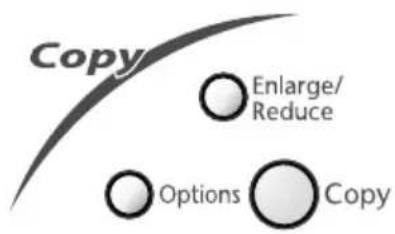
text_image
Copy Enlarge/ Reduce Options Copy
Do NOT pull on the paper while copying is in progress. To cancel, press Stop/Exit. Press Stop/Exit again to release the original document.
The scannable area of the machine begins at approximately 4mm from the edge of the paper.

text_image
(4mm) (4mm) Non-scannable areaMaking a Single Copy
1 Insert the document face down in the ADF.
2 Press Copy.

To stop, press Stop/Exit. To release the original document, press Stop/Exit again.
Making Multiple Copies
1 Insert the document face down in the ADF.
2 Using the dial pad, enter the number of copies you want. For example, press 3, 8 for 38 copies.
3 Press Copy.

To sort the copies, use Options key.
Out of Memory Message
If the memory becomes full while you're making copies, the screen displays:
OUT OF MEMORY
If you were scanning the first page to be copied, press Stop/Exit to cancel the operation and restart to make a single copy. If you were scanning a subsequent page, you'll have the option to press Copy to copy the pages scanned so far —OR— press Stop/Exit to cancel.
You'll need to clear some fax messages to make some additional memory available before you can continue.

To gain extra memory, you can turn off Fax Storage—OR—Print fax messages in memory. (See Setting Fax Storage, page 52.)
Temporary Copy Setting
You can quickly enlarge or reduce copies or improve the copy quality by using the Enlarge/Reduce, and Options keys. These settings are temporary, and the machine returns to its default settings when you finish copying.
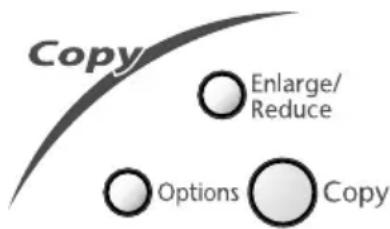
text_image
Copy Enlarge/ Reduce Options CopyCopying Using Multiple Settings
You can try different combinations of settings for the best results.
After you finish settings using the Enlarge/Reduce or Options keys, the LCD shows:
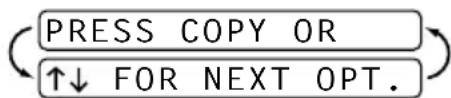
flowchart
graph TD
    A["PRESS COPY OR"] --> B["↑↓ FOR NEXT OPT."]
■Press or if you want to select additional settings. —OR— Press Copy if you have finished choosing settings.
Making Enlarged or Reduced Copies (Temporary Setting)
1 Insert the document face down in the ADF.
2 Using the dial pad, enter the number of copies—OR—Keep the default (01).
3 Press Enlarge/Reduce.
4 Press or to choose an enlargement or reduction ratio.
You can reduce to 71% or 50% of the original size by pressing key.
—OR—
You can enlarge to 141%, 150%, 200% by pressing 🔒 key.
—OR—
You can press or to select MANUAL, then use the dial pad to enter an enlargement or reduction ratio between 50% and 200%. For example, press 5, 3 to enter 53%.
5 Press Menu/Set.
6 Press Copy—OR—Press 📁 or 🏱 for additional settings.

Special Copy Options (2 in 1 or 4 in 1 copy) are not available with Enlarge/Reduce.
Using the Options Key
The Options key changes the settings for copy mode, contrast, sort and special copy options for the next copy only.
Press Options.
| Press Options M | Menu Selections Options | Factory Setting | |
 | NO. OF COPIES NO. OF | COPIES:XX 01 | |
| COPY MODE AUTO/TEXT/PHOTO AUTO | |||
| CONTRAST - + - + | ☐ ☐ ☐ ☐ ☐ | ■ ■ ■ ☐ ☐ | |
| SPECIAL 2IN1/4IN1/OFF | OFF | ||
| PAPER TYPE | THIN/PLAIN THICK/THICKER/TRANSPARENCY | PLAIN | |
Copy Mode (Type of Original)
You can select the Copy resolution for your type of original. The default setting is AUTO, which is used for originals that contain both text and photographs. TEXT is used for originals containing only text. PHOTO is used for copying photographs.
1 Insert the document face down in the ADF.
2 Use the dial pad to enter the number of copies you want (up to 99).
3 Press Options and 📁 or 🏠 to select COPY MODE and then press Menu/Set.
4 Press 📁 or 📋 to choose the type of original (AUTO, TEXT or PHOTO), and then press Menu/Set.
5 Press Copy—OR—Press 📁 or 🌐 for additional settings.
Copy Contrast
You can adjust copy contrast to make copies darker or lighter.
1 Insert the document face down in the ADF.
2 Use the dial pad to enter the number of copies you want (up to 99).
3 Press Options and 📋 or 📋 to select CONTRAST, and then press Menu/Set.
4 Press to make a copy lighter, or to make a copy darker, and then press Menu/Set.
5 Press Copy—OR—Press 📋 or 🌐 for additional settings.
Special Copy Options
You can save paper by copying either two or four pages onto one page.
1 Insert the document face down in the ADF.
2 Use the dial pad to enter the number of copies you want.
3 Press Options and 📋 or 🏱 to select SPECIAL, and then press Menu/Set.
4 Press 🎨 or 🎨 to select 2 IN 1, 4 IN 1 or OFF, and then press Menu/Set.
5 Press Copy—OR—Press 📋 or 🏱 for additional settings.
2 in 1
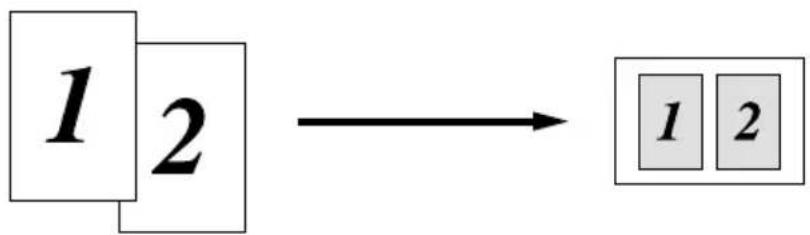
flowchart
graph LR
    A["1 2"] --> B["1 2"]
4 in 1
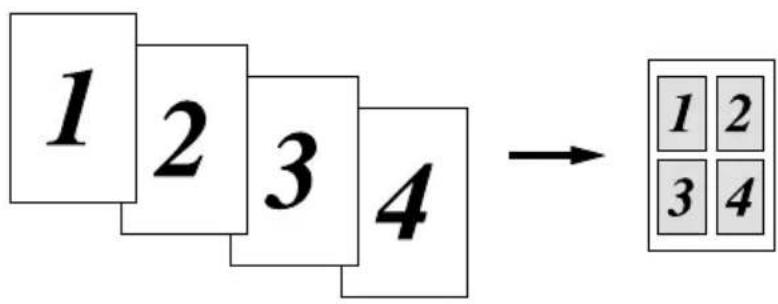
flowchart
graph LR
    A["1"] --> B["2"]
    B --> C["3"]
    C --> D["4"]
    D --> E["1 2<br>3 4"]

Special Copy Options (2in1 or 4in1 Copy) are not available with Enlarge/Reduce.
Paper Type
You can use the following types of paper for copying. For the best print quality, select the type of media that you are using.
THIN (64-69 gsm) For thin paper or transparency
PLAIN (70-95 gsm) For ordinary plain paper
THICK (96-120 gsm) For heavy weight paper or rough paper
THICKER (121-158 gsm) For heavier weight paper, rough paper or bond paper
TRANSPARENCY For transparency (OHP)
1 Press Options and 📁 or 📋 to select PAPER TYPE, and then press Menu/Set.
2 Press 🎨 or 📋 to select you type of paper, and then press Menu/Set.
3 Press Copy—OR—Press 📋 or 🏱 for additional settings.
Copy Quality – Default Settings
Changing Default Settings
Press Menu/Set, 3 to change default settings for Copy mode. These settings will remain until you change them again by pressing Menu/Set. Adjust the Copy Mode and Contrast settings.
By pressing a number, you can adjust copy settings as shown in the following chart. Press or to move through the selections for each setting. Press Menu/Set to save your selection. Press Stop/Exit—OR—Press to select the next setting you want to change.
Press Menu/Set, and 3.

flowchart
graph TD
    A["1.COPY MODE"] --> B["AUTO"]
    A --> C["TEXT"]
    A --> D["PHOTO"]
    E["2.CONTRAST"] --> F["-■■□□+"]
    G["3.PAPER TYPE"] --> H["THIN"]
    G --> I["PLAIN"]
    G --> J["THICK"]
    G --> K["THICKER"]
    style A fill:#f9f,stroke:#333
    style E fill:#ccf,stroke:#333
    style G fill:#cfc,stroke:#333
Copy Mode (Type of Original)
You can select the Copy resolution for your type of original. The default setting is AUTO, which is used for originals that contain both text and photographs. TEXT is used for originals containing only text. PHOTO is used for copying photographs.
1 Press Menu/Set, 3, 1.
2 Press 📋 or 📋 to choose the type of original (AUTO, TEXT or PHOTO), and then press Menu/Set.
3 Press Stop/Exit—OR—Press 📋 for additional settings.
Copy Contrast
You can adjust copy contrast to make copies darker or lighter.
1 Press Menu/Set, 3, 2.
2 Press 📋 to make a copy lighter—OR—Press 🔒 to make a copy darker, and then press Menu/Set.
3 Press Stop/Exit—OR—Press 📋 for additional settings.
Paper Type
You can use the following types of paper for copying. For the best print quality, select the type of media that you use most often.
THIN (64-69 gsm) For thin paper
PLAIN (70-95 gsm) For ordinary plain paper
THICK (96-120 gsm) For heavy weight paper or rough paper
THICKER (121-158 gsm) For heavier weight paper, rough paper or bond paper
1 Press Menu/Set, 3, 3.
2 Press or to select your type of paper, and then press Menu/Set.
3 Press Stop/Exit.
12 Using the machine as a Printer
Special Printing Features
Windows® Printing
The dedicated printer driver for Microsoft ^® Windows ^® 95, 98, 98SE, Me, 2000 Professional and Windows NT ^® Workstation Version 4.0 are available on the CD-ROM supplied with the machine. You can easily install them into your Windows ^® system using our installer program. The driver supports our unique compression mode to enhance printing speed in Windows ^® applications, and allows you to set various printer settings including economy printing mode and custom paper size.
Enhanced Memory Management
The machine has its own Data Compression Technology, which automatically compresses graphic data and downloads font data efficiently into the printer's (machine's) memory. You can avoid memory errors and print most full-page, 600dpi graphic and text data, including larger fonts, with the machine's standard memory.
Printing From Your PC
Multi-Purpose Sheet Feeder
The machine's multi-purpose sheet feeder can feed plain paper, envelopes, and organizer paper, Postcard, Labels and Transparencies. When the machine receives data from your computer, it begins the print process by loading paper from the multi-purpose sheet feeder.
■Select the print command from your PC.
Your PC sends a print command and data to the machine. If there are more pages, the machine begins to print the next page automatically.

You may select the proper paper source, paper size, and orientation in your application software.
If your application software does not support your custom paper size, select the next larger paper size. Then adjust the print area by changing the right and left margins in your application software.
Two-Sided Printing (Manual Duplex)
The supplied printer drivers for Windows ^® 95/98/98SE/Me and Windows NT ^® Workstation Version 4.0 support manual duplex printing. (For more information, see the Help screen for the printer driver.)
Please select LPT1 port in the printer driver. The machine prints all the even-numbered pages on one side of the paper first. Then, the Windows ^® driver instructs you (with a pop-up message) to reinsert the paper. Before reinserting the paper, straighten it well or you may get a paper jam. Very thin or very thick paper is not recommended. If the paper “double-feeds” (sends two sheets at once), hold the stack of paper except for the front sheet while the paper is feeding.
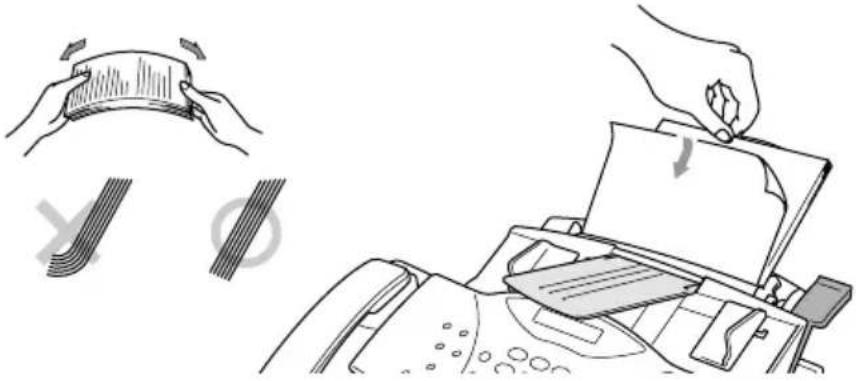
natural_image
Illustration showing two steps of a hand holding a small object, one being cut and the other handling a document (no text or symbols present)
When you use manual duplexing, it is possible that a paper jam may occur or the printer quality might not be satisfactory.
Loading Envelopes
If you load envelopes into the Multi-purpose sheet feeder, make sure they are inserted in the direction shown below.
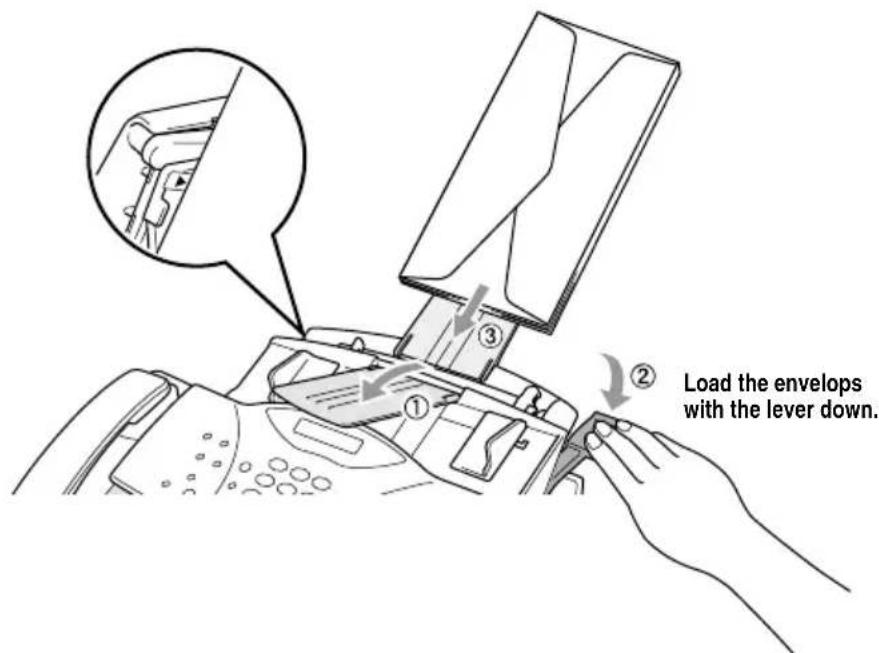
text_image
Load the envelopes with the lever down.Paper Tray
The machine ejects paper with printed surfaces face down into the paper tray at the front of the machine. When you use transparencies, remove each sheet immediately after printing, to prevent a paper jam or curled sheets.
Reset Key (For MFC-4800 Only)
Press this key to clear data from the memory.
Simultaneous Printing/Faxing
The machine can print data from your computer while sending or receiving a fax, or while scanning information into the computer. However, when the machine is copying or receiving a fax on paper, it pauses the PC printing operation, and resumes when copying or fax receiving is complete. Fax sending continues during PC printing.
Acceptable Paper
To achieve high quality printing using the machine, it's very important to select the right kind of paper.
| Paper Type Paper Size | |
| Cut sheet A4, Letter, Legal | 70-216 x 127-356 mm (2.75-8.5 x 5-14 inches) |
| Envelopes DL, C5, COM | M-10, Monarch |
| Post Card 70-216 x 127- | 279 mm (2.75-8.5 x 5-11 inches) |
| Organizer Day-Timer | ^ J, K, L, M70-216 x 127-279 mm (2.75-8.5 x 5-11 inches) |
| Labels and Transparencies | 70-216 x 127-356 mm (2.75-8.5 x 5-14 inches) |
Paper Capacity in Feeder
Multi-purpose Sheet Feeder: Up to 22 mm (0.87 inches) in height (up to the mark) Approx. 200 sheets of 75 g/m^2 (20 lb) or 50 sheets of 158 g/m^2 (42 lb) A4/Letter paper, or 10 envelopes
| Cut Sheet Envelope | ||
| Basis Weight 64 to 158 g/m ^2 (17 to 42 lb) | 75 to 90 g/m ^2 (20 to 24 lb)single thickness | |
| Caliper (±0.003 to ±0.008 inches)0.08 to 0.2 mm | (0.0033 to 0.0058 inches)0.084 to 0.14 mmsingle thickness | |
| Moisture Content 4% to 6% by weight 4% to 6% by weight | ||
| Smoothness 100 to 250 (Sheffield) 100 to 250 (Sheffield) | ||
Recommended paper types:
Cut sheet: Xerox 4200
Label: Avery laser label or equivalent
Transparency: 3M CG3300 for laser printers or equivalent
Output Tray: Approx. 50 sheets of 75 g/m^2 (20 lb) A4/Letter paper
Using the Brother MFC-4800 Printer Driver
A Printer Driver is software that translates data from the format used by a computer into the format required by a particular printer, using a printer command language or page description language.
The printer drivers are on the supplied CD-ROM.
For FAX-2850, you can download the latest Brother Printer Driver from the Brother Web Site. Visit us at:
http://solutions.brother.com
http://www.brother.com
Features in the Printer Driver (For Windows® Users Only)

The screens shown in this section are from Windows ^® 98. The screens on your PC may vary depending on your Windows ^® Operating System.
For more detailed information, please see the on-line Help in the printer driver.
Basic Tab

text_image
Brother MFC4800 Properties General Details Basic Advanced Support Letter 8.1x x 11 m Paper Size Letter Multiple Page Normal Border Line Orientation Portrait Landscape Copies 1 Sclate Media Type Plain Paper Default About OK Cancel Apply Help- Select the Paper size, Multiple Page and Orientation.
- Select number of Copies and Media Type.
Paper Size
From the drop-down box select the Paper Size you are using.
Multiple Page
The Multiple Page selection can reduce the image size of a page allowing multiple pages to be printed on one sheet of paper or enlarging the image size for printing on page on multiple sheets of paper.
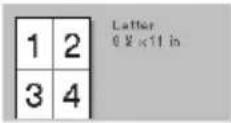
Ex. 4 in 1 Ex. 1 in 2x2 pages
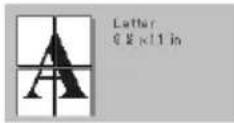
Border Line
When printing multiple pages on one sheet with the Multiple Page feature you can select to have a solid border, dash border or no border around each page on the sheet.
Orientation
Orientation selects the position of how your document will be printed (Portrait or Landscape).
Portrait Landscape
Copies
The Copies selection sets the number of copies that will be printed.
Collate
The collate selection is active if more than one copy is selected. With the collate check box selected, one complete copy of your document will be printed and then repeated for the number of copies you selected. If the collate check box is not selected then each page will be printed for all the copies selected before the next page in the document is printed.

text_image
1 Letter 8 x 11 in 1,2 1,2Collate box checked Collate box not checked
text_image
1 Letter 0 x 11 in 2.2 1.1Media Type
You can use the following types of media in your printer. For the best print quality, select the type of media that you wish to use.
Plain Paper
Thin Paper
Thick Paper
Thicker Paper
Bond Paper
Transparencies
When using ordinary plain paper, select Plain Paper. When using heavier weight paper, envelopes or rough paper select Thick Paper or Thicker Paper. For bond paper, select Bond Paper and for OHP transparencies, select Transparencies.
Advanced Tab
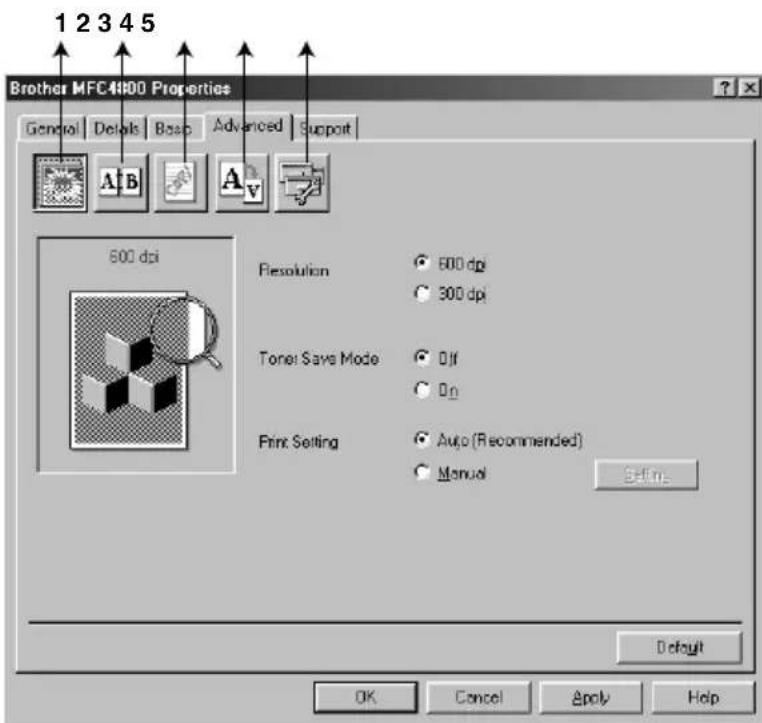
text_image
Brother MFC4800 Properties General | Details | Basic | Advanced | Support | 600 dpi Resolution 600 dpi 300 dpi Tone: Save Mode Off Do Print Setting Auto (Recommended) Manual Settings Default OK Cancel Apply HelpChange the tab settings by selecting one of the following icons:
- Print Quality
- Duplex Printing
- Watermark
- Page Setting
- Device Option
Resolution
You can change the resolution as follows:
◆300 dpi
◆600 dpi
Toner Save
You can save running costs by turning on the Toner Save Mode, which reduces the print density.
Print Setting (For Windows® 95/98/98SE/Me Users Only)
Print Setting is used for optimizing your print quality for the type of document being printed (Photos, Graphics or Scanned Images). When you choose Auto (Recommended), the printer automatically prints with the most suitable print settings.
With the Print Setting set to Manual, you can change the Brightness, Contrast and Graphics Quality options manually.
Duplex Printing
Choosing the Duplex Printing icon displays the Manual Duplex features available.

text_image
Brother MFC4800 Properties General Details Basic Advanced Support A B A V Manual Duplex Duplex Type ● Flip on Left Edge ○ Flip on Right Edge ○ Flip on Top Edge ○ Flip on Bottom Edge ○ Flip on Top Edge (No Reverse) ○ Flip on Bottom Edge (No Reverse) Binding Offset Offset [ 0 < 0 < 8 ] ○ run ○ push Default OK Cancel Apply HelpManual Duplex
Check the Manual Duplex box and there are six types of duplex directions available for each orientation. In this mode, the machine prints all the even numbered pages first. Then the printer driver stops and shows the instructions required to re-install the paper. When you click OK the odd numbered pages are printed.
Binding Offset
Check the Binding Offset option, you can specify the offset value of the binding side in millimetres or inches (0 - 203.2 mm) [0 - 8 inches].
Watermark
You can place a logo or text into your document as a Watermark by using a bitmap file as your source file or select one of the preset Watermarks.
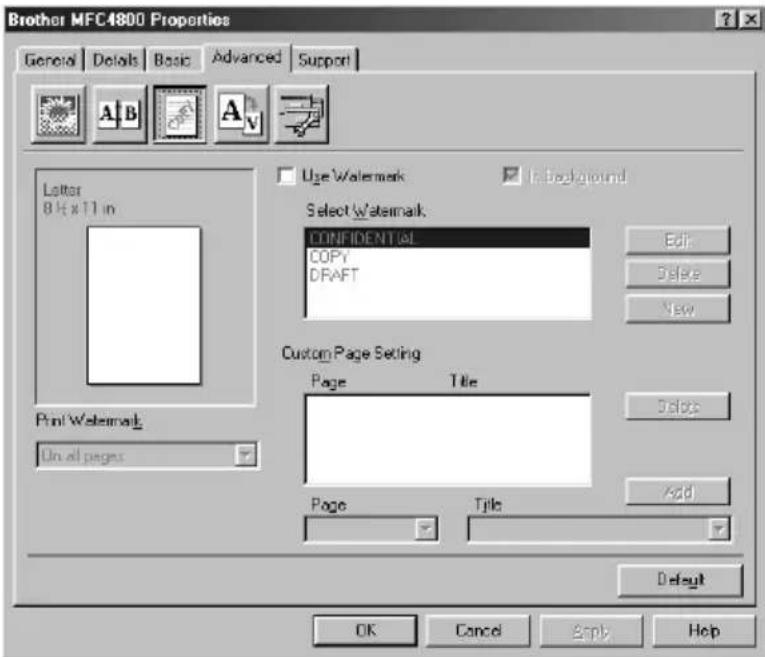
text_image
Brother MFC4800 Properties General Details Basic Advanced Support Letter 8 H x 11 in Print Watermark Un all pages Use Watermark In background Select Watermark CONFIDENTIAL COPY DRAFT Edit Delete View Custom Page Setting Page Title Page Titles Add Default OK Cancel HelpPrint Watermark
The Print Watermark feature offers printing choices of:
On all pages
On first page only
From second page
Custom
In background
With the In background feature checked the Watermark will print behind your document on the page. If this feature is not checked then the Watermark will print on top of your document.
You can change the size and the position of the Watermark on the page by selecting the Watermark and clicking the Edit button. If you want to add a new Watermark, click the New button and select Text or Bitmap from the Watermark Style.
Watermark Text
Enter your Watermark Text into the Text Box and select the Font, Size, Darkness and Style.
Watermark Bitmap
Enter the file name and location of your bitmap image in the File box or Browse for the file location. You can also set the scaling size of the image.
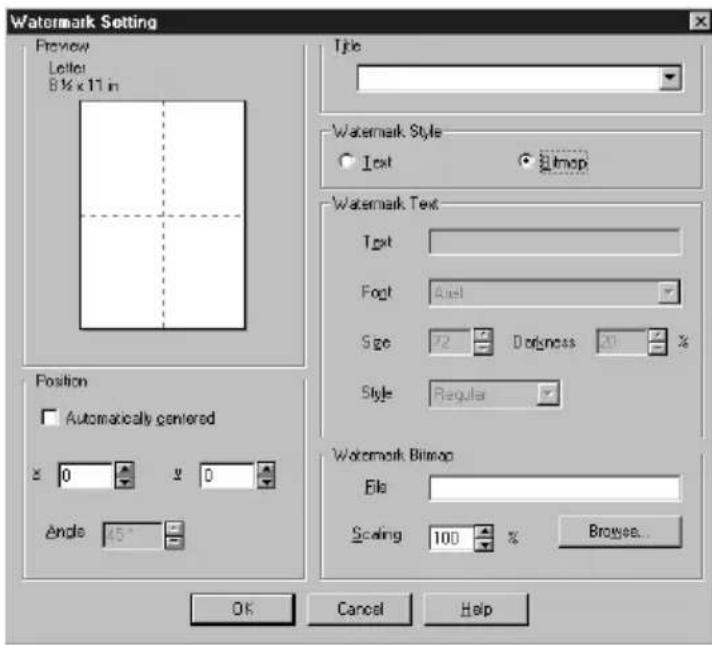
text_image
Watermark Setting Preview Letter: 8 1/2 x 11 in Title Watermark Style Text Bitmap Watermark Text Text Foot Size 72 Dofness 20 % Style Regular Watermark Bitmap File Scaling 100 % Browse... Position Automatically centered 0 0 Angle 45° OK Cancel HelpPosition
The position settings offer controls on where the Watermark can be positioned on the page.
Page Setting
You can change the print size of your document with the Scaling feature.

text_image
Brother MFC4800 Properties General Details Basic Advanced Support Letter B1% x 11 in Scaling Off Fit to Paper Size Figs Output Paper Size Letter Free (25 - 100 %) 100 Mirror Print Reverse Print Default OK Cancel Apply Help- Check Off if you want to print the document as it appears on your screen.
- Check Fit to Paper Size, if your document has an unusual size, or if you have only the standard size paper.
- Check the Free box if you want to reduce or enlarge the output.
You can also use the Mirror Print or Reverse Print feature for your page setting.
Device Options
Set one of the following Printer Functions:
- Quick Print Setup
- Administrator (For Windows ^ 95/98/98 SE/Me Users Only)
- Print Date & Time

text_image
Brother MFC4800 Properties General Details Basic Advanced Support Printer Function Quick Print Setup Administrator Print Date & Time - Quick Print Setup ○ On ● Off Setting Default OK Cancel Apply HelpQuick Print Setup
The Quick Print Setup feature allows you to quickly select driver settings. To view settings, simply click your mouse button on the task tray icon. This feature can be set to ON or OFF from the Device Options section.
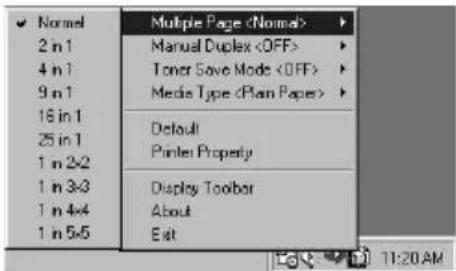
text_image
✓ Normal 2 in 1 4 in 1 9 in 1 16 in 1 25 in 1 1 in 2-2 1 in 3-3 1 in 4-4 1 in 5-5 Multiple PageAdministrator (For Windows® 95/98/98SE/Me Users Only)
The administrator selection permits the Copy, Scaling and Watermark features to be locked and Password protected.
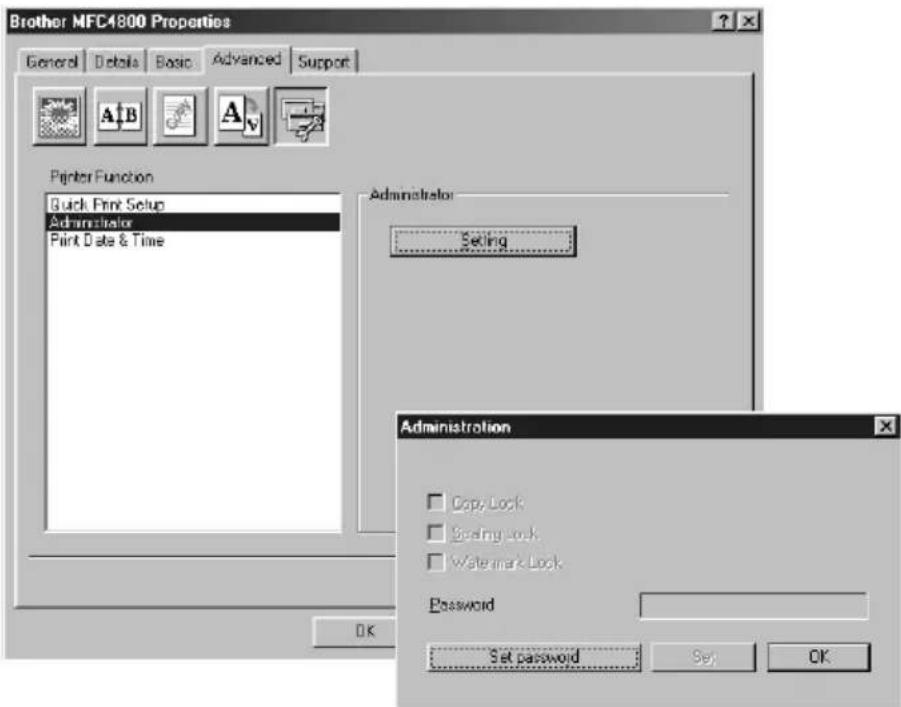
text_image
Brother MFC4800 Properties General Details Basic Advanced Support Printer Function Quick Print Setup Administrator Print Date & Time Administrator Setting Administration Copy Lock Scaling Lock Watermark Lock Password Set password Say OK
Record your password and keep it in a safe place for future reference. If you forget your password these settings can not be accessed.
Print Date & Time
When enabled the Print Date and Time feature will automatically print the date and time on your document from your computers system clock.

text_image
Brother MFC4800 Properties General Details Basic Advanced Support Printer Function Quick Print Setup Administrator Print Date & Time Date & Time Enable Setting Date & Time Format Date Mon 10 Apr 2000 Time 19:49:43 Font Position Darkness 0 % Opaque Transparent Left Center Right Top Bottom OK Cancel DefaultClick the Setting button to change the Date and Time Format, Position and Font. To include a background with the Date and Time select Opaque. When Opaque is selected you can set the Darkness of the Date and Time background by changing the percentage.

The Date and Time indicated in the selection box represents the format that will be printed. The actual Date and Time printed on your document is automatically retrieved from the settings of your computer.
Support
The Support Tab provides driver version information and setting information. In addition there are links to the Brother Solution Centre and Driver Update Web sites.
Brother Solutions Centre
The Brother Solutions Centre is a Web site offering information about your Brother product including FAQ's, User Guides, Driver updates and Tips for using the machine.
Web Update
Web Update checks the brother web site for updated drivers and automatically downloads and updates the driver on your computer.
Check Setting
The Check Setting selection displays a list of your current drivers settings.
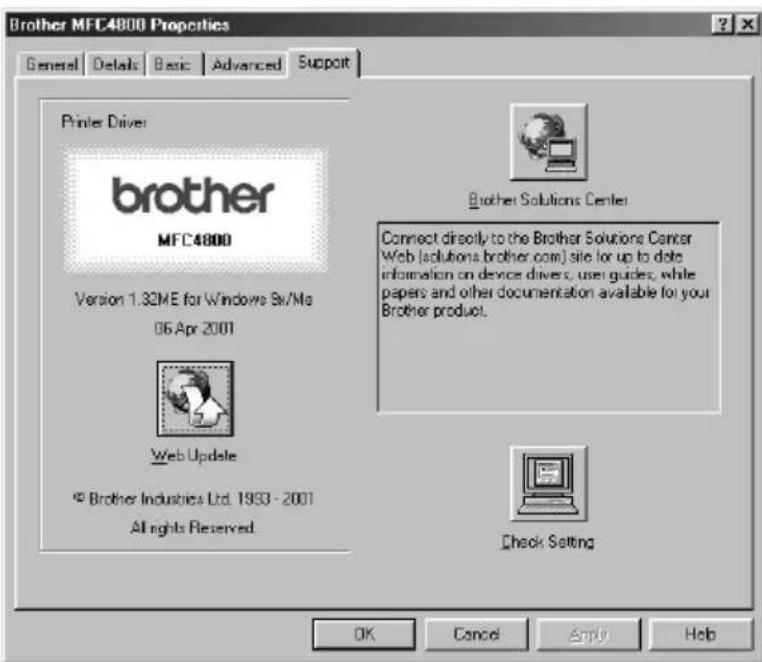
text_image
Brother MFC4800 Properties General Details Basic Advanced Support Printer Driver: brother MFC4800 Version 1.32ME for Windows Sv/Mo 06 Apr 2001 Web Update © Brother Industries Ltd. 1950 - 2001 All rights Reserved Brother Solutions Center Connect directly to the Brother Solutions Center Web (solutions brother com) site for up to date information on device drivers, user guides, white papers and other documentation available for your Brother product. Check Setting OK Cancel Apply HelpBrother MFL-Pro Control Centre
The Brother Control Centre is a software utility that pops up on the PC screen whenever paper is placed in the ADF. This allows you to access the most frequently used scanning applications only with a few mouse clicks. Using the Control Centre eliminates the need to manually launch the specific applications.
The Brother Control Centre provides three categories of functions:
1 Scan directly to a file, E-mail, word processor or graphic application of choice
2 Copy functions.
3 PC Faxing using the Brother MFL Pro PC-FAX Software.

text_image
Brother MFL Pro Control Center Multi-Function Center All-in-One MFC Scan Scan To File Outlook Express Microsoft WordPad Microsoft Paint Copy Copy PC Fax Send a FAX brother™ Brother MFC-8500 ReadyAutoLoad the Brother Control Centre
The Control Centre is initially configured to automatically load each time Windows ^® is started.
When the Control Centre is loaded, the Control Centre icon will appear in the task bar. If you don't want the Control Centre to load automatically, you can turn off AutoLoad.

If the Control Centre icon does not appear in your taskbar, you will have to launch this software. From the Fax Start menu, select Programs, PaperPort, and then double-click Brother SmartUI PopUp.
1 Left click the Control Centre icon and click Show.
2 When the Control Centre main screen appears, left click on the Smart Click 📋 Control Centre button. A dialog box with a check box labelled “AutoLoad Pop-up” will appear:
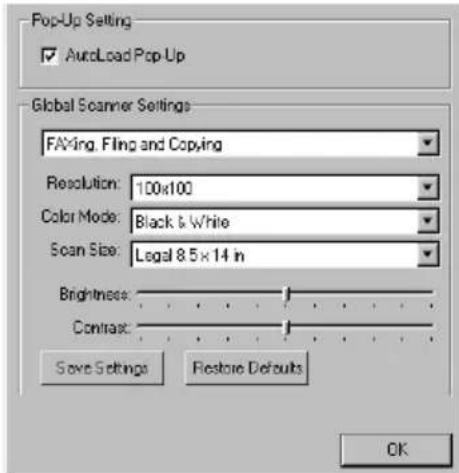
text_image
Pop-Up Setting ✓ AutoLoad Pop-Up Global Scanner Settings FAXing, Fling and Copying Resolution: 100x100 Color Mode: Black & White Scan Size: Legal 8.5x14 in Brightness: Contrast: Save Settings Restore Defaults OK3 Uncheck the AutoLoad Pop-Up option.
Using the Scan Keys with Windows PC

If you have connected a Macintosh, the scan keys will not work with your computer. (See Using the Brother MFC with a New Power Macintosh ^® G3, G4 or iMac ^™ /iBook ^™ , page 107.)
You can use the Scan keys on the control panel to scan originals into your word processing, graphics or E-mail applications. The advantage of using the Scan keys is that you avoid the mouse clicks required to scan from your PC.
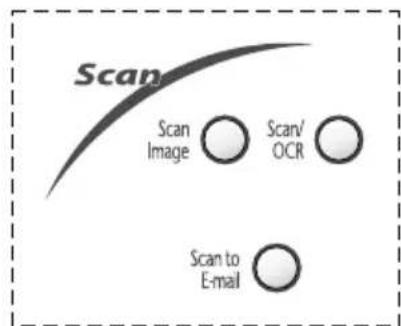
text_image
Scan Scan Image Scan/OCR Scan to E-mailUsing the Control Panel Keys
Before you can use the Scan keys on the control panel, you must have connected the machine to your Windows ^® based PC and loaded the appropriate Brother Drivers for your version of Windows ^® . When you are ready to use the Scan keys, make sure the Brother Control Centre application is running on your PC. (For details about how to configure the Brother Control Centre buttons to launch the application of your choice using the Scan keys, see Brother MFL-Pro Control Centre, page 76.)
Scan Image
You can scan a picture into your graphics application for viewing and editing.
1 Insert the document face down in the ADF.
2 Press Scan Image.
3 The machine will scan the document and send a image to your graphics application.
Scan/OCR
If your document is text, you can have it automatically converted by ScanSoft ^™ TextBridge ^® to an editable text file and then displayed in your word processing application for further editing.
1 Insert the document face down in the ADF.
2 Press Scan/OCR.
3 The machine will scan the document perform OCR in ScanSoft ^TM TextBridge ^® , and then display the result in your word processing application for viewing and editing.
Scan to E-mail
You can scan documents into your E-mail application as a file attachment. Although the Brother Control Centre can be configured to send only black and white file attachments at one time, you can easily change this setting. (See Scan to E-mail, page 83.)
1 Insert the document face down in the ADF.
2 Press Scan to E-mail.
3 The machine will scan the document, create a file attachment, and launch your E-mail application, displaying the new message waiting to be addressed.
Brother Control Centre Features
Auto Configuration
During the installation process the Control Centre checks your system to determine the default applications for E-mail, word processing and graphics viewer/editor. For example, if you are using Outlook as your default E-mail application, the Control Centre automatically will create a link and a scanning application button for Outlook.
You can change a default application by right clicking on any of the scan buttons in the Control Centre and selecting a different application. For example,
you can change a scan button from MS Word to MS Word Pad by changing the application that is listed for the Word Processor.
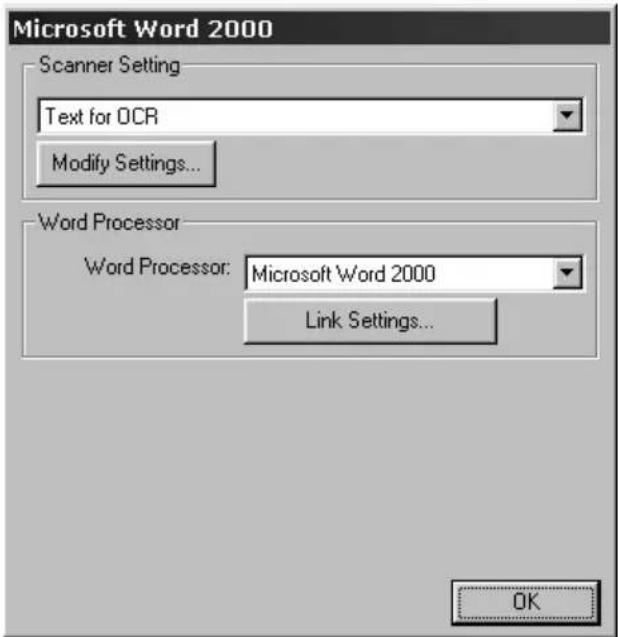
text_image
Microsoft Word 2000 Scanner Setting Text for OCR Modify Settings... Word Processor Word Processor: Microsoft Word 2000 Link Settings... OKScanning Operations
Scan to File—allows you to scan directly to a disk file with two mouse clicks. You can change the file type, destination directory and file name, as needed.
Scan to E-mail—enables you, with just two mouse clicks, to scan a picture or text document directly into an E-mail application as a standard attachment. You have the option of selecting the file type and resolution for the attachment.
Scan to Word Processor—enables you to scan a text document, run ScanSoft TextBridge OCR and insert the text original (not graphic image) into a word processing file with just two mouse clicks. You have the option of selecting the destination word processing program, such as Word Pad, MS Word, Word Perfect, etc.
Scan to Graphic Application—allows you to scan an image directly into any graphic viewer/editor application. You can select the destination application, such as MS Paint or Corel PhotoPaint.
Copy Operations
Copy—allows you to use the PC and any Windows ^® printer driver for enhanced copy functions. You can scan the page on the Brother MFC and print the copies using any of the features of the Brother MFC printer driver—OR—you can direct the copy output to any standard Windows ^® printer driver installed on the PC.
PC Fax Operation
Send a Fax—allows you to scan a picture or text original and automatically send the image as a fax from the PC using the Brother MFL Pro PC-FAX software.
Scanner Settings for Scan and Copy Buttons
When the Pop-Up screen is displayed, you can access the Scanner Settings window.
Click the Smart Click icon at the top right of the Brother Control.
Centre screen—OR—Click the Modify Settings... button on any of the Configuration screens.
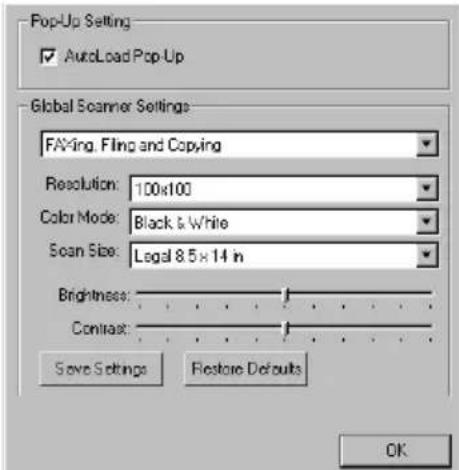
text_image
Pop-Up Setting ✓ AutoLoad Pop-Up Global Scanner Settings FAX-ing, Fling and Copying Resolution: 100x100 Color Mode: Black & White Scan Size: Legal 8.5x14 in Brightness: Contrast: Save Settings Restore Defaults OKGlobal Settings
AutoLoad Pop-Up—Click this checkbox if you want Brother MFL Control Centre to load when you boot your computer.
Setting Up the Scanner Configurations
The Pop-Up application stores eight different scanning modes. Each time you scan an original, you will choose the most appropriate scanning mode from the following:
Faxing, Filing and Copying
Text for OCR
Photos
Photos (High Quality)
Photos (Quick Scan)
Custom
Draft Copy
Fine Copy
Each mode has its own set of stored settings. You can keep the factory default settings or change them at any time:
Resolution—Select the scanning resolution you most frequently use.
Color Mode—From the pull-down list.
Scan Size—From the pull-down list.
Brightness—Slide the adjuster from 0% to 100%
Contrast—Slide the adjuster from 0% to 100%
Click OK to save your changes. If you make a mistake or later decide to return to the original default setting, just click the Restore Defaults button when the scanning mode is displayed.
To access the Scanner Configurations screen:
1 Insert the document face down in the ADF.
2 Right-click the appropriate Control Centre button to display Configurations, then click it. The configuration screen for that Control Centre button will appear.
3 To save your settings, press the OK button—OR—To return to the factory default settings, press the Restore Defaults button.
Perform an Operation from the Brother Control Centre Screen
If you see this screen it means you left-clicked a button in the Brother Control Centre window without first placing an document in the ADF.
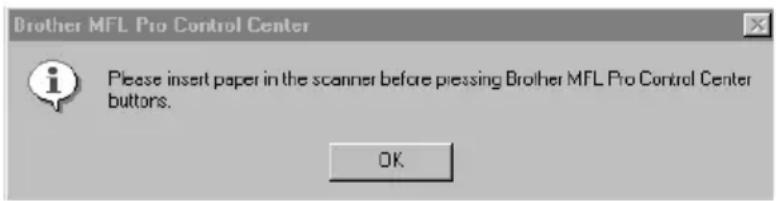
text_image
Brother MFL Pro Control Center Please insert paper in the scanner before pressing Brother MFL Pro Control Center buttons. OKPlace the document in the Brother machine's ADF, then click OK to return to the Brother Control Centre screen.
Scan to File

text_image
Scan To File Scanning Setting Text for OCR Modify Settings... Destination Folder ● PaperPort Folder ○ Other Folder File: PaperPort Files (* MAX) Folder: D:\Visioner Documents\ Browse... OKScanner Settings
From the pull-down list, select the scanning mode that is appropriate for the type of file: Faxing, Filing and Copying; Text for OCR; Photos; Photos (High Quality); Photos (Quick Scan); Custom; Draft Copy or Fine Copy.
To change any of the settings for that mode, click the Modify Settings... button.
Destination Folder
PaperPort Folder—Select this checkbox to scan the document into your PaperPort folder.
Other Folder—Select this checkbox, to scan the document as another file type and/or into another directory/folder.
File—If you selected Other Folder, from the pull-down list select the type of file:
PaperPort Files (*.MAX)
Self Viewing Files (*.EXE)
PaperPort 5.0 Files (*.MAX)
PaperPort 4.0 Files (*.MAX)
PaperPort 3.0 Files (*.MAX)
Windows Bitmap (*.BMP)
PC Paintbrush (*.PCX)
Multi-page PCX (*.DCX)
JPEG Image Files (*.JPG)
TIFF-Uncompressed (*.TIF)
TIFF Group 4 (*.TIF)
TIFF Class F (*.TIF)
Multi-Page TIFF-Uncompressed (*.TIF)
Multi-Page TIFF Group 4 (*.TIF)
Multi-Page TIFF Class F (*.TIF)
PDF Files (*.PDF)
Portable Network Graphics (*.PNG)
FlashPix (*.FPX)
HFX Fax Files (*.HFX)
To Search your system for the directory and folder you want, click the Browse... button. Click OK to save your settings.
Scan to E-mail

text_image
MS Outlook Scanner Setting FAXing, Filing and Copying Modify Settings... Email Application Email Application: MS Outlook Email Settings... OKScanner Settings
From the pull-down list, select the scanning mode that is appropriate for the type of file: Faxing, Filing and Copying; Text for OCR; Photos; Photos (High Quality); Photos (Quick Scan); Custom; Draft Copy or Fine Copy.
To change any of the settings for that mode, click the Modify Settings... button.
Email Application
Email Application—From the pull-down list, select your E-mail application.
Email Settings—Click the EMail Settings... button to set up links.
The Links Preferences window will appear:
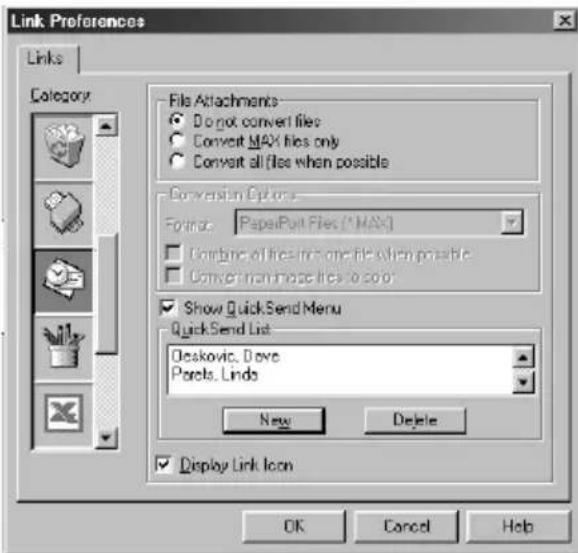
text_image
Link Preferences Links Category File Attachments Do not convert files Convert MAX files only Convert all files when possible Conversion Options Format: PaperPort Files (*.MAX) Combines of files into and file when possible Convert from images files to color Show Quick Send Menu Quick Send List Deskovic, Dave Parela, Linda New Delete Display Link Icon OK Cancel HelpFile Attachments
Do not convert files—Click this checkbox if you do not want to change the file type of attachments. The Conversion Options will not be available (greyed).
Convert MAX files only—Click this checkbox if you want to convert only attachments that are PaperPort files.
Convert all files when possible—Click this checkbox if you want to change the file type of all attachments.
Conversion Options
Format
Combine all files into one file when possible—Click this checkbox to combine all files of the same type into one file.
(For Brother Color Models Only) Convert non-image files to color—Click this checkbox to convert all files that have been processed through OCR to color.
Show QuickSend Menu
Click this checkbox if you want the Select QuickSend Recipient window to be displayed when you choose Scan to E-mail. This feature works only with MAPI type E-mail applications, such as Microsoft Exchange, Microsoft Outlook and Eudora.
QuickSend List
You can create a list of Email names and addresses for quick selection.
Click the New button to add a name(s) to your QuickSend list. Your Email phone book listing is displayed, so you can select stored names or create new ones:
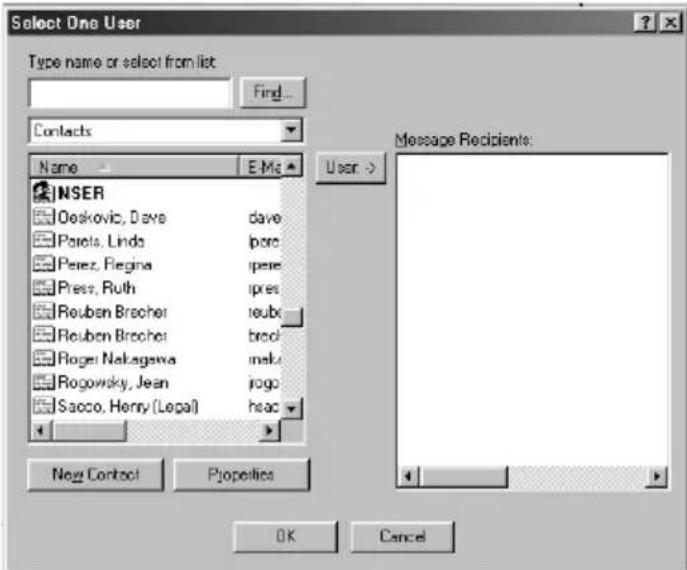
text_image
Select One User Type name or select from list Find... Contacts Name E-Ma User > NSER Oeskovic, Dave dave Pareta, Linda pore Perez, Regina ripes Press, Ruth ripes Reuben Brecher,reuben Reuben Brecher,brocl Roger Nakagawa,malu Rogowsky, Jean{jogo} Sacco, Henry (Legal)hsac New Contact Pjopetics Message Recipients: OK CancelHighlight the name(s) you want to add to your list, click the User button, then click OK to return to the Link Preference window.
From the Link Preference window, you can remove a name from the QuickSend list, by highlighting the name and clicking the Delete button.
Scan to Word Processor
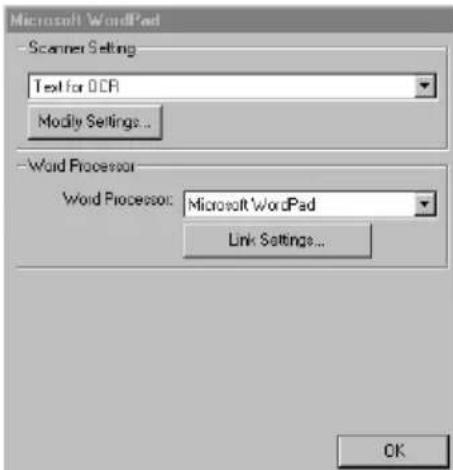
text_image
Microsoft WordPad Scanner Setting Text for OCR Modify Settings... Word Processor Word Processor: Microsoft WordPad Link Settings... OKScanner Settings
From the pull-down list, select the scanning mode that is appropriate for the type of file: Faxing, Filing and Copying; Text for OCR; Photos; Photos (High Quality); Photos (Quick Scan); Custom; Draft Copy or Fine Copy.
To change any of the settings for that mode, click the Modify Settings... button.
Word Processor
Word Processor—From the pull-down list, select the word processor you want to use.
Click the Link Settings... button to display a screen to set up a link to the version of OCR and document format that you want to use:
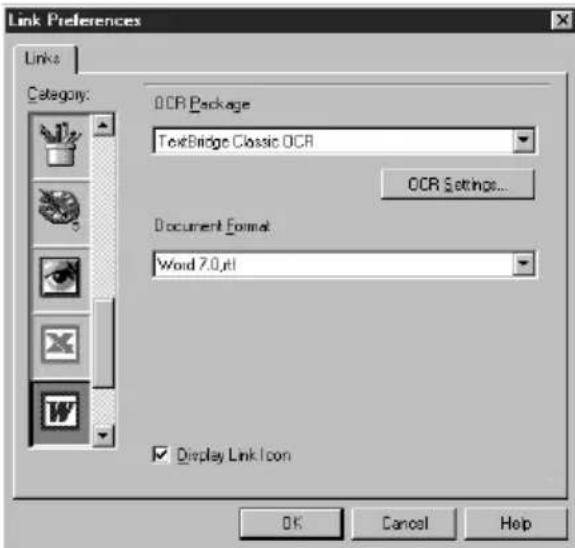
text_image
Link Preferences Links Category: OCR Package TextBridge Classic OCR OCR Settings... Document Format Word 7.0.jtl ✓ Display Link Icon OK Cancel HelpOCR Package—From the pull-down list, select TextBridge Classic OCR if you want to use the OCR package that was installed with the Brother software.
Click the OCR Settings... button to choose how the OCR application will read the pages you scan into your word processor application.
The Preferences window will appear:

text_image
TextBridge Preferences Auto Orientation Decolumnized Output OK CancelSelect your setting and click OK.
◆ Auto Orientation—Check this checkbox if you want your word processor application to read the page as it is set up.
◆ Decolumnized Output—Check this checkbox if you want your word processor application to read across the entire page from left to right.
Document Format—From the pull-down list, select the file format you want to use for your word processor or text documents.
User Defined Button
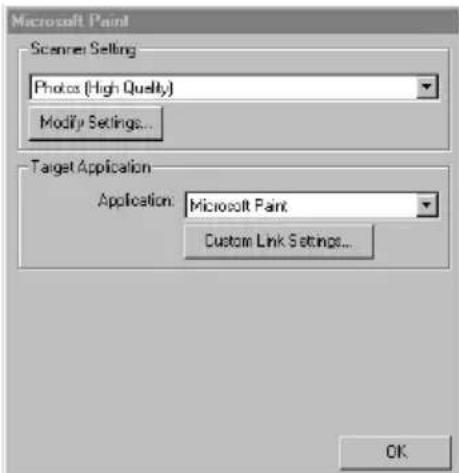
text_image
Microsoft Paint Scaner Setting Photos (High Quality) Modify Settings... Target Application Application: Microsoft Paint Custom Link Settings... OKScanner Settings
From the pull-down list, select the scanning mode that is appropriate for the type of file: Faxing, Filing and Copying; Text for OCR; Photos; Photos (High Quality); Photos (Quick Scan); Custom; Draft Copy or Fine Copy.
To change any of the settings for that mode, click the Modify Settings... button.
Target Application
Application—From the pull-down list, select the application you want to add to this Pop-Up screen. Click the Custom Link Settings... button to set up links for your user-defined application.
Copy
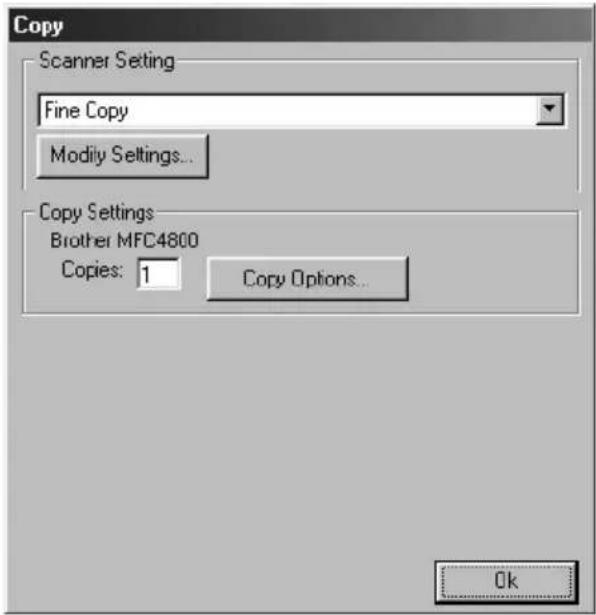
text_image
Copy Scanner Setting Fine Copy Modify Settings... Copy Settings Brother MFC4800 Copies: 1 Copy Options... OkScanner Settings
From the pull-down list, select the scanning mode that is appropriate for the type of file: Faxing, Filing and Copying; Text for OCR; Photos; Photos (High Quality); Photos (Quick Scan); Custom; Draft Copy or Fine Copy.
To change any of the settings for that mode, click the Modify Settings... button.
Copy Settings
Brother MFC-4800
Copies—Enter the number of copies you want to print.
To change the copy options, click the Copy Options... button.
Click the OK button to save your Copy settings.
Send a Fax

text_image
Send a FAX Scanner Setting FAXing, Filing and Copying Modify Settings... FAX Settings Brother PC-FAX FAX Resolution: Fine (200-200) FAX Options... OKScanner Settings
From the pull-down list, select the scanning mode that is appropriate for the type of file: Faxing, Filing and Copying; Text for OCR; Photos; Photos (High Quality); Photos (Quick Scan); Custom; Draft Copy or Fine Copy.
To change any of the settings for that mode, click the Modify Settings... button.
FAX Settings
Brother MFL Pro Fax
FAX Resolution—Fine (200 x 200)
1 To change the fax options, click the FAX Options... button.
The Brother PC-FAX Properties screen appears:

text_image
Brother PC-FAX on BRMFC: Properties Device Options Letter 8½ x 11 in Paper Size Letter 8½ x 11 in Orientation ● Foortat ○ Landscape Resolution ● 200x200 dpi ○ 200x100 dpi Restore Defaults About OK Cancel Apply Help2 Select the Paper Size and Orientation (Portrait or Landscape) and click OK.

To return to the factory default settings, click the Restore Defaults button.
15 Using ScanSoft™ PaperPort® for Brother and ScanSoft™ TextBridge®
ScanSoft™ Paper Port® for Brother is a document management application. You will use PaperPort® to view scanned documents. PaperPort® has a sophisticated, yet easy-to-use, filing system that will help you organize your documents. It allows you to combine or “stack” documents of different formats for printing or filing. PaperPort® can be accessed through the PaperPort® program group.
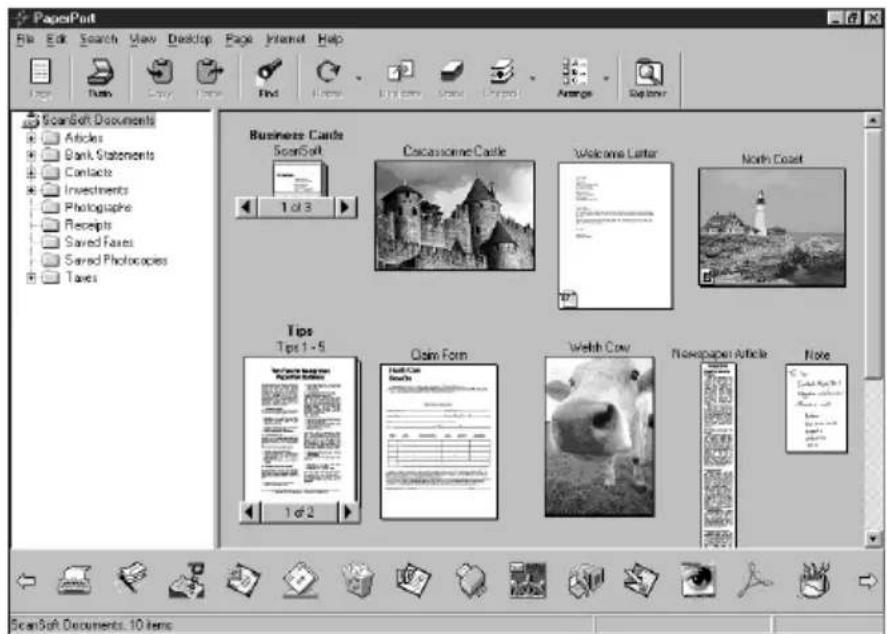
text_image
PaperPoint File Edit Search View Desktop Page Internet Help ScanSoft Documents Articles Bank Statements Contacts Investments Photographs Receipts Saved Fases Saved Photocopies Taxes Business Cards ScanSoft 1 of 3 Cocassorne Castle Welcome Letter North Coast Tips Tips 1 - 5 Claim Form Welsh Cow Newspaper Article Note ScanSoft Documents, 10 itemsThe complete ScanSoft™ PaperPort® Owner's Manual, including ScanSoft™ TextBridge® OCR, is in the On-Line Documentation on the CD-ROM. This chapter is only an introduction to the basic operations.
When you install Multi-Function Link ^® Pro Suite, ScanSoft ^™ PaperPort ^® for Brother and ScanSoft ^™ TextBridge ^® OCR are installed with it automatically.

To Uninstall PaperPort® and ScanSoft™ TextBridge®
Select Fax Start, Settings, Control Panel, Add/Remove Programs and the Install/Uninstall tab. Select PaperPort® from the list and click the Add/Remove button.
Viewing Items in ScanSoft™ PaperPort® for Brother
PaperPort ^® provides several ways to view items: Desktop View displays a thumbnail, a small graphic that represents each item in a Desktop or folder. Items in the selected folder appear on the PaperPort ^® Desktop. You can see PaperPort ^® items (MAX files) and non-PaperPort ^® items (files created using other applications).
Non-PaperPort ^® items include an icon that indicates the application that was used to create the item; a non-PaperPort ^® item is represented by a small rectangular thumbnail and not an actual image.
Page View displays a close-up of a single page and you can open a PaperPort ^® item by double-clicking on it. As long as you have the appropriate application on your computer to display it, you can also double-click a non-PaperPort ^® item to open it.

text_image
PapalPad File Edit View Insert View Display Page Refresh Help File Edit Search Save Desktop Scan Window Help Forest Documents A Books B Book Documents Contacts Influence Photographs Records Sensets Sensets Photographs Tasks Resource Code Spanish Cognitive Code Welcome Format Link Format Tips Text 1-5 Class Forms Web Cover Newsgroup Guide Help NewCell Documents, 18 MinutesDesktop View displays items as thumbnails

text_image
ADVENTURE TRAVEL Enjoy the freedom of a car Enjoy the history and improliance of the Catheries come by taking knowledge of TOOL by drive movements. For used in a direct travel plan, pick up your car from our consumer exploitation, and try you're on your way to understand adventures. Enter, enjoy sweet softening on the local beaches, and sify the Spanish officers. Take in a local movie or workie into the world of SCULIS living. As you drove up Highway 1, the wild coaction of Big for great eyes. Engine by the many white riding land and 2014, 21st Case 1-67Page View displays each item as a full page
Organizing Your Items in Folders
PaperPort ^® has an easy-to-use filing system for organizing your items. The filing system consists of folders and items that you select to view in Desktop View. An item can be a PaperPort ^® item or a non-PaperPort ^® item:
- Folders are arranged in a “tree” structure in the Folder View. You use this pane to select folders and view their items in Desktop View.
■ You can simply drag and drop an item onto a folder. When the folder is highlighted, release the mouse button and the item is stored in that folder.
■ Folders can be “nested”—that is, stored in other folders.
■When you double-click a folder, its items (both PaperPort ^ MAX files and other files) appear on the Desktop.
■You can also use Windows ^® Explorer to manage the folders and items shown in Desktop View.
Links to Many Other Applications
PaperPort® automatically recognizes many other applications on your computer and creates a “working link” to them. The Link Bar at the bottom of Desktop view shows icons of those linked applications. To use a link, drag an item onto one of the icons to start the application represented by the icon. This sample Link Bar shows several applications with links to PaperPort®.

text_image
Screenshot of a software toolbar with icons for file operations, editing, and viewing functionsIf PaperPort ^® does not automatically recognize one of the applications on your computer, you can manually create a link using the Create New Link command. (See PaperPort ^® Help for more information about creating new links.)
Software by:

ScanSoft ^TM TextBridge ^® OCR is automatically installed when you install PaperPort ^® on your computer.
PaperPort ^® can quickly convert the text on a PaperPort ^® item (which is really just a picture of the text) into text that you can edit with a word processing application. PaperPort ^® uses the optical character recognition application ScanSoft ^™ TextBridge ^® , which comes with PaperPort ^® —OR—PaperPort ^® uses your application if it is already on your computer. You can convert the entire item, or by using the Copy As Text command, you can select only a portion of the text to convert.
Dragging an item onto a word-processing link icon starts PaperPort ^® 's built-in OCR application, or you can use your own OCR application.

text_image
Row of grayscale icons representing various office and document-related items, including a keyboard, documents, and images.Importing Items from Other Applications
In addition to scanning items, you can bring items into PaperPort ^® in a variety of ways and convert them to PaperPort ^® (MAX) files in several different ways:
■ Print to the Desktop View from another application, such as Microsoft Excel.
■Import files saved in other file formats, such as Windows ^ Bitmap (BMP) or Tag Image File Format (TIFF).
Exporting Items in Other Formats
You can export or save PaperPort ^® items in several popular file formats. You can export formats BMP, PCX, DCX, JPG, TIF, PDF, PNG, FPX, HFX, or self-viewing. For example, you could create a file for an Internet Web site and export it as a JPEG file. Web pages often use JPEG files for displaying images.
Exporting an Image File
1 Select the Export command from the File pull-down menu in the PaperPort® window. The Export ‘XXXXX’ As dialog box will be displayed.
2 Select the drive and directory where you want to store the file.
3 Enter the new file name and choose the file type or select a name from the File Name text box. (You can scroll through the Directories and File Name listing for prompting.)
4 Select the OK button to save your file, or Cancel to return to the PaperPort ^® without saving it.
Accessing the Scanner
To choose TWAIN-32 Brother MFL Pro Scanner as your scanner driver, select it under the "Select scanner"—OR—"Select source" option in your software.
From the PaperPort ^® window, select Acquire from the File drop-down menu or select the TWAIN or Scan button. The TWAIN-32 Brother MFL Pro Scanner Setup dialog box will appear:
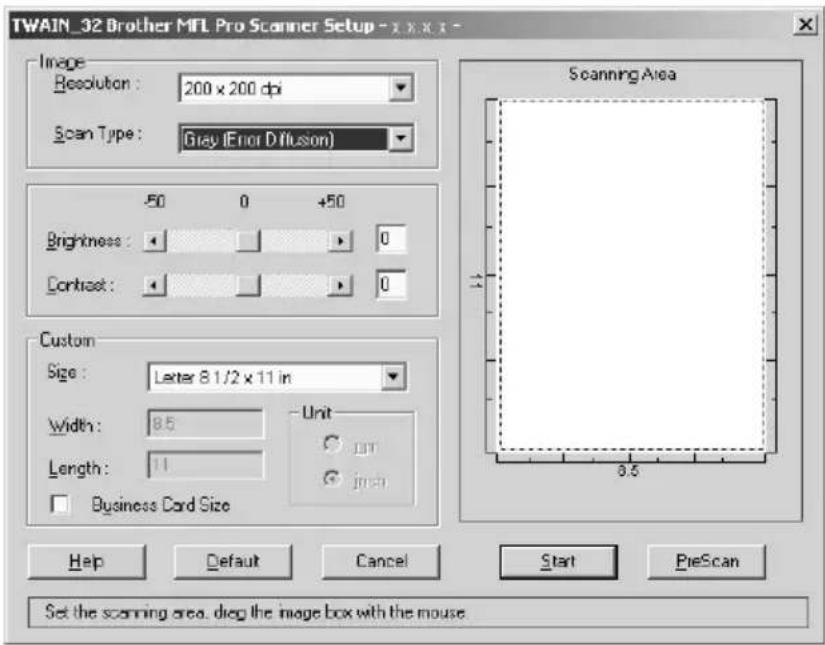
text_image
TWAIN_32 Brother MFL Pro Scanner Setup - XXXX Image Resolution: 200 x 200 dpi Scan Type: Gray (Error Diffusion) -50 0 +50 Brightness: 0 Contrast: 0 Custom Size: Letter 8 1/2 x 11 in Width: 8.5 Length: 11 Business Cord Size Scanning Area Unit inch Help Default Cancel Start PreScan Set the scanning area, drag the image box with the mouseScanning a Document into your PC
1 Insert the document face down in the ADF.
2 Adjust the following settings, if needed, in the Scanner Setup window:
◆Resolution
◆ Scan Type (Black & White, Gray [Error Diffusion], True Gray)
◆Brightness
◆Contrast
◆Size
3 Select the Fax Start button from the Scanner window.
When scanning is completed, close the scanner window. The PaperPort ^® screen will appear showing the image you scanned highlighted in red.
Settings in the Scanner Window
Image
Resolution
Select the scanning resolution from the Resolution drop down list. Higher resolutions take more memory and transfer time, but can achieve a finer scanned image.
When the setting is True Gray, 200 x 100 dpi and 200 x 400 dpi is not available.
Scan Type
Gray Scale: Set the image Type to Black & White for text or line art. For photographic images, set the image type to Gray (Error Diffusion) or True Gray.
Gray (Error Diffusion) is used for documents that contain photographic images or graphics. (Error Diffusion is a method for creating simulated gray images by placing black dots in a specific matrix instead of true gray dots.)
True Gray mode is used for documents containing photographic images or graphics. This mode requires the most memory and longest transfer time.
Brightness
Adjusting the brightness settings to obtain the best image. The Brother Multi-Function Link ^® Pro Suite offers 100 brightness settings (-50 to 50). The default value is 0, representing an “average” setting.
You can set the brightness level by dragging the slidebar to the right to lighten the image or to the left to darken the image. You can also type a value in the box to set the settings.
If the scanned image is too light, set a lower brightness value and scan the document again.
If the image is too dark, set a higher brightness value and scan the document again.
Contrast
The contrast setting is adjustable only when you have selected one of the gray scale settings, but it is not available when Black & White is selected as the gray Scale.
Increasing the contrast level (by dragging the slider to the right) emphasizes dark and light areas of the Image, while decreasing the contrast level (by dragging the slider to the left) ravels more detail in gray areas. Instead of using the slider, you can type a value in the box to set the contrast.
Custom
Size
Set the Size to one of the following:
♦ Letter (8 1/2 x 11 inches)
◆ A4 (210 x 297 mm)
♦ Legal (8 1/2 x 14 inches)
◆ A5 (148 x 210 mm)
◆ B5 (182 x 257 mm)
◆ Executive (7 1/4 x 10 1/2 inches)
◆ Business Card (60 x 90 mm)
◆ Custom (User adjustable from 0.35 x 0.35 in. to 8.5 x 14 inches)
After you select a custom size, you can adjust the scanning area further by using the left mouse button to drag the dotted outline of the scanning area. This is required when you want to crop an image when scanning.
Business Card Size
To scan business cards, select the Business Card (60 x 90 mm) size setting and place the business card at the top centre of a carrier sheet.

Carrier sheets are available from your Dealer.
When scanning photographs or other images for use in a word processor or other graphics application, you should try different settings for the contrast, mode and resolution to see which settings best suit your needs.
PreScanning an Image
PreScanning allows you to scan an image quickly at a low resolution. A thumbnail version of the image will appear in the Scanning Area. This is only a preview of the image so you can see how it will look. The PreScan button is used to preview an image for cropping any unwanted portions from the image. When you are satisfied with the preview, select the Fax Start button to scan the image.
1 Insert the document face down in the ADF.
2 Select the PreScan button:
The entire document will be scanned into the PC and will appear in the Scanning Area of the Scanner window.

text_image
Scanning Area You can crop the prescanned image brother 8.53 To crop a portion of the document to be scanned, drag any side or corner of the dotted outline in the Scanning Area with the left mouse button. Adjust the dotted outline until it surrounds only the portion of the document you wish to scan.
4 Place document in the document feeder of the machine again.
5 Adjust the settings for Resolution, Scan Type, Brightness, Contrast, and Size in the Scanner Setup window, as needed.
6 Select the Fax Start button.
This time only the selected area of the document will appear in the PaperPort ^® window.
7 In the PaperPort ^® window, use the options available in the Markups pull-down menu and the Crop option in the Options pull-down menu to refine the image.
16 Setting Up and Using PC FAX (For Windows® Only)
Introduction
This chapter outlines the basics of the Brother software, so you can get started using the Multi-Function Link® Pro Suite software. Detailed installation and setup instructions are in the On-Line Documentation section of the Brother CD-ROM that is included with the machine.
Multi-Function Link ^® Pro Suite software for the machine includes ScanSoft ^TM PaperPort ^® for Brother and ScanSoft ^TM TextBridge ^® . (See Using ScanSoft ^TM PaperPort ^® for Brother and ScanSoft ^TM TextBridge ^® , page 89.)
Brother Resource Manager
The Brother Resource Manager application must be running for you to use the machine with your Windows ^® computer. Multi-Function Link ^® Pro Suite software and the MFL Pro Suite Printer Driver automatically load the Resource Manager, as needed. The Resource Manager allows the single bi-directional Parallel port on the machine to simulate a Communications port for faxing and scanning and to simulate a Parallel port for Windows ^® GDI printing.
MFC Remote Setup
The MFC Remote Setup application allows you to quickly set up the machine by taking advantage of the ease and speed of programming on your PC. When you access this application, the settings on the machine will be downloaded automatically to your PC and displayed on your computer screen. If you change the settings, you can upload them directly to the machine.
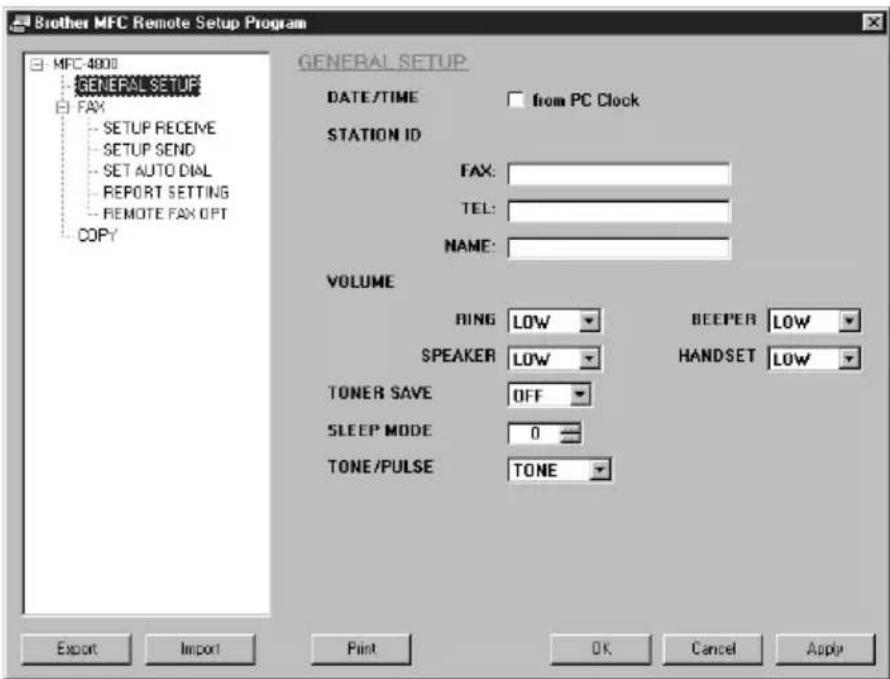
text_image
Brother MFC Remote Setup Program MFC 4800 GENERAL SETUP FAX -- SETUP RECEIVE -- SETUP SEND -- SET AUTO DIAL -- REPORT SETTING -- REMOTE FAX OPT COPY GENERAL SETUP DATE/TIME from PC Clock STATION ID FAX: TEL: NAME: VOLUME RING LOW BEEPER LOW SPEAKER LOW HANDSET LOW TONER SAVE OFF SLEEP MODE 0 TONE/PULSE TONE Export Import Print OK Cancel ApplyOK
This starts the process of uploading the data to the machine and exiting the remote setup program. If an error message is displayed enter the correct data again, then click OK.
Cancel
This exits the remote setup application without uploading the data to the machine.
Apply
This uploads the data to the machine, but does not exit the remote setup application.
This command prints the selected items on the machine. You can not print the data until it is uploaded to the machine. Click Apply to upload the new data to the machine and click Print.
Export
This command saves the current configuration settings to a file.
Import
This command reads the settings from a file.
PC FAX Sending (For Windows® Only)
The Brother PC FAX feature allows you to use your PC to send a file. You can create a file in any application on your PC, and then send it as a PC FAX. You can even attach a cover page. All you have to do is set up the receiving parties as Members or Groups in your PC-FAX Address Book. Then you can use the Address Book Search feature to quickly find them to address your fax.
Setting Up User Information
1 From the Fax Start menu, select Programs, Brother, Brother MFL Pro Suite, and then select PC-FAX Setting.

You can also access the Brother PC-FAX Setup dialog box from the FAX Sending dialog box by clicking 📄. (See Sending a File as a PC FAX Using the Simple Style, page 105.)
The Brother PC-FAX Setup dialog box will appear:

text_image
Brother PC-FAX Setup User Information | Sending | Speed Dial (Facsimile style only) Name: John Doe Company: International Spring Board Assoc. Department: U56 Phone Number: 908-555-1212 Fax Number: 908-555-1212 E-mail: JIDoe@springboard.org Address 1: 123 Rose Hill Driver Address 2: Polsville, NJ 08888 OK Cancel2 Enter the required User information. This information is required to create the Fax Header and Cover Page.
3 To save the User Information, click OK.
Setting Up Sending
To access the Sending tab from the Brother PC-FAX Setup dialog box, click the Sending tab.
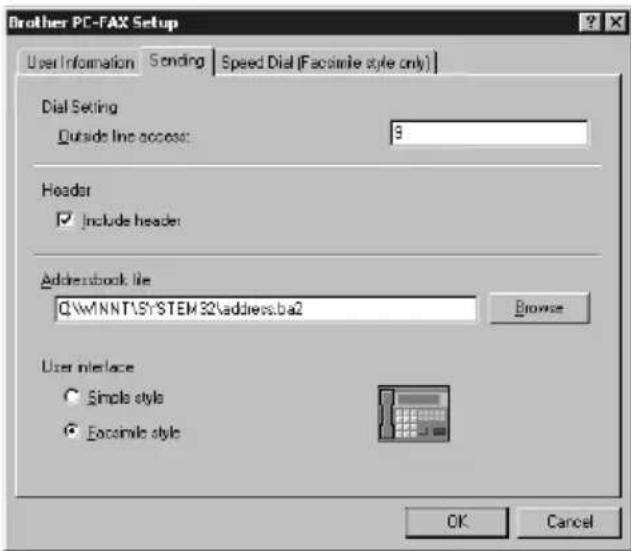
text_image
Brother PC-FAX Setup User Information Sending Speed Dial (Facsimile style only) Dial Setting Outside line access: 3 Header Include header Addressbook file Q:\WINNT\SYSTEM32\address.ba2 Browse User interface Simple style Facsimile style OK CancelOutside line access
Enter the number needed to access an outside line. This is sometimes required by the local PBX telephone system.
Include header
To add header information to the top of the fax pages being sent, check the Header box.
Addressbook file
You can select different database files for use with the address book. You must enter the path and file name of the database file or use the Browse button to view the file system to select the file.
User interface
To select User Interface for the sending dialog box. You have a choice of the Simple Style or the Facsimile Style.
Simple Style Facsimile Style
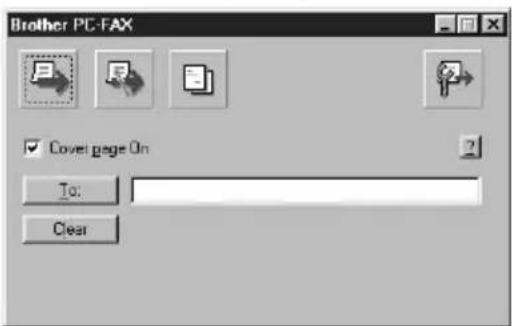
text_image
Brother PC-FAX Cover page On To: Clear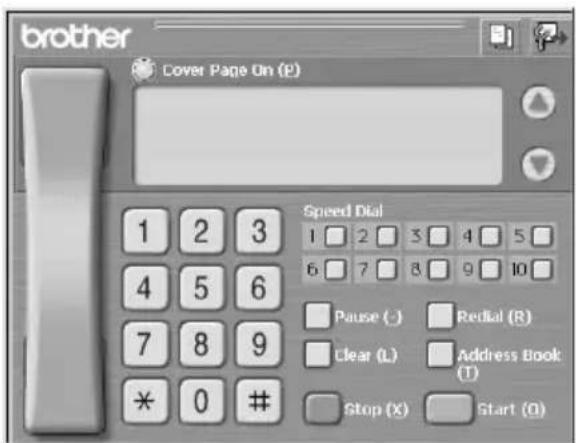
text_image
brother Cover Page On (P) Speed Dial 1 2 3 4 5 6 7 8 9 10 Pause (-) Redial (R) Clear (L) Address Book (T) Stop (X) Start (O)Setting Up Speed Dial
Access the Speed Dial tab from the Brother PC-FAX Setup dialog box by clicking the Speed Dial tab. (To use the feature you must select the Facsimile Style user interface.)

text_image
Brother PC-FAX Setup User Information Sending Speed Dial (Facsimie style only) Address Book Name Fax Sales Joe Smith 908-555-123 John Rolls 908-704-231 Add >> Speed Dial No Name Fax 1 Joe Smith 908-555- 2 John Rolls 908-704- 3 Sales 4 5 6 7 8 9 10 Clear OK CancelYou can register any address or group on one of the ten Speed Dial buttons.
To register an address on a Speed Dial location:
1 Click the Speed Dial location you want to program.
2 Click the address or group you wish to assign to the Speed Dial location.
3 Click the Add>> button to program the Speed Dial location.
To clear a Speed Dial location:
1 Click the Speed Dial location you want to clear.
2 Click the Clear button.
The Address Book
From the Fax Start menu, select Programs, Brother, Brother MFL Pro Suite, and then click Address Book.
The Brother Address Book dialog box will appear:

text_image
Brother Address Book File Edit Help Name Fax E-mail Sales Joe Smith 908-565-1234 John Roller 908-704-2312Setting Up a Member in the Address Book
In the Brother Address Book dialog box you can add, edit and delete stored information for members and groups.
1 In the Address Book dialog box, click the icon to add a member. The Brother Address Book Member Setup dialog box will appear:
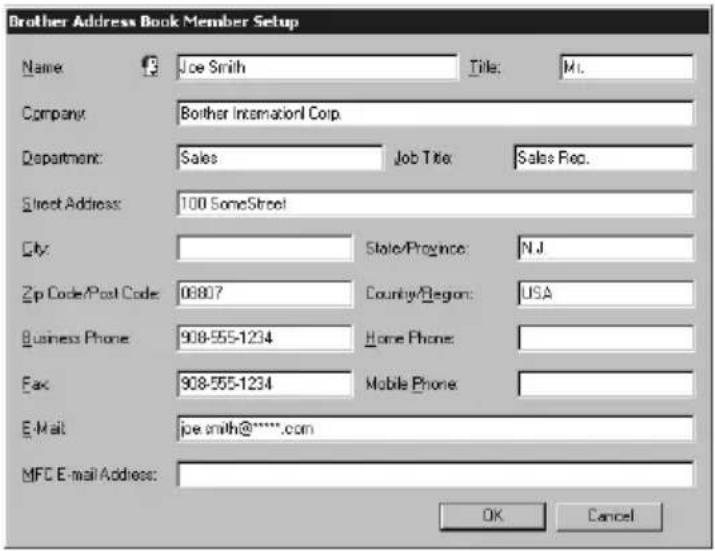
text_image
Brother Address Book Member Setup Name: Joe Smith Title: M. Company: Another International Corp. Department: Sales Job Title: Sales Rec. Street Address: 100 SomeStreet City: State/Province: NJ Zip Code/Post Code: 08807 Country/Region: USA Business Phone: 908-555-1234 Home Phone: Fax: 908-555-1234 Mobile Phone: E-Mail: joe.smith@****.com MFC E-mail Address: OK Cancel2 In the Brother Address Book Member Setup dialog box, type the member's information. Name and Fax are required fields. Click the OK button to save the member's information.
Setting Up a Group for Broadcasting
If you repeatedly send the same PC-FAX to multiple recipients, you can combine members into a Group.
1 In the Brother Address Book dialog box, click the icon to create a group. The Brother Address Book Group Setup dialog box appears:
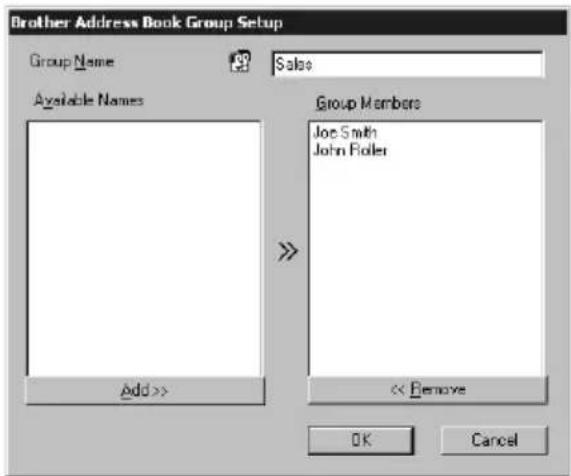
text_image
Brother Address Book Group Setup Group Name Sales Available Names Group Members Joe Smith John Roller Add >> << Remove OK Cancel2 Type the name of the new group in the Group Name field.
3 In the Available Names box, select each member to be included in the Group, and then click Add>>.
Members you add to the group will be listed in the Group Members box.
4 After all the members have been added, click OK.
Editing Member Information
To edit a Member or Group:
1 Select the Member or Group you want to edit.
2 Click the Edit icon.
3 Edit the Member or Group information.
4 Click OK to save your changes.
Deleting a Member or Group
To delete a Member or Group:
1 Select the Member of Group you want to delete.
2 Click the Delete icon.
3 Click OK when the Delete OK? dialog appears.
Exporting the Address Book
You can export the address book to an ASCII text file (*.csv).
To export the current telephone book:

If you are creating a Vcard, you must first select the member.
1 From the Address Book select File, point to Export, and then click Text—OR—Click Vcard and go to Step 5.
2 Select the data fields you wish to Export from the Available Items column, and then click Add>>.

Select items in the order you want them listed.
3 If you are exporting to an ASCII file, select Divide Character - Tab or Comma. This selection inserts a Tab or Comma between each data field when it is Exported.
4 Select the OK button to save the data.

text_image
Select Items Select items in the order you want to list. You can select the separator character to be inserted between items. Available Items None Title Company Department Job Tillet Street Address City State/Province Zip Code/Post Code Country/Region Business Phone Add >> << Remove Selected Items Divide Character: ● Iab ○ Comma OK Cancel5 Type in the name of the file, and then select Save.

text_image
Save As Save jrc My Documents File name: Save Save as type: Text file (*.csv) Save CancelImporting to the Address Book
You can import ASCII text files (*.csv) or Vcards into your Address Book.
To import an ASCII text file:
1 From the Address Book select File, point to Import, and then click Text—OR—Click Vcard and go to Step 5.
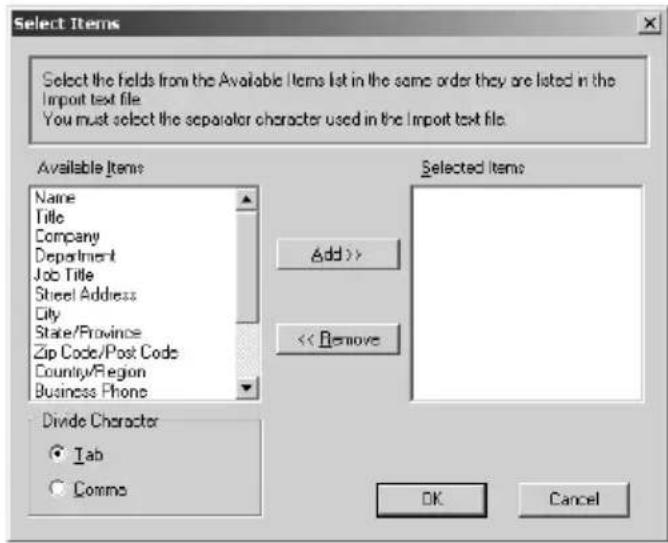
text_image
Select Items Select the fields from the Available Items list in the same order they are listed in the Import text file. You must select the separator character used in the Import text file. Available Items Name Title Company Department Job Title Steel Address City State/Province Zip Code/Post Code Country/Region Business Phone Divide Character • Tab ○ Commo Selected Items Add >> << Remove OK Cancel2 Select the data fields you wish to Import from the Available Items column and click Add>>.

Select the fields from the Available Items list in the same order they are listed in the Import text file.
3 Select Divide Character - Tab or Comma based on what file format you are importing.
4 Select the OK button to import the data.
5 Type the name of the file and select Open.

text_image
Open Look in My Documents File name: File of type: Vcard (*.vcf) Open CancelSetting Up Cover Page
Access the Brother PC-FAX Cover Page Setting from the FAX Sending dialog box by clicking

(See Sending a File as a PC FAX Using the Simple Style, page 105.)
The Brother PC-FAX Cover Page Setup dialog box will appear:

text_image
Brother PC-FAX Cover Page Setup ✓ Cover page On To Name: Joe Smith Department: Sales Company: Better International Corp. From: Name: Taro Nagoya TEL: 0123-456-7890 FAX: 0123-456-7890 E-Mail: abcd@efgd.co.jp Department: Sales Company: Better International Corp. Address1: Kawagai 9-99 Address2: MIZUHO NAGOYA Comment Clear Form Type 1 Type 2 ✓ Import BMP file Browse... File name CVR PAGE BMP Alignment Left Cycler Right Wallpaper ✓ Count cover page Preview... Default OK CancelTo
You can enter information in each box.

If you are sending a fax to multiple recipients, the recipient information will not be printed on the Cover Page.
From
You can enter information in each box.
Comment
Type the comment you want to add to the cover page.
Select Cover Page Form
Select the cover page form you want.
Import BMP file
You can insert a bitmap file, such as your company logo, in the cover page.
Select the BMP file by using the browse button, and then select the alignment style.
Count Cover Page
When this box is checked, the Cover Page will be included in the page numbering. When this box is not checked, the Cover Page will not be included.
Sending a File as a PC FAX using the Facsimile Style
1 Create a file in Word, Excel, Paint, Draw, or any other application on your PC.
2 From the File menu, select Print.
The Print dialog box will appear:
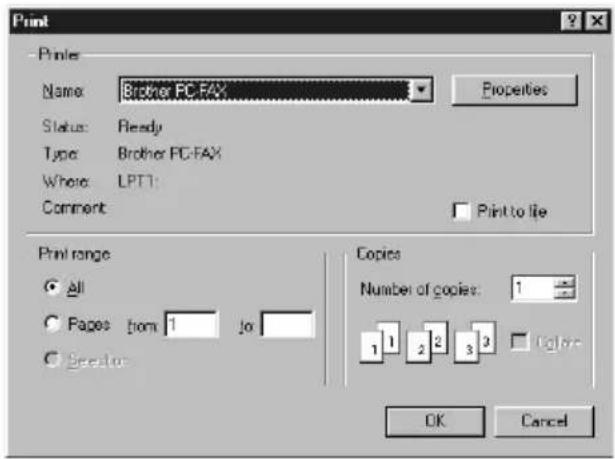
text_image
Print Name: Brother FC-FAX Status: Ready Type: Brother FC-FAX Where: LPT1: Comment Print to file Print range All Pages from 1 jo Secular Copies Number of copies: 1 1 2 3 Color OK Cancel3 Select Brother PC-FAX as your printer, and then click OK.
The FAX Sending dialog box will appear:

text_image
brother Cover Page On (P) Speed Dial 1 2 3 4 5 1 2 3 4 5 6 7 8 9 10 Pause (-) Redial (R) Clear (L) Address Book (I) * 0 # Stop (X) Start (O)4 Enter a telephone number by using any of the following methods:
A. Enter the number using the numeric keypad.
B. Click any of the 10 Speed Dial buttons.
C. Click the Address Book button, and then select a Member or Group from the Address Book.
5 If you make a mistake you can use the Clear button to clear all the entries.
6 To include, click the Cover Page On (P). You can also click the icon to create or edit an existing cover page.
7 Click Start to send the fax.
8 If you wish to cancel the fax, click Stop.
Redial:
If you wish to redial a number, press Redial to scroll through the last five fax numbers.
Sending a File as a PC FAX Using the Simple Style
1 Create a file in Word, Excel, Paint, Draw, or any other application on your PC.
2 From the File menu, select Print.
The Print dialog box will appear:

text_image
Print Printer Name: Brother PC-FAX Properties Status: Ready Type: Brother PC-FAX Where: LPT1: Comment Print to file Print range All Pages from 1 to: Selection Copies Number of copies: 1 1 2 3 Color OK Cancel3 Select Brother PC-FAX as your printer, and then click OK.
The FAX Sending dialog box will appear:
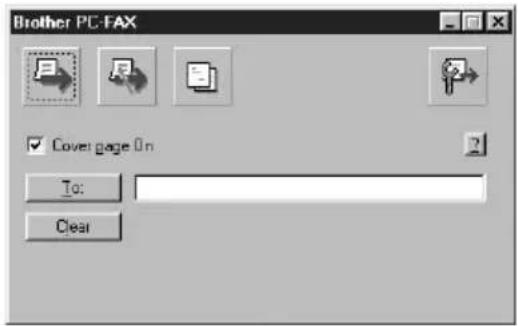
text_image
Brother PC-FAX Cover page On To: Clear4 In the To: field, type the fax number of the receiving party. You can also use the Address Book to select destination fax numbers by clicking To: button. If you made a mistake entering a number, click the Clear button to clear all entries.
5 To send a Cover Page and note, click the Cover Page On (P) check box. You can also click the to create or edit an existing cover page.
6 When you are ready to send your fax, click the icon.
7 If you wish to cancel the fax, click the icon.
17 Using Automatic E-Mail Printing
For Windows ^® 95, 98, 98SE, Me Only
Main Features
■You can use Automatic E-Mail Printing with other E-mail software:
Brother Automatic E-Mail Printing has some extra functions that other E-mail software, such as Netscape Navigator? or MS Internet Mail, do not support.
■Automatic E-Mail Printing can be configured for a multiple user account:
In Brother Automatic E-Mail Printing you can set up more than one e-mail account on a single PC so you can print e-mail in each account automatically.
■Automatic access to your specified POP3 server at the specified time:
You can specify the time when the Brother Automatic E-Mail Printing automatically accesses the server to check for new mail.
■Provides an “In Memory” printer driver:
You can receive and print e-mail data at the same time, by searching for a specified character string in the mail header. It allows you to see the sender, subject and relevant part of the mail content.
Before You Use this Software
Please read UsingtheAuOneLineE-Mail Printing
Documentation on the CD-ROM. Check the online README.WRI file in the root directory of the CD-ROM for last-minute important information and troubleshooting tips not included in the On-Line Documentation.
To Access the On-Line Documentation

After you have installed the Brother driver(s) for your model and operating system, click View On-Line Documentation for operating instructions.
To Install Automatic E-mail Printing (Optional Application):
1 Insert MFL Pro CD-ROM into your CD-ROM drive.
2 Click on Install Software from the main CD-ROM screen.
3 Click Automatic E-mail Printing.

This is optional software and will not be required for printing, faxing and scanning operations.
The Automatic E-mail Printing option is NOT available for Windows NT ^® 4.0 and Windows ^® 2000 Professional.
Set up Your USB Equipped Apple® Macintosh® G3,G4 or iMac™ with Mac OS 8.5/8.5.1/8.6/9.0/9.0.4/9.1

Before you can connect the machine to your Macintosh ^® , you must purchase a USB cable that is no longer than 6 feet (1.8 meters).
To work with the machine, your USB-Equipped Apple ^® Macintosh ^® must be set up with Mac OS 8.5/8.5.1/8.6/9.0/9.0.4/9.1. (The Brother Scanner Driver works only with Mac OS 8.6/9.0/9.0.4/9.1.)
Using Brother Printer Driver with your Apple® Macintosh®
To select the Printer:
1 From the Apple menu, open the Chooser.

text_image
Chooser Connect to: MFC-4800 Background Printing: ● On ○ Off AppleTalk ● Active ● Inactive 7.6.22 Click the HL-1200/MFL Pro icon. On the right side of the Chooser, click the printer to which you want to print. Close the Chooser.
To print the document:
3 From application software such as PaperPort ^® , click File menu and select Page Setup. You can change the settings for Paper Size, Orientation and Scaling, then click OK.
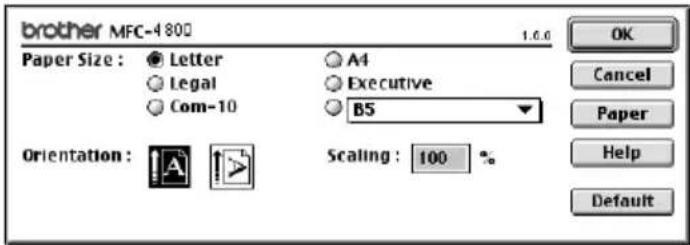
text_image
brother MFC-4800 1.0.0 Paper Size : Letter Legal Com-10 A4 Executive B5 Orientation : Scaling : 100 ° OK Cancel Paper Help Default4 From application software such as PaperPort, click File menu and select Print. Click Print to start printing.
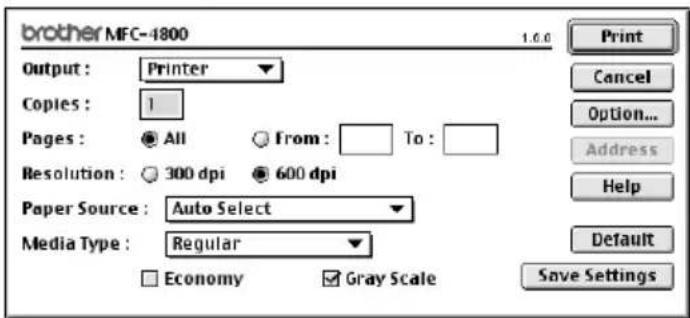
text_image
brother MFC-1800 Output : Printer Copies : 1 Pages : All From: To: Resolution : 300 dpi 600 dpi Paper Source : Auto Select Media Type : Regular Economy Gray Scale Print Cancel Option... Address Help Default Save Settings
If you want to change Copies, Pages, Resolution, Paper Source and Media Type, select your settings before clicking Print. Option Setup allows you to change Duplex.

text_image
Option Setup Duplex: □ Duplex ○ Use Duplex Unit ○ Manual Duplex ○ Long Edge Binding ○ Short Edge Binding □ Binding Offset □ inch □ mm OK Cancel HelpSending a Fax from your Macintosh Application
You can send a fax directly from your Macintosh application using the following steps:
1 Create a document in a Macintosh application.
2 To begin the fax transmission, select Print from the File menu.
The Printer dialog box appears:
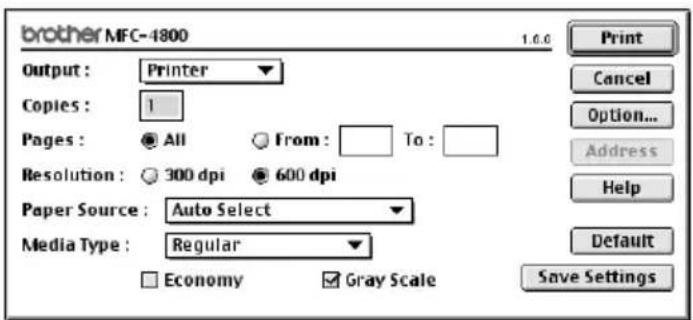
text_image
brother MFC-1800 Output: Printer Copies: 1 Pages: All From: To: Resolution: 300 dpi 600 dpi Paper Source: Auto Select Media Type: Regular Economy Gray Scale Print Cancel Option... Address Help Default Save SettingsWhen Printer is selected, the top button shows Print and the Address button is greyed.
3 From the Output pull-down menu, select Facsimile.
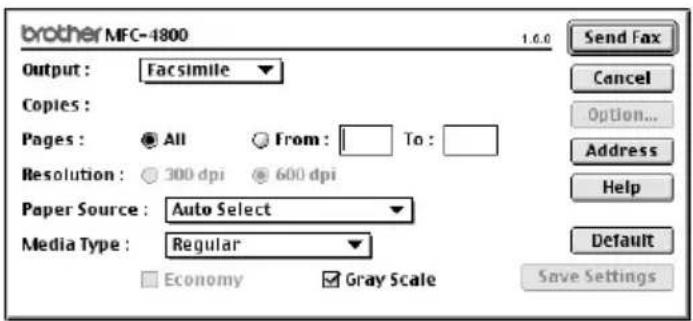
text_image
brother MFC-1800 Output: Facsimile Copies: Pages: All From: To: Resolution: 300 dpi 600 dpi Paper Source: Auto Select Media Type: Regular Send Fax Cancel Option... Address Help Default Economy Gray Scale Save SettingsWhen Facsimile is selected, the top button shows Send Fax and the Address button is available.
4 Click Send Fax.
The Address Book dialog box appears:

text_image
Send Fax Input Fax Number : Stored Fax Numbers : Barble 908-477-8888 Bob 908-869-8888 Frank 908-236-8888 Tony 908-569-8888 Destination Fax Numbers : New Group Edit Delete Save Cancel Send FaxThe Address Book dialog box has two list boxes. The left box shows all the previously Stored Fax Numbers; the right box will show the Destination Fax Numbers as you select them.
5 To address the fax, type a fax number in the Input Fax Number box.
—OR—
Select a name/number from the Stored Fax Numbers box, and then click >>. Your recipient will appear in the Destination Fax Numbers box.

You can select several stored numbers at once by using the Shift and Ctrl keys.
6 If you want to, you can add your new recipients to the Address Book at this time by clicking New to open the Address Book dialog box. (See Adding a New Member, page 111.) —OR—
You can add a new group by clicking Group. (See Adding a New Group, page 112.)
7 If you have finished addressing your fax, click Send Fax.

To select and send only certain pages of the document, enter the page numbers in the From: and To: boxes in the Facsimile dialog box.

If you click Send Fax without addressing your fax, the following error message appears:

text_image
No tax number is selected! Click OK to continue, and then select the Destination Fax Numbers.Click OK to return to the Address Book dialog box.
Setting Up Your Address Book
You can add new members and groups to your Address Book, even while you are addressing a fax.
Adding a New Member
1 To add a new member to the Address Book, in the Facsimile dialog box click Address. The Address Book dialog box appears:

text_image
Address Book Stored Fax Numbers : Barbie 908-477-8888 Bob 908-869-8888 Frank 908-236-8888 Tony 908-569-8888 New Group Edit Delete OK Cancel Option...2 Click New.
The following dialog box appears:
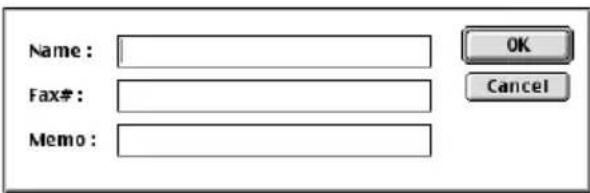
text_image
Name : Fax#: Memo : OK Cancel3 Type the name and fax number.
4 If you want to, you can store a comment in the Memo field if you wish (up to 15 characters).
5 Click OK to return to the Address Book dialog box.
Adding a New Group
You can set up a group of multiple recipients.
1 Click Group.
The Group Setting dialog box appears:
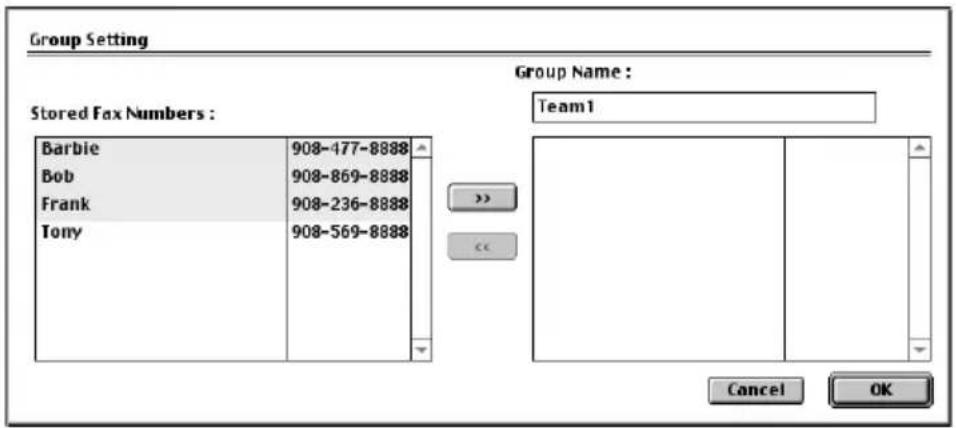
text_image
Group Setting Stored Fax Numbers : Barbie 908-477-8888 Bob 908-869-8888 Frank 908-236-8888 Tony 908-569-8888 Group Name : Team1 >> << Cancel OK2 In the Group Name field, type a name for your Group.
3 From the Stored Fax Numbers box select the recipients for your Group, and then click >>. Your selection will appear in the box under the Group Name field.
4 Click OK.
The Address Book dialog box reappears:
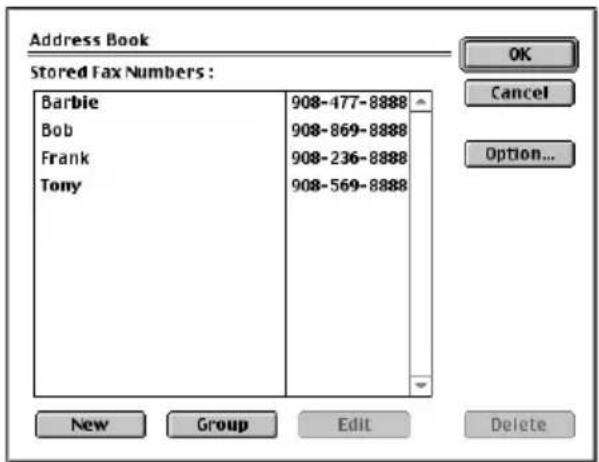
text_image
Address Book Stored Fax Numbers : Barbie 908-477-8888 Bob 908-869-8888 Frank 908-236-8888 Tony 908-569-8888 New Group Edit Delete OK Cancel Option...5 Click OK.
The Print/Facsimile dialog box reappears:
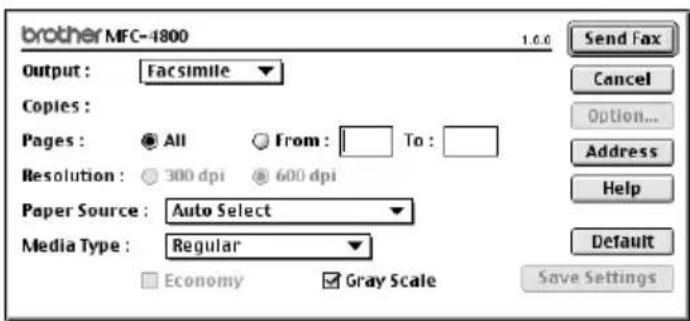
text_image
brother MFC-1800 Output : Facsimile Copies : Pages : All From: To: Resolution : 300 dpi 600 dpi Paper Source : Auto Select Media Type : Regular Send Fax Cancel Option... Address Help Default □ Economy □ Gray Scale Save Settings6 If you are ready to send your fax, click Send Fax.
(Follow the steps on page 109 for sending a fax.)
Using Brother TWAIN Scanner Driver with Your Apple® Macintosh®
The Brother MFC software includes a TWAIN Scanner driver for Macintosh ^® . This Macintosh ^® TWAIN Scanner driver can be used with application that supports the TWAIN specification. You can use PaperPort for scanning.
Accessing the Scanner
Run your PaperPort ^® software. You will see the PaperPort ^® icon in the upper right hand corner of your screen. The first time you use the Brother TWAIN driver, set it as the default by choosing the “Select Source”, then click the PaperPort icon. Afterward, for each document you scan choose “Acquire Image” by clicking the PaperPort icon. The Scanner setup dialog box will appear.
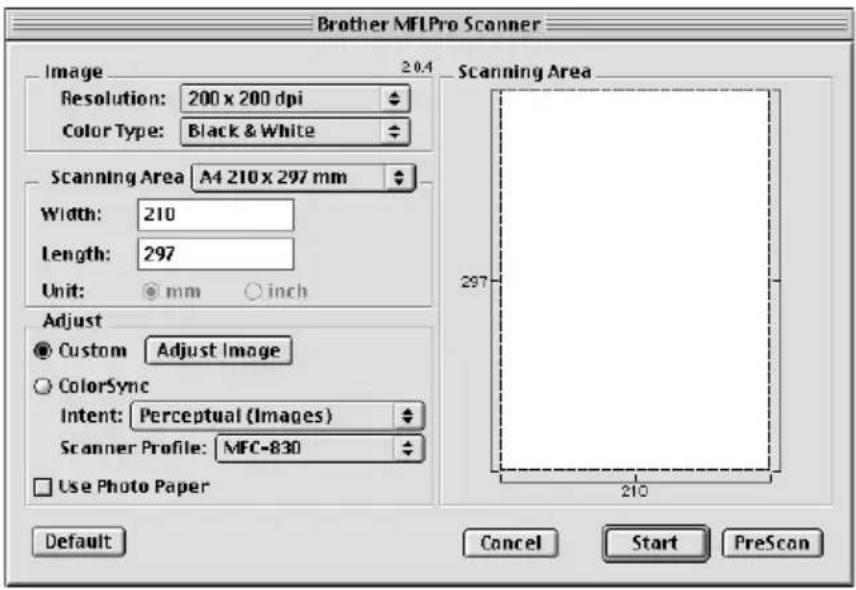
text_image
Brother MFLPro Scanner Image 20.4 Resolution: 200 x 200 dpi Color Type: Black & White Scanning Area A4 210 x 297 mm Width: 210 Length: 297 Unit: mm inch Adjust Custom Adjust Image ColorSync Intent: Perceptual (Images) Scanner Profile: MFC-830 Use Photo Paper Scanning Area 297 210 Default Cancel Start PreScanScanning a Document into Your Macintosh G3, G4 or iMac
1 Insert the document face down in the ADF.
2 Adjust the following settings, if needed, in the scanner setup dialog box:
Resolution
Color Type
Brightness
Contrast
Scanning Area
3 Click Fax Start.
When scanning is finished, the image will appear in your graphics application.
Image
Resolution
Choose the scanning resolution from the Resolution pop-up menu. Higher resolutions take more memory and transfer time, but can achieve a finer scanned image. (Each model has different resolutions. See Specifications, page 143.)

text_image
Brother MFLPro Scanner 100 x 100 dpi 150 x 150 dpi ✓ 200 x 200 dpi 300 x 300 dpi 400 x 400 dpi 600 x 600 dpi 1200 x 1200 dpi Scanning Area Resolution: Color Type: Scanning Area Width: 8.5 Length: 11 Unit: mm inchColor Type
Black & White—Set the image Type to Black & White for text or line art. For photographic images, set the image type to Grey (Error diffusion) or True Grey.
Grey (Error Diffusion)—is used for documents that contain photographic images or graphics. (Error Diffusion is a method for creating simulated grey images by placing black dots in a specific matrix instead of true grey dots.)
True Grey—also is used for documents containing photographic images or graphics. This mode is more exact because it uses up to 256 shades of grey. It requires the most memory and longest transfer time.

text_image
Brother MFLPro Scanner Image 2.06 Resolution: 200 x 200 dpi Color Type: Black & White Gray (Error Diffusion) True Gray Scanning Area Width: 210 Length: 297 Unit: mm inch Adjust Custom Adjust Image ColorSync Intent: Perceptual (Images) Scanner Profile: Use Photo Paper Scanning Area 297 210 Default Cancel Start PreScanScanning Area
Set the Size to one of the following:
◆ Letter (8.5 × 11 inches)
◆ A4 (210 × 297 mm)
♦ Legal (8.5 × 14 inches)
◆ A5 (148 × 210 mm)
◆ B5 (182 × 257 mm)
◆ Executive (7.25 × 10.5 inches)
◆ Business Card (90 × 60 mm)
◆ Custom (User adjustable from 0.35 × 0.35 inches to 8.5 × 14 inches)
After you choose a custom size, you can adjust the scanning area. Click and hold the mouse button as you drag the mouse to crop the image.
Width: Enter the width of the custom size.
Length: Enter the length of the custom size.
Business Card Size
To scan business cards, select the Business Card size setting (90 × 60 mm), and then place the business card at the top center of a carrier sheet.

Carrier sheets are available from your Dealer.
When scanning photographs or other images for use in a word processor or other graphics application, it is a good idea to try different settings for the Contrast, Mode and Resolution to determine which settings look best.
Adjust Image
Brightness
Adjust the brightness settings to obtain the best image. The Brother TWAIN Scanner driver offers 100 brightness settings (-50 to 50). The default value is 0, representing an “average” setting.
You can set the brightness level by dragging the slidebar to the right to lighten the image or to the left to darken the image. You can also type a value in the box to set the setting. Click OK.
If the scanned image is too light, set a lower brightness value and scan the document again.
If the image is too dark, set a higher brightness value and scan the document again.
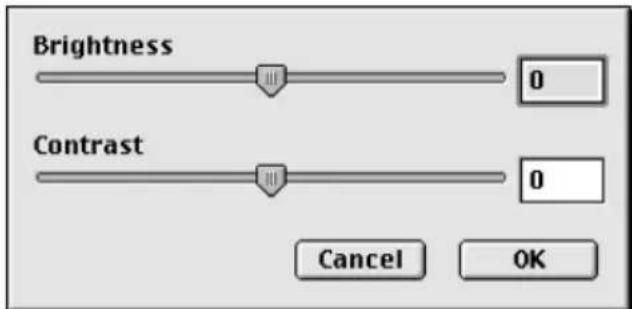
text_image
Brightness Contrast Cancel OKContrast
The contrast setting is adjustable only when you have selected one of the grey scale settings, but it is not available when Black & White is selected as the grey scale.
Increasing the contrast level (by dragging the slidebar to the right) emphasizes dark and light areas of the Image, while decreasing the contrast level (by dragging the slidebar to the left) reveals more detail in grey areas. Instead of using the slidebar, you can type a value in the box to set the contrast. Click OK.
PreScanning an Image
PreScanning allows you to scan an image quickly at a low resolution. A thumbnail version will appear in the Scanning Area. This is only a preview of the image, so you can see how it will look. The PreScan button is used to preview an image for cropping any unwanted portions from the image. When you are satisfied with the preview, click Fax Start to scan the image.
1 Insert the document face down in the ADF.
2 Click PreScan.
The entire document will be scanned into your Macintosh will appear in the Scanning Area of the Scanner dialog box:
3 To scan a portion of the prescanned image, click and drag the mouse to crop it.
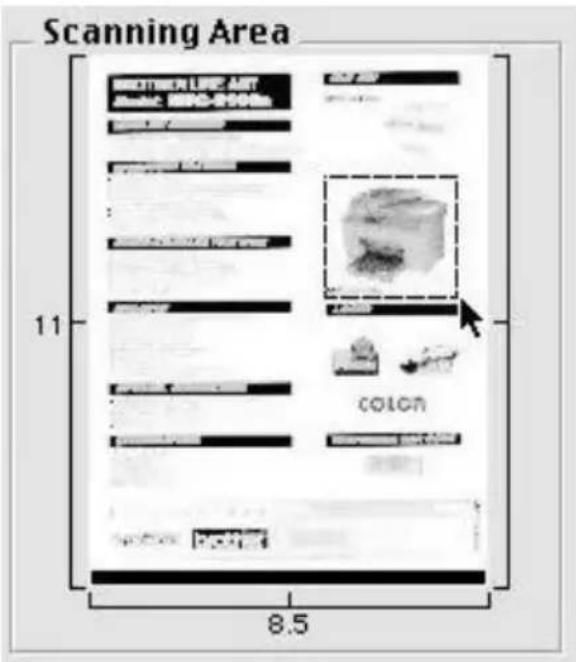
text_image
Scanning Area COLOR LINE ART ART: 2000-2000m 11 8.54 Insert document face down in the ADF of the Brother MFC again.
5 Adjust the settings for Resolution, Color Type (Grey Scale), Brightness, Contrast, and Size in the Scanner Setup dialog box, as needed.
6 Click Fax Start.
This time only the selected area of the document will appear in the Scanning Area.
7 Use your application, software for editing and refining the image as usual.
Error Messages
You may occasionally encounter a difficulty with the machine or telephone line. If this happens, the machine often identifies the problem and displays an error message. The list below explains the most common error messages, in alphabetical order.
| ERROR MESSAGE | CAUSE ACTION | |
| CHANGE DRUM SOON | The drum unit is near the end of its life. | If you have a print quality problem, replace the drum unit with a new one. |
| CHANGE TONER If the display shows CHANGETONER, you can still print. But the toner is depleted and the machine is telling you that the toner will soon run out. | Order a new toner cartridge now. | |
| CHECK DOCUMENT | Documents were not inserted or fed properly or document was too long. | Do not pull paper out until you see Document Jam, page 119. |
| CHECK DRUM UNIT | Drum unit is not installed. Reinstall the drum unit. | |
| CHECK PAPER The m | machine is out of paper or paper is not properly loaded in the Multi-purpose Sheet Feeder. | Refill the paper or remove the paper and load it again and then press Fax Start. |
| CHECK PAPER SIZE | Paper Size is improper for fax receiving. | Load A4 paper in multi-purpose sheet feeder, and then press Fax Start. |
| COMM.ERROR A poor quality phone line caused communications error. | Try the call again. | |
| CONNECTION FAIL | You tried to poll a fax machine that is not in Polled Waiting mode. | Verify the other party's polling setup. |
| COOLING DOWNWAIT FOR A WHILE | The temperature of the drum unit or toner cartridge is too hot. The machine will pause its current print job and go into cooling down mode. During the cooling down mode, you will hear the cooling fan running while the display on the machine shows COOLING DOWN and WAIT FOR A WHILE. | You must wait and allow the machine to resume printing when it is ready. |
| COVER OPEN The top | cover was not completely closed. | Open, then close, the cover. |
| DISCONNECTED The | other party or other party's fax machine terminated the call. | Try to re-transmit or call the other party to see what happened. |
| MACHINE ERROR XX | Machine has a mechanical problem. | Unplug the machine.Then contact your Brother dealer for service. |
| NO RESPONSE/BUSY | The number you called does not answer or is busy. Or, you may have reached a number that is not connected to a fax machine. | Check the number and try again. |
| NOT ASSIGNED NOT REGISTERED (for some countries) | You tried to access a One Touch or Speed Dial number that is not programmed. | Set up the One Touch or Speed Dial number. (See Storing One Touch Dial Numbers (For FAX-2850 Only), page 14 and Storing Speed Dial Numbers, page 15.) |
| OUT OF MEMORY (When the machine is used as a printer.) | The machine memory capacity has been exceeded. | - If you have installed the Windows® driver, try again after setting the True Type mode to “Print as Graphics” in the PRINT menu of your application software.- Reduce the print resolution or reduce the complexity of your document. |
| PAPER JAM The recording paper is jammed in the machine. | See Paper Jam, page 119. | |
| PLS OPEN COVER A | page, piece of paper or paper clip, etc. may be jammed inside the machine. | Open the top cover. If you see any jammed paper or other item, gently pull it out, then close the top cover. If the error message remains, open and close the top cover again. If the machine cannot reset itself and return to the date and time prompt, it will display MACHINE ERROR XX. Please call your Brother dealer for service. |
| TONER EMPTY Toner | is used up and printing is not possible, or toner cartridge is not installed into the drum unit. | Replace the toner cartridge with a new one, or install the toner cartridge into the drum unit. (See Replacing the Toner Cartridge, page 129.) |
Document Jams and Paper Jams
Based upon where the original document or printed sheet is jammed, follow the appropriate set of instructions to remove it.
Document Jam
The documents were not inserted or fed properly, or were too long.
1 Open the control panel.
2 Carefully pull the document toward the front of the machine.
3 Close the control panel and press Stop/Exit.

text_image
NO OKPaper Jam
Before you can clear a paper jam error, you must find out where the paper is stuck. Use the diagram below to help locate the position of the paper.

Do not force the jammed paper from the paper tray because you may damage the machine and cause toner to scatter.
After you have used the machine, some internal parts of the machine are extremely HOT! When you open the top cover of the machine, never touch the shaded parts shown in the following diagram.
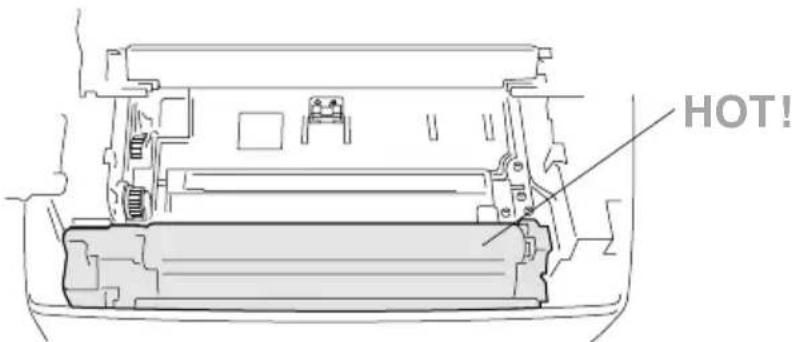
text_image
HOT!▲ Inside the Fax Machine
■Clearing a Paper Jam in the Multi-purpose Sheet Feeder.
If paper is jammed inside the Multi-purpose Sheet Feeder, push down the paper lever to pull the jammed paper upwards out of the feeder. Also, open the top cover and check that a torn piece of paper does not remain inside the machine.
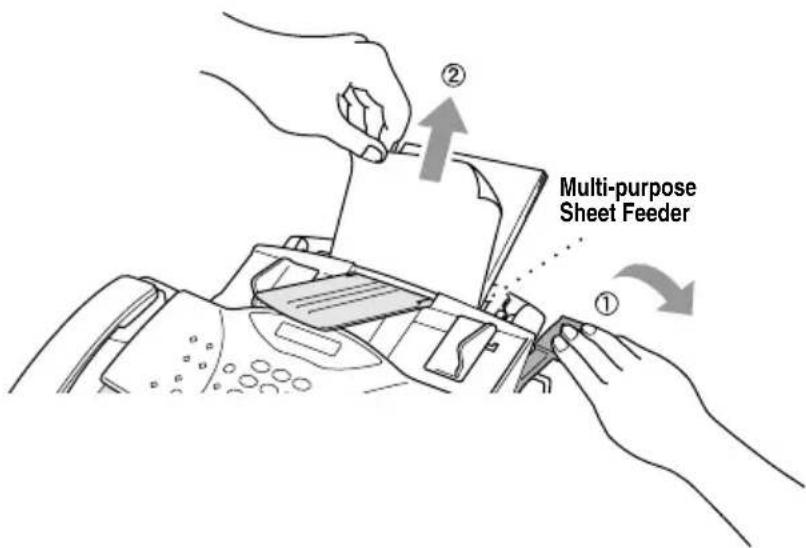
text_image
Multi-purpose Sheet Feeder■Clearing a Paper Jam near the Drum Unit.
If paper is jammed near the drum unit, open the top cover and remove the drum unit. Then, pull the jammed paper upwards and out of the machine. Reinstall the drum unit and close the top cover.

text_image
Paper is jammed near drum unitDifficulty with Operation
If you think there is a problem with the machine, make a copy first. If the copy looks good, the problem is probably not the machine. Check the table below and follow the troubleshooting tips.
| DIFFICULTY SUGGESTIONS | |
| Printing and Receiving Faxes | |
| Condensed print and horizontal streaks/top and bottom of sentences are cut off. | If your copy looks good, you probably had a bad connection, with static or interference on the phone line. Try again and see if there is an improvement.If a copy looks worse, then call your Brother dealer for service. |
| Vertical streaks/black lines appear on the fax you receive | Sometimes you may see vertical streaks/black lines on the faxes you receive. Either the machine's primary corona wire for printing may be dirty, or the sending party's fax scanner may be dirty. Clean your primary corona wire, or ask the sender to make a copy to see if the problem is with the sending machine. Try receiving from another fax machine. If the problem continues, call Brother dealer for service. |
| Machine “hears” voice as CNG tone | If the machine is set to Fax Detect (with an External Telephone) ON, it is more sensitive to sounds. The machine may mistakenly interpret certain voices or music on the line as a calling fax machine and respond with fax receiving tones. Deactivate the fax by pressing Stop/Exit. Try avoiding this problem by turning Fax Detect (with an External Telephone) to OFF. (See Fax Detect (set ON by default), page 22.) |
| Phone Line or Connections | |
| Dialling does not work | Check for a dial tone. Change TONE/PULSE setting (See Setting the Dialling Mode (Tone/Pulse) (Not available in New Zealand), page 14). Check all line cord connections, and make sure the curled handset cord is not in the EXT jack. Check power cord connection. Send a manual fax by pressing Hook—OR—by lifting the handset, and dialing the number. Wait to hear the fax receiving tones before pressing Fax Start. |
| The machine does not answer when called | Make sure the FAX/MFC is in the correct receiving mode for your setup (either FAX, FAX/TEL or TAD). Check for dial tone. If possible, call your FAX/MFC to hear it answer. If there is still no answer, check the telephone line cord connection. Connect a standard telephone handset to the FAX/MFC telephone jack. If there is no ringing when you call your FAX/MFC, call your Telephone Company to check the line. |
| No dial tone on the handset | Press Hook—OR—Lift the handset. If you hear no dial tone, check telephone line cord connections at the FAX/MFC and wall jack. Check that the handset curled cord is connected to the FAX/MFC's handset jack. Test the jack with another single line telephone. If no dial tone on the wall outlet, call your Telephone Company. |
| Sending Faxes | |
| Poor transmitting quality | Try changing your resolution to FINE or SUPERFINE. (See Fax Resolution, page 16.) Make a copy to verify the machine's scanner operation. |
| Transmission verification prints “Results:NG” | There is probably temporary noise or static on the phone line. Try sending the fax again. If the problem continues, call the Telephone Company to check your phone line. |
| When the receiving party says the picture is not clear | Sometimes the resolution mode you chose when you sent your fax may not have been appropriate. Send the fax again, but try using the FINE or S.FINE mode. Also, the machine's scanner may be dirty, so try cleaning it. |
| When the receiving party says vertical streaks appear on the faxes they receive | The machine's scanner may be dirty or the receiving party's print head may be dirty. Clean your scanner and make a copy to check if the problem was caused by the machine. |
| Handling Incoming Calls | |
| F/T pseudo-ring in Fax/Tel (F/T) Mode. | The machine knows the incoming call is not a fax so it is signalling you to answer the telephone call. Pick up the handset or answer from an extension phone and press the machine's Deactivation Code (default setting is #51 (#91 for New Zealand)). |
| Transferring a fax call to the machine. | If you answered at the machine, press Fax Start and hang up immediately. If you answered at an extension phone, press your Remote Activation Code (default setting is $1 (*91 for New Zealand)). When the machine answers, hang up. |
| The Caller ID does not display after the Call Waiting Signal. | The Caller ID signal is sent ten seconds after the Call Waiting Signal and speaking may interfere with it. When you hear the Caller Waiting signal, ask the other party to hold while you catch the other call. Then stop speaking until you see the Caller ID on the LCD. |
| General Printing Difficulties (For MFC-4800 Only) | |
| The machine does not print. | Make sure the machine is plugged in. The toner cartridge and drum unit are installed properly. The interface cable is securely connected between the machine and computer. Check to see if LCD is showing an error message. |
| The machine prints unexpectedly or it prints garbage. | Unplug the machine. Make sure your application software is correctly set up to use the machine by checking the primary settings in your application software. |
| The machine prints the first couple of pages correctly, then some pages have text missing. | Your computer is not recognizing the printer's “input buffer full” signal. Please make sure you connect the printer cable correctly. |
| The machine cannot print full pages of a document. An OUT OF MEMORY error message occurs. | Reduce the printer resolution. Reduce the complexity of your document and try again. Reduce the graphic quality or the number of font sizes within your application software. |
| My headers or footers appear when I view my document on the screen but do not show up when I print them. | Most laser printers have a restricted area that will not accept print. Usually these are the first two lines and last two lines, leaves 62 printable lines. Adjust the top and bottom margins in your document to allow for this. |
| Windows® Setup Printing Difficulties (For MFC-4800 Only) | |
| I cannot print from my application software. | Make sure the Windows® printer driver is installed and you select it in your application software. |
| Software Difficulties (For MFC-4800 Only) | |
| “MFC Connect Failure” | If the machine is not connected to your PC and you have loaded the Brother software, the PC will show “MFC Connect Failure” each time you restart Windows®. You can ignore this message or you can turn it off by deselect theAutoLoad PopUpcheck box in the Brother Control Center chapter. (SeeHow to Turn Off AutoLoad, page 77.) |
| Paper Handling Difficulties | |
| The machine does not load paper. The LCD showsCHECK PAPER or PAPER JAM | Check to see if theCHECK PAPER or PAPER JAMmessage appears on the LCD. If so, the Multi-purpose Sheet Feeder may be out of paper. If it is empty, load a new stack of paper into the feeder and then pressFax Start. If there is paper in the Multi-purpose Sheet Feeder, make sure it is straight. If the paper is curled, you should straighten it. Sometimes it is helpful to remove the paper, turn the stack over and put it back into the Multi-purpose Sheet Feeder. Reduce the amount of paper in the Multi-purpose Sheet Feeder, then try again. |
| How can I clear paper jams? See Paper Jam, page 119. | |
| Copy Quality Difficulties | |
| Vertical streaks appear in copies | Sometimes you may see vertical streaks on your copies. Either the scanner or the primary corona wire for printing is dirty. Clean them both. |
| Print Quality Difficulties | |
| Printed pages are curled. | Thin Paper (17lb-18.4lb) can cause this problem. Make sure you select the Paper Type that suits the paper in your multi-purpose sheet feeder. (SeePaper Type, page 61 andMedia Type, page 68.) |
| Printed pages are smeared. | Rough surfaces or thick media can cause “smeared pages”-OR-“the toner to smear”. Make sure you select the correct Paper Type that suits the paper in your multi-purpose sheet feeder. (SeePaper Type, page 61 andMedia Type, page 68.) |
| Printouts are too dark or light | Adjust the print conditions by setting the Print Density function. It has been factory set to the middle position. (SeeSetting the Print Density, page 23.) |
Printed pages contain white stripes. White Stripes or Faint Images White Stripes or Faint Images | You may fix this by wiping the scanner windows with a clean soft cloth. (SeeRegular Maintenance, page 127 andCleaning the Drum Unit, page 128.) If you still see white stripes or faint images and the display showsCHANGE DRUM SOON, replace the drum unit with a new one. |
Printed pages are stained with toner or have vertical stripes. Dark Stripes or Toner Stains Dark Stripes or Toner Stains | Clean the machine’s interior and the primary corona wire of drum unit. (SeeRegular Maintenance, page 127 andCleaning the Drum Unit, page 128.) Make sure that the tab of the corona wire is at the home position. If after cleaning, you still see dark stripes or toner stains and the display showsCHANGE DRUM SOON, replace the drum unit with a new one. |
Printed pages have white spots in black text and graphic areas.  White Spots White Spots | Make sure that you use paper that meets the specifications. Rough surface or thick media can cause the problem. If you still see white spots and the display shows CHANGE DRUM SOON, replace the drum unit with a new one. |
Toner scatters and stains the printed page.   Scattering Toner Scattering Toner | Adjust the print conditions by setting the Print Density function. Clean the machine's interior. (See Regular Maintenance, page 127 and Cleaning the Drum Unit, page 128.) Make sure that you use paper that meets specifications. (See Acceptable Paper, page 65.) If you still have scattered toner and the display shows CHANGE DRUM SOON, replace the drum unit with a new one. |
The whole page is printed black.  Black Page Black Page | Wipe the electric terminals. (See Regular Maintenance, page 127 and Cleaning the Drum Unit, page 128.) Also, do not use heat-sensitive paper as it will cause this problem. After cleaning, if the printed pages are still black and the display shows CHANGE DRUM SOON, replace the drum unit with a new one. |
Nothing is printed on the page.  White page White page | Make sure that the toner cartridge is not empty. Wipe the electric terminals referring to Regular Maintenance, page 127 and Cleaning the Drum Unit, page 128. Make sure that a torn piece of paper does not remain on the scanner window. |
Printed pages are marked regular intervals.   Example of Regular Marking Example of Regular Marking | Markings may disappear by themselves. Try copying at multiple pages to clear this problem. Markings may occur if the machine has not been used for a long time. A possible cause is that the surface of the drum is marked or damaged by excessive exposure to light. In this case, replace the drum unit with a new one. |
Printed pages are blurred at the centre or at either edge.  Blurred Page Blurred Page | Certain environmental conditions such as humidity, high temperatures, etc. may cause this condition to occur. Make sure the machine is placed on a flat, horizontal surface. Remove the drum unit with the toner cartridge installed. Try rocking them from side to side. You may clear a blurred page by wiping the scanner windows with a clean soft cloth. (See Regular Maintenance, page 127 and Cleaning the Drum Unit, page 128.) If a blurred page occurs after cleaning and the display shows CHANGE DRUM SOON, replace the drum unit with a new one. |
Ghost images appear on printed pages.  Ghost Images Ghost Images | Adjust the print conditions by changing the Print Density setting, page 23. -OR- Rough surfaces or thick media can cause a ghost image. Make sure you select the Paper Type that suits the paper in your multi-purpose sheet feeder. (See Paper Type, page 61 and Media Type, page 68.) |

The drum unit is a consumable and it is necessary to replace it periodically.
Packing and Shipping the Machine
Whenever you transport the machine, use the packing materials that came with the machine. Failure to pack the machine correctly may damage the machine and such damages will not be covered under warranty.
1 Make sure you close the paper tray and the extension.
2 Remove the line cord and unplug the machine from the AC outlet.
3 Open the top cover.
4 Remove the drum unit assembly.

Remove the drum unit and toner cartridge assembly. Leave the toner cartridge installed in the drum unit.

text_image
Top Cover Drum Unit5 Place the drum unit and toner cartridge assembly into the plastic bag and seal the bag completely.
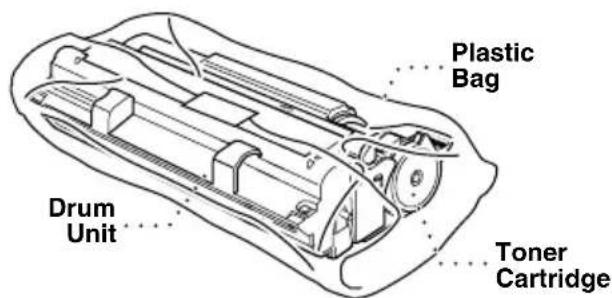
text_image
Plastic Bag Drum Unit Toner Cartridge6 Close the top cover. Remove the document and paper supports and pack them.
7 Wrap the machine in the plastic bag and place it in the original carton with the original packing material.
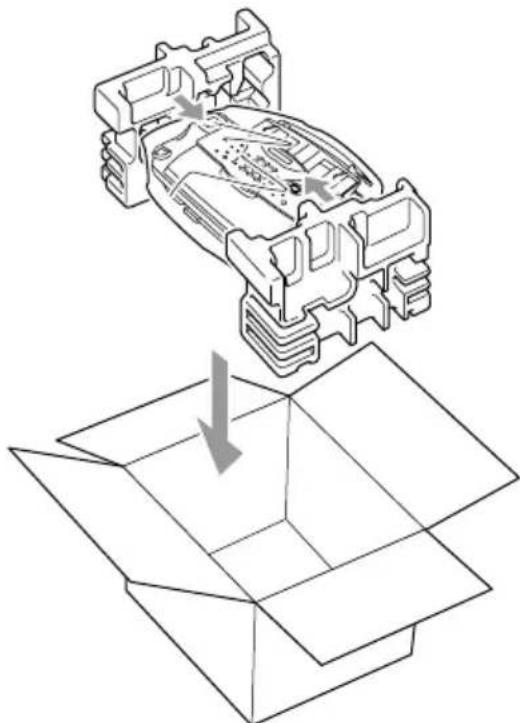
natural_image
Technical illustration of an open box with internal components and a downward arrow indicating compression or disassembly (no text or symbols present)8 Place documents (manual, printed material and CD-ROM), the drum unit and toner cartridge assembly, the telephone cord, printer cable and paper supports into the carton as shown below.

text_image
Diagram illustrating a mechanical assembly or assembly process with labeled components and directional arrows indicating movement or flow.
natural_image
Line drawing of an open box containing internal mechanical components and a tool, with no visible text or symbols.9 Close the carton and tape it shut.
Regular Maintenance
You can keep the machine in optimum condition by cleaning it on a regular basis. It is a good idea to clean the drum unit during this routine. Avoid using thinners or other organic solvents to clean the machine and do not use water.
Cleaning the Scanner
1 Unplug the telephone line and then the power cord.
When you reconnect these lines later, make sure to connect the power cord first, then the telephone line.
2 Open the document tray, and then the control panel.
3 Wipe dirt off the machine using a slightly damp clean cloth.
4 Clean the white bar and the glass cover.
Moisten a small piece of clean soft, lint-free cloth with isopropyl alcohol and carefully remove dirt from the glass cover and the white bar of the scanner.

text_image
Control Panel White Bar Left the Control Panel Cover Glass CoverCleaning the Printer

- Do not use isopropyl alcohol to remove dirt from the control panel. It may cause a crack on the panel.
- Do not use isopropyl alcohol to clean the scanner window or the toner sensor.
- Do not touch the scanner window with your finger.
- Handle the drum unit carefully as it contains toner. If toner scatters and your hands or clothes get dirty, immediately wipe or wash it off with cold water.

text_image
Toner Sensor Gears Electrical Terminal Scanner Window
After you have used the machine, some internal parts of the machine are extremely HOT! When you open the top cover of the machine, never touch the shaded parts shown in the diagram below.
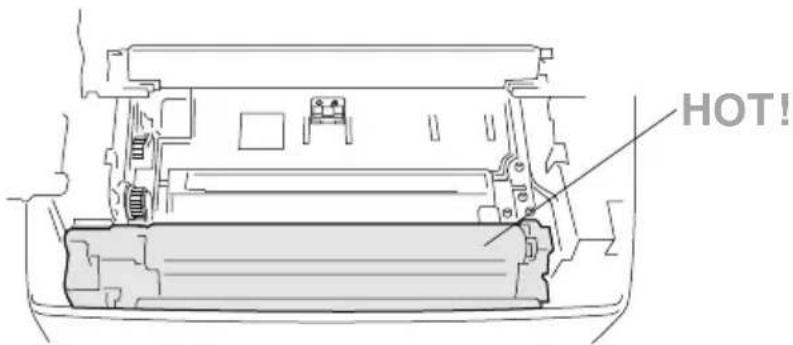
text_image
HOT!▲ Inside the Fax Machine
1 Open the top cover.
2 Remove the drum unit assembly.
3 Wipe the electric terminals with isopropyl alcohol on a cotton swab.
4 Wipe the gears with a clean dry cloth.
5 Gently wipe the scanner window and the toner sensor with a clean soft dry cloth. Do not use isopropyl alcohol to clean the scanner window or the toner sensor.
Cleaning the Drum Unit
We recommend you place the drum unit on a drop cloth or large piece of disposable paper to avoid spilling and scattering toner.
1 Turn the drum unit upside down carefully.
2 Clean the primary corona wire inside the drum unit by gently sliding the tab from right to left several times.
3 Return the tab to the home position (▼ mark position) before reinstalling the drum unit.

text_image
Home Position (▼) Corona Wire Tab
If you do not position the tab at the home position, printed pages may have vertical stripes.
4 Install the drum unit into the machine. (See Replacing the Drum Unit, page 132.)
5 Close the top cover.
Replacing the Toner Cartridge
The machine can print approximately 2,200 pages with one toner cartridge (TN-8000). When the toner cartridge is running low, the display shows CHANGE TONER. Actual page count will vary depending on your average document type (i.e. standard letter, detailed graphics). The above specifications relate to a 5% black coverage A4 size document.
It is a good idea to keep a new toner cartridge ready for use when you see the toner low warning.
Discard the used toner cartridge according to local regulations. If you are not sure of them, consult with Brother dealer for service. Be sure to seal the toner cartridge tightly so toner powder does not spill out of the cartridge. When discarding used toner cartridges, keep them separate from domestic waste.
It is recommended that you clean the machine when you replace the toner.
The display shows TONER EMPTY to indicate that the toner is empty. Once this indication appears, the machine will not resume printing until you have installed a new toner cartridge.

DO NOT refill the toner cartridges. Attempting to use refilled toner cartridges and using incompatible toners may cause damage to the machine and such damage will not be covered by warranty. Warranty coverage does not apply to problems caused by the use of 3rd party consumables. We can only recommend the use of genuine Brother consumables.
Steps for Replacing Toner Cartridge

After you have just used the machine, some internal parts of the machine will be extremely HOT! So, never touch the shaded parts shown in the illustration below.

text_image
HOT!▲ Inside the Fax Machine
1 Open the top cover. Make sure the top cover is completely open. To remove the drum unit, hold each side of the drum by the handles and gently lift the drum forward toward you.

text_image
Top Cover Drum UnitPlace the drum unit on a drop cloth or large piece of disposable paper to avoid spilling and scattering the toner.
2 Gently turn the lever on the toner cartridge forward until it stops. The toner cartridge cannot be removed unless the shutter is completely closed, by turning the lever fully to the front.

text_image
Drum Unit Toner Cartridge3 Remove the old toner cartridge from the drum unit by gently pulling it out.

Handle the toner cartridge carefully. If toner scatters on your hands or clothes, immediately wipe it off or wash them with cold water.

natural_image
Line drawing of a hand operating a mechanical device with an arrow indicating direction (no text or symbols present)4 Unpack the new toner cartridge. Place the used toner cartridge into the aluminium bag and discard it according to local regulations.
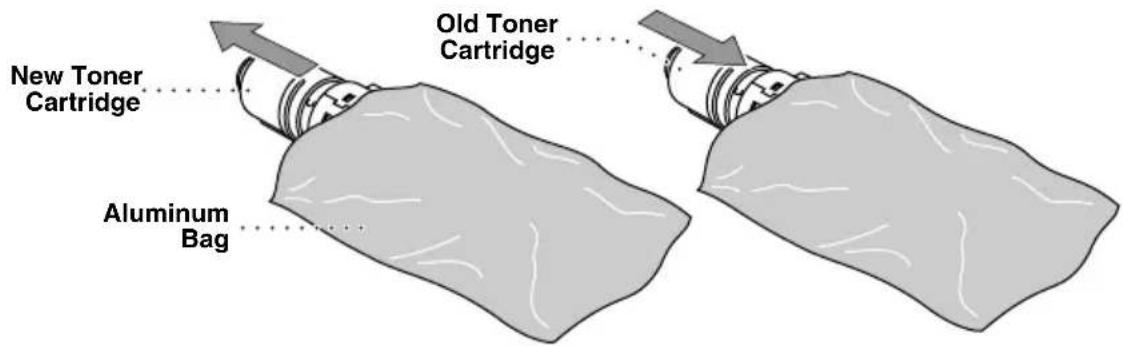
text_image
New Toner Cartridge Old Toner Cartridge Aluminum Bag
- Wait to unpack the toner cartridge until immediately before you install it into the machine. If a toner cartridge is left unpacked for a long period of time, the toner life is shortened.
5 Gently rock the toner cartridge from side to side five or six times, and then remove the protective seal.

text_image
Toner Cartridge
natural_image
Technical line drawing of a mechanical component with no visible text or symbols6 Slide the new toner cartridge into the opening on the right side of the drum unit. To ensure that the toner cartridge and the drum unit fit together correctly, make sure that the toner cartridge guide bar is exactly aligned with the guide slot in the drum unit.
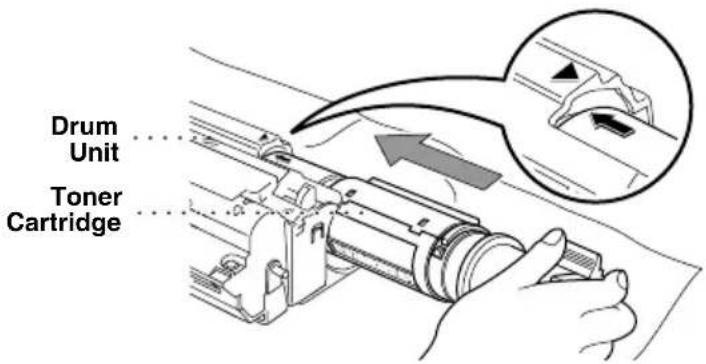
text_image
Drum Unit Toner Cartridge7 Gently turn the lever on the toner cartridge backward until it stops.

natural_image
Mechanical assembly diagram showing a motor and gear mechanism with an inset close-up of the gear (no text or labels)8 Reinstall the drum unit into the machine and close the top cover.

text_image
Top Cover Drum UnitReplacing the Drum Unit
The machine uses a drum unit to create the print images on paper. If the screen displays CHANGE DRUM SOON, the drum unit is nearly at the end of its life. Prepare a new drum unit to replace the current one. You may need to order one from your Brother dealer.
Even if the display shows CHANGE DRUM SOON, you may be able to continue to print without replacing the drum unit for a while. However, if there is a noticeable deterioration in the output print quality even before CHANGE DRUM SOON is shown, then the drum unit should be replaced. You should clean the machine when you replace the drum unit.

When removing the drum unit, handle carefully because it contains toner. When you replace the drum unit, you should clean the machine.

The drum unit is a consumable, and it is necessary to replace it periodically. There are many factors that determine the actual drum life, such as temperature, humidity, type of paper and toner that you use and the number of pages per print job, etc. The drum life is estimated at approximately 8,000 pages at 1 page per job. The actual number of pages your drum will print may be significantly less than these estimates. Because we have no control over the many factors that determine the actual drum life, we cannot guarantee a minimum number of pages that will be printed by your drum.
For best performance, use only genuine Brother toner, and the product should be used only in a clean, dust-free environment with adequate ventilation.

After you have just used the machine, some internal parts of the machine will be extremely HOT! So please be careful.
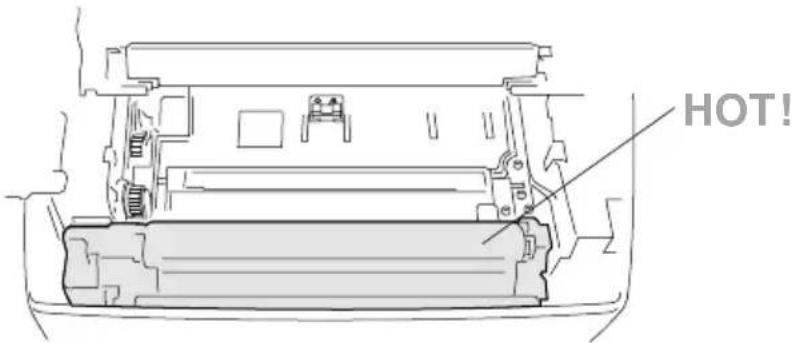
text_image
HOT!▲ Inside the Fax Machine
Follow these steps to replace the drum unit:
1 Open the top cover.
2 Remove the old drum unit. Place the drum unit on an old cloth or large piece of disposable paper to avoid spilling and scattering the toner.
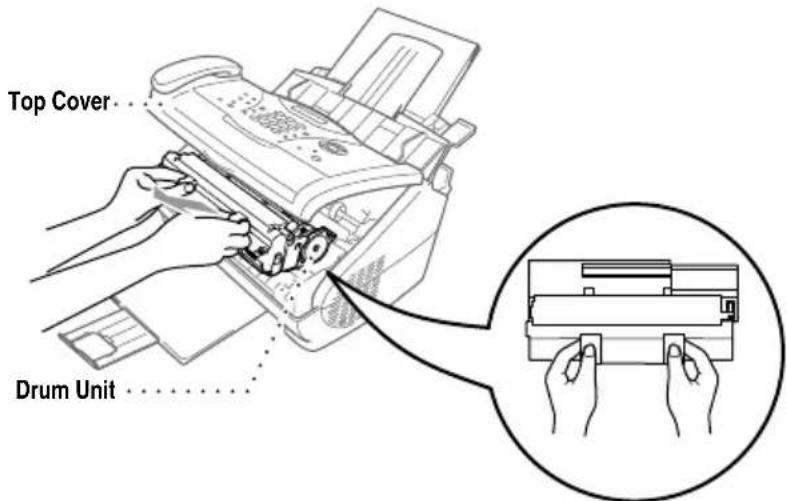
text_image
Top Cover Drum Unit3 Remove the toner cartridge from the drum unit and keep it in a safe place. (See Replacing the Toner Cartridge, page 129.)

text_image
Drum Unit Toner Cartridge
Discard the used drum unit according to local regulations. Be sure to seal the drum unit tightly so toner powder does not spill out of the unit. When discarding used drum units, keep them separate from domestic rubbish.
4 Wait to unpack the new drum unit until immediately before installing it. Place the old drum unit into the aluminium bag and discard it according to local regulations.
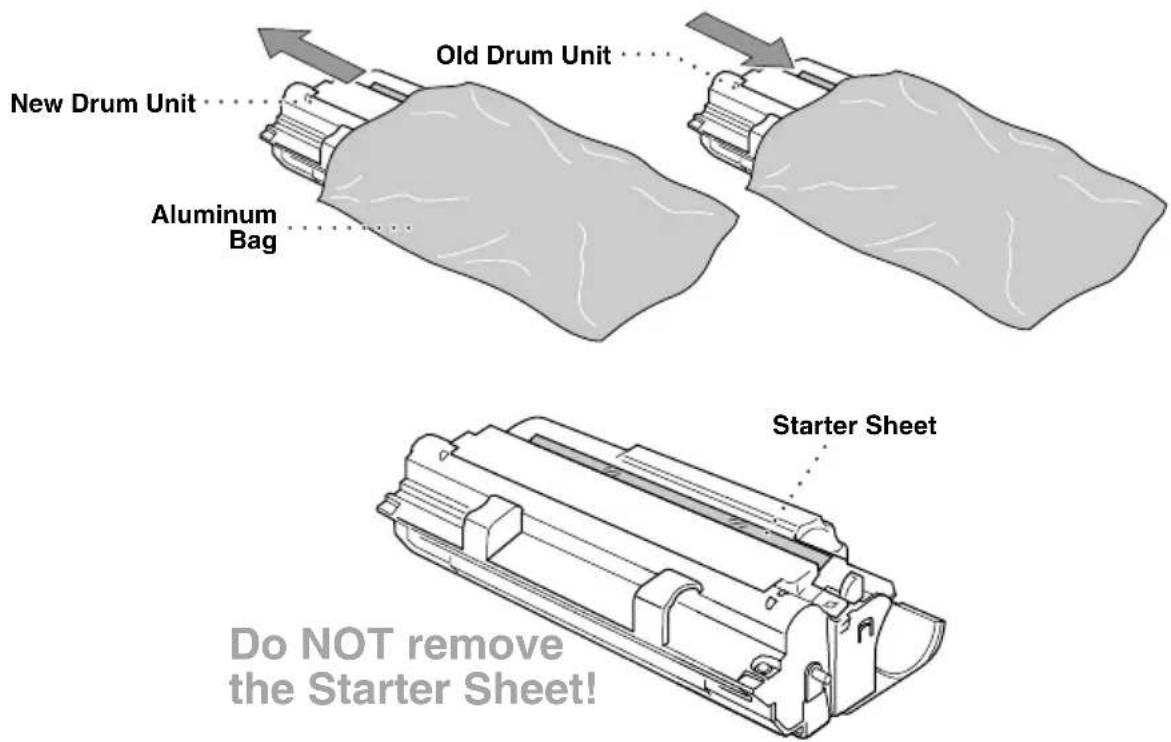
text_image
Old Drum Unit New Drum Unit Aluminum Bag Starter Sheet Do NOT remove the Starter Sheet!
- Do not pull or force the starter sheet from the machine. It will be ejected automatically.
- Wait to unpack the drum unit immediately before installing it into the machine.
- If an unpacked drum unit is subjected to excessive direct sunlight or room light, the unit may be damaged.
- Handle the toner cartridge and the drum unit carefully because they contain toner. If toner scatters and your hands or clothes get dirty, immediately wipe or wash with cold water.
- Do not touch the scanner window with your finger.
5 Reinstall the toner cartridge into the new drum unit. (See Replacing the Toner Cartridge, page 129.)

text_image
Drum Unit Toner Cartridge6 Holding the new drum unit by the handles, install it. Close the top cover.

text_image
Top Cover Drum Unit7 The machine will automatically eject the starter sheet. Do not pull or force the starter sheet from the machine.
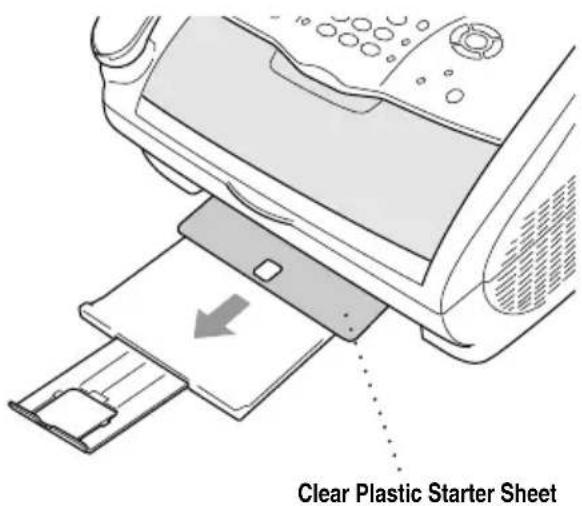
text_image
Clear Plastic Starter Sheet20 Important Safety Information
Important Information for Australia
Important Safety Instructions
1 Read all of these instructions.
2 Save them for later reference.
3 Follow all warnings and instructions marked on the product.
4 Unplug this product from the telephone and AC sockets (in this order) before cleaning. Do not use liquid or aerosol cleaners. Use a damp cloth for cleaning.
5 Do not place this product on an unstable surface.
6 Slots and openings in the case and the back or bottom are provided for ventilation; to ensure reliable operation of the product and to protect it from overheating, these openings must not be blocked or covered. The openings should never be blocked by placing the product on a bed, sofa, rug, or other similar soft surface. This product should never be placed near or over a radiator or heater. This product should not be placed in a built-in installation unless proper ventilation is provided.
7 This product should be operated from the type of power source indicated on the label. If you are not sure of the type of power available, consult with your dealer or local power company.
8 This product is equipped with a 3-wire earthed plug. This plug will fit into only an earthed socket. This is a safety feature. If you are unable to insert the plug into the outlet, contact your electrician to replace your obsolete socket. Do not defeat the purpose of an earthed plug.
9 Do not allow anything to rest on the power cord. Do not locate this product where people can walk on the cord.
10 Do not place anything in front of the machine that will block received faxes. Do not place anything in the path of received faxes.
11 Do not touch a document during printing.
12 Never push objects of any kind into this product through cabinet slots, since they may touch dangerous voltage points or short out parts resulting in a risk of fire or electric shock. Never spill liquid of any kind on the product.
13 Do not attempt to service this product yourself, because opening or removing covers may expose you to dangerous voltage points and/or other risks. Refer all servicing to service personnel.
14 This product has no mains ON/OFF switch. It is therefore highly important that access to the mains plug and the mains socket to which the plug is connected, is never obstructed, in case for some reason the mains power to the machine must be quickly disconnected.
15 Unplug this product from the mains power and telephone line sockets, and refer servicing to qualified service personnel under the following conditions:
◆When the power cord is damaged or frayed.
◆If liquid has been spilled into the product.
◆If the product has been exposed to rain or water.
◆If the product does not operate normally when the operating instructions are followed.
Adjust only those controls that are covered by the operating instructions. Improper adjustment of other controls may result in damage and will often require extensive work by a qualified technician to restore the product to normal operation.
◆If the product has been dropped or the cabinet has been damaged.
◆If the product exhibits a distinct change in performance, indicating a need for service.
16 We do not advise the use of an extension lead.
Important Information for New Zealand
Important Safety Instructions
1 Read all of these instructions.
2 Save them for later reference.
3 Follow all warnings and instructions marked on the product.
4 Unplug this product from the telephone and AC sockets (in this order) before cleaning. Do not use liquid or aerosol cleaners. Use a damp cloth for cleaning.
5 Do not use this product near water.
6 The grant of a Telepermit for any item of terminal equipment indicates only that Telecom has accepted that the item complies with minimum conditions for connection to its network. It indicates no endorsement of the product by Telecom, nor does it provide any sort of warranty. Above all, it provides no assurance that any item will work correctly in all respects with another item of Telepermitted equipment of a different make or model, nor does it imply that any product is compatible with all of Telecom's network services.
7 This equipment does not fully meet Telecom's impedance requirements. Performance limitations may occur when used in conjunction with some parts of the network. Telecom will accept no responsibility should difficulties arise in such circumstances.
8 If a charge for local calls is unacceptable, the “Dial Button” should not be used for local calls. Only the 7-digits of the local number should be dialled from your telephone. Do not dial the area code digit or the “0” prefix.
9 This equipment shall not be set to make automatic calls to the Telecom “111” Emergency Service.
10 IMPORTANT NOTICE
Under power failure conditions, this telephone may not operate. Please ensure that a separate telephone, not dependent on local power, is available for emergency use in emergencies.
11 Some parameters required for compliance with Telecom's Telepermit requirements are dependent on the equipment (PC) associated with this device. In order to operate within the limits for compliance with Telecom's Specifications, the associated equipment shall be set to
ensure that calls are answered between 3 and 30 seconds of receipt of ringing.
12 This equipment should not be used under any circumstances which may constitute a nuisance to other Telecom customers.
13 Not all telephones will respond to incoming ringing when connected to the extension socket.
14 This equipment may not provide for the effective hand-over of a call to another device connected to the same line.
15 The answer delay setting of this equipment shall not be set to less than the default setting as this will destroy Caller ID information.
16 All persons using this device for recording telephone conversations shall comply with New Zealand law. This requires that at least one party to the conversation is to be aware that it is being recorded. In addition, the Principles enumerated in the Privacy Act 1993 shall be complied with in respect to the nature of the personal information collected, the purpose for its collection, how it is to be used and what it disclosed to any other party.
17 The Caller ID Information is presented in the form: Area Code + Directory number When dialling back, always insert a zero in front of the area code for a toll call and omit the area code for a local call. If a zero is inserted in front of the area code for a local call, the call will still proceed correctly but if the line has non-code access to another toll carrier, you should check with that carrier before inserting zero on a local call.
18 Do not place this product on an unstable surface.
19 Slots and openings in the case and the back or bottom are provided for ventilation; to ensure reliable operation of the product and to protect it from overheating, these openings must not be blocked or covered. The openings should never be blocked by placing the product on a bed, sofa, rug, or other similar soft surface. This product should never be placed near or over a radiator or heater. This product should not be placed in a built-in installation unless proper ventilation is provided.
20 This product should be operated from the type of power source indicated on the label. If you are not sure of the type of power available, consult with your dealer or local power company.
21 This product is equipped with a 3-wire earthed plug. This plug will fit into only an earthed socket. This is a safety feature. If you are unable to insert the plug into the outlet, contact your electrician to replace your obsolete socket. Do not defeat the purpose of an earthed plug.
22 Do not allow anything to rest on the power cord. Do not locate this product where people can walk on the cord.
23 Do not place anything in front of the machine that will block received faxes. Do not place anything in the path of received faxes.
24 Do not touch a document during printing.
25 Never push objects of any kind into this product through cabinet slots, since they may touch dangerous voltage points or short out parts resulting in a risk of fire or electric shock. Never spill liquid of any kind on the product.
26 Do not attempt to service this product yourself, because opening or removing covers may expose you to dangerous voltage points and/or other risks. Refer all servicing to service personnel.
27 This product has no mains ON/OFF switch. It is therefore highly important that access to the mains plug and the mains socket to which the plug is connected, is never obstructed, in case for some reason the mains power to the machine must be quickly disconnected.
28 Unplug this product from the mains power and telephone line sockets, and refer servicing to qualified service personnel under the following conditions:
◆When the power cord is damaged or frayed.
◆If liquid has been spilled into the product.
◆If the product has been exposed to rain or water.
◆If the product does not operate normally when the operating instructions are followed.
Adjust only those controls that are covered by the operating instructions. Improper adjustment of other controls may result in damage and will often require extensive work by a qualified technician to restore the product to normal operation.
◆If the product has been dropped or the cabinet has been damaged.
◆If the product exhibits a distinct change in performance, indicating a need for service.
29 We do not advise the use of an extension lead.
Important Information for Some Countries
Important Safety Instructions
1 Read all of these instructions.
2 Save them for later reference.
3 Follow all warnings and instructions marked on the product.
4 Unplug this product from the wall outlet before cleaning. Do not use liquid or aerosol cleaners. Use a damp cloth for cleaning.
5 Do not place this product near water.
6 Do not place this product on an unstable cart, stand, or table. The product may drop, causing serious damage to the product.
7 Slots and openings in the cabinet and the back or bottom are provided for ventilation; to ensure reliable operation of the product and to protect it from overheating, these openings must not be blocked or covered. The openings should never be blocked by placing the product on a bed, sofa, rug, or other similar surface. This product should never be placed near or on a radiator or heater. This product should never be placed in a built-in installation unless proper ventilation is provided.
8 This product should be operated from the type of power source indicated on the label. If you are not sure of the type of power available, consult with your dealer or local power company.
9 This product is equipped with a 2-wire grounding type plug or a 3-wire grounding type plug (Only for Singapore, Malaysia, Hong Kong and India), a plug having two or three pins. This plug will only fit into only a grounding-type power outlet. This is a safety feature. If you are unable to insert the plug into the outlet, contact your electrician to replace your obsolete outlet. Do not defeat the purpose of the grounding-type plug.
10 Do not allow anything to rest on the power cord. Do not place this product where people can walk on the cord.
11 If an extension cord is used with this product, make sure that the total ampere ratings on the products plugged into the extension cord do not exceed the extension cord ampere rating.
12 Do not place anything in front of the machine that will block received faxes. Do not place anything in the path of received faxes.
13 Do not touch a document during printing.
14 Never push objects of any kind into this product through cabinet slots, since they may touch dangerous voltage points or short out parts resulting in the risk of fire or electric shock. Never spill liquid of any kind on the product.
15 Do not attempt to service this product yourself, as opening or removing covers may expose you to dangerous voltage points and/or other risks, and may void your warranty. Please refer all servicing to our Authorized Service Personnel. A list of Authorized Service Centres has been included for your convenience, or you may contact the Brother Dealer for Service.
16 This product does not have an ON/OFF switch. Therefore, it is very important that you have easy access to the main plug and the main socket to which the plug is connected, if the main power to the FAX/MFC need to be disconnected quickly.
17 Unplug this product from the wall outlet and refer servicing to Authorized Service Personnel under the following conditions:
◆If the power cord is damaged or frayed.
◆If the product has been spilled by liquid.
◆If the product has been exposed to rain or water.
◆If the product does not operate normally when the operating instructions are followed. Adjust only those controls that are covered by the operating instructions. Improper adjustment of other controls may result in damage and will often require extensive work by a qualified technician to restore the product to normal operation.
◆If the product has been dropped or the cabinet has been damaged.
◆If the product exhibits a distinct change in performance, indicating a need for service.
18 To protect your product against power surges, we recommend the use of a power protection device (Surge Protector).
19 We do not advise the use of an extension lead.

- For protection against the risk of electrical shock, always disconnect all cables from the wall outlet before servicing, modifying or installing the equipment.
- This equipment may not be used on coin service lines provided by the telephone company or connected to party lines.
- Brother cannot accept any financial or other responsibilities that may be the result of your use of this information, including direct, special or consequential damages. There are no warranties extended or granted by this document.
Important Information for All Countries
IEC 60825 Specification
This machine is a Class 1 laser product as defined in IEC 60825 specifications. The label shown below is attached in countries where required.
CLASS 1 LASER PRODUCT APPAREIL À LASER DE CLASSE 1 LASER KLASSE 1 PRODUKT
This machine has a Class 3B Laser Diode which emits invisible laser radiation in the Scanner Unit. The Scanner Unit should not be opened under any circumstances.
Laser Diode
Wave length: 760 - 810 nm
Output: 5 mW max.
Laser Class: Class 3B
Caution
Use of controls, adjustments or performance of procedures other than those specified in this manual may result in hazardous radiation exposure.
The following caution label is attached near the scanner unit.
CAUTION
ADVARSEL
WARNING
VARO!
ADVARSEL
ATTENTION
VORSICHT
ATENCIÓN
INVISIBLE LASER RADIATION WHEN OPEN AND INTERLOCK OEFEATED. AVOID DIRECT EXPOSURE TO BEAM. CLASS 3B LASER PRODUCT.
USYNLIG LASER STRÅLING NÅR KABINETLÅGET STÅR ÅBENT. UNGDÅ DIREKTE UDSÆTTELSE FOR STRÅLING. KLASSE 3B LASER.
OSYNLIG LASERSTRÄLNING HÄR DENNA DEL ÄR ÖPPNAD OCH SPÄRRAR ÄR URKOPPLADE. STRÅLEN ÄR FARLIG. KLASS 3B LASER APPARAT.
AVATTAESSA JA SUOJALUKITUS OHITETTAESSA OLET ALTTIINA NÄKYMÄTTÖMÄLLE LASERSÄTEILYLLE. ÄLÄ KATSO SÄTEESEEN. LUOKAN 3B LASERLAITE.
USYNLIG LASERSTRÅLING, UNNGÅ DIREKTE KONTAKT MED LASERENHETEN NÅR TOPPDEKSELET ER ÅPENT. KLASSE 3B LASERPRODUKT.
RADIATIONS LASER INVISIBLES OUAND OUVERT ET VERROUILLAGE ENLEVE. EVITER EXPOSITIONS DIRECTES AU FAISCEAU. PRODUIT LASER CLASSE 3B.
To ensure safe operation the three-pin plug supplied must be inserted only into a standard three-pin power point which is effectively grounded through the normal household wiring.
Extension cords used with the equipment must be three-conductor and be correctly wired to provide connection to ground. Incorrectly wired extension cords are a major cause of fatalities.
The fact that the equipment operates satisfactorily does not imply that the power is grounded and that the installation is completely safe. For your safety, if in any doubt about the effective grounding of the power, consult a qualified electrician.
Disconnect device
This product must be installed near a socket outlet that is easily accessible. In case of emergencies, you must disconnect the power cord from the socket outlet in order to shut off power completely.
21 Specifications
Fax Specifications
Compatibility ITU-T Group 3
Coding system MH/MR/MMR
Modem speed 14400 - 2400 bps; Automatic fallback
Document input width 148 mm to 216 mm
Document input length 100 mm to 360 mm
Scanning/printing width 208 mm
Automatic Document Up to 20 sheets (75 gsm)
Feeder (ADF)
Multi-purpose sheet feeder Up to 200 sheets (75 gsm)
Acceptable Paper for fax receive and copy functions
Display LCD, 16 characters
Polling types Standard, Secure, Delayed, Sequential
Contrast control Automatic/Light/Dark (manual setting)
Resolution • Horizontal 8 dots/mm
• Vertical Standard—3.85 lines/mm
Fine, Photo—7.7 lines/mm
Superfine, Photo (copy)—15.4 lines/mm
Out of paper reception Up to 80 pages* in memory
One touch dial 8 stations (FAX-2850)
Speed dial 100 stations
Automatic redial 2 times at 2 minute intervals (for Australia)
2 times at 3 minute intervals (for New Zealand)
10 times at 3 minute intervals (for some countries)
Speaker type Monitor
Automatic answer 2, 3, 4, 5, 6, 7, 8, 9 or 10 rings (for Australia)
1, 2, 3, 4, 5, 6, 7, 8, 9 or 10 rings (for New Zealand)
0, 1, 2, 3, 4, 5, 6, 7, 8, 9 or 10 rings (for some countries)
Communication source Public switched telephone network (PSTN)
Consumable items Toner cartridge:
Life expectancy: up to 2,200 pages/new toner cartridge (when printing A4 paper at 5% print coverage)

Toner life expectancy will vary depending on the type of average print job.
Drum unit: Life expectancy: 8,000 pages at 1 page per job

There are many factors that determine the actual drum life, such as temperature, humidity, type of paper and toner that you use, the number of pages per print job, etc.
*Pages refers to the “ITU-T Chart” with MMR cording and standard resolution.
Printer Specifications (For MFC-4800 Only)
Printer driver Windows
^® 95, 98, 98SE, Me, 2000 professional and Windows NT ^®
Workstation Version 4.0 driver supporting Brother Native Compression mode and bi-directional capability
Apple ^® Macintosh ^® QuickDraw ^® Driver for OS 8.5/8.5.1/8.6/9.0/9.0.4/9.1
Interface Bi-directional parallel interface (IEEE-1284)
USB (Universal Serial Bus) interface
Memory 2 MB
Printer method Electrophotography by semiconductor laser beam scanning
Resolution 600 dots/inch
Print quality Normal printing mode
Economy printing mode
Print speed 10 pages/minute (when loading A4 paper from the multi-purpose sheet feeder)
Computer Requirement (For MFC-4800 Only)
| For Windows® | |||
| Operating System | CPU(Pentium) | RAM | Hard DiskSpace |
| 95, 98, 98SE 75 MHz 24 NT Workstation4.0 75 MHz 32 MB (64 MB recommended)2000 Professional 133 MHz 64 MB (128 MB recommended)Me 150 MHz 32 MB (64 MB recommended) | MB (32 MB recommended) 50 MBMHz 32 MB (64 MB recommended)MHz 64 MB (128 MB recommended) | ||
| For Macintosh® | |||
| Operating System CPU RAM | Hard Disk Space | ||
| Apple®Macintosh®QuickDraw®G3, G4, iMac or iBook with OS8.5, 8.5.1(Only Printer)OS8.6/9.0/9.0.4/9.1(Printer & Scanner) | All base models meet minimum requirements. 50 MB | ||
Electrical and Environment
Temperature (Allowable) 10 - 32.5°C
(Storage) 0 - 40°C
Warm-up Approx. 12 seconds at 23^ C
Power source 220 \~ 240V AC 50/60Hz
Power consumption Operating (Copying); 260 W or less (25°C)
Peak: 940 W
Sleep Mode: 10 W or less
Stand by: 70 W or less (25°C)
Noise Operating: 50 dB A or less
Stand by: 39 dB A or less
Humidity Operating: 20 to 80% (without condensation)
Storage: 10 to 90% (without condensation)
Dimensions 395 x 359 x 243 mm
Weight 7.5 kg (without drum unit)
Specifications are subject to change for improvement without prior notice.
Compilation and Publication Notice
Under the supervision of Brother Industries Ltd., this manual has been complied and published, covering the latest product's descriptions and specifications.
The contents of this manual and the specifications of this product are subject to change without notice.
Brother reserves the right to make changes without notice in the specifications and materials contained herein and shall not be responsible for any damages (including consequential) caused by reliance on the materials presented, including but not limited to typographical and other errors relating to the publication.
Trademarks
Multi-Function Link Pro Suite is registered trademark of Brother Industries, Ltd.
Brother is a registered trademark of Brother Industries, Ltd.
The brother logo is a registered trademark of Brother Industries, Ltd.
Windows, Windows NT, Microsoft, MS-DOS, Excel, Word, Paint and Draw are registered trademark of Microsoft in the U.S. and other countries.
NT is a trademark of Northern Telecom Limited.
Macintosh is a registered trademark, and iMac is a trademark of Apple Computer, Inc.
PaperPort and TextBridge are registered trademarks of ScanSoft, Inc.
Each company whose software title is mentioned in this manual has a Software License Agreement specific to its proprietary programs.
IBM and IBM PC are registered trademarks of International Business Machines Corporation.
All other brand and product names mentioned in this User's Guide are registered trademarks of their respective companies.
Ordering Accessories and Supplies
For the best quality results use only genuine Brother accessories. These are available from most Brother dealers.
Model Name Description
Laser Fax Toner TN-8000
Laser Fax Drum DR-8000
Entering Text
When you are setting certain functions, such as the Station ID, you may need to enter text into the machine. Most keys on the dial pad have three or four letters printed above them. The keys for 0, #, and * don't have printed letters because they are used for special characters.
By pressing the appropriate number on the dial pad the correct number of times, you can access the character you want.
| Press Key one time two times three times four times five times | |||||
| 2 | A | B | C | 2 | A |
| 3 | D | E | F | 3 | D |
| 4 | G | H | I | 4 | |
| 5 | J | K | L | 5 | J |
| 6 | M | N | O | 6 | M |
| 7 | P | Q | R | S | 7 |
| 8 | T | U | V | 8 | T |
| 9 | W | X | Y | Z | 9 |
G
Inserting spaces
If you want to enter a blank space, press twice.
Making corrections
If you entered a letter incorrectly and want to change it, press to move the cursor after the last correct letter. Then press Stop/Exit; all letters above and to the right of the cursor are deleted. Re-enter the correct text and/or digits. You can also back up and type over incorrect letters.
Repeating letters
If you need to enter a character assigned to the same key as the previous character, press to move the cursor to the right.
Special characters and symbols
Press the *, #, or 0 key repeatedly or press 📋 to move the cursor under the special character or symbol you want. Then press Menu/Set to select it.
0 key ÄËÖÜÀÇÈÉ0
* key (space) !" # \$ % & ' () * + , - . / €
# key : ; <= > ? @ [ ] ^ _
Menu Mode & Menu Selection Table
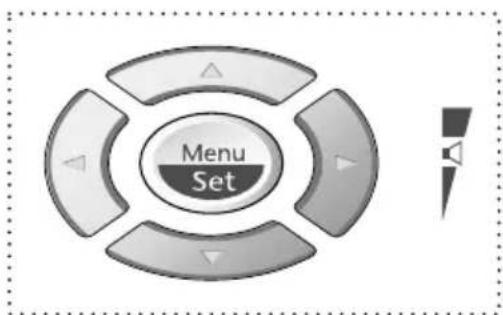
text_image
Menu Set
- Access the Menu
- Go to next menu level
- Accept an option
- Scroll through the current menu level


- Back to previous menu level

- Forward to next menu level

- Exit the Menu
You can access the menu mode by pressing Menu/Set.
When you enter the Menu, the LCD scrolls:
Press 1 for General Setup Menu—OR—
Press 2 for Fax Menu—OR—
Press 3 for Copy Menu—OR—
SELECT ↑ ↓ & SET
- GENERAL SETUP
2.FAX
3.COPY
—OR—
You can scroll more quickly through each menu level by pressing or keys, and then set an option by pressing Menu/Set when that option appears on the LCD. Then the LCD shows next menu level. Press or key to scroll to your next menu selection, and then press Menu/Set. When you finish setting an option, the LCD shows ACCEPTED.

Use to scroll backward if you passed your choices or to save keystrokes.
You can program your FAX/MFC by pressing Menu/Set followed by the menu numbers. For example: to set FAX RESOLUTION to FINE, press Menu/Set, 2, 2, 2 and 📋 or 🏱 to select FINE, and then press Menu/Set.
To access the menu, press Menu/Set.
Stop/Exit To exit, press Stop/Exit.
| Main Menu | Submenu | Menu Selections | Options | Descriptions Page |
| 1. GENERAL SETUP | 1. DATE/TIME | — | — | Enter date and time for LCD display and to print on transmissions. |
| 2. STATION ID | — | — | Program the name and fax number to appear on each transmitted page. | |
| 3. VOLUME 1. RING HIGH | MED LOW OFF | Adjusts ring volume. | ||
| 2. BEEPER HIGH LOW OFF | Adjusts beeper volume. | |||
| 3. SPEAKER HIGH MED LOW OFF | Adjusts speaker volume. | |||
| 4. TONER SAVE | — | ON OFF | Increase life of toner cartridge. | |
| 5. POWER SAVE | — | ON OFF | Power save mode. | |
| 6. SLEEP MODE — | — | Set the time before the machine drops into sleep mode. | ||
| 7. TONE/PULSE (Not available in New Zealand) | — | TONE PULSE | Select the dialling mode. | |
* The factory setting (option) is shown in bold.
| Main Menu | Submenu | Menu Selections | Options | Descriptions Page to accept | |
| 2. FAX 1. SETUP | RECEIVE | 1. RING DELAY | 1009080706050403 (Example for 02 Australia) | Number of rings before the machine answers in Fax/Tel (F/T) or Fax Mode. | 21 |
| 2. F/T RING TIME | 704030 (Example for 20 Australia) | Sets the time for “F/T pseudo-ring” in Fax/Tel (F/T) Mode. | 21 | ||
| 3. FAX DETECT | ON SEMI OFF | Receive fax messages without pressing the Fax Start key. | 22 | ||
| 4. REMOTE CODE | ON( #1, #51)( #1, #91 for New Zealand)OFF | Activate or deactivate the machine from a remote location. You can also personalize these codes. | 39 | ||
| 5. AUTO REDUCTION | ON OFF | Reduces size of image. | 23 | ||
| 6. MEM.RECEIVE | ON OFF | Automatically stores any incoming faxes in its memory if it runs out of paper. | 24 | ||
| 7. PRINT DENSITY | -■■Adjusts printing | to be lighter or darker. | 23 | ||
| 8. POLLING RX | STANDARD SECURE TIMER | You call another fax machine to receive a fax from it. | 49 | ||
| 2. SETUP SEND | 1. CONTRAST A | AUTO LIGHT DARK | Change the lightness or darkness of a fax you are sending. | 16 | |
| 2. FAX RESOLUTION | STANDARD FINE S.FINE PHOTO | Changes the default setting of fax resolution. | 16 | ||
| 3. TIMER | — | Set the machine to send your documents later. | 32 |
* The factory setting (option) is shown in bold.
To access the menu, press Menu/Set.
Stop/Exit To exit, press Stop/Exit.
| Main Menu | Submenu | Menu Selections | Options | Descriptions Page |
| 2. FAX(Continued) | 2. SETUPSEND(Continued) | 4. BATCH TX ON | OFF | Sends all delayed faxes that are to the same fax number and at the same time as one transmission. |
| 5. REAL TIME TX | NEXT FAX ONLY ON OFF | When memory is full, you can send faxes in real time. | ||
| 6. POLLED TX S | STANDARD SECURE | Set Polled Transmission for someone to poll the machine to receive a fax from you. | ||
| 7. COVERPG SETUP | NEXT FAX ONLY ON OFF PRINT SAMPLE | Automatically sends a programmable cover page or prints a sample coverage. | ||
| 8. COVERPAGE NOTE | — | Program a customized message for fax cover page. | ||
| 9. OVERSEAS MODE | ON OFF | Special setting for international transmissions. | ||
| 3. SET QUICK-DIAL | 1. ONE-TOUCH DIAL(For FAX-2850 Only) | — | Stores dial numbers in memory so as to dial them by pressing only one key. | |
| 2. SPEED-DIAL(1.SPEED-DIAL For MFC-4800) | — | Stores dial numbers in memory so as to dial them by pressing only four keys. | ||
| 3. SETUP GROUPS(2.SETUP GROUPS For MFC-4800) | — | Set up a Group for broadcasting. | ||
| 4. REPORT SETTING | 1. TRANSMIS-SION | ON ON+IMAGE OFF OFF+IMAGE | Initial setup for Transmission Verification Report and Journal period. | |
| 2. JOURNAL PERIOD | 2/4/7 Days 1/3/6/12/24 Hours OFF |
* The factory setting (option) is shown in bold.
| Main Menu | Submenu | Menu Selections | Options | Descriptions Page |
| 2. FAX(Continued) | 5. REMOTEFAX OPT | 1. FAX FWD ON | OFF | Set the machine to forward faxes. |
| 2. FAXSTORAGE | ONOFF | Store incoming faxes in memory for fax forwarding and remote retrieval. | ||
| 3. REMOTEACCESS | 159 Set code for retrieving faxes. | 53 | ||
| 4. PRINTDOCUMENT | — | Print incoming faxes stored in the memory. | ||
| 6. REMAININGJOBS | — | — | Check which jobs are in memory or cancel a delayed fax (timer) or polling job. | |
| 0. MISCELLANEOUS | 1. MEMSECURITY — | Prohibits most functions except receiving faxes into memory. | ||
| 2. DISTINCTIVE(Not available in New Zealand) | ONOFF | Use with phone company distinctive ringing service to register the ring pattern with the MFC. | ||
| 2. FAXABILITY(Only for New Zealand) | ONOFF | If you have FaxAbility from Telecom, you can use this function to store the ringing pattern of your fax number.And if you set it to ON,you should use the registered number as a fax number only. | ||
| 3. CALLER ID | DISPLAYPRINT REPORT | View or print a list of the last 30 Caller IDs stored in memory. | ||
| 3. COPY 1. | COPYMODE | — | AUTOTEXTPHOTO | Selects the Copy resolution for your type of document. |
| 2. CONTRAST — + Adjust the contrast | - | - | - | |
| 3. PAPERTYPE | — | THINPLAINTHICKTHICKER | Identify the type of paper in the multi-purpose sheet feeder. |
* The factory setting (option) is shown in bold.
About Fax Machines
If you are a first-time fax machine user, fax operation might seem a little mysterious. You will soon get used to the unusual fax tones on your phone line, and be able to send and receive faxes easily.
Fax Tones and Handshake
When someone is sending a fax, the fax machine sends fax calling tones, (CNG tones)—soft, intermittent beeps at 4-second intervals. You’ll hear them when you dial and press Fax Start, and they continue for about 60 seconds after dialling. During that time, the sending machine must begin the “handshake” with the receiving machine. Each time you use automatic procedures to send a fax, you are sending CNG tones over the phone line. You’ll soon learn to listen for these soft beeps each time you answer a phone on your fax line, so you can know if you are receiving a fax message.
The receiving fax responds with fax receiving tones—loud, chirping sounds. A receiving fax chirps for about 60 seconds over the phone line, and the screen displays RECEIVING. If the machine is set to the Fax Only Mode, it will answer every call automatically with fax receiving tones. Even if the other party hangs up, the machine continues to send the “chirps” for about 60 seconds, and the screen continues to display RECEIVING. To cancel the receiving mode, press Stop/Exit.
When the machine is in Fax/Tel (F/T) Mode, it answers with a short beep. After this beep, the fax machine listens for CNG tones, and then responds with receiving tones.
The fax “handshake” is the time in which the sending machine’s CNG tones and the receiving machines “chirps” overlap. This must be for at least 2 to 4 seconds, so the fax machines can understand how each is sending and receiving the fax. The handshake cannot begin until the call is answered, and the CNG tones only last for about 60 seconds after the number is dialled. Therefore, it’s important for the receiving machine to answer the call in as few rings as possible.

When you have an external telephone answering device (TAD) on your fax line, your TAD will determine the number of rings before the call is answered. Pay special attention to the directions in the Installation chapter for connecting a TAD (or answering machine) to the machine.
ECM (Error Correction Mode)
The Error Correction Mode (ECM) is a way for the fax machine to check the integrity of a fax transmission while it is in progress. ECM transmissions are possible only between machines that both have the ECM feature. If they do, you may send and receive fax messages that are continuously checked for their integrity.
Sufficient memory must be available in the machine for this feature to work.
Glossary
ADF (Automatic Document Feeder Capacity) Refers to the number of pages that can be placed in the document feeder and fed one at a time automatically.
Automatic E-Mail Printing Software application that automatically prints incoming E-mail messages on the FAX/MFC. (Instructions are on the CD-ROM.)
Automatic Fax Transmission Sending a fax without picking up the handset or pressing Hook.
Automatic Redial A feature that enables the machine to redial the last fax number if the original fax did not go through because the line was busy or there was no answer.
Backup Print Sets the machine to print a copy of faxes that are received and stored in memory.
Beeper The sound the keys make when they are pressed, an error occurs or a document has been received or transmitted.
Beeper Volume Volume setting for the beep when you press a key or make an error.
Broadcasting The ability to send the same fax message to more than one location.
Caller ID A service purchased from the Telephone Company that lets you see the number (or name) of the party calling you.
CNG tones The special tones (beeps) sent by fax machines during automatic transmission to tell the receiving machine that they are from a fax machine.
COMM. ERROR (Communication error) An error during fax sending or receiving, usually caused by line noise or static.
Coding Method Method of coding the information contained in a document. All fax machines must use a minimum standard of Modified Huffman (MH). The machine is capable of greater compression method, Modified Read (MR) and Modified Modified Read (MMR), if the receiving machine has the same capability.
Compatibility Group The ability of one fax unit to communicate with another. Compatibility is assured between ITU-T Group.
Contrast Setting to compensate for dark or light documents, by lightening dark documents or darkening light documents.
Cover Page Prints a page at the other party's machine, that contains the sender and recipient's name and fax number, number of pages and comment. You can generate an electronic cover page at the other end with pre-programmed information from memory or you can print a sample cover page to fax with your document.
Cover Page Message The comment that is on the Cover Page. This is a programmable feature.
Delayed Transmission Sends your fax at a later time that day.
Distinctive Ring A service purchased from the Telephone Company that provides another phone number on an existing phone line. The Brother fax machine uses the new number to simulate a dedicated fax line.
Drum unit A printing device for the machine.
Dual Access The machine can scan outgoing faxes or scheduled jobs into memory at the same time it is sending a fax or receiving or printing an incoming fax.
ECM (Error Correction Mode) Detects errors during fax transmission and resends the parts of the document that had errors.
Electronic Cover Page A preprogrammed cover page that is transmitted from the machine's memory, eliminating the need for making up cover pages manually.
Extension Phone A telephone on the fax number that is plugged into a separate wall jack.
External Phone A TAD (telephone answering device) or telephone that is plugged into the Ext. socket of the machine.
F/T Ring Time The length of time the machine rings (when the answer mode setting is Fax/Tel) to notify you to pick up a voice call that has been automatically answered.
FaxAbility A service purchased from the Telephone Company that provides another phone number on an existing phone line. The Brother fax machine uses the new number to simulate a dedicated fax line.
Fax/Tel mode You can receive faxes and telephone calls. Do not use Fax/Tel if you are using an external answering machine. (With external telephone only)
Fax Forwarding Sends a fax received in memory to another preprogrammed fax number.
Fax Storage You can store faxes in memory for remote retrieval.
Fax tones The signals sent by sending and receiving fax machines while communicating information.
Fine Mode Resolution is 203 x 196 dpi. It is used for small print and graphs.
Grey scale The shades of grey available for copying and faxing photographs.
Group number A combination of One Touch (FAX-2850) and/or Speed Dial numbers that are stored on a One Touch Dial (FAX-2850) key or Speed Dial # for Broadcasting.
Journal Lists information about the last 200 incoming and outgoing faxes. TX means Transmit. RX means Receive.
Journal Period The preprogrammed time period between automatically printed Journal Reports. You can print Journal on demand without interrupting this cycle.
LCD (Liquid crystal display) The display screen on the machine that shows interactive messages during On-Screen Programming and defaults to the date and time when the machine is idle.
Manual fax When you press Hook—OR—lift the handset so you can hear the receiving fax machine answer before you press Fax Start to begin transmisson.
Menu Mode The programming mode for changing the setting of the machine.
One Touch Dial (FAX-2850 Only) Keys on the machine control panel where you can store numbers for easy dialling. You must use a separate key for each number.
Out of Paper Reception Receives faxes into the machine's memory when the machine is out of paper.
Overseas Mode Makes temporary changes to the fax tones to accommodate noise and static on overseas phone lines.
Pause Allows you to place a 3.5 second delay in the dialling sequence stored.
Photo Mode A resolution setting that uses varying shades of grey for the best representation of photographs.
Polling The process of a fax machine calling another fax machine to retrieve waiting fax messages.
Pulse A form of dialling on a telephone line.
Print reduction Reduces the size of incoming faxes.
Quick-Dial List A listing of names and numbers stored in One Touch (FAX-2850) and Speed Dial memory, in numerical order.
Real Time transmission When memory is full, you can send documents in real time.
Remaining Jobs You can check which jobs are waiting in memory and cancel jobs individually.
Remote access The ability to access the machine remotely from a touch tone phone.
Remote activation allows you to transfer a fax call, answered at an extension phone, to the machine.
Remote access code The four-digit code that allows you to call and access the machine from a remote location.
Resolution The number of horizontal and vertical lines per inch.
Ring Delay The number of telephone rings before the machine answers a call in Fax/Tel (F/T) or Fax Only Mode.
Ring Volume Volume setting for the machine's ring.
Scanning The process of sending an electronic image of an original paper document into your computer.
Search You can search for names you have stored in One Touch (FAX-2850) and Speed Dial memories.
Speaker Volume You can set the volume of the machine speaker.
Speed dial A preprogrammed number for easy dialling. You must press the Search/Speed Dial key and #, then two digit code to start the dialling process.
Standard resolution 203 × 98 dpi. It is used for regular size text and quickest transmission.
Station ID The stored information that appears on the top of faxed pages. It includes the sender's name and fax number.
Super fine resolution 203 × 391 dpi. Best for very small print and line art.
System Setup List A printed report that shows the current setting of the machine.
Temporary Setting You can select certain options for each fax transmission without changing the default settings.
Timer A feature that lets you program a fax to go out at a certain time, such as Delayed Fax or Delayed Polling Receive.
Tone A form of dialling on the telephone line used for Touch Tone telephones.
Toner cartridge An accessory that holds toner for the drum unit on Brother laser models.
Toner Save A process that causes less toner to be affixed to the page to extend the life of the toner assembly. This will make the receiving document significantly lighter.
Transmission The process of sending documents over the phone lines from the machine to the receiving fax machine.
Transmission Report A listing of each transmission, showing caller ID, date, time, and number of pages.
Index
A
Accessories 146
Activation Code ......38
Administrator 73
Alternating Displays .... iii
Answering Machine ....5
Auto Reduction ......23
Automatic Document Feeder (ADF) .....1
Automatic Transmission ......2, 18
B
Beeper Volume 12
Broadcasting ....33
Brother Control Centre ....76
Brother MFL-Pro Control Centre .... 76-77
C
Chain Dialling ....17
CHANGE DRUM SOON .....117, 132
CHANGE TONER ......117, 129
CHECK DRUM UNIT ......117
CHECK PAPER 117
CHECK PAPER SIZE 117
Cleaning (Drum Unit) 128
Cleaning (Printer) 127
Cleaning (Scanner) 127
COMM.ERROR ....117
Connect (External Telephone Answering Machine) 5
Connect (External Telephone) ......6
Contrast 16
Control Panel Overview ......7, 9
COOLING DOWN ......117
Copy (2in1/4in1) 59
Copy (Enlarging/Reducing) ....57
Copy Contrast ....58
Copy Mode 58,60
Copy Operations 56
Corrections ....147
COVER OPEN 117
Cover Page 30
Cover Page Message 31
D
Date and Time 11
Deactivation Code 38
Delayed Batch Transmission 32
Delayed Transmission (Timer) 32
Device Options 72
Dialling Mode (Tone/Pulse) .....14
Difficulty 121
Document (Size) 1
Document Jam 119
Drum Unit (Replacing) 132
Dual Access ......19
Duplex Printing 69
E
ECM (Error Correction Mode) ...... 153
Entering Text 147
Error Messages 117
Extension Telephone 38
External Telephone 6,38
External Telephone Answering Device (TAD) 5
F
F/T (Fax/Tel) Ring Time ......21
F/T Ring Time 38
Fax Detect 22
Fax Forwarding 52
Fax Storage 52
Fax Tones and Handshake ....153
Fine (Resolution) ......16
Function Selection Table ......148
G
Glossary 154
Grey Scale 143
H
HELP 29
Help ...... ii
|
iMac ....107
Importing 91
Inserting Spaces ......147
International Calls ......32
J
Job Cancel 35
JOURNAL 29
JOURNAL PERIOD ......28
Journal Period 28
M
Macintosh ^® G3, G4 or iMac ^TM .....107
Maintenance ....117
Memory Security ....35
Memory Storage ....4
Menu Mode ....148
Menu Selection Table ......148
Multi-Function Link ^® Pro Suite .....95
Multi-Purpose Sheet Feeder ......62
Mute 26
N
Navigation Keys ....8, 10
NO RESPONSE/BUSY ......118
NOT ASSIGNED 118
0
One Touch Dial (Changing) .....15
One Touch Dial (Storing) ......14
On-Screen Programming .....iii
Options 7
Options Key 58
ORDER FORM ......29
Order Form 29
OUT OF MEMORY ....57
Outgoing Message 6
Overseas Mode ....32
P
Packing and Shipping ......125
Page Setting 71
Paper 65
PAPER JAM 118
Paper Jam 119
Paper Type 65
PaperPort ^® .....89
Pause 18
PC FAX 96
PC FAX (Sending) 105
PC FAX (Setting) 96
PC FAX Sending (For Macintosh) .....109
Photo (Resolution) ......16
PLS OPEN COVER ......118
Polling (Receive) 49
Polling (Transmit) 51
Power Cord 3
Power Save 13
Print a Report ......29
Print Date & Time ....74
Print Density 23
Printer Driver Settings ......66
Product Description ....143
Q
Quick Print Setup 72
QUICK-DIAL 29
QUICK-DIAL (list) ......29
R
Real Time Transmission ....19
Receive Mode 20
Reception into Memory 24
Remote Access Code ....53
Remote Code (Changing) ......39
Remote Commands ....54
REMOTE CONTROL ACCESS CARD ..160
Remote Retrieval ....53
Remote Setup 95
Reports 28
Reports/Recall ......7, 9
Reset Key 64
Resolution ....16
Ring Delay 21
Ring Volume ......12
s
Scan Image ....78
Scan Keys ....77
Scan to E-mail 78
Scan to File 82
Scan to Word Processor ....85
Scan/OCR 78
Scanning into PC 92
ScanSoft™ PaperPort® 89
Search 17
Simultaneous Printing/Fax 64
Sleep Mode 13
Speaker Volume 12
Special characters ....147
Specifications ....143
Speed Dial 15
Speed Dial (Changing) ......15
Standard (Resolution) 16
Station ID 11
Storing Telephone number ....14
SYSTEM SETUP 29
T
To change Remote Codes 39
Tone/Pulse 14
Toner Cartridge (Replacing) 129
TONER EMPTY 118
Toner Save 13
Trademarks ....146
Transmission report ......28
Transmission Verification Report ......28
Troubleshooting ....117
W
Watermark 70
Word Processor 85
Change Answer Mode
Press 98
then for TAD, press 1.
Fax/Tel (F/T), press 2.
Fax, press 3.
Exit Remote Operation
Press 90.
Change Remote Access Code
1 Press Menu/Set, 2, 5, 3.
2 Enter the 3-digit number. The* cannot be changed.
3 Press Menu/Set.
4 Press Stop/Exit.
4
REMOTE CONTROL ACCESS CARD
Using Remote Access Code
1 Dial the machine phone number from a touch tone phone.
2 Enter your Remote Control Access Code (159*) after the beep.
3 The machine signals the kinds of messages received:
1 long beep — Fax message(s)
No beeps — no messages
4 After 2 short beeps, enter a command.
5 Press 9 0 to reset the machine when you finish.
6 Hang up.
1
Remote Commands
Change Fax Forwarding Setting
Press 9 5
then to Turn Fax Forwarding OFF press 1.
Turn Fax Forwarding ON press 2.
Program Fax Forward Number press 4. Enter the new number of the remote fax machine where you want your fax message forwarded and then press # #.
Turn Fax Storage ON press 6.
Turn Fax Storage OFF press 7.
Retrieve Fax
Press 96
then to Retrieve all faxes press 2, then enter the number of remote fax machine, and then # #. After the beep, hang up and wait.
Erase all fax messages press 3.
Check the Receiving Status
Press 971.
1 long beep - Fax message(s)
3 short beeps — no messages
2
3
brother At your side.
This machine is approved for use in the country of purchase only, local Brother companies or their dealers will only support machines purchased in their own countries.