
d-Color MF350 - Printer OLIVETTI - Free user manual and instructions
Find the device manual for free d-Color MF350 OLIVETTI in PDF.


| Product Type | Multifunction Printer (Copy, Print, Scan, Fax optional) |
| Brand | Olivetti |
| Model | d-Color MF350 (also supports MF250 and MF201 Plus) |
| Functions | Copy, Print, Scan, Fax (optional), Network Scan, Network Fax, Internet Fax |
| Paper Input Capacity | Standard trays 1/2/3/4 (option), LCT (option), Bypass tray |
| Paper Output Options | Sort, Group, Staple, Punch, Fold, Center Staple & Fold, Booklet |
| Control Panel | Color touch panel with adjustable brightness, alphanumeric keypad, mode keys |
| Power Source | 220-240 V AC, 50/60 Hz (voltage fluctuation ±10%) |
| Energy Star | Yes, with automatic low-power and sleep modes |
| Safety | Class 1 Laser product, CE marked, complies with EN 60950-1 and EN 60825-1 |
| Supported Operating Systems | Windows (PCL/PS drivers), Mac OS X, Mac OS 9.2 |
| Network Interface | 10 Base-T/100 Base-TX Ethernet (shielded cable required) |
| User Authentication | User Authentication and Account Track with password login |
| Print Languages | PCL, PostScript (drivers) |
| Scanning Features | Color, grayscale, black; resolution settings; file types: PDF, JPEG, compact PDF |
| Fax Compatibility | G3, Internet Fax, IP Address Fax (optional fax kit required) |
| Software | Web Connection for remote management, drivers, utilities |
| Consumables | Toner cartridges (cyan, magenta, yellow, black), drum units, waste toner box |
| Operating Environment | Temperature: 10°C to 30°C; Humidity: 15% to 85% |
| Legal Restrictions | Includes anti-counterfeit feature; copying of certain documents prohibited |
Frequently Asked Questions - d-Color MF350 OLIVETTI
User questions about d-Color MF350 OLIVETTI
0 question about this device. Answer the ones you know or ask your own.
Ask a new question about this device
Download the instructions for your Printer in PDF format for free! Find your manual d-Color MF350 - OLIVETTI and take your electronic device back in hand. On this page are published all the documents necessary for the use of your device. d-Color MF350 by OLIVETTI.
USER MANUAL d-Color MF350 OLIVETTI
d-Color MF250 / MF350 / 201plus USER MANUAL
GB
PUBLICATION ISSUED BY:
Olivelli S.p.
Copyright © 2007. Olivetti
All rights reserved
The C€ mark affixed to the product certifies that the product satisfies the basic quality requirements.
CE
The manufacturer reserves the right to carry out modifications to the product described in this manual at any time and without any notice.

ENERGY STAR is a U.S. registered mark.
The ENERGY STAR program is an energy reduction plan introduced by the United States Environmental Protection Agency in response to environmental issues and for the purpose of advancing the development and utilization of more energy efficient office equipment.
Your attention is drawn to the following actions which could compromise the conformity attested to above, as well as the characteristics of the product.
- incorrect electrical power supply
- incorrect installation, incorrect or improper use or use not in compliance with the warnings provided in the
User's Manual supplied with the product
- replacement of original components or accessories with others of a type not approved by the manufacturer, or performed by unauthorised personnel
All rights reserved. No part of this material may be reproduced or transmitted in any form or by any means, electronic or mechanical, including photocopying, recording or by any information storage and retrieval system, without permission in writing from the Publisher.
N°07-111
MANUFACTURER'S CE DECLARATION of CONFORMITY according to EN 45014
Declares under its sole responsibility that the products:
Categoria generale:
Equipment category
Information Technology Equipment
d-Color MF350, d-Color MF250, d-Color MF201 Plus
DF-611, WT-502, OT-602, FS-519, PK-515, MT-502, SD-505, JS-505
FK-501, ML-501, SP-501, SA-501, SC-503, AU-201, AU-101, VI-504,
IC-409 (Flery X5e12-xx), EK-603, OC-507, PC-104, PC-204, PC-405, DK-504, MK-511, MK-717, HD-508
DK-504, MK-711, MK-713, HD-508
are in compliance with directive 99/5/EC dated 9^th march 1999
and fulfill the essential requirements of Electromagnetic Compatibility and of Electrical Safety as prescribed by
the Directives:
2004/108/EC dated 12th December 2006;
2016/95/EC dated 12th December 2006;
since designed and manufactured in compliance with the following European Harmonized Standards:
EN 55022:2006 (Limits and methods of measurements of radio interference characteristics of information
Technology Equipment) / Class B;
EN 61000-3-2:2000 + A2 (Electromagnetic Compatibility (EMC) - Part 2 : Limits - Section 2 : Limits for
harmonic current emissions (equipment input current: ≤ 16 A per phase) / Class A
EN 61000-3-3:1995 + A1 + A2 (Electromagnetic Compatibility (EMC) - Part 3 : Limits - Section 3 : Limitation
of voltage fluctuations and flicker in low voltage supply systems for equipment with rated current up to and
including
EN 55024:1998 + A1:2001 + A2:2003 (Electromagnetic Compatibility – Information technology equipment –
Immunity characteristics – Limits and methods of measurement);
EN 60950-1:2001 + A11:2004 (Safety of Information Technology Equipment, including electrical business
equipment)
EN 60825-1:1994 + A1:2002 + A2:2001 (Radiation Safety of laser products, equipment classification,
requirements ad user's guide)
TS 103 021-1: V 1.1.1, TS 103 021-2: V 1.1.2, TS 103 021-3: V 1.1.2, EG 201 120: V 1.1.1,
EG 201 187: V L.I.1 (Referred Voluntary Requirements).
prodcio. Compliance with the above mentioned essential requirement is shown by affixing the CE marking on the product.
Lyrea 13 September 2007
Ivrea, 13 ^th September 2007
(四) 本次股东大会的召集和召开程序
Giovanni Feltrane
2.5
Chief Executive Officer Administrator: Delinato
Aministratiora IXegato
Olivetti S.p.A.
14
17
26.
es of Standards
Note
1) CE Marking has been affixed in 2007
2) The Quality System is in compliance with the UNEN ISO 9900 series of Standards
Orient R.A. - Vism, 17 - 2015/totalTel - Buy: Tel: 391525 508 - Sep. See: E154 206 2001-xy 0001-xy H1040 - Del. Haci P folk aucat a Reg. Imp: Dr. Torrevo 82264700010 Savonou on the author, Givco Telecom Inc. - Dicoma e Impracemation & Telecomm Ltd.
Contents
1 Introduction
1.1 Energy Star® 1-3
What is an ENERGY STAR® product? 1-3
1.2 Software licence agreement 1-4
1.3 Explanation of manual conventions 1-5
Safety advices.... 1-5
Sequence of action 1-5
Tips.... 1-5
Special text markings.... 1-6
1.4 Descriptions of originals and paper 1-6
2 Installation and operation precautions
2.1 Safety information.... 2-3
Warning and precaution symbols.... 2-3
Meaning of symbols.... 2-3
Disassemble and modification 2-4
Power cord.... 2-4
Power source 2-5
Power plug 2-5
Grounding.... 2-6
Installation 2-7
Ventilation.... 2-7
Actions in response to troubles.... 2-8
Consumables 2-8
When moving the machine.... 2-9
Before successive holidays.... 2-9
2.2 Regulation notices 2-10
CE Marking (Declaration of Conformity) for users of the European Union (EU).... 2-10
User Instructions FCC Part 15 - Radio Frequency Devices (for U.S.A. users).... 2-10
Interference-Causing Equipment Standard (ICES-003 ISSUE 4)
(for Canada users) 2-10
For users in countries not subject to class B regulations 2-10
Laser safety 2-10
Internal laser radiation 2-11
CDRH regulations.... 2-11
For European users.... 2-12
For Denmark users 2-12
For Finland, Sweden users.... 2-12
For Norway users 2-13
Laser safety label 2-13
Ozone release.... 2-14
Acoustic noise (for European users only).... 2-14
For EU member states only.... 2-14
2.3 Caution notations and labels 2-15
2.4 Space requirements.... 2-16
2.5 Operation precautions 2-17
Power source 2-17
Operating environment.... 2-17
Storage of copies 2-17
2.6 Legal restrictions on copying.... 2-18
3 Copy Operations
3.1 Part names and their functions 3-3
3.1.1 Control panel 3-3
3.1.2 Basic settings screens.... 3-5
3.1.3 Icons that appear in the screen.... 3-7
3.2 Turning on the main power and the auxiliary power 3-8
3.2.1 Turning on the machine.... 3-8
3.2.2 Scanning during warm-up 3-9
3.2.3 Turning off the machine.... 3-10
3.2.4 Manually conserving energy 3-11
3.2.5 Controlling each user's use of this machine (User Authentication).... 3-12
3.2.6 Controlling each account's use of this machine (Account Track) 3-16
3.3 Loading paper into tray 1/2/3/4.... 3-19
3.4 Loading paper into the LCT 3-21
3.5 Loading paper into the bypass tray 3-23
3.6 Feeding the original 3-27
3.6.1 Loading the original into the ADF 3-27
3.6.2 Placing the original on the original glass 3-28
3.6.3 Scanning the original in separate batches ("Separate Scan" setting).... 3-30
3.6.4 Scanning a multi-page original from the original glass 3-34
3.7 Selecting a Paper Setting 3-38
3.7.1 Automatically selecting the paper size ("Auto" Paper setting) 3-39
3.7.2 Manually selecting the desired paper size 3-40
3.8 Specifying a Zoom setting 3-41
3.8.1 Automatically selecting the zoom ratio ("Auto" Zoom Setting) 3-41
3.8.2 Specifying the zoom ratio of the original ("Full Size" setting).... 3-42
3.8.3 Slightly reducing the copy ("Minimal" setting).... 3-43
3.8.4 Selecting a preset zoom ratio (Enlarge and Reduce settings).... 3-44
3.9 Selecting an Original > Copy setting 3-45
3.10 Selecting a combined copy setting.... 3-46
3.11 Selecting the quality of the original 3-49
3.11.1 Loading originals with small print or photos (Original Type settings).... 3-49
3.11.2 To select an Original Type setting 3-50
3.12 Selecting Finishing settings.... 3-52
3.12.1 Separating copies by sets ("Sort" setting).... 3-54
3.12.2 Separating copies by pages ("Group" Setting).... 3-55
3.12.3 Selecting the output tray 3-56
3.12.4 Stapling copies (Staple settings) 3-57
3.12.5 Punching holes in copies (Punch settings).... 3-60
3.13 Selecting a folding setting 3-62
3.13.1 Folding copies in half ("Half-Fold" setting) 3-62
3.13.2 Binding copies at the center ("Center Staple & Fold" setting).... 3-65
3.14 Temporarily stopping scanning/printing 3-67
3.15 Interrupting a copy job (Interrupt mode) 3-68
3.16 Registering copy programs (Mode Memory) 3-69
3.17 Copying with programmed copy settings (Mode Memory) 3-72
3.18 Displaying function descriptions (Help) 3-74
3.18.1 Overview of Help screens.... 3-74
3.18.2 Displaying main Help screens 3-77
3.19 Copy paper 3-79
3.19.1 Possible paper sizes.... 3-79
3.19.2 Paper types and paper capacities.... 3-80
3.19.3 Special paper 3-80
3.20 Selecting the Paper settings.... 3-82
3.20.1 Automatically detecting the paper size ("Auto Detect" setting) 3-82
3.20.2 Selecting a paper size setting (Size Setting) 3-83
3.20.3 Specifying a non-standard paper size (Custom Size settings) 3-86
3.20.4 Storing a non-standard paper size (Custom Size settings).... 3-88
3.20.5 Selecting a setting for oversized paper (Wide Paper settings).... 3-91
3.20.6 Specifying a setting for special paper 3-94
3.20.7 Printing double-sided copies manually.... 3-96
3.21 Originals 3-98
3.21.1 Originals that can be loaded into the ADF 3-98
3.21.2 Precautions for loading originals into the ADF 3-99
3.21.3 Originals that can be placed on the original glass 3-99
3.21.4 Precautions for positioning originals on the original glass.... 3-99
3.22 Inserting paper between OHP transparencies ("OHP Interleave" function) 3-100
3.23 Adding cover pages ("Cover Sheet" function).... 3-103
3.24 Inserting different paper into copies ("Insert Sheet" function).... 3-106
3.25 Inserting copies of a different original for a specified page ("Insert Image" function) 3-109
3.26 Specifying pages to be printed on the front side ("Chapters" function) 3-112
3.27 Scanning originals with different settings and printing copies all together ("Program Jobs" function).... 3-115
3.28 Producing separate copies of each page in a page spread ("Book Copy" function) 3-120
3.29 Tiling copy images ("Image Repeat" function) 3-125
3.30 Copying an enlarged image on multiple pages ("Poster Mode" function).... 3-129
3.31 Copying booklets ("Booklet Original" function) 3-133
3.32 Adjusting the image to fit the paper (Image Adjust settings).... 3-135
3.33 Copying with the page layout of a booklet ("Booklet" function) 3-138
3.34 Printing the date/time or page number on copies (Stamp/Composition functions) 3-140
3.35 Saving the scanned original in a user box ("Save in User Box" function) 3-141
3.36 Overview of Utility mode parameters.... 3-145
4 Print Operations
4.1 Common settings (PCL/PS drivers for Windows) 4-3
4.2 Parameter details (PCL/PS drivers for Windows) 4-4
4.2.1 Basic tab 4-4
4.2.2 Layout tab 4-6
4.2.3 Finish tab 4-8
4.2.4 Cover Mode tab 4-9
4.2.5 Stamp/Composition tab 4-11
Editing watermark 4-13
Eding copy protect.... 4-14
Editing date/time and page number.... 4-16
4.2.6 Quality tab 4-17
4.2.7 Other tab 4-18
4.3 Common settings (Mac OS X) 4-19
4.4 How to add a custom size (Mac OS X).... 4-20
4.5 Parameter details (Mac OS X) 4-21
4.5.1 Page Attributes.... 4-21
4.5.2 Copies & Pages 4-22
4.5.3 Output Method 4-23
Checking the Output Method setting details 4-24
4.5.4 Layout/Finish 4-26
4.5.5 Paper Tray/Output Tray 4-28
4.5.6 Cover Mode/Transparency Interleave 4-29
4.5.7 Per Page Setting 4-30
4.5.8 Stamp/Composition 4-31
Eding copy protect 4-32
Editing date/time 4-34
Editing page number 4-34
Editing header/footer 4-35
4.5.9 Quality 4-36
4.6 Parameter details (Mac OS 9.2).... 4-37
4.6.1 Page Attributes 4-37
4.6.2 Setting Custom Page Size 4-38
4.6.3 General 4-39
4.6.4 Layout (Pages per sheet) 4-39
4.6.5 Printer specific options (Finishing Options 1 to 5).... 4-40
4.7 Sending a fax.... 4-42
Fax operations 4-42
Selecting a recipient from the phone book 4-44
Specifying the transmission settings.... 4-46
Creating a fax cover sheet 4-47
4.8 Setting up the fax driver for Windows 4-50
Common settings 4-50
FAX tab 4-51
Basic tab 4-51
Layout tab 4-51
Stamp/Composition tab 4-51
Configure tab 4-51
Settings tab 4-52
4.9 Using a phone book.... 4-53
Adding a recipient to the phone book 4-53
Editing a phone book.... 4-55
5 Box Operations
5.1 User Box functions 5-3
5.1.1 Available User Box functions.... 5-3
Saving documents....5-3
Using document data 5-4
Organizing document data 5-5
5.1.2 Set-up for User Box functions.... 5-6
User box registration 5-6
To use the machine for relay device.... 5-6
To use Memory RX user box 5-6
5.2 User box registration.... 5-7
5.2.1 User box registration 5-7
Public/Personal/Group user boxes.... 5-8
Delete Empty User Box(es).... 5-9
Bulletin Board User Box 5-10
Relay User Box 5-11
5.3 Saving documents in user boxes 5-12
5.3.1 Available operations in the Save Document screen 5-15
Public/personal/group user boxes 5-15
Annotation User Box 5-15
External memory 5-15
5.3.2 Initial screen of Save Document 5-16
Public/Personal/Group user box 5-16
System User Box 5-16
5.3.3 Description of the Save Document screen.... 5-17
5.4 Printing documents in user boxes.... 5-18
5.4.1 Available operations in the Use Document screen 5-20
Printing 5-20
Transmitting.... 5-20
Document Details 5-20
5.4.2 Initial screen of Use Document 5-21
Public/Personal/Group user box 5-21
System User Box 5-21
5.4.3 Description of Use Document screen 5-22
5.4.4 When a password is specified for the user box 5-23
5.4.5 Overview of Print 5-23
5.4.6 Description of the Print screen.... 5-24
5.4.7 Copies 5-24
5.4.8 1-Sided/2-Sided 5-25
5.4.9 Finishing 5-25
Sort/Group 5-25
Offset 5-25
Staple 5-25
Staple - Position Setting 5-26
Punch 5-26
Punch - Position Setting 5-26
Center Staple/Fold 5-27
5.4.10 Combining Order 5-28
5.5 Sending documents in user boxes 5-29
5.5.1 Overview of Send 5-34
5.5.2 Description of the Send screen.... 5-34
5.6 Organizing user box documents.... 5-35
5.6.1 Public/Personal/Group 5-36
System 5-36
5.6.2 Description of the File Document screen 5-37
Public/Personal/Group 5-37
System User Box 5-38
5.6.3 Deleting a document 5-38
5.6.4 Edit Name 5-38
5.6.5 Move.... 5-39
5.6.6 Copy 5-39
5.6.7 Document Details 5-40
Display of detailed information.... 5-40
Preview 5-41
5.7 Secure Print User Box (System User Box) 5-42
5.7.1 What is Secure Print User Box? 5-42
5.7.2 Authentication procedure 1 5-42
5.7.3 Authentication procedure 2.... 5-42
5.7.4 Printing 5-43
5.7.5 Deleting 5-43
5.8 Encrypted PDF User Box (System User Box) 5-44
5.8.1 What is Encrypted PDF User Box? 5-44
5.8.2 Encrypted PDF User Box screen 5-44
5.8.3 Printing 5-44
5.8.4 Deleting 5-44
6 Network Scan/Fax/Network Fax Operations
6.1 Transmission functions.... 6-3
Function type....6-3
Precautions for using fax function (G3) 6-3
Precautions for using network fax 6-3
Precautions for using Internet fax.... 6-4
Precautions for using IP Address Fax 6-4
6.2 Overview 6-5
6.2.1 Available Network Scan functions.... 6-5
Scan to E-Mail 6-5
FTP TX 6-5
SMB TX....6-6
Save in User Box 6-6
WebDAV TX 6-7
Web Service....6-7
6.2.2 Available Fax functions.... 6-8
G3 fax transmission/reception.... 6-8
Polling 6-8
6.2.3 Available Network Fax functions 6-9
Internet Fax 6-9
IP Address Fax 6-9
6.3 Address Registration.... 6-10
6.3.1 Address Book 6-10
6.3.2 Group 6-10
6.4 Optional settings.... 6-10
Fax/Scan programs 6-10
Setting display contents 6-10
6.5 Using Web services.... 6-11
6.5.1 Settings required for using Web services.... 6-11
6.5.2 Installing the driver of this machine on the computer 6-11
Pre-installation checking 6-11
Installation procedure 6-11
6.6 Operation flow.... 6-12
6.6.1 Scan/Network fax 6-12
6.6.2 Fax (G3) 6-15
6.6.3 Recalling a program.... 6-18
6.6.4 Broadcasting 6-21
6.7 Menu tree in Fax/Scan mode.... 6-25
Address Book tab.... 6-25
Direct Input tab 6-26
Job History tab 6-27
Address Search tab 6-27
Off-Hook tab....6-28
Scan Settings 6-28
Original Settings 6-30
Communication Settings 6-31
6.8 Initial screen for fax/scan operations.... 6-32
6.8.1 Screen layout.... 6-32
6.8.2 Address Book 6-33
Search - Address Type 6-33
Search - Index 6-34
Search - Detail Search....6-34
6.8.3 Direct Input 6-35
6.8.4 Direct Input - Fax 6-35
6.8.5 Direct Input - E-Mail 6-35
6.8.6 Direct Input - User Box 6-36
6.8.7 Direct Input - Internet Fax.... 6-37
RX Ability (Destination) 6-37
6.8.8 Direct Input - IP Address Fax 6-38
6.8.9 Direct Input - PC (SMB).... 6-38
Host Name 6-38
File Path.... 6-38
User Name 6-38
Password.... 6-39
Reference 6-39
Next Destination.... 6-39
6.8.10 Direct Input - FTP 6-39
Host Name 6-39
File Path.... 6-39
User Name 6-39
Password.... 6-40
Detailed Settings 6-40
Next Destination.... 6-40
6.8.11 Direct Input - WebDAV 6-40
Host Name 6-40
File Path.... 6-40
User Name 6-41
Password.... 6-41
Detailed Settings 6-41
Next Destination.... 6-41
6.8.12 Direct Input - Web Service 6-42
Detail 6-42
Search 6-42
6.8.13 Job History (G3) 6-42
Address Search - Search 6-43
6.8.15 Address Search - Advanced Search 6-43
Name 6-43
E-Mail Addr. 6-43
Fax Number 6-44
Last Name 6-44
First Name 6-44
City 6-44
Company Name 6-44
Department.... 6-44
OR/AND/STARTS WITH/ENDS WITH 6-44
6.8.16 Off-Hook (G3) 6-45
Manual transmission 6-45
6.9 Scan Settings.... 6-46
6.9.1 Basic - Original Type 6-46
Text.... 6-46
Text/Photo 6-46
Photo....6-47
Dot Matrix Original 6-47
Copied Paper 6-47
6.9.2 Basic - Simplex/Duplex 6-47
1-Sided 6-47
2-Sided 6-47
Cover + 2-Sided 6-47
6.9.3 Basic - Resolution 6-47
6.9.4 File Type 6-48
File Type 6-48
Scan Settings 6-49
Encryption - Encryption Level, Password, Document Permissions,
and Detail Settings 6-49
Encryption - Password.... 6-49
Encryption - Document Permissions.... 6-49
Encryption - Detail Settings - Printing Allowed/Enable copying of text,
images and other content 6-50
Encryption - Detail Settings - Changes Allowed 6-51
Stamp Composition 6-52
6.9.5 Scan Settings - Density 6-52
6.9.6 Scan Settings - Separate Scan 6-53
6.9.7 Quality Adjustment 6-53
Color (E-Mail/User Box/SMB/FTP/IP) 6-53
Auto Color 6-54
Full Color 6-54
Gray Scale 6-54
Black 6-54
Background Removal 6-54
Sharpness.... 6-54
6.9.8 Erase.... 6-55
Frame Erase....6-55
6.9.9 Book Scan - Book Copy 6-55
Book Spread.... 6-56
Separation 6-56
Front Cover 6-56
Front + Back Covers.... 6-56
Book Erase - Frame Erase.... 6-56
Book Erase - Center Erase 6-57
Binding Position.... 6-57
6.9.10 Application - Scan Size 6-58
Standard 6-58
Custom Size 6-58
Photo Size 6-59
6.9.11 Application - Annotation 6-59
Selecting an annotation user box.... 6-59
6.9.12 Application - Stamp/Composition - Date/Time 6-60
Date Format....6-60
Time Format....6-60
Pages....6-60
Text Color 6-60
Text Size 6-61
Print Position - Print Position.... 6-61
Print Position - Fine-Tune 6-61
6.9.13 Application - Stamp/Composition - Page Number 6-62
Starting Page Number 6-62
Starting Chapter Number 6-62
Page Number Type.... 6-62
Text Color 6-62
Text Size 6-63
Print Position - Print Position.... 6-63
Print Position - Fine-Tune 6-63
6.9.14 Application - Stamp/Composition - Stamp 6-64
Stamp Type/Preset Stamps 6-64
Pages....6-64
Text Color 6-64
Text Size 6-65
Print Position - Print Position.... 6-65
Print Position - Fine-Tune 6-65
6.9.15 Application - Stamp/Composition - Header/footer 6-66
Recall Header/Footer 6-66
Check/Change Temporarily.... 6-66
Check/Change Temporarily - Header Settings/Footer Settings.... 6-67
Check/Change Temporarily - Header Settings/Footer Settings - Text 6-67
Check/Change Temporarily - Header Settings/Footer Settings - Date/Time...... 6-68
Check/Change Temporarily - Header Settings/Footer Settings - Other 6-68
Check/Change Temporarily - Pages 6-68
Check/Change Temporarily - Text Color 6-69
Check/Change Temporarily - Text Size.... 6-69
6.9.16 Application - Send & Print.... 6-70
Send & Print 6-70
Copies 6-70
Simplex/Duplex 6-70
Staple 6-70
Staple - Position Setting 6-70
6.9.17 Application - TX Stamp (G3/IP/I-FAX) 6-71
TX Stamp 6-71
Printing a TX stamp 6-71
6.9.18 Document Name (E-Mail/User Box/SMB/FTP/WebDAV/I-FAX) 6-71
6.10 Original Settings 6-72
6.10.1 Special Original - Mixed Original 6-72
6.10.2 Special Original - Z-Folded Original 6-72
6.10.3 Special Original - Long Original 6-72
6.10.4 Direction Settings - Original Direction.... 6-73
6.10.5 Direction Settings - Binding Position 6-73
6.10.6 Total # of Pages (Quick Memory TX) (G3) 6-74
6.10.7 Despeckle.... 6-75
6.11 Communication Settings 6-76
6.11.1 Line Settings (G3) 6-76
Overseas TX 6-76
ECM OFF 6-76
V. 34 OFF 6-77
Check Dest. & Send 6-77
Select Line.... 6-77
6.11.2 E-Mail Settings (E-Mail/I-FAX) 6-78
About E-Mail settings 6-78
Document Name 6-78
Subject 6-78
From 6-79
Body 6-79
6.11.3 URL Notification Setting (User Box/FTP/SMB/WebDAV) 6-80
URL notification.... 6-80
Detail Search 6-80
Direct Input.... 6-80
6.11.4 Communication Method Settings (G3) 6-81
Quick Memory TX.... 6-81
Polling RX - Normal 6-82
Polling RX - Bulletin.... 6-82
Timer TX 6-83
Password TX 6-84
Polling TX - Normal 6-84
Polling TX - Bulletin 6-85
F-Code TX 6-86
6.13 Menu trees in User mode 6-89
6.13.1 One-Touch/User Box Registration 6-89
6.13.2 User Settings.... 6-92
6.13.3 Recall Scan/Fax Program.... 6-93
6.14 One-Touch/User Box Registration.... 6-94
6.14.1 Displaying the One-Touch/User Box Registration screen.... 6-94
6.14.2 Address Book - E-Mail 6-94
No. 6-95
Name 6-95
Index 6-95
E-Mail Address 6-95
6.14.3 Address Book - User Box 6-96
No. 6-96
Name 6-96
Index 6-97
User Box 6-97
6.14.4 Address Book - Fax 6-98
No. 6-98
Name 6-98
Index 6-99
Address.... 6-99
Line Settings 6-100
6.14.5 Address Book - PC (SMB) 6-101
No. 6-102
Name 6-102
Index 6-102
User ID 6-102
Password....6-102
Host Address 6-103
File Path....6-103
Reference 6-103
6.14.6 Address Book - FTP 6-104
No. 6-105
Name 6-105
Index 6-105
Host Address 6-106
File Path....6-106
User ID 6-106
Password 6-106
anonymous 6-106
PASV 6-106
Proxy....6-106
Port Number 6-106
6.14.7 Address Book - WebDAV 6-107
No. 6-108
Name 6-108
Index 6-108
User ID 6-109
Password 6-109
Host Address....6-109
File Path 6-109
Proxy....6-109
SSL Settings 6-109
Port Number 6-109
6.14.8 Address Book - IP Address Fax 6-110
No. 6-110
Name 6-110
Index 6-111
Host Address....6-111
Port Number 6-111
Destination Machine Type 6-111
6.14.9 Address Book - Internet Fax.... 6-112
No. 6-112
Name 6-112
Index 6-113
E-Mail Address 6-113
RX Ability (Destination) 6-113
6.14.10 Group 6-114
Name 6-114
Select Group 6-114
Check Program Settings.... 6-115
6.14.11 E-Mail Settings - E-Mail Subject (E-Mail/I-FAX) 6-116
Subject 6-116
6.14.12 E-Mail Settings - E-Mail Body (E-Mail/I-FAX) 6-117
Body 6-117
6.14.13 Scan/Fax Program 6-118
Register Scan/Fax Program 6-118
Register Program - Name 6-118
Register Program - Address.... 6-119
Register Program - URL Notif. Destination 6-119
Check Program Settings 6-120
Check Program Settings - Check Address 6-120
Check Program Settings - Check Scan Settings 6-120
Check Program Settings - Check Original Settings 6-121
Check Program Settings - Communication Settings 6-121
Check Program Settings - Check E-Mail Settings 6-121
Check Program Settings - Check URL Notif. Destination.... 6-122
Delete 6-122
6.14.14 Create User Box - Confidential User Box (G3).... 6-123
6.14.15 Create User Box - Bulletin Board User Box (G3) 6-123
6.14.16 Create User Box - Relay User Box (G3) 6-123
6.14.17 Limiting Access to Destinations - Apply Levels/Groups to Destinations 6-123
Address Book.... 6-123
Group 6-124
Program.... 6-124
6.15 User Settings 6-125
6.15.1 Displaying the User Settings screen 6-125
6.15.2 Custom Display Settings - Scan/Fax Settings 6-125
Default Tab 6-125
Program Default 6-126
Address Book Index Default 6-126
Shortcut Key 1/Shortcut Key 2 6-127
Default Address Book 6-127
6.15.3 Custom Display Settings - FAX Active Screen (G3/IP/I-FAX) 6-128
TX Display 6-128
RX Display 6-128
6.15.4 Scan/Fax Settings 6-129
JPEG Compression Level (E-Mail/Box/SMB/FTP/WebDAV/Web Service/IP) 6-129
Black Compression Level.... 6-129
TWAIN Lock Time.... 6-130
Default Scan/Fax Settings.... 6-130
Compact PDF Compression Level (E-Mail/Box/SMB/FTP/WebDAV).... 6-131
7 Web Connection Operation
7.1 Information.... 7-3
7.2 Job 7-4
7.3 Box 7-5
7.4 Direct Print.... 7-6
7.5 Store Address 7-7
8 Appendix
8.1 Entering text.... 8-3
Enlarging the keyboard....8-4
To type text.... 8-5
List of available characters.... 8-5
8.2 Glossary 8-6
8.3 Trademarks and copyrights.... 8-10
OpenSSL Statement.... 8-11
NetSNMP License 8-12
Copyright 8-14
8.4 About Adobe Color Profile 8-15
8.5 ICC Profile for TOYO INK Standard Color on Coated paper (TOYO Offset Coated 2.0)....8-17
8.6 DIC STANDARD COLOR PROFILE LICENSE AGREEMENT.... 8-18
9 l n d e x
1 Introduction
1 Introduction
Thank you for choosing this machine.
This manual contains details on the operation of the various functions of the machine, precautions on its use, and basic troubleshooting procedures. In order to ensure that this machine is used correctly and efficiently, carefully read this manual as needed.
The illustrations used in this manual may appear slightly different from views of the actual equipment.
1.1 Energy Star®

As an ENERGY STAR ^® Partner, we have determined that this machine meets the ENERGY STAR ^® Guidelines for energy efficiency.
What is an ENERGY STAR® product?
An ENERGY STAR ^® product has a special feature that allows it to automatically switch to a "low-power mode" after a period of inactivity. An ENERGY STAR ^® product uses energy more efficiently, saves you money on utility bills and helps protect the environment.
1.2 Software licence agreement
This package contains the following materials provided by Olivetti S.p.A.: software included as part of the printing system, the digitally-encoded machine-readable outline data encoded in the special format and in the encrypted form ("Font Programs"), other software which runs on a computer system for use in conjunction with the Printing Software ("Host Software"), and related explanatory written materials ("Documentation"). The term "Software" shall be used to describe Printing Software, Font Programs and/or Host Software and also include any upgrades, modified versions, additions, and copies of the Software.
The Software is being licensed to you under the terms of this Agreement.
Olivetti S.p.A. grants to you a non-exclusive sublicense to use the Software and Documentation, provided that you agree to the following:
- You may use the Printing Software and accompanying Font Programs for imaging to the licensed output de-vice(s), solely for your own internal business purposes.
- In addition to the license for Font Programs set forth in Section 1 ("Printing Software") above, you may use Roman Font Programs to reproduce weights, styles, and versions of letters, numerals, characters and symbols ("Typefaces") on the display or monitor for your own internal business purposes.
- You may make one backup copy of the Host Software, provided your backup copy is not installed or used on any computer. Notwithstanding the above restrictions, you may install the on any number of computers solely for use with one or more printing systems running the Printing Software.
- You may assign its rights under this Agreement to an assignee of all of Licensee's right and interest to such Software and Documentation ("Assignee") provided you transfer to Assignee all copies of such Software and Documentation Assignee agrees to be bound by all of the terms and conditions of this Agreement.
- You agree not to modify, adapt or translate the Software and Documentation.
- You agree that you will not attempt to alter, disassemble, decrypt, reverse engineer or decompile the Software.
- Title to and ownership of the Software and Documentation and any reproductions thereof shall remain with Olivetti S.p.A. and its licensor.
- Trademarks shall be used in accordance with accepted trademark practice, including identification of the trademark owner's name. Trademarks can only be used to identify printed output produced by the Software. Such use of any trademark does not give you any rights of ownership in that trademark.
- You may not rent, lease, sublicense, lend or transfer versions or copies of the Software Licensee does not use, or Software contained on any unused media, except as part of the permanent transfer of all Software and Documentation as described above.
- IN NO EVENT WILL OLIVETTI S.P.A. OR ITS LICENSOR BE LIABLE TO YOU FOR ANY CONSEQUENTIAL, INCIDENTAL INDIRECT, PUNITIVE OR SPECIAL DAMAGES, INCLUDING ANY LOST PROFITS OR LOST SAVING, EVEN IF OLIVETTI S.P.A. HAS BEEN ADVISED OF THE POSSIBILITY OF SUCH DAMAGES, OR FOR ANY CLAIM BY ANY THIRD PARTY. OLIVETTI S.P.A. OR ITS LICENSOR DISCLAIMS ALL WARRANTIES WITH REGARD TO THE SOFTWARE, EXPRESS OR IMPLIED, INCLUDING, WITHOUT LIMITATION IMPLIED WARRANTIES OF MERCHANTABILITY, FITNESS FOR A PARTICULAR PURPOSE, TITLE AND NON-INFRINGEMENT OF THIRD PARTY RIGHTS. SOME STATES OR JURISDICTIONS DO NOT ALLOW THE EXCLUSION OR LIMITATION OF INCIDENTAL, CONSEQUENTIAL OR SPECIAL DAMAGES, SO THE ABOVE LIMITATIONS MAY NOT APPLY TO YOU.
- Notice to Government End Users: The Software is a "commercial item," as that term is defined at 48 C.F.R.2.101, consisting of "commercial computer software" and "commercial computer software documentation," as such terms are used in 48 C.F.R. 12.212. Consistent with 48 C.F.R. 12.212 and 48 C.F.R. 227.7202-1 through 227.7202-4, all U.S. Government End Users acquire the Software with only those rights set forth herein.
- You agree that you will not export the Software in any form in violation of any applicable laws and regulations regarding export control of any countries.
1.3 Explanation of manual conventions
The marks and text formats used in this manual are described below.
Safety advices

DANGER
Failure to observe instructions highlighted in this manner may result in fatal or critical injuries in fact of electrical power.
→ Observe all dangers in order to prevent injuries.

WARNING
Failure to observe instructions highlighted in this manner may result in serious injuries or property damage.
→ Observe all warnings in order to prevent injuries and to ensure safe use of the machine.

CAUTION
Failure to observe instructions highlighted in this manner may result in slight injuries or property damage.
→ Observe all cautions in order to prevent injuries and to ensure safe use of the machine.
Sequence of action
1 The number 1 as formatted here indicates the first step of a sequence of actions.
2 Subsequent numbers as formatted here indicate subsequent steps of a sequence of actions.
? Text formatted in this style provides additional assistance.
→ Text formatted in this style describes the action that will ensure the desired results are achieved.
An illustration inserted here shows what operations must be performed.
Tips

...
Note
Text highlighted in this manner contains useful information and tips to ensure safe use of the machine.

...
Reminder
Text highlighted in this manner contains information that should be reminded.

Detail
Text highlighted in this manner contains references for more detailed information.
Special text markings
[Stop] key
The names of keys on the control panel are written as shown above.
MACHINE SETTING
Display texts are written as shown above.

Note
The machine illustrations shown in this manual can vary and depend on the machine configuration.
1.4 Descriptions of originals and paper
The descriptions used in this manual for originals and paper are explained below.
Whenever original and paper dimensions are mentioned in this manual, the value shown as Y in the illustration refers to the width, and the value shown as X refers to the length.

natural_image
Diagram of a printer or printer setup with arrows indicating orientation and movement (no text or symbols present)Lengthwise (☐)
If the width (Y) of the paper is shorter than the length (X), the paper has a vertical or portrait orientation, indicated by ☐.

natural_image
Diagram of a printer or printer setup with no visible text, numbers, or symbolsCrosswise (☐)
If the width (Y) of the paper is longer than the length (X), the paper has a horizontal or landscape orientation, indicated by ☐.

natural_image
Diagram of a printer or printer setup with arrows indicating orientation, no text or symbols present2
Installation and operation precautions
2 Installation and operation precautions
2.1 Safety information
This section contains detailed instructions on the operation and maintenance of this machine. To achieve optimum utility of this device, all operators should carefully read and follow the instructions in this manual.
Please read the following section before connecting the machine to the supply. It contains important information related to user safety and preventing equipment problems.
Please keep this manual in a handy place near the machine.
Make sure you observe all of the precautions appear in each section of this manual.
KM_Ver.01E_C

Note
Some parts of the contents of this section may not correspond with the purchased product.
Warning and precaution symbols
The following indicators are used on the warning labels or in this manual to categorize the level of safety warnings.

WARNING
Ignoring these warnings could cause serious injury or even death.
→ Do not ignore these safety advices.

CAUTION
Ignoring this cautions could cause injury or damage to property.
→ Do not ignore these safety advices.
Meaning of symbols
| Symbol Meaning | Example Meaning | ||
 | A triangle indicates a danger against which you should take precaution. |  | This symbol warns against possible causes of burns. |
 | A diagonal line indicates a prohibited course of action. |  | This symbol warns against dismantling the device. |
 | A black circle indicates an imperative course of action. |  | This symbol indicates you must unplug the device. |
Disassemble and modification

WARNING
Ignoring these warnings could cause serious injury or even death.
→ Do not ignore these safety advices.
| Warning Symbol | |
| Do not attempt to remove the covers and panels which have been fixed to the product. Some products have a high-voltage part or a laser beam source inside that could cause an electrical shock or blindness. |  |
| Do not modify this product, as a fire, electrical shock, or breakdown could result. If the product employs a laser, the laser beam source could cause blindness. |  |
Power cord

WARNING
Ignoring these warnings could cause serious injury or even death.
→ Do not ignore these safety advices.
| Warning Symbol | |
| Use only the power cord supplied in the package. If a power cord is not supplied, only use the power cord and plug that is specified in POWER CORD INSTRUCTION. Failure to use this cord could result in a fire or electrical shock. |  |
| Use the power cord supplied in the package only for this machine and NEVER use it for any other product. Failure to observe this precaution could result in a fire or electrical shock. |  |
| Do not scratch, abrade, place a heavy object on, heat, twist, bend, pull on, or damage the power cord. Use of a damaged power cord (exposed core wire, broken wire, etc.) could result in a fire or breakdown.Should any of these conditions be found, immediately turn OFF the power switch, unplug the power cord from the power outlet, and then call your authorized service representative. |   |
Power source

WARNING
Ignoring these warnings could cause serious injury or even death.
→ Do not ignore these safety advices.
| Warning Symbol | |
| Use only the specified power source voltage. Failure to do that could result in a fire or electrical shock. |  |
| Connect power plug directly into wall outlet having the same configuration as the plug. Use of an adapter leads to the product connecting to inadequate power supply (voltage, current capacity, grounding), and may result in fire or shock. If proper wall outlet is not available, the customer shall ask qualified electrician for the installation. |  |
| Do not use a multiple outlet adapter nor an extension cord in principle. Use of an adapter or an extension cord could cause a fire or electrical shock. Contact your authorized service representative if an extension cord is required. |  |
| Consult your authorized service representative before connecting other equipment on the same wall outlet. Overload could result in a fire. |  |

CAUTION
Ignoring this cautions could cause injury or damage to property.
→ Do not ignore these safety advices.
| Caution Symbol | |
| • The outlet must be near the equipment and easily accessible. Otherwise you can not pull out the power plug when an emergency occurs. |  |
Power plug

WARNING
Ignoring these warnings could cause serious injury or even death.
→ Do not ignore these safety advices.
| Warning Symbol | |
| • Do not unplug and plug in the power cord with a wet hand, as an electrical shock could result. |  |
| • Plug the power cord all the way into the power outlet. Failure to do this could result in a fire or electrical shock. |  |

CAUTION
Ignoring this cautions could cause injury or damage to property.
→ Do not ignore these safety advices.
| Caution Symbol | |
| Do not tug the power cord when unplugging. Pulling on the power cord could damage the cord, resulting in a fire or electrical shock. |  |
| Remove the power plug from the outlet more than one time a year and clean the area between the plug terminals. Dust that accumulates between the plug terminals may cause a fire. |  |
Grounding

WARNING
Ignoring these warnings could cause serious injury or even death.
→ Do not ignore these safety advices.
| Warning Symbol | |
| • Connect the power cord to an electrical outlet that is equipped with a grounding terminal. |  |
Installation

WARNING
Ignoring these warnings could cause serious injury or even death.
→ Do not ignore these safety advices.
Warning Symbol
- Do not place a flower vase or other container that contains water, or metal clips or other small metallic objects on this product. Spilled water or metallic objects dropped inside the product could result in a fire, electrical shock, or breakdown. Should a piece of metal, water, or any other similar foreign matter get inside the product, immediately turn OFF the power switch, unplug the power cord from the power outlet, and then call your authorized service representative.

natural_image
Pure electrical circuit lines without any symbols
CAUTION
Ignoring this cautions could cause injury or damage to property.
→ Do not ignore these safety advices.
| Caution Symbol | |
| After installing this product, mount it on a secure base. If the unit moves or falls, it may cause personal injury. | |
| Do not place the product in a dusty place, or a site exposed to soot or steam, near a kitchen table, bath, or a humidifier. A fire, electrical shock, or breakdown could result. | |
| Do not place this product on an unstable or tilted bench, or in a location subject to a lot of vibration and shock. It could drop or fall, causing personal injury or mechanical breakdown. | |
| Do not let any object plug the ventilation holes of this product. Heat could accumulate inside the product, resulting in a fire or malfunction. | |
| Do not use flammable sprays, liquids, or gases near this product, as a fire could result. |
Ventilation

CAUTION
Ignoring this cautions could cause injury or damage to property.
→ Do not ignore these safety advices.
Caution Symbol
- Always use this product in a well ventilated location. Operating the product in a poorly ventilated room for an extended period of time could injure your health. Ventilate the room at regular intervals.

Actions in response to troubles

WARNING
Ignoring these warnings could cause serious injury or even death.
→ Do not ignore these safety advices.
| Warning Symbol | |
| Do not keep using this product, if this product becomes inordinately hot or emits smoke, or unusual odor or noise. Immediately turn OFF the power switch, unplug the power cord from the power outlet, and then call your authorized service representative. If you keep on using it as is, a fire or electrical shock could result. | [HHWS] |
| Do not keep using this product, if this product has been dropped or its cover damaged. Immediately turn OFF the power switch, unplug the power cord from the power outlet, and then call your authorized service representative. If you keep on using it as is, a fire or electrical shock could result. | [TCDB] |

CAUTION
Ignoring this cautions could cause injury or damage to property.
→ Do not ignore these safety advices.
| Caution Symbol | |
| The inside of this product has areas subject to high temperature, which may cause burns.When checking the inside of the unit for malfunctions such as a paper misfeed, do not touch the locations (around the fusing unit, etc.) which are indicated by a "Caution HOT" caution label. |  |
Consumables

WARNING
Ignoring these warnings could cause serious injury or even death.
→ Do not ignore these safety advices.
| Warning Symbol | |
| • Do not throw the toner cartridge or toner into an open flame. The hot toner may scatter and cause burns or other damage. |  |

CAUTION
Ignoring this cautions could cause injury or damage to property.
→ Do not ignore these safety advices.
| Caution Symbol | |
| Do not leave a toner unit or drum unit in a place within easy reach of children. Licking or ingesting any of these things could injure your health. |  |
| Do not store toner units and PC drum units near a floppy disk or watch that are susceptible to magnetism. They could cause these products to malfunction. |  |
When moving the machine

CAUTION
Ignoring this cautions could cause injury or damage to property.
→ Do not ignore these safety advices.
| Caution Symbol | |
| · Whenever moving this product, be sure to disconnect the power cord and other cables. Failure to do this could damage the cord or cable, resulting in a fire, electrical shock, or breakdown. |  |
| · When moving this product, always hold it by the locations specified in the user manual or other documents. If the unit falls it may cause severe personal injury. The product may also be damaged or malfunction. |  |
Before successive holidays
When the optional Fax Kit FK-502 is not installed:

CAUTION
Ignoring this cautions could cause injury or damage to property.
→ Do not ignore these safety advices.
| Caution Symbol | |
| • Unplug the product when you will not use the product for long periods of time. |  |
2.2 Regulation notices
CE Marking (Declaration of Conformity) for users of the European Union (EU)
This product complies with the following EU directives:
2006/95/EC, 2004/108/EC and 1999/5/EC directives.
This declaration is valid for the area of the European Union.
This device must be used with a shielded network cable. The use of non-shielded cables is likely to result in interference with radio communications and is prohibited under CISPR rules and local rules.
Optional Authentication Unit AU-201 (IC Card Reader/Writer):
This product is wireless system equipment (Short-Range Device) which the R & TTE directive (1999/5/EC) covers. Frequency of operation is 13.56 MHz.
User Instructions FCC Part 15 - Radio Frequency Devices (for U.S.A. users)
This equipment has been tested and found to comply with the limits for a Class A digital device, pursuant to Part 15 of the FCC Rules.
These limits are designed to provide reasonable protection against harmful interference when the equipment is operated in a commercial environment. This equipment generates, uses and can radiate radio frequency energy and, if not installed and used in accordance with the instruction manual, may cause harmful
interference to radio communications. Operation of this equipment in a residential area is likely to cause harmful interference in which case the user will be required to correct the interference at his own expense.

WARNING
The design and production of this unit conform to FCC regulations, and any changes or modifications must be registered with the FCC and are subject to FCC control.
Any changes made by the purchaser or user without first contacting the manufacturer will be subject to penalty under FCC regulations.
This device must be used with a shielded network (10 Base-T/100 Base-TX) cable and a shielded parallel cable. The use of non-shielded cables is likely to result in interference with radio communications and is prohibited under FCC rules.
Interference-Causing Equipment Standard (ICES-003 ISSUE 4) (for Canada users)
This Class A digital apparatus complies with Canadian ICES-003.
For users in countries not subject to class B regulations

WARNING
Interference with radio communications:
→ This is a Class A product. In a domestic environment this product may cause radio interference in which case the user may be required to take adequate measures.
→ This device must be used with a shielded network cable. The use of non-shielded cables is likely to result in interference with radio communications and is prohibited under CISPR rules and local rules.
Laser safety
This is a digital machine which operates using a laser. There is no possibility of danger from the laser provided the machine is operated according to the instructions in this manual.
Since radiation emitted by the laser is completely confined within protective housing, the laser beam cannot escape from the machine during any phase of user operation.
This machine is certified as a Class 1 laser product: This means the machine does not produce hazardous laser radiation.
Internal laser radiation
Specification
| Maximum average radiation power MF | 250/201Plus:7.7 μW at the laser aperture of the print head unitMF350:11.6 μW at the laser aperture of the print head unit |
| Wavelength 775-800 nm |

WARNING
This product employs a Class 3B laser diode that emits an invisible laser beam.
→ The laser diode and the scanning polygon mirror are incorporated in the print head unit.
→ The print head unit is NOT A FIELD SERVICE ITEM:
Therefore, the print head unit should not be opened under any circumstances.

CDRH regulations
This machine is certified as a Class 1 Laser product under Radiation Performance Standard according to the Food, Drug and Cosmetic Act of 1990. Compliance is mandatory for Laser products marketed in the United States and is reported to the Center for Devices and Radiological Health (CDRH) of the U.S. Food and Drug Administration of the U.S. Department of Health and Human Services (DHHS). This means that the device does not produce hazardous laser radiation.
The label shown on page 2-13 indicates compliance with the CDRH regulations and must be attached to laser products marketed in the United States.

CAUTION
Use of controls, adjustments or performance of procedures other than those specified in this manual may result in hazardous radiation exposure.
→ This is a semiconductor laser. The maximum power of the laser diode is 30 mW and the wavelength is 775-800 nm.
For European users

CAUTION
Use of controls, adjustments or performance of procedures other than those specified in this manual may result in hazardous radiation exposure.
This is a semiconductor laser. The maximum power of the laser diode is 30 mW and the wavelength is 775-800 nm.
For Denmark users

ADVARSEL
KLASS 1 LASER APPARAT

VAROITUS
A laser safety label is attached to the outside of the machine, as shown below.

Ozone release

CAUTION
Locate the machine in a well ventilated room
→ A negligible amount of ozone is generated during normal operation of this machine. An unpleasant odor may, however, be created in poorly ventilated rooms during extensive machine operations. For a comfortable, healthy, and safe operating environment, it is recommended that the room well ventilated.

ATTENTION
Acoustic noise (for European users only)
For EU member states only
This symbol means: Do not dispose of this product together with your household waste!
Please refer to the information of your local community or contact our dealers regrading the proper handling of end-of-life electric and electronic equipments. Recycling of this product will help to conserve natural resources and prevent potential negative consequences for the environment and human health caused by inappropriate waste handling.

This product complies with RoHS (2002/95/EC) Directive.
This device is not intended for use at a video workstation in compliance with BildscharbV.
2.3 Caution notations and labels
Safety precaution notations and labels appear on this machine at the following positions.
Be very careful that an accident does not occur when operations such as removing paper misfeeds are performed.

2.4 Space requirements
To ensure that machine operation, consumables replenishing, part replacement, and regular maintenance can easily be performed, adhere to the recommended space requirements detailed below.


Reminder
When the option is not installed, be sure to allow a clearance of 200 mm or more at the back of this machine for the ventilation duct.
2.5 Operation precautions
To ensure the optimum performance of this machine, observe the precautions described below.
Power source
The power source requirements are as follows.
• Voltage fluctuation: Maximum ± 10% (at 220 to 240 V AC)
• Frequency fluctuation: Maximum ± 3 Hz (at 50 Hz/60 Hz)
- Use a power source with as little voltage or frequency fluctuations as possible.
Operating environment
The environmental requirements for correct operation of the machine are as follows.
• Temperature: 10°C (50°F) to 30°C (86°F) with fluctuations of no more than 10°C (18°F) within an hour
- Humidity: 15% to 85% with fluctuations of no more than 10% within an hour
Storage of copies
To store copies, follow the recommendation listed below.
- Copies that are to be kept for a long time should be kept where they are not exposed to light in order to prevent them from fading.
- Adhesive that contains solvent (e.g., spray glue) may dissolve the toner on copies.
- Color copies have a thicker layer of toner than normal black-and-white copies. Therefore, when a color copy is folded, the toner at the fold may peel off.
2.6 Legal restrictions on copying
Certain types of originals must never be copied with the purpose or intent to pass copies of such originals off as the originals.
The following is not a complete list, but is meant to be used as a guide to responsible copying.
Financial Instruments
- Personal checks
- Traveler's checks
- Money orders
• Certificates of deposit - Bonds or other certificates of indebtedness
• Stock certificates
Legal Originals
- Food stamps
- Postage stamps (canceled or uncanceled)
- Checks or drafts drawn by government agencies
- Internal revenue stamps (canceled or uncanceled)
- Passports
- Immigration papers
- Motor vehicle licenses and titles
• House and property titles and deeds
General
- Identification cards, badges, or insignias
• Copyrighted works without permission of the copyright owner
In addition, it is prohibited under any circumstances to copy domestic or foreign currencies, or works of art without permission of the copyright owner.
When in doubt about the nature of an original, consult with legal counsel.

Detail
In order to prohibit the illegal reproduction of certain originals, such as paper currency, this machine is equipped with a counterfeit prevention feature.
Due to the counterfeit prevention feature that this machine is equipped with, images may be distorted.
3
Copy Operations
3 C o p y O p e r a
3.1 Part names and their functions
3.1.1 Control panel

| No. Part name Description | ||
| 1 Touch panel Displays various screens and messages. Specify the various settings by directly touching the panel. | ||
| 2 | Main Power indicator | Lights up in green when the machine is turned on with the main power switch. |
| 3 | [Power] (auxiliary power) key | Press to turn on/off machine operations. When turned off, the machine enters a state where it conserves energy. |
| 4 | [Mode Memory] key | Press to register (store) the desired copy/fax/scan settings as a program or to recall a registered program. (See p. 3-69.) |
| 5 | [Utility/Counter] key | Press to display the Meter Count screen and the Utility screen. |
| 6 | [Reset] key | Press to clear all settings (except programmed settings) entered in the control panel and touch panel. |
| 7 | [Interrupt] key | Press to enter Interrupt mode. While the machine is in Interrupt mode, the indicator on the [Interrupt] key lights up in green and the message "Now in Interrupt mode." appears on the touch panel. To cancel Interrupt mode, press the [Interrupt] key again. |
| 8 | [Stop] key | Pressing the [Stop] key while copying, scanning or printing temporarily stops the operation. |
| 9 | [Proof Copy] key | Press to print a single proof copy to be checked before printing a large number of copies. |
| 10 | [Start] key | Press to start the copy, scan or fax operation. When this machine is ready to begin the operation, the indicator on the [Start] key lights up in blue. If the indicator on the [Start] key lights up in orange, copying cannot begin. Press to restart a stopped job. |
| No. | Part name | Description |
| 11 Data indicator Flashes in blue while | a print job is being received.Lights up in blue when a print job is queued to be printed or while it is being printed.The indicator lights up in blue when there is saved fax data or unprinted fax data. | |
| 12 [C] | (clear) key Press to clear a value | (such as the number of copies, a zoom ratio, or a size)entered using the keypad. |
| 13 Keypad Use to type in the number | of copies to be produced.Use to type in the zoom ratio.Use to type in the various settings. | |
| 14 [Help] key Press to display the Help | Menu screen.From this screen, descriptions of the various functions and details of operations can be displayed. (See p. 3-74.) | |
| 15 [Enlarge Display] key Press to enter | Enlarge Display mode. | |
| 16 | [Accessibility] key | Press to display the screen for specifying settings for user accessibility functions. |
| 17 [Power Save] key Press to enter Power Save mode. While the machine is in Power Save mode,the indicator on the [Power Save] key lights up in green and the touch panel goes off. To cancel Power Save mode, press the [Power Save] key again. | ||
| 18 [Access] key If user authentication | or account track settings have been applied, press thiskey after entering the user name and password (for user authentication) or the account name and password (for account track) in order to use this machine. | |
| 19 [Brightness] dial Use to adjust the Brightness of the touch panel. | ||
| 20 [User Box] key Press to enter User Box mode.While the machine is in User Box mode, the indicator on the [User Box] key lights up in green. | ||
| 21 [Fax/Scan] key Press to enter Fax/Scan mode.While the machine is in Fax/Scan mode, the indicator on the [Fax/Scan] key lights up in green. | ||
| 22 [Copy] key Press to enter Copy mode. (As a default, the machine is in Copy mode.) Whilethe machine is in Copy mode, the indicator on the [Copy] key lights up in green. | ||

Reminder
Do not apply extreme pressure to the touch panel, otherwise it may be scratched or damaged.
Never push down on the touch panel with force, and never use a hard or pointed object to make a selection in the touch panel.
3.1.2 Basic settings screens
When the machine is ready to begin making copies after being turned on, the Basic screen appears.
To activate a function or to select a setting, lightly touch the desired button in the touch panel.
Basic screen

Quick Copy screen

Touching ☐ displays the Color settings, [Finishing] and [Auto Rotate OFF] in the left panel.

| No. | Item Name Description | |
| 1 | Message display area The status of | the machine and details on operations are displayed. |
| 2 | Functions/settings display area | Tabs and buttons for displaying screens containing various functions are displayed.Touch a tab or button to display the corresponding screen for specifying the settings. |
| 3 | Icon display area Icons indicating the status of jobs and the machine are displayed. | |
| 4 | [Auto Rotate OFF] button Touch to | copy with the image not rotated to fit the orientation of the loaded paper. |
| 5 | [Separate Scan] button Touch to | can the original in separate batches.An original scanned in different batches can be treated as a single copy job. |
| 6 | [Finishing] button Touch to specify | settings for collating, grouping, stapling, or hole punching. |
| 7 | Toner supply indicators These indicators show the amount of toner remaining for cyan (C), magenta (M), yellow (Y), and black (K). | |
| 8 | Left panel When the [Job List] button is pressed, a screen showing the jobs currently being performed or waiting to be performed is displayed.When the [Check Job] button is pressed, a screen showing the result of the specified settings is displayed. | |
| 9 | [Check Job] button The result of the specified settings is displayed. | |
| 10 | [Job List] button | Jobs currently being performed or waiting to be performed are displayed.Various commands for checking and managing jobs are available. |

Detail
The basic settings screen (Basic screen or Quick Copy screen) that appears can be set with the "Copier Settings" parameter in the Custom Display Settings screen (displayed from the User Setting screen). The arrangement of the buttons and screens differ with the Basic screen and Quick Copy screen; however, the functions that can be set are the same. As a default, "Basic" is selected.
The Quick Copy screen displays all of the settings from the Basic screen so that many settings can easily be specified.

Note
If settings have been changed from the factory defaults, the tab for the screen containing the changed settings appears framed with a green line.
The green line can be changed to another color with the "Color Selection Settings" parameter in the Custom Display Settings screen (displayed from the User Setting screen in Utility mode).
3.1.3 Icons that appear in the screen
| Icon Description | |
 | Indicates that data is being sent from the machine, regardless of the current mode. |
 | Indicates that data is being received from the machine, regardless of the current mode. |
 | Indicates that an error occurred during an image stabilization operation, a print operation or a scan operation.Touch this icon to view a screen containing a warning code. |
 | If the warning screen was closed when a warning occurred, touch this button to display the warning screen again. |
| [0x2x1] | Appears when there is a message indicating that consumables must be replaced or the machine requires maintenance. Touch this icon to display the message, and then perform the replacement or maintenance procedure. |
 | Appears when an error occurs with the connection to the POP server. |
 | Indicates that paper is not loaded in the paper tray. |
 | Indicates that very little paper remains in the paper tray. |
 | When the optional image controller has been installed onto MF350/250, touch this icon to display the image controller screen. |
 | Indicates that "Enhanced Security Mode" is set to "ON". |
 | Appears when a USB drive is connected. |
3.2 Turning on the main power and the auxiliary power
This machine has two power controls: the main power switch and the [Power] (auxiliary power) key.
3.2.1 Turning on the machine
The main power switch turns on/off all functions of the machine. Normally, the main power switch is turned on.
The [Power] (auxiliary power) key turns on/off machine operations, for example, for copying, printing or scanning. When the [Power] (auxiliary power) key is turned off, the machine enters a state where it conserves energy.
1 Open the front door, and then set the main power switch to |.

natural_image
Diagram of a printer internal structure with a hand inserting a button (no text or symbols visible)2 Close the front door.
3 Press the [Power] (auxiliary power) key. Check that the touch panel is turned on.

natural_image
Line drawing of a printer's front panel with a black arrow pointing to the button (no text or symbols present)
Detail
When the [Power] (auxiliary power) key is turned on, the indicator on the [Start] key lights up in orange, and a screen indicating that the machine is starting up appears.
After a few seconds, the message "Warming up. Ready to scan." appears on the touch panel, and the indicator on the [Start] key lights up in blue, indicating that a job can now be queued.
The default settings are the settings that are selected immediately after the machine is turned on (the power switch is set to j) and before any setting is specified from the control panel or touch panel, and those that are selected when the [Reset] key is pressed to cancel all settings specified from the control panel or touch panel. The default settings can be changed.
The factory default settings are the settings that were selected when this machine was sent from the factory.

Note
A job can also be queued while the machine is warming up after the [Power] (auxiliary power) key is turned on. For details, refer to "Scanning during warm-up" on page 3-9.
After the machine has finished warming up, the scanned image will be printed.
3.2.2 Scanning during warm-up
1 Press the [Power] (auxiliary power) key.
- For details on turning on the machine, refer to "Turning off the machine" on page 3-10.
The indicator on the [Start] key lights up in orange.
After the warm-up message is displayed, the Basic screen appears. The indicator on the [Start] key lights up in blue.
2 Check that the message "Warming up. Ready to scan." appears on the touch panel.

3 Position the original to be copied.
- For details on positioning the original, refer to "Feeding the original" on page 3-27.
4 Specify any other desired copy settings.
5 Using the keypad, specify the desired number of copies.
6 Press the [Start] key.
The original is scanned, and the job is added to the list of queued jobs.
- If the "Copy Operating Screen" parameter in Utility mode was set to "Yes", touch [Next Copy Job] to display the Basic screen.

- After the machine has finished warming up, the jobs will automatically be printed.
How can the job being printed be stopped?
→ Press the [Stop] key. For details, refer to "Temporarily stopping scanning/printing" on page 3-67.

Detail
While the machine is warming up to begin printing after it is turned on using the [Power] (auxiliary power) key, copy settings can be specified and an original can be scanned to reserve a copy job. After the machine has finished warming up, the copies are automatically printed.
The print order can be changed or jobs can be deleted from the Detail screen of a job from the Current Jobs list in the Job List screen.
3.2.3 Turning off the machine
1 Press the [Power] (auxiliary power) key.
Check that the touch panel is turned off.
2 Open the front door, and then set the main power switch to ○.

natural_image
Diagram of a printer's internal structure showing a switch inserted into a tray (no text or symbols visible)3 Close the front door.

Reminder
When the machine is turned off, then on again with the main power switch, wait at least 10 seconds to turn the machine on after turning it off. The machine may not operate correctly if it is turned on immediately after being turned off.
Do not turn off the machine with the main power switch or the [Power] (auxiliary power) key while it is making copies or printing, otherwise a paper misfeed may occur.
Do not turn off the machine with the main power switch or the [Power] (auxiliary power) key while it is scanning or sending or receiving data, otherwise all scan data or transmission data will be deleted.
Do not turn off the machine with the main power switch while a queued job or stored data is waiting to be printed, otherwise the jobs will be deleted.

Detail
The following are cleared when the main power switch and [Power] (auxiliary power) key are turned off. Settings that have not been programmed Jobs queued to be printed
3.2.4 Manually conserving energy
The machine can be manually set to an energy conservation mode (Low Power mode or Sleep mode).
1 Press the [Power Save] key (or press the [Power] (auxiliary power) key).
- As the factory default, the machine enters Low Power mode.


Detail
Whether the machine enters Low Power mode or Sleep mode when the [Power Save] key is pressed can be set from the Administrator Settings mode.
3.2.5 Controlling each user's use of this machine (User Authentication)
If user authentication settings have been specified by the administrator, only users that have been registered can use this machine. In addition, the number of printed pages can be managed for each user.
√ When user authentication settings have been specified, only users who enter passwords for specified users can use this machine.
√ Contact the administrator for a user name and password and for the server name.
√ If machine authentication or external server authentication has been set, a total of 1,000 users and accounts can be registered.
1 Touch [User Name].
![Enter User Name and password, and then touch (login) or press the [access] key. User Name Password Login 13/11/2006 11:30 Memory 100%](/content/2026/06/1220802/images/41717661059f6dd104a4a2140730d2a330ce1501a6e95fc853f90bc2dbfc0bb1.jpg)
- If a list of user names can be displayed, the desired user name can be selected from the list. Touch [User Name List], touch the button for the desired user name to select it, and then touch [OK].
- Users who have no access to a user name and password can touch [Public User Access] to use this machine.
- If "Enhanced Security Mode" is set to "ON", [Public User Access] and [User Name List] do not appear.
![Enter User Name and password, and then touch ILogin or press the [access] key. Public User Access User Name Status User Name List Password Login 13/11/2006 11:38 Memory 100%](/content/2026/06/1220802/images/afd67b7d7eb7e9be6c6ecbf0c8c64e0effdfc7b114b734f30dc18f077dd944ed.jpg)
- If external server authentication was selected as the user authentication method, [Server Name] appears with the name of the default server.
Touch [Server Name] to display the names of the registered servers, and then select the desired server.
![Enter User Name and password, and then touch [Login] or press the [Access] key. Job List Public User Access User Name User Name List Password Server Name Server1 Login Job Details Y M C K 13/11/2006 11:44 Memory 100%](/content/2026/06/1220802/images/880ad8727af048cd07dcae4d7cdb1e4848eb1dc54f65948c6e43523ef76b021e.jpg)
2 Type in the user name, and then touch [OK].

3 Touch [Password].

4 Type in the password, and then touch [OK].

5 Touch [Login] or press the [Access] key.

The Basic screen appears.
If account track settings have been applied, the account track screen appears. However, if
"Synchronize User Authentication & Account Track" has been set to "Synchronize", the account track screen does not appear if the users and accounts are synchronized.
6 Make copies using the desired copy settings.
7 When you are finished printing, press the [Access] key.
A message appears, requesting confirmation to log off.

8 Touch [Yes], and then touch [OK].
The user authentication screen appears.
![OLIVETTI d-Color MF350 - Touch [User Name]. - 9](/content/2026/06/1220802/images/c65af1b373d7387a8b982f6def9550cc6422210085f2bf9eeb717d0752bd6578.jpg)
Note
The user authentication settings can be used together with the account track settings. If the "Synchronize User Authentication & Account Track" parameter is set to "Synchronize", complete user authentication, and then log on by using the account track screen.
User authentication settings can be specified using the User Authentication parameters in Administrator Settings mode, available from the Utility mode. Settings should be specified by the administrator.
3.2.6 Controlling each account's use of this machine (Account Track)
If the account track settings have been specified by the administrator, only users of registered accounts can use this machine. In addition, the number of prints produced with each account can be controlled.
This is account track.
√ When account track settings have been specified, only users who enter passwords for specified accounts can use this machine.
√ If you do not know the account name or password, contact your administrator.
√ A total of 1,000 users and accounts can be registered.
1 Touch [Account Name].
![Enter Account Name and password, and then touch [login] or press the [accessl key. Account Name Password Login 13/11/2006 11:48 Memory 100%](/content/2026/06/1220802/images/66f85e13ade2df13fadfb53c995e76cc36f89fe96d3303c9b78cebc32a458498.jpg)
- If the Administrator Settings mode settings have been set to "Password Only", touch [Password], and then continue with step 4.
![Enter login password and then touch [login] or press the Inaccess key. Password Login 13/11/2006 17:02 Memory 100%](/content/2026/06/1220802/images/b3b5d73b7627924b734778b698501a12e31a51417ef0dfb6324ad8c6fd15f78a.jpg)
2 Type in the account name, and then touch [OK].

3 Touch [Password].
![Enter Account Name and password, and then touch [login] or press the [access] key. Account Name Group1 Password Login 13/11/2006 11:50 Memory 100%](/content/2026/06/1220802/images/8d4b4dd0728d9929b9cb1da3653bb679dbd60260eb40577e9d3bd7ec3a060fb3.jpg)
4 Type in the password, and then touch [OK].
![Use the keyboard or keypad to type in the password. Press [C] to erase the entered password. Account Track > Enter Password ← → On Enter Note 1 2 3 4 5 6 7 8 9 0 - q w e r t y u l o p q l a s d f g h j k l : : l z x c v b n n . . / \ Delete Job Details Y N C K Space 13/11/2006 11:50 MEMORY 100% Enter on Cancel OK](/content/2026/06/1220802/images/b59eff9103442568dc474a8f94ec3d7b94f9868b01e040312392ddceaa9493f1.jpg)
5 Touch [Login] or press the [Access] key. The Basic screen appears.

6 Make copies using the desired copy settings.
7 When you are finished printing, press the [Access] key.
A message appears, requesting confirmation to log off.

8 Touch [Yes], and then touch [OK].
The account track screen appears.
![OLIVETTI d-Color MF350 - Touch [Account Name]. - 8](/content/2026/06/1220802/images/2bfa5217f7ff39ec0d80db8d09543abac365b0266f5977957487c0c0144c4865.jpg)
Detail
The accounts can be managed in Administrator Settings mode, available from the Utility mode. Settings should be specified by the administrator.
If "Account Track Input Method" on the General Settings screen of Administrator Settings mode was set to "Password Only", log on is possible by only entering the password.
3.3 Loading paper into tray 1/2/3/4
The paper loading method is the same for trays 1, 2, 3, and 4. The following describes the paper loading procedure for tray 1.
√ Tray 3/4 is an option.
1 Pull out tray 1.

2 Slide the lateral guides to fit the size of paper to be loaded. - If the lateral guides are not positioned correctly for the loaded paper, the paper size will not be correctly detected. Be sure to adjust the lateral guides to the size of the loaded paper.

3 Load the paper into the tray so that the side of the paper to be printed on (the side facing up when the package was unwrapped) faces up.

- Load letterhead paper so that the side to be printed on faces down.


? How is curled paper loaded?
→ Flatten the paper before loading it.
How many sheets of paper and other media can be loaded?
→ Do not load so many sheets of plain paper that the top of the stack is higher than the ▼ mark.
4 Close tray 1.

Detail
If special paper is loaded, the paper type setting must be specified.

Reminder
Be careful not to touch the film.
For details on selecting the size and type of paper loaded in tray 1/2/3/4, refer to "Copy paper" on page 3-79.
To print on OHP transparencies, thick paper 4, envelopes or postcards, use the bypass tray.
3.4 Loading paper into the LCT
√ If the [Power] (auxiliary power) key is turned off, even while the main power switch is on, the LCT cannot be pulled out, even after the tray release button is pressed. Be sure that the machine is turned on with the [Power] (auxiliary power) key.
√ LCT is an option.
1 Press the tray release button.

natural_image
Line drawing of a hand pressing a button on a cabinet rack (no text or symbols)2 Pull out the LCT.

3 Load the paper into the right side of the LCT so that the side of the paper to be printed on (the side facing up when the package was unwrapped) faces up.

- Load letterhead paper so that the side to be printed on faces down.
- To print on OHP transparencies, thick paper 4, envelopes or postcards, use the bypass tray.
How is curled paper loaded?
→ Flatten the paper before loading it.

4 Load the paper into the left side of the LCT so that the side of the paper to be printed on (the side facing up when the package was unwrapped) faces up.

5 Close the LCT.
- If special paper is loaded, the paper type setting must be specified. For details, refer to "Specifying a setting for special paper" on page 3-94.

Reminder
Be careful not to touch the film.
Do not load so many sheets of paper that the top of the stack is higher than the ▼ mark.
For details on the paper that can be loaded into the LCT, refer to "Copy paper" on page 3-79.

Note
If the machine has entered Low Power mode or Sleep mode, the LCT cannot be pulled out, even after the tray release button is pressed. Be sure to first cancel Low Power mode or Sleep mode.
3.5 Loading paper into the bypass tray
Paper can be fed manually through the bypass tray if you wish to copy onto paper that is not loaded into a paper tray, or if you wish to copy onto thick paper 4, postcards, envelopes, OHP transparencies or label sheets.
1 Open the bypass tray.
- When loading large-sized paper, pull out the tray extension.

2 With the side to be printed on facing down, insert the paper as much as possible into the feed slot.
3 Slide the lateral guides to fit the size of paper being loaded.
? How is curled paper loaded?
→ Flatten the paper before loading it.
? How many sheets of paper and other media can be loaded?
→ Do not load so many sheets of plain paper that the top of the stack is higher than the ▼ mark.

4 Select the paper type.

- To print on colored paper, envelopes or letterheads, touch , and then select the paper type.

- If "A6Card □" is selected, the paper type is automatically set to "Thick 3".
- For details on selecting a setting for non-standard-size paper, refer to "Storing a non-standard paper size (Custom Size settings)" on page 3-88.
- For details on selecting a setting for wide paper, refer to "Selecting a setting for oversized paper (Wide Paper settings)" on page 3-91.
- For details on special paper, refer to "Special paper" on page 3-80.
5 Touch [OK], and then touch [OK] in the next screen that appears.
The Basic screen appears again.

Reminder
Push the paper guides firmly up against the edges of the paper.
When loading postcards, load them in the □ orientation, as shown in the illustration. Do not load postcards in the □ orientation.
If media other than postcards are inserted, select the appropriate paper type.
If label sheets are loaded, select "Thick 1".
Printing on OHP transparencies is possible only in black. When selecting OHP transparencies, select the "Black" Color setting, and then select the paper type.
A maximum of 20 postcards can be loaded into the bypass tray.

natural_image
Diagram showing two views of a device with an arrow indicating direction, and a prohibition symbol (no text or labels present)When loading OHP transparencies, load them in the □ orientation, as shown in the illustration. Do not load OHP transparencies in the □ orientation.
A maximum of 20 OHP transparencies can be loaded into the bypass tray.
Printing on OHP transparencies is possible only in black.

natural_image
Diagram of a printer's internal structure with an arrow indicating a paper feed or print operation (no text or symbols present)
natural_image
Diagram of a printer or printer with a prohibition symbol overlay (no text or symbols present)Before loading envelopes, press them down to make sure that all air is removed, and make sure that the folds of the flaps are firmly pressed, otherwise the envelopes may become wrinkled or a paper misfeed may occur.
When loading envelopes, load them with the flap side up, as shown in the illustration. If the envelopes are loaded with the flap side down, a paper misfeed may occur. The flap side of envelopes cannot be printed on.
A maximum of 10 envelopes can be loaded into the bypass tray.

When loading label sheets, load them in the □ orientation, as shown in the illustration. Do not load label sheets in the □ orientation.
A maximum of 20 label sheets can be loaded into the bypass tray.

Be sure to load letterhead paper so that the side to be printed on faces up.


Note
The image will be printed on the surface of the paper facing down when the paper is loaded into the bypass tray.

Detail
For details on specifying the paper size for the bypass tray, refer to "Selecting a paper size setting (Size Setting)" on page 3-83.
For details on the paper sizes, refer to "Copy paper" on page 3-79.
3.6 Feeding the original
The original can be fed in either of the following two ways. Be sure to position the original correctly according to the type of original being copied.
| Original Feed Method Features | |
| Using the ADF By using the ADF, a multi-page original can be fed automatically, one page at a time. This feed method can also be used to automatically scan double-sided originals. | |
| Using the original glass | Place the original directly on the original glass so that it can be scanned. This method is best with books and other originals that cannot be fed through the ADF. |
3.6.1 Loading the original into the ADF
√ The ADF is an option.
√ Do not load originals that are bound together, for example, with paper clips or staples.
√ For details on the types of originals that can be loaded into the ADF, refer to "Originals" on page 3-98.
Do not load more than 100 sheets or so many sheets that the top of the stack is higher than the t mark, otherwise an original misfeed or damage to the original or machine may occur. However, a original that exceeds 100 pages can be scanned in separate batches. For details, refer to "Scanning the original in separate batches ("Separate Scan" setting)" on page 3-30.
√ If the original is not loaded correctly, it may not be fed in straight or an original misfeed or damage to the original may occur.
√ If the original is loaded in any orientation other than with the top of the original toward the back of the machine, be sure to select the original orientation.
1 Slide the lateral guides to fit the size of the original.

natural_image
Line drawing of a printer with control panel and paper airplane (no text or symbols)2 Place the original in the original feed tray in the order to be scanned with the side to be scanned faces up.
- Load the original pages so that the top of the original is toward the back or the right side of the machine.

3 Adjust the lateral guides to the size of the original.

3.6.2 Placing the original on the original glass
√ For details on the types of originals that can be placed on the original glass, refer to "Originals" on page 3-98.
√ When placing the original on the original glass, be sure to lift open the ADF or the original cover at least 20°.
If the original is placed on the original glass without the ADF or the original cover being lifted at least 20^ , the correct original size may not be detected.
Do not place objects weighing more than 2 kg on the original glass. In addition, do not press down extremely hard on a book spread on the original glass, otherwise the original glass may be damaged.
√ For thick books or large objects, make the copy without closing the ADF or the original cover. When an original is being scanned with the ADF or the original cover open, do not look directly at the light that may shine through the original glass. Although the light that shines through the original glass is bright, it is not a laser beam and, therefore, is not as dangerous.
1 Lift open the ADF or the original cover.
2 Place the original face down on the original glass.
1 Lift open the ADF or the original cover.
2 Place the original face down on the original glass.
- Load the original pages so that the top of the original is toward the back or the left side of the machine.
When loaded in the □ orientation
When loaded in the □ orientation


natural_image
Diagram of a printer or scanner with an open lid and a rotating button, showing no text or symbols.3 Align the original with the mark in the back-left corner of the original scales.
- For transparent or translucent originals, place a blank sheet of paper of the same size as the original over the original.


- For bound originals spread over two facing pages, such as a book or magazine, position the top of the original toward the back of this machine and align the original with the mark in the back-left corner of the original scales, as shown.

4 Close the ADF or the original cover.
3.6.3 Scanning the original in separate batches ("Separate Scan" setting)
A large original can be divided and scanned in a number of batches.
A maximum of 100 original pages can be loaded into the ADF at one time. However, by specifying the "Separate Scan" setting, an original that exceeds 100 pages can be scanned and treated as a single copy job. In addition, the scanning location can be switched between the original glass and the ADF during the scanning operation.

√ The loading capacity of the ADF is 100 sheets of plain paper (80 g/m ^2 ) or 38 sheets of thick paper (210 g/m ^2 ).
√ The output method used with the "Separate Scan" setting can be set to "Page Print" or "Batch Print". As a default, "Batch Print" is selected.
1 Position the original to be copied.
- For details on positioning the original, refer to "Feeding the original" on page 3-27.
2 In the Basic screen, touch [Separate Scan].

- To cancel the "Separate Scan" setting, touch [Separate Scan] again to deselect it.
3 Press the [Start] key.
After the original has been scanned, the following message appears.
![Job List Load the next original, and then press [Start1]. Job No. 6 Color Paper Zoom Print/Combiner Auto Color A4 D 100.0% When scanning of the current original is finished, touch [finish1]. Change Setting Finish Number of Sets 0 / 1 Number of Originals 1 Enter Name Status COPY PrintWait Delete Job Details 13/11/2006 17:49 Memory 99%](/content/2026/06/1220802/images/e320f3d6044c579de91aac01765cd349a2cc3688a3d708bb055657d81bddb8fb.jpg)
- Load the next batch of the original, and then press the [Start] key.
- If the "Separate Scan Output Method" parameter is set to "Batch Print", touch [Finish] in the following screen, which appears while the original is scanned with the ADF, to continue to step 5.

- If the original cannot be loaded into the ADF, place it on the original glass. For details on the types of originals that can be loaded into the ADF, refer to "Originals" on page 3-98.
- To change the scanning settings, touch [Change Setting].
- The buttons that appear in the screen for changing the settings differ depending on the specified settings. Settings for the following can be changed.
1-Sided/2-Sided, Binding Position, Zoom, Frame Erase, Center Erase, Original Size
- To cancel changes to the settings, touch [Cancel].
![Job List Status COPY PrintWait Settings can be changed for stopped scan job. Press [Start] to continue. Press [Stop] to cancel changes to settings. Job No. 3 Change Settings Basic Document 1-Sided 2-Sided Binding Position Zoom Original Size Application Frame Erase Center Erase Delete Job Details 19/11/2006 15:07 Memory 90% Cancel OK](/content/2026/06/1220802/images/fbb146d446deecb0fb4cb7ca935fc5c2e4044373e227f888cd41e53faf53304d.jpg)
- The amount of memory available can be checked beside "Memory" in the lower-left corner of the screen.
To delete the image data, press the [Stop] key, and then delete the job. For details, refer to "Temporarily stopping scanning/printing" on page 3-67.
4 After all original pages have been scanned, touch [Finish].

5 Press the [Start] key.
- If the "Separate Scan Output Method" parameter is set to "Batch Print", touch [Print] or press the [Start] key.

- If the "Separate Scan Output Method" parameter is set to "Batch Print", the copy settings can be changed. To change the copy settings, touch [Change Setting], and then touch [OK] after changing the settings as desired.
![Job List The settings for the proof copy can be changed. Press [Start] to restart. Job No. 9 Change Setting Basic Application Page Margin Copies: 1 Print 1-Sided 2-Sided Stamp/Competition Finishing 13/11/2006 18:07 Memory 9%](/content/2026/06/1220802/images/057b1008cb07a7b28e4d362b0723fd89e25c6ac10ffa63ece548ccdd042fb65f.jpg)
3.6.4 Scanning a multi-page original from the original glass
When making double-sided or combined copies using the original glass, place each page of a multi-page original on the original glass to scan it. The following procedure describes how to place single-sided original pages on the original glass to make double-sided copies.
√ The output method used with the "Separate Scan" setting can be set to "Page Print" or "Batch Print". As a default, "Page Print" is selected.
1 Lift open the ADF or the original cover.
2 Position the first page or the first side of the original face down onto the original glass.
- For details on positioning the original, refer to "Placing the original on the original glass" on page 3-28.
When loaded in the □ orientation
When loaded in the □ orientation


natural_image
Diagram of a printer or scanner with an open lid and rotating button, showing no text or symbols.3 Close the ADF or the original cover.
4 In the Basic screen, touch [Duplex/Combine].

The Duplex/Combine screen appears.
5 Touch [1-Sided > 2-Sided].

6 Touch [Binding Position], select the binding position for the copy, and then touch [OK].

7 Touch [Original Direction], select the orientation of the loaded original, and then touch [OK].

8 Touch [OK].
9 Press the [Start] key.
Scanning begins.

10 Position the second page or second side of the original onto the original glass, and then press the [Start] key.
- To scan the remaining pages in the original, repeat step 10.
- To change the scanning settings, touch [Change Setting].
- The buttons that appear in the screen for changing the settings differ depending on the specified settings. Settings for the following can be changed.
1-Sided/2-Sided, Binding Position, Zoom, Frame Erase, Center Erase, Original Size
- To cancel changes to the settings, touch [Cancel].
![Job List Status COPY PrintWait Delete Job Details Settings can be changed for stopped scan job. Press [Start] to continue. Press [Stop] to cancel changes to settings. Job No. 3 Change Setting Basic Document 1-Sided 2-Sided Binding Position Zoom Original Size Application Frame Erase Center Erase 19/11/2006 15:07 Memory 9HZ Cancel OK](/content/2026/06/1220802/images/368e58193b5fe66daaf8796c2cac52ee364ebec8ddae159954dd78f8dda60c1c.jpg)
11 After all original pages have been scanned, touch [Finish].

12 Press the [Start] key.
- If the "Separate Scan Output Method" parameter is set to "Batch Print", touch [Print] or press the [Start] key.

- If the "Separate Scan Output Method" parameter is set to "Batch Print", the copy settings can be changed. To change the copy settings, touch [Change Setting], and then touch [OK] after changing the settings as desired.
![Job List Name Status COPY PrintWait Delete Job Details The settings for the proof copy can be changed. Press [Start] to restart. Job No. 10 Change Setting Basic Applications Copies: 1 Print 1-Sided 2-Sided Finishing 13/11/2006 18:15 Memory 99% Application Page Margin Short Form/ Charter Style Stamp/ Compression OK](/content/2026/06/1220802/images/da66e45e458dd0e6518767c5b63d6a74529473d4c0b6f12e2a979bc058301dea.jpg)
3.7 Selecting a Paper Setting
The paper size can be selected automatically according to the original size or it can be specified manually. Specify the paper size according to the corresponding procedure, depending on the desired copy settings.
As the factory default, "Auto" is selected.

Note
If a setting for special paper is selected for a paper tray, that tray is not selected automatically with the "Auto" Paper setting. (However, a paper tray set to "Single Side Only" is given priority to be selected with single-sided printing.) Be sure to specify a paper setting when special paper is loaded into a paper tray. For details, refer to "Specifying a setting for special paper" on page 3-94.
If the "Auto Paper Select" was selected at the "Auto Zoom" setting, the Zoom screen appears. Touch the button for the desired zoom ratio.
The "Auto" Paper setting cannot be combined with the "Auto" Zoom Setting.
3.7.1 Automatically selecting the paper size ("Auto" Paper setting)
The size of the loaded original is detected, and copies are produced using paper of the same size.
If the "Full Size" Zoom setting was specified, paper of the same size as the original is selected.
If the zoom ratio was increased or decreased, a paper size that corresponds to the specified zoom ratio is automatically selected.
1 In the Basic screen, touch [Paper].

The Paper screen appears.
2 Touch [Auto].

3 Touch [OK].
The Basic screen appears again.
3.7.2 Manually selecting the desired paper size
√ By also selecting the "Auto" Zoom setting, the most appropriate zoom ratio is selected based on the size of the loaded original and the specified paper size. For details on the "Auto" Zoom setting, refer to "Automatically selecting the zoom ratio ("Auto" Zoom Setting)" on page 3-41.
√ Load the appropriate papers into the paper tray in advance.
1 In the Basic screen, touch [Paper].

The Paper screen appears.
2 Select the paper tray loaded with the desired paper.

3 Touch [OK].
The Basic screen appears again.
3.8 Specifying a Zoom setting
The zoom ratio can be set in order to make a copy on paper with a size different than the original or to enlarge or reduce the size of the copy image. As the factory default, "Full Size" is selected.
The following procedures describe how to specify the Zoom setting.

Note
The "Auto" Zoom setting cannot be combined with the "Auto" Paper Setting.
3.8.1 Automatically selecting the zoom ratio ("Auto" Zoom Setting)
The most appropriate zoom ratio is automatically selected based on the size of the loaded original and the specified paper size.
√ If the "Auto" Zoom setting is selected and an enlargement is to be copied on paper larger than the original, load the original with the same orientation as the paper.
√ If the "Auto Zoom" was selected at the "Auto Paper Select" setting, the Paper screen appears.
1 In the Basic screen, touch [Zoom].

The Zoom screen appears.
2 Touch [Auto].

3 Touch [OK].
The Basic screen appears again.
3.8.2 Specifying the zoom ratio of the original ("Full Size" setting)
A copy that is the same size as the original (100%) is produced.
√ Touch [+] to enlarge the zoom ratio, and touch [-] to reduce the zoom ratio in 0.1% increments.
1 In the Basic screen, touch [Zoom].

The Zoom screen appears.
2 Touch [Full Size].

3 Touch [OK].
The Basic screen appears again.
3.8.3 Slightly reducing the copy ("Minimal" setting)
An original image can be printed slightly smaller (93.0%) than the original size and centered in the copy.
√ The zoom ratio of the "Minimal" setting can be changed (between 90.0% and 99.9%).
1 In the Basic screen, touch [Zoom].

The Zoom screen appears.
2 Touch [Minimal].

3 Touch [OK].
The Basic screen appears again.
3.8.4 Selecting a preset zoom ratio (Enlarge and Reduce settings)
The most suitable zoom ratios for copying from common standard original sizes to standard paper sizes are preset.
1 In the Basic screen, touch [Zoom].

The Zoom screen appears.
2 Touch the button for the appropriate zoom ratio beside "Enlarge" and "Reduce", depending on the original and paper sizes.

3 Touch [OK].
The Basic screen appears again.
3.9 Selecting an Original > Copy setting
The following four Original > Copy setting combinations are possible.
Original > Copy settings Description
1-Sided > 1-Sided Select this setting to produce single-sided copies from single-sided originals.


1-Sided > 2-Sided Select this setting to produce one double-sided copy from two single-sided originals.


2-Sided > 1-Sided Select this setting to produce two single-sided copies from one double-sided original.


2-Sided > 2-Sided Select this setting to produce double-sided copies from double-sided originals.


The following procedures describe how to select Original and Copy settings.
3.10 Selecting a combined copy setting
Original images of multiple pages (2, 4 or 8 pages) can be combined and printed on a single page, reducing paper use.
The following three combined copy settings are available.

Detail
When select the combined copy setting, copies are produced with the most appropriate zoom ratio (recommended zoom ratio) selected for the original and paper size. The zoom ratio that is selected can be changed manually.

Note
As the factory default, "Auto Display Zoom Ratio" is selected.
The "Auto Zoom for Combine/Booklet" parameter in Utility mode can be set so that the recommended zoom ratios are not used. In that case, specify the zoom ratio manually.
| Setting Description | ||
| 2in1 Select this setting to print two original pages on one page. | Horizontal |  |
| Vertical |  | |
| 4in1 Select this setting to print four original pages on one page. The page arrangement (Numbering Direction setting) can be specified. | Horizontal |  |
| Vertical |  | |
| 8in1 Select this setting to print eight original pages on one page. The page arrangement (Numbering Direction setting) can be specified. | Horizontal |  |
| Vertical |  | |
The following procedure describes how to select a combined copy setting.
If a combined copy setting is selected, specify the position of the binding margin and the loading orientation for the original, otherwise the copies may not be printed in the desired arrangement.
1 In the Basic screen, touch [Duplex/Combine].

The Duplex/Combine screen appears.
2 Select the desired combined copy setting.

- Select the setting and page arrangement according to the orientation and number of the combined pages.
If "4in1 / 8in1" is selected, whether the "Horizontal" or "Vertical" paper arrangement is selected can be viewed in the touch panel.
However, this appears only if the "Left Pane Display Default" parameter in Utility mode is set to "Check Job Settings".
If "2in1" was selected, the pages will be arranged as shown below.

- If "4in1 / 8in1" was selected, the 4in1/8in1 screen appears. Touch [Vertical] or [Horizontal] to select the page arrangement.

- To cancel the setting, touch [No].
3.11 Selecting the quality of the original
3.11.1 Loading originals with small print or photos (Original Type settings)
Select the setting for the text and image type of the original to better adjust the copy quality.
The following Original Type settings are available.

...
Note
As the factory default, "Text/Photo" is selected.
| Icon Description | ||
 Text Text | Select this setting when copying originals containing only text.The edges of copied text are reproduced with sharpness, providing an image that is easy to read. | |
 Text/Photo Photo Paper Text/Photo Photo Paper |  | Select this setting when printing photos from originals containing both text and images onto photographic paper.A smooth copy image is produced. |
 Printed Photo Printed Photo | Select this setting when copying printed originals containing both text and images, such as pamphlets or catalogs. | |
 Photo Photo Paper Photo Photo Paper |  | Select this setting when printing photos from originals onto photographic paper.Select this setting to produce better reproductions of halftone original images (photographs, etc.) that cannot be reproduced with the usual settings.A smooth copy image is produced. |
 Printed Photo Printed Photo | Select this setting when copying printed originals, such as pamphlets or catalogs.Select this setting to produce better reproductions of halftone original images (photographs, etc.) that cannot be reproduced with the usual settings. | |
 Map Map | Select this setting when copying originals with a background color or originals containing pencil markings or fine colored lines. A sharp copy image is produced. | |
 Dot Matrix Original Dot Matrix Original | Select this setting when copying originals containing only text that appears faint (such as that written with a pencil).The copied text is reproduced so that it is darker, making it easier to read. | |
 Copied Paper Copied Paper | Select this setting when copying images (originals) printed with this machine. | |
The following procedure describes how to select an Original Type setting.
3.11.2 To select an Original Type setting
1 Position the original to be copied.
- For details on positioning the original, refer to "Feeding the original" on page 3-27.
2 In the Basic screen, touch [Quality/Density].

The Quality/Density screen appears.
3 Touch the button for the quality setting most appropriate for the loaded original.
- For an original that contains only text, touch [Text].

- For an original that contains both text and photos, touch [Text/Photo] to display the Photo Type screen. Touch the button for the appropriate setting, and then touch [OK].

- For an original that contains photos, touch [Photo] to display the Photo Type screen. Touch the button for the appropriate setting, and then touch [OK].

- For an original that contains maps, touch [Map].
- For an original that contains faint text, touch [Dot Matrix Original].
- For an original printed with this machine, touch [Copied Paper].

The Quality/Density screen appears again.
3.12 Selecting Finishing settings
Various settings can be selected for sorting and finishing copies fed into the copy output tray.

Note
As the factory default, "Group" is selected.

Detail
If no finisher or separator is installed and all of the following conditions are met, printed copies are fed out and sorted in an alternating crisscross pattern.
A4- or B5-size paper is used.
Paper of the same size and type is loaded with the □ orientation in one paper tray and with the □ orientation in another tray.
The "Auto" Paper setting is selected.
The "Auto" Paper setting is not selected when the "Mixed Original" setting is selected.

Note
From Administrator Settings mode, the machine can be set so that copies are fed out without being shifted when the finisher or the separator is installed. As a factory default, the machine is set to shift the copies that are fed out.
For details on "Center Staple/Fold", refer to "Selecting a folding setting" on page 3-62.
| Setting Description | ||
| Sort Select this setting to separate each set of a multi-page original. |  | |
| Group Select this setting to separate the copies of each page in a multi-page original. |  | |
| Offset If no finisher or separator is installedIf the sorting conditions are met, printed copies are fed out and sorted in an alternating crisscross pattern. |  | |
| If a finisher or a separator is installedThe copies are fed out and stacked on top of each other with each set shifted to separate it. |  | |
| Center Staple/Fold Select | this setting to fold copies. The copies can also be bound with staples at the same time.The "Center Staple & Fold" setting can be used if the saddle stitcher is installed on optional finisher. |  |
| Output Tray Select the output tray where the finished copies are to be fed. | ||
| Staple Select one of these | settings to bind the cop-ies with a staple in the corner or with two staples. |  |
 | ||
| Punch Holes are punched | (4 holes) in the copies for filing them. |  |
The following procedures describe how to select Finishing settings.

Reminder
The Staple settings are available only if the optional finisher is installed.
The Punch settings are available only if the punch kit is installed on the optional finisher.
Available Finishing Settings
| Finisher Finisher | + Punch kit | Finisher + Punch kit + Saddle stitcher | Finisher + Punch kit + Mailbin | Separator | |
| Sort ○ | ○ | ○ | ○ | ○ | |
| Group ○ | ○ | ○ | ○ | ○ | |
| Offset ○ | ○ | ○ | ○ | ○ | |
| Staple ○ | ○ | ○ | ○ | × | |
| Punch × | ○ | ○ | ○ | × | |
| Center Staple & Fold × | × | ○ | × | × | |
| Half-Fold × | × | ○ | × | × | |
| Select Output Tray | ○ | ○ | ○ | ○ | ○ |
○: Possible
x: Not possible
3.12.1 Separating copies by sets ("Sort" setting)
√ As the factory default, "Group" is selected.
√ If offset sorting is selected while no finisher or separator is installed, printed copies will be fed out and sorted in an alternating □ and □ pattern if the following conditions are met.
A4- or B5-size paper is used.
Paper of the same size and type is loaded with the □ orientation in one paper tray and with the □ orientation in another tray.
The "Auto" Paper setting is selected.
The "Auto" Paper setting is not selected when the "Mixed Original" setting is selected.
√ If offset sorting is selected while a finisher or a separator is installed, printed copies are fed out and stacked on top of each other with each set shifted to separate it.
1 In the Basic screen, touch [Finishing].

The Finishing screen appears.
2 Touch [Sort].

- To separate each set of copies, touch [Yes] under "Offset".
3 Touch [OK].
The Basic screen appears again.
3.12.2 Separating copies by pages ("Group" Setting)
√ As the factory default, "Group" is selected.
√ If offset sorting is selected while no finisher or separator is installed, printed copies will be fed out and sorted in an alternating □ and □ pattern if the following conditions are met.
A4- or B5-size paper is used.
Paper of the same size and type is loaded with the □ orientation in one paper tray and with the □ orientation in another tray.
The "Auto" Paper setting is selected.
The "Auto" Paper setting is not selected when the "Mixed Original" setting is selected.
√ If offset sorting is selected while a finisher or a separator is installed, printed copies are fed out and stacked on top of each other with each set shifted to separate it.
1 In the Basic screen, touch [Finishing].

The Finishing screen appears.
2 Touch [Group].

- To separate each set of pages, touch [Yes] under "Offset".
3 Touch [OK].
The Basic screen appears again.
3.12.3 Selecting the output tray
√ The output tray can be selected only if optional finisher is installed.
1 In the Basic screen, touch [Finishing].

The Finishing screen appears.
2 Touch [Output Tray].

3 Select the output tray where copies are to be fed, and then touch [OK].

The Basic screen appears again.
3.12.4 Stapling copies (Staple settings)
Copies can be fed out stapled either in the corner or at two places.

...
Reminder
Copies can be fed out stapled either in the corner or at two places only when the finisher is installed.

Detail
In order for the copies to be stapled, all of the following conditions must be met.
- The paper width must be between 182 mm and 297 mm.
- The paper length must be between 148.5 mm and 431.8 mm.
- If the "Mixed Original" setting is selected, all copies must have the same paper width.
When Finisher FS-519 is installed
| Tray | Paper Weight | Paper Size | Loading Capacity |
| Finishing tray 1 60 g/m | ^2 to 90 g/m^2 (Plain paper) | A3 ☐ to A5 ☐ | When the stack is 32 mm high or contains 200 sheets or 20 sets |
| Finishing tray 2 60 g/m | ^2 to 90 g/m^2 (Plain paper) | A3 ☐ to A5 ☐ | A4 ☐ or smaller: 132 mm high, 1,000 sheets or 100 setsB4 ☐ or larger: When the stack is 64.5 mm high or contains 500 sheets or 50 sets |
| Optional finishing tray 60 g/m | ^2 to 90 g/m^2 (Plain paper) | A3 ☐ to A5 ☐ | When the stack is 24 mm high or contains 200 sheets or 20 sets |
Number of Bound Pages
Examples of the possible number of bound pages are listed below.
- 50 sheets of 90g / m^2 paper
- 2 sheets of 209g / m^2 paper + 48 sheets of 90g / m^2 paper
• Maximum of 30 sheets of 91 to 120 g/m ^2 paper
1 In the Basic screen, touch [Finishing].

The Finishing screen appears.
2 Under "Staple", touch either [Corner] or [2 Position].

- To cancel the Staple setting, touch [None].
3 Touch [Position Setting].

- Select the stapling position, and then touch [OK].
- When the "2 Position" Staple setting is selected.

- When the "Corner" Staple setting is selected.

- Touch [Auto] to automatically determine the stapling position according to the orientation of the loaded original. If the original length is 297 mm or less, the long side of the paper is stapled. If the original length is more than 297 mm, the short side of the paper is stapled.
- If "Auto" is selected for the stapling position, load the original with the top toward the back of the machine. If the original is loaded in any other orientation, the stapling will not be correctly positioned.
- If "Auto" is selected, the stapling position is set at the top or at the left.
- To cancel the setting and select the default, press the [Reset] key.
4 If desired, touch [Original Direction], and then select the setting appropriate for the original.
5 Touch [OK].
The Basic screen appears again.
3.12.5 Punching holes in copies (Punch settings)

Detail
In order for holes to be punched in the copies, all of the following conditions must be met.
The paper width must be between 182 mm and 297 mm.
The paper length must be between 182 mm and 432 mm.
If a Punch setting is to be selected, select the orientation in which the original is positioned. If an Original Direction setting is not selected, holes may not be punched in the copies as desired.

Note
The Punch settings are available only if the punch kit is installed on the optional finisher.
| Paper weight Paper size | |
| Plain paper (60 g/m2 to 90 g/m2)Thick paper 1/2 (91 g/m2 to 209 g/m2) | A3 □, A4 □, B5 □ |
1 In the Basic screen, touch [Finishing].

The Finishing screen appears.
2 Under "Punch", touch [4-Hole].

- To cancel the Punch setting, touch [None].
3 Touch [Position Setting].

- Select the punched hole position, and then touch [OK].

- Touch [Auto] to automatically determine the position of the punched holes according to the orientation of the loaded original. If the original length is 297 mm or less, the holes are punched along the long side of the paper. If the original length is more than 297 mm, the holes are punched along the short side of the paper.
- If "Auto" is selected for the stapling position, load the original with the top toward the back of the machine. If the original is loaded in any other orientation, the stapling will not be correctly positioned.
- If "Auto" is selected, the punched hole position is set at the top or at the left.
- To cancel the setting and select the default, press the [Reset] key.
4 If desired, touch [Original Direction], and then select the setting appropriate for the original.
5 Touch [OK].
The Basic screen appears again.
3.13 Selecting a folding setting
If the finisher is installed with the saddle stitcher, copies can be folded before being fed out. The following folding settings are available.
| Setting Description | |
| Half-Fold | Select this setting to fold copies in half before feeding them out. (Refer to page 3-62.) |
Center Staple & Fold Select this setting to staple copies at two places along the center, then fold the copies in half before feeding them out. (Refer to page 3-65.) | |

Note
Copies can be folded in half or bound at the center only if finisher is installed with the saddle stitcher attached.
3.13.1 Folding copies in half ("Half-Fold" setting)
| Paper weight Paper size Maximum number of folded sheets | ||
| Plain paper(60 g/m2 to 90 g/m2) | B5 □, A4 □, B4 □, A3 □ | 200 sheets or 20 sets |
Number of sheets folded in half
Examples of the possible number of sheets folded in half are listed below.
- 2 to 15 sheets of 90g / m^2 paper (maximum of 60 pages)
- 1 sheet of 60 to 209g / m^2 paper + 14 sheets of 60 to 90g / m^2 paper (maximum of 60 pages)
• Maximum of 13 sheets of 91 to 120 g/m ^2 paper
• Maximum of 10 sheets of 121 to 150 g/m ^2 paper
• Maximum of 8 sheets of 151 to 209 g/m ^2 paper

Detail
In order for copies to be bound at the center or folded in half, all of the following conditions must be met.
The paper width must be between 182 mm and 297 mm.
The paper length must be between 257 mm and 431.8 mm.
1 In the Basic screen, touch [Finishing].

The Finishing screen appears.
2 Touch [Center Staple/Fold].

The Center Staple/Fold screen appears.
3 Touch [Yes] below "Half-Fold".

- As the factory default, the "Booklet" function is automatically specified when Half-Fold is selected.
- To cancel the "Half-Fold" setting, touch [No] or the button for a different setting.
4 Touch [OK], and then touch [OK] again.
3.13.2 Binding copies at the center ("Center Staple & Fold" setting)
| Paper weight Paper size Maximum number of folded sheets | ||
| Plain paper(60 g/m2to 90 g/m2) | B5 □, A4 □, B4 □, A3 □ | 200 sheets or 20 sets |
Number of bound pages
Examples of the possible number of bound pages are listed below.
- 2 to 15 sheets of 90g / m^2 paper (maximum of 60 pages)
- 1 sheet of 60 to 209g / m^2 paper + 14 sheets of 60 to 90g / m^2 paper (maximum of 60 pages)
• Maximum of 13 sheets of 91 to 120 g/m ^2 paper
• Maximum of 10 sheets of 121 to 150 g/m ^2 paper
• Maximum of 8 sheets of 151 to 209 g/m ^2 paper

Detail
In order for copies to be bound at the center or folded in half, all of the following conditions must be met.
The paper width must be between 182 mm and 297 mm.
The paper length must be between 257 mm and 431.8 mm.
1 In the Basic screen, touch [Center Staple/Fold].

The Center Staple/Fold screen appears.
2 Touch [Center Staple/Fold].

The Center Staple/Fold screen appears.
3 Specify the settings for binding pages.
- To staple copies at the center in two places, touch [Yes] below "Center Staple" and [No] below "Half-Fold".
- To bind copies at the center, touch [Yes] below "Center Staple" and [Yes] below "Half-Fold".

- If a cover sheet is added with the "Cover Sheet" function, the cover sheet (50 g/m ^2 to 200 g/m ^2 ) cannot be stapled.
- When the "Center Staple & Fold" setting is selected, the following factory default settings are automatically selected.
1-Sided > 2-Sided
Booklet
Recommended zoom ratio (70.7%) when the "Booklet" function is selected - When the "Center Staple & Fold" setting is selected, the following Finishing settings are not available.
Group
Offset
Staple
Punch - To cancel the "Center Staple & Fold" setting, touch [No] or the button for a different setting.
4 Touch [OK], and then touch [OK] again.
3.14 Temporarily stopping scanning/printing
Follow the procedure described below to temporarily stop scanning the original and stop the printing operation.
√ If an original is being scanned for a job, pressing the [Stop] key stops scanning.
1 Press the [Stop] key while an original is being scanned or a job is being printed.

Scanning/printing stops.
![Job List Select job to delete and touch [Delete]. Press !Start! to restart the stopped job. Stopped Jobs User Name Status COPY StopPrint Delete No User Name Status Document Name Reg. TimeOrg Corp- 18 COPY STOPPER 19:06 1 2 13/11/2006 19:06 Memory 99%](/content/2026/06/1220802/images/86fc8e9799f12edf764580de42e1c6d8508f02a44dc2976ae86d236cbeac6c07.jpg)
The Stopped Jobs screen appears.
2 To continue all stopped jobs, press the [Start] key.
3.15 Interrupting a copy job (Interrupt mode)
The current jobs can be temporarily interrupted so an original can be copied with different copy settings. This is convenient for quickly making a copy.
1 Position the original to be copied.
- For details on loading the original, refer to "Loading the original into the ADF" on page 3-27.
2 Press the [Interrupt] key.

- If a job is being printed, the message "The job is stopping." appears.
The indicator on the [Interrupt] key lights up in green and printing of the current job stops.
? What settings are selected when the [Interrupt] key is pressed?
→ When the [Interrupt] key is pressed, all functions and settings are reset to their defaults.
Why is the [Interrupt] key not available?
→ The [Interrupt] key cannot be pressed while an original is being scanned.
3 Select the desired copy settings.
4 Press the [Start] key.
Printing for the interrupting job begins.
5 After the interrupting job has finished printing, press the [Interrupt] key.
The indicator on the [Interrupt] key goes off.
The copy settings return to those specified before printing was interrupted.
...
Note
If the interrupting job is cancelled, printing for the interrupted job automatically restarts.
3.16 Registering copy programs (Mode Memory)
Frequently used copy settings can be stored together as a program to easily be recalled. A maximum of 30 programs can be registered.
A name of up to 16 characters can be specified for the registered copy programs.
1 Using the touch panel and control panel keys, specify the copy settings to be registered in the copy program.
? Can the current settings be checked?
To check the currently specified copy settings, touch [Check Job] in the left panel, and then touch [Job Details].
2 Press the [Mode Memory] key.

The Recall Copy Program screen appears.
3 From the copy program buttons that appear in the screen, touch the button where you wish to store the copy settings, and then touch [Register Program].
- There are three Recall Copy Program screens. Touch ↑ and ↓ to display a different screen. - If 30 copy programs have been registered, delete an unnecessary copy program.
![Job List Check Job File Name Status Delete Job Details To register a program, select blank program key and touch [Register Program]. Programs can be recalled or deleted. Recall Copy Program Register Program 1 /3 ↑ ↓ Create Programs Settings Edit Name Delete 13/11/2006 19:40 Memory 100%](/content/2026/06/1220802/images/849212bc7ba0cabfd198c6eecbb534005275741f20bc17b24ab833f10f9f28aa.jpg)
The Register Copy Program screen appears.
4 Use the control panel keypad and the keyboard that appears in the touch panel to type in the name of the copy program.
- The program name can contain a maximum of 16 characters.
- For details on typing in text, refer to "Entering text" on page 8-3.

5 After typing in the name, touch [OK].

- The copy program can be given the same name as a copy program that has already been registered.
- To stop specifying the name of the copy program, touch [Cancel].
The Recall Copy Program screen appears again. The copy program is registered and a button with the entered copy program name appears.
![To register a program, select blank program key and touch [Register Program]. Programs can be recalled or deleted. Recall Copy Program Register Program General Affairs 1 /3 ↑ ↓ Check for your own Settings Edit Name Delete Cancel OK 13/11/2006 19:41 Memory 100%](/content/2026/06/1220802/images/cce440e2aa75bd2a5332b54a552df3bcb3e8b476921fdddbf85259b3faba6eb9.jpg)
? Can the copy program name be corrected?
To change the entered copy program name, touch the button whose name is to be changed, and then touch [Edit Name]. The Edit Name screen appears. Return to step 4 and repeat the procedure to change the copy program name.
? Can the specified settings for a copy program be checked?
To check the programmed copy settings, touch the button for the desired copy program, and then touch [Check Program Settings]. For details, refer to "Copying with programmed copy settings (Mode Memory)" on page 3-72.
6 Touch [OK] or [Cancel].
- To return to the Basic screen, press the [Mode Memory] key.

Detail
To stop registering the program, press the [Reset] key or the [Mode Memory] key.
No matter which screen is displayed, the registration is cancelled.
Otherwise, continue to touch [Cancel] until the Basic screen is displayed.
The settings of a copy program cannot be changed.
If the copy program that was selected has been locked, [Edit Name] and [Delete] do not appear.
3.17 Copying with programmed copy settings (Mode Memory)
Programmed copy settings can be recalled to be used again for copying.
1 Position the original to be copied.
- For details on positioning the original, refer to "Feeding the original" on page 3-27.
2 Press the [Mode Memory] key.

The Recall Copy Program screen appears.
3 Touch the button for the copy program registered with the copy settings to be recalled.

- If the copy settings in the selected copy program are not to be checked, continue with step 8.
- If the copy program to be recalled is not displayed, touch ↑ and ↓ until the desired copy program is displayed.
4 Press the [Check Program Settings] key.
- The copy settings cannot be changed from the Check Job Settings screens.

The Check Job Settings screen appears.
There are six Check Job Settings screens. The number to the right of the screen title indicates the number of the currently displayed screen.
To display the previous screen, touch [Back]. To display the next screen, touch [Forward]→
5 Check the copy settings registered with the selected copy program.
6 Touch [Close].

The Recall Copy Program screen appears again.
7 Again touch the button for the copy program registered with the copy settings to be recalled.
- If [OK] is touched with no copy program selected, the Basic screen appears again without a copy program being recalled.
8 Touch [OK].
The programmed copy settings are recalled and the Basic screen appears again.
9 Press the [Start] key.
Copying begins with the recalled copy settings.
![OLIVETTI d-Color MF350 - Press the [Check Program Settings] key. - 3](/content/2026/06/1220802/images/1462db39f754e4cac7ace14ed89df826f378873ff84bade790f3d562a9f795e3.jpg)
Note
To stop recalling a copy program, press the [Reset] key or the [Mode Memory] key or touch [Cancel].
3.18 Displaying function descriptions (Help)
Descriptions of the various functions and details of operations can be viewed.
There are two methods for displaying the Help screens.
- Main Help screens (from the Basic screen)
- Help screens for settings (from screens other than the Basic screen)
3.18.1 Overview of Help screens
The following items are provided in the Help Menu screen.
Help Menu screen (1st level)

| Item Description | |
| [Function] Use to search for descriptions from a Help menu divided by the function types and names. | |
| [Search by Operation] Use to search for descriptions from a Help menu divided by the operations. | |
| [Function Map] Displays the Function Map screen, which contains a chart of the available functions and settings. | |
| [Name and Function of Parts] Displays the Help menu for the name and function of each part.Use to check the description of the main unit and its options. | |
| [Service/Admin. Information] | Displays the name, extension number and e-mail address of the administrator. |

Detail
The Help screens cannot be displayed when the following operations are being performed.
While scanning, while printing, while printing a proof copy, during Enlarge Display mode, during Accessibility mode
While the Help screens are displayed, the following keys are not available.
[Start], [Stop], [C] (clear), [Interrupt], [Proof Copy], [Access], [Mode Memory], [Enlarge Display]
Items in the Help Menu screen and other Help screens can be selected by touching the button or by pressing the key in the keypad for the number of the desired item.
To display the next screen higher in the menu structure, touch [Close].
Touch [Exit] to exit the Help mode and return to the screen that was displayed before the [Help] key was pressed.
Help screen (2nd level) (Example: Function)

| Item Description | |
| [Copy], [Scan/Fax], [User Box], [Job List] | Displays the first Help screen for each description. |

Detail
The items displayed in the Help menu for the name and function of each part differ depending on the options that are installed.
Help screen (bottom level) (Example: Function → Copy → Color)

Help screen (bottom level) (Example: Search by Operation → Copying → Selecting the Color → Copy same color as original)
![Describes functions Operation > Selecting the Color > Copy Same Color as Original Copy same color as original By selecting [Full Color], the color of the output will look exactly like the original. If there are black and white pages and color pages mined within the original, [Auto Color] can also be selected. Set this Function 26/02/2007 10:53 Memory 9% Exit Close](/content/2026/06/1220802/images/9df70b72ea39fbf56b4d1c408957cfd5aa306a8c40caaf477a98178d9461676e.jpg)
Touch [Set this function] to set the selected function.
Function Map screen (Example: Copy)

flowchart
graph TD
    A["Help > Function Map > Copy"] --> B["Copy"]
    B --> C1["1"]
    B --> C2["2"]
    B --> C3["3"]
    B --> C4["4"]
    C1 --> D1["Color"]
    C2 --> D2["Paper"]
    C3 --> D3["Zoom"]
    C4 --> D4["Duplex/Combine"]
    C5 --> D5["Duplex/Combine"]
    C6 --> D6["Binding Position"]
A chart of the available functions and settings are displayed in the function maps. Select an item from the chart for the Help screen that you wish to view.

Detail
There are 13 Function Map screens for Copy mode. The top number indicates the number of the 13 screens that is currently displayed.
To display the previous screen, touch . To display the next screen, touch .
Press the key in the keypad for the number of the desired item in the Function Map screen.
To display the Help screen for "Function" that contains the selected item, touch [Close] in the Help screen displayed by selecting an item in a Function Map screen.
To quit the Help mode, press the [Help] key or touch [Exit].
3.18.2 Displaying main Help screens
As an example, the following procedures describe the Help screens that are displayed for copy operations by using "Function".
1 With the Basic screen displayed, press the [Help] key.

The Help Menu screen appears.
2 Touch [Function] or press the [1] key in the keypad.

The Help screen for "Function" appears.
? Is there more information about the buttons of the Help screens?
→ Refer to "Overview of Help screens" on page 3-74.
3 Touch [Copy] or [Open], or press the [1] key in the keypad.

The Copy Help screen appears.
4 Touch [Open] or the right of the desired information, or press the key in the keypad for the number to the left of the desired information to display the corresponding Help screen.

5 After checking the Help information, touch [Exit] or press the [Help] key again. The Basic screen appears again.
3.19 Copy paper
Use paper that meets the following specifications.
3.19.1 Possible paper sizes
Non-standard-sized paper:
| Paper source Paper width Paper length | ||
| Bypass tray* 90.0 mm to 311.1 mm | 139.7 mm to 457.2 mm | |
| Tray 1 -- | ||
| Tray 2 | ||
| Single/Double paper feed cabinets | ||
| LCT | ||
| Double-sided copies 139.7 mm to 3 | 11.1 mm 148 mm to 457.2 mm |
* Banner paper
Paper width: 210 mm to 297 mm
Paper length: 457.3 mm to 1,200 mm
Standard-sized paper:
| Paper source Paper size | |
| Bypass tray | A3 □ to B6 □, A6 □ 12 × 18 □ to 5-1/2 × 8-1/2 □/□, 8 × 13 □*1, 16K □/□, 8K □ |
| Tray 1 | A3 □ to A5 □, 11 × 17 □ to 8-1/2 × 11 □/□, 8 × 13 □*1, 16K □, 8K □ |
| Tray 2 | A3 □ to A5 □, 12 × 18 □ to 8-1/2 × 11 □/□, 8 × 13 □*1, 16K □, 8K □ |
| Single/Double paper feed cabinets | A3 □ to A5 □, 11 × 17 □ to 8-1/2 × 11 □/□, 8 × 13 □*1, 16K □, 8K □ |
| LCT | A4 □, 8-1/2 × 11 □ |
| Double-sided copies | A3 □ to A5 □/□, 12-1/4 × 18 □, 12 × 18 □ to 5-1/2 × 8-1/2 , 8 × 13 □*1, 16K □/□, 8K □ |
^*1 There are five Foolscap sizes: 220 × 330 mm ☐, 8-1/2 × 13 ☐, 8-1/4 × 13 ☐, 8-1/8 × 13-1/4 ☐, and 8 × 13 ☐. Any one of these sizes can be selected. For details, contact your service representative.
| Loaded equipment | Paper sizes that can be loaded |
| Finisher (FS-519) | Finishing tray 1, 2 and optional Output TrayA3 □ to B5 □, A6 □, 12- 1/4 × 18 □"Group"/"Sort settings": A3 □ to A5 □Staple settings: A3 □ to A5 □Punch settings: A3 □, A4 □, B5 □*2 |
| Optional Output Tray (OT-602) | |
| Saddle Stitcher (SD-505) | Fold & staple: A3 □, B4 □, A4 □, B5 □ |
| Mailbin Kit (MT-502) | A4 □, B5 □, A5 □ |
| Job separator (JS-505) | Finishing tray 1 and finishing tray 2A3 □ to B6 □, A6 □, 12- 1/4 × 18 □,11 × 17 □ to 5-1/2 × 8-1/2 □/□ |
^*1 There are five Foolscap sizes: 220 × 330 mm ☐, 8-1/2 × 13 ☐, 8-1/4 × 13 ☐, 8-1/8 × 13-1/4 ☐ and 8 × 13 ☐. Any one of these sizes can be selected. For details, contact your service representative.
^2 Can be used when the optional punch kit is installed on the finisher.
3.19.2 Paper types and paper capacities
| Paper type Plain | paper | Thick paper 1 | Thick paper 2 | Thick paper 3 | Thick paper 4 |
| Weight (g/m ^2 ) | 60 g/m ^2 to 90 g/m ^2 | 91 g/m ^2 to 150 g/m ^2 | 151 g/m ^2 to 209 g/m ^2 | 210 g/m ^2 to 256 g/m ^2 | 257 g/m ^2 to 271 g/m ^2 |
| Paper source | |||||
| Bypass tray 150 sheets 20 sheets | 20 sheets 20 sheets 20 sheets | ||||
| Tray 1 and tray 2 500 sheets 150 sheets 150 sheets 150 sheets – | |||||
| Single/Double paper feed cabinets | 500 sheets 150 sheets 150 sheets 150 sheets – | ||||
| LCT 2,500 sheets 1,000 sheets 1,000 sheets 1,000 sheets – | |||||
| Paper type Transparen- | cies | Postcards Envelopes Label | sheets | Banner pa-per |
| Paper source 91 g/m | ^2 to 209 g/m^2 | |||
| Bypass tray 20 sheets 20 sheets | 10 sheets 20 sheets 10 sheets | |||
| Tray 1 and tray 2 - - - - - | ||||
| Single/Double paper feed cabi-nets | - | - | - | - |
| L C | T | - | - |
3.19.3 Special paper
Paper other than plain paper, such as OHP transparencies and colored paper, is called special paper. Be sure to select a special paper setting for paper trays loaded with media such as OHP transparencies and colored paper. If the paper type is not correctly selected, paper misfeeds may occur.
| Paper type | Icon | Descriptions | |
| Single Side Only |  | Select this setting when paper that should not be used with double-sided copying (for example, when one side has already been printed on) is loaded as plain paper with a weight of 60 g/m^2 to 90 g/m^2 .A paper tray with the "Single Side Only" setting selected is given priority when the "Auto" Paper setting is specified.A paper tray with this setting is not automatically selected during double-sided printing. | |
| Special Paper |  | Select this setting when special paper, for example, high-quality paper, is loaded as plain paper with a weight of 60 g/m^2 to 90 g/m^2 .A paper tray with this setting is not automatically selected when the "Auto" Paper setting is specified. | |
| Letterhead |  | Select this setting when paper already printed with a company name or pre-set text is loaded as plain paper with a weight of 60 g/m^2 to 90 g/m^2 .A paper tray with this setting is not automatically selected when the "Auto" Paper setting is specified. | |
| Colored Paper |  | Select this setting when colored paper is loaded as plain paper with a weight of 60 g/m^2 to 90 g/m^2 .A paper tray with this setting is not automatically selected when the "Auto" Paper setting is specified. | |
| Transparency |  | Select this setting when OHP transparencies are loaded.A paper tray with this setting is not automatically selected when the "Auto" Paper setting is specified. When selecting OHP transparencies, select the "Black" Color setting, and then select the paper type. | |
| Thick 1 |  | Select this setting when the thick paper that is loaded has a weight of 91 g/m^2 to 150 g/m^2 .A paper tray with this setting is not automatically selected when the "Auto" Paper setting is specified. | |
| Thick 2 |  | Select this setting when the thick paper that is loaded has a weight of 151 g/m^2 to 209 g/m^2 .A paper tray with this setting is not automatically selected when the "Auto" Paper setting is specified. | |
| Paper type Icon Descriptions | |||
Thick 3 Select this setting when the thick  | paper that is loaded has a weight of 210 g/m^2 to 256 g/m^2 .A paper tray with this setting is not automatically selected when the "Auto" Paper setting is specified. | ||
Thick 4 Select this setting when the thick  | paper that is loaded has a weight of 257 g/m^2 to 271 g/m^2 .A paper tray with this setting is not automatically selected when the "Auto" Paper setting is specified. | ||
| Envelopes Select these settings when envelopes are loaded.A paper tray with this setting is not automatically selected when the "Auto" Paper setting is specified. | |||
| Duplex 2nd Side | Plain Paper Select these settings when loading paper that has already been printed on one side."2nd Side" can be selected only if plain paper, thick paper 1, thick paper 2, thick paper 3 or thick paper 4 is loaded in the bypass tray. | ||
 | |||
| Thick 1 |  | ||
| Thick 2 |  | ||
| Thick 3 |  | ||
| Thick 4 |  | ||
3.20 Selecting the Paper settings
This section describes the procedures for specifying the size and type of paper loaded in each paper tray.

Detail
For details on loading the paper into tray 1/2/3/4, refer to "Loading paper into tray 1/2/3/4" on page 3-19.
For details on loading the paper into the bypass tray, refer to "Loading paper into the bypass tray" on page 3-23.
3.20.1 Automatically detecting the paper size ("Auto Detect" setting)
The size of the paper loaded into tray 1/2/3/4 and the bypass tray can be detected automatically.
The following procedure describes how to specify the setting for automatically detecting the paper loaded into tray 1.
1 In the Basic screen, touch [Paper].

The Paper screen appears.
2 Touch the button for tray 1.
- To select the automatic paper detection setting for tray 2/3/4 or the bypass tray, touch the button for the corresponding paper tray.

3 Touch [Change Tray Settings].
4 Touch [Auto Detect].

As the factory default, "Auto Detect" is selected.
5 Touch [OK], and then touch [OK] in the next screen that appears.
The Basic screen appears again.
3.20.2 Selecting a paper size setting (Size Setting)
The paper size can be set for the bypass tray so that it can be used with the specified paper size.
This is useful, for example, when the size of the paper that is loaded cannot be automatically detected (such as with postcards or paper in inch sizes).
The following procedure describes how to specify the setting for postcards loaded into the bypass tray.
1 In the Basic screen, touch [Paper].

The Paper screen appears.
2 Select the button for the bypass tray.

3 Touch [Change Tray Settings].
4 Touch [Standard Size].

The Standard Size screen appears.
5
Touch twice, and then touch [A6Card].

- Touch and until the button for the desired paper size is displayed.
- If "A6Card" is selected, "Thick 3" is automatically selected. If paper other than postcards are loaded, change the paper type setting. For details on the paper type settings, refer to "Specifying a setting for special paper" on page 3-94.
6
Touch [OK], and then touch [OK] in the next two screens that appear.
The Basic screen appears again.
The paper size for the bypass tray is set.
![OLIVETTI d-Color MF350 - In the Basic screen, touch [Paper]. - 5](/content/2026/06/1220802/images/a0c0ca364df96792206b452198a9730a0d21d6b80f8dcefdc1d5861dfd4be6c7.jpg)
Reminder
If paper other than the specified paper size is loaded, a paper misfeed may occur since the paper size is not automatically detected.

Detail
For tray 2, "12-1/4 × 18 □" is available.
3.20.3 Specifying a non-standard paper size (Custom Size settings)
Non-standard-sized paper can be loaded into the bypass tray.
If wide paper is loaded, it will be necessary to enter the paper size.
1 In the Basic screen, touch [Paper].

The Paper screen appears.
2 Select the button for the bypass tray.

3 Touch [Change Tray Settings].
4 Touch [Custom Size].

The Custom Size screen appears.
5 Type in the length (X) and width (Y) of the paper.
- Make sure that [X] is selected, and then use the keypad to type in the length of side X (between 139.7 mm and 457.2 mm).
- Touch [Y] to select it, and then use the keypad to type in the length of side Y (between 90.0 mm and 311.1 mm).
- If a value outside the allowable range is specified, the message "Input error" appears. Type a value within the allowable range.
- If the value was incorrectly entered, press the [C] (clear) key in the keypad to erase the value, and then specify the correct value.
To cancel changes to the settings, touch [Cancel].

? Can paper sizes be stored?
→ Five non-standard paper sizes can be stored.
→ To recall a stored paper size, touch the corresponding memory key.
→ The names "memory1" through "memory5" can be changed. For details on changing the names, refer to "Storing a non-standard paper size (Custom Size settings)" on page 3-88.
→ For details on storing paper sizes, refer to "Storing a non-standard paper size (Custom Size settings)" on page 3-88.
6 Touch [OK], and then touch [OK] in the next two screens that appear.
The Basic screen appears again.
3.20.4 Storing a non-standard paper size (Custom Size settings)
Five non-standard paper sizes can be stored.
Storing paper sizes that are used often allows the paper size to be quickly selected, without having to re-enter the setting.
1 In the Basic screen, touch [Paper].

The Paper screen appears.
2 Select the button for the bypass tray.

3 Touch [Change Tray Settings].
4 Touch [Custom Size].

The Custom Size screen appears.
5 Specify the X and Y sides of the paper, and then touch [Store].
- Make sure that [X] is selected, and then use the keypad to type in the length of side X (between 139.7 mm and 457.2 mm).
- Touch [Y] to select it, and then use the keypad to type in the length of side Y (between 90.0 mm and 311.1 mm).
- Check the illustration in the screen for the sides that are considered X and Y.
- If a value outside the allowable range is specified, the message "Input error" appears. Type a value within the allowable range.
- If the value was incorrectly entered, press the [C] (clear) key in the keypad to erase the value, and then specify the correct value.
To cancel changes to the settings, touch [Cancel].

6 Touch the memory button where the paper size is to be stored.

- To change the name of a memory key, touch [Change Custom Size Name], and then touch the key to be renamed.

Using the keyboard that appears, type in the name of the key, touch [OK], and then touch [Close]. For details on typing in text, refer to "Entering text" on page 8-3.

7 Touch [OK], and then touch [OK] in the next three screens that appear.
The Basic screen appears again.
3.20.5 Selecting a setting for oversized paper (Wide Paper settings)
Wide paper can be loaded into tray 1/2/3/4 or the bypass tray.
Wide paper is a size larger than the standard size and allows copies of standard-sized originals to be printed so that there is no loss at the edges. For example, if A3 wide paper is used, an area up to 311.1 mm × 457.2 mm can be printed, allowing the entire area of an A3-size original to be printed.
If wide paper is loaded, it will be necessary to enter the paper size.
The following procedure describes how to specify the setting for wide paper loaded into the bypass tray.
1 In the Basic screen, touch [Paper].

The Paper screen appears.
2 Touch the button for the bypass tray.
- To set the paper size for tray 1/2/3/4, touch the button for the corresponding paper tray.

3 Touch [Change Tray Settings].
4 Touch [Wide Paper].

The Wide Paper screen appears.
5 Select the size of the paper to be loaded.
- Touch and until the button for the desired paper size is displayed.
- If tray 1/2/3/4 is set for wide paper, the size cannot be changed.

6 To change the size, touch [Change Size].
The Change Size screen for oversized paper appears.
7 Specify the X and Y sides of the paper, and then touch [OK].
- Touch either [X] or [Y], press the [C] (clear) key to clear the current setting, and then use the keypad to type in the size.
- To store a paper size of 12 × 18 ☐, touch [12 × 18 ☐]. Enter values for "X" and "Y".
- If a value outside the allowable range is specified, the message "Input error" appears. Type a value within the allowable range. The allowable range differs depending on the paper sizes.
- If the orientation of the loaded paper does not match the sizes specified for "X" and "Y", "Input error" appears, even if the values are within the allowable range. In addition, do not enter the same size for "X" and "Y".
- If the value was incorrectly entered, press the [C] (clear) key in the keypad to erase the value, and then specify the correct value.
To cancel changes to the settings, touch [Cancel].

8 Touch [OK], and then touch [OK] in the next two screens that appear.
The Basic screen appears again.
![OLIVETTI d-Color MF350 - To change the size, touch [Change Size]. - 2](/content/2026/06/1220802/images/ea602a50561b7e8da1fc848ec204ee7f24cf45413313074bc3e3e6a38270e3b8.jpg)
Note
The selected size button is programmed with the entered paper size, so that the paper size is available to be selected again without being typed in. In addition, the size can be changed.
3.20.6 Specifying a setting for special paper
If paper other than plain paper, such as OHP transparencies or special paper, is loaded in a paper tray, be sure to change the paper type setting for that tray.
The following procedure describes how to specify the setting for special paper loaded into tray 1.
1 In the Basic screen, touch [Paper].

The Paper screen appears.
2 Touch the button for tray 1.
- To specify a setting for special paper for tray 2/3/4 or the bypass tray, touch the button for the corresponding paper tray.
- If a setting for special paper is selected for a paper tray, that tray is not selected automatically with the "Auto" Paper setting. However, if the paper cannot be used for double-sided printing and the "Single Side Only" setting is selected for the paper tray, that tray is given priority.
- The auto tray switch feature applies only to paper trays specified with the same paper type setting.

3 Touch [Change Tray Settings].
4 Select the appropriate setting for the type of special paper that is loaded.
- Touch the button for the desired paper type.

? What types of paper can be loaded in the paper tray?
→ There are limits on the types of paper that can be loaded in a paper tray. For details on the type of paper that can be loaded, refer to "Copy paper" on page 3-79.
→ If postcards were loaded, select "Thick 3".
5 Touch [OK], and then touch [OK] in the next screen that appears.
The Basic screen appears again.

Reminder
If special paper is loaded into the paper tray, be sure to select the corresponding paper type, otherwise a paper misfeed may occur.
3.20.7 Printing double-sided copies manually
The "2nd Side" setting is used to print double-sided copies on paper that cannot be fed through the automatic duplex unit.
The paper to be used for printing the second side can be loaded into the bypass tray.
1 In the Basic screen, touch [Paper].

The Paper screen appears.
2 Touch the button for the bypass tray.
- A paper tray set to "2nd Side" is not selected when the "Auto" Paper setting is selected.

3 Touch [Change Tray Settings].
4 Select the type of paper to be loaded.

5 Touch [Duplex 2nd Side].

6 Touch [OK], and then touch [OK] in the next screen that appears.
The Basic screen appears again.
3.21 Originals
When making copies, load the original into the ADF or position it on the original glass.
To copy originals that cannot be loaded into the ADF, position them on the original glass.
3.21.1 Originals that can be loaded into the ADF
There are three methods for using the automatic document feeder.
- Normal method
- For originals of mixed sizes
- For Z-folded originals
There are limits on the types of originals that can be loaded with each method.
Normal method
| Single-sided originals Double-sided | originals | |
| Original paper type/Weight Plain paper: | 35 g/m^2 to 210 g/m^2 | Plain paper: 50 g/m^2 to 128 g/m^2 |
| Original size | A3□ to B6 □, A6 □, 11 × 17 □, 8 × 13 □, 8-1/2 × 11 □/□ | |
| Paper capacity 100 sheets (80 g/m) | 2) | |
For originals of mixed sizes
| Single-sided originals Double-sided | originals | |
| Original paper type/Weight Plain paper: | 50 g/m ^2 to 128 g/m ^2 | |
| Original size Refer to "Mixed originals paper sizes". | ||
| Paper capacity 100 sheets (80 g/m | ^2) | |
Mixed originals paper sizes
The following chart shows the possible combinations of standard-sized paper that can be used with the "Mixed Original" setting.
^*1 Indicates the width of the widest original size of the mixed originals (width of the adjustable lateral guides of the automatic document feeder).
^*2 Indicates original sizes that can be specified together with the maximum original width.
3.21.2 Precautions for loading originals into the ADF
The following types of originals should not be loaded into the ADF, otherwise paper misfeeds or damage to the original may occur.
- Wrinkled, folded, curled, or torn originals
• Highly translucent or transparent originals, such as OHP transparencies or diazo photosensitive paper - Coated originals such as carbon-backed paper
• Originals printed on paper thicker than 210 g/m ^4 - Originals printed on paper thicker than 128 g/m ^2 during double-sided printing
- Originals that are bound, for example, with staples or paper clips
• Originals that are bound in a book or booklet
• Originals with pages bound together with glue
- Originals with pages that have had cutouts removed or are cutouts
- Label sheets
- Offset printing masters
• Originals with binder holes
• Originals that have just been printed with this machine

Reminder
Before loading folded originals, such as those folded in half or in a zigzag, into the ADF, be sure to flatten the pages.
3.21.3 Originals that can be placed on the original glass
To copy originals that cannot be loaded into the ADF, position them on the original glass.
| Original glass originals | |
| Original types Sheets, books (page spreads), three-dimensional objects | |
| Original sizes | A3 □ to B6 □, A6 □11 × 17 □ to 5-1/2 × 8-1/2 □/□, 8K, 16K □/□ |
| Maximum weight 2 kg | |
3.21.4 Precautions for positioning originals on the original glass
Observe the following precautions when placing the original on the original glass.
- If an original of non-standard paper size is loaded, the "Auto" Paper setting and "Auto" Zoom setting cannot be used since the original size cannot be detected automatically.
- If an original of a non-standard paper size is loaded, select the paper drawer and zoom ratio or touch [Original Setting] and select the original size.
- If highly translucent or transparent originals, such as OHP transparencies or diazo photosensitive paper, are loaded, the original size cannot be detected automatically. Place a blank sheet of paper of the same size over the original.
- Do not place objects exceeding 2 kg on the original glass, otherwise the original glass may be damaged.
- Do not press down extremely hard on a book spread on the original glass, otherwise the original glass may be damaged.
3.22 Inserting paper between OHP transparencies ("OHP Interleave" function)
In order to prevent copies printed onto OHP transparencies from sticking together as a result of the heat that is produced during copying, paper (interleaves) can be inserted between the transparencies

√ No Finishing setting can be used.
1 Position the original to be copied.
- For details on positioning the original, refer to "Feeding the original" on page 3-27.
- For details on loading OHP transparencies, refer to "Paper types and paper capacities" on page 3-80 and "Loading paper into the bypass tray" on page 3-23.
2 In the Basic screen, touch [Color], and then touch [Black].
- Printing on OHP transparencies is possible only in black.
3 Load the OHP transparencies into the bypass tray, and load the interleaf paper into the desired paper tray.
- Use interleaf paper with the same size as the OHP transparencies.
4 Select [Transparency] as the paper type for the bypass tray, and then touch [OK].
- For details on specifying the paper type settings, refer to "Specifying a setting for special paper" on page 3-94.

5 Touch [Application], and then touch [Sheet/Cover/Chapter Insert].
- To cancel changes to the settings for all Application functions, press the [Reset] key. All changes to the settings are canceled.

The Sheet/Cover/Chapter Insert screen appears.
6 Touch [OHP Interleave].

The OHP Interleave screen appears.
7 Select the paper tray loaded with the interleaf paper.
- To cancel the setting and select the default, press the [Reset] key.
- To cancel the "OHP Interleave" function, touch [No].

8 Touch [OK].
9 Specify any other desired copy settings.
- The number of copies is set to "1" and cannot be changed.
10 Press the [Start] key.
3.23 Adding cover pages ("Cover Sheet" function)
Copies can be made using paper different from the main body of the original (excluding the cover pages), and cover pages can be added using paper different from the copy.
The following types of cover pages and front and back cover page settings are available.
| Setting Description | ||
| Front Cover Front | (Copy) The first page of the original is copied onto paper for the front cover sheet. With double-sided copying, the second page of the original is copied onto the back of the front cover sheet. | |
| Front (Blank) Paper for the front cover sheet is added as the first page of the copy. The same operation is performed with double-sided copying. | ||
| Back Cover Back | (Copy) The last page of the original is copied onto the back cover page. With double-sided copying, a double-sided copy of the last two pages of the original is printed on paper for the back cover sheet if the original contains an even number of pages. | |
| Back (Blank) Paper for the back cover sheet is added after the last page of the copy. The same operation is performed with double-sided copying. | ||

flowchart
graph TD
    A["REPORT 1"] --> B["REPORT 2"]
    A --> C["REPORT 3"]
    A --> D["REPORT 4"]
    B --> E["REPORT 1"]
    C --> F["REPORT 2"]
    D --> G["REPORT 3"]
    D --> H["REPORT 4"]
1 Position the original to be copied.
- For details on positioning the original, refer to "Feeding the original" on page 3-27.
- For an original that exceeds 100 pages, refer to "Scanning the original in separate batches ("Separate Scan" setting)" on page 3-30.
2 Load the paper for the cover pages and the paper for the main body of the original into separate paper trays.
- Use paper with the same size for the cover pages and for the main body of the original, and load them in the same orientation.
3 Touch [Application], and then touch [Sheet/Cover/Chapter Insert].
- For details on using thick paper for the cover sheets and on loading the paper, refer to "Paper types and paper capacities" on page 3-80 and "Loading paper into the bypass tray" on page 3-23.
- To cancel changes to the settings for all Application functions, press the [Reset] key. All changes to the settings are canceled.

The Sheet/Cover/Chapter Insert screen appears.
4 Touch [Cover Sheet].

The Cover Sheet screen appears.
5 Select the desired cover page settings.
- To cancel the setting and select the default, press the [Reset] key.
- To cancel the "Cover Sheet" function, touch [No].
- The default setting for the paper tray loaded with cover pages can be specified from the Utility mode.

6 If desired, touch [Paper] under "Front Cover" or "Back Cover".
The corresponding Cover Paper screen appears.
7 Select the paper tray loaded with the paper for the cover pages.

8 Touch [OK], and then touch [OK] in the next two screen that appears.
9 Specify any other desired copy settings.
10 Using the keypad, type in the desired number of copies.
11 Press the [Start] key.
3.24 Inserting different paper into copies ("Insert Sheet" function)
Different paper (such as colored paper) can be inserted for specified pages in the copies.
There are settings ("Copy" and "Blank") for selecting whether or not the inserted pages are printed. When the settings are combined with single-sided copying or double-sided copying, the copies are printed as shown below.
If "Copy" is selected, the original is copied with the specified paper inserted for the specified pages.
When page 2 is specified
| Finishing Description | |
| Single-sided copies The specified paper is inserted for the 2nd sheet of the copy, and the 2nd sheet of the original is copied onto it. | |
| Double-sided copies The back side of the 1st sheet of the copy is left blank, the specified paper is inserted for the 2nd sheet of the copy, and a double-sided copy of the 2nd and 3rd sheets of the original are printed onto it. | |
Copy

flowchart
graph TD
    A["REPORT 1"] --> B["REPORT 1"]
    A --> C["REPORT 2"]
    A --> D["REPORT 3"]
    A --> E["REPORT 4"]
    A --> F["REPORT 5"]
    A --> G["REPORT 6"]
If "Blank" is selected, the specified paper is inserted after the specified page.
When page 3 is specified
| Finishing Description | |
| Single-sided copies The specified paper is inserted as the 4th sheet of the copy. | |
| Double-sided copies The back side of the 2nd sheet of the copy is left blank, and the specified paper is inserted for the 3rd sheet of the copy. | |
Blank

flowchart
graph TD
    A["REPORT 1"] --> B["REPORT 1"]
    A --> C["REPORT 2"]
    A --> D["REPORT 3"]
    A --> E["REPORT 4"]
    A --> F["REPORT 5"]
    A --> G["REPORT 6"]

flowchart
graph TD
    A["1 REPORT"] --> B["2 3 4 5 6"]
    B --> C["3 4 5 6"]
    C --> D["1 REPORT"]
    D --> E["2 3 4 5 6"]
    E --> F["3 4 6"]
    F --> G["1 REPORT"]

Detail
The specified paper can be inserted at a maximum of 30 locations within an original of up to 999 pages.
In double-sided originals, one double-sided page is considered to be two pages (one for the front and one for the back).
1 Position the original to be copied.
- For details on positioning the original, refer to "Feeding the original" on page 3-27.
- For an original that exceeds 100 pages, refer to "Scanning the original in separate batches ("Separate Scan" setting)" on page 3-30.
2 Load the paper to be used for the insertions sheets and the main body of the original into the desired paper trays.
- Use paper with the same size for the insertion sheets and for the main body of the original, and load them in the same orientation.
- To cancel changes to the settings for all Application functions, press the [Reset] key. All changes to the settings are canceled.
3 Touch [Application], and then touch [Sheet/Cover/Chapter Insert].
- For details on using thick paper for the insertion sheets and on loading the paper, refer to "Paper types and paper capacities" on page 3-80 and "Loading paper into the bypass tray" on page 3-23.
- To cancel the setting and select the default, press the [Reset] key.

The Sheet/Cover/Chapter Insert screen appears.
4 Touch [Insert Sheet].
- To cancel the "Insert Sheet" function, touch [No].

The Insert Sheet screen appears.
5 Touch a button for a page number, and then use the keypad to type in the number of the page where the paper is to be inserted.
- There are two Insert Sheet screens. Touch and to display a different screen.
- To arrange the page numbers in order, starting with the lowest number, touch [Sort].
- To remove a page number that has been specified, touch the button for the page to be removed, and then press the [C] (clear) key.
- If the same page number is entered multiple times, copying is not possible. Delete repeated page numbers.
- If the entered page number is greater than the number of pages in the original, paper is not inserted.

6 Touch [Insert Paper].
The Insert Paper Settings screen appears.
7 Select the paper tray loaded with the paper for the insertion sheets, and then touch [OK].

8 Under "Insert Type", touch either [Copy] or [Blank].
- If "Copy" is selected, the original is copied with the specified paper inserted for the specified page. If "Blank" is selected, the specified paper is inserted after the specified page.
9 Touch [OK], and then touch [OK] in the next screen that appears.
10 Specify any other desired copy settings.
11 Using the keypad, type in the desired number of copies.
12 Press the [Start] key.
3.25 Inserting copies of a different original for a specified page ("Insert Image" function)
A multi-page original later scanned from the original glass can be inserted at the specified location in an original first scanned with the ADF. The inserted original is added after the specified pages.

Detail
A separate original can be inserted at a maximum of 30 locations within an original of up to 999 pages.
In double-sided originals, one double-sided page is considered to be two pages (one for the front and one for the back).

flowchart
graph LR
    A["REPORT 1"] --> B["REPORT 2"]
    A --> C["REPORT 3"]
    A --> D["REPORT 4"]
    E["A"] --> F["B"]
    G["B"] --> H["REPORT 1"]
    style A fill:#f9f,stroke:#333
    style E fill:#f9f,stroke:#333
    style G fill:#f9f,stroke:#333
1 Load the original into the ADF.
- For details on positioning the original, refer to "Feeding the original" on page 3-27.
- For an original that exceeds 100 pages, refer to "Scanning the original in separate batches ("Separate Scan" setting)" on page 3-30.
2 Touch [Application], and then touch [Sheet/Cover/Chapter Insert].
- To cancel changes to the settings for all Application functions, press the [Reset] key. All changes to the settings are canceled.

The Sheet/Cover/Chapter Insert screen appears.
3 Touch [Insert Image].
- To cancel the setting and select the default, press the [Reset] key.
- To cancel the "Insert Image" function, touch [No].

The Insert Image screen appears.
4 Using the keypad, specify the pages where the image is to be inserted.
![Use the keypad to enter the location of inserted pages. Copies: touch [Sort] to arrange the insert pages in ascending order. Application > Sheet/Cover/Chapter Insert > Insert Image Yes No Sort 1 / 2 P--- P--- P--- P--- ↑ P--- P--- P--- P--- ↓ P--- P--- P--- P--- P--- P--- P--- P--- Y M C K 26/02/2007 14:09 Memory 100% OK](/content/2026/06/1220802/images/c92c949171d801d3db448a73c9199dbeca6e493b3e650982f27c95c123ccf184.jpg)
- There are two Insert Image screens. Touch and to display a different screen.
- The inserted original is added after the specified page.
- To arrange the page numbers in order, starting with the lowest number, touch [Sort].
- To remove a page number that has been specified, touch the button for the page to be removed, and then press the [C] (clear) key.
- If the original scanned from the original glass has more pages than the number of pages specified in the Insert Image screen, the extra pages of the insertion original are printed at the end of the original.
- If the original scanned from the original glass has fewer pages than the number of pages specified in the Insert Image screen, the missing insertion pages are not printed.
- If the same page number is specified twice, two insertion original pages are added at the specified location.
- If the specified page number is greater than the total number of pages in the main original, the corresponding insertion original page is added at the end of the original copy.
5 Touch [OK], and then touch [OK] in the next screen that appears.
6 Specify any other desired copy settings.
7 Using the keypad, type in the desired number of copies.
8 Press the [Start] key.
Scanning begins.

9 Place the original to be inserted on the original glass.
- For details on positioning the original, refer to "Feeding the original" on page 3-27.
10 Press the [Start] key.
Scanning begins.
11 Touch [Finish].

- To insert a multi-page original, repeat steps 9 and 10 until all pages of the insertion original are scanned in the order that they are to be inserted.
12 Press the [Start] key.
3.26 Specifying pages to be printed on the front side ("Chapters" function)
When making double-sided copies, the pages specified as the first page of a chapter can be printed on the front side of the paper. If the original was arranged so that the specified page would be printed on the back side of a page, the page is left blank and the specified page is printed on the front side of the next page. In addition, the specified page can be printed on different paper.

Detail
A maximum of 30 pages can be specified to be printed on the front side of the paper within an original of up to 999 pages.
In double-sided originals, one double-sided page is considered to be two pages (one for the front and one for the back).

flowchart
graph TD
    A["3D Block Structure"] --> B["1-8"]
    A --> C["7-8"]
    A --> D["4-5"]
    A --> E["6-7"]
    A --> F["3-4"]
    A --> G["5-6"]
    A --> H["7-8"]
    A --> I["1-2"]
    A --> J["3-4"]
    A --> K["5-6"]
    A --> L["7-8"]
    A --> M["1-2"]

Note
Make sure that the paper loaded for the first page of the chapter and for the copy have the same size and orientation.
1 Position the original to be copied.
- For details on positioning the original, refer to "Feeding the original" on page 3-27.
- For an original that exceeds 100 pages, refer to "Scanning the original in separate batches ("Separate Scan" setting)" on page 3-30.
2 Touch [Application], and then touch [Sheet/Cover/Chapter Insert].
- To cancel changes to the settings for all Application functions, press the [Reset] key. All changes to the settings are canceled.

The Sheet/Cover/Chapter Insert screen appears.
3 Touch [Chapters].

The Chapter screen (for editing) appears.
4 Using the keypad, specify the first page of the chapters.

- There are two Chapter screens. Touch and to display a different screen.
- To arrange the page numbers in order, starting with the lowest number, touch [Sort].
- To remove a page number that has been specified, touch the button for the page to be removed, and then press the [C] (clear) key.
- Under "Original > Copy", select "1-Sided > 2-Sided".
- If the same page number is entered multiple times, copying is not possible. Delete repeated page numbers.
- If the specified page number is greater than the number of pages in the original, that page number is ignored.
5 Under "Chapter Paper", touch [Copy Insert] or [None].
- If "None" is selected, all pages of the copy are printed on the same paper.
- To cancel the setting and select the default, press the [Reset] key.
- To cancel the "Chapters" function, touch [No].
![Enter 1st page of chapters using the keypad. Touch [Sort] to sort pages in ascending order. Applications > Sheet/Cover/Chapter Insert > Chapters Yes No P 12 Sort 1 / 2 P 8 P 12 P ↑ P----- P----- P----- ↓ P----- P----- P----- Capter P----- P----- P----- Capter P----- P----- P----- Copy Insert None OK 26/02/2007 14:13 Memory 100%](/content/2026/06/1220802/images/15318fb372de50e7025a942b6e7cdcaaaa18d1d3ba68ce735d80b3fbd2805029.jpg)
- If "Copy Insert" is selected, [Chapter Paper] appears. Touch [Chapter Paper], select the paper to be used for the first page of the chapter, and then touch [OK].

6 Touch [OK], and then touch [OK] in the next screen that appears.
7 Specify any other desired copy settings.
8 Using the keypad, type in the desired number of copies.
9 Press the [Start] key.
3.27 Scanning originals with different settings and printing copies all together ("Program Jobs" function)
Loaded original pages can be scanned with different settings and their copies can be printed together. Different Zoom or Paper settings can be specified for a part of the original or Finishing settings or a numbering function can be set after the entire original is scanned, and then all copies can be printed together.

flowchart
graph TD
    A["Original 1"] --> B["REPORT 1"]
    C["Original 2"] --> D["ABCD ABCD ABCD ABCD ABCD ABCD ABCD ABCD ABCD ABCD ABCD ABCD ABCD ABCD ABCD ABCD ABCD ABCD ABCD ABCD ABCD ABCD ABCD ABCD ABCD ABCD ABCD ABCD ABCD ABCD ABCD ABCD ABCD ABCD ABCD ABCD ABCD ABCD ABCD ABCD ABCD ABCD ABCD ABCD ABCD ABCD ABCD ABCD ABCD ABCD ABCD ABCd"]
    E["Original 3"] --> F["Report 1"]
    G["Output: 05/1/73"]

...
Note
100 original batches can be set.
The "Group" Finishing setting is not available when programming jobs. Instead, select "Sort".
1 Position the original to be copied.
- For details on positioning the original, refer to "Feeding the original" on page 3-27.
- When saving scanned data in a user box, some scanned data may be lost if more than 10,000 pages are saved in the box.
2 Touch [Application], and then touch [Sheet/Cover/Chapter Insert].
- To cancel changes to the settings for all Application functions, press the [Reset] key. All changes to the settings are canceled.

The Sheet/Cover/Chapter Insert screen appears.
3 Touch [Program Jobs], and then touch [OK].

4 Select the desired copy settings, and then press the [Start] key.
- To print a single copy to be checked, press the [Proof Copy] key. Scanning begins.
5 Touch [Fix], and then touch [OK].
![Scanning is complete. Touch I trixl to fix or [Retry] to cancel and try again. Fix Retry 13/11/2006 20:51 Memory 100% OK](/content/2026/06/1220802/images/fde91656f2e0d63c6f1c18d2c0be825e40fdca79a0bae850dfd3ba592781c825.jpg)
- If the original was loaded on the original glass, touch [Finish] in the screen that appears, requesting confirmation that scanning is finished.
- If "Retry" was selected, touch [Change Setting] to change the copy settings.
6 Position the next original, and then touch [Change Setting].

7 Select the desired copy settings, and then press the [Start] key.

- To print a single copy to be checked, press the [Proof Copy] key.
- Repeat steps 5 to 7 until all originals have been scanned. The amount of memory available can be checked beside "Memory" in the lower-left corner of the screen. In addition, the number of original batches can be checked beside "Scanned Batches".
- When the memory is full, a message appears. Select whether to delete the last part of the data and scan it again, delete the last part of the data and print, or delete all of the original data.
- To cancel changes to the settings, touch [Cancel].
Scanning begins. After scanning is finished, touch [Fix], and then touch [OK].
? Is there more information about the settings?
→ Refer to the appropriate section.
8 After all original pages have been scanned, touch [Finish].
A message appears, requesting confirmation that scanning is finished.
9 Touch [Yes], and then touch [OK].
- If "No" was selected, touch [Change Setting] to change the copy settings.

10 Specify any other desired copy settings.
![Touch [Proof Copy] to copy 1 set. Use the keypad and ICI to change the # of sets. Finish Scanning > Change Setting Basic Settings Copies: 1 Print List Use and Printset Setting Finishing Application Image Shift Clamping Composition Cancel Start Y M C K 13/04/2007 19:15 Memory 100%](/content/2026/06/1220802/images/ef807d4eac000bfa84a1dc1c56bf5a3f854bc38258a3484e693db5f3fab8f561.jpg)
- Touch [Print List], and then specify the printing method for the entire scanned original.

? Is there more information about the settings?
→ Refer to the appropriate section.
11 Using the keypad, type in the desired number of copies.
12 Touch [Start] or press the [Start] key.
- If [Cancel] is touched, a message appears, requesting confirmation to delete the data. To stop printing, touch [Yes], and then touch [OK].
3.28 Producing separate copies of each page in a page spread ("Book Copy" function)
An open book or catalog can be copied with the left and right pages on separate sheets of paper. The following copy methods are available, and there are settings for adding front and back covers.
| Setting Description | |
| Book Spread Both pages of the page spread are printed on the same page. | |
| Separation Separate copies of each page in the page spread are printed in the original page order.The original is scanned to fit the size of paper that will be used. | |
| Front Cover The front cover and separate copies of each page in the page spreads are printed in the original page order. | |
| Front and Back Cover The front cover, separate copies of each page in the page spreads and the back cover are printed in the original page order. | |

√ Place the original on the original glass.
1 Place the pages on the original glass, starting with the first page.
- For details on positioning the original, refer to "Feeding the original" on page 3-27.
- If "Front and Back Cover" was selected, the front cover is scanned before the back cover, and then all page spreads are scanned in order.

? How are the front and back covers copied?
→ Scan the front cover, then the back cover, and then scan the remainder of the original.
2 Load the paper to be used into the desired paper tray.
3 Touch [Application], and then touch [Book Copy/Repeat].
- To cancel changes to the settings for all Application functions, press the [Reset] key. All changes to the settings are canceled.

The Book Copy/Repeat screen appears.
4 Touch [Book Copy].

– [Booklet Original] does not appear if optional finisher is not installed. The Book Copy screen appears.
5 Touch the button for the desired setting.

- If "Separation", "Front Cover" or "Front and Back Cover" is selected, [Binding Position] appears. Select the binding position of the original.
- If desired, specify a Book Erase function. Touch the button for the erasing method, touch [-] and [+] to specify the width of the area to be erased, and then touch "OK".
- When using the keypad to specify the settings, press the [C] (clear) key to erase the value, and then type in the setting.
- To cancel the "Book Copy" function, touch [No].
Center Erase screen

? What do the Book Erase functions do?
→ The shadow of the book binding and the shadow of the book edges can be erased from the copies. The "Frame Erase" and "Center Erase" functions can be used together.
? How are settings specified for the "Frame Erase" function?
→ If the "Frame Erase" function in the Application screen is specified, [Frame Erase] under "Book Erase" will be selected.
? What happens when a value outside of the allowable range is specified?
→ The message "Input error" appears. If "Input error" appears or if the erased width was incorrectly entered, press the [C] (clear) key in the keypad, and then specify the correct value.
6 Touch [OK], and then touch [Close].
7 In the Basic screen, touch [Paper], and then select the paper tray loaded with the paper.

8 Specify any other desired copy settings.
- To cancel the setting and select the default, press the [Reset] key.
9 Using the keypad, type in the desired number of copies.
10 Press the [Start] key.
- For details on positioning the original, refer to "Scanning a multi-page original from the original glass" on page 3-34.
- Position the next page and repeat step 10 until all pages of the original are scanned.
Scanning begins.
If "Book Spread" or "Separation" is selected, printing begins.
If "Front Cover" or "Front and Back Cover" is selected, continue with step 11.
11 After all original pages have been scanned, touch [Finish].
- If "Front and Back Cover" was selected, the back cover is scanned after the front cover, and then all page spreads are scanned in order.

- If "Front Cover" was selected, all page spreads are scanned in order after the front cover.
①

②

12 Press the [Start] key.
3.29 Tiling copy images ("Image Repeat" function)
An original image can be repeatedly printed on a single sheet of paper.
The possible number of repeating images is automatically selected based on the size of the loaded original, the specified paper size and the zoom ratio.
The following repeating formats and settings are available.
| Setting Description | |
| With Margin Multiple copies are printed of the entire image within the specified area. The area around the image appears as a margin. | |
| Without Margin Multiple copies of the selected area of the image are printed to fill the paper; however, a part of the image may be cut off. | |
| 2/4/8 Repeat A fixed number of copies of the selected image area are printed in the paper. The number of repeating copies can be set to 2, 4 or 8 times. However, any part of the image that does not fit within its specific section of the paper is cut off. | |


flowchart
Diagram illustrating the transformation from original ABC to with and without margin, showing a mapping from original ABC to margin ABCABCABCABCABCABCABCABCABCABCABCABCABCABCABCABCABCABCABCABCABCABCABCABCABCABCABCABCABCABCABCABCABCABCABCABCABCABCABCABCABCABCABCABCABCABCABCABCABCABCABCABCABCABCABCABCABCABCABCABCABCABCABCABCABCABCABCABCABCABCABCABCABCABCABCABCABCABCABCABCABCABCABCABCABCABCABCABCABCABCABCABCABCABCABCABCABCABCABCABCABCACCBCACBCACBCACBCACBCACBCACBCACBCACBCACBCACBCACBCACBCACBCACBCACBCACBCACBCACBCACBCACBCACBCACBCACBCACBCACBCACBCACBCACBCACBCACBCACBCACBCACBCACBCACBCACBCACBCACBCACBCACBCACBCACBCACBCACBCACBCACBCACBCACBCACBCACBCAGCABCCABCCABCCABCCABCCABCCABCCABCCABCCABCCABCCABCCABCCABCCABCCABCCABCCABCCABCCABCCABCCABCCABCCABCCABCCABCCABCCABCCABCCABCCABCCABCCABCCABCCABCCABCCABCCABCCABCCABCCABCCABCCABCCABCCABCCABCCABCCABCCABCCABCCABCCCABCCABCCABCCABCCABCCABCCABCCABCCABCCABCCABCCABCCABCCABCCABCCABCCABCCABCCABCCABCCABCCABCCABCCABCCABCCABCCABCCABCCABCCABCCABCCABCCABCCABCCABCCABCCABCCABCCABCCABCCABCCABCCABCCABCCABCCABCCABCCABCCABCCABCCCCAATCCTCCTCCTCCTCCTCCTCCTCCTCCTCCTCCTCCTCCTCCTCCTCCTCCTCCTCCTCCTCCTCCTCCTCCTCCTCCTCCTCCTCCTCCTCCTCCTCCTCCTCCTCCTCCTCCTCCTCCTCCTCCTCCTCCTCCTCCTCCTCCTCCTCCTCATTCAATCAATCAATCAATCAATCAATCAATCAATCAATCAATCAATCAATCAATCAATCAATCAATCAATCAATCAATCAATCAATCAATCAATCAATCAATCAATCAATCAATCAATCAATCAATCAATCAATCAATCAATCAATCAATCAATCAATCAATCAATCAATCAATCAATCAATCAATCAATCAATCAATCAATCAATTCAATTCAATTCAATTCAATTCAATTCAATTCAATTCAATTCAATTCAATTCAATTCAATTCAATTCAATTCAATTCAATTCAATTCAATTCAATTCAATTCAATTCAATTCAATTCAATTCAATTCAATTCAATTCAATTCAATTCAATTCAATTCAATTCAATTCAATTCAATTCAATTCAATTCAATTCAATTCAATTCAATTCAATTCAATTCAATTCAATTCAATTCAATTCAATTCAATTCAATTCAAATTCAAATTCAAATTCAAATTCAAATTCAAATTCAAATTCAAATTCAAATTCAAATTCAAATTCAAATTCAAATTCAAATTCAAATTCAAATTCAAATTCAAATTCAAATTCAAATTCAAATTCAAATTCAAATTCAAATTCAAATTCAAATTCAAATTCAAATTCAAATTCAAATTCAAATTCAAATTCAAATTCAAATAACTTACTTACTTACTTACTTACTTACTTACTTACTTACTTACTTACTTACTTACTTACTTACTTACTTACTTACTTACTTACTTACTTACTTACTTACTTACTTACTTACTTACTTACTTACTTACTTACTTACTTACTTACTTACTTACTTACTTACTTACTTACTTACTTACTTACTTACTTACTTACTTACTTACTTACTTTAGGTAAGGTAAGGTAAGGTAAGGTAAGGTAAGGTAAGGTAAGGTAAGGTAAGGTAAGGTAAGGTAAGGTAAGGTAAGGTAAGGTAAGGTAAGGTAAGGTAAGGTAAGGTAAGGTAAGGTAAGGTAAGGTAAGGTAAGGTAAGGTAAGGTAAGGTAAGGTAAGGTAAGGTAUGGTGGTGCGCGCGCGCGCGCGCGCGCGCGCGCGCGCGCGCGCGCGCGCGCGCGCGCGCGCGCGCGCGCGCGCGCGCGCGCGCGCGCGCGCGCGCGCGCGCGCGCGCGCGCGCGCGCGCGCGCGCGCGCGCGCGCGCGCGCGCGCGCGCGCGCGCGCGCGCGCGCGCGCGCGCGCGCGCGCGCGCGCGCGCGCGCGCGCGCGCGCGCGGTTGGTGGAAGTGGAAGTGGAAGTGGAAGTGGAAGTGGAAGTGGAAGTGGAAGTGGAAGTGGAAGTGGAAGTGGAAGTGGAAGTGGAAGTGGAAGTGGAAGTGGAAGTGGAAGTGGAAGTGGAAGTGGAAGTGGAAGTGGAAGTGGAAGTGGAAGTGGAAGTGGAAGTGGAAGTGGAAGTGGAAGTGGAAGTGGAAGTGGAAGTGGAAGTAGTTGGTTGGTTGGTTGGTTGGTTGGTTGGTTGGTTGGTTGGTTGGTTGGTTGGTTGGTTGGTTGGTTGGTTGGTTGGTTGGTTGGTTGGTTGGTTGGTTGGTTGGTTGGTTGGTTGGTTGGTTGGTTGGTTGGTTGGTTGGTTGGTTGGTTGGTTGGTTGGTTGGTTGGTTGGTTGGTTGGTTGGTTGGTTGGTTGGTTGGTTGTTGGTTGGTTGGTTGGTTGGTTGGTTGGTTGGTTGGTTGGTTGGTTGGTTGGTTGGTTGGTTGGTTGGTTGGTTGGTTGGTTGGTTGGTTGGTTGGTTGGTTGGTTGGTTGGTTGGTTGGTTGGTTGGTTGGTTGGTTGGTTGGTTGGTTGGTTGGTTGGTTGGTTGGTTGGTTGGTTGGTTGGTTGGTTGGTTGGTT GGTTGCTAAGAAGAAGAAGAAGAAGAAGAAGAAGAAGAAGAAGAAGAAGAAGAAGAAGAAGAAGAAGAAGAAGAAGAAGAAGAAGAAGAAGAAGAAGAAGAAGAAGAAGAAGAAGAAGAAGAAGAAGAAGAAGAAGAAGAAGAAGAAGAAGAAGA1 Position the original to be copied.
- For details on positioning the original, refer to "Feeding the original" on page 3-27.
2 Load the paper to be used into the desired paper tray.
3 Touch [Application], and then touch [Book Copy/Repeat].
- To cancel changes to the settings for all Application functions, press the [Reset] key. All changes to the settings are canceled.

The Book Copy/Repeat screen appears.
4 Touch [Image Repeat].

- [Booklet Original] does not appear if optional finisher is not installed.
The Image Repeat screen appears.
5 Under "Layout", touch [With Margin] or [Without Margin], or touch [2/4/8 Repeat].
- To cancel the "Image Repeat" function, touch [No].

- Touching [2/4/8 Repeat] displays the 2/4/8 Repeat screen, where the number of repeats and the interval can be selected.

6 Check the scanning size under "Scan Range", touch [OK], and then touch [Close] in the next screen that appears.
- If the original size does not appear under "Scan Range" or to specify the scanning area, touch [Set Range], and then specify the scanning area from any of the screens.
- Touch [Photo Size] to display the Photo Size screen.
To cancel changes to the settings, touch [Cancel].
Set Range screen

Custom Size screen

Photo Size screen

? Can sizes in inches be displayed?
→ Touch or to display a different list of sizes.
? Can any size be specified?
→ Any size can be specified from the Custom Size screen. Touch [X] or [Y] to select the dimension, and then use the keypad to specify the correct value. (To enter a value, press the [C] (clear) key, and then use the keypad to type in the new value.)
? What happens when a value outside of the allowable range is specified?
→ The message "Input error" appears. If "Input error" appears or if the value was incorrectly entered, press the [C] (clear) key in the keypad, and then specify the correct value.
7 In the Basic screen, touch [Paper], and then select the paper tray loaded with the paper.

- If settings were specified in the 2/4/8 Repeat screen, touch [Zoom] in the Basic screen, and then specify the zoom ratio setting.

8 Specify any other desired copy settings.
- To cancel the setting and select the default, press the [Reset] key.
9 Using the keypad, type in the desired number of copies.
10 Press the [Start] key.
3.30 Copying an enlarged image on multiple pages ("Poster Mode" function)
An original image can be divided, and each section of the image can be printed enlarged. The finished size can be specified by the image size, zoom ratio or paper size.

flowchart
graph LR
    A["A"] --> B[" "] A["A"]
    B --> C[" "] A["A"]
1 Place the original on the original glass.
- For details on positioning the original, refer to "Feeding the original" on page 3-27.
2 Touch [Application], and then touch [Book Copy/Repeat].
- To cancel changes to the settings for all Application functions, press the [Reset] key. All changes to the settings are canceled.

The Book Copy/Repeat screen appears.
3 Touch [Poster Mode].

- [Booklet Original] does not appear if optional finisher is not installed.
The Poster Mode screen appears.
4 Under "Output Size", touch [Image Size], [Paper Size] or [Zoom].
- The factory default setting for the finished size is "A2".

- Touch [Image Size], select the finished image size, and then touch [OK].
- Touch or to display a different list of standard sizes.
- Touching [Custom Size] displays the Custom Size screen. Touch [X] or [Y] to select the dimension, and then use the keypad to specify the desired value.

- Touch [Paper Size], select the finished paper size, and then touch [OK].
- Touch or to display a different list of paper sizes.

- Touch [Zoom], use the keypad to type in the desired value, and then touch [OK].

5 Check the original size, and then touch [OK].
- If the original size cannot be detected automatically or to specify the original size, touch [Original Size], and then specify the original size from any of the screens.
- Touch [Photo Size] to display the Photo Size screen. To cancel changes to the settings, touch [Cancel].
Original Size screen

Custom Size screen

Photo Size screen

? Can sizes in inches be displayed?
→ Touch or to display a different list of sizes.
? Can any size be specified?
→ Any size can be specified from the Custom Size screen. Touch [X] or [Y] to select the dimension, and then use the keypad to specify the correct value. (To enter a value, press the [C] (clear) key, and then use the keypad to type in the new value.)
? What happens when a value outside of the allowable range is specified?
→ The message "Input error" appears. If "Input error" appears or if the value was incorrectly entered, press the [C] (clear) key in the keypad, and then specify the correct value.
6 Specify any other desired copy settings.
- The number of copies is set to "1" and cannot be changed.
7 Press the [Start] key.
3.31 Copying booklets ("Booklet Original" function)
A booklet with its staples removed can be copied and bound with staples at the center to create copies of the original booklet.

For details on stapling, refer to "Binding copies at the center ("Center Staple & Fold" setting)" on page 3-65.
With the "Booklet Original" function, copies are made of the entire page, including the center of the original (area bound with staples).
For details on positioning the original, refer to "Feeding the original" on page 3-27.
√ This function can be used when optional finisher is installed.
1 Position the original to be copied.
- Load a booklet with the staples removed.
- The number of sheets that can be stapled together is no more than 15 and differs depending on the paper type. For details, refer to "Selecting a folding setting" on page 3-62.
- When using the original glass, position the pages in order, starting with the side that includes the first page, then the side that includes the second page, then the side that includes the third page.

flowchart
graph TD
    A["Step ①: Component 2, 7"] --> B["Step ②: Component 8, 1"]
    B --> C["Step ③: Component 4, 5"]
    C --> D["Step ④: Component 6, 3"]
    D --> E["+"]
    style A fill:#f9f,stroke:#333
    style B fill:#ccf,stroke:#333
    style C fill:#cfc,stroke:#333
    style D fill:#fcc,stroke:#333
    style E fill:#ffc,stroke:#333
- When using the ADF, load the pages with the side that includes the first page on top.

2 Touch [Application], and then touch [Book Copy/Repeat].
- To cancel changes to the settings for all Application functions, press the [Reset] key. All changes to the settings are canceled.

The Book Copy/Repeat screen appears.
3 Touch [Booklet Original].

4 Touch [Close].
5 Specify any other desired copy settings.
6 Using the keypad, type in the desired number of copies.
7 Press the [Start] key.
- If the original is placed on the original glass, scanning begins.
- For details on scanning an original from the original glass, refer to "Scanning a multi-page original from the original glass" on page 3-34.
8 After all original pages have been scanned, touch [Finish] and then press the [Start] key.
3.32 Adjusting the image to fit the paper (Image Adjust settings)
When the copy paper is larger than the original, copies can be made with the original image centered and enlarged to fill the paper.
The image can be adjusted in any of the following ways.
| Setting Description | |
| Full Size The area that contains the entire image is centered and enlarged to the size of the paper. | |
| Center Zoom The image is enlarged to the size of the paper so that the paper is filled. However, some parts of the image may be lost. | |
| Centering The image is centered in the paper without being enlarged. | |

1 Position the original to be copied.
- For details on positioning the original, refer to "Feeding the original" on page 3-27.
- If "Full Size" or "Center Zoom" is to be set, position the original on the original glass.
2 Touch [Application], and then touch [Image Adjust].
- To cancel changes to the settings for all Application functions, press the [Reset] key. All changes to the settings are canceled.

The Image Adjust screen appears.
3 Touch the button for the desired setting.
- To cancel the Image Adjust settings, touch [No].
- If a non-standard-sized original is loaded, the original size is not detected. Therefore, specify the original size in the Custom Size screen, and then press the [Start] key.

4 Check the original size, and then touch [OK].
- If the original size cannot be detected automatically or to specify the original size, touch [Original Size], and then specify the original size from any of the screens. To cancel changes to the settings, touch [Cancel].
Original Size screen

Custom Size screen

- Touch [Photo Size] to display the Photo Size screen.
Photo Size screen

? Can sizes in inches be displayed?
→ Touch or to display a different list of sizes.
? Can any size be specified?
→ Any size can be specified from the Custom Size screen. Touch [X] or [Y] to select the dimension, and then use the keypad to specify the correct value. (To enter a value, press the [C] (clear) key, and then use the keypad to type in the new value.)
? What happens when a value outside of the allowable range is specified?
→ The message "Input error" appears. If "Input error" appears or if the value was incorrectly entered, press the [C] (clear) key in the keypad, and then specify the correct value.
5 Specify any other desired copy settings.
- To cancel the setting and select the default, press the [Reset] key.
6 Using the keypad, type in the desired number of copies.
7 Press the [Start] key.
3.33 Copying with the page layout of a booklet ("Booklet" function)
The page order of the scanned original is automatically arranged to produce double-sided copies in a page layout for center binding, such as for a magazine. Stapling is possible only when optional saddle stitcher on the finisher is installed.

flowchart
graph TD
    A[""Left Bind" setting\nREPORT 1\nREPORT 2\nREPORT 3\nREPORT 7\nREPORT 8"] --> B[""Right Bind" setting\nREPORT 1\nREPORT 2\nREPORT 3\nREPORT 8\nREPORT 1\nREPORT 6\nREPORT 5\nREPORT 1\nREPORT 8"]

Detail
Generally, a multiple of 4 original pages is required with a single-sided original, and a multiple of 2 original pages is required with a double-sided original. If there are not enough pages, blank pages are automatically added at the end.
For details on stapling, refer to "Binding copies at the center ("Center Staple & Fold" setting)" on page 3-65.
For an original that exceeds 100 pages, refer to "Scanning the original in separate batches ("Separate Scan" setting)" on page 3-30.
The width of the binding margin is automatically specified.
1 Position the original to be copied.
- For details on positioning the original, refer to "Feeding the original" on page 3-27.
2 Touch [Application], and then touch [Booklet].
- To cancel changes to the settings for all Application functions, press the [Reset] key. All changes to the settings are canceled.

3 Touch [Left Bind] or [Right Bind].
- If the original contains only pages in the landscape orientation, they will be bound at the top, regardless of which setting is selected.
- To cancel the setting and select the default, press the [Reset] key.
- To cancel the "Booklet" function, touch [No].

4 Touch [OK].
5 Specify any other desired copy settings.
6 Using the keypad, type in the desired number of copies.
7 Press the [Start] key.
3.34 Printing the date/time or page number on copies (Stamp/Composition functions)
The date/time or page number can be added to copies at the specified location, or a distribution number can be added when multiple copies are made.
The following Stamp/Composition functions are available and can be combined.
| Function Description | |
| Date/Time Select a format and print the date or time on the specified pages. | |
| Page Number Select a format and print page numbers starting with the specified page number. | |
| Stamp • Preset Stamp | Print copies with previously stored preset stamps overlapping pages.Registered StampPrint copies with a stamp registered with the Copy Protection Utility overlapping pages. |
| Copy Protect Print copies with copy protection text (hidden text that prevents unauthorized copying), such as a preset stamp or the date. | |
| Stamp Repeat Print copies with text (such as registered stamps, preset stamps or the date) repeating throughout the page. | |
| Overlay | Copies can be printed with the contents of the first original page overlapped by (as an overlay image) the remaining original pages. |
| Header/Footer The date and time or a distribution number can be printed on each page.This function is available only when specified by the administrator. | |

flowchart
graph LR
    A["REPORT 1"] --> B["05/1/23 REPORT 1 P1"]
    B --> C["2 3"]
    style A fill:#f9f,stroke:#333
    style B fill:#ccf,stroke:#333
    style C fill:#cfc,stroke:#333
3.35 Saving the scanned original in a user box ("Save in User Box" function)
A scanned original can be saved in a user box. Documents saved in user boxes can be printed when necessary.
1 Position the original to be copied.
2 Touch [Application], and then touch [Save in User Box].

3 Touch [User Box].

A screen for selecting a user box appears.
4 Select the user box where the data is to be saved.
- Touch the tab containing the desired user box, and then button for the user box.
- To type in a user box number to specify the user box, touch [Enter User Box No.].
- It is not necessary to enter the password when saving data, even if a password has been specified for the box.

- Touching [Search User Box] displays the Search User Box screen.
User boxes can be searched for by the first letter of their name. Touch [etc] or the button that includes the first letter of the user box name to display a list of user boxes starting with the selected letter. A user box can be selected from this screen.

5 Touch [OK].
6 Check the name of the document to be saved. To change the name that is automatically specified, touch [Document Name].
![Job List Check Job Auto Paper 100.0% Check Details Select desired User Box to save document. You can also change the document name. To print while saving, touch [Save & Print]. Application > Save In User Box Yes No User Box 000000001 Box1 Document Name SharedDoc1 Save & Print Yes No 13/11/2006 22:25 Memory 100% OK](/content/2026/06/1220802/images/495c87337b5143761840729d9f3e64432fad6310bc75a85bf971a09995aeea16.jpg)
7 After typing in the name, touch [OK].
- For details on typing in text, refer to "Entering text" on page 8-3.
![Use the keyboard or keypad to type in the document name. Press [C] to erase the entered document name. Application > Save In User Box > Document Name CHMBT.C55006111322170 Go Note 1 2 3 4 5 6 7 8 9 0 - ^ q w e r t y u l o p q f a 5 d f g h j k l : : j z K c v b n n , . / \ Shift Space 13/11/2006 22:19 Memory 100% Endage On Undo OK](/content/2026/06/1220802/images/4db9ba4dbe0ff596f12cef0d85ad6fc3308bb22e2510b4d8ddf0b34049fe6670.jpg)
8 Select whether or not a copy will also be printed when the data is saved. To print a copy, touch [Yes] beside "Save & Print".
![Job List Check Job Select desired User Box to save document. You can also change the document name. To print while saving, touch [Save & Print]. Application > Save In User Box Yes No User Box 00000001 Box1 Document Name SharedDoc1 Save & Print Yes No 13/11/2006 22:25 Memory 100% OK](/content/2026/06/1220802/images/4bc7d876b824c470673793db183430ce35d9a6426fbe86237155f374aa4bbb96.jpg)
9 Touch [OK].
- To cancel the "Save in User Box" function, touch [No]. The Application screen appears again.
10 Specify any other desired copy settings.
11 Press the [Start] key.
If [Yes] beside "Save & Print" was selected, the scanned original is copied and the document data is saved in the specified user box.
If [No] beside "Save & Print" was selected, the data for the scanned original is saved in the specified user box.
3.36 Overview of Utility mode parameters
This section describes the buttons available when the [Utility/Counter] key is pressed.

Note
The buttons that appear in the Utility mode parameters differ depending on the specified settings.
List of Utility mode parameters
| First-level menu Second-level menu | Third-level menu | |
| [1] One-Touch/User Box Registration | [1] Create One-Touch Destination [1] Address Book | |
| [2] Create User Box [1] Public/Personal User Box | ||
| [3] Limiting Access to Destinations [1] Apply Levels/Groups to Destinations | ||
| [2] User Settings [1] System Settings [1] Language Selection | ||
| [2] Measurement Unit Settings | ||
| [3] Paper Tray Settings | ||
| [4] Auto Color Level Adjust. | ||
| [5] Power Save Settings | ||
| [6] Output Settings | ||
| [7] AE Level Adjustment | ||
| [8] Auto Paper Select for Small Original | ||
| [9] Blank Page Print Settings | ||
| [2] Custom Display Settings [1] Copier Settings | ||
| [2] Scan/Fax Settings | ||
| [3] Copy Screen | ||
| [4] Fax Active Screen | ||
| [5] Color Selection Settings | ||
| [6] Left Panel Display Default | ||
| [7] Search Option Settings | ||
| [2] User Settings [3] Copier Settings Auto Booklet ON when Fold & Staple | ||
| Auto Zoom For Combine/ Booklet | ||
| Auto Sort/Group Selection | ||
| Default Copy Settings | ||
| When AMS Direction is Incorrect | ||
| Separate Scan Output Method | ||
| Enlargement Rotation | ||
| Auto Zoom (Platen) | ||
| Auto Zoom (ADF) | ||
| Specify Default Tray when APS Off | ||
| Select Tray for Insert Sheet | ||
| Print Jobs During Copy Operation | ||
| Automatic Image Rotation | ||
| [4] Scan/Fax Settings JPEG Compression Level | ||
| Black Compression Level | ||
| TWAIN Lock Time | ||
| Default Scan/Fax Settings | ||
| Compact PDF Compression Level | ||
| [5] Printer Settings [1] Basic Settings | ||
| [2] Paper Setting | ||
| [3] PCL Settings | ||
| [4] PS Setting | ||
| [5] XPS Settings | ||
| [6] Print Reports | ||
| [6] Change Password | ||
| [7] Change E-Mail Address E-Mail Address | ||
| [3] Administrator Settings [1] System Settings [1] Power Save Settings | ||
| [2] Output Settings | ||
| [3] Date&Time Settings | ||
| [4] Daylight Saving Time | ||
| [5] Weekly Timer Settings | ||
| [6] Restrict User Access | ||
| [7] Expert Adjustment | ||
| [8] List/Counter | ||
| [9] Reset Settings | ||
| [0] User Box Settings (next screen) | ||
| [2] Stamp Settings | ||
| [3] Blank Page Print Settings | ||
| [2] Administrator/Machine Settings [1] | Administrator Registration | |
| [2] Input Machine Address | ||
| [3] One-Touch/User Box Registration | [1] Create One-Touch Destination | |
| [2] Create User Box | ||
| [3] One-Touch/User Box Registration List | ||
| [4] Maximum Number of User Boxes | ||
| [4] User Authentication/Account Track | [1] General Settings | |
| [2] User Authentication Settings | ||
| [3] Account Track Settings | ||
| [4] Print without Authentication | ||
| [5] Print Counter List | ||
| [6] External Server Settings | ||
| [7] Limiting Access to Destinations | ||
| [8] Authentication Device Setting | ||
| [5] Network Settings [1] TCP/IP Settings | ||
| [2] NetWare Settings | ||
| [3] HTTP Server Settings | ||
| [4] FTP Settings | ||
| [5] SMB Settings | ||
| [6] LDAP Settings | ||
| [7] E-Mail Settings | ||
| [8] SNMP Settings | ||
| [9] AppleTalk Settings | ||
| [0] Bonjour Setting | ||
| (next screen) | ||
| [3] Administrator Settings [5] Network Settings [1] TCP Socket Settings | ||
| [2] Network Fax Settings | ||
| [3] WebDAV Client Settings | ||
| [4] Web Service Settings | ||
| [5] Detail Settings | ||
| [6] Copier Settings Auto Zoom (Platen) | ||
| Auto Zoom (ADF) | ||
| Specify Default Tray when APS Off | ||
| Select Tray for Insert Sheet | ||
| Print Jobs During Copy Operation | ||
| Automatic Image Rotation | ||
| [7] Printer Settings USB Timeout | ||
| Network Timeout | ||
| Print XPS Errors | ||
| [8] Fax Settings [1] Header Information | ||
| [2] Header/Footer Position | ||
| [3] Line Parameter Setting | ||
| [4] TX/RX Settings | ||
| [5] Function Settings | ||
| [6] PBX Connection Setting | ||
| [7] Report Settings | ||
| [8] Job Settings List | ||
| [9] Multi Line Setting | ||
| [0] Network Fax Setting | ||
| [9] System Connection [1] Open API Settings | ||
| [0] Security Settings [1] Administrator P | ||
| [2] User Box Administrator Setting | ||
| [3] Administrator Security Levels | ||
| [4] Security Details | ||
| [5] Enhanced Security Mode | ||
| [6] HDD Settings | ||
| [7] Function Management Settings | ||
| [8] Stamp Settings | ||
| [0] Diver Password Encryption Setting | ||
| [4] Check Consumable Life Print List | ||
| [6] Banner Printing Allow | ||
| Restrict | ||
4
Print Operations
4 Print Operations
4.1 Common settings (PCL/PS drivers for Windows)
The following describes the common settings and buttons that are displayed on all tabs.
![PCL Printing Preferences Basic Layout Finish Cover Mode Stamp/Composition Quality Other 8 1/2x11 [8.5x11 in] 8 1/2x11 [8.5x11 in] Favote Setting Default Setting Add Edit... Original Orientation ● Portscit ○ Landscape Original Size 8 1/2x11 ↓ Paper Size Same as Original Size Zoom [25...400%] ● Auto ○ Manual 100 % Paper Tray Auto Paper Type Plain Paper Output Method Print User Settings... Authentication/Account Track... Copies 1 [1...9999] ● Collate ○ Offset Paper Settings for Each Tray... Default OK Cancel Apply Help](/content/2026/06/1220802/images/a8b5c1560879c57fa9a62b89083d691b94f521e48436fb799f90c6c2d0f4d9a8.jpg)
| Item Description | |
| OK Click this button to close the dialog box and apply any settings that have been changed. | |
| Cancel Click this button to cancel any settings that have been changed and close the dialog box. | |
| Help Click this button to display the help for each item on the currently displayed dialog box. | |
| Add (Favorite Setting) Click this button to save the current settings and to view them at a later time. | |
| Edit (Favorite Setting) Click this button to change the saved settings. | |
| Default Click this button to return the default setting. | |
| View | When the "Paper View" button is selected, a preview of the page layout as specified in the current settings is displayed and a preview image of the print job can be checked.When the "Printer View" button is selected, a printer figure is displayed showing any options, such as the paper tray, that are installed on this machine. Paper Printer Paper Printer |
4.2 Parameter details (PCL/PS drivers for Windows)
The print setting screen is the screen to set printer driver functions.
Click the [Properties] or [Preferences] button on the Print dialog box, or right-click the printer icon of the "Printers" window or the "Printers and Faxes" window, and then specify "Print Setting" ("Document Defaults" for Windows NT 4.0) to open it.
4.2.1 Basic tab
![PCL Printing Preferences Basic Layout Finish Cover Mode Stamp/Composition Quality Other 8 1/2x11 [8.5x11 in] 8 1/2x11 [8.5x11 in] Favote Setting Default Setting Add Edit... Original Orientation ● Portrait ○ Landscape Original Size 81/2x11 ↓ Paper Size Same as Original Size Zoom [25...400%] ● Auto ○ Manual 100 % Paper Tray Auto Paper Type Plain Paper Output Method Print User Settings... Authentication/Account Track... Copies 1 [1..9999] ● Collate ○ Offset Paper Settings for Each Tray... Default OK Cancel Apply Help](/content/2026/06/1220802/images/b4412c99eeff00566edc77f9c3436ac3e6c71e25a5b6378e5d74007e2031659a.jpg)
| Function name Option Description | ||
| Original Orientation Portrait, Landscape Specifies the orientation of the original. | ||
| Original Size Paper size | e registered as the standard paper size and non-standard paper size. | Specifies the size of the original document. |
| Custom Size Register the size. | ||
| Paper Size Paper size | registered as the standard paper size and non-standard paper size available on this machine. | Specifies the output paper size. The original is automatically enlarged or reduced to the size specified here when it differs from the "Original Size" setting and "Zoom" is set to "Auto". |
| Custom Size Custom sizes can be registered. | ||
| Zoom 25 to 400% Specifies the enlargement and reduction ratio. | ||
| Paper Tray Auto, Tray1 | -4, LCT, Bypass Tray Selects the paper tray to be used.The selectable items differ depending on the options that are installed. | |
| Paper Type | Paper type available on this machine. | Selects the paper type for printing.Can be changed only when the paper tray is set to "Auto". When the paper tray is not set to "Auto", the paper type registered by "Paper Settings for Each Tray" is effective. |
| Function name | Option | Description |
| Output Method Print | Prints immediately. | |
| Secure Print Saves the document to be printed in "Secure PrintUser Box" of this machine. When printing, entering the ID and password is required in the control panel of this machine. Select this option when printing highly confidential documents. | ||
| Save in User Box Saves the document to be printed in the user box on this machine. | ||
| Save in User Box/Print Saves the document in a box and prints at the same time. | ||
| Proof Print After one copy of the document has been printed, this machine stops printing temporarily. Select this option to avoid misprinting a large volume of print jobs. | ||
| [User Settings] — Specifies the ID and password, or the file name and box number when performing "Secure Print" or "Save in User Box". | ||
| [Authentication/Account Track] | — Specifies the user name and password when performing user authentication, and the department name and password when performing account track on this machine. | |
| Copies 1 to 999 Specify the number of copies to be printed. | ||
| Collate ON/OFF Specifies whether to print multiple copies by collating them. | ||
| Offset ON/OFF When printing multiple copies, shifts the output position of each set. | ||
| [Paper Settings for Each Tray] | Paper Type Setting | Selects the paper tray to be specified.The selectable items differ depending on the installed options. |
| Paper Type | Selects the type of paper to be loaded onto the paper tray. | |

...
Note
The paper size "12 × 18" is equivalent to 304.8 × 457.2 mm which is slightly larger than A3.
To print on paper sizes other than the standard sizes, be sure to set the custom paper sizes first. You can register a non-standard size by selecting "Custom Size" from the paper size option or original size option.
When "W" is selected for each standard paper size, the data can be centered and printed. For example, if you want to center and print 8-1/2 × 11 size data on 11 × 17 size paper, specify "8 1/2 × 11W" as the paper size and "Bypass Tray" as the paper tray with the printer driver. To print, set 11 × 17 size paper on the specified tray ("Bypass Tray"), select [Basic screen (Paper)] - [Change Tray Settings] - [Wide Paper] on the operation panel, select "8 1/2 × 11W" from [Change Size] and enter 11 × 17 size.
Specify "Duplex Side 2" to print on the back side of a page.
4.2.2 Layout tab
![Printing Preferences Basic Layout Finish Cover Mode Stamp/Composition Quality Other 8 1/2x11 [8.5x11 in] 8 1/2x11 [8.5x11 in] Printer View Printer Information Favorite Setting Default Setting Add Edit... Combination 2in1 Combination Details Print Type 1-Sided Binding Position Auto Rotate 180 Skip Blank Pages Chapters Entry Example 2.4.6-10 Binding Margin Binding Margin Settings... Image Shift Image Shift Settings... Default OK Cancel Help](/content/2026/06/1220802/images/d7dda7ef62ce00d302c3f1c4ad7143ee0f273253c07c119bc9b0b0f1a8ef51ca.jpg)
| Function name Option Description | ||
| Combination 2 in 1, 4 in 1, 6 in 1, 9 in 1, 16 in 1, 2 × 2, 3 × 3, 4 × 4 | Prints multiple pages on one page, or prints one sheet of an original document divided on multiple pages. [Combination Details] allows you to specify the page order and the presence of the border frame. | |
| [Combination Details] | Combination Selects the combination conditions. | |
| Layout Order Specifies the layout order. The layout order can be specified when N × N is specified in "Combination". | ||
| Border Specifies the presence and type of border lines. The layout order can be specified when N × N is specified in "Combination". | ||
| Overlap width line Specifies the presence of a poster mode overlap. You can specify it when N in N is specified in "Combination". | ||
| Rotate 180 ON/OFF Rotates 180° to print. | ||
| Skip Blank Pages ON/OFF Does not print blank pages in the data. | ||
| Chapters ON/OFF Specifies the page to be printed on the front side. | ||
| Page Number | — | Specifies the page to be printed on the front side when "Chapters" is ON. |
| Print Type | 1-Sided, 2-Sided, Booklet | Specifies duplex printing and booklet printing. |
| Binding Position | Auto, Left Bind, Right Bind, Top Bind | Specifies the binding position. |
| Page Margin | ON/OFF Specifies the binding margin. | Click the [Binding Margin Settings] button to specify the margin values. |
| [Binding Margin Settings] | Shift Mode | Selects how to process the image to prepare the binding margin. |
| Front Side/Back Side | Specifies the binding margin values. For 2-sided printing, clearing the "Same Value for Front and Back Sides" check box allows you to set different values between the front and back sides. | |
| Units | Selects the measurement unit that specifies the size. | |
| Image Shift ON/OFF Prints by shifting the entire print image. Click the [Image Shift Settings] button to specify the image shift values. | ||
| [Image Shift Set- tings] | Units Selects the measurement unit that specifies the size. | |
| Front Side/Back Side Specifies the shift direction and values. For 2-sided printing, clearing the "Same Value for Front and Back Sides" check box allows you to set different values between the front and back sides. | ||

Note
"Combination" provides options "2 e 2, 3 e 3, 4 e 4" to print a sheet of document into multiple sheets of paper. The function is only for the PCL driver.
The "Skip Blank Pages" function is only for the PCL driver.
The positions of binding margins vary according to the "Binding Position" setting.
4.2.3 Finish tab
![Printing Preferences Basic Layout Finish Cover Mode Stamp/Composition Quality Other 8 1/2x11 [8.5x11 in] 8 1/2x11 [8.5x11 in] Favote Setting Default Setting Add Edit... Staple Left Corner Center Staple and Fold Punch 2 Hole Left) Fold HalfFold Output Tray Default Paper Arrangement Prioritize Arranging Papers Printer View Printer Information OK Cancel Help](/content/2026/06/1220802/images/6233ae71e75ab6b8e6ded22a7e68130c85aac04a3b378f152bbeee453d0d6265.jpg)
| Function name Option Description | ||
| Staple ON/OFF Specifies stapling. | From the drop-down list, specify the number of sta- ples and the stapling position. | |
| Center Staple and Fold | ON/OFF Specifies to saddle stitch a printed document. | |
| Punch ON/OFF Specifies hole punching. | From the drop-down list, specify the number of punches and the position. | |
| Fold ON/OFF Specifies folding. | ||
| Output Tray Default, Tray1-3, Bin 5-6 Specifies the tray where to output the printed pages. The selectable items differ depending on the options that are installed. | ||
| Paper Arrangement Prioritize Arranging Papers, Priori- tize Productivity | Specifies the method for adjusting the binding posi- tion for 2-sided print. The bidding position is adjusted after receiving all data for finishing priority. The data is received and printed for productivity priority. | |

Note
"Staple", "Center Staple and Fold", and "Fold" functions are available only if the optional finisher is installed.
The "Punch" function is available only when the punch kit is installed on the optional finisher.
4.2.4 Cover Mode tab
![Printing Preferences Basic Layout Finish Cover Mode Stamp/Composition Quality Other 8 1/2x11 [8.5x11 in] 8 1/2x11 [8.5x11 in] x1 Printer View Printer Information Favorite Setting Untitled Add... Edit... Front Cover Blank Front Cover Tray Tray1 Back Cover Blank Back Cover Tray Tray1 Per Page Setting List 1 Edit List... Transparency Interleave Blank Interleave Tray Tray1 Default OK Cancel Help](/content/2026/06/1220802/images/c91d9231b6ca35c3fae1c7268e1d7244137b8612034e67402d770bba694c484b.jpg)
| Function name Option Description | ||
| Front Cover ON/OFF, | Blank/Print Attaches a front cover page. | You can specify it when "Auto" is not selected for the paper tray. |
| Front Cover Tray Tray1 | -4, LCT, Bypass Tray Selects the paper | tray for the cover.The selectable items differ depending on the options that are installed. |
| Back Cover ON/OFF, | Blank/Print Attaches a back cover page. | You can specify it when "Auto" is not selected for the paper tray. |
| Back Cover Tray Tray1 | -4, LCT, Bypass Tray Selects the paper | tray for the back cover.The selectable items differ depending on the options that are installed. |
| Per Page Setting ON/OFF | Inserts paper between pages and switches the paper and tray for each page. [Edit List] allows you to create a list by setting conditions by page. | |
| [Edit List] List Name Selects the name of the list to be edited. The settings are listed. | ||
| Transparency Inter-leave | ON/OFF, Blank Outputs and inserts interleaves when printing over-head projector transparencies.You can specify it when "Transparency" is selected for the paper type. | |
| Interleave Tray Tray1-4, LCT Selects the paper tray for the transparency inter-leaves.The selectable items differ depending on the options that are installed. | ||
4.2.5 Stamp/Composition tab
![Printing Preferences Basic Layout Finish Cover Mode Stamp/Composition Quality Other 8 1/2x11 [8.5x11 in] 8 1/2x11 [8.5x11 in] Favorite Setting Default Setting Add... Edit... Watermark URGENT CIRCULAR WITHDRAW NO REPRODUCTION TOP SECRET Edit... Date/Time Page Number Edit... Create Overlay File Print in Overlay Header/footer Edit... Printer View Printer Information For the functions that are set to be enabled in the printer, settings of those functions set in the Default OK Cancel Help](/content/2026/06/1220802/images/3e10f55c9b9d47f540627021e1cce410c8bb21e38727abbc7067c7ae3ba9f8f8.jpg)
| Function name Option Description | ||
| Watermark ON/OFF Prints a watermark (text stamp) on the page being printed. [Edit] allows you to add, change and delete Watermarks. | ||
| [Edit] — For details, refer to "Editing watermark" on page 4-13. | ||
| Create Overlay File ON/OFF Create overlay data by checking this to print the original. | ||
| Print in Overlay ON/OFF Prints an original document on top of an overlay datathat was created separately. [Edit] allows you to change the overlay printing method. | ||
| [Edit] [Browse Files..] Loads an overlay file. | ||
| Copy Protect | ON/OFF Prints a special pattern to prevent copying. [Edit] allows you to specify items, positions and the composition to be printed. | |
| [Edit] — For details, refer to "Editing copy protect" on page 4-14. | ||
| Date/Time | ON/OFF You can print the date and time on a document. [Edit] allows you to specify items, pages and positions to be printed. | |
| Page Number | ON/OFF Prints the page number. [Edit] allows you to specify items, pages and positions to be printed. | |
| [Edit] — For details, refer to "Editing date/time and page number" on page 4-16. | ||
| Header/Footer | Printer setting 1-20 | Print the header and footer. Select header/footer information from the list of the printer setting. [Edit] allows you to specify items and pages to be printed. |
| Function name Option | Description | |
| [Edit] Distribution Control | rol Number Prints the number of copies | in the header and footer when printing multiple copies. |
| [Edit] Specifies the distribution control | number conditions. | |
| Pages Specifies the pages to be printed. | ||
| Text Color Specifies the text color used | for printing. | |

Note
For Windows Vista x64, "Watermark" cannot be selected with any of the following functions at the same time: User Authentication, Account Track, Per Page Setting, Verify Authentication settings before printing, Popup Authentication Dialog when printing
Editing watermark
![Edit Watermark Current Watermark URGENT CIRCULAR WITHDRAW NO REPRODUCTION TOP SECRET INTERNAL USE IMPORTANT Watermark Name URGENT Watermark Text URGENT Add Delete Up Down -100% -100% Position[-100...+100] 0 % 0 % Center Angle 0 Degrees[180..+180] Font Name Arial Size 72 Point[7...600] Style Regular Frame None Text Color Red ✓ Transparent 1st Page Only ✓ Repeat ✓ Sharing OK Cancel Default Help](/content/2026/06/1220802/images/268d9e0f053098a7bb330a5230241fadcda38ba99ad7711052c42617892915a0.jpg)
| Function name Description | |
| Watermark Name Enter the name of the watermark. | |
| Watermark Text Enter the text to be printed as the watermark. | |
| [Add] Click to create a new watermark. | |
| [Delete] Click to delete the selected watermark. | |
| Position Specifies the vertical and horizontal positions. The watermark position can also be specified by using the horizontal and vertical sliders in the dialog box. | |
| Angle Specifies the watermark print angle. | |
| Font Name Specifies the font. | |
| Size Specifies the size. | |
| Style Specifies the font style. | |
| Frame Specifies the frame style. | |
| Text Color Specifies the watermark text color. | |
| Transparent Prints the watermark as a transparent image. | |
| 1st Page Only | Prints the watermark on the first page only. |
| Repeat | Prints the watermark repeatedly on a single page. |
| Sharing | Specifies whether to register the watermark as public or private. |
Eding copy protect

| Function name Description | |
| Characters Embeds the selected data) | character string in a pattern. A preregistered character string (common stamp) or a character string registered on this machine (registered stamp) can be specified. |
| Date/Time Embeds the selected date | date and time in a pattern. By clicking the [Edit] button under "Format", you can specify the display type or the time format. |
| Serial Number Embeds the serial number of this machine in a pattern. | |
| Distribution Control Number | Embeds the copy number in a pattern when printing multiple copies. By clicking the [Edit] button under "Start Number", you can specify the start number or the display type. |
| Job Number Embeds the print job number in a pattern for documents that are automatically paginated. | |
| Text Size Specifies the text size of a pattern. | |
| Angle Specifies the pattern angle. | |

| Function name Description | |
| Copy Protect Embeds a hidden pattern that appears on copies. | |
| Stamp Repeat Prints a text pattern. | |
The following settings are available when "Copy Protect" is selected.
| Function name Description | |
| Pattern Specifies the embedding | method of a pattern. |
| Pattern Overwrite Specifies the order for printing a pattern on the original. | |
| Background Pattern Specifies the pattern background. | |
| Text/Background Color Specifies | the color of the pattern. The density and color contrast can be specified by clicking the [Adjust Color] button. |
The following settings are available when "Stamp Repeat" is selected.
| Function name Description | |
| Pattern Overwrite Specifies the order for printing a pattern on the original. | |
| Text Color Specifies the color of the pattern. The density and color contrast can be specified by clicking the [Adjust Color] button. | |

Note
"Copy Protect" and "Stamp Repeat" cannot be selected at the same time.
Different setting items are available for "Copy Protect" and "Stamp Repeat".
Editing date/time and page number
![Edit Date/Time/Page Number ✓ Date/Time Format '07/1/23 Edit... Pages All Pages Text Color Black Print Position Top Left ✓ Page Number Starting Page 1 [1...99999] Starting Page Number 1 [1...99999] ✓ Cover Mode Print on Front and Back Cover Text Color Black Print Position Top Left OK Cancel Default Help](/content/2026/06/1220802/images/a839fe0d217ecab72a5fdc4c7639190eca59e9f5241138f6ac4855ccdd54ab88.jpg)
| Function name Description | |
| Format Displays the format for the | date and time to be printed. The display type or the time format can be specified by clicking the [Edit] button. |
| Pages Specifies the pages to print | the date and time. |
| Text Color Specifies the text color | used for printing. |
| Print Position Specifies the print position. | |
| Starting Page Specifies the page to start printing the page number. | |
| Starting Page Number Specifies the start number for printing the page number. | |
| Cover Mode If cover pages are attached, specifies whether to print the page number on the front cover page or the back cover page. | |
| Text Color Specifies the text color used for printing. | |
| Print Position Specifies the print position. | |
4.2.6 Quality tab

| Function name Option | Description | |
| Select Color Full Color | , Gray Scale, 2 Color Specifies the color to be printed. | |
| Quality Adjustment — | Adjusts the image quality. You can select "Simple" to adjust entire documents or "Detail" to adjust the text, photos, figures, tables, and graphs in the original. | |
| Color Settings Document | , Photo, DTP, Web, CAD | Prints with a quality suitable for the selected original document.Document: Prints with a quality suitable for documents with many characters.Photo: Prints with a quality suitable for photos.DTP: Prints with a quality suitable for documents produced using DTP.Web: Prints with a quality suitable for Web page printing.CAD: Prints with a quality suitable for CAD data printing. |
| Resolution — Indicates the resolution. You may not change this item. | ||
| Pattern Fine, Coarse Specifics the graphic pattern details. | ||
| Image Compression Best Quality (quality priority), Maximum Compression (speed priority) | Specifies the compression ratio for a graphic image. | |
| Glossy Mode ON/OFF | Prints using a gloss finish. | |
| Toner Save | ON/OFF | Controls the print density and saves the toner consumption. |
| Edge Enhancement | ON/OFF | Highlights the edge of characters, graphics and images to make small characters more visible.You can specify it when "Gray Scale" is selected for the color. |
| Font Settings | — Selects whether to use TrueType fonts or the printer fonts when printing. Selects whether the fonts are downloaded to the printer as bitmap or outline. | |

Note
"2 Color" option of the "Select Color" is only for the PCL driver. "2 Color" option allows you to specify a combination of two colors.
The "Pattern" and "Image Compression" functions are only for the PCL driver.
The PS driver allows you to manage the profile through "Quality Adjustment".
4.2.7 Other tab
![Printing Preferences Basic Layout Finish Cover Mode Stamp/Composition Quality Other 8 1/2x11 [8.5x11 in] 8 1/2x11 [8.5x11 in] Favourite Setting Default Setting Add Edit... ✓ Excel Job Control ✓ Remove White Background Printer View Printer Information Check Driver Version... Default OK Cancel Help](/content/2026/06/1220802/images/43970e4b2a50734bf6692ce8015524f4722c11c5fb78fea32624c3e63eeae54a.jpg)
| Function name Option | Description | |
| Excel Job Control ON | OFF When multiple Microsoft Excel sheets with different page settings are printed at one time, the sheets may be separated into single-sheet jobs depending on the data they contain. When this function is selected, job separation is minimized. | |
| Remove White Background | ON/OFF When an overlay file is printed on top of Microsoft PowerPoint data, white areas are removed so that the white background of the PowerPoint data does not hide the overlay file.When the check is cleared, the background is not removed and is printed as is in the original data. | |
| Check Driver Version | — Displays the printer driver version information. | |

Note
"Remove White Background" function is only for the PCL driver.
"Excel Job Control" and "Remove White Background" settings are not available for Windows XP Professional x64, Windows Vista x64 and Windows Server 2003 x64.
"Excel Job Control" can be changed only when the printer driver setting dialog is displayed in the "Printers" ("Printers and Faxes" for Windows XP/Server 2003) window.
4.3 Common settings (Mac OS X)
The following describes the common settings that are displayed by the specific operations (Output Method, Layout/Finish, Paper Tray/Output Tray, Cover Sheet/OHP Interleave, Per Page Setting, Stamp/Composition and Quality) for this machine specified in the Print dialog box.

| Item Description | |
| Paper View A preview | of the page layout as specified in the current settings is displayed and a preview image of the print job can be checked. |
| Detailed Information Shows the current settings with text. | |
| Printer Information Displays the status of the installed options. | |
| Default Click this button to return to the default setting. | |
| ? (Help) Click this button to display the help for each item on the currently displayed dialog box. | |
| Cancel | Click this button to cancel any settings that have been changed and close the dialog box. |
| Print Click this button to enable the changed settings for printing. | |

Detail
Click the [Acquire Device Information] button on the Printer Info dialog box to communicate with this machine and read the status of the settings specified on this machine. This function is not available unless the connection is enabled for communications with the machine.
4.4 How to add a custom size (Mac OS X)
To print on paper sizes other than the standard sizes, register the custom paper size.
1 In the [File] menu, select "Page Setup" (or "Paper Setup").
2 For Mac OS 10.4, select "Manage Custom Sizes" from the "Paper Size" list.
- For Mac OS 10.2/10.3, select "Custom Paper Sizes" from "Settings".
3 Click the [+] button (OS 10.4) or the [Add] button (OS 10.2/10.3).
4 Enter the paper size name.
5 Specify settings for the following:
- Page size (paper size): Specifies the paper size.
- Printer Margins: Specifies the paper margins.

6 For Mac OS 10.4, continue with step 7.
- For Mac OS 10.2/10.3, click the [Save] button.
7 Click the [OK] button.
This saves the custom paper size, which can be selected from the Paper Size drop-down list that is displayed when "Page Attributes" is selected.
4.5 Parameter details (Mac OS X)
The printer driver functions are specified in the following dialog boxes: In "Page Attributes" from the Page Setup dialog box; In "Output Method", "Layout/Finish", "Paper Tray/Output Tray", "Cover Sheet/OHP Interleave", "Per Page Setting", "Stamp/Composition", and "Quality" from the Print dialog box.
4.5.1 Page Attributes
→ In the [File] menu, select "Page Setup" (or "Paper Setup").

| Function name Option Description | ||
| Paper Size Paper size | registered as the standard paper size and custom paper size available on this machine. | Specifies the output paper size. |
| Orientation Portrait, Landscape | Specifies the orientation of the original. | |
| Scale 1 to 400% | Specifies the enlargement and reduction ratio. | |

Note
The paper size "12 × 18" is equivalent to 304.8 × 457.2 mm which is slightly larger than A3.
To print on paper sizes other than the standard sizes, be sure to set the custom paper sizes in "Custom Size Settings" first. For details on registering a non-standard paper size, refer to "How to add a custom size (Mac OS X)" on page 4-20.
When "W" is selected for each standard paper size, the data can be centered and printed. For example, if you want to center and print 8-1/2 × 11 size data on 11 × 17 size paper, specify "8 1/2 × 11W" as the paper size and "Bypass Tray" as the paper tray with the printer driver. To print, set 11 × 17 size paper on the specified tray ("Bypass Tray"), select [Basic screen (Paper)] - [Change Tray Settings] - [Wide Paper] on the operation panel, select "8 1/2 × 11W" from [Change Size] and enter 11 × 17 sizes.
4.5.2 Copies & Pages
→ In the [File] menu, select "Print".

| Function name Option Description | |
| Copies 1 to 999 Specifies the number of copies to be printed. | |
| Collated ON/OFF Do not specify this function. | Select "Output Method", and then specify "Collate". |
| Pages — Specifies the print range to print. |
4.5.3 Output Method

| Function name Option Description | ||
| Collate ON/OFF Specifies whether to print multiple copies by collating them. | ||
| Offset ON/OFF When printing multiple copies, shifts the output position of each set. | ||
| Output Method Print: Prints immediately. | ||
| Secure Print Saves the document to be printed in "Secure Print User Box" of this machine. When printing, entering the ID and password is required in the control panel of this machine. Select this option when printing highly confidential documents. | ||
| Save in User Box Saves the document to be printed in the user box on this machine. | ||
| Save in User Box and Print Saves the document in a box and prints at the same time. | ||
| Proof Print After one copy of the document has been printed, this machine stops printing temporarily. Select this option to avoid misprinting a large volume of print jobs. | ||
| [User Authentication] | — If the "User Authentication" settings have been specified on this machine, you must specify a user name and password. | |
| [Account Track] | — | If the "Account Track" settings have been specified on this machine, you must specify a division name and password. |
| [Detail Settings] | — Displays the functions for which the setting details have been specified. | |
Checking the Output Method setting details
By clicking the [Detail Settings] button, the "Output Method" functions for which detail settings have been specified are shown.
The settings can be shown by clicking the [Expand All] button.
By selecting a function and clicking the [Settings] button, the dialog box for specifying the detailed settings for the selected function appears.

| Function name Description | |
| Secure Print This is the same dialog box that appears when you select "Output Method" and specify "Secure Print". | |
| Save in User Box This is the same dialog box that appears when you select "Output Method" and specify "Save in User Box" or "Save in User Box and Print". | |
| User Authentication This is the same dialog box that appears when you select "Output Method" and select "User Authentication" checkbox. | |
| Account Track This is the same dialog box that appears when you select "Output Method" and select "Account Track" checkbox. | |
| Administrator Settings Displays a dialog box to set an input dialog for authentication setting and change the encryption key. | |


| Function name Description | |
| Popup Authentication Dialog when printing | Displays the User Authentication and Account Track dialog box when a print job is specified and checks entry of a user name and a department name each time. |
| Encryption Passphrase Specifies | an encryption passphrase to use user-defined key to communicate with this machine. The encryption key for the entered characters is automatically created, which is to be used for communication with this machine. |

...
Note
Match the "Encryption Passphrase" to that specified by "Driver Password Encryption Setting" of this machine.
4.5.4 Layout/Finish
You can switch between the Layout dialog box and the Finish dialog box.


Note
When printing a job that contains pages of different sizes and orientations with the "Poster Mode" setting specified, images may be missing or overlapping when the document is printed.
| Function name Option Description | ||
| Print Type 1-Side, 2-Sided, Booklet Specifies duplex printing and booklet printing. | ||
| Binding Position Left stitch, right stitch, top stitch Specifies the binding position. | ||
| Poster Mode | 2 × 2, 3 × 3, 4 × 4 | Prints one sheet of an original divided on multiple pages. "Poster Mode Overlap" allows you to specify the presence of the border frame. |
| Overlap width line ON/OFF Specifies the presence of a poster mode overlap. This setting can be specified when the "Poster Mode" setting is other than "OFF". | ||
| Rotate _180 ON/OFF Rotates 180^ to print. | ||
| Image Shift | ON/OFF Prints by shifting the entire print image. The screen is displayed when the setting is enabled and allows you to set the detail of the shift length. | |
| Front Side/Back Side | Specifies the shift direction and values. For 2-sided printing, clearing the "Same Value for Front and Back Sides" check box allows you to set different values between the front and back sides. | |
| Chapters | ON/OFF Specifies the page to be printed on the front side. The screen is displayed when the setting is enabled and allows you to set the page.You can specify it when the print type is "2-sided" or "Booklet". | |
| Page Number | Specifies the page to be printed on the front side when "Chapters" is selected. | |
| Staple | ON/OFF Specifies stapling. | From the drop-down list, specify the number of staples and the stapling position. |
| Punch | ON/OFF Specifies hole punching. | From the drop-down list, specify the number of punches and the position. |
| Fold & Staple | Off, Center Staple & Fold, Half-Fold | Specifies to half fold and center staple. |
| Paper Arrangement | Finishing Priority, productivity priority | Specifies the method for adjusting the binding position for 2-sided print. The bidding position is adjusted after receiving all data for finishing priority. When Productivity Priority is specified, the machine processes data reception and printing concurrently. |

...
Note
"Staple" and "Saddle Stitch/Fold" functions are available only if the optional finisher is installed.
The "punch" function is available only if the punch kit is installed on the optional finisher.
4.5.5 Paper Tray/Output Tray

| Function name Option Description | ||
| Paper Tray Auto, Tray1 | -4, LCT, Bypass Tray Selects the paper | tray to be used.The selectable items differ depending on the options that are installed. |
| Paper Type Paper type | available on this machine. | Selects the paper type for printing.Can be changed only when the paper tray is set to "Auto". When the paper tray is not set to "Auto", the paper type registered by "Paper Settings for Each Tray" is effective. |
| [Paper Settings for Each Tray] | Paper Tray Selects the paper tray to be specified. | The selectable items differ depending on the installed options. |
| Paper Type Selects the type of paper to be loaded onto the paper tray. | ||
| Output Tray Default, tray 1-3, pin 5-6 Specifies the tray where to output the printed pages. | ||

Note
Specify "Duplex Side 2" to print on the back side of a page.
4.5.6 Cover Mode/Transparency Interleave
You can switch between the Cover Mode dialog box and the Transparency Interleave dialog box.


| Function name Option | Description | |
| Front Cover Off, Print, | Blank Attaches a front cover page. | You can specify it when "Auto" is not selected for the paper tray. |
| Tray 1-4, LCT, manual paper feed Selects the paper tray for the cover page.The selectable items differ depending on the options that are installed. | ||
| Back Cover Off, Print, | Blank Attaches a back cover page. | You can specify it when "Auto" is not selected for the paper tray. |
| Tray 1-4, LCT, manual paper feed Selects the paper tray for the back cover page.The selectable items differ depending on the options that are installed. | ||
| Transparency Inter-leave | ON/OFF Outputs and inserts interleaves when printing over-head projector transparencies.You can specify it when "Transparency" is selected for the paper type. | |
| Tray 1-4, LCT Selects the paper tray for the transparency inter-leaves.The selectable items differ depending on the options that are installed. | ||
4.5.7 Per Page Setting
The print type and paper tray can be specified for each page. This function is convenient when changing the paper tray during a print job to print multiple pages. The settings are added to the Per Page Setting list and can be used as necessary.

| Function name Option Description | ||
| Per Page Setting ON/OFF Inserts paper between pages and switches the paperand tray for each page. | ||
| [Add] — Creates a conditioned list. | ||
| [Delete] | — Deletes the list. | |
| [Edit] | — Edits the conditioned list. | |
4.5.8 Stamp/Composition

| Function name Option Description | ||
| Copy Protect ON/OFF | Prints a special pattern to prevent copying. You can specify items, positions and the composition to be printed by clicking the [Settings] button. | |
| [Settings] — For details, refer to "Eding copy protect" on | page 4-32. | |
| Date/Time ON/OFF You can print the date and time on a document. You can specify items, pages and positions to be printed by clicking the [Settings] button. | ||
| [Settings] — For details, refer to "Editing date/time" on page 4-34. | ||
| Page Number ON/OFF | Prints the page number. You can specify items, pages and positions to be printed by clicking the [Settings] button. | |
| [Settings] — For details, refer to "Editing page number" on | page 4-34. | |
| Header/Footer Printer setting 1-20 Prints the header and footer. Select header/footer information from the list specified in the printer. You can specify items and pages to be printed by clicking the [Settings] button. | ||
| [Settings] — For details, refer to "Editing header/footer" on | page 4-35. | |
Eding copy protect

| Function name Description | |
| Characters Embeds the selected data) | character string in a pattern. A preregistered character string (common stamp) or a character string registered on this machine (registered stamp) can be specified. |
| Date/Time Embeds the selected date | date and time in a pattern. By clicking the [Edit] button under "Format", you can specify the display type or the time format. |
| Serial Number Embeds the serial number of this machine in a pattern. | |
| Distribution Control Number Embeds the copy number in a pattern when printing multiple copies. The start number or the display type can be specified. | |
| Job Number Embeds the print job number in a pattern for documents that are automatically paginated. | |
| Text Size Specifies the text size of a pattern. | |
| Angle Specifies the pattern angle. | |

The following settings are available when "Copy Protect" is selected.
| Function name Description | |
| Copy Protect Embeds a hidden pattern that appears on unauthorized copies. | |
| Pattern Specifies the embedding method of a pattern. | |
| Pattern Overwrite Specifies the order for printing a pattern on the original. | |
| Background Pattern Specifies the pattern background. | |
| Adjust Color Specifies the color of the pattern. | |
The following settings are available when "Repeatable Stamp" is selected.
| Function name Description | |
| Repeatable Stamp Prints a text pattern. | |
| Pattern Overwrite Specifies the order for printing a pattern on the original. | |
| Adjust Color Specifies the color of the pattern. | |

...
Note
"Copy Protect" and "Repeatable Stamp" cannot be selected at the same time.
Different setting items are available for "Copy Protect" and "Repeatable Stamp".
Editing date/time

| Function name Description | |
| Format Displays the format for the | date and time to be printed. |
| Pages Specifies the pages to print | the date and time. |
| Text Color Specifies the text color | used for printing. |
| Print Position Specifies the print position. | |
Editing page number
![Page Number Starting Page: 1 [1 ... 99999] Starting Page Number: 1 [1 ... 99999] ✓ Cover Mode: Print on Front and Back Cover Text Color: Black Red Print Position: Bottom Do not show this window when setting Default Cancel OK](/content/2026/06/1220802/images/2489b06d16bd98a4522b93d3cb5f28529502c3d3075fe1b89f400ec52c9aee76.jpg)
| Function name Description | |
| Starting Page Specifies the page to start printing the page number. | |
| Starting Page Number Specifies the start number for printing the page number. | |
| Cover Mode If cover pages are attached, specifies whether to print the page number on the front cover page or the back cover page. | |
| Text Color Specifies the text color used for printing. | |
| Print Position Specifies the print position. | |
Editing header/footer

| Function name Description | |
| Recall Header/Footer Selects the | header/footer settings registered in this machine. |
| Distribution Control Number | Prints the number of copies in the header and footer when printing multiple copies.The start number or the number of digits displayed can be specified. |
| Pages Specifies the pages to print | the header and footer. |
| Text Color Specifies the text color | used for printing. |
4.5.9 Quality

| Function name Option | Description | |
| Select Color Full Color | Gray Scale Specifies the color to be printed. | |
| Glossy Mode ON/OFF | Prints using a gloss finish. | |
| Toner Save ON/OFF | Controls the print density and saves the toner consumption. | |
| Edge Enhancement ON/OFF | Highlights the edge of characters, graphics and imag-es to make small characters more visible.You can specify it when "Gray Scale" is selected for the color. | |
| Color Settings Document | photo, DTP, Web, CAD Prints with a quality suitable for the selected original document.Document: Prints with a quality suitable for docu-ments with many characters.Photo: Prints with a quality suitable for photos.DTP: Prints with a quality suitable for documents pro-duced using DTP.Web: Prints with a quality suitable for Web page print-ing.CAD: Prints with a quality suitable for CAD data print-ing. | |
| Quality Adjustment — | Adjusts the image quality. You can select "Simple" to adjust entire documents or "Detail" to adjust the text, photos, figures, tables, and graphs in the original. You can also manage the profile. | |
4.6 Parameter details (Mac OS 9.2)
The printer driver functions are specified in the Page Attributes dialog box called from the Page Setup dialog box or the Layout/Finish dialog boxes called from the Print dialog box.
4.6.1 Page Attributes
→ In the [File] menu, select "Page Setup" (or "Paper Setup").

| Function name Description | |
| Paper Specifies the output paper size. | |
| Orientation Specifies the orientation of the original. | |
| Scale Specifies the enlargement and reduction ratio. | |

...
Note
To print on paper sizes other than the standard sizes, be sure to set the custom paper sizes in "Custom Size Settings" first. For details on registering a non-standard paper size, refer to "Setting Custom Page Size" on page 4-38.
4.6.2 Setting Custom Page Size
Select "Custom Paper Size" on the Page Setting dialog box.
1 In the [File] menu, select "Paper Setup" (or "Page Setup").
2 Select "Custom Page Sizes".
3 Click the [Add] button.
4 Specify settings for the following:
– Paper size: Specifies the intended paper size.
- Printer Margins: Specifies the paper margins.
- Custom Page Size Name: Enter the registered name for the specified paper size and margins, and then click the [OK] button.
- Unit: Selects the specified unit.

5 Click the [OK] button.
This saves the custom page size, which can be selected from the "Paper" drop-down list in the Page Attributes dialog box.
4.6.3 General
→ In the [File] menu, select "Print".

| Function name Description | |
| Copies Specifies the number of copies to be printed | |
| Collated Specifies whether to print multiple copies by collating them | |
| Pages Specifies the print range to print | |
| Paper Source Selects the paper tray to be used | |
4.6.4 Layout (Pages per sheet)
→ Specify to print multiple pages on one page.

| Function name Description | |
| Pages per sheet Allocates multiple pages in one page. | |
| Layout direction Specifies the document page order. | |
| Border Specifies the borders around pages. | |
4.6.5 Printer specific options (Finishing Options 1 to 5)
Specifies the printer specific options. These options are specified when functions of this machine such as staple and punch are to be used.

| Function name Description | |
| Offset Specifies offset. | |
| Output Tray Selects the output tray. | |
| Binding Direction Selects the binding direction. | |
| Print Type Performs 2-sided printing. | |
| Combination Performs booklet printing. | |
| Staple Performs stapling. | |
| Punch Performs hole punching. | |
| Fold Performs folding. | |
| Front Cover Attaches a front cover page. | |
| Front Cover Tray Selects the paper tray for the front cover. | |
| Back Cover Attaches a back cover page. | |
| Back Cover Tray Selects the paper tray for the back cover. | |
| Transparency Interleave Inserts interleaves between overhead projector transparencies. | |
| Interleave Tray | Selects the paper tray for the transparency interleaves. |
| Output Method | Specifies whether to stop printing temporarily after one copy of the document has been printed, so that the proof print can be checked. |
| Resolution | Specifies the resolution. |
| Select Color | Specifies whether to print in color or gray scale. |
| Glossy Mode | Prints using a gloss finish. |
| Color Settings | Prints with a quality suitable for the original. |
| Color Matching (Text) | Adjusts the color quality of the text in a document. |
| Pure Black (Text) | Specifies whether to enable pure black of the text in a document. |
| Screen (Text) | Specifies screening of the text in a document. |
| Color Matching (Photo) | Adjusts the color quality of the photo in the original. |
| Pure Black (Photo) | Specifies whether to enable pure black of the photo in the original. |
| Screen (Photo) | Specifies screening of the photo in the original. |
| Smoothing (Photo) | Specifies smoothing of the photo in the original. |
| Color Settings (Graphic) Adjusts the color quality of a chart and graph in the original to the text or photo settings. | |
| Smoothing (Graphic) | Adjusts smoothing of a chart and graph in the original to the text or photo settings. |
| Toner Save Controls the print density and saves the toner consumption. | |
| Edge Enhancement Highlights the edge of characters, graphics and images to make small characters more visible. It can be specified when "Gray Scale" is selected for the color. | |

Reminder
The "Staple" and "Fold" functions are available only if the optional finisher is installed.
The "punch" function is available only if the punch kit is installed on the optional finisher.
4.7 Sending a fax
Fax operations

Reminder
To use the fax function, you must install the optional fax kit onto this machine. In addition, you must enable the fax kit on the Configure tab after installation.
1 Create the data you want to send using any application.
2 From the [File] menu, select "Print".
3 From "Printer Name", select "xxxxxxxx FAX".
4 Click the [Preferences] button or the [Properties] button to change the fax driver settings as necessary.
- By clicking the [Preferences] button or the [Properties] button in the Print dialog box, you can specify the settings of each model in the FAX Printing Preferences dialog box that appears. For details, refer to "Setting up the fax driver for Windows" on page 4-50.
5 Click the [Print] button.
The FAX Transmission Popup dialog box appears.
6 Enter the recipient's name and fax number in the "Name" and "FAX Number" text boxes.

- Up to 80 characters can be entered in the "Name" text box.
- Up to 38 characters (numbers 0 through 9, hyphens (-), #, *, P, and T) can be entered in the "FAX Number" text box. To send a fax overseas, be sure to enter the country code first.
- Change the transmission mode as necessary.
ECM: Specifies the ECM (Error Correction Mode). If the "V.34 Mode" check box is selected, the "ECM" check box cannot be cleared.
International Transmission Mode: Slows the speed when sending faxes overseas. Select this check box if errors occur when sending faxes overseas.
V.34 Mode: Specifies the Super G3 fax mode. For normal fax operations, leave this check box selected. Clear it only if it is not possible to transmit in the recipient's mode. - The fax numbers that are registered in the phone book can be specified by clicking the [Add From Phone Book] button. For details, refer to "Selecting a recipient from the phone book" on page 4-44.
- The names and fax numbers that were entered can be added to the phone book's "Simple Entry" folder by clicking the [Register To Phone Book] button.
7 Click the [Add Recipients] button.
- To add multiple recipients, repeat steps 6 and 7. Up to 100 recipients can be added.
- To delete a recipient from the list, click the [Delete From List] button.
8 If necessary, click the [Fax Mode Setting Details] button to specify the fax mode setting details, or select the "FAX Cover Sheet" check box to create a fax cover sheet.
- For details, refer to "Specifying the transmission settings" on page 4-46, or "Creating a fax cover sheet" on page 4-47.
9 Click the [OK] button.
The fax data is sent via this machine.

Selecting a recipient from the phone book

Detail
To use the phone book, the names and fax numbers of the recipients must be added to the phone book first. For details, refer to "Adding a recipient to the phone book" on page 4-53.
1 When sending a fax, click the [Add From Phone Book] button in the FAX Transmission Popup dialog box.
- To open the FAX Transmission Popup dialog box, follow steps 1 to 5 under "Fax operations". For details, refer to "Fax operations" on page 4-42.
2 Select "Personal List" or "Group" from the list on the left side of the dialog box to display the desired recipient in "Personal Information".
- Click the [Find] button to specify the conditions to search for a recipient.

3 Select the name of the recipient you want to send a fax to, and then click the [Add Recipients] button.
- Multiple recipients can be added in the same way. Up to 100 recipients can be added.
- To delete a recipient, click the [Delete] button.

- If recipients have been added to a group, all the members of the group can be added to "Recipient List" (group transmission) by selecting a group name, then clicking the [Add Recipients] button.
4 Click the [OK] button.
The names that were specified are added to "Recipient List" and the FAX Transmission Popup dialog box appears again.
Specifying the transmission settings
When sending a fax, you can specify the transmission settings in the Fax Mode Details dialog box that appears when the [Fax Mode Setting Details] button is clicked in the FAX Transmission Popup dialog box.

| Item Function | |
| Print Recipient File Prints the document after a fax was sent. | |
| Timer Send | Sets the transmission time. By clicking the [Reflect Current Time] button, the current time set on the computer is displayed in the "Send Time" boxes. |
| SUB Address Specifies the sub address for sending confidential faxes using F-codes. | |
| Sender ID Specifies the sender ID for sending confidential faxes using F-codes. | |

Note
When using Timer Send, check that the time set on the computer is synchronized with the time on this machine. If the transmission time is earlier than the current time of this machine, the fax is sent the next day.
If sending confidential faxes using F-codes to another fax model, enter the sub address and sender ID in the "SUB Address" and the "Sender ID" text boxes. Up to 20 characters (numbers 0 through 9) can be entered in the "Sub Address" text box. Up to 20 characters (numbers 0 through 9, #, and *) can be entered in the "Sender ID" text box. For the details on the sub address and the sender ID, refer to "F-Code TX" on page 6-86.
Creating a fax cover sheet
When sending a fax, you can attach a cover sheet to the fax message by selecting the "FAX Cover Sheet" check box in the FAX Transmission Popup dialog box. You can edit the cover sheets from the FAX Cover Sheet Settings dialog box that appears by clicking the [Settings] button in the Fax Transmission Popup dialog box.
In the FAX Cover Sheet Settings dialog box, you can change the settings on the Basic, Recipient, Sender, or Image tab by switching between each screen.

...
Note
For Windows Vista x64, the "FAX Cover Sheet" check box cannot be selected from the FAX
Transmission Popup dialog box. It must be specified in the Print settings for the fax driver in advance.
In addition, "FAX Cover Sheet" cannot be selected with any of the following functions at the same time.
User Authentication
Account Track
Verify Authentication settings before printing
Popup Authentication Dialog when printing
1 Select the "FAX Cover Sheet" check box in the FAX Transmission Popup dialog box.
2 Click the [Settings] button.
The FAX Cover Sheet Settings dialog box appears.
3 Select the size of the cover sheet from the "Cover Size" drop-down list.

4 On the Basic tab, specify the format of the cover sheet and subject of the fax.
- S t y l e :
Select the format design of the cover sheet.
- Subject:
Enter the subject of the fax to be sent. Up to 64 characters can be entered in the "Subject" text box.
- Date :
Specify the date. Select a format or enter any format. If entering a format, up to 20 characters can be entered in the "Input Arbitrarily" text box.
- Pages :
Specify the number of pages to be sent.
- Comment:
Entes the text to be displayed in the comment box. Up to 640 characters can be entered in the
"Comment" text box, and returns are converted into two characters.
5 Specify the recipient information on the Recipient tab.

- Standard :
Specifies standard text.
- Details:
Specifies the details described under "Recipient Setting Details".
- Load with Joint Name:
Lists the recipient with joint names. The items listed are the items shown under "Recipient List" on the FAX Transmission Popup dialog box.
- Change Each Recipient:
Changes the description for each recipient. The items listed are the items shown under "Recipient List" on the FAX Transmission Popup dialog box.
- Load Set Information:
Lists the information that was entered in the "Company", "Department", "Name", and "FAX Number" text boxes.
- Read:
Reads the information of the first recipient to the information box.
- Up to 40 separate cover sheets can be created if "Change Each Recipient" is selected.
- Even if "Change Each Recipient" is selected, the first recipient is displayed as a sample in "Preview".
- If "Load with Joint Name" and "Change Each Recipient" are selected, the names that were added are entered, but titles cannot be added.
- If a recipient is not specified on the FAX Transmission Popup dialog box, "Load Set Information" cannot be selected. In addition, it cannot be selected on the FAX tab in the FAX Printing Preferences dialog box as well.
6 Specify the sender information on the Sender tab by selecting the check box of the information to be listed, and then enter the information.

7 To place graphics such as a company logo or map on a cover sheet, specify the image file on the Image tab.
- Select the "Zoom" check box to specify the size, and set the position with the values in the "X" and "Y" boxes.

8 Check the specified settings.
Click the [Check] button to check an enlarged preview image.
- Click the [Add] button to save the cover sheet settings. The settings can then be recalled from the "Cover Sheet Settings" drop-down list the next time a cover sheet is used.
9 Click the [OK] button.
4.8 Setting up the fax driver for Windows
Common settings
The following describes the common settings and buttons that are displayed on all tabs.
![FAX Printing Preferences FAX Basic Layout Stamp/Composition Version Information 8.1/2x11 [8.5x11 in] 8.1/2x11 [8.5x11 in] 200x200dpiFinal Framble Setting Default Setting Resolution 200x200dpiFinal First Repluent File Inner Send Length Time Current Time 200% Before Current Time SUB Address Sender ID Cover Sheet Settings... Phone Back Entry Printer Information Specify (FAX Number) in the dialog shown up when priming. OK Cancel Apply Help](/content/2026/06/1220802/images/9314748c9a5b9faf48e890bea39c1069584dad997baf94ed7d0f007e07ba31b7.jpg)
| Button Function | |
| OK Click this button to close the dialog box and apply any settings that have been changed. | |
| Cancel | Click this button to cancel any settings that have been changed and close the dialog box. |
| Help Click this button to display the help for each item on the currently displayed dialog box. | |
| Add (Favorite Setting) Click this button to save the current settings and to view them at a later time. | |
| Edit (Favorite Setting) Click this button to change the saved settings. | |
| Default Click this button to return the settings to their defaults, which were selected when the driver was installed. | |
| View A preview of the page layout as specified in the current settings is displayed and a pre-view image of the print job can be checked. | |

Detail
To enable any installed options, you must specify the Device Option settings.
FAX tab
| Item Function | |
| Resolution Specifies the fax resolution. | |
| Print Recipient File Prints the document after the fax was sent. | |
| Timer Send Sets the transmission time. By clicking the [Reflect Current Time] button, the current time set on the computer is displayed in the "Send Time" boxes. | |
| SUB Address Specifies the sub address for sending confidential faxes using F-codes. | |
| Sender ID Specifies the sender ID for sending confidential faxes using F-codes. | |
| Cover Sheet Specifies the fax cover sheet. | |
| Phone Book Entry Edits the phone book. | |
Basic tab
| Item Function | |
| Original Orientation Specifies | the orientation of the original. |
| Original Size Specifies the size of the original. | |
| Paper Size Specifies the output paper size of the recipient. Automatically enlarges or reduces when the Original Size setting is changed. | |
| Zoom Specifies the enlargement and reduction ratio. | |
| [Authentication/Account Track] | Specifies the user name and password when performing user authentication, and the department name and password when performing account track on this machine. |
Layout tab
| Item Function | |
| Combination Prints multiple pages | pages on one page, or prints one sheet of an original divided on multiple pages. Details can be specified by clicking the [Combination Details] button. |
| Skip Blank Pages | Does not print blank pages in the data. |
Stamp/Composition tab
| Item Function | |
| Watermark | Prints a watermark (text stamp) on the page being printed. Watermarks can be added, changed, or deleted by clicking the [Edit] button. |
Configure tab
| Item Function | |
| Device Option | Specifies the status of the options that are installed on this machine and the status of the user authentication and account track functions. Specify the status of each item from the "Setting" drop-down list. |
| Acquire Device Information | Communicates with this machine to read the status of the installed options. |
| Acquire Settings | Specifies the status of the connection that executes getting the option information. |
| Encryption Passphrase | Enter an encryption passphrase when it is defined by the user through communication with this machine. |

...
Note
To display the Configure tab, right-click the "xxxxxxxx FAX" icon, and then click "Properties".
You cannot use the [Acquire Device Information] function if you are not connected to or able to communicate with this machine.
Settings tab
| Item Function | |
| Display Constraint Message Displays a message when functions that cannot be specified at the same time were enabled from the printer driver. | |
| Display paper set in Print Server Properties | Uses the paper that was added in [Server Properties] of the printer folder. |
| Verify Authentication settings before printing | Verifies the authentication settings for this machine before printing and displays a message if the settings are not compatible. |
| Popup Authentication Dialog when printing | Displays the User Authentication/Account Track dialog box when a print job is specified to enter the user name and department name. |
| Store Custom Size Store the custom paper sizes. | |

Note
To display the Settings tab, right-click the "xxxxxxx FAX" icon, and then click "Properties".
4.9 Using a phone book
Adding a recipient to the phone book
When sending a fax, you can recall the fax numbers that are used frequently by adding them to a phone book. A phone book can be added from the FAX tab in the FAX Printing Preferences dialog box.
From the FAX tab in the FAX Printing Preferences dialog box, click the [Phone Book Entry] button. The Phone Book Entry dialog box appears.

2 From the left side of the dialog box, select "Personal List", and then click the [Add New] button. The Personal Information\Personal List dialog box appears.
3 Enter the appropriate information in the "Name", "Fax Number", "Company", and "Department" text boxes.

- If entering a name for a fax cover sheet, titles cannot be added. To add a title to a fax cover sheet, add the title in the "Name" text box.
- Up to 80 characters can be entered in the "Name", "Company", and "Department" text boxes.
- Up to 38 characters (numbers 0 through 9, hyphens (-), spaces, #, *, E, P, and T) can be entered in the "Fax Number" text box. To send a fax overseas, be sure to enter the country code first.
- Change the transmission mode as necessary.
ECM:
Specifies the ECM (Error Correction Mode). If the "V.34 Mode" check box is selected, the "ECM" check box cannot be cleared.
International Transmission Mode:
Slows the speed when sending faxes overseas. Select this check box if errors occur when sending faxes overseas.
V.34 Mode:
Specifies the Super G3 fax mode. For normal fax operations, leave this check box selected. Clear it only if it is not possible to transmit in the recipient's mode.
4 To add a recipient to a group, select the check box of the group to be added.
- If adding a recipient to a group, you can specify the recipient in a group (group transmission). To send faxes to specific members, it comes in handy to add them to a group.
- Multiple groups can be selected and added.
- The group name can be changed.
5 Click the [OK] button.
The information of the recipient is registered and it is added to "Personal Information".
If a group was specified, the group that was added also appears in "Group".
6 Click the [OK] button.
If a name was added, the editing of the phone book is complete.
The first time you register a phone book, a dialog box to confirm whether you want to save the phone book appears.
7 Click the [Yes] button.
The Save As dialog box appears.

8 Specify the storage location, enter the file name, and then click the [Save] button. The phone book is saved as a file.

- The Save As dialog box appears when a phone book is registered for the first time. The Save As dialog box does not appear from the second time the phone book is changed and thereafter since the phone book file is automatically overwritten.
- The saved phone book file automatically appears the next time you open the phone book. To open a different phone book, select "Open" from the "File" menu in the Phone Book Entry dialog box. If multiple phone books have been saved, you can use the phone books by switching between them.
- A new phone book can be created by clicking "New" from the "File" menu in the Phone Book Entry dialog box. You can save a file under a different name by clicking "Save As" from the "File" menu.
- The file extension for the phone book files is ".csv".
Editing a phone book
You can easily change the personal information that was registered, change the group names, edit, or organize the phone books.
To change the personal information, select the name you want to change from "Personal List" on the left side of the dialog box, and then click the [Edit] button on the right.
- The same Personal Information\Personal List dialog box that appeared when you registered the phone book appears, allowing you to change the information.
- You can select the name that you want to change from "Personal List" on the left side of the dialog box, and you can delete a recipient by clicking the [Delete] button on the right. If a recipient is deleted, it is also deleted from the registered group.


...
Note
When sending a fax, the names and fax numbers that were entered manually and registered by clicking the [Register To Phone Book] button, appear in the "Simple Entry" folder of the phone book.
To change a registered recipient to a group:
→ From "Personal List" on the left side of the dialog box, select the name you want to change, and then select or clear the check box of the group under the "Select Group" drop-down list.


Note
A recipient can even be added to a group by dragging the recipient's name from "Personal List" on the left side of the dialog box to the desired group. However, the name cannot be dragged out of the group.
Up to 100 recipients can be added to a group.
To change a group name:
→ Select the group that you want to change from "Group" on the left side of the dialog box, and then specify "Change Group Name" from the "Edit" menu.
To create a folder:
1 Select "Personal List" on the left side of the dialog box.
2 Specify "Add Folder" from the "Edit" menu.
- You can move names from "Personal List" by dragging them to a folder.

Note
Names can also be moved to the desired folder by right-clicking a name and selecting "Copy" or "Cut", then selecting "Paste" on the target folder.
Up to 40 characters can be entered for the folder name.
A folder can be up to three layers deep.
To edit a folder:
→ Select the desired folder, and then click the [Edit] button.
To delete a folder:
→ Select the desired folder, and then click the [Delete] button.
To search the personal information:
→ Click the [Find] button on the left side of the dialog box to display the Find dialog box where the search conditions can be specified.
5
Box Operations
5 B o x O p e r a t i
5.1 User Box functions
The User Box functions allow document data to be saved on the internal hard disk of the machine and later printed. Documents that can be saved are data scanned for copying and saved scan data. To save data to a box, create the box, and then save the data to the specified box.
The saved data can be printed, sent by e-mail, forwarded to an FTP site, or sent to a computer. By using the User Box functions, documents can easily be scanned repeatedly and the separate data can be saved on a computer.
5.1.1 Available User Box functions
Saving documents
Data can be saved to the following box:
| User box Description | |
| Public/personal/group user boxes | Document data that has been copied or scanned on this machine can be saved in the user boxes.Document data, which is printed from a computer on the network, can be saved. Based on user authentication or account track settings, access to some boxes, such as personal and group user boxes, can be limited to particular users. |
| Annotation user box Document data | saved in Scan mode and to be printed or transmitted with an image of the date/time or an annotation number can be saved. |
| External memory ^1 | Appears if an external memory is installed. Scanned data can be directly saved in the external memory connected to the machine. |
*1 To connect an external memory, an optional local interface kit is required.

flowchart
graph TD
    A["Original Fax Computers"] --> B["FTP server etc."]
    B --> C["External memory"]
    C --> D["Computer with monitor icon"]
    D --> E["Server"]
    style A fill:#f9f,stroke:#333
    style B fill:#ccf,stroke:#333
    style C fill:#cfc,stroke:#333
    style D fill:#fcc,stroke:#333
    style E fill:#ffc,stroke:#333
Using document data
The document saved in boxes can be used as follows:
| User box Description | |
| Public/personal/group user boxes | Saved documents can be printed or sent. Multiple documents can be selected for printing/transmission.Depending on user authentication and account track settings, use of some boxes, such as personal and group user boxes, can be limited to a particular user. |
| Bulletin board user box This box appears when the optional fax kit is installed. Saved documents in the bulletin board user box can be printed. | |
| Polling TX User Box This box appears when the optional fax kit is installed. Documents sent using polling can be printed. | |
| Secure print user box | Saved documents can be printed. To print the data, enter an ID and password. |
| Memory RX user box This box appears when the optional fax kit is installed. The fax document received though the memory RX setting can be confirmed and printed. | |
| Annotation user box Document data saved can be printed or transmitted with an image of the date/time or an annotation number. | |
| Fax retransmit user box This box appears when the optional fax kit is installed. Saved documents can be retransmitted or printed for confirmation. | |
| Encrypted PDF user box *1 | Saved documents can be printed. Encrypted PDF files saved in an external memory and sent for print jobs are also saved in this box. To print documents, the pre-set password is necessary. |
| Touch & Print User Box *2 | This box appears when the optional authentication unit (biometric type) is installed. Documents being sent for print jobs by the printer driver after logging on using biometric authentication can be printed. |
| External memory *3 | Appears if an external memory is installed. Document data in the external memory connected to the machine can be printed. |
^*1 For print instruction of an encrypted PDF, see Direct Print manual or the help on direct print of Web Connection.
^2 For details on the Touch & Print User Box, refer to the manual provided with the authentication unit (biometric type).
*3 To connect an external memory, an optional local interface kit is required.

flowchart
graph TD
    A["External memory"] --> B["Printouts"]
    B --> C["E-mail etc."]
    C --> D["Fax Computers FTP server etc."]
    D --> E["Computer"]
    style A fill:#f9f,stroke:#333
    style B fill:#ccf,stroke:#333
    style C fill:#cfc,stroke:#333
    style D fill:#fcc,stroke:#333
    style E fill:#ffc,stroke:#333
Organizing document data
Documents can be organized by renaming the saved document name, changing the box where they are saved, or duplicating or deleting them.
| User box Delete Change | name | Move Copy Details | |||
| Public/personal/group user boxes | |||||
| Bulletin board user box | × | × | × | ||
| Polling TX user box | × | × | × | ||
| Secure print user box | × | × | |||
| Memory RX user box | × | × | |||
| Annotation user box | × | × | |||
| Fax retransmit user box | × | × | × | ||
| Encrypted PDF user box × | × | × | × | × | |
| Touch & Print User Box | × | × | × | × | × |
| External memory | × | × | × | × | × |
○: Possible
x: Not possible
5.1.2 Set-up for User Box functions
Before using the User Box functions, the following settings should be specified.
User box registration
Create and save the user boxes where documents will be saved. Boxes can be registered by using the machine's touch panel or by using Web Connection from a computer on the network. The following boxes can be created:
• Public/personal/group user boxes (p. 5-7)
- Bulletin board user box (if needed) (p. 5-10)
- Annotation user box
To use the machine for relay device
If the optional fax kit is installed, and you want to use this machine for relaying fax transmission, create a relay user box for saving documents temporarily. (p. 5-11)

Detail
To create a relay user box, specify the group which contains fax number to be forwarded in advance.
To use Memory RX user box
If the optional fax kit is installed, and you do not want the documents printed upon reception, use the Memory RX setting.
5.2 User box registration
5.2.1 User box registration
New user boxes can be registered. Available user box types are as follows:
| Item Description | |
| Public user box Shared box that any user can access. | |
| Personal user box Personal-use user box | that only the user who is logged on can access when the machine is subject to management with user authentication. |
| Group user box User box that can only be accessed by users who belong to the account that is logged on when the Account Track function is operating on the machine. | |
| Bulletin board user box Used for F-coded polling transmission/reception via a bulletin board. This type can be specified if the optional fax kit is installed. | |
| Relay user box Used for storing relay data when this machine operates as the relay distribution station for F-coded relay distribution. This type can be specified if the optional fax kit is installed. | |
| Annotation user box Used for adding an image of the date/time or an annotation number to a document when printing or transmitting it. The type of text added can be specified when the document is used. Annotation user boxes are registered in Administrator mode. | |

Detail
If user authentication is canceled, personal and group user boxes become public user boxes.
If user authentication or account tracking is in place, be sure to complete authentication by touching [Login] or press the [ID] key after entering the ID and password. If user authentication has failed, personal or group user boxes cannot be created.
If the optional fax kit is installed, confidential reception (F-code transmission) is available as a functional expansion for public/personal/group user boxes.
If "Password Rules" is enabled, no password containing less than eight characters can be registered.
If you have already registered a password containing less than eight characters, change it to one using eight characters containing eight characters before enabling "Password Rules".
Public/Personal/Group user boxes
→ When registering or editing, specify the following items.

Detail
To change settings for a registered user box, select the user box and touch [Edit].
After touching [Edit], the user box number cannot be changed.
To delete a registered user box, select the user box and touch [Delete].
Screen (1/2)

| Item Description | |
| User Box No. The next available user | box number appears automatically. To specify a user box number, touch [User Box No.], and then use the keypad to type in the user box number (between 1 and 999999999). |
| User Box Name | Touch [User Box Name], and then enter the user box name from the touch panel (20 characters or less). Multiple user boxes can be registered under the same user box name if different user box numbers are specified respectively. |
| Password Specify a password to limit access to the user box. Touch [Password], and then enter the password from the touch panel (8 characters or less). | |
| Index Select the index characters. | |
| Type Depending on the state of user | authentication and account track operations, either [Public], [Personal], or [Group] can be selected.When selecting [Personal], specify the owner name. To change the owner, touch [Change Owner], and then select a different owner.When selecting [Group], specify the owner account. In the Change Owner page, select a different owner account. |
Screen (2/2)

| Item Description | |
| Auto Document Delete Time Specify | the length of time for documents to remain before they are deleted, counting from the registration. |
| Confidential RX This key appears when the optional fax kit is installed. Select the option to add or not to add the confidential reception function to the user box. To add the confidential reception function, type in the confidential reception password.For confirmation, type in the password for confidential reception twice. | |
Delete Empty User Box(es)
If a public, personal, or group user box are registered in the Administrator Settings mode, it is possible to set up so that the program can search for empty user boxes and automatically delete them if any. Touch [Delete Empty User Box(es)] on the User Box Registration page.

Bulletin Board User Box
→ Up to 10 bulletin board user boxes can be registered. When registering or editing, specify the following items.

Detail
To change settings for a registered user box, select the user box and touch [Edit].
After touching [Edit], the user box number cannot be changed.
To delete a registered user box, select the user box and touch [Delete].
Screen (1/2)

| Item Description | |
| User Box No. The next available user | box number is displayed. To specify a user box number, touch [User Box No.], and then use the keypad to type in the user box number (between 1 and 999999999). |
| User Box Name | Touch [User Box Name], and then enter the user box name from the touch panel (20 characters or less). Multiple user boxes can be registered under the same user box name if different user box numbers are specified respectively. |
| Password Specify a password to limit | access to the user box. Touch [Password], and then enter the password from the touch panel (8 characters or less). |
| Type Depending on the state of user | authentication and account track operations, either [Public], [Personal], or [Group] can be selected.When selecting [Personal], specify the owner name. To change the owner, touch [Change Owner], and then select a different owner.When selecting [Group], specify the owner account. In the Change Owner page, select a different owner account. |
Screen (2/2)

| Item Description | |
| Auto Document Delete Time Specify | the length of time for documents to remain before they are deleted, counting from the registration. |
Relay User Box
→ Up to five relay user boxes can be registered. When registering or editing, specify the following items.

Detail
To change settings for a registered user box, select the user box and touch [Edit].
After touching [Edit], the user box number cannot be changed.
To delete a registered user box, select the user box and touch [Delete].

| Item Description | |
| User Box No. The next available user | box number appears automatically. To specify a user box number, touch [User Box No.], and then use the keypad to type in the user box number (between 1 and 999999999). |
| User Box Name | Touch [User Box Name], and then enter the user box name from the touch panel (20 characters or less). Multiple user boxes can be registered under the same user box name if different user box numbers are specified respectively. |
| Relay Destination | Select a relay destination of transmission from a relay user box. Relay destinations are preregistered as group destinations. |
| Relay TX Password Specify a password to limit access to the user box. Touch [Relay TX Password], and then enter the password from the touch panel (8 characters or less). | |
5.3 Saving documents in user boxes
1 Press the [User Box] key.

2 Touch [Save Document].

3 Select the user box where the documents are to be saved, and then touch [OK].

The following screen appears

4 Specify the document name, scan settings, and original settings.
- Touch [Document Name] to change the name of the document.

- Touch [Scan Settings] to specify the scan settings.

- Touch [Original Settings] to specify the original settings.

5 Position the original.

natural_image
Two-step line drawings showing a printer being inserted into an open receipt machine, with no visible text or symbols.6 Press the [Start] key or touch [Start].

5.3.1 Available operations in the Save Document screen
→ To save documents in User Box mode, directly specify the user box where the document is to be saved. – Documents to be saved can be used in the same way as saved scan data.
Public/personal/group user boxes
Document data (copies and, scans) created using this machine can all be saved in boxes.
Document data sent for print jobs from a computer over the network can be saved.
Depending on user authentication and account track settings, access to some boxes, such as personal and group user boxes, can be limited to a particular user.
Annotation User Box
To print or send document data saved with an image of the date/time or an annotation number, save the document data in this Annotation User Box.
→ Touch the System User Box tab, and then touch [Annotation Number] to select your desired box.
External memory
Scanned data can be directly saved in the external memory connected to the machine.
→ Check that an external memory is plugged into the USB slot, and then touch [External Memory] on [System User Box] tab.

Detail
Saving document to an external memory is disabled (cannot be saved) at factory default. It is also disabled (cannot be saved) in the user function setting when the user authentication is specified. To save a document to an external memory, change the Administrator Settings to allow documents to be saved in an external memory.
5.3.2 Initial screen of Save Document
Public/Personal/Group user box
Selecting the Public/Personal/Group User Box tab lists the boxes where documents can be saved.
→ Select a box you want to save documents in.

System User Box
Selecting the System User Box tab lists the boxes where documents can be saved.
→ Select a box you want to save documents in.

5.3.3 Description of the Save Document screen
![To save, press [Start]. You can also change the Document Name. Save Document User Box 00000001 box01 Document Name SHPI7041013390 To save, press [Start]. You can also change the Document Name. To Scan Settings Original Settings 04/10/2007 13:36 Recovery 99% Cancel Start](/content/2026/06/1220802/images/1281f80bd147191a6e0903a1eddfd99b7059c1767a3b832afe8cb8a2bd5cb1e2.jpg)
On the Save Document screen, settings can be specified for the following.
| Item Description | |
| [User Box] For Public, Personal, Group, and Annotation User Boxes, you can change the user box where documents are saved. To change it, touch [User Box] to select the desired user box.It is not possible to select a user box to save documents contained in an external memory. | |
| [Document Name] | The on-screen keyboard appears in the touch panel. Enter a document name from the touch panel. |
| [Scan Settings] | Specify details for scanning documents. |
| [Original Settings] | Specify a type of original and orientation of loaded original. |
5.4 Printing documents in user boxes
1 Press the [User Box] key.

2 Touch [Use Document].

3 Select the desired user box, and then touch [OK].

4 Select one or multiple documents.
One document selected

Multiple documents selected

- If one document is selected, touch [Print].
- If multiple documents are selected, touch [Combine].
Specify an order for printing (combination order).

5 Specify basic and application settings.

6 Press the [Start] key or touch [Start].

5.4.1 Available operations in the Use Document screen
Printing
Documents saved in user boxes by Copy, Fax/Scan, Print mode or Fax RX can be printed. Finishing settings, such as the number of copies and double-sided printing, can be added when the document is printed. "Bind" can also be specified to select and print multiple documents at the same time.
Transmitting
Documents saved in user boxes in Fax/Scan mode, or Print mode can be sent by E-Mail and Fax. Settings related to finishing and sending can be added when the document is transmitted. "Bind TX" can also be specified to select and print multiple documents at the same time.
Document Details
Enables checking of the saving date and time and a preview image of a document.
5.4.2 Initial screen of Use Document
Public/Personal/Group user box
1 Select the Public/Personal/Group tab lists to display available boxes.
2 Select a box you want to use.

System User Box
1 Select the System User Box tab lists to display available system boxes.
2 Select a box you want to use.
- When you select [Bulletin Board User Box], select another box to use.
- When you select [Secure Print User Box], enter the ID and password for a secure print document.
- When you select [Annotation User Box], select another box to use.

5.4.3 Description of Use Document screen
Selecting a box you want to print and transmit displays the following screen. As an example, the following procedure describes the public user box.

| No. | Part Name Description | |
| 1 - D | splays the user box number and name. | |
| 2 [ ][ ] | When seven or more documents are saved, use the [] and [] keys to switch the displayed lists. | |
| 3 [Print] | Specifies the print information of the selected document. (p. 5-24) | |
| 4 [Send] | Specifies the recipient and sending information of the selected document. (p. 5-34) | |
| 5 | [Combine] | Specifies the binding order and print information of the selected document. (p. 5-28) |
| 6 | [Bind TX] | Specifies the binding order and sending information of the selected document. |
| 7 [Document Details] | Enables checking of detailed information and a preview image of a document. | |
| 8 [Select All] | Selects all documents in the user box. | |
| 9 [Reset] | Resets all documents in the user box. | |
| 10 [Detail View]/[Thumbnail View] | Switches the display format of the saved document.[Thumbnail View]: Displays a thumbnail of the first page, page number and the document name.[Detail View]: Displays the time stored, user name, and document name. Pressing the title of the [Time Stored] sorts the list in ascending/descending order of the time stored. | |
| 11 - D | splays the list of documents saved in the user box. | |
5.4.4 When a password is specified for the user box
When a password is specified in the user box, a screen to enter a password appears.
1 Enter the password.
2 Press the [OK] button.

5.4.5 Overview of Print
The following functions can be added in Print.
| Item Description | |
| Copies Specifies the number of copies to be printed. | |
| Print Specifies whether 1-sided or 2-sided copies are to be printed. | |
| Finishing Specifies sort/group, stapling and hole punching. | |
| Page Margin Adds a binding margin to the left or right side or to the top of the printed pages. | |
| Sheet/Cov-er/Chapter Insert | Specifies cover mode, inset sheet and chapters to insert covers and papers. |
| Stamp/Composition | Prints the specified information including the date/time and the stamp. |

Detail
The Center Staple/Fold settings are available only if optional Finisher FS-519 is installed.
The Punch setting is available only if the punch kit is installed on the optional finisher.
5.4.6 Description of the Print screen
→ Touch [Print] to display the following screen.

| No. Part Name Description |
| 1 [Basic] Specifies the basic settings such as number of copies and 1-sided/2-sided. |
| 2 [Application] Specifies more difficult settings such as page margin, sheet insertion and stamp. |
5.4.7 Copies
→ Using the keypad, type in the desired number of copies.
- The number of copies can be specified between 1 and 999.


Detail
To reset the number of copies to "1", press the [C] button.
5.4.8 1-Sided/2-Sided
→ Select whether 1-sided or 2-sided copies of the document are to be printed.

5.4.9 Finishing


Detail
The feeding method when a finisher is installed can be changed from Administrator Setting.
Sort/Group
→ Select "Sort" to feed out the document by copies.
- Select "Group" to feed out the document by pages.
Offset
→ Specifies offset to separate the copies or pages of the document.
- If a finisher is installed, the printed pages are fed out with each copy shifted to separate it.
- If no finisher is installed, the printed pages are fed out sorted in an alternating crisscross pattern.
Staple
→ Select one of these settings to bind copies with a staple in the corner or with two staples.
Staple - Position Setting
When you select a staple type, you can specify the position.

Punch
→ Select the setting to punch holes for filing.
Punch - Position Setting
→ Specify the punch position.

Center Staple/Fold
When [Center Staple/Fold] is displayed by the installed finisher, the following items can be specified.
| Item Description | |
| Center Staple Select this option to staple copies at two places along the center, then fold the copies in half before feeding them out. |  |
| Half-Fold Select this option to fold copies in half before feeding them out. |  |
You can adjust the center staple and half-fold position by pressing [Position Adjustment]. Press [-] and [+] to adjust the position.

5.4.10 Combining Order
Multiple documents can be selected and printed together. Up to 10 documents can be selected to print together. Additional settings can be made on finishing such as the number of copies for the selected document. Settings can be specified for the following.
| Item Description | |
| Copies Specifies the number of copies to be printed. | |
| 1-Sided/2-Sided | Specifies whether 1-sided or 2-sided copies are to be printed. |
| Finishing Specifies offset, stapling and hole punching. | |
| Page Margin Prints the document with a binding margin. | |
| Stamp/Composition | Prints the document with the date/time, page number or a stamp. |
Selecting multiple documents and touching [Combine] displays a screen to specify the combining order. The document is printed in the displayed order here.
Selecting two documents switches their order.

5.5 Sending documents in user boxes
The following outlines are the steps for sending documents saved in public user boxes.
1 Press the [User Box] key.

2 Touch [Use Document].

3 Select the desired user box, and then touch [OK].

4 Select one or multiple documents.
One document selected

Multiple documents selected

- If one document is selected, touch [Send].
- If multiple documents are selected, touch [Bind TX].
Specify an order for printing (combination order).

5 Specify a recipient.
- Selecting from Address Book

- Selecting from Direct Input

- Selecting from Job History

- Selecting via Address Search
![To search for a destination in the IDF server, choose Search or [Advanced Search] from can be sent at any time using keypath. Address Book Direct Image Job History Search File Type Communication Application 04/10/2007 13:26 99% OK Cancel Start](/content/2026/06/1220802/images/f36dba584601a8d10f3163412c2bee098e0bddee9b2bfa0104d8167a6730bf86.jpg)
6 Specify file types, communication settings, and application settings.
- From Address Book or Direct Input
File Type

Communication Settings

Application

– From Job History and Address Search
File Type

Communication Settings

Application

7 Press the [Start] key or touch [Start].

5.5.1 Overview of Send
Document data saved in user boxes can be sent using the following methods. The data can easily be routed simply by registering a destination with this machine instead of sending the data through different computers.
| Item Description | |
| Fax Sends data | in the document as Fax. |
| E-Mail Addr. Document data can be sent as an E-Mail attachment. | |
| Internet Fax Document data can be sent as an E-Mail attachment via the Intranet and Internet. | |
| IP Address Fax | Specifies the host name or IP address for the destination to send a Fax. |
| Scan to SMB Document data is sent to a shared folder on the specified computer. | |
| Scan to FTP Document data is sent to the specified FTP server. | |
| Scan to Web-DAV | Document data is sent to the specified server on the network. |
5.5.2 Description of the Send screen
→ Touch [Send] to display the following screen.

| No. Part Name Description | ||
| 1 [Address Book] Select a recipient from the registered destinations. | ||
| 2 [Direct Input] | Enter and specify an unregistered destination directly. | |
| 3 [Job History] | Select one from the fax destination history. | |
| 4 [Address Search] | Search the address from the address book. | |
| 5 [Application] | Specifies optional functions such as stamp and page print. | |
| 6 [Communication Settings] | Specifies settings for communication. | |
| 7 [File Type] | Specifies the file format and the encryption detail to be sent. | |
5.6 Organizing user box documents
The following outlines are the steps for organizing documents saved in public user boxes.
1 Connect an external memory to the machine, and then press the [User Box] key.

2 Touch [File Document].

3 Select the desired user box, and then touch [OK].

4 Select documents and choose action.

5 Specify basic settings.


Note
For the procedure for deleting the documents, refer to "Deleting a document" on page 5-38.
For the procedure for changing the name of saved document, refer to "Edit Name" on page 5-38
For the procedure for moving documents to a different user box, refer to "Move" on page 5-39.
For the procedure for copying a document to a different user box, refer to "Copy" on page 5-39
For the procedure for checking or previewing document information, refer to "Document Details" on page 5-40.
5.6.1 Public/Personal/Group
Documents stored in public, personal, or group user box are subject to the following operations:
| Item Description | |
| Delete Deletes documents that are no longer needed after being printed or transmitted. | |
| Edit Name Changes the name of a saved document. | |
| Move Moves data of documents stored in the user box to another public, personal, or group user box. | |
| Copy Copies data of documents stored in the user box to another public, personal, or group user box. | |
| Document Details Enables checking of the saving date and time and a preview image of a document. | |
System
Documents stored in a system user box are subject to different operations, depending on the hosting box.
| Bulletin Board User Box | Polling TX User Box | Secure Print User Box | Memory RX User Box | Annotation User Box | Fax Re-transmit User Box | |
| Delete ○ | ○ | ○ | ○ | ○ | ○ | |
| Edit Name × | × | ○ | ○ | ○ | ||
| Move × | × | × | × | × | × | |
| Copy | × | × | × | × | × | × |
| Document Details | × | × | ○ | ○ |
O: Possible
x: Not possible
5.6.2 Description of the File Document screen
Public/Personal/Group
Select the Public, Personal, or Group tab, and then a user box. A screen like the following appears.

| No. Item Description | ||
| 1 - Displays the user box number and name. | ||
| 2 [ ] [ ] When seven or more documents are saved, use the [ ] and [ ] keys to switch list displays. | ||
| 3 [Delete] Deletes selected documents. | ||
| 4 [Edit Name] Changes the name of the selected document. | ||
| 5 [Move] Specifies moving of the selected document. | ||
| 6 [Copy] Specifies copying of the selected document. | ||
| 7 [Document Details] | Enables checking of detailed information and a preview image of a document. | |
| 8 [Select All] Selects all documents in the user box. | ||
| 9 [Reset] Resets all documents in the user box. | ||
| 10 [Detail View]/[Thumbnail View] | Switches the display format of the saved document.[Thumbnail View]: Displays a thumbnail of the first page, page number and the document name.[Detail View]: Displays the time stored, user name, and document name. Touch titles under [Time Stored] to sort entries on the list in ascending/descending order of the time stored. | |
| 11 - Displays the list of documents saved in the user box. | ||
System User Box
1 Select the System User Box tab, and a list of available system boxes appears.
2 Select a box for document filing.
- When you select the [Bulletin Board User Box], further select a box inside that box for document filing.
- When you select [Secure Print User Box], enter the ID and password for a secure print document.
- When you select the [Annotation User Box], further select a box inside that box for document filing.


Detail
Depending on the settings for the Prohibit Functions When Auth. Error functions available from "Security Setting" - "Security Details" under [Administrator Settings], the procedure to input the ID and password for the secure print user box may vary.
5.6.3 Deleting a document
Deletes documents that are no longer needed after printing, etc. Multiple documents can be selected and deleted at once. After checking the details of the document, touch [Yes], and then [OK].

5.6.4 Edit Name
Changes the name of a saved document. Enter a new name from the touch panel.

Detail
The document name specified here is the default file name for transmission. Change the name of a document to be transmitted according to the conditions of the destination server.
The document name can also be changed later upon transmission.
5.6.5 Move
Moves data of documents stored in the user box to another user box. You can select a destination box from public, personal or group user box.
1 Select the destination user box, and check the contents of the document.
2 Touch [OK].


Detail
Display contents vary for personal and group user boxes according to the user who is logged on.
Password entry is not necessary even if a password has been specified for the destination box.
5.6.6 Copy
Copies data of documents stored in the user box to another user box. You can select the destination from public, personal and group user boxes.
1 Select the destination user box, and check the contents of the document.
2 Touch [OK]


Detail
Display contents vary for personal and group user boxes according to the user who is logged on.
Password entry is not necessary even if a password has been specified for the destination user box.
5.6.7 Document Details
Enables the details of a stored document to be checked from the touch panel.
Display of detailed information
→ Select a document and touch [Document Details] to check the following items:

| Item Description | |
| Registered Time Displays the date and time when the document was stored. | |
| User Name Displays the mode (Scan, Copy or Print) and name of the user who stored the document. | |
| Document Name Displays the name of the document. | |
| No. of Pages Displays the number of pages in the document. | |
| Job No. Displays the job number used for storing (registering) the document. | |
| [ ] if two or more documents are stored in the user box, use [ ] and [ ] to switch documents. | |
| [Preview] Touch this button to switch to the Preview screen. For details, refer to "Preview" on page 5-41. | |
Preview
1 On the Document Details screen, touch [Preview] to display the preview image of the saved document. – The document can be viewed at full size or at a size of 2, 4 or 8 times the normal size.
2 Select the display size.
3 Use the scroll bars in the right end and bottom end of the image to view the desired section of the image.


Detail
With documents containing multiple pages, only the image of the first page can be checked.
The contents of a document saved with encryption cannot be previewed.
5.7 Secure Print User Box (System User Box)
5.7.1 What is Secure Print User Box?
Documents being sent for print jobs by protecting with an ID and password are saved in this box. The ID and password must be entered in order to print a document.
The authentication procedure may vary depending on how [Prohibited Functions When Authentication Error] (displayed by touching [Security Settings], and then [Security Details] in Administrator Settings) is set. For details, consult the administrator of this machine.
5.7.2 Authentication procedure 1
Take an appropriate operation according to the following procedure when [Prohibited Functions When Authentication Error] (displayed by touching [Security Settings], and then [Security Details] in Administrator Settings) is set to "Mode 1".
1 Touch [Secure Print User Box].
2 Type in the secure print ID.
3 Type in the password for secure print.
4 A list of documents appears.
5 Select the document to be printed and make print settings.
5.7.3 Authentication procedure 2
Take an appropriate operation according to the following procedure when [Prohibited Functions When Authentication Error] (displayed by touching [Security Settings], and then [Security Details] in Administrator Settings) is set to "Mode 2".
1 Touch [Secure Print User Box].
2 Type in the secure print ID.
3 A list of documents appears.
4 Select the document to be printed and type in the password for secure print.

Detail
When you select "Mode 2", the security level is higher than that in "Mode 1".
5.7.4 Printing
You can add several functions to documents stored in secure print user box when you print them.

| Function Description | |
| Copies Type in the desired number | of print copies using the keypad.The input range is 1 to 999. |
| 1-Sided/2-Sided Select either "1-sided" or "2-sided". | |
| Finishing Select either "Sort/Group", "Offset" or "Staple". | |
| Sheet/Cover/Chapter Insert Select either "Cover Sheet", "Insert Sheet" or "Chapters". | |
| Stamp/Composition | Select either "Date/Time", "Page Number", "Stamp", "Copy Protect", "Stamp Repeat" and/or "Header/Footer". |
5.7.5 Deleting
The document saved in the secure print user box can be deleted in the File Document screen.
5.8 Encrypted PDF User Box (System User Box)
5.8.1 What is Encrypted PDF User Box?
If the password-protected PDF file data is saved using Web Connection or Direct Print, documents are automatically saved in the encrypted PDF user box.

Detail
Printing is instructed from the encrypted PDF box to print an encrypted PDF file with an external memory.
5.8.2 Encrypted PDF User Box screen
1 Select [Encrypted PDF user box] to display the list of saved documents from the System tab.
2 Select the document to be checked.

5.8.3 Printing
1 Select the document to be printed and then touch [Print].
2 Enter the password specified in the PDF file when printing.

5.8.4 Deleting
→ Select the document to be deleted and then touch [Delete].
6
Network Scan/Fax/Network Fax Operations
6 Network Scan/Fax/Network Fax Operations

Note
The fax and network fax funtions are only available if the optional fax kit installed.
6.1 Transmission functions
Function type
This machine can send and receive scanned images over the network or telephone line. This user manual contains descriptions of the following functions.
| Function type Options | |
| Network Scan functions • Scan to E-Mail | • FTP TX• S M B T X• Save in User Box• W e b D A V T X• W e b S e r v i c e |
| Fax function • G3 fax transmission/reception | • Polling |
| Network Fax function • Internet fax (I-FAX) | • IP Address Fax |

Reminder
When turning off the [main power switch] and turning it on again, wait for 10 seconds or longer after power-off, and then turn on the power again. The machine may not operate correctly if it is turned on immediately after being turned off.
Precautions for using fax function (G3)
This machine cannot send/receive faxes in color.
The telephone line types which can be connected to this machine are as follows:
- Subscribed telephone line (Including fax network)
• PBX (two-wire private branch exchange)
Check the telephone line for the following:
- You cannot connect a business phone as an external telephone.
- If a digital dedicated line is multiplexed in an enterprise network, fax transmission speed may be limited, or the Super G3 fax may not be available.
With the factory default settings, a communication error occurs at rare conditions. This is caused by the multiplexed device being set to the lowest possible band for voice transmission. These limitations vary depending on network configurations. For details, contact your network administrator.
Precautions for using network fax
The following conditions are required to use the network fax function.
- The machine is connected to the network. (required)
The machine can be used in a TCP/IP network connection. First, connect the cable for connecting to the network.

Detail
To use this machine on a network, settings such as the IP address of the machine must be specified.
Precautions for using Internet fax
The following conditions are required to use the Internet Fax function.
- This machine is connected to a network, enabling to send/receive E-Mail messages.
- In "Network Fax Function Setting" of Administrator Settings, the Network Fax function is set to "ON".
When an E-Mail message is sent, the attachment file may be damaged depending on the network conditions. Always check the attached file for damage.
Even if the TX Result screen or Activity Report screen indicates "----", due to a problem in an Internet pathway, the E-Mail message may not be delivered to the recipient. "----" indicates that a message is sent to the server successfully. If the machine receives a message disposition notification (MDN), "OK" appears in the TX Result screen or the Activity Report screen. To send/receive an important data, use the G3 fax function.

Detail
To use the Internet Fax function, setting by a service engineer is required. For details, contact your service representative.
Precautions for using IP Address Fax
You cannot add an extension telephone line if the IP Address Fax function is used.
The IP Address Fax function is available only between the compatible models of Olivetti. We cannot guarantee proper operation other than the compatible models.

Detail
To use the IP Address Fax function, setting by a service engineer is required. For details, contact your service representative.
6.2 Overview
6.2.1 Available Network Scan functions
"Scanning" refers to the operation of reading images of an original fed through the ADF or placed on the original glass. The Scan functions can be used to temporarily store the scan data on the internal memory of the machine and transmit the data over the network.
Scan to E-Mail
Scanned data can be sent to a specified E-Mail address.
→ Select the destinations from the touch panel of the machine for sending the scanned data as an E-Mail attachment.

flowchart
graph TD
    A["Original"] --> B["Machine"]
    B --> C["Memory"]
    C --> D["E-mail and scan data"]
    D --> E["E-mail reception"]
    E --> F["SMTP server POP server"]
    F --> G["Internet"]
    G --> H["Internet"]
FTP TX
Scanned data can be uploaded to a specified FTP server.
→ Enter the FTP server address, login password and other information from the touch panel of this machine.
- The data uploaded to the FTP server can be downloaded from a computer on the network.

flowchart
graph TD
    A["Original"] --> B["Machine"]
    B --> C["Memory"]
    C --> D["Scan data"]
    D --> E["Download"]
    E --> F["FTP server"]
    F --> G["Internet"]
    G --> H["Computer"]
SMB TX
Scanned data can be sent to a shared folder on a specified computer.
→ Enter the host name, file path and other information from the touch panel of the machine.

flowchart
graph TD
    A["Original"] --> B["Machine"]
    B --> C["Memory"]
    C --> D["Scan data"]
    D --> E["Save to a shared folder"]
    E --> F["Computer"]
    F --> G["Server"]
Save in User Box
Scanned data can be saved in a user box created on the hard disk of this machine, allowing the data to be reused. The file name can be entered from the touch panel of this machine when the data is saved.
Other data such as received fax data can also be stored in user boxes.

WebDAV TX
Scanned data can be uploaded to a specified server.
→ Enter the server address, login password and other information from the touch panel of the machine. – The data uploaded to the server can be downloaded from a computer on the network.

flowchart
graph TD
    A["Original"] --> B["Machine"]
    B --> C["Memory"]
    C --> D["Scan data"]
    D --> E["Server"]
    E --> F["Internet"]
    F --> G["Download"]
    G --> D
Web Service
If a driver is installed with the machine recognized by a computer on the network (Windows Vista), it is possible to give a scan command from the computer or to perform scanning according to the purpose from the machine and to send the scanned data to the computer.

flowchart
graph LR
    A["Windows Vista"] -->|Scanning instruction| B["Original"]
    B --> C["Scan data"]
    C --> D["Output Box"]
6.2.2 Available Fax functions
G3 fax transmission/reception
This machine can send/receive G3 fax.
→ Select the destinations from the touch panel of the machine for broadcast the data. - Also, you can add data using edit function available with the Scan function.
Receiver Sender

flowchart
graph LR
    A["Device 1"] --> B["Document Icon"]
    C["Device 2"] --> D["Folder Icon"]
    B <--> D
Polling
By sending a polling command, you can receive original data from other fax machines (polling RX). Also, you can save original data to be transmitted upon receiving polling command from other fax machines (polling TX). You can save data to either the Polling TX User Box or Bulletin Board User Box for polling TX.
Receiver Sender

flowchart
graph LR
    A["Document"] --> B["Output"]
    C["Back"] --> D["Output"]

flowchart
graph TD
    A["Viewing"] --> B["Bulletin board"]
    C["Registering"] --> B
    B --> D["Polling"]
    D --> E["Machine"]
6.2.3 Available Network Fax functions
Internet Fax
The Internet Fax function sends and receives scanned originals as an attached file (TIFF format) via the intranet (enterprise networks) or Internet. This communication via intranet or internet largely reduces the communication cost as compared with general fax messages.
→ Specify the destination E-Mail address to send the E-Mail message.

flowchart
graph TD
    A["Original"] --> B["SMTP server POP server"]
    B --> C["Intranet/Internet"]
    C --> D["Internet receiving"]
    E["E-Mail + attached file (TIFF format)"] --> B
IP Address Fax
This function enables fax transmission over an IP network.
→ Specify the destination host name or IP address to send a fax.
The differences between IP Address fax and G3 fax or Internet fax are as follows.
- The SMTP protocol is used for sending and receiving of the image data.
• Available only within an intranet (enterprise networks). - Unlike Internet fax, no mail server is required.
• Available to send/receive faxes in color.

flowchart
graph TD
    A["Device 1"] -->|SMTP| B["Intranet"]
    C["Device 2"] -->|SMTP| B["Intranet"]
    B -->|Send| A
    style B fill:#f9f,stroke:#333
Transmitting a fax by specifying an IP address or host name of the destination.
6.3 Address Registration
→ To register the destination (address) of scanned/faxed data, use one of the following registration methods.
- Using the touch panel of the machine
- Using Web Connection from a computer on the network
6.3.1 Address Book
The following types of destination information can be registered in the Address Book. For details on registering destinations in Address Book, refer to "One-Touch/User Box Registration" on page 6-94.
• E-Mail
- User Box
- Fax
- PC (SMB)
- FTP
- WebDAV
- IP Address Fax
- Internet Fax

Detail
Destinations in Address Book cannot be registered by Web service. Specify the destination by directly entering the address.
6.3.2 Group
A set of addresses registered in the Address Book can be registered as a group. Group registration is useful for sending a message to more than one address at the same time.
6.4 Optional settings
Depending on the use, additional settings are also available.
Fax/Scan programs
The destination and scan settings can be registered together as a single program. This is convenient for frequently scanning documents and sending data under the same conditions.
→ Use the touch panel of the machine to specify the settings.

Note
For details, refer to "Scan/Fax Program" on page 6-118.
Setting display contents
→ Set the contents to be displayed when the [Fax/Scan] key is touched on the control panel.

Note
For details, refer to "Custom Display Settings - Scan/Fax Settings" on page 6-125.
6.5 Using Web services
It is possible to give a scan command from a computer (Windows Vista) on the network or to perform scanning according to the purpose from the machine and to send the scanned data to the computer. This section describes settings that should be specified on the computer in advance.
6.5.1 Settings required for using Web services
The following settings are required for using Web services:
• Install the driver of the machine on the computer.
- Specify settings for Web services on the machine.

Detail
Settings for Web services on this machine can be specified in the Administrator Settings screen.
6.5.2 Installing the driver of this machine on the computer
Pre-installation checking
→ Before installation, check that "Network discovery" is enabled in [Network and Sharing Center] accessed from [Control Panel].
Installation procedure
1 Click the [Start] button, and then select [Network].
Devices connected to the network are listed.
2 Right-click the scanner icon on the machine, and then select [Install].
- Depending on the settings on the computer, the UAC (User Account Control) dialog box may appear. Check the contents, and then continue.
- The driver software is installed automatically. When the confirmation dialog box appears, click the [Close] button.
3 On the control panel of the machine, select [Web Service] and check that the connection destination is displayed.
6.6 Operation flow
6.6.1 Scan/Network fax
This section describes the flow of steps for sending scanned data and using Internet fax operations.
1 Press the [Fax/Scan] key.

2 Specify a recipient.
- On the Address Book tab (p. 6-33)

- On the Direct Input tab (p. 6-35)

- On the Address Search tab (p. 6-43)
![To search for a destination in the LDAP server, choose [Search] or [Advanced Search]. Fax can be sent at any time using keypad. Address Book Direct Input Job History Address SEARCH Off-Book Receive E-Fax Search Advanced Search Scan Settings Original Settings Communication Settings 04/22/2007 16:13 Memory 100%](/content/2026/06/1220802/images/54d2365fea96317c3625405fca1ca3e13db18f00064704a29790c8902fd35a49.jpg)
3 Specify scan settings (p. 6-46), original settings (p. 6-72), and communication settings (p. 6-76). – To specify the scan settings, touch [Scan Settings]

- To specify the original settings, touch [Original Settings]

- To specify the communication settings, touch [Communication Settings]

4 Position the original.

natural_image
Line drawings of a printer being inserted into a stackable tray, showing the printer's internal structure and base panel (no text or symbols present)5 Press the [Start] key.

6.6.2 Fax (G3)
This section describes the flow of steps for using G3 fax operations.
1 Press the [Fax/Scan] key.

2 Specify a recipient.
- On the Address Book tab (p. 6-33)

- On the Direct Input tab (p. 6-35)

- On the Job History tab (p. 6-43)

3 Specify scan settings (p. 6-46), original settings (p. 6-72), and communication settings (p. 6-76). – To specify the scan settings, touch [Scan Settings]

- To specify the original settings, touch [Original Settings]

- To specify the communication settings, touch [Communication Settings]

4 Position the original.

natural_image
Line drawings of a printer being placed into an open circuit board, showing hand positioning and assembly steps (no text or symbols)5 Press the [Start] key.

6.6.3 Recalling a program
This section describes the flow of steps for recalling a registered fax/scan program.
1 Press the [Fax/Scan] key.

2 Press the [Mode Memory] key.

3 Select a program, and then touch [OK].
![Job List Check Job Name Status ↑ ↓ Delete Job Details Y M C K To register a program, select blank program key and touch [Register Program]. Programs can be recalled or deleted. No. of Debt: 000 Recall Scan/Fax Program PAGE1 Page List Register Program test1 test2 test3 1/34 ↓ ↓ Check Program Settings Delete OK 04/22/2007 16:14 Memory 100%](/content/2026/06/1220802/images/91ba1c327aa51741aa5d5414aa11b89d68802aa725d7c8698265ab1bae5d6f52.jpg)
4 Specify scan settings (p. 6-46), original settings (p. 6-72), and communication settings (p. 6-76). – To specify the scan settings, touch [Scan Settings]

- To specify the original settings, touch [Original Settings]

- To specify the communication settings, touch [Communication Settings]

5 Position the original.

natural_image
Line drawings of a printer's internal processing steps, showing hand positioning and handling components (no text or symbols)6 Press the [Start] key.


Note
For details and the procedure of program registration, refer to "Register Scan/Fax Program" on page 6-118.
6.6.4 Broadcasting
This section describes the procedure for transmitting data to multiple recipients at the same time.
1 Press the [Fax/Scan] key.

2 Specify two or more recipients.
- On the Address Book tab (p. 6-33)

- On the Direct Input tab (p. 6-35)

- On the Job History tab (p. 6-42)

- On the Address Search tab (p. 6-43)
![To search for a destination in the LDAP server, choose [Search] or [Advanced Search]. Fax can be sent at any time using keypad. Address Book Direct Input Job History Address Search Off Hook RESEARCH 1/ 1 Delete Check Job SELECTED Y M C K NO. OF DEBT: 000 No. OF DEBT: 000 Address Search Reverse 1 Tax Search Advanced Scan Settings Original Settings Communication Settings 04/22/2007 16:13 MEMORY 100%](/content/2026/06/1220802/images/7453f0ffc1ed1892d107de2f43aeabae873730a12e46799b575b991f7feaf538.jpg)
3 Specify scan settings (p. 6-46), original settings (p. 6-72), and communication settings (p. 6-76). – To specify the scan settings, touch [Scan Settings]

- To specify the original settings, touch [Original Settings]

- To specify the communication settings, touch [Communication Settings]

4 Position the original.

natural_image
Line drawings of a printer's internal processing steps, showing hand positioning and mounting mechanism (no text or symbols)5 Press the [Start] key.

6.7 Menu tree in Fax/Scan mode
The functions and settings that can be operated in Fax/Scan mode are structured as shown below.
Address Book tab

...
Note
For details, refer to "Address Book" on page 6-33.
Operations available on the Address Book tab are as follows:


Detail
For details on Search, refer to p. 6-33
For details on Scan Settings, refer to p. 6-46
For details on Original Settings, refer to p. 6-72
For details on Communication Settings, refer to p. 6-76
Direct Input tab
Operations available on the Direct Input tab are as follows:


Detail
For details on Direct Input, refer to p. 6-35.
For details on Fax, refer to p. 6-35
For details on E-Mail, refer to p. 6-35
For details on User Box, refer to p. 6-36
For details on Internet Fax, refer to p. 6-37
For details on IP Address Fax, refer to p. 6-38
For details on PC (SMB), refer to p. 6-38
For details on FTP, refer to p. 6-39
For details on WebDAV, refer to p. 6-40
For details on Web Service, refer to p. 6-42
For details on Scan Settings, refer to p. 6-46
For details on Original Settings, refer to p. 6-72
For details on Communication Settings, refer to p. 6-76
Job History tab
Operations available on the Job History tab are as follows:


Detail
For details on Job History, refer to p. 6-42.
For details on Scan Settings, refer to p. 6-46
For details on Original Settings, refer to p. 6-72
For details on Communication Settings, refer to p. 6-76
Address Search tab
Operations available on the Address Search tab are as follows:
![To search for a destination in the LDAP server, choose [Search] or [Advanced Search]. Fax can be sent at any time using keyboard. Address Book Direct Input Job History See 000 Search Receive 1 Pack Search Downloaded Search Scan Settings Original Settings Communication 04/22/2007 16:13 Memory 100%](/content/2026/06/1220802/images/007cf8f1f1219525ba5c3f2b4236fd24c854afa28de0f0b3d218db8ec226e3e7.jpg)

Detail
For details on Search, refer to p. 6-43.
For details on Advanced Search, refer to p. 6-43
For details on Scan Settings, refer to p. 6-46
For details on Original Settings, refer to p. 6-72
For details on Communication Settings, refer to p. 6-76
Off-Hook tab

Note
For details, refer to "Off-Hook (G3)" on page 6-45.
Scan Settings

Note
For details, refer to "Scan Settings" on page 6-46.
Operations available on the Scan Settings screen are as follows:

| First-level menu | Second-level menu | Third-level menu | Fourth-level menu |
| Original Type (p. 6-46) | |||
| Simplex/Duplex (p. 6-47) | |||
| Resolution (p. 6-47) | |||
| File Type (p. 6-48) File Type (p. 6-48) | |||
| Scan Setting (p. 6-49) | |||
| Encryption (p. 6-49) | |||
| Stamp Composition (p. 6-52) | |||
| Density (p. 6-52) | |||
| Separate Scan (p. 6-53) | |||
| Quality Adjustment (p. 6-53) | Color (p. 6-53) | ||
| Background Removal (p. 6-54) | |||
| Sharpness (p. 6-54) | |||
| Erase (p. 6-55) Frame Erase (p. 6-55) | |||
| Book Scan Book Copy (p. 6-55) | |||
| Application Scan Size (p. 6-58) | |||
| Annotation (p. 6-59) | |||
| Stamp/Composition Date/Time (p. 6-60) Date Format | |||
| Time Format | |||
| Pages | |||
| Text Size | |||
| Text Color | |||
| Print Position | |||
| Page Number (p. 6-62) Starting Page Number | |||
| Starting Chapter Number | |||
| Page Number Type | |||
| Text Color | |||
| Text Size | |||
| Print Position | |||
| Stamp (p. 6-64) Stamp Type/Preset Stamps | |||
| Pages | |||
| Text Size | |||
| Text Color | |||
| Print Position | |||
| Header/Footer (p. 6-66) Recall Header/Footer | |||
| Check/Change Temporarily | |||
| Send & Print (p. 6-70) Copies | |||
| Simplex/Duplex | |||
| Staple | |||
| TX Stamp (p. 6-71) | |||
| Document Name (p. 6-71) | |||
Original Settings

Note
For details, refer to "Original Settings" on page 6-72.
Operations available on the Original Settings screen are as follows:

| First-level menu | Second-level menu | Third-level menu | Fourth-level menu |
| Special Original (p. 6-72) Mixed | Red Original (p. 6-72) | ||
| Z-Folded Original (p. 6-72) | |||
| Long Original (p. 6-72) | |||
| Direction Settings (p. 6-73) | Original Direction (p. 6-73) | ||
| Binding Position (p. 6-73) | |||
| Total # of Pages (Quick Memory TX) (p. 6-74) | |||
| Despeckle (p. 6-75) |
Communication Settings

...
Note
For details, refer to "Communication Settings" on page 6-76.
Operations available on the Communication Settings screen are as follows:

| First-level menu | Second-level menu | Third-level menu | Fourth-level menu |
| Line Settings (p. 6-76) Overseas TX (p. 6-76) | |||
| ECM OFF (p. 6-76) | |||
| V. 34 OFF (p. 6-77) | |||
| Check Dest. & Send (p. 6-77) | |||
| Select Line (p. 6-77) | |||
| E-Mail Settings (p. 6-78) Document Name (p. 6-78) | |||
| Subject (p. 6-78) | |||
| From (p. 6-79) | |||
| Body (p. 6-79) | |||
| URL Notification Setting (p. 6-80) | |||
| Communication Method Settings (p. 6-81) | Quick Memory TX (p. 6-81) | ||
| Polling RX Normal (p. 6-82) | |||
| Bulletin (p. 6-82) | |||
| Timer TX (p. 6-83) | |||
| Password TX (p. 6-84) | |||
| Polling TX Normal (p. 6-84) | |||
| Bulletin (p. 6-85) | |||
| F-Code TX (p. 6-86) SUB Address | |||
| Password | |||
| E-Mail Encryption (p. 6-86) | |||
| Digital Signature (p. 6-86) | |||
| Fax Header Settings (p. 6-87) | |||
6.8 Initial screen for fax/scan operations
6.8.1 Screen layout
→ Touch [Fax/Scan] to display the following screen.


Detail
If manual destination input is restricted by "Security Settings" in Administrator mode, [Direct Input], [Address Search] does not appear.
| No. Item Description Refer to | |||
| 1 | [Address Book] | Select a recipient from the registered destinations. | p. 6-33 |
| 2 | [Direct Input] | Enter and specify an unregistered destination directly. | p. 6-35 |
| 3 | [Job History] | Select one from the fax destination history. | p. 6-42 |
| 4 | [Address Search (LDAP)] | Search the LDAP server memory for the destination. | p. 6-43 |
| 5 | [Off-Hook] | Enables off-hook dialing. | p. 6-45 |
| 6 | [Communication Settings] | Specify settings for communications operations. | p. 6-76 |
| 7 | [Original Settings] | Specify the type and orientation of the original. | p. 6-72 |
| 8 [Scan Settings] | Specify details for scanning documents. p. 6-46 | ||

Detail
The display position of [Address Search] varies depending on the user settings. For details, refer to "Default Address Book" on page 6-127.
6.8.2 Address Book
The destination address can be searched.
→ Search for the registered destination according to the following method.
Search - Address Type
The destination types can be searched based on the type that was specified when the destination was registered.

Detail
This button appears if [Default Address Book] (displayed by touching [Custom Display Settings] - [Scan/Fax Settings] on the [User Settings] screen in the Utility mode) is set to "Index". (For details, refer to "Default Address Book" on page 6-127)


...
Note
For the method to register destinations in Address Book, refer to "One-Touch/User Box Registration" on page 6-94.
Search - Index
The index is displayed based on the index that was specified when the destination was registered.

Detail
This button appears if [Address Book Default] (displayed by touching [Custom Display Settings] - [Fax/Scan Settings] on the [User Settings]) is set to "Address Type". (For details, refer to "Default Address Book" on page 6-127)


Note
For the method to register destinations in Address Book, refer to "One-Touch/User Box Registration" on page 6-94.
Search - Detail Search
Enter the destination name or part of the address to search for the corresponding address.
→ Select [Name] or [Address] and enter the search text.

6.8.3 Direct Input
→ Specify an unregistered destination by directly entering it.

6.8.4 Direct Input - Fax
→ Enter a Fax number from the touch panel.
![Enter the fax number using the dial buttons or keypad. Touch [Enter Registered No.] to select the number of a registered destination. Enter New Address > Fax 1 2 3 Tone 4 5 6 Pause 2 8 9 - * 0 1 Enter Registered No. 04/22/2007 16:24 Memory 100% OK Cancel](/content/2026/06/1220802/images/ed54cda7ae1e47cfc657f4479a27ac3089bd2aab800a126d6cf61bd4acee83ea.jpg)
6.8.5 Direct Input - E-Mail
→ Enter an E-Mail address from the touch panel.
6.8.6 Direct Input - User Box
1 Select a user box type.
2 Specify a user box for saving the document.

6.8.7 Direct Input - Internet Fax
→ Enter an E-Mail address from the touch panel.
![Use the keyboard or keypad to type in the Internet Fax address. Press ICI to erase the entered address. Direct Input > Internet Fax 1/ 1 Delete Check Job Settings Y H C K OK Cancel OK NO. OF DONE: 000 ← → Enter 1 2 3 4 5 6 7 8 9 0 - ? q v e r l y u l o p e [ a s d f g h j k l : : ] z x c v b n n . . / \ Shift RE-Ability (BESTIMATION) 04/22/2007 16:24 MEMORY 100% OK](/content/2026/06/1220802/images/c425e27556e55609e3f4e155d68232f11c10234162ebe323d7bc870e1d7e0a9e.jpg)
RX Ability (Destination)
→ Select a receivable setting at the Internet fax destination.

You can select multiple receivable settings.
| Item Description | |
| Compression Type MMR, MR, and MH can be selected. | |
| Paper Size A3, B4, and A4 can be selected. | |
| Resolution | 600 × 600 dpi (ultra fine), 400 × 400 dpi (super fine), 200 × 200 dpi (fine), and 200 × 100 dpi (standard) can be selected. |
6.8.8 Direct Input - IP Address Fax
→ Specify the IP address fax destination.

| Item Description | |
| IP Address Specify the host name or IP address for the destination. | |
| Port Number Enter the port number to be used for transmission with the numeric keypad (range: 1 to 65535). | |
| Destination Machine Type | Select [Color] if the machine type of the destination is a color machine. |
| [Next Destination] Touch this button to add other destinations. | |
6.8.9 Direct Input - PC (SMB)
→ Specify the PC (SMB) address directly.

Host Name
→ Specify the host name (in uppercase letters) or IP address for the destination from the touch panel.
File Path
→ Type the path to the destination folder in uppercase letters from the touch panel.
User Name
→ Type the user name to log in from the touch panel.
Password
→ Type the login password from the touch panel.
Reference
The structure of the folders on the destination computer can be checked. This can be used to directly specify the destination folder.
Next Destination
→ Touch this button to add other destinations.
6.8.10 Direct Input - FTP
→ Specify the FTP address directly.

Host Name
→ Specify the host name or IP address for the destination from the touch panel.
File Path
→ Specify the path to the destination folder from the touch panel.
User Name
→ Type the user name to log in from the touch panel.

Detail
Touching [Anonymous] inputs "anonymous".
![Job List Check Job Enter New Address > FTP > User Name 1/ 1 Delete Check Job Setzttrn Y H C K Type in the user name using the keyboard or keypad. You can also select [Anonymous]. Press [CI] to delete the entered user name. No. OF 0006, 000 Enter New Address > FTP > User Name Anonymous 1 2 3 4 5 6 7 8 9 0 - q v e r t y u i o p e { a s d f g h j k l : : : z x c v h n m . . / \ Space 04/22/2007 16:28 Memory 100% END Undo OK](/content/2026/06/1220802/images/0a0238a07460eb916aa7cb1353a907f2c760ed04f735a8c7d03bf7a9fc1e465f.jpg)
Password
→ Type the login password from the touch panel.
Detailed Settings
→ Specify more detailed settings.

| Item Description | |
| Port Number Enter the port number. | |
| PASV Specify whether or not the PASV mode is used. | |
| Proxy Specify whether or not a proxy server is used. | |
Next Destination
→ Touch this button to add other destinations.
6.8.11 Direct Input - WebDAV
→ Specify the WebDAV address directly.

Host Name
→ Specify the host name or IP address for the destination from the touch panel.
File Path
→ Specify the path to the destination folder from the touch panel.
User Name
→ Type the user name to log in from the touch panel.
Password
→ Type the login password from the touch panel.
Detailed Settings
→ Specify more detailed settings.

| Item Description | |
| Port Number Enter the port number. | |
| Proxy Specify whether or not a proxy server is used. | |
| SSL Settings Specify whether or not SSL is used for transmission. | |
Next Destination
→ Touch this button to add other destinations.
6.8.12 Direct Input - Web Service
This function sends scan data to a computer registered in advance on the network.

Detail
For details on settings to be specified in advance, refer to "Using Web services" on page 6-11.
It is also possible to give a scan command from the computer to the machine and save the data.
Computers on the network in which the machine is registered as a Web service scanner are listed on the screen as available destinations.
→ Select a destination.

Detail
Displays the name of the destination and its URL.
Search
→ Enter a keyword that is included in the destination name from the touch panel, and then search for the destination.
6.8.13 Job History (G3)
The destinations of the five latest fax transmissions are displayed. You can select a destination from this history.

6.8.14 Address Search - Search
1 Enter a search keyword.
2 Touch [Start Search] to search data in the specified LDAP server for the relevant address.

6.8.15 Address Search - Advanced Search
→ Specify multiple search conditions to search for the target address.

Name
→ Enter the name from the touch panel.
E-Mail Addr.
→ Enter the E-Mail address from the touch panel.
Fax Number
→ Enter the Fax number from the touch panel.

Last Name
→ Enter the last name from the touch panel.
First Name
→ Enter the first name from the touch panel.
City
→ Enter the city name from the touch panel.
Company Name
→ Enter the company name from the touch panel.
Department
→ Enter the department name from the touch panel.
OR/AND/STARTS WITH/ENDS WITH
→ Select search conditions from [OR], [AND], [STARTS WITH], and [ENDS WITH].

6.8.16 Off-Hook (G3)
→ Use this button for manual transmission.

Detail
When using off-hook operations, memory transmission is disabled.
Manual transmission
1 Set the original in place
2 Specify settings for scanning as needed.
3 Touch [On-Hook] to display a screen for specifying the destination.

4 Touch [Send].
5 Specify the destination.
6 Touch [Start].

Detail
To specify the destination, select from [Address Book], [Direct Input], [Job History], or [Program].
6.9 Scan Settings
→ Touch [Scan Settings] to specify detailed settings for scanning.
6.9.1 Basic - Original Type
→ Select the type according to the contents of the original.
- The original type can be selected from the following:

Text
→ Select this setting for a text-only original.
Text/Photo
→ Select this setting for originals consisting of both text and photos (halftones).
- If "Text/Photo" or "Photo" is selected, the photo type can also be selected.

| Item Description | |
| Photo Paper Select this | setting for photos printed on photo paper. |
| Printed Photo Select this | setting for printed photos, such as in books or magazines. |
Photo
→ Select this setting for originals consisting of only photos (halftones).
Dot Matrix Original
→ Select this setting for originals consisting of text that generally appears faint.
Copied Paper
→ Select this setting for originals with an even density produced using a copier or printer.
6.9.2 Basic - Simplex/Duplex
→ Select a scanning mode to either scan one side or both sides of the original.

1-Sided
→ Select this setting to scan one side of the original.
2-Sided
→ Select this setting to scan both sides of the original.
Cover + 2-Sided
→ Select this setting to scan one side of the first page as the cover page, and scan both sides of the remaining pages.
6.9.3 Basic - Resolution
→ Select the resolution for scanning.

6.9.4 File Type
→ Select the file type for saving the scan data.

File Type
The following file types are available.
| Item Description | |
| PDF Saves the data in the PDF format. | |
| Compact PDF Saves the data by compressing at a level higher than in the PDF format. This is used for full-color scan data. | |
| TIFF Saves the data in the TIFF format. | |
| JPEG Saves the data in the JPEG format. | |
| XPS Saves the data in the XPS format. | |

Detail
Even if a file type is selected when saving a document in a user box, the file type must be specified when downloading the data.
Some file type settings may not be available, depending on the setting for "Color". The possible combinations of the "File Type" and "Color" settings are shown below.
| Auto Color | Full Color | Gray Scale | Black | |
| Compact PDF | × | |||
| TIFF | ||||
| JPEG | × | |||
| XPS |
○: Possible
x: Not possible
Scan Settings
In addition, the grouping of the saved data can be specified.
| Item Description | |
| Single Page Creates a file in a format that allows data to be saved for each page when downloading data. | |
| Multi Page Creates a single file from the entire scanned document. This setting cannot be selected if "JPEG" is selected for [File Type]. | |

Detail
Even if "Single Page" is selected when saving a document in a user box, a page must be specified when downloading the data.
Encryption - Encryption Level, Password, Document Permissions, and Detail Settings
If the "PDF" or "Compact PDF" is selected for "File Type", the encryption level can be specified.

Encryption - Password
1 Enter the password necessary to open encrypted data (within 32 characters).
2 For confirmation, enter the password twice.
Encryption - Document Permissions
1 Enter the password necessary to change document permissions (within 32 characters).
2 For confirmation, enter the password twice.
Encryption - Detail Settings - Printing Allowed/Enable copying of text, images and other content
When "Document Permissions" is selected under "Encryption", details of the permission can be specified. Under "Printing Allowed", select whether or not data printing should be allowed.
When you specify [High Level] for the encryption level, [Low Resolution] appears.
Under [Enable copying of text, images and other content], select whether or not to allow copying of text, images and other content.
If [High Level] is selected

If [Low Level] is selected

Encryption - Detail Settings - Changes Allowed
In the Detail Settings screen, touch [Forward ➕] to select details of the changes allowed. Under "Changes Allowed", select the appropriate permission level for document changes including data signature, inputs, and remarks.
If [High Level] is selected

If [Low Level] is selected

Stamp Composition
→ Select a method for composing contents to be added by stamp/page print.

| Item Description | |
| Image Inserts the text as an image. | |
| Text Insert the text as text. | |

Detail
The date/time, page number, and header/footer can be combined as text.
Stamps are combined as images.
6.9.5 Scan Settings - Density
1 Adjust the density for scanning.
2 To adjust the density, touch [Light] or [Dark].

- Touch [Standard] to reset the setting to its default.
6.9.6 Scan Settings - Separate Scan
The scan operation can be divided into several sessions for various types of documents, for example, when all pages of a document cannot be loaded into the ADF, when placing the document on the original glass, or when single-sided documents are combined with double-sided documents.
→ To specify this setting, touch [Separate Scan] to have the key label highlighted.

6.9.7 Quality Adjustment
→ Adjust the quality, such as color and background, for scanning.

Color (E-Mail/User Box/SMB/FTP/IP)
→ Specify an option for scanning in color or for scanning in black and white.
Some color settings may not be available, depending on the setting for "File Type". The possible combinations of the "File Type" and "Color" settings are shown below.
This option automatically determines the color type of the original and scans it accordingly.
Full Color
This option scans in full color.
Gray Scale
→ Select this setting for originals with many halftones, such as in black-and-white photos.
Black
→ Select this setting for originals with distinct black and white areas, such as in line drawings.
Background Removal
Use this option to adjust the density of the original background during scanning. When colored paper is used for the original to be scanned, the background color may be scanned, and a result may be that the entire image is output in a dark color. In that case, the density of the background can be adjusted.
→ To specify automatic adjustment, touch [Auto].

Sharpness
This option enables outlines of characters, etc, to become sharper during scanning.

6.9.8 Erase
An area around the edge of the original can be erased.
Frame Erase
→ Select this setting to specify frame erasing.
- To erase the same width on all sides, touch [Frame], and then specify a value (Range: 0.1 to 50.0 mm).
- To specify different widths for the top, left, right, and bottom, touch the button for the desired location, and then specify a value.
- To cancel frame erasing, touch [No].


Detail
If a width to be erased around the original is specified with "Frame Erase" in the Book Copy screen, the same settings are also applied to "Frame Erase" in the Frame Erase screen.
6.9.9 Book Scan - Book Copy
→ Select this method for scanning a page-spread original.
- In addition, the binding position and erasure of unnecessary parts can be specified.

Detail
Specify the size of the page spread as the scan size.
[Book Copy] cannot be selected for fax transmissions.

Book Spread
→ Select this setting to scan a page spread as a single page.
Separation
→ Select this setting to scan a page spread as two separate pages (left and right).
Front Cover
→ Select this setting to scan the first page as the front cover.
Front + Back Covers
→ Select this setting to scan the first page as the front cover, the second page as the back cover, and the remaining pages as the body.
Book Erase - Frame Erase
→ Select this setting to specify frame erasing for page spreads.
- To erase the same width on all sides, touch [Frame], and then specify a value (Range: 0.1 to 50.0 mm).
- To specify different widths for the top, left, right, and bottom, touch the button for the desired location, and then specify a value.
- To cancel frame erasing, touch [No].


Detail
If a width to be erased around the original is specified with "Frame Erase" in the Book Copy screen, the same settings are also applied to "Frame Erase" in the Frame Erase screen.
Book Erase - Center Erase
1 Select this setting to erase the shadows along the binding position at the center of the original.
2 Enter the frame erase width using the keypad or the [-] and [+] keys (range: 0.1 to 30.0 mm).

Binding Position
→ If "Separation", "Front Cover", or "Front + Back Covers" was selected, touch [Binding Position], and then select the binding position.

6.9.10 Application - Scan Size
→ Specify the size of paper for scanning.
Standard
To automatically detect the size of the first sheet of the original upon scanning, touch [Auto]. - To scan an original of a preset paper size (such as A4 or B5), select the relevant paper size.

Custom Size
→ Enter the dimensions of a custom size that is not available as a preset size.
- The size in the X direction can be set between 30 and 432mm .
- The size in the Y direction can be set between 30 and 297~mm .

Photo Size
→ Select size (such as 9 × 13, 10 × 15 or 13 × 18 cm).

6.9.11 Application - Annotation
Document data saved in Scan mode can be printed or transmitted with an image of the date/time or an annotation number.
Selecting an annotation user box
To use an annotation number, the scanned data must be stored in an annotation user box first.
→ As annotation numbers are assigned box by box, select a user box for storing the data.


Detail
Annotation user boxes must be registered beforehand.
6.9.12 Application - Stamp/Composition - Date/Time
Prints the date and time of printing on pages.

Date Format
→ Select the format for displaying the date.
Time Format
→ Select whether or not the time is added, and select its format.
Pages
→ Select either [All Pages] or [1st Page Only] for printing.
Text Color
→ Select a printing color from [Black], [Red], [Blue], [Green], [Yellow], [Cyan], and [Magenta].

Text Size
→ Select a size of characters to be printed from [Minimal] and [Std.].

Print Position - Print Position
→ Select a desired printing position.

Print Position - Fine-Tune
1 To make fine adjustments, touch [Adjust Position]
2 Specify vertical/horizontal position adjustment with a value between 0.1 and 50.0 mm.

6.9.13 Application - Stamp/Composition - Page Number
Page numbers can be added to all pages of the document.
![Use the keypad to enter the starting number. Press [*] to switch between + and -. No. OF DOCK: 000 Scan Settings > Stamp/Composition > Page Number Yes No 2-3 Starting Page Number 1 -99999 - +99999 Page Number Starting Chapter Number 1 -100 - +100 Chapter Page Number Type P1, P2, P3... 1/5, 2/5... 1, 2, 3... -1, -2... 1-1, 1-2... Text Color Black Text Size Std. Print Position Bottom Delete Check Job Settings Y H C K 04/22/2007 17:01 Memory 100% OK](/content/2026/06/1220802/images/2fe49a3446b68bc773660565652ccce0b926c76b9d285a7a472be0d3506cf1f8.jpg)
Starting Page Number
→ Specify the starting page number.
Starting Chapter Number
→ Specify the starting chapter number.
Page Number Type
→ Select the format for page numbers.
Text Color
→ Select a printing color from [Black], [Red], [Blue], [Green], [Yellow], [Cyan], and [Magenta].

Text Size
→ Select a size of characters to be printed from [Minimal] and [Std.].

Print Position - Print Position
→ Select a desired printing position.

Print Position - Fine-Tune
1 To make fine adjustments, touch [Adjust Position].
2 Specify vertical/horizontal position adjustment with a value between 0.1 and 50.0 mm.

6.9.14 Application - Stamp/Composition - Stamp
→ Add preset text, such as "URGENT", to pages.

Stamp Type/Preset Stamps
→ Select a stamp, such as "URGENT", "PLEASE REPLY", or "DO NOT COPY".
Pages
→ Select the pages to be printed on (either [All Pages] or [1st Page Only]).
Text Color
→ Select a printing color from [Black], [Red], [Blue], [Green], [Yellow], [Cyan], and [Magenta].

Text Size
→ Select a size of characters to be printed from [Minimal] and [Std.].

Print Position - Print Position
→ Select a desired printing position.

Print Position - Fine-Tune
1 To make fine adjustments, touch [Adjust Position].
2 Specify vertical/horizontal position adjustment with a value between 0.1 and 50.0 mm.

6.9.15 Application - Stamp/Composition - Header/footer
Inserts headers or footers on all pages. The contents of the header/footer must be registered in advance in "Administrator settings".
Touch [Check/Change Temporarily] to change what is registered and print it.
Recall Header/Footer
→ Select a header/footer to be printed from the registered list.
![Job List Check Job Select header/footer. Touch [Check/Change Temporarily] to check or change the settings. No. OF 000 Browse Default actions Scan Settings > Stamp/Composition > HeaderFooter: Yes No Recall HeaderFooter Head1 Mode Check Check/Change Temporarily Reset Delete Check Job Settings Y M C K 04/22/2007 17:05 Memory 100% OK](/content/2026/06/1220802/images/221074f5db9c85d222759c3225ee4cf3e5f9e89d8c6cc721c190cb57119cf05e.jpg)
Check/Change Temporarily
→ Display the Check/Change Temporarily screen.

Check/Change Temporarily - Header Settings/Footer Settings
1 Specify whether or not to print a header/footer.
2 Touch [Print] to specify a text, the date/time, or other information (distribution number, job number, or serial number).

Check/Change Temporarily - Header Settings/Footer Settings - Text
→ Specify the header/footer text from the touch panel.

Check/Change Temporarily - Header Settings/Footer Settings - Date/Time
→ Specify the date/time in the header/footer.

Check/Change Temporarily - Header Settings/Footer Settings - Other
The distribution control number, job number, and serial number can be included in the header/footer.


Detail
The serial number set up here represents the serial number of the machine. For details on the setup procedure, contact your service representative.
Check/Change Temporarily - Pages
→ Select the pages to be printed (either [All Pages] or [1st Page Only]).
Check/Change Temporarily - Text Color
→ Select a printing color from [Black], [Red], [Blue], [Green], [Yellow], [Cyan], and [Magenta].

Check/Change Temporarily - Text Size
→ Select a size of characters to be printed from [Minimal] and [Std.].

6.9.16 Application - Send & Print
Send & Print
Specify whether or not to print a document as it is transmitted. In addition, various settings can be specified for printing.

Copies
→ Enter the desired number of print copies using the keypad. The input range is 1 to 999.
Simplex/Duplex
→ Select either 1-sided or 2-sided.
Staple
→ Specifies whether or not the prints will be stapled.
Staple - Position Setting
→ After selecting a staple type, you can specify the position.

6.9.17 Application - TX Stamp (G3/IP/I-FAX)
TX Stamp
When sending a document using the ADF, a TX Stamp can be printed on the original after it is scanned to enable page-by-page checking that scanning has succeeded. When sending a double-sided original, a TX stamp is only printed on the front page.

When [TX Stamp] is enabled, a stamp with a diameter of 4 mm is printed in pink at the position shown in the figure.
To enable printing a stamp, the optional stamp unit is required.
The stamp ink is a consumable item. If the stamp color becomes faint, contact your service representative.
When the original is mixed, the stamp position may be displaced from the point shown in the figure.
To check that the original is successfully transmitted, refer to the transmission report or the transmission result that appears on the setting confirmation screen.

Detail
When the quick memory transmission function is selected, that function is canceled after selecting [TX Stamp].
Printing a TX stamp
→ Select [TX Stamp] on the Application screen.

6.9.18 Document Name (E-Mail/User Box/SMB/FTP/WebDAV/I-FAX)
→ Enter the document name from the touch panel.
6.10 Original Settings
→ Specify the original setting type.


Detail
The special original and direction settings functions can be used in combination.
For example, the original may contain pages of different sizes or zigzag-folded pages.
6.10.1 Special Original - Mixed Original
→ Select this setting when originals of different sizes are loaded together into the ADF. The scan speed is decreased since the size of each page is detected before it is scanned.
6.10.2 Special Original - Z-Folded Original
→ Select this setting to detect the size of a zigzag-folded original by the length fed through the ADF.
6.10.3 Special Original - Long Original
→ Select this setting for originals with the longitudinal side longer than the standard size.
6.10.4 Direction Settings - Original Direction
→ Select the orientation of the original.
After scanning, the data is processed so that it is correctly oriented.

6.10.5 Direction Settings - Binding Position
→ Select the binding position, such as punching positions or stapling positions on the original.


Detail
This function also corrects the orientation when scanning a double-sided original so that the binding position is not reversed.
| Item Description | |
| Auto The binding is on the long side if the page is 297 mm or less, or it is on the short side if the page is more than 297 mm. | |
| Top Select this setting if the original that is loaded has a binding margin at the top. | |
| Left Select this setting if the original that is loaded has a binding margin at the left. | |
6.10.6 Total # of Pages (Quick Memory TX) (G3)
When using the Quick Memory TX function, enter the total number of pages in the "____ Pages" field for the source transmission information. Then the document is sent with page numbers printed in the format "the page number/the total number of pages".
1 Select the Quick Memory TX function.
2 Touch [Total # of Pages].
3 Enter the number of pages in the original using the keypad.


Detail
If the number of pages specified differs from the number of pages actually scanned, the number of pages specified is printed.
This function is disabled for memory transmission since the total number of pages is automatically affixed.

Detail
This function and any of the following functions cannot be selected at the same time.
Memory transmission
Cover + 2-Sided (Scan Settings - Simplex/Duplex)
Frame Erase
Book Copy
Scan Size
Mixed Original
Polling TX
Polling RX
Bulletin
Timer TX
6.10.7 Despeckle
→ Select this setting to reduce the effect that dust on the left partition glass has on images when the original is loaded into the ADF.


Detail
The scanning speed will be reduced if the "Despeckle" setting is selected.
Clean the left partition glass when it becomes extremely dirty.
6.11 Communication Settings
6.11.1 Line Settings (G3)
→ Specify settings for a fax transmission line.

Overseas TX
→ To send a fax to an area under a poor state of communications, specify a slow transmission speed.

Detail
This function cannot be used together with the following functions.
Polling TX
Polling RX
Bulletin
ECM OFF
→ Cancel ECM mode to send data.
- The ECM mode is an error resend method of communication defined by the ITU-T (International Telecommunication Union). As faxes equipped with the ECM mode communicate by checking if the sent data has an error, they can prevent image blurring by the noise on the phone line. When there are a lot of noises, communication time may be slightly longer than it is when "ECM OFF" is selected. This machine automatically returns to the ECM ON status when it completes transmission.

Detail
Data is sent in the ECM mode unless ECM OFF is selected for this machine.
This function cannot be used together with the following functions.
Polling RX
Polling TX
V. 34 OFF
Bulletin Registration
Bulletin Polling RX
V. 34 OFF
V. 34 is a communication mode used for super G3 fax communication. There are cases when the communication is not possible in super G3 mode depending on the telephone line conditions when the recipient's machine or this machine is connected to the line via a private branch exchange.
It is recommended that you set V. 34 to off before sending a fax. This machine automatically returns to V. 34 mode when it completes transmission.

Detail
This function cannot be used together with the following functions.
Polling RX
Polling TX
Bulletin Registration
Bulletin Polling RX
Check Dest. & Send
A fax is sent only after a comparison of the specified fax number with the fax number information (CSI) for the recipient's machine indicates a match. This prevents misdirected transmissions since a transmission error occurs if the numbers do not match.

Detail
To execute [Check Dest. & Send], the destination must have its fax number registered.
Select Line
1 Select [Line 1] or [Line 2] to send a fax if the optional fax multi line is installed.
2 Specify a line for transmission.

Detail
You cannot specify a line when "Line 2 Setting" of "Multi Line Setting" is set to "RX Only".
6.11.2 E-Mail Settings (E-Mail/I-FAX)
About E-Mail settings
→ Specify the document name, subject, from address, and message body for sending messages.

Document Name
Displays the name of the file to be saved. The document name specified later appears as the document name, even if the document name was specified in the File Document screen. You can enter up to 30 characters.
Subject
Automatically displays the text specified in the Utility mode.
→ Press [Direct Input] to change the text.
- You can enter up to 64 characters.

From
Displays the administrator E-Mail address specified in the Utility mode.
→ Press [Direct Input] to change the text.


Detail
For Internet fax, the E-Mail address of the machine is used.
If you set "Change the From Address" (displayed by touching [System Settings] on the Administrator Settings screen, then [Restrict User Access], then [Restrict Operation]) to [Restrict], you cannot directly enter the from address.
Body
Displays the text specified in the Utility mode.
→ Press [Direct Input] to change the text.
- You can enter up to 256 characters.
![Job List Check Job Enterprises Debit instructions 1/ 1 Delete Check Job Settings Select or enter the body of e-mail message. Touch [Details] to view the entire text. No. OF Best. 000 Communication Settings > F-Mail Settings > Body No. | Body 1 data sending 1/1 + + Direct Input Details 04/22/2007 17:11 Memory 100% OK](/content/2026/06/1220802/images/9d3bd28dd6bb7b8536c614d12c05a60b4519fcc20ce965fc652bffc36ca7dff2.jpg)
6.11.3 URL Notification Setting (User Box/FTP/SMB/WebDAV)
URL notification
→ Specify the E-Mail address where notifications of completion of the job are to be sent.

Detail
The destinations that can be specified for URL notification setting include FTP, SMB and WebDAV destinations.
Even if specified, this feature does not work for the Scan to E-Mail, Internet fax, or G3 fax functions.
Detail Search
1 Search for the destination E-Mail address from the address book.
2 Enter the destination name or part of the address to search for the corresponding address.
3 Select [Name] or [Address] and enter the search text.

Direct Input
→ Enter an E-Mail address from the touch panel.

6.11.4 Communication Method Settings (G3)
→ Specify a communication method.

Quick Memory TX
In this method, fax transmission starts as soon as one page of the original has been scanned. Even when there are a large number of pages in the original, this function enables transmission without straining the memory capability. If the line is busy, transmission starts after the line is available.

Polling RX - Normal
This function enables a document specified for transmission or scheduled for polling transmission on the sender's machine to be transmitted upon a command from the recipient. This is convenient when the recipient desires to bear the communications fees.
→ Select [Normal], then a recipient.

Polling RX - Bulletin
This function enables a document in a bulletin board user box specified for transmission on the sender's machine to be transmitted upon a command from the recipient.
To receive a document from the bulletin board, select [Bulletin], and then enter the bulletin board number from the keypad. Then select a recipient.


Detail
A number up to 20 digits can be entered for the bulletin board number.
This function cannot be used together with the following functions.
Quick Memory TX
Memory transmission
Frame Erase
Scan Size
Total # of Pages
Mixed Original
Z-Folded Original
Long Original
Binding Position
Polling TX
Overseas TX
ECM OFF
Password TX
F-Code TX
V. 34 OFF
Separate Scan
Timer TX
The transmission time can be specified. It is economical to communicate using telephone discount rate hours in early morning and late at night.
→ Specify the communication start time with the numeric keypad.


Detail
You can only specify the time. Specify the time in hours and minutes.
You may not specify the date.
Password TX
Sends data with a password. If the recipient's fax machine is set for closed network receptions, the sender's fax machine should transmit a fax with the same password as the closed network reception password.
This function is available only when the recipient's machine has the closed network reception (password) function.
→ Enter the password from the numeric keypad.

Polling TX - Normal
This function saves a document scheduled for polling transmission so that it can be transmitted upon a command from the recipient side.
→ Select [Normal] to have the original scanned and automatically saved in a polling transmission user box.

Polling TX - Bulletin
This function registers a document in a bulletin board user box so that it can be transmitted from the bulletin board upon a command from the recipient side.
1 Select [Bulletin].
2 Enter a bulletin board number from the keypad.
3 Start scanning of the original.
The document is automatically saved in the bulletin board user box that has been created beforehand.


Detail
A number between 1 and 999999999 can be entered for the bulletin board number.
Only one document can be registered in one bulletin board user box.
Up to 10 bulletin board user boxes can be registered in this machine.

Detail
This function cannot be used together with the following functions.
Quick Memory TX
Memory transmission
Total # of Pages
Polling TX
Timer TX
Overseas TX
ECM OFF
Password TX
F-Code TX
V. 34 OFF
F-Code TX
Sends data to the specified user box of the recipient by entering the SUB address and Sender ID. The following two types of user boxes can be specified.
• Confidential transmission
- Sends data to the confidential transmission user box of the recipient. Enter the user box number as the SUB address, and the confidential transmission password as the Sender ID.
- Relay transmission
- Sends data to the relay transmission user box when the recipient machine has the relay distribution function. Enter the relay user box number as the SUB address, and the relay transmission password as the Sender ID.
→ Specify the SUB address or transmission ID for the recipient.


Detail
The recipient needs to have the F-code function to use an F-code.
This parameter appears when "ON" is selected for "S/MIME Communication Settings" (in [E-Mail Settings] in the Network Settings screen in Administrator mode.
→ Specify whether or not to encrypt the E-Mail to be sent.
6.11.6 Adding Digital Signature (E-Mail)
This parameter appears when "ON" is selected for "S/MIME Communication Settings" (in [E-Mail Settings] in the Network Settings screen in Administrator mode.
→ Specify whether or not to add a digital signature to E-Mail messages for transmission.

Detail
This parameter may not be available or may be set to normally sign, depending on the specified S/MIME communication settings.
6.11.7 Fax Header Settings (G3/IP/I-FAX)
1 Specify whether or not to add sender information for transmission.
2 Select one from the list of sender names.


Detail
Use "TTI Setting" in "Administrator Settings" to register the detail added to the original as sender information.
Use "TTI/RTI" in "Administrator Settings" to register how to add sender information.
6.12 Redialing (G3/IP)
Redialing refers to the action to dial the same recipient again.
Redialing takes place after a certain length of time when the line is busy and transmission has failed.
6.12.1 Redial
If transmission has failed because the line is busy, the recipient's number is automatically redialed as many times as specified in the Line Parameter Setting screen.
Until successfully redialed, the transmission job is handled as a scheduled job in a redialing queue.

Detail
The factory setting for automatic redialing is to have redialing performed three times at an interval of three minutes.
6.12.2 Manual redialing
A job in the redialing queue can be redialed from the Job Details screen.
1 Touch [Job List].
2 Touch [Job Details].
3 Touch [Send].
4 Select a job under "Current Jobs".
5 Touch [Redial].

6.12.3 Fax Retransmit (G3)
A job is saved in a retransmit user box after the setting for auto redialing specified in the Line Parameter Setting screen has been exceeded without successful transmission. Open the retransmit user box to redial manually.
1 Select the job to be retransmitted.
2 Touch [Fax].


Detail
To save the job in the retransmit user box, "Incomplete TX Hold" must be specified in advance in "Administrator Settings".
6.13 Menu trees in User mode
Items that can be specified in user settings are as follows. This menu tree includes items related to network scan, G3 fax, and network fax.
6.13.1 One-Touch/User Box Registration

| First-level menu | Second-level menu | Third-level menu | Fourth-level menu |
| [1] Create One-Touch Destination | [1] Address Book [1] E-Mail (p. 6-94) No. | ||
| Name | |||
| Index | |||
| E-Mail Address | |||
| [2] User Box (p. 6-96) No. | |||
| Name | |||
| Index | |||
| User Box | |||
| [3] Fax (p. 6-98) No. | |||
| Name | |||
| Index | |||
| Address | |||
| Line Settings | |||
| [4] PC (SMB) (p. 6-101) No. | |||
| Name | |||
| Index | |||
| User ID | |||
| Password | |||
| Host Address | |||
| File Path | |||
| Reference | |||
| [1] Create One-Touch Destination | [1] Address Book [5] FTP (p. 6-104) No. | ||
| Name | |||
| Index | |||
| Host Address | |||
| File Path | |||
| User ID | |||
| Password | |||
| Anonymous | |||
| PASV | |||
| Proxy | |||
| Port Number | |||
| [6] WebDAV (p. 6-107) No. | |||
| Name | |||
| Index | |||
| User ID | |||
| Password | |||
| Host Address | |||
| File Path | |||
| Proxy | |||
| SSL Settings | |||
| Port Number | |||
| [7] IP Address Fax (p. 6-110) | No. | ||
| Name | |||
| Index | |||
| Host Address | |||
| Port Number | |||
| Destination Machine Type | |||
| [8] Internet Fax (p. 6-112) No. | |||
| Name | |||
| Index | |||
| E-Mail Address | |||
| RX Ability (Destination) | |||
| [2] Group (p. 6-114) Name | |||
| Select Group | |||
| [3] E-Mail Settings [1] E-Mail | Subject (p. 6-116) | ||
| [2] E-mail Body (p. 6-117) | |||
| [3] Limiting Access to Destinations | [1] Apply Levels/Groups to Destinations | [1] Address Book (p. 6-123) | |
| [2] Group (p. 6-124) | |||
| [3] Program (p. 6-124) |
6.13.2 User Settings

| First-level menu | Second-level menu | Third-level menu | Fourth-level menu |
| [2] Custom Display Settings | [2] Scan/Fax Settings Default | Tab (p. 6-125) | |
| Program Default (p. 6-126) | |||
| Address Book Index Default (p. 6-126) | |||
| Shortcut Key 1 (p. 6-127) | |||
| Shortcut Key 2 (p. 6-127) | |||
| Default Address Book (p. 6-127) | |||
| [4] Fax Active Screen TX Display | play (p. 6-128) | ||
| RX Display (p. 6-128) | |||
| [4] Scan/Fax Settings JPEG | Compression Level (p. 6-129) | ||
| Black Compression Level (p. 6-129) | |||
| TWAIN Lock Time (p. 6-130) | |||
| Default Scan/Fax Settings (p. 6-130) | |||
| Compact PDF Compression Level (p. 6-131) |
6.13.3 Recall Scan/Fax Program

| First-level menu | Second-level menu | Third-level menu | Fourth-level menu |
| Register Program Name (p. 6-118) | |||
| Address (p. 6-119) | |||
| URL Notif. Destination (p. 6-119) | |||
| Check Program Settings Check Address (p. 6-120) | |||
| Delete | |||
6.14 One-Touch/User Box Registration
A maximum of 2,000 destinations can be registered for Address Book.

Detail
If "Registering and Changing Address" in Administrator Settings is restricted, specify these settings with "One-Touch/User Box Registration" on the Administrator Settings screen.
6.14.1 Displaying the One-Touch/User Box Registration screen
1 To display the One-Touch/User Box Registration screen, press the [Utility/Counter] key on the control panel.
2 Touch [One-Touch/User Box Registration].


Detail
In the Utility screen, you can also select a setting by using the keypad to enter the number next to the desired button. For [1 One-Touch/User Box Registration], press [1] in the keypad.
6.14.2 Address Book - E-Mail
E-Mail addresses can be registered.
→ To register a new address, touch [New].


Detail
To check a registered address, select a desired registration name, and then touch [Check Job Settings].
To change registered address settings, select a desired registration name, and then touch [Edit]. On the Edit screen, the registration number cannot be changed.
To delete a registered address, select a desired registration name, and then touch [Delete].
No.
→ Touch [No.], and then enter the registration number of Address Book between 1 and 2,000. When the screen is displayed, the smallest available number is displayed.

Name
→ Enter the registration name of the address book using up to 24 characters from the touch panel.
Index
→ Select the index characters.
- For frequently used destinations, simultaneously specify them in [Favorites]. This setting speeds up searches.

E-Mail Address
→ Enter the destination E-Mail address from the touch panel.
6.14.3 Address Book - User Box
Destinations for user box can be registered.
→ To register a new address, touch [New].
![To register a new User Box destination, touch New!. To edit an existing User Box destination, select desired destination and touch [Edit]. Utility > Address Book > User Box FENOR ABC DEF QTL JKL MND PORS TUV MVZ etc No. Name 0005 box01 1/ 1 New 04/22/2007 17:46 Memory 100% Close](/content/2026/06/1220802/images/042edecaa9f0338393d99e232c20f36ff0d7b3007bbcd3397da856f8bd857766.jpg)

Detail
In order to register a user box as a destination, the user box must be registered first.
To check a registered address, select a desired registration name, and then touch [Check Job Settings].
To change registered address settings, select a desired registration name, and then touch [Edit]. On the Edit screen, the registration number cannot be changed.
To delete a registered address, select a desired registration name, and then touch [Delete].
No.
→ Touch [No.], and then enter the registration number of Address Book between 1 and 2,000. When the screen is displayed, the smallest available number is displayed.

Name
→ Enter the registration name of the Address Book using up to 24 characters from the touch panel.
Index
→ Select the index characters.
- For frequently used destinations, simultaneously specify them in [Favorites]. This setting speeds up searches.

User Box
→ Select one user box where data is to be saved.

6.14.4 Address Book - Fax
Register fax destinations.
→ To register a new address, touch [New].


Detail
To check a registered address, select a desired registration name, and then touch [Check Job Settings].
To change registered address settings, select a desired registration name, and then touch [Edit]. On the Edit screen, the registration number cannot be changed.
To delete a registered address, select a desired registration name, and then touch [Delete].
No.
→ Touch [No.], and then enter the registration number of Address Book between 1 and 2,000. When the screen is displayed, the smallest available number is displayed.

Name
→ Enter the registration name of the Address Book using up to 24 characters from the touch panel.
Index
→ Select the index characters.
- For frequently used destinations, simultaneously specify them in [Favorites]. This setting speeds up searches.

Address
→ Enter the fax number of the destination using up to 38 digits. Enter the number using the keypad.

- In order to dial a number without fail to send a fax from an extension number to the outside line when PBX connection setting is enabled, touch [Pause] after dialing the outside line such as "0". On the screen, "P" is displayed.
- When the PBX connection setting is enabled, [Outside] is displayed. Selecting this key displays [E-].
Line Settings
→ Specify transmission settings for the line.

| Item Description | |
| Overseas TX Specifies a slow transmission speed to send a Fax to an area in bad communication. | |
| ECM OFF Cancels ECM mode and cuts communication time to send data.The ECM mode is an error request repeat method communication defined by ITU-T (International Telecommunication Union). As faxes equipped with the ECM mode communicate by checking if the sent data has an error, they can prevent image blurring by the noise on the phone line. | |
| V. 34 OFF V. 34 is a communication mode used for Fax communication of super G3.There are cases when the communication is not possible in super G3 mode depending on the telephone line conditions when the recipient's machine or this machine is connected to the line via a private branch exchange.It is recommended that you set V. 34 to off before sending a Fax. This machine automatically returns to V. 34 mode when it completes transmission. | |
| Check Dest. & Send A Fax is sent only after a comparison of the specified Fax number with the Fax number information (CSI) for the recipient's machine indicates a match.This prevents misdirected transmissions since a transmission error occurs if the numbers do not match. | |
| Select Line Select [Line 1] or [Line 2] to send a Fax if the fax multi line is installed. Specify a line for transmission. | |

Detail
To execute [Check Dest. & Send], the destination must have its fax number registered.
6.14.5 Address Book - PC (SMB)
→ Specify the PC (SMB) address directly. To register a new address, touch [New]. 1/2 screen

2/2 screen


Note
To check a registered address, select a desired registration name, and then touch [Check Job Settings].
To change registered address settings, select a desired registration name, and then touch [Edit]. On the Edit screen, the registration number cannot be changed.
To delete a registered address, select a desired registration name, and then touch [Delete].
No.
→ Touch [No.], and then enter the registration number of Address Book between 1 and 2,000. When the screen is displayed, the smallest available number is displayed.

Name
→ Enter the registration name of the Address Book using up to 24 characters from the touch panel.
Index
→ Select the index characters.
- For frequently used destinations, simultaneously specify them in [Favorites]. This setting speeds up searches.

User ID
→ Enter the user ID for logging on to the destination computer using up to 127 characters from the touch panel.
Password
→ Enter the password for logging on to the destination computer using up to 14 characters from the touch panel.
Host Address
→ Enter the host address for the destination computer in the format of a host name, IPv4 address or IPv6 address.
- For a host name, enter 255 characters or less.


Detail
When the input format is switched to the IP address input mode after the host name was entered, the host name is cleared.
If [Host Name Input] is touched after the IP address was entered, the entered IP address is cleared.
Enter the host name and file path in uppercase letters.
File Path
→ Enter the path to the saved file using up to 255 characters from the touch panel.

Detail
If the computers or workgroups on the network (subnet) that this machine belongs to are more than the numbers listed below, browsing over the network may not be performed correctly.
Workgroup: 128
Computer: 128
Reference
The structure of the folders on the destination computer can be checked. This function can be used to directly check the destination folder.
6.14.6 Address Book - FTP
→ Specify the FTP address directly. To register a new address, touch [New].
1/2 screen
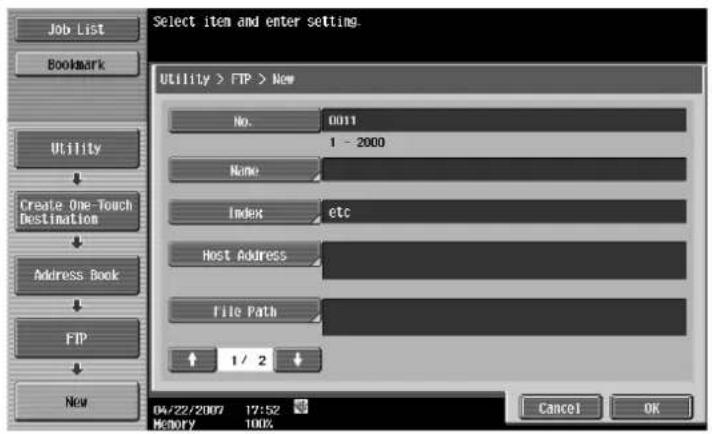
2/2 screen


Detail
To check a registered address, select a desired registration name, and then touch [Check Job Settings].
To change registered address settings, select a desired registration name, and then touch [Edit]. On the Edit screen, the registration number cannot be changed.
To delete a registered address, select a desired registration name, and then touch [Delete].
No.
→ Touch [No.], and then enter the registration number of Address Book between 1 and 2,000. When the screen is displayed, the smallest available number is displayed.

Name
→ Enter the registration name of the Address Book using up to 24 characters from the touch panel.
Index
→ Select the index characters.
- For frequently used destinations, simultaneously specify them in [Favorites]. This setting speeds up searches.

Host Address
→ Enter the host address for the destination server in the format of a host name, IPv4 address or IPv6 address.
- For a host name, enter 63 characters or less.


Detail
When the input format is switched to the IP address input mode after the host name was entered, the host name is cleared.
Touching [Input Host Name] after entering the IP address holds the input IP address and displays it in the character input screen.
Before entering a host name, check that the DNS setting is correctly specified.
File Path
→ Enter the path to the saved file using up to 96 characters from the touch panel.
User ID
→ Enter the user ID for logging on to the destination computer using up to 47 characters from the touch panel.
Password
→ Enter the password for logging on to the destination computer using up to 31 characters from the touch panel.
anonymous
→ To specify no user ID for logging on to the host name, touch [ON].
PASV
→ Select whether to use the PASV mode.
Proxy
→ Select whether to use a proxy server.
Port Number
→ Enter the port number. (Range: 1 to 65535)
6.14.7 Address Book - WebDAV
→ Specify the WebDAV address directly. To register a new address, touch [New].
1/3 screen

2/3 screen

3/3 screen
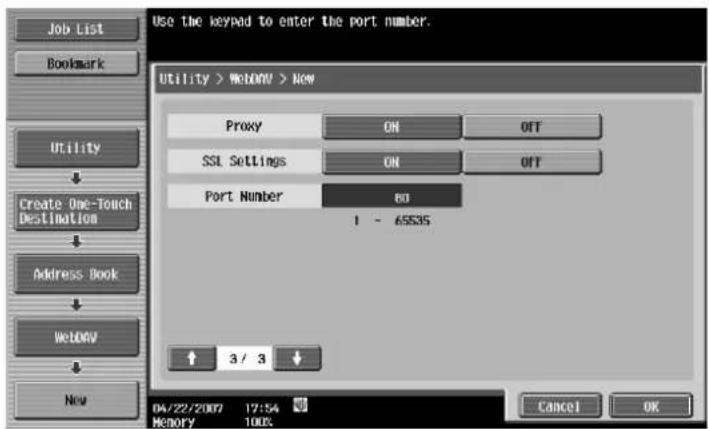

Detail
To check a registered address, select a desired registration name, and then touch [Check Job Settings].
To change registered address settings, select a desired registration name, and then touch [Edit]. On the Edit screen, the registration number cannot be changed.
To delete a registered address, select a desired registration name, and then touch [Delete].
No.
→ Touch [No.], and then enter the registration number of Address Book between 1 and 2,000. When the screen is displayed, the smallest available number is displayed.

Name
→ Enter the registration name of the Address Book using up to 24 characters from the touch panel.
Index
→ Select the index characters.
- For frequently used destinations, simultaneously specify them in [Favorites]. This setting speeds up searches.
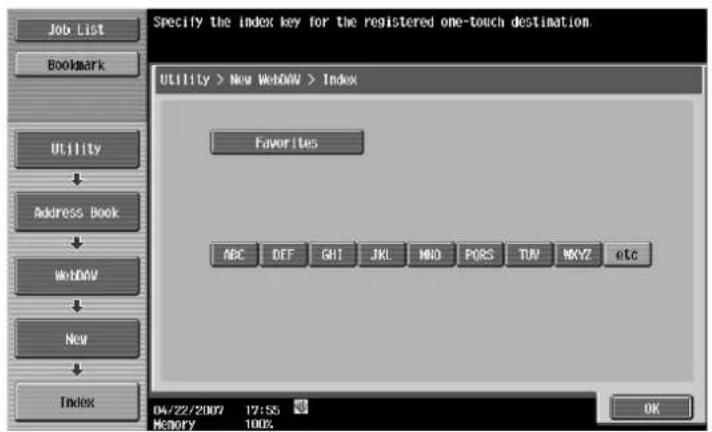
User ID
→ Enter the user ID for logging on to the destination computer using up to 47 characters from the touch panel.
Password
→ Enter the password for logging on to the destination computer using up to 31 characters from the touch panel.
Host Address
→ Enter the host address for the destination server in the format of a host name, IPv4 address or IPv6 address.
- For a host name, enter 63 characters or less.


Detail
When the input format is switched to the IP address input mode after the host name was entered, the host name is cleared.
Touching [Input Host Name] after entering the IP address holds the input IP address and displays it in the character input screen.
Before entering a host name, check that the DNS setting is correctly specified.
File Path
→ Enter the path to the saved file using up to 96 characters from the touch panel.
Proxy
→ Select whether to use a proxy server.
SSL Settings
→ Select whether to use the SSL.
Port Number
→ Enter the port number. (Range: 1 to 65535)
6.14.8 Address Book - IP Address Fax
→ Register the IP address fax destination. To register a new address, touch [New].


Detail
To check a registered address, select a desired registration name, and then touch [Check Job Settings].
To change registered address settings, select a desired registration name, and then touch [Edit]. On the Edit screen, the registration number cannot be changed.
To delete a registered address, select a desired registration name, and then touch [Delete].
No.
→ Enter the registration number of Address Book between 1 and 2,000.
When the screen is displayed, the smallest available number is displayed.
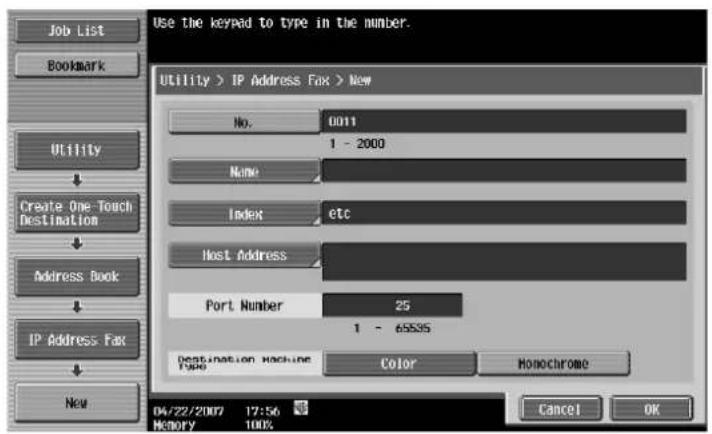
Name
→ Enter the registration name of the Address Book using up to 24 characters from the touch panel.
Index
→ Select the index characters.
- For frequently used destinations, simultaneously specify them in [Favorites]. This setting speeds up searches.

Host Address
→ Enter the host address for the destination device in the format of a host name, IPv4 address or IPv6 address.
- For a host name, enter 63 characters or less.


Detail
When the input format is switched to the IP address input mode after the host name was entered, the host name is cleared.
Touching [Input Host Name] after entering the IP address holds the input IP address and displays it in the character input screen.
Before entering a host name, check that the DNS setting is correctly specified.
Port Number
→ Enter the port number. (Range: 1 to 65535)
Destination Machine Type
→ Select [Color] or [Monochrome] depending on the destination machine.
6.14.9 Address Book - Internet Fax
→ Register the Internet fax destination. To register a new address, touch [New].


Detail
To check a registered address, select a desired registration name, and then touch [Check Job Settings].
To change registered address settings, select a desired registration name, and then touch [Edit]. On the Edit screen, the registration number cannot be changed.
To delete a registered address, select a desired registration name, and then touch [Delete].
No.
→ Touch [No.], and then enter the registration number of Address Book between 1 and 2,000. When the screen is displayed, the smallest available number is displayed.

Name
→ Enter the registration name of the Address Book using up to 24 characters from the touch panel.
Index
→ Select the index characters. For frequently used destinations, simultaneously specify them in [Favorites]. This setting speeds up searches.
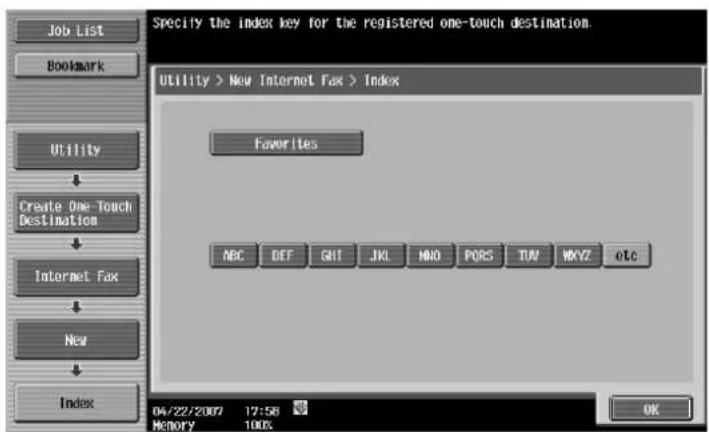
E-Mail Address
→ Enter the destination E-Mail address from the touch panel.
RX Ability (Destination)
→ From "Compression Type", "Paper Size", and "Resolution", select items the destination machine can receive.
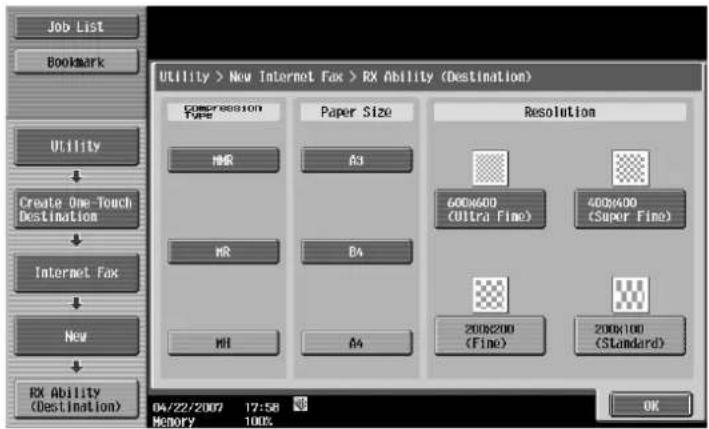
6.14.10 Group
1 Register multiple addresses as a group destination by grouping.
- Up to 100 groups (00 to 99) can be registered using the Fax/Scan mode.
- For one group, up to 500 address book destinations can be registered.
2 To register a new group, touch [New].

Name
→ Enter the registration name of the Address Book using up to 24 characters from the touch panel.
Select Group
→ Select a destination type, and then select the destination to be registered in the group.

Check Program Settings
→ Check the address book list registered in the group.
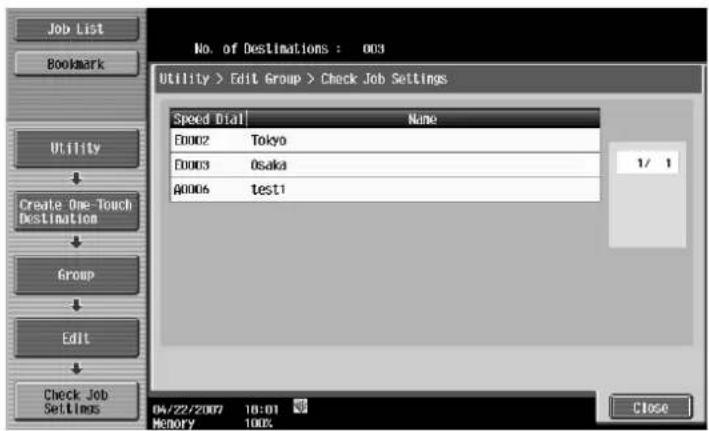
6.14.11 E-Mail Settings - E-Mail Subject (E-Mail/I-FAX)
Up to 10 subjects for E-Mail and Internet fax can be registered. A registered subject can be selected when sending.
→ To register a new subject, touch [New].
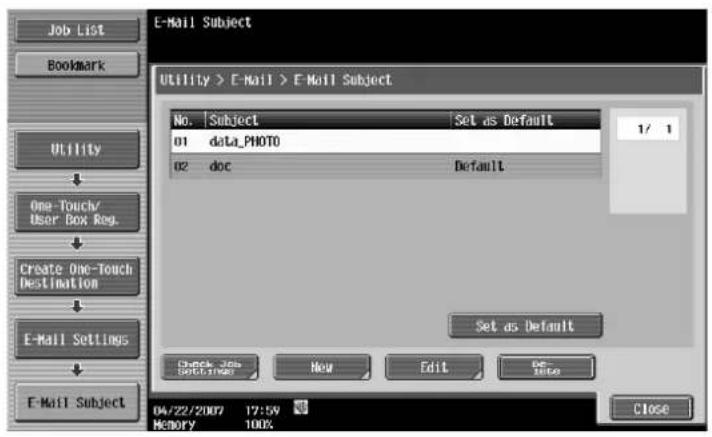

Detail
To check a registered subject, select a desired subject name, and then touch [Check Job Settings].
To change a registered subject, select a desired subject name, and then touch [Edit].
To delete a registered subject, select a desired subject name, and then touch [Delete].
To specify the default for a subject, select a subject name, and then touch [Set as Default].
Subject
→ Enter a subject using up to 64 characters.

6.14.12 E-Mail Settings - E-Mail Body (E-Mail/I-FAX)
Up to 10 bodies for E-Mail and Internet fax can be registered. A registered subject can be selected when sending.
→ To register a new body, touch [New].


Detail
To check a registered body, select a desired body, and then touch [Check Job Settings].
To change the registered body settings, select a desired body, and then touch [Edit].
To delete a registered body, select a desired body, and then touch [Delete].
To specify the default for a body, select a desired body, and then touch [Set as Default].
Body
→ Enter a body using up to 256 characters.
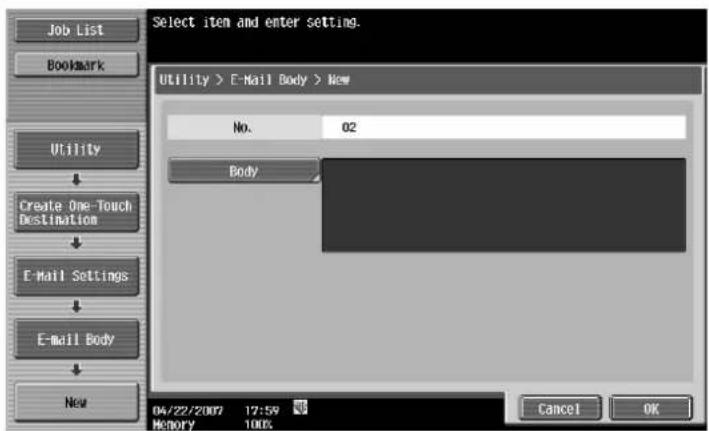
6.14.13 Scan/Fax Program
Register a combination of destination to which data is sent frequently, scan setting, original setting, and communication setting in program. If these items are registered in program, you can call the registered destination, and the Scan Setting mode, Original Setting mode, and Communication Setting mode by simply touching the [Mode Memory] key.

Detail
Up to 400 normal programs and 10 "temporary programs" that are used temporarily can be registered in program.
If 410 programs have been already registered, delete an unnecessary program, and then register new one.
Register Scan/Fax Program
1 Press the [Fax/Scan] key on the control panel, and then specify Scan Settings, Original Settings and Communication Settings for program registration.
2 Press the [Mode Memory] key.
3 Select an unregistered key, and then touch [Register Program].
The Register Scan/Fax Program screen appears.

Register Program - Name
→ Enter the program registration name using up to 24 characters from the touch panel.
Register Program - Address
→ Select one address. Select an address using [Select from Address Book] or [Direct Input].
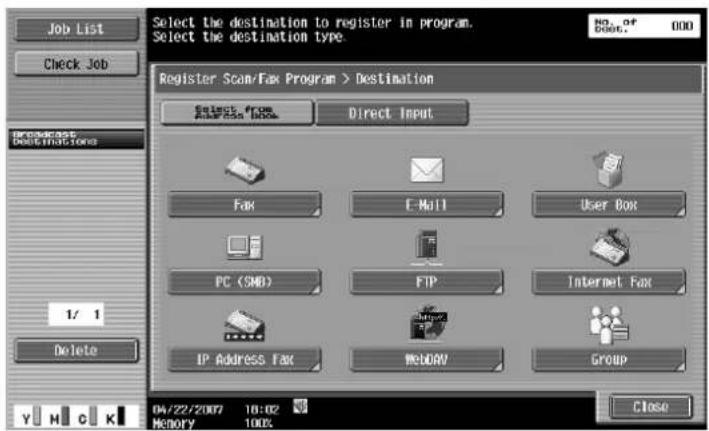
Register Program - URL Notif. Destination
When notifying that the job in the FTP, SMB, WebDAV, or User Box mode has finished, this item is enabled.
→ Select an address using [Select from Address Book] or [Direct Input].

Check Program Settings
1 To check the already registered program settings, touch [Check Program Settings].
2 After checking the settings, touch [Close].
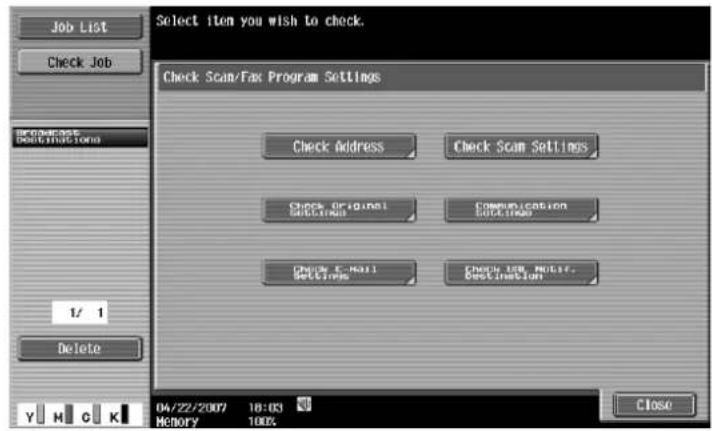
Check Program Settings - Check Address
→ Check the specified address.
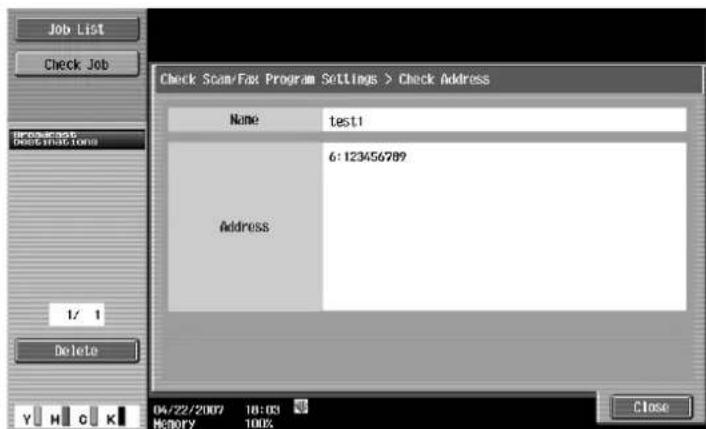
Check Program Settings - Check Scan Settings
→ Check the specified scan settings.

Check Program Settings - Check Original Settings
→ Check the specified original settings.
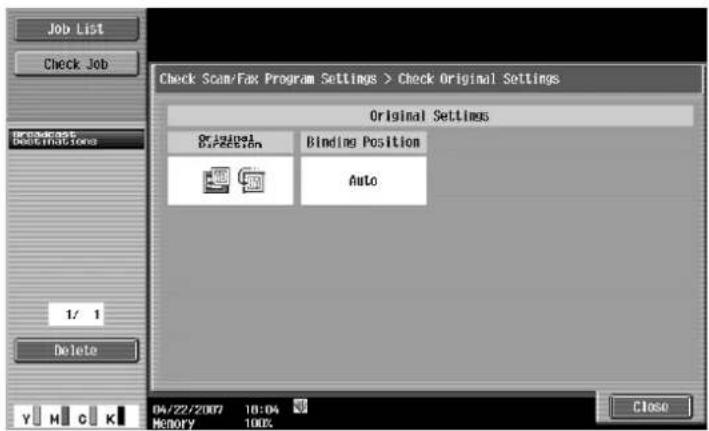
Check Program Settings - Communication Settings
→ Check the specified communication settings.

Check Program Settings - Check E-Mail Settings
→ Check the specified E-Mail settings.

Check Program Settings - Check URL Notif. Destination
→ Check the specified URL notification destination settings.
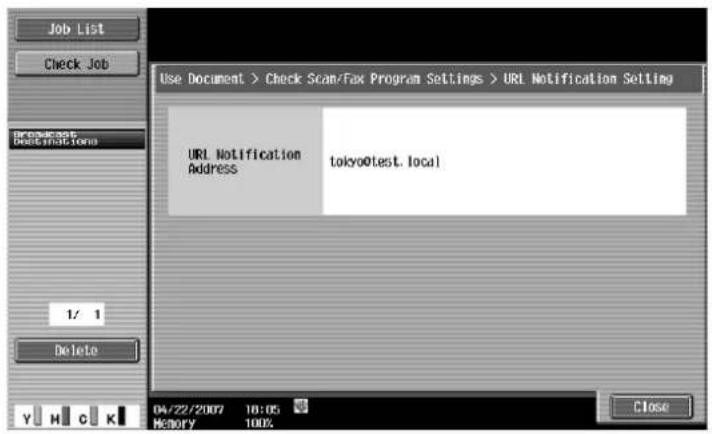
Delete
1 To delete the already registered program, touch this key.
2 If you are sure to delete the program, touch [Yes], then [OK].

6.14.14 Create User Box - Confidential User Box (G3)
→ For the user box for unauthorized transmission, specify unauthorized transmission settings when registering public user boxes and personal user boxes.
6.14.15 Create User Box - Bulletin Board User Box (G3)
For bulletin board user box registration, refer to chapter "5 Box Operations".
6.14.16 Create User Box - Relay User Box (G3)
For relay user box registration, refer to to chapter "5 Box Operations".
6.14.17 Limiting Access to Destinations - Apply Levels/Groups to Destinations
→ Specify the access allowed level for the address book. Log on as a user with a level who is allowed to specify settings, and then change the destination level.

Detail
The level for a registered destination is "0".
A level and group higher than the login user cannot be specified.
In order to specify a group for a destination, the group must be registered in Administrator Settings mode in advance.
Address Book
1 Select an address of which level must be changed.
2 Touch [Limiting Access to Destinations] or [Apply levels to Destinations].

Group
1 Select an address of which level must be changed.
2 Touch [Limiting Access to Destinations] or [Apply levels to Destinations].

Program
1 Select an address of which level must be changed.
2 Touch [Limiting Access to Destinations] or [Apply levels to Destinations].

6.15 User Settings
6.15.1 Displaying the User Settings screen
1 To display the User Settings screen, press the [Utility/Counter] key on the control panel.
2 Touch [User Settings].
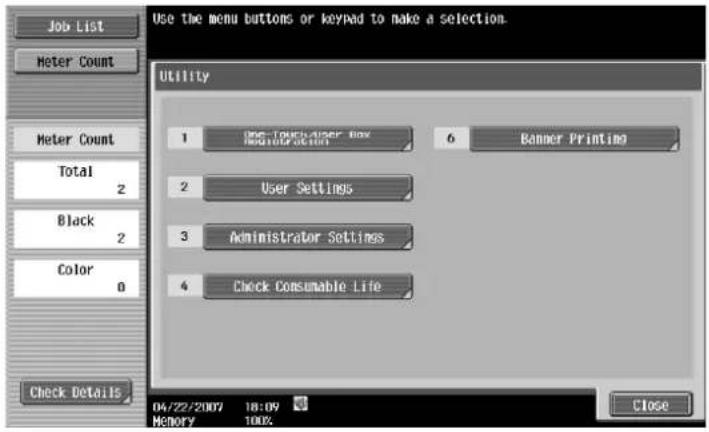

Detail
In the Utility screen, you can also select a setting by using the keypad to enter the number next to the desired button. For [2 User Settings], press the [2] key in the keypad.
6.15.2 Custom Display Settings - Scan/Fax Settings
Customize the Scan/Fax screen.
Default Tab
→ Specify settings for the default screen for Fax/Scan mode (Default: Address Book).
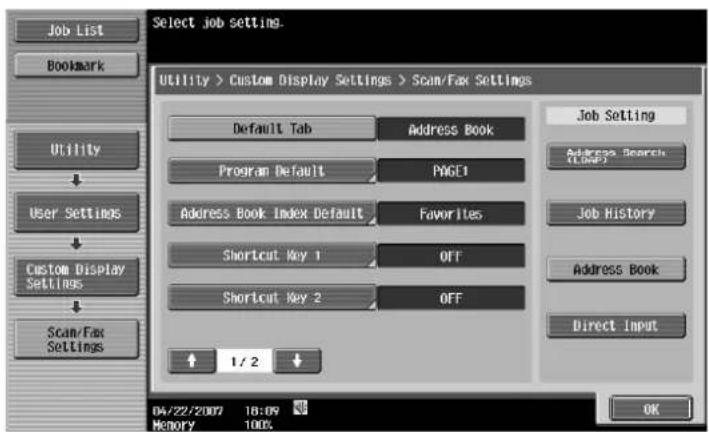
Program Default
→ Specify settings for the default screen for Fax/Scan mode (Default: PAGE1).

Address Book Index Default
→ Select the index characters that appear as a default in [Address Book] (Default: Favorites).

Shortcut Key 1/Shortcut Key 2
Up to two shortcut keys can be registered, each of which is for the Scan/Fax Settings, Original Settings or Communication Settings mode provided at the bottom of the screen.
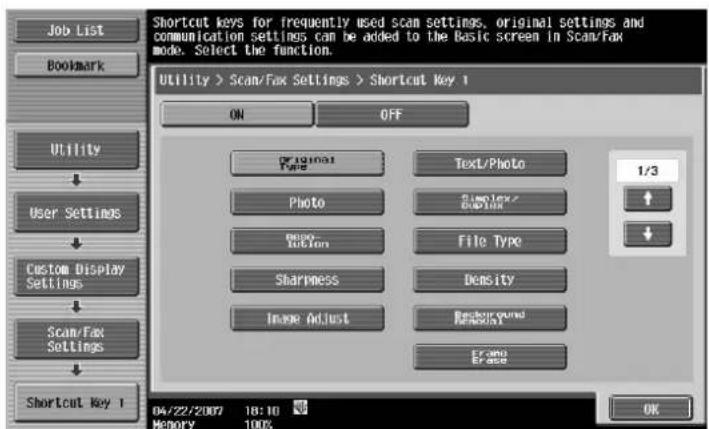

Detail
Two shortcut keys can be programmed. For a machine equipped with the optional image controller IC-409, one shortcut key can be specified.
To cancel the shortcut key, touch [OFF].
Default Address Book
→ Select whether the index or address type appear as a default in the Address Book screen.
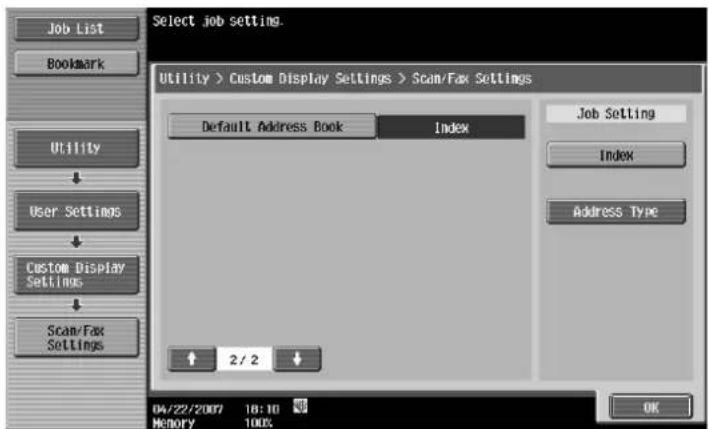
6.15.3 Custom Display Settings - FAX Active Screen (G3/IP/I-FAX)
The FAX Active screen can be customized.
TX Display
→ Specify whether to display messages being sent (Default: No).
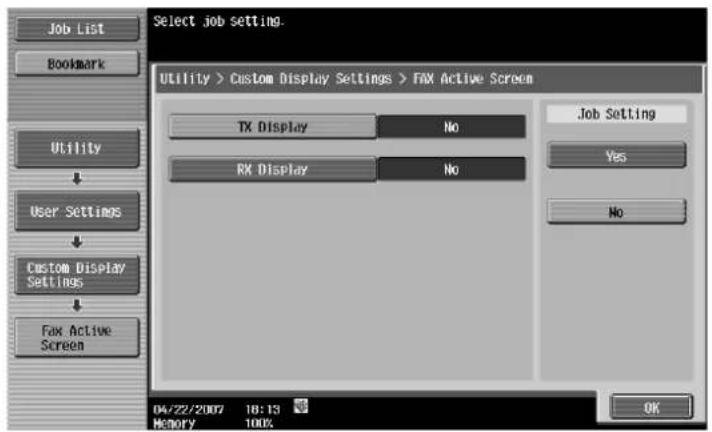
RX Display
→ Specify whether to display messages being received (Default: No).
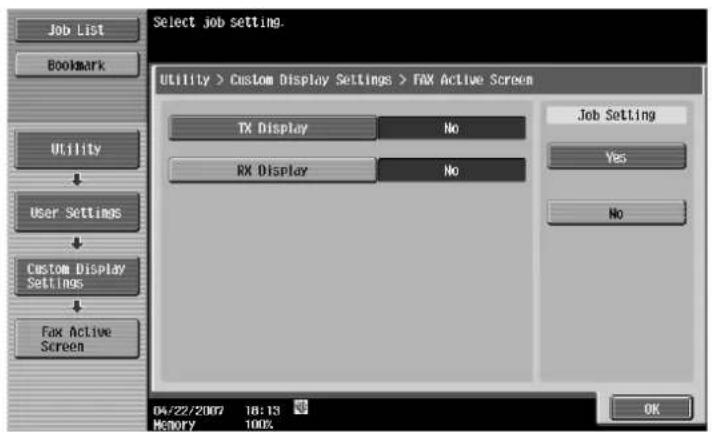
6.15.4 Scan/Fax Settings
JPEG Compression Level (E-Mail/Box/SMB/FTP/WebDAV/Web Service/IP)
→ Specify the compression level for saving data in the JPEG format.
– [High Quality]: Provides higher quality images, but the data size becomes large.
- [Standard (Default)]: Provides images of data size and quality of a mid-level between "High Quality" and "High Compression".
– [High Compression]: Provides lower quality images, but the data size becomes small.

Black Compression Level
→ Specify the coding mode ability for black-and-white image transmission.
- MH: The data size becomes large.
- MMR (Default): The data size becomes small.


Detail
Saved MMR-compressed data may not be opened on a computer depending on the application.
TWAIN Lock Time
→ Specify the length of time until the machine operations are unlocked during scanning (except with PUSH scanning). (Default setting: 120 sec.)


Detail
To use the machine as a scanner from application software using TWAIN, install the GENERIC TWAIN driver software designed for that purpose. For details, refer to the TWAIN driver manual on the MF350 Series CD-ROM.
When GENERIC TWAIN is used, it is automatically unlocked at the specified time, even if it was locked from the computer.
For a machine equipped with the optional image controller IC-409, this function is not available.
Default Scan/Fax Settings
→ Specify the default settings (settings selected when the [Reset] key is pressed) for the Fax/Scan mode.

Compact PDF Compression Level (E-Mail/Box/SMB/FTP/WebDAV)
→ Specify the compression method for saving data in the compact PDF format.
– [High Quality]: Provides higher quality images, but the data size becomes large.
- [Standard (Default)]: Provides images of data size and quality of a mid-level between "High Quality" and "High Compression".
– [High Compression]: Provides lower quality images, but the data size becomes small.

7
Web Connection Operation
7 Web Connection Operation
By logging on to Web Connection in User mode, the following functions can be specified.

Detail
For other details on the User mode, refer to the Web Connection help in the Utilities CD-ROM.
7.1 Information
This is the first page that appears when you access to Web Connection.

| Item Description | |
| Device Information The current system configuration, options, consumables and counter values can be displayed. | |
| Online Assistance Support information for the machine can be displayed. | |
| Change User Password The password for the user who is logged on can be changed. | |
| Function Permission Information Information on operations permitted by users and accounts can be displayed. | |
| Network Setting Information Network settings for the machine can be displayed. | |
| Print Setting Information Settings for the printer controller of the machine can be displayed. | |
| Print Information Font and settings information can be printed. | |
7.2 Job

| Item Description | |
| Current Jobs | On this list, you can check currently running jobs and those in a queue. |
| Job History On this list, you can check completed jobs. | |
| Communication List | On this list, you can check received or transmitted jobs. |
7.3 Box

| Item Description | |
| Open User Box | A currently created public, personal or group user box can be opened to work on a saved document or to change user box settings. |
| Create User Box | New user boxes can be created. |
| Open System User Box | Displays if the optional fax kit has been installed. System user boxes (Bulletin Board User Box, Polling TX User Box, Memory RX User Box, Relay User Box) can be opened to work on a saved document or to change user box settings. |
| Create Sys-tem User Box | Displays if the optional fax kit has been installed. New bulletin board user boxes and relay user boxes can be created. |
7.4 Direct Print

| Item Description | |
| Direct Print | Files that are saved in a computer can be specified and printed with this machine. |
7.5 Store Address
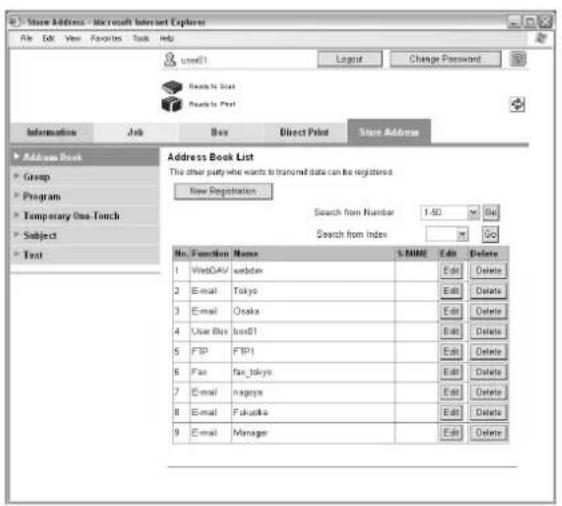
| Item Description | |
| Address Book | The list of address book registered to the machine can be displayed, and destinations can be registered or their settings can be changed. |
| Group The list of | group destinations registered to the machine can be displayed, and destinations can be registered or their settings can be changed. |
| Program | The list of program destinations registered to the machine can be displayed, and destinations can be registered or their settings can be changed. |
| Temporary One-Touch | The list of temporary program destinations registered to the machine can be displayed, and destinations can be registered or their settings can be changed. |
| Subject A maximum | of 10 subjects for sending E-Mail messages can be registered. |
| Text A maximum | of 10 texts for sending E-Mail messages can be registered. |

Detail
This may not appear depending on the Administrator mode settings.
8
Appendix
8 A p p e n d i x
8.1 Entering text
The following procedure describes how to use the keyboard that appears in the touch panel for typing in the names of registered users and custom paper sizes. The keypad can also be used to type in numbers.
Any of the following keyboards may appear.
Example
Password input screen:
Screen for entering the name of a custom paper size:
→ Touch [Shift] to switch the keyboard display between lowercase letters (numbers) and uppercase letters (symbols).
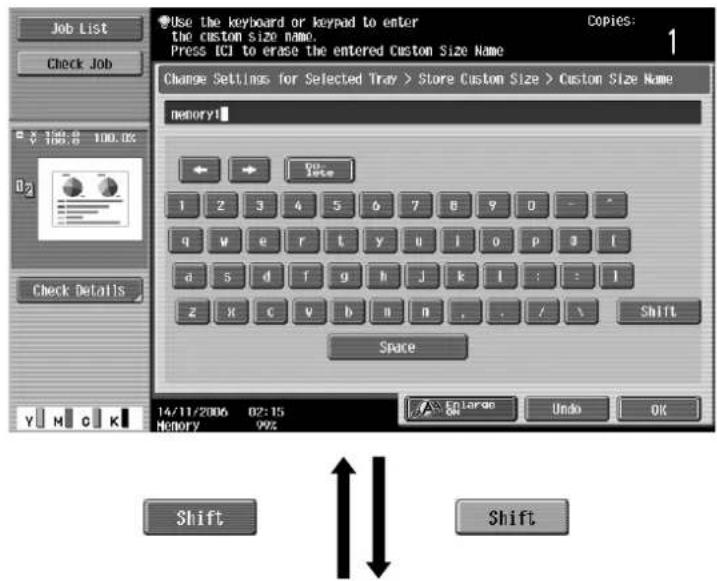
![Use the keyboard or keypad to enter the custom size name. Press ICI to erase the entered Custom Size Name Change Settings for Selected Tray > Store Custom Size > Custom Size Name memory1 ← → On Isle I B S X A ' ( ) - - - I O W E R T Y U I O P - [ A S D F G H J K L * ] Z X C V D N M < > ? _ Shift Space 14/11/2006 02:15 Memory 99% END LARGO OK Undo OK](/content/2026/06/1220802/images/0a127d636feeeefdd7a4c55fd2d92f0e55c08fa5f40205c23d2e96e05928dc1e.jpg)
Enlarging the keyboard
The keyboard can be displayed larger so that it easier to read.
1 While the keyboard is displayed, touch [Enlarge ON].
The keyboard is displayed enlarged.
![memory1 ← → De- lete 1 2 3 4 5 6 7 8 9 0 - ^ q w e r t y u i o p @ [ a s d f g h j k l : : ] z x c v b n m , . / \ Space Shift A Enlarge OFF Undo OK](/content/2026/06/1220802/images/617969143f40ca575e916614b9794dfb2c2f83d58783ef56b58f4eb74b2d548c.jpg)
2 To cancel the enlarged display and return the keyboard to its normal size, touch [Enlarge OFF] while the keyboard is displayed enlarged.


Note
The keyboard is used in the same way, even when it is displayed enlarged.
To type text
→ Touch the button for the desired character from the keyboard that appeared.
- To type in uppercase letters or symbols, touch [Shift].
- Numbers can also be typed in with the keypad.
The entered characters appear in the text box.


Note
To revert to the setting when the keyboard was displayed, touch [Cancel].
To clear all entered text, press the [C] (clear) key.
Some buttons may not appear, depending on the characters being entered.

Detail
To change a character in the entered text, touch [7] and [ ] to move the cursor to the character to be changed, touch [Delete], and then type in the desired letter or number.
List of available characters
| Type Characters | |
| Alphanumeric charac- ters/symbols | ABCDEFGHIJKLMNOPQRSTUVWXYZabcdefghijklmnopqrstuvwxyz[]space!*#$%&'()+,-/;<=>?@[]^_^_`(|)~*0123456789 |
8.2 Glossary
The words used in Copy mode are described below.
Abbreviation
ADF
Automatic document feeder; Can be used to automatically scan the original
A
AE Level Adjustment
Set this parameter to adjust the background of the original. The higher the setting, the more that the original background is emphasized. (AE = Auto exposure)
Adjust Color
Set these parameters to adjust the quality of color copies.
APS
"Auto Paper Select" setting
ATS
Automatic paper-tray-switching feature (ATS = Auto Tray Switch)
Auto Zoom
Select this setting to automatically select the appropriate zoom ratio after an original is placed on the original glass or loaded into the ADF and the paper size is selected.
Auto Paper Select
Select this setting to detect the original placed on the original glass or loaded into the ADF, then automatically select paper of the same size if "×1.0" is selected or select the paper size appropriate for the specified zoom ratio.
B
Background Color
Set this function to copy the original using one of the 18 colors available as the color of the background (blank areas).
Background Removal
Select a setting to adjust the density of the background color of the original to one of nine levels.
Blue
Set this parameter to adjust the level of blue in the image, for example, if you wish to emphasize the blue of water or the sky.
Brightness
Set this parameter to make the image either lighter or darker.
C
Change Tray Settings
Touch this button to specify a paper size not loaded in a paper tray or to copy on paper other than normal paper.
Chapters
Set this function to specify chapter title pages that must be printed on the front side of the paper when printing double-sided copies.
Color Balance
Set this parameter to adjust the balance in the concentrations of cyan (C), magenta (M), yellow (Y) and black (K). Each color can be finely adjusted to any of 19 levels between -3 and +3.
Combine Originals
Select a setting to arrange reduced copies of multiple original pages on a single copy page. The settings for the number of pages that can be combined are "2 in 1", "4 in 1" and "8 in 1".
Contrast
Set this parameter to adjust the contrast between light and dark.
Copy Density
Set this parameter to finely adjust the copy density to any of 19 levels between -3 and +3.
Copy Protection
Set this function to print hidden text in order to prevent improper copying. When an original printed with copy protection text is copied, the hidden text appears clearly repeated in all pages of the copies so that the reader knows that it is a copy.
Cover Mode
Set this function to add paper from the specified paper tray to the copies as a cover page.
D
Density
Select a setting to adjust the density of the print image to one of nine levels.
Duplex 2nd-Side
Select this setting to switch the image transfer current of this machine when copying on paper that has already been printed on one side.
E
Edit Color
Set the functions and parameters that are available to adjust the print image as desired
F
Fold & Staple
Set this function to fold the copies in half and staple them together at the center.
Finishing
Select from the settings that are available for sorting and finishing copies when they are fed into the finishing tray.
G
Glossy
Select this setting for an improved glossy finish of images.
Green
Set this parameter to adjust the level of green in the image, for example, if you wish to emphasize the green of forests and trees.
Group (Copy/Finishing)
Select this setting to separate the copies of each page in the original. The specified number of copies of the second page is printed after all copies of the first page are finished.
Group (reference permission)
Use this feature to limit the addresses that each user can reference and to manage security.
H
Hue
Set this parameter to make the image either more reddish or more bluish.
/
Insert Image
Set this function to later scan multiple images from the original glass and insert them at the desired locations in an original scanned with the ADF, then feed out all copies together.
Insert Sheet
Set this function to insert paper from the specified paper tray into the copies as chapter title pages.
M
Margin
Select the setting for the position of the binding margin for the loaded original. Selecting the appropriate setting prevents the copy from being printed upside-down when making double-sided copies from single-sided original or when making single-sided copies from double-sided originals.
Memory Scan
Scans an original exceeding the maximum 100 pages that can be loaded into the ADF by scanning the original in separate batches. The original can be scanned and treated as a single copy job. In addition, the scanning location can be switched between the original glass and the ADF during the scanning operation.
Minimal
Select this setting to produce a copy with the original image slightly reduced.
Mirror Image
Set this function to produce a copy in the mirror image of the original.
Mixed Original
Select this setting to detect the size of each original page and print a copy on paper of the appropriate size when an original with different page sizes is loaded together into the ADF.
N
Neg-/Pos. Reverse
Set this function to copy the original with the light- and dark-colored areas or the colors (gradations) of the image inversed.
o
Offset
Select this setting to separate copies that are fed out.
OHP Interleave
Set this function to insert paper between OHP that are being copied. This prevents OHP from sticking together.
Original Type
Select the setting for the image type of the original to better adjust the copy quality.
Original Direction
Select the setting for the orientation that the original is placed on the original glass or loaded into the ADF.
p
Paper
Select settings for the type and size of paper to be printed on.
Proof Copy
Press this key to print a single sample copy and stop the machine so that it can be checked before printing a large number of copies. This prevents copy errors from occurring in a large number of copies.
Punch
Select the setting to punch holes in the copies for filing.
R
Red
Set this parameter to adjust the level of red in the image, for example, if you wish to redden skin tones.
s
Saturation
Set this parameter to adjust the degree of vividness of the colors in the image.
Save in User Box
Temporarily saves the job on the hard disk so that it can later be recalled and used again
Sharpness
Set this parameter to emphasize the edges of text so that they can be read more easily. In addition, this parameter can be used to adjust the original image.
Sheet/Cover/Chapter Insert
Select from the functions that are available to edit copies as desired
Simplex/Duplex
Select the setting to specify if the scanned original and the printed copy are printed on just one side or both sides.
Sort
Select this setting to separate each set of the copies. The second copy set is printed after all of the first copy set is finished.
Staple
Select a setting to staple copies together.
T
Text Enhancement
Select a setting for the reproduction quality of text when copying originals consisting of text that overlaps images such as illustrations or graphs (text with a background).
Thick Original
Select this setting when loading thick originals or original pages pasted together into the ADF. If this setting is selected when thick originals are scanned with the ADF, there is a smaller chance of a paper misfeed occurring.
x
XY Zoom
Touch this button to use the keypad to specify the zoom ratio for producing an enlarged/reduced copy of the loaded original.
z
Zoom
Specify the zoom ratio of the copy.
8.3 Trademarks and copyrights
- Netscape is a registered trademark of Netscape Communications Corporation in the United States and other countries.
- Mozilla and Firefox are trademarks of the Mozilla Foundation.
- Novell and Novell NetWare are registered trademarks of Novell, Inc. in the United States and other countries.
- Microsoft, Windows, and Windows NT are either registered trademarks or trademarks of Microsoft Corporation in the United States and/or other countries.
• PowerPC is a trademark of IBM Corporation in the United States, or other countries, or both. - In regard to the Citrix access Partner Network Premier Olivetti S.p.A. is a member of the Citrix access Partner Network. The Citrix access Partner Network is a program that, in combination with a solution of Citrix, promotes and develops solutions to provide the customers with better solutions.

The Global Network of Citrix Partners
- Apple, Macintosh and Mac OS are registered trademarks of Apple Computer, Inc. Safari is a trademark of Apple Computer, Inc.
- Adobe, the Adobe logo, Acrobat and PostScript are either registered trademarks or trademarks of Adobe Systems Incorporated in the United States and/or other countries.
- Ethernet is a registered trademark of Xerox Corporation.
- PCL is a registered trademark of Hewlett-Packard Company Limited.
- CUPS and CUPS logo are registered trademark of Easy Software Products.
• This machine and Box Operator are based in part on the work of the Independent JPEG Group. - Compact-VJE Copyright 1986-2003 VACS Corp.
- RC4 ^® is a registered trademark or trademark of RSA Security Inc. in the United States and/or other countries.
- RSA ^® is a registered trademark or trademark of RSA Security Inc. RSA BSAFE ^® is a registered trademark or trademark of RSA Security Inc. in the United States and/or other countries.
- License information This product includes RSA BSAFE Cryptographic software from RSA Security Inc.

- All other product and brand names are trademarks or registered trademarks of their respective companies or organizations.
OpenSSL Statement
OpenSSL License
Copyright © 1998-2004 The OpenSSL Project. All rights reserved.
Redistribution and use in source and binary forms, with or without modification, are permitted provided that the following conditions are met:
- Redistributions of source code must retain the above copyright notice, this list of conditions and the following disclaimer.
- Redistributions in binary form must reproduce the above copyright notice, this list of conditions and the following disclaimer in the documentation and/or other materials provided with the distribution.
- All advertising materials mentioning features or use of this software must display the following acknowledgment: "This product includes software developed by the OpenSSL Project for use in the OpenSSL Toolkit. (http://www.openssl.org/)"
- The names "OpenSSL Toolkit" and "OpenSSL Project" must not be used to endorse or promote products derived from this software without prior written permission. For written permission, please contact openssl-core@openssl.org.
- Products derived from this software may not be called "OpenSSL" nor may "OpenSSL" appear in their names without prior written permission of the OpenSSL Project.
- Redistributions of any form whatsoever must retain the following acknowledgment: "This product includes software developed by the OpenSSL Project for use in the OpenSSL Toolkit (http://www.openssl.org/)"
THIS SOFTWARE IS PROVIDED BY THE OpenSSL PROJECT "AS IS" AND ANY EXPRESSED OR IMPLIED WARRANTIES, INCLUDING, BUT NOT LIMITED TO, THE IMPLIED WARRANTIES OF MERCHANTABILITY AND FITNESS FOR A PARTICULAR PURPOSE ARE DISCLAIMED. IN NO EVENT SHALL THE OpenSSL PROJECT OR ITS CONTRIBUTORS BE LIABLE FOR ANY DIRECT, INDIRECT, INCIDENTAL, SPECIAL, EXEMPLARY, OR CONSEQUENTIAL DAMAGES (INCLUDING, BUT NOT LIMITED TO, PROCUREMENT OF SUBSTITUTE GOODS OR SERVICES; LOSS OF USE, DATA, OR PROFITS; OR BUSINESS INTERRUPTION) HOWEVER CAUSED AND ON ANY THEORY OF LIABILITY, WHETHER IN CONTRACT, STRICT LIABILITY, OR TORT (INCLUDING NEGLIGENCE OR OTHERWISE) ARISING IN ANY WAY OUT OF THE USE OF THIS SOFTWARE, EVEN IF ADVISED OF THE POSSIBILITY OF SUCH DAMAGE.
This product includes cryptographic software written by Eric Young (eay@crypt-Soft.com). This product includes software written by Tim Hudson (tjh@cryptsoft.com).
Original SSLeay License
Copyright © 1995-1998 Eric Young (eay@cryptsoft.com) All rights reserved.
This package is an SSL implementation written by Eric Young (eay@cryptsoft.com).
The implementation was written so as to conform with Netscapes SSL.
This library is free for commercial and non-commercial use as long as the following conditions are aheared to. The following conditions apply to all code found in this distribution, be it the RC4, RSA, Ihash, DES, etc., code; not just the SSL code.
The SSL documentation included with this distribution is covered by the same copyright terms except that the holder is Tim Hudson (tjh@cryptsoft.com).
Copyright remains Eric Young's, and as such any Copyright notices in the code are not to be removed. If this package is used in a product, Eric Young should be given attribution as the author of the parts of the library used. This can be in the form of a textual message at program startup or in documentation (online or textual) provided with the package.
Redistribution and use in source and binary forms, with or without modification, are permitted provided that the following conditions are met:
-
Redistributions of source code must retain the copyright notice, this list of conditions and the following disclaimer.
-
Redistributions in binary form must reproduce the above copyright notice, this list of conditions and the following disclaimer in the documentation and/or other materials provided with the distribution.
-
All advertising materials mentioning features or use of this software must display the following acknowledgement:
"This product includes cryptographic software written by Eric Young (eay@crypt-soft.com)"
The word ‘cryptographic’ can be left out if the rouines from the library being used are not cryptographic related.
- If you include any Windows specific code (or a derivative thereof) from the apps directory (application code) you must include an acknowledgement:
"This product includes software written by Tin Hudson (tjh@cryptsoft.com)"
THIS SOFTWARE IS PROVIDED BY ERIC YOUNG "AS IS" AND ANY EXPRESS OR IMPLIED WARRANTIES, INCLUDING, BUT NOT LIMITED TO, THE IMPLIED WARRANTIES OF MERCHANTABILITY AND FITNESS FOR A PARTICULAR PURPOSE ARE DISCLAIMED. IN NO EVENT SHALL THE AUTHOR OR CONTRIBUTORS BE LIABLE FOR ANY DIRECT, INDIRECT, INCIDENTAL, SPECIAL, EXEMPLARY, OR CONSEQUENTIAL DAMAGES (INCLUDING, BUT NOT LIMITED TO, PROCUREMENT OF SUBSTITUTE GOODS OR SERVICES; LOSS OF USE, DATA, OR PROFITS; OR BUSINESS INTERRUPTION) HOWEVER CAUSED AND ON ANY THEORY OF LIABILITY, WHETHER IN CONTRACT, STRICT LIABILITY, OR TORT (INCLUDING NEGLIGENCE OR OTHERWISE) ARISING IN ANY WAY OUT OF THE USE OF THIS SOFTWARE, EVEN IF ADVISED OF THE POSSIBILITY OF SUCH DAMAGE.
The licence and distribution terms for any publicly available version or derivative of this code cannot be changed. i.e. this code cannot simply be copied and put under another distribution licence [including the GNU Public Licence.]
NetSNMP License
Part 1: CMU/UCD copyright notice: (BSD like)
Copyright 1989, 1991, 1992 by Carnegie Mellon University Derivative Work - 1996, 1998-2000
Copyright 1996, 1998-2000 The Regents of the University of California All Rights Reserved
Permission to use, copy, modify and distribute this software and its documentation for any purpose and without fee is hereby granted, provided that the above copyright notice appears in all copies and that both that copyright notice and this permission notice appear in supporting documentation, and that the name of CMU and The Regents of the University of California not be used in advertising or publicity pertaining to distribution of the software without specific written permission.
CMU AND THE REGENTS OF THE UNIVERSITY OF CALIFORNIA DISCLAIM ALLWARRANTIES WITH REGARD TO THIS SOFTWARE, INCLUDING ALL IMPLIED WARRANTIES OF MERCHANTABILITY AND FITNESS. IN NO EVENT SHALL CMU OR THE REGENTS OF THE UNIVERSITY OF CALIFORNIA BE LIABLE FOR ANY SPECIAL, INDIRECT OR CONSEQUENTIAL DAMAGES OR ANY DAMAGES WHATSOEVER RESULTING FROM THE LOSS OF USE, DATA OR PROFITS, WHETHER IN AN ACTION OF CONTRACT, NEGLIGENCE OR OTHER TORTIOUS ACTION, ARISING OUT OF OR IN CONNECTION WITH THE USE OR PERFORMANCE OF THIS SOFTWARE.
Part 2: Networks Associates Technology, Inc copyright notice (BSD)
Copyright © 2001-2003, Networks Associates Technology, Inc
All rights reserved.
Redistribution and use in source and binary forms, with or without modification, are permitted provided that the following conditions are met:
- Redistributions of source code must retain the above copyright notice, this list of conditions and the following disclaimer.
- Redistributions in binary form must reproduce the above copyright notice, this list of conditions and the following disclaimer in the documentation and/or other materials provided with the distribution.
- Neither the name of the Networks Associates Technology, Inc nor the names of its contributors may be used to endorse or promote products derived from this software without specific prior written permission.
THIS SOFTWARE IS PROVIDED BY THE COPYRIGHT HOLDERS AND CONTRIBUTORS "AS IS" AND ANY EXPRESS OR IMPLIED WARRANTIES, INCLUDING, BUT NOT LIMITED TO, THE IMPLIED WARRANTIES OF MERCHANTABILITY AND FITNESS FOR A PARTICULAR PURPOSE ARE DISCLAIMED. IN NO EVENT SHALL THE COPYRIGHT HOLDERS OR CONTRIBUTORS BE LIABLE FOR ANY DIRECT, INDIRECT, INCIDENTAL, SPECIAL, EXEMPLARY, OR CONSEQUENTIAL DAMAGES (INCLUDING, BUT NOT LIMITED TO, PROCUREMENT OF SUBSTITUTE GOODS OR SERVICES; LOSS OF USE, DATA, OR PROFITS; OR BUSINESS INTERRUPTION) HOWEVER CAUSED AND ON ANY THEORY OF LIABILITY, WHETHER IN CONTRACT, STRICT LIABILITY, OR TORT (INCLUDING NEGLIGENCE OR OTHERWISE) ARISING IN ANY WAY OUT OF THE USE OF THIS SOFTWARE, EVEN IF ADVISED OF THE POSSIBILITY OF SUCH DAMAGE.
Part 3: Cambridge Broadband Ltd. copyright notice (BSD)
Portions of this code are copyright © 2001-2003, Cambridge Broadband Ltd.
All rights reserved.
Redistribution and use in source and binary forms, with or without modification, are permitted provided that the following conditions are met:
- Redistributions of source code must retain the above copyright notice, this list of conditions and the following disclaimer.
- Redistributions in binary form must reproduce the above copyright notice, this list of conditions and the following disclaimer in the documentation and/or other materials provided with the distribution.
- The name of Cambridge Broadband Ltd. may not be used to endorse or promote products derived from this software without specific prior written permission.
THIS SOFTWARE IS PROVIDED BY THE COPYRIGHT HOLDER "AS IS" AND ANY EXPRESS OR IMPLIED WARRANTIES, INCLUDING, BUT NOT LIMITED TO, THE IMPLIED WARRANTIES OF MERCHANTABILITY AND FITNESS FOR A PARTICULAR PURPOSE ARE DISCLAIMED. IN NO EVENT SHALL THE COPYRIGHT HOLDER BE LIABLE FOR ANY DIRECT, INDIRECT, INCIDENTAL, SPECIAL, EXEMPLARY, OR CONSEQUENTIAL DAMAGES (INCLUDING, BUT NOT LIMITED TO, PROCUREMENT OF SUBSTITUTE GOODS OR SERVICES; LOSS OF USE, DATA, OR PROFITS; OR BUSINESS INTERRUPTION) HOWEVER CAUSED AND ON ANY THEORY OF LIABILITY, WHETHER IN CONTRACT, STRICT LIABILITY, OR TORT (INCLUDING NEGLIGENCE OR OTHERWISE) ARISING IN ANY WAY OUT OF THE USE OF THIS SOFTWARE, EVEN IF ADVISED OF THE POSSIBILITY OF SUCH DAMAGE.
Part 4: Sun Microsystems, Inc. copyright notice (BSD)
Copyright © 2003 Sun Microsystems, Inc., 4150 Network Circle, Santa Clara, California 95054, U.S.A. All rights reserved.
Use is subject to license terms below.
This distribution may include materials developed by third parties.
Sun, Sun Microsystems, the Sun logo and Solaris are trademarks or registered trademarks of Sun Microsystems, Inc. in the U.S. and other countries.
Redistribution and use in source and binary forms, with or without modification, are permitted provided that the following conditions are met:
- Redistributions of source code must retain the above copyright notice, this list of conditions and the following disclaimer.
- Redistributions in binary form must reproduce the above copyright notice, this list of conditions and the following disclaimer in the documentation and/or other materials provided with the distribution.
- Neither the name of the Sun Microsystems, Inc. nor the names of its contributors may be used to endorse or promote products derived from this software without specific prior written permission.
THIS SOFTWARE IS PROVIDED BY THE COPYRIGHT HOLDERS AND CONTRIBUTORS "AS IS" AND ANY EXPRESS OR IMPLIED WARRANTIES, INCLUDING, BUT NOT LIMITED TO, THE IMPLIED WARRANTIES OF MERCHANTABILITY AND FITNESS FOR A PARTICULAR PURPOSE ARE DISCLAIMED. IN NO EVENT SHALL THE COPYRIGHT HOLDERS OR CONTRIBUTORS BE LIABLE FOR ANY DIRECT, INDIRECT, INCIDENTAL, SPECIAL, EXEMPLARY, OR CONSEQUENTIAL DAMAGES (INCLUDING, BUT NOT LIMITED TO, PROCUREMENT OF SUBSTITUTE GOODS OR SERVICES; LOSS OF USE, DATA, OR PROFITS; OR BUSINESS INTERRUPTION) HOWEVER CAUSED AND ON ANY THEORY OF LIABILITY, WHETHER IN CONTRACT, STRICT LIABILITY, OR TORT (INCLUDING NEGLIGENCE OR OTHERWISE) ARISING IN ANY WAY OUT OF THE USE OF THIS SOFTWARE, EVEN IF ADVISED OF THE POSSIBILITY OF SUCH DAMAGE.
Part 5: Sparta, Inc copyright notice (BSD)
Copyright © 2003-2004, Sparta, Inc All rights reserved.
Redistribution and use in source and binary forms, with or without modification, are permitted provided that the following conditions are met:
- Redistributions of source code must retain the above copyright notice, this list of conditions and the following disclaimer.
- Redistributions in binary form must reproduce the above copyright notice, this list of conditions and the following disclaimer in the documentation and/or other materials provided with the distribution.
- Neither the name of Sparta, Inc nor the names of its contributors may be used to endorse or promote products derived from this software without specific prior written permission.
THIS SOFTWARE IS PROVIDED BY THE COPYRIGHT HOLDERS AND CONTRIBUTORS "AS IS" AND ANY EXPRESS OR IMPLIED WARRANTIES, INCLUDING, BUT NOT LIMITED TO, THE IMPLIED WARRANTIES OF MERCHANTABILITY AND FITNESS FOR A PARTICULAR PURPOSE ARE DISCLAIMED. IN NO EVENT SHALL THE COPYRIGHT HOLDERS OR CONTRIBUTORS BE LIABLE FOR ANY DIRECT, INDIRECT, INCIDENTAL, SPECIAL, EXEMPLARY, OR CONSEQUENTIAL DAMAGES (INCLUDING, BUT NOT LIMITED TO, PROCUREMENT OF SUBSTITUTE GOODS OR SERVICES; LOSS OF USE, DATA, OR PROFITS; OR BUSINESS INTERRUPTION) HOWEVER CAUSED AND ON ANY THEORY OF LIABILITY, WHETHER IN CONTRACT, STRICT LIABILITY, OR TORT (INCLUDING NEGLIGENCE OR OTHERWISE) ARISING IN ANY WAY OUT OF THE USE OF THIS SOFTWARE, EVEN IF ADVISED OF THE POSSIBILITY OF SUCH DAMAGE.
Part 6: Cisco/BUPTNIC copyright notice (BSD)
Copyright © 2004, Cisco, Inc and Information Network Center of Beijing University of Posts and Telecommunications. All rights reserved.
Redistribution and use in source and binary forms, with or without modification, are permitted provided that the following conditions are met:
- Redistributions of source code must retain the above copyright notice, this list of conditions and the following disclaimer.
- Redistributions in binary form must reproduce the above copyright notice, this list of conditions and the following disclaimer in the documentation and/or other materials provided with the distribution.
- Neither the name of Cisco, Inc, Beijing University of Posts and Telecommunications, nor the names of their contributors may be used to endorse or promote products derived from this software without specific prior written permission.
THIS SOFTWARE IS PROVIDED BY THE COPYRIGHT HOLDERS AND CONTRIBUTORS "AS IS" AND ANY EXPRESS OR IMPLIED WARRANTIES, INCLUDING, BUT NOT LIMITED TO, THE IMPLIED WARRANTIES OF MERCHANTABILITY AND FITNESS FOR A PARTICULAR PURPOSE ARE DISCLAIMED. IN NO EVENT SHALL THE COPYRIGHT HOLDERS OR CONTRIBUTORS BE LIABLE FOR ANY DIRECT, INDIRECT, INCIDENTAL, SPECIAL, EXEMPLARY, OR CONSEQUENTIAL DAMAGES (INCLUDING, BUT NOT LIMITED TO, PROCUREMENT OF SUBSTITUTE GOODS OR SERVICES; LOSS OF USE, DATA, OR PROFITS; OR BUSINESS INTERRUPTION) HOWEVER CAUSED AND ON ANY THEORY OF LIABILITY, WHETHER IN CONTRACT, STRICT LIABILITY, OR TORT (INCLUDING NEGLIGENCE OR OTHERWISE) ARISING IN ANY WAY OUT OF THE USE OF THIS SOFTWARE, EVEN IF ADVISED OF THE POSSIBILITY OF SUCH DAMAGE.
Copyright
© 2007 Olivetti S.p.A. All Rights Reserved.
Note
- This user manual may not be reproduced in part or in full without permission.
- Olivetti S.p.A. will not be held liable for any incidents caused by using this printing system or user manual.
- Information included in this user manual is subject to change without notice.
- Olivetti S.p.A. maintains the copyright of the printer drivers.
8.4 About Adobe Color Profile
ADOBE SYSTEMS INCORPORATED COLOR PROFILE LICENSE AGREEMENT
NOTICE TO USER: PLEASE READ THIS CONTRACT CAREFULLY. BY USING ALL OR ANY PORTION OF THE SOFTWARE YOU ACCEPT ALL THE TERMS AND CONDITIONS OF THIS SOFTWARE YOU ACCEPT ALL THE TERMS AND CONDITIONS OF THIS AGREEMENT. IF YOU DO NOT AGREE WITH THE TERMS OF THIS AGREEMENT, DO NOT USE THE SOFTWARE.
-
DEFINITIONS In this Agreement, "Adobe" means Adobe Systems Incorporated, a Delaware corporation, located at 345 Park Avenue, San Jose, California 95110. "Software" means the software and related items with which this Agreement is provided.
-
LICENSE Subject to the terms of this Agreement, Adobe hereby grants you the worldwide, non-exclusive, nontransferable, royalty-free license to use, reproduce and publicly display the Software. Adobe also grants you the rights to distribute the Software only (a) as embedded within digital image files and (b) on a standalone basis. No other distribution of the Software is allowed; including, without limitation, distribution of the Software when incorporated into or bundled with any application software. All individual profiles must be referenced by their ICC Profile description string. You may not modify the Software. Adobe is under no obligation to provide any support under this Agreement, including upgrades or future versions of the Software or other items. No title to the intellectual property in the Software is transferred to you under the terms of this Agreement. You do not acquire any rights to the Software except as expressly set forth in this Agreement.
-
DISTRIBUTION If you choose to distribute the Software, you do so with the understanding that you agree to defend, indemnify and hold harmless Adobe against any losses, damages or costs arising from any claims, lawsuits or other legal actions arising out of such distribution, including without limitation, your failure to comply with this Section 3. If you distribute the Software on a standalone basis, you will do so under the terms of this Agreement or your own license agreement which (a) complies with the terms and conditions of this Agreement; (b) effectively disclaims all warranties and conditions, express or implied, on behalf of Adobe; (c) effectively excludes all liability for damages on behalf of Adobe; (d) states that any provisions that differ from this Agreement are offered by you alone and not Adobe and (e) states that the Software is available from you or Adobe and informs licensees how to obtain it in a reasonable manner on or through a medium customarily used for software exchange. Any distributed Software will include the Adobe copyright notices as included in the Software provided to you by Adobe.
-
DISCLAIMER OF WARRANTY Adobe licenses the Software to you on an "AS IS" basis. Adobe makes no representation as to the adequacy of the Software for any particular purpose or to produce any particular result. Adobe shall not be liable for loss or damage arising out of this Agreement or from the distribution or use of the Software or any other materials. ADOBE AND ITS SUPPLIERS DO NOT AND CANNOT WARRANT THE PERFORMANCE OR RESULTS YOU MAY OBTAIN BY USING THE SOFTWARE, EXCEPT FOR ANY WARRANTY, CONDITION, REPRESENTATION OR TERM TO THE EXTENT TO WHICH THE SAME CANNOT OR MAY NOT BE EXCLUDED OR LIMITED BY LAW APPLICABLE TO YOU IN YOUR JURISDICTION, ADOBE AND ITS SUPPLIERS MAKE NO WARRANTIES, CONDITIONS, REPRESENTATIONS OR TERMS, EXPRESS OR IMPLIED, WHETHER BY STATUTE, COMMON LAW, CUSTOM, USAGE OR OTHERWISE AS TO ANY OTHER MATTERS, INCLUDING BUT NOT LIMITED TO NONINFRINGEMENT OF THIRD PARTY RIGHTS, INTEGRATION, SATISFACTORY QUALITY OR FITNESS FOR ANY PARTICULAR PURPOSE. YOU MAY HAVE ADDITIONAL RIGHTS WHICH VARY FROM JURISDICTION TO JURISDICTION. The provisions of Sections 4, 5 and 6 shall survive the termination of this Agreement, howsoever caused, but this shall not imply or create any continued right to use the Software after termination of this Agreement.
-
LIMITATION OF LIABILITY IN NO EVENT WILL ADOBE OR ITS SUPPLIERS BE LIABLE TO YOU FOR ANY DAMAGES, CLAIMS OR COSTS WHATSOEVER OR ANY CONSEQUENTIAL, INDIRECT, INCIDENTAL DAMAGES, OR ANY LOST PROFITS OR LOST SAVINGS, EVEN IF AN ADOBE REPRESENTATIVE HAS BEEN ADVISED OF THE POSSIBILITY OF SUCH LOSS, DAMAGES, CLAIMS OR COSTS OR FOR ANY CLAIM BY ANY THIRD PARTY. THE FOREGOING LIMITATIONS AND EXCLUSIONS APPLY TO THE EXTENT PERMITTED BY APPLICABLE LAW IN YOUR JURISDICTION. ADOBEfs AGGREGATE LIABILITY AND THAT OF ITS SUPPLIERS UNDER OR IN CONNECTION WITH THIS AGREEMENT SHALL BE LIMITED TO THE AMOUNT PAID FOR THE SOFTWARE. Nothing contained in this Agreement limits Adobe's liability to you in the event of death or personal injury resulting from Adobe's negligence or for the tort of deceit (fraud). Adobe is acting on behalf of its suppliers for the purpose of disclaiming, excluding and/or limiting obligations, warranties and liability as provided in this Agreement, but in no other respects and for no other purpose.
-
TRADEMARKS Adobe and the Adobe logo are the registered trademarks or trademarks of Adobe in the United States and other countries. With the exception of referential use, you will not use such trademarks or any other Adobe trademark or logo without separate prior written permission granted by Adobe.
-
TERM This Agreement is effective until terminated. Adobe has the right to terminate this Agreement immediately if you fail to comply with any term hereof. Upon any such termination, you must return to Adobe all full and partial copies of the Software in your possession or control.
-
GOVERNMENT REGULATIONS If any part of the Software is identified as an export controlled item under the United States Export Administration Act or any other export law, restriction or regulation (the "Export Laws"), you represent and warrant that you are not a citizen, or otherwise located within, an embargoed nation (including without limitation Iran, Iraq, Syria, Sudan, Libya, Cuba, North Korea, and Serbia) and that you are not otherwise prohibited under the Export Laws from receiving the Software. All rights to use the Software are granted on condition that such rights are forfeited if you fail to comply with the terms of this Agreement.
-
GOVERNING LAW This Agreement will be governed by and construed in accordance with the substantive laws in force in the State of California as such laws are applied to agreements entered into and to be performed entirely within California between California residents. This Agreement will not be governed by the conflict of law rules of any jurisdiction or the United Nations Convention on Contracts for the International Sale of Goods, the application of which is expressly excluded. All disputes arising out of, under or related to this Agreement will be brought exclusively in the state Santa Clara County, California, USA.
-
GENERAL You may not assign your rights or obligations granted under this Agreement without the prior written consent of Adobe. None of the provisions of this Agreement shall be deemed to have been waived by any act or acquiescence on the part of Adobe, its agents, or employees, but only by an instrument in writing signed by an authorized signatory of Adobe. When conflicting language exists between this Agreement and any other agreement included in the Software, the terms of such included agreement shall apply. If either you or Adobe employs attorneys to enforce any rights arising out of or relating to this Agreement, the prevailing party shall be entitled to recover reasonable attorneys' fees. You acknowledge that you have read this Agreement, understand it, and that it is the complete and exclusive statement of your agreement with Adobe which supersedes any prior agreement, oral or written, between Adobe and you with respect to the licensing to you of the Software. No variation of the terms of this Agreement will be enforceable against Adobe unless Adobe gives its express consent, in writing, signed by an authorized signatory of Adobe.
8.5 ICC Profile for TOYO INK Standard Color on Coated paper (TOYO Offset Coated 2.0)
This ICC Profile (TOYO Offset Coated 2.0) characterizes Japanese offset press on Coated paper and is fully compatible with ICC profile format.
About "TOYO INK Standard Color on Coated paper"
This is the standard for color reproduction of sheet-fed offset press on Coated paper made by TOYO INK MFG.CO., LTD. ("TOYO INK").
This standard is made from printing test with using TOYO INK's sheet-fed offset printing inks and TOYO INK's own printing conditions.
"TOYO INK Standard Color on Coated paper" is compatible with "JAPAN COLOR".
Agreement
- The reproduction of images on a printer or a monitor using this ICC Profile do not completely match the TOYO INK Standard Color on Coated paper.
- Any and all copyrights of this ICC Profile shall remain in TOYO INK; therefore you shall not transfer, provide, rent, distribute, disclose, or grant any rights in this ICC Profile to any third party without the prior written consent of TOYO INK.
- In no event will TOYO INK its directors, officers, employees or agents be liable to you for any consequential or incidental, either direct or indirect, damages (including damages for loss of business profits, business interruption, loss of business information, and the like) arising out of the use or inability to use this ICC Profile.
- TOYO INK shall not be responsible for answering any question related to this ICC Profile.
- All company names and product names used in this document is the trademarks or registered trademarks of their respective holder.
This ICC Profile made by GretagMacbeth ProfileMaker and granted TOYO INK certain license to distribute by GretagMacbeth AG.
TOYO Offset Coated 2.0 © TOYO INK MFG. CO., LTD. 2004
8.6 DIC STANDARD COLOR PROFILE LICENSE AGREEMENT
IMPORTANT: PLEASE READ THIS STANDARD COLOR PROFILE LICENSE AGREEMENT ("LICENSE AGREEMENT") CAREFULLY BEFORE USING THE DIC STANDARD COLOR PROFILE, INCLUDING THE DIC STANDARD COLOR SFC1.0.1, DIC STANDARD COLOR SFC1.0.2, DIC STANDARD COLOR SFM1.0.2, DIC STANDARD COLOR SFU1.0.2, PROVIDED BY DIC HEREWITH, AND ANY CORRESPONDIMG ONLINE OR ELECTRONC DOCUMENTATION AND ALL UPDATES OR UPGRADES OF THE ABOVE THAT ARE PROVIDED TO YOU (COLLECTIVELY, THE "PROFILE").
THIS LICENSE AGREEMENT IS A LEGAL AGREEMENT BETWEEN YOU (EITHER AN INDIVIDUAL OR, IF ACQUIRED BY OR FOR AN ENTITY, AN ENTITY) AND DAINIPPON INK & CHEMICALS, INC., A JAPANESE COMPANY ("DIC"). THIS LICENSE AGREEMENT PROVIDES A LICENSE TO USE THE PROFILE AND CONTAINS WARRANTY INFORMATION AND LIABILITY DISCLAIMERS. IF YOU DO NOT AGREE TO BE BOUND BY ALL OF THESE TERMS, YOU MAY NOT USE THE PROFILE.
1. License Grant
DIC grants you a gratis non-exclusive and non-transferable license to use the Profile and to allow your employees and authorized agents, if any, to use the Profile, solely in connection with their work for you, subject to all of the limitations and restrictions in this License Agreement.
2. Ownership
The foregoing license gives you limited license to use the Profile. You will own the rights in the media containing the recorded Profile, but DIC retains all right, title and interest, including all copyright and intellectual property rights, in and to, the Profile and all copies thereof. All rights not specifically granted in this License Agreement, including all copyrights, are reserved by DIC.
3. Term
a. This License Agreement is effective until terminated.
b. You may terminate this License Agreement by notifying DIC in writing of your intention to terminate this License Agreement and by destroying, all copies of the Profile in your possession or control.
c. DIC may terminate this License Agreement without prior notice to you if you fail to comply with any of the terms and conditions of this License Agreement (either directly or through your employees or agents), retroactive to the time of such failure to comply. In such event, you must immediately stop using the Profile and destroy all copies of the Profile in your possession or control.
d. All provisions in this License Agreement relating to warranty disclaimers (Section 5) and the limitation of liability (Section 6) shall survive any termination of this License Agreement.
4. License Method and Restrictions
a. You may install and use the Profile on a single desktop computer; provided, however, that, notwithstanding anything contrary contained herein, you may not use the Profile on any network system or share, install or use the Profile concurrently on different computers, or electronically transfer the Profile from one computer to another or over a network.
b. You may not make or distribute copies, fix, alter, merge, modify, adapt, sublicense, transfer, sell, rent, lease, gift or distribute all or a portion of the Profile, or modify the Profile or create derivative works based upon the Profile.
c. You acknowledge that the Profile is not intended for any usage which may cause death or physical injury or environmental damage and agree not to use the Profile for such usage.
d. You shall not use the Profile to develop any software or other technology having the same primary function as the Profile, including but not limited to using the Profile in any development or test procedure that seeks to develop like software or other technology, or to determine if such software or other technology performs in a similar manner as the Profile.
e. DIC and other trademarks contained in the Profile are trademarks or registered trademarks of DIC in Japan and/or other countries. You may not remove or alter any trademark, trade names, product names, logo, copyright or other proprietary notices, legends, symbols or labels in the Profile. This License Agreement does not authorize you to use DIC's or its licensors' names or any of their respective trademarks.
5. WARRANTY DISCLAIMER
a. THE PROFILE IS PROVIDED TO YOU FREE OF CHARGE, AND ON AN "AS-IS" BASIS, IN ACCORDANCE WITH THE TERMS AND CONDITIONS OF THIS LICENSE AGREEMENT. DIC PROVIDES NO TECHNICAL SUPPORT, WARRANTIES OR REMEDIES FOR THE PROFILE.
b. DIC DISCLAIMS ALL WARRANTIES AND REPRESENTATIONS, WHETHER EXPRESS, IMPLIED, OR OTHERWISE, INCLUDING BUT NOT LIMITED TO, THE WARRANTIES OF MERCHANTABILITY OR FITNESS FOR A PARTICULAR PURPOSE, NON-INFRINGEMENT, TITLE AND QUIET ENJOYMENT. YOU SHALL ASSUME AND BE FULLY LIABLE AND RESPONSIBLE FOR ALL RISKS IN CONNECTION WITH YOUR USE OF THE PROFILE. DIC DOES NOT WARRANT THAT THE PROFILE IS FREE OF DEFECTS OR FLAWS OR WILL OPERATE WITHOUT INTERRUPTION, AND IS NOT RESPONSIBLE FOR CORRECTING OR REPAIRING ANY DEFECTS OR FLAWS, FOR FEE OR GRATIS. NO RIGHTS OR REMEDIES WILL BE CONFERRED ON YOU UNLESS EXPRESSLY GRANTED HEREIN.
6. LIMITATION OF LIABILITY
DIC SHALL NOT BE LIABLE TO YOU OR ANY THIRD PARTY FOR ANY DIRECT, INDIRECT, SPECIAL, INCIDENTAL, PUNITIVE, COVER OR CONSEQUENTIAL DAMAGES (INCLUDING, BUT NOT LIMITED TO, DAMAGES FOR THE INABILITY TO USE EQUIPMENT OR ACCESS DATA, LOSS OF BUSINESS, LOSS OF PROFITS, BUSINESS INTERRUPTION OR THE LIKE), ARISING OUT OF THE USE OF, OR INABILITY TO USE, THE PROFILE AND BASED ON ANY THEORY OF LIABILITY INCLUDING BREACH OF CONTRACT, BREACH OF WARRANTY, TORT (INCLUDING NEGLIGENCE), PRODUCT LIABILITY OR OTHERWISE, EVEN IF DIC OR ITS REPRESENTATIVES HAVE BEEN ADVISED OF THE POSSIBILITY OF SUCH DAMAGES.
THE FOREGOING LIMITATIONS ON LIABILITY SHALL APPLY TO ALL ASPECTS OF THIS LICENSE AGREEMENT.
7. General
a. This License Agreement shall be governed and construed in accordance with the laws of Japan, without giving effect to principles of conflict of laws. If any provision of this License Agreement shall be held by a court of competent jurisdiction to be contrary to law, that provision will be enforced to the maximum extent permissible, and the remaining provisions of this License Agreement will remain in full force and effect. You hereby consent to the exclusive jurisdiction and venue of Tokyo District Court to resolve any disputes arising under this License Agreement.
b. This License Agreement contains the complete agreement between the parties with respect to the subject matter hereof, and supersedes all prior or contemporaneous agreements or understandings, whether oral or written. You agree that any varying or additional terms contained in any written notification or document issued by you in relation to the Profile licensed hereunder shall be of no effect.
c. The failure or delay of DIC to exercise any of its rights under this License Agreement or upon any breach of this License Agreement shall not be deemed a waiver of those rights or of the breach.
9
Index
9 l n d e x
Symbols
[Power] (auxiliary power) key 3-8
Numerics
1-Sided 4-6, 4-26
1-Sided/2-Sided 5-25
2in1 3-46
2-Sided 4-6, 4-26, 4-40
4in1 3-46
8in1 3-46
A
Account Track 4-23
Account track 3-16
Adding Digital Signature 6-86
Adding to the phone book 4-53
Address Book 6-10, 6-33
Address Book - E-Mail 6-94
Address Book - Fax 6-98
Address Book - FTP 6-104
Address Book - Internet Fax 6-112
Address Book - IP Address Fax 6-110
Address Book - PC (SMB) 6-101
Address Book - User Box 6-96
Address Book - WebDAV 6-107
Address Book Index Default 6-126
Address Search - Advanced Search 6-43
Address Search - Search 6-43
ADF 3-27, 3-98
Annotation 6-59
Apply Levels/Groups to Destinations 6-123
Authentication/Account Track 4-4
Auto Paper setting 3-39
Auto Zoom setting 3-41
B
Back Cover 4-9, 4-29, 4-40
Background Removal 6-54
Banner paper 3-79
Basic - Original Type 6-46
Basic screen 3-5
Basic tab 4-4, 4-51
Binding Direction 4-40
Binding Margin 4-6
Binding Position 4-6, 4-26, 6-73, 8-6
Black Compression Level 6-129
Body 6-79
Book Copy 3-120, 6-55
Book Erase 6-57
Booklet 3-138, 4-40
Booklet Original 3-133
Border 4-39
Box 7-5
Bulletin Board User Box 5-10, 6-123
Bypass tray 3-23
C
Caution notations and labels 2-15
Center Erase 6-57
Center Staple & Fold 3-62, 3-65
Center Staple and Fold 4-8
Center Staple/Fold 5-27
Chapters 3-112, 4-6, 4-26
Check Dest. & Send 6-77
City 6-44
Collate 4-4, 4-23
Collated 4-22, 4-39
Color 6-53
Color Matching 4-40
Color Settings 4-17, 4-36, 4-40
Combination 4-6, 4-40
Combined pages 3-46
Combining Order 5-28
Common setting 4-3, 4-19
Communication Method Settings 6-81
Communication Settings 6-76
Compact PDF Compression Level 6-131
Company Name 6-44
Confidential User Box 6-123
Configure tab 4-51
Control panel 3-3
Copies 4-4, 4-22, 4-39, 5-24
Copies & Pages 4-22
Copy 5-39
Copy Protect 4-11, 4-31
Cover Mode tab 4-9
Cover Mode/Transparency Interleave 4-29
Cover Sheet 3-103
Create Overlay File 4-11
Custom Display Settings 6-125
Custom Page Size 4-38
Custom paper size 4-20
Custom Size 4-4, 4-20
D
Date/Time 4-11, 4-31, 6-60
Default Address Book 6-127
Default Scan/Fax Settings 6-130
Default Tab 6-125
Delete Empty User Box(es) 5-9
Deleting a document 5-38
Density 6-52
Department 6-44
Despeckle 6-75
Detail Search 6-34, 6-80
Detailed Settings 6-40, 6-41
Direct Input 6-80
Direct Input - E-Mail 6-35
Direct Input - Fax 6-35
Direct Input - FTP 6-39
Direct Input - Internet Fax 6-37
Direct Input - IP Address Fax 6-38
Direct Input - PC (SMB) 6-38
Direct Input - User Box 6-36
Direct Input - Web Service 6-42
Direct Input - WebDAV 6-40
Direct Print 7-6
Document Details 5-40
Document Name 6-71, 6-78
E
ECM OFF 6-76
Edge Enhancement 4-17, 4-36, 4-40
Edit Name 5-38
Editing a phone book 4-55
Editing copy protect 4-14, 4-32
Editing date/time 4-16, 4-34
Editing header/footer 4-35
Editing page number 4-16, 4-34
Editing watermark 4-13
E-Mail Addr. 6-43
E-Mail Encryption 6-86
E-Mail Settings 6-78
E-Mail Settings - E-Mail Body (E-Mail/I-FAX) 6-117
E-Mail Settings - E-Mail Subject (E-Mail/I-FAX) 6-116
Encrypted PDF User Box 5-44
Encryption 6-49
Encryption Passphrase 4-24
Enlarge/Reduce settings 3-44
Entering text 8-3
Erase 6-55
F
FAX Active Screen 6-128
Fax cover sheet 4-47
Fax Header Settings 6-87
Fax Number 6-44
Fax operation 4-42
Fax Retransmit 6-89
FAX tab 4-51
Fax Transmission Popup 4-42
File Path 6-38, 6-39, 6-40
File Type 6-48
Finish tab 4-8
Finishing 3-52, 5-25
First Name 6-44
Fold 4-8, 4-40
Fold & Staple 4-26
Folding 3-62
Font Settings 4-17
Frame Erase 6-55
From 6-79
Front Cover 4-9, 4-29, 4-40
FTP TX 6-5
Full Size 3-42
G
G3 fax 6-8
General 4-39
Glossary 8-6
Glossy Mode 4-17, 4-36, 4-40
Group 3-52, 3-55, 6-10, 6-114
H
Half-Fold 3-62
Header/Footer 4-11, 4-31, 6-66
Help 3-74
Host Name 6-38, 6-39, 6-40
|
Icons 3-7
Image Adjustment 3-135
Image Compression 4-17
Image Repeat 3-125
Image Shift 4-6, 4-26
Information 7-3
Insert Image 3-109
Insert Sheet 3-106
Internet Fax 6-9
Interrupt 3-68
IP Address Fax 6-9
J
Job 7-4
Job History 6-42
JPEG Compression Level 6-129
L
Last Name 6-44
Layout (Pages per sheet) 4-39
Layout direction 4-39
Layout tab 4-6 4-51
Layout/Finish 4-26
LCT 3-21
Legal restrictions on copying 2-18
Limiting Access to Destinations 6-123
Line Settings 6-76
Loading paper 3-19, 3-21, 3-23
Long Original 6-72
M
Main power switch 3-8
Manual conventions 1-5
Manual redialing 6-88
Manual transmission 6-45
Memory RX 5-6
Menu tree 6-25
Menu trees 6-89
Minimal 3-43
Mixed Original 6-72, 8-6
Mode Memory 3-69
Move 5-39
N
Name 6-43
Next Destination 6-39, 6-40, 6-41
Non-standard-sized paper 3-86
0
Off-Hook 6-45
Offset 4-4, 4-23, 4-40, 5-25
OHP Interleave 3-100
One-Touch/User Box Registration 6-94
Operating environment 2-17
OR/AND/STARTS WITH/ENDS WITH 6-44
Organizing user box documents 5-35
Orientation 4-21, 4-37
Original > Copy settings 3-45
Original Direction 6-73, 8-6
Original feeding 3-27
Original glass 3-28, 3-99
Original Orientation 4-4
Original orientation 1-6
Original Settings 6-72
Original Size 4-4
Original Type 3-49, 8-6
Originals 3-98
Other tab 4-18
Output Method 4-4, 4-23, 4-40
Output Tray 4-8, 4-28, 4-40
Overseas TX 6-76
Oversized paper 3-91
P
Page Attributes 4-21, 4-37
Page Number 4-11, 4-31, 6-62
Pages 4-22, 4-39
Pages per sheet 4-39
Paper 4-37
Paper Arrangement 4-8, 4-26
Paper capacity 3-80
Paper settings 3-82
Paper Size 4-4, 4-21
Paper sizes 3-79
Paper Source 4-39
Paper Tray 4-4, 4-28
Paper Tray/Output Tray 4-28
Paper Type 4-4, 4-28
Paper types 3-80
Parameter details 4-4, 4-21, 4-37
Part name 3-3
Password 5-23, 6-39, 6-40, 6-41
Password TX 6-84
Pattern 4-17
Per Page Setting 4-9, 4-30
Phone book 4-44, 4-53
Polling 6-8
Polling RX - Bulletin 6-82
Polling RX - Normal 6-82
Polling TX - Bulletin 6-85
Polling TX - Normal 6-84
Poster Mode 3-129, 4-26
Power save 3-11
Power source 2-17
Preview 5-41
Print 4-4, 4-23
Print in Overlay 4-11
Print Type 4-6, 4-26, 4-40
Printing documents 5-18
Profile management 4-17, 4-36
Program Default 6-126
Program Jobs 3-115
Proof Print 4-4, 4-23
Proof print 4-40
Public/Personal/Group user boxes 5-8
Punch 4-8, 4-26, 4-40, 5-26
Punch - Position Setting 5-26
Punch settings 3-52, 3-60
Pure Black 4-40
Q
Quality 4-36
Quality Adjustment 4-17, 4-36, 6-53
Quality tab 4-17
Quick copy screen 3-5
Quick Memory TX 6-81
R
Recall Copy Program 3-72
Redial 6-88
Redialing 6-88
Reference 6-39
Regulation notices 2-10
Relay User Box 5-11, 6-123
Resolution 4-17, 4-40, 6-47
Rotate 180° 4-6, 4-26
RX Ability (Destination) 6-37
RX Display 6-128
S
Safety information 2-3
Save Document 5-15
Save in User Box 3-141, 4-4, 4-23, 6-6
Save in User Box and Print 4-23
Save in User Box/Print 4-4
Saving documents 5-12
Scale 4-21, 4-37
Scan Settings 6-46, 6-49
Scan Size 6-58
Scan to E-Mail 6-5
Scan/Fax Program 6-118
Scan/Fax Settings 6-125, 6-129
Screen 4-40
Secure Print 4-4, 4-23
Secure Print User Box 5-42
Select Color 4-17, 4-36, 4-40
Select Line 6-77
Send & Print 6-70
Sending document 5-29
Separate Scan 3-30, 6-53
Settings tab 4-52
Sharpness 6-54
Shortcut Key 6-127
Simplex/Duplex 6-47
Skip Blank Pages 4-6
SMB TX 6-6
Smoothing 4-40
Sort 3-52, 3-54
Sort/Group 5-25
Space requirements 2-16
Special paper 3-80, 3-94
Stamp 6-64
Stamp/Composition 3-140, 4-31, 6-52, 6-60
Stamp/Composition tab 4-11, 4-51
Staple 4-8, 4-26, 4-40, 5-25
Staple - Position Setting 5-26
Staple settings 3-52, 3-57
Store Address 7-7
Subject 6-78
T
Temporarily stopping 3-67
Text entry 8-3
Timer Send 4-46
Timer TX 6-83
Toner Save 4-17, 4-36, 4-40
Total # of Pages 6-74
Touch panel 3-5
Transmission settings 4-46
Transparency Interleave 4-9, 4-29, 4-40
Tray 1 3-19
TWAIN Lock Time 6-130
TX Display 6-128
TX Stamp 6-71
U
URL Notification Setting 6-80
User Authentication 4-23
User authentication 3-12
User box registration 5-7
User Name 6-38, 6-39, 6-41
User Settings 6-125
V
V. 34 OFF 6-77
W
Warm-up 3-9
Watermark 4-11
Web Service 6-7, 6-11
WebDAV TX 6-7
Z
Z-Folded Original 6-72
Zoom 4-4
DIRECTIVE 2002/96/CE ON THE TREATMENT, COLLECTION, RECYCLING AND DISPOSAL OF ELECTRIC AND ELECTRONIC DEVICES AND THEIR COMPONENTS
INFORMATION
1. FOR COUNTRIES IN THE EUROPEAN UNION (EU)
The disposal of electric and electronic devices as solid urban waste is strictly prohibited: it must be collected separately.
The dumping of these devices at unequipped and unauthorized places may have hazardous effects on health and the environment.
Offenders will be subjected to the penalties and measures laid down by the law.
To dispose of our devices correctly:
a) Contact the Local Authorities, who will give you the practical information you need and the instructions for handling the waste correctly, for example: location and times of the waste collection centres, etc.
b) When you purchase a new device of ours, give a used device similar to the one purchased to our dealer for disposal.

The crossed dustbin symbol on the device means that:
- when it to be disposed of, the device is to be taken to the equipped waste collection centres and is to be handled separately from urban waste;
- The producer guarantees the activation of the treatment, collection, recycling and disposal procedures in accordance with Directive 2002/96/CE (and subsequent amendments).
2. FOR OTHER COUNTRIES (NOT IN THE EU)
The treatment, collection, recycling and disposal of electric and electronic devices will be carried out in accordance with the laws in force in the country in question.
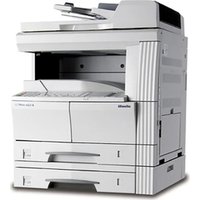
- PUBLICATION ISSUED BY:
- Contents
- Introduction
- Installation and operation precautions
- Copy Operations
- Part names and their functions 3-3
- Turning on the main power and the auxiliary power 3-8
- Loading paper into tray 1/2/3/4.... 3-19
- Selecting a Paper Setting 3-38
- Specifying a Zoom setting 3-41
- Selecting an Original > Copy setting 3-45
- Selecting Finishing settings.... 3-52
- Selecting a folding setting 3-62
- Copying with programmed copy settings (Mode Memory) 3-72
- Copy paper 3-79
- Print Operations
- Box Operations
- Printing documents in user boxes.... 5-18
- Sending documents in user boxes 5-29
- Organizing user box documents.... 5-35
- Secure Print User Box (System User Box) 5-42
- Encrypted PDF User Box (System User Box) 5-44
- Network Scan/Fax/Network Fax Operations
- Transmission functions.... 6-3
- Overview 6-5
- Available Network Scan functions.... 6-5
- Available Fax functions.... 6-8
- Available Network Fax functions 6-9
- Address Registration.... 6-10
- Address Book 6-10
- Group 6-10
- Optional settings.... 6-10
- Using Web services.... 6-11
- Settings required for using Web services.... 6-11
- Operation flow.... 6-12
- Scan/Network fax 6-12
- Fax (G3) 6-15
- Recalling a program.... 6-18
- Broadcasting 6-21
- Menu tree in Fax/Scan mode.... 6-25
- Initial screen for fax/scan operations.... 6-32
- Screen layout.... 6-32
- Address Book 6-33
- Direct Input 6-35
- Direct Input - Fax 6-35
- Direct Input - E-Mail 6-35
- Direct Input - User Box 6-36
- Direct Input - Internet Fax.... 6-37
- Direct Input - IP Address Fax 6-38
- One-Touch/User Box Registration.... 6-94
- Address Book - User Box 6-96
- Address Book - Fax 6-98
- Address Book - PC (SMB) 6-101
- Address Book - FTP 6-104
- Address Book - WebDAV 6-107
- Address Book - IP Address Fax 6-110
- Address Book - Internet Fax.... 6-112
- Web Connection Operation
- Appendix
- Energy Star®
- What is an ENERGY STAR® product?
- Software licence agreement
- Explanation of manual conventions
- Safety advices
- DANGER
- WARNING
- CAUTION
- Sequence of action
- Tips
- Special text markings
- MACHINE SETTING
- Note
- Descriptions of originals and paper
- 2
- Safety information
- Warning and precaution symbols
- Disassemble and modification
- Power cord
- Power source
- Power plug
- Grounding
- Installation
- Warning Symbol
- Ventilation
- Caution Symbol
- Actions in response to troubles
- Consumables
- When moving the machine
- Before successive holidays
- Regulation notices
- CE Marking (Declaration of Conformity) for users of the European Union (EU)
- User Instructions FCC Part 15 - Radio Frequency Devices (for U.S.A. users)
- The design and production of this unit conform to FCC regulations, and any changes or modifications must be registered with the FCC and are subject to FCC control.
- Interference-Causing Equipment Standard (ICES-003 ISSUE 4) (for Canada users)
- For users in countries not subject to class B regulations
- Interference with radio communications:
- Laser safety
- Internal laser radiation
- CDRH regulations
- For European users
- For Denmark users
- ADVARSEL
- VAROITUS
- Ozone release
- Locate the machine in a well ventilated room
- ATTENTION
- Acoustic noise (for European users only)
- For EU member states only
- Caution notations and labels
- Space requirements
- Reminder
- Operation precautions
- Operating environment
- Storage of copies
- Legal restrictions on copying
- Financial Instruments
- Legal Originals
- General
- Detail
- 3
- Copy Operations
- Part names and their functions
- Control panel
- Basic settings screens
- Icons that appear in the screen
- Turning on the main power and the auxiliary power
- Turning on the machine
- Scanning during warm-up
- Turning off the machine
- Manually conserving energy
- Controlling each user's use of this machine (User Authentication)
- Touch [User Name].
- Controlling each account's use of this machine (Account Track)
- Touch [Account Name].
- Loading paper into tray 1/2/3/4
- Close tray 1.
- Loading paper into the LCT
- Loading paper into the bypass tray
- Feeding the original
- Loading the original into the ADF
- Placing the original on the original glass
- Scanning the original in separate batches ("Separate Scan" setting)
- Press the [Start] key.
- Press the [Start] key.
- Scanning a multi-page original from the original glass
- Press the [Start] key.
- Position the second page or second side of the original onto the original glass, and then press the [Start] key.
- Selecting a Paper Setting
- Automatically selecting the paper size ("Auto" Paper setting)
- Manually selecting the desired paper size
- Specifying a Zoom setting
- Automatically selecting the zoom ratio ("Auto" Zoom Setting)
- Specifying the zoom ratio of the original ("Full Size" setting)
- Slightly reducing the copy ("Minimal" setting)
- Selecting a preset zoom ratio (Enlarge and Reduce settings)
- Selecting an Original > Copy setting
- Original > Copy settings Description
- Selecting a combined copy setting
- Selecting the quality of the original
- Loading originals with small print or photos (Original Type settings)
- To select an Original Type setting
- Selecting Finishing settings
- Separating copies by sets ("Sort" setting)
- Separating copies by pages ("Group" Setting)
- Selecting the output tray
- Stapling copies (Staple settings)
- Punching holes in copies (Punch settings)
- In the Basic screen, touch [Finishing].
- Under "Punch", touch [4-Hole].
- Touch [Position Setting].
- Selecting a folding setting
- Folding copies in half ("Half-Fold" setting)
- Touch [Yes] below "Half-Fold".
- Touch [OK], and then touch [OK] again.
- Binding copies at the center ("Center Staple & Fold" setting)
- Touch [Center Staple/Fold].
- Specify the settings for binding pages.
- Temporarily stopping scanning/printing
- Interrupting a copy job (Interrupt mode)
- Registering copy programs (Mode Memory)
- Copying with programmed copy settings (Mode Memory)
- Press the [Check Program Settings] key.
- Displaying function descriptions (Help)
- Overview of Help screens
- Displaying main Help screens
- Copy paper
- Possible paper sizes
- Paper types and paper capacities
- Special paper
- Selecting the Paper settings
- Automatically detecting the paper size ("Auto Detect" setting)
- Touch [Auto Detect].
- Touch [OK], and then touch [OK] in the next screen that appears.
- Selecting a paper size setting (Size Setting)
- In the Basic screen, touch [Paper].
- Specifying a non-standard paper size (Custom Size settings)
- Touch [Custom Size].
- Type in the length (X) and width (Y) of the paper.
- ? Can paper sizes be stored?
- Touch [OK], and then touch [OK] in the next two screens that appear.
- Storing a non-standard paper size (Custom Size settings)
- Selecting a setting for oversized paper (Wide Paper settings)
- Touch [Wide Paper].
- Select the size of the paper to be loaded.
- To change the size, touch [Change Size].
- Specifying a setting for special paper
- Printing double-sided copies manually
- Originals
- Originals that can be loaded into the ADF
- Precautions for loading originals into the ADF
- Originals that can be placed on the original glass
- Precautions for positioning originals on the original glass
- Inserting paper between OHP transparencies ("OHP Interleave" function)
- Touch [Application], and then touch [Sheet/Cover/Chapter Insert].
- Touch [OHP Interleave].
- Adding cover pages ("Cover Sheet" function)
- Select the desired cover page settings.
- If desired, touch [Paper] under "Front Cover" or "Back Cover".
- Select the paper tray loaded with the paper for the cover pages.
- Inserting different paper into copies ("Insert Sheet" function)
- Inserting copies of a different original for a specified page ("Insert Image" function)
- Touch [Insert Image].
- Using the keypad, specify the pages where the image is to be inserted.
- Press the [Start] key.
- Place the original to be inserted on the original glass.
- Press the [Start] key.
- Touch [Finish].
- Press the [Start] key.
- Specifying pages to be printed on the front side ("Chapters" function)
- Touch [Application], and then touch [Sheet/Cover/Chapter Insert].
- Touch [Chapters].
- Using the keypad, specify the first page of the chapters.
- Scanning originals with different settings and printing copies all together ("Program Jobs" function)
- Touch [Yes], and then touch [OK].
- Specify any other desired copy settings.
- Producing separate copies of each page in a page spread ("Book Copy" function)
- Touch [Application], and then touch [Book Copy/Repeat].
- Touch [Book Copy].
- Tiling copy images ("Image Repeat" function)
- Touch [Image Repeat].
- Under "Layout", touch [With Margin] or [Without Margin], or touch [2/4/8 Repeat].
- Copying an enlarged image on multiple pages ("Poster Mode" function)
- Copying booklets ("Booklet Original" function)
- Touch [Application], and then touch [Book Copy/Repeat].
- Touch [Booklet Original].
- Touch [Close].
- Specify any other desired copy settings.
- Using the keypad, type in the desired number of copies.
- Press the [Start] key.
- After all original pages have been scanned, touch [Finish] and then press the [Start] key.
- Adjusting the image to fit the paper (Image Adjust settings)
- Touch the button for the desired setting.
- Check the original size, and then touch [OK].
- Copying with the page layout of a booklet ("Booklet" function)
- Touch [Left Bind] or [Right Bind].
- Printing the date/time or page number on copies (Stamp/Composition functions)
- Saving the scanned original in a user box ("Save in User Box" function)
- Touch [OK].
- Press the [Start] key.
- Overview of Utility mode parameters
- 4
- Print Operations
- Common settings (PCL/PS drivers for Windows)
- Parameter details (PCL/PS drivers for Windows)
- Basic tab
- Layout tab
- Finish tab
- Cover Mode tab
- Stamp/Composition tab
- Editing watermark
- Eding copy protect
- Editing date/time and page number
- Quality tab
- Other tab
- Common settings (Mac OS X)
- How to add a custom size (Mac OS X)
- Parameter details (Mac OS X)
- Page Attributes
- Copies & Pages
- Output Method
- Checking the Output Method setting details
- Layout/Finish
- Paper Tray/Output Tray
- Cover Mode/Transparency Interleave
- Per Page Setting
- Stamp/Composition
- Editing date/time
- Editing page number
- Editing header/footer
- Quality
- Parameter details (Mac OS 9.2)
- Page Attributes
- Setting Custom Page Size
- General
- Layout (Pages per sheet)
- Printer specific options (Finishing Options 1 to 5)
- Sending a fax
- Fax operations
- Selecting a recipient from the phone book
- Specifying the transmission settings
- Creating a fax cover sheet
- Setting up the fax driver for Windows
- Common settings
- Using a phone book
- Adding a recipient to the phone book
- Editing a phone book
- 5
- Box Operations
- B o x O p e r a t i
- User Box functions
- Available User Box functions
- Saving documents
- Using document data
- Organizing document data
- Set-up for User Box functions
- User box registration
- To use the machine for relay device
- To use Memory RX user box
- User box registration
- User box registration
- Public/Personal/Group user boxes
- Screen (1/2)
- Screen (2/2)
- Delete Empty User Box(es)
- Bulletin Board User Box
- Relay User Box
- Saving documents in user boxes
- Available operations in the Save Document screen
- Annotation User Box
- External memory
- Initial screen of Save Document
- Public/Personal/Group user box
- System User Box
- Description of the Save Document screen
- Printing documents in user boxes
- Select one or multiple documents.
- Available operations in the Use Document screen
- Printing
- Transmitting
- Document Details
- Initial screen of Use Document
- Description of Use Document screen
- When a password is specified for the user box
- Overview of Print
- Description of the Print screen
- Copies
- 1-Sided/2-Sided
- Finishing
- Sort/Group
- Offset
- Staple
- Staple - Position Setting
- Punch
- Punch - Position Setting
- Center Staple/Fold
- Combining Order
- Sending documents in user boxes
- Specify a recipient.
- Overview of Send
- Description of the Send screen
- Organizing user box documents
- Specify basic settings.
- Public/Personal/Group
- System
- Description of the File Document screen
- Public/Personal/Group
- Deleting a document
- Edit Name
- Move
- Copy
- Document Details
- Display of detailed information
- Preview
- Secure Print User Box (System User Box)
- What is Secure Print User Box?
- Authentication procedure 1
- Authentication procedure 2
- Printing
- Deleting
- Encrypted PDF User Box (System User Box)
- What is Encrypted PDF User Box?
- Encrypted PDF User Box screen
- Printing
- Deleting
- 6
- Network Scan/Fax/Network Fax Operations
- Transmission functions
- Function type
- Precautions for using fax function (G3)
- Precautions for using network fax
- Precautions for using Internet fax
- Precautions for using IP Address Fax
- Overview
- Available Network Scan functions
- Scan to E-Mail
- FTP TX
- SMB TX
- Save in User Box
- WebDAV TX
- Web Service
- Available Fax functions
- G3 fax transmission/reception
- Polling
- Available Network Fax functions
- Internet Fax
- IP Address Fax
- Address Registration
- Address Book
- Group
- Optional settings
- Fax/Scan programs
- Setting display contents
- Using Web services
- Settings required for using Web services
- Installing the driver of this machine on the computer
- Pre-installation checking
- Installation procedure
- Operation flow
- Scan/Network fax
- Fax (G3)
- Recalling a program
- Broadcasting
- Menu tree in Fax/Scan mode
- Address Book tab
- Direct Input tab
- Job History tab
- Address Search tab
- Off-Hook tab
- Scan Settings
- Original Settings
- Communication Settings
- Initial screen for fax/scan operations
- Screen layout
- Address Book
- Search - Address Type
- Search - Index
- Search - Detail Search
- Direct Input
- Direct Input - Fax
- Direct Input - E-Mail
- Direct Input - User Box
- Direct Input - Internet Fax
- RX Ability (Destination)
- Direct Input - IP Address Fax
- Direct Input - PC (SMB)
- Host Name
- File Path
- User Name
- Password
- Reference
- Next Destination
- Direct Input - FTP
- Detailed Settings
- Direct Input - WebDAV
- Direct Input - Web Service
- Search
- Job History (G3)
- Address Search - Search
- Address Search - Advanced Search
- Name
- E-Mail Addr.
- Fax Number
- Last Name
- First Name
- City
- Company Name
- Department
- OR/AND/STARTS WITH/ENDS WITH
- Off-Hook (G3)
- Manual transmission
- Scan Settings
- Basic - Original Type
- Text
- Text/Photo
- Photo
- Dot Matrix Original
- Copied Paper
- Basic - Simplex/Duplex
- 1-Sided
- 2-Sided
- Cover + 2-Sided
- Basic - Resolution
- File Type
- File Type
- Encryption - Encryption Level, Password, Document Permissions, and Detail Settings
- Encryption - Password
- Encryption - Document Permissions
- Encryption - Detail Settings - Printing Allowed/Enable copying of text, images and other content
- Encryption - Detail Settings - Changes Allowed
- Stamp Composition
- Scan Settings - Density
- Scan Settings - Separate Scan
- Quality Adjustment
- Color (E-Mail/User Box/SMB/FTP/IP)
- Full Color
- Gray Scale
- Black
- Background Removal
- Sharpness
- Erase
- Frame Erase
- Book Scan - Book Copy
- Book Spread
- Separation
- Front Cover
- Front + Back Covers
- Book Erase - Frame Erase
- Book Erase - Center Erase
- Binding Position
- Application - Scan Size
- Standard
- Custom Size
- Photo Size
- Application - Annotation
- Selecting an annotation user box
- Application - Stamp/Composition - Date/Time
- Date Format
- Time Format
- Pages
- Text Color
- Text Size
- Print Position - Print Position
- Print Position - Fine-Tune
- Application - Stamp/Composition - Page Number
- Starting Page Number
- Starting Chapter Number
- Page Number Type
- Application - Stamp/Composition - Stamp
- Stamp Type/Preset Stamps
- Application - Stamp/Composition - Header/footer
- Recall Header/Footer
- Check/Change Temporarily
- Check/Change Temporarily - Header Settings/Footer Settings
- Check/Change Temporarily - Header Settings/Footer Settings - Text
- Check/Change Temporarily - Header Settings/Footer Settings - Date/Time
- Check/Change Temporarily - Header Settings/Footer Settings - Other
- Check/Change Temporarily - Pages
- Check/Change Temporarily - Text Color
- Check/Change Temporarily - Text Size
- Application - Send & Print
- Send & Print
- Copies
- Simplex/Duplex
- Application - TX Stamp (G3/IP/I-FAX)
- TX Stamp
- Printing a TX stamp
- Document Name (E-Mail/User Box/SMB/FTP/WebDAV/I-FAX)
- Original Settings
- Special Original - Mixed Original
- Special Original - Z-Folded Original
- Special Original - Long Original
- Direction Settings - Original Direction
- Direction Settings - Binding Position
- Total # of Pages (Quick Memory TX) (G3)
- Despeckle
- Communication Settings
- Line Settings (G3)
- Overseas TX
- ECM OFF
- 34 OFF
- Check Dest. & Send
- Select Line
- E-Mail Settings (E-Mail/I-FAX)
- About E-Mail settings
- Document Name
- Subject
- From
- Body
- URL Notification Setting (User Box/FTP/SMB/WebDAV)
- URL notification
- Detail Search
- Direct Input
- Communication Method Settings (G3)
- Quick Memory TX
- Polling RX - Normal
- Polling RX - Bulletin
- Timer TX
- Password TX
- Polling TX - Normal
- Polling TX - Bulletin
- F-Code TX
- Adding Digital Signature (E-Mail)
- Fax Header Settings (G3/IP/I-FAX)
- Redialing (G3/IP)
- Redial
- Manual redialing
- Fax Retransmit (G3)
- Menu trees in User mode
- One-Touch/User Box Registration
- User Settings
- Recall Scan/Fax Program
- One-Touch/User Box Registration
- Displaying the One-Touch/User Box Registration screen
- Address Book - E-Mail
- No.
- Index
- E-Mail Address
- Address Book - User Box
- User Box
- Address Book - Fax
- Address
- Line Settings
- Address Book - PC (SMB)
- User ID
- Host Address
- Address Book - FTP
- anonymous
- PASV
- Proxy
- Port Number
- Address Book - WebDAV
- SSL Settings
- Address Book - IP Address Fax
- Destination Machine Type
- Address Book - Internet Fax
- Group
- Select Group
- Check Program Settings
- E-Mail Settings - E-Mail Subject (E-Mail/I-FAX)
- E-Mail Settings - E-Mail Body (E-Mail/I-FAX)
- Scan/Fax Program
- Register Scan/Fax Program
- Register Program - Name
- Register Program - Address
- Register Program - URL Notif. Destination
- Check Program Settings - Check Address
- Check Program Settings - Check Scan Settings
- Check Program Settings - Check Original Settings
- Check Program Settings - Communication Settings
- Check Program Settings - Check E-Mail Settings
- Check Program Settings - Check URL Notif. Destination
- Delete
- Create User Box - Confidential User Box (G3)
- Create User Box - Bulletin Board User Box (G3)
- Create User Box - Relay User Box (G3)
- Limiting Access to Destinations - Apply Levels/Groups to Destinations
- Address Book
- Group
- Program
- User Settings
- Displaying the User Settings screen
- Custom Display Settings - Scan/Fax Settings
- Default Tab
- Program Default
- Address Book Index Default
- Shortcut Key 1/Shortcut Key 2
- Default Address Book
- Custom Display Settings - FAX Active Screen (G3/IP/I-FAX)
- TX Display
- RX Display
- Scan/Fax Settings
- JPEG Compression Level (E-Mail/Box/SMB/FTP/WebDAV/Web Service/IP)
- Black Compression Level
- TWAIN Lock Time
- Default Scan/Fax Settings
- Compact PDF Compression Level (E-Mail/Box/SMB/FTP/WebDAV)
- 7
- Web Connection Operation
- Information
- Job
- Box
- Direct Print
- Store Address
- 8
- Appendix
- A p p e n d i x
- Entering text
- Enlarging the keyboard
- To type text
- Glossary
- Abbreviation
- Cover Mode
- D
- Density
- Duplex 2nd-Side
- E
- Edit Color
- F
- Fold & Staple
- Finishing
- G
- Glossy
- Green
- Group (Copy/Finishing)
- Group (reference permission)
- H
- Hue
- /
- Insert Image
- Insert Sheet
- M
- Margin
- Memory Scan
- Minimal
- Mirror Image
- Mixed Original
- N
- o
- p
- R
- s
- T
- Trademarks and copyrights
- OpenSSL Statement
- NetSNMP License
- Copyright
- About Adobe Color Profile
- ICC Profile for TOYO INK Standard Color on Coated paper (TOYO Offset Coated 2.0)
- Agreement
- DIC STANDARD COLOR PROFILE LICENSE AGREEMENT
- License Grant
- Ownership
- Term
- License Method and Restrictions
- WARRANTY DISCLAIMER
- LIMITATION OF LIABILITY
- General
- 9
- l n d e x
- Symbols
- Numerics
- A
- B
- C
- |
- J
- L
- 0
- Q
- U
- V
- W
- Z
- DIRECTIVE 2002/96/CE ON THE TREATMENT, COLLECTION, RECYCLING AND DISPOSAL OF ELECTRIC AND ELECTRONIC DEVICES AND THEIR COMPONENTS
- INFORMATION
- FOR COUNTRIES IN THE EUROPEAN UNION (EU)
- To dispose of our devices correctly:
- FOR OTHER COUNTRIES (NOT IN THE EU)
Brand : OLIVETTI
Model : d-Color MF350
Category : Printer