LV-B2MDI-312 - Security Camera Linear PRO Access - Free user manual and instructions
Find the device manual for free LV-B2MDI-312 Linear PRO Access in PDF.


User questions about LV-B2MDI-312 Linear PRO Access
0 question about this device. Answer the ones you know or ask your own.
Ask a new question about this device
Download the instructions for your Security Camera in PDF format for free! Find your manual LV-B2MDI-312 - Linear PRO Access and take your electronic device back in hand. On this page are published all the documents necessary for the use of your device. LV-B2MDI-312 by Linear PRO Access.
USER MANUAL LV-B2MDI-312 Linear PRO Access
natural_image
Exterior view of a silver security camera with black and white casing (no visible text or symbols)Instruction Manual
English Version 1.0

CAUTION RISK OF ELECTRIC SHOCK DO NOT OPEN

CAUTION: TO REDUCE THE RISK OF ELECTRIC SHOCK DO NOT REMOVE COVER. NO USER SERVICABLE PARTS INSIDE. REFER SERVICING TO QUALIFIED SERVICE PERSONNEL.

Thelightning flash with arrowhead symbol, within an equilateral triangle, is intended to alert the user to the presence of un-insulated "dangerous voltage" within the product's enclosure that may be of sufficient magnitude to constitute a risk of electric shock.

The exclamation point within an equilateral triangle is intended to alert the user to the presence of important operating and maintenance (servicing) instructions in the literature accompanying the appliance.
WARNING: TO PREVENT FIRE OR SHOCK HAZARD, DO NOT EXPOSE THIS UNIT TO RAIN OR MOISTURE.
CAUTION: TO PREVENT ELECTRIC SHOCK, MATCH WIDE BLADE OF THE PLUG TO THE WIDE SLOT AND FULLY INSERT.
Important Safeguards
In addition to the careful attention devoted to quality standards in the manufacturing process of your video product, safety is a major factor in the design of every instrument. However, safety is your responsibility too. This sheet lists important information that will help to assure your enjoyment and proper use of the video product and accessory equipment. Please read them carefully before operating and using your video product.
Installation
- Read and Follow Instructions - All the safety and operating instructions should be read before the video product is operated. Followall operating instructions.
- Retain Instructions - The safety and operating instructions should be retained for future reference.
- Hood Warnings - Comply with all warnings on the video product and in the operating instructions
4 Polarization - Do not defeat the safety purpose of the polarized or grounding-type plug.
A polarized plug has two blades with one wider than the other.
A grounding type plug has two blades and a third grounding prong. The wide blade or the third prong are provided for your safety.
If the provided plug does not fit into your outlet, consult an electrician for replacement of the obsolete outlet.
- Power Sources - This video product should be operated only from the type of power source indicated on the marking label. If you are not sure of the type of power supply to your location, consult your video dealer or local power company. For video products intended to operate from battery power, or other sources, refer to the operating instructions.
- Overloading - Do not overload wall cutlets of extension cords as this can result in the risk of fire or electric shock. Overloaded AC cutlets, extension cords, frey edpow er cords damaged or reacled w re insulation, and broken plugs aredange ious. They may result in a shock or fire hazard. Periodally examine the cord, and if its appearance indicates damage or deteriorated insulation, have it replaced by your service technician.
- Power Cord Protection - Power supply cords should be routed so that they are not likely to be walked on or pinched by items placed upon or against them, paying particular attention to cords at plugs, convenience receptacles, and the point where they exit from the video product.
- Ventilation - Slots and openings in the case are provided for ventilation to ensure reliable operation of the video product and to protect it from overhealing. These openings must not be blocked or covered. The openings should never be blocked by placing the video equipment on a bed, sofa, rug, or other similar surface. The video product should never be placed near or over a radiator or heat register. This video product should not be placed in a built-in installation such as bookcase or rack unless proper ventilation is provided or the video product manufacturer's instructions have been followed.
- Attachments. Do not use attachments unless recommended by the video product manufacturer as they may cause a hazard.
- Camera Extension Cables -Check the rating of your extension cable(s) to verify compliance with your local authority regulations prior to in shallation
- Water and Moisture - Do not use this video product near water. For example, near a bath tub, wash bowl, kitchen sink or laundry tub, in a wet basement, near a swimming pool and the like. Caution: Maintain electrical safety. Powerline operated equipment or accessories connected to this unit should bear the UL listing mark of CSA certification mark on the accessory itself and should not be modified so as to defeat the safety features. This will help avoid any potential hazard from electrical shock or fire. If in doubt, contact qualified service personnel.
- Accessories - Do not place this video equipment on an unstable cart, stand, tripod, or table. The video equipment may fall, causing serious damage to the video product. Use this video product only with a cart, stand, tripod. bracket, or tabie recommended by the manufacturer or sold with the video product. Any mounting of the product should follow the manufacturer's instructions and use a mounting accessory recommended by the manufacturer.

Service
- Servicing - Do not attempt to service this video equipment yourself as opening or removing covers may expose you to dangerous voltage or other hazards. Refer all servicing to qualified service personnel.
- Conditions Requiring Service - Unplug this video product from the wall outlet and refer servicing to qualified service personnel under the following conditions:
- When the power supply cord or plug is damaged. - If liquid has been spilled or object, have fallen into the video product.
- If the video product has been exposed to rain or water.
- If the video product does not operate normally by following the operating instructions. Adjust only those controls that are covered by the operating instructions. Improper adjustment of other controls may result in damage and will often require extensive work by a qualified technician to restore the video product to its normal operation
- If the video products beendropped or the cabinet has been damaged.
- When the video product exhibits a distinct change in performance. This indicates a need for service.
- ReplacementParts - When replacement parts are required, have the service technician verify that the replacements used have the same safety characteristics as the original parts. Use of replacements specified by the video product manufacturer can prevent fire, electric shock or other hazards.
- Safety Check - Upon completion of any service or repairs to this video product, ask the service technician to perform safety checks recommended by the manufacturer to determine that the video product is in safe operating condition.
- Wall or Ceiling Mounting - The cameras provided should be mounted in a wall or ceiling only as instructed in this guide, using the provided mounting brackets.
- Heat -The product should be situated away from heat sources such as radiators, heat register s, stoves, or other products (including amplifiers) that produce heat.
Use
- Cleaning - Unplug the video product from the wall outlet before cleaning. Do not use liquid cleaners or across cleaners. Use a damp cloth for cleaning.
- Product and Cart Combination - Video and cart combination should be moved with cars. Quick stops, excessive force, and uneven surfaces may cause the video product and cart combination to overturn.
- Object and Liquid Entry - Never push objects of any kind into this video product through openings as they may touch dangerous voltage points or "short-out" parts that could result in a fire or electric shock. Never spill liquid of any kind on the video product.
- Lightning - For added protection for this video product during a lightning storm, or when it is left unattended and unused for long periods of time, unplug it from the wall outlet and disconnect the antenna or abl esystem. This will prove that damage to the video product due to lightning and power line surges.
General Precautions
- All warnings and instructions in this manual should be followed.
- Remove the plug from the outlet before cleaning. Do not use liquid aerosol detergents. Use a water dampened cloth for cleaning.
- Keep enough space around the unit for ventilation. Slots and openings in the storage cabinet should not be blocked.
- During lightning storms, or when the unit is not used for a long time, disconnect the power supply, antenna, and cables to protect the unit from electrical surge.
FCC CLASS A NOTICE
NOTE
This equipment has been tested and found to comply with the limits for a Class A digital device pursuant to Part 15 of the FCC Rules. These limits are designed to provide reasonable protection against harmful interference when the equipment is operated in a commercial environment. This equipment generates, uses, and can radiate radio frequency energy and, if not installed and used in accordance with the manufacturer's instruction manual, may cause harmful interference with radio communications. Operation of this equipment in a residential area is likely to cause harmful interference, in which case you will be required to correct the interference at your own expense.
This equipment has been certified and found to comply with the limits regulated by FCC, EMC, and LVD. Therefore, it is designated to provide reasonable protection against interference and will not cause interference with other appliance usage.
However, it is imperative that the user follows the guidelines in this manual to avoid improper usage which may result in damage to the unit, electrical shock and fire hazard injury.
In order to improve the feature functions and quality of this product, the specifications are subject to change without notice from time to time.
Features
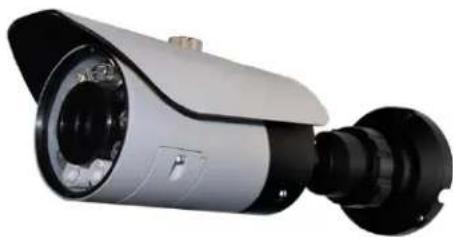
natural_image
Exterior view of a silver and black surveillance camera with a mounted lens (no text or symbols visible)• HD CMOS Progressive Scan
- 720p or 1080p models with real-time (25/30 fps)
• Triple-streaming (H.264/MJPEG)
- Future proof ONVIF 2.1 compliance (1.02 backwards compatible)
- Compatible with popular third party VMS software*
• Power-over-Ethernet (PoE) operation, 14Watt max/12V operation
- Backup options: micro SD card, FTP, NAS, local
• Mobile Apps: iPhone®, iPad®, Android™
• Supports two-way audio
• 3.6mm – 12mm Vari-focal lens
- Screw panel Vari-focal adjustment & service video setup & micro SD
• 90 ft. (25-30m) IR Night Vision, True Day/Night (TDN)
• IP66 Weatherproof and IK7 Vandal Resistant
- Multi-browser support: IE, Firefox, Safari, Chrome
• 3-axis gimbal for versatile mounting
TABLE OF CONTENTS
- Getting Started .... 1
1.1 Default Camera Username, Password, and Ports .....1
1.2 Camera Interior Overview 2.
1.2.1 Functions of Status LED's 2
1.3 ONVIF Compatibility and Included Software Overview .....3
1.3.2 NVMS 3
1.3.3 CD Contents 3
-
Connection....4
-
Camera Installation 5
-
Finding the Camera's IP Address 8
4.1 Finding the Camera's IP Address Using NVMS .....9
4.2 Finding the Camera's IP Address using UPnP in Windows® 7.9
4.3 Finding the Camera's IP Address using Bonjour® in Mac OS® 10
4.4 Finding the Camera IP using the BNC Test Cable....11
- Configuring Remote Connection ..... 12
5.1 Connecting to a DDNS address using NVMS ..... 15
- Web Configuration ..... 17
6.1 Supported Browsers 17
6.2 Chrome, Firefox, and Safari Setup 17
6.3 Internet Explorer® Setup 18
6.4 Web Interface/Live Video Overview .....21
6.4.1 Live VideoMenu 21
6.4.2 Configuring Camera Settings 22
6.5 Device Info 23
6.6 Stream Configuration 24
6.7Device Configuration 25
6.7.1 Local Network 26
6.7.2 Device Port 27
6.7.3 Camera 28
6.7.4 Date & Time 28 6.7.5 QSR 30
6.7.5 USD 3d 6.7.6 Microphone 31
6.7.7 BNC Video Output 32
6.7.8 Language 32
6.8 Alarm Configuration 33
6.8.1 Disk Alarm 33
6.8.2 Motion Alarm 34
6.9 Local Record 36
6.9.1 Record Directory ....36
6.9.2 Record Policy 41
6.10 Privacy Masking 43
6.11 Network Service 44
6.11.1DDNS 44
6.12 Service Center 45
6.12.1 SMTP (Email Alert Setup) 45
6.13 Privilege Manager 46
6.13.1 Group 47
6.13.2 User 48
6.13.3 Unlocking User Accounts 49
6.14 Protocol 50
6.14.1Protocol 50
6.15 Device Restart ....50
6.16 Default Settings 51
6.17 Sensor Configuration 5.1
6.17.1 Image Adjust 52
6.17.2 Shutter Control ....52
6.17.3 Gain Mode....53
6.17.4 Day/Night Mode 53
6.17.5 Auto Iris 54
6.17.6 Gamma 54
The system comes with the following components:
- 1 x Camera
- 1 x Mounting ScrewKit
• 1 x Allen Key - 1 xRJ45 Coupler
- 1 xBNC Test Cable
- 1 x Mounting Template
- 1 x Quick Start Guide
- 1 x Instruction Manual
- 1 x Software/Documentation CD
Mounting Screw Kit:
• 3 x mounting screws (PA4 30mm)
- 3 x drywall anchors

Allen Key

RJ45 Coupler

BNC TestCable
1.1 Default Camera Username, Password, and Ports
Username: admin
Password: admin
Ports: 80 (HTTP), 30001 (Control/Streaming), 8080 (RTMP), 554 (RTSP)
IP Address: DHCP Enabled by Default (Router will automatically assign IP address)
NOTE: Once you have completed the basic setup of the camera, it is recommended to configure a static IP address. This will prevent the camera IP address changing in the event of a power failure. For details, see "6.7.1 Local Network" on page 26.
Getting Started
1.2 Camera Interior Overview
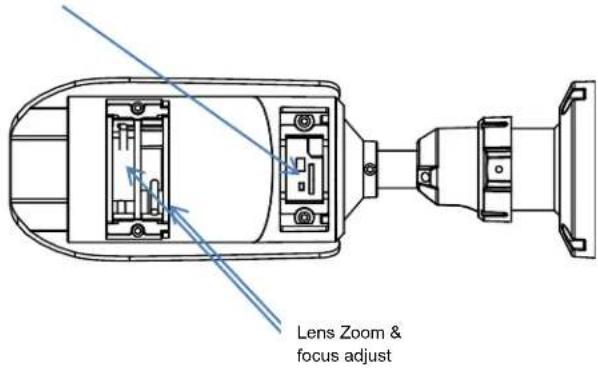
Access panels. Are at underside of the camera body, using the supplied key you open by unlocking the two screws, note that each has a rubber hold so will not fall off. Model with fixed focus lens has no front panel adjustment as if not required.
With Micro sd Card slot*. Camera reset & service video connector.
text_image
Lens Zoom & focus adjust1.2.1 Functions of Status LED's
- No LED status available on this model.
Getting Started
1.3 ONVIF Compatibility and Included Software Overview
This camera is ONVIF v2.1 compliant. It is designed for interoperability with popular VMS's and NVR's*, with backwards compatibility to ONVIF v.1.02. For more information on ONVIF, visit www.onvif.org
NOTE: Provided software is PC compatible only; Mac OS® access to the cameras is available via Safari® browser only.
1.3.1 NVMS
- NVMS is a client-only solution that supports up to 36 IP cameras. NVMS is a free software provided on the CD.
- NVMS supports all the features of the camera. It can access micro SD/SD card recordings and camera setup over a local network.
• NVMSmanual is provided on the CD.
1.3.2 CD Tools
• CD contents Folders
IP Search ; Search find IP Cameras and set IP address and gateway NTP Service Tool ; Time Sync Application: IP devices match one PC system time.
FTPUpdater ; Firmware Update tool
IP Support Help Files ; Website support help documents for common problems. RTSP Tool ; provides RTSP string command f. e.g VLC or Quick-time use SD Driver ; Ext2 driver for Windows XP to read sd Memory card on PC
Onvif Help ; documents on Onvif specifications
Open the NTP service ; Windows XP only enables NTP time to be enabled. Adobe Flash Player ; Flash Video player for Windows IE plugin and Apple Mac OS Adobe AcrobatReader ; Windows and Max OS Acrobat Reader v10
Files: IP_series_bitrate_calculator.htm ; Simple storage calculator for IP devices NVMS Install.exe ; NVR Software installation for PC NVMS_Manual_1.7.pdf ; Guide to use the NVMS Software SNMedia_Player.exe ; File Player for recorded files / backup files from devices / NVMS.
Camera Installation
2. CONNECTION
The camera has the following termination cables:

natural_image
Close-up of four black USB cables with labeled connectors (no text or symbols on the cables themselves)- RJ45 Network Interface: Connect to a router or switch on your network using RJ45 Ethernet cable (Cat5e or better). 100Mhz connection. PoE supported (class 3 PoE switch required).
NOTE: Use the included RJ45 coupler to connect to male end of RJ45 Ethernet cable.

RJ45 Coupler
- Audio Input (RCA): Connect to a self-powered microphone for listen-in audio.
- Audio Output (RCA): Connect to an amplifier or self-powered speaker for intercom/2-way audio.
- DC12V (1A): 12V DC power input terminal. Make sure to follow correct polarity (+/-) marked on the power connector when connecting to power.
- Minimum Power Requirement: 450mA / 5.4W.

Make sure to follow the correct polarity if connecting the camera to DC power. Polarity is marked on the power connector.
Connection
3. CAMERA INSTALLATION
Make sure to follow the correct polarity if connecting the camera to DC power. Polarity is marked on the power connector.
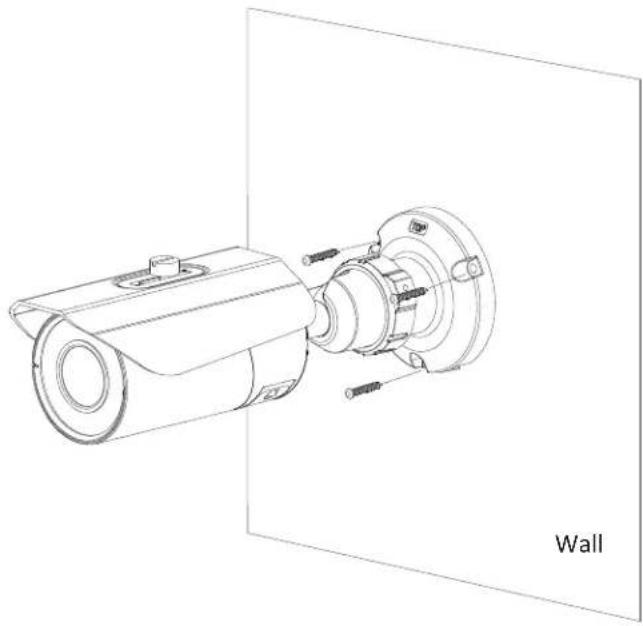
- Use the included drill template to drill holes for mounting Use Supplied wall plugs.

natural_image
Diagram showing a drill bit projecting an object onto a target surface, with no text or symbols present.Finding the Camera's IP Address
- Attached Camera to surface using the supplied screws.
natural_image
Technical line drawing of a mechanical device with mounting bracket and cylindrical housing, labeled 'Wall' (no other text or symbols)Finding the Camera's IP Address
- Connect the cable of power supply.
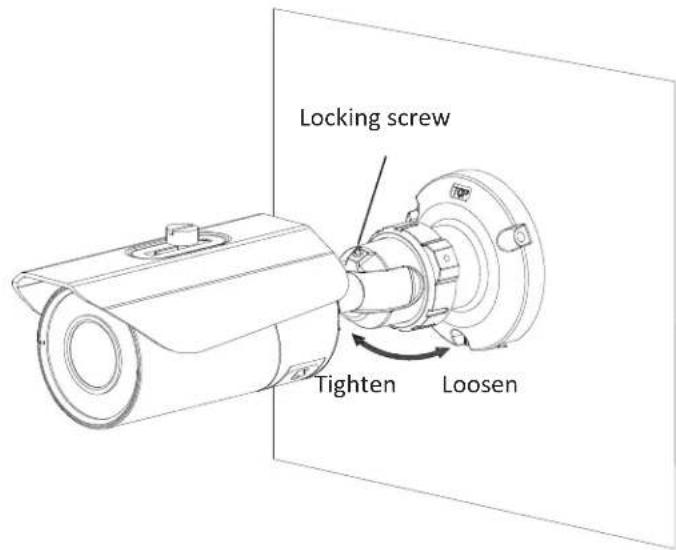
- Loosen the bracket locking ring to adjust the camera position.
- Lock into place, remove underside adjust the focus / zoom.
a. Fixed Lens model has not focus/zoom adjustment.
text_image
Locking screw Tighten LoosenFinding the Camera's IP Address
4. FINDING THE CAMERA'S IP ADDRESS
Use the steps below to find the camera's IP address and connect to the camera over the local area network (LAN) using NVMS, UPnP on Windows® 7, or Bonjour® in Mac OS®.
4.1 Finding the Camera's IP Address Using NVMS
- Install NVMS from the CD. Now Double-click the NVMS icon ( ) on the Desktop. The log in screen appears.
- Under User Name and Password, enter the default NVMS user name (admin) and password (admin). Click Login.

text_image
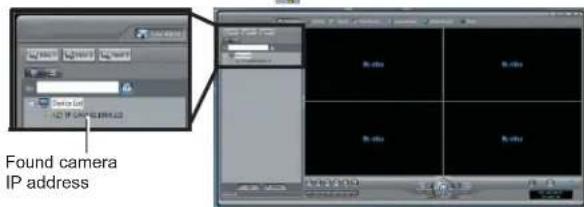
Network Video Master System Local Name: 00000 Language: 00000 Language Style: IP Address: Enter Admin Enter Admin Click Login- NVMS opens and scans the local network for connected cameras. Detected camera IP addresses on the LAN appear in the Device List on the left side of the screen with a icon.
text_image
Found camera IP addressFinding the Camera's IP Address
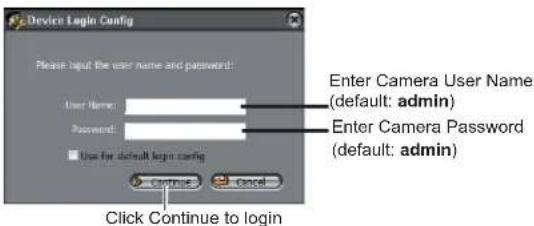
- Click on a camera IP address in Device List to login.
- Under User Name, enter the user name for the camera (default: admin). Under Password, enter the password for the camera (default: admin). Click Continue.
text_image
Device Login Config Please input the user name and password: User Name: Password: ■ Use for default login config Continue Cancel Enter Camera User Name (default: admin) Enter Camera Password (default: admin) Click Continue to login- The camera appears under the camera IP address. Click and drag the camera to the display grid to open it.

text_image
Click and drag the camera to the display grid to open itNOTE: For detailed instructions on using NVMS, see the NVMS manual on the CD.
4.2 Finding the Camera's IP Address using UPnP in Windows® 7
NOTE: To use this method, your router must support UPnP and the camera and computer must be on the same network. UPnPis enabled in the camera by default, and can be enabled/disabled using NVMS (check the NVMS manual for details).
Finding the Camera's IP Address
- Click Start>Computer>Network . The camera's IP address appears under Network Infrastructure.

text_image
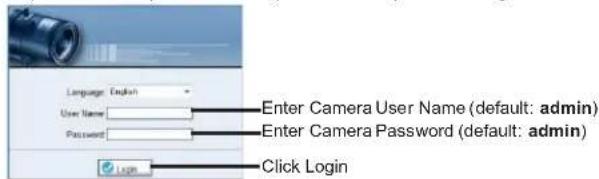
Network Double-click to open the camera- Double-click the camera to open it in your default browser.
- Under User Name and Password, enter the camera's User Name (default: admin) and Password (default: admin) and click Login.
text_image
Language: English User Name: Password: Enter Camera User Name (default: admin) Enter Camera Password (default: admin) Login Click Login4.3 Finding the Camera's IP Address using Bonjour® in Mac OS®
NOTE: To use this method, the camera and computer must be onthe same network. Bonjour® is enabled by default, and can be enabled/disabled using NVMS (check the NVMS manual for details).
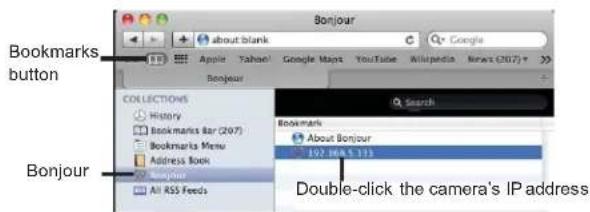
- Open Safari® browser and click the Bookmarks button (回)
Finding the Camera's IP Address
- Click Bonjour. The camera's IP address appears in the Bonjour Devices list.
- Double-click the camera to open it in Safari®.
text_image
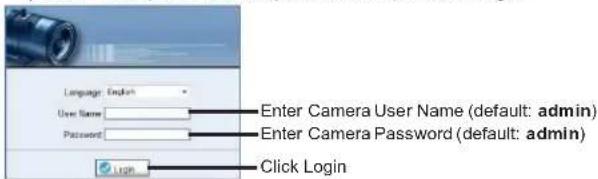
Bookmarks button Bonjour Bonnour about blank Google Apple Yahoo! Google Maps YouTube Wikipedia News (2017) Bonjour COLLECTIONS History Bookmarks Bar (2017) Bookmarks Menu Address Book Bonnour All RSS Feeds Search Bookmark About Bonjour 802.164.5.113 Double-click the camera's IP address- Under User Name and Password, enter the camera's User Name (default: admin) and Password (default: admin) and click Login.
text_image
Language: English Enter Camera User Name (default: admin) User Name Password Enter Camera Password (default: admin) Login Click Login4.4 Finding the Camera IP using the BNC Test Cable
When the BNC test cable is connected to the camera, the IP address is shown on the test monitor. The camera must be connected to power to use the BNC test cable.
NOTE: The default IP address of 192.168.0.120 is shown if the camera cannot obtain an IP address from the router. Check the Ethernet/power connections and router configuration.
Configuring Remote Connection
5. CONFIGURING REMOTE CONNECTION
Follow the steps below to configure your camera for connections over the Internet using a web browser, NVMS, or other VMS software.
Step 1 of 6: Locate the camera's local IP address:
- See "4. Finding the Camera's IP Address" on page 8.
Step 2 of 6: Port Forward your router:
You need to enable port forwarding for the following ports on your router to the camera's local IP address:
- HTTP Port (default: 80)
• Control Port (default: 30001)
NOTE: If you are configuring multiple IP cameras for individual remote access, you must change the ports for each camera. Two cameras cannot use the same port number.
NOTE: Port forwarding theRTSP and RTMP ports is not necessary unless your installation has special requirements.
There are two methods for port forwarding:
- You can manually port forward your router. See yourrouter's user manual for details. An example of a port forwarding screen is shown below.
| Port Range | |||||
| Application | Start | End | Protocol | IP Address | Enable |
| HTTP | 80 to | 80 | Both | 192.168.1. | 100 |
| Control | 30001 to | 30001 | Both | 192.168.1. | 100 |
Configuring Remote Connection
Step 3 of 6: Locate your camera's MACaddress:
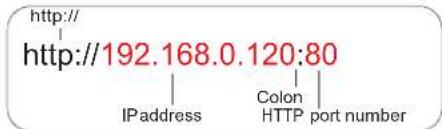
- Open a web browser and enter the camera's IP address in the address bar in the following format:
text_image
http:// http://192.168.0.120:80 IPaddress Colon HTTP port number- Under UserName and Password, enter the camera's User Name (default: admin) and Password (default: admin) and click Login.
- Click Device Info and write down the MAC Address.

text_image
Device Info Device ID: PC17 Device Name: MAC Address: 0b 12.27 FFRC 07 MAC Address Device Type: IP, CM Manufacturer Name: Hardware Version: NTBI_3 Software Version: NT.C_tsc@MT4_364 System Add Channels: Alarm Input(s): Alarm Output(s): Serial Power(s) Note: The device is unique. Please start change unless possible requirement.Step 4 of 6: Register for DDNS:
Register for one of the DDNS services which are currently supported for use with your IP camera. A DDNS account allows you to set up a web site address that points back to your local network. The following outlines how to set up your free DDNS account.
NOTE: Your router must support UPnP to enable DDNS.
NOTE: You may use the same DDNS account for multiple IP cameras on the same LAN.
Configuring Remote Connection
Step 5 of 6: Enable DDNS on the camera:
- Enter the camera's IP address in your web browser. Log in and then click Network Service>DDNS
- Check Enable DDNS.
- Configure the following:
- Provider: Select the ddns service you use..
- Domain Name: Enter the Domain Name you received from the confirmation email you received after you created your DDNS account (e.g. mycamera.dyndns.org).
- UserName: Enter the User Name.
-
Password: Enter the account name Password
-
Click OK to save settings.
Step 6 of 6: Connect to the camera's DDNS address:
- Enter the camera's DDNS address in your web browser in the following format:

text_image
http:// http://mycamera.dyndns.org:80 DDNS address Colon HTTP port number- Under User Name and Password, enter the camera's User Name (default: admin) and Password (default: admin) and click Login.
Once you have logged into your system using yourDDNS address, you can connect to the IP camera from a remote location using a web browser, NVMS.
Configuring Remote Connection
5.1 Connecting to a DDNS address using NVMS
NOTE: Complete all the steps above before performing the following method.
- Open NVMS and click Device Manager>Video Device Manager.
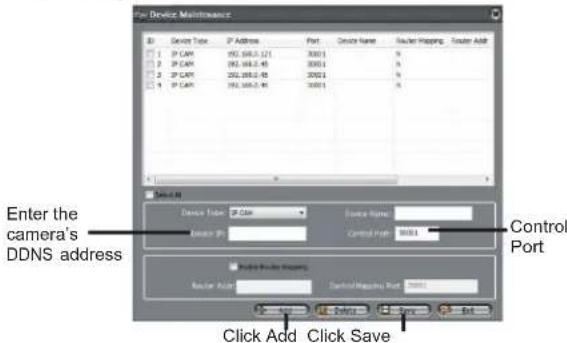
- Click Manager. The Device Maintenance window opens.
text_image
Enter the camera's DDNS address Device Type: IP Cam Device Name: 30001 Router Mapping: 30001 Control Port Enter the camera's DDNS address Device Path: Device Add: Control Mapping Port: Click Add Click Save Cancel Add Cancel Save- Under Device IP, enter the Domain Name from the confirmation email. For example, enter mycamera.dyndns.org.
- Under Control Port, enter the camera's control port (default: 30001).
- (Optional) Under Device Name, enter a name for the camera.
- Click Add to add the camera to the Device List.
- Click Save to save changes. Click OK.
Configuring Remote Connection
- Close Device Maintenance and Device Manager, and return to the Live Video screen. The newly added camera will appear in Device List.
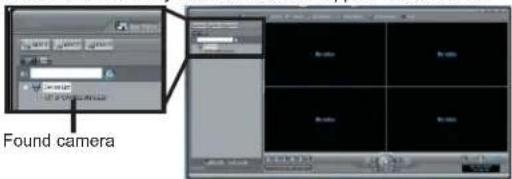
text_image
Found cameraNOTE: A 📄 icon is shown for all cameras outside of the LAN. This does not affect your ability to connect to the camera remotely.
- Click on the camera in Device List to login. Enter the User Name (default: admin) and Password (default: admin) and then click Continue.

text_image
Device Login Config Please filter the user name and password: User Name: Password: ■ No for default login config. Enter Camera User Name (default: admin) Enter Camera Password (default: admin) Click Continue- Click and drag the camera to a display grid screen to open it.

text_image
Click and drag the camera to the display grid to open itNOTE: For detailed instructions on using NVMS, see the NVMS manual on the CD.
Web Configuration
The camera includes a built-in web interface that can be accessed using a web browser.
6.1 Supported Browsers
- GoogleChrome, Mozilla Firefox, and Apple Safari® (via Adobe Flash Player)
- Microsoft Internet Explorer® 7.0 or later, 32-bit version (via ActiveX®)
6.2 Chrome, Firefox, and Safari Setup
- Connect the camera to your local network and find the camera's IP address. See "4. Finding the Camera's IP Address" on page 9.
- Open your browser and enter the camera's IP address in the address bar in the following format:
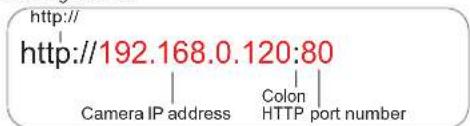
text_image
http:// http://192.168.0.120:80 Camera IP address Colon HTTP port numberNOTE: You can also connect to the camera using a DDNS address (DDNS setup and port forwarding required; see "5. Configuring Remote Connection" on page 12 for details).
- Under User Name and Password, enter the camera's User Name (default: admin) and Password (default: admin) and click Login.

text_image
Language: English User Name: Password: Enter Camera User Name (default: admin) Enter Camera Password (default: admin) Click LoginWeb Configuration
- The main screen for the camera web interface opens. From here you can view and configure the camera.
NOTE: If you do not see video from the camera, make sure your computer has the latest version of Adobe Flash Player installed (visit http://www.adobe.com/ to download the latest version). After installing Flash Player, restart your browser and reconnect to the camera.
6.3 Internet Explorer® Setup
Step 1 of 2: Change Internet Explorer security settings for ActiveX®:
- Open Internet Explorer and open the Security tab.
- Internet Explorer 8: Click Tools > Internet Options and select the Security tab.
- Internet Explorer 9: Click > Internet Options and select the Security tab.
- Click Custom Level.
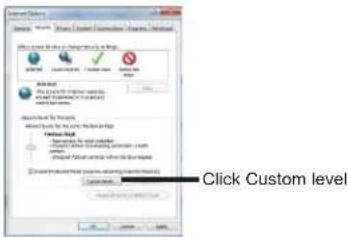
text_image
Select Custom Level Click Custom levelWeb Configuration
- Under Download unsigned ActiveX controls, click Prompt (recommended) or Enable.
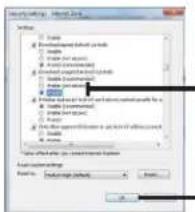
text_image
Security Settings - Internet 24.0 Settings □ Default □ Downloaded default periods □ Default □ Update or update □ Update (unconfirmed) □ Update (unconfirmed) □ Update (unconfirmed) □ Update (unconfirmed) □ Update (unconfirmed) □ Update (unconfirmed) □ Update (unconfirmed) □ Update (unconfirmed) □ Update (unconfirmed) □ Update (unconfirmed) □ Update (unconfirmed) □ Update (unconfirmed) □ Update (unconfirmed) □ Update (unconfirmed) □ Update (unconfirmed) □ Update (unconfirmed) □ Update (unconfirmed) □ Update (Unconfirmed) □ Update (Unconfirmed) □ Update (Unconfirmed) □ Update (Unconfirmed) □ Update (Unconfirmed) □ Update (Unconfirmed) □ Update (Unconfirmed) □ Update (Unconfirmed) □ Update (Unconfirmed) □ Update (Unconfirmed) □ Update (Unconfirmed) □ Update (Unconfirmed) □ Update (Unconfirmed) □ Update (Unconfirmed) □ Update (Unconfirmed) □ Update (Unconfirmed) □ Update (Unconfirmed) □Update (Unconfirmed) □Update (Unconfirmed) □Update (Unconfirmed) □Update (Unconfirmed) □Update (Unconfirmed) □Update (Unconfirmed) □Update (Unconfirmed) □Update (Unconfirmed) □Update (Unconfirmed) □Update (Unconfirmed) □Update (Unconfirmed) □Update (Unconfirmed) □Update (Unconfirmed) □Update (Unconfirmed) □Update (Unconfirmed) □Update (Unconfirmed) □Update (Unconfirmed)Select Enable or Prompt under Download unsigned ActiveX controls
- Click OK. Click OK again to save changes.
Step 2 of 2: Log into camera:
- Connect the camera to your local network and find the camera's IP address. See "4. Finding the Camera's IP Address" on page 9.
- Enter the camera's IP address in the address bar in the following format:
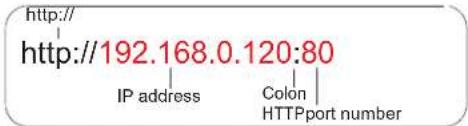
text_image
http:// http://192.168.0.120:80 IP address Colon HTTPport numberNOTE: You can also connect to the camera using a DDNS address (DDNS setup and port forwarding required; see "5. Configuring Remote Connection" on page 12 for details).
- Under User Name and Password, enter the camera's User Name (default: admin) and Password (default: admin) and click Login.
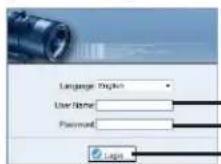
Enter Camera User Name (default: admin) Enter Camera Password (default: admin) Click Login
Web Configuration
- If your computer has Flash Player installed, the main screen for the camera web interface opens. From here you can view and configure the camera.
NOTE: The ActiveX plug-in may provide smoother video performance than Flash Player. To use ActiveX, click the message above the video window. Then click inside the video area, selectInstall this Add-on for allusers on this computer, and follow the prompts.

text_image
Install ActiveX plug-inNOTE: If your computer does not have Flash Player installed, you will be prompted to select if you would like touseActiv eX or FlashPlayer oconnect to the camera:
- Click to play live video with ActiveX control to reducelatency (recommended): Uses an ActiveX plug-in to connect to the camera. To install the plug-in, click on the video area, and select Install thisAdd-on for all users on this computer, and follow the prompts.
- Click to download the latestversion of Flash Player to play live video: Opens a link to download Flash Player from Adobe's website. After completing the installation, restart your browser and reconnect to the camera.

text_image
Can't play live video • Click to download the latest version of Flash Player to play live video! • Click to play live video with ActiveX control to reduce latency! Select ActiveX or Flash PlayerWeb Configuration
6.4 Web Interface/Live Video Overview
Camera configuration menus
Click and drag to zoom in. Right-click and select ZoomOut to zoom out.
Double-click inside window for full-screen


text_image
Screenshot of a photo editing software interface showing a room scene with a camera and tool panels, including Chinese labels and UI elements.Select Stream
TIP: Select stream2 for better performance for remote connections. Stream2 has a lower resolution than stream1.
The Live video page appears when you log into the camera. Live video requires an ActiveX® plug-in or Adobe Flash Player.
6.4.1 Live VideoMenu
You can right-click on the live video area to bring up the Live Video Menu.

text_image
Hot Styles Extra Noise Noise Sharing Noise Audio Audio/Video Balance... Audio Settings... Audio Group Audio/Video (RGB)Right-click on the video area to open the LiveVideo Menu
Web Configuration
The Live Video Menu contains the following options:
- Full Screen: Open the video in full screen. Press ESC to exit full screen.
- Sensor Config: Configure the camera sensor settings. See "6.17 Sensor Configuration" on page 51.
- ZoomIn: Zoom in one level.
- ZoomOut: Zoom out one level.
- Restore Panorama: Zoom out all the way.
6.4.2 Configuring Camera Settings
- Click the options on the left to configure camera settings. Setting options are detailed in the remainder of this section.
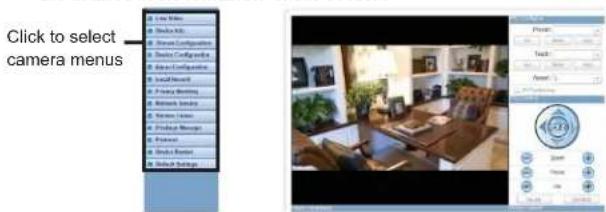
text_image
Click to select camera menusTIP: Some sub-menus have a Reset button. This button will reset the sub-menu options to factory defaults. You then have to click OK to save changes.
Web Configuration
6.5 Device Info
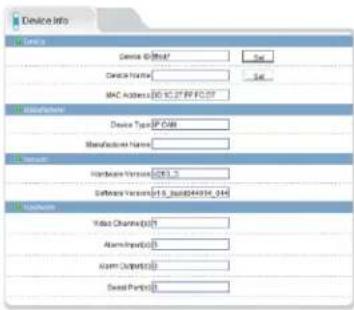
text_image
Device Info Device Device Name: MAC Address: 05.10.27 FF PC 07 Manufacturer Device Type: SP-Cable Manufacturer Name: Hardware Version: 2003_3 Software Version: 01.10.27 (4934_014) Hardware Video Channels: 07 Alarm Input: 03 Alarm Output: 03 Sweet Period: 03Note: The device is required. Please not change or save special requirement.
The Device Info page shows information about your IP camera, such as the Device Name (which appears in the Device List in NVMS), firmware version, MAC address, and camera inputs and outputs. You can also configure the Device Name for your camera.
ATTENTION: The device ID is unique. Do not change it unless your installation has special requirements.
To configure the Device Name:
- Click Device Info
- Under Device Name, enter the desired device name and then click Set.
Web Configuration
6.6 Stream Configuration

text_image
Stream Configuration Compoint 1 Stream ID 1 Name: Stream1 VideoEncoder Type: HDMI Start Video AudioEncoder Type: DVD User Radioency: MHz/4MHz Home Connection: 22 Image encoding: 0 Bit Radius (Size): 500 Width: 200.000mm Quality: 7OK Reset
The Stream Configuration page allows you to configure the camera's video streams. The camera supports three different video streams. This allows you to have a high quality recording stream (stream1), a lower quality stream (stream2) to preserve bandwidth for remote connections, and an MJPEG stream for applications requiring MJPEG.
To configure video streaming settings:
- Click Stream Configuration. Under Stream ID, select the stream you would like to configure.
-
Configure the following:
-
Video Encode Type: Select the Video Encoding type for the stream. Stream1 and stream2 can be configured for H.264 High Profile, H.264 Main Profile, or H.264 Base Profile. Stream3 supports MJPEG only.
-Audio Encode Type: Select the Audio Encoding type for the stream: G711_ALAW, G711_ULAW, or RAW_PCM. - Resolution: Select the resolution for the stream. Stream1 and stream3 can be set to 1920x1080 or 640x360. Stream2 can only be set to 640x360. Stream3 can only be set to 1920x1080.
Web Configuration
- Frame Rate: Select the frame rate for the stream up to maximum of 30FPS for stream1 or stream2 or 12FPS for stream3.
NOTE: Frame rate may be automatically adjusted to account for bandwidth limitations.
- I Frame interval: Select the interval for I frames: 1, 2, or 3. The default value of 2 should be used unless there are special requirements. The I Frame interval does not apply to stream3.
- Bit Rate: For stream1 or stream2, select CBR (Constant Bit Rate) or VBR (Variable BitRate). Enter the desired bit rate below in kbps. Stream3 only supports VBR.
• Quality: Select the video quality between 1 (lowest) and 9 (highest).
TIP: A quality of 7 provides a good picture. It is not recommended to set a high quality value with a small VBR bit rate.
- Click OK to apply changes.
6.7 Device Configuration
Device Configuration contains the following sub-menus:
- Local Network
- Device Port
- Camera
- Date & Time
- OSD
- Microphone
• BNC Video Output - Language
• Multicast (Not supported)
• Dome PTZ (Not supported)
Web Configuration
6.7.1 Local Network
text_image
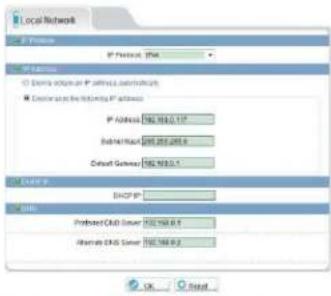
Local Network IP Address: IP# IP Address: □ Demo instance on IP address: automatic ■ Document or the following IP address: IP Address: 196.785.0.17 Subnet mask: 205.205.0 Default gateway: 196.785.0.1 DNS IP PRODUC DNS Server: 196.785.0.1 Alternate DNS Server: 196.785.0.1 OK CancelThe Local Network page shows the camera's current IP address and network parameters if DHCP is enabled. It also allows you to set a static IP address for the camera (see below), set the networking parameters, and to select IPv4 or IPv6.
NOTE: DHCP is disabled bydefault. When DHCP is enabled, the IP address is shown under DHCP IP. Use the IPScan tool on CD to configure a static IP address. This will prevent the camera IP address changing in the event of a power failure.
To configure the camera's networking parameters:
-
Click Device Configuration>Local Network
-
Under IP Protocol, selectIPv4 or IPv6. If you would like to use IPv6, make sure it is supported on your network. You may need to contact your network administrator or ISP for details.
-
SelectDevice obtain an IP address automatically to use DHCP or Device use the following IP address to set a static IP address for the camera. If you are using a static IP address, configure the following:
-
IP Address: Enter the IP address you would like to assign to the camera. Make sure the IP address is available on your network.
- Subnet Mask: Enter the subnet mask.
- Preferred DNS Server/Alternate DNS Server: Enter desired DNS servers.
Web Configuration
- Click OK to save changes. The camera will restart with the new IP address.
6.7.2 Device Port

text_image
Device Port Control Port (000) Http Port (0) RTSP Port (004) RTSP Port (000)The Device Port page (Device Configuration>Device Port) allows you to configure the camera's port configuration. The camera has the following ports:
• Control port: The default is 30001. Enables video streaming.
- HTTP Port: The default is 80. Enables web access. Please note that if the HTTP is port is anything other than 80, you must enter http:// before the camera's IP address and colon (:) and the HTTP port after the IP address when connecting using an Internet browser (e.g. if the HTTP port is 85, enter http://192.168.x.x:85).
- RTSP Port: Default is 554. Only used for special applications requiring RTSP streaming, such as VLC player or quicktime movie.
- RTMP Port: Default is 8080. Only used for special applications.
NOTE: If you are configuring multiple IP cameras for individual remote access (without an NVR or server), you must change all the ports for each camera. Two cameras cannot use the same port number.
To change camera ports:
- Configure the camera ports as required and then click OK.
- Click Device Configuration>Device Port.
Web Configuration
6.7.3 Camera

text_image
Camera Camera 1 Channel Name: Imagelet IP Video System: Audio Destination Video System: 100ms Source Restoration: 1229-15000 EditThe Camera page (Device Configuration>Camera) allows you to configure the Channel Name, which appears on the camera OSD and the video system frequency.
To change the Channel Name:
- Configure the Channel Name as needed and then click the Set button next to Channel Name.
To change the video system frequency:
- Select the desired setting under Video System and then click the Set button next to Source Resolution.
6.7.4 Date & Time
text_image
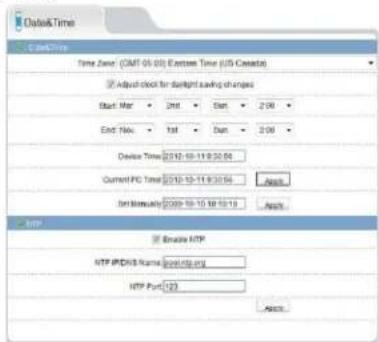
Data&Time Customs Time Zero: (GMT-05-03) Extension Time (US Canada) Adjust Clock for default saving changes Start: Mar End: No. Device Time: 2010-10-11 9:30:04 Current PC Time: 2010-10-11 9:30:04 On January 2009-10-10 10:10:18 Apply Apply Type Browse MTP MTP IP/DBS Name: Spooling.org MTP Port: 123 ApplyThe Date & Time page allows you to configure the camera's date and time.
Web Configuration
You can set the camera's date and time the following ways:
• Using an NTP server (recommended)
- Using your computer's system time
- Manually

The camera is configured to use NTP by default, but you must set the time zone and Daylight Savings Time settings to ensure accurate time. After a power failure, the camera is configured to connect to an NTP server and automatically update the time when power is restored. If using another method to set the camera clock, time must be manually updated after a power failure.
To set the camera's date and time using an NTP server:
- Click Device Configuration>Date & Time.
- Under Time Zone, select your time zone.
- If your region observes daylight savings time, check Adjust clock for daylight saving changes.
- Under Start and End, select the start and end times for daylight savings.
- Next to Current PC Time, click Apply.
To sync the camera's date and time to your computer's system time:
- Click Device Configuration>Date & Time.
- Un-check Enable NTP and click Apply at the bottom of the screen.
- Under Time Zone, select your time zone.
- If your region observes daylight savings time, check Adjust clock for daylight saving changes.
- Under Start and End, select the start and end times for daylight savings.
- Click Apply next to Current Computer Time. The Current Device Time updates.
To set the camera's date and time manually:
- Click Device Configuration>Date & Time.
- Under Time Zone, select your time zone.
text_image
OSD Camera 1 Unit Device Name Row:0 Column:0 Channel ID Row:0 Column:0 Channel Name Row:0 Column:0 Time Row:0 Column:0 Time Format: YYYY-MM-DD hh:mm as ever Custom Row:0 Column:0 Custom OSD
Web Configuration
- Un-check Enable NTP and click Apply at the bottom of the screen.
- If your region observes daylight savings time, check Adjust clock for daylight saving changes.
- Under Start and End, select the start and end times for daylight savings.
- Click Set Manually, and use the on-screen calendar to set the time and date.
- Click Apply. The camera updates to the newly entered time.
6.7.5 OSD
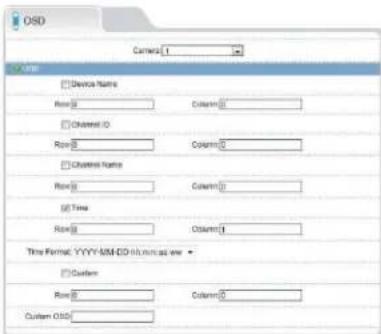
The OSD page allows you to configure the camera's on-screen display text.
To configure the camera OSD:
- Click Device Configuration>OSD
- Check the following options to enable OSD text:
• Device Name: Display the Device Name.
- Channel ID: Show the channel ID number.
- Channel Name: Show the name of the channel set in the Camera menu.
- Time: Show the date and time on the OSD. Select the desired date and time format under Time Format.
Web Configuration
- Custom: Create a custom OSD message. Enter the custom OSD text under Custom OSD.

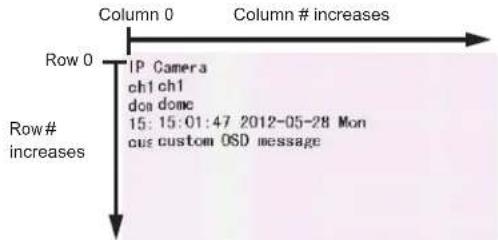
- Enter the desired Row and Column for enabled OSD messages. Text on row 0 is shown at the top of the screen, and moves down as the row number increases. Text on column 0 is shown on the left side of the screen, and moves right as the column number increases.
text_image
Column 0 Column # increases Row 0 IP Camera ch1 ch1 do# dome 15:15:01:47 2012-05-28 Mon our custom OSD message Row# increases- ClickOK to update the camera OSD.
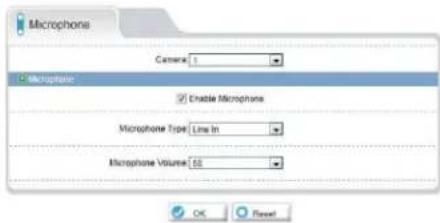
6.7.6 Microphone
text_image
Microphones Camera 1 Microplane Enable Microphone Microphone Type: Low-In Microphone Volume: 50 OK ResetWeb Configuration
Configure microphone settings for listen-in audio. Self-powered microphone required (not included).
To configure microphone settings:
- Click Device Configuration>Microphone.
- Check Enable Microphone to enable listen-in audio or un-check to disable.
- Under Microphone Volume, select the volume for the microphone between 1\~100.
- Click OK to save changes.
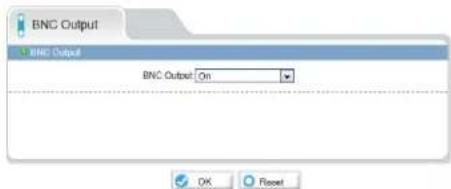
6.7.7 BNC Video Output
text_image
BNC Output BNC Output BNC Output: On OK ResetUnder BNC Output (Device Configuration>BNC Output), select On to enable analog output or Off to disable and click OK.
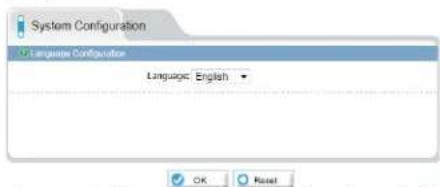
6.7.8 Language
text_image
System Configuration Language Configuration Language: English ▼ OK ResetChange the language for the camera OSD display (e.g. time and date display) and email alarms. Supported languages are English, Polish, Russian, and Chinese.
Web Configuration
To change the language for the OSD and email alarms:
- Click Device Configuration>Language
- Under Language, select the desired language then click OK to save changes.
6.8 Alarm Configuration
Alarm Configuration contains the following sub-menus:
- Disk Alarm
- Motion Alarm
- Alarm I/O (Not supported)
• I/O Alarm Linkage (Not supported)
• Alarm Setting (Not supported)
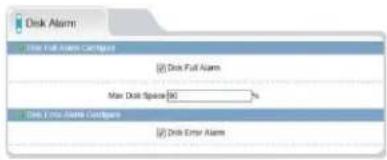
6.8.1 Disk Alarm
text_image
Disk Alarm Disk Full Alarm Configur Disk Full Alarm Max Disk Space [6] % Disk Error Alarm Disk Error AlarmOK Reset
The Disk Alarm page allows you to configure alarms if there is an issue with the recording disk. You can configure a Disk Full Alarm or a Disk Error Alarm. A Disk Full Alarm triggers an alarm when the recording disk is full or exceeds a certain percentage. A Disk Error Alarm triggers an alarm if there is an error accessing or writing to the recording disk.
Alarms can be viewed using the Alarm Manager in NVMS (see the NVMS manual on the CD for details).
To configure Disk Alarms:
- Click Alarm Configuration>Disk Alarm
- Check Disk Full Alarm to enable Disk Full Alarms.
Web Configuration
- Under Max Disk Space, enter the disk full percentage that will trigger an alarm (e.g. a Disk Full Alarm will be triggered when the recording disk is 80% full).
- Check Disk Error Alarm to enable Disk Error Alarms.
- Click OK.
6.8.2 Motion Alarm
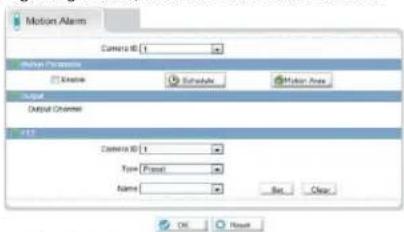
The Motion alarm page allows you to configure camera motion detection alarm settings. You must enable motion detection to use local (e.g. microSD/SD card or FTP recording) motion detection recording. For instructions on setting up local recording, see "6.9 Local Record" on page 36. For details on motion recording using NVMS, see the NVMS manual on CD.
text_image
Motion Alarm Camera ID: 1 Output Channels Knee Saddle Motion Area Output Channel Camera ID: 1 Type: Front Name: Set... Clear OK ResetTo configure motion detection:
- Click Alarm Configuration>Motion Alarm.
- Check Enable under Motion Parameter.
Web Configuration
- Click Schedule to configure a motion detection schedule. The Schedule Time Setting menu opens.
NOTE: If the Schedule Time Setting does not open, disable any popup blockers.
- Configure the weekly schedule. The schedule is divided into 3 periods, and motion detection will be enabled in all times during all 3 periods.
-
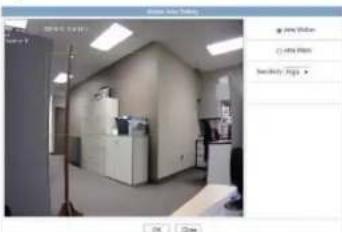
Click Motion Area, and configure up to 8 motion detection areas:
-
Select AreaMotion or Area Mask to configure motion detection areas.
- Area Motion allows you to select areas where motion detection is enabled.
- Area Mask enable the entire image for motion detection, and allows you to select areas to disable motion detection.
-
Right-click to delete the last created area.
-
Under Sensitivity, select the sensitivity for motion detection: Low, Medium, or High.
natural_image
Interior view of an office or service room with desks, chairs, and a lamp (no visible text or symbols)- Click OK to save your settings.
Web Configuration
6.9 Local Record
Local Record contains the following sub-menus:
- Record Policy
- Record Directory
6.9.1 Record Directory
text_image
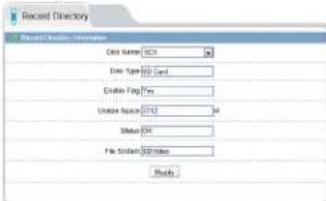
Record Directory Record/Session Information Cell Name: 5073 Type: 12 Card Origin: Type Univariate: 0142 Status: 001 File System: 0142 Balance:Record Directory allows you to configure the microSD/SD memory card, NAS, and FTP storage locations. It also allows you format the microSD/SD card.
IMPORTANT: You must format the microSD/SD card using the camera before you can record to it.
To format themicroSD/SD card to enable recording:
NOTE: Formatting the microSD/SD card erases all data on the card.
- Click Local Record>Record Directory.
- Make sure to disable all recording types in Record Policy before formatting the microSD/SDcard. See "6.9.2 Record Policy" on page41.
- Under Disk Name, select SD1.
Web Configuration
- Click Modify. The Record Disk Path menu opens.

text_image
Record Directory Record Direction Information Disk Name SD1 Disk Type SD Cloud Enable Flag Tires Unable Space G712 M Status CLK File System BDOvideo Modify... SelectSD1 Click Modify- Check Enable.

text_image
PostScript Style Name: Edit Name: Value: File System: OK Close Check Enable Click Format-
Under File System, select SDVideo (recommended) or Ext3.
-
Click Format. A window will appear to show the status of the formatting. Wait for the formatting to complete and then click OK.
NOTE: If the Record Disk Path menu does not open or formatting does not occur, disable any popup blockers.
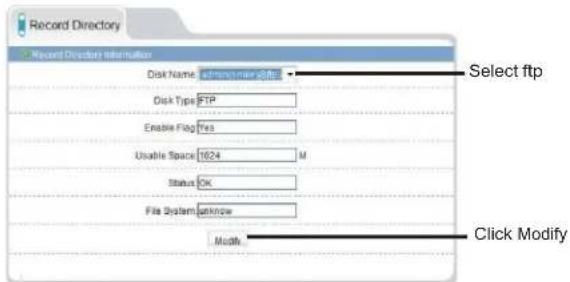
To configure FTP storage location:
- Click Local Record>Record Directory.
Web Configuration
- Under Disk Name, select ftp.
text_image
Record Directory Record Director Information Disk Name: diskname@FTP Disk Type FTP Enable Flag Yes Usable Space 1624 M Status OK File System unknown Modify... Select ftp Click Modify-
Click Modify. The Record Disk Path opens.
-
Check Enable.
-
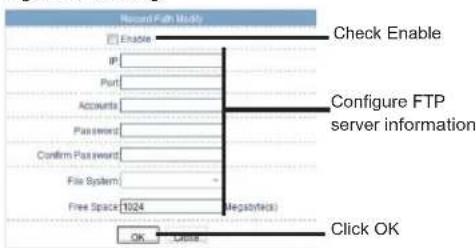
Configure the following:
text_image
Record Fish Modio Enable Check Enable IP Port Accounts Password Confirm Password File System Free Space 1024 Regulatory Configure FTP server information OK Cancel Click OK• IP: Enter the FTP server address.
• Port: Enter the FTP port number.
• Accounts: Enter the FTP account user name.
- Password/ Confirm Password: Enter the FTP password.
- Free Space: Enter the amount of space (in MB) you would like to make available on the FTP server for recording.
Web Configuration
6. Click OK.
- Set up recording using the Record Policy sub-menu (see "6.9.1 Record Directory" on page 36). To access your recordings, use NVMS or manually access your FTP server.
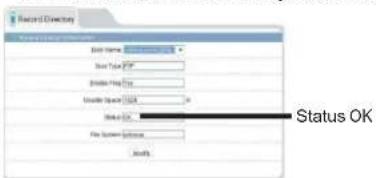
NOTE: On theRecord Directory page, Status will beOK when FTP is selected if FTP is accessible and all settings have been entered correctly.
text_image
Record Directory Data Name: Size Type: 250 Enable Size Unstable Size: 100% Status: OK File System Options: ModifyTo configure a NAS storage location:
- Click Local Record>Record Directory.
- Under Disk Name, select //

text_image
Record Directory Record Folder information Disk Name: 123000000000000 Disk Type: FTP Enable Flag: Yes Usable Space: 1024s Status: OK File System: ###wse Modify... Select// Click Modify- Click Modify. The Record Disk Path menu opens.
Web Configuration
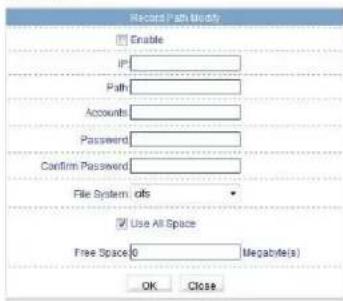
- Configure the following:
text_image
Record Path Width Enable IP Path Accounts Password Confirm Password File System. offs Use All Space Free Space 0 Megabri(s) OK Close- IP: Enter the IP address of the NAS.
- Path: Enter the NAS folder where video files will besaved. NAS folder must be located directly under the root folder of the NAS (e.g. /public).
• Accounts: Enter the account user name for the NAS. - Password/Confirm Password: Enter the account password for the NAS.
- File System: Enter the NAS file system (cifs or nfs).
-
Use All Space: Check to enable the camera to record until the NAS is full. Uncheck to limit the amount of space the camera can record on and enter the amount of space (in MB) available to the camera under Free Space.
-
Click OK.
Web Configuration
- Set up recording using the Record Policy sub-menu (see "6.9.1 Record Directory" on page 36). To access your recordings, use NVMS or manually access your NAS device.
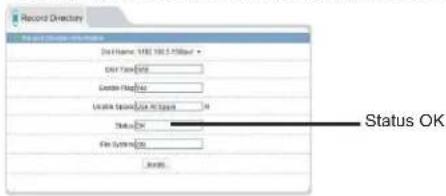
NOTE: On the Record Directory page, Status will be OK when NAS is selected if NAS is accessible and all settings have been entered correctly.
text_image
Record Directory File Edit View Insert Drive Name: VBE1 100.5.738View Drive Type: None Gate Mode: Useable Toxcode to Optimize Status: No File System: Name: Status OK6.9.2 Record Policy
text_image
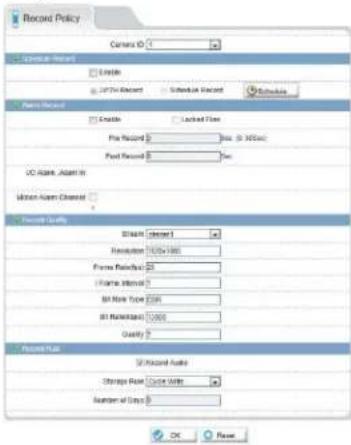
Record Policy Camera ID: 1 Symbolic Record Enable STP/Tr Record Subtotal Record Subtotal Record Points Record Enable Locked Path Pre Record 2 Base (0.95sec) Post Record 3 Base LC Atom, Atom in Motion Atom Channel Record Security Stream Cluster 1 Resolution 1000x1000 Frame Radius 25 Frame Interval 3 Bit Note Type 2284 Bit Radius 1000 Quality 2 Record Path ST Record Audio Storage Rate Circle Rate Number of Steps 0 OK RemoveWeb Configuration
The Record Policy menu allows you to set the microSD/SD memory card, NAS, and FTP recording parameters. Once configured, the device can record video directly to a microSD/SD card, NAS, and FTP.
To enable recording to microSD/NAS/FTP:
-
Click Local Record>Record Policy.
-
Configure recording storage locations in the Record Directory sub-menu. See "6.9.1 Record Directory" on page 36.
NOTE: The camera will simultaneously record to all storage locations that have been enabled in Record Directory.
- To enable scheduled or continuous recording, check Enable under Schedule Record. Select 7*24 H Record to record video continuously at all times, or, select Schedule Record to create a schedule for recording.
- If you select Schedule Record, click Schedule and configure recording times. The schedule is divided into 3 periods, and the camera will record during all selected times in all 3 periods. Click OK when finished configuring the recording schedule.
-
To enable Motion Alarm Recording, check Enable under Alarm Record. Configure Pre-recording and Post-recording times. Check Motion Alarm, Channel.
-
Under Stream, select the stream to use for recording. Stream1 is recommended if you want to record high quality video, stream2 is recommended if you want to savebandwidth or storage space.
-
Check Record Audio to enable audio recording.
-
Under Storage Rule, select Cycle Write to enable the camera to overwrite the oldest recorded data once the available space in the storage location is filled. Or, select Save Days to save video for a set
Web Configuration
number of days and enter the Number of Days desired. Note that you must have sufficient storagespace to save the number of days entered.
- Click OK to save changes.
NOTE: To view video from the SD/microSD card, FTP, or NAS, use NVMS's playback features, see the NVMS manual on the CD for details. You can access video saved to FTP or NAS by manually accessing your FTP server or NAS device.
6.10 Privacy Masking
text_image
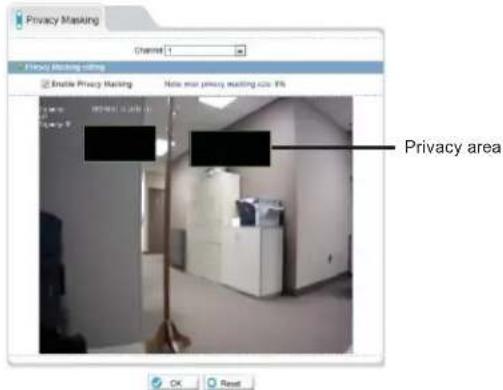
Privacy Masking Channel 1 Enable Privacy Masking Note our privacy masking acc: 9% Privacy area OK ResetThe Privacy Masking menu allows you to create up to 5 privacy areas that will not appear in recordings. You can cover up to 8% of the total image area.
To configure privacy areas:
1. Click Privacy Masking.
2. Check Enable PrivacyMasking.
3. Click and drag inside the video area to configure privacy areas. Privacy areas will be shown as green rectangles. Right-click to delete the last created area.
Web Configuration
- Click OK. An error message appears if the masks configured exceed 8% of the total image area.
6.11 Network Service
Network Service contains the following sub-menus:
• DDNS
- PPPoE (Not supported)
6.11.1 DDNS
text_image
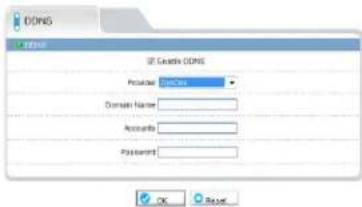
DOSI OSI DOSI DOSI Provider: DOSI Domain Name: Accounts: Password: OK ResetThe DDNS sub-menu allows you to configure DDNS settings. Before configuring DDNS settings, you must register the camera for a free DDNS account (see "5. Configuring Remote Connection" on page 12).
To configure DDNS settings:
- Click Network Service>DDNS.
- Check EnableDDNS
-
Configure the following:
-
Provider: Select DunDNS or 3322 ddns services as required.
- Domain Name: Enter the Domain Name for your registered account with either service. This forms part of the prefix name on the domain.
NOTE: Connect to your camera using a web browser by entering http://, the Domain Name, colon, and then the HTTP port. For example, if the Domain Name is mycamera.dyndns.org, use the address http://mycamera.dyndns.org:80.
- UserName: Enter your User Name you registered as.
Web Configuration
- Password: Enter the Password you have set on the account.
- Click OK to save settings.
6.12 Service Center
Service Center contains the following sub-menus:
- SMTP
• Alarm Center (not supported currently)
6.12.1 SMTP (Email Alert Setup)
text_image
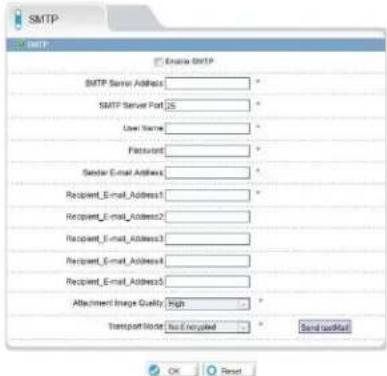
SMTP SMTP Server Address: SMTP Server Port: 25 User Name: Password: Sender E-mail Address: Recipient_Email_Address1: Recipient_Email_Address2: Recipient_Email_Address3: Recipient_Email_Address4: Recipient_Email_Address5: Attachment Image Quality: High Transport Mode: No E-eroyipped Send to email OK ResetThe SMTP sub-menu allows you to configure email alerts when motion alarms occur. Email alerts will include a jpg snapshot attachment.
Before setting up email alerts you must configure the following:
- Motion alarms must be enabled before the camera will send email alerts. See "6.8.2 Motion Alarm" on page 34.
- A static IP address must be configured for the camera and DNS servers must be entered. See "6.7.1 Local Network" on page 26.
Web Configuration
To enable email alerts:
- Click Service Center>SMTP.
- Check Enable SMTP.
-
Configure the following:
-
SMTP ServerAddress: Enter the address for your SMTP server.
- SMTP Server Port: Enter your server's SMTP port number.
- User Name: Enter the SMTP account user name.
- Password: Enter the SMTP account password.
- Sender E-mailAddress: Enter the email address that will be used to send email alerts.
- Recipient E-mail Address 1\~5: Enter up to 5 email addresses that will receive email alerts.
- Attachment Image Quality: Select the quality of the image attachments: High, Mid, or Low.
-
Transport Mode: Select the encryption type used by the server (SSL or STARTTLS) or select Noencrypted if your server does not use encryption.
-
Click OK to save your settings. Click Send testmail to send a test email alert.
6.13 Privilege Manager
Privilege Manager allows you to configure user accounts and user groups.
Privilege Manager contains the following sub-menus:
- Group
- User
Web Configuration
6.13.1 Group

text_image
Group Group Administrators Add Modify Delete Privilege Manage ✓ Live Video ✓ Network Configure ✓ RISMS Configure ✓ Update Configure ✓ NTP Configure ✓ PPFEE Configure ✓ DONS Configure ✓ Alarm Configure ✓ Privilege: Alarm Control ✓ Camera Configure ✓ Local Record ✓ File Operate ✓ Device Restart ✓ Disk Configure ✓ Modify Device Parameter ✓ Audio Configure ✓ Disk Format ✓ Record Policy ✓ Register Configure ✓ CSD Configure ✓ Device Port ✓ Reader Mapping ✓ FTP Configure ✓ SMTP Configure ✓ Default Settings ✓ Stream Configure ✓ Cash Register ✓ Privacy Masking ✓ Select All ✓ OK ResetThe Group page (Privilege>Group) allows you to manage permissions for user groups. Users obtain permissions from their group. The Administrators group contains all permissions and cannot be deleted or edited.
To add a user group:
- Click Add. The Add Group menu appears.
NOTE: If the Add Group menu does not appear, disable any popup blockers.
- Enter a name for the user group and click OK.
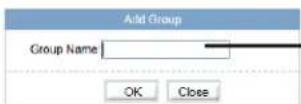
Enter a group *name and click OK
- Under Group, select the new group.
- Check the permissions you would like to apply to this user group. You can check or un-check Select All to select all or no permissions.
- Click OK to save your new user group.
To modify a user group:
Web Configuration
- Under Group, select the group you would like to modify.
- Click Modify to change the group name if needed, enter a new group name and click OK.
- Change permissions as needed and click OK.
To delete a user group:
- Click Delete. The Delete Group menu appears.
NOTE: If the Delete Group menu does not appear, disable any popup blockers.

text_image
Delete Group Group: new group Delete Close- Select the group you would like to delete and click Delete.
6.13.2 User
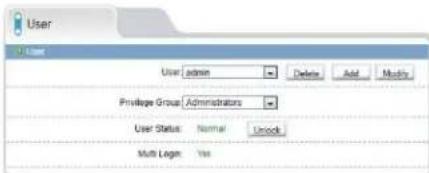
text_image
User User admin Delete Add Modify Privilege Group Administrators User Status Normal Unlock Multi Logm YesThe User page (Privilege>User) allows youto manage user accounts. User accounts receive privileges based on their group. The admin account is the system administrator, and has full access to all functions.
Web Configuration
To add a user account:
- Click Add. The Add User window appears.
NOTE: If the Add User menu does not appear, disable any popup blockers.
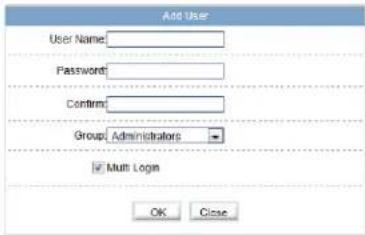
text_image
Add User User Name: Password: Confirm: Group: Administrators ✓ Multi Login OK Close- Enter a User Name and Password for the account and repeat the password under Confirm.
- Under Group, select the desired user group for this account.
- Check Multi Login to allow the user account to log into the IP camera from multiple location simultaneously or un-check to limit the account to a single location at a time.
- Click OK to save the new user account.
To modify a user account:
- Select the user account under User and click Modify.
- Modify the account details as needed and click OK.
To delete a user account:
- Under User, select the user account and click Delete. Click OK to confirm.
6.13.3 Unlocking User Accounts
The admin account is the only account that can unlock user accounts that have been locked out. User accounts are locked out if the wrong password is entered 3 or more times.
To unlock a user account:
- Login to the camera as admin.
Web Configuration
2. Click Privilege Manager>User.
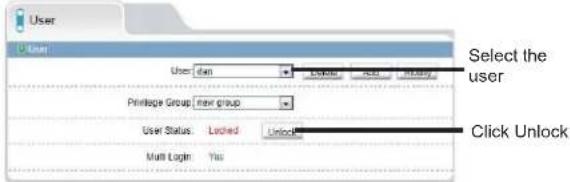
text_image
User User: dan Printage Group: new group User Status: Locked Unlock Multi Login: Yes Select the user Click Unlock- Under User, select the locked user account.
- Click Unlock to unlock the account.
6.14 Protocol
Protocol contains the following sub-menus:
- Protocol
• Security (Not supported)
NOTE: Do not check User Verification in the Security sub-menu, as it may block ONVIF software from detecting the camera.
6.14.1 Protocol

text_image
ProtocolInfo Protocol Protocol Name: Soft Protocol Version: v1.01.v1.02 Protocol Software Version: v1.001.02\v0.001.03The Protocol page (Protocol>Protocol) allows you to view ONVIF protocol settings.
6.15 Device Restart
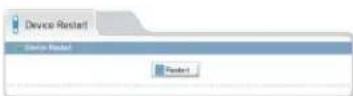
Click Device Restart. Click Restart then click OK to restart the camera.
Web Configuration
6.16 Default Settings
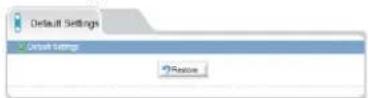
Click Default Settings. Click Restore then click OK to restore the camera to factory default settings. The camera will reboot.
6.17 Sensor Configuration
The Sensor Configuration menu is used to adjust camera image settings.
To configure camera image settings using the Sensor Configuration menu:
- Log into the camera using a web browser, and from the Live Video page, right-click on the video area and select Sensor Config.
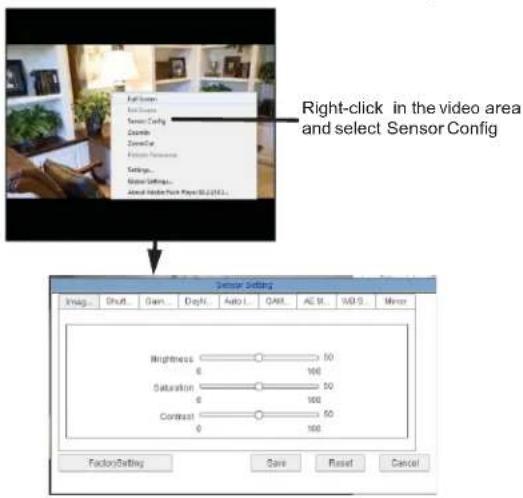
text_image
Right-click in the video area and select Sensor Config Sensor Setting Imag. Shift Gain Depth Auto L QAM AE St WBS Mirror Brightness 50 6 100 Saturation 50 6 100 Contrast 50 6 100 FactorySetting Save Reset CancelWeb Configuration
- Click Save to save setting changes.
- Click Reset to revert to the last saved changes.
- Click Factory Setting to revert all camera sensor settings to factory defaults.
- Click Cancel to exit.
TIP: Hold the mouse over the tabs to see the full name of the tab.
6.17.1 Image Adjust
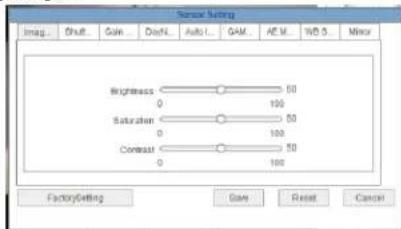
text_image
Rear Netting Imag. Shift Gain DetN AutoL GAM AE M WB S Minor Brightness 50 0 100 Saturati 50 0 100 Contrast 50 0 100 FactorySetting Gain Reset CancelAdjust the Brightness, Saturation, and Contrast settings for the image.
6.17.2 Shutter Control
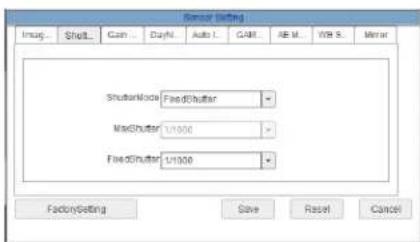
text_image
Sensor Setting Imag... Shut... Cash ... Day N Auto L CAT AE M W B S Minor Shutank Mode FeedShutter MaxShutter 1/1000 FeedShutter 1/1000 FactorSetting Save Reset CancelAdjust the camera shutter settings.
- ShutterMode: Select AutoShutteror FixedShutter.
Web Configuration
- MaxShutter: Sets the upper limit of the shutter speed when AutoShutter is selected.
- FixedShutter: Sets the shutter speed when FixedShutter is selected.
6.17.3 Gain Mode
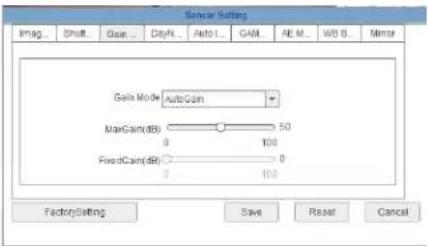
text_image
Scan Settings Imag. Shift Gain Day/N Auto L CAM AE M WD B Mirror Gelix Mode AutoGain MaxGain(dB) 50 0 100 FixedGain(dB) 0 0 100 FactorySetting Save Reset CancelSelect gain mode and adjust gain settings.
- Gain Mode: Select AutoGain or FixedGain.
- MaxGain(dB): Select the maximum gain value when AutoGain is selected.
- FixedGain (dB): Select the gain value when FixedGain is selected.
6.17.4 Day/Night Mode

text_image
Sensor Setting Imag... Shift... Gain ... DayN... Auto1... CAM... AE M... WD S... Mirror NightColor Black_White FactorySetting Save Reset CancelConfigure color settings for night mode.
Web Configuration
- Night Color: Select Black_White to have the camera switch to black and white during night mode or select Multicolor to have the camera remain in color during night mode.
6.17.5 Auto Iris
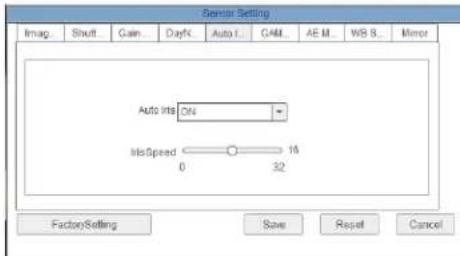
text_image
Sensor Setting Imag. Shut Gain DayN Auto I CAM AE M WB S Minor Auto Ints ON InsSpeed 16 0 32 FactorySetting Save Reset CancelSet Auto Iris settings.
• Auto Iris: Select ON to enable or OFF to disable.
- IrisSpeed: If Auto Iris is set to ON, select Auto Iris speed.
6.17.6 Gamma
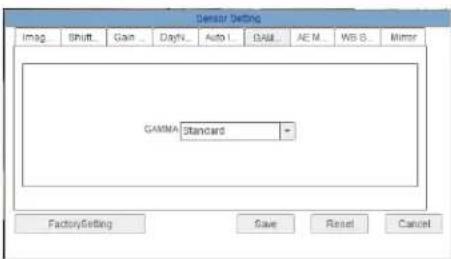
text_image
Sensor Setting Imag Shift Gan DayN_Auto_I Ball_AE_M WIS_S_Mirror GAMMA Standard FactorySetting Save Reset CancelAdjust Gamma.
- Gamma: Select gamma setting: Standard, High, Middle, Low, or Dynamic.
Web Configuration
Set the Auto-Exposure Meter Mode from one of the following:
- Multi-Pattern: When metering light, entire image is metered symmetrically.
- Center-Weighted: When metering light, priority is given to the center of the image.
- Vertical Center-Weighted: When metering light, priority is given to the vertical center of the image.
- Horizontal Center-Weighted: When metering light, priority is given to the horizontal center of the image.
6.17.8 WB Setting

text_image
Sensor Setting Imag... Shift Gain Day/N Auto GAM AF M WB 5... Minor WB Mode Auto RedCam 0 Manual Mode Noneast BlueCam 0 FactorSetting Save Reset CancelAdjust White Balance.
Web Configuration
- WB Mode: SelectAuto for automatic whitebalance orManual to manually set the white balance.
- Manual Mode: Select a mode for the lighting conditions or select Customized and manually adjust the RedGain and BlueGain.
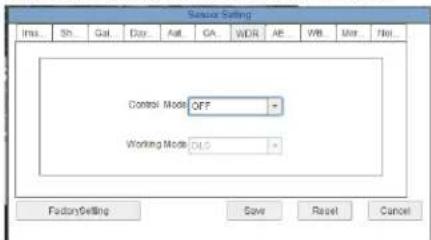
6.17.9 WDR (solution may not feature this setting)
text_image
Sensor Setting Ins. Sh Gal Day Alt GA WDR AE WB Mtr Net Control Mode OFF Working Mode DLS FactorySetting Save Reset CancelConfigure settings for Digital Wide Dynamic Range.
- Control Mode: Select ON to enable Digital Wide Dynamic Range or OFF to disable.
NOTE: Enabling Digital Wide Dynamic Range may cause color distortion based on the lighting. If you notice color distortion, it is recommended to turn Control Mode to OFF.
- Working Mode: Select DLO (Digital Side Overflow) for environments with few moving objects. Select MC(Motion Compensation) for environments with multiple moving objects.
Web Configuration
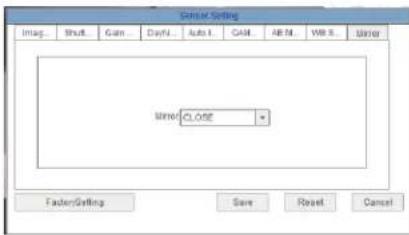
6.17.10 Mirror
text_image
General Settings Imag Shift Cam DayN Auto I CAM AB M WB S Timer Name: CLOSE FasterSetting Save Reset CancelEnable/disable image mirroring.
- Mirror: Select Horizontal to mirror the image horizontally, Vertical to mirror vertically, or PictureFlip to mirror both horizontally and vertically. Select Close to disable image mirroring.
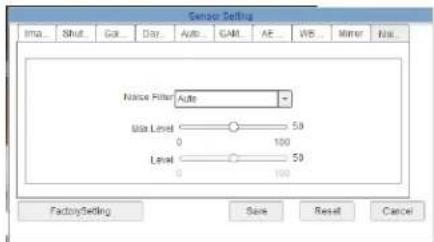
6.17.11 Noise Filter (solution may not feature this setting)
text_image
Sensor Settings Ima... Shut Go Day Auto CAM AE WB Mirror Na Noise Filter Auto Max Level 50 0 100 Level 50 0 100 FactorySetting Save Reset CancelConfigure noise filter settings.
- Noise Filter: Select Auto for automatic noise filtering or Manual.
- Max Level: Select the maximum level for automatic noise filtering.
• Level: Select the level for manual noise filtering.
Resetting to FactoryDefaults
7. RESETTING TO FACTORY DEFAULTS
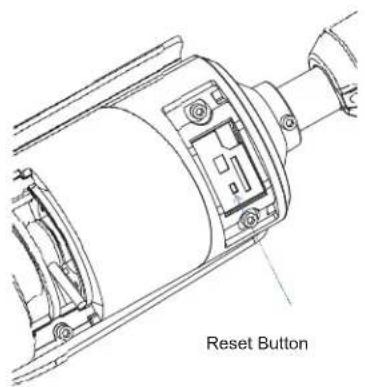
Follow the steps below to revert all settings to factory defaults. The camera must be connected to power to perform a factory reset.
- Remove the camera underside screws (2x) ①.
text_image
Reset Button- Press and hold the white reset button for 5 seconds then release the button to reset the camera to factory defaults.
- Re-attach the panel cover and replace the camera cover screws (2x).
NOTE: Make sure rubber seal is firmly in place when replacing the panel cover.

Dimensions
8. DIMENSIONS
Units: mm /&Inch

text_image
82.7 mm 3 1/4" 79.8 mm 3 1/4" 264.5 mm 10 1/2"Because our products are subject to continuous improvement, product design and specifications without notice and without incurring any obligation. E&O.E.
Troubleshooting
9. TROUBLESHOOTING
Can't find the camera IP address using NVMS or other software:
- Make sure Ethernet and/or DC power cables are correctly connected to the camera.
- Make sure the PoE switch or DC power source meets the camera's power requirements (class 3 PoE / 450mA / 5.4W / 12V). If using PoE, make sure the PoE switch is powered on.
- Make sure the PC is on the same network as the camera. Ping the camera's IP address. On yourPC, go to Start> Programs >Accessories >Command Prompt. Type pingthen the camera's local IPaddress and press Enter. If you get the message "Request timed out," PC and camera are not on the same network or camera is not connected. Camera is connected if you receive replies.
- Connect the BNC test cable to the camera and the other end to a test monitor. The monitor display shows the camera's IP address. A default IP address of 192.168.0.120 may mean that the camera cannot obtain an IP address from the router. Check the Ethernet/power connections and router configuration.
- Camera set for static IP mode using an incorrect IP address. By default, the cameras set for DHCP mode, which means it will automatically obtain an IP address from your router. Reset the camera to factory default settings by removing the camera cover and pressing the reset button for 5 seconds or more.
Can't connect to the camera on a web browser using local IP address:
• See steps above.
- Verify the camera's local IP address using one of the methods listed in "4. Finding the Camera's IP Address" on page 9.
Can't connect to camera on a web browser using a DDNSaddress:
- Port forwarding not set up. Make sure the HTTP port (default: 80) and Control port (default: 30001) are forwarded on your router to the camera's local IP address.
- Multiple cameras using same port number to connect. Configure each camera to use different ports and port forward the new ports (see "6.7.2
Device Port" onpage 27 for details on changing camera ports).
Can't connect to camera video on a webbrowser:
- If using IE, make sure to install ActiveX plug-in or Adobe Flash Player. For more information, see "6.3 Internet Explorer® Setup" on page 18.
- If using a browser other than IE (e.g. Google Chrome, Apple Safari, Mozilla
Firefox), make sure latest version of Adobe Flash Player is installed.
Video performs poorly on browser:
- Insufficient bandwidth available for high-quality stream1. Select stream2 under Stream. Stream2 provides a lower-resolution to conserve bandwidth and improve performance on low-bandwidth connections.
- If using IE, click the message above the video area to use ActiveX plug-in instead of Flash Player. ActiveX may provide smoother video performance.
User account is locked:
- User accounts are locked when the password has been incorrectly entered 3 times. To unlock the account, login to the camera web interface as admin. ClickPrivilege Manager>User. Under User, select the locked user account and click Unlock to unlock the account.