SuperChassis SC742S-450 - Computer Case Supermicro - Free user manual and instructions
Find the device manual for free SuperChassis SC742S-450 Supermicro in PDF.


| Product Type | Server Chassis |
| Form Factor | 4U Rackmount |
| Motherboard Support | E-ATX, ATX, Micro-ATX |
| Power Supply | 450W Single Power Supply |
| Dimensions (W x H x D) | 17.2 x 6.96 x 25.5 inches (437 x 177 x 648 mm) |
| Weight | Approx. 35 lbs (15.9 kg) |
| Front Drive Bays | 4 x 3.5" SAS/SATA hot-swap |
| Internal Drive Bays | 2 x 2.5" (optional) |
| Expansion Slots | 7 low-profile or 4 full-height (depending on configuration) |
| Cooling System | 3 x 80mm fans (standard), optional fan upgrades |
| Front I/O | 2 x USB 2.0, Power button, Reset button, LEDs |
| Chassis Construction | Steel, black finish |
| Security Features | Lockable front door, chassis intrusion switch |
| Operating Temperature | 0°C to 40°C (32°F to 104°F) |
| Certifications | UL, CE, FCC Class A |
| Warranty | 1 year limited |
Frequently Asked Questions - SuperChassis SC742S-450 Supermicro
User questions about SuperChassis SC742S-450 Supermicro
0 question about this device. Answer the ones you know or ask your own.
Ask a new question about this device
Download the instructions for your Computer Case in PDF format for free! Find your manual SuperChassis SC742S-450 - Supermicro and take your electronic device back in hand. On this page are published all the documents necessary for the use of your device. SuperChassis SC742S-450 by Supermicro.
USER MANUAL SuperChassis SC742S-450 Supermicro
natural_image
Front view of a server rack unit with multiple drive bays and ventilation slots (no visible text or labels)742S
natural_image
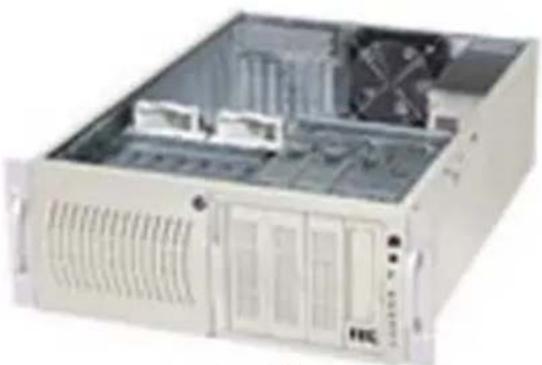
Exterior view of a beige server rack unit with ventilation grilles and internal components (no visible text or labels)742i
SC742 CHASSIS
USER'S GUIDE
1.0a
The information in this User's Guide has been carefully reviewed and is believed to be accurate. The vendor assumes no responsibility for any inaccuracies that may be contained in this document, makes no commitment to update or to keep current the information in this manual, or to notify any person or organization of the updates. Please Note: For the most up-to-date version of this manual, please see our web site at www.supermicro.com.
SUPERMICRO COMPUTER reserves the right to make changes to the product described in this manual at any time and without notice. This product, including software, if any, and documentation may not, in whole or in part, be copied, photocopied, reproduced, translated or reduced to any medium or machine without prior written consent.
IN NO EVENT WILL SUPERMICRO COMPUTER BE LIABLE FOR DIRECT, INDIRECT, SPECIAL, INCIDENTAL, OR CONSEQUENTIAL DAMAGES ARISING FROM THE USE OR INABILITY TO USE THIS PRODUCT OR DOCUMENTATION, EVEN IF ADVISED OF THE POSSIBILITY OF SUCH DAMAGES. IN PARTICULAR, THE VENDOR SHALL NOT HAVE LIABILITY FOR ANY HARDWARE, SOFTWARE, OR DATA STORED OR USED WITH THE PRODUCT, INCLUDING THE COSTS OF REPAIRING, REPLACING, INTEGRATING, INSTALLING OR RECOVERING SUCH HARDWARE, SOFTWARE, OR DATA.
Any disputes arising between manufacturer and customer shall be governed by the laws of Santa Clara County in the State of California, USA. The State of California, County of Santa Clara shall be the exclusive venue for the resolution of any such disputes. Supermicro's total liability for all claims will not exceed the price paid for the hardware product.
Unless you request and receive written permission from SUPER MICRO COMPUTER, you may not copy any part of this document.
Information in this document is subject to change without notice. Other products and companies referred to herein are trademarks or registered trademarks of their respective companies or mark holders.
Copyright © 2005 by SUPER MICRO COMPUTER INC. All rights reserved. Printed in the United States of America
Table of Contents
Chapter I: Safety Information and Technical Specifications ...... 1-4
1-1. Safety Information 1-4
1-2. Technical Specifications.... 1-6
A. SUPER 742 SATA Back Panel 1-6
B. SCA742-E2 SCSI Dual Channel Back Panel (w/GEM318) 1-8
C. SCA 742 SCSI Single Channel Back Panel (w/GEM359) ...... 1-10
D. SCSI (Super) GEM Driver Installation (*for the Windows OS) ..... 1-12
Chapter 2: Installation Instructions ...... 2-1
Chapter 1-Safety Information and Technical Specifications
1-1 Safety Information

Electric Static Discharge (ESD) can damage electronic components. To prevent damage to your system board, it is important to handle it very carefully. The following measures are generally sufficient to protect your equipment from ESD.
Static-Sensitive Devices
- Use a grounded wrist strap designed to prevent static discharge.
- Touch a grounded metal object before removing the board from the anti-static bag.
- Handle the board by its edges only; do not touch its components, peripheral chips, memory modules or gold contacts.
- When handling chips or modules, avoid touching their pins.
- Put the motherboard and peripherals back into their antistatic bags when not in use.
- For grounding purposes, make sure your computer chassis provides excellent conductivity between the power supply, the case, the mounting fasteners and the motherboard.
- Use only the correct type of onboard CMOS battery as specified by the manufacturer. Do not install the onboard battery upside down to avoid possible explosion.

To avoid personal injury and property damage, please carefully follow all the safety steps listed below:
Before accessing the chassis:
- Turn off all peripheral devices connected to the SC742.
- Press the power button to power off the system.
- Unplug all power cords from the system or the wall outlets.
- Disconnect all the cables and label the cables for easy identification.
- Use a grounded wrist strap designed to prevent static discharge when handling components.
Removing the chassis covers:
After completing the above steps, you can remove the covers and install components/peripheral devices into the chassis as described in Chapter 2.
- Unlock and remove the screws and fasteners to remove the cover or components.
- Save all the screws and fasteners for later use. (If necessary, label these screws or fasteners for easy identification.)
- Follow the instruction given in Chapter 2 to remove the chassis covers.
Reinstalling the chassis covers:
To maintain proper system cooling and airflow, do not operate the system without installing all chassis covers back to the chassis. To reinstall the chassis covers, please follow the steps listed below:
- Make sure that all components and devices are securely fastened on the chassis and there are no loose parts/screws inside the chassis.
- Make sure that all cables are properly connected to the connectors and ports.
- Use the original screws or fasteners to install the covers to the chassis.
- Be sure to lock to the chassis or the system to prevent unauthorized access.
- For proper cooling, enclose the chassis with covers before operating the system.
An important note to the user
All images and graphics shown in this manual were based upon the latest chassis Revision available at the time of publishing. The chassis you've received may or may not look exactly the same as the ones shown in this manual.
1-2 Technical Specifications
A. SUPER742 SATA Back Panel
A-1 Connector/Jumper Locations

text_image
199.70MM SUPER 742 SATA JP25 JP18 D3 135.00MM 4-Pin 4-Pin PWR PWR JP13JP10 JP26 J12J14 J8 J6 Front ViewA-2 Connectors
D3: Overheat LED Indicator
J5: SATA #0 J6: SATA#1
J7: SATA #2 J8: SATA#3
J10: SATA #4 J12: SATA#5
J14: SATA #6
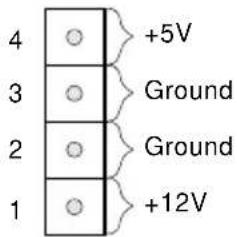
JP10/JP13: 4-Pin PWR Connectors
4-Pin PWR Connectors Pin Definitions
text_image
4 3 2 1 +5V Ground Ground +12VJP26: ACT In
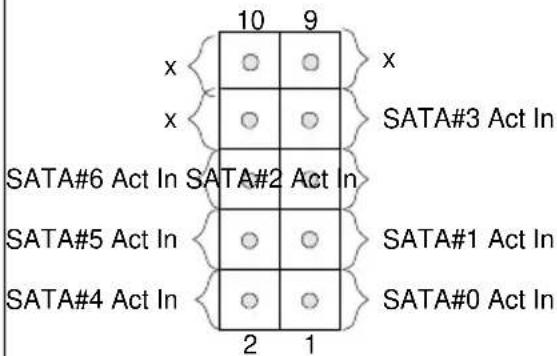
Act In (JP26) Pin Definitions
text_image
10 9 x { ○ } x x { ○ } SATA#3 Act In SATA#6 Act In SATA#2 Act In SATA#5 Act In { ○ } SATA#1 Act In SATA#4 Act In { ○ } SATA#0 Act In 2 1A-3 Jumpers
JP18: Buzzer Reset
| Buzzer Reset (JP18) | |
| Open | Disabled |
| Closed | Enabled (*Default) |
JP25: Overheat LED
| Overheat Temperature (JP25) | |
| Pins | Definition |
| Open | 45^ |
| 1-2 | 50^ |
| 2-3 | 55^ |

text_image
A-4 Connector/LED Indicator Locations (Rear Side) J1 SATA0 J2 SATA1 J3 J4 SATA2 SATA3 J9 J11 SATA4 J13 SATA5 SATA6 D12 D13 D14 D15 D18 D21 D22Rear View (*Not drawn to scale)
A-5 Activity LED Indicators
| Activity LED Indicators | ||
| LED# | Drive# | |
| D12 | SATA#0: | Active |
| D13 | SATA#1: | Active |
| D14 | SATA#2: | Active |
| D15 | SATA#3: | Active |
| D18 | SATA#4: | Active |
| D21 | SATA#5: | Active |
| D22 | SATA#6: | Active |
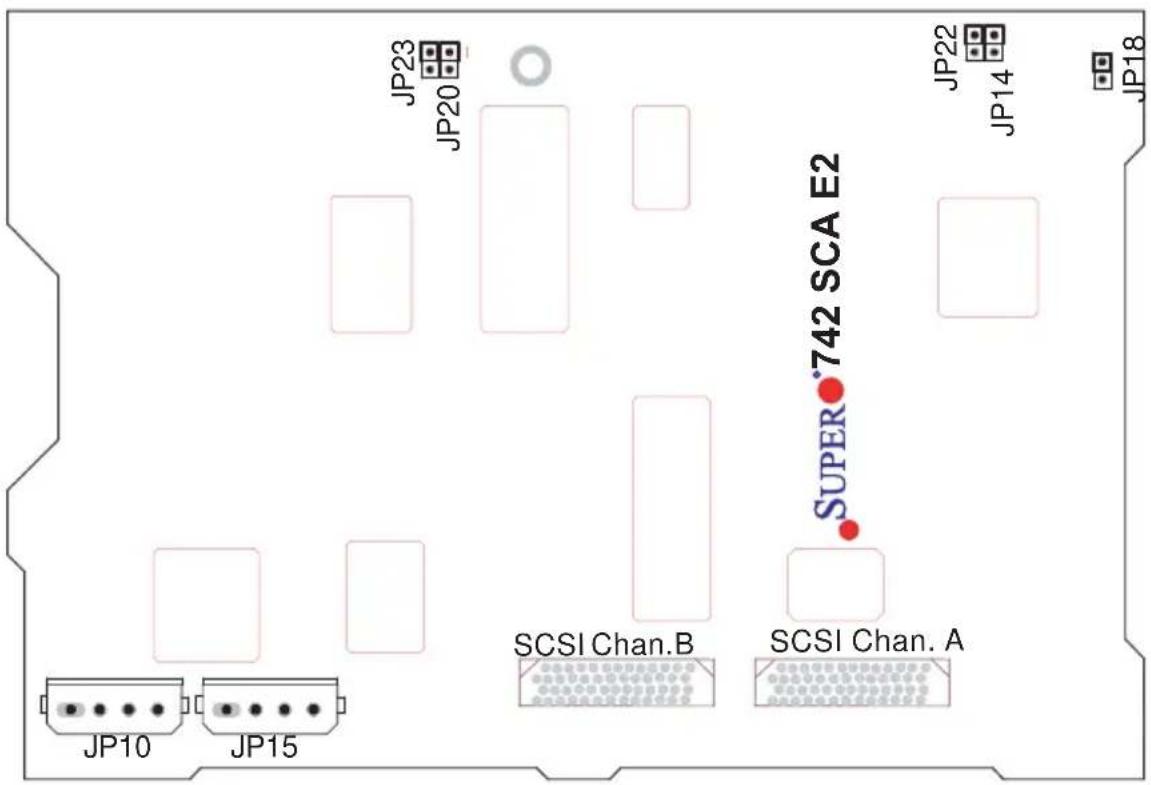
B. SCA 74-E2 SCSI Dual Channel Back Panel (W/GEM318)
Front View (\*Not Drawn to Scale)
B-1 Connector/Jumper Locations
text_image
JP23 JP20 JP22 JP14 JP18 JP10 JP15 SCSI Chan.B SUPER 742 SCA E2 SCSI Chan. AB-2 Connectors
JP10/JP15: 4-Pin PWR Connectors
4-Pin PWR Connector s Pin Definitions

text_image
4 3 2 1 +5V Ground Ground +12VB-3 Jumpers
JP18: Buzzer Reset
| Buzzer Reset (JP18) | |
| Open | Disabled |
| Closed | Enabled (*Default) |
SCSI Channel A Jumpers
| Channel A Jumpers | |
| Jumpers | Definition |
| JP14 Ch. | A Delay Start |
| JP22 Ch. | A Remote Start |
SCSI Channel B Jumpers
| Channel B Jumpers | |
| Jumpers | Definition |
| JP20 Ch. | B Delay Start |
| JP23 Ch. | B Remote Start |
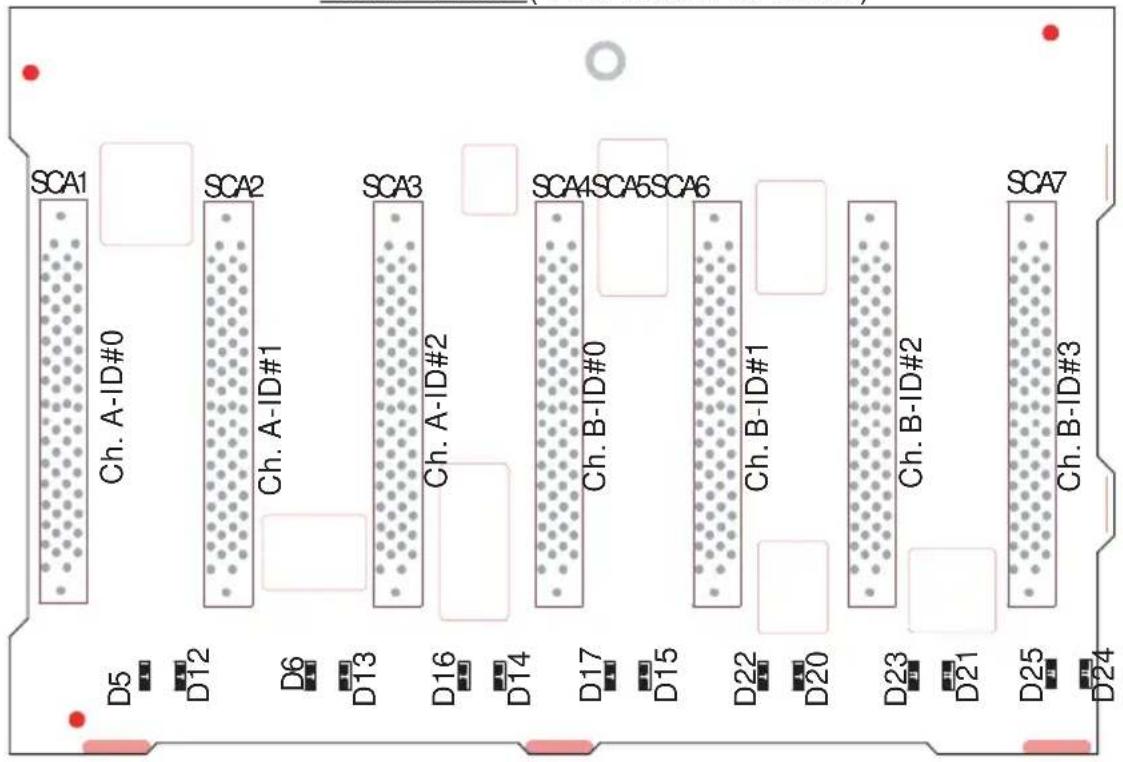
B-4 Connector/LED Indicator Locations (Rear)
Rear View (*Not drawn to scale)
text_image
SCA1 Ch. A-ID#0 SCA2 Ch. A-ID#1 SCA3 Ch. A-ID#2 SCA4 SCA5 SCA6 D5 D12 D6 D13 D16 D14 D17 D15 D22 D20 D23 D21 D25 D24 Ch. B-ID#0 Ch. B-ID#1 Ch. B-ID#2 SCA7B-5 LED Indicators (Rear)
SCSI Drive Fail LED Indicators
| Drive Fail LED Indicators | ||
| LED# | Drive ID# | SCA# |
| D5 Channel A-ID#0 | SCA 1: Fail | |
| D6 Channel A-ID#1 | SCA 2: Fail | |
| D16 Channel A-ID#2 | SCA 3: Fail | |
| D17 Channel B-ID#0 | SCA 4: Fail | |
| D22 Channel B-ID#1 | SCA 5: Fail | |
| D23 Channel B-ID#2 | SCA 6: Fail | |
| D25 Channel B-ID#3 | SCA 7: Fail | |
SCSI Drive Activity LED Indicators
| Drive Activity LED Indicators | ||
| LED# | Drive ID# | SCA# |
| D12 Channel A-ID#0 | SCA 1: Active | |
| D13 Channel A-ID#1 | SCA 2: Active | |
| D14 Channel A-ID#2 | SCA 3: Active | |
| D15 Channel B-ID#0 | SCA 4: Active | |
| D20 Channel B-ID#1 | SCA 5: Active | |
| D21 Channel B-ID#2 | SCA 6: Active | |
| D24 Channel B-ID#3 | SCA 7: Active | |
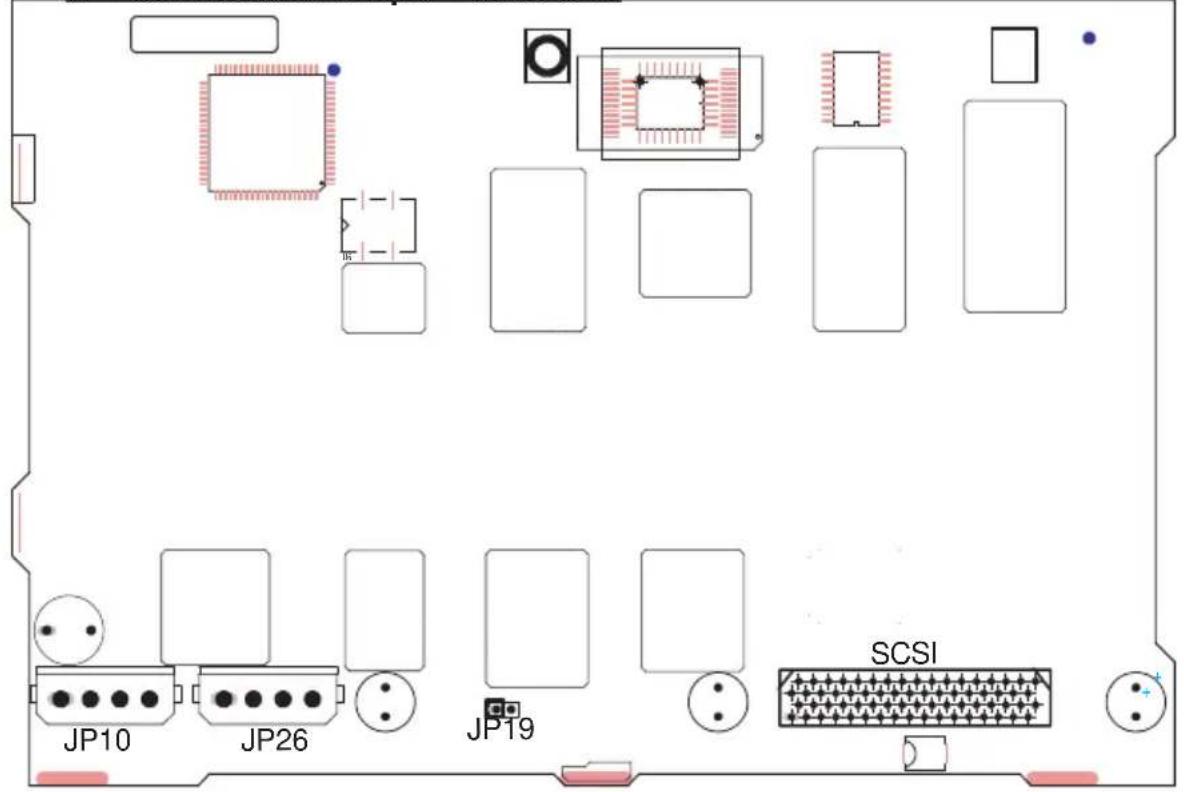
C. SCA 742 SCSI Single Channel Back Panel (w/GEM359)
Front View (*Not Drawn to Scale)
C-1 Connector/Jumper Locations
text_image
JP10 JP26 JP19 SCSIC-2 Connectors
JP10/JP26: 4-Pin PWR Connectors
4-Pin PWR Connectors Pin Definitions

text_image
4 3 2 1 +5V Ground Ground +12VC-3 Jumpers
JP19: Buzzer Reset
| Buzzer Reset (JP19) | |
| Open | Disabled |
| Closed | Enabled (*Default) |
C-4 Connector/LED Indicator Locations (Rear)

bar
Rear View (*Not drawn to scale) | Sensor | ID | | :--- | :--- | | SCA1 | 0 | | D5 | 12 | | SCA2 | 1 | | D6 | 13 | | SCA3 | 2 | | D7 | 14 | | SCA4 | 3 | | D16 | 15 | | SCA5 | 4 | | D17 | 20 | | SCA6 | 5 | | D18 | 21 | | SCA7 | 6 | D22 D21 D20 D17 ID#4 ID#5 ID#6C-5 LED Indicators (Rear)
SCSI Drive Fail LED Indicators
| Drive Fail LED Indicators | ||
| LED# | Drive ID# | SCA# |
| D5 ID#0 | SCA 1: | Fail |
| D6 ID#1 | SCA 2: | Fail |
| D7 ID#2 | SCA 3: | Fail |
| D16 ID#3 | SCA 4: | Fail |
| D17 ID#4 | SCA 5: | Fail |
| D18 ID#5 | SCA 6: | Fail |
| D19 ID#6 | SCA 7: | Fail |
SCSI Drive Activity LED Indicators
| Drive Activity LED Indicators | |||
| LED# | Drive ID# | SCA# | |
| D12 | ID#0 | SCA 1: | Active |
| D13 | ID#1 | SCA 2: | Active |
| D14 | ID#2 | SCA 3: | Active |
| D15 | ID#3 | SCA 4: | Active |
| D20 | ID#4 | SCA 5: | Active |
| D21 | ID#5 | SCA 6: | Active |
| D22 | ID#6 | SCA 7: | Active |
D SCSI (Super) GEM Driver Installation (\*for the Windows OS)
(*Note: This driver is not necessary for other Operating Systems. If you have two SCA backplanes, you will need to install the driver twice.)
The driver is located on the Super Micro motherboard driver CD or is available for download from our FTP site: ftp://ftp.supermicro.com/driver/Qlogic/
Follow the procedure below to install this driver to your system.
Installing the driver:
1) Right click on "My Computer" and choose "Property".
2) Select "Hardware" tab and click on "Device Manager".
3) Open "Other Devices" or wherever "GEM318/GEM359" is on.
4) Right click on this device and choose "Property".
5) Click on "Driver" tab and choose "Update Driver".
6) Click "Next" 2 times, uncheck both "Floppy disk drives" and "CD-ROM drives". Then, select the item- "Specify a location," and choose "Next".
7) Click on "Browse" and choose D drive or wherever Supermicro Setup CD is in.
8) Choose "Qlogic" folder and click on "Open".
9) System will automatically detect GEM318/GEM359 and install the drive from this point on.
or,
1) Right click the "My Computer" icon on your desktop and choose Properties.
2) Click on the Hardware tab and click on "Device Manager" to bring up the list of system devices.
3) You may see one or two yellow question marks (?) that read QLogic GEM318/GEM359 SCSI Processor Device. Right click on these, and choose to uninstall. If two such question marks are present, uninstall both.
4) Click on Action tab and choose "Scan for Hardware Changes". The Hardware Wizard program should start up. Click "Next".
5) At the first prompt, choose "Display a list of known device drivers for the device so that I can choose a specific driver" and click "Next".
6) Choose "Other Devices" and click Next.
7) Choose "Have Disk", and specify your floppy drive location in the options box. Then, click "Next".
8) Highlight "Enclosure Services Device" and click "Next".
9) Ignore the warning prompt by clicking "Yes".
Notes
Chapter 2 Installation Instructions
The special design of the SC742 chassis allows it to either be used as a tower or as a rackmount system. There are several versions of the chassis, which differ primarily in the power supply and IDE/SCSI configuration. Please refer to the following instructions when working on the SC742.
I. Removing the Chassis Side Cover:
You will need to remove the chassis side cover to:
A. Remove or install drives into any of the 5 14 " drive bays.
B. Replace chassis fans.
C. Access the motherboard.
Procedure:
- Remove the two screws from the back lip of the side cover (this is the left cover when looking from the front).
- Push in the release tab on the cover and push the cover back to the rear of the chassis. It should stop after moving about 12 inch.

text_image
Release Tab Depress tab while pushing cover toward rear of chassis.- You can now lift the side cover up and off the chassis.
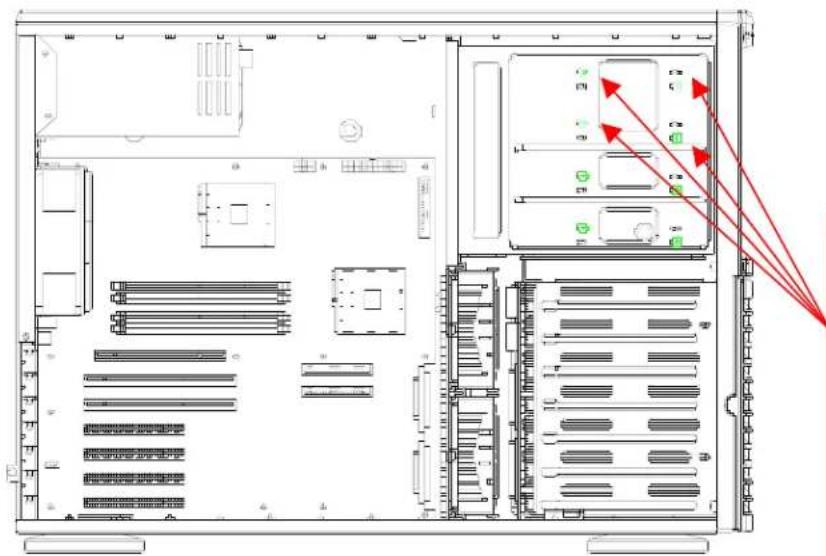
A. Removing/Installing Drives into the 5 14 " Drive Bays:
Procedure:
- With the side chassis cover removed, you have access to the 5 14 " drive bays.
- Remove the screws to the bay you wish to install or remove a component from. The chassis comes with dummy modules in all the bays to maintain proper airflow – these should remain in the chassis until you add a component. Note that the top two bays are combined into a single module. If adding components here you must remove the four screws corresponding two both bays.
text_image
Technical diagram of an internal server rack with labeled equipment and red arrows indicating signal paths or connections.Drive Bays
Remove the screws for the drive bay you wish to add or remove a component from. The upper two bays are joined and so have four screws.
- After removing the screws, push the drive module out the front of the chassis. For the floppy drive bay, you must first remove the two faceplates.
- Attach the dummy rails to the new drive and insert the new drive into the bay. Secure it to the chassis with the screws you removed. Remember to plug the data and power cables into the drive. When finished, replace the chassis side cover and secure it with the screws.
B. Removing/Installing Chassis Fans into the 5 14 " Drive Bays:
Procedure:
-
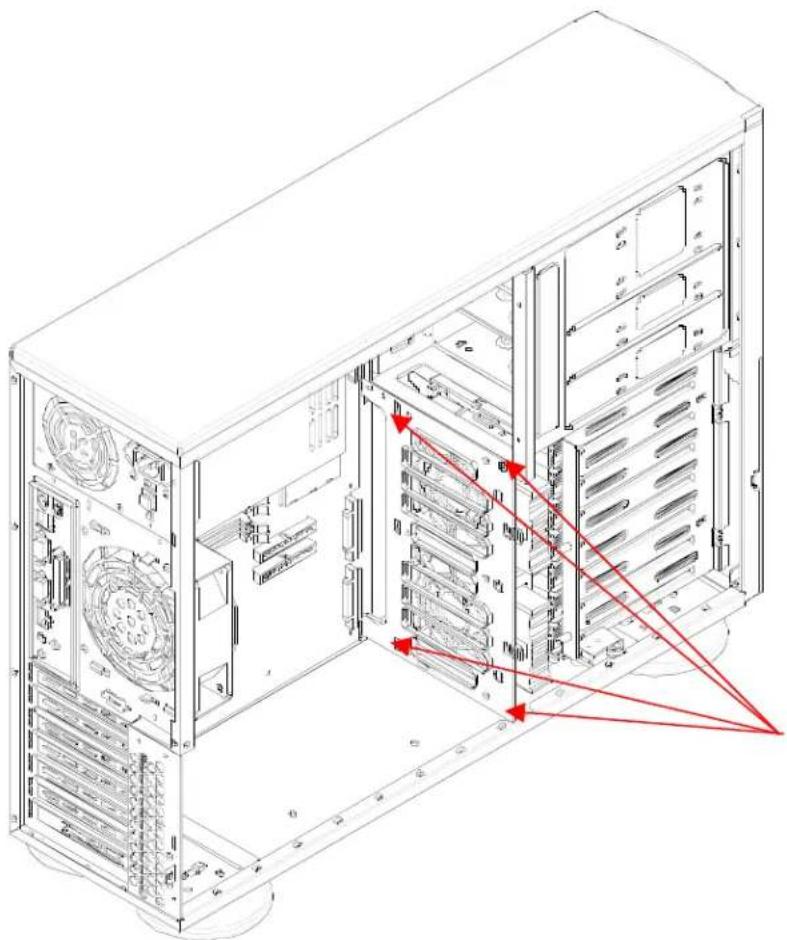
To remove the hot-swap chassis fans, grasp the fan handle while squeezing the locking tab. Pull the fan unit up and out of the chassis. Reverse this procedure to install a fan (replace with the exact same type of fan).
-
If installing an extended ATX motherboard, you may need to remove the fan mounting bracket the fans are attached to for better access. To do so, first remove both fans by following step one. Then unplug the fan cables from the motherboard. Remove the single screw that attaches the fan mounting bracket to the chassis and lift the bracket out of the chassis. To replace it, reverse the procedure. The mounting bracket has three tabs that fit into holes in the chassis – make sure these tabs are inserted into their corresponding holes to secure the bracket properly.
natural_image
Technical line drawing of a server rack with internal components and red arrows indicating file paths (no text or symbols present)Fans
Remove the screw on the bracket. Pay attention to the tabs and the holes they fit in to.
II. Removing the Front Chassis Cover:
You do not need to remove the front bezel to access the drives:
Procedure
- Push on the three tabs on the inside left side lip of the front chassis cover. Push the same side of the cover out about 12 inch. Push on the open side of the cover to remove it from the chassis (do not try to swing or pull it straight out after opening the left side).

text_image
Front C Push the 1 2
text_image
Technical diagram of a server rack with labeled components and directional arrows indicating movement or flow.Front Cover
Push the tabs toward the lip and (1) push that side of the cover out from the chassis. When freed about 12 , (2) push the cover toward the other side of the chassis to completely release
III. Removing the Top Chassis Cover and Chassis Feet to Install as Rackmount:
You will need to remove the top chassis cover to add rack rails to the chassis:
Note: Rail assemblies are optional. P/N: CSE-PT26B (black) and CSE-PT26.
Procedure
-
Push the release tab in the center of the cover lip while pushing the cover toward the rear of the chassis at the same time. After the cover stops, lift it off.
-
Each chassis foot has a single screw. Remove the screw then depress the foot's locking tab from the inside of the chassis. Slide the foot off.
-
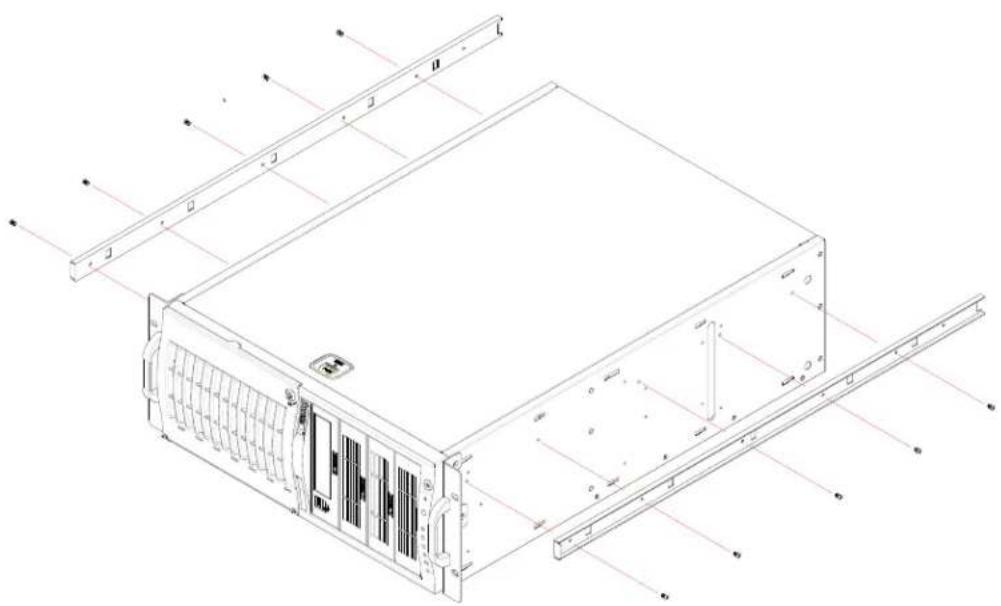
You can now attach rack rails to the top and bottom (now the sides) of the chassis. See the diagram below.