SuperChassis SC842TQC-668B - Computer Case Supermicro - Free user manual and instructions
Find the device manual for free SuperChassis SC842TQC-668B Supermicro in PDF.


User questions about SuperChassis SC842TQC-668B Supermicro
0 question about this device. Answer the ones you know or ask your own.
Ask a new question about this device
Download the instructions for your Computer Case in PDF format for free! Find your manual SuperChassis SC842TQC-668B - Supermicro and take your electronic device back in hand. On this page are published all the documents necessary for the use of your device. SuperChassis SC842TQC-668B by Supermicro.
USER MANUAL SuperChassis SC842TQC-668B Supermicro
text_image
可编程器 M M M M M VCC0022889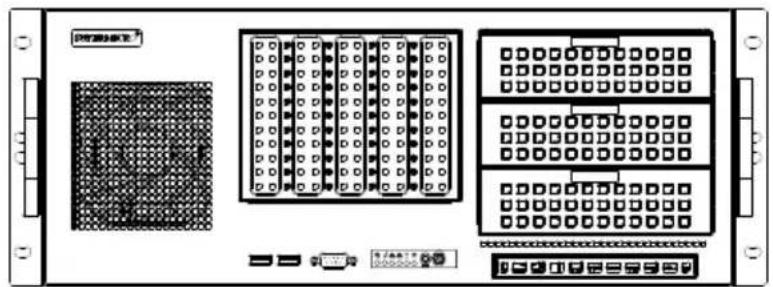
natural_image
Front view of a rack-mounted electronic device with multiple ports and connectors (no visible text or symbols)SC842i-500B SC842TQ-665B
SC842TQ-865B SC842XTQ-R606B
USER'S MANUAL
2.0a
The information in this User's Manual has been carefully reviewed and is believed to be accurate. The vendor assumes no responsibility for any inaccuracies that may be contained in this document, makes no commitment to update or to keep current the information in this manual, or to notify any person or organization of the updates. Please Note: For the most up-to-date version of this manual, please see our web site at www.supermicro.com.
Super Micro Computer, Inc. ("Supermicro") reserves the right to make changes to the product described in this manual at any time and without notice. This product, including software and documentation, is the property of Supermicro and/or its licensors, and is supplied only under a license. Any use or reproduction of this product is not allowed, except as expressly permitted by the terms of said license.
IN NO EVENT WILL SUPERMICRO BE LIABLE FOR DIRECT, INDIRECT, SPECIAL, INCIDENTAL, SPECULATIVE OR CONSEQUENTIAL DAMAGES ARISING FROM THE USE OR INABILITY TO USE THIS PRODUCT OR DOCUMENTATION, EVEN IF ADVISED OF THE POSSIBILITY OF SUCH DAMAGES. IN PARTICULAR, SUPERMICRO SHALL NOT HAVE LIABILITY FOR ANY HARDWARE, SOFTWARE, OR DATA STORED OR USED WITH THE PRODUCT, INCLUDING THE COSTS OF REPAIRING, REPLACING, INTEGRATING, INSTALLING OR RECOVERING SUCH HARDWARE, SOFTWARE, OR DATA.
Any disputes arising between manufacturer and customer shall be governed by the laws of Santa Clara County in the State of California, USA. The State of California, County of Santa Clara shall be the exclusive venue for the resolution of any such disputes. Super Micro's total liability for all claims will not exceed the price paid for the hardware product.
California Best Management Practices Regulations for Perchlorate Materials: This Perchlorate warning applies only to products containing CR (Manganese Dioxide) Lithium coin cells. "Perchlorate Material-special handling may apply. See www.dtsc.ca.gov/hazardouswaste/perchlorate"
WARNING: Handling of lead solder materials used in this product may expose you to lead, a chemical known to the State of California to cause birth defects and other reproductive harm.
Manual Revision 2.0a
Release Date: April 13, 2015
Unless you request and receive written permission from Super Micro Computer, Inc., you may not copy any part of this document.
Information in this document is subject to change without notice. Other products and companies referred to herein are trademarks or registered trademarks of their respective companies or mark holders.
Copyright © 2014 by Super Micro Computer, Inc.
All rights reserved.
Printed in the United States of America
Preface
About This Manual
This manual is written for professional system integrators and PC technicians. It provides information for the installation and use of the SC842 chassis. Installation and maintenance should be performed by experienced technicians only.
Supermicro's SC842 4U chassis features a unique and highly-optimized design for single and dual Intel/AMD processors. The chassis is equipped with a 500, R600, 665 or 865 Watt high-efficiency power supply. High-performance fans provide ample optimized cooling for the system. The chassis supports up to five 3.5" SAS/SATA hard drives which offer maximum storage capacity in a 4U form factor.
This document lists compatible parts available when this document was published. Always refer to the our Web site for updates on supported parts and configurations.
Manual Organization
Chapter 1 Introduction
The first chapter provides a checklist of the main components included with this chassis and describes the primary features of the SC842 chassis. This chapter also includes contact information.
Chapter 2 Standardized Warning Statements for AC/DC Systems
This chapter lists warnings, precautions, and system safety. You should thoroughly familiarize yourself with this chapter for a general overview of safety precautions that should be followed before installing and servicing this chassis.
Chapter 3 Chassis Components
Refer here for details on this chassis model including the fans, hard drives and other components.
Chapter 4 System Interface
Chapter 4 provides details on the system interface, which includes the functions and information provided by the control panel on the chassis as well as other LEDs located throughout the system.
Chapter 5 Chassis Setup and Maintenance
Refer to this chapter for detailed information on this chassis. You should follow the procedures given in this chapter when installing, removing, or reconfiguring your chassis.
Chapter 6 Rack Installation
This chapter details information on installing the chassis into a rack. You should follow the procedures given in this chapter when installing, removing or reconfiguring your chassis in a rack environment.
Appendix A SC842 Chassis Cables
Appendix B SC842 Power Supply Specifications
Appendix C BPN-SAS-842TQ Backplane Specifications
Table of Contents
Chapter 1 Introduction
1-1 Overview 1-1
1-2 Shipping List.... 1-1
Part Numbers....1-1
1-3 Chassis Features 1-2
Hot-Swappable Hard Drives.... 1-2
Internal Hard Drives....1-2
PCI Slots 1-2
Peripheral Drives....1-2
Other Features 1-2
1-4 Contacting Supermicro.... 1-3
Chapter 2 Standardized Warning Statements for AC/DC Systems
2-1 About Standardized Warning Statements.... 2-1
Warning Definition 2-1
Installation Instructions....2-4
Circuit Breaker 2-5
Power Disconnection Warning 2-6
Equipment Installation....2-8
Restricted Area....2-9
Battery Handling....2-10
Redundant Power Supplies 2-12
Backplane Voltage 2-13
Comply with Local and National Electrical Codes....2-14
Product Disposal 2-15
Hot Swap Fan Warning....2-16
DC Power Supply 2-18
DC Power Disconnection 2-20
Hazardous Voltage or Energy Present on DC Power Terminals 2-21
Chapter 3 Chassis Components
3-1 Overview 3-1
3-2 Components 3-1
Hard Drives and Peripheral Drives 3-1
Fans 3-1
Mounting Rails (Optional) 3-1
Power Supply 3-1
3-3 Where to get Replacement Components.... 3-2
Chapter 4 System Interface
4-1 Overview 4-1
4-2 Control Panel Buttons 4-2
4-3 Control Panel LEDs 4-2
4-4 Drive Carrier LEDs....4-4
Chapter 5 Chassis Setup and Maintenance
5-1 Overview 5-1
5-2 Removing the Chassis Cover 5-2
5-3 Installing and Removing Hard Drives 5-3
Removing Hard Drive Carriers (SC842TQ Series) 5-3
Installing a Drive into the Drive Carrier (SC842TQ Series)....5-4
Installing Hard Drive Carriers (SC842TQ Series)....5-5
Removing the Hard Drive Cage (SC842i Series) 5-6
Installing Hard Drives into the Cage (SC842i Series) 5-7
Installing the Hard Drive Cage (SC842i Series) 5-8
5-4 Installing an I/O Shield 5-9
5-5 Installing the Motherboard 5-10
Permanent and Optional Standoffs....5-10
Expansion Card Setup 5-12
Installing the Rear System Fans....5-13
Checking the Server's Airfow 5-14
5-6 Power Supply 5-15
Replacing the Power Supply....5-15
Installing the DVD-ROM and Peripheral Drive 5-16
Chapter 6 Rack Installation
6-1 Overview 6-1
6-2 Unpacking the System....6-1
6-3 Preparing for Setup....6-1
Choosing a Setup Location....6-1
Rack Precautions....6-2
General Server Precautions....6-2
Rack Mounting Considerations 6-3
Ambient Operating Temperature 6-3
Reduced Airflow 6-3
Mechanical Loading 6-3
Circuit Overloading....6-3
Reliable Ground 6-3
6-4 Rack Mounting 6-4
Rack Mounting Overview 6-4
Mounting the Chassis in an Open (Telco) Style Rack....6-4
6-5 Rack Mounting with the Optional Rail System 6-5
Rail System Overview....6-5
Separating the Sections of the Rack Rails 6-5
Installing the Inner Rails 6-6
Outer Rack Rails....6-7
Appendix A SC842 Chassis Cables
Appendix B SC842 Power Supply Specifications
Appendix C BPN-SAS-842TQ Backplane Specifications
Notes
Chapter 1
Introduction
1-1 Overview
Supermicro's SC842 4U chassis features a unique and highly-optimized design. The chassis is equipped with a high-efficiency power supply. High-performance fans provide ample optimized cooling. Up to five 3.5" drives provide maximum storage capacity in a 4U form factor.
1-2 Shipping List
Part Numbers
Please visit the Supermicro website for the latest shipping lists and part numbers for your particular chassis model at www.supermicro.com.
| SC842 Chassis Series | |||
| Model HDD PCI | Slots | Power Supply | |
| SC842i-500B | 5x 3.5" internal fixed SAS/ SATA drives | 7x FF 500W | |
| SC842TQ-665B | 5x 3.5" hot swap SAS/SATA drives | 7x FF 665W | |
| SC842TQ-865B | 5x 3.5" hot swap SAS/SATA drives | 7x FF 865W | |
| SC842XTQ-R606B | 5x 3.5" hot swap SAS/SATA drives | 7x FF, 4x FH | 600W Redundant (Platinum) |
Legend:
FH: Full-height, half-length PCI slots
FF: Full-height, full-length PCI slots.
1-3 Chassis Features
The SC842 high-performance chassis includes the following features:
Hot-Swappable Hard Drives
The SC842TQ model chassis features hard drive bays which supports up to five hot-swappable 3.5" SAS/SATA hard drives. Once set up correctly, hot-swappable drives can be removed without powering down the server. In addition, these drives support SES2 (SAS/SATA). 3.5" hard drives are sold separately.
Internal Hard Drives
The SC842i /TQ model chassis support five internally mounted 3.5" SAS/SATA hard drives. In the unlikely event of a hard drive failure, the system must be powered down and disconnected from any power source before removing these hard drives.
PCI Slots
SC842i/TQ chassis includes seven full-height, full-length PCI slots for expansion cards. SC842XTQ chassis includes eleven full-height, full-lenth I/O PCI slots.
Peripheral Drives
Each SC842 chassis supports one slim DVD drive and up to three 5-1/4" peripheral drives.
Other Features
Other onboard features are included to promote system health. These include up to two rear cooling fans, one front cooling fan, a convenient power switch, reset button, and LED indicators.
1-4 Contacting Supermicro
Headquarters
Address: Super Micro Computer, Inc.
980 Rock Ave.
San Jose, CA 95131 U.S.A.
Tel: +1 (408) 503-8000
Fax: +1 (408) 503-8008
Email: marketing@supermicro.com (General Information)
support@supermicro.com (Technical Support)
Website: www.supermicro.com
Europe
Address: Super Micro Computer B.V.
's-Hertogenbosch, The Netherlands
Tel: +31 (0) 73-6400390
Fax: +31 (0) 73-6416525
Email: sales@supermicro.nl (General Information)
support@supermicro.nl (Technical Support)
rma@supermicro.nl (Customer Support)
Website: www.supermicro.nl
Asia-Pacific
Address: Super Micro Computer, Inc.
3F, No. 150, Jian 1st Rd.
Zhonghe Dist., New Taipei City 235
Taiwan (R.O.C)
Tel: +886-(2) 8226-3990
Fax: +886-(2) 8226-3992
Email: support@supermicro.com.tw
Website: www.supermicro.com.tw
Notes
Chapter 2
Standardized Warning Statements for AC/DC Systems
2-1 About Standardized Warning Statements
The following statements are industry standard warnings, provided to warn the user of situations which have the potential for bodily injury. Should you have questions or experience difficulty, contact Supermicro's Technical Support department for assistance. Only certified technicians should attempt to install or configure components.
Read this appendix in its entirety before installing or configuring components in the Supermicro chassis.
These warnings may also be found on our web site at http://www.supermicro.com/about/policies/safety_information.cfm.
Warning Definition

Warning!
This warning symbol means danger. You are in a situation that could cause bodily injury. Before you work on any equipment, be aware of the hazards involved with electrical circuitry and be familiar with standard practices for preventing accidents.
警告の定義
この警告サインは危険を意味します。
Installation Instructions

Warning!
Read the installation instructions before connecting the system to the power source. 設置手順書
This product relies on the building's installation for short-circuit (overcurrent) protection. Ensure that the protective device is rated not greater than: 250 V, 20 A.
サーキット・ブレーカー
Power Disconnection Warning

Warning!
The system must be disconnected from all sources of power and the power cord removed from the power supply module(s) before accessing the chassis interior to install or remove system components.
電源切断の警告
Equipment Installation

Warning!
Only trained and qualified personnel should be allowed to install, replace, or service this equipment.
機器の設置
This unit is intended for installation in restricted access areas. A restricted access area can be accessed only through the use of a special tool, lock and key, or other means of security. (This warning does not apply to workstations).
アクセス制限区域
There is the danger of explosion if the battery is replaced incorrectly. Replace the battery only with the same or equivalent type recommended by the manufacturer. Dispose of used batteries according to the manufacturer's instructions
電池の取り扱い
Redundant Power Supplies

Warning!
This unit might have more than one power supply connection. All connections must be removed to de-energize the unit.
冗長電源装置
Hazardous voltage or energy is present on the backplane when the system is operating. Use caution when servicing.
バックプレーンの電圧
Comply with Local and National Electrical Codes

Warning!
Installation of the equipment must comply with local and national electrical codes.
地方および国の電気規格に準拠
Ultimate disposal of this product should be handled according to all national laws and regulations.
製品の廃棄
The fans might still be turning when you remove the fan assembly from the chassis.
Keep fingers, screwdrivers, and other objects away from the openings in the fan assembly's housing.
ファン・ホットスワップの警告
When stranded wiring is required, use approved wiring terminations, such as closedloop or spade-type with upturned lugs. These terminations should be the appropriate size for the wires and should clamp both the insulation and conductor.
警告
DC Power Disconnection

Warning!
Before performing any of the following procedures, ensure that power is removed from the DC circuit.
警告
Hazardous Voltage or Energy Present on DC Power Terminals

Warning!
Hazardous voltage or energy may be present on DC power terminals. Always replace cover when terminals are not in service. Be sure uninsulated conductors are not accessible when cover is in place.
警告
This chapter describes the most common components included with your chassis. Some components listed may not be included or compatible with your particular chassis model. For more information, see the installation instructions detailed later in this manual.
3-2 Components
Hard Drives and Peripheral Drives
The SC842 chassis supports up to five hot-swappable 3.5" hard drives (SC842TQ series) or up to five internal 3.5" hard drives (SC842i series), and one optional slim DVD-ROM drive and up to three 5-1/4" peripheral drives. For the latest shipping list, visit our web site at www.supermicro.com.
Fans
The SC842 chassis supports one 9 cm front cooling fan and two 8 cm rear exhaust fans. System fans for the SC842 chassis are powered from the serverboard. These fans are powered by 4-pin PWM connectors.
Mounting Rails (Optional)
The SC842 can be placed on a two-post or four-post rack for secure storage and use. To set up your rack with the optional mounting rail, follow the step-by-step instructions included in this manual.
Power Supply
Each SC842 chassis model includes a high-efficiency power supply rated at 500, R600, 665 or 865 Watts. In the unlikely event of a power supply failure, replacement is easily accomplished.
3-3 Where to get Replacement Components
Although not frequently, you may need replacement parts for your system. To ensure the highest level of professional service and technical support, we strongly recommend purchasing exclusively from our Supermicro Authorized Distributors/System Integrators/Resellers. A list of Supermicro Authorized Distributors/System Integrators/Reseller can be found at: http://www.supermicro.com. Click the Where to Buy link.
Chapter 4
System Interface
4-1 Overview
There are several LEDs on the control panel as well as others on the drive carriers to keep you constantly informed of the overall status of the system as well as the activity and health of specific components. SC842 models have two buttons on the chassis control panel: a reset button and an on/off switch. This chapter explains the meanings of all LED indicators and the appropriate response you may need to take.
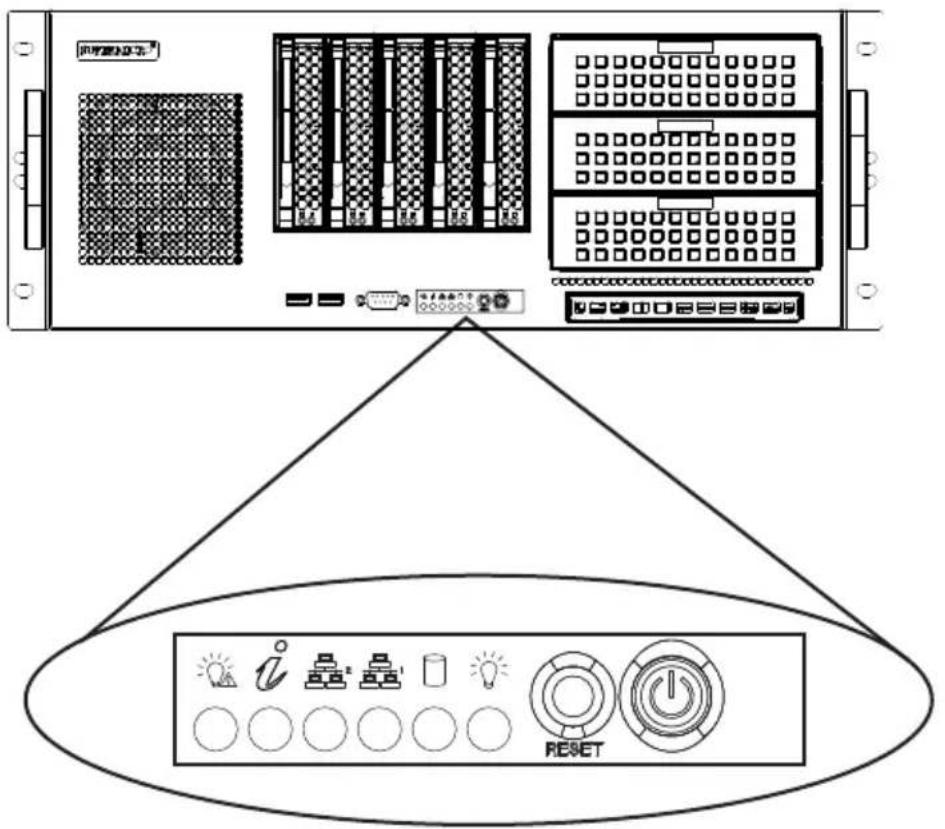
There are two push-buttons located on the front of the chassis. These are (in order from left to right), a reset button and a power on/off button.

Reset: The reset button is used to reboot the system.
Power: The main power switch is used to activate or remove power from the power supply to the server system. Turning off system power with this button removes the main power but keeps standby power supplied to the system. Therefore, you must unplug system before servicing.
4-3 Control Panel LEDs
The control panel located on the front of the SC842 chassis has six LEDs. These LEDs provide you with critical information related to different parts of the system. This section explains what each LED indicates when illuminated and any corrective action you may need to take.

Power Failure: When this LED flashes, it indicates a power failure in the power supply.

| Informational LED | |
| Status Description | |
| Solid red | An overheat condition has occurred. (This may be caused by cable congestion). |
| Blinking red (1Hz) | Fan failure, check for an inoperative fan. |
| Blinking red (0.25Hz) | Power failure, check for a non-operational power supply. |
| Solid blue | Local UID has been activated. Use this function to locate the server in a rack mount environment. |
| Blinking blue (300 msec) | Remote UID is on. Use this function to identify the server from a remote location. |
NIC2: Indicates network activity on LAN2 when flashing.
NIC1: Indicates network activity on LAN1 when flashing.

HDD: Indicates SAS/SATA drive and/or DVD-ROM drive activity when flashing.

Power: Indicates power is being supplied to the system's power supply units. This LED should normally be illuminated when the system is operating.
4-4 Drive Carrier LEDs
Each hard drive carrier has two LEDs.
Blue: When illuminated, this blue LED (on the front of the drive carrier) indicates drive activity. A connection to the backplane enables this LED to blink on and off when that particular drive is being accessed.
Red: The red LED to indicate a drive failure. If one of the hard drives fails, replace it with a compatible enterprise-level hard drive model.
Chapter 5
Chassis Setup and Maintenance
5-1 Overview
This chapter details the basic steps required to install components in the SC842 chassis. The only tool you will need is a Phillips head screwdriver. Print this chapter to use as a reference while setting up your chassis.
Review the warnings and precautions listed in the manual before setting up or servicing this chassis. These include information in Chapter 2 and the warnings and precautions listed in the setup instructions.
5-2 Removing the Chassis Cover

text_image
Technical diagram of a server rack with numbered components and directional arrows indicating assembly or movement.Figure 5-1. Removing the Chassis Cover
Removing the Chassis Cover
- Power down the system and remove the power cord from the rear of the power supply. Remove the cords from both power supplies if your chassis includes a redundant power module.
- Remove the screw at the rear of the chassis and set it aside for later use.
- Remove the two screws on the sides of the cover and set them aside.
- Lift the cover up and off the chassis.
Warning: Except for short periods of time, do NOT operate the chassis without the cover in place. The chassis cover must be in place to allow proper airflow and prevent overheating.
5-3 Installing and Removing Hard Drives
Hard drives are mounted in drive carriers to simplify their installation and removal from the chassis. The SC842TQ chassis supports up to five hot-swappable 3.5" hard drives in carriers which can be removed without powering down the system. The SC842i features an internal hard drive cage. The SC842i must be powered down before removing this cage.
Removing Hard Drive Carriers (SC842TQ Series)
Removing the Hard Drive and Hard Drive Carriers
-
Press the release button on the drive carrier. This extends the drive carrier handle.
-
Use the handle to pull the drive carrier out of the chassis.

text_image
Release ButtonsFigure 5-2. Removing the Hard Drive Carriers
Installing a Drive into the Drive Carrier (SC842TQ Series)
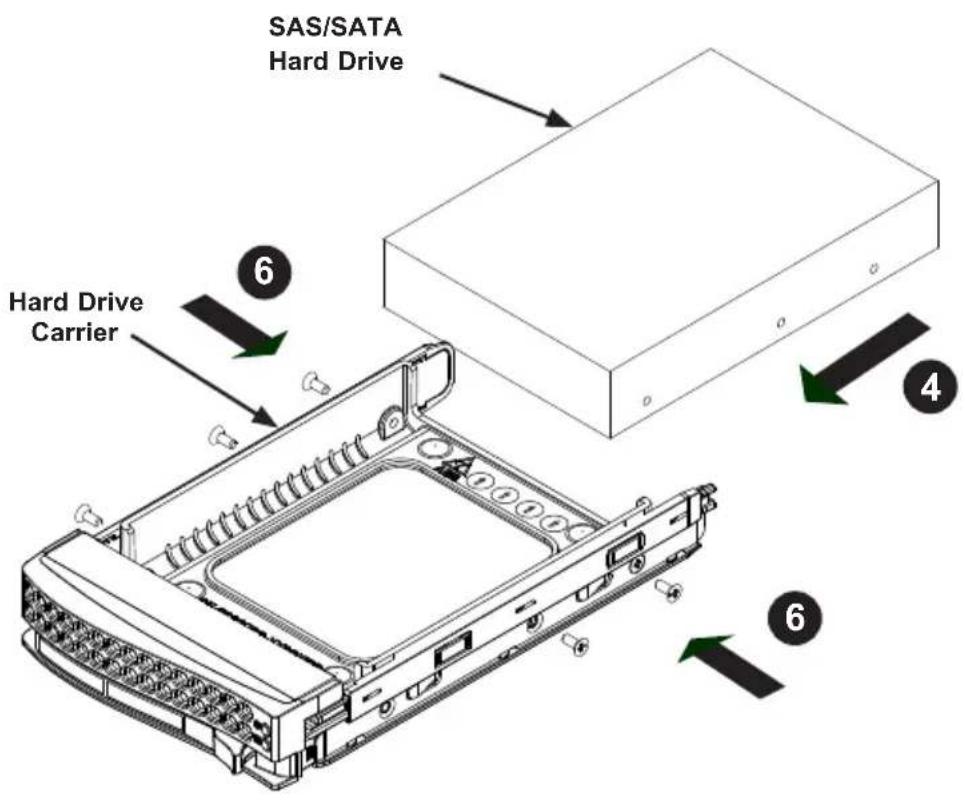
Installing a Hard Drive
- Remove the two screws securing the dummy drive to the drive carrier.
- Lift the dummy drive out of the drive carrier.
- Place the hard drive carrier on a flat, stable surface such as a desk, table, or work bench.
- Slide the hard drive into the carrier with the printed circuit board side facing down.
- Carefully align the mounting holes in the hard drive and the carrier. Make sure the bottom of the hard drive and bottom of the hard drive carrier are flush.
- Secure the hard drive using all six screws.
- Replace the drive carrier into the chassis. Make sure to close the drive carrier using the drive carrier handle.

text_image
Drive Carrier Release ButtonFigure 5-3. Removing the Dummy Drive from the Carrier
Warning! Enterprise level hard disk drives are recommended for use in Supermicro chassis and servers. For information on recommended HDDs, visit the Supermicro web site at www.supermicro.com.
text_image
SAS/SATA Hard Drive 6 Hard Drive Carrier 4 6Figure 5-4. Installing a Drive into a Hard Drive Carrier
Installing Hard Drive Carriers (SC842TQ Series)
Installing the Hard Drive Carriers
- Reinsert the hard drive carrier into the hard drive bay.
- Gently push in the handle, which locks the drive carrier into the drive bay.
Removing the Hard Drive Cage (SC842i Series)
Removing the Hard Drive Cage
- Power down the system and remove the power cord from the rear of the power supply. Remove the cords from both power supplies if your chassis includes a redundant power module. Remove the chassis cover as described in Section 5-2.
- Remove the four screws securing the internal hard drive cage and bracket to the chassis as illustrated below and set them aside for later use.
- Gently push the internal hard drive cage out through the front of the chassis.

text_image
Remove Four Screws 3Figure 5-5. Removing the Internal HDD Cage
text_image
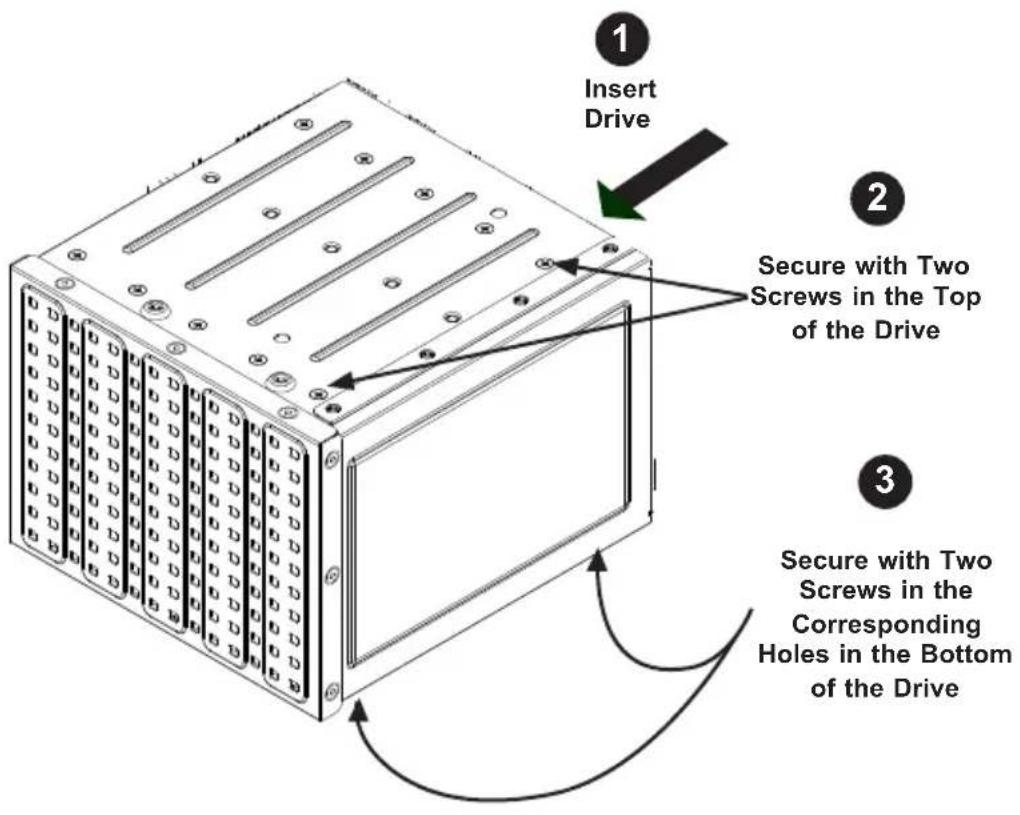
Insert Drive Secure with Two Screws in the Top of the Drive Secure with Two Screws in the Corresponding Holes in the Bottom of the DriveFigure 5-6. Installing Hard Drives into the Internal Hard Drive Cage
Installing Hard Drives into the Cage (SC842i Series)
Installing Drives into the Internal Hard Drive Cage
- Insert a hard drive into the hard drive cage, aligning the holes in the drive with those in the cage.
- Secure the drive to the top of the cage with two hard drive screws.
- Secure the drive to the bottom of the cage with two hard drive screws.
Installing the Hard Drive Cage (SC842i Series)
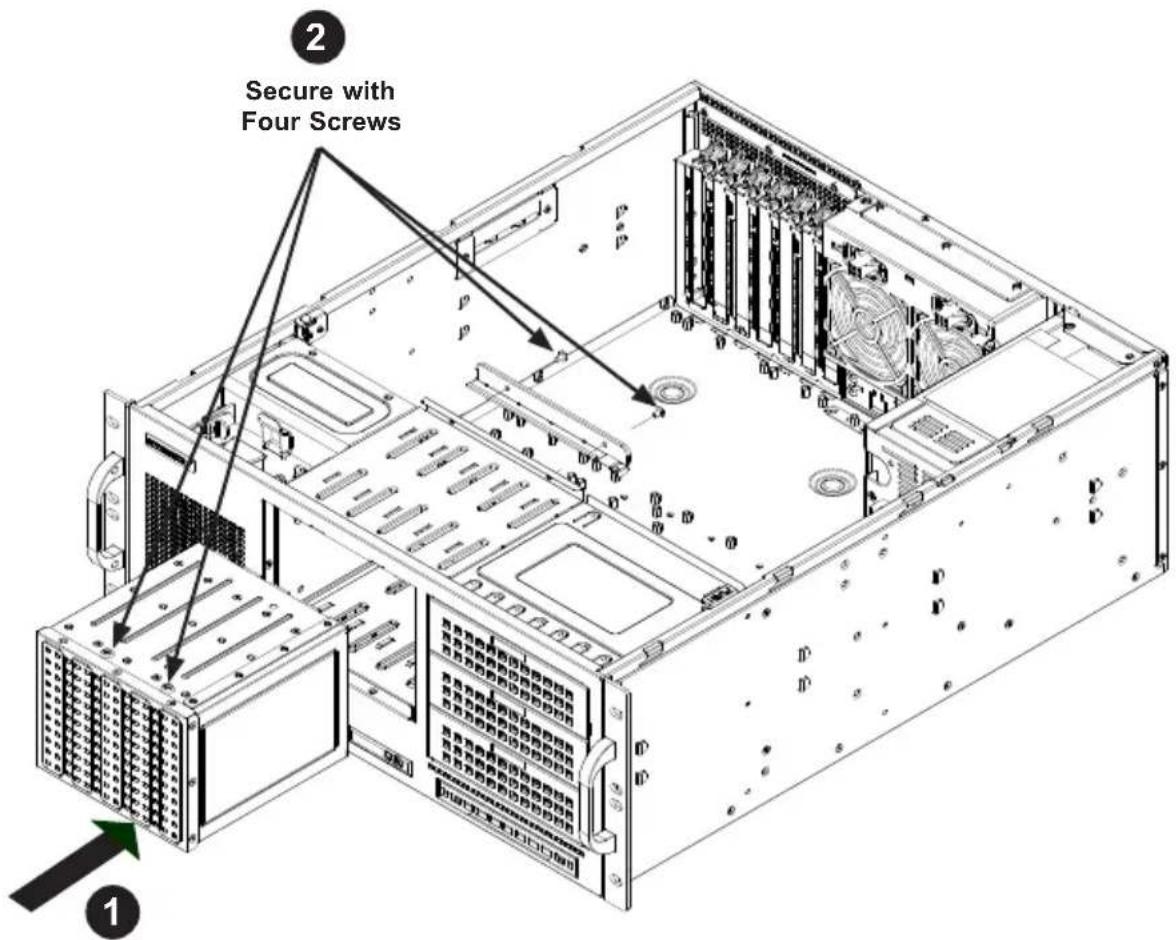
Installing the Hard Drive Cage
-
Insert the hard drive cage through the front of the chassis.
-
Reinstall the four screws which were previously set aside to secure the hard drive cage and bracket to the chassis as illustrated below.
-
Plug the power cord(s) into the rear the power supply (two power supplies on redundant models) and power up the system.
text_image
Secure with Four Screws 1 2Figure 5-7. Installing the Internal HDD Cage
5-4 Installing an I/O Shield
Installing an I/O Shield
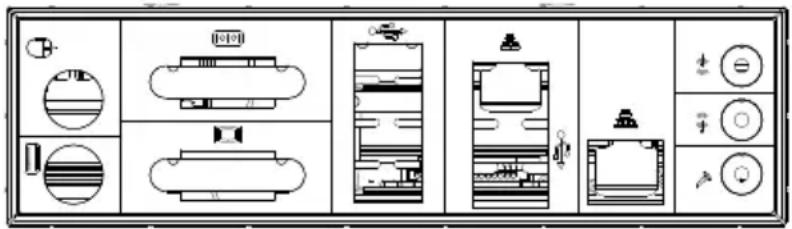
I/O shields help to hold the motherboard ports in place. Install the I/O shield that came with your motherboard before installing the motherboard.
- Power down the system and remove the power cord from the rear of the power supply. Remove the cords from both power supplies if your chassis includes a redundant power module. Remove the chassis cover as described in Section 5-2.
- Locate the I/O shield that came with the motherboard.
- Push the I/O shield gently into the rear opening of the chassis, until it clicks into the secure position.
text_image
Technical diagram of a room layout with labeled fixtures and control buttonsFigure 5-8. Motherboard I/O Shield (Example)
5-5 Installing the Motherboard
Permanent and Optional Standoffs
Standoffs prevent short circuits by creating space between the motherboard and the chassis floor. The SC842 chassis includes permanent and optional removable standoffs in locations used by most motherboards. These standoffs accept the rounded Phillips head screws included in the SC842 accessories packaging.
Some motherboards require additional screws for heatsinks, general components and/or to secure them to the chassis. Optional standoffs are included to support these motherboards. To use an optional standoff, you must secure a hexagonal post by screwing it into the necessary spot. Compare the mounting holes between the motherboard and the chassis, then add or remove the optional standoffs as needed.

text_image
StandoffsFigure 5-9. Motherboard Standoffs
natural_image
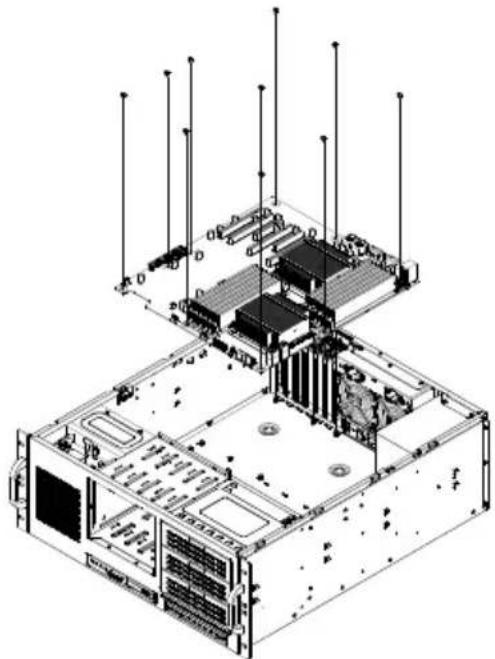
Isometric technical diagram of a server rack with multiple drive units and ventilation systems (no text or labels)Figure 5-10. Installing the Motherboard
Motherboard Installation
Installing the Motherboard
-
Review the documentation that came with your motherboard. Become familiar with component placement, requirements, and precautions.
-
Confirm that the power supply (and redundant power supply if applicable) has been disconnected. Lay the chassis on a flat surface.
-
Open the chassis cover.
-
Remove any packaging from the chassis.
-
If required by your motherboard, install standoffs in any areas that do not have a permanent standoff. To do this, tighten a hexagonal optional standoff into the chassis.
-
Lay the motherboard on the chassis aligning the permanent and optional standoffs.
-
Secure the motherboard to the chassis using the rounded, Phillips head screws. Do not exceed eight pounds of torque when tightening down the motherboard.
-
Secure the CPU(s) and heatsinks to the motherboard.
Expansion Card Setup
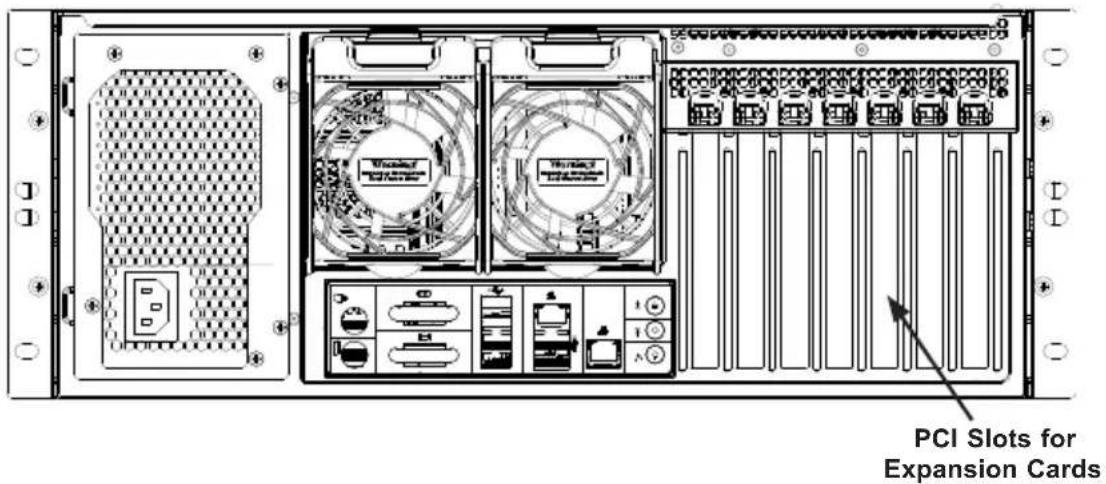
The SC842TQ/i chassis features seven PCI slots which support up to seven expansion cards. SC842XTQ chassis features eleven PCI slots which support up to eleven expansion cards.
text_image
PCI Slots for Expansion CardsFigure 5-11. PCI Slots
Installing Expansion Cards
- Power down the system and remove the power cord from the rear of the power supply. Remove the cords from both power supplies if your chassis includes a redundant power module. Remove the chassis cover as described in Section 5-2.
- Locate the motherboard port which is aligned with the PCI slot where you want to install an expansion card.
- Each PCI slot cover is secured by one screw located on the top of the cover. Remove this screw and slide the slot cover up and out of the slot. Set the screw aside for use in Step 5.
- Gently slide the expansion card into the correct motherboard slot and lock it. Never force a component into a motherboard or the chassis.
- Secure the expansion card with the screw set aside in Step 3.
- Reconnect the power cord(s) to the power supply (and the redundant power supply if applicable to your chassis model), and power up the system.
Rear System Fans
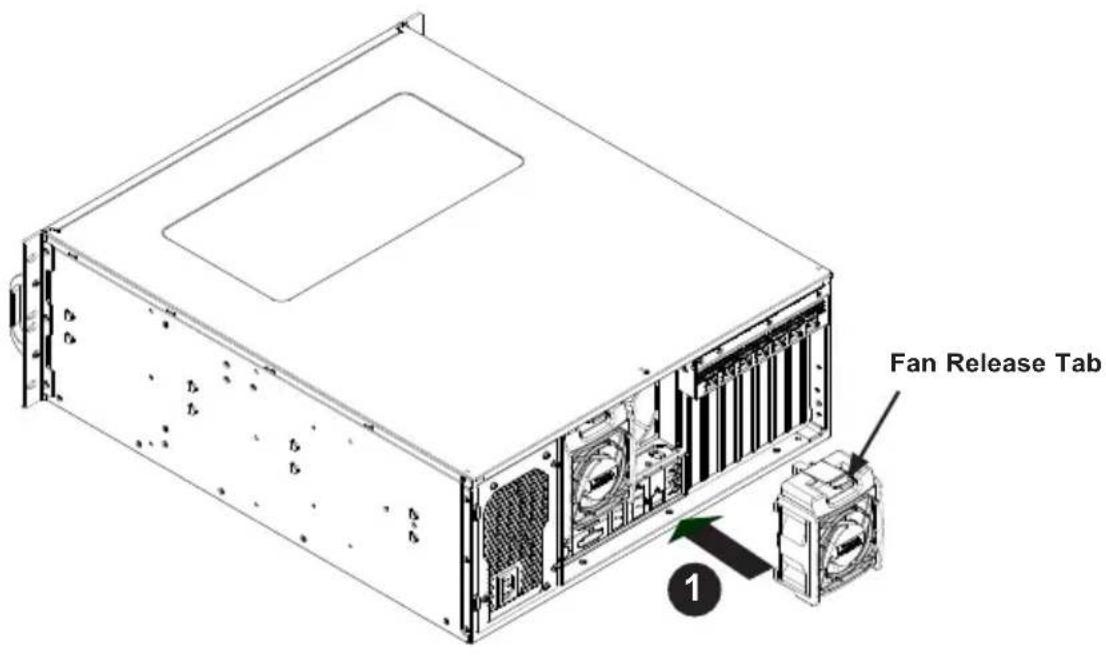
The SC842 chassis includes up to two rear exhaust fans.
text_image
Fan Release Tab 1Figure 5-12. Installing the Rear Fan
Installing the Rear System Fans
Installing the Rear System Fans
-
Slide the rear fan into the slot as illustrated. The fan release tab is located just above the edge of the fan housing.
-
Ensure that the fan is secured in the fan cage and that the fan cable is connected to the motherboard.
Checking the Server's Airfow
Checking the Airflow
- Make sure there are no objects to obstruct the airflow in and out of the server. If necessary, route and organize the cables appropriately.
- Do not operate the chassis without drive carriers in the drive bays.
5-6 Power Supply
The SC842 chassis includes either a 500, R600, 665 or 865 Watt power supply. In the unlikely event of a power supply failure the system must be powered-down and the power supply removed using a Phillips head screw driver.
Replacing the Power Supply
Replacing the Power Supply
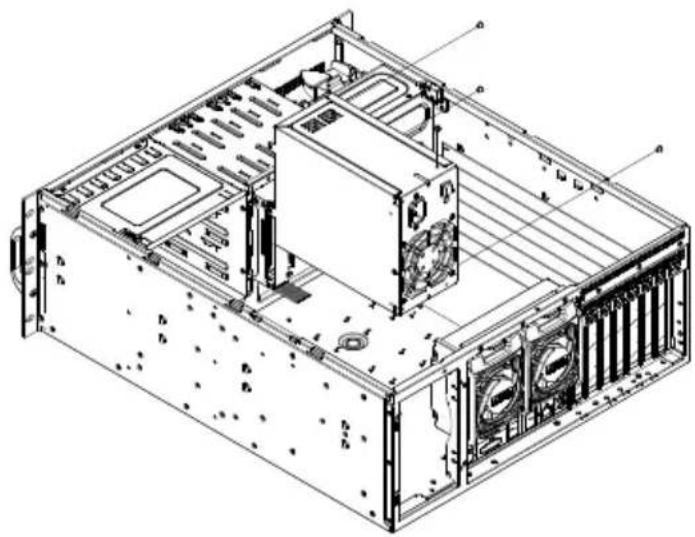
- Power down the system and remove the power cord from the rear of the power supply. Remove the cords from both power supplies if your chassis includes a redundant power module. Remove the chassis cover as described in Section 5-2.
- Unscrew the three screws securing the power supply to the chassis. Set these screws aside for later use.
- Pull the power supply up and out of the chassis.
- Replace the failed power supply module with a new module of the same type or a compatible power supply module.
- Slide the power supply into place and secure it to the chassis using the three screws which were previously set aside.
- Reconnect the power cord(s) to the power supply (and the redundant power supply if applicable to your chassis model), and power up the system.
natural_image
Technical line drawing of a computer tower internal structure (no text or symbols)Figure 5-13. Installing the Power Supply
Installing the DVD-ROM and Peripheral Drive
SC842 chassis models supports a slim DVD-ROM and up to three 5-1/4" peripheral drives.

text_image
Release Tab Guide ScrewsFigure 5-14. Installing the Peripheral Drive
Installing a Peripheral Drive
- Power down the system and remove the power cord from the rear of the power supply. Remove the cords from both power supplies if your chassis includes a redundant power module. Remove the chassis cover as described in Section 5-2.
- If adding a drive to the chassis, remove the mini-bezel from the drive bay. The mini-bezel is the small grating that covers the drive bay. Remove this by simply pulling it out of the bay.
If replacing an existing drive, remove the existing drive by depressing the release tab, then pulling the drive out of the chassis.
- Attach the two guide screws which are included in the accessory box.
- Insert the new drive unit in the slot until the release tab locks into place.
- Connect the data and power cables to the motherboard.
- Reconnect the power cord(s) to the power supply (and the redundant power supply if applicable to your chassis model), and power up the system.
Chapter 6
Rack Installation
6-1 Overview
This chapter provides a quick setup to install the chassis into a rack. Following these steps in the order given should enable you to complete the rack installation within a minimal amount of time.
6-2 Unpacking the System
Inspect the box the chassis was shipped in and note if it was damaged in any way. If the chassis itself shows damage you should file a damage claim with the carrier who delivered it.
Decide on a suitable location for the rack unit that will hold the chassis. It should be situated in a clean, dust-free area that is well ventilated. Avoid areas where heat, electrical noise and electromagnetic fields are generated. You will also need it placed near a grounded power outlet. Be sure to read the Rack and Server Precautions in the next section.
6-3 Preparing for Setup
Rail assemblies (two inner rails, two outer rails and the mounting screws you will need to install the system into a four-post rack) are optional features on the SC842 chassis and can be purchased separately. Refer to the Supermicro web site at www.supermicro.com for the rail model number and ordering information. Please read this section in its entirety before beginning the installation procedure outlined in the sections that follow.
Choosing a Setup Location
- Leave enough clearance in front of the rack to enable you to open the front door completely (twenty-five inches).
- Leave approximately thirty inches of clearance in the back of the rack to allow for sufficient airflow and ease in servicing.
- This product is for installation only in a Restricted Access Location (dedicated equipment rooms, service closets and similar environments).
Rack Precautions
- Ensure that the leveling jacks on the bottom of the rack are fully extended to the floor with the full weight of the rack resting on them.
- In single rack installation, stabilizers should be attached to the rack.
- In multiple rack installations, the racks should be coupled together.
- Always make sure the rack is stable before extending a component from the rack.
- You should extend only one component at a time - extending two or more simultaneously may cause the rack to become unstable.
General Server Precautions
- Review the electrical and general safety precautions that came with the components you are adding to your chassis.
- Determine the placement of each component in the rack before you install the rails.
- Install the heaviest server components on the bottom of the rack first, and then work up.
- Use a regulating uninterruptible power supply (UPS) to protect the server from power surges, voltage spikes and to keep your system operating in case of a power failure.
- Allow the hot plug hard drives and power supply modules to cool before touching them.
- Always keep the rack's front door and all panels and components on the servers closed when not servicing to maintain proper cooling.
Rack Mounting Considerations
Ambient Operating Temperature
If installed in a closed or multi-unit rack assembly, the ambient operating temperature of the rack environment may be greater than the ambient room temperature. Therefore, consideration should be given to installing the equipment in an environment compatible with the manufacturer's maximum rated ambient temperature (Tmra).
Reduced Airflow
Equipment should be mounted into a rack so that the amount of airflow required for safe operation is not compromised.
Mechanical Loading
Equipment should be mounted into a rack so that a hazardous condition does not arise due to uneven mechanical loading.
Circuit Overloading
Consideration should be given to the connection of the equipment to the power supply circuitry and the effect that any possible overloading of circuits might have on overcurrent protection and power supply wiring. Appropriate consideration of equipment nameplate ratings should be used when addressing this concern.
Reliable Ground
A reliable ground must be maintained at all times. To ensure this, the rack itself should be grounded. Particular attention should be given to power supply connections other than the direct connections to the branch circuit (i.e. the use of power strips, etc.).

To prevent bodily injury when mounting or servicing this unit in a rack, you must take special precautions to ensure that the system remains stable. The following guidelines are provided to ensure your safety:
- This unit should be mounted at the bottom of the rack if it is the only unit in the rack.
- When mounting this unit in a partially filled rack, load the rack from the bottom to the top with the heaviest component at the bottom of the rack.
- If the rack is provided with stabilizing devices, install the stabilizers before mounting or servicing the unit in the rack.
6-4 Rack Mounting
Rack Mounting Overview
This section provides information on installing the SC842 chassis into an open rack. There are a variety of rack units on the market, which may mean the assembly procedure will differ slightly. You should also refer to the installation instructions that came with the rack unit you are using.
Mounting the Chassis in an Open (Telco) Style Rack
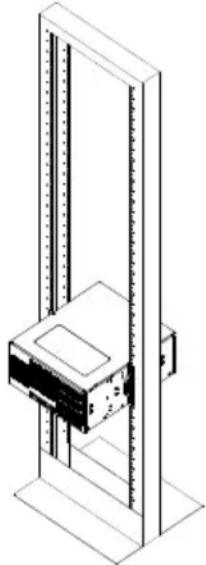
To install the chassis into a Telco type rack, use one L-shaped bracket on either side of the chassis (two total). First, determine how far follow the server will extend out the front of the rack. Larger chassis should be positioned to balance the weight between front and back. If a bezel is included on your chassis, remove it, then attach the two front brackets to each side of the chassis. Finish by sliding the chassis into the rack and tightening the brackets to the rack. Additional L-brackets may be purchased separately if additional support is required.
natural_image
Isometric line drawing of a vertical shelving unit with a central rack-mounted device (no text or symbols visible)Figure 6-1. Mounting in an Open Style Rack
Warning: When initially installing the server to a rack, test that the rail locking tabs engage to prevent the server from being overextended. Have a rack lift in place as a precaution in case the test fails.
Note: figures are for illustrative purposes only. Always install servers into racks from the bottom up.

Stability hazard. The rack stabilizing mechanism must be in place, or the rack must be bolted to the floor before you slide the unit out for servicing.
Failure to stabilize the rack can cause the rack to tip over.
6-5 Rack Mounting with the Optional Rail System
Rail System Overview
This section provides information on installing the SC842 chassis into a four-post rack unit with the optional quick-release rails. There are a variety of rack units on the market, which may mean the assembly procedure will differ slightly. You should also refer to the installation instructions that came with the rack unit you are using.
Separating the Sections of the Rack Rails
The optional rail package includes two rail assemblies in the rack mounting kit. Each assembly consists of two sections: an inner fixed chassis rail that secures directly to the server chassis and an outer fixed rack rail that secures directly to the rack itself.
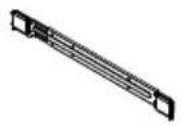
Rail Assembly
Separating the Inner and Outer Rails
- Locate the rail assembly in the chassis packaging.
- Extend the rail assembly by pulling it outward.
- Press the quick-release tab.
- Separate the inner rail from the outer rail assembly.

text_image
Extending QuQuick-Release Tab
Separating the Inner Rail
Figure 6-2. Separating the Rack Rails
text_image
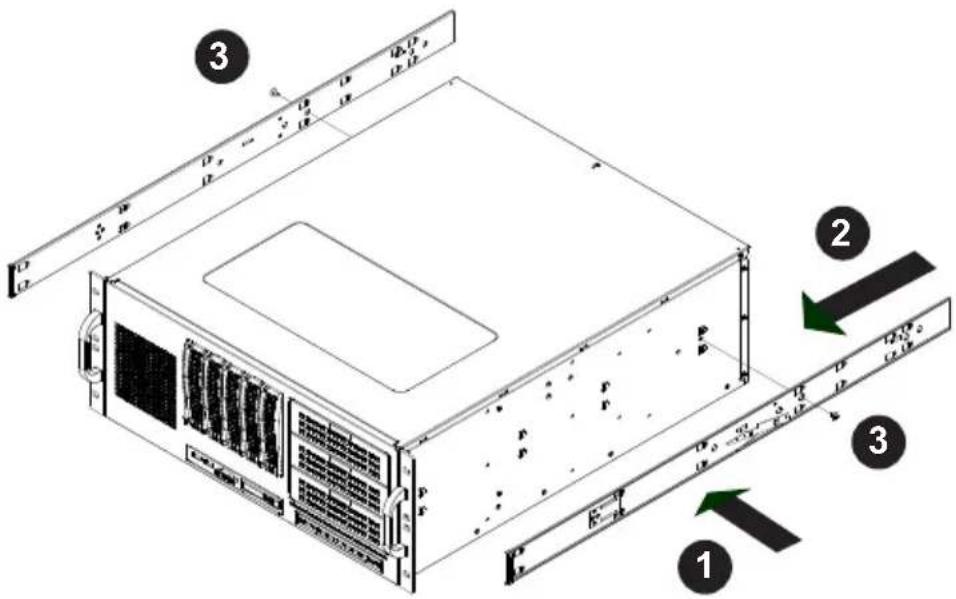
Technical diagram of a server rack with labeled components and directional arrows indicating assembly or movement.Figure 6-3. Installing the Inner Rails
Installing the Inner Rails
Installing the Inner Rails
- Place the inner rails on the side of the chassis aligning the hooks of the chassis with the rail holes. Make sure the rail faces "outward".
- Slide the inner rail toward the front of the chassis.
- Secure the chassis with two screws as illustrated. Repeat steps 1 and 2 for the other inner rail.

Warning: do not pick up the server by the front handles. They are designed to pull the system from a rack only.
text_image
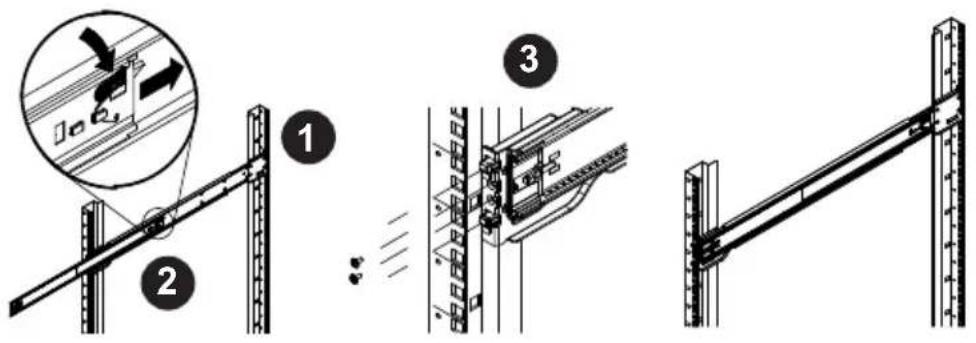
Technical diagram illustrating three-step installation of a structural frame with labeled components and motion indicators.Figure 6-4. Assembling the Outer Rails
Outer Rack Rails
Outer rails attach to the rack and hold the chassis in place.
Installing the Outer Rails to the Rack
- Secure the back end of the outer rail to the rack, using the screws provided.
- Press the button where the two outer rails are joined to retract the smaller outer rail.
- Hang the hooks of the rails onto the rack holes and if desired, use screws to secure the front of the outer rail onto the rack.
- Repeat steps 1-3 for the remaining outer rail.
natural_image
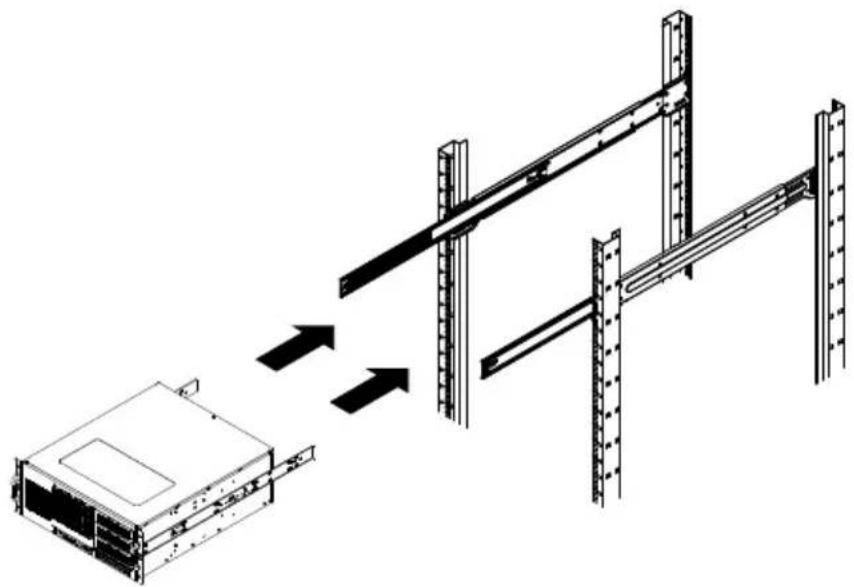
Technical line drawing showing a server rack with two vertical supports and an internal unit, no text or symbols present.Figure 6-5. Installing the Chassis into a Rack
Note: figures are for illustrative purposes only. Always install servers into racks from the bottom up.
Installing the Chassis into a Rack
- Extend the outer rails as illustrated above.
- Align the inner rails of the chassis with the outer rails on the rack.
- Slide the inner rails into the outer rails, keeping the pressure even on both sides. When the chassis has been pushed completely into the rack, it should click into the locked position.
- Optional screws may be used to secure the front of the chassis to the rack.
Appendix A
SC842 Chassis Cables
A-1 Overview
This appendix lists supported cables for your chassis system. It only includes the most commonly used components and configurations. For more compatible cables, refer to the manufacturer of the motherboard you are using and our Web site at: www.supermicro.com.
A-2 Cables List
| SC842 Chassis | |||
| Part # Type | Length Description | ||
| CBL-0044L Cable | 2' SATA cable | ||
| CBL-0087 | Ribbon, Round | 20" | 16-pin to 16-pin ribbon cable for control panel |
| CBL-0084L Cable | 6" Front control cable, 16-pin split cable | ||
| CBL-0286L Cable | 30 cm | 4-pin to 4-pin rear fan power extension with square header. | |
| CBL-0336L Cable | 57 cm 4-pin middle fan power extension | ||
| Varies Cable | 6' Regional power cord | ||
Notes
Appendix B
SC842 Power Supply Specifications
This appendix lists power supply specifications for your chassis system.
| SC842i-500B | |
| 500W | |
| MFR Part # PWS-502-PQ | |
| Rated AC Voltage | 100 - 240V50-60Hz7-3.5 Amp |
| +5V standby | 3 Amp |
| +12V1 | 17 Amp |
| +12V2 | 17 Amp |
| +12V3 | 17 Amp |
| +12V4 | 18 Amp |
| -12V | 0.5 Amp |
| +5V | 20 Amp |
| +3.3V | 15 Amp |
| SC842XTQ-R606B | |
| 600W | |
| MFR Part # PWS-606P-1R | |
| AC Input | 100 - 240V50-60Hz7.5 - 3.0 Amp |
| DC Output | 3 Amp @ +5V standby50 Amp @ +12V |
| With Power Distributor | +5V: 30 Amp+3.3V: 28 Amp-12V: 0.6 Amp |
| SC842TQ-665B | |
| 665W | |
| MFR Part # PWS-665-PQ | |
| Rated AC Voltage | 100 - 240V50 - 60Hz10 -5 Amp |
| +5V standby | 6 Amp |
| +12V | 54 Amp |
| +5V | 30 Amp |
| +3.3V | 24 Amp |
| -12V | 0.5 Amp |
| SC842TQ-865B | |
| 865W | |
| MFR Part # PWS-865-PQ | |
| Rated AC Voltage | 100 - 240V50 - 60Hz12 - 6 Amp |
| +5V standby | 6.5 Amp |
| +12V | 70 Amp |
| +5V | 30 Amp |
| +3.3V | 30 Amp |
| -12V | 1 Amp |
Appendix C
BPN-BPN-SAS-842TQ Backplane Specifications
To avoid personal injury and property damage, carefully follow all the safety steps listed below when accessing your system or handling the components.
C-1 ESD Safety Guidelines
Electrostatic Discharge (ESD) can damage electronic components. To prevent damage to your system, it is important to handle it very carefully. The following measures are generally sufficient to protect your equipment from ESD.
- Use a grounded wrist strap designed to prevent static discharge.
- Touch a grounded metal object before removing a component from the antistatic bag.
- Handle the backplane by its edges only; do not touch its components, peripheral chips, memory modules or gold contacts.
- When handling chips or modules, avoid touching their pins.
- Put the card and peripherals back into their antistatic bags when not in use.
C-2 General Safety Guidelines
- Always disconnect power cables before installing or removing any components from the computer, including the BPN-BPN-SAS-842TQ backplane.
- Disconnect the power cable before installing or removing any cables from the backplane.
- Make sure that the BPN-BPN-SAS-842TQ backplane is securely and properly installed on the motherboard to prevent damage to the system due to power shortage.
C-3 An Important Note to Users
All images and layouts shown in this user's guide are based upon the latest backplane revision available at the time of publishing. The card you have received may or may not look exactly the same as the graphics shown in this manual.
C-4 Introduction to the BPN-BPN-SAS-842TQ Backplane
The BPN-BPN-SAS-842TQ backplane has been designed to utilize the most up-to-date technology available, providing your system with reliable, high-quality performance.
This manual reflects BPN-BPN-SAS-842TQ Revision 1.01, the most current release available at the time of publication. Always refer to the Supermicro web site at www.supermicro.com for the latest updates, compatible parts and supported configurations.
C-5 Front Connectors
text_image
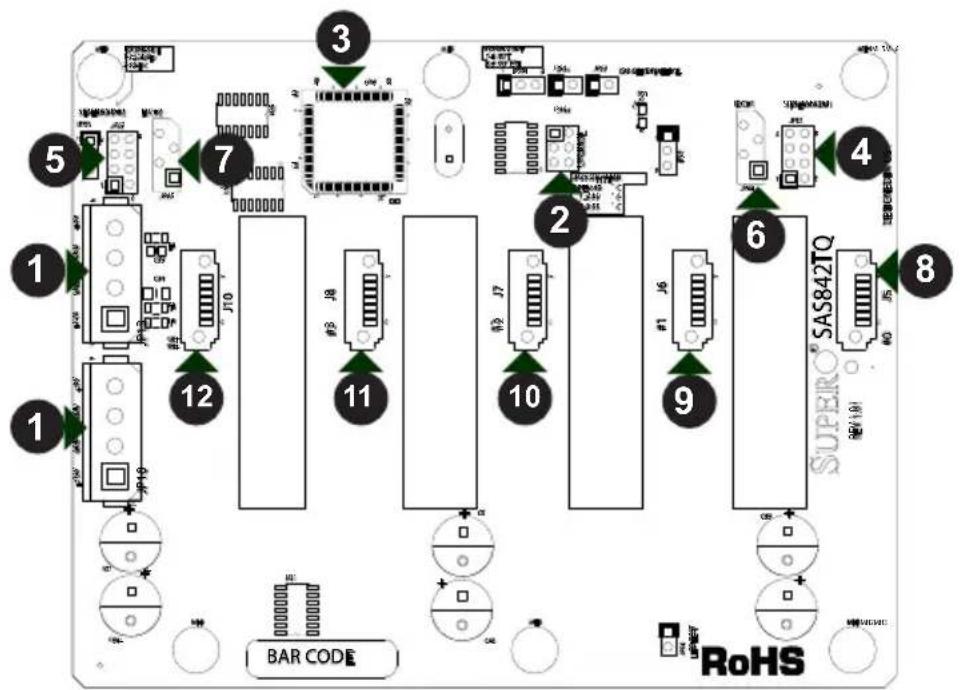
BAR CODE SAS842TQ RoHSFigure C-1. Front Connectors
Front Connectors
- Power Connectors (4-pin): JP10, JP13
- I ^2 C Connector #2: JP45
- Upgrade Pin: JP46
- Connector #0: J5
- MG9072 Chip
- Connector #1: J6
- Sideband #1: JP51
- Connector #2: J7
- Sideband #2: JP52
- Connector #3: J8
- I ^2 C Connector #1: JP44
- Connector #4: J10
C-6 Front Connector and Pin Definitions
#1. Backplane Main Power Connectors
These 4-pin connectors designated JP10 and JP13 provide power to the backplane. See the table on the right for pin definitions.
| BackplaneMain Power4-Pin Connector | |
| Pin# | Definition |
| 1 +12V | |
| 2 and 3 Ground | |
| 4 +5V | |
#2 Upgrade Connector
The upgrade connector is designated JP46 and is for the manufacturer's diagnostic purposes only.
#3. MG9072 Chip
The MG9072 is an enclosure management chip that supports the SES-2 controller and SES-2 protocols.
#4 and #5. Sideband Connectors
The sideband connectors are designated JP51 and JP52. For SES-2 to work properly, you must connect an 8-pin sideband cable. See the table to the right for pin definitions.
| Sideband Connectors | |||
| Pin # | Definition | Pin # | Definition |
| 2 SDIN/Backplane Addressing (SB5) | 1 Controller ID (SB6) | ||
| 4 SDOUT/I ^2C Reset (SB4) | 3 GND (SB2) | ||
| 6 GND (SB3) 5 SLOAD/ | SDA (SB1) | ||
| 8 Backplane ID (SB7) | 7 SCLK/SCL (SB0) | ||
#6 and #7. I²C Connectors
The I ^2 C connectors, designated JP44 and JP45, are used to monitor HDD activity and status. See the table on the right for pin definitions.
| I2C ConnectorPin Definitions | |
| Pin# | Definition |
| 1 Data | |
| 2 Ground | |
| 3 Clock | |
| 4 No Connection | |
#8 - #12. SAS/SATA Connectors
The SAS/SATA connectors are numbered 0 through 4. Each may be connected to the system with a SAS or SATA cable.
C-7 Front Jumper Locations and Pin Definitions

text_image
JP30 JP29 JP53 JP54 JP25 JP30 SUPERC SAS847Q BAR COO RoHSFigure C-2. Front Jumpers
Explanation of Jumpers
To modify the operation of the backplane, jumpers can be used to choose between optional settings. Jumpers create shorts between two pins to change the function of the connector. Pin 1 is identified with a square solder pad on the printed circuit board. Note: On two pin jumpers, "Closed" means the jumper is on and "Open" means the jumper is off the pins.

text_image
Connector Pins Jumper Setting 3 2 1 3 2 1| Jumper Settings | ||
| Jumper Jumper Settings Note | ||
| JP25 | Open: 45 degrees CelciusPins 1-2: 50 degrees CelciusPins 2-3: 55 degrees Celcius | OH TEMP:Overheat temperature settings |
| JP29 | Pins 1-2: ResetPins 2-3: No reset | MG9072 chip reset |
| JP30 --- For manufacturer's use only | ||
| JP53 --- For manufacturer's use only | ||
| JP54 --- For manufacturer's use only | ||
I²C and SGPIO Mode Jumper Settings
This backplane can utilize or SGPIO. SGPIO is the default mode and can be used without making changes to your jumpers. The following information details which jumpers must be configured to use mode or restore your backplane to SGPIO mode.
| I^2C and SGPIO Settings | ||
| Jumper | SGPIO Jumper Setting (Default) | I^2C Jumper Setting |
| JP33 | Pins 1-2 | Pins 2-3 |
Front LED Indicators

text_image
D3 BAR CODE SAS842TQ REV 1.01 RoHSFigure C-3. Front LEDs
| Front LEDs | ||
| LED | State | Specification |
| D3 | On | Overheat or Drive Failure |
C-8 Rear Connectors and LED Indicators

text_image
SAS#0 SAS #0 SAS#1 SAS #1 SAS#2 SAS #2 SAS#3 SAS #3 SAS#4 SAS #4 RAB#2 ACT#0 D4 D5 D6 D7 D8 D9 D10 D11 D12 D13 D14 D15 D16 D17 D18 D19 RAB#1 ACT#1 D4 D5 D6 D7 D8 D9 D10 D11 D12 D13 D14 D15 D16 D17 D18 D19Figure C-4. Rear Connectors
| Rear SAS/SATA Connectors | ||
| Rear Connector | Connector Number | SAS/SATA Drive Number |
| SAS #0 J1 SAS/SATA HDD #0 | ||
| SAS #1 J2 SAS/SATA HDD #1 | ||
| SAS #2 J3 SAS/SATA HDD #2 | ||
| SAS #3 J4 SAS/SATA HDD #3 | ||
| SAS #4 J9 SAS/SATA HDD #4 | ||
text_image
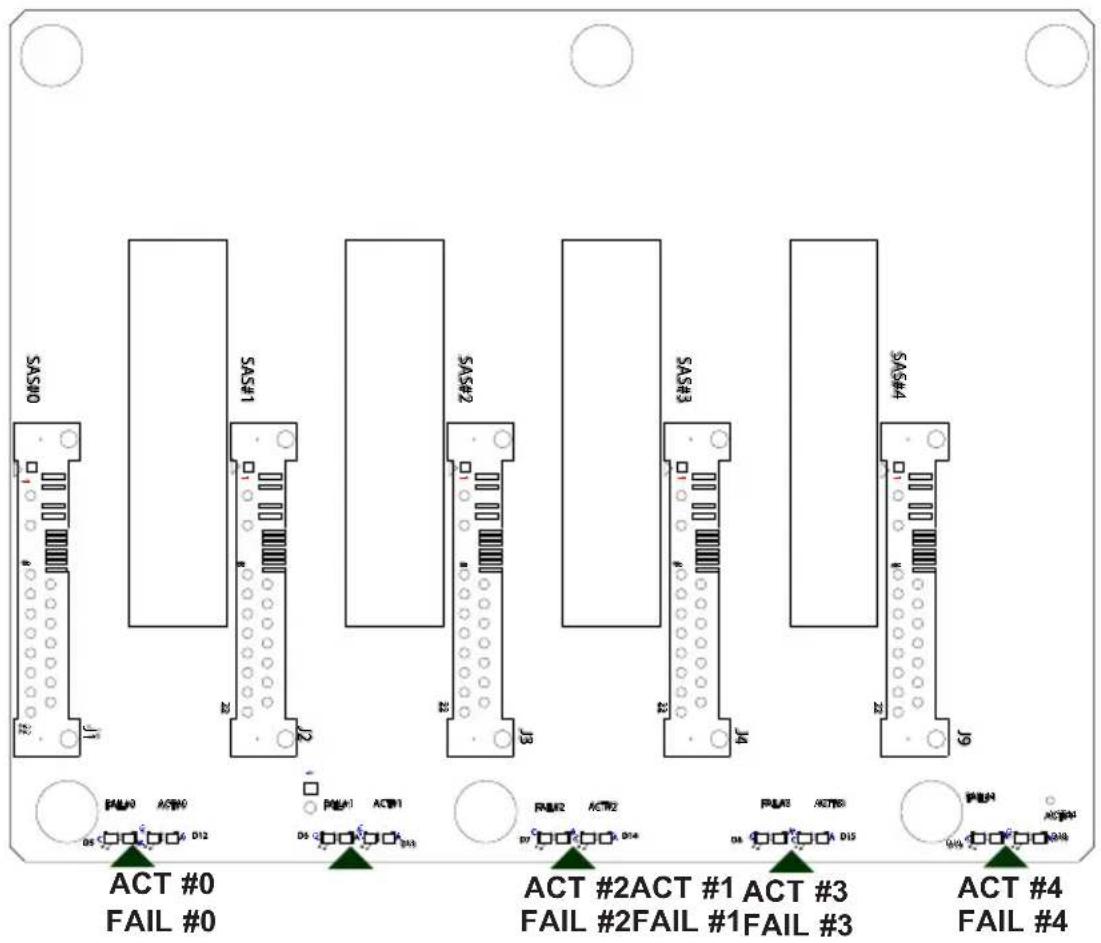
SAS#0 SAS#1 SAS#2 SAS#3 SAS#4 ACT #0 FAIL #0 ACT #2ACT #1 ACT #3 FAIL #2FAIL #1FAIL #3 ACT #4 FAIL #4Figure C-5. Rear LEDs
| Rear LED Indicators | ||
| Rear Connector | Hard Drive Activity Failure LED | |
| SAS #0 D12 D5 | ||
| SAS #1 D13 D6 | ||
| SAS #2 D14 D7 | ||
| SAS #3 D15 D8 | ||
| SAS #4 D18 D19 | ||
Disclaimer (cont.)
The products sold by Supermicro are not intended for and will not be used in life support systems, medical equipment, nuclear facilities or systems, aircraft, aircraft devices, aircraft/emergency communication devices or other critical systems whose failure to perform be reasonably expected to result in significant injury or loss of life or catastrophic property damage. Accordingly, Supermicro disclaims any and all liability, and should buyer use or sell such products for use in such ultra-hazardous applications, it does so entirely at its own risk. Furthermore, buyer agrees to fully indemnify, defend and hold Supermicro harmless for and against any and all claims, demands, actions, litigation, and proceedings of any kind arising out of or related to such ultra-hazardous use or sale.