PEL-3211 - Unknown GW Instek - Free user manual and instructions
Find the device manual for free PEL-3211 GW Instek in PDF.


User questions about PEL-3211 GW Instek
0 question about this device. Answer the ones you know or ask your own.
Ask a new question about this device
Download the instructions for your Unknown in PDF format for free! Find your manual PEL-3211 - GW Instek and take your electronic device back in hand. On this page are published all the documents necessary for the use of your device. PEL-3211 by GW Instek.
USER MANUAL PEL-3211 GW Instek
This manual contains proprietary information, which is protected by copyright. All rights are reserved. No part of this manual may be photocopied, reproduced or translated to another language without prior written consent of Good Will company.
The information in this manual was correct at the time of printing. However, Good Will continues to improve products and reserves the rights to change specification, equipment, and maintenance procedures at any time without notice.
Table of Contents
SAFETY INSTRUCTIONS 3
GETTING STARTED 8
PEL-3000 Series Introduction....10
Accessories....12
Appearance....15
First Time Use Instructions 24
OPERATION 48
Basic Operation 51
Basic Configuration 63
Advanced Configuration Settings ..... 70
Step Resolution Configuration ..... 77
Protection Settings 80
System Settings 86
Go-NoGo 89
Program....92
Sequence 100
Save Recall.... 119
EXTERNAL CONTROL 133
Analog Control.... 134
Parallel Operation....152
REMOTE CONTROL....159
Interface Configuration 160
FAQ 171
APPENDIX 173
Replacing the Dust Filter 175
Replace the Clock Battery.... 176
GPIB Installation....177
PEL-3000 Default Settings....178
Frame Control Connector Contacts .... 181
Operating Mode Description...... 186
Operating Area.... 191
PEL-3000 Specifications 195
PEL-3000 Dimensions 207
Declaration of Conformity 210
INDEX....211
SAFETY INSTRUCTIONS
This chapter contains important safety instructions that you must follow during operation and storage. Read the following before any operation to insure your safety and to keep the instrument in the best possible condition.
Safety Symbols
These safety symbols may appear in this manual or on the instrument.

WARNING
Warning: Identifies conditions or practices that could result in injury or loss of life.

CAUTION
Caution: Identifies conditions or practices that could result in damage to the instrument or to other properties.

DANGER High Voltage

Attention Refer to the Manual

Earth (ground) Terminal

Frame or Chassis Terminal

Do not dispose electronic equipment as unsorted municipal waste. Please use a separate collection facility or contact the supplier from which this instrument was purchased.
Safety Guidelines
General Guideline

CAUTION
- Do not place any heavy object on the instrument. Note: Only 2 units can be stacked vertically.
- Avoid severe impact or rough handling that leads to damaging the instrument.
- Do not discharge static electricity to the instrument.
- Use only crimped wires, not bare wires, for the terminals.
- Do not block the cooling fan opening.
- Do not disassemble the instrument unless you are qualified.
- The equipment is not for measurements performed for CAT II, III and IV.
(Measurement categories) EN 61010-1:2010 specifies the measurement categories and their requirements as follows. The instrument falls under category II.
- Measurement category IV is for measurement performed at the source of low-voltage installation.
• Measurement category III is for measurement performed in the building installation. - Measurement category II is for measurement performed on the circuits directly connected to the low voltage installation.
- Measurement category I is for measurements performed on circuits not directly connected to Mains.
Power Supply

WARNING
- AC Input voltage range: 100\~120VAC/200\~240VAC (90\~132VAC/180\~250VAC)
• Frequency: 47\~63Hz
• Power: PEL-3021: 90VA Max PEL-3041: 110VA Max PEL-3111: 190VA Max PEL-3211: 230VA Max
- To avoid electrical shock connect the protective grounding conductor of the AC power cord to an earth ground.
Cleaning
- Disconnect the power cord before cleaning.
- Use a soft cloth dampened in a solution of mild detergent and water. Do not spray any liquid.
- Do not use chemicals containing harsh material such as benzene, toluene, xylene, and acetone.
Operation Environment
- Location: Indoor, no direct sunlight, dust free, almost non-conductive pollution (Note below)
• Temperature: 0^ C to 40^ C
• Humidity: 0 to 85% RH
(Pollution Degree) EN 61010-1:2010 specifies the pollution degrees and their requirements as follows. The instrument falls under degree 2.
Pollution refers to “addition of foreign matter, solid, liquid, or gaseous (ionized gases), that may produce a reduction of dielectric strength or surface resistivity”.
- Pollution degree 1: No pollution or only dry, non-conductive pollution occurs. The pollution has no influence.
- Pollution degree 2: Normally only non-conductive pollution occurs. Occasionally, however, a temporary conductivity caused by condensation must be expected.
- Pollution degree 3: Conductive pollution occurs, or dry, non-conductive pollution occurs which becomes conductive due to condensation which is expected. In such conditions, equipment is normally protected against exposure to direct sunlight, precipitation, and full wind pressure, but neither temperature nor humidity is controlled.
Storage environment
- Location: Indoor
• Temperature: -20°C to 70°C
• Humidity: <90% RH
Disposal

Do not dispose this instrument as unsorted municipal waste. Please use a separate collection facility or contact the supplier from which this instrument was purchased. Please make sure discarded electrical waste is properly recycled to reduce environmental impact.
Power cord for the United Kingdom
When using the instrument in the United Kingdom, make sure the power cord meets the following safety instructions.
NOTE: This lead/appliance must only be wired by competent persons
WARNING: THIS APPLIANCE MUST BE EARTHED
IMPORTANT: The wires in this lead are coloured in accordance with the following code:
Green/ Yellow: Earth
Blue: Neutral
Brown: Live (Phase)
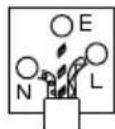
As the colours of the wires in main leads may not correspond with the coloured marking identified in your plug/appliance, proceed as follows:
The wire which is coloured Green & Yellow must be connected to the Earth terminal marked with either the letter E, the earth symbol or coloured Green/Green & Yellow.
The wire which is coloured Blue must be connected to the terminal which is marked with the letter N or coloured Blue or Black.
The wire which is coloured Brown must be connected to the terminal marked with the letter L or P or coloured Brown or Red.
If in doubt, consult the instructions provided with the equipment or contact the supplier.
This cable/appliance should be protected by a suitably rated and approved HBC mains fuse: refer to the rating information on the equipment and/or user instructions for details. As a guide, a cable of 0.75mm^2 should be protected by a 3A or 5A fuse. Larger conductors would normally require 13A types, depending on the connection method used.
Any exposed wiring from a cable, plug or connection that is engaged in a live socket is extremely hazardous. If a cable or plug is deemed hazardous, turn off the mains power and remove the cable, any fuses and fuse assemblies. All hazardous wiring must be immediately destroyed and replaced in accordance to the above standard.
GETTING STARTED
This chapter provides a brief overview of the PEL-3000, the package contents, instructions for first time use and an introduction to the front panel, rear panel and GUI.
PEL-3000 Series Introduction 10
Model Line Up....10
Main Features....11
Accessories 12
Package Contents....14
Appearance 15
PEL-3000 Front Panel 15
(PEL-3021/PEL-3041)....15
(PEL-3111).... 15
(PEL-3211 Booster Pack) 16
Rear Panel 20
PEL-3021 / PEL-3041 20
(PEL-3111)....20
(PEL-3211 Booster Pack) 21
Display....23
First Time Use Instructions 24
Rack Mount Kits....24
Power Up and Self Test 27
Load Default Settings....28
Setting the Date and Time....28
Load Wiring....29
Load Wire Connections 32
Using the Front Panel Input Terminals....33
Using the Rear Panel Input Terminals....34
Using the Terminal Cover 35
Remote Sense 38
Firmware Update 39
Conventions....41
Help Menu....47
PEL-3000 Series Introduction
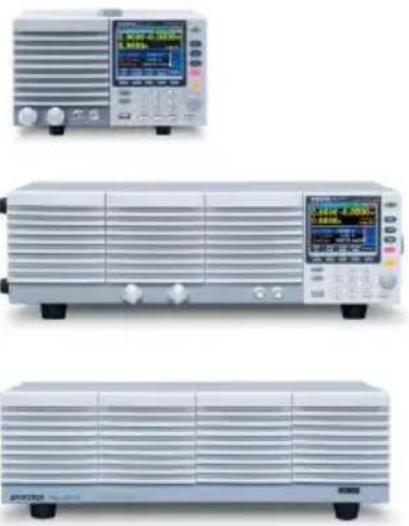
The PEL-3000 Series is a family of high performance DC electronic loads positioned to test a wide range of different power sources. The DC electronic loads are fully programmable to simulate anything from basic static loads to complex dynamic loads. With the ability to operate independently or in parallel, the PEL-3000 Series is extremely robust and capable of molding to any test environment.
Please note that throughout this manual the term “PEL-3000” refers to any one of the models in the series lineup, unless specifically stated otherwise.
Model Line Up
There are a total of 3 DC electronic load models and 1 booster pack model.
| Model | Operating Voltage (DC) | Current | Power |
| PEL-3021 | 1.5V~150V | 35A | 175W |
| PEL-3041 | 1.5V~150V | 70A | 350W |
| PEL-3111 | 1.5V~150V | 210A | 1050W |
| Booster Model | Operating Voltage (DC) | Current | Power |
| PEL-3211 | 1.5V~150V | 420A | 2100W |
Main Features
| Performance | ·High slew rates of up to 16A/μS(PEL-3111) for a fast response speed·High capacity when used in parallel: 5250W, 1050A (PEL-3111 x 5)/9450W, 1890A (PEL-3111 + PEL-3211 x 4)·High resolution - 16 bit |
| Features | ·7 operating modes: CC, CV, CR, CP, CC+CV, CR+CV, CP+CV·Independent and parallel operation·Fully programmable with normal and fast sequences·Soft start·Dynamic mode·OCP, OVP and other protection features·Remote sense·Integrated meter·Rack-mountable·Load booster |
| Interface | ·USB, RS232 and GPIB·External voltage or resistance control·Front panel trigger out BNC·Front panel current monitoring BNC·Analog external control |
Accessories
| Standard Accessories | Part number | Description |
| 82EL-31110MB1 | Quick Start Guide | |
| 82EL-31110EB1 | User / Programming manual CD | |
| Region dependant | Power cord | |
| PEL-011 | Load input terminal Cover | |
 | ||
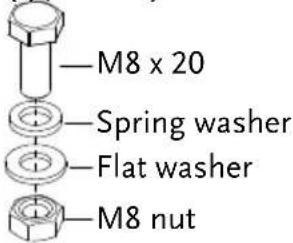
| PEL-012 | Terminal fittings: 2 sets of bolts/nuts/springs/washers (type: M8) | |
 | ||
| Optional Accessories | Part number | Description |
| 3813-030D0501 | CR123A 3V lithium battery for clock. | |
| GRA-413 | Rack mount bracket for booster PEL-3211 (EIA + JIS) | |
| GRA-414-E | Rack mount frame for PEL-3021, PEL-3041, PEL-3111/EIA | |
| GRA-414-J | Rack mount frame for PEL-3021, PEL-3041, PEL-3111/JIS |
| GTL-255 | 300mm Frame Link Cable (for linking units that are stacked) |
| GTL-248 | GPIB cable, 2.0m |
| GTL-246 | USB cable, Type A - Type B |
| PEL-010 | Dust Filter |
| PEL-004 | GPIB option |
Package Contents
Check the contents before using the instrument.
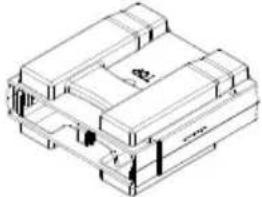
Opening the box

natural_image
Technical line drawing of an open box assembly with internal components (no text or symbols)Contents (single unit)
- Main unit
- Quick Start manual
-
User / Programming manual CD
-
Terminal fittings
• Power cord x1 (region dependent) - Calibration certificate
Appearance
PEL-3000 Front Panel
(PEL-3021/PEL-3041)
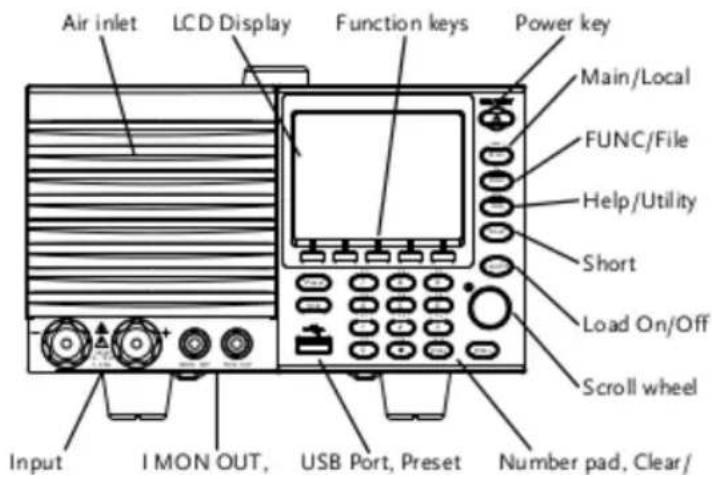
text_image
Air inlet LCD Display Function keys Power key Main/Local FUNC/File Help/Utility Short Load On/Off Scroll wheel Input I MON OUT, USB Port, Preset Number pad, Clear/(PEL-3211 Booster Pack)
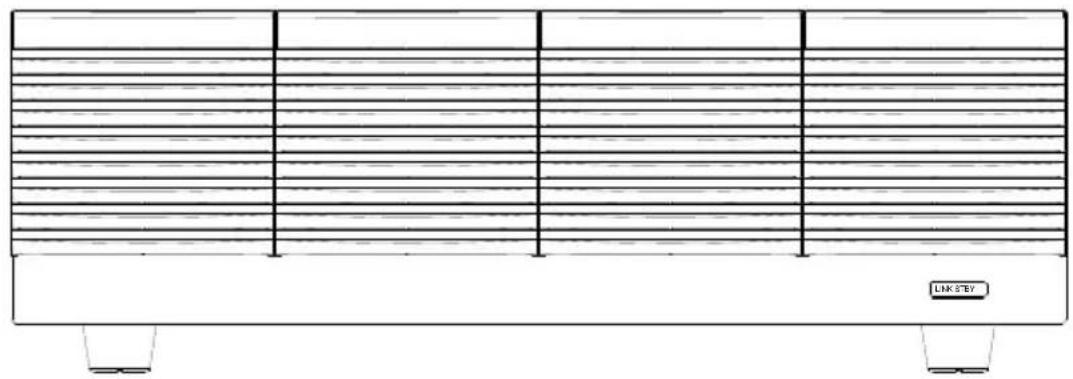
natural_image
Line drawing of a rectangular electronic device with horizontal lines and a labeled button (LINK STBY) at the bottom, no text or symbols present.Air Inlet The air inlet has a removable dust filter
LCD display 3.5 inch LCD display
Function keys



The function keys directly correspond to the soft menu keys at the bottom of the display.
ON/STBY

Turns the unit on or puts the unit into standby mode. Use the power switch on the rear panel to turn the unit off.
Main/Local
Main: Sets the operating mode: CC, CV, CR, CP mode.

Local (Shift + Main): Puts the instrument back into local mode from remote mode.
FUNC/File
FUNC: Sets the program function, sequence function or other special functions.
 | File (Shift + FUNC):Accesses the file system. | ||
| Help/Utility |  | + | Help: Access the help menu. |
 | Utility(Shift + Help):Access the utility menu. | ||
| Short |  | Pressing the Short key will simulate shorting the input terminals.The Short key will be lit when active. | |
| Load on/off |  | Turns the load on or off.The Load On/Off key will be lit when active. | |
| Scroll wheel |  | Use the scroll wheel to navigate the menu system or to edit parameters. See page 41 for usage details. | |
| Enter |  | Press the Enter key to select highlighted menu items. | |
Number pad

text_image
P7 7 P8 8 P9 9 P4 4 P5 5 P6 6 P1 1 P2 2 P3 3 P0 0 CAL. Lock ClearNumber pad: Used to enter numerical values.
P0\~P9 (Preset + Number keys): Loads one of 10 preset settings.
Clear/Lock

Clear: Clears the current parameter values.
Lock (Shift + Clear): Locks the front panel keys and selector knob.
Shift
Shift: Used in conjunction with other keys to select secondary functions.
Preset

Used in conjunction with the number pad to save or load preset settings P0 to P9.
USB Port
USB A port. Used for save and recall functions.
Front panel input terminals
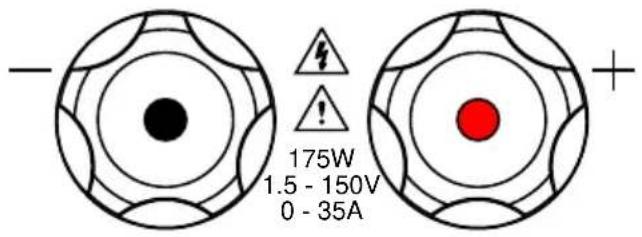
text_image
- 175W 1.5 - 150V 0 - 35A +Negative terminal.
Positive terminal.
IMON Out
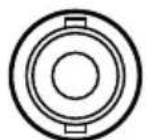
I MON OUT
Current monitor BNC terminal: Output connector used to monitor the current by outputting a voltage. An output voltage of 1V corresponds to the full scale current for the H and L ranges. 0.1V corresponds to the full scale current in the M range.
TRIG OUT

TRIG OUT
Trigger out BNC terminal: Outputs a pulse signal during sequence or dynamic operation. The trigger signal has a 5V output with a pulse width of a least 2us and an impedance of 500Ω.
Rear Panel
PEL-3021 / PEL-3041

text_image
Frame control ports, J1, J2 Remote sense inputs Rear panel inputs RS232C port USB port USB device port GPIB Power socket Exhaust fan(PEL-3111)
(PEL-3211 Booster Pack)

text_image
CD WAFM-19C DC 1200 DC 1200 DC 1200 DC 1200 DC 1200 DC 1200 DC 1200 DC 1200 DC 1200 DC 1200 DC 1200 DC 1200 DC 1200 DC 1200 DC 1200 CERS232C Port
The USB B, RS232C and GPIB port are used for remote control.
GPIB
USB B
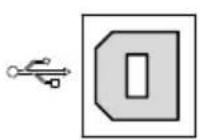


natural_image
Simple geometric shape with a vertical rectangle inside a rounded rectangular border (no text or symbols)USB B port
RS232C 9 pin DSUB port.
GPIB 24 pin female.
Frame control ports, J1, J2

text_image
FRAME CONT J 1 J 2J1: The J1 connector is assigned to external control.
J2: The J2 connector is used for parallel operation control.
Exhaust fan
The exhaust fan is used to expel the heat from the unit. Please ensure there is at least 20cm distance between any object and the fan.
Rear Panel Input terminals
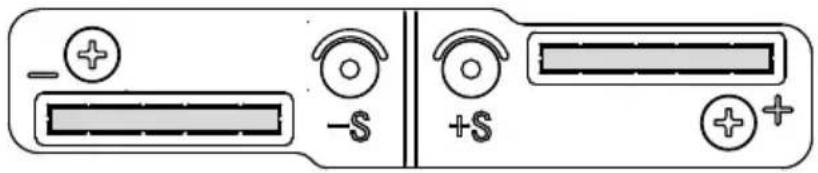
text_image
- + -$ ++$ +Rear Panel Input Terminals. Electrically connected to the front panel input terminals. Accepts M8 bolts or M4/M3 sized screws. See page 34 for connection details.
Remote Sensing Terminals

text_image
- + -S +S + +Sensing terminals for remote sense. See page 35.
Accepts M3 sized screws.
Power Socket

natural_image
Electrical socket and power button diagram (no text or symbols)Power Socket: 100\~120V, 200\~240V 47\~63Hz.
Power Switch
Turns the unit on/off.
USB A

USB A Slave port. USB 1.1/2.0
Display

other
| Category | Value | Type | | :--- | :--- | :--- | | Measurement area | 0.000v | v | | Measurement area | 0.000w | w | | Setting area | CC A Value | A | | Setting area | CC B Value | A | | Setting area | SlewRate | 2500.00 mA/us | | Mode CV | I Range H 35A | Range H 35A | | V Range L 15V | Function Static | Function Static | | LoadRS | Fine A Value | A Value | | Date: 03/Sep/2012 | Mainframe status panel (LOADRS) | Mainframe status panel (LOADRS) | | Operation status panel | Operation status panel (Mainframe status panel) | Operation status panel (Mainframe status panel) |Softkeys
| Setting area | The setting area is used to display and edit the settings for the current mode/function. |
| Measurement area | Displays the voltage, current and power values. |
| Date | Displays the date. |
| Mainframe status panel | The mainframe status panel displays the status of the load, remote control and short function.When an icon is green it indicates that the function is off. When the icon is orange, the function is on. |
| Operation Status Panel | This status panel is used to display the status of the current mode. |
| Soft-keys | The soft-key menus are used to select different functions or parameters. |
First Time Use Instructions
Use the procedures below when first using the PEL-3000 to install the rack mount kit, power up the instrument, set the internal clock, restore the factory default settings and check the firmware version. Lastly, the Conventions section will introduce you to the basic operating conventions used throughout the user manual.
Rack Mount Kits
Description
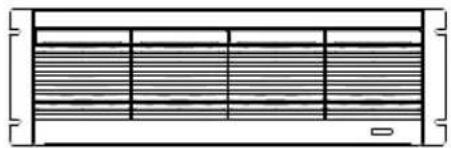
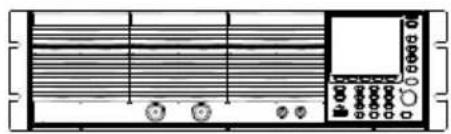
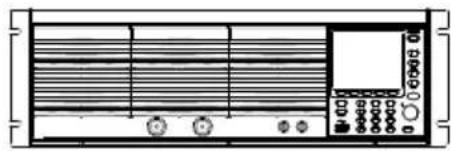
The PEL-3000 has a number of rack mount options for installation. The GRA-413 rack mounts are suitable for the PEL-3211 booster pack. The GRA-414 rack mounts are capable of holding 1x PEL-3111 or 2x PEL-3021/3041 units.
For installation details, please see the GRA-413 and GRA-414 Rack Mount Assembly Manual.
Please see your distributor for which rack mount is suitable for your application.
GRA-413
(EIA standard)

natural_image
Pure electrical circuit lines without any symbols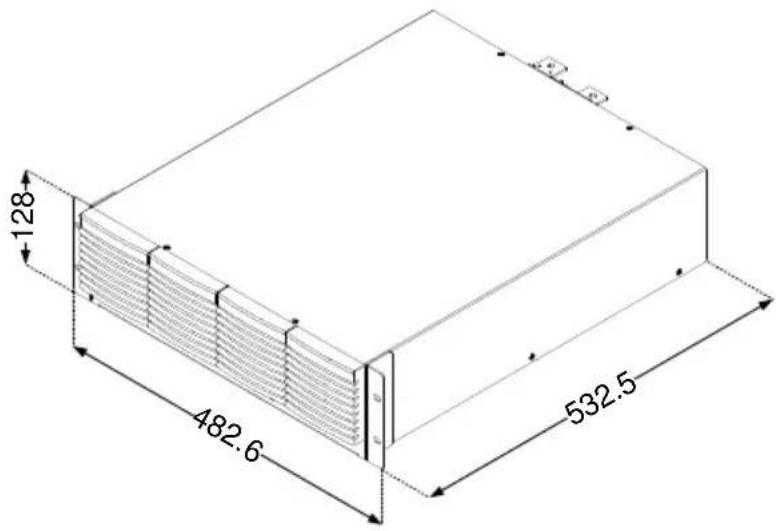
text_image
128 482.6 532.5GRA-413
(JIS standard)
natural_image
Pure electrical circuit lines without any symbols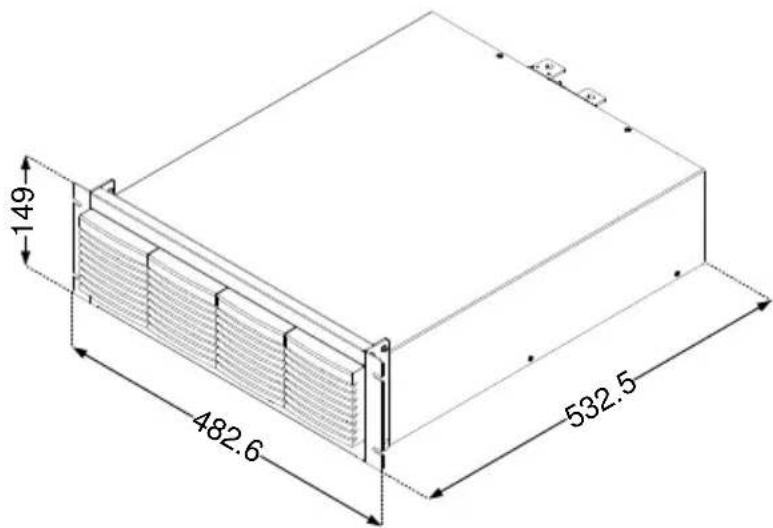
text_image
149 482.6 532.5GRA-414-E
(EIA standard)
natural_image
Front view of a rack-mounted electronic device with indicator lights and a control panel (no visible text or symbols)
text_image
132 477.6 382.5GRA-414-J
(JIS standard)
natural_image
Front view of a portable electronic device with ventilation grilles and control panel (no visible text or labels)
text_image
149 477.6 382.5Power Up and Self Test
Steps
-
Insert the AC power cord into the power socket.
-
Turn the external power switch on. (O -)
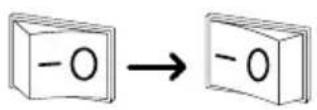
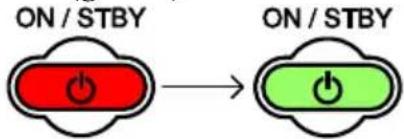
- If the unit doesn't turn on, press the On/Standby key.
- The ON/STBY key will go from standby (red) to on (green).
text_image
ON / STBY ON / STBY- The unit will show the splash screen and then load the settings from when the unit was last powered down.
Note
If the PEL-3000 fails to start up properly or does not turn on, please see you local distributor.
Load Default Settings
Description
When first using the PEL-3000, recall the factory default settings to ensure the unit is in a known state. See page 178 for a list of the default settings.
Operation
- Press Shift + FUNC
Select Media/Default[F1].
Select Factory Default[F2].

text_image
03/Sep/2012 Load Default Setup Warning!! Pressing F2 Again Will Recall the Default Settings! Media Default Factory Default Save Recall LOADRS CC 35A 15V Static A ValueSetting the Date and Time
Description
The date and time settings are used to timestamp files when saving files.
• The date is shown on top of the display.
Operation
- Press Shift + Help > Time Set[F4] to set the date and time.
Settings: Month, Day, Year, Hour, Minute

bar
| Metric | Value | |---|---| | Month | 3 | | Day | 9 | | Year 2012 | | | Hour 0 | | | Minute | 9 |Load Wiring
Wire Gauge considerations
Before connecting the unit to a power source, the wire gauge must be taken into account. Load wires must be large enough to resist overheating when a short-circuit condition occurs as well as to maintain a good regulation. The size, polarity and length of a wire are all factors in determining if a wire will withstand short circuiting.
Wires that are selected must be large enough to withstand a short circuit and limit voltage drops to no more than 2V per wire. Use the table below to help make a suitable selection.
| AWG Gauge | Conduct or Diameter mm | Ohms per km | Max amps for chassis wiring |
| 0000 | 11.684 | 0.16072 | 380 |
| 000 | 10.4038 | 0.2027 | 328 |
| 00 | 9.26592 | 0.25551 | 283 |
| 0 | 8.25246 | 0.32242 | 245 |
| 1 | 7.34822 | 0.40639 | 211 |
| 2 | 6.54304 | 0.51266 | 181 |
| 3 | 5.82676 | 0.64616 | 158 |
| 4 | 5.18922 | 0.81508 | 135 |
| 5 | 4.62026 | 1.02762 | 118 |
| 6 | 4.1148 | 1.29593 | 101 |
| 7 | 3.66522 | 1.6341 | 89 |
| 8 | 3.2639 | 2.0605 | 73 |
| 9 | 2.90576 | 2.59809 | 64 |
| 10 | 2.58826 | 3.27639 | 55 |
| 11 | 2.30378 | 4.1328 | 47 |
| 12 | 2.05232 | 5.20864 | 41 |
| 13 | 1.8288 | 6.56984 | 35 |
| 14 | 1.62814 | 8.282 | 32 |
Load Line Inductance Considerations
When using the PEL-3000 load generator, voltage drop and voltage generated due to load line inductance and current change must be taken into account. Extreme changes in voltage may exceed the minimum or maximum voltage limits. Exceeding the maximum voltage limit may damage the PEL-3000.
To determine the voltage generated, the following equation can be used.
$$ \begin{array}{l} \mathrm{E} = \mathrm{L} \times (\Delta \mathrm{I} / \Delta \mathrm{T}) \ \mathrm{E} = \text { voltage generated } \ \mathrm{L} = \text { load line inductance } \ \Delta \mathrm{I} = \text { change of current(A) } \ \Delta \mathrm{T} = \text { time (us) } \ \end{array} $$
Load line inductance (L) can be approximated as 1uH per 1 meter of wire. ( I / T ) is the slew rate in A/us.

The diagram above shows how changes in current can affect voltage.
Limiting Load line inductance
Load line inductance can be reduced in two ways.
- Ensure load wires are as short as possible and twist the positive and negative load wires together.
- Current change can be limited by limiting the slew rate or response speed when switching in CR and CC mode.
"Twisted pair" will be shown on any connection diagram where the load wires should be twisted together.

flowchart
graph TD
    A["DUT"] --> B["Electronic Load"]
    C["+"] --> D["Twisted pair"]
    E["DUT"] --> F["Electronic Load"]
    G["+"] --> H["Coiled Circuit"]
Load Wire Connections
| Description | The PEL-3000 has input terminals on both the front and rear panels.Follow the procedures below for all load connections. Please adhere to the following precautions to ensure your safety and to protect the unit from damage. |
| Connection | When connecting the PEL-3000 to the DUT, make sure that the polarity of the connection between the DUT and the unit matches.Ensure that the maximum input voltage is not exceeded. The maximum input voltage is 150 volts. |
 Caution Caution | If the polarity to the input terminals is reversed, the reverse voltage protection function is tripped. The reverse voltage protection function is tripped when reverse voltages greater than -0.3V are detected. |
 Warning Warning | Do not touch any of the input terminals when the unit is on. |
 Warning Warning | Connecting the input terminals to the wrong polarity can damage the DUT or the PEL-3000. |
 Warning Warning | The front panel and rear panel input terminals are physically connected. Any voltage that is input to one set of terminals will also appear on the other set of terminals. |
Using the Front Panel Input Terminals
| Description | The front panel input terminals feature polarity-distinct caps and accept M6 sized crimped terminals. |
 Caution Caution | The front panel input terminals on the PEL-3000 are physically connected to the rear panel terminals. |
Steps
- Turn the power off from the rear panel or put the unit into standby mode.
- Turn the power off from the DUT.
-
Connect the load wires to the input terminals:
-
Connect the positive (+) input terminal on the load generator to the high potential output of the DUT.
- Connect the negative (-) input terminal to the low potential output of the DUT.

text_image
Negative terminal Positive terminal - potential + potentialUsing the Rear Panel Input Terminals
| Description | The rear panel input terminals accept up to M8-sized crimped terminals. The rear terminals come with a load input terminal cover for safety. |
| Caution | The front panel input terminals on the PEL-3000 are physically connected to the rear panel terminals. |
| Steps | 1. Turn the power off from the rear panel or put the unit into standby mode.2. Turn the power off from the DUT.3. Connect the load wires to the input terminals:Connect the positive (+) input terminal on the load generator to the high potential output of the DUT.Connect the negative (-) input terminal to the low potential output of the DUT. |

text_image
+ potential - potentialUsing the Terminal Cover
| Description | The rear panel terminal cover should be used to prevent electric shock. The rear panel terminal covers should always be used when connecting a load to the rear panel terminals. As the front panel and rear panel terminals are physically connected, the terminal cover should also be used as a safety measure when a DUT is connected to the front terminals |
 Caution Caution | Ensure the power is off before making any connections to the PEL-3000. |
 Note Note | In the following diagrams, the cable wiring is not shown for clarity. |

text_image
1 400-
Remove the screw holding the top cover to the bottom cover.
-
Line-up the bottom cover with the notches in the output terminals.
-
Place the top terminal cover over the bottom cover.

text_image
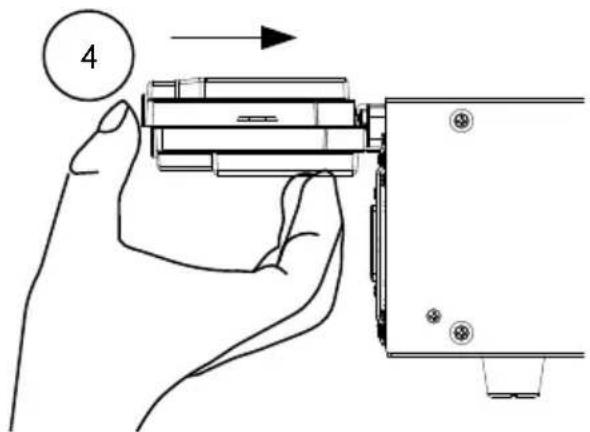
2 Detail 3- Use your thumb to slide the terminal covers shut, as shown in the diagram below.
text_image
4- When the top and bottom covers are flush, reinsert the screw that was removed in step 1.
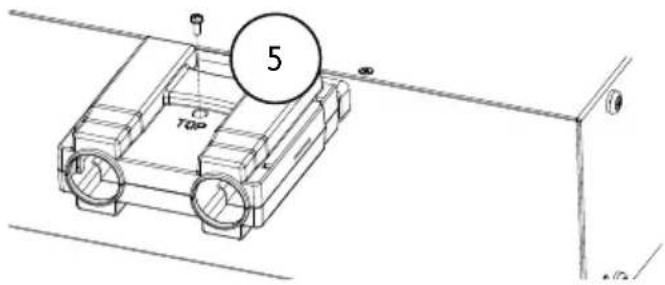
text_image
5 TOPRemote Sense
Description
Remote sense can be used to help compensate for long cable length. The longer the cable, the higher the potential resistance and inductance, therefore a short cable is best. Twisting the cable can help reduce induced inductance and using the Vsense terminals compensates the voltage drop seen across the load leads, especially leads with higher resistance. This is useful when used in CV, CR or CP mode.
Steps
- Turn the power off from the rear panel or put the unit into standby mode.
- Turn the power off from the DUT.
- Connect the sense wires to the sense terminals:
- Connect the positive sense (+S) terminal to the high potential output of the DUT.
- Connect the negative sense (-S) terminal to the low potential output of the DUT.
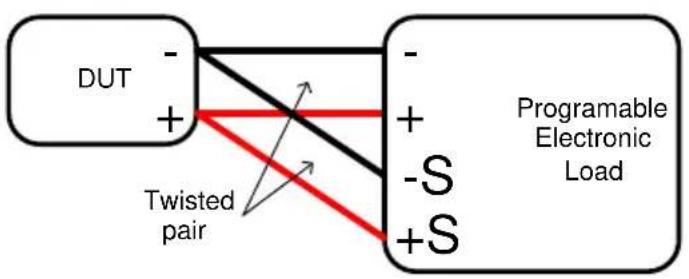
flowchart
graph LR
    A["DUT"] -->|+| B["Programable Electronic Load"]
    B -->|-| A
    B -->|+| C["Twisted pair"]
    C -->|+| B
    C -->|-| B
Firmware Update
| Description | The PEL-3000 allows the firmware to be updated by end-users. Before using the PEL-3000, please check the GW Instek website or ask your local distributor for the latest firmware. |
| System version | Before updating the firmware, please check the firmware version. |
| Operation | 1. Press Shift + UtilityHelp2. Select System/Info[F1].3. The System information is listed on the display.Model: PEL-3000 model number.Serial Number: XXXXXXXFirmware Ver.: Firmware version number.Website address.4. To view other system information, press System[F1] and select Memo. |

text_image
03/Sep/2012 Model : PEL-30XX Serial Number : 00000001 Firmware Ver. : 1.01.011 http://www.goodwill.com.tw System Info Load Interface Time Set OtherUpdate Firmware
- Insert a USB drive into the USB port. Ensure the USB drive has the firmware file located in the root directory.
- Press Shift + File FUNC
- Select USB with the Media[F1] soft-key.
- Press the File Utility[F5] soft-key.
- Select the *.UPG upgrade file and press Select[F1] twice. Once to select the file and once to confirm.
- Wait for the update to complete and reset the power when prompted.

Note
Do not turn the load generator off or remove the USB memory when the firmware is being read or upgraded.
Conventions
The following conventions are used throughout the user manual. Read the conventions below for a basic grasp of how to operate the PEL-3000 menu system using the front panel keys.
Soft Menu keys
The F1 to F5 function keys at the bottom of the display correspond directly to the soft-menu keys on top.
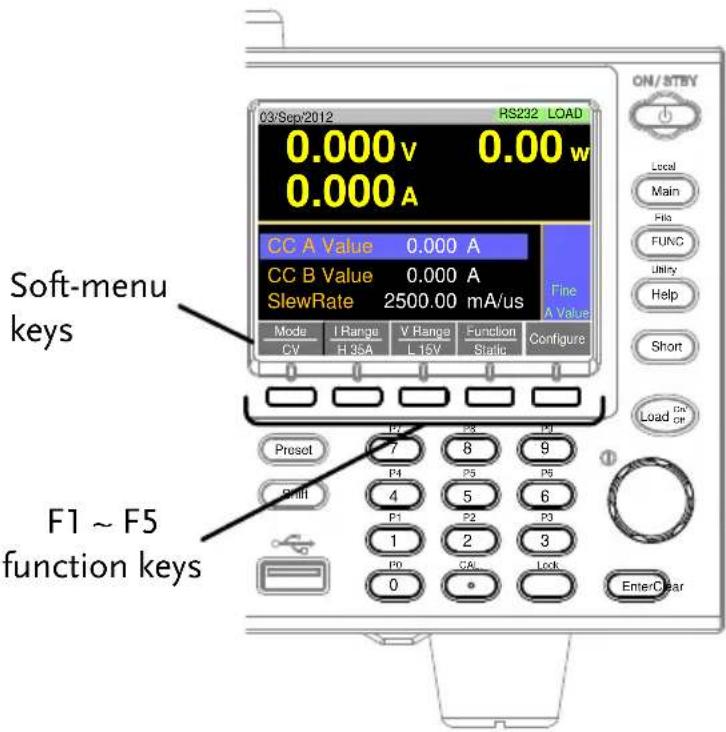
text_image
03/Sep/2012 RS232 LOAD 0.000V 0.00w 0.000A CC A Value 0.000 A CC B Value 0.000 A SlewRate 2500.00 mA/us Fine A Value Mode I Range V Range Function Configure CV H 35A L 15V Static Load On CP P2 P3 P4 P5 P6 7 8 9 4 5 6 P1 P2 P3 1 2 3 P0 CA Lock EnterClear Soft-menu keys F1 ~ F5 function keysSelect Sub Menu
Configure
Pressing this type of soft-menu key will enter a submenu.
Toggle Parameter or State
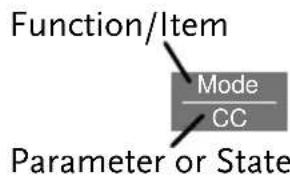
text_image
Function/Item Mode CC Parameter or StateThis type of soft-menu icon has the function/item on the top of the label and the selected setting or mode on the bottom of the label.
Repeatedly press the associated function key (F1\~F5) to cycle through each setting. For example, repeatedly pressing the Mode soft-menu key will cycle through the CC, CR, CV and CP modes.

flowchart
graph LR
    A["Mode CC"] --> B["Mode CR"]
    B --> C["Mode CV"]
    C --> D["Mode CP"]
For some parameters, a popup window will also appear. Selection of the setting is the same. Repeatedly pressing the relevant function key (F1\~F5) will cycle through each setting. The selection on the popup window will also be reflected on the label.

text_image
0.000 Popup window High 35A Middle 3 A LOW 0.35A Parameter selection Mode I Range V Ran CC H 35A L 15 labelParameter Input
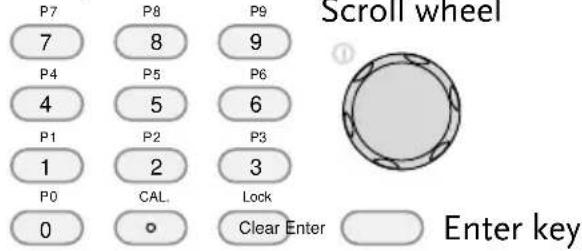
The scroll wheel, Enter key and number pad can be used to edit parameter values.
Number pad
text_image
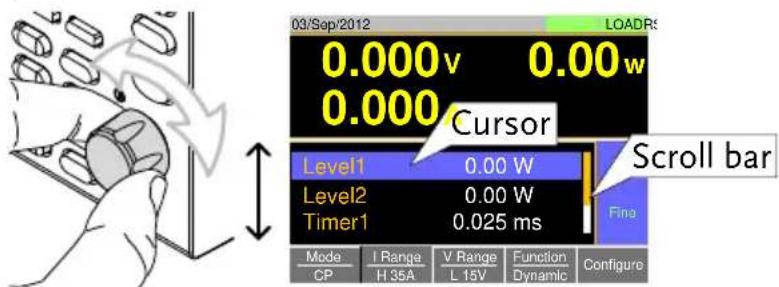
P7 P8 P9 7 8 9 P4 P5 P6 4 5 6 P1 P2 P3 1 2 3 P0 CAL Lock 0 ○ Clear Enter Enter key- Use the scroll wheel to move the cursor to the desired parameter.
- A scroll bar is shown when there are additional parameters off-screen.
text_image
03/Sep/2012 0.000v 0.00w 0.000 Cursor Level1 0.00 W Level2 0.00 W Timer1 0.025 ms Scroll bar Fing Mode I Range V Range Function Configure CP H 35A L 15V Dynamic Configure- Press the Enter key to select the parameter. The parameter will become highlighted in white

natural_image
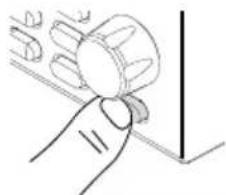
Hand holding a small object with a curved handle, no visible text or symbols- Then use the number pad* or scroll wheel** to edit the parameter value.
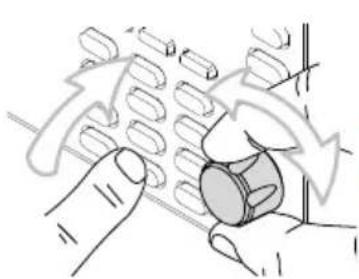
natural_image
Illustration of a hand pressing down on a mechanical component with arrows indicating motion (no text or symbols)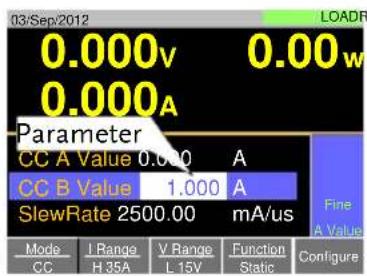
text_image
03/Sep/2012 0.000v 0.00w 0.000A Parameter CC A Value 0.000 A CC B Value 1.000 A SlewRate 2500.00 mA/us Fine A Value Mode I Range V Range Function Configure CC H 35A L 15V Static Configure- Press the Enter key again to finish editing the parameter value.
natural_image
Simple line drawing of a hand holding a small object, with no text or symbols present.Clearing a Value\*
*When editing a parameter with the number pad, pressing the Clear key will restore the parameter to the previous value.
Using the Scroll Wheel to Edit a Parameter\*\*
**To edit a parameter using the scroll wheel, simply turn the scroll wheel. Clockwise increases the value, counterclockwise decrease the value.
Pressing the scroll wheel when a parameter is highlighted allows you to change the step resolution. There are two different step resolution methods: Step Mode and Cursor Mode.
Step Mode: This is the default step resolution method and will only be available to use when it is applicable (Indicated by Fine or Coarse in the Operation Status panel).
When a parameter is highlighted (step 3 above) pressing the scroll wheel will toggle the step resolution between fine and coarse. For details on how to set the step resolution, see page 78.

text_image
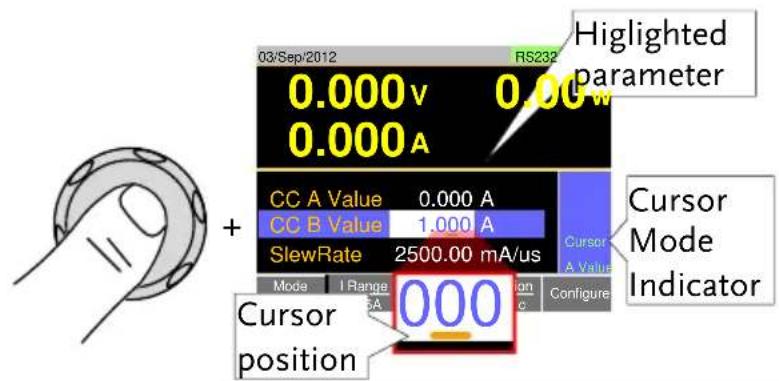
03/Sep/2012 0.000v 0.00w 0.000A CC A Value 0.000 A CC B Value 1.000 A SlewRate 2500.00 mA/us Mode I Range V Range Function Configure CC H 35A L 15V Static Configure Highlighted parameter Fine A Value Coarse/Fine adjustmentCursor Mode: This method must first be enabled before it can be used. Pressing the scroll wheel when a parameter is highlighted allows you to set the step resolution by a digit value. An orange line will appear under the currently selected digit value. Repeatedly pressing the scroll wheel moves to the next digit. See page 77 for details.
text_image
03/Sep/2012 RS232 0.000v 0.00m 0.000A Highlighted parameter + CC A Value 0.000 A CC B Value 1.000 A SlewRate 2500.00 mA/us Mode I Range 5A Cursor A Value Configure Cursor Mode Indicator 000 Cursor positionEntering Alphanumeric Characters
When renaming files, creating memos or notes, you will be required to enter alphanumeric characters when the character entry screen appears.
- Only alphanumeric characters as well as space [ ], underscore [ ] and minus [-] characters allowed.
- Use the scroll wheel to move the cursor to the desired character.

text_image
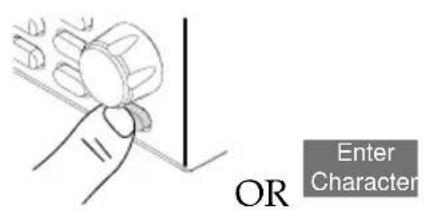
Rename: Filename A B C D E F G H I J K L M N O P Q R S T U V W X Y Z 1 2 3 4 5 6 7 8 9 0 Cursor- Press the Enter key or Enter Character[F1] to select a character.
text_image
OR Enter Character-
To delete a character, press Back Space[F2].
-
To save the file name or memo, press Save[F3].
Help Menu
When any function key has been pressed or when a menu has been opened, the HELP key can be used to display a detailed description.
Help Selection
-
Press any function key or soft-menu key.
-
Press Help to see the help contents on that particular function key or menu.
-
Use the scroll to navigate the help contents.
-
Press the Exit[F5] key to exit the help menu.

text_image
03/Sep/2012 LOADRS HELP Press F5 to exit the Help mode. Rotate the VARIABLE knob to scroll all the contents. -End- Help on Help Exit
PERATION
Basic Operation 51
CC Mode....51
CR Mode....53
CR Units 55
CV Mode....55
CP Mode 56
+CV Mode....58
Turning on the Load 59
Shorting the Load 60
Short Key Configuration....61
Locking the Front Panel Controls....61
Basic Configuration 63
Select the Switching Function....63
Select the Display Units for Dynamic Mode Levels....65
Select the Switching Time Configuration for Dynamic Mode......67
Slew Rate....67
CV Mode Response Speed 68
CC, CR and CP Mode Response Speed....69
Advanced Configuration Settings.... 70
Soft Start Setting....70
Von Voltage Settings....71
Von Voltage Level....71
Von Voltage Latch....72
Von Voltage Delay....73
Timer Functions....73
Count Time....73
Cut Off Time....74
Auto Load Configuration 75
Load Off (Mode) and Load Off (Range)....76
Step Resolution Configuration 77
Cursor Mode Configuration....77
Step Mode Configuration 78
Protection Settings....80
OCP 80
OPP 81
UVP 82
OVP....83
UnReg....84
Para 85
System Settings 86
Sound Settings....86
Speaker Settings....86
Alarm Tone Settings 87
Display Settings....87
Contrast and Brightness 87
Control Settings 88
Language Settings 88
Go-NoGo 89
Setting the Go-NoGo Limits 89
Running a Go-NoGo Test....90
Program....92
Program Overview....92
Create a Program 94
Create a Program Chain....97
Running a Program or Chain....98
Sequence 100
Normal Sequence Overview....100
Timing Edit Configuration 104
Data Edit Configuration....106
Running a Normal Sequence....108
Fast Sequence Overview....110
Timing Edit Configuration 114
Data Edit Configuration....115
Running a Fast Sequence....117
Save Recall....119
File Structure....119
File Types 120
Saving Files to Internal Memory....121
Saving Files to USB Memory....123
Recalling Files from Internal Memory....125
Recalling Files from USB Memory 126
Recall Memory Safety Setting....128
File Utility 129
Preset....130
Quick Preset Save....130
Quick Preset Recall....131
Default Settings....131
Factory Default Settings....131
User's Default Setting....132
Basic Operation
The PEL-3000 supports 7 main operating modes:
CC, CC+CV;
CR, CR+CV;
CV;
CP, CP+CV
CC Mode
Description
In Constant Current Mode the load units will sink the amount of current programmed.
Regardless of the voltage, the current will stay the same. For more details on CC mode, please see the Appendix on page 186.

Warning
If you change the mode or the range when the load is already on, the load will be turned off automatically.
Operation
-
Make sure the load is off.
-
Press
Main
-
Select CC mode with the Mode[F1] soft-key.
-
Select the current range with the I Range[F2] soft-key.
Range: High, Middle, Low
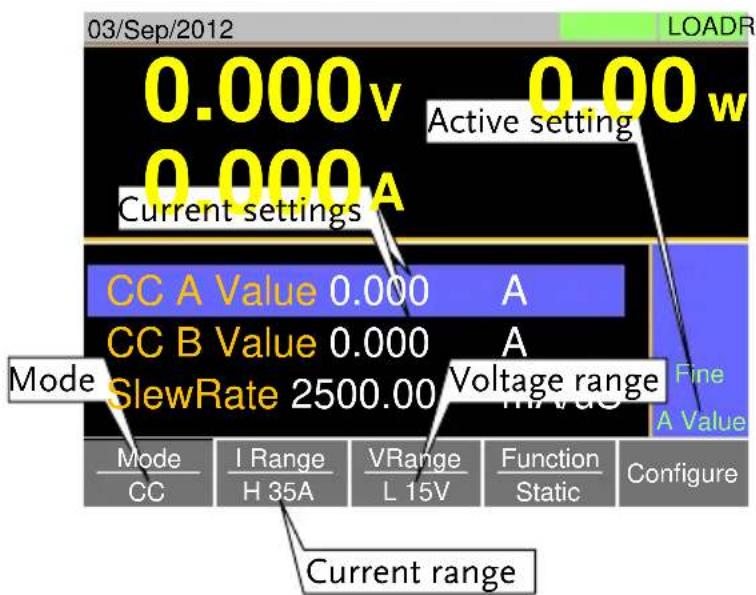
- Select the voltage range with the V Range[F3] soft-key.
Range: High, Low
-
Set the current level parameters using the scroll wheel and number pad.
-
For Static mode, set CC A Value and/or CC B Value.
- For Dynamic mode, set Level1 and Level2.
-
The maximum and minimum current levels depend on the selected ranges.
-
To add CV mode to CC mode (CC+CV), see page 58.
-
Set the remaining basic configuration settings such as the slew rate, and switching mode settings. See page 63 for details.
Display
text_image
03/Sep/2012 0.000v 0.00w Active setting 0.000A Current settings A CC A Value 0.000 A CC B Value 0.000 A Mode SlewRate 2500.00 V Voltage range Fine A Value Mode CC I Range H 35A VRange L 15V Function Static Configure Current rangeNote
Basic CC mode configuration is complete. See page 63 for more configuration options.
The current range and voltage range applies to all the operating modes.
CR Mode
| Description | In Constant Resistance Mode, the unit will maintain a constant resistive load by varying the current. CR mode uses ohms, Ω (resistance) or siemens, S (conductance) for the setting units. For more details on CR mode, see the appendix on page 187. |
| Warning | If you change the mode or the range when the load is already on, the load will be turned off automatically. |
Operation
1. Make sure the load is off.
2. Press Main.
3. Select CR mode with the Mode[F1] soft-key.
4. Select the current range with the I Range[F2] soft-key.
Range: High, Middle, Low
5. Select the voltage range with the V Range[F3] soft-key.
Range: High, Low
- Set the resistance or conductance level parameters using the scroll wheel and number pad.
- For Static mode, set CR A Value and/or CR B Value.
- For Dynamic mode, set Level1 and Level2.
- The maximum and minimum conductance/resistance levels depend on the selected current range.
- To add CV mode to CR mode (CR+CV), see page 58.
- Set the remaining basic configuration settings such as the slew rate, and switching mode settings. See page 63 for details.
Display

text_image
03/Sep/2012 0.000v 0.00w Active setting Conductance/A Resistance settings CR A Value 0.04082 Ω CR B Value 0.04082 Ω Mode SlewRate 250.000 V Voltage range Fine A Value Mode CR I Range H 35A V Range L 15V Function Static Configure Current rangeNote
Basic CR mode configuration is complete. See page 63 for more configuration options.
The current range and voltage range applies to all the operating modes.
CR Units
| Description | The CR setting units can be set to ohm (Ω) or millisiemens (mS). |
| Operation | 1. Make sure the load is off.2. Press Main > Configure[F5] > Other[F2] and set the CR Unit setting.Range: Ω, mS |
CV Mode
| Description | In Constant Voltage Mode, the unit will maintain a constant voltage. In CV mode you set the constant voltage level. For more details on CV mode, see the appendix on page 190. |
 | If you change the mode or the range when the load is already on, the load will be turned off automatically. |
Operation
-
Make sure the load is off.
-
Press Main
-
Select CV mode with the Mode[F1] soft-key.
-
Select the current range with the I Range[F2] soft-key.
Range: High, Middle, Low
- Select the voltage range with the V Range[F3] soft-key.
Range: High, Low
-
Set the voltage level parameters using the scroll wheel and number pad.
-
Set CV A Value and/or CV B Value.
- The maximum and minimum voltage levels depend on the selected voltage range.
- Set the remaining basic configuration settings such as the response settings. See page 63 for details.
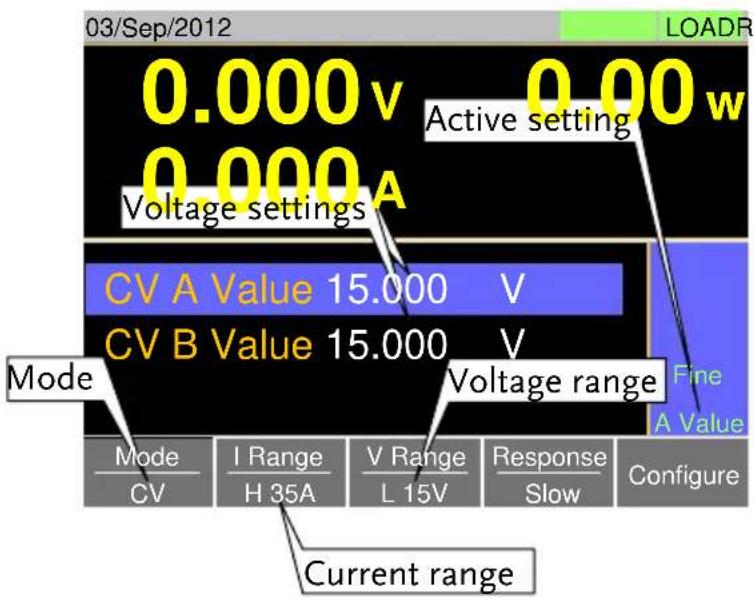
Display
text_image
03/Sep/2012 0.000v 0.00w Active setting 0.000A Voltage settings CV A Value 15.000 V CV B Value 15.000 V Mode Voltage range Fine A Value Mode CV I Range H 35A V Range L 15V Response Slow Configure Current range
Basic CV mode configuration is complete. See page 63 for more configuration options.
The current range and voltage range applies to all the operating modes.
CP Mode
| Description | In Constant Power Mode, the unit will maintain a constant power by varying the current. For more details on CP mode, see the appendix on page 188. |
Warning
If you change the mode or the range when the load is already on, the load will be turned off automatically.
Operation
-
Make sure the load is off.
-
Press Main.
-
Select CP mode with the Mode[F1] soft-key.
-
Select the current range with the I Range[F2] soft-key.
Range: High, Middle, Low
- Select the voltage range with the V Range[F3] soft-key.
Range: High, Low
- Set the power level parameters using the scroll wheel and number pad.
- For Static mode, set CP A Value and/or CP B Value.
- For Dynamic mode, set Level1 and Level2.
- The maximum and minimum power levels depend on the selected current range.
- For static mode, the parameter that is set last becomes the “active” setting. This will be shown in the Operation Status Panel.
-
To add CV mode to CP mode (CP+CV), see page 58.
-
Set the remaining basic configuration settings such as the slew rate, and timer settings. See page 63 for details.
Display

text_image
03/Sep/2012 0.00 v 0.00 w 0.000 A Power settings A Active setting CP A Value 0.00 W CP B Value 0.00 W Mode +CV OFF Voltage range Fine A Value Mode CP I Range H 35A V Range H 150V Function Static Configure Current range
Note
Basic CP mode configuration is complete. See page 63 for more configuration options.
The current range and voltage range applies to all the operating modes.
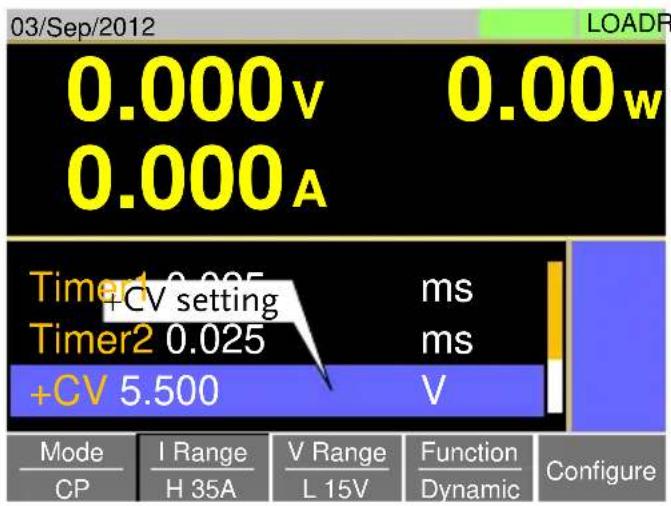
+CV Mode
Description
CV mode can be added to CC, CR and CP mode.
- The +CV settings apply to all applicable modes.
Operation
-
Make sure the load is off.
-
Press Main to return to the main menu for the current mode.
-
Set the +CV voltage level. (You may need to scroll down to the +CV setting)
Range: OFF \~ rated voltage+5%
Display
text_image
03/Sep/2012 0.000v 0.00w 0.000A Timer1 0.025 ms Timer2 0.025 ms +CV 5.500 V Mode I Range V Range Function Configure CP H 35A L 15V Dynamic LOADR
Note
The +CV settings apply to all the applicable operating modes.
For example: The +CV settings made in CR mode will be carried over to the +CV settings in CC and CP mode.

Note
+CV settings cannot be controlled with external control.
Turning on the Load
Description
- The load can be turned on and off by pressing the Load On/Off key.
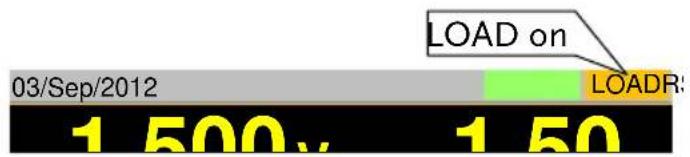
- The Load On/ Off key will turn orange when the load is "on". - The LOAD icon in the Main Frame status panel will turn orange when the load is on.

- The load can be set to automatically turn on at start up. See page 75.
- The load can be turned on via remote control. See the programming manual.
- The load can be turned on via external control. See page 143.
- By default the load will automatically turn off if the range or operating mode (CC, CV, CR, CP) is changed. To disable this behavior, Set Load Off (Mode) and Load Off (Range) to the OFF setting. See page 76 for details.
Display
text_image
03/Sep/2012 LOAD on LOADR: 1 500x 1 50Shorting the Load
Description
The Short key can be used to simulate a short circuit of the load input terminals. A short circuit is simulated by:
- Setting the current to the maximum value in CC mode.
- Setting the resistance to the minimum value in CR mode.
- Setting the voltage to the minimum value in CV mode.
- Setting the power to the maximum value in CP mode.
- When the load is shorted, the external controller also sends a short signal. See page 149 for usage details.
Operation
- The short function can be turned on and off by pressing the Short key.
- The Short key will turn red when the short function is active.
- The Short icon will appear when the short function is active.
Range: Toggle, Hold
Display

text_image
SHORT on 03/Sep/2012 LOADR: 1 500x 1 50Short Key Configuration
Description
The Short key can be configured to Toggle or Hold. By Default the Short key is set to Toggle.
- Toggle: Pressing the Short key will toggle the shorting function on or off.
- Hold: Holding the short key will short the load.
Operation
- Press Main > Configure[F5] > Other[F2] and set the Short Key setting. Range: Toggle, Hold
Locking the Front Panel Controls
Description
The keys and scroll wheel on the front panel can be locked to prevent settings from being changed.
Operation
- The keys can be locked and unlocked by

text_image
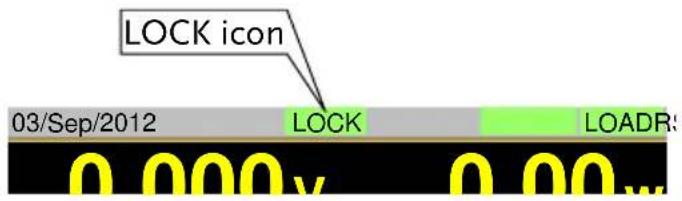
pressing Shift + Clear Lock- LOCK will appear in the Mainframe status panel when the keys are locked.
- The Load On/Off key will not be locked if the load is on.
Display
text_image
LOCK icon 03/Sep/2012 LOCK LOADS 0 000v 0 00wBasic Configuration
The basic configuration settings are the common configuration settings that are used for each operating mode. After selecting a basic operating mode (CC, CR, CV or CP mode), the slew rate, switching mode, response rate and other common parameters should be configured.
Select the Switching Function
Description
The PEL-3000 has two switching modes, static and dynamic. The switching modes allow the PEL-3000 to switch between two preset levels. Static mode can only switch between the two levels manually, while Dynamic mode switches between each level automatically based on a timer.
• Static mode: A Value, B Value
• Dynamic mode: Level1, Level2
When the unit is set to static mode, only one value (A Value or B Value) can be active at a time. The active value is shown in the Operation Status Panel.

text_image
Fine A Value Active setting Section ConfigureWhen the unit is set to dynamic mode, the unit will switch between Level1 and Level2 based on the Timer1 and Timer2 parameters, shown below.

line
| Time Segment | Level | | ------------ | ----- | | Timer1 | 1 | | Timer2 | 2 | | Timer1+Timer1 | 1 |
Note
Dynamic mode is not available for CV mode.
Operation
- Make sure the load is off.
- Press Main.
-
Select Dynamic or Static mode with the Function[F4] soft-key.
-
A different switching mode can be set for CC, CR and CP mode.
-
For dynamic mode, set the Timer1 and Timer2 parameters using the scroll wheel and number pad.
-
Timer1 sets the Level1 on-time.
- Timer2 sets the Level2 on-time.
- Take the slew rate settings into consideration when setting the timers.
- The frequency of the dynamic switching is output via the TRIG OUT BNC.
- To select whether A Value or B Value is the "active" setting, press the Shift + Preset keys.
- The “active” value will be shown in the Operation Status Panel.
- The load can be "on" when switching between A Value and B Value.
Display: Static Mode

text_image
03/Sep/2012 0.00 v 0.00 w A Value 0.000 A B Value CP A Value 0.00 W Active setting CP B Value 0.00 W +CV OFF V Static mode Fine A Value Mode I Range V Range Function Configure CP H 35A H 150V Static ConfigureDisplay: Dynamic Mode

text_image
03/Sep/2012 0.000v 0.00w Level1 0.000 Level2 Level1 Timer1 W Level2 0.00 W Timer1 Dynamic mode 0.025 ms Mode CP I Range H 35A V Range L 15V Function Dynamic ConfigureSelect the Display Units for Dynamic Mode Levels
Description
When Dynamic switching mode is selected, the Level1 and Level2 values can be set to either discrete values or as a percentage of a set value.
- The setting applies to all applicable operation modes.
- By default the units are set to Value.
- When Percent is chosen, 100% = 100% of the Set power, current or resistance value.
Operation
-
Make sure the load is off.
-
Press Main > Configure[F5] > Other[F2] and set the Dyna. Level setting.
Range: Value, Percent
Display: Percent Setting
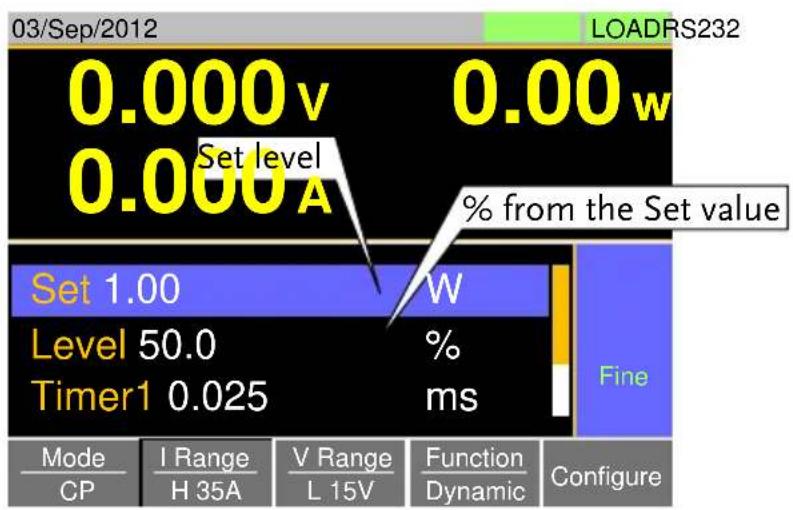
other
| Parameter | Value | | :--- | :--- | | 0.000v Set level | 0.000A | | 0.00w Set level | 0.00w | | % from the Set value | (not labeled but implied as 'Set value') | | Set 1.00 Level | 50.0 | | Timer1 | 0.025 | | W (%) ms | (not labeled) | | Mode CP | I Range H 35A | | V Range L 15V | Function Dynamic | | LoadRS232 | (not labeled) | | Fine | (not labeled) | | Configure | (not labeled) |Example

line
| Time Phase | Level | | ---------- | ----- | | Timer1 | 100 | | Timer2 | 0 | | Timer1 | 100 |Select the Switching Time Configuration for Dynamic Mode
| Description | The switching time for dynamic mode can be configured to switch between two preset on-times (Timer1, Timer2) or by setting a switching frequency and duty cycle. |
| Operation | 1. Press Main > Configure[F5] > Other[F2] and set the Dyna. Time setting. Range: T1/T2, Freq. Duty |
| Slew Rate | |
| Description | The current slew rate can be set for CC and CR mode. The slew rate setting is used to limit the change in current when switching. For static mode, only a single slew rate can be set. |
| Operation | 1. Make sure the load is off. 2. Press Main .3. Set the slew rate(s) using the scroll wheel and number pad. For static mode, only a single slew rate can be set. For dynamic mode, set both the rising and falling slew rates. Take the timer settings into consideration when setting the slew rates. |
Display
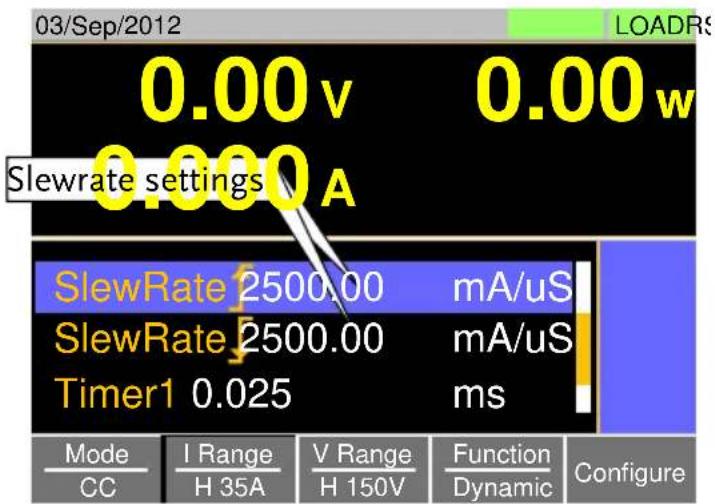
text_image
03/Sep/2012 Slewrate settings 0.000 A 0.00 v 0.00 w SlewRate 2500.00 mA/uS SlewRate 2500.00 mA/uS Timer1 0.025 ms Mode I Range V Range Function Configure CC H 35A H 150V Dynamic ConfigureCV Mode Response Speed
Description
The response speed setting is the response speed for the negative feedback control of the load current when used in CV mode. Response speed settings are only applicable to CV mode.
- A response speed that is too fast could cause the unit to be unstable.
- Reducing the response speed can improve stability.
Operation
-
Make sure the load is off.
-
Press Main . Make sure the unit is in CV mode by using the Mode[F1] soft-key.
-
Select the response speed with the Response[F4] soft-key. Range: Slow, Fast
Display
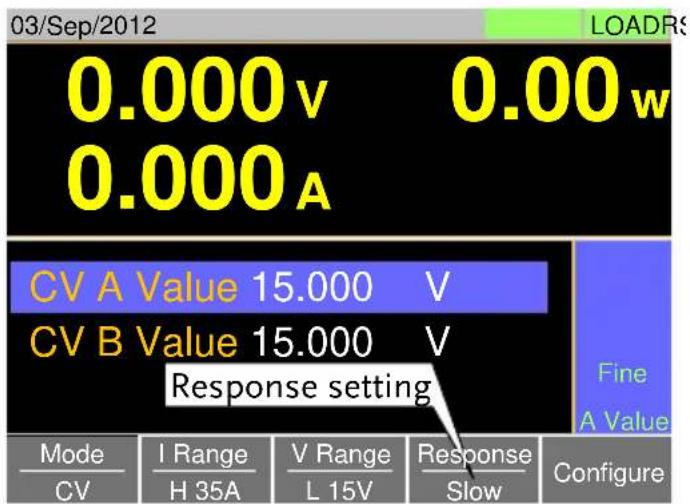
text_image
03/Sep/2012 0.000v 0.00w 0.000A CV A Value 15.000 V CV B Value 15.000 V Response setting Mode I Range V Response CV H 35A L 15V Slow ConfigureCC, CR and CP Mode Response Speed
Description
By default, the "normal current response" speed is set to 1/1. The response speed can be reduced to 1/2, 1/5, 1/10.
- Reducing the current response speed can affect other settings such as the slew rate and soft start settings.
Operation
-
Make sure the load is off.
-
Press Main > Configure[F5] > Other[F2] and set the Response parameter.
Range: 11 , 12 , 15 , 110
Advanced Configuration Settings
Use the advanced configuration settings to configure settings other than those described in the basic configuration chapter.
Soft Start Setting
Description
The soft start setting is used to limit the amount of input current at start-up or from when the Von Voltage threshold is tripped.
- The soft start setting only applies to CC, CR and CP mode.

line
| Time | Rise current | Rise voltage | |------|--------------|--------------| | 0 | 0 | 0 | | 1 | ~0.2 | ~0.3 | | 2 | ~0.4 | ~0.5 | | 3 | ~0.6 | ~0.7 | | 4 | ~0.8 | ~0.9 | | 5 | ~1.0 | ~1.1 | | 6 | ~1.2 | ~1.3 | | 7 | ~1.4 | ~1.5 | | 8 | ~1.6 | ~1.7 | | 9 | ~1.8 | ~1.9 | | 10 | ~2.0 | ~2.1 | | 11 | ~2.2 | ~2.3 | | 12 | ~2.4 | ~2.5 | | 13 | ~2.6 | ~2.7 | | 14 | ~2.8 | ~2.9 | | 15 | ~3.0 | ~3.1 | | 16 | ~3.2 | ~3.3 | | 17 | ~3.4 | ~3.5 | | 18 | ~3.6 | ~3.7 | | 19 | ~3.8 | ~3.9 | | 20 | ~4.0 | ~4.1 | | 21 | ~4.2 | ~4.3 | | 22 | ~4.4 | ~4.5 | | 23 | ~4.6 | ~4.7 | | 24 | ~4.8 | ~4.9 | | 25 | ~5.0 | ~5.1 | | 26 | ~5.2 | ~5.3 | | 27 | ~5.4 | ~5.5 | | 28 | ~5.6 | ~5.7 | | 29 | ~5.8 | ~5.9 | | 30 | ~6.0 | ~6.1 | | 31 | ~6.2 | ~6.3 | | 32 | ~6.4 | ~6.5 | | 33 | ~6.6 | ~6.7 | | 34 | ~6.8 | ~6.9 | | 35 | ~7.0 | ~7.1 | | 36 | ~7.2 | ~7.3 | | 37 | ~7.4 | ~7.5 | | 38 | ~7.6 | ~7.7 | | 39 | ~7.8 | ~7.9 | | 40 | ~8.0 | ~8.1 | | 41 | ~8.2 | ~8.3 | | 42 | ~8.4 | ~8.5 | | 43 | ~8.6 | ~8.7 | | 44 | ~8.8 | ~8.9 | | 45 | ~9.0 | ~9.1 | | 46 | ~9.2 | ~9.3 | | 47 | ~9.4 | ~9.5 | | 48 | ~9.6 | ~9.7 | | 49 | ~9.8 | ~9.9 | | 50 | ~10.0 | ~10.1 | | 51 | ~10.2 | ~10.3 | | 52 | ~10.4 | ~10.5 | | 53 | ~10.6 | ~10.7 | | 54 | ~10.8 | ~10.9 | | 55 | ~11.0 | ~11.1 | | 56 | ~11.2 | ~11.3 | | 57 | ~11.4 | ~11.5 | | 58 | ~11.6 | ~11.7 | | 59 | ~11.8 | ~11.9 | | 60 | ~12.0 | ~12.1 | | 61 | ~12.2 | ~12.3 | | 62 | ~12.4 | ~12.5 | | 63 | ~12.6 | ~12.7 | | 64 | ~12.8 | ~12.9 | | 65 | ~13.0 | ~13.1 | | 66 | ~13.2 | ~13.3 | | 67 | ~13.4 | ~13.5 | | 68 | ~13.6 | ~13.7 | | 69 | ~13.8 | ~13.9 | | 70 | ~14.0 | ~14.1 | | 71 | ~14.2 | ~14.3 | | 72 | ~14.4 | ~14.5 | | 73 | ~14.6 | ~14.7 | | 74 | ~14.8 | ~14.9 | | 75 | ~15.0 | ~15.1 | | 76 | ~15.2 | ~15.3 | | 77 | ~15.4 | ~15.5 | | 78 | ~15.6 | ~15.7 | | 79 | ~15.8 | ~15.9 | | 80 | ~16.0 | ~16.1 | | 81 | ~16.2 | ~16.3 | | 82 | ~16.4 | ~16.5 | | 83 | ~16.6 | ~16.7 | | 84 | ~16.8 | ~16.9 | | 85 | ~17.0 | ~17.1 | | 86 | ~17.2 | ~17.3 | | 87 | ~17.4 | ~17.5 | | 88 | ~17.6 | ~17.7 | | 89 | ~17.8 | ~17.9 | | 90 | ~18.0 | ~18.1 | | 91 | ~18.2 | ~18.3 | | 92 | ~18.4 | ~18.5 | | 93 | ~18.6 | ~18.7 | | 94 | ~18.8 | ~18.9 | | 95 | ~19.0 | ~19.1 | | 96 | ~19.2 | ~19.3 | | 97 | ~19.4 | ~19.5 | | 98 | ~19.6 | ~19.7 | | 99 | ~19.8 | ~19.9 | | 100 | >20 | >20 | The chart is a line graph with 'Soft Start = ON' labeled at the top left and 'Soft Start = ON' at the bottom left, respectively. The x-axis represents time (Time) and the y-axis represents input current (Input I). The lines are labeled for each data point in the output state.
line
| Time | Input I (Rise current) | Input I (Rise voltage) | |------|------------------------|-------------------------| | 0 | 0 | 0 | | Peak | ~1.5 | ~0.5 | | Low | ~0.5 | ~0.2 | | High | ~1.8 | ~0.8 |Operation
- Press Main > Configure[F5] > Other[F2] and set the Soft Start time.
Range: OFF, 1\~200ms
Von Voltage Settings
Von Voltage Level
Description
The Von Voltage is the threshold voltage at which the load module will start to sink current.

line
| Time | Vout (V) | PEL-3000 (I) | |------|----------|--------------| | 0 | 0 | 0 | | Peak | ~1.5 | ~1.5 | | Load on | ~1.5 | 0 | | End | ~2.0 | ~2.0 |Operation
- Press Main > Configure[F5] > Other[F2] and set the Von Voltage level.
Range: Von Voltage: 0.00\~rating voltage
Von Voltage Latch
Description
When Von Latch is set to ON, the load will continue to sink current after being "latched", even if the voltage drops below the Von Voltage threshold level.
When Von Latch is set to OFF, the load will turn off when the voltage drops below the Von Voltage threshold level.
- By default Von Latch is set to OFF.
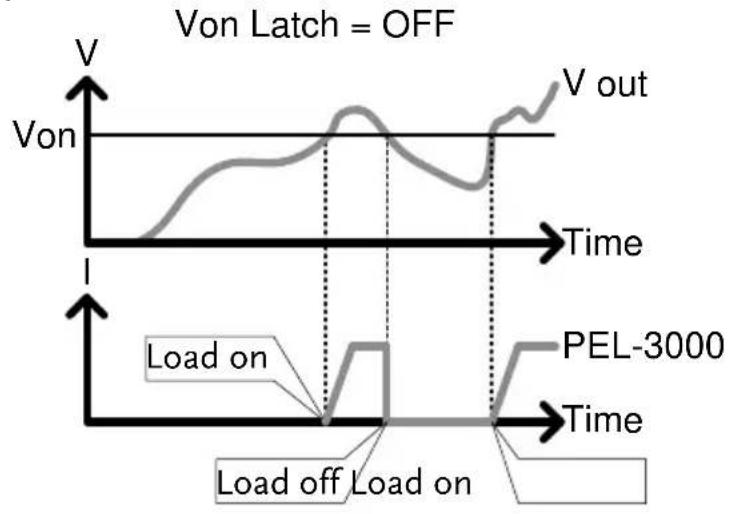
line
| Time | Vout | I | |------|------|---| | Start | V | - | | Peak | ~1.5 | - | | End | ~1.2 | - | | PEL-3000 | - | Load on | | End | - | Load off | | End | - | Load on |
line
| Time | Vout | V | I | |------|------|------|-------| | Start | V | V | 0 | | Mid | ~0.8 | ~0.6 | 0 | | Peak | ~1.2 | ~1.0 | 0 | | End | ~0.9 | ~0.7 | 0 |Operation
- Press Main > Configure[F5] > Other[F2] and set the Von Latch setting.
Range: Von Latch: OFF, ON
Von Voltage Delay
| Description | Von Delay is the amount of time the unit will wait before turning the load on after the Von Voltage threshold has been latched. This will prevent overshoot current from affecting the Von Voltage threshold. |
| Operation | 2. PressMain> Configure[F5] > Other[F2] and set the Von Delay time.Range: Von Delay: OFF, 1.0~60msNote: CR mode can have the delay time set separately from the other modes (called Von Delay -CR when in CR mode). |
Timer Functions
| Count Time | |
| Description | When Count Time is set to on, it will count the elapsed time from when the load was turned on to when it was turned off.This function is applicable to manual and automatic shutdown (such as from protection functions such as UVP etc.)The elapsed time will be shown in the display Measurement area. |
Operation
- Press Main > Configure[F5] > Other[F2] and turn the Count Time on or off. Range: ON, OFF
Display

text_image
03/Sep/2012 0.000v 0.00w Elapsed time 0.000A 0:00:05 Level1 0.00 WCut Off Time
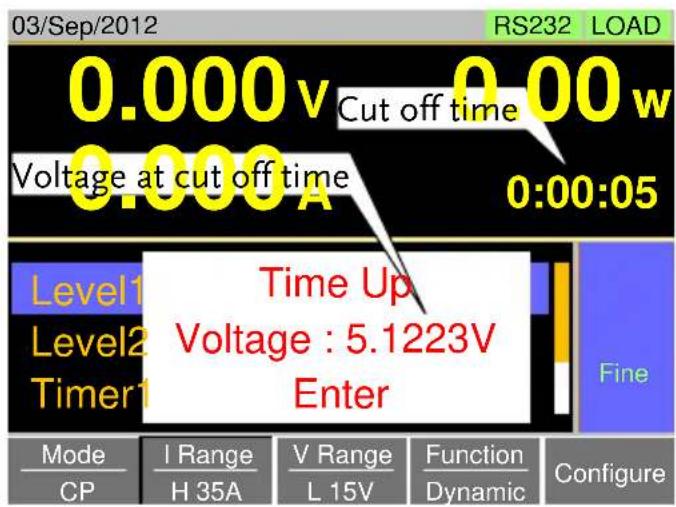
Description
The Cut Off Time function will turn the load off after a set-amount of time. After the load has been turned off, a popup screen will display the voltage level when the load was turned off.
Operation
- Press Main > Configure[F5] > Other[F2] and set the Cut Off Time. Range: OFF, 1 second \~ 999 hours:59 minutes:59 seconds
Display
text_image
03/Sep/2012 RS232 LOAD 0.000 v Cut off time 0.00 w 0.000 A Voltage at cut off time 0:00:05 Level1 Time Up Level2 Voltage : 5.1223V Timer1 Enter Fine Mode I Range V Range Function Configure CP H 35A L 15V Dynamic ConfigureAuto Load Configuration
Description
The PEL-3000 can be configured to automatically load the last program, normal sequence, fast sequence or load setting at startup.
By default, this setting is disabled.
Operation
- Press Shift + Help > Load[F2].
-
Turn Auto Load On or Off.
-
When set to OFF, the Auto Load setting is disabled.
- Select the Auto Load On configuration.
- This will select whether the PEL-3000 will automatically load the last program, normal sequence, fast sequence or load settings.
Auto Load On: Load, Prog, NSeq, FSeq
Load Off (Mode) and Load Off (Range)
Description
By default the load will automatically turn off when the either the operating mode (CC, CV, CR, CP) or the range (I range, V range) is changed.
To allow the load to stay on when the operating mode is changed, set the Load Off (Mode) setting to OFF.
To allow the load to stay on when the current or voltage range is changed, set the Load Off (Range) setting to OFF.
By default, these settings are set to ON.
Operation
- Press
text_image
Shift + Utility Help > Load[F2].- Select Load Off (Mode) setting.
- When set to OFF, the load will stay on when the operating mode is changed.
Load Off (Mode): OFF, ON
- Select Load Off (Range) setting.
- When set to OFF, the load will stay on when the range is changed.
Load Off (Range): OFF, ON
Step Resolution Configuration
There are two different ways to set the set resolution when using the scroll wheel to edit parameters. Step Mode and Cursor Mode. Step Mode is the default method. Only one mode can be active at a time; When one mode is active, the other mode is deactivated.
Cursor Mode Configuration
Description
Cursor mode allows you to edit the selected parameter one digit at a time. When editing a parameter, pressing the scroll wheel determines which digit is selected. Turning the scroll wheel will then edit the parameter by the step resolution of the digit.
See the Conventions section on page 41 for operation details.
Operation
- Press Main > Configure[F5] > Next Menu[F4] > Knob[F2] and set the Status setting is set to Cursor.
Display

text_image
03/Sep/2012 Configure Status Cursor CCH Step 1.000 A CCM Step 0.5000 A CCL Step 0.183575 A CRH Step 0.4 mS LoadRS CC 35A 15V Static A Value Parallel Knob External Previous MenuStep Mode Configuration
| Description | When set to Step Mode, the voltage, current, resistance and power settings can have the step resolution configured. The step resolution refers to the step resolution of the coarse adjustment for these settings. The fine adjustment cannot be configured. | |
| See the Conventions section on page 41 for details on how to switch between coarse and fine adjustment modes. | ||
| Settings | The step resolution of each setting is configured separately for each current range. | |
| Settings | Description | |
| CCH Step | CC mode, IRange = High | |
| CCM Step | CC mode, IRange = Middle | |
| CCL Step | CC mode, IRange = Low | |
| CRH Step | CR mode, IRange = High | |
| CRM Step | CR mode, IRange = Middle | |
| CRL Step | CR mode, IRange = Low | |
| CVH Step | CV mode, VRange = High | |
| CVL Step | CV mode, VRange = Low | |
| CPH Step | CP mode, IRange = High | |
| CPM Step | CP mode, IRange = Middle | |
| CPL Step | CP mode, IRange = Low | |
Operation
-
Press Main > Configure[F5] > Next Menu[F4] > Knob[F2] and make sure the Status setting is set to Step.
-
Set the desired step resolution settings. (The step resolution settings are only available when Status=Step (coarse/fine))
- For example if the step resolution for CCM Step is 0.5A, then the resolution can be incremented in 0.5A steps.
Display

bar
| Step | Value | | :--- | :--- | | CCH Step | 0.100 A | | CCM Step | 0.0100 A | | CCL Step | 0.00100 A | | CRH Step | 40.0 mS | | CC | 35A | | 15V | Static | | A Value | Previous Menu |Protection Settings
The Protection settings are used to prevent damage to the unit or the DUT by excessive current, voltage or power.
An alarm is generated and a message is displayed on the screen when a protection setting is tripped. When an alarm is activated, the load is turned off (or limited), and the ALARM STATUS pin of the J1 connector on the rear panel (pin 16) turns on (open collector output by a photocoupler). The protection settings can be used regardless of whether the remote sense connections are used or not.
OCP
Description
For OCP, the PEL-3000 can be configured to either limit the current or turn off the load.
The OCP levels can be set to 10% higher than the rating current.
Operation
- Press Main > Configure[F5] > Protection[F1] and set the OCP Level and OCP Setting.
Range: OCP Level: Rating current + 10% OCP Setting: LIMIT, Load Off
Alarm
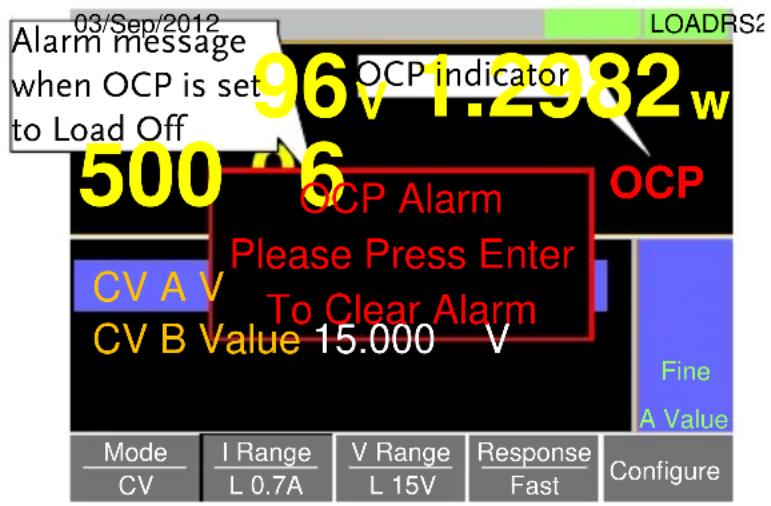
- When OCP Setting is configured to Load Off, a message will be displayed on the screen when OCP is tripped. The Enter key must be pressed to clear the alarm message.
- When configured to LIMIT, OCP will be displayed on the screen when the OCP is tripped and the current will be limited to the OCP Level setting.
Display
text_image
03/Sep/2012 Alarm message when OCP is set to Load Off 96 v 1.2982 w 500 v 6 OCP Alarm Please Press Enter To Clear Alarm CV A V CV B Value 15.000 v OCP Fine A Value Mode CV I Range L 0.7A V Range L 15V Response Fast ConfigureOPP
Description
For OPP, the PEL-3000 can be configured to either limit the power or turn off the load.
The OPP levels can be set to 10% higher than the rating power.
Operation
- Press Main > Configure[F5] > Protection[F1] and set the OPP Level and OPP Setting.
Range: OPP Level: Rating power + 10% OPP Setting: LIMIT, Load Off
Alarm
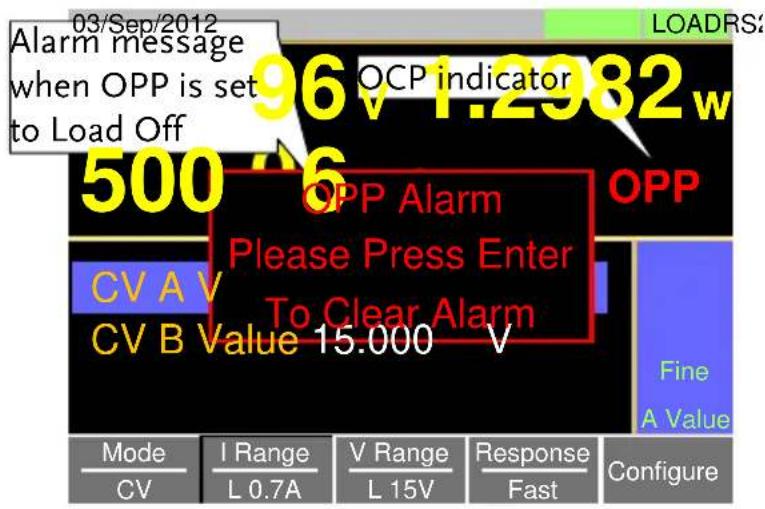
- When OPP Setting is configured to Load Off, a message will be displayed on the screen when OPP is tripped. The Enter key must be pressed to clear the alarm message.
- When configured to LIMIT, OPP will be displayed on the screen when the OPP is tripped and the power will be limited to the OPP Level setting.
Display
text_image
03/Sep/2012 Alarm message when OPP is set to Load Off 96V 1.2982w OCP indicator 500 V 6 OPP Alarm Please Press Enter To Clear Alarm CV A V CV B Value 15.000 V OFF Fine A Value Mode CV I Range L 0.7A V Range L 15V Response Fast ConfigureUVP
Description
If the UVP is tripped, the PEL-3000 will turn off the load.
The UVP levels can be set from 0V to 10% higher than the rating voltage.
Operation
- Press Main > Configure[F5] > Protection[F1] and set the UVP Level.
Range: UVP Level: OFF, 0\~Rating voltage + 10%
Alarm
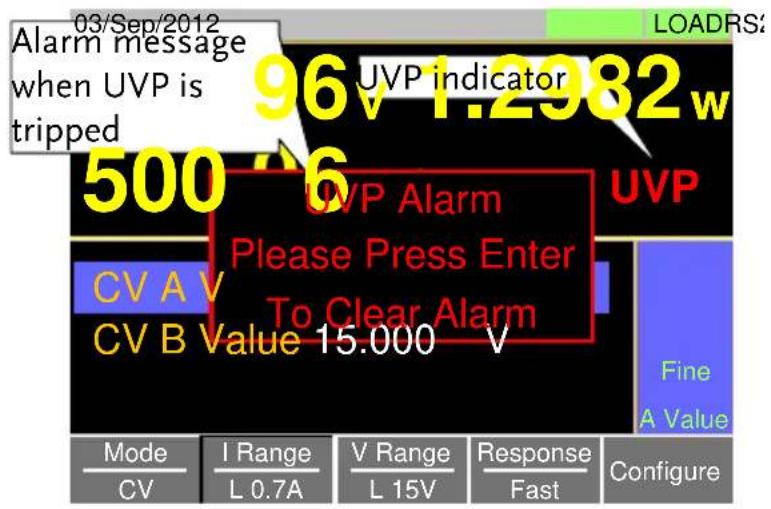
- The UVP indicator and a message will only appear on the screen when the input voltage is below the UVP level. The Enter key must be pressed to clear the alarm message.
- To clear the UVP indicator, remove the cause of the under voltage \~ i.e., increase the input voltage.
Display
text_image
03/Sep/2012 Alarm message when UVP is tripped 96 v 1.2982 w UVP indicator 500 v 6 UVP Alarm Please Press Enter To Clear Alarm CV A V CV B Value 15.000 v UVP Fine A Value Mode CV I Range L 0.7A V Range L 15V Response Fast ConfigureOVP
Description
If the OVP is tripped, the PEL-3000 will turn off the load.
The OVP levels can be set from 0V to 10% higher than the rating voltage.
Operation
- Press Main > Configure[F5] > Protection[F1] and set the OVP Level.
Range: OVP Level: OFF, 0\~Rating voltage + 10%
Note: To turn OVP off, set the OVP voltage greater than the current rating voltage + 10%.
Alarm
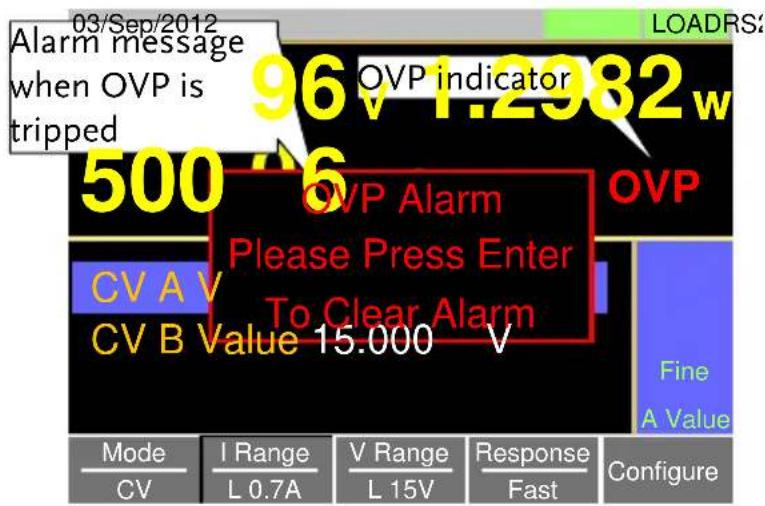
- The OVP indicator and a message will only appear on the screen when the input voltage is below the UVP level. The Enter key must be pressed to clear the alarm message.
- To clear the OVP indicator, remove the cause of the over voltage \~ i.e., reduce the input voltage.
Display
text_image
03/Sep/2012 Alarm message when OVP is tripped 96v 1.2982w OVP indicator 500 V 6 OVP Alarm Please Press Enter To Clear Alarm CV A V CV B Value 15.000 V Fine A Value Mode CV I Range L 0.7A V Range L 15V Response Fast ConfigureUnReg
Description
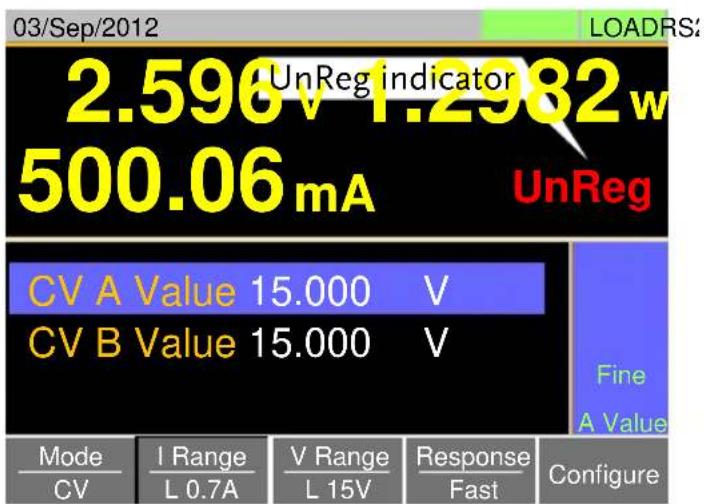
The UnReg error message will appear on the display when the electronic load is operating in an unregulated state.
Alarm
- The UnReg indicator will appear on the display when the set load is inadequate for the source.
- To clear the UnReg indicator, increase the load or reduce the load requirements.
Display
other
03/Sep/2012 UnReg indicator 2.596 V 1.2982 w 500.06 mA UnReg CV A Value 15.000 V CV B Value 15.000 V Fine A Value Mode CV I Range L 0.7A V Range L 15V Response Fast ConfigurePara
Description
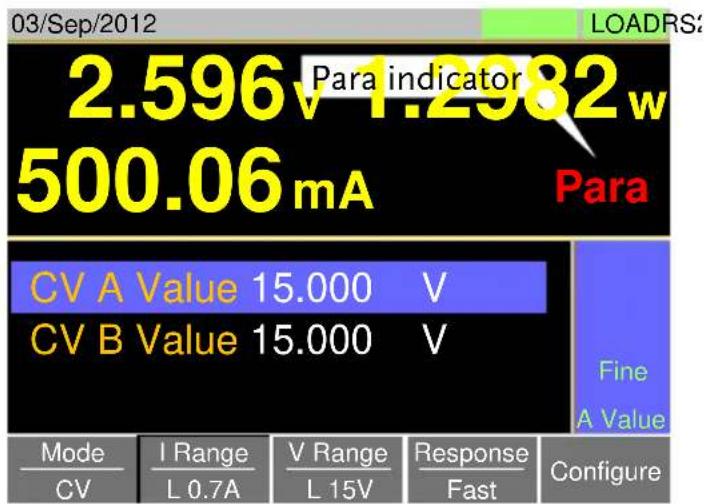
The Para error message will appear on the display when the PEL-3000 is used in parallel and if an error is produced.
Alarm
- The Para error message indicates one of the following possible conditions: UnReg, R.OCP, OHP.
- To clear the Para indicator, remove the cause of the alarm.
Display
text_image
03/Sep/2012 LOADRS: 2.596 v 1.2982 w 500.06 mA Para indicator Para CV A Value 15.000 V CV B Value 15.000 V Fine A Value Mode I Range V Range Response Configure CV L 0.7A L 15V Fast ConfigureSystem Settings
The following section covers a number or miscellaneous system settings such as:
- Speaker settings
- Display settings
- Alarm tone settings
- Input control settings
- Language settings
All system settings are accessible in the Utility menu.
Sound Settings
Speaker Settings
Description
Turns the speaker sound on or off for the user interface, such as key press tones and scrolling tones.
Operation
- Press

text_image
Shift + Help > Other[F5].- Set the Speaker settings on or off.
- When set to OFF, the speaker setting will not disable the tones for Go-NoGo or protection alarms.
Alarm Tone Settings
Description
The alarm tone for the unit can be turned on or off in the utility menu. The alarm tone can be set separately for the protection settings (OCP, OPP, UVP, OVP), Go-NoGo testing or for when the unit is operating in an unregulated state (see page 84).
Operation
-
Press Shift + Help > Other[F5].
-
Set the alarm tone settings on or off.
- The alarm tone settings ignore the Speaker setting.
Alarm Tone: ON, OFF
UnReg Tone: ON, OFF
Go_NoGo Tone: ON, OFF
Display Settings
Contrast and Brightness
Description
Sets the contrast level.
Operation
-
Press Shift + Help > Other[F5].
-
Set the Contrast and Brightness settings.
Range: Contrast: 3 \~ 13 (low \~ high) Brightness: 50 \~ 90 (low \~ high)
Control Settings
Description
The Knob Type setting determines if values are updated immediately as they are edited or if they are only updated after the Enter key is pressed.
The Updated setting is applicable for when the load is already on and the user wishes to change the set values (current, voltage, etc.) in realtime.
The Old setting will only update the values after the Enter key is pressed.
Operation
-
Press Shift + Help > Other[F5].
-
Set the Knob type and Slave knob settings. Range: Knob type: Updated, Old
Language Settings
Description
The PEL-3000 supports only English.
Operation
-
Press Shift + Help > Other[F5].
-
Set the Language setting. Supported languages: English
Go-NoGo
The Go-NoGo configuration is used to create pass/fail limits on the voltage or current input. If the voltage/current exceeds the pass/fail limits, an alarm will be output.
The Go-NoGo configuration can be used with the Program function to create complex pass/fail tests.
Setting the Go-NoGo Limits
Description
The Go-NoGo setting limits can be set as either discrete high & low values or as a percentage offset from a center value.
Operation
- Press Main > Configure[F5] > Go-NoGo[F3].
-
Select Entry Mode and choose how to set the pass/fail limits.
-
Value will allow you to set the limits as discrete values.
-
Percent will allow you to set the limits as a percentage offset from a center value.
-
If Entry Mode was set to Value, Set the High & Low limit values.
High: 0\~rating current/voltage
Low: 0 \~rating current/voltage
- If Entry Mode was set to Percent, Set the Center voltage/current and High, Low % values.
Center: 0\~rating current/voltage
High: 0\~100% of center voltage/current
Low: 0\~100% of center voltage/current
| 5. Set the Delay Time. |
| • The delay time setting will delay activating the Go-NoGo testing by a specified amount of time. |
| • The delay setting can compensate for startup oscillation and other instabilities during startup. Delay Time 0.0~1.0 seconds (0.1s resolution) |

When the Main settings are saved or recalled, the Go-NoGo settings are also saved/recalled. See the Save/Recall chapter for details, page 119.
Running a Go-NoGo Test
Description
Go-NoGo test results are displayed in the measurement panel.
• GO indicates pass (good).
• NG indicates fail (no good).
Operation
-
Press Main > Configure[F5] > Go-NoGo[F3].
-
Set SPEC Test to ON.
- When SPEC Test is ON, SPEC will appear in the Operation Status Panel. This means the unit is ready for Go-NoGo testing.
- Turn the load on.
- The test starts from the time the load was turned on + the Delay Time.
Display: GO
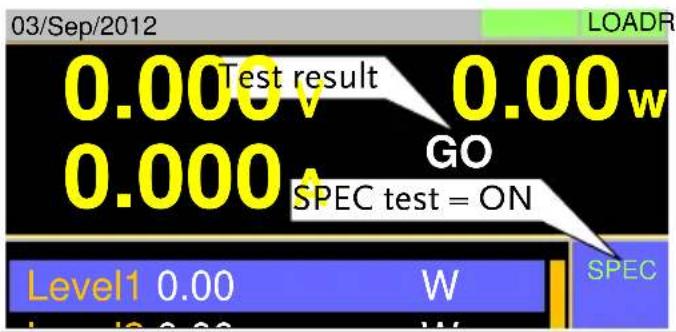
text_image
03/Sep/2012 0.000 Test result 0.00w 0.000 GO SPEC test = ON Level1 0.00 W SPECDisplay: NG
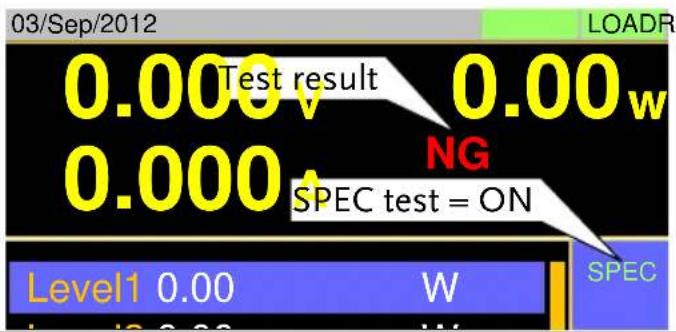
text_image
03/Sep/2012 0.000 Test result 0.00w 0.000 NG SPEC test = ON Level1 0.00 W SPECProgram
The PEL-3000 can create programs that are designed to step-through up to 16 pre-set load operations. The program function is a powerful tool that can allow you to perform a number of different operations in succession.
- The execution time of each step is user-defined.
- Programs can be chained together to make larger programs.
- Up to 16 programs can be created for a program chain.
See page 119 for saving load operations.
Program Overview
Description
When you run a program, you are essentially executing up to 16 different load operations consecutively. Each of the different load operations are “steps” in the program. A program starts at step 01 and ends at step 16.
- A program recalls the operating mode, range, static/dynamic mode, response speed and other settings of each step from stored memory. It also recalls the Go-NoGo settings.
- The same memory settings can be used for multiple steps.
- The execution time of each step is configurable.
- Applies the Go-NoGo settings for each step.
• Each step must be executed in order.
• Each step can be configured to automatically go to the next step or wait for confirmation from the user before proceeding to the next step. - Individual steps can be skipped.
• Programs can be linked together to make
program chains.
- Program chains need not be executed in order.
• There are 16 steps to a program.
• There are up to 16 programs to a chain.
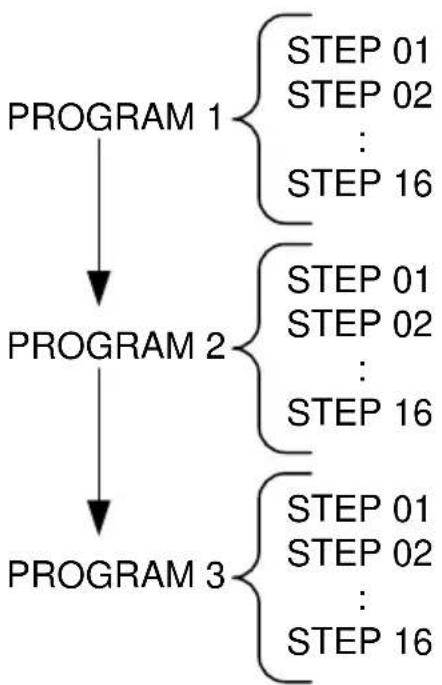
flowchart
graph TD
    A["PROGRAM 1"] --> B["PROGRAM 2"]
    B --> C["PROGRAM 3"]
    A --> D["STEP 01\nSTEP 02\n:\nSTEP 16"]
    B --> E["STEP 01\nSTEP 02\n:\nSTEP 16"]
    C --> F["STEP 01\nSTEP 02\n:\nSTEP 16"]
Setting Overview
A program contains the following settings for each step:
- Memory: the memory location of the load operation for the selected step (M001\~M256).
- Run: Designates the run setting for the step (Auto, Manual, Skip).
- On-Time: Sets the run time of the test.
- Off-Time: Sets the off time between steps.
- P/F-Time: Sets the testing pass/fail delay time for GoNo Go testing.
- Short-Time: Sets the shorting time for the step, if any.
Timing Diagram for Single Step
Below is a timing diagram of a single step in a program.
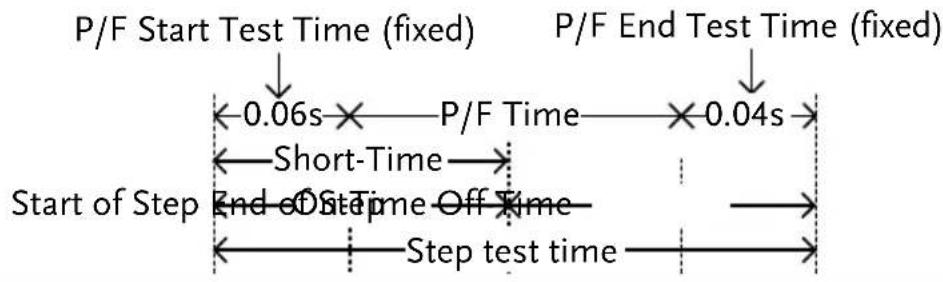
flowchart
graph TD
    A["P/F Start Test Time (fixed)"] --> B["0.06s"]
    B --> C["P/F Time"]
    C --> D["0.04s"]
    D --> E["Short-Time"]
    E --> F["Start of Step"]
    F --> G["End of Step"]
    G --> H["Step Test time"]
    H --> I["End of Step Off Time"]
    I --> J["End of Step Out Time"]
    J --> K["End of Step Final Time"]
Create a Program

Note
Before creating a program, the settings for each step must first be created and saved to internal memory (M001\~M256). See the save recall chapter for further details, page 119.
Program Setting Display Overview
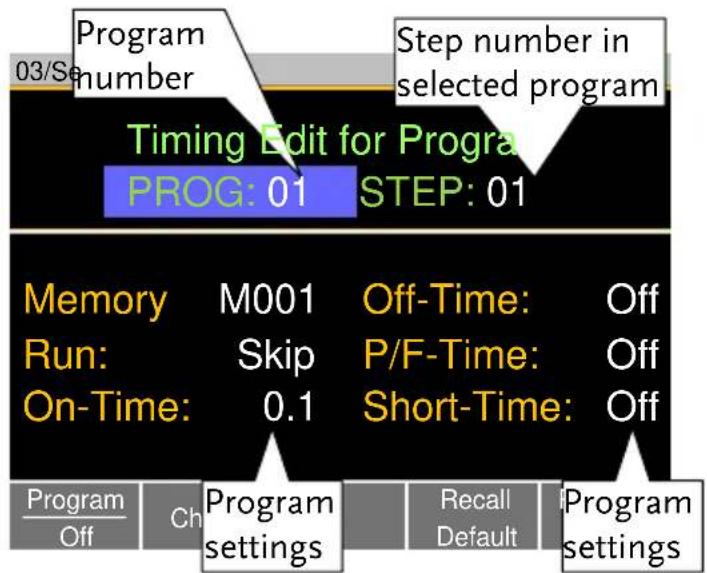
text_image
03/Se Program number Timing Edit for Progra PROG: 01 STEP: 01 Step number in selected program Memory M001 Off-Time: Off Run: Skip P/F-Time: Off On-Time: 0.1 Short-Time: Off Program settings Recall Default Program Off Ch Program settingsOperation
- Press FUNC > Program[F1].
• Note that Program[F1] is off by default.
- Select PROG and select a program number to edit.
PROG 01 \~ 16
- Select a STEP in the selected program.
STEP 01 \~ 16
-
Select Memory and select which memory location to load for the selected step.
-
Settings loaded from the memory location will be used for the selected step.
-
The same memory location can be used for multiple steps.
Memory M001 \~ M256 -
Set the Run setting for the step.
-
By default RUN is set to Skip.
- The Auto setting will automatically start and go onto the next step.
-
The Manual setting will wait for the user to press Next[F2] before running the step. Run Skip, Auto, Manual
-
Choose the On-Time in seconds.
- The on-time setting determines how long the load is turned on for the selected step.
- The on-time is defined as the total test time minus the off-time.
On-Time 0.1 \~ 60 seconds
- Choose the Off-Time in seconds.
- The off-time setting determines how long the load is turned off between the end of the current step and the start of the next step.
- The off-time is defined as the total test time minus the on-time.
Off-Time Off, 0.1 \~ 60 seconds
- Choose the P/F-Time (pass/fail time) in seconds.
- The P/F-Time refers to the P/F delay time. This delay time includes the 0.06 P/F start test time, as shown in the timing diagram on page 94. P/F-Time Off, 0.0 \~ 119.9 seconds
- Set the Short-Time in seconds.
- Has the same action as pressing the short key. See page 61 for details about shorting the load. Short-Time Off, 0.1 seconds \~ On-Time
-
Repeat steps 3 to 9 for all the steps in the program.
-
A maximum of 16 steps per program can be created.
-
Steps that are not configured are set to "Skip" by default.
-
Press Save[F3] to save the program and all the steps in the program.
-
The program will be saved to internal memory.
- See the Save/Recall chapter on details on how to save to Setup memory.
Recall Default
Pressing Recall Default[F4] will recall the default settings for each program/step. See page 178 for details.
Create a Program Chain

Note
Before creating a program chain, make sure a number of programs have already been saved. These will be used to create the program chain.
Chain Setting Display Overview
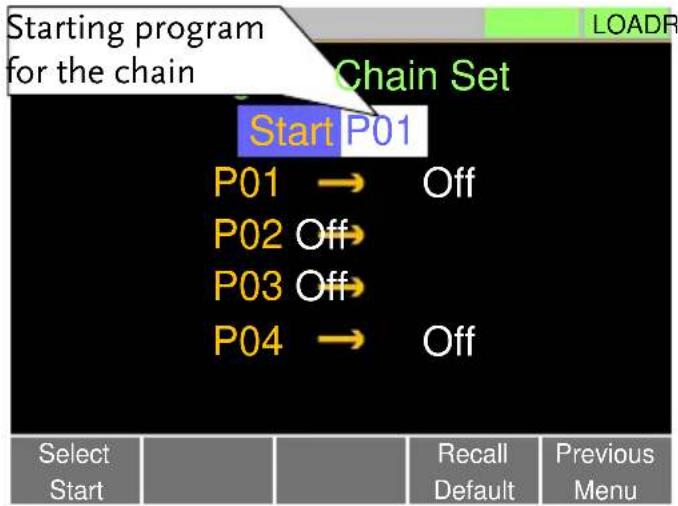
text_image
Starting program for the chain Chain Set Start P01 P01 → Off P02 Off P03 Off P04 → Off Select Start Recall Default Previous MenuOperation
-
Press FUNC > Program[F1] > Chain[F1].
-
It may be necessary to load the programs from Setup memory if they were not created in the current session.
- If Start is not already selected, press Select Start[F1] and select which program will be used to start the program chain.
Start: P01 \~ P16 -
Select P01 and choose which program will be linked to P01.
-
Selecting OFF will end the chain after P01.
- Selecting P01 will create an infinite chain.
- Chains need not be linked in sequential order.
-
Repeat step 3 for any remaining programs in the chain.
-
Press Save to save the program chain to internal memory.
Pressing Recall Default[F4] will reset the chain to the default settings. See page 178 for details.
- Recall Default[F4] will essentially clear the program chain.
Running a Program or Chain
| Description | A program or program chain is run the same way as a normal load. |
Operation 1. Press FUNC > Program[F1].
- Turn program mode on by setting Program[F1] to On.
- PROG will appear at the top of the display when Program is On.
- Turn the load on.
• The program/chain starts immediately.
- The PROG icon turns orange when the load is turned on.
- When a program/chain is running the screen displays which program, step and memory is currently active.
- Press Pause[F1] to suspend a test, press Continue[F1] to resume.
- Press Next[F2] to run the next step if its Run setting was set to Manual.
- When a program/chain has finished running, a list of the Go-NoGo results for each step are displayed.
- Press Exit[F5] to exit.
Display: Program/Chain Running

text_image
03/Sep/2012 0.000v 0.00w 0.000A Program number that is currently running. Run Program Program No: 01 Step(Memory) 01(001) GO Step that is currently running. No-NoGo result for the step Memory number of current step.Display: Program/Chain Finished

text_image
03/Sep/2012 PROGR Run Program Detail Result Program Step Result 1 1 GO 1 2 GO 1 3 NG ExitSequence
The PEL-3000 supports both programs and sequences. The essential difference between programs and sequences is that programs can use different operating modes for each step while sequences use the same operating mode throughout the whole sequence. In effect sequences are used to create complex load simulations.
There are two different types of Sequences, Normal Sequences and Fast Sequences.
Normal sequences can define the execution time and slew rate of each step.
On the other hand the execution time for each step in a fast sequence is fixed to the rate (Time Base setting) set by the user.
Normal Sequence Overview
Description
A normal sequence is comprised of a user-defined number of steps that when executed in sequence can be used to simulate a DC load.
- Up to 1000 discrete steps can be configured using normal sequences.
• Each normal sequence can have a memo note attached to it. - Normal Sequences can be looped up to 9999 discrete times or for an infinite amount of times.
- Normal sequences can be configured to hold a set voltage, current, power or resistance at the end of the load.
- Normal Sequences can be linked together in a chain.
| Start Sequence | Sequence 1 | STEP 01STEP 02:STEP N | |
| Sequence 2 | STEP 01STEP 02:STEP N | ||
| Sequence 10 | STEP 01STEP 02:STEP N | ||
| Description | Normal Sequence configuration is split into Timing Edit configuration and Data Edit configuration. | ||
| Timing Edit configuration is used to configure the actual sequences, such as mode, range, loops and chains. | |||
| Data Edit configuration is used to create the actual steps used in each sequence. | |||
| See below for a description of each. | |||
| Timing Edit Overview | A Normal Sequence contains the following timing settings for each sequence: | ||
| Setting | Setting Range | Description | |
| Start | S01 ~ S10 | Sets which sequence is used to start a chain of Normal Sequences. | |
| Seq.No | S01 ~ S10 | Sets the current sequence to edit. | |
| Memo | 12 characters | A user-created note for the currently selected sequence. | |
| Mode | CC, CR, CV, CP | Operating mode for the sequence. +CV mode is supported. | |
| Range | ILVL | Low I range, low V range | |
| IMVL | Middle I range, low V range | ||
| IHVL | High I range, low V range | ||
| ILVH | Low I range, high V range | ||
| IMVH | Middle I range, high V range | ||
| IHVH | High I range, high V range | ||
| Loop | Infinite, 01 ~ 9999 | Sets the amount of times to loop the selected sequence. | |
| Last Load | OFF, ON | Set the load condition after the end of the sequence. | |
| Last | Value | The setting value of the load for when Last Load = ON. | |
| Chain | Off, S01~S10 | Sets the next sequence in the chain, when not set to off. | |
| Data Edit Overview | Each step in a normal sequence contains the following setting parameters: | ||
| Setting | Setting Range | Description | |
| Step | 0001 ~ 1000 | Selects/displays the current step in the sequence.The number of available steps is dependent on the number of steps added using the Insert Point[F1] functions. | |
| Value | The current, voltage, power or resistance setting for the selected operating mode. | ||
| Load | ON, OFF | Turns the load on or off for the selected step. | |
| RAMP | ON, OFF | When turned on the current transition is evenly ramped from the start of the step to the end of the step. When turned off the current transition is stepped. | |
 | |||
 | |||
| TRIG OUT | ON, OFF | When TRIG OUT is set to ON, a trigger signal is output from the TRIG OUT BNC terminal at the start of the step. See page 150 for details. | |
 | |||
| PAUSE | ON, OFF | Pause: Inserts a pause at the end of the step. When paused, the unit will pause at the end of the step current/voltage/resistance/power level. The sequence can be resumed by pressing Next[F2] or by using an external trigger signal (page 147). | |
Timing Edit Configuration
Edit Timing Display
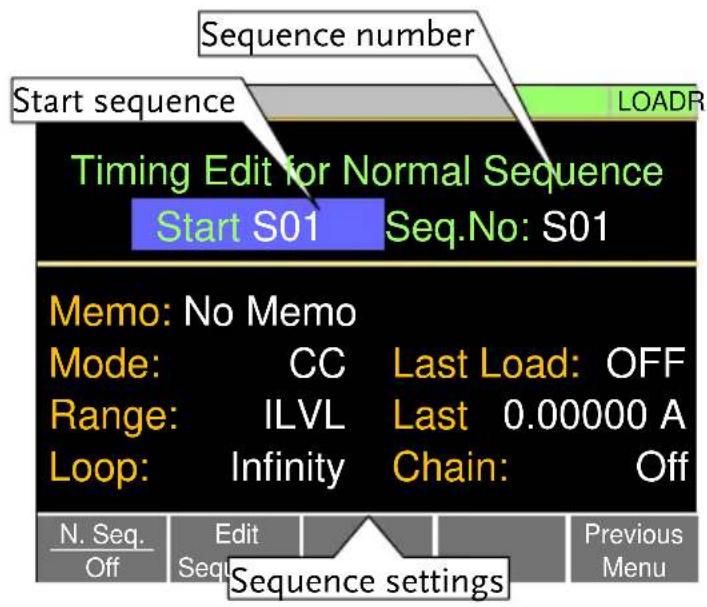
text_image
Sequence number Start sequence Timing Edit for Normal Sequence Start S01 Seq.No: S01 LOADR Memo: No Memo Mode: CC Last Load: OFF Range: ILVL Last 0.00000 A Loop: Infinity Chain: Off N. Seq. Edit Previous Off Seq. Menu Sequence settingsOperation
- Press FUNC > Sequence[F2] > Normal Sequence[F1].
• Note that N. Seq.[F1] is off by default.
- Select Start and select the number of the starting sequence.
Start: S01 \~ S10
- Select a Seq. No. and select which sequence to edit.
Seq. No.: S01 \~ S10
-
Set the following parameters for the currently selected sequence. See page 100 for details on each parameter.
-
Memo
- Mode
- Range
- Loop
- Last Load
- Last
-
Chain
-
Press Save[F3] to save the timing settings for the currently selected sequence.
Sequence Timing configuration is complete.
- Go to Data Edit to edit the steps used in the Normal Sequences. See page 106.
- Go to Running a Normal Sequence to run the normal sequence. See page 108.
Data Edit Configuration
Data Edit Display
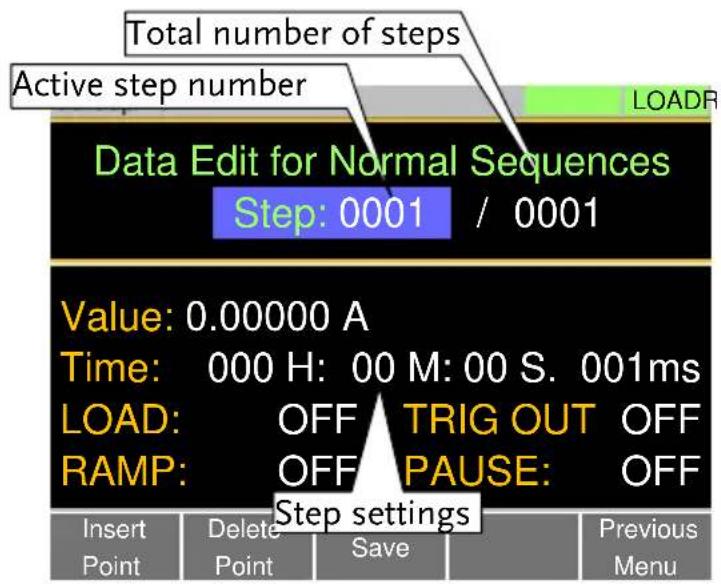
text_image
Total number of steps Active step number Data Edit for Normal Sequences Step: 0001 / 0001 Value: 0.00000 A Time: 000 H: 00 M: 00 S. 001ms LOAD: OFF TRIG OUT OFF RAMP: OFF PAUSE: OFF Step settings Insert Delete Save Previous Point Point Save MenuOperation
-
Press FUNC > Sequence[F2] > Normal Sequence[F1].
-
Select Seq.No. and select the sequence you wish to edit.
Start: S01 \~ S10
- Press Edit Sequence [F2] to enter the Data Edit configuration menu.
- Note that when there no steps in the current sequence the Data Edit for Normal Sequence settings are blank.
- Press Insert Point[F1] to add a step to the sequence after the current step.
- Every time Insert Point is pressed the Step parameter is incremented.
• The inserted point becomes the current step.
-
Set the following parameters for the currently selected step. See the Data Edit Overview on page 102 for configuration details.
-
Value
- Time
- LOAD
- RAMP
- TRIG OUT
-
PAUSE
-
If you wish to edit a previously inserted point/step, use the Step parameter.
• Steps can only be selected after they have already been inserted.
Steps 0001 \~ 1000
-
The currently selected step can be deleted using the Delete Point[F2] function.
-
After all the steps for the sequence are complete, press Save[F3] to save the steps.
Data Edit for Normal Sequence configuration is complete.
- Go to Timing Edit for Normal Sequences to edit the sequence. Page 104.
- Go to Running a Normal Sequence to run the normal sequence. Page 108.
Running a Normal Sequence
| Description | A load created with the Normal Sequence function is run the same way as a normal load. |
| Operation | 1. Press FUNC > Sequence[F1] > Normal Sequence[F1]. 2. Turn normal sequence mode on by setting N. Seq.[F1] to On.•NSEQ will appear at the top of the display when N. Seq. is On.3. Turn the load on.• The normal sequence/chain starts immediately.•The NSEQ icon turns orange when the load is turned on.4. When a normal sequence/chain is running, the screen displays which sequence, step and loop are currently active.• Sequences can be paused by pressing Pause[F1] and resumed again by pressing Continue[F1].• If no steps have been created “No N.Seq.” will be displayed on the screen.•“Sequence Complete” will be displayed at the end of the sequence. |
Display:
Sequence/Chain
Running

text_image
03/Sep/2012 NSEQR 0.000v 0.00w 0.000A Run N.Seq. Seq. No: 01 Step 0003 Loop: 0001 ContinueFast Sequence Overview
Description
A fast sequence is comprised of a user-defined number of steps that can be executed at a high frequency. Unlike normal sequences, each step in a fast sequence has the same execution time (time base).
- This mode is only available for CC and CR mode.
- Up to 1000 discrete steps can be configured using fast sequences.
• Each fast sequence can have a memo note attached to it. - Fast Sequences can be looped up to 9999 discrete times or for an infinite amount of times.
- Fast sequences can be configured to hold a set current or resistance at the end of the load.
- No ramping function can be used with the Fast Sequence function.
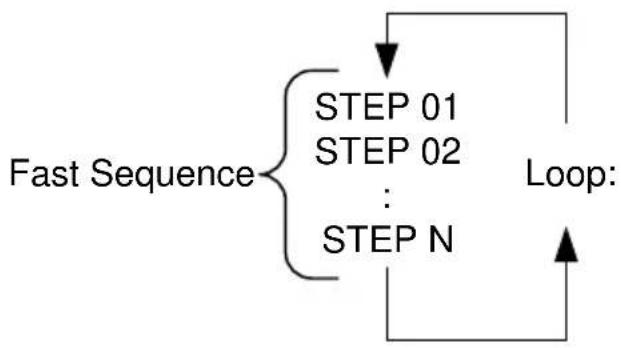
flowchart
graph TD
    A["Fast Sequence"] --> B["STEP 01"]
    A --> C["STEP 02"]
    A --> D["..."]
    A --> E["STEP N"]
    B --> F["Loop:"]
    C --> F
    D --> F
    E --> F
Description Fast Sequence configuration is split into Timing Edit configuration and Data Edit configuration.
Timing Edit configuration is used to configure all the settings that are common to all the steps of the fast sequence. This includes settings such as the mode, range, loops and time base.
Data Edit configuration is used to create the actual steps used in each sequence.
See below for a description of each.
Timing Edit Overview A Fast Sequence contains the following timing settings for each sequence:
| Setting | Setting Range | Description |
| Memo | 12 characters | A user-created note for the currently selected sequence. |
| Mode | CC, CR | Operating mode for the sequence. |
| Range | ILVL | Low I range, low V range |
| IMVL | Middle I range, low V range | |
| IHVL | High I range, low V range | |
| ILVH | Low I range, high V range | |
| IMVH | Middle I range, high V range | |
| IHVH | High I range, high V range | |
| Loop | Infinity, 01 ~ 9999 | Sets the amount of times to loop the selected sequence. |
| Last Load | OFF, ON | Set the load condition after the end of the sequence. |
| Last | 0.000000 | The load setting for when Last Load is set to ON. |
| RPTSTEP | 0001 ~ 1000 | Last step number (0001~1000) per loop |
| Data EditOverview | Each step in a fast sequence contains the following setting parameters: | |
| Setting | Setting Range | Description |
| Step | 0001 ~ 1000 | Selects/displays the current step in the sequence.The number of available steps is dependent on the number of steps added using theIns. Point[F1] functions.A minimum of 3 steps. |
| Value | The current or resistance setting for the selected operating mode. | |
| TRIG OUT | ON, OFF | When TRIG OUT is set to ON, a trigger signal is output from the TRIG OUT BNC terminal at the start of the step. See page 150 for details. |
| [FZGY7] | ||
| FILL Overview | The FILL function is used to evenly step up the current or resistance value settings from a starting step to a finishing step.The Fill Function can be used before or after points are added to the fast sequence.Before: Will pre-fill each value within the fill range when a new step is added.After: Will post-fill each value within the fill | |
range.

bar
FILL example | Step | Start_Value | Filled values | End_Value | |---|---|---|---| | Step 01 | Low | Low | Low | | Step 02 | Medium | Low | Low | | Step 03 | High | Medium | High | | Step 4 | High | High | High |Start_Step Filled steps End_Step
| Setting | Setting Range | Description |
| Start_Value | Sets the current or resistance value for the starting step. | |
| End_Value | Sets the current or resistance value for the ending step. | |
| Start_Step | 0001 ~ 1000 | Sets the starting step number. |
| End_Step | 0001 ~ 1000 | Sets the ending step number. |
Timing Edit Configuration
Edit Timing Display
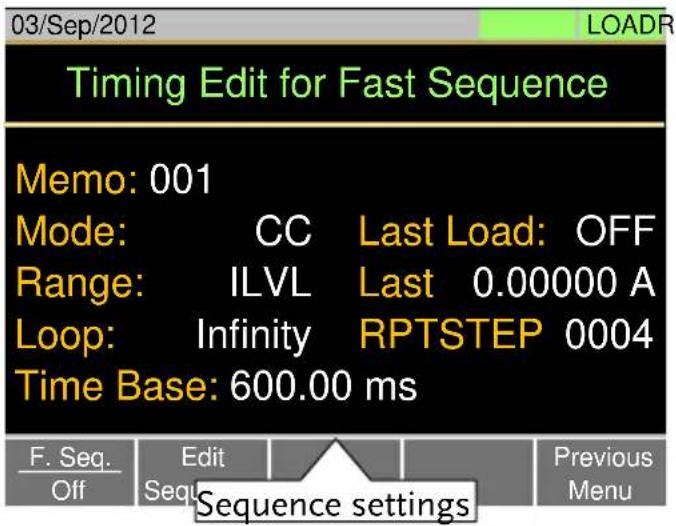
text_image
03/Sep/2012 Timing Edit for Fast Sequence Memo: 001 Mode: CC Last Load: OFF Range: ILVL Last 0.00000 A Loop: Infinity RPTSTEP 0004 Time Base: 600.00 ms F. Seq. Off Edit Sequence settings Previous MenuOperation
- Press FUNC > Sequence[F2] > Fast Sequence[F2].
• Note that F. Seq.[F1] is off by default.
-
Set the following parameters for the fast sequence. See page 112 for details on each parameter.
-
Memo
- Mode
- Range
- Loop
- Time Base
- Last Load
- Last
- RPTSTEP
Save
Press Save[F3] to save the timing settings for the fast sequence.
Sequence Timing configuration is complete.
- Go to Data Edit to edit the steps used in the Fast Sequence. Page 115.
- Go to Running a Fast Sequence to run the fast sequence. Page 117.
Data Edit Configuration
Data Edit Display

text_image
Total number of steps Active step number Data Edit for Past Sequences Step: 0001 / 0005 Value: 0.00000 TRIG OUT: OFF Step settings Insert Point Delete Point Save FILL Previous MenuFILL Display
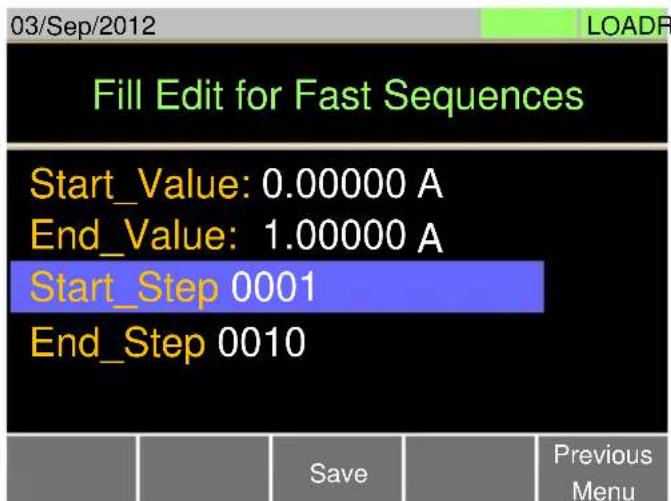
text_image
03/Sep/2012 LoadR Fill Edit for Fast Sequences Start_Value: 0.00000 A End_Value: 1.00000 A Start_Step 0001 End_Step 0010 Save Previous MenuOperation
-
Press FUNC > Sequence[F2] > Fast Sequence[F2] > Edit Sequence[F2] to enter the Data Edit configuration menu.
-
Press Insert Point[F1] to add a step to the sequence.
- Every-time Insert Point is pressed the Step parameter is incremented.
- The newly inserted "point" becomes the active step.
- Set the following parameters for the currently selected step. See page 115 for configuration details.
- Value
- TRIG OUT
- If you wish to edit a previously added point/step, use the Steps parameter.
• Steps can only be selected after they have already been added.
Steps 0001 \~ 1000(RPTSTEP)
- The currently selected step can be deleted using the Delete Point[F2] function.
- There cannot be less than 3 steps for fast sequences.
Fill Function
Press FILL[F4] to use the fill function. Set the fill parameters:
- Start_Value
- End_Value
- Start_Step
- End_Step
The fill function can be used any number of times.
Save
After all the steps for the sequence are complete, press Save[F3] to save the steps.
| Data Edit for Fast Sequences configuration is complete. | |
| Go to Timing Edit for Fast Sequences to edit the sequence. Page 114.Go to Running a Fast Sequence to run the fast sequence. Page 117. |
Running a Fast Sequence
| Description | A Fast Sequence is run the same way as a normal load. |
| Operation | 1. Press FUNC > Sequence[F2] > Fast Sequence[F2]. 2. Turn fast sequence mode on by setting F. Seq.[F1] to On.• FSEQ will appear at the top of the display when F. Seq. is On.3. Turn the load on.• The fast sequence/chain starts immediately.• The FSEQ icon turns orange when the load is turned on.4. When a fast sequence is running, the screen displays which step and loop is currently active.• “Sequence Complete” will be shown on the display at the end of the sequence. |
Display:
Fast Sequence
Running
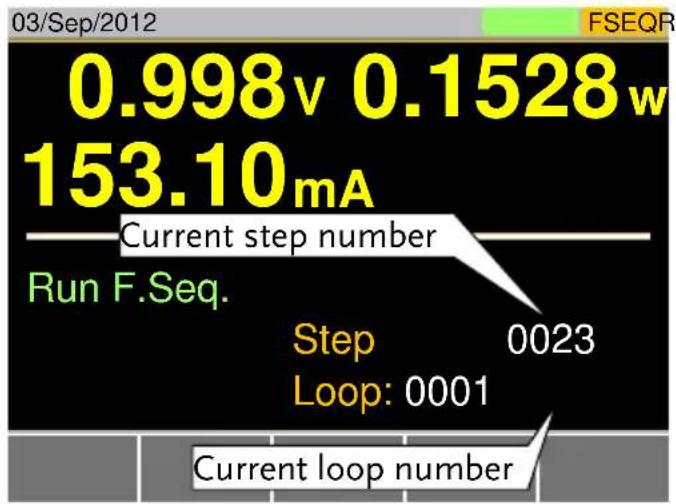
other
| Metric | Value | |--------|-------| | Current step number | 0.998v | | Run F.Seq. | 0.1528w | | Step | 0023 | | Loop | 0001 | | Current loop number | 0.1528w |Save Recall
The PEL-3000 can save and recall system settings, preset data, memory data, Go-NoGo settings as well as normal and fast sequences to internal memory or to USB.
File Structure
Description
The PEL-3000 file system can save files to internal memory (Media | Memory) and external memory (Media | USB).
To save or recall Memory, Setup or Preset data, the PEL-3000 uses a three tier system where files are saved or recalled in the following order:
Active settings <> Internal memory <> USB.
This can be best described in the picture below.

flowchart
graph TD
    A["Active Settings"] --> B["Media | Memory"]
    A --> C["Media | USB"]
    B --> D["Memory data (M001 ~ M256)"]
    B --> E["Setup data (001 ~ 100)"]
    B --> F["Preset data (P0 ~ P9)"]
    C --> G["Memory data (M001 ~ M256)"]
    C --> H["Setup data (001 ~ 100)"]
    C --> I["Preset data (P0 ~ P9)"]
    C --> J["Nseq. data x1"]
    C --> K["Fseq. data x1"]
    A --> L["Memory data x1"]
    A --> M["Setup data x1"]
    A --> N["Preset data x1"]
    A --> O["Nseq. data x1"]
    A --> P["Fseq. data x1"]
    style A fill:#ccc,stroke:#333
    style B fill:#ccc,stroke:#333
    style C fill:#ccc,stroke:#333
    style D fill:#ccc,stroke:#333
    style E fill:#ccc,stroke:#333
    style F fill:#ccc,stroke:#333
    style G fill:#ccc,stroke:#333
    style H fill:#ccc,stroke:#333
    style I fill:#ccc,stroke:#333
    style J fill:#ccc,stroke:#333
    style K fill:#ccc,stroke:#333
    style L fill:#ccc,stroke:#333
For example:
To load Preset Data P7 from USB, you must first load Preset Data P0\~P9 to internal memory, then from internal memory load Preset P7 to be the active preset setting.
For normal and fast sequences however, files can be saved or recalled directly to/from USB memory.
File Types
Memory Data
Memory data contains general settings and is used for creating programs. Memory Data contains the operating mode, range, response and Go/NoGo settings. Memory data can be stored both internally and externally to USB. Preset data and Memory data store the same contents.
Internal Format M001 \~ M256
External Format model no_file no.M example: 3021_01.M
Setup Data
Setup data contains all general configuration settings, protection settings, program and program chain settings, as well as parallel configuration settings.
Internal Format 1 \~ 100
External Format model no_file no.S example: 3021_00.S
| Preset Data | Preset Data contains the same settings as the Memory Data. Preset Data contains the operating mode, range, response and Go-NoGo settings. |
| Internal Format P0 ~ P9 | |
| External Format model no_file no.P example: 3021_00.P | |
| NSeq Data | NSeq Data contains the Normal Sequence settings. |
| Internal Format None | |
| External Format model no_file no.N example: 3021_00.N | |
| FSeq Data | FSeq Data contains the Fast Sequence settings. |
| Internal Format None | |
| External Format model no_file no.F example: 3021_00.F |
Saving Files to Internal Memory
| Description | When saving Memory, Setup or Preset Data to internal memory, the currently active setting is saved to one of the internal memory slots. |
| Memory Data has 256 memory slots, Setup Data has 100 memory slots and Preset Data has 10 memory slots. |
Memory Data Example
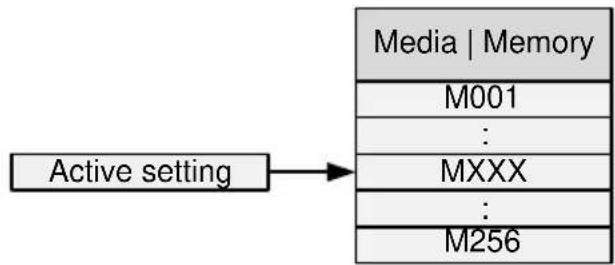
flowchart
graph TD
    A["Active setting"] --> B["Media | Memory"]
    B --> C["M001"]
    C --> D[":"]
    D --> E["MXXX"]
    E --> F[":"]
    F --> G["M256"]
Display
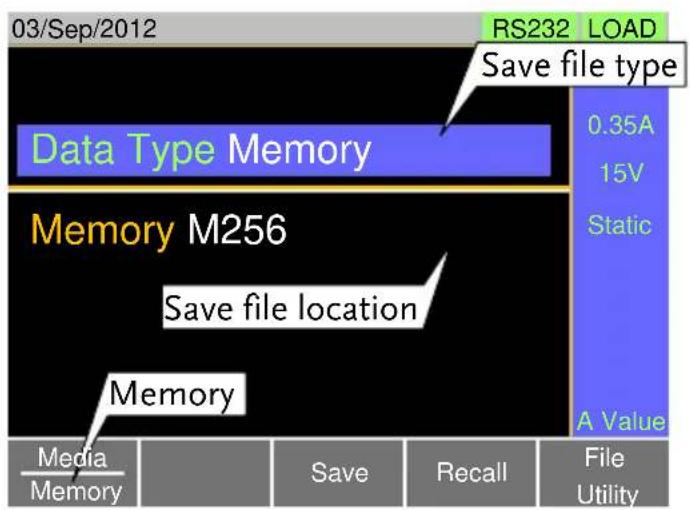
text_image
03/Sep/2012 RS232 LOAD Save file type Data Type Memory 0.35A 15V Memory M256 Static Save file location A Value Memory Media Memory Save Recall File UtilityOperation
- Press

- Select Memory with the Media[F1] soft-key.
- Select the Data Type and choose the type of file to save.
Data Type: Memory Data, Setup Data, Preset Data
- Select which internal memory location to save the file.
Memory: M001 \~ M256
Setup Memory: 1 \~ 100
Preset: P0 \~ P9
- Press Save[F3] to save.
- Save Ok will be displayed when the save has been completed.

Note
Normal Sequence and Fast Sequence data cannot be recalled from or saved to an internal memory slot.
Saving Files to USB Memory
Description
When saving files to USB memory, all the memory locations from the selected data type are saved as a single file to the USB file path directory.
Memory Data Example

flowchart
graph LR
    A["Media | Memory"] --> B["Media | USB"]
    C["M001"] --> B
    D[":"] --> B
    E["MXXX"] --> B
    F[":"] --> B
    G["M256"] --> B
    B --> H["Save file"]
For example, Memory Data M001 to M256 are saved to a single file on USB.
Display
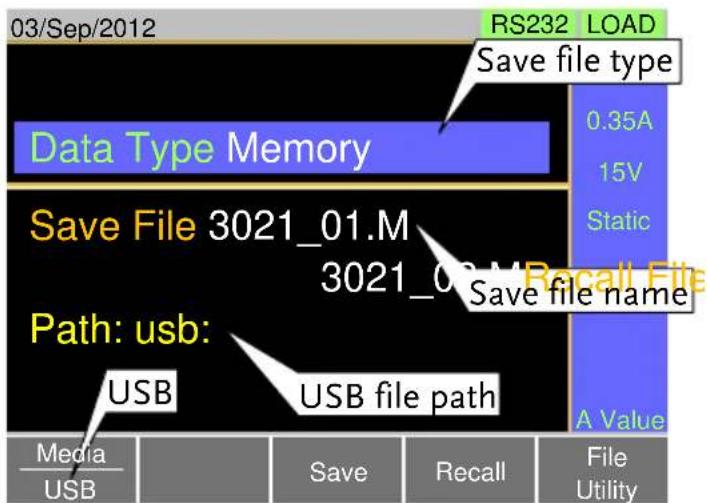
text_image
03/Sep/2012 RS232 LOAD Save file type Data Type Memory 0.35A 15V Static Save File 3021_01.M 3021_01.M Save file name Path: usb: USB USB file path Media USB Save Recall File UtilityOperation
-
Insert a USB drive into the USB port.
-
Press Shift + File FUNC
-
Select USB with the Media[F1] soft-key.
-
Select the Data Type and choose the type of file to save.
Data Type: Memory Data, Setup Data, Preset Data, NSeq, FSeq
- Select Save File and choose a save filename.
- Turn the scroll wheel to increase/decrease the file number.
Memory: Model_file number.M
Setup Memory: Model_file number.S
Preset: Model_file number.P
NSeq: Model_file number.N
FSeq: Model_file number.F
- Press Save[F3] to save.
- The file will be saved to the USB file path.
- Save Ok will be displayed when the save has been completed.
- If saving-over an existing file you will be asked to confirm the save. Press Save[F3] to confirm.
File Utilities
Press File Utility[F5] to access the file utility. See page 129 for details.
- Change the USB path.
- Rename files or create directories.
Recalling Files from Internal Memory
Description
When recalling Memory, Setup or Preset Data from the internal memory slots, the recalled file becomes the active setting.
Memory Data has 256 memory slots, Setup Data has 100 memory slots and Preset Data has 10 memory slots.
Memory Data Example

flowchart
graph TD
    A["Active setting"] --> B["Media | Memory"]
    B --> C["M001"]
    C --> D[":"]
    D --> E["MXXX"]
    E --> F[":"]
    F --> G["M256"]
Display
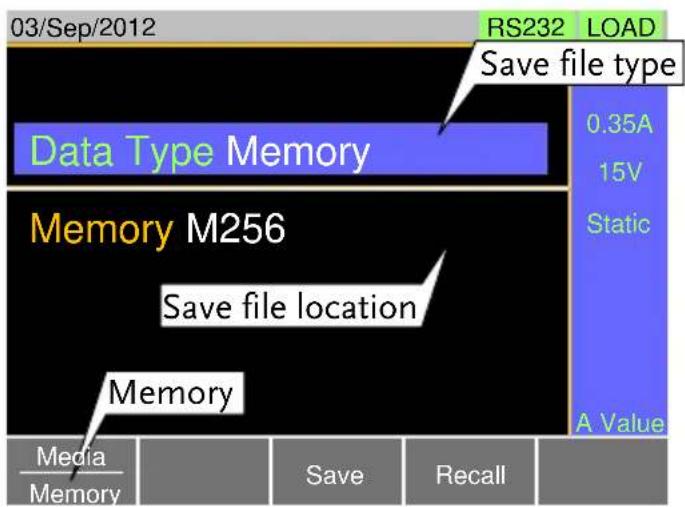
text_image
03/Sep/2012 RS232 LOAD Save file type Data Type Memory 0.35A 15V Static Memory M256 Save file location A Value Memory Media Memory Save RecallOperation
-
Press Shift + File FUNC
-
Select Memory with the Media[F1] soft-key.
-
Select the Data Type and choose the type of file to recall.
Data Type: Memory Data, Setup Data, Preset Data
- Select which memory slot to recall from.
Memory: M001 \~ M256
Setup Memory: 1 \~ 100
Preset: P0 \~ P9
- Press Recall[F4] to recall.
- For Memory Data and Preset Data, a popup window will appear. Press the Enter key to confirm the recall.

Note
Normal Sequence and Fast Sequence data cannot be recalled from or saved to an internal memory slot. They can, however, be recalled directly from USB memory. See the next section below for details.
Recalling Files from USB Memory
| Description | When recalling Memory, Setup or Preset files from USB memory, a single file from the USB drive will overwrite all the existing memory slots for the selected data type. |
| For Normal or Fast Sequence files, the recalled file becomes the active setting as these types of files don’t have an internal memory slot. | |
 Caution Caution | You can only recall files from the same model. |
Memory Data Example

flowchart
graph LR
    A["Media | USBMec"] --> B["M001"]
    B --> C["MXXX"]
    C --> D["M256"]
    E["Recall file"] --> A
For example, if the file 3021_01.M is recalled, all the Memory Data from M001 to M256 will be overwritten.
Display

text_image
03/Sep/2012 RS232 LOAD Save file type Data Type Memory 0.35A 15V Static Save File 3021_01.M 3021_01.M Save file name Path: usb: USB USB file path Media USB Save Recall File UtilityOperation
-
Insert a USB drive into the USB port.
-
Press Shift + File FUNC.
-
Select USB with the Media[F1] soft-key.
-
Select the Data Type and choose the type of file to recall.
Data Type: Memory Data, Setup Data, Preset Data, NSeq, FSeq
- Select Recall File and choose a filename.
- Turn the scroll wheel to increase/decrease the file number.
| Memory: Model_file number.MSetup Memory: Model_file number.SPreset: Model_file number.PNSeq: Model_file number.NFSeq: Model_file number.F | |
| 6. Press Recall[F4] to recall.• Recall Ok will be displayed when the recall has been completed. | |
| File Utilities | Press File Utility[F5] to access the file utility. See page 128 for details.• Change the USB path.• Rename files or create directories. |
 Caution Caution | If “Machine Type Error” is displayed it indicates that the file that you are trying to recall originated from a different model. You can only recall files from the same model. |
| Recall Memory Safety Setting | |
| Description | By default when you try to recall preset settings from internal memory, a message will appear asking you to press the Enter key to confirm. This is the standard safety measure to ensure that the wrong setting is not recalled. This safety measure can be disabled by setting the Mem. Recall setting to “Direct”. |
| Operation | 1. Press Main > Configure[F5] > Other[F2] and set the Mem. Recall setting. Range: Safety, Direct |
Recall Memory Safety Setting
Description
Operation

Note
This setting only applies when recalling preset settings from internal memory, either by using the Presets keys (P0 \~ P9) or by using the File menu. See page 131 and 125.
File Utility
Description
The file utility allows you to create new folders, rename files and set the USB path directory.
It is only available for use with the USB external memory.
Display

text_image
03/Sep/2012 USB path Path: usb:\Test cursor Folder1 16-Feb-12 13:46 Folder2 18-Feb-12 11:16 Folder3 19-Feb-12 08:32 3021_01.M 01-Mar-12 10:12 3021_01.M 03-Mar-12 13:13 3021_01.M 23-Mar-12 09:02 3 folder(s), 15 file(s) Select Rename Folder Delete Previous MenuAccess the File Utilities Menu
-
Insert a USB drive into the USB port.
-
Press Shift + FUNC > File Utility[F5].
• The file utilities screen appears.
Create a new Folder
- Press New Folder[F2] to create a new folder.
- Use the on-screen display to enter the filename.
• A maximum of 8 characters.
| Rename a Folder | 1. Use the scroll wheel to move the cursor to the file/folder you wish to rename. |
| 2. Press Rename[F3].• Use the on-screen display to enter the filename.• A maximum of 8 characters. | |
| Delete File or Folder | 1. Use the scroll wheel to move the cursor to the file/folder you wish to delete. |
| 2. Press Delete[F4]. | |
| 3. Press Delete[F4] again to confirm the deletion. |
Preset
The Preset key is used to save and recall preset settings from the front panel quickly. The presets have the same contents as memory data, this includes the operating mode, range, configuration settings and Go-NoGo settings.
Quick Preset Save
| Description | The current settings can be saved to P0 ~ P9 using the Preset key and the number pad. |
| Operation | 1. Press Preset and hold 0 ~ 9 until a beep is heard.The beep indicates that the setting was saved to the selected preset. |
Quick Preset Recall
Description
Presets P0 to P9 can be recalled quickly by using the Preset key and the number pad.
Operation
- Press
Preset
+ 0
P9 \~ 9
-
Press Enter to confirm the recall when a popup window appears.
-
Press Preset again to deactivate the preset key.
Default Settings
Factory Default Settings
Description
The factory default settings can be recalled at any time. See page 178 for a list of the factory default settings.
Operation
- Press
Shift

FUNC
-
Select Default with the Media[F1] soft-key.
-
Press Factory Default[F2].
-
Press Factory Default[F2] again to confirm.
User's Default Setting
| Description | The currently active settings can be set as the "User's Default" settings. |
| Save User's Default Setting | 1. Press Shift + FileFUNC.2. Select Default with the Media[F1] soft-key.3. Press Save[F3].• The User's Default is saved immediately. |
| Recall User's Default Setting | 1. Press Shift + FileFUNC.2. Select Default with the Media[F1] soft-key.3. Press Recall[F4].4. Press Recall[F4] again to confirm.• A User's Default must be saved first before it can be recalled. |
EXTERNAL CONTROL
Analog Control....134
J1 Connector Overview....134
External Voltage Control - Overview....135
External Voltage Control – Operation....136
External Resistance Control - Overview 138
External Resistance Control – Operation....140
Turning the Load On using External Control....143
Load On/Off Status 145
External Control of the Range....145
I Range Status 146
External Trigger Signal....147
External Control of the Alarm....148
Alarm Status....149
Short Control....149
Monitor Signal Output....150
Trigger Signal Output....150
Current Monitor Output....150
Parallel Operation 152
Parallel Capacity, PEL-3021, PEL-3041, PEL-3111....152
Parallel Capacity, PEL-3211 153
Connection 153
Configuration 155
Turning the Load On....157
Disable Parallel Mode....158
Analog Control
The Analog Control subsection describes how to use the J1 Frame Control Connector for voltage or resistance control. The J2 connector, located under the J1 connector is used for parallel control. See page 181 for the details J1 and J2 connectors.
J1 Connector Overview
| Description | The J1 External Control Connector is a standard Mil 20 pin connector (OMRON XG4A IDC plug). The connector is used for all analog control. The pins are used to determine what mode is used.See the appendix on page 181 to view the contact pin assignment of the J1 connector. |
 WARNING WARNING | Some pins on the frame control connector have the same potential as the front and rear terminals.To prevent electric shock, ensure that the cover for both the J1 and J2 External Control connectors are used when the connectors are not in use. |
| Pin Assignment | 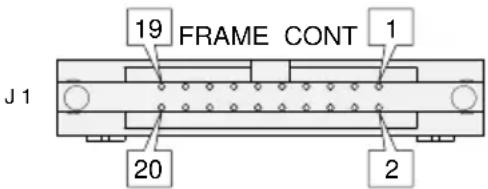 |
External Voltage Control - Overview
| Background | External voltage control of the CC, CR, CV and CP mode is accomplished using the J1 connector on the rear panel. An input voltage of 0~10V corresponds to 0% ~ 100% of the rated current (CC mode), rated voltage (CV mode), or rated power (CP mode). For CR mode, 0V ~ 10V corresponds to the maximum resistance ~ minimum resistance. |
| Connection | When connecting the external voltage source to the J1 connector, use a ferrite core and use twisted pair wiring.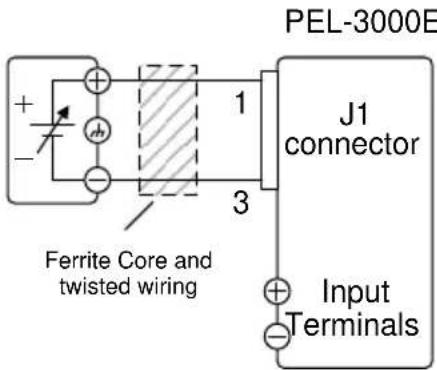 Pin1 → EXT-V (+)Pin3 → EXT-V (-) Pin1 → EXT-V (+)Pin3 → EXT-V (-) |
 | The input impedance for external voltage control is 10kΩ.Use a stable voltage supply for the external voltage control. |

Caution
When using external voltage control, make sure no more than ±11V is applied across pins 1 and 3. Exceeding this voltage could damage the PEL-3000. Exceeding 11.8V will cause an EXT.OV alarm message to appear which also will reset the voltage output to 0V until the external voltage is reduced back down below 11.8V.
Use caution when using pin 3. Pin 3 is directly coupled to the negative input terminal.
External Voltage Control – Operation
Description
External voltage control can be used to control the current, voltage, resistance and power for CC, CR, CV and CP modes. Configuration for each operating mode is the same.
CC Mode
Input current = rated current × (external voltage/10)
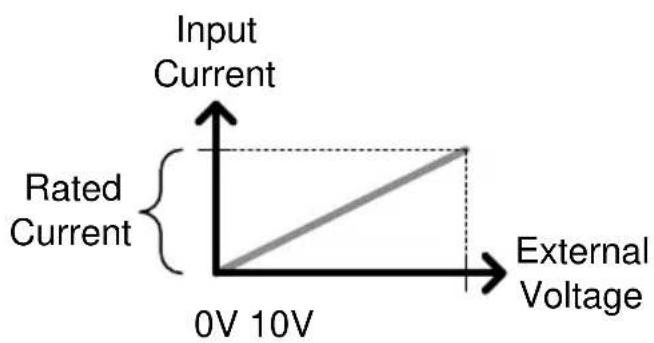
line
| External Voltage | Input Current | | ---------------- | ------------- | | 0V | 0 | | 10V | 1 |CR Mode
Input conductance = rated conductance × (external voltage/10)
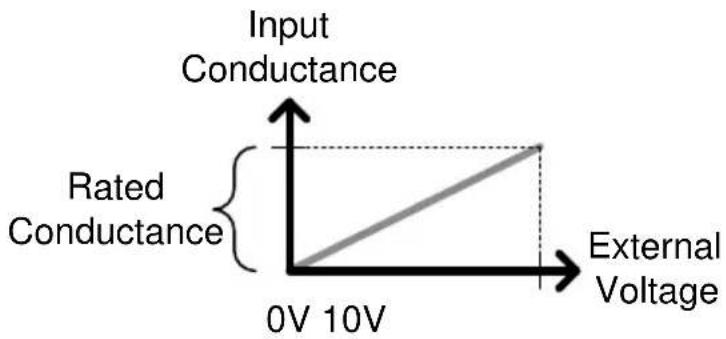
line
| Input Conductance | External Voltage | | ----------------- | ---------------- | | Rated Conductance | 0V | | External Voltage | 10V |CV Mode
Input voltage = rated voltage × (external voltage/10)

line
| Voltage Level | Input Voltage | | ------------- | ------------- | | 0V | 0 | | 10V | 1 |CP Mode
Input power = rated power × (external voltage/10)
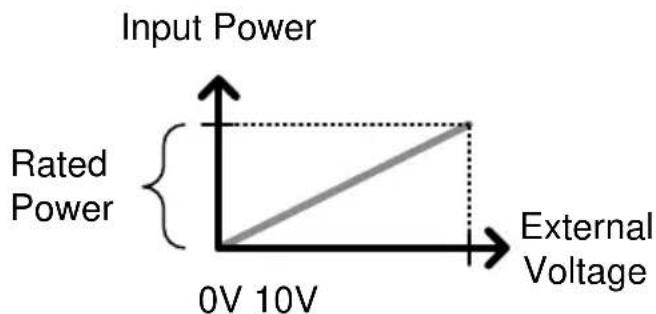
line
| Rating | 0V | 10V | | ---------- | ---- | --- | | Rated Power| 0 | 10 |Operation
-
Turn the power off from the PEL-3000 and from the load.
-
Connect the external voltage across pins 1 and 3 of the J1 connector.
-
Turn the power on the PEL-3000.
- Set the operating mode and range.
• See page 51 for CC mode.
• See page 53 for CR mode.
• See page 55 for CV mode.
• See page 56 for CP mode.
-
Press Main > Configure [F5] > Next Menu [F4] > External [F3].
-
Set the Control parameter to V.
- The J1 connector is now ready for external voltage control.
External Resistance Control - Overview
| Background | External resistance control of the CC, CR, CV and CP modes is accomplished using the J1 connector on the rear panel.A resistance of 0kΩ~10kΩ is used to control the input current, voltage, resistance or power on the PEL-3000.The input can be configured to vary in proportion to the external resistance or the inverse. See page 140 for more details on proportional and inverse resistance control. |
| Note | Exceeding 11.8kΩ will cause an EXT.OV alarm message which will reset the voltage output to 0 until the external resistance is reduced back down below 11.8kΩ. |
Connection
When connecting the external resistance source to the J1 connector, use a ferrite core and use twisted pair wiring.
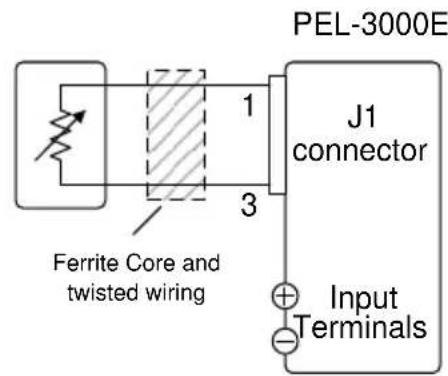
text_image
PEL-3000E 1 J1 connector 3 Ferrite Core and twisted wiring Input Terminals- Pin1 EXT-R
- Pin3 EXT-R
Note
Use resistors with minimum residual resistance of 50 or less.
Note for proportional control: Do not use switches that switch between fixed resistances. Please use continuously variable resistors.
External Resistance Control – Operation
| Description | External resistance control can be used to control the current, voltage, resistance and power for CC, CR, CV and CP modes. Configuration for each operating mode is the same. |
| CC Mode | Proportional Control: Input current = rated current × (external resistance/10). Inverse Control: Input current = rated current × (1 - external resistance/10). |
CR Mode
Proportional Control: Input conductance = rated conductance × (external resistance/10).
Inverse Control: Input conductance = rated conductance × (1 - external resistance/10).
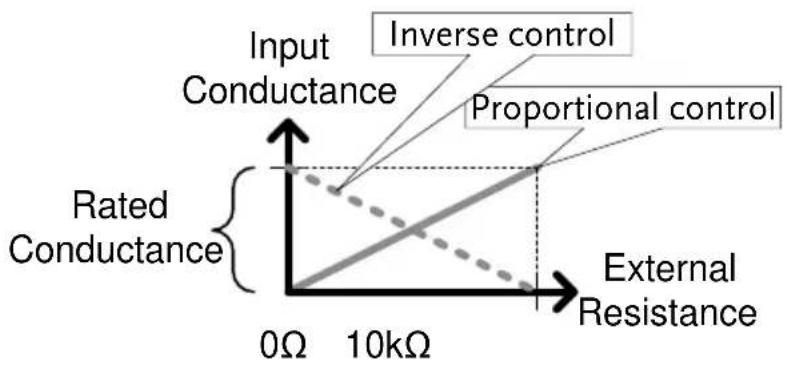
line
| Input Conductance | Inverse control | Proportional control | | ----------------- | --------------- | -------------------- | | 0Ω | 0 | 0 | | 10kΩ | 0 | 0 |CV Mode
Proportional Control: Input voltage = rated voltage × (external resistance/10).
Inverse Control: Input voltage = rated voltage × (1 - external resistance/10).

line
| Input Voltage | Rated Voltage | | ------------- | ------------- | | 0Ω | 0Ω | | 10kΩ | 10kΩ |CP Mode
Proportional Control:
Input power = rated power × (external resistance/10).
Inverse Control:
Input power = rated power × (1 - external resistance/10).
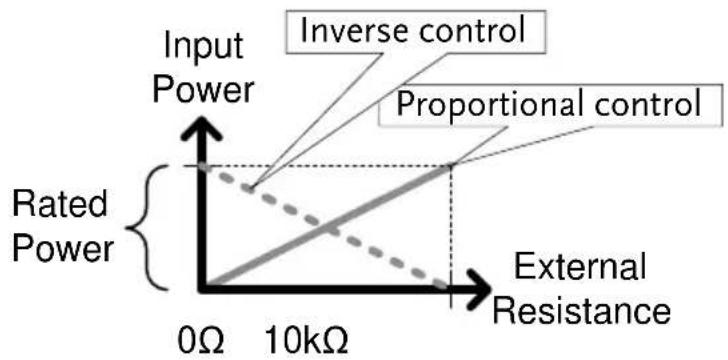
line
| Input Power | External Resistance | |-------------|---------------------| | 0Ω | 0kΩ | | 10kΩ | 10kΩ |Note
The inverse configuration is recommended for safety reasons. In the event that any of the cables become accidentally disconnected, the current/voltage/power input will drop to the minimum. Under similar circumstances using proportional control, an unexpectedly high input would result.
Operation
- Turn the power off from the PEL-3000 and from the load.
- Connect the external resistance across pins 1 and 3 of the J1 connector.
- Turn the power on the PEL-3000.
- Set the operating mode and range.
• See page 51 for CC mode.
• See page 53 for CR mode.
• See page 55 for CV mode.
• See page 56 for CP mode.
-
Press Main > Configure [F5] > Next Menu [F4] > External [F3].
-
Set the Control to R for proportional control or to Rinv for inverse control.
- The J1 connector is now ready for external resistance control.
Turning the Load On using External Control
| Description | The load can be turned on and off with an external switch connected to pins 7 and 12 of the J1 connector. |
| Pin Inputs | Pin 7 of the J1 connector is internally pulled up to 5V with a 10kΩ resistor when the switch is open. Thus when the switch is open, pin 7 is logically high. When the switch is closed, pin 7 is pulled down to the A COM ground level, making pin 7 logically low.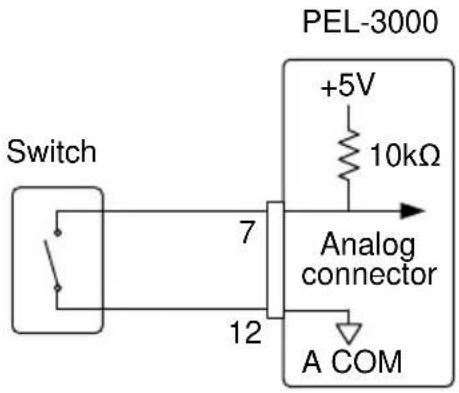 |
Example
The LoadOn IN setting determines whether the load is turned on when the external switch is closed (low) or open (high).

text_image
High Low High Low On Off Load On In = High Load On In = Low Load off Load Load onOperation: Configuration
-
Press Main > Configure [F5] > Next Menu [F4] > External [F3] and set the LoadOn IN setting.
-
Set to Low if you want the load to be turned on when the switch is closed.
- Set to High if you want the load to turn on when the switch is open.
Note
When external control is used to turn the load off, the load key cannot be used to turn the load on. However the reverse is not true. If the load has been turned on by external control, the load key can be used to turn the load off.
Load On/Off Status
| Description | Pin 13 (Load On Status) of the J1 connector is used to monitor the load status (on or off). |
| Pin out | The Load On Status pin is a photo-coupled open-collector output. 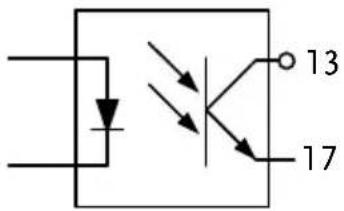 Photocoupler input: 30V max, 8mA, max. Photocoupler input: 30V max, 8mA, max. |
External Control of the Range
| Description | The range for the present operating mode can be externally controlled when the current range is set to high range.The range is changed using pins 8, 9 (Range Cont 1 &2) and 12 (A Com) of the J1 connector.When externally controlling the range, the pin input combination determines which range is chosen.Note: PressMain> Configure [F5] > Next Menu [F4] > External [F3] and set the Control setting to V, R or Riv to enable external control. |
| I Range | Pin 9 | Pin 8 |
| H | High | High |
| M | High | Low |
| L | Low | High |
Pin Inputs
Pins 8 and 9 of the J1 connector are internally pulled up to 5V with a 10kΩ resistor when open. When closed, pin 8 and 9 are pulled down to the A COM ground level.
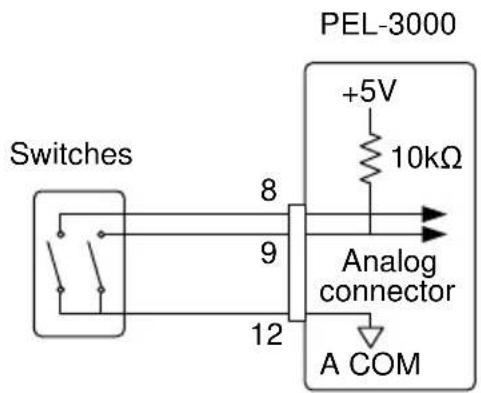
text_image
PEL-3000 +5V 10kΩ Switches 8 9 12 Analog connector A COM
The range can only be externally controlled when the IRange has been set to High using the front panel controls.
I Range Status
Description
Pins 14 and 15 (Range Status 1&2) of the J1 connector are used to monitor the IRange status.
The pinout combination determines the range status.
| I Range | Pin 15 | Pin 14 |
| H | Off | Off |
| M | Off | On |
| L | On | Off |
Pin out
The Range Status pins are photo-coupled open-collector outputs.
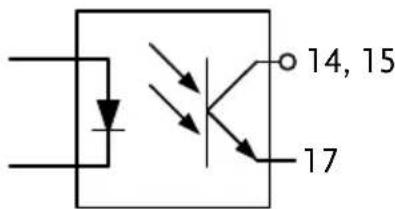
text_image
14, 15 17Photocoupler input: 30V max, 8mA, max.
External Trigger Signal
Description
Pins 11 and 12 of the J1 connector are the trigger signal inputs. The trigger signal is used to resume a sequence after a pause. This action is useful to synchronize the execution of a sequence with another device.
Pin out
Pin 11 of the J1 connector is internally pulled down to A COM with an approx. 50kΩ resistor. To use the trigger input, an active low TTL pulse of 10μs or more is required.

text_image
PEL-3000 A COM 50kΩ Trigger input signal 11 Analog connector 12 A COMExternal Control of the Alarm
Description
An alarm can be activated/deactivated using external control with the J1 connector (pins 10, 12). When the alarm is activated, an EXT.AL message is also output. The alarm can be activated by an external device or by a parallel slave unit.
The alarm is activated by sending a low-level signal. The operating threshold level is TTL.
Pin Inputs
Pin 10 is internally pulled up to 5V with a 10kΩ resistor when open. When closed, pin 10 is pulled down to the A COM ground level.

text_image
PEL-3000 +5V 10kΩ Switch 10 Analog connector 12 A COMAlarm Status
| Description | Pins 16 and 17 of the J1 connector are used to monitor whether the alarm is on or off. |
| Pin out | The Alarm Status pin is a photo-coupled open-collector output. Photocoupler input: 30V max, 8mA, max. Photocoupler input: 30V max, 8mA, max. |
Short Control
| Description | The Short Signal Out pins (19 and 20) are 30VDC 1A relay contact outputs. These outputs can be used to drive an external relay to physically short the terminal outputs. |
| Pin Inputs | The Short Signal Out pins are normally open until the short function is activated.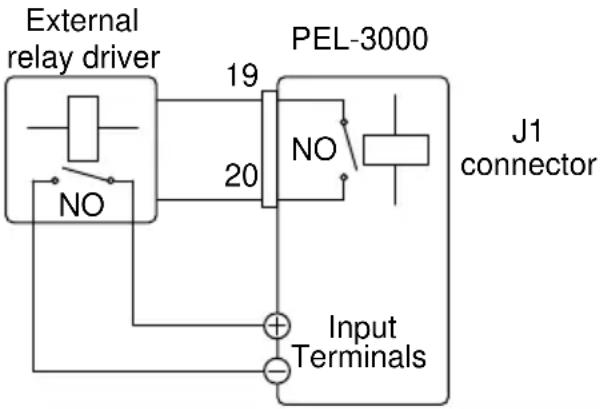 |
 | The external relay driver is not a standard accessory. Please provide your own external relay and driver circuit. |
Monitor Signal Output
Trigger Signal Output
Description
The trigger output signal is generated every time a switching operation is performed (i.e., Dynamic mode) or when a Fast or Normal Sequence is executed and the TRIG OUT parameter is enabled.
The trigger output signal from TRIG OUT BNC is a 5V pulse of at least 2us with an impedance of 500Ω. The common potential is connected to the chassis potential. The signal threshold level is TTL.
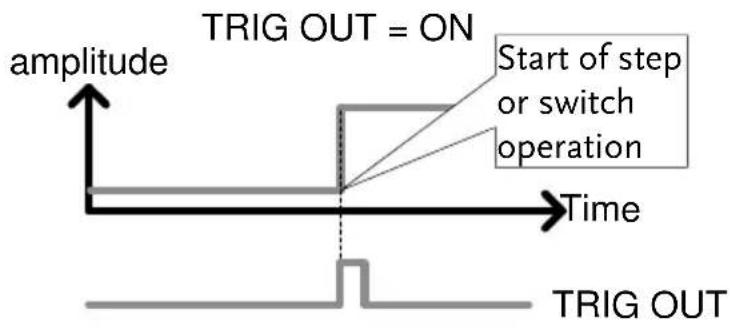
text_image
TRIG OUT = ON Start of step or switch operation amplitude Time TRIG OUTCurrent Monitor Output
Description
The voltage output from the IMON OUT terminal and from the IMON pin on the J1 connector is used to represent the current input level.
The voltage range used to represent the full scale current range from the IMON OUT terminal and from the IMON pin on the J1 connector depends on the current range
settings.

line
| IMON V | Current | | ------ | ------- | | 0 | 0 | | 1 | 1 || Monitor Connector | Current Range | Monitor Output Range |
| I MON OUT (BNC) | H, L | 0 ~ 1V |
| M | 0 ~ 0.1V | |
| I MON (J1) | H, L | 0 ~ 10V |
| M | 0 ~ 1V |
I MON OUT BNC Connector
The IMON OUT BNC connector outputs a voltage of 0 \~ 1V for the High and Low current ranges and 0 \~ 0.1V for the Middle current range. The common potential is connected to the chassis ground potential.
J1 Connector
The voltage across pins 2 and 3 outputs a voltage of 0 \~10V for the High and Low current ranges and 0 \~1V for the Middle current range. The common potential is connected to A COM (negative load terminal).
Parallel Operation
The PEL-3000 series can be connected in parallel to increase the total power capacity of a single unit.
The PEL-3000 series can operate with up to 5 units in parallel. A single unit is designated as a master unit and any other connected units as slaves.
Only units of the same type and rating can be used in parallel or alternatively, the PEL-3211 booster pack can be used as a slave with the PEL-3111.
When a master unit is used in parallel mode, to ensure stability, the response speed will drop down to 1/2 if it was originally 1/1 . You can however, reset the response speed back (or to another value) in the Main>Configure menu.
Parallel Capacity, PEL-3021, PEL-3041, PEL-3111
| Model | Single Unit | 2 Units | 3 Units | 4 Units | 5 Units |
| PEL-3021 | 150V | 150V | 150V | 150V | 150V |
| 35A | 70A | 105A | 140A | 175A | |
| 175W | 350W | 525W | 700W | 875W | |
| PEL-3041 | 150V | 150V | 150V | 150V | 150V |
| 70A | 140A | 210A | 280A | 350A | |
| 350W | 700W | 1050W | 1400W | 1750W | |
| PEL-3111 | 150V | 150V | 150V | 150V | 150V |
| 210A | 420A | 630A | 1680A | 1050A | |
| 1050W | 2100W | 3150W | 4200W | 5250W |
Parallel Capacity, PEL-3211
| Model | No. of Units | V | I | Total Sink Current PEL-3111 + PEL-3211 | Total Power PEL-3111 + PEL-3211 |
| PEL-3111: Master | x 1 | 150V | 210A | N/A | N/A |
| x 1 | 150V | 420A | 630A | 3150W | |
| PEL-3211: Slave Boosters | x 2 | 150V | 840A | 1050A | 5250W |
| x 3 | 150V | 1260A | 1470A | 7350W | |
| x 4 | 150V | 1680A | 1890A | 9450W |
Note: The PEL-3211 booster packs do not have a control panel. They can only be used as slaves with a single PEL-3111 in parallel.
Connection
| Description | The J1 and J2 connectors are used for control during parallel operation. Up to 5 units can be used in parallel. |
| Note | Only the rear panel terminals can be used for parallel operation, the front panel terminals have a lower current rating and thus should not be used for parallel operation. |
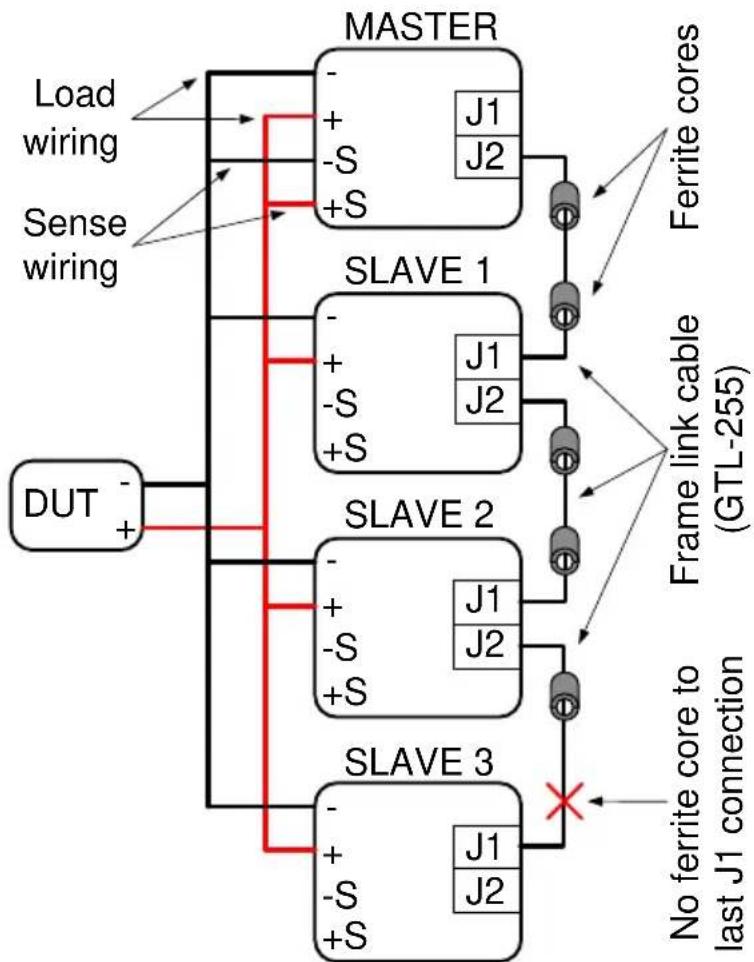
flowchart
graph TD
    A["MASTER"] -->|Load wiring| B["SLAVE 1"]
    A -->|Sense wiring| C["SLAVE 2"]
    A -->|DUT+| D["SLAVE 3"]
    B --> E["Ferrite cores"]
    B --> F["Frame link cable (GTL-255)"]
    C --> G["No ferrite core to last J1 connection"]
    D --> H["SLAVE 3"]
    style A fill:#f9f,stroke:#333
    style B fill:#ccf,stroke:#333
    style C fill:#ccf,stroke:#333
    style D fill:#fff,stroke:#333
    style E fill:#dfd,stroke:#333
    style F fill:#dfd,stroke:#333
    style G fill:#dfd,stroke:#333
    style H fill:#dfd,stroke:#333

Only the rear terminals can be used for parallel connections.
Make sure all connections are correct before turning on the load. Incorrect connections could damage the units.
Only units of the same type and rating can be used in parallel (except for when the PEL-3211 booster pack is used with the PEL-3111).
Ensure that wiring of sufficient gauge is used when using parallel connections.
If using voltage sense, only connect the master to the voltage sense terminals.
Configuration
| Description | When using the multiple units in parallel all the basic settings are adopted from the master unit. |
| Operation | 1. Make sure all load units are turned off.2. Make sure the DUT is turned off.3. Connect the load units to the DUT.Ensure the wire gauge is sufficient to handle the increase in current4. Connect the Master unit to the slave units via the J1/J2 connectors*.Use the GTL-255 frame link cablesConnect from:Master J2 → Slave1 J1Slave1 J2 → Slave2 J1 and so on.Remove one ferrite core from the last frame link cable. Remove the ferrite core that is closest to the J1 port on the last slave unit. See the diagram below for details.5. Turn the load units on.6. On the designated master unit, press [Main] > Configure [F5] > Next Menu [F4] > Parallel[F1].7. Set the unit to Master with the Operation setting.8. Assign the number of attached slave units or booster units with the Parallel and Booster settings. |
- A maximum of 5 units can be used in parallel.
- A maximum of 4 boosters can be used with a single PEL-3111, acting as a master unit.

text_image
03/Sep/2012 Configure Operation Master Parallel 3 Booster OFF LOADR CV 35A 15V Fast A Value KnobParallex External Previous Menu- On the slave units, press Main > Configure [F5] > Next Menu [F4] > Parallel[F1] > and set Operation to Slave.
- When in Slave mode, all keys are locked, except for the Scroll wheel and Enter key.

text_image
03/Sep/2012 Configure Operation Slave Parallel 3 Booster OFF LOADR CV 35A 15V Fast A Value KnobParallex External Previous Menu
Caution
* Failing to remove the last ferrite core from the GTL-255 cable may reduce the stability of the units when used in parallel.
Turning the Load On
| Description | Operating the PEL-3000 Series in parallel mode is the same as for single units. |
 Note Note | When using the units in parallel, the load line inductance could be increased or the stability of the units could be reduced. It may be necessary to reduce the response speed setting to increase stability. |
- Turn the slave and master units on.
- Set the operation mode and settings on the master unit.
- The master's settings will be used by the slave units.
- Turn the load on from the Master unit.
- All measurements will be displayed and updated on the Master unit only.
Disable Parallel Mode
| Description | To disable parallel mode, each unit must be set as a “Master”. |
| Operation | 1. Turn the power off on all the units and remove the GTL-255 frame link cables.2. Turn the power back.3. On each unit, pressMain>Configure [F5] > Next Menu [F4] > Parallel[F1].4. Set the unit to Master with the Operation setting.5. Turn the Parallel and Booster settings to Off. |
REMOTE CONTROL
This chapter describes basic configuration of IEEE488.2 based remote control. For a command list, refer to the programming manual, downloadable from GW Instek website, www.gwinstek.com
Interface Configuration 160
Configure to USB Remote Interface....160
Configure GPIB Interface....160
Configure RS232C....162
RS232C/USB Remote Control Function Check....163
Using Realterm to Establish a Remote Connection....164
GPIB Function Check 168
Interface Configuration
Configure to USB Remote Interface
| USB configuration | PC side connector | Type A, host |
| PEL-3000 side connector | Rear panel Type B, slave | |
| Speed | 2.0 (full speed) | |
| USB Class | USB CDC ACM |

Note
Before USB can be used for remote control, it is necessary to install the PEL-3000 USB device driver, located on the accompanying User Manual CD.
Operation
-
Connect the USB cable to the rear panel USB B port.
-
Press Shift + Help > Interface[F3] and set the Interface setting to USB.
Configure GPIB Interface
To use GPIB, the optional GPIB port must be installed. See page 177 for installation details.
Operation
-
Ensure the PEL-3000 is off before proceeding.
-
Connect a GPIB cable from a GPIB controller to the GPIB port on the PEL-3000.
-
Turn the PEL-3000 on.
-
Press Shift + Help > Interface[F3] and set the Interface setting to GPIB.
-
Set the GPIB address.
GPIB address 0\~30
GPIB constraints
• Maximum 15 devices altogether, 20m cable length, 2m between each device
- Unique address assigned to each device
- At least 2/3 of the devices turned On
• No loop or parallel connection
Pin Assignment
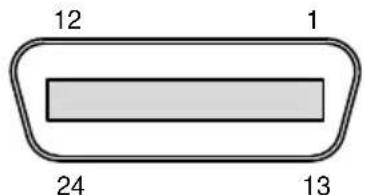
text_image
12 1 24 13| Pin | Signal | Pin | Signal |
| 1~4 | Data I/O 1~4 | 13~16 | Data I/O 5~8 |
| 5 | EOI | 17 | REN |
| 6 | DAV | 18 | Ground (DAV) |
| 7 | NRFD | 19 | Ground (NRFD) |
| 8 | NDAC | 20 | Ground (NDAC) |
| 9 | IFC | 21 | Ground (IFC) |
| 10 | SRQ | 22 | Ground (SRQ) |
| 11 | ATN | 23 | Ground (ATN) |
| 12 | SHIELD Ground | 24 | Single GND |
Configure RS232C
| RS232CConfiguration | Connector | DB-9, Male |
| Baud Rate | 2400, 4800, 9600, 19200, 38400 | |
| Stop Bit | 1, 2 | |
| Parity | None, Odd, Even |
Operation
- Connect an RS232C cable from the PC to the rear panel RS232 port.
- Press Shift + Help > Interface[F3] and set the Interface setting to RS232.
- Set the Baud Rate, Stop Bit and Parity settings.
Pin Assignment

text_image
1 2 3 4 5 6 7 8 92: RxD (Receive data)
3: TxD (Transmit data)
5: GND
4, 6 \~ 9: No connection
PC Connection
Use a null modem connection as shown in the diagram below.

flowchart
graph LR
    subgraph PE-L-3000
        A["Pin2 RxD"] --> B["TxD"]
        C["Pin3"] --> B
        D["Pin5"] --> E["GND"]
    end
    subgraph PC
        F["RxD Pin2"] --> G["TxD Pin3"]
        H["GND Pin5"] --> I["GND Pin5"]
    end
    A --> F
    C --> F
    D --> F
    E --> F
RS232C/USB Remote Control Function Check
| Functionality check | Invoke a terminal application such as Realterm. For RS-232C, set the COM port, baud rate, stop bit, data bit and parity accordingly.To check the COM settings in Windows, see the Device Manager. For example, in WinXP go to the Control panel → System → Hardware tab. |
| ⚠️Note | If you are not familiar with using a terminal application to send/receive remote commands from the serial port or via a USB connection, please page 164 (Using Realterm to Establish a Remote Connection) for more information. |
| Run this query command via the terminal after the instrument has been configured for RS-232/USB remote control (page 162).*idn?This should return the Manufacturer, Model number, Serial number, and Firmware version in the following format.GW-INSTEK,PEL-3000,XXXXXXXXXXXXV.X.X.X.XManufacturer: GW-INSTEKModel number : PEL-3000Serial number :XXXXXXXXXFFirmware version : V.X.X.X | |
| ⚠️Note | For further details, please see the programming manual, available on the GW Instek web site @ www.gwinstek.com. |
Using Realterm to Establish a Remote Connection
| Background | Realterm is a terminal program that can be used to communicate with a device attached to the serial port of a PC or via an emulated serial port via USB.The following instructions apply to version 1.99.0.27. Even though Realterm is used as an example to establish a remote connection, any terminal program can be used that has similar functionality. |
 Note Note | Realterm can be downloaded on Sourceforge.net free of charge.For more information please see http://realterm.sourceforge.net/ |
| Operation | 1. Download Realterm and install according to the instructions on the Realterm website.2. Connect the PEL-3000 via USB (page 160) or via RS232 (page 162).3. If using RS232, make note of the configured baud rate, stop bits and parity.4. Go to the Windows device manager and find the COM port number for the connection. For example, go to the Start menu > Control Panel > Device ManagerDouble click the Ports icon to reveal the connected serial port devices and the COM port for the each connected device. |
If using USB, the baud rate, stop bit and parity settings can be viewed by right-clicking connected device and selecting the Properties option.

text_image
PCMCIA adapters Ports (COM & LPT) PEL-3000 Series (COM18) Processors SD host adapters Security Devices SM Driver Sound, video and game co Storage controllers System devices Update Driver Software... Disable Uninstall Scan for hardware changes Properties- Start Realterm on the PC as an administrator. Click:
Start menu>All Programs>RealTerm>realterm
Tip: to run as an administrator, you can right click the Realterm icon in the Windows Start menu and select the Run as Administrator option.
- After Realterm has started, click on the Port tab.
Enter the Baud, Parity, Data bits, Stop bits and Port number configuration for the connection.
The Hardware Flow Control, Software Flow Control options can be left at the default settings.
Press Open to connect to the PEL-3000.
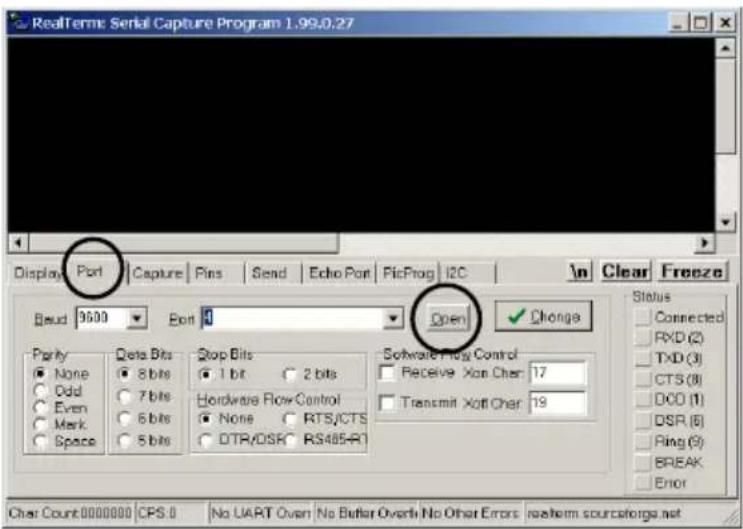
text_image
RealTerm Serial Capture Program 1.99.0.27 Display Port Capture Pins Send Echo Port FicPlug I2C In Clear Freeze Baud 3600 Port Open Change Status Parity Qota Bits Stop Bits Software Flow Control None 8 bits 1 bit 2 bits Receive Xan Cher: 17 Odd 7 bits Hardware Flow Control Transmit Xatl Cher: 19 Even 6 bits None RTS/CTS Mark 5 bits DTR/DSR RS485-R1 Space Space Char Count:0000000 CPS:0 No UART Oven No Buffer Overb No Other Errors reasterm sourceforge.net7. Click on the Send tab.
In the EOL configuration, check on the +CR and +LF check boxes.
Enter the query: *idn?
Click on Send ASCII.

text_image
RealTerm: Serial Capture Program 1.99.0.27 GM.PEL-3041.V.V. Display Port Capture Pins Send Echo Port PicProg I2C Pick? Send Numbers: Send ASCII Send Numbers: Send ASCII EOL CR LF LF Pepeats 1 Strip Spaces Status Connected RXD (2) TXD (9) CTS (8) DCD (1) DSR (6) Ring (8) BREAK Error Not In-Progress Send File Stop 0 0 0 0 0 0 0 0 0 0 0 0 0 0 0 0 0 0 0 0 0 0 0 0 0 0 0 0 0 0 0 0 0 0 0 0 0 0 0 0 0 0 0 0 0 0 0 0 0 0 Char Count:000000 CPS.6 No UART Over No Buffer OverNo No Other Errors realterm.sourceforge.net- The terminal display will return the following:
GW, PEL-3XXX, EXXXXXXXXX, VX.XX.XXX
(manufacturer, model, serial number, version)
- If Realterm fails to connect to the PEL-3000, please check all the cables and settings and try again.
GPIB Function Check
| Functionality check | Please use the National Instruments Measurement & Automation Controller software to confirm GPIB/LAN functionality. See the National Instrument website, http://www.ni.com for details. |
 Note Note | For further details, please see the programming manual, available on the GW Instek web site @ www.gwinstek.com. |
Operation
- Start the NI Measurement and Automation Explorer (MAX) program. Using Windows, press:

Start>All Programs>National Instruments>Measurement & Automation

text_image
ni.com NATIONAL INSTRUMENTS Measurement & Automation Explorer Version 4.6.2 Inbetzing Copyright ©1999-2009 National Instruments. All rights reserved. NATIONAL INSTRUMENTS®-
From the Configuration panel access; My System>Devices and Interfaces>GPIB0
-
Press the Scan for Instruments button.
-
In the Connected Instruments panel the PEL-3000 should be detected as Instrument 0 with the address the same as that configured on the PEL-3000.
-
Double click the Instrument 0 icon.
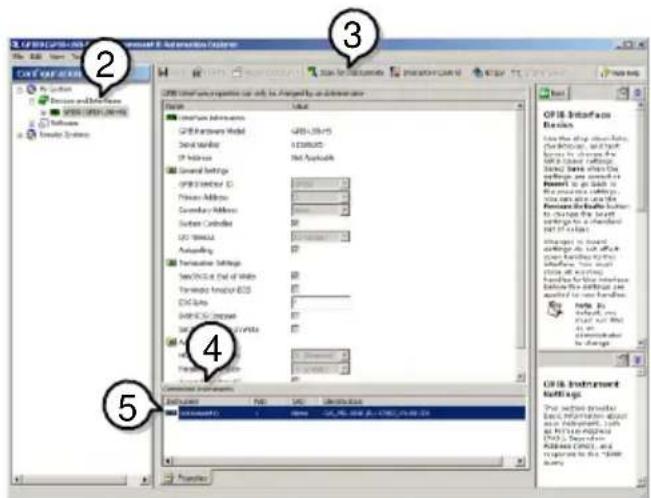
text_image
CPTC Interface CPTC Interface options can only be Paroled by an administrator Form: Interface Information CPTC Hardware Model Serial Number IP Address General Settings CPTC Sector ID Process Address Secondary Address System Connection TCP Wireless ACoding Transaction Settings Sec/Sec. of Web Transaction Function ECS DX Data DIP/DC Service Sec/Sec. of VISTA Access Transaction Options Commanding Settings CPTC Interface Use the long link between the network, which starts to change. For a long link between the network, which starts to change. For a short link between the network, which starts to change. For a short link between the network, which starts to change. CPTC Interface Settings Pro section provided Data Registration & Support as Paroled. Access (DNS), and Properties in this software.-
Click on Communicate with Instrument.
-
In the NI-488.2 Communicator window, ensure *IND? is written in the Send String: text box.
Click on the Query button to send the *IDN? query to the instrument.
- The String Received text box will display the query return:
GW, PEL-3XXX, EXXXXXXXXXX, VX.XX.XXX (manufacturer, model, serial number, version)

text_image
6 7 8 9 OffB Instrument Basic What the new model is Off Compu#ware.cdb.wv C201345 Subgware.com/mb the 2013 Compu#ware.000.00 C201345 C201345.000.00 C201345.000.00 C201345.000.00 C201345.000.00 C201345.000.00 C201345.000.00 C201345.000.00 C201345.14VPC+VCCX9 C201345.14VPC+VCCX9 C201345.14VPC+VCCX9 C201345.14VPC+VCCX9 C201345.14VPC+VCCX9 C201345.14VPC+VCCX9 C201345.21VPC+VCCX9 C201345.21VPC+VCCX9 C201345.21VPC+VCCX9 C201345.21VPC+VCCX9 C201345.21VPC+VCCX9 C201345.21VPC+VCCX9 C3: 16, 16, 16, 16, 16, 16, 16, 16, 16, 16, 16, 16, 16, 16, 16, 16, 16, 16, 16, 16, 16, 16, 16, 16, 16, 16 C2: 16, 16, 16, 16, 16, 16, 16, 16, 16, 16, 16, 16, 16, 16, 16, 16, 16, 16, 16, 16, 16, 16, 16, 16, 15, 15, 15, 15, 15, 15, 15, 15, 15, 15, 15, 15, 15, 15, 15, 15, 15, 15, 15, 15, 15, 15, 15, 15, 15, 14, 14, 14, 14, 14, 14, 14, 14, 14, 14, 14, 14, 14, 14, 14, 14, 14, 14, 14, 14, 14, 14, 14, 14, 14, 13, 13, 13, 13, 13, 13, 13, 13, 13, 13, 13, 13, 13, 13, 13, 13, 13, 13, 13, 8 C2: C2: C2: C2: C2: C2: C2: C2: C2: C2: C2: C2: C2: C2: C2: C2: C2: C2: C2: C2: C2: C2: C2: C2: C2: C2: C2: C2: C2: C2: C2: C2: C2: C2: C3: C3: C3: C3: C3: C3: C3: C3: C3: C3: C3: C3: C3: C3: C3: C3: C3: C3: C3: C3: C3: C3: C3: C3: C3: C3: C3: C3: C3: C3: C3: C3: C3: C3 : D / D / D / D / D / D / D / D / D / D / D / D / D / D / D / D / D / D / D / D / D / D / D / D / D / D / D / D / D / D / D / D / D / D / D / D / D / D / D / D / D / D / D / D / D / D / D / D / D / D / D | C2: C2: C2: C2: C2: C2: C2: C2: C2: C2: C2: C2: C2: C2: C2: C2: C2: C2: C2: C2: C2: C2: C2: C2: C2: C2: C2: C2: C2: C2: C2: C2: C2: B/C B/C B/C B/C B/C B/C B/C B/C B/C B/C B/C B/C B/C B/C B/C B/C B/C B/C B/C B/C B/C B/C B/C B/C B/C B/C B/C B/C B/C B/C B/C B/C B/C B/C B/C B/C B/C B/C B/C B/C B/C B/C B/C B/C B/C B/C B/C B/C B/C B/C B/B/B/B/B/B/B/B/B/B/B/B/B/B/B/B/B/B/B/B/B/B/B/B/B/B/B/B/B/B/B/B/B/B/B/B/B/B/B/B/B/B/B/B/B/B/B/B/B/B/B/B/B/B/B/B/B/B/B/B/B/B/B/B/B/B/B/B/B/B/B/B/B/B/B/B/B/B/B/B/B/B/B/B/B/B/B/B/B/B/B/B/B/B/B/B/B/B/B/B/B-B/A- The function check is complete.
FAQ
• The load voltage indicated on the load module is below expected.
• The front panel keys are not working.
• The load won't turn on.
• The performance does not match the specification
The load voltage indicated on the load module is below expected.
Ensure the load leads are as short as possible, twisted and use the appropriate wire gauge. Ensure that voltage sense is used, this can help alleviate the voltage drop across the load the leads.
The front panel keys are not working.
Check to make sure that the key lock has not been activated. LOCK will be shown on the panel when the screen is locked. Press Shift + Lock to unlock the keys.
The load won't turn on.
If you are using the load key to try to turn the load on and the load won't turn on, it is possible that external control is activated and that the LoadOn In setting is set to low. See page 143 for details.
The performance does not match the specification.
Make sure the device is powered On for at least 30 minutes, within +20^ C +30^ C . This is necessary to stabilize the unit to match the specification.
For more information, contact your local dealer or GWInstek at www.gwinstek.com / marketing@goodwill.com.
APPENDIX
Replacing the Dust Filter....175
Replace the Clock Battery 176
GPIB Installation....177
PEL-3000 Default Settings 178
Frame Control Connector Contacts ....181
Operating Mode Description 186
CC Mode....186
CR Mode....187
CP Mode....188
CV Mode....190
Operating Area....191
PEL-3000 Specifications 195
Rating (Master / Slave) 195
Rating (Booster / Slave)....195
CC Mode....196
CR Mode....197
CV Mode....197
CP Mode....198
Slew Rate....199
Meter....199
Dynamic Mode....200
Soft Start 202
Remote Sensing....202
Protection Function....203
Sequence 203
Other 204
Analog External Control....204
Front Panel BNC Connector....206
PEL-3000 Dimensions 207
PEL-3111 207
PEL-3021, PEL-3041....208
PEL-3211....209
Declaration of Conformity 210
Replacing the Dust Filter
Background
The dust filter should be replaced twice a year. Not replacing the filter will reduce performance and may cause the PEL-3000 to malfunction.
Procedure
- Turn the PEL-3000 off completely at the rear panel power switch.
Gently lift the grill up from the bottom.

natural_image
Close-up of hands holding a striped electronic device with two upward arrows indicating motion or force (no text or symbols visible)- Remove the filter from the grill and replace with GW Instek part number: PEL-010.

natural_image
Close-up of a textured surface with an upward arrow indicating direction, no visible text or symbolsReplace the Clock Battery
Background
The system clock keeps time using a user-replaceable battery.
The battery should be replaced approximately every 3 years.
Battery type:
CR123A
Procedure
-
Turn off the PEL-3000 and remove the case.
-
First remove the handle by carefully removing the plastic tabs and then unscrewing the two screws connecting the handle to the case.
-
A total of 10 screws should be removed from the case.
-
Remove the battery and replace with the same type and rating.
- The battery is located on the right hand side, near the rear panel.
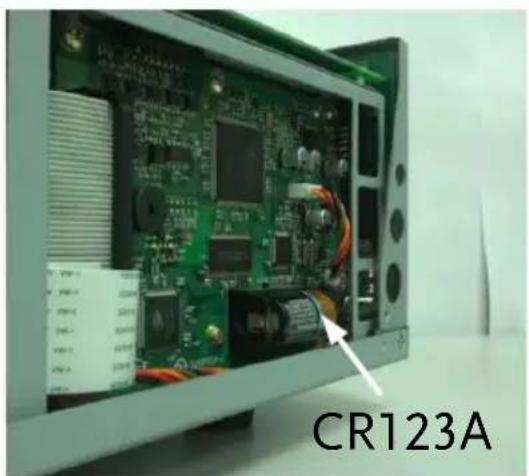
natural_image
Interior view of a computer monitor showing internal circuit board and components (no readable text or symbols)GPIB Installation
Background
GPIB is an optional extra. The following instructions describe how to install the optional GPIB card if necessary.
Procedure
- Turn off the PEL-3000.
- Remove the two screws holding the cover on the option bay.
- Slide the GPIB card onto the rails in the option bay.
- Re-screw the screws back into place.
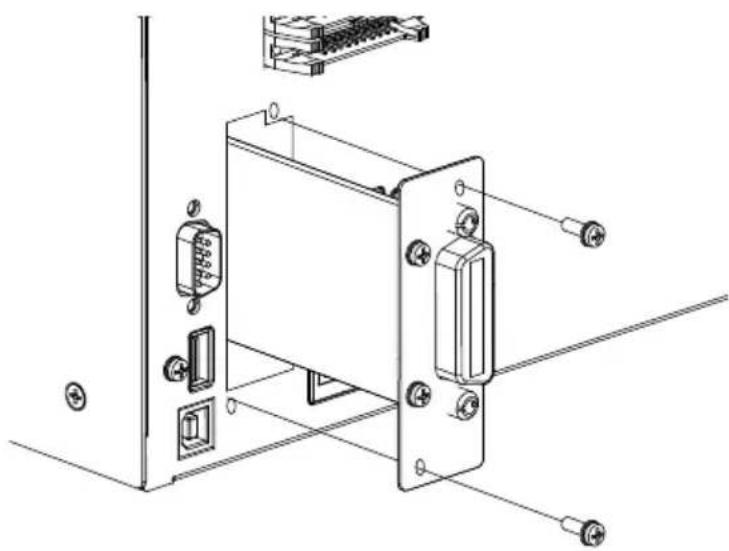
natural_image
Technical line drawing of an electronic device with labeled components (no text or symbols)PEL-3000 Default Settings
The following default settings are the factory configuration settings for the PEL-3000.
Main Settings
| Item | Panel Settings | Setup Memory Settings (all 100 sets) |
| Current(CC) | 0 A | 0 A |
| Conductance(CR) | 0 S | 0 S |
| Voltage(CV) | Maximum value | Maximum value |
| Wattage(CP) | 0 W | 0 W |
| +CV | OFF | OFF |
| Current range | H | H |
| Voltage range | 150 V | 150 V |
| Load on/off | Load off | Load off |
| Operation mode | CC | CC |
| Slew rate | Maximum value of H range | Maximum value of H range |
| Preset memories | Settings above in each mode | Settings above in each mode |
| Main > Configure > Protection | ||
| Item | Panel Settings | Setup Memory Settings (all 100 sets) |
| OCP Level | Maximum value | Maximum value |
| OCP Setting | LIMIT | LIMIT |
| OPP Level | Maximum value | Maximum value |
| OPP Setting | LIMIT | LIMIT |
| UVP value | OFF | OFF |
| OVP value | OFF | OFF |
| Main > Configure > Other | ||
| Item | Panel Settings | Setup Memory Settings (all 100 sets) |
| Soft Start | OFF | OFF |
| Von Voltage | 0.00V | 0.00V |
| Von Latch | ON | ON |
| Von Delay | 2.0 ms | 2.0 ms |
| Short Key | Toggle | Toggle |
| Count Time(elapsed time display) | OFF | OFF |
| Cut Off Time | OFF | OFF |
| Response | 1/1 | 1/1 |
| Mem.Recall | Safety | Safety |
| Dyna. Level | Value | Value |
| Dyna. Time | T1/T2 | T1/T2 |
| CR Unit | mS | mS |
| Main > Configure > Go-NoGo | ||
| Item | Panel Settings | Setup Memory Settings (all 100 sets) |
| SPEC. Test | OFF | OFF |
| Delay Time | 0.0s | 0.0s |
| Entry Mode | Value | Value |
| High | Maximum Voltage / Maximum Current | Maximum Voltage / Maximum Current |
| Low | Minimum Voltage / Minimum Voltage | Minimum Voltage / Minimum Voltage |
| Main > Configure > Next Menu > Parallel | ||
| Item | Panel Settings | Setup Memory Settings (all 100 sets) |
| Operation | Master | Master |
| Parallel | OFF | OFF |
| Booster | OFF | OFF |
| Main > Configure > Next Menu > Knob | ||
| Item | Panel Settings | Setup Memory Settings (all 100 sets) |
| Status | Step | Step |
| CCH Step | Resolution | Resolution |
| CCM Step | Resolution | Resolution |
| CCL Step | Resolution | Resolution |
| CRH Step | Resolution | Resolution |
| CRM Step | Resolution | Resolution |
| CRL Step | Resolution | Resolution |
| CVH Step | Resolution | Resolution |
| CVL Step | Resolution | Resolution |
| CPH Step | Resolution | Resolution |
| CPM Step | Resolution | Resolution |
| CPL Step | Resolution | Resolution |
| Main > Configure > Next Menu > External | ||
| Item | Panel Settings | Setup Memory Settings (all 100 sets) |
| Control | OFF | OFF |
| LoadOn IN | OFF | OFF |
Frame Control Connector Contacts
J1 Connector
| Pin name | Pin number | Description |
| EXT R/V CONT | 1 | Used for voltage/resistance control of CC, CR, CV and CP mode. |
| 0V to 10V corresponds to 0% to 100% of the rated current (CC mode), rated voltage (CV mode), or rated power (CP mode). 0V to 10V corresponds to the maximum resistance to minimum resistance (CR mode) | ||
| 0Ω to 10kΩ corresponds to 0% to 100% or 100% to 0% of the rated current (CC mode), rated voltage (CV mode), or rated power (CP mode). 0Ω to 10kΩ corresponds to maximum resistance to minimum resistance or minimum resistance to maximum resistance (CR mode) | ||
| IMON | 2 | Current monitor output10 V f.s (H/L range) and 1 V f.s (M range) |
| A COM | 3 | Connected to the negative load input terminal on the rear panel. |
| SUM I MON | 4 | Used during master/slave operation. Connected to SUM I MON of the J2 connector. |
| PRL IN+ | 5 | Used during master/slave operation. Connected to PRL OUT+ of the J2 connector. |
| PRL IN- | 6 | Used during master/slave operation. Connected to PRL OUT- of the J2 connector. |
| LOAD ON/OFF CONT | 7 | Turns on the load with low (or high) TTL level signal |
| Pulled up the internal circuit to 5 V using 10 kΩ. | ||
| RANGE CONT 1 | 8 | External range switch input*1 *2 |
| RANGE CONT 0 | 9 | Pulled up the internal circuit to 5 V using 10 kΩ. |
| ALARM INPUT | 10 | Activates alarm with low TTL level signal input.Pulled up the internal circuit to 5 V using 10 kΩ. |
| TRIG INPUT | 11 | When paused, clears the pause when a low level TTL signal is applied for 10 μs or longer. Pulled down the internal circuit to A COM using approx. 50kΩ. |
| A COM | 12 | Connected to the negative load input terminal on the rear panel. |
| LOAD ON STATUS | 13 | Turns on when load is on. Open collector output by a photocoupler.*4 |
| RANGE STATUS 1 | 14 | Range status output. Open collector output by a photocoupler.*4 |
| RANGE STATUS 0 | 15 | |
| ALARM STATUS | 16 | Turns on when an alarm (OVP, OCP, OPP, OHP, RVP, or UVP) is activated or when an external alarm is applied. Open collector output by a photocoupler.*4 |
| STATUS COM | 17 | STATUS signal common for pins 13 to 16. |
| N.C. | 18 | |
| SHORT SIGNAL OUT | 19 | Relay contact output (30 VDC/1 A) |
| SHORT SIGNAL OUT | 20 |
*1 Valid only when the front panel settings are H range.
| *2 | RANGE CONT 0 | RANGE CONT 1 |
| H range | 1 | 1 |
| M range | 1 | 0 |
| L range | 0 | 1 |
| *3 | RANGE STATUS 0 | RANGE STATUS 1 |
| H range | OFF | OFF |
| M range | OFF | ON |
| L range | ON | OFF |
*4 The maximum applied voltage of the photocoupler is 30 V; the maximum current is 8 mA.
J2 Connector
| Pin name | Pin number | Description |
| N.C. | 1 | |
| N.C. | 2 | |
| N.C. | 3 | |
| SUM I MON | 4 | Connect to SUM I MON of the J1 connector. |
| PRL OUT+ | 5 | Used during master/slave operation. Connected to PRL IN+ of the J1 connector. |
| PRL OUT- | 6 | Used during master/slave operation. Connected to PRL IN- of the J1 connector. |
| LOAD ON/OFF CONT | 7 | |
| N.C. | 8 | |
| SLAVE RANGE CONT | 9 | Used during master/slave operation. Connected to RANGE CONT 0 of the J1 connector. |
| N.C. | 10 | |
| N.C. | 11 | |
| A COM | 12 | Connected to the negative load input terminal on the rear panel. |
| N.C. | 13 | |
| N.C. | 14 | |
| N.C. | 15 | |
| ALARM INPUT | 16 | Activates an alarm with high (or low) TTL level signal input. Pulled up the internal circuit to 5 V. |
| A COM | 17 | Connected to the negative load input terminal. |
| N.C. | 18 | |
| N.C. | 19 | |
| +15V | 20 | Controls the on/off of the load booster power (cannot be used for multiple purposes). |
J1 Connector Booster
| Pin name | Pin number | Description |
| N.C. | 1 | |
| N.C. | 2 | |
| N.C. | 3 | |
| SUM I MON | 4 | Connected to SUM I MON of the J2 connector. |
| PRL IN+ | 5 | Connected to PRL OUT+ of the J2 connector. |
| PRL IN- | 6 | Connected to PRL OUT- of the J2 connector. |
| LOAD ON/OFF CONT | 7 | "Turns on the load with low (or high) TTL level signal. |
| N.C. | 8 | Pulled up the internal circuit to 5 V using 10 kΩ." |
| RANGE CONT 0 | 9 | "External range switch input*1 *2 Pulled up the internal circuit to 5 V using 10 kΩ." |
| N.C. | 10 | |
| N.C. | 11 | |
| A COM | 12 | Connected to the negative load input terminal on the rear panel. |
| 13 | ||
| 14 | ||
| 15 | ||
| ALARM STATUS | 16 | Turns on when an alarm (OVP, OCP, OPP, OHP, RVP, or UVP) is activated or when an external alarm is applied. Open collector output by a photocoupler.*3 |
| STATUS COM | 17 | STATUS signal common for pins 16. |
| N.C. | 18 | |
| A COM | 19 | Connected to the negative load input terminal on the rear panel. |
| +15V | 20 | Controls the on/off of the load booster power (cannot be used for multiple purposes). |
*1 Valid only when the front panel settings are H range.
*2 RANGE CONT 0
| H range | 1 |
| M range | 1 |
*3 The maximum applied voltage of the photocoupler is 30 V; the maximum current is 8 mA.
| Pin name | Pin number | Description |
| N.C. | 1 | |
| N.C. | 2 | |
| N.C. | 3 | |
| SUM I MON | 4 | Connect to SUM I MON of the J1 connector. |
| PRL OUT+ | 5 | Used during master/slave operation. Connected to PRL IN+ of the J1 connector. |
| PRL OUT- | 6 | Used during master/slave operation. Connected to PRL IN- of the J1 connector. |
| LOAD ON/OFF CONT | 7 | |
| N.C. | 8 | |
| SLAVE RANGE CONT | 9 | Used during master/slave operation. Connected to RANGE CONT 0 of the J1 connector. |
| N.C. | 10 | |
| N.C. | 11 | |
| A COM | 12 | Connected to the negative load input terminal on the rear panel. |
| N.C. | 13 | |
| N.C. | 14 | |
| N.C. | 15 | |
| ALARM INPUT | 16 | Activates an alarm with high (or low) TTL level signal input. Pulled up the internal circuit to 5 V. |
| A COM | 17 | Connected to the negative load input terminal. |
| N.C. | 18 | |
| A COM | 19 | Connected to the negative load input terminal. |
| +15V | 20 | Controls the on/off of the load booster power (cannot be used for multiple purposes). |
Operating Mode Description
CC Mode
CC Mode
When the unit is set to CC mode it will operate as a constant current load when connected to a constant voltage source. This means the unit will sink a designated amount of current, up to the rated power level, regardless of the voltage. This is illustrated below.
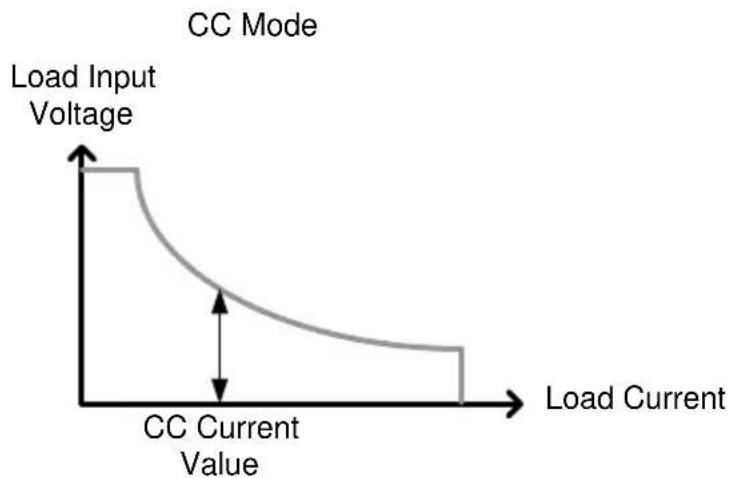
line
| Load Current | Load Input Voltage | | ------------ | ------------------ | | -∞ | +∞ | | 0 | +∞ | | +∞ | -∞ |CC+CV Mode
When CC+CV mode is enabled, the unit will act as constant current load after the input voltage is greater than the user-defined CV level. At the CV level, the unit works as a constant voltage load. This mode effectively creates a voltage ceiling before the unit operates in CC mode. The diagram below illustrates this.

line
| Load Current | Load Input Voltage | | ------------ | ------------------ | | 0 | 1.0 | | 1 | 0.8 | | 2 | 0.6 | | 3 | 0.4 | | 4 | 0.3 | | 5 | 0.2 | | 6 | 0.15 | | 7 | 0.1 | | 8 | 0.08 | | 9 | 0.06 | | 10 | 0.05 |Note that when the source voltage is less than the CV level, no current will flow due to a very high impedance.
CR Mode
CR Mode
When the unit is set to CR mode it will operate as a constant resistance load when connected to a constant voltage source. This means the unit will maintain a set resistance, up to the rated power, regardless of the input voltage. When input voltage changes, the unit responds by changing the current load to maintain the set resistance according to ohm's law. This is illustrated below.
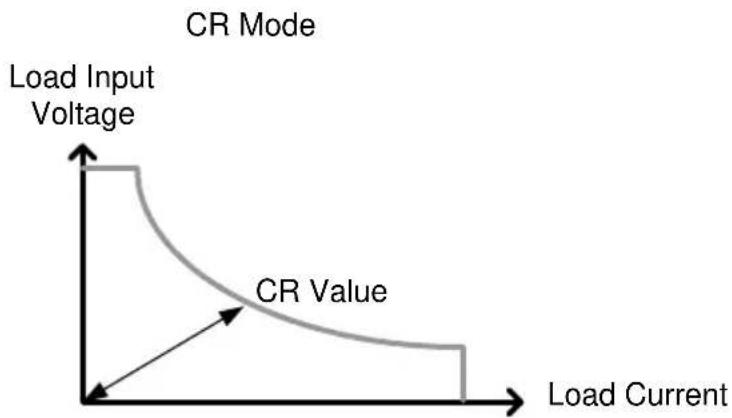
line
| Load Current | CR Value | | ------------ | -------- | | 0 | 100 | | 100 | 50 | | 200 | 25 | | 300 | 10 |CR+CV Mode
When CR+CV mode is enabled, the unit will act as constant resistive load after the input voltage is greater than the user-defined CV level. At the CV level, the unit works as a constant voltage load. This mode effectively creates a voltage ceiling before the unit operates in CR mode. The diagram below illustrates this.
CR + CV Mode
Load Input Voltage
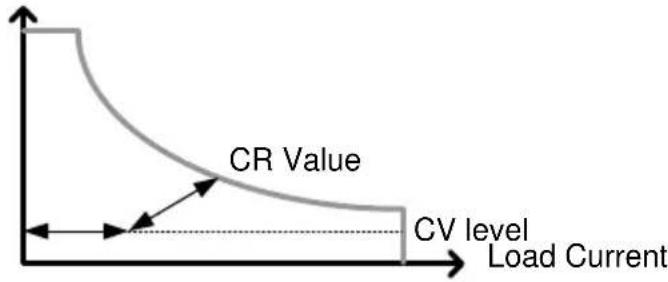
line
| Load Current | CR Value | | ------------ | -------- | | 0 | 1.0 | | CV level | 0.5 |Note that when the source voltage is less than the CV level, no current will flow due to a very high impedance.
CP Mode
CP Mode
When the unit is set to CP mode it will operate as a constant power load when connected to a constant voltage source. This means the unit will maintain a set power level, up to the rated current or voltage level, regardless of the input voltage. When input voltage changes, the unit responds by changing the current load to maintain the set power level accordingly (P=I×V). This is illustrated below.
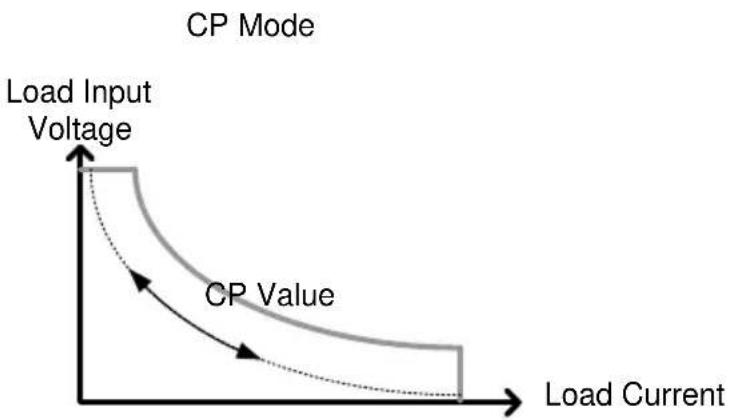
line
| Load Current | Load Input Voltage | | ------------ | ------------------ | | 0 | 100 | | 50 | 60 | | 100 | 30 | | 150 | 15 | | 200 | 5 |CP+CV Mode
When CP+CV mode is enabled, the unit will act as a constant power load after the input voltage is greater than the user-defined CV level. At the CV level, the unit works as a constant voltage load. This mode effectively creates a voltage ceiling before the unit operates in CP mode. The diagram below illustrates this.
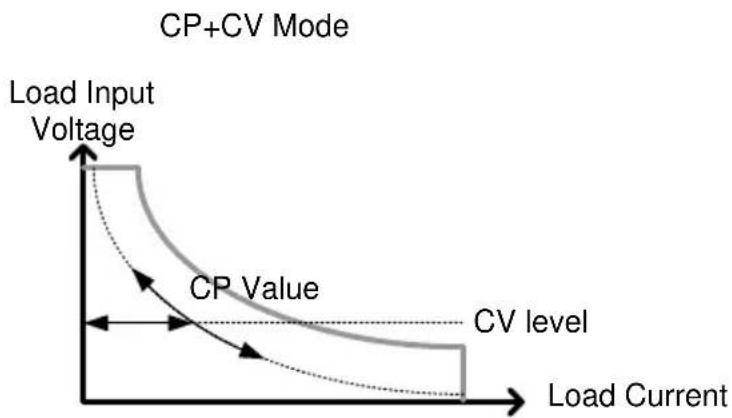
line
| Load Current | Load Input Voltage | CP Value | | ------------ | ------------------ | -------- | | 0 | 100 | 100 | | 50 | 60 | 50 | | 100 | 30 | 25 | | 150 | 15 | 10 | | 200 | 5 | 5 |Note that when the source voltage is less than the CV level, no current will flow due to a very high impedance.
CV Mode
CV Mode
When the unit is set to CV mode it will operate as a constant voltage load when connected to a constant current source. This means the unit will maintain a set voltage level, up to the rated power, regardless of the input current. When the source voltage is less than the CV level, no current will flow due to a very high impedance. This is illustrated below.

line
| Input Current | Load Voltage | | ------------- | ------------ | | 0 | 1 | | 2.5 | 0.5 | | 5 | 0.25 | | 7.5 | 0.1 | | 10 | 0.05 |Operating Area
PEL-3021
PEL-3021 High Range Chart
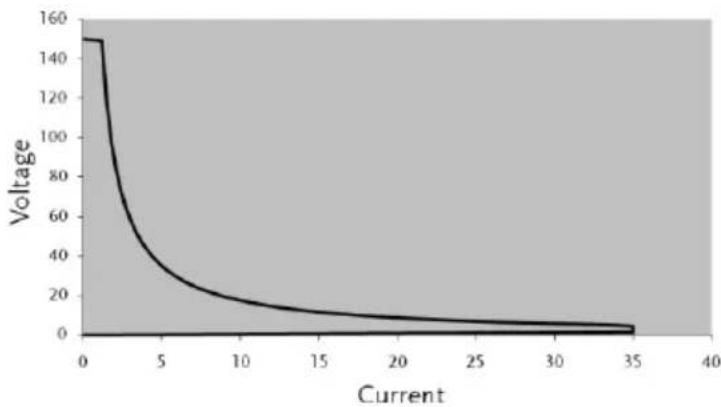
line
| Current | Voltage | | ------- | ------- | | 0 | 150 | | 5 | 40 | | 10 | 20 | | 15 | 10 | | 20 | 5 | | 25 | 3 | | 30 | 2 | | 35 | 1 |PEL-3021 Middle Range Chart
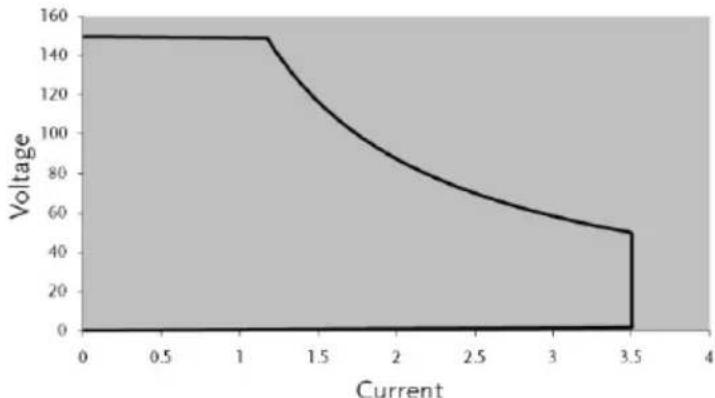
line
| Current | Voltage | | ------- | ------- | | 0.0 | 150 | | 1.0 | 150 | | 1.5 | 120 | | 2.0 | 90 | | 2.5 | 70 | | 3.0 | 60 | | 3.5 | 50 |PEL-3021 Low Range Chart

line
| Current | Voltage | | ------- | ------- | | 0.00 | 150 | | 0.35 | 150 |PEL-3041
PEL-3041 High Range Chart

line
| Current | Voltage | | ------- | ------- | | 0 | 150 | | 10 | 40 | | 20 | 20 | | 30 | 10 | | 40 | 5 | | 50 | 3 | | 60 | 2 | | 70 | 1 |PEL-3041 Middle Range Chart
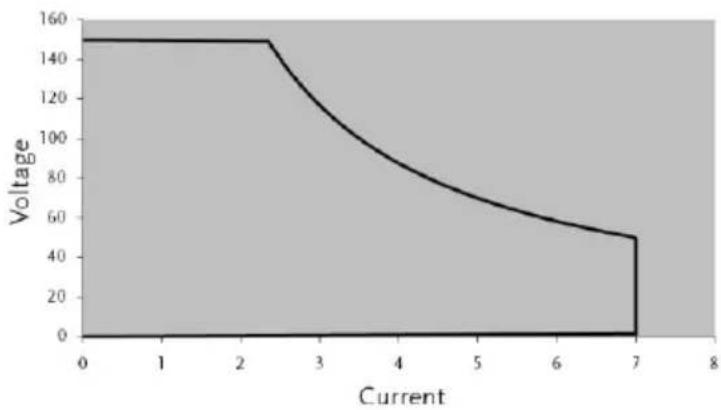
line
| Current | Voltage | | ------- | ------- | | 0 | 150 | | 1 | 150 | | 2 | 150 | | 3 | 100 | | 4 | 80 | | 5 | 60 | | 6 | 50 | | 7 | 50 |PEL-3041 Low Range Chart
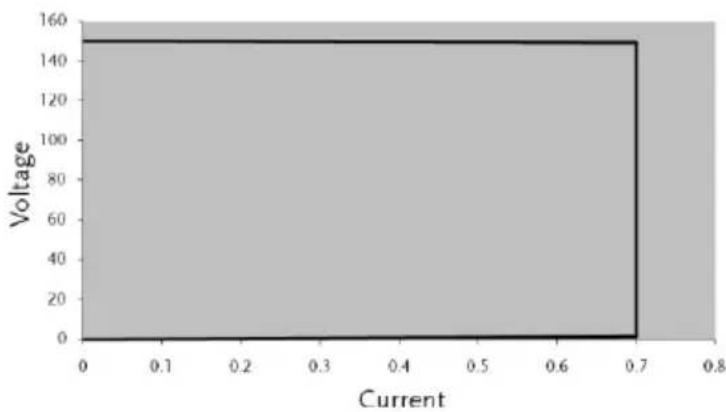
line
| Current | Voltage | | ------- | ------- | | 0.7 | 150 |PEL-3111
PEL-3111 High Range Chart

line
| Current | Voltage | | ------- | ------- | | 0 | 150 | | 50 | 30 | | 100 | 10 | | 150 | 5 | | 200 | 2 | | 250 | 1 |PEL-3111 Low Range Chart
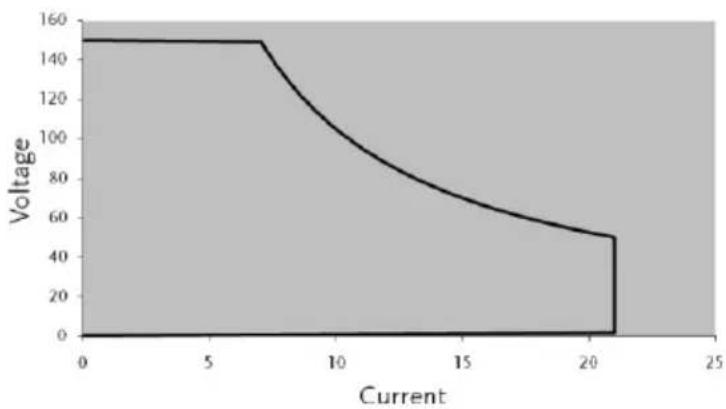
line
| Current | Voltage | | ------- | ------- | | 0 | 150 | | 5 | 150 | | 10 | 100 | | 15 | 70 | | 20 | 50 | | 21 | 50 |PEL-3111 Low Range Chart

line
| Current | Voltage | | ------- | ------- | | 0 | 150 | | 2 | 150 |PEL-3211
Booster Pack
PEL-3211 High Range Chart

line
| Current | Voltage | | ------- | ------- | | 0 | 150 | | 50 | 60 | | 100 | 30 | | 150 | 20 | | 200 | 15 | | 250 | 10 | | 300 | 8 | | 350 | 5 | | 400 | 3 | | 450 | 2 |PEL-3000 Specifications
The specifications apply when the PEL-3000 is powered on for at least 30 minutes to warm-up to a temperature of 20^ to 30^ , unless specified otherwise.
All specifications apply when using the rear panel terminals. If the front panel terminals are used or if operating with long cables, remote sense must be connected to the terminals.
In parallel mode: All operation/settings/resolution specifications are xN. This does not include voltage settings and measured values. The maximum slew rate settings also don't change.
N = Number of units in parallel (same model)
N = 1 + 2 × Number of units in parallel (PEL-3211)
Rating (Master / Slave)
| Model | PEL-3021 | PEL-3041 | PEL-3111 |
| Operating Voltage | |||
| 1.5V~150V | 1.5V~150V | 1.5V~150V | |
| Current | |||
| 35A | 70A | 210A | |
| Power | |||
| 175W | 350W | 1050W | |
Rating (Booster / Slave)
| Model | PEL-3211 |
| Operating Voltage | |
| 1.5V~150V | |
| Current | |
| 420A | |
| Power | |
| 2100W | |
| Current Setting Accuracy | |
| ±(1.2% of set + 1.1% of f.s.) | |
| M range applies to the full scale of H range. | |
| Note: PEL-3211 only has H or M current ranges. | |
CC Mode
| Model | PEL-3021 | PEL-3041 | PEL-3111 |
| Operating Range | |||
| H Range | 0A~35A | 0A~70A | 0A~210A |
| M Range | 0A~3.5A | 0A~7A | 0A~21A |
| L Range | 0A~0.35A | 0A~0.7A | 0A~2.1A |
| Setting Range | |||
| H Range | 0A~35.7A | 0A~71.4A | 0A~214.2A |
| M Range | 0A~3.57A | 0A~7.14A | 0A~21.42A |
| L Range | 0A~0.357A | 0A~0.714A | 0A~2.142A |
| Default Setting | |||
| H Range | 0A | 0A | 0A |
| M Range | 0A | 0A | 0A |
| L Range | 0A | 0A | 0A |
| Resolution | |||
| H Range | 1mA | 2mA | 10mA |
| M Range | 0.1mA | 0.2mA | 1mA |
| L Range | 0.01mA | 0.02mA | 0.1mA |
| Accuracy of Setting | |||
| H, M Range | ±(0.2 % of set + 0.1 % of f.s*1) + Vin*2/500 kΩ | ||
| L Range | ±(0.2 % of set + 0.1 % of f.s) + Vin*2/500 kΩ | ||
| Parallel Operation | ±(1.2% of set +1.1% of f.s*3) | ||
| Input Voltage Variation*4 | |||
| H Range | 2mA | 4mA | 10mA |
| M Range | 2mA | 4mA | 10mA |
| L Range | 0.1mA | 0.2mA | 0.6mA |
| Ripple | |||
| RMS*5 | 3mA | 5mA | 20mA*7 |
| P-P*6 | 30mA | 50mA | 100mA*7 |
*1 Full scale of H range
*2 Vin: input terminal voltage of electronic load
*3 M range applies to the full scale of H range
*4 When the input voltage is varied from 1.5V to 150V at a current of rated power/150V
*5 Measurement frequency bandwidth: 10Hz to 1MHz
*6 Measurement frequency bandwidth: 10Hz to 20MHz
*7 At measurement current of 100A
CR Mode
| Model | PEL-3021 | PEL-3041 | PEL-3111 |
| Operating Range^*1 | |||
| H Range | 23.3336S~400uS(42.857mΩ~2.5kΩ) | 46.6672S~800uS(21.428mΩ~1.25kΩ) | 140.0016S~2.4mS(7.1427mΩ~416.6667Ω) |
| M Range | 2.33336S~40uS(428.566mΩ~25kΩ) | 4.6667S~80uS(214.28mΩ~12.5kΩ) | 14.0001S~242.4uS(71.427mΩ~4.16667kΩ) |
| L Range | 0.233336S~4uS(4.28566Ω~250kΩ) | 0.46667S~8uS(2.1428Ω~125kΩ) | 1.40001S~24.24uS(714.27mΩ~41.6667kΩ) |
| Setting Range | |||
| H Range | 24.5S~0S(40.8163 mΩ~OPEN) | 49.0S~0 S(20.408 mΩ~OPEN) | 147.000S~0S(6.8027 mΩ~OPEN) |
| M Range | 2.45S~0S(408.1633mΩ~OPEN) | 4.90S~0S(204.08mΩ~OPEN) | 14.70000S~0S(68.0272mΩ~OPEN) |
| L Range | 0.245S~0S(4.08163Ω~OPEN) | 0.490S~0S(2.0408Ω~OPEN) | 1.4000S~0S(680.2721mΩ~OPEN) |
| Resolution | |||
| H Range | 400uS | 800uS | 2.4mS |
| M Range | 40uS | 80uS | 240uS |
| L Range | 4uS | 8uS | 24uS |
| Accuracy of Setting^*2 | |||
| H, M Range | ±(0.5 % of set*3 + 0.5 % of f.s.*4) + Vin*5/500 kΩ | ||
| L Range | ±(0.5 % of set*3 + 0.5 % of f.s.) + Vin*5/500 kΩ | ||
*1 Siemens[S] = Input current[A] / Input voltage[V] = 1 / resistance[Ω]
*2 Converted value at the input current. At the input current. It is not applied for the condition of the parallel operation.
*3 set = Vin / Rset
*4 f.s. = Full scale of High Range
*5 Vin = Input terminal voltage of electronic load
CV Mode
| Model | PEL-3021 | PEL-3041 | PEL-3111 |
| Operating Range | |||
| H Range | 1.5V~150V | 1.5V~150V | 1.5V~150V |
| M Range | 1.5V~15V | 1.5V~15V | 1.5V~15V |
| Setting Range | |
| H Range | 0V~157.5V |
| M Range | 0V~15.75V |
| Resolution | |
| H Range | 10mV |
| M Range | 1mV |
| Accuracy of Setting*1 | |
| H, L Range | ±(0.1 % of set + 0.1 % of f.s) |
| Input current variation*2 | |
| 12mV | |
*1 At the sensing point during remote sensing under the operating range of the input voltage. It is also applied for the condition of the parallel operation.
*2 With respect to a change in the current of 10% to 100% of the rating at an input voltage of 1.5 V (during remote sensing).
CP Mode
| Model | PEL-3021 | PEL-3041 | PEL-3111 |
| Operating Range | |||
| H Range | 17.5W~175W | 35W~350W | 105W~1050W |
| M Range | 1.75W~17.5W | 3.5W~35W | 10.5W~105W |
| L Range | 0.175W~1.75W | 0.35W~3.5W | 1.05W~10.5W |
| Setting Range | |||
| H Range | 0W~178.5W | 0W~357W | 0W~1071W |
| M Range | 0W~17.85W | 0W~35.7W | 0W~107.1W |
| L Range | 0W~1.785W | 0W~3.57W | 0W~10.71W |
| Resolution | |||
| H Range | 10mW | 10mW | 100mW |
| M Range | 1mW | 1mW | 10mW |
| L Range | 0.1mW | 0.1mW | 1mW |
| Accuracy of Setting*1 | |||
| ±(0.6 % of set + 1.4 % of f.s*2) | |||
*1 It is not applied for the condition of the parallel operation.
*2 M range applies to the full scale of H range.
Slew Rate
| Model | PEL-3021 | PEL-3041 | PEL-3111 |
| Setting Range (CC Mode) | |||
| H Range | 2.5mA/us~2.5A/us | 5mA/us~5A/us | 16mA/us~16A/us |
| M Range | 250uA/us~250mA/us | 500uA/us~500mA/us | 1.6mA/us~1.6A/us |
| L Range | 25uA/us~25mA/us | 50uA/us~50mA/us | 160uA/us~160mA/us |
| Setting Range (CR Mode) | |||
| H Range | 250uA/us~250mA/us | 500uA/us~500mA/us | 1.6mA/us~1.6A/us |
| M Range | 25uA/us~25mA/us | 50uA/us~50mA/us | 160uA/us~160mA/us |
| L Range | 2.5uA/us~2.5mA/us | 5uA/us~5mA/us | 16uA/us~16mA/us |
| Resolution | |||
| Resolution | 1mA | 2mA | 6mA |
| Setting | 250mA/us~2.5A/us | 500mA/us~5A/us | 1.6A/us~16A/us |
| Resolution | 100uA | 200uA | 600uA |
| Setting | 25mA/us~250mA/us | 50mA/us~500mA/us | 160mA/us~1.6A/us |
| Resolution | 10uA | 20uA | 60uA |
| Setting | 2.5mA/us~25mA/us | 5mA/us~50mA/us | 16mA/us~160mA/us |
| Resolution | 1uA | 2uA | 6uA |
| Setting | 250uA/us~2.5mA/us | 500uA/us~5mA/us | 1.6mA/us~16mA/us |
| Resolution | 100nA | 200nA | 600nA |
| Setting | 25uA/us~250uA/us | 50uA/us~500uA/us | 160uA/us~1.6mA/us |
| Resolution | 10nA | 20nA | 60nA |
| Setting | 2.5uA/us~25uA/us | 50uA/us~50uA/us | 160uA/us~1.6mA/us |
| Accuracy of Setting*1 | |||
| ±(10% of set + 5us) | |||
*1 Time to reach from 10% to 90% when the current is varied from 2% to 100% (20% to 100% in M range) of the rated current.
Meter
| Model | PEL-3021 | PEL-3041 | PEL-3111 |
| Voltmeter | |||
| H Range | 0.00V~150.00V | 0.00V~150.00V | 0.00V~150.00V |
| L Range | 0.000V~15.000V | 0.000V~15.000V | 0.000V~15.000V |
| Accuracy | ±(0.1 % of rdg + 0.1 % of f.s) | ||
| Ammeter | |||
| H, M Range | 0.000A~35.000A | 0.000A~70.000A | 0.00A~210.00A |
| L Range | 0.00mA~350.00mA | 0.00mA~700.00mA | 0.0mA~2100.0mA |
| Accuracy | ±(0.2 % of rdg + 0.3 % of f.s) | ||
| Accuracy | Parallel Operation: ±(1.2% of rdg +1.1% of f.s.) | ||
| Wattmeter | |||
| H, M Range | 0.00W~175.00W | 0.00W~350.00W | 0.00W~1050W |
| L(CC/CR/CV mode) | 0.000W~52.500W | 0.000W~105.000W | 0.00W~315.00W |
| L(CP mode) | 0.0000W~1.7500W | 0.0000W~3.5000W | 0.000W~10.500W |
| Temperature Coefficient per °C | |||
| Voltmeter | 100ppm | ||
| Ammeter | 200ppm | ||
Dynamic Mode
| Model | PEL-3021 | PEL-3041 | PEL-3111 |
| Operating Mode | |||
| CC, CR and CP | |||
| T1 & T2 | |||
| 0.025ms ~ 10ms / Res: 1us10ms ~ 30s / Res: 1ms | |||
| Accuracy | |||
| 1us / 1ms ± 100ppm | |||
| Frequency Range (Freq./Duty) | |||
| 1Hz ~20kHz | |||
| Frequency Resolution | |||
| 1Hz~9.9Hz | 0.1Hz | ||
| 10Hz~99Hz | 1Hz | ||
| 100Hz~990Hz | 10Hz | ||
| 1kHz~20kHz | 100Hz | ||
| Frequency Accuracy of Setting | |||
| (0.5% of set) | |||
| Duty Cycle of Setting (Freq./Duty) | |||
| 1% ~99%, 0.1% stepThe minimum time width is 10 us. Between 1kHz and 20kHz, the maximum duty cycle is limited by the minimum time width. | |||
| Slew Rate Setting Range (CC Mode) | |||
| H Range | 2.5mA/us~2.5A/us | 5mA/us~5A/us | 16mA/us~16A/us |
| M Range | 250uA/us~250mA/us | 500uA/us~500mA/us | 1.6mA/us~1.6A/us |
| L Range | 25uA/us~25mA/us | 50uA/us~50mA/us | 160uA/us~160mA/us |
| Slew Rate Setting Range (CR Mode) | |||
| H Range | 250uA/us~250mA/us | 500uA/us~500mA/us | 1.6mA/us~1.6A/us |
| M Range | 25uA/us~25mA/us | 50uA/us~50mA/us | 160uA/us~160mA/us |
| L Range | 2.5uA/us~2.5mA/us | 5uA/us~5mA/us | 16uA/us~16mA/us |
| Slew Rate Resolution | |||
| Resolution | 1mA | 2mA | 6mA |
| Setting | 250mA/us~2.5A/us | 500mA/us~5A/us | 1.6A/us~16A/us |
| Resolution | 100uA | 200uA | 600uA |
| Setting | 25mA/us~250mA/us | 50mA/us~500mA/us | 160mA/us~1.6A/us |
| Resolution | 10uA | 20uA | 60uA |
| Setting | 2.5mA/us~25mA/us | 5mA/us~50mA/us | 16mA/us~160mA/us |
| Resolution | 1uA | 2uA | 6uA |
| Setting | 250uA/us~2.5mA/us | 500uA/us~5mA/us | 1.6mA/us~16mA/us |
| Resolution | 100nA | 200nA | 600nA |
| Setting | 25uA/us~250uA/us | 50uA/us~500uA/us | 160uA/us~1.6mA/us |
| Resolution | 10nA | 20nA | 60nA |
| Setting | 2.5uA/us~25uA/us | 50uA/us~50uA/us | 160uA/us~1.6mA/us |
| Slew Rate Accuracy of Setting*1 | |||
| ±(10% of set + 5us) | |||
*1 Time to reach from 10 % to 90 % when the current is varied from 2 % to 100 % (20 % to 100 % in M range) of the rated current.
| Current Setting Range | |||
| H Range | 0A~35.7A | 0A~71.4A | 0A~214.2A |
| M Range | 0A~3.57A | 0A~7.14A | 0A~21.42A |
| L Range | 0A~0.357A | 0A~0.714A | 0A~2.142A |
| Current Resolution | |||
| H Range | 1mA | 2mA | 10mA |
| M Range | 0.1mA | 0.2mA | 1mA |
| L Range | 0.01mA | 0.02mA | 0.1mA |
| Current Accuracy | |||
| ±0.4% F.S | |||
| Resistance Operating range | |||
| H Range | 22S~400uS(45.455mΩ~2.5kΩ) | 44S~800uS(22.727mΩ~1.25kΩ) | 133.332S~2.4mS(7.5mΩ~416.666Ω) |
| M Range | 2.2S~40uS(454.55mΩ~25kΩ) | 4.4S~80uS(227.27mΩ~12.5kΩ) | 13.3332S~2420uS(75mΩ~4.1666kΩ) |
| L Range | 0.22A~4uS(4.545Ω~250kΩ) | 0.44S~8uS(2.2727Ω~125kΩ) | 1.33332S~24uS(750mΩ~41.666kΩ) |
| Resistance Resolution | |||
| H Range | 400uS | 800uS | 2.424mS |
| M Range | 40uS | 80uS | 242.4uS |
| L Range | 4uS | 8uS | 24.24uS |
Resistance Accuracy of setting
| H, M Range | ±(0.5 % of set*1 + 0.5 % of f.s*2) + Vin*3/500 kΩ | ||
| L Range | ±(0.5 % of set*1 + 0.5 % of f.s) + Vin*3/500 kΩ | ||
| *1 set = Vin / Rset*2 f.s. = Full scale of High Range*3 Vin = Input terminal voltage of Electronic Load | |||
| Power Operating Range | |||
| H Range | 17.5W~175W | 35W~350W | 105W~1050W |
| M Range | 1.75W~17.5W | 3.5W~35W | 10.5W~105W |
| L Range | 0.175W~1.75W | 0.35W~3.5W | 1.05W~10.5W |
| Setting Range | |||
| H Range | 0W~178.5W | 0W~357W | 0W~1071W |
| M Range | 0W~17.85W | 0W~35.7W | 0W~107.1W |
| L Range | 0W~1.785W | 0W~3.57W | 0W~10.71W |
| Resolution | |||
| H Range | 10mW | 10mW | 100mW |
| M Range | 1mW | 1mW | 10mW |
| L Range | 0.1mW | 0.1mW | 1mW |
| Accuracy of Setting*1 | |||
| ±(0.6 % of set + 1.4 % of f.s*2) | |||
*1 It is not applied for the condition of the parallel operation.
*2 M range applies to the full scale of H range.
Soft Start
Operation Mode
| CC, CR and CP |
| Selectable Time Range |
| 1~ 200 ms/Res: 1ms |
| Time Accuracy |
| ±(30%of set + 100us) |
Remote Sensing
Voltage that can be Compensated
2V for a single line
Protection Function
| Model | PEL-3021 | PEL-3041 | PEL-3111 |
| Overvoltage protection(OVP) | |||
| Turns off the load at 110% of the rated voltage | |||
| Overcurrent protection(OCP) | |||
| 0.03 ~ 38.5A | 0.06A ~ 77A | 0.2A ~ 231A | |
| or 110% of the maximum current of each range | |||
| Load off or limit selectable | |||
| Overpower protection(OPP) | |||
| 0.1W ~ 192.5W | 0.3W ~ 385W | 1W ~ 1155W | |
| or 110% of the maximum power of each range | |||
| Load off or limit selectable | |||
| Overheat protection(OHP) | |||
| Turns off the load when the heat sink temperature reaches 95 °C | |||
| Undervoltage protection(UVP) | |||
| Turns off the load when detected. Can be set in the range of 0 V to 150 V or Off. | |||
| Reverse voltage protection(RVP) | |||
| By diode. Turns off the load when an alarm occurs. | |||
| Rating overcurrent protection (R.OCP) | |||
| An R.OCP message will be produced when the input current range is greater than 110% of the rated operating current range (I range). | |||
Sequence
| Normal Sequence | |
| Operation mode | CC, CR, CV or CP |
| Maximum number of steps | 1000 |
| Step Execution Time | 1ms – 999 h 59 min |
| Time resolution | 1 ms (1 ms – 1 min)/100 ms (1 min – 1 h)/1 s (1 h – 10 h)/10 s (10 h – 100 h)/1 min (100 h – 999 h 59 min) |
| Fast Sequence | |
| Operation mode | CC or CR |
| Maximum number of steps | 1000 |
| Step Execution Time | 25 μs – 600 ms |
| Time resolution | 1us(25us -60ms) /10us(60.01ms -600ms) |
Other
| Elapsed Time Delay | |
| Measures the time from load on to load off. On/Off selectable. | |
| Measures from 1 s up to 999 h 59 min 59 s | |
| Auto Load Off Timer | |
| Automatically turns off the load after a specified time elapses. | |
| Can be set in the range of 1 s to 999 h 59 min 59 s or off | |
| Communication Function | |
| GPIB | IEEE std. 488.1-1978 (partial support) |
| SH1, AH1, T6, L4, SR1, DC1, DT1. | |
| Supports the SCPI and IEEE std. 488.2-1992 command set | |
| Sets panel functions except the power switch and reads measured values | |
| RS-232C | D-SUB 9-pin connector (conforms to EIA-232-D) |
| Sets panel functions except the power switch and reads measured values | |
| Supports the SCPI and IEEE std. 488.2-1992 command set | |
| Baud rate: 2400, 4800, 9600, 19200, 38400 bps | |
| Data length: 8-bit, Stop bit: 1, 2-bit, Parity bit: None, Odd, Even. | |
| USB | Conforms to USB 2.0 Specifications and USB-CDC ACM |
| Sets panel functions except the power switch and reads measured values | |
| Communication speed 12 Mbps (Full speed) | |
Analog External Control
| Load on/off Control Input | |
| Turn on the load with low (or high) TTL level signal | |
| Load on Status Output | |
| On when the load is on (open collector output by a photocoupler) | |
| Range Switch Input | |
| Switch ranges L, M, and H using a 2-bit signal | |
| Range Status Output | |
| Outputs range L, M, or H using 2-bit signal (open collector output by a photocoupler) | |
| Trigger Input | |
| Clear the sequence operation pause with a high TTL level signal for 10 μs or more. | |
| Alarm Input | |
| Activate alarm with low TTL level signal input | |
| Alarm Status Output | |
| On when OVP, OCP, OPP, OHP, UVP, RVP, or when an external alarm input is applied (open collector output by a photocoupler) | |
| Short Signal Output | |
| Relay contact output (30 VDC/1 A) | |
| External Voltage Control | |
| Operates in CC, CR, CP, or CV mode | |
| 0 V to 10 V correspond to 0 % to 100 % of the rated current (CC mode), rated voltage (CV mode), or rated power (CP mode). | |
| 0 V to 10 V correspond to maximum resistance to minimum resistance (CR mode) | |
| External Resistance Control | |
| Operates in CC, CR, CP, or CV mode | |
| 0 Ω to 10 kΩ correspond to 0 % to 100 % or 100 % to 0 % of the rated current (CC mode), rated voltage (CV mode), or rated power (CP mode). | |
| 0 Ω to 10 kΩ correspond to maximum resistance to minimum resistance or minimum resistance to maximum resistance (CR mode) | |
| Current Monitor Output | |
| 10 V f.s (H or L range) and 1 V f.s (M range) | |
| Parallel Operation Input | |
| Signal input for one-control parallel operation | |
| Parallel Operation Output | |
| Signal input for one-control parallel operation | |
| Load Boost Power Supply Control | |
| Power on/off control signal for the load booster | |
Front Panel BNC Connector
| TRIG OUT | |
| Trigger output: Approx. 5V pulse width: Approx. 2 μs, output impedance: Approx. 500 Ω | |
| Outputs a pulse during sequence operation and switching operation. | |
| I MON OUT | |
| Current monitor output | |
| 1 V f.s (H or L range) and 0.1 V f.s (M range) | |
PEL-3000 Dimensions
PEL-3111
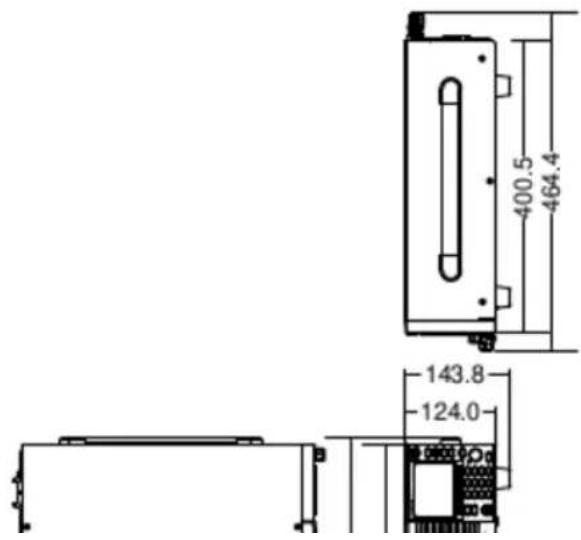
text_image
400.5 464.4 143.8 124.0PEL-3021, PEL-3041

text_image
213.8 124.0 151.6 400.5 464.4PEL-3211
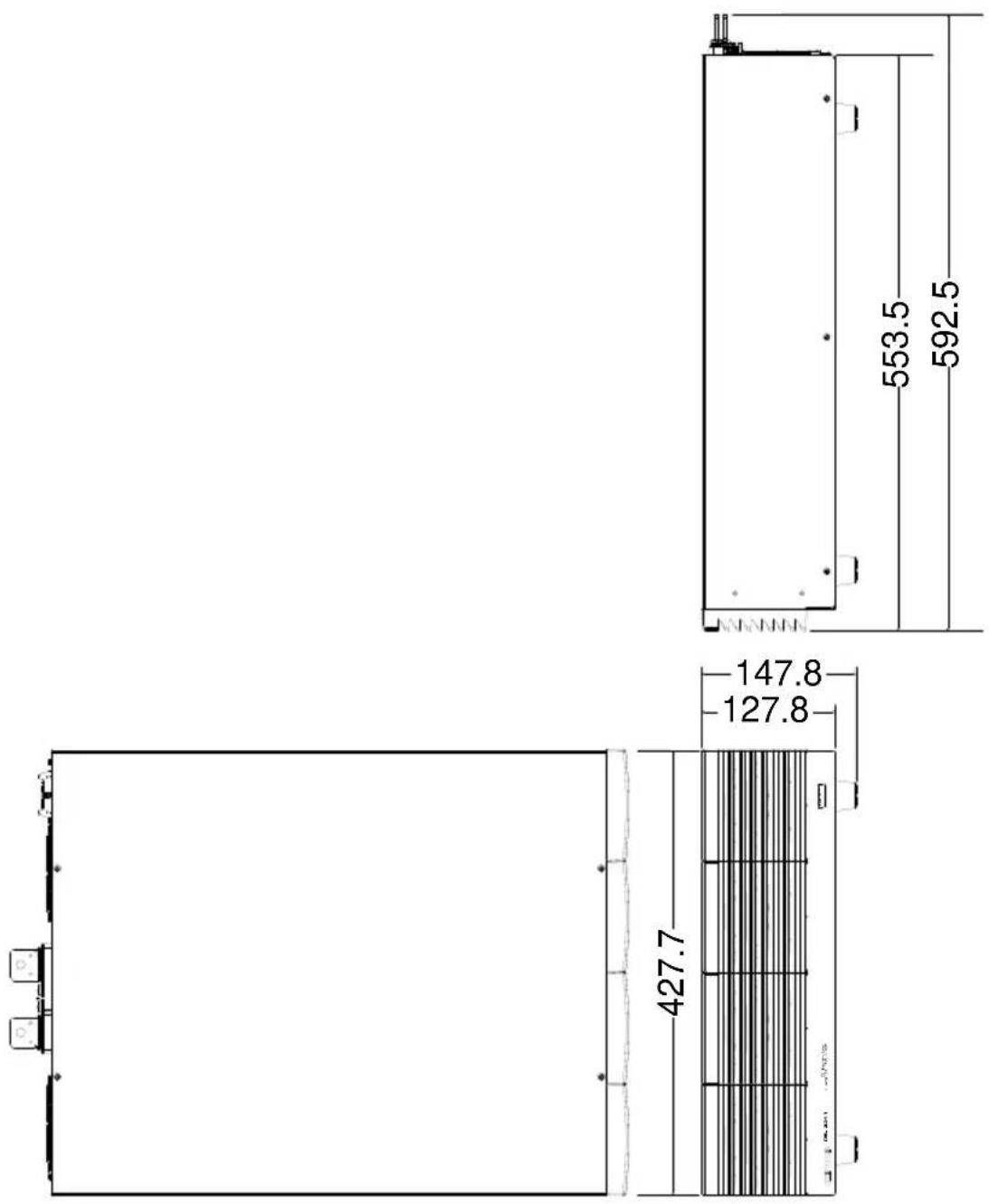
text_image
553.5 592.5 147.8 127.8 427.7Declaration of Conformity
We
GOOD WILL INSTRUMENT CO., LTD.
No. 7-1, Jhongsing Rd, Tucheng Dist., New Taipei City 236, Taiwan
GOOD WILL INSTRUMENT (SUZHOU) CO., LTD.
No. 69 Lushan Road, Suzhou New District Jiangsu, China.
declare that the below mentioned product
Type of Product: DC Electronic Load
Model Number: PEL-3021, PEL-3041, PEL-3111, PEL-3211
is herewith confirmed to comply with the requirements set out in the Council Directive on the Approximation of the Laws of the Member States relating to the Low Voltage Directive (2006/95/EC) and Electromagnetic Compatibility (2004/108/EC).
For the evaluation regarding the Electromagnetic Compatibility and Low Voltage Directive, the following standards were applied:
© EMC
| EN 61326-1 :EN 61326-2-1:EN 61326-2-2: | Electrical equipment for measurement, control and laboratory use -- EMC requirements (2006) | |
| Conducted and Radiated EmissionsEN 55011: 2009+A1: 2010 | Electrostatic DischargeEN 61000-4-2: 2009 | |
| Current HarmonicEN 61000-3-2: 2006+A1: 2009+A2: 2009 | Radiated ImmunityEN 61000-4-3: 2006+A1: 2008+A2:2010 | |
| Voltage FluctuationEN 61000-3-3: 2008 | Electrical Fast TransientsEN 61000-4-4: 2004+A1: 2010 | |
| -------- | Surge ImmunityEN 61000-4-5: 2006 | |
| -------- | Conducted SusceptibilityEN 61000-4-6: 2009 | |
| -------- | Power Frequency Magnetic FieldEN 61000-4-8: 2010 | |
| -------- | Voltage Dips/ InterruptsEN 61000-4-11: 2004 | |
| Low Voltage Equipment Directive 2006/95/EC | |
| Safety Requirements | EN 61010-1: 2010EN 61010-2-030: 2010 |
INDEX
Accessories 12
Advanced configuration
Alarm tone 87
Auto Load 75
Control settings 88
Count time....73
Cut off time....74
Display 87
Dyna. Time 67
Go-NoGo....89
Language 88
Load Off (Mode) 76
Load Off (Range) 76
OCP....80
OPP 81
OVP 83
Protection settings 80
Soft start 70
Speaker 86
Step resolution 77
System settings 86
UVP....82
Von delay 73
Von latch 72
Von voltage 71
Alarm Tone 87
Analog connector pin assignment.... 134
Caution symbol 3
CC Response speed 69
Cleaning the instrument ..... 5
Conventions 41
CP Response speed 69
CR Response speed 69
CV Response rate 68
Declaration of conformity ..... 210
Default settings 178
operation 131
User 132
Display diagram 23
Disposal instructions 6
Disposal symbol 3
Dynamic mode frequency ...... 67
EN61010
Measurement category 4
Pollution degree 6
Environment
Safety instruction 5
External control
Alarm 148
Alarm status 149
Current monitor 150
Current range 145
Current status 146
Load status 145
Overview 134
Resistance control 138
Short control 149
Trigger 147
Trigger signal output 150
Turning the load on 143
Voltage control 135
External control 133
FAQ 171
Fast Sequence
Configuration 114
Data edit 115
Overview 110
Run 117
File Utility 129
Firmware update 39
First time use instructions ...... 24
Front panel diagram 15
Go_NoGo Tone 87
GPIB installation 177
Ground
Symbol 3
Help 47
Input terminals
Front 33
Rear 34
Terminal cover 35
Knob configuration
Cursor....77
Step 78
Load default settings ...... 28
Load wiring 31
Connection.... 32
Main features 11
Marketing
Contact 172
Memory Recall
safety setting.... 128
Monitor signal output ...... 150
Normal Sequence
Configuration.... 104
Data edit.... 106
Overview 100
Run....108
OCP alarm 80
Operating area
PEL-3021 191
PEL-3041 192
PEL-3111 193
PEL-3211 194
Operating mode
CC 186
CC+CV 186
CP....188
CP+CV....189
CR....187
CR+CV 188
CV 190
Operation 51
+CV mode 58
CC mode 51
CC Response speed 69
CP mode 56
CP Response speed 69
CR mode 53
CR Response speed 69
CR units 55
CV mode 55
CV Response rate 68
Dynamic mode.... 63
Dynamic mode units.... 65
panel lock 61
Short key 60
Short key configuration ...... 61
Slew rate 67
Staticmode 63
Turning the load on 59
OPP alarm 81
OVP alarm 83
Package contents 14
Parallel operation
Capacity 152
Capacity with boosters ..... 153
Configuration 155
Connection 153
Disable 158
Overview 152
Turning the load on 157
Power supply
Safety instruction 5
Power up 27
Preset 131
Presets
Save/Recall 130
Program
Chain 97
Configuration 94
Overview 92
Run 98
Rack mount installation ...... 24
Rear panel diagram 20
Remote control 159
GPIB configuration.... 160
RS232C configuration ...... 162
USB configuration 160
Remote control function check163
GPIB 168
Realterm 164
Remote sense 38
Replace the clock battery ..... 176
Replace the dust filter ..... 175
Restore default settings ...... 131
Save/Recall 119
File types ...... 120
Presets 130
Recall from memory 125
Recall from USB 126
Recall Safety 128
Save to internal memory ...... 121
Save to USB 123
Sequence 100
Service operation
About disassembly 4
Contact 172
Setting the date and time ..... 28
Specifications
Dimensions....207
Frequency 195
PEL-3211 195
UK power cord 7
UnReg alarm 84, 85
Unreg Tone 87
UVP alarm 82
Warning symbol 3
Wire gauge 29
Theory 30