SV221MICRO - Switch StarTech.com - Free user manual and instructions
Find the device manual for free SV221MICRO StarTech.com in PDF.


User questions about SV221MICRO StarTech.com
0 question about this device. Answer the ones you know or ask your own.
Ask a new question about this device
Download the instructions for your Switch in PDF format for free! Find your manual SV221MICRO - StarTech.com and take your electronic device back in hand. On this page are published all the documents necessary for the use of your device. SV221MICRO by StarTech.com.
USER MANUAL SV221MICRO StarTech.com
2 Port PS/2 KVM Switch with Integrated Cables
SV221MICRO
Instruction Manual
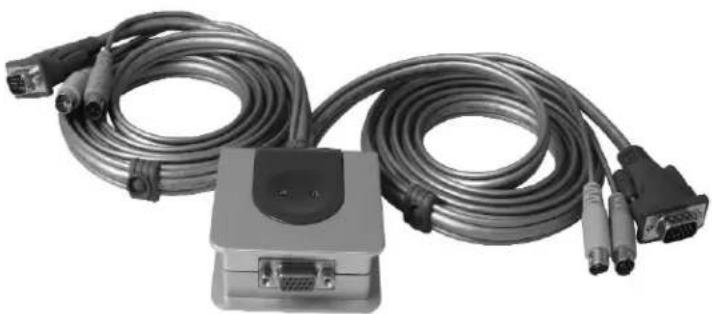
natural_image
Coiled network of electronic devices including a switch, VGA, and two connectors (no visible text or labels)Actual product may vary from photo
StarTech.com
The Professionals' Source for Hard-to-Find Computer Parts
FCC Compliance Statement
This equipment has been tested and found to comply with the limits for a Class B digital device, pursuant to part 15 of the FCC Rules. These limits are designed to provide reasonable protection against harmful interference in a residential installation. This equipment generates, uses and can radiate radio frequency energy and, if not installed and used in accordance with the instructions, may cause harmful interference to radio communications. However, there is no guarantee that interference will not occur in a particular installation. If this equipment does cause harmful interference to radio or television reception, which can be determined by turning the equipment off and on, the user is encouraged to try to correct the interference by one or more of the following measures:
- Reorient or relocate the receiving antenna.
- Increase the separation between the equipment and receiver.
- Connect the equipment into an outlet on a circuit different from that to which the receiver is connected.
- Consult the dealer or an experienced radio/TV technician for help.
Use of Trademarks, Registered Trademarks, and other Protected Names and Symbols
This manual may make reference to trademarks, registered trademarks, and other protected names and/or symbols of third-party companies not related in any way to StarTech.com. Where they occur these references are for illustrative purposes only and do not represent an endorsement of a product or service by StarTech.com, or an endorsement of the product(s) to which this manual applies by the third-party company in question. Regardless of any direct acknowledgement elsewhere in the body of this document, StarTech.com hereby acknowledges that all trademarks, registered trademarks, service marks, and other protected names and/or symbols contained in this manual and related documents are the property of their respective holders.
Instruction Manual
Table of Contents
Introduction ....1
Before You Begin....1
Installation 2
Using the KVM Switch ....3
Technical Support 4
Warranty Information ....4
Instruction Manual
Introduction
Thank you for purchasing a StarTech.com personal 2 port PS/2 micro KVM switch. This KVM has a small footprint with integrated cables that won't clutter your workspace. You can use keyboard hotkeys to switch computers, or use the Auto Scan feature to monitor two computers automatically.
Features
- Hotkey switching avoids having to reach for buttons
- Integrated cable design prevents clutter and avoids hassles
• Auto Scan feature provides automatic monitoring capability
Before You Begin
System Requirements
- One set of PS/2 console peripherals (keyboard, mouse) and a VGA monitor
• Computers must have PS/2 keyboard and mouse ports
Contents
This package should contain:
- 1 x KVM Switch
- 1 x User Manual
Instruction Manual
Installation
Please read this section thoroughly before installing the KVM switch.

text_image
Connection to Computer 1 Connection to Computer 2 Monitor In Console PS/2 Keyboard & MouseConnecting Computers to the KVM Switch
- Remove any existing keyboards, mice, and monitors from the computers that you wish to use with the KVM switch.
- Connect a PS/2 keyboard to the console port on the side of the KVM switch, marked with a purple connector (see above).
- Connect a PS/2 mouse to the console port on the side of the KVM switch, marked with a green connector (see above).
- Connect a monitor to the console port on the front of the KVM switch.
- Connect the integrated cable for computer 1 (see above) to the keyboard, mouse and video connectors on the computer. If you need assistance in identifying any ports, please consult the documentation for your computer.
- Connect the integrated cable for computer 2 (see above) to the keyboard, mouse and video connectors on the computer. If you need assistance in identifying any ports, please consult the documentation for your computer.
- Power on computer 1 and computer 2. You can now use the KVM switch.
Instruction Manual
Using the KVM Switch
Once you have completed the installation process, you can use the following methods to view computers connected to the KVM switch:
Hotkey: The command [Scroll Lock] - [Scroll Lock] followed by the computer number (1 or 2) to switch between computers. Scroll Lock must be pressed twice within 3 seconds to activate the hotkey feature. If you do not wish to switch between computers, the KVM will cancel the command after 5 seconds.
Computer 1: [Scroll Lock] - [Scroll Lock] - [1]
Computer 2: [Scroll Lock] - [Scroll Lock] - [2]
Auto Scan: This feature automatically switches between the two connected computers at 5 second intervals for monitoring purposes. To enter Auto Scan mode, use the following hotkey sequence:
[Scroll Lock] - [Scroll Lock] - [S]
To cancel Auto Scan, press any key on the keyboard. The KVM will leave the computer being viewed as the active port.
Instruction Manual
Technical Support
StarTech.com's lifetime technical support is an integral part of our commitment to provide industry-leading solutions. If you ever need help with your product, visit www.startech.com/support and access our comprehensive selection of online tools, documentation, and downloads.
Warranty Information
This product is backed by a three-year warranty. In addition, StarTech.com warrants its products against defects in materials and workmanship for the periods noted, following the initial date of purchase. During this period, the products may be returned for repair, or replacement with equivalent products at our discretion. The warranty covers parts and labor costs only. StarTech.com does not warrant its products from defects or damages arising from misuse, abuse, alteration, or normal wear and tear.
Limitation of Liability
In no event shall the liability of StarTech.com Ltd. and StarTech.com USA LLP (or their officers, directors, employees or agents) for any damages (whether direct or indirect, special, punitive, incidental, consequential, or otherwise), loss of profits, loss of business, or any pecuniary loss, arising out of or related to the use of the product exceed the actual price paid for the product.
Some states do not allow the exclusion or limitation of incidental or consequential damages. If such laws apply, the limitations or exclusions contained in this statement may not apply to you.
About StarTech.com
StarTech.com is “The Professionals’ Source for Hard-to-Find Computer Parts”. Since 1985, we have been providing IT professionals with the quality products they need to complete their solutions. We offer an unmatched selection of computer parts, cables, server management solutions and A/V products and serve a worldwide market through our locations in the United States, Canada, the United Kingdom and Taiwan.
Visit www.startech.com for complete information about all our products and to access exclusive interactive tools such as the Parts Finder and the KVM Reference Guide. StarTech.com makes it easy to complete almost any IT solution. Find out for yourself why our products lead the industry in performance, support, and value.