CBUSB220 - Network adapter StarTech.com - Free user manual and instructions
Find the device manual for free CBUSB220 StarTech.com in PDF.


User questions about CBUSB220 StarTech.com
0 question about this device. Answer the ones you know or ask your own.
Ask a new question about this device
Download the instructions for your Network adapter in PDF format for free! Find your manual CBUSB220 - StarTech.com and take your electronic device back in hand. On this page are published all the documents necessary for the use of your device. CBUSB220 by StarTech.com.
USER MANUAL CBUSB220 StarTech.com
CardBus USB 2.0 Card
2 Port USB 2.0 CardBus USB Card
CBUSB220
Instruction Manual

text_image
2 Port USB 2.0 Cordbus Laptop Cord Cable3200 StarTech.comActual product may vary from photo
StarTech.com
The Professionals' Source for Hard-to-Find Computer Parts
FCC Compliance Statement
This equipment has been tested and found to comply with the limits for a Class B digital device, pursuant to part 15 of the FCC Rules. These limits are designed to provide reasonable protection against harmful interference in a residential installation. This equipment generates, uses and can radiate radio frequency energy and, if not installed and used in accordance with the instructions, may cause harmful interference to radio communications. However, there is no guarantee that interference will not occur in a particular installation. If this equipment does cause harmful interference to radio or television reception, which can be determined by turning the equipment off and on, the user is encouraged to try to correct the interference by one or more of the following measures:
- Reorient or relocate the receiving antenna.
- Increase the separation between the equipment and receiver.
- Connect the equipment into an outlet on a circuit different from that to which the receiver is connected.
- Consult the dealer or an experienced radio/TV technician for help.
Use of Trademarks, Registered Trademarks, and other Protected Names and Symbols
This manual may make reference to trademarks, registered trademarks, and other protected names and/or symbols of third-party companies not related in any way to StarTech.com. Where they occur these references are for illustrative purposes only and do not represent an endorsement of a product or service by StarTech.com, or an endorsement of the product(s) to which this manual applies by the third-party company in question. Regardless of any direct acknowledgement elsewhere in the body of this document, StarTech.com hereby acknowledges that all trademarks, registered trademarks, service marks, and other protected names and/or symbols contained in this manual and related documents are the property of their respective holders.
Instruction Manual
Table of Contents
Introduction....1
Before You Begin ....1
System Requirements....1
Contents 1
Installation 2
Verifying Your Installation 2
Connecting Devices to Your USB Card ....3
Safely Removing Your USB 2.0 Card ....3
Specifications ....3
Accessory Products from StarTech.com 4
Technical Support ....5
Warranty Information ....5
Instruction Manual
Introduction
Thank you for purchasing a StarTech.com USB 2.0 CardBus card. Now you can add three USB 2.0 ports to your notebook computer. With data transfer speeds up to 480 Mbits/sec., this card allows you to easily connect and use high-performance USB peripherals like DVD drives, video conferencing cameras, or high resolution scanners. USB 2.0 is also backwards-compatible with USB 1.0/1.1, meaning your existing peripherals will still function perfectly with no additional configuration.
Features
- Provides you with three high-speed USB 2.0 ports on your notebook computer or other portable device
- Complies with USB 2.0 specifications and is backwards-compatible with USB 1.0/1.1
- Reaches transfer speeds of up to 480Mbits/sec. (40x faster than USB 1.1)
- Complies with Plug and Play standards
- Backed by StarTech.com's lifetime warranty
Before You Begin
System Requirements
• A notebook computer with an available CardBus slot
- Minimum Operating System Requirements: Windows 98SE/ME/2000/XP/2003 or later, Mac OS X or later
• Minimum Processor Requirements:
Intel Pentium II (400 MHz or faster) Intel Pentium III or higher (any speed) Intel Celeron (900 MHz or faster) AMD Athlon (any speed) G3 (original processor, not an upgrade)
Contents
This package should contain:
• 1 x CardBus USB 2.0 Card
- 1 x Installation CD
• 1 x Instruction Manual
Instruction Manual
Installation
Windows 98SE/ME
- Do not insert the CardBus card into the notebook computer until you have completed the steps below. Allow the computer to start normally and remove any existing CardBus devices from the slot, if necessary.
- Insert installation CD that came with the card into your CD-ROM or other optical drive.
- Open My Computer and right-click the icon for your CD-ROM. Choose Explore.
- Double click the Setup.exe file. The program will now copy the appropriate driver files onto your system; simply follow the on-screen prompts. When the process is complete, restart the computer.
- Once your system reboots, insert the USB 2.0 card into the CardBus slot. Windows will detect the new hardware and configure the card automatically.
Windows 2000/XP/2003
Windows 2000/XP/2003 includes native support for USB 2.0 and will install the drivers automatically when the card is inserted in the CardBus slot. Ensure you have the current Microsoft Service Pack installed.
Verifying Your Installation
Windows 98SE/ME
- Go to Start > Settings > Control Panel.
- Double click System.
-
Click the Hardware tab.
-
If the card and related components do not appear with a red x or yellow exclamation point (!) next to them, Windows has not detected a problem with the installation and the card should function normally.
Windows 2000/XP/2003
-
Go to Start > Settings > Control Panel.
-
Double click System.
-
Click the Hardware tab and choose Device Manager.
-
If the card and related components do not appear with a red x or yellow exclamation point (!) next to them, Windows has not detected a problem with the installation and the card should function normally.
Instruction Manual
Connecting Devices to Your USB Card
When you install a USB device to one of your USB ports, Windows will automatically detect it and you will be prompted to install the drivers for the device. If you ever plug this device into a different port on your USB 2.0 card, you will be prompted to install the drivers again. If possible, you should plug the device into each port on your USB card and install the drivers for each port the first time your connect your peripheral. Later on, with the drivers already installed for each port, you can unplug and move your USB 2.0 devices around your card without having to worry about finding your driver disk.
Safely Removing the USB 2.0 Card
While the card can be removed with the computer running and Windows started (a process commonly referred to as "hot-plugging"), Windows does offer a "safe removal" feature that ensures that the card is inactive before it is removed from the CardBus slot. It is strongly recommended that you follow this procedure when removing the card from a computer to avoid data loss or equipment damage.
To use the safe removal feature:
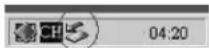
- Locate the hardware ejection icon in the System Tray (next to the clock).
-
Left click the icon once to activate the device menu.
-
Highlight the card from the list and click it once.

-
After a momentary pause, Windows will display a message informing you the card can be safely removed.
-
You can now physically remove the card from the slot.
Specifications
| Form Factor/Interface CardBus, 32-bit | |
| Standards Supported Universal Serial Bus | ver. 2.0 (EHCI)Universal Serial Bus ver. 1.1 (OHCI) |
| Maximum Data Transfer Rate 480 Mbits/sec. | (USB 2.0)12 Mbits/sec. (USB 1.1) |
| Connectors 2 x USB Type “A” female (external) | |
| Maximum Number of Devices 127 (via daisychained hubs) | |
| OS Support Windows 98SE/ME/2000/XP | 2003Fully Plug and Play compliant |
| Regulatory and Other Certifications FCC | Class B, CE, UL |
Instruction Manual
Accessory Products from StarTech.com
Contact your local StarTech.com dealer or visit www.startech.com for cables or other accessories that will help you get the best performance out of your new product.
6 ft. High Speed Certified USB 2.0 Cable USB2HAB6
10 ft. High Speed Certified USB 2.0 Cable USB2HAB10
15 ft. High Speed USB 2.0 Cable USB2HAB15
6 ft. Transparent USB 2.0 Cable A-B M/M USB2HAB6T
10 ft. Transparent USB 2.0 Cable A-B M/M USB2HAB10T
15 ft. Transparent USB 2.0 Cable A-B M/M USB2HAB15T
Mutant Mods 6 ft. Blue LED USB 2.0 Cable A-B M/M USB2HAB6LEDB
Mutant Mods 6 ft. Red LED USB 2.0 Cable A-B M/M USB2HAB6LEDR
Mutant Mods 6 ft. Yellow LED USB 2.0 Cable A-B M/M USB2HAB6LEDY
Mutant Mods 6 ft. Blue - Green Lava Lamp LED USB 2.0 Cable A-B M/M USBHAB6FLBG
Mutant Mods 6 ft. Red - Yellow Lava Lamp LED USB 2.0 Cable A-B M/M USBHAB6FLRY
Instruction Manual
Technical Support
StarTech.com's lifetime technical support is an integral part of our commitment to provide industry-leading solutions. If you ever need help with your product, visit www.startech.com/support and access our comprehensive selection of online tools, documentation, and downloads.
Warranty Information
This product is backed by a lifetime warranty. In addition, StarTech.com warrants its products against defects in materials and workmanship for the periods noted, following the initial date of purchase. During this period, the products may be returned for repair, or replacement with equivalent products at our discretion. The warranty covers parts and labor costs only. StarTech.com does not warrant its products from defects or damages arising from misuse, abuse, alteration, or normal wear and tear.
Limitation of Liability
In no event shall the liability of StarTech.com Ltd. and StarTech.com USA LLP (or their officers, directors, employees or agents) for any damages (whether direct or indirect, special, punitive, incidental, consequential, or otherwise), loss of profits, loss of business, or any pecuniary loss, arising out of or related to the use of the product exceed the actual price paid for the product.
Some states do not allow the exclusion or limitation of incidental or consequential damages. If such laws apply, the limitations or exclusions contained in this statement may not apply to you.
About StarTech.com
StarTech.com is “The Professionals’ Source for Hard-to-Find Computer Parts”. Since 1985, we have been providing IT professionals with the quality products they need to complete their solutions. We offer an unmatched selection of computer parts, cables, server management solutions and A/V products and serve a worldwide market through our locations in the United States, Canada, the United Kingdom and Taiwan.