CM1164A - KVM switch ATEN - Free user manual and instructions
Find the device manual for free CM1164A ATEN in PDF.


User questions about CM1164A ATEN
0 question about this device. Answer the ones you know or ask your own.
Ask a new question about this device
Download the instructions for your KVM switch in PDF format for free! Find your manual CM1164A - ATEN and take your electronic device back in hand. On this page are published all the documents necessary for the use of your device. CM1164A by ATEN.
USER MANUAL CM1164A ATEN
Simply Better Connections
CM1164A / CM1284
Multi-View KVMP™ Switch
User Manual
Compliance Statements
FEDERAL COMMUNICATIONS COMMISSION INTERFERENCE STATEMENT
This equipment has been tested and found to comply with the limits for a Class A digital device, pursuant to Part 15 of the FCC Rules. These limits are designed to provide reasonable protection against harmful interference when the equipment is operated in a commercial environment. This equipment generates, uses, and can radiate radio frequency energy and, if not installed and used in accordance with the instruction manual, may cause harmful interference to radio communications. Operation of this equipment in a residential area is likely to cause harmful interference in which case the user will be required to correct the interference at his own expense.
The device complies with Part 15 of the FCC Rules. Operation is subject to the following two conditions: (1) this device may not cause harmful interference, and (2) this device must accept any interference received, including interference that may cause undesired operation.
FCC Caution
Any changes or modifications not expressly approved by the party responsible for compliance could void the user's authority to operate this equipment.
Warning
Operation of this equipment in a residential environment could cause radio interference.
Achtung
Industry Canada Statement
This Class A digital apparatus complies with Canadian ICES-003.
CAN ICES-003 (A) / NMB-003 (A)
HDMI Trademark Statement
The terms HDMI, HDMI High-Definition Multimedia Interface, and the
HDMI Logo are trademarks or registered trademarks of HDMI Licensing
Administrator, Inc.

RoHS
This product is RoHS compliant.
Multi-View KVMP™ Switch User Manual
User Information
Online Registration
Be sure to register your product at our online support center:
International http://eservice.aten.com
Telephone Support
For telephone support, call this number:
| International | 886-2-8692-6959 |
| China | 86-400-810-0-810 |
| Japan | 81-3-5615-5811 |
| Korea | 82-2-467-6789 |
| North America | 1-888-999-ATEN ext 49881-949-428-1111 |
User Notice
All information, documentation, and specifications contained in this manual are subject to change without prior notification by the manufacturer. The manufacturer makes no representations or warranties, either expressed or implied, with respect to the contents hereof and specifically disclaims any warranties as to merchantability or fitness for any particular purpose. Any of the manufacturer's software described in this manual is sold or licensed as is. Should the programs prove defective following their purchase, the buyer (and not the manufacturer, its distributor, or its dealer), assumes the entire cost of all necessary servicing, repair and any incidental or consequential damages resulting from any defect in the software.
The manufacturer of this system is not responsible for any radio and/or TV interference caused by unauthorized modifications to this device. It is the responsibility of the user to correct such interference.
The manufacturer is not responsible for any damage incurred in the operation of this system if the correct operational voltage setting was not selected prior
Multi-View KVMP™ Switch User Manual
Product Information
For information about all ATEN products and how they can help you connect without limits, visit ATEN on the Web or contact an ATEN Authorized Reseller. Visit ATEN on the Web for a list of locations and telephone numbers:
| International http://www.aten.com |
| North America http://www.aten-usa.com |
Package Contents
Check to make sure that all the components are in working order. If you encounter any problem, please contact your dealer.
The CM1164A package consists of:
◆ 1 CM1164A 4-Port USB DVI Multi-View KVMP ™ Switch
♦ 4 KVM cables (DVI-D, USB, audio)
♦ 1 power cord
♦ 1 IR remote control
- 1 rack mount kit
◆ 1 user instructions
The CM1284 package consists of:
◆ 1 CM1284 4-Port USB HDMI Multi-View KVMP ™ Switch
• 4 KVM cables (HDMI, USB, audio)
♦ 1 power cord
♦ 1 IR remote control
- 1 rack mount kit
◆ 1 user instructions
Contents
Compliance Statements ...... ii
User Information iv
Online Registration IV
Telephone Support .... IV
User Notice IV Product Information
Package Contents
Contents vii
About this Manual xi
Conventions xii
1. Introduction
Overview 1
Features 3
Requirements 5
Operating Systems 6
Optional Equipment 6
Components 7
CM1164A / CM1284 Front View 7
CM1164A Rear View 9
CM1284 Rear View 10
IR Remote Control 11
2. Hardware Setup
Rack Mounting 14
Installation 16
CM1164A 16
Single Station Installation 16
Single Station Installation Diagram 17
Daisy Chaining 18
Daisy Chain Installation Diagram. 19
Cascading 20
Cascade Installation Diagram 21
CM1284 22
Single Station Installation 22
Single Station Installation Diagram 23
Daisy Chalning 24
Daisy Chain Installation Diagram. 25
Cascading 26
A. 11-11" B. 27
Multi-View KVMP™ Switch User Manual
Identifying the Source Device....29
Switching 31
Front Panel Pushbuttons....31
LED Display....32
Hotkey Switching 33
IR Remote Switching 33
OSD Switching 34
Boundless Switching....35
Multiview Monitor Layout Rule 35
Tier (Chain Vert) Layout 36
Row (Chain Horz) Layout 36
Quarter (Chain 2 x 2) Layout....36
Extended Desktops 37
Extended Desktops Layout Positions 40
Display Modes 44
Full Screen 44
Quad View 46
Picture in Picture - Dual 47
Picture in Picture - Triple 48
Picture in Picture - Quad 49
Picture on Picture 50
Picture by Picture - Dual 51
Picture by Picture - Triple 52
Picture by Picture - Quad 53
Configuring the Display Aspect Ratio 54
Preset Configuration 55
4. Hotkey Operation
Open the OSD Menu 57
The Hotkey Setting Mode 58
Holkeys List....59
Auto Scanning 63
Auto Scanning - Display Modes 63
5. OSD Operation
Overview....65
The Quick Access Toolbar 65
The Editor Mode 67
The OSD Menu 69
Password Protection 70
System Settings 71
Multi-View KVMP™ Switch User Manual
RS-232 Commands 79
Verification Messages 79
Log in 80
Logout 81 Open/Close RS-232 Link 82
Switch Port 83
Switch Port (KVM Focus only) 84
Switch Port (USB Peripherals Focus only) 85
Switch Port (Audio Focus only) 86
Daisy-Chained Boundless Switching 87
PiP Mode 88
PbP Mode 89
PoP Mode 90
Quad View Mode 91
Change Display Mode 92
Port Disable 93 OSD Language 94
OSD Language 54 Keyboard Language Layout 25
Keyboard Language Layout 50 Set Operating System 28
Get Operating System 96 Auto Scan 97
Port ID Display 98
Security 99
Station 100
DCC Control 101
Mouse Emulation 102
Keyboard Emulation 103
Video DynaSync 104
Hardware Cursor 105 Active Resource 102
Activate Beeper 106 Holley Rolling 107
Hotkey Setting 107 GCD Hotkey 109
OSB Hotkey 100
Power on Detection 10
HIT KEY 110 USB Pack 111
USB Reset 111 Bostere Default Value 112
Restore Default Value 112 Firmware Upgrade 113
10/M Status 114
KVM Status 114 Hathay List 115
Hotkey List 115
Inio 116 Ding, P. 117
Display B 117 Extended Desktops 118
Extended Desktops 115
Multi-View KVMP™ Switch User Manual
Firmware Upgrades 121
Powering Off and Restarting 128
Restoring to Default Settings 128
Appendix
Safety Instructions 129
General 129
Rack Mounting 131
Technical Support 132
International 132
North America 132
Specifications 133
Troubleshooting 135
Fn Key Reference 136
Mac Keyboard Emulation 137
Sun Keyboard Emulation 138
Factory Default Hotkeys and Settings 139
Limited Warranty....140
About this Manual
This User Manual is provided to help you get the most from your system. It covers all aspects of installation, configuration, and operation for the following models of the Multi-View KVMP™ Switch:
| Model Product Name | |
| CM1164A | 4-Port USB DVI Multi-View KVMPTM Switch |
| CM1284 | 4-Port USB HDMI Multi-View KVMPTM Switch |
An overview of the information found in the manual is provided below.
Chapter 1, Introduction, introduces you to the Multi-View KVMP™
Switch. Its purpose, features and benefits are presented, and its front and back panel components are described.
Chapter 2, Hardware Setup, describes how to set up your installation.
Diagrams showing the necessary steps are provided.
Chapter 3, Basic Operation, explains the fundamental concepts involved in operating the Multi-View KVMP™ Switch.
Chapter 4, Hotkey Operation, details all of the concepts and procedures involved in the hotkey operation of your Multi-View KVMP™ Switch.
Chapter 5, OSD Operation, provides a complete description of the Multi-View KVMP™ Switch's On-Screen Display (OSD), and how to work with it.
Chapter 6, RS-232 Operation, provides details on the functions and RS-232 commands that you can use to control the Multi-View KVMP™ Switch using a serial controller.
Chapter 7, System Maintenance, provides step-by-step information on firmware upgrades, restoring the device default, and how to safely restart your Multi-View KVMP™ Switch.
Appendix, provides specifications and other technical information regarding the Multi-View KVMP™ Switch.
Multi-View KVMP™ Switch User Manual
- The product may be updated, with features and functions added, improved or removed since the release of this manual. For an up-to-date user manual, visit http://www.aten.com/global/en
Conventions
This manual uses the following conventions:
Monospaced Indicates text that you should key in.
[] Indicates keys you should press. For example, [Enter] means to press the Enter key. If keys need to be chorded, they appear together in the same bracket with a plus sign between them: [Ctrl+Alt].
1. Numbered lists represent procedures with sequential steps.
- Bullet lists provide information, but do not involve sequential steps.
Indicates selecting the option (on a menu or dialog box, for example), that comes next. For example, Start > Run means to open the Start menu, and then select Run.
A
Indicates critical information.
Chapter 1 Introduction
Overview
The Multi-View KVMP™ Switch charts a revolutionary new direction in KVM switch functionality by combining a 4-port DVI-D (CM1164A) / 4-port HDMI (CM1284) with a 2-port USB hub, and providing different display modes, including Quad View mode, Picture in Picture mode (Dual, Triple, or Quad), Picture by Picture mode (Dual, Triple, or Quad), Picture on Picture mode, and Full Screen mode. Control and switch between computers/video sources is versatile using the front-panel pushbuttons, IR remote control, On-Screen Display (OSD), RS-232 commands, or through hotkey combinations entered from the console keyboard.
The Multi-View KVMP™ Switch allows users to access 4 computers/devices from a single console, consisting of a USB keyboard, USB mouse, and DVI-D (CM1164A) or HDMI (CM1284) monitor. With the CM1284, you can connect up to two monitors: one acts as the main control and supports all the display modes, and the other acts as a secondary display that only shows a channel selected from the main monitor in full-screen mode. Video switching for the second monitor is easy with Boundless Switching which allows you to switch channels simply by moving the console mouse to the desired channel on the main display.
As a USB hub, the Multi-View KVMP™ Switch permits each computer to access connected peripherals on a one-computer-at-a-time basis. The Multi-View KVMP™ Switch's independent switching feature allows the KVM focus to be on one computer while the USB peripheral focus is on another. There is no need to purchase a separate USB hub, as well as separate stand-alone peripheral sharers.
The Multi-View KVMP™ Switch further improves on previous designs with DVI-D (CM1164A) or HDMI (CM1284) connectors, and the transfer of keyboard and mouse data to the computers via a fast, reliable USB connection.
A Daisy Chain Control (DCC) port allows the user to connect and control up to four Multi-View KVMP™ Switches via a single set of keyboard and mouse. This enables the use of only one keyboard/mouse over several computers by switching the console keyboard and mouse focus to the monitor of each secondary station. This is convenient for growing networks that need to monitor and manage more computers – daisy chain up to four units and switch between up to 16 computers/video sources. You can also choose to have all sources displayed on one monitor by cascading, where CM1164A/CM1284 units are connected to one another via its KVM Ports. In a cascade setup, you can control and monitor up to 16 computers (4 additional Multi-View KVMP™ Switches) using a single console.
Setup is fast and easy; simply plug cables into their appropriate ports. There is no software to configure, no installation routines, and no incompatibility problems. Since the Multi-View KVMP™ Switch intercepts keyboard input directly, it works on Microsoft Windows, Linux, Sun and Mac platforms.
The Multi-View KVMP™ Switch improves operational efficiency for a wide range of practical applications, including control rooms, monitoring systems, and traffic control centers, as well as process control centers, server rooms, medical industries, broadcasting, production and automation, aircraft and vehicles. In combination with projectors, it is also used in presentations and conference rooms. Allowing you to switch seamlessly between four PCs, and share USB peripherals and stereo audio, the Multi-View KVMP™ Switch is ideal for multimedia applications, and offers the ultimate in space-saving, streamlined KVM technology.
Features
- Multi-view modes allow users to view and control up to four video channels on one screen with display modes including Quad View, Picture in Picture (PiP), Picture by Picture (PbP), and Picture on Picture (PoP)
- The CM1284 supports dual video outputs on the console side. The primary monitor provides multi-view modes.
- Easy resizing and/or repositioning of PiP or PbP to suit users' viewing needs
- System configuration (display mode and KVM port selection) via the front panel, OSD, IR Remote control, and RS-232 commands
- Superior video quality – Up to 4K (4096 x 2160 @ 30 Hz) (CM1284 only)
- Drop-down menu – edit display windows and other functions with the console mouse and on-screen control panel
- KVM port selection via the front-panel pushbuttons, hotkeys, mouse, and RS-232 serial commands ^1
- Boundless Switching – Simply move the mouse cursor across windows to switch to other video sources even among the daisy chained installation
- Boundless Switching Focus - a window frame to indicate which computer that it currently has the focus
• Supports Extended Desktops Boundless Switching ^2 - Video DynaSync™ – exclusive ATEN technology that eliminates boot-up display problems and optimizes the resolution when switching among different sources
- EDID Expert™ – Selects optimum EDID settings for smooth power-up, high-quality display and use of the best video resolution across different screens
- DCC (Daisy Chain Control) – Controls up to 3 additional Multi-View KVMP™ Switches from a single console
- Cascade up to 2 levels – Controls up to 16 computers (with up to 4 x 4 multi-view mode)
• HDCP 1.4 compliant
Multi-View KVMP™ Switch User Manual
- Independent switching for USB peripheral port, stereo audio, and KVM switch focus
Power on detection
• Auto Scan feature - Firmware upgradeable via computer's USB port
Full base response that provides a rich experience for 2.0 channel audio - Multilingual keyboard mapping – supports English, French, Japanese, and German keyboards
Hot-pluggable
• Supports keyboard combinations via emulation (for Sun / Mac)
Note:
- Mouse port switching is only workable under the mouse emulation mode and applicable to 3-key USB wheel mouse only.
- This function is only supported by Multi-View KVMI™ Switch using firmware version v2.3.222 or later.
- PC keyboard combinations emulate Mac keyboard. Mac keyboard only work with their computers.
Requirements
Refer to the table below to prepare the required devices, equipment, and cables to set up a CM1164A/CM1284 system.
| CM1164A CM1284 | ||
| Console | ◆ 1 x DVI-D Single Link display capable of the highest possible resolution◆ 1 x USB mouse◆ 1 x USB keyboard◆ (Optional) Microphone and speakers | ◆ 1 x HDMI cable◆ 1 x USB mouse◆ 1 x USB keyboard◆ (Optional) Microphone and speakers |
| Computers | Each computer 1 must be equipped with the following:◆ 1 x DVI port2◆ 1 x USB Type A port◆ (Optional) Audio ports | Each computer1 must be equipped with the following:◆ 1 x HDMI port2◆ 1 x USB Type A port◆ (Optional) Audio ports |
| Cables | ◆ 1 x KVM cable (Single Link DVI-D, 2.0 channel audio, USB 2.0)◆ 1 x IEC320 Power Cord◆ 1 x Cat 5 cable with an RJ-45 connector for Daisy Chain Control◆ 1 x IR Extension cable (sold separately) | ◆ 1 x KVM cable (HDMI, 2.0 channel audio, USB 2.0)◆ 1 x IEC320 Power Cord◆ 1 x Cat 5 cable with an RJ-45 connector for Daisy Chain Control◆ 1 x IR Extension cable (sold separately) |
Note:
1. Make sure the computers' operating systems are supported. For information, see Operating Systems, page 6.
2. The quality of the display is affected by the quality of the computer's graphics card. ATEN recommends using a high quality product.
Multi-View KVMP™ Switch User Manual
Operating Systems
Supported operating systems are shown in the table below:
| OS Version | ||
| Windows 7, 8.1, 10 | ||
| Linux RedHat | CentOS 7, Ubuntu 16.04 | |
| SuSE OpenSuSE 13.2 | ||
| UNIX Sun 10 | ||
| Novell Netware X | ||
| Mac 10.12 | ||
Optional Equipment
An IR extension cable is available for the Multi-View KVMP ^™ Switch but is sold separately. To purchase the IR extension cable, contact your ATEN dealer and refer to the item's part number, 2XRT-0003G.
Components
CM1164A / CM1284 Front View

text_image
1 2 3 2 4 5 6 9 1No. Component Description
| 1 KVM status panel This panel contains LED icons that light to indicate mode and port status. The mode and KVM port selection pushbuttons each have three corresponding LED icons that represent audio, KVM, and USB Link status. See Extended Desktops, page 37, for full details. | |
| 2 KVM port selection pushbuttons | Press the KVM port selection pushbuttons to manually switch ports. See Extended Desktops, page 37, for full details.In a cascade setup, press a KVM port selection pushbutton to switch the console display to the corresponding secondary KVMPTM Switch.Press and hold KVM port selection pushbuttons 1 and 2 simultaneously for 2 seconds to start Auto Scan Mode. See Auto Scanning, page 63, for full details.Press and hold KVM port selection pushbuttons 3 and 4 simultaneously for 2 seconds to detect the console keyboard and mouse again. |
| 3 mode selection pushbutton | This pushbutton allows you to cycle through the three modes of focus - KVM, stereo audio, and USB Link.Press and hold mode selection pushbutton before powering on and to enter Firmware Upgrade Mode. |
Multi-View KVMP™ Switch User Manual
| No. | Component | Description |
| 6 | direction / function buttons | Use these buttons to:Switch between different preset configurations (Fn1 to Fn4). For details about Function modes, see Configuring the Display Aspect Ratio, page 54.Cycle through the OSD Menu / selection. See IR Remote Control, page 11 for details. |
| 7 | console audio ports | Your speakers and microphone plug in here.Note: When both the front-panel and rear-panel audio ports are used, the front panel takes priority. |
| 8 | U S B peripheral port | USB 2.0 peripherals (printers, scanners, etc.) plug into this port. |
| 9 | IR receiver This receives signals from the IR remote control. | |
Chapter 1. Introduction
CM1164A Rear View

text_image
Diagram of a network device rack with labeled ports and connectors| No. Component Description | |
| 1 Daisy Chain Control in / out ports (DCC port) | ◆ Use these ports to connect to another CM1164A's DCC port to pass keyboard and mouse signals. You can daisy chain up to four CM1164A units. ◆ If the CM1164A is set up as a single station, you can control the CM1164A by sending serial commands through the DCC in port. For details, see Chapter 6, RS-232 Operation. |
| 2 console ports The cables | from your USB keyboard, USB mouse, DVI console display, a USB peripheral, microphone and speakers plug into this section. Note: When both the front-panel and rear-panel audio ports are used, the front panel takes priority. |
| 3 KVM ports | ◆ The cables that link the CM1164A to your DVI-D Single Link computers plug in here. Each group of the DVI KVM ports is comprised of a microphone jack, speaker jack, USB Type B port, and a DVI Single Link connector. ◆ You can upgrade the CM1164A's firmware from a computer connected to the USB KVM Port 1. |
| 4 power socket / power switch | Plug in the power cord to the power socket and use the switch to power on the CM1164A. |
| 5 grounding terminal The grounding wire (used to ground the unit) attaches here. | |
| 6 I R r e | This receives signals from the IR remote control |
CM1284 Rear View

text_image
Diagram of a rack-mounted device with labeled ports and connectors| No. Component Description | |
| 1 Daisy Chain Control in / out ports (DCC port) | Use these ports to connect to another CM1284's DCC port to pass keyboard and mouse signals. You can daisy chain up to four CM1284 units.If the CM1284 is set up as a single station, you can control the CM1284 by sending serial commands through the DCC in port. For details, see Chapter 6.RS-232 Operation. |
| 2 console ports The cables from your USB keyboard, USB mouse,HDMI console displays, a USB peripheral, microphone and speakers plug into this section.Note:1.HDMI port 1 supports multi-view modes; HDMI port 2 supports full-screen display only.When both the front-panel and rear-panel audio ports are used, the front panel takes priority. | |
| 3 KVM ports | The cables that link the CM1284 to your computers plug in here. Each group of the KVM ports is comprised of a microphone jack, speaker jack, USB Type B port, and an HDMI connector.You can upgrade the CM1284's firmware from a computer connected to the USB KVM Port 1. |
| 4 power socket and power switch | Plug in the power cord to the power socket and use the switch to power on the CM1284. |
5 grounding terminal The grounding wire (used to ground the unit) attaches here.
Chapter 1. Introduction
IR Remote Control

text_image
2 3 4 5 1 2 3 4 5 6 7 8 9 10 11 12 13 14 15 16 17 18 19 20 21 22 23 24 25 26 27 28 29 30 31 32 33 34 35 36 37 38 39 40 41 42 43 44 45 46 47 48 49 50 51 52 53 54 55 56 57 58 59 60 61 62 63 64 65 66 67 68 69 70 71 72 73 74 75 76 77 78 79 80No. Component Description
| 1 OSD button Press this | button to turn on or turn off the OSD Menu.When the OSD Menu is enabled, press the OSD button to go back to the previous menu / submenu. |
| 2 Fn1 / Fn2 / Fn3 /Fn4 buttons and select button | Use these buttons to switch between Function modes (Fn1 to Fn4), and to cycle through the OSD Menu/selection.See Configuring the Display Aspect Ratio, page 54 for details on how to store function mode settings, which you can invoke for later use.The Fn1~Fn4 buttons are positioned to correspond to the up / down / left / right direction.When cycling through the menu options, press the Select button to go the submenu.If you want to change or adjust a selection/value, press the Select button then the Fn1 (up) / Fn2 (left) / Fn3 (down) / Fn4 (right) buttons to go through all the selections/values. Press the Select button again to confirm a selection. |
| 3 display mode buttons | Select the display mode you want to view. SeeExtended Desktops, page 37. |
A KOM port selection
Multi-View KVMP™ Switch User Manual
| No. | Component Description |
| 5 station selection buttons | If the Multi-View KVMPTM Switch is daisy chained to one or several units (up to 4), press the button corresponding to the KVMPTM Switch that you want to configure or operate. |
Chapter 2
Hardware Setup

- Important safety information regarding the placement of this device is provided on page 129. Please review it before proceeding.
- To prevent damage to your installation from power surges or static electricity. It is important that all connected devices are properly grounded.
- Make sure that the power to all devices connected to the installation is turned off. You must unplug the power cords of any computers that have the Keyboard Power On function.
- Please operate the device with caution when under high environmental temperatures, as the surface of the device may become overheated under such conditions. For instance, the surface temperature of the device may reach 70 °C (158 °F) or higher when the environmental temperature reaches close 50 °C (122 °F).
Multi-View KVMP™ Switch User Manual
Rack Mounting
For convenience and flexibility, the Multi-View KVMP™ Switch can be mounted on system racks. To rack mount a unit, do the following:
- Remove the screws attached to the unit as shown in the diagram below:

text_image
front backNote: You can remove the screws on the front side panels or the back side panels. The succeeding diagrams show the rack mounting steps for the back panel.
- Using the screws provided in the mounting kit (not included with this package), screw the mounting bracket into the side of the unit as show in the diagram below:

natural_image
Line drawing of a server rack with ports and connectors (no text or symbols)Chapter 2. Hardware Setup
- Screw the bracket into any convenient location on the rack.

natural_image
Isometric line drawing of a structural support frame with vertical supports and a central horizontal beam (no text or symbols)Note: These screws are not provided in the mounting kit. We recommend that you use M5 x 12 Phillips Type I cross, recessed type screws.
Installation
CM1164A
You can install the CM1164A as a single station, daisy chain up to 4 CM1164A units, or cascade up to 4 additional CM1164A units to a primary CM1164A.
Single Station Installation
To set up a single CM1164A unit, refer to the installation diagram on page 17 (the numbers in the diagrams correspond to the steps below), and do the following:
- To prevent damages from power surges or static electricity, ground the CM1164A by connecting one end of a grounding wire to the grounding terminal, and the other end of the wire to a suitable grounded object.
Note:
- The grounding wire is not included in the package. Please contact your dealer for the appropriate cable.
-
Make sure the computers and devices that the CM1164A connects to are also properly grounded.
-
Plug your USB keyboard and USB mouse into the USB console ports located on the unit's rear panel.
- Plug your DVI display into the console DVI single link port located on the unit's rear panel.
- To use separate microphone and speakers, plug them into the analog audio ports on the unit's front or rear panel. When both the front-panel and rear-panel audio ports are used, the front panel takes priority.
- Using the USB DVI KVM cable, plug the DVI-D single link cable connector and the accompanying USB and audio connectors to their corresponding ports on the rear of the KVM switch.
- At the other end of the cable, plug the DVI and USB cables into their respective ports on the source computer.
- Plug your USB peripherals into the Type-A ports (one easy-access port is located on the front for portable devices; the second is located on the rear).
- Plug the power cord into the CM1164A power socket, and then plug the other end of the power cord into an AC power source.
Chapter 2. Hardware Setup
Single Station Installation Diagram

text_image
Diagram of a computer system rack with labeled components including ports, switches, and a central monitor.Daisy Chaining
To display even more source devices, up to 3 additional CM1164A units can be daisy chained from the original CM1164A. As many as 16 source devices can be controlled from a single console in a complete daisy chain installation. Each CM1164A in a daisy chain requires its own monitor as the video signals cannot be passed through to other units on a daisy chain. For daisy chain cable length restriction, see the table below.
| Daisy Chain Unit Number of Cable Each Cable Length (Max.) | |
| 2 Units 1 150 m | |
| 3 Units 2 150 m | |
| 4 Units 3 100 m | |
To set up a daisy chain installation, make sure that the power to all devices has been turned off, and do the following:
-
Use a Cat 5 cable to connect the DCC out port of the primary CM1164A to the DCC in port of the secondary CM1164A unit(s) (first station out to second station in, second station out to third station in, etc.).
-
Plug a DVI display into the Console DVI port located on each unit's rear panel.
-
Cable up the computer and the switch according to the information provided under Single Station Installation, page 16.
-
Repeat the above for any other switches you want to add to the chain (up to three).
-
Power on the installation: plug in the power cord for the first station, then power on each station on the installation in turn (second station, then third station, etc.). After all the stations are up, power on the computers/video source devices.
Note: Make sure the computers and devices that the CM1164A connects to are also properly grounded.
- Make sure the Expansion setting is set to Daisy Chain in the OSD Menu (Advanced > Expansion) on each primary and secondary CM1164A units.
Chapter 2. Hardware Setup
- To switch to a computer in a daisy chain, select from the Control Station setting in the OSD Menu (Advanced > Control Station). When switching to a computer, only the keyboard and mouse signals are connected.
Note: The second, third, and forth units in a daisy chain will not be able to use the IR remote for control. Only the first (primary) CM1164A can use the IR remote for control.
Daisy Chain Installation Diagram

flowchart
graph TD
    A["CM1164A (Front)"] --> B["MacWi"]
    B --> C["Sony"]
    B --> D["Nyx"]
    B --> E["Linux"]
    B --> F["AMD"]
    B --> G["ATEN"]
    B --> H["Daisy-chain"]
    H --> I["MacWi"]
    I --> J["SunL"]
    I --> K["Nyx"]
    I --> L["Linux"]
    I --> M["AMD"]
    I --> N["ATEN"]
    style A fill:#f9f,stroke:#333
    style B fill:#ccf,stroke:#333
    style C fill:#cfc,stroke:#333
    style D fill:#fcc,stroke:#333
    style E fill:#cff,stroke:#333
    style F fill:#ffc,stroke:#333
    style G fill:#cfc,stroke:#333
    style H fill:#fcc,stroke:#333
    style I fill:#ffc,stroke:#333
    style J fill:#cfc,stroke:#333
    style K fill:#fcc,stroke:#333
    style L fill:#ffc,stroke:#333
    style M fill:#cfc,stroke:#333
    style N fill:#fcc,stroke:#333
Cascading
To centrally control up to 4 CM1164A units (16 sources), cascade 4 additional CM1164A units to another CM1164A. As many as 16 source devices can be controlled from a single CM1164A console in a complete cascade installation.
To set up a cascade installation, make sure that the power to all devices has been turned off, and then do the following:
-
Connect the console ports of a secondary CM1164A to any of the DVI KVM ports on the primary CM1164A using the provided KVM cables.
-
To cascade another CM1164A, repeat step 1.
-
Connect the secondary CM1164A units with sources. For detailed steps, see Single Station Installation, page 16.
-
Connect the primary CM1164A with a USB keyboard, a USB mouse, and a monitor.
-
Change the installation setting to Cascade in the OSD Menu (Advanced > Expansion) on each primary and secondary CM1164A units.
-
Power off the installed primary and secondary CM1164A units.
-
Power on the installed primary CM1164A unit, and wait for the channel info to appear on your monitor connected to the primary CM1164A unit. Only after the CM1164A unit is powered on, power on the secondary CM1164A units. After all the stations are up, power on the connected source devices.
Note: Make sure the computers and devices that the CM1164A connects to are also properly grounded.
- Each secondary CM1164A unit is recognized as an input source (port 1\~4) to the primary CM1164A. To only display the sources of a particular secondary CM1164A, use any of the following methods:
- Press the corresponding front-panel port pushbutton
- Press the corresponding port button on the IR remote control
Chapter 2. Hardware Setup
Cascade Installation Diagram

text_image
(4X4 multi-view) 1 2 5 6 3 4 7 8 9 10 11 14 11 12 15 16 CM1164A Primary Unit Secondary Unit Secondary Unit Secondary Unit Secondary Unit— Video / Keyboard / Mouse
USB
Audio Cat 5e Cable
CM1284
You can install the CM1284 as a single station, daisy chain up to 4 CM1284 units, or cascade up to 4 additional CM1284 units to a primary CM1284.
Single Station Installation
To set up a single CM1284 unit, refer to the installation diagram on page 23 (the numbers in the diagrams correspond to the steps below), and do the following:
- Ground the CM1284 by connecting one end of a grounding wire to the grounding terminal, and the other end of the wire to a suitable grounded object.
Note:
- The grounding wire is not included in the package. Please contact your dealer for the appropriate cable.
-
Make sure the computers and devices that the CM1284 connects to are also properly grounded.
-
Plug your USB keyboard and USB mouse into the USB console ports located on the unit's rear panel.
- Plug your main HDMI display to console HDMI port 1 located on the unit's rear panel, and the second display to console HDMI port 2.
Note: The main display here refers to the display that you use to operate and configure the Multi-View KVMP™ Switch and display multi-view modes; the second display is limited to displaying a selected source in full screen only.
- To use separate microphone and speakers, plug them into the analog audio ports on the unit's front or the ones on the rear panel. When the audio ports on both the front-panel and rear-panel are used, the front panel takes priority.
- Using the USB HDMI KVM cables, plug the HDMI connectors and the accompanying USB and audio connectors to their corresponding ports on the rear of the KVM switch.
7.1.1 1 1.23 PARTSCHED BY 11 1 A DIMB 17/28
Chapter 2. Hardware Setup
- Plug the power cord into the CM1284's power socket, and then plug the other end of the power cord into an AC power source.
- Power on the KVM switch, the displays, and the computers / devices.
Note: The recommended power-on sequence is port 1-port 2-port 3-port 4.
Single Station Installation Diagram

text_image
Diagram of ATEN network device ports and connections, showing labeled components including ATEN, ATEN logo, network switches, and computer interface.Daisy Chaining
To display even more source devices, up to 3 additional CM1284 units can be daisy chained from the original CM1284. As many as 16 source devices can be controlled from a single console in a complete daisy chain installation. Each CM1284 in a daisy chain requires its own monitor as the video signals cannot be passed through to other units on a daisy chain. For daisy chain cable length restriction, see the table below.
| Daisy Chain Unit Number of Cable Each Cable Length (Max.) | |
| 2 Units 1 150 m | |
| 3 Units 2 150 m | |
| 4 Units 3 100 m | |
To set up a daisy chain installation, make sure that the power to all devices has been turned off, and do the following:
-
Use a Cat 5 cable to connect the DCC out port of the primary CM1284 to the DCC in port of the secondary CM1284 unit(s) (first station out to second station in, second station out to third station in, etc.).
-
Plug your main HDMI display to the console HDMI port 1 located on the unit's rear panel, and the second display to the console HDMI port 2.
Note: The main display here refers to the display that you use to operate and configure the Multi-View KVMP™ Switch and display multi-view modes; the second display is limited to displaying a selected source in full screen only.
-
Cable up the computer and the switch according to the information provided under Single Station Installation, page 22.
-
Repeat the above for any other switches you want to add to the chain (up to three).
-
Power on the installation: plug in the power cord for the first station, then power on each station on the installation in turn (second station, then third station, etc.). After all the stations are up, power on the computers/video source devices.
Note: Make sure the computers and devices that the CM1284 connects to
Chapter 2. Hardware Setup
- To switch to a computer in a daisy chain, select from the Control Station setting in the OSD Menu (Advanced > Control Station). When switching to a computer, only the keyboard and mouse signals are connected.
Note: The second, third, and forth units in a daisy chain will not be able to use the IR remote for control. Only the first (primary) CM1284 can use the IR remote for control.
Daisy Chain Installation Diagram

flowchart
graph TD
    subgraph CM1284 (Front)
        A["ATM"] --> B["Microcontroller"]
        B --> C["USB"]
        C --> D["SunLinux MacWindows"]
        E["OR"] --> F["Microcontroller"]
        F --> G["USB"]
        G --> H["SunLinux MacWindows"]
        I["CM1284 (Rear)"]
        J["Computer"] --> K["Server"]
        L["Desktop"] --> M["Server"]
        N["Client"] --> O["Server"]
        P["Mobile Device"] --> Q["Server"]
        R["Audio"] --> S["Server"]
        T["DSB"] --> U["Server"]
        V["Daisy Chain"] --> W["Server"]
    end
    style CM1284 (Front) fill:#f9f,stroke:#333
    style CM1284 (Rear) fill:#bbf,stroke:#333
    style SunLinux MacWindows fill:#dfd,stroke:#333
    style Deeys fill:#dfd,stroke:#333
Cascading
To centrally control up to 4 CM1284 units (16 sources) from a CM1284 unit, cascade 4 additional CM1284 units to the primary CM1284. As many as 16 source devices can be controlled from a single CM1284 console in a complete cascade installation.
To set up a cascade installation, make sure that the power to all devices has been turned off, and then do the following:
- Connect the console ports of a secondary CM1284 to any set of the KVM ports on the primary CM1284 using the provided KVM cables.
Note: Make sure to connect the console HDMI port 1 of the secondary CM1284 instead of its port 2 to the primary CM1284 to be able to display multi-view modes.
-
To cascade another CM1284, repeat step 1.
-
Connect the secondary CM1284/CM1164A units with sources. For detailed steps, see Single Station Installation, page 22.
-
Connect the primary CM1284 with a USB keyboard, a USB mouse, and a monitor.
-
Change the installation setting to Cascade in the OSD Menu (Advanced > Expansion) on each primary and secondary CM1284 units.
-
Power off the installed primary and secondary CM1284 units.
-
Power on the installed primary CM1284 unit, and wait for the channel info to appear on your monitor connected to the primary CM1284 unit. Only after the CM1284 unit is powered on, power on the secondary CM1284 units. After all the stations are up, power on the connected source devices.
Note: Make sure the computers and devices that the CM1284 connects to are also properly grounded.
- Each secondary CM1284 unit is recognized as an input source (port 1 \~ 4) to the primary CM1284. To only display the sources of a particular secondary CM1284, use any of the following methods:
- Press the corresponding front-panel port pushbutton
Chapter 2. Hardware Setup
Cascade Installation Diagram

flowchart
graph TD
    A["CM1284 (Rear)"] --> B["13"]
    A --> C["9"]
    A --> D["5"]
    A --> E["1"]
This Page Intentionally Left Blank
Chapter 3
Basic Operation
Overview
This chapter explains the basic components used to switch and display computers connected to the Multi-View KVMP™ Switch.
Identifying the Source Device
You can identify the source connected to the Multi-View KVMP™ Switch from the channel information at the top-left corner in the screen:

text_image
Screenshot of a Windows desktop with Chinese taskbar and application icons, showing navigation menu and system statusThis computer is connected to Part 1

Note: 1. To hide this information, disable the Channel Info setting (Display > Channel Info) from the OSD Menu.
- Port ID number: This number is assigned according to the port that the computer is connected to on the rear of the KVM Switch. For example, a computer connected to port 1 is assigned port ID 1.
Note: In a cascade setup, a port ID number of "1-3" indicates that the video source comes from the third port of the secondary Multi-View KVMP™ Switch connected to port 1 of the primary Multi-View KVMP™ Switch.
Device name: By default, the computer connected to port 1 is named PC 1, the computer connected to port 2 is named PC 2, and so forth. To change the device name, go to System Settings > Port Configuration.
Switching
The Multi-View KVMP™ Switch supports group switching and independent switching:
- Group switching: switches to the KVM (keyboard, video, mouse), audio, and USB sources of one computer.
- Independent switching: switches to KVM (keyboard, video, mouse), stereo audio, and USB sources independently, on different computers. This allows you to work on one computer (KVM), access the audio on another (stereo audio), and connect to peripheral devices on a third (USB).
Note: By default, the CM1284's Display 2 shows a video that is shown on Display 1, or of the focused video on Display 1 when Display 1 is in a multi-view mode. To have Display 2 show video of a particular computer regardless of the focused video on Display 1, configure the Display B Status setting in the OSD.
Front Panel Pushbuttons
Use the KVM Port Selection and Mode pushbuttons located on the front panel to switch KVM, audio, and/or USB focus. The selected devices are indicated with LEDs on the front panel. For more information about LED indicators, see LED Display, page 32.

text_image
LED MODE 1 2 3 4 KVM Port Selection- To switch KVM, stereo audio, and USB focus to a computer, press the KVM Port Selection pushbutton that corresponds to the computer you want to access.
-
To switch KVM access to a computer, press Mode 2 times, and then press the KVM Port Selection pushbutton that corresponds to the computer.
-
To switch stereo audio access to a computer, press Mode 3 times, and then press the KVM Port Selection pushbutton that corresponds to the computer.
- To switch USB access to a computer, press Mode 4 times, and then press the KVM Port Selection pushbutton that corresponds to the computer.
- Press KVM Port Selection pushbuttons 1 and 2 for 2 seconds to start Auto Scan Mode. To stop auto scan, press and release either port selection pushbutton.
LED Display
The front panel has three LEDs that represent the KVM, Audio and USB source. The LEDs light green or orange depending on which source is being accessed on what computer, as explained in the table.

text_image
AUTO SCAN KVM AUDIO USB LINK K/N RESET 1 2 MODE 3 4| LED Indication | ||
| Icon KVM |  | Lights BRIGHT ORANGE to indicate KVM is selected.Flashes ORANGE to indicate that the computer is being accessed in Auto Scan Mode.All flash ORANGE to indicate a firmware upgrade has been invoked.The corresponding port LED of the USB keyboard/mouse flashes when Keyboard Bypass is enabled.Lights a faint ORANGE to indicate that a computer is powered on. |
Audio | Lights BRIGHT GREEN to indicate Audio is selected.Flashes GREEN to indicate that Audio is selected on a computer in a Daisy Chain setup. | |
USB Link | Lights BRIGHT GREEN to indicate USB is selected.Flashes GREEN to indicate that USB Link is selected on a computer in a Daisy Chain setup. | |
Hotkey Switching
You can switch to a computer using hotkeys from the keyboard.
To switch to computer 1, do the following:
- Press and release [-].
- Release [Num Lock].
- Press [1].
-
Press [Enter].
-
Press and hold down [Num Lock].

text_image
4 Press Port ID Esc 1 Tab Enter Shift 5 Press Enter 1 Press and Hold 2 Press and Release 3 Release Num LockRepeat the steps using Port ID (1, 2, 3, 4) in step 4 to switch to the computer connected to that port. For more hotkeys, see Hotkey Operation, page 57.
IR Remote Switching
You can switch to a computer with the IR remote control. Point the remote at the Multi-View KVMP™ Switch and press the Port Selection button of the computer you want to access.

text_image
Fn1 OSD Fn2 (Select) Fn4 Fn3 Quad PIP2 PIP3 PIP4 ① ② ③ ④ Port Selection Button (1~4) ① ② ③ ④OSD Switching
You can switch to a computer by accessing the Quick Access Toolbar with the console mouse.
To switch computers with the OSD, do the following:
- Move the cursor to the top of the OSD to display the Quick Access Bar.

text_image
Screenshot of Windows desktop with multiple open applications and a preview window showing a rocky island scene.- From the Quick Access Toolbar, click ↙ to activate the editor mode. The message “Press √ to exit edit mode” appears.

text_image
Screenshot of Windows desktop with multiple application windows and a highlighted 'OK' button, likely from an older computer OS.- Click the port number at the top-left corner to open drop-down list, and then select a computer: 1, 2, 3, or 4. The display is immediately switched to the selected computer.
- When you finish configuring, click √ to end the editor mode.
Boundless Switching
Boundless Switching allows the Multi-View KVMP™ Switch to switch computers by sliding the mouse cursor across the screen borders. The mouse cursor can be moved up, down, left, or right-off one screen and onto another to switch keyboard/mouse control to the adjacent computer. The audio and USB hub focus is also switched to the new computer. The mouse cursor can also move across displays even when they are daisy-chained.
Before using the Boundless Switching, the users must turn off mouse acceleration in the operation system and configure:
- The daisy-chained monitors layout via hotkey page 62, OSD page 73, and RS-232 page 87 for more information.
A Window Frame appears on the Multi-View display with a computer that it currently has the focus. This is a Boundless Switching Focus, to indicate which computer the user is working on. This Window Frame can be disabled and adjusted via the hotkey, and OSD. For more information, see page 62 for hotkey and page 73 for OSD.
Multiview Monitor Layout Rule
The Multiview Monitor Layout Rule is a setup restriction for the daisy-chain boundless switching. Please follow the multiview monitor layout rule below to configure your daisy-chain installation.
Note: Monitor 1 refers to the multiview monitor connected to station 1; Monitor 2 refers to the multiview monitor connected to station 2; Monitor 3 refers to the multiview monitor connected to station 3; and Monitor 4 refers to the multiview monitor connected to station 4 respectively.
Tier (Chain Vert) Layout

text_image
1 2 3 4 Monitor 1 5 6 7 8 Monitor 2 9 10 11 12 Monitor 3 13 14 15 16 Monitor 4Row (Chain Horz) Layout

text_image
1 2 3 4 Monitor 1 5 6 7 8 Monitor 2 9 10 11 12 Monitor 3 13 14 15 16 Monitor 4Quarter (Chain 2 x 2) Layout

text_image
Monitor 1 1 2 3 4 Monitor 2 5 6 7 8 Monitor 3 9 10 11 12 Monitor 4 13 14 15 16Extended Desktops
The extended desktops allows you to extend your computer video source into a quad view display mode. Please make sure the following requirements are met before enabling the extended desktops function.
- Upgrade the Multi-View KVMP™ Switch's firmware to firmware version v2.3.222 or later.
- Make sure the connected computers are running Windows 10 operating system.
Make sure the Multi-View KVMP™ Switch is running quad view display mode. - Make sure the configuration of the main and extended display on Windows OS is identical to the OSD settings.
To enable extended desktop, follow the steps below.
Note: When connecting the extended desktop PCs, make sure the main desktop PC is connected to the Multi-View KVMP™ Switch with the USB DVI/HDMI KVM cable. The extended desktop PCs are only required to connect the video (DVI/HDMI) connector to the Multi-View KVMP™ Switch.
-
Invoke the on-screen display (OSD) Menu by doing one of the following.
-
Press the OSD (Esc) button located on the Multi-View KVMP™ Switch's front panel.
- Move the cursor to the top of the OSD to display the Quick Access Bar, and click ☐.

text_image
Screenshot of Windows desktop with multiple open applications and system icons, including Start menu, Start menu home, and desktop wallpaper.- From the OSD Menu, go to General > Extended Desktop, and click Enable.
- From the OSD Menu, go to Display and click > to go to the second page.

text_image
ATEN CM12B4 General Display Port Configuration Advance Password Maintenance Channel Info Enable Multiview Mode Quad Channel 1 Port1 Channel 2 Port2 Channel 3 Port3 Channel 4 Port4 Save to Fn Select Toolbar Position Top Transparency Disable >- From the second page in the Display settings, you may configure the layout position and display aspect ratio for the connected computers. For more information on how to configure the layout position, see Extended Desktops Layout Positions, page 40.

text_image
ATEN CM1284 General Display Port Configuration Advance Password Maintenance Port1 Port2 Port3 Port4 Display Aspect Ratio Window Frame [ No Group ] [ No Group ] [ No Group ] [ 16:9 ] [ Disable ] X5. Once the configurations have been made, click Apply.
Note: When the extended desktop function is enabled, the following settings from the OSD are not configurable.
- Channel 1 \~ Channel 4 settings from the Display page.
- Port 1 \~ Port 4 Operating System settings from the Port Configuration page.

text_image
ATEN CM1284 General Display Port Configuration Advance Password Maintenance Port1 Port2 Port3 Port4 Display Aspect Ratio Window Frame [ GroupA: Main ] [ GroupA: Ext. ] [ GroupA: Main ] [ GroupB: Ext. ] [ 15:9 ] [ Disable ] ApplyExtended Desktops Layout Positions
There are seven different extended desktops layout positions available. Please see the description below on how to configure each layout in the Display settings.
Note: Only one main extended desktop is required in a group, the rest can be set as ext..
Layout 1

text_image
Group A Group BPort 1 > GroupA: Main
Port 2 > GroupA: Ext.
Port 3 > GroupB: Main
Port 4 > GroupB: Ext.
Layout 2

text_image
Group A Group BPort 1 > GroupA: Main
Port 2 > GroupB: Main
Port 3 > GroupA: Ext.
Port 4 > GroupB: Ext.
Layout 3

natural_image
Simple geometric pattern of four yellow squares arranged in a 2x2 grid (no text or symbols)Group A
Port 1 > GroupA: Main
Port 2 > GroupA: Ext.
Port 3 > GroupA: Ext.
Port 4 > GroupA: Ext.
Layout 4

text_image
No Group No Group Group APort 1 > No Group
Port 2 > No Group
Port 3 > GroupA: Main
Port 4 > GroupA: Ext.
Layout 5

text_image
Group A No Group No GroupPort 1 > GroupA: Main
Port 2 > GroupA: Ext.
Port 3 > No Group
Port 4 > No Group
Layout 6

text_image
No Group No Group Group APort 1 > GroupA: Main
Port 2 > No Group
Port 3 > GroupA: Ext.
Port 4 > No Group
Layout 7

text_image
No Group No Group Group APort 1 > No Group
Port 2 > GroupA: Main
Port 3 > No Group
Port 4 > GroupA: Ext.
Display Modes
You can view multiple computers connected to the Multi-View KVMP™ Switch on the same screen, in different layout by setting the display mode. This section introduces you to different display modes, and ways of switching to them.
Note: In a CM1284 system, Display 2 supports full-screen mode only.
Full Screen
A full-screen view displays one computer in full extension.

text_image
Lemel Alstec OSOS Adobe Reader 9 Microsoft FlashGet... Windows PlayUp... 应用程序管理器 Windows Windows Windows Command E76 Sikos CE Google Chrome WELCOME Mac OS iTunes Catalix| Method Action Description | ||
| Front Panel | Press a KVM Port Selection Pushbutton. |  |
| IR Remote Control | Press a KVM Port Selection Pushbutton. |  |
| Mouse Wheel | In any PiP mode, move the cursor to the window you wish to extend, and double-click the mouse wheel.Note: This function is disabled by default. To use this function, enable the Advanced > Mouse Wheel Switching function from the OSD Menu. | N/A |
| Quick Access Toolbar | Move the mouse to the top center of the OSD to display the Quick Access Toolbar, and then select from the Quick Access Toolbar.Note: Hardware Cursor Mode must be enabled, see The OSD Menu, page 69. |  |
| Hotkey Switch | to a particular port to display the computer in full screen. See The Hotkey Setting Mode, page 58 for hotkey instructions. |  |
| OSD Menu | In the OSD, click from the Quick Access Toolbar, go to Display > Multiview Mode, and then select Single.Note: You may need a password to access the OSD Menu. For details, see Password Protection, page 70. |  |
Quad View
A quad view displays four computers on the monitor in equal sized windows.

text_image
Screenshot of a desktop computer with four panels showing a Snow Leopard on the wall, including its logo and status bar.| Method Action Description | ||
| Front Panel Press Select to cycle through display modes. |  Push to cycle Push to cycle | |
| IR Remote Control | Press the Quad button. |  |
| Quick Access Toolbar | Move the mouse to the top center of the OSD to display the Quick Access Toolbar, and then select from the Quick Access Toolbar.Note: Hardware Cursor Mode must be enabled, see The OSD Menu, page 69. |  |
| Hotkey Enter the illustrated hotkeys. See The Hotkey Setting Mode, page 58 for hotkey instructions. |  | |
| OSD Menu | In the OSD, click From the Quick Access Toolbar, go to Display > Multiview Mode, and then select Quad. Note: You may need a password to access the OSD Menu. For details, see Password Protection, page 70. |  |
Picture in Picture - Dual
A dual PiP view shows 2 computers on the monitor with one as the main display, and the other overlapping the main display in an inset window.

| Method Action Description | ||
| Front Panel Press Select to cycle through display modes. |  | |
| IR Remote Control | Press the PiP2 button. |  |
| Quick Access Toolbar | Move the mouse to the top center of the OSD to display the Quick Access Toolbar, and then select from the Quick Access Toolbar.Note: Hardware Cursor Mode must be enabled, see The OSD Menu, page 69. |  |
| Hotkey Enter the illustrated hotkeys. See The Hotkey Setting Mode, page 58 for hotkey instructions. |  | |
| OSD Menu | In the OSD, click From the Quick Access Toolbar, go to Display > Multiview Mode, and then select PiP2.Note: You may need a password to access the OSD Menu. For details, see Password Protection, page 70. |  |
Picture in Picture - Triple
A triple PiP view has 3 computers on the monitor with one computer as the main display and the other two overlapping the main display in inset windows.

text_image
Adobe Reader 9 木鼠 FlashBack... 文件(F) [F:\Adobe\ ] [F:\Windows Explorer] [1] [2] [3] [4] [5] [6] [7] [8] [9] [10] [11] [12] [13] [14] [15] [16] [17] [18] [19] [20] [21] [22] [23] [24] [25] [26] [27] [28] [29] [30] [31] [32] [33] [34] [35] [36] [37] [38] [39] [40] [41] [42] [43] [44] [45] [46] [47] [48] [49] [50] [51] [52] [53] [54] [55] [56] [57] [58] [59] [60] [61] [62] [63] [64] [65] [66] [67] [68] [69] [70] [71] [72] [73] [74] [75] [76] [77] [78] [79] [80] [81] [82] [83] [84] [85] [86] [87] [88] [89] [90] [91] [92] [93] [94] [95] [96] [97] [98] [99] [100] E:\Users\Adobe\ ] < img src="boxc123a"> < img src="boxc123a"> < img src="boxc123a"> < img src="boxc123a"> < img src="boxc123a"> < img src="boxc123a"> < img src="boxc123a"> < img src="boxc123a"> < img src="boxc123a"> < img src="boxc123a"> < img src="boxc123a"> < img src="boxc123a"> < img src="boxc123a"> < img src="boxc123a"> < img src="boxc123a"> < img src="boxc123a"> < img src="boxc123a"> < img src="boxc123a">

| Method Action Description | ||
| Front Panel Press Select to cycle through display modes. |  | |
| IR Remote Control | Press the PiP3 button. |  |
| Quick Access Toolbar | Move the mouse to the top center of the OSD to display the Quick Access Toolbar, and then select from the Quick Access Toolbar.Note: Hardware Cursor Mode must be enabled, see The OSD Menu, page 69. |  |
| Hotkey Enter the illustrated hotkeys. See The Hotkey Setting Mode, page 58 for hotkey instructions. |  | |
| OSD Menu | In the OSD, click From the Quick Access Toolbar, go to Display > Multiview Mode, and then select PiP3.Note: You may need a password to access the OSD Menu. For details, see Password Protection, page 70. |  |
Picture in Picture - Quad
A quad PiP view has 4 computers on the monitor with one computer as the main display and the other three overlapping the main display in inset windows.

| Method Action Description | ||
| Front Panel Press | Select to cycle through display modes. |  |
| IR Remote Control | Press the Pi4 button. |  |
| Quick Access Toolbar | Move the mouse to the top center of the OSD to display the Quick Access Toolbar, and then select from the Quick Access Toolbar.Note: Hardware Cursor Mode must be enabled, see The OSD Menu, page 69. |  |
| Hotkey | See The Hotkey Setting Mode, page 58 for hotkey instructions. |  |
| OSD Menu | In the OSD, click from the Quick Access Toolbar, go to Display >Multiview Mode, and then select PiP4.Note: You may need a password to access the OSD Menu. For details, see Password Protection, page 70. |  |
Picture on Picture
A picture-on-picture (PoP) view shows 4 computers in separate windows on the monitor. In editor mode, you can use the console mouse to resize and re-position each window on the screen.

text_image
Screenshot of a desktop computer with Chinese-labeled icons and status bar, showing three open windows with visible taskbar and icons.| Method Action Description | ||
| Front Panel Press | Select to cycle through display modes. |  |
| Quick Access Toolbar | Move the mouse to the top center of the OSD to display the Quick Access Toolbar, and then select from the Quick Access Toolbar.Note: Hardware Cursor Mode must be enabled, see The OSD Menu, page 69. |  |
| Hotkey Enter the | illustrated hotkeys.See The Hotkey Setting Mode, page 58 for hotkey instructions. |  |
| OSD Menu | In the OSD, clickfrom the Quick Access Toolbar, go to Display > Multiview Mode, and then select PoP.Note: You may need a password to access the OSD Menu. For details, see Password Protection, page 70. |  |
Picture by Picture - Dual
The picture-by-picture (dual) view displays 2 computers side by side on the monitor.

text_image
Windows XP desktop screenshot showing two blank application windows with icons for desktops, applications, and system.| Method Action Description | ||
| Front Panel Press | Select to cycle through display modes. |  |
| Quick Access Toolbar | Move the mouse to the top center of the OSD to display the Quick Access Toolbar, and then select from the Quick Access Toolbar.Note: Hardware Cursor Mode must be enabled, see The OSD Menu, page 69. |  |
| Hotkey Enter the i | illustrated hotkeys.See The Hotkey Setting Mode, page 58 for hotkey instructions. |  |
| OSD Menu | In the OSD, click [icon] from the Quick Access Toolbar, go to Display > Multiview Mode, and then select PbP2.Note: You may need a password to access the OSD Menu. For details, see Password Protection, page 70. |  |
Picture by Picture - Triple
The picture-by-picture (triple) view displays 3 computers side by side on the monitor.

text_image
Windows XP desktop screenshot showing multiple application icons and taskbar with Chinese labels| Method Action Description | ||
| Front Panel Press Select to cycle through display modes. |  | |
| Quick Access Toolbar | Move the mouse to the top center of the OSD to display the Quick Access Toolbar, and then select from the Quick Access Toolbar.Note: Hardware Cursor Mode must be enabled, see The OSD Menu, page 69. |  |
| Hotkey Enter the | illustrated hotkeys.See The Hotkey Setting Mode, page 58 for hotkey instructions. |  |
| OSD Menu | In the OSD, click [icon] from the Quick Access Toolbar, go to Display > Multiview Mode, and then select PbP3.Note: You may need a password to access the OSD Menu. For details, see Password Protection, page 70. |  |
Picture by Picture - Quad
The picture-by-picture (quad) view displays 4 computers side by side on the monitor.

text_image
Windows XP desktop screenshot showing multiple application icons including Windows, macOS, and desktops with visible text labels like 'PC 1' and 'PC 2'.| Method Action Description | ||
| Front Panel Press | Select to cycle through display modes. |  |
| Quick Access Toolbar | Move the mouse to the top center of the OSD to display the Quick Access Toolbar, and then select from the Quick Access Toolbar.Note: Hardware Cursor Mode must be enabled, see The OSD Menu, page 69. |  |
| Hotkey Enter the | illustrated hotkeys.See The Hotkey Setting Mode, page 58 for hotkey instructions. |  |
| OSD Menu | In the OSD, click from the Quick Access Toolbar, go to Display > Multiview Mode, and then select PbP4.Note: You may need a password to access the OSD Menu. For details, see Password Protection, page 70. |  |
Configuring the Display Aspect Ratio
Configuring the display aspect ratio allows you to choose a display aspect ratio to best fit the video source to the connected display under Quad, PbP (Dual), PbP (Triple), and PbP (Quad) display modes.
Full: Sets to fully expend the video source to fit to the connected display.
◆ 16:9: Sets to fit the 16:9 video source to the connected display.
◆ 4:3: Sets to fit the 4:3 video source to the connected display.
To configure the display aspect ration, see System Settings page 73 for OSD operation or Display Aspect Ratio, page 119 for RS-232 commands.
Preset Configuration
You can save up to 4 sets of configuration, including the display mode, source assignment, division sizes, division locations, and KVM/Audio/USB focus status to easily toggle between different display configurations.
To save a configuration, follow the steps below.
- Configure the display settings as required.
- Move the console mouse to the top of the screen. The Quick Access Toolbar appears.

text_image
Screenshot of Windows desktop with multiple application icons and taskbar, showing open applications like Windows Start Menu, Open Path, and Open Page.- Click and select a preset (Fn) to save the current configuration.
- To apply a preset configuration, use any of the following methods.
| Method Action Description | ||
| Front Panel Pushbutton | Press the Fn1, Fn2, Fn3, or Fn4 pushbutton. |  |
| IR Remote Control | Press the Fn1, Fn2, Fn3, or Fn4 button. |  |
| Quick Access Toolbar | Move mouse to top center of the OSD and then select from the Quick Access Toolbar.Note: Hardware Cursor Mode must be enabled, see The OSD Menu, page 69. |  |
| Hotkey Enter the | illustrated hotkeys. See The Hotkey Setting Mode, page 58 for hotkey instructions. |  |
| 3-button wheel mouse | Use the mouse wheel to toggle between different Fn settings. | N/A |
Chapter 4
Hotkey Operation
The Multi-View KVMP ^TM Switch provides easy-to-use hotkeys to control and configure your KVM installation from the keyboard.
Open the OSD Menu
To activate the OSD using your keyboard, tap the Scroll Lock key twice:
[Scroll Lock] [Scroll Lock]
You can close the OSD Menu by pressing [Esc] or Spacebar.
◆ [Esc] returns to the previous page.
♦ Spacebar immediately exits the OSD.
Note: The hotkey to activate the OSD can be changed to the Ctrl key. See The OSD Menu, page 69 for details.
The Hotkey Setting Mode
You can operate and configure the Multi-View KVMP ^TM Switch with hotkeys when the Hotkey Setting Mode (HSM) is enabled. To use hotkeys, do the following:
- Invoke the Hotkey Setting Mode.
a) Press and hold down [Num Lock].
b) Press and release [-].
c) Release [Num Lock]. The HSM is activated. The Caps Lock, and Scroll Lock LEDs flash in succession to indicate that the HSM is in effect.
Note:
- When the HSM is activated, ordinary keyboard and mouse functions are suspended – only hotkey keystrokes can be used.
-
To change the keys for invoking the HSM, see The OSD Menu, page 69 for details.
-
Type the hotkeys to execute actions.
For a complete list of hotkeys, see Hotkeys List, page 59.
- To disable Auto Scan, press [Esc] or [Space Bar].
Hotkeys List
| Hotkey Function | ||
| Port Switching | [Enter] Switch the | focus of all the devices, including KVM, USB hub and audio to the next computer.(Port 1 to Port 2, Port 2 to Port 3, Port 3 to Port 4, and Port 4 to Port 1.) |
| [Port ID] [Device][Enter] | Switch the focus of the KVM, USB, and/or audio (microphone and speakers) to the specified computer in a single station setup.[Port ID] specifies the target computer:When [Port ID] is omitted, the CM1164A/CM1284 switches to the specified device on the next computer device.[Port ID] = 1, 2, 3, or 4[Device] specifies the focused device:[Device] = K or omitted (KVM)[Device] = U (USB hub)[Device] = S (Microphone and speakers)To switch two or all three devices to a computer at the same time, type the [Device] keys. For example,[Port ID][K][U] will switch the KVM and USB hub focus to the specified port. | |
| [Station ID] [Port ID] [Device][Enter] | Switch the focus of the KVM, USB, and/or audio to the specified computer in a daisy-chained setup.[Station ID] and [Port ID] specify the target computer:When [Station ID] is omitted, the CM1164A/CM1284 targets the computer at the next station.[Station ID] = 1, 2, 3, or 4[Port ID] = 1, 2, 3, or 4[Device] sets the focused device:[Device] = K or omitted (KVM)[Device] = U (USB hub)[Device] = S (Microphone and speakers)To switch two or all three devices to a computer at the same time, type the [Device] keys. For example,[Station ID][Port ID][K][U] will switch the KVM and USB hub focus to the specified port. | |
| Display Settings | [A] [[n]] [Enter] Start Auto Scan with which the KVM focus cycles from port to port at at the specified interval (n = 5, 10, 15, 30, 60, 90 seconds). The default interval is 5 seconds. See Auto Scanning, page 63 for more information. | |
| [J] [n] [Enter] Set the video content for Monitor 2. This function is only supported on the CM1284. [n] specifies the source of the displayed video.◆ n is omitted (Displays the content of the focused window on Monitor 1)◆ n = 1 (Always displays the video from port 1)◆ n = 2 (Always displays the video from port 2)◆ n = 3 (Always displays the video from port 3)◆ n = 4 (Always displays the video from port 4) | ||
| [P] [n] [Enter] Switch to the specified (n) display mode. For more information on display modes, See Extended Desktops, page 37.◆ n = 0 (PoP)◆ n = 1 (Quad view)◆ n = 2 (PiP dual view)◆ n = 3 (PiP triple view)◆ n = 4 (PiP quad view)◆ n = 5 (PbP dual view)◆ n = 6 (PbP triple view)◆ n = 7 (PbP quad view) | ||
| [V] [n] [Enter] Configure the EDID (n) for the KVM Switch.◆ n = 1 (Uses the EDID of the monitor connected to Port 1.)◆ n = 2 (Uses the EDID of the monitor connected to Port 2. This setting is supported by CM1284 only.)◆ n = 3 (Sets the EDID to Remix mode, with which the Multi-View KVMPTM Switch uses the optimum EDID.)◆ n = 4 (Sets the EDID to FHD which is 1920 x 1080 @60Hz.)◆ n = 5 (Sets the EDID to 4K UHD which is 3840 x 2160 @30Hz. This setting is supported by CM1284 only.)◆ n = 6 (Sets the EDID to 4K DCI which is 4096 x 2160 @30Hz. This setting is supported by CM1284 only.) | ||
| General Settings | [F1] [Enter] Enables the operating system to SPC. | |
| [F2] [Enter] Enables Mac keyboard emulation. | ||
| [F3] [Enter] Enables Sun keyboard emulation. | ||
| [F4] [Enter] List the current settings of the Multi-View KVMPTMSwitch. To use this function, open a text editor or word processor, and place the cursor in the page window before invoking the HSM and enter the hotkey. | ||
| [F5] [Enter] Reset USB devices. If any USB devices lose focus or connectivity, a USB reset may solve the issue. | ||
| [F6] [nn] [Enter] [n] sets the keyboard language:◆ n = 08 (French)◆ n = 09 (German)◆ n = 15 (Japanese)◆ n = 33 (English) | ||
| [F10] [Enter] Enables Windows keyboard emulation. This is the default setting. | ||
| [B] [Enter] Enable or disable the beeper. | ||
| [E] [Enter] Enable or disable Power On Detection with which the Multi-View KVMPTM Switch switches to the next powered-on computer when a computer that has KVM focus is powered off. | ||
| [F] [n] [Enter] Apply the specified Fn preset configurations (n = 1, 2, 3, or 4). For more information on Fn preset configurations, see Configuring the Display Aspect Ratio, page 54. | ||
| [I] [n] [Enter] Sets the layout for daisy-chained boundless switching.For more information, see Multiview Monitor Layout Rule, page 35. n = 1, sets a row (Chain Horz) layout for daisy-chained monitors n = 2, sets a quarter (Chain 2x2) layout for daisy-chained monitors n = 3, sets a tier (Chain Vert) layout for daisy-chained monitors | ||
| [H] [Enter] Enable or disable the Hardware Cursor Mode. | ||
| [L] [Enter] Lock or unlock the front-panel pushbuttons. | ||
| [M] [Enter] Enable or disable mouse emulation. | ||
| [N] [Enter] Enable or disable keyboard emulation. | ||
| [O] [Enter] Disable the boundless switching focus. | ||
| [O] [n] [Enter] Enable the boundless switching focus, the [n] sets the duration for the boundless switching focus. n = 0, boundless switching focus lights and stays on n = 1, boundless switching focus lights on for 3 seconds n = 2, boundless switching focus lights on for 5 seconds n = 3, boundless switching focus lights on for 10 seconds | ||
| [u][p][g][r][a][d][e][Enter] | Initiate a firmware upgrade. | |
| [W] [Enter] Enable or disable port switching using the console mouse. | ||
Auto Scanning
The Auto Scan feature automatically cycles the KVM focus through the computer ports at regular intervals. This allows you to monitor the computer activity without having to switch from port to port manually. Although the video focus switches from port to port, the keyboard, mouse, and USB focus do not switch. They stay with the port they were on when Auto Scanning started.
While Auto Scan Mode is in effect, ordinary keyboard and mouse functions are suspended – only Auto Scan Mode keystrokes and mouse clicks can be input. You must exit Auto Scan Mode in order to regain normal control of the console.
Auto Scanning - Display Modes
Auto scan can be invoked with Full Screen, PiP Dual, PiP Triple, PbP Dual, and PbP Triple modes. When you start auto scan with PiP Dual or PiP Triple one of the secondary windows (channels) is used to auto scan two or three computers.
Auto Scan mode does not work with the Quad View, PiP Quad, or PoP mode as these modes already display all computers on the screen. (see Extended Desktops, page 37).
This Page Intentionally Left Blank
Overview
The Multi-View KVMP™ Switch can be operated and configured via the following OSD components:
- Quick Access Toolbar: This toolbar provides quick access for changing the display mode, saving display templates, and customizing division sizes. For details, see The Quick Access Toolbar, page 65.
- OSD Menu: This contains controls for all system settings. For details, see The OSD Menu, page 69.
The Quick Access Toolbar
You can use the Quick Access Toolbar to conveniently switch display modes, customize window size and location via the editor mode, and apply and save display templates.

text_image
Screenshot of Windows desktop with multiple open applications and system icons, including desktops, charts, and a preview window showing a rocky island.To display the Quick Access Toolbar, move the console mouse to the top of the screen. The Quick Access Toolbar provides the following controls:
◆ Click an icon to apply the display mode.
◆: Click this icon to enable the editor mode to allow you to assign source to a particular channel and resize inset windows.
◆: Click a Function icon to apply the selected display template.
- Click this icon to save the current display configuration to a display template.
◆ E: Click this icon to open the OSD Menu. For details, see The OSD Menu, page 69.
Note:
- Make sure to enable Hardware Cursor and Mouse Emulation to access the Quick Access Toolbar using the console mouse.
- To change the display position, go to Display > Toolbar Position in the OSD Menu.
The Editor Mode
Use the editor mode to customize the source display. You can resize windows, change the display source, or relocate windows. To enable the editor mode, follow the steps below.
- Make sure the following functions are enabled to allow console mouse to operate. For details, see The OSD Menu, page 69.
Hardware Cursor
- Mouse Emulation
-
Move the console mouse to the top of the screen to display the Quick Access Toolbar.
-
Click from the Quick Access Tool. A Press “√” to exit edit mode message appears to indicate that the editor mode is enabled.

text_image
Screenshot of Windows desktop with multiple open applications and a 'View of the next desktop' window showing a landscape image.- Configure and adjust the display as required. You can do the following when the editor mode is enabled:
| Function Action | |
| Change the display mode | Click a display mode from the Quick Access Toolbar.Clickdisplay the window in full screen. |
| Apply a preset configuration | Click an Fn icon from the Quick Access Toolbar. For more information, seeConfiguring the Display Aspect Ratio, page 54. |
| Swap locations of video sources in quad mode | Click the port number at the top left corner and select a port.Note:Under 4K resolution, to use this function in a Quad view, make sure port 1 and 2, port 3 and 4 are next to each other. |
| Resize windows Click on a window, move the cursor to a corner of the window, and drag the corner to resize the window.Note:Under 4K resolution, red zones appear to indicate the resized window exceeds the restricted limits. | |
| Relocate windows Click and hold on a window to drag it to a desired location on the screen.Note:Under 4K resolution, red zones appear to indicate restricted areas for the dragged window. | |
| Set windows to the front or the back | When two windows overlap, you can configure which one appears on top of the other. To bring a window on top of the other, click the window, and then clickclicktend the selected window to the back. |
| Reset | Clicktoreset all the port location and size back to default settings. |
Note: When the editor mode is enabled, the OSD Menu will not be accessible and the hotkeys functionality will be disabled.
- When you finish configuring, click √ to quit the editor mode.
The OSD Menu
The OSD Menu contains all the display settings and system settings for the Multi-View KVMP™ Switch. To access the OSD Menu, use any of the following methods:
- Press the OSD pushbutton on the front panel.
- Press the OSD button on the IR remote control
Tap [Scroll Lock] twice on the console keyboard
- Move the console mouse to the top center of the OSD to display the Quick Access Toolbar, and then click
| ATEN CM1284 | |||
| General | OSD Language | [English] | |
| Display | Pushbutton Lock | [Disable] | |
| Port Configuration | Logout Timeout | [30s] | |
| Advance | Active Beeper | [Disable] | |
| Password | Display B Status | [Follow A] | |
| Maintenance | Keyboard Language | [English] | |
| Hardware Cursor | [Enable] | ||
| HSM | [Num][-] | ||
| Menu Hotkey | [Scroll*2] | ||
| Extended Desktop | [Enable] | ||
Password Protection
By default, the Multi-View KVMP™ Switch's OSD Menu is protected by password and is locked if the OSD Menu has not been operated for 30 seconds. This is to secure the advanced settings, the OSD Menu, from general operations using the Quick Access Toolbar, including:
◆ Change the display mode
- Switch sources
◆ Resize and relocate the windows in any multiview mode
◆ Change the display order of the PoP mode
- Save configurations
- Apply preset configurations
Swap ports
◆ Re-assign channel position in any multiview mode
Note:
- To disable password protection or to change the password, go to Password > Password Protection in the OSD Menu.
- To configure how long the Multi-View KVMP™ Switch logs out from the OSD Menu, go to General > Logout Timeout in the OSD Menu.
System Settings
The following settings are available in the OSD Menu. Default settings are indicated in bold.
| Setting Options Description | ||
| General | ||
| OSD Language English / Chinese TW / Chinese CN / Japanese, Korean / French / German / Italian / Russian | Sets the language for the OSD Menu. | |
| Pushbutton Lock Enable / Disable Locks or unlock the Multi-View KVMPTM Switch's panel pushbuttons. | ||
| Logout Timeout Never / 10s / 30s / 60s / 5 mins / 10 mins | Sets how long the Multi-View KVMPTM Switch waits after the last input before automatically logging out from the OSD Menu. | |
| Active Beeper Enable / Disable | Enable this function for Multi-View KVMPTM Switch to sound a beep to indicate and confirm user configuration. | |
| Display B Status Follow A / Port 1 / Port 2 / Port 3 / Port 4 | This setting is supported by the CM1284 only. Sets the video source of the display connected to the HDMI Console Port 2 on the CM1284. | |
| Keyboard Language English / German / Japanese / French | Sets the language of the console keyboard. For these options to be available, make sure to enable Keyboard Emulation in the OSD Menu. | |
| Hardware Cursor Enable / Disable / Transparency | Enable this function to allow the use of console mouse to customize division sizes, shift between divisions, and display the Quick Access Toolbar. The Channel Editor provides a way to change display modes and other settings with the mouse and an on-screen control panel.Note: Mouse Emulation must be enabled for Hardware Cursor Mode to work (see Mouse Emulation, page 62). | |
| Setting | Options | Description |
| HSM [Num][-] / [Ctrl][F12] Defines the hotkey | combination for enabling the Hotkey Setting Mode (HSM). | |
| Menu Hotkey Scroll*2 / Ctrl*2 Sets the hotkey | combination for opening the menu. | |
| Extended Desktop | Enable / Disable | Enable this function for Multi-View KVMPTM Switch to extend desktop and make extended desktops configuration. |
Display
| Channel Info | Enable / Disable | Enable this setting to display port ID numbers and device names. |
| Multiview Mode Single | / Quad / PiP2 / PiP3 / PiP4 / PoP / PbP1 / PbP2 / PbP3 / Fn1 / Fn2 / Fn3 / Fn4 | Sets or changes the display mode for the Multi-View KVMPTM Switch. For details about each display mode, see Extended Desktops, page 37. |
| Channel 1 Port 1 / Port 2 / Port 3 / Port 4 Sets the source assignment for each channel. For example, if you select Channel 2 for Channel 1, port 2 source will be displayed on Channel 1, and port 1 source will be displayed at Channel 2. | ||
| Channel 2 Port 1 / Port 2 / Port 3 / Port 4 | ||
| Channel 3 Port 1 / Port 2 / Port 3 / Port 4 | ||
| Channel 4 Port 1 / Port 2 / Port 3 / Port 4 | ||
| Save to Fn Fn1 / Fn2 / Fn3 / Fn4 Saves the view mode settings to the selected Function mode. | ||
| Toolbar Position | Top / Bottom | Sets the position of the Quick Access Toolbar. |
| Transparency | Enable / Disable | Enable this setting to make the inset window(s) of a PiP display semi-transparent.Note: This setting only applies to the built-in PiP2, PiP3, and PiP4 modes. |
| Port 1 | No Group / GroupA: Main / GroupA: Ext. / GroupB: Main / GroupB: Ext. | Sets the layout position for the extended desktops function. For more information, see Extended Desktops Layout Positions, page 40. |
| Port 2 | ||
| Port 3 | ||
| Port 4 | ||
| Setting Options | Description | |
| Display Aspect Ratio | Full / 16:9 / 4:3 | Sets the display aspect ratio for Quad, PbP (Dual), PbP (Triple), and PbP (Quad) display modes. For more information, see Configuring the Display Aspect Ratio, page 54. |
| Window Frame Disable | / 3 secs / 5 secs / 10 secs / always on | Sets the duration for Window Frame.Note: Hardware Cursor Mode must be enabled, see The OSD Menu, page 69. |
Port Configuration
| Port 1 Name PC1 Type to name the computers | connected to port 1 / port 2 / port 3 / port 4 on the Multi-View KVMPTM Switch. The Multi-View KVMPTM Switch only supports English characters of upper and lower cases, numbers, hyphens, and underscores. | |
| Port 2 Name PC2 | ||
| Port 3 Name PC3 | ||
| Port 4 Name PC4 | ||
| Port 1 OS Win / Mac | / SUN / SPC | Defines the operating system for each of the connected computers. |
| Port 2 OS Win / Mac | / SUN / SPC | |
| Port 3 OS Win / Mac | / SUN / SPC | |
| Port 4 OS Win / Mac | / SUN / SPC | |
Advanced
| Expansion Chain Std | / Chain Horz / Chain 2 x 2 / Chain Vert / Cascade | Sets the Multi-View KVMPTM Switch's deployment type. For more information, see Multiview Monitor Layout Rule, page 35.◆ Chain Horz: Sets a row layout for daisy-chained monitors.◆ Chain 2 x 2: Sets a quarter layout for diasy-chained monitors.◆ Chain Vert: Sets a tier layout for daisy-chained monitors.Note: Hardware Cursor Mode must be enabled, see The OSD Menu, page 69. |
| Control Station Station 1 / Station 2 / Station 3 / Station 4 | This setting is only available when Expansion is set to Daisy Chain.Select a daisy-chained secondary station for keyboard and mouse control. | |
| Setting Options Description | ||
| Auto Scan Enable / Disable Enable this function to have the Multi-View KVMPTM Switch cycle from port to port at the defined Auto Scan Duration. This gives users an automated way of viewing all the computers connected to the ports.cDouble-click the mouse wheel to switch to the next port. | ||
| Auto Scan Duration 5s / 10s / 15s / 30s / 60s / 90s | This setting is only available when Auto Scan is enabled. Sets the duration that a port has KVM focus before the focus switches to the next port. | |
| Auto Scan Mode Cycle / Powered-on PC | This setting is only available when Auto Scan is enabled.Cycle: Sets the Auto Scan to cycle through all computers.Powered on: Sets the Auto Scan to only scan powered on computers. | |
| EDID Mode Display A / Display B /Remix / FHD / 4K UHD/ 4K DCI | Display A / Display B: This mode sends the EDID of the selected display (Display A or B) to all connected sources.Note: When an error occurs and the video can not be displayed using the specified EDID mode, the Multi-View KVMPTM Switch will automatically default the EDID mode to ATEN Default.Remix: This mode sends the optimum EDID to all connected displays.FHD: This mode sends ATEN-predefined EDID (1920 x 1080 @60Hz) to the connected sources.4K UHD: This mode sends ATEN-predefined EDID (3840 x 2160 @30Hz for CM1284 only) to the connected sources.4K DCI: This mode sends ATEN-predefined EDID (4096 x 2160 @30Hz for CM1284 only) to the connected sources. | |
| Keyboard Emulation | Enable / Disable | Enable keyboard emulation to allow for error-free booting and hotkey functionality.Note:◆ PC keyboard combinations emulate Sun/Mac keyboards.◆ Sun/Mac keyboards only work with their own computers. |
| Mouse Emulation | Enable / Disable | Enable mouse emulation to allow for error-free booting. Mouse emulation must be enabled for Hardware Cursor Mode, Channel Wheel Mode, and Mouse Switching to work. |
| Mouse Wheel Switching | Enable / Disable Enable | this function to allow the mouse wheel to switch to the next port when it is clicked twice.Note: This function applies to 3-key USB wheel mice only. |
| Power On Detection | Enable / Disable | Enable this function to have the Multi-View KVMPTM Switch switch to the next powered-on computer when a computer that has KVM focus is powered off. |
| Password | ||
| Password Protection | Enable / Disable | Enable this function to password protect access to the OSD Menu. The default password ispassword. |
| Change Password | Enable / Disable | Enable this function to change the login password for the OSD Menu. This setting is only available whenPassword Protectionis enabled.Note: The password is case-sensitive and only supports English alphabets and/or numeric characters. |
| Maintenance | ||
| Firmware Upgrades | Select to perform a firmware upgrade. For details about firmware upgrades, see Firmware Upgrades, page 121. | |
| Save Configuration | Profile 1 / Profile 2 / Profile 3 / Profile 4 | Select an option to back up the current OSD configuration. |
| Load Configuration Profile 1 / Profile 2 / Profile 3 / Profile 4 | Select an option load a previously backed up OSD configuration. | |
| Reset to Default Select to set the Multi-View KVMP ^TM Switch to default. | ||
| MFG No. Read-only information Displays the manufacturing code of the Multi-View KVMP ^TM Switch. | ||
Overview
The Multi-View KVMP™ Switch supports system control via RS-232 serial commands sent through a PC or a high-end controller. Note that the RS-232 serial control is only possible when the Multi-View KVMP™ Switch is not daisy-chained with any secondary unit because the Switch's DCC in port is required as the communication port for serial control.
Setup
- Connect your controller or PC to the Multi-View KVMP™ Switch. Use an RJ-45 to DB-9 serial adapter (SA0141) to connect the computer's serial port to the DCC in port of the Multi-View KVMP™ Switch, as shown below:

text_image
SA0141Note: For RS-232 pin define, see RS-232 Pin Assignments, page 78.
-
Download controller software that supports RS-232 serial control and the operating system of your controller PC.
-
Execute the software and configure the connection settings as follows:
-
Serial line to connect to: COM1
Speed (baud): 19200
◆ Data bits: 8 - Stop bits: 1
- Parity: None
-
Flow Control: None
-
When the session is connected, you can send RS-232 commands to control the Multi-View KVMP™ Switch from the controller PC. For information on RS-232 commands, see RS-232 Commands, page 79.
RS-232 Pin Assignments
Pin assignments for the CM1164A / CM1284's rear DCC in port that is used for connecting to a serial terminal are given in the table, below:
| Pin Assignment | ||
| 1 | N/A | 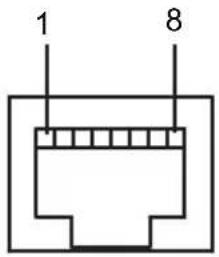 RJ-45 Female RJ-45 Female |
| 2 | N/A | |
| 3 TXD: | Transmit Data | |
| 4 | N/A | |
| 5 GND: | Signal Ground | |
| 6 RXD: | Receive Data | |
| 7 | N/A | |
| 8 | N/A | |
RS-232 Commands
This section lists the RS-232 commands and provides information on command syntax.
Verification Messages
Refer to the following table for details on verification messages that appear in the command line after entering a command.
| Verification Message | Description |
| Command OK Command | or parameter is correct. |
| Command incorrect Command | or parameter is incorrect. |
| NOT Login Command sent without RS-232 login. | |
| login OK Password correct and login successful. | |
| login FAIL Incorrect password. | |
| SETTING OK Some commands support the “save” parameter, so when you input “save” the system will check all current input commands and parameters, and a feedback message of “SETTING OK” will return if all commands and parameters are correct. Otherwise the system will return a “SETTING FAIL” message. | |
| SETTING FAIL Some commands support the “save” parameter, so when you input “save” the system will check all current input commands and parameters, and a feedback message of “SETTING FAIL” will return if a command or parameter is incorrect. | |
Log In
The Login command allows you to log in to the Multi-View KVMP™ Switch and begin sending RS-232 commands. When you log in, the RS-232 link is “opened” and the Multi-View KVMP™ Switch will not respond to front panel pushbuttons, hotkeys, OSD, or remote control signals - until the RS-232 link is closed (see Open/Close RS-232 Link, page 82). For username/password information, see Security, page 99. Type your command in the following format:
Command + Control + Number + [Enter]
| Command Description | |
| login Login Command | |
| Control Description | |
| p Input password | |
| Number Description | |
| xxxxxx Stands for the 6 digit password, x= 0~9 |
For example, to login to the system with the password 123456, type the following:
login p123456 [Enter]
Note: 1. Each command string can be separated with a space.
- To avoid RS-232 command loss, it is recommended to enter every RS-232 command with a two-second gap.
Logout
The Logout command allows you to logout of the Multi-View KVMP ^™ Switch and close the RS-232 link. Type your command in the following format:
Command + [Enter]
| Command Description | |
| logout Logout Command |
For example, to logout of the Multi-View KVMP ^TM Switch, type the following:
logout [Enter]
Note: To avoid RS-232 command loss, it is recommended to enter every RS-232 command with a two-second gap.
Open/Close RS-232 Link
The Open/Close RS-232 Link command allows you to open/close the link between the computer sending RS-232 commands and the Multi-View KVMP™ Switch. When the link is “open” the Multi-View KVMP™ Switch only accepts RS-232 commands and will not respond to front-panel pushbuttons, hotkeys, OSD, or remote control signals - until the link is closed. The link opens when you log in and closes after 2 minutes if no command is sent. Type your command in the following format:
Command + [Enter]
| Command Description | |
| open Open RS | 232 Link Command |
| close Close RS | 232 Link Command |
For example, to open the RS-232 Link between the computer and Multi-View KVMP™ Switch, type the following:
open [Enter]
For example, to close the RS-232 Link between the computer and Multi-View KVMP™ Switch, type the following:
close [Enter]
Note: To avoid RS-232 command loss, it is recommended to enter every RS-232 command with a two-second gap.
Switch Port
The switch port command allows you to switch the KVM, USB peripheral, and audio focus between computers connected to the Multi-View KVMP™ Switch's ports. Type your command in the following format:
Command + Input Command + [Enter]
| Command Description | |
| sw Switch | Port Command |
| Input Command | Description |
| px Input port number, x= 1~4 (Default: 1) Example: p2 | |
For example, to switch the KVM, USB peripheral, and audio focus to port 2, type the following:
sw p2 [Enter]
Note: 1. Each command string can be separated with a space.
-
The Port Number command string can be skipped, and the default value will be used.
-
To avoid RS-232 command loss, it is recommended to enter every RS-232 command with a two-second gap.
Switch Port (KVM Focus only)
The switch port command allows you to switch the KVM focus between computers connected to the Multi-View KVMP™ Switch's ports. Type your command in the following format:
Command + Input Command + [Enter]
| Command Description | |
| sw Switch | Port Command |
| Input Command | Description |
| kx Input port number, x= 1~4 (Default: 1) Example: k2 | |
For example, to switch the KVM focus to port 2, type the following:
sw k2 [Enter]
Note: 1. Each command string can be separated with a space.
- The Port Number command string can be skipped, and the default value will be used.
- To avoid RS-232 command loss, it is recommended to enter every RS-232 command with a two-second gap.
Switch Port (USB Peripherals Focus only)
The switch port command allows you to switch the USB peripheral focus between computers connected to the Multi-View KVMP™ Switch's ports. Type your command in the following format:
Command + Input Command + [Enter]
| Command Description | |
| sw Switch | Port Command |
| Input Command | Description |
| ux Input port number, x= 1~4 (Default: 1) Example: u2 | |
For example, to switch the USB peripheral focus to port 2, type the following: sw u2 [Enter]
Note: 1. Each command string can be separated with a space.
-
The Port Number command string can be skipped, and the default value will be used.
-
To avoid RS-232 command loss, it is recommended to enter every RS-232 command with a two-second gap.
Switch Port (Audio Focus only)
The switch port command allows you to switch the audio focus between computers connected to the Multi-View KVMP™ Switch's ports. Type your command in the following format:
Command + Input Command + [Enter]
| Command Description | |
| sw Switch | Port Command |
| Input Command | Description |
| sx Input port number, x= 1~4 (Default: 1) Example: s2 | |
For example, to switch the audio focus to port 2, type the following:
sw s2 [Enter]
Note: 1. Each command string can be separated with a space.
- The Port Number command string can be skipped, and the default value will be used.
- To avoid RS-232 command loss, it is recommended to enter every RS-232 command with a two-second gap.
Daisy-Chained Boundless Switching
The daisy-chained boundless switching command allows you to move hardware cursor across display when they are daisy-chained. Type your command in the following format:
Command + Control + [Enter]
| Command Description | |
| dlayout Daisy-Chained Boundless Switching Command | |
| Control Description | |
| row Sets a row layout for daisy-chain monitors | |
| quarter Sets a quarter layout for daisy-chained monitors | |
| tier Sets a tier layout for daisy-chained monitors |
For example, to set a row layout for the daisy-chained boundless switching, type your command in the following format:
dlayout row [Enter]
Note: 1. Each command string can be separated with a space.
-
The maximum number of station is 4.
-
For more information, see Multiview Monitor Layout Rule, page 35.
-
To avoid RS-232 command loss, it is recommended to enter every RS-232 command with a two-second gap.
PiP Mode
The PiP Mode command allows you to change the Picture in Picture display mode settings. Type your command in the following format:
Picture in Picture Dual Mode Setting:
$$ \text { Command } + \text { Control1 } + \text { Control2 } + [ \text { Enter } ] $$
Picture in Picture Triple Mode Setting:
$$ \text { Command } + \text { Control1 } + \text { Control2 } + \text { Control3 } + [ \text { Enter } ] $$
Picture in Picture Quad Mode Setting:
$$ \text { Command } + \text { Control1 } + \text { Control2 } + \text { Control3 } + \text { Control4 } + [ \text { Enter } ] $$
| Command Description | |
| pip2 Picture in | Picture Dual Mode |
| pip3 Picture in | Picture Triple Mode |
| pip4 Picture in | Picture Quad Mode |
| Control Description | |
| cxpy c: Output | channel, x= 1~4p: Input port, y= 1~4Example: c2p4 |
For example, to set Picture in Picture Dual Mode, you must configure the four channels, and type the following:
pip2 c1p1 c2p2 [Enter]
For example, to set Picture in Picture Triple Mode, you must configure the four channels, and type the following:
pip3 c1p1 c2p2 c3p3 [Enter]
For example, to set Picture in Picture Quad Mode, you must configure the four channels, and type the following:
pip4 c1p1 c2p2 c3p3 c4p4 [Enter]
Note: 1. Each command string can be separated with a space.
-
The Port Number command string can be skipped, and the default value will be used.
-
To avoid RS-232 command loss, it is recommended to enter every RS-232 command with a two-second gap.
PbP Mode
The PbP Mode command allows you to change the Picture by Picture display mode settings. Type your command in the following format:
Picture by Picture Dual Mode Setting:
$$ \text { Command } + \text { Control1 } + \text { Control2 } + [ \text { Enter } ] $$
Picture in Picture Triple Mode Setting:
$$ \text { Command } + \text { Control1 } + \text { Control2 } + \text { Control3 } + [ \text { Enter } ] $$
Picture in Picture Quad Mode Setting:
$$ \text { Command } + \text { Control1 } + \text { Control2 } + \text { Control3 } + \text { Control4 } + [ \text { Enter } ] $$
| Command Description | |
| pbp1 Picture by Picture Dual Mode | |
| pbp2 Picture by Picture Triple Mode | |
| pbp3 Picture by Picture Quad Mode | |
| Control Description | |
| cxpy c: Output channel, x= 1~4p: Input port, y= 1~4Example: c2p4 |
For example, to set Picture by Picture Dual Mode, you must configure the four channels, and type the following:
pbp1 c1p1 c2p2 [Enter]
For example, to set Picture by Picture Triple Mode, you must configure the four channels, and type the following:
pbp2 c1p1 c2p2 c3p3 [Enter]
For example, to set Picture by Picture Quad Mode, you must configure the four channels, and type the following:
pbp3 c1p1 c2p2 c3p3 c4p4 [Enter]
Note: 1. Each command string can be separated with a space.
-
The Port Number command string can be skipped, and the default value will be used.
-
To avoid RS-232 command loss, it is recommended to enter every RS-232 command with a two-second gap.
PoP Mode
The PoP Mode command allows you to change the Picture on Picture display mode settings. Type your command in the following format:
Picture on Picture Mode Setting:
Command + Control1 + Control2 + Control3 + Control4 + [Enter]
Picture on Picture default Mode Setting:
Command + Control1 + [Enter]
| Command Description | |
| pop Picture on | Picture Mode |
| Control Description | |
| cxpy c: Output | channel, x= 1~4p: Input port, y= 1~4Example: c2p4 |
| default Resets Picture on Picture Mode back to the default settingExample: c1p1~c4p4 | |
For example, to set Picture on Picture Mode, you must configure the four channels, and type the following:
pop c1p1 c2p2 c3p3 c4p4 [Enter]
For example, to set Picture on Picture Mode to the default settings, type the following:
pop default [Enter]
Note: 1. Each command string can be separated with a space.
-
The Port Number command string can be skipped, and the default value will be used.
-
To avoid RS-232 command loss, it is recommended to enter every RS-232 command with a two-second gap.
Quad View Mode
The Quad View Mode command allows you to change the Quad View display mode settings. Type your command in the following format:
$$ \text { Command } + \text { Control1 } + \text { Control2 } + \text { Control3 } + \text { Control4 } + [ \text { Enter } ] $$
$$ \text { Command } + \text { Control } + [ \text { Enter } ] $$
| Command Description | |
| quad Quad View Mode Command | |
| Control Description | |
| cxpy c: Output channel, x= 1~4p: Input port, y= 1~4Example: c2p4 | |
| default Resets Quad View Mode back to the default setting Example:c1p1~c4p4 |
For example, to set Quad View Mode you must configure the four channels, as follows:
quad c1p1 c2p2 c3p3 c4p4 [Enter]
For example, to set Quad View Mode to the default settings, type the following:
quad default [Enter]
Note: 1. Each command string can be separated with a space. 2. To avoid RS-232 command loss, it is recommended to enter every RS-232 command with a two-second gap.
Change Display Mode
The Change Display Mode command allows you to change the Display mode being used. Type your command in the following format:
Command + Control + [Enter]
| Command Description | |
| display Change | Display Mode Command |
| Control Description | |
| full Enable console port to full screen display | |
| quad Enable Quad display mode, console port focus remains the same | |
| pip2 Enable PiP Dual display, console port focus remains the same on channel 1, and channel 2 displays the video of the port next to the console port being displayed | |
| pip3 Enable PiP Triple display, console port focus remains the same on channel 1, with channel 2 and channel 3 displaying the video of the ports next to the console port being displayed | |
| pip4 Enable PiP Quad display, console port focus remains the same on channel 1, with channel 2, channel 3, and channel 4 displaying the video of the ports next to the console port being displayed | |
| pop Enable PoP display, console port focus remains the same. | |
| pbp1 | Enable the dual picture-by-picture display, console port focus remains the same. |
| pbp2 Enable the triple picture-by-picture display, console port focus remains the same. | |
| pbp3 Enable the quad picture-by-picture display, console port focus remains the same. | |
For example, to set the Quad display mode, type the following:
display quad [Enter]
Note: 1. Each command string can be separated with a space.
- To avoid RS-232 command loss, it is recommended to enter every RS-232 command with a two-second gap.
Port Disable
The Port Disable command allows you to disable a ports display from being shown. Type your command in the following format:
Command + Control + Control + [Enter]
| Command Description | |
| chn Port Disable Command | |
| Control Description | |
| px Disable video out of port number, x= 1~4Example: p3 | |
| on Disable channel display | |
| off Enable channel display |
For example, to set disable the video output of port 4, type the following: chn p4 on [Enter]
For example, to set enable the video output of port 1, type the following: chn p1 off [Enter]
Note: 1. Each command string can be separated with a space. 2. To avoid RS-232 command loss, it is recommended to enter every RS-232 command with a two-second gap.
OSD Language
The OSD Language command allows you to change the OSD language setting. Type your command in the following format:
Command + Control + [Enter]
| Command Description | |
| lang OSD Language Command | |
| Control Description | |
| us Change OSD language to English. | |
| ger Change OSD language to German. | |
| fr Change OSD language to French. | |
| jp Change OSD language to Japanese. | |
| tc Change OSD language to Traditional Chinese. | |
| sc Change OSD language to Simplified Chinese. | |
| ru Change OSD language to Russian. | |
| ita Change OSD language to Italian. | |
| ko Change OSD language to Korean. |
For example, to change the OSD Language to Traditional Chinese, type the following:
lang tc [Enter]
Note: 1. Each command string can be separated with a space.
- To avoid RS-232 command loss, it is recommended to enter every RS-232 command with a two-second gap.
Keyboard Language Layout
The Keyboard Language Layout command allows you to change the keyboard language layout. Type your command in the following format:
Command + Control + [Enter]
| Command Description | |
| layout Keyboard | Language Layout Command |
| Control Description | |
| en Change the keyboard language layout to English. | |
| ger Change the keyboard language layout to German. | |
| fr Change the keyboard language layout to French. | |
| jp Change the keyboard language layout to Japanese. | |
For example, to change the keyboard language layout to Japanese, type the following:
layout jp [Enter]
Note: 1. Each command string can be separated with a space.
- To avoid RS-232 command loss, it is recommended to enter every RS-232 command with a two-second gap.
Set Operating System
The Set Operating System command allows you to set the operating system for a port. Type your command in the following format:
Command + Control + Control1 + [Enter]
| Command Description | |
| os Set Operating System Command | |
| Control Description | |
| px p: Port number, x= 1~4Example: p2 | |
| Control1 Description | |
| auto Change operating system to Windows | |
| mac Change operating system to Mac | |
| sun Change operating system to Sun | |
| spc Change operating system to SPC (Linux) |
For example, to change port 3's operating system to Mac, type the following: os p3 mac [Enter]
For example, to change port 2's operating system to Auto Detect, type the following:
os p2 auto [Enter]
Note: 1. Each command string can be separated with a space.
- To avoid RS-232 command loss, it is recommended to enter every RS-232 command with a two-second gap.
Auto Scan
The Auto Scan command allows you to set and enable Auto scan mode. Type your command in the following format:
Command + Control + [Enter]
| Command Description | |
| scan Auto Scan Command | |
| Control Description | |
| all Auto scan all ports | |
| pon Auto scan all ports with computers powered on | |
| txx Sets the KVM focus duration when scanning, xx=05, 10, 15,60, 90 secondsExample: t60 |
For example, to auto scan all ports, type the following:
scan all [Enter]
For example, to set the scan's focus on each port for a duration of 15 seconds before continuing on, type the following:
scan t15 [Enter]
Note: 1. Each command string can be separated with a space.
- To avoid RS-232 command loss, it is recommended to enter every RS-232 command with a two-second gap.
Port ID Display
The Port ID Display command allows you to configure the port ID for each port. Type your command in the following format:
Command + Control + [Enter]
| Command Description | |
| portid Port ID Display Command | |
| Control Description | |
| pxyy Change the port ID number. x= 1~4 (Current Port ID) yy = A ~ Z, a ~ z, 0 ~ 9, dash, underscore, maximum 20 characters (New Port ID) | |
| default Reset all port IDs to the factory default. |
For example, to set all port ID's to the factory default, type the following:
portid default [Enter]
For example, to change port 4's ID number to Computer_A, type the following:
portid pComputer_A [Enter]
Note: 1. Each command string can be separated with a space.
- To avoid RS-232 command loss, it is recommended to enter every RS-232 command with a two-second gap.
Security
The Security command allows you to secure access to the OSD Menu with password. Type your command in the following format:
Command + Control + [Enter]
| Command Description | |
| security Security | Command |
| Control Description | |
| off Disable password protection to the OSD Menu. | |
| on Enable password protection to the OSD Menu. | |
For example, to enable password protection of the OSD Menu, type the following:
security on [Enter]
Note: 1. Each command string can be separated with a space.
- To avoid RS-232 command loss, it is recommended to enter every RS-232 command with a two-second gap.
Station
The Station command allows you to switch the console focus to the next station in a daisy chain setup. Type your command in the following format:
Command + Control + Number + [Enter]
| Command Description | |
| station Station Command | |
| Control Description | |
| id Station ID | |
| Number Description | |
| x Station number of switch in daisy chain, x= 1~4 | |
For example, to switch the console to station 2 of a daisy chain, type the following:
station id2 [Enter]
Note: 1. Each command string can be separated with a space.
- To avoid RS-232 command loss, it is recommended to enter every RS-232 command with a two-second gap.
DCC Control
The DCC Control command allows you to set the deployment type (daisy chain or cascade) of your Multi-View KVMP™ Switch system and if commands are applied to all cascaded secondary Multi-View KVMP™ Switches. Type your command in the following format:
Command + Control + [Enter]
| Command + Control Description | |
| clone on Enable | the clone mode with which commands are automatically applied to all daisy-chained secondary Multi-View KVMPTM Switches. For example, the command swp1 will switch the KVM focus of each daisy-chained, secondary Multi-View KVMPTM Switch to its computer connected to port 1. |
| clone off Disable | the clone mode. |
| dcc on Sets the | Multi-View KVMPTM Switch to the daisy chain mode. |
| dcc off Sets the | Multi-View KVMPTM Switch to the cascade mode. |
For example, to enable DCC control, type the following:
dcc on [Enter]
Note: 1. Each command string can be separated with a space.
- To avoid RS-232 command loss, it is recommended to enter every RS-232 command with a two-second gap.
Mouse Emulation
The Mouse Emulation command allows you to set mouse emulation and mouse switching features. Type your command in the following format:
Command + Control + [Enter]
Command + Control2 + [Enter]
| Command Description | |
| msemu Mouse Emulation Command | |
| Control Description | |
| off Disable mouse emulation function | |
| on Enable mouse emulation function | |
| Control2 Description | |
| wheeloff Disable | mouse switching function |
| wheelon Enable | mouse switching function |
For example, to disable mouse emulation, type the following: msemu off [Enter]
For example, to enable mouse switching, type the following: msemu wheelon [Enter]
Note: 1. Each command string can be separated with a space.
- To avoid RS-232 command loss, it is recommended to enter every RS-232 command with a two-second gap.
Keyboard Emulation
The Keyboard Emulation command allows you to enable/disable the keyboard emulation feature. Type your command in the following format:
Command + Control + [Enter]
| Command Description | |
| kbemu Keyboard | Emulation Command |
| Control Description | |
| off Disable keyboard emulation function | |
| on Enable keyboard emulation function | |
For example, to disable keyboard emulation, type the following:
kbemu off [Enter]
For example, to enable keyboard emulation, type the following:
kbemu on [Enter]
Note: 1. Each command string can be separated with a space.
- To avoid RS-232 command loss, it is recommended to enter every RS-232 command with a two-second gap.
Video DynaSync
The Video DynaSync command allows you to set the EDID settings. Type your command in the following format:
Command + Control + [Enter]
| Command Description | |
| vds Video DynaSync Command | |
| Control Description | |
| fhd Set the EDID to FHD among all the connected displays.◆ The resolution is 1920 x 1080 @60Hz | |
| port 1 Set the EDID to the EDID of the monitor connected to port 1 of the Multi-View KVMPTM Switch. | |
| port 2 Set the EDID to the EDID of the monitor connected to port 2 of the CM1284. | |
| remix Set the EDID to an optimum among all the connected displays. | |
| 4kuhd Sets the EDID to 4K UHD among all the connected displays.◆ The resolution is 3840 x 2160 @30Hz | |
| 4kdci Sets the EDID to 4K DCI among all the connected displays.◆ The resolution is 4096 x 2160 @30Hz |
For example, to set the FHD EDID setting, type the following:
vds fhd [Enter]
Note: 1. Each command string can be separated with a space.
- To avoid RS-232 command loss, it is recommended to enter every RS-232 command with a two-second gap.
Hardware Cursor
The Hardware Cursor command allows you to enable/disable the hardware cursor feature. Type your command in the following format:
Command + Control + [Enter]
| Command Description | |
| hc Hardware Cursor Command | |
| Control Description | |
| off Disable the hardware cursor | |
| on Enable the hardware cursor |
For example, to enable the hardware cursor, type the following:
hc on [Enter]
Note: 1. Each command string can be separated with a space.
- To avoid RS-232 command loss, it is recommended to enter every RS-232 command with a two-second gap.
Activate Beeper
The Activate Beeper command allows you to enable/disable the beeper function. Type your command in the following format:
Command + Control + [Enter]
| Command Description | |
| beeper Activate | Beeper Command |
| Control Description | |
| off Disable beeper | |
| on Enable beeper | |
For example, to enable the beeper, type the following:
beeper on [Enter]
Note: 1. Each command string can be separated with a space.
- To avoid RS-232 command loss, it is recommended to enter every RS-232 command with a two-second gap.
Hotkey Setting
The Hotkey Setting command allows you to enable/disable and change the hotkey used to invoke the HSM (Hotkey Setting Mode). Type your command in the following format:
Command + Control + [Enter]
| Command Description | |
| hotkey Hotkey Setting Command | |
| Control Description | |
| num Change the HSM invoke key to: [Num Lock] + [-] | |
| f12 Change the HSM invoke key to: [Ctrl] + [F12] | |
| off Disable hotkey function | |
| on Enable hotkey function |
For example, to enable the hotkey function, type the following:
hotkey on [Enter]
For example, to change the HSM invoke key to [Ctrl] + [F12], type the following:
hotkey f12 [Enter]
Note: 1. Each command string can be separated with a space.
- To avoid RS-232 command loss, it is recommended to enter every RS-232 command with a two-second gap.
OSD Hotkey
The OSD hotkey command allows you to change the hotkey used to invoke the OSD. Type your command in the following format:
Command + Control + [Enter]
| Command Description | |
| osdkey OSD hotkey command | |
| Control Description | |
| scroll Change OSD invoke key to: [Scroll] [Scroll] | |
| ctrl Change OSD invoke key to: [Ctrl] [Ctrl] |
For example, to change the OSD invoke key to [Scroll] + [Scroll], type the following:
osdkey scroll [Enter]
For example, to change the OSD invoke key to [Ctrl] + [Ctrl] , type the following:
osdkey ctrl [Enter]
Note: 1. Each command string can be separated with a space.
- To avoid RS-232 command loss, it is recommended to enter every RS-232 command with a two-second gap.
Power on Detection
The Power on Detection command allows you to enable/disable the power on detection feature. Type your command in the following format:
Command + Control + [Enter]
| Command Description | |
| pod Power on | Detection Command |
| Control Description | |
| on Enable power on detection function | |
| off Disable power on detection function | |
For example, to enable power on detection, type the following:
pod on [Enter]
Note: 1. Each command string can be separated with a space.
- To avoid RS-232 command loss, it is recommended to enter every RS-232 command with a two-second gap.
Fn Key
The Fn Key command allows you to save and select Fn keys for a focused ports display settings. Type your command in the following format:
Command + Control + [Enter]
| Command Description | |
| fn Fn Key Command | |
| Control Description | |
| savex Save display setting for current port focus, x= 1~4Example: save3 | |
| default Restore all Fn key settings to the default | |
| selectx Enable display setting for current port focus, x= 1~4Example: select2 |
For example, to save the display setting and current port focus as Fn1, type the following:
fn save1 [Enter]
For example, to set all Fn keys back to the default, type the following:
fn default [Enter]
Note: 1. Each command string can be separated with a space.
- To avoid RS-232 command loss, it is recommended to enter every RS-232 command with a two-second gap.
USB Reset
The USB Reset command allows you to reset the USB connection. Type your command in the following format:
Command + Control + [Enter]
| Command Description | |
| usbreset USB Reset Command | |
| Control Description | |
| on Enable USB reset connection |
For example, to reset the USB connection, type the following:
usbreset on [Enter]
Note: 1. Each command string can be separated with a space.
- To avoid RS-232 command loss, it is recommended to enter every RS-232 command with a two-second gap.
The Restore Default Value command allows you to reset all of the Multi-View KVMP™ Switch's settings back to the default. Type your command in the following format:
Command + Control + [Enter]
| Command Description | |
| redefault Restore | Default Value Command |
| Control Description | |
| on Enable restore default values | |
For example, to restore all Multi-View KVMP™ Switch settings back to the default, type the following:
redefault on [Enter]
Note: 1. Each command string can be separated with a space.
- To avoid RS-232 command loss, it is recommended to enter every RS-232 command with a two-second gap.
Firmware Upgrade
The Firmware Upgrade command allows you to enable the firmware upgrade mode. Type your command in the following format:
Command + Control + [Enter]
| Command Description | |
| upgrade Firmware Upgrade Command | |
| Control Description | |
| on Enable firmware upgrade mode |
For example, to enable firmware upgrade mode, type the following:
upgrade on [Enter]
Note: 1. Each command string can be separated with a space.
- To avoid RS-232 command loss, it is recommended to enter every RS-232 command with a two-second gap.
For a detailed procedure on firmware upgrades, see Firmware Upgrades, page 121.
KVM Status
The KVM Status command allows you to display read-only information about the Multi-View KVMP™ Switch's current configuration status. Type your command in the following format:
Command + [Enter]
| Command Description | |
| status KVM Status Command |
For example, to display the Multi-View KVMP™ Switch's configuration status, type the following:
status [Enter]
Note: To avoid RS-232 command loss, it is recommended to enter every RS-232 command with a two-second gap.
Hotkey List
The Hotkey List command allows you to display a list of the KVM's hotkeys. Type your command in the following format:
Command + [Enter]
| Command Description | |
| list Hotkey List | Command |
For example, to display the KVM's hotkey list, type the following:
list [Enter]
Note: To avoid RS-232 command loss, it is recommended to enter every RS-232 command with a two-second gap.
Info
The Info command allows you to display the Multi-View KVMP™ Switch's current firmware version and copyright information. Type your command in the following format:
Command + [Enter]
| Command Description |
| info Info Command |
For example, to display the Multi-View KVMP™ Switch's device information, type the following:
info [Enter]
Note: To avoid RS-232 command loss, it is recommended to enter every RS-232 command with a two-second gap.
Display B
The Display B command allows you to set different modes for display B. Type your command in the following format:
Command + Control + [Enter]
| Command Description | |
| dispb Display B | Mode Command |
| Control Description | |
| followa Sets the | display B to follow with display A. |
| fixp1 Sets the | display B to be fixed with Port 1. |
| fixp2 Sets the | display B to be fixed with Port 2. |
| fixp3 Sets the | display B to be fixed with Port 3. |
| fixp4 Sets the | display B to be fixed with Port 4. |
For example, to set the display B to follow with display A, type the following: dispb followa [Enter]
Note: 1. Each command string can be separated with a space.
2. To avoid RS-232 command loss, it is recommended to enter every RS-232 command with a two-second gap.
Extended Desktops
The Extended Desktops command allows you to enable/disable and make configuration to the extended desktops function. Type your command in the following format:
$$ \text { Command } + \text { Control } + [ \text { Enter } ] $$
Enabling / disabling the Extended Desktops
| Command Description | |
| ext Extended Desktops Command | |
| Control Description | |
| on Enables the extended desktops function to the Multi-View KVMPTM Switch. | |
| off Disables the extended desktops function to the Multi-View KVMPTM Switch. |
For example, to enable the extended desktops function, type the following: ext on [Enter]
Configuring Layout for the Extended Desktops
| Command Description | |
| extlyt Extended | Desktops Layout Command |
| Control Description | |
| pxyz Sets the extended desktops layout. | x= 1~4 (Current Port ID) |
| yz = am (GroupA: Main), ae (GroupA: Ext.), bm (GroupB: Main), and be (GroupB: Ext.) | |
| pxng Sets the extended desktops layout. | x= 1~4 (Current Port ID) |
| ng = no group | |
For example, to configure the extended desktops layout to GroupA with port 1 and port 2, GroupB with port 3 and port 4, type the following:
extlyt p1am p2ae p3bm p4be [Enter]
For example, to configure the extended desktops layout to GroupA with port 1 and port 2, and no group with port 3 and port 4, type the following:
extlyt p1am p2ae p3ng p4ng [Enter]
Note: 1. Each command string can be separated with a space.
- To avoid RS-232 command loss, it is recommended to enter every RS-232 command with a two-second gap.
Display Aspect Ratio
The Display Aspect Ratio command allows you to set display aspect ratio for Quad, PbP (Dual), PbP (Triple), and PbP (Quad) display modes. Type your command in the following format:
Command + Control + [Enter]
| Command Description | |
| ratio Display Aspect Ratio Command | |
| Control Description | |
| full Scales the display modes to full screen. | |
| 16:9 Sets the display aspect ratio to 16:9. | |
| 4:3 Sets the display aspect ration to 4:3. |
For example, to set the display aspect ratio to full screen, type the following: ratio full [Enter]
Note: 1. Each command string can be separated with a space.
- To avoid RS-232 command loss, it is recommended to enter every RS-232 command with a two-second gap.
This Page Intentionally Left Blank
Firmware Upgrades
New firmware packages are posted on our Website as new firmware revisions become available. Check the web site regularly to find the latest packages and information.
To upgrade your Multi-View KVMP ^TM Switch, follow the steps below.
- Connect a PC's USB port to the Multi-View KVMP™ Switch's USB KVM port 1 using the supplied KVM cable.
- Download the firmware upgrade package.
a) From the computer you just connected to the Multi-View KVMP™ Switch, go to the product web page.
b) Click Support and Downloads and download the firmware upgrade package of your choice.
-
Use one of the following methods to enable the Firmware Upgrade Mode.
-
From the OSD Menu, set the Firmware Upgrade Mode to Yes.
Use the hotkeys: invoke the HSM, press [u][p][g][r][a][d][e], and then press [Enter].
All the LEDs flash orange to indicate that the Firmware Upgrade Mode is in effect.
Note: The console mouse and hotkey functionality are suspended while the upgrade is in progress.
- Double-click the executable in the downloaded package. This screen appears.

text_image
Firmware Management Utility Welcome to the Firmware Management Wizard Management Options ● Firmware Upgrade Utility ○ OSD Configuration Backup/Restore It is recommended that you close all other applications before continuing. Select a type of management required. Then Click Next, or Cancel to exit Next > Cancel- Select the Firmware Upgrade Utility and click Next. This window appears.

text_image
Firmware Upgrade Utility Welcome to the Firmware Upgrade Utility. Put your device into Firmware Upgrade Mode. Use the Firmware Upgrade Cable to connect its Firmware Upgrade Port to your computer (or connect via Ethernet). Agree to the License Agreement; Then Click Next. LICENSE AGREEMENT LICENSE GRANT ATEN International Co., Ltd. ("Licensor") grants to you a non-exclusive, non-transferable license to access and use FIRMWARE UPGRADE UTILITY (the "Product") during the "Term" set forth below. You may install the Product on a hard disk or other storage device; install and use the Product on a file server for use on a network for the purposes of (i) permanent installation onto hard disks or other storage devices or (ii) use of the Product over such network; and make backup copies of the Product. RESTRICTIONS You agree not to modify, adapt, translate, reverse engineer, recompile, disassemble or otherwise attempt to discover the source code of the Product, or create derivative works based on the Product, or remove any proprietary notices or labels on the Product, including copyright, trademark or patent pending notices. You may not sublicense the Product or otherwise allow others to use the Product licensed to you. ● I Agree ○ I Don't Agree Help About < Back Next > Cancel- Read the License Agreement, select I Agree, and then click Next. The Firmware Upgrade Utility main screen appears and lists the devices that can be upgraded.

text_image
Firmware Upgrade Utility If Check Firmware Version is checked, the utility compares the device's firmware level with the upgrade files. If the device's version is newer, the utility lets you decide whether to continue or not. If it is not checked, the utility performs the upgrade directly. Click Next to begin. Device Lists CM1.64A Status Messages: Device Description Device F/W: Var 1.0.088 Check Firmware Version Progress... Help View Log < Back Next > Cancel- Select a device from the Device List and click Next to start the upgrade. The upgrade status is indicated in the Status Messages column.

text_image
Firmware Upgrade Utility If Check Firmware Version is checked, the utility compares the device's firmware level with the upgrade files. If the device's version is newer, the utility lets you decide whether to continue or not. If it is not checked, the utility performs the upgrade directly. Click Next to begin. Device List: CM1164A Device Description Device F/W: Ver 1.0.088 Status Messages: > Loading & testing files ... > 6014558 bytes wrote. > Upgrading device CM1164A ... ✓ Check Firmware Version Progress... Help View Log < Back Next > CancelNote: Select Check Firmware Version for the Utility to prompt you with a confirmation message before executing the upgrade if the upgrade package is of an older version compared to the firmware on your target KVM Switch.
- When the upgrade is complete, the KVM Switch reboots itself.

text_image
Firmware Upgrade Utility If Check Firmware Version is checked, the utility compares the device's firmware level with the upgrade files. If the device's version is newer, the utility lets you decide whether to continue or not. If it is not checked, the utility performs the upgrade directly. Click Next to begin. Device List: Status Messages: > Loading & testing files ... > 6014658 bytes wrote. > Upgrading device CM1164A ... > Erasing flash. count=0, type=0x2, device='dev'ntd4'. > Writing flash. count=0, type=0x2, device='dev'ntd4'. > Erasing flash. count=1, type=0x4, device='dev'ntd6'. > Writing flash. count=1, type=0x4, device='dev'ntd6'. + Upgrading device CM1164A: OK + Reboot device. Device Description Device F/W: Ver 1.0.088 ✓ Check Firmware Version Progress... Help View Log < Back Next > FinishBackup / Restore
To backup or restore the Multi-View KVMP™ Switch's OSD configuration, do the following:
-
Connect a PC's USB port to the Multi-View KVMP™ Switch's USB KVM port 1 using the supplied KVM cable.
-
Download the firmware upgrade package.
a) From the computer you just connected to the Multi-View KVMP™ Switch, go to the product web page.
b) Click Support and Downloads and download the firmware upgrade package of your choice.
-
Use one of the following methods to enable the Firmware Upgrade Mode.
-
From the OSD Menu, set the Firmware Upgrade Mode to Yes.
Use the hotkeys: invoke the HSM, press [u][p][g][r][a][d][e], and then press [Enter].
All the LEDs flash orange to indicate that the Firmware Upgrade Mode is in effect.
Note: The console mouse and hotkey functionality are suspended while the upgrade is in progress.
- Double-click the executable in the downloaded package. This screen appears.

text_image
Firmware Management Utility Welcome to the Firmware Management Wizard Management Options ● Firmware Upgrade Utility ○ OSD Configuration Backup/Restore It is recommended that you close all other applications before continuing. Select a type of management required. Then Click Next, or Cancel to exit Next > Cancel- Select OSD Configuration Backup/Restore and click Next. This screen appears.

text_image
OSD Configuration Backup/Restore Communication Device Connection Setting: Connect Discount Backup Password: Backup Restore File Path: Browse... Password: Restore Status Messages: Exit- Click Connect to establish communication with the KVM Switch. This message appears in the Status Messages.

text_image
Status Messages: > Device FW Ver 1.1.104 is attached to the serial port.- To back up the OSD configuration, follow the steps below.
a) (Optional) Set up a password that will be required when applying this configuration file to the KVM Switch.
b) Click Backup and follow the on-screen instruction to save the configuration file. When the backup is complete, the message "Completed." appears in the Status Messages column.
- To restore OSD configuration, follow the steps below.
a) Click Browse to select a previously backed up configuration file.
b) Type the password for the backed up file and click Restore.
c) Follow the on-screen instruction to finish the procedure. When the settings are restored, the message “Restore OSD configuration: OK” appears in the Status Messages column.
d) The KVM Switch restarts itself when the settings are restored.
Powering Off and Restarting
If it becomes necessary to power off the unit, before starting it back up you must do the following:
- Shut down all the computers that are attached to the switch.
- Unplug the switch's power adapter cable.
- Wait 10 seconds, then plug the switch's power adapter cable back in.
- After the switch is up, Power On the computers.
Restoring to Default Settings
To reset your complete KVM installation to the default settings, configure the Reset to Default setting to Yes in the OSD Menu.
General
- This product is for indoor use only.
- Read all of these instructions. Save them for future reference.
- Follow all warnings and instructions marked on the device.
- Do not place the device on any unstable surface (cart, stand, table, etc.). If the device falls, serious damage will result.
♦ Do not use the device near water. - Do not place the device near, or over, radiators or heat registers.
- The device cabinet is provided with slots and openings to allow for adequate ventilation. To ensure reliable operation, and to protect against overheating, these openings must never be blocked or covered.
- The device should never be placed on a soft surface (bed, sofa, rug, etc.) as this will block its ventilation openings. Likewise, the device should not be placed in a built-in enclosure unless adequate ventilation has been provided.
♦ Never spill liquid of any kind on the device. - Unplug the device from the wall outlet before cleaning. Do not use liquid or aerosol cleaners. Use a damp cloth for cleaning.
- Avoid circuit overloads. Before connecting equipment to a circuit, know the power supply’s limit and never exceed it. Always review the electrical specifications of a circuit to ensure that you are not creating a dangerous condition or that one doesn’t already exist. Circuit overloads can cause a fire and destroy equipment.
- The device should be operated from the type of power source indicated on the marking label. If you are not sure of the type of power available, consult your dealer or local power company.
- The device is designed for IT power distribution systems with 230V phase-to-phase voltage.
- To prevent damage to your installation, it is important that all devices are properly grounded.
- The device is equipped with a 3-wire grounding type plug. This is a safety feature. If you are unable to insert the plug into the outlet, contact your
electrician to replace your obsolete outlet. Do not attempt to defeat the purpose of the grounding-type plug. Always follow your local/national wiring codes.
- Do not allow anything to rest on the power cord or cables. Route the power cord and cables so that they cannot be stepped on or tripped over.
- If an extension cord is used with this device make sure that the total of the ampere ratings of all products used on this cord does not exceed the extension cord ampere rating. Make sure that the total of all products plugged into the wall outlet does not exceed 15 amperes.
- To help protect your system from sudden, transient increases and decreases in electrical power, use a surge suppressor, line conditioner, or un-interruptible power supply (UPS).
- Position system cables and power cables carefully; Be sure that nothing rests on any cables.
- Never push objects of any kind into or through cabinet slots. They may touch dangerous voltage points or short out parts resulting in a risk of fire or electrical shock.
- Do not attempt to service the device yourself. Refer all servicing to qualified service personnel.
- If the following conditions occur, unplug the device from the wall outlet and bring it to qualified service personnel for repair.
- The power cord or plug has become damaged or frayed.
- Liquid has been spilled into the device.
- The device has been exposed to rain or water.
- The device has been dropped, or the cabinet has been damaged.
- The device exhibits a distinct change in performance, indicating a need for service.
- The device does not operate normally when the operating instructions are followed.
- Only adjust those controls that are covered in the operating instructions. Improper adjustment of other controls may result in damage that will require extensive work by a qualified technician to repair.
Rack Mounting
Before working on the rack, make sure that the stabilizers are secured to the rack, extended to the floor, and that the full weight of the rack rests on the floor. Install front and side stabilizers on a single rack or front stabilizers for joined multiple racks before working on the rack.
- Always load the rack from the bottom up, and load the heaviest item in the rack first.
- Make sure that the rack is level and stable before extending a device from the rack.
- Use caution when pressing the device rail release latches and sliding a device into or out of a rack; the slide rails can pinch your fingers.
- After a device is inserted into the rack, carefully extend the rail into a locking position, and then slide the device into the rack.
- Do not overload the AC supply branch circuit that provides power to the rack. The total rack load should not exceed 80 percent of the branch circuit rating.
- Make sure that all equipment used on the rack – including power strips and other electrical connectors – is properly grounded.
◆ Ensure that proper airflow is provided to devices in the rack.
- Ensure that the operating ambient temperature of the rack environment does not exceed the maximum ambient temperature specified for the equipment by the manufacturer
- Do not step on or stand on any device when servicing other devices in a rack.
Technical Support
International
- For online technical support – including troubleshooting, documentation, and software updates: http://eservice.aten.com
- For telephone support, Telephone Support, page iv.
North America
| Email Support support@aten-usa.com | ||
| Online Technical Support | Troubleshooting Documentation Software Updates | http://www.aten-usa.com/support |
| Telephone Support 1-888-999-ATEN | ext 4988 | |
When you contact us, please have the following information ready beforehand:
◆ Product model number, serial number, and date of purchase.
- Your computer configuration, including operating system, revision level, expansion cards, and software.
◆ Any error messages displayed at the time the error occurred.
◆ The sequence of operations that led up to the error.
◆ Any other information you feel may be of help.
Specifications
| Function CM1164A CM1284 | ||||
| Computer Connections 4 | ||||
| Port Selection Front-p-panel Pushbuttons, Hotkeys,, IR Remote Control,, On-screen Display (OSD), Mouse Wheel, Mouse Cursor, RS-232 Commands | ||||
| Connectors Console Ports | Keyboardboard | 1 x USB Type A Female (Black, rear panel) | 1 x USB Type A Female (Black, rear panel) | |
| Video 1 x Single Link DVI-D Female (White) | 2 x HDMI Female (Black) | |||
| Mouse 1 x USB Type A Female (Black, rear panel) | 1 x USB Type A Female (Black, rear panel) | |||
| Speaker 2 x 3.5mm Audio Jack Female (Green; 1 x front panel, 1 x rear panel) | ||||
| Mic. 2 x 3.5mm Audio Jack Female (Pink; 1 x front, 1 x rear) | ||||
| DC Control | 2 x RJ-45 | |||
| KVM Ports | KB/Mouse 4 x USB Type B Female (White) | |||
| Video 4 x Single Link DVI-D Female (White) | 4 x HDMI Female (Black) | |||
| Speaker 4 x Mini Stereo Jack Female (Green) | ||||
| Mic. 4 x Mini Stereo Jack Female (Pink) | ||||
| Power | 1 x IEC60320 Jack | 1 x IEC60320 Jack | ||
| USB Hub | 2 x USB 2.0 Type A Female (1 x front panel, 1 x rear panel) | |||
| Emulation | Keyboard / Mouse | USB | ||
| Switches | Selected | 11 pushbuttons | ||
| Video | 1920 x 1200 @ 60Hz (DVI-D) | 4096 x 2160 @ 30Hz (HDMI) | ||
| LEDs | KVM | 4 (Orange) | ||
| Audio | 4 (Green) | |||
| USB | 4 (Green) | |||
| Scan Interval | 5, 10, 15, 30, 60, 90 secs (Default: 5 secs) | |||
| Maximum Input Power Rating | 100 - 200Vac, 50 - 60Hz, 1.0A | 100 - 240Vac, 50 - 60Hz, 1.0A | ||
| Power Consumption | AC110V/9.7W:71BTU AC220V/9.5W:70BTU | AC110V:16.0W:101BTU AC220V:14.8W:95BTU | ||
| Environment | Operating Temp. | 0-40°C | 0-40°C | |
| Storage Temp. | -10-60°C | -10-60°C | ||
| Humidity | 0-80% RH, Non-condensing | 0-80% RH, Non-condensing | ||
| Function CM1164A CM1284 | ||
| Physical Properties | Housing Metal | |
| Weight 2.46 kg (5.42 lb) | ||
| Dimensions (L x W x H) | 43.72 x 16.40 x 4.40 cm (17.21 x 6.46 x 7.73 in.) | |
Troubleshooting
Operation problems can be due to a variety of causes. The first step in resolving them is to make sure that all cables are securely attached and seated completely in their sockets. In addition, updating the product's firmware may solve problems that have been discovered and resolved since the prior version was released. If your product is not running the latest firmware version, we strongly recommend that you upgrade. For details, see Firmware Upgrades, page 121.
| Symptom Possible Cause Action | ||
| Mouse and/or Keyboard not responding. | Improper mouse and/or keyboard reset. | Unplug the cable(s) from the console port(s), then plug it/them back in. |
| KVM switch needs to be reset. | Power off all devices on the installation (see safety note, page 13); power off the KVM switch; wait five seconds; then power up | |
| USB devices not responding. | USB ports need to reset. | Unplug the device's USB cable from the USB port on the switch's rear panel, then plug it back in. |
| PC or OS does not support USB 2.0. | The Multi-View KVMPTM Switch has a built-in USB 2.0 hub, so does not support PCs or OS that do not support USB 2.0. | |
| Device not recognized (Windows). | Windows timing problem. | Unplug the KVM cable from the computer's USB port; go into Windows' System Settings and remove the Unknown Device entry; plug the KVM cable back in. Windows now recognizes the device. |
| Cannot switch ports by pressing [Scroll Lock] twice | Keyboard is incompatible with Scroll Lock invocation. | Press Ctrl key instead. |
| Monitor does not display after a KVM cable is hot plugged. | Some DVI graphics cards are incompatible with the KVM cable hot plugging. | Power off all devices on the installation (see safety note, page 13); power off the Multi-View KVMPTM Switch; confirm all KVM cables are properly connected; power on the Multi-View KVMPTM Switch; power on the computers |
| When switching ports, the monitor does not display. | Monitor is new or this is a first time installation. | Switch ports again and wait two or more seconds for the PC's EDID to pass to the monitor. |
| The GUI connection window stalls / does not connect | The Multi-View KVMPTM Switch needs to be reset. | Perform a KVM reset or reinstall the latest Multi-View KVMPTM Switch software on all your computers. |
Fn Key Reference
Use the information below as a quick reference to invoke the Fn keys.
Choose a preset configuration (Fn keys)
| Preset configuration | Fn1 | Fn2 | Fn3 | Fn4 |
| KVM Front Panel |  |  |  |  |
| IR Remote |  |  |  |  |
| Quick Access Toolbar (mouse) |  |  |  |  |
| Keyboard Hotkey |   |   |   |  [A2] [A2] |
Mac Keyboard Emulation
The PC compatible (101/104 key) keyboard can emulate the functions of the Mac keyboard. The emulation mappings are listed in the table below.
| PC Keyboard Mac Keyboard | |
| [Shift] Shift | |
| [Ctrl] Ctrl | |
 | [508X] |
| [Ctrl] [1] |  |
| [Ctrl] [2] |  |
| [Ctrl] [3] |  |
| [Ctrl] [4] |  |
| [Alt] Alt | |
| [Print Screen] F13 | |
| [Scroll Lock] F14 | |
| [cxkw] | = |
| [Enter] Return | |
| [Backspace] Delete | |
| [Insert] Help | |
[Ctrl]  | F15 |
Note: When using key combinations, press and release the first key (Ctrl), then press and release the activation key.
Sun Keyboard Emulation
The PC compatible (101/104 key) keyboard can emulate the functions of the Sun keyboard when the Control key [Ctrl] is used in conjunction with other keys. The corresponding functions are shown in the table below.
| PC Keyboard Sun Keyboard | |
| [Ctrl] [T] Stop | |
| [Ctrl] [F2] Again | |
| [Ctrl] [F3] Props | |
| [Ctrl] [F4] Undo | |
| [Ctrl] [F5] Front | |
| [Ctrl] [F6] Copy | |
| [Ctrl] [F7] Open | |
| [Ctrl] [F8] Paste | |
| [Ctrl] [F9] Find | |
| [Ctrl] [F10] Cut | |
| [Ctrl] [1] |  |
| [Ctrl] [2] |  |
| [Ctrl] [3] |  |
| [Ctrl] [4] | ### |
| [Ctrl] [H] Help | |
 | Compose |
 | ◆ |
Note: When using key combinations, press and release the first key (Ctrl), then press and release the activation key.
Factory Default Hotkeys and Settings
| Setting Hotkey Default | ||
| Invoking HSM [H] [Number Lock] [-] | ||
| Port Switching (Default / Alternate) [T] [Scroll Lock] [Scroll Lock] | ||
| Auto Scan Interval [Scroll Lock] | [Scroll Lock][A] [Enter] | 5 seconds |
| Keyboard Operating Platform [F10] PC Compatible | ||
| Mouse Emulation [M] Enabled | ||
| Keyboard Emulation [N] Enabled | ||
| Mouse Wheel Support [W] Disabled | ||
| Buzzer | [B] | Enabled |
| Keyboard Language | [F6] [nn] [Enter]Note: nn is the language number | English |
Limited Warranty
ATEN warrants its hardware in the country of purchase against flaws in materials and workmanship for a Warranty Period of two [2] years (warranty period may vary in certain regions/countries) commencing on the date of original purchase. This warranty period includes the LCD panel of ATEN LCD KVM switches. Select products are warranted for an additional year (see A+ Warranty for further details). Cables and accessories are not covered by the Standard Warranty.
What is covered by the Limited Hardware Warranty
ATEN will provide a repair service, without charge, during the Warranty Period. If a product is detective, ATEN will, at its discretion, have the option to (1) repair said product with new or repaired components, or (2) replace the entire product with an identical product or with a similar product which fulfills the same function as the defective product. Replaced products assume the warranty of the original product for the remaining period or a period of 90 days, whichever is longer. When the products or components are replaced, the replacing articles shall become customer property and the replaced articles shall become the property of ATEN.
To learn more about our warranty policies, please visit our website: http://www.aten.com/global/en/legal/policies/warranty-policy/
© Copyright 2022 ATEN® International Co., Ltd.
Released: 2022-05-25
ATEN and the ATEN logo are registered trademarks of ATEN International Co., Ltd. All rights reserved. All other brand names and trademarks are the registered property of their respective owners.