UDX-U45LC - Video projector Barco - Free user manual and instructions
Find the device manual for free UDX-U45LC Barco in PDF.


User questions about UDX-U45LC Barco
0 question about this device. Answer the ones you know or ask your own.
Ask a new question about this device
Download the instructions for your Video projector in PDF format for free! Find your manual UDX-U45LC - Barco and take your electronic device back in hand. On this page are published all the documents necessary for the use of your device. UDX-U45LC by Barco.
USER MANUAL UDX-U45LC Barco
natural_image
Exterior view of a black industrial projector with a circular lens and ventilation slots (no text or symbols visible)Product revision
Software Revision: 2.2
Copyright ©
All rights reserved. No part of this document may be copied, reproduced or translated. It shall not otherwise be recorded, transmitted or stored in a retrieval system without the prior written consent of Barco.
Changes
Barco provides this manual 'as is' without warranty of any kind, either expressed or implied, including but not limited to the implied warranties or merchantability and fitness for a particular purpose. Barco may make improvements and/or changes to the product(s) and/or the program(s) described in this publication at any time without notice.
This publication could contain technical inaccuracies or typographical errors. Changes are periodically made to the information in this publication; these changes are incorporated in new editions of this publication.
The latest edition of Barco manuals can be downloaded from the Barco web site www.barco.com or from the secured Barco web site https://www.barco.com/en/signin.
Trademarks
Brand and product names mentioned in this manual may be trademarks, registered trademarks or copyrights of their respective holders. All brand and product names mentioned in this manual serve as comments or examples and are not to be understood as advertising for the products or their manufacturers.
Product Security Incident Response
As a global technology leader, Barco is committed to deliver secure solutions and services to our customers, while protecting Barco's intellectual property. When product security concerns are received, the product security incident response process will be triggered immediately. To address specific security concerns or to report security issues with Barco products, please inform us via contact details mentioned on https://www.barco.com/psirt. To protect our customers, Barco does not publicly disclose or confirm security vulnerabilities until Barco has conducted an analysis of the product and issued fixes and/or mitigations.
Patent protection
Please refer to www.barco.com/about-barco/legal/patents.
Guarantee and Compensation
Barco provides a guarantee relating to perfect manufacturing as part of the legally stipulated terms of guarantee. On receipt, the purchaser must immediately inspect all delivered goods for damage incurred during
Disclaimer on GUI images used in this manual
The GUI images in this manual are example illustrations and should be treated as such. While the name of the projector displayed in the illustrations may be different from the projector model you are currently using, the menu lay-out and functionality is identical.
Disclaimer for camera usage
Barco provides a kit with a laser range finder and USB camera to help measure the distance from the front of the projector to the projected surface and to help monitor the performance of the projector. Barco disclaims any liability for any use of the USB camera outside this intended use.
Disclaimer for network usage
Barco highly recommends to install the projector in a closed network environment to minimize the risk of leaking, hacking or corrupting of company confidential information; commercial sensitive information and/or personal data. Furthermore, strengthen your network security to protect the projector against unauthorized access by third parties. To the maximum extent permitted by law, Barco disclaims any liability for the use of the projector in an open network environment.
Table of contents
1 Safety information 9
1.1 General considerations 10
1.2 Safety training to be provided by the installer 11
1.3 Important safety instructions....12
1.4 Product safety labels....16
1.5 High Brightness precautions: Hazard Distance 16
1.6 HD for fully enclosed projection systems.... 18
1.7 HD in function of modifying optics 20
1.8 Radio equipment (optional) 20
1.9 Compliance 21
1.10 Download Product Manual 21
2 Getting started 23
2.1 Getting to know the projector 24
2.2 Power on projector 25
2.3 Start image projection 26
2.4 Switching to ready mode 29
4.5 LED and Button indication chart 44
4.6 Pulse Quad Combo input Mk II 45
4.7 Pulse Quad Combo input Mk I 46
4.8 Pulse Quad DP 1.2 input 47
4.9 Pulse SFP input 48
5 GUI - Introduction 49
5.1 Overview 50
5.2 Navigation 53
5.3 Test Patterns 55
6 GUI – Source 57
6.1 Displaying a single source 58
6.2 Displaying multiple sources: Stitched layouts....58
6.3 Connector Settings 60
7 GUI – Image 63
7.1 Setting image levels manually 64
7.2 Adjusting the sharpness 65
7.3 Adjusting the gamma correction....66
7.4 Setting the desired Gamma type....67
7.5 Digital Shift & Zoom 69
7.6 RealColor P7 73
7.7 Setting the output resolution 75
7.8 Displaying HDR content 76
7.9 Dynamic contrast 77
8 GUI – Installation 79
8.1 Configuring the lens, optical zoom-focus 80
8.2 Configuring the lens, shift 80
8.3 Configuring the lens, dynamic focus 81
8.4 Configuring the lens, Shift to center 82
8.5 Configuring the lens, tilt sensor....83
86 Laser ranging 94
8.14.1 Active Stereo & Passive Stereo 113
8.14.2 Setup process 3D projection 114
8.14.3 Connection possibilities....114
8.14.4 3D Setup 115
9 GUI – Projector profiles 117
9.1 Saving the current projector settings in a profile 118
9.2 Assigning a created projector profile to a preset....120
9.3 Deleting a projector profile....121
10 GUI – System Settings 123
10.1 Remote control 124
10.1.1 Broadcast address 124
10.1.2 Projector address 124
10.1.3 IR sensors 125
10.2 Host name - custom projector name setup.... 126
10.3 Communication, LAN setup 127
10.3.1 Introduction to a Network connection 127
10.3.2 Wired IP address set up 128
10.3.3 Wireless IP address set up....130
10.3.4 LAN over HDBaseT™ IP address set up 133
10.4 DMX 135
10.5 Front XLR output voltage control 137
10.6 GSM configuration....138
10.7 Changing the User Interface language 139
10.8 Themes....139
10.9 Units (measurement) system setup 140
10.10 Controlling the backlight of the LCD Display 141
10.11 Date and time setup - manually 141
10.12 Date and time setup - automatically 142
10.13 Power saving settings – Standby mode 144
10.14 Lens features.... 145
10.15 Factory reset....146
40.40.1.2.2.2.3.4.5.6.7.8.9.10.11.12.13.14.15.16.17.18.19.20.21.22.23.24.25.26.27.28.29.30.31.32.33.34.35.36.37.38.39.40.41.42.43.44.45.46.47.48.49.50.51.52.53.54.55.56.57.58.59.60.61.62.63.64.65.66.67.68.69.70.71.72.73.74.75.76.77.78.79.80.81.82.83.84.85.86.87.88.89.90.91.92.93.94.95.96.97.98.99.100
13.1 Software update 172
13.2 Cleaning the lens 173
13.3 Cleaning the exterior of the projector....174
A Specifications 175
A.1 Specifications of the UDX-4K40 176
A.2 Specifications of the UDX-4K32 177
A.3 Specifications of the UDX-4K26 179
A.4 Specifications of the UDX-4K22 180
A.5 Specifications of the UDX-W40 182
A.6 Specifications of the UDX-W32....184
A.7 Specifications of the UDX-W26....185
A.8 Specifications of the UDX-W22....187
A.9 Specifications of the UDX-U45LC 188
A.10 Specifications of the UDX-U40....190
A.11 Specifications of the UDX-U32....191
A.12 Specifications SDI inputs....193
A.13 Specifications HDMI inputs 194
A.14 Specifications HDBaseT inputs....194
A.15 Specifications DisplayPort 1.2 inputs 195
A.16 Specifications SFP inputs 197
B Video timing tables 199
B.1 Overview video timings....200
B.2 Overview video timings SDI Inputs 201
B.3 Overview video timings HDMI 2.0 inputs 202
B.4 Overview video timings DisplayPort 1.2 inputs 204
B.5 Overview video timings HDBaseT inputs 206
C DMX chart 209
C.1 DMX chart input board positioning 210
C.2 DMX chart, Basic 210
C.3 DMX chart, Extended 211
Safety information
1
1.1 General considerations....10
1.2 Safety training to be provided by the installer....11
1.3 Important safety instructions.... 12
1.4 Product safety labels.... 16
1.5 High Brightness precautions: Hazard Distance....16
1.6 UP for fully open projection systems....48
1.7 HD in function of modifying optics 20
1.8 Radio equipment (optional) 20
1.9 Compliance 21
1.10 Download Product Manual 21
About this document
Read this document attentively. It contains important information to prevent personal injury while installing and using the UDX projector. Furthermore, it includes several cautions to prevent damage to the UDX projector. Ensure that you understand and follow all safety guidelines, safety instructions and warnings mentioned in this
Safety information
1.1 General considerations

WARNING: Be aware of suspended loads.

WARNING: Wear a hard hat to reduce the risk of personal injury.

WARNING: Be careful while working with heavy loads.

WARNING: Mind your fingers while working with heavy loads.

WARNING: In case of optical radiation emergency, please disconnect the device from the mains current; this by employing the mains switch. In case the mains switch is not easily accessible, the projectors shall be disconnected by other means for example the mains junction box. It is advised to employ the shutter or select a black image on the projector in order to reduce the risk of the emergency.
General safety instructions
- Before operating this equipment please read this manual thoroughly and retain it for future reference.
• Installation and preliminary adjustments should be performed by qualified Barco personnel or by authorized Barco service dealers. - All warnings on the projector and in the documentation manuals should be adhered to.
- All instructions for operating and use of this equipment must be followed precisely.
- All local installation codes should be adhered to.
Notice on safety
This equipment is built in accordance with the requirements of the applicable international safety standards. These safety standards impose important requirements on the use of safety critical components, materials and insulation, in order to protect the user or operator against risk of electric shock and energy hazard and having access to live parts. Safety standards also impose limits to the internal and external temperature rises
Notice on laser radiation
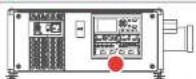
The laser distance meter that is optional equipment for this projector can emit a class 2 laser ranging beam of 0.95 mW / 638 nm. When installed correctly, this distance meter is located on the front side of the projector (see Image 1–1). The laser beam can be enabled by either pressing the button on the equipment, via the projector menu, or via the projector software. Thermal retinal eye injury is possible when staring into the laser ranging beam.

Image 1-1 Location of the laser distance meter

WARNING: Laser Radiation — Do not stare into laser ranging beam, Class 2 IEC EN 60825-1:2014 See the product safety manual for details.
Users definition
Throughout this manual, the term SERVICE PERSONNEL refers to persons having appropriate technical training and experience necessary to be knowledgeable of potential hazards to which they are exposed (including, but not limited to HIGH VOLTAGE ELECTRIC and ELECTRONIC CIRCUITRY and HIGH BRIGHTNESS PROJECTORS) in performing a task, and of measures to minimize the potential risk to themselves or other persons. The term USER and OPERATOR refers to any person other than SERVICE PERSONNEL, AUTHORIZED to operate professional projection systems.
The UDX projector is intended "FOR PROFESSIONAL USE ONLY" by AUTHORIZED PERSONNEL familiar with potential hazards associated with high voltage, high intensity light beams and high temperatures generated by the light source and associated circuits. Only qualified SERVICE PERSONNEL, knowledgeable of such risks, are allowed to perform service functions inside the product enclosure.
1.2 Safety training to be provided by the installer
Users definition
The UDX projector is intended for persons who have been instructed and trained by a skilled person (installer
Safety information
Distance (HD). This shall be physically impossible by creating sufficient separation height and width or by placing optional barriers. Within the restricted area operator training is considered sufficient. The applicable separation heights and widths are discussed in "High Brightness precautions: Hazard Distance", page 16.
Exclusion zone
The projector radiates heat on its external surfaces and from ventilation ducts during normal operation. Exposing flammable or combustible materials into close proximity of this projector could result in the spontaneous ignition of that material, resulting in a fire. For this reason, it is absolutely necessary to leave an exclusion zone around all external surfaces of the projector whereby no flammable or combustible materials are present:
• The exclusion zone must not be less than 40 cm (16 in).
Restriction zone
To protect untrained users and children against high intensity light beams, the light beam Hazard Distance (HD) shall be taken into account.
1.3 Important safety instructions
To prevent the risk of electrical shock
- This product should be operated from a mono phase AC power source. Ensure that the mains voltage and capacity matches the projector electrical ratings (120-160V / 200-240V (+/- 10%), 20A, 50-60Hz). If you are unable to install the AC requirements, contact your electrician. Do not defeat the purpose of the grounding.
- This apparatus must be grounded (earthed) via the supplied 3 conductor AC power cable. If you are unable to insert the plug into the outlet, contact your electrician to replace your obsolete outlet. Do not defeat the purpose of the grounding-type plug.
- Do not allow anything to rest on the power cord. Do not locate this product where persons will walk on the cord. To disconnect the cord, pull it out by the plug. Never pull the cord itself.
- Use only the power cord supplied with your device. While appearing to be similar, other power cords have not been safety tested at the factory and may not be used to power the device. For a replacement power cord, contact your dealer.
- Do not operate the projector with a damaged cord. Replace the cord.
- Do not operate the projector if the projector has been dropped or damaged - until it has been examined and approved for operation by qualified service personnel.
• To prevent injury, ensure that the lens and all covers are correctly installed. See installation procedures.
- Warning: high intensity light beam. NEVER look into the lens! High luminance could result in damage to the eye.
- Warning: extremely high brightness projector: This projector embeds extremely high brightness (radiance) lasers; this laser light is processed through the projectors optical path. Native laser light is not accessible by the end user in any use case. The light exiting the projection lens has been diffused within the optical path, representing a larger source and lower radiance value than native laser light. Nevertheless the projected light represents a significant risk for the human eye when exposed directly within the beam. This risk is not specific related to the characteristics of laser light but solely to the high thermal induced energy of the light source; which is comparable with lamp based systems. Thermal retinal eye injury is possible when exposed within the Hazard Distance. The Hazard Distance (HD) is defined from the projection lens surface towards the position of the projected beam where the irradiance equals the maximum permissible exposure as described in the chapter "High Brightness precautions: Hazard Distance", page 16.
- High Brightness Warning: The projector light source may not be switched on or the shutter must be closed when no projection lens is installed.
- Based on international requirements, no person is allowed to enter the projected beam within the zone between the projection lens and the related Hazard Distance (HD). This shall be physically impossible by creating sufficient separation height or by placing optional barriers. Within the restricted area operator training is considered sufficient. The applicable separation heights are discussed in "High Brightness precautions: Hazard Distance", page 16.
- Warning: Laser radiation. Do not stare into laser ranging beam. Class 2 laser beam could result in damage to the eye.
- Don't put your hand in front of the beam.
- Before attempting to remove any of the projector's covers, you must turn off the projector and disconnect from the wall outlet.
- When required to switch off the projector, to access parts inside, always disconnect the power cord from the power net.
- The power input at the projector side is considered as the disconnect device. When required to switch off the projector, to access parts inside, always disconnect the power cord at the projector side. In case the power input at the projector side is not accessible (e.g. ceiling mount), the soil outlet supplying the projector shall be installed nearby the projector and be easily accessible, or readily accessible general disconnect device shall be incorporated in the fixed wiring.
- Never stack more than 2 UDX projectors in a hanging configuration (truss) and never stack more than 3 UDX projectors in a base stand configuration (table mount).
- When using the projector in a hanging configuration, always mount 2 safety cables. See installation manual for the correct use of these cables.
Safety information
whereby no flammable or combustible materials are present. The exclusion zone must be not less than 40 cm (16") for this projector.
- Do not place any object in the projection light path at close distance to the projection lens output. The concentrated light at the projection lens output may result in damage, fire or burn injuries.
- Ensure that the projector is solidly mounted so that the projection light path cannot be changed by accident.
- Do not cover the projector or the lens with any material while the projector is in operation. Mount the projector in a well ventilated area away from sources of ignition and out of direct sun light. Never expose the projector to rain or moisture. In the event of fire, use sand & Co-powder fire extinguishers. Never use water on an electrical fire. Always have service performed on this projector by authorized Barco service personnel. Always insist on genuine Barco replacement parts. Never use non-Barco replacement parts as they may degrade the safety of this projector.
- Slots and openings in this equipment are provided for ventilation. To ensure reliable operation of the projector and to protect it from overheating, these openings must not be blocked or covered. The openings should never be blocked by placing the projector too close to walls, or other similar surface. This projector should never be placed near or over a radiator or heat register. This projector should not be placed in a built-in installation or enclosure unless proper ventilation is provided.
- Projection rooms must be well ventilated or cooled in order to avoid build up of heat. It is necessary to vent hot exhaust air from projector and cooling system to the outside of the building.
- Let the projector cool completely before storing. Remove cord from the projector when storing.
To prevent battery explosion
- Danger of explosion if battery is incorrectly installed.
- Replace only with the same or equivalent type recommended by the manufacturer.
- For disposal of used batteries, always consult federal, state, local and provincial hazardous waste disposal rules and regulations to ensure proper disposal.
To prevent projector damage
- The air filters of the projector must be cleaned or replaced on a regular basis. Cleaning the booth area would be monthly-minimum. Neglecting this could result in disrupting the air flow inside the projector, causing overheating. Overheating may lead to the projector shutting down during operation.
• The projector must always be installed in a manner which ensures free flow of air into its air inlets.
- If more than one projector is installed in a common projection booth, the exhaust air flow requirements are valid for EACH individual projector system. Note that inadequate air extraction or cooling will result in decreased life expectancy of the projector as a whole as well as causing premature failure of the lasers.
• In order to ensure that correct airflow is maintained, and that the projector complies with Electromagnetic
- To ensure the highest optical performance and resolution, the projection lenses are specially treated with an anti-reflective coating, therefore, avoid touching the lens. To remove dust on the lens, use a soft dry cloth. For lens cleaning follow the instructions precisely as stipulated in the projector manual.
- Only use zoom lenses of the Barco TLD+ series on the 4k models of the UDX. Using other lenses will damage the internal optics. For suitable fixed TLD+ lenses contact Barco or see Barco website.
- Allowed ambient temperature range: a 0^ C (32°F) to 40 °C (104 °F)
- Rated humidity = 0% RH to 80% RH Non-condensed.
On servicing
- Do not attempt to service this product yourself, as opening or removing covers may expose you to dangerous voltage potentials and risk of electric shock.
• Refer all servicing to qualified service personnel. - Attempts to alter the factory-set internal controls or to change other control settings not specially discussed in this manual can lead to permanent damage to the projector and cancellation of the warranty.
- Replacement parts: When replacement parts are required, be sure the service technician has used original Barco replacement parts or authorized replacement parts which have the same characteristics as the Barco original part. Unauthorized substitutions may result in degraded performance and reliability, fire, electric shock or other hazards. Unauthorized substitutions may void warranty.
- Safety check: Upon completion of any service or repairs to this projector, ask the service technician to perform safety checks to determine that the product is in proper operating condition.
Malfunction unit
Remove all power from the projector and refer servicing to qualified service technicians under the following conditions:
- When the power cord or plug is damaged or frayed.
• If liquid has been spilled into the equipment.
• If the product has been exposed to rain or water. - If the product does not operate normally when the operating instructions are followed. Adjust only those controls that are covered by the operating instructions since improper adjustment of the other controls may result in damage and will often require extensive work by a qualified technician to restore the product to normal operation.
- If the product has been dropped or the cabinet has been damaged.
- If the product exhibits a distinct change in performance, indicating a need for service.
Stacking/transporting UDX rental flight cases
Safety information
1.4 Product safety labels
Light beam related safety labels
Label image Label description
Label location

Hazard RG3: not for household use symbol

Hazard RG3: optical radiation warning symbol


Hazard class 2: laser radiation warning symbol. 0.95 mW - 638 nm.

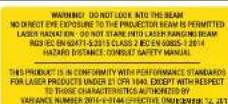



WARNING! DO NOT LOOK INTO THE LIGHT BEAM. NO DIRECT EYE EXPOSURE TO THE BEAM IS PERMITTED. LASER RADIATION - DO NOT STARE INTO LASER RANGING BEAM. RG3 IEC EN 62471-5:2015. CLASS 2 IEC EN 60825-1:2014. HAZARD DISTANCE: CONSULT SAFETY MANUAL.
THIS PRODUCT IS IN CONFORMITY WITH PERFORMANCE STANDARDS FOR LASER PRODUCTS UNDER 21 CFR 1040, EXCEPT WITH RESPECT TO THOSE CHARACTERISTICS AUTHORIZED BY VARIANCE NUMBER 2016-V-0144 EFFECTIVE ON JUNE 07, 2017.
Restriction Zone (RZ) based on the HD
The HD depends on the amount of lumens produced by the projector and the type of lens installed. See chapter "HD in function of modifying optics", page 20.
To protect untrained end users (as cinema visitors, spectators) the installation shall comply with the following installation requirements: Operators shall control access to the beam within the hazard distance or install the product at a height that will prevent spectators' eyes from being in the hazard distance. Radiation levels in excess of the limits will not be permitted at any point less than 2.0 meter (SH) above any surface upon which persons other than operators, performers, or employees are permitted to stand or less than 1.0 meter (SW) lateral separation from any place where such persons are permitted to be. In environments where unrestrained behavior is reasonably foreseeable, the minimum separation height should be greater than or equal to 3.0 meter to prevent potential exposure, for example by an individual sitting on another individual's shoulders, within the HD.
These values are minimum values and are based on the guidance provided in IEC 62471-5:2015 section 6.6.3.5.
The installer and user must understand the risk and apply protective measures based upon the hazard distance as indicated on the label and in the user information. Installation method, separation height, barriers, detection system or other applicable control measure shall prevent hazardous eye access to the radiation within the hazard distance.
For example, projectors that have a HD greater than 1 m and emit light into an uncontrolled area where persons may be present should be positioned in accordance with "the fixed projector installation" parameters, resulting in a HD that does not extend into the audience area unless the beam is at least 2.0 meter above the floor level. In environments where unrestrained behavior is reasonably foreseeable, the minimum separation height should be greater than or equal to 3.0 meter to prevent potential exposure, for example by an individual sitting on another individual's shoulders, within the HD. Sufficiently large separation height may be achieved by mounting the image projector on the ceiling or through the use of physical barriers.

text_image
RA SIDE VIEW (A) TH Htext_image
TOP VIEW (B) RA RZ SW TH HDtext_image
RESTRICTED AREA PR RZUSA market
For LIPs (Laser Illuminated Projectors) installed in the USA market other restriction zone conditions apply. LIPs for installation in restrained environment (cinema theaters, business rooms, class rooms, museums ...) shall be installed at height vertically above the floor such that the bottom plane of the hazard distance zone shall be no lower than 2.5 meters above the floor. Horizontal clearance to the hazard distance zone shall be not less than 1 meter. Alternatively, in case the height of the separation barrier for the horizontal clearance is at least 1 meter high then the horizontal clearance (SW) can be reduced to: - 0 meter if the height of the hazard zone is minimum 2.5 meter. - 0.1 meter if the height of the hazard zone is minimum 2.4 meter. - 0.6 meter if the height of the hazard zone is minimum 2.2 meter. LIPs for installations in unrestrained environment (concerts, ...) shall be installed at a height vertically above the floor such that the bottom plane of the Hazard distance Zone shall be no lower than 3 meters above the floor. Horizontal clearance to the hazard distance zone shall be not less than 2.5 meters. Any human access horizontally to the Hazard Zone, if applicable, shall be restricted by barriers. If human access is possible in an unsupervised environment, the horizontal or vertical clearances shall be increased to prevent exposure to the hazard distance zone. The LIP shall be installed by Barco or by a trained and Barco-authorized installer or shall only be transferred to laser light show variance holders. This is applicable for dealers and distributors since they may need to install the LIP (demo install) and/or they transfer (sell, rent, lease) the LIP. Dealers and distributors shall preserve Safety informationRestriction Zone (RZ) based on the HD
The projector is also suitable for rear projection applications; projecting a beam onto a defuse coated projection screen. As displayed in Image 1-4 two areas should be considered: the restricted enclosed projection area (RA) and the observation area (TH). text_image
RESTRICTED AREA RA TH RZ PR SW PD SW HD DIFFUSE HD REFLECTION SW1.7 HD in function of modifying optics
Hazard Distance line
| Throw Ratio (TR) | UDX 4K40, UDX W40, UDX U40, UDX U45 LC | UDX 4K32, UDX W32, UDX U32 | UDX 4K26, UDX W26 | UDX 4K22, UDX W22 | | ---------------- | -------------------------------------- | -------------------------- | ----------------- | ----------------- | | 0.5 | 0.5 | 0.5 | 0.5 | 0.5 | | 1 | 1.5 | 1.5 | 1.5 | 1.5 | | 2 | 3.0 | 3.0 | 3.0 | 3.0 | | 3 | 4.5 | 4.5 | 4.5 | 4.5 | | 4 | 6.0 | 6.0 | 6.0 | 6.0 | | 5 | 7.5 | 7.5 | 7.5 | 7.5 | | 6 | 9.0 | 9.0 | 9.0 | 9.0 | | 7 | 10.5 | 10.5 | 10.5 | 10.5 | | 8 | 12.0 | 12.0 | 12.0 | 12.0 | | 9 | 13.5 | 13.5 | 13.5 | 13.5 | | 10 | 15.0 | 15.0 | 15.0 | 15.0 | | 11 | 16.5 | 16.5 | 16.5 | 16.5 | | 12 | 18.0 | 18.0 | 18.0 | 18.0 |1.8 Radio equipment (optional)
CE Conformity WiFi & GSM module For WLAN: For GSM: • Frequency: 2402 MHz - 2482 Mhz • E-GSM: • Max EIRP: 19 dBm \- Frequency: 900 MHz • Frequency: 5150 - 5350 MHz / 5470 - 5725 Mhz \- Max EIRP: 33.5 dBm • Max EIRP: 23 dBm • EDGE: \- Frequency: 900 MHz For UMTS: \- Max EIRP: 28 dBm \- Band 1: • DCS: \- Frequency: 2100 MHz \- Frequency: 1800 MHz \- Max EIRP: 24 dBm \- Max EIRP: 30.5 dBm \- Band 8: • EDGE: \- Frequency: 900 MHz \- Frequency: 1800 MHz \- Max EIRP: 24 dBm \- Max EIRP: 27 dBm1.9 Compliance
UK Compliance   This product is fit for use in the UK. Authorised Representative: Barco UK Ltd Address: Building 329, Doncastle Road Bracknell RG12 8PE, Berkshire, United Kingdom1.10 Download Product Manual
Download Product Manual Product manuals and documentation are available online at www.barco.com/td. Registration may be required; follow the instructions given on the website. IMPORTANT! Read Installation Instructions before connecting equipment to the mains power supply. Safety informationGetting started 2
2.1 Getting to know the projector 24 2.2 Power on projector....25 2.3 Start image projection 26 2.4 Switching to ready mode....29 2.5 Power off projector....29About this chapter
This chapter and by extension this whole document, the user manual, is intended for the user who want's to operate the projector. It does not contain installation instructions because the installation has to be done by trained and qualified service technicians. Refer to the projector installation manual for detailed installation instructions. Getting started2.1 Getting to know the projector
Orientation convention
This manual refers to the left side of the projector as the side at your left hand when standing behind the projector and looking at the projection screen in front of the projector. text_image
B R T L Fnatural_image
Diagram of a flat-panel electronic device with a labeled component (no text or symbols present)natural_image
Illustration of a server rack unit with ventilation grilles and control panel (no text or symbols visible)natural_image
3D diagram of a server rack with blue and red directional arrows indicating airflow or heat transfer (no text or symbols)Projector Infra Red receivers and Remote Control Unit
The projector has three Infra Red receivers: one at the rear (next to the power input), one at the front (below the lens holder) and one at the right side (integrated in the Input & Communication module). Point the Remote Control Unit (RCU) directly to the Infra Red (IR) receiver. Make sure you are within the effective operating distance (30 m, 100 ft in a straight line) The RCU will not function properly if strong light strikes the IR sensor window or if there are obstacles between the RCU and the IR sensor. natural_image
Technical line drawings of three views of a device enclosure with no visible text or symbolsnatural_image
Line drawing of an electronic device front panel with a black arrow pointing to a component (no text or symbols visible)text_image
Diagram showing cable installation process with connectors and power supply, illustrating cable connection and power transfer stepsSelect the source
1. Press the Input button (reference I) on the remote control or local keypad. text_image
User interface toolbar with control buttons and a circular dial indicator showing checkmark and navigation iconstext_image
Menu L1 DisplayPort Source UDX W40 No signal HDCP L1 DisplayPort HDCP L1 HDBaseT 1 L1 HDBaseT 2 L1 HDMIQuick test pattern selection
1. Press the Test pattern button (references P) on the remote control or local keypad.  Getting started2.4 Switching to ready mode
How to switch to ready mode
1. Press and hold the Power on/off button for 3 seconds on the local keypad, or press the Power Off button on the remote control. The projector goes to Ready mode. The after-cooling cycle will start (about 30 seconds). During this period the Power on/off button will blink. Once the after-cooling cycle has ended, the projector will be in ready mode and the Power on/off button will be lit WHITE. flowchart
graph LR
    A["User Interface"] --> B["3 s"]
    B --> C["30 s"]
    C --> D["User Interface"]
2.5 Power off projector
 CAUTION: This procedure assumes the projector is in standby or ready mode.How to power off
1. Switch off the projector with the mains switch. '0' must be pressed. Getting startedPulse Remote Control Unit
3
3.1 Pulse RCU, battery installation 32 3.2 Pulse RCU, protocol setup 33 3.3 Pulse RCU, function of the on/off button 33 3.4 Using the RCU 34 3.5 Pulse RCU, Functionality overview 35 3.6 Pulse RCU, function of the "button pressed indicator"....35 3.7 Pulse RCU, function of the "RCP filter" button....20 3.7 Pulse RCU, function of the "RGB filter" button 36 3.8 Displaying and Programming addresses into the RCU 36 3.9 Using the XLR connector of the RCU 36 3.10 Using the mini-jack connector of the RCU 37 3.11 Pulse RCU, silicone protection sleeve (optional) 37 Pulse Remote Control Unit3.1 Pulse RCU, battery installation
Where to find the batteries for the remote control ? The batteries are not placed in the remote control unit to avoid control operation in its package, resulting in a shorter battery life time. At delivery the batteries can be found in a separated bag attached to the remote control unit. Before using your remote control, install the batteries first.How to install
1. Push the battery cover tab with the fingernail a little backwards (1) and pull, at the same time, the cover upwards (2). text_image
Diagram showing a remote control panel with labeled parts and directional arrows indicating assembly steps.3.2 Pulse RCU, protocol setup
About the used protocol
The protocol is the code send out by the remote control when a button is pressed. Depending on this code, the projector can decode the signals. The remote control can be used with two different protocols: RC5 and NEC. Depending on the projector to control the remote control can be switched between these protocols.Which protocol to use
- The NEC protocol has to be used for Barco projectors based on the Pulse platform: F70, F80, F90, HDX 4K, UDX, UDM, XDL, etc. - The RC5 protocol has to be used all legacy Barco projectors: HDQ 2k40, HDF, HDX W, etc.How to set
1. Remove the cover. For more info on how to remove, see "Pulse RCU, battery installation", page 32. 2. Place the switch in the desired position. text_image
Technical diagram showing a mechanical component with an inset close-up highlighting a red seal mark on its side.natural_image
Line drawing of a remote control device with a blue arrow pointing to the right button (no text or symbols present)3.4 Using the RCU
Pointing to the reflective screen or IR sensors
Switch on the RCU and point the front of the RCU to the reflective screen surface or point directly to one of the projector IR sensors. Make sure you are within the effective operating distance (30 m, 100 ft in a straight line). The RCU will not function properly if strong light strikes the IR sensor window or if there are obstacles between the RCU and the IR receiver. natural_image
Simple line diagram showing a vehicle approaching a plane with an arrow, no text or symbols present3.5 Pulse RCU, Functionality overview
Remote Control Unit buttons text_image
Diagram of a remote control with numbered labels pointing to various function keys and buttons3.7 Pulse RCU, function of the "RGB filter" button
Filtering the color of the projected image
By pressing the RGB filter button on the RCU you can place a color filter on the output of the projector. This feature can be useful during the installation and configuration of a multi-projector or multi-channel setup. By having one projector project a red image and another project a green image, it is easier to spot and adjust the overlap section. By pressing this button multiple times, you will have different active filters, in the following cycle: • Red + Green + Blue (default) - Red only - Green only - Blue only - Red + Green - Green + Blue - Red + Blue - Red + Green + Blue • etc  After powering up, the colors will always revert back to full RGB.3.8 Displaying and Programming addresses into the RCU
Displaying the Projector Address on the Screen.
1. If the projector is on, press the menu key and navigate to the Status page. The projector address and the broadcast address can be seen under the Communication heading. The projector's address is displayed on the LCD status screen and / or the OSD. How to Program an Address into the RCU?How to use the XLR connector
1. Remove the XLR cover by pulling it backwards. natural_image
Diagram showing a device being processed from a left-side arrow to a right-side view of a device (no text or symbols present)3.10 Using the mini-jack connector of the RCU
 Connecting a cable with the mini-jack connector will reset the broadcast address of the RCU to its default value '0'.How to use the mini-jack connector
1. Connect a cable with the mini-jack connector (reference 2 Image 3-9) of the RCU. 2. Connect the other end of the cable with the mini-jack input of the projector.  Pulse Remote Control UnitHow to install
1. Pull off the rubber XLR-lid from the RCU. natural_image
Diagram showing a device transitioning from a remote to a control panel, with no text or symbols present.natural_image
Two black plastic devices: a remote control case and a remote control device, shown with an arrow indicating transformation (no text or symbols present)Input & Communication
4
4.1 Introduction 40 4.2 Local Keypad and LCD panel 40 4.3 LCD touch panel....41 4.4 Communication connections....42 4.5 LED and Button indication chart....44 4.6 Pulse Quad Combo input Mk II 45 4.7 Pulse Quad Combo input Mk I 46 4.8 Pulse Quad DP 1.2 input 47 4.9 Pulse SFP input....48 Input & Communication4.1 Introduction
General
The Input & Communication module consists of a local keypad with LCD panel (1), a communication panel (4) and a Quad Combo input board (5). The free input slot can be used for optional modules (e.g. the Quad DP 1.2 input board).  Two boards of the same type can be used without restrictions. You can mount a second Quad Combo Input board in the free input slot (6). Alternatively, you can also remove the pre-mounted Quad Combo Input board and replace it with a second optional module (for example, a second Quad DP 1.2 input board). text_image
Diagram of an electronic device rear panel with labeled ports and connectorsLocal Keypad
The Keypad gives direct access to several functions, in addition to access to the menu system. The keypad has a backlight that can be switched on and off manually. By default the light turns off after 5 minutes. The Power button and Shutter buttons are equipped with white, blue and red backlit LEDs. The other keys are only equipped with white and blue backlit LEDs. The LEDs are controlled according to the features available.LCD panel
The LCD panel has two main functions: 1. Showing the menus, the adjustment information and also a mirror of the OSD, (On Screen Display) described in User Interface when this is enabled. 2. Information regarding the status of the projector showing this data: - Projector status • Network address • Active source - Current firmware version • Operation Data • Active functions (Enabled Functions). Toggle between the two indications by using the Menu button on the keypad, or on the remote control. The LCD Display will fade out 30 seconds after the last key operation.4.3 LCD touch panel
 The LCD menus can occasionally be slightly different in layout compared with the OSD menu, due to a more optimal layout regarding to the touch functionality of the LCD. Input & Communication4.4 Communication connections
Communication Panel text_image
BAROD 12V 5A USB LAN IN DMX OUT REMOTE CITIC RS332 OUT FNB LIGHT WNT SEL ERR M ACT12 V output
12 V output, maximum 1 A, available when projector is not in stand by.DMX interface
DMX is used as communication bus between different devices in the light technic. Each device has an input and an output, so that the bus can be looped between the different devices. According to the standard a five wire cable with XLR connector is used. You can use the DMX input port to connect a DMX device (DMX console) to the projector. This way you can control the projector from that DMX device (console). The DMX output port can be connected with the next device in the loop. Advantages of using RS232/RS422 serial communication: - easy adjustment of the projector via PC (or MAC). - allow storage of multiple projector configurations and set ups. - wide range of control possibilities. - address range from 0 to 255. - sending data to the projector (update). - copying data from the projector (backup).RS232/422 input (Sub-D) port
Pin Description
1 DCD : Data Carrier Detect 2 RXD- : Receive Data 3 TXD- : Transmitted Data 4 DTR : Data Terminal Ready [RS232] / TXD+ : Transmitted Data [RS422] 5 GND : Ground 6 DSR : Data Set Ready [RS232] / RXD+ : Received Data [RS422] 7 — (not connected) — 8 CTS : Clear To Send 9 RI : Ring Indicator RS232
An Electronic Industries Association (EIA) serial digital interface standard specifying the characteristics of the communication path between two devices using either D-SUB 9 pins or D-SUB 25 pins connectors. This standard is used for relatively short-range communications and does not specify balanced control lines. RS-232 is a serial control standard with a set number of conductors, data rate, word length and type of connector to be used. The standard specifies component connection standards with regard to computer interface. It is also called RS-232-C, which is the third version of the RS-232 standard, and is functionally identical to the CCITT V.24 standard. Logical '0' is > + 3V, Logical '1' is < - 3V. The range between -3V and +3V is the transition zone.RS422
An F10 social division interface should be used to allow the electrical characteristics of balanced Input & Communication4.5 LED and Button indication chart
Button Backlight Status| Button Color status | Description | |
n | Blinking WHITE (slow) Projector starts up (booting) | |
| Blinking WHITE (fast) Firmware upgrade | ||
| Solid WHITE Projector is in Standby or Ready mode | ||
| Blinking BLUE Projector goes to ON mode | ||
| Solid BLUE Projector is ON | ||
| Blinking RED Error condition | ||
| Shutter button | Off (no color) Projector is OFF, starts up, or is in Standby or Ready mode. | |
| Solid WHITE Projector is ON, shutter is open | ||
| Solid RED Projector is ON, shutter is closed | ||
text_image
PWR LIGHT ERR IR4.6 Pulse Quad Combo input Mk II
Overview Quad Combo Input Mk II
text_image
SD/IN SD/IN SD/IN/OUT SD/IN SD/IN SD/IN SD/IN SD/IN SD/IN SD/IN SD/IN SD/IN SD/IN SD/IN SD/IN SD/IN SD/IN SD/IN SD/IN SD/IN SD/IN SD/IN SD/IN SD/IN SD/IN SD/IN SD/IN SD/IN SD/INA SD/INA SD/INA SD/INA SD/INA SD/INA SD/INA SD/INA SD/INA SD/INA SD/INA SD/INA SD/INA SD/INA SD/INA SD/INA SD/INA SD/INA SD/INA SD/INA SD/INA SD/INA SD/INA SD/INA SD/INA SD/IN1 SD/IN2 SD/IN3 SD/IN4 SD/IN5 SD/IN6 SD/IN7 SD/IN8 SD/IN9 SD/IN10 SD/IN11 SD/IN12 SD/IN13 SD/IN14 SD/IN15 SD/IN16 SD/IN17 SD/IN18 SD/IN19 SD/IN20Functionality of the Quad Combo input Mk II
The Quad Combo Input Mk II support 12G input and throughput on the SDI connectors. Compared with the Mk I the Mk II includes the following: • SDI input A supports 12G input signals. • SDI input C functions as a loop-through output for any signal placed on input A. • SDI input D functions as a loop-through output for any signal placed on input B. - HDBaseT input 1 supports network connectivity.  CAUTION: Ethernet should only be connected to either the 10/100 base-T port (on the communication panel) or the HDBaseT input (on the Quad Combo Input Mk II). Using both at the same time will lead to undefined behavior.SDI input & output - How does it work?
When connecting an SDI source to the projector and the signal is HD or 3G, you can choose any of the four input connectors. When connecting multiple projectors with the same signal, you can connect the signal as follows: On the same signal to I and A, as if the final solution Input & Communication flowchart
graph LR
    A["A"] --> FPU1["PU/OUT"]
    B["B"] --> FPU2["PU/OUT"]
    C["C"] --> SST1["ST/OUT"]
    D["D"] --> SST2["ST/OUT"]
    FPU1 --> FPGA["FPGA"]
    FPU2 --> FPGA
    SST1 --> FPGA
    SST2 --> FPGA
    FPU1 -->|NO| FPGA
    FPU2 -->|NO| FPGA
    SST1 -->|NO| FPGA
    SST2 -->|NO| FPGA
    FPU1 -->|OUT| FPGA
    FPU2 -->|OUT| FPGA
    SST1 -->|OUT| FPGA
    SST2 -->|OUT| FPGA
    FPU1 -->|OUT| FPGA
    FPU2 -->|OUT| FPGA
    SST1 -->|OUT| FPGA
    SST2 -->|OUT| FPGA
    FPU1 -->|OUT| FPGA
    FPU2 -->|OUT| FPGA
    SST1 -->|OUT| FPGA
    SST2 -->|OUT| FPGA
    FPU1 -->|OUT| FPGA
    FPU2 -->|IN3| FPGA
    SST1 -->|IN3| FPGA
    SST2 -->|IN3| FPGA
    FPU1 -->|IN3| FPGA
    FPU2 -->|IN3| FPGA
    SST1 -->|IN3| FPGA
    SST2 -->|IN3| FPGA
LED behavior
- The SYNC LED lit up ORANGE when valid input sync is detected. • The SEL LED lit up GREEN when the input is selected. - The SEL LED blinks GREEN when the input/output is selected and configured as output.  For specifications about the supported inputs for SDI, HDMI, HDBaseT and DisplayPort 1.2 see chapter "Specifications", page 175.4.7 Pulse Quad Combo input Mk I
Overview Quad Combo input Mk I Input & CommunicationRemark concerning the Mk I and Mk II inputs boards
The Mk I input board miss functionality that has been implemented on the Mk II input board. These missing features include: - Loop-through functionality • 12G SDI support • Network connectivity on HDBaseT inputs The projector is now standard equipped with the Mk II input board. For details and specifications see chapter "Pulse Quad Combo input Mk II", page 45.Visual difference between the Mk I and Mk II input boards
There is one real visual aid to tell the two variants apart. There are visual markings added on the Mk II input board, marking which connector supports 12G and which only supports 3G. text_image
BANGS SYNC SYNC SYNC SYNC SYNCtext_image
BANCO 30/120 30 30 30 30 30 30 SYNC BANCO A B C D4.8 Pulse Quad DP 1.2 input
Quad DP 1.2 input  Input & Communication4.9 Pulse SFP input
 The Barco SFP Input Board has been designed and tested to work alongside the Barco SFP Output Board. However, it is possible that the SFP Input board can also work with other third-party devices that support 12G over fiber. Due to the many third-party options available on the market, the input board could not be tested for every option available.Overview SFP input
The SFP Input board is used to connect 12G SDI over fiber. The SFP input is delivered without any connector. It is up to the customer to buy the necessary connectors, transceivers and cables. These parts can be mounted on the indicated places on the front panel of the board. text_image
BR/SD SEL SYNC Opt A SL SYNC Opt B SFP A SFP B ① ② ③LED behavior
\- The SYNC LED lit up ORANGE when valid input sync is detected. • The SEL LED lit up GREEN when the input is selected.Use cases
The SFP can be configured as follows:GUI - Introduction
5
5.1 Overview 50 5.2 Navigation....53 5.3 Test Patterns....55About this chapter
This chapter gives an general overview of the Graphic User Interface. GUI - Introduction5.1 Overview
Disclaimer on GUI images used in this manual
The GUI images in this manual are example illustrations and should be treated as such. While the name of the projector displayed in the illustrations may be different from the projector model you are currently using, the menu lay-out and functionality is identical.GUI - First start of the software
When you start the projector for the first time, you will be requested to choose the system language. You can choose between the following languages: - German (DE) - English (EN-US) - Spanish (ES) - French (FR) - Japanese (JA) - Korean (KO) - Portuguese (PT-BR) • Russian (RU) - Chinese (ZH) text_image
Select language F80-4K9 Welcome! Please select your language 汉语 Deutsch English (US) Español Françaistext_image
Settings Product registration UDX W40 1 2 3 4 Welcome to your Barco UDX W40 projector. To continue using your projector, it must be registered. Registration must be completed within 200 hours* of use. You have 20 hours remaining * You have 200 hours of illumination time before the registration must be complete. X REGISTER LATER REGISTER NOW >GUI - Status Screens
While the projector menu is not active, or the projector is Ready or Standby mode, the Status screens remain visible. These screens give an overview of the state of the projector and can be navigated through using the left and right arrow keys, or by swiping the screen left or right. The status screens are the following: - Dashboard: The main overview. This screen displays all the chosen options on the projector (chosen source, blending/masking, display mode, etc). - About: General info about the projector. This includes serial number, software version, mounted lens and light source runtime. It also includes altitude, and the pitch and roll tilt angles. - Notifications: The error and/or warning messages that are currently active. If no messages are active, this list will be empty. - Preview: A preview pane of the projected image. If no image is being projected, a test image is displayed instead. text_image
Preview NO SIGNALtext_image
Menu L1 DisplayPort Source Image Installation Profiles Settings Test patterns Status UDX W40flowchart
graph TD
    A["Source"] --> B["Lx Quad combo"]
    B --> C["Connector x"]
    B --> D["Quad SDI"]
    B --> E["Connector settings"]
    A --> F["Lx Quad DP1"]
    F --> G["Connector x"]
    F --> H["Switched options"]
    F --> I["Connector settings"]
    A --> J["Lx SFP Input"]
    J --> K["Connector x"]
    J --> L["Connector settings"]

    M["Image Profile"] --> N["Context"]
    M --> O["Brightness"]
    M --> P["Saturation"]
    M --> Q["Sharpness"]
    M --> R["Gamma"]
    M --> S["Digital zoom and shift"]

    T["Installation"] --> U["Laser range"]
    T --> V["Motorized frame"]
    T --> W["Center motor bed frame (action)"]
    T --> X["Orientation"]
    T --> Y["Scaling"]
    T --> Z["Illumination"]
    T --> AA["3D"]
    T --> AB["7 axis calibration"]

    AC["Settings Test patterns Status"] --> AD["Profile Edit"]
    AD --> AE["New Profile"]
    AD --> AF["Assign profile x to present (action)"]
    AD --> AG["Delete profile x (action)"]
    AD --> AH["Profile x (activation)"]

    AI["Test pattern x"] --> AJ["Product registration"]
    AJ --> AK["Data and time"]
    AJ --> AL["Standby mode"]
    AJ --> AM["Lens features"]

    AN["Communication"] --> AO["Remote control"]
    AN --> AP["Host name"]
    AN --> AQ["LAN"]
    AN --> AR["HBox?"]
    AN --> AS["NRF"]
    AN --> AT["UNIX"]
    AN --> AU["GSM"]
    AN --> AV["Cloud services"]
    AN --> AW["Regulatory information"]

    AX["User Interface"] --> AY["Language"]
    AX --> AZ["Themes"]
    AX --> BA["Units"]

    BB["System"] --> BC["Cooling mode"]
    BB --> BD["Operational mode"]
    BB --> BE["Capture mode security"]

    BF["Maintenance"] --> BG["Factory use"]
    BF --> BH["Lens calibration"]
    BF --> BI["Frame calibration"]

    BJ["Advanced settings"] --> BK["Native RealColor"]
    BJ --> BL["Statistics"]
    BJ --> BM["Laser library"]
    BJ --> BN["Tit server"]
text_image
Diagram of a remote control panel with numbered labels pointing to function keys and buttonstext_image
User interface control panel with numbered buttons and function iconstext_image
Menu Menu UDX W40 LT DisplayPort Source Image Installation ProfilesUsing the LCD touch display
From Pulse software 2.0 onward, the touch display functionality of the LCD panel has been activated and can be used. Instead of using the remote control buttons or keypad keys or button, you can now: - Touch menu icons to enter the respective menu. - Swipe a menu up and down if not all information is not immediately visible (e.g. more than 8 (sub)menu icons being visible) - Return to a higher menu level, by touching the blue name in the top left corner of the display. - Use touch functionality to use menu items (check boxes, sliders, digital keyboard or keypads, etc). - Swipe menu panes left or right when multiple panes are available (e.g. the Status menu)Menu memory
The OSD menu remembers the last selected sub-item as long as the projector is running. The menu memory is reset when restarting the projector from standby.5.3 Test Patterns
List of standard test patterns
The test patterns that are available by default are the following: - Aspect - Focus-Green - Focus-bursts - White / Black/ Red / Green / Blue • Cyan / Magenta / Yellow - Color bars - Color gradients - Checkerboard - Cross hatch GUI - Introduction| Type Explanation | Example of test pattern icon | |
| Standard test patterns | Standard test patterns. See previous list to see all test patterns available for your device. |  |
| Warped test patterns | Available from software 2.2 onward. Every test pattern will have "warped" variant available, symbolized with a "warp" symbol on the top-left corner of the icon.If active and configured, the warping will be applied to this test pattern. If warping is not active, or not configured, this will be identical to the standard test pattern. |  |
| Custom test patterns | If uploaded via an external tool, you will find your custom upload test patterns (and its warped variant) at the bottom of the list of available patterns.All custom uploaded test patterns will be marked with the default "test pattern file" icon. |  |
How to use test patterns
1. In the main menu, select Test Patterns. or Push the Test Patterns button on the RC. GUI - Source
6
6.1 Displaying a single source....58 6.2 Displaying multiple sources: Stitched layouts....58 6.3 Connector Settings 60About the Source menu
This menu is used to select, review and configure sources into the projector. GUI - Source6.1 Displaying a single source
About selecting a source
Before a source can be projected, the source signal must be connected to the source input(s) of the device and a valid synchronization signal must be available along with the source signal on at least one of the input connectors.How to select?
1. Press Menu to activate the menus and select Source.  Image 6-1 Main menu, Source 2. Press OK. The Select Source menu is displayed with the actual available sources filled out. text_image
Menu L1 DisplayPort Source UDX W40 No signal HDCP L1 DisplayPort HDCP L1 HDBaseT 1 HDCP2 L1 HDBaseT 2 L1 HDMI| 1 |
| A single source is displayed full screen | Quad Combo input:SDI (4x)HDBaseT (2x)DisplayPortHDMlQuad DP 1.2 Input:DisplayPort (4x) | Mono / Active stereo |
| 1 | 2 |
| 1 | 2 |
| 3 | 4 |
| 1 | 2 | 3 | 4 |
| 1 |
| 1 | 2 |
text_image
Menu L1 HDMI No signal Source UDX 4K40 L1 SDI A L1 SDI B L1 SDI C L1 SDI D L2 FIBER A L2 FIBER B L1 Quad SDI Connector settingstext_image
Menu Source HDX 4K20 L1 HDBaseT 1 No signal L2 DisplayPort A L2 DisplayPort B L2 DisplayPort C L2 DisplayPort D A B A C B D C D L2 Dual DP - AB L2 Dual DP - AC L2 Dual DP - BD L2 Dual DP - CDtext_image
Source Connector settings UDX W40 HDCP2 L1 HDMI HDCP L1 DisplayPort HDCP L1 HDBaseT 1 L1 HDBaseT 2GUI - Image
7
7.1 Setting image levels manually....64 7.2 Adjusting the sharpness....65 7.3 Adjusting the gamma correction....66 7.4 Setting the desired Gamma type....67 7.5 Digital Shift & Zoom....69 7.6 RealColor P7 73 7.7 Setting the output resolution....75 7.8 Displaying HDR content 76 7.9 Dynamic contrast....77 GUI - Image7.1 Setting image levels manually
Purpose
Contrast: Change the contrast of the complete output signal of the projected image. Brightness: Change the brightness of the complete output signal of the projected image. Saturation: Change the saturation of the complete output signal of the projected image.How to set up Contrast
1. In the main menu, select Image → Contrast.  Image 7-1 Image menu — Contrast 2. Use the ◀ or ▶ key to change the contrast enhancement until the desired value is reached (adjustable between 0 and 2). text_image
< Image Image settings UDX W40 1.04 0.01 0.99 3text_image
< Image Image settings UDX W40 1.04 0.01 0.99 3How to set up Saturation Level
1. In the main menu, select Image → Saturation.  Image 7-5 Image menu — Saturation 2. Use the ◀ or ▶ key to change the saturation until the desired value is reached (adjustable between 0 and 2). text_image
Image Image settings UDX W40 1.04flowchart
graph LR
    A["-2 min"] --> B["-1"]
    B --> C["0"]
    C --> D["1"]
    D --> E["2"]
    E --> F["3"]
    F --> G["4"]
    G --> H["5"]
    H --> I["6"]
    I --> J["7"]
    J --> K["8 min"]
    style A fill:#fff,stroke:#000
    style K fill:#fff,stroke:#000
    subgraph Time_Steps
        L["Black"] --> M["Black"]
        N["Image"] --> O["Image"]
        P["Image"] --> Q["Image"]
    end
How to adjust
1. In the main menu, select Image → Sharpness.  Image 7-8 Image menu - Sharpness 2. Use the ◀ or ▶ key to change the sharpness until the desired value is reached. text_image
Image Image settings UDX W40 1.04 0.01text_image
Image Gamma UDM 4K22 Type: auto power srgb dicom_10 dicom_60 dicom > 1.4 Detected gamma L1 HDMI POWER7.4 Setting the desired Gamma type
About the alternate gamma types Next to the standard gamma correction. the projectors can be manipulated in a way to simulate gamma types. GUI - Image If the source signal is HDR encoded an HDR icon will be visible next to the source signal. This is visible both the Source selection menu, as well as the status menu. text_image
Menu L1 HDMI L1 HDMI 1080p 50 Hz Status UDX 4K32 ON 86% Flex 240 380 101.5MHz 31% Display mode: Mono Transport delay: 292 Frequency: 60.5 Hz Output resolution: 46.2Hz - Fill aspect Fill mode: IDX-4K32-25/0077435 10.200.32.80 0 2 1How to adjust the gamma type?
1. In the main menu, select Image → Gamma type.  Image 7-13 Image menu - Gamma The Gamma type menu is displayed. If source content is available, the detected gamma of the source will be displayed at the bottom of the menu.  GUI - Image text_image
Image Gamma UDM 4K22 Type: auto power srgb dicom_10 dicom_60 dicom 2.2 Detected gamma L1 DisplayPort POWER7.5 Digital Shift & Zoom
What can be done?
The image can be optically shifted by using the vertical and horizontal lens shift. If you want to reach a lens shift beyond what is possible with the optical shift, you can also perform a digital lens shift. This digital shift will occur on the DMD, rather than the lens holder. So take into account that this additional shift is minimal and restricted to the limits of the chip used. For the optical zoom and lens shift, navigate to Home → Installation → Lens. GUI - Image natural_image
Close-up of a koala with textured skin and visible eye, surrounded by foliage (no text or symbols)natural_image
Close-up of a koala's face showing its distinctive nose and mouth (no text or symbols visible)natural_image
Close-up photo of a koala holding an object, no visible text or symbolsnatural_image
Close-up of a koala with textured skin and visible eye, surrounded by foliage (no text or symbols)natural_image
Close-up photo of a koala resting on its back, showing its expressive face and mouth (no text or symbols visible)natural_image
Close-up photo of a koala with visible eye and mouth, no text or symbols presenttext_image
Digital zoom and shift UDM 4K22 < Image Shift Zoom Reset SHIFT ZOOM Shift -4 T -3 Zoom -3840 % 2400 % 100.00text_image
Digital zoom and shift UDM 4K22 Shift Zoom Reset SHIFT ZOOM Shift 4 % -3 Zoom 3840 % 2400 % 100.007.6 RealColor P7
Purpose
When blending images from multiple projectors, the measured color coordination of each projector can be altered to a desired common level. This so that the projected colors are identical over all projectors used. Alternatively, if you are unfamiliar with how to adjust the colors to a specific setting, there are also a certain number of presets available, which forces the color output to specific color standards.How to set custom P7 values
1. In the main menu, select Image → Advanced → RealColor P7.  Image 7-26 Advanced settings menu - RealColor P7 The P7 menu is displayed. text_image
Advanced setti... RealColor P7 Custom CustomRGBCMY Custom CustomWHITE UDX W40How to choose one of the P7 presets
1. In the main menu, select Image → Advanced → Realcolor P7.  Image 7-28 Advanced settings menu - RealColor P7 The P7 menu is displayed. text_image
Advanced settl... RealColor P7 Custom Custom/GECMY: Custom Custom/WEET: Prefnt Feature WhitePaint Coefficient + White 0.313 0.229 Gain Luminance 1.0 Red 0.671 0.505 1 1 Green 1.348 0.673 0.703 Blue 1.44 0.547 0.554 UDX W40text_image
Advanced setti... RealColor P7 UDX 4K40 Preview Value Power: 812.96 Preview EBI Whitepoint Luminance x y Gain Luminance White 0.357 0.370 1.000 1.000 Red 0.641 0.332 1.000 0.229 Green 0.265 0.640 1.000 0.692 Blue 0.249 0.166 1.000 0.579 Cyan 0.200 0.332 1.000 0.771 Magenta 0.336 0.151 1.000 0.308 Yellow 0.428 0.526 1.000 0.9217.7 Setting the output resolution
 This menu is only available on the 4k models, with an actuator included.How to determine the desired output resolution for my content
While the native output resolution of this projector is 4K in Ultra-High Definition (4K-UHD), sometimes it can be better to choose an alternate resolution, depending on the main purpose of the projected content: - If the main purpose of the projection is image (e.g. photographs, movie, or similar purpose), use the 4K UHD output resolution for the best image at the highest possible light output. • If the main purpose of the projection is text (e.g. spreadsheets, presentations, or similar purposes), use the GUI - Image text_image
Advanced s... Output resolution HDX 4K20 4K-UHD 4K-UHD-S WQXGA7.8 Displaying HDR content
About HDR and PQ
Perceptual Quantizer (PQ) is a non-linear electro-optical transfer function (EOTF) that allows for the display of High Dynamic Range (HDR) content with a luminance level of up to 10 000 cd/m ^2 and can be used with the Rec. 2020 color space.When do I know my content is HDR encoded?
If the source signal is HDR encoded, an HDR icon will be visible next to the source signal. This is visible both in the Source selection menu, as well as the status menu. The projected HDR content depends on the following factors: - Mastering luminance: This is content-specific and cannot be changed. • Screen luminance: Every projection screen has a specific luminance (measured in nits or foot-Lambert). Entering this luminance in the projector will adapt the content towards the intended HDR result. - HDR Boost: A variable "booster" that may amplify or downplay the HDR output.How to set the HDR-related parameters?
1. Make sure the chosen Gamma Type is set to AUTO. For more info, refer to "Setting the desired Gamma type", page 67. 2. In the main menu, select Image → Advanced → HDR.  Image 7-34 Advanced settings menu, HDR The HDR menu is displayed. text_image
Advanced settings HDR UDX W40 Screen luminance unit ✓ nits □ foot-Lambert Screen luminance < 524 > HDR boost < 1 >How to set the dynamic contrast?
1. In the main menu, select Image → Advanced → DynaBlack.  Image 7-36 The DynaBlack menu is displayed. text_image
Advanced settin... DynaBlack UDM 4K22 Off Low Medium High MaxGUI – Installation
8
8.1 Configuring the lens, optical zoom-focus 80 8.2 Configuring the lens, shift 80 8.3 Configuring the lens, dynamic focus 81 8.4 Configuring the lens, Shift to center....82 8.5 Configuring the lens, tilt sensor....83 8.5 Configuring the lens, tilt sensor .... 83 8.6 Laser ranging .... 84 8.6 Laser tanging....84 8.7 Manipulating the rigging frame....85 8.8 Manipulating the rigging frame, center position 87 8.9 Orientation....87 8.10 Scaling modes....88 8.11 Warping 89 8.12 Plending & mocking 102 8.12 Blending & masking 102 8.13 Illumination 110 8.13 Illumination....112 8.14 3D projection....113 GUI - Installation8.1 Configuring the lens, optical zoom-focus
What can be done? If a motorized lens has been mounted onto the projector, you can fine-tune the projected image. Zoom - Focus 1. In the main menu, select Installation → Lens → Zoom focus.  Image 8-1 Lens menu, Zoom & Focus The Zoom and focus menu is displayed. text_image
Lens Zoom focus UDX 4K32 Focus Zoom 29283 7185 Use test pattern key to toggle test pattern displaytext_image
Lens Lens shift UDX 4K32 Horizontal Vertical 11695 1268 Use test pattern key to toggle test pattern display8.3 Configuring the lens, dynamic focus
About focus drift and dynamic focus Due to the design of TLD+ lenses and ultra-short throw lenses (UST lenses), these type of lenses tends to heat up over time when used in projectors. This has the side-effect of a slight shift in focus between the lens i GUI - Installation text_image
Installation Lens UDX W40 Zoom focus Shift Dynamic focus Shift to center8.4 Configuring the lens, Shift to center
What can be done? The lens can be forced back to the center position by selecting Shift to center. GUI - Installation text_image
Installation Lens UDX W40 Zoom Confirm action Are you sure you want to shift the lens to the center? ✓ CONFIRM × CANCEL8.5 Configuring the lens, tilt sensor
When to use the tilt sensor menu
The projector has a built-in tilt sensor that detects the angle at which the projector is mounted. If you are in a situation where you need to fine-tune the projector because you want to achieve a picture at a specific angle (e.g. perfectly level, or a perfect fit in a multi-projector setup), you can use the tilt sensor menu as an aide when adjusting the projector feet, rigging frame or other used mounting mechanisms.How to read the tilt sensor values
1. In the main menu, select Installation → Lens → Tilt sensor.  GUI - Installation  If you notice the tilt sensor isn't working correctly (e.g. when compared to a level), you can calibrate the sensor in the settings menu. For more info, see "Advanced settings – Tilt sensor calibration", page 165.8.6 Laser ranging
What can be done?
When the optional laser range finder is installed on the projector, you can use the laser source to measure the distance between the front of the projector and the surface you are projecting on. This can help you fine-tune the position of the projector.  Take into account that while a laser ranging session is active, the projected image will be off. This to have no interference between laser pointer and projected image. Instead, a red border will be projected giving the outline of where the projected image should be.How to manipulate the laser range finder?
1. In the main menu, select Installation → Laser ranging.  Image 8–12 Installation menu, laser ranging The Laser ranging menu is displayed. text_image
Installation Laser ranging UDX W40 Note: For the best and most precise measurements, the screen content will be blanked while the measurements are being taken. To show the measurement result on screen, enable the switch below. The result is also shown on the laser ranging device and LCD screen.text_image
2.243 K→X8.7 Manipulating the rigging frame
When can you manipulate the rigging frame?
You can manipulate the rigging frame in the Pulse menu when: • The projector is mounted in a motorized rigging frame. - The wiring of the motorization is connected to the projector, including the XLR connector. - The XLR connector is enabled and powered to 24V. For more info on how to power the XLR connector, see "Front XLR output voltage control", page 137.How to manipulate the rigging frame?
1. In the main menu, select Installation → Lens → Motorized frame. GUI - Installation text_image
Lens Motorized frame F80-4K9 Press ✓ to enter motor control. ✓ ✓ ✓ Invert horizontal Invert vertical Invert rotationtext_image
Lens Motorized frame F80-4K9 Press: to toggle rotation motors Press: to exit motor control Invert horizontal Invert vertical Invert rotation8.8 Manipulating the rigging frame, center position
What can be done? The motorized frame can be forced back to the center position by selecting Center motorized frame. How to reset the motorized frame? 1. In the main menu, select Installation → Lens → Center motorized frame.  Image 8-19 Lens menu, Center motorized frame A confirm action prompt will be displayed. text_image
Installation Lens F80-4K9 Confirm action Are you sure you want to shift the Motorized frame to the center? ✓ CONFIRM ✗ CANCELHow to set the correct orientation
1. In the main menu, select Installation → Orientation.  Image 8-21 Installation menu, orientation The Orientation menu is displayed. text_image
Installation Orientation UDM 4K22 Desktop front Desktop rear Ceiling front Ceiling rear Desktop front Auto front Auto rear8.10 Scaling modes
About scaling modes GUI - Installation| Scaling Mode | Explanation Example image | 2 |
| Fill screen Fills | the screen to the screen size defined in the Screen Size menu, while respecting the original aspect ratio. For more info on adjusting the Screen Size menu, so "Warping - Screen Size", page 90. | 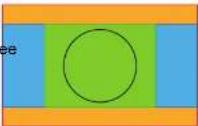 |
| Stretch This mode stretches the image to the screen size defined in the Screen Size menu, while ignoring the original aspect ratio. For more info on adjusting the Screen Size menu, see "Warping - Screen Size", page 90. |  | |
Setting a scaling mode
1. In the main menu, select Installation → Scaling.  Image 8-23 Installation menu, scaling The scaling mode menu is displayed. text_image
Installation Scaling mode UDX W408.11.1 Warping - On/Off
About warping on/off
By toggling between on and off the warping functionality can be enabled or disabled.How to toggle
1. In the main menu, select Installation → Warp.  Image 8-25 Installation menu, warp The Warp menu is displayed. text_image
Installation Warp UDX W40 Warp Screen size 4 corners Bow Warp files Transport delaynatural_image
Two cows crossing a rocky stream in a grassy field (no text or symbols visible)Using the screen aspect ratio presets
1. In the main menu, select Installation → Warp → Screen Size.  Image 8-30 Warp menu, screen size The Screen Size menu is displayed. text_image
Warp Screen size FS400-HR Screen aspect ratio presets 1:1 3:2 5:4 4:3 16:9 16:10text_image
Screen size FS400-HR Screen aspect ratio presets 1:1 3:2 5:4 4:3 16:9 16:10 1.37:1 1.85:1 2.2:1 2.35:1 2.37:1 2.39:1 Screen width 3 Screen height 2 ✓ APPLY3. Click Apply.
How to adjust the image with pixels?
1. In the main menu, select Installation → Warp → Screen Size.  Image 8-33 Warp menu. screen size The Screen Size menu is displayed.  GUI - Installation text_image
< Warp Screen size FS400-HR 1.07.1 1.09.1 2.2.1 2.50.1 3.07.1 3.29.1 Screen width 4096 Screen height 2176 7 8 9 4 5 6 1 2 3 , 0 .text_image
Warp Screen size UDX W40 Screen Width: 1920 Screen Height: 1080 ✓ APPLYnatural_image
Exterior view of a large cargo aircraft with visible tail number 170 and landing gear deployed (no signage or text)natural_image
Airplane in flight with landing gear deployed, no visible text or symbolsHow to adjust the image?
1. In the main menu, select Installation → Warp → 4 Corners.  Image 8-38 Warp menu, 4 corners The 4 corners menu is displayed. text_image
Warp 4 corners UDX W40 Warp 4 corner Helper lines RESET Top left X: 213 Y: 140 Bottom left X: 100 Y: 100text_image
Warp 4 corners HDX 4K20 Warp 4 corner Helper lines Top left X: 6 Y: 8 Bottom left X: 8 Y: 8 Top right X: 8 Y: 8 Bottom right X: 8 Y: 8text_image
Warp 4 corners UDX 4K40 Warp 4 corner Helper lines RESET Top left X: 512 Y: 370 Bottom left X: 0 Y: -5 Top right X: 0 Y: 4text_image
Angle Length (Liposity)text_image
Warp Bow UDM 4K22 Warp Bow Symmetric Angle 0.00° Length 1.0000text_image
Warp Bow UDM 4K22 Warp Bow Symmetric Angle 0.04° Length 1.0000natural_image
Pure grid pattern with curved boundaries and dots, no text or symbols presentAsymmetric bow correction
1. In the Bow menu, enable the Bow slider and disable the symmetric slider. text_image
Warp Bow UDM 4K22 Warp Bow Symmetric Angle → 0.00° Length 1.0000text_image
Warp Bow UDM 4K22 Warp Bow Symmetric Apple 0.00" Length 1.0000natural_image
Abstract geometric diagram with grid lines and red dots, no text or symbols presentHow to activate an uploaded Warp grid?
1. In the main menu, select Installation → Warp.  Image 8-53 Installation menu, Warp 2. In the Warp menu, select Warp files.  Image 8–54 Warp menu, Warp files The Warp Files menu is displayed.  GUI - Installation text_image
Warp Warp files UDX 4K32 Enable (preview2590077436.xml8.11.6 Warping - Latency control in a multi projector setup
Transport latency
The added delay in the image processing chain. The value is the number of lines relative to the output resolution. Latency
The total time from the first pixel is coming in on an input source, until the first light representing that pixel is visible on the screen. This includes the transport delay. The value is normally given in milliseconds.Functional description
Every projector in a multi-projector setup will have a different latency. This latency depends on the amount of warp and on the frequency of the projected image. In order to have no visible difference in the overall projected image, the user needs to be able to control the latency of each projector. The latency value can be read out in the status menu for each individual projector. How to configure transport delay? GUI - Installation  Image 8-58 Installation menu, Warp 4. In the Warp menu, select Transport Delay.  Image 8-59 Warp menu. Transport delay The Transport menu is displayed. text_image
Warp Transport delay UDX W40 Minum Delay: 0 Actual Delay: 0 Desired Delay: 0 ✓ APPLYtext_image
Width, Projector 2Width, Projector 1 Picture frame Projector 1 Picture frame Projector 2 Overlap / Blend ZoneWaiting period and blend maintenance period
The heating and cooling down of the lens in a projector startup and shutdown cycle can have a minor drifting effect on the blending and masking areas. Due to this, it is advised to wait 15–20 minutes after projector startup before performing blending and masking actions. This to make sure the drift on the blend region is as minimal as possible. For a similar reason, it is advised to wait 15–20 minutes after projector startup before starting any blending maintenance in your existing setup.  It is recommended to perform a blend maintenance after every 10–20 startup-shutdown cycles of the projector.8.12.1 Basic blend
How to set up a basic blend zone?
1. In the main menu, select Installation → Blend and Mask → Basic blend. GUI - Installation text_image
Blend Basic blend UDX W40 Enable Show lines RESET Top 0 Left 0 Gamma 2 Right 0 Bottom 0natural_image
Side view of a white airplane with 'JN' markings against a blue sky background (no text or symbols on the aircraft body)8.12.2 Blend & Blend mask
About masking and blending width or height
Offset is used to clip the image on one or multiple sides (masking). This is used to hide parts of the picture that should not be shown on the screen. For example: if the source is a Windows PC, you can hide the menu bar using this method. The larger the Mask value, the more the image is masked (by black bar) at the corresponding side. E.g. Top mask of 100 will blank the top 100 lines. Height or width is used to create a blending zone with a smooth brightness drop off. This is used to compensate for the double brightness in overlap areas. The value is the size of the blended area in pixels.How to set up basic blend zones?
1. In the main menu, select Installation → Blend and Mask → Blend mask.  Image 8-65 Blend menu, Blend mask The Blend mask menu is displayed. text_image
Blend Blend mask UDX W40 Enable Show lines RESET Top 0text_image
JAL ① ②text_image
right Projector 1 Overlap area Width Width Widthtext_image
Overlap area Wash left Projector 2 Wash Washtext_image
Blend Enable gg.babl Blend files UDX 4K40 1/8 files selectedtext_image
Blend Blend files UDX 4K40 Enable 1/8 files selected gg.bablnatural_image
Pure black image with a vertical gray stripe on the left edge (no text or symbols)How to adjust the black level manually
1. In the main menu, select Installation → Blend and Mask → Black Level.  Image 8-74 Blend and Mask menu, Black level The Basic black level menu is displayed.  GUI - Installation This value can also be entered by the numeric keys on the remote control. 6. Repeat the same procedure for any other projector connected to this projector, but on the opposite side. Note: Do not forget to disable the Show lines button after you achieved the desired blend zone.8.12.5 RGB gain adjustment
About RGB gain adjustment
The purpose of black level correction is to ensure a uniform black level in multi projector setups. Even when two projectors are of the same type, different projectors will output slightly different colors for black due to minor variations in their optical components. So if the projected image of the projectors overlap, there will be 3 different black levels: one for the zone where only the picture of the left projector (zone 1), one for the Blend zone (zone 2), and one for the zone where there is only the picture of the right projector (zone 3). Picture Left Picture RightBlend Zone natural_image
Pure black image with a vertical gray stripe on the left edge (no text or symbols)text_image
Blend and mask Black level UDM 4K22 Enable Show lines RESET Top 0 Left 0 Level 0 Right 0 Bottom 0 Red 0.379 Green 0.500 Blue 0.5008.12.6 Black Level Files
About custom Black Level Files
Next to setting your specific Black Level Adjustment in the GUI, you can also upload or download a custom Black Level adjustment file in png, jpeg or tiff format to/from the projector. To upload or download Black Level adjustment files you can use Projector Toolset or upload/download the Black Level adjustment file in the format of an XML file. Alternatively, you can contact the "file endpoint" directly via the curl program or some other tool that supports http upload. For more information on uploading/downloading Black Level files using the Projector Toolset, refer to the Projector Toolset user manual. For more information on uploading/downloading Black Level files using curl or other tools that supports HTTP upload, refer to the Pulse API Reference Guide.  When uploading custom black level files onto multiple projectors, make sure that the resolution of the file is supported by the projector you are uploading it to. A mismatch of projector resolution and black level file resolution will result in a sub-rational issue reference. Visit the projected GUI - Installation text_image
Blend Black level files UDX W40 Enable No files availabletext_image
Blend Black level files UDX 4K32 Enable black_1280x800.pngHow to reduce the power
1. In the main menu, select Installation → Illumination.  Image 8-82 Installation menu, illumination The Illumination menu is displayed. text_image
Installation Illumination UDM 4K22 Desired power 100 % Actual power 91 Maximum available power 91 Constant light output CLO Scale 77% Power limited at 91% FlexWhat is Active Stereo?
Field sequential 3D (also known as active 3D or "Active Stereo") is a technique of displaying stereoscopic 3D images. It works by only presenting the image intended for the left eye while blocking the right eye's view, then presenting the right-eye image while blocking the left eye, and repeating this so rapidly that the interruptions do not interfere with the perceived fusion of the two images into a single 3D image. This system setup uses liquid crystal shutter glasses (also known as active shutter glasses). Each eye's glass contains a liquid crystal layer which has the property of becoming opaque when voltage is applied, being otherwise transparent. The glasses are controlled by a timing signal that allows the glasses to alternately block one eye, and then the other, in synchronization with the refresh rate of the screen. The timing synchronization to the video equipment may be achieved via a wired signal or via wireless communication, this by using either an infrared or radio frequency (e.g. Bluetooth, DLP link) transmitter.Projection method used
This projector can only show active 3D images, used in combination with a 3D emitter and active shutter glasses. While it is allowed to connect passive stereo source signals, the image processing of the projector will convert those signals to an active 3D compatible image. The options on the projector software allow you to fine-tune the 3D settings accordingly to the specifications of the 3D emitter.  If a 3D emitter is used that radiates IR beams, the IR beams may interfere with the IR communication between projector and the RCU. If such interference occurs, connect the RCU to the projector using the remote cable. It is also advised to turn the IR receivers on the projector off to avoid the 3D emitter interference. To turn off the IR receivers, see "Pulse RCU, function of the on/off button", page 33.8.14.2 Setup process 3D projection
- Layout mode: Standard layout (1x1 layout) • Video Timing: 2560 x 1600 (WQXGA) @120 Hz • Color depth: 30 bpp - Connector: DisplayPort 1.2 or HDMIConnecting with the quad DP 1.2 Input card
You can use one of the following methods. The resulting image will always be an Active Stereo image.| Source | Layout mode | Video Timing / cable | Fixed configuration? | Color depth |
| Active Stereo (sequential L/R) | Standard layout (1x1 layout) | 2560 x 1600 @120 Hz | 30 bpp | |
| Active Stereo (sequential L/R) | 4 Column mode (4x1 layout) | 960 x 2160 @120 Hz | 30 bpp | |
| Active Stereo (sequential L/R) | 4 Quadrant mode (2x2 layout) | 1920 x 1080 @120 Hz | 30 bpp | |
| Passive Stereo (separate L/R) | Standard layout (1x1 layout) | 3840 x 2160 @60 Hz | Cable 1: left eyeCable 2: right eye | 30 bpp |
| Passive Stereo (dual pipe L/R) | 2 Column mode (2x1 layout) | 1920 x 2160 @60 Hz | Cable 1: left eye, 30 bpp left columnCable 2: left eye, right columnCable 3: right eye, left columnCable 4: right eye, right column |
8.14.4 3D Setup
Why change the 3D setup? While Barco can provide a 3D emitter and active shutter glasses as options to this projector, you are also free GUI - InstallationSource signal AutoStereo Mono ActiveStereo
2D Source Output is a 2D image Output is a 2D image Output is in Active Stereo Active Stereo source Output is in Active Stereo Output is a 2D image Output is in Active Stereo Passive Stereo source Output is in Active Stereo Output is a 2D image Output is in Active Stereo  When a different Display Mode is chosen compared to the source signal (e.g. Active Stereo source with Mono output), advanced image processing will make sure you a desirable image will be displayed.  If a 3D emitter is used that radiates infrared beams (IR beams), the IR beams may interfere with the IR communication between projector and the RCU. If such interference occurs, connect the RCU to the projector using the remote cable. It is also advised to turn the IR receivers on the projector off to avoid the 3D emitter interference. To turn off the IR receivers, see "Pulse RCU, function of the on/off button", page 33.How to adjust the projector to the 3D emitter?
1. In the main menu, select Installation → 3D Setup.  Image 8-84 Installation menu, 3D setup The 3D setup menu is displayed. text_image
Installation Swap eyes Swap frame pair Dark time 2500 1000 1200 UDX W40GUI – Projector profiles
9
9.1 Saving the current projector settings in a profile 118 9.2 Assigning a created projector profile to a preset 120 9.3 Deleting a projector profile....121About projector profiles
The profile function makes it possible to store different profiles / projector setups for different use cases, and quickly recall them when needed. This means that it is not necessary to enter a lot of different menus to adjust the projector setup for specific recurring use cases. Due to the limited nature of this function and to avoid terminology confusion with more complex macro's, these are not called "macro's", but "profiles". A few examples of different user cases are: - Building temporary gaming setups in bright auditorium-level environment, versus a darker "gaming room" or "cave". - Playing content from an old DVD versus playing the latest release from an HDR-coded Blu-Ray. - A rental projector that can be rented out for business presentations, concepts and other events that have9.1 Saving the current projector settings in a profile
Which settings can be saved to a profile?| Profile domain name | Settings saved |
| Illumination | · Illumination power for each source· Light sensor enabled / disabled· Light sensor set point |
| Source Active source selection & EDID | |
| Image | · Contrast· Brightness· Saturation· Sharpness· Gamma· Used gamma type· Digital zoom (width / height / factor + enabled/disabled)· Digital shift (x / y + enabled / disabled)· Output resolution |
| Display (3D settings) | · 3D Display mode used· Swap eyes on / off· Swap frame pair on / off· Dark time and sync delay values |
| RealcolorTM | · Brilliant Color mode (if available)· P7 desired values· P7 measured values |
| Warp | · Warp status enabled / disabled· Screen size· Warp file selected (if available)· Transport delayNote: Bow and 4 corners warp cannot be saved. |
How to save the current projector settings?
1. In the main menu, select Profiles → Edit.  Image 9-1 Profiles menu, edit The Profile edit menu is displayed. text_image
Profiles Profile edit UDX 4K40 + New profile ... Aaa Bbb9.2 Assigning a created projector profile to a preset
 This procedure assumes you have created at least one projector profile. For more info on saving projector settings to a profile, see "Saving the current projector settings in a profile", page 118.How to assign a projector profile to a preset
1. In the main menu, select Profiles → Edit.  Image 9-4 Profiles menu, edit The edit menu is displayed. text_image
Profiles Profile edit UDX 4K40 + New profile ... Aaa Bbbtext_image
Profiles Profile edit UDX 4K40 + New profile ... 00 Aaa Assign profile to preset Current Available Occupied 00 01 02 03 04 05 06 07 08 09 10 11 12 13 14 15 16 17 18 19 20 21 22 23 24 25 26 27 28 29 DELETE 04 Bbb Test9.3 Deleting a projector profile
How to delete a profile 1. In the main menu, select Profiles → Edit.  Image 9-8 Profiles menu, edit The edit menu is displayed.  GUI - Projector profiles text_image
Profiles Profile edit UDX 4K40 + New profile ... Aaa Assign profile to preset Current Available Occupied 30 01 02 63 04 05 06 07 98 39 10 11 12 13 14 15 16 17 18 19 20 21 22 23 24 25 26 27 28 29 DELETE Bbb TestGUI – System Settings
10
10.1 Remote control....124 10.2 Host name - custom projector name setup....126 10.3 Communication, LAN setup.... 127 10.4 DMX....135 10.5 Front XLR output voltage control....137 10.6 GSM configuration.... 138 10.7 Changing the User Interface language.... 139 10.7 Changing the User Interface language .... 139 10.8 Themes .... 139 10.9 Units (measurement) system setup....140 10.10 Controlling the backlight of the LCD Display.... 141 10.11 Data and time setup, manually.... 141 10.11 Date and time setup - manually.... 141 10.12 Date and time setup - automatically.... 142 10.13 Power saving settings – Standby mode 144 10.14 Lens features 145 10.15 Fast-forward 146 10.15 Factory reset 146 10.16 Lens Calibration 149 10.17 Flex brightness....151 10.18 Rigging frame Calibration.... 152 10.19 Electronic Convergence 153 10.20 Setting up the external cooler on a UDX 154 GUI - System Settings10.1 Remote control
10.1.1 Broadcast address
About broadcast address
Broadcast address is a common address that can be set on the projector. That can be "0" or "1". The default broadcast address is '0'. Any command coming from an RCU programmed with that common address will be executed.How to the broadcast address
1. In the main menu, select Settings → Communication → Remote control.  Image 10-1 Communication menu, Remote Control The Remote control menu is displayed. text_image
Communicati... Remote control UDX W40 Broadcast address Generic IR (0) Barco broadcast IR (1) Projector address < 1 > Remote control sensors IR Front IR Rear IR SideHow to change
1. In the main menu, select Settings → Communication → IR control.  Image 10-3 Communication menu, Remote Control The Remote control menu is displayed. text_image
Communicati... Remote control UDX W40 Broadcast address ✓ Generic IR (0) □ Barco broadcast IR (1) Projector address < 1 > Remote control sensors ● IR Front ● IR Rear ● IR Side APPLY10.1.3 IR sensors
GUI - System Settings text_image
Communicati... Remote control UDX W40 Broadcast address Generic IR (0) Barco broadcast IR (1) Projector address < 1 > Remote control sensors IR Front IR Rear IR Side APPLY10.2 Host name - custom projector name setup
What can be done?
The default host name of the projector is the projector type along with the serial number of your projector (e.g. "UDX-4K40-0123456789"). You can change this name to make it easier to spot in a network with multiple devices or projectorsHow to set a different Host name
1. In the main menu, select Settings → Communication → Host name. GUI - System Settings text_image
< Communication Host name UDX W40 Host name: udx-walrus ✓ APPLYw e r t y u i s p
a s d f g h j k l z x c v b n m . . 8123 British English * -10.3 Communication, LAN setup
About a network connection
A network connection can be made via a wired connection or via the optional wireless unit.10.3.1 Introduction to a Network connection
DHCP
 Dynamic host configuration protocol. DHCP is a communications protocol that lets network administrators manage centrally and automate the assignment of IP addresses in an organization's network. Using the Internet Protocol, each machine that can connect to the Internet needs a unique IP address. When an organization sets up its computer users with a connection to the Internet, an IP address must be assigned to each machine. Without DHCP, the IP address must be entered GUI - System SettingsWhat should be set up for an Ethernet address?
Two ways can be used to assign an address: - use the Automatic setting so that an automatic address will be assigned. - Assign manually an IP address, Net-mask (subnet-mask), (default) gateway address. - Set the IP-Address field to the desired value. This must NOT be 0.0.0.0 for static IP-Address assignment. The IP address identifies a projector's location on the network in the same way a street address identifies a house on a city block. Just as a street address must identify a unique residence, an IP address must be globally unique and have a uniform format. - Set the Subnet-Mask as appropriate for the local subnet. - Set the Default-Gateway to the IP-Address of the local router (MUST be on the local subnet!) on the same network as this projector that is used to forward traffic to destinations beyond the local network. This must not be 0.0.0.0. If there is no router on the projector's local subnet then just set this field to an IP-Address on the subnet.10.3.2 Wired IP address set up
How to automatically set up the IP address 1. In the main menu, select Settings → Communication → LAN.  Image 10-9 Communication menu, LAN The LAN menu is displayed. text_image
< Communication LAN UDX W40 Automatic Connected Address 10.200.28.215 HW Address 00:04:A5:87:1C.BFtext_image
Communication LAN UDX W40 Automatic Connected Address 10.200.28.215 HW Address 00:04:A5 87:1C BF Submit mask: 255.255.254.0 Default gateway: 10.200.28.1 Name servers: 10.197.192.11,10.193.251.11 ✓ APPLYtext_image
Communication LAN UDX 4K40 Address: 192.168.1.100 Subset mask: 255.255.255.010.3.3 Wireless IP address set up
When can the wireless IP address be used?
When the optional WiFi module has been installed on the projector, you can configure the projector in such a way it can access the network via WiFi instead of a LAN cable. For more information on how to install the WiFi module, please refer to the installation manual.How to connect to a wireless network?
1. In the main menu, select Settings → Communication → WiFi.  Image 10-14 Communication menu. WiFi The WiFi menu is displayed. text_image
Communication WIFI UDM 4K22 Enable Automatic FindingNemo Connected Bitrate: 1 Mbps | Max Bitrate: 270 Mbps HR Address: 00SE/EBE/FA6 SELECT NETWORK Address 192.168.8.20 Submit mask: 255.255.255.0 Default gateway: 192.168.8.1 Name servers: Name servers ✓ APPLYtext_image
Select WIF... Other WIFI Network UDM 4K22 SSG Security < NONE > A S D F G H J K L ✓ Z X C V S N M . . &123 British English !-)How to manually set up the IP address
1. In the main menu, select Settings → Communication → WiFi.  GUI - System Settings text_image
Communication WIFI UDM 4K22 Enable Automatic Address 192.168.8.20 Submit mask 255.255.255.0 Default gateway 192.168.8.1 Name servers: Asname server(s) ✓ APPLY FindingNemo Connected Bitrate: 1 Mbps | Max Bitrate: 270 Mbps HIV Address: 000E RERFAA6 SELECT NETWORKtext_image
Communication WiFi UDM 4K22 Enable Automatic FindingNemo Connected Bitrate: 1 Mbps; Max Bitrate: 270 Mbps HW Address: 00:00:RE:FE.A6 SELECT NETWORK Address: 192.168.1.100 Submit mask: 255.255.255.0 Default gateway: Default gateway Name servers: Name servers ✓ APPLYtext_image
WIFI Select WIFI Network UDM 4K22 Available networks: FindingNemo C REFRESH LIST OTHER NETWORK10.3.4 LAN over HDBaseMP address set up
 LAN over HDBaseT is only supported on HDBaseInput 1 on the Pulse Quad Combo Input board Mk II.About LAN over HDBaseT
When a LAN cable is mounted in HDBaseInput 1, the HDBase™ menu will appear in the Settings menu. Using the menu, you can assign a custom IP address, or leave the automatic IP address setup.  Keep into account that the HDBase Network will be unavailable if the projector is in Standby mode or ECO mode (whichever is applicable to your projector). If you want to use this connector as your main network connection, it is thus advised to disable the standby or ECO mode. For more info, see power settings. GUI - System Settings text_image
Communication HDBaseT™ UDM 4K22 Automatic Address: 10.200.50.157 Subnet mask: 255.255.255.0 Default gateway: 10.200.50.1 Name servers: 10.197.192.11,10.193.251.11 ✓ APPLY Connected HW Address: 0014A5 E2RE 28 HDBaseT network unavailable in standby / ECO modeHow to manually set up the IP address
1. In the main menu, select Settings → Communication → HDBaseT ^TM .  Image 10-24 Communication menu, HDBaseT The HDBaseTM menu is displayed. GUI - System Settings text_image
Communication HDBaseT™ UDM 4K22 Address: 192.168.1.100 Subnet mask: 255.255.255.0 Default gateway: Default gateway ( ) 7 8 9 ÷ × + 4 5 6 ... ^ / - 1 2 3 ✓ % * 8 .10.4 DMX
About the ways to control the projector via DMX
DMX signals can be connected to the DMX In port on the communicator interface when using a standard DMX cable equipped with XLR connector. The DMX out can be used to create a chain of DMX devices. One universe can control up to 512 channels. GUI - System Settings| DMX Feature | What can be done? |
| If no DMX signals are available, you can reset the intensity value to its default (maximum) value of 255 using theMax Intensitybutton. | |
| Auto power down | The projector can be forced to shut down after a certain time-out period if no DMX signals are available.Note: Value is set in minutes. |
| DMX Art-Net | DMX can be sent via the Ethernet connector to the projector instead of the classic DMX connector. This function can be enabled or disabled. Art-Net is generally used when more than 512 addresses are used in your setup. |
| DMX Art-Net Universe | Note: DMX Art-Net Universe can only be used when Art-Net DMX is enabled.If Art-Net is enabled, you can specify which DMX universe this projector belongs to. |
| Front XLR connector | If available on your projector, the power of the XLR connector on the front side of the projector can be enabled and set to a desired value.Note: If no front XLR connector is available on your projector, this option remains hidden. |
How to set up DMX?
1. In the main menu, select System Settings → Communication → DMX.  Image 10-27 Communication menu, DMX The DMX menu is displayed. 10.5 Front XLR output voltage control
What can be done?
The output voltage on the front XLR connector can be enabled or disabled. If enabled, the output voltage level can be set to 0 V, 12 V or 24 V. The output voltage will depend on the application or peripheral used. For example, the optional external mechanical shutter requires 12 V. The motorized rigging frame on the other end requires 24 V.Location of the XLR connector
natural_image
Back panel of a computer interface showing a grid-patterned rack and a circular device with ports (no visible text or symbols)How to enable or disable?
1. In the main menu, select System Settings → Communication → DMX.  Image 10-30 Communication menu, DMX The DMX menu is displayed. GUI - System Settings10.6 GSM configuration
 Only possible when a GSM module with SIM card is installed in the projector.When to use the GSM menu
The GSM menu by itself does not have any functionality. The main purpose of this menu is to read out the necessary data from the SIM card in the GSM module. You may require this information when using specific connectivity functions (e.g. configuring the Projector Management Suite in a mobile-only setup).About the SIM card PIN code
To configure the projector software with the installed SIM card for the first time, a correct PIN code (4 digits) must be entered.  As the PIN code cannot be checked with the one on the SIM card, ensure to enter the correct PIN code.  When your SIM card is blocked, you have to remove the SIM card from the GSM module and to insert the SIM card in a mobile phone so that you can enter the PUK code to unblock the SIM card.How to activate
1. In the main menu, select Settings → Communication → GSM.  Image 10-32 Communication menu, GSM10.7 Changing the User Interface language
How to change the language of the user interface 1. In the main menu, select Settings → User interface → Language.  Image 10-34 Interface The Language menu is displayed. text_image
< User interface Language UDX 4K32 null Deutsch English Español Français null 日本語 한국어 Portugues (BR) Русский10.9 Units (measurement) system setup
About the measurement systems
You can use this menu to change the default measurement systems. By default the metric system is used. But you can choose between the following: • Temperature: °C or °F • Distance: meter, centimeter, feet or inch.How to set a different metric system
1. In the main menu, select Settings → User interface → Units.  Image 10-37 Settings menu, units The Units menu is displayed. GUI - System Settings10.10 Controlling the backlight of the LCD Display
What lighting can be controlled?
You can choose how quickly the backlight of the LCD turns off. You can select one of the default values, or enter a custom value.Stealth Mode
Alternatively, you can turn on Stealth Mode instead. By activating this mode, the backlight of the LCD, the backlight of all the buttons of the keypad and the indication LEDs for the LAN and HDbaseT inputs will be disabled. Stealth Mode is enabled and disabled by pressing the OSD button on the remote control for 3 seconds.How to set the backlight
1. In the main menu, Settings → User interface → Backlight.  Image 10-39 Settings menu, backlight The Backlight menu will be displayed. text_image
User Interface Backlight UDX W40 Long-press the "GSD off" button ( ) to toggle stealth mode Stealth mode < Off On On until reboot Backlight < Off On Custom 30 seconds 1 minutetext_image
Settings Date and time FS400-HR Automatic Server NTP server Date 0 / 0 / 0 Time 0 : 0 : 0 Region Australia UTC Europe Indian Pacific City Kosrae Kwajalein Majuro Marquesas ✓ APPLYtext_image
Settings Date and time FS400-HR Automatic Server NTP server Date 10 / 5 / 2022 Time 23 : 26 : 50 Region Australia UTC Europe Indian Pacific City ti Kosrae Kwajalein Majuro Marquesas ✓ APPLYtext_image
Settings Date and time FS400-HR Automatictext_image
Settings Date and time FS400-HR Automatic Server NTP server Date 10 / 5 / 2022 Time 23 : 5 : 21 Region Australia UTC Europe Indian Pacific City ast Belgrade Berlin Bratislava Brussels ✓ APPLY10.13 Power saving settings - Standby mode
Why change the power saving features?
As a power-saving feature, if the projector is projecting no image, it will automatically go to Ready mode and later Standby mode after 15 minutes each. While in standby mode, it is no longer possible to use the OSD for anything other than the status overview of the projector. You can not access the projector menus while the projector is in Standby mode. If you want to be able to access the projector menus for a longer period of time, or if you want to reduce the time the projector remains idle, it is best to change the power settings to your own personal preferences. Alternatively, you can also disable this power-saving feature, ensuring that all power state transitions have to be done manually, or via remote commands (e.g. by using DMX). How to change the power saving features? GUI - System Settings text_image
Settings Standby mode UDX 4K22 Ready Standby Timeout 5 min 10 min 15 min 30 min 1 hourtext_image
Settings Standby mode UDX 4K32 Ready Standbytext_image
Settings Lens features UDX W40 Enable/Disable lens features. Availability depends on lens type. Focus Lens Shift Horizontal Lens Shift Vertical Zoom10.15 Factory reset
What can be done? All settings and values on the projector can be reset to its default values. This can be done for one or more settings separately, or all settings together (factory reset). Factory settings| Option / Domain | Setting Factory setting | |
| Blend Files Note: All uploaded blend and black level files will be deleted | ||
| ImageCapture Camera | Camera disabled, all measurements reset to 0 | |
| Connectors Signal range Auto | ||
| Note: All uploaded custom EDID files w be deleted. | ||
| Convergence Electronic Convergence All values to zero | ||
| Display Display mode AutoStereo | ||
| Image features | Contrast | mid value |
| Brightness | mid value | |
| Saturation | mid value | |
| Sharpness | mid value | |
| Gamma mid value, auto | ||
| Digital Shift and Zoom | Disabled, set to mid values | |
| Cropping | Off | |
| Aspect Ratio | 16:9 | |
| Scaling | Fill Aspect ratio | |
| Orientation | Orientation | Table, Front |
| RealColorTM P7 | P7 RealcolorTM | all set to native |
| Resolution | Output Resolution | 4K UHD (4K devices)WOYGA (W devices) |
| Option / Domain | Setting Factory setting | |
| Peripheral Settings | for External Cooler Cooling mode set to | internal. |
| Settings for Motorized Frame All values | to mid value | |
| Profiles Settings for | projector profiles All profiles will be deleted | |
| Screen Screen luminance unit nits | ||
| System Auto off / Eco Mode / Standby Mode (depending on availability) | Enabled | |
| Time | Time server | Automatic disabled, NTP server removed |
| Date | 0 / 0 / 0 | |
| Time | 0 : 0 : 0 | |
| Region / City | UTC | |
| User | User profiles | Only default users remain |
| Capture mode | Disabled | |
| User interface | Theme | Dark |
| Units – Temperature | °C | |
| Units – Length | Meters (m) | |
| Language | English | |
| Backlight – Stealth ModeBacklight – Timeout | Off5 minutes | |
text_image
Maintenance Factory reset UDM 4K22 Factory reset Reset domains DMX Display 3D Illumination Image features Text pattern * ImageActuator Orientation Uniformity Blend * RealColor * P7 Warp * Connectors * Resolution Network Convergence Source OpticsHow to reset one or more projector settings
1. In the main menu, select Settings → Maintenance → Reset.  Image 10-54 Settings menu, factory reset The Reset menu is displayed. text_image
Maintenance Factory reset UDM 4K22 Factory reset RESET ALL RESET SELECTED Reset domains Next Connections with * will also delete any uploaded file for that domaintext_image
Maintenance Lens calibration UDX W40 ✓ ✓ Zoom Focus Unknown Unknown Lensshift Horizontal Lensshift Vertical10.17 Flex brightness
 This feature is available by default on the following devices: UDX 4k40, UDX W40. This feature is also available as an option on the following devices: UDX 4K32, UDX 4K26, UDX W32, UDX W26.Overview
With the FLEX technology the projector owners can lock the light output to different levels. The locking can be done via 3 different ways: - Via Projector Toolset when connected via an ethernet connection with the projector. For more information on how to set up and use the Flex license, see the Projector Toolset's user guide, chapter "Configuration, License / registration". - Via Barco Insights Management Suite when the GSM module is installed. For more information on how to set up and use the Flex license, see Projector Management Suite user guide, chapter "Projector Configuration tab" – "Flex brightness" • Via the OSD menu of the projector itself To lock to a specific value a 4 digit code is necessary. These codes can be created by the projector owner using Projector Toolset or the Projector Management Suite.Availability
The flex brightness function is license protected. This license is already available in the projector. To activate the flex brightness a flex code is necessary. This flex code can be requested for free and uploaded via Projector Toolset or the Projector Management Suite. For more information about uploading this flex code, see Projector Toolset's user guide, chapter "FLEX, light output control" For other models, Flex brightness is an option. You can order and buy a license file. This license file is linked with the projector type and projector serial number. Once you received you license file, upload this file via Projector Toolset to your projector. Once the file is uploaded, the same file has to be used to upload the Flex code.Flex codes
Once your flex code is correctly uploaded, the projector creates a number of flex codes, one for each possible maximum light output. These codes are used for rental activities when adapting the light output of the projector. GUI - System Settings text_image
Maintenance Max light output < 3000 19000 20000 21000 22000 PIN:text_image
Maintenance Flex License UDX 4K32 Max light output < 30 Enter PIN 26000 27000 0 0 0 0 1 1 1 1text_image
Maintenance Frame Calibration F80-4K9 ✓ Horizontal shift ✓ Vertical shift ✓ Rotationtext_image
Maintena... Electronic Convergence UDX W40 Red 0 0 Green 0 0 Blue 0 0 RESETnatural_image
Pure geometric diagram with intersecting lines and small colored dots, no text or symbols presenttext_image
System Cooling UDX 4K32 Internal External Mixed10.21 Capture mode
Why use capture mode? GUI - System Settings10.22 Login to advanced settings
How to login
1. In the main menu, Settings → Maintenance → Login.  Image 10-72 The Login menu is displayed. text_image
Settings Maintenance FS400-HR Username Password LOGINHow to find the open source licenses
For the complete and most up-to-date list of the used open source software and the version used, go to the main menu and select Settings → General → Open source licenses.  Image 10-74 General menu - Open source licenses GUI - System SettingsAdvanced Settings
11
11.1 Remote access – Enable source preview 160 11.2 Remote access – Enable camera preview 161 11.3 Advanced Settings – Color 162 11.4 Advanced Settings – Statistics.... 163 11.5 Checking the status of the Laser Banks 164 11.6 Advanced settings – Tilt sensor calibration 165About the Advanced Settings menu
The Advanced Settings and Remote access menus are hidden by default for the regular user. you can only make these menus visible after entering a User name and Password or a Service code with the remote control. See "Login to advanced settings", page 156 for more info.  Advanced Settings11.1 Remote access - Enable source preview
Source preview
Up until Pulse software 2.0. x, you were able to see a preview of the connected source when you remotely accessed the projector. This was a feature you could disable using Projector Toolset. However, from Pulse 2.1. x onward, this feature is disabled by default and can now be enabled in both Projector Toolset and the Pulse GUI.  Upgrading your projector from a software version 2.0.x or older to 2.1.x or newer will disable Source preview by default. Once the software has been successfully upgraded, you can always opt to enable this feature again.How to enable source preview
1. In the main menu, select Settings → Maintenance and login to visualize the hidden Remote access menu. 2. Select Remote access.  Image 11-2 Maintenance menu, Remote access The Remote access menu is displayed. text_image
Maintenance Remote access UDM 4K22 Source preview11.2 Remote access - Enable camera preview
Camera preview
Up until Pulse software 2.0.x, you were able to see the footage of the camera when you remotely accessed the projector. This was a feature you could disable using Projector Toolset. However, from Pulse 2.1. x onward, this feature is disabled by default and can now be enabled in both Projector Toolset and the Pulse GUI.  Upgrading your projector from a software version 2.0.x or older to 2.1.x or newer will disable Camera preview by default. Once the software has been successfully upgraded, you can always opt to enable this feature again.How to enable Camera preview
1. In the main menu, select Settings → Maintenance and login to visualize the hidden Remote access menu. 2. Select Remote access.  Image 11-5 Maintenance menu, Remote access The Remote access menu is displayed. text_image
Maintenance Remote access UDX 4K22 Camera preview Source preview11.3 Advanced Settings - Color
 CAUTION: The native colors have been measured and set during factory production. Do not change them, unless parts of the optical path have been replaced due to servicing. If you need to change the native colors on the device, make sure to also perform a P7 calibration, using the Projector Toolset and a chroma meter. For more info on P7 calibration, refer to the Projector Toolset Reference guide.How to adjust the P7 native settings
1. In the main menu, navigate to Settings → Maintenance → Advanced, while you are logged in.  Image 11-8 Maintenance menu, Advanced 2. In the Advanced Settings menu, select Native RealColor.  Image 11-9 Advanced Settings, Native Realcolor The RealColor calibration menu will be displayed. < Advanced RealColor calibration UDX 4K2211.4 Advanced Settings – Statistics
What can be seen?
The statistics screen shows the general information about the projector, spread over two tab pages. The following items will be displayed: \- Laser runtime \- Laser Strikes \- Laser bank x runtime \- Projector runtime \- System runtime \- System uptimeHow to display the statistics
1. In the main menu, navigate to System Settings → Maintenance → Advanced Settings, while you are logged in.  Image 11-11 Maintenance menu, Advanced 2. In the Advanced Settings menu, select Statistics.  Image 11–12 Advanced settings, Statistics Advanced Settings11.5 Checking the status of the Laser Banks
About failing laser banks
The projector is powered by a laser light source, which has multiple laser banks. The light output and color performance is dependant on the number of active laser banks. If one or more laser banks have failed of a certain type, you will notice a decreased light input and decrease in color performance. But the projector will keep on playing, unless too many banks of a certain color will have failed.  In order to disable a certain laser bank, or calibrate the projector after disabling one or more laser banks, please refer to the Projector Toolset User Manual.How to check the status of the Laser Banks
1. In the main menu, navigate to Settings → Maintenance → Advanced, while you are logged in.  Image 11-14 Maintenance menu, Advanced 2. Enter the service code. 3. In the Service menu, select Laser Banks.  Image 11–15 Advanced menu, Laser banks Advanced Settings text_image
Laser grou... Laser bank group 0 F80-4K12 Enable notifications for this group Bank 1 Operational Bank 3 Operational Bank 2 Operational Bank 4 Operational11.6 Advanced settings - Tilt sensor calibration
 CAUTION: The calibration procedure resets the values of the tilt sensor to 0 in the current position of the projector. For the optimal working of the tilt sensor it is important to make sure the projector is perfectly level when performing this procedure. If not, the tilt sensor will not function as desired once the calibration has been completed.Required tools
LevelHow to calibrate the tilt sensor?
1. Place the projector on a flat surface and make sure it is positioned level in all directions. Use a level tool to help ensure this. 2. In the main menu navigate to Settings → Maintenance → Advanced while you are logged in Advanced Settings text_image
Maintenance Advanced UDM 4K22 Confirm action Are you sure you want to calibrate the tilt sensor to zero in the current projector position? ✓ CONFIRM × CANCEL Tilt sensor calltGUI – Status menu
12
12.1 Status menu overview....168  No settings can be modified in the status menu. Its only for consulting. GUI - Status menu12.1 Status menu overview
How to access the status menu While in the main menu, press Status.  Image 12-1 Main menu, status The status menu is displayed. text_image
Menu Status UDX 4K40 L1 HDMI L1 HDMI: No signal Display mode: Mono Transport delay: 0 Frequency: 60.9 Hz Output resolution: 8K UHD Power mode: 1.15Ω/HzWhat can be seen on the About page?
- Projector information, e.g. firmware version, serial number, projector article number and registration status (only if applicable for your device) - Mounted lens: Lens type and Lens description (if available). - Installation information: Altitude, pitch angle, roll angle, distance (only if applicable for your device) - Basic statistics, Light source run time, light source strikes, projector runtime. GUI - Status menuProjector maintenance
13
13.1 Software update....172 13.2 Cleaning the lens....173 13.3 Cleaning the exterior of the projector....174About this chapter
This chapter contains general maintenance procedures. Projector maintenance13.1 Software update
 CAUTION: Do not power off or unplug the projector while the software update is ongoing.How to update the software
1. Power on the projector. Wait until the Power on/off button is lit white or blue. 2. Download and install the latest version of Projector Toolset for Pulse. The program can be downloaded for free from Barco's website, (URL: http://www.barco.com). Click on myBarco and log in to get access to secured information. Registration is necessary. If you are not yet registered, click on New to myBarco and follow the instructions. With the created login and password, it is possible to log in where you can download the software. 3. Download the latest firmware (format .fw) from Barco's website in the same way as for Projector Toolset. 4. Start Projector Toolset and make a connection with the projector. For more information, see the "Projector Toolset" user guide. 5. Select tab Update settings. 6. Fill out the path to the update file (1) text_image
Update Settings Update File (1) Update (2)text_image
Update Settings Update File DrTemp/Firmware/Internet 2.0.6.f% Update (3) Question: Note: Upgrading the projector will take a long time. Please check the manual for implications upgraded this projector.How to update the software if the projector isn't connected to the network
1. Power on the projector. Wait until the Power on/off button is either lit white or blue. 2. Download the latest firmware file ( format .fw) from Barco's website. The firmware can be downloaded for free from Barco's website, (URL: http://www.barco.com). Click on myBarco and log in to get access to secured information. Registration is necessary. If you are not yet registered, click on New to myBarco and follow the instructions. With the created login and password, it is possible to log in where you can download the software. 3. Place the firmware file on a clean USB flash drive. Note: Make sure the flash drive is FAT32 compatible & no other files are on the flash drive. 4. Plug the flash drive in the USB port on the Communication Panel. The update file will be transferred to the projector and installed. The projector will reboot when completed.  CAUTION: While it is technically possible to "downgrade" the software to an older version using this method, it is NOT recommended and should be avoided as much as possible. Certain features will no longer be supported, projectors can display unwanted behavior during the downgrade and in some rare cases, this may even bring damage to the device. Always contact Barco if you want to make sure a downgrade will not hurt your device.  Take note that the update process can take a long time to complete.  For more info about the Projector Toolset see user guide of the Projector Toolset.13.2 Cleaning the lens
Projector maintenance 4. If there are still fingerprints on the surface, wipe them off with lens cleaner together with a clean lens cleaning cloth. Polish again with a dry one.  If smears occur when cleaning lenses, replace the cloth. Smears are the first indication of a dirty cloth.13.3 Cleaning the exterior of the projector
How to clean the exterior of the projector?
1. Switch off the projector and unplug the projector from the mains power net. 2. Clean the housing of the projector with a damp cloth. Stubbom stains may be removed with a cloth lightly dampened with a mild detergent solution.Specifications
A
A.1 Specifications of the UDX-4K40....176 A.2 Specifications of the UDX-4K32....177 A.2 Specifications of the UDX-4K22 and UDX-4K26 specifications of the UDX-4K26 179 A.3 Specifications of the UDX-4K26 179 A.4 Specifications of the UDX-4K22 180 A.4 Specifications of the UDX-4R22....160 A.5 Specifications of the UDX-W40....182 A.6 Specifications of the UDX-W32....184 A.6 Specifications of the UDX-W32....184 A.7 Specifications of the UDX-W26....185 A.8 Specifications of the UDX-W22....187 A.9 Specifications of the UDX-U45LC....188 A.10 Specifications of the UDX-U40....190 A.11 Specifications of the UDX-U32....191 A.12 Specifications SDI inputs.... 193 A.13 Specifications HDMI inputs.... 194 A.14 Specifications HDBaseT inputs.... 194 A.15 Specifications Display Part 1.2 inputs.... 195 A.15 Specifications DisplayPort 1.2 Inputs....195 A.16 Specifications SFP inputs....197A.1 Specifications of the UDX-4K40
Specifications| Projector type 4K UHD 3-chip DLP digital projector | |
| Technology 0.9" DMDTM x3 | |
| Resolution 3,840 x 2,400 (4K UHD) / 2,560 x 1,600 (native) / 5,120 x 3,200 (processing) | |
| Brightness 37,500 (WQ)/36,500 (4K UHD) center lumens // 36,500 (WQ)/35,500 (4K UHD) ansi lumen // 40,000 ISO | |
| Contrast ratio Full field 2200:1 / Barco Dyna Black 20000:1 | |
| Brightness uniformity 95% | |
| Aspect ratio 16:10 | |
| ScenergiX Horizontal and vertical edge blending | |
| Lenses TLD+ 0.37, 0.65-0.85, 0.8-1.16:1; 1.25-1.6:1; 1.5-2.0:1; 2.0-2.8:1; 2.8-4.5:1; 4.5-7.5:1; 7.5-11.5:1 | |
| Optical lens shift Vertical between -100% to +130%, depending on lensHorizontal up to +/- 40%, depending on lensMotorized zoom and focus (with lens memory on TLD lenses)Motorized lens shift (with position memory on all lenses) | |
| Color correction P7 | |
| Light source | laser phosphor with inorganic phosphor wheel |
| Light source lifetime | 20,000 hrs |
| Optical dowser | Digital |
| Picture-by-picture | Two sources simultaneously |
| Orientation | 360° |
| 24hz to 120hz 4K/4KUHD (4096 x 2160/ 3860 x 2400) to 240hz WQ (2560 x 1600) | |
| Max. pixel clock 600 MHz | |
| Software tools Projector Toolset + Android app + iOS app | |
| Control XLR wired + IR, RS232, Wifi (opt), GSM (opt) | |
| Network connection 10/100 | base-T, RJ-45 connection, Wifi (optional) |
| Power requirements 120-160 V (reduced power) / 200-240V (+/- 10%), 20A, 50-60Hz | |
| Max. power consumption 3750W | |
| Noise level (typical at 25°C68dB(A)77°F) | |
| Operational ambient temperature | 0-40°C / 32°-104°F (reduce power >40°C) |
| Operational humidity 0-80% | (non condens) |
| Dissipation BTU Max. 12,795 BTU/h | |
| Dimensions (WxLxH) 660 x | 830 x 350 mm / 25.98 x 32.67 x 13.77 inches |
| Shipping Dimensions (WxLxH) | 800 x 1,200 x 685 mm / 31.49 x 47.24 x 26.96 inches |
| Weight 92kg (202 lbs)/shipping weight from factory: 110kg (242 lbs) | |
| Standard accessories Power cord, wireless/XLR wired rugged remote control | |
| Certifications | Compliant with UL60950-1 and EN60950-1 complies with FCC rules & regulations, part 15 Class A and CE EN55032 Class A, Rohs |
| Warranty | 3 years |
A.2 Specifications of the UDX-4K32
Specifications| Motorized zoom and focus (with lens memory on TLD lenses) Motorized lens shift (with position memory on all lenses) | |
| Color correction P7 | |
| Light source laser phosphor | with inorganic phosphor wheel |
| Light source lifetime 25,000 hrs | |
| Optical dowser Digital | |
| Picture-by-picture Two sources simultaneously | |
| Orientation 360° | |
| Sealed DLP ^TM core standard | |
| DMX 512 standard | |
| WARP Direct adjust OSD + toolset | |
| Image processing Embedded | warp & blend |
| Keystone correction Yes | |
| Integrated web server Yes | |
| CLO (constant light output) | Standard |
| 3D | Active eye wear (optional), passive circular (optional); 2 flash up to 200Hz*; optional Dual Eye Point 240Hz |
| Inputs | Single HDBaseT; HDMI2.0 (HDCP2.2, HDR10); DP 1.2 (HDCP 1.3); Quad 3G/12G SDI / BarcoLink ULTRA |
| Optional Inputs | Quad DP1.2 / Fiber SFP |
| Input resolutions | From NTSC up to 4K (4,096 x 2,160) refresh rates: 24hz to 120hz 4K/4KUHD (4096 x 2160/ 3860 x 2400) to 240hz WQX (2560 x 1600) |
| Standard accessories Power | cord, wireless/XLR wired rugged remote control |
| Certifications Compliant with | UL60950-1 and EN60950-1 complies with FCC rules & regulations, part 15 Class A and CE EN55032 Class A, Rohs |
| Warranty 3 years | |
| * +/- 10% |
A.3 Specifications of the UDX-4K26
Specifications| Projector type 4K UHD 3-chip DLP digital projector | |
| Technology 0.9" DMDTM x3 | |
| Resolution 3,840 x 2,400 (4K UHD) / 2,560 x 1,600 (native) / 5,120 x 3,200 (processing) | |
| Brightness 26,000 (WQ)/25,000 (4K UHD) center lumens // 25,000 (WQ)/24,000 (4K UHD) ansi lumens // 28,000 ISO | |
| Contrast ratio Full field 2200:1 / Barco Dyna Black 20000:1 | |
| Brightness uniformity 95% | |
| Aspect ratio 16:10 | |
| ScenergiX | Horizontal and vertical edge blending |
| Lenses | TLD+ 0.37:1 ; 0.65:1 ; 0.73:1 ; 0.85:1 ; 1.2:1 ; 1.25 -1.6:1 ; 1.5-2.0:1 ; 2.0-2.8:1 ; 2.8-4.5:1 ; 4.5-7.5:1 ; 7.5-11.5:1 |
| Optical lens shift | Vertical between -100% to +130%, depending on lensHorizontal up to +/- 40%, depending on lensMotorized zoom and focus (with lens memory on TLD lenses)Motorized lens shift (with position memory on all lenses) |
| 3D Active eye wear (optional), passive circular (optional); 2 flash up to 200Hz*; optional Dual Eye Point 240Hz | |
| Inputs Single HDBaseT; HDMI2.0 (HDCP2.2, HDR10); DP 1.2 (HDCP 1.3); Quad 3G/12G SDI / BarcoLink ULTRA | |
| Optional Inputs Quad DP1.2 / Fiber SFP | |
| Input resolutions From NTSC up to 4K (4,096 x 2,560) refresh rates: 24hz to 120hz 4K/4KUHD (4096 x 2160/ 3860 x 2400) to 240hz WQ (2560 x 1600) | |
| Max. pixel clock 600 Mhz | |
| Software tools Projector Toolset + Android app + iOS app | |
| Control XLR wired + IR, RS232, Wifi (opt), GSM (opt) | |
| Network connection 10/100 base-T, RJ-45 connection, Wifi (optional) | |
| Power requirements 120-160V (reduced power)/ 200-240V (+/- 10%), 20A, 50-60Hz (reduced power on 110v) | |
| Max. power consumption 2,450W nom/2,650W max. / STBY less than 10W | |
| Noise level (typical at 25°C62dB(A)77°F) | |
| Operational ambient temperature | 0°-40°C/ 32°-104°F (45°C reduced power) |
| Operational humidity | 0-80% (non condens) |
| Dissipation BTU | Max. 8,342 BTU/h |
| Dimensions (WxLxH) | 660 x 830 x 350 mm (25.98 x 32.67 x 13.77") |
| Shipping Dimensions | (WxLxH) 800 x 1200 x 685 mm / 31.49 x 47.24 x 26.96 inches |
| Weight | 92kg (202 lbs)/shipping weight from factory: 110kg (242 lbs) |
| Contrast ratio Full field 2200:1 / Barco Dyna Black 20000:1 | |
| Brightness uniformity 95% | |
| Aspect ratio 16:10 | |
| ScenergiX Horizontal and vertical edge blending | |
| Lenses TLD+ 0.37, 0.65-0.85, 0.8-1.16; 1.25-1.6:1; 1.5-2.0:1; 2.0-2.8:1; 2.8-4.5:1; 4.5-7.5:1; 7.5-11.5:1 | |
| Optical lens shift Vertical between -100% to +130%, depending on lensHorizontal up to +/- 40%, depending on lensMotorized zoom and focus (with lens memory on TLD lenses)Motorized lens shift (with position memory on all lenses) | |
| Color correction P7 | |
| Light source Laser phosphor with inorganic phosphor wheel | |
| Light source lifetime 25,000 hrs | |
| Optical dowser Digital | |
| Picture-by-picture Two sources simultaneously | |
| Sealed DLP ^TM core | Standard |
| Orientation | 360° |
| DMX 512 | standard |
| WARP | Direct adjust OSD + toolset |
| Image processing | Embedded warp & blend |
| Keystone correction | Yes |
| Integrated web server | Yes |
| CLO (constant light output) Standard | |
| Noise level (typical at 25°C)77°F | C49 dB(A) |
| Operational ambient temperature | 0°-40°C/ 32°-104°F (45°C reduced power) |
| Operational humidity 0-80% | (non condens) |
| Dissipation BTU Max. 6,600 | BTU/h |
| Dimensions (WxLxH) 660 x | 830 x 350 mm (25.98 x 32.67 x 13.77") |
| Shipping Dimensions (WxLxH) | 980 x 1,200 x 760 mm (38.58 x 47.24 x 29.92") |
| Weight 87.5 kg (193 lbs)/shipping weight from factory: 105 kg (231 lbs) | |
| Standard accessories Power cord, wireless/XLR wired rugged remote control | |
| Certifications Compliant with | UL60950-1 and EN60950-1, complies with FCC rules & regulations, part 15 Class A and CE EN55032 Class A, Rohs |
| Warranty 3 years | |
| * Software upgradeable. Check with your local authorized Barco sales representative for full details. | |
A.5 Specifications of the UDX-W40
Specifications| Projector type WUXGA 3-chip DLP digital projector | |
| Resolution 1920 x 1200 | |
| Technology 0.96" DMDTM x3 | |
| Brightness | 40,000 center lumen/ 39,000 ansi lumen / 43,000 ISO |
| Contrast ratio | Full field 2200:1 / Barco Dyna Black 20000:1 |
| Sealed DLP ^TM core standard | |
| DMX 512 standard | |
| WARP Direct adjust OSD + toolset | |
| Image processing Embedded warp & blend | |
| Keystone correction Yes | |
| Integrated web server Yes | |
| CLO (constant light output) Standard | |
| 3D Active eye wear (optional), passive circular (optional); 2 flash up to 200Hz* | |
| Inputs Single HDBaseT; HDMI2.0 (HDCP2.2, HDR10); DP 1.2 (HDCP 1.3); Quad 3G/12G SDI / BarcoLink ULTRA | |
| Optional Inputs Quad DP1.2 / Fiber SFP | |
| Input resolutions From NTSC up to 4K (4,096 x 2,160) refresh rates: 24hz to 120hz 4K/4KUHD (4096 x 2160/ 3860 x 2400) to 240hz WQ (2560 x 1600) | |
| Max. pixel clock | 600 MHz |
| Software tools | Projector Toolset + Android app + iOS app |
| Control | XLR wired + IR, RS232, Wifi (opt), GSM (opt) |
| Network connection | 10/100 base-T, RJ-45 connection, Wifi (optional) |
| Power requirements | 120-160 V (reduced power) / 200-240V (+/- 10%), 20A, 50-60Hz |
| Max. power consumption | 3750W |
| Noise level (typical at 25°C58dB(A)77°F) | |
| Operational ambient | 0-40°C / 32°-104°F (reduce power >40°C) |
A.6 Specifications of the UDX-W32
Specifications| Projector type WUXGA 3-chip DLP digital projector | |
| Technology 0.96" DMDTM x3 | |
| Resolution 1,920 x 1,200 | |
| Brightness 32,000 center lumens/ 31,000 ansi lumen / 34,000 ISO | |
| Contrast ratio Full field 2200:1 / Barco Dyna Black 20000:1 | |
| Brightness uniformity 95% | |
| Aspect ratio 16:10 | |
| ScenergiX Horizontal and vertical edge blending | |
| Lenses TLD+ 0.37, 0.65-0.85, 0.73:1; 1.2:1; 0.8-1.16; 1.25 -1.6:1; 1.5-2.0:1; 2.0-2.8:1; 2.8-4.5:1; 4.5-7.5:1; 7.5-11.5:1 | |
| Optical lens shift Vertical between -100% to +130%, depending on lensHorizontal up to +/- 40%, depending on lensMotorized zoom and focus (with lens memory on TLD lenses)Motorized lens shift (with position memory on all lenses) | |
| Color correction P7 | |
| Light source | laser phosphor with inorganic phosphor wheel |
| Light source lifetime | 25,000 hrs |
| Optical dowser | Digital |
| Picture-by-picture | Two sources simultaneously |
| Sealed DLPTM core | Standard |
| Orientation | 360° |
| Software tools Projector Toolset + Android app + iOS app | |
| Control XLR wired + IR, RS232, Wifi (opt), GSM (opt) | |
| Network connection 10/100 | base-T, RJ-45 connection, Wifi (optional) |
| Power requirements 120-160V (reduced power) / 200-240V (+/- 10%), 20A, 50-60Hz | |
| Max. power consumption 2,900 W nom / 3,100 W max. / STBY less than 10 W | |
| Noise level (typical at 25°C62dB(A)77°F) | |
| Operational ambient temperature | 0-40°C / 32°-104°F |
| Operational humidity 0-80% | (non condens) |
| Dissipation BTU Max. 9,895 | BTU/h |
| Dimensions (WxLxH) 660 x | 830 x 350 mm / 25.95 x 32.7 x 13.78 inches |
| Shipping Dimensions (WxLxH) | 800 x 1200 x 685 mm / 31.49 x 47.24 x 26.96 inches |
| Weight 92kg (202 lbs)/shipping weight from factory: 110kg (242 lbs) | |
| Standard accessories Power cord, wireless/XLR wired rugged remote control | |
| Certifications | Compliant with UL60950-1 and EN60950-1 complies with FCC rules & regulations, part 15 Class A and CE EN55032 Class A, Rohs |
| Warranty | 3 years |
A.7 Specifications of the UDX-W26
Specifications| Projector type | WUXGA 3-chip DLP digital projector |
| Light source lifetime 40,000 hrs | |
| Optical dowser Digital | |
| Picture-by-picture Two sources simultaneously | |
| Sealed DLP ^TM core standard | |
| Orientation 360° | |
| DMX 512 standard | |
| WARP Direct adjust OSD + toolset | |
| Image processing Embedded warp & blend | |
| Keystone correction Yes | |
| Integrated web server Yes | |
| CLO (constant light output) Standard | |
| 3D | Active eye wear (optional), passive circular (optional); 2 flash up to 200Hz* |
| Inputs | Single HDBaseT; HDMI2.0 (HDCP2.2, HDR10); DP 1.2 (HDCP 1.3); Quad 3G/12G SDI / BarcoLink ULTRA |
| Optional Inputs | Quad DP1.2 / Fiber SFP |
| Input resolutions | From NTSC up to 4K (4,096 x 2,560) refresh rates: 24hz to 120hz 4K/4KUHD (4096 x 2160/ 3860 x 2400) to 240hz WQX (2560 x 1600) |
| Max. pixel clock | 600 Mhz |
| Software tools | Projector Toolset + Android app + iOS app |
| Control | XLR wired + IR, RS232, Wifi (opt), GSM (opt) |
| Network connection | 10/100 base-T, RJ-45 connection, Wifi (optional) |
| Warranty 3 years | |
| * Software upgradeable, please contact your local authorized Barco sales representative | |
A.8 Specifications of the UDX-W22
Specifications| Projector type WUXGA 3-chip DLP digital projector | |
| Technology 0.96" DMDTM x3 | |
| Resolution 1,920 x 1,200 | |
| Brightness 21,000 center lumens* / 20,000 ansi lumens / 22,500 ISO | |
| Contrast ratio Full field 2200:1 / Barco Dyna Black 20000:1 | |
| Brightness uniformity 95% | |
| Aspect ratio 16:10 | |
| ScenergiX Horizontal and vertical edge blending | |
| Lenses | TLD+0.37:1; 0.65:1; 0.73:1; 0.85:1; 1.2:1; 1.25-1.6:1; 1.5-2.0:1; 2.0-2.8:1; 2.8-4.5:1; 4.5-7.5:1; 7.5-11.5:1 |
| Optical lens shift | Vertical between -100% to +130%, depending on lensHorizontal up to +/- 40%, depending on lensMotorized zoom and focus (with lens memory on TLD lenses)Motorized lens shift (with position memory on all lenses) |
| Color correction | P7 |
| Light source | Laser phosphor with inorganic phosphor wheel |
| Light source lifetime | 25,000 hrs |
| Input resolutions From NTS | C up to 4K (4,096 x 2,560) refresh rates: 24hz to 120hz 4K/4KUHD (4096 x 2160/ 3860 x 2400) to 240hz WQ (2560 x 1600) |
| Max. pixel clock 600 Mhz | |
| Software tools Projector Toolset + Android app* + iOS app* | |
| Control XLR wired + IR, RS | 232, Wifi (opt)*, GSM (opt)* |
| Network connection 10/100 | base-T, RJ-45 connection, Wifi (optional)* |
| Power requirements 120-16 | 0V (reduced power)/ 200-240V (+/- 10%), 20A, 50-60Hz (reduced power on 110v) |
| Max. power consumption 1,900 W @ 230 volts/ STBY less than 10W | |
| Noise level (typical at 25°C) 49 dB(A) | |
| Operational ambient temperature | 0°-40°C/ 32°-104°F (45°C reduced power) |
| Operational humidity 0-80% | (non condens) |
| Dissipation BTU Max. 6,600 | BTU/h |
| Dimensions (WxLxH) 660 x | 830 x 350 mm (25.98 x 32.67 x 13.77") |
| Shipping Dimensions (WxLxH) | 800 x 1,200 x 685 mm / 31.49 x 47.24 x 26.96 inches |
| Weight | 87.5kg (193 lbs)/shipping weight from factory: 105kg (231 lbs) |
| Standard accessories | Power cord, wireless/XLR wired rugged remote control |
| Certifications | Compliant with UL60950-1 and EN60950-1 complies with FCC rules & regulations, part 15 Class A and CE EN55032 Class A, Rohs |
| Warranty | 3 years |
| Lenses TLD+ 0.37, 0.65-0.85 | 0.8-1.16:1 ; 1.25-1.6:1 ; 1.5-2.0:1 ; 2.0-2.8:1 ; 2.8-4.5:1 ; 4.5-7.5:1 ; 7.5-11.5:1 |
| Optical lens shift Vertical between -100% to +130%, depending on lens Horizontal up to +/- 40%, depending on lens Motorized zoom and focus (with lens memory on TLD lenses) Motorized lens shift (with position memory on all lenses) | |
| Color correction P7 | |
| Light source laser phosphor | with inorganic phosphor wheel |
| Light source lifetime 20,000 hrs | |
| Optical dowser Digital | |
| Picture-by-picture Two sources simultaneously | |
| Orientation 360° | |
| Sealed DLPTM core standard | |
| DMX 512 standard | |
| WARP Direct adjust OSD + toolset | |
| Image processing | Embedded warp & blend |
| Keystone correction | Yes |
| Integrated web server | Yes |
| CLO (constant light output) Standard | |
| 3D | Active eye wear (optional), passive circular (optional); 2 flash up to 200Hz* |
| Inputs | Single HDBaseT; HDMI2.0 (HDCP2.2, HDR10); DP 1.2 (HDCP 1.3); Quad 3G/12G SDI / BarcoLink ULTRA |
| Optional Inputs | Quad DP1.2 / Fiber SFP |
| Input resolutions | From NTSC up to 4K (4,096 x 2,160) |
| Dimensions (WxLxH) 660 x | 830 x 350 mm / 25.98 x 32.67 x 13.77 inches |
| Shipping Dimensions (WxLxH) | 800 x 1,200 x 685 mm / 31.49 x 47.24 x 26.96 inches |
| Weight 92kg (202 lbs)/shipping weight from factory: 110kg (242 lbs) | |
| Standard accessories Power cord, wireless/XLR wired rugged remote control | |
| Certifications Compliant with | UL60950-1 and EN60950-1 complies with FCC rules & regulations, part 15 Class A and CE EN55032 Class A, Rohs |
| Warranty 3 years | |
A.10 Specifications of the UDX-U40
Specifications| Projector type UXGA 3-chip | DLP digital projector |
| Technology 0.96" DMDTM x3 | |
| Resolution 1600 x 1200 | |
| Brightness 37,500 center lumen/ 36,500 ansi lumens / 40,000 ISO | |
| Contrast ratio | Full field 2200:1 / Barco Dyna Black 20000:1 |
| Brightness uniformity | 95% |
| Aspect ratio | 4:3 |
| ScenergiX | Horizontal and vertical edge blending |
| Lenses | TLD+ 0.37, 0.65-0.85, 0.8-1.16:1; 1.25-1.6:1; 1.5-2.0:1; 2.0-2.8:1; 2.8-4.5:1; 4.5-7.5:1; 7.5-11.5:1 |
| Optical lens shift | Vertical between -100% to +130%, depending on lensHorizontal up to +/- 40%, depending on lensMotorized zoom and focus (with lens memory on TLD lenses) |
| 3D Active eye wear (optional), passive circular (optional); 2 flash up to 200Hz^ | |
| Inputs Single HDBaseT; HDMI2.0 (HDCP2.2, HDR10); DP 1.2 (HDCP 1.3); Quad 3G/12G SDI / BarcoLink ULTRA | |
| Optional Inputs Quad DP1.2 / Fiber SFP | |
| Input resolutions From NTSC up to 4K (4,096 x 2,160) refresh rates: 24hz to 120hz 4K/4KUHD (4096 x 2160/ 3860 x 2400) to 240hz WQ (2560 x 1600) | |
| Max. pixel clock 600 MHz | |
| Software tools Projector Toolset + Android app + iOS app | |
| Control XLR wired + IR, RS | 232, Wifi (opt), GSM (opt) |
| Network connection 10/100 | base-T, RJ-45 connection, Wifi (opt) |
| Power requirements 120-160 V (reduced power) / 200-240V (+/- 10%), 20A, 50-60Hz | |
| Max. power consumption 3750W | |
| Noise level (typical at 25°C) 68dB(A) 77°F) | |
| Operational ambient temperature | 0-40°C / 32°-104°F (reduce power >40°C) |
| Operational humidity | 0-80% (non condens) |
| Dissipation BTU | 12,795 |
| Dimensions (WxLxH) | 660 x 830 x 350 mm / 25.98 x 32.67 x 13.77 inches |
| Shipping Dimensions | (WxLxH) 800 x 1,200 x 685 mm / 31.49 x 47.24 x 26.96 inches |
| Weight | 92kg (202 lbs)/shipping weight from factory: 110kg (242 lbs) |
| Standard accessories | Power cord, wireless/XLR wired rugged remote control |
| ScenergiX Horizontal and vertical edge blending | |
| Lenses TLD+ 0.37, 0.65-0.85, 0.73:1; 1.2:1; 0.8-1.16; 1.25-1.6:1; 1.5-2.0:1; 2.0-2.8:1; 2.8-4.5:1; 4.5-7.5:1; 7.5-11.5:1 | |
| Optical lens shift Vertical between -100% to +130%, depending on lensHorizontal up to +/- 40%, depending on lensMotorized zoom and focus (with lens memory on TLD lenses)Motorized lens shift (with position memory on all lenses) | |
| Color correction P7 | |
| Light source laser phosphor with inorganic phosphor wheel | |
| Light source lifetime 25,000 hrs | |
| Optical dowser Digital | |
| Picture-by-picture Two sources simultaneously | |
| Sealed DLP ^TM core standard | |
| Orientation 360° | |
| DMX 512 standard | |
| WARP | Direct adjust OSD + toolset |
| Image processing | Embedded warp & blend engine |
| Keystone correction | Yes |
| Integrated web server | Yes |
| CLO (constant light output) | Standard |
| 3D | Active eye wear (optional), passive circular (optional); 2 flash up to 200Hz* |
| Inputs | Single HDBaseT; HDMI2.0 (HDCP2.2, HDR10); DP 1.2 (HDCP 1.3); Quad 3G/12G SDI / BarcoLink ULTRA |
| Optional Inputs | Quad DP1.2 / Fiber SFP |
| Dissipation BTU Max. 9,895 | BTU/h |
| Dimensions (WxLxH) 660 x | 830 x 350 mm / 25.98 x 32.7 x 13.78 inches |
| Shipping Dimensions (WxLxH) | 800 x 1,200 x 685 mm / 31.49 x 47.24 x 26.96 inches |
| Weight 92 kg (202 lbs)/shipping weight from factory: 110 kg (242 lbs) | |
| Standard accessories Power cord, wireless/XLR wired rugged remote control, bottom rigging kit/clamps | |
| Certifications Compliant with | UL60950-1 and EN60950-1, complies with FCC rules & regulations, part 15 Class A and CE EN55032 Class A, Rohs |
| Warranty 3 years | |
A.12 Specifications SDI inputs
 For readability, the video timings listed are summarized. For the full list of video timings, refer to the appendices.  HD-SDI follows the SMPTE 292M standard. 3G SDI follows the SMPTE 425M standard Level A. 12G-SDI ^6 follows the SMPTE ST-2082-1 and ST-2082-10 standards. SDI specifications| Specification | Value |
| Color space YCbCr | |
| Color depth 10 bpc | |
| Chroma sampling | 4:2:2 |
| Audio | not supported |
| For future release | • 3D support |
| Specification | Value | ||
| 12G-SDI"BarcoLink 4k"(Channel A only) | Single link 3840 x | 2400 @50 Hz, @59.94 Hz and @60 Hz. | |
A.13 Specifications HDMI inputs
 For readability, the video timings listed are summarized. For the full list of video timings, refer to the appendices. HDMI specifications| Specification | Value |
| Pixel rate 25 – 600 | MHz pixel clock |
| HDCP support | HDCP 1.xHDCP 2.2RGB 4:4:4 |
| Color space | YCbCr 4:2:0YCbCr 4:2:2YCbCr 4:4:4RGB 4:4:4 |
| Color depth | 24 bpp30 bpp36 bpp |
| 3D support | Field sequential 3D (Active 3D)- Frame-packed- Top Bottom progressive- Side-by-side progressivePassive 3D not supported. |
| For future release | Interlaced support |
| Specification Value | ||
| Pixel rate 25 – 297 | MHz pixel clock | |
| Color space | · YCbCr 4:2:2· YCbCr 4:4:4· RGB 4:4:4 | |
| Color depth | · 24 bpp· 30 bpp· 36 bpp | |
| HDCP support HDCP 1.x supported on HDBaseT Input 1 | ||
| Network support Yes, on HDBaseT Input 1 | ||
| For future release | · 3D support· Interlaced support | |
| Not supported | · Audio· Power over HDBaseT | |
| Video timings progressive7 | Layout mode Supported formats | |
| Standard layout (1x1 layout) | · Up to 4096 x 2160 @24 Hz· Up to 4096 x 2160 @25 Hz· Up to 4096 x 2160 @30 Hz· Up to 2048 x 1080 @48 Hz· Up to 2560 x 1600 @50 Hz· Up to 2560 x 1600 @60 Hz | |
| 2 Column mode (2x1 layout) | · 1920 x 2160 @50 Hz· 1920 x 2160 @60 Hz· 2048 x 2160 @50 Hz· 2048 x 2400 @60 Hz | |
| Native video timings. | UDX-U-series: 1600 x 1200 @60 Hz· UDX-W-series: 1920 x 1200 @60 Hz· UDX-4k-series: 3840 x 2160 @60 Hz | |
| Color depth | 24 bpp30 bpp36 bpp | ||
| Data rate support | 1.62 Gbps: Reduced Bit Rate (RBR)2.7 Gbps: High Bit Rate (HBR)5.4 Gbps: High Bit Rate 2 (HBR2) | ||
| For future release | Interlaced supportHDCP 1.4 | ||
| Audio not supported | |||
| 3D support | Field sequential 3D (Active 3D)Passive stereoscopic 3D (Passive stereo) converted to active 3D | ||
| Video timings progressive^9 | 2D / 3D | Layout Moda^0 | Supported formats |
| 2D Standard layout (1x1 layout) | Up to 4096 x 2160 @24 HzUp to 4096 x 2160 @30 HzUp to 2048 x 1080 @48 HzUp to 4096 x 2160 @50 HzUp to 4096 x 2160 @60 HzUp to 2560 x 1600 @120 Hz | ||
| 2D 2 column mode (2x1 layout) | 1920 x 2160 @60 Hz1920 x 2160 @120 Hz1920 x 2400 @60 Hz2048 x 2160 @60 Hz2048 x 2160 @120 Hz | ||
| 2D 4 quadrant mode (2x2 layout) | 960 x 1080 @120 Hz960 x 1200 @120 Hz1280 x 1080 @60 Hz1280 x 1080 @120 Hz1280 x 1600 @60 Hz1280 x 1600 @120 Hz1920 x 1080 @120 Hz1920 x 1200 @120 Hz | ||
| Passive stereo | 2 column mode (2x1 layout) | 1920 x 2160 @60 Hz | |
| Native video timings | UDX-U-series: 1600 x 1200 @60 HzUDX-W-series: 1920 x 1200 @60 HzUDX-4k-series: 3840 x 2400 @60 Hz | ||
A.16 Specifications SFP inputs
 For readability, the video timings listed are summarized. For the full list of video timings, refer to the appendices. SFP specifications| Color space YCbCr | |||
| Color depth 10 bpc | |||
| Chroma sampling 4:2:2 | |||
| Audio support not supported | |||
| Video timings progressive ^11 | Type Port type Format | ||
| HD-SDI Single link | • Up to 1920 x 1080 @24 Hz• Up to 1920 x 1080 @25 Hz• Up to 1920 x 1080 @30 Hz• Up to 1280 x 720 @50 Hz• Up to 1280 x 720 @60 Hz• Up to 1280 x 720 @24 Hz• Up to 1280 x 720 @30 Hz | ||
Video timing tables
B
B.1 Overview video timings....200 B.2 Overview video timings SDI Inputs....201 B.3 Overview video timings HDMI 2.0 inputs....202 B.4 Overview video timings DisplayPort 1.2 inputs 204 B.5 Overview video timings HDBase1 Inputs ...... 206About this chapter
This chapter contains the tables with video timings for video interfaces. Video timing tablesB.1 Overview video timings
List of compatible signals
The following table specifies the video signals that the projector can project. Barco Events projectors supports the signal with "X" in the Compatible signals column. Note: Support for refresh rates 24.00, 30.00, 60.00 Hz automatically includes support of 1/1.001 x those refresh rates.| Resolution | Vertical refresh rate (Hz) | Compatible signal | ||||
| HDMI 2.0 Inputs | 12G SDI Input on Mk II Input board & Fiber Network Inputs | 3G SDI Inputs | DisplayPort 1.2 Inputs | HDBaseT & HDMI 1.4 Inputs | ||
| 640 x 480 | 60 X — — X | X | ||||
| 720 x 480 | 60 X — — — | X | ||||
| 720 x 576 | 50 X — — — | X | ||||
| 800 x 600 | 60 X — — X | X | ||||
| 1024 x 768 | 60 X — — X | X | ||||
| 1280 x 720 | 24 — X X — | — | ||||
| 1280 x 720 | 25 — X X — | — | ||||
| 1280 x 720 | 30 — X X — | — | ||||
| 1280 x 720 | 50 X X X X | X | ||||
| 1280 x 720 | 60 X X X X | X | ||||
| 1280 x 800 | 60 X — — X | X | ||||
| 1280 x 960 | 60 X — — X | X | ||||
| 2048 x 1080 | 30 X — — | X X | ||||
| 2048 x 1080 | 48 X — — | X X | ||||
| 2048 x 1080 | 50 X X X X | X | ||||
| 2048 x 1080 | 60 X X X X | X | ||||
| 2048 x 1080 | 120 — — — | X — | ||||
| 2560 x 1600 | 50 X — — | X X | ||||
| 2560 x 1600 | 60 X — — | X X | ||||
| 2560 x 1600 | 120 — — — | X — | ||||
| 3840 x 2160 | 24 X — — | X X | ||||
| 3840 x 2160 | 25 X — — | X X | ||||
| 3840 x 2160 | 30 X — — | X X | ||||
| 3840 x 2160 | 50 X X — | X — | ||||
| 3840 x 2160 | 60 X X — | X — | ||||
| 3840 x 2400 | 50 X — — | X — | ||||
| 3840 x 2400 | 60 X — — | X — | ||||
| 4096 x 2160 | 24 X — — | X X | ||||
| 4096 x 2160 | 25 X — — | X X | ||||
| 4096 x 2160 | 30 X — — | X X | ||||
| Video timing(active pixels x active lines) | Vertical refresh rate (Hz) ^13 | Type Port Type | |
| 1280 x 720 60 HD-SDI Single Link & Quad Link | |||
| 1920 x 1080 24 HD-SDI Single Link & Quad Link | |||
| 1920 x 1080 25 HD-SDI Single Link & Quad Link | |||
| 1920 x 1080 30 HD-SDI Single Link & Quad Link | |||
| 1920 x 1080 50 3G-SDI Single Link & Quad Link | |||
| 1920 x 1080 60 3G-SDI Single Link & Quad Link | |||
| 1920 x 1200 50 3G-SDI "BarcoLink" Single Link & Quad Link | |||
| 1920 x 1200 59.94 3G-SDI "BarcoLink" Single Link & Quad Link | |||
| 1920 x 1200 60 3G-SDI "BarcoLink" Single Link & Quad Link | |||
| 2048 x 1080 50 3G-SDI Single Link & Quad Link | |||
| 2048 x 1080 60 3G-SDI Single Link & Quad Link | |||
| 3840 x 2160 50 12G-SDI | ^14 | Single Link | |
| 3840 x 2160 60 12G-SDI | ^14 | Single Link | |
| 3840 x 2400 50 12G-SDI "BarcoLink ^4k " ^14 | Single Link | ||
| 3840 x 2400 59.94 12G-SDI "BarcoLink ^4k " ^14 | Single Link | ||
| 3840 x 2400 60 12G-SDI "BarcoLink ^4k " ^14 | Single Link | ||
| 4096 x 2160 50 12G-SDI | ^14 | Single Link | |
| 4096 x 2160 60 12G-SDI | ^14 | Single Link | |
| Video timing(active pixels x active lines) | Vertical refresh rate (Hz) | 3D support? |
| 1024x 768 60 | ||
| 1280 x720 50 Frame | packing | Top - bottom |
| 1280 x 720 60 Frame | packing | Top - bottom |
| 1280 x 800 60 | ||
| 1280 x 960 60 | ||
| 1280 x1024 60 | ||
| 1400 x 1050 60 | ||
| 1600 x 1200 60 | ||
| 1920 x 1080 24 Frame | packing | Top - bottom |
| 1920 x 1080 25 | ||
| 1920 x 1080 30 | ||
| 1920 x 1080 50 Side | by Side (SbS) progressive | |
| 1920 x 1080 60 Side | by Side (SbS) progressive | |
| 1920 x 1200 50 | ||
| 1920 x 1200 60 | ||
| 2048 x 1080 24 | ||
| 2048 x 1080 25 | ||
| 2048 x 1080 30 | ||
| 2048 x 1080 48 |
| Video timing(active pixels x active lines) | Vertical refresh rate (Hz) | 3D support? |
| 4096 x 2160 50 | ||
| 4096 x 2160 60 |
B.4 Overview video timings DisplayPort 1.2 inputs
Overview
The following standard video formats are available for the projector. Note: support for refresh rates 24.00, 30.00, 60.00 Hz automatically includes support of 1/1.001 x those refresh rates| Video timing(active pixels x active lines) | Vertical refresh rate (Hz) | Available layout modes,other than standardlayout (1 x 1 layout) | Support for 3D? |
| 640 x 480 60 | |||
| 800 x 600 60 | |||
| 960 x 1080 120 | 4 Quadrant mode (2 x 2 layout) | 2 | Active 3D |
| 960 x 1200 120 | 4 Quadrant mode (2 x 2 layout) | 2 | Active 3D |
| 960 x 2160 120 | 4 Column mode (4 x 1 layout) | 2 | Active 3D |
| 960 x 2400 120 | 4 Column mode (4 x 1 layout) | 2 | Active 3D |
| 1024x 768 60 | |||
| 1024 x 2160 60 | 4 Column mode (4 x 1 layout) | ||
| 1280 x 1600 120 | 4 Quadrant mode (2 x layout) | 2 | Active 3D |
| 1400 x 1050 60 | |||
| 1600 x 1200 60 | |||
| 1600 x 1200 120 | Active 3D | ||
| 1920 x 1080 50 | |||
| 1920 x 1080 60 | |||
| 1920 x 1080 120 | 4 Quadrant mode (2 x layout) | 2 | Active 3D |
| 1920 x 1200 50 | |||
| 1920 x 1200 60 | |||
| 1920 x 1200 120 | 4 Quadrant mode (2 x layout) | 2 | Active 3D |
| 1920 x 2160 60 2 | Column mode (2 x 1 layout) | 2 | Passive stereo |
| 1920 x 2160 120 | 2 Column mode (2 x 1 layout) | 2 | Active 3D |
| 1920 x 2400 60 2 | Column mode (2 x 1 layout) | 2 | Active 3D |
| 2048 x 1080 24 | |||
| 2048 x 1080 25 | |||
| 2048 x 1080 30 | |||
| 2048 x 1080 48 |
| Video timing(active pixels x active lines) | Vertical refresh rate (Hz) | Available layout modes,other than standardlayout (1 x 1 layout) | Support for 3D? |
| 3840 x 2160 25 | |||
| 3840 x 2160 30 | |||
| 3840 x 2160 50 | |||
| 3840 x 2160 60 | Passive Stereo | ||
| 3840 x 2400 50 | |||
| 3840 x 2400 60 | |||
| 4096 x 2160 24 | |||
| 4096 x 2160 25 | |||
| 4096 x 2160 30 | |||
| 4096 x 2160 50 | |||
| 4096 x 2160 60 |
B.5 Overview video timings HDBaseT inputs
Overview
The following standard video formats are available for the projector. Note: support for refresh rates 24.00, 30.00, 60.00 Hz automatically includes support of 1/1.001 x those refresh rates.| Video timing(active pixels x active lines) | Vertical refresh rate (Hz) |
| 640 x 480 60 | |
| 720 x 480 60 |
| Video timing(active pixels x active lines) | Vertical refresh rate (Hz) |
| 1920 x 1080 60 | |
| 1920 x 1200 50 | |
| 1920 x 1200 60 | |
| 1920 x 2160 50 | |
| 1920 x 2160 60 | |
| 2048 x 1080 24 | |
| 2048 x 1080 25 | |
| 2048 x 1080 30 | |
| 2048 x 1080 48 | |
| 2048 x 1080 50 | |
| 2048 x 1080 60 | |
| 2048 x 2160 50 | |
| 2048 x 2160 60 | |
| 2560 x 1600 50 | |
| 2560 x 1600 60 | |
| 3840 x 2160 24 | |
| 3840 x 2160 25 | |
| 3840 x 2160 30 | |
| 4096 x 2160 24 | |
| 4096 x 2160 25 | |
| 4096 x 2160 30 |
DMX chart
C
C.1 DMX chart input board positioning 210 C.2 DMX chart, Basic....210 C.3 DMX chart, Extended 211 DMX chartC.1 DMX chart input board positioning
About the input boards
6 Input selection ranges are reserved in the DMX chart per input board location (named L1 and L2). With the current version of DMX support, it is important to take into account to keep the input boards in their original slots. text_image
1 2 Image C-1C.2 DMX chart, Basic
Overview| Ch. | Function Value | Default Action | |
| 1 | Shutter + Intensity 0 | -7 255 Close shutter | |
| 8 - 255 | Adjust intensity | ||
| 2 | Function select | 0 - 7 | 0 No function |
| 8 - 15 | Activate first profile preset (If held for 1 second) | ||
| 16 - 23 | Activate second profile preset (If held for 1 second) | ||
| 24 - 31 | Activate third profile preset (If held for 1 second) | ||
| 32 - 39 | Activate fourth profile preset (If held for 1 second) |
| Ch. | Function Value | Default Action | ||
| 136 - 143 | Select input | 7: Quad DP board Input A (if held for 1 second) ^19 | ||
| 144 - 151 | Select input | 8: Quad DP board Input B (if held for 1 second) ^19 | ||
| 152 - 159 | Select input | 9: Quad DP board Input C (if held for 1 second) ^19 | ||
| 160 - 167 | Select input | 10: Quad DP board Input D (if held for 1 second) ^19 | ||
| 168 - 175 | Select input | 11: Quad DP board Inputs A-B (if held for 1 second) ^19 | ||
| 176 - 183 | Select input | 12: Quad DP board quad column mode (if held for 1 second) | ||
| 184 - 207 | Reserved fo | future functionality | ||
| 208 - 115 | Power on / Power down | Light source on (If held for 5 seconds) | ||
| 216 - 223 | / Light source off (if held for 5 seconds) | |||
| 224 - 255 | Reserved fo | future functionality |
C.3 DMX chart, Extended
Overview| Ch. | Function Value | Default Actions | ||
| 1 | Shutter + Intensity | 0 - 7 | 255 | Close shutter |
| 8 - 255 | Adjust intensity | |||
| 2 | Brightness | 0 - 255 | 128 | Adjusts the brightness between 0 and 100% on input. |
| 3 | Contrast | 0 - 255 | 128 | Adjusts the contrast between 0 and 100% on input |
| 4 | Input selection | 0 - 7 | 0 No | function |
| 8 - 15 | Activate first profile preset (If held for 1 second) |
| Ch. | Function Value | Default Actions | ||
| 128 - 135 | Select input | 6: Quad SDI input (if held for 1 second) ^16 | ||
| 136 - 143 | Select input | 7: Quad DP board Input A (if held for 1 second) ^19 | ||
| 144 - 151 | Select input | 8: Quad DP board Input B (if held for 1 second) ^19 | ||
| 152 - 159 | Select input | 9: Quad DP board Input C (if held for 1 second) ^19 | ||
| 160 - 167 | Select input | 10: Quad DP board Input D (if held for 1 second) ^19 | ||
| 168 - 175 | Select input | 11: Quad DP board Inputs A-B (if held for 1 second) ^19 | ||
| 176 - 183 | Select input | 12: Quad DP board quad column mode (if held for 1 second) | ||
| 184 - 255 | Reserved for | future functionality | ||
| 5 Focus (MSB) 0 - 255 | 128 Set coarse lens focus adjustment ^20 | |||
| 6 Focus (LSB) 0 - 255 | 128 Set fine lens focus adjustment ^20 | |||
| 7 Zoom (MSB) 0 - 255 | 128 Set coarse lens zoom adjustment ^20 | |||
| 8 Zoom (LSB) | 0 - 255 128 Set fine lens zoom adjustment ^20 | |||
| 9 Lens shift vertical (MSB) | 0 - 255 128 Set coarse lens shift in vertical direction | |||
| 10 Lens shift vertical (LSB) | 0 - 255 128 Set fine lens shift in vertical direction | |||
| 11 Lens shift horizontal (MSB) | 0 - 255 128 Set coarse lens shift in horizontal direction | |||
| 12 Lens shift horizontal (LSB) | 0 - 255 128 Set fine lens shift in horizontal direction | |||
| 13 Light Source Power ^21 | 0 | 0 Set light source to 100% | ||
| 1 - 61 | ||||
| Ch. | Function Value | Default Actions | ||
| 24 - 31 | Calibrate lens | (zoom, focus and shift) (if held for 5 seconds) | ||
| 32 - 255 | Reserved for | future functionality |
Regulatory information
 D.1 Product compliance 216 D.2 China RoHS compliance 217 D.3 Taiwan RoHS compliance....218 D.4 Turkey RoHS compliance....219 D.5 Disposal information....219 D.6 Contact information....220 D.7 Production address....220 Regulatory informationD.1 Product compliance
UK Compliance   This product is fit for use in the UK. Authorised Representative: Barco UK Ltd Address: Building 329, Doncastle Road Bracknell RG12 8PE, Berkshire, United Kingdom EurAsian Conformity (EAC)  This product complies with the Safety of Low-Voltage Equipment (LVE Technical Regulation 004/2011, CU TR 004/2011) and the Electromagnetic Compatibility of Technical Products (EMC Technical regulation, CU TR 020/2011)Federal Communications Commission (FCC Statement)
This equipment has been tested and found to comply with the limits for a class A digital device, pursuant to Part 15 of the FCC rules. These limits are designed to provide reasonable protection against harmful interference when the equipment is operated in a commercial environment. This equipment generates, uses, and can radiate radio frequency energy and, if not installed and used in accordance with the instruction manual, may cause harmful interference to radio communications. Operation of this equipment in a residential area may cause harmful interference, in which case the user will be responsible for correcting any interference at his own expense Changes or modifications not expressly approved by the party responsible for compliance could void the user's authority to operate the equipment FCC responsible: Barco Inc. 3059 Premiere Parkway Suite 400 30097 Duluth GA, United States Tel: +1 678 475 8000 EMC notices FN55032/CISPR32 Class Δ MMF (MultiMedia Equipment)D.2 China RoHS compliance
中国大陆 RoHS (Information for China ROHS compliance)
根据中国大陆《电器电子产品有害物质限制使用管理办法》(也称为中国大陆RoHS),以下部分列出了Barco产品中可能包含的有毒和/或有害物质的名称和含量。中国大陆RoHS指令包含在中国信息产业部MCV标准:“电子信息产品中有毒物质的限量要求”中。 According to the "Management Methods for the Restriction of the Use of Hazardous Substances in Electrical and Electronic Products" (Also called RoHS of Chinese Mainland), the table below lists the names and contents of toxic and/or hazardous substances that Barco's product may contain. The RoHS of Chinese Mainland is included in the MCV standard of the Ministry of Information Industry of China, in the section "Limit Requirements of toxic substances in Electronic Information Products".| 零件项目(名称)Component name | 有毒有害物质或元素Hazardous substances and elements | |||||
| 铅(Pb) | 汞(Hg) | 镉(Cd) | 六价铬(Cr6+) | 多溴联苯(PBB) | 多溴二苯醚(PBDE) | |
| 印制电路配件Printed Circuit Assemblies | X O | O O O | O | |||
| 外接电(线)缆External cables | X O | O O O | O | |||
| 内部线路Internal wiring | X O | O O O | O | |||
| 镜头支架Lens holder | X O | O O O | O | |||
| 光学镜头Optical lenses | X O | O O O | O | |||
| 螺帽、螺钉(栓)、螺旋(钉)、垫圈,紧固件Nuts, bolts, screws, washers, fasteners | X O | O O O | O | |||
| 激光发生器 | X O | O O O | O | |||
D.3 Taiwan RoHS compliance
限用物質含有情況標示聲明書 (Declaration of the Presence Condition of the Restricted Substances Marking)| 設備名稱:投影機,型號(型式):UDXEquipment name:Projector,Type designation:UDX | ||||||
| 限用物質及其化學符號Restricted substances and its chemical symbols | ||||||
| 單元Unit | 鉛Lead(Pb) | 汞Mercury(Hg) | 鎘Cadmium(Cd) | 六價鉻Hexavalentchromium(Cr6+) | 多溴聯苯Polybrominatedbiphenyls(PBB) | 多溴二苯醚Polybrominateddiphenylethers(PBDE) |
| 印製電路板配件Printed Circuit Assemblies | — | ○○ | ○○ | ○ | ||
| 外接電(線)纜External cables | — | ○○ | ○○ | ○ | ||
| 內部線路 | ||||||
| 泵Pump | — | ○ ○ | ○ ○ | ○ | ||
| 備考1. “超出0.1 wt %”及“超出0.01 wt %”係指限用物質之百分比含量超出百分比含量基準值。Note 1: “Exceeding 0.1 wt %” and “exceeding 0.01 wt %” indicate that the percentage content of the restricted substance exceeds the reference percentage value of presence condition.備考2. “○”係指該項限用物質之百分比含量未超出百分比含量基準值。Note 2: “○” indicates that the percentage content of the restricted substance does not exceed the percentage of reference value of presence.備考3. “—”係指該項限用物質為排除項目。Note 3: The “—” indicates that the restricted substance corresponds to the exemption. | ||||||