
PACKSHOT - Camera BZBGear - Free user manual and instructions
Find the device manual for free PACKSHOT BZBGear in PDF.


| Product Type | Live Camera (PTZ style, fixed body) |
| Brand | BZBGear |
| Model | PACKSHOT |
| Dimensions (W x H x D) | 78 mm × 137.5 mm × 78 mm |
| Weight | 0.6 kg |
| Power Supply | 12V DC (0.425A) via power adapter or 5V (1A) via USB. Max power consumption: 5W |
| Image Sensor | 1/2.8-inch 2MP CMOS, 16:9 aspect ratio |
| Video Outputs | HDMI (1080I/1080P/720P) and USB 3.0 (multiple resolutions up to 1920x1080 @30fps) |
| Video Compression | YUY2, NV12, MJPG, H.264, H.265 |
| Audio | Built-in dual microphones with 6m pickup range and noise suppression |
| Focus System | Auto focus (fast and accurate) and manual focus with focus assist |
| Image Styles | Default, Beauty, Jewelry – optimized for fashion and makeup |
| Remote Control | Wireless IR remote with code matching, 10 presets, pan/tilt control |
| Interfaces | HDMI, USB 3.0, power switch, image orientation switch, tripod screw hole |
| Features | Plug-and-play, low noise, 2D/3D noise reduction, horizontal/vertical screen switching |
| Accessories Included | Power adapter, wireless remote control, USB 3.0 cable, user manual |
| Maintenance | Clean lens with soft dry cloth; use mild detergent if needed; avoid strong chemicals |
| Safety | Do not disassemble; avoid moisture and extreme temperatures; use only qualified technicians for repair |
| Spare Parts / Repairability | No user-serviceable parts. Contact BZBGEAR support for repairs. Warranty covers defects. |
| Warranty | 3-year stress-free warranty |
| General Information | Indoor use. Operating temperature -10°C to 50°C. Storage humidity 20%-90%. |
Frequently Asked Questions - PACKSHOT BZBGear
User questions about PACKSHOT BZBGear
0 question about this device. Answer the ones you know or ask your own.
Ask a new question about this device
Download the instructions for your Camera in PDF format for free! Find your manual PACKSHOT - BZBGear and take your electronic device back in hand. On this page are published all the documents necessary for the use of your device. PACKSHOT by BZBGear.
USER MANUAL PACKSHOT BZBGear
natural_image
Pure geometric diagram of a curved surface with circular indentations, no text or symbols presentAttention
This manual introduces functions, installation and operation for this live camera. Please read this manual carefully before installation and use.
1. Caution
1.1 Avoid damage to product caused by heavy pressure, strong vibration or immersion during transportation, storage and installation.
1.2 Housing of this product is made of organic materials. Do not expose it to any liquid, gas or solids which may corrode the shell.
1.3 Do not expose the product to rain or moisture.
1.4 To prevent the risk of electric shock, do not open the case. Installation and maintenance should only be carried out by qualified technicians.
1.5 Do not use the product beyond the specified temperature, humidity or power supply specifications.
1.6 Wipe it with a soft, dry cloth when cleaning the camera lens. Wipe it gently with a mild detergent if needed. Do not use strong or corrosive detergents to avoid scratching the lens and affecting the image;
1.7 This product contains no parts which can be maintained by users themselves. Any damage caused by dismantling the product by user without permission is not covered by warranty.
2. Electrical Safety
Installation and use of this product must strictly comply with local electrical safety standards. The power supply of the product is ±12V , the max electrical current is 2A.

natural_image
Technical line drawing of a mechanical component with no visible text or symbolsContent
- CAMERA INSTALLATION .... 3
1.1 CAMERA INTERFACES....3
1.2 POWER-ON INITIAL CONFIGURATION....3
1.3 VIDEO OUTPUT 3
- PRODUCT OVERVIEW....4
2.1 PRODUCT INTRODUCTION .... 4
2.1.1 Dimension....4
2.1.2 Accessories....4
2.2 MAIN FEATURES 4
TECHNICAL PARAMETERS....5
2.3 INTERFACES AND CONNECTION 6
- APPLICATION INSTRUCTION 7
3.1 REMOTE CONTROL....7
3.1.1 MATCH CODE FOR WIRELESS REMOTE CONTROL....7
3.1.2 Keys Introduction for IR Remote Control 7
3.2 MENU INTRODUCTION 9
3.2.1 Main Menu....9
- MAINTENANCE AND TROUBLESHOOTING 15
4.1 CAMERA MAINTENANCE....15
4.2 TROUBLESHOOTING....15
5 WADDANTV 16
1. Camera Installation
1.1 Camera Interfaces


natural_image
Simple diagram with two circles and a vertical striped bar, no text or symbols present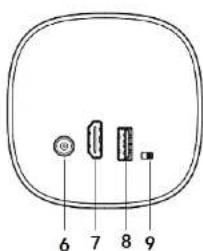
1.1 Product Interfaces
- Built in pick-up
- Focusing aid
-
Lens
-
Screw Hole for Tripod
- Tripod Screw Hole
-
Power Switch
-
HDMI Interface
- USB 3.0 Interface
- Image Orientation Switch
1.2 Power-on Initial Configuration
1) Power-on: Connect DC12V power supply adapter with power supply socket
2. Product Overview
2.1 Product Introduction
2.1.1 Dimensions


natural_image
Front view of a stylized device with a circular top and two small buttons, no text or symbols visible.Figure 2.1 Product Dimension
2.1.2 Accessories
Please check below standard accessories when unpacking the box.
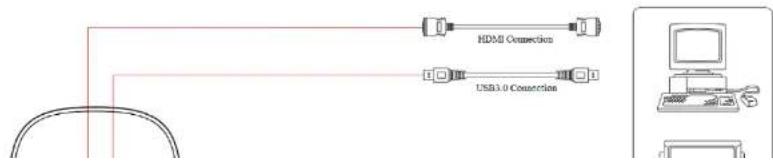
● Multiple Video Interfaces: HDMI, USB3.0; Simultaneously output audio and video signal
● Leading Auto Focus Technology: Fast, accurate and stable auto focusing technology.
- Horizontal and Vertical Screen: Allows the user to switch formats from landscape to portrait to optimize for mobile devices.
● Professional Image Style: Supports beauty and jewelry style mode to tailor image to makeup and fashion applications.
Built-in microphone: Dual microphone array with a 6 meter omnidirectional pickup pattern (optimal pickup distance is 3 meters), the noise suppression algorithm enhances voice capture.
● Multiple Audio/Video Compression Standards: Support YUY2/NV12/MJPG/H.264/H.265 video compression format.
- Low Noise and High SNR: Super high SNR image is achieved with low noise CMOS. Advanced 2D/3D noise reduction technology further reduces the noise while ensuring high image clarity.
● Easy to use: No need to download drivers, USB output is plug and play with a convenient user experience.
Technical Parameters
| Camera Parameter | |
| Sensor | 1/2.8inch sensor |
| Effective Pixels | 2 megapixel, 16: 9 |
| Video Format | HDMI video format1080I@60fps, 1080I@50fps, 1080P@30fps, 1080P@25fps, 720P@60fps, 720P@50fpsUSB3.0 interface video formatHorizontal screen: 1920 × 1080 @ 30fps , 1280 × 720 @ 30fps , 1024 × 576 @ 30fps , 960 × 540 @ 30fps , 800 × 448 @ 30fps , 640 × 360 @ 30fps , 640 × 480 @ 30fps , 320 × 176P30fps Vertical screen: 1080 × 1920 @ 30fps , 720 × 1280 @ 30fps , 576 × 1024 @ 30fps , 540 × 960 @ 30fps , 448 × 800 @ 30fps , 480 × 720 @ 30fps , 480 × 640 @ 30fps |
| Input/Output Interface | |
| Video Output | USB Interface: Support audio signal outputHDMI Interface: Support audio and video output |
| Video Compression Format | YUV, NV12, MJPG, H.264 |
| Audio Input | Built-in 2 MIC pickups |
| Control Interface | USB Interface |
| Other Parameter | |||
| Input Voltage/Current | Voltage | Power Adapter | 12 |
| USB | 5V | ||
| Current | Power Adapter | 0.425 | |
| USB | 1A(Max.) | ||
| Power Consumption | 5W(Max.) | ||
| Stored Temperature | -10°C~+60°C | ||
| Stored Humidity | 20%~90% | ||
| Working Temperature | -10°C~+50°C | ||
| Working Humidity | 20%~80% | ||
| Dimension (W*H*D) | 78mm×137.5mm×78mm | ||
| Weight | 0.6KG | ||
| Application | Indoor | ||
| Accessories | Power Supply, Wireless Remote Control, USB3.0 Cable, User Manual | ||
2.3 Interfaces and Connection
3. Application Instruction
3.1 Remote Control

3.1.1 Match Code for Wireless Remote Control
One to One Code Matching:
Press the "set" and "*" keys combined for 5 seconds, LED indicator starts flashing. Camera receive the signal and power on, LED indicator will go off if code matching successfully. The camera can be controlled by this wireless remote control only after one to one code pairing.
Otherwise please clear the code matching of this remote control, or use other remote control to pair with the camera again.
If one to one code matching failed, the red LED light flashes for 20 seconds and then goes off, camera will stop code match and turn on sleep mode; Press any key to wake up the camera and re-match code.
Note: After code matching successfully, please select the camera address to control it.
3. Focus Control

Auto: auto focus mode
Manual: manual focus mode
Focus + (near):Press 【FOCUS +】 key (Valid only in manual focus mode)
Focus - (far): Press 【FOCUS -】 key (Valid only in manual focus mode)
Press and hold the keys, the action of focus will keep continue and stop as soon as the key is released.
4. Zoom Control

Press and hold the keys, the action of focus will keep continue and stop as soon as the key is released.
5. Set and Clear Presets

Set Preset: press 【SET PRESET】 button, and then press the number key 0-9 to set preset positions.
Note: 10 presets via remote control.
6. Direction Control

Up: press

Down: press

Left: press

Right: press

Back to middle position: press"【HOME】"
Press and hold the up/down/left/right key, the pan/tilt movements will keep running, from slow to fast, until it runs to the endpoint; stop as soon as the key is released.
7. Menu Setting

【MENU】: Open / close the OSD menu
【HOME】: Camera lens back to the middle position; Confirm button; Enter next menu
【BLC ON/OFF】: Turn on or off the back light compensation
3.2 Menu Introduction
MENU
| Language | English |
| Image Style | Default |
| Anchor | 1 |
| (Color) | |
| (Image) | |
| (Focus) | |
| (Noise Reduction) | |
| (Focus) | |
| (Video Format) | |
| (Version) | |
| (Restore Default) |
[↑↓]Select [←→]Change Value [Menu]Back[Home]OK
1) Language: Move the pointer to (Language) in the main menu, and press the [←→] key to modify language.
2) Image Style: Move the pointer to (Image Style) in the main menu, and press the || key to modify the style default / Beauty / Jewelry
3) Anchor: Move the pointer to (Anchor) in the main menu, and press the [] key to modify the 1-4 host numbers; Image parameters can be modified manually under different host numbers, and can be saved after power failure.
EXPOSURE
| Mode | Auto | |
| EV | OFF | |
| BLC | OFF | |
| Flicker | 50Hz | |
| G.Limit | 3 | |
| DRC | 2 |
[↑↓]Select [←→]Change Value [Menu]Back[Home]OK
Mode: Auto, Manual, Shutter priority and Brightness priority.
EV: On/Off (only available in auto mode)
Compensation Level: -7\~7 (only available in auto mode when EV is ON)
BLC: ON/OFF for options (only available in auto mode)
Dynamic Range: 1-8, close
Anti-Flicker: OFF/50Hz/60Hz for options (only available in Auto/Iris priority/Brightness priority modes)
Gain limit: 0\~15(only available in Auto/ Iris priority /Brightness priority mode)
WDR: Off, 1-8
ShutterPriority:1/25,1/30,1/50,1/60,1/90,1/100,1/120,1/180,1/250,1/350,1/500,1/1000,1/2000,1/3000,1/4000,1/
6000, 1/10000 (only available in Manual and Shutter priority mode)
Brightness: 0\~23 (only available in Brightness priority mode)
5) Color
Move the pointer to the (COLOR) in the Main Menu, click the 【HOME】 and enter the (COLOR sub menu) as
Saturation: 60%,70%,80%,90%,100%,110%,120%,130%,140%,150%,160%,170%,180%,190%,200%
Red fine-tuning: -10-10 (only available in automatic mode)
Blue fine-tunable: -10\~10 (only available in automatic mode)
RED GAIN: 0\~255(only available in Manual mode)
BLUE GAIN: 0\~255(only available in Manual mode)
AWB Sensitivity: high/middle/low
Chroma: 0-14
6) Image
Move the pointer to the (IMAGE) in the Menu, click the【HOME】and enter into the (IMAGE sub menu) as follow,
| IMAGE | |
| Brightness | 7 |
| Contrast | 7 |
| Sharpness | 4 |
| Flip-H | OFF |
| Flip-V | OFF |
| B&W-Mode | Color |
| Gamma | Default |
| DCI | Close |
| Low-Light Mode | Close |
| [↑↓]Select [←→]Change Value[Menu]Back|Home|OK | |
NOISE REDUCTION
NR-2D 2
NR-3D 5
Dynamic Hot Pixel OFF
[↑↓]Select [←→]Change Value
[Menu]Back[Home]OK
2D Noise Reduction: Auto, close, 1\~7
3D Noise Reduction: Close, 1\~8
Dynamic Hot Pixel: Close, 1–5
8) Focus
Move the pointer to the (FOCUS) in the Menu, click the 【HOME】 and enter the (FOCUS) as follow,
FOCUS
Focus Mode Auto
Focus Auxiliary ON
AF-Zone Center
AF-Sensitivity Low
[↑↓]Select [←→]Change Value
[Menu]Back[Home]OK
![VIDEO FORMAT ==================== 1080I60 1080I50 1080P30 1080P25 720P60 720P50 [↑↓]Select [Menu]Back[Home]OK](/content/2026/06/1216090/images/23ee9184d92ca9e962ac9aac641bad78b1659660c70ff954837d372f9925be32.jpg)
10) Version
Move the pointer to the (VERSION) in the Main Menu, click the 【HOME】 and enter the (VERSION) as follow,
![VERSION Cam Version 1.0.0 2019-12-18 A Focus Version 1.0.0 2018-11-20 [Menu]Back](/content/2026/06/1216090/images/09c85a20f3932d52cb3a6bcbc72e720d5c81b2aa562c82d69b29cf139e516807.jpg)
11) Restore Default
4. Maintenance and Troubleshooting
4.1 Camera Maintenance
1) Please power off the camera and disconnect the power adapter and socket, if it's not used for an extended period of time.
2) Use soft cloth or tissue to clean the camera cover.
3) Wipe with a soft dry cloth when cleaning the camera lens. Wipe it gently with a mild detergent if needed. Do not use strong or corrosive detergents to avoid scratching the lens and affecting the video quality.
4.2 Troubleshooting
1) No video output
a. Check whether the device is connected to the USB cable and whether the power indicator is on
b. Check whether the device is in standby state, long press the power button for 3s to see whether it can be turned on
c. Restart the computer
d. Check the video output cable
e. Check whether the device is recognized, unplug the device and reconnect when it is displayed in the device manager
2) Remote control not working
a. Re-code the wireless remote control to the camera
b. Remote control address is set to 1 (if the machine is set back to the factory defaults, remote control addresses
5. Warranty
BZBGEAR wants to assure you peace of mind. All BZBGEAR cameras and camera-related products include our Stress-Free Three-Year Warranty.
For complete warranty information, please visit BZBGEAR.com/warranty.
For questions, please call 1.888.499.9906 or email support@bzbgear.com.
6. Mission Statement
BZBGEAR manifests from the competitive nature of the audiovisual industry to innovate while keeping the customer in mind. AV solutions can cost a pretty penny, and new technology only adds to it. We believe everyone deserves to see, hear, and feel the advancements made in today's AV world without having to break the bank. BZBGEAR is the solution for small to medium-sized applications requiring the latest professional products in AV.
We live in a DIY era where resources are abundant on the internet. With that in mind, our team offers system design consultation and expert tech support seven days a week for the products in our BZBGEAR catalog. You'll notice comparably lower prices with BZBGEAR solutions, but the quality of the products is on par with the top brands in the industry. The unparalleled support from our team is our way of showing we care for every one of our customers. Whether you're an integrator, home theater enthusiast, or a do-it-yourselfer, BZBGEAR offers the solutions to allow you to focus on your project and not your budget.


- Attention
- Caution
- Electrical Safety
- Content
- Camera Installation
- Camera Interfaces
- Power-on Initial Configuration
- Product Overview
- Product Introduction
- Dimensions
- Accessories
- Interfaces and Connection
- Application Instruction
- Remote Control
- Match Code for Wireless Remote Control
- One to One Code Matching:
- Focus Control
- Zoom Control
- Set and Clear Presets
- Direction Control
- Menu Setting
- Menu Introduction
- 5) Color
- 6) Image
- NOISE REDUCTION
- 8) Focus
- FOCUS
- Maintenance and Troubleshooting
- Camera Maintenance
- Troubleshooting
- 1) No video output
- 2) Remote control not working
- Warranty
- Mission Statement
Brand : BZBGear
Model : PACKSHOT
Category : Camera