
B20SA - Camera BZBGear - Free user manual and instructions
Find the device manual for free B20SA BZBGear in PDF.


| Product Type | HD Color Video Conference Camera |
| Brand | BZBGear |
| Model | B20SA |
| Image Sensor | 1/2.8-inch CMOS |
| Resolution | 1920x1080 up to 60 fps |
| Optical Zoom | 20X |
| Digital Zoom | 10X |
| Field of View | 3.3° (tele) ~ 54.7° (wide) |
| Aperture | F1.6 ~ F3.5 |
| Minimum Illumination | 0.5 Lux (F1.8, AGC ON) |
| Signal-to-Noise Ratio | >55 dB |
| Video Compression | H.265, H.264 |
| Video Output Interfaces | LAN, 3G-SDI, HDMI |
| Control Protocols | VISCA, PELCO-D, PELCO-P |
| Control Interface | RS485, Wired LAN |
| Network Protocols | RTSP, RTMP, ONVIF, GB/T28181 |
| Power Supply | DC12V ±10% |
| Power Adapter | Input AC110-220V, Output DC12V/1A |
| Baud Rate | 2400 / 4800 / 9600 / 115200 bps |
| Image Flip | Horizontal and Vertical |
| White Balance Modes | Auto, Manual, One Push, 3000K, 4000K, 5000K, 6500K |
| Exposure Modes | Auto, Manual, Shutter Priority, Iris Priority, Brightness Priority |
| Focus | Auto / Manual |
| Noise Reduction | 2D & 3D DNR |
| Cleaning Instructions | Use soft cloth, avoid corrosive or abrasive cleaners |
Frequently Asked Questions - B20SA BZBGear
User questions about B20SA BZBGear
0 question about this device. Answer the ones you know or ask your own.
Ask a new question about this device
Download the instructions for your Camera in PDF format for free! Find your manual B20SA - BZBGear and take your electronic device back in hand. On this page are published all the documents necessary for the use of your device. B20SA by BZBGear.
USER MANUAL B20SA BZBGear
Preface:
Thanks for using our HD color video conference camera.
This manual introduces the functions, installation, and operation of the HD camera. Prior to installation and usage please read the manual thoroughly.
Warning
- Do not expose the camera to rain or moisture
- To reduce the list of electric shock do not remove the cover. Servicing should only be done by qualified professionals.
- Please use a soft cloth to clean the camera. To prevent damage to the housing avoid using any corrosive or abrasive cleaners.
Electrical Safety
Installation and operation must conform with local standards.
Caution to transport
Avoid stress, vibration and moisture in transport, storage and installation.
Polarity of power supply
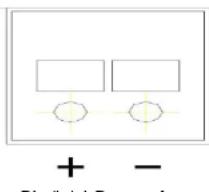
The power supply of the product is ±12V, polarity of the power supply drawing pic 0.1.
Content
- Quick Start Guide 4
1.1 CAMERA INTERFACE EXPLANATION....4
1.2 POWER ON SELF-TEST 5
1.3 VIDEO OUTPUT .... 5
1.4 BRACKET MOUNTING 6
- Product overview ....7
2.1 PRODUCT INTRODUCTION....7
2.1.1 Dimension....7
2.1.2 Accessories 7
2.2 MAIN FEATURES 8
2.2.1 Camera performance....8
2.2.2 Network performance 8
2.2.3 Technical specifications 8
2.2.4 Keyboard Introduction 10
- Application Instruction....10
3.1VIDEO OUTPUT 10
3.1.1 Power-On Initial Configuration.... 10
3.1.2 Video output.... 11
3.2 MENU SETTING 11
3.2.1 Main menu 11
3.2.2 System setting 12
3.2.2 Camera settings.... 12
3.2.3 ZOOM 16
3.2.4 Video Format 16
3.2.5 VERSION....17
6 Camera Maintenance and Troubleshooting 33
6.1 CAMERA MAINTENANCE....33
6. Maintenance and Troubleshooting 33
6.1 MAINTENANCE 33
6.2 TROUBLESHOOTING....34
7 Warranty 34
8 Mission Statement....35
1. Quick Start Guide
1.1 Camera Interface Explanation
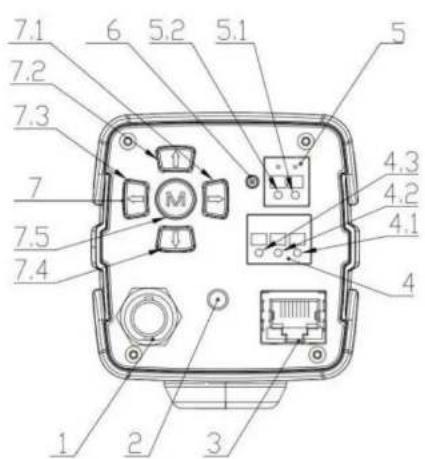
Pic 1.1 Back plate
- HD-SDI interface
- Audio-IN interface(3.5mm)
1.2 Power on self-test
1) Power on: connect DC12V power supply adapter, and the indicator light will be on.
2) Self-testing: Power on with power indicator light on, camera module will stretch. When the module finishes stretching, the self-testing is finished.
Note: If you set parking position, when Power on self-test is completed, the camera automatically goes to the parking position.
1.3 Video output
1) Video output from LAN:
a) Network cable connection port
b) Web page Login: open your browser and enter 192.168.5.163 in the address bar (factory default); press Enter to enter into the login page; click on the "player is not installed, please download and install" and follow the installation steps for installation. Then enter the username admin and password admin (factory default); press Enter to access the preview page. Users can carry out PTZ control, video recording, playback, configuration and other operations.
c) If without image, refer to Chapter 6 Troubleshooting

1.4 BRACKET MOUNTING
Note: Ceiling or wall mounting brackets should only be installed on sturdy walls rated to support mounted objects. For safety reason, plasterboard is not recommended.
1) Bracket installation steps

2. Product overview
2.1 Product introduction
2.1.1 Dimension

Pic 2.1.1 Camera dimension
2.1.2 Accessories
2.2 Main Features
2.2.1 Camera performance
This series camera features advanced ISP processing algorithms to provide vivid images with a strong sense of depth, high resolution and fantastic color rendition. It supports H.264/H.264+ encoding which makes motion video fluent and clear even with less than ideal bandwidth conditions.
- Superb high-definition image: It employs 1/2.8-inch high quality CMOS sensor. Resolution is up to 1920x1080 with frame rate up to 60 fps.
- Various optical zoom lens: It has 20X optical zoom lens for options, 3.3 degree\~54.7 degree, 2.9 degree\~55.4 degree lens for option.
- Leading Auto focus technology: Leading auto focus algorithm allows fast, accurate and stable auto-focusing.
- Low noise and High SNR: Low Noise CMOS effectively ensure high SNR of camera video.
Advanced 2D/3D noise reduction technology is also used to further reduce the noise, while ensuring image sharpness. - Multi-Format Video Outputs: support HDMI, 3G SDI, wired LAN, the 3G-SDI is available for 100m transmission at
1080p60 format. - Support Multiple Control Protocol: Support VISCA, PELCO-D, PELCO-P protocols which can also be automatically recognized. Support VISCA control protocol through IP port.
- Keyboard: There are up/down/left/right/confirm control key in the back part of the cameras
- Control Interface: Support RS485, Wired LAN, convenient for remote control after installation
- Support parking position preset: Camera will run to the parking position after power on (can choose on/off on menu)
- Wide application: tele-education, lecture capture, Webcasting, Videoconferencing, Tele-training, Tele-medicine, Interrogation and Emergency command systems.
2.2.2 Network performance
| View Angle | 3.3° (tele) ~54.7° (wide) |
| Aperture | F1.6 ~ F3.5 |
| Digital Zoom | X10 |
| Minimum Illumination | 0.5Lux (F1.8, AGC ON) |
| DNR | 2D & 3D DNR |
| White Balance | Auto / Manual/ One Push/ 3000K/ 4000K/5000K/6500K |
| Focus | Auto/Manual |
| Iris | Auto/Manual |
| Electronic Shutter | Auto/Manual |
| BLC | ON/OFF |
| WDR | OFF/ Dynamic level adjustment |
| Video Adjustment | Brightness.Color,Saturation,Contrast,Sharpness,B/W mode,Gamma curve |
| SNR | >55dB |
| Input/Output Interface | |
| Video Interfaces | LAN, 3G-SDI |
| Image Code Stream | Dual stream output |
| Video Compression Format | H.265, H.264 |
| Control Protocol | VISCA/Pelco-D/Pelco-P; Baud Rate: 115200/9600/4800/2400bps |
| IP Interface | 100M IP port(100BASE-TX);Support VISCA protocol control through IP port. |
| Network Protocol | RTSP, RTMP, ONVIF, GB/T28181 |
| Power Interface | (DC12V) |
| Other Parameters | |
| Supply Adapter | Input AC110V-AC220V, output DC12V/1A |
| Input Voltage | DC12V ± 10% |
2.2.4 Keyboard Introduction
- Menu
Menu and Confirm share the same key - "menu/ok"
Up
In the menu screen, when the cursor is on a particular sub-menu, the cursor will move up to the selected menu when we press the "up" key.
When it is not on menu screen, it is used as Focus+
- Down
In the menu screen, when the cursor is on a particular sub-menu, the cursor will move up to the selected menu when we press the "down" key.
When it is not on menu screen, it is used as Focus-
- Left
In the menu screen, when the cursor is on a particular sub-menu, we can go to the selected menu by pressing the "left" key.
When it is not on menu screen, it is used as Zoom out.
- Right
In the menu screen, when the cursor is on a particular sub-menu, we can go to the selected menu by pressing the "Right" key.
When it is not on menu screen, it is used as Zoom In.
3.1.2 Video output
- Network output: connect this product and your computer via network cable, then open the browser and enter the camera IP address (factory default 192.168.5.163) in the address bar. From the login page enter user name and password (factory default is "admin" for both). After login you will be taken to the preview page where you will see the camera image. If you forget your username, password, IP address, you can manually restore the default by the default setting option in the menu.
- 3G-SDI output or HDMI output: Connect the monitor with the corresponding video output interface, then the monitor output image.
3.2 MENU SETTING
3.2.1 Main menu
In normal working mode, press 【MENU】 key to display the menu, using scroll arrow to point at or highlight the selected items.
| MENU | |
| Language (Setup) (Camera) | English |
[MENU] OK: Press [MENU] to confirm
3.2.2 System setting
Move the pointer to the (Setup) in the Main Menu, click the 【MENU】key and enter into the (System Setting) as shown below,
| SETUP | |
| Protocol | Auto |
| Visca Address | 1 |
| Visca Address Fix | OFF |
| PELCO-P Address | 1 |
| PELCO-D Address | 0 |
| Baudrate | 9600 |
| Return | |
| [↑↓]Select [←→]Change Value [Menu]OK | |
PROTOCOL: VISCA/Pelco-P/Pelco-D/Auto
Visca ADDR:VISCA=1\~7 Pelco-P=1\~16(1\~16)/Pelco-D = 0\~15(0\~15)
Baud rate: 2400/4800/9600/115200
RETURN: Return to the former menu (Exit from main menu)
[↑↓] Select: for selecting menu
- . . . Change value: for modify parameters
CAMERA
[EMPTY]
(Exposure)
(Color)
(Image)
(Focus)
(Noise Reduction)
Return
[↑ ↓]Select [← →]Change Value
[Menu]OK
EXPOSURE: Adjust Exposure setting
COLOR: Adjust color setting
Image: Adjust image setting
Focus: Adjust focus setting
Noise Reduction: Enter into noise reduction
RETURN: Exit menu
[↑↓] Select: for selecting menu
[• •] Change value: to modify parameters
[MENU] OK: Press [MENU] to confirm
1) EXPOSURE SETTINGS
Highlight (EXPOSURE) in the Main Menu and click 【MENU】 to enter Exposure Settings
EXPOSURE
[EMPTY]
Mode
[Unreadable]
Auto
OFF
Shutter priority:1/25,1/30,1/50,1/60,1/90,1/100,1/120,1/180,1/250,1/350,1/500,1/1000,1/2000,1/3000,1/4000,1/6000,1/10000(only available in Manual and Shutter priority mode)
IRIS priority: OFF,F11.0,F9.6,F8.0,F6.8,F5.6,F4.8,F4.0,F3.4,F2.8,F2.4,F2.0,F1.8(only available in Manual and Iris priority mode)
BRIGHTNESS: 0\~23 (only available in Brightness priority mode)
RETURN: Return to the former menu
[↑↓] Select: for selecting menu
[←→] Change value: for modify parameters
[MENU] OK: Press [MENU] to confirm
2) COLOR SETTING
Highlight (COLOR) in the Main Menu and click 【MENU】 to enter Color Settings.
COLOR
| WB Mode | Auto |
| Saturation | 80% |
| Hue 7 | |
| AWB Sensitivity | High |
| Color style | Default |
| Color temp | Low |
| Return | |
[↑↓]Select [←→]Change Value
[Menu]OK
WB MODE: Auto,3000K,4000K,5000K,6500K,Manual,One Push
RED GAIN: 0\~255(only available in Manual mode)
3) IMAGE
Highlight (IMAGE) in the Menu and click 【HOME】 to enter Image Settings.
| IMAGE | |
| Brightness | 6 |
| Contrast | 8 |
| Sharpness | 2 |
| Flip-H | OFF |
| Flip-V | OFF |
| B&W-Mode | Color |
| Gamma | Default |
| DZoom | O F F |
| DCI | Close |
| Return | |
| [↑↓]Select | [←→]Change Value |
| [Menu]OK | |
Brightness: 0\~14
Contrast: 0\~14
Sharpness:0\~15
Flip-H: On/Off
Flip-V: On/Off
B&W mode: color, black/white
Gamma:default.0.47.0.50.0.52.0.55
DZoom: digital zoom options: On/Off
DCI: Dynamic Contrast: Off.1\~8
RETURN: Return to the former menu
[↑↓] Select: for selecting menu
- Change values for modifi parameters
[← →] Change value: for modify parameters
[MENU] OK: Press [MENU] to confirm
5) NOISE REDUCTION
Move the pointer to the (NOISE REDUCTION) in the Menu, click the【MENU】and enter the (NOISE REDUCTION) as follow.
![NOISE REDUCTION NR-2D Auto NR-3D 5 Dynamic Hot Pixel OFF Return [↑↓]Select [←→]Change Value [Menu]OK](/content/2026/06/1216072/images/83c307677241db82ce388f2d3cdc254c3af938ebc618ff5f59fc8e1a2b020213.jpg)
2D NOISE REDUCTION: Auto, close, 1\~7
3D NOISE REDUCTION: Close,1\~8
Dynamic Hot Pixel: Close,1\~5
RETURN: Return to the former menu
[↑↓] Select: for selecting menu
[← →] Change value: for modify parameters
[MENU] OK: Press [MENU] to confirm
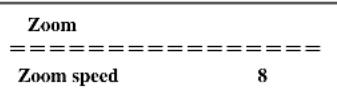
3.2.3 ZOOM
Highlight (ZOOM) in the Main Menu and click 【MENU】 to enter Zoom Settings.
| VIDEO FORMAT | ||
| 1080P60 | 1080P50 | |
| 1080I60 | 1080I50 | |
| 1080P30 | 1080P25 | |
| 720P60 | 720P50 | |
| 720P30 | 720P25 | |
| 1080P59.94 | ||
| 1080I59.94 | ||
| 1080P29.97 | ||
| 720P59.94 | ||
| 720P29.97 | ||
| Return | ||
3.2.5 VERSION
Highlight (VERSION) in the Main Menu and click 【MENU】 to view Version Information.
| VERSION | ||
| MCU Version | 2.0.0.0 | 2015-12-18 |
| Camera Version | 2.0.0.15 | 2015-12-18 |
| AF Version | 2.0.0.6 | 2015-12-11 |
| Return | ||
RESTORE DEFAULT
| Restore | Default? | NO |
Return
[↑↓]Select [←→]Change Value
[Menu]OK
Restore default: options: yes/no
RETURN: Return to the former menu (if it is main menu, means close menu)
[↑↓] Select: for selecting menu
[← →] Change value: for modify parameters
[MENU] OK: Press [MENU] to confirm
4. Network Connection
4.1 Connection Mode
Direct connection: Connect the camera directly to the computer by using an ethernet cable.
Internet connection mode: Connect the camera and computer to a router or switch and access via the local area network (LAN).
Note: Ensure power and network connections are secured to prevent video issues caused by poor connection quality.

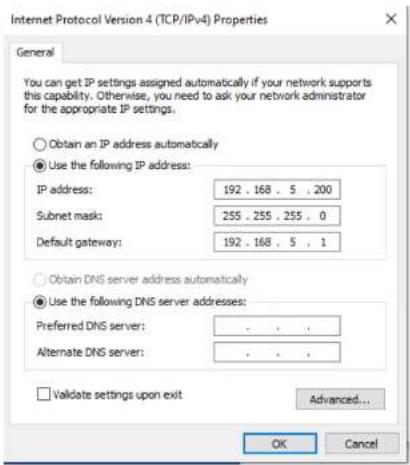
For the following steps refer to the diagram below.
Click on the bubble for "Use the following IP address"
In the IP address field enter a non-conflicting IP address on the same subnet as the camera. If there is another device with the same IP address you will not be able to connect. In the example below we are using 192.168.5.200
In the Subnet mask field enter 255.255.255.0
In the Default gateway field time 100 150.5.1
4.2.1 Web client
1) Web client
Input the IP address 192.168.5.163 of the device in the address filed of browser and click Enter button to access Web

Pic 4.2.2 Network log in
NOTE: Supported Browsers for WebGUI access include Chrome, Firefox, and Safari.
4.2.2 Preview
After login you will be taken to the default video preview interface. User can control the zoom, focus, snapshot, enlarge, full screen and position 0 preset set operations etc.
4.2.4 Configuration
value: real time normal (2), real time best (1), fluency normal (3), fluency good (4) and fluency best (5))
b) Recording video packing time(minute): Set recording video packing time (default is 10, range from 1\~120 minutes)
c) Recording/Snapshot file storage route: Set local recording video/snapshot file storage route.(Default D:\MyIPCam)
d) Click the Save button to make settings effective.
2)Audio Configuration
a) Switch: Choose to enable the audio or not.
b) Compressing format: Set audio compressing format and the device will reboot automatically after change (default MP3, PCM, AAC optional)
c) Sampling frequency: Set sampling frequency and the device will reboot automatically after change (default 44100, 16000, 32000 and 48000 optional)
d Sampling precision: Set sampling precision (default 16bits)
e) Compressing code rate: Set audio compressing code rate (default 64bits, 32,48,96,128bits optional) f) Click "Save" button and the settings become effective when noting "Saved successfully"
4.2.5 Video configuration
1) Video encoding
a) Code stream: It will call different code stream when setting different video output format. (Main stream and Secondary stream)
b) Compressing format: Set video compressing format and the device will reboot automatically (Main/Second code stream default H.264, H.265 optional))
c) Video size: set resolution, then device will restart automatically (Main stream default 1920*1080,1280*720 optional, Secondary stream default 640 * 320, 320 * 180,1280 * 720, 1920*1080 optional).
d) Stream Rate control: Set rate control mode, then device will restart automatically (Primary / secondary stream default variable bit rate, fixed rate is for option).
e) Image quality: Set image quality(default for Primary stream is better image, secondary stream default is bad image. Best, better, good, bad, worse, worst for optional).
Focus Sensitivity: Set the focus sensitivity (default is low, high, medium optional)
a) Exposure:
Exposure Mode: Set the exposure mode (the default automatic, manual, shutter priority, aperture priority, Brightness priority optional)
Exposure compensation: Exposure compensation setting is active when it is auto status (default is off).
Exposure compensation value: Set the exposure compensation value, valid when it is set for auto (default 0, -7 to 7 optional).
BLC: Set back light compensation, valid when it is auto status (default is off).
Anti-flicker: Set up anti-flicker mode, valid when status of automatic, aperture or brightness priority (default 50Hz, closed, 60Hz optional).
Gain limit: set the gain limits, auto, active when it is status of aperture or brightness priority (default 3,0-15 optional).
b) Dynamic range: set the dynamic range (default 5, Off, 0-8 optional).
c) Shutter speed: active when it is status of manual or shutter-priority (default 1/100, 1/25, 1/30, 1/50, 1/60, 1/90, 1/100, 1/120, 1/180, 1/250, 1/350, 1/500, 1/1000, 1/2000, 1/3000, 1/4000, 1/6000, 1/10000 optional).
d) Aperture value: Set the aperture value, active when it is status of manual or aperture-priority(default F1.8, closed, F11, F9.6, F8.0, F6.8, F5.6, F4.8, F4.0, F3.4, F2.8, F2.4, F2.0, F1.8 optional).
e) Brightness: Set the brightness value, active when it is a state of brightness priority (default 7.0-23 optional).
f) Color:
White balance modes: Set the white balance mode (the default automatic, 3000K,4000K,5000K,6500K, manual, One-push optional). Note: Click the "Correction" button when selected the One-push white balance mode.
Red Gain: Set the red gain, effective when it is manual (default 255.0-255 optional).
Blue Gain: Sets the Blue gain, effective when it is manual (default 199,0-255 optional). Saturation: Set the saturation (default 80%, 60%, 70%, 80%, 90%, 100%, 110%, 120%, 130%, optional). Color: Set the chrome (default 7,0-14 optional). Auto white balance Sensitivity: Sensitivity Auto white balance settings (default is low, high, medium
optional).
Red Gain. Set Red Gain. Only effective when white balance mode is manual (default 255, 0\~255 optional) Blue Gain. Set Blue Gain. Only effective when white balance mode is manual (default 255, 0\~255 optional)
g) Image:
Brightness: Set the brightness (default 6,0-14 optional).
Contrast: set the contrast (default 8,0-14 optional).
Sharpness: Sets the sharpness value (default 7,0-15 optional).
Black and white mode: Set black and white mode (default color, black/white optional).
Gamma: Gamma value setting (default, 0.45, 0.50, 0.52, 0.55 optional).
Flip Horizontal: Set Flip Horizontal (default Off, On optional).
Flip Vertical: Set vertical flip (default Off, On optional).
1080P60,1080P50,1080P30,1080P25,1080I60,1080I50,720P60,720P50,720P30,720P25,1080P59.94,1080I59.94,1080P29.97,720P59.94,720P29.97 optional).
b) Click on the "Save" button to display the "Save successful" message, then valid. Note: Model S-S20/T20 support up to P30 video formats.
4.2.6 Network configuration
1) Network port
a) Data port: set the data port, the device will restart automatically after changed (default 3000,0-65535 optional).
b) Web Port: Set Web port, the device will restart automatically after changed (default is 80,0-65535 is optional).
c) Onvif Port: Set Onvif port, the device will restart automatically after changed (default 2000,0-65535 optional).
d) Soap Port: Set Soap port (default 1936,0-65535 optional).
e) RTMP Port: Set RTMP port (default 1935,0-65535 optional)
f) RTSP Port: Set RTSP port, the device will restart automatically after changed (default 554,0-65535 optional).
g) Visca Port: Set Visca port, the device will restart automatically after changed (default 3001,0-65535 optional).
Click on the "Save" button to display the "Save successful" message, then valid.
2) Ethernet parameters
a) DHCP: Set whether to open to obtain IP automatically. The machine will restart automatically after change (off by default)
b) IP Address: Set the IP address, the device will restart automatically after changes (default 192.168.5.163).
c) Note: Here is the IP address of the web page of the sign-in address
d) Subnet Mask: Set the subnet mask (default 255.255.5.0).
e) Default Gateway: Set the default gateway (default 0.0.0.0).
f) Physical Address: Set the physical address (the parameter is read-only but can not be modified).
Click on the "Save" button to display the "Save successfully" message, then the set is to take effect (Note: To prevent IP conflicts When modify).
a) Preferred DNS server: set the preferred DNS server. (Default 0.0.0.0).
b) Alternate DNS server: Alternate DNS server settings. (Default 0.0.0.0).
c) Click on the "Save" button to display the "Save successfully" message, then the set is to take effect.
3)DNS parameters
4)GB28181
a) Enable/disable GB28181
b) Time Synchronization: whether synchronization time is set, you can check
c) Stream Type: stream type setting (the default main stream, secondary stream optional)
d) Sign effective time (in seconds): 3600 Range 5-65535
e) Heartbeat time (seconds): 60 Range 1-65535
f) Register ID: 34020000001320000001
b) Date separator: set the date separator (default '/',',',',',',',',',',',',',',',',',',',',',',',',',',',',',',',',',',',',',',',',',',',',',',',',',',',',',',',',',',',',',',',',',',',',',',',',',',',',',',',',',',',',',',',',',',',',',',',',',',',','',
c) Time Zone: Set the time zone (default East eight districts, other time zones optional).
d) Time Type: Set the time types (default 24 hours, optional 12 hours).
e) Time setting: Set time mode (to choose the computer time synchronization, NTP server time synchronization, or set manually).
f) Computer Time: Set the computer synchronization valid.
g) Set the time manually. Click the calendar icon on the right to set the time manually. Effective when set manually.
h) Update interval: Set the NTP server automatic updated time interval. Valid after setting NTP server synchronization (default one day, 2-10 days Optional).
i) NTP server address or domain name: Set NTP server address or domain name (default time.nits.gov). Valid after setting NTP server synchronization.
J) NTP Server Port: Sets the NTP server port (default 123). Valid after setting NTP server synchronization.
k) Save. Click on the "Save" button to display the "Save successfully" message, then the set is to take effect.
3)User Management
a) Select users: Set the user type (the default administrator, Common User 1, Common User 2 optional)
b) Username: set the username (Select User Administrator default admin; select a common user1 default user1; to select a common user 2 default user2; user can modify their own)
c) Password: Set a password (Select User Administrator default admin; select a common user1 default user1; to select a common user 2 default user2; user can modify their own).
d) Password confirmation: Confirm the input passwords are the same or not.
e) Click on the "Save" button to display the "Save successfully" message, then the set is to take effect.
Note: Please note the case-sensitivity of the username and password. If login page by a common user's name and password, one does not have configuration privileges but can only operate to preview, playback, logoff.
4) Version upgrade
a) MCU version V2.0.0.0 2015-12-18
b) Camera version V2.0.0.16 2015-12-18
c) Focus version V2.0.0.6 2015-12-1
r) Update file:
Click "Browse ..." installation, to select the upgrade file in the pop-up window.
Click on the "Upgrade" button, the upgrade dialog will appear. the device will reboot automatically after update successfully. (Note: make sure the power and network are connected during the process or the upgrade will fail)
5)Restore factory setting
a) Click on pop-up "Restore Factory Defaults" button and choose "yes" or "no", then the device will restart automatically and restore factory setting.
6) Reboot
a) Click on the pop-up "Reboot" button and choose "yes" or "no", then the device will restart automatically
5.1 VISCA protocol list
5.1.1 Camera return command (Correct)
| Ack/Completion Message | ||
| Command packet | Note | |
| ACK | z0 41 FF | Returned when the command is accepted. |
| Completion | z0 51 FF | Returned when the command has been executed. |
z = camera address + 8
5.1.2 Camera return command (Wrong)
| Error Messages | ||
| Command packet | Note | |
| Syntax Error | z0 60 02 FF | Returned when the command format is different or when a command with illegal command parameters is accepted |
| Command Not Executable | z0 61 41 FF | Returned when a command cannot be executed due to current conditions. For example, when commands controlling the focus manually are received during auto focus. |
5.1.2 Camera control command
| Command | Function | Command packet | Note |
| AddressSet | Broadcast | 88 30 01 FF | Address setting |
| IF_Clear | Broadcast | 88 01 00 01 FF | I/F Clear |
| CommandCancel | 8x 21 FF | ||
| CAM_Power | On | 8x 01 04 00 02 FF | Power ON/OFF |
| Off | 8x 01 04 00 03 FF | ||
| CAM_WB | Auto | 8x 01 04 35 00 FF | |
| 3000K | 8x 01 04 35 01 FF | ||
| 4000k | 8x 01 04 35 02 FF | ||
| One Push mode | 8x 01 04 35 03 FF | ||
| 5000k | 8x 01 04 35 04 FF | ||
| Manual | 8x 01 04 35 05 FF | ||
| 6500k | 8x 01 04 35 06 FF | ||
| CAM_RGain | Reset | 8x 01 04 03 00 FF | Manual Control of R Gain |
| Up | 8x 01 04 03 02 FF | ||
| Down | 8x 01 04 03 03 FF | ||
| Direct | 8x 01 04 43 00 00 0p 0q FF | pq: R Gain | |
| CAM_Bgain | Reset | 8x 01 04 04 00 FF | Manual Control of B Gain |
| Up | 8x 01 04 04 02 FF | ||
| Down | 8x 01 04 04 03 FF | ||
| Direct | 8x 01 04 44 00 00 0p 0q FF | pq: B Gain | |
| CAM_AE | Full Auto | 8x 01 04 39 00 FF | Automatic Exposure mode |
| Manual | 8x 01 04 39 03 FF | Manual Control mode | |
| Shutter priority | 8x 01 04 39 0A FF | Shutter Priority Automatic Exposure mode | |
| Iris priority | 8x 01 04 39 0B FF | Iris Priority Automatic Exposure mode | |
| Bright | 8x 01 04 39 0D FF | Bright mode | |
| CAM_Shutter | Reset | 8x 01 04 0A 00 FF | Shutter Setting |
| Up | 8x 01 04 0A 02 FF | ||
| Down | 8x 01 04 0A 03 FF | ||
| Direct | 8x 01 04 4A 00 00 0p 0q FF | pq: Shutter Position | |
| Reset | 8x 01 04 0B 00 FF | Iris Setting | |
| Up | 8x 01 04 0B 02 FF | ||
| CAM_Back Light | On | 8x 01 04 33 02 FF | Back LightCompensation |
| Off | 8x 01 04 33 03 FF | ||
| CAM_NR (2D) | 8x 01 04 53 0p FF | P=0-7 0:OFF | |
| CAM_NR (3D) | 8x 01 04 54 0p FF | P=0-8 0:OFF | |
| CAM_Gamma | 8x 01 04 5B 0p FF | p = 0 - 40: Default1: 0.472: 0.503: 0.524: 0.55 | |
| CAM_Flicker | 8x 01 04 23 00 FF | OFF | |
| 8x 01 04 23 01 FF | 50HZ | ||
| 8x 01 04 23 02 FF | 60HZ | ||
| CAM_Aperture | Reset | 8x 01 04 02 00 FF | Aperture Control |
| Up | 8x 01 04 02 02 FF | ||
| Down | 8x 01 04 02 03 FF | ||
| Direct | 8x 01 04 42 00 00 0p 0q FF | pq: Aperture Gain | |
| CAM_Memory | Reset | 8x 01 04 3F 00 0p FF | p: Memory Number(=0 to 254)Corresponds to 0 to 9 on the Remote Commander |
| Set | 8x 01 04 3F 01 0p FF | ||
| Recall | 8x 01 04 3F 02 0p FF | ||
| CAM_LR_Reverse | On | 8x 01 04 61 02 FF | Image Flip Horizontal ON/OFF |
| Off | 8x 01 04 61 03 FF | ||
| CAM_PictureFlip | On | 8x 01 04 66 02 FF | Image Flip Vertical ON/OFF |
| Off | 8x 01 04 66 03 FF | ||
| P=0-70:60%1:70% | |||
| CAM Contrast | Direct | 8x 01 04 A2 00 00 0p 0q FF | pq: Contrast Position |
| CAM_Flip | OFF | 8x 01 04 A4 00 FF | Single Command For Video Flip |
| Flip-H | 8x 01 04 A4 01 FF | ||
| Flip-V | 8x 01 04 A4 02 FF | ||
| Flip-HV | 8x 01 04 A4 03 FF | ||
| CAM_VideoSystem | Set camera video system | 8x 01 06 35 00 0p FF | P: 0~E Video format0:1080P601:1080P502:1080I603:1080I504:720P605:720P506:1080P307:1080P258:720P309:720P25A: 1080P59.94B: 1080I59.94C: 720P59.94D: 1080P29.97E: 720P29.97 |
| Up | 8x 01 06 01 VV WW 03 01 FF | VV: Pan speed 0x01 (low speed) to 0x10 (high speed) | |
| Down | 8x 01 06 01 VV WW 03 02 FF | ||
| Left | 8x 01 06 01 VV WW 01 03 FF | ||
| Right | 8x 01 06 01 VV WW 02 03 FF | ||
| Upleft | 8x 01 06 01 VV WW 01 01 FF | ||
| Upright | 8x 01 06 01 VV WW 02 01 FF |
5.1.3 Inquiry command
| Command | Function | Command packet | Note |
| CAM_PowerInq | 8x 09 04 00 FF | y0 50 02 FF | On |
| y0 50 03 FF | Off(Standby) | ||
| CAM_ZoomPosInq | 8x 09 04 47 FF | y0 50 0p 0q 0r 0s FF | pqrs: Zoom Position |
| CAM_FocusAFModelInq | 8x 09 04 38 FF | y0 50 02 FF | Auto Focus |
| y0 50 03 FF | Manual Focus | ||
| CAM_FocusPosInq | 8x 09 04 48 FF | y0 50 0p 0q 0r 0s FF | pqrs: Focus Position |
| CAM_WBModelInq | 8x 09 04 35 FF | y0 50 00 FF | Auto |
| y0 50 01 FF | 3000K | ||
| y0 50 02 FF | 4000K | ||
| y0 50 03 FF | One Push Mode | ||
| y0 50 04 FF | 5000K | ||
| y0 50 05 FF | Manual | ||
| y0 50 00 FF | 6500K | ||
| CAM_RGainInq | 8x 09 04 43 FF | y0 50 00 00 0p 0q FF | pq: R Gain |
| CAM_BGainInq | 8x 09 04 44 FF | y0 50 00 00 0p 0q FF | pq: B Gain |
| CAM_AEModelInq | 8x 09 04 39 FF | y0 50 00 FF | Full Auto |
| y0 50 03 FF | Manual | ||
| y0 50 0A FF | Shutter priority | ||
| y0 50 0B FF | Iris priority | ||
| y0 50 0D FF | Bright | ||
| CAM_ShutterPosInq | 8x 09 04 4A FF | y0 50 00 00 0p 0q FF | pq: Shutter Position |
| CAM_IrisPosInq | 8x 09 04 4B FF | y0 50 00 00 0p 0q FF | pq: Iris Position |
| CAM_BrightPosInq | 8x 09 04 4D FF | y0 50 00 00 0p 0q FF | pq: Bright Position |
| CAM_ExpCompModelInq | 8x 09 04 3E FF | y0 50 02 FF | On |
| y0 50 03 FF | Off | ||
| CAM_ExpCompPosInq | 8x 09 04 4E FF | y0 50 00 00 0p 0q FF | pq: ExpComp Position |
| CAM_BacklightModelInq | 8x 09 04 33 FF | y0 50 02 FF | On |
| y0 50 03 FF | Off | ||
| CAM_NRLevel(2D) Inq | 8x 09 04 53 FF | y0 50 0p FF | P: 2DNRLevel |
| CAM_NRLevel(3D) Inq | 8x 09 04 54 FF | y0 50 0p FF | P:3D NRLevel |
| CAM_FlickerModelInq | 8x 09 04 55 FF | y0 50 0p FF | p: Flicker Settings(0: OFF, 1: 50Hz, 2: 60Hz) |
| CAM_ApertureInq | 8x 09 04 42 FF | y0 50 00 00 0p 0q FFy0 50 02 FF | pq: Aperture GainFlip-V |
| y0 50 03 FF | Flip-HV | ||
| CAM_GammaInq | 8x 09 04 5B FF | y0 50 0p FF | p: Gamma setting |
| CAM_VersionInq | 8x 09 00 02 FF | y0 50 ab cdmn pq rs tu vw FF | ab cd : vender ID (0220)mn pq : model ID ST (0950)U3 (3950)rs tu : ARM Versionvw : reserve |
| VideoSystemInq | 8x 09 06 23 FF | y0 50 0p FF | P: 0~E Video format0:1080P601:1080P502:1080i603:1080i504:720P605:720P506:1080P307:1080P258:720P309:720P25A: 1080P59.94B: 1080i59.94C: 720P59.94D: 1080P29.97E: 720P29.97 |
| Pan-tiltMaxSpeedInq | 8x 09 06 11 FF | y0 50 ww zz FF | ww: Pan Max Speedzz: Tilt Max Speed |
| Pan-tiltPosInq | 8x 09 06 12 FF | y0 50 0w 0w 0w 0w0z 0z 0z 0z FF | www: Pan Positionzzzz: Tilt Position |
Note:
[X] in the above table indicates the camera address to be operated, [y] = [x + 8] .
| Function | Byte1 | Byte2 | Byte3 | Byte4 | Byte5 | Byte6 | Byte7 |
| Position | |||||||
| Query Pan Position Response | 0xFF | Address | 0x00 | 0x59 | Value High Byte | Value Low Byte | SUM |
| Query Tilt Position | 0xFF | Address | 0x00 | 0x53 | 0x00 | 0x00 | SUM |
| Query Tilt Position Response | 0xFF | Address | 0x00 | 0x5B | Value High Byte | Value Low Byte | SUM |
| Query Zoom Position | 0xFF | Address | 0x00 | 0x55 | 0x00 | 0x00 | SUM |
| Query Zoom Position Response | 0xFF | Address | 0x00 | 0x5D | Value High Byte | Value Low Byte | SUM |
5.2 Pelco-D protocol command list
5.3 Pelco-P protocol command lis
| Function | Byte1 | Byte2 | Byte3 | Byte4 | Byte5 | Byte6 | Byte7 | Byte8 |
| Up | 0xA0 | Address | 0x00 | 0x08 | Pan Speed | Tilt Speed | 0xAF | XOR |
| Down | 0xA0 | Address | 0x00 | 0x10 | Pan Speed | Tilt Speed | 0xAF | XOR |
| Left | 0xA0 | Address | 0x00 | 0x04 | Pan Speed | Tilt Speed | 0xAF | XOR |
| Right | 0xA0 | Address | 0x00 | 0x02 | Pan Speed | Tilt Speed | 0xAF | XOR |
| Upleft | 0xA0 | Address | 0x00 | 0x0C | Pan Speed | Tilt Speed | 0xAF | XOR |
| Upright | 0xA0 | Address | 0x00 | 0x0A | Pan Speed | Tilt Speed | 0xAF | XOR |
| DownLeft | 0xA0 | Address | 0x00 | 0x14 | Pan Speed | Tilt Speed | 0xAF | XOR |
| Position | ||||||||
| Query Zoom Position Response | 0xA0 | Address | 0x00 | 0x5D | Value High Byte | Value Low Byte | 0xAF | XOR |
6 Camera Maintenance and Troubleshooting
6.1 Camera Maintenance
1) If camera is not used for long time, please turn off power adapter switch and AC plug. 2) Use soft cloth or tissue to clean the camera cover.
6.2 Troubleshooting
1) No video output-
Check whether the camera power supply is connected, the voltage is normal, and the power indicator is lit.
Check whether the camera performed a self-test after restart.
Check whether the bottom of the DIP switch is the normal operating mode
Verify that output cable and display monitor are working properly.
2) Image cuts out-
Verify that output cable and video display are working properly.
3) Image distorts when camera is moving-
Check whether the camera installation position is solid
Check whether there is machinery or objects nearby that could be transmitting vibration to the camera.
4) Remote control does not work-
Verify remote control address is set to 1
Check remote control batteries
Verify the camera is in the normal operating mode
Verify the OSD has been exited. Camera cannot be controlled while the menu is being displayed.
5) Serial port not working-
Verify that camera serial device protocol, baud rate, address is correct
Check whether the control cable is connected properly
Check whether the camera working mode is the normal operating mode
6) Cannot connect to Web UI
Check whether the camera output is being displayed normally.
Check whether the network cable is connected properly(Ethernet port yellow light flashes to indicate normal network cable connection)
Verify your computer is connected to the same subnet as the camera
8 Mission Statement
BZBGEAR manifests from the competitive nature of the audiovisual industry to innovate while keeping the customer in mind. AV solutions can cost a pretty penny, and new technology only adds to it. We believe everyone deserves to see, hear, and feel the advancements made in today's AV world without having to break the bank. BZBGEAR is the solution for small to medium-sized applications requiring the latest professional products in AV.
We live in a DIY era where resources are abundant on the internet. With that in mind, our team offers system design consultation and expert tech support seven days a week for the products in our BZBGEAR catalog. You'll notice comparably lower prices with BZBGEAR solutions, but the quality of the products is on par with the top brands in the industry. The unparalleled support from our team is our way of showing we care for every one of our customers. Whether you're an integrator, home theater enthusiast, or a do-It-yourselfer, BZBGEAR offers the solutions to allow you to focus on your project and not your budget.


- PREFACE
- WARNING
- ELECTRICAL SAFETY
- CAUTION TO TRANSPORT
- POLARITY OF POWER SUPPLY
- CONTENT
- QUICK START GUIDE
- 1.1 CAMERA INTERFACE EXPLANATION
- 1.2 POWER ON SELF-TEST
- 1.3 VIDEO OUTPUT
- 1.4 BRACKET MOUNTING
- PRODUCT OVERVIEW
- 2.1 PRODUCT INTRODUCTION
- 2.1.1 DIMENSION
- 2.1.2 ACCESSORIES
- 2.2 MAIN FEATURES
- 2.2.1 CAMERA PERFORMANCE
- 2.2.2 NETWORK PERFORMANCE
- 2.2.4 KEYBOARD INTRODUCTION
- MENU
- UP
- DOWN
- LEFT
- RIGHT
- 3.1.2 VIDEO OUTPUT
- 3.2 MENU SETTING
- 3.2.1 MAIN MENU
- 3.2.2 SYSTEM SETTING
- CAMERA
- EXPOSURE SETTINGS
- EXPOSURE
- COLOR SETTING
- IMAGE
- NOISE REDUCTION
- 3.2.3 ZOOM
- 3.2.5 VERSION
- RESTORE DEFAULT
- NETWORK CONNECTION
- 4.1 CONNECTION MODE
- 4.2.1 WEB CLIENT
- 4.2.2 PREVIEW
- 4.2.4 CONFIGURATION
- 2)AUDIO CONFIGURATION
- 4.2.5 VIDEO CONFIGURATION
- VIDEO ENCODING
- COLOR
- OPTIONAL)
- 4.2.6 NETWORK CONFIGURATION
- NETWORK PORT
- ETHERNET PARAMETERS
- 3)DNS PARAMETERS
- 4)GB28181
- 3)USER MANAGEMENT
- VERSION UPGRADE
- 5)RESTORE FACTORY SETTING
- REBOOT
- 5.1 VISCA PROTOCOL LIST
- 5.1.1 CAMERA RETURN COMMAND (CORRECT)
- 5.1.2 CAMERA CONTROL COMMAND
- 5.1.3 INQUIRY COMMAND
- 5.2 PELCO-D PROTOCOL COMMAND LIST
- 5.3 PELCO-P PROTOCOL COMMAND LIS
- 6 CAMERA MAINTENANCE AND TROUBLESHOOTING
- 6.1 CAMERA MAINTENANCE
- 6.2 TROUBLESHOOTING
- NO VIDEO OUTPUT
- IMAGE CUTS OUT
- IMAGE DISTORTS WHEN CAMERA IS MOVING
- REMOTE CONTROL DOES NOT WORK
- SERIAL PORT NOT WORKING
- CANNOT CONNECT TO WEB UI
- 8 MISSION STATEMENT
Brand : BZBGear
Model : B20SA
Category : Camera