
Maestro - Camera BZBGear - Free user manual and instructions
Find the device manual for free Maestro BZBGear in PDF.


| Product Type | Educational Auto Tracking ePTZ Camera |
| Model | Maestro (BZBGear) |
| Image Sensor | 1/2.8 inch High Quality 4K CMOS Sensor, 8.28 megapixel, 16:9 |
| Video Output Formats | SDI: 1080P@30/25fps, 720P@60/50/30/25fps; USB3: 1920x1080P30/25, 1280x720P60/50/30/25, etc. |
| Network Protocols | RTSP, RTMP, ONVIF, GB/T28181 |
| Control Interfaces | RS232, RS485, LAN |
| Communication Protocols | VISCA, Pelco-D, Pelco-P |
| Power Supply | DC 12V via power adapter (0.42A max) or PoE 48V (0.104A max) |
| Power Consumption | 5W (max) |
| Dimensions (WxHxD) | 148.8mm x 76mm x 76mm |
| Weight | Approximately 0.53 kg |
| Working Temperature | -10°C to +50°C |
| Storage Temperature | -10°C to +60°C |
| Working Humidity | 20% to 80% |
| Storage Humidity | 20% to 95% |
| Main Features | Intelligent lecturer tracking, anti-interference, smooth tracking, environmental adaptability, intelligent director, multiple tracking modes (real-time, movie, area), Ultra HD, wide angle distortion-free lens, 3X digital zoom, EPTZ |
| Application Environment | Indoor |
| Mounting | Tripod screw hole, optional mounting brackets |
| Accessories Included | User Manual |
| Warranty | Stress-Free Three-Year Warranty |
| Safety Precautions | Avoid heavy pressure, strong vibration, immersion; do not expose to rain/moisture; do not open case; installation and maintenance by qualified technicians only |
| Cleaning and Maintenance | Use soft dry cloth for lens; mild detergent if needed; avoid strong/corrosive detergents; power off if not used for long |
| User Serviceable Parts | None; any dismantling by user voids warranty |
Frequently Asked Questions - Maestro BZBGear
User questions about Maestro BZBGear
0 question about this device. Answer the ones you know or ask your own.
Ask a new question about this device
Download the instructions for your Camera in PDF format for free! Find your manual Maestro - BZBGear and take your electronic device back in hand. On this page are published all the documents necessary for the use of your device. Maestro by BZBGear.
USER MANUAL Maestro BZBGear
Educational Auto Tracking ePTZ Camera
User Manual

Attention
This manual introduces functions, installations and operations for this camera in details. Please read this manual carefully before installation and use.
1. Cautions
1.1 Avoid damage to product caused by heavy pressure, strong vibration or immersion during transportation, storage and installation.
1.2 Housing of this product is made of organic materials. Do not expose it to any liquid, gas or solids which may corrode the shell.
1.3 Do not expose the product to rain or moisture.
1.4 To prevent the risk of electric shock, do not open the case. Installation and maintenance should only be carried out by qualified technicians.
1.5 Do not use the product beyond the specified temperature, humidity or power supply specifications.
1.6 Wipe it with a soft, dry cloth when cleaning the camera lens. Wipe it gently with a mild detergent if needed. Do not use strong or corrosive detergents to avoid scratching the lens and affecting the image.
1.7 This product contains no parts which can be maintained by users themselves. Any damage caused by dismantling the product by user without permission is not covered by warranty.
2. Electrical Safety
Installation and use of this product must strictly comply with local electrical safety standards. The power supply of the product is ±12V, the max electrical current is 2A.

Content
- Product Overview ....3
1.1 System Introduction ...... 3
1.2 Main Features ....3
1.3 Mounting Brackets 4
-
Interface Introduction 5
-
Dimension 6
-
System Connection ....7
4.1 Installation Layout 7
4.2 System Wiring 8
- Network Connection ....7
5.1 Connection Mode 8
5.2 Web Browser Login 10
5.3 Browser Preview 10
5.4 Browser Configuration 11
5.4.2 Video Configuration 11
5.4.3 Network Configuration 14
3.4.4 System Configuration 15
5.5 Logout ....16
5.6 Configure Tracking Parameter 17
Set up process 17
5.6.1 Teacher Tracking Configuration 18
5.6.2 Student Tracking Configuration 22
- Description of Recording and Broadcasting Host 25
6.1 Auto Tracking Control 25
6.2 Action Code Docking 25
-
Technical Parameter 26
-
Maintenance and Troubleshooting 27
8.1 Camera Maintenance 27
8.2 Troubleshooting....27
- Warranty....29
- Mission Statement....29
- Copyright Statement....29
1. Product Overview
1.1 System Introduction
Th BG-MAESTRO combines 4K ultra-definition imaging, video analysis technology and electronic PTZ control technology to enable a single camera to output close-up main stream, close-up sub-stream, panoramic main stream, panoramic sub-stream and blackboard stream simultaneously. This camera can track and detect accurately and quickly, and fully meet the requirements of various scenes of teaching recording and remote interactive teaching.
1.2 Main Features
- Intelligent lecturer tracking: Built-in image recognition and tracking algorithm allows the camera to track targets quickly and accurately without the need for auxiliary positioning cameras or a tracking host.
● Strong anti-interference ability: Once the tracking target is locked, it is resistant to acquisition of interfering subjects. - Smooth tracking: The sensitivity of action can be adjusted and it will not be affected by target's minor movement or gestures.
- Strong environmental adaptability: The tracking performance is not affected by classroom's size, shape or seats layout.
• Intelligent director: Built-in intelligent director switching strategy; - Multiple tracking modes: Support multiple tracking modes, including tracking mode, movie mode and area tracking mode.
- Ultra HD: 1/2.8 inch high quality 4K CMOS sensor; support 1080P@30fps/25fps image output.
- Wide view angle and distortion-free lens: Using ultra wide-angle, distortion-free camera; supports 3Y digital zoom and EPTZ control at the same time.
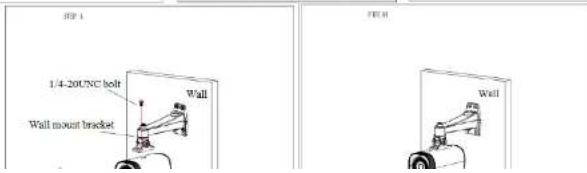
1.3 Mounting Brackets


2. Interface Introduction


Figure 1.1 Product Interface
- Camera Lens
- Tripod Screw Hole
- Tripod Screw Hole
- USB3.0 Interface
5.SDI Interface
6. LAN Interface
7. Reset button
8. A-IN
9.RS232/RS485
10. Power Interface
11. Power Indicator
3. Dimension


4. System Connection
4.1 Installation Layout

4.2 System Wiring
The teaching tracking camera products provide a smart camera solution for education environments, and customers can select all or some products as needed. Different combinations of products meet the demands of customers' in various scenarios.
![graph TD A["Teacher tracking camera"] -->|Network Cable| B["Switch"] C["Student tracking camera"] -->|Network Cable| B B -->|Network Cable| D["Computer"] B -->|Network Cable| E["Server"]](/content/2026/06/1216062/images/46b5b194aa7e3908948fb63e772497efa2ae02bd72479a7e8f17811e029e5a2e.jpg)
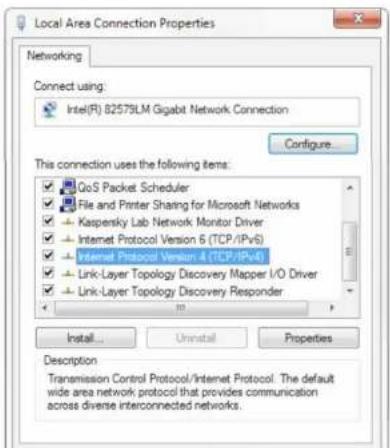
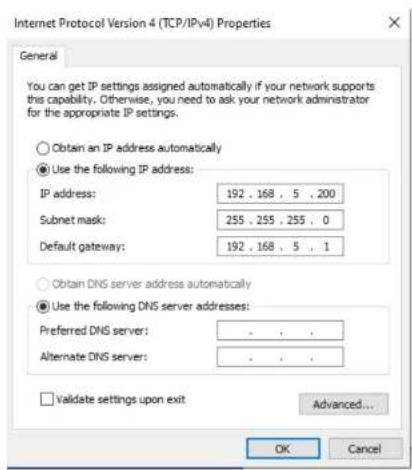
To connect to the camera, open the Local Area Connection Properties on the computer.
For Windows users right-click on the internet connection in the lower right corner of the desktop.
Select "Open Network & Internet Settings."
Select "Change Adapter Options."
Right-click on your connection (Wi-Fi or Ethernet) and select "Properties."
Select "Internet protocol version 4 (TCP/IPv4)" as shown below and click "Properties."
you may have unplugged.
5.2 Web Browser Login
1) Web Client Login
Enter 192.168.5.163 in the address bar of your internet browser and click Enter. If logged in as
5.4 Browser Configuration
Click Configuration to enter into the device parameters setting page
There are the following options: audio configuration, video configuration, network configuration and system configuration, detailed description see the following table.
| Menu | Explanation |
| Audio configure | Including audio compressing format, sampling frequency, sampling precision, compressing code rate settings etc. |
| Video configure | Including video encoding, stream release, RTP broadcasting ,video parameters, character-overlapping, character size, video output setting etc. |
| Network configure | Including basic parameters, Ethernet, DNS, GB28181, wireless network setting etc. |
| System configure | Including equipment property, system time, user management, version update, reset, reboot device settings etc. |
5.4.1 Audio Configuration
Switch: Choose to enable the audio or not. (default: off)
Compressing Format: Set audio compressing format and the device will reboot automatically after change (default MP3, AAC, G.711A optional)
Sampling Frequency: Set sampling frequency and the device will reboot automatically after change (default 44100, 8000, 16000, 32000 and 48000 optional)
Sampling Precision: Set sampling precision (default 16bits)
Compressing Code Rate: Set audio compressing code rate (default 64bits, 32, 48, 96, 128bits optional)
Channel type: Set channel type (default mono, stereo optional)
Input Volume: Set the input volume (default 2, 1-10 optional)
Click "Savc", it will remind "Enable has changed. Restart the device to take effect after the success of the save", then please reboot the camera to apply the settings.
Image Quality: Set the image quality, image quality can be changed only when rate control is variable bit rate. (main stream defaulted is best, secondary stream default is better, there are best, better, good, bad, worse, worst for options).
Rate (Kb / s): Set the video bit rate (close-up main stream default 4096Kb/s, 64-40960Kb/s optional; close-up sub-stream default 512Kb/s, 64-40960Kb/s optional; panoramic main stream default 4096Kb/s, 64-40960Kb/s optional; panoramic sub-stream default 512Kb/s, 64-40960Kb/s optional; and broadcast code stream default 4096Kb/s, 64-40960Kb/s optional).
Frame rate (F/S): Set the video frame rate (close-up main stream, close-up sub-stream, panoramic main stream, panoramic sub-stream, and broadcast code stream default 25F/S, main stream 5-30F/S optional).
Key frame interval: Set the key frame interval (close-up main stream, close-up sub-stream, panoramic main stream, panoramic sub-stream, and broadcast code stream default 100F, main stream 1-150F optional).
Key frame minimum QP: Set the key frame minimum QP (default 20, 10-51 optional) Stream Name: When streaming via risp or rtmp, user can modify stream name. close-up main stream (default live/av0), close-up sub-stream (default live/av1), panoramic main stream (default live/av2), panoramic sub-stream (default live/av3), and broadcast code stream (default live/av4). Click the "Save" button to display the "saved successfully" message, then settings take effect.
2) Stream Release
Switch: To turn on/off close-up main stream, close-up sub-stream, panoramic main stream, panoramic sub-stream and blackboard code stream.
Protocol: primary / secondary stream applies RTMP protocol. Host Port: server port number (default 1935, 0-65535 optiona
Host Address: server IP addresses (default 192.168.5.11) Stream Name: choose a different stream name (live / av0, live / av1, live/av2, live/av3, live/av4 optional).
User: Set the username.
Password: Set the password.
Click on the "Save" button to display the "Save successful" message, then settings take effect.
3) RTP Broadcasting
Switch: To turn on/off close-up main stream, close-up sub-stream, panoramic main stream,
Dynamic range: Set the dynamic range (default 4, 1-8 optional).
Shutter speed: Active when it is status of manual or shutter-priority (default
1/100, 1/25, 1/30, 1/50, 1/60, 1/90, 1/100, 1/120, 1/180, 1/250, 1/350, 1/500, 1/1000, 1/2000, 1/3000, 1/4000, 1/6000, 1/10000 optional).
Aperture value: Set the aperture value, active when it is status of manual or aperture-priority (default close, F1.8, F11, F9.6, F8.0, F6.8, F5.6, F4.8, F4.0, F3.4, F2.8, F2.4, F2.0 optional).
Brightness: Set the brightness value, active when it is a state of brightness priority (default 7, 0-23 optional).
b. Color: White balance, saturation, color, white balance, sensitivity, color temperature, gain red and blue gain can be set.
White balance modes: Set the white balance mode (the default automatic, 2400K-7100K, manual, One-push optional).
Note: Click the "Correction" button when selected the Onc-push white balance mode.
Red fine-tuning: default 0, -10–10 (only available in automatic mode)
Blue fine-tunable: default 0, -10–10 (only available in automatic mode)
Saturation: Set the saturation (default 60%, 70%, 80%, 90%, 100%, 110%, 120%, 130%, 140%, 150%, 160%, 170%, 180%, 190%, 200% optional).
Chroma: Set the chroma (default 7, 0-14 optional).
White balance sensitivity: Set the white balance sensitivity (default is high, medium, low for options)
Red Gain: Set the red gain, effective when it is manual (default 108, 0-255 optional).
Blue Gain: Sets the Blue gain, effective when it is manual (default 71, 0-255 optional).
c. Image: Brightness, contrast, sharpness, black and white mode, the gamma curve, Horizontal Flip and Vertical Flip can be set.
Brightness: Set the brightness (default 7, 0-14 optional).
Contrast: set the contrast (default 7, 0-14 optional).
Sharpness: Set the sharpness value (default 4, 0-15 optional).
Black and white mode: Set black and white mode (default color, black/white optional).
Gamma: Gamma value setting (default, 0.45, 0.50, 0.55, 0.63 optional).
Dynamic Contrast: set the dynamic contrast (default off, 1\~8 optional)
Ultra-low illumination: default off
5) Character Size
Main stream character size: Set the character size of the display, the device will restart
Automatically after changed and saved (default 48, 28-200 optional)
Secondary stream character size: Set the character size of the display, the device will restart automatically after changed and saved (default 48, 28-200 optional)
Click on the "Save" button to display "Parameter saved successfully" message, set to take effect.
6) Video output
Output format can be checked by on/off (default off)
Output format: 1080P30, 1080P25, 1080I60, 1080I50, 720P60, 720P50
Click on the "Save" button, it will be valid when display "Save successful".
5.4.3 Network Configuration
1) Network port
Data port: set the data port, the device will restart automatically after changed (default 3000, 0-65535 optional)
Web Port: Set Web port, the device will restart automatically after changed (default is 80, 0-65535 is optional)
Onvif Port: Set Onvif port, the device will restart automatically after changed (default 2000, 0-65535 optional)
Soap Port: Set Soap port (default 1936, 0-65535 optional)
RTMP Port: Set RTMP port (default 1935, 0-65535 optional)
RTSP Port: Set RTSP port, the device will restart automatically after changed (default 554, 0-65535 optional).
Visca Port: Set Visca port, the device will restart automatically after changed (default 1259.0-65535 optional).
Click on the "Save" button, it will be valid when display "Save successful".
RTSP Obtaining method: rtsp://device IP address: 554 / live / av0 (av0 close-up main stream, av1 close-up sub-stream, av2 panoramic main stream, av3 panoramic sub-stream, av4 broadcast code stream.)
4) GB28181
Switch: set whether open GB28181, can check
Time Synchronization: whether synchronization time is set, you can check
Stream Type: stream type setting (the default main stream, secondary stream optional)
Sign effective time (in seconds): 3600 Range 5-65535
Heartbeat time (seconds): 60 Range 1-65535
Register ID: 34020000001320000001
Register Username: IPC
Register Password: 12345678
Equipment ownership: Users can add their own
Administrative regions: Users can add their own
Alarm Zone: Users can add their own
Equipment installation address: Users can add their own
Local SIP Port: 5060 Range 0-65535
GB28181 Server Address: IP address of the computer
Server SIP Port: 5060 Range 0-65535
Server ID: 34020000002000000001
Click on the "Save" button, it will be valid when display "Save successful".
5.4.4 System Configuration
1) Device Properties
Device Name: Set the device name (the default Camera1, user can add their own).
Device ID: Set the device ID (default 1, Read-Only).
System Language: Set the system language (default Simplified Chinese, English optional). Need
to re-login after modify and save the setting.
Click on the "Save" button, it will be valid when display "Save successful".
2) System Time
Date Format: Set the date format (YYYY-MM-DD default That year - month - day, MM-DD-
YYYY namely Month - Day - Year, DD-MM-YYYY date - month - year Optional).
Date separator: set the date separator (default '/', '', '- Optional).
图 2.1.1.1
Click on the "Save" button to display the "Save successfully" message, then the set is to take effect.
Please note the case-sensitivity of the username and password. If login page by a common user's name and password, one does not have configuration privileges but can only operate to preview, playback, logout.
4) Version upgrade
Users only read the version information above which is consistent with the menu version but cannot modify. Different types of the machine have different information. Update file: Click "Browse ..." installation, to select the upgrade file in the pop-up window. Click on the "Upgrade" button, the upgrade dialog will appear, the device will reboot automatically after update successfully. (Note: Make sure the power and network remain connected during the process, or the upgrade will fail)
Note: After the version upgrade is complete, you need to restore factory defaults; a. through web to restore the factory default configuration; b. through the recovery menu; c. remote control shortcut * #6; Choose one of the above three ways. The IP account and password of mode a are also restored to default.
5) Restore factory setting
Click on pop-up "Restore Factory Defaults" button and choose "yes" or "no", then the device will restart automatically and restore factory setting.
6) Reboot
Click on the pop-up "Reboot" button and choose "yes" or "no", then the device will restart automatically.
5.5 Logout
Point "Logout" pop-up "Confirmation" dialog; select "Yes" or "No", choose "Yes" to exit the current page and return to the user login interface again.
5.6 Configure Tracking Parameter
Set up process
The setup process of teacher tracking
![graph TD A["Stop tracking"] --> B["Set the platform and panoramic preset"] B --> C["Set space for platform and shield"] C --> D["Set tracking parameters"] D --> E["Start tracking"]](/content/2026/06/1216062/images/ac08da27e9130c80b027f838fa73efca0a8c0ec29e42e2e6ee0111afe2cc72c7.jpg)
The setup process of student tracking
![graph TD A["Stop tracking"] --> B["Set panoramic presets"] B --> C["Set shield area"] C --> D["Set tracking parameters"] D --> E["Start tracking"]](/content/2026/06/1216062/images/3af1ea30c34b1715ca144788195e9487d8524c0dbee684c71be861bc05073aa5.jpg)
5.6.1 Teacher Tracking Configuration
The following instructions are given in accordance with the setup flowchart. The main interface of teacher tracking configuration is shown in Figure 5.6-1
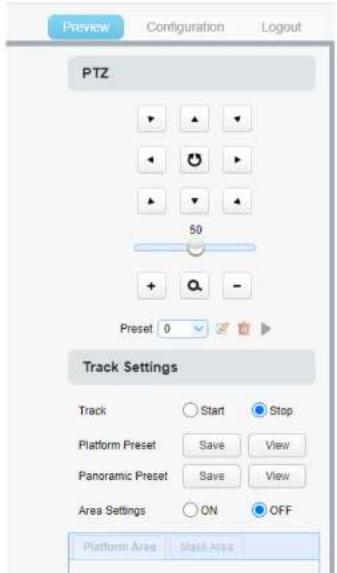

Figure 5.6-2 Operation interface
Platform preset: Control teacher tracking camera to capture the platform (we suggest that teachers stand in the middle of platform during setup) in camera image, then click and save platform preset. During normal tracking, the size of the teacher's image in the picture uses Platform preset as a reference. When the tracking target disappears, the close-up lens will return to the platform preset.
3. Panoramic preset setting
The operation interface for setting the preset position is shown in Fig. 5.6-3. By controlling the position and ZOOM value of the PTZ, the camera Angle and position are adjusted to the preset position and saved. The panoramic preset settings are described below.

platform, their upper body is displayed within the defined area, and it will not exceed the lower margin of platform area when students in the first row sit down. See Figure 5.6-4.

Figure 5.6-4 Operation interface
- Mask area: Mask area is usually the area which may impact result of teacher tracking, such as places which may have dynamic changes such as TV, projector, doors and windows. See Figure 5.6-5:


Figure 5.6-6 Operation interface
Tracking modes (Three for option):
Real-time Tracking Mode
Movie Mode
Area Tracking Mode

Inter PGM: This should remain checked.
Student IP address: Fill in the IP of the student tracking camera here. When the director stream is obtained, the close-up of the teacher tracking camera and the panoramic switch of the student tracking camera can be realized.
5.6.2 Student Tracking Configuration
The following instructions are given in accordance with the setup flowchart. The main interface of student tracking configuration is shown in Figure 5.6-8.

position and ZOOM value of the PTZ, the camera angle and position are adjusted to the preset position and saved. The panoramic preset settings are described below.

Figure 5.6-9 Operation interface
Panoramic preset: Control student tracking camera to allow camera to have almost a panoramic view of classroom (or any position). When tracking target disappears, it can select to go back to panoramic position.
-
Area settings (ON: show the mask area; OFF: hide the mask area)
-
Mask area: Mask area is usually the area which may impact result of teacher tracking, such as places which may have dynamic changes such as TV, projector, doors and windows. See Figure 5.6-10:


Figure 5.6-11 Operation interface
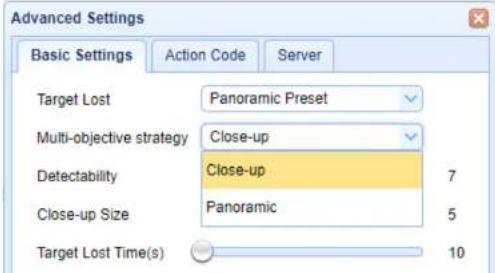
Multi-targets: When multi-targets are detected, you can choose "Close-up" or "Panoramic"
6. Description of Recording and Broadcasting Host
6.1 Auto Tracking Control
The recording and broadcasting host can send commands by LAN network port and control automatic tracking motion of teacher tracking camera. In auto tracking mode the camera cannot be controlled from the browser or remote control; PTZ functions can only be controlled if auto-tracking mode is stopped.
- Network receiving address
Teacher auto tracking camera default IP is: 192.168.5.163.
- Command
| Action | Command |
| Start teacher tracking | 0x810x0A 0x08 0x01 0x020xFF |
| Stop teacher tracking | 0x81 0x0A 0x08 0x01 0x03 0xFF |
6.2 Action Code Docking
Tracking status of teacher tracking camera will be feedback to recording and broadcasting host in real time via network (UDP transmission mode) in the action code form.
- Configuration of recording and broadcasting host address
If recording and broadcasting host uses LAN to receive action code, then it needs to configure host address by web browser. Click Advanced settings -> Server, as shown below:
After modification, click save, as shown below:

Figure 6.2-2 Operation interface
7. Technical Parameter
| Model Number | Teacher Tracking Camera | Student Tracking Camera |
| Camera Lens Parameters | ||
| Image Sensor | 1/2.8 inch High Quality 4K CMOS Sensor | |
| Effective pixels | 8.28 megapixel, 16: 9 | |
| Vidco Format | SD1 output: 1080P@30fps/25fps;720P@60fps/50fps/30fps/25fps;U3 output:1920X1080P30 fps /25 fps;1280X720P60 fps /50 fps /30 fps /25 fps ;960X540P30 fbs:800X600P30 fbs:640X360P30 fbs:640X480P30 fbs:352X288P30 fbs: USB3.0 can be | |
| Network protocol | RTSP,RTMP,ONVIF,GB/T28181 | |
| Control Interface | RS232,RS485,LAN | |
| Communication Protocol | VISCA, Pelco-D, Pelco-P, support band rate 115200/38400/9600/4800/2400; Support VISCA Control Protocols | |
| Power Interface | HEC3800 power socket(DC12V) | |
| Other Parameter | ||
| Input Voltage | Power Adapter | 12V |
| POE Supply | 48V | |
| Input Current | Power Adapter | 0.42A(max) |
| POE Supply | 0.104A(max) | |
| Power Consumption | 5W(max) | |
| Stored Temperature | -10°C~+60°C | |
| Stored Humidity | 20%~95% | |
| Working Temperature | -10°C~+50°C | |
| Working Humidity | 20%~80% | |
| Dimension (WXHXD) | 148.8mm×76mm×76mm | |
| Weight | Around 0.53kg | |
| Application | Indoor | |
| Accessories | User Manual | |
8. Maintenance and Troubleshooting
8.1 Camera Maintenance
1) Please power off the camera and disconnect the power adapter and socket, if it's not used for a long run.
2) Use soft cloth or tissue to clean the camera cover.
4) Serial port not working
a. Check whether the camera serial device protocol, baud rate, address is consistent
b. Check whether the control cable is connected properly
c. Check whether the camera working mode is the normal operating mode
5) Webpages cannot log in
a. Check if the camera outputs video normally by connecting directly to the screen.
b. Check whether the network cable is connected properly (Ethernet port yellow light flashes to
indicate normal network cable connection)
c. Check whether your computer is added the segment and the segment is consistent with the IP address of the camera
d. Click "Start" and select "Run" and then type "cmd" in the computer; Click "OK" then turn on a
DOS command window to enter ping 192.168.5.163. Press the Enter key to appear message as
follows: Description network connection is normal.
C:\Users\qq214>ping 192.168.5.163
Pinging 192.168.5.163 with 32 bytes of data:
Reply from 192.168.5.163: bytes=32 time=2ms TTL=64
Reply from 192.168.5.163: bytes=32 time=1ms TTL=64
Reply from 192.168.5.163: bytes=32 time<1ms TTL=64
Reply from 192.168.5.163: bytes=32 time=4ms TTL=64
Ping statistics for 192.168.5.163:
    Packets: Sent = 4, Received = 4, Lost = 0 (0% loss),
Approximate round trip times in milli-seconds:
    Minimum = 0ms, Maximum = 4ms, Average = 1ms
C:\Users\qq214>
9. Warranty
BZBGEAR wants to assure you peace of mind. All BZBGEAR cameras and camera-related products include our Stress-Free Three-Year Warranty.
For complete warranty information, please visit BZBGEAR.com/warranty.
For questions, please call 1.888.499.9906 or email support@bzbgear.com.
10. Mission Statement
BZBGEAR manifests from the competitive nature of the audiovisual industry to innovate while keeping the customer in mind. AV solutions can cost a pretty penny, and new technology only adds to it. We believe everyone deserves to see, hear, and feel the advancements made in today's AV world without having to break the bank. BZBGEAR is the solution for small to medium-sized applications requiring the latest professional products in AV.
We live in a DIY era where resources are abundant on the internet. With that in mind, our team offers system design consultation and expert tech support seven days a week for the products in our BZBGEAR catalog. You'll notice comparably lower prices with BZBGEAR solutions, but the quality of the products is on par with the top brands in the industry. The unparalleled support from our team is our way of showing we care for every one of our customers. Whether you're an integrator, home theater enthusiast, or a do-it-yourselfer, BZBGEAR offers the solutions to allow you to focus on your project and not your budget.
11. Copyright Statement
All the contents in this manual and its copyright are owned by BZBGEAR. No one is allowed to imitate, copy, or translate this manual without BZBGEAR's permission. This manual contains no guarantee,


- ATTENTION
- CAUTIONS
- ELECTRICAL SAFETY
- CONTENT
- PRODUCT OVERVIEW
- 1.1 SYSTEM INTRODUCTION
- 1.2 MAIN FEATURES
- 1.3 MOUNTING BRACKETS
- INTERFACE INTRODUCTION
- DIMENSION
- SYSTEM CONNECTION
- 4.1 INSTALLATION LAYOUT
- 4.2 SYSTEM WIRING
- 5.2 WEB BROWSER LOGIN
- WEB CLIENT LOGIN
- 5.4 BROWSER CONFIGURATION
- 5.4.1 AUDIO CONFIGURATION
- STREAM RELEASE
- RTP BROADCASTING
- CHARACTER SIZE
- VIDEO OUTPUT
- 5.4.3 NETWORK CONFIGURATION
- NETWORK PORT
- GB28181
- 5.4.4 SYSTEM CONFIGURATION
- DEVICE PROPERTIES
- SYSTEM TIME
- VERSION UPGRADE
- RESTORE FACTORY SETTING
- REBOOT
- 5.5 LOGOUT
- 5.6 CONFIGURE TRACKING PARAMETER
- SET UP PROCESS
- 5.6.1 TEACHER TRACKING CONFIGURATION
- PANORAMIC PRESET SETTING
- 5.6.2 STUDENT TRACKING CONFIGURATION
- DESCRIPTION OF RECORDING AND BROADCASTING HOST
- 6.1 AUTO TRACKING CONTROL
- 6.2 ACTION CODE DOCKING
- TECHNICAL PARAMETER
- MAINTENANCE AND TROUBLESHOOTING
- 8.1 CAMERA MAINTENANCE
- SERIAL PORT NOT WORKING
- WEBPAGES CANNOT LOG IN
- WARRANTY
- MISSION STATEMENT
- COPYRIGHT STATEMENT
Brand : BZBGear
Model : Maestro
Category : Camera