R4N49NNU - Suivi ORION - Free user manual and instructions
Find the device manual for free R4N49NNU ORION in PDF.


Pick your language and provide your email: we'll send you a specifically translated version.
| Product Type | GPS Tracker / Personal Locator |
| Brand | Orion |
| Model | R4N49NNU |
| Dimensions | 50 x 30 x 15 mm (approx.) |
| Weight | 30 g (approx.) |
| Power Supply | Rechargeable lithium-ion battery via USB |
| Battery Life | Up to 7 days in standby, 24 hours continuous tracking |
| Connectivity | GPS + GSM / 4G LTE |
| Tracking Method | Real-time GPS location via mobile app |
| Alerts | Geo-fence, movement, low battery, SOS button |
| Water Resistance | IP65 (splash proof, not submersible) |
| Indoor Location | Wi-Fi assisted positioning for improved accuracy indoors |
| Operating Temperature | -10°C to 50°C |
| Compatible OS | iOS 10+ and Android 5+ |
| Subscription Required | Yes, data plan for SIM card (not included) |
| Maintenance | Clean with a soft, dry cloth; avoid chemicals |
| Safety Instructions | Do not expose to extreme temperatures; keep away from small children |
| Spare Parts | Replacement battery and charging cable available |
| Repairability | Battery replaceable by user; other repairs by service center |
| Package Contents | Tracker, USB cable, user manual, SIM ejector tool |
Frequently Asked Questions - R4N49NNU ORION
How long does the battery last?
The battery lasts up to 7 days in standby mode and 24 hours with continuous GPS tracking. Actual life depends on usage and network conditions.
Is the device waterproof?
It has an IP65 rating, meaning it is splash-proof and protected against dust, but should not be submerged in water.
Do I need a subscription?
Yes, a data plan is required for the built-in SIM card to transmit location data. The SIM is not included.
How do I track the device?
Download the Orion tracking app on your smartphone, create an account, and pair the device via Bluetooth or QR code. The app shows real-time location on a map.
Can I set up geofences?
Yes, you can define safe zones in the app. You'll receive an alert when the device enters or leaves these areas.
What happens when the battery is low?
The app sends a low battery notification and the device flashes an LED. Charge it using the provided USB cable.
Can I use it to track a pet or child?
Yes, it's designed for tracking people, pets, or valuables. Attach it securely to a collar, bag, or belt clip.
How accurate is the GPS?
Outdoors, accuracy is within 2-5 meters under open sky. Indoors, Wi-Fi assisted positioning improves accuracy to about 10-20 meters.
Can I replace the battery?
Yes, the battery is replaceable by the user. Contact Orion support for a replacement battery kit.
Is there an SOS button?
Yes, pressing the SOS button for 3 seconds sends an emergency alert with your location to predefined contacts.
User questions about R4N49NNU ORION
0 question about this device. Answer the ones you know or ask your own.
Ask a new question about this device
No questions yet. Be the first to ask one.
Download the instructions for your Suivi in PDF format for free! Find your manual R4N49NNU - ORION and take your electronic device back in hand. On this page are published all the documents necessary for the use of your device. R4N49NNU by ORION.
USER MANUAL R4N49NNU ORION
| 1 SAFETY INSTRUCTION 3 | |
| 2 FCC RF INTERFERENCE STATEMENT 7 | |
| 3 INSTALLATION 8 | |
| 4 OSD MENU SETTING 13 | |
| 5 SPECIFICATION 21 | |
| 6 R4N COMMANDER (Video Wall Control Protocol) 24 | |
| 7 TROUBLESHOOTING 35 | |
| 8 LIMITED WARRANTY 35 |
[USER MANUAL]
1. SAFETY INSTRUCTION
\- Follow this safety instruction to use the monitor properly and prevent the damage. \* This safety instruction has "Warning" & "Caution" as below  Warning - If the user does not follow this instruction, it may cause the serious damage to the user.  Caution - If the user does not follow this instruction, it may cause the slight damage to the user or cause some damages to the monitor. \- Keep this user's guide book for later use. Warning
Never remove the back cover and touch the inside of the monitor. If you need a service, please contact the service center.  Keep away the monitor from the direct sunlight and a heating appliance. natural_image
Cartoon illustration of a sad computer monitor with a smiling face, emitting exhaust smoke from a steaming tower (no text or symbols)[USER MANUAL]
Warning
Do not install this monitor on the outside and near water. It may cause damage to the product, electric shock and fire. text_image
Illustration showing a steaming cake next to a computer monitor with a sad face and a crossed-out 'X' symbol.text_image
Cartoon illustration showing a computer monitor with a sad face, surrounded by cleaning tools and a spray bottle, with no readable text or symbols.natural_image
Cartoon illustration of a computer monitor character with a sad face and lightning bolts, next to a broken cable (no text or symbols)text_image
Z Z Z[USER MANUAL]
Cautions
Install this monitor some distance from the wall and do not install unless proper ventilation is provided.  Place this product on a stable place. If not, it may fall, causing serious damages to the monitor and people.  The openings must not be blocked by curtain, rug or other similar surface.  When carrying this monitor, be careful not to damage the panel and drop it. It may cause some trouble.  Before carrying the monitor, turn it off and Take the power plug out from the wall[USER MANUAL]
Cautions
Install this monitor about 50cm far from the eyes and an angle of 0\~15 degrees below eyes. Too close installation may cause having weak sight. text_image
50cm[ USER MANUAL ]
2. FCC RF INTERFERENCE STATEMENT
NOTE
This equipment has been tested and found to comply with the limits for a Class A digital device, pursuant to Part 15 of the FCC Rules. These limits are designed to provide reasonable protection against harmful interference in a residential installation. This equipment generates, uses and can radiate radio frequency energy and, if not installed and used in accordance with the instructions, may cause harmful interference to radio communications. However, there is no guarantee that interference will not occur in a particular installation. If this equipment does cause harmful interference to radio or television reception which can be determined by turning the equipment off and on, the user is encouraged to try to correct the interference by one or more of the following measures. - Reorient or relocate the receiving antenna. - Increase the separation between the equipment and receiver. - Connect the equipment into an outlet on a circuit different from that to which the receiver is connected. - Consult the dealer or an experienced radio, TV technician for help. - Only shielded interface cable should be used. Finally, any changes or modifications to the equipment by the user not expressly approved by the grantee or manufacturer could void the users authority to operate such equipment. [USER MANUAL]3. INSTALLATION
3.1 UNPACKING
Remove the package cover and place the product on a flat and secure surface or in the installation location. This equipment should be unpacked and handled with care. If an item appears to have been damaged in shipment, notify the shipper immediately. Check whether all the following device and accessories are included with the main system. If any items are missing, notify your Sales or Customer Service Representative.3.2 PARTS
 LCD Monitor & Keypad  Joint Bracket(2EA) & BHMS M4x8 BK(8EA)  Power Cable    LTD Cable, DB Cable, HDMI Cable [USER MANUAL]3.3 KEYPAD
1) KEYPAD CONTROLLER text_image
KEYPAD This KEYPAD is attached to a magnet, so you can freely paste UTP Cable (1.5m)| OSD KEY FUNCTION | |
| EXIT MENU | On/Off the OSD menu or exit the source selection menu |
| ▼SOURCE | Move the cursor the choose on the OSD menu |
| Select the source on the INPUT menu | |
| ▲ | Move up the cursor to choose on the OSD menu |
3.4 CONNECTION
natural_image
Row of electronic device icons including buttons, ports, and a connector (no text or labels visible)| 1 | VGA VGA signal input | |
| 2 | DVI | DVI signal input |
| 3 | HDMI1 | HDMI signal Input |
| 4 | HDMI2 | HDMI signal Input |
| 5 | HDMI3 | HDMI signal Input |
| 6 | DP IN | DP signal input |
| 7 | USB | FW Update Input |
| 8 | DP OUT | DP signal output |
| 9 | Audio | Audio Line Output |
[USER MANUAL]
3.5 CONFIGURE THE VIDEO WALL
1. You can combine two or more monitors, and configure the VIDEO WALL. 2. If you want to configure VIDEO WALL, please contact your dealer or a professional installer. 3. JOINT BRACKET helps to easily adjust the VIDEO WALL (Supplied with monitor) 4. Using a JOINT BRACKET can help to prevent distortion or sagging due to weight, But may not be available in an installation environment where there is no space behind the product. \* Assemble the JOINT BRACKET using four M4 screws. text_image
Architectural floor plan with room layouts, dimensions, and structural annotations in Chinese3.6 REMOTE CONTROLLER
text_image
MUTE VIDEO/CVBS1 RGB AUTO COLOR TEMP DVI HOME DP HOMO/CAMERA SDI S.SET SCAN MODE PIP VOL- ENTER VOL+ MENU/INT KEYLOCK P:INPUT P:LOCATION P:SIZE P:SWAP STILL ROTATE F1 F2 F3| POWER Power On or Off | |
| MUTE Turn on or off | the speaker |
| VIDEO1/CVBS1 Not functional | |
| VIDEO2/CVBS2 Not functional | |
| S-VIDEO Not functional | |
| VGA Select VGA signal | |
| AUTO Auto adjustment of VGA source | |
| COLOR TEMP Select color temperature of screen | |
| DVI Select DVI signal | |
| HDMI | Select HDMI signal(HDMI1→HDMI2→HDMI3) |
| DP Select DP signal | |
| HDMI2/CAMERA Not functional | |
| SDI Select SDI signal(Not functional) | |
| S.SET Not functional | |
| SCAN MODE Select scan mode of screen | |
| PIP | Activate PIP mode |
[USER MANUAL]
4. OSD MENU
4.1 Main OSD Menu
Press a menu button "MENU/EXIT" on a KEYPAD or a remote controller to display this menu on the screen. text_image
LT-Win 3840x2160p60Hz LB-Win 1920x1080p60Hz RT-Win 3840x2160p60Hz RB-Win 3840x2160p60HzInformation of Windows
Title of Main Menu
Icon of Main Menu
Sub Menu
Version of FW
IMAGE
Brightness Contrast Gamma Dynamic Range Main Sharpness Sub Sharpness 3D De-interlace Ver:0.8.L.0.54.3 Image
text_image
HDMI 3840x2160p60Hz IMAGE Brightness Contrast Gamma Dynamic Range Main Sharpness Sub Sharpness 3D De-interlace Ver:0.8.L0.5| ITEM FUNCTION | Default Value | Available Mode |
| Brightness Adjust a bright value between 0 ~ 100 80 |
4.4 Color
text_image
HDMI 3840x2160p60Hz COLOR Color Temperature Red Green Blue Ver:0.8,L0.5| ITEM FUNCTION | Default Value | Available Mode | |
| Color | Select the color Temperature | Normal All | |
4.5 Multi-Window
text_image
HDMI 3840x2160p60Hz MULTI-WINDOW PIP Type Select Input2 Select Input3 Select Input4 PIP1 Size PIP1 Pos PBP1 Size Ver:0.8.L0.5| ITEM FUNCTION | Default Value | Available Mode |
| PIP Type Select a PIP mode Off, PIP, PBP, 3 Window or 4 Window Off All |
4.6 Video Wall
text_image
HDMI 3840x2160p60Hz VIDEO WALL Set ID Video Wall Enable Position H. Ratio V. Ratio H. Start V. Start H. Size V. Size Ver:0.8.L0.5| ITEM FUNCTION | Default Value | Available Mode | |
| Set ID Adjust the Set ID value between 1 ~ 99 99 | All | ||
| Video Wall Enable Set Off or On to enable a video wall mode ON | |||
| Position | Set the sequence of installed monitors on the video wall situation(1 ~ 81) | 1 | |
| H Ratio | Set the total number of horizontally installed monitors on the video wall situation(1 ~ 01) | 1 | |
| 1 | 2 | 3 | 4 |
| 5 | 6 | 7 | 8 |
| 9 | 10 | 11 | 12 |
| 13 | 14 | 15 | 16 |
4.7 VGA
text_image
Main Win: HDMI 3840x2160p30Hz VGA Phase Clock H. Position V. Positiontext_image
HDMI 3840x2160p60Hz OSD Horizontal Vertical Transparency OSD Time Out OSD Rotation Ver:0.8.L0.5| ITEM FUNCTION | Default Value | Available Mode | |
| Horizontal | Adjust a horizontal position of the main menu between | 95 | |
4.9 SYSTEM
text_image
HDMI 3840x2160p60Hz SYSTEM Language Aspect Ratio Over Scan Over Driver Audio Mute Audio Source Pixel Shift DP Speed FW Update Reset Ver:0.8.L0.5| ITEM FUNCTION | Default Value | Available Mode | |
| Language | Select a language type of OSD Menu. | English | |
5. SPECIFICATION
5.1 General Specifications| Model Name R4N43NNU R4N55NNU R4N65NNU | ||||
| Bezel Width BEZEL to BEZEL 15.8 / 20.4(H/V) 18.8 / 21.4(H/V) 18.8 / 21.4(H/V) | ||||
| Display | Screen Size (inch) 42.51" 54.64" 64.53" | |||
| Resolution 3840 x 2160 3840 x 2160 3840 x 2160 | ||||
| Pixel Pitch (mm) 0.2451 x 0.2451 0.315 x 0.315 0.372 x 0.372 | ||||
| Brightness 500 cd/m2 500 cd/m2 | 500 cd/m2 | |||
| Contrast Ratio | 1000:1 | 1100:1 | 1100:1 | |
| Aspect Ratio | 16:9 | 16:9 | 16:9 | |
| Viewing Angle (H/V) | 178/178 | 178/178 | 178/178 | |
| Display Color | 1.07 billion | 1.07 billion | 1.07 billion | |
| Response Time | 8 ms | 8 ms | 8 ms | |
| Video System | NTSC/PAL | NTSC/PAL | NTSC/PAL | |
| Interface | *DP In / Out | 1/1 | 1/1 | 1/1 |
| *HDMI In | 3 | 3 | 3 | |
| DVI In / VGA In | 1 | 1 | 1 | |
| RS-232 In/Out | 1/1 | 1/1 | 1/1 | |
| USB(FW UPDATE) | 1 | 1 | 1 | |
| Audio Out | 1 | 1 | 1 | |
| Remote Control | Y | Y | Y | |
| Special Features | RS-232 Control | Monitor OSD & Multi Vision | Monitor OSD & Multi Vision | Monitor OSD & Multi Vision |
| Deinterlacing | Y | Y | Y | |
| Auto Pixel Shift Y | Y | Y | ||
| One Stretch Image by Edge Set | Y | Y | Y | |
| MODE Resolution | Vertical Frequency(Hz) | Input Standards | ||
| EDTV 480p 720x480 59.94 | D-SUB/HDMI/DP | EIA-861B | ||
| EDTV 576p 720x576 50.00 | ||||
| HDTV720p 1280x720 50/60 | ||||
| HDTV1080i 1920x1080 50/60 HDMI/DP | ||||
| HDTV1080p 1920x1080 24/25/30/50/60 D-SUB/HDMI/DP | ||||
| UHDTV2160p 3840x2160 24/25/30 HDMI/DP | ||||
| UHDTV2160p 3840x2160 50/60 | DP | |||
| VGA | 640x480 | 60/72/75 | D-SUB/HDMI/DP | VESA |
| SVGA | 800x600 | 56/60//72/75 | D-SUB/HDMI/DP | VESA |
| XGA | 1024x768 | 60/75 | D-SUB/HDMI/DP | VESA |
| WXGA | 1280x720 | 60 | D-SUB/HDMI/DP | VESA |
| WXGA | 1280x800 59.9 | D-SUB/HDMI/DP VESA | ||
| WXGA | 1366x768 59.8 | D-SUB/HDMI/DP VESA | ||
| SXGA | 1280x1024 | 60/75 | D-SUB/HDMI/DP | VESA |
| FHD | 1920x1080 | 60 | D-SUB/HDMI/DP | VESA |
| UXGA | 1600x1200 | 60 | D-SUB/HDMI/DP | VESA |
5.3 Video Wall RS232 Assignment / Specification
| - D-SUB 9 pin- Input: Female, bottom position | Pin No. Name | 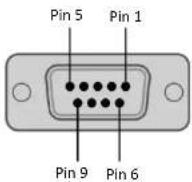 Input Input | |
| 1 n/c | |||
| 2 | Tx | ||
| 3 | Rx | ||
| 4 | NC | ||
| 5 GND | |||
| 6 n/c | |||
| 7 n/c | |||
| 8 n/c | |||
| 9 5V(option) | |||
| - D-SUB 9 pin- Output: Male, top position | Pin No. Name |  | |
| 1 n/c | |||
| 2 | Rx | ||
| 3 | Tx | ||
| 4 | NC | ||
| 5 GND | |||
| 6 n/c | |||
[ USER MANUAL ]
6. R4N COMMANDER (Video Wall Communication Protocol)
This document defines all the command and messages exchanged between the Master (a PC or the other controller) and the Slave (the displays). It also describes the ways to send or read the commands or the messages.6.1 Protocol definition
VWCP stands for "Video Wall Communication Protocol". The protocol is specifically designed to allow data communication in half duplex multi-point environments, but it can also be used for full duplex point-to-point RS-232C communication.6.2 Communication characteristics
A half-duplex communication is implemented starting from the concept of a master-slave structure, where the display is supposed to be the slave. The first action is always taken by the master, which can be either a PC or any controlling device (acting as server) interfaced to the monitor. After sending a command or a request in the appropriate format the master receives from the slave an acknowledgement, which tells the transmitter whether the command is not valid (or not executable, anyway) or it is accepted. In case of a request, the requested information is sent back and it becomes the acknowledgement by itself.6.3 How to connect an external equipment(PC ↔ Monitor)
Female Pin number Male Pin number[ USER MANUAL ]
6.5 Transmission Formats
This is the format that the computer will send to the display to execute commands. The format for this command transmission is as follows: \- Data Length: 13 byte Ex)| STX ID | 1 ID2 ID3 | CM1 CM | 2 CM3 R/W DA1 | DA2 DA3 | IND ETX | |||||||
| 0x0f | 0 | 0 | 1 | P | W | R | W | O | F | F | 0 | 0x0d |
| Hex | ASCII (capital letter) | Hex | ||||||||||
[ USER MANUAL ]
6.6 Command List (Write)(PC ↔ Monitor)
Power On/Off (PWR)| STX ID | 1 ID2 ID3 | CM1 CM | 2 CM3 R/W DA1 | DA2 DA3 | ND ETX | ||||||
| 0x0f P | W R W O | 0x0d | |||||||||
| Hex | ASCII (capital letter) | Hex | |||||||||
| STX ID | 1 ID2 ID3 | CM1 CM | 2 CM3 R | W DA1 | DA2 DA3 | ND ETX | ||||||
| 0x0f | R | M | L | W | 0 | 0x0d | ||||||
| Hex | ASCII (capital letter) | Hex | ||||||||||
[USER MANUAL]
Line Shift On/Off (LIN)| STX ID | 1 ID2 ID3 | CM1 CM | 2 CM3 R/W DA1 | DA2 DA3 | IND ETX | ||||||
| 0x0f L | IN W | 0 | 0x0d | ||||||||
| Hex | ASCII (capital letter) | Hex | |||||||||
| STX ID | 1 ID2 ID3 | CM1 CM | 2 CM3 R | W DA1 | DA2 DA3 | ND ETX | ||||||
| 0x0f | M | U | T | W | 0 | 0x0d | ||||||
| Hex | ASCII (capital letter) | Hex | ||||||||||
| STX ID1 ID2 ID3 | CM1 CM | 2 CM3 R/W DA1 | DA2 DA3 | ND ETX |
[USER MANUAL]
Virtual Remote Control (RMT)| STX ID | 1 ID2 ID3 | CM1 CM | 2 CM3 R/W DA1 | DA2 DA3 | IND ETX | ||||||
| 0x0f R | M T W 0 | 0x0d | |||||||||
| Hex | ASCII (capital letter) | Hex | |||||||||
| STX ID | 1 | ID2 ID3 | CM1 CM | 2 | CM3 R | W DA1 | DA2 DA3 | ND ETX | ||||||
| 0x0f | H | S | C | W | 0 | 0x0d | ||||||||
| Hex | ASCII (capital letter) | Hex | ||||||||||||
[USER MANUAL]
Vertical Set Count (VSC)| STX ID | 1 ID2 ID3 | CM1 CM | 2 CM3 R/W DA1 | DA2 DA3 | ND ETX | ||||||
| 0x0f V | S C W | 0 | 0x0d | ||||||||
| Hex | ASCII (capital letter) | Hex | |||||||||
| STX ID1 ID2 ID3 | CM1 CM | 2 CM3 R/W DA1 | DA2 DA3 | ND ETX | |||||||
| 0x0f | H | E | G | W | 0 | 0x0d | |||||
| Hex | ASCII (capital letter) | Hex | |||||||||
Vertical Edge Adjust (VEG)
[USER MANUAL]
Display Sequence (SDS)| STX ID | 1 ID2 ID3 | CM1 CM | 2 CM3 R/W DA1 | DA2 DA3 | IND ETX | ||||||
| 0x0f S | D S W 0 | 0x0d | |||||||||
| Hex | ASCII (capital letter) | Hex | |||||||||
| STX ID1 ID2 ID3 | CM1 CM | 2 CM3 R/W DA1 | DA2 DA3 | ND ETX | ||||||
| 0x0f CT | C W 0 | 0x0d | ||||||||
| Hex | ASCII (capital letter) | Hex | ||||||||
[USER MANUAL]
Contrast Adjust (FCC)| STX ID | 1 | ID2 ID3 | CM1 CM | 2 | CM3 R/W DA1 | DA2 DA3 | IND ETX | ||||||
| 0x0f | F | C | C | W | 0 | 0x0d | |||||||
| Hex | ASCII (capital letter) | Hex | |||||||||||
| STX ID1 ID2 ID3 | CM1 CM | 2 CM3 R | W DA1 | DA2 DA3 | ND ETX | |||||||
| 0x0f | F | G | R | W | 0 | |||||||
| Hex | ASCII (capital letter) | Hex | ||||||||||
| STX | ID1 | ID2 | ID3 | CM1 | CM2 | CM3 | R/W | DA1 | DA2 | DA3 | IND | ETX |
[USER MANUAL]
Blue Gain Adjust (FGB)| STX ID | 1 ID2 ID3 | CM1 CM | 2 CM3 R/W DA1 | DA2 DA3 | ND ETX | ||||||
| 0x0f F | G B W | 0 | 0x0d | ||||||||
| Hex | ASCII (capital letter) | Hex | |||||||||
| STX ID1 ID2 ID3 | CM1 CM | 2 CM3 R | W DA1 | DA2 DA3 | ND ETX | |||||||
| 0x0f | F | O | R | W | 0 | 0x0d | ||||||
| Hex | ASCII (capital letter) | Hex | ||||||||||
| STX | ID1 | ID2 | ID3 | CM1 | CM2 | CM3 | R/W | DA1 | DA2 | DA3 | IND | ETX |
| 0x0f | F | O | G | W | 0 | 0x0d | ||||||
| Hex | ASCII (capital letter) | Hex | ||||||||||
6.7 Command List (Read)
Edge Item Read Command (PC → Monitor)| STX | Set ID | ID | Sequence | H Count | V Count | H Gap | V Gap | ETX | ||||
| 0x0f E | 0 0 0 0 x0d | |||||||||||
| Hex | ||||||||||||
| STX | Set ID | ID | Bright | Contra | Color Temp | Red Gain | Green Gain | Blue Gain | Red Offset | Green Offset | Blue Offset | ETX |
| 0xOf C | 0x0d | |||||||||||
| Hex | ||||||||||||
[USER MANUAL]
Model Info < New > Read Only (PC → Monitor)| STX ID | 1 ID2 ID3 | CM1 CM | 2 CM3 R/W DA1 | DA2 DA3 | IND ETX | ||||||
| 0x0f M | D L R O | 0x0d | |||||||||
| Hex | ASCII (capital letter) | Hex | |||||||||
| STX | Set ID | ID | MDL1 | MDL2 | MDL3 | PNL1 | PNL2 | VER1 | VER2 | VER3 | VER4 | ETX |
| 0x0f | '1' | 0 | 0x0d | |||||||||
| Hex | ||||||||||||
→ RNK OLD VERSION: No Response
Ex) RNK New Version| STX | Set ID | ID | MDL1 | MDL2 | MDL3 | PNL1 | PNL2 | VER1 | VER2 | VER3 | VER4 | ETX |
| 0x0f | 'Y' | 'R' | 'N' | 'K' | 0x00 | 0x00 | 0x00 | 0x00 | 0x00 | 0x01 | 0x0d | |
| Hex | ||||||||||||
[ USER MANUAL ]
7. TROUBLESHOOTING
When the following troubles are occurred, follow the trouble shooting. Before contacting a service center.| Troubleshooting Troubleshooting | Tip |
| The screen doesn't show up | 1. Make sure if the power supply is connected property |
| 2. Turn on the power. | |
| 3. Select the input signal right for the connected port. | |
| The screen is too light or to dark Control the BRIGHTNESS | |
| The screen size is not fit for the PC signal | Press the AUTO key among keys in the front. (It's used only in the PC signal) |
| The screen color shows strange in the PC signal | In the FUNCTION menu of OSD menu, perform the AUTOADJUST |