
OR22RPE - Tracking ORION - Free user manual and instructions
Find the device manual for free OR22RPE ORION in PDF.


| Brand | Orion |
| Model | OR22RPE |
| Product Type | CCTV Monitor / Surveillance Monitor |
| Screen Size | 22 inches (estimated) |
| Input Ports | VGA, HDMI, BNC (x2), YPbPr |
| Output Ports | BNC (loop out) |
| Power Source | AC power |
| Remote Control | Included (CR2032 battery) |
| OSD Language | Multiple languages selectable |
| Mounting | Desktop stand included; VESA mount compatible (not specified) |
| Safety Certifications | CE, FCC (implied) |
| Cleaning | Soft dry cloth for cabinet; damp cloth with mild detergent for screen |
| Disposal | Contains mercury; follow local regulations |
Frequently Asked Questions - OR22RPE ORION
User questions about OR22RPE ORION
0 question about this device. Answer the ones you know or ask your own.
Ask a new question about this device
Download the instructions for your Tracking in PDF format for free! Find your manual OR22RPE - ORION and take your electronic device back in hand. On this page are published all the documents necessary for the use of your device. OR22RPE by ORION.
USER MANUAL OR22RPE ORION
HDMI/VGA/USB Monitor USER'S MANUAL

- Please read this manual carefully before operating your set.
- Retain it for future reference.
- Record model number and serial number of the set.
• See the label attached on the back cover and quote this information to you r dealer when you require service.
WARNING
WARNING

CAUTION
RISK OF ELECTRIC SHOCK DONOT OPEN

WARNING:
TO REDUCE THE RISK OF ELECTRIC SHOCK DO NOT REMOVE COVER(OR BACK). NO UESR SERVICEABLE PARTS INSIDE. REFER TO QUALIFIED SERVICE PERSONNEL.

The lightning flash with arrowhead symbol, within an equilateral triangle, is intended to alert the user to the presence of uninsulated “dangerous voltage” within the products enclosure that may be of sufficient magnitude to constitute a risk of electric shock to rersons.

The exclamation point within an equilateral triangle is intended to alert the user to the presence of important operating and maintenance (servicing) instructions accompanying the appliance.
REGULATORY INFORMATION
This equipment generates, uses and can radiate radio frequency energy and, if not installed and used in accordance with the instructions, it may cause harmful interference to radio communications however, there is no guarantee that interference will not occur in a particular installation. If this equipment does cause harmful interference to radio or television reception, which can be determined by turning the equipment off and on, the user is encouraged to try to correct the interference by one or more of the following measures:
-Increase the separation between the equipment and receiver.
-Connect the equipment into an outlet on a circuit different from that to which the receiver is connected.
-Consult the dealer or experienced radio/monitor technician for help.
Any changes or modifications not expressly approved by the party responsible for compliance could void the user's authority to operate the equipment.
CAUTION:
Do not attempt to modify this product in any way without written authorization from CVT electronics group. Unauthorized modification could void the user's authority to operate this product.
SAFETY INSTRUCTIONS
Safety instructions
WARNING:
To reduce the risk of fire or electric shock, do not expose this apparatus to rain or moisture.
Apparatus shall not be exposed to dripping or splashing area. An objects filled with liquids such as vases shall not be placed on the apparatus.
IMPORTANT SAFETY INSTRUCTIONS
- Read these instructions.
- Keep these instructions.
- Heed all warnings.
- Follow all instructions.

- Do not install near any heat source such as radiators, heat
registers, stoves, or other apparatus (including amplifiers) that produce heat.
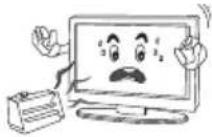
- Do not use this apparatus near water.

- Unplug this apparatus during lightning storms or when unused for long period of time.

- Clean only with a dry cloth.

- Protect the power cord from being walked on or pinched particularly at
plugs, convenience receptacles, and the point where they exit from the apparatus.

- Do not block any of the ventilation openings. Install in accordance with the manufacturer's instructions.
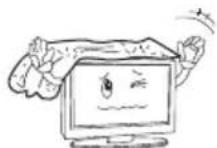
- Only use the attachments/accessories specified by the manufacturer.
SAFETY INSTRUCTIONS
- Refer all servicing to qualified service personnel. Servicing is required when the apparatus has been damaged in any way, such as power supply cord or plug is damaged, liquid has been spilled or objects have fallen into the apparatus, the apparatus has been exposed to rain or moisture, does not operate normally, or has been dropped.

- Use only with a cart, stand, tripod, bracket, or table specified by the manufacturer, or sold with the apparatus. When a cart is used, be cautious when m cart\apparatus combination injury from tip-over.

- Do not defeat the safety purpose of the polarized or grounding type plug. A polarized plug has two blades with one wider than the other. A grounding type plug has two blades and a third grounding type plug has two blades and a third grounding prong. The wide blade or the third prong is provided for your safety. When the provided plug does not fit for your outlet, consult an electrician for replacement of the obsolete outlet.
Note
-If the CCTV monitor feel cold to the touch, there may be a small "flicker" when it is turned on. This is normal, there is nothing wrong with CCTV monitor.
- Some minute dot defects may be visible on the screen, appearing as tiny red, green, or blue spots. However there have no adverse effect on the monitor's performance.
-Avoid touching the LED screen or holding your finger(s) against it for long periods of time. In that case, it may produce some temporary distortion effect on the screen.
CAUTION connecting the Power Cord
Most appliances are suggested to be placed upon a dedicated circuit; that is a single outlet circuit which powers only that appliance and has no additional outlets or branch circuits.
Do not overload wall outlets! Overloaded wall outlets, loose or damaged wall outlets, extension cords, frayed power cords, damaged or cracked wire insulation are dangerous. Any of these conditions could result in electric shock or fire. Periodically examine the cord of your appliance, and its if appearance indicates damage or deterioration, unplug it, discontinue use of the appliance, and have the cord replaced with an exact replacement part by an authorized servicer. Protect the power cord from physical or mechanical abuse, such as being wisted, kinked, pinched, closed in a door, or walded upon. Pay particular attention to plugs, wall outlets, and the point where the cord exits the appliance.
On Disposal
-The fluorescent lamp used in this product contain a small amount of mercury.
-Do not dispose of this product with general household waste.
Disposal of this product must be carried out in accordance to the regulations of your local authority.
NOTE: Picture of the instruction is not totally with product you purchased, real product is referred as standard.
INTRODUCTION
1. Introduction
1.1 Controls
-This is a simplified representations of front panel. -Here show may be some what different from your monitor.

1.2 Accessories
Ensure that the following accessories are included with your CCTV monitor. If any accessory is missing, please contact the dealer from where you purchased the product.
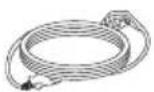
Power Cable

User's Manual

Power Cord

Remote control
INTRODUCTION
1.3 Connection Options
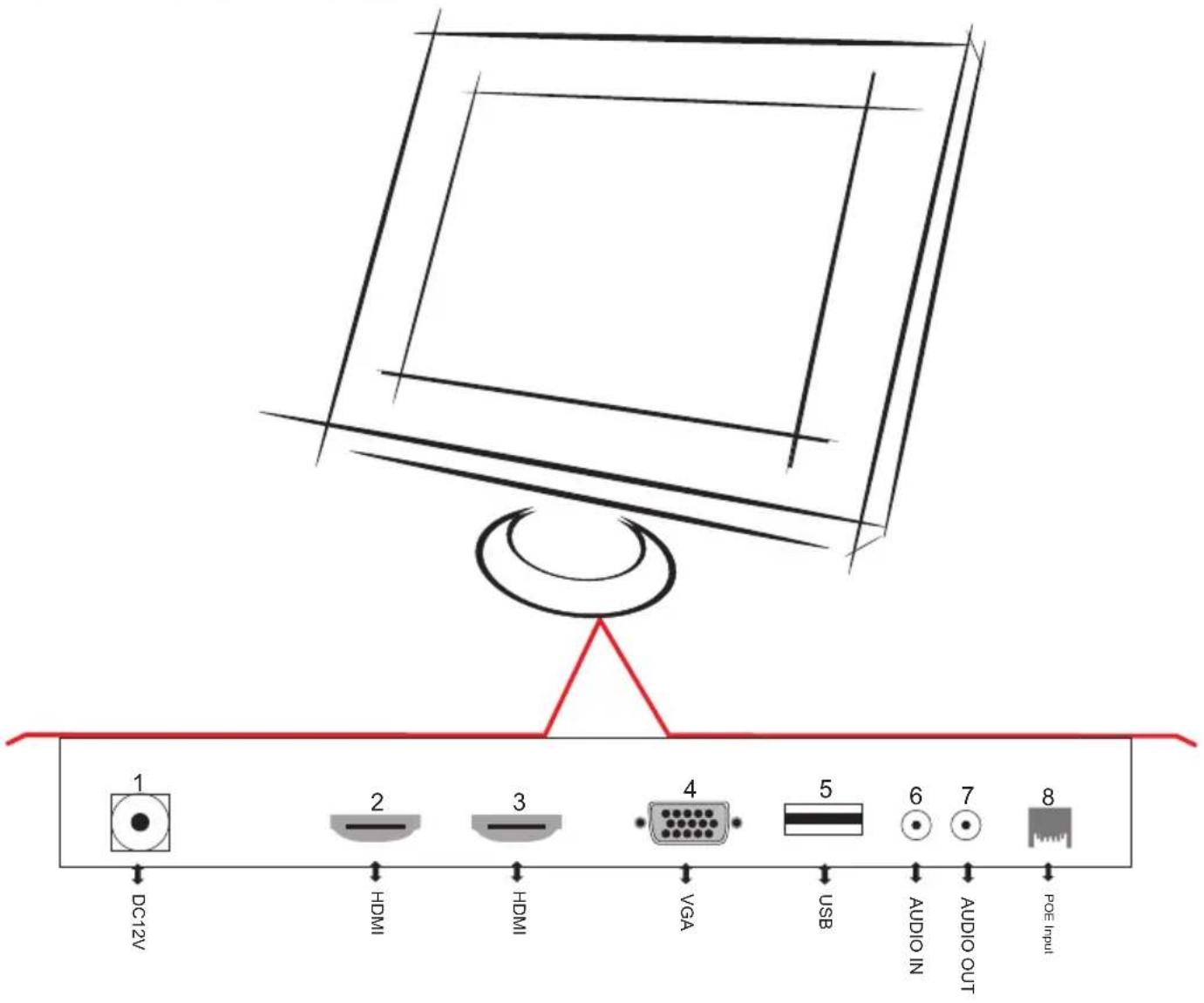
INTRODUCTION
1.4 Remote Control Key Functions

| POWER | POWERSwitch on monitor when at standby mode or vice versa. |
| MUTE | MUTEPress to mute the sound.Press again or press VOL+ to unmute. |
| ▲ | Menu selection. ▼▲ |
| ▼ | |
| ◀ | Press to increase / decrease |
| ▶ | |
| MENU | MENUPress to bring up the main menu to the screen and exit the current menu. |
| INPUT | INPUTPress to cycle through the input source in following: VGA BNC1 BNC2 HDMI YPBPR |
| PICTURE | PICTUREPress repeatedly to cycle through the available video picture |
INTRODUCTION
1.5 Installing Batteries

Open the battery compartment cover on the the back side.

Insert ONE CR2032 3V batteries in correct polarity .Do not mix old or used batteries with new ones.
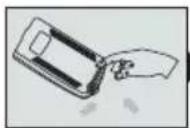
Close the cover.

▶ Point the remote towards the remote control sensor of the wireless monitor and use it within 7 meters.
Put the used batteries into the recycling bin since it can negatively affect the environment.

1.6 External Equipment Connections
1.6.1 Power Cord Connection
Connect the power cord correctly as shown.
Press the POWER switch of your CCTV monitor to switch on the CCTV monitor.
The power indication on the front panel lights is green.
INTRODUCTION
1.6.2 BNC INPUT and BNC OUTPUT Connection
![graph TD A["Monitor Back"] --> B["BNC In Cable"] B --> C["Processor Back"] C --> D["Monitor Back"] D --> E["Monitor"] style A fill:#f9f,stroke:#333 style B fill:#ccf,stroke:#333 style C fill:#cfc,stroke:#333 style D fill:#fcc,stroke:#333 style E fill:#cff,stroke:#333](/content/2026/06/1225223/images/37c5b66914892fb8c7fee0a49c03c71a621d5ad9b49b97969cc33a7cbd2220a3.jpg)
-Connect the BNC in cable output of the PROCESSOR to the BNC input on the set.
-Connect the BNC out cable input of the other monitor to the BNC output on the set.
-Select BNC1 or BNC2 input source with using the INPUT button on the remote control.
1.6.4 PC Connection
This CCTV monitor provides plug and play capability, meaning that the PC adjusts automatically to the monitor's setting. The CCTV monitor sends configuration information(EDID) to the PC using the Video Electronics Standard Association (VESA) Display Data Channel(DDC) protocol.
![graph TD A["PC Back"] --> B["Monitor Back"] B --> C["PC Audio Cable VGA Cable"] C --> D["+"] D --> E["Output to PC via RGB color code"] D --> F["Output to VGA via jack color code"] G["Select the VGA input source with using INPUT button on remote control."] style A fill:#f9f,stroke:#333 style B fill:…](/content/2026/06/1225223/images/2e40114ad5e87f36ada61c0af49e92466206eee8a5c2c681cacaf98f43a625de.jpg)
BASIC OSD SETUP
2.Basic OSD setup
2.1 Turning on and off the CCTV monitor
2.1.1 Turn on monitor
- Connect the AC input cable to monitor, then press the main power switch on monitor. At this time the monitor will enter into standby mode and the indicator light turn red.
- Using buttons can turn on monitor from standby mode as follows: Press POWER keyon front panel or on the remote control.
2.1.2 Turn off monitor
- Press POWER button on front panel the or on the remote control to enter standby mode. The indicator light is red.
- Using main power switch turns off monitor completely.
2.2 Selecting screen language
NOTE: If you use your monitor for the first time, you should select the language which will be used for displaying menus and indications.

-Press the "MENU" button into main menu.
-Press the “◀▶” button to select OSD menu.
-Press the "▼▲" button to select OSD LANGUAGE.
-Press the “◀▶” button to select your language.
-When you are satisfied with your choice, press MENU to exit.
2.3 NO SIGNAL
There is NO SYNC menu on screen when there is no input signal.
NO SIGNAL
2.4 Selecting input source

You can select the input source by pressing INPUT button on the remote control on the front panel.
-Press the "▼▲" button to select the source you want.
-Press the "INPUT" button to confirm.
BASIC OSD SETUP
2.5 OSD setup under VGA/HDMI mode
A. Press the "MENU" button to access Main Menu setting interface.
B. Press the “◀▶” to select the desired submenu.
C. Press the “▼▲” again to enter the submenu.
2.5.1 PC menu options
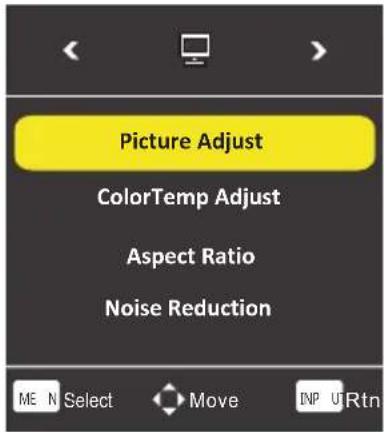
-Press "◀▶" button to select PC menu.
-Use "▼▲" to select what you want to adjust in the
VGA/HDMI mode.
-Press "◀▶"button to adjust.
-When you are satisfied with your adjustment, press MENU to exit the main menu.
2.5.2 Picture Adjust options

-Press "◀▶"button to select OSD menu.
-Use "▼▲" to select what you want to adjust in the VGA/HDMI mode.
-Press "◀▶"button to adjust.
- When you are satisfied with your adjustment, press MENU to exit the main menu.
BASIC OSD SETUP
2.5.3 CorlorTemp Adjust options
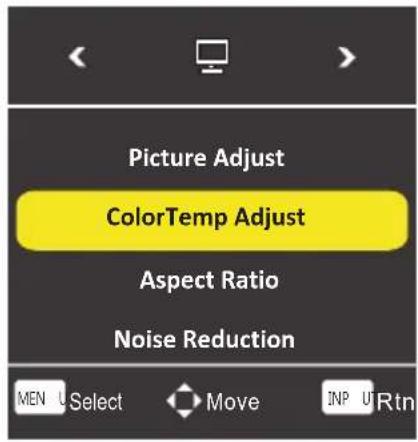

-Press “◀▶”button to select Corlor/Temp menu.
-Use "▼▲" to select what you want to adjust in the VGA/HDMI mode.
-Press "◀▶"button to adjust.
-When you are satisfied with your adjustment, press MENU to exit the main menu.
2.5.4 Aspect Ratio options


-Press "◀▶"button to select OSD menu.
-Use "▼▲" to select what you want to adjust in the HDMI/VGA mode.
-Press "◀▶"button to adjust.
-When you are satisfied with your adjustment, press MENU to exit the main menu.
BASIC OSD SETUP
2.5.5 Noise Reduction options
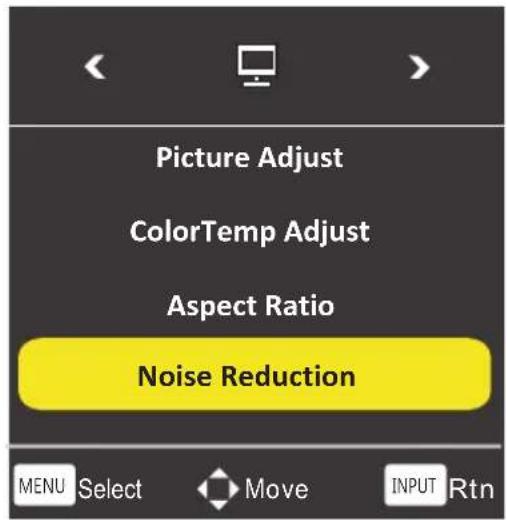

-Press "◀▶" button to select OSD menu.
-Use "▼▲" to select what you want to adjust
-When you are satisfied with your adjustment, press MENU to exit the main menu.
2.5.6 User Reset Options
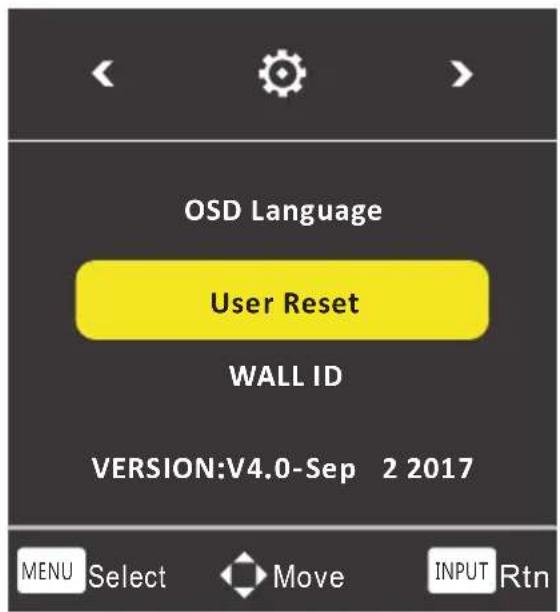
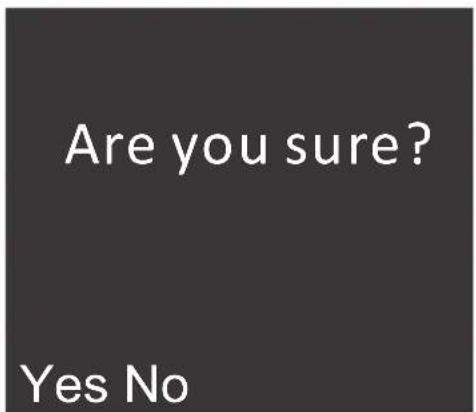
-Press "◀▶" button to select OSD menu.
-Use "▼▲" to select what you want to adjust
-Press "◀▶"button to adjust.
-When you are satisfied with your adjustment, press "Yes" or "No" to confirm
PRODUCT CRITERIA
3. Trouble shooting
Before connect the service technology, perform the following simple checks. If any problem still exist, unplug the CCTV monitor and calling for serving.
| PROBLEM | POSSIBLE SOLUTION |
| No sound picture | -Check that the main plug has been connected to a wall let.-Check that you have pressed the POWER button on the front of monitor set.-Check the picture contrast and brightness settings. |
| Normal picture but no sound | -Check the volume.-Sound muted?Press the MUTE button.-Try another channel the problem may be with the broadcast.-Are the audio cables installed properly. |
| The remote control does not work | -Check go see if there any object between the product and remote control Causing obstruction.-Are batteries installed with correct poalrity(+to+,-to-).-Correct remote operating mode set:MONITOR,VCR etc.?-Install new batteries. |
| Power is suddenly turned off | -Is the sleep times set.-Check the power control settings.Power interrupted.-No broadcast on station tuned with auto activated. |
| Picture appears slowly after switching on | -This is normal,the image is muted during the product startup process.Please contact your service center,if the picture has not appeared after five minutes. |
| No or poor color or poor picture | -Adjust the color in menu option.-Keep a sufficient distance between the product and the VCR.-Try another channel,the problem may be with the broadcast.-Are the VIDEO cables installed properly?-Activate the any function to restore the brightness of the picture. |
| Horizontal/vertical bars or picture shaking | -Check for local interference such as an electrical appliance or power tool. |
| No output from one of the speakers | -Adjust balance in menu option. |
TROUBLE SHOOTING
NOTE: There is a problem in VGA mode. (Only VGA mode applied)
| PROBLEM | POSSIBLE SOLUTION |
| The signal is out of range | -Adjust resolution, horizontal frequency, or vertical frequency.-Check it whether the signal cable is connected or loose.-Check the input source. |
| Vertical bar or stripe on back ground&Horizontal Noise&Incorrect position | -Work the auto configure or adjust clock, phase, or H/V position. |
| Screen color is unstable or single color | -Check the signal cable.-Reinstall the PC video card. |
4. Maintenance
Early manifestations can be prevented. Careful and regular cleaning can extend the amount of time in that way, you will have a new one. Be sure to turn the power off and unplug the power cord before you begin any cleaning.
Cleaning the screen
Here's a great way to keep the dust off screen for a while. Wet soft cloth in a mixture of lukewarm water and a little fabric softener or dish washing detergent. Wring the cloth until it's almost dry, and then used it to wipe the screen.
Make sure the remained water is off the screen, and then let it air-dry before you turn on your monitor.
Cleaning the cabinet
To remove dirt or dust, wipe the cabinet with a soft, dry, lint-free cloth. Please be sure not to use a wet cloth.
Extended Absence

If you expect to leave your monitor dormant for a long time(such as a vacation), it's a good idea to unplug the power cord to it from lightning or power surges.


- HDMI/VGA/USB MONITOR USER'S MANUAL
- WARNING
- REGULATORY INFORMATION
- CAUTION
- SAFETY INSTRUCTIONS
- IMPORTANT SAFETY INSTRUCTIONS
- NOTE
- CAUTION CONNECTING THE POWER CORD
- ON DISPOSAL
- INTRODUCTION
- 1.1 CONTROLS
- 1.2 ACCESSORIES
- 1.4 REMOTE CONTROL KEY FUNCTIONS
- 1.5 INSTALLING BATTERIES
- 1.6 EXTERNAL EQUIPMENT CONNECTIONS
- 1.6.1 POWER CORD CONNECTION
- 1.6.2 BNC INPUT AND BNC OUTPUT CONNECTION
- 1.6.4 PC CONNECTION
- BASIC OSD SETUP
- 2.BASIC OSD SETUP
- 2.1 TURNING ON AND OFF THE CCTV MONITOR
- 2.1.1 TURN ON MONITOR
- 2.1.2 TURN OFF MONITOR
- 2.2 SELECTING SCREEN LANGUAGE
- 2.3 NO SIGNAL
- NO SIGNAL
- 2.4 SELECTING INPUT SOURCE
- 2.5 OSD SETUP UNDER VGA/HDMI MODE
- 2.5.1 PC MENU OPTIONS
- 2.5.2 PICTURE ADJUST OPTIONS
- 2.5.3 CORLORTEMP ADJUST OPTIONS
- 2.5.4 ASPECT RATIO OPTIONS
- 2.5.5 NOISE REDUCTION OPTIONS
- 2.5.6 USER RESET OPTIONS
- PRODUCT CRITERIA
- TROUBLE SHOOTING
- MAINTENANCE
- CLEANING THE SCREEN
- CLEANING THE CABINET
- EXTENDED ABSENCE
Brand : ORION
Model : OR22RPE
Category : Tracking