CDI4H12VIFW - Security Camera Costar - Free user manual and instructions
Find the device manual for free CDI4H12VIFW Costar in PDF.


User questions about CDI4H12VIFW Costar
0 question about this device. Answer the ones you know or ask your own.
Ask a new question about this device
Download the instructions for your Security Camera in PDF format for free! Find your manual CDI4H12VIFW - Costar and take your electronic device back in hand. On this page are published all the documents necessary for the use of your device. CDI4H12VIFW by Costar.
USER MANUAL CDI4H12VIFW Costar
natural_image
Close-up of a white COSTAR security camera with visible lens and sensor array (no text or symbols on body)Please read this manual thoroughly before use and keep it handy for future reference.
WARNING
TO REDUCE THE RISK OF FIRE OR ELECTRIC SHOCK, DO NOT EXPOSE THIS PRODUCT TO RAIN OR MOISTURE. DO NOT INSERT ANY METALLIC OBJECT THROUGH THE VENTILATION GRILLS OR OTHER OPENINGS ON THE EQUIPMENT.
CAUTION

text_image
Warning symbol image showing a lightning bolt inside a triangle with a downward arrowCAUTION
RISK OF ELECTRIC SHOCK DO NOT OPEN

text_image
Warning symbol image with exclamation mark inside a triangleWARNING: TO REDUCE THE RISK OF ELECTRIC SHOCK, DO NOT REMOVE COVER (OR BACK). NO USER-SERVICABLE PARTS INSIDE. REFER SERVICING TO QUALIFIED SERVICE PERSONNEL
EXPLANATION OF GRAPHICAL SYMBOLS

The lightning flash with arrowhead symbol, within an equilateral triangle, is in- tended to alert the user to the presence of dangerous voltage within the products enclosure that may be of sufficient magnitude to constitute a risk of electric shock to persons.

The exclamation point within an equilateral triangle is intended to alert the user to the presence of important operating and maintenance (servicing) instructions in the literature accompanying the product.
FCC COMPLIANCE STATEMENT
This device complies with Part 15 of the FCC Rules. Operation is subjected to the following two conditions: (1) this device may not cause harmful interference, and (2) this device must accept any interference received, including interference that may cause undesired operation.
FCC INFORMATION: This equipment has been tested and found to comply with the limits for a Class A digital device, pursuant to Part 15 the FCC Rules. These limits are designed to provide reasonable protection against harmful interference when the equipment is operated in a commercial environment. This equipment generates, uses, and can radiate radio frequency energy and, if not installed and used in accordance with the instruction manual, may cause harmful interference to radio communications. Operation of this equipment in a residential area is likely to cause harmful interference in which case the user will be required to correct the interference at his own expense.
CAUTION: Changes or modifications not expressly approved by the party responsible for compliance could void the user's authority to operate the equipment.
This is a Class A product. In a domestic environment this product may cause radio interference in which case the user may be required to take adequate measures.
CAUTION
RISK OF EXPLOSION IF BATTERY IS REPLACED BY AN INCORRECT TYPE. DISPOSE OF USED BATTERIES ACCORDING TO THE INSTRUCTIONS.
- Read these instructions.
- Keep these instructions.
- Heed all warnings.
- Follow all instructions.
- Do not use this apparatus near water.
-
Clean only with dry cloth.
-
Do not block any ventilation openings. Install in accordance with the manufacturer instructions.
-
Do not install near any heat sources such as radiators, heat registers, stoves, or other apparatus (including amplifiers) that produce heat.
-
Do not defeat the safety purpose of the polarized or grounding-type plug. A polarized plug has two blades with one wider than the other. A grounding type plug has two blades and a third grounding prong. The wide blade or the third prong are provided for your safety, If the provided plug does not fit into your outlet, consult an electrician for replacement of the obsolete outlet.
-
Protect the power cord from being walked on or pinched particularly at plugs, conven nience receptacles, and the point where they exit from the apparatus.
-
Only use attachments/accessories specified by the manufacturer.
-
Use only with the cart, stand, tripod, bracket, or table specified by the manufacturer, or sold with the apparatus. When a cart is used. Use caution when moving the cart/apparatus combination to avoid injury from tip-over.
-
Unplug this apparatus during lightning storms or when unused for long periods of time.
-
Refer all servicing to qualified service personnel. Servicing is required when the apparatus has been damaged in any way, such as power-supply

natural_image
Silhouette of a person climbing a ladder inside a circle with a diagonal line (no text or symbols)cord or plug is damaged, liquid has been spilled or objects have fallen into the apparatus, the apparatus has been exposed to rain or moisture, does not operate normally, or has been dropped.
-
CAUTION – THESE SERVICING INSTRUCTIONS ARE FOR USE BY QUALIFIED SERVICE PERSONNEL ONLY TO REDUCE THE RISK OF ELECTRIC SHOCK DO NOT PERFORM ANY SERVICING OTHER THAN THAT CONTAINED IN THE OPERATING INSTRUCTIONS UNLESS YOU QRE QUALIFIED TO DO SO.
-
Use satisfy clause 2.5 of IEC60950-1/UL60950-1 or Certified/Listed Class 2 power source only.
-
ITE is to be connected only to PoE networks without routing to the outside plant.
Contents
1 Introduction 6
1.1 Components 6
1.2 Key Features 7
2 Installation 8
2.1 Overview 8
2.2 Connection 10
2.3 Resetting to the factory default settings 11
2.4 Network Connection & IP assignment 12
3 Operation 13
3.1 Access from a browser 13
3.2 Access from the internet 14
3.3 Setting the admin password over a secure connection 14
3.4 Live View Page 15
3.5 Playback 17
3.6 Network Camera Setup 19
3.6.1 Basic Configuration 19
3.6.2 Video & Image 24
3.6.3 Audio 33
3.6.4 Event 34
3.6.5 System 59
3.7 Help 79
A Appendix
A.1 Troubleshooting 80
A.2 Alarm Connection 81
A.3 Preventive Maintenance 81
A.4 System Requirement for Web Browser 82
A.5 General Performance Considerations 82
A.6 Product Specification 83
1 Introduction
The network camera supports the network service for a sensor image with progressive scan, which can be monitored on a real-time screen regardless of distances and locations. By using its dedicated program, many users are able to have an access to the network camera at once or a single user can monitor various network cameras at the same time. It also enables users to play, store and retrieve a monitoring image by using a PC. All the settings and real-time monitoring screens are also provided through an access to the web.
The network camera is fully featured for security surveillance and remote monitoring needs. It is based on the DSP compression chip, and makes it available on the network as real-time, full frame rate Motion JPEG, H.264 and H.265 video streams.
The alarm input and alarm output can be used to connect various third party devices, such as, door sensors and alarm bells.
1.1 Components
This system comes with the following components;
Network Camera 1
Installation Guide/CD 1
Template Sheet 1
Accessory Kit 1
Note 1. Check your package to make sure that you received the complete system, including all components listed above.
Note 2. Adapter for DC 12V is not supplied.
1.2 Key Features
- Brilliant video quality
The network camera offers the highly efficient H.265 or H.264 video compression, which drastically reduces bandwidth and storage requirements without compromising image quality. Motion JPEG is also supported for increased flexibility.
- Quad streams
The network camera can deliver four video streams simultaneously using H.264, H.265 and Motion JPEG. This means that several video streams can be configured with different compression formats, resolutions and frame rates for different needs.
• Intelligent video capabilities
The network camera includes intelligent capabilities such as enhanced video motion detection. The network cameras external inputs and outputs can be connected to devices such as sensors and relays, enabling the system to react to alarms and activatelights or open/close doors.
- Improved security
The network camera logs all user access, and lists currently connected users. Also, its full frame rate video can be provided over HTTPS.
• PoE (Power over Ethernet)
This network camera can be powered through PoE (IEEE802.3af), which simplifies installation since only one cable is needed for carrying power, as well as video controls.
- ONVIF certificate
This is a global interface standard that makes it easier for end users, integrators, consultants, and manufacturers to take advantage of the possibilities offered by network video technology. ONVIF enables interoperability between different vendor products, increased flexibility, reduced cost, and future-proof systems.
• Micro-SD recording support
The network camera also supports a micro-SD memory slot for local recording with removable storage of type SDHC and SDXC.
- Audio support
The Network Camera also supports two-way audio.
2 Installation
For the operation of the network camera, it is necessary to connect a network cable for data transmission, power connection from power adapter. Depending on operation methods, it is possible to connect an alarm cable additionally. For its fixation on different locations, please consult with an installer.
2.1 Overview
- Dimension

text_image
Ø95 45 99 Ø144 4-Ø6 Ø121 53 42°Dimensions Unit: mm
- Extension Cable

text_image
DC12V IN DC NO 3.0M 5.0M| NO | Item | Description |
| 1 | RJ-45 | Ethernet, RJ-45 port compatible with 10/100Mbps PoE Modular Jack |
| 2 | DC Jack | Main Power, DC Jack, DC12V |
| 3 | AI: Alarm In | Alarm input and output, 3pin terminal |
| G: GND | ||
| AO: Alarm Out | ||
| 4 | MIC: Audio In | Audio line input, 2pin terminal |
| G: GND | ||
| 5 | SPK: Audio Out | Audio line output, 2pin terminal |
| G: GND | ||
| 6 | BNC jack | CVBS Output |
• Installing & Adjusting Camera
Carefully remove the contents from the box.
1) Loosen the four torx screws located the front of the housing leaving the screws intact in the front portion.

text_image
TORX LOCK SCREW M4 x 4EA TOP CASE BOTTOM CASE + CAMERA2) Make mounting holes and cable hole in the place(ceiling or wall) to which this dome. Camera is installed using the template sheet.

text_image
CEILING / WALL PLASTIC ANCHOR TEMPLATE SHEET BOTTOM CASE ASSY MOUNTING SCREW (X 4) TOP CASE ASSY
Do not continue to turn the camera in same direction. The cable connector can be detached.
2.2 Connection
• Micro SD memory slot on the Bottom Board
Remove the cap at bottom of the camera to insert the SD memory card.

text_image
RESET SW SD CARD- Connecting to the RJ-45
Connect a standard RJ-45 cable to the network port of the network camera. Generally a cross-over cable is used for directly connection to PC, while a direct cable is used for connection to a hub. You can also use a router featuring PoE (Power over Ethernet) to supply power to the camera.
- Connecting Alarms
AI(Alarm In): You can use external devices to signal the network camera to react on events. Mechanical or electrical switches can be wired to the AI (Alarm In) and G (Ground) connectors.
G(Ground): Connect the ground side of the alarm input and/or alarm output to the G (Ground) connector.
AO(Alarm Out): The network camera can activate external devices such as buzzersr lights. Connect the device to the AO (Alarm Out) and G (Ground) connectors.
- Connecting the Power
Connect the power of 12VDC for the network camera. Connect the positive(+) pole to the ‘+’ position and the negative (-) pole to the ‘-’ position for the DC power.
- Be careful not to reverse the polarity when connecting the power cable.
- A router featuring PoE (Power over Ethernet) can also be used to supply power to the camera.
- For the power specifications, refer to the appendix, product specification.
- If PoE and 12 VDC are both applied, the camera will be supplied with power from PoE.
- Connecting Audio
Connect speaker to audio line output and external Mic to audio input line.
2.3 Resetting to the factory default settings
To reset the network camera to the original factory settings, go to the Setup > System > Maintenance web page (described in "System > Maintenance" of User Manual) or use the Reset button on the network camera inside the bottom cap.

text_image
RESET SW SD CARD• Using the Reset button:
Follow the instructions below to reset the network camera to the factory default settings using the Reset button.
1) Switch off the network camera by disconnecting the power adapter.
2) Open the top cap.
3) Press and hold the Reset button with a straightened paperclip while reconnecting the power.
4) Keep the Reset button pressed about 5 or more seconds.
5) Release the Reset button.
6) The network camera resets to factory defaults and restarts after completing the factory reset.
7) Close the bottom cap tightly to ensure waterproof.
CAUTION: When performing a Factory Reset, you will lose any settings that have been saved. (Default IP 192.168.0.129)
2.4 Network Connection & IP assignment
The camera supports the operation through the network. When a camera is first connected to the network, it is necessary to allocate an IP address to the device with the "SmartManager" utility on the CD. (Default IP 192.168.0.129)
1) Connect the network camera/device to the network and power up.
2) Start SmartManager utility (Start > All programs > SmartManager > SmartManager). The main window will display, and after a short while any network devices connected to the network will be displayed in the list.

text_image
SmartManager File View Help IP Device Only IP Filter Apply All Devices (1) IP Camera (1) Drive Group Model Name Name MAC Address IP Address Wireless IP Address Zero Conf. IP Version Check Status IP Camera H.26A Network PTZ Camera 00:07:08:18:0D:16 192.168.36.020 0.0.0.0 169.254.159.83 1.4.5-K2_release Ready CAP NUM ORDER3) Select the camera on the list and click right button of the mouse. You can see the pop-up menu as below.

text_image
SmartManager File View Help IP Device Only IP Filters Apply All Devices (1) IP Camera (1) Drive Group Model Name Name MAC Address IP Address Wireless IP Address Zero Conf. IP Version Check Status IP Camera H.264 Note Remote Setup... Quick View... Assign IP... Maintenance Upgrade Firmware... Upgrade Camera Module Log In Open Web Page Restore Check Status Ready CAP NUM ONLY4) Select Assign IP Address. The Assign IP window will display. Enter the required IP address.

text_image
Assign new IP address Assign new IP address Obtain IP address via DHCP 192 . 168 . 30 . 220 SubnetMask Gateway Camera Information Model : IP Camera Name : H.264Network PTZ Camera MAC Address : 00:07:08:18:00:16 IP Address : 192.188.30.220 OK CancelNOTE: For more information, refer to the SmartManager User Manual.
3 Operation
The network camera can be used with Windows operating system and browsers. The recommended browsers are Internet Explorer, Safari, Firefox, Opera and Google Chrome with Windows.
NOTE: To view streaming video in Microsoft Internet Explorer, set your browser to allow ActiveX controls.
3.1 Access from a browser
- Start a browser (Internet Explorer).
- Enter the IP address or host name of the network camera in the Location/Address field of your browser.
- You can see a starting page. Click Live View, Playback, or Setup to enter web page.

text_image
Network Camera Live View Playback Setup- The network cameras Live View page appears in your browser.

natural_image
Interior view of a grand, ornate multi-level building with glass ceiling and metal staircase (no visible text or symbols)3.2 Access from the internet
Once connected, the network camera is accessible on your local network (LAN). To access the network camera from the Internet you must configure your broadband router to allow incoming data traffic to the network camera. Todo this, enable the NAT traversal feature, which will attempt to automatically configure the router to allow access to the network cam- era. This is enabled from Setup > System > Network > NAT. For more information, please see “System > Network > NAT” of User Manual.
3.3 Setting the admin password over a secure connection
To gain access to the product, the password for the default administrator user must be set. This is done in the “Admin Password” dialog, which is displayed when the network camera is accessed for the setup at the first time. Enter your admin name and password, set by the administrator.

text_image
Windows Security The server 192.168.30.220 is asking for your user name and password. The server reports that it is from IP Camera. Warning: Your user name and password will be sent using basic authentication on a connection that isn't secure. User name Password Remember my credentials OK CancelNOTE: The default administrator user name and password is "admin". If the password is lost, the network camera must be reset to the factory default settings. Please see "Resetting to the factory default settings."
To prevent network eavesdropping when setting the admin password, this can be done via an encrypted HTTPS connection, which requires an HTTPS certificate (see NOTE below). To set the password via a standard HTTP connection, enter it directly in the first dialog shown below. To set the password via an encrypted HTTPS connection, please see "System > Security > HTTPS" of User Manual.
NOTE: HTTPS (Hypertext Transfer Protocol over SSL) is a protocol used to encrypt the traffic between web browsers and servers. The HTTPS certificate controls the encrypted exchange of information.
3.4 Live View Page
The Live View page comes in several screen modes. Users are allowed to select the most suitable one out of those modes. Adjust the mode in accordance with your PC specifications and monitoring purposes.

natural_image
Interior view of a grand, ornate hall with glass ceiling and double staircase (no visible text or symbols)1) General controls

Live View Page Playback Page Setup Page Help Page


Stream
The video drop-down list allows you to select a customized or pre-programmed video stream on the Live View page. Stream profiles are configured under Setup > Basic Configuration > Video & Image. For more information, please see "Basic Configuration > Video & Image" of User Manual.

The resolution drop-down list allows you to select the most suitable one out of video resolutions to be displayed on Live View page.

H11#
The protocol drop-down list allows you to select which combination of protocols and methods to use depending on your viewing requirements, and on the properties of your network.
2) Control toolbar
The live viewer toolbar is available in the web browser page only. It displays the following buttons:

The Stop button stops the video stream being played. Pressing the key again toggles the start and stop. The Start button connects to the network camera or starts playing a video stream.

The Pause button pauses the video stream being played.

The Snapshot button takes a snapshot of the current image. The location where the image is saved can be specified.
The Digital Zoom button activates a zoom-in or zoom-out function for video image on the live screen.
The Full Screen button causes the video image to fill the entire screen area. No other windows will be visible. Press the 'Esc' button on the computer keyboard to cancel full screen view.
The Manual Trigger button activates a pop-up window to manually start or stop the event.
The Lens Control button allows user to control Zoom and Focus manually. (This Icon appears for motorized lens model only.)

text_image
Network Dome Camera - Internet Explorer http://10.20.3.91/live/lens_control.php?http_port=80&isPopup=1&https_port=443 Zoom Wide > Tele 150 Go Focus Near > Far 522 Go Smart Focus Calibrate- Zoom: Click "button to zoom out and click "button to zoom in. Or drag the bar to adjust the zoom. The focus is moved slightly after adjusting zoom; adjust the focus again, as necessary.
- Focus: Click "◀◀◀" button to Near focus and click "◀" button to Far focus. Or drag the bar to adjust the focus.
• Smart Focus User can get automated focushere.
• Calibrate Calibrate focus and zoom.
The Smart Focus button activates smart focus function which set the focus to the optimum position. (This Icon appears for motorized lens model only.)
The Relay Output button manually triggers relay out. (This Icon appears only if "En-able alarm out" is selected in "Event Out - Alarm Out".)
The Speaker button activates/deactivates external speaker.

The Mic button activates/deactivates microphone input.
Use this scale to control the volume of the speakers and microphones.
3) Video Streams
The network camera provides several images and video stream formats. Your requirements and the properties of your network will determine the type you use.
The Live View page in the network camera provides access to H.264, H.265 and Motion JPEG video streams, and to the list of available video streams. Other applications and clients can also access these video streams/images directly, without going via the Live View page.
3.5 Playback

text_image
Playback Event List Event Search All Go 2010-08-25 14:43:00 2010 / 8 S M T W T F S 61 62 63 64 65 66 67 58 59 10 11 12 13 14 15 16 17 18 19 20 21 22 23 24 25 26 27 28 29 30 31 ⑧ ① ⑦ ⑥ ⑤ ② ③ ④The Playback window contains a list of recordings made to the memory card. It shows each recording's start time, length, the event type used to start the recording, calendar and time slice bar indicates if the recording is existed or not.
The description of playback window follows.
1) Video Screen
You can see the video screen when playing the video clip in the Micro SD memory.
2) Playback Buttons
To view a recording data in the SD local storage, select it from the list and click the Playback buttons.
Go to the first: go to the beginning of the video clip.
Fast backward play: fast play backward of the video clip.
Backward play: play backward of the video clip.
Step backward play: go back one frame of the video clip.
Pause: pause playback of the video clip.
Step forward play: go forward one frame of the video clip.
Forward Play: play forward the video clip.
Fast forward play: play fast forward of the video clip. Go
to the last: go to the end of the video clip.
Clip copy: copy the video clip.
Display an hour-based search screen for the chosen date. If there is recording data, a blue section will be displayed on a 24-hour basis. If you select a particular hour in the chart, a yellow square on the hour will be displayed.
4) Speaker Control Bar
Use this scale to control the volume of the speakers.
5) Search Calendar
Search results from the SD local storage in the network camera connected are displayed monthly. If there is a recorded data for a particular date, a blue square on the date will be displayed. If you select a particular date in the calendar, a yellow square on the date will be displayed.
6) Play Time
Displays time of the video playing.
7) Event Search Window
Select a search option in the drop-down list and click GO button. You can also enter the time period for searching. If you click Start Date or End Date zone, displays Search Calendar.

text_image
All All Onboot Alarm Trigger Motion Network Loss Time Trigger8) Event List Window
Event List displays the event(s) that were recorded in the SD local storage. Select a list and click the play button. The video clip will be played.
3.6 Network Camera Setup
This section describes how to configure the network camera.
Administrator has unrestricted access to all the Setup tools, whereas Operators have access to the settings of Basic Configuration, which are Live View, Video & Image, Audio, Event and System.
You can configure the network camera by clicking Setup either in the first connection page or the top second-right button of the Live View page. Accessing the network camera from a computer for the first time opens the Admin Password dialog box. Enter your administrator or operator id and password to get into setup page.

text_image
Windows Security The server 192.168.30.220 is asking for your user name and password. The server reports that it is from IP Camera. Warning: Your user name and password will be sent using basic authentication on a connection that isn't secure. User name Password Remember my credentials OK CancelNOTE: If the password is lost, the network camera must be reset to the factory default settings. Please see "Resetting to the Factory Default Setting".
3.6.1 Basic Configuration
You can see the device information in this information page.

text_image
Basic Configuration Basic Configuration Users Network Video & Image Audio Date & Time Video & Image Audio Events System About Basic Configuration Manufacturer : Model name : Device name : H.26X 4M Network Device Camera Firmware version : 0.0-41 MAC address : 00:07:08:10:40:EE IP address : 192.168.11.85 UHR-Local IP address : 169.254.243.204 Open/PP IP Address : 0.0.0.0 Video mode : NTSC1) Users
User access control is enabled by default. The administrator can set up other users, giving user names and passwords. It is also possible to allow anonymous viewer login, which means that anybody may access the Live View page, as described below:

text_image
Basic Configuration Basic Configuration Users Network Video & Image Audio Date & Time Users User Setting Enable anonymous viewer login User List Setting User Name User Group Authority admin administrator live, setup, system, lens Add Modify Random Save ResetThe user list displays the authorized users and user groups (levels):
| User Group | Authority |
| Guest | Provides the lowest level of access, which only allows access to the Live View page. |
| Operator | An operator can view the Live View page, create and modify events, and adjust certain other settings. Operators have no access to System Options. |
| Administrator | An administrator has unrestricted access to the Setup tools and can determine the registration of all other users. |
Please refer to "System 2) Security Users" for more details about User setup.
2) Network
The network camera supports both IP version 4 and IP version 6. Both versions may be enabled simultaneously, and at least one version must always be enabled. When using IPv4, the IP address for the network camera can be set automatically via DHCP, or a static IP address can be set manually. If IPv6 is enabled, the network camera receives an IP ad-dress according to the configuration in the network router. There is also an option of using the Internet Dynamic DNS Service. For more information on setting the network, please see "System > Network > Basic".

text_image
Basic Configuration Basic Configuration Users Network Video & Image Audio Date & Time Video & Image Audio Event System About Network IP Address Configuration Obtain IP address via DHCP Use the following IP address : - IP address 192 . 168 . 30 . 220 - Subnet mask 255 . 255 . 255 . 8 - Default router 192 . 168 . 30 . 1 Save Reset- Obtain IP address via DHCP: Dynamic Host Configuration Protocol (DHCP) is a pro-tocol that lets network administrators centrally manage and automate the assignment of IP addresses on a network. DHCP is enabled by default. Although a DHCP server is mostly used to set an IP address dynamically, it is also possible to use it to set a static, known IP address for a particular MAC address.
-
Use the following IP address: To use a static IP address for the network camera, check the radio button and then make the following settings:
-
IP address: Specify a unique IP address for your network camera.
- Subnet mask: Specify the mask for the subnet the network camera is located on.
- Default router: Specify the IP address of the default router (gateway) used for connecting devices attached to different networks and network segments.
NOTES:
- DHCP should only be enabled if using dynamic IP address notification, or if your DHCP server can update a DNS server, which then allows you to access the network camera by name (host name). If DHCP is enabled and you cannot access the unit, you may have to reset it to the factory default settings and then perform the installation again.
- The ARP/Ping service is automatically disabled two minutes after the unit is started, or as soon as an IP address is set.
- Pinging the unit is still possible when this service is disabled.
Please refer to "System > Network > Basic" for more details about Network setup.
3) Video & Image
User can setup and change setting of individual video stream in thispage.

text_image
Basic Configuration Basic Configuration Users Network Videos & Image Audio Date & Time Video & Image Audio Event System About Video & Image Sensor Setting Capture mode: 2592x1520,30fps,NTSC Stream 1 Setting Codec type H264 H265 Codec H.264 Main Profile Resolution 2592x1520 Bitrate control CBRL CVBR Bitrate 6000 [Kbps] Framerate 30 GOP size 30 [1 ...80] Stream 2 Setting Codec: H0PEG Resolution 1280x720 Framerate 18 Quality [1 ...100] Stream 3 Setting Codec type H264 H265 Codec H.264 Baseline Profile Resolution 640x880 Bitrate control CBRL CVBR Bitrate 1000 [Kbps] Framerate 30 GOP size 30 [1 ...80] Stream 4 Setting Codec type H264 H265 Codec H.264 Baseline Profile Resolution 320x240 Bitrate control CBRL CVBR Bitrate 500 [Kbps] Framerate 30 GOP size 30 [1 ...80]Please refer to "Video & Image > Basic" for more details about Video & Image setup.
4) Audio

text_image
Basic Configuration Basic Configuration Users Network Video & Image Audio Date & Time Video & Image Audio Event System About Audio Audio Setting Enable audio - Compression type 0.711 seconds - Sample rate ratio 5bito - Sound bitrate 4bitus Audio Input Input volume 5 Hute Audio Output Enable full doubles - Output volume 5 Hute Save ResetThe network camera can transmit audio to other clients using an external microphone and can play audio received from other clients by attaching a speaker. User can setup and change setting of Audio in this page.
Please refer to "Audio" for more details about Audio setup.
5) Date & Time

text_image
Basic Configuration Basic Configuration Users Network Video & Image Audio Date & Time Video & Image Audio Event System About Date & Time Current Server Time Date : 2017-05-26 Time : 14:14:45 New Server Time Time zone: [GMT] Greenwich Mean Time : Dublin, Edinburgh, Lisbon, London Automatically adjusts for daylight saving time charges Time mode Synchronize with computer time Date : 2017-05-26 Time : 14:14:45 Synchronize with NTP server: NTP server : time hit gov NTP Interval : 12 [Hour] Set manuals Date : 2017-05-26 Time : 14:14:45 Date & Time Format: Date Format : YYYY-MM-DD Time Format : 24 Hour Save ResetUser can set time directly or assign time server to get the current time, as well as determine Date & Time format in this page.
Please refer to "System > Date & Time" for more details about Date & Time setup.
3.6.2 Video & Image
1) Basic

text_image
Video & Image Basic Configuration Video & Image Basic Privacy Masking Hi-Stream Camera Setup OSO Audio Exit System About Video & Image - Basic Sensor Setting Capture mode 2592x1520.30fps.NTSC Stream 1 Setting Codec type H264 H265 Codec H.264 Main Profile Resolution 2592x1520 Bitrate control CBR CVBR Bitrate ±5000 [Kbps] Framerate 30 GDP size 50 [1 ...60] Stream 2 Setting Codec MPPEG Resolution 1280x720 Framerate 15 Quality 80 [1 ...100] Stream 3 Setting Codec type H264 H265 Codec H.264 Baseline Profile Resolution 640x480 Bitrate control CBR CVBR Bitrate 1000 [Kbps] Framerate 20 GOP size 30 [1 ...60] Stream 4 Setting Codec type H264 H265 Codec H.264 Baseline Profile Resolution 320x240 Bitrate control CBR CVBR Bitrate 100 [Kbps] Framerate 30 GOP size 50 [1 ...60]- Sensor Setting:
- Capture mode: User can select sensor capture mode between 1920x1080(2MP)/2592x1520(4MP) and NTSC/PAL (Some models are fixed to NTSC or PAL).
- Stream 1 Setting:
- Codec: The codec supported in Stream 1 is H.264 and H.265
There are 3 pre-programmed stream profiles available for quick set-up. Choose the form of video encoding you wish to use from the drop-down list:
- H.264 High Profile:
Primary profile for broadcast and disc storage applications, particularly for high-definition television applications (for example, this is the profile adopted by the Blu-ray Disc storage format and the DVB HDTV broadcast service).
- H.264/H.265 Main Profile:
Primary profile for low-cost applications that require additional error robustness, this profile is used rarely in videoconferencing and mobile applications; it does add additional error resilience tools to the Constrained Baseline Profile. The importance of this profile is fading after the Constrained Baseline Profile has been defined.
• H.264 Baseline Profile:
Originally intended as the mainstream consumer profile for broadcast and storage
applications, the importance of this profile faded when the High Profile was developed for those applications.
- Resolution:
This enables users to determine a basic screen size when having an access through the Web Browser or PC program. The screen size control comes in several modes. Users can change the selected screen size anytime while monitoring the screen on a real-time basis.
- Bitrate control:
The bit rate can be set as Constrained Bit Rate (CBR) or Constrained Variable Bit Rate (CVBR). Limiting the maximum bit rate helps control the bandwidth used by the H.264 or H.265 video stream. Leaving the Maximum bit rate as unlimited maintains consistently good image quality but increases bandwidth usage when there is more activity in the image. Limiting the bit rate to a defined value prevents excessive bandwidth usage, but images are degraded when the limit is exceeded.
- CBR: Constrained bitrate.
- CVBR: VBR with maximum bitrate which is set in Bitrate.
- Bitrate: Maximum bitrate for CBR in the range of 100kbps \~ 10Mbps.
- Frame rate:
Upon the real-time play, users should select a frame refresh rate per second. If the rate is high, the image will become smooth. On the other hand, if the rate is low, the image will not be natural but it can reduce a network load.
- GOP size:
Select the GOP (Group of Picture) size. If users want to have a high quality of fast image one by one, please decrease the value. For the purpose of general monitoring, please do not change a basic value. Such act may cause a problem to the system performance. For the details of GOP setting, please contact the service center.
- Stream 2 Setting:
Sometimes the image size is large due to low light or complex scenery. Adjusting the frame rate and quality helps to control the bandwidth and storage used by the Motion JPEG video stream in these situations. Limiting the frame rate and quality optimizes bandwidth and storage usage, but may give poor image quality. To prevent increased bandwidth and storage usage, the Resolution, Frame rate, and Frame Quality should be set to an optimal value.
- MJPEG Resolution: Same as the stream 1 setting.
- MJPEG Frame rate: Same as the stream 1 setting.
- MJPEG Quality: Select the picture quality. If users want to have a high quality of fast image one by one, please decrease the value. For the purpose of general monitoring, please do not change a basic value. Such act may cause a problem to the system performance.
- Stream 3, Stream4 Setting: Same as the Stream 1 settings.
When the settings are complete, click Save button to save the settings, or click Reset button to clear all of the information you entered without saving it.
2) Privacy Masking

text_image
Video & Image Basic Configuration Video & Image Basic Privacy Masking Hi-Stream Camera Setup OSO Audio Event System About Privacy Masking Video Preview New AGFA Privacy Masking Setting Enable privacy masking ID Name Delete Save ResetThe privacy masking function allows you to mask parts of the video image to be transmitted. You can set up to eight privacy masks.
The privacy masks are configured by Mask windows. Each window can be selected by clicking with the mouse. It is also possible to resize or delete, or move the window, by selecting the appropriate window at the mouse menu on the video screen.
| New Privacy Mask | |
| Select | |
| Delete | |
| Freeze | |
To create a mask window, follow steps:
- Click the right button of mouse to see the mouse menu.
- Select New Privacy Mask in the mouse menu.
- Click and drag mouse to designate a mask window area.
When the settings are complete, click Save button to save the settings, or click Reset button to clear all of the information you entered without saving it.
4) Hi-Stream
The Hi-Stream function allows reduce bandwidth by using compression and frame rate control.

text_image
Video & Image Basic Configuration Video & Image Basic Privacy Masking Hi-Stream Camera Setup GSD Audio Event System About Hi-Stream Video Preview Smart ROS Setting Enable ROI Dynamic ROI Static ROE ROI Quality Normal Non-ROI Quality Normal Non-ROI fps 10 ID Name Delete 1 New X Save Reset- Enable ROI: Select 'Enable ROI' to active Hi-Stream function. Video mode will be fixed to CVBR.
- Create region: Click the right button of mouse and select New ROI Area. Click the left button of mouse and drag to make window.

text_image
New ROI Area Select Delete Freeze- Delete Region: Click the right button of mouse and select the region. Click Delete or click X from the region table.
- ROI Quality: Set quality of the selected area.
- Non-ROI Quality: Set quality of the non-selected area.
- Non-ROI fps: Set frame rate of the non-selected area.
5) Camera Setup
In this page, user can setup Exposure Control, White Balance Control, Image Appearance, and Day & Night control.

text_image
Video & Image Basic Configuration Video & Image Basic Privacy Masking Hi-Stream Camera Setup OSO Audio Event System About Camera Setup Profile 1 Video Preview Video Preview Exposure Control Mode Automatic Picker-free Shifts Picker-free Shifts Value 5 Default Max. gain Low Middle High Shutter Automatic Fixed Max. shutter 1/10 [x] Min. shutter 1/10000 [x] Enable P-SKIS Mode Automatic Manual Range 2.5 3.5 Default Image Appearance Brightness 8 Default Contrast 5 Default Saturation 5 Default Hue 4.5 Default Sharpenza 4.5 Default White Balance Mode Automatic Manual Enhance Control Enable wide dynamic range Enable Hip horizontally Enable motor image Enable noise robustness Level Low Middle High Enable debug Hitting Mode Spot Center Average Left Right Button Day & Night Control Mode Automatic Day Night Threshold Low High Smart Focus sync with Day & Night DR Control Enable SR SR Type Status SR Smart SR Max. Strength 4.5 5 Save Reset• Video Preview: User can check the setting via video preview pop-up window

natural_image
Interior scene with plants and glassware on a shelf, no visible text or symbols- Exposure Control

text_image
Exposure Control Mode Automatic Flicker-free 50Hz Flicker-free 60Hz Value < > 5 Default Max. gain Low Middle High Shutter Automatic Fixed Max. shutter 1/10 [s] Min. shutter 1/10000 [s] Enable P-IRIS Mode Automatic Manual Range F1.6 F2.0 F2.8 F3.6 Default- Mode: Determines exposure mode among automatic and flicker-free modes.
Users can use Automatic mode with full shutter speed or Flicker-free mode with a limited range of shutter due to an anti-flicker function.
- Max. gain: Sets maximum gain threshold.
- Shutter: Sets shutter speed of the sensor. If users set Automatic, Max shutter and Min shutter can be selected.
If the object is as fast as a car, please change the Max shutter to a faster value (eg 1/10 -> 1/120). If users set Manual, fixed shutter speed can be selected.
Note: If the shutter speed is set Manual, the screen may be saturated or dark.
- Max. shutter: Users can set the limit for slow shutter speeds used in dark environments.
- Min. shutter: Users can set the limit for fast shutter speeds used in bright environments.
- Enable P-IRIS: Check this box to activate the P-IRIS function
If users set Automatic, users can specify the range of P-IRIS to be used, and P-IRIS is automatically adjusted according to the amount of light around the camera.
If users set Manual, P-IRIS is fixed.
(Only, P-IRIS is changed to maximum open due to the securing of light intensity at night shift.)
• Image Appearance

bar
| White Balance Mode | Automatic | Manual | | ------------------ | --------- | ------ | | Brightness | < > | 5 | | Contrast | < > | 5 | | Saturation | < > | 5 | | Hue | < > | 5 | | Sharpness | < > | 5 |This provides access to the advanced image settings for the network camera.
- Brightness: The image brightness can be adjusted in the range 1-10, where higher value produces a brighter image.
- Contrast: Adjust the image's contrast by raising or lowering the value in this field.
- Saturation: Set an appropriate value in the range 1-10. Lower values mean less color saturation.
- Hue: Set an appropriate value in the range 1-10. The value distinguishes color, such as red, yellow, green, or violet.
- Sharpness: Set the amount of sharpening applied to the image. A sharper image might increase image noise especially in low light conditions. A lower setting reduces image noise, but the image would be less sharp.
- White Balance Mode: Select white balance mode which fits camera installation environment. In case of Manual mode, user can set R, G, B gain manually.
- Enhance Control

text_image
Enhance Control Enable wide dynamic range Enable flip horizontally Enable mirror image Enable noise reduction Level ○ Low ● Middle ○ High Enable defog Metering Mode ○ Spot ● Center ○ Average ○ Left ○ Right ○ Bottom- Enable wide dynamic range: Activates WDR which cannot be used with Defog function. If WDR is activated, shutter mode becomes automatic only.
- Enable flip horizontally: Check this box to flip the image.
- Enable mirror image: Check this box to mirror the image.
- Enable noise reduction: Check this box to activate the noise reduction.
Once enabled, you can select noise reduction level.
- Enable defog: Check this box to activate the defog function.
- Metering Mode: Users can change the metering mode.
* Metering Mode: Method of measuring the intensity of the light hitting and reflected by a subject in order to determine the exposure required.
• Day & Night Control
User can setup Day & Night operation mode among Automatic, Day, and Night.

text_image
Day & Night Control Mode ● Automatic ○ Day ○ Night Threshold ○ Low ● High □Smart Focus sync with Day & Night- Mode:
- Automatic: Normally displays color image, and switches automatically to black & white image after the ambient light level reaches a pre-defined threshold.
- Day: Always displays color image.
- Night: Always displays black & white image.
- Threshold: Adjusts the level of light which the camera automatically switches between color and black & white image.
- Smart Focus sync with Dat & Night: Focus control automatically adjusts upon Day/Night change. (This menu appears for motorized lens model only.)
- IR Control
User can enable/disable built-in IR LED and

text_image
IR Control Enable IR IR Type Static IR Smart IR Max. Strength 3 IR Control Enable IR IR Type Static IR Smart IR Speed 5- IR Type:
- Static IR: When switching to Night, IR is ON with the set value.
- Max Strength: Users can specify the intensity of the IR to prevent saturation of the image.
- Smart IR: This function adjusts IR for appropriate brightness if it is dark even using the set Gain at Night switching,
- Speed: Users can adjust the control speed of the smart IR.
When the settings are complete, click Save button to save the settings, or click Reset button to clear all of the information you entered without saving it.
6) OSD
This camera provides two OSD's (on screen display) on each stream, title and date & time. User can drag green "OSD Title" and "Date & Time" to the desired position and check at preview window.

text_image
Video & Image Basic Configuration Video & Image Basic Privacy Masking Hi-Stream Camera Setup OSD Audio Event System About OSD OSD Position Setting OSD Title Date & Time OSD Subtitle Video Preview Video Preview OSD Setting Enable stream 1 OSD Enable Stream 2 OSD Enable Stream 3 OSD Enable Stream 4 OSD OSD Transparency Enable background 255 [0 ... 255] USD Color Font color Background color OSD title Enable OSD Title Title NCK=64/1 Enable OSD Subtitle - Subtitle Subtitle 1 Date & Time Enable Date & time Save Reset- Video Preview: User can check the position of OSD on actual video via preview pop-up window.
- OSD Setting: User can select to show or hide OSD for each stream. Also user can set the transparency level of OSD by slide bar or type in number.
- OSD title: User can show or hide OSD title, and can change OSD title by type in. Thedefault is the model name of the camera.
- OSD subtitle: User can show or hide OSD subtitle, and can change OSD subtitle by type in. The default is the Subtitle 1.
- Date & Time: User can show or hide date & time on OSD.
When the settings are complete, click Save button to save the settings, or click Reset button to clear all of the information you entered without saving it.
3.6.3 Audio

text_image
Audio Basic Configuration Video & Images Audio Basic Event System About Audio - Basic Audio Setting Enable audio - Compression type: 0.711 u-law - Sample rate: 0bit/s - Sound bitrate: 6MHz Audio Input Input volume: 1 Hute Audio Output Enable full duplex Output volume: 5 Hute Save ResetThe network camera can transmit audio to other clients using an external microphone and can play audio received from other clients by attaching a speaker. The Setup page has an additional menu item called Audio, which allows different audio configurations, such as full duplex and simplex.
- Audio Setting:
- Enable audio: Check the box to enable audio in the video stream.
- Compression type: G.711 μ-law
- Sample rate: 8KHz
- Sound bit rate: 64Kbps
- Audio Input: Audio from an external line source can be connected to the STEREOJack I/O of the network camera.
- Input volume: If there are problems with the sound input being too low or high, it is possible to adjust the input gain for the microphone attached to the networkcamera.
- Mute: User can disable the input audio transmission by checking the box.
- Audio Output:
- Enable full duplex: Check the box to enable Full Duplex mode. This means that you can transmit and receive audio (talk and listen) at the same time, without having to use any of the controls. This is just like having a telephone conversation. This mode requires that the client PC has a sound card with support for full-duplex audio.
Uncheck the box enable Simplex mode. The simplex mode only transmits audio from the network camera to any web client. It does not receive audio from other web clients.
- Output volume: If the sound from the speaker is too low or high it is possible to adjust the output gain for the active speaker attached to the network camera.
- Mute: User can disable the output audio transmission by checking the box.
When the settings are complete, click Save button to save the settings, or click Reset button to clear all of the information you entered without saving it.
3.6.4 Event
- Event In
On Boot
This is used to trigger an event every time the network camera is started.

text_image
Event Base Configuration Video & Image Audio Event Event In On Boot Alerts Dr Manual Trigger Motion Network Loss ADDM Time Trigger VR Event Out - Event Map System About Event In - On Boot On Boot Setting Enable on book - Dual-live time 3 [1... 180] sec Save ResetSelect "Enable on boot" to activate the On Boot event.
Enter the Dwell time the event lasts from the point of detection, 1-180 seconds.
When the settings are complete, click Save button to save the settings, or click Reset button to clear all of the information you entered without saving it.
∇ Alarm In

text_image
Event Basic Configuration Video & Image Audio Event Event In On Boot Alarm In Manual Trigger Notion Network Loss ADMM Time Trigger VA Event Out Event Map System About Event In - Alarm In Alarm In Port 1 Setting Enable alarm in port 1 - Type NO - Deal time 5 [1...180] sec Save ResetThis camera provides 1 Alarm In port and user can set the port. The Port can be given as Normally Open or Normally Close state, and its Normal state can be configured. In order to use the alarm port, check the "Enable alarm port 1" first.
- Type: Choose the type of alarm to use from the drop-down list, NO (Normally Open) or NC (Normally Closed).
- Dwell Time: Set the dwell time an event lasts from the point of detection of an alarminput.
When the settings are complete, click Save button to save the settings, or click Reset button to clear all of the information you entered without saving it.
∇ Manual Trigger

text_image
Event Basic Configuration Video & Image Audio Event Event In On Boot Alarm In Manual Trigger Motion Network Loss ADMM Time Trigger VA Event Out Event Map System About Event In - Manual Trigger Manual Trigger 1 Setting Enable manual trigger 1 Dwell time 5 [1... 180] sec Manual Trigger 2 Setting Enable manual trigger 2 Dwell time 5 [1... 180] sec Manual Trigger 3 Setting Enable manual trigger 3 Dwell time 5 [1... 180] sec Manual Trigger 4 Setting Enable manual trigger 4 Dwell time 5 [1... 180] sec Save ResetThis option makes use of the manual trigger button provided on the Live View page, which is used to start or stop the event type manually. Alternatively, the event can be triggered via the product's API (Application Programming Interface).
Select "Enable manual trigger" to activate the manual trigger (for up to 4 manual triggers). Set the dwell time the trigger lasts.
When the settings are complete, click Save button to save the settings, or click Reset button to clear all of the information you entered without saving it.
∇ Motion

text_image
Event Basic Configuration Video & Image Audio Event Event In On Book Alarm In Manual Trigger Motion Network Loss Apple Time Trigger Vib Event Out Event Map System About Event In - Motion Video Preview Gales / Portes Video Motion Detection Setting Enable video motion detection ID Name Type Threshold Sensitivity Dwell Delete Save RepeatThis option makes use of the motion detection function with 16 programmable areas, 8 Include and Exclude zones each.
Click right mouse button on the preview window shows selection pop-up of New Motion, New Mask, Select, Delete, and Freeze.
Select New Motion and click&drag generates an Include box of green color. Select New Mask and click&drag generates an Exclude box of orange color. Drag corner or line resizes and drag inside moves the box.
Select "Enable video motion detection" to activate motion detection.
- Sensitivity: User can change sensitivity of this function, where large value sets more sensitive detection.
- Zone List

text_image
Video Motion Detection Setting ✓ Enable video motion detection ID Nanue Type Threshold Sensitivity Dwell Delete 1 New Include 2 55 2 X - ID 1 Show Histogram - Name New - Type Inclustion - Threshold 2 [1... 100] - Sensitivity 55 [1... 100] - Dwell time 3 [1... 180] sec Save Reset• ID: Order of generation, Include 1\~8, Exclude 9\~16.
- Name: User definable zone name.
- Type: shows zone type and cannot be changed.
- Threshold: Determines how large the motion in the zone can trigger event in percentage.
- Dwell time: Determines how long the triggered event holds from the last trigger-ing.
- Show Histogram: This camera provides live histogram for easy setup of threshold level in motion window. The pop-up window shows activity strength and threshold level, and user can determine threshold level for triggering motion event by slide bar or type in number.

bar
| Activity | Threshold | | -------- | --------- | | 30 | 20 | | 35 | 25 | | 40 | 30 | | 45 | 35 | | 50 | 40 | | 55 | 45 | | 60 | 50 | | 65 | 55 | | 70 | 60 | | 75 | 65 | | 80 | 70 | | 85 | 75 | | 90 | 80 | | 95 | 85 | | 100 | 90 |User can select any box by clicking name on the preview window or click on the list. User can delete selected zone via right mouse click selection for a selected box, or click any one of X button in the zone list.
When the settings are complete, click Save button to save the settings, or click Reset button to clear all of the information you entered without saving it.
▽ Network Loss

text_image
Event Basic Configuration Video & Image Audio Event Event In On Book Alarms In Manual Trigger Motion Network Loss ADMM Time Trigger VA Event Out Event Map System About Event In - Network Loss Network Loss Setting Enable network loss - Dwell time 3 [1.... 180] sec Save ResetThis is used to trigger an event every time the network connection is failed.
Select "Enable network loss" to activate the Network Loss event. Select a dwell time for how long the event will last from the point of detection.
When the settings are complete, click Save button to save the settings, or click Reset button to clear all of the information you entered without saving it.
AIHM

text_image
Event Basic Configuration Video & Image Audio Event Event In On Boot Alarms In Manual Trigger Motion Network Loss ADHM Time Trigger VA Event Out Event Map System About Event In - AIHM ADHM Setting Enable ADHM Enable record status check Enable format event ADHM Server Setting Enable ADHM server Save ResetAIHM (Advanced Intelligent Health Monitoring) triggers an event when abnormality of the camera occurs.
- AIHM Setting: Select "Enable AIHM" to activate the AIHM function.
- Enable record status check: Trigger event if the record status is modified.
- Enable format event: Trigger event if the micro-SD card is formatted.
- AIHM Server Setting: Select "Enable AIHM Server" to activate the AIHM Server function
- Enable AIHM Server: If selected, the message is sent to the AIHM server.
When the settings are complete, click Save button to save the settings, or click Reset button to clear all of the information you entered without saving it.
NOTE: This function may not be applicable, depending on the model.
∇ Time Trigger

text_image
Event Basic Configuration Video & Image Audio Event Event In Go Boot Alarm In Manual Trigger Motion Network Loss ADMIN Time Trigger VA Event Out Event Map System About Event In - Time Trigger Time Trigger Setting Enable time trigger Trigger 1 Trigger 2 Trigger 3 Trigger 4 Enable time trigger 1 Enable specific time - Date 2008-01-01 - Time 00:00:00 Enable every day - Time 00:00:00 Enable day of week - Day of week 047 - Time 00:00:00 Enable month - Day 1 - Time 00:00:00 Save ResetTime Trigger is to set alarms at specific time. User can set up to four time triggers and each time trigger can be set to specific date in the calendar, every day, day of the week, or date of every month.
Select "Enable time trigger" to activate the Time Trigger function.
- Enable specific time: User can select a date in the calendar or type in date, and specify time for event trigger.
- Enable every day: Trigger event every day at specified time.
- Enable day of week: Trigger event at the day of every week at specified time.
- Enable month: Trigger event at the date of every month at specified time.
When the settings are complete, click Save button to save the settings, or click Reset button to clear all of the information you entered without saving it.
▽ VA
The network cameras provide VA (Video Analysis) functions.
Event In - Video Analysis

natural_image
Three white cars parked on a paved road with trees and hills in the background (no visible text or symbols)Video Content Analysis Setting
□ Enable video content analysis
Preset number


View Rule
√ Motion
Intrusion
√ Exclusive
√ Line
M. Loitering
Object
| Sensitivity | 1 | 2 | 3 | 4 | 5 |
| Min width size | 1 | 2 | 3 | 4 | 5 |
| Min height size | 1 | 2 | 3 | 4 | 5 |
| Max width size | 1 | 2 | 3 | 4 | 5 |
| Max height size | 1 | 2 | 3 | 4 | 5 |
| Detection Rule | |||
| 1 | Name | Rule Name | |
| 2 | Name | Rule Name | |
| 3 | Name | Rule Name | |
| 4 | Name | Rule Name | |
| 5 | Name | Rule Name | |
| 6 | Name | Rule Name | |
| 7 | Name | Rule Name | |
| 8 | Name | Rule Name | |
| Exclusive Area | |||
| Exclusive Area | |||
Video Control
Blockwise linear system
Press this button to recognize the background again.
Scene type
Outdoor
view mode
Horizontal
Save
Bessel
Click the Enable video content analysis check box.
For the PTZ Camera, users can set different VA Event for each preset. Select the Preset number to apply VA.
NOTE: The VA function is limited to the events that can be used depending on the license type.
- Standard Type: Intelligent Motion, Intrusion Detector, Tampering
- Advanced Type: Intelligent Motion, Intrusion Detector, Tampering, Line Detect, Loitering, Human Detector.
• View Rule: In setting VA Event, users can select events to be displayed in Video Preview.
• Object: Users can set Object settings.
- Sensitivity allows users to set the object sensitivity to be detected. If there is a lot of noise (shaking leaves, etc.) on the screen, lower the Sensitivity.
- Users can set the object size to be detected by Min / Max size adjustment.
- Select Show object size to display the object size set in Video Preview.
NOTE: Object size recommended settings
- Indoor installation (in 10m, based on average height): Sensitivity 80 Min width 2 height 6 Max width 50 height 60.
- Outdoor installation (in 30m, based on car): Sensitivity 80 Min width 2 height 4 Max width 60 height 50.
| situation | default set image | Recommended settings | modified set image |
| Two objects are detected as one |  In this scene, two objects are detected as one. This is usually due to the maximum size of the object that is not set correctly. Reduce the maximum size of the object. In this scene, two objects are detected as one. This is usually due to the maximum size of the object that is not set correctly. Reduce the maximum size of the object. | Generally, when setting the minimum and maximum sizes, the average size should be set to the minimum size of the object, half the width and height of the object, and the maximum size of the object should be about 130% of the width and height of the average object. | 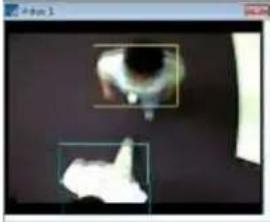 By adjusting the maximum size, two people are detected as separate objects. By adjusting the maximum size, two people are detected as separate objects. |
| One object is detected as two | 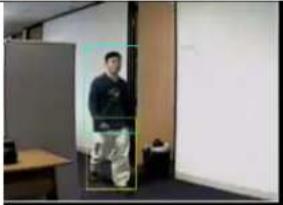 In this scene, one object is detected as two objects. Usually this is because the minimum and maximum sizes are set incorrectly. Increase the minimum and maximum size of the object. In this scene, one object is detected as two objects. Usually this is because the minimum and maximum sizes are set incorrectly. Increase the minimum and maximum size of the object. | Generally, when setting the minimum and maximum sizes, the average size should be set to the minimum size of the object, half the width and height of the object, and the maximum size of the object should be about 130% of the width and height of the average object. | 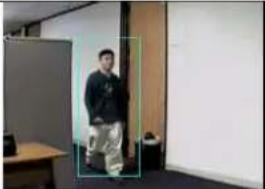 Increasing the minimum and maximum sizes will ensure that objects are accurately detected as one. Increasing the minimum and maximum sizes will ensure that objects are accurately detected as one. |
| High | Some scenes contain | To minimize the | Users can ignore the noise |
| amount of noise in image | large amounts of noise, which can have an undesirable effect on the image analysis because unwanted objects are detected in the image or unwanted events occur. | noise, reducing the sensitivity will only detect visible objects. | in the image and still detect the object in the scene. |
NOTE: A malfunction may occur under the following conditions.
- Dark environment.
- Changes in brightness due to lighting variations or clouds.
- When a moving object or facility is engaged or overlapped.
- When directing the camera to a light source (e.g. cars in a tunnel, trains).
- When a shadow occurs.
- When trees and plants are shaking in the wind (If possible, install the camera in a location free of trees and other plants. If it is inevitable, specify the area as Exclusive Area.).
- Changes of fountain.
- An environment where reflections occur, such as rivers, lakes, glass, windows, mirrors, etc. (If possible, install the camera in a location where there are no reflective objects. If it is inevitable, specify the area as Exclusive Area).
- If the object size is less than 5% or more than 40% on the screen.
- When the brightness changes due to AGC or IRIS operation of the camera.
- When an object with a minor difference from its background and brightness moves.
- Bad weather conditions such as typhoon, snow, rain.
- If the object size changes significantly due to movement toward the camera.
- When passing behind an object such as a tree.
- When the movement is feeble.
- When moving at high speed.
- If there are too many moving objects, it is difficult to create a background (for example, a subway platform at commute time).
- When the image is shaken due to camera shake.
- When there is a flashing light in the shooting area.
- If the camera lens is not clear or out of focus.
• Detection Rule: Set VA Event.
- Select Event in the Select box (default: None). When Event is selected, a menu for setting Rule Name and Event will be displayed. Users can set Event in Video Preview with on/off toggle switch.
NOTE: The number of Detection Rule differs depending on License Type.
- Standard Type: 3
- Advanced Type: 8
- How to set up
- Line Detector:
-
Click the None menu to change into Line Detector.
-
Enter the Rule Name and select the Line Event type from the Counter menu. The Detector will generate an event when an object passes over the set line. Counter sets the direction and generates an event when an object moves in the set direction and increases the count. To reset the count, click the Reset button.
- Set direction of line detection in Direction menu.
- Enable the on / off toggle switch to on and set the line area in Video Preview
- Tampering:
- Click the None menu to change into Tampering.
- Enter the Rule Name and set the Dwell time. Tampering generates an event if there is a scene change. Users can adjust the tampering sensitivity in the Sensitivity menu.
- In the Light Change menu, users can include lighting on / off as a tampering event. Users can adjust the sensitivity of Light Change in the Light Sensitivity menu.
- Intelligent Motion:
- Click the None menu to change into Intelligent Motion.
- Enter the Rule Name and set the Dwell time. Intelligent Motion generates an event when motion is detected in the set area. Users can adjust the sensitivity of Intelligent Motion in the Sensitivity menu.
- Enable the on / off toggle switch to on and set the Intelligent Motion area in Video Preview. The Intelligent Motion area is displayed as a blue cell.
NOTE: When Intelligent Motion is enabled, the existing Motion Detection is disabled.
- Intrusion:
- Click the None menu to change into Intrusion.
- Enter the Rule Name. Intrusion occurs when an object enters, appears or exits in/from set area.
- Enable the on / off toggle switch to on and set the Intrusion area in Video Preview. The Intrusion area is displayed as a yellow cell.
- Loitering:
- Click the None menu to change into Loitering.
- Enter the Rule Name. Loitering generates an event if an object enters a set area and walks or stays for more than the set time.
- Enable the on / off toggle switch to on and set the Loitering area in Video Preview. The Loitering area is displayed as a purple cell.
- Human:
- Click the None menu to change into Human.
- Enter the Rule Name. Human generates and event if the detected object is human.
NOTE: Conditions for distinguishing human:
- The object must be 10-20% of the screen size.
- Head and shoulders should be visible and moving.
The camera may not be able to distinguish human in the following situations:
- A person who is sitting, crawling, or lying.
- Shooting vertically from the ceiling.
- When a head is unseen
- A person carrying a big baggage
- A person riding a bicycle
- People moving closer together
- Shown less than a second
• Exclusive Area: Set the area to disable Object detection
By not handling unnecessary areas, users can reduce false alarms and CPU usage.
Only Object-based events are not generated. Motion and Tampering runs irrespective of Exclusive Area.
| Situation | Default set image | Recommended settings | Modified set image |
| Scene with swaying trees |  This scene involves many unwanted movements from the tree. These movements can cause unwanted objects to be detected during image analysis. This scene involves many unwanted movements from the tree. These movements can cause unwanted objects to be detected during image analysis. | Reduce the sensitivity to avoid tree movement. As an alternative, users can set the area around the tree to Exclusive Area. | 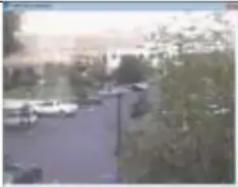 This setting avoids the detection of tree movement during the image analysis. This setting avoids the detection of tree movement during the image analysis. |
- How to set Exclusive Area
- Enable the on / off toggle switch to on and set the Exclusive Area in Video Preview. The Exclusive Area is displayed as red cells.
• Video Control: Users can make settings for optimal image analysis.
- Click the Relearn Background button to re-learn the current image as background.
- Use the Scene type menu to select the place where the camera is installed.
- Use the View mode menu to select the angle at which the camera is installed.
NOTE: View mode
- Overhead is generally suitable for counting or detecting a moving direction.
- Angle is suitable for detecting intrusions.
- Horizontal should only be used for home security.
Proper camera installation
- Installation height: 2.5m \~ 3.0m
- Installation type: Tilt about 30 degrees horizontally and face downward.
- Object: The object must not be within 3 meters of the camera.

text_image
(2.5 m~3.0 m)When the settings are complete, click Save button to save the settings, or click Reset button to clear all of the information you entered without saving it.
- Event Out
SMTP(E-Mail)

text_image
Event Basic Configuration Video & Image Audio Event Event In Event Out SMTP(E-Mail) FTP & JPEG Alarm Out Audio Alert Record XML Notification Bound Notification Server Event Map System About Event Out - SMTP(E-Mail) SMTP(E-Mail) Setting Enable SMTP - Sender Image Attachment - Interval 10 [1... 86400] sec - Aggregate events 10 [1... 100] Use mail server - Mail server - Post 5 - Connections security Answer - User name - Password - Login method www.rmsn SMTP(E-Mail) Receiver Receiver 1 Receiver 2 Receiver 3 Receiver 4 Receiver 5 Receiver 6 Receiver 7 Receiver 8 SMTP(E-Mail) Test Receiver Test Same ResetThe network camera can be configured to send event and error email messages via SMTP (Simple Mail Transfer Protocol).
- SMTP (E-Mail) Setting: Select "Enable" to activate the SMTP operation.
- Sender: Enter an email address to be used as the sender for all messages sent by the network camera.
- Interval: Represents the time interval of the email notification when events occur several times.
- Aggregate events: Shows the maximum number of emails sent within each in-terval.
-
Use Mail Server: Check the box if you are using a mail server to receive event notification and image email.
-
Mail Server: Enter the host names (or IP addresses) for your mail server.
- Port: Enter the port number for your mail server.
- Connection security: Select a connection security type in the drop-down list: None, StartTLS, SSL.
- Enable use(SMTP) authentication: Check the box if your mail server requires authentication.
- User name/Password: Enter the User name and Password as provided by your network administrator or ISP (Internet Service Provider).
- Login method: Choose a log-in method in the drop-down list: AUTH LOGIN / AUTH PLAIN
- SMTP (E-Mail) Receiver: User can assign up to 8 receivers
- Receiver #: Enter an email address.
- SMTP (E-Mail) Test: User can check the SMTP setting via a sample email.
- Receiver: Enter an email address and click the Test button to test that the mailservers are functioning and that the email address is valid.
When the settings are complete, click Save button to save the settings, or click Reset button to clear all of the information you entered without saving it.
▽ FTP & JPEG

text_image
Event Basic Configuration Video & Image Audio Event Event In Event Out SMTP(E-Mail) FTP & JPEG Alarm Out Audio Alert Record XML Notification Boost Notification Server Event Map System About Event Out - FTP & JPEG FTP Setting Enable FTP Server 1 Server 2 Server 3 Server 4 Server 1 FTP Setting Enable FTP - Server 1 Passive mode - Port - Remote directory - User name Anonymous login - Password Enable time folder - Time type Day Hour Multiple Server 1 JMEG Setting Pre-event Time : [0... 30] sec PPS : [1... 2] fps Event PPS : [1... 2] fps Post-event Time : [0... 30] sec PPS : [1... 2] fps Prefix file name: Lecosms. Additional suffix Data/Time Sequence number Save ResetWhen the network camera detects an event, it can record and save images to an FTP server. Images can be sent as e-mail attachments. Check the "Enable FTP" box to enable the service. This camera can support multiple FTP servers and user can configure each server settings separately.
- FTP Setting
- Server: Enter the server's IP address or host name. Note that a DNS server must be specified in the TCP/IP network settings if using a host name.
- Port: Enter the port number used by the FTP server. The default is 21.
- Passive mode: Under normal circumstances the network camera simply requests the target FTP server to open the data connection. Checking this box issues a PASV command to the FTP server and establishes a passive FTP connection, whereby the network camera actively initiates both the FTP control and data connections to the target server. This is normally desirable if there is a fire-wall between the camera and the target FTP server.
- Remote directory: Specify the path to the directory where the uploaded images will be stored. If this directory does not already exist on the FTP server, there will be an error message when uploading.
- User name/Password: Provide your log-in information.
- Anonymous login: Check the box if you want to use anonymous login method and the server supports it.
- Time type: The name of the folder where the uploaded image will be saved can be set as the date, time, and minute of the event.
- JPEG Setting
- Pre-event: A pre-event buffer contains images from the time immediately preceding the event trigger. These are stored internally in the server. This buffer can be very useful when checking to see what happened to cause the event trigger. Check the box to enable the pre-trigger buffer, enter the desired total length in seconds, minutes or hours, and specify the required image frequency.
- Post-event: This function is the counterpart to the pre-trigger buffer described above and contains images from the time immediately after the trigger. Configure as for pre-event.
- Prefix file name: This name will be used for all the image files saved. If suffixes are also used, the file name will take the form
_ . - Additional suffix: Add either a date/time suffix or a sequence number, with or without a maximum value.
When the settings are complete, click Save button to save the settings, or click Reset button to clear all of the information you entered without saving it.
Alarm Out

text_image
Event Basic Configuration Video & Image Audio Event Event In Event Out SMTP(8-Mail) FTP & JPEG Alarm Out Audio Alert Record XML Notification Boost Notification Server Event Map System About Event Out - Alarm Out Alarm Out Port Setting Enable alarm out Type ISO Save ResetWhen the network camera detects an event, it can control external equipment connected to its alarm output port.
- Enable alarm out: If selected, the output becomes activated for as long as the event is active.
- Type: Select a type of NO (Normally Open) or NC (Normally Closed).
When the settings are complete, click Save button to save the settings, or click Reset button to clear all of the information you entered without saving it.
∇ Audio Alert

text_image
Event Basic Configuration Video & Image Audio Event Event In Event Out SMTP(3-Mail) FTP & JPEG Alarm Out Audio Alert Record XML Notification Bound Notification Server Event Map System About Event Out - Audio Alert Audio Alert Setting Enable audio alert - Audio file 1 Audio file 2 Audio file 3 Audio Alert Test No. File Name File Size Play Time Bitrate * Note Total file size must be less than 512KB. Test Repeat Save ResetWhen the network camera detects an event, it can output a predefined audio data to external speaker. Check the "Enable audio alert" box to enable the service.
• Audio Alert Setting
To use the audio alert with the network camera, an audio data file made by user must be uploaded from your PC. Provide the path to the file directly, or use the Browse button to locate it. Then click the Upload button. Up to 3 audio files are available. The total file size must be less than 512 KB.
- Audio Alert Test
When the setup is complete, the audio output can be tested by clicking the Test button. To remove an audio file, select the file and click the Remove button.
NOTE: For a proper operation of Audio Alert, full duplex must be enabled in the Audio set-tings page.
When the settings are complete, click Save button to save the settings, or click Reset button to clear all of the information you entered without saving it.
Record

text_image
Event Basic Configuration Video & Image Audio Event Event In Event Out SHTPE-Malt PTP & JPEG Alarm Out Audio Alert Record XML Notification Boost Notification Server Event Map System About Event Out - Record Record Setting Enable Record Overwrite Continuous Record Note - Using continuous recording new shorter life time of SD card. Stream Type Pre-event [0... 10] sec Post-event [0... 60] sec Audio Record Record schedule By Recording Recording 0 1 2 3 4 5 6 7 8 9 10 11 12 13 14 15 16 17 18 19 20 21 22 23 SUN MON TUE WED THU FRJ SAT All Select All Select Device Setting Device Type SO Format Device Status : No Storage Device Remove Package Device Information Total Used Available Used Percent Bad Sector 0.00MB 0.00MB 0.00MB 0.00% 0.00% Save ResetWhen the network camera detects an event, it can record the video stream onto the Micro SD Memory (not supplied) or NAS (Network Attached Device) as a storage device. Check the "Enable Record" box to enable the service.
- Record Setting
- Overwrite: Click checkbox to overwrite the storage device; Continuous Record is available when not using an SD card.
- Stream Type: You can select Stream 1, Stream 3, or Stream 4.
- Stream1, 3, 4: H.264 data
Note: Stream2: MJPEG data cannot be recorded.
- Pre-event: Enter pre-event time value for the storage device pre-recording.
- Post-event: Enter post-event time value for the storage device pre-recording.
• Audio Record: Check the box if you want to record audio with video.
- Record Schedule
You can set the weekly recording schedule for each day. Drag or click area by a box unit at first. Clicking the block toggles the recording between on and off. Click the All Select button to set a schedule for the entire week or a whole day, respectively.
- Device Setting
Select the device type to be recorded in the drop-down list. The screen changes
according to selection.
• SD: Mounted SD card.
• CIFS: A file format for a NAS device.
• NFS: A file format for a NAS device.
NOTE 1: Common Internet File System (CIFS) is a remote file access protocol that forms the basis for Windows file sharing, network printing, and various other network services. CIFS requires a large number of request/response transactions and its performance degrades significantly over high-latency WAN links such as the Internet.
NOTE 2: Network File System (NFS) is a network file system protocol, allowing a user on a client computer to access files over a network in a manner similar to how local storage is accessed. NFS, like many other protocols, builds on the Open Network Computing Remote Procedure Call (ONC RPC) system.
The CIFS screen displays as below.

text_image
Device Setting Device Type CIFS Address Remote directory Capacity 0 GB ID Password Check- Address: Enter IP address for NAS device.
- Remote Directory: Enter directory or folder location to be recorded in the NAS device.
- Capacity: Enter the capacity of storage to be used. This must be less than the total storage capacity.
- ID/Password: Enter ID and Password. The network camera will ask for these whenever you access NAS device.
-
Check: Press the Check button to check the validity of Device Setting data.
-
Format: Click the Format button to format SD card.
- Device Remove: Click the Device Remove button before detaching SD card for data safety in the SD card.
• Device Information: Show current SD card information.
When the settings are complete, click Save button to save the settings, or click Reset button to clear all of the information you entered without saving it.
▽ XML Notification

text_image
Event Basic Configuration Video & Image Audio Event Event In Event Out SMTP(E-Mail) FTP & JPEG Alarm Out Audio Alert Record XML Notification Boost Notification Server Event Map System About Event Out - XML Notification XML Notification Setting Enable XML Notification - Notification server URL - Notification server port Save ResetWhen the network camera detects an event, Notification server is used to receive notification messages as a type of XML data format. Check the box to enable the service.
- XML Notification Setting:
- Notification server URL: The network address to the server and the script that will handle the request.
- Notification server port: The port number of the notification server.
When the settings are complete, click Save button to save the settings, or click Reset button to clear all of the information you entered without saving it.
▼ Boost

text_image
Event Basic Configuration Video & Image Audio Event Event In Event Out SMTP(E-Mail) FTP & JPEG Alarm Out Audio Alert Record XML Notification Boost Notification Server Event Map System About Event Out - Boost Boost Setting Enable boost Boost Stream Normal Condition Boost Condition Frametate 0 Bitrate control 0 Bitrate 0.125 [Kbps] 0.125 [Kbps] Save ResetThe Boost feature is used in conjunction with event detection. When this feature is turned ON, the Frame rate and Bit rate in the boost condition can be set to a different value than the ones in the normal condition field. When an event is detected, the camera will boost theFrame rate and Bit rate from the normal condition to this boosted level for the duration of the event.
Check the box to enable the service.
- Boost Setting: You can set the condition in Normal and Boost mode.
- Boot Stream: Select a video stream for each condition in the drop-down list.
- Frame rate: Select a frame refresh rate per second for each condition in the drop-down list.
- Bit rate control: Select VBR or CBR in the drop-down list in Normal Condition. You can't change it in Boost Condition.
- Bit rate: Select a value for each condition in the drop-down list.
When the settings are complete, click Save button to save the settings, or click Reset button to clear all of the information you entered without saving it.
▽ Notification Server

text_image
Event Basic Configuration Video & Image Audio Event Event In Event Out SMTP(F-Mail) FTP & JPEG Alarm Out Audio Alert Record XML Notification Reset Notification Server Event Map System About Event Out - Notification Server Notification Server Setting Enable Notification Server - Type HTTP - Method None - URL - Port - User name - Password Notification Server Tool Send message True Save ResetWhen the network camera detects an event, the Notification Server is used to receive up-loaded image files and/or notification messages. Check the box to enable the service.
- Notification Server Setting:
- Type: User can select message transmission type among HTTP, HTTPS, TCP and UTP.
- URL: The network address to the server and the script that will handle the request. For example: http://192.168.12.244/cgi-bin/upload.cgi
• Port: The port number of the server. - User name/Password: Provide your log-in information.
- Notification Server Test: When the setup is complete, the connection can be tested by clicking the Test button using the contents in "Send message" box.
When the settings are complete, click Save button to save the settings, or click Reset button to clear all of the information you entered without saving it.
- Event Map

text_image
Event Basic Configuration Video & Image Audio Event Event In Event Out Event Map System About Event Map List Event Name Event In Event Out Add Modify RemoveThe event map allows you to change the settings and establish a schedule for each event trigger from the network camera; up to a max. 15 events can be registered.
Click the Add button to make a new event map; a popup window displays as below. To change an existing event, select that event and click the Modify button; this same window will display and the information can be changed as required. Selecting an event and clicking Remove deletes the event.

text_image
Add Event Map General Name New Event Event In Type Onboot Event Out E-Mail To e-mail address 1 To e-mail address 2 To e-mail address 3 To e-mail address 4 To e-mail address 5 To e-mail address 6 To e-mail address 7 To e-mail address 8 Subject Additional info FTP FTP Server 1 FTP Server 2 FTP Server 3 FTP Server 4 Alarm out Audio alert Audio file 1 Audio file 2 Audio file 3 XML Notification Boost Record Notification Server Message OK Cancel- General: Enter the name for a new event map.
• Event In: Select an event type in the drop-down list. -
Event Out:
-
E-mail: Select the email addresses you want to notify via email that an event has occurred.
- FTP: Select checkbox beside FTP to record and save images to an FTP server when an event has occurred.
- Alarm out: Check this box to enable the alarm out.
- Audio Alert: Select an Audio Alert file as the Network Transmitter output when audio alert event triggered. The Audio Alert file must first be configured on the Event In page.
- XML Notification: It sends XML messages to a Notification server that listens for these. The destination server must first be configured on the Event In page.
- Boost: When an event has occurred, the camera will boost the Frame rate and Bit rate from the normal condition to this boosted level for the duration of the event. Check the box to enable the Function.
- Record: Record video stream when an event has occurred. The Record option must first be configured on the Event Out page.
Note: This button disappears if you select AIHM as event in.
- Notification Server: It sends notification messages to the notification server that listens for these. The destination server must first be configured on the Event In page. Enter a message you want to send.
When the settings are complete, click OK button to save the settings, or click Cancel button to clear all of the information you entered without saving it.
3.6.5 System
1) Information

text_image
System Basic Configuration Video & Image Audio Event System Information Security Date & Time Network Language Maintenance Support About Information Device Name Configuration Device Name: H-26X 400 Network Dome Canvas Location Configuration Location1: Location2: Location3: Location4: Save ResetYou can enter the system information. This page is very useful when you require device information after installation.
• Device Name Configuration: Enter the device name.
- Location Configuration: Enter the location information. You can enter up to four locations.
When the settings are complete, click Save button to save the settings, or click Reset button to clear all of the information you entered without saving it.
2) Security
∇ Users

text_image
System Basic Configuration Video & Image Audio Event System Information Security Users HTTPS IP Filtering Open/Hi Date & Time Network Language Maintenance Support About Security - Users User Setting Enable anonymous viewer loger: User List Setting User Name User Group Authority admin administrator live, setup, system, info Add Modify Review Save ResetUser access control is enabled by default when the administrator sets the root password on first access. New users are authorized with user names and passwords, or the administrator can choose to allow anonymous viewer login to the Live View page, as described below:
- User Setting: Check the box to enable anonymous viewer login to the network camera without a user account. When using the user account, users have to log-in at every access.
- User List Setting: This section shows how to register a user account. Enter a user name and password to be added, and register them by pressing the Add button. You will see the pop-up window as below.

text_image
Add User User Setting • User name : • Password : • Confirm password : • User group : guest ✓ Enable PTZ control OK CancelWhen the settings are complete, click Save button to save the settings, or click Reset button to clear all of the information you entered without saving it.

text_image
System Basic Configuration Video & Image Audio Event System Information Security Users HTTPS IP Filtering OpenVPS Date & Time Network Language Maintenance Support About Security - HTTPS HTTPS Connection Policy Connection Mode HTTPS=HTTPS Private Certificate Change more... and click Reserved Note When private certificate does not exist, default certificate is used. Open ResetFor greater security, the network camera can be configured to use HTTPS (Hypertext Transfer Protocol over SSL (Secure Socket Layer)). Then all communication that would otherwise go via HTTP will instead go via an encrypted HTTPS connection.
- HTTPS Connection Policy: Choose the form of connection you wish to use from the dropdown list for the administrator, Operator and Viewer to enable HTTPS connection (set to HTTP by default).
- HTTP
- HTTPS
- HTTP & HTTPS
- Upload Certificate: To use HTTPS for communication with the network camera, an official certificate issued by a CA (Certificate Authority) must be uploaded from your PC. Provide the path to the certificate directly, or use the Browse button to locate if then click the Upload button.
Please refer to the home page of your preferred CA for information on where to send the request. For more information, please see the online help.
When the settings are complete, click Save button to save the settings, or click Reset button to clear all of the information you entered without saving it.
∇ IP Filtering

Checking the Enable IP address filtering box enables the IP address filtering function. Up to 256 IP address entries may be specified (a single entry can contain multiple IP ad-dresses). Click the Add button to add new filtered addresses.
When the IP address filter is enabled, addresses added to the list are set as allowed or de-nied addresses. All other IP addresses not in this list will then be allowed or denied access accordingly, that is, if the addresses in the list are allowed, then all others are denied access, and vice versa. Also see the online help for more information.
NOTE: Users from IP addresses that will be allowed must also be registered with the appropriate access rights. This is done from Setup > System > Security > Users.
When the settings are complete, click Save button to save the settings, or click Reset button to clear all of the information you entered without saving it.
∇ OpenVPN

text_image
System Basic Configuration Video & Image Audio Event System Information Security Users HTTPS IP Filtering OpenVPN Date & Time Network Language Maintenance Support About Security - OpenVPN OpenVPN Configuration Enable openVPN Server mode Client mode OpenVPN IP ADDRESS : 0.0.0.0 Server Mode Configuration Protocol type: UDP OpenVPN Internal IP: 10 ... 8 ... 0 ... 1 OpenVPN Subnet Mask: 200 ... 250 ... 300 ... 350 Port: 1194 Anseglitation time: 3600 [sec], 0 = unlimited Use L2D compression Export CA certificate: Clearmax Save ResetOpenVPN is a Virtual Private Network using OpenSSL authentication. User can set the camera in either Server mode or Client mode.
- OpenVPN Server Mode
- Select Enable openVPN activates mode selection buttons. Choose Server mode, then Server Mode Configuration appears where you can configure Server Mode Settings.
-
In Server Mode Configuration, you can setup Protocol type, Port number, LZO compression usage, and Renegotiation time, as well as download Server certificate file.
-
Choose Protocol type between UDP and TCP, UDP is preferred. Type in Port number you want to use, default is 1194.
- Default Renegotiation time is 3600 seconds, and 0 means no verification.
- "Use LZO compression" determines whether to use cypher compression in connection or not.
-
CA certificate is the certification file issued by Server for Client setup.
-
After finishing setup, click Save button and then the camera operates as an Open- VPN Server.

text_image
System Basic Configuration Video & Image Audio Event System Information Security Users HTTPS IP Filtering OpenVPN Date & Time Network Language Maintenance Support About Security - OpenVPN OpenVPN Configuration Enable openVPN Sensor mode Client mode OpenVPN IP Address : 0.0.0.0 Client Mode Configuration Server URL: Protocol type: UDP Port: 1194 Remegitation time: 3600 [sec], 0 = unlimited Use L2D compression Import CA certificate: User authentication: ID: Password: Machine authentication Import client certificate: and click: Update Import client key: and click: Update Save Reset- OpenVPN Client Mode
- Select Enable openVPN activates mode selection buttons. Choose Client mode, then Client Mode Configuration appears where you can configure Client Mode Settings.
-
In Client Mode Configuration, you can setup Server URL, Protocol type, Port number, LZO usage, and Renegotiation time.
-
Server URL sets OpenVPN IP address.
- Protocol type, Port number, and LZO setting must match Server setting.
- Default Renegotiation time is 3600 seconds, and 0 means no verification.
-
Upload CA certificate issued by Server.
-
Select authentication method between User authentication and Machine authentication.
-
For Machine authentication, upload client certificate and client key provided by Server.
-
For User authentication, type in registered ID and Password.
-
After finishing setup, click Save button and then the camera operates as an Open- VPN Client.
When the settings are complete, click Save button to save the settings, or click Reset button to clear all of the information you entered without saving it.
3) Date & Time

text_image
System Basic Configuration Video & Image Audio Evers System Information Security Date & Time Network Language Maintenance Support About Date & Time Current Server Time Date : 2017-05-28 Time : 14:57:11 New Server Time • Time zone [GMT] Greenwich Mean Time : Dublin, Edinburgh, Lisbon, London ✓ Automatically adjusts for daylight saving time changes. • Time mode ● Synchronization with computer time Data : 3017.05.28 Time : 14:57:11 ○ Synchronization with NTP server NTP server : time.mtl.gov NTP interval : 12 [hour] ○ Set manually Data : 3017.05.28 Time : 14:57:11 Date & Time Format: Date Format : YYYY-MM-DD Time Format : 24 Hour Save Reset- Current Server Time
This displays the current date and time (24h clock). The time can be displayed in 12h clock format (see below).
- New Server Time
- Time zone
Select your time zone from the drop-down list. If you want the server clock to automatically adjust for daylight savings time, check the box "Automatically adjust for daylight saving time changes".
- Time mode: Select the preferred method to use for setting the time:
- Synchronize with computer time: Sets the time from the clock on your computer.
- Synchronize with NTP Server: The network camera will obtain the time from an NTP server every 60 minutes.
- Set manually: Allows you to manually set the time and date.
- Date & Time Format
Specify the formats for the date and time (12h or 24h) displayed in the video streams. Select Date & Time format from the drop-down list.
- Date Format: Specify the date format. YYYY: Year, MM: Month, DD: Day
– Time Format: Specify the date format. 24 Hours or 12 Hours
NOTE: If using a host name for the NTP server, a DNS server must be configured under TCP/IP settings.
When the settings are complete, click Save button to save the settings, or click Reset button to clear all of the information you entered without saving it.
4) Network
∇ Basic

text_image
System Basic Configuration Video & Image Audio Event System Information Security Data & Time Network Basic DONS KTP UPnP QoS NAT Zeroconf Bonjour Language Maintenance Support About Network - Basic IP Address Configuration Obtain IP address via DHCP Use the following IP address : - IP address: 100.000.000.000.000 - Subnet mask: 200.000.000.000.000 - Default router: 100.000.000.000.000 IPv6 Address Configuration Enable IPv6 IPv6 address : feidc:\297\dfM\fe1d140ee164 DfioI Configuration Obtain DNS server via DHCP Use the following DNS server address : - Domain name: - Primary DNS server: 100.000.000.000.000 - Secondary DNS server: 100.000.000.000.000 Host Name Configuration Host Name: NCH-64/12007D81D43EE Services HTTP port: 80° HTTPS port: 445 RTSP port: 554 Link Speed Control LAN Interface: Auto Link Speed: 1ms/2 sec Save Reset• IP Address Configuration:
- Obtain IP address via DHCP: Dynamic Host Configuration Protocol (DHCP) is a protocol that lets network administrators centrally manage and automate the assignment of IP addresses on a network. DHCP is enabled by default. Although DHCP server is mostly used to set an IP address dynamically, it is also possible to use it to set a static, known IP address for a particular MAC address. To obtain IP address via DHCP, check the radio button.
-
Use the following IP address: To use a static IP address for the network camera, check the radio button and then make the following settings:
-
IP address: Specify a unique IP address for your network camera.
- Subnet mask: Specify the mask for the subnet the network camera is located on.
- Default router: Specify the IP address of the default router (gateway) used for connecting devices attached to different networks and network segments.
• IPv6 Address Configuration
Check this "Enable IPv6" box to enable IPv6. Other settings for IPv6 are configured in the network router.
• DNS Configuration
DNS (Domain Name Service) provides the translation of host names to IP addresses on your network. Check the radio button to obtain DNS server via DHCP or set the DNS server.
- Obtain DNS Server via DHCP: Automatically use the DNS server settings provided by the DHCP server.
- Use the following DNS server address to enter the desired DNS server by spec-ifying the following:
- Domain name: Enter the domain(s) to search for the host name used by the network camera. Multiple domains can be separated by semicolons (;). The host name is always the first part of a Fully Qualified Domain Name, for example, myserver is the host name in the Fully Qualified Domain Name myserver.mycompany.com where mycompany.com is the Domain name.
- DNS servers: Enter the IP addresses of the primary and secondary DNS servers.
- Host Name Configuration
- Host Name: Enter the host name to be used as device information in the client software or SmartManager.
- Services
- HTTP port: Enter a port to receive a service through the HTTP. Default port number is "80".
- HTTPS port: Enter a port to receive a service through the HTTPS. Default port number is "443".
- RTSP port: Enter a port to receive a service through the RTSP. Default port number is "554".
- Link Speed Control
- LAN Interface: Select the transmission method: Auto/Half-Duplex/Full-Duplex.
- Link Speed: User can select either 10Mbps or 100Mbps.
When the settings are complete, click Save button to save the settings, or click Reset button to clear all of the information you entered without saving it.

text_image
System Basic Configuration Video & Image Audio Event System Information Security Date & Time Network Basic DDNS FTP UHHP QoS NAT Zerosconf Borgsur Language Maintenance Support About Network - DDNS Internet DDNS (Dynamic Domain Name Service) Enable DDNS Note Please remember you have to configure at least primary DNS server in DNS configuration settings to use Dynamic DNS. - DDNS Server Registered host - User name - Password - Confirm password - Maximum time interval Register local network IP address Registered IP address : Save Reset- Internet DDNS (Dynamic Domain Name Service)
When using the high-speed Internet with the telephone or cable network, users can operate the network camera on the floating IP environment in which IPs are changed every access. Users should receive an account and password by visiting a DDNS service like http://www.dyndns.com/.
- Enable DDNS: Check to have DDNS service available.
- DDNS Server: Select the DDNS server.
- Registered host: Enter an address of the DDNS server.
- Username: Enter an ID to access to the DDNS server.
- Password: Enter a password to be used for accessing the DDNS server.
- Confirm: Enter the password again to confirm it.
- Maximum time interval: Set a time interval to synchronize with the DDNS server. Select the time interval from the drop-down list.
- Register local network IP address: Register a Network Video Server IP address to the DDNS server by checking the box and enter the Registered IP address.
When the settings are complete, click Save button to save the settings, or click Reset button to clear all of the information you entered without saving it.

text_image
System Basic Configuration Video & Image Audio Event System Information Security Date & Time Network Basic DONS RTP UHP QoS NAT Zemconf Sonjour Language Maintenance Support About Network - RTP Port Range Start port 30000 [30000... 39920; only even values are available] End port = Multicast (Stream 1) - Multicast destination IP 231 ... 1 ... 128 ... 20 [224.0.0.0... 239.255.255.255] - RTP port 60000 [1024... 65530] - RTP TTL 1 [1... 255] □ Always enable multicast Multicast (Stream 2) - Multicast destination IP 231 ... 1 ... 128 ... 21 [224.0.0.0... 239.255.255.255] - RTP port 40000 [1024... 65530] - RTP TTL 1 [1... 255] □ Always enable multicast Multicast (Stream 3) - Multicast destination IP 231 ... 1 ... 128 ... 22 [224.0.0.0... 239.255.255.255] - RTP port 40000 [1024... 65530] - RTP TTL 1 [1... 255] □ Always enable multicast Multicast (Stream 4) - Multicast destination IP 231 ... 1 ... 128 ... 23 [224.0.0.0... 239.255.255.255] - RTP port 40000 [1024... 65530] - RTP TTL 1 [1... 255] □ Always enable multicast Multicast (Audio) - Multicast destination IP 231 ... 1 ... 128 ... 26 [224.0.0.0... 239.255.255.255] - RTP port 40000 [1024... 65530] - RTP TTL 1 [1... 255] □ Always enable multicast Multicast (MetS) - Multicast destination IP 231 ... 1 ... 128 ... 28 [224.0.0.0... 239.255.255.255] - RTP port 40004 [1024... 65530] - RTP TTL 1 [1... 255] □ Always enable multicast Save ResetCreate a setting for sending and receiving an audio or video on a real-time basis. These settings are the IP address, port number, and Time-To-Live value (TTL) to use for the media stream(s) in multicast H.264 format. Only certain IP addresses and port numbers should be used for multicast streams.
- Port Range
- Start/End port: Enter a value between 1024 and 65532
• Multicast (Stream1/Stream2/Stream3/Audio/Meta)
This function is for sending Video and Meta Data to Multicast group.
- Enable Multicast: Check the box to enable multicast operation.
- Multicast destination IP: Enter an IP between 224.0.0.0 and 239.255.255.255.
- RTP port: Enter a value between 1024 and 65532.
- RTP TTL: Enter a value between 1 and 255. If a network status is smooth, enter a lower value. However, if a network status is poor, enter a higher value. When there are
many network cameras or users, a higher value may cause a heavy load to the network. Consult with a network manager for detailed information.
- Always enable multicast: Check the box to start multicast streaming without opening an RTSP session.
When the settings are complete, click Save button to save the settings, or click Reset button to clear all of the information you entered without saving it.
▽ UPnP

text_image
System Basic Configuration Video & Image Audio Event System Information Security Date & Time Network Basic DONS ETP UPnP QoS NAT Zeroconf Borgour Language Maintenance Support About Network - UPnP UPnP Configuration Enable UPnP - Friendly name: NCH-64/1-0007061540EE Save BasedThe network camera includes support for UPnP. UPnP is enabled by default, so the network camera is automatically detected by operating systems and clients that support this protocol. Enter a name in the Friendly name field.
NOTE: UPnP must be installed on your workstation if running Windows XP. To do this, open the Control Panel from the Start Menu and select Add/Remove Programs. SelectAdd/Remove Windows Components and open the Networking Services section. Click Details and then select UPnP as the service to add.
When the settings are complete, click Save button to save the settings, or click Reset button to clear all of the information you entered without saving it.

text_image
System Basic Configuration Video & Image Audio Event System Information Security Date & Time Network Basic DONS ETP UPnP QoS BAT Zervconf Borgour Language Maintenance Support About Network - QoS DISCP Setting Live dream DSCP 8 [0... 63] Event/Alarm DSCP 8 [0... 63] Management DSCP 8 [0... 63] Automatic Traffic Control Enable automatic traffic control • Maximum bandwidth 1 Mbps • Priority Maintenance Sweep ResetQuality of Service (QoS) provides the means to guarantee a certain level of a specified re-source to selected traffic on a network. Quality can be defined as a maintained level of bandwidth, low latency, and no packet losses.
The main benefits of a QoS-aware network are:
- The ability to prioritize traffic and thus allow critical flows to be served before flows with lesser priority.
- Greater reliability in the network, due to the control of the amount of bandwidth an application may use, and thus control over bandwidth races between applications.
- DSCP Settings
For each type of network traffic supported by your network video product, enter a DSCP (Differentiated Services Code Point) value. This value is used to mark the traffics IP header. When the marked traffic reaches a network router or switch, the DSCP value in the IP header tells the router or switch which type of treatment to apply to this type of traffic, for example, how much bandwidth to reserve for it. Note that DSCP values can be entered in decimal or hex form, but saved values are always shown in decimal. The following types of traffic are marked; enter a value for each type of traffic used:
- Live Stream DSCP
- Event/Alarm DSCP
- Management DSCP
• Automatic Traffic Control
Check the box to enable automatic traffic control. Set a limitation on user network resources by designating the maximum bandwidth. Select either the Maximum band-width or Automatic framerate radiobutton.
- Maximum bandwidth: When sharing other network programs or equipment, it is possible to set a limitation on the maximum bandwidth in the unit of Mbit/s.
- Priority: When the maximum bandwidth is exceeded, prioritize the data to be reduced.
When the settings are complete, click Save button to save the settings, or click Reset button to clear all of the information you entered without saving it.
∇ NAT (Port Mapping)

text_image
Network - NAT (Port Mapping) Wire NAT traversal Setting Wire NAT traversal Setup : Enable External http port : 9000 [1024... 65835] External rtap port : 10001 [1024... 65835] * Note If the Port is 0, the assigned port of network camera will be set automatically. HTTP URL : RTSP URL : Level Reset- Wire NAT traversal Settings
- Enable: Check this box to enable NAT traversal. When enabled, the network camera attempts to configure port mapping in a NAT router on your network, using UPnP. Note that UPnP must be enabled in the network camera (see System > Network > UPnP).
- Automatic setting: When selected, the network camera automatically searches for NAT routers on your network.
- Manual setting: Select this option to manually select a NAT router and enter the external port number for the router in the field provided.
NOTES:
- If you attempt to manually enter a port that is already in use, an alert message will be displayed.
- When the port is selected automatically it is displayed in this field. To change this enter a new port number and click Save.
- For NAT (port mapping) to work, this must be supported by the broadband router.
- The broadband router has many different names: "NAT router," "Network router," "Inter-net Gateway," "Broadband sharing device" or "Home firewall," but the essential purpose of the device is the same.
When the settings are complete, click Save button to save the settings, or click Reset button to clear all of the information you entered without saving it.
Zeroconf

text_image
System Basic Configuration Video & Image Audio Event System Information Security Date & Time Network Basic DONS FTP UPnP QoS SAT Zeroconf Bergsur Language Maintenance Support About Network - Zeroconf Democonf Configuration Enable Zeroconf IP address : 169.254.243.204 Save ResetZero configuration networking (zeroconf) is a set of techniques that automatically creates a usable Internet Protocol (IP) network without manual operator intervention or special configuration servers.
Zero configuration networking allows devices such as computers and printers to connect ta network automatically. Without zeroconf, a network administrator must set up services, such as Dynamic Host Configuration Protocol (DHCP) and Domain Name System (DNS), or configure each computer's network settings manually, which may be difficult and time-consuming.
Zeroconf is built on three core technologies:
- Assignment of numeric network addresses for networked devices (link-local address auto configuration)
• Automatic resolution and distribution of computer hostnames (multicast DNS)
• Automatic location of network services, such as printing devices through DNS service discovery.
Click the checkbox to enable Zeroconf.
When the settings are complete, click Save button to save the settings, or click Reset button to clear all of the information you entered without saving it.
∇ Bonjour

text_image
System Basic Configuration Video & Image Audio Event System Information Security Date & Time Network Basic DONS ETF Ump QoS BAT Zeroconf Bonjour Language Maintenance Support About Network - Bonjour Bonjour Configuration Enable Bonjour - Friendly name NOHBAV1-000706190EE Save ResetThe network camera includes support for Bonjour. When enabled, the network camera is automatically detected by operating systems and clients that support this protocol.
Click the check box to enable Bonjour. Enter a name in the Friendly name field.
NOTE: Also known as zero-configuration networking, Bonjour enables devices to automatically discover each other on a network, without having to enter IP addresses or configure DNS servers. (Bonjour is a trademark of Apple Computer, Inc.)
When the settings are complete, click Save button to save the settings, or click Reset button to clear all of the information you entered without saving it.
5) Language

text_image
System Basic Configuration Video & Image Audio Event System Information Security Date & Time Network Language Maintenance Support About Language Setting Language English Save ResetSelect a user language. The language choices are English, Korean, French, German, Russian and Chinese.
When the settings are complete, click Save button to save the settings, or click Reset button to clear all of the information you entered without saving it.
6) Maintenance

text_image
System Basic Configuration Video & Image Audio Events System Information Security Date & Time Network Language Maintenance Support About Maintenance Default Restart the server. New Reset all parameters, except the IP and focus parameters, to the factory settings. Default Reset all parameters to the factory settings. Upgrade Upgrade the server with the new firmware. - Specify the firmware to upgrade : + Update: and click Upgrade + Note Do not turn off the unit during flash upgrade. The unit will restart automatically when the upgrade is finished (1-5 minutes). Backup Save all parameters and user-defined script to a backup file. Backup Restore Restore current configuration to backup file: - Specify the backup file to restore: + Update: and click Restore Options Collapse Calibrate focus and zoom.- Maintenance:
- Restart: The unit is restarted without changing any of the settings. Use this method if the unit is not behaving as expected.
-
Reset: The unit is restarted and most current settings are reset to factory default values. The settings that are not affected are:
-
the boot protocol (DHCP or static)
- the static IP address
- the default router
- the subnet mask
- the system time
- Default: The Default button should be used with caution. Pressing this will return all of the network camera's settings to the factory default values (including the IP address).
- Upgrade: Upgrade your camera by importing an upgrade file and pressing the Up-grade button. During the upgrade, do not turn off the power of the network camera. Wait at least five minutes and then try to access the camera again.
- Backup: Save the setting values that users have entered to the network camera to a user PC.
- Restore: Import and apply a setting value previously saved to a user PC.
NOTE: Backup and Restore can only be used on the same unit running the same firmware. This feature is not intended for multi-configurations or for firmware upgrades.
7) Support
The support page provides valuable information on troubleshooting and contact information, should you require technical assistance.

text_image
System Basic Configuration Video & Image Audio Event System Information Security Date & Time Network Language Maintenance Support About Support The log and report files can be useful for troubleshooting or contrasting the support team. Logs Log Search Open log search window Reports Sales Report Important information of the server status. Paramount List The unit's parameters and their current settings. Health Check System Check Important information of system resources. Media Check Video and audio stream information. Service Check Network getting and traffic information. Management- Log Search: The network camera supports system and event log information. Click the log Search button to search the Access, Event, Setup or Control log data.

text_image
Log Search Text: 10.00000000000000000000000000000000000000000000000000000000000000000000000000000000000000000000000000 Search result to discount: Date: Date & Time: Month #: Month #: Month #: Month 1 2018 (Jan 29, 29:31) 127-5-6 1 2 2018 (Feb 31, 31:31) 127-5-6 1 3 2018 (Mar 31, 31:31) 127-5-6 1 4 2018 (Apr 31, 31:31) 127-5-6 1 Search result to discount: End date = 127-5-6 End date = 127-5-6 End date = 127-5-6 End date = 127-5-6 End date = 127-5-6 End date = 127-5-6 End date = 127-5-6 End date = 127-5-6 End date = 127-5-6 End date = -127-5-6 End date = -127-5-6 End date = -127-5-6 End date = -127-5-6 End date = -127-5-6 End date = -127-5-6 End date = -127-5-6 End date = -127-5-6 End date = -127- Reports:
- Server Report: Click the Server Report button to get the important information about the server's status; this should always be included when requesting support.
- Parameter List: Click the Parameter List button to see the unit's parameters and their current settings.
• Health Check:
- System Check: Click the System Check button to get the important information about the cameras system resources. You can see the pop-up window below.
System Check

text_image
Model NDH-5231 Firmware 0.1.63-XE-KTT Date & Time . Date : 2017-11-08 . Time : 14:53:46 . Running time : 18 min CPU . Usage : 4 % OK Refresh- Media Check: Click the Media Check button to get the information about the cameras video and audio stream. You can see the pop-up window below.
Video stream
| Stream | On/Off | Codec | Size. | FPS | Bitrate |
| Stream1 | On | H.264 Main Profile | 1920x1080 | 30 | 644 Kbps |
| Stream2 | On | MJPEG | 640x480 | 15 | 2445 Kbps |
| Stream3 | On | H.264 Main Profile | 640x480 | 30 | 163 Kbps |
| Stream4 | On | H.264 Main Profile | 320x240 | 15 | 55 Kbps |
Audio stream
| Type | On/Off | Codec | Sample | Volume | Bitrate |
| Input | Off |

- Networks Check: Click the Network Check button to get the information about the cameras network setting and traffic. You can see the pop-up window below.
Network Check
Wired configuration
. Current Status : Connected
. DHCP : Off
, IP address : 192.168.30.227
.Subnet mask : 255.255.255.0
. Gateway : 192.168.30.1
.DNS : 168.126.63.1
Wireless configuration
. Current Status : Disconnected
Traffic
.Wired : 1912 Kbps
Streaming service
. Number of users currently live : 0
. Number of users currently playback : 0
Server connection
. Live Push : Disconnected
. Event Push : Disconnected
OK
3.7 Help
Help
View
Video & Image
Basic
- Privacy Masking
Hi-Stream
- Camera Setup
- OSD
Audio
Event
System
Video & Image - Basic
Through the 'Video & Image - Basic' page, user can setting 'Codec' that use for image compression.
▶ Capture mode
Through the drop-down list of 'Capture mode', you may set a image sensor. The following Table is optional items of 'Capture mode' are dependent on 'Video Mode (NTSC / PAL)'.
| Video mode | Capture Mode |
| NTSC | - 2048x1536 Max. 20fps- 1920x1080 Max. 30fps- 1920x1080 Max. 60fps- 1600x1200 Max. 15fps- 1280x720 Max. 30fps- 800x600 Max. 30fps |
| PAL | - 2048x1536 Max. 20fps- 1920x1080 Max. 25fps- 1920x1080 Max. 50fps- 1600x1200 Max. 12fps- 1280x720 Max. 25fps- 800x600 Max. 25fps |
▶ Stream Setting
Through the 'Stream Setting', you may set a 'Codec' that use for image compression. The 'H.264', 'MPEG4' and 'MJPEG' codecs are used to image compression in this camera. The following TABLE shows the 'Stream' that supported for each codec.
| Codec | Stream | Setting |
| H.264 | 'Stram1', 'Stream3' * In the 'Capture mode' 50, 60fps, 'Stream 3' is not supported. | Refer to H.264 /MPEG4' |
| MPEG4 |
The Help information window will be provided as a popup window so that users can open and read it without needing to log-in. It will offer a description of the setting and Help page so that users can manipulate the network camera without a reference to the manual.
A Appendix
A.1 Troubleshooting
Troubleshooting if problems occur, verify the installation of the network camera with the instructions in this manual and with other operating equipment. Isolate the problem to the specific piece of equipment in the system and refer to the equipment manual for further information.
| Problems/Symptoms | Possible Causes or Corrective Actions |
| The camera cannot be accessed by some clients. | If using a proxy server, try disabling the proxy setting in your browser. Check all cabling and connectors. |
| The camera works locally, but not externally. | Check if there are firewall settings that need to be adjusted. Check if there are router settings that need to be configured. |
| Poor or intermittent network connection. | If using a network switch, check that the port on that device uses the same setting for the network connection type (speed/duplex). |
| The camera cannot be accessed via a host name. | Check that the host name and DNS server settings are correct. |
| Not possible to log in. | When HTTPS is enabled, ensure that the correct protocol (HTTP or HTTPS) is used. When attempting to log in, you may need to manually type in http or https in the browser's address bar. |
| No image using Refresh and/or slow updating of images. | If images are very complex, try limiting the number of clients accessing the camera. |
| Images only shown in black & white. | Check the Video & Image setting. |
| Blurred images. | Refocus the camera. |
| Poor image quality. | Increased lighting can often improve image quality. Check that there is sufficient lighting at the monitored location. Check all image and lighting settings. |
| Rolling dark bands or flickering in image. | Try adjusting the Exposure Control setting under AE and AWB part. |
| H.264 or H.265 not displayed in the | Check that the correct network interface is selected in the Video & Image/Stream. |
| Multicast H.264 or H.265 not displayed in the client. | Check with your network administrator that the multicast addresses used by the camera are valid for your network. Check that the Enable multicast checkbox are enabled in the System/Network/RTP tab. Checks with your network administrator to see if there is a firewall preventing viewing. |
| Multicast H.264 or H.265 only accessible by local clients. | Check if your router supports multicasting, or if the router settings between the client and the server need to be configured. The TTL value may need to be increased. |
| Color saturation is different in H.264, H.265 and Motion JPEG. | Modify the settings for your graphics adapter. Please see the adapter's documentation for more information. |
| Video cannot be recorded. | Check that the Micro-SD card is inserted properly. Check that the Micro-SD card is formatted properly. |
A.2 Alarm Connection
The following connection diagram gives an example of how to connect a network camera.

text_image
Camera Inside 3.3V Sensor Input AI GND G A0 Alarm Output GND Camera Outside Mechanical switch Open collector Output switch or DC Power Max. Load = 150mA Max. Voltage = DC20VA.3 Preventive Maintenance
Preventive maintenance allows detection and correction of minor that faults before they become serious and cause equipment failure.
Every three-month, perform the following maintenance.
- Inspect all connection cables for deterioration or other damage.
- Clean components with a clean damp cloth.
- Verify that all the mounting hardware is secure.
A.4 System Requirement for Web Browser
- Operating System: Microsoft Windows OS Series
- CPU: Intel Core 2 Duo 2GHz or higher, 1GB RAM or more, 10GB free disk or higher
• VGA: AGP, Video RAM 32MB or higher (1024x768, 24bpp or higher)
A.5 General Performance Considerations
When setting up your system, it is important to consider how various settings and situations will affect performance. Some factors affect the amount of bandwidth (the bit rate) required, others can affect the frame rate, and some affect both. If the load on the CPU reaches its maximum, this will also affect the frame rate.
The following factors are among the most important to consider:
- High image resolutions and/or lower compression levels (or high bitrates) result in larger images. Frame rate and Bandwidth affected.
- Accessing both Motion JPEG and H.264 video streams simultaneously. Frame rate and bandwidth affected.
- Heavy network utilization due to poor infrastructure. Frame rate and Bandwidth affected.
- Heavy network utilization via wireless router due to poor infrastructure. Frame rate and bandwidth affected.
- Viewing on poorly performing client PCs lowers perceived performance. Frame rate affected.
A.6 Product Specification
VP DOME NETWORK CAMERA
| Model | 2MP Fixed Lens | 2MP MVF Lens | 4MP Fixed Lens | 4MP MVF Lens | |
| Lens | 3.7mm F2.5 | MVF 2.8~12mm, F1.6, P-Iris | 3.6mm F2.0 | MVF 2.8~12mm, F1.6, P-Iris | |
| Angle of View | 89°(H) | 100° ~ 33°(H) | 81°(H) | 97° ~ 31°(H) | |
| Image Sensor | 1/2.8" Sony STARVIS CMOS | 1/3" CMOS Sensor | |||
| Min. Illumination | Color: 0.03Lux@F1.6BW: 0Lux@F1.6(IR LED On) | Color: 0.14Lux@F1.6BW: 0Lux@F1.6(IR LED On) | |||
| Scanning Mode | Progressive Scan | ||||
| Wide Dynamic Range | True WDR | ||||
| Day and Night Mode | True D/N (Auto, Day, Night) | ||||
| Noise Reduction | 2DNR, 3DNR | ||||
| Digital Zoom | Yes(ROI) | ||||
| Exposure Control | Auto | ||||
| White Balance Control | Auto, Manual | ||||
| Metering Mode | Spot, Center, Average, Left, Right, Bottom | ||||
| Image Effect | Flip, Mirror, Defog | ||||
| Flicker Free Mode | 50, 60Hz | ||||
| Shutter Speed | Auto(1/10,000 ~ 1sec), Manual | ||||
| IRIlluminator | Quantity | 28 IR LEDs | |||
| Distance | Up to 25m | Up to 30m | Up to 25m | Up to 30m | |
| Motorized Lens Control | - | Smart focus, Manual | - | Smart focus,Manual | |
| VIDEO/AUDIO | |||||
| Compression | H.264(Baseline, Main, High Profile), H.265(Main Profile), MJPEG | ||||
| Bitrate Control | CBR, CVBR | ||||
| Resolution | 1920x1080, 1440x1080, 1280x1024/720, 1024x768, 800x600/480, D1, 640x480, 400x240, CIF | 2592x1520, 2560x1440, 2304x1296, 1920x1080, 1440x1080, 1280x1024/720, 1024x768, 800x600/480, D1, 640x480, 400x240, CIF | |||
| Frame Rate | Max. 25/30fps(PAL/NTSC) | ||||
| Streaming | Quad Stream(H.264/H.265x3, MJPEGx1) | ||||
| Composite Out | Yes | ||||
| Audio Compression | G.711 | ||||
| Audio Streaming | 2 Way | ||||
| SYSTEM | |||||
| Video Contents Analysis | Tampering, Intelligent Motion, Intrusion detector | ||||
| Advanced VCA(Option) | Line Detector, Object Counting, Loitering, Human Detector. | ||||
| Motion Detection Area | 16 Programmable Area (Include Area 8, Exclude Area 8) | ||||
| Privacy Mask Zone | 8 Programmable Zone | ||||
| Smart Codec | Hi-Stream | ||||
| FTP Uploading | MJPEG | ||||
| Event Notification | E-mail, FTP, Notification Server, XML Notification, Audio Alert | ||||
| Audio Alert | User-Defined 3 Audio files | ||||
| Login Authority | Administrator, Operator, Guest | ||||
| EventBuffering | FTP | Pre: 30sec, Post: 30sec | |||
| SD Record | Pre: 10sec, Post: 60sec | ||||
| Manual Trigger | 4 Programmable Trigger | ||||
| Security | Multi User Authority, IP Filtering, HTTPS, SSL | ||||
| Network Time Sync | NTP Server, Synchronized Computer, Manual | ||||
| Software Reset | Restart, Reset, Factory Default | ||||
| Hardware Factory Reset | Yes | ||||
| Auto Recovery | Backup, Restore | ||||
| Remote Upgrade | Web Browsing(IE, Chrome, Safari, Firefox), SmartManager | ||||
| SD Recording Mode | Event, Continuous | ||||
| NETWORK | |||||
| Protocols | TCP/IP, UDP, IPv4/v6, HTTP, HTTPS, QoS, FTP, UPnP, RTP, RTSP, DHCP, ARP, Zeroconf, Bonjour | ||||
| Max. User Connection | 10 Users | ||||
| API Support | Open API, ONVIF Compliance | ||||
| EXTERNAL IN/OUT | |||||
| Composite video out | BNC | ||||
| Audio | 1 Input, 1 Output (Terminal Block) | ||||
| Alarm | 1 Input, 1 Output (Terminal Block) | ||||
| Ethernet | RJ-45(10/100Base-T) | ||||
| u-SD Card | SDHC, SDXC | ||||
| ETC | |||||
| Operating Humidity | 0 ~ 90% RH(Non-condensing) | ||||
| Operating Temperature | -20°C ~ 50°C | ||||
| Power Supply | PoE(IEEE802.3af compliance, Class0), DC12V | ||||
| Power Consumption | 170mA(7.3W)@ PoE 620mA(6.8W)@ DC12V | 190mA(8.2W)@ PoE 710mA(7.6W)@ DC12V | 180mA(7.6W)@ PoE 680mA(7.4W)@ DC12V | 190mA(8.2W)@ PoE 710mA(7.6W)@ DC12V | |
| Dimensions | 144mm(Φ) x 99mm(H) | ||||
| Net Weight | Approx. 790g | Approx. 810g | Approx. 790g | Approx. 810g | |
| Ingress Protection | IP66 | ||||
※ Specifications are subject to change without notice.
| Model | 4K | |
| Lens | MVF 3.6 ~ 11mm, F1.5, P-Iris | |
| Angle of View | 87° ~ 38°(H) | |
| Image Sensor | 1/2.5" Sony STARVIS CMOS | |
| Min. Illumination | Color : 0.03Lux @ F1.5BW : 0Lux @ IR LED On | |
| Scanning Mode | Progressive Scan | |
| Wide Dynamic Range | True WDR | |
| Day and Night Mode | True D/N (Auto, Day, Night) | |
| Noise Reduction | 2DNR, 3DNR | |
| Digital Zoom | Yes(ROI) | |
| Exposure Control | Auto | |
| White Balance Control | Auto, Manual | |
| Metering Mode | Spot, Center, Average, Left, Right, Bottom | |
| Image Effect | Flip, Mirror, Defog | |
| Flicker Free Mode | 50, 60Hz | |
| Shutter Speed | Auto(1/10,000 ~ 1sec), Manual | |
| IRIlluminator | Quantity | 28 IR LEDs |
| Distance | Up to 30M | |
| Motorized Lens Control | Smart focus, Manual | |
| VIDEO/AUDIO | ||
| Compression | H.264(Baseline, Main, High Profile), H.265(Main Profile), MJPEG | |
| Bitrate Control | CBR, CVBR | |
| Resolution | 3840x2160, 3072x2048, 2592x1944/1520, 2560x1440, 1920x1080, 1440x1080, 1280x1024/720, 1024x768, 800x600/480, D1, 640x480, 400x240, CIF | |
| Frame Rate | Max. 25/30fps(PAL/NTSC) | |
| Streaming | Quad Stream(H.264/H.265x3, MJPEGx1) | |
| Audio Compression | G.711 | |
| Audio Streaming | 2 Way | |
| SYSTEM | ||
| Video Contents Analysis | Tampering, Intelligent Motion, Intrusion Detector | |
| Advanced VCA(Option) | Line Detector, Object Counting, Loitering, Human Detector. | |
| Motion Detection Area | 16 Programmable Area (Include Area 8, Exclude Area 8) | |
| Privacy Mask Zone | 8 Programmable Zone | |
| Smart Codec | Hi-Stream | |
| FTP Uploading | MJPEG | |
| Event Notification | E-mail, FTP, Notification Server, XML Notification, Audio Alert | |
| Audio Alert | User-Defined 3 Audio files | |
| Login Authority | Administrator, Operator, Guest | |
| EventBuffering | FTP | Pre: 30sec, Post: 30sec |
| SD Record | Pre: 10sec, Post: 60sec | |
| Manual Trigger | 4 Programmable Trigger | |
| Security | Multi User Authority, IP Filtering, HTTPS, SSL | |
| Network Time Sync | NTP Server, Synchronized Computer, Manual | |
| Software Reset | Restart, Reset, Factory Default | |
| Hardware Factory Reset | Yes | |
| Auto Recovery | Backup, Restore | |
| Remote Upgrade | Web Browsing(IE, Chrome, Safari, Firefox), SmartManager | |
| SD Recording Mode | Event, Continuous | |
| NETWORK | ||
| Protocols | TCP/IP, UDP, IPv4/v6, HTTP, HTTPS, QoS, FTP, UPnP, RTP, RTSP, RTCP, DHCP, ARP, Zeroconf, Bonjour | |
| Max. User Connection | 10 Users | |
| API Support | Open API, ONVIF Compliance | |
| EXTERNAL IN/OUT | ||
| Composite video out | BNC | |
| Audio | 1 Input, 1 Output (Terminal Block) | |
| Alarm | 1 Input, 1 Output (Terminal Block) | |
| Ethernet | RJ-45(10/100/1000 Base-T) | |
| u-SD Card | SDHC/SDXC | |
| ETC | ||
| Operating Humidity | 0 ~ 90% RH(Non-condensing) | |
| Operating Temperature | -20°C ~ 50°C | |
| Power Supply | PoE(IEEE802.3af compliance, Class0), 12VDC | |
| Power Consumption | 200mA(9.6W)@PoE, 690mA(8.3W)@12VDC | |
| Dimensions | 144mm(Φ) x 98mm(H) | |
| Net Weight | Approx. 785g | |
| Ingress Protection | IP66 | |
※ Specifications are subject to change without notice.