
DuraFon Roam HC - Office Telephony ENGENIUS - Free user manual and instructions
Find the device manual for free DuraFon Roam HC ENGENIUS in PDF.


| Product Type | Cordless Handset for Office Telephony |
| Brand | EnGenius |
| Model | DuraFon Roam HC |
| Frequency Band | 902-928 MHz |
| Number of Channels | 50 |
| RF Power | Peak 708 mW / Average 88.5 mW |
| Modulation | MSK |
| Multiple Access | Frequency Hopping TDMA |
| Display | 4-line LCD with LED backlight |
| Battery Type | 3.7V, 1700 mAh Li-Ion rechargeable |
| Charging Time | 4 hours (from empty) |
| Charger Input | AC/DC adapter, 500 mA |
| Dimensions (without antenna) | 141 (L) x 58 (W) x 31 (H) mm |
| Weight | 6.17 oz (approx. 175 g) |
| Operating Temperature | -10 to 60 °C |
| Storage Temperature | -10 to 70 °C |
| Compliance | FCC Part 15, ISED RSS |
| Handset Registration Capacity | Up to 90 handsets per system |
| Phonebook Capacity | 50 entries (name & number) |
| Call Log Capacity | 90 entries (with Caller ID) |
| Key Features | Intercom, Broadcast, Call Transfer, Conference, Caller ID, Call Barring, DND, KeyGuard, Bluetooth headset support, VMWI, Redial |
| Safety | Battery safety instructions; product safety instructions; FCC/ISED RF exposure |
| Maintenance | Clean with damp cloth; unplug before cleaning; do not use liquid cleaners |
| Spare Parts & Repairability | Use only manufacturer-supplied battery and accessories; service by authorized center |
Frequently Asked Questions - DuraFon Roam HC ENGENIUS
User questions about DuraFon Roam HC ENGENIUS
0 question about this device. Answer the ones you know or ask your own.
Ask a new question about this device
Download the instructions for your Office Telephony in PDF format for free! Find your manual DuraFon Roam HC - ENGENIUS and take your electronic device back in hand. On this page are published all the documents necessary for the use of your device. DuraFon Roam HC by ENGENIUS.
USER MANUAL DuraFon Roam HC ENGENIUS
DuraFon Roam HC Long-Range SIP Cordless Handset
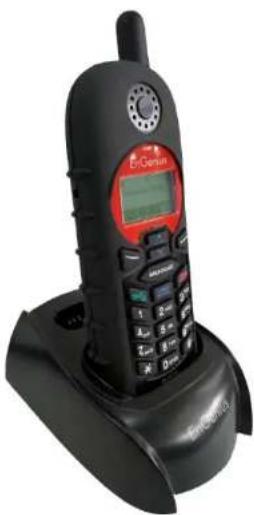
EnGenius Customer Service http://www.engeniustech.com/
Table of Contents
Safety Instructions....4
General Safety Instructions 4
Product Safety Instructions 4
Battery Safety Instructions 6
Regulatory Information 7
Portable Handset 7
Equipment Checklist 11
Handset Illustration 12
Basic Handset Features 13
Additional Handset Features 15
Charger Illustration....21
Charger Features 22
Getting Started 23
Handset and Charger Installation 23
Basic Operations....24
Operation Modes 24
A. Base Operation Modes 24
B. Handset Operation Modes.... 24
Making a Telephone Call.... 26
Making a 2-Way/ Intercom Call 26
Making a Broadcast 27
Handset-to-Handset Calls 27
Redial 28
Receiving a Telephone Call 29
Receiving an Intercom Call 29
Ending a Call....30
Adjusting Handset Receiver (Earpiece) Voice Volume.... 30
Adjusting Handset Speakerphone Voice Volume 30
Placing a Call On Hold 31
Mute 31
Do Not Disturb (Silent Ring) 31
KeyGuard 32
Battery Recharge and Replacement 32
Advanced Operations 33
Handset Registration 33
Call Transfer 34
Call Conference 35
Phonebook Operations 36
Programmable Feature Call 40
Caller ID....42
Call Manager 43
Incoming 44
Outgoing 44
Call Barring....45
Visual Message Waiting Indicator (VMWI) 46
Adjust Handset Microphone Gain 46
Adjust Headset Ring 47
Bluetooth On/Off 47
Menu Operations 48
Technical Specifications 53
Index 55
Safety Instructions
Caution: Your wireless telephone gives you freedom and flexibility to stay in touch while you move around. However, when using your phone equipment, safety instructions should be followed to avoid the risks of fire, electric shock, injury to person, and damage to property.
General Safety Instructions
- When using your wireless phone, ensure your safety and the safety of others:
a. Always watch where you are walking and standing.
b. Do not let a phone call distract you from working safely.
c. If power goes out, your phone will not work. Backup power is recommended.
- In an emergency:
a. If an emergency occurs, dial the emergency phone number. Remember: if you are in an area where your phone does not have a clear signal from the base, it is highly probable that the call may not go through. Locate the nearest landline telephone or other communications device to call for help.
b. Emergency calls may not automatically provide emergency personnel with your name, phone number or location.
- Notice to Hearing Aid Users: This phone system is compatible with inductively coupled hearing aids.
- Notice to Cardiac Pacemaker Users: Preliminary studies done by the US FDA and others have shown that, although interference to the implanted cardiac pacemaker may occur when operating very closely, wireless telephones "do not seem to pose a significant problem for pacemaker wearers." However, until more is known, the FDA suggests that people with pacemakers may want to take precautions when using or carrying a wireless telephone to ensure that there is ample distance between the telephone and the pacemaker. Do not carry the handset in a breast pocket. If you have any reason to suspect that interference is taking place, turn off your handset immediately.
Product Safety Instructions
- Read and understand all instructions.
- Follow all warnings and instructions including those marked on the product.
- Changes or modifications to this product not expressly approved by the
manufacturer will void the warranty and the FCC authorization to operate the equipment. Use only manufacturer provided accessories.
-
Do not use the telephone near water. Never spill liquid of any kind on this product.
-
Unplug the product from the wall telephone jack and power outlet before cleaning. Do not use liquid or aerosol cleaners. Use damp cloth for cleaning.
-
Do not place this product on an unstable cart, stand, or table. The product may fall and cause personal injury or damage to the product or other property.
-
Power Outage: In the event of a power outage, your handset charger will not recharge the handset battery, and the base station will not allow you to make an outgoing call or take an incoming call. Both the charger and the base station require electricity for operation. You should have a telephone that does not require electricity available for use during power outages, or have a temporary backup power supply.
-
Slots or openings in the product's housing are provided for ventilation. These openings must not be blocked or covered. Placing the product on a bed, carpeting, or other similar surface may block these openings and should be avoided. This product should never be placed near or over a radiator or heat register, or in a built-in installation unless proper ventilation is provided.
-
Never push objects of any kind into this product through housing slots/openings as they may damage the product, touch dangerous voltage points or short out parts that could result in fire, electric shock, or injury.
-
This product should be operated only from the type of power source indicated on the marking label. If you are not sure of the type of power supply to your home, consult your dealer or local power company.
-
Do not overload wall power outlets and extension cords as this may result in fire or electric shock.
-
To avoid electric shock or burn, do not disassemble this product. Send this product to an authorized service center when service or repair work is required. Call Customer Service for locations near you. Opening or removing covers may expose you to dangerous voltages, electrical currents or other risks. Incorrect re-assembling of the product may cause electric shock when the product is subsequently used.
-
Avoid using the product during a storm. There may be a risk of electric shock from lightning.
-
Do not place the product where persons can step, trip, or fall on it.
-
Do not place conductive objects over or near the antenna.
-
Do not use the product to report a gas leak while in the vicinity of the leak.
-
Do not install the base station or the handset charger near microwave ovens, radios, TV sets, speakers, or other electrical equipment. These appliances may cause interference to the product or experience interference from the product.
-
Unplug the base station or the charger adapter from the power outlet and refer to an authorized service center under the following conditions:
a. If liquid has been spilled into the product.
b. When the power supply cord or plug is damaged or frayed.
c. If the product has been exposed to rain or water.
d. If the product does not operate normally by following the operating instructions.
e. If the product has been dropped or housing has been damaged.
f. If the product shows a distinct change in performance.
Battery Safety Instructions
-
Use only manufacturer approved Li-Ion rechargeable batteries and charger. Do not use other types of rechargeable batteries or non-rechargeable batteries. The batteries could short-circuit, and the battery enclosure may be damaged causing a hazardous condition.
-
Follow the charging instruction in this manual and instruction labels and markings in the handset and charger compartments.
-
Battery must be recycled or disposed of properly. Do not dispose the battery in a fire. The cells may explode.
-
Do not dispose of the battery in municipal waste. Check with local codes for disposal instructions.
-
Exercise care in handling the batteries so you do not short-circuit the battery with conductive materials such as rings, bracelets, keys, pocketknives, and/or coins. The battery or conductive material may overheat and cause burns or fire.
-
Do not expose batteries to rain or water.
-
Do not open or mutilate the battery. Released electrolyte is corrosive and may cause injury to eyes or skin. The electrolyte may be toxic if swallowed.
-
During charging, the battery heats up. This is normal and is not dangerous.
Regulatory Information
DuraFon Roam HC
FCC ID: A8J-SP938HC
IC: 10103A- SP938HC
This device complies with Part 15 of the FCC Rules. Operation is subject to the following two conditions:
1) This device may not cause harmful interference, and
2) This device must accept any interference received, including interference that may cause undesired operation.
Privacy of communications may not be ensured when using this phone.
Portable Handset
Federal Communication Commission Interference Statement
This equipment has been tested and found to comply with the limits for a Class B digital device, pursuant to Part 15 of the FCC Rules. These limits are designed to provide reasonable protection against harmful interference in a residential installation. This equipment generates, uses and can radiate radio frequency energy and, if not installed and used in accordance with the instructions, may cause harmful interference to radio communications. However, there is no guarantee that interference will not occur in a particular installation. If this equipment does cause harmful interference to radio or television reception, which can be determined by turning the equipment off and on, the user is encouraged to try to correct the interference by one of the following measures:
- Reorient or relocate the receiving antenna.
- Increase the separation between the equipment and receiver.
- Connect the equipment into an outlet on a circuit different from that to which the receiver is connected.
- Consult the dealer or an experienced radio/TV technician for help.
FCC Caution: Any changes or modifications not expressly approved by the party responsible for compliance could void the user's authority to operate this equipment.
This device complies with Part 15 of the FCC Rules. Operation is subject to the following two conditions: (1) This device may not cause harmful interference, and (2) this device must accept any interference received, including interference that may cause undesired operation.
IMPORTANT NOTE:
Radiation Exposure Statement:
This equipment complies with FCC radiation exposure limits set forth for an uncontrolled environment. End users must follow the specific operating instructions for satisfying RF exposure compliance. To maintain compliance with FCC RF exposure compliance requirements, please follow operation instruction as documented in this manual.
This transmitter must not be co-located or operating in conjunction with any other antenna or transmitter.
Industry Canada Statement:
This device contains license-exempt transmitter(s)/receiver(s) that comply with Innovation, Science and Economic Development Canada's license-exempt RSS(s). Operation is subject to the following two conditions:
(1) This device may not cause harmful interference, and (2) this device must accept any interference received, including interference that may cause undesired operation.
Radiation Exposure Statement:
This equipment complies with IC radiation exposure limits set forth for an uncontrolled environment. End users must follow the specific operating instructions for satisfying RF exposure compliance. To maintain compliance with IC RF exposure compliance requirements, please follow operation instruction as documented in this manual.
This device has been designed to operate with a dipole antenna having a maximum gain of 2.5 dBi. Antenna having a higher gain is strictly prohibited per regulations of Industry Canada. The required antenna impedance is 50 ohms.
FCC & ISED SAR body worn accessory warning statement
For body worn operation, this device has been tested and meets the FCC & ISED RF exposure guidelines for use with an accessory that contains no metal and be positioned a minimum of 10 mm from the body. Use of other accessories may not ensure compliance with FCC & ISED RF exposure guidelines. If you do not use a body-worn accessory and are not holding the device at the ear, position the handset a minimum of 10 mm from your body when the device is switched on.
DC-01 compliance / REN statements:
This product meets the applicable Innovation, Science and Economic Development Canada technical specifications.
The Ringer Equivalence Number (0.1) indicates the maximum number of devices allowed to be connected to a telephone interface. The termination of an interface may consist of any combination of devices subject only to the requirement that the sum of the RENs of all the devices not exceed five.
The Ringer Equivalence Number (REN) for this terminal equipment is 0.1.
In a Handset package, please find the following components:
a. Handset x 1 (antenna installed)
b High performance handset antenna x 1 (Long ×1)
c. 1700mA Li-ion Battery Pack x 1
d. Desktop Charger x 1
e. Charger AC/DC Adapter x 1
f. Quick Guide
g. Belt clip x 1
Handset Illustration
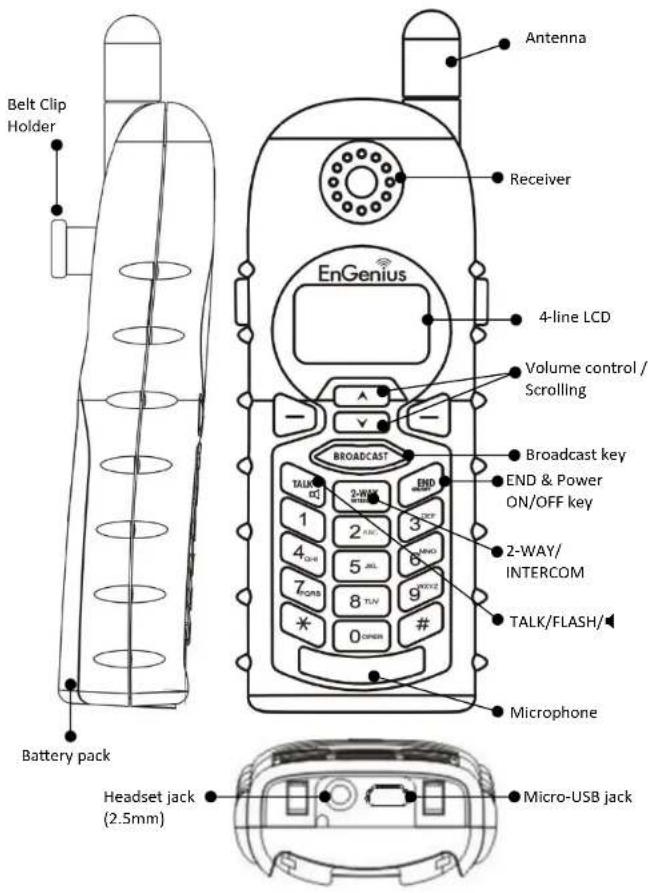
Handset Features
Basic Handset Features
- 4-Line LCD (Liquid Crystal Display)
a. The LCD display has LED (Light Emitting Diode) for backlighting.
b. The 1 st line of LCD consists of icons.
c. Icons explanation from left to right
(1) RSSI level (Receive Signal Strength Indicator)
During a call, the number of bars is proportional to the radio signal strength received.
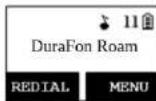
(2) Link mode
(2.1) Call in-progress (ON/OFF-Hook)
Indicates if the phone line is in the OFF-Hook status.
(2.2) Intercom in-progress
Indicates if Intercom mode is active.
Indicates the Handset ID that is sending the intercom call.
(3) Line, Sound and Indication
(3.1) Line Indicator
Indicates when using line 1 or the incoming call from FXO line.
(3.2) SIP Indicator
S1 Indicates when using SIP or the incoming call from SIP.
(3.3) Enable ringer
(3.4) Disable ringer
(3.5) Ringer and vibrate mode
(3.6) Vibrate mode
(3.7) Message waiting indicator
(4) Disable PA and indicate speaker phone
(4.1) Indicates if the incoming broadcast is disabled.
(4.2) Speaker indicator
Indicates if the speakerphone is active.
(4.3) Bluetooth indicator
Indicates if the Bluetooth headset is active.
Two-Digit Handset ID
11 Displays the 2-digit Handset ID of owner.
Battery Strength
Number of bars is proportional to the amount of battery time remaining.
d. The 2nd and 3rd lines of the LCD, maximum 16-characters each, display
status, message, menu selections, or user-editable alphanumeric characters.
e. The last line displays the left and right soft keys.
- Ringer
a. Rings to an incoming call and intercom call.
b. Distinctive alert sounds indicating various events:
(1) Single beep: successful key entry.
(2) Double beep: indicates power on/off.
(3) Triple beep: failed operation.
(4) Periodic 1-Long 2-Short beeps (every 1 minute): low battery warning; out of range; call on hold.
Re: No beep: invalid key entry.
3.
TALK/FLASH

a. Places or answers a telephone or intercom call.
b. Sends a Flash signal to the phone line to retrieve a dial tone after the call ends, or to perform the Call Waiting feature provided by local phone companies during a call.
4.
SPEAKERPHONE

Press and hold the key for over 2-seconds to enable/disable the speakerphone during incoming, outgoing or intercom call.
5.
2-WAY INTERCOM

a. Places an intercom call to another handset, a group handset (group paging) or all registered handsets.
b. Intercom calls are digital, full duplex, and are conducted without the assistance of the base station.
6.
BROADCAST

a. Half duplex broadcasting to handsets for immediate announcement.
b. Half duplex broadcasting to base stations.
Re : Press the key on the left top corner of the handset to activate
the broadcast function.

7.
Left/Right Soft Keys

a. Make menu selection.
- Up ( ) / Down ( ) Scrolling Keys
a. Scroll through records and menu selections.
b. Adjust receiver voice volume when in the Talk mode.
c. Press to enter received call log when in the Standby mode.
d. Press to enter phonebook when in the Standby mode.
- END; On/Off Key (END)
a. Ends a call.
b. Leaves current menu operation, up one level.
c. Press for 3-seconds to turn off the power.
Additional Handset Features
- Multiple Handsets Registration
a. Up to 90 handsets can be registered to the system.
b. ID 10-99: Individual Handset IDs.
c. ID 1\~7: Group IDs. Handsets can "subscribe" from the handset menu to group(s) and be paged when a landline caller or an intercom caller enters a Group ID.
- Ringer Vibrator
a. Two (2) options for Line (incoming call) ringing and intercom ringing.
b. Six (6)-level ringer volume selections
(Off/Low/Medium/High/Vibrate/Vibrate & High) for each option.
c. Eight (8) ringer type selections for each option.
- Caller ID
Displays incoming call phone number and name on the LCD (needs Caller ID service from local telephone company).
- Call Waiting with Caller ID
Displays 2 nd incoming call information on the same phone line when 1 st call is in progress (needs Call Waiting with Caller ID service from local telephone company).
- Name Tagging with Caller ID
Match the Caller ID with the phone book entries; once matched, the LCD screen will display the name or nickname instead of pure Caller ID info (needs
Caller ID service from local telephone company).
-
DND (Do Not Disturb, i.e., Silent Ring)
-
Call Logs
a. Redial: Stores 10 phone numbers (up to 26-digits each) dialed most recently. Can perform last-number redial on all 10 numbers.
b. Received and New Call Log: Total 90-entries (16-digit phone number, 16-character names, and Date/Time stamp), needs Caller ID service from local telephone company.
c. Phone numbers and names can be saved into phone book while in display.
- Call Manager: Includes: blocking incoming call, outgoing call and assign line dedication, line selection.
a. Incoming Call:
a-1. PA On/Off: Enable or disable the Broadcast feature from other handsets or the base station. When PA is Off, the handset cannot receive Broadcast calls from the base station or other registered handsets, but it can Broadcast to the base station or other registered handsets.
a-2. Line On/Off: Enable or disable the ability to receive incoming calls from telephone line call. When Line is Off, the handset cannot receive incoming calls from a telephone line call, but it can still make outgoing calls.
a-3. Int. On/Off: Enable or disable the Intercom from other handsets or the base station. When Int. is Off, the handset cannot receive Intercom calls from other registered handsets, but it can Intercom to other registered handsets.
b. Outgoing Call
Select the mode of line selection (Auto/Manual/Off) when you make a line call.
b-1. Auto: A handset will select one of available lines from subscribed bases before making an outgoing call. (Default)
b-2. Manual: A handset will be prompted to select from a list of available lines before making an outgoing call (i.e. 1.SIP 1, 2.SIP 2, 3.LINE1).
b-3. Off: Disable the capability to make an outgoing call.
c. Call Barring
c-1. Block users from dialing long distance or international calls. c-2. Up to 5-digits of each Call Barring setting, up to 5-entries allowed. Changing requires you to enter the "Call Settings" (MENU-4-3).
Note: You must key in the accurate user ID and password to perform this feature. The default password is "0000."
- Any Key Answer (except END AND SILENT soft Key)
a. If you enable Any Key Answer while you have two incoming line calls simultaneously, you can answer the SIP call or PSTN call by pressing the scrolling key.
- KeyGuard
a. When the KeyGuard is selected, all keys will be locked. Press UNLOCK (Left) soft key followed by ✗ to release it. b. The KeyGuard will be automatically enabled once returning back to idle mode for 15-seconds.
- Dialing Prefix
a. Up to 14-digits, including pause(s), one access code can be pre-programmed to be added automatically in front of the dialed number when dialing from call logs, phone book, and dial-and-send dialing.
- Call Hold
a. Places call on hold.
- Mute
a. Press soft key during talk, the handset microphone will be muted. Press UNMUTE (Left) soft key to release it.
- Phone Book
a. 90-entries, each stores a phone number or handset ID (up to 26-digits) and name (up to 16-characters). b. Alphabetically sorted display and search by letter.
c. Dial from display.
d. During the stand-by mode, you can enter the phone book by pressing the scrolling key.
e. Phone Book transfer via air i.Transfer a specific Phone Book to one handset or all registered handsets ii.Transfer all Phone Books to one handset or all registered handsets
- Key Tone
a. Four-level Key Tone volume selections (Off/Low/Medium/High).
b. Four Key Tone type selections.
- Call Timers
a. Displays call time duration for current call, during and immediately after the call.
- Programmable Feature Call
a. Allows user to pre-program the most frequently used Feature codes into the DuraFon Roam, which is adjunct to the PBX system. b. Up to 10-entries can be saved. c. Once the feature code has been programmed, you can quickly perform those functions during the call by pressing the OPTION soft key.
- BC/INT Type
a. To program the mode in broadcast call and intercom is used. P2P Mode is the call from the handset to the group/handset directly without through any bases. b. Base Mode is the broadcast call or intercom through bases.
- Menu Display
a. To avoid mis-setup in the "Call Settings" (MENU-5), these settings can be hidden. b. The Handset password is required before entering Menu Display (8), the default handset password is "0000." c. When disabling the settings, they will no longer be displayed unless enabled by entering Menu Display again.
- PA On/Off
a. Enable or disable the Broadcast function.
b. When PA is Off, the handset cannot receive Broadcast from the base station or other registered handsets; but it can broadcast to other
registered handsets.
- HS System Info
a. The subscribed groups in the handset are assigned from web GUI. You can see the handset subscribe to one or several groups.
Re: Up to 7 groups (1\~7) can be subscribed.
- Custom Name(from web)
a. Change the "DuraFon Roam" screen to the desired wording or info, such as the handset user's name.
Re: Up to 16-characters can be entered.
- Change Pwd
a. Change the handset password, which requires entering the Call Barring (MENU-4-3) and Menu Display (MENU-8).
Re: Default PIN is "0000."
-
DTMF Duration (from web)
-
Programmable Flash Key Timing (from web)
-
Clear Handset (from web)
a. Use a registered handset from U to remove the other registered handset, in case the other registered handset is defected.
b. Once the other registered handset is clear, the user is able to register a new handset in its place.
c. When entering the Base Settings, the PIN is required. Default is "0000."
- Auto Hang Up Feature
a. When an incoming call arrives, the handset will automatically hang up the call when the far-end hangs up its call. Note that auto hang up feature can't take effect for outgoing call.
PS: For the Roam handset, the Auto-Hang-up feature only works with the analog port.
- Mic Gain
Change the handset microphone gain based on the handset's use in different environments – Quiet, Normal and Noisy environment.
a. This requires entering the "Phone Settings" (MENU-5-1).
- Headset Ring
Change the ringer emitting either from the handset speaker or the headset receiver.
a. This requires entering the "Phone Settings" (MENU-5-8).
- Bluetooth
a. You can pair a Bluetooth headset. To avoid pairing to wrong device, you should switch off or far away all other Bluetooth devices before pairing process.
b. In order to save power, you may turn Bluetooth feature off (Default) if no Bluetooth headset needed to connect.
Charger Illustration
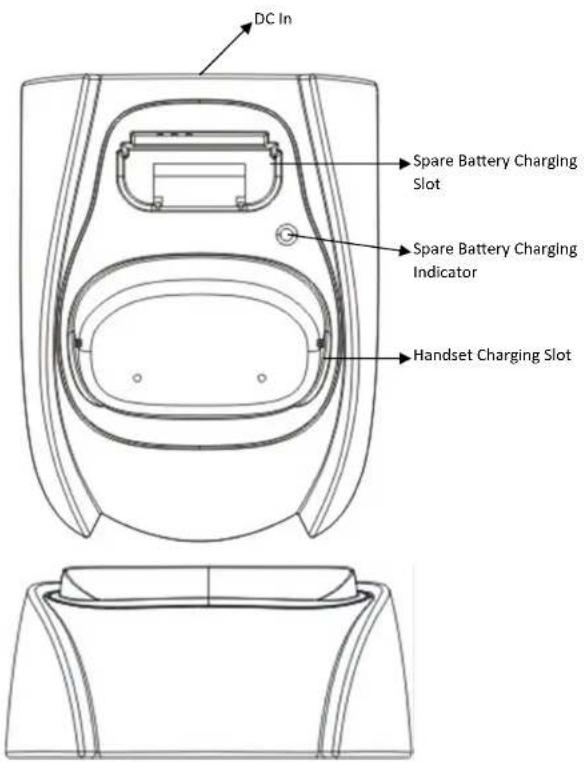
Charger Features
- DC In
Connects to Charger AC Adapter.
- Handset Charging Slot
a. Charges handset battery when handset is placed in the cradle. b. Refer to the handset LCD for charging status.
(1) Charging: battery status bar is running and the LCD screen shows: "Charging."
(2) Fully Charged: battery status bar stands still and the LCD screen displays "Charge Complete."
(3) Charge Fail: If an error occurs during charging mode, the LCD screen will display "Charge Fail."
- It is impossible to overcharge the battery using this charger.
Notes:
- Fully charge battery packs before first use.
- Handset will "power on" automatically when placed on the charging slot.
- However, if you drain the battery completely, it will take approximately one minute for the handset to auto power on.
Getting Started
Handset and Charger Installation
- Plug the transformer end of the Charger AC/DC adapter into a standard AC electric power outlet, plug the other end into the "DC In" jack on the back of the Charger.
- Install the battery pack onto the handset.
- Make sure handset antenna well installed.
- Place the handset onto the charger slot.
- Fully charge the battery for four hours before use.
- The phone system is now ready to perform basic functions such as making and receiving phone calls and intercom calls. No base station or handset programming is needed for basic operations.
Note:
- Handset(s) packaged along with a Base Station are pre-registered at the factory. If you have a new handset, you will need to register the handset with the base station in order to be recognized as a member handset by the base(s) and by other handsets. See Handset Registration.
- Fully charge battery packs before the first usage.
Basic Operations
Operation Modes
Both the base station and handset have feature levels that can only be accessed when in certain modes.
A. Base Operation Modes
1. STANDBY mode- this is the default mode. The page key is active in standby mode only. The base "Power" LED will light up during this mode.
2. TALK mode- the base station operates in this mode during a phone call. The "In Use" LED will light up only for a FXO call.
3. REGISTRATION mode- the base station enters this mode by pressing and holding the REG button for 3-seconds. The LED 1\~4 will be blinking in "Registration" mode.
B. Handset Operation Modes
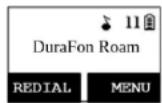
- STANDBY mode- this is the default mode.
a. If there is no on-going activity, the handset automatically goes into SLEEP/STANDBY mode to save battery power.
b. The handset can be turned off completely by holding down the KEY for 3-seconds.
c. The standby screen display (custom name) can be edited.
d. The 2-dight number represents the handset ID.
- MENU mode
a. Press the (Right) soft function key to activate Menu mode.
b. In Menu mode, the handset settings and information contained in the memory can be changed.
c. The functions available through the Menu selection are covered in greater detail starting on page 49.
d. The Menu structure display as below:

- Menu Tree

Making a Telephone Call
- Press, wait for dial tone, then enter the phone number, this will lead you to make a call via internet. Or press, wait for dial tone, then enter the #1\~#8 + phone number, this will lead you to make a call via PSTN.
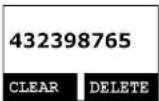
- Alternatively, you can enter the phone number first, then press key. When using this method, you can use the EAR left) and DELETE (Right) soft keys to edit the number entered. "Delete" erases the last digit entered. "Clear" erases the entire line but remains in the dial-and-send dialing.
- Speed dial by accessing the entries in the phone book. (Menu→2) a. Press of scrolling key to enter the phone book. b. Press to dial the number.
- To abort dialing, press END
[Non-Text]
Notes:
- If a link cannot be established, the LCD will show "Base not found" after a 6-second time out.
- A call duration timer will start displaying the length of the call after a link is established.
Making a 2-Way/ Intercom Call
The DuaFon Roam Cordless Phone System offers private, Intercom/ 2-Way Radio calls independent of the base station. Intercom/ 2-Way communication can be placed between handsets.


-
Press on key followed by a two-digit handset ID or Group ID.
-
Press END key to end the call.
-
Speed dial by accessing the entries(2-digit ID) in the phone book. (Menu→2)
a. Press or scrolling key to enter the phone book. b. Press and to dial the 2-digit number.
Notes:
-
Intercom calls can be made regardless of the Base Station being present.
-
If a Group ID is entered, the first handset (belonging to that group) that answers will establish a link with the caller. See Handset Group Subscription.
-
If a link cannot be established, the LCD shows "Paging timeout" after a 35-second time out.
Making a Broadcast
Handset-to-Handset Calls
- Broadcasting to all handsets a. Press and hold key from one handset.
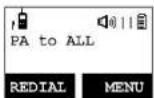
b. Start speaking the broadcast message once you hear the key tone; the speakerphone of destination handsets will open when it receives the voice.
Re: the initiating handset needs to press and hold key while speaking or broadcasting.
c. Release key to end broadcasting.
- Broadcasting to a group of handsets
a. Enter the Group ID and then press and hold BROADCAST
key.

b. Start speaking the broadcast message once you hear the key tone; the speakerphone of destination handsets will open when it receives the voice. Re: the initiating handset needs to press and hold a speaking or broadcasting.
c. Release key to end the broadcasting.
- Broadcasting to an individual handset
a. Enter the Handset ID and then press and hold BROADCAST key.

b. Start speaking the broadcast message once you hear the key tone; the speakerphone of destination handsets will open when it receives the voice. Re: the initiating handset needs to press and hold a key tone speaking or broadcasting.
C. Release key to end the broadcasting.
- Speed dial by accessing the entries(2-digit ID) in the phone book. (Menu→2)
a. Press or scrolling key to enter the phone book.
b. Press to die the 2-digit number.
Redial
-
Press REDIAL (Left) soft key.
-
The LCD shows the last phone number dialed. To dial this number, press TALK key.
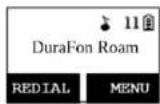
- Use of key to scroll through the last 10 phone numbers dialed. Select and press key to dial the selected number. Note: Intercom numbers (Handset ID) are not stored in the last 10 numbers dialed log.

Receiving a Telephone Call
- When an incoming call arrives, the LCD will show the Caller ID message, and the ringer will ring or vibrate unless the ringer has been turned off.

- If the handset is on the charger cradle (ringer will be temporarily switched to "Ring" if it has been set to "Vibrate"), lift the handset and press key to start a conversation.
Re: You can turn on the "Any Key Talk" from MENU-5-2.
Notes:
- You can press SILENT (Left) soft key if you choose to ignore the call. Unlike turning off the ringer (from the handset menu), the SILENT key operation is valid only for the current call.
- If Caller ID service is available, the LCD will display the incoming call information. If the LCD shows "Private" or "Unknown," the caller or the originating phone company may have blocked the caller's information.
Receiving an Intercom Call
- When an intercom call arrives (called from other handsets, ex. Handset 12), the ringer will ring or vibrate unless the ringer has been turned off. Press to answer the intercom call.

- If the handset is on the charger cradle (ringer will be temporarily switched to "Ring" if it has been set to
"Vibrate"), lift the handset and press key to start a conversation.
- If the handset is not on the cradle and MENU-5-2 "Any Key Talk" setting is "On," press any key (except END AND THE SILENT soft key) to answer.
Notes:
- The LCD displays the caller's Handset ID.
- You can press the SILENT (Left) soft key if you choose to ignore the call. Unlike turning off the ringer the SILENT key operation is valid only for the current call.
Ending a Call
To end a telephone or intercom call, press END KEY, or place handset into charger cradle.
Adjusting Handset Receiver (Earpiece) Voice Volume
- Voice volume can only be adjusted during a call.
- There are 6 levels of volume selections. Use or key to adjust.
- The new setting will remain effective for all future calls until changed.
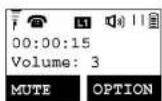
Adjusting Handset Speakerphone Voice Volume
- Voice volume can only be adjusted during a call (in speakerphone mode).
- There are 6 levels of volume selections. Use □ key to adjust.
- The new setting will remain effective for all future calls until changed.

Placing a Call On Hold
- When a call is in progress, it can be put on hold by pressing OPTION (Right) soft key and the * key.

- To return to the conversation, press UNHOLD (Left) soft key.
Notes:
- Handset LCD displays when a call is on hold. An alert tone (a beep) every 30-seconds will remind the handset that a call is on hold.
- If the operation (e.g., call transfer) fails after putting a call on-hold, the held call may be dropped.
Mute
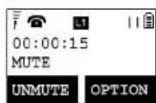
- After a link is established, you can press ⓋUTE (Left) soft key to mute the handset microphone.
-
When mute is active, the other end will not hear your voice, but can still speak to you.
-
To leave the mute state, press UNMUTE Left) soft key. Mute is effective only for the current call.
Do Not Disturb (Silent Ring)
- Enter the key sequence MENU B-1, then select "Off." Press SELECT (Left) soft key to confirm your choice. This will turn off the ringer until it is turned on again from the menu.

- For temporary silencing the ringer when an incoming call arrives, press SILENT (Left) soft key.
KeyGuard
- To prevent accidental dialing, you can press MENU (Right) soft key, then press "1" to select Key Guard option. The handset keypad is now locked. No key entry is accepted.

- To unlock the keypad, press UNLOCK (Left) soft key, then, within 2-seconds, press the digit * to unlock.

-
Once returning back to standby mode for 15-seconds, the KeyGuard will be automatically enabled.
-
KeyGuard is in effect until unlocked.
Battery Recharge and Replacement
- Charge the battery when one or several of the following happen:
a. Phone beeps twice (every 60-seconds in talk mode, every 10-minutes in standby mode).
b. Battery icon is empty.
c. Phone does not respond when a power On/Off key is pressed.
d. LCD and backlighting become dim.
e. Talk range shortfall is experienced.
- You can replace the handset battery after placing the call-in-progress on hold and press END KEY. To retrieve the call on hold, press Talk key again after replacing the battery and powering on the handset.
- Battery talk time and standby times vary depending on the talk/standby pattern and the operating distance. Putting the handset back on the charger cradle as often as possible is recommended for best performance. Use only the manufacturer's provided battery and charger!
Advanced Operations
Handset Registration
- If your handset(s) is purchased as part of a system, it has been pre-registered with the base station at the factory.
-
If the Handset ID is "00," this means it is a new handset or the ID has been erased. You will need to register the handset with the base station.
-
Registration:
a. Press MENU-6 to enter the registration mode.
b. From web, to activate the registration procedure.
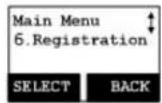
c. Press handset key, this completes the registration process. The base station will assign a handset ID between 10 and 19 automatically. The assigned ID will be displayed on the handset LCD, indicating successful registration.

d. Repeat above steps for all additional handsets.
- De-registration:
a. You can de-register the handset you're using from the base station. De-registration will reset the Handset ID to 00, erase the system security code, and free up the handset ID for future registration.
b. After de-registration, the handset will not be able to use the base station to make or receive phone calls, nor can it intercom other handsets.
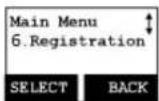
c. Press MENU-6 to enter the registration mode.
d. From web, to activate the de-registration procedure.

e. Press the handset number key, is completes the de-registration process. Upon successful de-registration, the handset display will show "Please
register."
Notes:
- The base station has a 30-second registration timeout starting when you press the REG button. The handset has a 6-second registration timeout starting when the registration or de-registration option has been selected. The base station and handset will automatically exit registration mode after timeout.
- Repeat registration or de-registration process if unsuccessful.
Notes:
- The handset can change group affiliations at any time.
- The base station is not responsible for group assignments. Consequently, it cannot de-subscribe a handset from a group.
- When an intercom caller enters a group ID, all handsets subscribed to this group will ring. The first handset to answer will establish a link with the caller. Afterward, it is a one-to-one call, not a one-to-many call.
Call Transfer
While a telephone call is in progress, you can transfer it to EnGenius handsets or PBX extension number.
Note. The PBX extension number should not equal to the EnGenius handset's ID. Otherwise the call is regard for EnGenius handset as priority.
Direct Transfer (Unannounced Transfer)
- Press OPTION (Right) soft key or 2-WAY KEY followed by the * key to put the call on hold.
- Press XFER (Right) soft key, followed by entering the destination number or handset ID.
Press KEY for the call to transfer directly. After the call is transferred to the destination handset, the original handset will go back to standby mode automatically.


Indirect Transfer (2-way Announced Transfer)
If you want to talk to the destination handset before the call is transferred, you can follow the below method:
-
Press OPTION (Right) soft key or 3-WAY followed by the * key to put the call on hold.
-
Press XFER (Right) soft key, followed by entering the destination number or handset ID.
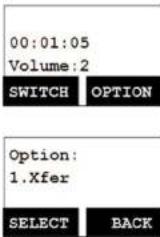
After the destination party picks up the call, you can see the screen with SWITCH (Left) soft key and OPTION (Right) soft key.
Re: When press SWITCH (Left), the communication will be switched to 2nd one. Press SWITCH (Left) again, will be switched back to 1st one.
- After talking, press END to end the intercom call or pressing OPTION (Right) soft key and to SELECT 1. Xfer to end the intercom.
Notes: If the destination handset does not answer after paging it or transferring timeout, the call is routed back to the originating handset.
Call Conference
The call conference procedure is followed by call transfer. While a telephone call is in progress, you can transfer it to EnGenius handsets or PBX extension number. Note. The PBX extension number should not equal to the EnGenius handset's ID. Otherwise the call is regard for EnGenius handset as priority.
-
Press OPTION (Right) soft key or 2-WAY KEY followed by the * key to put the call on hold.
-
Press XFER (Right) soft key, followed by entering the destination number or handset ID.
After the destination party picks up the call, you can see the screen with Switch (Left) soft key and OPTION (Right) soft key.
After talking, press END TO end the intercom call or pressing OPTION (Right) soft key and to SELECT 1. Xfer to end the intercom.
- After talking, press END TO end the intercom call or pressing OPTION (Right) soft key and to SELECT 2. Conference to start the conference call.
00:01:05
Volume:2
SWITCH
OPTION
Option:
- Conference
SELECT
BACK
Phonebook Operations
-
You can store up to 50-entries in the phone book. Each entry can contain a phone number or handset ID (up to 26-digits) and a name (up to 16-characters).
-
To access the phone book, press ENU light) soft key, followed by 2 or press scrolling key while the handset is in standby mode.
-
To add a new entry:
a Press ADD (Left) soft key.
b Enter the name when LCD prompts "Name?" Use
. DELETE (Right) so ft key to delete the last digit entered. When completed, press SAVE (Left) soft key to save. Re: Up to 16-characters can be entered as th e name
c You will then be prompt to enter a number for the . name just entered.
Re: Up to 26-digits can be entered as the number. d After entering the number, press the SAVE (Left) soft . key to save this entry into phone book.
e Enter a phone book entry without a name; all records. without a name will be placed on the top of the phone book list.
f To enter the name, press the corresponding keypad. number one or more times according to the order of the character on the key.
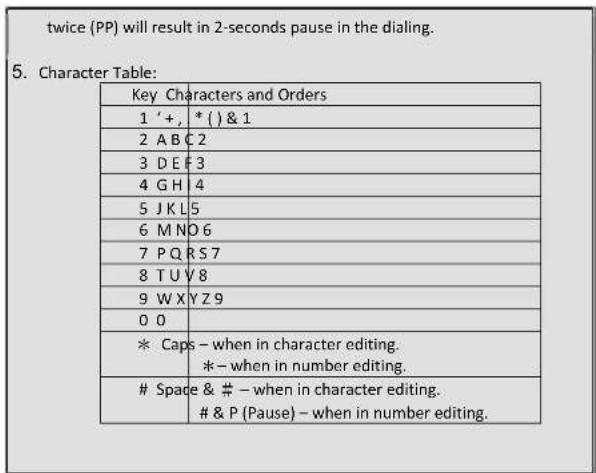
See table below for a list of available characters and their orders. For example, press 2 once for the character "A," twice for "B," etc.


Notes:
-
When entering a phone number, the cursor automatically advances to the next digit field. Use A or scrolling key to move the cursor backward or forward to insert or delete (the digit above the cursor or left of the cursor if the cursor is on the right of the last digit).
-
When entering a name, the cursor automatically advances to the next character field if you press a different key for the next character. If you need to enter consecutive characters from the same key, you can wait for the cursor to advance or use A or Y scrolling key to move the cursor backward or forward manually. Also use or to move the cursor to insert (to the left of the cursor) or delete (the character above the cursor or left of the cursor if cursor is on the right of the last character).
-
By default, all letters are entered in upper case. Use the * key to toggle between upper and lower cases.
-
A "Pause" entry represents a 1-second delay in dialing the following digits, which is useful when calling a sequence of segmented numbers (e.g., access codes, credit card numbers, auto-attendant entries, etc.) Pause is entered by pressing the ≠ key twice (LCD displays P). Entering pause
-
The entries are alphabetically sorted and stored as a list in an ascending order (A to Z) from the top of the list.
-
The first line of the LCD display shows the name and the 2nd line shows the phone number. If the phone number is longer than 16-digits, pres OPTI (Right) soft key and select Option 3 "View Number" to view the complete number.
-
To search for a record:
a. Use √ scrolling key to enter the Ph one Book mode.
b. Press a key that corresponds to the first character of the name you are looking for.
c. For example, you are looking for "EnGenius," then press the number twice.
d. Use or scrolling key to locate the exact record you are looking for.
- To erase phone b ook:
a. Use ▲ or ▼ scrolling key or the alphab e tical search method to locate the record t o be erased or

edited.
b. Press OPTION (Right) soft key to enter the option menu.
c. Press 1 to erase the desinated phone entry.
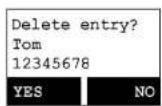
d. LCD shown "Delete entry?" Press YES (Left) soft key to confirm your change.
- To edit phone book:
a. Use or scrolling key or the alphabetical search method to locate the record to be erased or edited.
b. Press OPTION (Right) soft key to enter the option menu. c. Press edit the designated phone entry.


- Dial from display:
a.


to dial the phone number or Handset ID displayed.
- To transfer the phone book:
To transfer the phone book, both parties have to enter the phone book transfer mode first by following below:
a. Press OPTION (Right) soft key followed by 5 or by scrolling or √
key to transfer when the handset is in phone book mode.
b. For the phone sending party, press to enter the sending mode.
i. Either press TX ALL (Left) soft key to transfer all phone book entries to another handset(s).
ii. Or press TX ONE (Right) soft key to transfer one entry to another handset(s).
iii. Press the 2-digit handset ID or group ID, then select all phone book entries or one entry to be transferred.
Re: "00" means all handsets.
iv. During phone book transfer, the LCD shows "Sending" and 2-digit countdown on the LCD to indicate the phone book numbers which are pending.
c. For the phone book receiving party, press 2 to enter the receive mode.
i. When entering the receiving mode, the LCD shows "Ready."
ii. Start to receive the phone book, the LCD shows, "Get phone book from Ext. #: xx."
iii. A beep is emitted when receiving each phone book.
iv. When the phone book is being received, a 2-digit countdown shows on the LCD to indicate the phone book numbers that are pending.
Re: Since the phone book transfers through the wireless interface, it may partially miss transmission if there is any interference.
- To transfer phone book via web:
You can edit/store 90-phone book entries via the web interface. The base can be used as the sending party.
a. Place the receiving handsets to Receiving mode, by pressing OPTION (Right) soft key follow by 5,2 to enter Receiving mode. The LCD shows "Ready."
b. Press "Transfer" button on the web interface of the base to send up to 50-entries of the phone book.
Re: The handset will not update any phone book when it stores up to a maximum of 50-entries.
Programmable Feature Call
- If DuraFon Roam is installed behind a PBX system, it is feasible to pre-program some call features along with the PBX's feature code into the system.
- Up to 10 most frequently used feature call codes can be pre-programmed.
- Name and enter feature call codes:
a. Press MENU (Right) soft key while the handset is in the standby mode.
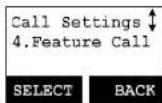
b. Press 4, followed by 4 to enter the "Feature Call" menu.
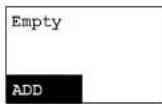
c. Press ADD (Left) soft key to add a new feature call entry.
d. Key in the name of the feature call, like editing a phone book entry, i.e. "PBX Transfer."
Press SAVE (Left) soft key to confirm.
e. Key in the feature call code of the corresponding PBX feature, i.e. F*70.
Press SAVE (Left) soft key to confirm.
Re: "F" represent the Flash signal.

f. The 1 st feature call and corresponding feature call code you entered will appear on the LCD screen.

g. Press OPTION (Right) soft key to delete or edit the feature call you programmed into the system.

h. Repeat the same operations to program the 2nd and subsequent feature call that you will use frequently.
- Using pre-programmed feature call during the call.
a. Press OPTION (Right) soft key while the handset is in the Talk mode.
b. Press the correspondence number of the feature call you want to perform, i.e. press "0" to perform the "PBX Transfer."


Notes:
- This feature call would be useful if the DuraFon Roam system is adjunct to a IP-PBX system or SIP service.
- If you have not pre-programmed any feature call into the system, only "#.Phonebook" in the OPTION menu.
- The DuraFon Roam's programmable feature call may not function with all IP-PBX or SIP service due to the diversity of various proprietary systems.
Caller ID
- Contact your local phone company to subscribe to this feature. The phone system receives and displays Caller ID information transmitted by your local phone company. This information may include the calling phone number, name, date and time. This unit can store up to 50 calls of Caller ID information.
- The display will show the date and time of the call on the first line, followed by the name on the second line, and the phone number on the third line. An unread record will have a "NEW" at the end of the first line of the display.
- When viewing a call record, the number can be dialed, stored to the phone book or deleted.
View Call Log
- To view the call log, press to enter the Call Log.
Press o↑ ▼ key to scroll through the numbers and names when available.
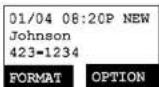
- Press OPTION (Right) soft key, you can or key to choose save, delete or clear all.
a. Save call log:
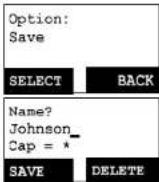
(1) Press SELECT (Right) soft key, you can use or
▼ key to scroll the name, and press DELETE to edit the name.
Then press SAVE (Left) soft key to save the name.
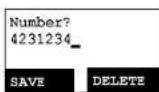
(2) Use of key to scroll the number, and press DELETE to edit the number. Then press SAVE (Left) soft key to save the number.
(3) After the above process, the call log is saved into the phone book.
b. Delete call log: (1) Press SELECT (Right) soft key followed by YES (Left) soft key to confirm deleting.
c. Clear All: (1) Press SELECT (Right) soft key followed by YES (Left) soft key to confirm clearing all Caller ID records.

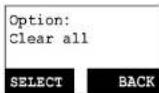
Call a Caller ID
-
Press key on idle screen to enter the call log, use or key to scroll the call log.
-
When screen displays a Caller ID, Press TALK to dial this number.
Call Manager
"Call Manager" feature allows four options:
- The first option is "Incoming." The handset can be selected to enable receiving of the incoming PA, intercom call, line call.
- The second option is "Outgoing." The handset can be set to access available bases automatically, manually or as a pre-defined telephone line.
- The third option is "Call Barring." The handset can be selected to block the calls, which are not allowed.
Note: When entering this menu (Call Manager), you must enter the handset's password first (4-digits). The default handset password is "0000."
Incoming
- Press MENU Right) soft key followed by to enter the Call Settings mode. Press 3 to select Call Manager, then enter handset's password (4-digits).
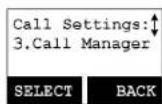

a. Press 1 to enable receiving PA On/Off.
Re: Default setting is "ON."
b. Press 2 to enable receiving Line On/Off which includes FXO line only.
Re: Default setting is "ON."
c. Press 3 to enable receiving Intercom On/Off.
Re: Default setting is "ON."
(1) By default, all incoming calls will ring all handsets.
When entering this menu, you must enter handset password first (4-digits). Re: The default handset password is "0000."
Outgoing
- Press ENU (ight) soft key followed by enter the Call Settings mode. Press 3 to select Call Manager followed by entering handset's password (4-digits). The handset is able to make outgoing calls via the SIP line or PSTN line. Re: Default setting is "Auto."

a. Press 1 to "Auto." The hanset is able to make outgoing calls via an available line and SIP line automatically.

b. Press 2 to "Manual." When pressing TALK key in standby mode, the handset LCD will show the available
line. Press or to scroll the options: 1. SIP, 2. Line. Press 1, you can select the SIP line 1 to make a call.
c Press "Off." The hanset is disabled from making any outgoing calls.
Call Barring
- Press ENU (ight) soft key followed by enter the Call Settings mode.
Press 3 to select Call Manager, and enter handset's password (4-digits).
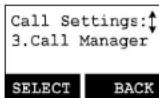
Press or to scroll the options: select "Call Barring" to block users from dialing long distance or international calls. This also blocks incoming calls from outside lines or other registered handset.
Re: Default Call Barring is "OFF."
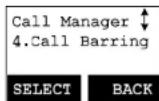
- To add the Call Barring code:
a. Once you turn on the Call Barring feature, you can key in the "Call Barring" code.
To add one block code, press ADD (Left) soft key then start entering the Call Barring code. After entering the Call Barring code, press SAVE (Left) soft key to save.
(1) Up to 5-digits can be edited for the Call Barring code. For example, if you want to block all calls dialing to Manhantan, NY area, you can enter 1212 as the Call Barring code.
(2) If your base station is adjust to a PBX system, please also include that specific number to retrieve the PSTN tone.
b. Press TION (ght) soft key to delete or edit the Call Barring codes.
Up to 5 sets of Call Barring codes can be programmed.

c. If you want to block all outgoing calls, enter “* * * * *” 5 “*” keys, then press SAVE (Left) soft key to save it, and all outgoing calls will be restricted.
Visual Message Waiting Indicator (VMWI)
VMWI feature supports the FSK message and stutter tone detection, which is received from the telephone line; it will activate a message icon on the handset.
Notes:
- A subscription to the telephone company's voice mail service is required.
- If the handset still indicates the icon, even after you have listened to all messages, turn it off by pressing and holding "Caller ID" key on the handset.
Adjust Handset Microphone Gain
If you will use the handset in different workplaces or environments, you can adjust the handset microphone gain to obtain a better voice quality that is suitable for various locations.
a. Press NU (ght) soft key while the handset is in the standby mode.
b. Press 5 (Phone Settings), followed by 1 to enter the "Mic. Gain" menu.
c. Use of key to scroll the "Standard," "Medium" and "Low" options.
d. If you are using the handset in quiet environments, like an office or meeting room, the "Standard" level is recommended.
If you are using the handset in a noisy environment, like a factory or outdoor place, the level of "Medium" or "Low" is recommended.
Adjust Headset Ring
When using the headset, you can change the ringer to emit from either the handset speaker or receiver of headset to avoid missing calls.
a. Press NU (ght) soft key while the handset is in the standby mode.
b. Press ☐ (one Settings), followed by "9" to enter the "Headset Ring" menu.
c. Select On, so the ringer emits from the headset receiver; if Off is selected, the ringer will emit from the handset speaker.
Bluetooth On/Off
a. Press MENU (Right) soft key followed by 5 to enter the Phone Settings mode.
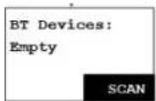
Press 9 to active Bluetooth headset. Press ON softkey to active Bluetooth headset.de lines or other registered handset.
b. Before you starting the pairing procedure, you should follow Bluetooth manufacture's instruction to enable its Bluetooth function and enter to pairing mode.
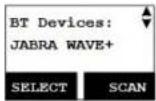
Press SCAN (Right) soft key to search and pair the Bluetooth handset. Use of key to search the handset you want. If not found, please press SCAN (Right) soft key again to
c. Press SELECT (left) soft key to pair the Bluetooth headset.
d. Once the headset is connected, the screen will be back to Phone Settings->9. Bluetooth screen. The connected icon will be shown on the standby mode.

Menu Operations
![graph TD A["Menu"] --> B["1.KeyGuard"] A --> C["2.PhoneBook"] A --> D["3.Sounds"] D --> E["1.Ring Volume"] D --> F["2.Ring Tone"] D --> G["3.Key Volume"] D --> H["4.Key Tone"] D --> I["5.Call Waiting"] A --> J["4.Call Settings"] J --> K["1.Dial Prefix"] J --> L["2.Call Manager"] J --> M["3.Feature C…](/content/2026/06/1214074/images/a7e756941e83c491d1da53a855d7bbd242ebde3274b2429700e2d0c8bd4a039e.jpg)
- Press MENU Right) soft key to enter menu mode while the phone is in standby mode.
Re: You can either press or, followed by
(Letkey to
confirm the selected menu. Or press the digit directly to confirm the selected menu. For example, press MENU (Right) soft key followed by 4 and 1 to select the Ring Volume. - Press □ to select KeyGuard (see KeyGuard operation on page 32).
- Press to add, delete, edit, view and edit the phone book (see Phone book instruction on page 36).
- Press ■ to set Sounds settings:
a. Press to select Ring Volume:
Two options for ring volume: Line (for incoming call) and Intercom (for intercom call). Set each option respectively.
When setting each option, use of to scroll through 6 options: "Off," "Low," "Medium," "High," "Vibrate" and "Vibrate & High." Press SELECT (Left) soft key to save selection. Default = Medium.
b. Press to select Ring Tone:
Two options for ring tone: Line (ring tone for incoming call) and Intercom (ringer for intercom call). Set each option respectively.
Use the or to scroll through 8 ringers, press key to save selection. Default = 1.
(Let
c. Press to select Key Volume when a key is pressed:
Use or to scroll through 4 options: "Off," "Low," "Medium," and "High." Press SELECT (Left) soft key to save selection. Default = Medium.
d. Press to select Key Tone:
Use the or to scroll through 4 options: 1, 2, 3 and 4. Press SELECT (Left) soft key to save selection. Default = 1. - Press ■o set Call Settings:
a. Press to set Dial Prefix:
(1) Press of to turn on or off the dial prefix feature. Default = Off.
(2) If "On" is selected, the handset is prompted to enter the prefix number, up to 14-digits can be entered.
(3) Use (Lea) not key to edit prefix number.
(4) Press (Left key to confirm the selection.
(5) When this feature is turned on, the LCD will prompt the user "Dial Prefix? Yes or No" on each outgoing phone call from call logs, phone book, and dial-and-send dialing, the current prefix is also displayed. Re: the prefix number will be added automatically in front of the dialed number if press YES (Left) soft key.
(6) This feature is useful for access code, calling card, and credit card calls, etc.
b. Press to let Call Manager: see Call Manager operation on Page 43.
c. Press to let Feature Call: see Feature Call operation on Page 40.
d. Press 4 to set BC/INT Type: Option 1 is for Intercom, option 2 is for Broadcast.
Two options followed for Intercom and Broadcast respectively: "1.P2P Mode" means the intercom or broadcast will make handset to handset call directly. "2.Base Mode" means the intercom or broadcast will go through bases.
e. Press to new Group Select: see Handset Group Subscription on page 15, 19, 27, 34, 39.
- Press ■ to set Phone Settings:
a. Press to let Mic Gain: See Mic Gain operation on Page 46.
b. Press to let Any Key TALK:
Use 5E soft key to select and confirm "On" or "Off." Default is "Off."
Re: When set "on," press any key (except the incoming call.
END AND SILENT key) to answer
c. Press to let LCD Contrast:
(1) Use or to scroll through option 1\~8. Default is 4.
(2) Press SAVE (Left) soft key to confirm selection.
d. Press to let LCD Backlight:
(1) Use of to scroll through option 1\~3 (1. 8-seconds 2. On 3. Off). Default is "8-seconds."
(2) Press SAVE (Left) soft key to confirm selection.
e. Press to let Name Tag:
(1) Use CHANGE (Left) soft key to select and confirm "On" or "Off." Default is "Off."
(2) Press SAVE (Left) soft key to confirm selection.
Re: When Set "On," the handset match the Caller ID with the phone book entries, once matched, the LCD screen will display the name or nickname instead of pure Caller ID info (needs Caller ID service from local telephone company).
f. Press 6 to set Language:
(1) Use or to scroll through option 1\~3 (1. English, 2. Spanish, 3. French). Default is "English."
(2) Press SAVE (Left) soft key to confirm selection.
h. Press to change Password:
(1) Enter original (4-digits) of handset then press OK (Left) soft key when entering this menu.
(2) Enter new password (4-digits) then press SAVE (Left) soft key to confirm new password.
i. Press to Headset Ring: See Headset Ring operation on Page 46.
j. Press set Bluetooth : See Bluetooth On/Off operation on Page 46.
-
Press ■o register, de-register handset : see Handset Registration operation on Page 32.
-
Press ■ to set Menu Display:
To avoid mis-setup of Call Settings (MENU-4), Phone Settings (MENU-5) and Base Settings (MENU-6), you can hide these menus, so that other handset users won't have chance to mis-setup these settings.
Re: When entering the Menu Display, you have to enter password first.
a. Press to let hiding/un-hiding of the Call Settings menu.
(1) Use CHANGE (Left) soft key to select and confirm On or Off.
b. Press to let hiding/un-hiding of the Phone Settings menu.
(1) Use CHANGE (Left) soft key to select and confirm On or Off.
Re: Selecting "On" means the menu will be displayed on screen. Selecting "Off" means the menu will be hidden.
Technical Specifications
| Electrical Specifications | Portable Handset |
| Frequency | 902-928 MHz |
| RF Power | Peak: 708 mW / Average: 88.5 mW |
| Channel Spacing | 404 kHz |
| Number of Channels | 50 |
| Modulation | MSK |
| Multiple Access | Frequency Hopping TDMA |
| Frequency Hopping Rate | 100 per second |
| TDMA Frame Length | 10 ms |
| Number of Slots/Frame | 10 |
| Number of Users/Carrier | 4 |
| Receiver Sensitivity | < -108 dBm (@ BER 10-2 ) |
| Antenna Connector | Non-standard |
| Antenna Gain | 2.5 dBi (Long)1.5 dBi (Short) |
| VoIP interface | NA |
| SIP protocol | NA |
| Speech Coding | 8 kbps G.729A |
| Channel Coding | 8 kbps Convolutional + CRC |
| Transmission Data Rate | 170.667 kbps |
| User Data Rate | 128 kbps duplex |
| Duplex | Time Division Duplex (TDD) |
| No. of System ID | 65,536 |
| Ring Signal | NA |
| Flash Time | NA |
| Power Source | 3.7V, 1700 mAh Li-Ion Battery |
| Charger Current | 500 mA |
| Charge Time | 4 hours (from empty) |
| Regulation Compliance | FCC Part 15 |
| Operating Temperature | -10 – 60 °C |
| Storage Temperature | -10 – 70 °C |
| Humidity | 20 – 75 % |
| Dimension without antenna | 141(L)×58(W)×31(H) mm |
| Weight | 6.17 ounces |
This product meets the applicable Innovation, Science and Economic Development Canada technical specifications.
Industry Canada statement:
This device complies with ISED's licence-exempt RSSs. Operation is subject to the following two conditions: (1) This device may not cause harmful interference, and (2) this device must accept any interference received, including interference that may cause undesired operation.
FOR PORTABLE DEVICE USAGE (<20m from body/SAR needed)
Radiation Exposure Statement:
The product comply with the Canada portable RF exposure limit set forth for an uncontrolled environment and are safe for intended operation as described in this manual. The further RF exposure reduction can be achieved if the product can be kept as far as possible from the user body or set the device to lower output power if such function is available.
Radiation Exposure Statement:
This equipment complies with ISED radiation exposure limits set forth for an uncontrolled environment. This equipment should be installed and operated with greater than 20cm between the radiator & your body.
Adjust Handset Microphone Gain, 46
Adjust Headset, 47
Adjusting Handset Receiver (Earpiece) Voice Volume, 30
Adjusting Handset Speakerphone Voice Volume, 30
Auto Hang Up, 19, 20
B
Base Operation, 24
Base Station, 13, 23, 27
Battery Recharge and Replacement, 32
Battery Strength, 13
Broadcast, 27
Broadcasting a group of handsets, 27
Broadcasting all handsets, 27
Broadcasting an individual handset, 28
C
Call Barring, 17, 19, 43, 45, 46, 47
Call Hold, 17
Call Log, 16, 42
Call Manager, 16, 43, 44, 45, 50
Call Settings, 17, 18, 44, 45, 47, 49, 51
Call Timer, 18
Call Transfer, 34, 35
Call Waiting with Caller ID, 15, 51
Caller ID, 15, 16, 29, 42, 43, 46
Charger Features, 22
Charger Illustration, 21
D
De-registration, 33
Direct transfer, 34
DND, 16
Do Not Disturb (Silent Ring), 31
DTMF Duration, 19
E
Equipment Checklist, 11
F
Feature Call, 18, 40, 50
Flash, 14, 41
FCC, 7, 53
G
Group ID, 15, 27
Group Setting, 19
H
Handset and Charger Installation, 23
Handset Charging Slot, 22
Handset Features, 13, 15
Handset Group Subscription, 27, 50
Handset ID, 13, 15, 28, 29, 30, 33, 39
Handset Registration, 23, 33, 51
Handset to Handset Calls, 27
Headset Ring, 19, 47, 51
|
idle mode, 17
Incoming, 16, 43, 44
Indirect transfer, 35
IC, 7
Intercom, 13, 14, 16, 26, 27, 29, 44, 49
Interference, 7
K
Key Guard, 32, 49
Key Tone, 49
Key Volume, 49
M
Making a Telephone Call, 26
Making an 2-Way/ Intercom Call, 26
Menu Display, 18, 19, 51
MENU mode, 24
Multiple handsets registration, 15
Mute, 17, 31
N
Name tagging with caller ID, 15
0
Outgoing, 16, 43, 44
P
Phone Settings, 18, 19, 20, 46, 47, 50, 51
Phonebook, 17, 36, 42, 49
Placing a Call On Hold, 31
Programmable Feature Call, 40
Programmable Flash, 19
R
Receiving a Telephone Call, 29
Receiving an Intercom Call, 29
Redial, 16, 28
REG, 24
registration mode, 33, 34
Ring Volume, 49
Ringer, 13, 14, 15
RSSI, 13
Regulatory Information, 7
S
SILENT, 17, 29, 30, 31, 50
speakerphone, 14, 27, 28, 30
Speed dial, 26, 27, 28
T
Talk mode, 15
TALK/FLASH, 14
transformer, 23
V
Vibrator, 15
View Call Log, 42
Visual Message Waiting Indicator, 46
- DURAFON ROAM HC LONG-RANGE SIP CORDLESS HANDSET
- TABLE OF CONTENTS
- SAFETY INSTRUCTIONS
- GENERAL SAFETY INSTRUCTIONS
- PRODUCT SAFETY INSTRUCTIONS
- BATTERY SAFETY INSTRUCTIONS
- REGULATORY INFORMATION
- PORTABLE HANDSET
- FEDERAL COMMUNICATION COMMISSION INTERFERENCE STATEMENT
- IMPORTANT NOTE
- RADIATION EXPOSURE STATEMENT
- INDUSTRY CANADA STATEMENT
- FCC & ISED SAR BODY WORN ACCESSORY WARNING STATEMENT
- DC-01 COMPLIANCE / REN STATEMENTS
- HANDSET ILLUSTRATION
- HANDSET FEATURES
- BASIC HANDSET FEATURES
- ADDITIONAL HANDSET FEATURES
- CHARGER FEATURES
- NOTES
- GETTING STARTED
- HANDSET AND CHARGER INSTALLATION
- NOTE
- BASIC OPERATIONS
- OPERATION MODES
- MAKING A TELEPHONE CALL
- MAKING A 2-WAY/ INTERCOM CALL
- MAKING A BROADCAST
- HANDSET-TO-HANDSET CALLS
- REDIAL
- RECEIVING A TELEPHONE CALL
- RECEIVING AN INTERCOM CALL
- ENDING A CALL
- ADJUSTING HANDSET RECEIVER (EARPIECE) VOICE VOLUME
- ADJUSTING HANDSET SPEAKERPHONE VOICE VOLUME
- PLACING A CALL ON HOLD
- MUTE
- DO NOT DISTURB (SILENT RING)
- KEYGUARD
- BATTERY RECHARGE AND REPLACEMENT
- ADVANCED OPERATIONS
- HANDSET REGISTRATION
- CALL TRANSFER
- DIRECT TRANSFER (UNANNOUNCED TRANSFER)
- INDIRECT TRANSFER (2-WAY ANNOUNCED TRANSFER)
- CALL CONFERENCE
- PHONEBOOK OPERATIONS
- SPACE & # - WHEN IN CHARACTER EDITING
- P (PAUSE) - WHEN IN NUMBER EDITING
- PROGRAMMABLE FEATURE CALL
- CALLER ID
- VIEW CALL LOG
- CALL A CALLER ID
- CALL MANAGER
- INCOMING
- OUTGOING
- CALL BARRING
- VISUAL MESSAGE WAITING INDICATOR (VMWI)
- ADJUST HANDSET MICROPHONE GAIN
- ADJUST HEADSET RING
- BLUETOOTH ON/OFF
- FOR PORTABLE DEVICE USAGE (
Brand : ENGENIUS
Model : DuraFon Roam HC
Category : Office Telephony