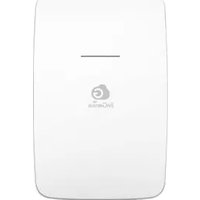
ENH1750EXT - Access Point ENGENIUS - Free user manual and instructions
Find the device manual for free ENH1750EXT ENGENIUS in PDF.


Pick your language and provide your email: we'll send you a specifically translated version.
| Product Type | Outdoor Wireless Access Point |
| Wireless Standard | IEEE 802.11a/b/g/n/ac Wave 2 |
| Frequency Band | Dual-band 2.4 GHz and 5 GHz |
| Maximum Data Rate | 1750 Mbps (450 Mbps on 2.4 GHz, 1300 Mbps on 5 GHz) |
| Antenna | Integrated high-gain directional antenna (18 dBi) |
| Ethernet Ports | 1x 10/100/1000 Gigabit PoE port |
| Power over Ethernet | 802.3at PoE+ compatible |
| Power Consumption | Maximum 24W |
| Dimensions (W x D x H) | 280 x 180 x 80 mm |
| Weight | 1.2 kg |
| Operating Temperature | -20 °C to 50 °C |
| Weatherproof Rating | IP67 weatherproof housing |
| Management | Web interface, SNMP, EnGenius Cloud |
| Security Features | WPA2/WPA3, MAC filtering, SSID broadcast control |
| Operating Modes | Access Point, WDS Bridge, WDS AP, Mesh |
| Mounting | Pole and wall mount kit included |
| LED Indicators | Power, LAN, WLAN status LEDs |
| Maintenance | Clean the casing with a dry, soft cloth |
| Repairability | No user-serviceable parts; contact authorized service center |
Frequently Asked Questions - ENH1750EXT ENGENIUS
How do I set up the EnGenius ENH1750EXT?
Connect the access point to your network using the Gigabit PoE port and an 802.3at PoE injector. Then, configure it via the web interface by entering the default IP address in your browser. Follow the quick setup wizard to assign your SSID, security mode, and network settings.
What is the maximum range of this access point?
The ENH1750EXT features a high-gain directional antenna (18 dBi) that can cover distances up to several hundred meters outdoors. Actual range depends on line-of-sight, obstacles, and client devices. In typical point-to-point bridge mode, it can achieve reliable links over 1 km.
Does the ENH1750EXT support Power over Ethernet?
Yes, it supports Power over Ethernet (PoE) in compliance with 802.3at. This allows you to power the access point over a single Ethernet cable, eliminating the need for a separate power outlet at the installation location. An optional PoE injector may be required if your switch does not provide PoE.
Can I use this device as a wireless bridge?
Absolutely. The ENH1750EXT offers multiple operating modes including WDS Bridge and WDS AP modes. In WDS Bridge mode, it can wirelessly connect two remote networks, creating a point-to-point or point-to-multipoint link with excellent throughput and reliability.
How do I reset the ENH1750EXT to factory defaults?
Locate the reset button on the device (usually near the Ethernet port). Press and hold it for about 10 seconds until the LED indicators flash, then release. The access point will reboot and restore all settings to their factory defaults, including the default IP address and login credentials.
Is the ENH1750EXT compatible with 802.11ac devices?
Yes, the ENH1750EXT supports IEEE 802.11a/b/g/n/ac Wave 2 standards. It is backward compatible with older Wi-Fi generations while also delivering high-speed 802.11ac performance, making it suitable for modern laptops, smartphones, and other wireless clients.
How can I improve the security of my wireless network?
You can enhance security by enabling WPA2/WPA3 encryption in the web interface, using a strong passphrase, disabling SSID broadcast, and enabling MAC address filtering to allow only authorized devices. Additionally, keep the firmware updated to protect against vulnerabilities.
Can the access point be mounted outdoors in harsh weather?
Yes, the ENH1750EXT is designed for outdoor use with an IP67 weatherproof housing. It can withstand rain, snow, dust, and extreme temperatures ranging from -20°C to 50°C. The included mounting kit allows secure pole or wall installation.
What is the default IP address and login credentials?
The default IP address is 192.168.1.1 (subnet mask 255.255.255.0). The default username is admin and the default password is admin. You should change these credentials immediately after the initial setup to prevent unauthorized access.
How do I update the firmware on the ENH1750EXT?
Download the latest firmware from the EnGenius support website. In the web interface, go to System > Firmware Upgrade, browse to select the firmware file, and click 'Upgrade'. Do not disconnect power during the upgrade process, as it may damage the device.
User questions about ENH1750EXT ENGENIUS
0 question about this device. Answer the ones you know or ask your own.
Ask a new question about this device
No questions yet. Be the first to ask one.
Download the instructions for your Access Point in PDF format for free! Find your manual ENH1750EXT - ENGENIUS and take your electronic device back in hand. On this page are published all the documents necessary for the use of your device. ENH1750EXT by ENGENIUS.
USER MANUAL ENH1750EXT ENGENIUS
Manual assistant
Powered by Anthropic
Waiting for your message
Product information
Brand : ENGENIUS
Model : ENH1750EXT
Category : Access Point