ZP-KE1H04-S - Security Camera Zmodo - Free user manual and instructions
Find the device manual for free ZP-KE1H04-S Zmodo in PDF.


User questions about ZP-KE1H04-S Zmodo
0 question about this device. Answer the ones you know or ask your own.
Ask a new question about this device
Download the instructions for your Security Camera in PDF format for free! Find your manual ZP-KE1H04-S - Zmodo and take your electronic device back in hand. On this page are published all the documents necessary for the use of your device. ZP-KE1H04-S by Zmodo.
USER MANUAL ZP-KE1H04-S Zmodo
How this manual is organized....1.1
Manual Conventions 1.2
1.2 Safety Precautions....1.3
1.3 Minimum Requirements....1.3
2 Product Introduction 2.1
2.1 Product Overview 2.1
2.2 Technical Specifications 2.2
NVR (ZP-NE14-S) 2.2
IP Camera (ZP-IBT15-S) 2.3
2.3 Package Contents....2.4
2.4 Getting Familiar with your NVR 2.6
Main Functions & Features....2.6
Front Panel 2.7
Rear Panel....2.7
Mouse 2.8
3 First-time Setup 3.1
3.1 NVR Installation....3.1
HDD Installation....3.1
Connecting your NVR....3.5
Connecting an External Alarm....3.6
3.2 Camera Installation 3.6
Connecting the cameras to the NVR 3.6
Mounting the Camera 3.9
3.3 NVR First-Time Startup....3.10
Startup Guide Explained 3.11
3.4 Home Screen Introduction....3.12
Main Menu....3.13
New Notification....3.13
Single View....3.13
Quad View....3.13
Playback 3.13
Logout / Shutdown....3.13
4 Using the NVR 4.1
4.1 Main Menu Detailed....4.1
General Settings....4.1
Device Management 4.8
Network Settings 4.11
Event Management....4.13
4.2 Camera Controls 4.18
Image Setting....4.18
Zoom 4.19
Playback 4.20
4.3 Remote-viewing Setup 4.22
4.4 Updating your NVR....4.26
From your NVR (via USB)....4.26
5 Support.... 5.1
5.1 Troubleshooting....5.1
5.2 Warranty....5.3
5.3 Zmodo Support....5.7
Before using this product... 1
1.1 Understanding the manual
How this manual is organized
This manual is specifically organized to provide comprehensive instructions for full setup and basic operation of your NVR when read front-to-back. The contents of the manual are conveniently organized for quick reference after you have read through the entire manual. For further instructions, please visit our knowledge base at http://kb.zmodo.com/ or our website at http://www.zmodo.com/support-software.
• Chapter 1 Before using this product...
This chapter contains important information prior to reading the manual and installing the system. It overviews the manual purpose and conventions to aid in installation, and covers minimum system requirements to ensure successful setup and use. It is essential that you read this chapter before reading the manual and installing the system.
• Chapter 2 Product Introduction
This chapter describes the package contents and overviews some of the features and capabilities of the NVR system.
• Chapter 3 First-time Setup
This chapter covers the initial setup procedures of the NVR. This includes hardware setup procedures such as NVR wiring, HDD installation, alarm installation and camera installation. It also covers basic setup procedures to configure your NVR when setting it up for the first time.
• Chapter 4 Using the NVR
The NVR's full features can be utilized through the new and revolutionary user-friendly menu system. This chapter covers detailed instruction on the functions and navigation of each menu element, use of the camera control interface, live remote-viewing setup, and firmware update procedures for the NVR and IP cameras. Refer to this chapter for specific instructions for advanced functions of the NVR.
• Chapter 5 Support
This chapter covers common troubleshooting issues that can be easily resolved, warranty information, and information for Zmodo support and other resources. Please refer to this chapter before calling technical support.
Manual Conventions
This manual uses several symbols, typographies and abbreviations that carry specific definitions. In order to properly follow instructions, please familiarize yourself with the following conventions.
| [Text] | Text enclosed in square [brackets] indicates a menu or an item to select. |
| IMPORTANT: | Denotes information or instructions that you MUST follow to complete instructions. |
| NOTE: | Denotes additional information or tips to aid you in completing instructions. |
| NVR | Abbreviation for network video recorder. This is the main control component of your system. |
| IPC | Abbreviation for internet protocol camera. These are the recording and surveillance devices attached to the system. |
| HDD | Abbreviation for hard disk drive. This is the storage component of your NVR system. |
| sPOE | Abbreviation for simplified power over Ethernet. The Ethernet cables are able to carry data and power to the cameras. |
1.2 Safety Precautions
Please read and follow these instructions for your safety while operating and setting up the equipment.
- Use only the provided power adapter to power the NVR.
- Do not insert any objects into the NVR case or openings.
- Do not place heavy objects on top of the NVR.
- Keep the NVR surfaces clean and dry.
- Do not operate in wet or dusty environments.
- Keep the NVR away from all fluids.
- Operate and keep the NVR in temperatures between -10^ 50^ .
- Do not install the NVR near any heat sources and avoid direct sunlight.
• Make sure there is good air circulation where the NVR is installed.
• Install the NVR in a stable environment. - Handle the NVR carefully and avoid collisions and strong falls.
1.3 Minimum Requirements
Minimum requirements must be met for full and proper functionality of the NVR.
- External display with VGA input and VGA cable.
- A wireless router with one empty port (for remote viewing).
- A physical internet connection such as Cable / DSL / Fiber—no satellite, 3G/4G hotspots, or city-wide wireless (for remote viewing).
- A minimum upload speed of >256kbps at the location of the NVR (for remote viewing).
- Android (v.2.3 and up) or iOS (v.5 and up) mobile device (for remote viewing).
Product Introduction 2
2.1 Product Overview
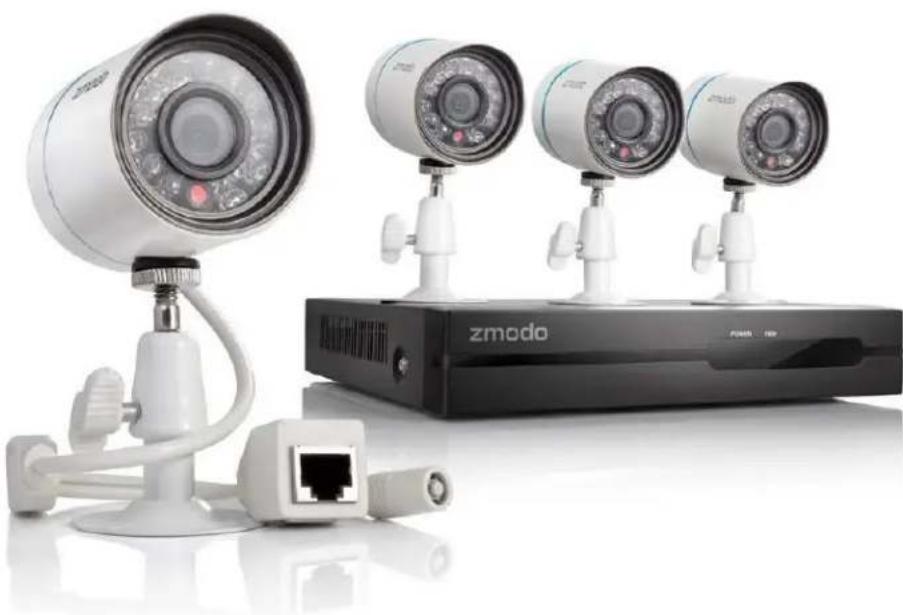
This Zmodo NVR system is specially designed to safeguard your home or business by providing cutting-edge video surveillance and monitoring. With a 2.8mm wide-angle lens and full 720p high definition video, the security cameras are able to monitor more space in greater detail. The 24 infrared LEDs eliminate low light problems, capturing HD videos from up to 80ft away. Instant email notifications and multiple live streaming and recording options make your NVR available and accessible anywhere at anytime.
Using next generation plug-and-play technology and a revolutionized user interface, this system delivers a revolutionarily user-friendly experience that is accessible to anybody. Achieving security and peace of mind has never been easier. With top products at low prices and setup procedures that anybody can follow, our goal is to bring security and safety to all people; making your security our priority.
natural_image
Exterior view of a security camera and two Zmodo TV modules (no signage or text visible)2.2 Technical Specifications
NVR (ZP-NE14-S)
Video Input / Output
IP Video Input 4 Channel
VGA Output 1 channel
Recording Resolution 720P
Compression H.264
Record Rate 100fps
Multi screen Display 1024x768@60Hz, 1280x1024@60Hz
Record Mode Constant / Alarm Triggered / Motion Detect
Playback Options Fast forward / Rewind / Slow motion
Hard Disk Drive
Interface Type 1 SATA (3.5")
Capacity Up to 2TB
External Interface
Network Interface 1 RS43 10M/100M self-adaptation & 4 Independent 10/100 Mbps Ethernet interfaces
USB Interface 2 USB 2.0 inputs
Alarm Inputs / Output 4 channel sensor inputs / 1 channel alarm output
General
Application Support Remote configuration, video browsing, local recording, local and remote playback
Motion Detection Yes
Protocol Support P2P, TCP/IP, UDP, DNS/DDNS, SMTP, UPNP, DHCP, HTTP, etc.
Alarm Notification Yes
Operation System Linux-based
Power Supply DC 19V, 3A
PoE ports 4
Power consumption <12W (without hard disks)
Operating Temperature -10 °C to 50 °C
Dimensions 220 x 205 x 42mm (8.6" x 8.1" x 1.7")
Weight 1.49lbs (without HDD)
Language Support 11 languages
IP Camera (ZP-IBT15-S)
Camera
Image Sensor 14 " color CMOS sensor
Minimum Illumination 0.1 Lux (IR LED On) / F 1.2
Shutter Speed Auto
Lens 2.8mm
Viewing Angle 90°
Night-Vision Electronic (IR-CUT with auto switch)
Compression Standard
Video Compression H.264
Bit Rate 16Kbps\~2Mbps
Dual Stream Yes
Image
Image Resolution 720P (1280x720), VGA (640x480), QVGA (320x240)
Frame Rate 25fps real-time
White Balance Auto
Backlight Balance Auto
Image Setting Options Brightness, contrast, saturation
Network
Alarm Trigger Intelligent motion detection
Alarm Response Email notification, video recording, snapshot, buzzer
Network Protocols TCP/IP, UDP, DNS/DDNS, SMPT, UPNP, DHCP, HTTP, etc.
Security User authentication, software encryption
Interface
Communication Interface RJ45 10 / 100M self-adaptive
General
User Management Multi-level user management, support up to 16 users
Weather proof IP65
WDR No
Operating Temperature -10 °C to 50 °C
Color / Material White / Aluminum
Power Supply Simplified Power over Ethernet (sPoE)
Power Consumption 2W\~4W
IR Distance Night visibility up to 20m (60ft)
Dimensions 52 x 52 x 72mm (2.1" x 2.1" x 2.8")
Weight 0.44lb
2.3 Package Contents
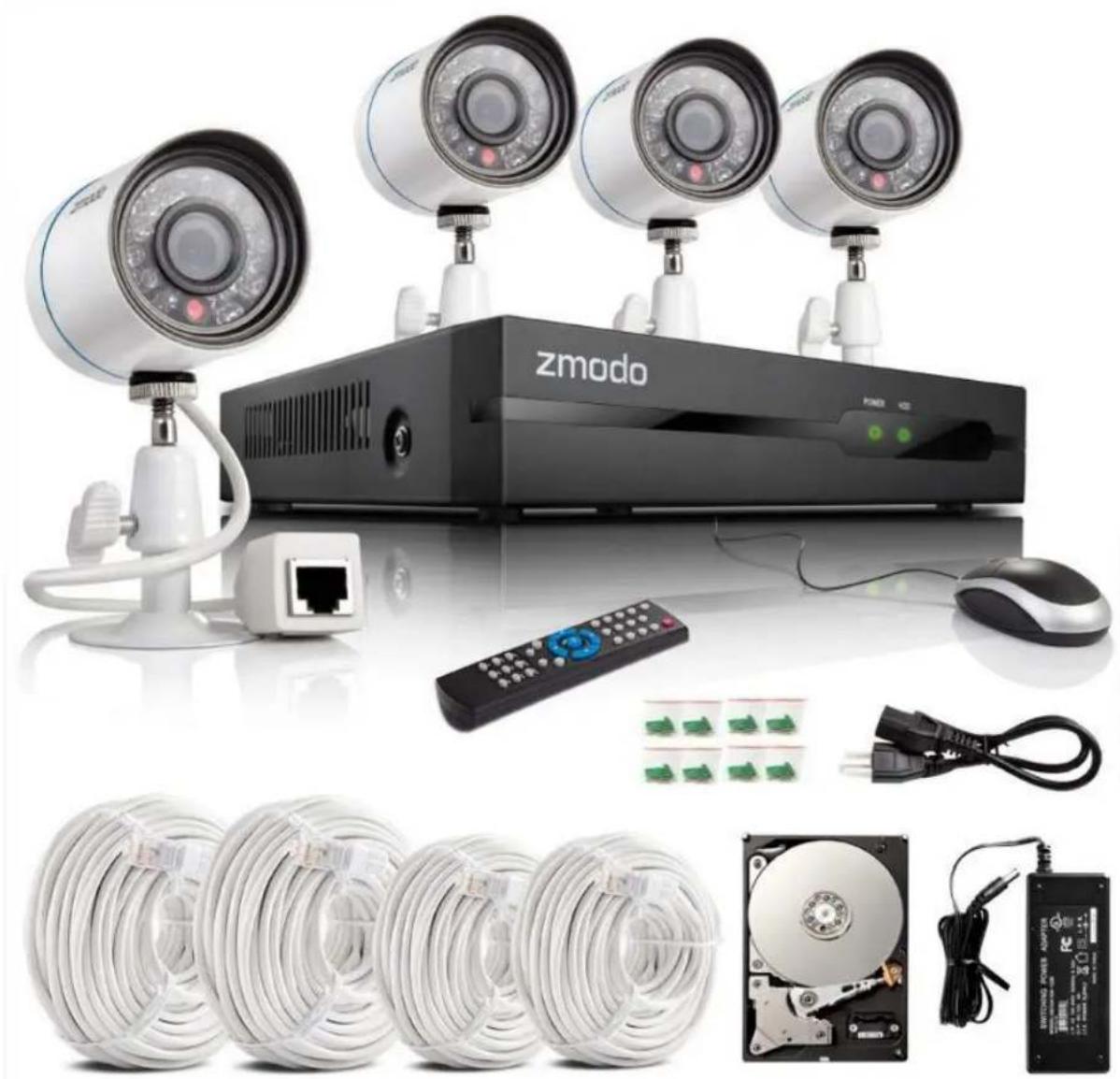
Before proceeding with any setup procedures, please make sure that your package includes the following contents:
natural_image
Product collage of a Zmodo security camera system with multiple cameras, remote control, and cable spools (no visible text or symbols)• (4) 720P Bullet IP Network Cameras (ZP-IBT15-S)
• 4-Channel Security NVR (ZP-NE14-S)
• (2) 15m (50ft) Camera sPoE Cables
• (2) 25m (80ft) Camera sPoE Cables
• 1m (3ft) CAT5e Network Cable
- USB Mouse
• IR Remote Control & AAA batteries
• 19V 3A Power Adapter
- Quick Installation Guide
• (4) Wall Mount Screw Packets
• 1TB HDD Pre-Installed*
*Included only in systems purchased specifically with an included HDD.
2.4 Getting Familiar with your NVR
Main Functions & Features
Live Remote Viewing
Access your NVR remotely from anywhere in the world on your Android or iOS mobile device.

Intelligent Recording Mode
Intelligent recording identifies surveillance footage triggered by critical events such as motion detection and alarm triggering and optimizes storage by increasing recording quality when a critical event occurs.

Multitasking
Users can view, record, playback, backup, live-view and remotely access the NVR simultaneously from multiple devices.

Instant Notification & Alarm System
Receive instant email alerts and push notifications with snapshots to your mobile device when motion is detected, an alarm is triggered, or video loss occurs.

Multi-level, Multi-user management
Different user privileges allow you to share video surveillance without worrying about unpermitted setting changes.
Front Panel

natural_image
Black zmodo device with two green indicator lights on its side (no visible text or symbols on body)Rear Panel

text_image
① Video Input ② Monitor/TV (VGA) ③ Router PORTS 1 2 3 4 O.C.S2 PASSED RESET 1 2 3 4 + C.0 VGA NET MOUSE OFF ON BACK UP DO-9V ④ Sensor/Alarm ⑤ Mouse USB Backup ⑥ Power AdapterMouse
-Confirm selection in menus -Select or de-select boxes in menus Scroll through pull-down menus

natural_image
Close-up of a computer mouse with visible scroll wheel and control buttons (no text or symbols)Return to previous operation or exit operations
First-time Setup 3
3.1 NVR Installation
HDD Installation
IMPORTANT: Your system will not be preinstalled with a hard disk drive (HDD) unless the system was specifically purchased with an included HDD. You may install a SATA HDD between 250GB and 2TB of storage after receiving your system. We recommend Western Digital Caviar Green AV-GP hard drives or Seagate Pipeline hard drives that are specifically engineered for use in security camera environments. We also suggest that you make your purchase from an official reseller (such as Newegg.com, Tiger-Direct, and Best Buy) to ensure the quality of the HDD.
For the following HDD installation instructions, you will need:
1) Your NVR system
2) A SATA Hard Drive (not provided)
3) 4 silver Phillips screws (provided)
4) 5 black Phillips screws (provided)
5) A Phillips screwdriver (not provided)
- Make sure your NVR is unplugged from its power source and slide the top panel off of the NVR.

natural_image
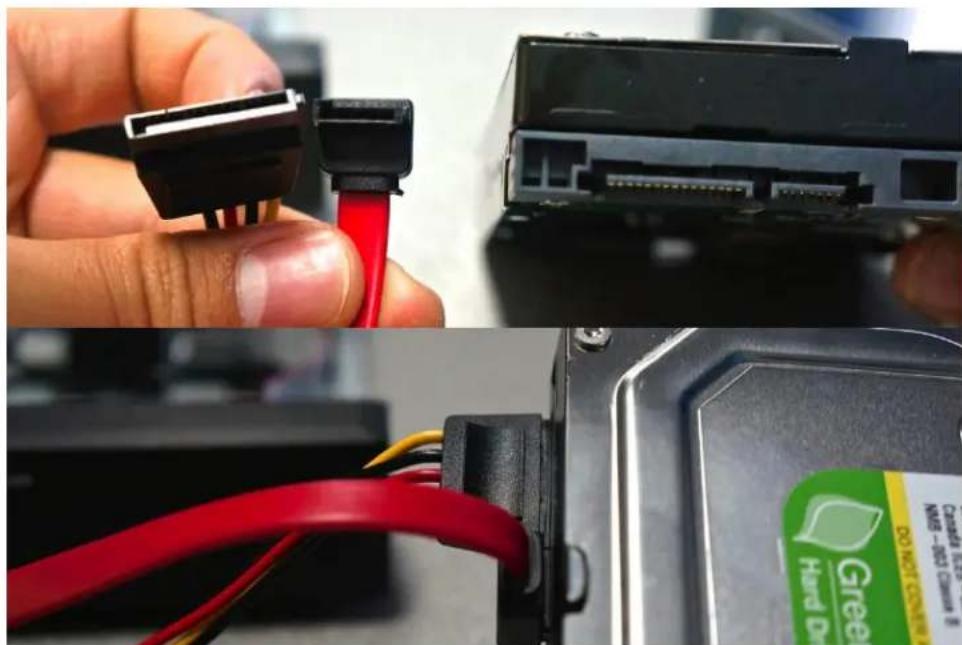
Two electronic devices: a black hard drive case with exposed internal circuit board and red cables, and a flat black box with visible label (no readable text on device body)- Connect the SATA power and data cables from the NVR to the corresponding ports on your HDD (as shown):
natural_image
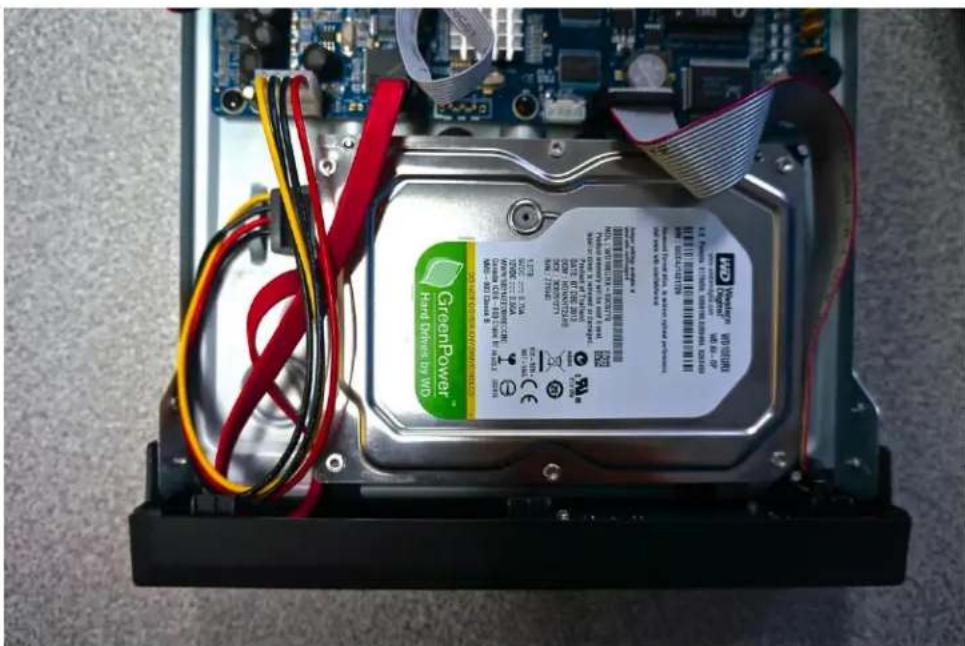
Close-up of a hand holding a 3.5-pin USB flash drive, showing internal cable and external housing (no text or symbols visible)- Once connected, place the HDD into the NVR with the cables placed as shown.
text_image
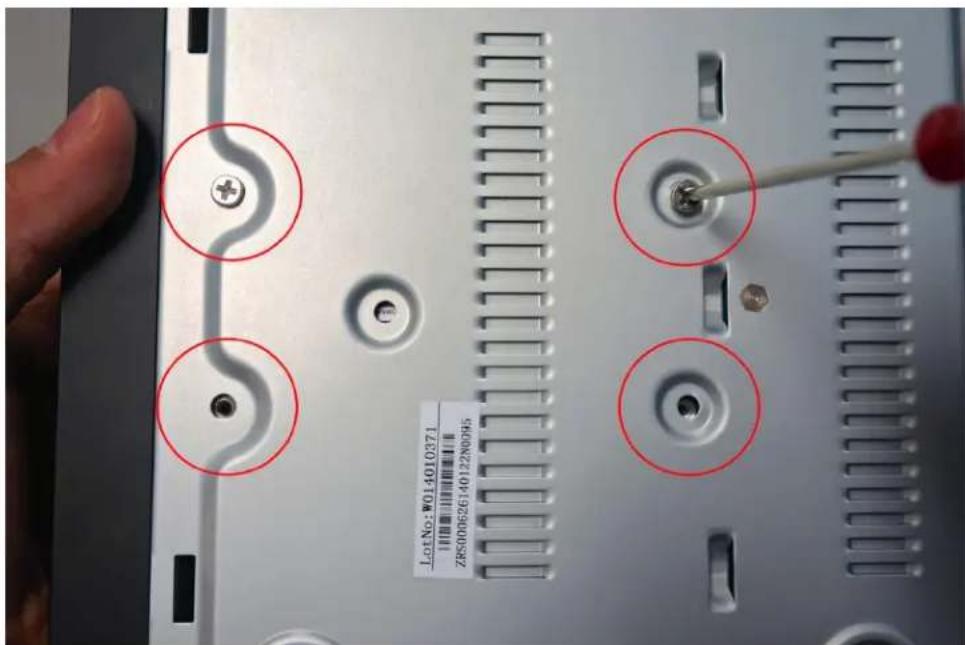
GreenPower™ Hard drives by WD 1.2 GB W/O 2000-2005 DC 7400-7410 DC 7400-7410 DC 7400-7410 DC 7400-7410 DC 7400-7410 DC 7400-7410 DC 7400-7410 DC 7400-7410 DC 7400-7410 DC 6800-6810 DC 6800-6810 DC 6800-6810 DC 6800-6810 DC 6800-6810 DC 6800-6810 DC 6800-6810 DC 6800-6810 DC 6800-6810 DSC 325-325-325 DC 325-325-325 DC 325-325-325 DC 325-325-325 DC 325-325-325 DC 325-325-325 DC 325-325-325 DC 325-325-325 DC 6800-6810 DC 6800-6810 DC 6800-6810 DC 6800-6810 DC 6800-6810 DC 6800-6810 DC 6800-6810 DC 6800-6810 DC 7400-7410 DC 7400-7410 DC 7400-7410 DC 7400-7410 DC 7400-7410 DC 7400-7410 DC 7400-7410 DC 7400-7410 DSC 325-325-325 DC 325-325-325 DC 325-325-325 DC 325-325-325 DC 325-325-325 DC 325-325-325 DC 325-325-3- Holding the hard drive and the NVR, gently turn it over and line up the holes on the hard drive with the holes on the NVR. Using a Phillips screwdriver, screw the provided screws into the holes.
text_image
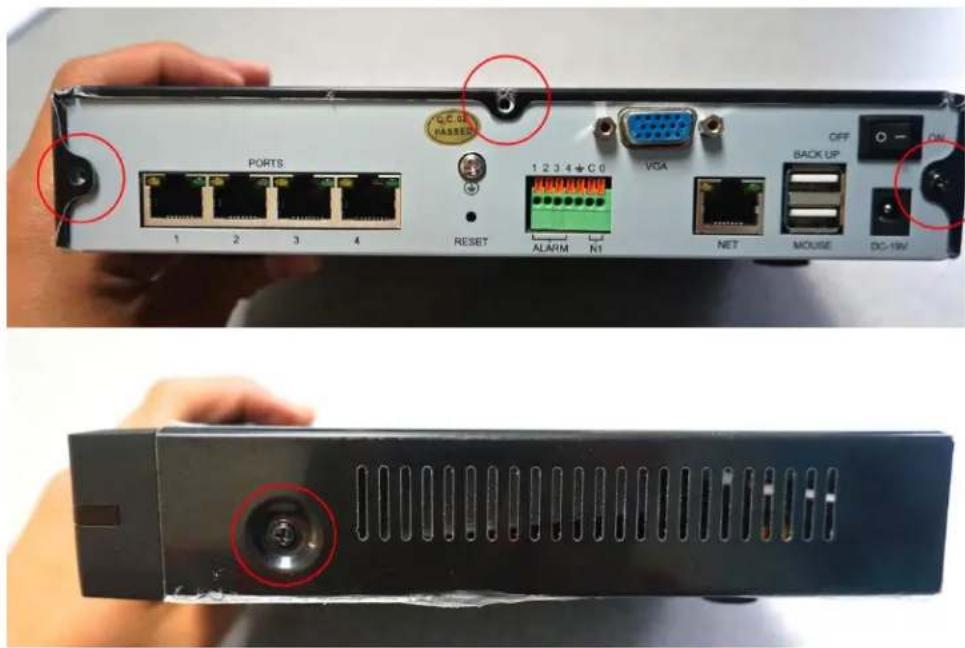
LotNo: W014010371 ZRS00626140122N095- Slide the NVR panel back on and locate the 5 black Phillips screws (found in kit). Apply the screws in the three holes on the back panel, and the two holes on the sides.
text_image
PORTS 1 2 3 4 RESET ALARM N1 1 2 3 4 + C 0 VGA NET MOUSE OFF BACK UP DC-1W C.C.G. RASSED- When you power on your system, you will see a popup asking you to format your HDD. Press [OK] and wait 5-10 minutes. NOTE: If you do not see this popup, please manually format your HDD by going to the Disk Drive Info page (for more instructions, please refer to 4.1 Main Menu Detailed).

text_image
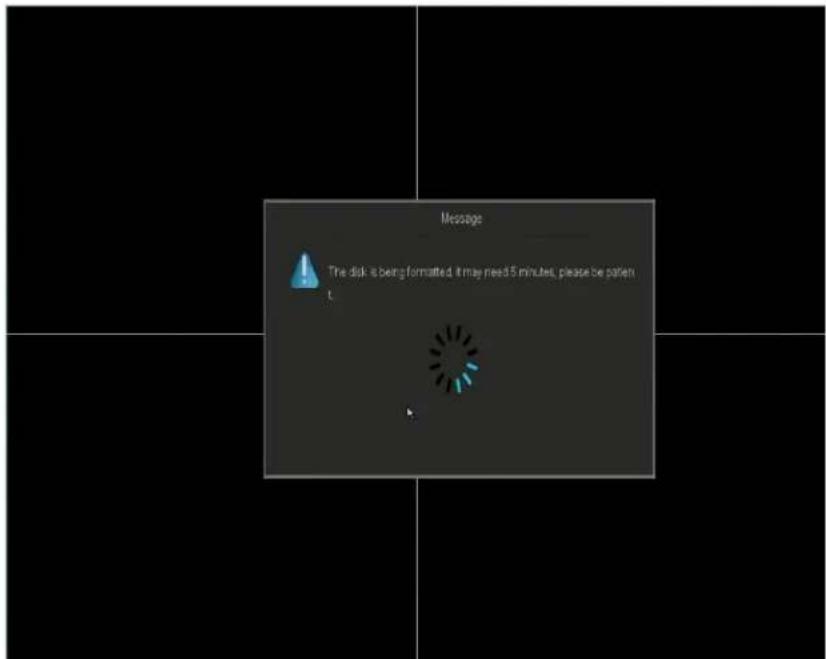
Message Disk is not formatted. Would you like to format now? OK Cancel- The system will begin formatting the HDD, and will automatically reboot once the formatting is complete.
text_image
Message The disk is being formatted. It may need 5 minutes, please be patientConnecting your NVR

flowchart
graph TD
    A["IP CAMERA"] -->|1| B["NVR"]
    B -->|2| C["Power Supply DC 19V"]
    B -->|3| D["WiFi"]
    B -->|4| E["LAN"]
    B -->|5| F["Mobile Device"]
    C --> G["Network"]
    D --> H["Network"]
    E --> I["Network"]
    F --> J["Network"]
    G --> K["Network"]
    H --> L["Network"]
    I --> M["Network"]
    J --> N["Network"]
- Connect your IP cameras directly to the system with the provided PoE cables as shown. Please refer to 3.2 Camera Installation for specific instructions.
- Connect your display to the VGA input on the system as shown.
- Connect your system to a nearby power outlet with the provided power adapter as shown.
- Connect your USB mouse to the corresponding input as shown.
- Connect your NVR system to your wireless router with the provided Ethernet cable as shown.
Connecting an External Alarm
NOTE: A large portion of the installation of an alarm will vary based on the type of alarm. Because of this, the following instructions are not comprehensive, and will have to be supplemented by specific instructions for your desired external alarms/systems. Please refer to our knowledge base (http://kb.zmodo.com/) for more information.
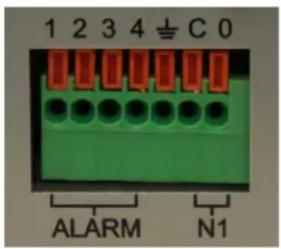
Prior to installation, please locate the alarm input and output ports on the back panel of your NVR. The following instructions will show you how to plug in the wires from the external system to the NVR.
text_image
1 2 3 4 C 0 ALARM N1-
Push the orange tab on the alarm port (with your finger nail or pen) in order to open the spring-loaded connection.
-
With the orange tab pushed in, insert the bare wire from your alarm about 1/8-1/4 inches into the port.
-
Let go of the orange tab and the port should clamp onto the cable. Give the wire a light tug to ensure that it is securely clamped.
3.2 Camera Installation
Connecting the cameras to the NVR
-
Remove the cameras from the packaging and set it near the NVR.
-
Connect all four cameras to the NVR using the provided PoE cables by plugging one end to the Ethernet port of the cameras and one end to the port on the back of the NVR.
-
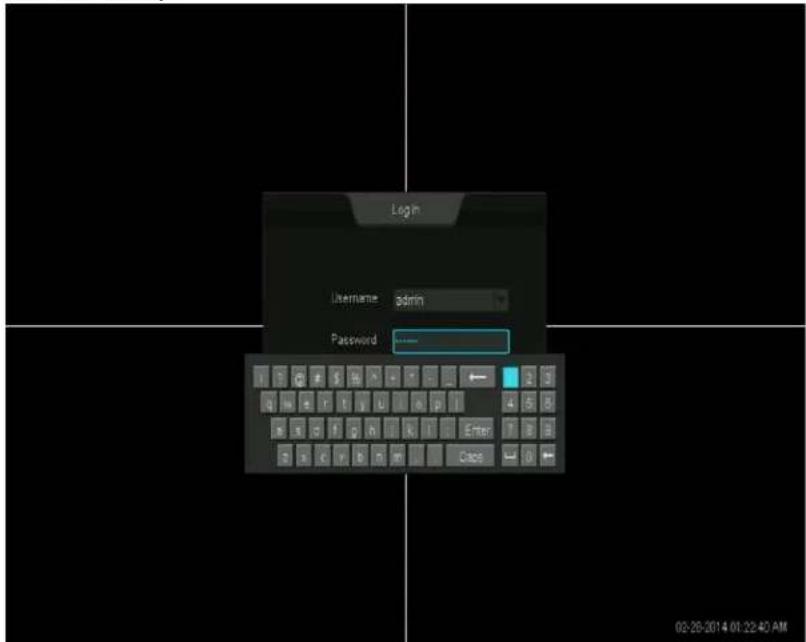
Power on and login to your NVR using the default user 'admin' and the default password '111111'. Once you have logged in, your system will attempt to add your cameras automatically. Please wait 3-5 minutes for this process to complete. If your system has not automatically added the cameras, proceed to step 4 for manual setup.
text_image
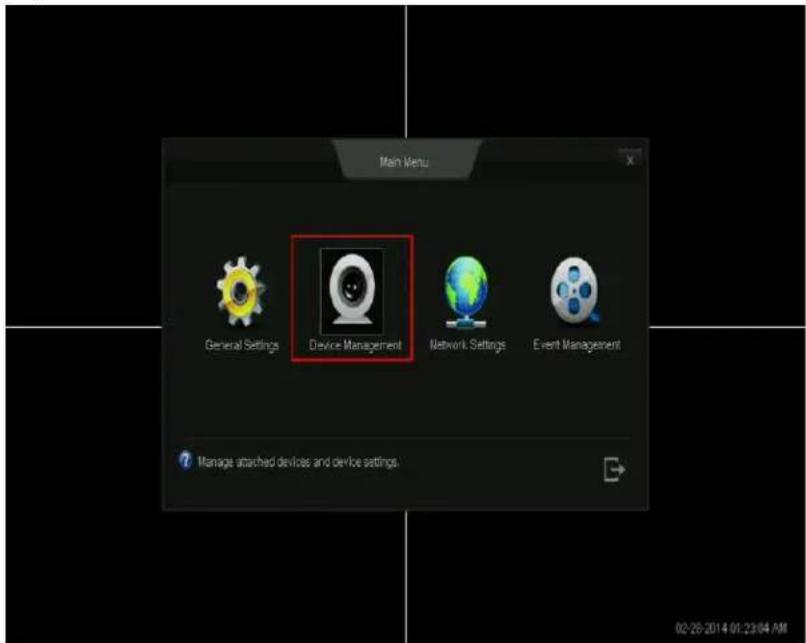
Login Username admin Password 02-26-2014 08:22:40 AM- Access the main menu [E] by moving your cursor to the bottom left of your screen. When the main menu appears, select and open the [Device Management].
text_image
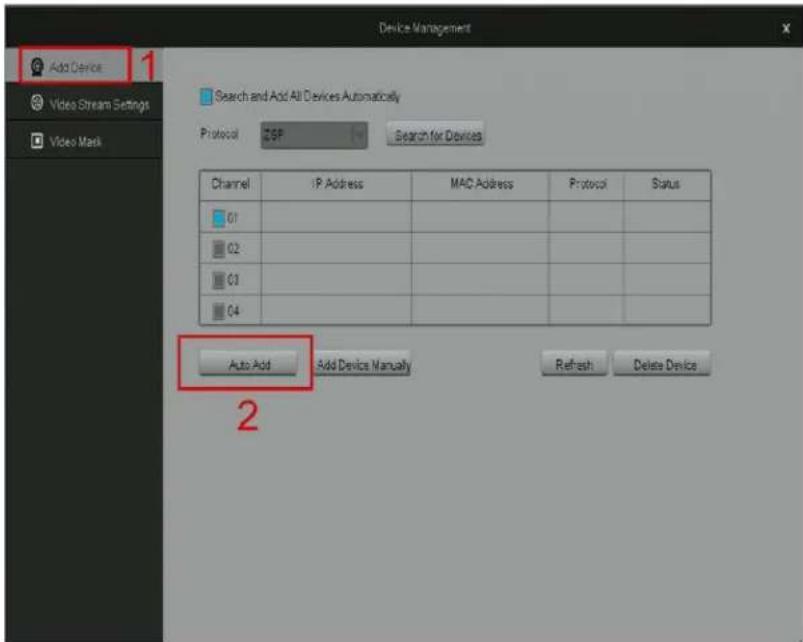
Main Menu General Settings Device Management Network Settings Event Management Manage attached devices and device settings. 02-28-2014 01:23:04 AM- Click the [Add Device] option on the left, then click [Auto Add] to automatically search for IP cameras. Please wait 3-5 minutes for the system to automatically add all of the cameras.
text_image
Device Management Add Device Video Stream Settings Video Mask Search and Add All Devices Automatically Protocol ZSP Search for Devices Channel IP Address MAC Address Protocol Status 01 02 03 04 Auto Add Add Device Manually Refresh Delete Device 2- Once you see a live video stream, your setup is complete! If you were unable to perform any of the steps, please refer to 5.1 Troubleshooting in the user manual.

text_image
02/28/2014 02:30:31 5 02/28/2014 02:30:32 AMMounting the Camera
IMPORTANT: Please complete the instructions for "Connecting the cameras to the NVR" prior to mounting your cameras.
The following steps provide instructions to mount the camera on a drywall.
You will need:
1) IP camera
2) Mounting bracket (provided)
3) 3 screws with 3 anchor screws (provided)
4) Power drill (not provided)
-
Choose a location. Find a suitable location to mount your IP camera.
-
Mark screw locations. Using a pencil and the holes in the mounting bracket as a guide, mark three holes against the wall where you wish to mount the camera.
-
Drill holes. With a drill bit slightly smaller than the green plastic anchor screw, drill a 1" deep hole in each of the three marked locations.
-
Insert anchor screws. Place the anchor with the closed end evenly into the hole. Gently tap the open end until the anchor is almost flush with the wall.
-
Attach the camera to the mounting bracket. Fasten your camera to the mounting bracket using either the hole found on the top or bottom of the camera. Rotate until the camera is securely attached to the mounting bracket.
-
Mount the camera to the wall. Align your mounting bracket with the anchors and slowly screw the bracket onto the wall with the 3 screws provided.
-
Adjust the camera position. To adjust the camera position, loosen the nob on the bracket by turning it counterclockwise and adjust the camera accordingly. When the desired camera position is achieved, tighten the nob by turning it clockwise.
3.3 NVR First-Time Startup
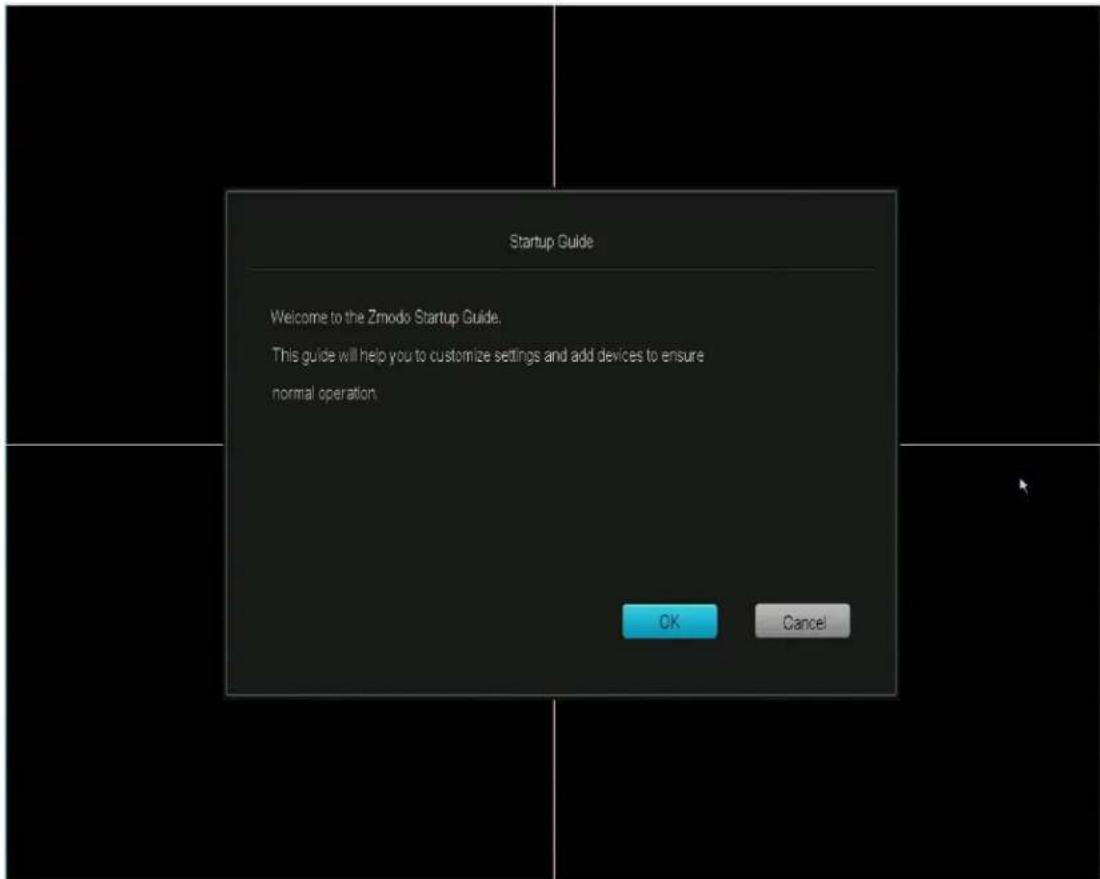
Power on your NVR and double-click anywhere on the screen. On the login screen, a Startup Wizard will appear to help you quickly setup your NVR. Please follow the on-screen instructions to quickly and easily configure basic settings on your NVR.
text_image
Startup Guide Welcome to the Zmodo Startup Guide. This guide will help you to customize settings and add devices to ensure normal operation. OK CancelStartup Guide Explained
Network Time Protocol: When enabled, the NVR system will automatically set the date and time settings through the internet connection. If you do not enable this, you will need to manually input the date and time in the corresponding forms.

text_image
Startup Guide Enable NTP (Network Time Protocol) System Time 04:15 - 24 - 30:00 12 + 26:15 12 Date Format MM-DD-YYYY Time Format 12 Hour Language English Back NextName, phone, email: This information is added to the default administrator account of your NVR system.

text_image
Startup Guide Name Zmodo Phone 9581204567 Email zmodo@email.com Back Cancel3.4 Home Screen Introduction
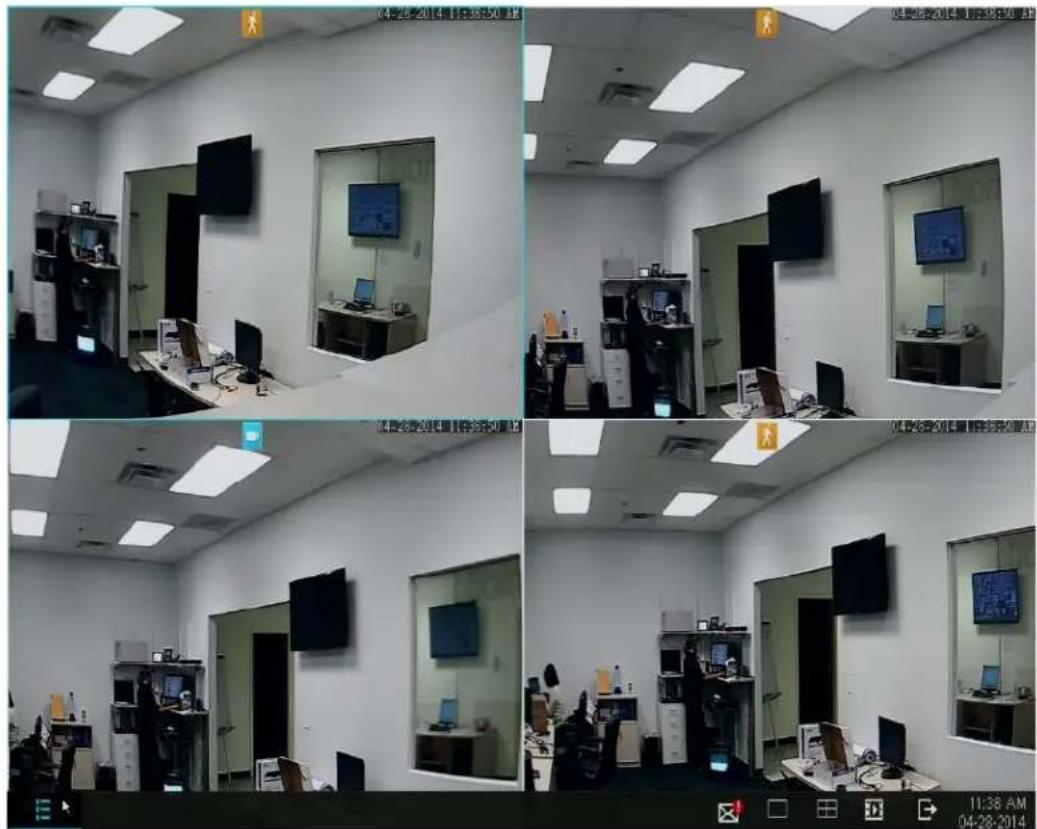
The home screen is the main screen of your NVR, displaying the live-video stream from the connected cameras. There are several viewing options available locally on your NVR. By default it will be set to the quad-screen view with the live-video streams from all four camera feeds. To access the new quick-menu, move your cursor to the bottom of the screen using your mouse or press the menu button on your remote.
text_image
Four-panel surveillance camera photo showing office interior with multiple screens and computer workstations, captured at 11:30 AM on 04-28-2014.The quick-menu includes the following options:
Main Menu
Use the main menu to access all of the full features of the NVR. Refer to 4.1 Main Menu Detailed for more information and specific instructions.
New Notification
When your NVR has an update or an urgent message (i.e. missing HDD, motion detection, alarm triggering, etc.) a notification will appear in your quick-menu. Click on the new notification icon to view more details.
Single View
This option enables you to quickly view one camera feed in full-screen. Click on the icon to select the camera feed to view. For further live-video viewing options, refer to 4.1 Main Menu Detailed – General Settings – Display Settings.
Quad View
Quickly toggle the viewing mode to four simultaneous channel feeds.

Playback
Review and backup surveillance footage from this menu. Refer to 4.2 Camera Controls for more details.
Logout / Shutdown
Logout of your current user profile or shutdown the system. Administrator permission will be required to shutdown.
Using the NVR 4
4.1 Main Menu Detailed
Use the main menu to access all of the full features of the NVR. The following chapter will explain how to navigate and perform the features through the menu.
General Settings
Use the General Settings menu to manage accounts, change the date & time, change the live-video streaming options and settings, view the system events log, view hard disk information, view and upgrade your firmware and restore your device to factory settings.
Account Management
This NVR supports multiple user profiles with different permissions, which allow you to share video surveillance without worrying about unpermitted tampering with the system settings, playback files, etc.

text_image
Account Management Date & Language Display Settings System Log Disk Drive Info System Settings Help & FAQ Only admin accounts can change settings. No. Username User Type User Email 01 admin Accountless 02 guest Operator Add Account Edit Account Del AccountThe system can support up to 16 accounts, with two different account types:
Administrator: Has full access to all features of the NVR and full permission to change all settings.
Operator: Can only view the live-video stream.
Managing your user accounts by simply highlighting a user account from the menu and selecting a function to perform.
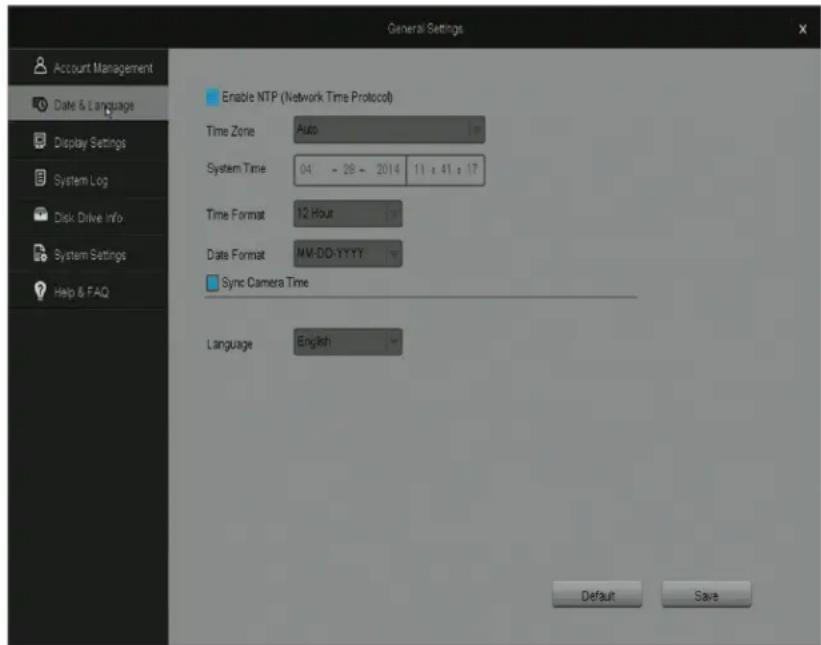
Date & Language
Use this menu to change the date & time settings and the language settings of your NVR.
text_image
Account Management Date & Language Display Settings System Log Disk Drive Info System Settings Help & FAQ General Settings Enable NTP (Network Time Protocol) Time Zone Auto System Time 04 - 29 - 2014 11 : 41 : 17 Time Format 12 Hour Date Format MW-DD-YYYY Sync Camera Time Language English Default SaveNTP Enabling the Network Time Protocol (NTP) allows the system to automatically set the date and time of your system. This requires an internet connection.
Sync Camera Time The NVR will automatically update your camera's date and time settings to match that of your NVR.
Language Choose a different language for your NVR system to display.
Display Settings
The NVR offers several options to best customize the content displayed on the home-screen of your NVR.

text_image
General Settings Account Management Date & Language Display Settings System Log Disk Drive Info System Settings Help & FAQ Channel Channel Name CHT Display Channel Time Display Enable Auto Sequence Interval 03 Seconds(3-86) All View 1CH 1 2 3 4 View 4CH 1-4CH Default SaveChannel Select a channel display to customize. Each channel can display a specific channel name and the current time.
IMPORTANT: When changing the settings on a channel, press [Save] before editing another channel or exiting the page otherwise all changes will be lost.
Channel Name You may set a name to describe the camera feed on your NVR. For example, if you have set up a camera in the front yard on channel 1, you could name it "Front Yard".
Channel Time Select this option to display the current date and time on the channel feed.
Enable Auto Sequence Selecting this option will activate sequential viewing. In sequential viewing, the NVR will automatically cycle between certain channel feeds. You may change the duration of each sequence and select which feeds to cycle through under this menu.
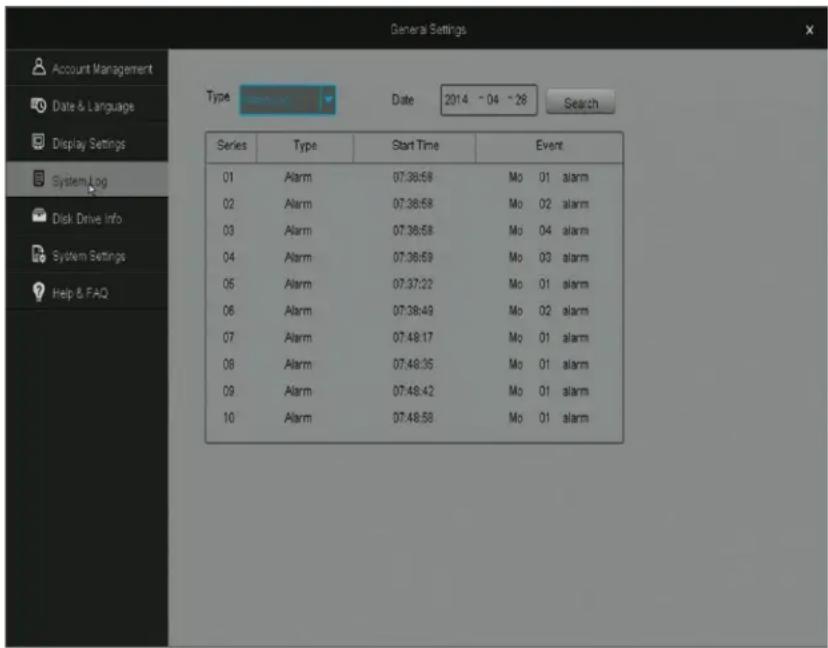
System Log
The NVR will provide notifications when certain events occur. Such events could be, but are not limited to: a missing hard drive or hard drive failure, activated motion sensors, activated alarms, etc. Use this menu to review the system log of all event notifications.
text_image
General Settings Type Date 2014 - 04 - 28 Search Series Type Start Time Event 01 Alarm 07:38:58 Mo 01 alarm 02 Alarm 07:38:58 Mo 02 alarm 03 Alarm 07:38:58 Mo 04 alarm 04 Alarm 07:38:59 Mo 03 alarm 05 Alarm 07:37:22 Mo 01 alarm 06 Alarm 07:38:49 Mo 02 alarm 07 Alarm 07:48:17 Mo 01 alarm 08 Alarm 07:48:35 Mo 01 alarm 09 Alarm 07:48:42 Mo 01 alarm 10 Alarm 07:48:58 Mo 01 alarmSeries Numbers the events in sequence
Type Describes the type of notification (Alarm / System)
Start Time The time when the event occurred.
Event Gives detailed description of the notification, e.g. Mo = Motion; 02 = motion captured on channel 2; alarm = type of notification.
Disk Drive Info
This menu allows you to review important HDD information, format HDD's and change it's settings.

text_image
General Settings Account Management Date & Language Display Settings System Log Disk Drive Info System Settings Help & FAQ Hard Disk Driver Full Save No. Interface Function Total Space Free Space Status 01 SATA Storage 931.22G 835.89G Connected Refresh FormatHard Disk Drive Full Defines how the NVR will behave when the HDD is full. When the HDD has reached its storage capacity, the NVR will either stop recording or overwrite the older playback files. The overwrite feature is generally recommended.
Refresh Update the HDD information shown on the page.
Total Space The total available storage space on the HDD in the NVR.
Free Space The amount of storage space left on the HDD in the NVR.
Format In order to format a drive, select it from the menu and press [Format]. The system will automatically format the HDD.
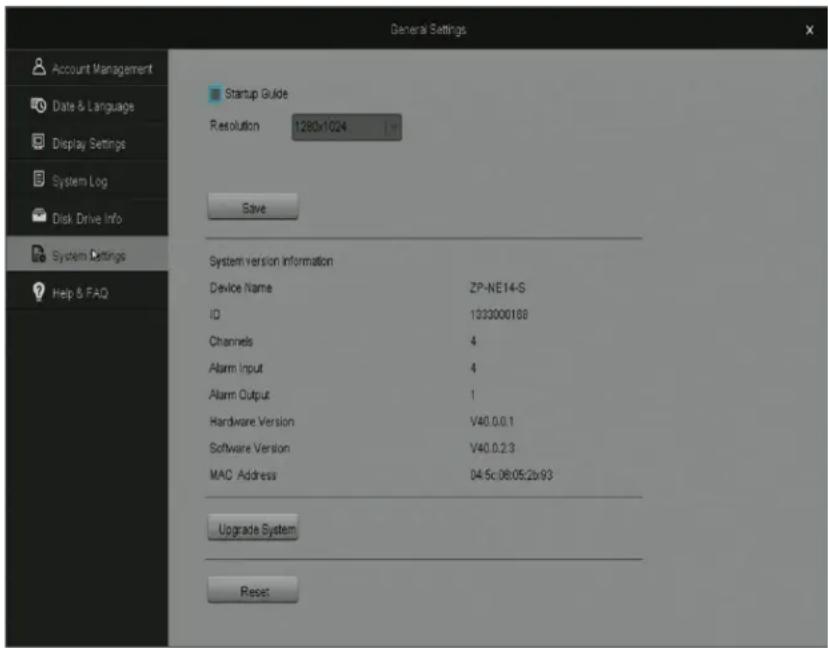
System Settings
Use this menu to view and change basic settings and information of the NVR. From this menu, you may enable the startup guide, change the display resolution, view system information, upgrade the NVR firmware and reset the system to factory default settings.
text_image
Account Management Date & Language Display Settings System Log Disk Drive Info System Settings Help & FAQ General Settings Startup Guide Resolution 1280x1024 Save System version Information Device Name ZP-NE14-S ID 1333000188 Channels 4 Alarm Input 4 Alarm Output 1 Hardware Version V40.0.0.1 Software Version V40.0.2.3 MAC Address 04-5c:06:05:2b93 Upgrade System ResetStartup Guide Check this box to enable the startup guide to appear (refer to 3.3 NVR First-time Startup). The startup guide will appear the next time the system is powered on.
Please refer to the following instructions to upgrade the firmware from the system (required: a USB drive).
- Download the updated firmware from the website on your computer.
- Place the file onto the root directory of a USB drive.
- Connect the USB drive to the USB port on your NVR.
- Go to the [General Settings] menu in the Main Menu and access the [System Settings] page.
- Select [Upgrade] and wait 5-10 minutes.
Help&FAQ
Zmodo offers comprehensive support for our users. This page provides links to some of our resources that will help guide you to a maximal experience of our products.

text_image
General Settings Check out our comprehensive Knowledge Database for product information, recommended settings, software downloads, and networking solutions at http://kxb.zmodo.com/. Also check out our new Networking Tutorial located at www.zmodo.com/network. You can also scan the QR Code with smart phone to download Zmodo.Zsight, or visit the above website for more information and help. http://kxb.zmodo.com/ www.zmodo.com/network http://www.zmodo.com/getzisightDevice Management
Use the Device Management menu to manage the IP cameras connected to the NVR.
Add Device
text_image
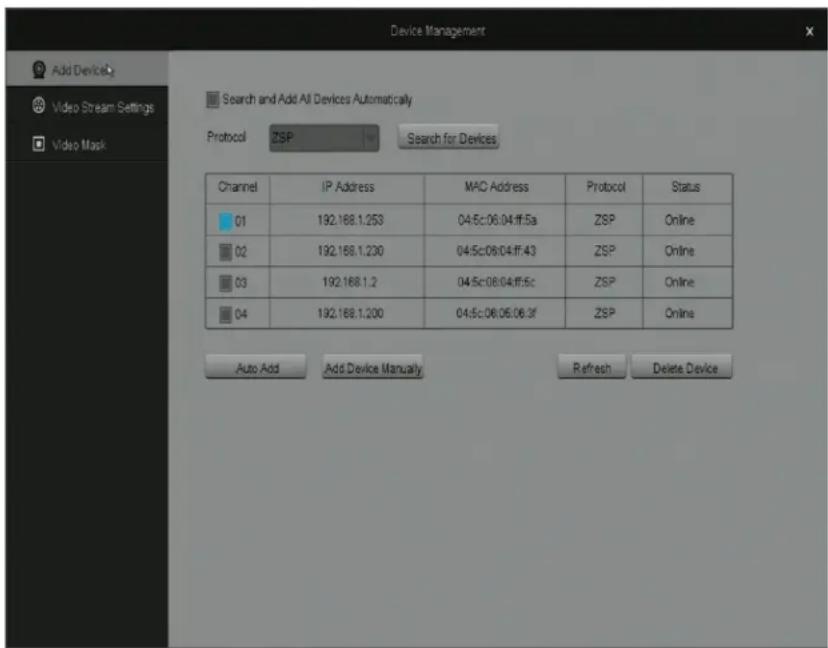
Add Device2 Video Stream Settings Video Mask Search and Add All Devices Automatically Protocol ZSP Search for Devices Channel IP Address MAC Address Protocol Status 01 192.168.1.253 04:5c:06:04:ff.5a ZSP Online 02 192.168.1.230 04:5c:06:04:ff.43 ZSP Online 03 192.168.1.2 04:5c:06:04:ff.5c ZSP Online 04 192.168.1.200 04:5c:06:05:06.3f ZSP Online Auto Add Add Device Manually Refresh Delete DeviceSearch and Add All Devices Automatically Check this box to enable the automatic search and add functions of the NVR. If there are empty channels, the NVR will automatically search and add nearby cameras. Please wait 3-5 minutes for this process to be completed.
Search for Devices Select to search for devices with the same protocol. A pull up menu will appear for you to manually select the devices to add.
Auto Add Will prompt the system to automatically search for and add devices.
Add Device Manually Allows you to add a specific device by inputting the MAC address and port information.
Refresh Refresh the page to update camera information.
Delete Device Select a channel and press [Delete Device] to remove the camera assigned to the corresponding channel.
Adding a device:
You will have four options different methods to add a device:
1) The system will automatically search for and add devices if you leave the [Search and Add All Devices Automatically] option selected.
2) Prompt the system to automatically search for and add devices by selecting [Auto Add].
3) Press [Search for Devices] to open a list of available cameras and manually select the desired cameras to add to the system.
4) Press [Add Device Manually] to add the device by inputting the specific MAC address of the connected camera.
Video Stream Settings
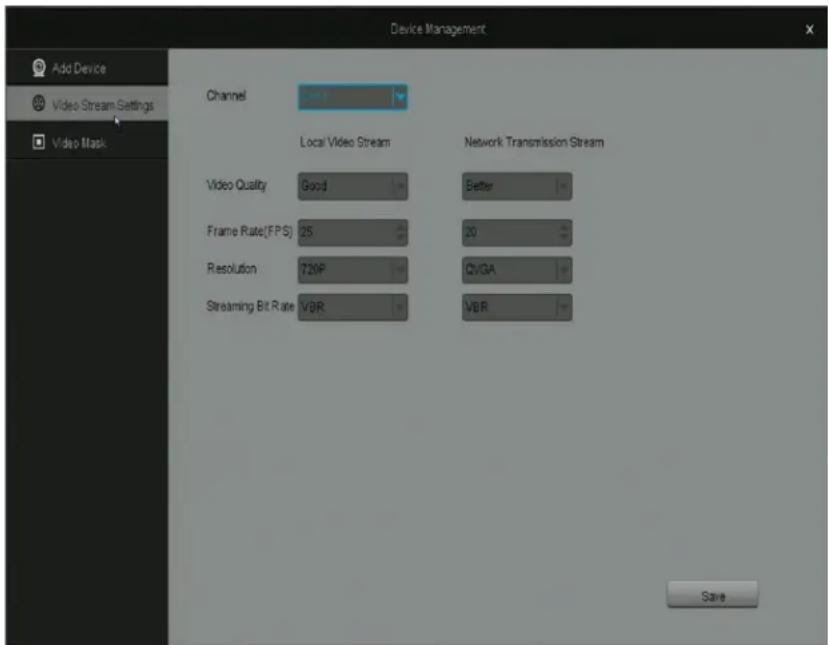
Adjusts the video quality, frame rate, resolution and streaming bit rate
text_image
Device Management Add Device Video Stream Settings Video Mask Channel Local Video Stream Network Transmission Stream Video Quality Good Better Frame Rate(FPS) 25 20 Resolution 720P CVGA Streaming Bit Rate VBR VBR SaveChannel Choose the channel that you would like to change the settings for.
IMPORTANT: When changing the settings on a channel, press [Save] before editing another channel or exiting the page otherwise all changes will be lost.
Local Video Stream Changes the video streaming settings for devices that are connected to the NVR locally (devices that are connected to the same internet connection as the NVR).
Network Transmission Stream Changes the video streaming settings for devices that are connected to the NVR remotely (devices that are connected through 3G/4G or a different internet connection than the NVR).
Video Quality Change the overall quality of the video. Increasing the quality also increases the bandwidth used.
Frame Rate (FPS) This changes the number of pictures (frames) per second that make up the video stream. The higher this value, the smoother and better the video quality is, however increasing this value also increases the bandwidth.
Resolution Change the resolution of the video stream. QVGA=320x240.
Streaming Bit Rate This is the type of bit rate that the NVR uses to view video from the camera. VBR stands for the variable bit rate, and CBR stands for the constant bit rate—CBR is higher quality than variable, however it uses more bandwidth.
Video Mask
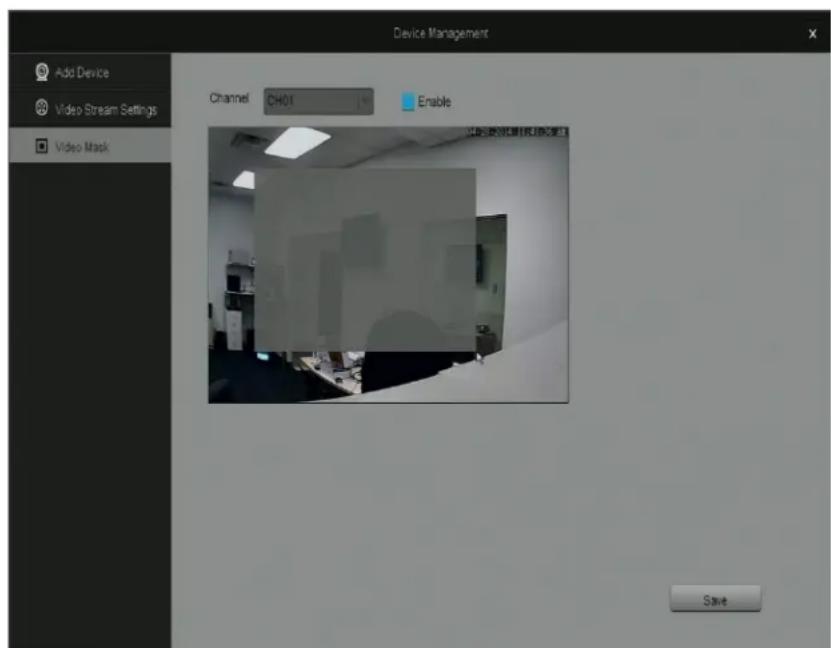
The NVR allows you to mask / hide certain areas of your camera feed from recording and monitoring.
To create an area to mask you must first select the channel to edit and check [Enable]. Select an area by clicking and dragging down and to the right with your cursor. A gray box will appear. Remove the selected areas by right-clicking on the box. After you are done, press [Save] and proceed to other channels or return to the home-screen.
text_image
Device Management Add Device Video Stream Settings Video Mask Channel CH01 Enable SaveNetwork Settings
Basic Settings
Selecting DHCP will allow the NVR to manually configure the IP address and network parameters.
The settings on this page enable access to the NVR over the internet. Unless you are an advanced user, we do not recommend that you change these settings. These definitions are not sufficient for manual networking and configuration.

text_image
Network Settings Basic Settings DDNS UP/NP IP Protocol DHCP IP Address 192 - 168 - 1 - 132 Subnet Mask 255 - 255 - 255 - 0 Gateway 192 - 168 - 1 - 1 Preferred DNS 8 - 8 - 8 - 8 Alternate DNS 202 - 96 - 134 - 133 MAC Address 04 - 5c - 06 - 05 - 2b - 93 Web Port 00090 Video Port 09000 Mobile Port 09000 Default SaveWeb Port This designates the port used when accessing the NVR through a web browser.
Video Port This designates the port that the video feed is transmitted over. Mobile Port This designates the port used when accessing the NVR through a smart phone or mobile device.
DDNS
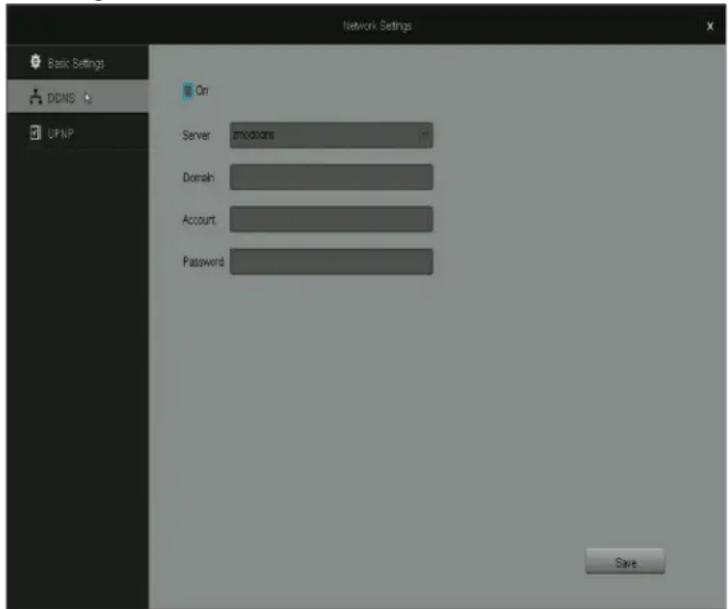
NOTE: For advanced users only. Router port-forwarding is required. Use this page to set up a DDNS (Dynamic DNS Server) for remote surveillance, please refer to the knowledge base for full instructions.
text_image
Basic Settings DDNS UPNP On Server: smodocs Domain Account Password SaveUPNP
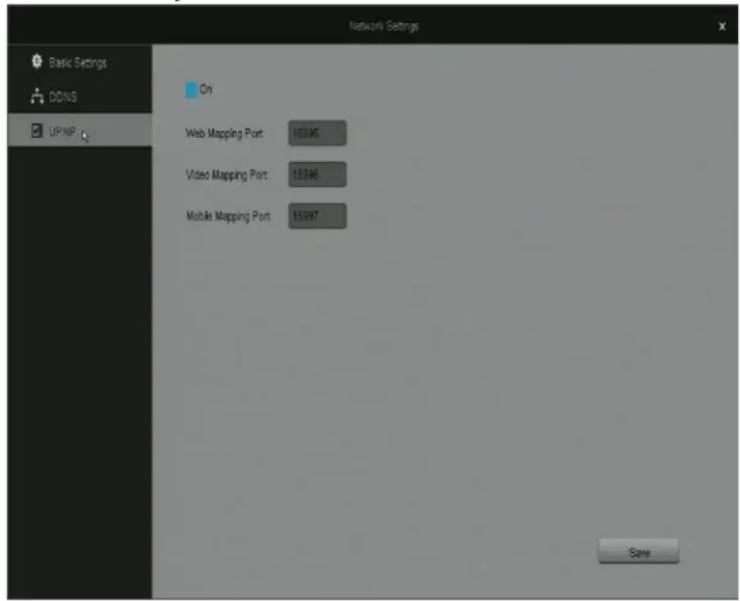
UPNP (Universal Plug and Play) is a protocol used to establish network connectivity and interaction between devices. Enabling this feature will allow easier network connectivity.
text_image
Network Settings Basic Settings DCNS UPNIP On Web Mapping Port 15996 Video Mapping Port 15996 Mobile Mapping Port 15997 SaveNOTE: The UPNP settings for the device are not the same as the UPNP settings on your router and do not pose the same security risks.
NOTE*: For advanced users only. We do not recommend that you change any settings under this page without prior networking knowledge.
Event Management
This NVR system is specialized for 24/7 continuous recording, and will automatically mark recordings that are triggered by "critical events" (motion detection and alarms) in the playback menu. Use this menu to define "critical events" and best optimize recording and storage on the system.
Record Mode
The system has two available recording modes:

text_image
Record Mode Motion Detection External Alarm This product supports Intelligent Recording and is designed to record video footage 24/7. Motion detection and alarm-triggered footage are specially marked during playback. Basic Recording Traditional recording of all channels at full frames. Will result in shorter time period before old footage is overwritten. Intelligent Recording Extends storage capacity by Intelligently managing recording. Scenes of interest triggered by motion detection or external alarm record at full frames, while stationary scenes record at a reduced frame rate to decrease file size.The basic recording profile will record continuously at full frames. This means that all recorded video files will be high quality, and the HDD will be able to store less footage at one time.
The intelligent recording profile will automatically manage the recording to optimize storage capacity. During scenes of interest when "critical events" are triggered, the NVR will automatically record in full frames to ensure higher
quality. During stationary scenes, the NVR will record at a lower framerate to optimize storage capacity.
Motion Detection
This NVR supports advanced motion detection features for bolstered security. Please follow the following instructions in order to properly configure and setup the motion detection functions.

text_image
Record Mode Motion Detection External Alarm Event Management Channel CH01 On Week Sat Apply To Alarm Period 1 00 : 00 - 23 : 59 On Alarm Period 3 00 : 00 - 23 : 59 On Alarm Period 2 00 : 00 - 23 : 59 On Alarm Period 4 00 : 00 - 23 : 59 On Sensitivity Alarm Sounding Buzzer Snapshot Alarm Output Alarm Duration 02 Sect(2:30) Download Zsight for Android & iOS to receive motion detection alerts on your mobile device! Alarm Interval 1 Min Send E-mail Config Default Save Note: The red shaded area has motion detection enabled.(Left:click on the mouse to toggle motion detection on/off. Click and drag to toggle large areas.)IMPORTANT: When changing the settings on a channel, press [Save] before editing another channel or exiting the page otherwise all changes will be lost.
- Choose a channel to edit. Select a channel under the dropdown menu next to [Channel] and select the box next to the channel in order to turn on motion detection.
- Customize schedules for motion detection. The NVR allows you to set up to 4 different time periods for motion detection. To activate a time period, input the desired values and select the box to the right of the corresponding time period.
a. You can either manually configure a schedule for each day by selecting the day in the [Week] dropdown menu, or you can apply the schedule to multiple days at once by selecting [Apply to].
b. Once changes have been made, always press [Save] before navigating to another page or editing schedules for another day otherwise the changes will lost.
-
Select the motion detection area. Using the motion detection grid, define a motion detection area by left-clicking on a square. Click-and-drag to toggle large areas. You may adjust the sensitivity of the motion detection with the [Sensitivity] drop-down menu.
-
Define how the system responds when motion is detected. There are four different responses that the system can take when motion is detected. NOTE: The system will automatically record video when motion is detected.
a. "Alarm Sounding Buzzer" The NVR's built-in buzzer will sound. b. "Alarm Output" The NVR will activate any external alarms that have been connected to the back panel (see: 3.1 NVR Installation – Connecting an External Alarm).
c. "Alarm Duration" will adjust how long both the buzzer and the alarm output will sound after motion is detected. NOTE: The alarm will sound continuously while motion is being detected.
d. "Snapshot" The NVR will take a snapshot and send it to your mobile device and email address (when configured).
e. "Send E-mail" The NVR will send an email notification. The NVR comes with predefined server settings for common service providers, however you may need to specify your own settings if your provider is not included. Choose an email address using the specified service provider to send the email and input the corresponding password to the existing email address.
f. "Alarm Interval" This setting defines the interval between motion detection notifications. For example, when set to 1 minute, the NVR will send an email notification every minute when motion is detected.
- Save and then select another channel to configure. If you do not save prior to selecting another channel, all changes will be lost. You may also restore setting defaults by pressing [Default].
External Alarm
The NVR supports up to four external alarm inputs and one external alarm output. External alarm inputs may include, but are not limited to motion detectors, trip wires, door sensors, etc. External alarm outputs may include, but are not limited to sirens, visual alarms, silent alarms, etc.

text_image
Record Mode Motion Detection External Alarm Event Management Alarm Input Type Normally Open On Day Sun Apply To Period 1 00 : 00 ~ 23 : 59 On Period 3 00 : 00 ~ 23 : 59 On Period 2 00 : 00 ~ 23 : 59 On Period 4 00 : 00 ~ 23 : 59 On Alarm Sounding Buzzer Alarm Output Alarm Duration 10 Sec(2-30) Download Zsight for Android iOS to receive external alarm alerts on your mobile device. Send E-mail Config Default SavePlease follow the following instructions to properly configure the external alarm features.
IMPORTANT: When changing the settings on a channel, press [Save] before editing another channel or exiting the page otherwise all changes will be lost.
- Choose an alarm to edit. In the dropdown menu, choose an alarm and select [On] to enable the alarm input. Choose the type (normally open or normally closed) that describes your specific alarm.
- Customize the active period for your alarm. The NVR allows you to set up to 4 different time periods in which your alarm will be considered active. To activate a time period, input the desired values and select the box to the right of the corresponding time period.
a. You can either manually configure a schedule for each day by selecting the day in the [Week] dropdown menu, or you can apply the schedule to multiple days at once by choosing the [Apply to].
b. Once changes have been made, always press [Save] before navigating to another page or editing schedules for another day otherwise the changes will lost.
- Define how the system responds when an alarm is triggered. There are three possible responses when an alarm is triggered. Choose an option by selecting the box next to it. NOTE: The system will automatically record video when an alarm is triggered.
a. "Buzzer" The NVR's built-in buzzer will sound.
b. "Alarm Output" The NVR will activate any external alarms that have been connected to the back panel (see: 3.1 NVR Installation – Connecting an External Alarm).
c. "Alarm Duration" will adjust how long both the buzzer and the alarm output will sound after motion is detected.
d. "Send E-mail" The NVR will send an email notification. The NVR comes with predefined server settings for common service providers, however you may need to specify your own settings if your provider is not included. Choose an email address using the specified service provider to send the email and input the corresponding password to the existing email address.
Alarm Input Select the channel of the input alarm that you would like to edit. Select "On" to enable this alarm.
Type Select the type of alarm that you are using. Please refer to your alarm's manual if you are unsure of this.
4.2 Camera Controls
When on the home screen, you can access the NVR's camera controls by double-clicking on the desired channel feed and a blue menu will appear as shown. The icons represent the three control features: image settings, zoom, and playback.

text_image
04-28-2014 11:39:05 AMImage Setting
text_image
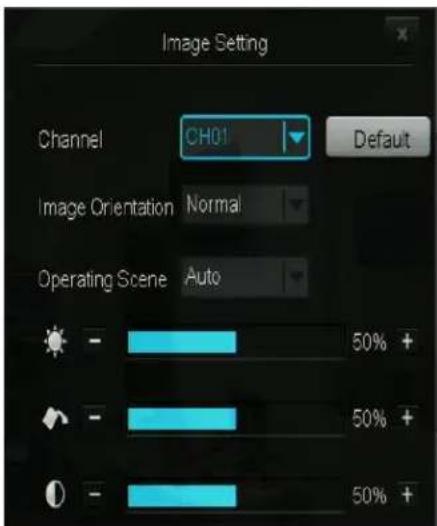
Image Setting Channel CH01 Default Image Orientation Normal Operating Scene Auto 50% + 50% + 50% +This will adjust the image settings of the camera from the NVR. NOTE: This will affect everyone connected to the NVR.
Using the NVR
Image Orientation
Change the image orientation. "Flip" will flip the image vertically, "Mirror" will flip the image horizontally, and "Flip and Mirror" will apply both functions.
Operating Scene
Select scene of operation for optimal white balance.
Adjust the brightness settings of the camera.
Adjust the color saturation of the camera.
Adjust the contrast settings of the camera.
Zoom
Selecting this will bring you into the zoom-in mode. Use the scroll wheel to zoom in and out, and click on areas of the screen in the bottom right corner to select viewing areas.
Right click to exit out of the view.

natural_image
Interior view of a room with two dark panels and an inset photo of a wall-mounted TV unit (no visible text or symbols)Playback
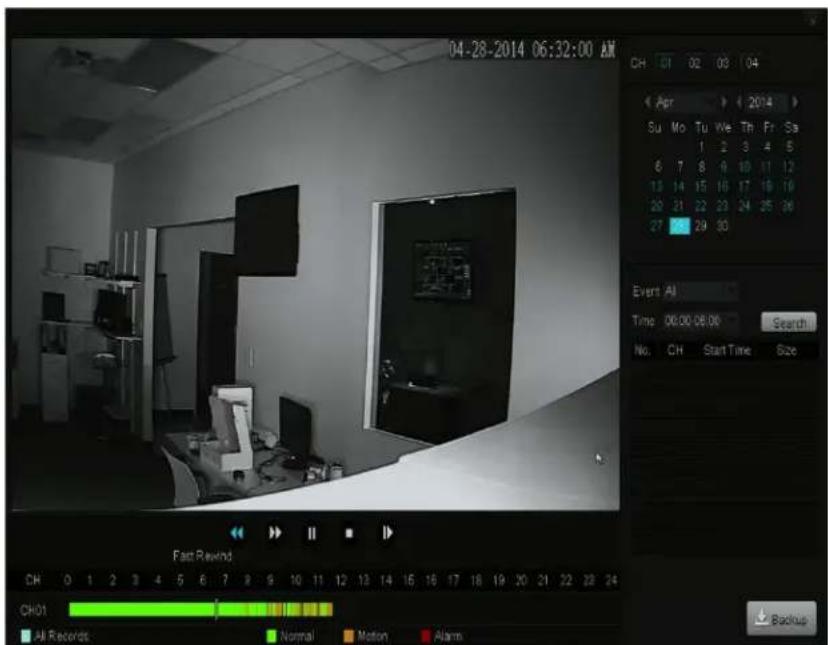
Access and review your surveillance footage from this menu.
text_image
04-28-2014 06:32:00 AM CH 01 02 03 04 Apr Su Mo Tu We Th Fr Sa 1 2 3 4 5 6 7 8 9 10 11 12 13 14 15 16 17 18 19 20 21 22 23 24 25 26 27 28 29 30 Event All Time 00:00:05:00 Search No. CH Start Time Size Fast Rewind CH 0 1 2 3 4 5 6 7 8 9 10 11 12 13 14 15 16 17 18 19 20 21 22 23 24 CH01 All Records Normal Motion Alarm BackupVideo Playback
-
Select the channel of your recording on the right panel under "Channel". When you select a channel, it will be highlighted in blue.
-
Select the month and year on the calendar in the right panel. The days that are highlighted in blue will have recordings available. Select one of the days.
-
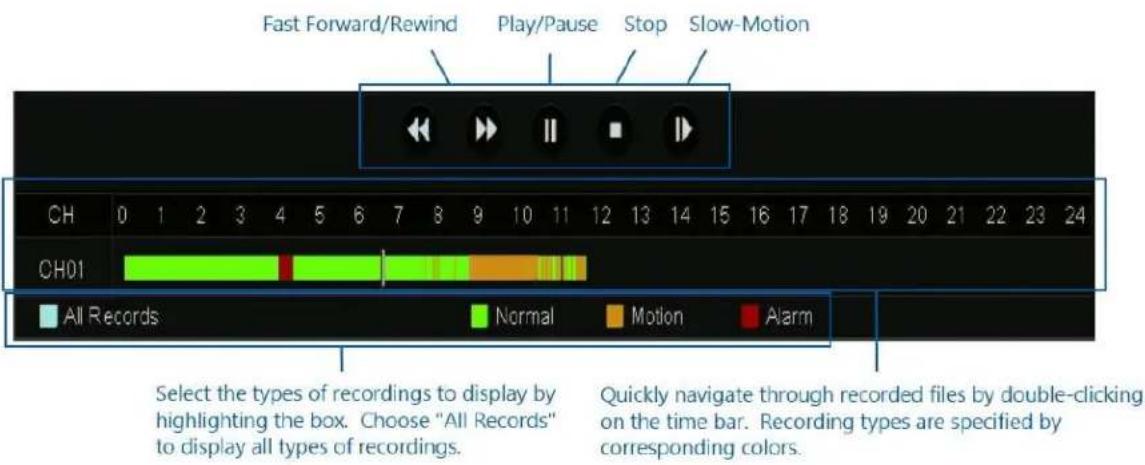
Use the Playback Controls to playback video.
text_image
Fast Forward/Rewind Play/Pause Stop Slow-Motion CH 0 1 2 3 4 5 6 7 8 9 10 11 12 13 14 15 16 17 18 19 20 21 22 23 24 CH01 All Records Normal Motion Alarm Select the types of recordings to display by highlighting the box. Choose "All Records" to display all types of recordings. Quickly navigate through recorded files by double-clicking on the time bar. Recording types are specified by corresponding colors.Backup
The system allows you to backup specific files from your machine onto an external USB drive. The following instructions will show you how to find specific files on your system to backup.
- Select the channel of your recording on the right panel under "Channel". When you select a channel, it will be highlighted in blue.
- Once a channel is selected, select a month and year on the calendar. The days that are highlighted in blue will have available recordings. Select one of the days.
- Under "Event" choose which type of recording that you want to search for. You can choose normal, alarm triggered or motion triggered recordings only, or you can choose all recordings.
- Choose the time frame that your recording will fall under. For example, if you are looking for a video file that was recorded at 3:00 a.m. you will specify the time frame 0:00-6:00.
- Press [Search]. If your NVR has saved any recordings during this time frame, they will appear in the menu.
- Select all of the videos that you would like to back up, and press [Back up]. Wait for the progress bar to complete for each video file.
- Repeat steps 1-7 for video files under different channels, days, events, time frames, etc.
4.3 Remote-viewing Setup

text_image
Diagram showing surveillance cameras, a network device, and a router inside a house outline, illustrating home security or security monitoring.Remote / Local View via Zsight Mobile APP
[Non-Text]
[Non-Text]
[Non-Text]
Remote viewing allows you to access your NVR from any location in the world for unprecedented surveillance versatility using any Android or iOS mobile device with our 'Zsight' application installed. With our revolutionary user-friendly setup, we have eliminated the need for complex port-forwarding procedures and other networking hassles. Our product servers will automatically authenticate and configure your hardware for remote-viewing. The following instructions will guide you through the remote-viewing setup:
Minimum Requirements:
• Android or iOS mobile device with wireless/3G/4G internet connection
- 'Zsight' Application downloaded on your mobile device.
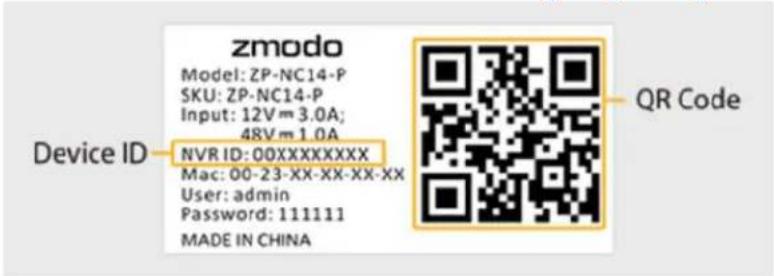
- Locate the NVR information on the outer casing of your system.
text_image
zmodo Model: ZP-NC14-P SKU: ZP-NC14-P Input: 12V m 3.0A; 48V m 1.0A Device ID NVR ID: 00XXXXXXXXX Mac: 00-23-XX-XX-XX-XX User: admin Password: 111111 MADE IN CHINA QR Code- Connect your mobile device to the same local network as your NVR.
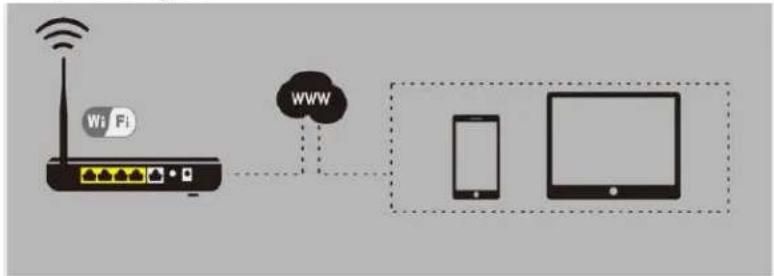
Please make sure your mobile device is connected to the internet through the same wireless router as your NVR.
flowchart
graph LR
    A["WiFi"] --> B["WWW"]
    B --> C["Smartphone"]
    B --> D["Tablet"]
- Open the Zsight app on your mobile device and select the [+] icon. Open the 'Zsight' application and the device will automatically enter a 'Device List' section. Tap the [+] on the upper right hand corner to open the 'Add Device' menu.
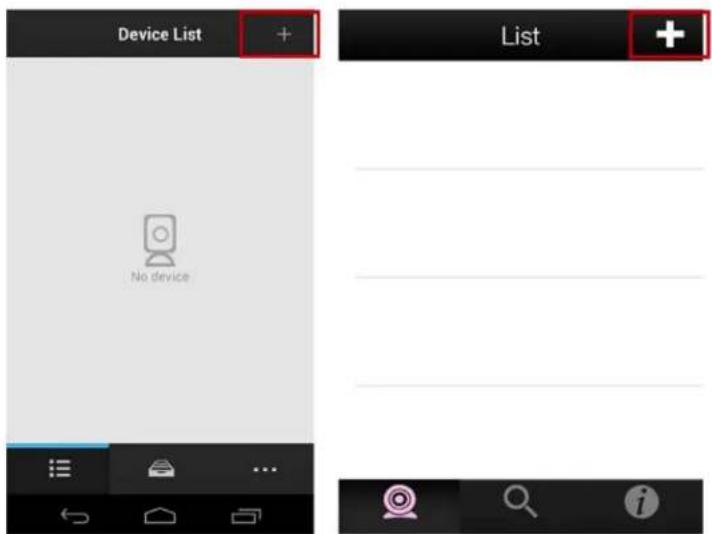
text_image
Device List + No device List +- Add your NVR by scanning the QR code found in step 1. There are three available methods to add your NVR device. We recommend that you add your device with the [Scan QR code] function or by manually inputting the NVR ID from step 1.
a. To scan the QR code, open the [Scan QR code] function by pressing the button as shown in the pictures. Point your camera at the QR code on your device and hold it steadily until it scans successfully.
b. Find the 10-digit device ID obtained from Step 1. Manually input the ID in the appropriate form on the 'Zsight' application.
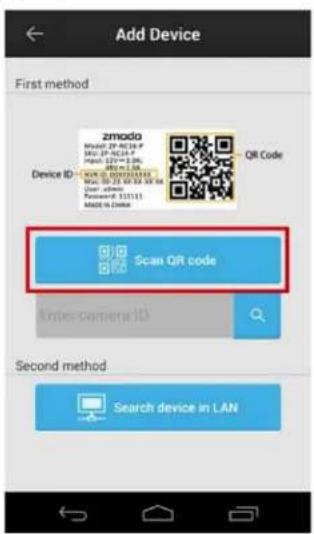
text_image
Add Device First method Device ID: zmodo Model: 2P-NEU-07 Model: 2P-NEU-07 Page ID: 127-128-04 QR Code Scan QR code Enter-camera ID Second method Search device in LAN
text_image
Cancel Add Device Done ID 0123456789 Name Device 01 User Name admin Password Password- Login with the default user 'admin' and default password '111111'. Once you have successfully added the system, a login screen will appear. Enter the default password '111111' or your password if you have changed it, and tap [Submit].

text_image
Add Device Device Name 1333000316 User Name admin ......! Submit 1 2 3 4 5 6 7 8 9 0 @ # $ % & * - + ( ) = \< ! " : ; / ? ABC , Done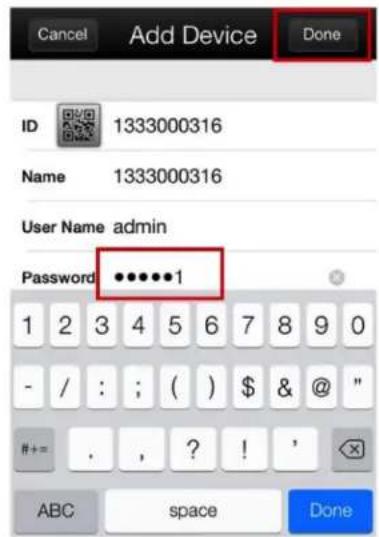
text_image
Cancel Add Device Done ID 1333000316 Name 1333000316 User Name admin Password ••••••1 1 2 3 4 5 6 7 8 9 0 - / : ; ( ) $ & @ " #+ = . , ? ! ' ABC space Done- Select your system from the device list to view the live video stream. Go back to the 'Device List' section and select your device from the list. Make sure that a live video stream from your NVR appears.
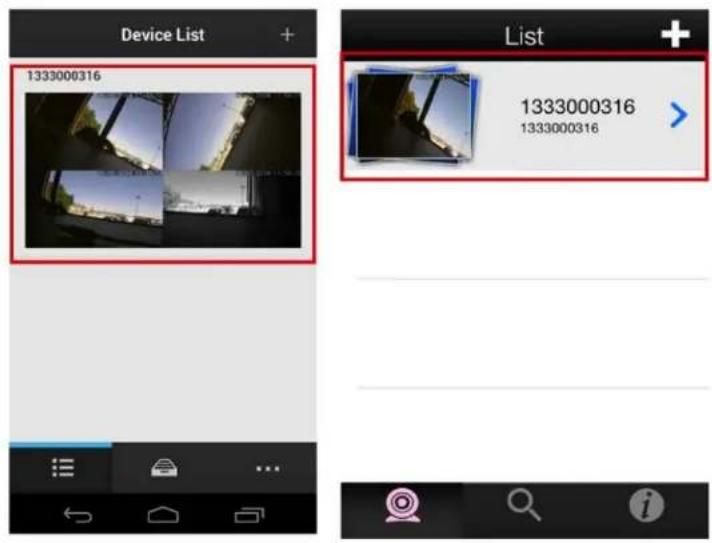
text_image
Device List 1333000316 List 1333000316 1333000316- Disconnect from your wireless network and access the NVR using 3G/4G. Connect your mobile device to a different internet connection from your NVR (3G/4G or any other wireless connection) and repeat step 6. Our product servers will automatically authenticate your NVR for remote-viewing capabilities.

text_image
1333000316 26-02-2014 11:59:26 7.84KB/S N 102.77KB LD Cancel *1333000316 223.1 KB 9.0 KB/S 26-02-2014 12:26:25- Your device is now activated for remote surveillance! You will now be able to view your NVR on any Android or iOS device with internet connection! In order to do so, repeat steps 3-6 on the desired device (for step 4, you will need to add your system through the NVR ID). Congratulations! Thank you for choosing Zmodo!


iphone
natural_image
Simple icon of a tablet device with blank screen (no text or symbols)
ipad
4.4 Updating your NVR
From your NVR (via USB)
Please refer to the following instructions to upgrade the firmware from the system (required: a USB drive).
- Download the updated firmware from the website on your computer.
- Place the file onto the root directory of a USB drive.
- Connect the USB drive to the USB port on your NVR.
- Go to the [General Settings] menu in the Main Menu and access the [System Settings] page.
- Select [Upgrade] and wait 5-10 minutes.
Support 5
5.1 Troubleshooting
Most problems encountered are common problems and are easily correctible. For your convenience, please refer to the following table before calling our Zmodo Technical Support.
| Common Problem | Possible Causes | Solution |
| The system won't turn on. | The cables are not connected properly | 1. Make sure that the power brick is properly connected to the wall plug by unplugging it and replugging it until it fits snugly into the brick.2. Make sure that your power adapter is properly plugged into the power outlet and your NVR system. |
| The cables are connected but the system still does not receive power | 1. Check your NVR front panel and check if the POWER LED indicator is on. If so, your monitor may be off or it may not be properly plugged into your NVR.2. If the unit is connected to the power outlet through a surge protector, make sure that the surge protector is on.3. Make sure that there is power coming from the outlet by plugging in another device to the outlet. If there is no power, please try another outlet or power source. | |
| The cameras will not properly connect to the NVR | The cameras are not properly connectedThe NVR is detecting offline IP cameras | 1. Make sure that your IP cameras are properly connected. Check the connections at the IP camera's Ethernet port and the NVR's camera ports.2. Check to see if the camera is on by placing your hand next to the camera's lens. If you hear a clicking sound, the camera is switching to the night-time viewing and your camera is on. Your NVR may be detecting offline IP cameras.1. Access the [Device Management] page and unmark the "Search and Add All Devices Automatically" option.2. Under the "Channel" column, select the channel of the camera that is not properly connected, then press the "Delete Device" button on the bottom right.3. Select the "Auto Add" option and wait 3-5 minutes. If the proper cameras still aren't setup, please repeat steps 1-2 and proceed to step 4.4. Press the "Search for Device" function and a list will appear. Select the device with the corresponding MAC address that is shown on your IP camera. Alternatively, you can directly add the camera by selecting "Add Device Manually" and inputting the MAC address manually. |
| There is a live feed showing on my NVR, but it isn't the same as my camera | The NVR is adding other IP cameras in your network | 1. Access the [Device Management] page and unmark the "Search and Add All Devices Automatically" option.2. Under the "Channel" column, select the channel of the undesired camera feed and then press "Delete Device" to remove the device from the system.3. Press the "Search for Device" function and a list will appear. You will have to select the device with the corresponding MAC address that is shown on your IP camera. Alternatively, you can directly add the camera by selecting "Add Device Manually" and inputting the MAC address manually. |
| Hard drive is not detected by the system | Hard drive cables may not be properly connected | Remove the cover and check that the SATA power and data cables are properly connected to the logic board and the hard drive. |
| Your hard drive may not be compatible with the system | Check your HDD compatibility with the recommendations under the HDD Installation section of this user manual. | |
| HDD is full and the unit is not recording | The NVR is set to stop recording when the HDD is full | 1. Access the [General Settings] menu and open the [Disk Drive Info] page.2. Open the drop-down menu at the top next to the "Hard Disk Drive Full", select "Overwrite" and press save. |
| The mouse is not working | The mouse is not properly connected | Check the back panel of your NVR to make sure that the mouse is connected to the corresponding USB port. |
| The mouse is connected but it is still not recognized | Please disconnect and reconnect the mouse to the system and reboot the system using the power switch on the back panel. | |
| Remote control is not detected by the system | There are no batteries in the remote or the batteries are dead | Install two new AAA alkaline batteries into the remote control. |
| The infrared signals are not reaching the NVR | Please make sure that the front panel of your NVR is not obstructed by any objects. Place your NVR in an open area and point your remote at the NVR during use. | |
| The system beeps at startup | For some versions of the NVR firmware, this beeping will be normal. | |
| The system is constantly beeping | The NVR is beeping when motion is detected | Under the [Event Management] menu, access the [Motion Detection] page and configure the motion detection settings. Please visit Section 4.1 of this user manual for further instructions. |
5.2 Warranty
Please visit http://www.zmodo.com/rma for complete information.
General Guidelines
To qualify for a Return Merchandise Authorization (RMA) for either a refund or repair of Zmodo products, all items require an RMA number prior to being returned. Products must be 100% complete, in the same condition as when sold, and in the original packaging as provided by the manufacturer. All packing materials, manuals, CDs, and other accessories and documentation must be included. Kits and other items assembled after purchase must be unassembled and returned in the manufacturer's original packaging. All returns will be inspected and products found to be non-conforming will be rejected or subject to a 15% restocking fee at Zmodo's sole discretion.
Non-qualified and non-conforming returns are not included in Zmodo RMA policy and, if returned, will be rejected or subject to a restocking fee of up to 15% at Zmodo's sole discretion. If the non-qualified or non-conforming package is rejected, the party who returned the item(s) will be billed for return shipping cost of the item(s).
Receiving Procedure
All returned products will be thoroughly inspected and a determination will be made if eligibility and conforming requirements are met. To avoid any delay or denial of processing your return please verify the product you are returning meets the guidelines below and qualifies for return. If a non-conforming product is accepted for return Zmodo reserves the right to charge a restocking fee up to 15% at Zmodo's sole discretion. Return processing may take up to 5 business days from the time your product is received.
Inspection Criteria
Products must be in the original manufacturers packaging, and shipped securely.
Products must be complete with any standard certification labels originally placed and not tampered with. This includes, but is not limited to UL listing, capacity, brand name, UPC code.
Products must be free of any permanent alterations including, but not limited to paint, altered connection inputs, severed wires or cables, or indication of removed screws/fasteners or seals.
Products must be free from damage of any type, including, but not limited to dents, scratches, cracks, abuse, defacement or damage resulting from power surges.
Products labeled with a security seal, must have the seal intact and not tampered with.
Cross shipment
In the event that a replacement product is needed immediately, a cross-shipment option is available if the original purchase date is within 6 months of the cross-shipment request.
Customers located in Canada are responsible for the shipping charges to send the replacement items to them.
Requesting this option implies that the customer has the defective part and will ship it back to Zmodo within 25 calendar days of the ship date of the replacement product. The customer will be asked to secure the return by providing a credit card number. There will be a 25-day cross-authorization placed on the card equal to the list price of the item being shipped. When the cross-authorization is placed on the credit card, the customer will see an approximate 48-hour hold for the amount equal to the list price if the item(s) being exchanged. After the initial 48-hour hold expires, the customer should see no charge placed on the credit card unless the RMA items are not returned to Zmodo within 25 calendar days. Should 25 days pass and the original product is not yet received by Zmodo, we will charge the full amount that was authorized on the credit card. Subject to availability, Zmodo will ship product on the same day the RMA is generated.
Missing Parts Procedure
In the event that your order arrived incomplete, and the tracking indicates that your order was shipped from the Zmodo warehouse in central Illinois; Zmodo may require image confirmation at our discretion before replacements for any missing parts are shipped out.
If your order included a DVR with a Hard Disk Drive included, and a Hard Disk Drive was not installed in the DVR that you received, Zmodo may ask for image confirmation before exchanging the DVR you've received with a DVR that has a Hard Disk Drive installed.
If your order was not delivered or if your order arrived damaged, please contact Zmodo customer support so that we can file a claim with the carrier service we used to ship your order. In the event that your order arrived damaged or incomplete due to external damage, please keep all interior and exterior packaging as this is needed when we file the shipping claim.
Missing Parts Procedure for International Customers
In the event that an order is shipped to an international location and that order is either incomplete or including any incorrect items in lieu of correct items, the customer will be responsible for arranging that the correct item(s) be shipped to the international location. It is the customer's responsibility to ship the incorrect item(s) to the Zmodo location that is detailed in the RMA information. Zmodo will reimburse the customer for all international return shipping costs pending the acquisition of their shipping receipt indicating the exact cost to ship the defective item(s) internationally.
Return Shipping
For your protection, we recommend that you insure your return and use a traceable carrier that can provide you with delivery confirmation. Zmodo shall not be responsible for items returned that are lost or damaged in transit. Postage and handling charges, both to and from our warehouse will be paid by the customer, and are non-refundable. At our discretion, Zmodo may reimburse shipping charges related to the return or exchange of defective products inside the U.S. only.
Return Shipping for International RMAs for Repair
In the event that item(s) become defective within the one year manufacturer's warranty and the item(s) are located outside of the United States, it is the customer's responsibility to ship the defective item(s) to the Zmodo location that is detailed in the RMA information. Zmodo will only ship RMA returns to the USA and Canada. At our discretion, we may reimburse the customer for international shipping costs in the form of store credit.
If the returned item(s) are tested and found to be non-defective by the certified Zmodo RMA technicians, the customer will not be reimbursed but international return shipping costs. The customer will be responsible for arranging shipment of the returned non-defective items from the US to their international location.
If the returned item(s) are tested and found to be defective by the certified Zmodo RMA technicians, the customer will be reimbursed for all costs of return international shipping in the form of store credit. The customer will be responsible for arranging shipment of the returned defective item(s) from the US to the customer's international location.
In the event that we decide to issue store credit to a customer to reimburse for the cost of return international shipping, the customer must provide a copy of their shipping receipt indicating the exact cost to ship the defective item(s) internationally.
Under no circumstances is Zmodo able to reimburse any Customs and/or Duty tax fees that are enacted by the shipping carrier.
Refund Policy for Zmodo Purchases
Unless otherwise specified in the item listing on our website, on the receipt or packing slip, or in the terms agreement, Zmodo will accept qualified and conforming products for refund within 30 days of the original purchase date.
Refund Policy for Retail Purchases
In order to return any number of Zmodo items for refund, please contact the sales venue where these item(s) were originally purchased from and request to send your product(s) back for a refund. Most vendors who offer Zmodo products will offer a 30 day refund option, however this is subject to the specific policy of the sales vendor that the product(s) were purchased from. Please refer to the return policy of the original store or vendor that you purchased your Zmodo products from for specific return policy information.
Upgrade or Exchange Procedure
If the item(s) that you have purchased do not function to your satisfaction or do not apply to your installation application, please contact the sales venue in which the item was originally purchased from and request a refund for any item(s) that you wish to return. Zmodo is unable to exchange any item for an item of a different type unless the following circumstance applies:
- An item is returned to Zmodo for repair under the manufacturer's one year warranty period and that same item was found to be defective and un-repairable by certified Zmodo RMA technicians.
- That same item is out of stock at the time that it was returned to Zmodo and tested by certified RMA technicians.
Should the described circumstance directly apply, Zmodo will offer at its sole discretion, either a variety of options for an item substitution, an item upgrade, a refund for the list price of the irreplaceable item, or store credit for the list price of the irreplaceable item.
Limitations of Warranty
This warranty does not include non-Zmodo installed components. This limited warranty does not cover any damage to the product that results from abnormal mechanical or environmental conditions, abuse, accident, improper installation, misuse, insufficient or excessive electrical supply, natural disaster, or any unauthorized disassembly, repair, or modification. This limited warranty also does not apply to any product on which the original product label and or UPC information has been altered, obliterated or removed, has not been handled or packaged correctly, has been sold as second-hand, or has been resold contrary to US export regulations.
This limited warranty covers only replacements for defective Zmodo products, as described above. Zmodo does not cover under warranty and is not liable for any loss of data or any costs associated with diagnosing the source of system problems or installing, removing or servicing Zmodo products. This warranty excludes 3rd party software, connected equipment or stored data. In the event of a claim, Zmodo's sole obligation shall be to replace our product with its equivalent or the best possible substitute.
Under no circumstances shall Zmodo be liable in any way to the user for damages, including any lost profits, lost savings or other incidental or consequential damages arising out of the use of, or inability to use the Zmodo products. Zmodo reserves the right to revise or update its products, software, or documentation in keeping with technological advances without obligation to notify any individual or entity.
Technical Support and firmware upgrades for Zmodo products are restricted to the country/region of purchase. Please refer to www.zmodo.com/Contact/ in order to contact us to clarify any concerns with the warranty.
5.3 Zmodo Support
Online Resources
For full instructional manuals, software downloads, and more, please visit: http://www.zmodo.com/support-software
For detailed and specific instruction, please our frequently updated knowledge-base: http://kb.zmodo.com
Technical Support
If you ever have any problems setting up or using this product, call our TOLL-FREE number for additional assistance: 866-551-6881 Telephone Service Hours: Mon-Fri 8:00am-8:00pm CST
Email: support@zmodo.com
Customer Service & RMA
Customer Service: support@zmodo.com
RMA: RMA@zmodo.com
General Inquiries & Sales
Sales/Inquiries from North America: sales-us@zmodo.com
Sales/Inquiries from other locations: sales@zmodo.com