EK-162C - NAS Edimax - Free user manual and instructions
Find the device manual for free EK-162C Edimax in PDF.


User questions about EK-162C Edimax
0 question about this device. Answer the ones you know or ask your own.
Ask a new question about this device
Download the instructions for your NAS in PDF format for free! Find your manual EK-162C - Edimax and take your electronic device back in hand. On this page are published all the documents necessary for the use of your device. EK-162C by Edimax.
USER MANUAL EK-162C Edimax
TWO-CONSOLE (One Local, One CAT5 Remote) 8 port / 16 port
19" RACK MOUNTABLE PS/2 KVM SWITCH
USER'S MANUAL
TABLE OF CONTENTS
INTRODUCTION....1
FEATURES....2
PACKAGE CONTENTS....3
TECHNICAL SPECIFICATIONS......4
SYSTEM REQUIREMENT....5
CABLE DIAGRAMS......5
PRODUCT DETAILS......6
HARDWARE INSTALLATION......6
USAGE....7
DAISY CHAIN CONNECTION DIAGRAM....10
HOT PLUG....11
ON SCREEN DISPLAY OPERATION....11
TROUBLESHOOTING....14
CERTIFICATES....14
Introduction
Thank you for purchasing Two-Console PS/2 KVM switch. Two-Console PS/2 KVM switch can save your MONEY, TIME, SPACE, EQUIPMENT and POWER.
The Two-Console switch controls multiple PCs from One Keyboard, Mouse and VGA Monitor with complete keyboard and mouse emulation for simultaneous PCs boot-up process. It has various features such as one local console port and one up to 500-feet away CAT5 console port, 19" Rack Mount Size, Daisy Chain up to 8 units, On Screen Display Menu, Password security, searching PC server name, Hot key Control, Push Button and Auto Scan Control. It has
The CAT5 console port extends PC, SERVER up to 500 feet away from your controlling keyboard, mouse and VGA monitor. “KVM CAT5 transmitter” is built-into KVM switch inside. It synthesizes PS/2 keyboard signal, PS/2 mouse signal and VGA monitor signal to be easily transmitted to a long distance over popular Ethernet CAT5 cable. The “Cat5 Remote Console Receiver” is to get the synthetic signal and return it back to PS/2 keyboard, PS/2 mouse and VGA monitor signal. Besides, “Cat5 Remote Console Receiver” allows the other PC to share this remote console via one extra PC port which is built in the receiver.
"Cat5 Remote Console Receiver" is a good solution for those noisy server room environment where is unsuitable for people to work for a long time, besides, it facilitates effective management on dispersive computers through one dedicated central control room, demonstration room, meeting room, or at your desk. CAT5 STP cable (Shielded Twisted Pair)/ UTP cable (Unshielded Twisted Pair) or enhanced cable like CAT5E/CAT6 cable is applied to LAN network popularly. KVM-CAT5 Extra uses the same existing network construction to transfer local console signal to remote side.
"Cat5 Remote Console Receiver" allows you to move your console, i.e. Keyboard, Mouse and VGA monitor, to a suitable place for centralized control conveniently over LAN network. You just need install a CAT5 remote console receiver at the remote side you would like to locate or to share one of remote PC's consoles. It also saves your cable layout and cable installation cost.
Two-console KVM switch is able to work with single console KVM switch. It is highly recommended to put two-console KVM switch at master bank and the single KVM switch at slave banks.
Features
● 8/16 port Two-Console PS/2 KVM switch is 19" rack mount size design.
- Support one local console and one CAT5 remote console up to 500 feet away from KVM switch.
● Support Microsoft Intellmouse, Microsoft Intellmouse Explorer, Logitech Net Mouse or the other fully compatible MS mice.
● Support DOS, Win3.X, Win95/98/98SE/2000/ME/XP, WinNT, Netware, Unix, Linux
- Support iMAC, Power MAC and Sun Microsystems with USB port (Need work with USB-PS/2 adapter)
- Hot Plug - Add PCs or Remove Connected PCs for Maintenance without Powering off the KVM switch or PCs.
● Very High Video Quality - Up To 1920X1440, Bandwidth: 200MHz
- No Software Required - easy PC selection via On Screen Display Menu, Push Buttons, and Hot Keys
● Support eight-character password protection and PC server name searching
● Auto Scan Mode for monitoring PCs with flexible Scan time from 5\~99 seconds
● Keyboard status restored when switching PCs
● LED Display for easy status monitoring
- Buzzer sound for switching port confirmation.
● Built-in one extra daisy chain port without wasting any PC port
● No DIP switch setting needed and auto detect daisy chain bank
PACKAGE CONTENTS
Model No.: Two-console 8 port PS/2 KVM Switch
| 8 port PS/2 KVM Switch 1 PC | |
| CAT 5 Remote Console Receiver 1 PC | |
| Power Adapter DC9V,500mA (for KVM Switch) 1 PC | |
| Power Adapter DC9V,500mA (for CAT5 Remote Console Receiver) 1 PC | |
| Rack Mount Kit 1 SET | |
| User's manual 1 PC |
Model No.: Two-console 16 port PS/2 KVM Switch
| 16 port PS/2 KVM Switch 1 PC | |
| CAT 5 Remote Console Receiver 1 PC | |
| Power Adapter DC9V,500mA (for KVM Switch) 1 PC | |
| Power Adapter DC9V,500mA (for CAT5 Remote Console Receiver) 1 PC | |
| Rack Mount Kit 1 SET | |
| User's manual 1 PC |
Technical Specifications
| Model No. Two-console 8 port PS/2 KVM Switch Two-console 16 port PS/2 KVM Switch | ||
| PC Port | 9 (8 local and 1 remote) | 17 (16 local and 1 remote) |
| Console Port 2 (1 local and 1 remote) | 2 (1 local and 1 remote) | |
| PC Port Connector(All Female Types) | VGA HDDB 15pin ( shared with PS/2 keyboard and Mouse ) | |
| Console Port Connector(All Female Types) | Local Console: PS/2 Keyboard Mini Din 6 pinPS/2 Mouse Mini Din 6 pinVGA HDDB 15pinRemote Console: RJ-45 8P8C | |
| Daisy Chain Port Connector(All Female Type) | PS/2 Keyboard mini Din 6 pinPS/2 Mouse Mini Din 6 pinVGA HDDB 15pin | |
| PC selection On Screen Display Menu, Hot Key, Push Button | ||
| PC Port LED 16 32 | ||
| Bank 7 segment LED 1 | ||
| On Screen Display Control Yes | ||
| Scan Intervals 5~99 Sec. | ||
| Keyboard Emulation | PS/2 | |
| Mouse Emulation | PS/2 | |
| VGA Resolution | 1920X1440 | |
| Bandwidth | 200MHz | |
| Daisy Chain MAX Level | 8 levels | |
| MAX PC Connection | 121 (120 local and 1 remote) | 129 (128 local and 1 remote) |
| Housing (KVM Switch) | Metal | |
| Housing (CAT5 Receiver) | Plastic | |
| KVM Switch Power Adapter | DC 9V, 500mA | |
| Cat5 Remote ConsoleReceiver Power Adapter | DC 9V, 500mA | |
| Operation Temperature | 0~50°C | |
| Storage Temperature | -20 ~ 60°C | |
| Humidity | 0~95%, Non-Condensing | |
| Size | 19" Rack Mount / 1RU | 19" Rack Mount / 1RU |
| Weight (g) (KVM Switch) | 2010 | 2220 |
| Weight (g) (CAT5 Receiver) | 120 | 120 |
| Dimension (cm) (KVM Switch) | 41(L) X 16.4(W) X 4.5(H) | 41(L) X 16.4(W) X 4.5(H) |
| Dimension (cm) (CAT5Receiver) | 11.15(L)x7.5(W)x3.95(H) | 11.15(L)x7.5(W)x3.95(H) |
System Requirements
| Model No. | Two-console 8 port PS/2 KVM Switch |
| Local Console side | One VGA MonitorOne PS/2 KeyboardOne PS/2 MouseOne DC9V 500mA power adapter |
| Remote Console side | One CAT5 cableOne KVM CAT5 receiverOne DC9V 500mA power adapterOne VGA MonitorOne PS/2 KeyboardOne PS/2 MouseOne 3-in-one KVM cable |
| Computer side 8 | HDDB 15 pin male to one HDDB 15 pin and Mini Din 6 pin special cables |
| Model No. | Two-Console 16 port PS/2 KVM Switch |
| Console side One | VGA MonitorOne PS/2 KeyboardOne PS/2 MouseOne DC9V 500mA power adapter |
| Remote Console side | One CAT5 cableOne KVM CAT5 receiverOne DC9V 500mA power adapterOne VGA MonitorOne PS/2 KeyboardOne PS/2 MouseOne 3-in-one KVM cable |
| Computer side 16 | HDDB 15 pin male to one HDDB 15 pin and Mini Din 6 pin special cables |
Cable Diagrams
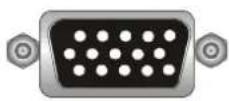
PC Port Special Cable:
HDDB15 pin male to one HDDB 15 pin male and Mini Din 6 pin special cables

→


AT to PS/2 keyboard adapter: (Optional)
Din 5 pin Male to Mini Din 6 pin Female

Daisy Chain Cable:
PS/2 Cable:
Mini Din 6 pin Male to Male


VGA Cable:
HDDB15 pin Male to Male


CAT5/5E/6 Straight Through UTP/STP Cable:
8P8C
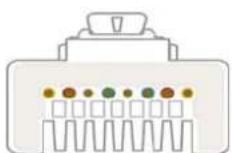
1 2...7 8
| Pin | Wire Color | Pair | Function |
| 1 | White/Orange | 2 | T |
| 2 | Orange | 2 | R |
| 3 | White/Green | 3 | T |
| 4 | Blue | 1 | R |
| 5 | White/Blue | 1 | T |
| 6 | Green | 3 | R |
| 7 | White/Brown | 4 | T |
| 8 | Brown | 4 | R |

text_image
Pair 2 T R T R T R T R 1 2 3 4 5 6 7 8 + - + - + - + View looking into RJ45 femaleProduct Details
Two-console 8 port PS/2 KVM Switch:

text_image
Distance Select 90.9V Remote Console PC CE Modelin Taiwan Delay Chain in Monitor Keyboard Mouse Local Console Monitor Keyboard Mouse Computer 8 Computer 7 Computer 6 Computer 5 Computer 4 Computer 3 Computer 2 Computer 1Two-console 16 port PS/2 KVM Switch:

text_image
Distance Select DC 6V Remote Monitor Local Console Monitor Computer 15 Computer 15 Computer 14 Computer 13 Computer 12 Computer 11 Computer 10 Computer 9 Model in Taiwan Keyboard Mouse Keyboard Mouse Computer 1 Computer 7 Computer 8 Computer 5 Computer 4 Computer 3 Computer 2 Computer 1Hardware Installation
Before installation, please make sure all of peripherals and computers have been turned off. The installation of below is based on 8 port-Rack Mount KVM Switch. Please follow the same installation procedure for 4 and 16 port Rack Mount KVM Switch.
Step 1
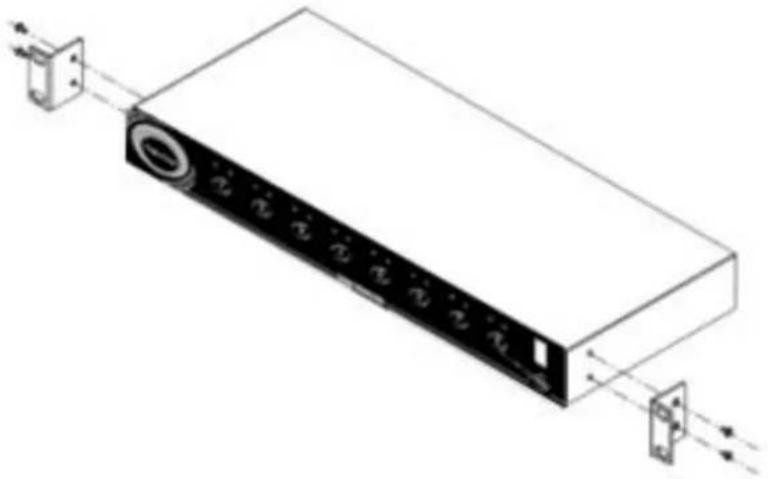
Find a convenient place to put your KVM Switch. Its 19" rack mount form factor makes it ideal to be mounted on 19" rack. When mounting to a rack, attach the included brackets to the sides of the KVM Switch. Take note of the length of your cables so that your computers, KVM Switch, keyboard, mouse and monitor are distanced properly.
natural_image
Diagram of a server rack with ports and connectors, showing internal components and connection lines (no text or symbols)Step 2 (Local Console)
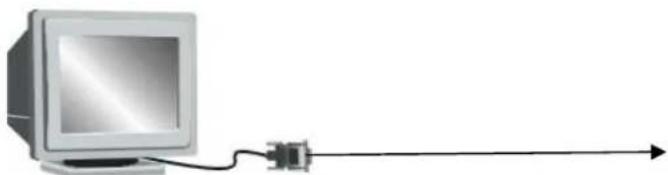
Connect the monitor to the KVM Switch. Connect the attached cable, or the one included with your monitor, to the HDDB-15 female port on the back of the KVM unit marked with the monitor symbol at the CONSOLE connector.
natural_image
Illustration of a vintage computer connected to a cable via a power cord (no text or symbols)
text_image
Remote Control DCs Remote Control DCs Mode In/Server Data Chain In Monitor Keyboard Mosaic Keyboard Mosaic Sonic Console Monitor Computer 8 Computer 7 Computer 6 Computer 5 Computer 4 Computer 3 Computer 2 Computer 1Step 3
Connect the keyboard to the KVM Switch. If you have an AT type keyboard, you will need an AT to PS/2 adapter.

text_image
Diagram showing computer interface components including a keyboard, monitor, and multiple computer ports with labeled connectors.Step 4
Connect the mouse to the KVM Switch.

text_image
Windows C:\Program Files\1\Baidu Chain In\Local Console PCB DC CE Mode in Section Bluetooth Macpu Keyboard Mouse Keyboard Mouse Computer 8 Computer 7 Computer 6 Computer 5 Computer 4 Computer 3 Computer 2 Computer 1Step 4-1 (Remote Console)
Extending your PC console up to 500 feet away:
(1) To make sure the CAT5 cable is straight through type.
(2) Plug one end of the CAT5 cable into RJ-45 connector of PS/2 KVM switch and the other end into KVM CAT5 receiver RJ-45 port.
(3) Connect remote keyboard, mouse and monitor with PS/2-EXTENDER-RECEIVER "KB", "MS" and "Monitor" interface.
(4) Connect CAT5 receiver PC port with PC console port by using 3-in-one KVM cable.

- Local console and Remote console of KVM Switch will have the same priority to control computer, just like a PC connected to two consoles. The remote console can control both the local PC and remote PC connected to KVM switch; however, the local console can only control the PCs on local side. There will be a conflict, if the local console and remote console access the computer simultaneously. Please don't use local console and
remote console at the same time.
-
When the video signal is foggy or un-cleared on the screen, please check if VGA connector is connected properly, or the VGA resolution is too high for the length of cable being used. If the problem happened at VGA resolution, please shorten the CAT5 cable length or reduce VGA resolution. It is highly recommended to use “optimal CAT5 cable length “to get the best video quality and don’t waste unnecessary CAT5 cable. High VGA resolution is up to 1280X1024 and CAT5 cable length could up to 500 feet approximately.
-
There is a Dip Switch on the rear site of KVM switch. The factory default value is "OFF/OFF" state. When you use the CAT5 cable length is over 300 feet, please set DIP Switch to "ON/ON" state. The other setting likes "ON/OFF" or "OFF/ON" state is reserved for future application.
Step 5
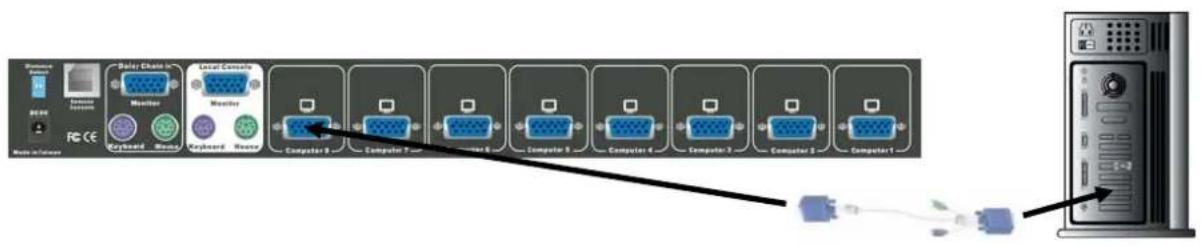
PC port connectors of the KVM switch are HDDB-15 pin type. Plug one end of the calbe which is HDDB-15 pin male connector to the selected computer port on the rear of KVM switch unit. The other end of cable which have three connectors: a HDDB-15 pin male type for PC video, a Mini Din 6 pin female type for keyboard and a Mini Din 6 pin female type for mouse, will be attached to keyboard, mouse and monitor ports of computer respectively. Repeat the same procedure to all of PCs.
The Rear Side of PC
text_image
Base in office Delay Chain In Monitor Keyboard Monitor Local Console Monitor Keyboard Revers Computer 9 Computer 10 Computer 11 Computer 12 Computer 13 Computer 14 Computer 15 Computer 16 Computer 17 Computer 18 Computer 19 Computer 20 Computer 21 Computer 22 Computer 23 Computer 24 Computer 25 Computer 26 Computer 27 Computer 28 Computer 29 Computer 30 Computer 31 Computer 32 Computer 33 Computer 34 Computer 35 Computer 36 Computer 37 Computer 38 Computer 39 Computer 40Step 6 (Optional)
If your computer has an AT type keyboard port (Din 5 pin), you will need a PS/2 to AT keyboard adapter.
The Rear side of PC

text_image
RBC DC CE Radio In/Tensor Binary Headset in Monitor Keyboard Music Switch Camera Monitor Keyboard Music Computer 6 Computer 7 Computer 8 Computer 9 Computer 10 Computer 11 Computer 12 Computer 13 Computer 14 Computer 15 Computer 16 Computer 17 Computer 18 Computer 19 Computer 20 Computer 21 Computer 22 Computer 23 Computer 24 Computer 25 Computer 26 Computer 27 Computer 28 Computer 29 Computer 30 Computer 31 Computer 32 Computer 33 Computer 34 Computer 35 Computer 36 Computer 37 Computer 38 Computer 39 Computer 40 Computer 41 Computer 42 Computer 43 Computer 44 Computer 45 Computer 46 Computer 47 Computer 48 Computer 49 Computer 50Step 7
Check all of the connections carefully. The colors of keyboard and mouse connectors will help to make sure the keyboard and mouse cables go to the correct ports.
Step 8
Attach the power supply to the KVM unit and plug the other end into an electrical receptacle.
Now you will see the LED for Port 1 light up, and you will hear a beep. Switch on your monitor.
NOTE:
It is suggested to plug in power adapter, although the PCs connected to KVM Switch are able to support enough power to the stand alone switch. However, KVM Switch will need a power adapter to daisy chain more banks and if you forget to plug in power adapter on the status of daisy chain, it may cause unexpected consequence.
Usage
The power on state of two-console 4/8/16 port KVM switch:
When you power on KVM switch, it will ask you the password, the default password value is eight zero – “00000000”. Please key in eight zero and enter the same value at re-type field.
Note: Don't change the password and keep default eight zero (00000000) value until you are familiar with the operation of OSD menu. If unfortunately, you forget the password that has been set, you will need send it back to your distributor to maintain the password.
The Membrane Buttons
Pressing the individual button cyclically through all the ports or the respective button to get PC port you want. For 16 port KVM Switch, please press “-” and individual button simultaneously in order to select the port 9 to port 16.
PC port LED Indicator :
When the selected PC port is disconnected to PC or PC connected is shut down, the selected PC port LED will flash. When you select one of the PC ports that is powered on, the selected PC port LED is lit.
7-Segment BANK LED Indicator

To view the next bank KVM switch, please press “BANK” push button cyclically for the destination bank. The LED indicator for bank no. will be changed from bank 1 to the maximum daisy chain level and then to press “BANK” push button once back to the bank 1.

flowchart
graph LR
    A["Bank 1"] --> B["Bank 2"]
    B --> C["Bank 3"]
    C --> D["MAX. BANK"]
Reset Button ( "Bank" button) and ("PC 8" button ):
To reset the KVM switch, please press both "PC8" button and "bank" button of master bank simultaneously. This reset action will not only return KVM switch back to initial state, i.e. Check the password, but also re-check all of slave banks which connected to master KVM Switch.
If you add a new KVM Switch as a slave bank, please use reset button of master KVM Switch to automatically assign a new ID to the new KVM switch. You can view this new slave bank via OSD menu. The PC ports of KVM Switch will not be reset by this reset command.
Keyboard Hot Key Commands:
You can also conveniently command KVM switch to switch ports simple via key sequences. To send commands to KVM switch, the "SCROLL LOCK" key must be pressed twice within 2 seconds. You will hear a beep for confirmation and then the keyboard is in hot key mode. If you have not pressed any key in hot key mode within 2 seconds (It means there is no keystroke after "Scroll Lock" "Scroll Lock" key), the keyboard will be back to Operation System control state.
Below are the different hot key commands (for local KVM):

text_image
within 2 seconds Scroll Lock + Scroll Lock + ↑ = Previous Channel Scroll Lock + Scroll Lock + ↓ = Next Channel (Note: You also could press "up arrow key" or "down arrow key" longer time to speed up selecting the destination port) Scroll Lock + Scroll Lock + Page Up = Previous Bank Scroll Lock + Scroll Lock + Page Down = Next Bank To select PC port: Scroll Lock + Scroll Lock + Bank No 1~8 + Port No. 01~04 (4 port) 01~08 (8 port) 01~16 (16 port) = Selected Bank and PC Scroll Lock + Scroll Lock + B = Beeper on local KVM Switch (Note: The default Beeper function is ON and beeper control is only for available for Scan Mode ) Scroll Lock + Scroll Lock + S = Auto ScanTo get out of Auto Scan Mode, Press any key or SPACE bar.

text_image
Scroll Lock + Scroll Lock + R = OSD setting back to factory default value (Note: Not including password)ROM REFLASH

text_image
Scroll Lock + Scroll Lock + F = Search the same PC name (Note: Search PC name start from 1
text_image
FIND:
text_image
Scroll Lock + Scroll Lock + Space bar = On Screen Display MenuBelow are the different hot key commands (for CAT5 remote):

text_image
Scroll Lock + Scroll Lock + C = To select CAT5 Remote PC Port and local PC port which connected to receiver by toggle control
text_image
Scroll Lock + Scroll Lock + Q = Beeper on CAT5 ReceiverExample :
A. To access a computer attached to Port 4 of Bank 3. You can press through hot key as below:
Scroll lock + Scroll lock + 3 + 04
B. To access a computer attached to next Bank, You can press through hot key as below:
Scroll lock + Scroll lock + Page Down
Note:
Use numeric keys on the keyboard to select Bank no. and Port no. Numeric keys on the keypad are not available as a hot key command.
Daisy Chain Connection Diagram
Please use the 3 feet 3-in-one daisy chain Cable Kit to daisy chain the KVM Switch.
A. Connect Keyboard, Mouse and Monitor to the console port (white color block) of bank 1 KVM switch.
B. Use one end of 3-in-one Cable Kit to connect the daisy chain port of bank 1 and the other end to the console port (white color block) of bank 2 KVM switch.
C. Please repeat item B to daisy chain more bank as you want. But, the maximum level of daisy chain bank is eight.
D. While chaining the slave bank up to six banks, you need a VGA extender between the fifth bank and the sixth bank to enhance the VGA signal.
(Note: If you would like to daisy chain 4 port, 8 port, and 16 port PS/2 or USB KVM Switch together, the master bank must be 16 port PS/2 or USB KVM Switch)

flowchart
graph TD
    A["Computer"] --> B["Server Rack 1"]
    B --> C["Switch 1"]
    C --> D["Server Rack 2"]
    D --> E["Switch 2"]
    E --> F["Server Rack 3"]
    F --> G["Switch 3"]
    G --> H["Server Rack 4"]
    H --> I["Switch 4"]
    I --> J["Server Rack 5"]
    J --> K["Switch 5"]
    K --> L["Server Rack 6"]
    L --> M["Switch 6"]
    M --> N["Server Rack 7"]
    N --> O["Switch 7"]
    O --> P["Server Rack 8"]
Hot Plug
The KVM Switch supports "Hot Plug" function for easy addition or removal of PCs. The user can arrange or maintain PCs as follows:
a. A PC can be disconnected and reconnected to the same or different port of the KVM unit without powering off as long as it is not the Daisy-chain port or pass through port.
b. To use hot plug function on PC which is powered on before connected to pass through port, (i.e. the console port is connected to PC directly), please switch from the pass through port to next port (or say emulation port) and then switch back to the pass through port.
c. You may unplug the mouse or the keyboard from the console port and plug it back in at any time.
NOTE:
Some O.S. (Operation Systems) like SCO Unix are unable to support “Hot Plug” function. If you apply “Hot Plug” to this kind of O.S., it will cause unpredictable behavior or shut down the PC. Before using “Hot Plug”, please make sure your O.S. and mouse software driver supports the “Hot Plug” function.
On Screen Display Operation
-
The OSD menu can work with the PC port that is powered on, powered off or even disconnected. The resolution of OSD menu is fixed to 1024X768 for the PC that is powered off or disconnected.
-
When the OSD menu pop up for the hot key, you will see the following small window on your monitor.
BANK : 1
| 01 | SYSTEM | 01 | 02 | SYSTEM | 02 |
| 03 | SYSTEM | 03 | 04 | SYSTEM | 04 |
| 05 | SYSTEM | 05 | 06 | SYSTEM | 06 |
| 07 | SYSTEM | 07 | 08 | SYSTEM | 08 |
| 09 | SYSTEM | 09 | 10 | SYSTEM | 10 |
| 11 | SYSTEM | 11 | 12 | SYSTEM | 12 |
| 13 | SYSTEM | 13 | 14 | SYSTEM | 14 |
| 15 | SYSTEM | 15 | 16 | SYSTEM | 16 |
OSD : 10 SEC. CHANGE PASSWORD
SCAN: 10 SEC. CONSOLE ON/OFF
ESC : QUIT ENTER : COMPLETE
TAB : NEXT INSERT :EDIT
↑/↓: PORT SELECT
PgDn/PgUp: BANK SELECT
Use arrow keys “ ↑ “ and “ ↓ “ to select port for destination PC name and press “ENTER” Key to switch to the PC port you want
Use “PgUp” key or “PgDn” key to select previous or next Bank no. (or Box No.)
a. The ^ST line bar is Bank no.
b. The 2^nd column is your PC system name list. You will find the system number list from 01 to 04 (if the current box is 4 port) or from 01 to 8 (if the current box no. is 8 port) or from 01 to 16 (if the current box no. is 16 port). You can define your PC name in maximum 8 characters. The factory default of 16 port KVM switch PC name is from "SYSTEM 01", "SYSTEM 02", ..., "SYSTEM 16" and 8 port KVM switch is from "SYSTEM 01", "SYSTEM 02", ..., "SYSTEM 08". Besides, the sun symbol "☀" near to the PC name represents the PC system is powered on.

text_image
BANK : 1 01 SYSTEM 01 02 SYSTEM 02To press "INS" key for editing PC name.
After finishing the edit, please press "Enter" key for saving information.
Use "Tab" key to select items like Bank, OSD, SCAN, CHANGE PASSWORD, CONSOLE ON/OFF, etc...

text_image
15 SYSTEM 15 16 SYSTEM 16 OSD : 10 SEC. CHANGE PASSWORD SCAN: 10 SEC. CONSOLE ON/OFF ESC : QUIT ENTER :COMPLETE TAB : NEXT INSERT :EDITa. The "OSD: 10 SEC" means that PC system name exists 10 sec. on your monitor. You can modify it from 05 sec to 99 sec. The factory default value is 10 sec.. Please use "Esc" to dismiss the OSD windows display.
b. The “SCAN TIME” means that scan interval from one PC port to next PC port. The default SCAN time is 10 sec and the maximum scan time is 99 sec.
c. The “CHANGE PASSWORD” is for user to avoid all PC systems to be intruded by the other person. The default password is 8 digits “00000000”.

text_image
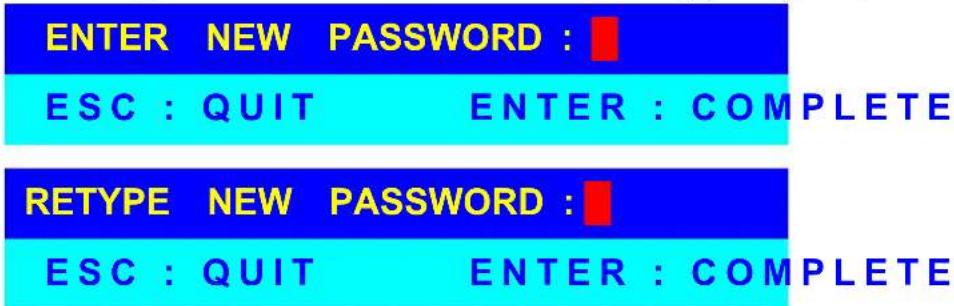
ENTER PASSWORD : ESC : QUIT ENTER : COMPLETEThere is an enter password window showed out when you select this item and then press the Enter. The maximum password is eight digits. After you key in the password and press the Enter key, there is another window for confirming your typed password.
text_image
ENTER NEW PASSWORD : ESC : QUIT ENTER : COMPLETE RETYPE NEW PASSWORD : ESC : QUIT ENTER : COMPLETEYou need to type the password again to check if your previous key-in password is matched or not.

text_image
NEW PASSWORD COMPLETE ESC : QUIT ENTER : COMPLETEd. The “CONSOLE ON/OFF” means to manage the console users of KVM switch. If you select “CONSOLE ON”, it means that any user can use the console. If you select “CONSOLE OFF” (factory default OFF state), it means that any user will not be allowed to use the console unless you enter the password. When you enter the password and pass the KVM switch authentication, the CONSOLE will be set to ON. After you finish using KVM switch, please don’t forget to set CONSOLE ON state back to OFF state. If current CONSOLE is ON state and you reset KVM switch, the CONSOLE will be set as OFF state as the factory default.
e. When you finish PC name setup and get out of OSD setting mode, you will find the PC name showed on the top of monitor. This mini OSD display will be dismissed according to the OSD time you set before.
SYSTEM 02 102
f. If you want OSD returning back to factory default value, you can press "SCROLL LOCK", "SCROLL LOCK", and "R" keys. The mini OSD display on the monitor will be flashed during the refresh process.
ROM REFLASH
When the OSD value back to default setting, the midi OSD display on the monitor will be dismissed.
Troubleshooting
- Make sure that all cables are well connected. Label all of cables with the number for each computer respectively to avoid confusion.
- To avoid ghosting and degradation, the recommended VGA cable distance is 5 meters maximum. Normally, the cable length is based on driver capacity of your VGA card. If you need longer VGA cable, please use VGA extender to accomplish your applications.
- The recommended PS/2 cable distance is 5 meters maximum. Normally, the cable length is based on driver capacity of your motherboard PS/2 port. If you need longer PS/2 cable, please use PS/2 extender to accomplish your applications.
- Don't press any keys on the keyboard while the selected computer is booting up. Otherwise, it might cause the keyboard error or keyboard is not detected at PC side.
- The computer boot up is fine, but keyboard doesn't work
● Make sure the keyboard works when it is directly plugged into the computer.
● Try a different keyboard, but use only 101, 102 or 104-key keyboard.
- The Mouse is not detected during PC boot up.
● Make sure the mouse works when directly plugged into the computer.
● Make sure the mouse is a true PS/2 mouse. A combo mouse will work just as long as it is set for PS/2 mode with the correct adapter. Try a different mouse.
- Avoiding moving the mouse or pressing the mouse buttons when switching ports.
● Avoiding switching ports during shutting down the PC process.
- When you switch one PC port to another, please set the scan time for 5 sec at least. Normally, it takes one or tow seconds for the VGA monitor to change from one resolution mode to another. So, the scan time is not recommended to be less than 5 seconds.
- The power switch is off, but the switch still works fine or power adapter is unplugged from the switch, but the switch still works fine.
KVM Switch unit draws the power source from power adapter and all PC's PS/2 port. Some PC's PS/2 port can support enough power for the switch, but some PC's PS/2 port (like laptop, notebook computer...etc.) is unable to supply enough power for the switch. In order to make sure the system can work steadily, please do not set power switch as off state or remove the power adapter from the switch.
Although the PCs connected to KVM Switch unit are able to support enough power to the stand alone switch, KVM Switch unit still needs a power adapter for daisy chain more banks.
- If you forget the "password" you typed, please contact your supplier.
- CAT5 Console Receiver power LED is not ON, to make sure power adapter is connected to KVM CAT5 receiver.
- No video signal is displayed on the remote monitor.
a. It might happen because VGA cables & connector and CAT5 cable & connector is loosed or disconnected or VGA cable was not attached to computer during boot up process.
b. Or power adapter is not connected to receiver.
- When video signal is foggy or un-cleared on the screen, please check if VGA connector is connected properly, or if the VGA resolution is too high for the length of cable being used. If the problem happened at VGA resolution, please shorten the CAT5 cable length or reduce VGA resolution. It is highly recommended to use "optimal CAT5 cable length "to get the best video quality and avoid wasting unnecessary CAT5 cable. VGA resolution is up to 1280X1024 and CAT5 cable length could up to 500 feet approximately.
CERTIFICATIONS
FCC
This equipment has been tested and found to comply with Part 15 of the FCC Rules. Operation is subject to the following two conditions:
(1) This device may not cause harmful interference
(2) This device must accept any interference received. Including interference that may cause undesired operation.
CE – Certificate
This equipment is in compliance with the requirements of the following regulations: EN 55022: CLASS B