VP3520 - KVM switch ATEN - Free user manual and instructions
Find the device manual for free VP3520 ATEN in PDF.


User questions about VP3520 ATEN
0 question about this device. Answer the ones you know or ask your own.
Ask a new question about this device
Download the instructions for your KVM switch in PDF format for free! Find your manual VP3520 - ATEN and take your electronic device back in hand. On this page are published all the documents necessary for the use of your device. VP3520 by ATEN.
USER MANUAL VP3520 ATEN
5 x 2 True 4K Seamless Presentation Matrix Switch with Control User Manual
Compliance Statements
FEDERAL COMMUNICATIONS COMMISSION INTERFERENCE STATEMENT
This equipment has been tested and found to comply with the limits for a Class A digital device, pursuant to Part 15 of the FCC Rules. These limits are designed to provide reasonable protection against harmful interference when the equipment is operated in a commercial environment. This equipment generates, uses, and can radiate radio frequency energy and, if not installed and used in accordance with the instruction manual, may cause harmful interference to radio communications. Operation of this equipment in a residential area is likely to cause harmful interference in which case the user will be required to correct the interference at his own expense.
The device complies with Part 15 of the FCC Rules. Operation is subject to the following two conditions: (1) this device may not cause harmful interference, and (2) this device must accept any interference received, including interference that may cause undesired operation.
FCC Caution
Any changes or modifications not expressly approved by the party responsible for compliance could void the user's authority to operate this equipment.
Warning
Operation of this equipment in a residential environment could cause radio interference.
Achtung
Shielded twisted pair (STP) cables must be used with the unit to ensure compliance with FCC & CE standards.

text_image
CE FC 20 E3914 UK CAKCC Statement
Industry Canada Statement
This Class A digital apparatus complies with Canadian ICES-003.
CAN ICES-003 (A) / NMB-003 (A)
HDMI Trademark Statement
The terms HDMI, HDMI High-Definition Multimedia Interface, and the HDMI Logo are trademarks or registered trademarks of HDMI Licensing Administrator, Inc.

PSE
This product is PSE compliant.

ATENジャパン 株式会社
RoHS
This product is RoHS compliant.
User Information
Online Registration
Be sure to register your product at our online support center:
International http://eservice.aten.com
Telephone Support
For telephone support, call this number:
| International 886-2-8692-6959 | |
| China 86-400-810-0-810 | |
| Japan 81-3-5615-5811 | |
| Korea 82-2-467-6789 | |
| North America 1-888-999-ATEN ext 4988 | |
| 1-949-428-1111 | |
User Notice
All information, documentation, and specifications contained in this manual are subject to change without prior notification by the manufacturer. The manufacturer makes no representations or warranties, either expressed or implied, with respect to the contents hereof and specifically disclaims any warranties as to merchantability or fitness for any particular purpose. Any of the manufacturer's software described in this manual is sold or licensed as is. Should the programs prove defective following their purchase, the buyer (and not the manufacturer, its distributor, or its dealer), assumes the entire cost of all necessary servicing, repair and any incidental or consequential damages resulting from any defect in the software.
The manufacturer of this system is not responsible for any radio and/or TV interference caused by unauthorized modifications to this device. It is the responsibility of the user to correct such interference.
The manufacturer is not responsible for any damage incurred in the operation of this system if the correct operational voltage setting was not selected prior to operation. PLEASE VERIFY THAT THE VOLTAGE SETTING IS CORRECT BEFORE USE.
Product Information
For information about all ATEN products and how they can help you connect without limits, visit ATEN on the Web or contact an ATEN Authorized Reseller. Visit ATEN on the Web for a list of locations and telephone numbers:
| International http://www.aten.com |
| North America http://www.aten-usa.com |
Package Contents
Check to make sure that all the components are in working order. If you encounter any problem, please contact your dealer.
◆ 1 VP3520 5 x 2 True 4K Seamless Presentation Matrix Switch with Control
◆ 1 IR receiver
◆ 1 IR remote control
◆ 1 power cord
◆ 3 2-pole terminal blocks
◆ 3 3-pole terminal blocks
◆ 1 4-pole terminal block
◆ 1 rack mount kit
◆ 1 foot pad set (4 pcs)
◆ 1 user instructions
Table of Contents
Compliance Statements ...... ii
User Information iv
Online Registration....iv
Telephone Support .....iv
User Notice ....iv
Product Information v
Package Contents ......vi
Table of Contents vii
About this Manual x
Conventions xi
Terminology . . . . . . . . . . . . . . . . . . . . . . . . . . . . . . . . . . . . . . . . . . . . . . . . . . . . . . . . . . . . . . . . . . . . . . . . . . . . . . . . . . . xi
1. Introduction
Overview....1
Features 2
Planning the Installation 4
Required Equipment 4
Optional Equipment. 4
2. Hardware Setup
Hardware Overview 5
Front View....5
Rear View 6
IR Remote Control 8
Mounting 9
Rack Mount 9
Installation 10
Relay Connection 12
Setting Up Controls to a Projector Screen 13
RS-232 Serial Connection 15
IR Serial Connection 16
3. Local Operation
Overview....17
Operation Considerations 17
Switching Sources 17
Display Mode 18
Audio Settings....18
Enabling / Disabling the Panel Lock 19
Power LED Indication 20
Customizing Remote Control to Function Keys 22
4. Remote Operation
Overview 25
Default Network and Login Settings 25
Supported Web Browsers 26
Logging In the Web Console 27
The Main Screen 28
General Settings 29
Audio & Video Settings 31
Video Control Settings....31
Audio Control Settings 35
Audio Output 36
Audio Input. 36
Display Control Settings 38
HDCP Settings 42
Function Key Settings 43
System Settings 48
Maintenance Settings ....48
Upgrading the System Firmware 48
Backing Up System Settings 49
Restoring System Settings 49
Reseting the Default Settings 49
Network Settings 50
IP Settings 50
Browser....50
IP Installer 51
Configuration Settings 52
Configuring Display A and Display B 52
Configuring RS-232 Serial and RS-232 HDBT Out ..... 53
Configuring IR Serial and IR HDBT Out .....54
Configuring PJ-Link 55
Configuring Relay 1 and Relay 2 ....55
5. CLI Commands
Overview 57
Connecting to the VP3520 via Telnet .....57
Connecting to the VP3520 via RS-232 58
Command Syntax 59
Command List 60
Port Numbers 60
Setting the Display Mode 61
Enabling or Disabling the Echo Function 61
Setting the EDID Mode 62
Configuring the Mute Function .62
Configuring the Read Status 63
Resetting the Unit 64
Configuring the Scaling....64
Enabling or Disabling the Standby Mode .....65
Switching Sources....65
Configuring the Switching Mode 66
Configuring the Volume. 66
Setting the Fan Speed 67
Rebooting the Unit 67
Configuring the Audio Mapping 68
Appendix
Safety Instructions 69
General 69
Rack Mounting 71
Technical Support 72
International 72
North America 72
Specifications 73
Limited Warranty 77
About this Manual
This user manual is provided to help you get the most from the 5 x 2 True 4K Seamless Presentation Matrix Switch with Control and Remote Pad. It covers all aspects of installation, configuration, and operation for the VP3520.
Chapter 1, Introduction introduces you to the VP3520. Its purpose, features, benefits, and installation considerations are described.
Chapter 2, Hardware Setup introduces the panel components of the 5 x 2 True 4K Seamless Presentation Matrix Switch with Control and the IR Remote Control, and details the steps to quickly and safely install the VP3520.
Chapter 3, Local Operation provides information on how to locally operate and access the system settings via the panel pushbuttons and IR remote control.
Chapter 4, Remote Operation provides details on remote management and control tasks via the system web interface.
Chapter 5, CLI Commands provides details on the functions and RS-232 commands that you can use to control the VP3520 using a serial controller.
Appendix provides a list of safety instructions and precautions, contact information for ATEN technical support, product specifications, and other technical information.
Note:
- Read this manual thoroughly and follow the installation and operation procedures carefully to prevent any damage to the unit or any connected devices.
- The product may be updated, with features and functions added, improved, or removed since the release of this manual. For an up-to-date user manual, visit http://www.aten.com/global/en/
Conventions
This manual uses the following conventions:
Monospaced Indicates text that you should key in.
[] Indicates keys you should press. For example, [Enter] means to press the Enter key. If keys need to be chorded, they appear together in the same bracket with a plus sign between them: [Ctrl+Alt].
- Numbered lists represent procedures with sequential steps.
◆ Bullet lists provide information, but do not involve sequential steps.
Indicates selecting the option (on a menu or dialog box, for example), that comes next. For example, Start > Run means to open the Start menu, and then select Run.
Indicates critical information.

Terminology
| Terminology Description | |
| Phantom Power The | phantom is deigned to power the condenser microphones without using bulky external power supply cables. |
| IR Learning The IR le | aning can be used for learning and restoring control code to reduce clutter and provide a specialized remote control solution. |
| Dynamic Microphone | A dynamic microphone is often used in a live setting where volume levels might be higher. |
| Condenser Microphone | A condenser microphone is usually used in a studio environment to pick up detailed up subtle, nuanced sounds instead of loud and abrasive sounds. |
| Seamless SwitchTM F | features close-to-zero second switching for continuous video streams, real-time switching, and stable signal transmissions. |
This Page Intentionally Left Blank
Overview
The ATEN VP3520 is a multi-in-one presentation matrix switch that integrates a video matrix switch, 4K scaler, HDBaseT extender, and audio DSP functions into one compact device that easily mounts under a table or in a rack. The VP3520 seamless presentation matrix switch with control features the true 4K video resolutions of 4096 x 2160 / 3840 x 2160 @ 60 Hz (4:4:4) and HDR technology, guaranteeing crystal-clear images across two displays. The VP3520 supporting 4K @ 60 Hz, HDMI, and HDCP 2.2 features Seamless Switch™ that employs an FPGA matrix architecture that ensures continuous video streams, real-time control, and stable signal transmissions. With a built-in high-performance 4K scaler, the VP3520 easily converts various input resolutions into various output display resolutions, giving viewers the best video and picture quality across the two displays.
With flexible audio de-embedding, the VP3520 is designed with the audio routing flexibility to meet different application requirements. In a simple setup, HDMI audio can be connected and switched directly to display audio. For a more complex setup, the HDMI audio can be de-embedded to Audio Line Out in order connect to your preferred in-room audio equipment. Equipped with 5 digital inputs to one HDBaseT and one HDMI True 4K separate outputs, the VP3520 enables to control 2 displays at the same time and is designed to boost the efficiency and impact of professional presentations. The VP3520 provides users the flexibility of using both active and passive speakers with its stereo line out port, coaxial port, and 2 x 10 W power amplifiers.
As for the control functions, the VP3520 offers users the multiple control options such as the front-panel pushbuttons, IR remote control, RS-232 commands, and web-based GUI. Moreover, the VP3520 enables to control of AV devices such as TV displays, projectors, and monitors. It is ideal for all meeting space and education environments, including huddle rooms, classrooms, training rooms, or any other presentation setting such as in exhibition galleries or hotels.
Features
Display Control
- Auto display on / off control — supports display control through CEC, IR, RS-232, PJLink and to control projector screen through relay port
- Flexible control methods — triggered by source detection or 4 function keys on front panel.
Digital AV Matrix Switching
◆ Supports multi-format 5 Inputs — 3 HDMI, 2 HDBaseT
◆ 1 HDMI and 1 HDBaseT output
- Audio embedding — stereo audio can be embedded into display output or separated to stereo line out and coaxial audio output
- Audio de-embedding — HDMI / HDBaseT audio can be extracted to stereo line out
Built-in Audio DSP — supports microphone input with selectable 48 V Phantom Power and allows microphone input to be mixed with program audio and embedded into display output
- Automatically reduces program audio when a microphone signal is detected
- Auto switching — automatically detects and switches to a new source as soon as it is connected
- Audio amplifier — 2 x 10 W built-in power amplifier with speaker outputs on terminal block connectors
High-definition Video with Optimum Output
- Superior video quality — True 4K resolutions up to 4096 x 2160 @ 60 Hz (4:4:4) (HDMI) / 4096 x 2160 @ 60 Hz (4:2:0) (HDBaseT)
◆ Supports 4K HDR - 4K Scaler — features a 4K video scaler to convert input resolutions to the optimum display resolutions
- Seamless Switch™ — features close-to-zero second switching for continuous video streams, real-time switching, and stable signal transmissions
- EDID Expert™ — automatically selects the optimum EDID settings for smooth power-up, high-quality display, and the best video resolution across connected devices
♦ HDMI; HDCP 2.2 compliant
Versatile, Streamlined Operation
- Multiple control options — flexible control via front-panel pushbuttons, IR remote control, RS-232, and web-based GUI through Ethernet
- RS-232 and IR channel — allows AV device control over HDBaseT connection without additional cabling
◆ Supports stand-by mode for power saving and fast waking up
◆ Consumer Electronics Control (CEC) support
Extended Transmission over One Cable
Power over HDBaseT (PoH) — remote powering over existing communication cable with selectable powering device
- Long-distance transmission — transmits digital AV signal, RS-232 commands, and IR control signals up to 70 m* via Cat 6 / 6a or ATEN 2L-2910 Cat 6 cables through HDBaseT Out port
Note: This is achieved using both the HDBaseT In and the HDBaseT Out ports on the VP3520 with each extending the transmission up to 70 m.
Planning the Installation
Required Equipment
Prepare the following equipment before installing the VP3520.
- Up to 3 input devices equipped with HDMI ports and 2 input devices equipped with an HDBaseT port
- Up to 2 display devices, one equipped with an HDMI port and the other equipped with an HDBaseT port
Optional Equipment
Prepare the following equipment as required.
◆ 1 microphone
◆ 1 media player
◆ 1 active speaker
- 1 video transmitter and 1 receiver equipped with HDBaseT ports for signal extension
- 1 Ethernet cable to connect the VP3520 to a network switch for remote management via the web console
- 1 host computer, ATEN Controller, or third-party control system that supports RS-232 or Telnet
- Mounting kits:
- Rack mount kit
Chapter 2
Hardware Setup

-
Please review the safety information regarding the placement of this device in Safety Instructions, page 69.
-
Do not power on the VP3520 until all the necessary hardware is connected.
Hardware Overview
Front View

flowchart
graph TD
    A[" "] --> B[" "]
    C[" "] --> D[" "]
    E[" "] --> F[" "]
    G[" "] --> H[" "]
    I[" "] --> J[" "]
    K[" "] --> L[" "]
    M[" "] --> N[" "]
    O[" "] --> P[" "]
    Q[" "] --> R[" "]
    S[" "] --> T[" "]
    U[" "] --> V[" "]
    W[" "] --> X[" "]
    Y[" "] --> Z[" "]
| No. | Component Description | |
| 1 | mic volume control Use the knob to adjust the microphone volume. | |
| 2 | overall volume control Use the knob to adjust the volume of all audio outputs. | |
| 3 | display selection pushbuttons | Press a pushbutton to focus a display. The pushbutton for the focused display lights orange. |
| 4 | source selection pushbuttons | Press a pushbutton to select a source for the focused display. The pushbutton for the selected source lights green. |
| 5 | function selection pushbuttons | Press a pushbutton to activate a preset IR remote control sequence for the connected display device. See Customizing Remote Control to Function Keys, page 22. |
| 6 | IR learn panel Aim the IR | remote control from the connected display device to the IR learn panel to learn its code to customize your remote control solution for the function selection pushbuttons. See Customizing Remote Control to Function Keys, page 22. |
| 7 | IR learn LED The IR learn | LED blinks to indicate its status. See Customizing Remote Control to Function Keys, page 22. |
| 8 | power pushbutton Used to | power on / off the VP3520, or enable/disable the standby mode. For details, see Power LED Indication, page 20. |
Rear View
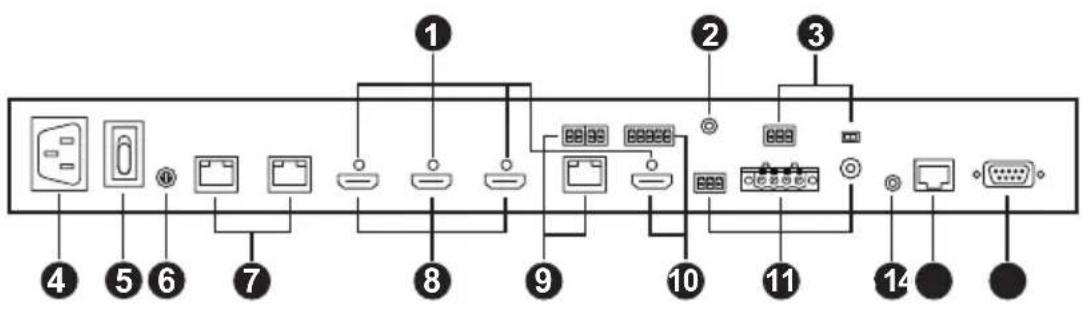
text_image
Diagram of network device rack with labeled ports and connectors, showing connections from 1 to 14 ports.| No. | Component Description | |
| 1 | cable lock screw for ATEN LockProTM | Universal HDMI cable lock that provides the easiest way to secure an HDMI cable to most HDMI devices. |
| 2 | audio input port Receives | a line-in audio source. |
| 3 | mic input ports Connects | to a microphone. To use the phantom power for dynamic microphone, set PHANTOM switch to ON. |
| 4 | power socket Receives | a power cord to supply power to the VP3520. |
| 5 | power switch Enables or | disables the power supply to the VP3520. |
| 6 | grounding terminal Grounds | nds the VP3520 to prevent damages from power surge or static electricity. |
| 7 | source 1, 2 Connect to a | source device at a distance via a Tx device equipped with an HDBaseT port.Note: These HDBaseT input ports support PoH (Power over HDBT) |
| 8 | source 3, 4, and 5 Connect to HDMI source devices via HDMI cables. | |
| 9 | output / Display A Connects to an Rx device which in turn connected to a display device at a distance. | |
| HDBaseT output port | Note: These HDBaseT output ports support PoH (Power over HDBT) | |
| relay port 1 & 2 Connect to the project's screen to bring the screen up and down. | ||
| 10 | output / Display B Connects to an HDMI-enabled display device. | |
| HDMI output port | ||
| RS-232 port | Connects to the display for control via RS-232 serial commands using a RS-232 terminal block. | |
| IR port | Connects to the display for control via IR remote control using a RS-232 terminal block. | |
| No. | Component Description | |
| 11 | stereo line output ports | Connects to a set of active speakers. |
| Lo-Z output ports Connects to an amplifier. | ||
| coaxial output port Connects to a coaxial input device. | ||
| 12 IR receiver port Connects to an IR receiver to receive IR signals from the IR remote control. | ||
| 13 Ethernet port Connects to a network switch via an Ethernet cable to allow remote operation via the web console. | ||
| 14 RS-232 serial port Connects to a hardware or software controller to transmit serial data. | ||
IR Remote Control
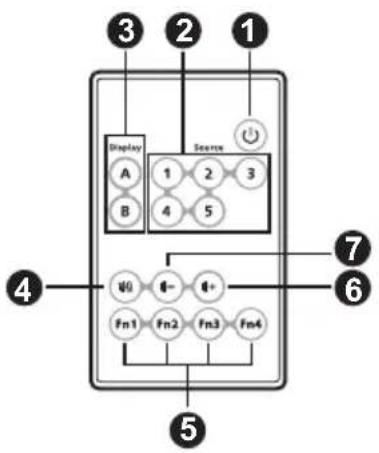
To operate the VP3520, insert the supplied IR receiver to the IR receiver port on the back panel of the VP3520.
flowchart
graph TD
    A["Display"] --> B["1"]
    B --> C["2"]
    C --> D["3"]
    D --> E["4"]
    E --> F["5"]
    F --> G["6"]
    G --> H["Fn1"]
    G --> I["Fn2"]
    G --> J["Fn3"]
    G --> K["Fn4"]
    L["Scene"] --> M["+"]
    N["Function Key"] --> O["4-"]
    P["Function Key"] --> Q["4+"]
| No. Buttons Description | |
| 1 on / off Used to power on the VP3520 and enable / disable the standby mode. For details, see Power LED Indication, page 20. | |
| 2 source Press a source button to switch the focused display to the source. | |
| 3 display Press a display button to focus the display. | |
| 4 mute Press the button to mute all displays and speakers. | |
| 5 functions Press the function pushbuttons to select a pre-configured IR remote commands to control the connected display. | |
| 6 volume up Press the set the volume up. | |
| 7 volume down Press to set the volume down. |
Mounting
Rack Mount
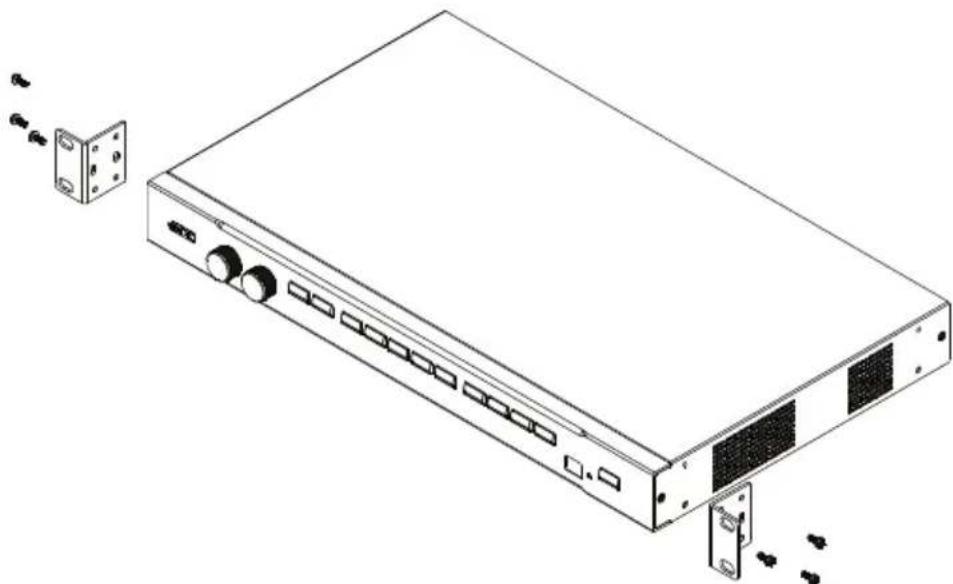
The VP3520 can be mounted on a 19" (1U) system rack. To conveniently access the front panel for local configuration and operation, mount the unit in a rack with the front panel facing outward.
To rack mount the VP3520, follow the steps below.
- Use the M3 Phillips hex head screws supplied with the mounting kit to secure the rack mount brackets onto the unit.
natural_image
Line drawing of a server rack with ports and connectors, showing internal components and mounting points (no text or symbols)-
Position the unit in the front of the rack and align the holes in the mounting brackets with the holes in the rack.
-
Secure the mounting brackets to the rack using self-prepared screws.
Installation
Follow the steps below the safely install sources, displays, and other equipment to the VP3520.

flowchart
graph TD
    A["11"] --> B["2"]
    B --> C["3"]
    C --> D["4"]
    D --> E["5"]
    E --> F["6"]
    F --> G["7"]
    G --> H["8"]
    H --> I["9"]
    I --> J["Power RS-232HDB-NT HDMI HDMI HDMI HDBaseT HDMI"]
    J --> K["VE802T"]
    K --> L["HDMI"]
    L --> M["Relay"]
    M --> N["VE802R"]
    N --> O["HDMI"]
    O --> P["A"]
    P --> Q["Network"]
    Q --> R["Audio Audio"]
    R --> S["Audio R"]
    S --> T["RS-232 / IR"]
    T --> U["B"]
    U --> V["Relay"]
    V --> W["VE802R"]
    W --> X["HDMI"]
    X --> Y["Relay"]
    Y --> Z["VE802T"]
    Z --> AA["HDMI"]
    AA --> AB["Relay"]
    AB --> AC["VE802R"]
- Use a grounding wire to ground the unit by connecting one end to the grounding terminal, and the other end of a suitable ground object.
Note: Do not omit this step. Proper grounding helps prevent damage to the unit from power surges or static electricity.
- Connect up to 5 video sources to the unit.
- To connect a video source device via a video extender, connect the video extender (e.g., VE802T) to the VP3520 using an Ethernet cable.
- To connect an HDMI source device, connect the source device to the VP3520 using an HDMI cable. You can connect up to 3 HDMI source devices.
- Connect up to 2 displays to the unit.
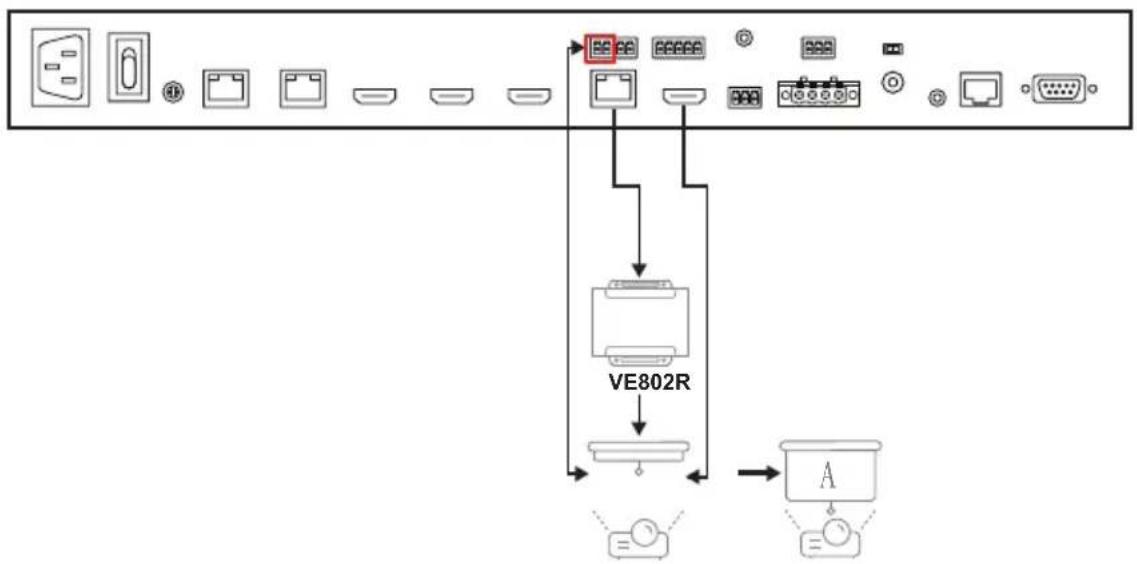
- To set up a display at a distance, connect a suitable Rx device (e.g., VE802R) to the VP3520 using an Ethernet cable, to which the display (e.g., projector) is connected. To remotely control the connected projector's screen up and down, connect the screen to the relay ports. For wiring information, see Relay Connection, page 12.
- Connect the unit to an HDMI display using an HDMI cable. To remotely control the connected display, connect the RS-232 and IR ports to the display. For wiring information, see RS-232 Serial Connection, page 15 and IR Serial Connection, page 16.
-
(Optional) To supply independent audio, connect an audio source device (e.g., media player) or a microphone to the VP3520.
-
(Optional) Connect the VP3520 to a speaker via an appropriate output port.
-
(Optional) To configure the unit's settings via RS-232 commands, connect a hardware controller (e.g., ATEN Control Box) to the VP3520.
-
(Optional) To allow access to the web interface, connect a network switch to the VP3520 using an Ethernet cable.
-
(Optional) To control the VP3520 using an IR remote control, connect the IR receiver to the VP3520.
-
Plug the power cord to the power socket.
-
Put the power switch to ON.
-
Press the power pushbutton to power on the VP3520.
-
Power on all the connected devices.
Relay Connection
These 2 relay channels provide connections to control the project's screen. Each relay is normally open by default.

flowchart
graph TD
    A["RELAY"] --> B["Relay Channel 1"]
    A --> C["Relay Channel 2"]
    D["Normally Open"] --> E["Project Screen 1"]
    F["Closed"] --> G["Project Screen 2"]
    H["Relay Channels: NO, Isolated Relays: 24 V DC 2 A Max"] --> A
Setting Up Controls to a Projector Screen
To automatically bring the projector's screen up and down by detection of source device, follow the steps below.
-
Connect a suitable Rx device (e.g., VE802R) to the VP3520 using an Ethernet cable, to which the display (e.g., projector) is connected.
-
To automatically bring the screen down when an input source device is detected by the VP3520, follow the steps below.
a) Connect the screen to the unit's relay port 1.
flowchart
graph TD
    A["Device Port 1"] --> B["Printer"]
    C["Device Port 2"] --> B
    D["Device Port 3"] --> B
    E["Device Port 4"] --> B
    F["Device Port 5"] --> B
    G["Device Port 6"] --> B
    H["Device Port 7"] --> B
    I["Device Port 8"] --> B
    J["Device Port 9"] --> B
    K["Device Port 10"] --> B
    L["Device Port 11"] --> B
    M["Device Port 12"] --> B
    N["Device Port 13"] --> B
    O["Device Port 14"] --> B
    P["Device Port 15"] --> B
    Q["Device Port 16"] --> B
    R["Device Port 17"] --> B
    S["Device Port 18"] --> B
    T["Device Port 19"] --> B
    U["Device Port 20"] --> B
    V["Device Port 21"] --> B
    W["Device Port 22"] --> B
    X["Device Port 23"] --> B
    Y["Device Port 24"] --> B
    Z["Device Port 25"] --> B
    AA["Device Port 26"] --> B
    AB["Device Port 27"] --> B
    AC["Device Port 28"] --> B
    AD["Device Port 29"] --> B
    AE["Device Port 30"] --> B
    AF["Device Port 31"] --> B
    AG["Device Port 32"] --> B
    AH["Device Port 33"] --> B
    AI["Device Port 34"] --> B
    AJ["Device Port 35"] --> B
    AK["Device Port 36"] --> B
    AL["Device Port 37"] --> B
    AM["Device Port 38"] --> B
    AN["Device Port 39"] --> B
    AO["Device Port 40"] --> B
    AP["Device Port 41"] --> B
    AQ["Device Port 42"] --> B
    AR["Device Port 43"] --> B
    AS["Device Port 44"] --> B
    AT["Device Port 45"] --> B
    AU["Device Port 46"] --> B
    AV["Device Port 47"] --> B
    AW["Device Port 48"] --> B
    AX["Device Port 49"] --> B
    AY["Device Port 50"] --> B
b) Log in the web console, go to Audio & Video > Display Control, and then check ☐ Enable Screen Up( Relay 1 )

text_image
ATEN VP3520 -R303 5 X 2 Presentation Matrix Switch with control General Audio & Video System Display Control Auto Display Display Auto Power On Enable Enable Screen Down( Relay 1 ) Advanced Display Auto Power Off Enable Active Time(mins) 10 Enable Screen Up( Relay 2 )- To automatically bring the screen up when an input source device is removed and undetected by the VP3520 for a specified active time, follow the steps below.
a) Connect the screen to the unit's relay port 2.

flowchart
graph TD
    A["Device Port 1"] --> B["Printer"]
    C["Device Port 2"] --> B
    D["Device Port 3"] --> B
    E["Device Port 4"] --> B
    F["Device Port 5"] --> B
    G["Device Port 6"] --> B
    H["Device Port 7"] --> B
    I["Device Port 8"] --> B
    J["Device Port 9"] --> B
    K["Device Port 10"] --> B
    L["Device Port 11"] --> B
    M["Device Port 12"] --> B
    N["Device Port 13"] --> B
    O["Device Port 14"] --> B
    P["Device Port 15"] --> B
    Q["Device Port 16"] --> B
    R["Device Port 17"] --> B
    S["Device Port 18"] --> B
    T["Device Port 19"] --> B
    U["Device Port 20"] --> B
    V["VE802R"] --> W["A"]
    X["Computer Interface"] --> Y["Computer Interface"]
    Z["Computer Interface"] --> AA["Computer Interface"]
b) Log in the web console, go to Audio & Video > Display Control, and then check ☐ Enable Screen Up( Relay 2 )

text_image
ATEN VP3520 -R303 5 X 2 Presentation Matrix Switch with control General Audio & Videos System Display Control Auto Display Display Auto Power On Enable Enable Screen Down( Relay 1 ) Advanced Display Auto Power Off Enable Active Time(mins) 10 Enable Screen Up( Relay 2 )RS-232 Serial Connection
The bidirectional RS-232 ports on the VP3520 provide serial control of the connected HDMI display. For bidirectional RS-232 control, the transmit, receive, and ground pins must be wired on both the VP3520 and the HDMI display. Please consult the HDMI display's manual for wiring details.
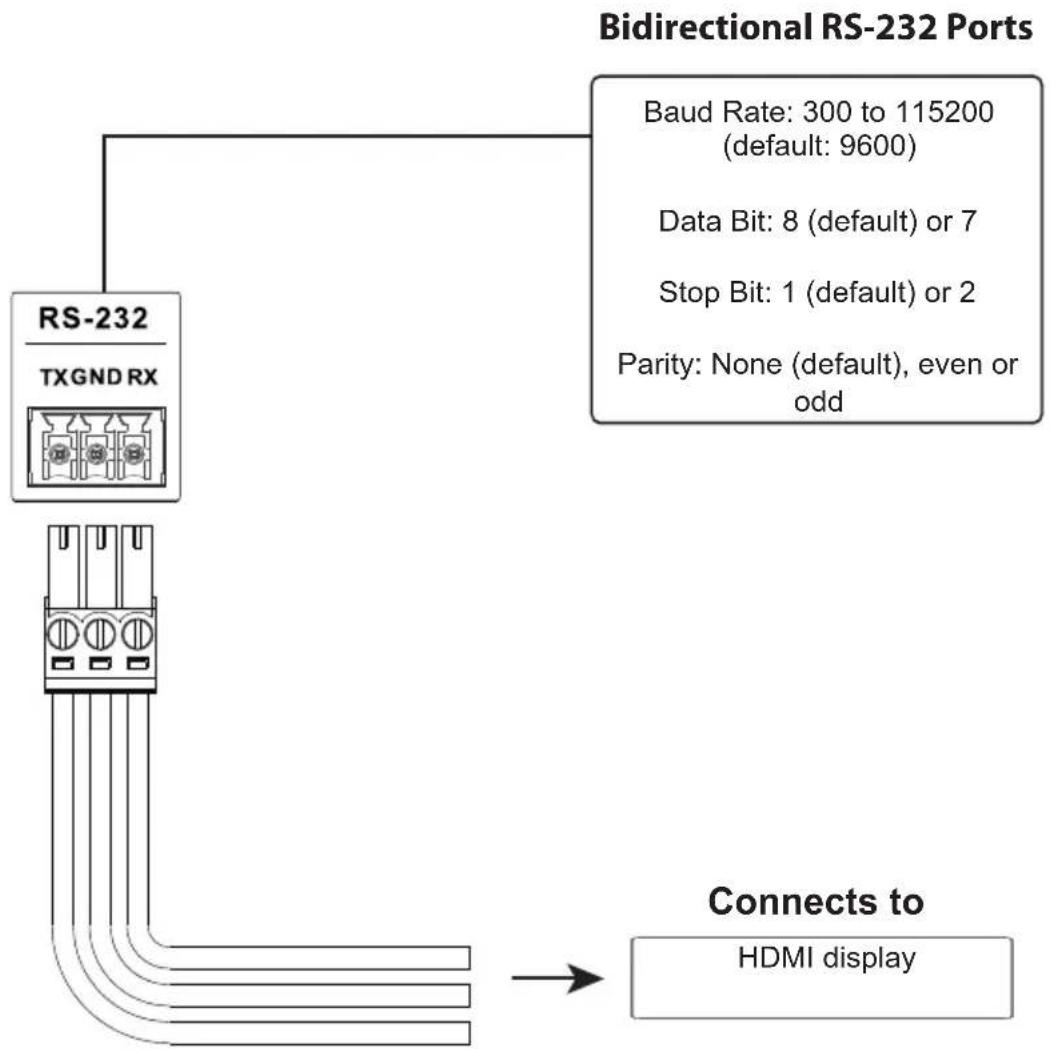
flowchart
graph TD
    A["RS-232 TXGND RX"] --> B["Bidirectional RS-232 Ports"]
    B --> C["Baud Rate: 300 to 115200 (default: 9600)"]
    B --> D["Data Bit: 8 (default) or 7"]
    B --> E["Stop Bit: 1 (default) or 2"]
    B --> F["Parity: None (default), even or odd"]
    G["Connects to HDMI display"] --> H
IR Serial Connection
The IR ports on the VP3520 provide IR remote control of the connected HDMI display.

text_image
IR Ports IR S G Connects to HDMI displayOverview
This chapter provides information on operating the VP3520 using the front panel and IR remote control.
Note: The instructions use pushbutton to refer to the front panel and button to refer to the IR remote control.
Operation Considerations
- To use the IR remote control, make sure to insert the IR receiver (supplied in the package) to the VP3520.
- To ensure smooth operation using the IR remote control, use the IR remote control within the effective range (6 m) and keep a clear line-of-sight between the remote control and the IR receiver connected to the VP3520.
Switching Sources
To switch the video source on a display:
- Press a display selection pushbutton (VP3520 front panel) / button (IR remote control) to select a display. The pushbutton (VP3520 front panel) for the selected display lights orange.
- Press a source selection pushbutton (VP3520 front panel) / button (IR remote control) to assign the source. The pushbutton (VP3520 front panel) for the selected source lights orange.
Note: appears on the top left corner of the OSD for 5
seconds when the source is switched. This is the resolution from the original source without scaling.
Display Mode
The VP3520 supports the following display modes:
- Matrix mode (B): When enabled, the AV sources can be configured separately, capable of showing different outputs.
- Mirror mode ( ) When enabled, display B uses the AV source assigned for display A and shows identical content.
Audio Settings
- To adjust the volume for all audio outputs on the VP3520, use the volume knob on the front panel or the volume up or volume down buttons on the IR remote control.
- To adjust the volume of a microphone or an independent audio source on the VP3520, use the mic knob on the front panel.
- To mute all audio outputs (displays and speaker), press the volume knob on the front panel or press the mute button on the IR remote control.
Enabling / Disabling the Panel Lock
To prevent accidental tampering of system settings via the front panel, you can lock the panel by pressing the function selection pushbutton 4 (Fn4) for set up an idle time for an auto lock via the web console (General > Basic > Panel Auto Lock). Refer to the table below for how to enable / disable the panel lock and the corresponding LED indication.
| Task | Lock LED (Mode Pushbutton) |
| To lock the front panel, press and hold the function selection pushbutton 4 (Fn4) for about 3 seconds. | Lights red |
| To unlock the front panel, press and hold the function selection pushbutton 4 (Fn4) pushbutton for about 3 seconds. | Dims |
| If any front panel pushbutton / knob is adjusted when the panel is locked. | Flashes 3 times |
Note: If you have locked the panel using the function selection pushbutton 4 (Fn4), make sure to unlock only by pressing the function selection pushbutton 4 (Fn4). Disabling panel lock from the web console will not be effective in this case.
Power LED Indication
The power pushbutton is equipped with an LED that indicates the power status of the VP3520. Refer to the table below for the status and supported tasks for each LED indication.
| LED Indication (Power Pushbutton) | VP3520 Status Tasks | |
| Dim The VP3520 is | powered off. | To power on the VP3520, press thepower pushbutton(VP3520 front panel)/power button(IR remote control) once. |
| Flashes orange The VP3520 is | loading system information. | Wait for the unit to finish loading information. |
| Orange The VP3520 is in | standby mode. | The standby mode is a power-saving mode that shuts parts of the system down to allow the user to quickly resume operation when needed.To awake the VP3520, press thepower pushbutton(VP3520 front panel)/power button(IR remote control) once.Note:To power off the VP3520 when it is in standby mode, awake the unit first, and then follow the steps in the next entry to power off the unit. |
| Flashes green The VP3520 is | busy running remote control processes. | Wait for the unit to finish running remote control processes. |
| Green The VP3520 is | awaken. | ◆ To enable the standby mode to conserve power, press thepower pushbutton(VP3520 front panel) /power button(IR remote control) once.◆ To power off the unit:(1) Press and hold thepower pushbuttonfor 3 seconds. A confirmation message appears in the OSD.(2) Press thepower pushbuttononce. The VP3520 powers off.Note:The remote control can not be used to power off the VP3520. |
Customizing Remote Control to Function Keys
To control a connected display device using the function selection pushbuttons, follow the steps below to set up the function keys.
- Log in the web console, go to Audio & Video > Function Key.
- Use the drop-down menu to select Enable, and click . Create New

text_image
ATEN VP3520 -R301 5 X 2 Presentation Matrix Switch with control General Audio & Video System Function Key Fn1 Function Enable Command Create New- In the pop-up dialog box, use to drop-down menu to select IR Serial or IR HDBT Out, enter a command name, and click to enter the IR learning mode.

text_image
Command Settings Device Name IR-Serial Control Type IR Channel IR-Serial Command Command Name Monitor 1 Command Learn Test Cancel Save-
The IR learn LED on the unit's front panel flashes for 10 seconds. Aim your display's IR remote control to the IR learn LED on the unit. Press the button you would like to learn from your display's IR remote until the countdown finishes. You can create up to 10 commands for each function key.
-
Click to test the recorded commands, and click .
Save
This page is intentionally left blank.
Chapter 4
Remote Operation
Overview
This chapter provides information on how to remotely operate and configure the VP3520 via the web console.
Default Network and Login Settings
The VP3520 uses the following network settings and login credentials as its default settings.
◆ Default network settings
| Network Parameter Default Setting | |
| IP Address 192.168.0.60 | |
| Subnet Mask 255.255.255.0 | |
| Gateway 192.168.0.1 | |
| HTTP Port 80 | |
Note: If the VP3520 is connected to a router that supports DHCP, a dynamic IP address will be assigned to the VP3520 as soon as it connects to the network. Look up the IP address by sending a read command via an RS-232 serial controller. For more details, see Chapter 5, CLI Commands.
- Default login credentials
| Login Credential | Default Setting Limitations |
| Username administrator 5 to 30 characters in length without special characters, not case-sensitive | |
| Password password | |
Supported Web Browsers
The VP3520 supports access to its web UI through the following web browsers and operating systems:
| Operating System Web Browser Supported Version | |
| Windows 10 x64 Edge 85.0.564.67 x64 | |
| Windows 10 x64 Firefox 88.0 x64 | |
| Windows 10 x 64 Chrome 90.0.4430.93 x64 | |
| Ubuntu 20.04 x64 Chrome 90.0.4430.93 x64 | |
| Solaris 11.4 x64 Firefox 52.9.0_x32 | |
| Windows 10 x64_1703_Enterprise QQ 10.8 | |
| Windows 10 x64_1703_Enterprise 360 13.1.1302.0 | |
Logging In the Web Console
- In a web browser, type the IP address of the VP3520. This screen appears.

text_image
ATEN WF328 - Your Room Name 3 X 2 Presentation Matrix Switch with control Welcome to Video Presenter! administrator F ----+ on login-
Type the username administrator and the password.
-
Click Log In. The main screen appears.
The Main Screen
The VP3520 defaults to the main screen after logging in. Refer to the illustration and table below for an overview of the web console.
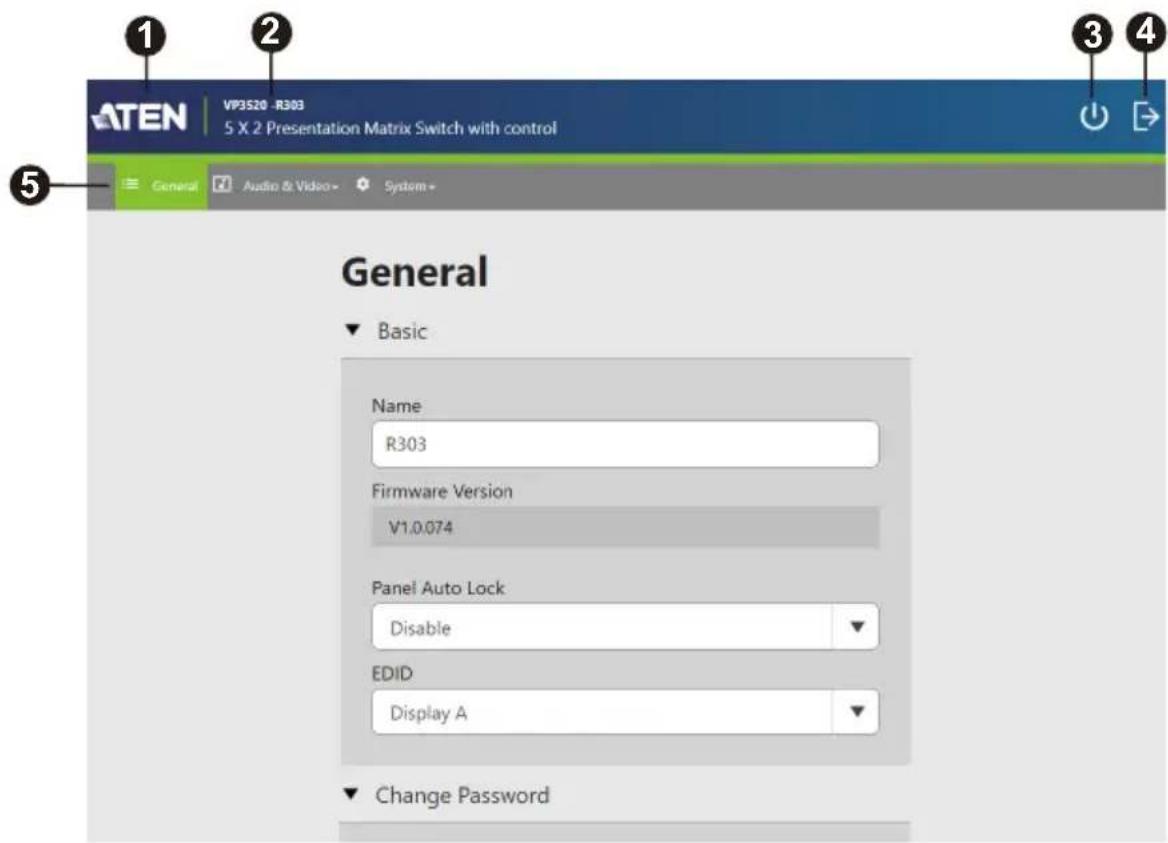
text_image
ATEN VP3520 -R303 5 X 2 Presentation Matrix Switch with control General Audio & Video System+ General Basic Name R303 Firmware Version V1.0.074 Panel Auto Lock Disable EDID Display A Change Password| No. | Element Description | |
| 1 | Click the icon to log out of the web console. |  |
| 2 | Device Information Indicates the device model and name. | standby mode, a power-saving mode that shuts parts of the system down to allow the user to quickly resume operation when needed. |
| 3 | Click this icon enable the  | |
| 4 | Click the icon to log out of the web console. | |
| 5 | Settings Tab Click on the tabs to switch between different sets of settings. |
General Settings
The General page includes settings such as device name, panel lock, EDID, and login password. To access the general settings, log in the web console and the screen defaults to the page.
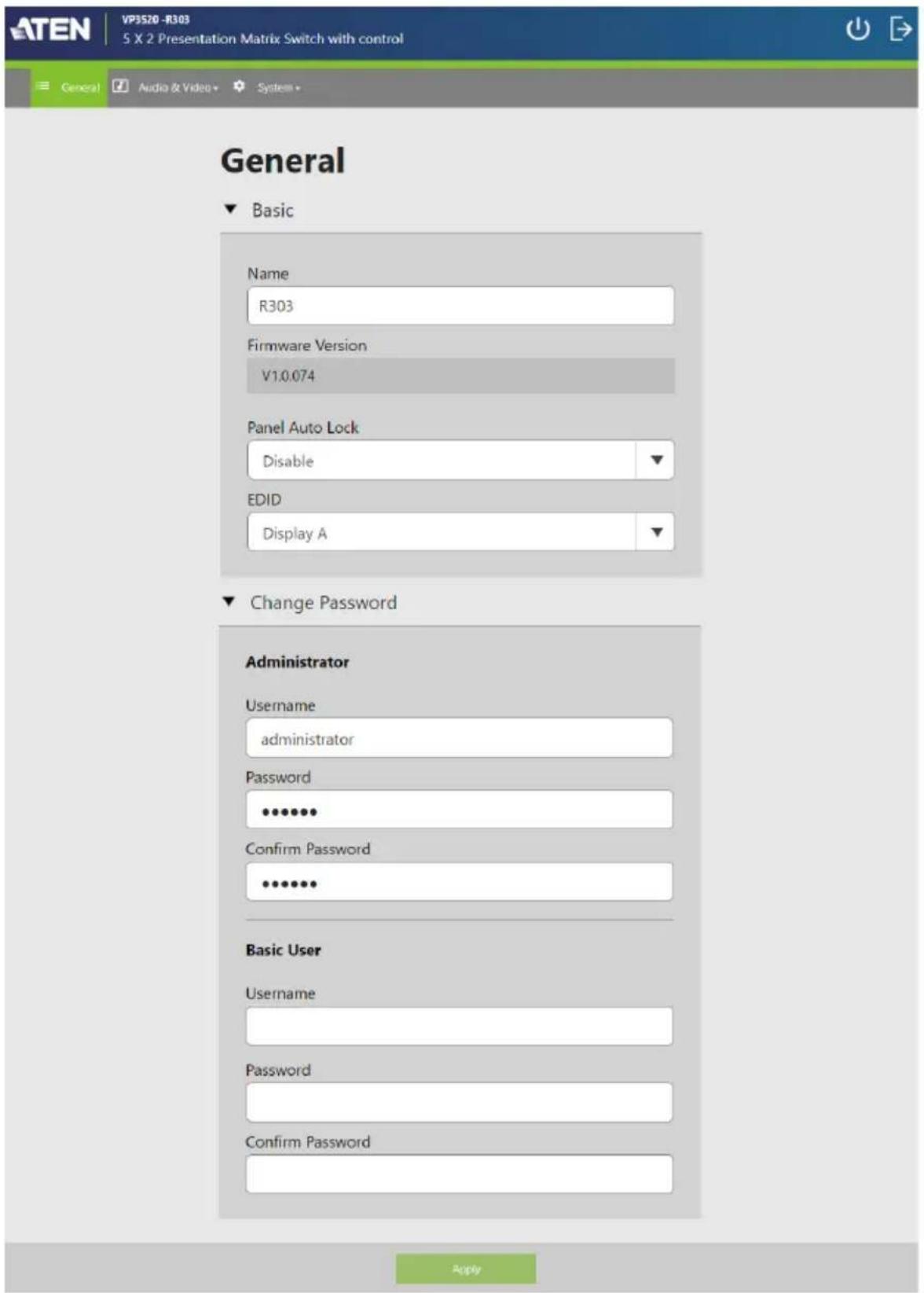
text_image
General ▼ Basic Name R303 Firmware Version V1.0.074 Panel Auto Lock Disable EDID Display A ▼ Change Password Administrator Username administrator Password ********** Confirm Password ********** Basic User Username Password Confirm Password ApplyBasic
Name: Type a name for the VP3520. A valid name should be within 30 characters in length and contains no special characters. This name appears on the web console immediately after the model name:

text_image
ATEN VP3520 -R303 5 X 2 Presentation Matrix Switch with control General Audio & Video System- Firmware: Indicates the firmware version for the VP3520.
- Panel Auto Lock: Sets the idle time for the front panel to be locked.
◆ EDID
◆ Display A: This mode sends the EDID of Display A to the connected sources.
- Display B: This mode sends the EDID of Display B to the connected sources.
- ATEN Default: This mode sends ATEN-predefined EDID to the connected sources.
- Remix: Sends the optimum EDID of the connected displays to the connected sources.
- Change Password
- Administrator: The administrator account has access to all settings in the web console. The default password is administrator.
- Basic User: A basic user account has access to the audio and video controls on the web console. To create a basic user account, specify the username and password fields here.
Note: A valid password (for the administrator or basic user account) is not case-sensitive and should be 5 to 16 characters in length, without space or special characters.
Audio & Video Settings
Click for a list of available options under audio and video settings.

text_image
Audio & Video Video Control Audio Control Display Control HDCP Function KeyVideo Control Settings
Use the video control page to assign video sources and configure video settings. To access the video control page, log in the web console, and then go to Audio & Video > Video Control.
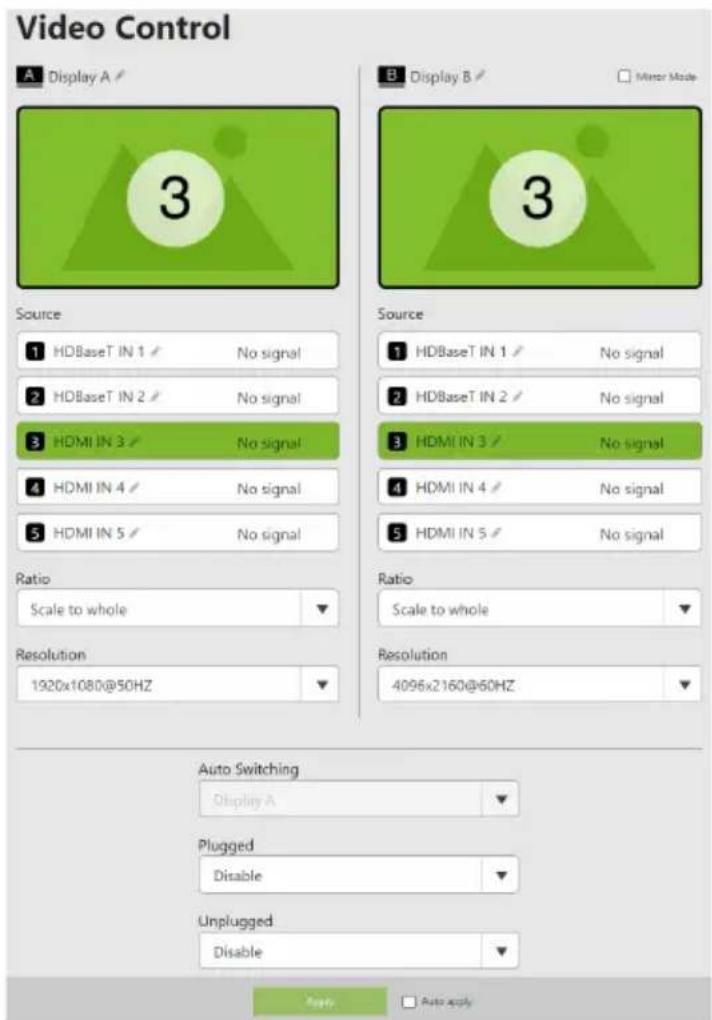
text_image
Video Control A Display A ✓ 3 B Display B ✓ Minor Mode Source 1 HDBaseT IN 1 ✓ No signal 2 HDBaseT IN 2 ✓ No signal 3 HDMI IN 3 ✓ No signal 4 HDMI IN 4 ✓ No signal 5 HDMI IN 5 ✓ No signal Ratio Scale to whole Resolution 1920x1080@50HZ Source 1 HDBaseT IN 1 ✓ No signal 2 HDBaseT IN 2 ✓ No signal 3 HDMI IN 3 ✓ No signal 4 HDMI IN 4 ✓ No signal 5 HDMI IN 5 ✓ No signal Ratio Scale to whole Resolution 4096x2160@60HZ Auto Switching Display A ✓ Plugged Disable Unplugged Disable Apply Auto apply- Display A / Display B: Shows a preview of the currently selected source and indicates the source number at the center of the preview. Click 📋 to rename the source.
- Mirror mode: Select this option for display B to show identical video content as display A.
- Source: Lists the connection status of all source ports and the currently assigned source (indicated in green).
- To switch the source for the display, click on one of the listed sources. The assigned source is highlighted green.
- To rename the source, click
Ratio:
- Scale to whole: Fully extends the video to the four sides of the display.
- Auto fit: Proportionally scales the video to fit the display without cutting any content off. This may leave some blank on either the top and bottom or the left and right of the screen.
- Auto cut: Proportionally scales the video to fully fill the display. The content that goes out of the display range will be cut off.
- Resolution: Click the drop-down list to select a resolution and refresh rate setting for the display device. This field is only available when the display is connected to the VP3520. Make sure to select the correct display resolution for the connected display, otherwise the display will not display any content.
| 560x360@60HZ |
| 720x576@50HZ |
| 768x480@60HZ |
| 800x600@60HZ |
| 1024x768@60HZ |
| 1280x720@50HZ |
| 1280x720@60HZ |
| 1280x800@60HZ |
| 1280x1024@60HZ |
| 1366x768@60Hz |
| 1400x1050@60HZ |
| 1600x900@60HZ |
| 1600x1200@60HZ |
| 1920x1080@30HZ |
| 1920x1080@50HZ |
| 1920x1080@60HZ |
| 1920x1200@60HZ |
| 2560x1080@60HZ |
| 3440x1440@50HZ |
| 3840x2160@24HZ |
| 3840x2160@25HZ |
| 3840x2160@30HZ |
| 3840x2160@50HZ 4:2:0 |
| 3840x2160@60HZ 4:2:0 |
| 4096x2160@24HZ |
| 4096x2160@25HZ |
| 4096x2160@30HZ |
| 4096x2160@50HZ 4:2:0 |
| 4096x2160@60HZ 4:2:0 |
| 3840x2160@24HZ 4:2:2 12bit |
| 3840x2160@25HZ 4:2:2 12bit |
| 3840x2160@30HZ 4:2:2 12bit |
| 4096x2160@24HZ 4:2:2 12bit |
| 4096x2160@25HZ 4:2:2 12bit |
| 4096x2160@30HZ 4:2:2 12bit |
| 1280x768@60HZ |
| 1920x1120@60HZ |
- Auto switching: Enables the auto switching of audio-video source on Display A or Display B.
- Plugged: Defines the automatic switching of audio-video source on the selected display from the auto switching above when a new source is plugged in.
◆ Disable: Disable automatic switching.
- Enable: Enable automatic switching.
- Unplugged: Defines the automatic switching of audio-video source on the selected display from the auto switching above when a previously used source goes detected.
◆ Disable: Disable automatic switching.
- Next: Automatically switches to the next available source when the current video source is plugged out.
- Last: Automatically switch the display to the previous available source based on the order of source connection. For example, if sources are connected to the VP3520 in the order of port 2, port 3, port 4 and then port 1, and that selected display from the auto switching above is switched to port 3, when the source (port 3) is unplugged, the selected display from the auto switching above will automatically switch to port 1.
Apply vs. Auto Apply
To automatically apply the changes you make on the Video Control page, select Auto apply at the bottom of the page.
Audio Control Settings
To access the audio control page, log in the web console, and then go to Audio & Video > Audio Control.

text_image
Audio Control ▼ Audio Output Overall A Display A B Display B Audio line out Source Follow Display A Audio amp out Source Follow Display A ▼ Audio Input 1 HDBaseT IN 1 10 Source Digital Audio 2 HDBaseT IN 2 10 Source Digital Audio 3 HDMI IN 3 10 Source Digital Audio 4 HDMI IN 4 10 Source Digital Audio 5 HDMI IN 5 10 Source Digital Audio AUDIO IN 10 MIC 10 Gain 30dB Apply Auto applyAudio Output
Overall volume:
♦ Mute, unmute, and set the volume of the connected speaker.
◆ Display A
◆ Mute, unmute, and set the volume of display A.
◆ Display B
◆ Mute, unmute, and set the volume of display B.
- Audio line out
- Mute, unmute, and set the volume of the audio out and coaxial outputs.
-
Source: Sets the audio source for the independent speaker connected to the audio out and coaxial output ports of the VP3520.
-
To use the same audio source for display A, select Follow Display A.
- To use the same audio source for display B, select Follow Display B.
- To use the independent audio source (connected to the audio input ports), select Audio In.
- Audio amp out
◆ Mute, unmute, and set the volume of the LoZ output.
Source: Sets the audio source for the amplifier connected to the LoZ output port of the VP3520.
- To use the same audio source for display A, select Follow Display A.
- To use the same audio source for display B, select Follow Display B.
- To use the independent audio source (connected to the audio input ports), select Audio In.
Audio Input
- HDBaseT In 1 / HDBaseT In 2: Mute, unmute, and set the volume of the HDBaseT in 1 / HDBaseT in 2 source.
- Source: Sets the audio source for the HDBaseT in 1 / HDBaseT in 2 source. To use the audio source that comes along with the video, select Digital Audio. To use the audio source from the independent audio
source (connected to the audio input ports), select Embedded Audio In.
- HDMI In 3 / HDMI In 4 / HDMI In5: Mute, unmute, and set the volume of the HDMI in 3 / HDMI in 4 / HDMI in 5 source.
- Source: Sets the audio source for the HDMI / 3 HDMI 4 / HDMI 5 source. To use the audio source that comes along with the video, select Digital Audio. To use the audio source from the independent audio source (connected to the audio input ports), select Embedded Audio In.
- Audio in: Sets the volume of the independent audio source connected to the audio input ports.
- Mic volume: Sets the volume of the microphone connected to the mic input ports.
- Gain: Sets the volume of the microphone connected to the mic input ports.
Apply vs. Auto Apply
To automatically apply the changes you make on the Audio Control page, select Auto apply at the bottom of the page.
Display Control Settings
Use the display control page to control the connected display and their settings. To access the display control page, log in the web console, and then go to Audio & Video > Display Control. It is recommended to configure the VP3520's control methods and its settings before configuring the auto display control settings. See Configuration Settings, page 52.

text_image
Display Control Auto Display Display Auto Power On Enable Enable Screen Down( Relay 1 ) Advanced Display Auto Power Off Enable Active Time(mins) 10 Enable Screen Up( Relay 2 ) Display A control Settings Device Name Display A Control Type CEC Channel HDBT Out Command Display ON Display OFF Display B control Settings Device Name Display 8 Control Type CEC Channel HDMI Out Command Display ON Display OFF Apply- Auto Display: Sets the display auto power on and off function for the connected HDMI and HDBaseT displays.
- Display auto power on: Enables or disables the display auto power on function. The connected display will automatically power on when the VP3520 detects an input source.
- Enable screen down (Relay 1): Check to enable the auto screen down function. The connected projector's screen will automatically power on and scroll down when the VP3520 detects an input source.
- Advanced: Click to select one or more input source for auto power on detection.
- Display auto power off: Enables or disables the display auto power off function. The connected display will automatically power off when the connected input source on the VP3520 is removed and undetected for a specified active time.
Active time (mins): Sets the active time in minutes for the VP3520 to power off the connected display when an input source is removed and undetected for a specified active time. - Enable screen up (Relay 2): Check to enable the auto screen up function. The connected projector's display will automatically power off and scroll up when the connected input source on the VP3520 is removed and undetected for a specified active time.
◆ Display A control settings: Sets the control method for the Display A.
- Use the drop-down menu to select a control method for the Display A. Options are Display A / RS-232 Serial / RS-232 HDBT Out / PJ-Link 1 / PJ-Link 2.
◆ Use the control commands to test the display on and off function.
- If the Display A control method is selected, the control type (CEC) and Channel (HDBT Out) will be fixed. Click Display ON and Display OFF to test the commands.
Note: It is not guaranteed that CEC protocol will work on all connected display devices. If the Display ON and/or Display OFF commands do not work on your display, other control methods such as RS-232 serial, RS-232 HDBT out, and PJ-Link can be considered.
- If the RS-232 Serial or RS-232 HDBT Out control method is selected, select a command type between HEX and ASCII before testing the control commands.
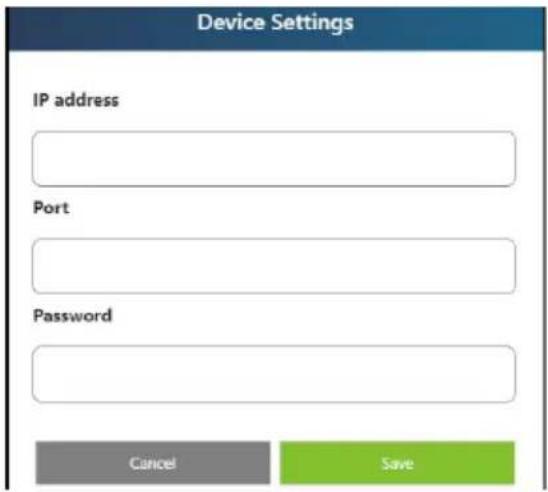
- If the PJ-Link 1 or PJ-Link 2 control method is selected, set the IP address, port, and password before testing the control commands. To set the IP address, port, and password for the PJ-Link 1 and 2,
click and the screen below.
appears. Click Save when you have entered the correct IP address, port number, and password. Use the drop-down menu to select a command, and click Test to test the selected command.

text_image
Device Settings IP address Port Password Cancel Save◆ Display B control settings: Sets the control method for the Display B.
Use the drop-down menu to select a control method for the Display B. Options are Display A / RS-232 Serial / RS-232 HDBT Out / PJ-Link 1 / PJ-Link 2.
- Use the control commands to test the display on and off function.
- If the Display B control method is selected, the control type (CEC) and Channel (HDMI Out) will be fixed. Click Display ON and Display OFF to test the commands.
Note: It is not guaranteed that CEC protocol will work on all connected display devices. If the Display ON and/or Display OFF commands do not work on your display, other control methods such as RS-232 serial, RS-232 HDBT out, and PJ-Link can be considered.
- If the RS-232 Serial or RS-232 HDBT Out control method is selected, select a command type between HEX and ASCII before testing the control commands.
If the PJ-Link 1 or PJ-Link 2 control method is selected, set the IP address, port, and password before testing the control commands. To set the IP address, port, and password for the PJ-Link 1 and 2,
click and the screen below. Password first. Go
appears. Click Save when you have entered the correct IP address, port number, and password. Click Save when you have entered the correct IP address, port number, and password. Use the dropdown menu to select a command, and click Test to test the selected command.
text_image
Device Settings IP address Port Password Cancel SaveHDCP Settings
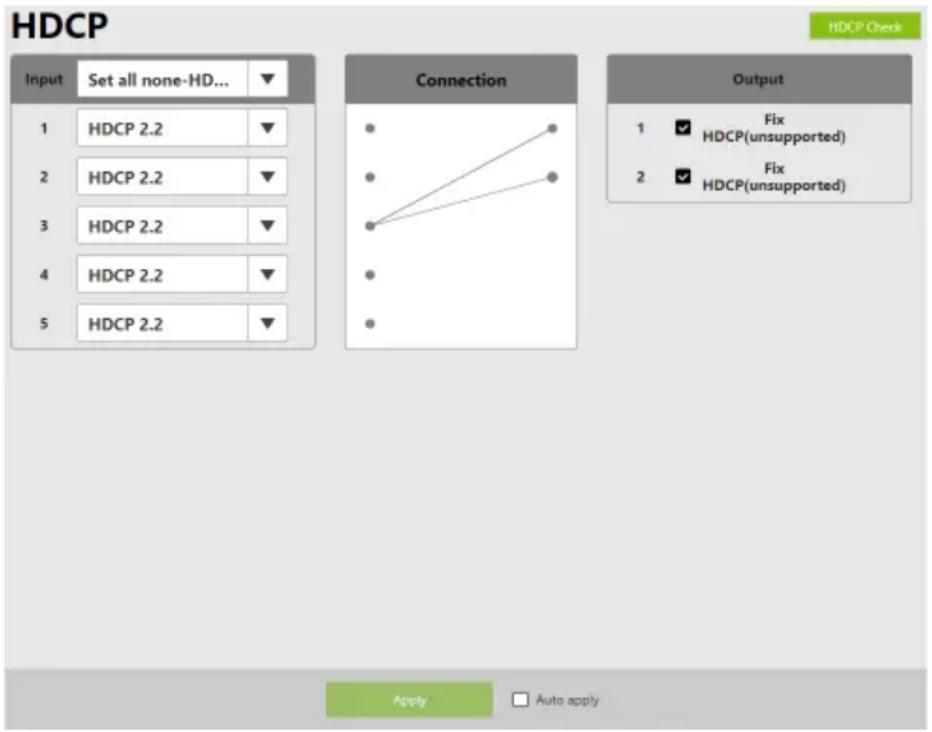
Use the HDCP page to view and set HDCP key setting between input and output ports for digital copy protection and to ensure Seamless Switch ^™ functionality between different devices. To access the HDCP page, log in the web console, and then go to Audio & Video > HDCP.
text_image
HDCP Input Set all none-HD... 1 HDCP 2.2 2 HDCP 2.2 3 HDCP 2.2 4 HDCP 2.2 5 HDCP 2.2 Connection Output 1 ✓ Fix HDCP(unsupported) 2 ✓ Fix HDCP(unsupported) Apply Auto applyInput
Here users can select whether port capability is HDCP 2.2, HDCP 1.4 or non-HDCP enabled, either individually or by applying one setting to all ports.
Connection
Here users can find a visual display of connection paths between inputs and outputs. When selecting an input, its path is displayed in green.
Output
Here users can define whether or not HDCP settings are fixed by individual port. By prearranging and fixing keys, this setting ensures that Seamless Switch ^™ is possible even when switching between HDCP and non-HDCP enabled devices.
HDCP Check
The HDCP Check button (upper-right corner) allows you to check the HDCP capability of the connected displays at one time. They analyses are indicated in the brackets after the Fix HDCP check box for each port.
Apply vs. Auto Apply
To automatically apply the changes you make on the Video Control page, select Auto apply at the bottom of the page.
Function Key Settings
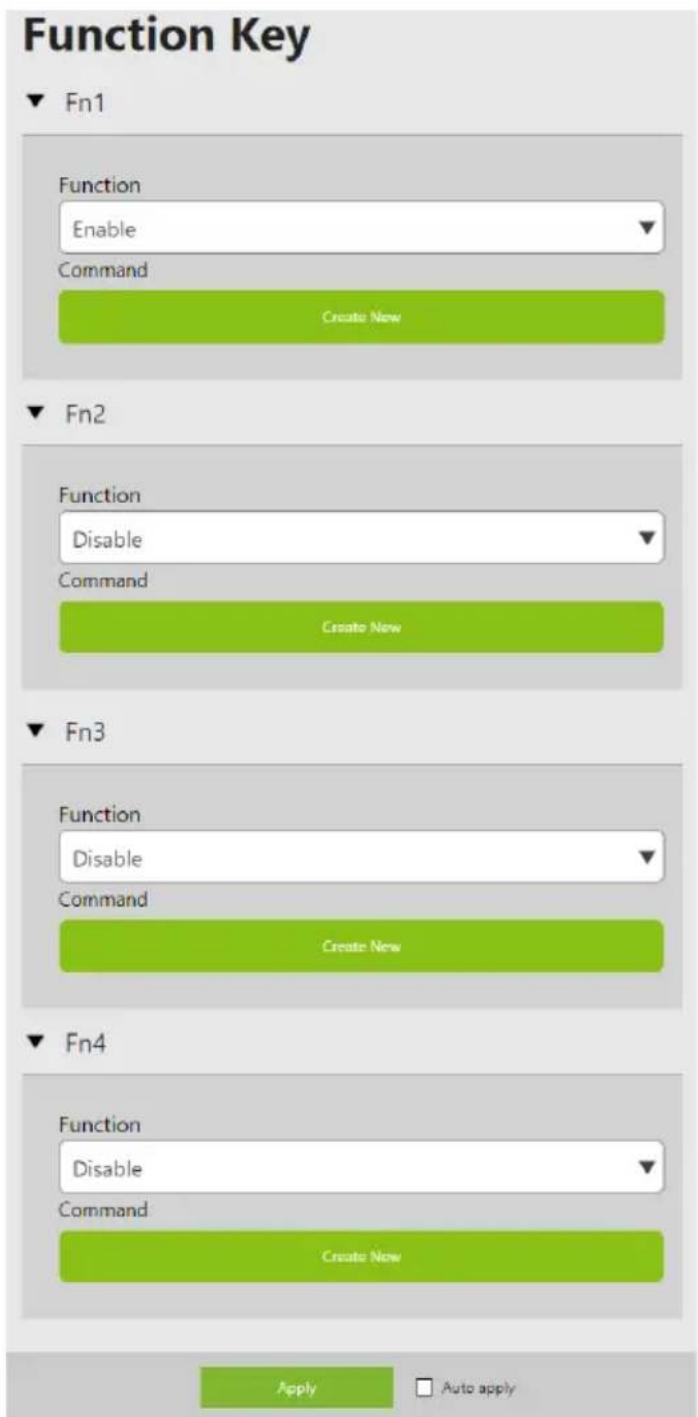
Use the function key page to enable, disable, and configure the function key. You can create up to 4 functions key with 10 commands for each function key. To access the function key page, log in the web console, and then go to Audio & Video > Function Key. It is recommended to configure the VP3520's control methods and its settings before using the function keys. See Configuration Settings, page 52.
text_image
Function Key Fn1 Function Enable Command Create New Fn2 Function Disable Command Create New Fn3 Function Disable Command Create New Fn4 Function Disable Command Create New Apply Auto apply- FN1 / FN2 / FN3 / FN4: Enables or disables the function keys.
- Click to create command for different control methods.

text_image
Command Settings Device Name Display A Control Type CEC Channel HDBT Out Command Command Display ON Test Cancel Save- Use the drop-down menu to select a control method. Options are Display A (CEC) / Display B (CEC) / RS-232 Serial / RS-232 HDBT Out / IR Serial / IR HDBT Out / PJ-Link 1 / PJ-Link 2 / Relay 1 / Relay 2.
- If the Display A or Display B control method is selected, use the drop-down menu to select a command between Display ON or Display Off, and click Test to test the selected command.

text_image
Command Settings Device Name Display A Control Type CEC Channel HDBT Out Command Command Display ON Test Cancel Save- If the RS-232 Serial or RS-232 HDBT Out control method is selected, enter a command name, select a command type between HEX and ASCII, and key-in the command. Click Test to test the command you just created.

text_image
Command Settings Device Name RS232-Serial Control Type RS232 Channel RS232-Serial Command Command Name Type HEX Command Text Cancel Save- If the IR Serial or IR HDBT Out control method is selected, enter a command name, and click Learn. Follow the procedures explained in Setting Up Controls to a Projector Screen, page 13 to create up to 10 commands for the assigned function key. Click Test to test the command you just created.

text_image
Command Settings Device Name IR-Serial Control Type IR Channel IR-Serial Command Command Name Command Learn Test Cancel Save- If the PJ-Link 1 or PJ-Link 2 control method is selected, set the IP address, port, and password by clicking
Please set the IP address & password first. Go and the screen below
appears. Click Save when you have entered the correct IP address, port number, and password. Use the drop-down menu to select a command, and click Test to test the selected command.

text_image
Device Settings IP address Port Password Cancel Save- If the Relay 1 or Relay 2 control method is selected, simply click Test to test the command.

text_image
Command Settings Device Name Relay 1 Control Type Relay Channel Relay 1 Command test Cancel SaveApply vs. Auto Apply
To automatically apply the changes you make on the Video Control page, select Auto apply at the bottom of the page.
System Settings
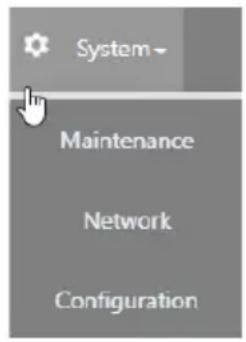
Click for a list of available options under system settings.
text_image
System Maintenance Network ConfigurationMaintenance Settings
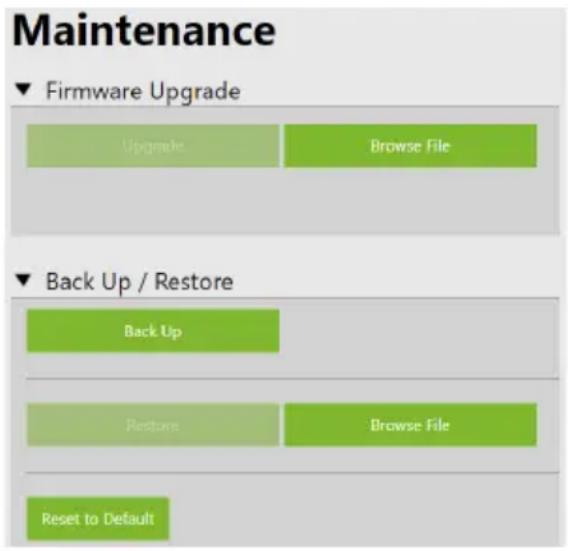
Use the maintenance page to upgrade system firmware, back up or restore system configurations, and restore default settings. To access the maintenance page, log in the web console, and then go to System > Maintenance.
text_image
Maintenance ▼ Firmware Upgrade Upgrade Browse File ▼ Back Up / Restore Back Up Restore Browse File Reset to DefaultUpgrading the System Firmware
- Prepare the firmware file you wish to apply.
a) Visit the product web page from http://www.aten.com/global/en/
b) In the Support and Download tab, download a firmware file.
- Log in the VP3520's web console, and then go to System > Maintenance.
- In the Firmware Upgrade section, click Browse File to select the firmware file that you downloaded, and then click Upgrade. The upgrade starts immediately.
- When the upgrade is complete, a confirmation message appears and the unit reboots.
Backing Up System Settings
You can back up and export the VP3520's configurations. This backup will not include the username and password settings.
-
Log in the VP3520's web console, and then go to System > Maintenance.
-
Click Back Up.
Restoring System Settings
-
Log in the VP3520's web console, and then go to System > Maintenance.
-
To restore the VP3520's settings, click Browse File to locate a previously backed up file (.aes), and then click Restore.
Reseting the Default Settings
-
Log in the VP3520's web console, and then go to System > Maintenance.
-
Click Reset to Default. This will reset all the settings, including network settings to default.
Network Settings
To configure the VP3520's network connection settings, log in the web console, and then go to System > Network.

text_image
Network ▼ IP setting Mode ● DHCP ● Manual IP address 192.168.1.32 Mask 255.255.255.0 Gateway 192.168.1.1 ▼ Browser Timeout 30mins ▼ IP installer Mode Enable ApplyIP Settings
- Mode: Configure the method to which the VP3520 obtains an IP address and connects to the network.
- DHCP: Select this option for the connected network switch to dynamically assign an IP address, subnet mask, gateway, and DNS to the VP3520.
- Manual: Select this option for the VP3520 to use a fixed IP address. Specify the IP address, subnet mask, and default gateway.
Browser
- Timeout: Sets the duration of time that a web browser waits to obtain connection to the VP3520 before terminating the request.
IP Installer
- Mode: Sets the VP3520 to be viewed and configured (IP address) by the IP Installer Utility.
- Enable: Sets the VP3520 to be viewed and configured (IP address) by the IP Installer Utility.
- View Only: Sets the VP3520 to be viewed only by the IP Installer Utility.
- Disable: Sets the VP3520 to be not recognizable by the IP Installer Utility.
Configuration Settings
To configure the VP3520's control method and its settings, log in the web console, and then go to System >Configuration. It is recommended to configure the control method on the VP3520 before using the function keys and auto display controls.
| Device Name | Control Type | Channel | |
| Display A | CEC | HDBT Out | |
| Display B | CEC | HDMI Out | |
| RS232-Serial | RS232 | RS232-Serial | |
| RS232-HDBT Out | RS232 | RS232-HDBT Out | |
| IR-Serial | IR | IR-Serial | |
| IR-HDBT Out | IR | IR-HDBT Out | |
| PI-Link 1 | Ethernet | PI-Link | |
| PI-Link 2 | Ethernet | PI-Link | |
| Relay 1 | Relay | Relay 1 | |
| Relay 2 | Relay | Relay 2 |
Configuring Display A and Display B
You can rename the device name, and use the drop-down menu to select a delay interval for the HDMI and HDBT output transmission in seconds.

text_image
Device Settings Device Name Display A Control Type CEC Channel HDBT Out Delay Interval(Seconds) 0 Cancel SaveConfiguring RS-232 Serial and RS-232 HDBT Out
You can rename the device name, and use the drop-down menus to configure the baud rate, data bit, stop bit, and parity settings.
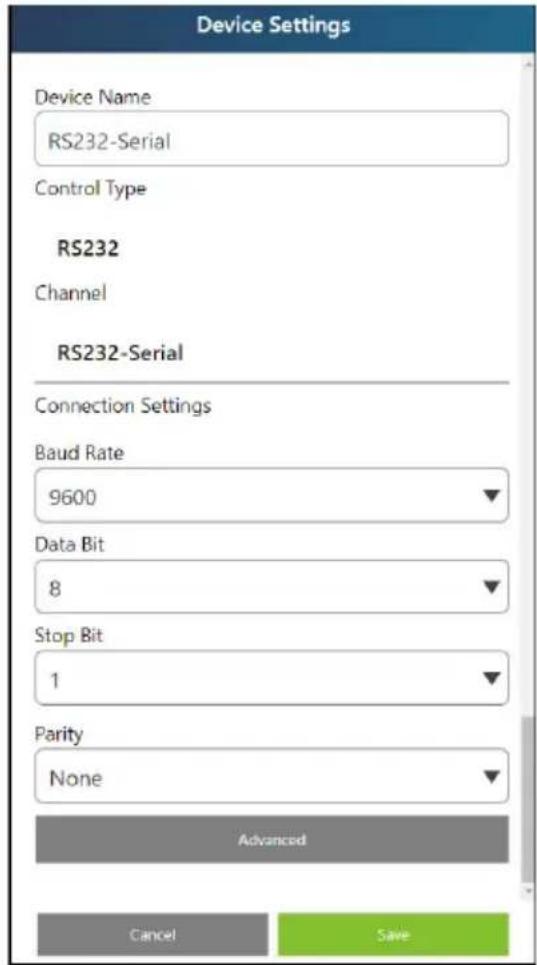
text_image
Device Settings Device Name RS232-Serial Control Type RS232 Channel RS232-Serial Connection Settings Baud Rate 9600 Data Bit 8 Stop Bit 1 Parity None Advanced Cancel SaveClick to bring out more settings.

text_image
Delay Interval(Seconds) 0 Keep Connection Alive Type ASCII Command Interval(1.0~60.0 Seconds) 5 BasicConfiguring IR Serial and IR HDBT Out
You can rename the device name, and use the drop-down menus to configure the repeat times settings.
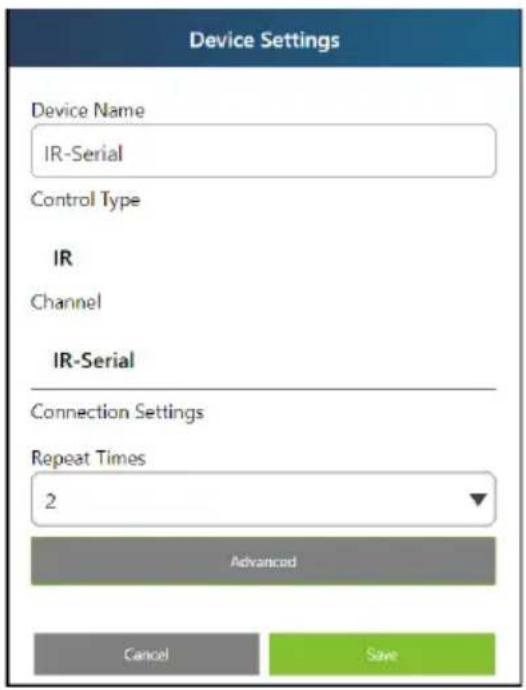
text_image
Device Settings Device Name IR-Serial Control Type IR Channel IR-Serial Connection Settings Repeat Times 2 Advanced Cancel SaveClick to bring out more settings.

text_image
Delay Interval(Seconds) 0Configuring PJ-Link
You can rename the device name, and use the drop-down menus to select a delay interval for the PJ-Link transmission in seconds. Remember to entered the correct IP address, port number, and password.

text_image
Device Settings Device Name PJ-Link 1 Control Type Ethernet Channel PJ-Link Connection Settings IP address The IP address format is incorrect. Port 0 Incorrect port format Password Delay Interval(Seconds) 0 Cancel SaveConfiguring Relay 1 and Relay 2
You can rename the device name, set a pulse time in seconds, and test the configuration.
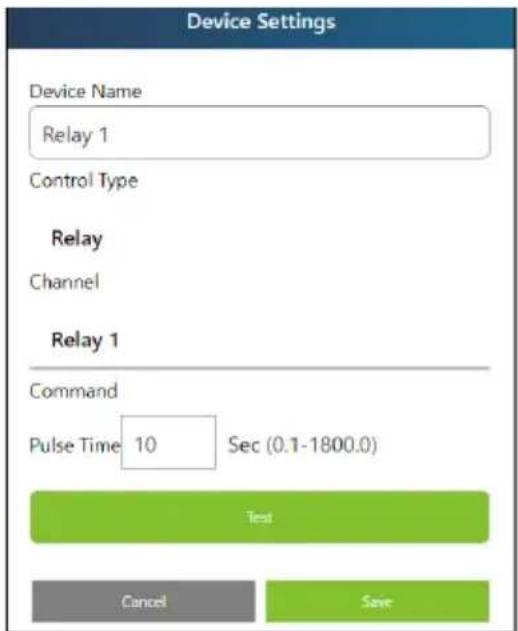
text_image
Device Settings Device Name Relay 1 Control Type Relay Channel Relay 1 Command Pulse Time 10 Sec (0.1-1800.0) Test Cancel SaveThis Page Intentionally Left Blank
Overview
The VP3520 can be configured and controlled via RS-232 or Telnet commands when connected to a host computer or other device, such as a control system. This chapter provides information on how to connect to the VP3520 via RS-232 / Telnet and command syntax.
Connecting to the VP3520 via Telnet
To establish a Telnet session with the VP3520, do the following:
- Connect a host computer or control system to a shared network with the VP3520.
- Open a command-line interpreter program from your computer.
- In the command-line interpreter, type the VP3520's IP address in the following way:
telnet [IP address]:23
- Press Enter. The login screen appears.
- At the login prompt, type the login username and password for the VP3520.
- When a session is established with the VP3520, you can control and configure the VP3520 via RS-232 commands. For more information on commands, see:
◆ Command Syntax, page 59
◆ Command List, page 60
Note: If a user logs in using a username that is already in session, the newest login takes effect and the previous session will be replaced.
Connecting to the VP3520 via RS-232
- Connect a host computer or control system to the RS-232 serial port on the VP3520 unit.
-
Download and install controller software that supports RS-232 serial control and the operation system of your controller PC.
-
Execute the software and configure the connection settings to the following:
♦ Serial line to connect to: COM1
♦ Speed (baud): 19200
◆ Data bits: 8
- Stop bits: 1
Parity: None
◆ Flow control: None
- When a session is established with the VP3520, you can control and configure the VP3520 via RS-232 commands. For more information on commands, see:
◆ Command Syntax, page 59
◆ Command List, page 60
Command Syntax
◆ The general form of a command is:
command parameter<argument> {one|two|three}
| Notation Description | |
| command | The name of the command is shown in bold. |
| parameter | Indicates the name of the parameter. |
| Indicates the name of the value or the information that the user must provide. Only type the information in the angle brackets, not the brackets themselves. | |
| [ ] | Indicates optional items. Only type the information in the brackets, not the brackets themselves. |
| { } | Indicates a set of choices from which the user must choose one. |
| | | Indicates two or more mutually exclusive choices in a command line. Only type one of the choices in the command line, not the symbol. |
If you have two or more parameters, the order of these parameters among themselves does not affect the result of the operation. For example, both of the following commands execute the same task:
command name + parameter 1 + parameter 2
command name + parameter 2 + parameter 1
Command List
Use the following commands to control and configure the VP3520 via Telnet or RS-232. For details on establishing a Telnet or RS-232 session to the VP3520, see Connecting to the VP3520 via Telnet, page 57 and Connecting to the VP3520 via RS-232, page 58.
Port Numbers
Use the table below to find out the argument value for each input/output port on the VP3520. For example, the
| Source Source No. | Interface Port Numbers | |||
| Video Input | 1 HDBaseT i01 | |||
| 2 HDBaseT i02 | ||||
| 3 HDMI i03 | ||||
| 4 HDMI i04 | ||||
| 5 HDMI i05 | ||||
| Video Output | 1 HDBaseT o01 | |||
| 2 HDMI o02 | ||||
| Audio Input AUD | IO IN N/A Analog i06 | |||
| MIC N/A Analog i07 | ||||
| Audio Output AUD | DIO OUT N/A Analog o03 | |||
| LoZ OUT N/A Analog o04 | ||||
| COAXIAL | N/A | Digital | o05 | |
| HDBaseT Audio | 1 HDBaseT src01 | |||
| HDMI Audio | 2 HDMI src02 | |||
Setting the Display Mode
◆ Function
Sets the VP3520 to matrix or mirror mode.
- Syntax
displaymode {matrix|mirror}
- Parameters
matrix: When enabled, the AV sources can be configured separately, capable of showing different outputs.
- mirror: When enabled, display B uses the AV source assigned for display A and shows identical content.
Example
displaymode matrix
Enabling or Disabling the Echo Function
◆ Function
Enables or disables the echo.
- Syntax
echo {on|off}
- Parameters
◆ on: Enables the echo.
♦ off: Disables the echo (default).
Example
echo on
Setting the EDID Mode
◆ Function
Sets the VP3520's EDID mode.
- Syntax
edid {port1|remix|default}
- Parameters
- port1: Set the VP3520's EDID mode to follow the display connected to the output port A.
- remix: Set the VP3520's EDID mode to remix with which the system sends the optimum EDID of the connected displays to the sources.
default: Set the VP3520's EDID mode to ATEN Default which sends ATEN-predefined EDID to the connected sources (default).
Example
edid default
Configuring the Mute Function
◆ Functions and Syntax
| Syntax Function | |
| mute Indicates the mute setting for each | input and output port. |
| mute {i|i sys|i*} Indicates the mute setting for the specified input or output port. | Indicates the mute setting for the specified input or output port. |
| mute {o|o sys|o*} | |
| mute {i|i*} {on|off} Mutes / unmutes the audio of a specified audio input or output. | Mutes / unmutes the audio of a specified audio input or output. |
| mute {o|o*} {on|off} |
- Parameters
◆ i
◆ i sys: Refers to all audio inputs (source devices, line-in, and mic).
◆ i*: Refers to all input ports.
- o
◆ o sys: Refers to all audio outputs (display devices and speakers).
◆ o*: Indicates all output ports.
- on: Mute the specified input / output ports.
- off: Unmute the specified input / output ports.
Example
mute o01 off
Configuring the Read Status
◆ Functions and Syntax
| Syntax Function | |
| read Displays the video and audio input assigned to each output port, EDID mode, device information, and network settings. | |
| read version Displays the system firmware version. | |
| read oconnection | Displays the video and audio input assignment to the specified output port. |
| read oconnection video | Displays the video input assignment to the specified output ports. |
| read oconnection audio | Displays the audio assignment to the specified output port. |
- Parameters
◆ version: Indicates the system firmware version.
- o
connection: Indicates both the video and audio input assignment.
◆ video: Indicates only the video input assignment.
◆ audio: Indicates only the audio input assignment.
Example
read o01 connection video
Resetting the Unit
◆ Function
Resets the VP3520 to its default settings.
- Syntax
reset
Configuring the Scaling
◆ Functions and Syntax
| Syntax Function | |
| scaling Reads the scaler settings on | output A and B. |
| scaling o<output_port|o*> Configures the | scaling setting for the specified output port. |
| hor Configures the horizontal | resolution for the specified output port. |
| ver Configures the vertical resolution | for the specified output port. |
| freq Configures the frequency | resolution for the specified output port. |
| cs <rgb|yuv420|yuv422> Configures the color | space for the specified output port. |
| native Maps the display's resolution to the | specified output port. |
- Parameters
- o
◆ o*: Indicates all output ports.
◆ hor: Sets the horizontal resolution.
◆ ver: Sets the vertical resolution.
◆ freq: Sets the frequency. - cs: Sets the color space.
◆ native: Maps the display's native resolution (default).
Example
scaling o02 hor 1920 ver 1080 freq 60
Enabling or Disabling the Standby Mode
◆ Functions and Syntax
| Syntax Function | |
| standby Displays the current standby mode setting. Standby mode is a power-saving mode that shuts parts of the system down to allow the user to quickly resume operation when needed. | |
| standby on|off Enables or disables the standby mode. | |
- Parameters
- On: Enables the standby mode.
- Off: Disables the standby mode (default).
Example
standby off
Switching Sources
◆ Function
Switches the specified source on the specified display.
- Syntax
sw {o<output_port>|o*} {i<input_port>|i+|i-}
- Parameters
- i
♦ +: Indicates the next input port. - : Indicates the previous input port.
- o
◆ ○* : Indicates all output ports.
- Examples
sw o01 i02
sw o01 +
sw o* i02
Configuring the Switching Mode
◆ Function
Enables or disables auto switching.
- Syntax
swmode {auto|off}
- Parameters
- auto: Enables the auto switch (default).
- off: Disables the auto switch.
Example
swmode auto
Configuring the Volume
◆ Functions and Syntax
| Syntax Function | |
| volume Indicates the total volume and volume for each input and output port. | |
| volume {i|i*}v | Configures the volume of a specified input / output port. |
| volume {o|osys|o*} v | |
- Parameters
◆ i
◆ i*: Indicates all input ports.
◆ o
◆ Output 1 (HDBaseT): o01
◆ Output 2 (HDMI): o02
◆ o*: Indicates all output ports.
- v
Examples
volume i01 v10
volume o03 v05
Setting the Fan Speed
◆ Function
Sets the internal fan speed that cools the VP3520.
- Syntax
fan {low|mid|high}
- Parameters
- low: Sets the internal fan to low speed (default).
◆ mid: Sets the internal fan to normal speed.
◆ high: Sets the internal fan to high speed.
- Examples
fan low
Rebooting the Unit
◆ Function
Reboots the VP3520.
- Syntax
reboot
Configuring the Audio Mapping
◆ Functions and Syntax
| Syntax Function | |
| o {output_port} Specifies the output port. | |
| src {port} Specifies an audio source from display A or display B. | |
| type {sd} Sets the audio of the specified output port (analog) to follow a specified audio source (digital) between display A or display B. | |
- Parameters
- o
◆ src: Specifies an audio source in two digits.
◆ src01: Indicates display A.
◆ src02: Indicates display B.
- sd: Sets the audio of the specified output port (analog) to follow a specified audio source (digital) between display A or display B.
Examples
audiomap o03 src01 sd
Safety Instructions
General
- This product is for indoor use only.
- Read all of these instructions. Save them for future reference.
◆ Follow all warnings and instructions marked on the device. - Do not place the device on any unstable surface (cart, stand, table, etc.). If the device falls, serious damage will result.
- Do not use the device near water.
- Do not place the device near, or over, radiators or heat registers.
- The device cabinet is provided with slots and openings to allow for adequate ventilation. To ensure reliable operation, and to protect against overheating, these openings must never be blocked or covered.
- The device should never be placed on a soft surface (bed, sofa, rug, etc.) as this will block its ventilation openings. Likewise, the device should not be placed in a built-in enclosure unless adequate ventilation has been provided.
- Never spill liquid of any kind on the device.
- Unplug the device from the wall outlet before cleaning. Do not use liquid or aerosol cleaners. Use a damp cloth for cleaning.
- The device should be operated from the type of power source indicated on the marking label. If you are not sure of the type of power available, consult your dealer or local power company.
- To prevent damage to your installation it is important that all devices are properly grounded.
- Do not allow anything to rest on the power cord or cables. Route the power cord and cables so that they cannot be stepped on or tripped over.
- Position system cables and power cables carefully; Be sure that nothing rests on any cables.
-
Never push objects of any kind into or through cabinet slots. They may touch dangerous voltage points or short out parts resulting in a risk of fire or electrical shock.
-
Do not attempt to service the device yourself. Refer all servicing to qualified service personnel.
- If the following conditions occur, unplug the device from the wall outlet and bring it to qualified service personnel for repair.
◆ The power cord or plug has become damaged or frayed.
- Liquid has been spilled into the device.
- The device has been exposed to rain or water.
- The device has been dropped, or the cabinet has been damaged.
- The device exhibits a distinct change in performance, indicating a need for service.
- The device does not operate normally when the operating instructions are followed.
- Only adjust those controls that are covered in the operating instructions. Improper adjustment of other controls may result in damage that will require extensive work by a qualified technician to repair.
Rack Mounting
Before working on the rack, make sure that the stabilizers are secured to the rack, extended to the floor, and that the full weight of the rack rests on the floor. Install front and side stabilizers on a single rack or front stabilizers for joined multiple racks before working on the rack.
- Always load the rack from the bottom up, and load the heaviest item in the rack first.
- Make sure that the rack is level and stable before extending a device from the rack.
- Use caution when pressing the device rail release latches and sliding a device into or out of a rack; the slide rails can pinch your fingers.
- Do not overload the AC supply branch circuit that provides power to the rack. The total rack load should not exceed 80 percent of the branch circuit rating.
- Make sure that all equipment used on the rack – including power strips and other electrical connectors – is properly grounded.
- Ensure that proper airflow is provided to devices in the rack.
- Ensure that the operating ambient temperature of the rack environment does not exceed the maximum ambient temperature specified for the equipment by the manufacturer.
- Do not step on or stand on any device when servicing other devices in a rack.
Technical Support
International
- For online technical support – including troubleshooting, documentation, and software updates: http://support.aten.com
- For telephone support, call this number:
| International 886-2-86 | 92-6959 |
| China 86-400-810-0-8 | 10 |
| Japan 81-3-5615-581 | 1 |
| Korea 82-2-467-6789 | |
| North America 1-888 | 999-ATEN ext 4988 |
| 1-949-428-1111 |
North America
| Email Support support@aten-usa.com | ||
| Online Technical Support | Troubleshooting Documentation Software Updates | http://www.aten-usa.com/support |
| Telephone Support 1-888-999-ATEN ext 4988 | ||
When you contact us, please have the following information ready beforehand:
Product model number, serial number, and date of purchase
- Your computer configuration, including operating system, revision level, expansion cards, and software
◆ Any error messages displayed at the time the error occurred
◆ The sequence of operations that led up to the error
◆ Any other information you feel may be of help
Specifications
| Video Input | |
| Interfaces 3 x HDMI | Type-A female (Black)2 x HDBaseT (RJ-45) female (Silver) with PoH |
| Max. Distance HDMI:◆ 4K@60Hz (4:4:4) up to 5 m◆ 4K@30Hz up to 10 m◆ 1080p@60Hz up to 15 mHDBaseT:◆ 4K@30Hz (4:4:4) up to 35 m (Cat 5e / 6)◆ 4K@30Hz (4:4:4) up to 40 m (Cat 6a or ATEN 2L-2910 Cat 6)◆ 1080p @60Hz up to 60 m (Cat 5e / 6)◆ 1080p @60Hz up to 70 m (Cat 6a or ATEN 2L-2910 Cat 6) | |
| Video Output | |
| Interfaces 1 x HDMI | Type-A female (Black)1 x HDBaseT (RJ-45) female (Silver) with PoH |
| Max. Distance HDMI:◆ 4K@60Hz (4:4:4) up to 5 m◆ 4K@30Hz up to 10 m◆ 1080p@60Hz up to 15 mHDBaseT:◆ 4K@30Hz up to 35 m (Cat 5e / 6)◆ 4K@30Hz up to 40 m (Cat 6a or ATEN 2L-2910 Cat 6)◆ 1080p @60Hz up to 60 m (Cat 5e / 6)◆ 1080p @60Hz up to 70 m (Cat 6a or ATEN 2L-2910 Cat 6) | |
| Video | |
| Max. Resolution | HDMI: Up to 4096 x 2160 / 3840 x 2160 @ 60Hz (4:4:4)HDBaseT:◆ Up to 4096 x 2160 / 3840 x 2160 @60Hz (4:2:0)◆ Up to 4096 x 2160 / 3840 x 2160 @30Hz (4:4:4) |
| Compliance | HDMI: 4K HDRHDCP 2.2 compatible; Consumer Electronics Control (CEC) |
| Audio | |
| Output | Line out (Unbalanced): 1 x captive screw connector, 3-poleDigital Audio: 1 x coaxialAmplifier Out: 1 x captive screw connector, 4-pole, stereo out 10 watts per channel, 4 ohms, 1 kHz, 0.1% THD |
| Input | Stereo Audio (HDMI / HDBT): 1 X mini stereo jack female (Green)Microphone: 1 x captive screw connector, 3-pole (with selectable phantom power) |
| Control | |
| RS-232 1 x DB-9 female (Black); controlling and configuring the VP device1 x captive screw connector, 3-pole; controlling the connected AC device | |
| IR 1 x mini stereo jack female (Black); controlling the VP device1 x captive screw connector, 2-pole; controlling the connected AC device | |
| Ethernet 1 x RJ-45 female (Silver); supports PJ-Link protocol | |
| Interfaces | |
| Relay 2 x captive screw connector, 2-pole | |
| Switches | |
| Power 1 x pushbutton (LED: Green / Orange)1 x slide switch (+48 phantom power) | |
| Video Input Port Selection | 5 x pushbuttons (LED: Green) |
| Video Output Port Selection | 2 x pushbuttons (LED: Orange) |
| Selection Mic: 1 x knobVolume: 1 x knobMode / Unlock: 1 x pushbuttonFunction Key: 4 x pushbuttons | |
| EDID Settings EDID Mode: ATEN Default / Display A / Remix | |
| Connectors | |
| Power 1 x 3-prong AC socket | |
| Power Consumption | AC110V:48.2W:449BTUNote: If PoH (max. 10W each port) and Amplifier out (max. 20W) are used on the VP3520, the maximum power consumption for AC110V will be 98.2W.AC220V:47.5W:446BTUNote: If PoH (max. 10W each port) and Amplifier out (max. 20W) are used on the VP3520, the maximum power consumption for AC220V will be 97.5W. |
| Environmental | |
| Operating Temperature | 0 - 40°C |
| Storage Temperature | -20 - 60°C |
| Humidity 0 x 80% RH, Non-Condensing | |
| Physical Properties | |
| Housing Metal | |
| Weight 3.80 kg (8.37 lb) | |
| Dimensions (L x W x H) | 43.24 x 27.23 x 4.40 cm (17.02 x 10.72 x 1.73 in) |
| Input Resolutions | |
| Video DCC | |
| 640 X 480 @ 60 Hz | |
| 640 X 480 @ 67 Hz | |
| 640 X 480 @ 72 Hz | |
| 640 X 480 @ 75 Hz | |
| 720 X 400 @ 70 Hz | |
| 800 x 600 @ 56 Hz | |
| 800 x 600 @ 60 Hz | |
| 800 x 600 @ 72 Hz | |
| 800 x 600 @ 75 Hz | |
| 1024 x 768 @ 60 Hz | |
| 1024 x 768 @ 70 Hz | |
| 1024 x 768 @ 75 Hz | |
| 1280 x 800 @ 60 Hz | |
| 1280 x 1024 @ 60 Hz | |
| 1280 x 1024 @ 75 Hz | |
| 1400 x 1050 @ 60 Hz | |
| 1440 x 900 @ 60 Hz | |
| 1600 x 1200 @ 60 Hz | |
| 1680 x 1050 @ 60 Hz | |
| 1920 x 1080 @ 60 Hz | |
| 1920 x 1200 @ 60 Hz | |
| 1920 x 1200 @ 60 Hz (reduced blanking) | |
| 1080p @ 60 Hz | |
| 480p @ 60 Hz (4:3) | |
| 480p @ 60 Hz (16:9) | |
| 720p @ 60 Hz | |
| 1080i @ 60 Hz | |
| 640 x 480 @ 60 Hz (4:3) | |
| 576p @ 50 Hz (4:3) | |
| 576p @ 50 Hz (16:9) | |
| 720p @ 50 Hz | |
| 1080i @ 50 Hz | |
| 1080p @ 50 Hz | |
| 1080p @ 24 Hz | |
| 1080p @ 25 Hz | |
| 1080p @ 30 Hz | |
| 1080p @ 120 Hz | |
| 1080p @ 240 Hz | |
| 3840 x 2160p @ 24 Hz | |
| 3840 x 2160p @ 25 Hz | |
| 3840 x 2160p @ 30 Hz | |
| 3840 x 2160p @ 50 Hz | |
| 3840 x 2160p @ 60 Hz | |
| 4096 x 2160 p @ 24 Hz | |
| 4096 x 2160 p @ 25 Hz | |
| 4096 x 2160 p @ 30 Hz | |
| 4096 x 2160 p @ 50 Hz | |
| 4096 x 2160 p @ 60 Hz | |
| 3840 x 2160p @ 50 Hz (4:2:0) | |
| 3840 x 2160p @ 60 Hz (4:2:0) | |
| 4096 x 2160p @ 50 Hz (4:2:0) | |
| 4096 x 2160p @ 60 Hz (4:2:0) | |
Limited Warranty
ATEN warrants its hardware in the country of purchase against flaws in materials and workmanship for a Warranty Period of two [2] years (warranty period may vary in certain regions/countries) commencing on the date of original purchase. This warranty period includes the LCD panel of ATEN LCD KVM switches. Select products are warranted for an additional year (see A+ Warranty for further details). Cables and accessories are not covered by the Standard Warranty.
What is covered by the Limited Hardware Warranty
ATEN will provide a repair service, without charge, during the Warranty Period. If a product is detective, ATEN will, at its discretion, have the option to (1) repair said product with new or repaired components, or (2) replace the entire product with an identical product or with a similar product which fulfills the same function as the defective product. Replaced products assume the warranty of the original product for the remaining period or a period of 90 days, whichever is longer. When the products or components are replaced, the replacing articles shall become customer property and the replaced articles shall become the property of ATEN.
To learn more about our warranty policies, please visit our website: http://www.aten.com/global/en/legal/policies/warranty-policy/
© Copyright 2021 ATEN® International Co., Ltd.
Released: 2021-11-24
ATEN and the ATEN logo are registered trademarks of ATEN International Co., Ltd. All rights reserved. All other brand names and trademarks are the registered property of their respective owners.