GTV-580 - Gps GLOBALSAT - Free user manual and instructions
Find the device manual for free GTV-580 GLOBALSAT in PDF.


User questions about GTV-580 GLOBALSAT
0 question about this device. Answer the ones you know or ask your own.
Ask a new question about this device
Download the instructions for your Gps in PDF format for free! Find your manual GTV-580 - GLOBALSAT and take your electronic device back in hand. On this page are published all the documents necessary for the use of your device. GTV-580 by GLOBALSAT.
USER MANUAL GTV-580 GLOBALSAT
text_image
A32 Cockspur Street A4 Great Scotland Yard Craig's Court The Mall Cockspur Court Cockspur Street Trafalgar Square car navigatorTable of Content
Chapter 1 Features and Specification .... 3
Features 3
Specification 4
Accessories 7
Overview 9
Chapter 2 Getting Started....13
Download Application Software to memory card by card reader... 13
Attach GTV-580 to Cradle (DVB-T module) 14
Charging your GTV-580 15
SD card sticker....15
Chapter 3 Software Application....16
Main Screen....16
Media Mode 17
Music Player....18
Video Player 20
Photo Viewer 22
Setup Mode 23
Chapter 4 Bluetooth HandsFree 29
Bluetooth main screen.... 29
Search and connect to your Bluetooth phone 38
Answer or hang up a incoming call.... 39
Make a call 40
Bluetooth Stereo Playback 41
Chapter 5 DVB-T....42
DVB-T 42
Remote Control 42
Enter TV Mode.... 43
Chapter 6 Troubleshooting .... 51
If the GTV-580 does not boot up successfully or does not function properly .... 51
Reset 51
Safely Remove Hardware 53
Chapter 1
Features and Specification
Features
- Complete car navigation solution in one box including car mount
- Simple touch-screen operation
- 5" screen, 65536 colours, bright TFT LCD
-
Smart and easy:
-
Attach, switch it on and go
- Large Function icons design for easy touched
- User-Friendly keypad
- Clear, high quality voice-guided instruction
- Powered by cigarette lighter or long-life rechargeable battery
-
Easy to be mounted and removed
-
Built-in antenna; MMCX-type connector for optional external antenna
• SD storage card expansion slot - Supports music playback function for "wma" file format.
- Supports photo view function for "jpg" file format.
- Supports Video player function for "wmv, mpeg1" file format.
Bluetooth
- Auto-Reply mode
- Profile: Headset/ HandsFree/ A2DP/ AVRCP/ OPP
- Phonebook download
- Music playback via Bluetooth
Digital TV
- Build-in EPG Functions
- Support MTS and Subtitle (Base on Region)
- Support Auto Scan/ Manual Scan mode
- Mobility for car driving
- AV-OUT function
Specification
▶ System
| Electrical Characteristics | |
| Processor | Samsung S3C2440, 400MHz |
| OS | WinCE.NET 5.0 |
| Flash Memory 64 MB | |
| SDRAM Memory 64MB | |
| Memory Card Slot SD/MMC | |
| GPS SiRF Star III , built-in 18x18 Patch Antenna | |
| DISPLAY | |
| Display 5", TFT LCD with Touch Screen | |
| Pixels H*W 480*272 (WQVGA) | |
| Display Type COLOR TFT Daylight LCD | |
| Color Number 65536 colors | |
| Backlight Type LED x 14 | |
| Brightness Min. 350cd/m2 Typ. 400 cd/m2 | |
| Touch Panel Resistive Type, 8% Haze film | |
| AUDIO | |
| Internal Speaker built-in Stereo Speaker, 1W / 8 ohm x 2 | |
| Earphone Jack 3.5 mm, Stereo Output | |
| USB | |
| USB Support USB 1.1, Mass Storage Driver, Mini USB | |
| POWER SOURCE | |
| Car Charger DC 5.0V / 2A | |
| Power Switch Slide Switch (Battery ON/OFF) | |
| BATTERY | |
| Battery Cell Type Built-in Lithium Polymer rechargeable Battery | |
| Battery Capacity 2200mAh | |
| Charging time 3.0 hrs (Battery Capacity 0% to 100%, Charge Current 800mA) with Suspend Mode | |
| 4.0 hrs (Battery Capacity 0% to 100%, Charge Current 400mA) with Active Mode | |
| Operation time Up to 4 hours | |
| ANTENNA | |
| GPS Antenna Type Built-in ceramic patch antenna | |
| External GPS Antenna Active external antenna (MMCX) | |
| KEY BUTTON | |
| Power/Mute | Power (Long Push >= 2sec): Turn on the device, press it again to close any open windows and turn it off (enter a standby mode) |
| Mute | Mute(Short Push < 2sec) : Press Menu button to go back to System menu |
| Reset | Use the stylus tip to press down the reset button through the hole to reset the system. |
| Volume UP | Volume up |
| Volume Down | Volume down |
| Battery Slide Switch | (ON/OFF switch) Slide to “OFF” to disable battery power supply to the system. |
| Menu | Press Menu button to go back to System menu |
| Mechanical | |
| Dimension | 150mm(L) x90.5mm(W) x 24.2mm(H) |
| Main Unit Weight | 288g |
| DVBT Unit Weight | 121g |
| Temperature | |
| Operating | 0°C ~ 50°C |
| Storage | -20°C ~ 70°C |
| Humidity | Operational up to 95% non-condensing |
| Safety & EMI | |
| FCC Approved, CE marked | BQB Approved |
| Bluetooth | |
| Chip | CSR, BC03 multimedia |
| Profile | Support: Headset / Handsfree / A2DP / AVRCP / OPP |
| Sensitivity | -80 dBm @0.1% BER |
| Accessory | |
| Car charger | 5V / 2A |
| Travel charger | 5V / 2A |
| DVBT IR remote | 26 Key, Name Card Type |
| DVBT antenna | X 2, |
| DVBT | |
| Tuner Built-in Dual Tuner for diversity | |
| Channel Frequency UHF / VHF (470~862 MHz / 174~230 MHz) | |
| Channel Band Width 6 / 7 / 8 MHz | |
| Demodulation COFDM with 2K / 8K FFT | |
| Receive Sensitivity -85 dBm(16QAM) | |
| IR Remote Control 26 Key |
▶ GPS Specification
| Electrical Characteristics | |
| GPS Chipset | SiRF Star III |
| Frequency | L1, 1575.42 MHz |
| C/A Code | 1.023 MHz chip rate |
| Channels | 20 channel all-in-view tracking |
| ACCURACY | |
| Position Horizontal | 10 meters, 2D RMS1-5 meters 2D RMS, WAAS corrected |
| Velocity | 0.1m/sec |
| Time | 1 micro-second synchronized to GPS time |
| DATUM | |
| Datum | Default: WGS-84 |
| ACQUISITION RATE | |
| Hot start | 1 sec., average |
| Warm start | 38 sec., average |
| Cold start | 42 sec., average |
| Reacquisition | 0.1 sec. average |
| PROTOCOL | |
| GPS Protocol | Default: NMEA 0183 (Secondary: SiRF binary) |
| GPS Output format | GGA(1sec), GSA(1sec), GSV(5sec), RMC(1sec), GLL, VTG is optional |
| DYNAMIC CONDITION | |
| Acceleration Limit | Less than 4g |
| Altitude Limit | 18,000 meters (60,000 feet) max. |
| Velocity Limit | 515 meters/sec. (1,000 knots) max. |
| Jerk Limit | 20 m/sec**3 |
Accessories

natural_image
Line drawing of a mechanical clamp or bracket component (no text or symbols)Mount

natural_image
Line drawing of a cable with two connectors and a plug, no text or symbols presentUSB cable

natural_image
Line drawing of a handheld electric shock absorber with coiled cable (no text or symbols)DC charger

natural_image
Line drawing of a small electrical plug with a coiled cable (no text or symbols)AC adapter

natural_image
Simple line drawing of a hanging device with a cable and connector (no text or symbols)DVB-T Antenna(Reference)

text_image
TV Remote RADIO Mali 1 2 3 4 5 6 7 8 9 0 ▲ OK LANGUAGE SUBTITLE RETURN ROATRemote control

natural_image
Pure icon of a CD card with no text or symbolsSD card (optional)

natural_image
Technical line drawing of a mechanical component with no visible text or symbolsDVB-T module

text_image
Quick GuideQuick Guide

natural_image
Simple line drawing of a circular mechanical part with concentric rings (no text or symbols)CD or DVD (user manual, driver, Application, map data...)

natural_image
Coiled electrical cable with three connectors and a connector pin (no text or symbols visible)AV-OUT cable

SD PULL Label
Note:
- If any item is missing or damaged, please contact with your local retailer.
- Fittings graphic presentation can as material object slightly the getting more different, please by fittings not enclosed not real as the accurate.
Overview

text_image
① ② ③ ④ ⑤| Front View | |
| 1 Power LED | Solid Red – Battery is lower than 40%. Solid Amber – Battery is being charged. Solid Green – Battery full charged. |
| 2 Volume up Volume up button. | |
| 3 Menu button | Press the Menu button to go directly to Main Menu of the application. |
| 4 Volume down | Volume down button. |
| 5 Microphone | Microphone is enabled when you connect GTV-580 with your Bluetooth cell phone. |

text_image
Diagram of a device rear panel with labeled ports and red indicator lines indicating connection points.| Side View and Top View | |
| 1 Power /Mute button | Power (Long Push>2 sec):Turn on the GTV-580, press it again to turn it off (enter the standby mode). |
| Mute (Short Push<2 sec):Press to mute the audio, press again to resume. | |
| 2 Clip groove For the cradle to clip tight to the main unit. | |
| 3 SD card slot | The Navigation software, map data and other media files can be stored in the SD card. |
| 4 Earphone jack | Plug the earphone or headset to the socket, you can listen to the navigation voice guide or enjoy your favorite music. |
| 5 Mini USB port | Connect the GTV-580 to PC via an USB cable for data transfer. |
| 6 Reset button | Use the stylus tip to press down the reset button through the hole to reset the system. |

text_image
Diagram of a computer rear panel with labeled components and red annotations pointing to ports 1, 2, 3, and 4.| Bottom View and Rear View | ||
| 1 | External Antenna connector | For you to connect an optional MMCX-type external antenna. |
| 2 | Speaker For output the music or navigation voice. | |
| 3 | Battery Slide Switch | Slide the switch to “OFF” position to prevent from accidentally turning on the device by touching the power button. If you want to use this device, be sure to slide the switch to the “ON” position.1 The purpose of the Battery Slide Switch is to cut off power to the unit. It is used to disable the unit in transit from the factory and if the unit will be in storage for long periods of time. Be sure that the switch is in the “ON” position when you remove the unit from the box. The GTV-580 will NOT charge if the switch is in the “OFF” position. |
| 4 | Charging connector | For power supply and battery charging. |
| 5 | Docking connector | Docking connector for DVB-T module. |

text_image
Technical diagram of a device with numbered parts labeled 1 through 7, showing internal structure and wiring connections.| DVB-T module | |
| 1 DVB-T Antenna connector | For you to connect to DVB-T antenna. (on both sides) |
| 2 Charging connector | For power supply and battery charging. |
| 3 Infrared sensor | Infrared sensor for receiving signal from remote control. |
| 4 Docking connector | Docking connector for DVB-T module. |
| 5 Clip hook For | clip into the groove of the main unit. |
| 6 DVB-T LED | The blue LED will light when DVB-T function is operating. |
| 7 AV-OUT | Plug the AV cable into the socket, you can output the DTV displaying to the external monitor when you watch DTV. |
Chapter 2 Getting Started
Before you start to use the GTV-580, please connect it with the AC adapter and plug to power socket for battery charging. When it is in charging, the status indicator will be amber. If the battery is fully charged, the status indicator will be lit on green.
Download Application Software to memory card by card reader
Insert the SD card into your card reader which is connected to your PC. Insert the CD/DVD into the CD/DVD-ROM drive; the installation program will automatically start. (If your autorun feature is disabled, please manually execute this program by double click the "auto.exe" from the root directory of CD/DVD.) Click "Make System Disk" button for downloading the application and map into SD card.

text_image
AutoScan Make System Disk User Manual PDF Reader GlobalView car navigator Exit
text_image
GlobalView S0 card install Drives Free space H:\ 0KB 1\ 0KB 2\ 436.5MB K:\ 0KB M_ Refresh Start Exit GlobalView car navigatorClick on the drive letter which your SD card is inserted, and click on "Start" button. After the download process is finished, please remove the SD card from card reader, insert it into your GTV-580 and restart it.
Attach GTV-580 to Cradle (DVB-T module)

natural_image
Close-up of a device's internal components with green and red arrows indicating motion or flow, placed on a wooden surface (no text or symbols visible)Release

natural_image
Close-up of a mechanical component with a red arrow indicating rotation (no text or symbols visible)Lock

natural_image
Close-up of a mechanical component with a red arrow indicating rotation (no visible text or symbols)- Place the GTV-580 at a downward angle into the base of the cradle.
- Align three grooves and docking connector to push down GTV-580 inward until the top clip locks into place.
- Clean windshield glass thoroughly with glass cleaner.
- Moisten suction cup and attach mount to the windshield.
- Lock mount lever by moving forward.
- To release, bring lever back and pull on the suction cup's clear tab to release suction. Never pull on mounting arm to remove from glass.
- It is suggested that you attach the mount in the appropriate place in your car. Do not mount in front of an airbag panel, or block the driver's vision.
Charging your GTV-580
Plug the end of AC adapter or DC charger into the charging connector of GTV-580 or DVB-T module. The power LED will light. When battery is fully charged, the LED becomes green.

natural_image
Close-up of a digital tablet device with control buttons and a red circular highlight on the screen (no visible text or symbols)
natural_image
Close-up of a black electronic device with a red circle highlighting a cable connector (no visible text or symbols)SD card sticker
Pastes SD PULL LABEL on the SD CARD.

natural_image
Simple line drawing of a capsule and a CD card with 'SD' logo (no text or symbols on the cards)
natural_image
Simple line drawing of a device with a circular component and a stylized 'S' inside, no text or symbols present.So then may in GTV-580 take out SD CARD by the arrow direction.

natural_image
Simple line drawing of a rectangular object with an arrow pointing left, no text or symbols presentChapter 3
Software Application
Main Screen

text_image
2007/08/06 05:26 PM Navigation TV HandsFree Media SetupMain Screen
 | Tap on theNavigationicon to start the Navigation application. | |
 | Tap on theTVicon to start theDVBTfunction. | |
 | Tap on theHandsFreeicon to start the Bluetooth HandsFree application. | |
 | Tap on theMediaicon to enter the sub-screen which contains the music player and photo viewer. | |
 | Tap on theSetupicon to enter the sub-screen which you can do the settings of the device. | |
| Setup | ||
| 2007/01/01 12:03 | Tap this icon to set the date and time. | |
 | Tap this icon to do power management settings.Battery capacity is 75%~100%.Battery capacity is 50%~75%.Battery capacity is 25%~50%.Battery capacity is below 25%.Battery is charging. | |
Media Mode

text_image
Music Video PhotoMedia Screen

Tap on the Music icon to start the music player.

Tap the Video icon to start the Video player.

Tap on the Photo icon to start the photo viewer.

Go back to Main Screen.
Music Player

text_image
Ring Ring Ring.wma 0'03 / 3'31Music Player
| Tap this button to play the next song. | |
| Tap this button to play the current song. | |
| Tap this button to pause the playing. | |
| Tap this button to play the previous song. | |
| Tap this button to stop the playing. | |
| Sequentially play the songs from playing list. | |
| Randomly play the songs from playing list. | |
| Play all songs form playing list once and then stop playing. | |
| Continuously play the songs from playing list without stop. | |
| Edit the playing list. | |
| Go back to Media Screen. |

text_image
06. Ring Ring Ring.wma 08. Miss you much.wma 05. Christmas jingle.wmaEdit Playing list

Music Player will search for the “Music” folder of the SD card for all music files and display them on screen. Tap directly on the file name of the song to add or remove it from playing list. The song has been added to the list becomes blue. The song has been removed from the list becomes black.

Use up or down arrow buttons to highlight the song. Tap this button to add this song to playing list.

Use up or down arrow buttons to highlight the song. Tap this button to remove this song from playing list.

Tap this button to add all songs to the list.

Tap this button to remove all songs from the list.

When you are done with the editing, tap this button to save and go back to Music Player screen.

Tap this button to cancel editing and go back to Music Player screen.
Video Player

text_image
THE FOLLOWING PREVIEW HAS BEEN APPROVED FOR ALL AUDIENCES BY THE MOTION PICTURE ASSOCIATION OF AMERICAVideo Player

Tap this icon to play the clip.

Tap this icon to pause the clip.

Tap this icon to stop playing.

Tap this icon to select the clip.

Tap this icon to view this image in full screen mode

Go back to Media Menu.

text_image
SharkTale.mpg OKSelect Video Files

Scroll up or down to select video files from the previewing area. All video files (.wmv, .mpg) in the SD card folder “Video” will be shown on the previewing area.

Go back to Video player.
Photo Viewer

text_image
31~36/37 0Photo Viewer

Photo Viewer will search for the "Photo" folder of the SD card for all supported image files and display in thumbnail mode. Use up or down arrow buttons to scroll the page.

Tap to select an image and tap the Full Screen button on left side to view this image in full screen.

Go back to Media Screen.

natural_image
Close-up of white flowers with green foliage and a tree trunk in the background (no text or symbols visible)Full Screen mode

Tap up or down arrow buttons on the right side to view previous or next image.

Tap the close button on left top corner to end full screen mode.
Setup Mode

text_image
System Infomation Power Brightness Regional Setting About ScreenSetup Screen

Display the Flash memory capacity, SD card capacity, the PCB version and the firmware version information.

Show battery status. While charging, the battery animation will be activated.

Change backlight brightness.

Set date, time, language, and time zone.

Show product information.

Calibrate touch screen.

Go back to Main Menu.

text_image
Main Memory(Free/Total) : 33,66 MB/40,10 MB SDMMC(Free/Total) : 1 538,28 MB/1 910,63 MB S/W version : GlobalView V1.0 (08042801-ENG) PCB version : GS-EB-GV350-01-V4.1 Firmware version : F-PPC-0D-0703141System Information

Go back to Setup Screen.

GlobalSat - GTV 580
Main Feature
* Complete car navigation solution in one box including car mount
* Simple touch-screen operation
* 5" screen, 65536 colours, bright TFT LCD
* Smart and easy:
- Attach, switch it on and go
About

Go back to Setup Screen.

text_image
If the device is not operated for the setting time, it will shut down the system.. 3 MinPower Management


Show battery status. While charging, the battery animation will be activated.
Tap to check the box to enable power saving. If the GTV-580 is connected to the AC adapter, the power saving will be disabled.
Set the time for power saving.
Cancel and go back to Setup Menu.
Save the setting you made and go back to Setup Menu.

natural_image
Illustration of two lightbulb icons with a scale bar below, set against a blue gradient background (no text or symbols)Brightness

The backlight brightness has 0\~6 levels from left to right. The default is set to the 6^th level.

Cancel and go back to Setup Screen.

Save the setting you made and go back to Setup Screen.

text_image
10:06:39 AM 18 / 04 / 2007 Select Language: English Select Timezone: (GMT-08:00) Pacific Time (US & Canada); TijuanaRegional Setting
12:35:11

Set the time and date of your local area.
2007/01/01

Set the date.
Select Language:
English (English)
Select Timezone:
(GMT) Greenwich Mean Time: Dublin, Edinburgh, Lisbon, London

Select the language of the system.
Set the time zone.
Cancel and go back to Setup Screen.

Save the setting you made and go back to Setup Screen.
Carefully press and briefly hold stylus on the center of the target. Repeat as the target moves around the screen.

New calibration settings have been measured. Tap the screen to register saved data.
Wait for 30 seconds to cancel saved data and keep the current setting.
Time limit : 29 sec
Screen
Run the screen calibration program. Press and hold the stylus on the center of the target. Repeat on four corners.
When the new calibration is done, tap the screen to save the setting or wait for 30 seconds to cancel the calibration.
Chapter 4
Bluetooth HandsFree
Bluetooth main screen

text_image
Game interface icons including mobile phone, folder, wireless signal, headphones, and gear with a red 'X' symbolHandsFree


Phone Dialer: Tap on this button, GTV-580 will search and connect to the previous paired HandsFree device. After connection is established, it enters Phone Dialer mode.
Phone Book: Tap on this button, GTV-580 will search and connect to the previous paired HandsFree device. After connection is established, it enters Phone Book mode.
Tap on this button to activate the Bluetooth function and automatically search and connect to the previous paired HandsFree device. If connection is established, you will see the device name shown on the right upper corner of screen. Tap on this button again to disable the Bluetooth function.
Tap on this button to enter device list screen. You can select a device to connect A2DP/AVRCP profile. If connection is established, it shows the A2DP screen.
Tap on this button to enter the Bluetooth setup mode.
Go back to Main Screen.

text_image
0282263799 1 2 3 4 5 6 7 8 9 * 0 #Phone Dialer
 | Backspace button |  | Call record |
 | Dial button |  | Phone book |
 | Go back to HandsFree Screen. | ||

text_image
2007/8/9, 10:46 0282263799Call Record
 | Display the missed call. |  | Dial button |
 | Display the received call. |  | Delete record |
 | Display the dialed call. |  | Go back to Setup Screen. |

text_image
Talking 0282263799Talking mode
 | Press this button to mute your voice. The other party could not hear your voice. Tap it again to resume. |  | Press this button to hang up the phone. |
 | Press this button to show the extension number input screen. |  | Press this button to switch calling source between cell phone and GTV-580. |

text_image
Setup info.Setup

Search Device: Tap on this button to search the Bluetooth device nearby. Up to 10 devices can be searched. If pairing process is finished, it returns to Main screen. If pairing process is failed, it returns to Pin Code screen. Up to 4 Bluetooth paired devices can be stored in the list of PND.

Device List: Tap on this button to enter the device list. Select the device to connect to Handsfree profile. If connection is established, it returns to Main screen. If the Bluetooth device you select does not support Handsfree, you will see a warning message on screen.

Set PND Name: Tap on this button to set the PND name.

Version: Tap on this button to display the hardware and software version of Bluetooth module

Reset: Tap on this button to enter Reset mode.

Go back to HandsFree Screen.

text_image
Device List 1 Nokia 6260 2 3 4Device List

Up to 4 Bluetooth paired devices can be stored in the device list. You can select a Bluetooth device from this list. The selected device will be highlight.

Connect: Connect to the selected device and go back to main screen. If the Bluetooth device you select does not support Handsfree, you will see a warning message on screen.

Delete: Delete the device from list.

Go back to Setup Screen.

text_image
GPS BT CARKIT ABC DEF GHI JKL MNO PQR STU VWX YZ Space ABC 123Set PND Name
| ● | The default name of the PND is “GPS BT Carkit”. You can change it as your wish. |
 | When you finish editing, press this button to confirm. |
 | Press this button to switch between alphabetical and numerical keypad. |
 | Backspace key to delete from the last character. |
 | Go back to Setup Screen. |

Version
BlueTooth Module: BTM-003 V1.3
BlueTooth F/W: H2016-1304-GLS03
BlueTooth Software: V1.0.0806
BlueTooth Address: 000db590005d
Version info

Display the hardware and software version of Bluetooth module.

Go back to Setup Screen.

text_image
Reset Default AUTOReset

Default: Restore the factory default settings of Bluetooth.

Clean Phone Book: Clean the phone book data which downloaded from you Bluetooth cell phone.

Auto-Reply Setup, Default:10 sec

Go back to Setup Screen.
Search and connect to your Bluetooth phone

text_image
No ConnectionTap on Setup icon to enter Setup mode.

text_image
Setup info.Tap on Search Deviceicon to search yourBluetooth cell phone.

text_image
Searching Device ×GTV-580 begins tosearch the device.

text_image
Device Found 1 Nokia 6260 2 UNKNOW 3 4The found device is shown on the list. Tap on the device you want to connect with.

natural_image
Game interface icons including a mobile phone, folder, Bluetooth, and gear symbols on a blue background (no text or labels)If connection is established, the name of the connected device will appear on the upper right corner of screen.
Answer or hang up a incoming call

text_image
Incoming Call 0282271646When you receive a incoming call, you can press the left icon to accept the call or press the right icon to refuse and hang up the call.
Make a call

text_image
Game interface icons including a mobile phone, folder, wireless signal, headphones, and gear symbols on a blue backgroundTap on the Phone Dialer icon.

text_image
0282263799 1 2 3 4 5 6 7 8 9 * 0 #The dialing screen appears. Input the number and tap on Dial button.

text_image
Calling XThe dialing screen appears.

text_image
Talking 0282263799Phone call is established.
Bluetooth Stereo Playback

text_image
Screenshot of a desktop interface with icons for mobile devices, headphones, and gear, plus a red 'X' symbol.Tap on the Stereo Playback icon, and then select your device from device list.

natural_image
Blue play button interface with four circular icons (play, pause, stop, forward) and a red 'X' symbol at top left (no text or symbols on buttons)If connection is established, it shows the A2DP screen. You can play, pause or stop music from screen buttons. Buttons for Next and Previous are also supported.
Chapter 5 DVB-T
DVB-T
DVB-T is the abbreviation of Digital Video Broadcasting -
Terrestrial. It is a broadcast transmission standard for digital terrestrial television mainly used in European area.
Remote Control
 | RADIO | Switch to Radio channel, press it again to resume TV mode. |
| MUTE | Mute the volume output. Press it again to resume. | |
| VOL + Volume up | ||
| VOL - Volume down | ||
| CH + Channel up | ||
| CH - Channel down | ||
| OK | Confirm for selecting item. | |
| RETURN/ EXIT | Return to previous channel or Exit. | |
| SETUP | Enter Setup | |
| EPG | Electronic Program Guide | |
| LANGUAGE | Switch language | |
| SUBTITLE | Switch subtitle | |
| NUMERIC KEY | For input the channel number | |
mode
Enter TV Mode
- If you want to watch TV program, you have to attach GTV-580 main unit onto DVB-T module and plug in the charging adapter.
● Tap on TV icon, GTV-580 begins to start Digital TV function.

text_image
2007/08/06 05:26 PM Navigation TV HandsFree Media Setup● While you are in TV mode, you can touch anywhere on screen to display the OSD (On Screen Display) menu.
- If there is no touch action within 3 seconds, the OSD menu will disappear automatically.

flowchart
graph TD
    A["×"] --> B["MTS"]
    B --> C["Subtitle"]
    C --> D["EPG"]
    D --> E["Setup"]
    style A fill:#FFD700,stroke:#333
    style B fill:#FFA500,stroke:#333
    style C fill:#FF6347,stroke:#333
    style D fill:#FFD700,stroke:#333
    style E fill:#FF6347,stroke:#333
Main Setup screen
 | Close and back to previous screen. |  | Enter Electronic Program Guide. |
 | Enter Multichannel television sound. |  | Enter Setup screen. |
 | Select subtitle language. |  | Switch channel. |
- If your TV program supports Multi-channel television sound, you can choose to listen the different language or audio.

flowchart
graph TD
    A["Setting"] --> B["MTS"]
    C["MTS"] --> D["English"]
    E["English"] --> F["English"]
    style A fill:#FFD700,stroke:#333
    style B fill:#FFD700,stroke:#333
    style C fill:#FFD700,stroke:#333
    style D fill:#FFD700,stroke:#333
    style E fill:#FFD700,stroke:#333
    style F fill:#FFD700,stroke:#333
- You can choose to display a different subtitle if the TV program supports this function.

flowchart
graph TD
    A["Setting"] --> B["Subtitle"]
    B --> C["Sub"]
    C --> D["Subtitle"]
    D --> E["Traditional Chinese"]
- Tap on the up or down arrow icon to switch channel. The channel information will display for seconds and disappear automatically.

bar
| Metric | Value (%) | | :--- | :--- | | Strength | 82 | | FTV #2 | | | Language 1/2 | | | CH. | |- EPG displays the program title, descriptive information and the time schedule of previous and next program.

bar
| Category | Value | |---|---| | Program Info | 8 | | FTV #2 | 557 | | Channel # | 28 | | Language | 1/2 | | Strength | 82% | | Quality | 93% |- Display the related information of the program.
 |  Select your country location.Select the OSD language. Select your country location.Select the OSD language. |
 | |
 |

text_image
Program Search Auto Search Start Scan TAIWAN- Automatically search the channel of your local area.
- Manually search the channel signal.


text_image
Setup Program List TV Radio
text_image
Program List TV Channel Guide No. Program Name 1. CTV # 1 2. CTV # 2 3. CTV # 3 4. CH26 -1 5. CH26 -2| [WAS6T]Select from the TV program list or Radio program list. | |
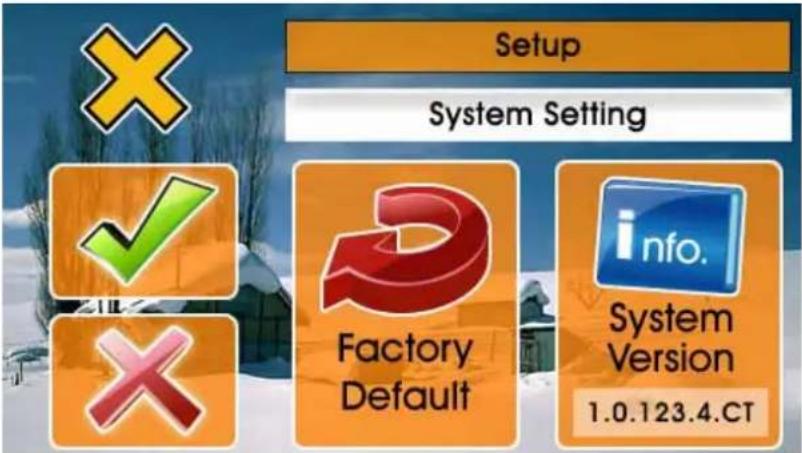 Reset the system to Factory default.Tap on √ to confirm.Tap on ✗ to Cancel.Display system version information. Reset the system to Factory default.Tap on √ to confirm.Tap on ✗ to Cancel.Display system version information. |
Chapter 6 Troubleshooting
If the GTV-580 does not boot up successfully or does not function properly
- Please check if the Application software is properly installed in the SD memory card.
- Please check if the SD memory card is inserted into the SD expansion slot.
- Please check the battery power. (The red light indicates the battery power is low and needs to be charged. The amber light indicates that it is in charging status, and the green light will be on when the battery is fully charged.)
- Perform the "Reset" to restart the device.
Reset
If your GTV-580 is down or it encounters an unexpected error, you can reset it. You will need to use a stylus or pencil to press the reset button. Pressing the reset button will restart the system retaining all the information stored on the device.
 | If your car windows equipped with Window Films for reducing heat and blocking the harmful UV rays, it may also slightly affect the receiving of GPS signal. Thus, the cold start time will take longer then usual. |
 | If the car is moving, it may also affect the time for GPS fix. We suggest that you stop the car while you turn on the GTV-580 for a quicker GPS fix time. |
 | Please avoid excessive heat and humidity. Please do not leave the GTV-580 in your car under the direct sunshine with windows closed. Place it in a high temperature environment may damage its LCD display or the device. |
Safely Remove Hardware
Before you remove the memory card from the card reader, or before you unplug the USB cable from the device or USB port, please safely remove the hardware by the following processes:
- Double click the "Safely Remove Hardware" icon from the task bar on the right bottom corner of desktop.
- Select the hardware device and then click the "Stop" button.
-
Confirm by selecting the device again and click "OK" button.
-
When you see a message showing "Safe To Remove Hardware" on desktop, then you can remove the memory card or unplug the USB cable.

text_image
Safely Remove Hardware 11:58 AM Safely Remove Hardware Select the device you want to unplug or eject, and then click Stop. When Windows notifies you that it is safe to do so unplug the device from your computer. Hardware devices: USB Mass Storage Device Stop a Hardware device Confirm devices to be stopped, Choose OK to continue. Windows will attempt to stop the following devices. After the devices are stopped they may be removed safely. USB Mass Storage Device Generic volume - [H.] USB Device OK Cancel Mass Storage Device at NetChip Firmware API Mass Storage Properties Stop splay device components Close Safe To Remove Hardware The 'USB Mass Storage Device' device can now be safely removed from the system. 12:04 PMFCC Notices
This device complies with part 15 of the FCC rules. Operation is subject to the following two conditions:
(1) This device may not cause harmful interference, and
(2) This device must accept any interference received, including interference that may cause undesired operation.
FCC RF Exposure requirements:
This device and its antenna(s) must not be co-located or operation in conjunction with any other antenna or transmitter.
NOTE: THE MANUFACTURER IS NOT RESPONSIBLE FOR ANY RADIO OR TV INTERFERENCE CAUSED BY UNAUTHORIZED MODIFICATIONS TO THIS EQUIPMENT. SUCH MODIFICATIONS COULD VOID THE USER'S AUTHORITY TO OPERATE THE EQUIPMENT.