CD9949 - Radio ROBERTS - Free user manual and instructions
Find the device manual for free CD9949 ROBERTS in PDF.


User questions about CD9949 ROBERTS
0 question about this device. Answer the ones you know or ask your own.
Ask a new question about this device
Download the instructions for your Radio in PDF format for free! Find your manual CD9949 - ROBERTS and take your electronic device back in hand. On this page are published all the documents necessary for the use of your device. CD9949 by ROBERTS.
USER MANUAL CD9949 ROBERTS
Sound for Generations
text_image
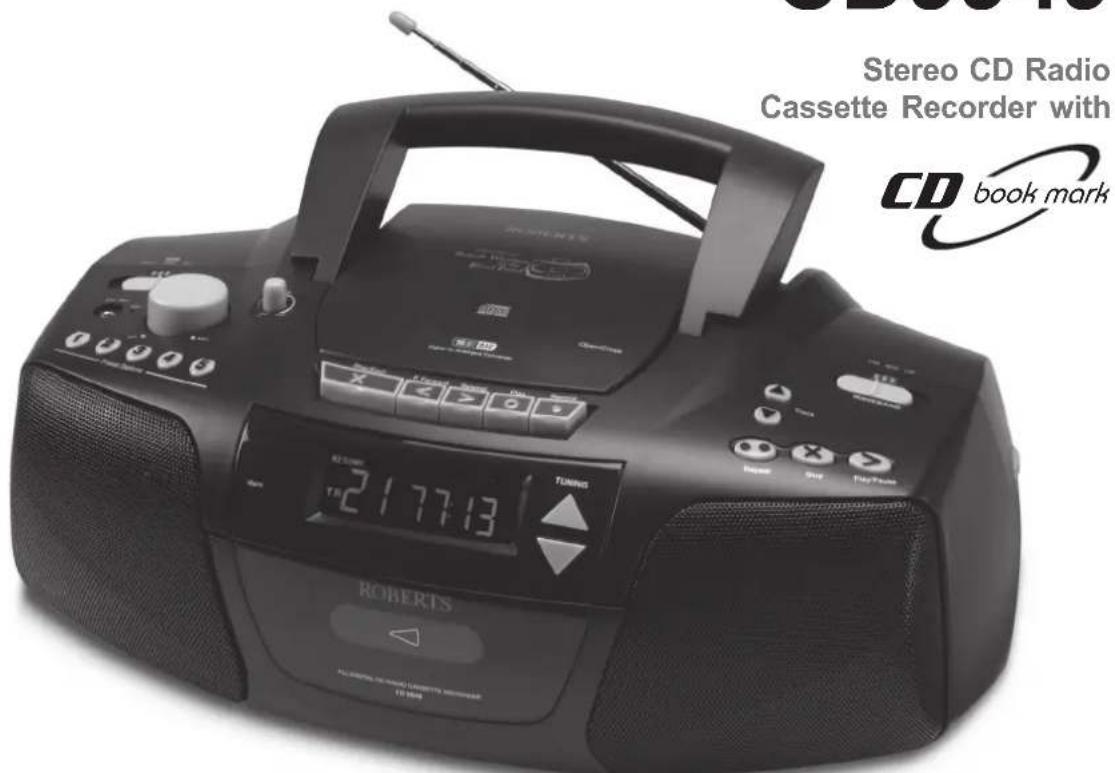
Stereo CD Radio Cassette Recorder with CD book mark ROBERTS TENING 217713CD9949
Stereo CD Radio Cassette Recorder with

Symphony
Please read this manual before use
Contents ...... 1
Controls 2
Battery Operation 3
Mains Operation 3
Operating the radio 4
Presetting stations....5
Recalling a preset station 6
Inserting a CD....7
Playing a CD....7
CD bookmark....8
Selecting a track 9
Search function....9
Repeat play....9
Listening to cassette tapes 10
Recording from the radio 11
Recording from CD 12
Recording from the internal microphone 12
Recording from an external microphone.... 13
Preventing accidental erasure 14
Cleaning tape heads 14
Headphones 15
Specification 16
Circuit features.... 16
Mains supply 17
Guarantee 18

text_image
CLASS 1 LASER PRODUCTWarning
CLASS 1 LASER PRODUCT means that the laser's construction makes it inherently safe so that the legally prescribed maximum permissible radiation values can never be exceeded
Caution: Using any equipment or devices other than those described and specified in these operating instructions, or tampering with the unit in any way, can result in dangerous exposure to radiation.
Controls

text_image
buttons microphone mic socket 1 2 3 4 5 6 7 8 9 10 11 12 13 14 15 16 17 18. Tuning up/do 19. Record key-
Preset buttons
-
Internal microphone
-
External mic socket
-
Headphone socket
-
Function switch
-
Volume control
-
Tone control
-
FM mono/stereo switch
-
Mains socket
-
Telescopic aerial
-
Battery compartment
-
Tuning tone volume
-
Waveband switch
-
CD track up/down buttons
-
CD Play/Pause button
-
CD Stop button
-
CD repeat button
-
Tuning up/down buttons
-
Record key
-
Play key
-
Rewind key
-
Fast forward key
-
LCD display
-
Stop/Eject key
Battery operation
- Remove the Battery cover on the rear of your CD radio cassette by pushing the catches in the direction shown.
- Insert eight LR14 (C size) batteries into the compartment. Take care to ensure all batteries are inserted with the correct polarity as shown inside the battery compartment. Replace the battery cover.
- Reduced power, distortion, and a 'stuttering' sound are all signs that the batteries may need replacing.
IMPORTANT: The batteries should not be exposed to excessive heat such as sunshine, fire or the like. After use, disposable batteries should if possible be taken to a suitable recycling centre. On no account should batteries be disposed of by incineration. We would recommend for economy that your CD9949 is used on the mains whenever possible with battery operation for occasional or stand-by use only.

natural_image
Line drawing of a portable electronic device with two hands operating it, no text or symbols presentMains operation
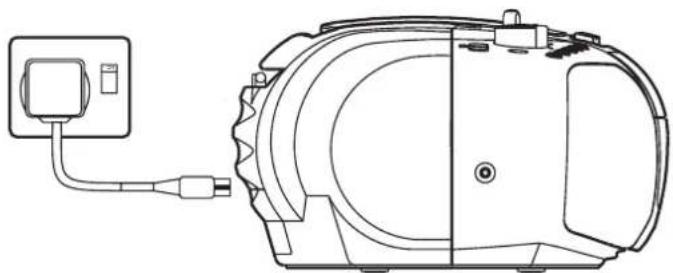
- Place your CD radio cassette on a flat surface.
- Plug the mains lead into the Socket located on the rear of your CD radio cassette. Ensure that the plug is pushed fully into the socket.
- Plug the other end into a wall socket and switch on.
IMPORTANT: The mains plug is used as the means of connecting the radio to the mains supply. The mains socket used for the radio must remain accessible during normal use. In order to disconnect the radio from the mains completely, the mains plug should be removed from the mains socket outlet completely.
natural_image
Technical line drawing of a mechanical device with a power outlet and cable (no text or symbols)Operating the radio
- Slide Function switch to the Radio position.
- Slide Waveband switch to select the required wave band. For the FM waveband fully extend the Telescopic aerial angle and rotate, if necessary, to obtain best reception.
- Press and hold down either the Tuning up or Tuning down buttons for more than 0.5 sec to commence scan tuning. An audible tone will be heard indicating that the radio is tuning. The tone will increase in pitch for tuning up and decrease in pitch for tuning down.
- Your radio will scan the selected waveband, sound a beep tone and stop automatically when it finds a station of sufficient strength.
- To recommence scan tuning, press and hold down either the Tuning up or Tuning down buttons for more than 0.5 sec.
- When the waveband end is reached the radio will beep and continue tuning from the opposite waveband end.
- Adjust the Volume and Tone controls to the desired settings.
- To switch off your radio slide the Function switch to the Off/Tape position.
Note: On FM if a station being received is weak some hiss may be audible. To reduce the hiss slide the FM Stereo/Mono switch (on rear) to the mono position. The stereo indicator will be removed from the display.
If you need any further advice, please call our Technical Helpline on :-
020 8758 0338 (Mon-Fri)

Presetting stations
You may preset up to 15 different stations, 5 on FM, 5 on MW and 5 on LW.
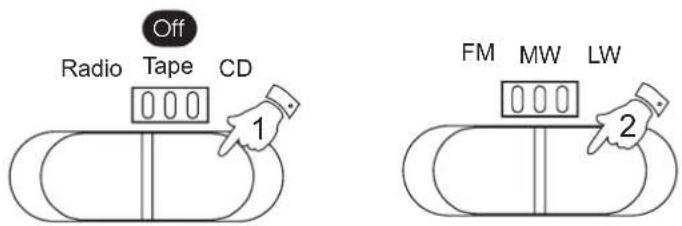
- Slide Function switch to the Radio position to switch on.
- Slide Waveband switch to select the required wave band
- Tune into a station as previously described on page 4.
- Press and hold down the required Preset button until the radio beeps (greater than 2 seconds) The preset number will appear in the display and the station will be stored under the chosen preset button.
- Repeat this procedure for the remaining presets.
- Stations stored in preset memories may be overwritten by following the above procedure.

text_image
Off Radio Tape CD 1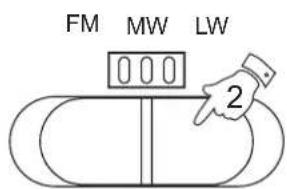
text_image
FM MW LW 2
text_image
① ② ③ ④ ⑤
text_image
M02 FM 89.1MHzRecalling a preset station
- Slide Function switch to the Radio position to switch on.
- Slide Waveband switch to select the required wave band
- Momentarily press the required Preset button, the preset number and station frequency will appear in the display.
- Adjust the Volume and Tone controls to the desired settings.
- To switch off your radio slide the Function switch to the Off/Tape position.
text_image
Off Radio Tape CD 1 FM MW LW 2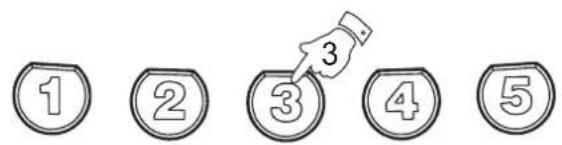
text_image
① ② ③ ④ ⑤
text_image
M 03 FM 9.13 MHz ∞
text_image
Off Radio Tape CD 5If you need any further advice, please call our Technical Helpline on :-
020 8758 0338 (Mon-Fri)
Inserting a CD
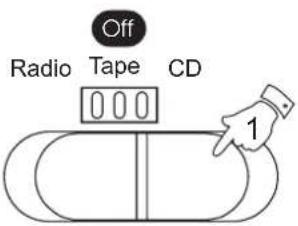
- Slide the Function switch to the CD position.
- To open the CD compartment, press the CD door on the edge marked Open/Close
- Insert an Audio CD, printed side facing up. Close the CD door. The CD player will scan the contents of the CD and the total number of tracks and total playing time will appear on the display.
text_image
Off Radio Tape CD 1
text_image
TR 14 54:35Playing a CD
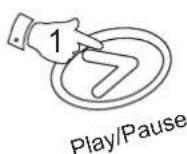
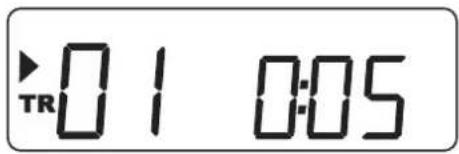
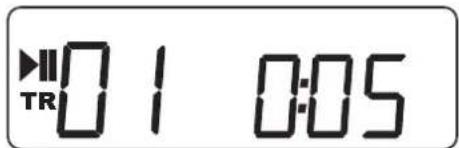
- Press the CD Play/Pause button to start playback. The display will show the track number and playing time.
- Adjust the Volume and Tone controls to the desired settings
- To pause playback press the CD Play/Pause button. The Play/Pause indicator will appear in the display. To resume playback press the CD Play/Pause button again.
- To stop playback, press the CD Stop button twice.
- To remove the CD, open the CD door by pressing the edge marked Open/Close. The CD door should only be opened when the CD is in Stop mode.
text_image
TR01 0:05
text_image
TR 01 0:05
CD bookmark
Your 'Symphony' CD radio cassette recorder has a unique feature called CD Bookmark.
Whilst playing a CD simply press stop and your CD unit will automatically remember the last played position ensuring that next time you press Play you return to the same place without losing a single word.
CD bookmark will remember the last played position after switching to radio, tape or even power off mode.
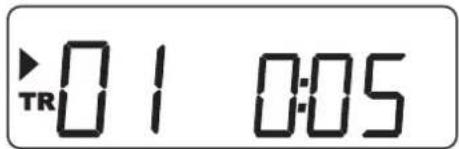
- Press the CD Play/Pause button to start playback. The display will show the track number and playing time.
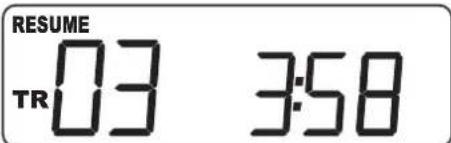
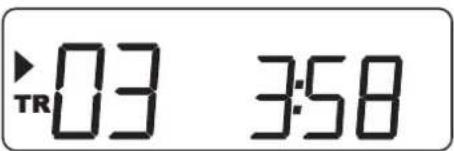
- Press the CD Stop button and the display will show RESUME together with the track number and CD bookmark time.
- To resume play at the CD bookmark simply press the CD Play/Pause button after several seconds the CD will resume play exactly where you left off.
- CD bookmark can be cancelled by pressing the CD Stop button twice.
CD bookmark will also be cancelled when the end of CD is reached or if the CD door is opened.
Note: Batteries or mains power must be maintained to ensure operation of CD Bookmark.

text_image
TR01 0:05
text_image
RESUME TR 03 3:58

text_image
TR03 3:58Selecting a track
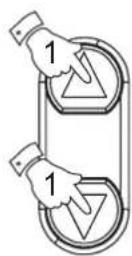
- Whilst the CD is playing, press and release either the Track up or Track down buttons to change to the desired track.
- You can also change tracks when the player is in stop mode. Change to the desired track using the Track up or Track down buttons (e.g. to select track 4 press the Track up button 4 times) The selected track will begin to play as soon as the Track button is released.
TRACK

text_image
TR 01 0:05Search function
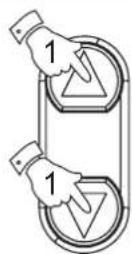
- Whilst the CD is playing, press and hold down either the Track up or Track down buttons. Release the button when the desired part of the track is reached.
TRACK
text_image
TR 03 3:58Repeat play
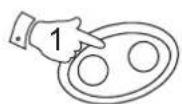
- Whilst the CD is playing press the Repeat button once to repeat the current track. The display will show REPEAT 1
- Press the Repeat button again to repeat all tracks on the CD. The display will show REPEAT ALL
- Press the Repeat button again to return to normal play.
Repeat

text_image
REPEAT TR 10 2:38Listening to cassette tapes
Note: This unit is not suitable for recording onto CHROME (IEC II) or METAL (IEC IV) cassettes. For playback any cassette type may be used
- Slide the Function switch to the Tape position.
- Press the Stop eject key to open the Cassette compartment.
- Insert a pre-recorded cassette with the tape surface upwards and the side with the desired recording facing towards you.
- Close the Cassette compartment.
- Depress the Play key and adjust the Volume and Tone controls to suit your personal taste.
- Use the Fast forward or Rewind buttons to locate a specific part of the tape.
- To stop the tape press the Stop/Eject button.

text_image
Off Radio Tape CD 1 2 6 6 5 < > ○ ○
text_image
VOLUME 5 Min○ ○ Max
If you need any further advice, please call our Technical Helpline on :020 8758 0338 (Mon-Fri)
Recording from the Radio
- Slide the Function switch to the Radio position.
- Tune in to the desired station.
- Adjust the Volume control to suit your requirements.
- Insert a blank cassette with the tape surface uppermost and the side you wish to record on facing towards you.
- Depress the Record key to commence recording.
- The recording level is set automatically and is not affected by the setting of the Volume control.
- To stop the recording press the Stop/Eject key.
- To switch off your CD radio cassette slide the Function switch to the Tape/Off position.

text_image
Off Radio Tape CD 1 7 5 < >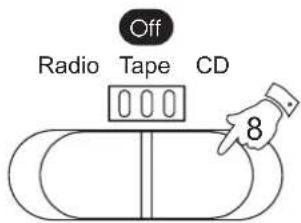
text_image
Off Radio Tape CD 8Recording from CD
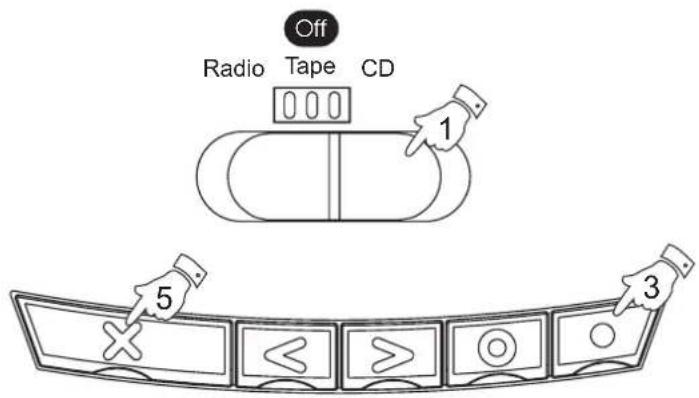
- Slide the Function switch to the CD position.
- Insert a CD into the compartment. Insert a blank cassette with the tape surface upwards and the side you wish to record on facing towards you.
- Depress the Record key to commence recording. The CD will start automatically (CD syncro start)
- The recording level is set automatically and is not affected by the setting of the Volume control.
- To stop the recording press the Stop/Eject key.
Recording from the internal microphone
- Slide the Function switch to the 'Tape' position.
- Insert a blank cassette with the tape surface upwards and the side you wish to record on facing towards you.
- Depress the Record key to commence recording.
- The recording level is set automatically and is not affected by the setting of the Volume control.
- To stop the recording press the Stop/Eject key.
If you need any further advice, please call our Technical Helpline on :-
020 8758 0338 (Mon-Fri)
text_image
Radio Tape CD 1 5 3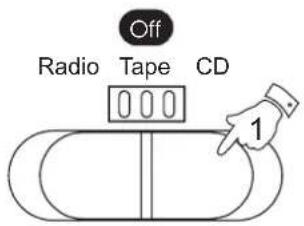
text_image
Off Radio Tape CD 1
text_image
5 3 < > ○Recording from an external microphone (not included)
When recording from an external microphone the loudspeakers remain connected for monitoring purposes. If you do not wish to hear the recording being made simply rotate the volume control to minimum.
The recording level is set automatically and is not affected by the setting of the Volume control.
- Slide the Function switch to the 'Tape' position.
- Insert a blank cassette with the tape surface upwards and the side you wish to record on facing towards you.
- Plug the external microphone into the Microphone socket located on the left side of the top panel. The internal microphone will be automatically disconnected
- Depress the Record key to commence recording.
- The recording level is set automatically and is not affected by the setting of the Volume control.
- To stop the recording press the Stop/Eject key.

text_image
Off Radio Tape CD 1 6 4Preventing accidental erasure
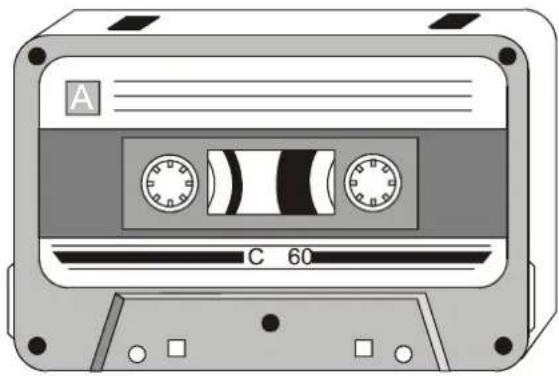
- To safeguard your recordings against accidental erasure, break off the appropriate tab on the cassette as shown.
- There is one tab for each side of the cassette. This will prevent the Record button from being pressed.
- To restore the cassette to normal, seal the tab openings with a small piece of self-adhesive tape.
natural_image
Illustration of a cassette tape with two dials and a 60-pin section (no text or symbols)Cleaning tape heads
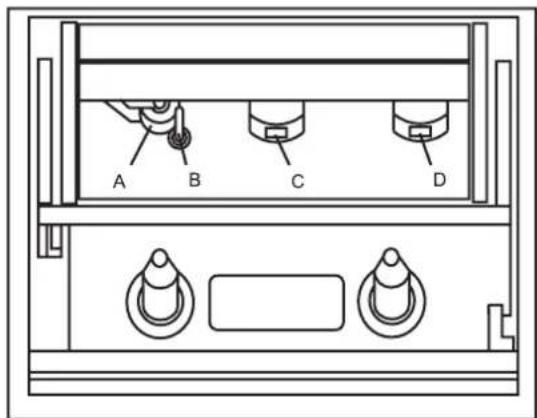
The oxide from magnetic tapes can accumulate on the pinch roller (A) the capstan shaft (B) and also the heads (C and D). This will impair the sound quality.
To clean these parts proceed as follows:-
- Switch off the power to the unit.
- Press the Stop/Eject button.
- Press the Play button and the heads will be clearly seen.
- Clean the surfaces (A, B, C, D) with a lint free rag or cotton swab soaked in alcohol. Press the stop/eject button as soon as cleaning is over.
If you need any further advice, please call our Technical Helpline on :-
020 8758 0338 (Mon-Fri)
text_image
A B C DHeadphones (not included)
- A Headphone Socket (3.5mm) located on the left hand end of your CD radio cassette is provided for use with either headphones or an earpiece. Inserting the headphone plug automatically mutes the internal loudspeaker.
IMPORTANT: Excessive sound pressure from earphones and headphones can cause hearing loss.

natural_image
Technical line drawing of a mechanical device with earpieces and internal components (no text or symbols)General
Do not allow this unit to be exposed to moisture (e.g. dripping or splashing). Do not leave your radio where excessive heat could cause damage such as in a parked car where the heat from the sun can build up even though the outside temperature may not seem too high.
The name plate is located on the underside of the radio.
- No objects filled with liquids such as vases, shall be placed on the radio.
- It is recommended to operate the product such that there is a minimum distance (10cm recommended) to adjacent objects in order to ensure good ventilation.
- The ventilation of the product should not be restricted by covering it or its ventilation openings with items such as newspapers, tablecloths, curtains etc.
- No naked flame sources such as lighted candles should be placed on the product.
- It is recommended to avoid using or storing the product at extremes of temperature. Avoid leaving the unit in cars, on window sills in direct sunlight etc.
Specifications
Power Requirements
Mains AC 230 volts, 50Hz only

Batteries 8 x LR14 (C size)
Frequency Coverage
FM 87.5-108MHz
MW 522-1620kHz
LW 144-281kHz
Circuit Features
Loudspeaker 2 x 100mm
Output Power 2 x 2.5 Watts
Headphone socket 3.5mm dia
Microphone socket 3.5mm dia
Aerial System FM Telescopic aerial
MW Built-in Ferrite aerial
LW Built-in Ferrite aerial
The Company reserves the right to amend the specification without notice.
If you need any further advice, please call our Technical Helpline on :-
020 8758 0338 (Mon-Fri)
Mains supply
Your CD9949 will operate from a supply of AC 230 volts, 50Hz ∼ only.
DO NOT cut off the mains plug from this equipment. If the plug fitted is not suitable for the power points in your home or the cable is too short to reach a power point, then obtain an appropriate safety approved extension lead or adaptor. If in doubt consult your dealer.
If nonetheless the mains plug is cut off, remove the fuse and dispose of the plug immediately to avoid a possible shock hazard by inadvertent connection to the mains supply.
If this product is not supplied with a mains plug, or one has to be fitted, then follow the instructions given below:
IMPORTANT. DO NOT make any connection to the larger terminal which is marked with the letter E or by the safety earth symbol for coloured Green or Green-and-yellow.
The wires in the mains lead are coloured in accordance with the following codes :-
BLUE - NEUTRAL
BROWN - LIVE
As these colours may not correspond with the coloured markings identifying the terminals in your plug, proceed as follows:-

text_image
Brown (Live) Blue (Neutral) N E (Earth) L 3 amp Mains LeadThe wire coloured BLUE must be connected to the terminal marked N or coloured BLACK.
The wire coloured BROWN must be connected to the terminal marked L or coloured RED.
Fuse
When replacing the fuse only a 3A ASTA approved to BS1362 type should be used and be sure to re-fit the fuse cover.
IF IN DOUBT - CONSULT A QUALIFIED ELECTRICIAN.
Replacement fuse holders are available from Roberts Radio Technical Services at the address shown on the rear of this manual.
The Nameplate is located on the underside of your CD radio cassette.
Trouble shooting
In case of malfunction due to electrostatic discharge, it may be necessary to reset the product to resume normal operation. This may generally be performed by turning the unit off and on. In some cases a more complete reset may be needed, by removing all sources of power (battery and mains) when turned off.
Guarantee
This instrument is guaranteed for twelve months from the date of delivery to the original owner against failure due to faulty workmanship or component breakdown, subject to the procedure stated below. Should any component or part fail during this guarantee period it will be repaired or replaced free of charge.
The guarantee does not cover:
- Damage resulting from incorrect use.
- Consequential damage.
- Receivers with removed or defaced serial numbers.
N.B. Damaged or broken telescopic aerials will not be replaced under guarantee.
Procedure:
Any claim under this guarantee should be made through the dealer from whom the instrument was purchased. It is likely that your Roberts' dealer will be able to attend to any defect quickly and efficiently but should it be necessary the dealer will return the instrument to the Company's service department for attention. In the event that it is not possible to return the instrument to the Roberts' dealer from whom it was purchased, please contact Roberts Radio Technical Services department at the address shown on the rear of this booklet before taking further action.
These statements do not affect the statutory rights of a consumer.
If you need any further advice, please call our Technical Helpline on :-
020 8758 0338 (Mon-Fri)
ROBERTS RADIO TECHNICAL SERVICES DEPARTMENT
97-99 Worton Road
Isleworth Middlesex
TW7 6EG
Technical Helpline:- 020 8758 0338 (Mon-Fri)
Website: http://www.robertsradio.co.uk

Issue 2
CE