
TM5 - Tracking ORION - Free user manual and instructions
Find the device manual for free TM5 ORION in PDF.


| Product Type | 7-inch TFT-LCD Monitor (Security) |
| Brand | Orion |
| Model | TM5 |
| Screen Size | 7 inches (diagonal) |
| Display Technology | Active Matrix TFT LCD |
| Max Resolution | 1440 x 234 pixels |
| Pixel Pitch | 0.107 (H) x 0.370 (V) mm |
| Brightness | 500 cd/m² |
| Contrast Ratio | 300:1 |
| Aspect Ratio | 5:4 |
| Viewing Angle | 120° (H) / 70° (V) |
| Active Area | 154.08 (W) x 86.58 (H) mm |
| Video System | NTSC / PAL (auto-switching) |
| Video Inputs | 2 x BNC (Video 1, Video 2) |
| Video Output | 1 x BNC |
| Audio Input/Output | Optional (RCA) |
| Power Source | DC 12V / 520 mA |
| Power Consumption | 7W |
| Battery Type | Rechargeable Li-ion (included) |
| Battery Charging Time | 10 hours (recommended) |
| Weight | 4 lbs (approx. 1.8 kg) |
| Dimensions (W x H x D) | 7.70 x 3.35 x 1.42 inches (195.6 x 85.1 x 36.1 mm) |
| OSD Controls | Brightness, Contrast, Volume, Input Select, Reverse Image |
| Packaging Contents | Monitor, User Manual, Battery Charger, Power Cord, Rechargeable Battery, BNC Cable, Carry Bag, Waist Belt |
Frequently Asked Questions - TM5 ORION
User questions about TM5 ORION
0 question about this device. Answer the ones you know or ask your own.
Ask a new question about this device
Download the instructions for your Tracking in PDF format for free! Find your manual TM5 - ORION and take your electronic device back in hand. On this page are published all the documents necessary for the use of your device. TM5 by ORION.
USER MANUAL TM5 ORION
TEST MONITOR LCD SERIES (TM)
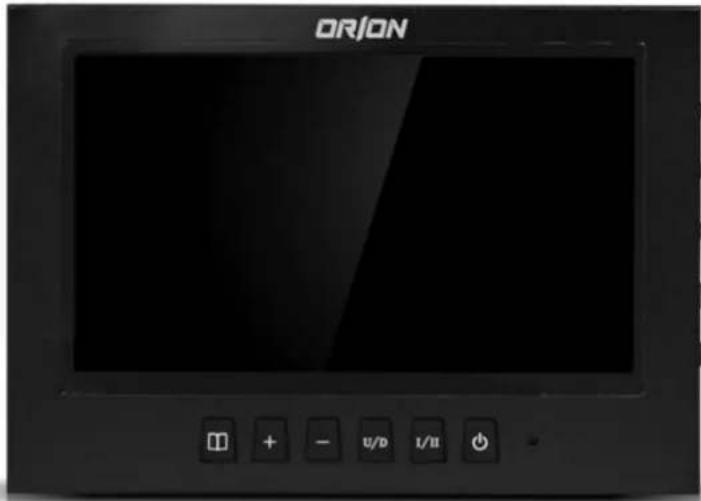
7" TFT-LCD MONITOR (SECURITY)
Warning Statements
* Follow this safety instruction to use the monitor properly and prevent the damages.
* This safety instruction has “Warning” and “Caution” as below.
WARNING: If the user does not follow this instruction, it may cause the serious damage to the user.
CAUTION: If the user does not follow this instruction, it may cause the slight damage to the user or cause some damages to the monitor.
* Keep this user's guide book for later use.


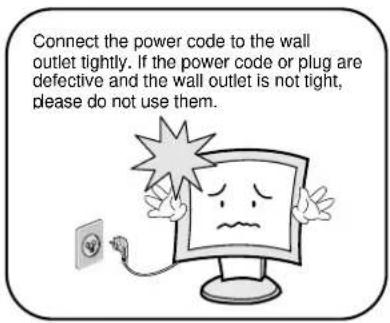
Warning Statements
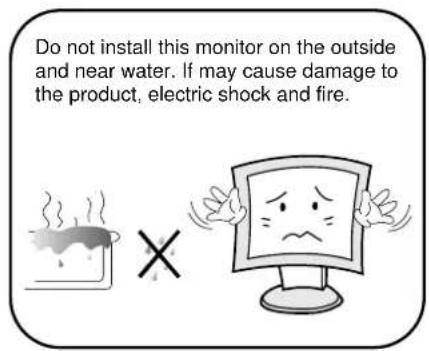

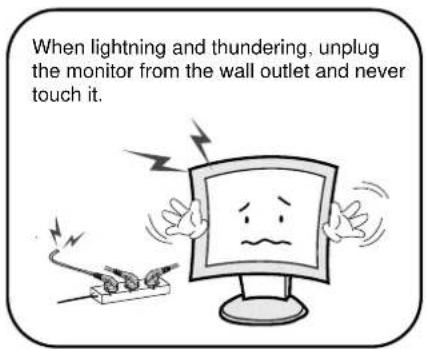
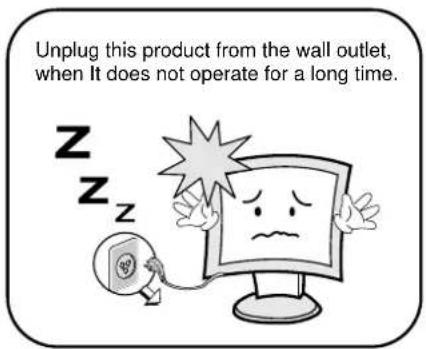
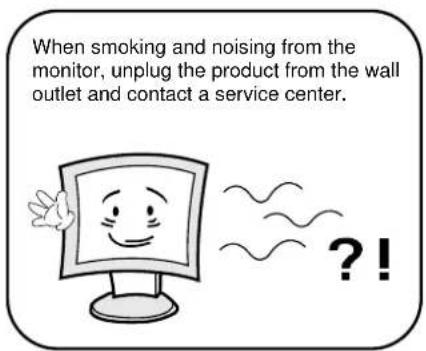
How to fix
- Do not open this product as it contains high voltage inside.
- It may create an electric shock.
- It the user disassembles and remove the back cover, it does not make sure
- To make up for the damages and do a service and exchange the monitor..
Cautions
Install this monitor some distance From the wall and do not install unless Proper ventilation is provided.
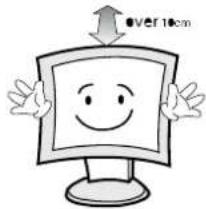
natural_image
Cartoon illustration of a smiling computer monitor with arms and legs, no text or symbols presentPlace this product on a stable place. If not, it may fall, causing serious Damages to the monitor and people.

natural_image
Cartoon illustration of a computer monitor character with arms and facial expression (no text or symbols)The openings must not be blocked by curtain, rug or other similar surface.

natural_image
Cartoon illustration of a computer monitor character with a sad face and frowning expression (no text or symbols)When carrying this monitor, be careful not to damage the panel and drop it. It may cause some trouble.

Before carrying the monitor, tum it off and Unplug the signal cables and the power code From the wall outlet.

natural_image
Cartoon illustration of a smiling computer monitor with a thumbs-up gesture and connected to a wall-mounted device (no text or symbols)Take the power plug out from the wall outlet. Do not pull the cable. It may snap the inner wires and cause overheating and fire.
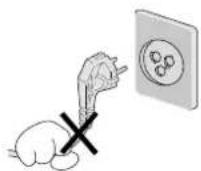
Install this monitor about 50cm far from the eyes and an angle of 0\~15 degrees below eyes. Too close installation may cause having weak sight.

Do not press the LCD panel with hands or the sharpened material hardly.

natural_image
Cartoon illustration of a sad computer monitor character with arms and legs, holding a blank sign (no text or symbols present)For cleaning, unplug the monitor from the Wall outlet. Do net use the liquid cloth. Use the soft cloth.
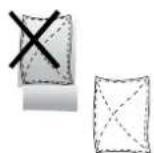

Do not use the chemical liquid for cleaning. It may cause fading and breakage.

TABLE OF CONTENTS
- INSTALLATION 6
1.1 Parts 6
- FEATURES 7
2.1 Display Mode 7
- OSD SETTING 8
3.1 Connections & Controls 8
3.2 OSD Menu Control 8
3.3 Controls 9
3.4 Battery 10
-
INFORMATION TO THE USER 11
-
TROUBLESHOOTING 12
-
LIMITED LIFETIME WARRANTY 13
INSTALLATION
1.1 Parts
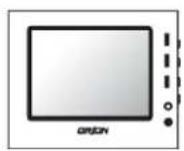
TFT-LCD MONITOR
USER MANUAL

15V BATTERY CHARGER
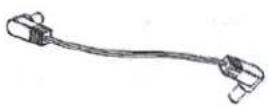
POWER CORD

RECHARGEABLE BATTERY
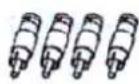
BNC

natural_image
Simple line drawing of a rectangular device with vertical stripes and a handle, no text or symbols present.CARRY BAG

WAIST BELT
FEATURES
2.2 Specifications
| VIDEO | |
| Screen Size 7" | |
| Pixel Type Active Matrix TFT | |
| Max. Resolution 1440 x 234 | |
| Pixel Pitch 0.107 x 0.370mm | |
| Brightness | 500 cd/m2 |
| Contrast Ratio 300 : 1 | |
| Aspect Ratio 5:4 | |
| Viewing Angle (H/V) 120 / 70 | |
| Active Area 154.08(W) x 86.58(H) mm | |
| Display Color Full Color | |
| Video System NTSC / PAL | |
| MECHANICAL | |
| Packing Dimension | |
| W x H x D 7.70" x3.35" x 1.42" | |
| Weight 4lbs | |
| Power Consumption 7W | |
| Power Source | DC12V / 520mA |
3.1 Connections and Controls

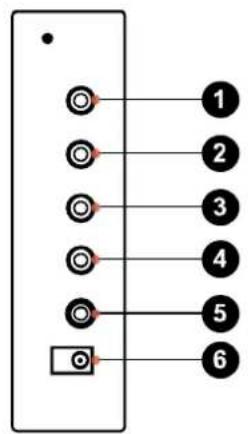
① Video 1 Input
② Video 2 Input
③ Video Output
④ Audio Input (optional)
⑤ Audio Output (optional)
⑥ DV12V Power Input
⑦ OSD Menu
⑧ "+" Increase (Default to Brightness)
⑨ “-” Decrease (Default to Brightness)
⑩ Left-Right-Up-Down Reverse
⑪ Video Input Selector
⑫ Main Power
⑬ LED Power Indicator
3.2 OSD Menu Control
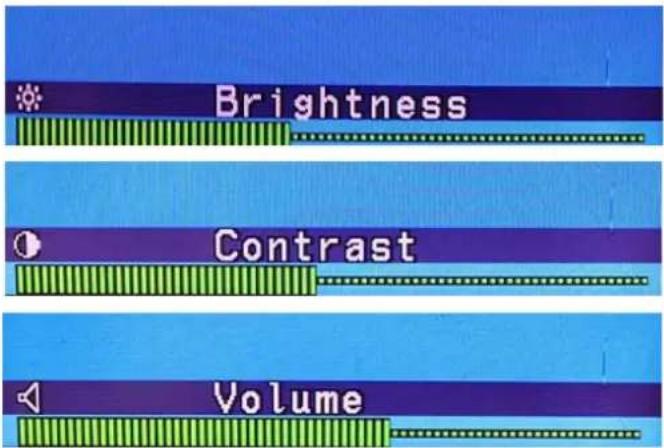
To control the Brightness of picture use “+”, or “-” to change to the desire picture quality.
To control the Contrast of picture use “+”, or “-” to change to the desire picture quality.
To control the Volume of sound use “+”, or “-” to increase or decrease the sound of the volume.
3.3 Controls


To switch the video input use "I / II" to select NTSC Video 1 or Video 2.


To view the Rear Camera select "U/D" button to see the reverse image
3.4 Battery

natural_image
Black rectangular electronic device with two ports and a control knob (no visible text or symbols)Energy Saving Li-ion Rechargeable Battery
To charge the battery press "On-Off" switch to "On" position then charge the battery at least 10 hours to fully charged. To avoid unnecessary power loss make sure switch to "Off" position after use.
Please note indicator of Green and Red LED light is on/off during charging the battery. Please make sure 10 hours lead time is recommended when charging the battery.
INFORMATION TO THE USER
This equipment has been tested and found to comply with the limits for a Class B digital device, pursuant to part 15 of the FCC Rules. These limits are designed to provide reasonable protection against harmful interference in a residential installation. This equipment generates, uses and can radiate radio frequency energy and, if not installed and used in accordance with the instructions, may cause harmful interference to radio communications. However, there is no guarantee that interference will not occur in a particular installation. If this equipment does cause harmful interference to radio or television reception, which can be determined by turning the equipment off and on, the user is encouraged to try to correct the interference by one more of the following measures:
● Reorient or relocate the receiving antenna.
- Increase the separation between the equipment and receiver.
- Connect the equipment into an outlet on a circuit different from that to which the receiver is connected.
- Consult the dealer or an experienced radio / TV technician for help.
WARNING:
The manufacturer is not responsible for any Radio or TV interference caused by unauthorized modifications to this equipment. Such modifications could void the user's authority to operate the equipment."
TROUBLESHOOTING
* When the following troubles are occurred, follow the trouble shooting. Before contacting a service center.
| Troubleshooting | Troubleshooting Tip |
| The screen doesn’t show up | 1. Make sure if the power supply is connected property |
| 2. Turn on the power. | |
| 3. Select the input signal right for the connected port. | |
| The screen is too light or to dark | Control the BRIGHTNESS |
| The screen size is not fit for the PC signal | Press the AUTO key among keys in the front.(It is used only in the PC signal) |
| The screen color shows strange in the PC signal | In the FUNCTION menu of OSD menu, perform the AUTO-ADJUST. |
2Year Limited Warranty
All Orion Images products carry a limited warranty from ship date against defects in materials and workmanship. Orion Images is not liable for improper installation that results in damage to mounts, adapters, display equipment or personal injury.
Contact Orion Images
In the event of missing and/or damage equipment, or technical questions, the following information can help in the completion of the installation.
Address: 7300 Bolsa Avenue, Westminster, CA 92683
Tel: 714-766-6300 / Fax: 714-766-6310
Email: sales@orionimages.com
Website: http://www.orionimages.com


- 7" TFT-LCD MONITOR (SECURITY)
- Warning Statements
- How to fix
- Cautions
- TABLE OF CONTENTS
- INSTALLATION
- Parts
- FEATURES
- Specifications
- Connections and Controls
- OSD Menu Control
- Controls
- Battery
- Energy Saving Li-ion Rechargeable Battery
- INFORMATION TO THE USER
- WARNING:
- TROUBLESHOOTING
- 2Year Limited Warranty
- Contact Orion Images
Brand : ORION
Model : TM5
Category : Tracking