CE-H26611-S1 - Wireless transmitter Siig - Free user manual and instructions
Find the device manual for free CE-H26611-S1 Siig in PDF.


User questions about CE-H26611-S1 Siig
0 question about this device. Answer the ones you know or ask your own.
Ask a new question about this device
Download the instructions for your Wireless transmitter in PDF format for free! Find your manual CE-H26611-S1 - Siig and take your electronic device back in hand. On this page are published all the documents necessary for the use of your device. CE-H26611-S1 by Siig.
USER MANUAL CE-H26611-S1 Siig
natural_image
Red circular logo with a white stylized 'S' line (no text or symbols)SIIG®
Dual View Wireless Media Presentation User Manual
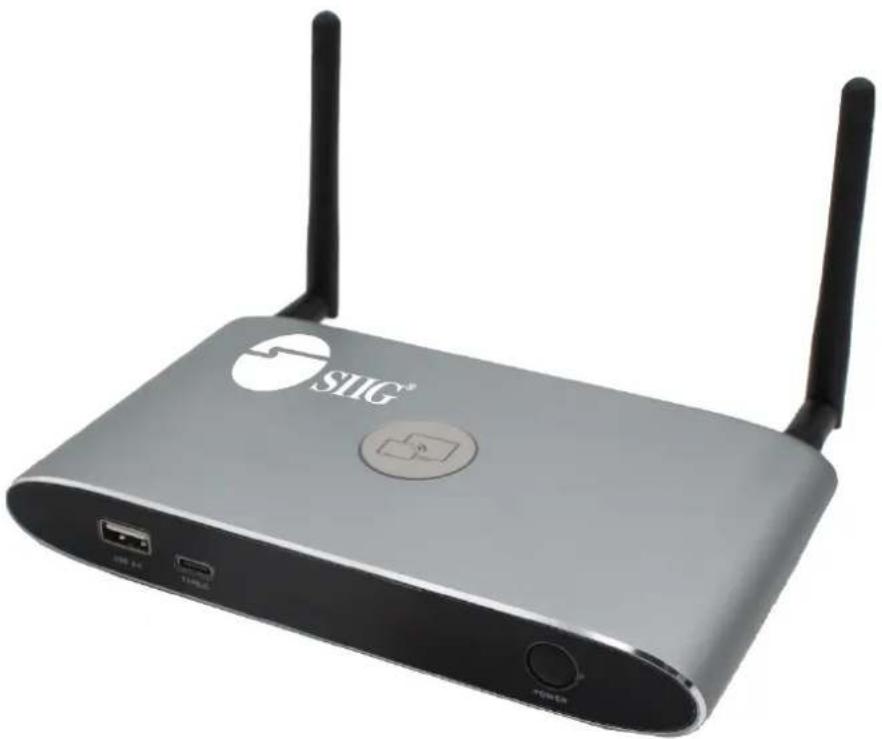
natural_image
Exterior view of a silver SLIG network device with two black antennas and ports (no readable text or symbols beyond branding)04-1272A

P/N CE-H25Y11-S1
P/N CE-H26611-S1
P/N CE-H26711-S1
Features
● Support dual viewer on one display.
● Support VESA PC resolution input, auto-detecting.
- Can transmit PC's mirror/extended desktop or Macbook's mirror desktop.
- Can transmit smart devices' mirror, photos, videos, music etc.
● Support USB plug-in auto pairing for Wireless Media Presentation
● Support "Airplay" for apple device.
Package contents (CE-H25Y11-S1)
● Dual View Wireless Media Presentation (WMS)
- USB A/C Dongle
● Power adapter DC 12V/1.5A
- Antenna x2
- Quick Start Guide
Package contents (CE-H26611-S1)
● Dual View Wireless Media Presentation (WMS)
● Wireless Media Presentation Transmitter-HDMI Dongle x2
- USB A/C Dongle
● Power adapter DC 12V/1.5A
- Antenna x2
- Quick Start Guide
Package contents (CE-H26711-S1)
● Wireless Media Presentation Transmitter-HDMI Dongle
- Quick Start Guide
Specification:
| WMS Specification | |
| HDMI output | 1x HDMI 19-pin female connector |
| Video Output Resolution | 3840x2160@60Hz,3840x2160@30Hz,1920x1080@60Hz, |
| Format Compliance | HDMI1.4/HDMI2.0 |
| Video Capacity: | 1080P @ <60Hz Airplay for IOS devices1080P @ <60Hz "WirelessMedia" app1080P @ <30Hz for all show-me button |
| HDCP HDCP1.4/HDCP2.2 | |
| Analog Audio Output 1x 3.5mm PC audio female connectors | |
| LAN port | RJ45 x2: 1000Mbps x1, 100Mbps x1 |
| USB interface | USB3.0 x1, USB 2.0 x1, Type-C x1 |
| Audio Input AirPlay, Windows/MAC, WMH | |
| Control connectors | 3.5mm Phoenix terminal/ RS232 interface |
| Number of window simultaneous on screen | ≥4+14 (4 main windows+14 thumbnail windows) |
| Number of simultaneous connections | ≥16 |
| Data rate in wireless Up to 1200Mbps | |
| Video Playback Frame Rate | 20-60 FPS |
| Latency | < 100ms, Min 20ms |
| Wireless transmission protocol | WIFI IEEE 802.11 a/g/n/ac |
| Frequency band 2.4 GHz & 5 GHz | |
| WIFI Antenna | MIMO 2x2 |
| Dimension (W x D x H) | 165mm x 95mm x 24.5mm (including antenna: 165mm x 125mm x 24.5 mm) |
| Weight | 0.4lbs (200g) |
| Temperature | -4° ~ +140° F (-20° ~ +60° C) |
| Humidity (Storage / Operating) | 20%-90% (non-condensing) |
| DC Power | 12V / POE |
| POE standard IEEE802.3af | |
| Power Consumption | 10W(MAX) |
Catalogue
Layout....6
Software Interface....12
Installation....14
Wiring Diagram....16
Video Connection....16
Audio Connection....17
LAN connection 19
Usage of USB device....20
Quick-to-Start....21
Mobile device: Wireless Connection 21
Mirroring 25
Preview Window 30
Whiteboard & Annotation....30
Whiteboard 31
Annotation 34
Web Setting Management Configuration 36
Network settings 39
Ethernet....49
Auto change password....50
Display & Audio 51
Audio 53
Volume 53
Airplay screen quality....54
Screen display ID 55
Home Screen background image 56
System settings....57
Date & Time....58
Auto standby 59
Language 60
Reset....60
Config File....61
Uart Setting 61
Security Settings....62
Password 63
Connection password....64
Firmware upgrade....64
Other settings....65
Clear history after meeting 65
About device 66
Updating WirelessMedia....66
Check current firmware information 67
Upgrading firmware of base unit: 70
Upgrading and Pairing of Dongle: 71
Upgrading Launcher: 72
Operation Guide....74
Mirroring PC desktop 74
MAC OS PC/Laptop with Dongle 80
MAC OS PC/Laptop without Dongle....81
Options for Apple MacOS, MacBook - Extended Screen 83
Transmitting IOS mobile device 84
Transmit Android device wireless....84
WIFI Recommendation Setting 86
Check the WIFI config on base unit....86
Check the WIFI RSSI on dongle or Mobiles 87
Problem Shooting....87
Layout
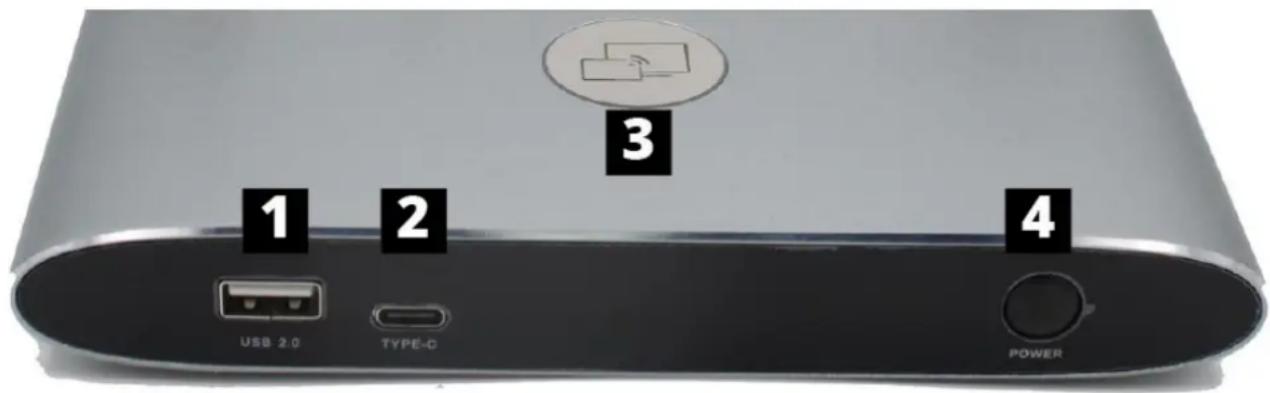
text_image
1 2 3 USB 2.0 TYPE-C 4 POWER| ID Name Description | ||
| 1 | Front USB connector | USB port, for dongle pairing, mouse control, USB touch screen etc. |
| 2 | Front Type-C connector | Type-C port, for dongle pairing. |
| 3 | Back-lit LED indicator | Initializing indicates RED, power on indicates flashing GREEN, “Ready to share” indicates static GREEN, “Sharing” indicates static cyan. |
USB port
● The USB port is used to update the software of the WMS.
● The USB port is used for pairing the dongle and base unit, when the transmitter is plugged-in.
- The USB port is used for connecting a mouse to create/upgrade Launcher by clicking Download button, hide SSID, PASS, Wifi IP and Lan IP by clicking Info, check Security level button and control PC source device, when a PC desktop is mirroring to the screen by plugging in the dongle.
- The USB port is used for connecting a USB-based touch screen to create/upgrade Launcher by clicking Download button, hide SSID, PASS, Wifi IP and Lan IP by clicking Info, check Security level button and control PC source device, when a PC desktop is mirroring to the screen by plugging in the dongle.
- The USB port is used for creating or upgrading Launcher by clicking Download button, when a USB stick is plugged in.
Type-C port
The Type-C port is used for pairing USB Type C dongle with base unit.
Mechanical fixture points.
The mechanical fixture points are located at the bottom of the base unit.
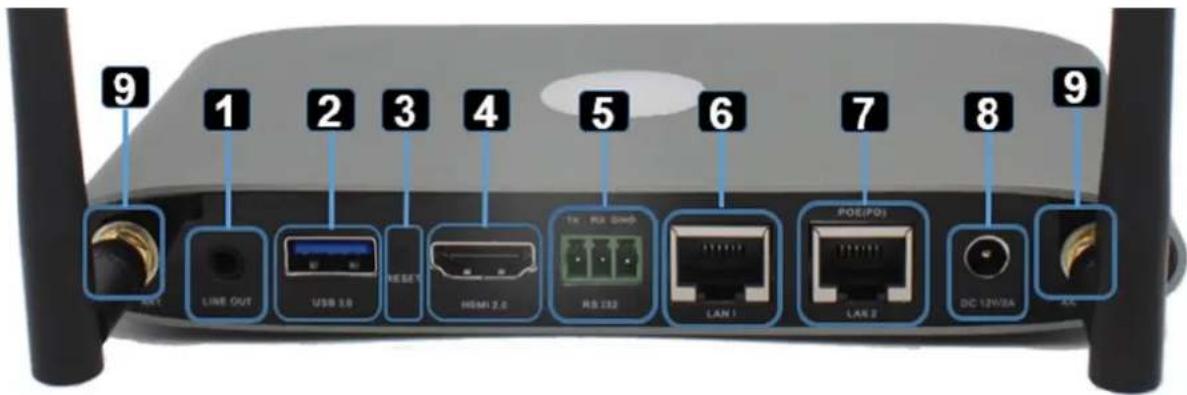
text_image
9 1 2 3 4 5 6 7 8 9 USB OUT LINE OUT USB 1.0 HSB 1 HDMI 2.0 TX RX GND RS 132 LAN 1 POE/POI LAN 2 DC 12V/2A| ID Name Description | ||
| 1 | Line audio output | 2 channel analog audio output, Connect a 3.5mm mini-jack PC connector from this jack to the Line in jack of an audio system. |
| 2 | Rear USB3.0 connector | USB port, for USB dongle pairing, mouse control, USB touch screen etc. |
| 3 | Reset | Reset button to restore to the factory default setting. |
| 4 HDMI output | Connect an HDMI cable from this port to an HD or 4K/HDMI2.0 display. | |
| 5 RS-232 | Connect an RS-232 cable from this port to an RS-232 device. | |
| 6 | LAN Ethernet port 1 | 100Mbps, Connect an Ethernet cable between this jack and a LAN to connect WMS to LAN. |
| 7 | LAN Ethernet port 2 | 1000Mbps, Connect an Ethernet cable between this jack and a LAN to connect WMS to LAN. Support POE. |
| 8 | DC Power socket | Connect the included power adapter to this socket, and connect the plug to an available electrical outlet. |
| 9 | Antenna fixture points | Screw up the included two antennas to these two ports. |
USB port
● The USB port is used to update the software of the WMS.
● The USB port is used for pairing the dongle and base unit, when the transmitter is plugged-in.
- The USB port is used for connecting a mouse to create/upgrade Launcher by clicking Download button, hide SSID, PASS, Wifi IP and Lan IP by clicking Info, check Security level button and control PC source device, when a PC desktop is mirroring to the screen by plugging in the dongle.
- The USB port is used for connecting a USB-based touch screen to create/upgrade Launcher by clicking Download button, hide SSID, PASS, Wifi IP and Lan IP by clicking Info, check Security level button and control PC source device, when a PC desktop is mirroring to the screen by plugging in the dongle.
- The USB port is used for creating or upgrading Launcher by clicking Download button, when a USB stick is plugged in.
Factory Reset
- Start up the Base unit.
- When the Home Screen is shown up, press the reset button at the rear panel of base unit. Press this button with a pointed object, e.g. an unbent paper clip until the "Factory Reset" page is shown up as below, for at least 2 seconds.
● The Base unit will reboot after 3 seconds to be default configuration. - If you do not have a picture, press and hold the reset button until the red LED in the top panel will lit, to execute the reset.
All previous settings will be lost and you will need to do the set-up once more.

text_image
Factory reset Factory reset CancelDefault Configuration
- Ethernet:
■ Proxy: None
■ IP setting: DHCP
- Wireless network:
■ Frequency: 5GHz
■ Channel: 40Hz
■ Auto change Wi-Fi hotspot password: 5minute
- Display & Audio
■ HDMI resolution: Auto
■ HDMI CEC: Device auto power off: ON
■ Base unit auto power on: OFF
■ Audio output: Jack&HDMI
■ Airplay screen quality: High
■ show device name and password when mirroring: OFF
■ show PCs user name when mirroring: ON
- System settings
■ Date & time: Automatic date & time: use network-provided time
■ Auto Standby: Never
■ Language: English
- Security Settings
■ Security Level: Security level 1
■ Connection Password: 4-digits password beginning with 0000
■ Change admin password: admin(default)
- Other settings
■ Auto create launcher: Disabled
■ Clear history after meeting: Always
Transmitter-HDMI Dongle
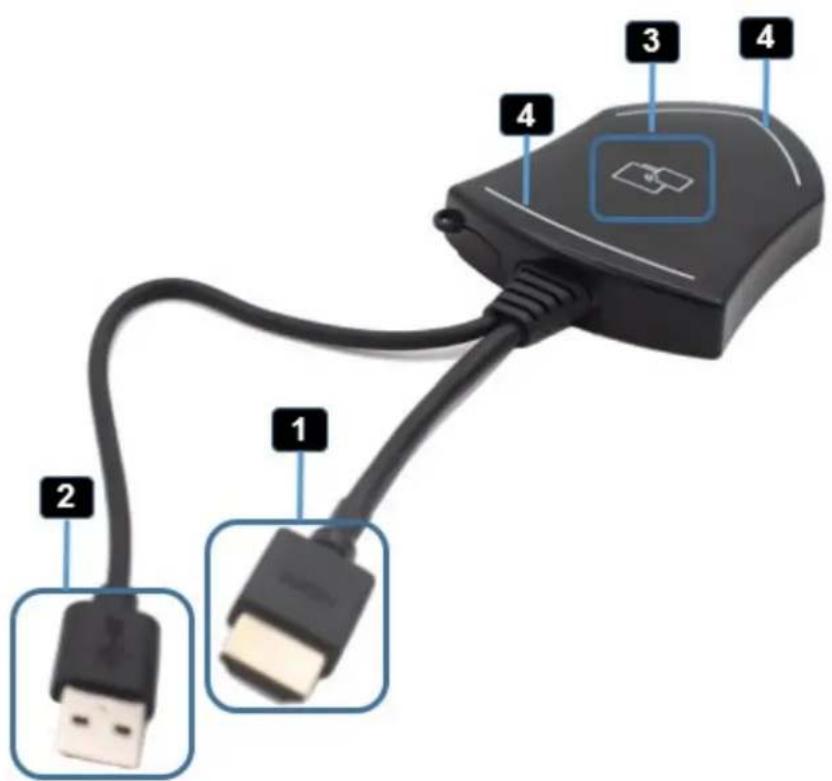
text_image
Diagram of a USB cable connector with labeled pins and connectors| ID Name Description | ||
| 1 | HDMI connector | Using HDMI connector of the button can be plugged into a PC/Laptop for sharing your screen. |
| 2 USB | connector | Supply power, or plug into the base unit for pairing the Button to the Base Unit or upgrade the dongle. |
| 3 | Touching Button | Touch the sensor button to start displaying the content of the PC/Lap-top's screen on the main screen. Touch the button during the meeting will toggle the sharing of the screen. |
| 4. | LED ring indicator | Indicates the status of the button. |
LED ring indicator behavior
- When LED indicator is static green, it's ready to mirror your PC desktop on the main screen.
- When LED indicator is static red, 1) it's mirroring your PC desktop on the screen, 2) pairing is done. You can now unplug the Button from the base unit.
- When LED indicator is blinking Green, it indicates 1) the button is plugged in the laptop and initializing or waiting for user to start the WirelessMedia application, 2) pairing/software upgrading of the button in the Base Unit is in progress.
- When LED indicator is Off (no light), it indicates 1) the button is not plugged in the PC/Lap-top; 2) the button is defective; 3) the USB port or computer might be defective.
USB A/C Dongle
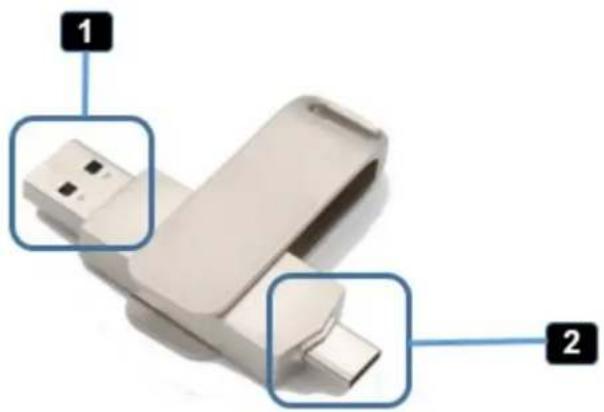
natural_image
White USB flash drive with two labeled ports (1 and 2), no text or symbols on the device itself.| ID Name Description | ||
| 1 USB connector | Using USB connector of the dongle can be plugged into a PC/Laptop for sharing your screen. | |
| 2 | Type C connector | Using Type C connector of the dongle can be plugged into a PC/Laptop for sharing your screen. |
Software Interface
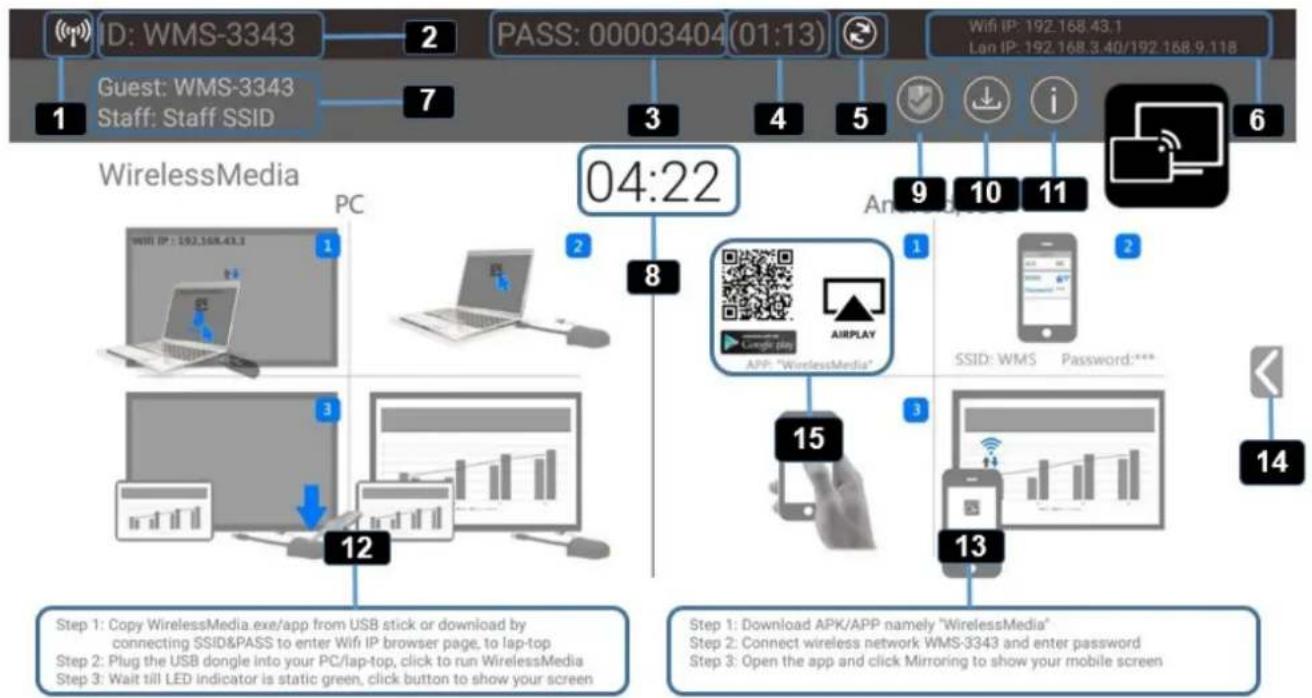
Home Screen
flowchart
graph TD
    A["1: ID: WMS-3343"] --> B["2: PASS: 00003404(01:13)"]
    B --> C["3: 7: Guest: WMS-3343\nStaff: Staff SSID"]
    C --> D["4: 5: WiFi IP: 192.168.43.1\nLon IP: 192.168.3.40/192.168.9.118"]
    D --> E["5: Android System"]
    E --> F["6: i: Wi-Fi"]
    F --> G["7: WirelessMedia"]
    G --> H["8: 04:22"]
    H --> I["9: Apple App"]
    I --> J["10: Android System"]
    J --> K["11: iOS"]
    K --> L["12: PC"]
    L --> M["13: Android System"]
    M --> N["14: iOS"]

    subgraph Legend
        O["Step 1: Copy WirelessMedia.exe/app from USB stick or download by connecting SSID&PASS to enter Wifi IP browser page, to lap-top\nStep 2: Plug the USB dongle into your PC/lap-top, click to run WirelessMedia\nStep 3: Wait till LED indicator is static green, click button to show your screen"]
        P["Step 2: Connect wireless network WMS-3343 and enter password\nStep 3: Open the app and click Mirroring to show your mobile screen"]
    end
| ID Name Description | ||
| 1 Wi-Fi Indicator | Wi-Fi Direct mode: internal access point is enabled  |  |
| Wi-Fi Infrastructure mode: "Client-Mode", Wi-Fi connection to router is established, icon displays the current signal strength. | ||
A secure Wi-Fi connection is established, or connection to a router failed:  | ||
Wi-Fi is not available:  | ||
| LAN Infrastructure mode: access point is disabled | ||
| 2 ID | Wi-Fi name or device name of the Base-unit access point. | |
| 3 PASS | Wi-Fi password of base unit. | |
| 4 | Password-timer | only displayed, when timer is active; time until the password is changed automatically. |
| 5 | Refresh Wi-Fi-password | Generate new password manually for securing your Wi-Fi network. |
| 6 | Wi-Fi IPLAN IP | ● Wi-Fi IP: address of base unit in wireless LAN● Assigned IP: address of base unit in LAN; “N/A” = no connection to network |
| 7 | SSID: GuestSSID: Staff | Guest: WMS-3343Staff: Staff SSIDName of Wi-Fi network for Guest and Staff, which allows mobile devices to connect with the base unit. |
| 8 | TIME | Show time, if LAN has access to a time server; even after disconnecting the LAN connection, the time is displayed until the device has been disconnected from power. |
| 9 | Security level | Security level 1-3, display ONLY; the security features of the displayed level are displayed in detail by clicking on the icon; the settings can only be changed by administrator in the webserver console setting menu. |
| 10 | Download Button | Creating & upgrading Launcher“WirelessMedia.exe” for Windows, MAC to USB stick. |
| 11 | Info | Show status-bar (1) - (7) in Home screen showing/hiding |
| 12 | Windows / MacOSQuick Start | Steps to instruct how to transmit PC/Lap-top onto the main screen. First-time users must first install the starter program from the web page or from the USB stick one time. |
| 13 | Android/IOSQuick Start | Steps to instruct how to transmit smart mobile devices either powered by Android or IOS, onto the main screen. |
| 14 | Preview function of the screen contents of the participants with transmitter and mobile devices; White Board&Annotation function icon | Preview function of the screen contents of all connected transmitters and mobile devices; White Board and Annotation function. |
| 15 | Load“WirelessMedia”-App from Store | Scan QR-code for Android device and download the App from the Store. |
Installation
The installation chapter gives an overview of the different ways to install and connect WirelessMedia Base Unit.
Overview:
● Installation methods for the Base unit
- Table mounting
- Wall mounting
● Recommendations about antenna placement and orientation
● WMS Power Connection
● WMS Video Connection
● WMS Audio connection
● WMS LAN connection
● About USB device connection
- Wiring Diagram
Installation methods for the Base unit Introduction to the installation methods:
The Base unit can be installed in different ways in a meeting room.
- Table mount
- Wall mount
The articulated antennas are removable. They can rotate for better wireless connection.
Attention: For optimal performance, install the Base unit close to the display and avoid obstacles between the Base unit and the Transmitters.
Necessary tools
- A drill (type of drill depends on the type of wall)
- Flat screwdriver
• Additional screwdriver that matches the mounting screws (mounting screws not included in the package)
Necessary parts
- 2 mounting screws
- 2 plugs
How to install
- Drill two holes in the wall as indicated on the drawing.
Horizontal distance: 177 mm ± 0.15 - At the bottom of Base Unit, turn in 2 flat screws into 2 holes to be fasten enough.
Note: Mounting screws and plugs are not included in the WirelessMedia box. The type of screws depends on the type of wall (stone, wood, plasterboard, ...) you are mounting the Base Unit to. Make sure the head of the screw is not larger than the hole in the bottom of base unit.
- Place the WMS on the wall and fixate the base unit with the 2 unfixed screws.
Antenna placement rules
● The antennas should be oriented vertically, so perpendicular to the ceiling and parallel to the walls.
- The antennas should be installed far enough (at least 50cm/1.6ft) from metallic surfaces to avoid unwanted reflections and far enough (at least 1m/3.3ft) from other radio equipment that operates in the same frequency range, e.g. other Wi-Fi access points, cordless telephone, microwave ovens,... It is also best to install antennas at least 15 cm (6 inches) from concrete walls.
- The most favorable situation is a direct line of sight between antennas and Buttons. Any obstruction will cause the signal to follow a longer propagation path, which can result in performance degradation.
- Due to the particular radio pattern of the dipole antennas, the antennas should not be placed just above potential positions of WirelessMedia users. As a result, the advised position for the antennas is at the side of the meeting room.
Wiring Diagram
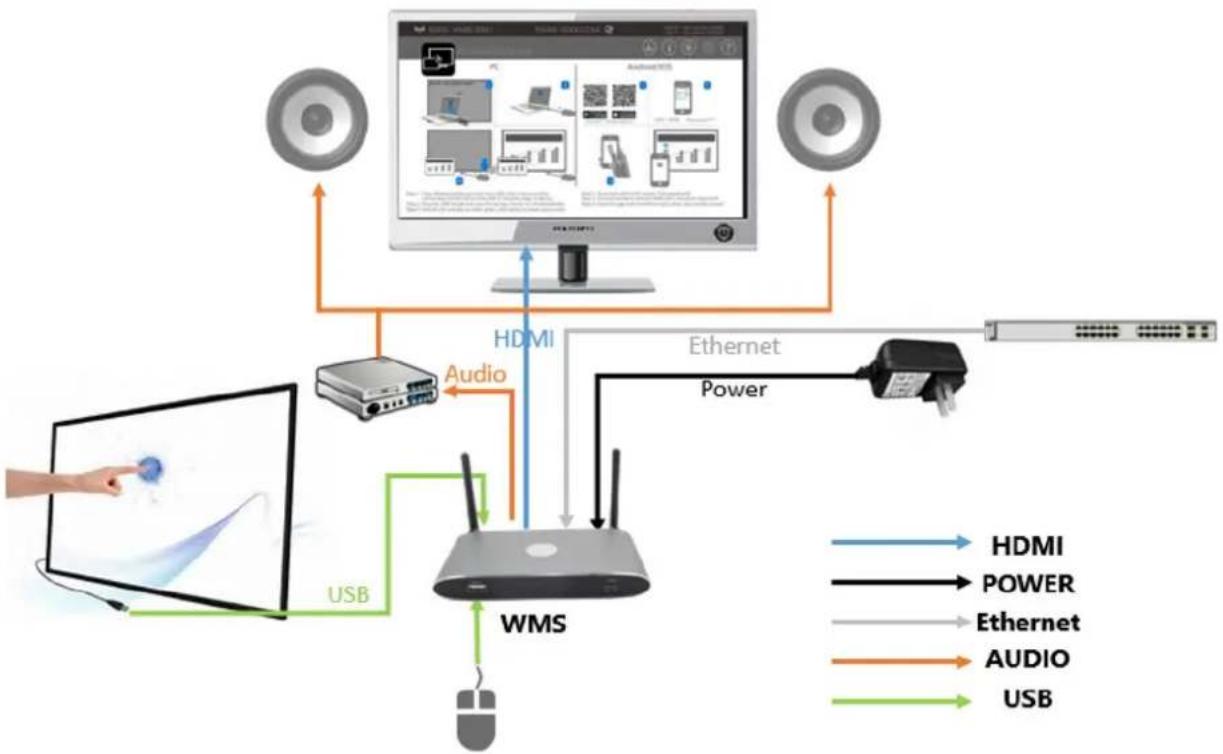
flowchart
graph TD
    A["User"] -->|USB| B["WMS"]
    B -->|Audio| C["Monitor"]
    C -->|HDMI| D["Computer"]
    D -->|Power| E["Router"]
    E -->|AudiO| F["Smartphone"]
    style A fill:#f9f,stroke:#333
    style B fill:#ccf,stroke:#333
    style C fill:#cfc,stroke:#333
    style D fill:#fcc,stroke:#333
    style E fill:#cff,stroke:#333
    style F fill:#ffc,stroke:#333
Power over Ethernet
If the LAN Ethernet switcher support POE (Power over Ethernet), it could power up the Base-unit instead of using the external power adapter. (WMS LAN2 Port is support POE.)
Video Connection
- Connect the HDMI Output of base unit to a 4K or Full-HD display by a HDMI cable.
- Connect the power adapter to the base unit DC power socket and connect the other side plug to an available electrical outlet and switch the base unit on.
- After started, the system show the home page, as shown below.
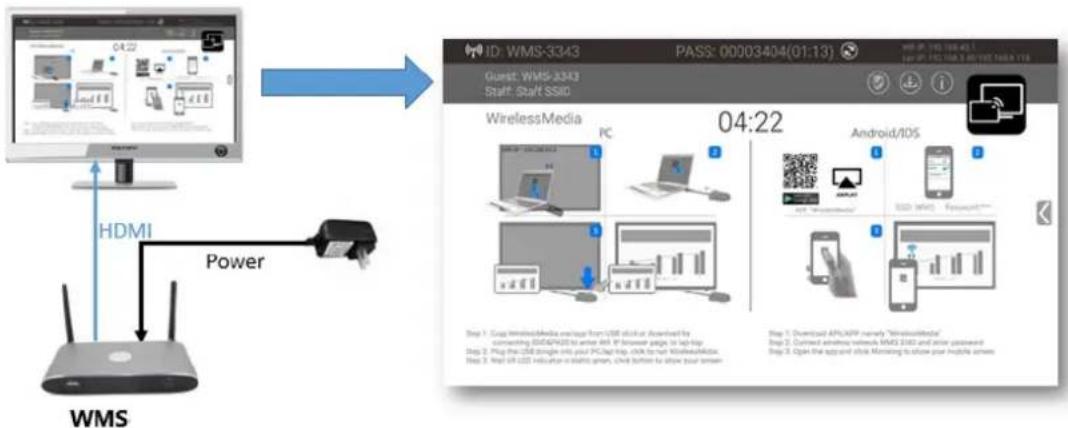
flowchart
graph TD
    A["WMS"] -->|HDMI| B["Power"]
    B --> C["Wireless Media"]
    C --> D["Android/iOS"]
    D --> E["Downloading Android/iOS network WMS 2023 and user password"]
    E --> F["Open the app and disk Monitoring to show your HPS like screens"]
Audio Connection
WirelessMedia transmitter can transmit the audio output of the PC/Lap-top, re-direct and send to the Base Unit together with the video signal. The audio will be output at line levels from mini jack socket 3.5mm connector and via the HDMI output connectors simultaneously.
It's up to the user to decide whether or not to send the audio signal together with the video signal.
Audio via HDMI output
When your display/projector is connected via HDMI and it support audio together with video, then a separate audio connection is not necessary. The audio signal is sent together with the video signal to the display. The system is shown as below.

text_image
WMS 04:22 HDMI with audio Power WMSHow to connect separate audio
- Connect an audio cable with mini jack socket 3.5mm connector into the audio of the Base Unit
- Connect the other side to the meeting room's sound system.
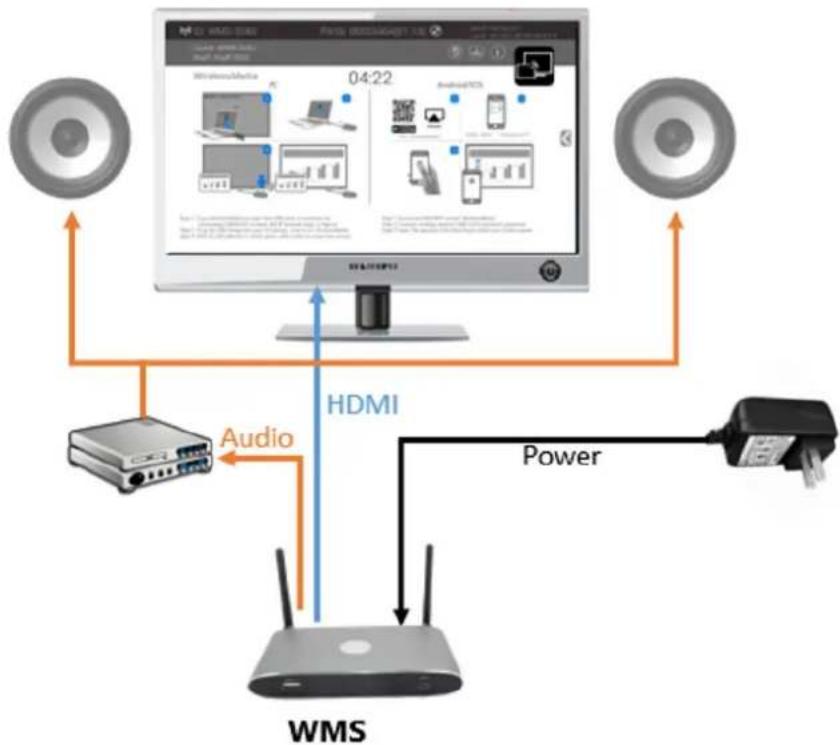
Sound is not sent out
WirelessMedia button will keep capturing and send the audio of PC/Lap-top, since PC/Lap is successfully mirroring desktop to the main screen.
- Please be sure the button is static green and the PC/Lap-top is sharing on the screen
- Check Setting configuration, to adjust the Volume set in WirelessMedia setting tab.
PC/Lap Sound
As default set, WirelessMedia will mute the internal speaker of PC/Lap and route the audio to the base unit, after PC/Lap is successfully mirroring desktop to the main screen, in order to avoid the repeated audio. When click the button to stop sharing, local loudspeaker will return to previous status, you could adjust the volume on your PC/Lap.
Note: If you want to keep the internal speaker of PC/Lap still while route the audio to the base unit, please click the audio mute icon in the status bar to turn on the internal speaker.
LAN connection
The Base Unit can be connected to a local network or directly to a PC/lap-top. For normal operation, a LAN connection is not necessary. When needed, it's suggested to connect the WMS to the Internet.
- Connect a network cable with RJ-45 connector into the LAN port of Base Unit.
- Connect the other side to LAN.
- If the LAN Ethernet switcher support POE (Power over Ethernet), it could power up the WMS than using the external power adapter.
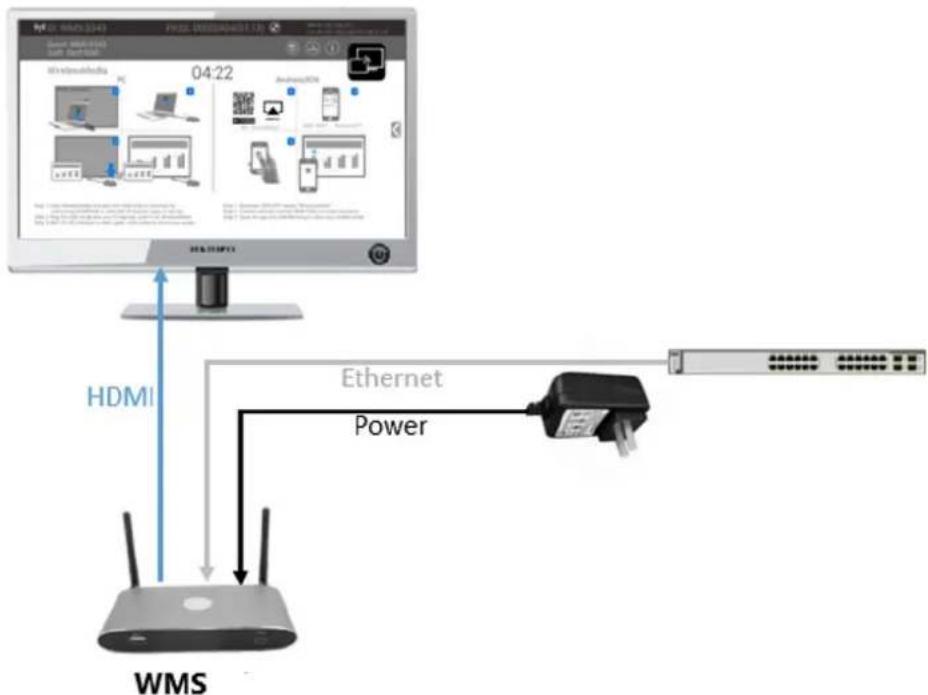
flowchart
graph TD
    A["WMS"] -->|HDMI| B["Computer Monitor"]
    B -->|Ethernet Power| C["Network Port"]
    C -->|WMS| D["Computer Interface"]
    style A fill:#f9f,stroke:#333
    style B fill:#ccf,stroke:#333
    style C fill:#cfc,stroke:#333
    style D fill:#fcc,stroke:#333
The LAN connection can be used for:
● Network integration of Base Unit in guest or company network.
- Telnet control the Base Unit.
● Maintenance purpose.
● Over-The-Air -Update (OTA) of firmware of Base-unit.
Usage of USB device
Please use a USB Mouse or Touchscreen:
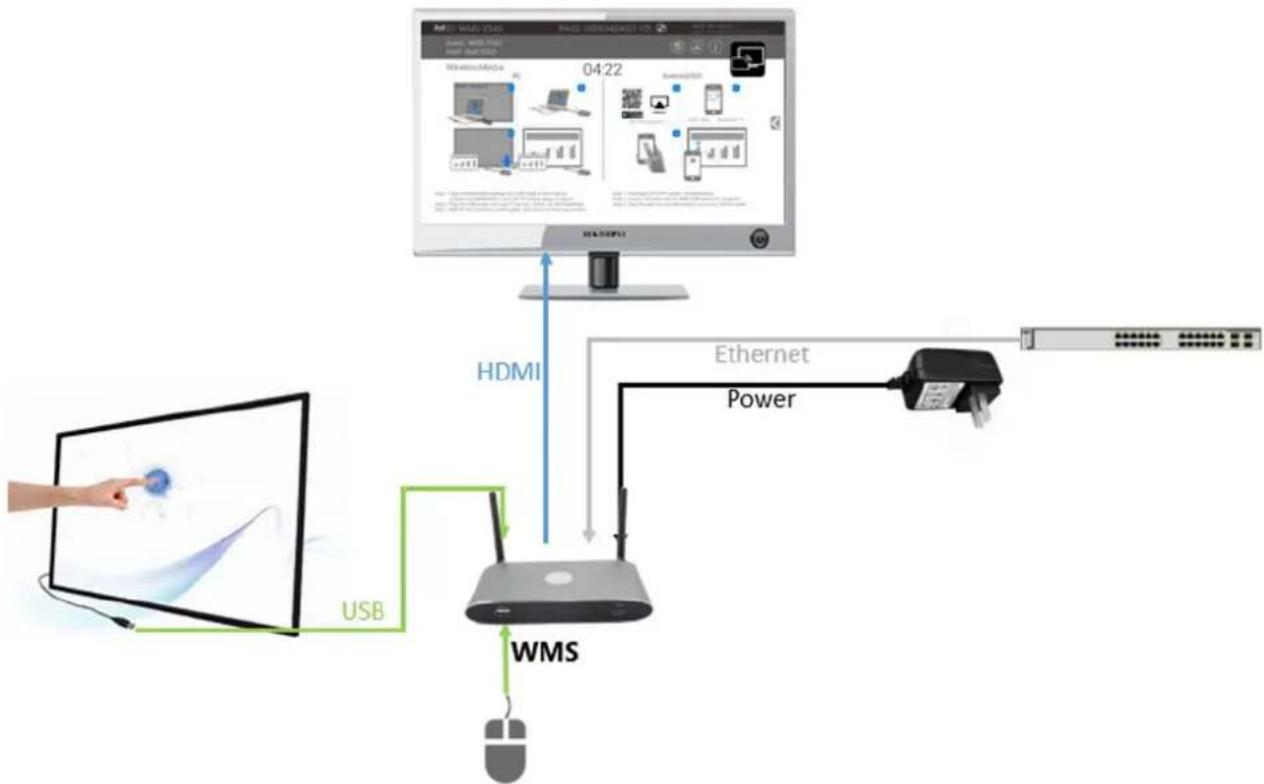
flowchart
graph TD
    A["User"] -->|USB| B["Computer"]
    B -->|HDMI| C["Internet Interface"]
    C -->|Ethernet Power| D["Server"]
    D -->|WMS| B
    style A fill:#f9f,stroke:#333
    style B fill:#ccf,stroke:#333
    style C fill:#cfc,stroke:#333
    style D fill:#fcc,stroke:#333
- To configure the Security level check button, DOWNLOAD BUTTON, INFO.
- To control the sharing PC/Lap-top.
- To activate system upgrading
- For white board or annotation during a presentation, WirelessMedia transmits Video, Audio and the USB-HID
function for mouse-control and click-function of a touchscreen. Connect touch-interface of your screen to the USB-port on your laptop or PC.
USB control
USB mouse for configuration menu
- Single click to select.
● Right-click to back to the Home Page.
Touch screen
- Click to select.
● Long press to open the contextual menus, as double-click or click the right button of a USB mouse.
Quick-to-Start
Mobile device: Wireless Connection
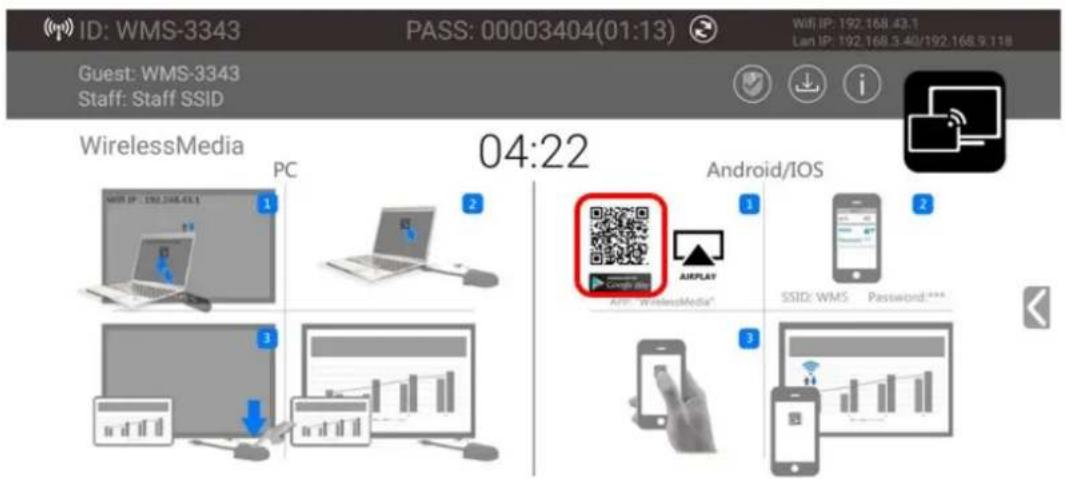
- Download the application namely "WirelessMedia" (for example scan QR-Code in Home screen) in Android Google Play market for Android mobile device.
text_image
ID: WMS-3343 PASS: 00003404(01:13) Wi-Fi: 192.168.43.1 Lan IP: 192.168.5.40/192.168.9.118 Guest: WMS-3343 Staff: Staff SSID WirelessMedia PC 04:22 Android/IOS 1 2 3 4 5 6 7 8 9 10 11 12 13 14 15 16 17 18 19 20 21 22 23 24 25 26 27 28 29 30 31 32 33 34 35 36 37 38 39 40 41 42 43 44 45 46 47 48 49 50 51 52 53 54 55 56 57 58 59 60 61 62 63 64 65 66 67 68 69 70 71 72 73 74 75 76 77 78 79 80 81 82 83 84 85 86 87 88 89 90 91 92 93 94 95 96 97 98 99 100Step 1: Copy WirelessMedia.exe/app from USB stick or download by connecting SSID&PASS to enter Wifi IP browser page, to lap-top
Step 2: Plug the USB dongle into your PC/lap-top, click to run WirelessMedia
Step 3: Wait till LED indicator is static green, click button to show your screen
Step 1: Download APK/APP namely "WirelessMedia"
Step 2: Connect wireless network WMS-3343 and enter password
Step 3: Open the app and click Mirroring to show your mobile screen
- For IOS devices, use Airplay to mirror the desktop.
- WirelessMedia provides two way to discover the WMS for mobile devices.
a) Portable hotspot, to connect the hotspot to connect the WMS.
b) LAN connection, to connect the WMS and mobile both in LAN network, to discover and connect to WMS.
After Factory reset, WirelessMedia starts in standard configuration "Wireless Direct Mode" ("Linked Single Network"), where the base unit creates its own wireless access point, to which all the transmitters connect. This is typical for quick setup, temporarily installations or for small business meetings with a small number of meeting rooms.
The Wi-Fi icon 📋 for "WiFi Direct Mode" appears in the top status bar of the Home screen. The SSIDs for these hotspots appear in the Start screen of WirelessMedia:
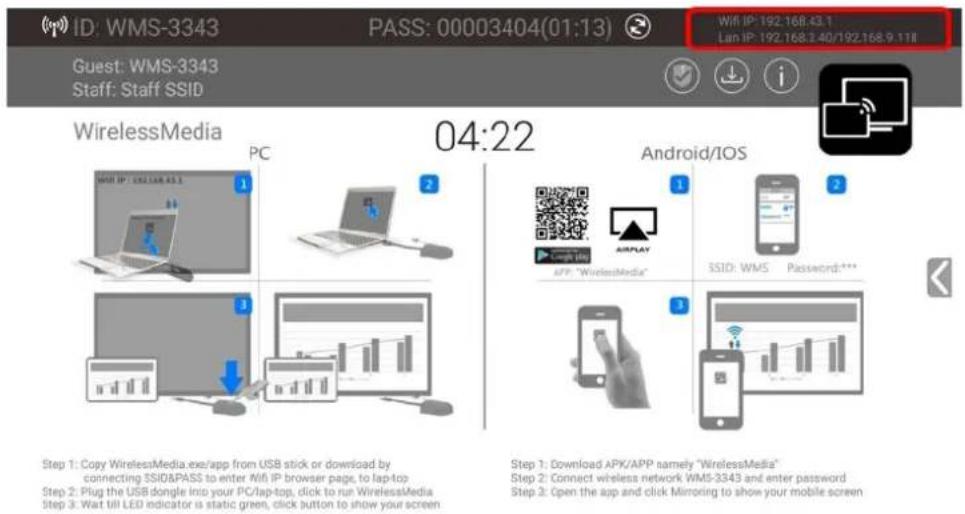
Guest: WMS-3343 Staff: Staff SSID
Guests and staff have access to the internet when LAN is enabled.
Enable portable hotspot:
Check the SSID and PASS (Password) are shown on the Homepage, as shown below.

text_image
(pp) ID: WMS-3343 PASS: 00003404(01:13) WEB IP: 192.168.43.1 Guest: WMS-3343 Staff: Staff SSID WirelessMedia PC 04:22 Android/iOS Step 1: Copy WirelessMedia app from USB stick or download by connecting SSID/PASS to enter WiSIP browser page, to lap-top Step 2: Plug the USB dongle into your PC/lap-top, click to run WirelessMedia Step 3: Wait Ml LED indicator is static green click button to show your screen Step 1: Downloaded APK/APP namely 'WirelessMedia' Step 2: Connect wireless network WMS-3343 and enter password Step 3: Open the app and click mirroring to show your mobile screenEnable LAN connection:
Be sure the WMS is connected to the Network. When Local IP shows an active IP address, such like 192.168.3.32, it indicates WMS is successfully connected to the LAN and get an appointed IP address.
text_image
ID: WMS-3343 PASS: 00003404(01:13) Guest: WMS-3343 Staff: Staff SSID WirelessMedia PC 04:22 Android/IOS 1 2 3 4 Step 1: Copy WirelessMedia.exe/app from USB stick or download by connecting SSID&PASS to enter M6 IP browser page, to lap-top Step 2: Plug the USB dongle into your PC/tap-top, click to run WirelessMedia Step 3: Wait till LED indicator is static green, click button to show your screen Step 1: Download APK/APP namely "WirelessMedia" Step 2: Connect wireless network WMS-3343 and enter password Step 3: Open the app and click Mirroring to show your mobile screenNote: When it shows "N/A", means the WMS is not connected to the LAN (Local Area Network) by CAT cable or it failed to get an available IP address by the corporation router.
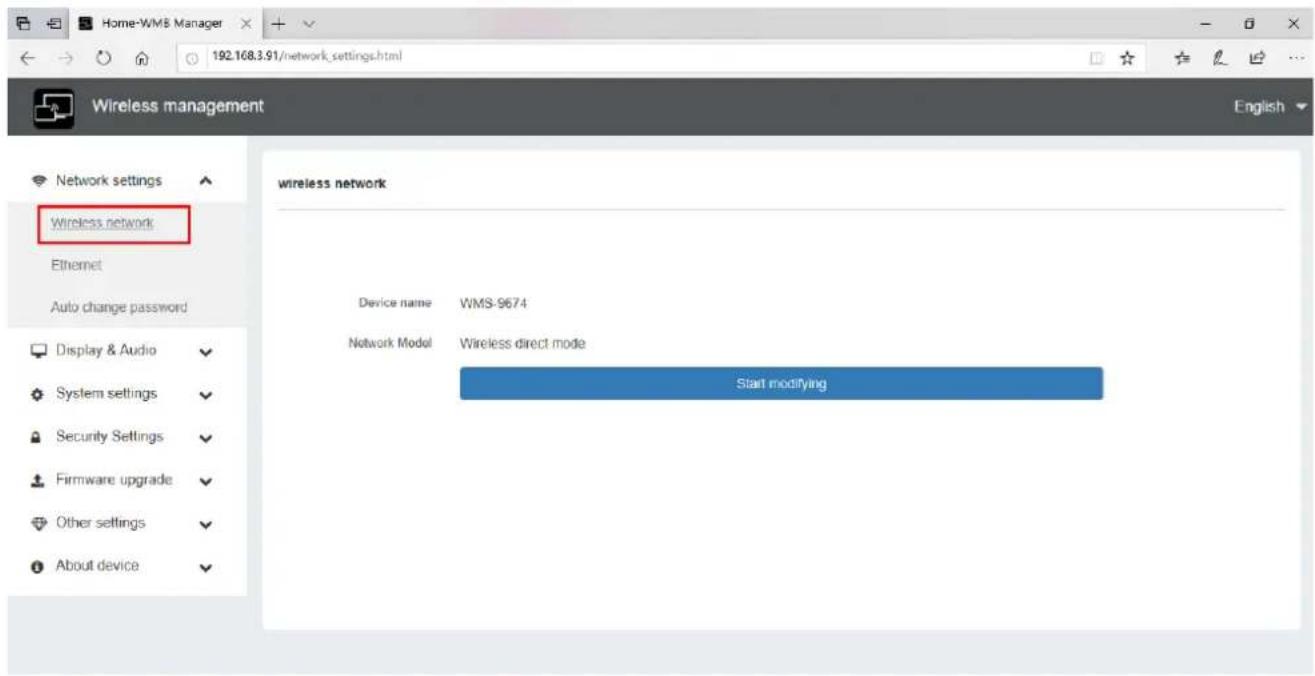
Please refer to the LAN-settings in Ethernet, as below.
Default password for entering the Main menu on webserver console is "admin".
text_image
Home-WMS Manager 192.168.3.91/network_settings.html Wireless management Network settings Wireless network Ethernet Auto change password Display & Audio System settings Security Settings Firmware upgrade Other settings About device wireless network Device name WMS-9674 Network Model Wireless direct mode Start modifyingPairing transmitter with base unit
- Connect the USB of USB A/C Dongle or Transmitter-HDMI Dongle, to pair all the transmitters with base unit. The home page displays as shown below.
- When plug in transmitters, the message table shows "USB dongle is booting, please wait..." as shown below

text_image
ID: WMS-3343 PASS: 00003404(01:13) WMS-3343 Guest: WMS-3343 Staff: Staff SSD WirelessMedia PC 04:22 Android/IOS USB dongle is booting, please wait... Step 1: Copy WirelessMedia exactly from USB click is downloaded by connection ID: 55869455.10 to enter off. In browser page, to log your Step 2: Plug the USB sample into your PC (zip) top, click to new WirelessMedia Step 3: Print HD LCD indicators (data) green, click better to show your system Step 1: Download APP/APP name="WindowsMedia" Step 2: Clickout wireless network, WMS, iOS and enter password Step 3: Open the app and click Marketing to allow your mobile screen- Then, the message table shows "Pairing, please wait..." as shown below

text_image
ID: WMS-3343 PASS: 00003404(01:13) Guest: WMS-3343 Staff: Staff SSID WirelessMedia PC 04:22 Android/iOS Pairing, please wait... Step 1. Copy WirelessMedia excerpt from SSL static or downloaded by remociting USB/PADAS to enter with IP transaction steps, in laptop Step 2. Plug the USB pipeline into your PC/Internet, click to an Bluetooth Media Step 3. Wall 85 LED indicator is static green, click button to show your screen. Step 1. Download APPS/FM namely "WindowsMedia" Step 2. Connect wireless network Wi-Fi-3343 and/or password Step 3. Open the app and click WiFi using to allow your mobile screen.- After completing the pairing, the message table shows "Succeeded to pair!" on the home page, as shown below. Then, please un-plug the transmitters and use it for the mirroring on your laptop.

text_image
ID: WMS-3343 PASS: 00003404(01:13) Guest: WMS-3343 Staff: Staff SSD WirelessMedia PC 04:22 Android/iOS Succeeded to pair! OK Step 1. Copy WirelessMedia excerpts from USB stock or downloaded by connecting SISAP/OS to enter SMS IP browser page to top-top Step 2. Plug the USB logo into your PC/MyTrip, click to run wirelessmedia Step 3. What iOS LED indicator is static, green, click button to show your screen Step 4. Download APPs currently "WindowsMeiya" Step 5. Connect wireless network SMS/MSO and enter purchased Step 6. Open the app and click Marketing to store your media consoleIf error-message "Configuration fail" is shown, please check the connection of USB/type C to keep stable after plug-in, and try again.
Note: After each changing the SSID/Wi-Fi channel in menu, all the transmitters must be paired again! When you buy additional transmitters or when a transmitter should be assigned to another Base-unit, the transmitter must be paired again.
A transmitter can only be paired to one Base-unit at a time. The transmitter will always make connection to the Base-unit it was last paired to.
Mirroring
PC/Lap-top
USB A/C Dongle:
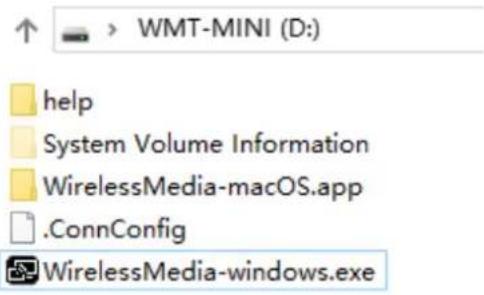
- Plug USB A/C Dongle into USB/Type C port to pair with base unit. The "WirelessMedia-windows.exe" for windows PC/Lap-top, "WirelessMedia-macOS.app" for Macbook will be auto downloaded into USB A/C Dongle.
text_image
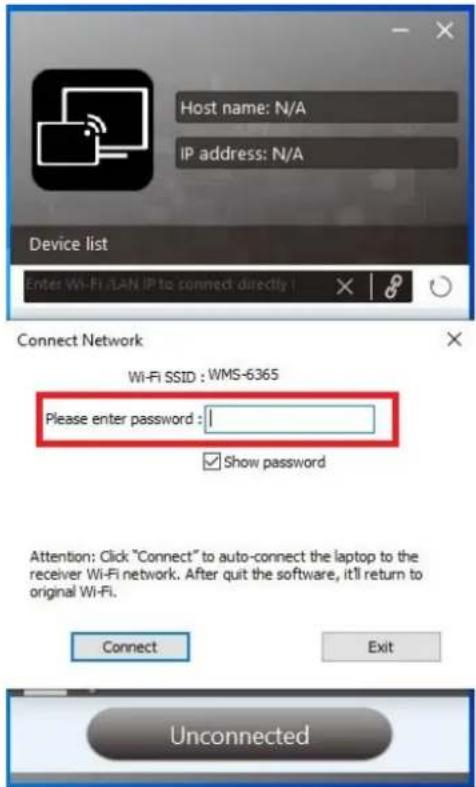
WMT-MINI (D:) help System Volume Information WirelessMedia-macOS.app .ConnConfig WirelessMedia-windows.exe- Plug USB A/C Dongle into PC/Laptop/MACbook and click the "Launcher" to run. USB A/C Dongle will auto change PC's wifi to the target base unit wifi. No need to manually change PC's wifi. It will pop out the message bar to enter the password to connect.
text_image
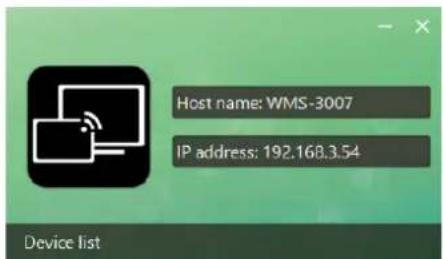
Host name: N/A IP address: N/A Device list Enter Wi-Fi LAN IP to connect directly | Connect Network Wi-Fi SSID : WMS-6365 Please enter password : Show password Attention: Click "Connect" to auto-connect the laptop to the receiver Wi-Fi network. After quit the software, it'll return to original Wi-Fi. Connect Exit Unconnected- It will show "Ready to share", click to share the desktop to screen.

text_image
Host name: WMS-3007 IP address: 192.168.3.54 Device list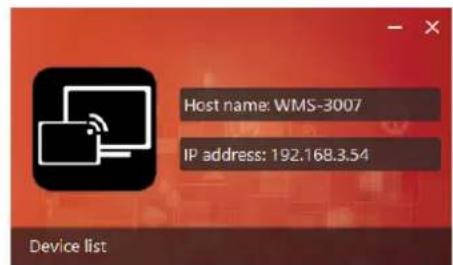
text_image
Host name: WMS-3007 IP address: 192.168.3.54 Device list
text_image
Enter WMI/LAN IP to connect directly! WMS-3007 192.168.3.54 WML-9920 zxl-guest02 WMS-2481 WMB-6827 WMS-9313 WMB-2385ot Disconnect Connect Connect Connect Connect Connect Connect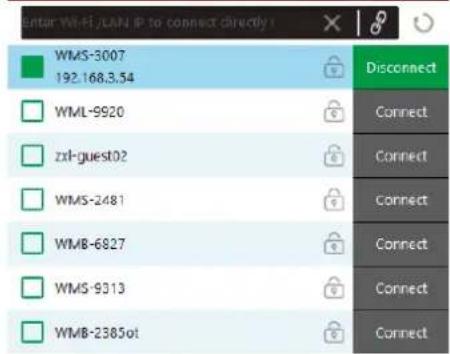
text_image
Enter WIFI/LAN IP to connect directly! WMS-3007 192.168.3.54 WML-9920 zxl-guest02 WMS-2481 WMB-6827 WMS-9313 WMB-2385ot Disconnect Connect Connect Connect Connect Connect Connect
text_image
Ready to share
text_image
SharingNote: for second time user, USB A/C Dongle will automatically run to share screen, no need to click "Launcher".
Transmitter-HDMI Dongle
- Plug USB port of Transmitter-HDMI Dongle to base unit to pair.
- Plug USB port and HDMI port of Transmitter-HDMI Dongle to PC/Laptop/MacBook. (USB port for power)
- Till the transmitter LED turn static green and touch to share the screen or click the visual button on bottom right corner of PC.
text_image
Host name: WMS-3007 IP address: 192.168.3.54 Device list
text_image
Host name: WMS-3007 IP address: 192.168.3.54 Device list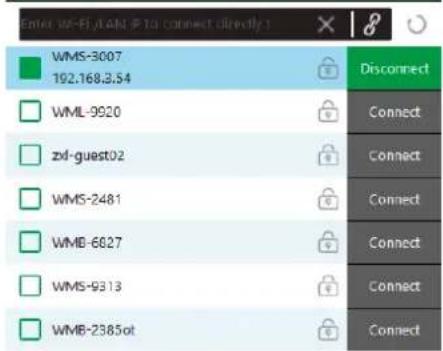
text_image
Enter WF-File/Label P to connect directly WMS-3007 192.168.3.54 Disconnect WML-9920 Connect zvl-guest02 Connect WMS-2481 Connect WMB-6827 Connect WMS-9313 Connect WMB-2385ot Connect
text_image
Enter VM-RLAN (P to connect directly !) WMS-3007 192.168.3.54 WML-9920 zxl-guest02 WMS-2481 WMB-6827 WMS-9313 WMB-2385ot Disconnect Connect Connect Connect Connect Connect Connect
text_image
Ready to share
text_image
SharingMobiles Devices
Sharing on Android devices
- Open the "WirelessMedia" application.
natural_image
Icon depicting a wireless device with signal waves, labeled 'WMedia2' below (no other text or symbols)- Connect your mobile device to one of the displayed Wi-Fi networks.
Guest: WMS-3343
Staff: Staff SSID
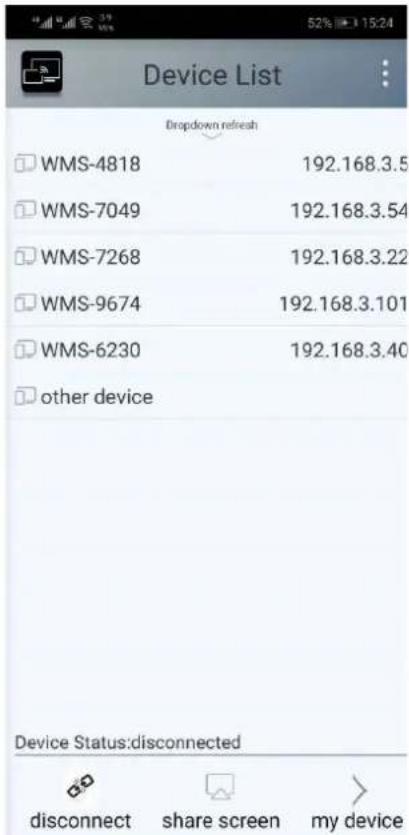
- Open the "WirelessMedia2" application in your mobile device, and you will see the Home Page of
"WirelessMedia2" as shown below. and click the device list refresh button Android, which is highlighted in red circles as shown below:

text_image
Device List Dropdown refresh WMS-4818 192.168.3.5 WMS-7049 192.168.3.54 WMS-7268 192.168.3.22 WMS-9674 192.168.3.101 WMS-6230 192.168.3.40 other device Device Status:disconnected disconnect share screen my device- Select the base unit you want to connect, enter password and mirror.

text_image
Device List Shutdown refresh WMS-4818 192.168.3.5 WMS-7049 192.168.3.54 WMS-7268 192.168.3.22 WMS-9674 192.168.3.101 WMS-6230 192.168.3.40 other device Device Status:disconnected disconnect share screen my device Device Status:disconnected 52% 5% 15:24 57% 5% 15:24 Device List Shutdown refresh WMS-7049 192.168.3.54 WMS-4818 192.168.3.5 WMS-7268 192.168.3.22 WMS-7212 192.168.3.61 Please input wmb password Password: Hide password cancel ok Device Status:disconnected disconnect share screen my device- After completing the pairing, it shows OSD "Welcome ***" on the home page. For example, if we connect it by a HUAWEI-PLA-AL00, it shows a "Welcome HUAWEI-PLA-AL00" on screen, as shown below.
Welcome PLA-AL00
- Now you can mirror your desktop of your mobile.
- Click again the button "Share Screen" to stop mirroring.
You could click "my device" to check the device status and firmware version.

text_image
my device Name WMS-9674 Version 3.0.6C.40.A1 IP 192.168.3.101 Password ******** Status sharing screen Fullscreen share screenSharing on IOS devices
- With AirPlay technology, user can stream his screen or music, (YouTube-) videos, pictures ... wireless to Base-unit. Connect your iOS device with the same Wi-Fi network from WMS.
For IOS devices, activate the control center. Click the Airplay icon on your Apple device and select the target WMS to start mirroring through the WMS to the main screen.
It will show OSD on home screen after connecting successfully.
"XXXX"'S iPhone
Preview Window
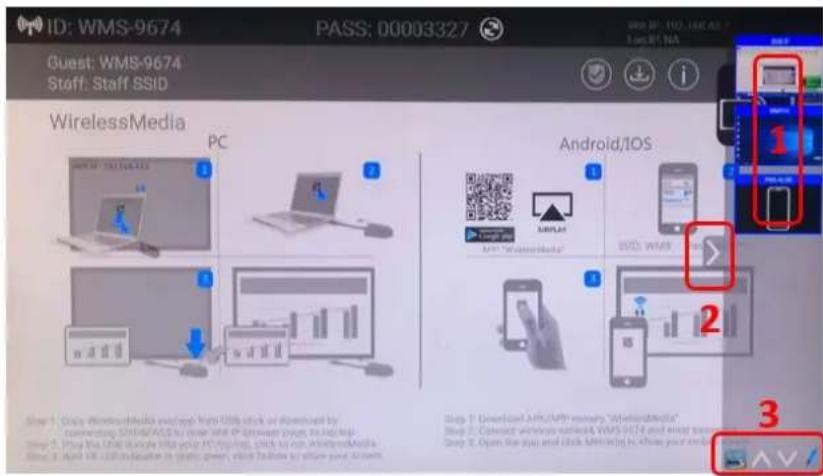
At touch-screen or with mouse of Base-unit, you can click on LEFT or RIGHT-arrow (2), to show the small preview-windows as a bar on the right edge of the screen, or to hide them, if they are disturbing. Once the preview windows are activated, you see live-pictures (1) of all connected transmitters and android devices via "WirelessMedia" APK at the right edge of the screen. Just scroll UP or DOWN (3) to see further preview pictures.
text_image
ID: WMS-9674 PASS: 00003327 Guest: WMS-9674 Staff: Staff SSID WirelessMedia PC Android/IOS Step 1: Copy WirelessMedia existing Web USB stick or downloaded by connecting SISI#PASS to cover and IP between pages, to help Step 2: Play the USB through Web your PC icons, click to run wirelessMedia. Step 3: Open the play and click MSHiding is, where your own accessAs soon as presenter is clicking with mouse of Base-unit, or clicking with finger at touch-screen, the appropriate participants of the meeting is activated, another click at the arrow shows his picture at the
main screen in full format. A red frame is shown for the active picture. The button indicates play
button, click to show screen. The button 📋 indicates step out screen, click to stop mirroring the current signal.

text_image
4.3.1 3.101 A B C 1.101 A B C PAR-ALOS PAR-ALOS WMS-9674 PASS: 00003327 Guest: WMS-9674 Staff: Staff SSID WIN: 100, 100, 100, 100, 100, 100, 100, 100, 100, 100, 100, 100, 100, 100, 100, 100, 100, 100, 100, 100, 100Whiteboard & Annotation
Whiteboard and Annotation requires an HID compatible device, such as interactive white board or interactive touch screen. It is easy to use, makes collaboration in your business more productive and effective: documents can be easily written, edited, captured and shared.
Whiteboard: write all your ideas and share the digital notes with anybody. Different colors of pen and background can be selected.
Annotation: draw or write annotations in overlay within your documents, presentations. Save and share everything that was discussed. Different colors of pen can be selected.
How to start Whiteboard or Annotation mode
The "Preview window" in Home Screen to start this mode.
Tap (click) the LEFT-arrow (1), located on the right side of the screen, and select
Whiteboard

or Annotation icon

icon in (2).

text_image
ID: WMS-9674 PASS: 00003327 Guest: WMS-9674 Staff: Staff SSID WirelessMedia PC Android/IOS Step 1: Copy WirelessMedia.sse/app from USB static or Downloaded by representing SSID/ASOS by which USB IP download page is laptop Step 2: Copy the USB static info your PC registry, click to your WirelessMedia. Step 3: Next USB ADS indication to other games, click Button to show your items. Step 4: Broadcast WiFi/APP security "WirelessMedia" Step 5: Connect wireless network WMS HT4 and filter pin Step 6: Learn the app and click Windows to show your items.The toolbar for Whiteboard or Annotation appears in the bottom of your screen. If another user is mirroring, the Whiteboard & Annotation function is closed.
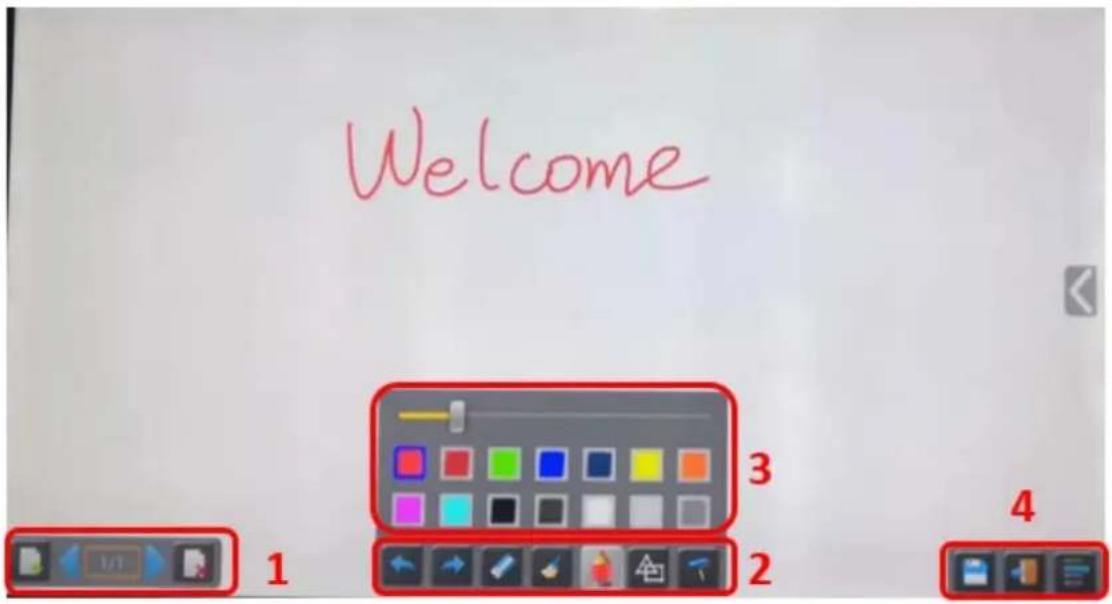
Whiteboard
Click on the icon

to enter the white Whiteboard page. You can create free drawings with your
finger at
touch screen, mouse (multitouch capability).
text_image
Welcome 1 2 3 4Use the toolbar to select one of the following functions.
| ID Icons Function | ||
| Tool bar 1 |  | Add an empty page |
 | Delete the actual page | |
 | Display previous or next page | |
| Tool bar 2 |  | Undo: one step backward in changes |
 | Redo: one step forward in changes | |
 | Erase part of drawings or annotation, change diameter by a longer tap | |
 | Clear the entire drawing/writing on the screen | |
 | Pen allows writing/drawing in different colors | |
 | Draw basic geometric shapes | |
 | Select color of board, the drawing will be kept | |
| Tool bar 3 |  | will pop up, when “Pen” or “Draw shape” or “Select color of board” is selected, for individual change of size of Pen, Shape or color. |
| Tool bar 4 |  | Save the current screenshot on local storage (PNG+WMN) |
| File options |  | Close Whiteboard to go back to Home screen, actual project can be saved on local storage (WMN) |
| File options:Open WMN-file from local storage and continue/edit an older projectNew projectSave as WMN on local storage in unit, it will be erased after POWER-OFFImport from U disk stored project (WMN)All pages are saved as PDF on local storageClear history – delete all whiteboard & annotation files on local storage | ||
 | ||
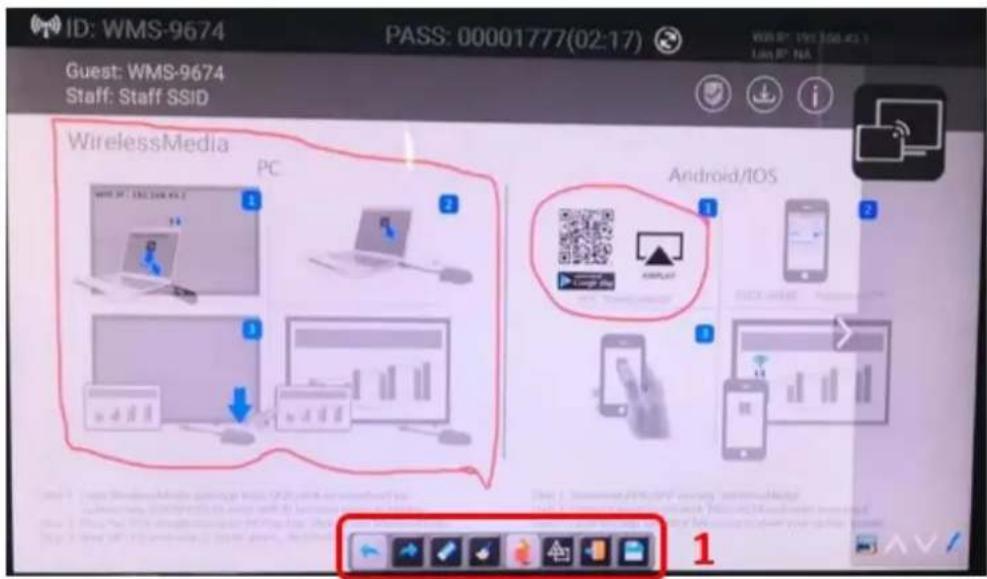
Annotation
Click on icon

to enter the Annotation function.
text_image
ID: WMS-9674 PASS: 00001777(02:17) Guest: WMS-9674 Staff: Staff SSID WirelessMedia PC Android/IOS 1 2 3 4 5 6 7 8 9 10 11 12 13 14 15 16 17 18 19 20 21 22 23 24 25 26 27 28 29 30 31 32 33 34 35 36 37 38 39 40 41 42 43 44 45 46 47 48 49 50 51 52 53 54 55 56 57 58 59 60 61 62 63 64 65 66 67 68 69 70 71 72 73 74 75 76 77 78 79 80 81 82 83 84 85 86 87 88 89 90 91 92 93 94 95 96 97 98 99 100Use the toolbar to select one of the following functions.
ID Icons Function
| Tool bar 1 |  | Undo: one step backward in changes |
 | Redo: one step forward in changes | |
 | Erase part of drawings or annotation, change diameter by a longer tap | |
 | Clear the entire drawing/writing on the screen | |
 | Pen allows writing/drawing in different colors | |
 | Draw basic geometric shapes | |
| Tool bar 1 |  | Close Whiteboard to go back to Home screen, actual project can be saved on local storage (WMN)Close Whiteboard to go back to Home screen, |
 | Save the current screenshot on local storage (PNG) |
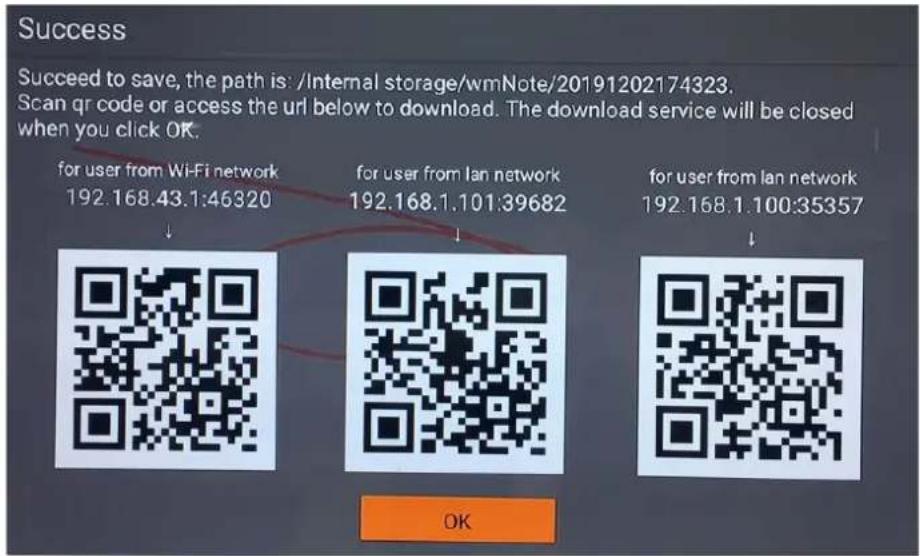
Download the drawings to connected users
Scan the QR-code with your mobile's camera or enter the given IP-address in a browser. If the network connection is set properly, you will get the saved files on Base unit, which you can download as PNG file. The possibility for download will be closed after you click OK. You can copy data to USB disk and put this USB disk into the Base-unit and import with "Import from U disk" to the Whiteboard-section.
text_image
Success Succeed to save, the path is: /Internal storage/wmNote/20191202174323. Scan qr code or access the url below to download. The download service will be closed when you click OK. for user from Wi-Fi network 192.168.43.1:46320 for user from lan network 192.168.1.101:39682 for user from lan network 192.168.1.100:35357 OK
http://192.168.43.1:38238/

Files on base unit:/111
name size modify date action 0.png 381.5 KB 19-12-02 PM04:57 download
Web Setting Management Configuration
Connect base unit ID & Password or LAN IP to laptop, to enter Wi-Fi IP browser page to configure settings of base unit. The "WirelessMedia-windows.exe" and "WirelessMedia-Pro.exe" for windows PC/Lap-top, "WirelessMedia-macOS.app" for Mac OS X, "user manual" and "WirelessMedia" for Android can be downloaded here.

text_image
Home-WMB Manager 192.168.3.101/ Wireless management Console English Client Downloads WirelessMedia for Android Please click to download the Android APK WirelessMedia for Windows Wirelessmedia PC client software for best performance WirelessMedia Pro for Windows Wirelessmedia PC client software for best safety WirelessMedia for Mac OS X Please click to download the MAC APP User manual User manual in English Please click to download user manualClick "Console" on the top right corner to enter into menu to configure.
A password is required to enter the configuration menu. The default password after Reset is "admin". You can change the password in menu "Security setting".
Note:
If user has forgotten his password, you need to make a Factory Reset to restore "admin" as password.

text_image
Home-WMB Manager 192.168.3.101/ Wireless management Console English Client Downloads WirelessMedia for Android Please click to download the Android APK WirelessMedia for Windows Wirelessmedia PC client software for best performance WirelessMedia-Pro for Windows Wirelessmedia PC client software for best safety WirelessMedia for Mac OS X Please click to download the MAC APP User manual User manual in English Please click to download user manual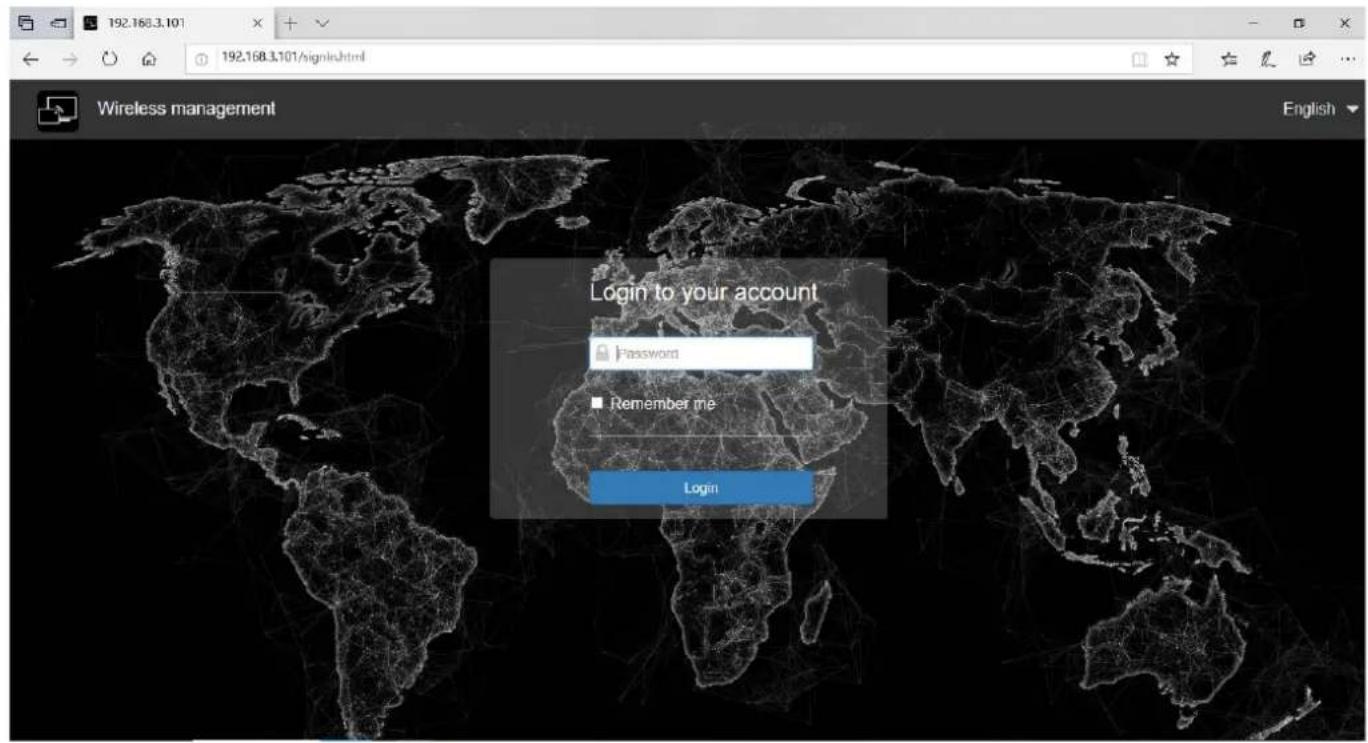
text_image
192.168.3.101 192.168.3.101/signin.html Wireless management Login to your account Password Remember me Login English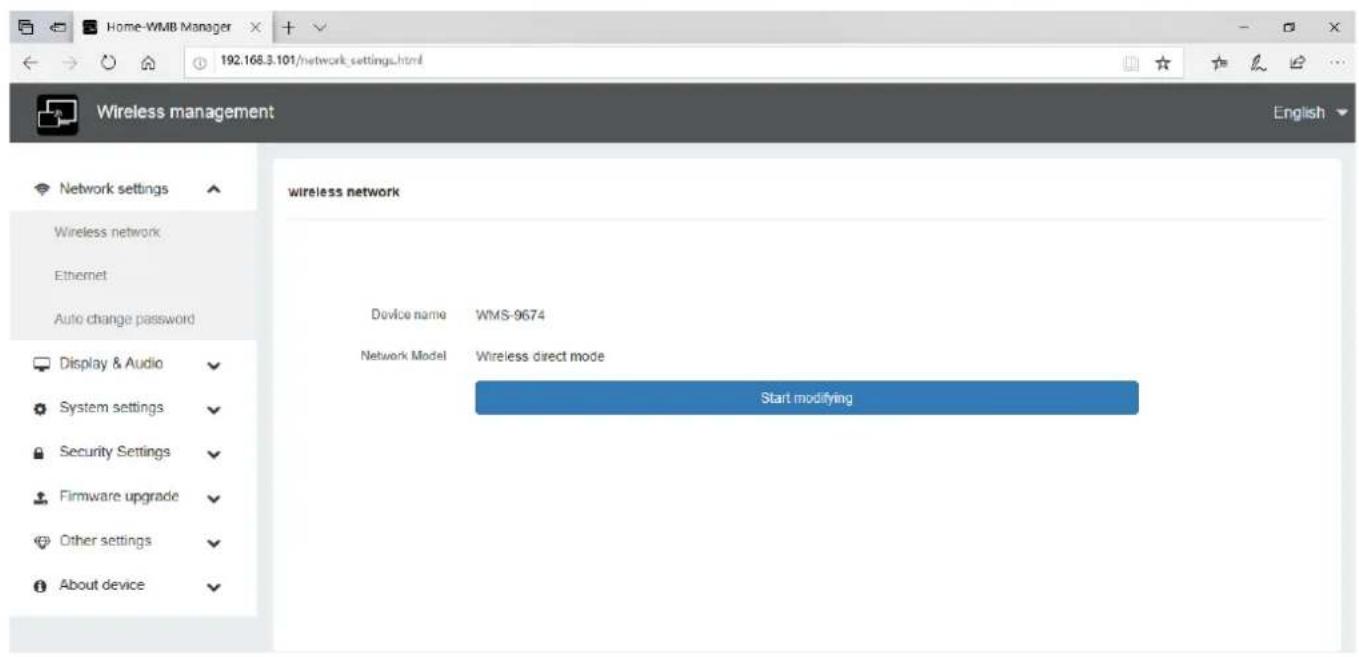
text_image
Home-WMB Manager 192.168.3.101/network_settings.html Wireless management English Network settings Wireless network Ethernet Auto change password Display & Audio System settings Security Settings Firmware upgrade Other settings About device wireless network Device name WMS-9674 Network Model Wireless direct mode Start modifyingThe main interface of Setting is shown as below, including Network settings, Display & Audio, System settings, Security settings, Firmware upgrade, Other settings, About device.

text_image
Network settings Display & Audio System settings Security Settings Firmware upgrade Other settings About deviceNetwork settings
Wireless network
To take the full benefits of the WirelessMedia possibilities, WMS should be properly integrated in the organization's network (company/university/school). This wizard allows user to create a custom configuration for integration of WirelessMedia into the existing wireless infrastructure in larger organizations.
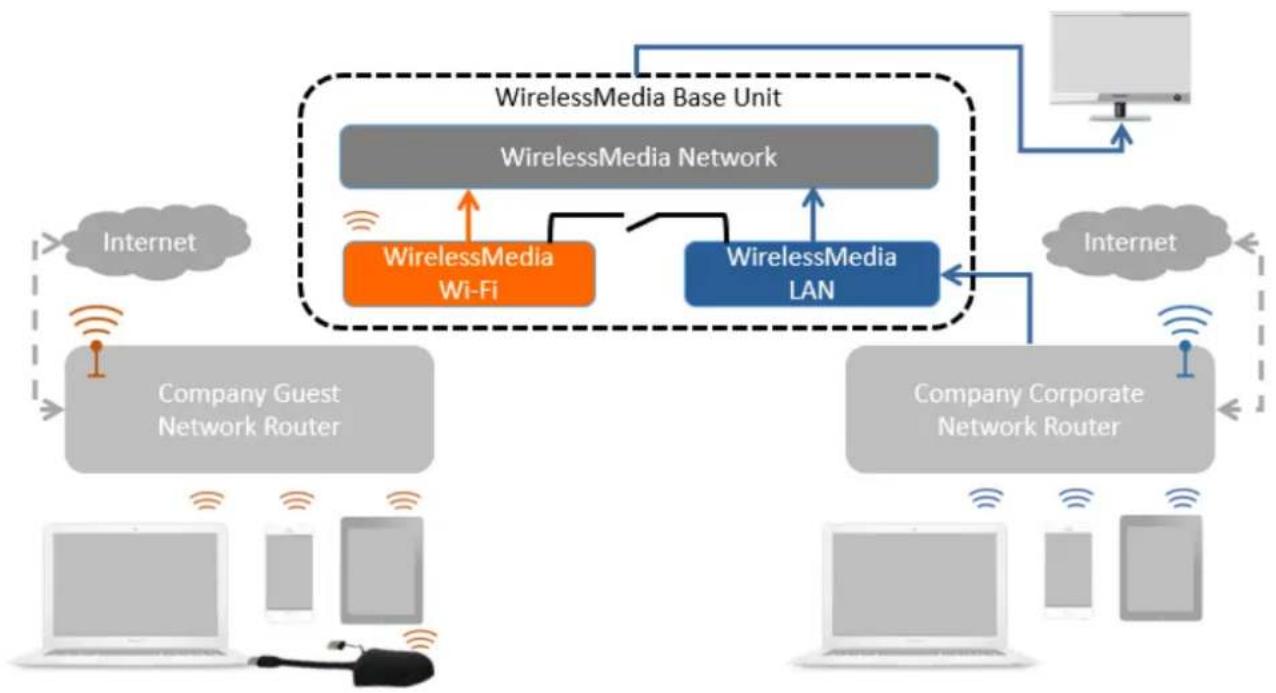
Segmented Dual Network, is to provide two segmented routing ways to connect to the base unit simultaneously and separately, including wireless WI-FI network (normally connected to Guest/untrusted network) and wired LAN network (normally connected to the corporate/trusted network).
A typical Segmented Dual Network topology is shown as below:
flowchart
graph TD
    A["WirelessMedia Base Unit"] --> B["WirelessMedia Network"]
    B --> C["WirelessMedia Wi-Fi"]
    B --> D["WirelessMedia LAN"]
    C --> E["Company Guest Network Router"]
    D --> F["Company Corporate Network Router"]
    G["Internet"] --> C
    H["Internet"] --> F
    I["Computer"] --> J["Client"]
    K["Client"] --> L["Client"]
    M["Client"] --> N["Client"]
    style A fill:#f9f,stroke:#333
    style B fill:#ccf,stroke:#333
    style C fill:#cfc,stroke:#333
    style D fill:#fcc,stroke:#333
    style E fill:#ffc,stroke:#333
    style F fill:#cfc,stroke:#333
    style G fill:#fcc,stroke:#333
    style H fill:#ffc,stroke:#333
    style I fill:#cfc,stroke:#333
    style J fill:#ffc,stroke:#333
    style K fill:#cfc,stroke:#333
    style L fill:#cfc,stroke:#333
    style M fill:#fcc,stroke:#333
    style N fill:#cfc,stroke:#333
Wireless network configuration wizard
Enter a device name for the Base-unit. We recommend to take a descriptive name, if you have more than one
WirelessMedia installed. The default name is "WMS-XXXX".
wireless network

text_image
1.Device name 2.Mode selection 3.Network settings 4.Ssd selling Device name WMS-9674 Note The device name is the host name of the device,which is used as the WIFI name when it is set as Wireless Direct Mode,or host name when it is set as Infrastructure Mode. Please pay attention that the changing of ID may cause the re-pairing of the dongle. Cancel Next stepOnly "a-z","A-Z","0-9","-_ " and space are legal character.
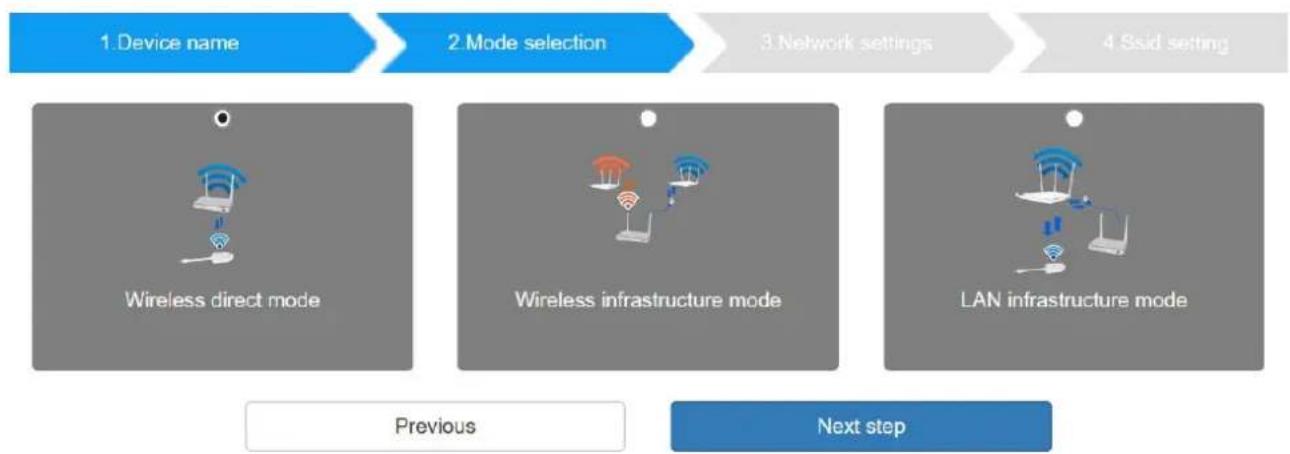
Click "Next step". The following three connection methods are available: wireless network
flowchart
graph LR
    A["1. Device name"] --> B["2. Mode selection"]
    B --> C["3. Network settings"]
    C --> D["4. SSD setting"]

    E["Wireless direct mode"] --> F["Wireless infrastructure mode"]
    F --> G["LAN infrastructure mode"]

    style A fill:#666,stroke:#333
    style B fill:#666,stroke:#333
    style C fill:#ccc,stroke:#333
    style D fill:#ccc,stroke:#333
    style E fill:#999,stroke:#333
    style F fill:#999,stroke:#333
    style G fill:#999,stroke:#333
Wireless Direct Mode
After Factory Reset, WMS base unit starts up in the default Stand-Alone "Wireless direct mode" configuration, where the Base-unit creates its own wireless access point, which all transmitters use to
connect. This is typical for a quick setup for small group meetings. The Wi-Fi icon 📋 for the “Wireless direct mode” is displayed in top status-bar of Home screen. Guest connect to the access-point of Klick & Show, while Staff can also connect to Base-unit via Wi-Fi or via LAN connection to their corporate network.
Stand-Alone Connection
The internal Wi-Fi access Point of WMS is active 📄. The dongle is paired directly to it. Guest and Staff use the internal Wi-Fi access point of Base-unit to present with all their units. No Internet access is required.
The LAN-Port of Base-unit is not connected. The PC-users can present with or without dongle by WirelessMedia PC driver (Windows or MacOS). Android users (BYOD) can share their content by installing the free APP on their device and IOS users can use AirPlay (Apple only).
Recommended Environment
This option is best for temporary operation, small installations, and rooms without network access or networks
that do not allow network access for Guests, due to strict security concerns, and are completely separate from the corporate network.
Under this mode, dongle will be automatically paired to the base unit Wi-Fi hotspot when plugging dongle to the base unit USB port for pairing.

flowchart
graph TD
    A["WirelessMedia Network"] --> B["WirelessMedia WI-FI"]
    A --> C["WirelessMedia LAN"]
    B --> D["Company Corporate Network Router"]
    C --> D
    E["Internet"] --> D
    F["Guest"] --> G["Wi-Fi"]
    H["Staff"] --> I["Wi-Fi"]
    J["Internet"] -.-> K["Company Corporate Network Router"]
You can start using WMS in this mode without any other wireless network configuration.
Click "Next step" to
Set up Wi-Fi access point
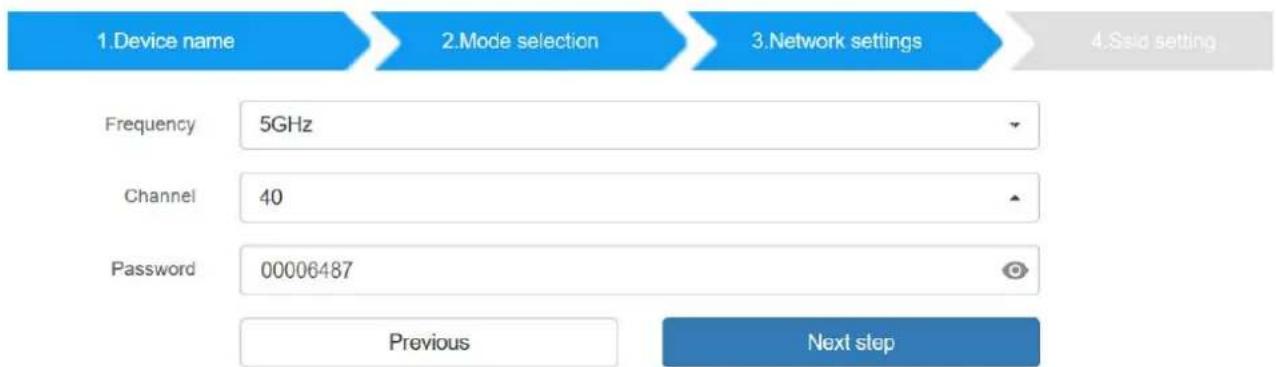
Set-up Wi-Fi access point includes, Frequency, Channel, Password.
wireless network
flowchart
graph LR
    A["1.Device name"] --> B["2.Mode selection"]
    B --> C["3.Network settings"]
    C --> D["4.Ssid setting"]
    E["Frequency"] --> F["5GHz"]
    G["Channel"] --> H["40"]
    I["Password"] --> J["00006487"]
    K["Previous"] --> L["Next step"]
● Frequency: Click to select 2.4 GHz or 5 GHz Wi-Fi frequency. Default is 5 GHz.
● Channel: Click to select the Wi-Fi channel. Default is 5 GHz, 40.
If the Wi-Fi channel is changed, no new pairing of the dongle is necessary.
2.4 GHz frequency band: channels 1, 2, 3, 4, 5, 6, 7, 8, 9, 10, 11, 12, 13;
5 GHz frequency band: channels: 36, 40, 48, 52, 56, 60, 64, 149, 153, 157, 161, 165;
Default is 5 GHz, channel 40.
- Password: Click in the input filed to fill out the appropriate password with length of 8 characters.
Click "Next step" to edit or change Guest network SSID and STAFF network SSID. This information will be shown at Home Screen of WirelessMedia.
wireless network

flowchart
graph LR
    A["1.Device name"] --> B["2.Mode selection"]
    B --> C["3.Network settings"]
    C --> D["4.Ssid setting"]
    E["GUEST network SSID"] --> F["WMS-Meetingroom1"]
    G["STAFF network SSID"] --> H["Previous"]
    I["Submit settings"] --> J["Previous"]
Click "Submit settings" to finish configuration.
After it please re-pairing dongle with the base unit.
Wireless Infrastructure mode
wireless network

flowchart
graph LR
    A["1.Device name"] --> B["2.Mode selection"]
    B --> C["3.Network settings"]
    C --> D["4.Ssid setting"]
    E["Wireless direct mode"] --> F["Wireless infrastructure mode"]
    G["LAN infrastructure mode"] --> H["Previous"]
    I["Next step"] --> J["Next step"]
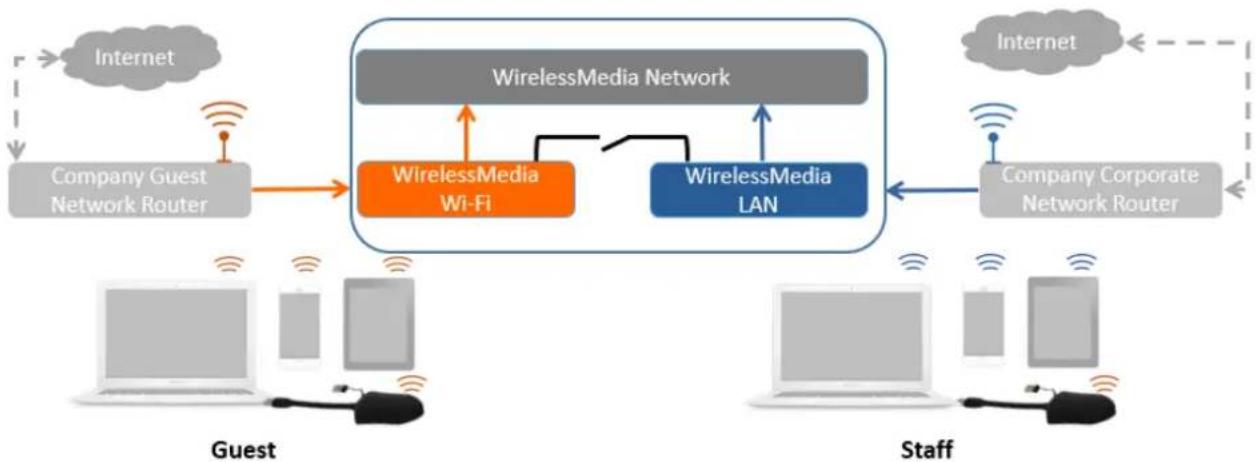
WirelessMedia can connect to a wired and a wireless network simultaneously. The basic unit is firmly "connected to the company network with LAN. Guest users connect to Wi-Fi "Guest" access. The employees ("Staff") connect to their usual access point of the corporate network, without having to change the Wi-Fi. This is very useful for
organizations, which have a wireless "Guest" network for external visitors and a wired "Staff" network for their employees. The segmented Dual Network of WirelessMedia provides two separated routing ways to connect to
the Base-unit at same time. Guest-users are not able to access any resource on the Ethernet of the company.
WirelessMedia uses the existing wireless network infrastructure. Guest and Staff have internet access.
Dual Network Configuration
The internal the Wi-Fi network of WirelessMedia is connected to Guest Wi-Fi network of the organization, (Client
Mode: the indicator-icon shows the actual signal strength). The Base-unit is still wired with LAN-cable to the internal company network
The PC-users can present, with or without dongle TOUCH by WirelessMedia PC driver (Windows or MacOS). Android users can share their content by installing the free APP, IOS users can use AirPlay to share content (Apple only).
flowchart
graph TD
    A["Company Guest Network Router"] --> B["WirelessMedia Wi-Fi"]
    B --> C["WirelessMedia LAN"]
    C --> D["Company Corporate Network Router"]
    E["Internet"] --> A
    F["Internet"] --> D
    G["Guest"] --> B
    H["Staff"] --> C
    I["Staff"] --> D
    J["Staff"] --> C
    style A fill:#f9f,stroke:#333
    style F fill:#f9f,stroke:#333
    style H fill:#f9f,stroke:#333
    style I fill:#f9f,stroke:#333
    style J fill:#f9f,stroke:#333
    style B fill:#ccf,stroke:#333
    style C fill:#ccf,stroke:#333
    style D fill:#ccf,stroke:#333
    style E fill:#ccf,stroke:#333
    style F fill:#ccf,stroke:#333
    style G fill:#ccf,stroke:#333
    style H fill:#ccf,stroke:#333
    style I fill:#ccf,stroke:#333
    style J fill:#ccf,stroke:#333
The dongle is connected to the Wi-Fi access Point of Guest network, which in turn is connected to the internal Wi-Fi access Point of WirelessMedia. (The dongle can also be configured to connect to the enterprise's access point.) Mobile users stay connected to their current network, have access to their normal corporate environment, as well as Internet access.
The actual received signal strength from Guest network is shown in Home screen of WirelessMedia:

Follow the instructions of the configuration wizard for "Wireless infrastructure mode". When pairing the dongles, by plugging the dongle in the USB port of the Base-unit, it will automatically pair to the associated access point of Guest or Staff Wi-Fi and NOT to WirelessMedia.
Click "Next step" to configure the network which dongle needs to be paired to.
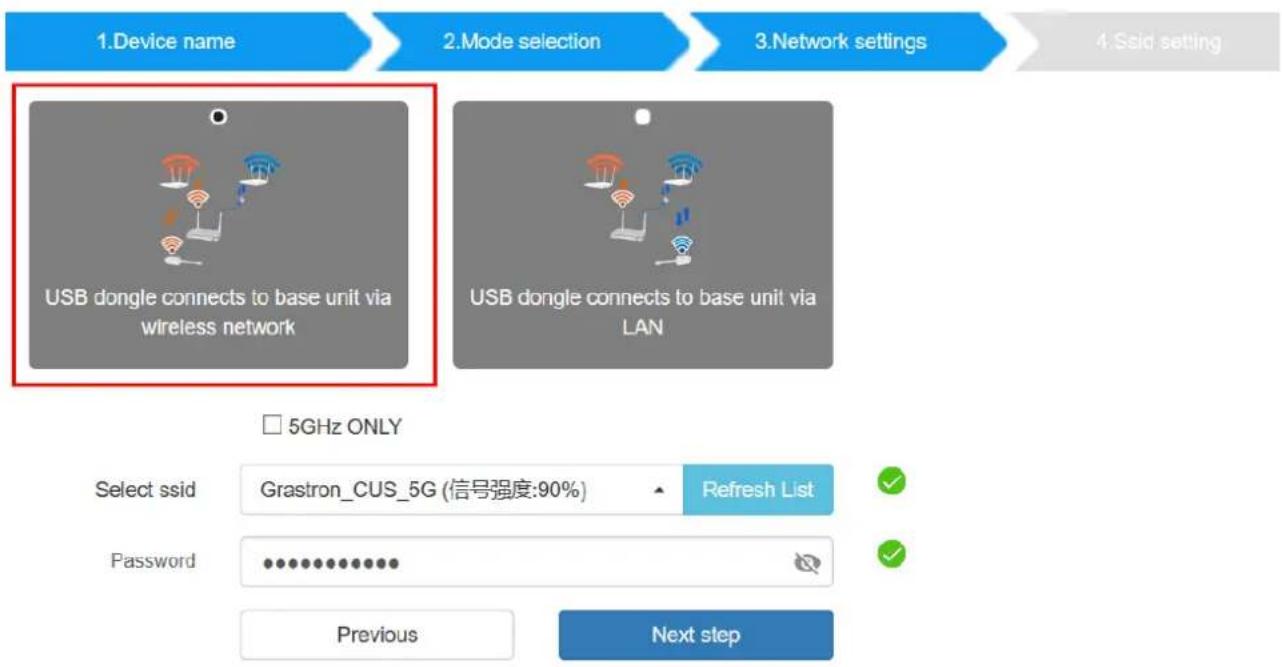
"USB dongle connects to base unit via wireless network."
Choose a wireless network which is separate from the company LAN network for guest users.
Select SSID: Choose a wireless network to connect to base unit for guest.
Password: enter password to connect the base unit to the guest network.
flowchart
graph TD
    A["1.Device name"] --> B["2.Mode selection"]
    B --> C["3.Network settings"]
    C --> D["4.Ssid setting"]
    E["USB dongle connects to base unit via wireless network"] --> F["USB dongle connects to base unit via LAN"]
    G["Select ssid"] --> H["Grastron_CUS_5G (信号强度:90%)"]
    H --> I["Refresh List"]
    J["Password"] --> K["●●●●●●●●●●●●●●●●●●●●●●●●●●●●●●●●●●●●●●●●●●●●●●●●●●●●●●●●●●●●●●●●●●●●●●●●●●●●●●●●●●●●●●●●●●●●●●●●●●●●○"]
    L["Previous"] --> M["Next step"]
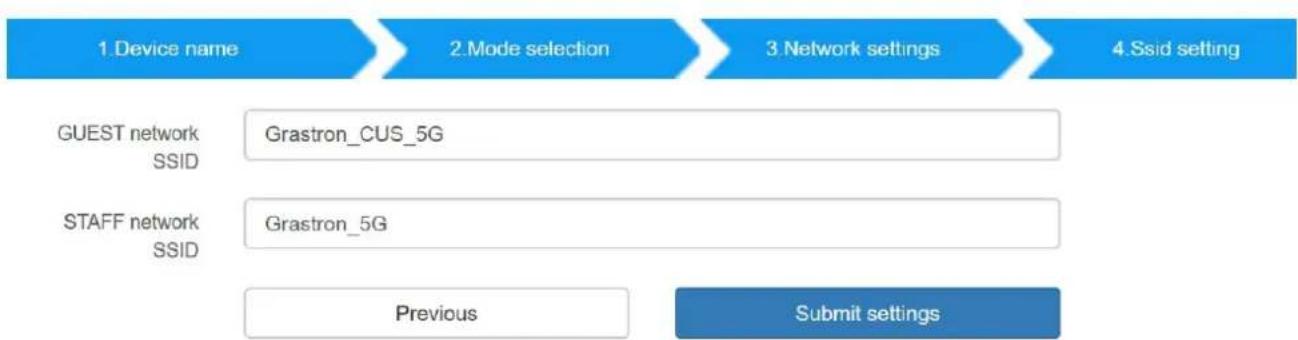
Click "Next step" to edit or change Guest network SSID and Staff network SSID.
wireless network
flowchart
graph LR
    A["1.Device name"] --> B["2.Mode selection"]
    B --> C["3.Network settings"]
    C --> D["4.Ssid setting"]
    E["GUEST network SSID"] --> F["Grastron_CUS_5G"]
    G["STAFF network SSID"] --> H["Grastron_5G"]
    I["Previous"] --> J["Submit settings"]
Wi-Fi name of guest and staff will be shown on home screen after "Submit settings".

text_image
ID: WMS-Meetingroom1 PASS: 00001227(04:24) Wi: IP: 192.168.31.1/8 Lan: IP: 192.168.3.101/NA Guest: Grastron_CUS_5G Staff: Grastron_5GAfter submitting successfully, please re-pair dongle with base unit.
"USB dongle connects to base unit via LAN."
Choose a LAN network which is used for the company staff users.
Note: usually in this mode, dongle paired for internal staff usage.
Select SSID: Choose a wireless network to connect to base unit for guest.
Password: enter password to connect the base unit to the guest network.
Select dongle SSID: choose the same LAN network which base unit connects, to pair the dongle.
Password: enter password of the LAN network.
See picture as below:
wireless network

flowchart
graph TD
    A["1. Device name"] --> B["2. Mode selection"]
    B --> C["3. Network settings"]
    C --> D["4. Ssid setting"]

    E["USB dongle connects to base unit via wireless network"] --> F["USB dongle connects to base unit via LAN"]

    G["Select ssid"] --> H["Grastron_CUS_5G (信号强度:92%)"]
    H --> I["Refresh List"]
    J["Password"] --> K["***************"]
    L["Select dongle ssid"] --> M["Grastron_5G (信号强度:72%)"]
    M --> N["Refresh List"]
    O["密码"] --> P["***************"]
    Q["Previous"] --> R["Next step"]
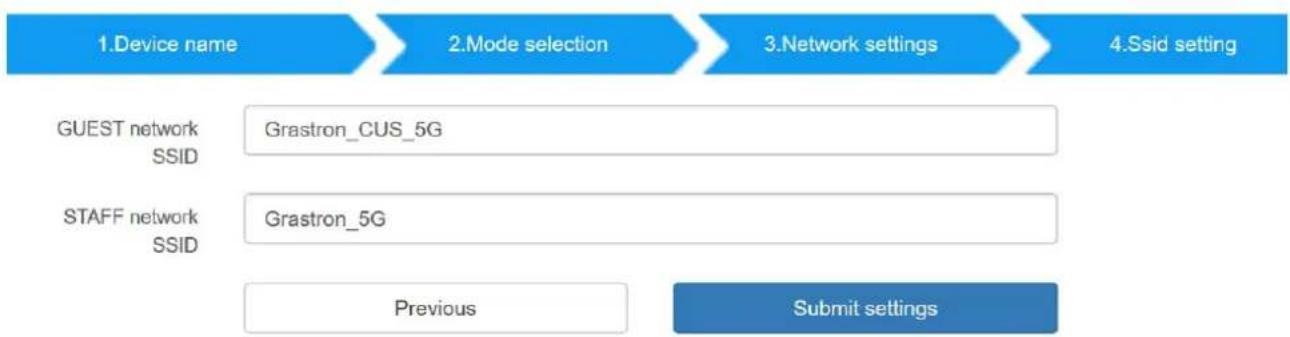
Click "Next step" to edit or change Guest network SSID and Staff network SSID.
flowchart
graph LR
    A["1.Device name"] --> B["2.Mode selection"]
    B --> C["3.Network settings"]
    C --> D["4.Ssid setting"]
    E["GUEST network SSID"] --> F["Grastron_CUS_5G"]
    G["STAFF network SSID"] --> H["Grastron_5G"]
    I["Previous"] --> J["Submit settings"]
Wifi name of guest and staff will be shown on home screen after "Submit settings"

text_image
ID: WMS-Meetingroom1 PASS: 00001227(04:24) Guest: Grastron_CUS_5G Staff: Grastron_5GAfter submitting successfully, please re-pair dongle with base unit.
LAN Infrastructure Mode
wireless network

flowchart
graph LR
    A["1.Device name"] --> B["2.Mode selection"]
    B --> C["3.Network settings"]
    C --> D["4.Ssid setting"]
    E["Wireless direct mode"] --> F["Wireless infrastructure mode"]
    G["LAN infrastructure mode"] --> H["Previous"]
    I["Next step"] --> J["Next step"]
In this configuration the built-in Wi-Fi access point of WirelessMedia is disabled:

The dongle and/or the mobile devices can connect to the secured wireless access point of the company network. The Base-unit of WirelessMedia is hard-wired connected via LAN to the Ethernet of the Company network.
The Staff-users connect to their usual access point of Company network, without the need to change the Wi-Fi.
Follow the instructions of the configuration wizard for "LAN infrastructure mode".
When pairing the dongles, by plugging the dongle in the USB /Type C port of the Base-unit, will be automatically paired to the Staff access point, and NOT to "WirelessMedia" Base-unit.

flowchart
graph TD
    A["Guest"] --> B["WirelessMedia Network"]
    C["Staff"] --> D["Company Corporate Network Router"]
    B --> E["WirelessMedia LAN"]
    D --> E
    E --> F["Internet"]
Click "Next step" to choose a LAN network which is used for the company staff users and pair the dongle into this network.
wireless network
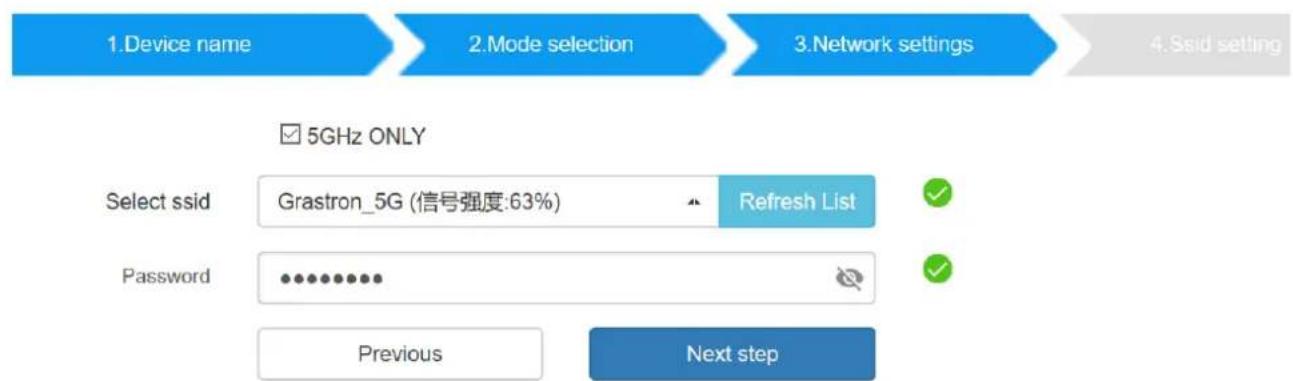
flowchart
graph LR
    A["1.Device name"] --> B["2.Mode selection"]
    B --> C["3.Network settings"]
    C --> D["4.Ssid setting"]

    E["Select ssid"] --> F["Grastron_5G (信号强度:63%)"]
    F --> G["Refresh List"]
    H["Password"] --> I["•••••••••••"]
    I --> J["Previous"]
    I --> K["Next step"]
Click "Next step" to edit or change Guest network SSID and Staff network SSID.

flowchart
graph LR
    A["1.Device name"] --> B["2.Mode selection"]
    B --> C["3.Network settings"]
    C --> D["4.Ssid setting"]
    E["GUEST network SSID"] --> F["Grastron_CUS_5G"]
    G["STAFF network SSID"] --> H["Grastron_5G"]
    I["Previous"] --> J["Submit settings"]
Wifi name of guest and staff will be shown on home screen after "Submit settings"

text_image
ID: WMS-Meetingroom1 PASS: 00001227(04:24) Guest: Grastron_CUS_5G Staff: Grastron_5GAfter submitting successfully, please re-pair dongle with base unit.
Ethernet
Configure the Ethernet settings.

text_image
Wireless management Network settings Wireless network Ethernet Auto change password Display & Audio System settings Security Settings Firmware upgrade Other settings About device Ethernet0 Ethernet1 Automatic acquisition of IP Enable IP address 192.168.3.32 Mask 255.255.255.0 Gateway 192.168.3.1 DNS1 192.168.3.1 DNS2 0.0.0.0 MAC 00:00:00:00:00:00 Set proxyAuto change password
The password remains unchanged for all participants of the meeting, while at least one dongle or a Wi-Fi network of a mobile device are connected with Base-unit. After the user is disconnected, a configurable time runs.
- The changeable password will be fixed by connecting a dongle to PC/Laptop or connect a mobile unit to the Wi-Fi of the Base-unit, and continue to be changeable after 15s after disconnecting the last dongle or disconnect the Wi-Fi of a mobile unit.
- User do not need to re-pair the dongle again, if only the password is changed. A Smart mobile device has to enter the correct SSID and password to connect to the Base-unit access point, in order to access all functionality.
Configure to automatically change Wi-Fi password to a random number every period of time.

text_image
Wireless management Network settings Wireless network Ethernet Auto change password Auto change password 5 minutes Never 5 minutes 30 minutes 1 hour 2 hour 4 hour 24 hour Display & Audio System settings Security Settings Firmware upgrade Other settings About deviceClick to set the configuration, including
● Never: never change Wi-Fi password. (Even after POWER-OFF condition)
- 5 minutes: change Wi-Fi password every 5 minutes.
● 30 minutes: change Wi-Fi password every 30 minutes.
● 1 hour: change Wi-Fi password every 1 hour.
● 2 hours: change Wi-Fi password every 2 hours.
● 4 hours: change Wi-Fi password every 4 hours.
● 24 hours: change Wi-Fi password every 24 hours.
Display & Audio
HDMI
HDMI Resolution
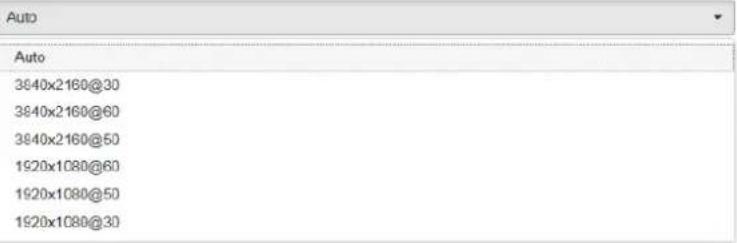
Select the resolution at HDMI output of Base-unit.
Existing HDMI output resolution as below:
- Auto
- 3840x2160 @30Hz
- 3840x2160 @60Hz
- 3840x2160 @50Hz
- 1920x1080 @60Hz
- 1920x1080 @50Hz
- 1920x1080 @30Hz

Wireless management
Network settings
Display & Audio
HDMI
Audio
Airplay screen quality
Screen display ID
Home screen background image
System settings
Security Settings
Firmware upgrade
Other settings
About device
HDMI Resolution HDMI CEC
HDMI resolution
text_image
Auto 3840x2160@30 3840x2160@60 3840x2160@50 1920x1080@60 1920x1080@50 1920x1080@30Note: if the display is only support FULL HD, the 4K resolution will not be shown on the list of the below resolution.

Wireless management

Network settings


Display & Audio

HDMI
Audio
Airplay screen quality
Screen display ID
Home screen background image

System settings


Security Settings


Firmware upgrade


Other settings


About device

HDMI CEC
Base unit support CEC function if the connected display support CEC function.
● Device auto power off:
■ ON (Default): Display will automatically turn off when base unit is powered off.
■ OFF: Display will not automatically turn off when base unit is powered off.
● Base unit auto power on:
■ On: Base unit will be automatically woke up when display is on.
■ Off (Default): Base unit will not be automatically woke up when display is on.

Wireless management

Network settings


Display & Audio

HDMI
Audio
Airplay screen quality
Screen display ID
Home screen background image

System settings


Security Settings


Firmware upgrade


Other settings


About device

Audio
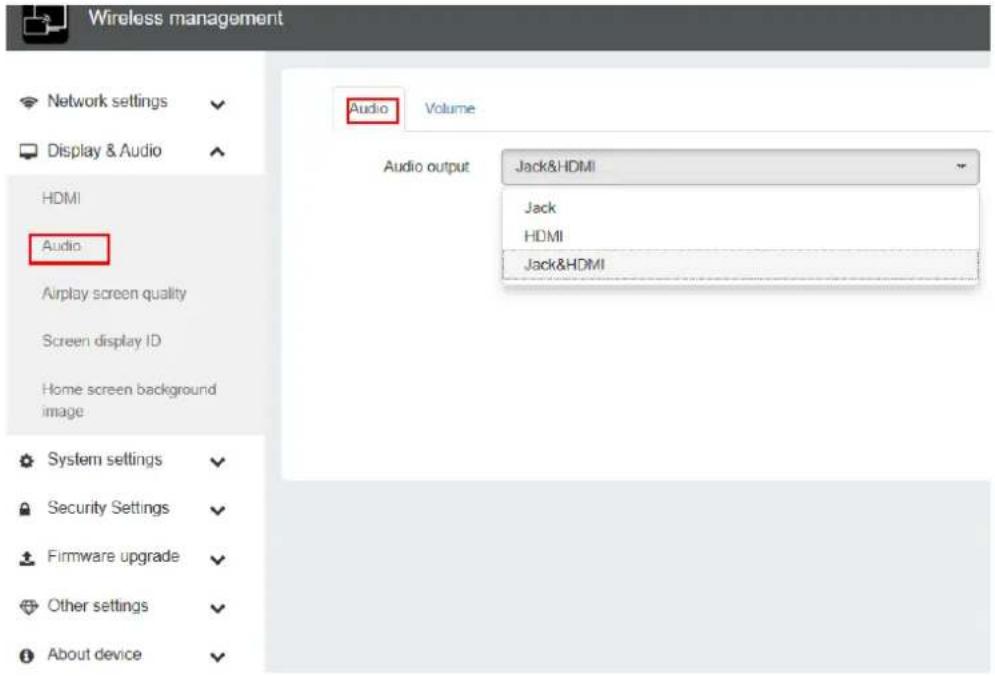
Choose audio output:
Jack: output only 3.5mm mini-jack audio.
HDMI: output only HDMI audio.
Jack&HDMI (Default): output Jack & HDMI audio
text_image
Wireless management Network settings Display & Audio HDMI Audio Airplay screen quality Screen display ID Home screen background image System settings Security Settings Firmware upgrade Other settings About device Audio Volume Audio output Jack&HDMI Jack HDMI Jack&HDMIVolume
User can select volume of display from 0 to 100.

text_image
Wireless management Network settings Display & Audio HDMI Audio Airplay screen quality Screen display ID Home screen background image System settings Security Settings Firmware upgrade Other settings About device Audio Volume Audio VolumeAirplay screen quality
Click to select the image quality when transmit apple device by "AirPlay" mode.

text_image
Wireless management Network settings Display & Audio HDMI Audio Airplay screen quality Screen display ID Home screen background image System settings Security Settings Firmware upgrade Other settings About device Airplay screen quality Airplay screen quality HIGH HIGH MEDIUM LOWScreen display ID
● show device name and password when mirroring: Name (ID) and Wi-Fi-password can be shown or hided at top status-line of main screen.

text_image
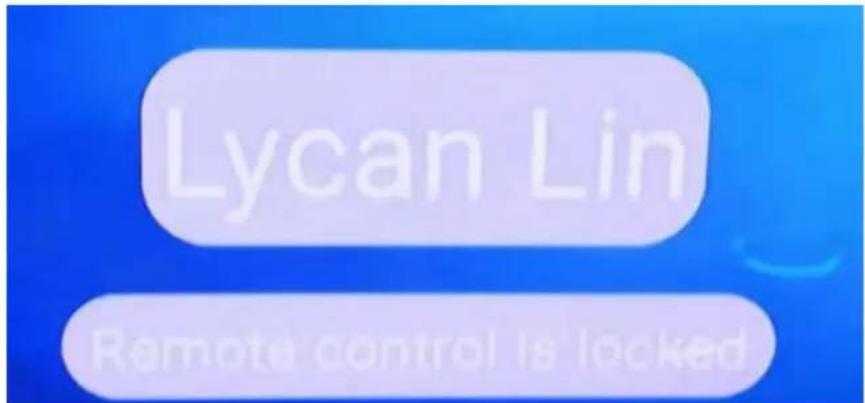
Wireless management Network settings Display & Audio HDMI Audio Airplay screen quality Screen display ID Home screen background image System settings Security Settings Firmware upgrade Other settings About device Screen display ID show device name and password when mirroring show PCs user name when mirroring● Show PCs user name when mirroring.
Show user name, status of "Remote control". (locked/unlocked)
text_image
Lycan Lin Remote control is lockedHome Screen background image
When powering WirelessMedia the start screen will be displayed. User can change background image of Home
screen. Select the image (jpg, bmp, png with resolution 1920x1080 p.) from suitable directory and activate box
for selection. You can return to Standard Home screen every time.

text_image
Wireless management Network settings Display & Audio HDMI Audio Airplay screen quality Screen display ID Home screen background image Wallpaper settings 删除System settings
Buttons:
Show Device name, MAC Address, Serial Number, Device Version, Device Status, Last Action, Item Operate.

text_image
Network settings Display & Audio System settings Buttons Date & Time Auto standby Language Reset Config File Unit Setting Security Settings Firmware upgrade Other settings About device Connected Paired Search Device Type MAC Address Serial Number Device Version Device Status Last Action Item Operate USB Dongle cc3d:td 3a.9c:2c - V2.2.9C.A1028 Sharing 2019/12/06 18:32:06 Android Dongle - - V4.0.08 Can share 2019/12/06 15:20:00 Showing 1 to 2 or 2 rowsPaired: Show properties of connected dongles and can be managed from this page.

text_image
Wireless management Network settings Display & Audio System settings Buttons Date & Time Auto standby Language Reset Config File Uart Setting Security Settings Firmware upgrade Other settings About device Connected Paired Delete Search Item ID Device Type MAC Address Serial Number Item Operate 1 HDMI Dongle 30.88.41:dc:0b.96 - 2 USB Dongle ec:3d fd:3a:9c:2c - 3 MINI Dongle - 021000000010075 Showing 1 to 3 of 3 rowsDate & Time
Includes Automatic date & time, Set date, Set time, Select time zone.
● Automatic date & time: Check to use a NTP time server to provide time as system time.
- Set date: Click in the input filed to fill out the appropriate date.
- Set time: Click in the input filed to fill out the appropriate time manually. The setting is not saved, when power is off.
- Select time zone: Click in the input filed to fill out the appropriate time zone.

Wireless management

Network settings


Display & Audio


System settings

Buttons
Date & Time
Auto standby
Language
Reset
Config File
Uart Setting

Security Settings


Firmware upgrade


Other settings


About device

Date&Time
Time zone
Automatic date & time
Use network-provided time
Date
2019-12-06
Time
18 27 41
Confirm settings

Wireless management

Network settings


Display & Audio


System settings

Buttons
Date & Time
Auto standby
Language
Reset
Config File
Uart Setting

Security Settings


Firmware upgrade


Other settings


About device

Date&Time
Time zone
Time zone
Asia/Shanghai
Africa/Nairobi
Asia/Tehran
Asia/Baku
Asia/Tbillsi
Asia/Yerevan
Asia/Dubai
Asia/Kabul
Asia/Karachi
Asia/Oral
Asia/Yekaterinburg
Asia/Kolkata
Asia/Colombo
Asia/Kathmandu
Asia/Almaty
Asia/Yangon
Asia/Krasnoyarsk
Asia/Bangkok
Asia/Jakarta
Asia/Shanghai
Auto standby
If the Auto Standby mode is activated, WirelessMedia will automatically switch to power saving mode, a selectable time after the last dongle was plugged out, or Wi-Fi of a mobile unit was disconnected, or there is no operation at the system. Time is selectable from Never to 30 minutes. In Standby green LED in top of Base-unit is flashing and HDMI-output is switched off.
When a dongle is plugged in and connected, or a mobile unit is connected, Standby is deactivated.
Movement of mouse at USB-input at Base-unit deactivates Standby mode also.

text_image
Wireless management Network settings Display & Audio System settings Buttons Date & Time Auto standby Language Reset Config File Uart Setting Security Settings Firmware upgrade Other settings About device Auto standby Never Never 1 minute 5 minutes 10 minutes 15 minutes 30 minutesLanguage
Select an installed display language.

text_image
Wireless management Network settings Display & Audio System settings Buttons Date & Time Auto standby Language Reset Config File Uart Setting Security Settings Firmware upgrade Other settings About device Language English (United States) Afrikaans Bahasa Melayu Catalá Čečtina Dansk Deutsch (Deutschland) Deutsch (Liechtenstein) Deutsch (Österreich) Deutsch (Schweiz) English (Australia) English (Canada) English (India) English (Ireland) English (New Zealand) English (Singapore) English (South Africa) English (United Kingdom) English (United States)Reset
Doing factory reset to restore unit.

text_image
Wireless management Network settings Display & Audio System settings Buttons Date & Time Auto standby Language Reset Config File Uart Setting Security Settings Firmware upgrade Other settings About device Reset devices Confirm settingsConfig File
Config File is a packaged file which contains all the configuration parameter of the WMS, which could be downloaded and copied to multiple device which needs to use the same configuration.

Wireless management

Network settings


Display & Audio


System settings

Buttons
Date & Time
Auto standby
Language
Reset
Config File
Uart Setting

Security Settings


Firmware upgrade


Other settings


About device

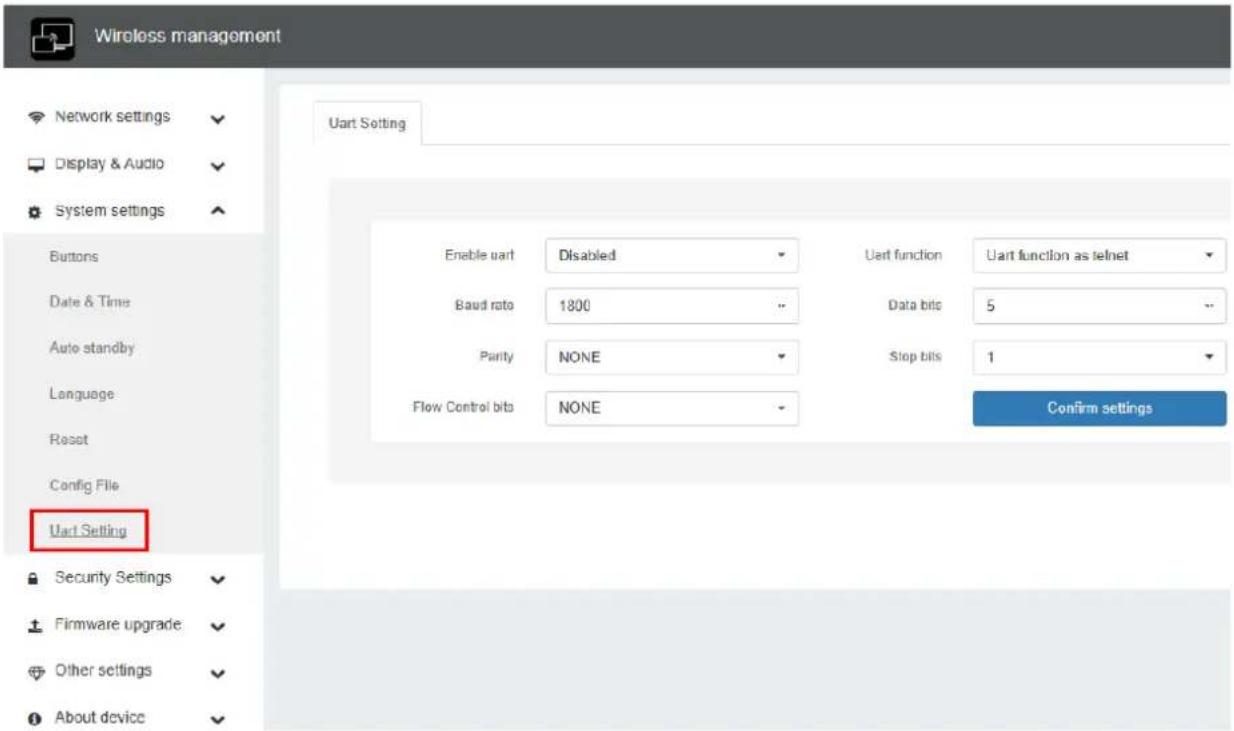
Uart Setting

Wireless management

Network settings


Display & Audio


System settings

Buttons
Date & Time
Auto standby
Language
Reset
Config File
Uart Setting

Security Settings


Firmware upgrade


Other settings


About device

upload config
download config
Upload config file for system configuration.
Select file
text_image
Wireless management Network settings Display & Audio System settings Buttons Date & Time Auto standby Language Reset Config File Uart Setting Enable uart Disabled Uart function Uart function as telnet Baud rate 1800 Data bits 5 Parity NONE Stop bits 1 Flow Control bits NONE Confirm settings Security Settings Firmware upgrade Other settings About deviceSecurity Settings
Security level

Wireless management

Network settings


Display & Audio


System settings


Security Settings

Security level
Password
Connection password

Firmware upgrade


Other settings


About device

Security Level
| # | Security item | ● Security level 1 | ○ Security level 2 | ○ Security level 3 |
| 1 | Dynamic password change | Y | Y | Y |
| 2 | Encryption of Data Proprietary | Y | Y | Y |
| 3 | "password changing" deletes the data of the base unit | Y | Y | Y |
| 4 | "Airplay" PIN code | Y | Y | |
| 5 | Telnet password | Y | Y | |
| 6 | Encryption of Data AES-256 Bit + RSA-1024Bit | Y | Y | |
| 7 | Password changing deletes and removes the data of the base unit | Y | Y | |
| 8 | Disable the "Remote View" | Y | Y | |
| 9 | Disable the android APK or IOS APP | Y | ||
| 10 | Disable "Airplay" | Y | ||
| 11 | Disable "Firmware Degrade" | Y | ||
| 12 | Disable access of base unit web page |
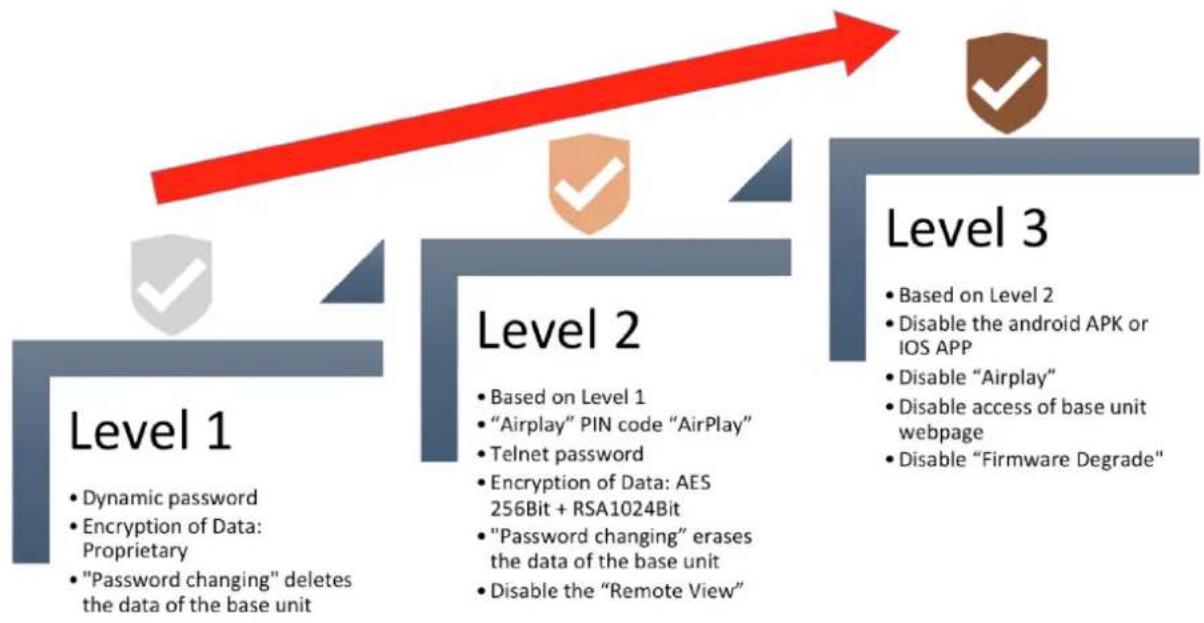
Based on user requirements, three different security levels can be set in the menu of WirelessMedia, to satisfy different security requirements, according to different security sensitive environments or security policies. A security level is a predefined set of settings. Click on the corresponding entry in the menu if you want to adjust
the respective security features. The default setting is level 1.
Level 1: normal safety; keeps the security in normal and daily usage for any organization, such like classroom,
regular meeting room etc.
Level 2: higher security; provides increased security for companies, organizations, government agencies, etc.,
through powerful encryption of audio and video data; other security features include limiting the transmission of
"AirPlay" by introducing a password.
Level 3: is used for strict security requirements of companies, organizations, authorities, banks.
This level contains all "Level 2" security measures; in addition, all mobile applications, such as the Android APP as well as AirPlay are blocked, the web browser (WebUI) of the Base-unit is blocked. In addition, the downgrade of the firmware is not possible.
The setting of the security level is displayed in the Home screen, click the icon

for more information.
The following table explains the different security features.
flowchart
graph TD
    A["Level 1\n• Dynamic password\n• Encryption of Data: Proprietary\n• "Password changing" deletes the data of the base unit"] --> B["Level 2\n• Based on Level 1\n• "Airplay" PIN code "AirPlay"\n• Telnet password\n• Encryption of Data: AES 256Bit + RSA1024Bit\n• "Password changing" erases the data of the base unit\n• Disable the "Remote View""]
    B --> C["Level 3\n• Based on Level 2\n• Disable the android APK or IOS APP\n• Disable "Airplay"\n• Disable access of base unit webpage\n• Disable "Firmware Degrade""]
    C --> D["Red arrow pointing upward"]
Password
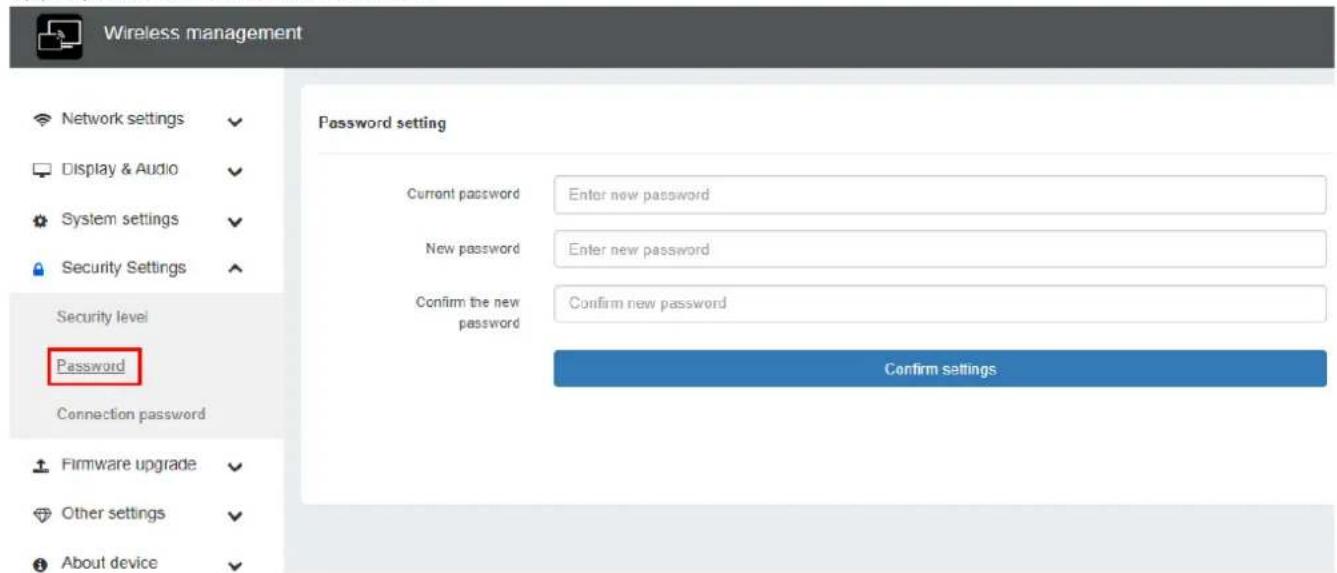
Change admin password for entering setting menu on webser. Default password, or after a RESET, is "admin". You can change the password as you like. You can also deactivate the password entry, set the appropriate checkmark and 'Save'.
text_image
Wireless management Network settings Display & Audio System settings Security Settings Security level Password Connection password Firmware upgrade Other settings About device Password setting Current password Enter new password New password Enter new password Confirm the new password Confirm new password Confirm settingsConnection password
Two type of password format can be chosen to show on home screen.
● 4-digits password, beginning with 0000
- 8-digits password

Wireless management
Network settings
Display & Audio
System settings
Security Settings
Security level
Password
Connection password
Firmware upgrade
Other settings
⑥ About device
Connection Password
Connection Password
4-digits password, beginning with 0000
4-digits password, beginning with 0000
8-digits password
Firmware upgrade
To upload local updating files to upgrade base unit.

Wireless management
Network settings
Display & Audio
System settings
Security Settings
Firmware upgrade
firmware update
Other settings
About device
Firmware update
Select Firmware
Other settings
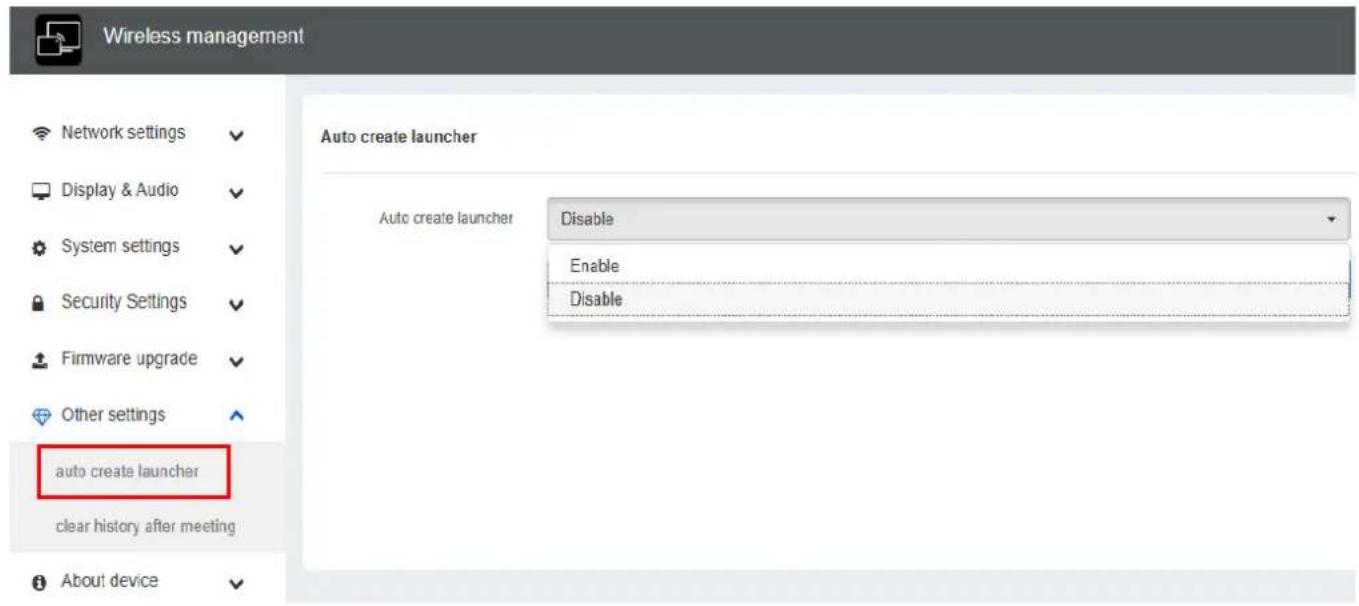
Auto create launcher
Determines, when using a USB memory at one USB-port of Base-unit, the Starter-program "WirelessMedia" will be copied automatically on USB memory. Enable or disable the corresponding box.
text_image
Wireless management Network settings Display & Audio System settings Security Settings Firmware upgrade Other settings auto create launcher clear history after meeting About device Auto create launcher Disable Enable DisableClear history after meeting
Pictures, videos, music of mobile units will be stored in memory of Base-unit. This memory can optionally be erased, at the end of a meeting, when the dongle is pulled from the Laptop / PC.
Settings are:
☐Decide by User – a dialog appears, when dongle is pulled.
□Never - storage space is automatically erased, when memory is filled for 90%
□Always - memory is automatically deleted.

text_image
Wireless management Network settings Display & Audio System settings Security Settings Firmware upgrade Other settings auto create launcher clear history after meeting About device clear history after meeting Clear history after meeting Always Decide by user Never AlwaysAbout device
Check the firmware version of base unit and web server version.

text_image
Wireless management Network settings Display & Audio System settings Security Settings Firmware upgrade Other settings About device About device About device Model name WMS-400 Firmware version 3.0.6C.40.A1013 Web server version 1.09 About deviceUpdating WirelessMedia
An update of the firmware can be useful to take the advantage of new features of WirelessMedia or to fix known issues and bugs. WirelessMedia includes two methods of updating. Updating by USB stick and webserver.
After updating the Base-unit, always check, whether the other parts still fit together or should be updated also.
There are up to three different areas for updating: Firmware Base-unit, Firmware dongle and Launcher for PC/Laptop or MAC "WirelessMedia.exe". All software is stored in Base-unit, to be transferred manually to different devices.
Check current firmware information
Base-unit: webserver "console" menu / About device.

text_image
Wireless management Network settings Display & Audio System settings Security Settings Firmware upgrade Other settings About device About device About device Model name WMS-400 Firmware version 3.0.6C.40.A1013 Web server version 1.09 About deviceWindows OS:
Dongle/Launcher: firmware version can be visual in the ""WirelessMedia".exe" program icon in windows status bar by right-clicking the ""WirelessMedia"" icon and select "About", as shown below.
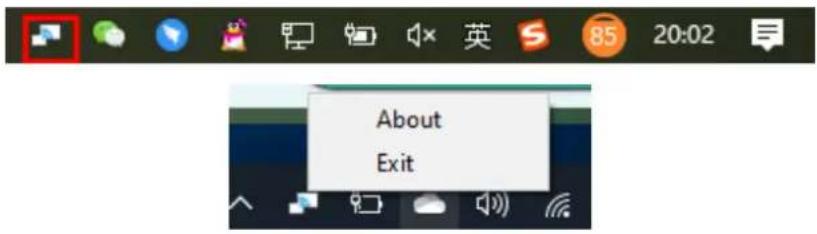
text_image
About ExitClick "About" to check dongle and launcher program version.
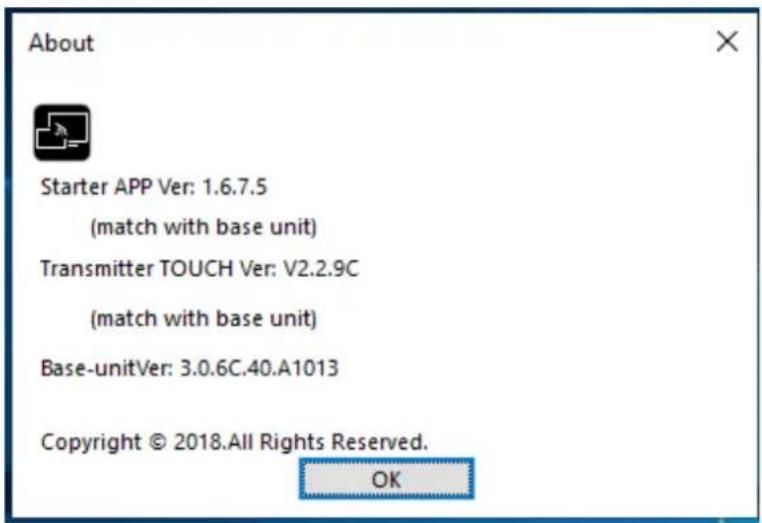
text_image
About Starter APP Ver: 1.6.7.5 (match with base unit) Transmitter TOUCH Ver: V2.2.9C (match with base unit) Base-unitVer: 3.0.6C.40.A1013 Copyright © 2018.All Rights Reserved. OKMAC OSX:
Dongle/Launcher: firmware version can be visual in the ""WirelessMedia".app" program icon in MAC OSX status bar, by clicking the ""WirelessMedia"" icon and select "About", as shown below.

text_image
79% Wed 21:25 About QuitClick "About" to check dongle and launcher program.
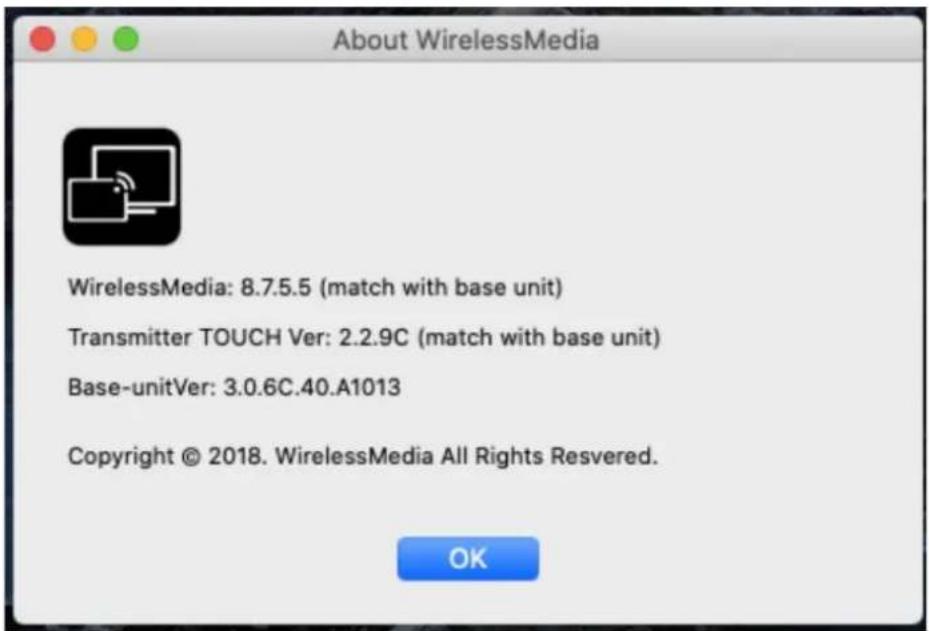
text_image
About WirelessMedia WirelessMedia: 8.7.5.5 (match with base unit) Transmitter TOUCH Ver: 2.2.9C (match with base unit) Base-unitVer: 3.0.6C.40.A1013 Copyright © 2018. WirelessMedia All Rights Resvered. OKFirmwares are NOT matching:
When dongle firmware or "Launcher" firmware are older version, or in other words dongle firmware or "Launcher" firmware doesn't match with the base unit version, it shows up "WirelessMedia" ATTENTION" alert message box in the window OS or MAC OSX, as below.
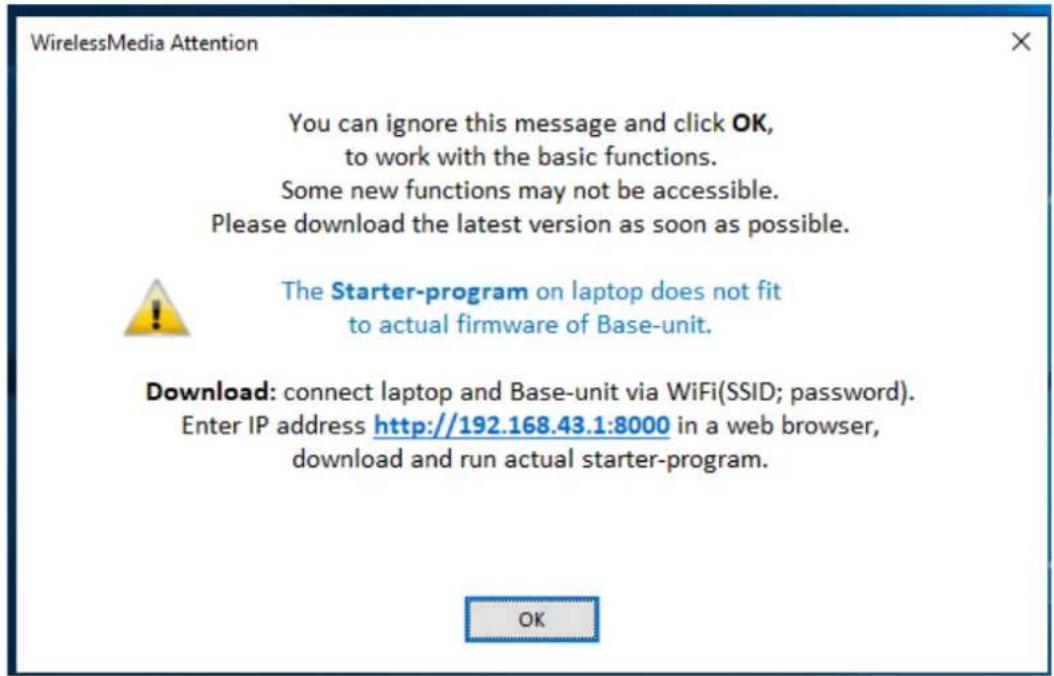
text_image
WirelessMedia Attention You can ignore this message and click OK, to work with the basic functions. Some new functions may not be accessible. Please download the latest version as soon as possible. The Starter-program on laptop does not fit to actual firmware of Base-unit. Download: connect laptop and Base-unit via WiFi(SSID; password). Enter IP address http://192.168.43.1:8000 in a web browser, download and run actual starter-program.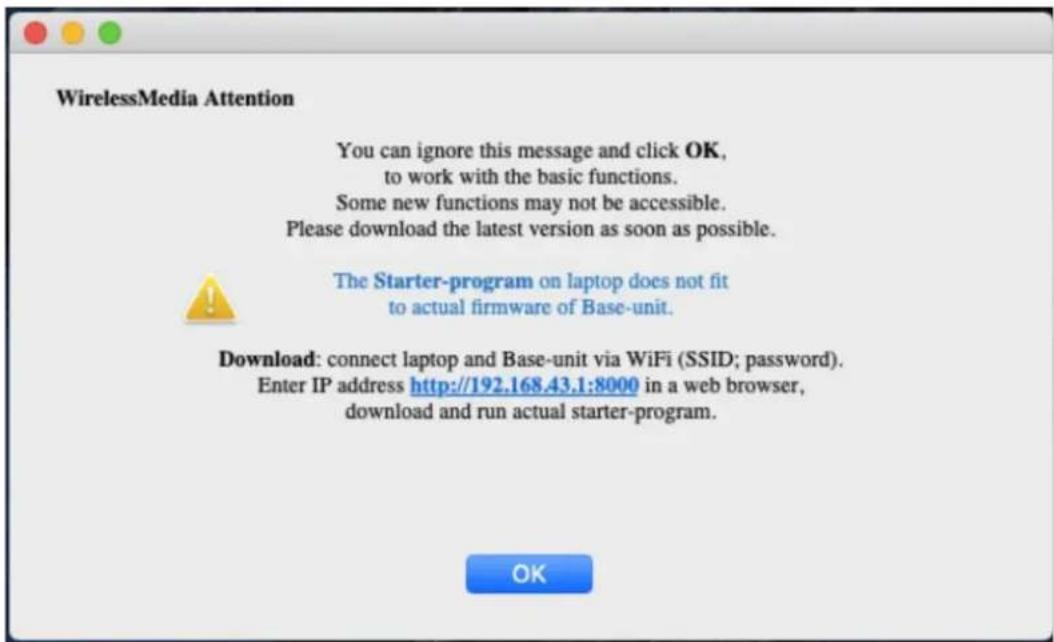
text_image
WirelessMedia Attention You can ignore this message and click OK, to work with the basic functions. Some new functions may not be accessible. Please download the latest version as soon as possible. The Starter-program on laptop does not fit to actual firmware of Base-unit. Download: connect laptop and Base-unit via WiFi (SSID; password). Enter IP address http://192.168.43.1:8000 in a web browser, download and run actual starter-program. OKWhen mismatching occurs, please do the following steps to update the firmwares, as indicates in the message box.
Upgrading firmware of base unit:
There are two ways to upgrade base unit as below.
First method to upgrade base unit as below:
The base unit device can be updated through a USB drive as below.
- Copy the updating file "update.img" to the root directory of the USB drive.

update.img
- Connect the USB drive to either USB port of Base-unit.
Note: The USB port can only support maximum 500ma. Please use a small power U-disk as upgrading USB drive.
WirelessMedia recognizes the "update.img"-file at a plugged-in USB stick automatically and starts the "Full Update" procedure.
You can plug out the USB stick within 10 seconds to stop the update.
Attention!
Do not disconnect power during upgrading progress. Or, the unit firmware will be corrupted.
- The upgrading progress displays as shown below, and the unit will reboot automatically after complete the updating 100%, as shown below.

text_image
UPGRADING SOFTWARE PLEASE DO NOT TURN OFF 30%Note: During the update, screen can be temporary dark.
If the progress bar stops at 1%, use another USB stick, it may be defective.
The display device shows the Home Screen after normal boot of the device, you can disconnect USB-drive.
- Perform "Factory Reset" when the firmware update is complete?
Only when the associated "Release notes" are requiring an additional „Factory Reset“, perform it via the menu "System settings" / "Reset" on websever console menu.
All data of configuration will be lost. So that you do not have to re-configure all data in an elaborate process, therefore note all settings within the Sub-menus before doing Factory Reset.
- The update of Base-unit is finished.
Second method to upgrade base unit as below:
Base unit can be upgrade via webserver console menu as below:
Select a "update.img" file to upgrade to target version.

text_image
Wireless management English Network settings Display & Audio System settings Security Settings Firmware upgrade firmware update Other settings About device Firmware update Select FirmwareUpgrading and Pairing of Dongle:
- Plug the dongle to either of the two USB port of WMS to be updated. It will automatically show up a message to indicate if the installed firmware of dongle is older, and needs to be upgraded.
Note: Type C dongle needs to plug into Type-C port of front base unit to upgrade.
The upgrading progress starts automatically with the progress bar, as shown below.

text_image
Update firmware 11% Do not plug out USB dongle when updating!- "Pairing" to the Base-unit is done automatically afterwards, it shows as below
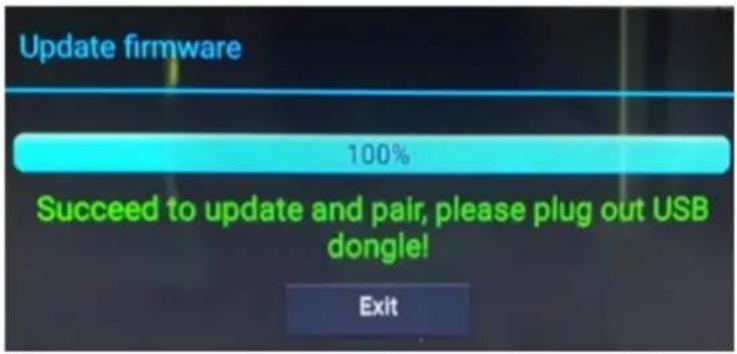
text_image
Update firmware 100% Succeed to update and pair, please plug out USB dongle! Exit- Plug out the dongle. Now, the upgrading progress is finished. Update all other dongles accordingly.
Upgrading Launcher:
Attention: The USB driver should be FAT 32 format not NTSC format.
After upgrading Base unit and Dongle, the launcher should be written with the actual launcher program for Windows, MAC and Apps for mobile-units.
There are 2 methods to update the USB stick/launcher, including:
Method 1: Via USB stick
-
Connect the USB drive to either USB port of base unit.
-
Click the "Download" icon in "Home Page", pls see as below:
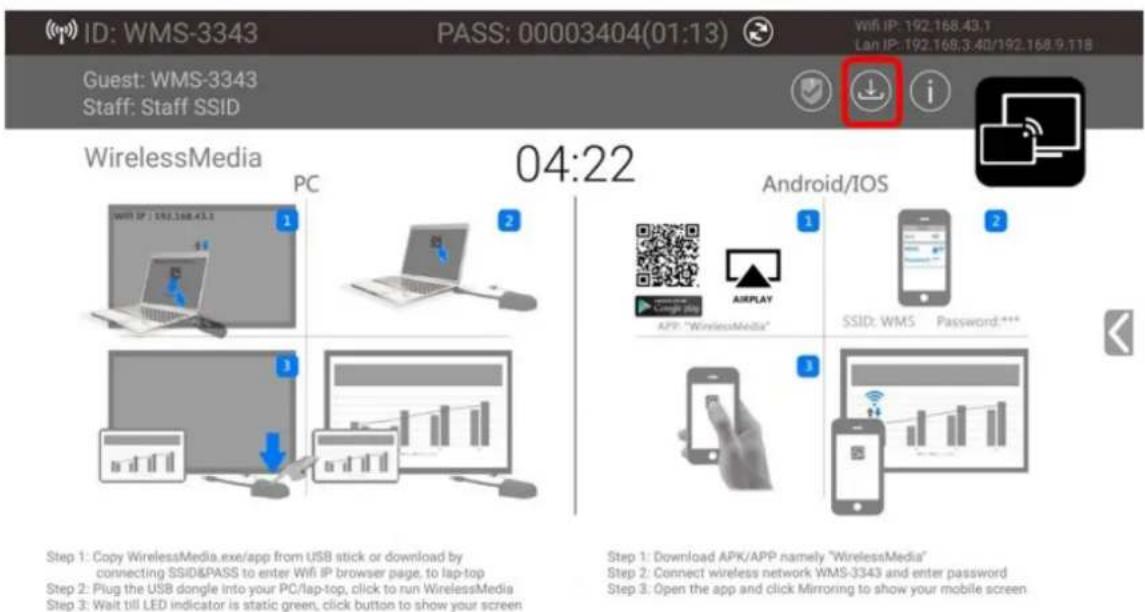
text_image
ID: WMS-3343 PASS: 00003404(01:13) WiFi IP: 192.168.43.1 Lan IP: 192.168.3.40/192.168.9.118 Guest: WMS-3343 Staff: Staff SSID WirelessMedia PC 04:22 Android/IOS 1 2 APP: "WirelessMedia" AIRPLAY SSID: WMS Password:**** Step 1: Copy WirelessMedia.exe/app from USB stick or download by connecting SSID&PASS to enter WiFi IP browser page, to lap-top Step 2: Plug the USB dongle into your PC/lap-top, click to run WirelessMedia Step 3: Wait till LED indicator is static green, click button to show your screen Step 1: Download APK/APP namely "WirelessMedia" Step 2: Connect wireless network WMS-3343 and enter password Step 3: Open the app and click Mirroring to show your mobile screen- The Launcher "WirelessMedia" is written to the USB-stick, an OSD-windows shows the progress. When ready, unplug the USB-stick.
Method 2: Via WIFI
- Connect PC to WMS's SSID and enter password in homepage, see pictures as below:

text_image
ID: WMS-3343 PASS: 00003404(01:13) Wi-Fi: 192.168.43.1 Lan IP: 192.168.3.40/192.168.9.118 Guest: WMS-3343 Staff: Staff SSID WirelessMedia PC 04:22 Android/IOS 1 2 3 APP: WirelessMedia* Android/IOS 2 3 APP: WirelessMedia* SSID: WMS Password:****Step 1: Copy WirelessMedia.exe/app from USB stick or download by connecting SSID&PASS to enter WiFi IP browser page, to lap-top
Step 2: Plug the USB dongle into your PC/lap-top, click to run WirelessMedia
Step 3: Wait till LED indicator is static green, click button to show your screen
Step 1: Download APK/APP namely "WirelessMedia"
Step 2: Connect wireless network WMB-3343 and enter password
Step 3: Open the app and click Mirroring to show your mobile screen
- Open Browser and enter WiFi IP: 192.168.43.1:8000.
- Click to enter "Launcher" download webpage. Shown as below:
Client Downloads

WirelessMedia for Android
Please click to download the Android APK

WirelessMedia for Windows
Wirelessmedia PC client software for best performance

WirelessMedia-Pro for Windows
Wirelessmedia PC client software for best safety

WirelessMedia for Mac OS X
Please click to download the MAC APP
User manual
User manual in English
Please click to download user manual
- Choose and click Windows or MAC launcher to download.
- Find the "Launcher" program in PC and copy to PC desktop. (Recommend to copy to desktop for quick run.)
- Run the program to start sharing.
Two methods to execute the launcher for first time user
● Copy the program to PC, and click to execute it to share PC screen.
- Connect dongle to PC; click to run program from the USB drive and share PC screen.
For both two methods, user don't need repeat the above steps since the second time plug-in.
The Launcher program "WirelessMedia for Windows" and "WirelessMedia Pro for Windows" includes by default an additional virtual driver "ExtendedDesktop" to optionally install the Windows 10 Extended Desktop functionality, if they are is needed. This may require admin rights.
Operation Guide
Mirroring PC desktop
You can operate WirelessMedia for Windows optionally with or without Dongle. If there are several participants in a meeting, mixed operation is also possible.
Extended Desktop for Windows 10
The Launcher program "WirelessMedia for Windows" and "WirelessMedia Pro for Windows" includes by default an additional virtual driver "ExtendedDesktop" to optionally install the Windows 10 Extended Desktop functionality, if it is needed.
Microsoft Windows PC/Laptop with Dongle
Operating system requirement: Windows XP/Vista/7/8/8.1/10 32 & 64 bit.
For first time user, you have to copy the Launcher program "WirelessMedia" first on your Laptop. Run this Launcher program.
When the Launcher program is pre-installed one time and already run in the first time, with plug in dongle, continue with step 2.
- Plug a dongle to the USB port of your PC or Laptop. The WirelessMedia application is starting
automatically and a symbol is displayed in the task bar of the PC/laptop
- Until the transmitter button shows a static green LED indicator, or till you see a message table showing up "Ready to share", you could click the transmission button to start mirroring.

text_image
Host name: WMS-3007 IP address: 192.168.3.54 Ready to share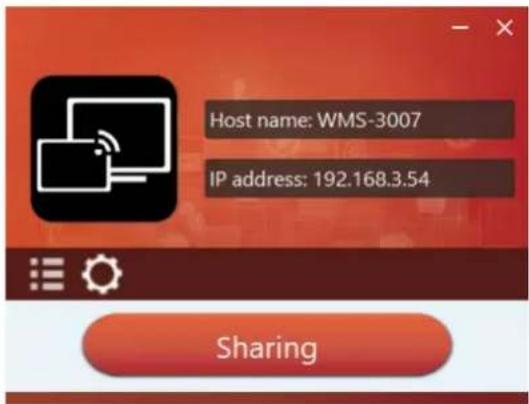
text_image
Host name: WMS-3007 IP address: 192.168.3.54 Sharing- Click dongle or the visual button again to stop mirroring, LED or window color shows green again.
Right click the WirelessMedia status icon

in Windows taskbar to open up the context-menu.
- "About": You can check the software versions of the Base-unit, the dongle and the launcher program.
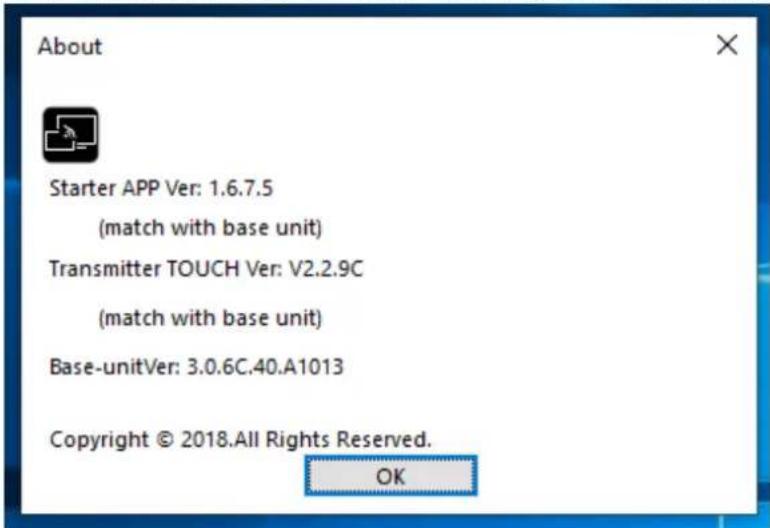
text_image
About Starter APP Ver: 1.6.7.5 (match with base unit) Transmitter TOUCH Ver: V2.2.9C (match with base unit) Base-unitVer: 3.0.6C.40.A1013 Copyright © 2018.All Rights Reserved. OK- "Exit": End APP. Exiting the App completely.
If you click the cross "X" in the upper right corner of the app, the app in the task bar is only minimized and can be recalled again from the taskbar at any time.
Microsoft Windows PC/Laptop without Dongle
For first time user, you have to copy the Launcher program "WirelessMedia for Windows" first on your Laptop.
When the Launcher program is already loaded, continue with Step 2.
- When Launcher program is not yet installed on PC, refer to before step.
-
Connect your laptop to Wi-Fi network displayed on the Home screen ("Guest", "Staff"), or connect to the LAN on the network using a network cable.
-
Double-click the "WirelessMedia-windows.exe" Launcher program , a list of all available "WirelessMedia" in the same network will be displayed, select which device you want to connect to.
The connections are password protected (lock icon ).
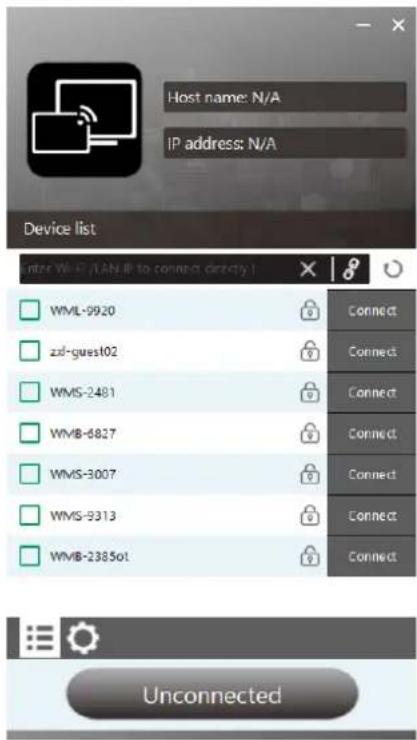
text_image
Host name: N/A IP address: N/A Device list Enter WML (LAN IP to connect directly) WML-9920 zd-guest02 WMS-2481 WMB-5827 WMS-3007 WMS-9313 WMB-238501 Connect Connect Connect Connect Connect Connect Connect Connect Unconnected(LAN connection: several receivers possible)
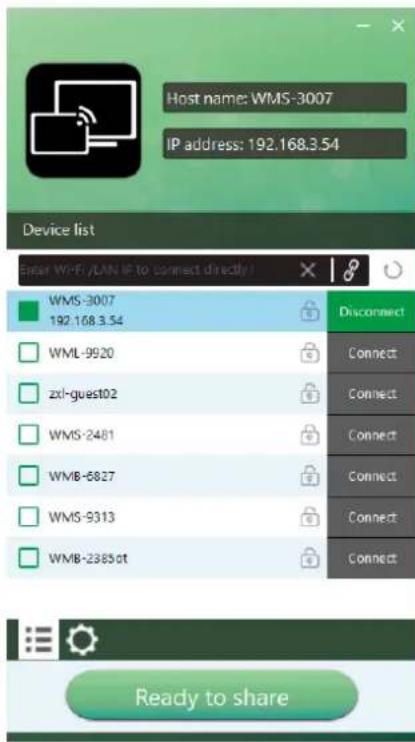
text_image
Host name: WMS-3007 IP address: 192.168.3.54 Device list Enter Wi-Fi /LAN IP to connect directly WMS-3007 192.168.3.54 Disconnect WML-9920 Connect zxl-guest02 Connect WMS-2481 Connect WMB-6827 Connect WMS-9313 Connect WMB-2385 ot Connect Ready to share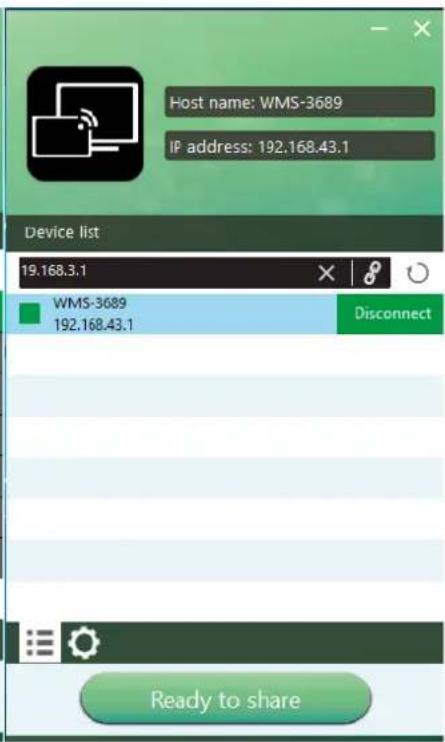
text_image
Host name: WMS-3689 IP address: 192.168.43.1 Device list 19.168.3.1 WMS-3689 192.168.43.1 Disconnect Ready to share(Wi-Fi: only 1 receiver)
- Enter base unit password and click "connect", the system is ready to share.
You can also manually connect by entering the name (SSID) or IP address. (click icon 📄). Enter the corresponding base unit password, press 'OK', the system is "Ready to share".

text_image
Host name: N/A IP address: N/A Device list Connect Device Device ID: WMS-3689 Please enter password: Show password OK Exit WMS-2005 Connect AirShare-3584 Connect SimpliShare-3835 Connect Unconnected- Click "Ready to share" in PC, when window color is static red, the screen is mirroring to the main screen.

text_image
Host name: WMS-3007 IP address: 192.168.3.54 Ready to share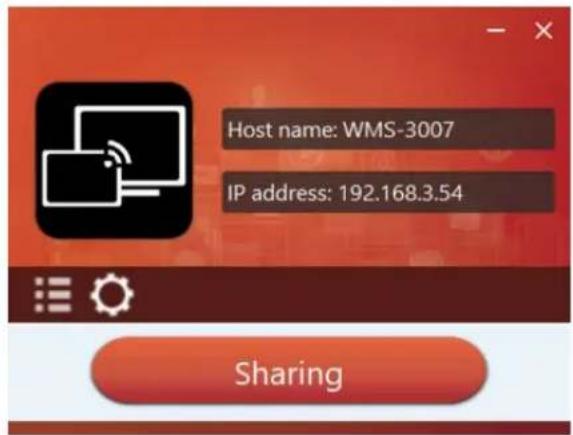
text_image
Host name: WMS-3007 IP address: 192.168.3.54 Sharing- Click the visual button again, to stop mirroring, window color shows green again. You can minimize the APP-window, in Windows taskbar you can see if screen is mirroring or not.
Right click the WirelessMedia status icon in Windows taskbar to open up the context-menu.
- "About": You can check the software versions of the Base-unit, the dongle and the launcher program.

text_image
About Starter APP Ver: 1.6.7.5 (match with base unit) Transmitter TOUCH Ver: V2.2.9C (match with base unit) Base-unitVer: 3.0.6C.40.A1013 Copyright © 2018.All Rights Reserved. OK- "Exit": End APP. Exiting the App completely.
If you click the "close" in the upper right corner of the app, the app in the task bar is only minimized and can be recalled again from the taskbar at any time.
Options for Microsoft Windows PC / Laptop - Extended Screen

in App to open/close "options".

text_image
Host name: WMS-3689 IP address: 192.168.3.7 Settings Extended Screen Keep Aspect Ratio Remote Control Lock Lowest Latency (Mouse) Volume : 100% SharingClick the icon
"Options":
- Extended Screen:
Transfers extended desktop of active source. (depending on your operating system, may require the installation of the virtual driver "ExtendedDisplay" for function with Windows 10).
The primary screen (1) is displayed on the laptop and the virtually extended screen (2) is displayed on the main screen. If the PC has already connected an extended screen (3), the extended screen (2) will always be displayed on the main screen.
For the first time use of function "Extended Screen", click the "Extended Screen", will pop out a message to indicate the installation of the "ExtendedDisplay" driver. Click "yes" to continue, once installed, the "Extended screen" function is ready to use.
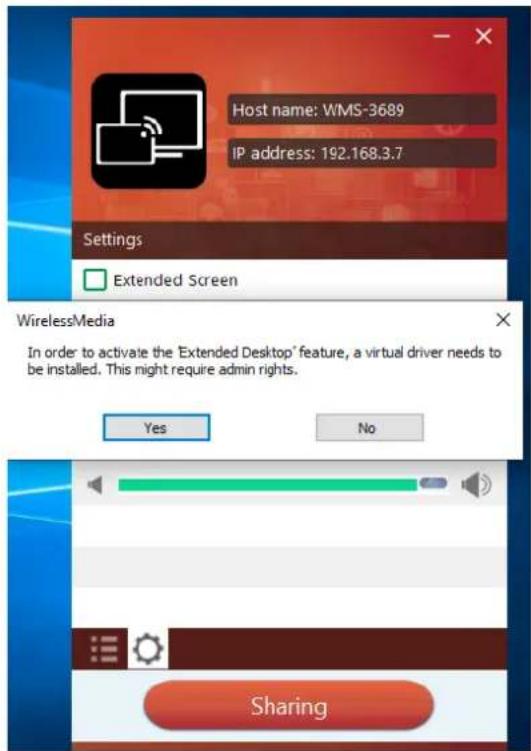
text_image
Host name: WMS-3689 IP address: 192.168.3.7 Settings Extended Screen WirelessMedia In order to activate the 'Extended Desktop' feature, a virtual driver needs to be installed. This might require admin rights. Yes No SharingNote:
If you select the "Extended Screen" feature, Windows automatically switches to "Extended Mode". If you stop the transfer with "WirelessMedia" (Pause), Windows remains in " Extended Mode" until you press "Windows key + P" on the laptop to select the "PC screen only" mode.
"Remote control" is not possible for "Extended screen".

text_image
PROJECT PC screen only Duplicate Extend Second screen only- Keep Aspect Ratio:
Keep the original aspect ratio to display on the main screen.
- Remote Control Lock:
(function under developing.)
- Low Latency Mouse:
The setting is applied individually for this laptop only. The shape of mouse-pointer is equal the shape in application. There may be a small delay in movement of the cursor (approx. 150 ms). The movement of mouse-pointer is displayed very smooth with hardly noticeable delay (about 20 ms) on the main screen, which significantly improves the operation of the application from the main screen. The look of the mouse pointer is every time, in all applications, like a typical cursor arrow.
- Volume Slider:
Adjust the playback volume of the main screen when presentation laptops is active.
MAC OS PC/Laptop with Dongle
At least operation system macOS 10.9 is required.
For first time user, you have to copy the Launcher program "WirelessMedia for MAC" first on your Laptop. Run this Launcher program.
When the Launcher program "WirelessMedia for MAC" is already loaded, continue with Step 2.
- When Launcher program is not yet installed on PC, refer to before step.
- Connect your laptop to Wi-Fi network displayed on the Home screen ("Guest", "Staff"), or connect to the LAN on the network using a network cable.
-
Plug a dongle to the USB port of your Macbook. The WirelessMedia application is starting
automatically and a symbol is displayed in the dock and in top menu-bar. -
Until the transmitter button shows a static green LED indicator, or till you see a message table showing up "Ready to share", you could click to start mirroring.

text_image
Host name: N/A IP address: N/A Unconnected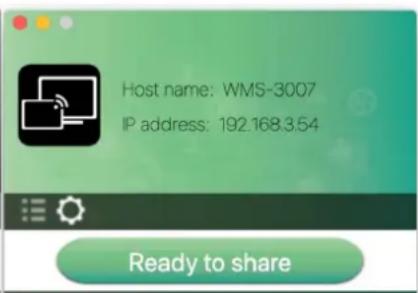
text_image
Host name: WMS-3007 IP address: 192.168.3.54 Ready to share
text_image
Host name: WMS-3007 IP address: 192.168.3.54 Sharing- Click dongle or visual button again to stop mirroring, LED or window color shows green again.
Right click the WirelessMedia status icon in Windows taskbar to open up the context-menu.
- "About": You can check the software versions of the Base-unit, the dongle and the launcher program.

text_image
About WirelessMedia WirelessMedia: 8.7.5.5 (match with base unit) Transmitter TOUCH Ver: 2.2.9C (match with base unit) Base-unitVer: 3.0.6C.40.A1013 Copyright © 2018. WirelessMedia All Rights Resvered. OK- "Exit": End APP. Exiting the App completely.
If you click the "close" in the top menu bar of the app, the app is only minimized and can be recalled again in the dock at any time.
- Disconnect at end of meeting.
MAC OS PC/Laptop without Dongle
For first time user, you have to copy the Launcher program "WirelessMedia for Mac" first on your Mac. When the Launcher program is already loaded, continue with Step 2.
- When Launcher program "WirelessMedia-macOS.app" is not yet installed on PC, refer to before step.
- Connect your Mac to Wi-Fi network displayed on the Home screen ("Guest", "Staff"), or connect to the LAN on the network using a network cable.
- Double-click the "WirelessMedia for Mac" Launcher program , a list of all available
"WirelessMedia" in the same network will be displayed, select which device you want to connect to.
The connections are password protected (lock icon ).

text_image
Host name: N/A IP address: N/A Device list Enter Wi-Fi/LAN IP to connect directly ! WMS-3007 192.168.3.54 WMB-6827 WML-9920 WMB-2385ot zxl-guest02 WMS-2481 Connect Connect Connect Connect Connect Connect Connect Unconnected(LAN connection: several receivers possible)
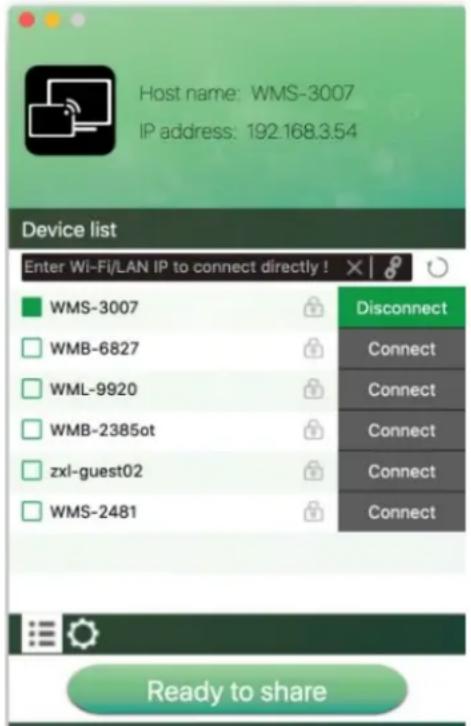
text_image
Host name: WMS-3007 IP address: 192.168.3.54 Device list Enter Wi-Fi/LAN IP to connect directly ! WMS-3007 WMB-6827 WML-9920 WMB-2385ot zxl-guest02 WMS-2481 Disconnect Connect Connect Connect Connect Connect Connect Ready to share(Wi-Fi: only 1 receiver)
- Enter base unit password and click "connect", the system is "Ready to share".
You can also manually connect by entering the name (SSID) or IP address. (click icon 8).
Enter the corresponding base unit password, press 'OK', the system is "Ready to share".
- Click the visual button "Ready to share" in Mac, when window color is static red, the screen is mirroring to the main screen.
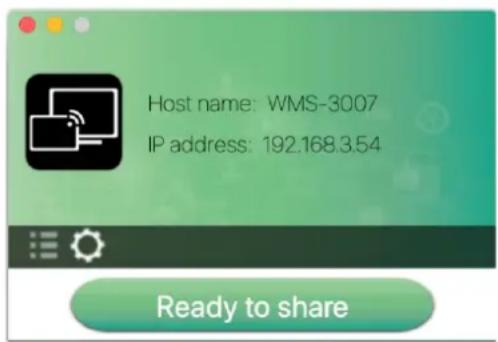
text_image
Host name: WMS-3007 IP address: 192.168.3.54 Ready to share
text_image
Host name: WMS-3007 IP address: 192.168.3.54 Sharing- Click the visual button again, to stop mirroring, window color shows green again. You can minimize
the APP-window, in top menu-bar you can see if screen is mirroring


or not

Right click the WirelessMedia status icon in top menu-bar to open up the context-menu.
- "About": You can check the software versions of the Base-unit, the dongle and the launcher program.

text_image
About WirelessMedia WirelessMedia: 8.7.5.5 (match with base unit) Transmitter TOUCH Ver: 2.2.9C (match with base unit) Base-unitVer: 3.0.6C.40.A1013 Copyright © 2018. WirelessMedia All Rights Resvered. OK- "Exit": End APP. Exiting the App completely.
If you click the "close" in the menu bar of the app, the app in the top menu-bar is only minimized and can be recalled again from the top menu-bar at any time.
Options for Apple MacOS, MacBook - Extended Screen
Click the icon

in App to open/close "options".

text_image
Host name: WMS 3689 IP address: 192.168.3.7 Settings ✓ Keep Aspect Ratio ✓ Lowest latency(Mouse) ✓ Remote Control Lock Sharing"Options":
- Extended Screen:
Transmits the Extended desktop ("Use a Separate Display") only via AirPlay, when activated for Display on WirelessMedia.
- Keep Aspect Ratio:
Keep the original aspect ratio to display on the main screen.
● Lowest Latency (Mouse):
The setting is applied individually for this laptop only. The shape of mouse-pointer is equal the shape in application. There may be a small delay in movement of the cursor (approx. 150 ms). The movement of mouse-pointer is displayed very smooth with hardly noticeable delay (about 20 ms) on the main screen, which significantly improves the operation of the application from the main screen. The look of the mouse pointer is every time, in all applications, like a typical cursor arrow.
- Remote Control Lock:
(function under developing.)
Transmitting IOS mobile device
How to use AirPlay?
AirPlay: WirelessMedia Base Unit supports "Airplay", which enable mirroring the desktop of your Apple device such as iPhone, iPad etc. on the main screen.
(Note: iOS devices must first be connected to the Wi-Fi of "WirelessMedia").
Please open the control center on the desktop with the appropriate gesture. Click the airplay icon 📋 on your Apply device and select the receiver device WMS to connect. Now you could mirror your screen content wireless through the base unit to the main screen.
Transmit Android device wireless
"WirelessMedia" Apk for Android
- Open the "WirelessMedia" application.
natural_image
Icon depicting a Wi-Fi symbol over a device, labeled 'WMedia2' below (no other text or symbols)Note: permit access of photos and pictures, when installing.
- Connect your mobile device to one of the displayed Wi-Fi networks.
Guest: WMS-3343
Staff: Staff SSID
- The main interface of "WirelessMedia2" is shown as below. Click the device list refresh button
Dropdown refresh
, which is highlighted in red circles as shown below:

text_image
Device List Dropouts refresh WMS-4818 192.168.3.5 WMS-7049 192.168.3.54 WMS-7268 192.168.3.22 WMS-9674 192.168.3.101 WMS-6230 192.168.3.40 other device Device Status:disconnected disconnect share screen my device- Select the base unit you want to connect, enter password and mirror.

text_image
Device List Dropdown refresh WMS-4818 192.168.3.5 WMS-7049 192.168.3.54 WMS-7268 192.168.3.22 WMS-9674 192.168.3.101 WMS-6230 192.168.3.40 other device Device Status:disconnected disconnect share screen my device Device List Dropdown refresh WMS-7049 192.168.3.54 WMS-4818 192.168.3.5 WMS-7268 192.168.3.22 WMS-7212 192.168.3.61 Please input wmb password Password: Hide password cancel ok Device Status:disconnected disconnect share screen my device- When sharing to main screen, it shows OSD "Welcome ***" on the home page. For example, if we connect it by a HUAWEI-PLA-AL00, it shows a "Welcome HUAWEI-PLA-AL00" on screen, as shown below.
Welcome PLA-AL00
- Now you can mirror your desktop of your mobile.
- Click again the button "Share Screen" to stop mirroring.
You could click "my device" to check the device status and firmware version.
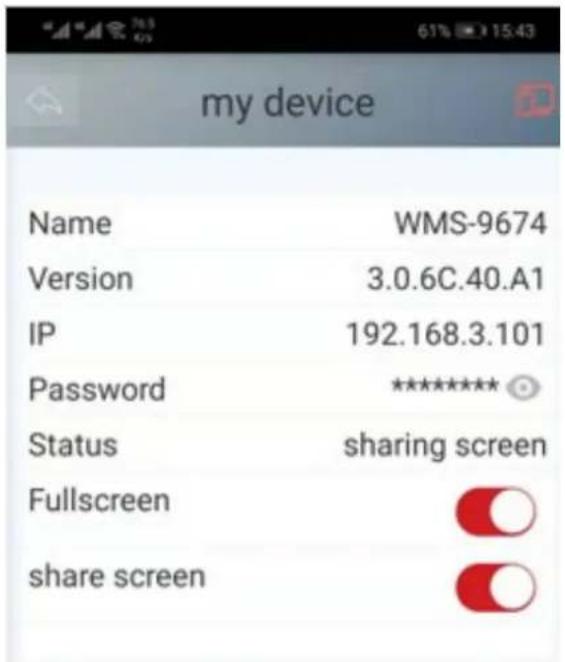
text_image
my device Name WMS-9674 Version 3.0.6C.40.A1 IP 192.168.3.101 Password ***** Status sharing screen Fullscreen share screenWIFI Recommendation Setting
Check the WIFI config on base unit
Please use a WIFI analysis software to place it at the same place as the base unit, to check the WIFI environment, in order to select the clean or unused WIFI frequency between 2.4GHz and 5Hz, and the WIFI channel as below.
2.4GHz: 1, 2, 3, 4, 5, 6, 7, 8, 9, 10, 11, 12, 13
5GHz: 36, 40, 48, 52, 56, 60, 64, 149, 153, 157, 161, 165
Check the WIFI RSSI on dongle or Mobiles
Please use a WIFI analysis software to place it at the same place as the dongle or mobiles, to measure the WIFI RSSI (Received Signal Strength Indicator). We recommend the RSSI shall be above -70dB to be good enough to keep a stable signal transmission. If not, please try to take the following measures, as in the problem shooting---Bad wireless connection congestion.
Problem Shooting
Here you can find some fundamental problems and possible causes, which can be happen during the use of "WirelessMedia". Find out the problem you've encountered in the table below and apply the solution.
| Problem Cause Solution | ||
| Use “WirelessMedia for Android” application in Android device or Airplay on IOS device, and it can’t find base unit device. | WIFI password of base unit changed when android or IOS device is connected to the WIFI of base unit. | Reconnect the mobile by entering password showed on home screen. |
| The image quality on the main display screen is not good. | The quality or length of the cable between the Base Unit and the display or the connection between these two. | Replace the cableUse another cable.Check the cable to be fasten properly. |
| Improper resolution for the main screen.WMB1 could output 3840x2160_60Hz, 3840x2160_50Hz 3840x2160_30Hz, 1920x1080_60Hz, 1920x1080_50Hz, 1920x1080_30Hz | screen.WMB1 could output 3840x2160_60Hz, 3840x2160_50Hz 3840x2160_30Hz, 1920x1080_60Hz, 1920x1080_50Hz, 1920x1080_30Hz | Change the resolution on the Setting configuration. And match it to the native resolution of the main screen. See chapter 7. |
| Bad wireless connection. The connection between the transmitter and the base unit is not stable. | Wi-Fi problems.Interference in the radio channel.Overload in the radio channel.“WirelessMedia” does not automatically jump to other channels when there are changes in the RF environment. | Use a Wi-Fi scanner to find a free wireless frequency and channel and select it via the setting configuration.Regularly check the RF environment if there are frequently changes in Wi-Fi networks in your environment. |
| Low signal strength: | Metal cabinets, walls,construction elements, ...can cause reflections deteriorating the wireless signal.Obstacles between dongles and Base unit cause lowering of the wireless strength and quality. | Put the base unit closer to the main screen.Change the orientation of the antennas at the rear panel of base unit to the transmitter direction.Remove or limit as much as possible all obstructions between the transmitters and base unit.Avoid to place the Base-unit in (metal) cabinets, suspended ceilings, under tables or in adjoining rooms. |
| Can't get the "WirelessMedia" run when plug the transmitter to lap-top | When you are using "WirelessMedia" for the first time on your laptop or for guests, you have to copy the Launcher program "WirelessMedia windows. Exe" or "WirelessMedia macOS. app" for first on your Laptop /PC. Run this Starter-program. You can run the Starter App without Admin-rights. | There are 2 possibilities to load the Starter-program, see chapter7.4.Best is: download the App via LAN or Wi-Fi of Base-unit.When the Launcher program is preinstalled one time,"WirelessMedia" is ready to use later immediately. |
| Bad connection at USB port | on the lap-top | Reconnect to the USB portTry another USB portReboot the lap-top |
| Some types of USB devices | might be blocked as the company policy.USB port setting on the lap-top might limit the usage of high power USB device when on battery power. | If possible, change the USB port policy on the lap-top |
| Low video performance (sharpness, audio and video dropouts, video stream is jerking, ...) | The media-player is not ideal.The video quality also depends on the computing power of the PC / laptop and the interaction and CPU load with other running software applications.A laptop in battery mode can be switched to reducedcomputer power, to save energy. The transmission of HD video requires a certain amount of CPU power to guarantee the optimum quality of the transmission. | Use another media-player (VLC player...), another browser.Update the software of your Video-player to the latest version.Reduce the CPU usage of other software applications.Lower the screen resolution of the Laptop.● Update driver of graphic-card.● End low power mode at laptop. |
| Video is not shown on screen | The content use HDCP | ● WirelessMedia input can't support showing HDCP source. If possible, connect the source device to local HDMI input at base unit. |
| The display cable (HDMI) is not correctly connected. | ● Insert the display cable to the display and the Base-unit. | |
| The displays is switched off. | ● Switch on the display. | |
| The Base-unit is in standby mode, "Power-LED" is flashing at Base unit.Power-supply is missed. | ● Power off and on again or insert a dongle into laptop. | |
| When using window 7 the following message about the Window Aero color scheme appears "Windows has detected your computer's performance is slow. This could because these are not enough resources to run the windows Aero color scheme.To improve..." | WirelessMedia uses resource from the GPU. In combination with other programs which do so, Window 7 sometimes shows this message suggesting to disable Aero to improve the performance of lap-top. | ● It's safe to ignore this message and choose "Keep the current color scheme." |
| Your content is removed from the display and the LEDs on the button are blinking | Connection to the Base Unit is lost. | WirelessMedia tries to restore the connection automatically. If it fails, the LEDs on the button start blinking red.Unplug the button from your lap-top and try a new button. |
| Nothing is shown on the displays at all | The displays are switched off. | Switch on the display |
| The display cable is not correctly connected | Insect the display cable to the display and the Base Unit | |
| The Base Unit is in standby mode | Briefly push the standby button on the Base Unit or power off and on again the Base Unit. | |
| No LAN connection with the Base Unit | Wrong IP address IP address is not within LAN range | |
| DHCP is not enabled. | ||
| No Wi-Fi connection between mobile device with Base Unit | Wrong Wi-Fi frequency | Check mobile device to select the correct 2.4GHz or 5GHz |
| Wrong SSID and password Enter the correct SSID | ||
| No audio when transmit local file to Base Unit | Unsupportive audio format, including Dolby MS11, DDCO DTSLBR, DTSE, DTSNeoUltra, SRS-THEATERSOUND, DTS_StudioSound3D, DTS_HD, | If possible, reformat it to the other audio format, like DD, DD+, HE-AAC, DTS DMP, WMA, DRA, COOK |
| There is no sound at main-display. | No connected audio device. | Make sure, the audio is turned on. |
| Volume is set to OFF. Adjust level in menu configuration | WirelessMedia console in on webserver settings. | |
| The volume level is set too low in the options of the "WirelessMedia" Launcher program on PC. | Adjust the volume in the "WirelessMedia" Launcehr program on PC. | |
| Audio signal may be muted. Click with right-mouse button at speaker icon In task-bar and switch on. | ||
| The volume level is set too low. Adjust the volume level at Options in menu of WirelessMedia. | ||
| Audio is muted in mixer of volume in taskbar. | Right-mouse click at speaker icon in taskbar, open mixer and unmute "WirelessMedia" or "Video Playback". | |
| The software of used Video-player is not actual | Update Video-player. Try another player. | |
| An active virus scanner can block the Audio. | Check the filter-settings in Virusscanner. De-activate the player for a check. | |
| There is no sound with MacBook. | Problem of sound-flower App, which is integrated in driver WirelessMedia.app. | ● You need Admin-password● Go to the macOS System Preferences and select the "Security & Privacy" tab. Find the "allow to run/install the sound-flower" there click on "Allow" next to "Matt Ingels", |
| in order to allow this sound-flower to install on the Mac Book.● Run the WirelessMedia.app again, it'll auto-install the sound-flower to the MACBook. | ||
| There is no sound via AirPlay. | The volume is set too low, on the mobile device. | Increase the volume on the mobile device. |
| There is no sound at main-screen, when mirroring a video by the App"WirelessMedia for Android". | Due to the limit of the Android system, Android doesn't provide an interface to capture the audio. In this case, there is no sound when mirroring the video. | Use dongle or Apple Airplay to do mirroring when necessary. |
| Can't update firmware of the base unit. | Flash disk format is NTFS | Please re-format the flash disk to be FAT format to update it. |
| Can't work airplay with Macbook/Iphone/iPad. | Operation System Requirement Mac OS 10.9 IOS 8.0 and later (WirelessMedia app) | ● To use AirPlay, you must connect the iOS device to the Wi-Fi of WireleeMedia and enable the AirPlay feature in the Control Center.● Update the iOS device to a newer operating system. |
| Poor Video-quality with AirPlay. | There are 2 states for AirPlay: a.) Mirroring: 1: 1 copy of the screenb.) Streaming: Videos (Internet, Youtube); the image will not be displayed on the iOS device. => picture is jerky | Reduce "Quality! In settings of Youtube, for example from "Automatic" to 720p. |
| Can't work with Android device? | Operation System Requirement Android 2.3 and later (WirelessMedia app) | Update to the later OS |
Support
For more info or tech support
http://www.siig.com/support
Feb, 2020 Copyright © 2020 by SIIG, Inc. All rights reserved.