P2742G - Laptop GIGABYTE - Free user manual and instructions
Find the device manual for free P2742G GIGABYTE in PDF.


User questions about P2742G GIGABYTE
0 question about this device. Answer the ones you know or ask your own.
Ask a new question about this device
Download the instructions for your Laptop in PDF format for free! Find your manual P2742G - GIGABYTE and take your electronic device back in hand. On this page are published all the documents necessary for the use of your device. P2742G by GIGABYTE.
USER MANUAL P2742G GIGABYTE
natural_image
Two giant Gigabyte laptops shown from different angles, one orange and one gray, displayed against a dark background (no text or symbols on the devices themselves)* Images Used for Reference Only
Congratulations on your purchase of the GIGABYTE Notebook P2742!
This Manual will help you to get started with setting up your notebook. For more detailed information, please visit our website at http://www.gigabyte.com. All specifications are subject to the manufacturer's configuration at the time of shipping and may change without prior notice, written or otherwise.
1 Using GIGABYTE Notebook for the First Time

text_image
Diagram illustrating a device's step-by-step installation of a laptop, showing hand tool, press, and lock mechanism with numbered annotations.To install the battery please follow these steps:
1 Insert the battery pack into the compartment.
2 Remember to slide the switch to the "Lock" position.

text_image
Diagram showing cable connection to a device with labeled parts 1, 2, and 3, including connectors and power outlet.1 Connect the the power cord to the AC adapter.
2 Connect the AC adapter to the DC-in jack on the back side of the notebook.
3 Connect the power cord to the power outlet.

natural_image
Line drawing of a hand inserting a card into a laptop keyboard (no text or symbols)Switching on the Power:
After you turn on the P2742 for the very first time, do not turn it off until the operating system has been configured. Please note that the volume for the audio will not function until Windows® Setup has completed.
Booting Up the P2742 for the First Time:
Depending on your configuration, the Microsoft ^® Windows ^® Boot Screen will be the first screen that you will see as the notebook starts up. Follow the on-screen prompts and instructions and enter your personal information to complete the setup of the Windows ^® Operating System.

Your GIGABYTE Notebook Tour
Top & Front View
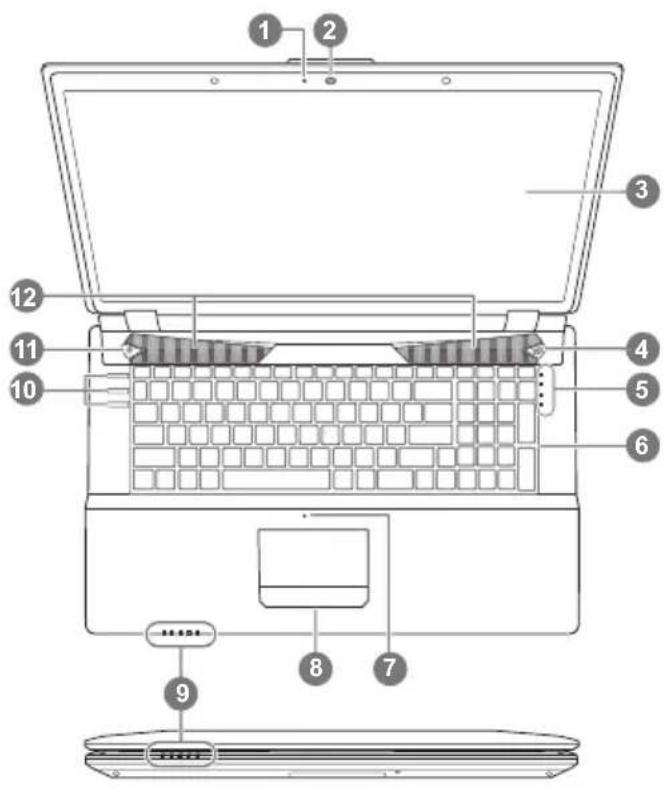
text_image
Laptop interior diagram with numbered components for identification and assembly reference1 Webcam Status LED Indicator
2 Webcam
3 Display
4 GPU Button ①
5 LED Indicators ②
6 Keyboard
7 Built-In Microphone
8 Touchpad & Buttons
9 LED Indicators ③
10 LED Indicators ④
11 Power Button ⑤
12 Speakers
* Refer more information on page 5
Left View
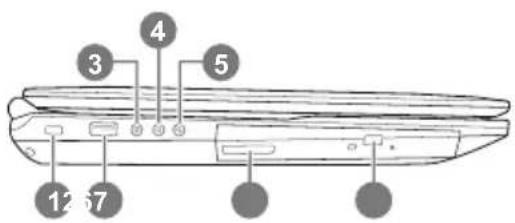
text_image
3 4 5 12 671 Security Lock Slot
2 USB 2.0 Port
3 S/PDIF-Out Jack
4 Microphone-In Jack
5 Headphone-Out Jack
6 Optical Device Drive Bay
7 Emergency Eject Hole
Right View

text_image
25 311 Multi-in-1 Card Reader
2 USB 3.0 Port x 2
3 Combined eSATA/USB 3.0 Port
4 HDMI-Out Port
5 RJ-45 LAN Jack
Rear & Bottom View
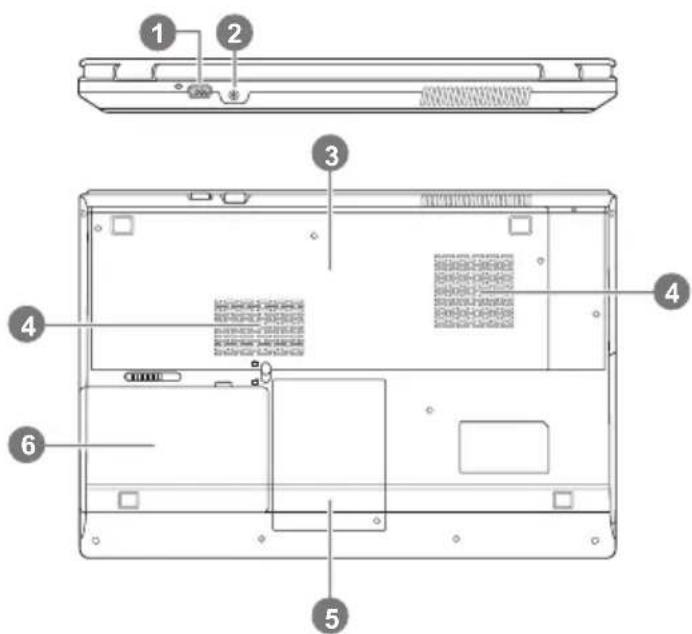
text_image
Labeled diagram of a laptop chassis showing front, rear, side, top, and back views with numbered annotations1 External Monitor Port
2 DC in Jack
3 Component Bay Cover
4 Vent
5 HDD Bay
6 Battery
The LED indicators on the computer display helpful information about the current status of the computer. See overleaf for information on the Top Case LED indicators.
| Button & Indicator Icon Light Color Description | |||
| GPU Button 1 |  | Green UMA Mode Activated | |
| Orange Optimus Mode Activated | |||
| LED Indicators 2 |  | Orange | NVIDIA Discrete GPU (dGPU) Activated |
 | Green | Intel Integrated GPU (iGPU) Activated | |
 | White Hard Disk Activity | ||
 | Orange | The WLAN Module is Powered On (optional) | |
| Orange | The Bluetooth Module is Powered On (optional) | ||
| LED Indicators 3 |  | Orange AC/DC Power is Plugged In | |
 | Green The Computer is On | ||
| Blinking Green | The Computer is in Sleep Mode | ||
 | Orange The Battery is Charging | ||
| Green The Battery is Fully Charged | |||
| Blinking Green | The Battery Has Reached Critically Low Power Status | ||
 | Green Number Lock is Activated | ||
 | Green Caps Lock is Activated | ||
 | Green Scroll Lock is Activated | ||
| LED Indicators 4 |  | N/A | PC Camera Power On/Off (optional) |
 | N/A | Mute On/Off | |
 | N/A | Wireless LAN Module Power On/Off (optional) | |
| Power Button 5 | (1) | White The Computer is Powered On | |

Function Key Indicators
Using the
Hotkey Description ICON
Fn + \~ Play/Pause (in Audio/Video Programs)
Fn + F1 TouchPad Toggle


Fn + F2
Turn LCD Backlight Off (Press a key to or use TouchPad to turn on)
Fn + F3 Mute Toggle


Fn + F4 Sleep Toggle
Fn + F5/F6 Volume Decrease/Increase

Fn + F7 Display Toggle
Fn + F8/F9 Brightness Decrease/Increase

Fn + F10 PC Camera Power Toggle


Fn + F11 WLAN Module Power Toggle


Fn + F12 Bluetooth Module Power Toggle


Fn +
NumLk
Number Lock Toggle
Fn + ScrLk Scroll Lock Toggle
Caps Lock Caps Lock Toggle

System Setup
Pressing the hot keys to adjust BIOS setup, system recovery and boot option menu.
HotkeyFunctionDescription
F2 BIOS setup Enter BIOS setup
F9 system recovery Enter system recovery
F12 boot option Enter boot option menu
Press the Fn + Esc key combination, or double-click the icon - in the notification area of the taskbar to toggle the Control Center on/off. The Control Center gives quick access to frequently used controls, power management features and enables you to quickly turn modules on/off.

text_image
Control Center Power Swing Light Smart Performance User Definition 0% 100% Power Status Brightness Volume Power Conservation Sleep Button Display Switch Time Zone Desktop Background Touch Pad Camera Wireless BluetoothPower Modes:
You can set a Power Mode by clicking the appropriate icon at the top of the Control Center. Each power mode will affect the power status of modules, screen brightness, TouchPad power and Silent Mode. You can click a Control Center icon to set an overall power mode and then click individual icons in the Control Center to power on/off any modules etc. The table as below illustrates the basic settings for each power mode. If you choose user defined the settings will correspond to your selected system settings.
| Modes | Power Saving | Flight Entertainment Quiet Performance | User Defined | ||||
| Icon |  |  |  |  |  |  | |
| Power Plan | Power Saver | Balanced Power Saving | Power Saving | High Performance | User Defined | ||
| Power Conservation Mode | Energy Star | BIOS Default | Energy Star | Energy Star | Performance | ||
| Brightness PlanBrightness |  | 14 42 100 42 100 | |||||
| WLAN |  | OFF OFF ON | ON ON | ||||
| Bluetooth |  | ||||||
| PC Camera |  | OFF OFF OFF | ON | ||||
| 3G |  | OFF OFF OFF | OFF | ||||
| TouchPad |  | ON | ON | OFF | ON | ||
Power Status

The Power Status icon will show whether you are currently powered by the battery, or by the AC/DC adapter plugged in to a working power outlet. The power status bar will show the current battery charge state.
Brightness

The Brightness icon will show the current screen brightness level. You can use the slider to adjust the screen brightness or the Fn+F8/F9 key combinations, or use the Fn+ F2 key combination to turn off the LED backlight (press any key to turn it on again). Note that screen brightness is also effected by the Power Mode selected
Volume

The Volume icon will show the current volume level. You can use the slider to adjust the Volume or the Fn+F5/F6 key combinations, or use the Fn+ F3 key combination to mute the volume.
Power Conservation
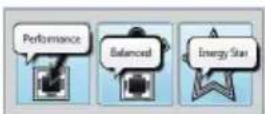
This system supports Energy Star power management features that place computers (CPU, hard drive, etc.) into a low-power sleep modes after a designated period of inactivity. Click either the Performance, Balanced or Energy Star button. Click in a blank area of the icon or press a key on the keyboard to exit Power Conservation Mode without making any changes.
Sleep

Click the Sleep button to bring up the Hibernate or Sleep buttons, and click either button to have the computer enter the appropriate power-saving mode. Click in a blank area of the icon or press a key on the keyboard to exit Power Conservation Mode without making any changes.
Display Switch

Click the Display Switch button to access the menu (or use the + P key combination) and select the appropriate attached display mode.
Time Zone

Clicking the Time Zone button will access the Date and Time Windows control panel.
Desktop Background

Clicking the Desktop Background button will allow you to change the desktop background picture.
TouchPad/PC Camera/Wireless LAN Module /Bluetooth/3.75G Module

Click any of these buttons to toggle the TouchPad or module's power status. A crossed out icon will appear over the top left of the icon when it is off. Note that the power status of a module, and TouchPad power, is also effected by the Power Mode selected. The 3.75G Module is an option for Model A only.
Caps Lock/Scroll Lock/ Number Lock

Click the button to toggle the appropriate lock mode.

Recovery Guide
System Recovery (Restore your laptop operating system)
When something is going wrong with the laptop operating system, the storage of the laptop has a hidden partition containing a full back up image of the operating system that can be used to restore the system to factory default settings.

Note
- If the storage has been switched or the partition deleted, the recovery option will no longer be available and a recovery service will be needed.
- The recovery function is only available on devices with O/S preinstalled. Devices with DOS do not have the recovery function.
Launch System Recovery
The system recovery feature is preinstalled before the laptop is shipped from the factory. The option menu allows you to launch the Windows recovery tool to reinstall the operating system to factory default.
The brief introduction below will show you how to start the recovery tool and restore your system.

All ready to go
Make sure your PC is plugged in. This will take a few minutes.
Windows 7 Recovery Guide
1
Turn off and restart the laptop.
2

text_image
GIGABYTE™ Press <12> for Enter SETUP. Press <13> for BBS POPUP Menu. Press <14> for System Recovery.During the laptop turn on process, press and hold F9 key to launch the tool.
3
text_image
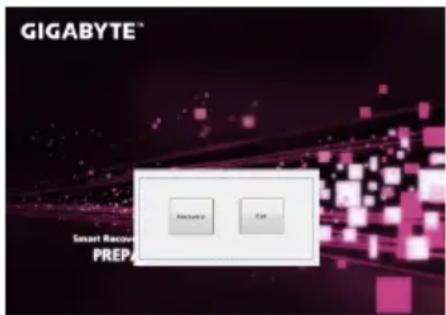
GIGABYTE® Smart Recovery PREPThe recovery will be activated and you will see the option buttons on the window. Click on "Recovery" to start it.

Caution
Once the "Recovery" is selected, your personal data and files will be deleted after the laptop starts restoring, and the operating system will be reset to factory default settings.
4
text_image
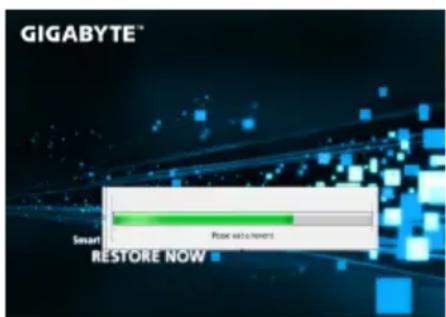
GIGABYTE® Smart Store with new RESTORE NOWA progress indicator bar will show on the window when the recovery process is running. Please make sure the AC-adapter is plugged in and do not turn off the laptop.
5

text_image
GIGABYTE™ Smart Recovery RESTORE FINISHReboot the laptop after the system recovery is complete.
Windows 8 Recovery Guide
1 Turn off and restart the laptop.

text_image
2 GIGABYTE™ Press <12> for Solar SETUP. Press <132> for BBS POPUP Memus. Press <18> for Systems Recovery.During the laptop turn on process, press and hold F9 key to launch the tool.
3

text_image
Cahosose your keyboard • US • Altantix • Avdlic (300) • Avdlic (300) • Avdlic (300) ADVERTY • Amritonian Eostern (Legacy) See more keyboard keys • Armored Plassello • Armored Topowloon • Armored Windows+ (Legacy) • Appenose - INSCRIPT • Asset Capilla • Asset LatinChoose your keyboard layout. You can press "See more keyboard layouts" to see next page of languages.
4

Choose "Troubleshoot" to enter the recovery settings.
(Also you can choose "Continue" to exit recovery system and continue to Windows 8 for files or data backup.)

There are two options for system recovery
- Refresh your PC
You can refresh your laptop to improve the system stability without losing your files. - Reset your PC
If you want to remove all of your files, you can reset your PC completely.
Caution: All personal data and files will be lost.
5

Choose "Refresh your PC"
[Click on "Next"] > [Choose a target operating system.] > [Click on "Windows 8"].] > [Click on "Refresh" to execute recovery function.]

Here are what will happen
- Your files and personalization settings won't be changed.
- Your PC settings will be restored to factory default settings.
- Apps from Windows Store will be kept.
- Apps you installed from discs or websites will be removed.
- A list of removed apps will be saved on your desktop.

■choose "Reset your PC"
[Click on "Next"] > [Choose a target operating system.] > [Click on "Windows 8"].] > [Choose an option to recover your system]
▶ Just remove my files
Only personal data and files will be removed, but computer settings will be kept.
▶ Fully clean the drive
The drive will be completely restored to factory default settings. It takes more time. > [Click on "Reset" to execute recovery function.]

Here are what will happen
- All of your personal files and apps will be removed.
- Your PC settings will be restored to factory default settings.
Remark

Advanced options

System Restore
Use a restore point recorded on your PC to restore Windows.

System Image Recovery
Recover Windows using a specific system image file.

Automatic Repair
Fix problems that keep Windows from loading.

Command Prompt
Use the Command Prompt for advanced trobleshooting.

UEFI Firmware Settings
Change settings in your PC's UEFI firmware.

Appendix
■ Warranty & Service :
Warranty and service and related information please refer to the warranty card or GIGABYTE service website as the below link:
http://www.gigabyte.com/support-downloads/technical-support.aspx
■ FAQ:
FAQ (Frequent Asked Questions) please refer to the below link: http://www.gigabyte.com/support-downloads/faq.aspx