
Economy 19RCM - Tracking ORION - Free user manual and instructions
Find the device manual for free Economy 19RCM ORION in PDF.


| Product Type | TFT-LCD Monitor (Security) |
| Model | Orion Economy 19RCM |
| Screen Size | 19 inches (diagonal) |
| Display Area | 376 mm × 301 mm |
| Pixel Pitch | 0.294 mm × 0.294 mm |
| Brightness | 250 cd/m² |
| Contrast Ratio | 800:1 |
| Viewing Angle | 70° (L/R) / 75° (U) / 65° (D) |
| Response Time | 2 ms (rise) / 6 ms (fall) |
| Maximum Resolution | 1280 × 1024 @ 75 Hz |
| Horizontal Frequency | 30 – 81 kHz |
| Vertical Frequency | 50 – 75 Hz |
| Input Signal | Analog RGB, Audio (IN/OUT), S-Video (IN/OUT), CVBS (IN/OUT) |
| Built-in Speakers | Optional; 2 W × 2 W |
| Power Consumption | 45 W (Normal) / 5 W (Power Saving) |
| Power Supply | External AC/DC adapter (included) |
| Product Dimensions (W×D×H) | 495 mm × 155 mm × 508 mm |
| Monitor Weight | 5.4 kg |
| Package Weight | 7.4 kg |
| Warranty | 2-year limited warranty |
| Manufacturer | Orion Images |
Frequently Asked Questions - Economy 19RCM ORION
User questions about Economy 19RCM ORION
0 question about this device. Answer the ones you know or ask your own.
Ask a new question about this device
Download the instructions for your Tracking in PDF format for free! Find your manual Economy 19RCM - ORION and take your electronic device back in hand. On this page are published all the documents necessary for the use of your device. Economy 19RCM by ORION.
USER MANUAL Economy 19RCM ORION
ECONOMY SERIES LCD MONITOR

TFT-LCD MONITOR (SECURITY)
Warning Statements
* Follow this safety instruction to use the monitor properly and prevent the damages.
* This safety instruction has “Warning” and “Caution” as below.
WARNING: If the user does not follow this instruction, it may cause the serious damage to the user.
CAUTION: If the user does not follow this instruction, it may cause the slight damage to the user or cause some damages to the monitor.
* Keep this user's guide book for later use.
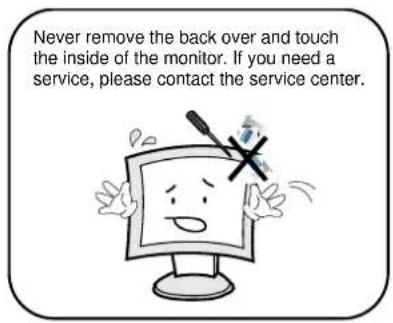
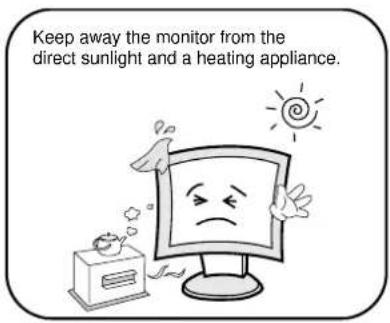
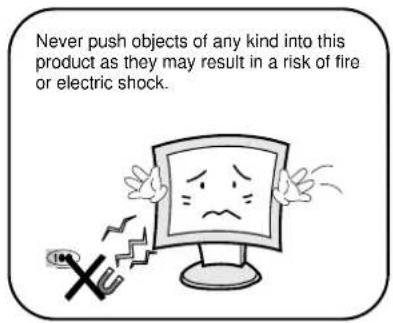
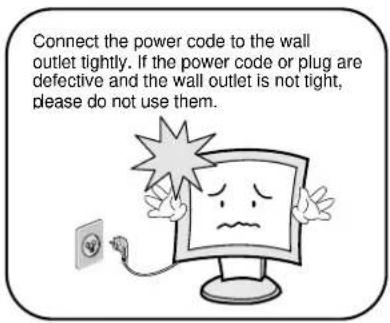
Warning Statements
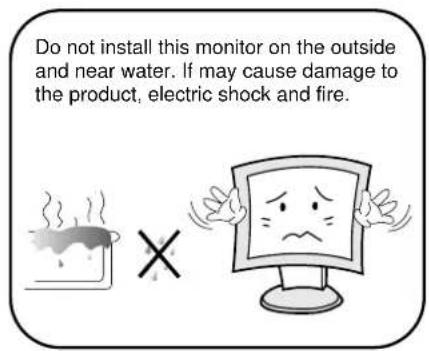
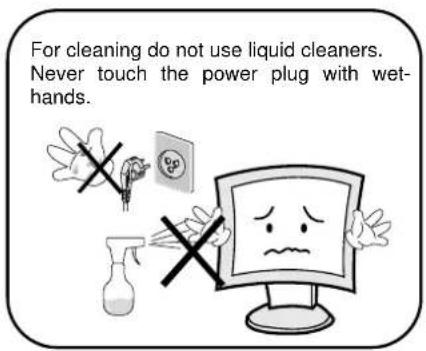

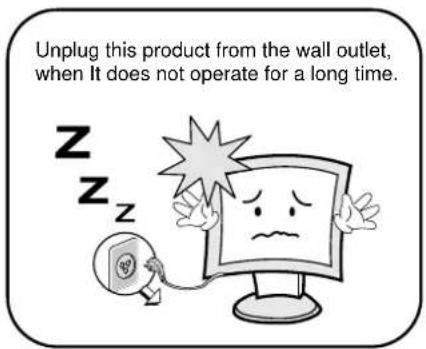
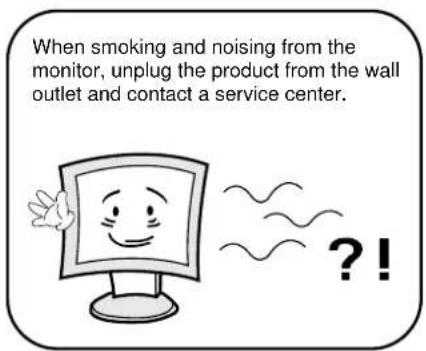
How to fix
- Do not open this product as it contains high voltage inside.
- It may create an electric shock.
- It the user disassembles and remove the back cover, it does not make sure
- To make up for the damages and do a service and exchange the monitor..
Cautions
Install this monitor some distance From the wall and do not install unless Proper ventilation is provided.
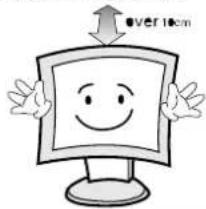
Place this product on a stable place. If not, it may fall, causing serious Damages to the monitor and people.

The openings must not be blocked by curtain, rug or other similar surface.

When carrying this monitor, be careful not to damage the panel and drop it. It may cause some trouble.

Before carrying the monitor, tum it off and Unplug the signal cables and the power code From the wall outlet.

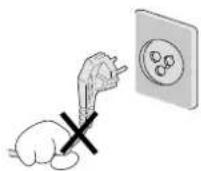
Take the power plug out from the wall outlet. Do not pull the cable. It may snap the inner wires and cause overheating and fire.
Install this monitor about 50cm far from the eyes and an angle of 0\~15 degrees below eyes. Too close installation may cause having weak sight.

Do not press the LCD panel with hands or the sharpened material hardly.

For cleaning, unplug the monitor from the Wall outlet. Do net use the liquid cloth. Use the soft cloth.


Do not use the chemical liquid for cleaning. It may cause fading and breakage.

TABLE OF CONTENTS
1. INSTALLATION 6
1.1 Parts 6
1.2 How to install 7
2. FEATURES 8
2.1 Display Mode 8
2.2 Specification (17INCH) 9
2.3 Specification (19INCH) 9
3. OSD SETTING 10
3.1 OSD Menu(PC Mode) 10
3.2 OSD Menu(VIDEO/CVBS Mode) 11-15
4. INFORMATION TO THE USER 16
5. TROUBLESHOOTING 17
6. LIMITED LIFETIME WARRANTY 16
INSTALLATION
1.1 Parts

AC Power Cord
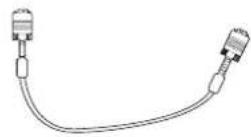
VGA Signal Cable
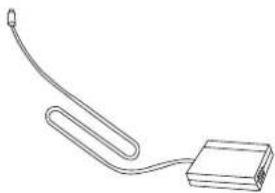
Power Adaptor
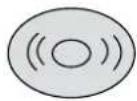
Installation Driver

TFT LCD Monitor

User's Guide Book
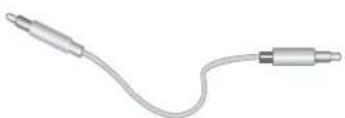
AUDIO CABLE(OPTION)
INSTALLATION
1.2 How to Install

- DC in
- Signal cable from signal source.
- Stereo in
-
Stereo out
-
AUDIO-L
- AUDIO-R
- S-VIDEO input
-
S-VIDEO output
-
CVBS-input
- CVBS-out put

* SOURCE(HOT KEY) : Monitor displays source of the signal in the order below:

* Warning: Tilting more than 10 degrees to the front or 30 degrees to the back may cause collapse of the product.
FEATURES
2.1 Display Mode
| RESOLUTION | H-Frequency(kHz) | V-Frequency(Hz) |
| 640×350 | 31.47 | 70.0 |
| 720×400 | 31.47 | 70.0 |
| 640×480 | 31.47 | 60.0 |
| 35.00 | 66.7 | |
| 37.86 | 72.8 | |
| 37.50 | 75.0 | |
| 800×600 | 35.16 | 56.0 |
| 37.88 | 60.3 | |
| 48.08 | 72.2 | |
| 46.87 | 75.0 | |
| 832×624 | 49.73 | 75.0 |
| 1024×768 | 48.36 | 60.0 |
| 56.48 | 70.1 | |
| 60.02 | 75.0 | |
| 1280X1024 | 64.00 | 60.0 |
| 80.00 | 75.0 |
FEATURES
2.2 Specification (17INCH)
| Spec | Details | |
| Screen size | 17" | |
| Display size | 337.92mm × 270.34mm | |
| Screen coating | Anti-glare & Hard-coating | |
| Pixel pitch | 0.264 × 0.264mm | |
| Brightness | 250cd/m2 | |
| Contrast scaling | 1,000:1 | |
| Viewing angle | 70/70/75/65 (left/right/up/down) | |
| Response time | 8ms | |
| input Signal | Analog RGB, AUDIO IN/OUT, S-VIDEO IN/OUT, CVBS IN/OUT | |
| Speaker(Option) | 2W x 2W | |
| H-Frequency | 30~81kHz | |
| V-Frequency | 55~75Hz | |
| Resolution | 1280 × 1024 @ 75Hz | |
| Power Consumption | 35W (Normal mode)5W (Power-saving mode) | |
| Product size | 438 × 149 × 450 (W × D × H) | |
| Weight | Monitor | 4.6kg |
| Package | 6.5kg | |
2.2 Specification (19INCH)
| Spec | Details | |
| Screen size | 19" | |
| Display size | 376mm×301mm | |
| Screen coating | Anti-glare & Hard-coating | |
| Pixel pitch | 0.294×0.294mm | |
| Brightness | 250cd/m2 | |
| Contrast scaling | 800:1 | |
| Viewing angle | 70/70/75/65 (left/right/up/down) | |
| Response time | Tf=2msec, Tf=6msec | |
| input Signal | Analog RGB, AUDIO IN/OUT, S-VIDEO IN/OUT, CVBS IN/OUT | |
| Speaker(Option) | 2W x 2W | |
| H-Frequency | 30~81kHz | |
| V-Frequency | 50~75Hz | |
| Resolution | 1280×1024 @ 75Hz | |
| Power Consumption | 45W (Normal mode)5W (Power-saving mode) | |
| Product size | 495×155×508 (W×D×H) | |
| Weight | Monitor | 5.4kg |
| Package | 7.4kg | |
OSD (On Screen Display) Setting
3.1 OSD MENU (PC MODE)
1280 x 1024 60Hz

Picture
Position
OSD Menu
Language
Misc.
Exit
| Menu Icon | Menu Items |
| Picture | Contrast, Brightness, Sharpness, Color Temp,Color Adjust, Clock, Phase |
| Position | H.Position, V.Position |
| OSD Menu | OSD H.Position, OSD V.Position, OSD Timer, Translucent |
| Language | English, French, German, Spanish, Italian |
| Misc. | Signal Source, Reset, Volume, Mute |
OSD (On Screen Display) Setting
Picture
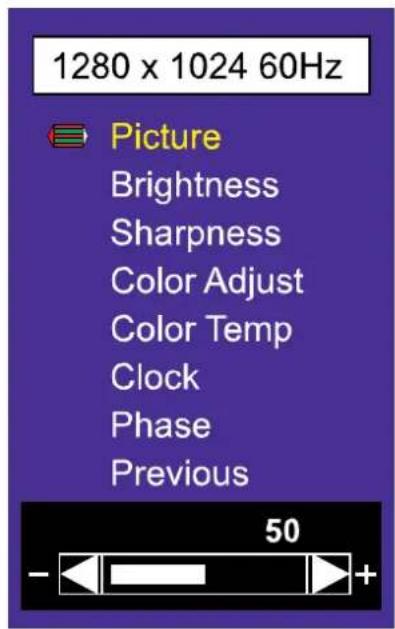
Contrast: The Contrast feature adjusts the Black level. Choices range from 0 to 100. Default is 60.
Brightness: The Brightness feature adjusts the brightness of the backlight. Choices range from 0 to 100. Default is 50.
Sharpness: The Sharpness feature adjusts the clearness of the image. Choices range from 0 to 4. Default is 2.
Color Adjust: The Color Adjust feature adjusts the Red, Green, and Blue when Color Temp. Item is set to 'User'. Choices are 0 to 255. Default is 128.
Color Temp: The Color Temp. feature sets the baseline color reference for the monitor. Choices are 9300K (cooler), 6500K(warmer) and USER. Default is USER.
Clock: The Clock feature adjusts the horizontal image size.
Phase: Use the Clock Phase feature when noise remains on the screen after operating the Auto adjustment of OSD menu item.
OSD (On Screen Display) Setting
Position
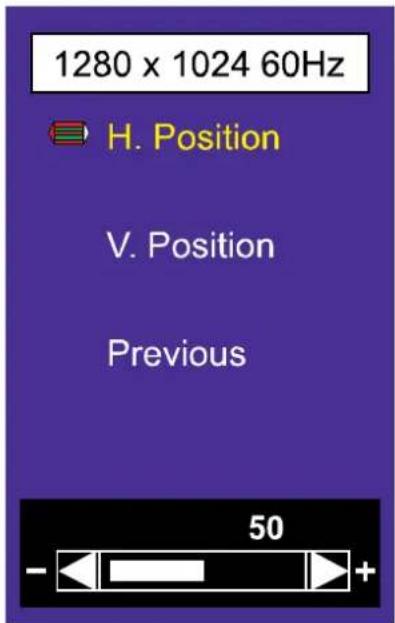
H. Position
The H. Position feature adjusts the image position horizontally.
V. Position
The V. Position feature adjusts the image position vertically.
OSD Menu
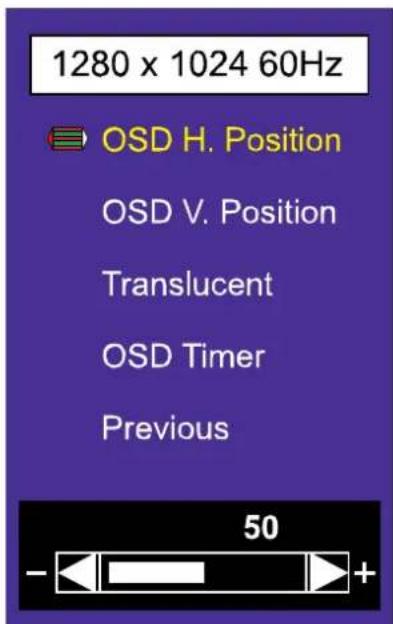
OSD H. Position
The OSD H. Position feature adjusts the horizontal position of the OSD window. Choices are 0 t c Default is 100.
OSD V. Position
The OSD V. Position feature adjusts the vertical position of the OSD window. Choices are 0 to 200. Default is 100.
Translucent
The Translucent feature adjust the transparency of the OSD window. Choices are 0 to 7. Default is 2.
OSD Timer
The OSD Timer feature sets how long the OSD menu stays on the screen. Choices are 5 to 60. Default is 10.
OSD (On Screen Display) Setting
Language
1280 x 1024 60Hz

English
Français
Deutsch
Español
Italiano
한국어
Language
The Language feature sets which language will be used to display the OSD menu and your entries. Choices are English, French, Dutch, Spanish, Italian and 한국어. Default is English.
Miscellaneous
1280 x 1024 60Hz

Input
Reset
Volume
Mute
Previous
Input
The Signal Source feature selects the input signal source. Choices are ANALOG, VIDEO and S-VIDEO.
Reset
The Reset feature initializes memory stored in the user mode.
Volume (option)
The Volume feature adjusts the speaker volume. Choices are 0 to 100. Default is 50.
Mute (option)
The Sound feature turns the speakers on or off. Choices are ON and OFF. Default is OFF.
OSD (On Screen Display) Setting
3.2 OSD MENU (VIDEO / CVBS MODE)
1280 x 1024 60Hz

Video
Position
OSD Menu
Language
Misc.
Exit
| Menu Icon | Menu Items |
| Picture | Contrast, Brightness, Sharpness, Tint, Color, Under scan |
| OSD Menu | OSD H.Position, OSD V.Position, OSD Timer, Translucent |
| Language | English, French, German, Spanish, Italian |
| Misc. | Signal Source, Reset, Volume, Mute |
+ OSD menu, Misc. and Sound menu items are same as in the VGA Mode.
OSD (On Screen Display) Setting
Video
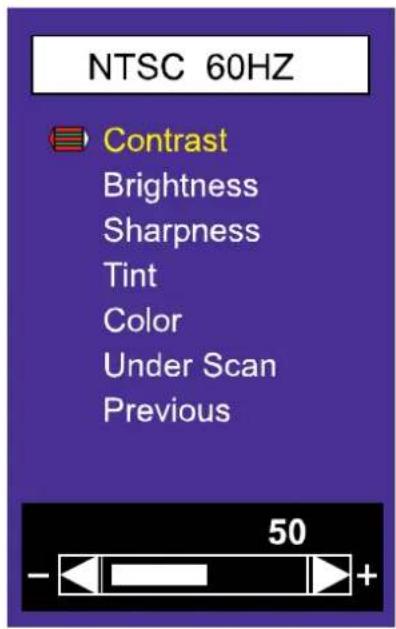
Contrast: The Contrast feature adjusts the Black level. Choices range from 0 to 100. Default is 60.
Brightness: The Brightness feature adjusts the brightness of the backlight. Choices range from 0 to 100. Default is 50.
Sharpness: The Sharpness feature adjusts the clearness of the image. Choices range from 0 to 4. Default is 2.
Tint: The Hue feature changes the RGB (red, green, blue) colors that you see. You can change blue objects to appear as green, or purple obnects. Choices range from 0 to 100. Default is 50.
Color: The Saturation feature adjusts the saturation, which is color intensity. Choices range from 0 to 100. Default is 50.
Under Scan: The Screen feature turns the size on or off. Choices are ON and OFF. Default is OFF.
* OSD menu, Misc. and Sound menu items are same as in the VGA Mode.
INFORMATION TO THE USER
This equipment has been tested and found to comply with the limits for a Class B digital device, pursuant to part 15 of the FCC Rules. These limits are designed to provide reasonable protection against harmful interference in a residential installation. This equipment generates, uses and can radiate radio frequency energy and, if not installed and used in accordance with the instructions, may cause harmful interference to radio communications. However, there is no guarantee that interference will not occur in a particular installation. If this equipment does cause harmful interference to radio or television reception, which can be determined by turning the equipment off and on, the user is encouraged to try to correct the interference by one more of the following measures:
● Reorient or relocate the receiving antenna.
- Increase the separation between the equipment and receiver.
- Connect the equipment into an outlet on a circuit different from that to which the receiver is connected.
- Consult the dealer or an experienced radio / TV technician for help.
WARNING:
The manufacturer is not responsible for any Radio or TV interference caused by unauthorized modifications to this equipment. Such modifications could void the user's authority to operate the equipment."
TROUBLESHOOTING
* When the following troubles are occurred, follow the trouble shooting. Before contacting a service center.
| Troubleshooting | Troubleshooting Tip |
| The screen doesn’t show up | 1. Make sure if the power supply is connected property |
| 2. Turn on the power. | |
| 3. Select the input signal right for the connected port. | |
| The screen is too light or to dark | Control the BRIGHTNESS |
| The screen size is not fit for the PC signal | Press the AUTO key among keys in the front.(It is used only in the PC signal) |
| The screen color shows strange in the PC signal | In the FUNCTION menu of OSD menu, perform the AUTO-ADJUST. |
2Year Limited Warranty
All Orion Images products carry a limited warranty from ship date against defects in materials and workmanship. Orion Images is not liable for improper installation that results in damage to mounts, adapters, display equipment or personal injury.
Contact Orion Images
In the event of missing and/or damage equipment, or technical questions, the following information can help in the completion of the installation.
Address: 7300 Bolsa Avenue, Westminster, CA 92683
Tel: 714-766-6300 / Fax: 714-766-6310
Email: sales@orionimages.com
Website: http://www.orionimages.com


- TFT-LCD MONITOR (SECURITY)
- WARNING STATEMENTS
- HOW TO FIX
- CAUTIONS
- TABLE OF CONTENTS
- INSTALLATION 6
- FEATURES 8
- OSD SETTING 10
- INFORMATION TO THE USER 16
- TROUBLESHOOTING 17
- LIMITED LIFETIME WARRANTY 16
- INSTALLATION
- 1.1 PARTS
- 1.2 HOW TO INSTALL
- FEATURES
- 2.1 DISPLAY MODE
- 2.2 SPECIFICATION (17INCH)
- 2.2 SPECIFICATION (19INCH)
- OSD (ON SCREEN DISPLAY) SETTING
- 3.1 OSD MENU (PC MODE)
- PICTURE
- POSITION
- OSD MENU
- OSD H. POSITION
- OSD V. POSITION
- TRANSLUCENT
- OSD TIMER
- LANGUAGE
- MISCELLANEOUS
- INPUT
- RESET
- VOLUME (OPTION)
- MUTE (OPTION)
- 3.2 OSD MENU (VIDEO / CVBS MODE)
- INFORMATION TO THE USER
- WARNING
- TROUBLESHOOTING
- 2YEAR LIMITED WARRANTY
- CONTACT ORION IMAGES
Brand : ORION
Model : Economy 19RCM
Category : Tracking