LTV30C - Television V7 - Free user manual and instructions
Find the device manual for free LTV30C V7 in PDF.


| Product Type | LCD TV |
| Screen Size | 29.54 inches (diagonal) |
| Resolution | 1280 x 768 pixels |
| Aspect Ratio | 16:9 |
| Brightness | 550 cd/m² (typical) |
| Contrast Ratio | 600:1 (typical) |
| Response Time | 16 ms |
| Viewing Angle | 170° (horizontal/vertical) |
| Power Consumption | 180W (max), <5W (standby) |
| Power Source | 100-240V, 2.4A, 50-60Hz |
| Audio Output | Built-in stereo speakers (8W + 8W) |
| Tuner | NTSC/PAL/SECAM (optional) |
| Video Inputs | VGA, DVI, Component, Composite, S-Video, SCART |
| Remote Control | Included with batteries |
| PIP (Picture-in-Picture) | Yes, 5 sizes |
| Teletext | Yes |
| OSD Languages | English, French, Spanish, German, Italian, Japanese, Chinese |
| Cleaning Instructions | Wipe with soft dry cloth; do not use solvents |
| Safety Certifications | UL/CUL, VCCI, CB, CE, FCC Class B |
| Mounting | VESA compatible (size not specified) |
Frequently Asked Questions - LTV30C V7
User questions about LTV30C V7
0 question about this device. Answer the ones you know or ask your own.
Ask a new question about this device
Download the instructions for your Television in PDF format for free! Find your manual LTV30C - V7 and take your electronic device back in hand. On this page are published all the documents necessary for the use of your device. LTV30C by V7.
USER MANUAL LTV30C V7
Important Safety Instructions 01
Cautions 02
Accessories and descriptions 04
LCD display installation
The connectors and sockets 05
Remote controller 07
Display Menu
How to display modes 10
How to use the advanced menu 11
Other information
Trouble-shooting 19
VGA/DVI mode specification 20
Specifications 21
TV signal system 22
Important Safety Instructions
-
Read these instructions.
-
Keep these instructions.
-
Heed all warnings.
-
Follow all instructions.
-
Do not use this apparatus near water.
-
Clean only with dry cloth.
-
Do not block any ventilation openings. Install in accordance with the manufacturer's instructions.
-
Do not install near any heat sources such as radiators, heat registers, stoves, or other apparatus (including amplifiers) that produce heat.
-
Do not defeat the safety purpose of the polarized or grounding type plug. A polarized plug has two blades with one wider than the other. A grounding type plug has two blades and a third grounding prong. The wide blade or the third prong are provided for your safety. If the provided plug does not fit into your outlet, consult an electrician for replacement of the obsolete outlet.
-
Protect the power cord from being walked on or pinched particularly at plugs, convenience receptacles, and the point where they exit from the apparatus.
-
Only use attachments/accessories specified by the manufacturer.
-
Use only with the cart, stand, tripod, bracket, or table specified by the manufacturer, or sold with the apparatus. When a cart is used, use caution when moving the cart/ apparatus combination to avoid injury from tip-over.

-
Unplug this apparatus during lightning storms or when unused for long periods of time.
-
Refer all servicing to qualified service personnel. Servicing is required when the apparatus has been damaged in any way, such as power-supply cord or plug is damaged, liquid has been spilled or objects have fallen into the apparatus, the apparatus has been exposed to rain or moisture, does not operate normally, or has been dropped.
-
Apparatus shall not be exposed to dripping or splashing and no objects fill with liquids, such as vases, shall be placed on the apparatus.
-
To reduce the risk of electric shock, do not remove cover (or back). No user-serviceable parts inside. Refer servicing to qualified service personnel.
-
The readily operable appliance coupler will serve as the disconnect device of this apparatus.
-
The apparatus must be connected to a mains socket outlet with a protected earthing connection.
-
Keep 10cm minimum distance around the apparatus for sufficient ventilation.
-
Spent or discharged batteries must be recycled or disposed of properly in compliance with all applicable laws. For detailed information, contact your local county solid waste authority.

CAUTION
RISK OF ELECTRIC SHOCK DO NOT OPEN


WARNING: TO REDUCE THE RISK OF FIRE OR ELECTRIC SHOCK, DO NOT EXPOSE THIS PRODUCT TO RAIN OR MOISTURE.

The lightning flash with arrow head symbol, within an equilateral triangle, is intended to alert the user to the presence of uninsulated "dangerous voltage" within the product's enclosure that may be of sufficient magnitude to constitute a risk of electric shock to persons.

The exclamation point within an equilateral triangle is intended to alert the user to the presence of important operating and maintenance (servicing) instructions in the literature accompanying the appliance.
"CAUTION"
These servicing instructions are for use by qualified service personnel only. To reduce the risk of electric shock do not perform any servicing other than that contained in the operating instructions unless you are qualified to do so.

CAUTION!
For use only with the following power supplies: Delta/ADP-150BB B; Delta/ADP-180CB B
Cautions

CAUTION
RISK OF ELECTRIC SHOCK DO NOT OPEN

ATTENTION
RISQUE DE CHOC ELECTRIQUE NE PAS OUVRIR
PRECAUCION
RIESGO DE CHOQUE ELECTRICO NO ABRIR
CAUTION : TO REDUCE THE RISK OF ELECTRIC SHOCK, DO NOT REMOVE COVER(OR BACK). NO USER-SERVICEABLE PARTS INSIDE. REFER SERVICING TO QUALIFIED SERVICE PERSONNEL.
【Warning】
To protect the device from fire or electric shock, keep your LCD display away from rain or moisture.

【Caution】
To protect your device from electric shock, be sure to plug into socket securely.

【Caution】
If you use LCD display with video games, computers, or any other similar products together, please keep brightness and contrast at a low level. If an image appears on the screen with a high level of brightness or contrast, the image might be kept on the screen permanently.
【Tips for cleaning LCD display】
1 Please wipe the LCD display with soft or dry cloth.
2 DO NOT use dissolvent or methylbenzene. Otherwise, you might damage your LCD display.
3 Be sure the LCD display is unplugged before you clean it.
【Cautions for CATV】
Be sure to acquire due authorization from broadcaster/CATV service provider/program owner before using the TV receiver to watch programs through UHF, VHF, or CATV.
【Cautions for installation and use of LCD display】
1 Please check the LCD display power specification shown on the serial No./model tag. Be sure to use the power according to the specification. If you are unsure about the power requirement, please contact your distributor or local power company.
2 Be sure to plug into socket securely. If you have problems with plugging in, please contact your distributor.

The plug is designed in such a manner that you can plug into a socket in a certain direction. If you have problems with plug, please check with your distributor.
1 DO NOT allow overloading in the socket or extension cord. Otherwise, you might receive Electrical shockor cause fire.
2 DO NOT leave any object pressing or winding on the power cord. Keep your LCD display away from any place that might cause damage for your LCD display or mislead you to use a wrong Power cord.
3 Be sure to turn off your LCD display if it's not in use. If your LCD display is not in use for a long time, please unplug it to prevent fire from happening.
4 The ventilation opening behind your LCD display is designed for ventilation and dissipation. Keep the ventilation opening clear, so as not to obstruct dissipation.
5 DO NOT place your LCD display on the bed, sofa, or carpet, so as not to block the ventilation opening.
6 If you do not have proper ventilation setup, DO NOT keep your LCD display in the closed space, such as bookshelf or TV cabinet.
7 Keep your LCD display away from high-temperature objects or any heat-generating object.
8 Keep your LCD display away from direct sunshine.
9 DO NOT place your LCD display on an unstable shelf or desk so as to prevent injuries caused by falling LCD display.
10 DO NOT allow sharp objects to penetrate through your LCD display, so as not to cause any damage to the high voltage device inside your LCD display.
Cautions
【Tips for your LCD display maintenance】
Maintenance
If any of following occurs, unplug your LCD display and contact your distributor or qualified technician to repair your LCD display:
1 Power cord or plug is damaged.
2 Liquid dropped inside your LCD display.
3 LCD display is damp or wet.
4 LCD display is damaged.
5 LCD display functions abnormally.
DO NOT repair LCD display by yourself. Once the shell is opened, you are exposed to high voltage device and face risks.
Changing parts
If you need to change the parts of your LCD display, please ask the technician for written proof so as to make sure that the new parts are specified by the manufacturer and the functions are the same as the original parts.
Safety inspection
After the LCD display is repaired, be sure to ask the technician (in accordance with the manufacturer's requirements) for routine safety inspection so as to make sure that the LCD display is safe.
If your LCD display has been used longer than its life, please contact qualified technician for repair.
【User's record】
You can find the serial NO. and model on the back of the LCD display. Be sure to provide the model and serial number when you contact your distributor.
Please read and comply with all warnings, cautions, and the manual thoroughly.
You might lose your warranty if you modify or revise your LCD display in such a manner not approved by this manual.
【Compliance with Canadian rules】
This device has been tested and complies with the requirements of Class A/B digital device pursuant to FCC Rules Part 15. These requirements were set up to provide reasonable protection with respect to the harmful disturbances for the households where this device is installed. This device affects radio communication during its production stage and when it is used. Without proper instructions for installation and use, this device may disturb telecommunication to a certain extent. We cannot guarantee that any installation method does not affect telecommunication. If you feel that this device affects the reception of your radio or TV, you can turn on and off the power supply of this device to determine if this device really affects telecommunication. If yes, you may use following methods to eliminate the disturbances:
1 Change the position or direction of your antenna.
2 Keep your device farther from the receiver.
3 Plug your device and receiver in separate receptacles.
4 Contact your distributor or Service Center. (Remark on Warranty Card)
Accessories and descriptions

natural_image
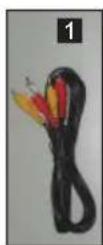
Exterior view of a remote control with two battery terminals labeled 3 and 4 (no text or symbols on the device itself)- Audio / Video cable (optional)
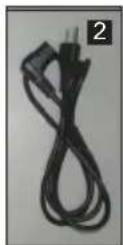
- Power cord (USA or England or Europe)
- Remote controller (optional)
- Remote controller battery (optional)
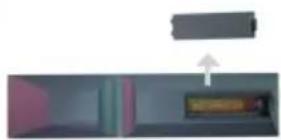
Installation of battery :
Insert 2 AAA batteries into the remote controller. Make sure + and - are facing proper directions.
1
2

3
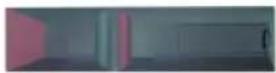

If the remote controller is not used for a long time, please take the batteries out to avoid damages caused by the leaking liquid.
Please use the remote controller carefully. DO NOT drop the remote controller on the ground.
Keep the remote controller away from moisture, sunshine, and high temperature.

natural_image
Pure architectural line drawing of a building facade with no text, numbers, or symbols
natural_image
Line drawing of a modern multi-level building with curved roof and two symmetric windows (no text or symbols)
natural_image
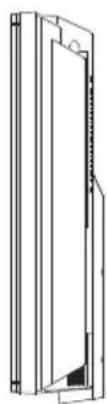
Pure technical line drawing of a door or panel assembly without any text, numbers, or symbolsThe best reception angle for remote controller and infrared line receiver is 0irc ± 30irc (The exceeding angle results in unstable reception)

Connection ports

Turning on the LCD display
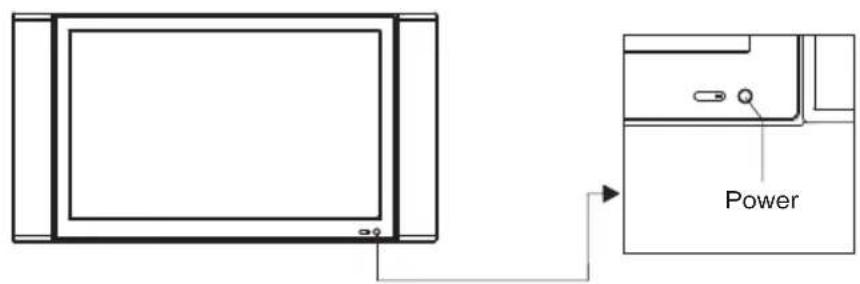
Panel control
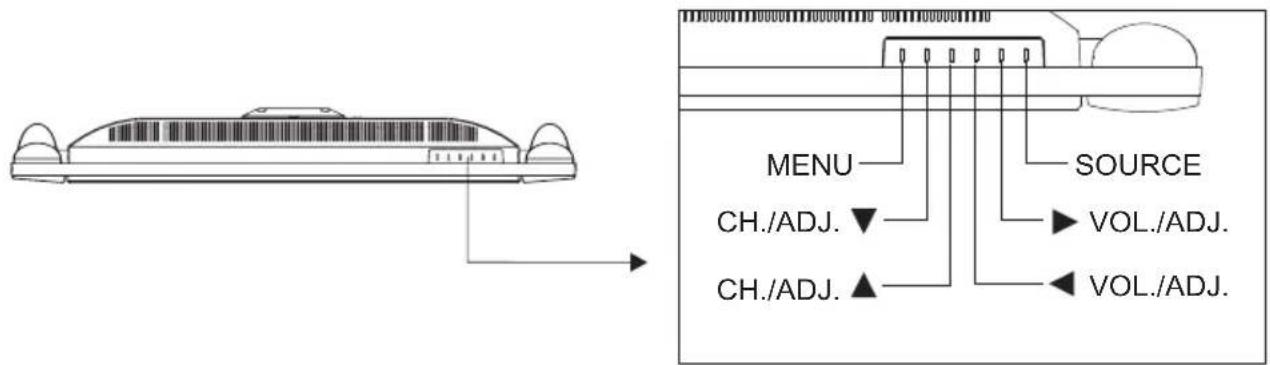
Connection ports' functions
| Port | Functions |
| Power Input | Supply power for LCD display |
| VGA Input (analog) | Inputs VGA analog signals; and can be used together with IBM or compatible computers. |
| DVI Input (digital)-(optional) | Input digitals signals and can be used with IBM or compatible computers and also can take the HDTV video signal that can support 720P, 1080i, 480P and 480i mode. |
| RS232 | Connects to the signal cable of the control system for software upgrade on IBM PC or IBM-comparable PC. |
| PC & HDTVAudio input: | When LCD display is in VGA/DVI mode, it can be input from the PC to get sound. When the DVI port is used with HDTV source, it can be used for audio input by using a cable with RCA plug convert to stereo mini jack plug. |
| Audio Output | Outputs sound signals. |
| Subwoofer Output | Outputs subwoofer signals. |
| Tuner | Connects to TV source signals. |
| Video Input and R/L Input | Connects to the visual device equipped with AV Output port; and can be used together with visual decoder, and sound signal (R/L connector) line. |
| S-Video and R/L Input | Connects to S-Video (Y/C) signal line and sound signal (R/L connector) line. |
| Scart | A connector for Europe, using the same connector to transmit RGB, sound, and visual signals. |
| D4-Connector and R/L Input | A connector for Japan, using the same connector to transmit visual and sound signal (R/L connector). |
| YPbPr1 and R/L InputYPbPr2 and R/L Input | When connecting to YPbPr(R/L), you can use YPbPr visual signal. For example, DVD (Progressive support) player and hi-scale HDTV decoder or satellite receiver obtains the picture with maximum resolution and the sound signal (R/L connector). |
! \* denotes optional item
Panel control's functions
| Button | Functions |
| POWER | Turn on/off LCD displayPress the power button on the lower right corner of LCD display to turn on/off LCD display. When power is on, LED indicator becomes green. When power is off, LCD display stands by and LED indicator becomes red. |
| SOURCE | Select the source of signals.Press the SOURCE button on the upper end of the LCD display and choose TV/CVBS(AV)/S-VIDEO/SCART(for Europe only)/YPbPrl/YPbPr2 or D4(for Japan only)/VGA (PC)/DVI mode(optional). |
| VOL./ADJ.◀▶ | Adjust the volume.Press ◀▶ button to adjust LCD display volume. The adjustment procedure of this button is the same as setup procedure shown on the menu (works in the same way as R/L button under the menu mode) |
| MENU | Adjust the menu.Press the MENU button on the upper end of the LCD display to revise the default. To display the screen control menu of the LCD display, press the MENU button and press ▲▼◀▶toadjust the content of quick menu. |
| CH./ADJ.▲▼ | Select CHANNELPress the ▲▼ button on the upper end of the LCD display to select the channel (to be used under the TV mode) (works in the same way as U/L button under menu mode) |
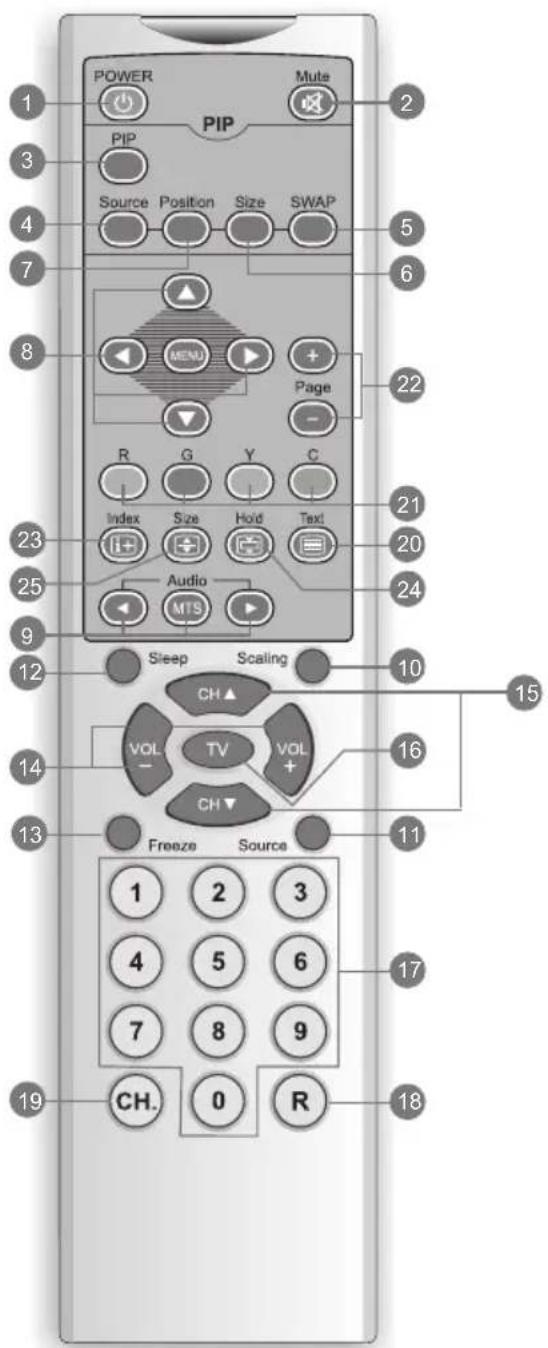
- POWER
To turn on LCD display or enter into standby mode.
- MUTE
Press the button to shut down the voice of LCD display. Press again or press volume +/- to restore the original volume.
- PIP
Press the button to activate Picture In Picture mode (Please refer to P.9 for details)
- SOURCE (select the small picture's signal source)
Press the button to select the small picture's signal source (Please refer to P.9 for details)
- SWAP (switch between large picture and small picture)
Switch between large picture and small picture under PIP mode.
- SIZE (size of small picture)
Change the size of small picture under PIP mode.
- POSITION (small picture's position)
Select the small picture's position under PIP mode.
- MENU ▲ ▼ ◀ ▶ (menu adjustment)
Press MENU to activate the LCD display menu. Press again to quit the menu. You can press to change direction and confirm your selection.
- MTS ◀▶ (Audio system group)
Press MTS button and ▶ button to select STEREO, MONO, DUAL 1 and DUAL 2. If there's no second language available for the signal received LCD display will not audio out, please back to mono mode.
- SCALING (scale of screen)
Activate the screen-scaling mode. 4:3 Mode / Panoramic / Fill all / Wide
- SOURCE (main picture's signal source)
Sequentially switch to the signal sources as follows: TV/CVBS(AV)/S-VIDEO/SCART (for Europe only)/YPbPr1/YPbPr2 or D4 (for Japan only)/VGA/DVI(optional).
- SLEEP
Press this button repeatedly to set the sleeping time at 0/30/60/90/120 minutes. LCD display cuts its power as soon as the automatic sleeping time is up. To cancel your selection, simply press the button continually until 0 appears.
- FREEZE (frozen picture)
Press FREEZE to freeze picture.
- VOL +/- (Volume +/-)
Adjust LCD display volume.
- CH ▲▼ (Channel)
Select channel.
- TV
Press this button the display screen to be changed TV source.
- 0\~9
Press 0\~9 to select channels from 01 to 125. If the channel number you select is larger than 125, picture will be halted in the previous channel without any switch.
- RETURN
Return to previous channel.
- CH. (displaying channel)
Press CH to display the current channel.
- TEXT
Press this button to activate Teletext. Press again to turn off this function.
- R/G/Y/C
Press this button to select the pictures with various colors of text. Different channels display different corresponding functions.
- PAGE ▲▼ (page up & down)
Press this button to select the page you want together with the page number.
- INDEX (indexing)
Press this button to return to page 100 or the indexing picture; and then press 0 to 9.
The teletext page will be numbered and added to the page you select or the secondary item.
- HOLD
Press this button to stop the scrolling of text pages. The text decoder stops receiving data.
- SIZE (font size)
Press this button to change the size of font: full screen, top half, and bottom half.
FULL (full screen) standard full-screen text
TOP (top half) top half of page appears on the full screen
BOTTOM (bottom half) bottom half of page appears on the full screen.
Pop-out menu How to display modes
Main picture mode
- You can change the signal source of the main picture through the SOURCE of your remote control. The signal source you choose appears on the upper left corner of the screen (Diagram 1).
- The main picture will be changed in the sequence as follows: TV/CVBS(AV)/S-VIDEO/SCART (for Europe only)/YPbPr1/YPbPr2 or D4 (for Japan only)/VGA/DVI(optional).
- Users are allowed to set the options specifically designed for a certain mode under the OSD MENU.
PIP mode
- LCD display can display the main signal and auxiliary visual input signals simultaneously.
The auxiliary signal (or input source) appears in a frame on the main picture. This is known as PIP picture (diagram 1). To activate PIP mode from the PIP button on the remote controller. - Please select the PIP input source from the PIP SOURCE button on the remote controller. There is no PIP button on the LCD display control panel.
- The sub-signal options change as the main signal source changes. (Diagram 2)
The signal source
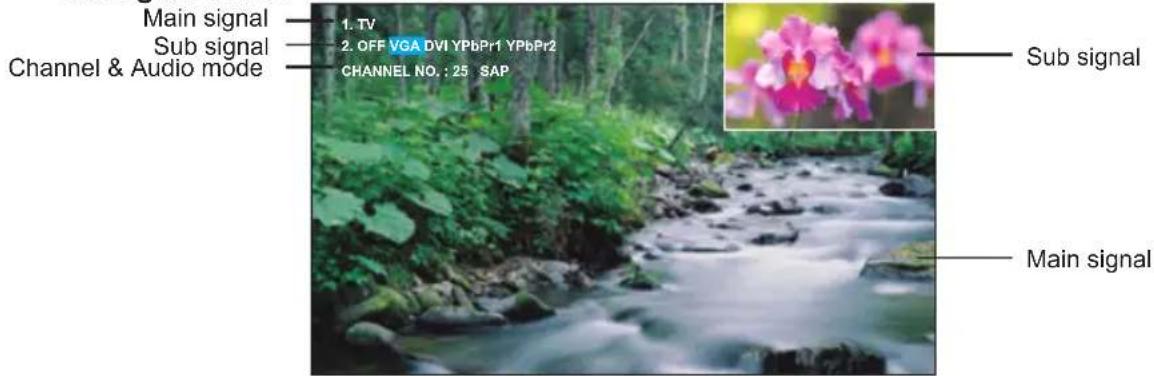
(Diagram 1)
| Main signal\Sub signal (PIP) | OFF | TV AV | (CVBS) | SV SC (S-VIDEO) | ART (For Europe only) | YPbPr1 | YPbPr2 D4 (For Japan only) | VGA | DVI (Optional) |
| TV | √ | — | — | — | — | √ | √ | √ | √ |
| CVBS(AV( | √ | — | — | — | — | √ | √ | √ | √ |
| S-VIDEO | √ | — | — | — | — | √ | √ | √ | √ |
| SCART (For Europe only) | √ | — | — | — | — | √ | YPbPr2 √D4 — | √ | √ |
| YPbPr1 | √ | √ | √ | √ | √ | — | — | — | — |
| YPbPr2 D4 (For Japan only) | √ | √ | √ | √ | YPbPr2 √D4 — | — | — | — | — |
| VGA (PC) | √ | √ | √ | √ | √ | — | — | — | — |
| DVI(optional) | √ | √ | √ | √ | √ | — | — | — | — |
(Diagram 2)
Pop-out menu How to use the advanced menu
- Users can use either the SOURCE button on the remote control to select the proper mode. Once the signal source is detected, the system mode selected by users appears on the upper left corner of the screen.
- After the system mode is selected, users can press MENU buttons to execute the following functions:
AUTO (automatic adjustment) (can be used under PC mode)
Allows you to adjustment the setup of picture automatically.

DISPLAY (picture display)
Provides more picture modes and functions based upon your favorite programs and lets you adjust the setup regarding colors and brightness.

TV (to be used under TV mode)
Allow you to set your favorite channels. If you use several systems and input signal sources, this function executes the automatic programs.

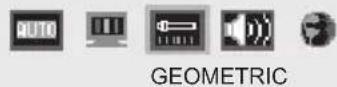
GEOMETRIC (geometric adjustment) (to be used under PC mode)
Allows you to adjust the position and sharpness of picture.
AUDIO (audio setup)
Provides more audio selections. You can also set the audio environment for your LCD display.
MISCELLANEOUS (other setups)
Provides several options and allows you to set the automatic closing hour, language, and restore the default.
| Items Range Activation mode | |||
| DISPLAY | CONTRAST | 0~50 | TV/S-VIDEO/AV/YPbPr1/YPbPr2/SCART/D4/VGA/DVI |
| BRIGHTNESS | 0~50 | TV/S-VIDEO/AV/YPbPr1/YPbPr2/SCART/D4/VGA/DVI | |
 | COLOR-TEMP | High / Middle / Low / User | VGA |
| RED | 0~255 | VGA | |
| GREEN | 0~255 | VGA | |
| BLUE | 0~255 | VGA | |
| WHITE BALANCE | VGA | ||
| COLOR | 0~50 | TV/S-VIDEO/AV/YPbPr1/YPbPr2/SCART/D4 | |
| HUE TV/S-VIDEO/AV/YPbPr1/YPbPr2/SCART/D4 | |||
| SHARPNESS | 0~6 | TV/S-VIDEO/AV/YPbPr1/YPbPr2/SCART/D4 | |
| FOCUS | 0~31 | YPbPr1/YPbPr2/SCART/D4 | |
| RESET< or > | TV/S-VIDEO/AV/YPbPr1/YPbPr2/SCART/D4/VGA/DVI | ||
| TV | CCD | CC1~CC4 / T1~T4 / OFF | TV/AV ( For NTSC) |
| V-CHIP | TV/S-VIDEO/AV ( For NTSC) | ||
 | CHANGE PASSWORD | 0000 ~ 9999 | TV/S-VIDEO/AV ( For NTSC) |
| CH SCAN | 0~125 | TV | |
| CATV / AIR | ANTENNA / CABLE | TV ( For NTSC) | |
| CH ADD / DEL | +/- | TV ( For NTSC) | |
| UPDATE CH SCAN | TV ( For PAL) | ||
| PR-EDIT | TV ( For PAL) | ||
| GEOMETRIC | CLOCK | 0~255 | VGA |
| PHASE | 0~31 | VGA | |
 | H-POSITION | 0~255 | VGA |
| V-POSITION | 0~255 | VGA | |
| RESET< or > | VGA | ||
| AUDIO | VOLUME 0~31 | TV/S-VIDEO/AV/YPbPr1/YPbPr2/SCART/D4/VGA/DVI | |
| BASS | 0~24 | TV/S-VIDEO/AV/YPbPr1/YPbPr2/SCART/D4/VGA/DVI | |
 | TREBLE | 0~24 | TV/S-VIDEO/AV/YPbPr1/YPbPr2/SCART/D4/VGA/DVI |
| SUBWOOFER | ON / OFF | TV/S-VIDEO/AV/YPbPr1/YPbPr2/SCART/D4/VGA/DVI | |
| SURROUND | ON / OFF | TV/S-VIDEO/AV/YPbPr1/YPbPr2/SCART/D4/VGA/DVI | |
| BALANCE | L~0~R | TV/S-VIDEO/AV/YPbPr1/YPbPr2/SCART/D4/VGA/DVI | |
| RESET< or > | TV/S-VIDEO/AV/YPbPr1/YPbPr2/SCART/D4/VGA/DVI | ||
| MISCELLANEOUS | OSD TIMER | 5/10/15/20/25/30 SEC | TV/S-VIDEO/AV/YPbPr1/YPbPr2/SCART/D4/VGA/DVI |
| LANGUAGE | ENGLISH/DEUTESH/FRANCOIS/ITALIA NO/ESPANOL/JAPAN/繁简 | TV/S-VIDEO/AV/YPbPr1/YPbPr2/SCART/D4/VGA/DVI | |
 | PIP SIZE | 1,2,3,4,5 | TV/S-VIDEO/AV/YPbPr1/YPbPr2/SCART/D4/VGA/DVI |
| PIP POSITION | 0~4 | TV/S-VIDEO/AV/YPbPr1/YPbPr2/SCART/D4/VGA/DVI | |
| RESET< or > TV/S-VIDEO/AV/YPbPr1/YPbPr2/SCART/D4/VGA/DVI | A/DVI | ||

Menu is changed as the picture mode and district are changed.
DISPLAY
- Press MENU button on the remote controller to display the main menu.
- Press ◀ button on the remote controller to select the Display to be adjusted.
- Press ▲▼ button on the remote controller to select the item to be adjusted.
- Press ◀ button on the remote controller to adjust the default of that item.
- Press MENU again to quit the picture.

bar
| Category | Value | | ------------ | ----- | | CONTRAST | 42 | | BRIG HTNESS | 28 | | COLOR | 25 | | HUE | 25 | | SHARPNESS | 4 |( For TV/S-VIDEO/AV/SCART )

bar
DIS PLAY | Category | Value | |---|---| | CONTRAST | 43 | | BRIG HTNESS | 49 | | COLOR-TEMP | USER | | RED | 128 | | GREEN | 128 | | BLUE | 128 | | WHIT E BALANCE | | | RESET < or > | |(For VGA)

(For DVI)

bar
DIS PLAY | Metric | Value | |---|---| | CONTRAST | 42 | | BRIG HTNESS | 35 | | COLOR | 46 | | HUE | 27 | | SHARPNESS | 4 | | FOCUS | 15 | | RESET < or > | |(For YPbPr1/YPbPr2/D4)
| Menu Descriptions | |
| Contrast | Press ◀ to increase or decrease the picture contrast. |
| Brightness | Press ◀ to make picture brighter or darker. |
| Color Temp | Press ◀ to select color temps. |
| Red | Press ◀ to increase or decrease the red of the picture. |
| Green | Press ◀ to increase or decrease the green of the picture. |
| Blue | Press ◀ to increase or decrease the blue of the picture. |
| White Balance | In the PC Mode, select all white for the center ofpicture; and then press ◀ to make the color balanced. |
| Color | Press ◀ to increase or decrease the thickness of color. |
| Hue | Press ◀ to change the colors to be redder or greener. |
| Sharpness | Press ◀ to make the picture sharper or softer. |
| Focus | Press ◀ to make the signal sharper or softer. |
| Reset< or > | Press this button to restore all setups of the Display to the default. |
GEOMETRIC

bar
| Category | Value | |---|---| | CLOCK | 127 | | PHASE | 11 | | H-POSIT IO N | 125 | | V-POSITIO N | 30 |RESET < or >
- Press MENU button on the remote controller to display the main menu.
- Press ◀ button on the remote controller to select the main item (Geometric) to be adjusted.
- Press ▲▼ button on the remote controller to select the item you'd like to adjust.
- Press ◀ button on the remote controller to adjust the default of that item.
- Press MENU button again to quit the picture.
| Menu | Descriptions |
| Clock | Press ◀ ➤ button to adjust the alignment of VGA for steady display of VGA. |
| Phase | Press ◀ ➤ button to adjust the focus and sharpness of VGA. |
| H-Position | Press ◀ ➤ button to adjust the horizontal position of VGA. |
| V-Position | Press ◀ ➤ button to adjust the vertical position of VGA. |
| Reset< or > | Press this button to restore all Geometric setups to default. |
TV (for Europe)


TV
CH SCAN
UPDATE CH SCAN
PR-EDIT
- Press MENU button on the remote controller to display the main menu.
- Press ◀ button on the remote controller to select the main item (TV) to be adjusted.
- Press ▲▼ button on the remote controller to adjust the setup of that item.
- Press ◀ button on the remote controller to adjust the default of that item.
- Press MENU button again to quit the picture.
Descriptions
CH Scan (automatic channel scanning)
At CH Scan, press ▶ button to execute the automatic channel scanning.
You need to execute the automatic channel scanning if you install your LCD display for the first time.
UPDATE CH SCAN
Enter this option when TV already has channels. Press ◀ button to add the newly found channel (found by searching) after the current channels.
PR-Edit
Press ◀ button on the remote controller, you'll see the PR-EDIT picture (Page 15 Diagram 3).
PR-Edit
| PR | CH | TV-SYS | ID | SKIP |
| 1 | 2 | PAL-DK | AA | O |
| 2 | 3 | SECAM | O | |
| 3 | 5 | PAL-DK | BB | O |
| 4 | --- | X | ||
| 5 | --- | X | ||
| 6 | --- | X | ||
| 7 | --- | X | ||
| 8 | --- | X | ||
| 9 | --- | X |
| PR | CH | TV-SYS | ID | SKIP | |
| ← | 1 | 5 | PAL-DK | BB | O |
| 2 | 3 | SECAM | O | ||
| 3 | 2 | PAL-DK | AA | O | |
| 4 | --- | X | |||
| 5 | --- | X | |||
| 6 | --- | X | |||
| 7 | --- | X | |||
| 8 | --- | X | |||
| 9 | --- | X | |||
| ↑↓: SELECT MENU: EXIT→: ENTER R: MOVE | |||||
- After entering the PR-EDIT editing table, you may use 📄 button to highlight the channel you wish to change in yellow. Use ▲ button to select the channel to switch and press 📄 button again to switch the two channels. (Figure 4)
- Use the ▲▼ button on the remote control to select the channel you want to edit and then press the button on the remote control to enter the PR screen. (Figure 5)
| PR | CH | TV-SYS | ID | SKIP |
| 1 | 5 | PAL-DK | BB | o |
| ←→ : SELECT | ||||
| R : CLEAR | MENU : EXIT | |||
- How to adjust and use TV-SYS/ID/SKIP which needs to be edited.
3-1. TV-SYS:
Use the ▲▼ button on the remote control to choose which TV system to represent the screen under this PR frequency.
(If there is no other system can be used to represent the screen, then this RP frequency cannot be used to confirm the screen quality.)
3-2. ID input:
Press 1 to rotate through "A", "B", "C" and "1". Press 2 for "D", "E", "F" and "2"..... Press 9 for "Y", "Z", and "9". Press 0 for "+", "-", "." and "0".
3-3. SKIP:
"0" means (skip on) and "X" means (skip off).
- Press the "MENU" button to confirm and exit the PR setting OSD.
AUDIO


AUDIO
VOLUME
BASS
TREBLE
SUBWOOFER
SURROUND
BALANCE
RESET < or >

- Press the MENU button on the remote controller to display the main menu.
- Press ◀ button on the remote controller to select the main item (Audio) to be adjusted.
- Press ▲▼ button on the remote controller to select the item to be adjusted.
- Press ◀ button on the remote controller to adjust the default of that item.
- Press MENU button again to quit the picture.
| Menu | Descriptions |
| Volume | Press ◀ ➤ button and adjust the volume to the level you want. |
| Bass | Press ◀ ➤ button to increase or decrease the volume. |
| Treble | Press ◀ ➤ button to increase or decrease the volume of pitch sound. |
| Subwoofer | Press ON or OFF to activate or inactivate the subwoofer. |
| Surround | Press ON or OFF to activate or inactivate the surround. |
| Balance | Press ◀ ➤ button to adjust the balance between right and left speakers. |
| Reset< or > | Return all Audio items to default. |
MISCELLANEOUS


MISCELLANEOUS
| OSD TIM ER | 30 SEC |
| LANGUAGE | Englis h |
| PIP SIZE | 1 |
| PIP POSITIO N | 0 |
| RESET < or > | |
- Press the MENU button on the remote controller to display main menu.
-
Press ◀▶ button on the remote controller to display the main item (Miscellaneous) to adjust.
-
Press ▲▼ button on the remote controller to select the item to be adjusted.
- Press ◀ button on the remote controller to adjust the default of that item.
- Press MENU again to quit the picture.
| Menu Descriptions | |
| OSD Timer | Press ◀ ▶ button to select the time to be shown on the menu5 sec 15 sec 20 sec 25 sec 30 sec |
| Language | Press ◀ ▶ button to select language English/French/Spanish/German/Italian/Japanese/Chinese(Traditional)/Chinese(Simplified) |
| PIP Size | Press ◀ ▶ button to select the size of small picture. (5 size)(Please execute this function under PIP Mode) |
| PIP Position | Press ◀ ▶ button to move the small to upper left, upper right, center, lower left, or lower right.(Please execute this function under PIP Mode) |
| Reset< or > | Return all Miscellaneous items to default. |
The following table contains the common problems and the solutions to these problems.
Please check this list before you contact technicians.
| Problems | Reasons | Solutions |
| No picture | 1.Did you connect the power cord?2.Did you turn on power?3.Is the signal line connected correctly?4.Is the screen under the energy-saving mode? | 1.Connect power cord correctly.2.Turn on power.3.Connect signal line properly.4.Press any button on the computer. |
| Abnormal colors | 1.Is signal line connected correctly? | 1.Connect signal line correctly. |
| Twisted picture | 1.Is the signal line connected correctly?2.Is input signal larger than the rated frequency? | 1.Connect signal line correctly.2.Please use the rated signal. |
| Picture too dark | 1.Are brightness and contrast set at the lowest level? | 1.Adjust brightness and contrast. |
| Voice only, no images | 1.Is input signal connected correctly?2.Is TV signal too weak? | 1.Please check if input signal is correct.2.Please check if signal is connected correctly.3.TV-RF signal must not be lower than 70dB. |
| Picture only, no voice | 1.Is signal line connected correctly?2.Is volume at the minimum level?3.Is audio signal line not connected?4.Is TV signal too weak? | 1.Connect signal line correctly.2.Adjust volume to proper level.3.Connect audio signal line correctly.4.TV-RF signal must not be lower than 70dB. |
| Cannot use remote controller | 1.Please check if battery is still charged.2.Is there any disturbance from static or thunder? | 1.Please change battery.2.Turn off power for 10 seconds; and then restart power. |
The following table contains common problems and solutions to these problems.
| Problems | Possible solutions |
| Cannot receive UHF | Change the signal line to other input-end |
| Cannot receive sufficient channels through antenna | Please use the automatic scanning function to increase the channels not included in memory (Please refer to page 14) |
| No colors | Please adjust the color setup at the menu |
| Blinking picture accompanied by ghost image | Check the connection of antenna/signal lineCheck if channel is in play modePress signal source and change input mode |
| Broken lines or segments | Adjust antennaKeep TV away from noise source, such as automobile, neon lights, and hair dryer. |
| TV is blocked at certain channels (Hope to acquire some channels) | Please use the automatic scanning method to add the channels not included into memory (Please check page 14) |
| Overlapping images or ghost image | Please use multi-directional outdoor antenna(If your TV is subject to the influence imposed by the nearby mountains or buildings) |
| Cannot use the functions | If the item you choose turns gray, that item cannot be selected. |
| Cannot receive programs through channels | Please use the automatic scanning method to add the channels not included into memory (Please check page 14) |
If you have further questions after reading the foregoing descriptions, please contact your distributor.
| Active Range | Refresh Rate | H V Dot | Clock MHz | Pol. | Horizontal Vertical | VGA | DVI (Optional) | |||||||||
| H | V | Sync Width | Back Front Porch | Front Total Porch | Sync Width Porch | Back Front Porch | Front Total Porch | |||||||||
| 640 × 350 | 70 | 31.5 | 70 | 25.175 | N | N | 96 48 | 16 | 800 2 | 60 37 | 449 | √ | ||||
| 640 × 480 VGA | 60 | 31.469 | 59.940 | 25.175 | N | N | 96 48 | 16 | 800 2 | 33 10 | 525 | √ | √ | |||
| 72 | 37.861 | 72.809 | 31.5 | N | N | 40 | 128 | 24 | 832 | 3 | 28 | 9 | 520 | √ | √ | |
| 75 | 37.5 | 75 | 31.5 | N | N | 64 | 120 | 16 | 840 | 3 | 16 | 1 | 500 | √ | √ | |
| 85 | 43.269 | 85.008 | 36 | N | N | 56 | 80 | 56 | 832 | 3 | 25 | 1 | 509 | √ | √ | |
| 720 × 400 | 70 | 31.46 | 70.08 | 28.32 | N | P | 108 54 | 18 | 900 2 | 35 12 | 449 | √ | √ | |||
| 800 × 600 SVGA | 56 | 35.156 | 56.250 | 36 | P | P | 72 | 128 | 24 | 1024 | 2 | 22 | 1 | 625 | √ | √ |
| 60 | 37.879 | 60.317 | 40 | P | P | 128 | 88 | 40 | 1056 | 4 | 23 | 1 | 628 | √ | √ | |
| 72 | 48.077 | 72.188 | 50 | P | P | 120 64 | 56 | 1040 6 | 23 37 | 666 | √ | √ | ||||
| 75 | 46.875 | 75 | 49.5 | P | P | 80 | 160 | 16 | 1056 | 3 | 21 | 1 | 625 | √ | √ | |
| 85 | 53.674 | 85.061 | 56.25 | P | P | 64 | 152 | 32 | 1048 | 3 | 27 | 1 | 631 | √ | √ | |
| 1024 × 768 XGA | 60 | 48.363 | 60.004 | 65 | N | N | 136 | 160 | 24 | 1344 | 6 | 29 | 3 | 806 | √ | √ |
| 70 | 56.476 | 70.069 | 75 | N | N | 136 | 144 | 24 | 1328 | 6 | 29 | 3 | 806 | √ | √ | |
| 75 | 60.023 | 75.029 | 78.75 | P | P | 96 | 176 | 16 | 1312 | 3 | 28 | 1 | 800 | √ | √ | |
| 1280 × 768 | 60 | 47.776 | 59.870 | 79.5 | N | P | 128 | 192 | 64 | 1664 | 7 | 20 | 3 | 798 | √ | √ |
| 1280 × 1024 | 60 | 63.981 | 60.020 | 108 | P | P | 112 | 248 | 48 | 1688 | 3 | 38 | 1 | 1066 | √ | √ |
| Display panel | Screen Size | 643.2(H) X 385.92(V)mm (diagonal 29.54 inches) |
| Aspect Ratio | 16:9 WIDE | |
| Pixel Pitch | 0.1675(H) X 0.5025(V)mm | |
| Number of Pixels | 1280(H) X 768(V) | |
| Brightness | 550cd/m 2 (Typical) | |
| Contrast | 600:1(Typical) | |
| Response Time | 16ms | |
| Viewing Angle | Typical 170 Degree(Horizontal/Vertical) | |
| Signals Input/out | *Video in | RCA Jack X 1 |
| *Scart | RGB + Audio/Composite + Audio(Europe region) | |
| *S-Video in | Y/C X 1 | |
| *Component in | YPbPr(USA X 2,EuropeX2,JapanX1) | |
| *Tuner in | NTSC/PAL/SECAM(OPTIONAL) | |
| *NTSC-J(D4) | Mini-D 14 pin(Japan region) | |
| Audio in | * RCA Jack(R+L)X 4 | |
| PC Audio In X 1 | ||
| VGA in | D-sub 15 pin 3 row type, H:31~64KHz V:56~85Hz | |
| *DVI-D in | DVI-D 24 pin (support HDCP), H:31~64KHz V:56~85Hz | |
| RS232 in | D-sub 9 pin (for software update only) | |
| Audio out | RCA Jack(R+L) X 1 / Subwoofer RCA Jack X 1 | |
| PIP | 1 Mode (5 Size) | |
| Display Mode | 4:3 Mode, Panoramic, Fill All, Wide | |
| Compatibility | Color system | NTSC/PAL/SECAM |
| Video system | NTSC/PAL/SECAM | |
| PC/Mac | VGA/SVGA/XGA/SXGA | |
| SDTV/HDTV scanning format | 1080i, 720p, 480p, 480i (NTSC)1080i, 576p, 576i (PAL) | |
| Audio Output | Built-in speaker | 8w + 8w (Stereo) |
| Subwoofer | RCA Jack X 1 | |
| Regulation | Safety / EMC | UL/CUL, VCCI, CB, CE, FCC Class B |
| Accessories | Power CableUser's Manual / Warranty Card | |
| * AV Cable/ Remote controller / Batteries | ||
| Other | Power Source | Input : 100-240V, 2.4A, 50-60Hz |
| Power consumption | Power on: 180W(Max) Standby: under 5W | |
| Operative temperature | ^*C040 |
! * denotes optional item
Colour and Broadcasting System by Country
| Country | TV | Colour | Stereo | Subtitles |
| Albania | B/G | PAL | ||
| Argentina | N | PAL-N | ||
| Australia | B/G | PAL | FM-FM | Teletext |
| Austria | B/G | PAL | FM-FM | Teletext |
| Azores(Portugal) | B | PAL | ||
| Bahamas | M | NTSC | ||
| Bahrain | B | PAL | ||
| Barbados | M | NTSC | ||
| Belgium | B/G | PAL | Nicam | Teletext |
| Bermuda | M | NTSC | ||
| Brazil | M | PAL-M | MTS | |
| Bulgaria | D | SECAM | ||
| Canada | M | NTSC | MTS | CC |
| Canary Is | B | PAL | ||
| China | D | PAL | ||
| Colombia | M | NTSC | ||
| Cyprus | B | PAL | ||
| Czechsolvakia | D/K | SECAM/PAL | ||
| Denmark | B | PAL | Nicam | Teletext |
| Egypt | B | SECAM | ||
| Faroe Islands (DK) | B | PAL | ||
| Finland | B/G | PAL | Nicam | Teletext |
| France | E/L | SECAM | Teletext | |
| Gambia | I | PAL | ||
| Germany | B/G | PAL | FM-FM | Teletext |
| Germany(prev East) | B/G | SECAM/PAL | ||
| Gibraltar | B | PAL | ||
| Greece | B/G | PAL(was SECAM) | ||
| Hong Kong | I | PAL | Nicam | |
| Hungary | B/G & D/K | PAL(was SECAM) | Nicam(Budapest only) | |
| Iceland | B | PAL | ||
| India | B | PAL | ||
| Indonesia | B | PAL | ||
| Iran | H | SECAM | ||
| Ireland | I | PAL | Nicam | Teletext |
| Israel | B/G | PAL | Nicam | Teletext |
| Italy | B/G | PAL | FM-FM | Teletext |
| Jamaica | N | SECAM | ||
| Japan | M | NTSC | Matrix | |
| Jordan | B | PAL | ||
| Kenya | B | PAL | ||
| Korea | M | NTSC | ||
| Luxembourg | B/G | PAL | Nicam | Teletext |
| Madeira | B | PAL | ||
| Madagascar | B | SECAM | ||
| Malaysia | B | PAL | ||
| Malta | B/G | PAL | ||
| Mauritius | B | SECAM | ||
| Mexico | M | NTSC | MTS | CC |
| Monaco | L/G | SECAM/PAL | ||
| Morocco | B | SECAM | ||
| Netherlands | B/G | PAL | FM-FM | Teletext |
| New Zealand | B/G | PAL | Nicam | Teletext |
| North Korea | D/K | SECAM | ||
| Norway | B/G | PAL | Nicam | |
| Pakistan | B | PAL | ||
| Paraguay | N | PAL | ||
| Peru | M | NTSC | ||
| Philippines | M | NTSC | ||
| Poland | D/K | PA | Teletext | |
| Portugal | B/G | PAL | Nicam | Teletext |
| Romania | G | PAL | ||
| Russia | D/K | SECAM | ||
| Saudi Arabia | B | SECAM | ||
| Seychelles | I | PAL | ||
| Singapore | B | PAL | ||
| South Africa | I | PAL | ||
| South Korea | M | NTSC | ||
| Spain | B/G | PAL | Nicam | Teletext |
| Sri Lanka | B/G | PAL | ||
| Sweden | B/G | PAL | Nicam | Teletext |
| Switzerland | B/G | PAL | FM-FM | Teletext |
| Tahiti | KI | SECAM | ||
| Taiwan | M | NTSC | ||
| Thailand | B | PAL | ||
| Trinidad | M | NTSC | ||
| Tunisia | B | SECAM | ||
| Turkey | B | PAL | - | Teletext |
| United Arab Emirates | B/G | PAL | ||
| United Kingdom | I | PAL | Nicam | Teletext |
| Uruguay | N | PAL | MTS | |
| USA | M | NTSC | MTS | CC |
| Venezuela | M | NTSC | ||
| Yugoslavia | B/H | PAL | ||
| Zimbabwe | B | PAL |
- LCD display installation
- Display Menu
- Other information
- Important Safety Instructions
- CAUTION
- "CAUTION"
- CAUTION!
- Cautions
- ATTENTION
- PRECAUCION
- 【Warning】
- 【Caution】
- 【Tips for cleaning LCD display】
- 【Cautions for CATV】
- 【Cautions for installation and use of LCD display】
- 【Tips for your LCD display maintenance】
- Maintenance
- Changing parts
- 【User's record】
- 【Compliance with Canadian rules】
- Accessories and descriptions
- ! \* denotes optional item
- Pop-out menu How to display modes
- Main picture mode
- PIP mode
- Pop-out menu How to use the advanced menu
- DISPLAY
- GEOMETRIC
- TV (for Europe)
- Descriptions
- AUDIO
- MISCELLANEOUS
Brand : V7
Model : LTV30C
Category : Television