
LASERFAX 3245 - Fax SAGEM - Free user manual and instructions
Find the device manual for free LASERFAX 3245 SAGEM in PDF.


User questions about LASERFAX 3245 SAGEM
0 question about this device. Answer the ones you know or ask your own.
Ask a new question about this device
Download the instructions for your Fax in PDF format for free! Find your manual LASERFAX 3245 - SAGEM and take your electronic device back in hand. On this page are published all the documents necessary for the use of your device. LASERFAX 3245 by SAGEM.
USER MANUAL LASERFAX 3245 SAGEM
Thank you very much for having decided to purchase a SAGEM fax machine. We hope that you will have lots of fun using your new laser fax machine. With your new fax machine you can send and receive faxes, make telephone calls, send and receive SMS messages, as well as make copies. The machine prints on ordinary copier and typewriter and photocopier paper. With the time stamp you can verify the exact arrival time of a fax transmission at its destination location. This function remains operative even after a loss of electrical power.
For printing purposes, your fax machine utilises the most up-to-date laser technology. The starter cartridge that is delivered with your fax machine is sufficient for up to 1,000 pages. With the additional toner cartridges, you can print out up to 3,000 pages. You will be able to receive toner cartridges and other accessories through our telephone ordering service (see reverse side).
You can connect the MF 3265 to your computer (PC with Microsoft Windows® 98 SE · 2000 · ME · XP), and can use the machine as a laser printer. You can also use it to scan documents for use on your computer.
Please read the user manual carefully, and always follow the safety instructions that are given there. Try out the many and various possibilities of your laser fax machine. You cannot damage the machine while making use of the functions that we have described in this user manual.
Fax
- Laser printer on ordinary paper
- Modem: Super G3 33k6 modem
Fax memory: 120 pages - Fax switch: Automatic · Manual · EXT/Answering machine · Fax
- Polling of fax transmissions
Automatic document feeder for 20 documents - Broadcast function
- Time stamp
Telephone
- Private branch exchange (PABX) possible
- Caller ID / CLIP
- Telephone book with up to 200 entries
- Ten groups with up to 199 entries
- Additional functions possible (toggling calls, call waiting, etc.)
Paper
- Paper tray for up to 250 sheets
- Paper formats: A4 · letter · legal
- Ordinary typewriter and photocopier paper (60 to 90g / m^2 )
Copier
- 64 grey tones
- Speed: 10 pages per minute
Automatic document feeder for 20 documents
Resolution: Fast · Quality · Photo - Zoom: 25 to 400 percent
- Up to 99 copies from one document
Printer
- Black and white laser printer
- Resolution 600 dpi
- Ten pages per minute
Lists and Reports
- Functions list
- Journal (30 SMS or fax transmissions und telephone calls)
- Entries and groups in the telephone book
- Overview of the machine settings
- List of the pending transmissions
Transmission report
SMS
160/640 characters*
Memory for 30 messages
Automatic printing
- Notification
- Sending and receiving with sub-address (Terminal ID)
SMS to e-mail or fax*
(*depending on country and network)
Scanner
- Resolution: 256 grey tones
- Speed: Six seconds for one A4 page
Automatic document feeder for 20 documents
Computer-Connection (MF 3265)
For PC
- Microsoft Windows® 98 SE · 2000 · ME · XP
- USB connection (1.1 as well as 2.0 full speed)
- Installation CD with automatic installation
- TWAIN scanner driver
- Paper Port 8.0
- Printing from the computer (ten pages per minute)
- Add and edit telephone book entries
Table of Contents
Safety Instructions. 4
Overview 6
Description of the Machine 6
Operation Panel with LCD Display 7
Package Contents 8
I.Installation 8
Unpacking and Connecting 8
Toner Cartridge 9
Paper 11
Special Telephone Connections 13
Additional Devices 14
Easylink 14
2.Settings. 15
Setting the Country 15
Setting the Language 15
Setting the Date and Time 15
Entering Your Telephone Number and Name 15
PageHeader 15
Ring Tone 16
Resolution 16
Protected Fax Reception 16
Locking the Machine 17
Energy Saving Mode 17
Setting the Fax Reception Mode 17
3. Telephone 19
Making a Telephone Call 19
Redialling 19
The Telephone Book 19
Quick Search 20
Groups 20
ChainDialling 20
Printing the Telephone Book 20
Additional Telephone Services 21
Calling Line Identification* 21
4.Fax. 22
Inserting Documents 22
Sending a Fax 22
Manually Sending a Fax 23
Speed 23
Transmission Report 23
Fax Reception 23
Sorted Print-Outs 24
Printing Multiple Copies 24
Time Stamp 24
Broadcast Transmissions 24
Time-Deferred Sending 25
Fax Polling 25
Journal 26
Jobs 26
5.Copier. 27
Making Copies Automatically 27
Adjusting Copies 27
6.SMS\* 28
Sending SMS Messages 28
Receiving SMS Messages 28
Reading SMS Messages 28
Printing SMS Messages 29
Deleting SMS Messages 29
Sending SMS Messages to E-mail or Fax 29
Advanced Sending Options 29
SMS Settings 30
Text2Fax* 31
7. PC Connection\*\* 32
Requirements 32
Installing the Software 32
Uninstalling the Software 33
Using the Companion Suite 34
Editing the Telephone Book 34
Settings 35
Displaying the Toner Level 35
Printing from Computer 35
Scanning 36
8.Troubleshooting 37
Paper or Document Jams 37
Cleaning 37
Appendix 38
Glossary 38
Abbreviations 39
Functions List 41
Technical Data 42
Guarantee 43
Index 45
- Depending on country and telephone network
** MF 3265
Safety Instructions
In order to avoid possible dangers, damage or malfunctions, please heed the following safety instructions for the setup and operation of your fax machine.
Make sure that the fax machine is stable and secure, on a smooth, level surface (do not place the machine on carpets or similar surfaces). If the fax machine should fall, it can be damaged or can cause injury to people, especially small children. The distance between the fax machine and other appliances or objects, must be at least 15 centimetres. Position all cables in such a way that no one will stumble on them, thus avoiding possible injuries to persons and/or damage to the cables or to the fax
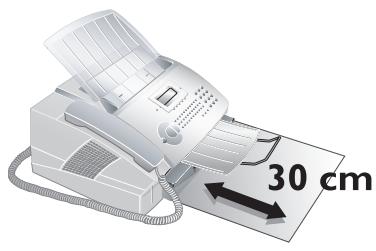
machine itself. Allow a space of at least 30 centimetres in front of the fax machine, since documents and print-outs are dispensed on the front side of the machine.
Always avoid direct sunlight as well as immediate proximity to heaters, air-conditioning units, radios, and television sets. If you use an additional cordless telephone, you should maintain a distance of at least 15 centimetres between the laser fax machine and the base station of the cordless device. Otherwise, acoustic disturbances may occur in the cordless telephone device.
Do not allow children to handle the fax machine without supervision. The packing materials should be kept out of the hands of children.
The area in which you operate the fax machine must be adequately ventilated, especially if the machine is used frequently. Set up your laser fax machine in such a way that the flow of the exhaust air stream points away from the work station.
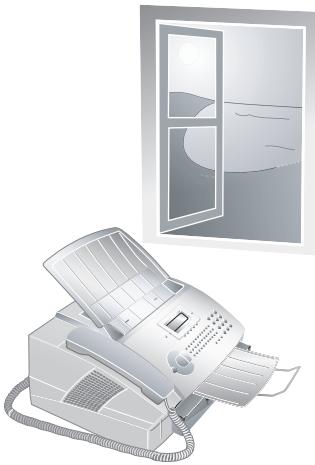
The fax machine may not be covered. Do not put your fax machine in closed cabinets or boxes. Do not place the machine on soft surfaces such as carpets or cushions and do not cover the ventilation slits. Otherwise, the fax machine can overheat and catch on fire. In the event that your fax machine becomes too hot, or
if you see smoke coming from the device, you must immediately pull the mains cable out of the power socket. Have your fax machine examined by trained professionals at a technical service location.
Do not connect the telephone cord or mains cable in areas where there is moisture of any kind. Never touch the mains cable, the mains connection or the telephone socket with wet hands.
Do not allow liquids or foreign parts to enter into the fax machine! Otherwise, people using the device are at risk to electric shocks. In addition, the fax machine itself could suffer serious damage. Should liquids or
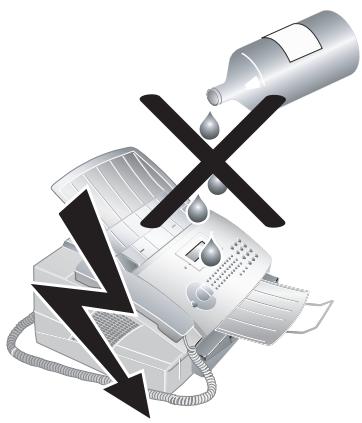
foreign parts nevertheless enter into the machine, you must immediately pull out the mains cable and have your fax machine examined by the trained personnel at a technical service site. Never leave your fax machine outside when it is raining. During a thunderstorm, you
should disconnect your fax machine from the electrical power source and from the telephone network. If that is not possible, then do not use your fax machine or make any telephone calls. Otherwise, there is a risk of lightning strikes to the user or damage to the fax machine. Before cleaning the surface of the fax machine, disconnect the device from the electrical power source and from the telephone network. Do not use any liquid or gaseous cleaning agents on your fax machine (sprays, abrasives, etc.) and do not employ cleaning agents that contain alcohol.
If the casing or the mains cable become damaged in any way, please pull the mains cable out of the power socket. Never touch telephone cords or mains cables that are not insulated or whose insulation
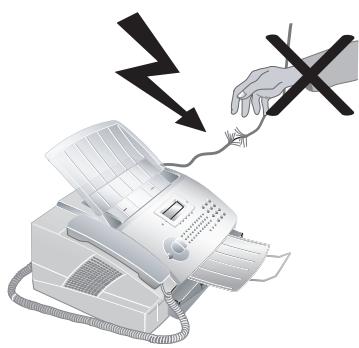
has been damaged without first disconnecting the telephone and mains cable from the network. Only trained personnel from a technical service location may open the housing of your fax machine.
Neither telephone nor fax will operate during power failure.
Never open the toner cartridge. If toner dust escapes, you should avoid allowing it to contact your skin and eyes. Store both new and used cartridges in a place where they will not come into the hands of children. In case of a paper jam, do not forcefully remove the paper, but rather carefully pull it out of the fax machine and throw it away carefully: It is possible that the toner may not be completely set on the print-out, and toner dust could be released into the air. Do not inhale the released toner dust. Remove the toner dust from clothing or objects with cold water; hot water would only cause the toner to set.
If the LCD should break, a mildly caustic liquid can escape. Absolutely avoid all contact with your skin and eyes.
Your fax machine has been tested in conformity with standards EN 60950-1 and IEC 60950-1 and should only be operated with telephone systems and power equipment that meet these standards. This fax machine was built exclusively for use in the indicated sales region. It conforms to the regulations of the telephone company of the country. Do not perform any other adjustments and do not carry out any other procedures apart from those described in this user manual.

Laser-Safety
Your fax machine operates with laser beams. Only a qualified service technician should open the fax machine and carry out service operations; otherwise there is a risk of eye injuries resulting from both visible and invisible laser radiation.
Class I laser product
Overview
Description of the Machine
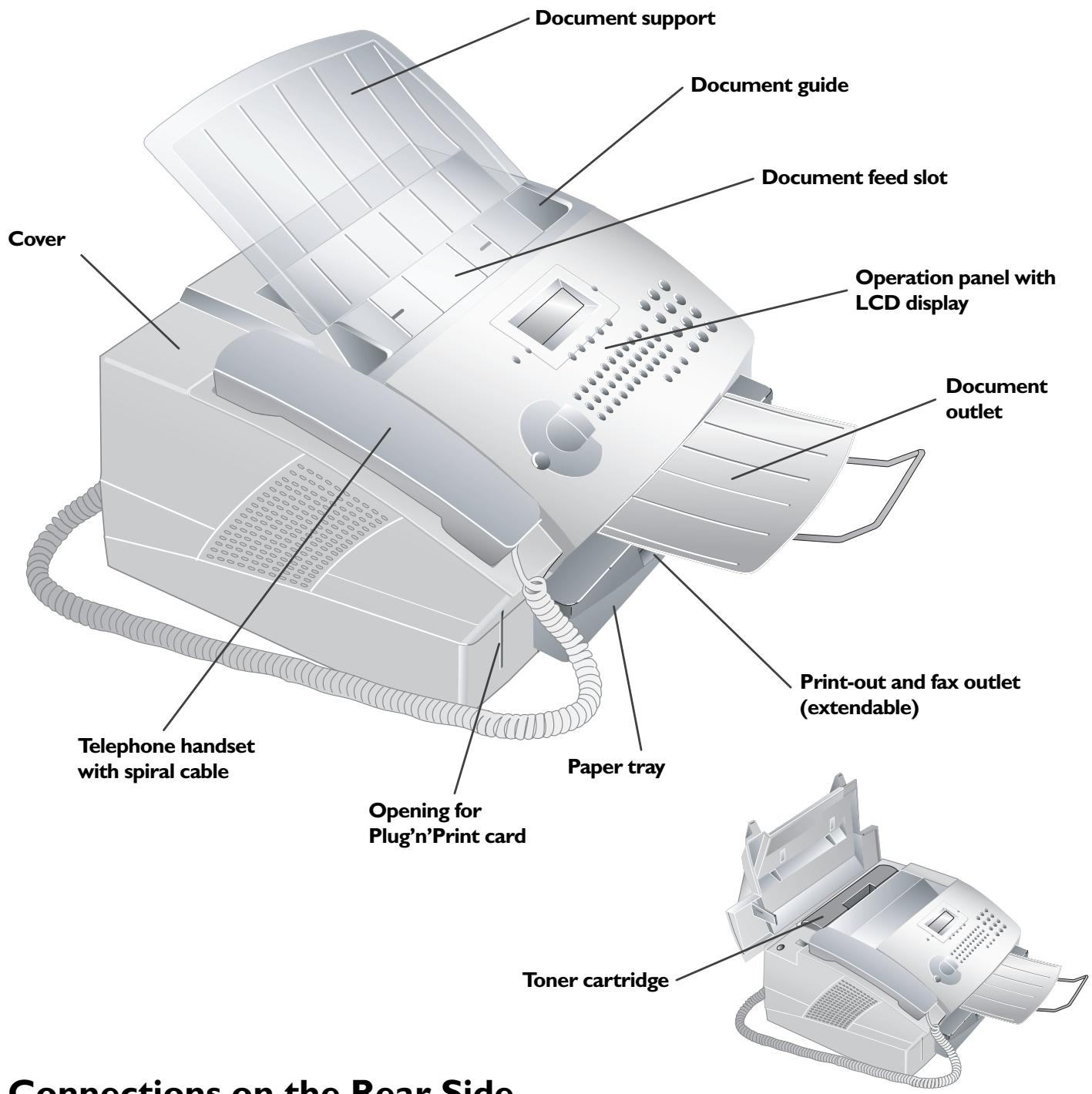
Connections on the Rear Side

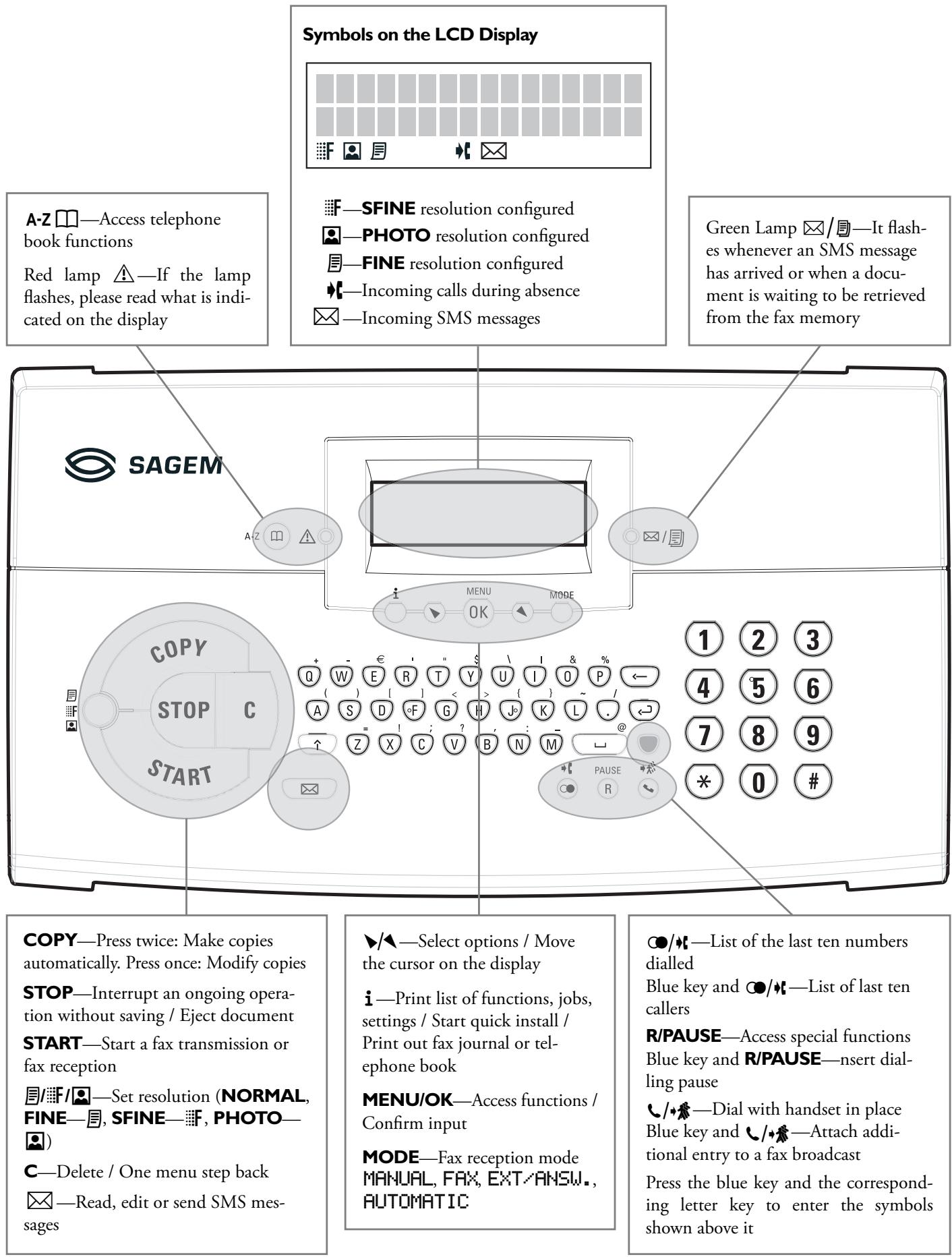
Operation Panel with LCD Display
Package Contents
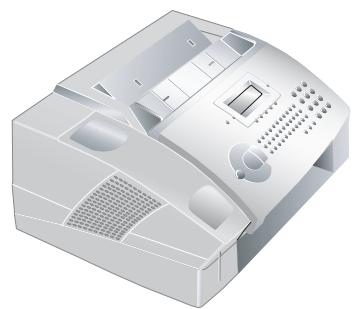
Fax machine
Paper tray
Document support
Document outlet tray
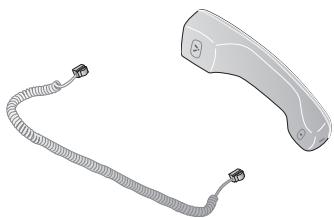
Telephone handset and spiral cable
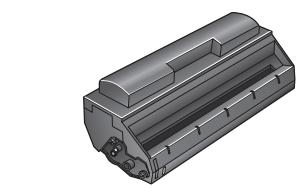
Starter cartridge
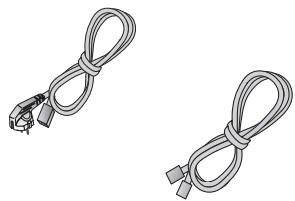
Mains cable
Telephone cable (specific to each country)
User manual
Installation guide
Installation CD (MF 3265)
I. Installation
Unpacking and Connecting
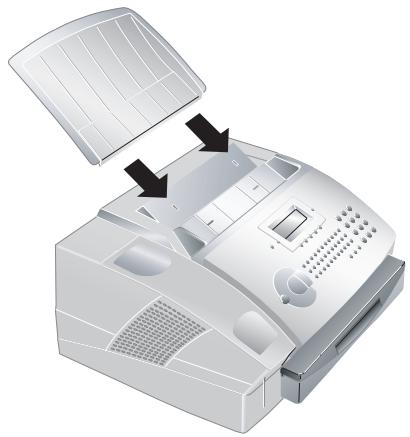
Attaching the Document Support
Insert the document support into the two openings in the cover. The document support should snap securely into place.
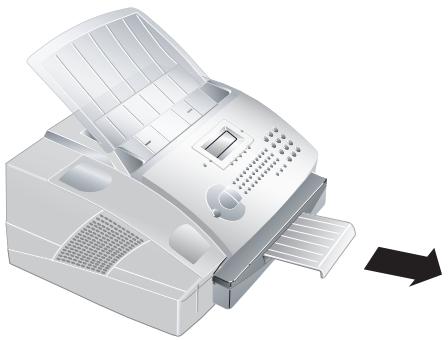
Extending the Print-out and fax outlet tray
Pull the print-out and fax outlet tray out of the paper tray cover.
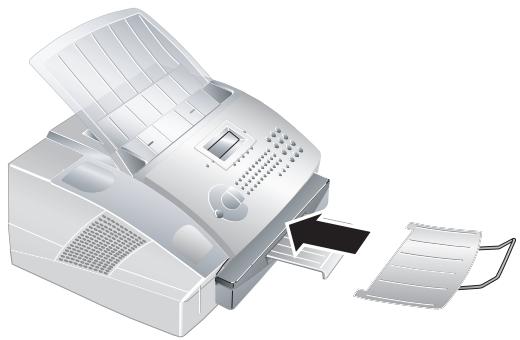
Attaching the Document outlet tray
Insert the document outlet tray into the two openings under the operation panel.
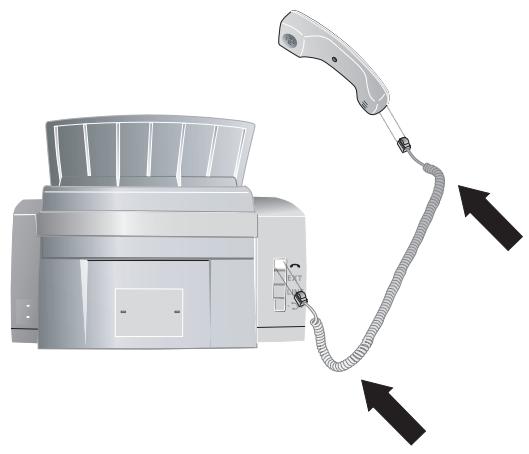
Connecting the Telephone Handset
Plug one end of the spiral cable into the socket on the telephone handset. Plug the other end of the spiral cable into the socket located on the rear side of the machine, which is designated by the symbol
Connecting the Telephone Cable
Connect the telephone cable to the fax machine by plugging it into the socket located on the rear side of the machine and designated by the word LINE. Insert the telephone plug into your PTT line socket.
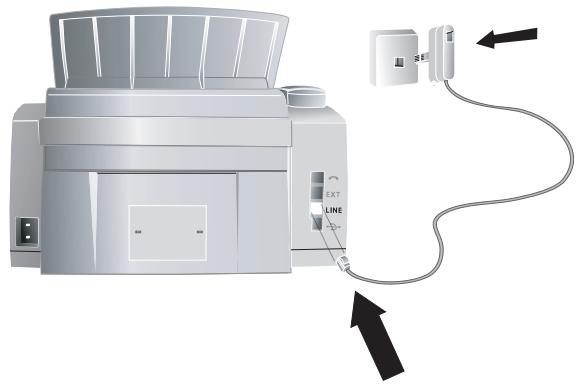
In GB
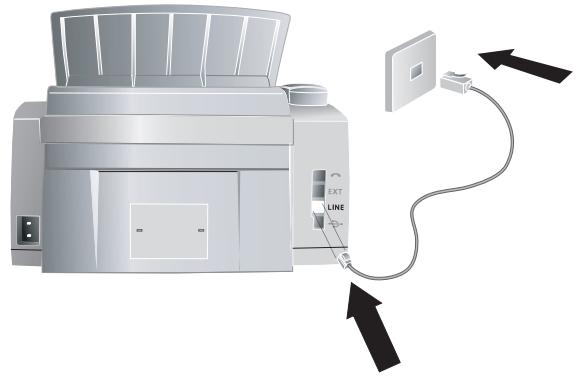
For all other countries
Connecting the Mains Cable
Insert the mains cable into the connection located on the rear side of the fax machine. Connect the mains cable to the electrical socket.
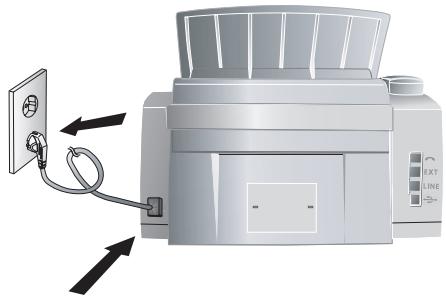
Once the fax machine is connected to the power supply, the quick install process will immediately commence. You will be asked to select your country and to enter your number and name as well as the date and time (see chapter on Settings). If you would like to perform a quick install again, simply press i , and select it with HELP PAGE 2: INSTALLATION Confirm with OK.
Toner Cartridge
NewToner Cartridge
Before you can receive documents, make copies, or print, a toner cartridge must be inserted into the fax machine. Fore this reason, a starter cartridge is supplied with the machine (this cartridge has a capacity of approximately 1,000 pages). The toner level memory for this starter cartridge was set at the factory. The starter cartridge need not be updated with a Plug'n'Print card. For each additional toner cartridge that you insert into your fax machine, you must update the toner level memory with the Plug'n'Print card provided.
Tip In order to guarantee a good print quality, use only original SAGEM toner cartridges. Other toner cartridges can cause damage to the fax machine. Use of other toner cartridges also voids the guarantee.
Open the cover by taking hold of both document guides and tipping the cover backward.
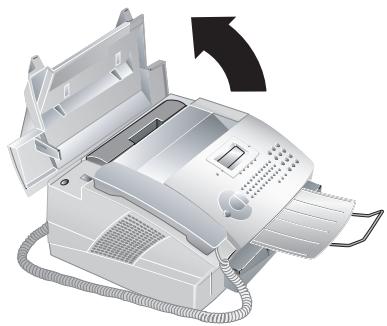
I. Installation
2 Remove the old toner cartridge, by gripping it at the recess in the middle and pulling it upward.
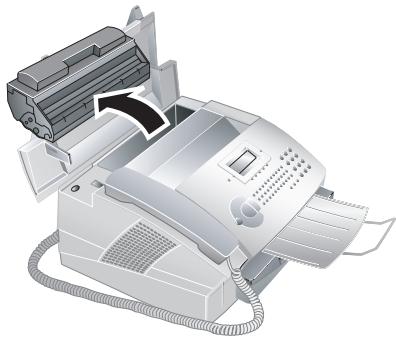
Tip Carefully remove the toner cartridge from the device so that no toner dust spills out. Take care where you place the toner cartridge, escaping toner dust may soil the surface.
Store opened or used toner cartridges in their original packing or in a plastic bag in order to prevent toner dust from escaping. Dispose of old toner cartridges by turning them in at specialised shops or at a waste collection site. Never dispose of toner cartridges by throwing them into fire. Toner cartridges should never be allowed into the hands of children.
Never open a toner cartridge. If toner dust is released into the air, you should avoid allowing it to contact your skin and eyes. Do not inhale the released toner dust. Remove the toner dust from clothing or objects with cold water; hot water would only cause the toner to set.
3 Take the new toner cartridge from the package.
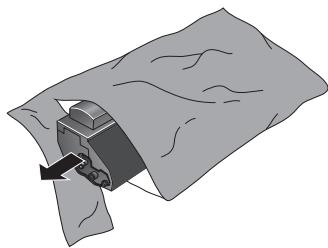
4 Remove the black protective foil and other packaging material, but do not yet remove the protective strip from the cartridge.
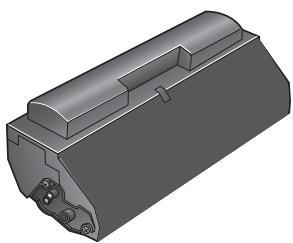
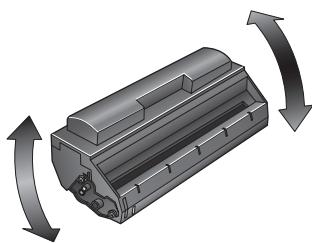
5 Shake the new toner cartridge back and forth several times in order to distribute the toner evenly, thereby improving the print quality.
6 Only after removing the other packaging, completely pull off the protection strip located on the left side of the cartridge.
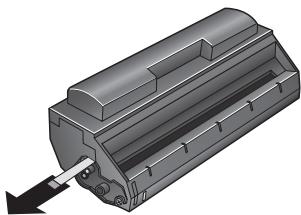
Once you have removed the protection strip, do not shake the toner cartridge any more. Otherwise, it is possible that toner dust will be released into the air.
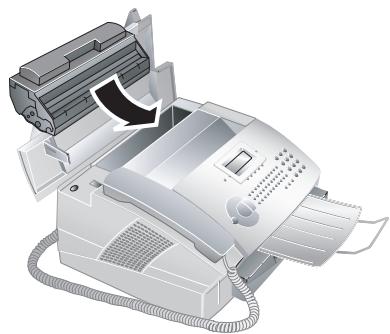
7 Place the toner cartridge into your laser fax machine. The cartridge should snap securely into position.
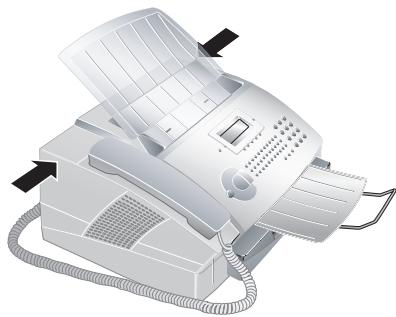
8 Close the cover. Make sure that the cover snaps securely into position on both sides.
9 NEW CARTRIDGE? appears on the display. Confirm with OK.
10 Wait until INSERT CARD appears on the display. Push the Plug'n'Print card of the new toner cartridge into the opening on the left side next to the paper tray, with the contacts facing to the left. (Only the starter cartridge can be used without inserting a Plug'n'Print card.)
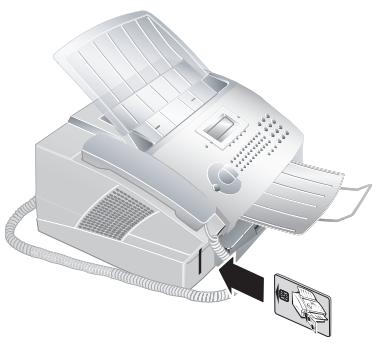
Tip Should the error message CANNOT READ CARD appear on the display, you may have inserted the Plug'n'Print card incorrectly. The contacts must face to the left as you insert the card into the machine.
It may take a moment to update the cartridge. When the process is completed, the following appears on the display:
ACTION COMPLETED REMOVE CARD
12 Pull the Plug'n'Print card out of the fax machine.
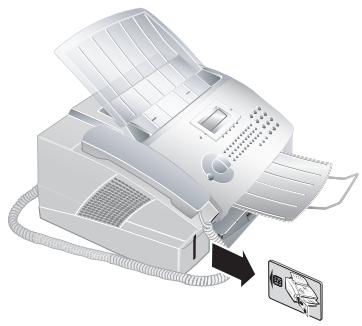
You can interrupt the recharging process at any time by simply pressing STOP. However, the toner level memory must be updated for each new toner cartridge. If you have pressed the STOP key by mistake, you can restart the recharging process as follows:
Press MENU/OK, ⑥② and OK
2 Select NEW BLACK with / , and confirm with OK. Select YESwith / . After a short time, the fax machine will ask you to insert the Plug'n'Print card.
If the toner level of your cartridge is low, then every time you open and close the cover, the following question will
appear on the display: BLACK=NEW? If you have not installed a new cartridge, press STOP. If you have installed a new cartridge, press OK and follow the description set forth above.
Displaying the Toner Level
Whenever you insert a new toner cartridge, you must update the toner level memory of your fax machine with the Plug'n'Print card that is included with the new cartridge. Your fax machine registers the extent of toner usage for every printout and calculates the toner level of the cartridge based on this. The indicated toner level is only meaningful if you update each new toner cartridge with the Plug'n'Print card provided.
Press MENU/OK, ⑥② and OK.
2 Select CART CAPACITY with / and confirm with OK. The toner level of the toner cartridge is indicated by a percentile value between 100 percent (full) and 0 percent (empty).
3 Pressing C will return you to the previous menu step; pressing STOP will return you to the root menu.
Paper
Before your fax machine will be ready to make copies or receive faxes, you must load paper into the machine. Use the following paper sizes: A4, 210 × 297 millimetres, letter, 216 × 279 millimetres ( 8.5 × 11 inches), or legal, 216 × 356 millimetres ( 8.5 × 14 inches). Your fax machine works with normal copier paper and with typewriter paper (60 to 90g / m^2 ). Please use only 90g / m^2 stock for legal-sized paper. You can use paper of all three sizes as input documents and as output paper.
Loading Paper Size A4
Pull out the paper tray.
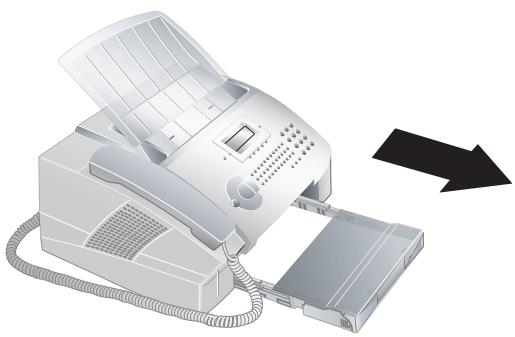
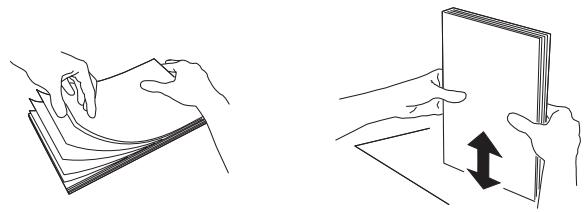
2 Separate the paper sheets by fanning them out, then align them by tapping edge of the stack lightly
against a flat surface. This will prevent several sheets of paper from being drawn in all at once.
3 Remove the cover from the paper tray. Put in only as much paper as will fit under the raised limit markers on the upper edge of the paper tray (see also the drawings on the cover of the paper tray). You can load up to 250 sheets into the paper tray.
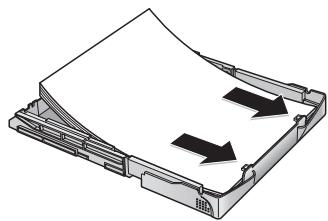
4 If you would like to print on an input sheet (for example, forms or stationery), place the input sheet face down in the paper tray, with the top of the page toward the rear.
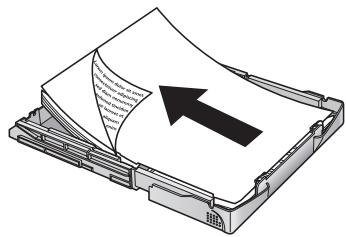
Tip Forms that have been printed out by a laser printer are not suitable for further printing. This can lead to a paper jam. If a paper jam should occur, follow the suggestions set forth in the chapter entitled Troubleshooting / Paper Jam.
5 Press the paper down until the lever (A) snaps into place at the rear of the paper tray.
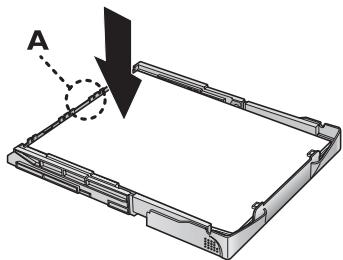
6 Place the cover back on the paper tray. Push the paper tray into the fax machine all the way to the stopping point.
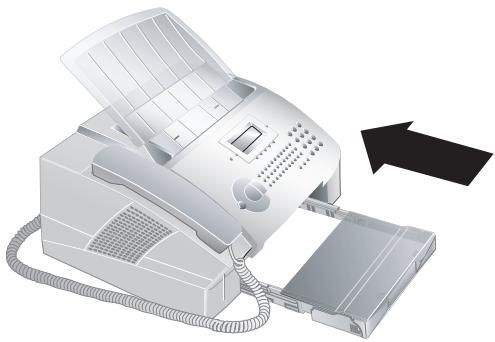
Do not pull out the paper tray while the fax machine is in the process of printing. This can lead to a paper jam. If a paper jam should occur, follow the suggestions set forth in the chapter entitled Troubleshooting / Paper Jam.
Loading Letter-sized or Legal-sized Paper
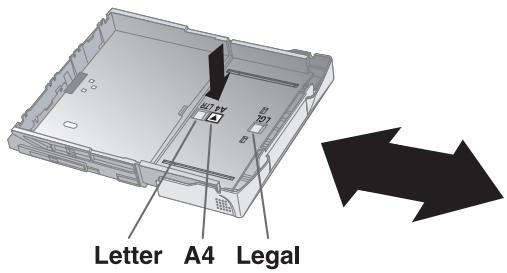
In order for you to be able to load paper into the paper tray in the letter or legal format, you must adjust the paper tray to accommodate these formats. You can set the width of the paper with the two movable borders located in the rear portion of the paper tray. The length of the paper tray can be set with the arrow key located at the bottom of the paper tray.
If you would like to copy from a document page onto a different paper size or if you are expecting faxes in either letter or legal format, the table will show you the percentage value for the enlargement or reduction.
For example, if you are going to receive a fax transmission in legal format that you would like to print out on paper size A4, then set the device to 83 percent.
| Output Document | A4 | Letter | Legal |
| A4 | 100% | 94% | 103% |
| Letter | 97% | 100% | 100% |
| Legal | 83% | 78% | 100% |
Adjusting the paper width: Pull out both of the side borders. Turn the borders around so that the imprint LTR faces inward toward the paper. Insert the side borders back into position; they must snap securely into place within the mountings. Always turn around both side borders!
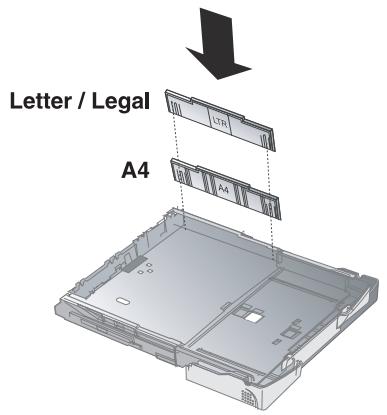
Now you can use letter-sized paper, as well as legal-sized paper since both formats have the same width. If you would like once again to use A4 paper, simply turn the side borders back around so that the imprint A4 can be seen.
2 Adjusting the paper length: Press the arrow key located at the bottom of the paper tray. Pull out the front portion of the paper tray until the arrow key locks into position at the point labelled LGL. Now you can load paper in legal format into the paper tray. Press the paper tray together until the arrow key snaps into position at the point labelled LTR; now you can load in paper in letter format. For A4 paper, the arrow key must be snapped into position within the field that is labelled as A4.
Special Telephone Connections
ISDN Systems
Your fax machine is an analogue fax machine (Group 3). It is not an ISDN fax machine (Group 4), and therefore it cannot be operated directly on an ISDN connection.
In order to do this, you need either an analogue adapter or a connection for analogue terminals. For additional information, please consult the user manual of your ISDN system or ask your telephone service provider.
Private Branch Exchange / PABX
Private branch exchanges (PABX) are customary in all larger businesses. Before making a telephone call or sending a fax, you must press an outside line access code in order to get a connection to the public telephone network from a private branch exchange.
Press MENU/OK, ①⑤ and OK. Select NETWORK TYPE with / . Confirm with OK.
2 Select PSTH or PABX with /
3 Confirm with OK. Pressing C will return you to the previous menu step; pressing STOP will return you to the root menu.
If you are operating the fax machine within a PABX, use function 15 to set the machine to the appropriate length for internal numbers and to set the code that must be dialled in order to access a public telephone line.
Press MENU/OK, ①⑤ and OK. Select PREFERRED with / . Confirm with OK.
2 Input the appropriate length for internal numbers. The default is 10. Delete the digits with the key. Assume the longest internal number, then add one digit to that. For example, if your direct dial numbers consist of four digits, then you should input ⑤.
3 Confirm with OK.
4 Input the outside line access code that is required in order to reach the public telephone network. In most cases, this will be ①. (If necessary, you may want to ask your telephone system provider.)
5 Confirm with OK. Pressing C will return you to the previous menu step; pressing STOP will return you to the root menu.
Tip Once these settings are in place, you will no longer need to prefix the outside line access code every time you enter an external number. The fax machine will automatically add the outside line access code in front of numbers that are longer than the configured direct dial numbers.
Additional Devices
You can connect other devices to your PTT line apart from your fax machine, for example, cordless telephones, answering machines or modems. If you would like to utilise special peripheral equipment with your fax machine, you should contact your dealer. For GB: As long as the Ringer Equivalent Number (REN value) on the line doesn't exceed 4. The REN value of this device is 1.
If you are using cordless telephone with SMS function on the same connection, then the specific device at which you will receive and SMS message will depend on the specific manufacturer. Only one of the devices will receive the SMS message. Try to turn off the SMS reception on your cordless telephone.
Connection to the Fax Machine
You can connect additional devices directly to your fax machine. In particular, you may connect external answering machines in the following manner: Plug the telephone cable of the peripheral device into the EXT socket (RJ-11 connection) of your fax machine.
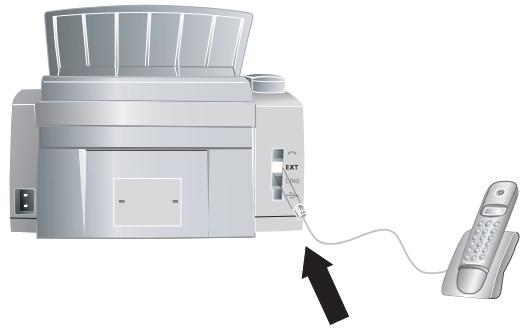
If you connect your peripheral device via the EXT socket, the fax switch of the machine will function optimally and will be able to control the peripheral devices (see the chapter Settings / Fax Reception Mode).
Connection to the Telephone Line
You can connect additional devices to the same telephone socket. Make sure the fax machine is the first device connected to the line.
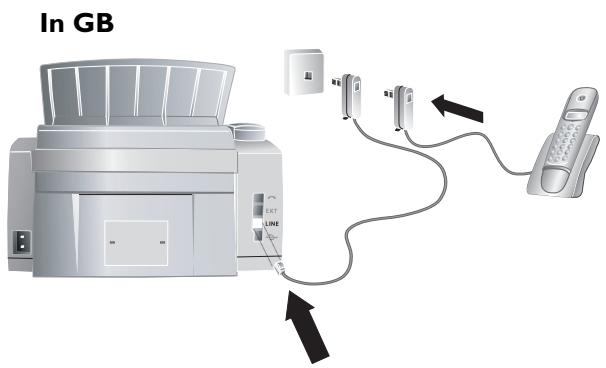
You can connect additional devices to separate sockets on the same line even if they are in different rooms
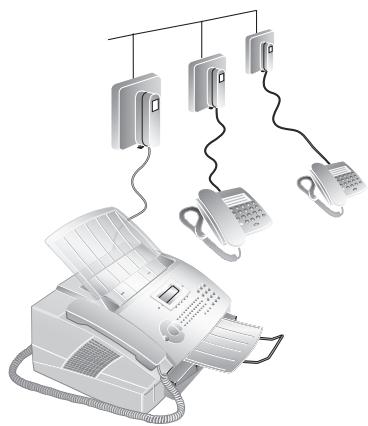
In GB
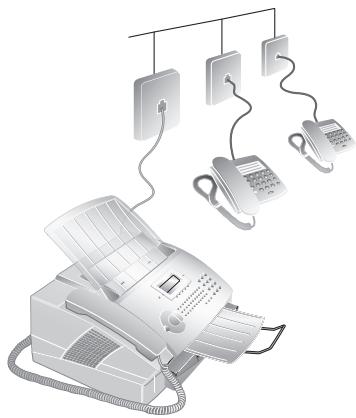
For all other countries
Easylink
The Easylink function provides assistance in the use of external devices that are connected to the same telephone line. To this end, additional telephones must be set to the tone dialling mode (DTMF tones). Refer to your telephone's user manual to determine how you may set your device to the tone dialling mode.
Starting Fax Reception
If you lift up the handset on the fax machine and hear a whistling tone or silence, you are receiving a fax call. Press START and then hang up. The fax machine is receiving a fax transmission.
If you get a fax call and pick up the handset at an additional telephone—rather than the fax machine itself—then press (串) 5 , in order to start the fax reception.
Interruption of Ringing
If you pick up the handset at an additional telephone that is connected to another telephone socket and the fax machine continues to ring, you can disconnect the fax machine from the telephone call by pressing 串 on the additional telephone.
2. Settings
When needed, your fax machine can print out lists containing the most important functions and settings of the machine. Press the key i on the fax machine. Select with / whether you would like to print out the HELP PAGE 1: FUNCTIONS LIST or the HELP PAGE 5: SETUP. Confirm with OK. You can also print out the function menu by pressing MENU/OK, ④① and OK. The list of settings can also be printed out by pressing MENU/OK, ④④ and OK.
Tip Open the menu functions with MENU/OK. Return to the previous menu step by pressing C. Move the cursor on the display with / . Delete single numbers and letters with C or . To interrupt an operation in progress and return to the root menu without saving, press STOP.
Setting the Country
Use function 11 to select the specific country in which you will be operating your fax machine. It is essential to select the country because otherwise your fax machine will not have the correct settings for the local telephone network.
Press MENU/OK, ①① and OK.
2 Select the country by pressing /
3 Confirm with OK. Pressing C will return you to the previous menu step; pressing STOP will return you to the root menu.
Setting the Language
Press MENU/OK, ①② and OK to set the language on the display.
2 Select the desired language by pressing /
3 Confirm with OK. Pressing C will return you to the previous menu step; pressing STOP will return you to the root menu.
Setting the Date and Time
To set the date and time on the display, press MENU/OK, ①③ and OK.
2 Enter the date and time in the following manner: ①⑧ ①⑧ ①⑤ ①④ ①⑩ for August 8th, 2005, 2:00 pm.
3 Confirm with OK. Pressing C will return you to the previous menu step; pressing STOP will return you to the root menu.
Entering Your Telephone Number and Name
Your number and name, entered using function 14, will appear in the page header of every fax you send and as the sender identification of your SMS messages. In each case, up to 20 different characters are available to you.
Press MENU/OK, ①④ and OK.
2 Enter your fax number with the number keys, for example, ①②④④①②③④⑤... To enter a plus sign, simultaneously press the blue key and Q. You may add a space by pressing the key. Confirm your entry by pressing OK.
3 Enter your name using the letter keyboard. To enter capital letters, press and the desired key simultaneously. You may add a space by pressing the key. The symbols are displayed directly above the letter keys. To enter symbols, press the blue key and the corresponding letter key simultaneously. It is not possible to insert a symbol as the first character of your name.
4 Confirm with OK. Pressing C will return you to the previous menu step; pressing STOP will return you to the root menu.
Page Header
Your name and number appear in the page header of each fax transmission. If you do not wish to send out your information, you can turn this function off.
Press MENU/OK, ①⑥ and OK.
2 Select TX HEADER with / and confirm with OK.
3 With / , select whether or not the page header should appear on every fax transmission.
4 Confirm with OK. Pressing C will return you to the previous menu step; pressing STOP will return you to the root menu.
Ring Tone
Volume
With the function 18, you can set the volume of the ring tone. Three different levels of volume are available to you. To turn off the ring tone entirely, select OFF. Your fax machine will automatically receive incoming faxes without ringing. If your fax machine is set to the manual reception mode, you can neither hear nor receive incoming fax calls (see chapter entitled Setting the Fax Reception Mode).
Press MENU/OK, ①⑧ and OK.
2 Select the desired volume level with / . You have three levels of volume available to you (LOW, ME- DIUM, HIGH) or OFF.
3 Confirm with OK. Pressing C will return you to the previous menu step; pressing STOP will return you to the root menu.
Resolution
With the / F / key, you can set the resolution for fax reception or for fax transmission. The symbol of the selected resolution appears in the display:
NORMAL—for documents without special features
FINE-for documents with small print or drawings
F/SFINE— for documents with many details
PHOTO-for photographs
Tip With function 16, you can select the default resolution setting. Press MENU/OK, ① 6 and OK. Select SCANNING MODE with / then press OK. Select the desired resolution and confirm with OK. Pressing C will return you to the previous menu step; pressing STOP will return you to the root menu.
Protected Fax Reception
You can secure your fax reception with a code. In that case, incoming faxes are not printed out, but rather are stored in the fax memory. Only after entering a PIN code can you print out these fax transmissions. With function 27, you can input a PIN code, activate the secured fax reception mode or print out stored fax transmissions.
Entering the PIN Code
Press MENU/OK, ②⑦ and OK.
2 Select ANSWER CODE with / and confirm with OK. Enter a four-digit PIN code.
3 Confirm with OK. Pressing C will return you to the previous menu step; pressing STOP will return you to the root menu.
Activation/Deactivation
Press MENU/OK, ②⑦ and OK.
2 Select ACTIVATION with / and confirm with OK.
3 Enter the four-digit PIN code and confirm by pressing OK. Select WITH or WITHOUT with / .
4 Confirm with OK. Pressing C will return you to the previous menu step; pressing STOP will return you to the root menu.
Printing Out Fax Transmissions
Press MENU/OK, ②⑦ and OK.
2 Select PRINT with / and confirm with OK. Enter the four-digit PIN code.
3 Confirm with OK. The stored fax transmissions are printed out and deleted from the fax memory. Pressing C will return you to the previous menu step; pressing STOP will return you to the root menu.
Locking the Machine
With the locking function, you can prevent unauthorized persons from using your fax machine. You can lock either the entire keyboard or the number pad of your fax machine.
Entering the Code
You must first enter a code for activating or deactivating the lock.
Press MENU/OK, ⑥① and OK.
2 Select LOCKING CODE with / and confirm with OK.
3 Enter a four-digit code and confirm by pressing OK.
4 Enter the code again for confirmation purposes, then press OK. Pressing C will return you to the previous menu step; pressing STOP will return you to the root menu.
If you have already saved a code, the device will ask you to provide the old code first before you can enter a new code.
Locking the Keyboard
Press MENU/OK, ⑥① and OK.
2 Select LOCK KEYED. with / and confirm with OK.
3 Enter the four-digit locking code and confirm by pressing OK. Select WITH with /
4 Confirm with OK. Pressing C will return you to the previous menu step; pressing STOP will return you to the root menu.
All of the keys on the fax machine are now locked. Only after entering of the correct code will it be possible to access functions or enter numbers. The lock will turn itself on again after each use of the fax machine. You can cancel the keyboard lock by repeating this process and selecting WITHOUT under step 3.
Locking the Number Pad
Press MENU/OK, ⑥① and OK.
2 Select LOCK NUMBER with / and confirm it by pressing OK.
3 Enter the four-digit locking code and confirm by pressing OK. Select ONLY DIRECT, with / .
4 Confirm with OK. Pressing C will return you to the previous menu step; pressing STOP will return you to the root menu.
The number keys on the fax machine are now locked. You can cancel the lock on the number pad by repeating this process and selecting FREE under step 3.
Energy Saving Mode
Your fax machine switches into the energy saving mode by default. It is not necessary for you to set the device to this mode. Whenever you receive a fax or if you would like to print or make a copy, your fax machine will automatically switch back from its energy saving mode to its operating mode.
Setting the Fax Reception Mode
The built-in fax switch makes it possible to carry on a telephone conversation, send and receive faxes, and run additional devices on a single telephone PTT line. Four different operating modes are available to you: FAX, EXT-ANSW. (answering machine), AUTOMATIC or MANUAL.
Press the MODE key to select the desired operating mode. The selected fax reception mode appears on the display.
Setting the Number of Rings
The fax switch of your machine distinguishes between fax transmissions and telephone calls. Furthermore, the fax switch can also control additional devices that you have connected to your fax machine through the EXT socket. You can set the number of ring signals for the fax reception mode with function 17.
Press MENU/OK, ①⑦ and OK.
2 Use to select from the list of possible ring settings. You can set between 0 and 5 rings.
3 Confirm with OK. Pressing C will return you to the previous menu step; pressing STOP will return you to the root menu.
Manual Mode
In the MANUAL mode, your fax machine behaves like a normal telephone. If you receive a fax call, you must start fax reception manually (either a whistle tone or silence will be heard in the handset). In order to receive the fax, you must press START. Automatic reception is not possible with this setting. The MANUAL mode is useful if you would like to receive faxes on a connected computer.
Fax Mode
In the FAX mode, the machine will ring for as many times as you have set with function 17. Then the fax reception switches on. You should select this mode if you primarily receive faxes at your fax machine.
If you lift up the handset on an additional telephone that is connected to the EXT socket, and you hear that you are receiving a fax call (whistling tone or silence), you can start the fax reception process by pressing ⑤ or by pressing START on the fax machine.
EXT/Answering machine Mode
You should set the device to this mode if you have additional devices connected to the EXT socket of your fax machine, especially an external answering machine. In the EXT-ANSW. mode, your fax machine works in the same way as in the MANUAL mode. If an additionally connected answering machine receives a call, your fax machine will check to determine whether or not the incoming call is a fax transmission. If the device recognises a fax signal, it will automatically receive the fax transmission. If you do not have an answering machine connected or if a connected answering machine does not accept the call, the fax machine will take over the call after a predetermined number of rings and automatically receive any possible fax transmission being sent.
If you lift up the handset on an additional telephone that is connected to the EXT socket, and you hear that you are receiving a fax call (whistling tone or silence), you can start the fax reception process by pressing ⑤ or by pressing START on the fax machine.
Automatic Mode
If the AUTOMATIC mode is active, the fax machine will check to determine whether the incoming call is a fax transmission or a telephone call. The fax machine will automatically receive fax transmissions. While the fax machine is checking the call, it continues to ring. You can accept telephone calls at any time. After a predetermined number of rings, the fax machine will take over the call and automatically receive a possible silent fax transmission.
If you pick up the handset on an additional telephone that is connected to the same line and the fax machine
continues to ring, you can disconnect the fax machine from the telephone call by pressing (串) on the additional telephone.
Tip To use this function, additional telephones must be set to the tone dialling mode (DTMF tones). (See the chapter entitled Installation / Easylink).
3. Telephone
Making a Telephone Call
Dial the desired number, then pick up the handset. If you are loading entries from the telephone book, it is possible to edit the numbers after you have loaded them. For example, you can add or delete prefixed numbers or direct dial numbers.
To dial without lifting up the handset, press 心 /心。You will hear the dial tone from the loudspeaker; the dialling process will commence immediately.
You can also lift up the handset first, then dial a number; the connection will be made immediately. At this stage, any numbers that have been incorrectly entered can no longer be changed.

Move the cursor on the display with / . Delete individual numbers and letters with
C or . To interrupt an operation in progress and return to the root menu without saving, press STOP.
Redialling
The last ten numbers dialled are stored in the radial list.
Press
2 Select the desired number by pressing / . To edit the number, press OK. Move the cursor with / ; use C to delete individual digits.
Pick up the handset; the dialling process begins.
The Telephone Book
With the A-Z key, you can access the telephone book functions. You can store new entries, search for entries as well as set and edit groups. Your fax machine's memory will hold approximately 200 entries; the exact number depends on the length of the names and numbers. The entries can be up to 20 characters in length.
Saving New Entries
Press A-Z.
2 Select ADD HAME with / and confirm by pressing OK.
3 Enter a name using the letter keyboard. To enter capital letters, press and the desired key simultaneously. You may add a space by pressing the key. The symbols are displayed directly above the letter keys. To enter symbols, press the blue key and the corresponding letter key simultaneously. It is not possible to insert a symbol in the first space for a name. Confirm with OK.
4 Enter the number using the number pad. Press the blue key along with for a plus sign; use the key to add a space. Confirm with OK.
5 Select the speed for fax transmissions to this recipient. Normally you can select the highest speed. When poor connection quality is known beforehand—with an overseas fax recipient, for example—you should select a slower speed in order to save time and telephone costs for the automatic adjustment.
Using the Telephone Book
Press A-Z
2 Select SEARCH with / and confirm by pressing OK.
3 Enter the initial letters or select an entry from the list by using /
4 Lift up the handset, or—if you would like to send a fax—press START.

The function SEARCH works even while you are conversing on the telephone.
Editing Entries
Press A-Z
2 Select MODIFY with / and confirm by pressing OK.
3 Enter the initial letters or select the entry you would like to change with / . Confirm with OK.
4 Change the stored name, the number and the transmission speed. Move the cursor with / . Delete individual letters or numbers with C , or with .
5 Confirm the changes by pressing OK.
Deleting Entries
Press A-Z.
2 Select CANCEL with / and confirm by pressing OK.
3 Enter the initial letters or select the entry you would like to delete with / , then press OK.
4 Confirm the deletion by pressing OK.
Quick Search
You can access the stored directory entries by using the letter keyboard. If your fax machine is in the root menu, enter the initial letters or the name of the desired entry. Your fax machine will show you the telephone book entries for the corresponding letters. Select the desired number by pressing / . Lift up the handset, or—if you would like to send a fax—press START.
Groups
You can combine several telephone book entries into a single group. If you select this group as the recipient of a fax or an SMS message, the transmission is sent to all the members of the group (see the chapter entitled Fax / Broadcasting). Your fax machine can store ten different groups.
Creating Groups
Press A-Z.
2 Select ADD LIST with / and confirm your selection by pressing OK.
3 Enter a name for the group. Confirm your entry by pressing OK.
4 Press A-Z and add entries from the telephone book. Enter the initial letters or make your selection with Confirm by pressing OK. Press A-Z and add additional recipients to the group. Terminate the entry process by pressing OK.
5 Enter a group number from ① to ⑨ and confirm your entry by pressing OK. The group is now saved.
Editing a Group
Press A-Z.
2 Select MODIFY with / and confirm by pressing OK.
3 Select the group that you would like to edit by pressing / . Confirm with OK.
4 If necessary, enter a new name for the group. Confirm with OK.
5 You can delete or add entries. Move the cursor with / ; use C to delete individual recipients. To add a recipient from the telephone book, press A-Z. Confirm with OK.
6 If necessary, enter a new number for the group. Confirm with OK.
Deleting a Group
Press A-Z.
2 Select CANCEL with / and confirm by pressing OK.
3 Select the group that you would like to delete, then press OK.
4 Confirm the deletion by pressing OK.
Chain Dialling
Before the dialling process begins, you can freely combine and edit telephone book entries, manually entered digits, numbers from the radial list or numbers from the caller list. For example, if you have saved the telephone number prefix of an inexpensive telephone service provider (call-by-call) as a telephone book entry, select this entry and manually enter the subsequent telephone number or select another number from the telephone book, the radial list or the caller list.
Printing the Telephone Book
Your fax machine can print out a list of the stored telephone book entries and groups. Press A-Z [ ] and select PRINT with . Confirm with OK. The list is printed.
Tip You can also obtain a print-out of the telephone book by pressing i, then selecting HELP PAGE 4: DIRECTION with /A . Confirm with OK. The list is printed.
Additional Telephone Services
You can use additional telephone services with your fax machine, for example, call waiting, call toggling and call forwarding. To do this, these services must be enabled for your telephone line. To find out whether or not these services are available for your telephone line and to learn how you can make use of them, contact your telephone company. Press the R/PAUSE key, to access the additional telephone services on your fax machine.
Calling Line Identification
Depending on the country and telephone network)
Your fax machine will show a caller's telephone number before you pick up the handset. To make use of this function, Calling Line Identification Presentation (CLIP) must be enabled for your telephone line. Contact your telephone company to inquire about whether or not this additional function is available for your line. The number will not be shown if the caller suppresses his number.
If you receive a telephone call during your absence, the symbol will appear. The caller's number will appear in the display. Your fax machine will store the telephone numbers of the last ten calls.
Press the blue key and / . The list of the last ten callers will appear on the display.
2 Select an entry by pressing / . New entries are marked with a star “*”.
3 To call back, pick up the handset.
Tip If the number of the rings has been set to zero with function 17, then the telephone numbers of callers who have directed their calls to additionally connected telephones are not shown.
4. Fax
As much as possible, use fax documents printed with darker coloured text (black or dark-blue). Yellow, orange and green are not suitable.

Do not place any documents in your laser fax machine that ...
... are wet, that have been edited with correction fluid, that are soiled or that have a coated surface. Do not place foils or endless papers into your fax machine as documents.
... that are written on with a soft pencil, with paint, chalk or charcoal.
... that you have taken from newspapers or magazines (printer's ink smudges!).
... that are held together with office or notebook staples or with tape or glue. Place into your fax machine only single sheets without paper clips or adhesive binding of any sort.
... that are pasted with note papers.
... that are too thick or too thin (card stock or tissue paper).
... that are creased, crumpled or torn
Use documents of sizes A4 (210×297 millimetres), letter (216×279 millimetres) or legal, (216×356 millimetres), with 60 to 90g / m^2 . You will find a table listing sizes in the chapter entitled Installation / Paper. Do not use any documents that are smaller than A4. You can put in up to 20 documents at a time.
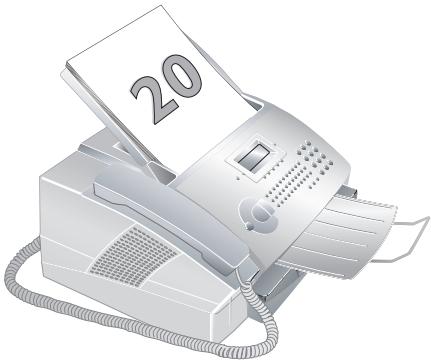
Inserting Documents

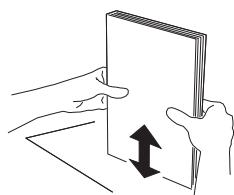
Separate the documents by fanning them out, then align them by tapping the edges. The stack gently against a flat surface. This will print several sheets of paper from being drawn at once.
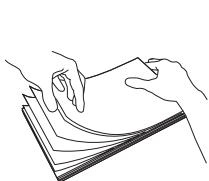
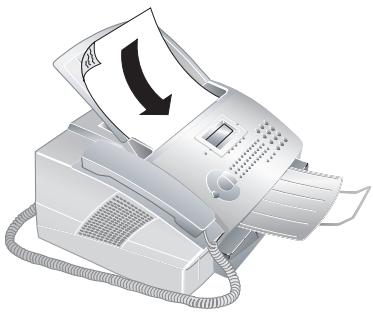
Insert the document face down into the document feed slot. The lower most document is sent first.
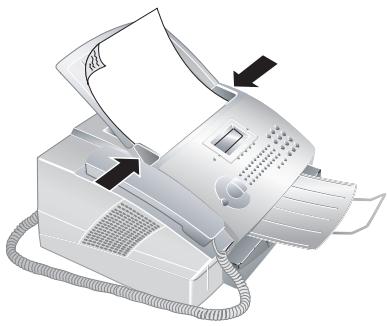
2 Push the document guide inwards, so that it lies level on the documents.
Press STOP to eject the document without sending it.
Sending a Fax
Dial the desired fax number. You can enter a number with the number pad, or you can select an entry from the telephone book, the radial list or the caller list:
Manual entry: Enter the number using the number pad.
Telephone book: Press A-Z [□], select SEARCH and confirm with OK. Select the desired number by pressing / .
Redial list or caller list: To select a number from the redial list, press / and / . To select a number from the caller list, press the blue key and / and / .
2 To start the fax transfer, press START.
If the connection to the fax recipient cannot be made—for example because the line is busy—your fax machine will try to make that connection again after short time. After two additional attempts, the fax machine will discontinue the automatic radial process. If you would like to terminate the radial process prior to this, press STOP.
Tip The contrast setting is automatically adjusted to the document. If you would like to specify the contrast yourself, use function 24, time-deferred sending.
Manually Sending a Fax
If the fax memory is full, no additional fax documents can be read in. However, you can still send faxes manually:
Insert the document as described under Inserting Documents.
2 Lift the handset or press the loudspeaker key
3 Enter the desired number or select an entry from the telephone book, the redial list or the caller list.
4 Press START. Hang up the handset. The document will be scanned and sent.
Speed
The device adjusts the transmission speed to the quality of the telephone line. You can normally use the highest speed. If you would like to select a lower speed, for instance to send a fax overseas, set this using function 21 before sending the fax. This saves time and money that would result from the automatic adjustment.
Press MENU/OK, ②① and OK.
2 Select the desired speed with / .
3 Confirm with OK. Pressing C will return you to the previous menu step; pressing STOP will return you to the root menu.
Transmission Report
Your fax machine will print you a transmission report—depending on its settings—after it has sent out a fax. This report indicates whether or not the fax has reached the intended recipient. Four different settings are available for the transmission report.
Press MENU/OK, ②⑤ and OK. Select one of the following options:
WITH—After every error-free fax transfer, a transmission report is printed out. A transmission report is also printed in cases in which a fax transfer is not successfully completed because the recipient's line is busy.
WITHOUT—No transmission report will be printed. However, the fax machine will nonetheless save all fax transfers in its memory. You can print out the transmission report by using the fax journal.
ALWAY'S—The transmission report will be printed out after each successful fax transfer as well as after interrupted transfers.
ON ERROR—The transmission will only be printed out if the fax transfer was not successfully completed or if it was terminated prematurely.
2 Confirm with OK. Pressing C will return you to the previous menu step; pressing STOP will return you to the root menu.

These settings also apply to SMS transmission reports.
Fax Reception
If you have not changed the factory settings, received faxes will be printed out automatically. If there is no paper in the paper tray or if you have not inserted a toner cartridge, the fax machine will save all incoming faxes in its memory. The fax memory can store up to 120 pages.
The green lamp on the operation panel will flash whenever there is a fax present in the fax memory. After you have loaded paper into the fax machine or inserted a new toner cartridge, press START to print out the stored faxes.
Sorted Print-Outs
If your fax machine receives fax transmissions with multiple pages, it will sort the pages as it prints them out. The pages that were received last will be dispensed first. You have the option of turning this function off:
Press MENU/OK, ②⑧ and OK.
2 Select SORTED PRINT with / , then press OK. Select WITHOUT with / . Select WITH to turn on the function.
3 Confirm with OK. Pressing C will return you to the previous menu step; pressing STOP will return you to the root menu.
Printing Multiple Copies
You can apply settings to your fax machine whereby multiple copies of fax transmissions are printed out upon reception.
Press MENU/OK, ②⑧ and OK.
2 Select NBR OF COPIES with / and confirm by pressing OK. Enter a value between 1 and 99.
3 Confirm with OK. Pressing C will return you to the previous menu step; pressing STOP will return you to the root menu.
Time Stamp
The machine prints the date and the exact arrival time on every incoming fax received. This allows you to document the exact time at which you have received a fax transmission. A memory buffer in the fax machine ensures that the correct date and time of reception will be maintained even after a power loss.
If the time stamp function is activated, incoming faxes will be stored in the fax memory. As soon as the last page has arrived, the arrival time is stored and the fax machine prints out all the pages. The stored date and the time will appear on the page header.
If you would like to turn this function off, press MENU/OK, ②⑥ and OK.
2 Select WITHOUT with / . Select WITH to turn the function on.
3 Confirm with OK. Pressing C will return you to the previous menu step; pressing STOP will return you to the root menu.
Broadcast Transmissions
You have two options for sending a fax transmission to several recipients: You can either enter the numbers of the individual recipients one-by-one or you can select a group from your telephone book. In the latter case, your fax machine will send the fax to all members of this group: You cannot edit the individual entries.
Broadcast Transmissions to Individual Recipients
Insert the document face down into the document feed slot. The lower most document is sent first.
2 Enter a number using the number pad, or simply select an entry from the telephone book. Press A-Z [ ] select SEARCH and confirm with OK. Make your selection from the list of entries with / . You can also select numbers from the radial list or from the caller list. Press C#/# or the blue key and C#/#, then select the desired number with / .
3 Press the blue key and / + Using the number keyboard, add additional numbers manually—either from the telephone book, the radial list or the caller list. You can enter up to ten numbers. Between the individual recipients, press the blue key and / +
4 To begin the fax transfer, press START. You can interrupt the process at any time, by pressing STOP.
Broadcast Transmissions to a Group
Insert the document face down into the document feed slot. The lower most document is sent first.
2 Select a group from the telephone book. Press A-Z [ ] , select SEARCH and confirm with OK. Select a group by pressing /
You can enter additional groups or individual numbers. Press the blue key and / + . Select an additional group or choose entries from the telephone book, the radial list or the caller list; alternatively, you may enter additional numbers manually using the number pad.
3 Confirm with OK.
4 To begin the fax transfer, press START. You can interrupt the process at any time, by pressing STOP.
If your fax machine is not able to reach one of the recipients because the line is busy or if the connection cannot be made, the document will still be sent to the other recipients on the list. After the fax machine has dialled the numbers of all recipients, it will try again to call the recipients who were not reached on the first attempt.
Time-Deferred Sending
With this function, you can send fax transmissions at a later time—within a 24-hour period. For example, you can use this feature to take advantage of better telephone rates or to send a fax to a recipient who can be reached only at certain times.
Insert the document face down into the document feed slot. The lower most document is sent first.
2 Press MENU/OK, ②④ and OK.
3 Enter the desired number or select an entry from the telephone book, the radial list or the caller list.
Tip You can enter additional recipients and send the fax transmission as a broadcast by pressing the blue key and /
4 Confirm with OK.
5 Enter the time at which the document should be sent, for example ①④⑩⑩ for 2:00pm. Confirm with OK.
6 Select the desired contrast with / . Confirm with OK. After a short warm up phase, the fax machine will read the document into the fax memory and will send out the fax at the specified time.
To cancel a scheduled fax transmission, simply delete the document from the jobs list. Press MENU/OK, ⑤③ and OK. Select the fax transmission that you would like to delete by pressing and confirm your selection by pressing OK (see also the chapter entitled Jobs). Pressing C will return you to the previous menu step; pressing STOP will return you to the root menu.
Fax Polling
With the fax polling function, you can retrieve documents that lie ready in a dialled fax machine. It also is possible to prepare documents in your fax machine that can be polled by other machines.
Immediate Polling
Press MENU/OK, ②② and OK.
2 Enter the number from which you would like to poll a fax or select an entry from the telephone book, the radial list or the caller list. Press START.
Time-Deferred Polling
Press MENU/OK, ②② and OK.
2 Enter the number from which you would like to poll a fax or select an entry from the telephone book, the radial list or the caller list. Press OK.
3 Enter the time at which the document should be polled, for example ①④⑩⑩ for 2:00 pm. Press OK.
4 Select the desired contrast with / . Press OK. The fax machine is ready to poll the document. The number will now appear on the display as well as the time at which the machine will poll the fax transmission. You can continue to carry on telephone conversations or send other fax transmissions during this time.
Polling Send
You can prepare documents in your fax machine that can be polled by other machines.
Insert the document face down into the document feed slot. The lower most document is sent first.
2 Press MENU/OK, ②③ and OK.
3 Select either SIMPLE or MULTIPLE with / . With the setting SIMPLE, the document can be polled only once. If you select MULTIPLE, the document can be freely polled any number of times. Confirm with OK.
4 Select the desired contrast with / . Press OK. After a short warm up phase, the fax machine will store the document in the fax memory.
To terminate the polling readiness, simply delete the document from the jobs list. Press MENU/OK, ⑤③ and OK. Select the fax transmission that you would like to delete by pressing / . Confirm your selection by pressing OK (see also the chapter entitled Jobs). Pressing C will return you to the previous menu step; pressing STOP will return you to the root menu.
Fax Polling with a Sub-address
If you would like to poll a fax from a direct dial number or from a sub-address—for example, if you wish to make use of a certain service provided by a fax database supplier with several different fax polling offers—you can append the direct dial number or the sub-address to the fax number with a dialling pause. This way, you can also poll faxes from a machine that is protected by a code.
Enter the fax number. Add a dialling pause to the number by pressing the blue key along with R/PAUSE. Now enter the direct dial number, the sub-address or the code, for example ①②③④⑤ R/PAUSE ①② . A P for pause will appear on the display: 12345 P 12. The sub-address is not dialled until after the fax connection with the main number has already been established.
Journal
The fax journal contains a list of the last 30 telephone calls, faxes and SMS messages that you have either received or sent. A print-out of the fax journal is automatically dispensed after the completion of 30 transfers. You can print out the fax journal at any time.
You have two options to choose from: Press i. Select HELP PAGE 3: LOGS and confirm with OK. The print-out of the fax journal is now dispensed.
You can also print out the fax journal by pressing MENU/OK, ④② and OK.
Jobs
All fax and SMS transmissions that have just been sent, that have been prepared for polling or that are to be sent at a later time are present on in the jobs list. By pressing MENU/OK, ⑤ and OK, you access the “Jobs” function. You can immediately execute jobs as well as change or delete them; in addition, you can either print out individual jobs, or obtain a printed list of all pending jobs.
Jobs appear in the display one-at-a-time:
| F51 | PERFORM |
| 01> | POL123456 |
After the job number and job status indicator, you will find the fax number to which a fax is to be sent or from which it is to be polled. Documents on the jobs list can fall into the following categories with regard to their status:
TX—Time-deferred sending
DOC—Polling send
POL—Time-deferred fax polling
TR.-Job in progress
SMS-SMS transmission
Immediate Job Execution
Press MENU/OK, ⑤① and OK. Select the job that you would like to execute immediately by pressing / , then press OK. The transmission or polling will commence immediately. You may terminate the process by pressing STOP.
Changing a Job
Press MENU/OK, ⑤② and OK. Select the job that you would like to change by pressing / , then press OK. Enter the desired changes and confirm by pressing OK. To interrupt an operation in progress and return to the root menu without saving, press STOP.
Deleting a Job
Press MENU/OK, ⑤③ and OK. Select the job that you would like to delete by pressing / , then press OK. Confirm the deletion by pressing OK. To interrupt an operation in progress and return to the root menu, press STOP.
Printing a Job
Press MENU/OK, ⑤④ and OK. Select the job that you would like to print out by pressing / , then press OK. The print-out of the job is now dispensed.
Print-Out of the Jobs List
Press MENU/OK, ⑤⑤ and OK. The fax machine will print out a list of all pending jobs.
You can also obtain a print-out of the jobs list by pressing i and selecting HELP PAGE 6: COMMANDS. Confirm with OK. A print-out of the jobs list will now be dispensed.
5. Copier
You can copy documents with your fax machine. You have two different options available for copying. It is possible either to make copies automatically or to adjust the copies through your own settings.
Use documents of sizes A4 (210×297 millimetres), letter (216×279 millimetres) or legal, (216×356 millimetres), with 60 to 90g / m^2 . You will find a table listing sizes in the chapter entitled Installation / Paper. Do not use any documents that are smaller than A4. You can put in up to 20 documents at a time.
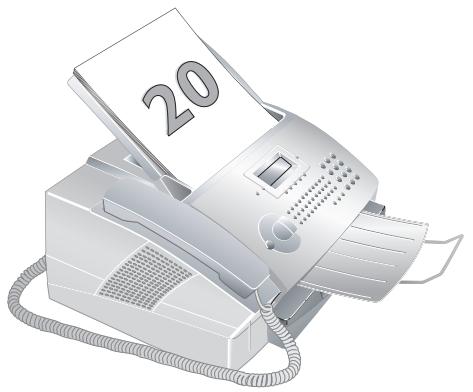
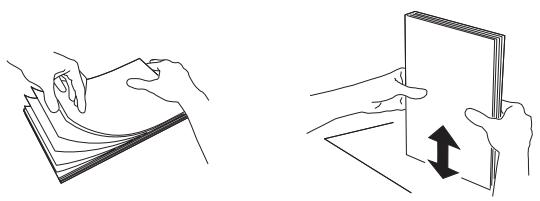
Tip Separate the documents by fanning them out, then align them by tapping the edge of the stack lightly against a flat surface. This will prevent several sheets of paper from being drawn in all at once.
Press STOP to eject the documents without copying them.
Making Copies Automatically
Insert the documents face down into the document feed slot. The lower most document will be copied first.
2 Press the COPY key twice. The copying process now commences.
Adjusting Copies
Insert the documents face down into the document feed slot. The lower most document will be copied first.
2 Press the COPY key. You have the following options available:
3 Enter the number of copies you would like to make of the document. You can make up to 99 copies of a document. Confirm with OK.
4 Select the resolution. You have a higher resolution available to you for copying than you have for fax transmissions. Select the desired resolution with
FAST—For documents without drawings or fine details
QUALITY—For documents with small print or drawings
PHOTO—For the highest resolution
Confirm with OK.
5 You can make copies of the document that are enlarged or that are compressed in size. Size compression is possible down to 25 percent of the size of the original, and enlargements of up to 400 percent can be made. Enter the desired value using the number pad and confirm your entry by pressing OK.
6 Select the desired contrast with / . Confirm with OK. The copying process now commences.
6.SMS
(Short Message Service)
Depending on country and telephone network
You can send and receive SMS (Short Message Service) messages with your Laserfax machine. Your fax machine is pre-set to use this function; however, use of these services is dependent on the particular country and telephone network. Ask your telephone system operator whether SMS operation is possible and whether you must be registered to make use of it. In the event that problems arise, or changes to your device are required, please contact your telephone provider.
Tip Return to the previous menu step by pressing C. Move the cursor on the display with / . Delete individual numbers and letters with C or ←. To interrupt an operation in progress and return to the root menu without saving, press STOP.
Sending SMS Messages
Press × , select SEND SMS with / and confirm with OK.
2 Enter the text that you would like to send. You can enter a maximum of 160 characters or 640 characters (depending on country and telephone network).
Tip To enter capital letters, press and the desired key simultaneously. You may add a space by pressing the key. The symbols are displayed directly above the letter keys. To enter symbols, press the blue key and the corresponding letter key simultaneously. Press to begin a new paragraph. PressING COPY to obtain a print-out of your SMS message before sending it.
3 Press l when you have finished entering your message.
4 You can enter a number with the number pad or you can select an entry from the telephone book, the radial list or the caller list:
Manual entry: Enter the recipient's telephone number, then press × . The fax machine will now send the SMS message.
Telephone book: Press A-Z [□], then select the desired entry from your telephone book by pressing . Press . The fax machine will now send the SMS message.
Redial list: Press / , then select the desired number from the radial list by pressing .Press × . The fax machine will now send the SMS message.
Caller list: To select a number from the caller list, press the blue key and / . Press . The fax machine will now send the SMS message.
5 After sending the SMS message, your fax machine will print out a transmission report in accordance with its settings (see the chapter entitled Fax / Transmission Report).
Tip You can also access the function SEND SMS by pressing MENU/OK, ③① and OK.
Sending to Multiple Recipients
Press 四 , select SEND SMS with / and confirm with OK.
2 Enter the text as described above, then press .
3 Enter the number of the first recipient using the number pad, or select an entry from the telephone book or the radial list.
4 Press the blue key and / · , and enter another number. You can add up to ten recipients.
5 Press to send the SMS message.
Receiving SMS Messages
When you have received an SMS, the green light / will shine on your fax machine, and the symbol will appear on the display. The fax machine will automatically print out incoming SMS messages. If you have turned the automatic printing function off, the SMS messages will be stored.
Reading SMS Messages
Press × , select READ SMS with / and confirm with OK.
2 The number of the last message as well as the date and time of its reception will be displayed. Unread messages are marked with a star “*”. Select the desired SMS message by pressing and confirm your selection with OK.
3 Move the cursor within the SMS message with / Pressing C will return you to the previous menu step; pressing STOP will return you to the root menu.
Tip You can also access the function READ SMS by pressing MENU/OK, ③② and OK.
Printing SMS Messages
If you have turned the automatic printing function off, use this function to print your SMS messages.
Press × , select PRINT SMS with and confirm with OK.
2 Use / to select the SMS messages that you would like to print:
SELECTED—Confirm by pressing OK. Select the SMS message that you would like to print out by pressing OK. Confirm with OK.
NEW—Confirm by pressing OK. All new messages will now be printed.
FALL—Confirm by pressing OK. All SMS messages stored in the fax memory will now be printed.

You can also access the function PRINT SMS by pressing MENU/OK, ③④ and
Deleting SMS Messages
Your fax machine can store up to 30 SMS messages. If the memory is full, no additional SMS messages can be received. To free up space in the memory, you should delete some SMS messages.
Press MENU/OK, ③③ and OK.
2 Use to select the SMS messages that you would like to delete:
SELECTED—Press OK and use / to select the SMS message that you would like to delete. Confirm with OK.
ALREADY READ—Confirm by pressing OK. All SMS messages that have been read will be deleted.
FALL—Confirm by pressing OK. All SMS messages will be deleted.
Sending SMS Messages to E-mail or Fax
Depending on country and telephone network
You can send SMS messages to an e-mail address or as fax transmissions to another fax machine.
SMS Messages to E-Mail
Press × , select SEND SMS and confirm with OK. Enter the text that you would like to send, as described under Sending SMS Messages.
2 Press OK. Select E-MAIL with / and confirm by pressing OK.
3 Enter the e-mail address. To enter the @ sign, press the blue key and

To add more e-mail addresses, press the blue key and / +
4 Press to send the SMS message.
SMS Messages to Fax
Press × , select SEND SMS and confirm with OK. Enter the text that you would like to send, as described under Sending SMS Messages.
2 Press OK. Select FAX with / and confirm by pressing OK. Enter the number to which you would like to send the SMS message. You can enter a number with the number pad or you can select an entry from the telephone book, the radial list or the caller list (see Sending SMS Messages).

To add more numbers, press the blue key and / ·
3 Press to send the SMS message.
Advanced Sending Options
Depending on country and telephone network
Sending SMS with a Sub-address
With a sub-address, you send an SMS message to a certain fax machine that is connected to a telephone line along with several other devices. In GB: Append the sub-address to the dialled number For all other countries: You may have to add a star between the number and the sub-address (depending on country and telephone network). If the sub-address of the machine is 1, for example, you should dial ①②③ ④⑤ ⑥⑦(*) ①
Sending SMS Messages to a User Account
Some SMS reception devices can manage several user accounts. You can send an SMS message to a specific user of a device in the following manner:
Press × , select SEND SMS and confirm with OK. Enter the text that you would like to send, as described under Sending SMS Messages.
2 Press and enter the number.
3 Press OK and enter the name of the recipient's user account.
4 Press to send the SMS message.
SMS Settings
Depending on country and telephone network
If you have set the country in which you will be operating your fax machine with function 11, the machine will automatically select the correct SMS settings (see the chapter entitled Settings / Setting the Country). If you would like to use different settings, you can change these with functions 35 and 36.
Numbers of the SMS Center
The numbers that you need in order to send and receive SMS messages are stored under SMS CENTERS. If you should require other numbers, you can change these with function 36. In case of doubt, you should ask your telephone provider for the correct information.
Press MENU/OK, ③⑥ and OK. Select SMS CENTER 1 with / . Confirm with OK.
2 Select SEND No and confirm with OK. Enter the number through which your fax machine should send SMS messages. Confirm with OK.
3 Select RECEIVE No and confirm with OK. Enter the number through which your fax machine should receive SMS messages. Confirm with OK. Pressing C will return you to the previous menu step; pressing STOP will return you to the root menu.
You can also receive SMS messages through a second service provider. Select SMS CENTER 2 and confirm with OK. Change the number for reception, as described under step 3. Pressing C will return you to the previous menu step; pressing STOP will return you to the root menu.
Turning Off the Automatic Printing
Received SMS messages are printed out automatically. You have the option of turning this function off.
Press MENU/OK, ③⑤ and OK.
2 Select AUTO PRINT and confirm with OK. Indicate whether you would like to turn the automatic printing option on or off by selecting with /
3 Confirm with OK. Pressing C will return you to the previous menu step; pressing STOP will return you to the root menu.
Notification Tone
You will hear a notification tone whenever an SMS message has arrived. You have the option of turning this function off.
Press MENU/OK, ③⑤ and OK.
2 Select BEEP SMS and confirm with OK. Indicate whether you would like to turn the notification tone on or off by selecting with /
3 Confirm with OK. Pressing C will return you to the previous menu step; pressing STOP will return you to the root menu.
Name of the Sender
You can set whether or not your name should be sent with each SMS message—identifying you as the sender. You can store your name with function 14 (see the chapter entitled Settings / Entering Your Telephone Number and Name).
Press MENU/OK, ③⑤ and OK.
2 Select SENDER NAME and confirm with OK. Use to select whether or not to send your name with each SMS message.
3 Confirm with OK. Pressing C will return you to the previous menu step; pressing STOP will return you to the root menu.
Notification
If the notification function is activated, you will receive an SMS notification as soon as your SMS message has been delivered to the recipient.
Press MENU/OK, ③⑤ and OK.
2 Select NOTIFICATION and confirm with OK. Indicate whether you would like to turn the notification function on or off by selecting with / .
3 Confirm with OK. Pressing C will return you to the previous menu step; pressing STOP will return you to the root menu.
Tip Sending of SMS notifications may involve the payment of a fee. Inquire with your telephone company as to whether or not costs are incurred through the use of this function.
Sub-address (Terminal ID)
If you have several devices with an SMS function connected to one telephone line, you can assign sub-addresses to these devices. SMS messages can then be sent to a specific device.
Press MENU/OK, ③⑤ and OK.
2 Select TERM. ADDR. with / and confirm by pressing OK. Enter a number from ① to ⑨ as the sub-address. The sender can send an SMS message directly to this device by appending the sub-address to the telephone number.
3 Confirm with OK. Pressing C will return you to the previous menu step; pressing STOP will return you to the root menu.
Validity Period
With the validity period, you can specify how long your SMS message will be stored on the telephone company's server in the event that the recipient cannot be reached. If the server cannot deliver the SMS message prior to the expiration of the validity period, the message will be deleted.
Press MENU/OK, ③⑤ and OK.
2 Select VALID. PERIOD and confirm with OK. Select the desired validity period by pressing / . The following settings are possible: 6 HOURS, 1 DAY, 1 WEEK and MAXIMUM. Ask your telephone company how long the message will be stored with the setting MAXIMUM.
3 Confirm with OK. Pressing C will return you to the previous menu step; pressing STOP will return you to the root menu.
Text2Fax
Depending on country and telephone network
From your laser fax machine, you can send a text as a fax transmission to another fax machine.
Tip Move the cursor on the display with / . Delete individual numbers and letters with C or < . To interrupt an operation in progress and return to the root menu without saving, press STOP.
Press
2 Enter the text that you would like to send. You can enter a maximum of 5,600 characters.
Tip To enter capital letters, press and the desired key simultaneously. You may enter a space by pressing the key. Press to begin a new paragraph. The symbols are displayed directly above the letter keys. To enter symbols, press the blue key and the corresponding letter key simultaneously. Press COPY to obtain a print-out of your text before sending it.
3 Press l when you have finished entering your message.
4 You can enter a number with the number pad or you can select an entry from the telephone book, the radial list or the caller list:
Manual entry: Enter the recipient's fax number, then press . The fax machine will now send the Text2Fax message.
Telephone book: Press A-Z , then select the desired entry from your telephone book by pressing / .Press . The fax machine will now send the Text2Fax message.
Redial list: Press / , then select the desired number from the radial list by pressing / .Press × .The fax machine will now send the Text2Fax message.
Caller list: To select a number from the caller list, press the blue key and / . Press . The fax machine will now send the Text2Fax message.
5 After sending the Text2Fax message, your fax machine will print out a transmission report in accordance with its settings (see the chapter entitled Fax / Transmission Report).
7. PC Connection
(MF 3265)
Requirements
Your computer must meet the following minimum requirements:
Processor:
500 MHz for Windows 98 SE
800 MHz for Windows 2000 · ME
1 GHz for Windows XP
RAM:
128 MB for Windows 98 SE · 2000 · ME
192 MB for Windows XP
Operating System:
Windows 98 SE · 2000 · ME · XP
Free Hard Drive Space:
260 MB of free hard drive space for installation of COMPANION SUITE and PAPER PORT.
USB Interface
You can connect your laser fax machine only to a PC (Microsoft Windows® operating system). The fax machine is not compatible with Linux or Apple Macintosh®.

Install the software first. Do not connect your laser fax machine to the USB port of r computer until the installation program asks to do so.
Installing the Software
On the installation CD included with your fax machine, you will find the COMPANION SUITE and PAPER PORT. With the COMPANION SUITE, you can access the address book of the fax machine from your computer and add or edit entries. You can also alter your fax machine settings as well as checking the toner level of the toner cartridge. With PAPER PORT, you can scan and manage documents.
The laser fax machine is registered as the default printer on your computer. You can access it as you would any other printer and use it to create black-and-white printouts.
Close all open programs and applications before beginning the installation process. Place the installation CD in the CD-ROM drive of your computer. The program will start automatically. (If the program does not start automatically, select the CD-ROM drive in the Win
dows® Explorer and start the program SETUP.EXE with a double-click.)
The COMPANION SUITE window appears on the screen. You can install or uninstall COMPANION SUITE or load the user manual for PAPER PORT. Click on BROWSE CONTENTS to view the files on the installation CD. This opens a Windows Explorer window that shows the CD contents.
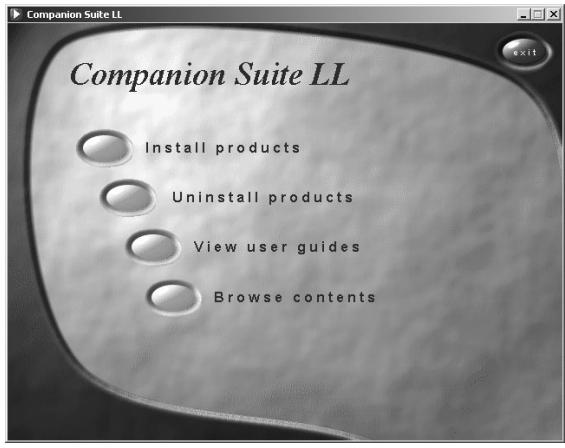
Click on INSTALL PRODUCTS, and select ALL PRODUCTS from the selection menu that follows.
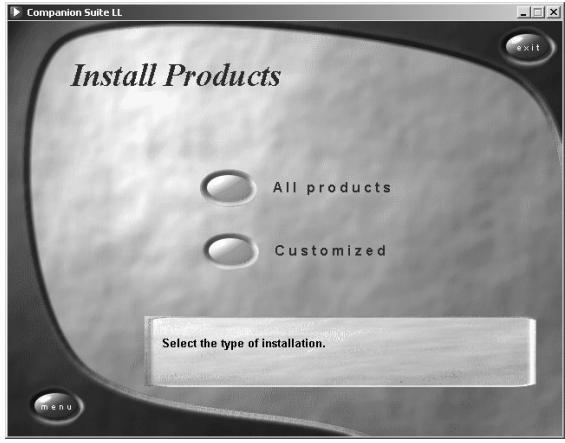

By selecting ALL PRODUCTS, you will install the COMPANION SUITE and PAPER PORT, as has the drivers for the printer and scanner. If I would like to install only certain components, on CustomIZED, then select the components you would like to install.
Your computer will now prepare for the installation process. Then a window will appear on the screen in which you may start the installation process. Click on Next.
Next you will be asked to accept the licensing conditions. Click on Yes.
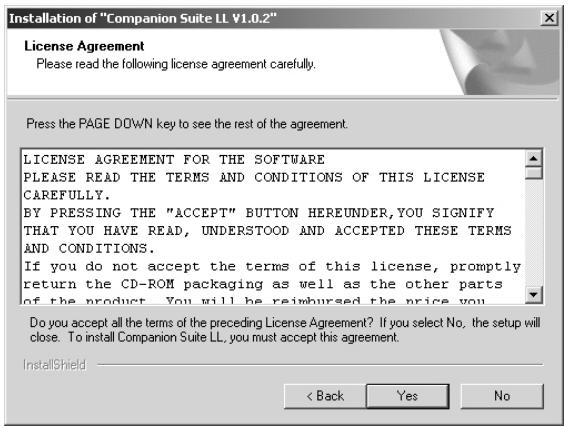
The program can now commence with the installation. Click on INSTALL.
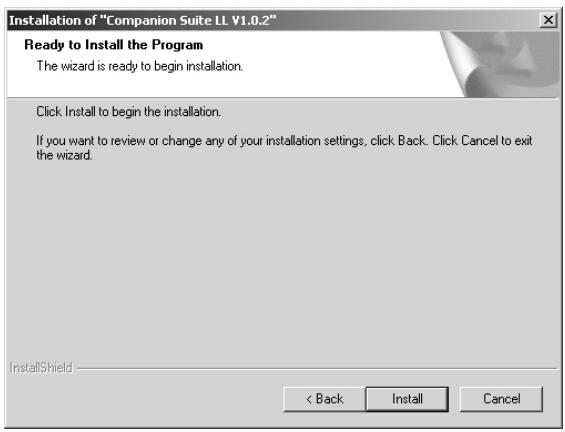
Follow the additional instructions that will appear on the screen. Connect the computer and laser fax machine with a USB cable when the program asks you to do so. You will find the USB port of your fax machine located on the back of the machine.
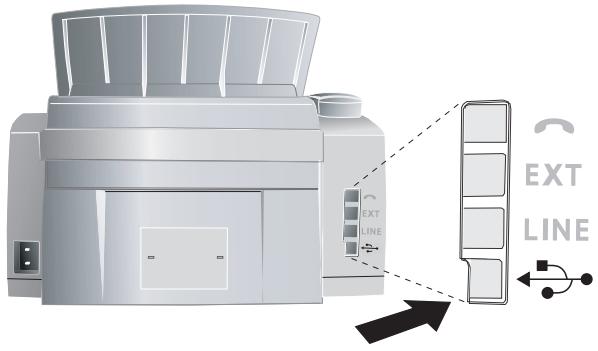
At the conclusion of the installation process you must restart your computer. Make your selection as to whether the computer should restart automatically or whether you would like to restart the computer yourself at a later time. Click on FINISH.
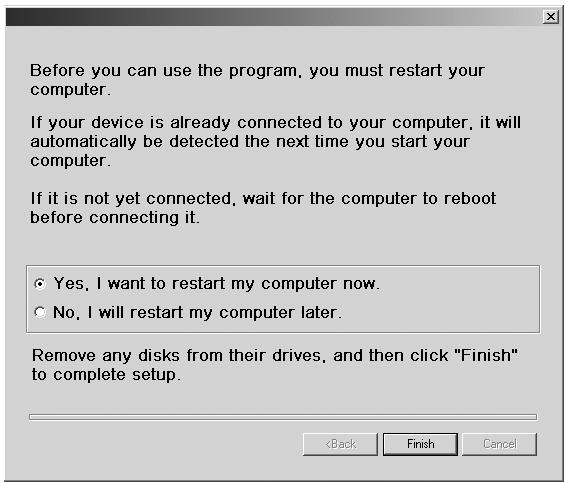
After your computer has rebooted, the installation of the COMPANION SUITE is complete.
Uninstalling the Software
Close all open programs and applications before beginning the uninstall process. Load the uninstall program by clicking on START > PROGRAMS > COMPANION SUITE > COMPANION SUITE > UNINSTALL in the Start menu. Your computer will now prepare for the uninstall process.
You can either repair the program or remove it. Select Remove and click on Next.
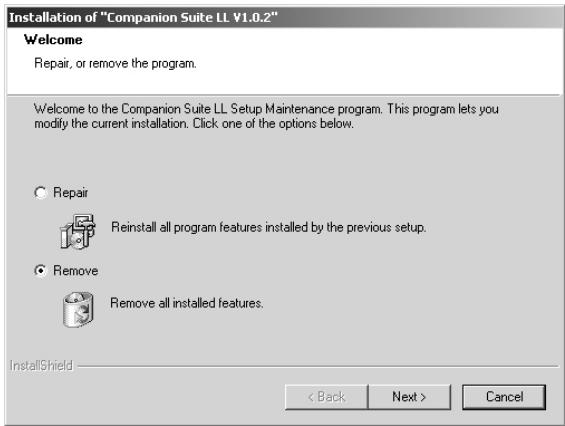
7. PC Connection
You will be asked to confirm the uninstall. After you have clicked on OK, the COMPANION SUITE will be removed from your computer. At the conclusion of the uninstall process you must restart your computer. Make your selection as to whether the computer should restart automatically or whether you would like to restart the computer yourself at a later time. Click on FINISH.
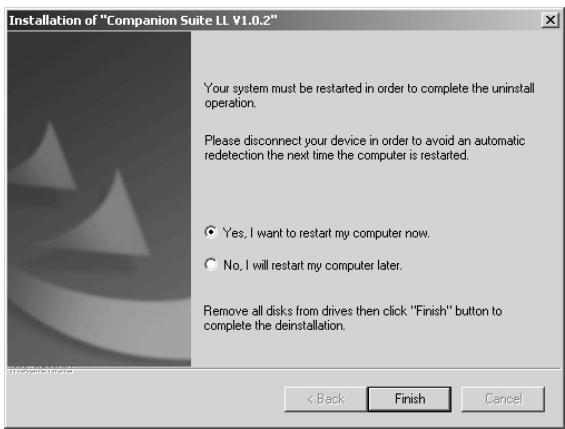
After rebooting has occurred, removal of the COMPANION SUITE from your computer will be complete.
Using the COMPANION SUITE
You can start the Companion Suite either by clicking on the Companion Director icon on your desktop or by selecting START > PROGRAMS > COMPANION SUITE > COMPANION SUITE > COMPANION DIRECTOR from the Start menu. You can change the look of the start menu by clicking with the right mouse button.
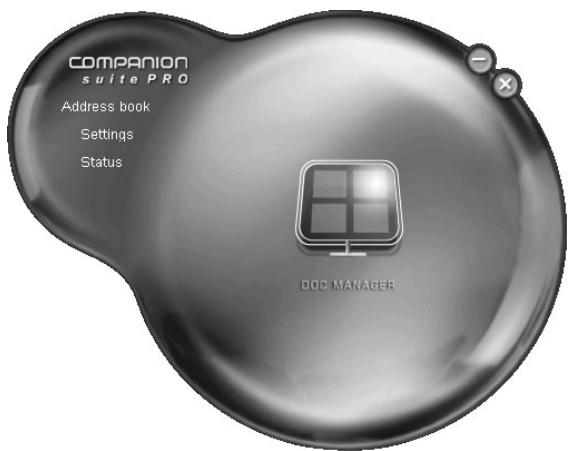
Click on ADDRESS BOOK to edit the telephone book of your fax machine. Click on SETTINGS to change the basic settings of your fax machine. Under STATUS, you can select the settings for the display of the toner level. If you would like to scan documents, click on the large icon Doc MANAGER in the middle of the start menu.
Editing the Telephone Book
With COMPANION SUITE, you can edit the entries in your fax machine entries and in the Windows address book as well as in Microsoft Outlook. Click on the ADDRESS Book button.
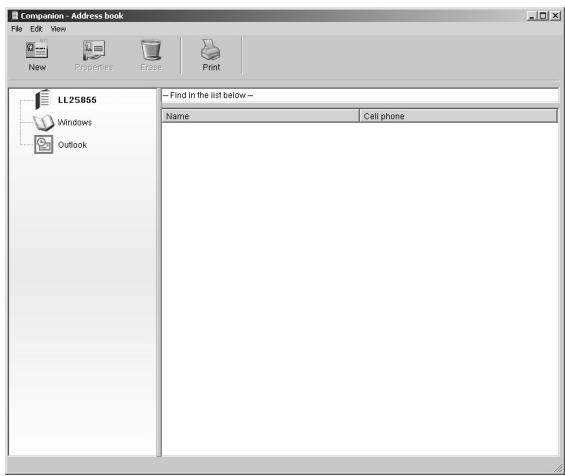
To edit the telephone book entries, select the laser fax machine. You can add new entries or groups to your telephone book and edit or delete these entries as well as printing out a list of all entries.
To add an entry, select New. You can choose whether to add a single entry or a group.
Add entry
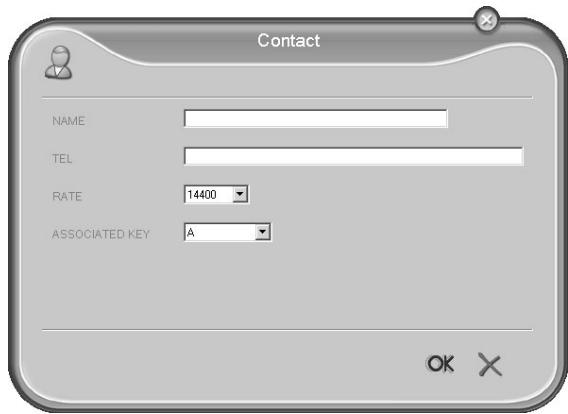
Enter the name and number and select the transfer speed for fax transmissions to this recipient (see also the chapter entitled Telephone / Telephone Book). Confirm with OK.
Edit Entry
Select the entry that you would like to edit and click on PROPERTIES. Change the name or the number and confirm with OK.
Add group
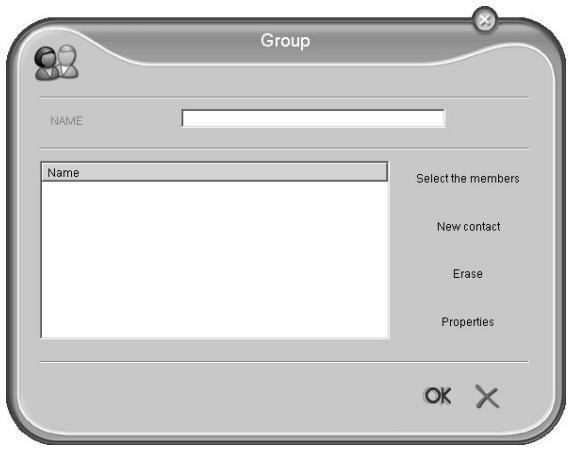
Enter the name of the group. Click on SELECT MEMBERS to add new entries to the group.
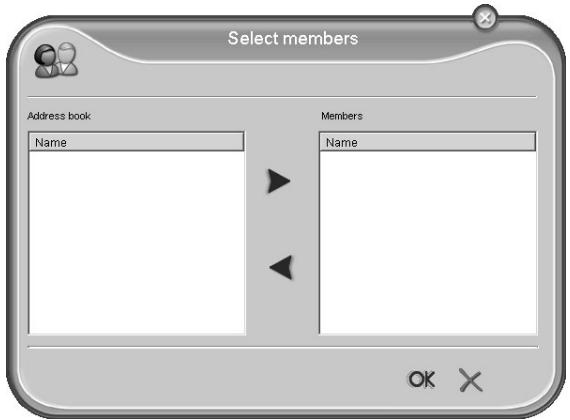
Add new members to the group using the arrow buttons. Confirm with OK.
Edit group
Select the group that you would like to edit. Choose SELECT MEMBERS to add new entries to the group or remove entries from the group. Click on DELETE to delete the entire group. Confirm with OK.
Settings
Click on the SETTINGS button to modify the basic settings of your fax machine. Among other setting, you can enter your name and number, set the date and time, select the connection type and set the parameters for the
fax machine. You can also configure the security codes for the fax memory and keyboard lock.
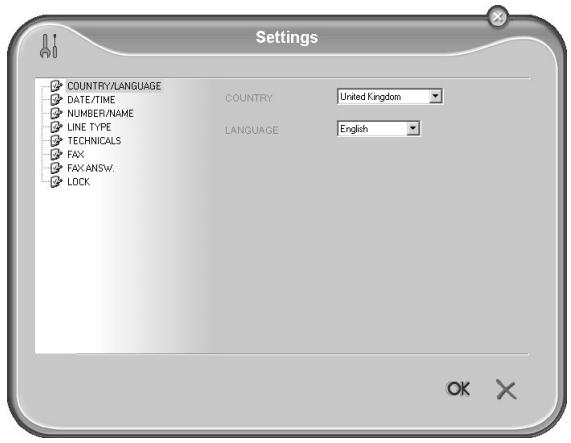
Displaying the Toner Level
Click on the STATUS button. The toner level of the toner cartridge is indicated by a percentile value between 100 percent (full) and 0 percent (empty).
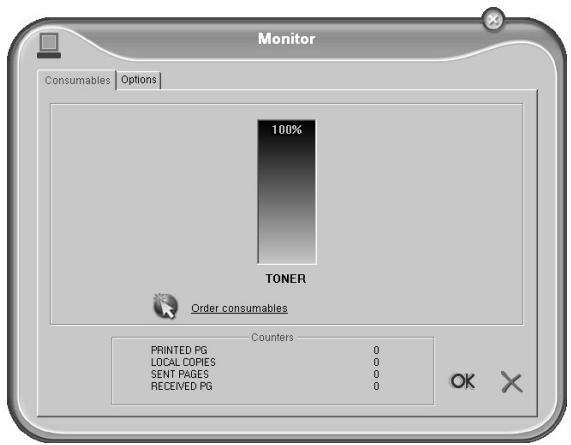
Printing from Computer
When you install the COMPANION SUITE on your computer, the laser fax is also installed as a printer under Windows. In the print menu under START > SETTINGS > PRINTERS, you will find your fax machine listed as LASER PRINTER SCANNER.
You can access your MF 3265 from any program and use it to make black-and-white print-outs just as you would use any other printer. Simply select the LASER PRINTER SCANNER as your printer.
Tip The LASER PRINTER SCANNER is installed as the default printer for all programs on your computer.
7. PC Connection
Click in the Print menu on PROPERTIES to edit the printer settings. You can set whether to print in letter or landscape format and how many pages should be printed on a single sheet. Change the print order to print the last page of your document first. A long document is then output sorted; the first page lies on top.
Scanning
Insert the document face down into the document feed slot. The lower most document is read into the memory scanned. You can load up to 20 documents into the paper tray.
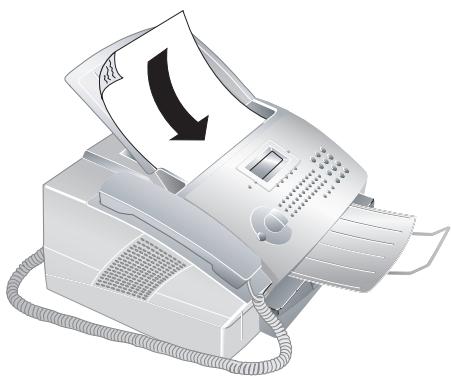
The installation CD that is delivered with your fax machine contains the program PAPER PORT 8.0. If you select ALL PRODUCTS during the installation process, PAPER PORT will be installed on your computer along with the COMPANION SUITE. Start the program by clicking in the start menu on the icon DOC MANAGER.
Click on the scan button or select FILE > SCAN from the menu bar.
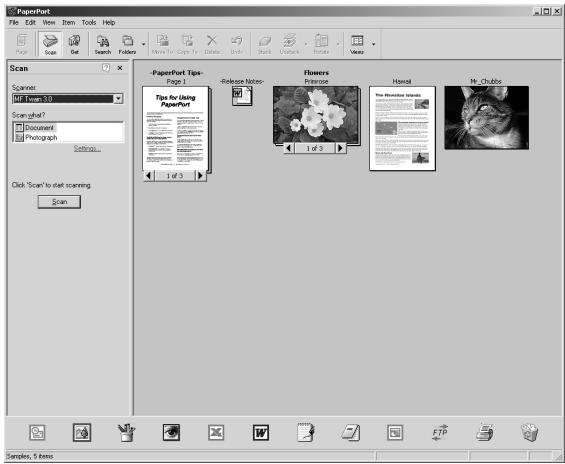
Select the Twain Scanner Driver as your scanner. Select whether you would like to scan a document or a photograph. Click on SCAN. The Twain Scanner Driver window now opens.
Tip You can also start the scanning process from any other graphics program if it is supported by the Twain Driver. Select the Twain Scanner Driver as your scanner. The Twain Driver selection window then appears, as described below.
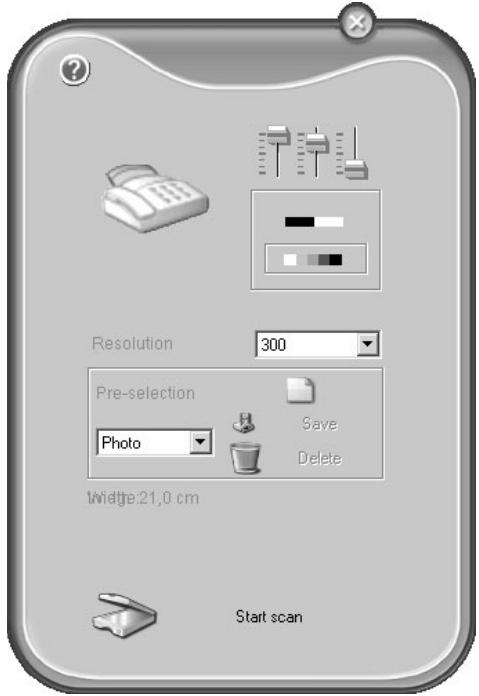
If you select the controller on the upper right, a dialogue appears in which you can select the alignment and filter settings for the scan.
Using the controls beneath this, you can choose whether to scan in the black-and-white mode (also called "barcode mode") or in the grey tone mode.
Enter the desired resolution for the scanner under Resolution.
Click on the lower button START SCAN to commence with the scanning process. After scanning, the document will appear in the main window of PAPERPort. You can now save it, edit it in a graphics program or process it with the OCR (Optical Character Recognition) software.
Tip Under the menu item PRE-SELECTION, you can create different profiles. In a profile, you may save settings that you would like to use fairly often, for example, for scanning of a frequently-used document-type. First configure all the settings. Then click on New and enter a name for the profile. Click on SAVE. To scan documents with the saved settings, select this profile from the selection menu.
8.Troubleshooting
Paper or Document Jams
Your fax machine is equipped with sensors that quickly recognise a paper or document jam. If trouble of this sort arises, the feeding of the printer paper or document is stopped immediately.
Open the cover by taking hold of both document guides and tipping the cover backward. It is possible that you will have to remove the toner cartridge in order to reach the paper.
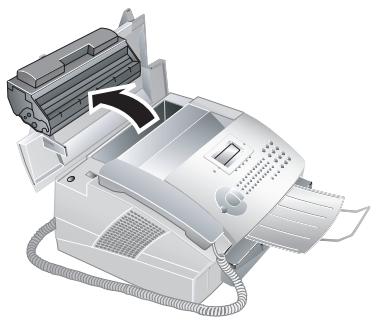
Carefully remove the toner cartridge from the device so that no toner dust spills out. Take care where you place the toner cartridge, escaping toner dust may soil the surface.
Carefully pull out the paper or document.
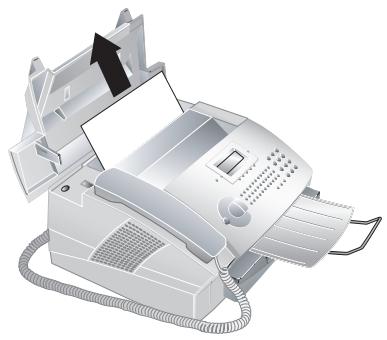
Reinsert the toner cartridge and close the cover. Make sure that the cover snaps back into position on both sides.
Tip If the toner level of the cartridge is low, then every time you open and close the cover, the following question will appear on the display: BLACK=NEW? If you have not installed a new cartridge, press STOP. Whenever you have installed a new toner cartridge, please perform the installation process with the Plug'n'Print card provided, as described in the chapter entitled Installation / New Toner Cartridge. If you have
inadvertently pressed STOP, you can start the recharging process by pressing MENU/OK, ⑥② and OK and then selecting NEW BLACK with ▶/. Confirm with OK.
If a document jam should occur in the front area: Work the panel upwards until it snaps into position. Carefully pull the paper or document forwards until it is released.
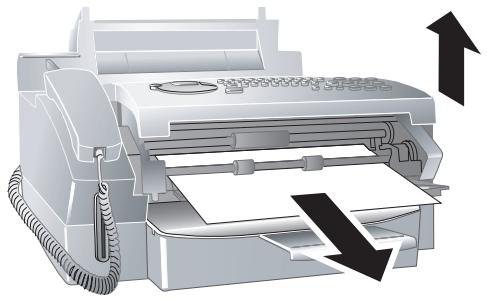
In case of a paper jam, do not forcefully remove the paper, but rather pull it gently out of the fax machine and throw it away carefully: It is possible that the toner may not be completely set on the print-out, and toner dust could be released into the air. Do not inhale the released toner dust. Remove the toner dust from clothing or objects with cold water; hot water would only cause the toner to set.
Cleaning
Use a soft, dry and lint-free cloth for cleaning. Special fax-cleaning cloths are available through our ordering service. Under absolutely no circumstances should you use any liquid or gaseous cleaning agents on your fax machine (for example: sprays, abrasives, polishes or the like), and do not employ cleaning agents that contain alcohol. Do not allow any moisture to reach the interior of the fax machine.
Work the panel upwards until it snaps into position.
2 Wipe the scanner glass with a soft, dry and lint-free cloth behind the rollers for the paper guide.
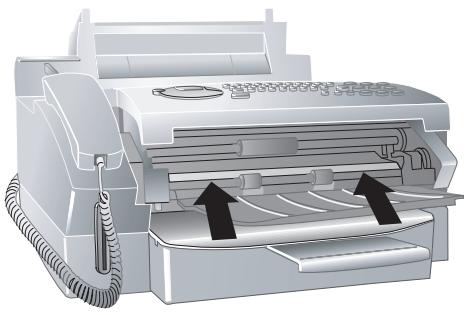
3 Close the panel.
8.Troubleshooting
Appendix
Glossary
Additional Devices: You can connect additional devices to your fax machine, such as answering machines, telephones, charge meters and computer modems; these can be connected either in series or in parallel. Parallel connection means that the devices are connected to another telephone socket of the same line. If you connect the devices to the external socket of your fax machine, they are connected in series. The fax switch of your device can control and regulate only devices connected in series.
Broadcasting: With this function, you can send a fax or an SMS message to multiple recipients.
Call Toggling: You can switch back and forth between different telephone conversations by using the R/PAUSE key. The inactive telephone conversation is maintained in the interim, and the other party cannot listen in. This additional service must be enabled for your telephone line (see Call Waiting, see Flash Key).
Call Waiting: If another caller places a call to you while you are having a telephone conversation, you will hear a tone and the symbol will appear on the display. If additional services are enabled for your telephone connection, you can toggle back and forth between different telephone calls (see Flash Key; see Call Toggling).
Call-by-Call: Selection of the telephone service provider for each telephone call. It is possible to place telephone calls through different private service providers. By placing prefixes in front of the actual telephone number, one can choose a different service provider for each telephone call without entering into a firm contract relationship (see Chain Dialling).
Caller Identification (Calling Line Identification Presentation,CLIP):
There are two types of caller identification. If someone calls you, your fax machine will show the caller's telephone number on the display. If you call someone, the machine will send the number so that your telephone number will be shown to
the person whom you are calling. Your telephone company must offer both services and must enable them for your PTT line. The transmission of your telephone number can be turned on and off temporarily or it can be turned off permanently (Calling Line Identification Restriction, CLIR).
Caller List: The numbers of the last ten callers are stored in the caller list. This function requires that the caller identification function be enabled for your PTT line and that the caller not suppress the transmission of his or her telephone number (see Caller Identification).
Calling Line Identification Presentation (CLIP): see Caller Identification
Chain Dialling: Before the dialling process begins, you can freely combine and edit telephone book entries, manually entered digits, numbers from the radial list or numbers from the caller list. For example, if you have saved the telephone number prefix of an inexpensive telephone service-provider (see Call-by-Call) as a telephone book entry, select this entry and manually enter the desired telephone number or select another number from the telephone book, the radial list or the caller list.
Dialling Pause: see Fax Polling
Direct-Dial Number (also Extension): Number used to directly dial a specific extension of a private branch exchange (see Private Branch Exchange).
Dual Tone Multi-Frequency (DTMF): see Tone Dialling
Encoding: The data of your fax transmission are encoded and compressed for the transmission. The minimum standard is MH (Modified Huffman). Better encoding methods are MR (Modified Read) or MMR (Modified Modified Read).
Energy Saving Mode: The laser fax machine is normally in the energy save mode. Whenever you receive a fax or if you would like to print or make a copy, your fax machine will automatically switch back into operating mode (see Warm-Up Phase).
Error Correction Mode (ECM): The ECM method reduces transmission errors that result, for example, from bad telephone lines, thereby reducing the duration of transmissions. Both of the connected fax machines must support ECM.
Fax Groups: Fax machines are classified in terms of internationally standardised fax groups based on their transfer type and speed. Connections between two devices of different groups is possible; the lowest common transfer rate is selected. The determination of the speed takes place during the handshake (see Handshake). Fax groups 1 to 3 are analogue fax machines. Nowadays, groups 1 and 2 are hardly to be found any longer; fax machines of group 3—which have a transfer speed that ranges from 9,600 to 33,600 bps—are currently most standard. Group 4 fax machines are digital devices that function exclusively on ISDN systems. They have a maximum transfer speed of 64,000 bps.
Fax Polling: With active fax polling, one can retrieve a document from another fax machine. For fax polling from a larger company offering several polling services, you can also enter sub-addresses / direct-dial numbers. In order to do this, you must insert a dialling pause between the fax number and the sub-address.
Fax Signal, also CNG Tone (Calling Signal): The tone that a fax machine sends out to announce a fax transmission. When the CNG tone occurs, the fax switch of the device recognises an incoming fax call and starts the fax reception.
Fax Switch: The fax switch checks incoming telephone calls and controls the ringing behaviour of the fax machine. According to the selected mode, fax transmissions will be received either automatically or manually.
Flash Key (R/PAUSE Key): With the flash key, you can make use of additional telephone services if these special functions are enabled for your telephone line. The R/PAUSE key has replaced the hook-flash function (see Call Waiting, see Call Toggling).
Handshake: The handshake is the initial and final phase of a fax transmission. After establishing of the connection, fax machines check the group affiliation and features such as size compression or
grey tones. After the fax transmission has been completed and before the connection is terminated, the receiving device confirms receipt of the transmission (see Fax Groups).
Hard modem: The hard modem is a fixed, built-in modem. In contrast to the soft modem, its features and functions are fixed and thus cannot be changed (see Soft Modem, see Modem).
Holding: see Call Toggling
Hook-Flash Function: see Flash Key
Journal: The journal contains information pertaining to the last 30 telephone calls as well as to sent and received faxes and SMS messages. The journal can be printed out manually or the machine can be set to dispense automatic print-outs at specific times (for example after 30 transmissions).
Memory: If there is no paper or toner in your fax machine, the machine will store incoming fax transmissions in its memory. SMS messages are stored in the SMS memory.
Modem: A modem converts digital computer signals into acoustic signals and vice versa. Analogue telephone lines transfer only acoustic signals, not digital signals (see Hard Modem, see Soft Modem).
Outside Line Access Code: The outside line access code is the number or letter that must be dialled before the actual telephone number on a telephone of a private branch exchange in order to establish a connection to the public telephone network (see Private Branch Exchange).
Parallel Connection: see Additional Devices
Plug'n'Print Card: Smart card used to set the toner level memory to full after installing a new toner cartridge.
Polling: see Fax Polling
Private Branch Exchange: Private branch exchanges are common in larger companies. Even private ISDN systems
Abbreviations
AM: Answering Machine
bps: Bits per second (transfer rate)
CCITT: Comite Consultatif International Telephonique et Telegraphique (forerunners of the ITU)
CLIP: Caller Line Identification Presentation (see Caller Identification)
CLIR: Calling Line Identification Restriction (see Caller Identification)
CNG: Calling Signal (see Fax Signal)
DECT: Digital Enhanced Cordless Telecommunication (cordless handset)
dpi: Dots per inch (see Resolution)
DTMF: Dual Tone Multiple Frequency (see Tone Dialling)
ECM: Error Correction Mode (see Error Correction Mode)
GAP: Generic Access Profile (radio protocol for cordless handsets)
IGM: Incoming Message (incoming message on the answering machine)
ISDN: Integrated Services Digital Network
ITU: International Telecommunications Union (organisation of the UN)
LCD: Liquid Crystal Display
LED: Light Emitting Diode
MH: Modified Huffman (encoding method for faxes, see Encoding)
MHC: Modified Huffmann Code (encoding method for faxes, see Encoding)
MMR: Modified Modified Read (encoding method for faxes, see Encoding)
MR: Modified Read (encoding method for faxes, see Encoding)
MRC: Modified Read Code (encoding method for faxes, see Encoding)
OCR: Optical Character Recognition (text recognition)
OGM: Outgoing Message (outgoing message of the answering machine)
PABX: Private Automatic Branch Exchange
POTS: Plain Old Telephone Service (analogue telephone service with low transfer rate)
PSTN: Public Switched Telephone Network
PTT: Postal, Telegraph and Telephone (organisation)
RAM: Random Access Memory
RJ-11: Registered Jack 11 (auch Western Plug, standardised telephone plug)
SMS: Short Message Service
TAM: Telephone Answering Machine (answering machine)
TWAIN: Tool Without An Interesting Name (standard for scanner drivers)
USB: Universal Serial Bus (computer connection)
can be branch exchanges. To establish a connection to the public telephone network from a private branch exchange, one must dial a number or press a key before the actual telephone number; in most cases this is zero (see Outside Line Access Code).
Pulse Dialling: see Tone Dialling
Resolution: Number of dots per inch (dpi). For sending and receiving faxes, the resolution options available are Normal, Fine, SFine and Photo. For copying, the available resolutions are Fast, Quality and Photo. The higher the resolution, the longer it takes to complete the transmission.
Scanning: The reading of a document into the fax memory or into the computer in order to send it, copy it or edit it.
Sender Identification: The telephone number and name of the sender as well as the date and time of the fax transmission appear in the upper margin of each received fax.
Serial Connection: see Additional Devices
Soft Modem: The machine does not contain a fixed, built-in modem. A program executes the modem function on demand and accesses the machine memory (RAM). The features and functions of the soft modem can be modified by altering the software (see Hard Modem, see Modem).
Stand-alone: Single work station that is not connected to other workstations over a network.
Sub-address: see Fax Polling
Time Stamp: The exact date and time of receipt appear in the page header of each received fax. A memory buffer guarantees that exact data are issued even after a power loss. In this way, you can verify exactly when a fax has reached you.
Tone Dialling (also Dual Tone Multi-Frequency): In many countries, tone dialling has replaced pulse dialling, in which each number was sent as a corresponding number of pulses. With tone dialling, a specific tone is assigned to each key (referred to as DTMF tones).
Toner Level Memory: Update the toner level memory of your fax machine with the Plug'n'Print card that is included with each new toner cartridge. Your fax machine registers the extent of toner used for every print-out and calculates the toner level of the toner cartridge on that basis. The indicated toner level is only meaningful if you update each new toner cartridge with the Plug'n'Print card that is provided with the cartridge.
Transfer Speed: CCITT/ITU has published international standards for the transmission of data over telephone lines. All short names begin with V, so these are also referred to as V standards. The most important transmission speeds for fax transmissions are: V.17 - 7,200 to 14,400 bps V.21 - maximum 300 bps V.22 - maximum 1,200 bps V.22 bis - maximum 2,400 bps V.27 ter - maximum 4,800 bps V.29 - maximum 9,600 bps V.32 bis - maximum 14,400 bps V.34 - maximum 33,600 bps
Warm-Up Phase: Normally, the machine is in the energy saving mode (see Energy Saving Mode). In the warm-up phase, the fax machine heats up the printing unit until it has reached the necessary operating temperature, after which the copy or fax can be printed out.
Functions List
Installation
11 COUNTRY 15
List of the available countries
12 LANGUAGE 15 List of the available languages
13 DATE/TIME 15 Entering the date and time
14 NUMBER/NAME 15 Entering telephone number and name
15 LINE TYPE 13 Setting the PSTN / PABX operation
16 TECHNICALS 15,16 Various settings
17 RING COUNT. 17 Setting the number of rings
18 RINGER VOLUME 16 Setting the ring volume
2 Fax
21 TX SPEED 23 Setting the transfer rate
22 POLLINGRX. 25
Polling a fax from another machine
23 POLLING TX. 25
Preparing a transmission for polling send
24SEND LATER. 25 Fax transmission at a later point in time
25 SEND REPORT 23 Settings for Transmission Reports
26 TIME STAMP 24 Activating/deactivating the time stamp
27 FAX ANSW. 16 Setting protected fax reception
28 RECEPTION 24 Settings for fax reception
3 SMS Service
31SEND SMS 28
Entering and sending SMS messages
32 READ SMS 28 Reading SMS messages
33 DELETE SMS. 29
Deleting SMS messages
34 PRINT SMS 29 Printing selected SMS messages
35 PARAMETERS 30 Settings for sending and receiving SMS
36 SMS CENTER. 30
Entering the numbers of the SMS center
4 Print
41 FUNCTIONS LIST 15 List of the available functions
42 L065 26 Overview of the last 30 transmissions
43 Dlrcetory. 20 List of the telephone book entries and groups
44SETUP 15 List of the fax machine settings
45 COMMANDS 26
List of pending jobs
5 Commands
51 PERFORM 26 Immediate execution of a selected job
52 MODIFY 26 Changing a selected job
53 CNTCEL 25,26
Deleting a selected job
54 PRINT 26 Printing out a selected job
55 PRINT LIST. 26
Printing out the list of all pending jobs
6 Others
61 LOCK 17 Setting keyboard lock
62 PRINT.CARTR. 11,37
Installing a new toner cartridge
Technical Data
Measurements (W× H× D) 370x200x330mm
Weight approx. 7.25kg
Mains Connection 220-240 Volt / 50-60 Hz
Power Consumption. 8W
transfer < 17W
reception < 20W standard
Recommended Ambient . . . . . temperature 17-28°C
relative humidity 20-80%
non-condensing
Emissions . . . . corresponds to EN 55022 Class B
EN 61000-3-2
EN 61000-3-3
Immunity corresponds to EN 55024
Paper
Automatic Document Feeder 20 documents
Paper Sizes A4 · 210× 297mm
letter · 8.5× 11 inch · 216× 279mm
. . . . legal · 8.5×14inch·216×356mm
Paper Thickness 0.08-0.12mm
Paper Weight 60-90g/m²
legal: 90g / m^2
Paper Tray max. 250 sheets
Toner Cartridge
Capacity (5% Black - Slerexe Letter)
Starter Cartridge approx. I,000 pages
Additional Cartridges approx. 3,000 pages
Printer
Type . Class I Laser Printer
Warm-Up Time approx. 15 seconds
Resolution 600x600 dpi
Printing Speed 10 pages/minute
Print Width 200mm
Telephone
Connection Type Public Switched (PSTN)
Private Branch Exchange (PABX)
Telephone Book Entries approx. 200
Fax
Device Type Group 3
Compatibility ITU-T T.30
Encoding MH, MR, MMR
Fax Memory 120 pages
Transfer Speed 33.6k
Horizontal Resolution 8 dots/mm
Vertical Resolution. standard 3.85 lines/mm
fine 7.7 lines/mm
Copier
Type Black-and-white, 64 grey tones
Resolution fast 200× 300 dpi
. quality 400× 300 dpi
photo 400× 300 dpi
Copying Speed 10 pages/minute
Multiple Copies up to 99 pages
PC Connection (MF 3265)
Connection Type . USB I.1 (USB 2.0 Full Speed)
Supported Operating Systems
Windows® 98SE / 2000 / ME / XP
Scanner Driver TWAIN
Scanner
Type Black-and-white, 256 grey tones
Resolution 300x300 dpi
Scan Area max. 218× 600mm
Scan Width 208mm
Speed 6 seconds/A4-page
SMS (Short Message Service)
Gateway V.23
Memory 30 messages
Message Length 160/640 characters
(dependently on country and telephone network)
Slerexe Letter
The technical specifications are subject to change without notice.
Guarantee
(UK Terms and Conditions)
SAGEM SA is the European Number 1 in fax and offers a complete range of fax terminals with Internet access and SMS function, multifunctional terminals and servers covering the needs of all its customers—from home-users to multinational organisations.
In order to apply the guarantee, you should contact your dealer. Proof of purchase will be required. Should malfunctioning arise, the dealer will advise you what to do.
If you bought your equipment from SAGEM Communication Austria GmbH directly, the following shall apply:
A SAGEM Communication Austria GmbH undertakes to remedy by repair, free of charge for labour and replacement parts, any defects in the equipment during a period of twelve (12) months from the date of original delivery of the Equipment, where those defects are a result of faulty workmanship.
During this twelve month guarantee period, the defective equipment will be repaired free of charge; the customer must however return the defective equipment at his/her own expense, to the address given by SAGEM Communication Austria GmbH After Sales Department, the phone number of which can be found on the delivery slip. Unless the customer has concluded with SAGEM Communication Austria GmbH a maintenance contract in respect of the equipment which specifically provides for repairs to be carried out at the customer's premises, the repairs will not be carried out on the equipment at the customer's premises.
The following sentence applies to purchases of equipment for the customer's trade, business or profession. Except as otherwise expressly provided in this Document and to the extent permitted by law, SAGEM Communication Austria GmbH makes no representations or warranties, express or implied, statutory or otherwise, and to such extent, all terms and conditions implied by law are hereby excluded.
This guarantee does not affect the Customer's statutory rights.
B Exclusions From Guarantee
SAGEM Communication Austria GmbH shall have no liability under the guarantee in respect of:
- damage, defects breakdown or malfunction due to:
- failure to properly follow the installation process and instructions for use; or
- an external cause to the equipment (including but not limited to, lightening, fire, shock or water damage of any nature); or
- modifications made without the written approval of SAGEM Communication Austria GmbH; or
-
a failure or neglect to maintain the equipment or inappropriate maintenance; or
-
unsuitable operating conditions, particularly of temperature and humidity; or
- repair or maintenance of the equipment by persons not authorised by SAGEM Communication Austria GmbH; or
- wear and tear from normal daily use of the equipment and its accessories
- damage due to insufficient or bad packaging of equipment when returned to SAGEM Communication Austria GmbH
- supply of new versions of software
- work on any equipment or software modified or added without the prior written consent of SAGEM Communication Austria GmbH
- malfunctions not resulting from the Equipment or from software installed in user workstations for the purpose of use of the equipment,
- communication problems related to an unsuitable environment, including:
- problems related to access and/or connection to the Internet such as interruptions by access networks or malfunction of the line used by the subscriber or his correspondent
- transmission faults (for example poor geographical coverage by radio transmitters, interference or poor line quality)
- the local network fault (wiring, servers, workstations) or the failure of the transmission network
- the normal servicing (as defined in the user guide supplied with the equipment) as well as malfunctioning due to servicing not being carried out, servicing costs are in any event always borne by the customer.
C In the cases set forth in B as well as after expiry of the twelve month guarantee period, the customer must ask SAGEM Communication Austria GmbH for an estimate, and he/she must accept the estimate and agree to pay the charges mentioned in it before returning the equipment to SAGEM Communication Austria GmbH. The repair and delivery costs will be invoiced to the customer.
The foregoing shall apply unless otherwise agreed in writing with the customer and only for the UK. If any provision of this guarantee shall be held to be in whole or in part invalid or illegal due to an obligatory rule applicable to consumers pursuant to their national legislation, such invalidity or illegality shall not impair or affect the remaining provisions or parts of this guarantee.
Please note that only SAGEM ink films should be used. Your SAGEM guarantee does not cover damage to your fax machine that may be caused by the use of any other ink films.
Index
A
A4 paper. 11
Abbreviations 39
Activate/deactivate automatic SMS print 30 lock 17 name of SMS sender 30 page header 15 protected fax reception 16 ringer tone 16 SMS notification 30 SMS notification tone 30 sorted print-out 24 time stamp 24
Additional devices 14,38
Easylink . 14
fax reception mode . 17
interruption of ringing . 14
starting fax reception . 14
Additional telephone services 21
Address book PC connection 34
Attaching document outlet 8 document support 8
Automatic fax reception 18 fax reception mode 17
B
Blue key 7
Broadcast 38
fax transmissions 24
groups 20, 24
individual recipients 24
key 7
C
C key 7
Call-by-Call 38
Callers key 7
Caller list 38
Calling line identification. 21,38
Callforwarding 21
Calltoggling 21,38
Call waiting 21,38
Center SMS 30
Chain dialling. 20,38
Cleaning 37
CLIP 21,38 symbol on LCD display. 7
CNG tone 38
Code fax polling 25 lock 17 modify at PC 35 private branch exchange . 13 protected fax reception . 16
Combine numbers 20
Commands see Jobs
Companion Suite
installation 32
uninstallation 33
use 34
Connect additional devices 14 EXT socket . 14 mains cable . 9 telephone cable . 9 telephone handset . 9
Connections on the rear side 6
Contact 48
Contrast copy 27 fax transmission 23
Copy 27
adjust copies 27
automatic 27
contrast 27
enlarge 27
key 7
reduce 27
resolution 27
zoom 27
Country setting 15 set at PC 35
Cursor movement on display 15
D
Date set 15 set at PC 35
Delete group 20 jobs 26 SMS message 29 telephone book entry 20
Description of the machine 6
Dialled numbers key 7
Dialling pause 38
fax polling 25
key 7
Directory see Telephone book Display toner level 11
Documents fax transmission 22
Document jam 37
Document outlet attaching 8
Document support attaching 8
Drivers installation 32 uninstallation 33
E
E-mail SMS 29
Easylink 14
Emissions 42
Encoding 38 Energy saving mode 17,38
Enlarge copy 27
Enter group 20 group at PC 35 number and name 15
symbols 7 telephone book entry at PC 34
Error correction mode 38
Execute jobs immediately 26
EXT fax reception mode . 17 socket 14,18
Extension 38
External answering machines 14, 18
External devices 14
F
Fax 22
broadcast. 24
fax memory 23
fax reception 23
fax reception mode 17
groups 20
insert documents 22
jobs 26
journal 26
multiple copies 24
paper size 22
polling 25
polling send 25
polling with sub-address 25
protected fax reception 16
redial . 23
resolution for reception 16
send 22
set contrast 23
sorted print-out 24 time-deferred sending 25
time stamp 24
transmission report 23
transmission speed 23
Fax groups 38
Fax memory 23,39,42 green lamp 23 protected fax reception 16
Fax reception 23
Fax reception mode 17
additional devices 14, 17
key 7
number of rings 17
Fax switch 38
see Fax reception mode
additional devices 14
key 7
FINE key 7 symbol on LCD display . 7
Flash key 38 telephone services 21
Free hard drive space PC connection 32
Functions overview 2
Functions list 41
print 15
G
Green lamp 7,23
Groups 20
add group at PC 35
delete 20
enter group 20
fax broadcast 24
modify 20
modify group at PC 35
Guarantee 43
H
Handshake 38
Holding 39
1
Immediate polling 25
Immunity 42
Insert A4 paper 11 copy documents 27
documents 22
input sheets 12
letter/legal paper 12
Plug'n'Print card 1 toner cartridge 9
Installation 8
additional devices 14
Companion Suite 32
document outlet 8
document support 8
drivers 32
mains cable. 9
package contents. 8
paper 11
Paper Port 32
quick install process 9
software 32
telephone cable 9
telephone connections . . 13
telephone handset 9
toner cartridge 9
unpacking. 8
Internal numbers 13
ISDN systems 13
J
Jobs 26
delete 26
immediate execute 26
modify 26
print 26
print list 26
Journal 26,39
K
Keyboard lock 17 quick search 20
L
Language setting 15 set at PC 35
Laser-safety instructions 5
LCD display 7 symbols 7
Legal paper 11 insert 12
Letter paper 11 insert . 12
LINE socket 9
Lock 17
code 17
keyboard 17
modify at PC 35
number pad 17
Loudspeaker dial without lifting handset 19 key 7
M
Machine overview 6
Mains cable connecting 9
Manual fax reception 18 fax reception mode 17
Measurements 42
Menu key 7
Missed phone calls 21
Mode fax reception 17 key 7
Modem 14,39
hard modem 39
soft modem 40
Modify group 20
group at PC 35
jobs 26
telephone book entries 19
telephone book entries at PC
34
N
Name enter 15 enter at PC 35 SMS sender 30
Notification SMS 30
Notification tone SMS 30
Number enter 15 enter at PC 35
Number of rings set 17
Number pad lock 17
0
OK key 7
Operation panel 7
Ordering service 48
Overview machine 6 operation panel 7
P
PABX see Private branch exchange
Package contents 8
Page header 15
enter 15
SMS 30
Panel seeOperationpaneel
Paper . 1
A4 1
legal 1
letter 11
sizes 11
Papersizes 11
Paper jam 37
Paper Port installation 32
uninstallation 33
use 36
Paper size copying 27 fax 22
Paper sizes 42
Paper tray insert paper 11 letter/legal paper 12
Paper weight 42
PC Connection 32
address book 34
default printer 35
display toner level 35
free hard drive space 32
primer 35
requirements 32
scan 36
settings of machine 35
USB connection 32
OTO key 7 symbol on LCD display . 7
g'n'Print card 9,39
ling 25,38
code 25
immediate 25
send 25
time-deferred 25
with sub address 25
ling send 251
ver consumption 42
fix 13
nt automatic SMS 30 from PC 35
functions list 15
jobs 26
jobs list 26
journal 26
list of settings 15
multiple copies of fax reception 24
protected fax reception 16 SMS message 28,29
telephone book 20
transmission report 23
ting multiple copies fax reception 24
vate branch exchange. 13, 39
Prefix 13
files scan 36
tected fax reception 16
activate/deactivate 16
code 16
modify at PC 35
print 16
13
se dialling 40
ck install process 9
ck searchtelephone book entries . 20
USE
key 38
MS message 28
ive MS message 28
al 19
tax transfer 23
ice
opy 27
lamp 7
quirements
PC connection 321
solution 16,40
copy 27,42
default setting 16
ey 7 can 36 symbol on LCD display 7
er tone volume 16
y telephone services 21
s
Safety instructions 4
Save entry telephone book 19
Scan 36,40
resolution 36
Select key 7
Send
fax 22
fax broadcast 24
fax polling 25
SMS message 28
SMS to e-mail 29
SMS to fax 29
Text2Fax 31
time-deferred 25
Sender identification 40
Set
country. 15
date and time. 15
keyboard lock 17
language 15
number of rings 17
number pad lock 17
resolution 16
ring tone 16
SMS notification tone 30 SMS validity period 31
transmission speed 23
volume of ringer tone 16
Settings 15
lock 17
modify at PC 35
number and name 15
page header 15
print list of settings 15
resolution 16
ring tone 16
set country 15
set date and time 15
set language 15
SMS 28,29
transmission report 23
SFINE key 7
symbol on LCD display . . . 7
SMS 28
automatic print 30
country settings 28
delete message 29
external cordless telephone 14
green lamp 7,28
journal 26
key 7
name of sender. 30
30
30
numbers of central office. 30
print message 29
read message 28
receive message 28
send message 28
send to multiple recipients 28
sub-address 31
symbol on LCD display . . . 7
to e-mail 29
to fax 29
to user account 30
transmission report 23
validity period 31
with sub-address 29
Software
installation 32
uninstallation 33
Sorted print-out
set 24
Special functions key 7
Speed 40
fax transmission 23
Stand-alone 40
Start key 7
Starter cartridge 9
Stop key 7
Sub-address 31,40
for polling 25
SMS 29
Symbols enter 7 on the LCD display 7
T
Technical customer service 48
Technical data 42
Telephone 19
additional devices 14
chain dialling 20
making a telephone call . . 19
redialling 19
telephone book 19
Telephone book 19
add entry at PC 34
delete entries 20
delete group 20
enter group 20
groups 20
key 7
modify entries 19
modify entries at PC 34
modify group 20
print 20
quick search 20
save new entry 19
use entries 19
Telephone cable
connecting 9
Telephone connections 13
ISDN systems 13
private branch exchange. 13
Telephone handset
connecting 9
Terminal ID
see Sub-address
Text2Fax 31
send 31
Time
setting 15
Time-deferred
polling 25
sending 25
Time stamp 24,40
Toner cartridge
display level. 11
insert 9
installation 9
protection strip 10
remove old cartridge 10
starter cartridge 9
toner level memory 9
Toner level memory 9,11,40
display 11
display at PC 35
update with Plug'n'Print card I I
Tone dialling 40
Easylink 14
Transmission report 23
Troubleshooting 37
cleaning 37
paper or document jam 37
Twain
scanner driver 36
U
Uninstallation
Companion Suite 33
drivers 33
Paper Port 33
software 33
Unpacking 8
Update
toner level memory 11
USB port 6,33
PC connection 32
Use
Companion Suite 34
Paper Port 36
telephone book 19
User account
send SMS 30
V
Validity period
SMS 31
Volume
ringer tone 16
W
Warm-up phase 40
Weight 42
Z
Zoom
copy 27
Contact
Should you have technical problems, please contact our technical customer service:
United Kingdom
Telephone: 02 07 - 536 54 00
Fax: 02 07 - 519 50 24
If you need toner cartridges or other accessories, please call our ordering service:
United Kingdom
Telefon: 08 00 - 358 08 07
E-Mail: dti.faxinfoline@sagem.com
Internet: www.sagem.com
The CE mark confirms that the machine corresponds to the relevant guidelines of the European Union.
Declaration of Conformity (DoC)
Hereby, SAGEM Communication Austria GmbH, declares that this SAGEM LF 3245 or LF 3265 is in compliance with the essential requirements and other relevant provisions of Directive 1999/5/EC.
Should you require a copy of the original DoC, please visit our web site.
This product is intended for use on an analogue public telecommunications network (PSTN) and for use in the country specified on the type label. Use in other countries can result in faulty functioning.
For more information, please contact the technical service centre for your country. Should problems arise during use of your machine, please contact your retailer first.
This user manual was printed on recycled paper bleached without chlorine. This satisfies the highest standards for low environmental impact. The cardboard packaging used and the packaging inserts of paper and cardboard can be disposed of as waste paper. The plastic foil may be submitted for recycling or disposed of with waste not intended for recycling, depending on the requirements in your country.
The fax machine contains many materials that can be recycled. When you wish to dispose of the machine, please obtain information on the applicable regulations in your country for the recycling of electronic equipment.