AV-30W575 - Television JVC - Free user manual and instructions
Find the device manual for free AV-30W575 JVC in PDF.


User questions about AV-30W575 JVC
0 question about this device. Answer the ones you know or ask your own.
Ask a new question about this device
Download the instructions for your Television in PDF format for free! Find your manual AV-30W575 - JVC and take your electronic device back in hand. On this page are published all the documents necessary for the use of your device. AV-30W575 by JVC.
USER MANUAL AV-30W575 JVC
Color Television Users Guide
For Models:
AV-30W585
AV-30W575
natural_image
Exterior view of a JVC TV displaying its blank screen (no visible text or symbols on the screen body)Illustration of AV-30W585 and RM-C1257G
Important Note:
In the spaces below, enter the model and serial number of your television (located at the rear of the television cabinet). Staple your sales receipt or invoice to the inside cover of this guide. Keep this user's guide in a convenient place for future reference. Keep the carton and original packaging for future use.
Model Number:
Serial Number:
Important Safety Precautions

CAUTION:
CAUTION
RISK OF ELECTRIC SHOCK DO NOT OPEN

To reduce the risk of electric shock. Do not remove cover (or back). No user serviceable parts inside. Refer servicing to qualified service personnel.
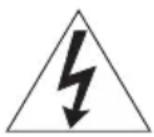
The lightning flash with arrowhead symbol, within an equilateral triangle is intended to alert the user to the presence of uninsulated “dangerous voltage” within the product’s enclosure that may be of sufficient magnitude to constitute a risk of electric shock to persons.

The exclamation point within an equilateral triangle is intended to alert the user to the presence of important operating and maintenance (servicing) instructions in the literature accompanying the appliance.
WARNING:
TO PREVENT FIRE OR SHOCK HAZARDS, DO NOT EXPOSE THIS TV SET TO RAIN OR MOISTURE.
CAUTION:
TO INSURE PERSONAL SAFETY, OBSERVE THE FOLLOWING RULES REGARDING THE USE OF THIS UNIT.
- Operate only from the power source specified on the unit.
- Avoid damaging the AC plug and power cord.
- Avoid Improper installation and never position the unit where good ventilation is unattainable.
- Do not allow objects or liquid into the cabinet openings.
- In the event of trouble, unplug the unit and call a service technician. Do not attempt to repair it yourself or remove the rear cover.
Changes or modifications not approved by JVC could void the warranty.
* When you don't use this TV set for a long period of time, be sure to disconnect both the power plug from the AC outlet and antenna for your safety.
* To prevent electric shock do not use this polarized plug with an extension cord, receptacle or other outlet unless the blades can be fully inserted to prevent blade exposure.
IMPORTANT RECYCLING INFORMATION
This product utilizes both a Cathode Ray Tube (CRT) and other components that contain lead. Disposal of these materials may be regulated in your community due to environmental considerations. For disposal or recycling information, please contact your local authorities, or the Electronic Industries Alliance: http://www.eiae.org

text_image
ENERGY ENERGY STAR- As an “ENERGY STAR®” partner, JVC has determined that this product or product model meets the “ENERGY STAR®” guidelines for energy efficiency.
Important Safeguards
CAUTION:
Please read and retain for your safety.
Electrical energy can perform many useful functions. This TV set has been engineered and manufactured to assure your personal safety. But improper use can result in potential electrical shock or fire hazards. In order not to defeat the safeguards incorporated in this TV set, observe the following basic rules for its installation, use and servicing. Also follow all warnings and instructions marked on your TV set.
INSTALLATION
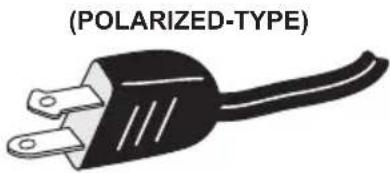
1 Your TV set is equipped with a polarized AC line plug (one blade of the plug is wider than the other). This safety feature allows the plug to fit into the power outlet only one way. Should you be unable to insert the plug fully into the outlet, try reversing the plug. Should it still fail to fit, contact your electrician.
text_image
(POLARIZED-TYPE)2 Operate the TV set only from a power source as indicated on the TV set or refer to the operating instructions for this information. If you are not sure of the type of power supply to your home, consult your TV set dealer or local power company. For battery operation, refer to the operating instructions.
3 Overloaded AC outlets and extension cords are dangerous, and so are frayed power cords and broken plugs. They may result in a shock or fire hazard. Call your service technician for replacement.
4 Do not allow anything to rest on or roll over the power cord, and do not place the TV set where power cord is subject to traffic or abuse. This may result in a shock or fire hazard.
5 Do not use this TV set near water — for example, near a bathtub, washbowl, kitchen sink, or laundry tub, in a wet basement, or near swimming pool, etc.
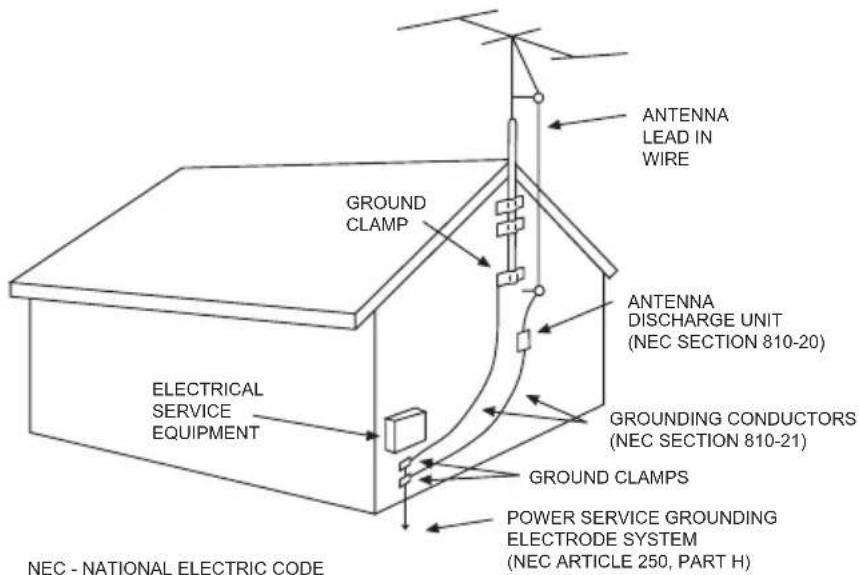
6 If an outside antenna is connected to the TV set, be sure the antenna system is grounded so as to provide some protection against voltage surges and built-up static charges. Section 810 of the National Electrical Code provides information with respect to proper grounding of the mast and supporting structure, grounding of the lead-in wire to an antenna discharge unit, size of grounding conductors, location of antenna discharge unit, connection requirements for the grounding electrode.
7 An outside antenna system should not be located in the vicinity of overhead power lines or other electric light or power circuits, or where it can fall into such power lines or circuits. When installing an outside antenna system, extreme care should be taken to keep from touching such power lines or circuits as contact with them might be fatal.
EXAMPLE OF ANTENNA GROUNDING
AS PER NATIONAL ELECTRICAL CODE
text_image
ANTENNA LEAD IN WIRE GROUND CLAMP ANTENNA DISCHARGE UNIT (NEC SECTION 810-20) GROUNDING CONDUCTORS (NEC SECTION 810-21) GROUND CLAMPS POWER SERVICE GROUNDING ELECTRODE SYSTEM (NEC ARTICLE 250, PART H) ELECTRICAL SERVICE EQUIPMENT NEC - NATIONAL ELECTRIC CODE8 TV sets are provided with ventilation openings in the cabinet to allow heat generated during operation to be released.
Therefore:
— Never block the bottom ventilation slots of a portable TV set by placing it on a bed, sofa, rug, etc.
— Never place a TV set in a "built-in" enclosure unless proper ventilation is provided.
— Never cover the openings with a cloth or other material.
— Never place the TV set near or over a radiator or heat register.
9 To avoid personal injury:
— Do not place a TV set on a sloping shelf unless properly secured.
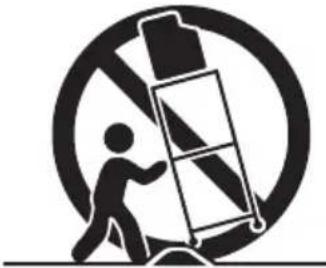
— Use only a cart or stand recommended by the TV set manufacturer.
— Do not try to roll a cart with small casters across thresholds or deep pile carpets.
— Wall or shelf mounting should follow the manufacturer's instructions, and should use a mounting kit approved by the manufacturer.
Use
10 Caution children about dropping or pushing objects into the TV set through cabinet openings. Some internal parts carry hazardous voltages and contact can result in a fire or electrical shock.
11 Unplug the TV set from the wall outlet before cleaning. Do not use liquid or an aerosol cleaner.
12 Never add accessories to a TV set that has not been designed for this purpose. Such additions may result in a hazard.
natural_image
Silhouette of a person climbing a ladder inside a circular symbol with a diagonal line (no text or symbols)PORTABLE CART WARNING (Symbol provided by RETAC)
13 For added protection of the TV set during a lightning storm or when the TV set is to be left unattended for an extended period of time, unplug it from the wall outlet and disconnect the antenna. This will prevent damage to product due to lightning storms or power line surges.
14 A TV set and cart combination should be moved with care. Quick stops, excessive force, and uneven surfaces may cause the TV set and cart combination to overturn.
Service
15 Unplug this TV set from the wall outlet and refer servicing to qualified service personnel under the following conditions:
A. When the power cord or plug is damaged or frayed.
B. If liquid has been spilled into the TV set.
C. If the TV set has been exposed to rain or water.
D. If the TV set does not operate normally by following the operating instructions. Adjust only those controls that are covered in the operating instructions as improper adjustment of other controls may result in damage and will often require extensive work by a qualified technician to restore the TV set to normal operation.
E. If the TV set has been dropped or damaged in any way.
F. When the TV set exhibits a distinct change in performance — this indicates a need for service.
16 Do not attempt to service this TV set yourself as opening or removing covers may expose you to dangerous voltage or other hazards. Refer all servicing to qualified service personnel.
17 When replacement parts are required, have the service technician verify in writing that the replacement parts he uses have the same safety characteristics as the original parts. Use of manufacturer's specified replacement parts can prevent fire, shock, or other hazards.
18 Upon completion of any service or repairs to this TV set, please ask the service technician to perform the safety check described in the manufacturer's service literature.
19 When a TV set reaches the end of its useful life, improper disposal could result in a picture tube implosion. Ask a qualified service technician to dispose of the TV set.
20 Note to CATV system installer.
This reminder is provided to call the CATV system installer's attention to Article 820-40 of the NEC that provides guidelines for proper grounding and, in particular, specifies that the cable ground shall be connected to the grounding system of the building, as close to the point of cable entry as practical.
Table of Contents
Quick Setup 7
Unpacking your TV 7
TV Model 8
TV Remote Control 11
Getting Started 12
The Remote Control ..... 12
Connecting Your Devices ..... 13
Interactive Plug In Menu ..... 22
Remote Programming ..... 25
Setting CATV, VCR and DVD Codes . . . 25
CATV or Satellite Codes ..... 25
VCR Codes 26
DVD Codes 27
Search Codes 28
Onscreen Menus ..... 29
Using the Guide 29
Onscreen Menu System ..... 30
Initial Setup 32
Auto Tuner Setup 32
Channel Summary 32
V-Chip 34
Set Lock Code 40
Auto Demo 40
Language 41
Closed Caption 41
Auto Shut Off 42
XDS ID 42
Tilt Correction 42
Noise Muting 43
Front Panel Lock 43
V1 Smart Input 44
Video Input Label 44
Position Adjustment 45
Digital-In 46
Digital-In Audio 46
Center CH Input 47
Audio Out 47
TV Speaker 48
Picture Adjust ..... 49
Picture Settings 49
Adjust Picture Settings 49
Color Temperature 49
Digital Noise Clear 50
VSM 50
Natural Cinema 50
Reset 51
Sound Adjust ..... 52
Sound Settings 52
Adjust Sound Settings 52
MTS (Multi-channel Sound) ..... 52
Reset 52
Clock Timers ..... 53
Set Clock 53
On/Off Timer 54
Button Functions ..... 55
Multi Screen Function 55
Index 55
Twin 55
Freeze 56
Swap 56
Select 56
Power 57
Number Buttons 57
Tune 57
Input 57
Channel +/- 57
Volume +/- 57
Return 58
Sound 58
Muting 58
Video Status 59
TheaterPro D6500K 59
Sleep Timer 59
Display 60
C.C. 60
Aspect 61
Aspect Ratios 61
Menu 62
OK 62
Back 62
TV/CATV Slide Switch 63
VCR/DVD Slide Switch ..... 63
VCR Buttons 63
DVD Buttons 63
Light 63
Appendices ..... 64
Troubleshooting 64
Warranty 65
Authorized Service Centers ..... 66
Specifications 67
Notes 68
Quick Setup
Unpacking your TV
Thank you for your purchase of a JVC Color Television. Before you begin setting up your new television, please check to make sure you have all of the following items. In addition to this guide, your television box should include:
1 Television
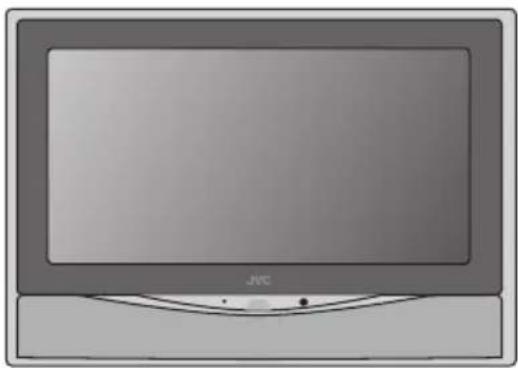
natural_image
Illustration of a flat-screen monitor with 'JVC' branding on the front panel (no additional text or symbols)1 Remote Control
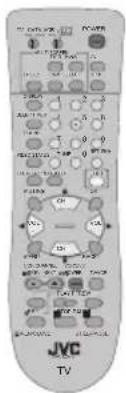
text_image
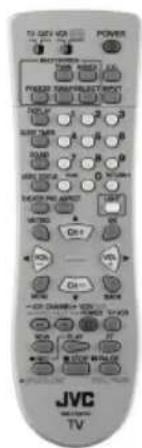
TV JVC TVTwo AA Batteries
Note: Your television and/or remote control may differ from the examples illustrated here.
Once you have unpacked your television, the next step is to connect it to your antenna/cable or satellite system and to connect the audio/video devices you want to use with your television. To make these connections you will use plugs like the ones illustrated below.
Coaxial Cables

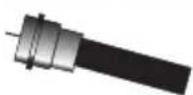
Used to connect an external antenna or cable TV system to your TV.
S-Video Cable

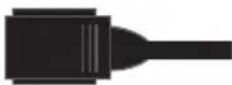
Used to make video connections with S-Video VCRs, Camcorders and DVD players.
Component Cables Composite Cables Audio Cables

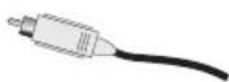
Used to connect audio/video devices like VCRs, DVD players, stereo amplifiers, game consoles, etc.
AV CompuLink Cable
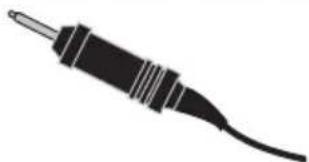
natural_image
Silhouette of a black electrical plug with a metallic tip (no text or symbols)Used to connect JVC AV CompuLink capable components for an automated home theater. Note: AV-30W585 ONLY
We recommend that before you start using your new television, you read your entire User's Guide so you can learn about your new television's many great features. If you're anxious to start using your television right away, a quick setup guide follows on the next few pages.
Quick Setup
TV Models
NOTE: Before you connect your television to another device, please refer to the proper diagrams for your specific TV and remote. These will help assist you in understanding how to connect your television to another device, as well as use the remote to set up your television.
Rear Panel Diagram
MODEL : AV-30W585
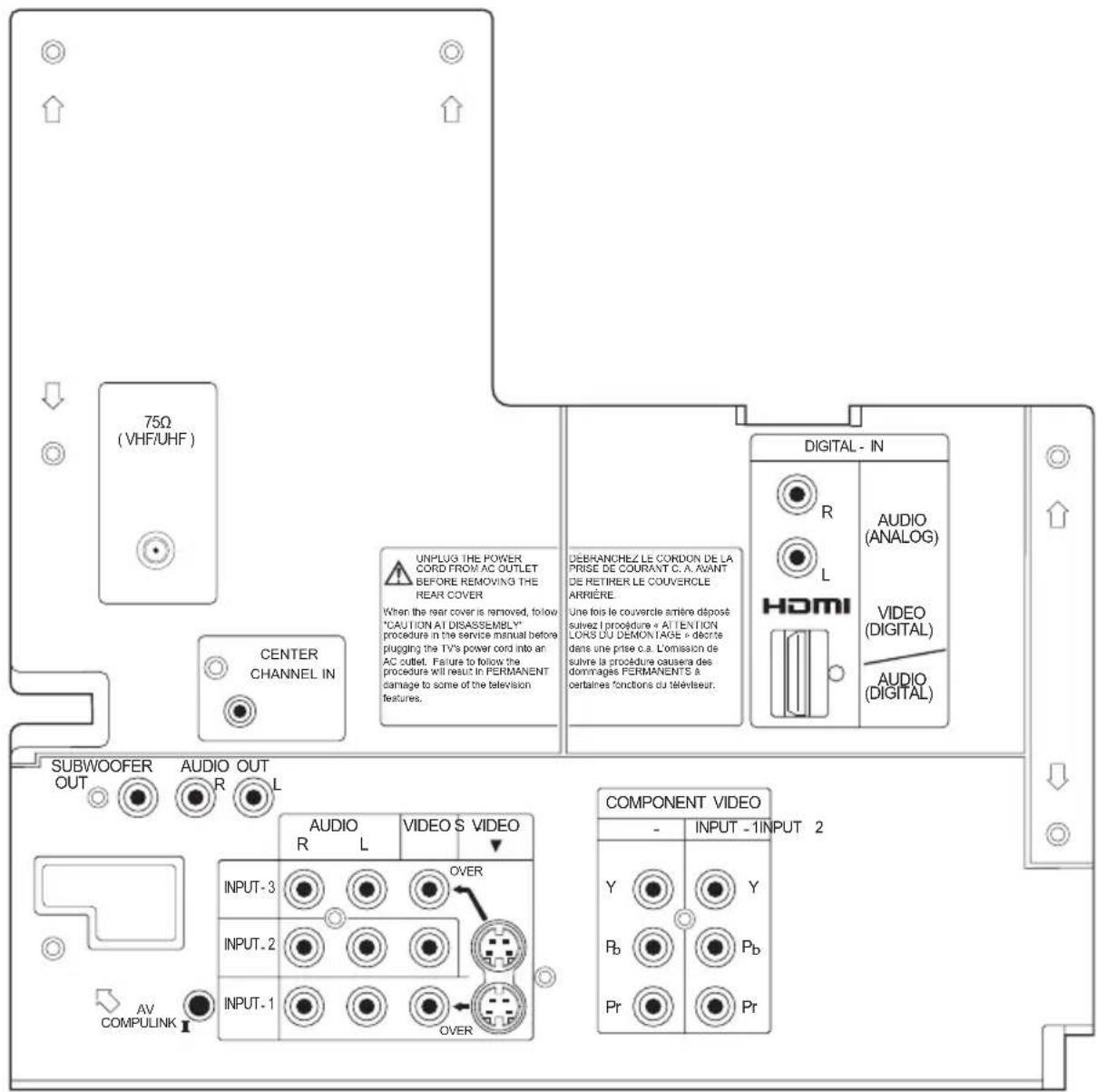
text_image
75Ω (VHF/UHF) CENTER CHANNEL IN UNPLUG THE POWER CORD FROM AC OUTLET BEFORE REMOVING THE REAR COVER When the rear cover is removed, follow "CAUTION AT DISASSEMBLY" procedure in the service manual before plugging the TV's power cord into an AC outlet. Failure to follow the procedure will result in PERMANENT damage to some of the television features. DEBRANCHEZ LE CORDON DE LA PRISE DE COURANT C. A AVANT DE RETIRER LE COUVERCLE ARRIÈRE. Une fois le couvercle arrière déposé suvezl procédure « ATTENTION LONS DU DEMON IAGE » décrée dans une prise c.a. L'omission de suivre la procédure causer des dommages PERMANENTS à certaines fonctions du téléviseur. DIGITAL - IN R L HOMI AUDIO (ANALOG) VIDEO (DIGITAL) AUDIO (DIGITAL) SUBWOOFER OUT AUDIO OUT R L AUDIO R L VIDEO S VIDEO COMPONENT VIDEO - INPUT -1 INPUT 2 Y Pb Pr Pr Y Pb Pr AV COMPULINKQuick Setup
TV Models
NOTE: Before you connect your television to another device, please refer to the proper diagrams for your specific TV and remote. These will help assist you in understanding how to connect your television to another device, as well as use the remote to set up your television.
Rear Panel Diagram
MODEL: AV-30W575
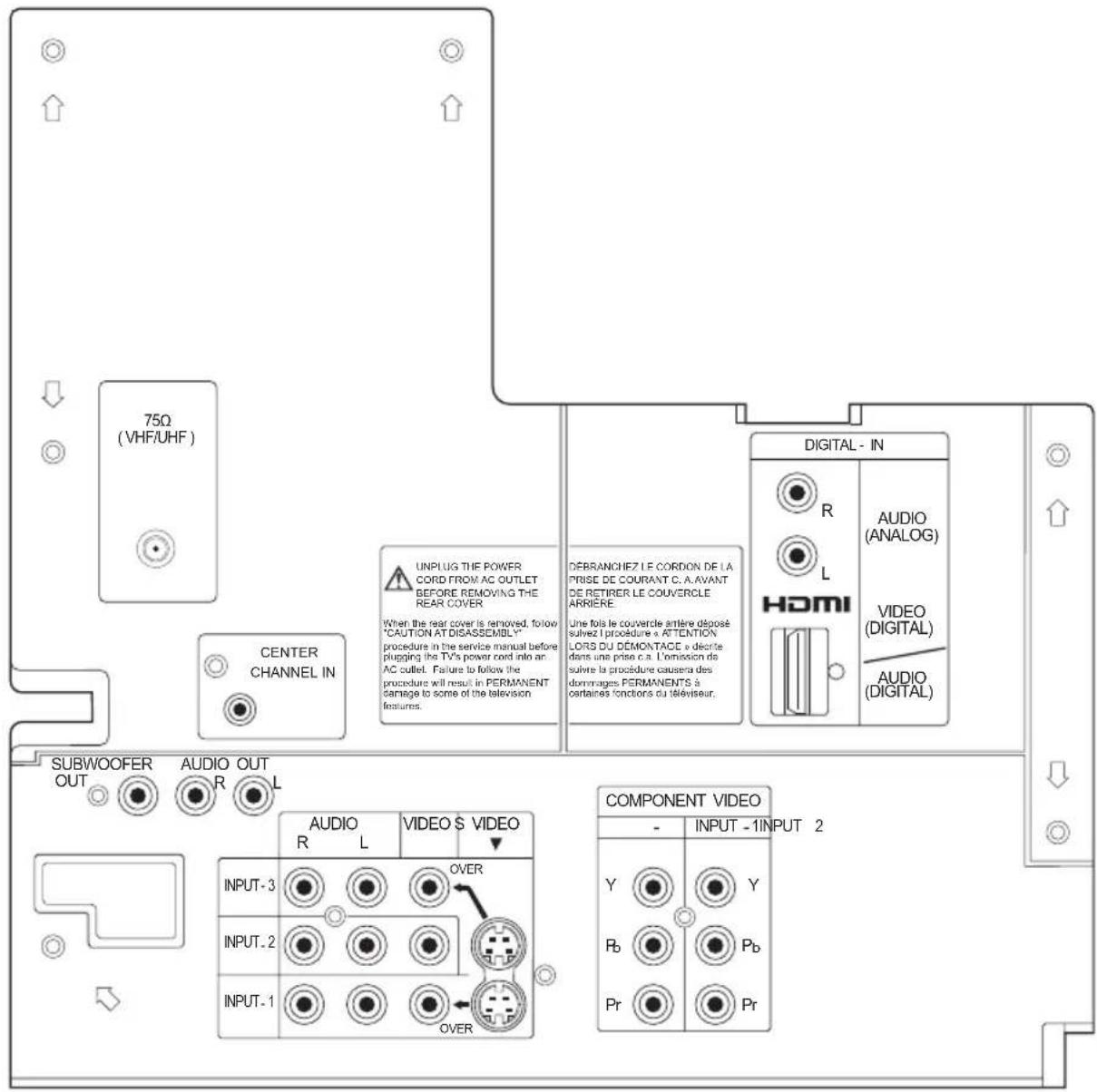
text_image
75Ω (VHF/UHF) CENTER CHANNEL IN UNPLUG THE POWER CORD FROM AC OUTLET BEFORE REMOVING THE REAR COVER When the rear cover is removed, follow "CAUTION AT DISASSEMBLY" procedure in the service manual before plugging the TV's power cord into an AC cullet. Failure to follow the procedure will result in PERMANENT damage to some of the television features. DEBRANCHIEZ LE CORDON DE LA PRISE DE COURANT C. A AVANT DE RETIRER LE COUVERCLE ARRIERE. Une fola le couvercle antère déposé suivez l' procédure « ATTENTION LORS DU DÉMONTACE » deorte dans une prise c.a. L'imision de sulvre la procédure causera des dommages PERMANENTS à certaines fonctions du téléviseur. DIGITAL - IN R L HOMI AUDIO (ANALOG) VIDEO (DIGITAL) AUDIO (DIGITAL) SUBWOOFER OUT AUDIO OUT R L AUDIO R L VIDEO S VIDEO INPUT-3 OVER INPUT-2 OVER INPUT-1 Y Pb Pr Y Pb Pr COMPONENT VIDEO - INPUT -1INPUT 2Quick Setup
TV Models
NOTE: Before you connect your television to another device, please refer to the proper diagrams for your specific TV and remote. These will help assist you in understanding how to connect your television to another device, as well as use the remote to set up your television.
Side panel Diagram
MODELS: AV-30W585 and AV-30W575
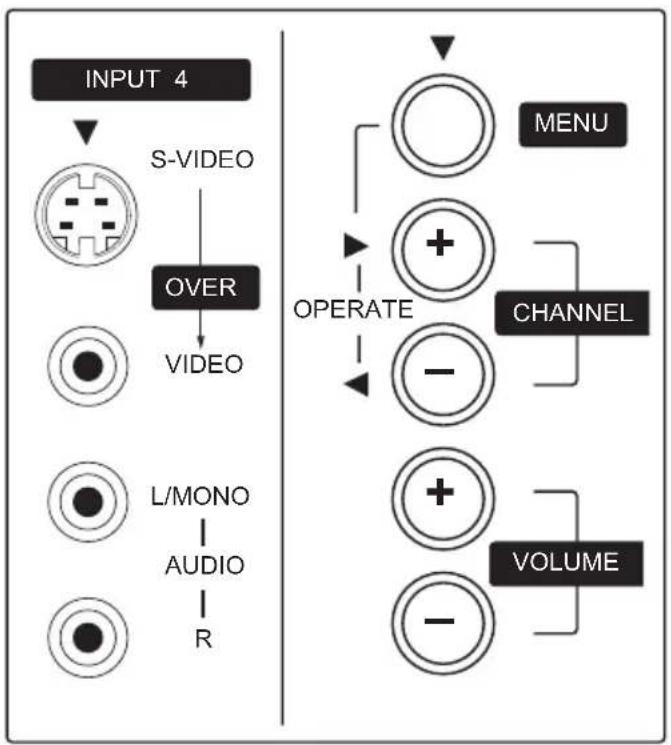
flowchart
graph TD
    A["INPUT 4"] --> B["S-VIDEO"]
    B --> C["OVER"]
    C --> D["VIDEO"]
    E["L/MONO"] --> F["AUDIO"]
    F --> G["R"]
    H["MENU"] --> I["+"]
    J["CHANNEL"] --> K["-"]
    L["VOLUME"] --> M["+"]
    N["OPEN"] --> O["○"]
    P["OPEN"] --> Q["+"]
    R["OPEN"] --> S["○"]
    T["OPEN"] --> U["○"]
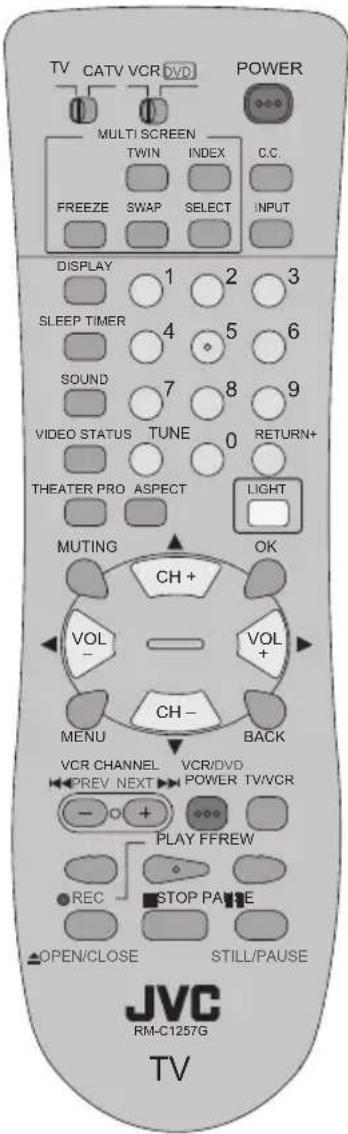
text_image
TV CATV VCR DVD POWER MULTI SCREEN TWIN INDEX C.C. FREEZE SWAP SELECT INPUT DISPLAY 1 2 3 SLEEP TIMER 4 5 6 SOUND 7 8 9 VIDEO STATUS TUNE 0 RETURN+ THEATER PRO ASPECT LIGHT MUTING CH + OK VOL - VOL + CH - MENU BACK VCR CHANNEL VCR/DVD POWER TV/VCR PREV NEXT PLAY FFREW - + + RECE STOP PAUSE OPEN/CLOSE STILL/PAUSE JVC RM-C1257G TVRM-C1257G
MODELS:
AV-30W585
AV-30W575
• For information on remote control buttons, see pages 55 - 63.
Getting Started
These quick setup pages will provide you, in three easy steps, with the basic information you need to begin using your new television right away.
If you have questions, or for more detailed information on any of these steps, please consult other sections of this manual.
Step 1 – The Remote Control
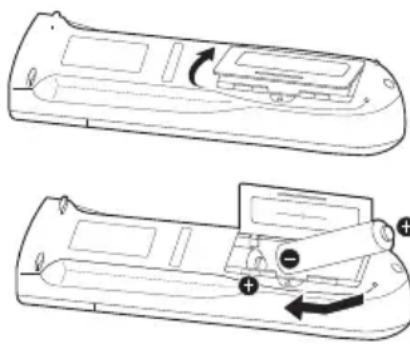
Before you can operate your remote control, you first need to install the batteries (included).
Lift and pull the latch on the back of the remote control to open. Insert two batteries (included) carefully noting the “+” and “−” markings, placing the “−” end in the unit first. Snap the cover back into place.
When you change the batteries, try to complete the task within three minutes. If you take longer than three minutes, the remote control codes for your VCR, DVD, and/or cable box/satellite receiver may have to be reset. See pages 25 - 28.
natural_image
Diagram of a remote control casing with directional arrows indicating movement (no text or symbols)Key Feature Buttons
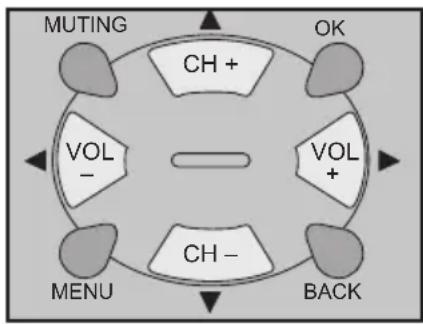
The four key feature buttons at the center of the remote can be used for basic operation of the television. The top and bottom buttons will scan forward and back through the available channels. To move rapidly through the channels using JVC's Hyperscan feature, press and hold CH+ or CH−. The channels will zip by at a rate of five channels per second. The right and left buttons will turn the volume up or down. These buttons are also marked with four arrows and are used with JVC's onscreen menu system. To use the onscreen menus, press the MENU button.
flowchart
graph TD
    A["MUTING"] --> B["CH +"]
    C["OK"] --> D["VOL +"]
    E["VOL -"] --> F["CH -"]
    G["MENU"] --> H["CH -"]
    I["BACK"] --> J["CH -"]
Basic Operation
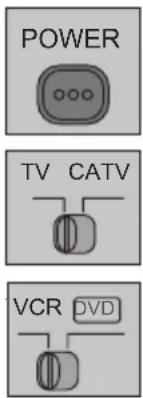
Turn the television on and off by pressing the POWER button at the top right corner of the remote. If this is the first time you are turning on the TV, the interactive plug-in menu appears.
- Make sure the TV/CATV switch is set to TV. Move the switch to CATV only if you need to operate a cable box.
- Slide the VCR/DVD selector switch to VCR to control a VCR. Slide to DVD to control a DVD player. Please see pages 25 to 28 for instructions on programming your remote control to operate a cable box, VCR or DVD player.
text_image
POWER TV CATV VCR DVDStep 2 – Connecting Your Devices
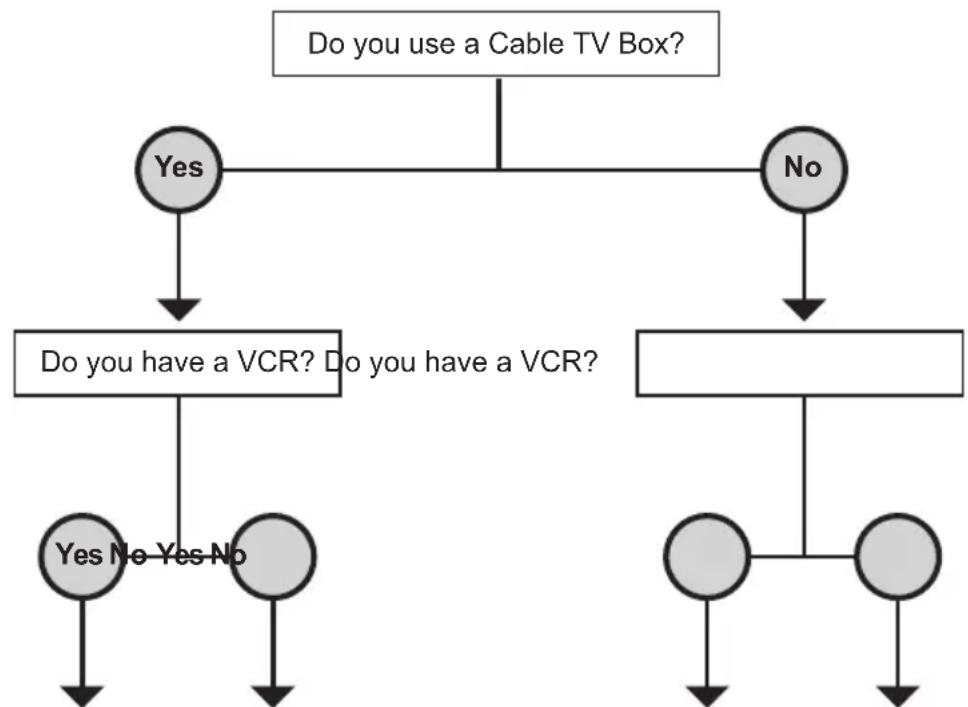
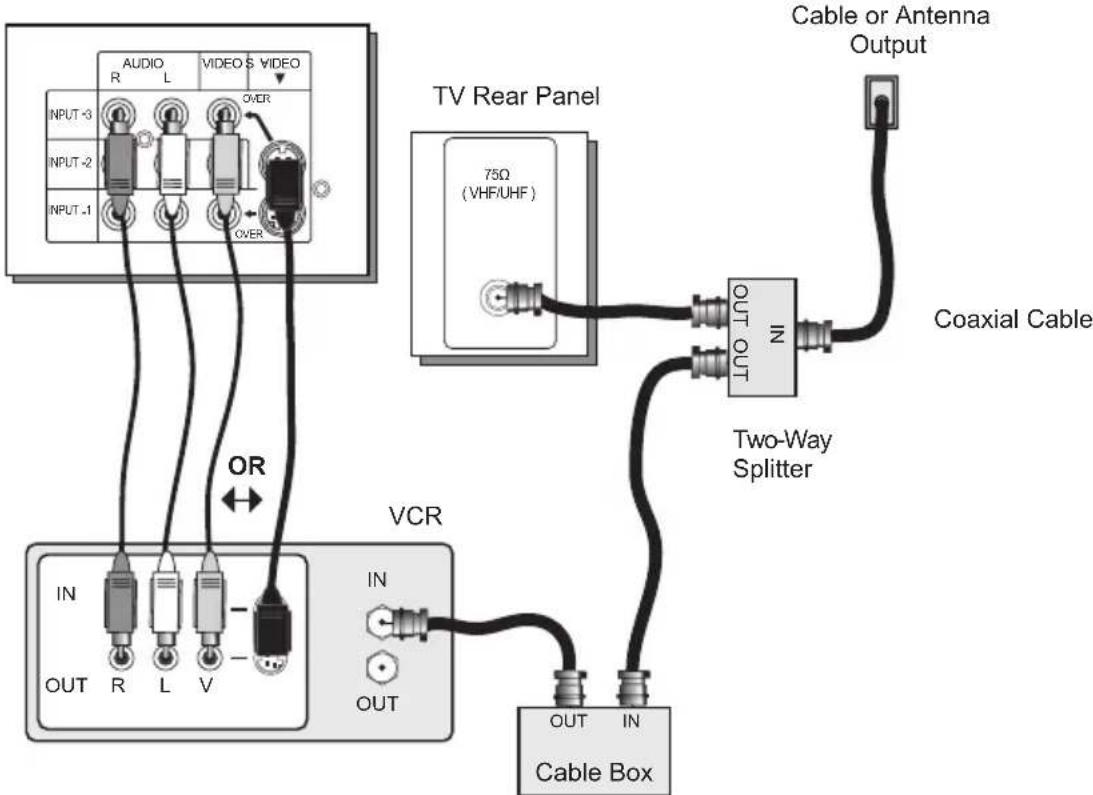
Please follow the flow chart below to determine which connection setup is right for you. Then, refer to the appropriate diagrams to connect your television to other devices that you may have. After you are finished connecting your devices, plug the power cord into the nearest power outlet and turn on the TV.
A VCR is not necessary for operation of the television. If you follow these diagrams and the television does not work properly, contact your local cable operator.
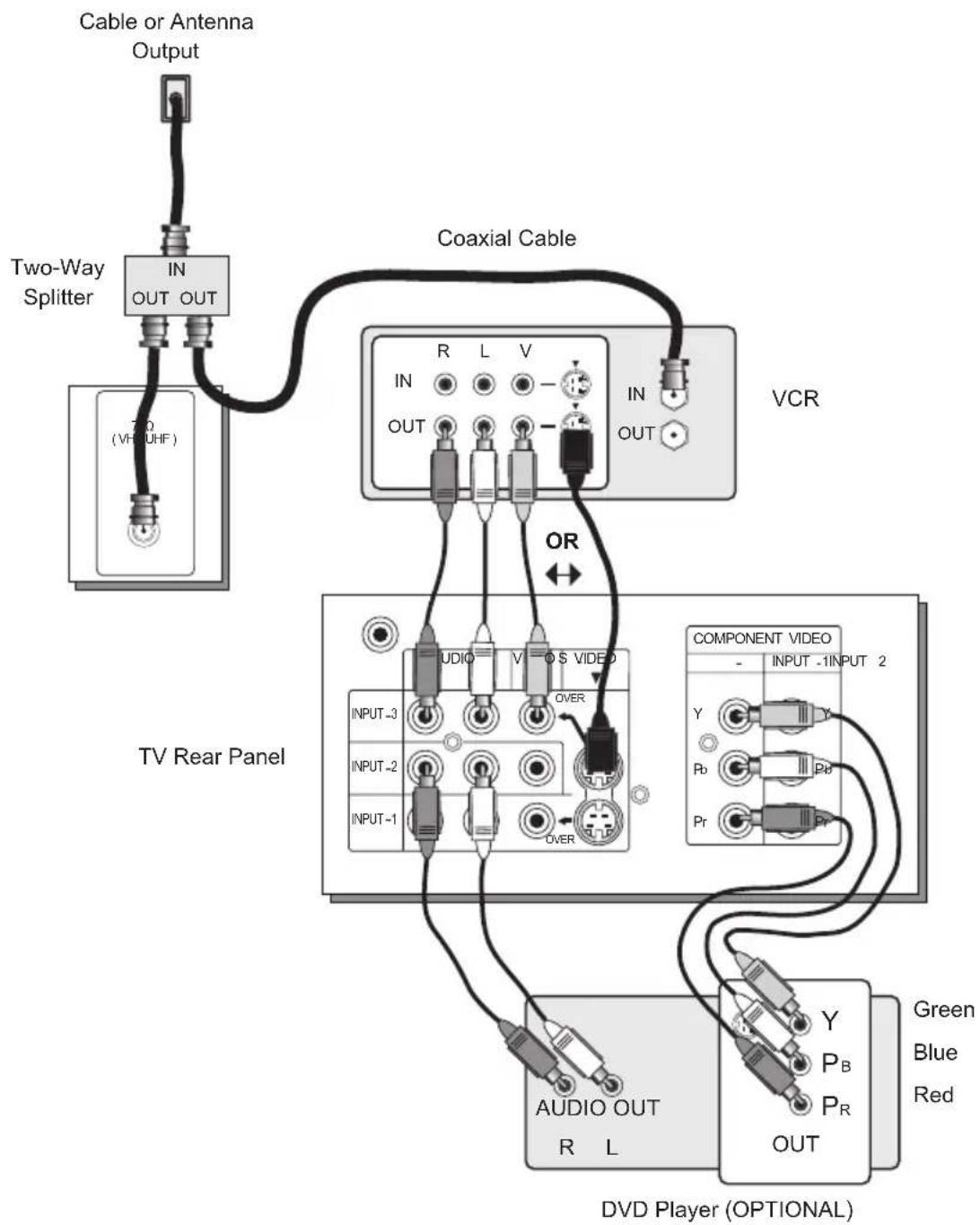
• To connect a DVD player, see Diagram #3. A DVD player is optional.
- If you have a satellite television system, please refer to the satellite TV manual.
flowchart
graph TD
    A["Do you use a Cable TV Box?"] --> B{Yes}
    A --> C{No}
    B --> D["Do you have a VCR?"]
    B --> E["Do you have a VCR?"]
    D --> F{Yes No Yes No}
    D --> G{No Yes No}
    E --> H{Yes}
    E --> I{No}
text_image
750 (VHF/UHF) TV Rear Panel Cable or Antenna Output Coaxial Cable OR OUT IN Cable BoxNote:
- If you do not have a cable box, connect the cable wire from the wall outlet into the back of the TV.
Diagram #2
flowchart
graph TD
    A["TV Rear Panel"] -->|Cable or Antenna Output| B["Cable Box"]
    A -->|Coaxial Cable| C["Two-Way Splitter"]
    C -->|OUT OUT| D["TV Rear Panel"]
    C -->|IN| E["VCR"]
    A -->|VCR| F["TV Rear Panel"]
    A -->|IN| G["VCR"]
    A -->|OUT| H["TV Rear Panel"]
    style A fill:#f9f,stroke:#333
    style B fill:#ccf,stroke:#333
    style C fill:#cfc,stroke:#333
    style D fill:#fcc,stroke:#333
    style E fill:#cff,stroke:#333
    style F fill:#ffc,stroke:#333
    style G fill:#cfc,stroke:#333
    style H fill:#fcc,stroke:#333
Notes:
- If your VCR is a mono sound unit, it will have only one audio out jack. Connect it to the LEFT AUDIO INPUT on the front of the TV.
- Use the S-Video connection if possible for superior picture quality.
- Your VCR must be turned on to view premium cable channels.
Quick Setup
Connections
Notes:
- Green, blue and red are the most common colors for DVD cables. Some models may vary colors. Please consult the user's manual for your DVD player for more information.
- Be careful not to confuse the red DVD cable with the red audio cable. It is best to complete one set of connections (DVD or audio output) before starting the other to avoid accidentally switching the cables.
• You may also connect the DVD player to Input 1.
Diagram #3
flowchart
graph TD
    A["Cable or Antenna Output"] --> B["Two-Way Splitter"]
    B --> C["IN OUT OUT"]
    C --> D["Coaxial Cable"]
    D --> E["VCR"]
    E --> F["TV Rear Panel"]
    F --> G["COMPONENT VIDEO"]
    G --> H["INPUT -1 INPUT 2"]
    G --> I["Y"]
    G --> J["Pb"]
    G --> K["Pr"]
    G --> L["Y"]
    G --> M["Pb"]
    G --> N["PR"]
    G --> O["OUT"]
    F --> P["AUDIO OUT R L"]
    F --> Q["DVD Player (OPTIONAL)"]
    style A fill:#f9f,stroke:#333
    style B fill:#ccf,stroke:#333
    style C fill:#cfc,stroke:#333
    style D fill:#fcc,stroke:#333
    style E fill:#cff,stroke:#333
    style F fill:#ffc,stroke:#333
    style G fill:#fcf,stroke:#333
    style H fill:#cff,stroke:#333
    style I fill:#ffc,stroke:#333
    style J fill:#cff,stroke:#333
    style K fill:#ffc,stroke:#333
    style L fill:#cff,stroke:#333
    style M fill:#ffc,stroke:#333
    style N fill:#cff,stroke:#333
    style O fill:#ffc,stroke:#333
Connecting to JVC AV CompuLink
Note: AV-30W585 ONLY
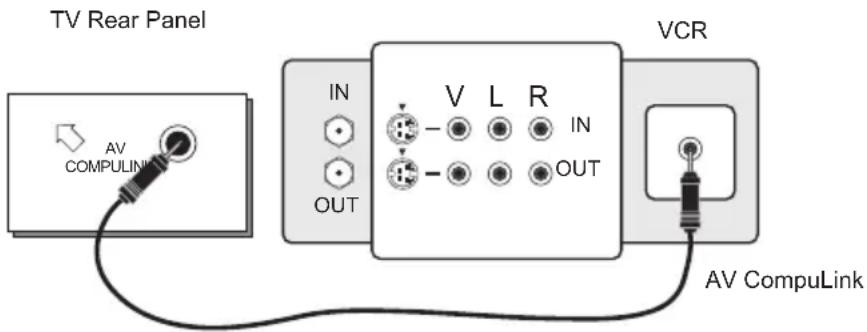
JVC's AV CompuLink feature makes playing video tapes or DVDs totally automatic. Simply insert a pre-recorded tape into your JVC brand VCR or DVD into your JVC DVD player and the device will automatically turn on and begin playback. At the same time, using the AV CompuLink, the VCR or DVD player sends a signal to the television telling it to turn on and switch to the proper video input.
- The AV CompuLink cable may be included with the JVC AV CompuLink unit you wish to connect. If it is not, contact JVC Parts Department at (800)-882-2345, or www.jvcservice.com for part # EWP 805-012.
- AV CompuLink can only be used with JVC brand products.
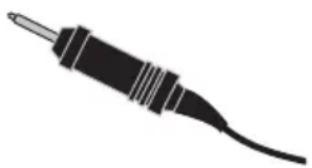
AV Compu Link Cable
natural_image
Silhouette of a black electrical plug with a terminal and coiled cable (no text or symbols)To Connect: Plug one end of the AV CompuLink cable into the AV COMPULINK INPUT on your VCR, DVD, or other CompuLink device. Plug the other end of the AV CompuLink cable into the AV COMPULINK at the rear of the television.
Note:
- The AV CompuLink cable has a male 3.5 mm (mono) plug on each end.
text_image
TV Rear Panel AV COMPULINK IN OUT V L R IN OUT VCR AV CompuLinkNotes:
- In order for the VCR playback to begin automatically, the recording tabs must be removed from the VHS tape. If the tab is in place, automatic switching will occur when you push the VCR's Play button.
- If your JVC brand VCR has "A code/B code remote control switching" (see your VCR's instruction book), using VCR A code will switch the TV to input 1.
• Refer to your DVD instruction book for detailed connection information. - To connect a JVC HiFi receiver or amplifier for a completely automated home theater, see the receiver connection instructions for detailed connection information.
- AV CompuLink is compatible with select AV CompuLink receivers.
Quick Setup
Connections
Connecting to a Camcorder
You may connect a camcorder, game console or other equipment to your television by using the side input jacks (Input 4) located on the side of the television. You can also connect these using the television's rear input jacks, using the same instructions.
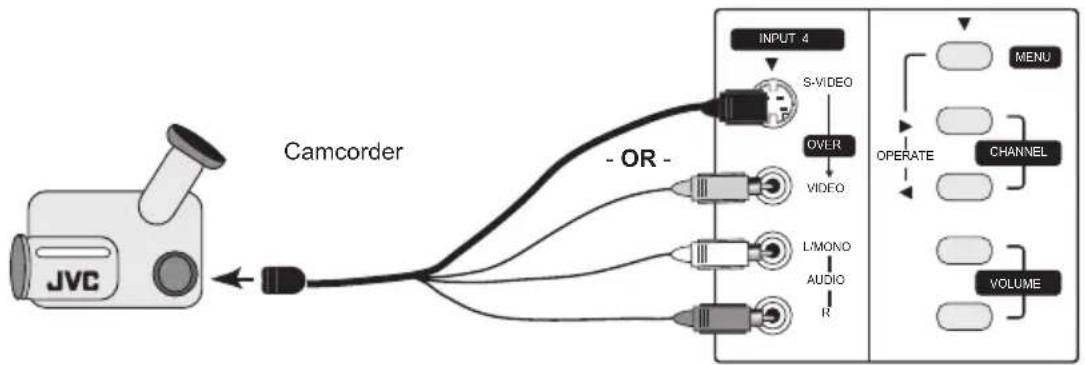
flowchart
graph LR
    A["JVC"] --> B["Camcorder"]
    B --> C["OR"]
    C --> D["INPUT 4"]
    D --> E["S-VIDEO"]
    E --> F["OVER"]
    F --> G["VIDEO"]
    G --> H["L/MONO"]
    H --> I["AUDIO"]
    I --> J["R"]
    C --> K["CHANNEL"]
    K --> L["MENU"]
    K --> M["VOLUME"]
    style A fill:#f9f,stroke:#333
    style B fill:#ccf,stroke:#333
    style C fill:#cff,stroke:#333
    style D fill:#ffc,stroke:#333
    style E fill:#cfc,stroke:#333
    style F fill:#fcc,stroke:#333
    style G fill:#fcf,stroke:#333
    style H fill:#cff,stroke:#333
    style I fill:#ffc,stroke:#333
    style J fill:#cfc,stroke:#333
    style K fill:#cfc,stroke:#333
    style L fill:#cfc,stroke:#333
    style M fill:#cfc,stroke:#333
1) Connect a yellow composite cable from the camcorder VIDEO OUT, into the VIDEO IN on the side of the TV, OR connect an S-Video cable from the side of the TV to the camcorder.
2) Connect a white cable from the camcorder LEFT AUDIO OUT, into the LEFT AUDIO IN on the side of the TV.
3) Connect a red cable from the camcorder RIGHT AUDIO OUT, into the RIGHT AUDIO IN on the side of the TV.
Note:
- If your camcorder is a mono sound model it will have only one AUDIO OUT. Connect it to the L/MONO on the side of the TV.
Connecting to an External Amplifier
Subwoofer Out - Use a powered subwoofer with the surround feature to simulate a home theater system. Simply connect the subwoofer to the back of the TV.
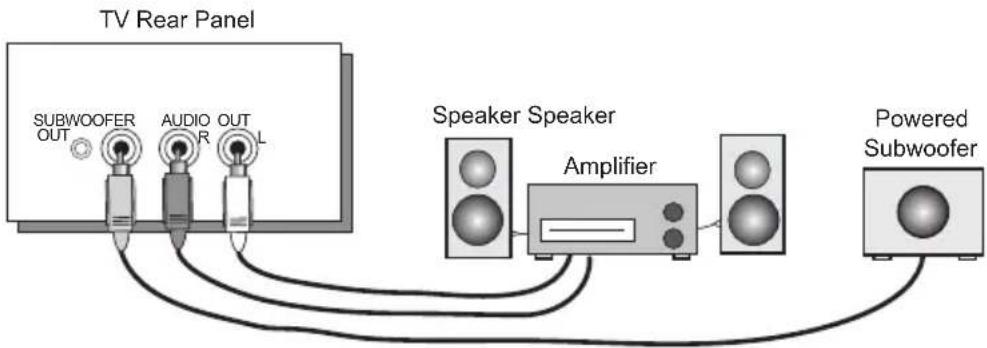
flowchart
graph LR
    A["TV Rear Panel"] --> B["AUDIO R OUT L"]
    A --> C["Speaker Speaker Amplifier"]
    A --> D["Powered Subwoofer"]
    B --> C
    C --> D
1) Connect a white cable from the LEFT AUDIO OUTPUT on the back of the TV to the LEFT AUDIO INPUT on the amplifier.
2) Connect a red cable from the RIGHT AUDIO OUTPUT on the back of the TV to the RIGHT AUDIO INPUT on the amplifier.
3) Connect a black cable from the SUBWOOFER OUT on the back of the TV to the LINE INPUT of the subwoofer.
Notes:
- Refer to your amplifier's manual for more information.
• You can use AUDIO OUTPUT for your home theater system.
Connecting to the Surround Amplifier
In multi-channel sound such as 5.1 channel, the speech characters are played back from the center speaker.
A center speaker in a movie theater is set in back of the screen so it can recreate a conversation scene in the movie more naturally. By using your TV's speaker as the center speaker, you can obtain the same sound effect as in a movie theater in you home theater sound system.
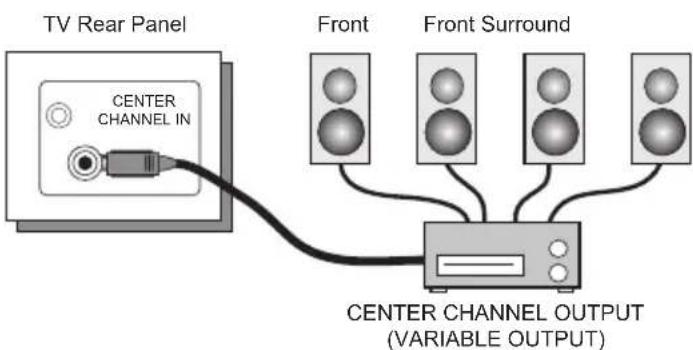
text_image
TV Rear Panel CENTER CHANNEL IN Front Front Surround CENTER CHANNEL OUTPUT (VARIABLE OUTPUT)1) Connect the Pin cable from the TV's CENTER CHANNEL INPUT terminal to the surround amplifier's CENTER CHANNEL OUTPUT terminal.
Note:
- Please read the benefit of this feature on page 47.
Connecting to a Digital TV Receiver
By connecting a Digital TV Reciever, high definition pictures can be displayed on your TV in their digital form.
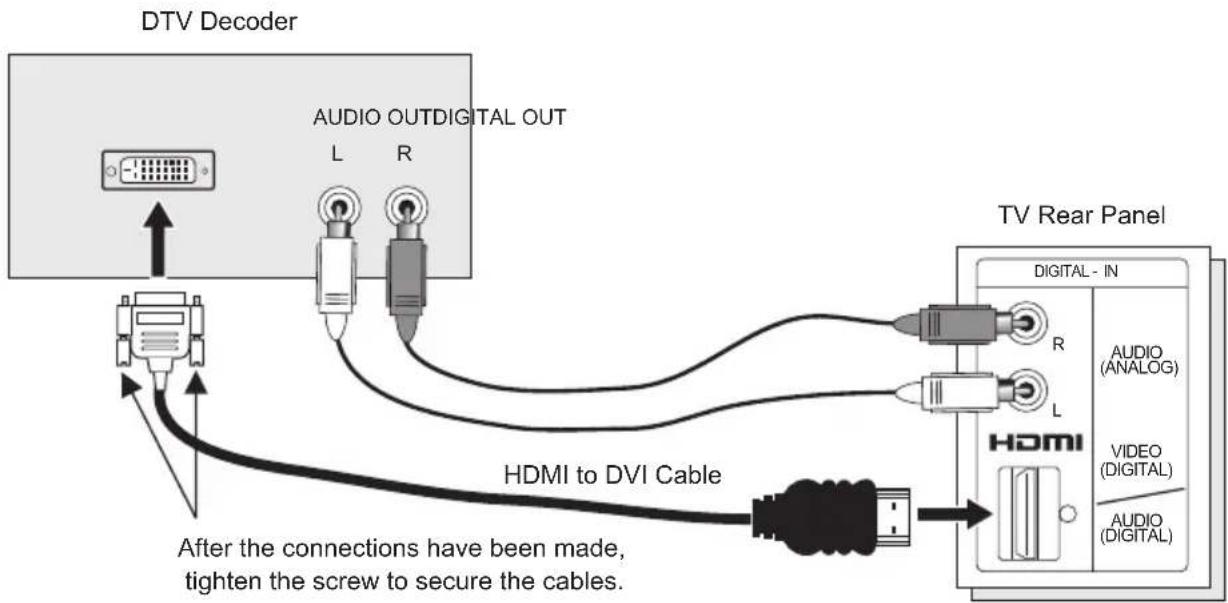
text_image
DTV Decoder AUDIO OUTDIGITAL OUT L R HDMI to DVI Cable After the connections have been made, tighten the screw to secure the cables. TV Rear Panel DIGITAL - IN R AUDIO (ANALOG) L VIDEO (DIGITAL) HDMI AUDIO (DIGITAL)1) Connect the HDMI to DVI Cable from the DIGITAL OUT on the back of your DTV decoder, to the DIGITAL-IN on the back of your television.
2) Connect a red cable from the DTV decoder RIGHT AUDIO OUT, to the RIGHT AUDIO DIGITAL-IN on the back of your television.
3) Connect a white cable from the DTV decoder LEFT AUDIO OUT, to the LEFT AUDIO DIGITAL-IN on the back of your television.
• The digital-in terminal is not compatible with the picture signal of a personal computer.
- Use a HDMI to DVI cable (commercially available) in order to digitally connect the television with a DTV decoder.
Notes:
- If 480p signals (640x480 or 720x480) are displayed on the screen, the horizontal balance may be slightly shifted. Access the "DIGITAL-IN" in the initial setup menu to adjust it. (Refer to page 46.)
- When you do the above connection, set DIGITAL-IN AUDIO in the Initial Setup menu to ANALOG. See "DIGITAL-IN AUDIO", page 46.
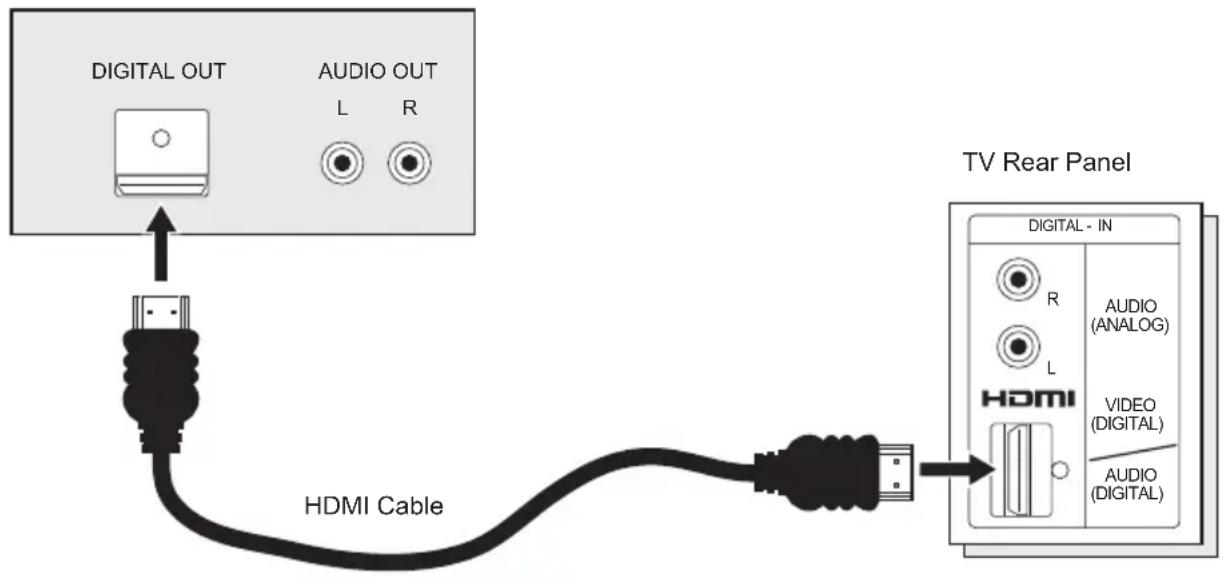
Connecting to a HDMI Compatible Device
By connecting a HDMI compatible device, high definition pictures can be displayed on your TV in their digital form. Some HDMI devices can include DVD players, D-VHS or any HDMI compatible device.
HDMI (High Definition Multimedia Interface) is the first industry supported, uncompressed, all digital audio/video interface. HDMI provides and interface between any audio/video source, such as a set-top box, DVD player, A/V receiver or an audio and/or video monitor, such as a digital television (DTV).
HDMI Compatible Device
flowchart
graph TD
    A["Digital OUT"] -->|HDMI Cable| B["TV Rear Panel"]
    C["Audio OUT"] -->|L R| B
    D["HDMI"] -->|R L| B
    B --> E["VIDEO (DIGITAL)"]
    B --> F["AUDIO (DIGITAL)"]
    style A fill:#f9f,stroke:#333
    style C fill:#ccf,stroke:#333
    style D fill:#cfc,stroke:#333
    style E fill:#fcc,stroke:#333
    style F fill:#cff,stroke:#333
1) Connect the HDMI Cable from the DIGITAL OUT on the back of your DTV or HDMI device, to the DIGITAL-IN on the back of your television.
Note:
- When you do the above connection, set DIGITAL-IN AUDIO in the Initial Setup menu to DIGITAL. See "DIGITAL-IN AUDIO", page 46.
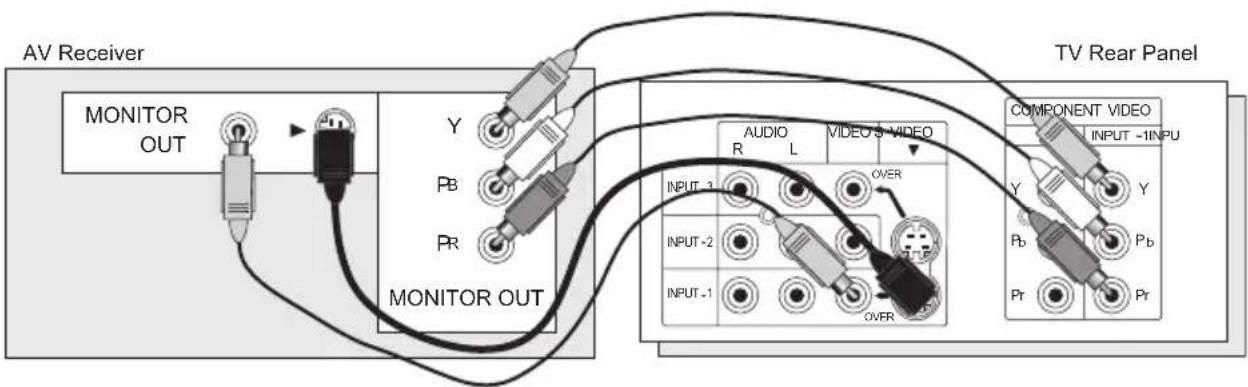
Connecting to an AV Receiver using your television's V1 Smart Input
By connecting your AV Receiver to your television's V1 Smart Input, you can watch picture sources from many different devices, without having to change or use the other input connections on your TV. This allows you to free up the other input connections so you can connect more devices to your television.
text_image
AV Receiver MONITOR OUT Y PB PR MONITOR OUT TV Rear Panel COMPONENT VIDEO R L AUDIO VIDEO'S VIDEO INPUT -3 OVER INPUT -2 OUTPUT -1 Pb Pr Pr INPUT -1INPUT Y Y Pb Pr1) Connect an S-Video Cable from the AV Receiver's MONITOR OUT, to the S-Video INPUT-1 on the back of your television.
2) Connect a Yellow Component Cable from the AV Receiver's MONITOR OUT, into the VIDEO INPUT-1 on the back of your television.
3) Connect a Green Component Cable from the AV Receiver's Y MONITOR OUT, into the Y VIDEO INPUT-1 on the back of your television.
4) Connect a Blue Component Cable from the AV Receiver's Pb MONITOR OUT, into the Pb VIDEO INPUT-1 on the back of your television.
5) Connect a Red Component Cable from the AV Receiver's Pr MONITOR OUT, into the Pr VIDEO INPUT-1 on the back of your television.
Notes:
- Please refer to your AV Receiver instruction manual for more information on connecting your speakers and other devices like a DVD player.
- Use your AV Receiver's remote to switch to the different devices you have connected.
- Some AV Receivers may not respond when the V1 Smart Input function is turned on.
- If you have video connections for each input device connected to your AV Receiver, you should not connect them using both S-Video and Composite connection at the same time when you are using V1 Input as the V1 Smart Input. In this case we recommend using the S-Video connection.
Step 3 – The Interactive Plug In Menu
When you turn your television on for the first time the interactive plug-in menu will appear. The plug-in menu helps you to get your TV ready to use by letting you set your preferences for:
- The language in which you want the onscreen menus to appear.
- Setting the TV's clock to the correct time so your timer functions will work properly. You can choose "AUTO" or "MANUAL" for setting the clock.
- The auto tuner setup of which channels you wish to receive.
We recommend you complete the interactive plug-in items before you start using your television.
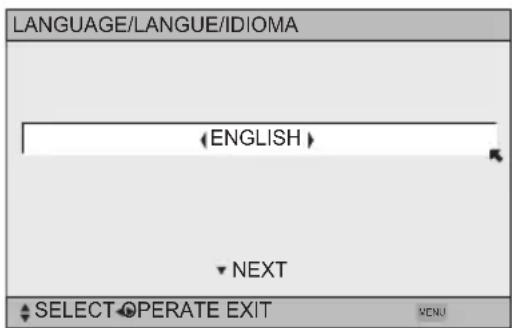
Language
After the “JVC INTERACTIVE PLUG IN MENU” has been displayed, the TV automatically switches to the LANGUAGE settings. You can choose to view your onscreen menus in three languages: English, French (Français) or Spanish (Español).
text_image
LANGUAGE/LANGUE/IDIOMA ENGLISH NEXT SELECT OPERATE EXIT MENU◀▶ To choose a language:
(English, Français or Español)
▼ To NEXT (To set clock)
(To be continued...)
Auto Clock Set
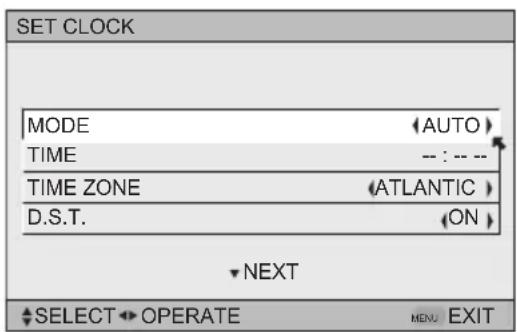
Before you use any of your TV's timer functions, you must first set the clock. You may precisely set your clock using the XDS time signal broadcast by most public broadcasting stations. If you do not have this in your area, you will have to set the clock manually. See manual clock set below. To set the clock using the XDS signal:
text_image
SET CLOCK MODE (AUTO) TIME -- : -- TIME ZONE (ATLANTIC) D.S.T. (ON) NEXT SELECT OPERATE MENU EXIT◀▶ To choose AUTO
▼ To TIME ZONE
◀▶ To select your time zone: (Atlantic, Eastern, Central, Mountain, Pacific, Alaska or Hawaii)
▼ To move to D.S.T. (Daylight Savings Time)
◀▶ To turn D.S.T. ON or OFF
▼ To NEXT (To Auto Tuner Setup)
Notes:
- The Daylight Savings Time feature automatically adjusts your TV's clock for Daylight Savings. The clock will move forward one hour at 2:00 am on the first Sunday in April. The clock will move back one hour at 2:00 am on the last Sunday in October.
- You will have to reset the clock after a power interruption. You must set the clock before operating any timer functions.
Manual Clock Set
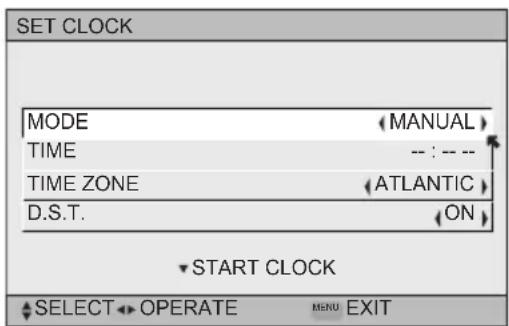
To set your clock manually (without using the XDS signal), choose MANUAL. If you choose AUTO, see auto clock set above.
text_image
SET CLOCK MODE (MANUAL) TIME -- : -- TIME ZONE (ATLANTIC) D.S.T. (ON) START CLOCK SELECT OPERATE MENU EXIT◀▶ To choose MANUAL
▼ To TIME
◀▶ To set the hour
▼ To minute
◀▶ To set the minute
▼ To Start Clock
Note:
- You will have to reset the clock after a power interruption. You must set the clock before operating any timer functions.
(To be continued...)
Auto Tuner Setup
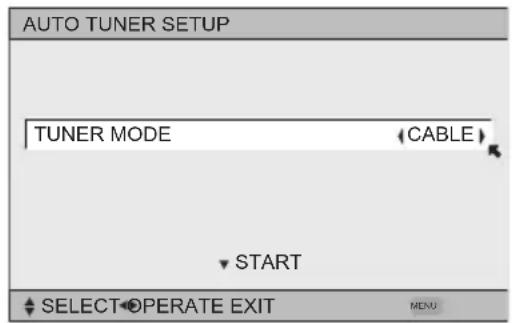
In auto tuner setup, the TV automatically scans through all available channels, memorizing the active ones and skipping over blank ones or channels with weak signals. This means when you scan (using the Channel +/- buttons) you will receive only clear, active channels.
text_image
AUTO TUNER SETUP TUNER MODE (CABLE) START SELECT OPERATE EXIT MENU◀▶ To choose CABLE or AIR (or SKIP when you skip Auto Tuner Setup)
▼ To START
text_image
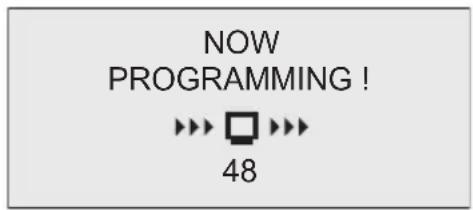
NOW PROGRAMMING ! >>> □ >> 48Programming will take approximately 1 to 2 minutes.
When the setup is finished, THANK YOU!! SETUP IS NOW COMPLETE is displayed. Your quick setup is now complete. You can now begin watching your television, or you can continue on in this guide for more information on programming your remote control, or using the JVC onscreen menu system to customize your television viewing experience.
Notes:
- Noise muting will not work during Auto Tuner Setup.
- Skip appears only for interactive plug-in menu.
- The interactive plug-in menu setting does not appear if your TV has been turned on before. In this case, use the menu to perform these settings. See pages 41, 53 and 32.
Cable Box and Satellite Users: After your auto tuner setup is complete, you may, (depending on the type of hookup), have only 1 channel, usually 3 or 4 in the auto tuner memory. This is normal.

text_image
STOPThe Quick Setup is complete
Remote Programming
Setting the CATV, VCR and DVD Codes
You can program your remote to operate your cable box, satellite receiver, VCR or DVD player by using the instructions and codes listed below. If the equipment does not respond to any of the codes listed below or to the code search function, use the remote control supplied by the manufacturer.
Cable Box or Satellite Codes
The remote control is programmed with cable box and satellite codes for power on/off, channel up/down, and 10 key operation.
1) Find the cable box or satellite brand from the list of codes shown below.
2) Slide the 2-way selector switch to "CATV".
3) Press and hold down the DISPLAY button, then enter the first code number listed with the 10 key pad.
4) Release the DISPLAY button, and confirm the operation of the cable box/satellite receiver.
- If your cable or satellite box does not respond to the first code, try the others listed. If it does not respond to any code, try the search codes function, on page 28.
| Cable Box CODES | Cable Box CODES | Digital Satellite Systems | CODES | ||
| ABC | 024 | Puser | 032 | ||
| Archer | 032, 025 | RCA | 061, 070 | Echostar | 100, 113, 114, 115 |
| Cableview | 051, 032 | Realistic | 032 | ||
| Citizen | 022, 051 | Regal | 058, 064, 040, 041, 042, 045, 068 | Express VU | 100, 113 |
| Curtis | 058, 059 | ||||
| Diamond | 024, 032, 025 | Regency | 034 | G.E. | 106 |
| Eagle | 029 | Rembrandt | 037, 032, 051, 038 | G.I. | 108 |
| Eastern | 034 | Gradiente | 112 | ||
| GC Brand | 032, 051 | Samsung | 051 | Hitachi | 104, 111 |
| Gemini | 022, 043 | Scientific Atlanta | 057, 058, 059 | HNS (Hughes) | 104 |
| General Instrument | 065, 024, 025, 026, 027, 020, 021, 022, 057, 023 | SLMark | 051, 047 | Panasonic | 105 |
| Sprucer | 051, 056 | Philips | 102, 103 | ||
| Stargate | 032, 051 | Primestar | 108 | ||
| Hamlin | 040, 041, 042, 045, 058, 064 | Telecaption | 067 | Proscan | 106, 109, 110 |
| Hitachi | 049, 024 | Teleview | 047, 051 | RCA | 106, 109, 110 |
| Jerrold | 065, 024, 025, 026, 027, 020, 021, 022, 057, 023 | Texscan | 044 | Sony | 107 |
| Tocom | 035, 036, 066 | Star Choice | 104, 108 | ||
| Toshiba | 050 | Toshiba | 101 | ||
| Macom | 049, 050, 051, 054 | Unika | 032, 025 | Uniden | 102, 103 |
| Magnavox | 033 | Universal | 022, 032 | ||
| Memorex | 030 | Videoway | 052 | ||
| Movietime | 032, 051 | Viewstar | 029, 030 | ||
| Oak | 039, 037, 048 | Zenith | 063, 046 | ||
| Panasonic | 055, 056, 060, 071, 073 | Zenith/Drake Satellite | 046 | ||
| Paragon | 063 | ||||
| Philips | 028, 029, 030, 052, 053, 031, 069 | ||||
| Pioneer | 047, 062 | ||||
| Pulsar | 051, 032 | ||||
Remote Programming
VCR Codes
The remote control is programmed with VCR codes for power on/off, play, stop, fast-forward, rewind, pause, record, channel up/down operation.
1) Find the VCR brand from the list of codes shown below.
2) Slide the first 2-way selector switch to "TV" and the other 2-way selector switch to "VCR".
3) Press and hold down the DISPLAY button, then enter the first code number listed with the 10 key pad.
4) Release the DISPLAY button, and confirm the operation of the VCR.
- If your VCR does not respond to the first code, try the others listed. If it does not respond to any of the codes, try the search codes function on page 28.
- After you program your remote, some VCR buttons may not work properly. If so, use the VCR's remote.
- To record, hold down the REC button on the remote and press PLAY.
| VCRs CODES | VCRs CODES | VCRs CODES | |||
| Admiral | 035 | Marantz | 003, 004, 005 | Samsung | 037, 060, 062, 033, 089 |
| Aiwa | 027, 032, 095 | Marta | 064 | ||
| Akai | 029, 072, 073, 074 | Memorex | 024, 067 | Samtron | 089 |
| MGA | 038, 040, 047, 048, 041, 042 | Sansui | 003, 026, 020, 052 | ||
| Audio Dynamic | 003, 005 | ||||
| Bell & Howell | 063, 071 | Minolta | 058, 045, 093 | Sanyo | 063, 067, 091, 071 |
| Broksonic | 020, 026, 094 | Mitsubishi | 038, 040, 047, 048, 041, 042, 078, 090 | Scott | 059, 060, 062, 067, 038, 040, 047, 048, 026, 020 |
| Canon | 023, 025 | ||||
| CCE | 043 | Multitech | 047, 027, 062 | ||
| Citizen | 064 | NEC | 003, 004, 005, 000 | Sears | 063, 064, 065, 066, 058, 000, 001 |
| Craig | 063, 029, 064 | ||||
| Curtis Mathes | 045, 024, 027, 093 | Olympic | 024, 023 | ||
| Daewoo | 043, 059, 024, 092 | Optimus | 028, 021, 035, 064 | Shintom | 075 |
| Sharp | 035, 036, 080, 088 | ||||
| DBX | 003, 004, 005 | Orion | 026, 020 | ||
| Dimensia | 045, 093 | Panasonic | 023, 024, 021, 022 | Signature 2000 | 027, 035 |
| Emerson | 043, 026, 077, 061, 025, 042, 020, 076 | Penney | 024, 058, 045, 063, 003, 004, 005, 093 | Singer | 075 |
| Sony | 028, 029, 030, 053, 054, 055 | ||||
| Fisher | 063, 066, 067, 065, 071, 091 | Pentax | 058, 005, 045, 093 | SV 2000 | 027 |
| Sylvania | 031, 023, 024, 027 | ||||
| Funai | 027, 026, 020, 000 | Philco | 031, 024, 027, 023, 026, 020, 043 | Symphonic | 027, 081 |
| G.E. | 033, 045, 024 | Tashiro | 064 | ||
| Go Video | 037, 051, 049, 050, 089 | Philips | 031, 023, 024, 086 | Tatung | 003, 004, 005 |
| Teac | 003, 004, 027, 005 | ||||
| Goldstar | 064 | Pioneer | 023 | ||
| Gradiente | 083, 084, 081, 000, 001 | Proscan | 045, 058, 023, 024, 031, 046, 059, 060, 033, 087, 093 | Technics | 021, 022, 023, 024 |
| Hitachi | 023, 045, 058, 027, 081, 093 | Teknika | 024, 027, 070 | ||
| Quasar | 021, 022, 023, 024 | Toshiba | 059, 046, 079 | ||
| Instant Replay | 024, 023 | Vector Research | 005 | ||
| Jensen | 003 | Radio Shack | 033, 024, 063, 036, 067, 040, 027 | Wards | 035, 036, 067, 044, 064 |
| JVC | 000, 001, 002, 003, 004, 005 | Yamaha 063, 003, 004, 005 | |||
| Kenwood | 003, 004, 064, 005 | RCA | 033, 045, 058, 023, 024, 031, 046, 059, 060, 083, 084, 085, 087, 093 | Zenith 044, 082 | 064, 094 |
| LXI 027, 064, 058, 065, 066, 063, 067 | |||||
| Magnavox | 031, 023, 024, 086 | Realistic 024, 063, 036, 067, 040, 027 | |||
Remote Programming
DVD Codes
The remote control is programmed with DVD codes for power on/off, play, stop, fast-forward, rewind, previous/next chapter, tray open/close, and still/pause operation.
1) Find the DVD player brand from the list of codes shown below.
2) Slide the first 2-way selector switch to "TV" and the other 2-way selector switch to "DVD".
3) Press and hold down the Display button, then enter the first code number listed with the 10 key pad.
4) Release the Display button, and confirm the operation of the DVD player.
- If your DVD player does not respond to the first code, try the others listed. If it does not respond to any of the codes, try the search codes function on page 28.
- After you program your remote, some DVD buttons may not work properly. If so, use the DVD player's remote.
| DVD Player CODES | DVD Player CODES | ||
| Aiwa | 043 | RCA | 021, 026 |
| Apex | 040 | Sampo | 034 |
| Denon | 020, 037 | Samsung | 030 |
| Hitachi | 030, 031 | Sharp | 028 |
| JVC | 000 | Silvania | 038 |
| Kenwood | 035 | Sony | 024, 045, 046, 047 |
| Konka | 039 | ||
| Mitsubishi | 025 | Technics | 020 |
| Onkyo | 041 | Toshiba | 023 |
| Oritron | 044 | Vialta 050 | |
| Panasonic | 020 | Wave | 042 |
| Philips | 023, 036 | Yamaha | 020 |
| Pioneer | 022 | Zenith | 027, 032 |
| Raite | 033 | ||
Remote Programming
Search Codes
Cable/Satellite Search Codes Function
1) Slide the first 2-Way Mode Selector switch to CATV.
2) Press the POWER and RETURN+ buttons. Hold for at least three seconds and release.
3) Press the POWER button on the remote, and see if the cable or satellite box responds.
4) If there was a response, press RETURN+. The codes are now set. If there was no response, repeat Step 3. If you repeat Step 3 a total of 80 times without a response, use the remote control that came with your equipment.
5) Press RETURN+ to exit.
VCR/DVD Search Codes Function
1) Slide the first 2-way selector switch to "TV" and the other 2-way selector switch to "VCR" or "DVD".
2) Press the VCR or DVD POWER and RETURN+ buttons. Hold for at least three seconds and release.
3) Press the VCR or DVD POWER button, and see if the VCR or DVD responds.
4) If there was a response, press RETURN+. The codes are now set. If there was no response, repeat Step 3. If you repeat Step 3 a total of 80 times for the VCR (40 times for the DVD player), and there is no response, use the remote control that came with your equipment.
5) Press Return+ to exit.
Using the Guide
Certain symbols are used throughout this guide to help you learn about the features of your new television. The ones you will see most frequently are:
▲ ▼ Up and Down arrows mean press the CH+ or CH- buttons. Pressing the CH+ or CH- buttons let you:
- Move vertically in a main menu screen
- Move through a submenu screen
- Move to the next letter, number, or other choice in a submenu
- Back up to correct an error
- Scan through TV channels (when not in a menu screen)
Left and right arrows mean press the VOLUME+ or VOLUME- buttons to move left or right to:
- Select a highlighted menu item
- Select an item in a submenu
- Select numbers in certain menu options
- Turn the volume up or down (when not in a menu screen)

The “press button” icon means you should press the button named on your remote control. (Button names appear in SMALL CAPITAL LETTERS.)

The “helping arrow” icon points to the highlighted or selected item in a menu.
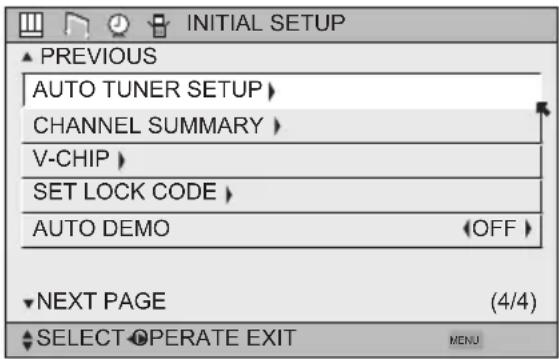
To bring up the onscreen menu, press the MENU button on the remote control. The item that appears in green is the one currently selected. If you use the MENU button on the TV's side panel instead of the remote, an additional menu screen showing INPUT, VIDEO STATUS and ASPECT will appear between INITIAL SETUP and PICTURE ADJUST. The “interactive plug-in menu” will appear the first time the TV is plugged in.
text_image
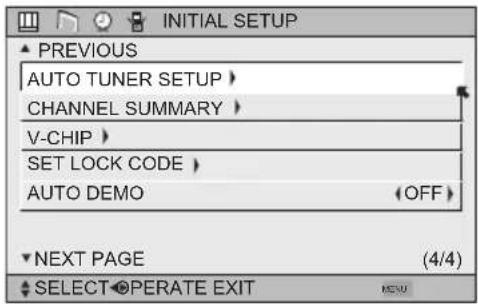
INITIAL SETUP ▲ PREVIOUS AUTO TUNER SETUP > CHANNEL SUMMARY > V-CHIP > SET LOCK CODE > AUTO DEMO (OFF ) ▼ NEXT PAGE (4/4) ♦ SELECT OPERATE EXIT MENUNote:
- Menus shown in this book are illustrations, not exact replications of the television's onscreen displays.
Onscreen Menus
The Onscreen Menu System
Your television comes with JVC's onscreen menu system. The onscreen menus let you make adjustments to your television's operation simply and quickly. Examples of the onscreen menus are shown on the next page. Detailed explanations on using each menu follow later in this guide. For information about the interactive plug-in Menu, see pages 22 - 24.
The Onscreen Menu System
To open the onscreen menu system, press the MENU button on the remote control. You navigate within the onscreen menus by using the four directional arrow buttons on the remote control. (These buttons are also the CH +/- and VOL +/- buttons. Channel and volume functions will not operate when the onscreen menu is active).
The selected feature and option on a menu screen are highlighted in a different color.
Selected Option (Green)

text_image
LANGUAGE CLOSED CAPTION ENG. FRAN. ESP.Selected Option (Blue)
To move to a different feature use the ▲▼ arrows to move up or down the list. When you press the up arrow at the top of the list or the down arrow at the bottom, the next menu screen will appear. Use the arrows ◀▶ to select an option from the highlighted feature. Pressing MENU on the remote control will close the onscreen menu system and return you to normal television viewing.
Each menu and its features will be discussed in the following pages of this guide.
Notes:
- If you do not press any buttons for a few seconds, the onscreen menu will automatically shut off.
- Button names in this guide are shown in SMALL CAPITAL LETTERS.
- Menus may appear in different sizes onscreen depending on the aspect ratio selected.
- Some menu items may not appear in menu screens when certain aspect ratios or inputs are selected.
Onscreen Menus

ess the MENU button
text_image
INITIAL SETUP ▲ PREVIOUS AUTO TUNER SETUP > CHANNEL SUMMARY > V-CHIP > SET LOCK CODE > AUTO DEMO OFF > ▼NEXT PAGE (4/4) ◆ SELECT OPERATE EXITINITIAL SETUP 04

text_image
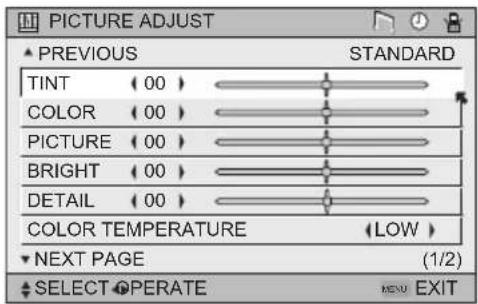
PICTURE ADJUST ▲ PREVIOUS STANDARD TINT (00) COLOR (00) PICTURE (00) BRIGHT (00) DETAIL (00) COLOR TEMPERATURE (LOW) ▼ NEXT PAGE (1/2) ▲ SELECT OPERATE NEW EXITPICTURE ADJUST 01


text_image
PICTURE ADJUST ▲ PREVIOUS STANDARD DIG. NOISE CLEAR OFF VSM (ON) NATURAL CINEMA AUTO RESET ▼ NEXT PAGE (2/2) ▲ SELECT OPERATE EXITPICTURE ADJUST 02

text_image
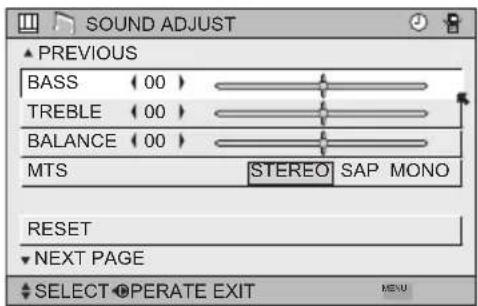
SOUND ADJUST ▲ PREVIOUS BASS (00) TREBLE (00) BALANCE (00) MTS STEREO SAP MONO RESET ▼ NEXT PAGE ▼ SELECT OPERATE EXIT MENUSOUND ADJUST
Notes:
- The DIGITAL-IN menu can only be displayed when a 480p picture signal is input to the digital-in terminal and the picture is being displayed on the screen.
- When the MENU button on the TV front panel is pressed, the FRONT PANEL CONTROL menu between INITIAL SETUP 04 and PICTURE ADJUST 01 will appear.
• VIDEO INPUT LABEL: AV-30W575 ONLY.
[Non-Text]
text_image
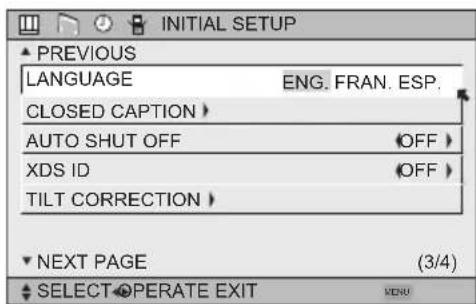
INITIAL SETUP ▲ PREVIOUS LANGUAGE ENG. FRAN. ESP. CLOSED CAPTION AUTO SHUT OFF OFF XDS ID OFF TILT CORRECTION ▼ NEXT PAGE (3/4) ◆ SELECT OPERATE EXITINITIAL SETUP 03

text_image
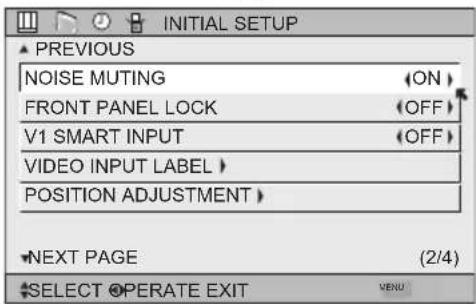
INITIAL SETUP ▲ PREVIOUS NOISE MUTING FRONT PANEL LOCK V1 SMART INPUT VIDEO INPUT LABEL POSITION ADJUSTMENT NEXT PAGE (2/4) SELECT OPERATE EXITINITIAL SETUP 02

text_image
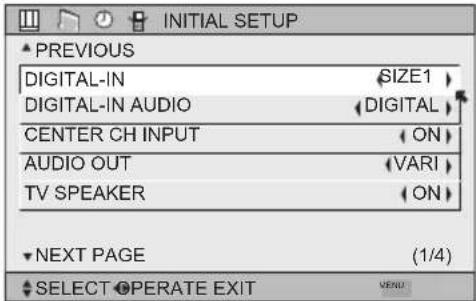
INITIAL SETUP ▲ PREVIOUS DIGITAL-IN SIZE1 DIGITAL-IN AUDIO DIGITAL CENTER CH INPUT ON AUDIO OUT VARI TV SPEAKER ON ▼ NEXT PAGE (1/4) ▲ SELECT OPERATE EXITINITIAL SETUP 01

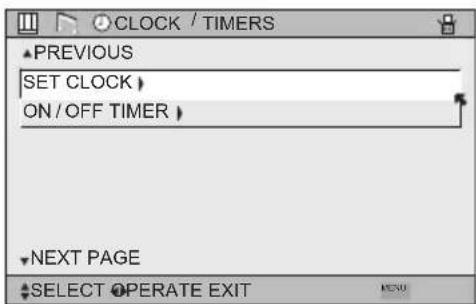
text_image
CLOCK / TIMERS ▲PREVIOUS SET CLOCK > ON/OFF TIMER > ▼NEXT PAGE ▲SELECT OPERATE EXITCLOCK/TIMERS
Initial Setup
Auto Tuner Setup
The auto tuner setup function is described on page 24 as the interactive plug-in menu. If you need to run the auto tuner setup again, follow the steps below.
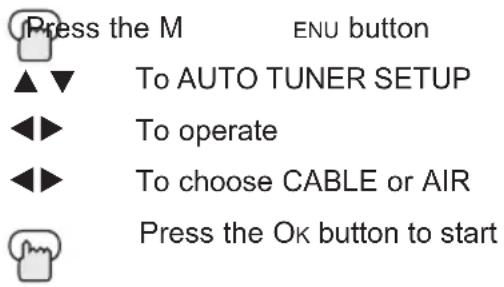
text_image
Press the M ENU button ▲▼ To AUTO TUNER SETUP ◀▶ To operate ◀▶ To choose CABLE or AIR Press the Ok button to start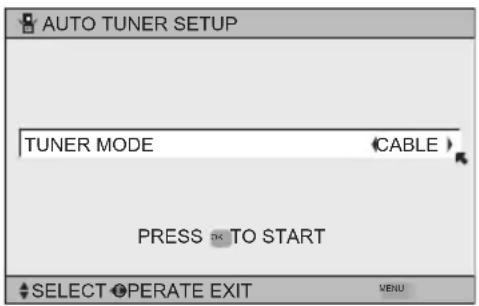
text_image
AUTO TUNER SETUP TUNER MODE CABLE PRESS TO START SELECT OPERATE EXIT MENUProgramming will take approximately 1 to 2 minutes. The auto tuner is finished when the message PROGRAMMING OVER! appears onscreen.

Press the MENU button when finished
Channel Summary
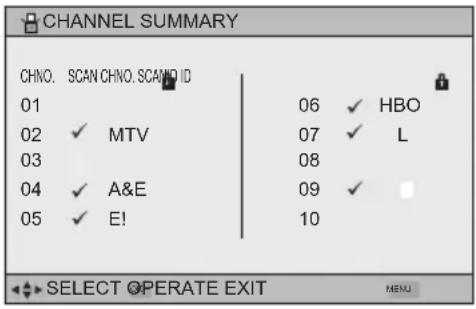
Channel summary allows you to customize the line-up of channels received by your TV. You can add or delete channels from the line-up or prevent any unauthorized viewers from watching any or all 181 channels.
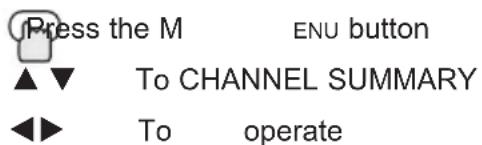
text_image
Press the M ENU button ▲▼ To CHANNEL SUMMARY ◀▶ To operateThe Channel summary screen will now be displayed with the channels set to scan marked with an “√”. You can delete channels from the scan by removing the “√”. If any channels were missed during auto tuner setup and you wish to add them, you may by placing an “√” next to the channel number.
text_image
CHANNEL SUMMARY CHNO. SCAN CHNO. SCAND ID 01 02 ✓ MTV 03 04 ✓ A&E 05 ✓ E! 06 ✓ HBO 07 ✓ L 08 09 ✓ 10 SELECT OPERATE EXIT MENU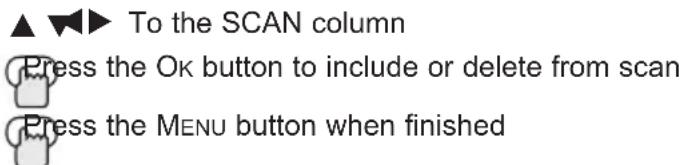
text_image
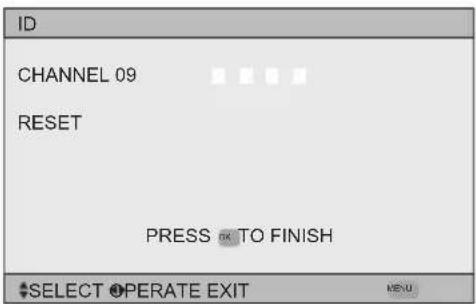
▲ ▼▶ To the SCAN column Press the Ok button to include or delete from scan Press the MENU button when finishedHow to set the channel label: (AV-30W575 ONLY)

ess the M
ENU button

To CHANNEL SUMMARY

To operate

To the ID column

ess the Ok button to enter

To select the character you want

To move to the next space
text_image
ID CHANNEL 09 RESET PRESS OK TO FINISH SELECT OPERATE EXIT...continue to follow these directions for all four

ess the O
κ button to finish
Your characters are now set

ess the MENU button when finished
If you want to reset the characters you set:

ess the MENU button

To CHANNEL SUMMARY

To enter

To select RESET

ess the Ok button to finish
Your characters are now reset
Notes:
- You can use characters for: Alphabet, numbers, marks and spaces.
- It is possible to set the maximum of 40 channel labels.
- If you try to set more than the 40 maximum, the message "MEMORY OVERFLOW" will appear.
You can block access to a channel by activating the channel lock.

ess the MENU button

To
CHANNEL
SUMMARY

To operate

To the Lock Column ( 🔒 )

Press
the
ZERO button to lock or unlock that channel

ess the MENU button when finished
Initial Setup
Channel Guard Message
When a viewer attempts to watch a guarded channel, the following message appears:
To watch a channel that you have locked, enter the Lock Code using the 10 key pad.
If the wrong code is entered, the message "INVALID LOCK CODE!" will flash on the screen.
The channel cannot be accessed until the correct code is entered.
THIS CHANNEL IS LOCKED BY CHANNEL GUARD. PLEASE ENTER LOCK CODE BY 10 KEY PAD TO UNLOCK IT.
No. ----
Notes:
- Once a channel has been unlocked, it will remain unlocked until the television is turned off.
• See also "Set Lock Code", page 40.
V-Chip
Your TV is equipped with V-Chip technology which enables you to block channels or content that you feel to be inappropriate for children, based on US and Canada rating guidelines. V-Chip has no effect on video signals from a DVD discs, VCR tapes or Camcorder connection.
Note: Some programs, and movies are broadcast without a ratings signal. Even if you set up V-CHIP ratings limits, these programs will not be blocked. See page 35 for information on how to block unrated programs.
Note (for Canadian viewers): The V-Chip function is based on specifications designed for the United States and therefore may not work properly in Canada.
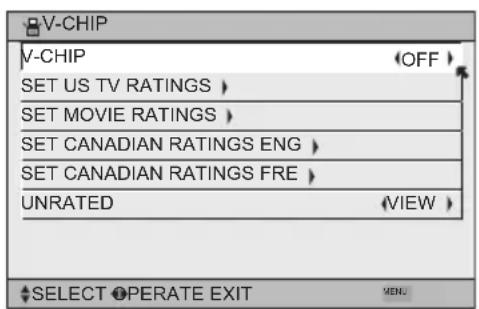
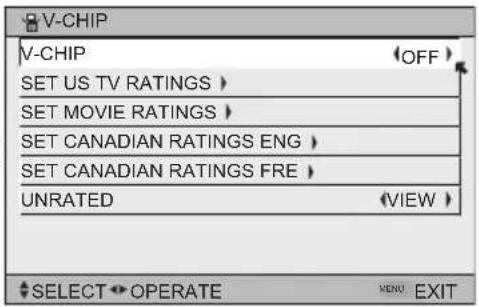
You can customize the V-Chip settings of your television to match your personal tastes. The V-Chip menu below is the starting point for your V-Chip settings
You can use US V-Chip settings (for programming broadcast from the United States), Canadian V-Chip settings (for programming broadcast from Canada), and movie ratings. You may use any or all of the settings (US V-Chip, Canada V-Chip, Movie ratings). Descriptions for setting each of the three V-Chip formats appear in the next six pages along with descriptions of the rating categories.
To access the rating categories:


ess the M
ENU button
To V-CHIP
To operate (Lock icon 🔒 will appear)
Press ZERO to access the V-Chip menu
To turn V-Chip ON or OFF (V-Chip must be turned ON for rating settings to operate)
To move to SET US TV RATINGS, SET MOVIE RATINGS, or SET CANADIAN RATINGS (see following pages for descriptions of each item)
text_image
V-CHIP V-CHIP OFF SET US TV RATINGS > SET MOVIE RATINGS > SET CANADIAN RATINGS ENG > SET CANADIAN RATINGS FRE > UNRATED VIEW SELECT OPERATE EXIT MENU.Unrated Programs
Unrated programming refers to any programming which does not contain a rating signal. Programming on television stations which do not broadcast rating signals will be placed in the "Unrated Programming" category.
Examples of Unrated programs:
- Emergency Bulletins
- Locally Originated Programming
- News
- Political Programs
• Public Service Announcements • Religious Programs - Sports
- Weather
• Some Commercials
Note:
- TV programs or movies that do not have rating signals will be blocked if the unrated category is set to BLOCK.
Directions to Block Unrated Programs
You can block programs that are not rated.

ess the MENU button

To V-CHIP

To operate (The lock icon 🔒 appears)

Press ZERO to access V-Chip setup options

To UNRATED

To VIEW or BLOCK

Press MENU when done
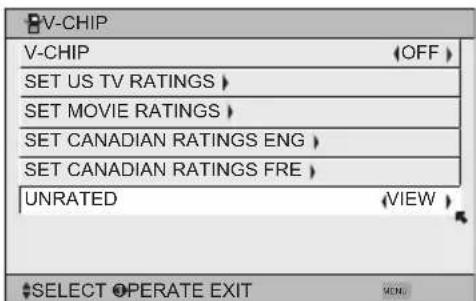
text_image
V-CHIP V-CHIP (OFF) SET US TV RATINGS > SET MOVIE RATINGS > SET CANADIAN RATINGS ENG > SET CANADIAN RATINGS FRE > UNRATED (VIEW) #SELECT OPERATE EXIT (MON)Initial Setup
US V-Chip Ratings
U.S. PARENTAL RATING SYSTEMS
Programs with the following ratings are appropriate for children.
☐ TV Y is Appropriate for All Children
Programs are created for very young viewers and should be suitable for all ages, including children ages 2 - 6.
☐ TV Y7 is for Older Children
Most parents would find such programs suitable for children 7 and above. These programs may contain some mild fantasy violence or comedic violence, which children should be able to discern from reality.
Programs with the following ratings are designed for the entire audience.
☐ TV G stands for General Audience
Most parents would find these programs suitable for all age groups. They contain little or no violence, no strong language, and little or no sexual dialog or situations.
☐ TV PG Parental Guidance Suggested
May contain some, but not much, strong language, limited violence, and some suggestive sexual dialog or situations. It is recommended that parents watch these programs first, or with their children.
☐ TV 14 Parents Strongly Cautioned
Programs contain some material that may be unsuitable for children under the age of 14 including possible intense violence, sexual situations, strong coarse language, or intensely suggestive dialog. Parents are cautioned against unattended viewing by children under 14.
TV MA Mature Audiences Only
These programs are specifically for adults and may be unsuitable for anyone under 17 years of age. TV MA programs may have extensive V, S, L, or D.
Viewing Guidelines
In addition to the ratings categories explained above, information on specific kinds of content are also supplied with the V-Chip rating. These types of content may also be blocked. The content types are:
| • | V/FV is for VIOLENCE/FANTASY VIOLENCE |
| • | S stands for SEXUAL CONTENT |
| • | L stands for strong LANGUAGE |
| • | D stands for suggestive DIALOG |
Setting US V-Chip Ratings

ss the MENU button

To V-CHIP
To operate (lock icon 🔒 appears)

Press ZERO to access the V-Chip menu

To turn V-Chip ON or OFF
To move to SET US TV RATINGS

To operate
text_image
V-CHIP V-CHIP OFF SET US TV RATINGS > SET MOVIE RATINGS > SET CANADIAN RATINGS ENG > SET CANADIAN RATINGS FRE > UNRATED VIEW SELECT OPERATE MENU EXITDirections to set US V-Chip Ratings
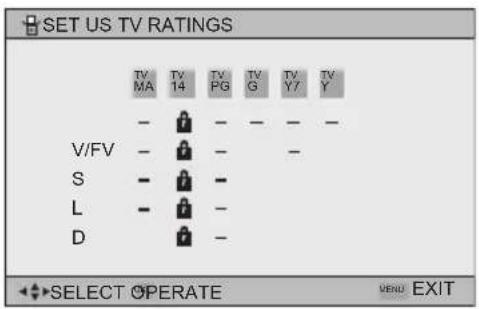
Line up the cursor in the column (TV PG, TV G, etc.) with the content row (V/FV, S, etc.) and press the ▲▼or ◀▶ to move the cursor to the correct location. Press Ok to turn the locking feature on or off. An item is locked if the 🔒 icon appears instead of a “—”.
For example. To block viewing of all TV 14 shows, move the cursor to the top row of that column and add a lock icon. Once you've put a lock on the top row, everything in that column is automatically locked.

To the TV 14 Column

Press the Ok button to lock
Press the MENU button when finished
Note:
- If you want to change the setup, move the cursor to the top column and change the lock icon to “—” by pressing Ok again. You may then select individual categories to block.
text_image
SET US TV RATINGS TV MA TV 14 TV PG TV G TV YY TV Y - - - - - V/FV - - - - S - - - L - - D - - SELECT OPERATE VERU EXITInitial Setup
Movies Ratings
□ NR – Not Rated
This is a film which has no rating. In many cases these films were imported from countries which do not use the MPAA ratings system. Other NR films may be from amateur producers who didn't intend to have their film widely released.
NR (Not Rated) Programming may contain all types of programming including children's programming, foreign programs, or adult material.
□ G – General Audience
In the opinion of the review board, these films contain nothing in the way of sexual content, violence, or language that would be unsuitable for audiences of any age.
PG – Parental Guidance
Parental Guidance means the movie may contain some contents such as mild violence, some brief nudity, and strong language. The contents are not deemed intense.
PG-13 – Parents Strongly Cautioned
Parents with children under 13 are cautioned that the content of movies with this rating may include more explicit sexual, language, and violence content than movies rated PG.
R - Restricted
These films contain material that is explicit in nature and is not recommended for unsupervised children under the age of 17.
□ NC-17 – No One Under 17
These movies contain content which most parents would feel is too adult for their children to view. Content can consist of strong language, nudity, violence, and suggestive or explicit subject matter.
□ X - No One under 18
Inappropriate material for anyone under 18.
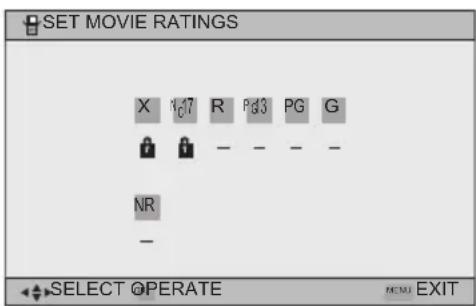
Directions to set Movie (MPAA) Ratings

Press the MENU button
To V-CHIP
To operate (Lock icon 🔒 appears)

Press ZERO to access V-Chip setup options
To SET MOVIE RATINGS
To enter movies menu
For example:
To block viewing of X and NC-17 rated from shows:

To the X Column

Press the Ok button to lock
To the NC-17 Column

Press the Ok button to lock
ess the MENU button to finish
text_image
SET MOVIE RATINGS X Y C 7 R P G 3 PG G NR - SELECT OPERATE MENU EXITCanadian V-Chip Ratings
□ E - Exempt
Exempt programming includes: news, sports, documentaries and other information programming, talk shows, music videos, and variety programming.
C – Programming Intended for Children
Violence Guidelines: There will be no realistic scenes of violence. Depictions of aggressive behavior will be infrequent and limited to portrayals that are clearly imaginary, comedic or unrealistic in nature.
☐ C8+ – Programming Intended for Children 8 and Over
Violence Guidelines: Any realistic depictions of violence will be infrequent, discreet, of low intensity and will show the consequences of the acts. There will be no offensive language, nudity or sexual content.
G – General Audience
Programming will contain little violence and will be sensitive to themes which could affect younger children.
PG – Parental Guidance
Programming intended for a general audience, but which may not be suitable for younger children. Parents may consider some content not appropriate for children aged 8-13.
□ 14+ – 14 Years and Older
Parents are strongly cautioned to exercise discretion in permitting viewing by pre-teens and early teens. Programming may contain mature themes and scenes of intense violence.
18+ - Adult
Material intended for mature audiences only.
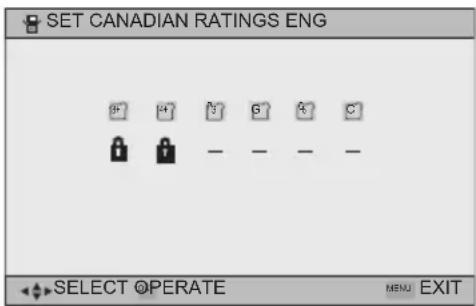
Directions to set Canadian V-Chip Ratings


Press the MENU button
To V-CHIP
To operate (lock icon 🔒 appears)
Press ZERO to access V-Chip setup options
To SET CANADIAN RATINGS ENG (for English)
To enter ratings menu
For example:
To block viewing of programming rated 14+ and 18+:

To the 18+ Column

Press the OK button to lock

To the 14+ Column

Press the OK button to lock

ess the MENU button to finish
text_image
SET CANADIAN RATINGS ENG SELECT OPERATE MENU EXITNote:
- For instructions on “SET CANADIAN RATINGS FRE (in French)”, please see page 39 in the French side of this user’s guide.
Initial Setup
Set Lock Code
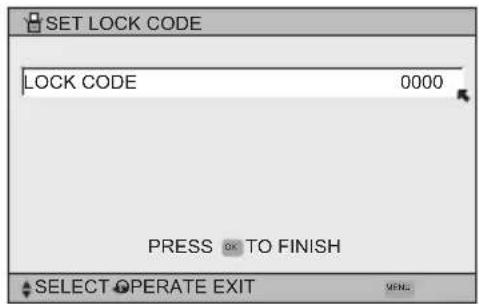
Channel guard and V-Chip settings are protected by a four-digit lock code. Your TV comes pre-set with a lock code of "0000". You may change the code to any four-digit number you wish. To change the lock code, follow the steps below.

ess the M
ENU button

To SET LOCK CODE

To operate (lock icon


Press ZERO to access the lock code
The first digit will be highlighted

To select the number

To move to the next digit
text_image
SET LOCK CODE LOCK CODE 0000 PRESS OK TO FINISH SELECT OPERATE EXIT MENS.Continue to follow these directions for all four numbers

ess the O
κ button to finish (your lock code is now set)

ess the MENU button when finished
When a viewer attempts to watch a blocked channel, this message appears:
The channel will remain blocked until the correct lock code is entered (see above for information on setting your lock code).
THIS PROGRAMMING EXCEEDS YOUR RATING LIMITS. PLEASE ENTER LOCK CODE BY 10 KEY PAD TO UNLOCK IT. No. ----
Notes:
• After a power interruption you must reset the lock code.
- Write your lock code number down and keep it hidden from potential viewers.
- If you forget the lock code, a new code may be set using the steps listed above.
Auto Demo
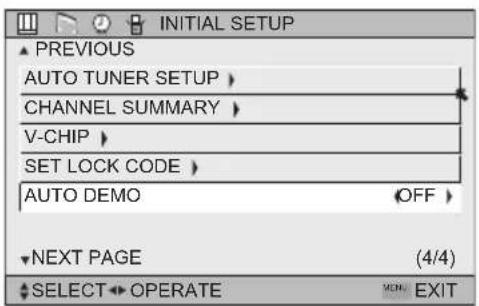
This function lets you preview the many different viewing modes of your TV. It will cycle through “Multi Screen Demo”, “Picture in Picture Demo”, the different “16:9” ratios and all of the different “Video Status” modes.

Press the MENU button

To AUTO DEMO

To turn AUTO DEMO ON or OFF
text_image
INITIAL SETUP ▲ PREVIOUS AUTO TUNER SETUP > CHANNEL SUMMARY > V-CHIP > SET LOCK CODE > AUTO DEMO OFF > ▼NEXT PAGE (4/4) ♦SELECT OPERATE DOWN EXITNote:
- To stop auto demo, press the MENU button, and select auto demo by pressing the ▲▼buttons, and turn it off by pressing the ◀▶ buttons. Press the MENU button to finish.
Language
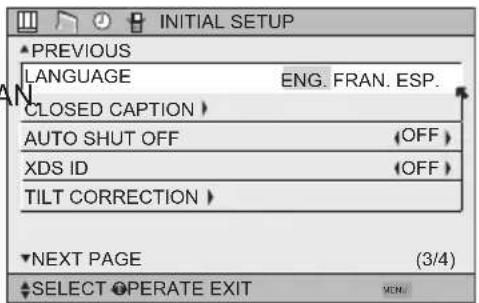
The language function is described on page 22 as the interactive plug-in menu. If you need to choose the language again, follow the steps below.

ess the M
ENU button

To LANGUAGE

To choose a language: ENG. (English), FRA (French) or ESP. (Spanish)

ess the MENU button when finished
text_image
INITIAL SETUP ▲PREVIOUS LANGUAGE ENG. FRAN. ESP. CLOSED CAPTION AUTO SHUT OFF (OFF) XDS ID (OFF) TILT CORRECTION ▼NEXT PAGE (3/4) ▲SELECT OPERATE EXITClosed Caption
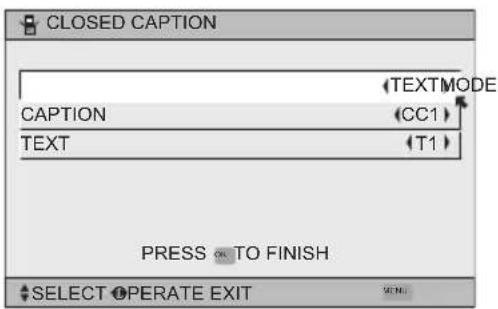
Many broadcasts now include an onscreen display of dialog called closed captions. Some broadcasts may also include displays of additional information in text form. Your television can access and display this information using the closed caption feature. To activate the closed caption feature, follow the steps below.

Press the M
ENU button

To CLOSED CAPTION

To operate

To select CAPTION or TEXT in MODE

To select CAPTION or TEXT

To select a caption (CC1 to CC4) or text channel (T1 to T4)

Press the Ok button to save

Press the M
ENU button when finished
text_image
CLOSED CAPTION TEXTMODE CAPTION (CC1) TEXT (T1) PRESS TO FINISH SELECT OPERATE EXITNotes:
- Closed caption subtitles are usually found on closed caption channel CC1. Some programs may include additional text information which is usually found on text channel T1. The other channels are available for future use.
- Closed captioning may not work correctly if the signal being received is weak or if you are playing a video tape.
- Most broadcasts containing closed captioning will display a notice at the start of the program.
• To select the mode, press the C.C. button. See page 60.
Initial Setup
Auto Shut Off
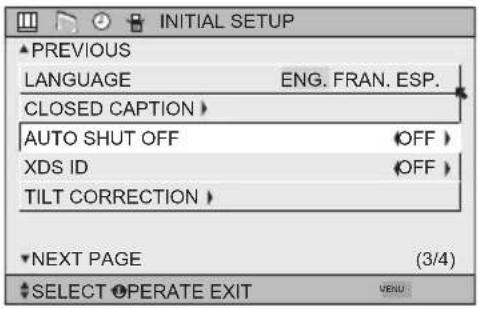
This function automatically shuts off your TV when there is no signal from the channel the TV is on.

Press the MENU button

To AUTO SHUT OFF

To turn ON or OFF

Press the M ENU button when finished
- If the channel that you have on does not receive a signal for more than one minute, the blinking text "NOT RECEIVING A SIGNAL AUTO SHUT OFF IN 9 MIN." appears on the screen, and starts the
text_image
INITIAL SETUP ▲PREVIOUS LANGUAGE ENG. FRAN. ESP. CLOSED CAPTION > AUTO SHUT OFF OFF > XDS ID OFF > TILT CORRECTION > ▼NEXT PAGE (3/4) ◆SELECT OPERATE EXIT VENDcountdown. If no signal is being received within 10 minutes, the TV shuts itself off.
XDS ID
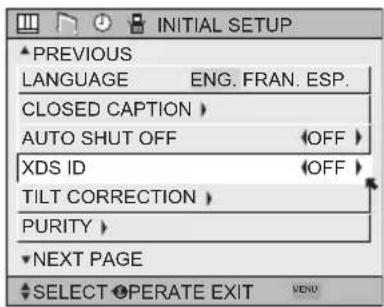
XDS ID Display provides a channel's call letters, the network's name, and even a program name. The XDS ID information is provided by the broadcaster.

ess the MENU button

To XDS ID

To turn ON or OFF

ess the MENU button when finished
text_image
INITIAL SETUP ▲ PREVIOUS LANGUAGE ENG. FRAN. ESP. CLOSED CAPTION > AUTO SHUT OFF OFF > XDS ID OFF > TILT CORRECTION > PURITY > ▼ NEXT PAGE ▼ SELECT OPERATE EXIT VENDTilt Correction
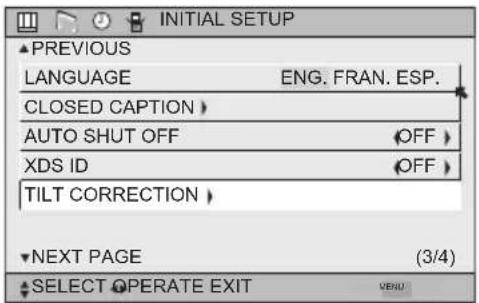
This adjusts the pictures so that it looks even on the screen and not lopsided.

ess the MENU button

To TILT CORRECTION

To enter

To adjust TILT CORRECTION

ess the M ENU button when finished
text_image
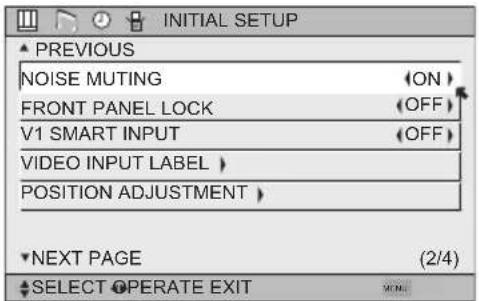
INITIAL SETUP ▲PREVIOUS LANGUAGE ENG. FRAN. ESP. CLOSED CAPTION > AUTO SHUT OFF OFF > XDS ID OFF > TILT CORRECTION > ▼NEXT PAGE (3/4) ▲SELECT OPERATE EXIT VENUNoise Muting
This feature inserts a blank blue screen over channels which are not broadcasting or are too weak to be received clearly.

ess the M
ENU button

To NOISE MUTING To turn noise muting ON or OFF

ss the MENU button when finished

Note:
- Noise muting will not work during auto tuner setup or when you operate channel summary.
text_image
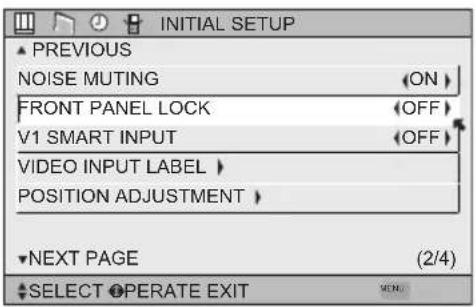
INITIAL SETUP ▲ PREVIOUS NOISE MUTING FRONT PANEL LOCK V1 SMART INPUT VIDEO INPUT LABEL POSITION ADJUSTMENT ▼NEXT PAGE (2/4) ▲SELECT OPERATE EXITFront Panel Lock
This allows you to lock the keys on the front of the TV, so that a child may not accidentally change your viewing preferences.

ess the MENU button

To FRONT PANEL LOCK

To turn ON or OFF

ess the MENU button when finished
text_image
INITIAL SETUP ▲ PREVIOUS NOISE MUTING FRONT PANEL LOCK V1 SMART INPUT VIDEO INPUT LABEL POSITION ADJUSTMENT ▼NEXT PAGE (2/4) ▼SELECT OPERATE EXITYou can turn off this feature in the following ways:
- Unplug the power cord, and plug it back in. Do this if your batteries die, or you lose your remote control.
• Use the remote control. - Press the MENU button on the front of the TV for more than 3 seconds. In this case, the OSD for FRONT PANEL LOCK will appear.
Note:
- To turn ON/OFF the TV, press the POWER button for more than 3 seconds. This feature will remain ON.
Initial Setup
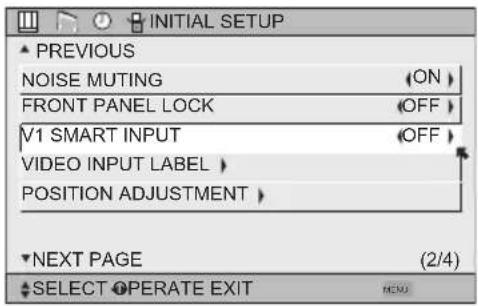
V1 Smart Input
This feature is used if you have connected an AV Receiver to your television. By turning this feature on, your television can automatically detect the signal source from your components that are connected to your AV Receiver.

Press the M ENU button

To V1 SMART INPUT
To turn ON or OFF

Press the MENU button when finished
Notes:
- If you do not have an AV Receiver connected to your television, turn this feature OFF. By doing so, you can take advantage of using AV CompuLink components with your television.
• Some AV Receivers may not work with this function.
text_image
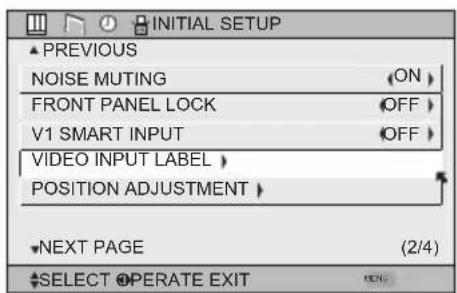
INITIAL SETUP ▲ PREVIOUS NOISE MUTING FRONT PANEL LOCK V1 SMART INPUT VIDEO INPUT LABEL POSITION ADJUSTMENT ▼NEXT PAGE (2/4) ▲ SELECT OPERATE EXITVideo Input Label
AV-30W575 ONLY
This function is used to label video input connections for the onscreen displays.

Press the MENU button

Press the OK button to save

Press the MENU button when finished
text_image
INITIAL SETUP ▲ PREVIOUS NOISE MUTING FRONT PANEL LOCK V1 SMART INPUT VIDEO INPUT LABEL POSITION ADJUSTMENT ▼NEXT PAGE (2/4) #SELECT OPERATE EXIT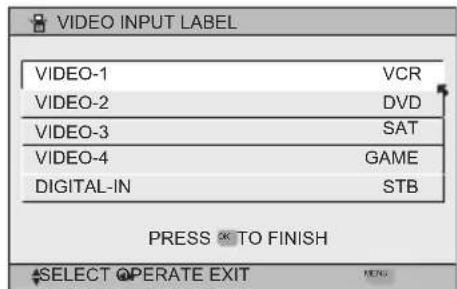
text_image
VIDEO INPUT LABEL VIDEO-1 VCR VIDEO-2 DVD VIDEO-3 SAT VIDEO-4 GAME DIGITAL-IN STB PRESS OK TO FINISH SELECT OPERATE EXIT| Preset Labels | Select when... |
| VCR | You have a VCR connected to the video input |
| DVD | You have a DVD connected to the video input |
| D-VHS | You have a Digital VCR connected to the video input |
| STB | You have a Set-top Box connected to the video input |
| SAT | You have a Satellite Receiver connected to the video input |
| AMP | You have an Amplifier connected to the video input |
| GAME | You have a Video Game connected to the video input |
| CAM | You have a Video Camera connected to the video input |
| DISC | You have a Video Disc player connected to the video input |
Position Adjustment
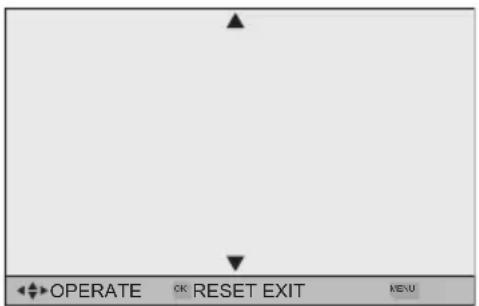
Position adjustment allows you to adjust the position of the picture on the screen vertically when the aspect is set to panorama, cinema, or full.

Press the M ENU button
▲▼ To POSITION ADJUSTMENT
◀▶ To enter
▲ ▶▶ To adjust the position
Press the MENU button to finish
text_image
OPERATE CK RESET EXIT MENUNotes:
- To reset the adjustment to the center, press the Ok button.
- When the arrow disappears, while you are adjusting the position, the position is at it's maximum limit.
- If you select regular size with aspect or Multi Screen, position adjustment option is not seen.
- When you change the screen size, perform the position adjustment again.
- Position adjustment allows you to adjust the screen position vertically and horizontally when the aspect is set HD panorama or cinema zoom for 1080i and 720p signals.
Initial Setup
Digital-In
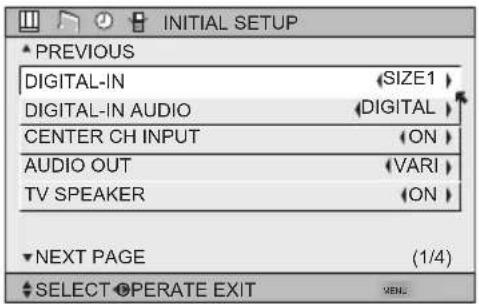
The DIGITAL-IN option can only be displayed in the INITIAL SETUP menu when a HDMI480p picture signal is being input to the DIGITAL-IN terminal. This option adjusts the position when a HDMI or DVI 480p picture signal is being displayed on the screen. There are two types of HDMI480p picture signals: 640x480 and 720x480. If the displayed picture is slightly shifted, the position can be adjusted by selecting either SIZE1 or SIZE2.

Press the MENU button

To DIGITAL-IN

To enter

To select SIZE1 or SIZE2

Press the MENU button to finish
text_image
INITIAL SETUP PREVIOUS DIGITAL-IN (SIZE1) DIGITAL-IN AUDIO (DIGITAL) CENTER CH INPUT (ON) AUDIO OUT (VARI) TV SPEAKER (ON) NEXT PAGE (1/4) SELECT OPERATE EXIT VENSNote:
- The DIGITAL-IN menu can only be displayed when a HDMI or DVI 480p picture signal is input to the Digital-In terminal and the picture is being displayed on the screen.
Digital-In Audio
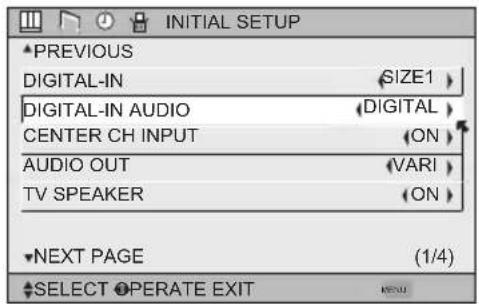
This feature is used if you have a DTV or HDMI compatible component connected to your TV.

less the MENU button

▼To DIGITAL-IN AUDIO

To select "ANALOG" or "DIGITAL"

Press the MENU button when finished
text_image
INITIAL SETUP PREVIOUS DIGITAL-IN SIZE1 DIGITAL-IN AUDIO DIGITAL CENTER CH INPUT ON AUDIO OUT VARI TV SPEAKER ON NEXT PAGE (1/4) SELECT OPERATE EXITNotes:
- If your DTV or HDMI component is capable of digital audio and video, choose DIGITAL. If your DTV or HDMI component is capable of analog audio and digital video, choose ANALOG.
- Refer to your DTV or HDMI component's instruction manual for more information.
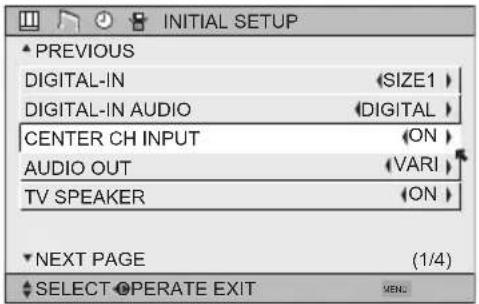
Center CH Input
When you are using a surround system, you can substitute the speaker of this television for the center speaker of you surround system. Set CENTER CH INPUT to ON when you use the speaker as the center speaker of your surround system. It is possible to lock the volume when it is ON separately from the volume when it is OFF.

Press the MENU button

To CENTER CH INPUT

To adjust CENTER CH INPUT to "ON" or "OFF"
Press the M ENU button when finished
text_image
INITIAL SETUP PREVIOUS DIGITAL-IN (SIZE1) DIGITAL-IN AUDIO (DIGITAL) CENTER CH INPUT (ON) AUDIO OUT (VARI) TV SPEAKER (ON) NEXT PAGE (1/4) SELECT OPERATE EXIT MEN.Note:
The normal speaker output is 20W 16Ω. The maximum is 40W. If you exceed the maximum, your speaker may break.
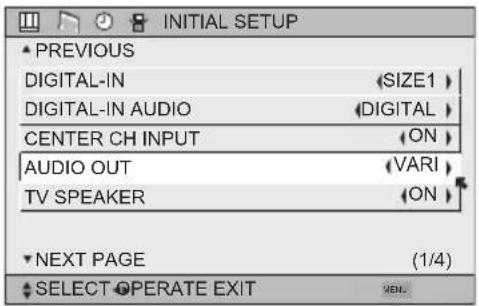
Audio Out
If your television is connected to an external speaker source, audio out gives you the option of controlling the volume level with your TV's remote control.

Press the M ENU button

To AUDIO OUT

To VARI or FIX

Press the MENU button when finished
VARI: Lets you adjust the volume of the external speakers using the VOLUME+/- buttons on your TV's remote control.
FIX: The volume of the external speakers is adjusted using the audio device's remote control.
text_image
INITIAL SETUP PREVIOUS DIGITAL-IN (SIZE1) DIGITAL-IN AUDIO (DIGITAL) CENTER CH INPUT (ON) AUDIO OUT (VARI) TV SPEAKER (ON) NEXT PAGE (1/4) SELECT OPERATE EXIT VIEWInitial Setup
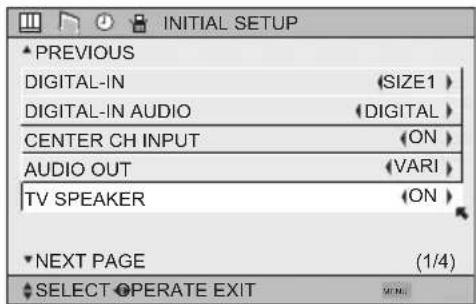
TV Speaker
If your TV is connected to a stereo system, you can turn off the TV speakers and listen to the audio through your stereo.

Press the M ENU button

To TV SPEAKER
To turn the TV's speakers ON or OFF

Press the MENU button when finished
text_image
INITIAL SETUP PREVIOUS DIGITAL-IN (SIZE1) DIGITAL-IN AUDIO (DIGITAL) CENTER CH INPUT (ON) AUDIO OUT (VARI) TV SPEAKER (ON) NEXT PAGE (1/4) SELECT OPERATE EXITNotes:
- Before you turn the TV speaker setting from OFF to ON, make sure that the TV volume level is low! If the TV volume is set too high, the sound level will be extremely loud.
- After a power interruption, the TV speaker settings will return to "ON".
Picture Adjust
Picture Settings
These settings allow you to change and adjust the way the picture appears on your television.
TINT
Tint allows you to adjust the levels of red and green in your TV picture.
COLOR
The color function lets you make all the colors in the TV picture appear either more vivid or subtle.
PICTURE
Picture allows you to adjust the levels of black and white on the TV screen, giving you a darker or brighter picture overall.
BRIGHT
You can adjust the overall brightness of the TV picture with the Bright control.
DETAIL
The Detail feature adjusts the level of fine detail displayed in the picture.
Adjust the Picture Settings
Press the MENU button

To TINT, COLOR, PICTURE, BRIGHT or DETAIL

To enter

◀▶ To adjust the setting
▲ ▼To move to the next setting
Press the MENU button when finished
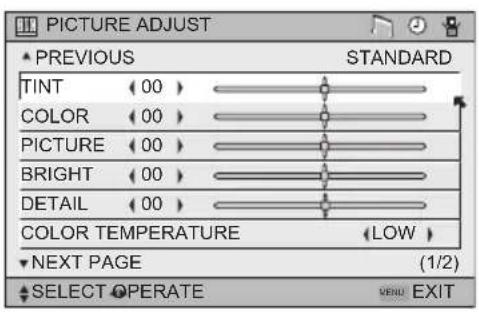
text_image
PICTURE ADJUST PREVIOUS STANDARD TINT (00) COLOR (00) PICTURE (00) BRIGHT (00) DETAIL (00) COLOR TEMPERATURE (LOW) NEXT PAGE (1/2) SELECT OPERATE MENU EXITColor Temperature
You can decide how strong or dull the colors appear on the TV screen.
Press the M
ENU button

To COLOR
TEMPERATURE

To enter

◀▶ To set LOW or HIGH

ess the M
ENU button when finished
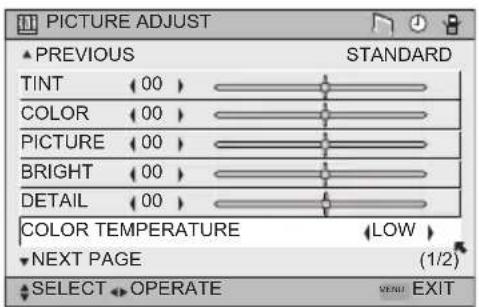
text_image
PICTURE ADJUST ▲ PREVIOUS STANDARD TINT (00) COLOR (00) PICTURE (00) BRIGHT (00) DETAIL (00) COLOR TEMPERATURE (LOW) ▼ NEXT PAGE (1/2) ▲ SELECT OPERATE MENU EXITPicture Adjust
Digital Noise Clear
With digital noise clear, this helps take our static or noise from a channel that may not be coming in clearly.

ess the M
ENU button

▼To DIG. NOISE CLEAR

To enter

▼To select the mode "LOW", "HIGH" or "OFF"

less the MENU button when finished
| DIG. NOISE CLEAR |
| OFF |
| LOW |
| HIGH |
(VSM) Velocity Scan Modulation
Velocity scan modulation circuitry varies the electron beam's horizontal scanning speed to help accentuate the differences in picture brightness to sharpen the edges of images.

ess the M
ENU button

To VSM

To enter


To turn VSM ON or OFF

less the MENU button when finished
| PICTURE ADJUST | |
| ▲ PREVIOUS STANDARD | |
| DIG. NOISE CLEAR | OFF |
| VSM | (ON) |
| NATURAL CINEMA | AUTO |
| RESET | |
| ▼ NEXT PAGE | (2/2) |
| ◆ SELECT OPERATE EXIT | MEND |
Natural Cinema
Natural cinema corrects the problem of blurred edges which may occur when viewing a program originally shot on film (such as motion pictures) or animation. If you notice blurring at the edges of these programs, choose NATURAL CINEMA and set it to AUTO. Natural Cinema helps correct conversion errors that occur when film, which is shot at 24 frames-per-second, is broadcast at the television rate of 30 frames-per-second.

ess the MENU button

▼To NATURAL CINEMA

To enter

▼To select the mode "AUTO", "ON" or "OFF"

ess the MENU button when finished
| NATURAL CINEMA |
| AUTO |
| ON |
| OFF |
Notes: The natural cinema mode is automatically set to "AUTO" in the following cases:
- Turning on or off
- Changing the channel or input mode
• Using multi-screen functions
Picture Adjust
Reset
Reset resets all picture adjustments (tint, color, picture, bright, detail, color temperature, dig. noise clear and VSM) at once to the default settings.

ss the M
ENU button
To
RESET
To
enter
The onscreen menu disappears for a m and then the settings are reset to the default setting for all the picture adjustments.
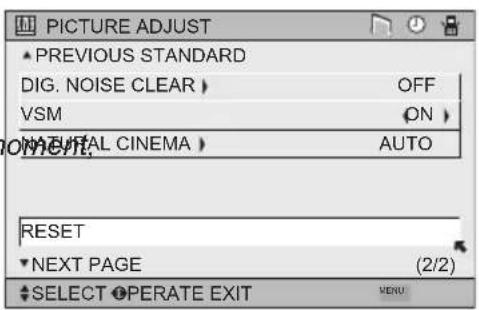
text_image
PICTURE ADJUST PREVIOUS STANDARD DIG. NOISE CLEAR OFF VSM ON NATURAL CINEMA AUTO RESET NEXT PAGE (2/2) SELECT OPERATE EXIT MENU
ess the M
ENU button when finished
Sound Adjust
Sound Settings
These settings allow you to change and adjust the sound on your television.
BASS – You can increase or decrease the level of low-frequency sound in the TV's audio with the bass adjustment.
TREBLE – Use treble to adjust the level of high-frequency sound in your TV's audio.
BALANCE – Adjust the level of sound between the TV's left and right speakers with the balance setting.
Adjust the Sound Settings
Press the MENU button
To BASS, TREBLE or BALANCE
◀▶ To adjust the setting
▲ ▼To move to the next setting
Press the MENU button when finished
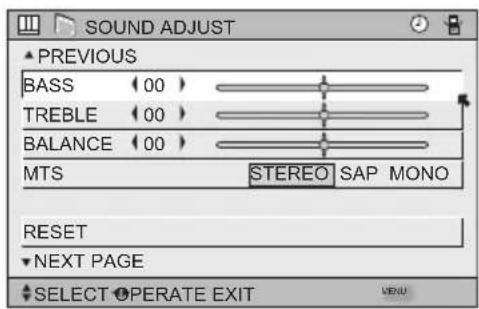
text_image
SOUND ADJUST ▲ PREVIOUS BASS (00) TREBLE (00) BALANCE (00) MTS STEREO SAP MONO RESET ▼ NEXT PAGE ▼ SELECT OPERATE EXIT VENUNotes:
- You can reset the sound adjustments (BASS, TREBLE and BALANCE) you set at once as the default setting when you select reset. See page 45.
• You can adjust BALANCE only when A.H.S. is off. See page 58.
MTS (Multi-Channel Television Sound)
MTS technology allows several audio signals to be broadcast at once, giving you a choice in what you wish to hear with a TV program. In addition to mono or stereo sound, an MTS broadcast may also include a second audio program (SAP).
Press the MENU button
To MTS
◀▶ Select the mode
(The ON AIR arrow tells you if a broadcast is in stereo and/or contains an SAP).
Press the MENU button when finished
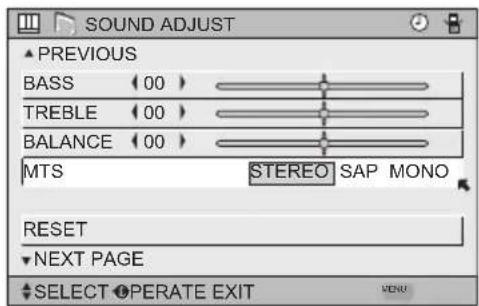
text_image
SOUND ADJUST ▲ PREVIOUS BASS (00) TREBLE (00) BALANCE (00) MTS STEREO SAP MONO RESET ▼ NEXT PAGE ▼ SELECT OPERATE EXITNotes:
- Keep the TV in stereo mode to get the best sound quality. The sound will work in stereo mode even if a certain broadcast is in mono sound only.
- Choose the mono setting to reduce excessive noise on a certain channel or broadcast.
- Selecting SAP will allow you to hear an alternative soundtrack, if one is available.
- MTS unavailable if your television's input source is in input 1, 2, 3 or 4 mode, as described on page 57.
Reset
Reset resets all Sound Adjustments (Bass, Treble and Balance) at once to the default settings. See page 51 on how to use reset.
Set Clock
The set clock function is described on page 23 as the interactive plug-in menu. You can choose to set the clock automatically, or manually. If you need to set the clock again, follow the steps below.
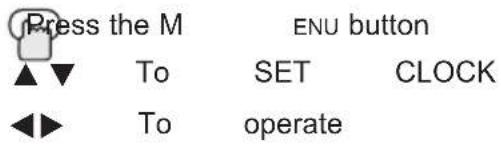
text_image
Press the M ENU button ▲▼ To SET CLOCK ◀▶ To operateWhen you set the clock automatically, choose AUTO by pressing the ◀ or ▶ arrows.
▲▼ To TIME ZONE
◀▶ To select your time zone

flowchart
graph LR
    A["ATLANTIC"] <--> B["EASTERN"]
    B <--> C["CENTRAL"]
    C <--> D["MOUNTAIN"]
    D <--> E["HAWAII"]
    E <--> F["ALASKA"]
    F <--> G["PACIFIC"]
▲ ▼To D.S.T. (daylight savings time)
◀▶ To turn D.S.T. ON or OFF
Press Ok to finish Press the MENU button when finished
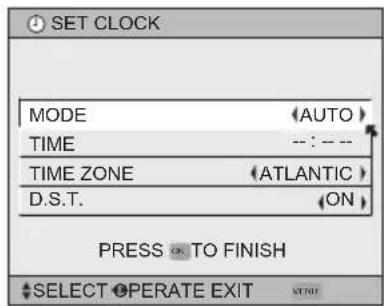
text_image
SET CLOCK MODE (AUTO) TIME -- : -- TIME ZONE (ATLANTIC) D.S.T. (ON) PRESS TO FINISH SELECT OPERATE EXITWhen you set the clock manually, choose MANUAL by pressing the ◀ or ▶ arrows.
▲▼ To move to the hour
◀▶ To set the hour
▲▼ To move to minutes
◀▶ To set the minutes
text_image
Press OK to start clock THANK YOU !!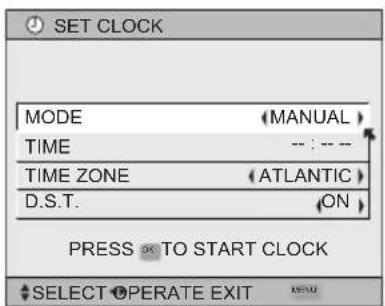
text_image
SET CLOCK MODE (MANUAL) TIME --: -- TIME ZONE (ATLANTIC) D.S.T. ON PRESS TO START CLOCK SELECT OPERATE EXIT MENUPress the MENU button when finished
Notes:
• D.S.T. can be used only for US and Canada when it is set to ON in the SET CLOCK menu.
- Only when the MODE set to AUTO, the Daylight Savings Time feature automatically adjusts your TV's clock for Daylight Savings. The clock will move forward one hour at 2:00 am on the first Sunday in April. The clock will move back one hour at 2:00 am on the last Sunday in October.
- You will have to reset the clock after a power interruption. You must set the clock before operating any timer functions.
Clock/ Timers
On/Off Timer
The on/off timer lets you program your television to turn itself on or off. You can use it as an alarm to wake up, to help you remember important programs, or as a decoy when you're not home.

ess the M
ENU button

To ON/OFF TIMER

To operate (begins with ON TIME)

To set the hour (AM/PM) you want the TV to turn

move to minutes

To set the minutes

To accept ON TIME and move to OFF TIME (the
time the TV will turn off). Set the OFF TIME the same way as ON TIME

accept OFF TIME and move to CHANNEL

To select channel

ON VOLUME

To set the volume level

move to MODE

Choose ONCE or EVERYDAY

To
ON/OFF
TIMER

Choose YES to accept the timer setting, choose NO if you don't wish to accept

ss the Ok button to finish

ss the MENU button to exit the menu
Notes:
- The on/off time cannot be set to locked or guarded channels.
- In order for the on/off timer to work, the clock must be set.
• After a power interruption, the timer settings must be reset.
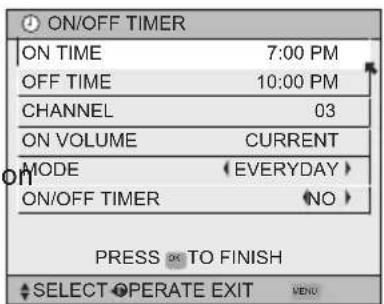
text_image
ON/OFF TIMER ON TIME 7:00 PM OFF TIME 10:00 PM CHANNEL 03 ON VOLUME CURRENT MODE (EVERYDAY) ON/OFF TIMER (NO) PRESS OK TO FINISH SELECT OPERATE EXITButton Functions
Multi Screen Function
Your television has two kinds of screen: TWIN (2 channels) and INDEX (12 channels).
Note: After you press any multiscreen button, if you press the menu button, only the picture adjust screen will appear.
Index
This allows you to quickly look at up to 12 channels at a time so that you can decide which one to watch.
| 1 | 2 | 3 | 4 |
| 5 | 6 | 7 | 8 |
| 9 | 10 | 11 | 12 |
Notes:
- Only RF input signal will be displayed.
- You can watch the channel added in channel summary. See page 31.
Twin
Activate the split-screen option by pressing Twin on the remote control. The channel (or input) you were watching before pressing Twin will appear on the left, the new channel will appear on the right. The sound will continue to come from the main screen channel (or input). To turn split-screen off and return to normal television viewing, press Twin again or press the BACK button.
| 07 | V-1 |
| MAIN SCREEN PICTURE | SPLIT SCREEN PICTURE |
Notes:
- Main Screen and Split Screen will not display the same channel or input at the same time.
- You can enter the TWIN mode when the screen is in NORMAL or INDEX mode.
- Split-screen functions will not work with locked channels or channels blocked by V-Chip ratings limits. A grey screen will display instead.
- With split screen, the picture from the component terminal and DIGITAL-IN terminal will not be displayed.
- The aspect of MAIN CHANNEL PICTURE becomes 16:9 when you input the picture of 480p, 720p and 1080i from the component terminal and DIGITAL-IN terminal.
- After you press the Select button, and select SPLIT SCREEN when you press the OK button, select normal screen. If you don't operate, the MAIN CHANNEL SCREEN will be automatically selected about 8 seconds later.
- Aspect does not work in Twin mode.
- When you press the MENU button in Twin mode, it appears only as Picture Adjust menu.
Button Functions
Freeze
Pressing the FREEZE button causes the screen to change to the split-screen display with the still picture displayed on the right. In order to return to the normal display, press the FREEZE button once again.
Note: When the screen is in freeze mode, if you do not operate it within 15 minutes, this function will cancel out.
Swap
You can exchange the channel (or input) displayed in the split screen window for the main screen image by pressing the SWAP button.
Select
With SELECT, you can select the picture (channel) while viewing SPLIT screen. When you press SELECT button, the channel number on the top will be highlighted. Each press of SELECT will shift the channel.
Button Functions
Power
Turns the TV on or off.

ess the P
OWER button
Number Buttons - 10Key Pad
Use the number buttons on the remote control to move directly to a specific channel. For example, to move to channel 12:

0
(ZERO)

1
(ONE)

2
(Two)
Tune
Lets you decide the input channel and select it. After you press the number buttons on the remote, press the TUNE button. For example, to move to channel 12:

1
(ONE)

2
(Two)

Press
UNE thetton
T
Input
Selects the signal input source for the television: Input-1, 2, 3, 4 or DIGITAL-IN for video devices like VCR's DVD players, or camcorders.

ess the INPUT button
By every press of the INPUT button, you can change the input mode.
Notes:
- When you return to TV mode, press the RETURN+ button or direct 10 key pad.
- You can also access the FRONT PANEL CONTROL screen by using the MENU button on the side of the TV instead of the remote control. It appears between INITIAL SETUP and PICTURE ADJUST screen, and it has INPUT, VIDEO STATUS and ASPECT menus. Choose INPUT by pressing Menu ▼ on the side panel and choose a mode by using the CHANNEL+/-buttons ( ◀ OPERATE ▶ ).
Channel +/-
Use these buttons to move up or down all the available channels your TV is able to receive.
Volume +/-
Use these buttons to raise or lower the TV's volume level.
Button Functions
Return +
The Return+ button has two functions:
Return - Returns to the channel viewed just before the channel currently onscreen.
Return+ - Lets you program a specific channel to return to while scanning through the channels using the CH+ and CH- buttons.

RETURN+ and hold for three seconds
RETURN CHANNEL PROGRAMMED!
The channel currently active has been programmed as your return+ channel. Now scan through the channels using the CHANNEL+/- buttons.

R
ETURN+
You will return to your programmed channel.
- To cancel your return+ channel, press and hold the RETURN+ button for three seconds. The message "RETURN CHANNEL CANCELLED!" will appear.
- Return+ works only with the CHANNEL+/- buttons. Pressing any number key will cancel return+.
Sound
By pressing the SOUND button, you can change the A.H.S. (Advanced Hyper Surround) mode, BBE, and SMART SOUND on or off.
A.H.S. - Adds a more spacious surround sound. Music gives basic effect and movie for more effect.
BBE - BBE High Definition Sound restores clarity and presence for better speech intelligibility and musical realism.
SMART SOUND - Decreases high sound levels, giving a regulated sound level.

ess the SOUND button

To select A.H.S., BBE or SMART SOUND To choose the setting

ess the MENU when finished

text_image
SOUND EFFECT A.H.S. MOVIE MUSIC OFF BBE ON OFF SMART SOUND ON OFF SELECT OPERATE EXIT MENUNote: Manufactured under license from BBE Sound, Inc. Licensed by BBE Sound, Inc. under USP4638258, 5510752 and 5736897. BBE and BBE symbol are registered trademarks of BBE Sound, Inc.
Muting
The MUTING button instantly turns the volume down completely when you press it. Press MUTING and the volume level will instantly go to zero. To restore the volume to its previous level, press MUTING again.
Button Functions
Video Status
The Video Status button gives you a choice of four TV picture display settings, including a display of your own preferences.
Standard - Resets the picture display to the factory settings.
Dynamic - Gives a vivid picture with better contrast when viewing in a brightly lit room.
Theater - Gives a rich, film-like look to video when viewing in a dimly lit room.
Game - Used for when you are playing video games connected to your TV.
| VIDEO STATUS |
| STANDARD DYNAMIC |
| THEATER |
| GAME |

Press IDEOTSTATUS button
By every press of the VIDEO STATUS button, you change the mode.
Note:
- You can also change the mode by pressing the ▲▼ buttons.
- You can also access the FRONT PANEL CONTROL screen by using the MENU button on the side of the TV instead of the remote control. It appears between INITIAL SETUP and PICTURE ADJUST screen, and it has INPUT, VIDEO STATUS and ASPECT menus. Choose VIDEO STATUS by pressing Menu ▼ on the side panel and choose a mode by using the CHANNEL+/- buttons ( ◀ OPERATE ▶ ).
TheaterPro D6500K
The TheaterPro D6500K color temperature technology function makes sure that the video you watch is set to the standard color temperature, so that what you see is as true to what the film to video editors intended it to be.

Press
the
THEATERPRO button
Sleep Timer
The Sleep Timer can turn the TV off for you after you fall asleep. Program it to work in intervals of 15 minutes, for a total time of up to 180 minutes.

Press the SLEEP TIMER button

text_image
0 15 30 45 60 75 90 105 120 135 150 165 180Sleep Timer Message
20 seconds before the automatic shutoff, this message will appear:
You then have 20 seconds to press the SLEEP TIMER button to delay the shut off for another 15 minutes.
Button Functions
Display
The display screen shows the current status of timers, inputs, and XDS ID.

ess the D
ISPLAY button
The screen to the right shows the following information:
• The current channel or AV input (Channel 05)
• The current time (12:20 pm)
- Sleep timer status/minutes remaining (The Sleep Timer is off)
- On/off timer status (Set to turn on everyday at 7:00 PM, off at 10:00 PM)
- Each Press of the DISPLAY button changes the display mode:
05 KLVX PBS
JAZZ FESTIVAL
NOW 12:20 PM
SLEEP TIMER OFF
flowchart
graph LR
    A["→ Display Time Channel Off"] --> B["→"]
    B --> C["→"]
Display - Full screen shown above
Time - Shows the current time only
Channel - Shows the current channel
Off - Turns display off
Notes:
- You may also turn off the display at any step by pressing MENU.
- If the clock, sleep timer or on/off timer are not set, the display screen will show: "CLOCK NOT SET", "SLEEP TIMER OFF", and "ON/OFF TIMER OFF" respectively.
C.C. (Closed Caption)
Use the C.C. (Closed Caption) button to select the mode of closed caption.

ss the C.C. button
AV-30W585 ONLY

flowchart
graph LR
    A["OFF SMART CAPTION ON"] --> B["→"]
    B --> C["→"]
AV-30W575 ONLY

- Smart Caption will appear when you press the Muting button, only on channels where the broadcast contains closed captioning. (AV-30W585 ONLY)
- When you select ON, it will be the mode selected in the Closed Caption Menu.
• See page 41 when you set the caption/text mode.
Button Functions
Aspect
This feature will help you adjust the picture you are watching to give you the best possible picture quality.
Aspect Ratios
PANORAMA - With this ratio a normal 4:3 aspect picture is stretched to fit the dimensions of the 16:9 aspect screen.
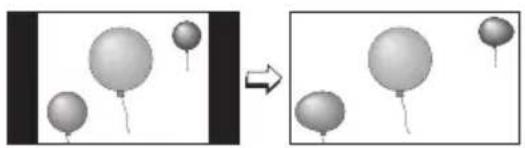
natural_image
Diagram showing two panels of balloons with one being shifted, no text or symbols presentCINEMA - This ratio "zooms in" on the center part of a 4:3 aspect picture, blowing it up to fill the 16:9 screen.

natural_image
Two-panel image showing a magnified view of balloons before and after transformation (no text or symbols)FULL - This is the ratio to use when watching 16:9 High-Definition broadcasts.
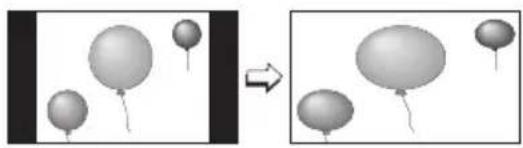
natural_image
Two grayscale images showing balloons, one rotated to show a separate image (no text or symbols)HD PANORAMA - This ratio stretches the High-Definition 16:9 aspect image to eliminate the black side bars.
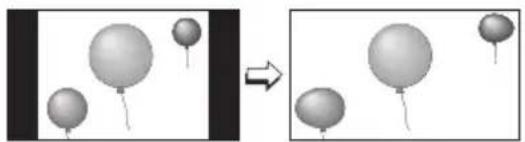
natural_image
Two-panel image showing a sequence of balloons and strings, one transforming into a separate view (no text or symbols)REGULAR - The regular ratio is used when you want to watch a 4:3 broadcast or recorded program without modifying the original picture to fit the dimensions of your 16:9 screen. The 4:3 picture will fill the screen from top to bottom, while black bars will appear to fill up the remaining space along the picture's sides. The 4:3 picture will be centered within the boundaries of the 16:9 screen.

CINEMA ZOOM - This ratio stretches the High-Definition 16:9 aspect image to eliminate the black surrounding bars.

natural_image
Two-panel image showing a magnified view of balloons and a separate view of smaller balloons, with no text or symbols present.Button Functions
Aspect Ratios (Continued)

Press
the
ASPECT button
sBycorbsting, you can change the size.
When you change the aspect ratios, it is different from their broadcast or recorded program.
HD (1080i, 720p)NTSC, 480i, 480p
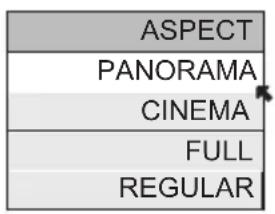
text_image
ASPECT PANORAMA CINEMA FULL REGULAR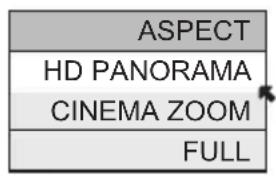
text_image
ASPECT HD PANORAMA CINEMA ZOOM FULLNotes:
- You can also choose the size by pressing the ▲▼ buttons.
- When you change the aspect ratio or signal, reset the picture position to center.
- You can also access the FRONT PANEL CONTROL screen by using the MENU button on the side of the TV instead of the remote control. It appears between INITIAL SETUP and PICTURE ADJUST screen, and it has INPUT, VIDEO STATUS and ASPECT menus. Choose ASPECT by pressing Menu▼ on the side panel and choose a mode by using the CHANNEL +/- buttons ( ◀ OPERATE ▶ ).
Menu
The Menu button allows you to access JVC's onscreen menu system. Press MENU to activate the onscreen menu system.
- See individual topics like "Sound Adjust" for specific information on using menus.
OK
This button confirms your selection when you are in one of the onscreen menus.
Back
This button allows you to go back in the menu to change a selection or correct a mistake.
Button Functions
TV/CATV Slide Switch
Use either the television's own tuner or a cable box to select channels. Set this switch to TV to operate the television's built-in tuner. Move the switch to CATV to operate a cable box.
Note:
• See page 25 for information on programming your remote for cable box operation.
VCR/DVD Slide Switch
You can control a VCR or DVD player with the buttons on the lower part of the remote control. Move the slide switch to VCR or DVD to operate.
Notes:
- The remote is preset with the code 000 to control JVC-brand VCR's. For any other manufacturer's brand VCR, please see the code chart and instructions on page 26.
- The remote is preset with the code 000 to control JVC-brand DVD players. For any other manufacturer's brand DVD player, please see the code chart and instructions on page 27.
VCR Buttons
You can use this remote control to operate the basic functions of your VCR. These functions include: play, record, rewind, fast-forward, stop, pause, channel scan, TV/VCR, power on, and power off.
Move the selector switch to VCR to operate.
- The remote is preset with the code 000 to control JVC-brand VCR's. For any other manufacturer's brand VCR, please see the code chart and instructions on page 26.
DVD Buttons
You can also use this remote control to operate the basic functions of your DVD player. These functions include: play, rewind, fast-forward, stop, still/pause, previous/next, tray open/close, power on, and power off.
Move the selector switch to DVD to operate.
- The remote is preset with the code 000 to control JVC-brand DVD players. For any other manufacturer's brand DVD player, please see the code chart and instructions on page 27.
Light
All remote control buttons are illuminated, except for the TV/CATV slide switch, VCR/DVD slide switch and LIGHT button. Press the LIGHT button to turn the illumination on for 4 seconds.
Troubleshooting
| PROBLEMS CHECK | |
| There is no power | • See if the power cord became unplugged.• Check for a blown fuse or circuit breaker or a power outage. |
| There is no picture or sound | • The antenna could be disconnected.• The input mode could be set improperly. See page 57.• The tuner (Auto Tuner Setup) could be set improperly. See page 32.• The TV station may be having difficulties. Check to see if other stations are working. |
| Remote control is not operating properly or at all | • Check to see that the batteries are still working and properly installed.• Make sure the remote has a clear sight path to the TV.• Check that the TV/CATV switch is in the proper position.• You may be too far from the TV. You must be within 23 feet (7 meters). |
| You cannot select a certain channel | • Make sure the channels have been programmed. See "Channel Summary", page 32.• Check to see if the channel is locked. See "Channel Summary - Lock" page 33. |
| The power turns off by itself | • Make sure the set did not become unplugged.• Perhaps the On/Off Timer is set. See page 54.• Check to see if the Sleep Timer was set. See page 59. |
| The clock is wrong | • The power was interrupted and the clock was not reset. See page 53. |
| The color quality is poor | • Tint and Color may be improperly adjusted. See page 49.• The Video Status mode may be turned to the wrong setting. See page 59. |
| There are lines across the picture | • There could be interference from another electrical appliance, such as a computer, another TV or VCR. Move any such appliances further away from the TV. |
| The picture is spotted | • There could be interference from a high-wattage appliance, like a hairdryer or vacuum, operating nearby. Move the antenna away from the appliance or change to a coaxial cable connection which is less prone to interference. |
| There are double pictures (ghosts) | • A building or passing airplane can reflect the original signal and produce a second, slightly delayed one. Adjust your antenna position. |
| Picture is snowy (image noise) | • Your antenna may be damaged, disconnected or turned. Check the antenna connection. If the antenna is damaged, replace it. |
| Screen is 40% black | • The Closed Caption Text mode is on. Turn it off in the Closed Caption Menu, page 60. |
| Stereo or bilingual programs can't be heard | • Make sure the MTS settings are correct. See "MTS" on page 52. |
| There is no sound from the TV's speaker | • The Center CH Input may be turned on. See page 47. |
| Static electricity | • It is normal to feel static electricity if you brush or touch the screen. |
| You hear occasional crackling sounds | • It is normal for the TV to make crackling sounds when first turned on or off. Unless the sound or picture become abnormal, this is fine. |
For Canadian model televisions, see separate sheets for Canadian Warranty information.
JVC COMPANY OF AMERICA (JVC) warrants this product and all parts thereof, except as set forth below ONLY TO THE ORIGINAL RETAIL PURCHASER to be FREE FROM DEFECTIVE MATERIALS AND WORKMANSHIP from the date of original purchase for the period shown below. ("The Warranty Period")
FOR DIRECT-VIEW COLOR TELEVISION, PICTURE TUBE is covered for Two(2)years.
| Parts | 1 YEAR | Labor | 1 YEAR |
THIS LIMITED WARRANTY IS VALID ONLY IN THE FIFTY (50) UNITED STATES, THE DISTRICT OF COLUMBIA AND IN THE COMMONWEALTH OF PUERTO RICO.
WHAT WE WILL DO:
If this product is found to be defective within the warranty period, JVC will repair or replace defective parts with new or rebuilt equivalents at no charge to the original owner. Such repair and replacement services shall be rendered by JVC during normal business hours at JVC authorized service centers. Parts used for replacement are warranted only for the remainder of the Warranty Period. All products may be brought to a JVC authorized service center on a carry-in basis. Color televisions with a screen size of 27" or greater qualify for in-home service. In such cases, a technician will come to your home and either repair the TV there or remove and return it if it cannot be repaired in your home.
WHAT YOU MUST DO FOR WARRANTY SERVICE:
Please do not return your product to the retailer
Instead, return your product to the JVC authorized service center nearest you. If shipping the product to the service center, please be sure to package it carefully, preferably in the original packaging, and include a brief description of the problem(s). Please call 1-800-252-5722 to locate the nearest JVC authorized service center. Service locations can also be obtained from our website http://www.jvc.com. If your product qualifies for in-home service, the service representative will require clear access to the product.
If you have any questions concerning your JVC Product, please contact our Customer Relations Department at 800-252-5722
WHAT IS NOT COVERED:
This limited warranty provided by JVC does not cover:
- Products which have been subject to abuse, accident, alteration, modification, tampering, negligence, misuse, faulty installation, lack of reasonable care, or if repaired or serviced by anyone other than a service facility authorized by JVC to render such service, or if affixed to any attachment not provided with the products, or if the model or serial number has been altered, tampered with, defaced or removed;
- Initial installation, installation and removal from cabinets or mounting systems.
- Operational adjustments covered in the Owner's Manual, normal maintenance, video and audio head cleaning;
- Damage that occurs in shipment, due to act of God, and cosmetic damage;
- Signal reception problems and failures due to line power surge;
- Video Pick-up Tubes/CCD Image Sensors are covered for 90 days from the date of purchase;
- Accessories;
- Batteries (except that Rechargeable Batteries are covered for 90 days from the date of purchase);
- Products used for commercial purposes, including, but not limited to rental.
There are no express warranties except as listed above.
THE DURATION OF ANY IMPLIED WARRANTIES, INCLUDING THE IMPLIED WARRANTY OF MERCHANTABILITY, IS LIMITED TO THE DURATION OF THE EXPRESS WARRANTY HEREIN.
JVC SHALL NOT BE LIABLE FOR ANY LOSS OF USE OF THE PRODUCT, INCONVIENCE, OR ANY OTHER DAMAGES, WHETHER DIRECT, INCIDENTAL OR CONSEQUENTIAL (INCLUDING, WITHOUT LIMITATION, DAMAGE TO TAPES, RECORDS OR DISCS) RESULTING FROM THE USE OF THIS PRODUCT, OR ARISING OUT OF ANY BREACH OF THIS WARRANTY. ALL EXPRESS AND IMPLIED WARRANTIES, INCLUDING THE WARRANTIES OF MERCHANTABILITY AND FITNESS FOR PARTICULAR PURPOSE, ARE LIMITED TO THE WARRANTY PERIOD SET FORTH ABOVE.
Some states do not allow the exclusion of incidental or consequential damages or limitations on how long an implied warranty lasts, so these limitations or exclusions may not apply to you. This warranty gives you specific legal rights and you may also have other rights which vary from state to state.
JVC COMPANY OF AMERICA
DIVISION OF JVC AMERICAS CORP
1700 Valley Road
Wayne, NJ 07470
http://www.jvc.com
REFURBISHED PRODUCTS CARRY A SEPARATE WARRANTY, THIS WARRANTY DOES NOT APPLY. FOR DETAIL OF REFURBISHED PRODUCT WARRANTY, PLEASE REFER TO THE REFURBISHED PRODUCT WARRANTY INFORMATION PACKAGED WITH EACH REFURBISHED PRODUCT.
For customer use:
Enter below the Model No. and Serial No. which is located either on the rear, bottom or side of the cabinet. Retain this information for future reference.
Model No.:
Serial No.:
Purchase date :
Name of dealer :
TO OUR VALUED CUSTOMER
THANK YOU FOR PURCHASING THIS JVC PRODUCT.
WE WANT TO HELP YOU ACHIEVE A PERFECT EXPERIENCE.
NEED HELP ON HOW TO HOOK UP?
NEED ASSISTANCE ON HOW TO OPERATE?
NEED TO LOCATE A JVC SERVICE CENTER?
LIKE TO PURCHASE ACCESSORIES?
JVC® IS HERE TO HELP!
TOLL FREE: 1(800)252-5722
http://www.jvc.com
Remember to retain your Bill of Sale for Warranty Service.
Do not attempt to service the product yourself
Caution
To prevent electrical shock, do not open the cabinet.
There are no user serviceable parts inside.
Please refer to qualified service personnel for repairs.
BT-51011-8
(0504)
Specifications
| MODEL | AV-30W585 AV-30W575 | |
| Reception Format | NTSC, BTSC System (Multi-Channel Sound) | |
| Reception Range | VHF 2 to 13, UHF 14 to 69Sub Mid, Mid, Super, Hyper and Ultra bands(181 channel frequency synthesizer system) | |
| Power Source AC | 120V, 60Hz | |
| Power Consumption | 215W | |
| Screen Size | 30 inch / 80 cmmeasured diagonally16:9 Ratio | |
| Audio Output | 10W + 10W | |
| Speakers | 2 1/2 x 5 inch / 6.5 x 13 cm oval x 2 | |
| Antenna Terminal | 75 ohms (VHF/UHF) (F-type connector) | |
| External Input Jacks | Video: 1 Vp-p, 75 ohmsAudio: 500mVrms (-4dBs) high impedance | |
| S-Video Input Jack | Y: 1Vp-p positive, 75 ohms (negative sync provided)C: 0.286 Vp-p (burst signal), 75 ohms | |
| Component Input Jacks | Y: 1Vp-p positive, 75 ohms (negative sync provided)Rb/Pr: 0.7 Vp-p, 75 ohms | |
| Audio Output Jacks(VARI/FIX) | VARI: More than 0 to 1000mVrms (+2.2dBs)FIX 500 mVrms (-4dBs) Low impedance(400 Hz when modulated 100%) | |
| Subwoofer Output Jack | More than 0 to 1000mVrms (+2.2 dBs)Low impedance (100 Hz when modulated 100%) | |
| AV Compu Link III Jack | 3.5 mm mini jack x 1 | ——— |
| Digital-In | HDMI jack x 1Note: The Digital-In terminal is not compatible with picture signals of a personal computer | |
| Dimensions (In) WxHxD (cm) | 33 1/8 x 23 5/8 x 21 7/884.2 x 59.9 x 55.5 | |
| Weight (lbs / kg) | 118.8 / 54 | |
| Accessories | Remote control unit x 1 / AA batteries x 2 | |
Specifications subject to change without notice.
Note:
- Reception of channel A-5 ("95" of the TV set's on-screen cable channel numbers) is not recommended for your TV set.
Notes
Notes
Notes
JVC COMPANY OF AMERICA
Division of JVC Americas Corp.
1700 Valley Road
Wayne, New Jersey, 07470
JVC®
JVC CANADA, INC.
21 Finchdene Square
Scarborough, Ontario
Canada, M1X 1A7