PJ WX5150 - Video projector RICOH - Free user manual and instructions
Find the device manual for free PJ WX5150 RICOH in PDF.


User questions about PJ WX5150 RICOH
0 question about this device. Answer the ones you know or ask your own.
Ask a new question about this device
Download the instructions for your Video projector in PDF format for free! Find your manual PJ WX5150 - RICOH and take your electronic device back in hand. On this page are published all the documents necessary for the use of your device. PJ WX5150 by RICOH.
USER MANUAL PJ WX5150 RICOH
1.1 Connecting to the projector....2
1.2 Login....3
1.3 Home....4
1.4 Projector Control Panel....5
1.5 Network Setting....7
1.7 Logout....12
2. Control the Projector via the Projector Management Utility...... 13
2.1 Installing Projector Management Utility .... 13
2.2 Register projectors....14
2.3 Control the projector with the projector Management Utility .... 17
1. Controlling the projector via a web browser
You can control the projector by using a web browser from a PC.
-If you want to connect an existing network system, consult the network administrator for network settings.
-Network settings such as password will be reset when you set "Default settings 2" > "Reset All" in the projector menu system.
-In rare cases, the network function won't work properly due to electrostatic discharge or something. Set "Default settings 2" > "Reset All" in such a case.
1.1 Connecting to the projector
1. Check IP address of the projector
Be sure to set "Default settings 1">“Control Method” to “LAN” in the projector menu system before starting to set Network setting
Check IP address in "Default settings 2" > "Network setting" in the projector menu system. (See page 43 on the projector use's manual)

text_image
Default Settings 2 Network Setting Connection Status Off MAC Address 00:50:41:77:2A:23 DHCP Disable IP Adress 192 . 168 . 0 . 100 Subnet Mask 255 . 255 . 255 . 0 Default Gateway 192 . 168 . 4 . 137 Set Execute MENU Back2. Connect
Open your web browser and type in the IP address you checked. For example, type "http://192.168.0.100" when IP address is displayed as the screen above.
This web pages use Java Script. Please turn on Java Script in your browser.
1.2 Login
- The web browser shows a login page.
RICOH
RICOH Projector Web Server B01
Projector Name: PJ WX5140
Welcome to RICOH Projector Web Server

2. Select a user.
You can use all functions (Control Panel, Network setting and Alert setting) when you select "administrator". And you can use only "Control Panel" when you select "user".
3. Enter the Password
If the password setting is enabled the correct password needs to enter.
Default passwords of Administrator: "admin".
Default passwords of User: "user"
If the password setting is disabled the "Password" item will be gray out.
Click [Login] button to login.
-The warning message "Invalid Character" will popup if your password is incorrect.
- "B01" showed in the top in the web page picture indicates software version of this web page. It may be different from "B01".
4. Login
After login, control tabs will appear. It contains Home, Control Panel, Network Setting, Alert
Setting, and Logout.
Home is automatically selected after login.
1.3 Home
RICOH
RICOH Projector Web Server B01
Projector Name: PJ WX5140
Home
Control Panel
Network Setting
Alert Setting
Logout
Welcome to RICOH Projector Web Server
IP:192.168.0.100
Projector Status
System Status: Power-on
Input: Computer 1
Lamp Hours: 0003
FW Version: C03
This is Home page which shows basic information of your projector. There is no control on this page.
1. Projector Status:
System Status:
It shows the current system status of the projector. It includes Standby, Warm-up, Power-on, cooling, Power-off and Unknown.
-Input:
[PJ WX5140, WX5150]
It shows the current input source of the projector. It includes Computer 1, Computer 2, S-Video, Video, HDMI, None and Unknown.
[PJ X5260]
It shows the current input source of the projector. It includes Computer 1, Computer 2, S-Video, Video, Component, DVI, HDMI and Unknown.
-Lamp Hours:
It shows the current lamp hours of the projector.
-FW Version:
It shows the current firmware version of the projector.
The projector status will show "Unknown" if the projector is not set properly. Check the control method setting in the OSD menu at this situation. Set it to "LAN" if you want to control the projector via network.
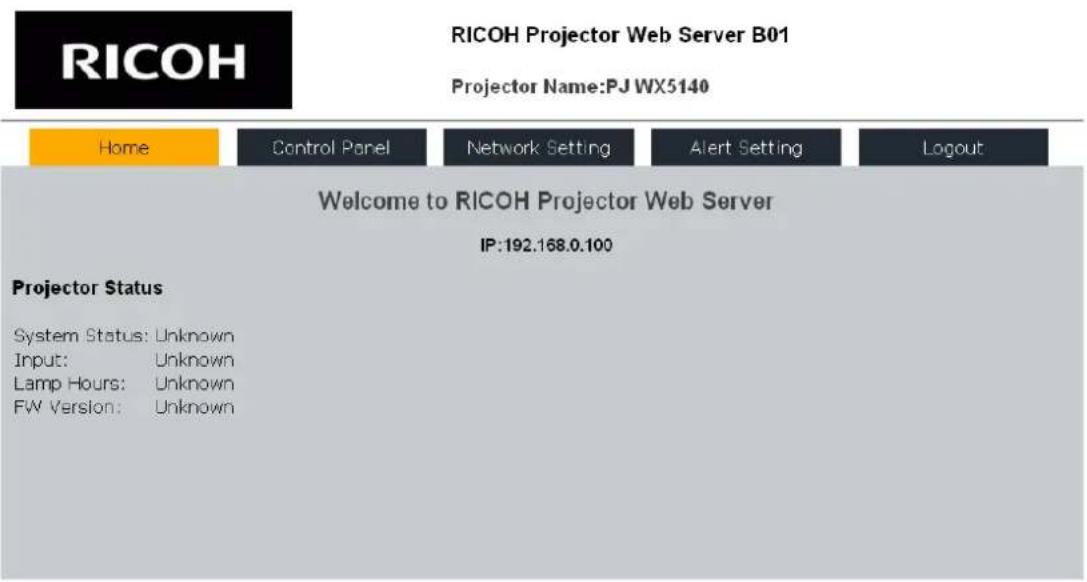
text_image
RICOH Projector Web Server B01 Projector Name:PJ WX5140 Home Control Panel Network Setting Alert Setting Logout Welcome to RICOH Projector Web Server IP:192.168.0.100 Projector Status System Status: Unknown Input: Unknown Lamp Hours: Unknown FW Version: Unknown1.4 Projector Control Panel

text_image
RICOH Projector Web Server B01 Projector Name:PJ WX5140 Home Control Panel Network Setting Alert Setting Logout Control Panel Power ON Power OFF Auto set Input Auto Input Search AV Mute Freeze Key Lock 3D Projection DLP Link L/R Reverse Input Select. Image Brightness Reset + Contrast Reset + Sharpness Reset + Picture Mode Select. Closed Caption Select. Audio Volume Reset + Management Background on No Signal Select.. Display Icon Select.. Start-up Screen Select.. Power off on No Signal Select.. Lamp Power Select.. Aspect Select..This page shows the control items of your projector. User can control the projector by this page.
Control Buttons
Execute a function when the button is clicked.
| [Power ON] | Power is turned on. |
| [Power OFF] | Power is turned off. |
| [Auto Set] | Automatically adjust the RGB signal from the computer. |
| [Input] | Switch among Computer1, Computer2, Component, Video, S-Video, DVI-D and HDMI |
Setting Buttons
Setting is toggled On and Off by clicking the button.
| [Auto Input Search] | Search the next signal source automatically when the current signal is lost. (See p.37 on the Projector User's manual) |
| [AV Mute] | Momentarily turn off the audio and video. |
| [Freeze] | Pause the screen image |
| [Key Lock] | Disable the keys on the projector. |
| [3D Projection] | Set 3D projection mode on. |
| [DLP Link] | Set 3D projection mode with DLP Link on. |
| [L/R Reverse] | Change left and right frame content of 3D projection.(See p.42 on PJ User's manual for 3D related settings.) |
Input select:
Select an input source from the drop down list.
Adjusting
Image:
| [Brightness] | Adjust brightness by clicking [+] or [-]. Click [Reset] to return the default value 0 |
| [Contrast] | Adjust contrast by clicking [+] or [-]. Click [Reset] to return the default value 0 |
| [Sharpness] | Adjust sharpness by clicking [+] or [-]. Click [Reset] to return the default value 0. |
| [Picture mode] | Select a picture mode from the drop down list. |
| [Closed Caption] | Select a Closed Caption mode from the drop down list.(See p.40 on the Projector User's manual for 3D related settings.) |
Audio
| [Volume] | Adjust volume by clicking [+] or [-]. Click [Reset] to return the default value 5 |
Management
| [Background on No Signal] | Select an image on no signal from the drop down list. |
| [Display Icon] | Select "Off" to hide icons when the input source or settings are changed. |
| [Start-up Screen] | Select On/Off for startup screen which is displayed when the projector is turned on. |
| [Power off on No signal] | Select power off timer value after no signal is detected from the drop down list. |
| [Aspect] | Select aspect ratio from the drop down list. |
1.5 Network Setting

RICOH Projector Web Server B01
Projector Name: PJ WX5140
Home
Control Panel
Network Setting
Alert Setting
Logout
Network Setting

text_image
Projector Setting Projector Name PJ WX5140 Apply PJLink Setting PJLink Password Enable Disable Current Password New Password Confirm Password Apply
text_image
Network Setting DHCP Manual IP Address 192.168.0.100 Subnet Mask 255.255.255.0 Gateway 192.168.0.254 DNS Server 192.168.0.1 Apply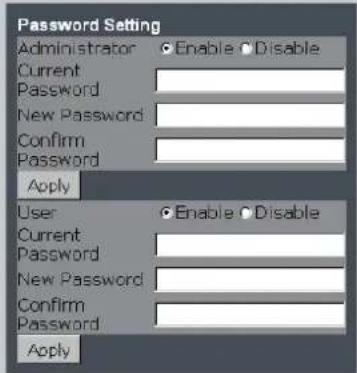
text_image
Password Setting Administrator ○ Enable ○ Disable Current Password New Password Confirm Password Apply User ○ Enable ○ Disable Current Password New Password Confirm Password ApplyProjector Setting
Projector name which is displayed in this web page can be changed.
Enter a new projector name in the box and clock [Apply] button.
This projector name is also used in PJLink control.
Up to 32 alphanumeric characters and symbols are accepted.
PJLink setting
Settings of PJLink password can be changed in this section.
-Change the password.
Confirm "Enable" is checked in PJLink password.
Enter the current password in current password box.
Enter a new password in both New Password box and Confirm Password box.
Click [Apply] button.
-Enable the password when disabled.
Check "Enable" in PJLink password.
Enter a new password in both New Password box and Confirm Password box.
Click [Apply] button.
-Disable the password when enabled.
Check "Disable" in PJLink password.
Enter the current password in current password box.
Click [Apply] button.
-Up to 32 alphanumeric characters and symbols are accepted for a password.
-When entered the new password and the confirm password are not the same, an error message will be displayed. Re-enter passwords in this case.
Network setting
Network settings such as IP address can be set in this section.
DHCP, IP address, and Default gateway can be also set OSD menu in the projector.
DNS Server address can be set only in this section. This is required when E-mail setting is set by domain names.
-Check DHCP when network settings are provided by DHCP server in your network.
-Check Manual when you want set network settings manually.
And enter the settings to following boxes.
[IP Address], [Subnet mask], [Default gateway], [DNS server]
After settings are changed, click [Apply] button to apply new settings.
IPv6 is not supported.
Password setting:
Passwords setting for web pages can be changed in this section.
A password for "Administrator" and "User" can be set independently.
-Change the password.
Confirm "Enable" is checked in Administrator or User.
Enter the current password in current password box.
Enter a new password in both New Password box and Confirm Password box.
Click [Apply] button.
-Enable the password when disabled.
Check "Enable" in PJLink password.
Enter a new password in both New Password box and Confirm Password box.
Click [Apply] button.
-Disable the password when enabled.
Check "Disable" in Administrator or User.
Enter the current password in current password box.
Click [Apply] button.
-Up to 32 alphanumeric characters and symbols are accepted for a password.
-When entered the new password and the confirm password are not the same, an error message will be displayed. Re-enter passwords in this case.
1.6 Alert Setting
RICOH
RICOH Projector Web Server B01
Projector Name: PJ WX5140
Home
Control Panel
Network Setting
Alert Setting
Logout
Alert Setting

text_image
Email Setting To user@mailserver.com Cc cc@mailserver.com Subject Project alert From alert@mailserver.com Apply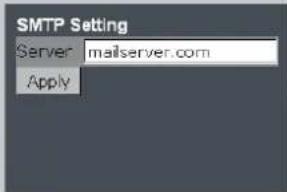
text_image
SMTP Setting Server: mailserver.com Apply
text_image
Alert Condition Fan Lock Over Temperature Lamp Hours Running Out Lamp Fail Apply Email TestAlert setting:
This projector can send E-mail when an error occurs in the projector.
Be sure Email setting and SMTP setting are correct.
Email test is recommended after alert setting is set.
-Email setting
Enter Email settings in the boxes.
[To], [Cc] Enter an alert mail destination.
Only one destination can be entered in each destination.
[Subject] Enter subject of an alert mail.
[From] Enter a sender of an alert mail.
Click [Apply] to apply settings.
-SMTP Setting
Enter SMTP mail server address in the box.
Click [Apply] to apply setting.
-Alert Condition
Check alert mail conditions that you desire.
Fan Lock
An alert mail is sent when a cooling fan is stopped.
The body of the mail is "Fan Lock:xxx.xxx.xxx.xxx*"
Over Temperature
An alert mail is sent when internal temperature is too high.
The body of the mail is "Over Temperture:xxx.xxx.xxx.xxx*"
Lamp Hours Running Out
An alert mail is sent when lamp life is ending.
The body of the mail is "Lamp Hours Running out:xxx.xxx.xxx.xxx*"
Lamp Fail
An alert mail is sent when the projector fail to light the lamp.
The body of the mail is "Lamp Fail:xxx.xxx.xxx.xxx*"
* "xxx.xxx.xxx.xxx" means IP address of the projector. (ex. 192.168.0.100)
-Email test
Test Email is sent when click [Email Test].
Since no error will be reported even if any error is occurred in sending a test mail.
Check if the test mail is arrived to destination mail box.
The body of the mail is "Email Test:xxx.xxx.xxx.xxx"
"xxx.xxx.xxx.xxx" means IP address of the projector. (ex. 192.168.0.100)
-Be sure Email settings and SMTP settings are correct.
-Email test is recommended after alert setting is set.
-Always set "Control method" to "LAN" in OSD menu in the projector to detect the error.
-Default value of Email setting is a sample setting as followings.
[To] user@mailserver.com
[ C c ] cc @ mail server.com
[Subject] Project alert
[From] alert@mailserver.com
-Only SMTP protocol is supported.
1.7 Logout
Click Logout tab to logout from this projector control web site.
This page will appear for 2 seconds and then jump to login page

RICOH Projector Web Server B01
Projector Name: PJ WX5140
text_image
Home Control Panel Network Setting Alert Setting Logout! Logout!2. Control the Projector via the Projector Management Utility
Projector Management Utility conforms to the PJLink class 1 standards, and is compatible with all class 1 commands.
A maximum of 100 projectors connected to the network can be managed using one computer.
Projector Management Utility operating environment is described below.
• Supported operating system
- Windows XP SP3 (32-bit version) Professional Edition, Home Edition
- Windows Vista (32-bit version) Ultimate, Business, Home Premium, Home Basic
- Windows 7 (32-bit version) Home Premium, Professional, Ultimate, Enterprise
- Memory size
Recommended memory size for the operating system of the computer you are using
- Display resolution
800 × 600 pixels or more
This software is to control and monitor projectors manufactured by our company. The software may not work properly when used to control other projectors.
2.1 Installing Projector Management Utility
Projector Management Utility is included on the supplied CD-ROM.
Log in to the computer with administrator privileges to install or uninstall utilities.
- Close all applications.
- Insert the CD-ROM in the CD-ROM drive of your computer, and then click [X] to close the user's manual window.
- Right click the CD-ROM icon and select OPEN.
- Open "Projector Management Utility" folder stored on the CD-ROM.
- Double-click "setup.exe" stored in the "Projector Management Utility" folder.
- Install the application by following the on-screen instruction.
- When the installation is complete, exit the installer.
A shortcut icon is created on the desktop.
To uninstall Projector Management Utility, use the program delete function in Control Panel to delete "Projector Management Utility".
2.2 Register projectors.
- Registers the projectors with Auto search.
-Click [Register Projector] button.
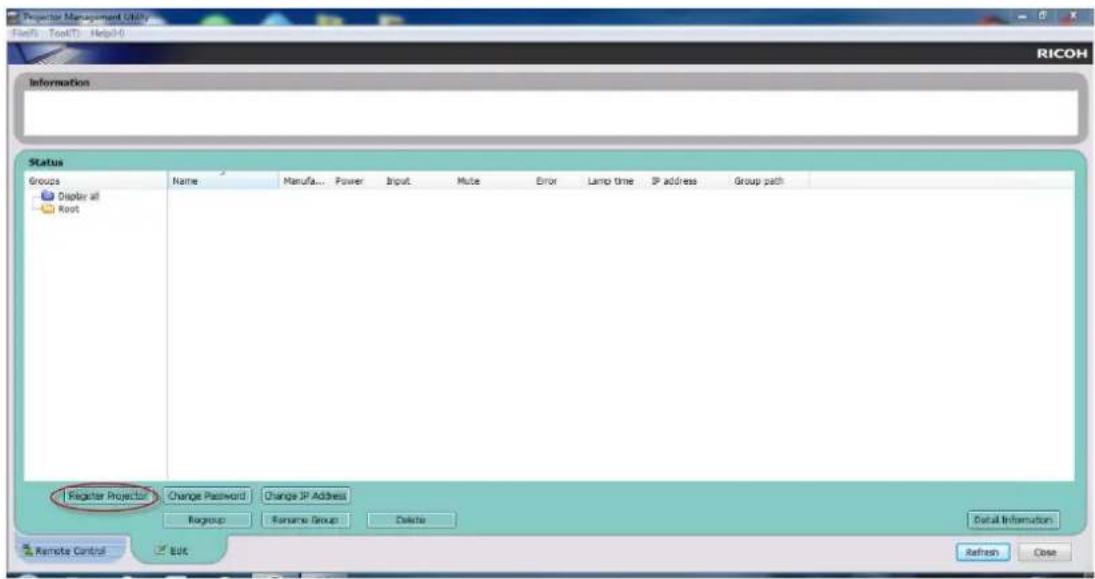
text_image
Projector Management Utility Tools - ToolID - HelpID RICOH Information Status Groups Displor all Root Name Manufa... Power Input Mute Error Lamp time IP address Group path Register Projects Change Password Change IP Address Bogroup Rename Group Delete Add Information Remote Control Edit Refresh Close-Click [Auto Search] button.
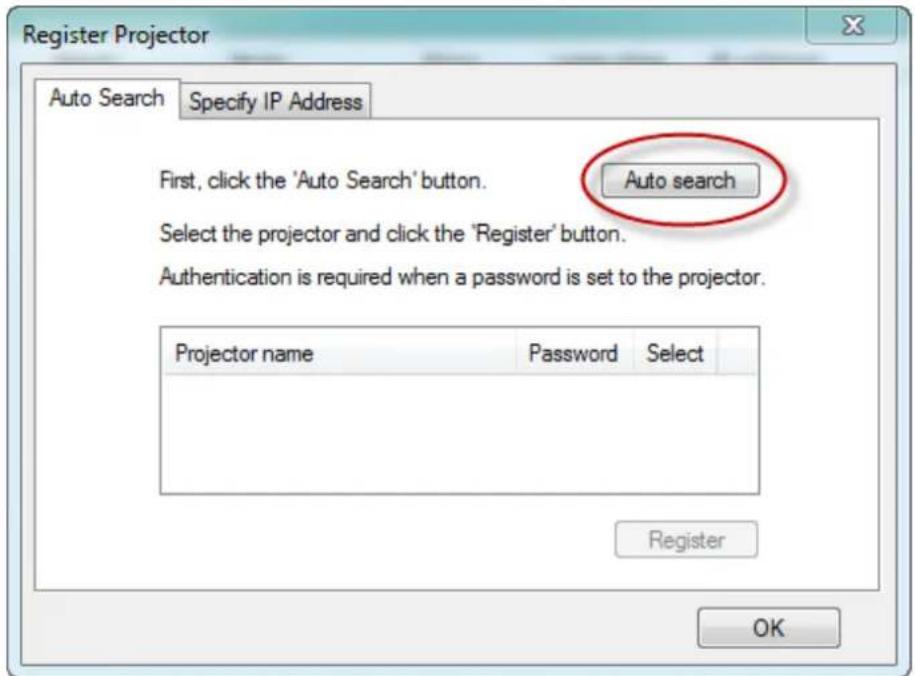
text_image
Register Projector Auto Search Specify IP Address First, click the 'Auto Search' button. Auto search Select the projector and click the 'Register' button. Authentication is required when a password is set to the projector. Projector name Password Select Register OK-List of projectors which support PJLink are displayed in the window. Projector name is displayed as “**********” until authorization if password is enable.

text_image
Register Projector Auto Search Specify IP Address First, click the 'Auto Search' button. Auto search Select the projector and click the 'Register' button. Authentication is required when a password is set to the projector. Projector name Password Select ----- Lock Select Register OK-Select the desired projector and click [Register] button. Password authorization is required if password of the projector is set to enable.
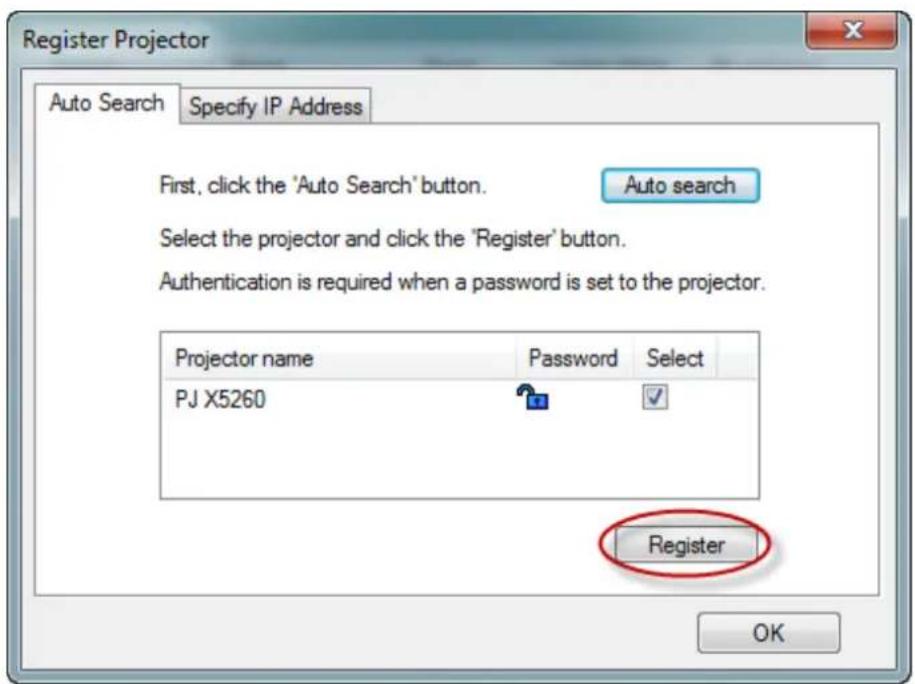
text_image
Register Projector Auto Search Specify IP Address First, click the 'Auto Search' button. Auto search Select the projector and click the 'Register' button. Authentication is required when a password is set to the projector. Projector name Password Select PJ X5260 Register OK-Click [OK] button to return to the original screen.
-Registered projectors are displayed in the original window. Click [Remote Control] tab for control the projector.
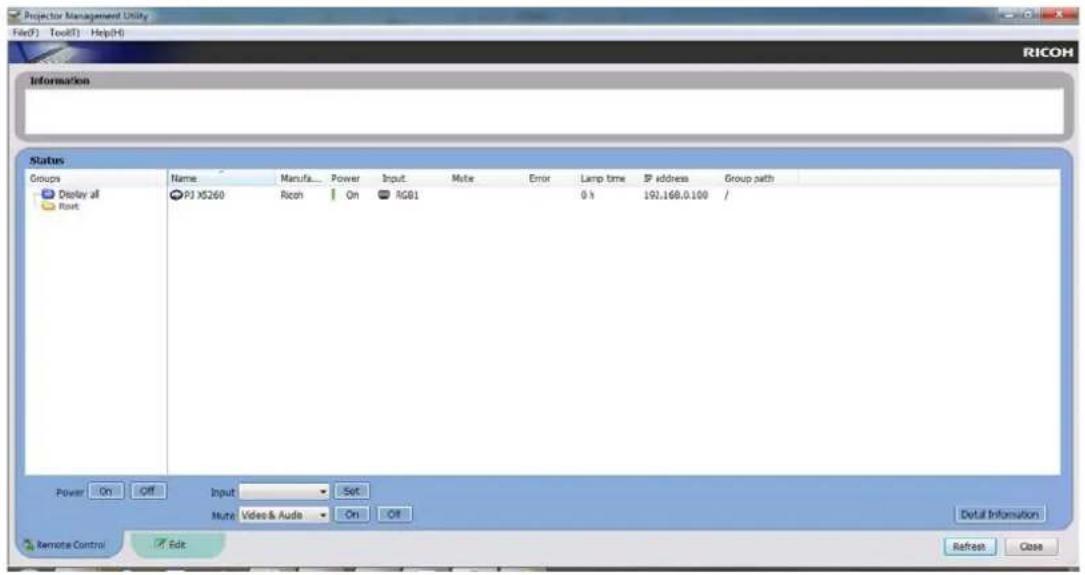
text_image
Projector Management Utility File(F) Tool(T) Help(H) RICOH Information Status Groups Display all Rowt Name Manula Power Input Note Error Lamp time SP address Group path PJ X5260 Room On RGB1 0.5 192.168.0.100 / Power On Off Input Set Multi Video & Audio On Off Detail Information Remote Control Edit Refresh Close2. Directly specifies the IP address and registers the projector.
-Enter IP address of the desired projector and click [Confirm] button then the projector name will be displayed. After confirming the projector name, click [Register] button.

text_image
Register Projector Auto Search Specify IP Address Enter an IP address and click the 'Confirm' button. Confirm the projector name and click the 'Register' button. IP address 192 . 168 . 0 . 100 Projector name PJ X5260 Confirm Register OK-Click [OK] button to return to the original screen.
2.3 Control the projector with the projector Management Utility
Click [Remote Control] tab and select the desired projector in the list. You can control the selected projector by clicking control buttons in the bottom of the window.
[Power] button
Turn "On/Off" the power of the projectors or groups selected from the Projector (/Group) List.
![RICOH PJ WX5150 - [Power] button - 1](/content/2026/06/1198808/images/64559b4c784ec2e62e30764b043104aede2d3400618fa0c30725ba16df5e68b9.jpg)
[Input] button
Switches the input source of the projectors or groups selected from the Projector (/Group) List. Input source will not be changed if the projector doesn't support the selected input source.
![RICOH PJ WX5150 - [Input] button - 1](/content/2026/06/1198808/images/4aad486484ff5bfb1f49586a96ff50026bd700ca94b19d0f9046eb60b4b103ac.jpg)
A Table of input source name in the projector and the projector management utility.
[PJ WX5140, WX5150]
| The projector The projector Management Utility | |
| Computer 1 RGB 1 | |
| Computer 2 RGB 2 | |
| Video | Video |
| S-Video | Video |
| HDMI | Digital |
[PJ WX5260]
| The projector The projector Management Utility | |
| Computer 1 RGB 1 | |
| Computer 2 RGB 2 | |
| Video | Video |
| S-Video | Video |
| Component | Video |
| HDMI | Digital |
| DVI-D | Digital |
[Mute] button
Turn "On/Off" the muting of the projectors or groups selected from the Projector (/Group) List. The projector only supports Video & Audio mute
![RICOH PJ WX5150 - [Mute] button - 1](/content/2026/06/1198808/images/0d0d1994c7cc6eaa7715e7e69a93559ed6e037f5ed6e859d19b0136a174ec5c1.jpg)
text_image
Mute Video & Audio On Off Video & Audio Video Audio[Detail Information] button
Show detail information of the selected projector.