
L32W698 - Television AOC - Free user manual and instructions
Find the device manual for free L32W698 AOC in PDF.


| Product Type | LED TV |
| Screen Size | 32 inches |
| Resolution | 1366 x 768 (HD Ready) |
| Display Technology | LED |
| Refresh Rate | 60 Hz |
| Dimensions (with stand) | 73.0 x 47.5 x 18.0 cm |
| Dimensions (without stand) | 73.0 x 43.5 x 8.0 cm |
| Weight (with stand) | 5.2 kg |
| Weight (without stand) | 4.5 kg |
| Power Consumption | 45 W (typical) |
| Standby Power Consumption | < 0.5 W |
| Input Voltage | 100-240 V AC, 50/60 Hz |
| Tuner | ATV / DVB-T / DVB-C |
| HDMI Ports | 2 |
| USB Ports | 1 |
| Composite Input | 1 (shared with component) |
| Audio Output | 3.5 mm headphone jack |
| Speaker Output | 2 x 5 W |
| Cleaning Instructions | Wipe with a dry soft cloth. Do not use solvents. |
| Safety Features | Auto shutdown, VESA mount compatible (100x100 mm) |
| Spare Parts Availability | Contact AOC support for remote, stand, or power board. |
| Repairability Index | 6.5 / 10 (estimated) |
Frequently Asked Questions - L32W698 AOC
User questions about L32W698 AOC
0 question about this device. Answer the ones you know or ask your own.
Ask a new question about this device
Download the instructions for your Television in PDF format for free! Find your manual L32W698 - AOC and take your electronic device back in hand. On this page are published all the documents necessary for the use of your device. L32W698 by AOC.
USER MANUAL L32W698 AOC
Connecting RF antenna and Cable TV 6
Connecting to DVD / Set Top Box....6
Connecting to External Stereo System to Listen to LCD TV Sound....8
Connecting to the Headphone 8
Connecting to a Computer....9
Connecting to A/V Device with SPDIF input 9
Connecting with the power cord 10
BASIC OPERATION 10
BASIC OPERATION 11
Turning on the LCD TV 11
Power On/Off....11
Select input source 11
Volume Adjusting 11
INFO 11
Electronic Program Guide (EPG).... 12
Channel Select 12
Sleep Time Setting.... 12
Zoom 12
Wide 12
Freeze Picture 12
Using the OSD function 13
TROUBLESHOOTING....23
| SA 1965 | DANGEROUS VOLTAGE: The lightning flash with arrowhead symbol, within an equilateral triangle, is intended to alert the user to the presence of uninsulated “dangerous voltage” within the product’s enclosure that may be of sufficient magnitude to constitute a risk of electrical shock to persons. |
 SA 1966 SA 1966 | INSTRUCTIONS: The exclamation point within on equilateral triangle to alert the User to the presence of important operating and maintenance (servicing) instruction In the literature accompanying the appliance. |
Apparatus shall not be exposed to dripping or splashing and no objects filled with liquids, Such as vases, Shall be placed on the apparatus.
Caution - Danger of explosion if battery is incorrectly replaced. Replace only with the same or equivalent type.
FOR YOUR SAFETY
Before operating the TV please read this manual thoroughly. This manual should be retained for future reference.
FCC Class B Radio Frequency Interference Statement WARNING: (FOR FCC CERTIFIED MODELS)
NOTE: This equipment has been tested and found to comply with the limits for a Class B digital device, pursuant to Part 15 of the FCC Rules. These limits are designed to provide reasonable protection against harmful interference in a residential installation. This equipment generates, uses and can radiate radio frequency energy, and if not installed and used in accordance with the instructions, may cause harmful interference to radio communications. However, there is no guarantee that interference will not occur in a particular installation. If this equipment does cause harmful interference to radio or television reception, which can be determined by turning the equipment off and on, the user is encouraged to try to correct the interference by one or more of the following measures:
- Reorient or relocate the receiving antenna.
- Increase the separation between the equipment and receiver.
- Connect the equipment into an outlet on a circuit different from that to which the receiver is connected.
- Consult the dealer or an experienced radio/TV technician for help.
NOTICE
- The changes or modifications not expressly approved by the party responsible for compliance could void the user's authority to operate the equipment.
- Shielded interface cables and AC power cord, if any, must be used in order to comply with the emission limits.
- The manufacturer is not responsible for any radio or TV interference caused by unauthorized modification to this equipment. It is the responsibilities of the user to correct such interference.
WARNING:
To prevent fire or shock hazard, do not expose the TV to rain or moisture. Dangerously high voltages are present inside the TV. Do not open the cabinet. Refer servicing to qualified personnel only.
SAFETY: Lamp Disposal

LAMP(S) INSIDE THIS PRODUCT CONTAIN MERCURY AND MUST BE RECYCLED OR DISPOSED OF ACCORDING TO LOCAL, STATE OR FEDERAL LAWS. FOR MORE INFORMATION, CONTACT THE ELECTRONIC
INDUSTRIES ALLIANCE AT WWW.EIAE.ORG.
PRECAUTIONS AND REMINDERS
Place unit on even surfaces.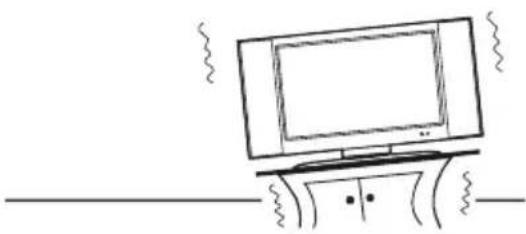 | Don't place the TV in confined spaces or in a box when using it.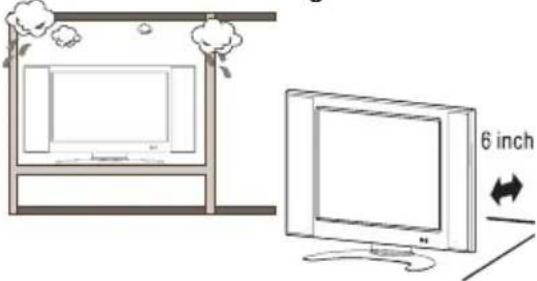 |
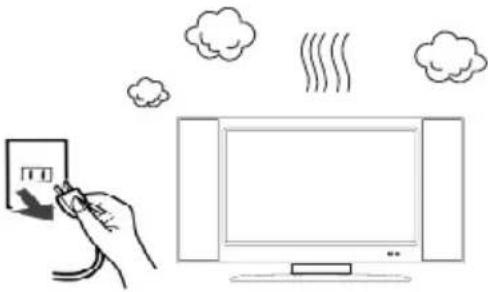 Unplug immediately if is malfunction like no picture, no video/audio, smoke and bad odor from TV. Unplug immediately if is malfunction like no picture, no video/audio, smoke and bad odor from TV. | 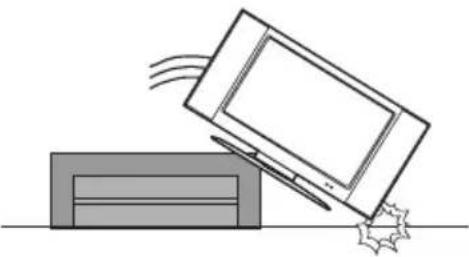 Unplug immediately if other foreign materials are put inside TV box or if the TV fell down. Unplug immediately if other foreign materials are put inside TV box or if the TV fell down. |
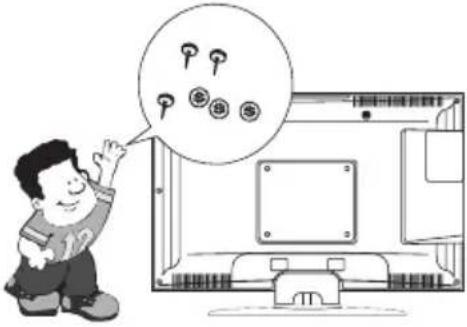 Don't throw any object inside the TV box like metals or other flammable materials. Don't throw any object inside the TV box like metals or other flammable materials. | 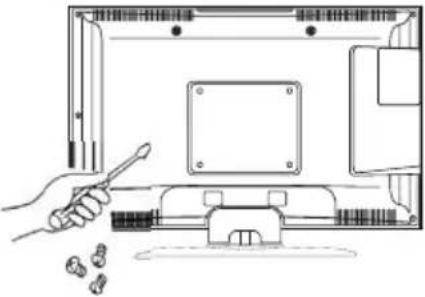 Prohibit/Avoid opening TV cabinet Prohibit/Avoid opening TV cabinet |
Remember to unplug the AC cord from the AC outlet before cleaning. Do not use liquid cleaners or aerosol cleaners to clean the display. 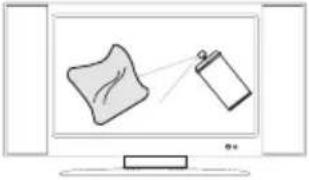 | Avoid direct sunlight, dusty, high humidity and smoky areas.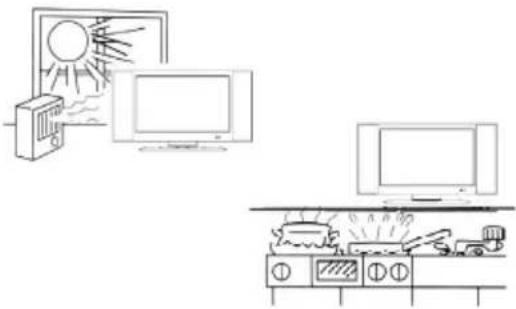 |
Make sure to unplug the unit when not in use for a long period of time (days).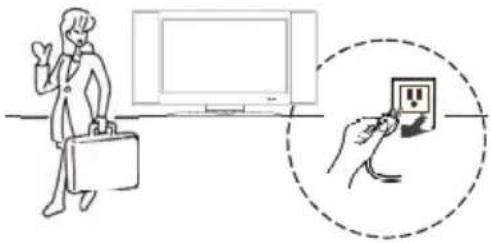 | Call service personnel to clean the internal part of the TV once a year.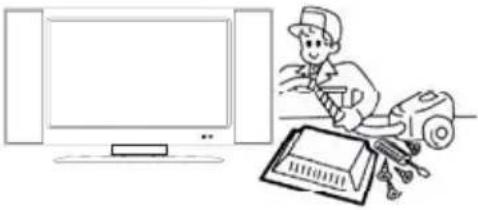 |
Do not cover or block any vents and openings. Inadequate ventilation may shorten the life of the display unit and cause overheating. 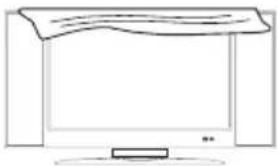 | Do not place the display near water, such as bathtub, washbasin, kitchen sink laundry tub, swimming pool or in a damp basement. 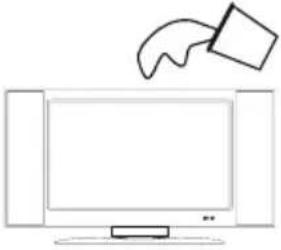 |

notice for Remote Controller
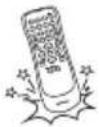
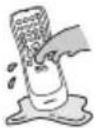
| Avoid Dropping | Avoid Liquids | Avoid Aerosol Cleaners |
 |  |  |
Read before operating equipment
-
Read these instructions.
-
Keep these instructions.
-
Heed all warnings.
-
Follow all instructions.
-
Do not use this apparatus near water.
-
Clean only with a dry cloth.
-
Do not block any of the ventilation openings. Install in accordance with the manufacturers instructions.
-
Do not install near any heat sources such as radiators, heat registers, stoves, or other apparatus (including amplifiers) that produce heat.
-
Do not defeat the safety purpose of the polarized or grounding type plug. A polarized plug has two blades with one wider than the other. A grounding type plug has two blades and third grounding prong. The wide blade or third prong is provided for your safety. When the provided plug does not fit into your outlet, consult an electrician for replacement of the obsolete outlet.
-
Protect the power cord from being walked on or pinched particularly at plugs, convenience receptacles, and the point where they exit from the apparatus.
-
Only use attachments/accessories specified by the manufacturer.
-
Use only with a cart, stand, tripod, bracket, or table specified by the manufacturer, or sold with the apparatus. When a cart is used, use caution when moving the cart/apparatus combination to avoid injury from tip-over.

-
The TV should be operated only from the type of power source indicated on the label. If you are not sure of the type of power supplied to your home, consult your dealer or local power company.
-
Unplug this apparatus during lightning storms or when unused for long periods of time.
-
Refer all servicing to qualified service personnel. Servicing is required when the apparatus has been damaged in any way, such as power-supply cord or plug is damaged, liquid has been spilled or objects have fallen into apparatus, the apparatus has been exposed to rain or moisture, does not operate normally, or has been dropped.
-
This product may contain lead or mercury. Disposal of these materials may be regulated due to environmental considerations. For disposal or recycling information, please contact your local authorities or the Electronic Industries Alliance: www.eiae.org
-
Damage Requiring Service – The appliance should be serviced by qualified service personnel when:
A. The power supply cord or the plug has been damaged; or
B. Objects have fallen, or liquid has been spilled into the appliance; or
C. The appliance has been exposed to rain; or
D. The appliance does not appear to operate normally or exhibits a marked change in performance; or
E. The appliance has been dropped, or the enclosure damaged.
-
Tilt/Stability – All televisions must comply with recommended international global safety standards for tilt and stability properties of its cabinets design.
-
Do not compromise these design standards by applying excessive pull force to the front, or top, of the cabinet, which could ultimately overturn the product.
-
Also, do not endanger yourself, or children, by placing electronic equipment/toys on the top of the cabinet. Such items could unsuspectingly fall from the top of the set and cause product damage and/or personal injury.
-
Wall or Ceiling Mounting – The appliance should be mounted to a wall or ceiling only as recommended by the manufacturer.
- Power Lines – An outdoor antenna should be located away from power lines.
- Outdoor Antenna Grounding – If an outside antenna is connected to the receiver, be sure the antenna system is grounded so as to provide some protection against voltage surges and built up static charges.
Section 810 of the National Electric Code, ANSI/NFPA No. 70-1984, provides information with respect to proper grounding of the mats and supporting structure grounding of the lead-in wire to an antenna-discharge unit, size of grounding connectors, location of antenna-discharge unit, connection to grounding electrodes and requirements for the grounding electrode. See Figure below.
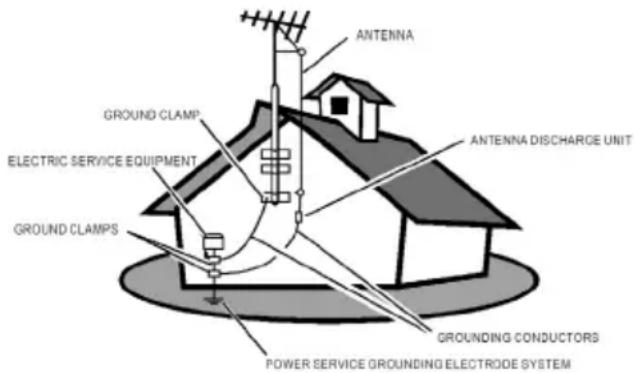
EXAMPLE OF ANTENNA GROUNDING AS PER NATIONAL ELECTRICAL CODE
Note to the CATV system installer: This reminder is provided to call the CATV system installer's attention to Article 820-40 of the NEC that provides guidelines for proper grounding and, in particular, specifies that the cable ground shall be connected to the grounding system of the building, as close to the point of cable entry as practical.
Please, make sure to connect the power plug to the wall outlet socket after connecting the TV to the adapter!
- Objects and Liquid Entry – Care should be taken so that objects do not fall and liquids are not spilled into the enclosure through openings.
ACCESSORIES
Thank you for purchasing this LCD-TV.
This LCD-TV package comes with:
LCD TV
- User's Guide book
- Remote control
- Battery AAA x 2
Power Cord
- RCA A/V Cable
FRONT PANEL BUTTONS
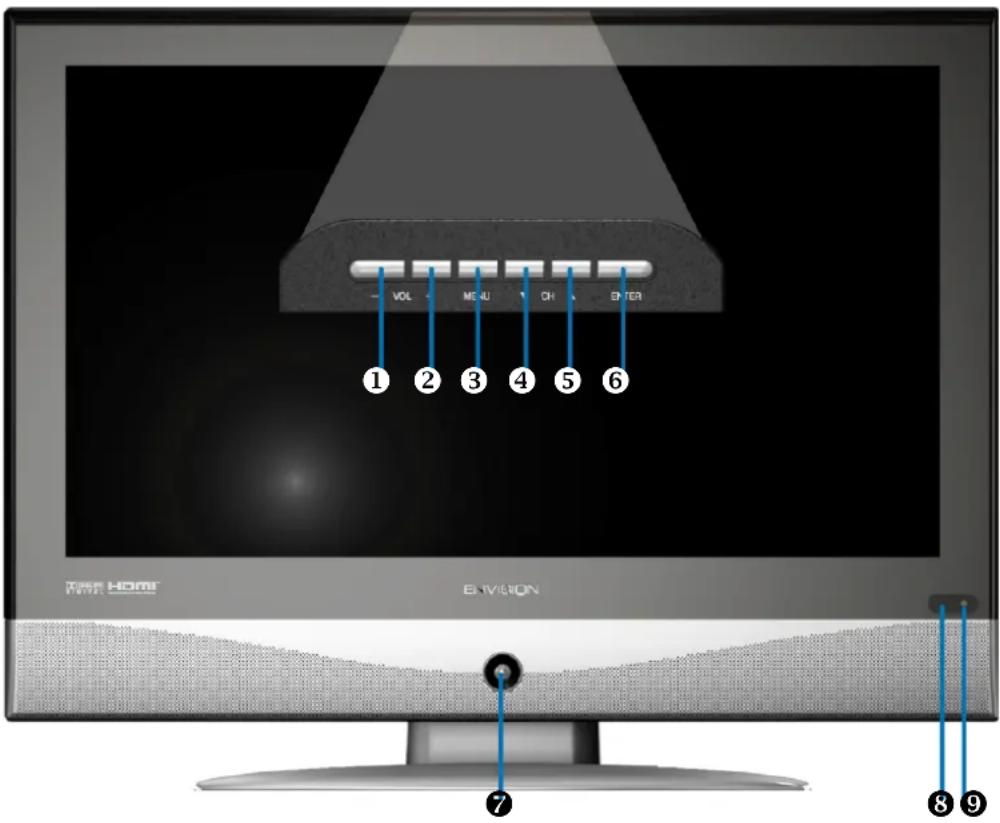
① Volume Down
② Volume Up
③ On Screen Display Menu On/Off
④ CH Down
⑤ CH Up
⑥ Enter
⑦ Power ON/OFF button
⑧ Remote Control Receiver
⑨ Power LED Indicator

DOLBY
DIGITAL
Manufactured under license from Dolby Laboratories.
Dolby and the double-D symbol are trademarks of Dolby Laboratories.
(Only for DTV source in this model.)
Note:
- Press VOL+ and MENU buttons at the same time to lock power button, and press VOL+ and MENU buttons again to unlock it.
- Press VOL- and VOL+ buttons at the same time to lock OSD menu, and press VOL- and VOL+ buttons again to unlock it.
BACK PANEL BUTTONS
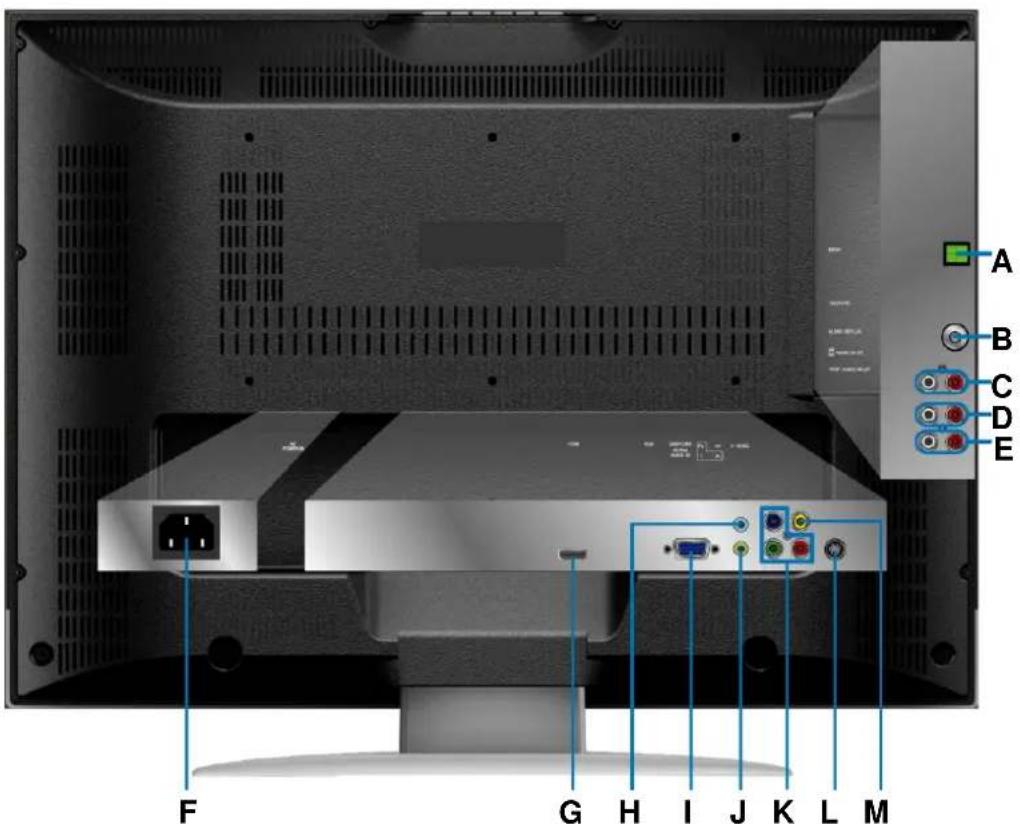
A SPDIF Optical output
B Cable/Air TV input
C Audio output (left/right)
D AV/ S-Video signal Audio input (left/right)
E YPbPr signal Audio input (left/right)
F Power (AC input)
G HDMI Input Terminal
H Headphone Jack
I VGA signal input
J PC Audio input
K YPbPr signal input
L S-Video input
M Composite Video input
REMOTE CONTROL
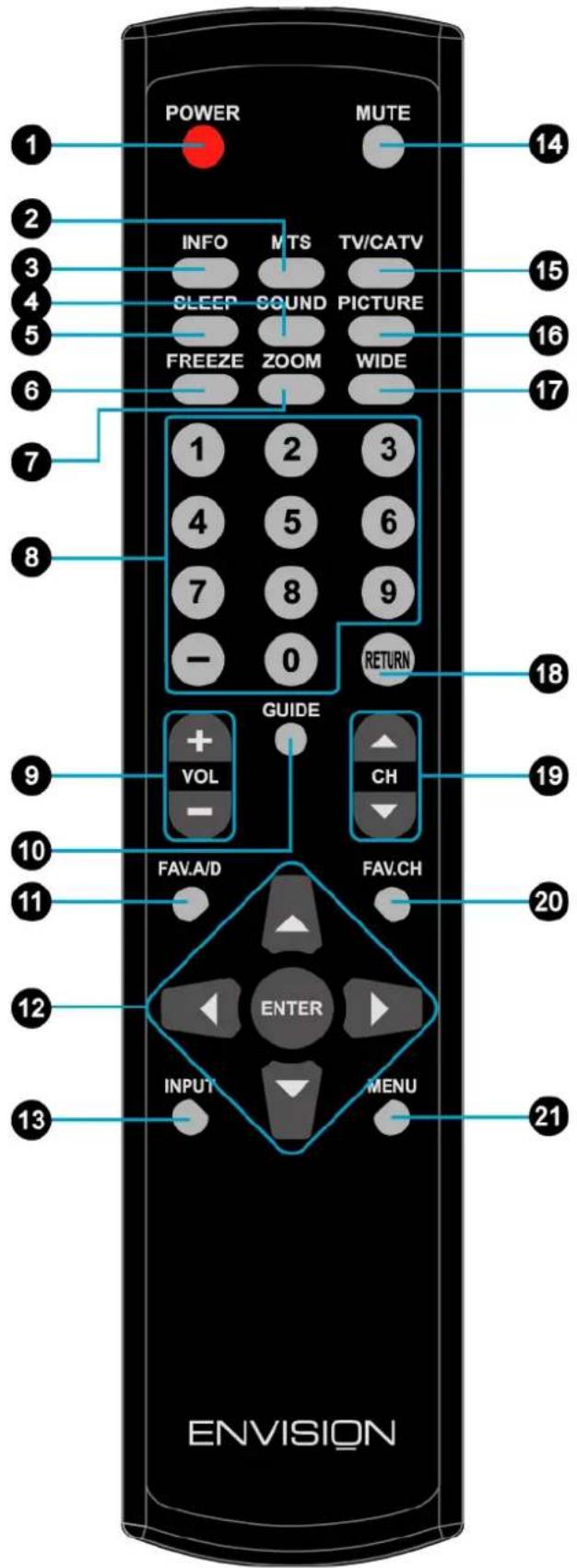
Remote control button function as follows:
| 1 POWER Power On/Off | ||
| 2 MTS Select Mono, Stereo or SAP sound | ||
| 3 INFO Display current information | ||
| 4 SOUND Select Sound modes | ||
| 5 SLEEP Set timer to turn off TV | ||
| 6 FREEZE “Freeze-Frame” the current screen | ||
| 7 ZOOM Adjust window size | ||
| 8 | 0~9, - number | Directly channel select |
| 9 VOL + and VOL - Adjust volume UP/DOWN | ||
| 10 GUIDE Select electronic program guide (EPG) | ||
| 11 | FAV.A/D | To skip or restore Favorite Channels |
| 12 | UP/DOWN/LEFT/RIGHT/ ENTER | UP/DOWN for OSD function select and LEFT/RIGHT for function adjustENTER: Enter the function setting |
| 13 | INPUT | Input source select |
| 14 | MUTE | Volume mute ON/OFF |
| 15 | TV/CATV | Swap between TV/CATV. |
| 16 | PICTURE | Select Picture modes |
| 17 | WIDE | Change the image size |
| 18 | RETURN | Return to previous channel |
| 19 | CH▲and CH▼ | Adjust channel UP/DOWN |
| 20 | FAV.CH | Select from preset Favorite Channels |
| 21 | MENU | On Screen Display (OSD) menu ON/OFF |
INSTALLATION
Connecting RF antenna and Cable TV
Make sure the power is OFF before installing your LCD TV.
1) AIR TV: Connect the LCD TV to TV antenna with 75-ohm coaxial cable. Preset the air TV channels into memory with AUTO SCAN function when using an antenna TV system. This air input jack both support TV and DTV systems. Besides, the TV system (NTSC) and DTV system (ATSC) can be found by the scanning of "AIR" in the AUTO SCAN function. See page 15.
2) Cable TV: Connect the LCD TV to the cable with CATV and Digital cable. Preset the cable TV channels into memory with AUTO SCAN function when using a cable TV system. The cable input jack both support CATV and Digital cable systems. Besides, the CATV system (cable TV) and Digital cable system (clear QAM) can be found by the scanning of "Cable" in the AUTO SCAN function. See page 15.

Note: Users can select either Air or Cable TV cable to be connected to the TV/DTV IN jack. To watch both of them, use an adapter to connect both Air and Cable cables to the jack.
Connecting to DVD / Set Top Box
Connect Video/Audio cables from compatible devices into the back panel of LCD TV.
1) With AV cable:
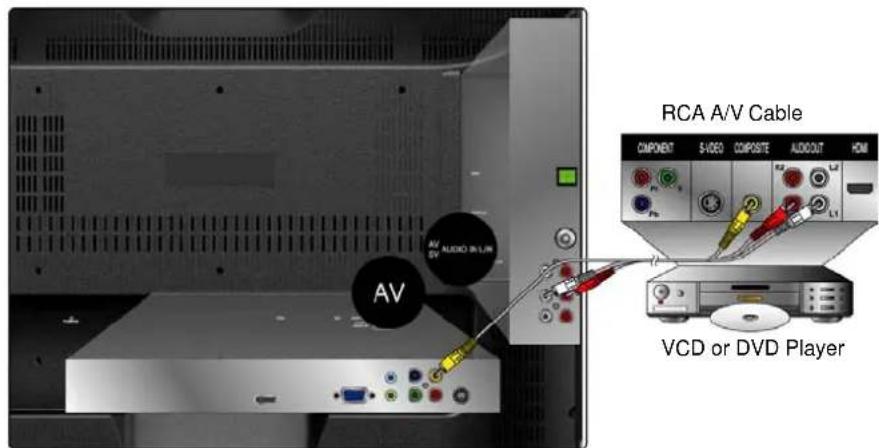
2) With S-Video cable:
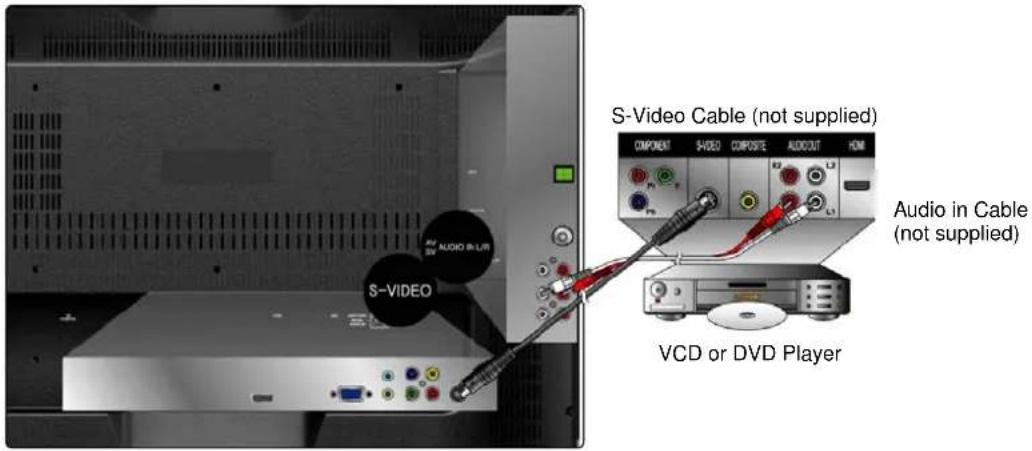
3) With YPbPr cable:
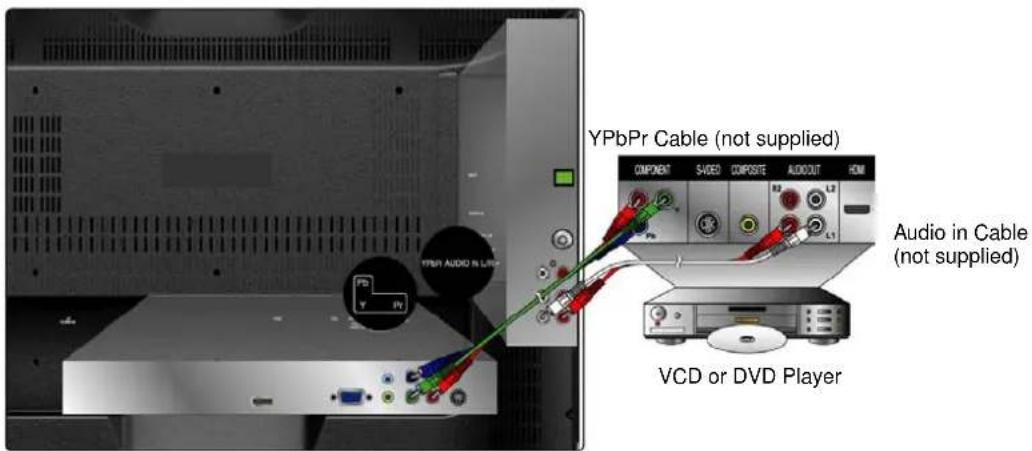
4) With HDMI cable:
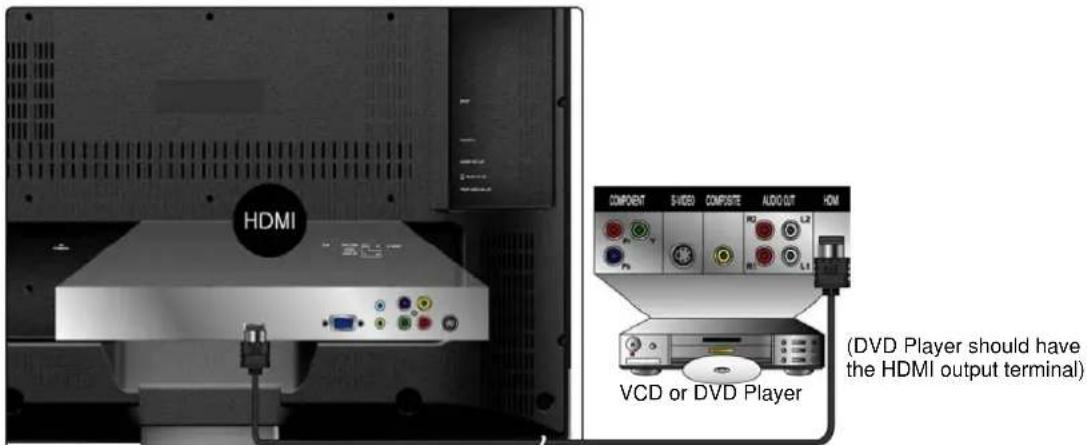
HDMI Cable (not supplied)
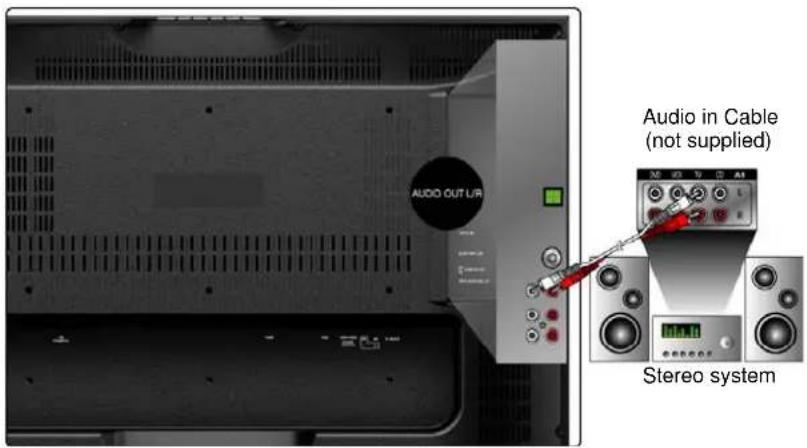
Connecting to External Stereo System to Listen to LCD TV Sound
Connect the audio output terminal of the LCD TV to audio in terminal of the stereo system (stereo system sold separately).
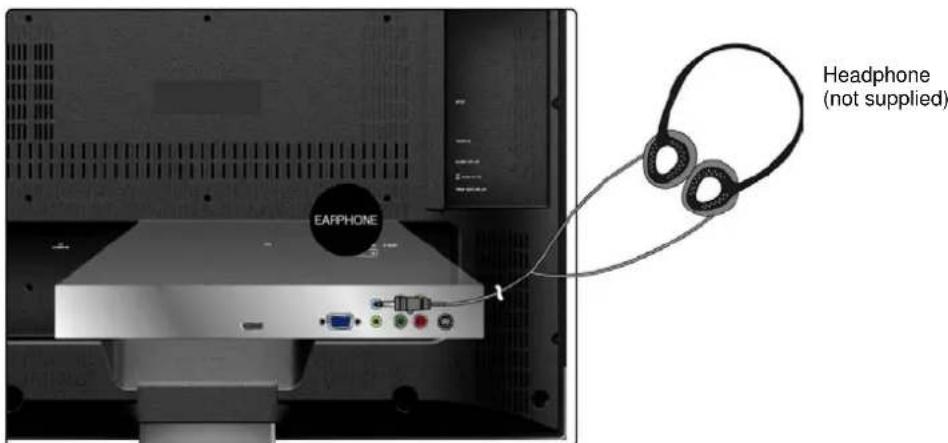
Connecting to the Headphone
Connect the headphone to the headphone output terminal of the LCD TV. (Headphone sold separately).
Connecting to a Computer
1) With VGA Cable:
Connect the VGA cable from VGA output of the computer to the VGA terminal input of your LCD TV. Also, connect the Audio In cable (green) from the audio output of your computer to the audio input terminal (green) of the LCD TV.
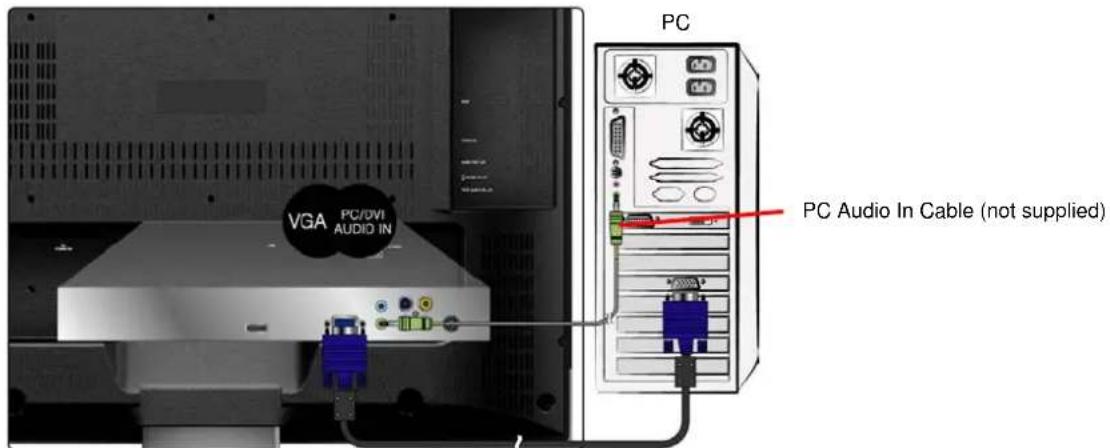
VGA 15 Pin Cable (not supplied)
2) With HDMI-DVI Cable:
Connect the HDMI-DVI cable from the DVI output of the computer to the HDMI terminal input of the LCD TV. Also, connect the Audio In cable (green) from the audio output of your computer to the audio input terminal (green) of the LCD TV.
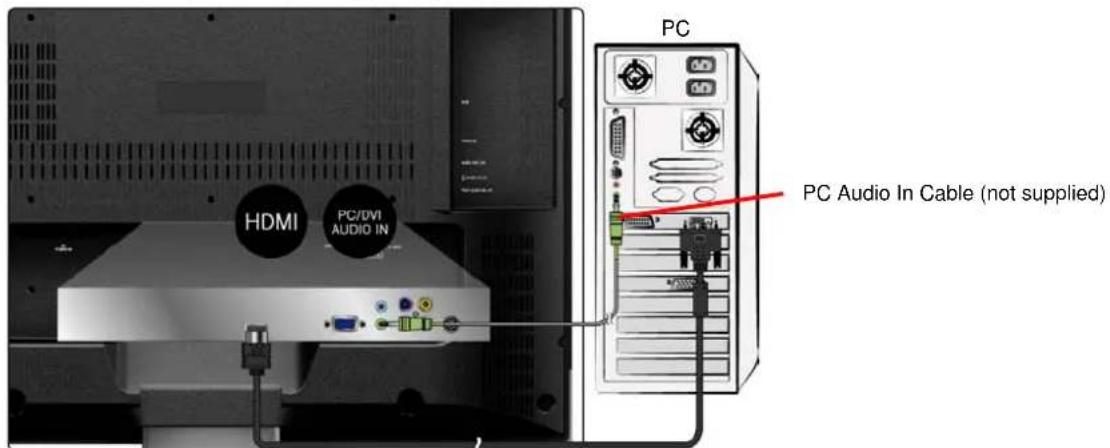
HDMI-DVI Cable (not supplied)
Connecting to A/V Device with SPDIF input
Connect SPDIF optical cable from A/V device into the SPDIF output connector of LCD TV.
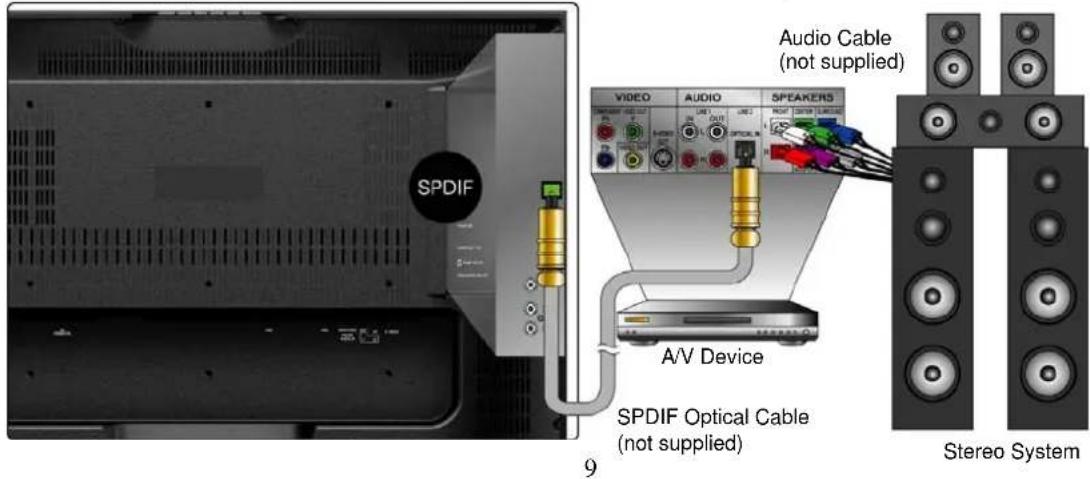
Connecting with the power cord
Connect the power cord to the AC inlet on the back of your LCD TV, after all connections have been completed, and plug the other end of the power cord into a correctly grounded electrical outlet.
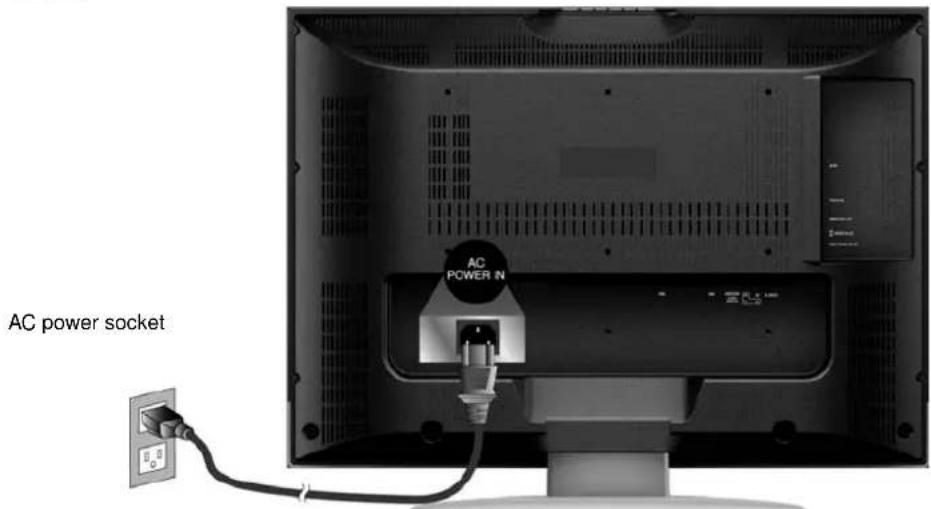
Power Cord
BASIC OPERATION
To operate your LCD TV, you may use the TV remote control or top panel buttons to select input source, change channels, or adjust volume.
Turning on the LCD TV
Before using the LCD TV:
- Connect external equipment properly.
- Insert the power plug and the power LED indicator will light red.
Power On/Off
To turn the LCD TV on/off :
Press POWER button under the LCD TV, or press the POWER button on your remote control to turn on/off the TV. The power LED indicator lights blue when the LCD TV is on.
Select input source
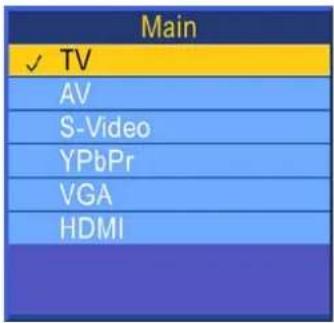
To select the required input source:
Press the INPUT button on the remote control, Use ▲▼ to select the required input source between TV, AV, S-Video, YPbPr, VGA, and HDMI.
To confirm the selection, press ENTER.
Volume Adjusting
Press VOL +/- to adjust volume.
To turn off the volume, press MUTE.
To restore volume, press MUTE again, or press VOL +/- directly.

INFO
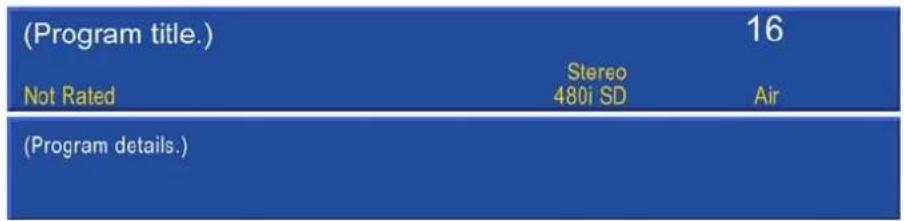
To display the current information of the LCD TV:
Press INFO, and the current state will be displayed on the screen. (It shows all or some of the information about Input, Channel, Resolution, Audio Type, etc., depending on what input source it is in.)
other
(Program title.) Not Rated (Stereo 480i SD) Air (Program details.)Electronic Program Guide (EPG)
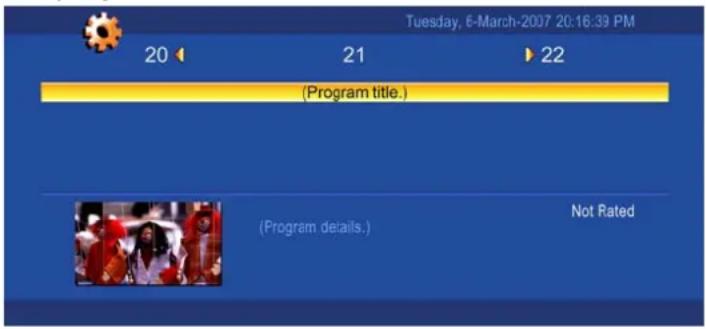
Press the GUIDE button on the remote control and the program information for the channel you are watching will be displayed on the screen with the live program content in a small window in the lower left corner of the panel.
Press the ◀ or ▶ button to scroll up or down the channels. Each time you pause at a channel, the program list will update with the program schedule for that channel and the window will show the live program for that channel. Press the GUIDE button to EXIT this feature.
Channel Select
Press number key or CH ▲/▼ button to select your desired channel.
1. In ATV mode
The “-” button has no function in ATV mode. Directly press the number buttons to select channels.
2. In DTV mode
Use "-" button to select the sub channel in DTV.
Ex: Your desired number is 80-3.
Press 8 → press 0 → press "-" → press 3.
- Whether in ATV or DTV, after you input the channel numbers, press ENTER button to direct to the channel immediately, or wait for 3 seconds to change automatically.
- Return to the previous channel, press RETURN button.
※ How to switch between Air TV and Cable TV?
When in TV mode, press TV/CATV button to switch, or go to the Tuner Mode in the TV menu to select.
Sleep Time Setting
Repeatedly press SLEEP button to set the off timer. The function is used to automatically shut off the LCD TV after a preset period of time passed. There are several times for choice –Off, 10min, 20min, 30min, 40min, 50min, 60min, 90min, or 120min.
Zoom
Press ZOOM button repeatedly to select the screen size. You can select from Zoom x 1, Zoom x 2, Zoom x 4, Zoom x 1/4, and Zoom x 1/2 sizes.
Wide
Repeatedly press WIDE button to select the aspect ratio of screen. You can select between No scale, Normal, Full, Letterbox, Zoom, and Panorama.
Freeze Picture
Press FREEZE button to freeze picture. However, the sound still continues. Press FREEZE button again to restore.
Using the OSD function
You can use the OSD menus and options to adjust various settings by using the remote control. The basic operation is as following:
◆ Press MENU to display OSD menu.
◆ Press ▲▼ to select your desired top Menu, and press ENTER or ◀▶ to enter it.
◆ Use ▲▼ to select the control you want to adjust.
When selecting the control with II▶, press ENTER to enable the function.
◆ Press ◀▶ to adjust or select the settings.
◆ Press MENU to exit from the OSD menu.
—To adjust the picture quality
In TV, AV, S-Video, YPbPr, HDMI source:
(When in AV, S-Video, YPbPr or HDMI source, the TV option on the left does not appear.)
In VGA source:
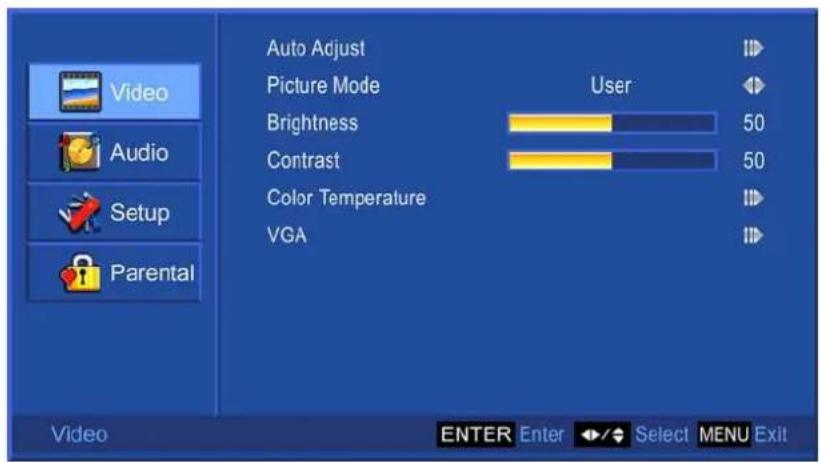
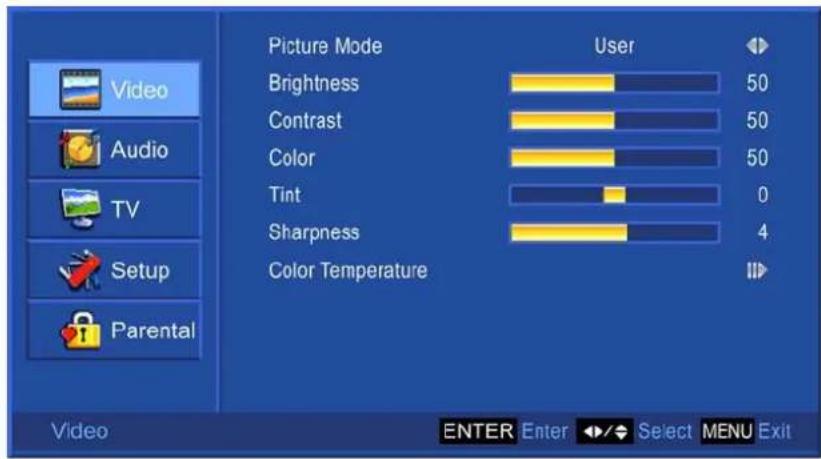
● Picture Mode: To select picture mode between User, Cinema, Sport, Vivid, and Hi-Bright.
● Brightness: To adjust luminance of video. (right: Max, left: Min.)
- Contrast: To adjust contrast of video. (right: Max, left: Min.)
● Color: To adjust color. (right: brilliant color, left: pale color.)
● Tint: To adjust tint level. (right: greenish tone, left: reddish tone.)
● Sharpness: To adjust picture sharpness. (right: sharper, left: softer.)
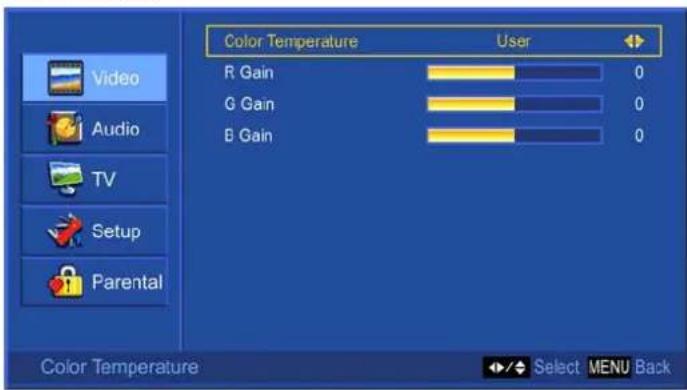
- Color Temperature: Press ENTER to select color temperature from User, Cool, Normal, and Warm. (When Color Temperature is selected to User, the R, G, B Gain level can be adjusted separately.)
- Auto Adjust: Press ENTER to auto adjust picture's horizontal position, vertical position, fine tune and H-Size.
● VGA: Press ENTER to adjust VGA setting.
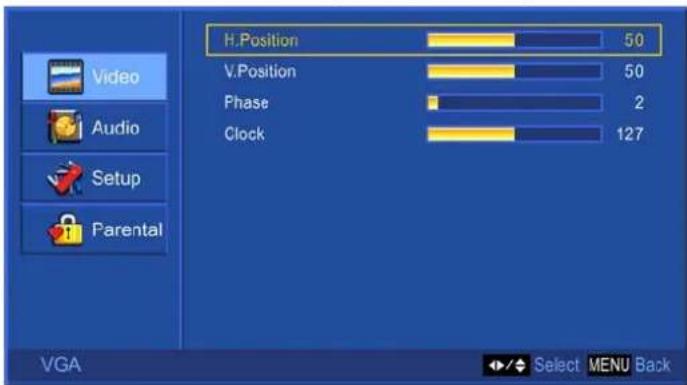
H. Position: To adjust the horizontal position of the picture.
V. Position: To adjust the vertical position of the picture.
◆ Phase: To adjust delay time of phase in order to reduce the noise of picture.
◆ Clock: To adjust delay time of clock in order to reduce the noise of picture.
Audio Menu
—To set the audio quality and status
In TV source:
In AV, S-Video, YPbPr, HDMI, VGA source:

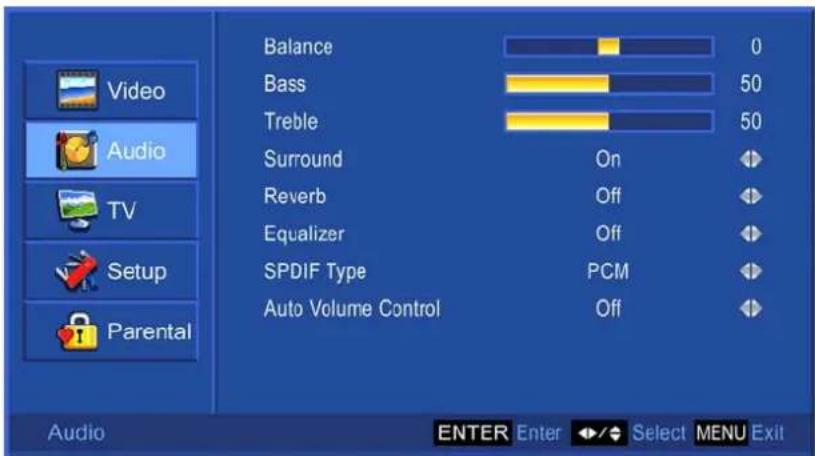
● Balance: To adjust left and right audio balance.
● Bass: To adjust bass.
- Treble: To adjust the treble.
● Surround: To enjoy a concert hall effect, select "On" when stereo is playing.
- Reverb: To enjoy the reverb sound effect of Concert, Living Room, Hall, Bathroom, Cave, Arena, or Church.
● Equalizer: To select equalizer modes from Rock, POP, Live, Dance, Techno, Classic, Soft.
- SPDIF Type: To select SPDIF Type from Dolby Digital, PCM, or Off.
- Auto Volume control: To turn On or Off Auto Volume control. (This function is only effective in TV source.)
TV Menu
—To set up for TV
It is only active in TV source.
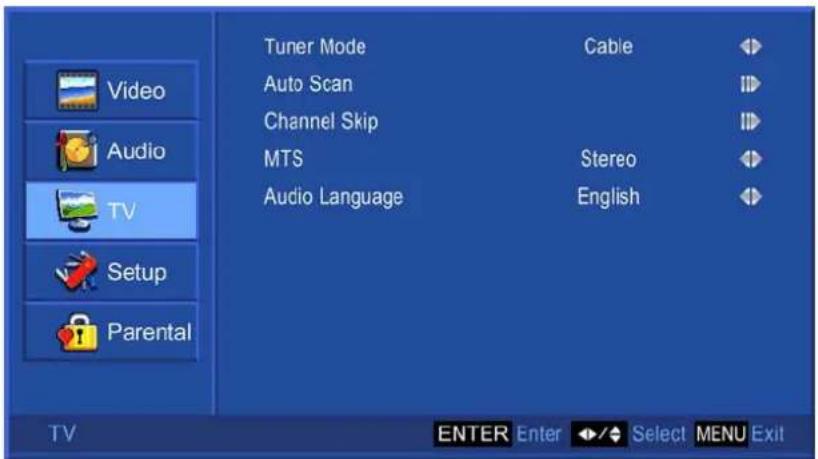
- Tuner Mode: To select Cable or Air as the TV source. Select "Cable" if you want to watch Cable TV channels, and select Air to watch Air TV channels.
- Auto Scan: To auto scan the TV and DTV channels. Press ENTER to start auto scanning Air and Cable TV channels. Press MENU again at any time to interrupt scanning.
- Channel Skip: Press ENTER to skip the channel. To restore the channel, press ENTER again.
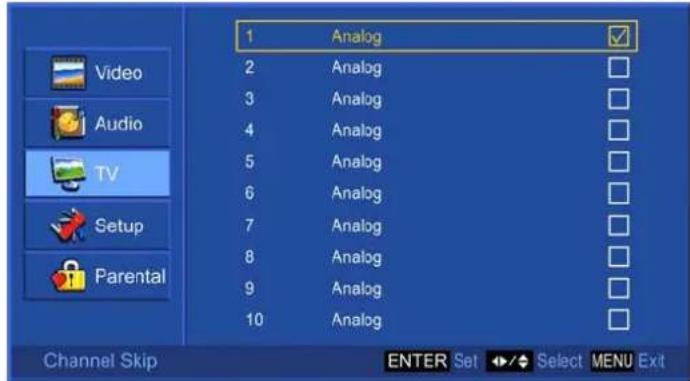
● MTS: To select audio mode from Mono, Stereo, or SAP when available.
● Audio Language: To select audio language from English, Spanish, or French.
Setup Menu
—To set up OSD window
In TV, AV, S-Video, YPbPr, HDMI source:
(When in AV, S-Video, YPbPr or HDMI source, the TV option on the left does not appear.)
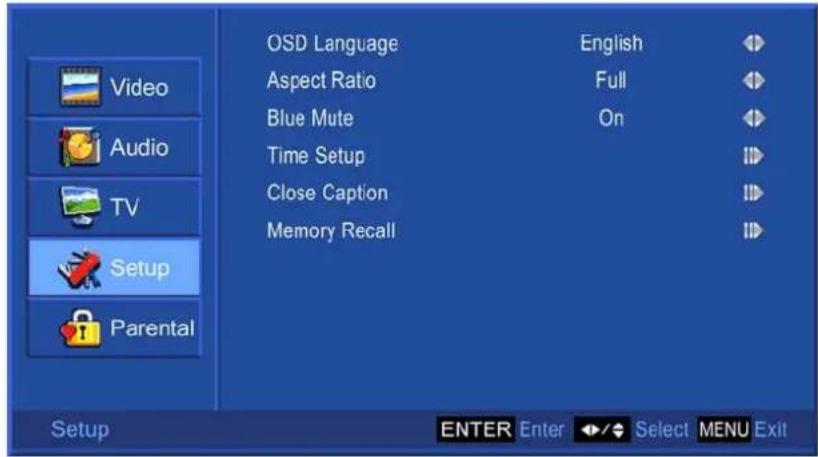
In VGA source:
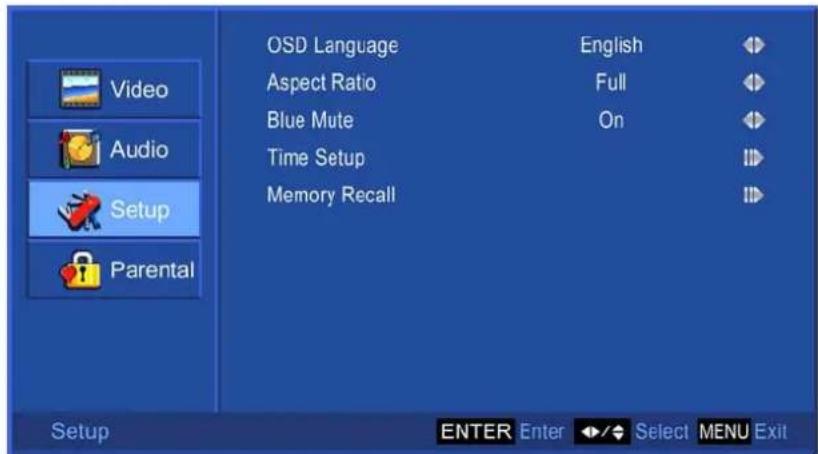
- OSD Language: To select an OSD language from English, Spanish or French.
- Aspect Ratio: To select image size between No scale, Normal, Full, Letterbox, Zoom, and Panorama.
● Blue Mute: To set the background color to blue when there is no signal.
● Time Setup: To set Time Zone, Time, Sleep Timer, and Auto Sleep.
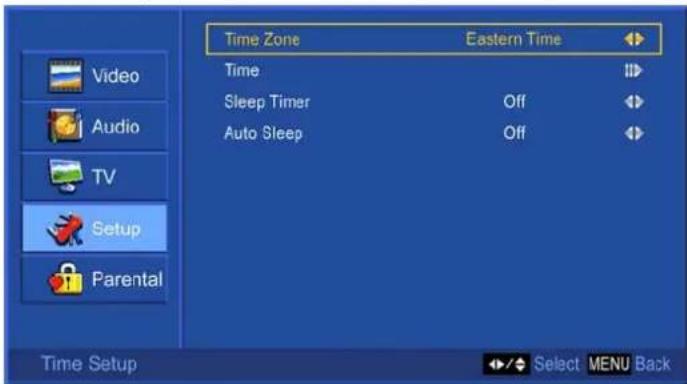
◆ Time Zone: To select the time zone appropriate to your location.
◆ Time: To set the current time.
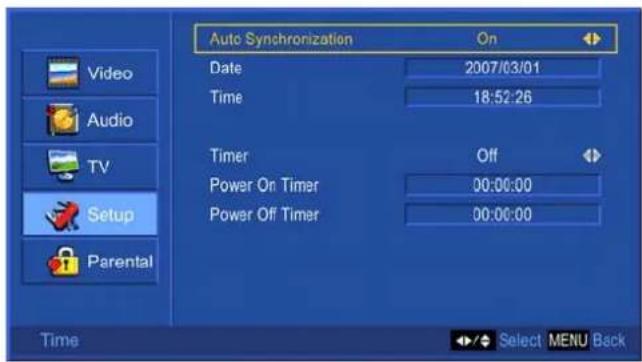
- Auto Synchronization: When "Auto Synchronization" is enabled, the date and time will be automatically synchronized according to the program content.
- Timer: To set power-on and power-off time.
◆ Sleep Timer: To set the off timer from 10\~120 minutes.
◆ Auto Sleep: To set the off timer for longer intervals -- 1 hour, 2 hours, or 5 hours.
- Close Caption: To set close caption options.
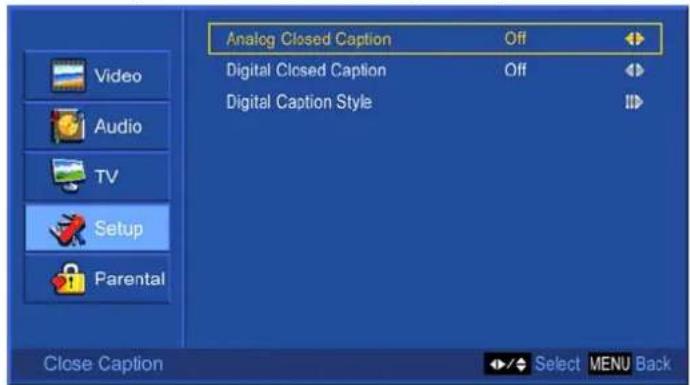
◆ Analog Closed Caption: To set basic analog closed caption options. (CC1\~CC4, TEXT1\~TEXT4, Off)
Digital Closed Caption: To select closed caption signal formats and set up caption modes for digital TV channels. (Service1\~6, Off)
◆ Digital Caption Style: Press ◀▶ to select Caption Style from “As Broadcaster” or “Custom”. When “Custom” is selected, use ▲▼ to select the desired controls, ◀▶ to adjust detailed settings.
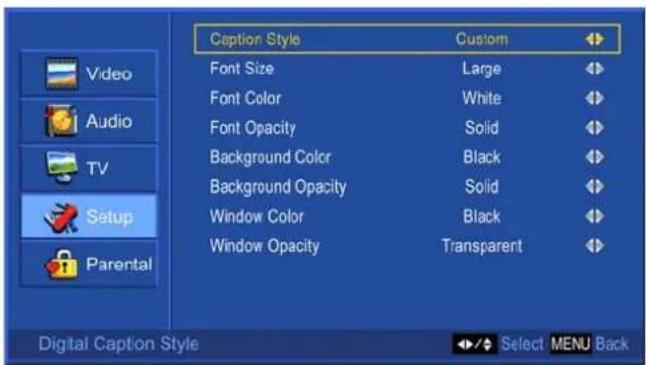
- Font Size: To select a font size from Large, Small, or Medium.
- Font Color: To select a font color from Black, White, Green, Blue, Red, Cyan, Yellow, or Magenta.
- Font Opacity: To select font opacity from Solid, Translucent, or Transparent.
• Background Color: To select background color.
• Background Opacity: To select background opacity.
• Window Color: To select window color.
• Window Opacity: To select window opacity.
● Memory Recall: To restore the factory default settings.
Parental Menu
—To set up Parental Control options
It is active in all input sources.
(When in AV, S-Video, YPbPr, HDMI, or VGA source, the TV option on the left does not appear.)
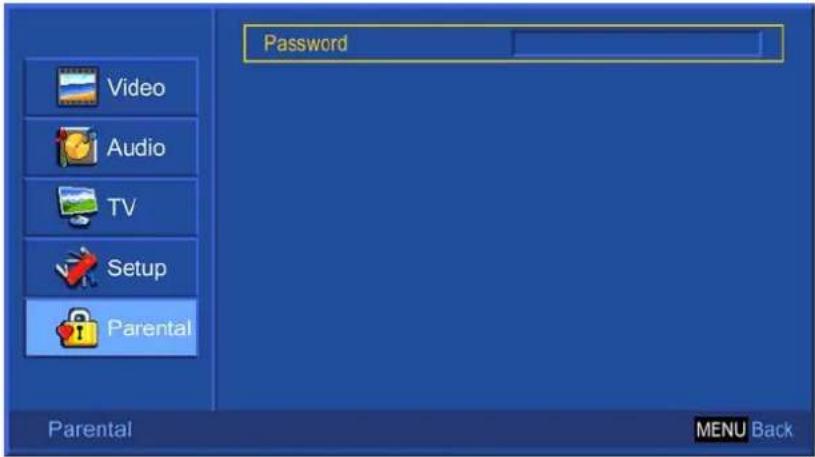
Enter password and the screen below will show. (The default password is 0000.)
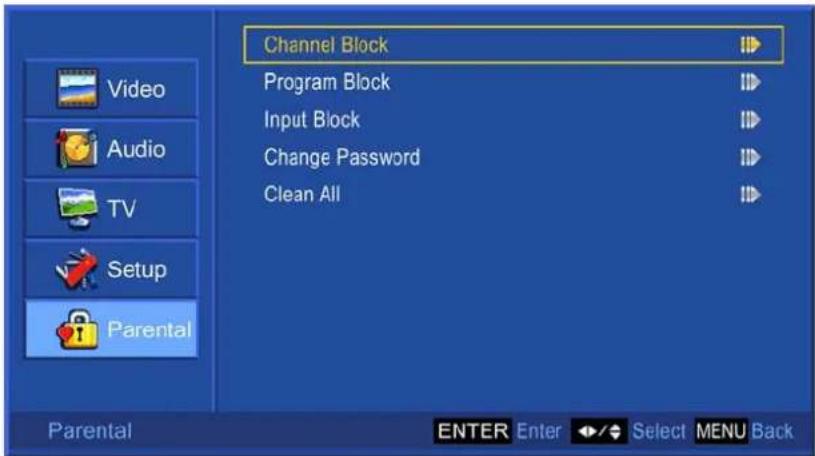
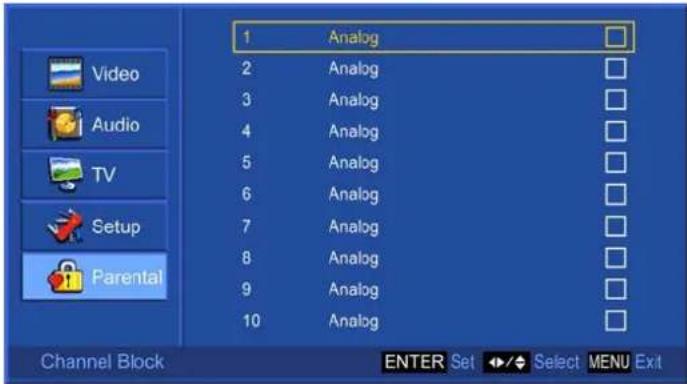
- Channel Block: To block channels. Use ▲▼ to select the channel you want to block, and then press ENTER to block or unblock it.
● Program Block: To set TV and Movie Ratings.
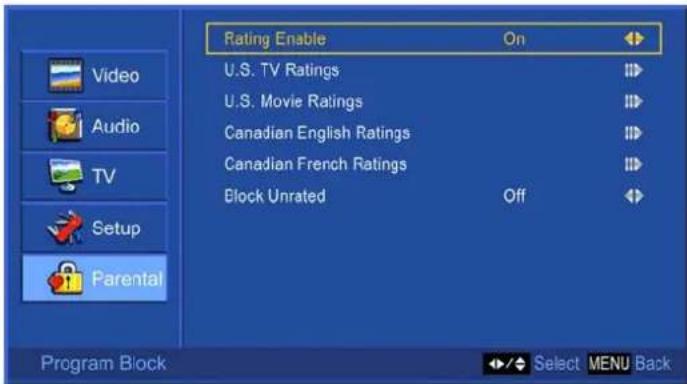
◆ Rating Enable: Choose "On" to enable the below settings.
U.S. TV Ratings: To adjust TV blocking level in the US. You can select between TV-Y, TV-Y7, TV-G, TV-PG, TV-14, or TV-MA.
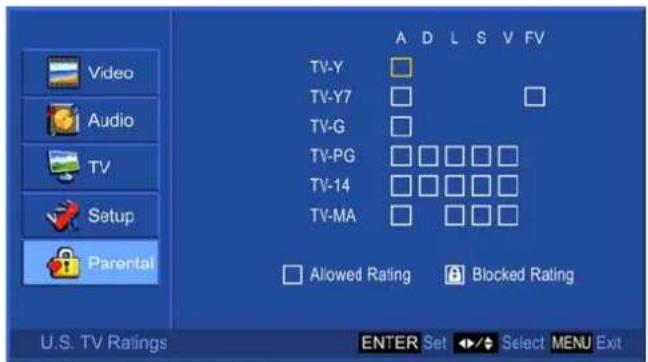
The TV Ratings in the US are defined as following.
| TV-Y | All children | TV-PG | Parental guidance suggested |
| TV-Y7 | Directed to older children: this program is designed for children age 7 and above | TV-14 P | Parents strongly cautioned: this program contains some material that is unsuitable for children under 14 years of age |
| TV-G | General audience | TV-MA | Mature audience only |
Use ENTER button to block or unblock the ratings, and use MENU to exit.
U.S. Movie Ratings: To adjust movie blocking level in the US. You can select between G, PG, PG-13, R, NC-17, or X.
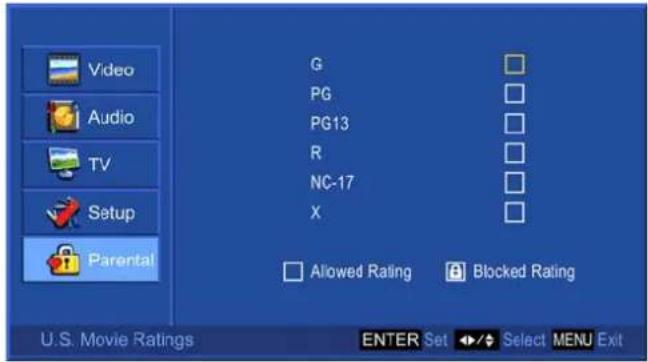
The Movie Ratings in the US are defined as following.
| G | General audience | R | Restricted |
| PG | Parental guidance suggested | NC-17 | No one 17 and under limited |
| PG-13 | Parents strongly cautioned | X | Adult audience only |
Use ENTER button to block or unblock the ratings, and use MENU to exit.
- Canadian English Ratings: To adjust blocking level in English-speaking region of Canada. You can select between C, C8+, G, PG, 14+, 18+.
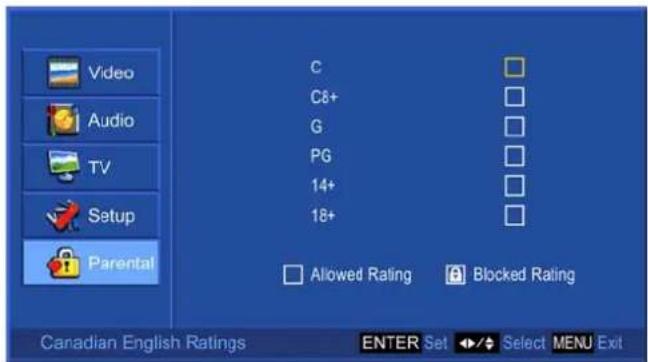
The Canadian English Ratings are defined as following.
| C | Children | PG | Parental guidance |
| C8+ | Children eight years and older | 14+ | Viewers 14 years and older |
| G General programming, suitable for all audiences | 18+ Adult programming | ||
Use ENTER button to block or unblock the ratings, and use MENU to exit.
- Canadian French Ratings: To adjust blocking level in French-speaking region of Canada. You can select between G, 8 ans +, 13 ans +, 16 ans +, 18 ans +.
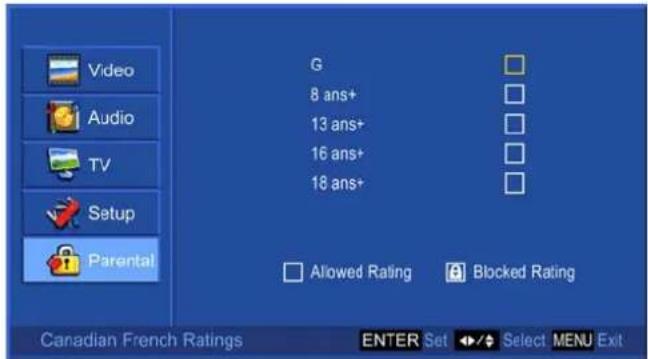
The Canadian French Ratings are defined as following.
| E | Exempt | 13 and + | Not appropriate for children of less than 13 years |
| G | General | 16 and + | Not appropriate for children of less than 16 years |
| 8 and + | Children eight years and older | 18 and + | Reserved to adults |
Use ENTER button to block or unblock the ratings, and use MENU to exit.
◆ Block Unrated: To block unrated movie or TV programs.
- Input Block: To set the input source to be blocked. Users will not be able to watch the content coming from the blocked input source.
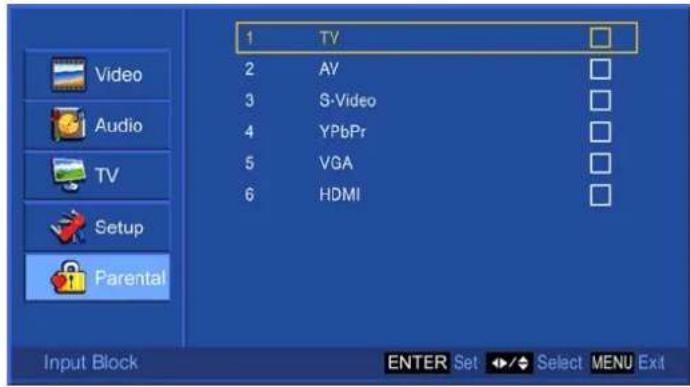
Use ENTER button to block the input source, and press ENTER again to unblock.
- Change Password: To change the password, press ENTER, and the following screen appears.
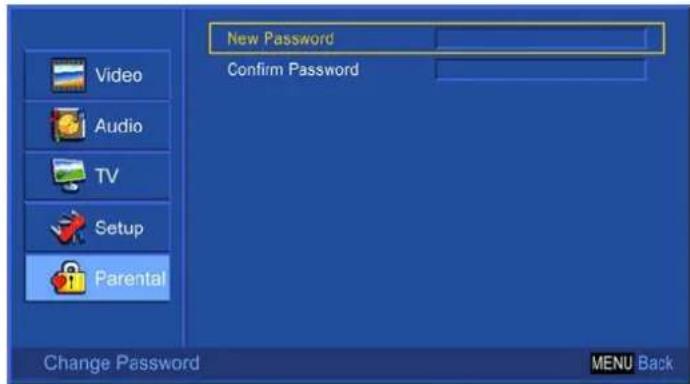
Enter the new password from the remote control, and then enter the new password again to confirm.
Note: Please make sure you remember your new password after changing, because you cannot recall the default setting of the password by any selection.
- Clear All: To clear all the locks set before, press ENTER, and then select "OK" to confirm.
TECHNICAL SPECIFICATION
| LCD | Type 31.51" TFT Active Matrix0.51075 (H) x 0.51075 (V) mm pixel pitch | |
| Color Filter RGB vertical stripe | ||
| Glass surface Anti-Glare | ||
| Input signal | RGB RGB analog (0.7/1.0 Vp-p, 75 ohms) Separate Sync,fh: 30-82 kHz, fv:50-75 Hz | |
| RF TV system Antenna / NTSC+ATSC(8-VSB, Clear-QAM) | ||
| Video 1 composite RCA, 1 S-Video, 1 YPbPr component,1 HDMI | ||
| Audio 1 mini-stereo, 2 pair of RCA (L/R) stereo | ||
| Compatibility PC Up to 1360 x 768 Non-interlaced | ||
| Resolution Recommendedand supported | 1360 x 768 @ 60 Hz1280 x 1024 @ 60 Hz1280 x 768 @ 60 Hz1024 x 768 @ 60, 75 Hz800 x 600 @ 60, 75 Hz640 x 480 @ 60, 75 Hz | |
| Speaker Output 10W x 2 @THD=10% | ||
| Audio Output | 1 stereo RCA jack (L/R), 1 SPDIF (optical),1 Headphone jack | |
| Power | Voltage | 100-240 VAC, 50/60 Hz (auto switch) |
| Display area | Full Scan 697.68mm (H) x 392.25mm (V)27.5" (H) x 15.4" (V) | |
| Operatingconditions | Temperature | 32°F to + 104°F (0°C to + 40°C) |
| Humanity | 20% to 65% (no condensation) | |
| Altitude | To 10,000 feet (3,000m) | |
| Storage condition | Temperature | -4°F to + 140°F (-20°C to + 60°C) |
| Humanity | 10% to 90% (no condensation) | |
| Altitude | To 40,000 feet (12,000m) | |
| Dimensions | Physical | 800mm (W) x 629.8mm (H) x 252mm (D)31.4" (W) x 24.7" (H) x 9.9" (D) |
| Weight | Net | 17 kg (37.4 lb) |
| Regulations | UL, FCC-B (Doc-B) | |
| Power saving modes | On | < 180 W (blue LED) |
| Stand by | < 3 W (red LED) | |
| Preset Timing Mode (Pre-adjusted to GTF® 1360 x 768 @ 60 Hz)Warning: Do not set the graphics card in your computer to exceed these refresh rates;doing so may result in permanent damage to the LCD TV | ||
Note: Product Specifications are subject to change without notice.
CARE AND MAINTENANCE
Care
● Avoid exposing your LCD TV directly to sunlight or other heat source.
- Place your LCD TV away from the sun to reduce glare.
- Put your LCD TV in a well ventilated area. Do not place anything heavy on top of your LCD TV.
● Make certain your LCD TV is installed in a clean and moisture-free area.
- Keep your LCD TV away from magnets, motors, transformers, speakers, and TV sets.
Safety Tips
- If smoke, abnormal noise or odor came out of your LCD TV, remove the power cord immediately and call your service center.
- CAUTION-Never remove the rear cover of your LCD TV cabinet. The display unit inside contains high-voltage parts and may cause electric shock to human bodies.
- Never try to repair your LCD TV yourself. Always call your service center or a qualified technician to fix it.
TROUBLESHOOTING
No power
● Make sure A/C power cord is securely connected.
- Plug another electrical device into the power outlet to verify that the outlet is supplying proper voltage.
Power on but no screen image
● Make sure the video cable supplied with the TV is tightly secured to the video output port on back of video source (DVD, VCR...). If not, tightly secure it.
- Adjust brightness.
● Make sure all signal cables are installed.
Wrong or abnormal colors
- If any colors (red, green, blue) are missing, check the video cable to make sure it is securely connected. Loose or broken pins in the cable connector could cause an improper connection.
- Connect the TV unit to another video source or use another TVs to make sure the video source was not causing the problem.


- FOR YOUR SAFETY
- FCC Class B Radio Frequency Interference Statement WARNING: (FOR FCC CERTIFIED MODELS)
- NOTICE
- WARNING:
- SAFETY: Lamp Disposal
- PRECAUTIONS AND REMINDERS
- notice for Remote Controller
- Read before operating equipment
- ACCESSORIES
- FRONT PANEL BUTTONS
- Note:
- BACK PANEL BUTTONS
- INSTALLATION
- Connecting RF antenna and Cable TV
- Connecting to DVD / Set Top Box
- Connecting to External Stereo System to Listen to LCD TV Sound
- Connecting to the Headphone
- Connecting to a Computer
- 1) With VGA Cable:
- 2) With HDMI-DVI Cable:
- Connecting to A/V Device with SPDIF input
- Connecting with the power cord
- BASIC OPERATION
- Turning on the LCD TV
- Power On/Off
- Select input source
- Volume Adjusting
- INFO
- Electronic Program Guide (EPG)
- Channel Select
- In ATV mode
- In DTV mode
- Sleep Time Setting
- Zoom
- Wide
- Freeze Picture
- Using the OSD function
- —To adjust the picture quality
- Audio Menu
- —To set the audio quality and status
- TV Menu
- —To set up for TV
- Setup Menu
- Parental Menu
- —To set up Parental Control options
- CARE AND MAINTENANCE
- Care
- Safety Tips
- TROUBLESHOOTING
- No power
- Power on but no screen image
- Wrong or abnormal colors
Brand : AOC
Model : L32W698
Category : Television