HL19W - Television HAIER - Free user manual and instructions
Find the device manual for free HL19W HAIER in PDF.


User questions about HL19W HAIER
0 question about this device. Answer the ones you know or ask your own.
Ask a new question about this device
Download the instructions for your Television in PDF format for free! Find your manual HL19W - HAIER and take your electronic device back in hand. On this page are published all the documents necessary for the use of your device. HL19W by HAIER.
USER MANUAL HL19W HAIER
TO REDUCE THE RISK OF ELECTRIC SHOCK AND FIRE, DO NOT PUT THE TV SET NEAR SOURCES OF HUMIDITY. DO NOT USE ANY ABRASIVE CLEANSERS WHICH MAY SCRATCH OR DAMAGE THE LCD SCREEN. AVOID CONTACT WITH OBJECTS THAT MAY SCRATCH THE LCD SCREEN.

NOTE: SERVICING THE UNIT YOURSELF IS UNAUTHORIZED AND COULD LEAD TO INJURY OR PRODUCT DAMAGE.
IMPORTANT SAFETY INSTRUCTIONS
1) Read these instructions.
2) Keep these instructions.
3) Heed all warnings.
4) Follow all instructions.
5) Do not use this apparatus near water.
6) Clean only with a dry cloth.
7) Do not block any ventilation openings. Install in accordance with the manufacturer's instructions.
8) Do not install near any hear sources such as radiators, heat registers, stoves, or other apparatus (including amplifiers) that produce heat.
9) Do not defeat the safety purposes of the polarized or grounding type plug. A polarized plug has two blades with one wider than the other. A grounding type plug has two blades and a third grounding prong. The wide blade or the third prong is provided for your safety. When the provided plug does not fit into your outlet, consult an electrician for replacement of the obsolete outlet.
10) Protect the power cord from being walked on or pinched particularly at plugs, convenience receptacles, and the point where they exit from the apparatus.
11) Only use the attachments/accessories specified by the manufacturer.
12) Use only with the cart, stand, tripod, bracket, or table specified by the manufacturer, or sold with the apparatus.
When a cart is used, use caution when moving the cart/apparatus combination to avoid injury from tip-over.
13) Unplug this apparatus during lightning storms or when unused for long periods of time.
14) Refer all serviceified service personnel. Servicing is required when the apparatus has been damaged in any way, such as power supply cord or plug is damaged, liquid has been spilled or objects have fallen into the apparatus, the apparatus has been exposed to rain or moisture, does not operate normally, or has been dropped.
15) Apparatus shall not be exposed to dripping or splashing and no objects filled with liquids, such as vases, shall be placed on the apparatus.

Safety Instructions
PRECAUTIONS
FCC WARNING: This equipment may generate or use radio frequency energy. Changes or modifications to this equipment may cause harmful interference unless the modifications are expressly approved in the instruction manual. The user could lose the authority to operate this equipment if an unauthorized change or modification is made.
CONTENT
Safety Notice Items....1
Front Panel Controls....2
Connection Options....3
Remote Control Key Functions....4
Remote Control 5
Installing Batteries....5
Connection Instructions....6
Grounding....6
External equipment Connections....6
Antenna Connection....6
PC Setup....7
COMPONENT Setup....7
VCR Setup....8
HDMI Input 8
Cable TV Setup....9
External AV Source Setup....9
Basic Operating Instructions....10
Turn on the LCD-TV....10
Audio Control....10
Mute....10
Select the TV Channel You Want....11
Picture Mode....11
A Mode 11
Sleep....11
INFO....11
GUIDE....11
-button....12
CH.LIST button....12
FAV.LIST button....12
ARC button....12
Menu Operations....13
Picture Menu Options....13
Picture Menu Options Continued....14
Audio Menu Options....14
Audio Menu Options Continued.... 15
S### Options.... 16-17
Feature Menu Options....18
Feature Menu Options Continued....19-22
VGA Menu Options Continued....22-23
Component Menu Options....24
HDMI and S-Video Menu Options....25
Troubleshooting Guide....26
Specifications....27
Warranty 28
Safety Notice Items
Incorrect usage may cause fire or electric shock. To prevent this, please do as required when you are installing, using and cleaning this machine. Tensure your safety and extend the life-span of LCD-TV, please read the following items carefully before using:
1 Please read and understand all the instructions before operation;
1 Please keep this manual for later use;
Please comply strictly with the warning instructions on the machine and in this book;
1 Please comply with the instructions provided;
I Please do not use additional devices that are not recommended by manufacturer:
1 Before operation, please make sure that the operating voltage of your unit is correct;
1 Do not place the unit on unstable, dusty and humid places;
1 Never put the unit in direct sunlight or near heat sources;
1 Allow enough space for proper ventilation;
1 Please keep water away from the LCD-TV. If water comes in contact with the LCD-TV, disconnect the power cord from the power source, then wipe the set with a dry soft cloth;
Do not remove the back cover. If service is needed, please contact an Authorized service technician.
Front Panel Controls
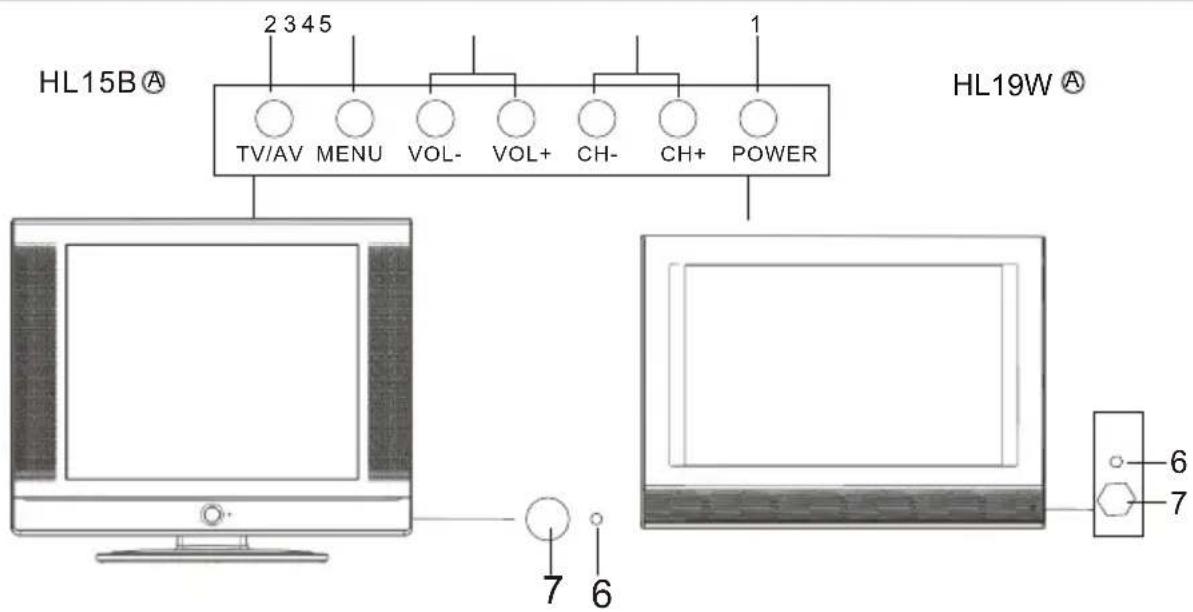
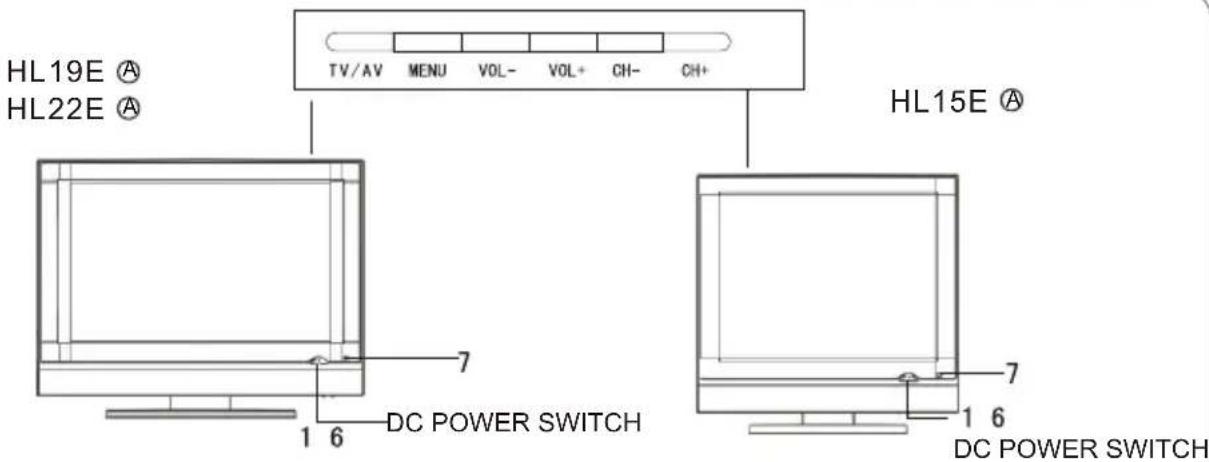
Control Panel Function
- Power supply switch
- TV/AV Selects the input signals.
- MENU Press to select the main menu
- VOL- Volume down / Left orientation to adjust the item in the OSD VOL+ Volume up / Right orientation to adjust the item in the OSD /Press to enter
- CH- TV channel down / to select the item in the menu CH+ TV channel up / to select the item in the menu
- Power indicator
- Remote Sensor Receives the signals from the remote control
Connection Options
natural_image
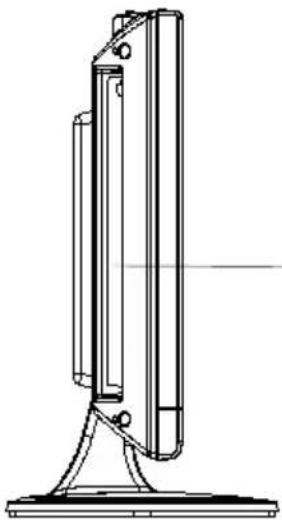
Technical line drawing of a vertical mechanical component with mounting base (no text or symbols)(The above figure is for reference only, connections may differ depending upon the models and terminals of some models may be on the back bottom of the set)
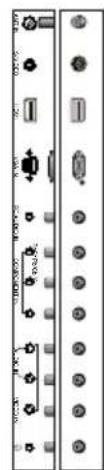
Antenna Input
Connect cable or antenna signals to the TV, either directly or through your cable box.
PC Audio Input
Connect the audio output from the pc to the PC audio input port
Video Input
Connect video output from an external device to this jack
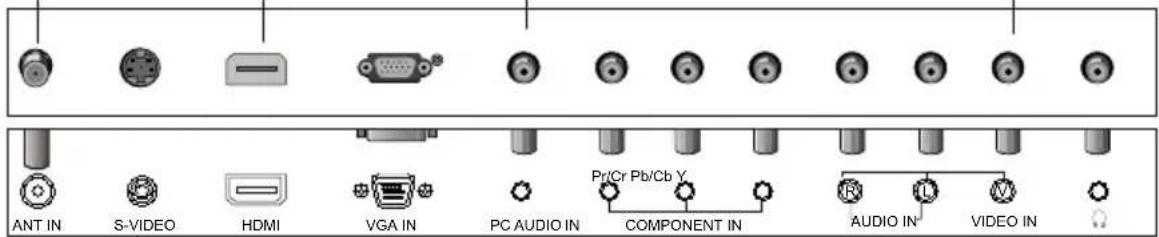
S-Video Input
Connect S-Video out from an S-Video device to the jacks. VG
Component Input
Connect a component video device to these jacks AV
Headphone
VGA Input
Connect to the VGA 15PIN analog output connector of a PC graphics card to use set as a PC display
AV/S-VIDEO/
COMPONENT Audio Input
Connect audio output from an external device to these jacks
Remote Control
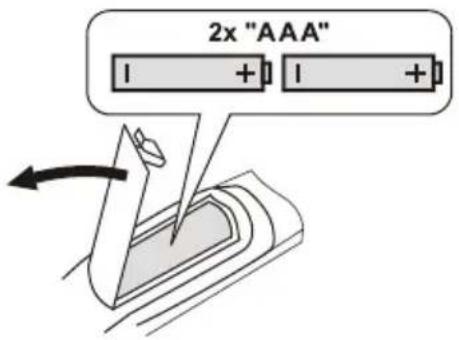
Installing Batteries
! Remove the battery cover.
! Insert two size AAA batteries matching the +/-polarities of the battery to the +/-marks inside the battery compartment.
Precautions
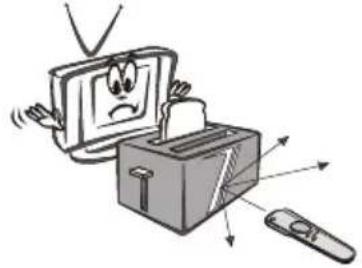
Make sure that there is no obstacle between the remote controller and television set.
natural_image
Cartoon illustration of a computer monitor with a sad face emerging from a box, with arrows indicating action or attention (no text or symbols)Keep the remote control away from heat sources or humid areas to ensure effective performance of the remote.
natural_image
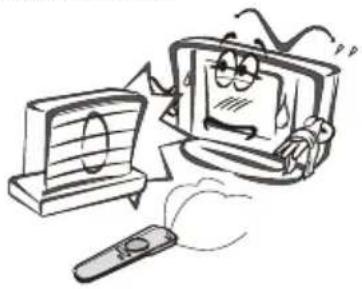
Cartoon illustration of a distressed computer monitor and remote with a scroll, no text or symbols presentAs strong light may interfere with the signals, change your position to operate the remote control if the television cannot be turned on or off as expected.

natural_image
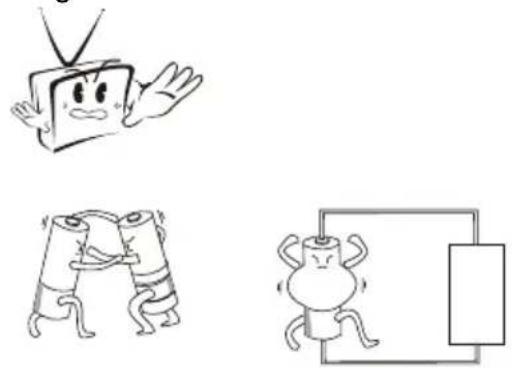
Cartoon illustration of a computer monitor with a sad face and a lightbulb, accompanied by a phone and a falling figure (no text or symbols)Make sure that two AAA 1.5V alkaline batteries are loaded. The batteries must be of the same type, must be inserted properly, and must not be rechargeable.
natural_image
Illustration of three cartoon characters: a TV with a surprised expression, a stylized ant holding hands, and a simple electrical circuit with a bulb (no text or symbols)Remote Control Key Functions
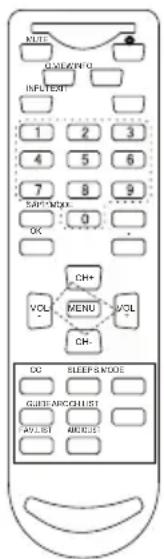
When using the remote control, aim it towards the remote sensor on the TV
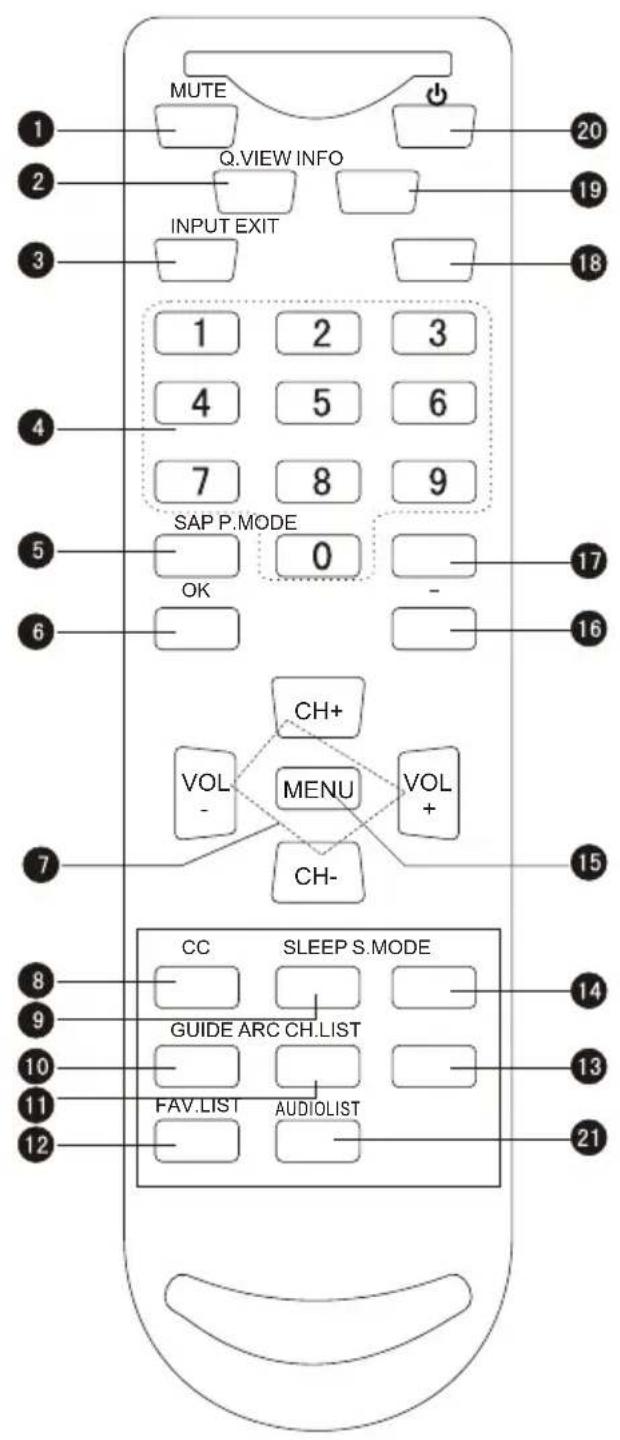
Buttons on the remote control
1 Mute
2 Q View: Return to previous channel in TV mode
3 Input selection
4 Program Number
5 Select MONO, STEREO, SAP in NTSC system
6 Confirm button
7 Volume/Channel Selection
8 CCD (closed caption) On / Off
9 TV Sleep button
10 Shows program schedule in TV
11 Select the aspect ratio
12 Open the favorite channel list in TV
13 Open the channel list in TV
14 Adjust sound mode
15 MENU
16 Select additional channels
17 Adjust Picture Mode
18 Exit On Screen Display
19 Program Infomation
20 Power
21 Open the audio list in TV
Connection Instructions
Grounding
Ensure that you connect the grounding / earth wire to prevent possible electric shock. If grounding methods are not possible, have a qualified electrician install a separate circuit breaker. Do not try to ground the unit by connecting it to telephone wires, lightening rods, or gas pipes.
External Equipment Connections
Antenna Connection
- Antenna or Cable Service with a Cable Box Connections
- For optimum picture quality, adjust antenna direction if needed.
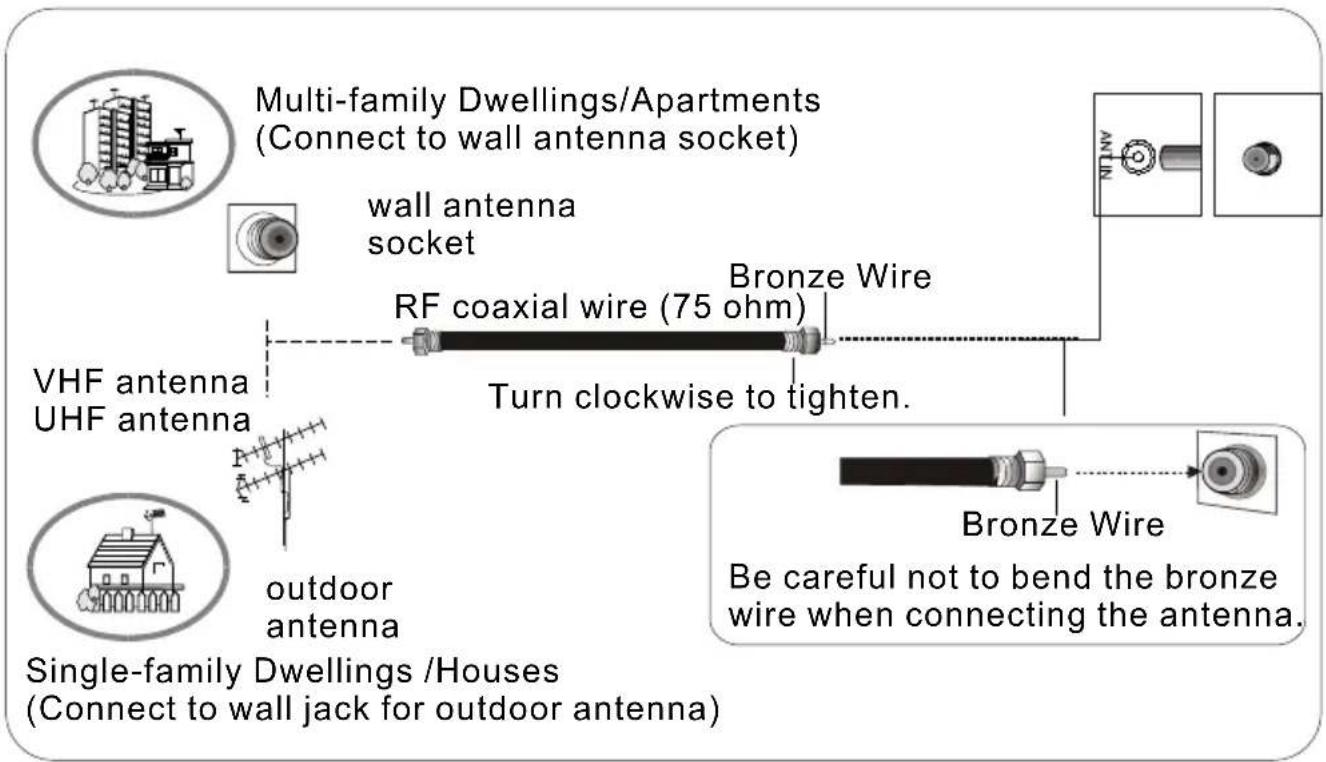
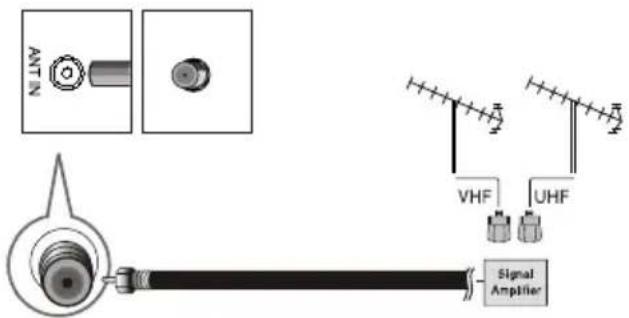
● To improve picture quality in a poor signal area, purchase and install a signal amplifier.
- If the antenna needs to be split for two Tvs, install a 2-Way Signal Splitter " in the connections.
- If the antenna is not installed properly, contact your dealer for assistance.
NOTE: Cables shown are not included with the TV
Connection Instructions
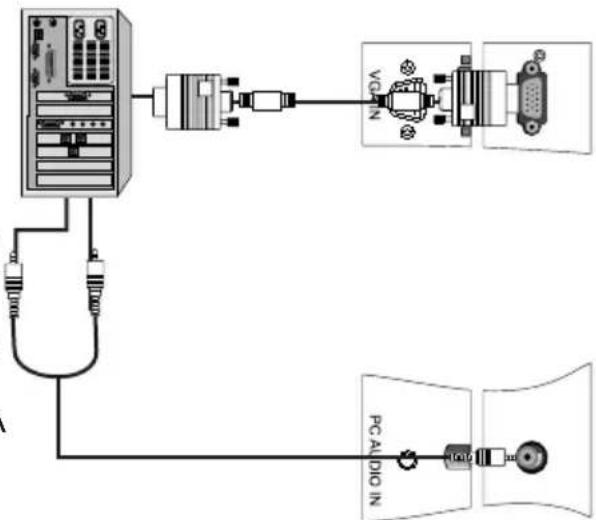
PC Setup
You can use your LCD-TV as a monitor for your personal computer using a VGA cable (not supplied).
Connection and use steps:
- Read the user guide supplied with your computer and ensure that it has a VGA connector;
- Make sure that the power of the LCD -TV and the PC are off;
-
Connect a D type 15-pin VGA interface cable (not supplied) to the VGA video interface connector on the PC. Then connect the other end to the VGA video interface connector on the back of the LCD-TV. Tighten the screws on the VGA connectors once they are firmly connected;
-
Turn on the power of the LCD-TV first, and then turn on the power of the PC;
-
Press the INPUT button to set the video input mode of the LCD-TV to VGA; Once the input for VGA is selected and if you see no image press function F8 on you pc.
-
Check the image on your TV. There may be noise associated with the resolution, vertical pattern, contrast or brightness in PC mode. If noise is present, change the PC mode to another resolution, change the refresh rate to another rate or adjust the brightness and contrast on the menu until the picture is clear. If the refresh rate of the PC graphic card can not be changed, change the PC graphic card or consult the manufacturer of the PC graphic card.
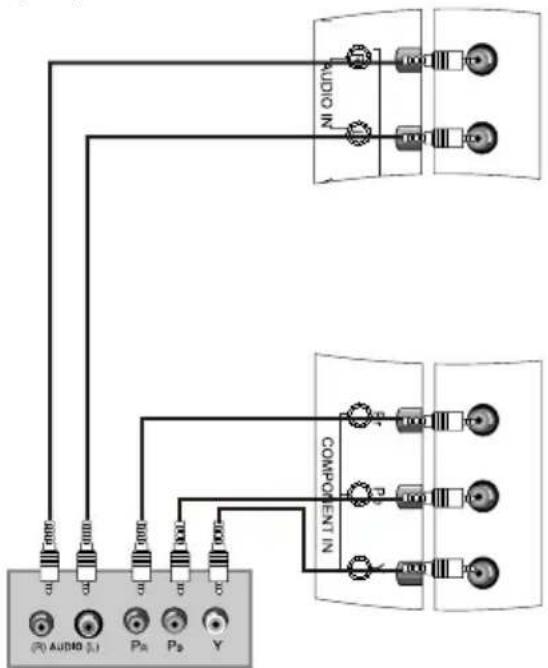
COMPONENT Setup
How to connect
Connect the DVD video outputs (Y, PB, PR) to the COMPONENT(Y, Pb, Pr) IN jacks on the TV and connect the DVD audio outputs to the AUDIO IN jacks on the TV, as shown in the figure.
NOTE: If your DVD player does not have component video output, use S-Video.
How to use
- Turn on the DVD player, insert a DVD.
- Use the INbution on the remote control to select.
Connection Instructions
VCR Setup
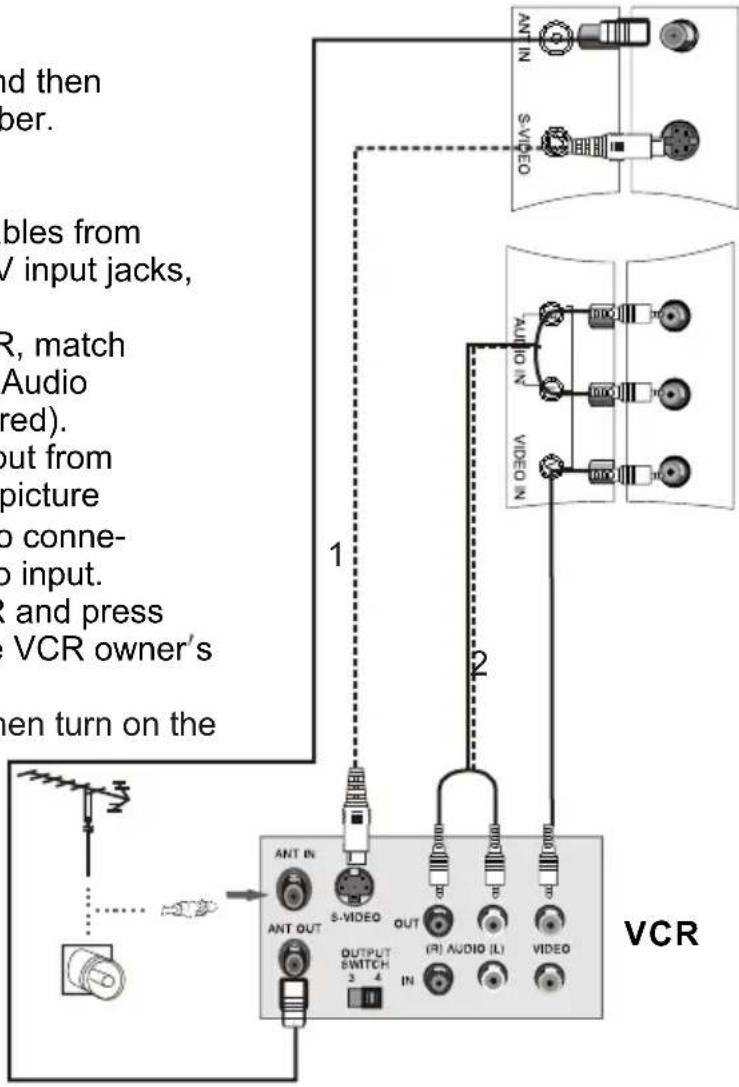
- To avoid picture noise (interference), leave an adequate distance between the VCR and TV
Connection and use steps:
- Read the user guide supplied with your AV devices and ensure that it has Composite or S-Video connectors;
- Make sure that the power of the LCD-TV and the AV device are off;
Connection Option 1
Set VCR output switch to 3 or 4 and then tune TV to the same channel number.
Connection Option 2
- Connect the audio and video cables from the VCR's output jacks to the TV input jacks, as shown in the figure.
When connecting the TV to VCR, match the jack colors (Video = yellow, Audio Left = white, and Audio Right = red).
If you connect an S-VIDEO output from VCR to the S-VIDEO input, the picture quality is improved; compared to connecting a regular VCR to the Video input.
- Insert a video tape into the VCR and press PLAY on the VCR. (Refer to the VCR owner's manual.)
- Turn on the LCD-TV first; and then turn on the power of the AV device;
- Press the INPUT button to set the video input mode of the LCD-TV to S-VIDEO mode or Composite mode.
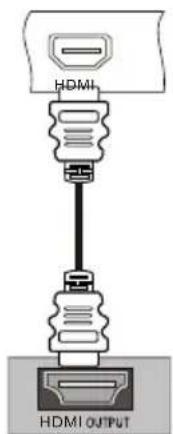
HDMI Input
How to connect
Connect the cables from the external equipment's output jacks to the TV input jacks, as shown in the figure.
How to use
- Select the input source by using INPUT button on the remote control or on the TV.
- Operate the corresponding external equipment. Refer to external equipment operating guide.
Connection Instructions
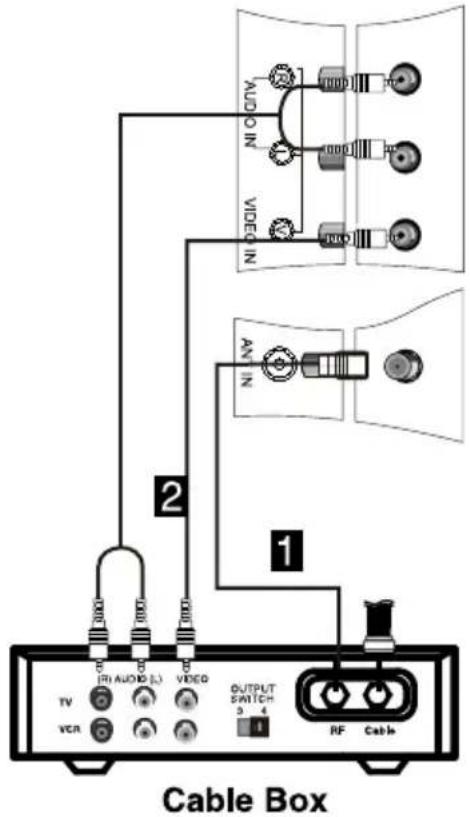
Cable TV Setup
- After subscribing to a cable TV service from a local provider you can watch cable TV programming. The TV cannot display TV programming unless a TV tuner device or cable TV converter box is connected to the TV.
- For further information regarding cable TV service, contact your local cable TV service provider(s).
Connection Option 1
- Select 3 or 4 with channel switch on cable box.
- Tune the TV channel to the same selected output channel on cable box.
- Select channels at the cable box or with the cable box remote control.
Connection Option 2
-
Connect the audio and video cables from the Cable Box's output jacks to the TV input jacks, as shown in the figure. When connecting the TV to a Cable Box, match the jack colors (Video = yellow, Audio Left = white, and Audio Right = red).
-
Select the input source by using the INPUT button on the remote control.
- Select your desired channel with the remote control for cable box.
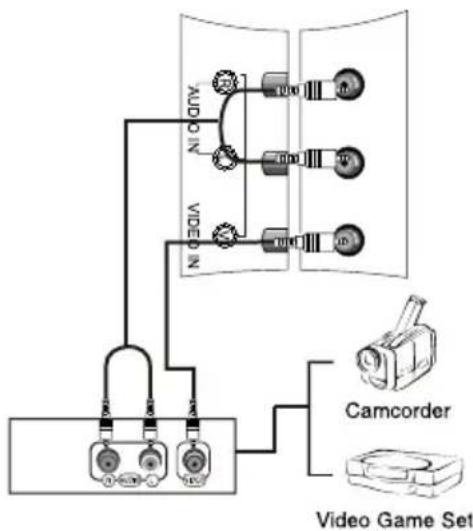
External AV Source Setup
How to connect
Connect the audio and video cables from the external equipment's output jacks to the TV input jacks, as shown in the figure. When connecting the TV to external equipment, match the jack colors (Video = yellow, Audio Left = white, and Audio Right = red).
How to use
- Select the input source by using the INPUT button on the remote control.
- Operate the corresponding external equipment. Refer to external equipment operating guide.
flowchart
graph TD
    A["Video Game Set"] --> B["Camcorder"]
    B --> C["Audio Unit"]
    C --> D["Video Unit"]
    D --> E["Video Game Set"]
    style A fill:#f9f,stroke:#333
    style B fill:#ccf,stroke:#333
    style C fill:#cfc,stroke:#333
    style D fill:#fcc,stroke:#333
    style E fill:#ffc,stroke:#333
Basic Operating Instructions
Turn on the LCD-TV
When the POWER ( ⏻ button is pressed and the LCD-TV is turned on, the indicator light on the front of the LCD-TV changes from red to green or turn light. When the LCD-TV is turned off using the power button, the LCD-TV will go into standby mode and the indicator light turns red(or turns dark).
Each time you press the INRUTON, TV, Composite, S-Video, VGA, Component and HDMI will appear on the screen in order.
NOTE: The color of the indicator light may differ based upon the model purchased.
Audio Control
- Press the VOL+ button to increase the volume. A number will appear on screen indicating the volume level.
- Press the VOL-button to decrease the volume. A number will appear on screen indicating the volume level.
Mute
- Press the MUTE button to mute the sound temporarily. A mute icon appears on the screen.
- Press the MUTE button or VOL+ again to restore the sound.
The mute icon disappears.
Basic Operating Instructions
Select the TV Channel You Want
You can use the number buttons and button on the remote control to directly select TV channels and press OK to confirm.
And you can press the buttons(CH+/CH-) on the remote control or on the panel to make a selection.
Picture Mode
Press P.MODE button on the remote control for menu display. For desired mode as follows:
Personal Standard Mild Fresh
Audio Mode
Press S.MODE button on the remote control for menu display. For desired mode as follows:
Personal-Voice Music Theatre
Sleep
Press SLEEP button to set the time :Sleep 0 min-Sleep 5 min-Sleep 10 min-Sleep 15 min-Sleep 30 min-Sleep 45 min-Sleep 60 min-Sleep 90 min-Sleep 120 min-Sleep 180 min-Sleep 240min
This feature allows you to turn off the television after a pre-selected number of minutes
INFO
Press INFO button to display current program information.
GUIDE(only available in digital signal)
Press GUIDE button in digital channels to display Guide menu.(This menu is just for you to see the information and can not be changed)
Press VOL+/VOL- to select information for you to look over.
Basic Operating Instructions
=button
Press to select additional channels (digital and analog) being broadcast by the same station. For example, to select digital channel "11.1", press "11", then press "—" and "1".
CH.LIST button
Press to display the program list. Press CH+/CH- to select the item and OK button to select the channel you desired.
FAV.LIST button
Adding favorite channels
Press CH.LIST. The channel list opens. Press CH+ or CH- to select a channel.
Press FAV.LIST to add the channel to the favorites channel list.
To remove a favorite channel, open the channel list, select the channel you want to remove, then press FAV.LIST.
Tuning to a favorite channel
Press FAV.LIST. The favorite channel list opens.
Press CH+ or CH- to select the channel.
Your LCD TV/DVD combo automatically tunes to the channel you selected.
ARC button
Press to select the aspect ratio among Full Screen, Normal, Wide, Zoom, Cinema.
Menu Operations
* In this manual, the OSD (On Screen Display) may be differ from your TV. These are examples to illustrate the TV's operation. Press INPUT to select the input source. The menu for each source may be different.
- Press MENU button to display the main menu, and CH+/CH- to select the main menu.
- Press VOL+/OK button to enter the menu and CH+/CH- to go up and down to select the desired option.
- Press VOL+/OK button to confirm and VOL+/VOL- to make changes to the parameters
- Press the EXIT/MENU button to exit the menu
Picture Menu Options
Picture quality can be adjusted for any input separately.
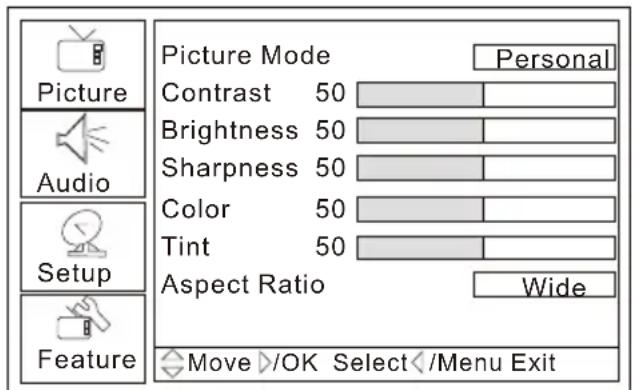
The picture quality on the screen can be adjusted as follows:
- Press MENU button and CH+/CH- until the following menu appears on the screen.
- Press Vol+/ok button to enter the menu function and Ch+/CH- to scroll up and down to select the desired function.
- Press VOL+/OK button to confirm and VOL+/VOL- increase and decrease the level to adjust the selected option to your preference.
- Repeat step 2 and step 3 until desired picture quality has been achieved.
Note:
- The options may be different because of the inputs.
- Symbols on top of the menu in this manual may differ from the actual set display.
- The picture options can be changed only in Personal Mode only, the other modes are fixed.
Menu Operations
Picture Menu Options continued
Function:
Picture Mode: Select the type of picture which best corresponds to your viewing requirements by selecting Picture Mode in Picture menu. You may select the picture mode directly by pressing the P.MODE button on the remote control.
Contrast : Press CH+/CH- button and VOL+/OK to confirm, then press VOL+/VOL- to adjust the contrast of the picture.
Brightness : Press CH+/CH- button and VOL+/OK to confirm, then press VOL+/VOL- to adjust the brightness of the picture.
Sharpness : Adjust the amount of the detail enhancement, the image sharpness rises as the number increases (By increasing the level, it will show cleaner and clearer images and by decreasing the level, it will make the picture smoother).
Color : Press CH+/CH- button and VOL+/OK to confirm, then press VOL+/VOL- to adjust color saturation.
Tint : Adjust the tone of the picture .
Aspect Ratio: Press VOL+/OK to select the ratio of picture display such as Wide/Zoom/Cinema/Full Screen/Normal.
Contrast, Brightness, Sharpness and Color can only be adjusted when Picture Mode in user mode.
Audio Menu Options
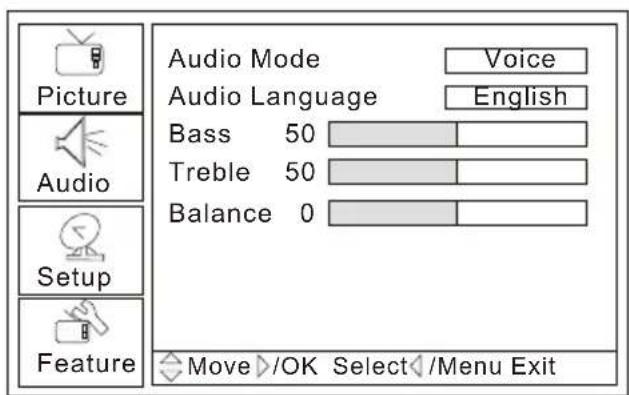
Sound can be adjusted for any input as follows:
- Press MENU button and CH+/CH- until the following menu appears on the screen.
Menu Operations
Audio Menu Options continued
You can adjust sound options to the levels you prefer.
- Press VOL+/OK button to enter the Audio menu and CH+/CH- to go up and down to select the desired option.
- Press VOL+/OK button to confirm and VOL+/VOL- increase and decrease the level to adjust the selected option to your preference.
- Repeat step 2 and step 3 until desired audio quality has been achieved.
Function :
Audio Mode : Press VOL+/OK to select the type of sound which best corresponds to your lightning requirements by selecting Audio Mode in Audio menu.
Audio Language: Press VOL+/OK to display the default language.
Bass : Press CH+/CH- button and VOL+/OK to confirm, then press VOL+/VOL- to increase or decrease the level of the lower-pitched sounds. can only be stored under User mode.
Treble : Press CH+/CH- button and VOL+/OK to confirm, then press VOL+/VOL- to increase or decrease the level of the higher-pitched sounds Can only be stored under User mode.
Balance : Press CH+/CH- button and VOL+/OK to confirm, then press VOL+/VOL- to adjust the audio output between left and right speakers.
Menu Operations
Setup Menu Options
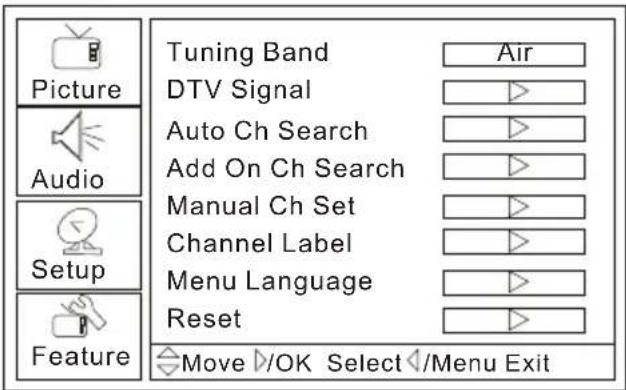
- Press MENU button and CH+/CH- until the following menu appears on the screen.
- Press VOL+/OK button to enter the Setup menu and CH+/CH- to go up and down to select the desired option.
- Press VOL+/OK button to confirm and VOL+/VOL- increase and decrease the level to adjust the selected option to your preference.
- Repeat step 2 and step 3 until desired quality has been achieved.
Function:
Tuning Band: Press VOL+/OK button to select Cable Auto, Air, Cable, Cable HRC, Cable IRC.
DTV Signal: Shows the signal strength of the reception.
Auto Ch Search: Press CH+/CH- button to select the item. Then press VOL+/OK button to enter your selection and scan. All channels now available will be automatically preset in order .After the search has finished, the first program number will display on the screen. This search automatically adds only the active channels in your area to the TV's memory. It deletes any channels on which there is no broadcast or a poor signal. The channels found are automatically saved as below:
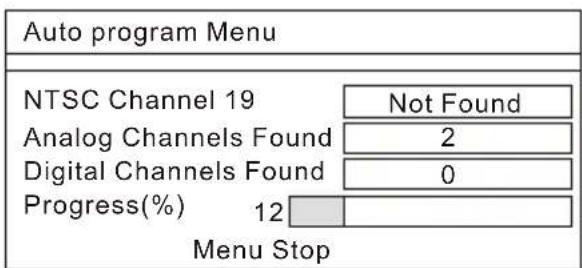
Note: The TV searches channels in analog first and then searches channels in digital signal, which may take up to few minutes.
Menu Operations
Setup Menu Options
Add On ChSearch: When the channels are found, use VOL+/OK to add it to the channel list.
Manual Ch Set: Press OK button to display a channel list that you can select channels as below:
| Manual Channel Set Menu | ||
| Ch 42-1 | ATSCdmo | Viewable |
| Ch 2-0 | Viewable | |
| Ch 11-0 | Viewable | |
| Move OK Change Menu Exit | ||
Channel Label: Allows you to name the channel that is selected. Press VOL+/OK to enter the selection and the menu displays as below:
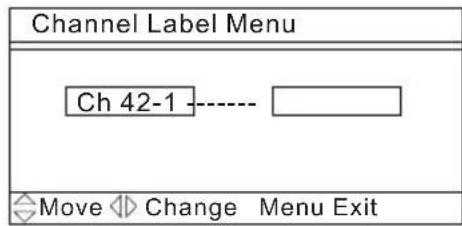
Press VOL+/VOL- to select the position and CH+/CH- to input the characters.
Manual Language: To select language of the OSD.
Reset: Press VOL+/OK to return to the default set.
Menu Operations
Feature Menu Options
- Press MENU button and CH+/CH- until the following menu appears on the screen.
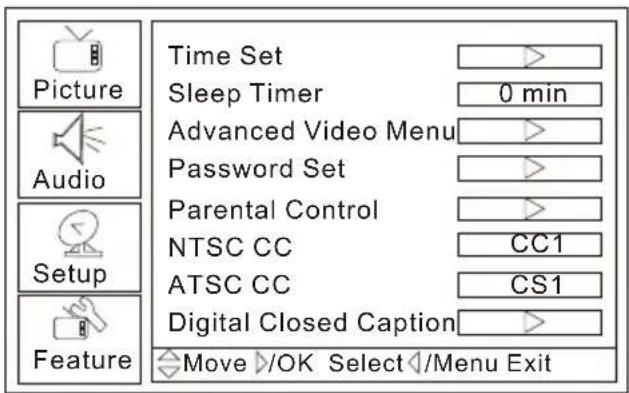
- Press VOL+/OK button to enter the Feature menu and CH+/CH- to go up and down to select the desired option.
- Press VOL+/OK button to confirm and VOL+/VOL- increase and decrease the level to adjust the selected option to your preference.
- Repeat step 2 and step 3 until desired quality has been achieved.
Function:
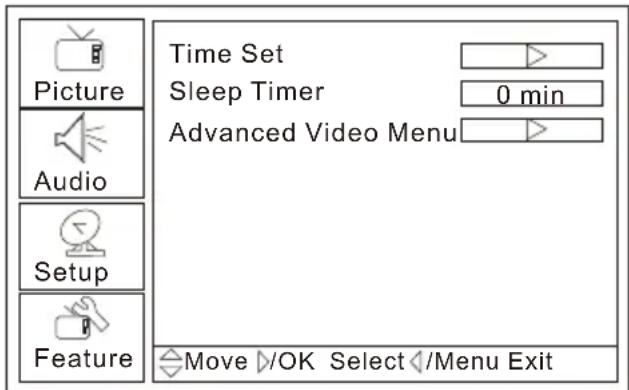
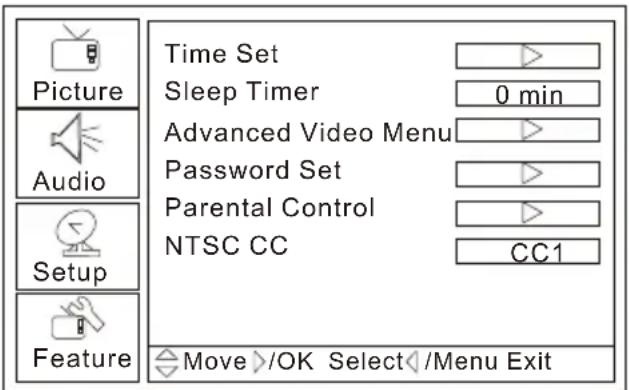
Time Set: Press CH+/CH- button and VOL+/OK to enter the time set menu as below that allows you to set the time the DTV will display.
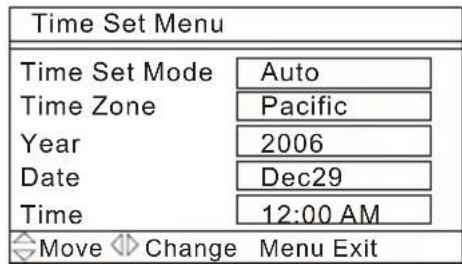
Time Set Mode: You can select one of auto and manual to set the time. When Auto is selected, the item of year/date and time will be disabled and can not be adjusted. When select Manual mode, you can press CH+/CH- to select the item and VOL+/OK to confirm, then press VOL+/VOL- to adjust the time.
Time Zone: Press CH+/CH- to select the item and VOL+/OK to confirm, then press VOL+/VOL- to select the time zone.
Year/Date/Time: Press VOL-/VOL+ to adjust the time.
Sleep Timer: Press VOL+/OK to select the amount of time before your TV turn off automatically.
Menu Operations
Feature Menu Options Continued
Advance Video Menu: Press VOL+/OK to enter the menu as below:
| Advance Video Menu | |
| Noise Reduction-Spatial | Off |
| Noise Reduction-Speckle | Off |
| Noise Reduction-Temporal | Off |
| Color Temperature | Normal |
| 3D Y/C | On |
| Move Change Menu Exit | |
Noise Reduction-Spatial: Press VOL-/VOL+ to select on or off
Noise Reduction-Speckle: Press VOL-/VOL+ to select on or off.
Noise Reduction-Temporal: Press VOL-/VOL+ to select on or off.
Color Temperature: Press VOL-/VOL+ to select one of Neutral/Warm/Cool.
3D Y/C: Press VOL-/VOL+ to select on or off.
Password Set: Press OK/VOL+ to enter the Enter Old Password menu, and then input the number of 0-9 as below, and you can change the password when you input the new one twice.( The initial password is 0000)
| Enter Old Password | |||
Parental Control: Press OK/VOL+ to enter the menu :
| Enter Password |
input the correct password with 0-9 buttons. And the menu displays as below:
| Parental Control Menu | |
| US Ratings | |
| Canadian Rating | |
| Advanced Rating | Off |
| Move Change Menu Exit | |
Press CH+/CH- to select US Ratings and VOL+/OK button to confirm. Then press CH+/CH- to select the item and VOL+/OK to confirm.
| Parental Control Menu | |
| MPAA □NONE □G □PG □PG-13 □R □NC-17 □X □ | TV RATINGALL FV L S V PNONE TV-Y □TV-Y7 □TV-G TV-PG □□□□TV-14 □□□□TV-MA □□□ |
Menu Operations
Feature Menu Options Continued
PARENTAL LOCK TECHNOLOGY:
The "P.L. Technology" allows you to use U.S. and Canadian Movies and TV PROGRAMS Guide ratings to block certain types of TV programs and movies.
To clearly understand TV program rating codes, read the following information:
U.S. TV Program Ratings
NR: Not Rated-this means that programs are not rated or rating does not apply.
TV-Y: For all children - these types of rated programs are designed for a very young audience, including children from ages 2-6.
TV-Y7: Directed towards older children - this type of rated programs may include comedic violence of mild physical, or may frighten children under the age of 7.
TV-G: General audience - these types of rated programs contains little or no violence, no strong language, and little or no sexual dialogue and situations.
TV-PG: Parental Guidance Suggested this type of rated programs may contain limited violence, some suggestive sexual dialogue and situations, and rare language.
TV-14: Parents strongly cautioned-these types of rated programs may contain sexual content, strong language and more intense violence.
TV-MA: Mature audience only these types of rated programs may contain sexual violence, explicit sexual content and profane language.
FANTASY VIOLENCE : This type of rated programs contain Fantasy and cartoon violence.
DIALOGUE: This type of rated programs contain dialogue with sexual content.
LANGUAGE: This type of rated programs contain offensive language.
SEX: This type of rated programs contain sex.
VIOLENCE: This type of rated programs contain violence.
To understand clearly about movie rating codes, read the following list:
U.S. Movie Rating Chart
NR: This means movie is not rated yet. It is pending government rating approval.
G: General Audience-this type of movie rating means all ages admitted to see the movie.
PG: Parental guidance suggested. Some material may not be suitable for children.
PG-13: Parents Strongly Cautioned - this type of movie rating means some material may not be appropriate for children under 13.
R: Restricted- This type of movie rating means children under 17 of age require to be with parent or guardian.
NC-17: This type of movie rating means no one 17 and under admitted.
X: This type of movie rating means adults only.
Menu Operations
Feature Menu Options Continued
Press CH+/CH- to select Canadian Rating and VOL+/OK button to confirm. Then press CH+/CH-/VOL+/VOL- to select the item and OK to confirm.
| Canadian Rating Menu | ||
| Canadian English C | Canadian French | |
| E | □ | E □ |
| C | □ | G □ |
| C8+ | □ | 8 ans+ □ |
| G | □ | 13 ans+ □ |
| PG | □ | 16 ans+ □ |
| 14+ | □ | 18 ans+ □ |
| 18+ | □ | |
| Move OK Change Menu Exit | ||
To clearly understand Canadian program rating codes, read the following list:
Canadian English Rating Chart
C: This type of programming is intended for children under age 8. There is no offensive language, nudity or sexual content.
C8+: These types of rated programs are generally considered acceptable for children 8 years and over. There is no profanity, nudity or sexual content.
G: These types of rated programs are generally suitable for all audiences.
PG: Parental Guidance Suggested -in these types of rated programs, some material may not be suitable for children.
14+: In these types of rated programs, some content may not be suitable for viewers under the age of 14. Parents are strongly cautioned not to have their children view 14+ rated programs by pre-teens and early teens.
18+: Adults Only-these types of rated programs are only for adult viewers only.
Canadian French Rating Chart
OFF: NO controls
G: These types of rated programs are generally suitable for all audiences.
8+: Children 8 years and above (French)
13+: 13 years old and above(French)
16+: 16 years old and above(French)
18+: Adults Only-these types of rated programs are only for adult viewers only.
Advanced Rating: Selecting On or Off to operation in DTV signal.
CLOSED CAPTION
NTSC CC: Press OK to select the Closed Caption options. Closed Captioning helps the hearing impaired with the broadcast program, as well as helping children learn how to read. A built in decoder displays the audio portion of a program as text on the screen when this option is selected.
CC1: When CC1 is displayed on TV means CC MODE is turned on.
CC2 to CC4: For other modes of video related broadcast information.
TEXT1: For program guide and other information displayed by broadcasters.
(This blocks a large portion of the picture on your screen).
TEXT2 to TEXT4 : For other modes of information displayed by broadcasters.
(This blocks a large portion of the picture on your screen).
Menu Operations
Feature Menu Options Continued
IMPORTANT: Closed captioning availability entirely depends on broadcasters supplying the signal. Therefore, closed captioning might not always be available and language availability will differ by broadcast.
Note: Select CC1 for full translation of the primary language such as English in your area. Select CC2 for secondary language translation such as French or any other language that may be broadcast in your area.
ATSC CC: Press OK to select CS1/CS2/CS3/CS4/CS5/CS6.
Digital Closed Captions: This item allows you to set the closed caption, and press OK/VOL+ to enter Closed Caption menu as below:
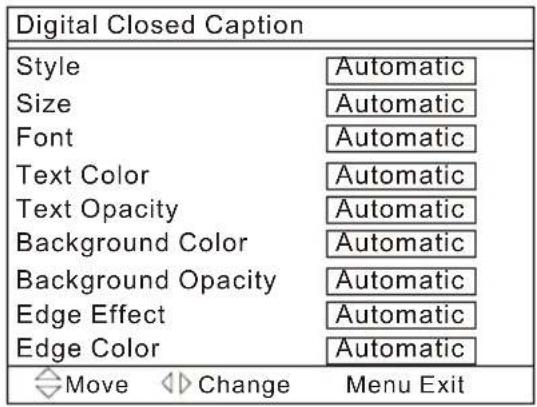
Style: Press VOL+/VOL- to select one of Automatic and Custom. When you select automatic, the others are disable and can not be adjusted.
Size: Press VOL+/VOL- to select the size of caption display according to your own preference.
Font: Press VOL+/VOL- to select the font of caption display according to your own preference.
TextColor: Press VOL+/VOL- to select the text color or the opacity of the text box of caption display according to your own preference.
Select a color and one of the opacity options.
Text Opacity: Press VOL+/VOL- to specify the opacity for the text color.
Background Color: Press VOL+/VOL- to select a background color.
Background Opacity: Press VOL+/VOL-to select the opacity for the background color.
Edge Effect: Press VOL+/VOL- to select according your own preference
Edge Color: Press VOL+/VOL- to select the edge color according your own preference
VGA Menu Options Continued
- Press MENU button and CH+/CH- button to select Feature menu in VGA mode.
- Press VOL+/OK button to enter the Feature menu and CH+/CH- to go up and down to select the desired option.
Menu Operations
VGA Menu Options Continued
- Press VOL+/OK button to confirm and VOL+/VOL- increase and decrease the level to adjust the selected option to your preference.
- Repeat step 2 and step 3 until desired quality has been achieved.
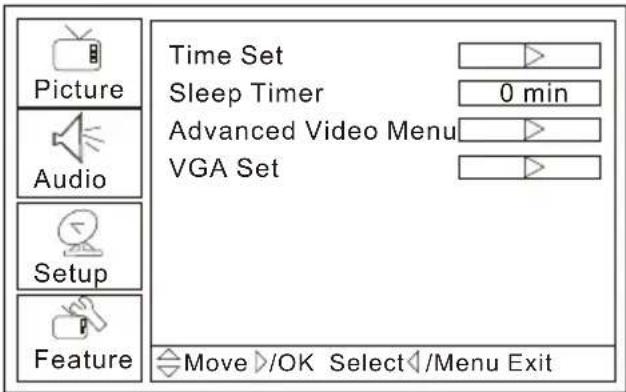
VGA Set: Press CH+/CH- button to select and VOL+/OK to confirm, the/GA set menu as below:
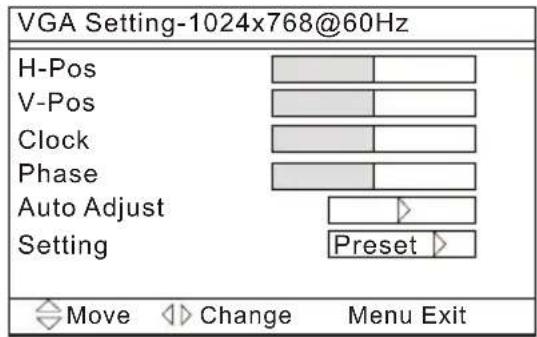
H-Pos: Press CH+/CH- button and then press VOL+/VOL- to adjust the horizontal position of the picture.
V-Pos:Press CH+/CH- button and then press VOL+/VOL- to adjust the vertical position of the picture.
Phase: Press CH+/CH- and then press VOL+/VOL- to adjust the phase of the picture.
Clock: Press CH+/CH- button and then press VOL+/VOL- to adjust the clock of the picture.
Auto Adjust: Press CH+/CH- button and then press VOL+ to auto adjust that automatically adjusts the available options for the best viewing configuration.
Setting: Press OK to do preset that can return to the factory setting.
Menu Operations
Component Menu Options
-
Press MENU button and CH+/CH- button to select Feature menu in Component mode.
-
Press VOL+/OK button to enter the Feature menu and CH+/CH- to go up and down to select the desired option.
-
Press VOL+/OK button to confirm and VOL+/VOL- increase and decrease the level to adjust the selected option to your preference.
-
Repeat step 2 and step 3 until desired quality has been achieved.
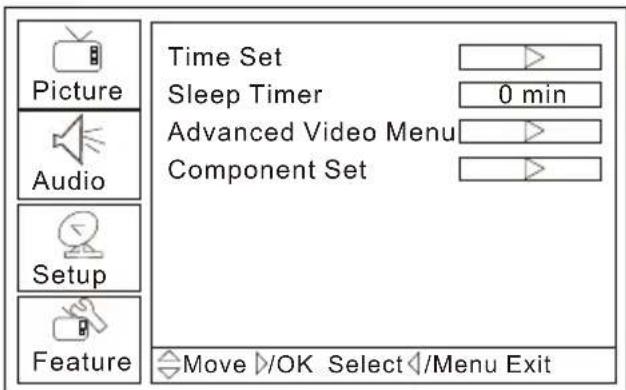
Component Set: Press CH+/CH- button to select and VOL+/OK to confirm, the Component set menu as below:
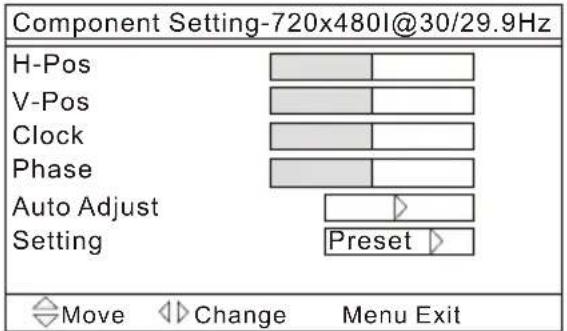
H-Pos: Press CH+/CH- button and then press VOL+/VOL- to adjust the horizontal position of the picture.
V-Pos:Press CH+/CH- button and then press VOL+/VOL- to adjust the vertical position of the picture.
Phase: Press CH+/CH- and then press VOL+/VOL- to adjust the phase of the picture.
Clock: Press CH+/CH- button and then press VOL+/VOL- to adjust the clock of the picture.
Auto Adjust: Press CH+/CH- button and then press VOL+ to auto adjust that automatically adjusts the available options for the best viewing configuration.
Setting: Press OK to do preset that can return to the factory setting.
Menu Operations
HDMI and S-Video Menu Options
- Press MENU button and CH+/CH- button to select Feature menu in HDMI or S-Video mode.
- Press VOL+ button to enter the Feature menu and CH+/CH- to go up and down to select the desired option.
- Press VOL+/OK button to confirm and VOL+/VOL- increase and decrease the level to adjust the selected option to your preference.
- Repeat step 2 and step 3 until desired quality has been achieved.
HDMI S-Video