HL22T - Television HAIER - Free user manual and instructions
Find the device manual for free HL22T HAIER in PDF.


User questions about HL22T HAIER
0 question about this device. Answer the ones you know or ask your own.
Ask a new question about this device
Download the instructions for your Television in PDF format for free! Find your manual HL22T - HAIER and take your electronic device back in hand. On this page are published all the documents necessary for the use of your device. HL22T by HAIER.
USER MANUAL HL22T HAIER
LCD TV & LCD TV/DVD Combo
USER MANUAL
Please read this manual carefully before using this TV set and keep it for future reference.
WARNING AND CAUTION

CAUTION
RISK ELECTRIC SHOCK DO NOT OPEN

natural_image
Black triangular warning symbol with exclamation mark and exclamation mark (no text or numbers)CAUTION: TO REDUCE THE RISK OF ELECTRIC SHOCK, DO NOT REMOVE COVER (OR BACK). NO USER SERVICEABLE PARTS INSIDE. REFER SERVICING TO QUALIFIED SERVICE PERSONNEL.

The lightning flash with arrowhead symbol, within an equilateral triangle is intended to alert the user to the presence of uninsulated dangerous voltage within the product's enclosure that may be of sufficient magnitude to constitute a risk of electric shock.

The exclamation point within an equilateral triangle is intended to alert the user to the presence of important operating and maintenance (servicing) instructions in the literature accompanying the appliance.
WARNING: TO PREVENT FIRE OR SHOCK HAZARD, DO NOT EXPOSE THIS APPLIANCE TO RAIN OR MOISTURE.
CAUTION: TO PREVENT ELECTRIC SHOCK DO NOT USE THIS POLARIZED PLUG WITH AN EXTENSION CORD, RECEPTACLE OR OTHER OUTLET UNLESS THE BLADES CAN BE FULLY INSERTED TO PREVENT BLADE EXPOSURE.
CAUTION: These servicing instructions are for use by qualified service personnel only. To reduce the risk of electric shock, do not perform any servicing other than that contained in the operating instructions unless you are qualified to do so.
CAUTION: USE OF ANY CONTROLS, ADJUSTMENTS, OR PROCEDURES OTHER THAN THOSE SPECIFIED HEREIN MAY RESULT IN HAZARDOUS RADIATION EXPOSURE. (This item is only for TV with DVD models.)
IMPORTANT SAFETY INSTRUCTIONS
Important Safety Instructions
1) Read these instructions.
2) Keep these instructions.
3) Heed all warnings.
4) Follow all instructions.
5) Do not use this apparatus near water.
6) Clean only with dry cloth.
7) Do not block any ventilation openings. Install in accordance with the manufacturer's instructions.
8) Do not install near any heat sources such as radiators, heat registers, stoves, or other apparatus (including amplifiers) that produce heat.
9) Do not defeat the safety purpose of the polarized or grounding-type plug. A polarized plug has two blades with one wider than the other. A grounding type plug has two blades and a third grounding prong. The wide blade or the third prong are provided for your safety. If the provided plug does not fit into your outlet, consult an electrician for replacement of the obsolete outlet.
10) Protect the power cord from being walked on or pinched particularly at plugs, convenience receptacles, and the point where they exit from the apparatus.
11) Only use attachments/accessories specified by the manufacturer.
12) Use only with the cart, stand, tripod, bracket, or table specified by the manufacturer, or sold with the apparatus. When a cart is used, use caution when moving the cart/apparatus combination to avoid injury from tip-over.

13) Unplug this apparatus during lightning storms or when unused for long periods of time.
14) Refer all servicing to qualified service personnel. Servicing is required when the apparatus has been damaged in any way, such as power-supply cord or plug is damaged, liquid has been spilled or objects have fallen into the apparatus, the apparatus has been exposed to rain or moisture, does not operate normally, or has been dropped.
15) The apparatus shall not be exposed to dripping or splashing and that no objects filled with liquids, such as vases, shall be placed on the apparatus.
16) The mains plug or appliance inlet is used as the disconnect device, remain it readily operable during the apparatus normal use.
Safety Instructions(for TV with DVD)
PRECAUTIONS
FCC WARNING-This equipment may generate or use radio frequency energy. Changes or modifications to this equipment may cause harmful interference unless the modifications are expressly approved in the instruction manual. The user could lose the authority to operate this equipment if an unauthorized change or modification is made.
LASER SAFETY
This unit employs a laser. Only a qualified service person should remove the cover or attempt to service this device, due to possible eye injury.
CAUTION: USE OF CONTROLS OR ADJUSTMENTS OR PERFORMANCE OF PROCEDURES OTHER THAN THOSE SPECIFIED HEREIN MAY RESULT IN HAZARDOUS RADIATION EXPOSURE.
CAUTION:VISIBLE AND INVISIBLE LASER RADIATION WHEN OPEN AND INTERLOCK DEFEATED.DO NOT STARE INTO BEAM.
LOCATION:INSIDE,NEAR THE DECK MECHANISM.
CONTENT
Safety Notice Items....1
Front Panel Controls....2
Connection Options....3
Remote Control 4
Remote Control Key Functions 5
Connection Instructions....7
Grounding....7
External equipment Connections....7
Antenna Connection....7
VGA Setup....8
Component Setup....8
VCR Setup....9
HDMI.Input 9
Cable TV Setup....10
External Component Source Setup.... 10
Basic Operating Instructions....11
Switch On/Off the TV set....11
Choose the input source....11
Audio Control....11
Mute....11
INFO....11
Select the TV Channel You Want....12
Picture Mode....12
AMoide 12
Sleep....12
GUIDE....12
ARC button....12
-button....13
CH.LIST button....13
FAV.LIST button....13
Menu Operations....14
Video Menu Options.... 14
Video Menu Options Continued 15
Audio Menu Options....16
Audio Menu Options Continued....17
Channel Menu Options....18
Channel Menu Options Continued....19
Function Menu Options....20
Function Menu Options Continued....21-23
-lock Menu Options 23
-lock Menu Options Continued....24-28
PC Menu Options....28
PC Menu Options Continued....29
DVD Features....30-31
Special Function Playback....32
DVD System Setup....33-36
\^Playable \ Discs....38
Disc Protection and DVD Characteristics....38
Troubleshooting Guide....39
Specifications....40
Warranty 41
Note is available only on certain models. Please refer to your original set for specific details.
Safety Notice Items
Incorrect usage may cause fire or electric shock. To prevent this, please do as required when you are installing, using and cleaning this machine. Tensure your safety and extend the life-span of LCD-TV, please read the following items carefully before using:
1 Please read and understand all the instructions before operation;
1 Please keep this manual for later use;
1 Please comply strictly with the warning instructions on the machine and in this book;
1 Please comply with the instructions provided;
I Please do not use additional devices that are not recommended by manufacturer:
1 Before operation, please make sure that the operating voltage of your unit is correct;
1 Do not place the unit on unstable, dusty and humid places;
1 Never put the unit in direct sunlight or near heat sources;
1 Allow enough space for proper ventilation;
1 Please keep water away from the LCD-TV. If water comes in contact with the LCD-TV, disconnect the power cord from the power source, then wipe the set with a dry soft cloth;
Do not remove the back cover. If service is needed, please contact an Authorized service technician.
Front Panel Controls
T1 series
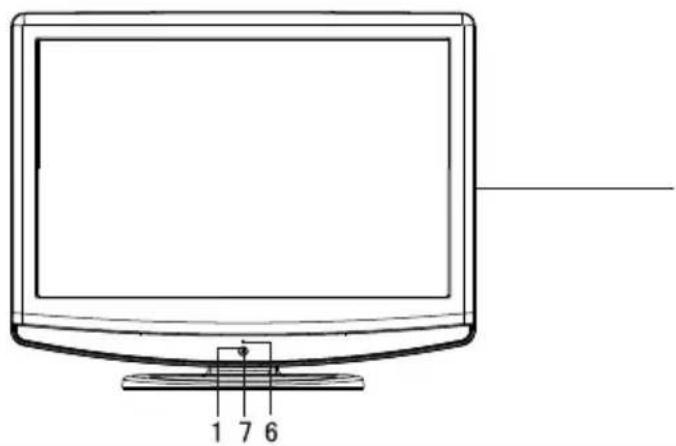
natural_image
Line drawing of a flat-screen computer monitor with labeled buttons (1, 7, 6) at the base (no text or symbols on the device itself)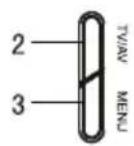
R1 series
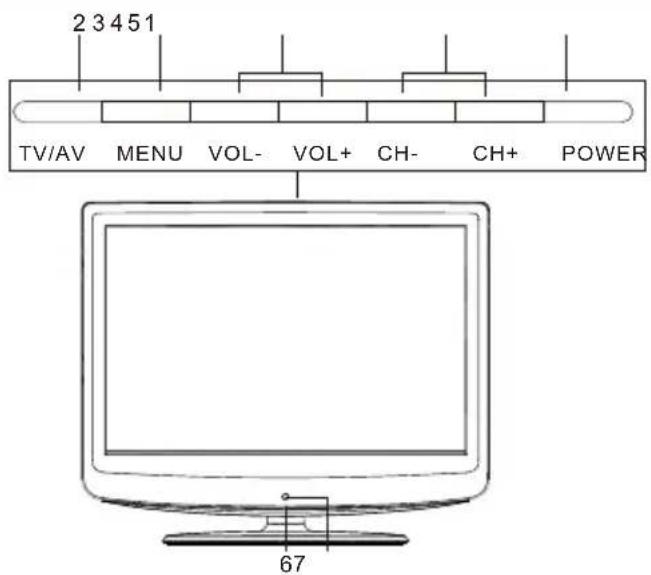
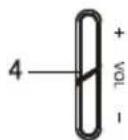
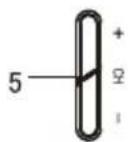
Control Panel Function
- Power
- TV/AV Selects the input signals.
- MENU Press to select the main menu
- VOL- Volume down / Left button to adjust the item in the OSD VOL+ Volume up / Right button to adjust the item in the OSD /Press to enter
- CH- TV channel down / to select the item in the menu CH+ TV channel up / to select the item in the menu
- Power indicator
- Remote Sensor Receives the signals from the remote control
Connection Options
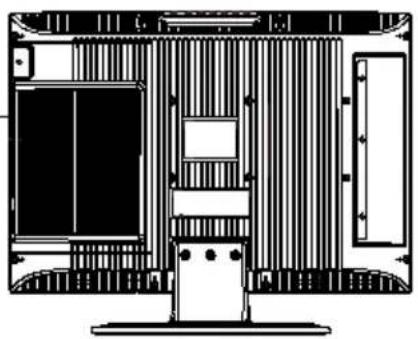
natural_image
Architectural cross-section diagram of a building facade with internal structural elements (no text or labels)(The above figure is for reference only, connections may differ depending upon the models and terminals of some models may be on the back bottom of the set
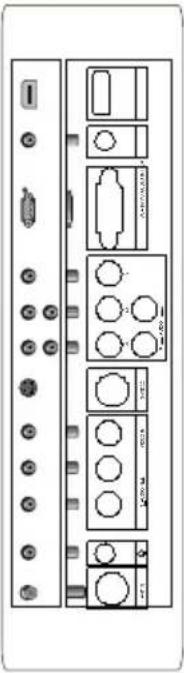
natural_image
Front view of a computer interface panel with ports, connectors, and buttons (no text or labels visible)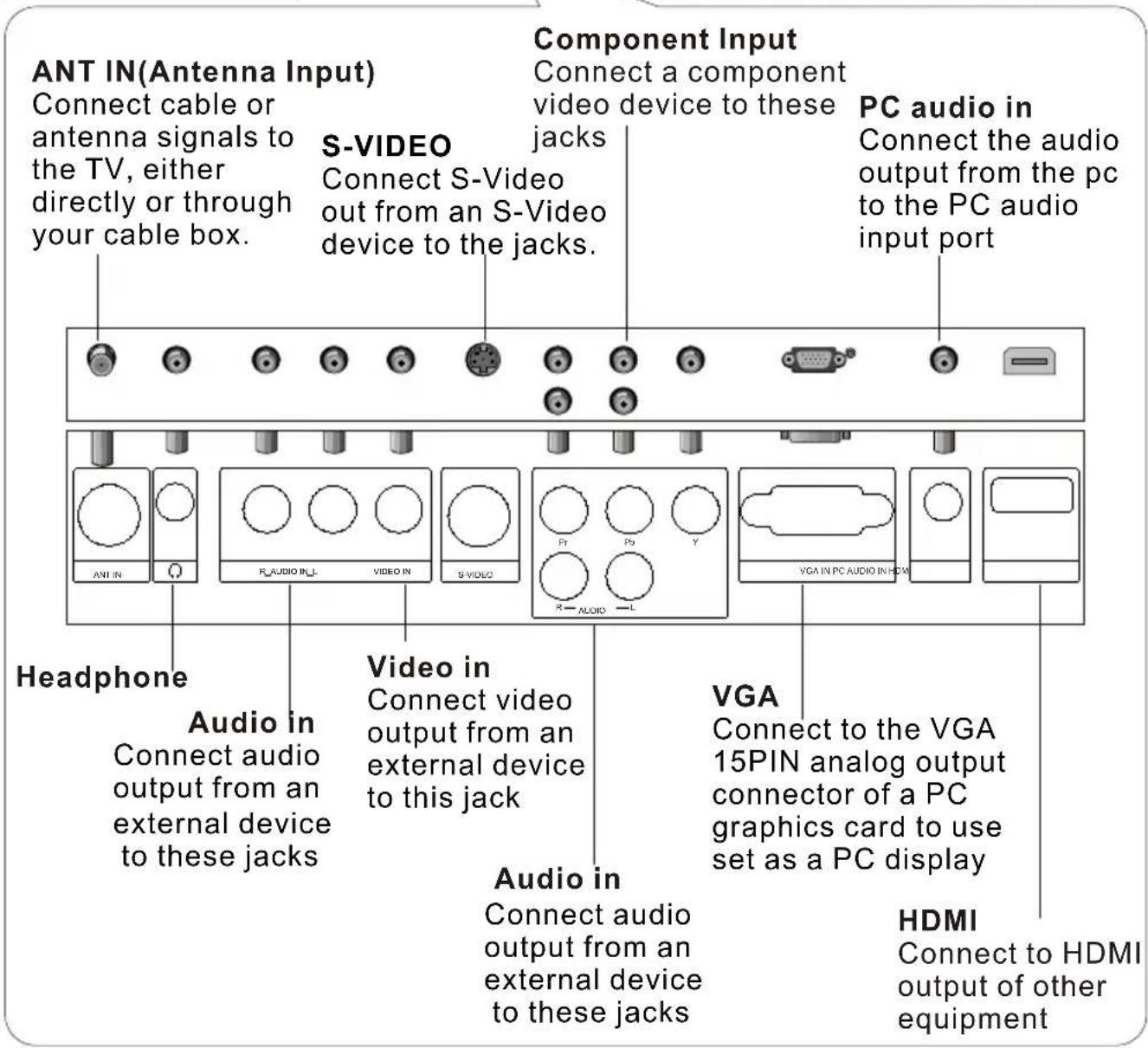
Remote Control
Installing Batteries
! Remove the battery cover.
! Insert two size AA batteries matching the +/-polarities of the battery to the +/-marks inside the battery compartment (see image 1-for remote of TV with DVD) ..
! Insert two size AAA batteries matching the +/-polarities of the battery to the +/-marks inside the battery compartment (see image 2-for remote of TV without DVD).
Precautions
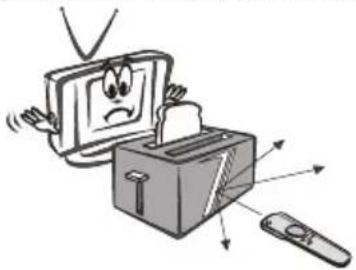
Make sure that there is no obstacle between the remote controller and television set.
natural_image
Cartoon illustration of a computer monitor with a sad face emerging from a box, emitting arrows to a remote (no text or symbols)Keep the remote control away from heat sources or humid areas to ensure effective performance of the remote.

natural_image
Cartoon illustration of a distressed computer monitor and remote with a broken screen (no text or symbols)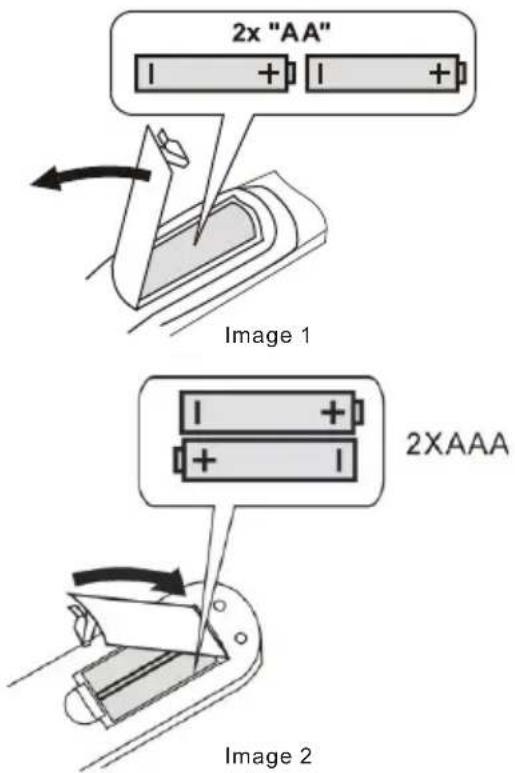
As strong light may interfere with the signals, change your position to operate the remote control if the television cannot be turned on or off as expected.

natural_image
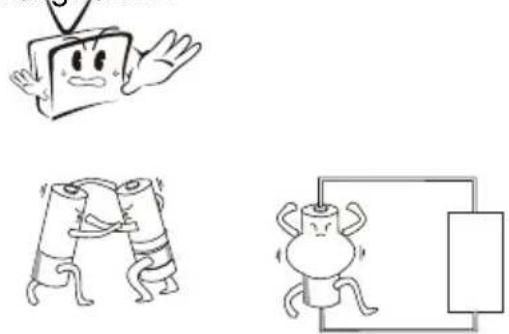
Cartoon illustration of a computer monitor with a sad face and a lightbulb, accompanied by a remote control (no text or symbols)Make sure that two AA 1.5V or AAA depending up the model alkaline batteries are loaded. The batteries must be of the same type, must be inserted properly, and must not be rechargeable.
natural_image
Three cartoon illustrations: a smiling cube with arms, a broken tool, and a bulb-like object (no text or symbols)Remote Control Key Functions
When using the remote control, aim it towards the remote sensor on the TV
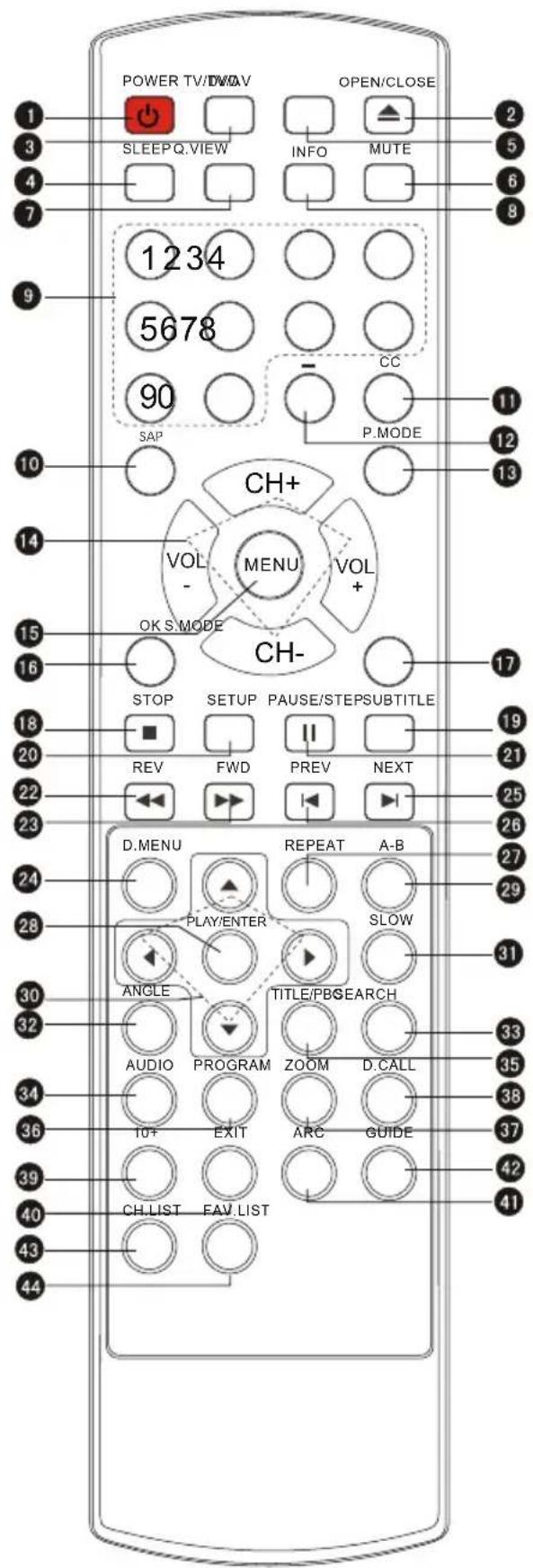
(For TV with DVD)
Buttons on the remote control
1 Power
2 DVD Open/close
3 Input selection
4 TV Sleep button
5 TV/DVD
6 Mute
7 Return to previous channel in TV mode
8 Program Infomation
9 Program Number
10 Select MONO,STEREO, SAP in NTSC system
11 CC( closed caption) On / Off
12 Select additional channels
13 Adjust Picture Mode
14 Volume/Channel Selection
15 MENU
16 Confirm button
17 Adjust sound mode
18 DVD STOP
19 DVD SUBTITLE
20 DVD SETUP
21 DVD PAUSE/STEP
22 DVD FAST REVERSE
23 DVD FAST FORWARD
24 DVD MENU
25 DVD Next Chapter
26 DVD Previous Chapter
27 DVD REPEAT
28 DVD PLAY/ENTER
29 DVD A-B REPEAT
30 DVD Cursor Move button
31 DVD SLOW
32 DVD ANGLE
33 DVD SEARCH
34 DVD AUDIO Mode
35 DVD TITLE/PBC
36 DVD PROGRAM
38 DVD CALL
40 Exit On Screen Display
41 Select the aspect ratio
42 Shows program schedule in TV
43 Open the channel list in TV
44 Open the favourite channel list in TV
Remote Control Key Functions
When using the remote control, aim it towards the remote sensor on the TV
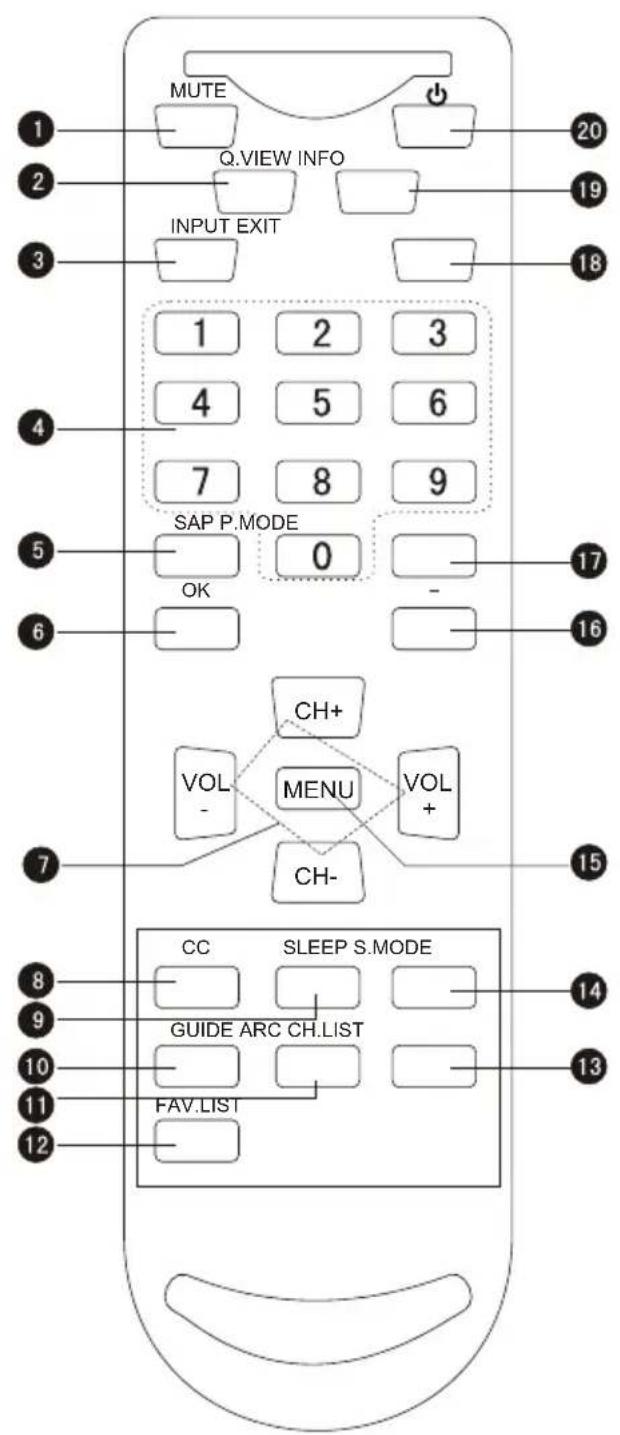
(For TV without DVD)
Buttons on the remote control
1 Mute
2 Return to previous channel in TV mode
3 Input selection
4 Program Number
5 Select MONO, STEREO, SAP in NTSC system
6 Confirm button
7 Volume/Channel Selection
8 CC (closed caption) On / Off
9 TV Sleep button
10 Shows program schedule in TV
11 Select the aspect ratio
12 Open the favorite channel list in TV
13 Open the channel list in TV
14 Adjust sound mode
15 MENU
16 Select additional channels
17 Adjust Picture Mode
18 Exit On Screen Display
19 Program Infomation
20 Power
Note: the instruction on this manual takes remote of TV with DVD for example.
Connection Instructions
Grounding
Ensure that you connect the grounding / earth wire to prevent possible electric shock. If grounding methods are not possible, have a qualified electrician install a separate circuit breaker. Do not try to ground the unit by connecting it to telephone wires, lightening rods, or gas pipes.
External Equipment Connections
Antenna Connection
- Antenna or Cable Service with a Cable Box Connections
- For optimum picture quality, adjust antenna direction if needed.
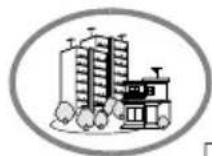
Multi-family Dwellings/Apartments (Connect to wall antenna socket)

Single-family Dwellings /Houses (Connect to wall jack for outdoor antenna)
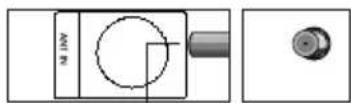

Be careful not to bend the bronze wire when connecting the antenna.
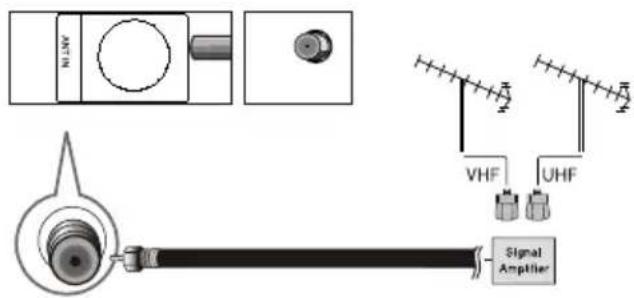
● To improve picture quality in a poor signal area, purchase and install a signal amplifier.
- If the antenna needs to be split for two Tvs, install a 2-Way Signal Splitter " in the connections.
- If the antenna is not installed properly, contact your dealer for assistance.
NOTE: Cables shown are not included with the TV
Connection Instructions
VGA Setup
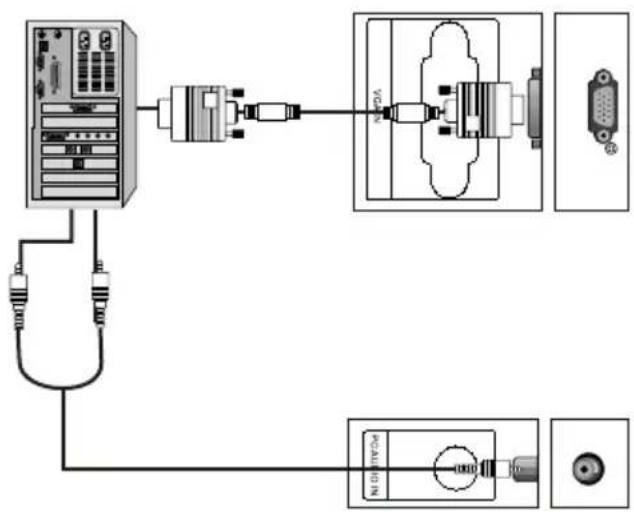
You can use your LCD-TV as a monitor for your personal computer using a VGA cable (not supplied).
Connection and use steps:
- Read the user guide supplied with your computer and ensure that it has a VGA connector;
- Make sure that the power of the LCD -TV and the PC are off;
-
Connect a D type 15-pin PC interface cable (not supplied) to the PC video interface connector on the PC. Then connect the other end to the PC video interface connector on the back of the LCD-TV. Tighten the screws on the PC connectors once they are firmly connected;
-
Turn on the power of the LCD-TV first, and then turn on the power of the PC;
-
Press the TV/AV button to set the video input mode of the LCD-TV to PC; Once the input for PC is selected and if you see no image press function F8 on you pc.
-
Check the image on your TV. There may be noise associated with the resolution, vertical pattern, contrast or brightness in PC mode. If noise is present, change the PC mode to another resolution, change the refresh rate to another rate or adjust the brightness and contrast on the menu until the picture is clear. If the refresh rate of the PC graphic card can not be changed, change the PC graphic card or consult the manufacturer of the PC graphic card.
flowchart
graph TD
    A["Server"] --> B["Router"]
    B --> C["Port 1"]
    B --> D["Port 2"]
    B --> E["Port 3"]
    B --> F["Port 4"]
    B --> G["Port 5"]
    B --> H["Port 6"]
    B --> I["Port 7"]
    B --> J["Port 8"]
Resolution
| Mode | Resolution | Line frequency(KHz) | Frame frequency(Hz) |
| VGA | 640x480 | 31.5 | 60 |
| SVGA | 800x600 | 37.9 | 60 |
| XGA | 1024x768 | 48.4 | 60 |
Note: All above listed are subject to VESA criteria.
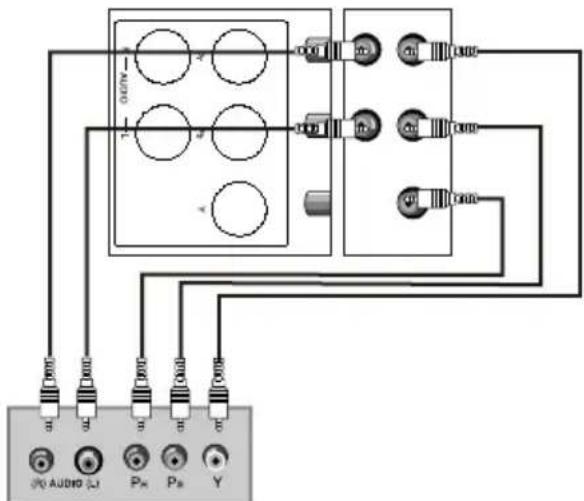
Component Setup
How to connect
Connect the DVD video outputs (Y, PB, PR) to the Component(Y, Pb, Pr) IN jacks on the TV and connect the DVD audio outputs to the AUDIO IN jacks on the TV, as shown in the figure.
NOTE: If your DVD player does not have component video output, use S-Video.
How to use
- Turn on the DVD player, insert a DVD.
- Use the TV/ATV on the remote control to select the proper input.
Connection Instructions
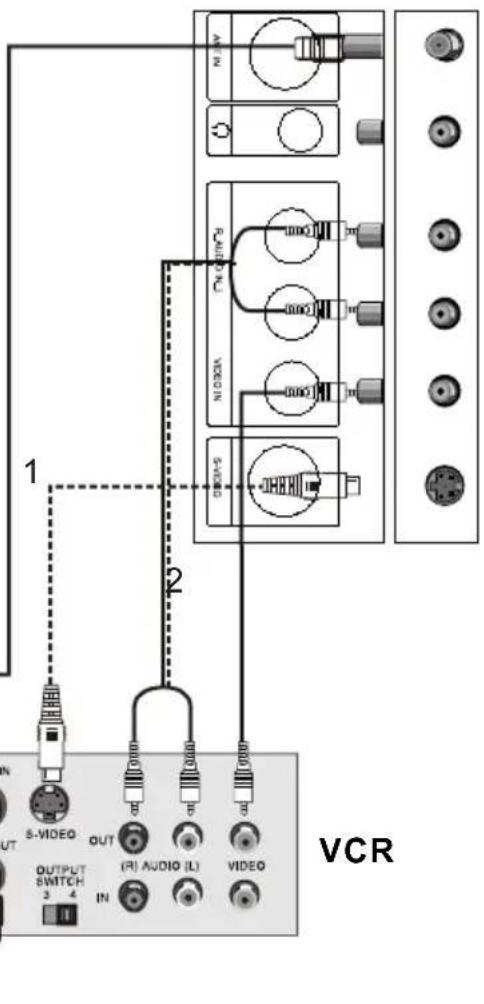
VCR Setup
- To avoid picture noise (interference), leave an adequate distance between the VCR and TV
Connection and use steps:
- Read the user guide supplied with your AV devices and ensure that it has Composite or S-Video connectors;
- Make sure that the power of the LCD-TV and the AV device are off;
Connection Option 1
Set VCR output switch to 3 or 4 and then tune TV to the same channel number.
Connection Option 2
- Connect the audio and video cables from the VCR's output jacks to the TV input jacks, as shown in the figure. When connecting the TV to VCR, match the jack colors (Video = yellow, Audio Left = white, and Audio Right = red). If you connect an S-VIDEO output from VCR to the S-VIDEO input, the picture quality is improved; compared to connecting a regular VCR to the Video input.
- Insert a video tape into the VCR and press PLAY on the VCR. (Refer to the VCR owner's manual.)
- Turn on the LCD-TV first; and then turn on the power of the AV device;
- Press the TV/AV button to set the video input mode of the LCD-TV to S-Video mode or Video mode.
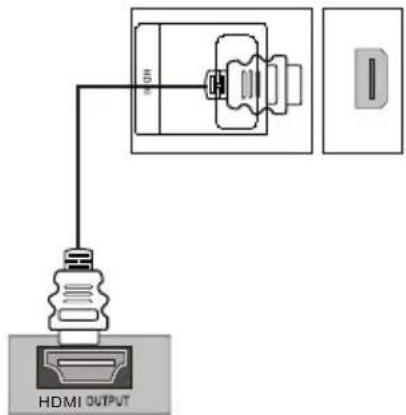
HDMI Input
How to connect
Connect the cables from the external equipment's output jacks to the TV input jacks, as shown in the figure.
How to use
- Select the input source by using TV/AV button on the remote control or on the TV.
- Operate the corresponding external equipment. Refer to external equipment operating guide.
Connection Instructions
Cable TV Setup
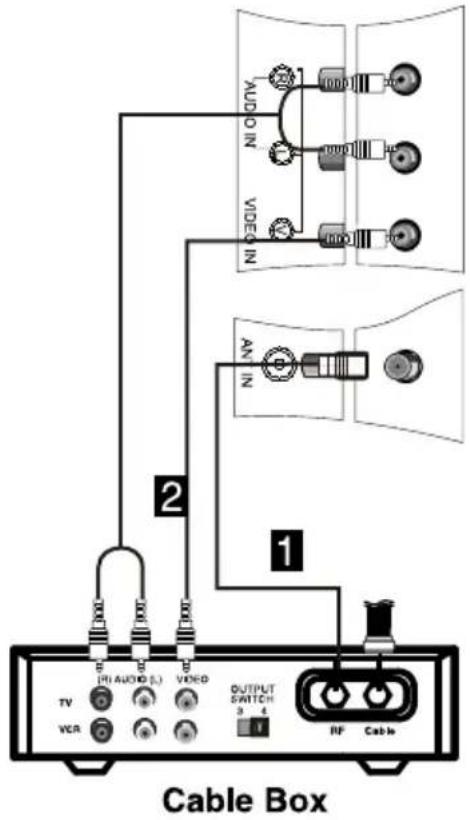
- After subscribing to a cable TV service from a local provider you can watch cable TV programming. The TV cannot display TV programming unless a TV tuner device or cable TV converter box is connected to the TV.
- For further information regarding cable TV service, contact your local cable TV service provider(s).
Connection Option 1
- Select 3 or 4 with channel switch on cable box.
- Tune the TV channel to the same selected output channel on cable box.
- Select channels at the cable box or with the cable box remote control.
Connection Option 2
- Connect the audio and video cables from the Cable Box's output jacks to the TV input jacks, as shown in the figure. When connecting the TV to a Cable Box, match the jack colors
- Select the input source by using theTV/AV button on the remote control.
- Select your desired channel with the remote control for cable box.
$$ \begin{array}{l} \text {(Video = yellow, Audio Left = white, and} \ \text {Audio Right = red).} \end{array} $$
External Component Source Setup
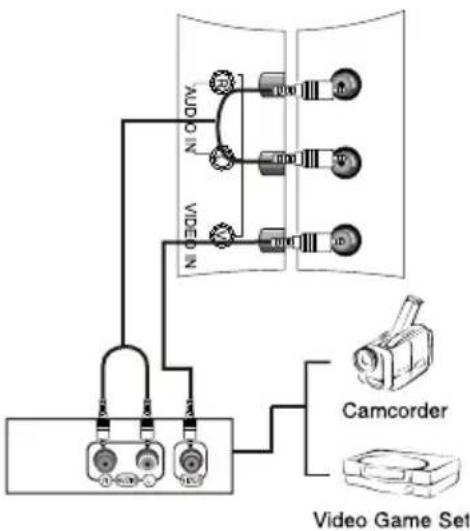
How to connect
Connect the audio and video cables from the external equipment's output jacks to the TV input jacks, as shown in the figure. When connecting the TV to external equipment, match the jack colors (Video = yellow, Audio Left = white, and Audio Right = red).
How to use
- Select the input source by using the TV/AV button on the remote control.
- Operate the corresponding external equipment. Refer to external equipment operating guide.
flowchart
graph TD
    A["Video Game Set"] --> B["Camcorder"]
    B --> C["Video Game"]
    C --> D["ACO NO."]
    C --> E["ACO NO."]
    C --> F["ACO NO."]
    C --> G["ACO NO."]
    C --> H["ACO NO."]
    C --> I["ACO NO."]
    C --> J["ACO NO."]
    C --> K["ACO NO."]
Basic Operating Instructions
Switch On/Off the TV set
When the POWER ( ⏻ button is pressed and the LCD-TV is turned on, the indicator light on the front of the LCD-TV changes from red to green. When the LCD-TV is turned off using the power button, the LCD-TV will go into standby mode and the indicator light turns red(or turns dark).
NOTE: The color of the indicator light may differ based upon the model purchased.
Choose the input source
Change the picture source so you can watch your TV, VCR, DVD, Cable, or any other devices that are connected to your TV.
-
Press the TV/AV button to enter the Select Source menu and then use TV/AV button to select the desired items (TV, Video, S-Video, Component DVD, PC, HDMI).
-
Press the OK button to confirm.
Audio Control
- Press the VOL+ button to increase the volume. A number will appear on screen indicating the volume level.
- Press the VOL- button to decrease the volume. A number will appear on screen indicating the volume level.
Mute
- Press the MUTE button to mute the sound temporarily. A mute icon Appears on the screen.
- Press the MUTE button or VOL+ again to restore the sound. The mute icon disappears.
INFO
Press INFO button to display current program information.
Basic Operating Instructions
Select the TV Channel You Want
You can use the number buttons and button on the remote control to directly select TV channels and press OK to confirm.
And you can press the buttons(CH+/CH-) on the remote control or on the panel to make a selection.
Picture Mode
Press PoMode on the remote control for menu display. For desired mode as follows:
Mild Standard Vivid Custom
Audio Mode
Press S.MODE button on the remote control for menu display. For desired mode as follows:
Press SLEEP button to set the time : Off-5 Min-10 Min-15 Min-30 Min-45 Min-60 Min-90 Min-120 Min-180 Min-240Min
This function allows you to turn off the television after a pre-selected number of minutes
GUIDE(only available in digital signal)
Press GUIDE button in digital channels to display Guide menu.(This menu is just for you to see the information and can not be changed)
Press VOL+/VOL- to select information for you to look over.
ARC button
Press to select the aspect ratio among Full Screen, Normal, Wide, Zoom and Cinema. (Display mode may differ from different inputs)
Basic Operating Instructions
-button
Press to select additional channels (digital and analog) being broadcast by the same station. For example, to select digital channel "11.1", press "11", then press "■" and "1".
CH.LIST button
Press to display the channel list. Press VOL+/VOL- to turn to the next or previous page, press CH+/CH- to select the item and OK button to select the channel you desired.
FAV.LIST button
Adding favorite channels
Press FAV.LIST under one channel. The favorite channel list opens.
Press CH+ or CH- to select a blank box, then press OK to confirm.
The channel will be added to the favorites channel list.
Press OK again, the channel will be removed from the favorites channel list.
Tuning to a favorite channel
Press FAV.LIST. The favorite channel list opens.
Press CH+ or CH- to select the channel and press OK to confirm.
Your LCD TV automatically tunes to the channel you selected.
Menu Operations
* In this manual, the OSD (On Screen Display) may be differ from your TV. These are examples to illustrate the TV's operation.
Press TV/AV to select the input source. The menu for each source may be different.
- Press MENU button to display the main menu, and CH+/CH- to select the main menu function.
- Press VOL+/OK button to enter the sub menu and CH+/CH- to go up and down to select the desired option.
- Press VOL+/OK button to confirm and VOL+/VOL- to make changes to the parameters
- Press the EXIT button to return to the main menu.
- Press the MENU button to exit the menu screen.
Video Menu Options
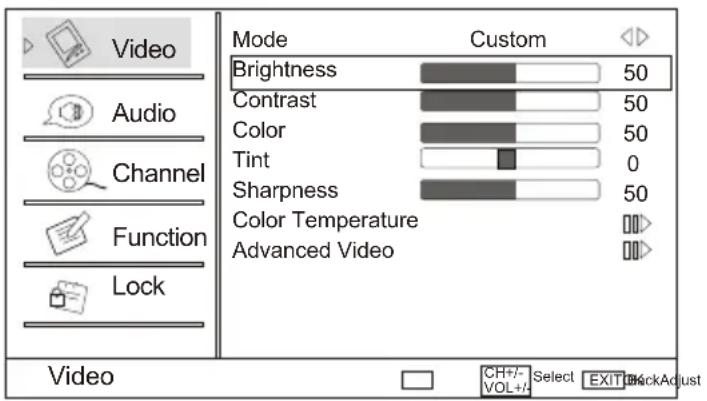
Picture quality can be adjusted for any input separately.
The picture quality on the screen can be adjusted as follows:
- Press MENU button and CH+/CH- until the following menu appears on the screen.
- Press VOL+/OK button to enter the menu function and CH+/CH- to scroll up and down to select the desired function.
- Press VOL+/OK button to confirm and VOL+/VOL- increase and decrease the level to adjust the selected option to your preference.
- Repeat step 2 and step 3 until desired picture quality has been achieved.
Note:
- The options may be different because of the inputs.
- Symbols on top of the menu in this manual may differ from the actual set display.
- The picture options can be changed only in Custom mode only, the other modes are fixed.
Menu Operations
Video Menu Options continued
Function:
Mode: Select the type of picture which best corresponds to your viewing requirements by selecting Picture Mode in Video menu. You may select the picture mode directly by pressing the PbMODE on the remote control.
Brightness :Press CH+/CH- button and VOL+/OK to confirm, then press VOL+/VOL- to adjust the brightness of the picture.
Contrast: Press CH+/CH- button and VOL+/OK to confirm, then press VOL+/VOL- to adjust the contrast of the picture.
Color : Press CH+/CH- button and VOL+/OK to confirm, then press VOL+/VOL- to adjust color saturation.
Tint : Adjust the tone of the picture .
Sharpness : Adjust the amount of the detail enhancement , the image sharpness rises as the number increases (By increasing the level, it will show cleaner and clearer images and by decreasing the level, it will make the picture smoother).
Color Temperature: This will increase or decrease Warm (red) and Cool (blue) colors to suit personal preferences. Select Cool to give the white colors a blue tint, Standard to give the white colors a neutral tint, Warm to give the white colors a red tint. Color temperature This will increase or decrease Warm (red) and Cool (blue) colors to suit personal preferences. Select Cool to give the white colors a blue tint, Standard to give the white colors a neutral tint, Warm to give the white colors a red tint.
Contrast, Brightness, Sharpness, Color Temperature and Tint can only be adjusted when Mode in Custom mode.
Advanced Video: To adjust the picture in advanced level:
DNR: Digital Noise Reduction. To adjust to reduce the appearance of digitizing error caused by the compression:Medium,Strong,Off and Low.
Black Level Extender: To adjust the ability in the black areas detail of the picture: On and Off.
White Peak Limiter: To adjust the ability in the white areas detail of the picture: On and Off.
CTI: Color Transient Intensity. To adjust the picture for color errors: Medium, Strong, Off and Low
Flesh Tone: To adjust the flash colors: On and Off.
Adaptive Luma Control:To adjust changes in the luminance of the picture:On and Off
Menu Operations
Audio Menu Options
Sound can be adjusted for any input as follows:
- Press MENU button and CH+/CH- until the following menu appears on the screen.
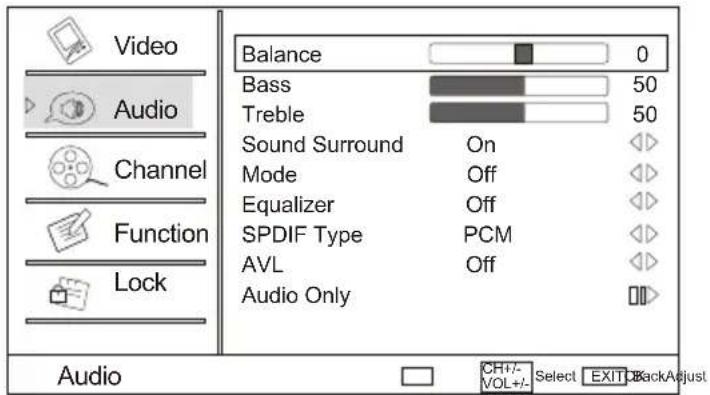
You can adjust sound options to the levels you prefer.
- Press VOL+/OK button to enter the Audio menu and CH+/CH- to go up and down to select the desired option.
- Press VOL+/OK button to confirm and VOL+/VOL- increase and decrease the level to adjust the selected option to your preference.
- Repeat step 2 and step 3 until desired audio quality has been achieved.
Function :
Balance : Press CH+/CH- button and VOL+/OK to confirm, then press VOL+/VOL- to adjust the audio output between left and right speakers.
Bass : Press CH+/CH- button and VOL+/OK to confirm, then press VOL+/VOL- to increase or decrease the level of the lower-pitched sounds.
Treble : Press CH+/CH- button and VOL+/OK to confirm, then press VOL+/VOL- to increase or decrease the level of the higher-pitched sounds
Sound Surround: To turn the simulated surround sound on and off.
Mode : Press VOL+/OK to select the type of sound which best corresponds to your lightning requirements by selecting Mode in Audio menu.
Equalizer: To adjust the equalizer: Off, Rock, Pop, Live, Dance, Techno, Classic and Soft.
Menu Operations
Audio Menu Options Continued
SPDIF Type: To adjust the spdifoutput: Off, Dolby Digital and PCM.
AVL: This will reduce the differences in volume level among broadcasters.
Audio Only: Press VOL+/OK button to confirm, the following display will appear on the screen:
If enter Audio Only mode, press POWER to exit!
OK Cancel
Press VOL+/VOL- to select OK, then press OK to confirm. The TV screen will be black and no picture, but the sound is still normal.
You can press POWER button to reveal the picture on the screen.
SAP Broadcasts Setup:
This TV can receive MTS stereo programs and SAP
(Secondary Audio Program) that accompanies the stereo program;
if the station transmits an additional sound signal as well as the original one.
When having selected SAP button on the remote control, this TV can only receive the signal when the TV station transmits the proper signals.
Mono sound is automatically received if the broadcast is only in Mono; even though Stereo or SAP has been selected.
Select Mono if you want to listen to mono sound during stereo/SAP broadcasting.
Stereo or SAP can be received in a Analog channel.
- Use the SAP button to select your desired MTS mode in a analog signal. Each time you press the SAP button, Mono, Stereoor SAP appear.
If other languages are available on the digital signal, select them with the SAP button.
- Press EXIT button to save and return to TV viewing.
Menu Operations
Channel Menu Options
- Press MENU button and CH+/CH- until the following menu appears on the screen.
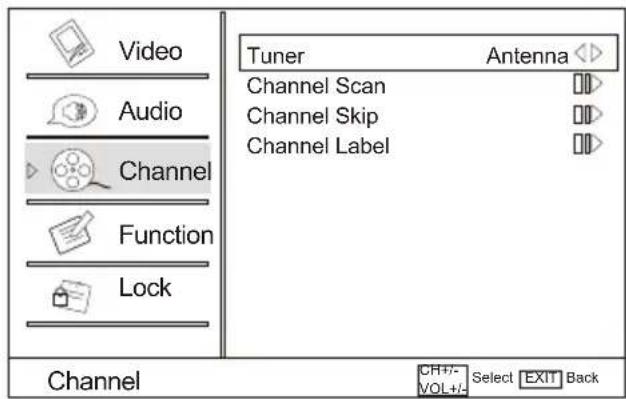
Note: Channel menu will appear in main menu only in TV mode.
- Press VOL+/OK button to enter the Channel menu and CH+/CH- to go up and down to select the desired option.
- Press VOL+/OK button to confirm and VOL+/VOL- increase and decrease the level to adjust the selected option to your preference.
- Repeat step 2 and step 3 until desired quality has been achieved.
Function:
Tuner: Press VOL+/OK button to select Antenna or Cable.
Channel Scan: Press VOL+/OK button to start to scan, press EXIT to cancel
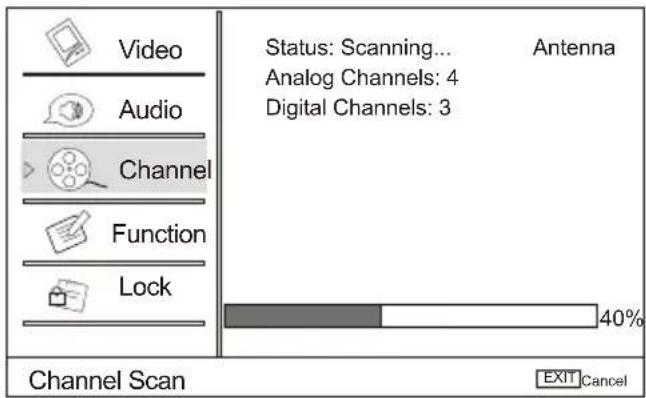
All channels now available will be automatically preset in order. After the search has finished, the first program number will display on the screen. This search automatically adds only the active channels in your area to the TV's memory. It deletes any channels on which there is no broadcast or a poor signal. The channels found are automatically saved.
Menu Operations
Channel Menu Options Continued
Channel Skip: Press VOL+/OK button to enter the submenu, then press CH+/CH- to select the channel number (eg.2) and press OK to confirm, a mark will be displayed in the pane as follows and this channel will be skipped next time you press CH+/CH- but you can press digits button to select the channel. If you want to resume the channel, press OK button again.
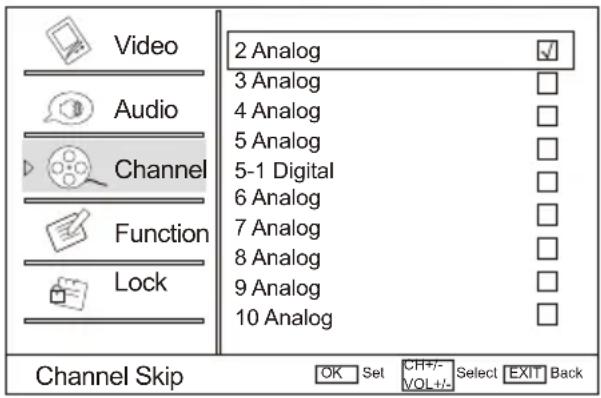
Channel Label: Allows you to name the channel that is selected. Press VOL+/OK button to enter the submenu.

Then press CH+/CH- to select Channel Index and Channel Label and VOL+/VOL- to select the position of the item that you want to change, afterward press TV/AV to input the numbers and symbols and OK button to confirm.
Menu Operations
Function Menu Options
- Press MENU button and CH+/CH- until the following menu appears on the screen.
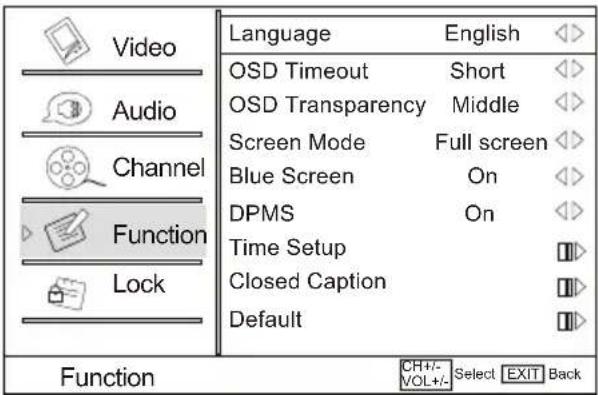
- Press VOL+/OK button to enter the Function menu and CH+/CH- to go up and down to select the desired option.
- Press VOL+/OK button to confirm and VOL+/VOL- increase and decrease the level to adjust the selected option to your preference.
- Repeat step 2 and step 3 until desired quality has been achieved.
Function:
Language: Press VOL+/VOL- button to select language of the OSD.
OSD Timeout: Press VOL+/VOL- to select Middle, Short and Long to change the time of the OSD display.
OSD Transparency: Press VOL+/VOL- to select among Low, High and Middle to change the transparency of the OSD. To select Low, the OSD is opacity.
Screen Mode: Press VOL+/VOL- to select among Full Screen, Normal, Wide, Zoom and Cinema to change the display mode. (display mode may differ from different inputs)
Blue Screen: Press VOL+/VOL- to select On, the screen will be in blue after 3 seconds if there is no signal.
DPMS: PC Power Management. To set On, the set will be in standby mode automatically if no signal in 2 minutes; if signal input, the set will be on again automatically.
Time Setup: Press VOL+/OK to enter the submenu.
Time Zone: Press VOL+/VOL- to select the appropriate time zone.
Menu Operations
Function Menu Options Continued
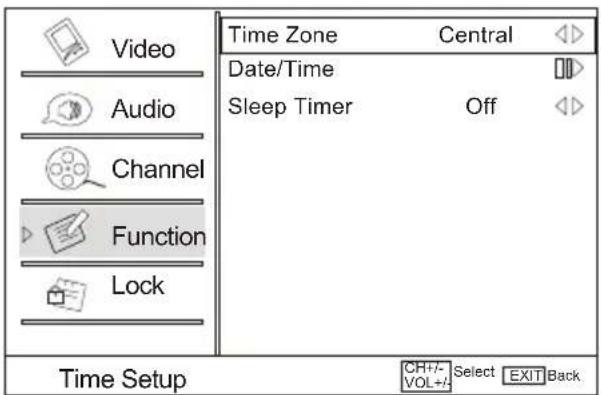
Date/Time: Press VOL+/OK to enter the submenu.
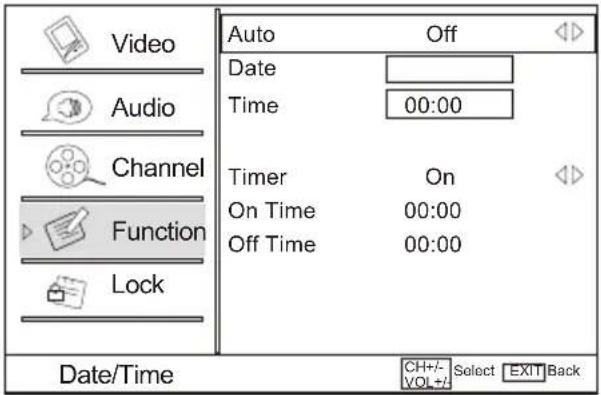
AUTO: Press VOL+/VOL- to select On or Off. When AUTO mode on, the time can not be adjusted. Select Off, you can operate to set the time manually.
Date: Press VOL+/VOL- to select the position and digits button to set the date.
Time: Press VOL+/VOL- to select the position and digits button to set the time.
Timer: Press VOL+/VOL- to select On or Off. To select Off, the time can not be adjusted.
On Time/Off Time: Press VOL+/VOL- to select the position and digits button set the time.
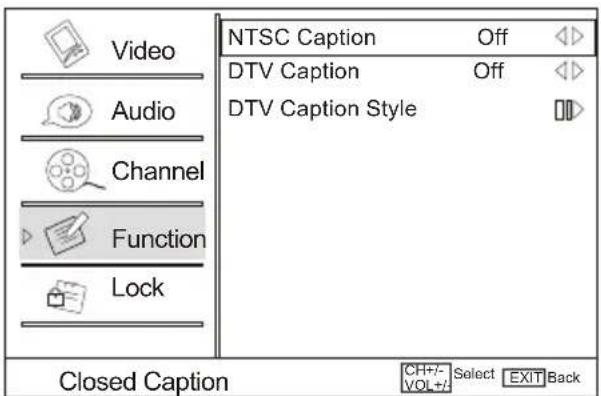
Closed Caption: Press VOL+/OK to enter the submenu.
Menu Operations
Function Menu Options Continued
NTSC Caption: Press CH+/CH- to select the Closed Caption options. It helps the hearing impaired with the broadcast program, as well as helping children learn how to read. A built in decoder displays the audio portion of a program as text on the screen when this option is selected.
CC1: When CC1 is displayed on TV means CC mode is turned on.
CC2 to CC4: For other modes of video related broadcast information.
TEXT1: For program guide and other information displayed by broadcasters.
(This blocks a large portion of the picture on your screen).
TEXT2 to TEXT4 : For other modes of information displayed by broadcasters.
(This blocks a large portion of the picture on your screen).
IMPORTANT: Closed captioning availability entirely depends on broadcasters supplying the signal. Therefore, closed captioning might not always be available and language availability will differ by broadcast.
Note: Select CC1 for full translation of the primary language such as English in your area. Select CC2 for secondary language translation such as French or any other language that may be broadcast in your area.
DTV Caption: Press VOL+/VOL- to select Service1/Service2/Service3/Service4/Service5/Service6/Off.
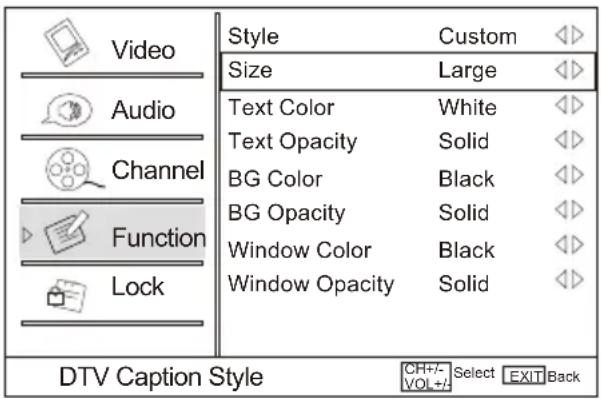
DTV Caption Style: Press VOL+/OK to enter the submenu.
ABC
Style: Press VOL+/VOL- to select one of Default and Custom. When you select default, the others are disable and can not be adjusted. When you adjust the following system, A mark of ABC in a pane will be on the right of the OSD to display the effect.
Size: Press VOL+/VOL- to select the size of caption display according to your own preference.
Text Color. Press VOL+/VOL- to select the text color or the opacity of the text box of caption display according to your own preference.
Select a color and one of the opacity options.
Text Opacity: Press VOL+/VOL- to specify the opacity for the text color.
BG Color: Press VOL+/VOL- to select a background color.
Menu Operations
Function Menu Options Continued
BG Opacity: Press VOL+/VOL-to select the opacity for the background color.
Window Color: Press VOL+/VOL- to select according your own preference
Window Opacity: Press VOL+/VOL- to select the edge color according your own preference.
Default: Press VOL+/OK to enter the submenu.
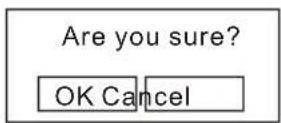
Press VOL+/VOL- to select OK or Cancel then OK to confirm. If OK, the parameter will return to the factory set.
Lock Menu Options
- Press MENU button and CH+/CH- until the following menu appears on the screen.
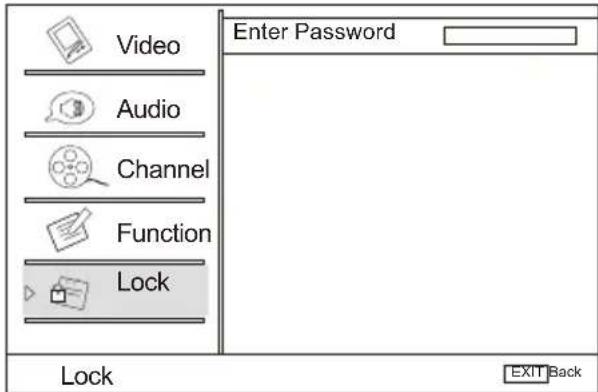
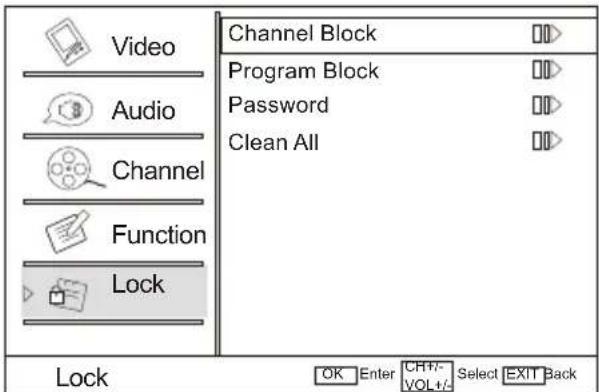
- Press VOL+/OK to enter and then press digits button to input the digits( The initial password is 0000. If you forget your password, you can always input 9443 to regain control). The menu will display as follows:
Menu Operations
Lock Menu Options Continued
Channel Block: Press VOL+/OK to enter the submenu as follows.
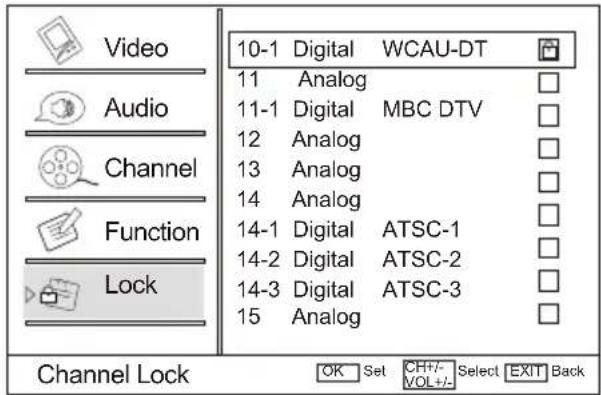
Press CH+/CH- to select the channel you want to lock, then press OK to confirm. The channel is locked and a lock mark appears in the pane. If you want to unlock the channel, repeat the operation above again. Then press EXIT to exit step by step.
Program Block: Press VOL+/OK to enter the submenu as follows.
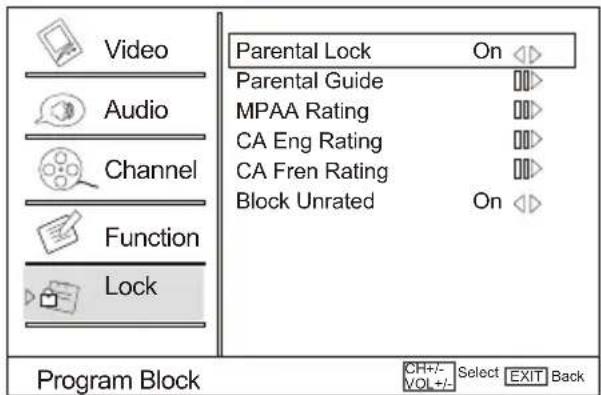
Parental Lock: Press VOL+/VOL- to select On or Off. Used to lock all the system following. To set Off, the system following can not be available.
Parental Guide: Press VOL+/OK to enter the submenu as follows. Press CH+/CH-/VOL+/VOL- to select the item you want to lock. Then press OK to confirm to lock and press again to resume it.
Parental Guide Technology:
The "P.L. Technology" allows you to use U.S. and Canadian Movies and TV PROGRAMS Guide ratings to block certain types of TV programs and movies.
To clearly understand TV program rating codes, read the following information:
Menu Operations
Lock Menu Options Continued
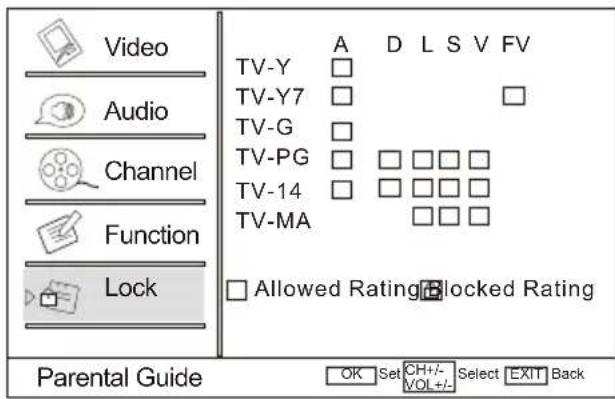
U.S. TV Program Ratings
TV-Y: For all children - these types of rated programs are designed for a very young audience, including children from ages 2-6.
TV-Y7: Directed towards older children - this type of rated programs may include comedic violence of mild physical, or may frighten children under the age of 7.
TV-G: General audience - these types of rated programs contains little or no violence, no strong language, and little or no sexual dialogue and situations.
TV-PG: Parental Guidance Suggested this type of rated programs may contain limited violence, some suggestive sexual dialogue and situations, and rare language.
TV-14: Parents strongly cautioned-these types of rated programs may contain sexual content, strong language and more intense violence.
TV-MA: Mature audience only these types of rated programs may contain sexual violence, explicit sexual content and profane language.
(A)All: Blocks all available sub_ratings.
(FV)Fantasy Violence : This type of rated programs contain Fantasy and cartoon violence.
(D)Dialogue: This type of rated programs contain dialogue with sexual content.
(L)Language: This type of rated programs contain offensive language.
(S)Sex: This type of rated programs contain sex.
(V)Violence: This type of rated programs contain violence.
Menu Operations
Lock Menu Options Continued
MPAA Rating: Press VOL+/OK to enter the submenu as follows.
Press CH+/CH- to select the item you want to lock. Then press OK to confirm to lock and press again to resume it.
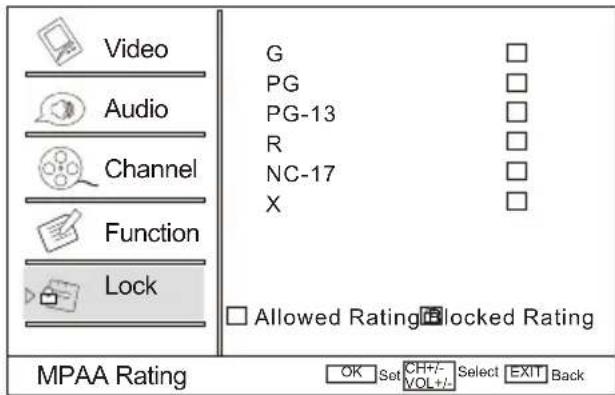
To understand clearly about movie rating codes, read the following list:
U.S. Movie Rating Chart
G: General Audience-this type of movie rating means all ages admitted to see the movie.
PG: Parental guidance suggested. Some material may not be suitable for children.
PG-13: Parents Strongly Cautioned - this type of movie rating means some material may not be appropriate for children under 13.
R: Restricted- This type of movie rating means children under 17 of age require to be with parent or guardian.
NC-17: This type of movie rating means no one 17 and under admitted.
X: This type of movie rating means adults only.
CA Eng Rating: Press VOL+/OK to enter the submenu as follows.
Press CH+/CH- to select the item you want to lock. Then press OK to confirm to lock and press again to resume it.
Menu Operations
Lock Menu Options Continued
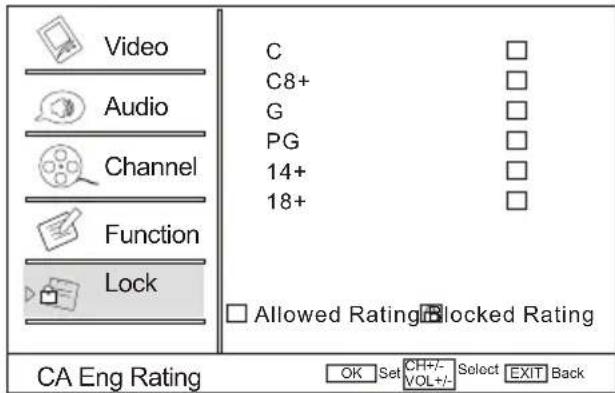
To clearly understand Canadian program rating codes, read the following list:
Canadian English Rating Chart
C: This type of programming is intended for children under age 8. There is no offensive language, nudity or sexual content.
C8+: These types of rated programs are generally considered acceptable for children 8 years and over. There is no profanity, nudity or sexual content.
G: These types of rated programs are generally suitable for all audiences.
PG: Parental Guidance Suggested -in these types of rated programs, some material may not be suitable for children.
14+: In these types of rated programs, some content may not be suitable for viewers under the age of 14. Parents are strongly cautioned not to have their children view 14+ rated programs by pre-teens and early teens.
18+: Adults Only-these types of rated programs are only for adult viewers only.
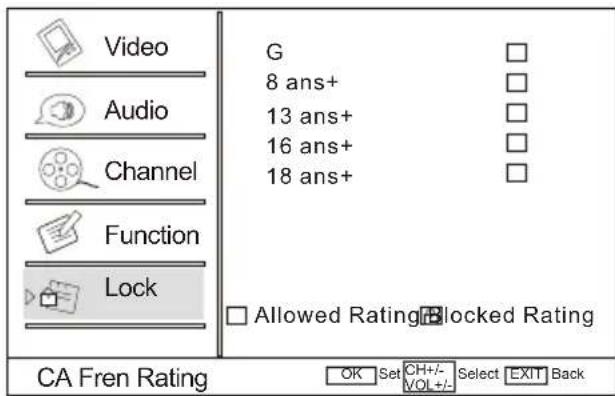
CA Fren Rating: Press VOL+/OK to enter the submenu as follows.
Press CH+/CH- to select the item you want to lock. Then press OK to confirm to lock and press again to resume it.
Menu Operations
Lock Menu Options Continued
Canadian French Rating Chart
G: These types of rated programs are generally suitable for all audiences.
8 ans+: Children 8 years and above (French)
13 ans+: 13 years old and above(French)
16 ans+: 16 years old and above(French)
18 ans+: Adults Only-these types of rated programs are only for adult viewers only.
Blocked Unrated: Press VOL+/VOL- to select On or Off.
Used to lock all the channel not rated.
Password: Press VOL+/OK to enter the submenu, press digits button to input the number of 0-9 twice in the New Password and Confirm Password. Then you can change the password when you input the same number twice.
Clean All: Press VOL+/OK to enter the submenu:
Are you sure?
OK Cancel
Press VOL+/VOL- to select OK or Cancel then OK to confirm. If OK, the parameter will return to the factory set.
Note: if there is any lock mark on the top of the set such as channel lock, parental lock and so on, you can press OK to resume it .( Press OK to display password menu and input your password.)
PC Menu Options
- Press MENU button and CH+/CH- button to select Feature menu in VGA mode.
- Press VOL+/OK button to enter the Video menu and CH+/CH- to go up and down to select the desired option.
Menu Operations
PC Menu Options Continued
- Press VOL+/OK button to confirm and VOL+/VOL- increase and decrease the level to adjust the selected option to your preference.
- Repeat step 2 and step 3 until desired quality has been achieved.
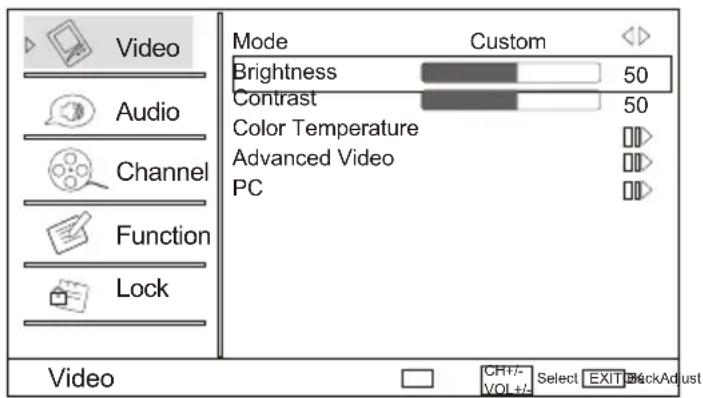
PC: Press CH+/CH- button to select and VOL+/OK to confirm, the PC menu as below:
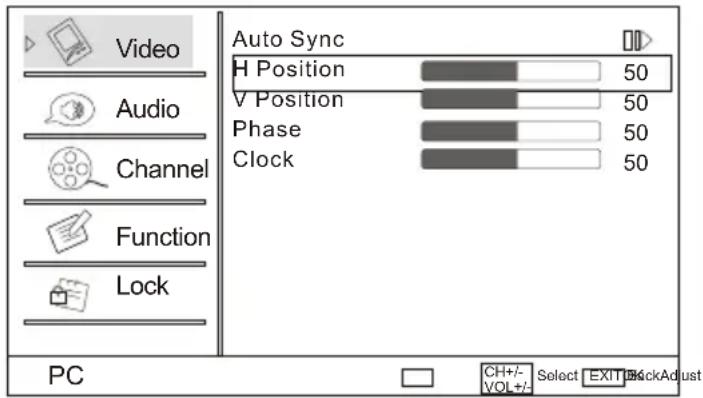
Auto Sync: Press CH+/CH- button and then press VOL+ to auto adjust that automatically adjusts the available options for the best viewing configuration.
H Position: Press CH+/CH- button and then press VOL+/VOL- to adjust the horizontal position of the picture.
V Postion: Press CH+/CH- button and then press VOL+/VOL- to adjust the vertical position of the picture.
Phase: Press CH+/CH- and then press VOL+/VOL- to adjust the phase of the picture.
Clock: Press CH+/CH- button and then press VOL+/VOL- to adjust the clock of the picture.
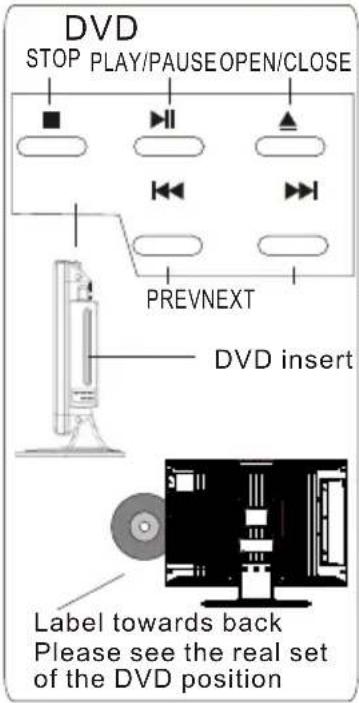
DVD Features
Basic Playback
Preparations
- Press the TV/DVD button on the remote control to enter the DVD status.
- Note: Do not insert a disc until the DVD input states open
Basic playback
-
Place the DVD in the disc slot. The disc will be loaded automatically after one to two seconds then the DVD player reads the DVD and displays the opening menu If there is no disc placed in DVD mode, OPEN will display on the screen all the times)
-
Do not place a disc that is unplayable in this DVD player.
-
Some discs do not start automatically. Press PLAY/ENTER to start playback.
-
Some discs may start playback with a menu. Use the cursor buttons on the remote control to select menu options and press PLAY/ENTER to start. You may also press the digit buttons to select a menu option directly. Many DVDs will not allow this during start-up.
Pause playback
- Press PAUSE/STEP to pause playback (still mode). The sound will be muted during still mode.
- Press PLAY/ENTER to resume normal playback.
Stop playback
- Press STOP ■ button to go to stop mode, the TV screen will show the start logo. With some discs, such as DVD or CDs, the player can resume playback from the point where it was stopped.
- Press PLAY/ENTER to resume playback from the location where the playback was stopped.
- Press STOP twice to stop completely.
Previous and Next
During Playing, pressing the PREV ▶ key will restart the last chapter and skip chapters backwards with each subsequent press until the start of the disc is reached.
Each press of NEXT ▶ key during playing will skip the current chapter and play the next one.
Fast forward and Fast reverse
- Press FWD ▶ to fast forward through the disc. Each time the FWD ▶ button is pressed, the fast forward motion speed changes.
- Press PLAY/ENTER to resume normal playback.
- Press REV ◀ to fast reverse through the disc. Each time the REV ◀ button is pressed, the fast reverse motion speed changes.
- Press PLAY/ENTER to resume normal playback.
Single step playback
- When paused, press PAUSE/STEP continuous to single step forward to the next frame in the video.
- Press PLAY/ENTER to resume normal playback.
DVD Features(Continued)
Advanced Playback
IMPORTANT NOTE:
ALL DESCRIBED FUNCTIONS AFOR DVD DISCS. IF YOU PLAY OTHER DISC FORMATS THE OPERATION AND ON SCREEN DISPLAY WILL BE DIFFERENT.
SUBTITLE
Press " SUBTITLE ", the screen will display "SUBTITLE 01/XX XXXXX", "01" indicates the ordinal number of this language; "XX" indicates total number of language; "XXXXXX" indicates the language of country. (The number of language depends on disc.) This function can select up to 32 languages displayed on screen.
REPEAT
Press "REPEAT" and Chapter repeat will be displayed on screen, the second press will display Title repeat, the third press will display All repeat, the fourth press will cancel this function.
A-B
Press "A-B" to begin start-point, press again to set an end point and complete setting. The selected section A-B will be repeated. The third press will cancel this function.
ANGLE
When enjoying sports, concert or theatre, press this key to watch same actions in different angles. (Valid for discs possessing this function. Using a disc recorded in multi-angle you can view the scene from different angles, for example, front, side, whole view and exterior scene).
D.MENU
Press this key to display the root menu, select items according to your preference. (This function will work on a DVD with a multi-layer menu.)
D.CALL
Pressing this key will cycle through "Title Elapsed", "Title Remain", "Chapter Elapsed", "Chapter Remain" and "Display off".
PROGRAM
When playing discs, press "PROGRAM" to enter program mode. Press the digit buttons to select the program number that you want. When finished move the cursor to select "START". Press PLAY/ENTER to confirm. This will start the program playback.
SEARCH
Press "SEARCH" once to display the search menu. Press the button again to select. Press the program number buttons to input the item you require. Press PLAY/ENTER to confirm.
SLOW
Press SLOW to play a disc in slow motion. Each time the SLOW button is pressed, the slow motion speed changes. Press PLAY/ENTER to resume normal playback;
Note: This function dose not work for CD.
TITLE/PBC
With some DVD discs pressing this key will display the title menu. You can then use the digit buttons to select the item you prefer.
AUDIO
Press this key can change the mode of audio.
such as: Audio 1/2: AC 3 2 CH English
Audio 2/2: AC 3 5.1 CH English
Press this button to cycle between Mono Left, Mono Right, Mix-Mono and Stereo.
Note: When press this button continuously, you must allow a 3 second interval between selections.
Special Function Playback
JPEG DISC PLAYBACK
When a disc containing standard JPEG picture files is inserted into the player, a navigation menu will be displayed automatically. Use the UP and DOWN cursor buttons to select a file then press PLAY/ENTER. The slide show will commence.
Press PREVIOUS or NEXT to move between pictures. Press pause to stop on the current picture. Press PLAY/ENTER to resume normal playing.
A JPEG disc contains JPEG (.jpg) format picture information that can be decoded by a micro-computer software and displayed through the video output interface or on the television screen.
This function has many applications. For example one can save files from a scanner or digital camera in the JPEG format, record these on a CD-R disc and present them to an audience through this player.
The JPEG format is a convenient method to store images in a small amount of memory space, and is ideal for archiving information.
SCREEN SAVER FUNCTION
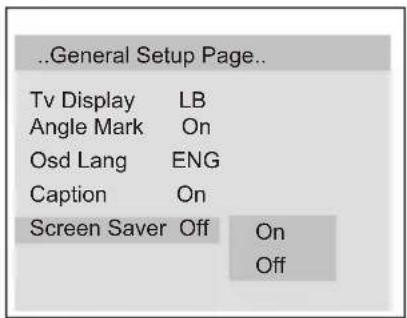
This unit employs a screen saver mode to help protect the tube during static video pictures. This can be turned off on the GENERAL SETUP PAGE.
DVD System Setup
DVD System Setup
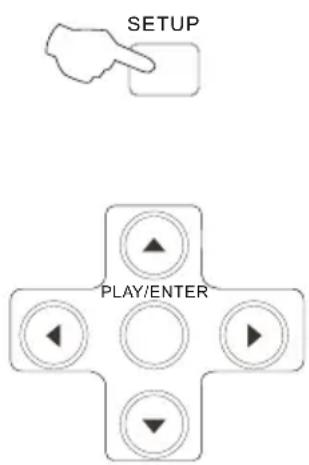

General Setup Process
-
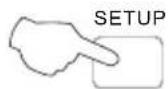
Press the setup button, the general set up page will be displayed press twice the preference page will be displayed
-
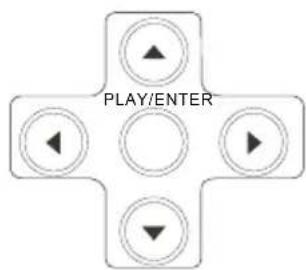
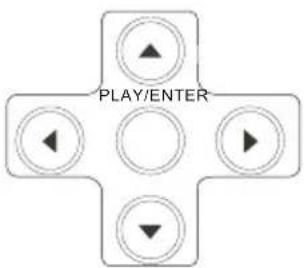
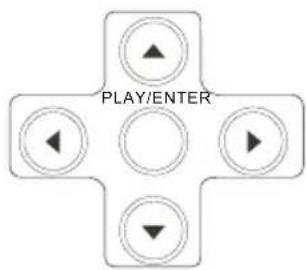
Press ▲ or ▼ to select, the item, then press▶ to enter the submenu.
-
Press ▲ or ▼ to select then press PLAY/ENTER to confirm.
-
Press SETUP repeatedly to exit the set-up menus.
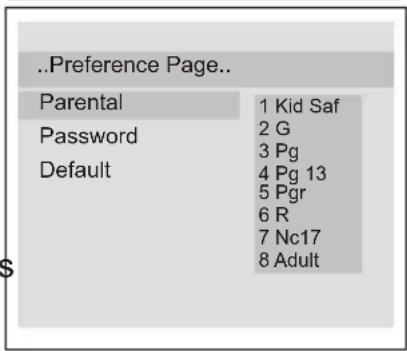
NOTE: Preference page will be displayed when there is no DVD in the unit. To access this page, press SETUP button twice.
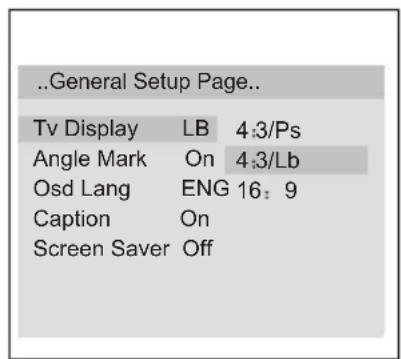
General Setup Page
ASPECT RATIO DESCRIPTION
When using the DVD with the internal TV select 4:3/LB.
The following information applies only when the DVD output is connected to an external TV.
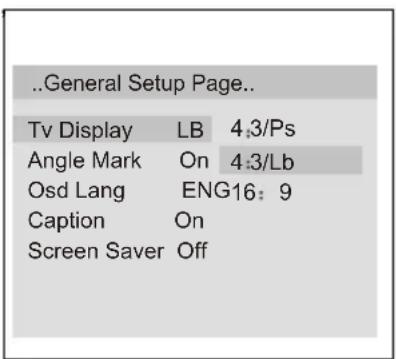
• 4:3/PS (PS = Pan and Scan)
You may select if you have a normal aspect ratio (4:3) TV, although the NORMAL/LB (letter box) is a more common choice. In PS
mode, widescreen material will fill the screen, but at the expense of chopping off extreme left and right edges of the original film picture. For this feature to work, the disc must be specially coded. Such discs are uncommon.
• 4:3/LB (LB = Letter Box)
You may select this if you have a normal aspect ratio (4:3) TV. Widescreen material will be shown in pure unaltered form, allowing the entire picture area of the original film to be viewed without any side cropping. Black bars will appear above and below the picture.
• 16:9
You may select this if you have a widescreen (16:9) TV. Back bars may still appear above and below the picture even if using a widescreen TV. This is because some film directors prefer to use ultra widescreen aspect ratios e.g. 2.35:1. This will normally be indicated on the DVD packaging.
DVD System Setup(Continued)
DVD System Setup
General Setup Page
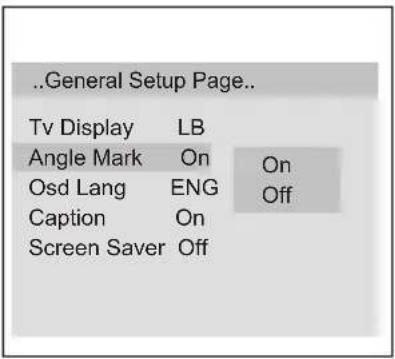
ANGLE MARK: Users can select a particular camera angle when playing a DVD which offers multiple angles.
This item allows you to set Angle Mark ON or OFF.
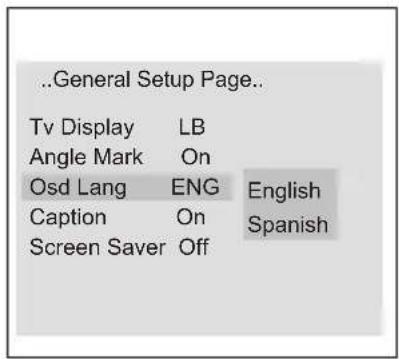
On Screen Display (OSD) Language: Users can select on-screen display language.
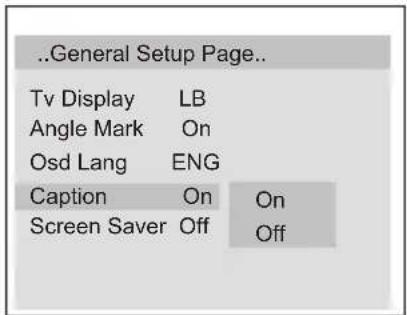
CAPTION: This function allows you to display or hide the caption.
SCREEN SAVER: If the screen saver is on, then there will be an animated picture of DVD on the screen whenever the DVD player is idle for more than 3 minutes.
DVD System Setup(Continued)
DVD System Setup

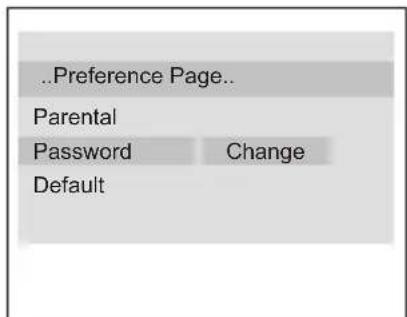
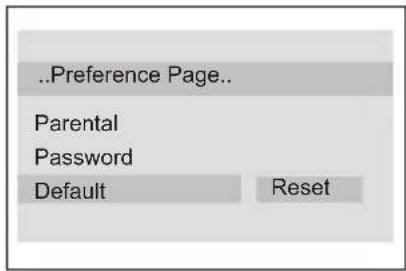
Preference Page
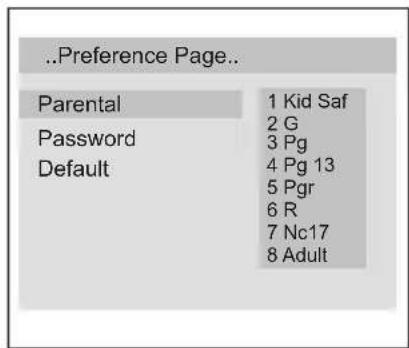
The Preference Page is only available when there is no disc in the player.
PARENTAL: The parental control function works in conjunction with the different censorship classes assigned to DVDs. These classes help to control the types of DVDs that the family watches, There are up to 8 censorship classes for DVDs.
Note:
1 To change this setting you must enter your password. (Initial password is 1234)
2 When set to OFF, all discs may be viewed.
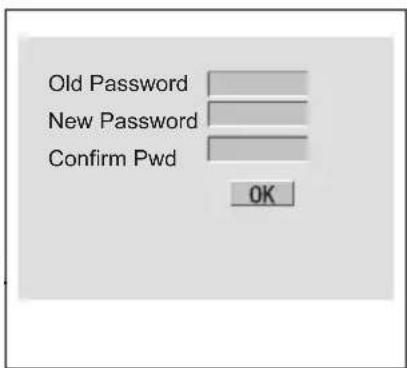
PASSWORD CHANGE:
You can change your password by entering 4 digits. You must confirm the 4 digits before the new password can be accepted.
NOTE:
If you forget your password or a password is accidentally set enter 1369 as the password This will enable you to regain control.
DVD System Setup(Continued)
DVD System Setup
DEFAULT: Resets all settings (except password and parental lock status) for this DVD player back to the manufacturers original settings. Press ENTER to perform the reset.
Note:
Some functions may not be available depending on the type of disc.
playable Discs
The following discs can be played:
| DISCS | LABEL | CONTENTS | DIMENSION |
| DVD VIDEO |  | Audio +Video (moving picture) | 12cm |
| AUDIO CD |  | Audio | 12cm |
| HDCD |  | Audio | 12cm |
| JPEG |  | Video(picture) | 12cm |
| KODAK CD |  | Video(picture) | 12cm |
| CD-R |  | Audio or Video (moving picture) | 12cm |
| CD-RW |  | Audio or Video (moving picture) | 12cm |
| CD+G |  | Audio(picture) | 12cm |
- You cannot play discs other than those listed above.
- You cannot play non-standardized discs, even if they may be labelled as above.
- The performance of CD-R or CD-RW disc depends on the way the disc was burned. In a few cases, their performance may not be consistent or may not even operate at all.
This DVD Player is designed and manufactured according to the Region Management Information that is recorded on a DVD disc. If the Region number described on the DVD disc does not correspond to the Region number of this DVD Player, this DVD player will not play that disc.
This Region number of this DVD Player is .

Disc Protection and DVD Characteristics
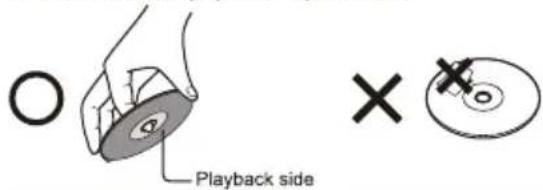
ON HANDLING DISCS
■ Do not touch the playback side of the disc.
■ Do not attach paper or tape to disc.
ON CLEANING DISCS
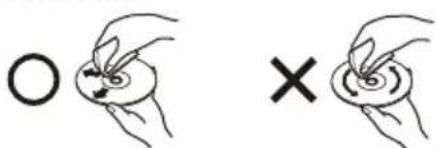
■ Fingerprints and dust on the disc cause picture and sound deterioration. Wipe the disc from the centre outwards with a soft cloth. Always keep the disc clean.
natural_image
Two hand-drawn diagrams showing a circular object with a cross mark, no text or symbols presentIf you cannot wipe off the dust with a soft cloth, wipe the disc lightly with a slightly moistened soft cloth and finish with a dry cloth.
■ Do not use any type of solvent such as thinner, benzine, commercially available cleaners or anti-static spray for vinyl Lps. It may damage the disc.
ON STORING DISCS
■ Do not store discs in a place subject to direct sunlight or near heat source.
■ Do not store discs in place subject to moisture and dust such as a bathroom or near a humidifier.
■ Store discs vertically in a case. Stacking or placing object on discs outside of their case may cause warping.
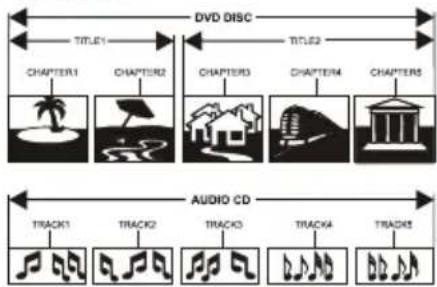
STRUCTURE OF DISC CONTENTS
Normally, DVD discs are divided into titles, and the titles are sub-divided into chapters. Audio CD are divided into tracks.
flowchart
graph LR
    subgraph DVD_DISC
        A["CHAPTER1"] --> B["TV"]
        C["CHAPTER2"] --> D["TV"]
        E["CHAPTER3"] --> F["TV"]
        G["CHAPTER4"] --> H["TV"]
        I["CHAPTER5"] --> J["TV"]
    end
    subgraph AUDIO_CD
        K["TRACK1"] --> L["DACT"]
        M["TRACK2"] --> N["DACT"]
        O["TRACK3"] --> P["DACT"]
        Q["TRACK4"] --> R["DACT"]
        S["TRACK5"] --> T["DACT"]
    end
    A <-->|TITLE1| C
    A <-->|TITLE2| G
    B <-->|TITLE1| K
    B <-->|TITLE2| M
    C <-->|TITLE1| L
    C <-->|TITLE2| N
    D <-->|TITLE1| O
    D <-->|TITLE2| P
    E <-->|TITLE1| Q
    E <-->|TITLE2| R
Each title, chapter, or track is assigned a number, which is called title number, chapter number or track number respectively.
There may be discs that do not have these number.
Compare DVD disc with other discs:
| DVD LD | SVCD | VCD CD | ||||||
| Encode method | Digital/MPEG II | Analog | Digital | Digital/ MPEG I | Digital | |||
| Capacity | Single-side single-layer 4.7G | Double-side single-layer 8.5G | Single-side double-layer 9.4G | Double-side double-layer 17G | 650MB 650MB 650MB | |||
| Playing Time | 133 minutes | 242 minutes | 266 minutes | 484 minutes | Single-side 60 minutes double-side 120 minutes | 45 minutes | 74 minutes | 74 minutes |
| Disc diameter | 12cm 12cm | 30cm/20cm | 12cm 12cm | |||||
| Horizontal resolution | More than 500 line | No more than 430 line | No more than 350 line | No more than 250 line | ||||
| Picture proportion | Multiple kinds | One kind | One kind | One kind | ||||
| Subtitle | 32 kinds | 16 kinds at most | 4 kinds | |||||
| Language | 8 kinds | 4 kinds at most | 4 kinds at most | 2 kinds 2 kinds | ||||
| Sound quality | 48KHz, 96KHz/ 6, 20, 24bit | 44.1KHz/ 16bit | 44.1KHz/ 16bit | 44.1KHz/ 16bit | 44.1KHz/ 16bit | |||
Troubleshooting Guide
• To assist in location possible faults use help guide below.
Troubleshooting
| No picture, no sound | Verify if the television is properly plugged in.Verify if the television is properly supplied with power.Verify that electricity is available. |
| Blank screen | Verify if correct signals are input.Press TV/AV button to change signal input to TV input.Restart the television of power supply is interrupted. |
| No sound | Press MUTE button and verify if Mute mode is on.Switch to another channel and verify if the same problem happens.Press VOL+ button to see if the problem can be solved. |
| Poor sound | Verify if sound system is functional. Refer to chapter on adjusting. |
| No picture in some channel | Verify if correct channel is selected.Adjust the antenna. |
| No color for some channel program (black and white) | Verify if the same problem exists in other channels.Check picture and sound systems.Refer to relative instructions in the Manual for color adjust. |
| Spots with some or all pictures | Verify if the antenna is correctly connected.Verify if the antenna is in good condition.Make fine adjustment of channel. |
| Abnormal functioning | Disconnect the television from power supply and, 10 seconds later, reconnect to the power supply.If the problem still exists, contact an authorized service depot for technical assistance. |
Note:
-
If the fault can not be repaired using the above guide consult with your local authorized service center.
-
The TV set must only be repaired by a qualified registered service person. Never attempt to remove the back cover as the TV set has dangerous voltages levels inside that may be fatal or cause fire.
Specifications
| Model | 15" | 19"without DVD 19 with DVD 22 | " | |
| Picture, sound system | NTSC, ATSC, Clear QAM | |||
| Audio output | ≥slant 1.5W+1.5W | |||
| External input port | AV input PC input S-VIDEO input PC audio input YPbPr input Antenna input | |||
| Power requirements | ~120V 60Hz | |||
| Power consumption | ≤slant 50W | ≤slant 60W | ≤slant 80W | ≤slant 70W |
| Temperature | Working: +5^+35^ Storage: -15^+45^ | |||
| Humidity | Working:20% ~ 80%Storage: 5% ~ 90% | |||
| Accessories | Remote controlBatteriesUser manual | |||
NOTE
Design and specifications are subject to change without notice.
Dimensions quoted in this manual are approximate.
Warranty
This Haier brand product, when shipped in its original packaging, will be free from defective workmanship and materials, and Haier agrees that it will, at its option, either repair the defect or replace the defective product with a new or re-manufactured equivalent at no charge to the purchaser, for parts or labor for the periods set forth below.
This warranty does not apply to the appearance of the product or the exterior of the product, which has been damaged or defaced, altered or modified in design or construction. It does not apply to the additional excluded items set forth below.
The warranty commences on the date the item was purchased and the original purchase receipt must be presented to the authorized service center before warranty repairs are rendered.
The limited warranty described herein is in addition to whatever implied warranties may be granted to purchasers by law. ALL IMPLIED WARRANTIES INCLUDING THE WARRANTIES OF MERCHANTABILITY AND FITNESS FOR USE ARE LIMITED TO THE PERIOD(s) FROM THE DATE OF PURCHASE. Some states do not allow limitations on how long an implied warranty lasts, so the above limitation may not apply to you.
Neither the sales personnel of the seller nor any other person is authorized to make any warranties other than those described herein, or to extend the duration of any warranties beyond the time period described herein on behalf of Haier.
The warranties described herein shall be the sole and exclusive warranties granted by Haier and shall be the sole and exclusive remedy available to the purchaser. Correction of defects in the manner and for the period of time described herein shall constitute complete fulfillment of obligations and responsibilities of Haier to the purchaser with respect to the product and shall constitute full satisfaction of all claims, whether based on contract, negligence, strict liability or otherwise. In no event shall Haier be liable, or in any way responsible, for any damages or defects in the product which were caused by repairs or attempted repairs performed by anyone other than an authorized service center or dealer, nor shall Haier be liable, or in any way responsible, for incidental or consequential economic or property damage. Some states do not allow the exclusion of incidental or consequential damages, so the above exclusion may not apply to you.
THIS WARRANTY GIVES YOU SPECIFIC LEGAL RIGHTS. YOU MAY ALSO HAVE OTHER RIGHTS WHICH VARY FROM STATE TO STATE.
Warranty period for this product: 90 days labor and one year parts.
Additional items excluded from warranty coverage: non-rechargeable batteries. What to do to obtain service or to obtain product literature, accessories, supplies or customer assistance: Simply call 1-877-337-3639. Be sure to have proof of purchase.