
VM17LED - Surveillance Speco Technologies - Free user manual and instructions
Find the device manual for free VM17LED Speco Technologies in PDF.


| Product Type | LED Surveillance Monitor |
| Brand | Speco Technologies |
| Model | VM17LED |
| Screen Size | 17 inches |
| Display Resolution | 1280 x 1024 |
| Response Time | 5 ms |
| Color Depth | 16.7 million colors |
| Viewing Angle | Vertical -80° to 80°, Horizontal -85° to 85° |
| Input Connections | Composite (BNC) x2, VGA x1, HDMI x1, PC Audio (RCA) x2 |
| Audio | Built-in speakers 1.5W x2 |
| Power Supply | AC 100-240V, 50/60Hz |
| Power Consumption | 15W max (ON), <3W (Standby at 100Vac) |
| Dimensions (W x H x D) | 15.2 x 15.2 x 6.5 inches |
| Weight (Plastic) | 7.5 lbs |
| Weight (Metal) | 14.3 lbs |
| OSD Languages | English, German, French, Italian, Spanish, Russian, Turkish, Polish, Dutch, Czech |
| Safety Certifications | UL, FCC, CE, ROHS |
| Cleaning Instructions | Use soft lint-free cloth, mild detergent; avoid alcohol, ammonia |
| Mounting | Optional wall mount (tilt -5° to 15°) |
| Operating Temperature | 0° to 40°C (32° to 104°F) |
| Included Accessories | 12V DC adapter, power cord, VGA cable, user manual |
Frequently Asked Questions - VM17LED Speco Technologies
User questions about VM17LED Speco Technologies
0 question about this device. Answer the ones you know or ask your own.
Ask a new question about this device
Download the instructions for your Surveillance in PDF format for free! Find your manual VM17LED - Speco Technologies and take your electronic device back in hand. On this page are published all the documents necessary for the use of your device. VM17LED by Speco Technologies.
USER MANUAL VM17LED Speco Technologies
Please read this manual thoroughly before operation and keep it handy for further reference.
1.
Introduction and Package Contents
Introduction
Congratulations on your purchase. You can expect only the sharpest and most brilliant color images from this monitor. Featuring an easy to use OSD control and built in speakers, you will find this monitor both easy to use and a pleasure to look at.
Package Contents
• One LED Monitor
• 12V DC Adapter
- Power cord
• D-Sub 15-pin VGA connector Cable
- User's Guide
Hardware Installation
The following sections in this guide give clear, step-by-step descriptions of the installation process and explain how to use the monitor for optimum results.
Please pay attention to the Regulations and Warnings Section of this user's manual before setting up the display monitor. Failure to do so may inadvertently result in personal injuries or machine damage.

Specifications (VM17LED", VM19LED")
| Size | 17" | 19" | |
| Composite Output | (BNC) x 2 | ||
| Composite Input | (BNC) x 2 | ||
| Single Connector | (VGA) x 1, (RCA) x 2 (PC Audio) x 1, (HDMI) x 1 | ||
| Speaker | 1.5W x 2 | ||
| Display Mode | Video 1/ Video 2/ PC/ HDMI | ||
| AC power | AC 100~240V 50/60Hz | ||
| Temperature | Operation: 0°~40°C(32° ~104°F), Storage: -10°~60°C(14° ~140°F) | ||
| Power Consumption | 15W Max. in "ON" Mode | ||
| Under 3W in Power Saving Mode (100 Vac) | |||
| Under 5W in Power Saving Mode (240 Vac) | |||
| OSD Control | Picture Mode, Contrast, Brightness, Color, Tint, Sharpness, Color Temp, DNR | ||
| OSD Languages | English, German, French, Italian, Spanish, Russian, Turkish, Polish, Dutch, Czech | ||
| Auto Adjustment | Yes (Only for VGA mode) | ||
| De-interlace | Yes | ||
| Wall mount | Optional | ||
| Accessories | Adapter, Power code, Manual, VGA cable | ||
| Safety | UL, FCC, CE, ROHS | ||
| Tilt | -5°~15° | ||
| Humidity | 10%~90% | ||
| Monitor scan | Microprocessor controlled | ||
| Pixel pitch | 0.264x0.264mm | 0.294x0.294mm | |
| Pixel format | 1280x1024 | 1280x1024 | |
| Response time | 5ms | 5ms | |
| Color depth | 16.7 Million Colors | ||
| Viewing angle | Vertical -80°~80°Horizontal -85°~85° | ||
| Display area(H" x V") | 13.3"x10.6" | 14.8"x11.8" | |
| Dimension(W" x H" x D") | 15.2" x 15.2" x 6.5" | 16.7" x 16.3" x 6.5" | |
| Weight | Plastic Type | 7.5 lbs | 7.7 lbs |
| (monitor only) | Metal Type | 14.3 lbs | 15.7lbs |
VGA Timing
| Item | Resolution | H Freq.(kHz) | V Freq.(Hz) |
| 1 | 640x400@70 | 31.460 | 70.080 |
| 2 | 640x480@60 | 31.469 | 59.940 |
| 3 | 640x480@72 | 37.861 | 72.809 |
| 4 | 640x480@75 | 37.500 | 75.000 |
| 5 | 720x400@70 | 31.460 | 70.080 |
| 6 | 800x600@56 | 35.156 | 56.250 |
| 7 | 800x600@60 | 37.879 | 60.317 |
| 8 | 800x600@72 | 48.077 | 72.188 |
| 9 | 800x600@75 | 46.875 | 75.000 |
| 10 | 1024x768@60 | 48.363 | 60.004 |
| 11 | 1024x768@70 | 56.476 | 70.069 |
| 12 | 1024x768@75 | 60.023 | 75.029 |
| 13 | 1280x1024@60 | 63.981 | 60.020 |
| 14 | 1280x1024@75 | 79.976 | 75.025 |
Remark:
The timings with presetting are recommended.
Users have to adjust the timing manually if it is not included in the presetting list
Monitor and OSD Control
The LED color monitor has a simple control layout for controlling the monitor and OSD (On Screen Display) functions. The table below summarizes the control keys and their related functions.
5-Key feature
Keys
Function Description
| Power | Toggle the display between standby mode and on/off. (Press “Power” and waiting 6 sec., monitor will be display) |
| + | Switch setting item.Increase the value of the chose item. |
| M | Enter the main menu of the on-screen display (OSD). |
| - | Switch setting item.Decrease the value of the chose item. |
| A | Switch mode “PC”, “AV1”, “AV2”, “HDMI”. |
A - M + Power
6-Key feature
Keys
Function Description
| Power | Toggle the display between standby mode and on. (Press “Power” and waiting 6 sec., monitor will be display) |
| A / Auto | Automatically adjusts H-Position, V-Position, Pixel Clock and Phase for an optimal image in PC mode only. |
| + | Switch setting item. Decrease the value of the chose item. |
| - | Switch setting item. Increase the value of the chose item. |
| S / Select | Switch mode “PC”, "AV1", "AV2". |
| M / Menu | Enter the main menu of the on-screen display (OSD). |
M S
A
Menu Select - + Auto Power
LED Status Display
The following table describes the various power states of the LED monitor as represented by different LED color.
| Power State | LED Color |
| On | Green |
| Standby | Red |
| No power | Blank |
3 OSD Control Function List
OSD Menu
Picture Mode
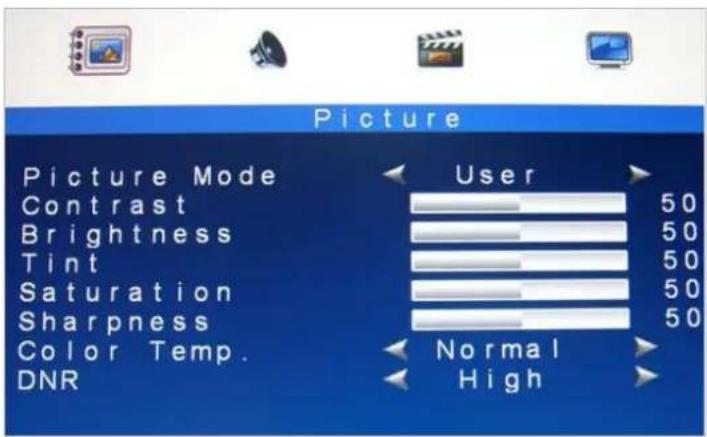
| 1. Picture Mode | Press -/◄ OR +/ ► to select the picture mode "User, Standard, Movie, Vivid" |
| 2. Contrast | This is used to set the brightness of the screen. Press -/◄ OR +/► to adjust the parameter. |
| 3. Brightness | This is used to adjust the image contrast. Press -/◄ OR +/► to adjust the parameter. |
| 4. Tint | This is used to adjust the image Tint. Press -/◄ OR +/► to adjust the parameter. |
| 5. Saturation | This is used to adjust the image saturation. Press -/◄ OR +/► to adjust the parameter. |
| 6. Sharpness | Adjust the sharpness. It makes the image become soft. Press -/◄ OR +/► to adjust the parameter. |
| 7. Color Temp. | Press -/◄ OR +/ ► to adjust the color tones. "Cool, Warm, Normal" |
| 8. DNR | Press -/◄ OR +/ ► to adjust the noise reduction. "High, Low, Off, Mid" |
| Note: VGA Mode: Contrast, Brightness, Color Temp., Auto Adjust. | |
Sound Mode
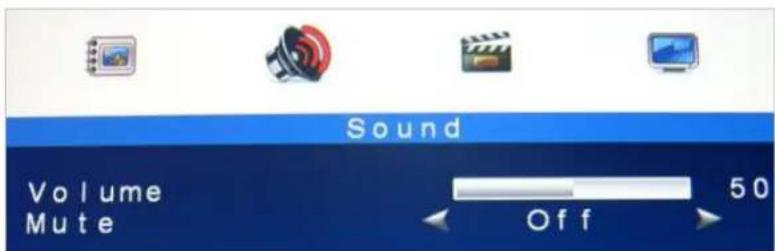
| 1. Volume | Press -/◄ OR +/ ► to adjust volume level. |
| 2. Mute | Press -/◄ OR +/ ► to select sound " Off, On ". |
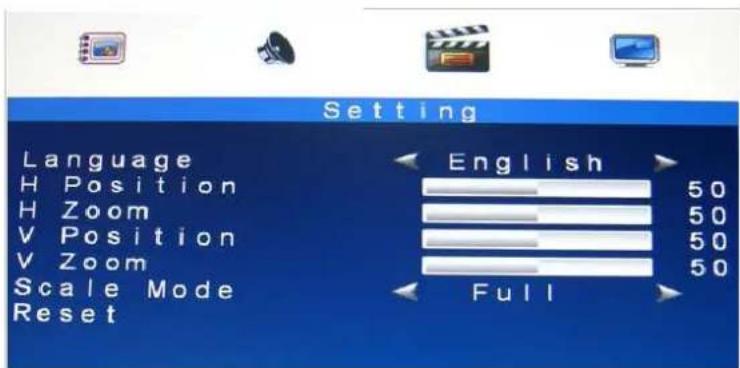
Setting Mode
AV/HDMI Mode
VGA Mode
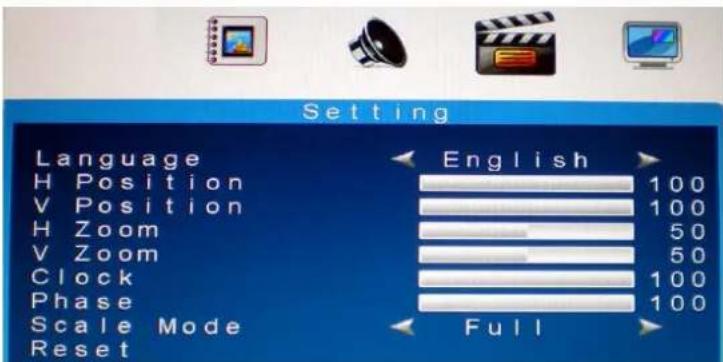
| 1. Language | Press -/◄ OR +/ ► to select language. |
| 2. H. Position | Move the display picture left or right.Press -/◄ OR +/ ► to adjust the parameter. |
| 3. H Zoom | Adjust the H-size of the display picturePress -/◄ OR +/ ► to adjust the parameter. |
| 4. V Position | Move the display picture up or down.Press -/◄ OR +/ ► to adjust the parameter. |
| 5. V Zoom | Adjust the V-size of the display picturePress -/◄ OR +/ ► to adjust the parameter. |
| 6. Clock | Press -/◄ OR +/ ► to adjust the parameter. |
| 7. Phase | Press -/◄ OR +/ ► to adjust the parameter. |
| 8. Scale Mode | Adjust the V-size of the display picturePress -/◄ OR +/ ► to adjust “ Full, 16:9 ”. |
| 9. Reset | Recall Default value. |
| Note: “ Clock” and “Phase ” setting only in VGA Mode | |
PIP/POP Setup Mode


natural_image
Composite image showing a cityscape with a fireworks explosion and a mountain range, labeled 'PIP' in the top right corner.
natural_image
Split image showing a cityscape with fireworks and a mountain range, labeled 'POP' in the top right corner (no other text or symbols)| 1. Multi Window | Press -/◄ OR +/► to select "PIP, POP, Off" mode. |
| 2. Sub Source | Press -/◄ OR +/► to select "AV, VGA" mode. |
| 3. Size | Adjust the size of Sub Source window.Press -/◄ OR +/► to select "Large, Small, Mid" |
| 4. Position | Move the position of Sub Source window.Press -/◄ OR +/► to select "L U, R D, R U, L R" position. |
| 5. Border Color | Choose the border color of Sub Source window.Press -/◄ OR +/► to select "Black, Blue" color. |
| 6. Sound Source | Press -/◄ OR +/► to select "Main, Sub" mode. |
| 7. Swap | Press S/Select to Swap the Source of Main and Sub. |
Note:
- AV1 and AV2, HDMI and VGA cannot be displayed at the same time on the monitor in PIP / POP mode.
- If POP mode is selected both images are scaled to fit the screen.
Caring for your LED Monitor
The LED color monitor is a sensitive piece of electronic equipment. Proper care can prevent accidentally damaging the LED panel or the monitor itself. By following these guidelines you can ensure many years of trouble free use.
- The LED monitor's plastic casing and LED glass panel can be cleaned with a soft, lint-free cloth. Never use scrub pads or other cleaning materials with abrasive surfaces to clean your LED monitor!
a. A slightly damp cloth or newspaper may be used to clean the glass plate of fingerprints or smudges. b. For the plastic case, a mild detergent may be used to clean the surface. However, you should ensure not to use too much detergent or water as this could leak into the interior of the casing.
- Do NOT use cleaning fluids based on alcohol, methylated spirit, or ammonia. The glass plate has a hard surface coating to prevent scratches. However, the use of strong chemical cleaning agents may damage this coating. Use only a mild soap or detergent and water or specially formulated cleaners made for cleaning glass panels.
- Avoid direct contact with water or other liquids. Never use the LED monitor in or around areas where water may pose a potential hazard to normal operation.
- Only use the LED monitor indoors, and avoid monitor contact with oil, vapor, steam, moisture and dust. The LED monitor should be used in a clean and low humidity environment.
- Keep the LED monitor away from heaters or other heat sources such as lighting equipment or direct sunlight.
- Keep the LED monitor away from sharp object to touch the screen like fingernail and pencil.
WARNING: Any unauthorized modification to this equipment could result in the revocation of the authorization to operate the equipment and void the product warranty.
5 Frequently Asked Questions
Power button does not respond
- Check the power cord to ensure that it is securely plugged into the monitor base and also into the electrical outlet.
- Ensure there is electrical power coming from the AC outlet. Use another device to check for power.
- Unplug the power cord of the monitor from the AC outlet, wait a few minutes, then to plug the power cord into the AC outlet again. This will reset the monitor and power supply.
No image on the screen
- Ensure that the DB-15 signal cable is properly connected to the display card/computer.
- Check the DB-15 signal cable connector on both ends for bent or pushed-in pins.
- The display card should be properly seated in its card slot.
- Ensure that the computer's power switch is ON.
- Ensure that the monitor's power switch is ON.
- Unplug the power cord of the monitor from the AC outlet, wait a few minutes, then to plug the power cord into the AC outlet again. This will reset the monitor and power supply.
Power LED is RED (with no image on the screen)
- Check the DB-15 signal cable to ensure that it is properly attached to the graphics display card.
- Check the DB-15 signal cable on both ends for bent or pushed-in pins.
- Make sure the computer is not in a power-saving mode (move the mouse or press a key on the keyboard).
No sound coming from the audio speakers
- The audio cable should be connected to the lineout on the audio card and the line-in on the monitor. Ensure that the audio cable is properly connected.
- Inspect the audio cable for any apparent damage. Double check by switching to another audio cable to see if the audio works.
Regulations and Maintenance
FCC compliance
This device complies with Part 15 of the FCC Rules. Operation is subject to the following two conditions: (1) this device may not cause harmful interference, and (2) this device must accept any interference received, including interference that may cause undesired operation.
NOTE: This equipment has been tested and found to comply with the limits for a Class B digital device, pursuant to Part 15 of the FCC Rules. These limits are designed to provide reasonable protection against harmful interference in residential installation. This equipment generation, uses and can radiate radio frequency energy and, if not installed and used in accordance with the instructions, may cause harmful interference to radio communications. However, there is no guarantee that interference will not occur in a particular installation. If this equipment does cause harmful interference to radio or television reception, which can be determined by turning the equipment off and on, the user is encouraged to try to correct the interference by one or more of the following measures:
• Reorient or relocate the receiving antenna.
- Increase the separation between the equipment and receiver.
- Connect the equipment to an outlet on a circuit different from that to which the receiver is connected.
- Use the type of power indicated on the marking label.
• Plugs
- Do not remove any of the prongs of the monitor's three-pronged power plug.
- Disconnect the power plug from the AC outlet under following conditions:
• If you will not use it for an indefinite period time.
- When the power cord or plug is damaged or frayed.
- If the product does not operate normally when the operation instructions are followed. Adjust only those controls that are covered by the operating instructions. Improper adjustment of other controls may result in damage and will often require extensive work by a qualified technician to restore the product to normal operation.
• If the product has been dropped or the cabinet has been damaged.
- If the product exhibits a distinct change in performance, indicate a need for service.
* Power and extension cords
- Do not allow anything to rest on the power cord.
- Do not locate this product where persons will walk on her cord.
- Use the proper power cord with correct attachment plug type. If the power source is 120 V AC, use a power cord that has UL and C-UL approvals. If the power source is a 240 V AC supply, use the tandem (T blade) type attachment plug with ground conductor power cord that meets the respective European country's safety regulations, such as VDE for Germany.
- Do not overload wall outlets or power cords. Ensure that the total of all units plugged into the wall outlet does not exceed 10 amperes.
- Ensure that the total ampere rating of all units plugged into the extension cord is not over the cord's rating.
- If the power supply cord, which came with your monitor, is to be connected to the PC instead of the wall outlet, this equipment is to be used with UL/TUV approved computers with receptacle rated 100\~240V AC, 50/60Hz, 2.0A(minimum).
* Environment
- Place the monitor on a flat and leveled surface.
- Place the monitor in a well-ventilated place.
speco technologies
LIMITED WARRANTY
THIS WARRANTY IS VALID ONLY ON PRODUCTS PURCHASED AND USED IN THE UNITED STATES OF AMERICA. THIS WARRANTY APPLIES ONLY TO THE ORIGINAL USER.
SUBJECT TO CONDITIONS AND EXCLUSIONS FOUND BELOW, THIS PRODUCT IS WARRANTED AGAINST MANUFACTURING DEFECTS IN MATERIAL AND WORKMANSHIP FOR THE FOLLOWING PERIOD FOR PARTS AND LABOR:
| SPECO TECHNOLOGIES CAMERAS: | 5 YEARS |
| SPECO TECHNOLOGIES MONITORS: | 1 YEAR |
| BALANCE OF SPECO TECHNOLOGIES LINE: | 1 YEAR* |
| * IR LEDs,Time lapse VCR Drum Assemblies & Heads: | 90-DAYS |
SPECO TECHNOLOGIES WILL REPAIR OR REPLACE (AT OUR DISCRETION) ANY PARTS FOUND TO BE DEFECTIVE FOR THE WARRANTY PERIOD SPECIFIED. WE WILL PROVIDE A REPLACEMENT FOR ANY DEFECTIVE PART.
CONDITIONS
- YOU MUST OBTAIN A RETURN AUTHORIZATION NUMBER FOR ANY MERCHANDISE BEING RETURNED TO SPECO TECHNOLOGIES, WHETHER FOR RETURN/EXCHANGE OR REPAIR, WHETHER IN OR OUT OF WARRANTY.
- THIS WARRANTY WILL BE HONORED ONLY UPON PRESENTATION OF THE ORIGINAL DATED BILL OF SALE OR SALES SLIP.
- TRANSPORTATION OF THE PRODUCT TO OUR SERVICE DEPARTMENT IS THE RESPONSIBILITY OF THE USER. REPAIRED OR REPLACED PRODUCT WILL BE RETURNED PREPAID DURING THE WARRANTY PERIOD.
EXCLUSIONS
- THIS WARRANTY SHALL NOT COVER ADJUSTMENT OF CUSTOMER OPERATED CONTROLS AS EXPLAINED IN THE APPROPRIATE MODEL'S INSTRUCTION MANUAL OR PRODUCTS WHICH HAVE BEEN ALTERED, ABUSED, OR HAVE MISSING OR ALTERED SERIAL NUMBERS.
- THIS WARRANTY SHALL NOT APPLY TO UNCRATING, SETUP, INSTALLATION, OR THE REMOVAL AND REINSTALLATION OF PRODUCTS AFTER REPAIR.
- THIS WARRANTY SHALL NOT APPLY TO REPAIRS OR REPLACEMENTS NECESSITATED BY ANY CAUSE BEYOND THE RESULT OF MANUFACTURE INCLUDING, BUT NOT LIMITED TO, ANY MALFUNCTION, DEFECTS OR FAILURE CAUSED BY OR RESULTING FROM UNAUTHORIZED SERVICE OR PARTS, IMPROPER MAINTENANCE, MODIFICATION OR REPAIR BY THE USER, ABUSE, MISUSE, NEGLECT, ACCIDENT, FIRE, FLOOD, OR OTHER ACTS OF NATURE, INCORRECT LINE VOLTAGE, DAMAGE OR IMAGE BURNS TO TELEVISION PICTURE TUBES CAUSED BY OR ATTRIBUTABLE TO THE USE OF ANY ACCESSORY, ELECTRONICS GAME OR DEVICE, OR DAMAGE CAUSED TO IMAGE PICKUP DEVICES BY EXCESSIVE LIGHT.
THE FOREGOING IS IN LIEU OF ALL OTHER EXPRESSED WARRANTIES AND WE DO NOT AUTHORIZE ANY PARTY TO ASSUME FOR US ANY OTHER OBLIGATION OR LIABILITY. IN NO EVENT SHALL WE BE LIABLE FOR INCIDENTAL OR CONSEQUENTIAL DAMAGES ARISING FROM THE USE OF THIS PRODUCT, OR FOR ANY DELAY IN THE USE OF THIS PRODUCT DUE TO CAUSES BEYOND OUR CONTROL.
SOME STATES DO NOT ALLOW LIMITATIONS OF HOW LONG AN IMPLIED WARRANTY LASTS AND/OR DO NOT ALLOW THE EXCLUSION OR LIMITATION OF CONSEQUENTIAL DAMAGES. THE ABOVE LIMITATIONS ON IMPLIED WARRANTY AND CONSEQUENTIAL DAMAGES MAY NOT APPLY TO YOU.
THIS WARRANTY GIVES YOU SPECIFIC LEGAL RIGHTS. YOU MAY HAVE OTHER RIGHTS WHICH VARY FROM STATE TO STATE.
NOTE: FOR YOUR PROTECTION IN THE EVENT OF THEFT OR LOSS OF THIS PRODUCT, PLEASE FILL IN THE INFORMATION REQUESTED BELOW AND RETAIN WITH YOUR SALES RECEIPT.
AMITYVILLE, NY 11701 www.specotech.com
FOR MORE INFORMATION REGARDING
SERVICE OR RETURN, CALL US
TOLL FREE: 1-800-645-5516 IN METRO NY: 631-957-8700
ALWAYS USE DISCRETION WHEN INSTALLING VIDEO AND/OR AUDIO SURVEILLANCE EQUIPMENT ESPECIALLY WHEN THERE IS AN EXPECTATION OF PRIVACY. INQUIRE REGARDING FEDERAL, STATE AND/OR LOCAL REGULATIONS APPLICABLE TO THE LAWFUL INSTALLATION OF VIDEO AND/OR AUDIO RECORDING OR SURVEILLANCE EQUIPMENT. PARTY CONSENT MAY BE REQUIRED.



- 1.
- Introduction and Package Contents
- Introduction
- Package Contents
- Hardware Installation
- Monitor and OSD Control
- 5-Key feature
- 6-Key feature
- LED Status Display
- OSD Control Function List
- OSD Menu
- Setting Mode
- PIP/POP Setup Mode
- Note:
- Caring for your LED Monitor
- Frequently Asked Questions
- Power button does not respond
- No image on the screen
- Power LED is RED (with no image on the screen)
- No sound coming from the audio speakers
- Regulations and Maintenance
- FCC compliance
- speco technologies
- LIMITED WARRANTY
- CONDITIONS
- EXCLUSIONS
Brand : Speco Technologies
Model : VM17LED
Category : Surveillance