
M17LCBVH3 - Surveillance Speco Technologies - Free user manual and instructions
Find the device manual for free M17LCBVH3 Speco Technologies in PDF.


| Product Type | LCD Color Monitor |
| Model | M17LCBVH3 |
| Screen Size | 17 inch |
| Aspect Ratio | 4:3 |
| Resolution | 1280 x 1024 |
| Display Colors | 16.7 Million |
| Viewing Angle | H: 170° / V: 160° |
| Viewing Lines | 500 TV Lines |
| Contrast Ratio | 800:1 |
| Response Time | 6ms |
| Brightness | 270 cd/m² |
| Built-in Speakers | 2 x 2.5 Watts |
| Video Inputs | Composite (BNC) x1, VGA x1, HDMI x1 |
| Video Output | Composite (BNC) x1 |
| Audio Input | PC Audio (3.5mm), Audio L/R RCA |
| Power Supply | DC 12V / 3A (adapter included) |
| Power Consumption | < 30W |
| VESA Mount Compatible | 100 x 100 mm |
| Weight (Net) | 4.9 kg (10.8 lb) |
| OSD Languages | English, Spanish, French, German, Portuguese, Russian, Italian, Simplified Chinese |
| Accessories Included | AC Adapter, VGA Cable, PC Audio Cable, User Manual |
| Cleaning Instructions | Unplug, use dry soft lint-free cloth; avoid liquid cleaners |
| Safety Features | Ventilation slits (min 10cm clearance), grounding plug, auto adjustment |
Frequently Asked Questions - M17LCBVH3 Speco Technologies
User questions about M17LCBVH3 Speco Technologies
0 question about this device. Answer the ones you know or ask your own.
Ask a new question about this device
Download the instructions for your Surveillance in PDF format for free! Find your manual M17LCBVH3 - Speco Technologies and take your electronic device back in hand. On this page are published all the documents necessary for the use of your device. M17LCBVH3 by Speco Technologies.
USER MANUAL M17LCBVH3 Speco Technologies
Thank you for purchasing our product. Please read this User's Manual before using the product. Changes may be made without notice.

M17LCBVH3 M19LCBVH3 LCD MONITOR
User manual


Table of Contents
Table of Contents 2
Safety Information 3-5
Connection 6-8
Controls 9
Menu Setup 10 (1) VGA INPUT MODE 10-12
(1) VGA INPUT MODE 10-12
(2) AV INPUT MODE 13-14
(3) HDMI INPUT MODE 15-17
Specifications 18-19
Product Warranties and Information 20-23
CONTENTS
A. LCD Color Monitor x1
B. AC Adapter x1
C. VGA Cord x1
D. PC Audio Cord x1
E: User Manual x1
Safety Information
The power supply cord is used as the main disconnect device. Ensure that an outlet is located near the monitor and is easily accessible.
ENVIRONMENT
- Do not install the monitor outdoors or in any hostile environment. To prevent fire or electric shock, do not expose monitor to rain or moisture. Avoid placing the monitor in places subject to extreme temperature such as direct sunlight or near a heating appliance/equipment (such as amplifiers, etc) as this may result to overheating and damage.
- This monitor is designed to be used in the office or home. Do not subject it to vibrations, dust, or corrosive gases.
- To obtain a clear picture, do not expose screen to direct illumination or sunlight. Using the monitor against a bright background or where sunlight or other light sources shines directly on the monitor can increase eye discomfort.
WIRING
- Unplug the main cord from the socket when wiring cables for safety. Take care not to catch your feet on the cables.
POWER CORD
- Neither the monitor itself nor any other heavy object should rest on the power cord.
- Protect the power cord from being walked on or pinched. Especially at the plugs, convenience receptacles and the point where they exit from the monitor.
- Firmly grasp the plug when disconnecting the power cord. Do not pull the power cord itself.
- Do not modify or damage the cord. Damage to a power cord can cause fire or electric shock
- Do not defeat the safety purpose of the grounding type plug. A grounding type plug has two blades and a third grounding proof.
- This monitor is designed to operate on 100-240V AC supply. Do not connect too many appliances to the same outlet as this can cause electric shock.
MOUNTING
- Place the monitor on a secure table or have it properly mounted to the wall. Do not hang anything on the monitor.
Caution: The wall mount must bear a minimum of five times the monitor's net weight without causing damage. To mount your monitor to the wall, you will need to remove the base before attaching the wall mount.
A. Place the monitor face down on a surface that is soft, yet strong enough to hold the monitor.
B. Use a screwdriver to remove the screws from the four holes on each side of the bottom of the monitor's base (only use with base)
C. Make sure all cables are already connected to the monitor.
D. Follow the directions included with the wall mount to mount the monitor to the wall.
INACTIVE
- Unplug the monitor when unused for long periods of time.
VENTILATION
- Never cover or block the ventilation slits in the monitor. Ventilation slits are provided to prevent the temperature from rising. A minimum distance of at least 10 cm should be maintained around the unit for sufficient ventilation.
- Never insert any foreign object, metal or liquid into the ventilation slits, as this could result in fire or electric shock.
- Do not install the DVR or other equipment too close to the monitor. Keep equipment at least 30 cm away from the monitor.
WATER AND MOISTURE
- The monitor should not be exposed to dripping or splashing. No objects filled with liquids should be placed on the monitor.
- Do not use the monitor near water.
- Do not touch the monitor or cable with wet hands as this may cause electric shock or damage.
CLEANING
- Unplug the unit from the wall outlet before cleaning.
- Do not use liquid or aerosol cleaners. Use a dry soft lint-free cloth for cleaning. If the dust is persistent, wipe with a slightly damp cloth.
SERVICE
- Use only the power source and connections appropriate for the monitor as indicated on the marking label.
- If the power cord or plug is damaged, liquid has been spilled, objects have fallen into the apparatus, apparatus has been exposed to rain or moisture, does not operate manually, or has been dropped, the product needs servicing.
1. Rear interface
Explanation of connectors
This section describes the jacks on the back panel of your monitor. There are several ways to connect devices.
DC12V: Use only the power supply included with the monitor
HDMI: (High-Definition Multimedia Interface) This is an external interface for transmitting digital audio and video data.
VGA: Connect your computer, or other device with a VGA output, to this jack using a 15 pin D-sub cable.
PC AUDIO IN: (Stereo mini jack) Use to obtain sound when a PC is connected to the VGA jack. Use a 3.5 mm stereo mini pin cable (sometimes referred to as 1/8" stereo mini pin) to connect a PC to your monitor.
VIDEO INPUT (AV1/AV2 IN): Lets you connect a device that has composite video jacks, such as a DVR or Camera
VIDEO OUTPUT (AV OUT): Composite video loop though (to another monitor or recorder)
AUDIO L and R: AV audio interface. The left audio connector is usually white. The right audio connector is usually red.
2. Connection under various signal input mode
( I ) Connecting with PC, DVR at VGA
This connection allows you to connect to a PC or DVR. Connect one end of a 15-pin monitor cable to the VGA VIDEO jack on the monitor and the other end to the PC or the DVR's video output jack. Note, if your PC's video output isn't 15-pin, you'll need an adapter that can connect to a 15-pin monitor cable.
Connect your audio cable.
Connect a 3.5 mm stereo mini pin cable (sometimes referred to as 1/8" stereo mini pin) to the PC AUDIO jack on the back of the monitor and the other end to the Audio Output jack on the PC or DVR.
Viewing the PC or DVR
- Plug in the monitor and the PC, if they aren't already plugged in.
- Turn on the monitor and the PC.
- Repeatedly press the SOURCE button to switch the display channel until you see VGA displayed at the top of the monitor's screen. To go back to viewing AV video, press the SOURCE button to enter AV mode.
( II ) Connecting the Device with Video
This connection allows you to connect a device that has a Video Output, like, a camera or DVR etc.
Note: If the device you're connecting also has Component Video jack and you have component video cables, we recommend you use the Component Video (Advanced) Connection instead.
Connect your video cable (BNC).
Connect a video cable to the BNC INPUT jack on the back of the monitor.
Connect your red and white audio cables.
Connect the audio (red and white) cables to the AUDIO INPUT R and L jacks on the back of the monitor and to the Audio Output jacks on the DVR.
Viewing the Picture From the Connected Device
- Plug in the monitor and the device if they aren't already plugged in.
- Turn on the monitor and the device you want to view, for example a camera.
- Repeatedly press the SOURCE button until you see AV displayed at the top of the monitor's screen.
Note: If the picture from the DVR is blue and your device is connected to the VIDEO Input, you might be tuned to the wrong input. Make sure you press Source until you see AV displayed at the top of the monitor's screen.
3. Connecting the Monitor Cables to your Computer
Make sure all cable connections are fastened -- tighten all cable screws. Shaking and vibration may dislodge cables that are improperly connected. Route all wiring and cabling away from heat sources and sharp metal edges to avoid damage.
4. Testing the Monitor
After connecting, turn on the power switch located at the rear (or side) of the bezel. Before you test your monitor, make sure all cables are connected properly and routed through the cable management system. Be sure to tighten all cable screws. To test that the monitor is working properly:
- Turn on your pc or DVR.
- Make sure the video image is displayed. If it is not, turn on your monitor. Figure the LED indicator is blue, red indicates power but no signal.
- Make sure the video image is centered within the screen area. Use the monitor controls to adjust the image, if necessary. Perform an Auto Configuration first, then if you wish you can adjust the horizontal and vertical position, contrast, and brightness to better suit your video card and your personal preferences. Refer to Basic OSD setup for more information on using the on-screen menu to adjust the video display.
Controls
Front Controls
(a) 5 Key Series
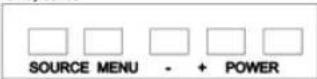
- POWER: Turn the monitor on or off,
- SOURCE: Press this button to switch between input modes AV, HDMI, and VGA. On-screen OSD mode, press this button (move up or down) to select a sub menu.
- MENU : Press to view the On-screen OSD of the unit. Sub-menus, features, and settings differ according to input mode on the on-screen display, press this button to exit from main menu, sub-menus, features and settings.
-
- and -: Press + button to Increase or - button to decrease volume from 1-100, on-screen OSD, press + or - to adjust the settings.
- Remote indicator: red when standby mode and blue when on display.
(b) Choose the input source
If you want to use an external input source, before to select the source, you need to connect the devices, otherwise when you select the source, the none or no signal will appear on the screen. Press the source button on the monitor or remote control and the menu will appear on the screen. Then press source to select the monitor item and press' +/- "to save it.
VGA: The input source from VGA terminal output.
HDMI: The input source from HDMI terminal output.
AV: The input source from AV or video camera terminal output.
Menu Setup
9
BASIC ON-SCREEN DISPLAY SETUP
(1) Press the MENU button to see the menu.
(2) Press + or - to select the menu item and press SOURCE button to select the Sub menu.
(3) Press + or - to adjust the settings.
(4) Press the MENU button to return to the previous menu.
1. VGA Input Mode
PICTURE

Color Temp.
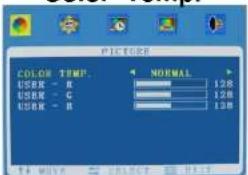
CONTRAST: Adjusts the difference between the light and dark areas of the picture. (Adjustment range:0-100)
BRIGHTNESS: Adjusts the brightness of the picture. (Adjustment range:0-100)
COLOR TEMP: Press + or - button to go into the Color Temp sub menu. Press the "+" button to change the color intensity of the temperature selected (Normal, Warm, Cool, S-RGB, User)
USER : USER-R: 0\~255
USER-G: 0\~255
USER-B: 0\~255
OSD
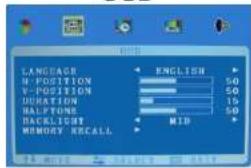
LANGUAGE: Lets you select your preferred language for the menus: (English, Chinese, German, French, Spanish, Italian, Portuguese, and Russian)
H-POSITION: Adjust the OSD image horizontally by pressing the + or - buttons.
V-POSITION: Adjust the OSD image vertically by pressing the + or - buttons. DURATION: 5-60
HALFTONE: 0-100
MEMORY RECALL: Pressing the + or - buttons will be reset all settings to the factory default settings.
FUNCTION

SLEEP-TIMER: Adjusts the amount of time until the screen goes to sleep. (OFF, 15min, 30min, 45min, 60min)
DLC: ON / OFF
NOISE REDUCTION:
Function unavailable
HSTART、HSIZE、VSTART、VSIZE:
Function unavailable
GEOETRY
H-POSITION: Moves the image on screen either left (-) or right (+).
V-POSITION: Moves the image on screen either up (+) or down (-).
CLOCK: If the clock is not fine-tuned, you may observe periodic vertical bars of video noise on your image. These bars of noise are usually adjusted out when an Auto Configuration is performed. If the bars of noise are still present, this setting can be adjusted manually.
PHASE: Adjusts the signal phase to improve sharpness when the image is fuzzy.
AUTO ADJUST: Performs automatic configuration of the Phase, Clock, vertical, and horizontal position settings.
AUDIO
BASS: Adjustment range:0-100
TREBLE: Adjustment range:0-100
BALANCE: Adjusts how much audio is sent to the left and right (-50 to +50). The intermediate value is 0. When indication value of balance increases toward +50, the volume of the right and left speaker increase and decrease. When the indication value of balance decreases toward -50 the volume of the right and left speaker increase and decrease.
SOUND MODE: Provides special processing through your speakers (depending on the setting you chose as your Sound Type). The available audio modes are: Standard, User, Movie, Music)
AVC: (Automatic Volume Control)
ON & OFF
2. AV Input Mode
PICTURE
OSD
CONTRAST: Adjusts the difference between the light and dark areas of the picture.
BRIGHTNESS: Adjusts the brightness of the picture.
HUE: -50 to +50 (only available on AV PAL)
SATURATION: 0-100
SHARPNESS: 0-100
COLOR TEMP: Press the “+” button to change the color intensity of the temperature selected (Normal, Warm, Cool, S-RGB, User)
SCALE: Full, Normal, or Center
PICTURE MODE: User, Standard, Soft, or Vivid
LANGUAGE: Lets you select your preferred language for the menus:
(English, Chinese, German, French, Spanish, Italian, Portuguese, or Rus
OSD H-POSITION: Adjust the OSD image horizontally by pressing the + or - buttons.
OSD V-POSITION: Adjust the OSD image vertically by pressing the + or - buttons.
DURATION: 5-60
HALFTONE: 0-100
MEM-RECALL: Pressing the + key will be reset all settings to the factory default settings.
FUNCTION
SLEEP-TIMER: Lets you set the monitor to turn off after a given amount of time (OFF, 15min, 30min, 45min, 60min)
DLC: ON / OFF
HSTART、HSIZE、VSTART、VSIZE: Only available under AV Mode. Adjust the OSD image horizontally or vertically by pressing the “-”/“+” button
AUDIO
BASS: Adjustment range:0-100
TREBLE: Adjustment range:0-100
BALANCE: Adjusts how much audio is sent to the left and right (-50 to +50). The intermediate value is 0. When indication value of balance increases toward +50, the volume of the right and left speaker increase and decrease. When the indication value of balance decreases toward -50 the volume of the right and left speaker increase and decrease.
SOUND MODE: Provides special processing through your speakers (depending on the setting you chose as your Sound Type). The available audio modes are: User, Standard, Movie, and Music.
AVC: (Automatic Volume Control) ON & OFF
3. HDMI Input mode
PICTURE
OSD
CONTRAST: Adjusts the difference between the light and dark areas of the picture.
BRIGHTNESS: Adjusts the brightness of the picture.
HUE: -50 to +50 (only available on AV PAL)
SATURATION: 0-100
SHARPNESS: 0-100
COLOR TEMP: Press the “+” button to change the color intensity of the temperature selected (Normal, Warm, Cool, S-RGB, User)
SCALE: Full, Normal, or Center
PICTURE MODE: User, Standard, Soft, or Vivid
LANGUAGE: Lets you select your preferred language for the menus: (English, Chinese, German, French, Italian, Spanish, Portuguese, or Russian)
H-POSITION: Adjust the OSD image horizontally by pressing the + or - buttons.
V-POSITION: Adjust the OSD image vertically by pressing the + or - buttons.
DURATION: 5-60
HALFTONE: 0-100
MEM-RECALL: Pressing the + or - key will reset all settings back to the factory default settings.
FUNCTION
SLEEP-TIMER: Lets you set the monitor to turn off after a given amount of time (OFF, 15min, 30min, 45min, 60min)
DLC: ON / OFF
NOISE REDUCTION:
Function unavailable
HSTART、HSIZE、VSTART、VSIZE:
Function unavailable
AUDIO
BASS: Adjustment range:0-100
TREBLE: Adjustment range:0-1
BALANCE: Adjusts how much audio is sent to the left and right (-50 to +50).
The intermediate value is 0. When indication value of balance increases toward +50 , the volume of the right and left speaker increase and decrease. When the indication value of balance decreases toward -50 the volume of the right and left speaker increase and decrease.
SOUND MODE: Provides special processing through your speakers (depending on the setting you chose as your Sound Type). The available audio modes are: User, Standard, Movie, and Music.
AVC: (Automatic Volume Control)
ON & OFF
Specifications
| Model | M17LCBVH3 | M19LCBVH3 |
| Size | 17 inch | 19 inch |
| Aspect Ratio | 4:3 | |
| Resolution (H x V) | 1280 x 1024 | |
| Colors | 16.7M | |
| Viewing Angle | H: 170° V: 160° | |
| Viewing Lines | 500 TV Lines | |
| Contrast Ratio | 800:1 | |
| Response Time | 6ms | |
| 3D Comb Filter with De-interlace | 2D | |
| 3D Noise Reduction | 3D | |
| Brightness | 270 cd/m2 | |
| Speakers | 2 each (2.5 watts) | |
| Composite Inputs / Outputs | BNC x 1 / BNC x 1 | |
| VGA | VGA x 1 | |
| HDMI | HDMI x 1 | |
| Audio Inputs | Stereo PC / Audio R and L | ||
| Auto Adjustment | Yes | ||
| Wall Hanging | VESA Standard | ||
| VESA Size | 100 x 100 mm | ||
| Stand | Yes (Plastic) | ||
| Bezel | Plastic | ||
| OSD Language | English, Spanish, French, German, Portuguese, Russian, Italian, and Simplified Chinese | ||
| Power Consumption | <30W | <30W | |
| Power Supply | DC12V / 3A | ||
| OSD Control | Yes | ||
| Accessories | Power Cord, Adapter, User's Guide, and Audio Cable | ||
| Packaging ( mm^3 )(L x D x W) | 450 x 150 x 450 | 480 x 165 x 500 | |
| Packaging ( inch^3 )(L x D x W) | 17 3/4 x 6 x 17 3/4 | 18 7/8 x 6 1/2 x 19 11/16 | |
| Weight (Kg / lb) | 4.9 Kg10.8 lb | 5.5 Kg12.1 lb | |
| Operating Temp | 0 °C - 50 °C / 32°F - 122°F | ||
| Safety | Energy Star, FCC-DOC, CE, RoHS | ||

PRODUCT WARRANTIES AND INFORMATION EFFECTIVE JULY 8, 2008
POLICY, TERMS AND CONDITIONS OF SALE
This statement of policy is in lieu of any other policy, expressed or implied, and no representative or person is authorized to assume for us any other liability or policy without our written consent. We cannot be held responsible for typographical errors.
TERMS OF PAYMENT
2%, 10 days, net 30 from invoice date of merchandise for qualified accounts or Visa/MasterCard/Amex net at time of order placement only, other payment discounts do not apply (\$300 credit card minimum). We reserve the right to charge 1-1/2% interest per month on past due balances. New orders will not be shipped while there is a past due balance. We will also ship net C.O.D. or C.I.A.
PRICING POLICY
This price sheet reflects current published price. All prices are subject to change without notice. All items will be billed at current prices.
CREDIT
Companies that have not established credit with our company should allow a sufficient period of time for credit approval. Please be sure to provide complete credit information, bank and trade references, plus financial statements, if available with your first order. To expedite first shipment, a certified or bank check with the order or use of Visa/MasterCard/Amex will avoid delays, while we are checking credit and waiting for bank clearance.
FREIGHT POLICY
All shipments are F.O.B. our New York warehouse. All orders totaling \$2000 or more will be shipped freight allowed to any point in zones 1,2,3,4,5 and 1/2 freight allowed in zones 6,7,8, providing invoice is paid within 30 days from receipt of merchandise, catalogs or exceptions from regular pricing. All UPS and USPS shipments will be insured with insurance fee plus shipping and handling charges added to the invoice.
MINIMUM OPENING ORDER \$1500
We reserve the right to refuse reorders under \$250. PLEASE REQUEST CONFIRMATION OF ALL FAXED PURCHASE ORDERS.
WARRANTY
| VIDEO | Cameras | 5 Years |
| Monitors & IR LEDs | 1 Year | |
| DVRs / EZVR Series VDRs | 3 Years | |
| PCPro/ PCL Series DVRs | 2 Years | |
| AUDIO | Indoor Speakers | Lifetime |
| Outdoor/Weatherproof Speakers | 5 Years | |
| Amplifiers | 5 Years | |
| PA Horns, Microphones, Volume Controls | 2 Years | |
| Megaphones, Speaker Distribution Centers and Speaker Selectors | 1 Year | |
| Electrical Equipment Not Listed Above & Balance of Line | 90 Days |
We warranty all products to be free from any manufacturing or material defects. This warranty will not extend to any products which have been subjected to misuse, neglect, accident, or improper installation, used in violation of instructions furnished by us; or to units which have been repaired or altered outside of the factory. This limited warranty does not apply to broken cases, batteries, or other physically damaged parts. Upon request by the customer, the company will at the customer's expense repackage merchandise in new cartons, replace missing accessories, and return in resaleable condition. Unless requested, the company will replace and return all merchandise in the packaging in which it was received. This warranty is in lieu of all expressed warranties, expressed or implied, and of all obligations or liability on our part, and we neither assume nor authorize any representative or other person to assume for us any obligation or liability. In no event shall we be liable for incidental or consequential damages arising from the use of the product, or for any delay in the use of this product do to causes beyond our control. Some states do not allow limitations of how long an implied warranty lasts and/or do not allow the exclusion or limitation of consequential damages. The above limitations on implied warranty and consequential damages may not apply to you. This warranty gives you specific legal rights. You may have other rights which vary from state to state. See actual warranty statement included with product for limitations and exclusions where applicable.
RETURNS
A written return authorization must be obtained prior to shipment. Label(s) must appear on all packages and return must be ship prepaid. Defective in-warranty products will be returned prepaid. Defective out-of-warranty products will be repaired at a nominal charge for parts and labor and returned with shipping charges added to the invoice. If you require an estimate before repair, please request.
RETURNED GOODS POLICY
- RETURNS SENT WITHOUT PRIOR APPROVAL WILL NOT BE ACCEPTED. CREDIT WILL BE ISSUED UPON INSPECTION OF RETURNED UNITS.
- No discounted item may be returned for credit or exchange.
- An order of \3.00 for every \1.00 to be returned must accompany a request for return for stock adjustment.
- There will be a minimum charge of 15% for handling and repacking where necessary. Merchandise returned for credit or exchange with missing or damaged packaging or accessories will be charged accordingly. Merchandise returned for repair will be shipped back repaired but in the same physical condition as when received by us. If repacking or refurbishing is requested, where possible, you will be charged accordingly.
- If a credit is issued, current best quantity price or price when purchased, whichever is lower, will prevail.
BACK ORDERS
Products not immediately available for shipment will be back ordered and shipped as soon as available, unless we are advised to cancel back orders. The original order will determine basis of shipment. If the original order is freight allowed, back orders will be freight allowed. If the original order does not qualify for freight allowance, back orders will be shipped freight collect or shipping and handling charges added to the invoice.
PROMOTIONAL MATERIAL
Requests for nominal amounts of catalogs, brochures, promotional sheets, etc. will be supplied at no charge. Requests for bulk quantities of promotional materials will be billed on a cooperative 50-50 basis.
CLAIMS
Claims for shortage must be presented within thirty days of date of invoice. Freight damage claims and freight shortages should be filed directly with the carrier within seven days of receipt of shipment. No liability will be accepted for damages directly or indirectly caused from the use of our products or from any other cause. Our liability shall be limited to the repair and/or replacement of our products, at our option of found to be defective.
NOTE: All units priced and packaged individually unless specified. Not responsible for printer errors.
We now accept Visa'MasterCard'AMEX at time of order placement. (See terms of Payment & Credit Terms)
For more information contact us at: Speco Technologies 200 New Highway
P.O. Box 726 • Amityville, N.Y. 11701-0726
Tel. 631-957-8700 Outside Metro N.Y. 1-800-645-5516 • Fax 631-957-9142 or 631-957-
3880 • Web: www.specotech.com
speco technologies®
200 New Highway
Amityville, NY 11701
631-957-8700
1 800 645 5516
www.specotech.com


- M17LCBVH3 M19LCBVH3 LCD MONITOR
- Table of Contents
- CONTENTS
- Safety Information
- ENVIRONMENT
- WIRING
- POWER CORD
- MOUNTING
- INACTIVE
- VENTILATION
- WATER AND MOISTURE
- CLEANING
- SERVICE
- Rear interface
- Explanation of connectors
- Connection under various signal input mode
- ( I ) Connecting with PC, DVR at VGA
- Connect your audio cable.
- Viewing the PC or DVR
- ( II ) Connecting the Device with Video
- Connect your video cable (BNC).
- Connect your red and white audio cables.
- Viewing the Picture From the Connected Device
- Connecting the Monitor Cables to your Computer
- Testing the Monitor
- Controls
- Front Controls
- Choose the input source
- Menu Setup
- BASIC ON-SCREEN DISPLAY SETUP
- VGA Input Mode
- GEOETRY
- AUDIO
- AV Input Mode
- PICTURE
- OSD
- FUNCTION
- HDMI Input mode
- PRODUCT WARRANTIES AND INFORMATION EFFECTIVE JULY 8, 2008
- POLICY, TERMS AND CONDITIONS OF SALE
- TERMS OF PAYMENT
- PRICING POLICY
- CREDIT
- FREIGHT POLICY
- MINIMUM OPENING ORDER \$1500
- RETURNS
- RETURNED GOODS POLICY
- BACK ORDERS
- PROMOTIONAL MATERIAL
- CLAIMS
- speco technologies®
Brand : Speco Technologies
Model : M17LCBVH3
Category : Surveillance