
M284K - Surveillance Speco Technologies - Free user manual and instructions
Find the device manual for free M284K Speco Technologies in PDF.


| Product Type | 28" LED Backlit Surveillance Monitor |
| Resolution | 3840 x 2160 (4K UHD) at 60 Hz |
| Panel Type | LED Backlit (likely VA or IPS, not specified) |
| Aspect Ratio | 16:9 |
| Active Display Area | 648.9 x 369.3 mm |
| Pixel Pitch | 0.16 x 0.16 mm |
| Brightness | 280 cd/m² |
| Contrast Ratio | 3000:1 (Typical) |
| Response Time | 5 ms (GtG) |
| Viewing Angle | Up/Down: 85°/85°; Left/Right: 80°/80° |
| Display Colors | 1.073 billion |
| Video Inputs | HDMI 2.0 x2, DisplayPort 1.2 x2 |
| Audio Output | 3.5mm headphone/speaker out |
| Built-in Speakers | 2 x 5W |
| VESA Mount Compatible | 100 x 100 mm (screws M6 x 10, not included) |
| Power Supply | AC 90-130V, 57-63 Hz |
| Power Consumption | Typical 40W |
| Operating Temperature | -10°C to 50°C |
| Operating Humidity | 20% to 70% |
| Weight | Estimated ~7 kg (not specified) |
| Colors Supported | NTSC/PAL multi-standard |
| Color Temperature Settings | Warm, Cool, User (RGB adjustable) |
| Low Blue Light | Adjustable (0-100) |
| FreeSync Support | Yes (On/Off) |
Frequently Asked Questions - M284K Speco Technologies
User questions about M284K Speco Technologies
0 question about this device. Answer the ones you know or ask your own.
Ask a new question about this device
Download the instructions for your Surveillance in PDF format for free! Find your manual M284K - Speco Technologies and take your electronic device back in hand. On this page are published all the documents necessary for the use of your device. M284K by Speco Technologies.
USER MANUAL M284K Speco Technologies
natural_image
Front view of a modern flat-screen computer monitor with black screen and stand (no visible text or symbols)User Manual
M284K
CONTENTS
Safety Informaon 2
What's included 4
Geng Started.... 8
Troubleshoong.... 14
Specicaon.... 15
SAFETY INFORMATION
- Read these instrucons – All the safety and operang instrucons should be read before this product is operated.
- Keep these instrucons – The safety and operang instrucons should be retained for future reference.
- Heed all warnings – All warnings on the appliance and in the operang instrucons should be adhered to.
- Follow all instrucons – All operang and usage instrucons should be followed.
- Do not use this equipment near water – The appliance should not be used near water or moisture e.g. in a wet basement or near a swimming pool.
- Clean only with a dry cloth. Do not use solvents or petroleum based uids.
- Do not block any venlaon openings.
- Do not install near any heat sources such as radiators, stoves or other apparatus (including amplifiers) that produce heat.
- Do not tamper with the supplied plug. This plug is a BS1363 standard plug.
- Protect the power cord from being walked on or pinched, particularly at the plug and at the point where they exit from the appliance.
- Only use aachments/accessories specied by the Speco Technologies.
- Use only with a cart, stand, tripod, bracket or table specied by the Speco Technologies or sold with the apparatus. When a cart or stand is used, use cauon when moving it to avoid any injuries or damage from it pping over.
• Unplug the apparatus during lightning storms or when unused for long periods of me. - Refer all servicing to qualified personnel. Servicing is required when the apparatus has been damaged in any way, such as power supply cord or plug is damaged, liquid has been spilled or objects have fallen into the apparatus or it has been exposed to rain or moisture, it does not operate normally or has been dropped.
- Please keep the unit in a well-venlated environment.
- The monitor should only be connected to a main power supply as rated on the back of the equipment.
- To prevent overload, do not share the same power supply socket with too many other electronic components.
- Do not place any connecng wires where they may be stepped on or tripped over.
- Do not place heavy items on the cable as this may cause damage.
- Hold the main plug, not the wires, when removing from a socket.
-
Pull the plug out immediately and seek professional help if the main plug or cable is damaged, liquid has spilt onto the set, if accidentally exposed to water or moisture, if anything accidentally penetrates the venlaon slots or if the set does not work normally.
-
Do not remove the safety covers. There are no user serviceable parts inside. Trying to service the unit yourself is dangerous and may invalidate the product's warranty. Only qualified personnel should service this apparatus.
- To avoid baery leakage, remove exhausted baeries from the remote control when not in use for a long period.
- Do not block venlaon slots on the back cover. The monitor can be placed in a cabinet but ensure at least 5cm (2") clearance all around. · Do not tap or shake the screen, this may damage internal components.
- WARNING: To reduce the risk of re or electric shock, do not expose this apparatus to rain or moisture. The apparatus shall not be exposed to dripping or splashing and objects lled with liquids, such as vases, shall not be placed on the apparatus.
- WARNING: The wall plug socket is used as a disconnecon device and should remain readily accessible.
- WARNING: The baeries shall not be exposed to excessive heat such as direct sunlight or re.
| This warning sign is to warn of dangerous voltage inside the product. | CAUTION: To reduce the risk of electric shock, DO NOT remove the cover (or back). No user serviceable parts inside. Refer servicing to qualified service personnel. | This warning sign is to alert you of important instrucons accompanying the product. |

AT FULL VOLUME, PROLONGED LISTENING MAY DAMAGE THE USER'S HEARING.
WHAT'S INCLUDED

User manual

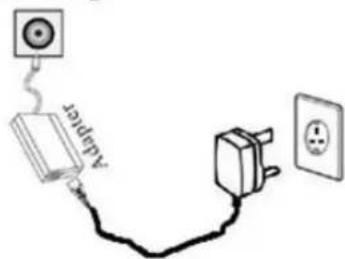
Power supply

Power cable
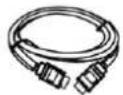
HDMI
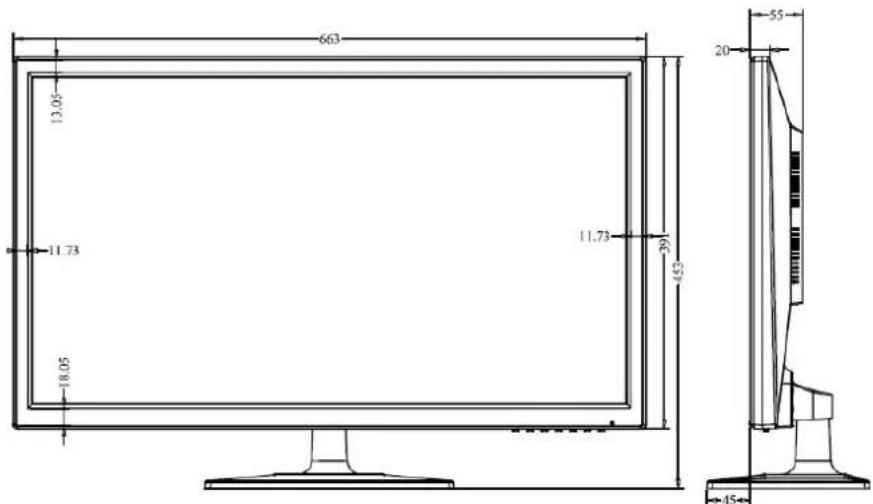
Monitor with dimension details :

Way of a liquid crystal display background / audio output
1.DC input port: this port power cord
It will be used to supply the power ;
- HDMI 1 port: This port is HDMI 2.0
It will be used to connect a compatible device. Support HDMI 1.4 & 2.0;
- HDMI 2 port: This port is HDMI 2.0
It will be used to connect a compatible device. Support HDMI 1.4 & 2.0;
4.DP 1 This port Display Port 1.2
It will be used to connect a compatible device.
- DP 2 This port Display Port 1.2
It will be used to connect a compatible device.
- Audio output port

1 Power Plug
② HDMI Port

③ HDMI Port

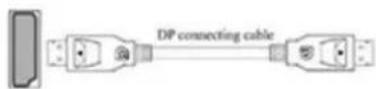
4 DP Port

⑤ DP Port
6 Audio output
Connect headphones or external speakers to the monitor.
- SOURCE : Press this buon to select the source or exit menu.
- MENU : To enter menu seng page.
- Press this buon to move le to select the OSD seng.
- Press this buon to move right to select the OSD seng
- Press this buon to move up to select the OSD seng
- ▼ Press this buon to move down to select the OSD seng
- POWER: To turn ON/OFF the monitor
WALL MOUNTING
- The monitor is provided with mounng holes for a VESA approved wall mounng bracket (not supplied)
- The VESA moung paern is:100x100mm and the size of the screws is 4 x M6 x 10 (not supplied)
- Do not use screws longer than specified or damage will occur to the internal components.
NOTE: As the monitor is considered heavy, please consult with a professional wall mount installer to perform the installaon.
GETTING STARTED
BUTTON FUNCTIONS
SETTINGS
INITIAL SETUP
Connect the monitor to a power outlet.
- Press the POWER buon on the monitor or to turn it on (the indicator will be lit blue)
- Connect the relevant cable to the corresponding source on the monitor. The input should be automacally detected.
- Press the "Source" buon to bring up the source menu. Use the "▼" "▲" to choose the preferred input source.

Select from:
DP1
DP2
HDMI 1
HDMI 2
PICTURE SET
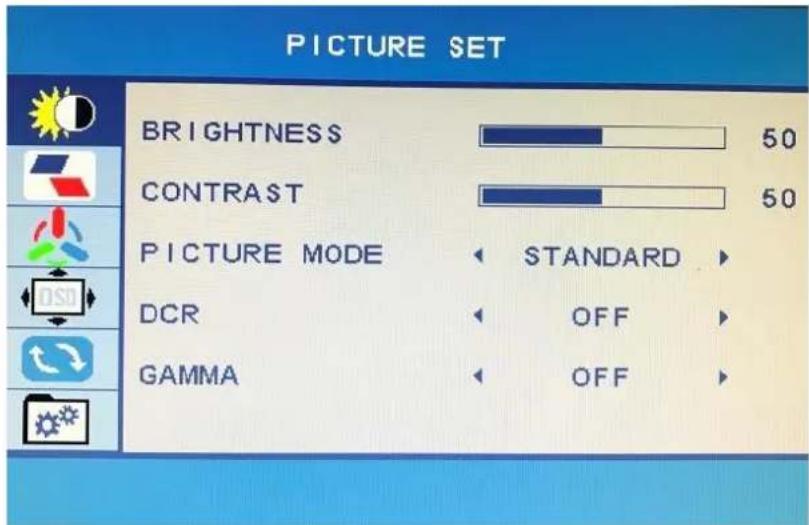
BRIGHTNESS
It allows the change of image brightness, according to ambient light. Value "0-100"
Contrast
It allows the change of contrast between white and black areas of the image.
Value "0-100"
PICTURE MODE
It allows the change of the image sengs among the following:"SRGB-ENERGY SAVE-STANDARD-TEXT-MOVIE-GAME".
DCR
It allows the change of the dynamic contrast of the picture "ON, OFF"
GAMMA
It allows to change the GAMMA value "OFF, 1.8, 2.0, 2.2, 2.4".
IMAGE
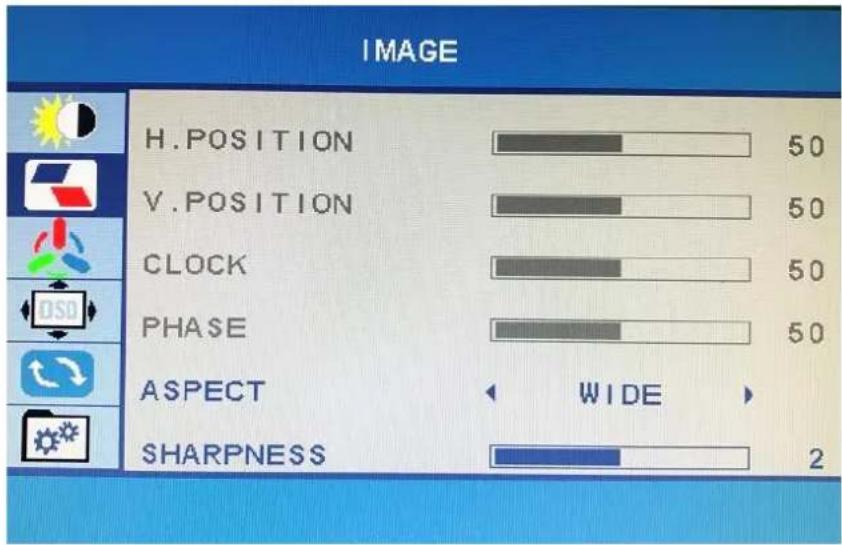
H. POSITION
It allows to change horizontal posion of the display image. Press "3" and "4" buons to horizontally move the image.
V. POSITION
It allows to change vercal posion of the display image. Press "3" and "4" buons to vercally move the image.
CLOCK
It allows to change CLOCK seng. Value "0-100"
PHASE
It allows to reduce video distoron and instability components.
SCALE
It allows to change the video format of the images among “WIDE, 4:3”.
SHARPNESS
It allows to optimize image sharpness parameters according to ambient light "0, 1, 2, 3, 4"
COLOR TEMP.

COLOR TEMP.
It allows to change the color sengs among the following: "Warm – Cool – User", in "User" opon, you can select "Red : 0-100, Green: 0-100, Blue : 0-100".
SATURATION
It allows to change colors of the image
HUE
Only used in NTSC system.
OSD SETTING

LANGUAGE
It allows to select the desired language: "ENGLISH, FRENCH, TURKCE, ITALIANO, ESPANOL, PORTUGUES, CHINESE, NEDERLANDS, JAPANESE, DEUTSCH, POLSKI".
OSD H. POS
It allows to change the horizontal position of the OSD
OSD V. POS
It allows to change the vercal posion of the OSD
OSD TIMER
It allows to set up the duraon of the OSD, value "0-100".
TRANSPARENCY
It allows to set up the transparency of the OSD, value "0-100".
RESET
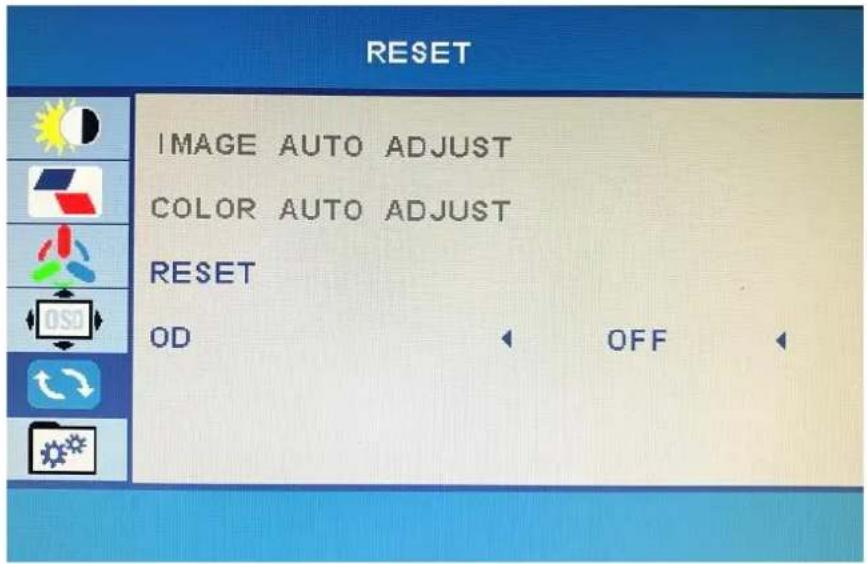
IMAGE AUTO ADJUST
It allows to auto adjust the image.
COLOR AUTO ADJUST
It allows to auto adjust the image color.
RESET
It allows to set up to the factory default.
OD
OD is Over driving and it allows to set up the image overdriving.
MISC.

SIGNAL SOURCE
It allows to choose the signal source of the display “HDMI1, HDMI2, DP1, DP2, AUTO”.
LOW BLUE LIGHT
It allows to choose the low blue eect of the display, value : 0-25-50-75-100.
VOLUME
It allows to change the volume of the monitor from "0-100".
MUTE
It allows to set up the volume on or o.
FREE SYNC
It allows to set up the free sync eect on or o to ensure the image display eect.
TROUBLESHOTING
| Problem | Soluon |
| No power | Insert the power plug securely into the power outlet. |
| No picture | Ensure that the equipment is connected properly. |
| Ensure the correct input is selected. | |
| DVI Input will only support a max resoluon of 1920x1080 and xed refresh of 60Hz. Make sure your display sengs correspond to this. | |
| Buons on the monitor don’t do anything | Disconnect the power plug and then reconnect it. (The unit may not be operang properly due to lightning, stac, or other factors.) |
| Noise or other interference | Electronic equipment near the unit may be causing interference. Relocate the unit or move the equipment. |
| M284K | |
| Panel Type | 28" (16:9) LED Backlit Monitor |
| Case Type | Plasc |
| Best Resoluon | 3840(H) x 2160(V) @ 60 Hz |
| Acve Display Area | 648.9 (H) X 369.3 (V) |
| Pixel Pitch | 0.16 (H) x 0.16 (V) |
| Contrast Rao | 3000:1 Typical |
| Brightness | 280 cd/m2 |
| Response Time | 5ms(G2G) |
| Viewing Angle | U/D: 85° / 85°, L/R: 80° / 80° |
| Display Colors | 1.073G |
| PC Compatible Frequency | 30-145KHz(H) / 50-130Hz(V) |
| Adjustable Color Temperature | WARM/ COOL /USER |
| Video Compatibility | Mul-Standard for NTSC / PAL |
| Aspect Rao | 16: 9 |
| Speaker Mulmedia Speakers | Right x 1 Le x 1, 2X5W |
| Sound Demodulaon | Stereo. Audio |
| Mute | Yes |
| Operang Humidity | 20% - 70% |
| Operang Temperature | - 10 to 50 °C |
| IN/OUT INTERFACE | |
| Video Interface | HDMI 2.0 x 2, DP 1.2 x 2 |
| Audio Interface | Audio Out x 1, |
| Safety & EMC Cercaon | CE / FCC / ROHS |
| Stand Type | Desktop |
| Buon Posion | Right Hand Side |
| POWER Voltage | AC90-130V 57-63Hz |
| Power Consumpon | Typical 40W |



- CONTENTS
- SAFETY INFORMATION
- WHAT'S INCLUDED
- Way of a liquid crystal display background / audio output
- WALL MOUNTING
- GETTING STARTED
- BUTTON FUNCTIONS
- SETTINGS
- INITIAL SETUP
- PICTURE SET
- BRIGHTNESS
- Contrast
- PICTURE MODE
- DCR
- GAMMA
- IMAGE
- POSITION
- POSITION
- CLOCK
- PHASE
- SCALE
- SHARPNESS
- COLOR TEMP.
- SATURATION
- HUE
- OSD SETTING
- LANGUAGE
- OSD H. POS
- OSD V. POS
- OSD TIMER
- TRANSPARENCY
- RESET
- IMAGE AUTO ADJUST
- COLOR AUTO ADJUST
- OD
- MISC.
- SIGNAL SOURCE
- LOW BLUE LIGHT
- VOLUME
- MUTE
- FREE SYNC
Brand : Speco Technologies
Model : M284K
Category : Surveillance