U-1420 - NAS ST Lab - Free user manual and instructions
Find the device manual for free U-1420 ST Lab in PDF.


User questions about U-1420 ST Lab
0 question about this device. Answer the ones you know or ask your own.
Ask a new question about this device
Download the instructions for your NAS in PDF format for free! Find your manual U-1420 - ST Lab and take your electronic device back in hand. On this page are published all the documents necessary for the use of your device. U-1420 by ST Lab.
USER MANUAL U-1420 ST Lab
USB 3.1 Gen1 Type-C to HDMI
4K Adapter
User Manual
Ver. 1.00
All brand names and trademarks are properties of their respective owners.
Contents:
Chapter 1: Introduction ...... 3
1.1 Product Introduction ...... 3
1.2 Features .... 3
1.3 System Requirements .... 4
1.4 Package Contents .... 4
Chapter 2: Getting Started .... 4
2.1 Driver Installation .... 4
2.1.1 Installation for Windows 5
2.1.2 Installation for Mac OS X 7
2.2 Verifying the installation 9
2.2.1 Verifying for Windows.... 9
2.2.2 Verifying for Mac OS X.... 10
2.3 Display Configuration .... 11
Chapter 1: Introduction
1.1 Product Introduction
This USB 3.1 Gen1 Type-C to HDMI 4K Adapter connects a 4K TV, monitor, or projector to your computer system. The adapter adds Ultra 4K video support to your computer system through an available USB 3.0 port. It supports a resolution up to 3840 x 2160. It is Windows and Mac compatible.
1.2 Features
- An ideal solution for expanding the connectivity of MacBook or USB-C enabled host machine
- Highest performance USB graphics solution available. Combines both video and audio over a single USB cable and HDMI cable
- Connect multiple monitors with resolution as high as 3840x2160 (4K) to Windows-based laptops and desktops
- Connects to Windows PCs via SuperSpeed USB 3.0. USB bus power (no power adapter required). Adapter is backwards
compatible with USB 2.0, but in most cases performance above 1080P over USB 2.0 will be unsatisfactory
● Supports HDMI displays up to 3840x2160@30Hz. 3440x1440 displays will refresh at 50Hz. 2560X1600, 1920x1080 (1080P) and all lower modes will refresh at 60Hz
1.3 System Requirements
- Windows® 7/8/8.1/10 (32/64 bit); Mac OS X 10.8 or above
● Available USB Type-C port
1.4 Package Contents
● 1 x USB 3.1 Gen1 Type-C to HDMI 4K Adapter
- 1 x User Manual
- 1 x Driver CD
Chapter 2: Getting Started
2.1 Driver Installation
The following section shows you how to install the USB 3.0 to HMMI 4K Adapter driver on different operating systems.
Important! Please connect the USB 3.1 Gen1 Type-C to HDMI 4K Adapter to your PC before the install.
2.1.1 Installation for Windows
- Insert the provided CD into your disk drive. The CD-ROM will start automatically. The following screen will show up and please click “Install Driver”.
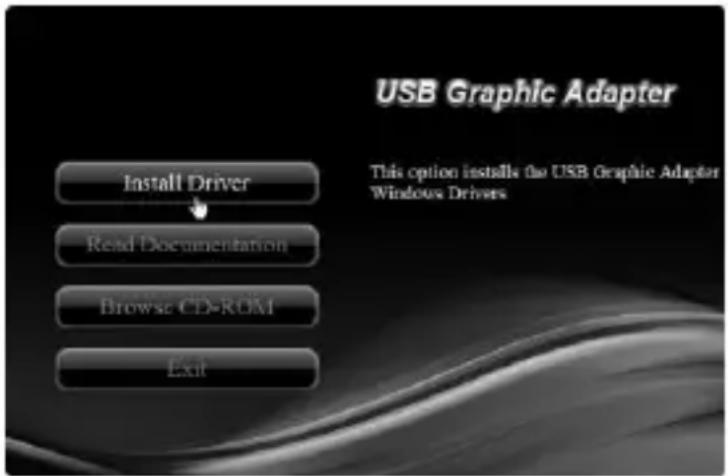
*Note: Actual image may vary
Note: If the install program doesn't run automatically, please locate and double-click on the Autorun.exe file in the CD to launch the install program.
2. Please click "USB 3.0 4K DP/HDMI"
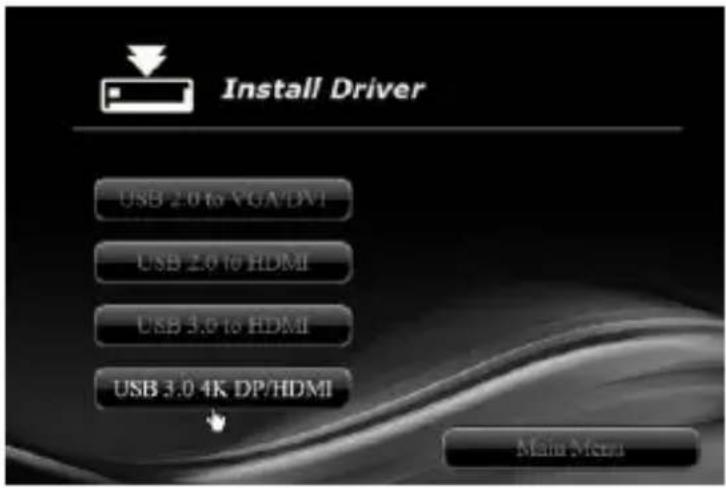
*Note: Actual image may vary
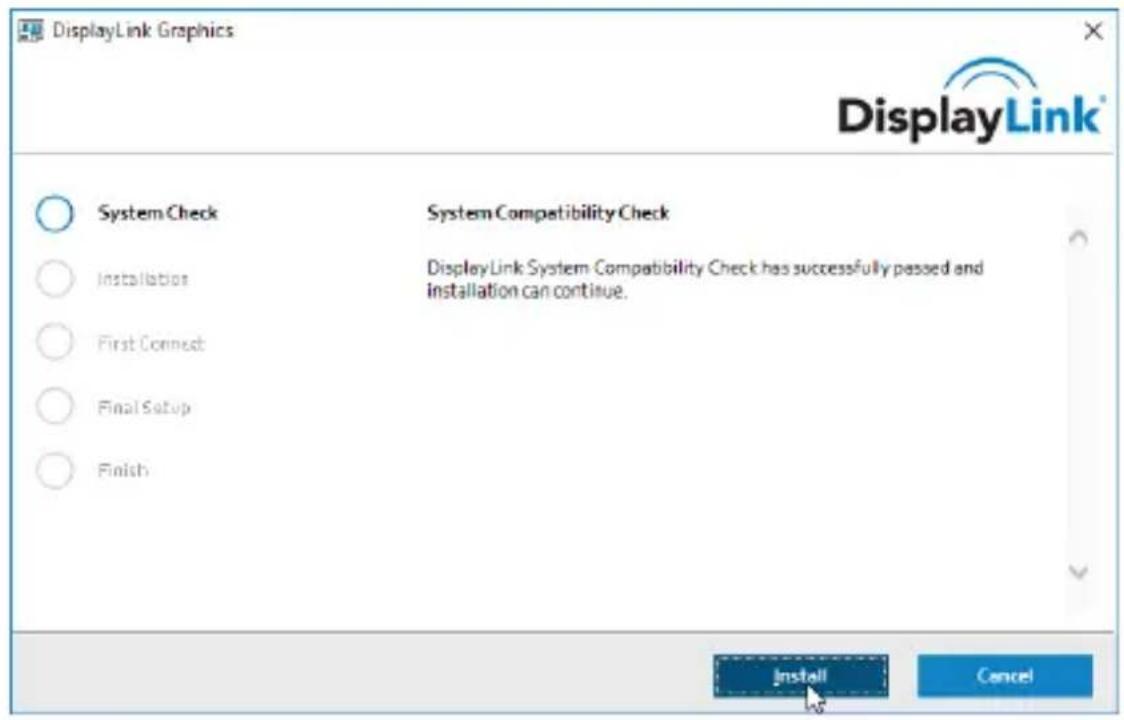
3. Please click "Install" to continue.
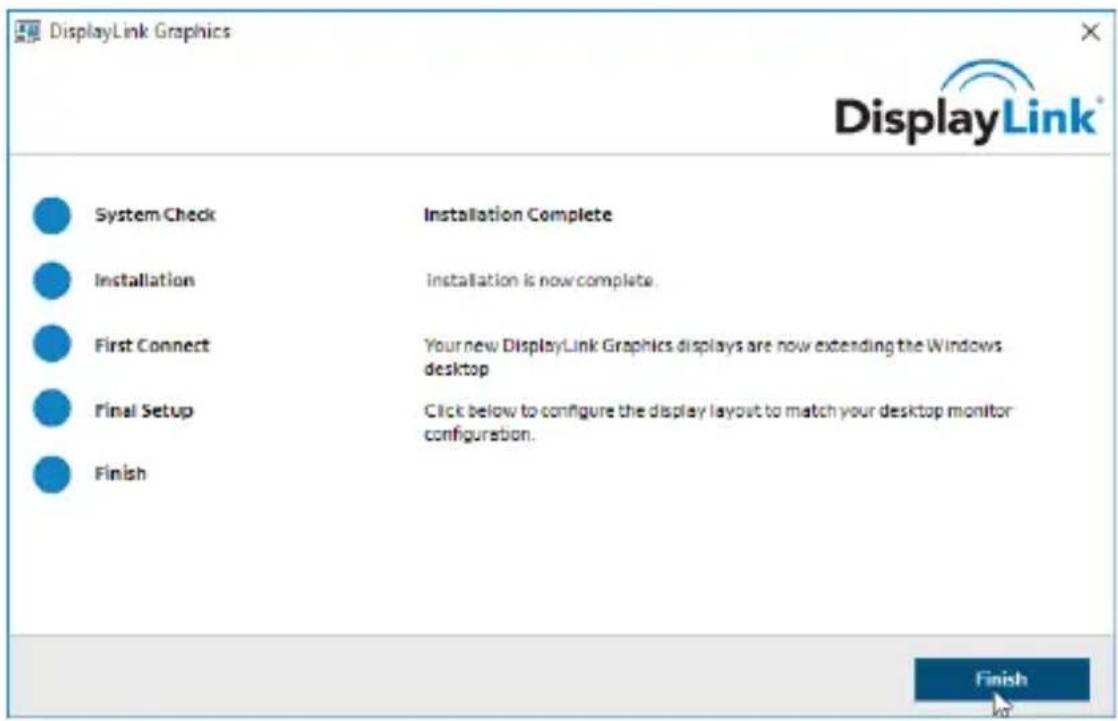
- Click "Finish" to end of the driver installation steps.
Note: On some machines, you may need to reboot before you can use USB 3.1 Gen1 Type-C to HDMI 4K Adapter.
2.1.2 Installation for Mac OS X
- Insert the provided CD into your CD-ROM drive.
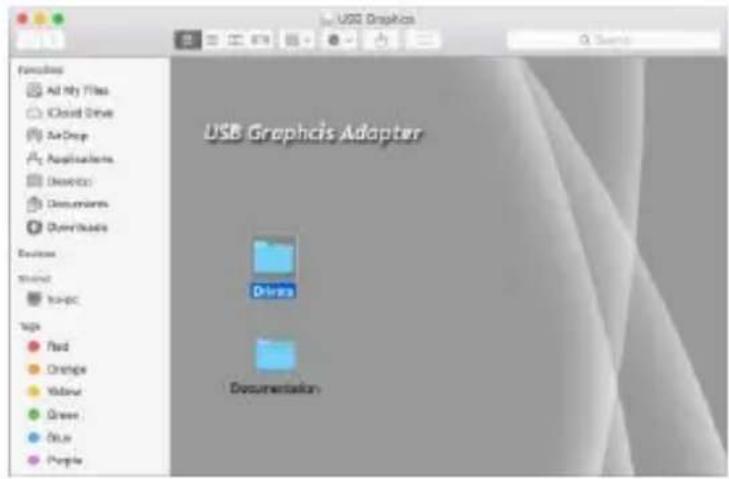
- Double-click the “USB Graphics” disc icon, double-click package file “mac.dmg”, the following “USB Graphics” virtual disk will be appeared on the Desktop of your Mac OS X system. Then double click “Drivers” folder.
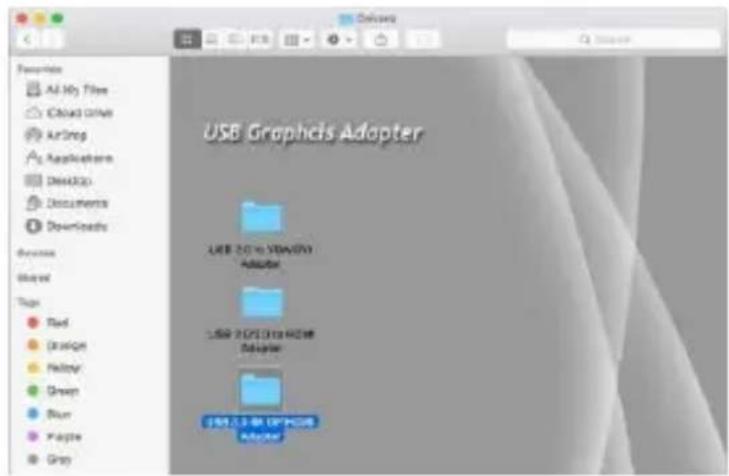
- Double Click "USB 3.0 4K DP/HDMI Adapter" folder.
- Select “DisplayLink Software Installer” to begin installing the DisplayLink Driver on your Mac.
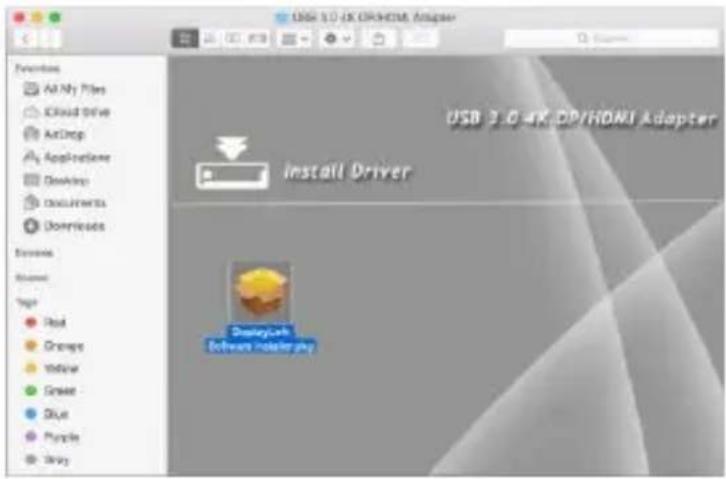
- Follow the instructions on screen to install the driver. After driver installation is complete, you must restart your computer.
2.2 Verifying the installation
2.2.1 Verifying for Windows
- Click on the “Device Manager” tab in the Windows Control Panel.
Start > Control Panel > Device Manager
- In the USB Display Adapters group, an item named USB 3.0 4K Display Adapter should be displayed.
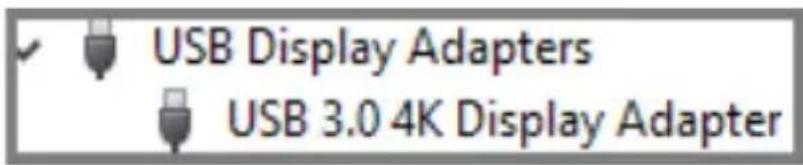
Note: If there is a question or exclamation mark next to that item, then the driver is not properly installed. Please delete the item, select the
Delete the driver software for this device option (if provided),
unplug the USB 3.1 Gen1 Type-C to HDMI 4K Adapter from your computer and then repeat the installation steps.
2.2.2 Verifying for Mac OS X
- Choose About this Mac from the Apple menu.
- Click on System Report...
- In the Contents sidebar select USB from the Hardware section.
- Scroll the list to reveal the USB 3.1 Gen1 Type-C to HDMI 4K Adapter information
| Card Reader | USB Device Tree |
| Diagnostics | ▼ USB 3.0 Hi-Speed Bus |
| Disc Burning | Apple Internal Keyboard / Trackpad |
| Ethernet Cards | ▼ BRCM20702 Hub |
| Fibre Channel | Bluetooth USB Host Controller |
| FireWire | ▼ USB 3.0 SuperSpeed Bus |
| Graphics/Displays | USB 3.0 4K Display Adapter |
| Hardware RAID | |
| Memory | USB 3.0 4K Display Adapter: |
| NVMExpress | Product ID: 0x4300 |
| PCI | Vendor ID: 0x17e9 (DisplayLink (UK) Ltd.) |
| Parallel SCSI | Version: 19.57 |
| Power | Serial Number: SUNR368100074 |
| Printers | Speed: Up to 5 Gb/sec |
| SAS | Manufacturer: DisplayLink |
| SATA/SATA Express | Location ID: 0x15100000 / 5 |
| SPI | Current Available (mA): 900 |
| Storage | Current Required (mA): 504 |
| Thunderbolt | |
| USB |
2.3 Display Configuration
When USB 3.1 Gen1 Type-C to HDMI 4K Adapter is attached, an icon appears in the taskbar. This gives you access to the DiaplayLink manager menu.
To use the DisplayLink Manager Menu
- From the taskbar, click the DisplayLink icon

- A menu appears with several options. These are shown and described below.
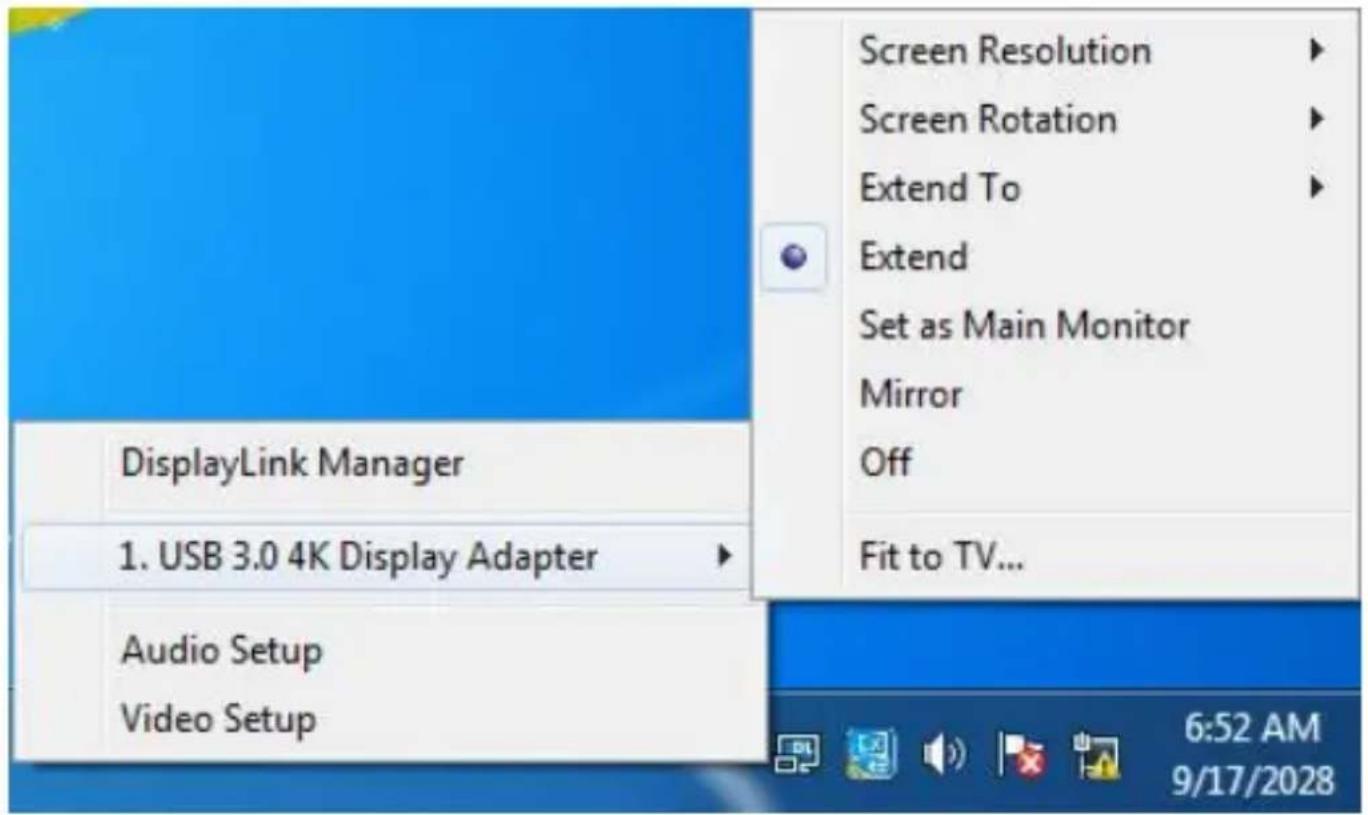
- Screen Resolution: Click to select an available resolution. Note: This function is disabled in mirror mode, as the resolution is defined by the resolution of the primary monitor
- Screen Rotation: Rotates the screen according to the desired orientation
- Extend to: Extends the screen according to the desired orientation
- Extend: This is the default settings of the USB 3.1 Gen1 Type-C
to HDMI 4K Adapter. This mode extends your desktop for easy viewing of multiple windows. The window will move off the primary display from the right side and enter the extended display from the left side
- Set as Main Monitor: Sets the extended screen as the main screen
- Mirror: Duplicates the primary monitor to the monitor which connects with the USB 3.1 Gen1 Type-C to HDMI 4K Adapter
• Off: Turns off the USB 3.1 Gen1 Type-C to HDMI 4K Adapter
• Fit to TV: Adjusts the size of the desktop on the TV. Note: This function works only when one display is connected
• Audio Setup: Opens the Windows Audio Configuration window
• Video Setup: Opens the Windows Display Settings window