U-1300 - NAS ST Lab - Free user manual and instructions
Find the device manual for free U-1300 ST Lab in PDF.


User questions about U-1300 ST Lab
0 question about this device. Answer the ones you know or ask your own.
Ask a new question about this device
Download the instructions for your NAS in PDF format for free! Find your manual U-1300 - ST Lab and take your electronic device back in hand. On this page are published all the documents necessary for the use of your device. U-1300 by ST Lab.
USER MANUAL U-1300 ST Lab
USB Type-C to HDMI Adapter
User Manual
Ver. 1.00
All brand names and trademarks are properties of their respective owners.
Contents:
Chapter 1: Introduction......3
1.1 Product Introduction....3
1.2 Features .... 3
1.3 System Requirements ....4
1.4 Package Contents......4
Chapter 2: Getting Started ....4
2.1 Driver Installation....4
2.1.1 Installation for Windows 4
2.1.2 Installation for Mac OS X 6
Chapter 1: Introduction
1.1 Product Introduction
This USB Type-C to HDMI Adapter lets you to connect your MacBook with USB-C port to a HDMI Display. Simply connect the adapter to the USB-C port on your MacBook and then to your TV or project via a HDMI cable.
1.2 Features
● Compliant with USB specification, revision 2.0
● Supports suspend and wake-up modes
● Functionality: primary, extended or mirror
● Resolution: up to 1920 x 1080 @ 32-bit color
- HDMI output
● Cable port: USB Type-C / HDMI (19 pin)
- Allows multiple connection in a single PC
● Audio output through HDMI
- Bus Powered – no external power supply needed
1.3 System Requirements
- Windows® 7/8 (32/64 bit); Mac OS X 10.6 or above
● Available USB Type-C port
1.4 Package Contents
● 1 x USB Type-C to HDMI Adapter
- 1 x Driver CD
● 1 x User Manual
Chapter 2: Getting Started
2.1 Driver Installation
2.1.1 Installation for Windows
- Insert the provided CD into your disk drive. The CD-ROM will start automatically. The following screen will show up and please click “Install Driver”.
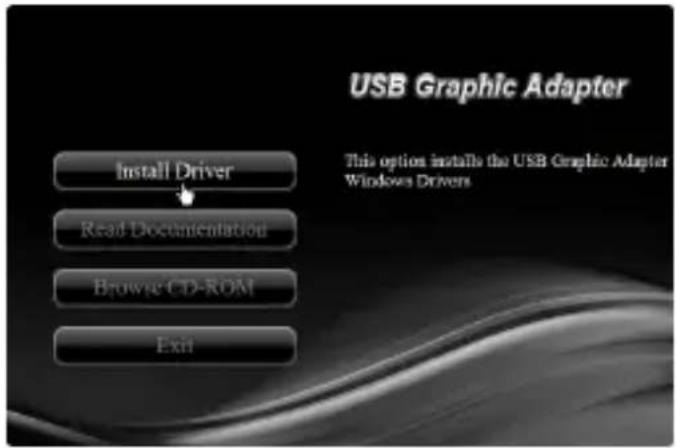
*Note: Actual image may vary
Note: If the install program doesn't run automatically, please locate and double-click on the Autorun.exe file in the CD to launch the install program.
- Please click "USB 2.0 to HDMI".
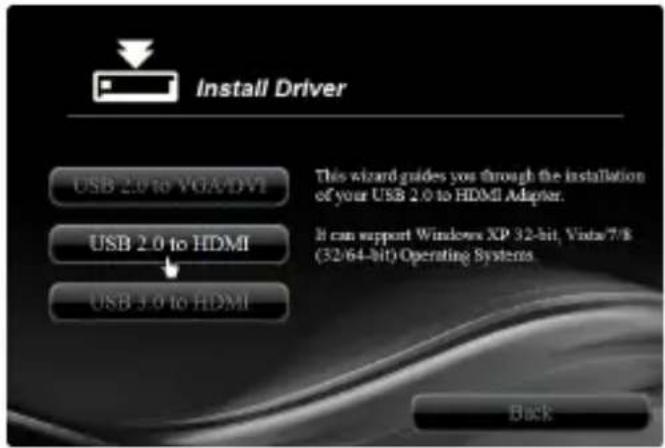
*Note: Actual image may vary
- Follow the instructions on screen to install the driver.
2.1.2 Installation for Mac OS X
- Insert the provided CD into your CD-ROM drive.
- Double-click the “USB Graphics” disc icon, double-click “Drivers” folder.
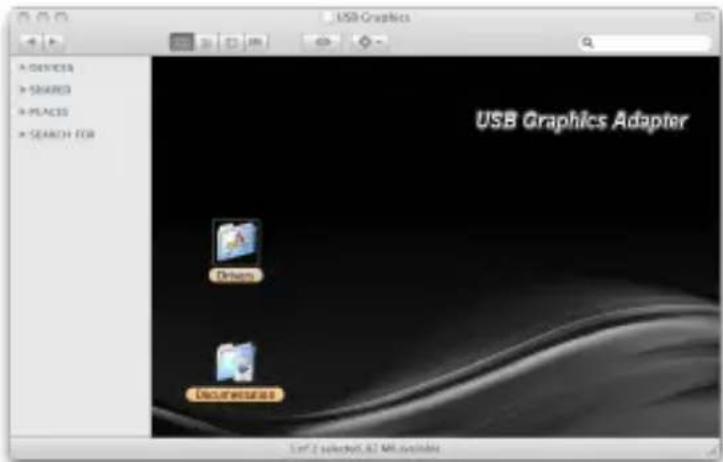
*Note: Actual image may vary
- Double-click “USB 2.0/3.0 to HDMI Adapter” folder, and then double click “Mountain Lion & Lion & Snow Leopard Installer” file to launch the installer.
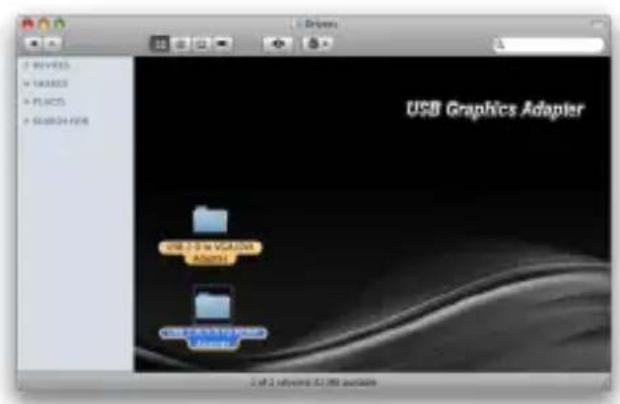
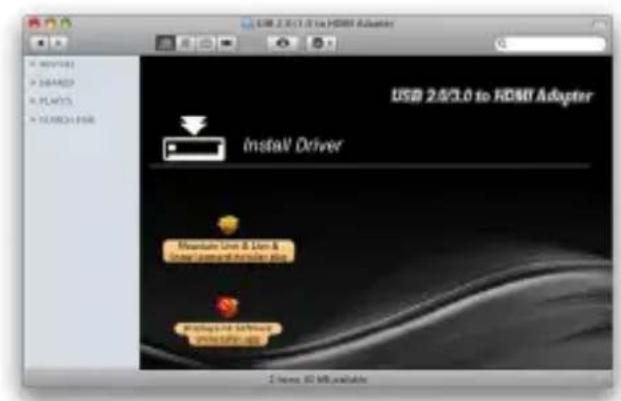
*Note: Actual image may vary
- Follow the instructions on screen to install the driver. After driver installation is complete, you must restart your computer.